

Smart Glasses Quick Start Guide
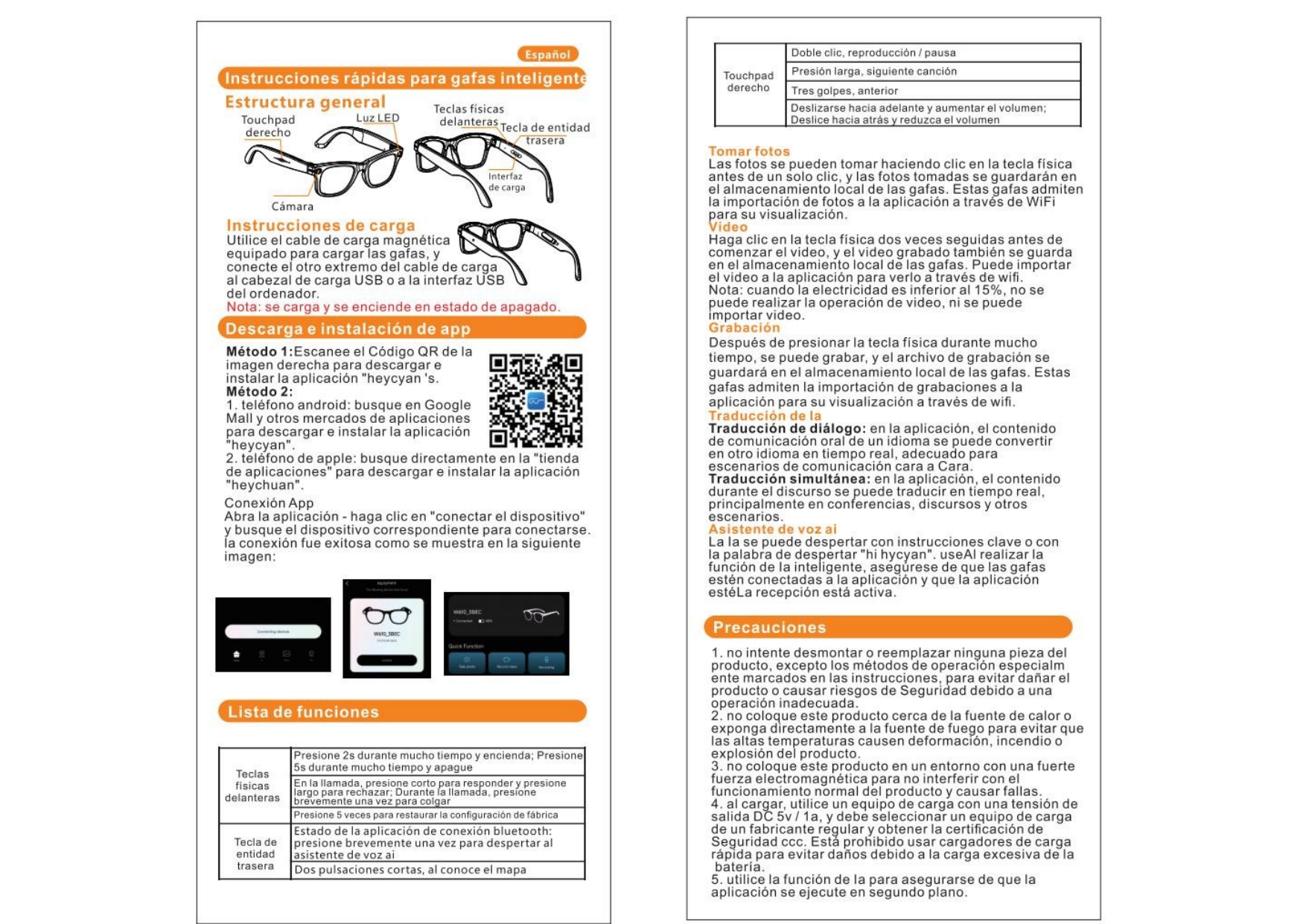
General Structure
Diagram showing smart glasses. Key components are labeled:
- Right Touchpad
- LED Light
- Front Physical Keys
- Rear Entity Key
- Camera
- Charging Interface
Charging Instructions
Utilize the magnetic charging cable provided to charge the glasses. Connect the other end of the cable to a USB charging head or a computer's USB port.
Note: The device charges and powers on when it is in the off state.
App Download and Installation
Method 1: Scan the QR code displayed to download and install the "heycyan" application.
Method 2:
- Android phones: Search for "heycyan" in the Google Play Store or other app markets to download and install the application.
- Apple phones: Directly search for "heychuan" in the App Store to download and install the application.
App Connection:
Open the application, click on "Connect Device", and search for the corresponding device to establish a connection. A successful connection is indicated visually.
List of Functions
Physical Keys
| Key Type | Function |
|---|---|
| Front Physical Keys |
|
| Rear Entity Key |
|
Right Touchpad
| Action | Function |
|---|---|
| Double click | Play/Pause |
| Long press | Next song |
| Three taps | Previous song |
| Swipe forward | Increase volume |
| Swipe backward | Decrease volume |
Features
Taking Photos
Photos can be captured by clicking the physical key. The captured photos are saved locally on the glasses. These photos can be imported to the application via WiFi for viewing.
Video Recording
Double-click the physical key twice consecutively to start recording a video. Recorded videos are saved locally on the glasses and can be imported to the application via WiFi for viewing.
Note: Video recording and import operations are not possible if the battery level is below 15%.
Recording
Long-press the physical key to start recording. The recording file is saved locally on the glasses. These recordings can be imported to the application via WiFi for viewing.
Translation
Dialogue Translation: Within the application, spoken communication content in one language can be converted to another language in real-time, suitable for face-to-face communication scenarios.
Simultaneous Translation: Within the application, content during a speech can be translated in real-time, primarily for conferences, lectures, and other scenarios.
AI Voice Assistant
The AI assistant can be woken up using a specific key command or the wake word "hi hycyan". To utilize the intelligent functions, ensure the glasses are connected to the application and the application is active.
Precautions
- Do not attempt to disassemble or replace any part of the product, except for methods specifically marked in the instructions, to avoid damaging the product or causing safety risks due to improper operation.
- Do not place this product near heat sources or expose it directly to fire to prevent high temperatures from causing deformation, fire, or explosion of the product.
- Do not place this product in an environment with strong electromagnetic fields to avoid interfering with the normal operation of the product and causing malfunctions.
- When charging, use a charging device with a DC 5V/1A output voltage. Ensure you select a charging device from a regular manufacturer that has obtained CCC safety certification. It is prohibited to use fast chargers to avoid damage due to excessive battery charging.
- Utilize the function to ensure the application is running in the background for proper operation.
