

XTRFY M4 Wireless Gaming Mouse Manual
Getting Started
This guide provides essential information for setting up and using your XTRFY M4 Wireless gaming mouse.
Connection and Initial Setup
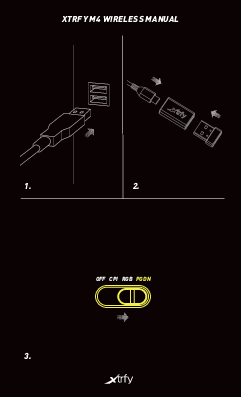
Step 1: Connect the USB receiver to a USB port on your computer. The receiver is typically a small dongle.
Step 2: Connect the mouse's USB cable to the USB receiver. This establishes the wireless connection.
Step 3: Locate the switch on the bottom of the mouse. Use this switch to select the desired mode: OFF (power off), CPI (adjust sensitivity), RGB (control lighting), or PGDN (assignable function).
Polling Rate Adjustment
The polling rate determines how often the mouse reports its position to the computer. Adjust this setting using the PR button located on the bottom of the mouse.
- ● 125 Hz
- ● 500 Hz
- ● 1000 Hz
CPI (Dots Per Inch) Settings
CPI, also known as DPI, controls the mouse cursor's sensitivity. Adjust the CPI level using the switch on the bottom of the mouse. The LED indicator on the mouse will change color to reflect the selected CPI setting.
- ● 400
- ● 800
- ● 1200
- ● 1600
- ● 3200
- ● 4000
- ● 7200
- ● 19000
RGB Lighting Customization
The XTRFY M4 Wireless features customizable RGB lighting.
RGB Effects
Cycle through various RGB lighting effects by using the switch on the bottom of the mouse. Press and hold the switch for approximately 3 seconds to change effects.
Color Selection
Choose your preferred color for the RGB lighting.
Brightness Control
Adjust the RGB lighting brightness using the side buttons. Press the 'plus' button (➕) to increase brightness and the 'minus' button (➖) to decrease it.
Speed Control
Modify the speed at which RGB lighting effects transition.
Advanced Features
Lift-Off Distance
Configure the lift-off distance, which is the height at which the mouse sensor stops tracking when lifted from a surface.
- ● 1 MM
- ● 2 MM
Debounce Time
Set the debounce time to prevent unintended double-clicks. This setting determines the delay before a button press is registered.
- ● 2 MS
- ● 4 MS
- ● 8 MS
- ● 12 MS
Factory Reset
To restore the mouse to its default settings, press and hold the PR button on the bottom of the mouse for approximately 5 seconds.
Physical Adjustments
Weight Balance
The mouse is designed with adjustable weight balance. Use the provided tool to insert or remove weights from the designated slots located on the underside of the mouse to achieve your preferred balance.
Removing the Shell
For maintenance or customization, you can remove the top shell of the mouse. First, unscrew the indicated screws (marked with a '+' symbol) on the bottom of the mouse. Once the screws are removed, carefully lift the top shell away from the base.
Important Information
Charging Instructions
⚠️ Important: Always charge the XTRFY M4 Wireless mouse exclusively via a computer's USB port. Avoid using other types of chargers.
Support and Full Manual
For the complete user manual and additional support resources, please visit xtrfy.com/downloads. For direct assistance, contact support at support@xtrfy.com.