

中性说明书
File info: application/pdf · 25 pages · 1.20MB
中性说明书
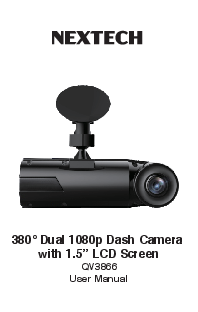
380° Dual 1080p Dash Camera with 1.5" LCD Screen QV3866 ...
380° Dual 1080p Dash Camera with 1.5" LCD Screen QV3866 User Manual
380° Dual 1080p Dash Camera with 1.5" LCD Screen QV3866 User ...
380° Dual 1080p Dash Camera with 1.5" LCD Screen
Extracted Text
380� Dual 1080p Dash Camera with 1.5" LCD Screen
QV3866 User Manual

1. What's in the box?

A

B

C

D

E
A: Dual 1080p Dash Camera B: Suction Cup Mount C: Car Charger D: USB Data Cable F: Reset Pin

2.Camera Structure

1

2

5

3

4

9

R OK M

6 7
8
11

10

12

13

GPS

14 15

USB TF

16

NO.

Name

1 Mount connector

2 Front Camera lens

Description Connects to the Suction Cup Mount
Front Facing Camera for recording road events

3

Rear Camera Lens Inside cabin facing camera

video recording.

4

Power Button

Power ON/OFF

Turn off LCD screen.

5

Up Button

Move selector up; rewind. Microphone on/off.

6

Down Button

Move selector down; fast

forward; Switch the Single

front or Dual lens

7

OK Button

Confirms the action; Stop /Start the video recording/ snapshot in photograph mode

8

M Button

Switch between photograph mode, playback video files and Video recording mode

9

Reset Button

Press to force reset the

device

10 Menu Button

Enter/exit setup menu

11 Emergency

Manually lock the current recording video clip

12

LCD Screen

1.5" TFT Color LCD Display

13 Status Light

To indicate operation status

14 GPS Slot

GPS optional

15 Micro SD Card Slot Provides expandable storage (up to 128GB in FAT32, Class 10)

16 Micro USB Port USB port for charging or transferring data

LED Indicator Red light blinks: Camera is recording Green light is visible : Camera is charging.

Screen overview

Motion Detect ON
Recording Time (current clip) Recording

Time Lapse OFF Time Lapse ON

00:00:14

Parking Mode ON

G-Sensor ON Loop Recording Time

MIC ON

P

MIC OFF

SD Card inserted or not

Emergency File Lock

2019-02-13 05:34:03

Current Battery Level Current Date

Time (24H)

Battery is charging (YYYY/MM/DD)

3.Getting Star ted
3.1 Before first use, charge the camera for 1-2 hours A. Charge using the supplied USB.
B. Charge using the supplied Car charger. Ensure the Micro USB Cable and Car Charger are well connected
The indicator light of the car charger will be red light when charging. Note: When charging via computer through USB "MSDC" and "Charging" will be displayed on the camera screen, please select "Charging" to charge the dash cam. "MSDC" is to transfer data from dash cam to a computer.

3.2 Installing a Memory Card Please use a genuine micro SD memor y card from 8GB to 128GB with a speed rating of class 10 or higher. Carefully insert the memor y card into the camera's card slot until it clicks. To remove the card, power off the camera first, then push the card into the slot until it clicks again. Before using the card, please format it correctly using these steps:
Press MENU button to enter setup; if the camera is recording video, press confirm button to stop the recording Press the DOWN button to highlight the Format option, press UP or Down button to Confirm or cancel the format.
SD
8GB
REMINDER: 1. Ideally, the Micro SD card should be formatted
every 2 weeks to maximize the lifetime of the memory card.

GPS

USB TF

TF GPS

2. Please do not remove the card while the camera is recording to prevent data loss/ corruption.
3.3 Installing the camera onto your windshield 1. Attach the Suction Mount to the camera's Mount Connector, pushing it in until it fastens.
R
R OK
M
2. Thoroughly clean the windshield using water or alcohol, and wipe clean with a dry cloth.
3. Securely attach the Suction Mount to the windshield.
4. Connect the supplied Car Charger to the Camera micro USB port carefully.
5. Insert the Car Charger into your vehicle's cigarette lighter port.

GPS

USB TF

6. Carefully route the power cable around the windscreen and tuck it under the trim.
7. Start the car. 8. The camera will auto power on and start recording.
4. Basic Operation
4.1. There are two ways to power ON/OFF the camera: A. Manually Single press the Power Button to power ON the camera, long press the button to power it OFF.
R OK M
B. Automatically When connected to the car charger, the camera will auto power ON after you start your car and the battery charging will commence.
The camera will power OFF 3 seconds after you turn off the car engine.

4.2. Menu Settings After powering ON the camera, press the MENU button to enter the setup process. (If the camera is recording video, press the OK button to stop recording before pressing the MENU button.)

Settings REC Autostart Recording
Single recording Loop Recording Time Lapse H G-Sensor set Parking Monitor

On 60FPS
Off Off Off Off

Settings YMD Date Stamp YMD Date&Time
Language Light Frequency Format Card Default Setting

Date&Time
English 60HZ

Settings Motion Detect GPS GPS
0.0 Exposure Playback Volume Auto LCD Off Auto Power OFF

Off Off +0.0 Middle Off Off

Settings SD Info V.1.0 System Info

X5K20190604

-Autostart Recording: To start recording automatically or not when you start your car. Default is On. Press OK button to switch it OFF/ON. -Single Recording: Single front Facing Camera for recording road events. Default is 60fps, press Up or Down button to switch from 30FPS to 60FPS.

-Loop Recording: To rewrite the oldest file when card is full, Default is 3 minutes per video clip, Press Up or Down button to switch duration: Off , 1,3,5 minutes.
-Time Lapse: Default is OFF. Press UP or DOWN followed by OK to set time interval: Off,4, 8, 12 hours.
-G-Sensor : Set to Off by default. Press UP or DOWN followed by OK to set sensitivity options: High, Normal, Low, Off.
-Parking Monitor: Default is OFF. Press UP and DOWN button followed by OK to switch it High, Normal, Low, Off.
-Motion Detect Default is Off. Press OK button to switch it OFF/ON. -GPS: (Option) Default is Off. Press OK button to switch it OFF/ON. -Exposure: Default is +0.0. Press UP and Down button to adjust it from -2.0,-1.0,+0.0,+1.0. -Playback Volume: Default is Middle. Press UP and DOWN button followed by OK to switch it High, Middle, Low, Off. -Auto LCD Off: Default is Off. Press UP and DOWN button followed by OK to switch it 15 , 30 secs, 1min, Off.

-Auto Power Off: Default is Off. Press UP and DOWN button followed by OK to switch it 15, 30 secs, 1min, or Off to disable it.
*A setting of 1 MIN means the camera is ON but not in use, it will auto turn OFF after 1 minute of inactivity. -Date Stamp: Default is Date&Time. Press UP and DOWN button followed by OK to switch it Date&Time, Date,Off.
-Date&Time: Press UP/DOWN and OK button to set the current date and time. Press the OK button to exit.
-Language: Default is English. Press OK to select between English, Simplified Chinese, Japanese, German.
-Light Frequency: Default is 60Hz. Press OK to switch between50Hz/60Hz/Auto.
-Format Card: Press navigate Up and DOWN button and select OK to format the micro SD card.
-Default Setting: Press OK and Press Up and Down button to select Confirm to reset the device back to stock factory settings.
-SD Info: Press Ok to check the micro sd card information and capacity.
-System Info: Show the current firmware version.
Press the MENU button to exit and complete the setup.

4.3. Photograph Mode

Press M button to enter photography mode, and then

press OK to take photos.

6M Num:0

EV 0.0

2019-02-13 05:34:03
4.4. Viewing Video/Picture on the Camera Press M button twice and go to "File Type", press OK and UP/DOWN button to navigate to - "Event" or - "Video" or - "Picture" file folders to view and playback videos or photos on the camera display.
File Type Event Video Picture
Use the UP/DOWN buttons to select the file and press OK button to playback/pause. During playback, press UP to rewind, and DOWN to fast forward.

1/1 0212_072806

2/3
0212_072638 0212_072625 0212_072551

00:00:20 2019-02-12 07:28 28.61 MB
2/2

00:00:20 2019-02-12 07:28 28.61 MB

2019-02-12 07:28 28.61 MB
Press the MENU button and then press Up and down button follow by OK button to delete a single video/photo.
2/4
Delete This File? Confirm Cancel
4.5 Viewing files on a computer 1. Connect the camera to your computer using the supplied USB cable.

2. "MSDC" and "Charging" will be displayed on the camera screen, please select to "MSDC" and press OK button to transfer data.
3. Depending on your computer OS, the device will appear either as a removable drive or a removable volume.
NOTE: When connected to your computer under "MSDC" status, standard camera setup and operations will be disabled.

Detailed Instruction: 1.Set Date&Time: Press the MENU button, navigate to "Date&Time", and press the OK button to set the date/time. Navigate UP or DOWN to select date and time values. Press M button to confirmand proceed. To finish setup, just press the OK button to exit. Note: Date format is DD/MM/YY with the time in 24 hour format.
Date&Time 2019 04 12 23 57
- Dual or Single Recording Modes: G1 dash camera is defaulted to DUAL CAM RECORDING mode ,both cameras will capture road front and inside cabin at dual 1920x1080P (30fps) with a camera lens angle of 190 degree x 2 and cover a 360 degree horizontally around your car without gap. It can be switched to SINGLE FRONT CAM RECORDING mode with following steps: Press Menu and navigate to "Single recording" ,default is 60fps,it can be switched from 60fps to 30fps

Settings

3

REC Auto Single recording

Single

30FPS

Loop

60FPS

Time

H G-Sensor set

P Parking Monitor

-Loop recording: After inserting a memory card, the camera will (by default) immediately start loop recording video when connected to a power source and powered ON. You can choose to disable it or switch it to 1,3,5 mins. While recording, the red LED indicator will blink and a red dot will flash on the top left of the screen. You can stop/start the recording at any time by pressing the OK button.
00:00:14

2019-02-13 05:34:03

2019-02-13 05:34:03

By default, the Loop Recording Time is 3 minutes. Please press Menu button and navigate to "Loop Recording" to change it to 1 minute or 5 minutes. When the microSD card is full, the camera will write over older files with the newest.

When Loop Recording is turned off, the camera will record video in 30 minute clips, but will not overwrite old video files when the storage card is full.
-Time Lapse: If TIME LAPSE is selected, the camera will take the video at the set time interval � either 4,8,12 hours � to create a video montage. For example, if you choose 4 hours, the recording will be 1 sec produce 1 fps video to create a full video up to 4 hours. The camera will not auto get out of time lapse recording mode next time when the camera is turned off and back on. You have to set it back to normal recording mode by manually switch time lapse function off.
-Parking Monitor: Parking Mode operates as a sentry function under different situations. To activate Parking Monitor, Press Menu button and navigate to "Parking Monitor",press OK and select Low, Normal or High. When the Parking Mode has been turned on, there will be an icon (P) at the upper right of the screen. It will be triggered by the motion collision to your car. In Parking Monitor Mode, once the camera detects collision to the car,it will start auto-recording; and then stop recording after 20 seconds of inactivity.
-Motion Detect: To activate Motion detect, Press Menu button and navigate to "Motion detect"and then switch it to ON. This function could be set together with Parking Monitor as an advanced Parking security.

The camera will start auto recording,once the camera detects any movements around the car. Owing to the 360 degree camera lens,makes the motion detection the same as 360 degree detection area around the car horizontally.
To ensure the camera is able to function in Motion detection Mode, please keep it powered with a mobile power bank or hardwire it directly to the car battery. We do not recommend running the camera continuously for more than 10 hours especially in an extreme weather.
-Auto LCD off This feature avoids any chance of the screen being a distraction in the vehicle, especially at night when the illumination from the LED screen can be a nuisance or even a hazard to the driver. The default setting is Off. Enable this function, the camera's LCD will light off after a few minutes but the recording will continue with red light blinks. You can press any button to light on the screen.
Event Recording Critical event detection is triggered by the G-Sensor (Gravity Sensor) and will auto-detect vehicle impacts and collisions. This will cause the camera to protect the current video clip from being overwritten by locking it and saving the footage in the "Event" folder. The G-Sensor sensitivity is adjustable with On or Off � it is set to Off by default. Event videos are stored in the "Event" folder, and cannot be automatically overwritten.

4.6 Working Temperature The camera is designed to operate in temperatures from -4 to 158�F (-20 to 70�C), temperatures outside this range risk degrading the camera's performance work and causing damage.
4.7 To avoid damage In hot weather, do not expose the camera directly to the sun when the car is parked. In extreme winter conditions, i.e. 4�F (-20�C) or lower, detach the camera from the windshield when not in use, and store in the glove box.

5. Specifications

Model Processor Image Sensor
Display Lens

G1 SP 6350A + 7003 Dual Processor Front: Sony IMX323 Rear: Sony IMX323 1.5 inch TFT LCD (4:3)
Front: 190�wide viewing angle, full 6 layer glass lens with F/2.0 wide aperture. Rear: 190 wide viewing angle, full 6 layer glass lens with F/2.0 wide aperture.

Languages Video

English/German/Japanese/Simplified Chinese
H.264 compressed format; Dual cam recording: FHD 1920x1080 (30fps) Single front cam recording: FHD 1920x1080(60fps)

Image

JPEG format

Audio

Built-in microphone and speaker

Memory Storage

Internal memory: 4MB External: SDHC MicroSD Card (8 to 64GB Card in FAT32, Class 10)

Shutter Type USB Port Battery

Electronic USB2.0 (micro) 500mAh 3.7V Polymer Li-ion battery

Working Temperature Storage Temperature Compatible OS

-4�to 158� (-20�to 70�) -4�to 176� (-20�to 80�) Windows XP/Vista/7/8/10 &Mac OS

6.Common Problems and Solutions :The dash cam will stop automatically when
recording. Solution: (1) Check whether the memory is full. (2) Check whether the loop recording function
of the dash cam is working. (3) Check the memory card write speed, make
sure it is a high speed card (Class 10 or above). (4) Check the memory card, there might be too many locked video that the loop recording won't work right.
:There are stripes interference in the image. Solution: It could be the wrong light frequency, enter the setup menu, and choose the right light frequency (50HZ / 60HZ) accordingto your local regulation.
:Suction mount cannot attach on windshield well? Solution: (1) Please clean the windscreen with a cleaning wipe. (2) Make sure the protective film on the suction cup is removed. (3) Rub some water around the edge of the suction cup.

(4) Please soak the suction mount in warm water for a moment then retry.
(5) If the mount failed, please contact us for a free replacement.
:Without external power supply, the camera only lasts ver y shor t time, or it just can't turn on. Solution: For safety reasons, this camera has a relatively small built-in batter y, It's used only for parking monitor(optional) and saving the video file after external power supply cuts off (car turns off ).
:The camera continuous turns on/off automatically. Solution: (1) Please make sure to use the provided car charger from the package. (2) Please do not use the USB cable for car charging,it is low votage only for data transfer or charging by computer.
:All buttons are not responding. Solution: Please reset the camera to restart.

7 :The screen is closed when recording, and the indicator light is on. Solution: (1) If the Auto LCD Off function is turn on. The G1 dash cam will protect the screen within the set time, but recording will continue with red light blinks. You can press any button to light on the screen. (2) If the Auto Power OFF function is turned on. The G1 dash cam will shut down within the set time when there is no recording. If you don't need this function, you can choose to turn off.