

NOKIA 5G-24W-A FastMile 5G Gateway User Guide
File info: application/pdf · 59 pages · 1.63MB
FastMile 5G Gateway 5G-24W-A Release 1.0
If the Center LED remains red, there is no 4G/LTE signal. In this case, the 5G signal search will not start. Relocate the FastMile 5G Gateway and see Repositioning for a better 4G/LTE or 5G signal for tips. Connection t…
FastMile 5G Gateway 5G-24W-A Release 1.0.03 - Elisa
To manage the FastMile 5G Gateway, a connection is established to the WebGUI (web based graphical user interface) where configuration, maintenance, and ...
Extracted Text
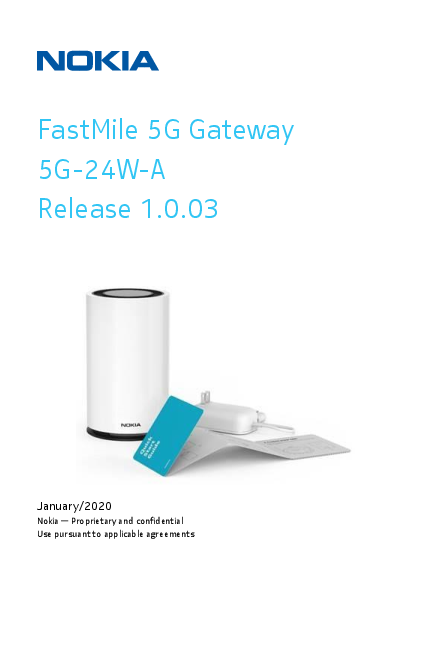
FastMile 5G Gateway 5G-24W-A Release 1.0.03
January/2020
Nokia -- Proprietary and confidential Use pursuant to applicable agreements

2

FastMile 5G Gateway User Guide

Issue 1.0

Contents
Contents .............................................................................................................. 3 Welcome............................................................................................................... 6
Purpose of this Guide..................................................................................... 6 Get to know your Nokia FastMile 5G Gateway................................................ 7
Typical connection .......................................................................................... 8 Physical interfaces .......................................................................................... 9
Bottom interfaces ....................................................................................... 9 Radio interfaces........................................................................................... 9 Visual Guidance..........................................................................................10 Setting up the FastMile 5G Gateway..........................................................11 Insert SIM card and power on..................................................................11 Start up sequence.....................................................................................12 5G Signal Direction LEDs..........................................................................13 Understanding the LED colors........................................................................15 Center LED.....................................................................................................15 5G LED ............................................................................................................16 Ethernet WAN.............................................................................................17 Repositioning for a better 4G/LTE or 5G signal .......................................18 When you might consider repositioning the Gateway?.......................18 If there is no 4G/LTE signal......................................................................18 If 4G/LTE signal found but 5G signal is weak ........................................18 Want to improve Medium 5G service .....................................................19 Connecting WiFi devices to the Gateway ......................................................21 Nokia WiFi Mesh ................................................................................................22 Nokia WiFi app download .................................................................................23 Establishing a connection and logging into the FastMile 5G Gateway .....24 Prerequisite for all procedures ...................................................................24 Nokia FastMile 5G Gateway login ................................................................26

3

FastMile 5G Gateway User Guide

Issue 1.0

Monitoring your FastMile 5G Gateway and connection status ..................28

Displaying the WAN status...........................................................................28

Displaying the FastMile Radio Information ...............................................29

Displaying the FastMile Statistics Information .........................................30

Home Networking status .............................................................................30

Changing the SSID from default value ...................................................32

Changing the WiFi Key from the default value......................................33

Viewing Home Networking .......................................................................35

Network configuration .....................................................................................37

Configuring 2.4 GHz WiFi network parameters ........................................37

Configuring 5 GHz WiFi network parameters............................................38

Configuring the Wireless schedule .............................................................39

Security configuration .....................................................................................41

Setting up your Parental Controls..............................................................41

Add a policy name .....................................................................................42

Configure the parental control policy ....................................................42

Maintenance ......................................................................................................43

Changing a WebGUI password.....................................................................43

Navigate to password ...............................................................................43

Identifying and assigning an alias to connected devices ........................45

FastMile Radio Management .......................................................................46

Access Point Name (APN) Management.....................................................47

Rebooting the FastMile 5G Gateway ..........................................................48

Setting the gateway to factory default .....................................................49

Pressing the Reset Button .......................................................................49

By WebGUI ..................................................................................................50

Viewing logs ...................................................................................................50

Logging out .......................................................................................................51

Troubleshooting ...............................................................................................52

Gateway does not start ...............................................................................52

4

FastMile 5G Gateway User Guide

Issue 1.0

Poor Internet Experience.............................................................................52 View RSRP Current Parameter Value ......................................................54
Forgot your password?................................................................................56 Resetting the WiFi Key to factory default .................................................56 Technical specifications...................................................................................57 Radio � cellular...............................................................................................57 Radio � WiFi ....................................................................................................58 Compatible Nokia WiFi Beacons Software Versions ....................................58 Management .....................................................................................................58 Terms and privacy ............................................................................................59 Manufacturer information...............................................................................59

5

FastMile 5G Gateway User Guide

Issue 1.0

Welcome
Thank you for purchasing the Nokia FastMile 5G Gateway. The FastMile 5G Gateway provides Internet connectivity through a wireless 5G connection to the mobile network. When 5G coverage is not available, this gateway provides 4G/LTE access.
The Nokia FastMile 5G Gateway maximizes indoor coverage with Nokia WiFi using Nokia's intelligent mesh technology.
Purpose of this Guide
The purpose of the FastMile 5G Gateway User Guide is to introduce the physical features of your FastMile 5G Gateway. This guide is meant to help you install and setup the FastMile 5G Gateway.
To manage the FastMile 5G Gateway, a connection is established to the WebGUI (web based graphical user interface) where configuration, maintenance, and monitoring procedures are performed. The FastMile 5G Gateway configuration procedures are described in the order that matches how the tabs appear in the WebGUI. The WebGUI allows you to monitor the FastMile 5G Gateway and connection status and configure the network. Security configuration includes setting parental controls for your network. The Maintenance procedures allow to change the WebGUI password, manage the 5G, reboot and reset the default parameters.
We are excited about the opportunity to help you enjoy faster and more reliable internet experience. So, let's get started!

6

FastMile 5G Gateway User Guide

Issue 1.0

Get to know your Nokia FastMile 5G Gateway
The main functions of the Nokia FastMile 5G Gateway are: � 5G high gain antenna, with automated antenna alignment � Multiband omni antenna for 4G/LTE � Integrated residential gateway � Central point of a mesh network with Nokia WiFi Beacons 1 and 3
NOTE
The Nokia WiFi Beacon 1 and Beacon 3 are not included as part of the FastMile 5G Gateway but sold separately. Check local availability from your service provider.
The Nokia FastMile 5G Gateway is simple to install by using visual guidance to locate the best area in your home to ensure best possible connection to a mobile network. It has an integrated Nokia WiFi router for excellent performance in your home. Compatible with Nokia's WiFi solution Beacon1 and Beacon 3, the FastMile 5G Gateway ensures an ultra-broadband experience in every corner of your house.
Visit nokia.com/fastmile and nokia.com/wifi for more information.

7

FastMile 5G Gateway User Guide

Issue 1.0

Typical connection
The Nokia FastMile 5G Gateway typically has 4G/LTE and 5G mobile network connectivity to Mobile network (WAN-Wide Area Network) direction, and Nokia WiFi connectivity in the home networks (LANLocal Area Network) direction, as shown below. The FastMile 5G Gateway also has three Gigabit Ethernet LAN ports for cable connection to your other devices.
Nokia FastMile 5G Gateway supports also 5G NSA (5G New Radio Nonstandalone) standard which means that a 4G connection is a mandatory mobile network connectivity to provide 5G network experience.

8

FastMile 5G Gateway User Guide

Issue 1.0

Physical interfaces
Bottom interfaces The physical connectivity of the gateway is located on the bottom of the FastMile 5G Gateway and includes:
� SIM slot for 4FF/nano-sized SIM card. � power plug (12VDC). � one RJ45 WAN port for backup Ethernet Gigabit connection. � three RJ45 LAN ports for Gigabit Ethernet for cable connection
of PC, laptop etc. devices. � one USB 3.0 type-A port for connecting a USB-connected
storage device. � buttons for On/Off, Power, WPS (WiFi Protected Setup TM) and
button for resetting the Gateway.

Radio interfaces
� 3GPPP 4G/LTE � 3GPPP 5G NR � WiFi (802.11b/g/n, 802ac)

9

FastMile 5G Gateway User Guide

Issue 1.0

Visual Guidance There are seven LEDs on the top of the Nokia FastMile 5G Gateway:
� Five 5G Signal Direction LEDs � A Center LED to indicate 4G/LTE signal quality and Gateway
status � A 5G LED to indicate 5G signal quality.
Overview of LEDs

10

FastMile 5G Gateway User Guide

Issue 1.0

Setting up the FastMile 5G Gateway
Insert SIM card and power on
Turn the Nokia FastMile 5G Gateway upside down. Remove the SIM tray using the finger groove. Place the SIM card in the tray and insert it back into Gateway.
You can skip this step if SIM card has already been installed by your service provider.
NOTE
The SSID and WiFi Key are located on the sticker on the bottom of your FastMile 5G Gateway. While following the Quick Start Guide, it recommends taking a photo of the sticker on the bottom of your FastMile 5G Gateway or write down the user name and password while inserting the SIM. If you need to flip or move the gateway, take care to place the gateway in the same direction as was the recommended direction.

Find a good place for a 5G Gateway with electrical outlet nearby. See tips for locations in Repositioning for a better 4G/LTE or 5G signal.

11

FastMile 5G Gateway User Guide

Issue 1.0

Connect the power adapter on bottom of your FastMile 5G Gateway and plug it then into an electrical outlet.
NOTE Ensure that cables do not block the air flow on the bottom of the FastMile 5G Gateway to avoid overheating.
Start up sequence Press the Power On button on the bottom of the FastMile 5G Gateway and place it on intended location. The Center LED and 5G LED turn purple at the beginning. Later, the five 5G Signal Direction LEDs turn on for a few seconds and turn off. The Center LED turns red and remains red until the antenna(s) begin to scan for a signal. The Center LED in red indicates that the Gateway has no WAN connectivity which is normal at this stage before antenna scan.

12

FastMile 5G Gateway User Guide

Issue 1.0

5G Signal Direction LEDs
Once the boot up is completed, the FastMile 5G Gateway connects to 4G/LTE network. The Center LED turns either green, yellow, or orange indicating the 4G/LTE signal strength.

good...

medium...

weak signal

NOTE
If the Center LED remains red, there is no 4G/LTE signal. In this case, the 5G signal search will not start. Relocate the FastMile 5G Gateway and see Repositioning for a better 4G/LTE or 5G signal for tips. Connection to 5G depends on obtaining a good 4G/LTE signal.

After searching and connecting to the 4G/LTE signal, the FastMile 5G Gateway searches for the best 5G signal.
Each 5G Signal Direction LED blinks, one by one, indicating the search progress.
Searching for a signal takes about a minute. Do not turn off the FastMile 5G Gateway while searching.

NOTE

Keep some distance from the 5G Gateway during this sequence. The device looks for the strongest signal in all directions and standing close to the device may interfere with the incoming signals.

13

FastMile 5G Gateway User Guide

Issue 1.0

NOTE
5G signal search will not start if there is no 4G/LTE signal. In this case also the Center LED will remain red. Relocate the FastMile 5G Gateway, see guidance below.
When signal search is complete and successful, one of the 5G Signal Direction LED remains on, indicating the direction from where the strongest 5G signal direction was found and to where the Gateway has connected. Also, 5G LED is turned-on indicating the 5G signal strength. The color of the 5G LED is either green, yellow, orange, or red.
Example

5G signal is good...

medium...

and 4G/LTE signal is strong

weak.

Once you have the 5G LED showing green, yellow or orange, the Gateway has acquired a 5G connectivity. Do not relocate or rotate the Nokia FastMile 5G Gateway unless you want to optimize the signal strength. See Repositioning for a better 4G/LTE or 5G signal.
If the position of the Nokia FastMile 5G Gateway is changed, the Gateway might need to redo the signal search. Power cycle the unit (switch the power off and then on after 10 seconds) and repeat the start-up sequence.

14

FastMile 5G Gateway User Guide

Issue 1.0

Understanding the LED colors
This section has tables that describe the LED states, their meaning, and what you may consider doing in response.

Center LED
The Center LED indicates 4G/LTE, Ethernet WAN service, and WPS Pairing availability and signal strength.

LED color

LED behavior

Direction LED

What it means

What you may consider doing

Off Green Solid

Blue

Solid

Off

Yellow Solid

Off

Orange Solid

Off

Red

Solid

Off

Red

Blinking slow Off

Red White

Off Blinking fast
Off Slow Pulse

Good 4G/LTE signal

No Action

Ethernet WAN and successfully receives a WAN IP address Good 4G/LTE signal
Weak 4G/LTE signal

No action
You may reposition the FastMile 5G Gateway for a better signal. You may reposition the FastMile 5G Gateway for a better signal.

No Service

Reposition the FastMile

5G Gateway for a better Connection is lost for more than signal. 1 minute.

No SIM card or SIM is abnormal, or ethernet WAN connection has no IP address (if used)

Check that SIM card is properly in place, or check the ethernet WAN connection (if used)

Reset to factory defaults ongoing

No action

WPS pairing for Fronthaul establishing Backhaul link

No action

White

Fast Pulse 3 Off seconds

WPS is successful and Backhaul link established

No action

White

Slow pulse for

1 to 2

Off

minutes and

stops

WPS/Backhaul link failed

No action

15

FastMile 5G Gateway User Guide

Issue 1.0

5G LED
The relative location of the lit 5G Signal Direction LED indicates the direction of the strongest 5G and signal strength.

LED LED color behavior

Direction LED

What it means

What you may consider doing

Off

Purple Green

Solid Solid

Yellow Solid

Solid Solid

No 5G signal
Center LED is Purple when you turn on Gateway Good signal
Good/Medium signal

Reposition the FastMile 5G Gateway for a better 5G signal or remain using 4G/LTE
No action
No action
You may reposition the FastMile 5G Gateway for a better 5G signal

Red or Orange

Solid

Solid

Weak signal

You may reposition the FastMile 5G Gateway for a better signal.

16

FastMile 5G Gateway User Guide

Issue 1.0

Ethernet WAN
FastMile 5G Gateway has dynamic WAN switching, which is an automatic backup method to access the internet if 4G/LTE and 5G fails. If 5G and 4G/LTE signals are weak, you may notice slower internet speeds.
You can connect the ethernet cable to the WAN port in the bottom of the device.

If the FastMile 5G Gateway successfully switches the signal to Ethernet WAN and successfully receives a WAN IP address, the Center LED turns blue.
If the Center LED is blinking red, there is no ethernet WAN connection.

17

FastMile 5G Gateway User Guide

Issue 1.0

Repositioning for a better 4G/LTE or 5G signal
If there is no 4G/LTE signal you must reposition the Gateway. When you might consider repositioning the Gateway? If 4G/LTE signal is found but there is weak or no 5G signal (5G LED is orange or red, or not lighted). If 5G signal is medium (5G LED is yellow and the Signal Direction LED is solid).
If Center LED is indicating red or weak 4G signal (LED is orange).
If you want to further improve your service, when Center LED or 5G LED indicate medium 4G or 5G signal (LED is yellow).
If there is no 4G/LTE signal Center LED is red, and all other LEDs are turned off.

1. Power off the Nokia FastMile 5G Gateway and disconnect it from the electrical outlet.
2. Move the Nokia FastMile 5G Gateway to a different location where 4G/LTE signal is better. This could be a different side of the house/apartment, or a position closer to a window. If the house has more than one floor, moving the device to a higher floor might be a solution.
3. Connect the Nokia FastMile 5G Gateway to an electrical outlet at the new location and power it on.
4. Check the LEDs as described Visual Guidance chapter. Follow the actions suggested in the tables.

If 4G/LTE signal found but 5G signal is weak
Center LED is green, yellow or orange, but 5G LED is red, orange, or turned off.

If one of the 5G Signal Direction LEDs is solid, note the direction that it indicates. The LED shows the direction where the 5G

18

FastMile 5G Gateway User Guide

Issue 1.0

signal is the strongest, so this might be a good direction to move the FastMile 5G Gateway.
1. Power off the Nokia FastMile 5G Gateway. 2. Move the Nokia FastMile 5G Gateway to a different location. This
could be a different side of the house/apartment, or a position closer to a window. If the house has more than one floor, moving the device to a higher floor might be a solution. 3. Connect the Nokia FastMile 5G Gateway to an electrical outlet at the new location and power it on. 4. Check the LEDs as described in Visual Guidance chapter. Follow the actions to consider in the tables.
Want to improve Medium 5G service
The 5G Signal Direction LED is yellow and one of 5G Signal Direction LED is turned on and solid. 1. Power off the Nokia FastMile 5G Gateway
and disconnect it from the electrical outlet. 2. Move the Nokia FastMile 5G Gateway to a
different location. This could be a different side of the house/apartment, or a position closer to a window. If the house has more than one floor, moving the device to a higher floor might be a solution. 3. Connect the Nokia FastMile 5G Gateway to an electrical outlet at the new location and power it on.

NOTE
You might need to repeat this cycle several times before finding the best location for the Nokia FastMile 5G Gateway .

19

FastMile 5G Gateway User Guide

Issue 1.0

TIPS FOR POSITIONING THE FASTMILE 5G GATEWAY
Position the FastMile 5G Gateway:
� In a place with few obstructions for 4G/5G radio waves, ideally close to a window.
� Close to an AC socket.
� The side of the room closest to the base station (if known). Your service provider might provide guidance about the direction to the closest base station at your location.
� On an upper floor of your home.
� Not in locations where radio signals from a base station are naturally blocked or weak, such as in a basement, far inside a home or behind a massive wall.
� Away from metal fixtures, enclosures, cabinets, appliances, blinds, reinforced concrete, and pipes.

20

FastMile 5G Gateway User Guide

Issue 1.0

Connecting WiFi devices to the Gateway
Connect WiFi devices to your Nokia FastMile 5G Gateway by using the SSID and WiFi Key listed in sticker on the bottom of Gateway.

21

FastMile 5G Gateway User Guide

Issue 1.0

Nokia WiFi Mesh
A mesh network of Nokia WiFi Beacon 1 and Beacon 3 products can use the Nokia FastMile 5G Gateway as an access point to the WAN while up to two Nokia WiFi Beacons aid with extending WiFi coverage to every corner of the home, providing seamless roaming to wireless connected devices.

NOTE
The Nokia WiFi Beacon 1 and Nokia WiFi Beacon 3 are not included as part of the FastMile 5G Gateway but sold separately. Check local availability from your service provider.

Unlike typical WiFi networks that require unique SSIDs for each of the access points or tedious set-up of WiFi extenders, which complicate the user experience, a mesh network of Nokia WiFi Beacons simplifies the user experience by providing easy device onboarding and automated network optimization.
Adding a Nokia WiFi Beacon1 or Beacon3 to a mesh that has the FastMile 5G Gateway as the access point can be done through the WebGUI described in this document. Alternatively, you can use Nokia WiFi App to manage a network of Nokia WiFi Mesh network with Nokia WiFi Beacon products. See Nokia WiFi app download chapter.
If you will be using the Nokia FastMile 5G Gateway in a mesh network of Nokia WiFi Beacons, refer to the Nokia WiFi Beacon documentation for more information about mesh networks and the Nokia WiFi Beacon 1 and 3, including how to configure the Nokia WiFi Beacon for use in the mesh.

Use this procedure to add a Nokia WiFi Beacon 1 or Beacon 3 to a mesh that has the FastMile 5G Gateway as the access point.
1. If you are not already logged in to the Nokia FastMile 5G Gateway, see Nokia FastMile 5G Gateway login.

22

FastMile 5G Gateway User Guide

Issue 1.0

2. Select the Network tab and click Mesh from the top-level menu in the Nokia FastMile 5G Gateway window.
3. Enter the Beacon Serial number. 4. Click Add to add the Beacon.
Configure the mesh network using up to two Beacon 1 or Beacon 3.
Nokia WiFi app download
The FastMile 5G Gateway supports the Nokia WiFi mesh. For a Nokia Wifi mesh network to work, you need Nokia Beacon 1 or Beacon 3.
NOTE
The Nokia WiFi Beacons 1 and 3 are sold separately.
The Nokia Beacon(s) can then be connected to the FastMile 5G Gateway to enhance indoor coverage in your home. To manage the mesh network, use either the WebGUI or Nokia WiFi app. The Nokia WiFi app can be downloaded from Google Play or the Apple App store. See https://www.nokia.com/wifi/support/ for more information.

23

FastMile 5G Gateway User Guide

Issue 1.0

Establishing a connection and logging into the FastMile 5G Gateway
Access the Nokia FastMile 5G Gateway WebGUI to manage the gateway, configure, and to monitor your network. This chapter describes how to establish the connection between the PC and the Nokia FastMile 5G Gateway, and how to log in to the WebGUI.
NOTE
It will take you less than five minutes to complete the FastMile 5G Gateway set up procedure.
Prerequisite for all procedures
You need to use the default IP address (https://192.168.1.254 or http://192.168.1.254) of the Nokia FastMile 5G Gateway, the default user name and password are located on the bottom.

Use one of the following methods to connect to the Nokia FastMile 5G Gateway WebGUI Interface: � Use the RJ45 Gigabit Ethernet LAN ports on the underside of the
Nokia FastMile 5G Gateway.

24

FastMile 5G Gateway User Guide

Issue 1.0

� Establish a Nokia WiFi connection between the PC and the Nokia FastMile 5G Gateway. Remember to position the device on same direction.

Ensure the Local Area Connection setting for your PC is set to "Obtain an IP address automatically".

25

FastMile 5G Gateway User Guide

Issue 1.0

NOTE A PC is not mandatory to use the web-based GUI. It works well with your laptop, smartphone, or tablet. Ensure that this procedure is successful before attempting any monitoring or configuration procedures in this User Guide.
Nokia FastMile 5G Gateway login

If you forget the current username and password, press the reset button on the bottom of the FastMile 5G Gateway for 10 seconds or proceed to
Setting the gateway to factory default.

NOTE
The SSID and WiFi Key are located on the sticker on the bottom of your FastMile 5G Gateway. While following the Quick Start Guide, it recommends taking a photo of the sticker on the bottom of your FastMile 5G Gateway while inserting the SIM. If you need to flip or move the gateway, take care to place the gateway in the same location.

26

FastMile 5G Gateway User Guide

Issue 1.0

Enter the default user name and password and click Login.
The Nokia FastMile 5G Gateway Overview tab appears. The Overview tab has the following information:
� Device Info � Internet and WiFi Status � List and Number of connected devices � 5G and 4G/LTE connection status

It is recommended that you promptly change Username and Password from default to prevent unauthorized access to your FastMile 5G Gateway. See Changing a WebGUI password for the procedure. Once you have changed your password, you must reconnect to the Nokia FastMile 5G Gateway.

27

FastMile 5G Gateway User Guide

Issue 1.0

Monitoring your FastMile 5G Gateway and
connection status
It is easy to find the status of your FastMile 5G Gateway and connection including the WAN, 5GNR, and 4G/LTE networks.
Displaying the WAN status
Select Status tab and click WAN Status from the FastMile 5G Gateway menu.

Ethernet WAN

Cellular WAN
28

FastMile 5G Gateway User Guide

Issue 1.0

The Ethernet or Cellular WAN Status parameters are useful when experiencing a connection issue and you have called to service provider Customer Service. Click Refresh to update the WAN Status displayed information.
Displaying the FastMile Radio Information
Select Overview tab and click FastMile Radio from the FastMile 5G Gateway menu. Observe the FastMile Radio gateway information.

There are six categories of statistics that can be viewed from the FastMile Radio page:
� Signal Strength � Device Info � Cellular Packets � Ethernet Packets � Cell � APN Name from network
Most of these statistics keep track of counters for 5G and 4G/LTE connection and data transfer. If you are having difficulty with achieving 5G or 4G/LTE connection access, you may need to note some of these parameters.
Click Refresh to update the displayed information.

29

FastMile 5G Gateway User Guide

Issue 1.0

Displaying the FastMile Statistics Information
Select Overview tab and click FastMile Statistics from the FastMile 5G Gateway menu. Observe the FastMile Statistics gateway information.

There are five categories of statistics that can be viewed from the FastMile Statistics page:
� 5GNR � SIM card � Statistics � 5GNR Cell Information � LTE Cell Information Most of these statistics keep track of counters for 5G and 4G/LTE connection and data transfer. If you are having difficulty with achieving 5G or 4G/LTE connection access, you may need to note some of these parameters. Click Refresh to update the displayed information.
Home Networking status
Nokia recommends that you change the SSID and WiFi Key from the default values located on a sticker on the bottom of the FastMile 5G Gateway to an easier identifier to remember and for security.

30

FastMile 5G Gateway User Guide

Issue 1.0

NOTE
To optimize mesh configuration using Beacon1 and Beacon3, the SSID/encryption and WiFi Key for 2.4 GHz and 5 GHz must be the same.
Rebooting the FastMile 5G Gateway will not reset the SSID or the WiFi Key. See Setting the gateway to factory default to reset the SSID or WiFi Key to the default value.

31

FastMile 5G Gateway User Guide

Issue 1.0

Changing the SSID from default value
1. Select Status tab and click Home Networking from the FastMile 5G Gateway menu.

2. From the LAN Wireless Info table, Wireless (2.4 GHz) or Wireless (5 GHz) parameter, click Setting. The SSID Config Table appears.

Wireless (2.4 GHz)
32

FastMile 5G Gateway User Guide

Issue 1.0

Wireless (5 GHz) 3. From the SSID Select drop-down box, select the SSID to change. 4. From the SSID Name, enter a new name. 5. Click Save. 6. Repeat this procedure for 5 GHz if necessary.
Changing the WiFi Key from the default value
1. Select Status tab and click Home Networking from the FastMile 5G Gateway menu.

Wireless (5 GHz)
33

FastMile 5G Gateway User Guide

Issue 1.0

2. From the LAN Wireless Info table, Wireless (2.4 GHz) or Wireless (5 GHz) parameter, click Setting. The SSID Config Table appears.

Wireless (2.4 GHz)

Wireless (5 GHz)

3. Select the Encryption Mode from the Encryption Mode drop-down box.

34

FastMile 5G Gateway User Guide

Issue 1.0

This table describes the parameters that are available depending on the selected Encryption Mode:

Wireless

Encryption Mode

2.4 GHz

WPA/WPA2 Personal

WPA/WPA2 Enterprise

WEP

Open

5 GHz

WPA2 + AES

WPA/WPA2 Enterprise

NONE-OPEN

The parameters associated with each type of encryption mode differs.

NOTE When encryption mode is set to open, other people might be able to see info you send over your network.
NOTE When the encryption mode is set to WEP, WPS will be disabled.
Viewing Home Networking 1. Select Status tab and click Home Networking from the FastMile 5G Gateway menu.

35

FastMile 5G Gateway User Guide

Issue 1.0

There are five categories of Home Networking statistics:
� LAN Wireless Info table displays the number of Ethernet, 2.4 and 5 GHz connections and their settings.
� Wireless Settings (2.4GHz) table displays the name of the 2.4 GHz wireless network and the address of the wireless access point.
� Wireless Settings (5GHz) table displays the name of the 2.4 GHz wireless network and the address of the wireless access point.
� Local Devices table displays the status, connection type, device name IPv4 address, hardware address, IP address allocation, lease remaining, and last active time for each locally connected device.
� Routing Domain Details displays the Domain Name, WAN Name, Nbr of IP, IP Range, LAN List, and option to Delete.
2. To view the last time a device was used, view Last Active Time for each device.
3. Click Delete icon to delete a local device connection.
Ensure that the device you are attempting to delete is not active. The status of the device will change to inactive a minute after it is disconnected.

36

FastMile 5G Gateway User Guide

Issue 1.0

NOTE
The device is removed from the list when disconnected, powered off, or the WiFi is turned off. The device remains in WebGUI until deleted.
If you attempt to delete an active device, a message appears stating that you cannot delete an active device. 4. If the device is not active, it is removed from the Local Device table after clicking Delete.
NOTE
Monitor the Lease Remaining column. When the lease time expires and the device is inactive, the device is automatically removed from the Local Device table. If the lease is renewed, the device remains connected and the DHCP address is automatically updated.
5. Click Refresh to update the 5GNR Status displayed information.
Network configuration
Configuring 2.4 GHz WiFi network parameters
Select the Network tab and click Wireless (2.4 GHz) from the FastMile 5G Gateway menu. Use this information to monitor the 2.4 GHz network parameters.
NOTE The same SSID for both 2.4 and 5 GHz WiFi are required for mesh and band steering.

37

FastMile 5G Gateway User Guide

Issue 1.0

NOTE The Maximum number of users is 32.
Configuring 5 GHz WiFi network parameters
Select the Network tab and click Wireless (5 GHz) from the FastMile 5G Gateway menu. Use this information to monitor the 5 GHz network parameters.
NOTE The same SSID for both 2.4 and 5 GHz WiFi are required for mesh and band steering.

38

FastMile 5G Gateway User Guide

Issue 1.0

Configuring the Wireless schedule
Turn the wireless access off when the internet is not being used to save power. 1. Select the Network and click Wireless Schedule from the
FastMile 5G Gateway menu.

2. Check the Schedule Function box to turn the wireless signal off for the configured period.
3. Click the plus sign (+) to add a scheduling rule. Another window displays for configuring wireless schedule rules.

39

FastMile 5G Gateway User Guide

Issue 1.0

4. Enter a Start Time (HH:MM) and End Time (HH:MM) for the period in which you want the wireless signal off.
5. Choose Everyday or Individual Days from the drop-down menu.
6. If you chose Individual Days, select the checkboxes for the desired days.
The Recurrence Pattern column shows the rules created to date.
7. If desired, click the plus sign (+) to add more rules. 8. Click Save changes. 9. Click Close.

40

FastMile 5G Gateway User Guide

Issue 1.0

Security configuration
Setting up your Parental Controls
1. Select the Security tab and click Parent Control from the FastMile 5G Gateway menu.

41

FastMile 5G Gateway User Guide

Issue 1.0

Add a policy name
1. Check the Access Control checkbox. 2. Click the plus sign (+) to add a
policy. A separate panel displays for configuring the policy name, IP address of the device, and dates and times for the policy. 3. Enter a New Policy Name.
Configure the parental control policy
1. Enter a new MAC Address or choose a MAC address from the list. The MAC address identifies the device. Click Add.
2. Enter a new IPv4 address for the device or choose an IPv4 address from the list. Click Add.
3. Select the check boxes for the Days of the week for which the policy applies.
4. Enter the times for the policy to be in effect. 5. Click Save changes to activate the policy. 6. Click Close.

42

FastMile 5G Gateway User Guide

Issue 1.0

Maintenance
Changing a WebGUI password
The WebGUI password must adhere to the password rules, which are as follows:
� the password may consist of uppercase letters, lowercase letters, digital numbers, and the following special characters: ! # + , - / @ _ : = ]
� the password length must be from 8 to 24 characters. � the first character must be a number or a letter. � the password must contain at least two types of characters:
numbers, letters, or special characters. � the same character must not appear more than 8 times in a
row.
When the password meets the password rules, the application displays the message "Your password has been changed successfully".
When the password does not meet the password rules, the application displays a message to indicate which password rule has not been followed, for example:
o the password is too short. o the password is too long. o the first character cannot be a special character. o there are not enough character classes. Navigate to password 1. Select the Maintenance tab and click Password from the FastMile 5G Gateway menu.

43

FastMile 5G Gateway User Guide

Issue 1.0

2. Enter the original password. 3. Enter a new password that adheres to the rules described
above. 4. Enter the new password again so that it matches the new
password exactly. 5. Enter a password prompt message. 6. Click Save. 7. Click Refresh icon.
NOTE
Follow these suggestions to protect your network: � Recommendation to change from default password � Keep the password at a safe place, where it can be
retrieved at all time If the password is lost, only a factory reset will re-enable the default password. See
� Setting the gateway to factory default for the procedure. Note that also all other settings will be lost.

44

FastMile 5G Gateway User Guide

Issue 1.0

Identifying and assigning an alias to connected devices
1. Select the Maintenance tab and click Device Management from the FastMile 5G Gateway menu.
2. Choose a Host Name from the drop-down menu. 3. Enter a Host/Alias for the chosen host. 4. Click Add. 5. Click Refresh.

45

FastMile 5G Gateway User Guide

Issue 1.0

FastMile Radio Management
Define the timing when 5G is checking for the best 5G antenna signal. If the time is not defined, checking is done during restart only. Nokia recommends sweeping for the best antenna signal when the 5G network connection is not used, such as night time. Select the Maintenance tab and click FastMile Radio Management from the FastMile 5G Gateway menu.
Click the plus (+). Add Antenna sweeping time window appears.

46

FastMile 5G Gateway User Guide

Issue 1.0

Access Point Name (APN) Management
The APN is derived from the SIM card or it's received from network. Modify these parameters only by service provider guidance. Select the Maintenance tab and click APN Management from the FastMile 5G Gateway menu.
Use this information to manage the access point name. You must have advance networking knowledge to modify the parameters.

47

FastMile 5G Gateway User Guide

Issue 1.0

Rebooting the FastMile 5G Gateway
Occasionally, an error may be cleared by rebooting the FastMile 5G Gateway. 1. Select the Maintenance tab and click Reboot Device from the
FastMile 5G Gateway menu.
2. Click Reboot. The FastMile 5G Gateway reboots.

48

FastMile 5G Gateway User Guide

Issue 1.0

Setting the gateway to factory default
There are two methods to set the FastMile 5G Gateway to factory default: press the button on the bottom or use the Web GUI.
Pressing the Reset Button
If you forget the current username and password, press the reset button on the bottom of the FastMile 5G Gateway for 10 seconds and the default values for the username and the desired password will be recovered at start up. Pressing the button at the bottom of the FastMile 5G Gateway for 10 seconds is quicker and does not require logging into the WebGUI.

NOTE
All configuration changes will be lost and returned to default values.

If you press the reset button on the bottom of the FastMile 5G Gateway for less than 10 seconds, the device reboots and the reset does not occur. Pressing the factory reset button for 10 seconds, the Center LED turns red and blinks with a fast pulse at a rate of 10th of a second for three seconds. Pressing the factory reset button for more than 13 seconds, the Center LED continues to blink with fast pulses until the reset button is released. Then, the FastMile 5G Gateway starts the booting process.
NOTE
The SSID and WiFi Key are located on the sticker on the bottom of your FastMile 5G Gateway. While following the Quick Start Guide, it recommends taking a photo of the sticker on the bottom of your FastMile 5G Gateway while inserting the SIM. If you need to flip or move the gateway,

49

FastMile 5G Gateway User Guide

Issue 1.0

take care to place the gateway in the same direction as was the recommended direction.
By WebGUI There is no LED behaviour for a factory reset using the WebGUI.
1. Select the Maintenance tab and click Factory Default from the FastMile 5G Gateway menu.

2. Click Factory Default.
The FastMile 5G Gateway resets all parameters to factory default settings.

Viewing logs
Log files are available for maintenance and to help Customer Service resolve issues with the FastMile 5G Gateway. You must have advance networking knowledge to modify the parameters.
Select the Maintenance tab and click Logs from the FastMile 5G Gateway menu.

50

FastMile 5G Gateway User Guide

Issue 1.0

Logging out
Click Logout from the FastMile 5G Gateway header or banner. The Login window appears.

51

FastMile 5G Gateway User Guide

Issue 1.0

Troubleshooting
Gateway does not start
If center LED is blinking RED check that the SIM card was inserted correctly. If there is no SIM card, see Insert SIM card and power on Check also your power supply if all LEDs are off.
Poor Internet Experience
If the overall internet experience is poor, which includes the image becoming pixelated while watching a program or you are not able to load a webpage. Also, if the results of your internet speed test are poor: Check the LED status by reviewing the Center LED and 5G LED.
� If 5G LED is orange or red and the Signal Direction LED is solid. � If Center LED is indicating red or weak 4G signal (LED is orange). � If you want to further improve your service, when Center LED or
5G LED indicate medium 4G or 5G signal (LED is yellow).
Follow the recommendations in Repositioning for a better 4G/LTE or 5G signal. If the overall internet experience is still poor, view statistics:
1. Log into the webGUI. See Nokia FastMile 5G Gateway login for the procedure.
2. Select the Status tab and click Statistics.

52

FastMile 5G Gateway User Guide

Issue 1.0

LAN Tab

WAN Tab

3. Select the LAN or WAN tab.

53

FastMile 5G Gateway User Guide

Issue 1.0

4. Review the statistics including: � Errors Sent � CRC Error Received
Errors indicate a connection problem. These Errors may help you resolve the internet performance. Please contact your service provide to solve these issues.
View RSRP Current Parameter Value
Reference Signals Received Power (RSRP) parameters are collected for 4G/LTE and 5G cellular statistics. The FastMile 5G Gateway begins to collect these statistics after the antenna locks onto a signal or a signal point. The RSRP Current value impacts the throughput of the device. If there is a strong radio connection, the bandwidth is maximized. As the device is moved away from the RAN, the throughput decreases. If there is no RSRP, then there is no signal from the base station.
1. Log into the WebGUI. 2. Select the Status tab and click FastMile Statistics.

54

FastMile 5G Gateway User Guide

Issue 1.0

3. From the LTE Cell Information table, view the RSRP Current value.
Ethernet WAN port can be used as a backup connection if the radio signal is not available. Connect ethernet cable to WAN port on bottom of FastMile 5G Gateway.

55

FastMile 5G Gateway User Guide

Issue 1.0

Forgot your password?
If you are unable to remember your password, reset the FastMile 5G Gateway to the factory default to reuse the password that is on the sticker on the bottom. See:
� Setting the gateway to factory default � Changing a WebGUI password
Resetting the WiFi Key to factory default
If you need to reset the WiFi Key to the factory default, see Setting the gateway to factory default chapter. Just rebooting the FastMile 5G Gateway will not reset the WiFi Key. Push the Reset button on bottom of the device for 10 seconds.
NOTE All configuration changes will be lost and returned to default values.

56

FastMile 5G Gateway User Guide

Issue 1.0

Technical specifications

Gateway dimensions

240 mm (9.4 in) x 140 mm (5.5 in) 2.2 kg (4.9 lbs)

Model

5G-24W-A

Operating environment 0oC to 45 oC (32 oF to 113 oF)

SIM card

4 FF / nano

Power

12 VDC Consumption: 41W maximum DC power supply

Connectivity

� Supports 802.11b/g/n and 802 .11ac � 1 GigE WAN port � 3x GigE LAN ports � USB 3.0 Type A port

Security

� Adheres to strict Nokia security standards
� WiFi Protected Access (WPA) support, including WPA Pre-Shared Key (PSK) and WPA2

Built-in antennas
Radio � cellular

� Omni-directional antenna depending on 4G/LTE band
� Five cross-polarized 5G antenna panels that point in five different directions. Best antenna panel(s) are automatically selected at start up.

� 3GPP, release December 15 � 5G Non-Standalone (NSA) option 3x � Dual connectivity (EN-DC)
� 1 4G/LTE + DC 5G (1+n78, 3+n78, 7+n78, 20+n78, 28+n78, 38+n78, 41+n78)

57

FastMile 5G Gateway User Guide

Issue 1.0

� 2 4G/LTE + DC 5G (1+3+n78, 1+7+n78, 3+7+n78) � 3 4G/LTE + DC 5G (1+3+7+n78) � Downlink (DL) 4x4 multiple input, multiple output (MIMO) and 256 QAM � Uplink (UL) 1x1 single input, single output (SISO) and 64 QAM � Supported carrier bandwidths: � 5G: 20MHz, 40MHz, 50MHz, 60MHz, 80MHz, 90MHz, 100MHz � 4G/LTE: 3 MHz, 5 MHz, 10 MHz, 15 MHz, 20 MHz � supported LTE/4G bands - FDD: B1 (2100 MHz), B3 (1800 MHz), B7 (2600 MHz), B28 (700
MHz), B20 (800 MHz)1, - TDD: B40 (2300 MHz), B38 (2600 MHz)1, TDD B41(2500MHz)1 � 5G NSA band n78 (TDD, 3300 MHz � 3800 MHz) � Extensive carrier aggregation between supported bands
Radio � WiFi
� Dual-band concurrent IEEE 802.11b/g/n 3x3 2.4 GHz and 802.11ac 4x4 5 GHz � Mesh topology with Nokia WiFi Beacon 1 and Beacon 3 � Seamless roaming (IEEE 802.11k, 802.11v)
Compatible Nokia WiFi Beacons Software Versions
Beacon 1: 3FE47863ABJH38 Beacon 3: 3FE47609ABJH38
Management
� Multicolor LEDs for status view � Web user interface (WebGUI) for local configurations

1 supported only in HW variant 3TG00077BB

58

FastMile 5G Gateway User Guide

Issue 1.0

Terms and privacy
For information on the hardware Privacy policy, Safety or Environmental information, please go to www.nokia.com/fastmile. Please contact your service provider for warranty and repair policy.

Manufacturer information

Manufacturer Address Document number

Nokia Solutions and Networks Oyj
Karakaari 7, 02610 Espoo, Finland 3TG-00808-AADA-TCZZA � 01

Customer Support Additional Guidance

Contact your service provider. www.nokia.com/fastmile.

About Nokia
We create the technology to connect the world. Powered by the research and innovation of Nokia Bell Labs, we serve communications service providers, governments, large enterprises and consumers, with the industry's most complete, end-to-end portfolio of products, services and licensing.
From the enabling infrastructure for 5G and the Internet of Things, to emerging applications in digital health, we are shaping the future of technology to transform the human experience. See nokia.com.
Nokia is a registered trademark of Nokia Corporation. Other product and company names mentioned herein may be trademarks or trade names of their respective owners.

� 2020 Nokia Nokia Oyj Karakaari 7 FI-02610 Espoo, Finland

59

FastMile 5G Gateway User Guide

Issue 1.0