

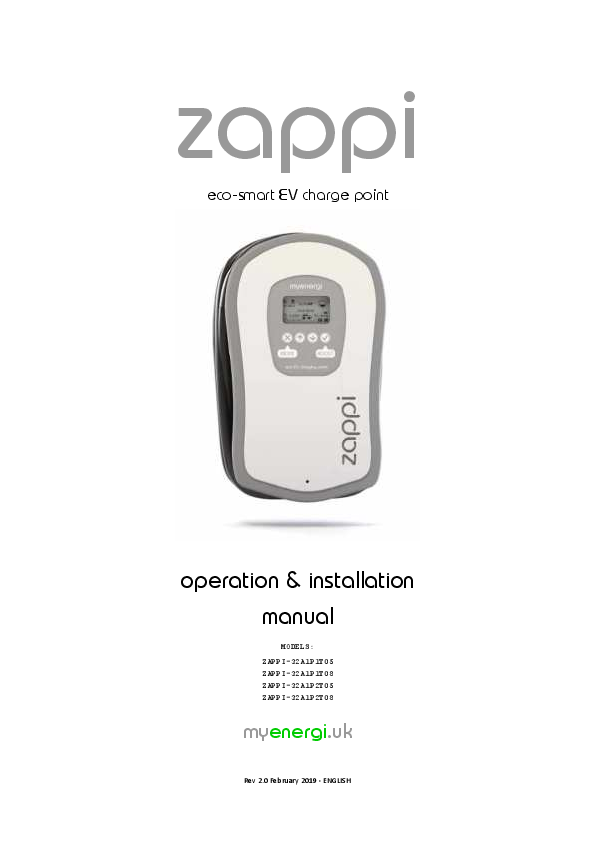
zappi ZAPPI-32A1P1T05 Eco-Smart EV Charge Point User Manual
File info: application/pdf · 40 pages · 637.61KB
operation & installation manual - myenergi
Note: The EV charging standard does not support charging below 1.4kW. 12 zappi operation and installation manual. FAST. ECO. ECO ...
operation & installation manual
zappi eco-smart EV charge point operation & installation manual. MODELS: ... This function is useful if you arrive home with an almost flat battery and ...
Extracted Text
zappi
eco-smart EV charge point
operation & installation manual
MODELS: ZAPPI-32A1P1T05 ZAPPI-32A1P1T08 ZAPPI-32A1P2T05 ZAPPI-32A1P2T08
myenergi.uk
Rev 2.0 February 2019 - ENGLISH

Contents
Introduction....................................................................................4
Safety............................................................................................................... 4 Overview......................................................................................................... 5
Operation........................................................................................7
Controls & Indicators....................................................................................... 7 Display............................................................................................................. 8 Status Screens............................................................................................... 10 Charging Modes............................................................................................. 12 Manual Boost................................................................................................ 13 Smart Boost................................................................................................... 14 Boost Timer................................................................................................... 15 Lock Function................................................................................................ 16
Menus...........................................................................................17
Main Menu.................................................................................................... 17 Advanced Menu............................................................................................ 19
Configuration................................................................................21
Settings.......................................................................................................... 21 Advanced Settings......................................................................................... 21 Linking Devices.............................................................................................. 24
Installation.....................................................................................26
Mounting....................................................................................................... 26 Wiring............................................................................................................ 27 Supply Connection......................................................................................... 29 CT Sensor Installation.................................................................................... 30 Advanced Installation Options.......................................................................32 eSense Input (economy tariff).......................................................................34 Fitting the Cover............................................................................................ 35 Setup............................................................................................................. 36
Troubleshooting............................................................................37
Faults............................................................................................................. 37
Warranty.......................................................................................38
Technical Specifications................................................................39

Introduction
Introduction
Thank you for choosing zappi. Of course, we think you have made an excellent choice and are sure you will be very happy with the features, benefits and quality of this myenergi product. These instructions will help you to familiarise yourself with the zappi, by reading the instructions, you will be sure to get the maximum benefit from this 'eco-smart' device.
Safety
The device has been manufactured in accordance with the state of the art and the recognised safety standards. However, incorrect operation or misuse may result in:
 Injury or death to the operator or third parties  Damage to the device and other property of the operator  Inefficient operation of the device
All persons involved in commissioning, maintaining and servicing the device must:
 Be suitably qualified  Have knowledge of and experience in dealing with electrical installations  Read and follow these operating instructions carefully  Always disconnect the device from the supply before removing the cover
The device is not to be used by persons (including children) with reduced physical, sensory or mental capabilities, or lack of experience and knowledge, unless they have been given supervision or instruction concerning use of the device by a person responsible for their safety.
Disposal
In accordance with European Directive 2002/96/EC on waste electrical and electronic equipment and its implementation in national law, used electrical devices must be collected separately and recycled in an environmentally responsible manner. Ensure that you return your used device to your dealer or obtain information regarding a local, authorised collection and disposal system. Failure to comply with this EU Directive may result in a negative impact on the environment.
Copyright
Copyright of these operating instructions remains with the manufacturer. Text and images correspond to the technical level at the time of going to press. We reserve the right to make changes. The content of the operating instructions shall not give rise to any claims on the part of the purchaser. We are grateful for any suggestions for improvement and notices of errors in the operating instructions.

4 zappi

operation and installation manual

Introduction
Overview
Microgeneration systems such as Solar PV and small wind turbines are at their most efficient when the generated energy is consumed on-site rather than exporting it to the grid. This is what we call 'self-consumption'. zappi is a Mode 3 charging station, compatible with all electric vehicles that comply with SAE J1772, EN62196 and EN61851 plug-in electric vehicle standards. zappi works like any regular charging point but has special eco charging modes which will benefit homeowners with grid-tied microgeneration systems, like wind or solar generation. Two special ECO charging modes automatically adjust charging current in response to on-site generation and household power consumption. In FAST charge mode, zappi operates like an ordinary EV charging. A grid current sensor (supplied) simply clips around the incoming supply cable. This sensor is used to monitor excess power and when using the special ECO charge modes, zappi automatically adjusts the charge rate in response to available surplus.
Feature Set
� Available with Type 1 or Type 2 connector � 3 charging modes: ECO, ECO+ & FAST � Optimises microgeneration self-consumption � Works with solar PV or wind turbine systems � Economy tariff sense input � Programmable timer function � Charge and event logging � Remote control and monitoring add-on option � Pin-code lock function � Tap operated display backlight � Built-in RCD protection � Integral cable holster � Supplied with clip-on grid current sensor
Overview Diagram
The diagram over the page, shows the zappi as part of a complete energy management system. Other myenergi products are shown and how they integrate with the grid connection and the microgeneration system.

operation and installation manual

zappi 5

operation and installation manual

6 zappi

ELECTRICITY METER

Clip-on sensor with option of
wired or wireless

Overview Diagram

CONSUMER UNIT

FiT METER

INVERTER

SUPPLY GRID
harvi
Harvests power from the sensor and transmits the
import/export information to the load
controlling devices Wiring or batteries not
required!

eddi
Continually adjusts the power to the heater elements, making full use of surplus green energy without importing
from the grid

zappi
Features special ECO charge modes to
manage EV charging with surplus power from microgeneration

varisineTM
Technology ensures loads are supplied by a clean AC
sine wave � only the voltage is varied

PV ARRAY
HOT WATER CYLINDER

Introduction

Operation Controls & Indicators
1
2

Operation
5 4

3

1 Display 2 Front Cover 3 Tethered Charging Cable 4 Control Buttons
5 Integrated Cable Holder

Graphical LCD display with LED backlight � Backlight can be activated by tapping the unit
The white front cover hides the enclosure screws
The charging cable is 5m or 8m and is fitted with Type 1 or Type 2 plug
Four tactile buttons used to navigate the menus and alter settings: Change charging Mode| Exit current menu Enter Menu | Move up a menu item | Increase value Enter Menu | Move down a menu item | Decrease value Boost | Select item | Confirm value and move to next setting
When not in use, the charging cable should be wrapped around the unit

operation and installation manual

zappi 7

Operation
Display
3 4

2 1

5 6 7 1 Import / Export Power
2 House Load Power
3 Status Text 4 Generation Power 5 Lock Icon 6 Date & Time 7 Mode Icons 8 zappi Icon 9 Charge Mode 10 Charge Delivered to EV 11 Current Charging Power 12 Green Level of last charge
8 zappi

12 11

8

9

10

The power being either imported or exported from or to the grid (kW). The direction of the arrows indicate if the property is currently importing power (left) or exporting power (right) The size of arrows is proportion to the level of power. When the property is neither importing or exporting power, the figure will be 0.0kW and there will no animated arrows. The property is then said to be 'in balance'
The power that the property is currently using in kW It does not include any surplus power being sent to the heater(s)
Note: This is displayed only when the Generation Sensor is installed (either connected to CT2 input or a harvi device)
The current status is displayed here (see Status Screens page 10)
The power being generated at this time in kW
Note: This is displayed only when the Generation Sensor is installed (either connected to CT2 input or a harvi device)
Operation lock is active
The current date and time
These icons indicate that the import limiting is active (house) or the e-Sense input is live (e)
This zappi unit. If there are wavy lines above the icon, the unit is thermally limiting (the output power will be temporarily reduced)
Shows the selected Charging Mode; FAST, ECO or ECO+ (see Charging Modes page 12)
The accumulated charge energy that has been sent to EV in this charge session
When the EV is charging, arrows will show here along with the charging power in kW
This is percentage of 'Green' energy for the last charge session, this is shown at the end of a charge or when the EV is unplugged

operation and installation manual

Display Icons Key
House Consumption � Not Importing House Consumption � Importing Solar Generation Power Wind Generation Power Grid Power � Import / Export Power Flow Direction � Small Amount Power Flow Direction � Medium Amount Power Flow Direction � Large Amount Waiting For Surplus Power DSR Mode Active

Operation
Charge Mode = FAST Charge Mode = ECO Charge Mode = ECO+ zappi Device � Normal zappi Device � Too Warm (output limited) Import Power Limiting Active Economy Tariff Electricity Available Current Charging Power Energy sent to EV for this charging Warning � refer to text on screen

operation and installation manual

zappi 9

Operation
Status Screens
EV Disconnected Waiting for Surplus... Waiting for EV... Charge Delayed Paused... Charging
10 zappi

The EV is not connected to zappi In this example the last charging session delivered 20.8kWh of energy to the EV and 80% of that energy came from the solar panels.
zappi is waiting for sufficient surplus power from the microgeneration system. This screen will be shown in ECO+ mode as it's only in this mode that charging will stop if there is not enough surplus power. The house in the centre is straight-faced as grid electricity is being used by the house (0.9kW is this example).
zappi is waiting for the EV to respond; the EV is not ready to accept charge.
The charging session has been delayed by the EV because a schedule charge has been set in the vehicle.
zappi is paused for a few seconds in order to limit the start/stop frequency during ECO+ mode charging. The Start/Stop Delay can be changed in the Charge Settings/ECO+ Settings menu option.
The EV is charging. In this example the car is charging in ECO+ mode at 1.6kW, there is no import or export from the grid (0.0kW) and the EV battery has charged by 8.9kWh since the car started.
operation and installation manual

Charge Complete Restart...

Operation
The EV is fully charged. The charge energy used during the last charge is displayed at the bottom right (20.0kWh in this case) and the 'green contribution' is also shown (40% in this example).
Zappi is doing a restart sequence. This may happen with some EVs that need to be 'woken-up' to start charging after a pausing charge. Charge should start immediately afterwards, otherwise the "Charge Delayed" message will appear.

operation and installation manual

zappi 11

Operation

Charging Modes
zappi has three different charging modes which can be selected simply by pressing the showing. The charge mode can be changed before or during a charge.

button when the main screen is

FAST

ECO

ECO+

Regardless of the charge mode used, all of the surplus electricity is used but zappi's special eco charge modes, limit the amount of grid electric used. Below is explanation of each of the three charging modes.
FAST
Charges at the fastest rate.
Fast Mode will charge the EV at the fastest rate and will import grid electricity if there is insufficient surplus generated power. The actual charge rate is dependant on the EV's onboard charger and the grid supply voltage. Typically, vehicles have either a 3.3kW or 6.6kW charger. The actual power can be a little different if the grid supply voltage is not exactly 230V. zappi will deliver up to 7kW provided the supply connection is suitably rated.
ECO
Adjusts the charge rate to limit the use of grid electricity.
The charge rate is continuously adjusted, in response to changes in generation or power consumption elsewhere in the home, thereby minimising the use of grid power. Charging will continue until the vehicle is fully charged, using available surplus power. However, if at any time, the available surplus power falls below 1.4kW, the shortfall will be drawn from the grid. Note: The EV charging standard does not support charging below 1.4kW.
ECO+
Adjusts the charge rate to limit the use of grid electricity and will pause the charge if there is too much grid electricity being used.
The charge rate is continuously adjusted, in response to changes in generation or power consumption elsewhere in the home, thereby minimising the use of grid power. Charging will pause if there is too much imported power, continuing only when there is enough surplus power available. The surplus power threshold at which the charge will start or stop can be set in the ECO+ Settings option, which is found in the Charge Settings menu. It is possible to charge the EV using only surplus renewable power, providing there is sufficient surplus power to do so. To do this, set the Min Green Level to 100%. The Min Green Level is the minimum level for the contribution of green energy at the end of the charge. The actual green contribution for the charge, is displayed when the charge is complete or the EV is disconnected. For example: With Min Green Level set to 50%, charging will be paused if 700W of power is being imported from the grid and will resume charging when there is 700W of power being exported. Note: The EV charging standard does not support charging below 1.4kW.

12 zappi

operation and installation manual

Operation
Manual Boost
The Manual Boost function can only be used when charging in ECO or ECO+ mode. When boosting, the charge rate is set to maximum (just like FAST mode), until a set amount of energy has been stored in the EV's battery. After which, zappi will revert back to ECO or ECO+ mode. This function is useful if you arrive home with an almost flat battery and would like to charge the vehicle immediately to ensure there is enough charge for a short trip if needed. The amount of energy (kWh s) the boost uses can be changed in the Charge Settings/Boost menu. When in ECO or ECO+ mode, each press of the button will cycle through the boost options as illustrated below:

Boost

Smart Boost

Cancel Boost

Activating Boost 1. When charging in ECO or ECO+ mode, press until BOOST is shown.
2. The boost will start after a couple of seconds and the display will show the remaining boost energy.
The boost duration can be altered (when a boost is not in progress) in the Charge Settings/Manual Boost menu option.
Cancelling Boost
The boost can be cancelled by pressing until Cancel Boost is shown.

operation and installation manual

zappi 13

Operation
Smart Boost
The Smart Boost function will charge the EV with a minimum kWh figure by a set time. Smart Boost is available only in ECO and ECO+ modes.
 The Smart Boost function does not bring the battery to a certain state of charge. The target kWh is only the energy
added during the charging session.
When in ECO or ECO+ mode, each press of the button will cycle through the boost options as illustrated below:

Boost

Smart Boost

Cancel Boost

Example: It's a sunny Sunday and you wish to ensure there is enough charge in the EV to get to work in the morning (e.g. 15kWh), but in the meantime, you want to use the surplus energy from the PV system to charge the car, so you choose to use ECO+ mode. At sunset there was only 10kWh of charge accumulated. However, because you activated Smart Boost, and set the time you needed to leave for work, zappi automatically boosted the charge in the night to top up the battery to the required 15kWh by 7am.
Activating Smart Boost
1. When charging in ECO or ECO+ mode, press until SMART BOOST is shown.
2. The SMART BOOST icon will show including the set energy
amount in kWh s and the target time, (17kWh s and 7am respectively, in this example screen shot).

3. zappi will then test the EV for a few seconds, to determine
the maximum charge rate.

4. The boost will start at the latest possible time to achieve the set energy amount, if the current charge session
has already accumulated enough energy, the boost will not be required and so will not operate.
The required energy and target time can be altered only when Smart Boost is not active. Theses settings are in the Charge Settings/Smart Boost menu option.

14 zappi

operation and installation manual

Operation
Boost Timer
When using ECO or ECO+ charge modes, zappi can be programmed to 'boost' the current charge at certain times. When boosting, the charge rate is set to maximum (just like FAST mode), regardless of the amount of available surplus power. This means that power may be drawn from the mains grid supply during boost times.
� There are four editable time slots which can be set to operate for certain days of the week.
� Setting the duration to 0h00 will make the boost inactive.
Programming Boost Times 1. From the main screen, press or to enter Main Menu
2. Select Boost Timer from within the Charge Settings menu. The
BOOST TIMER screen is then shown.
3. The boost can now be edited: Use or buttons to highlight the
time slot you wish to change. The screen below shows the start hour being edited:
4. Alter the start hour with the or buttons and then press to
move to minutes.
5. Edit the duration in the same way and then press again to edit the
days of the week you want the boost to be active for; each day of the week and by toggled on/off with or buttons, press to go to the next day. Pressing on the last day (Sunday) will confirm the boost time slot and whole line will be highlighted again.
6. Press to exit the BOOST TIMER screen.
Economy Tariff Boosting
Boosting only when economy rate electricity is available can be achieved in one of three ways:
1. By setting the boost timer to coincide with the economy tariff times. This option should be used only if the
electricity meter is a dual-rate meter (modern meters usually are).
2. Boost only at set times AND if economy rate electric is available.
3. Automatically boost whenever the economy tariff rate electricity is available, regardless of boost times*
*Options 2 and 3 are available only when using the eSense input. For option 1, the eSense Input in the Advanced menu should be set to Boost Timer Enable. With the Boost Timer Enable function set, the BOOST TIMER screen will include an extra column (see screenshot). The e can be toggled on/off, if e is present, the boost will activate only when the boost times are valid and the economy rate tariff is available. Alternatively the eSense input can be used to active the boost whenever the economy tariff rate electricity is available, regardless of boost times (option 2). To do this, the eSense Input option in the Advanced menu should be set to Boost. When using this option, the Boost Timer is not needed.
Boost Time Conflicts
If one or more boost times conflict, the boost will follow the latest time or longest duration.

operation and installation manual

zappi 15

Operation
Lock Function
zappi can be locked from unauthorised operation. The Lock Function requires a pin number to be entered before the unit can be operated. The lock can be set to be active only when the EV is plugged in or only when unplugged, it can also be set to be always active. The settings for the Lock Function can be found in the Other Settings/Lock Function menu option.

Lock Function Setting EV plugged
EV unplugged Timeout Lock Code Auto Hide

Description The Lock Function is active when the EV is plugged in, preventing tampering with the charge session or changing any settings The Lock Function is active when the EV is disconnected, preventing unauthorised charging The time before the Lock Function automatically reactivates after being unlocked This is the current lock code and is five digits from (1 to 4), it can be changed here If set, this will hide the main display of the zappi to keep the power readings private

16 zappi

operation and installation manual

Menus

Main Menu

Main Menu Options

Charge Log...

Today...

Yesterday...

Week...

Month...

Year...

Total...

Event Log...

Today...

Yesterday...

Week...

Custom Date...

Readings...

READINGS 1/4

Status: Exporting/Importing:

READINGS 2/4

Charge Power: Pilot(PWM): Charge Current: Unit Temp: Voltage: Voltage Max: Voltage Min: Frequency: Exporting/Importing:

READINGS 3/4

Exporting/Importing:

Information...

Generation: Consumption: Diverting: Charge Power: Charge Energy: Charge Time: INFORMATION 1/2 Status: Serial No: Firmware: Assembled: Cal Date: Power Fail: INFORMATION 2/2 Grid Sensor: Signal Quality: Last Fault: Fault Date: INFORMATION 3/3 Network ID: Device Address:

operation and installation manual

Menus
Description
Log of charge sessions
Log of events
Current status of the unit Power being imported or exported, from or to the grid respectively Power level in Watts being supplied to the EV Control Pilot PWM AC current supplied to the EV Internal temperature of the zappi unit Supply voltage to the unit Maximum supply voltage since switch-on Minimum supply voltage since switch-on Grid frequency Power being imported or exported, from or to the grid respectively Power being imported or exported, from or to the grid respectively Power from the generator (if available) Power consumed by the house (if available) Total diverted power (inc. all devices) Current power being supplied to the EV Energy supplied to EV during current charge session Duration of current charge session Status of the unit Serial number of the unit Firmware version installed in the unit Factory assembly date Calibration changed date Time and date of last supply failure Grid current sensor source RF signal reception quality Last recorded fault code Date and time of last recorded fault code Network information for this device when linked to other devices using RF network
zappi 17

Menus

Main Menu Options

Master Address:

Channel:

EUI:

Linked Devices Info...

DEVICES PWR NOW DEVICES PWR ALLOT

DEVICES PWR MAX

DEVICES PWR MIN

DEVICES MISC

Charge Settings...

ECO+ Settings...

Manual Boost... Smart Boost... Boost Timer... Other Settings... Time & Date...

Display & Sound...

Min Green Level: Start/Stop Delay:

Time: Date: Format: Auto DST: DST Zone: Language... Icons...

Generation: Monitoring:

Backlight...

Contrast... Set Buzzer:

Lock Function... Advanced...

EV plugged: EV unplugged: Timeout: Lock Code: Auto Hide:

Description
(Only shows if connected to other devices)
Power currently being drawn by the linked devices Available power allotted to the linked devices Maximum power that can be used by each device Minimum power that can used by each device See Linking Devices (p24) for more details about linked devices Further information about power allocation of linked devices:
Total Allotted = Total power allotted to all devices Total Loads = Power consumed by all devices Surplus Power = Unallocated power O/D Power = Total power over-drawn by devices Export Timer = Delay before surplus is allocated ECO+ charge mode settings. See Charging Modes page 12
Manual Boost settings. See Manual Boost page 13 Smart Boost settings. See Smart Boost page 14 Programmable boost times. See Boost Timer page 15 Set current time in 24 hour format Set date in Format (see below) Sets the date format Automatic Daylight Saving Time adjustment Set zone for Daylight Saving Time Set language for the main screen and menus Generation icon can be sun or wind If the is on generation on-site then generation monitoring can be switched off Set the duration the display backlight remains on after a button press Set the display contrast Switches ON or OFF the buzzer for button presses and mode changes Lock is active only when EV is plugged in Lock is active only when EV is unplugged Length of time for the lock to reactive after unlocking The lock code can be changed here Hide the main screen when zappi is locked Advanced menu and settings (passcode protected) Default passcode: 0 0 0 0

18 zappi

operation and installation manual

Advanced Menu

Advanced Menu Options

Supply Grid...

Phase:

Device Limit:

Export Margin:

Grid Limit:

Battery: Net Phases:

Linked Devices... Devices...

Pairing Mode...

Channel...

RF Channel:

Reset Settings...

CT Config...

CTINT:

CT1:

CT2:

eSense Input...

Disabled Boost

Boost Timer Enable

Compatibility... PF Responsive:
Min PWM: Power Factor:

End Charge Delay: Infinite PWM:

Menu Passcode...

operation and installation manual

Menus
Description
Set the supply phase to use for this device � see Advanced Settings page 21 for more information
Set the maximum available supply current to be drawn by the zappi � see Advanced Settings page 21 for more information
Minimum level of export power which is maintained when zappi is diverting surplus power � see Advanced Settings page 21 for more information
Maximum grid import power limit. When charging, the charge power is reduced to keep import below this level. This also applies when boosting � see Advanced Settings page 21 for more information
Sets the mode for managing power when a battery system is present in the installation. See Battery Storage Systems (page 32) for more information.
When set to ON will net the imports and exports across phases allowing surplus power from one phase to be used on a different phase. � see Advanced Settings (page 21) for more information.
Other myenergi devices can be wirelessly linked to zappi, this shows connected devices and their priorities. Settings for some devices are made here See Linking Devices (page 24)
Puts this zappi in pairing mode so it can be linked to another device - See Linking Devices (page 24)
Sets the radio frequency channel number used when linking other devices - See Linking Devices (page 24)
Clear all linked device settings. See Linking Devices (page 24)
Internal CT, used to configure a group limit. See Load Balancing / Current Limiting (page 32) for details.
Set the function of CT1 input See CT Config (page 22) for more details.
Set the function of CT2 input See CT Config (page 22) for more details.
eSense input is disabled
If the eSense input is live, zappi will boost the charge � see eSense Input page 23
zappi will boost the charge if eSense is live AND the boost timer is set to operate at that time. see eSense Input page 23
zappi will adapt to EV's with poor power factor (e.g. Renault Zoe).
Control Pilot PWM minimum limit
When PF Responsive is ON, the measured power factor must be better than this set value to enable lower charging current set by Min PWM
Charge Complete status is delayed by this time to allow access to the vehicle without starting a new charge session
Keeps zappi ready to restart charge after charge is complete � this is needed on some EV's when the user wants to preheat the vehicle in morning
The code required to access the Advanced menu
zappi 19

Menus

Advanced Menu Options

System...

Restore Settings...

Download Firmware Bootloader

Erase Config Erase Data Erase ALL
Confirm

Description
Restore the configuration to factory default Clear all data from memory Restore configuration to factory default and erase all data Confirm restore options and re-boot device Downloads latest firmware from hub Enter Bootloader mode

20 zappi

operation and installation manual

Configuration
Configuration Settings
All settings are described in the Main Menu section, however, the more commonly altered settings are described in more detail below.
Time & Date
The date and time are used for the Boost Timer and the savings calculations and therefore should be set correctly. In the event of a power-cut, zappi will still keep track of the time and date for a few days, so when power is restored the clock will not need to be reset. Time is always in 24-hour format but the date format can be changed. zappi will automatically adjust the clock for Daylight Savings Time (DST) as long as Auto DST is enabled and the correct time zone is selected.
Icons
The heater icons shown on the main screen can be individually set for both heater outputs. This gives an installation specific, graphical representation which heater is active. For example; Heater 1 could be a hot water cylinder and Heater 2 could be a radiator. This function can be accessed via the Settings/Display/Icons menu. As well as being able to customise the heater icons, it's also possible to change the generation type from solar to wind.
Advanced Settings
The Advanced Settings menu is passcode protected. The default passcode is 0 0 0 0 although it can be changed with the Passcode menu option.
Supply Grid - Phase
The Phase setting is only used installing the zappi on 3-phase supplies. It should be set to match the phase number that the zappi is wired to so that the power measurements are correct and that the zappi responds to the correct phase when using the harvi wireless sensor. See Three-Phase Systems (page 32) and Supply Grid � Net Phases (page 22) for more information.
Supply Grid � Device Limit
Sets the maximum current that the zappi will draw (including when boosting and FAST mode). This is useful if the supply current is limited, like a 16A rather than 32A.
Supply Grid � Grid Limit
Sets the limit that can be drawn from the grid connection (i.e. the maximum import current or the main fuse rating). Example: A property may have a grid supply limit of only 65A, several appliances are on and the property is consuming 12kW (52A) by other appliances and the user wants to charge in FAST mode. Without the Grid Limit set, the total consumption would exceed the allowed import current. However, with a Grid Limit setting of 60A, zappi would temporarily limit the charging current to 8A (about 1.8kW) and the maximum allowed import current would not be exceeded.
Supply Grid � Battery
If the property has a static AC battery system installed, it's possible to get the zappi to work in harmony with the system, provided a CT has been installed to monitor the battery inverter. See Battery Storage Systems (page 32) for more information about battery storage systems. The table below details the different settings for working with an AC coupled battery storage system:

operation and installation manual

zappi 21

Configuration

Setting None Limit to Gen
Avoid Drain Avoid Charge Avoid Both

Function description
There is no battery system installed.
Will limit the output of the zappi (except when boosting), to prevent unwanted draining a AC coupled battery system. This setting does not require a CT to monitor the battery, but does need a CT to monitor the solar/wind generation. Note: This setting is to support legacy installations � it is preferable to install a CT to monitor the battery and use one of the settings below.
Stops the zappi (or other linked myenergi devices) draining the battery when using surplus power from the solar or wind generator.
Effectively allows the zappi (or other linked myenergi devices) to take priority over the battery when charging from solar or wind generation.
Provides both of the above functions.

Supply Grid � Net Phases
When enabled, all readings from 3-phase myenergi devices and harvi units configured as 3-phase, will be netted. This means that surplus generation on ANY phase will be considered be available for consumption on ANY other phase.
See Three-Phase Systems (page 32) for more details about myenergi devices on 3-phase supplies.

Supply Grid � Export Margin
This sets a minimum level of export power which is maintained when zappi is charging in ECO or ECO+ modes.
Normally Export Margin would be set to 0W (zero Watts) and all of the available surplus will be used to charge the vehicle, however, it is may be desired to have a minimum export level at all times.

CT Config
The CT1 and CT2 inputs are configured depending on the connected CT sensors. The internal CT which measures the output current also has some settings.
Note: These settings are the same when using CTs with the harvi device, however, they are set via the Linked Devices menu rather than the CT Config menu.
Important: There must by only one Grid CT set (per phase) for the whole installation.

CT CTIL CT1 CT2

Description This is the internal CT which measures the output (charging) current of the zappi. CT1 input. CT2 input.

CT Type None Grid Generation Only Storage Only
Gen & Battery

Description
No CT connected.
Grid CT monitors the import and export power of the property, this is main control CT and there must only be one Grid CT set for each phase.
Monitors Solar PV or Wind generation.
Monitors a device that can 'store' energy (e.g. a third-party energy diverter) and enables the zappi to take priority over it. The power used by the third-party device is considered as surplus power unless the device is intentionally using grid power (i.e. it is boosting).
The CT should be installed on the Live supply cable feeding the diverter, with the arrow pointing away from it.
Monitors Solar PV or Wind generation that is combined with a DC-coupled battery.

22 zappi

operation and installation manual

Configuration

Monitor AC Battery

Monitors any load, for example a washing machine or the lighting circuit. This setting can also be used to limit current drawn by myenergi devices on a particular circuit which includes other loads. See Load Balancing / Current Limiting (page 32) for more details.
Used to monitor an AC-coupled battery. With this setting it's possible to manage the distribution of surplus energy between the battery and the zappi (including myenergi devices). The Battery setting in the Supply Grid menu is used to configure how the zappi will operate alongside the battery system. See Battery Storage Systems (page 32) for more information.
The CT should be installed on the Live supply cable of the battery inverter/charger, with the arrow pointing away from it.

CT Groups
CTs can be put in groups so that their readings are netted. For example, you might want to monitor two solar PV systems and see the total generation on the display. Use Group in the CT Config menu to set which group the CT should be in. Note: Different CT Types cannot be in the same group, the group names make this clear.
Only the first 4 groups can be used for current limiting, see Group Limits below.
Group Limits
Current limits can be set for certain CT Groups. When a Group Limit is set the myenergi devices in the group will limit the power they draw to keep within the set limit.
Group limits should be set only on the master device. See Linking Devices (p24) for details about master devices.
It is possible to use more than one group limit type (e.g. IL1 with MN1, so that there are two conditions for limiting).

Group Limit example
Limit current drawn by two zappi devices that are on the same 32A supply.

Additional CT installed None; only the internal CTs are used.

Limit current drawn by an zappi device One CT is clipped around Live of the 40A supply and wired that is fed from a 32A supply which is to CT2 of the zappi. also feeding another appliance (e.g. a tumble dryer).

Limit current drawn by two zappi devices that are in a garage which is fed from a 40A supply. A washing machine and dyer are also in the garage.

One CT is clipped around Live of the 40A supply to the garage and wired to CT2 of one of the zappi units. Note: The other zappi does not need a to have a CT connected, but it will still need to have a CT input configured to be in the same Monitor group.

CT config (all devices)
CTIL Type: Internal Group: IL1 Group Limit: 32A
CT2 Type: Monitor Group: MN1 Group Limit: 32A
CT2 Type: Monitor Group: MN1 Group Limit: 40A

eSense Input
The eSense input can be configured to automatically activate a Boost during ECO or ECO+ charging, whenever economy tariff electricity is available. The eSense input must be wired to a circuit which is live during the economy tariff times for this to function. See eSense Input (economy tariff) page 34 for wiring details.

eSense Setting Disabled Boost Boost Timer Enable

Description eSense input is ignored If the eSense input is live, zappi will boost the charge zappi will boost the charge if eSense is live AND the boost timer is set to operate at that time. see Economy Tariff Boosting page 15

operation and installation manual

zappi 23

Configuration

Linking Devices
Up to six myenergi devices can be wirelessly linked to together. By linking devices, you can use more of your own energy or have more control and visibility. Devices available now (or soon to be available) are:
zappi � An eco-smart electric vehicle charge point that can use surplus power to charge the car.
harvi � A self-powered wireless sensor that can be used along with myenergi load controlling devices such as eddi and zappi. It is able to detect grid import/export conditions as well as generation power and send this information wirelessly to devices such as the eddi or zappi, this can greatly simplify installation.
hub � The link between your myenegi devices and the internet, allowing remote monitoring and control via a mobile App.

Master & Slave Devices
When two or more myenergi devices are wirelessly linked, one device will act as the 'master' device. This device will control the other 'slave' devices. Some settings can only be changed on the master device, e.g. Grid Limit and Net Phases.
Use the Set Master function in the Advanced Settings/Linked Devices menu to set which device should be master. It's a good idea to choose the device that is the most convenient to access should you wish to change settings.

Pairing Devices
Devices are 'paired' by selecting Pairing Mode on each device (one device must be set to master).

1. On the slave unit, select Pairing Mode from the Advanced Settings/Linked Devices menu or by pressing
the pair button if the device is a harvi or hub.

2. Now select Pairing Mode on the master device.

3. You will now see the SEARCHING FOR SLAVES screen and zappi will be searching for other devices which are on the
same channel and are in Pairing Mode. Any devices found are listed along with their unique serial numbers.

4. Select the device you want to add by highlighting the appropriate device using the and
pressing The device will then be added and the screen will return to the previous menu.

buttons and then

5. The DEVICES screen will then show, listing all the devices in the network. The recently added device will be able to be
configured after the UPDATING message disappears.

Channels
On rare occasions it is possible that there are other appliances operating on the same frequency which could cause interference. If it is not possible to link devices or the connection seems poor, changing the RF Channel may help. To do this make sure all devices are removed from the network by selecting Reset Settings in the Linked Devices menu and then select a different channel with the Channel menu option. Be sure to change the channel on the other devices before attempting to link them.

Removing Devices
A device can be removed by selecting it from the Devices menu and then selecting Remove Device.

Device Settings
Most device types have settings which can only be changed via the Linked Devices menu. For example, eddi and zappi have a settings for priority and harvi has settings to configure its CT inputs (see Device Priorities page 25).
The device settings are accessed through the Linked Devices menu; select Devices then select the appropriate device and press to bring up the devices' settings screen. Refer to the relevant devices' instruction document for more information regarding the actual device settings.
Note: After a device has been paired you will have to wait a few seconds for the device to update before the settings can be accessed, the screen will show DEVICES UPDATING when this is happening.

24 zappi

operation and installation manual

Configuration

Device Priorities
The priority of each, load controlling linked device, can be set from any device with a display. This enables control of how the surplus energy is shared between them. The example below shows one eddi device, two zappi devices and one harvi on the same 'network'.

1

2

4
3 5

All linked devices 1 are listed in the DEVICES screen, the device shown in CAPITAL letters is the device currently being viewed. The serial number of each device is shown on the right 2
The priority is shown on the left of each load controlling device 3 with 1 being the highest priority. If two or more devices have equal priority, the available surplus (for that priority level) is shared equally between them. The ~ symbol 4 indicates which device is the 'master' device which has the Grid Sensor connected to it.
If the ? symbol 5 is shown along side a device, it indicates that communication has been lost from the device.

Linked Devices Information
The current status of all linked devices, can be viewed together in the LINKED DEVICES INFO screen which can be found from the Main Menu.

1

2

4 3

This screen lists all the linked devices 1 and the priority setting for each device 3 The current device is shown in CAPITAL letters. To the right of each device is the real-time output power level 2 The right side of the screen has symbols to show the status of each device 4 Refer to the table below for the meaning each symbol.
Grid CT � the device has a Grid CT configured (there should be only one) Master � the device is the controlling device in the network Boost � the device is currently boosting Max � the device is at maximum output power Min � the device is at minimum controllable output power No Load � the device is not able to use surplus power as there is no load Communication problem � there is no response from the device

operation and installation manual

zappi 25

Installation
Installation Mounting
1. Remove the white front plate by unscrewing the M3 screw at the bottom and sliding it upwards before lifting it away. 2. Unscrew the 12 M4 screws now exposed and lift off the enclosure cover. 3. Offer the unit up to the wall and mark the holes for drilling. If fixing to a timber stud wall, you can use the two central
vertically aligned fixing points 1 to screw the enclosure directly into the timber. The two additional mounting points 2 can be also be used if desired. The supply cable entry can be via the rear grommet 3 or by drilling the enclosure at the bottom right 4 and using a suitable cable gland.

A

B

x12
1

2
26 zappi

C
3
2 4 1
operation and installation manual

Installation
Wiring
Warnings
 WARNING! An electric shock can be fatal; electrical connection work may only be carried out by a competent
person
 The earth conductor must be correctly installed and reliably connected  This device must be equipped with an over-current protection device of maximum 40 Amps (B40)
Strip Length
10mm
Overview Diagram
The diagram on the following page gives an overview of the basic wiring with respect to the grid supply and the microgeneration system.
Supply
The zappi device should be connected to a single-phase 230V or 240V nominal AC supply. The supply should be from a dedicated 32A or 40A circuit breaker.
Earthing
The unit must be earthed in accordance with local regulations, e.g. It may be a requirement to install an Earthing rod if the supply is PME.
Cable Entry
There is a grommet in the rear of the unit for through-wall cable installation. If however, the supply and/or sensors cables are surfaced mounted, there is space at the bottom right-side of the enclosure to drill holes for the cables. It is essential that correctly sized cable glands with a minimum IP65 rating are used.
Wiring Overview Diagram
The diagram on the following page gives an overview of the wiring required for a standard installation of the zappi.

operation and installation manual

zappi 27

Installation

28 zappi

Wiring Overview Diagram

operation and installation manual

harvi (wireless sensor option) Harvests power from the grid sensor
and transmits the import/export information to the zappi - Electrical wiring or batteries are not required

Mains supply from 32A or 40A MCB with 6mm� cable

Sensor(s) do not need to be wired to unit if
using harvi

SUPPLY GRID

ELECTRICITY METER

Grid Sensor (required) Wired to CT1 terminals of the zappi or it can be wired to harvi if it's difficult to run the cable back
to the zappi

CONSUMER UNIT(s)

FiT METER

INVERTER

Generation Sensor (optional) A second sensor can be fitted to monitor
generation This can be wired to the zappi or harvi

PV ARRAY
Not supplied � available separately

Installation
Supply Connection
The zappi device should be connected to a single-phase 230V or 240V nominal AC supply. The supply should be from a dedicated 32A or 40A circuit breaker. zappi features and integral 30mA Type-A RCD, therefore an RCD protected supply is not required unless local regulations state otherwise.

operation and installation manual

zappi 29

Installation

CT Sensor Installation
Current Transformers (CTs) are used to measure current at various places of the installation. For example, the Grid connection point, the solar/wind inverter or a static battery system.
Installation of a CT to monitor the Grid connection point is required. Other CTs are optional and can be purchased separately. The number and location of CTs used within an installation will vary according to devices installed and the user requirements.
CTs can be wired to any myenergi device with CT inputs (e.g. eddi, zappi or harvi). This enables very flexible installation as the CT can be wired to the nearest device. Note: The harvi device can be used if it is not practical to connect any CT to the eddi or zappi.
Once installed the CTs need to be configured, see CT Config (p22) for details of how to configure the CTs.

Grid CT
The Grid CT sensor (supplied) needs to be clipped around either the Live or Neutral meter tail of the electricity supply meter. If using the Neutral conductor, reverse the direction of the sensor (so the arrow is reversed).

The positioning of the Grid CT sensor is crucial, take note of the following when deciding where best to install the sensor:

 Can be connected to any myenergi device with a CT input e.g. the eddi or zappi (wired sensor) or harvi (wireless sensor).

 ALL of the import and exported power must be 'seen' by the sensor � be sure to install it upstream of ANY junction box or 'Henley Block' (the CT can be fitted inside the consumer unit).

 There must be only one Grid CT per-phase for the whole installation. (There can be other CTs but only one at the grid connection point, also note CTs for third-party devices do not matter).

 The CT should be on the Live or Neutral cable.

 The arrow on the bottom of the CT sensor must be pointing towards the consumer unit (in the direction of grid import) if on the Live cable, or reversed if on the Neutral cable.

ELECTRICITY METER

GRID SENSOR

CONSUMER UNIT

 Ensure the CT is fully closed and clicks shut.

 Be sure to wire the CT the correct way round; black [�], red [+] otherwise import and export readings will be swapped.

Reverse if on Neutral cable

Additional CTs
There is an option to add other CT sensors (available separately) for monitoring the generation or other appliances such as battery systems or general loads. Installing a CT for the generator (PV system) will allow the main screen to show the generated power and the total power consumption of the all the other appliances in the property.
CTs can also be used to limit the power drawn form the supply. See Load Balancing / Current Limiting p32.
 Additional CTs Can be connected to any myenergi device with a CT input that is linked to the network (see Linking Devices p24).
 The arrow on the bottom of the sensor must be pointing in the direction of normal power flow (e.g. away from the PV inverter) if on the Live cable or reversed if on the Neutral cable.
 Ensure the sensor is fully closed and clicks shut.
 Be sure to wire the CT the correct way round; black [�], red [+].

30 zappi

operation and installation manual

Installation
Extending the sensor cable
If there is a need to extend the sensor cable, twisted-pair cable like CAT5 or telephone cable must be used. DO NOT use mains cable, bell wire or speaker cable. It is important to use only twisted-pair cable to maintain signal integrity. The cable can be extended up to 100m.
Wireless CT Sensor (optional accessory)
In some cases it can be difficult or impractical to install a wired sensor. For example it may be the case that the zappi unit needs to be connected to a sub-board, rather than main consumer unit and two consumer units are in different buildings. The solution to is to install harvi � a clever little device that enables the zappi and eddi products to be installed without using wired CT sensors for measuring the grid and or generation power; instead the CT sensor is connected to harvi. The harvi does not need batteries or a power supply � the energy from the sensor is harvested and used to transmit the measurement signal to the zappi or eddi. This means batteries or electrical wiring are eliminated! Up to 3 CT sensors may be used with harvi and it also supports 3-phase systems if three sensors are connected. Refer to the harvi installation guide for details on installing and configuring harvi for your system.
CT Golden Rules
Grid CT
� Only ONE Grid CT per phase (check for only one ~ symbol in Linked Devices Info). � Located to `see' ALL import and ALL export current (i.e. always upstream of any junction box). � Arrow pointing in direction of import (e.g. towards consumer unit if on Live cable). � Must be on the same phase as the Master myenergi device.
All other CTs
� Arrow should point towards the consumer unit.
3-Phase harvi CTs
� When using harvi in 3-phase mode, the CT inputs correspond to the phase number (e.g. CT1 = Phase 1).
CT can dos
 Can be wired to ANY myenergi device in the network.  harvi can be used to make ANY CT wireless.  Cable can be extended up to 100m (must use twisted-pair cable e.g. one pair of CAT5).  Cable can be shortened.  Can be clipped around two or more conductors feeding appliances of the same type (e.g. two Live cables from two
inverters that are on the same phase).  Can be in close proximity to other CTs.  Wires can be swapped around in device to reverse the direction of the readings (e.g. change import to export).  Can be grouped with other CTs of the same type so that the power reading is summed (e.g. east and west solar
Generation).  Can be used on the Neutral conductor (direction of arrow or wires must be reversed).  Can be set to None if you want to exclude the reading.

operation and installation manual

zappi 31

Installation

Advanced Installation Options

Load Balancing / Current Limiting
CTs can be also used to the limit current drawn by myenergi devices to avoid overloading circuits. this is sometimes referred to as load balancing. There are four different ways to limit current and they can be used alone or combined for more complex situations. See the table below:

Function Device Limit Grid Limit
Group Limit (internal CT)
Group Limit (with external CT)

Operation

Example

Sets a maximum current that can be drawn by the device (e.g. zappi). The current will not be exceeded even during Boost or Fast charge.

A zappi is wired to a 20A supply (rather than a 32A). The maximum current drawn will not exceed the set limit (e.g. 20A).

Sets the limit that can be drawn from the grid connection (i.e. the maximum import current). The zappi and any other linked myenergi device, will limit the current they draw if there is a danger of exceeding the set Grid Limit.

A property may have a grid supply limit of only 65A, several appliances are on and the property is consuming 12kW (52A) by other appliances and the user wants to charge in FAST mode. With a Grid Limit setting of 60A, zappi would temporarily limit the charging current to 8A (about 1.8kW) and the maximum allowed import current would not be exceeded.

Sets the combined current limit for several myenergi devices.

A property has a large PV array and a swimming pool, three eddi units are installed to heat the pool with surplus solar power using 3kW heaters. The supply for the eddi units is only 40A, to be safe a Group Limit of 35A is set.

Sets the combined current limit for several myenergi devices that are sharing a supply with another large appliance.

An eddi is installed to heat the hot water cylinder in a garage which also has a washer and a dryer (2.5kW each), the garage has a supply of only 32A coming from the main consumer unit in the house. If all appliances were on and there was no limiting set, the total current would exceed the maximum supply current.

Three-Phase Systems
If the installation supply is three-phase, it is recommend to install a harvi device and use three Grid CTs (one for each phase). This will allow the zappi to show the total grid import and export figures rather than just one of the phases.
If all three phases are monitored and the generation is 3-phase, it is also possible to net the export power across phases, to do this, enable Net Phases in the Supply Grid menu see Supply Grid � Net Phases (p22). This allows the zappi to use surplus power from any phase and not just the phase which the zappi is installed on. However, you must be sure that the electricity is metered in such a way as to allow this.

Battery Storage Systems
AC coupled Where there is an AC coupled battery storage system, there can be a conflict as both the storage system and the zappi are effectively competing to consume the surplus energy. Whilst this is not necessarily an issue, the results can be somewhat unpredictable.
There is the option to add an additional CT sensor to monitor the battery storage; this will give control as to which device has priority. This additional CT sensor should be wired to one of the CT terminals of the zappi or a harvi device if wireless measurement is required. This CT should be clipped around the live or neutral cable of battery inverter.
During the setup process it will be necessary to change the setting for the appropriate CT to AC Battery; refer to CT Config (page 22) . Also refer to Supply Grid � Battery (page 21). for information on setting 'priority' of battery systems.

32 zappi

operation and installation manual

Installation
DC coupled Battery systems that charge directly from the solar array and cannot change from AC are usually referred to as being DC coupled. This type of battery system uses the solar PV inverter to provide power from the batteries, thus it is not possible to differentiate between solar and battery power when using a CT to measure the AC current from the inverter. Because of this limitation, there are less options for managing the surplus power with this type of battery system. However it is usually possible to effectively give priority to battery by setting an Export Margin in the zappi. A setting of 50W or 100W is recommend. The Export Margin setting is found in the Advanced Settings/Supply Grid menu.
Third-Party Diverters
Some properties may have a third-party energy diverter installed and you may want the zappi to take priority (when consuming surplus power) over the diverter. This is possible by installing an extra CT to monitor the diverter.
The CT should be clipped around the Live cable of the supply feeding the diverter. The arrow on the CT should be pointing away from the diverter. Wire the CT to the nearest myenergi device or use a harvi unit wireless connection is needed.
Configure the CT Type as Storage Only. See CT Config (page 22) for details of how to configure CTs.
Voltage Optimisers
If there is a voltage optimiser (VO) installed in the property, the CT sensor and the zappi must both be on the same side of the VO; either the incoming grid supply or the optimised supply.

operation and installation manual

zappi 33

Installation
eSense Input (economy tariff)
zappi has an input which can be used to sense the availability of economy tariff electricity, this can be used to automatically boost the charge when in ECO or ECO+ charging modes. The eSENSE input is electrically isolated and effectively draws no current so the cable size is not important. An AC voltage between 100V and 260V across the L and N terminals of the eSENSE input cause the economy tariff symbol to be shown on the main screen. The eSENSE Earth terminal is not required to be connected. See eSense Input on page 23 for details of how to configure the eSENSE input.

34 zappi

operation and installation manual

Installation
Fitting the Cover
1. Refit the cover and secure with ALL twelve of the M4 screws. It is best to screw these by going around in sequence
shown without skipping any holes.
2. Slot the white cover down onto the unit and secure with the M3 screw at bottom.

1 12
2 11
3 10

4

9

5

8

6

7

operation and installation manual

zappi 35

Installation
Setup
Switching On
After completing and checking the wiring of the supply, the sensor(s), switch on the zappi via the circuit breaker. zappi will start-up and the main screen will be presented after a few seconds. If zappi has been installed alongside another zappi unit or another myenergi device, refer to Linking Devices (page 24) for guidance on pairing devices. Also refer to the instruction documentation for the other devices.
Testing
Before leaving site, it is wise to perform a few checks to ensure that the sensors have been correctly installed and are functional.
1. Check that the time and date are correct and displayed at the bottom left of the main screen. If they are not present
or are incorrect, set the correct time and date in the Other Settings/Time & Date menu option.
2. Check that the EV will charge in FAST mode.
3. Check the Grid Power reading at the top right of the main screen is showing sensible readings and the direction of
power flow is as expected.
4. With the EV plugged in, switch to ECO mode charging and check that the charge power is at minimum (about 1.4kW)
OR that it is 'tracking' the surplus power (i.e. the Grid Power reading is 0.0kW)
5. If a Generation Sensor has been installed, check that the generated power is shown at the top left of the main screen.
If the generation reading is missing, the most likely cause is the CT2 input is not enabled � see CT Config on page 22. Or, if the Grid Sensor is instead wired to a harvi ensure the device settings are correct � see Device Settings on page 24.

36 zappi

operation and installation manual

Troubleshooting

Troubleshooting

Symptom

Cause

Solution

Display is blank

- There is no power to the unit

- Check for correct supply voltage at the supply screw terminals (220 - 260V AC)

In ECO+ mode, the charge does not start, the display is always showing Waiting for Surplus and the export power is 0W

- Grid Sensor incorrectly installed
- Faulty Grid Sensor - No signal from harvi (if used)

- Check the grid sensor is connected to CT1 terminals of the zappi or harvi
- Check the Grid CT sensor is installed on the correct cable (see Grid CT page 30)
- Check resistance of the sensor - it should be around 200  when not connected (remove the sensor from the cable before testing resistance)
- If using harvi, check that the CT input has been set to Grid in the harvi settings (under Devices in the zappi menu)

In ECO+ mode, the charge does not start, the display is always showing Waiting for Surplus, yet the export power is showing correctly

- Export Margin set too high

- Check Export Margin setting (default is 0W)

Generation power is always 0.0kW

- Generation sensor not installed

- Install generation sensor and connect to CT2 input
- Alternatively, the Generation and House consumption figures can be hidden on the main screen by setting CT2 Input in the Advanced Settings menu to OFF

Faults
If any of the following fault messages are displayed, follow the action described. However, if the problem persists, stop using zappi and call your installer or your local technical support.

Displayed Message Ground Fault!
Over Current!
Overheating!

Description

Action

The internal Earth leakage protection has tripped
The EV is drawing too much current � the output is switched off
The zappi unit it too hot � the output is switched off

Unplug from the EV and press and hold the button to reset the unit
Unplug from the EV and press and hold the button to reset the unit
Unplug from the EV and press and hold the button to reset the unit
Allow the unit to cool down before attempting to charge again

operation and installation manual

zappi 37

Warranty
Warranty
Subject to the provisions described below, this product is protected for three (3) years from the date of purchase against defects in material and workmanship.
Prior to returning any defective product to myenergi, the end customer must report the faulty product to myenergi by either emailing myenergi at support@myenergi.uk or calling myenergi on +44 (0)333 300 1303. If myenergi agrees that the product should be returned, it will issue a Return Merchandise Authorisation (RMA) number, the RMA must be clearly marked on the packaging of the product to be returned. myenergi may arrange collection at its discretion, otherwise the customer should return the product at their own cost.
Should the product fail to perform as described within the relevant warranted period as set out above, it will be repaired or replaced with the same or functionally equivalent product by myenergi, at its discretion, free of charge provided the end customer: (1) returns the failed product to myenergi with shipping charge prepaid, and (2) provides myenergi with proof of the original date of purchase. Returned or replacement products will be returned to the end customer with shipping charges prepaid.
Replacement products may be refurbished or contain refurbished materials. If myenergi, by its sole determination, is unable to repair or replace the defective product, it will refund the depreciated purchase price of the product.
The warranty does not apply if, in the judgement of myenergi, the product fails due to damage from shipment, handling, storage, incorrect installation, accident, inappropriate use or cleaning of the product, relocation of the product after its first installation, abuse, misuse, or if it has been used or maintained in a manner not conforming to product manual instructions, has been modified in any way, or has had any serial number or other identification markings removed or defaced.
Repair by anyone other than myenergi or an approved agent will void this warranty.
All defective products should be returned to myenergi with shipping charges prepaid, unless myenergi have arranged collection at its own cost.
Nothing in this agreement will affect the end customer's statutory rights or limit or exclude myenergi's liability for (1) death or personal injury caused by its negligence, or the negligence of its employees, agents or subcontractors (as applicable), (2) fraud or fraudulent misrepresentation; (3) defective products under the Consumer Protection Act 1987;or (4) any matter in respect of which it would be unlawful for myenergi to exclude or restrict liability.
The maximum liability of myenergi under this warranty is limited to the purchase price of the product covered by the warranty.
myenergi only supply products for resale for domestic and private use. myenergi accept no liability for any commercial, business or re-sale purpose by the end customer, and myenergi accept no liability to the end customer for any loss of profit, loss of business, business interruption, or loss of business opportunity.

38 zappi

operation and installation manual

Technical Specifications

Technical Specifications

Performance

Mounting Location Charging Mode Display Charging Current Grid Import Power Limiting Charging Profile Connector Type Compliance

Indoor or Outdoor (permanent mounting) Mode 3 (IEC 61851-1 compliant communication protocol) Graphical backlit LCD 6A to 32A (variable) Adjustable up to 100A (optional setting to limit power drawn from the grid) 3 charging modes: ECO, ECO+ and FAST Type 1 or Type 2 tethered cable, 5m or 8m LVD 2014/35/EU, EMC 2014/30/EU, EN 61851-1 & 22, EN 62196, CE Certified

Electrical Specifications
Rated Power Rated Supply Voltage Supply Frequency Rated Current Standby Power Consumption Earth Leakage Protection Thermal Protection Over-current Protection Economy Tariff Sense Input Wireless Interface Grid Current Sensor Supply Cable Entry

7kW 230V AC Single Phase (+/- 10%) 50Hz 32A max 1W Integral 30mA RCD (Type A) Output current thermally limited if unit temperature is > 85�C >35A for 1 second 230V AC sensing (2.5kV isolated) 868 MHz (proprietary protocol) for wireless sensor and remote monitoring options 100A max. primary current, 16mm max. cable diameter Rear or bottom option

Mechanical Specifications
Enclosure Dimensions Cord Length Protection Degree Enclosure Material Operating Temperature Fixing Points

362 x 220 x 78mm 5m or 8m IP65 (weatherproof) ABS 6 & 3mm (UL 94 flame retardant) colours: white RAL 9016 and grey RAL 9006 -30�C to +50�C In-line vertical mounting holes

Model Variants
MODEL ZAPPI-32A1P1T05 ZAPPI-32A1P1T08 ZAPPI-32A1P2T05 ZAPPI-32A1P2T08

Connector Type Type 1 (J1772) Type 1 (J1772) Type 2 (EN62196) Type 2 (EN62196)

Cable Length 5m 8m 5m 8m

Designed to permit installations compliant with IET Wiring Regulations BS7671:2008+A3 2015 and the Electricity Safety, Quality, and Continuity Regulations 2002 and BS 8300:2009+A1:2010.

operation and installation manual

zappi 39

Technical Specifications myenergi.uk

40 zappi

operation and installation manual