

C-more EA9 Series Touch Panel Programming
File info: application/pdf · 14 pages · 9.46MB
C-more EA9 Series Touch Panel Programming
Using the C-more Programming Software EA9-PGMSW for ...
Using the C-more Programming Software EA9-PGMSW for project development, the HMI can be connected to a PC (personal computer) in one of several ways: • Connect a USB Programming Cable such as (USB-CBL-AB15) from a USB p…
cdn.automationdirect.com › static › specsFor the latest prices, please check AutomationDirect.com. C ...
Full PDF Document

If the inline viewer fails, it will open the original document in compatibility mode automatically. You can also open the file directly.
Extracted Text
1-800-633-0405

For the latest prices, please check AutomationDirect.com.

C-more Computer Programming Connections

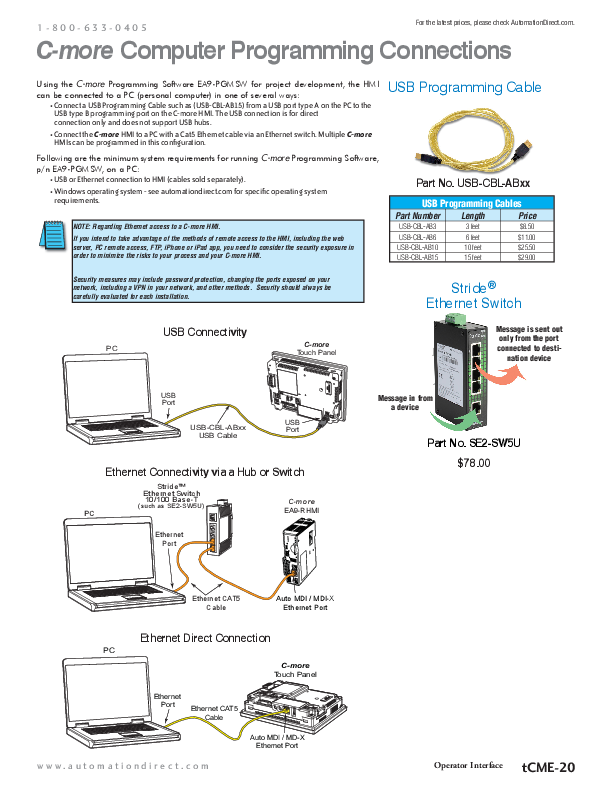
Using the C-more Programming Software EA9-PGMSW for project development, the HMI can be connected to a PC (personal computer) in one of several ways:
� Connect a USB Programming Cable such as (USB-CBL-AB15) from a USB port type A on the PC to the USB type B programming port on the C-more HMI. The USB connection is for direct connection only and does not support USB hubs.
� Connect the C-more HMI to a PC with a Cat5 Ethernet cable via an Ethernet switch. Multiple C-more HMIs can be programmed in this configuration.

USB Programming Cable

Following are the minimum system requirements for running C-more Programming Software, p/n EA9-PGMSW, on a PC:
� USB or Ethernet connection to HMI (cables sold separately). � Windows operating system - see automationdirect.com for specific operating system requirements.
NOTE: Regarding Ethernet access to a C-more HMI. If you intend to take advantage of the methods of remote access to the HMI, including the web server, PC remote access, FTP, iPhone or iPad app, you need to consider the security exposure in order to minimize the risks to your process and your C-more HMI.

Part No. USB-CBL-ABxx

USB Programming Cables

Part Number Length

Price

USB-CBL-AB3

3 feet

$8.50

USB-CBL-AB6

6 feet

$11.00

USB-CBL-AB10

10 feet

$25.50

USB-CBL-AB15

15 feet

$29.00

Security measures may include password protection, changing the ports exposed on your network, including a VPN in your network, and other methods. Security should always be carefully evaluated for each installation.

Stride� Ethernet Switch

USB Connectivity
PC

C-more Touch Panel

Message is sent out only from the port connected to desti-
nation device

USB Port
USB-CBL-ABxx USB Cable

USB Port

Ethernet Connectivity via a Hub or Switch

StrideTM Ethernet Switch 10/100 Base-T
(such as SE2-SW5U)
PC

C-more EA9-RHMI

Ethernet Port

Message in from a device
Part No. SE2-SW5U $78.00

Ethernet CAT5 Cable

Auto MDI / MDI-X Ethernet Port

Ethernet Direct Connection
PC
C-more Touch Panel

Ethernet Port

Ethernet CAT5 Cable

Auto MDI / MD-X Ethernet Port

www.automationdirect.com

Operator Interface tCME-20

For the latest prices, please check AutomationDirect.com.

ControlLogix, CompactLogix and FlexLogix

Connect to ControlLogix, CompactLogix and FlexLogix PLCs using either the native serial port or Ethernet port/module. Use direct tag-based messaging or directly enter the

ControlLogix/CompactLogix PLC tags during C-more configuration (no mapping or translations required). You can connect multiple C-more HMIs to multiple PLC types on one network.

Serial

C-more EA9-RHMI

Ethernet

Ethernet

Switch

Ethernet Ethernet Ethernet

Control/CompactLogix ControlLogix CompactLogix FlexLogix

SLC 500 Ethernet and ENIDriver
Connect to the native Ethernet port on SLC 5/05, and to SLC 5/03 and SLC 5/04 through a 1761-NET-ENI DFI serial-to-Ethernet converter.

Ethernet

Ethernet

SLC 5/05 CPU

Ethernet

RS-232

SLC 5/04 CPU

1761-NET-ENI

Switch

Ethernet

RS-232

SLC 5/03 CPU

1761-NET-ENI
MicroLogix 1100/1400 Ethernet and ENIDriver
Connect to the native Ethernet port on MicroLogix 1100/1400, and to MicroLogix 1000, 1200 and 1500 through a 1761-NETENI DFI serial-to-Ethernet converter.

Ethernet

Ethernet

MicroLogix 1100/1400

mCME-10 C-more HMI

Switch

Ethernet

RS-232

1761-NET-ENI

Ethernet

RS-232

1761-NET-ENI

MicroLogix 1000 or 1200 MicroLogix 1500
1-800-633-0405

For the latest prices, please check AutomationDirect.com.

Simultaneous Communications and Panel Pass-through

Connect multiple brands of PLC/PACs
Connect multiple brands of PLC/PACs to C-more and communicate with them simultaneously. Use the Event Manager to periodically send tag values from one controller to another or when certain conditions are met.

C-more can even act as a "protocol bridge", passing values back and forth between PLC/PACs that use different protocols.

DH-485

Net AIC

Ethernet

SLC 5/03 CPU

MicroLogix

DL06

Do-More

Productivity3000

ControlLogix

CompactLogix

A-B PLCs

Panel pass-through
C-more panels can access data from supported controllers attached to other C-more panels via an Ethernet connection.

3
Client Panel
Server Panels

Plant Network (Ethernet)
2

PLC 1 Temp 75 deg PLC 2 Status = Run PLC 3 Status = Fault PLC 4 Status = Run

RS-232C
1

RS-232C

RS-232C

RS-232C

PLC #1 Koyo K-Sequence
1 Each PLC is operating a seperate application and is connected to a C-more panel through a Serial Connection.

PLC #2 Allen-Bradley DF1 Full Duplex

PLC #3 GE 9030
SNPX

2 Each C-more is configured as usual. When the client panel is configured, the server panels will pass through data from the PLCs to the client.

PLC #4 Schneider TSX Momentum
3 The C-more client panel is configured to display the data collected from each PLC connected through a C-more server panel.

www.automationdirect.com/C-more

C-more HMI mCME-11

For the latest prices, please check AutomationDirect.com.

le Software
see

Programming Power... Downloadab

FRE E

Powerful FREE configuration software with legendary ease of use
C-more's mission is to make you feel like a touch panel configuration expert. So we put in many tools to make your job go faster and more effeciently. Even simple things, such as object configuration boxes, have improved. We think you'll be able to do more with C-more in even less time!

pfroordmuactnsy
website for details

Save your screens in the Screen Library to use with other projects

Build your own keypads to use with numeric and text entry

Click on the Library tab to view libraries of personally stored objects, screens, sound bites, etc. This saves hours of work!

Thumbnail project preview window
helps you organize multiscreen projects. And you can rearrange the screens with a drag & drop of your mouse
Property List,
show and modify images

Scrolling object selection window lets you find the object you want fast. Just drag and drop it on the screen.
Scrolling parts list shows variations of the objects selected above. Just drag and drop on the screen.

Lock/Unlock Object- This editing tool disables edits to objects that are locked. Once Locked, the object will remain locked and saved within the software. Reduces edit mistakes to objects when multiple users may be accessing or editing a project.

Object Layer List Window shows all the objects on the active screen. Quickly select an object from the list to edit or highlight the Object.

Hide/Unhide Object feature- This editing tool allows hiding objects that may interfere with editing other objects on the screen, such as Pop-up window objects.
Hardware manuals and help files are a few clicks away. Need more? Follow the links to C-more's online library of objects and sound bites, or visit C-more's online forum.
mCME-12 C-more HMI

Grouping Control: expand or collapse Grouped objects. Access individual objects in a group without having to separate the group or move objects on the screen.
1-800-633-0405

For the latest prices, please check AutomationDirect.com.

Powerful Database Tools

Customize your searches
Easily edit C-more's databases with the latest software tools. Create, import, export and search for tags and other datatypes

with a click of a button. Powerful search filters allow for custom search terms based on various options.

� Tagname Database � Message Database

� Event Manager Database � Address Book

Customize and save your own search terms for those most used items.

Device type filters allow you to reduce the view to just the device tags you want to find or edit.

Data type filters allow you to reduce the view to just the specific tag data types you want to find or edit.

Database Import & Export saves you time
The Import and Export tools allow you to quickly exchange xls file. This greatly reduces the time needed to create a new database files between C-more projects, or PLC tagname files. database, especially when there are hundreds, or thousands of With just a few clicks of the mouse, you can create a .csv or data points to work with.

Import or Export
� Tagnames � Messages � E-mail Addresses � Languages � Events � Project File � Screen Library � Graphics Library � Object Library � Sound Library � Recipe Sheets

Importing PLC tags is easy
With supported PLC databases, simply export the PLC tagnames and use the C-more import tool to select the .csv or xls file.

www.automationdirect.com/C-more

C-more HMI mCME-13

For the latest prices, please check AutomationDirect.com.

Productivity Tools: Built-in Simulator

Built-in project simulator pays for the HMI in time savings!

The "one click" built-in simulator is one of C-more's most powerful features. You will find yourself using this feature every couple of minutes while developing your project. Using this intuitive simulator will result in a better looking and more effective project completed in less time.
The simulator allows you to fully simulate your entire project (every object, every screen) while it is being developed, without being connected to a PLC/PAC. Simply click on the "Simulate Project" button at any stage of project development. A window will appear over your development screen that contains a pixel-for-pixel representation of how your project will appear on your physical screen. A simulation control window will also appear.
Now the fun begins. Simply click your mouse on any simulated screen object and it will behave as if your finger is actually touching the screen. For example, clicking on a pushbutton object will activate and deactivate it as if an operator were touching it! The same will be true for thumbwheels, slider switches (simply

hold your mouse button down and slide), selector switches, toggle switches and so forth. Want to see how an analog meter moves based on dynamic data from the PLC/PAC? Simply move your mouse to the "Simulation control window" of the simulator, move to the tag and click on the data you wish to change. Now type in the value that you want to simulate, and watch your meter move on the simulated screen.
And here's the really cool thing - whatever values you modify during simulation, the effect will be propagated throughout your entire project, object by object, screen by screen. That's because this is a true "project simulator".
To stop the simulation, just click on your project development screen and you're back to project configuration. You can go back and forth in a flash. It's that easy!

The simulation control window shows the list of screens and the tags, with their values, for the highlighted screen in the list.

mCME-14 C-more HMI

For objects tied to bit or analog data, change actual values here in the tag list, then verify the correct behavior on the screen. You can also change input data on the simulated screen and see the value change in the tag list.
1-800-633-0405

For the latest prices, please check AutomationDirect.com.

User Libraries and Project Migration

User libraries allow you to re-use your work again and again

C-more provides three user libraries that allow you to efficiently re-use your work throughout your project or for other projects in the future. You can store a custom object, such as your company logo or a group of objects that compose a custom object (see the tank with cut-away and bar

graph below). You can also store entire screens, graphics and sound bites. You can access your libraries at any time and re-use your work by merely clicking on the saved item and dragging it from the library into your project. You can even import and export library items to share with other designers.

2

1

1 Object, graphic and sound libraries

3

2 Create, store and retrieve your: � Custom objects

� Entire screens

� Sound bites

3 Re-use your work in this project or future projects

Check out our online library at: c-more.automationdirect.com/support_tools/library.html check link

Change your project screen size with a click of your mouse

Imagine developing your project for a 10-inch panel and then deciding to change the size to a 15-inch panel or an 8-inch panel. In the past, you most likely had to recreate your entire project and reconfigure every object, tag and screen.
With C-more, your project can be automatically converted for

a different size display with a click of the mouse. Of course, you may wish to move things around a little since you have a different screen size. This feature is great for OEMs or integrators that may be installing different configurations of the same machine or process.

Original project for a 10-inch panel

Click - it's now a 12-inch project

Click - it's now a 15-inch project
Click - it's now a 6-inch project

www.automationdirect.com/C-more

C-more HMI mCME-15

For the latest prices, please check AutomationDirect.com.

Powerful Event Manager Triggers Alarms and Actions

Fill-in-the-blank Event Manager saves time, PLC/PAC programming and memory
C-more provides a powerful yet easy-to-use Event Manager which takes exception handling (including alarms) and scheduling to the next level. The simple fill-in-the-blank manager allows events to automatically trigger several actions without the need for hours of PLC/PACprogramming.
A
CHOOSE EVENT

On the Event Manager screen, create an event, enter the required data, and select multiple actions. It's that easy!
The Event Manager goes beyond simple Alarm and Message functions, and allows C-more to take action based on events such as:
� Tag status or value
� A combination of tag status or values
� Date or time
� A screen change

B
SELECT ACTIONS

The Possible Actions include: � Create an alarm � Play a sound � Write values to tags � Copy tag values � Send e-mails (with embedded tag data!) � Force screen changes � Capture screen image � P op-up messages (with embedded tag data!) � Send files via FTP � Carry out math formulas

Tag Combinations allow for simple logic with multiple events
Combine up to four different tags into simple logic events that will trigger actions.

Math Actions add more power to your project
Create a custom formula or use the Math Keypad to create formulas with Constants or even Tag Values. The Result is placed into a User Defined Tag.

mCME-16 C-more HMI

1234+SIN(<TAG>+PI(123)+LOGa
� Numbers in Black � Tags in Blue � Calculations and Functions in Green � Errors in Red
1-800-633-0405

For the latest prices, please check AutomationDirect.com.
Convenient Recipe & Alarm Functions
More flexible recipes reduces programming effort
Recipes make it easy to make large numbers of tag changes with the push of a single button. C-more provides tremendous flexibility and capacity to applications that require multiple recipes. It has a simple recipe button that supports 99 recipe sheets, each with 1000 recipes of 256 possible #tags or values. C-more recipe values can be modified and saved on the fly by the operator while the machine is running.
Spreadsheet-based Recipe Creation

Select tags with one click

Insert constant values or select a tag

� New Recipe Database � 99 recipe sheets � 1000 recipes per recipe sheet � 256 possible tags or values � Load recipe data directly to PLC registers � Operator editing of recipes while running

Alarm List Object offers detailed alarm management for operators
Alarms are used to notify operators of critical situations that may arise during a process. The Alarm List Object allows operator interaction with alarms that have occurred and allows operators to view, confirm or clear the alarms. Alarms can include specific messages with embedded PLC tag data as well as, date and time information for the alarm status. Alarm status can be color coded to help operators quickly interpret the status for each alarm.

Icons help to see alarm states

The Alarm List Object allows alarm details to be displayed and logged for future reference

Color code the alarm status

The Alarm List Object can be filtered to show alarms based on status.

www.automationdirect.com/C-more

C-more HMI mCME-17

For the latest prices, please check AutomationDirect.com.

Trends, Logging and Control Options

Trend graphs, PID faceplates, true historical data logging

C-more's trend graph supports 16 pens, selectable to be hidden or shown by the operator. Show only the trends you wish to see, when you wish to see them. In addition, the full featured C-more units support data logging to SD cards or USBmemory devices. Gigabytes of trend data can be stored,

limited only by you. The information can also be sent from C-more to your PC over the Internet, triggered by an event. C-more also has the standard PID faceplate and an enhanced version which shows trend data of the setpoint process variable
and control variable.

� 16 pen trends � PID faceplate � PID with trend faceplate � Each pen can be turned on/off � True historical data logging
Log to SD card/USB

Pop-up windows for information and control
Use Pop-up Window Frames to overlay information or to provide extra controls on top of other screens. Operators can reposition the pop-up anywhere on the screen or close the pop-up when no longer required. Pop-up windows are created just like the other objects in the project, and can include a portion of any C-more screen (except other Pop-ups - no cascading available).
Pop-up Message Boxes for critical events
Create Pop-up Message Boxes in the Event Manager. You define the trigger criteria, and then select "Message Box" as the "action". You can type in a short message to appear in the box, and select an icon to display with your message. You can even include tag data, and date/time information in the message. The operator must click the OK button in order to clear the message box. You can also log an alarm at the same time the message box is activated via the event manager (along with many other actions).
mCME-18 C-more HMI

1-800-633-0405

For the latest prices, please check AutomationDirect.com.

Fonts and Animation
Built-in fonts
C-more has 14 different fonts for objects such as pushbuttons, indicators, meters and so on. These fonts are used for objectintegrated labels and ON/OFF phrases for each of C-more's standard objects. Each font can be bolded, italicized and underlined. Fonts can be scaled to hundreds of sizes, giving you extreme flexibility.

Need even more fonts? Use any of the dozens from your PC as "Bitmap Text". (Although bitmap text cannot be used as an integral part of standard objects, they can be used for a wide variety of static annotations.)

Object Fonts

Bitmap Text Fonts

Built-in animation makes the process come to life

Virtually any bitmap object (from your PC hard drive, the built-in 4,000 symbol library, custom-drawn, etc.) can be animated to follow a straight line or a scribbled path. In addition, the object can change size or orientation (rotation).

Of course, the object can also do any combination of actions as well. Best of all, the animation process is very straightforward. You will be animating your first object in as little as a few minutes!

5 types of animation (any combination)
� Straight line... X or Y � Scribbled path with up to 64 points � Rotational � Change size � Multi-State Bitmap

Axis Animation:
PLC tag values dictate the actual screen position of an object. Move objects along a single axis or use different tags for simultaneous X-Y position control.
Point Animation:
Define a path with up to 64 points for point-to-point object motion, or use "ratio" mode to move smoothly along a path. Scaling of PLC tag values to the path positions is optional.

Object Rotation:
Control rotation of an object based on the value of a PLC tag. Also allows scaling of tag values to angular values.

Object Size:
Control the size of an object based on PLC tag values. Independent X and Y-axis scaling of object size is possible, along with scaling of the tag values.

A bitmap object (picture of cardboard box) follows a curving path along a conveyer (the path can be hidden). The box can rotate around the bends in the path and even change sizes. The bitmap changes toward the end to a closed box shape.

Multi-State Bitmap:
Use up to 16 different bitmap images to animate changes in the appearance of an object.
Benefit:
Animations of machine motion and factory processes enhance comprehension, and give operators a visual representation of the desired motion of products, and machinery on screen.

www.automationdirect.com/C-more

C-more HMI mCME-19

For the latest prices, please check AutomationDirect.com.
Wide Array of Objects and Customized Parts
Here are just a few of the more than 50 types of objects in the standard Object List
Pushbuttons
Indicator Lights

Analog Meters

Bar/Circle Meter

Switches

Slider Switch

mCME-20 C-more HMI

Personalize your screens
Object Format options make personalizing your screen objects simple. Select the colors, frames, and background effects with just a few clicks of the mouse.
Choose from the default color templates or create and save your own templates to use as often as you like.
Backgrounds for many objects support gradient fill effects that make them stand out.

1-800-633-0405

For the latest prices, please check AutomationDirect.com.

Tri-State Switch

Over 4000 industrial graphics with Symbol Factory
Select from 80 different categories offering vector graphics that can be scaled up and down in size without loss in image quality. Free Cutaway Control is also included for doing tank type fills. If that is not enough, you can always use your own bitmap graphics with the same objects.

Thumbwheel

Dynamic Bitmap Set Language

Hundreds of pre-configured parts
C-more also provides ready-made "parts" (versions of each default object) that are available to drag and drop into your project. Select any object to see preconfigured parts in the Parts List. Select the one that most closely matches your needs - and customize it even further, if you like. Then save it in the user library for future use.

Bitmap Text

Create custom objects
Use a combination of C-more objects and parts to create your own objects, or even entire sections of screens.

Circle Shape

=
Custom Object

Static Bitmap

Analog Meter

Frame Numeric Display Static Text
Assembled from 12 parts

www.automationdirect.com/C-more

C-more HMI mCME-21

For the latest prices, please check AutomationDirect.com.

Built-in Convenience...

Network connections
C-more HMIs with Ethernet capabilities can be programmed via the built-in Ethernet port (the EA9-T6CL-R model does not support Ethernet). Connect directly from a PC to the C-more HMI, or connect one or more C-more HMIs to your plant network (via switches and routers). With C-more on the plant network, you can download projects from any connected PC.

Use the network connection to upload alarm history, PLC/PAC log data or screen captures to a connected PC. C-more can send e-mail, based on events or PLC/PAC alarm conditions (if connected to a network and an SMTP (Simple Mail Transport Protocol) server).
Ethernet Hub or Switch 10/100BaseT

Front Office

Ethernet CAT5 Cable
C-more touch panel
Ethernet Hub or Switch 10/100BaseT

Ethernet CAT5 Cable
Ethernet CAT5 Cable

C-more EA9-RHMI
Plant Floor

PLC

C-more touch panel with EA-ECOM

installed providing an additional

Ethernet port used to isolate Plant

PLC

Floor Network from Front Office

Network.

C-more programming software with Internet connection

You can program your C-more HMI remotely via the Internet. All you need is a Public IPadress assigned to the

C-more and a network that is accessible from the Internet.

USB programming
For convenient programming, use a standard USB cable between your C-more HMI and your PC. No baud-rate, parity, or stop bit settings to waste your time. USB is fast; most projects download in seconds. Don't pay inflated prices for proprietary programming cables! USB cables are inexpensive (we sell `em!) and are readily available so you won't waste time looking for a special cable when your million-dollar operation is down.
mCME-22 C-more HMI

Internet

USB-CBL-AB15

C-more panel

1-800-633-0405