
Home
›
miniDSP
›
miniDSP FLEX Audio Processor DSP Balanced Dirac Live SHARC ADSP21489 XMOS Bluetooth User Manual

miniDSP FLEX Audio Processor DSP Balanced Dirac Live SHARC ADSP21489 XMOS Bluetooth User Manual
File info: application/pdf · 77 pages · 4.90MB
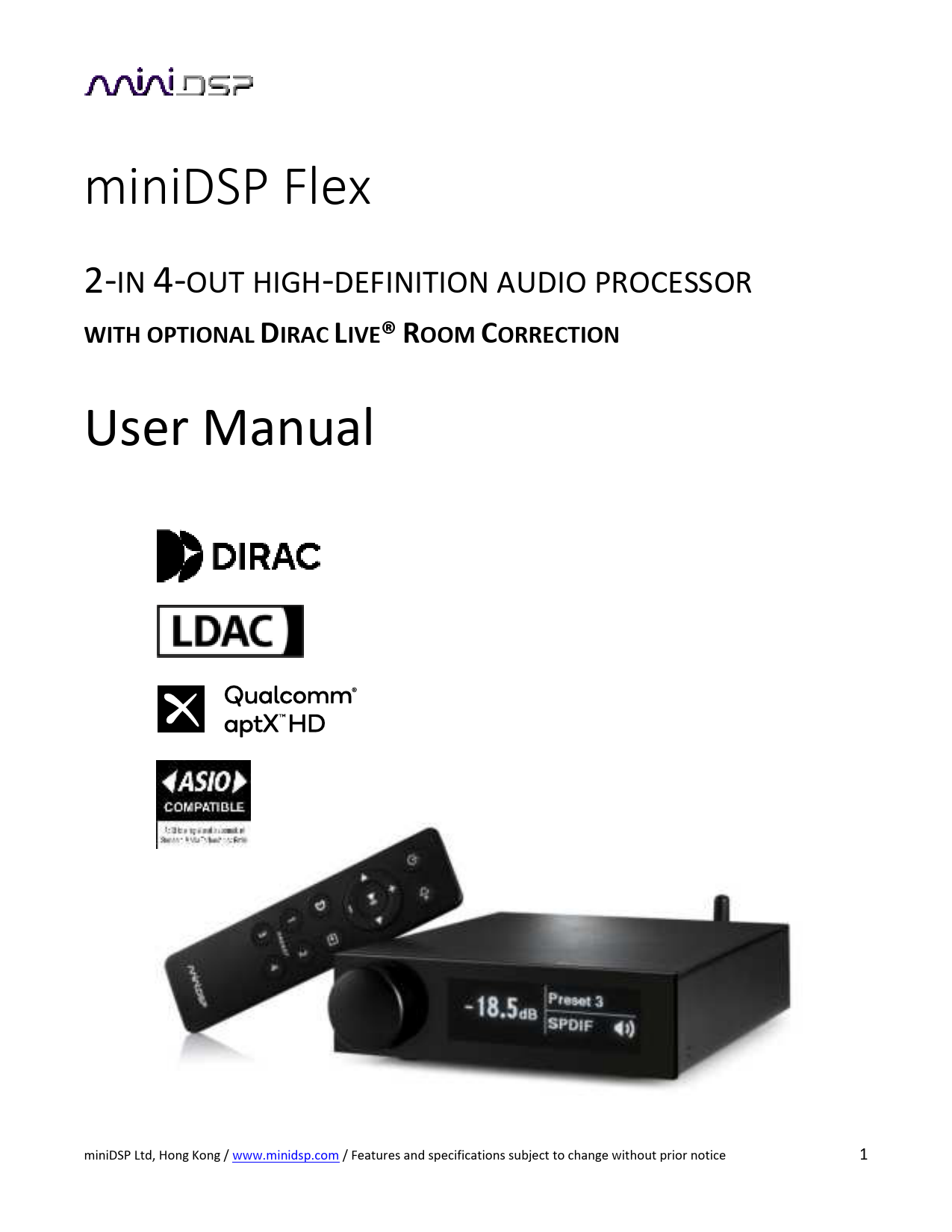
miniDSP Flex
miniDSP Ltd, Hong Kong / www.minidsp.com / Features and specifications subject to change without prior notice 1 miniDSP Flex 2-IN 4-OUT HIGH-DEFINITION AUDIO PROCESSORWITH OPTIONAL DIRAC LIVE ROOM CORRECTION User Manual
www.minidsp.com › images › documentsminiDSP Flex
miniDSP Ltd, Hong Kong / www.minidsp.com / Features and specifications subject to change without prior notice 1 miniDSP Flex 2-IN 4-OUT HIGH-DEFINITION AUDIO PROCESSORWITH OPTIONAL DIRAC LIVE ROOM CORRECTION
Extracted Text
miniDSP Flex
2-IN 4-OUT HIGH-DEFINITION AUDIO PROCESSOR
WITH OPTIONAL DIRAC LIVE� ROOM CORRECTION
User Manual

miniDSP Ltd, Hong Kong / www.minidsp.com / Features and specifications subject to change without prior notice

1

Revision history

Revision 0.7 0.8 1.0

Description Preliminary for public access Corrections and clarifications throughout Remove IR learning, add programmable remote codes, add Bluetooth automatic selection.

Date 2 December 2021 6 December 2021 31 January 2022

miniDSP Ltd, Hong Kong / www.minidsp.com / Features and specifications subject to change without prior notice

2

TABLE OF CONTENTS
Table of contents ...........................................................................................................................................3
IMPORTANT INFORMATION ...........................................................................................................................6
1 Product Overview ....................................................................................................................................9 1.1 Dirac Live upgrade ................................................................................................................................... 10 1.2 Typical applications ................................................................................................................................. 10
2 Software installation..............................................................................................................................12 2.1 Download the miniDSP software............................................................................................................. 12 2.2 Windows.................................................................................................................................................. 13 2.2.1 Possible Windows installation issues .............................................................................................. 13 2.2.2 Install the miniDSP-2x4-HD plugin................................................................................................... 13 2.2.3 Install the UAC2 driver..................................................................................................................... 13 2.3 Mac .......................................................................................................................................................... 14 2.3.1 Possible Mac installation issues....................................................................................................... 14 2.3.2 Install the plugin .............................................................................................................................. 14
3 Hardware Overview ...............................................................................................................................15 3.1 Rear panel................................................................................................................................................ 15 3.1.1 miniDSP Flex .................................................................................................................................... 15 3.1.2 Flex/Balanced .................................................................................................................................. 16 3.1.3 Flex/Digital....................................................................................................................................... 17 3.2 Front panel .............................................................................................................................................. 18
4 Playing Audio.........................................................................................................................................19 4.1 Digital sources ......................................................................................................................................... 19 4.2 Analog source .......................................................................................................................................... 19 4.3 Bluetooth ................................................................................................................................................. 20 4.4 USB Audio ................................................................................................................................................ 22 4.4.1 macOS.............................................................................................................................................. 22 4.4.2 Windows .......................................................................................................................................... 24
5 Remote control......................................................................................................................................26 5.1 Using the miniDSP remote ...................................................................................................................... 26 5.2 Using a third-party programmable remote ............................................................................................. 27 5.3 Android/iOS control app.......................................................................................................................... 28

miniDSP Ltd, Hong Kong / www.minidsp.com / Features and specifications subject to change without prior notice

3

6 The miniDSP-2x4-HD and DDRC-24 Plugins .............................................................................................29
6.1 Plugin window ......................................................................................................................................... 29 6.2 Connecting to the processor ................................................................................................................... 30 6.3 Key features............................................................................................................................................. 31
6.3.1 Master control ................................................................................................................................. 31 6.3.2 Configuration/preset selection........................................................................................................ 32 6.3.3 Inputs ............................................................................................................................................... 32 6.3.4 Input selection ................................................................................................................................. 32 6.3.5 Routing matrix ................................................................................................................................. 33 6.3.6 Outputs ............................................................................................................................................ 33 6.4 Plugin configuration guide....................................................................................................................... 34 6.4.1 Signal flow � miniDSP-2x4-HD plugin .............................................................................................. 34 6.4.2 Signal flow � DDRC-24 plugin .......................................................................................................... 35 6.4.3 Stereo playback ............................................................................................................................... 36 6.4.4 Subwoofer integration (2.1 system) ................................................................................................ 37 6.4.5 Dual subwoofers.............................................................................................................................. 38 6.4.6 Stereo supporting woofers .............................................................................................................. 39 6.4.7 Two-way active speaker .................................................................................................................. 40 6.4.8 Subwoofer control / multi-sub ........................................................................................................ 41
7 Dirac Live...............................................................................................................................................42
7.1 How Dirac Live works .............................................................................................................................. 42 7.2 Software installation for Dirac Live ......................................................................................................... 43
7.2.1 Download and install Dirac Live ...................................................................................................... 43 7.2.2 Install the DDRC-24 plugin............................................................................................................... 43 7.3 Activating Dirac Live ................................................................................................................................ 43 7.4 Switching between the miniDSP-2x4-HD and DDRC-24 plugins.............................................................. 46 7.5 Dirac Live Calibration............................................................................................................................... 47

miniDSP Ltd, Hong Kong / www.minidsp.com / Features and specifications subject to change without prior notice

4

8 Plugin Reference....................................................................................................................................48
8.1 Input channel strips ................................................................................................................................. 48 8.1.1 Standard version only...................................................................................................................... 48 8.1.2 Dirac Live version only ..................................................................................................................... 49
8.2 Routing .................................................................................................................................................... 49 8.3 Output tab ............................................................................................................................................... 50
8.3.1 Channel strip layout......................................................................................................................... 50 8.3.2 Channel label ................................................................................................................................... 50 8.3.3 Level meter and gain control........................................................................................................... 50 8.3.4 Parametric EQ.................................................................................................................................. 51 8.3.5 Crossover ......................................................................................................................................... 53 8.3.6 Compressor...................................................................................................................................... 55 8.3.7 FIR (miniDSP-2x4-HD plugin only) ................................................................................................... 56 8.3.8 Invert and mute ............................................................................................................................... 56 8.3.9 Time delay ....................................................................................................................................... 56 8.4 Custom biquad programming.................................................................................................................. 57 8.4.1 What's a "biquad? ........................................................................................................................... 57 8.4.2 Using custom biquad programming ................................................................................................ 57 8.4.3 Biquad design software ................................................................................................................... 59 8.5 FIR filtering and design (standard version only)...................................................................................... 60 8.5.1 FIR filtering overview....................................................................................................................... 61 8.5.2 FIR filter design software................................................................................................................. 61 8.5.3 Filter file format............................................................................................................................... 61 8.5.4 Loading filter coefficients ................................................................................................................ 62 8.6 Working with configurations ................................................................................................................... 63 8.6.1 Changes to processing parameters ................................................................................................. 63 8.6.2 Selecting a configuration ................................................................................................................. 63 8.6.3 Saving and loading configurations................................................................................................... 64 8.6.4 Restoring to defaults ....................................................................................................................... 64 8.7 Keyboard shortcuts ................................................................................................................................. 65
9 Additional Information ..........................................................................................................................66
9.1 Specifications........................................................................................................................................... 66 9.1.1 All versions....................................................................................................................................... 66 9.1.2 Flex � single-ended analog I/O ........................................................................................................ 67 9.1.3 Flex/Balanced � balanced analog I/O .............................................................................................. 67 9.1.4 Flex/Digital � analog input, digital output ....................................................................................... 68
9.2 Plugin and DSP upgrade .......................................................................................................................... 69 9.3 Firmware upgrade ................................................................................................................................... 70
9.3.1 Windows .......................................................................................................................................... 70 9.3.2 macOS / OS X ................................................................................................................................... 72 9.4 Trouble-shooting ..................................................................................................................................... 74 9.4.1 Audio issues � standard version ...................................................................................................... 74 9.4.2 Audio issues � Dirac Live version..................................................................................................... 75 9.4.3 Solving connectivity issues � Dirac Live version .............................................................................. 76 9.5 Obtaining support.................................................................................................................................... 77

miniDSP Ltd, Hong Kong / www.minidsp.com / Features and specifications subject to change without prior notice

5

IMPORTANT INFORMATION
Please read the following information before use. In case of any questions, please contact miniDSP via the support portal at support.minidsp.com.
System Requirements � standard version
To configure the standard version of the miniDSP Flex audio processor without Dirac Live, you will require a Windows PC or Apple Mac computer with the following minimum specification:
Windows
� Microsoft� � Windows� 7/8.1/10/11 � At least a dual core i3, i5, or i7 processor � At least 2 GB RAM (4 GB or more preferred) � One free USB 2.0 port � Internet connection
macOS
� OS X 10.8 or higher, macOS 10.12 or higher � At least a dual core i3, i5, or i7 processor, or an ARM processor (M1/Pro/Max) � At least 2 GB RAM (4 GB or more preferred) � One free USB 2.0 port � Internet connection
System Requirements � with Dirac Live upgrade
To configure the miniDSP Flex audio processor with Dirac Live upgrade, you will require a Windows PC or Apple Mac computer with the following minimum specification:
Windows
� Microsoft� � Windows� 10/11, latest version with all updates � At least a dual core i3, i5, or i7 processor � At least 2 GB RAM (4 GB or more preferred) � Two free USB 2.0 ports � Internet connection
macOS
� macOS 10.14 Mojave or later, latest version with all updates � At least a dual core i3, i5, or i7 processor, or an ARM processor (M1/Pro/Max) � At least 2 GB RAM (4 GB or more preferred) � Two free USB 2.0 ports � Internet connection

miniDSP Ltd, Hong Kong / www.minidsp.com / Features and specifications subject to change without prior notice

6

Disclaimer/Warning
miniDSP cannot be held responsible for any damage that may result from the improper use of this product or incorrect configuration of its settings. As with any other product, we recommend that you carefully read this manual and other technical notes to ensure that you fully understand how to operate this product. The miniDSP audio processor is a powerful tool, and misuse or misconfiguration, such as incorrectly set gains or excessive boost, can produce signals that may damage your audio system.
As a general guideline, you should perform the initial configuration of the miniDSP audio processor before enabling audio through any connected output device or amplification. Doing so will help ensure that the software is correctly configured.
Finally, note that the miniDSP audio processor is a very flexible device, and many of the questions we receive at the tech support department are already answered in this user manual and in the online application notes on the miniDSP.com website. So please take the time to carefully read this user manual and the online technical support. Thanks for your understanding!
Warranty Terms
miniDSP Ltd warrants this product to be free from defects in materials and workmanship for a period of one year from the invoice date. Our warranty does not cover failure of the product due to incorrect connection or installation, improper or undocumented use, unauthorized servicing, modification or alteration of the unit in any way, or any usage outside of that recommended in this manual. If in doubt, contact miniDSP prior to use.
FCC Class B Statement
This device complies with Part 15 of the FCC Rules. Operation is subject to the following two conditions:
� This device may not cause harmful interference. � This device must accept any interference received, including interference that may cause undesired
operation.
Warning: This equipment has been tested and found to comply with the limits for a Class B digital device, pursuant to Part 15 of the FCC Rules. These limits are designed to provide reasonable protection. This equipment generates, uses and can radiate radio frequency energy and, if not installed and used in accordance with the instructions, may cause interference to radio communications. However, there is no guarantee that interference will not occur in a particular installation. If this equipment does cause harmful interference to radio or television reception, which can be determined by turning the equipment off and on, the user is encouraged to try to correct the interference by one or more of the following measures:
� Reorient or relocate the receiving antenna. � Increase the separation between the equipment and receiver. � Connect the equipment into an outlet on a circuit different from that to which the receiver is connected. � Consult the dealer or an experienced radio/TV technician for help.
Notice: Shielded interface cable must be used in order to comply with emission limits.
Notice: Changes or modification not expressly approved by the party responsible for compliance could void the user's authority to operate the equipment.

miniDSP Ltd, Hong Kong / www.minidsp.com / Features and specifications subject to change without prior notice

7

CE Mark Statement
The miniDSP Flex has passed the test performed according to European Standard EN 55022 Class B.
A note on this manual
This User Manual is designed for reading in both print and on the computer. If printing the manual, please print double-sided. The embedded page size is 8 �" x 11". Printing on A4 paper will result in a slightly reduced size. For reading on the computer, we have included hyperlinked cross-references throughout the manual. In addition, a table of contents is embedded in the PDF file. Use the View menu (Preview on Mac) or the bookmarks sidebar (Adobe reader on Mac and Windows) to view this table of contents.
Acknowledgments
Dirac� and Dirac Live� are trademarks owned by Dirac Research AB. ASIO� is a registered trademark of Steinberg Media Technologies GmbH. LDACTM and LDAC logo are trademarks of Sony Corporation. aptXTM is a trademark of Qualcomm Technologies International, Ltd. Bluetooth� is a registered trademark of Bluetooth SIG.

miniDSP Ltd, Hong Kong / www.minidsp.com / Features and specifications subject to change without prior notice

8

1 PRODUCT OVERVIEW
Thank you for purchasing a miniDSP Flex high-resolution1 audio processor. The Flex is the 3rd generation of our popular line of compact 2-in, 4-out audio processors but adds an additional SPDIF input, Bluetooth streaming with LDACTM and aptXTM HD codecs and automatic Bluetooth input selection, and an OLED front panel with physical volume control. Of course, this compact processor includes a full suite of miniDSP's powerful audio processing tools and flexible I/O routing.
To allow for customers' varying needs while maintaining the compact size, we have re-architected the I/O section to allow different input-output versions to be easily produced. Versions currently available include analog I/O on RCA, balanced analog I/O on TRS, and analog in/digital out. More are planned, so please refer to the Flex product page for the current list.
Dirac Live� room correction has proven very popular with our customers. The miniDSP Flex can be purchased together with an optional stereo Dirac Live upgrade or can be upgraded later.
Despite its size, this pint-sized powerhouse packs in a lot of features, so please read the details in this manual (and the accompanying Dirac Live manual if applicable) carefully.

1 The miniDSP Flex operates with 32-bit 96 kHz resolution in standard mode (without Dirac Live) and with 32-bit 48 kHz resolution with Dirac Live.

miniDSP Ltd, Hong Kong / www.minidsp.com / Features and specifications subject to change without prior notice

9

1.1 DIRAC LIVE UPGRADE
The miniDSP Flex can be upgraded to run stereo Dirac Live� room correction. This requires an additional purchase for the Dirac Live license. You can either purchase the Flex with Dirac Live already activated, or purchase the Dirac Live upgrade at a later time from our webshop:
� https://www.minidsp.com/products/dirac-series/minidsp-flex-dirac-live-upgrade-detail
Note: each upgraded miniDSP Flex requires its own Dirac Live license. It is not possible to transfer licenses between Flex units, to use a standalone Dirac Live license purchased from Dirac Research with the Flex, or transfer a Dirac Live license from a different miniDSP product over to a Flex.
If you do not already have a miniDSP UMIK-1 microphone, be sure to add one to your order when purchasing the Dirac Live upgrade, as Dirac Live requires this for acoustic measurements. The miniDSP UMIK-2 is also supported.
1.2 TYPICAL APPLICATIONS
The miniDSP Flex has a wide range of applications in home and professional audio. This section illustrates a few of them.
Figure 1 shows the miniDSP Flex used as a digital preamp with subwoofer integration. The Flex provides accurate and flexible integration between the subwoofers and the main speakers as well as comprehensive EQ and tuning options. This is a very cost-effective way to build a complete audio system that includes all the benefits of modern DSP technology. Add the optional Dirac Live software upgrade for world-class room correction.

Figure 1. miniDSP Flex as preamp with subwoofer integration and room correction

miniDSP Ltd, Hong Kong / www.minidsp.com / Features and specifications subject to change without prior notice

10

Figure 2 illustrates a similar use of the Flex as a digital preamp, but the output channels have instead been configured to act as crossover for a pair of active 2-way speakers. Amplification can be via a multichannel power amplifier as shown, or a pair of stereo amplifiers.

Figure 2. miniDSP Flex used as preamp, active crossover and room correction
In Figure 3, the miniDSP Flex has been used as an accessory in a home theater system, to manage multiple subwoofers. Driven from the A/V receiver's subwoofer output, the miniDSP Flex can be used to independently adjust gain, delay and parametric EQ of each subwoofer for optimum multi-sub performance.

Figure 3. miniDSP Flex for multi-sub management

miniDSP Ltd, Hong Kong / www.minidsp.com / Features and specifications subject to change without prior notice

11

2 SOFTWARE INSTALLATION
This section describes how to install the miniDSP software that you will need to configure and operate the miniDSP Flex: 1. The USB driver and control panel. This is needed only for Windows. 2. The miniDSP-2x4-HD plugin. This software is used to configure the standard (non-upgraded) version of the
miniDSP Flex. It is also used to activate the optional Dirac live upgrade. There are separate versions for Windows and Mac.
2.1 DOWNLOAD THE MINIDSP SOFTWARE
If you purchased your Flex directly from miniDSP, your software will be available from the User Downloads section of the miniDSP website when your order ships. To access the download, you will need to be logged into the website with the account you created when purchasing. If you purchased your Flex from a miniDSP dealer, you will receive a coupon together with the product. Redeem this coupon at the link below: � https://www.minidsp.com/support/redeem-coupon The User Downloads link is visible from the dropdown menu at the top right of the website:
Navigate to the miniDSP Flex section. Download the zip file under the heading miniDSP Flex. After downloading, unzip the file (for Windows, right-click and select "Extract All..."; on Mac, double-click on it). The unzipped download has a name like miniDSP2x4Flex_v1_01. (The version number embedded in the folder name may be different.)

miniDSP Ltd, Hong Kong / www.minidsp.com / Features and specifications subject to change without prior notice

12

2.2 WINDOWS
2.2.1 Possible Windows installation issues The miniDSP software requires that a number of other software frameworks be installed. These packages should be installed automatically, but you can manually install them if you receive an error message that required software is missing. � Microsoft .NET framework (version 3.5 or later) � Microsoft Visual C++ 2010 Redistributable Package: for x86 (32-bit Windows) or x64 (64-bit Windows).
2.2.2 Install the miniDSP-2x4-HD plugin 1. Navigate to the 2x4HD folder of the software download. 2. Double-click on the plugin installer to run it. It will be named miniDSP-2x4-HD.exe. We recommend that
you accept the default installation settings.
2.2.3 Install the UAC2 driver 1. Connect the Flex to the computer using the supplied USB cable, and power it on. 2. Navigate to the WinDrivers folder of the software download and double-click on the driver installer:
� miniDSP_UAC2_v4.82.0_2020-06-09_setup.exe for Windows 7 or later (The version number and date embedded in the filename may be different.) We recommend accepting the default installation location. Once driver installation completes, click Finish. Note: the first time you run the miniDSP-2x4-HD plugin and the Dirac Live application, you may see a Windows Firewall warning such as the one below. Ensure that "Private networks..." is checked and "Public networks..." is not checked. Then click on "Allow access." This warning dialog may appear more than once.

miniDSP Ltd, Hong Kong / www.minidsp.com / Features and specifications subject to change without prior notice

13

2.3 MAC
2.3.1 Possible Mac installation issues If double-clicking on an installer brings up a message that the installer cannot run, use this alternate method (note that the name of the installer will be MiniDSP-2x4-HD.pkg or DDRC-24.pkg, not MiniDSP_Plugin.pkg as shown in the screenshots): 1. Right-click on the installer (or click while holding the Control key). 2. On the menu that pops up, move the mouse over the "Open With" item and then click on "Installer
(default)."
3. The following window will appear. Click on "Open."
2.3.2 Install the plugin 1. Navigate to the Plugins folder of the software download and then to the Mac folder. 2. The installer is named miniDSP-2x4-HD.pkg. To run it, double-click on it, or right-click and open as
described above. We recommend that you accept the default installation settings. 3. To run the plugin, locate it in the Applications -> miniDSP folder and double-click on it. To make it easier to
run in future, right-click on its dock icon and select Options -> Keep in Dock.

miniDSP Ltd, Hong Kong / www.minidsp.com / Features and specifications subject to change without prior notice

14

3 HARDWARE OVERVIEW
3.1 REAR PANEL
3.1.1 miniDSP Flex

1. DC power. The supplied 12 VDC power supply includes a set of interchangeable power pins for USA, UK, Europe and Australia. Fit the correct pins for your country. Connect the DC plug to the 12 VDC power socket.
Apply power to the Flex only after all input and output connections have been made.
2. USB port for control and audio streaming. Connect to an available USB port on your computer. This port can also be connected to a network streamer with USB output for audio playback.
3. Bluetooth antenna. Screw on the supplied Bluetooth antenna here. 4. Optical digital input. Connect a digital source using a TOSLINK optical cable. Sample rates from 32 up to
216 kHz are supported. 5. Coax digital input. Connect a digital source using an RCA cable. Sample rates from 32 up to 216 kHz are
supported. 6. Analog inputs. Connect an analog source here using RCA cables. Typically, the left channel is connected to
input 1 and the right channel is connected to input 2. The maximum input voltage is 2.0 Vrms. 7. Analog outputs. Connect equipment such as a power amplifier and subwoofer using RCA cables. Typically,
output 1 is the left channel and output 2 is the right channel. See Section 6.4 for a variety of other connections. The maximum output voltage is 2.0 Vrms.

miniDSP Ltd, Hong Kong / www.minidsp.com / Features and specifications subject to change without prior notice

15

3.1.2 Flex/Balanced

1. DC power. The supplied 12 VDC power supply includes a set of interchangeable power pins for USA, UK, Europe and Australia. Fit the correct pins for your country. Connect the DC plug to the 12 VDC power socket.
Apply power to the Flex only after all input and output connections have been made.
2. USB port for control and audio streaming. Connect to an available USB port on your computer. This port can also be connected to a network streamer with USB output for audio playback.
3. Bluetooth antenna. Screw on the supplied Bluetooth antenna here. 4. Optical digital input. Connect a digital source using a TOSLINK optical cable. Sample rates from 32 up to
216 kHz are supported. 5. Coax digital input. Connect a digital source using an RCA cable. Sample rates from 32 up to 216 kHz are
supported. 6. Analog inputs. Connect an analog source here. The input jacks are balanced TRS (1/4" tip-ring-sleeve)
connectors, so XLR to TRS adapter cables can be used to connect to equipment with XLR outputs. Typically, the left channel is connected to input 1 and the right channel is connected to input 2. The maximum input voltage is 4.0 Vrms. 7. Analog outputs. Connect equipment such as a power amplifier, active speakers and subwoofer here. The output jacks are balanced TRS (1/4" tip-ring-sleeve) connectors, so TRS to XLR adapter cables can be used to connect to equipment with XLR inputs. Typically, output 1 is the left channel and 2 is the right channel. See Section 6.4 for a variety of other connections. The maximum output voltage is 4.0 Vrms.

miniDSP Ltd, Hong Kong / www.minidsp.com / Features and specifications subject to change without prior notice

16

3.1.3 Flex/Digital

1. DC power. The supplied 12 VDC power supply includes a set of interchangeable power pins for USA, UK, Europe and Australia. Fit the correct pins for your country. Connect the DC plug to the 12 VDC power socket.
Apply power to the Flex only after all input and output connections have been made.
2. USB port for control and audio streaming. Connect to an available USB port on your computer. This port can also be connected to a network streamer with USB output for audio playback.
3. Bluetooth antenna. Screw on the supplied Bluetooth antenna here. 4. Optical digital input. Connect a digital source using a TOSLINK optical cable. Sample rates from 32 up to
216 kHz are supported. 5. Coax digital input. Connect a digital source using an RCA cable. Sample rates from 32 up to 216 kHz are
supported. 6. Analog inputs. Connect an analog source here using RCA cables. Typically, the left channel is connected to
input 1 and the right channel is connected to input 2. The maximum input voltage is 2.0 Vrms. 7. Digital outputs. Connect to a DAC, a home theater receiver, or active speakers with digital input. Each
digital connection carries two output channels � output channels 1 and 2, or output channels 3 and 4. The TOSLINK and SPDIF outputs for each pair of channels carry the same signal and are both active at the same time. The sample rate on the digital outputs is 96 kHz if using the miniDSP-2x4-HD plugin (without Dirac Live) and 48 kHz if using the DDRC-24 plugin (with Dirac Live).

miniDSP Ltd, Hong Kong / www.minidsp.com / Features and specifications subject to change without prior notice

17

3.2 FRONT PANEL
The front panel display shows current volume, selected preset, input source, mute, and Dirac Live status (if activated).

� To change the volume, rotate the encoder knob. The volume changes in 0.5 dB steps. Minimum volume is 127.5 dB and maximum volume is 0.0 dB.
� To change the selected preset, press the encoder knob once, then rotate until the desired preset number is displayed. Either press the encoder again or wait for a second. The display will show "Pls wait..." while the new preset is being loaded. The display will return to normal with the new preset number.
� To change input source, press the encoder knob twice. The display will change to show the current input source in large letters. Rotate the encoder knob until the desired input source is displayed, then press the encoder knob or wait for a second. The display will return to normal with the new input displayed.
� To turn Dirac Live filtering on and off (if it is activated), press the encoder knob three times. The display will change to show either "Dirac On" or "Dirac Off" in large letters. Rotate the encoder knob until the desired selection (on or off) is displayed, then press the encoder knob or wait for a second. The display will return to normal with the Dirac Live status:

� To mute output, press and hold the encoder knob. When the display changes to show "Mute?," release the knob. To unmute, repeat this procedure.

� To put the miniDSP Flex into standby, press and hold the encoder knob. When the display changes to show "Standby?," release the knob. To take it out of standby, press the encoder knob.
All these operations can also be performed with the remote control.

miniDSP Ltd, Hong Kong / www.minidsp.com / Features and specifications subject to change without prior notice

18

4 PLAYING AUDIO
When delivered, the Flex is configured for stereo playback with no audio processing enabled. Output 1 carries the left channel and output 2 carries the right channel.
4.1 DIGITAL SOURCES
All versions of the miniDSP Flex have SPDIF (on RCA/coax) and TOSLINK optical digital inputs. To play from either of these sources, use the front panel knob or remote control to select SPDIF or TOSLINK.
4.2 ANALOG SOURCE
The miniDSP Flex has at most one stereo analog input. Depending on the version, this may be RCA (singleended) or TRS (balanced). To play from the analog input, use the front panel knob or remote control to select Analog.

miniDSP Ltd, Hong Kong / www.minidsp.com / Features and specifications subject to change without prior notice

19

4.3 BLUETOOTH
The miniDSP Flex includes the LDACTM and aptXTM HD Bluetooth codecs2 for high-fidelity BluetoothTM audio.
LDAC is an audio coding technology developed by Sony that enables the transmission of High-Resolution (Hi-Res) Audio content, even over a Bluetooth connection. Unlike other Bluetooth compatible coding technologies such as SBC, it operates without any down-conversion of the Hi-Res Audio content3, and allows approximately three times more data4 than those other technologies to be transmitted over a Bluetooth wireless network with unprecedented sound quality, by means of efficient coding and optimized packetization.
LDAC is supported on recent Android devices. If your device does not support LDAC, you can still pair it with the Flex, but Bluetooth audio will use a lower bitrate codec.
aptXTM HD is designed to deliver high definition (HD) audio over Bluetooth, to help you get the very most from your music.
Pairing your mobile device with the miniDSP Flex is essentially the same as pairing it with other Bluetooth audio devices such as headphones or your car.
To put the Flex into pairing mode:
1. Press the encoder button on the Flex twice and rotate it until the display shows "Bluetooth." 2. Press and hold the encoder and the display will change to "BTPairing." The Flex is now in pairing mode. 3. Open the Bluetooth Settings on your mobile device to pair with the Flex. The exact appearance will vary
depending on your specific device, but this series of screenshots illustrates a typical sequence:

2 A codec (short for "coder/decoder") is the algorithm that is used to compress the audio stream for transmission over Bluetooth and then to decode it in the receiver. 3 Excluding DSD format contents. 4 In comparison with SBC (Subband Coding) when the bitrate of 990kbps (96/48kHz) or 909kbps (88.2/44.1kHz) is selected.

miniDSP Ltd, Hong Kong / www.minidsp.com / Features and specifications subject to change without prior notice

20

4. If your device supports LDAC, enable it by using the gear icon:

When Bluetooth audio is selected as the source, the usual front panel display will display the source (lower right corner) as one of: BT(C)
The Flex is paired over Bluetooth. BT(NC)
No Bluetooth device is paired. BT(P)
The Flex is in pairing mode. Once paired, the Flex will receive and play the audio stream from the paired device. If the Bluetooth input is not selected when you start audio playback, the Flex will automatically switch to the Bluetooth input source when audio is Bluetooth detected.

miniDSP Ltd, Hong Kong / www.minidsp.com / Features and specifications subject to change without prior notice

21

4.4 USB AUDIO
The miniDSP Flex accepts stereo PCM audio at sample rates of 44.1, 48, 88.2, 96, 176.4, and 192 kHz over USB. The same USB connector is used for playing USB Audio as well as for configuration and Dirac Live calibration. To play USB Audio from a computer, use the supplied cable to connect the USB 2.0 (Type B) port of the miniDSP Flex to a free USB port on your computer:
Alternatively, connect a network streamer to the USB port. For an example using the Raspberry Pi, see this application note on our website: � Streaming to a miniDSP 2x4HD or DDRC-24 with a Raspberry Pi 3A+ 4.4.1 macOS Open Audio MIDI Setup (in Applications->Utilities) and click on "miniDSP 2x4Flex" in the list on the left-hand side. Sample rates up to 192 kHz can be selected:

miniDSP Ltd, Hong Kong / www.minidsp.com / Features and specifications subject to change without prior notice

22

To set the miniDSP Flex as the default audio output device, right-click and select "Use this device for sound output":
Note that individual audio playback apps may allow the miniDSP Flex to be selected for audio output independently of the system default. They may also control sample rate automatically. The miniDSP Flex sends its four output channels to the computer over USB. Click on the Input button in Audio MIDI Setup to see them. These can be used to monitor or record the output channels of the Flex.

miniDSP Ltd, Hong Kong / www.minidsp.com / Features and specifications subject to change without prior notice

23

4.4.2 Windows Note: to play USB audio from Windows, the miniDSP UAC2 driver package must be installed first. 4.4.2.1 Default audio device To set the miniDSP Flex as the default audio output device, open the Windows Control Panel and navigate to the Audio Devices section. On the Playback tab, select the device named "miniDSP 2x4n" and click on the "Set Default" button.
To change the bit depth and sample rate, click on the Properties button and select the Advanced tab. Drop down the selection menu, choose the desired value and click OK. Sample rates up to 192 kHz can be selected:

miniDSP Ltd, Hong Kong / www.minidsp.com / Features and specifications subject to change without prior notice

24

The miniDSP Flex sends its four output channels to the computer over USB. These can be used to monitor or record the output channels of the Flex:

4.4.2.2 ASIO If your audio application supports ASIO� audio drivers, we recommend selecting the miniDSP ASIO Driver in its settings. This typically allows the application to automatically change sample rate. For example, in JRiver Media Center:
4.4.2.3 miniDSP UAC2 control panel The current settings of the miniDSP Flex can be viewed by opening the miniDSP UAC2 Control Panel from the Windows Start menu (under the miniDSP Ltd folder). This control panel allows you to view current settings. In addition, it can be used to set buffer size, although we recommend that you leave this setting at the default. If you are having an issue with inadequate output volume over USB playback, check the Volume tab.

miniDSP Ltd, Hong Kong / www.minidsp.com / Features and specifications subject to change without prior notice

25

5 REMOTE CONTROL
The miniDSP Flex has several options for remote control of key runtime functions. Note: as of January 2022, the miniDSP Flex does not support IR "learning." Instead, use a programmable remote with the codes on page 27.
5.1 USING THE MINIDSP REMOTE
The miniDSP infrared remote control provided with the Flex controls all key runtime functions. Standby Put the Flex into standby and take it out again. Mute Mute and unmute audio output. Volume Reduce or increase the volume. Each press changes the volume by 0.5 dB. Holding down a button will accelerate volume change to 3 dB steps.
Media control If the selected source is USB or Bluetooth, these buttons control audio playback. From left to right, the buttons skip back a track, play or pause audio, and skip forward to the next track. Dirac Live Enable or disable Dirac Live filtering. Has an effect only if the Flex is upgraded with Dirac Live. Dirac Live filtering will be effective only on presets for which Dirac Live filters have been loaded. Source selection Cycle through the available input sources in order: TOSLINK, SPDIF (coax), USB, Bluetooth, Analog. The Analog input may differ depending on the specific version of the Flex. Preset (1 through 4) Switch to the selected preset. It will take a few seconds for the preset selection to complete while the Flex loads the new filters from its flash memory into the DSP.

miniDSP Ltd, Hong Kong / www.minidsp.com / Features and specifications subject to change without prior notice

26

5.2 USING A THIRD-PARTY PROGRAMMABLE REMOTE
A third-party programmable remote can be used with the miniDSP Flex. Use the remote codes listed below.

Code 35 CA 0E F1 35 CA 01 FE 35 CA 02 FD 35 CA 05 FA 35 CA 00 FF 35 CA 0A F5 35 CA 09 F6 35 CA 0C F3 35 CA 06 F9 35 CA 22 DD 35 CA 23 DC 35 CA 24 DB 35 CA 25 DA 35 CA 26 D9 35 CA 41 BE 35 CA 42 BD 35 CA 43 BC 35 CA 40 BF

Function Next Input Source Preset 1 Preset 2 Preset 3 Preset 4 Volume Up Volume Down Mute/Unmute Filter On/Off ANALOG TOSLINK SPDIF USB BT Rewind (BT Only) Fast-forward (BT Only) Play (BT Only) Standby

miniDSP Ltd, Hong Kong / www.minidsp.com / Features and specifications subject to change without prior notice

27

5.3 ANDROID/IOS CONTROL APP
With the addition of a miniDSP Wi-DG Wi-Fi to USB bridge, the miniDSP Flex can be remote-controlled from a phone or tablet running Android or iOS (iPhone/iPad). For more information, see this application note:
� Using Android / IoS app to control your miniDSP If you're keen to just get started, here are the direct links to the app:
� Android version on Google Play store � iOS version on iTunes store Note that currently the miniDSP Control App cannot be used over the Bluetooth connection. It will work only if a Wi-DG is connected to the USB port of the Flex.
If the USB port is being used for iOS/Android app control via the Wi-DG, it cannot be used for USB Audio streaming.

miniDSP Ltd, Hong Kong / www.minidsp.com / Features and specifications subject to change without prior notice

28

6 THE MINIDSP-2X4-HD AND DDRC-24 PLUGINS
The miniDSP Flex is configured with an application known as a plugin. A plugin provides the primary user interface that allows you to configure the Flex. It also manages key parameters such as its sample rate. There are two plugins that can be used with the Flex: � The miniDSP-2x4-HD plugin is used if the Flex is in standard mode � that is, without Dirac Live. This plugin
runs the Flex with an internal sample rate of 96 kHz. � The DDRC-24 plugin is used when the Flex is in Dirac Live mode. The Flex will need to be activated with Dirac
Live to be able to use this plugin. This plugin runs the Flex with an internal sample rate of 48 kHz. The two plugins are very similar, and the description in this manual applies to both except where differences are specifically noted.
6.1 PLUGIN WINDOW
This screenshot shows the miniDSP-2x4-HD plugin with the key areas highlighted:

The DDRC-24 plugin is very similar, but the Inputs section is slightly different and the Master Control area has an additional two buttons for Dirac Live:

miniDSP Ltd, Hong Kong / www.minidsp.com / Features and specifications subject to change without prior notice

29

6.2 CONNECTING TO THE PROCESSOR
Connect the miniDSP Flex to a USB 2.0 port on your computer. In the plugin, click on the Connect button:
If successful, the button changes to a green check mark. While the plugin is connected, any changes made in the plugin user interface are immediately transferred to the processor and will be heard in the audio signal. If the processing parameters (routing, parametric EQ, crossovers and so on) stored on the computer do not match those stored in the processor, the synchronization dialog box will appear. The first time you connect, click on Restore Config. Thereafter, you will typically click on Synchronize Config.
Synchronize Config Download all parameters from the plugin to the processor. Note that Dirac Live filters are not affected.
Restore Config Restore the parameters in the currently selected preset to factory defaults. Note that Dirac Live filters are not reset.
When getting started with the plugin, to save doing this for each of the four configuration slots, drop down the Restore menu and select Restore all to Default.
If you have just upgraded the plugin, the following dialog box may appear. Upgrade & Synchronize upgrades the processor's internal data and software and then synchronizes. The Restore ALL to Default option will upgrade the processor's internal data and software and reset all four presets to default.

Once the miniDSP Flex has been configured, you can quit the plugin and disconnect the computer. Runtime functions are controlled with the front panel or an infrared remote. If desired, however, the plugin can remain connected during use for real-time ("live") control of the audio processing parameters.

miniDSP Ltd, Hong Kong / www.minidsp.com / Features and specifications subject to change without prior notice

30

6.3 KEY FEATURES
This section summarizes the key features of the plugin. 6.3.1 Master control The items in the Master Control area are active while the plugin is connected. The Mute button disables all audio output:
Master Volume displays the current volume setting. The master volume can be changed by clicking here and typing a new value:
The IP Address and Auto fields are for networked control of the plugin using the miniDSP WI-DG Wifi/Ethernet to USB bridge. See the Wi-DG User Manual for details.
The DDRC-24 plugin has two additional buttons. The Start Dirac Live Software button will disconnect the plugin from the miniDSP Flex and start up the separate Dirac Live application.
You must start the Dirac Live application from within the DDRC-24 plugin using the Start Dirac Live Software button. If you open the Dirac Live application by itself, it will not be able to detect the miniDSP Flex.
The Dirac Live button turns Dirac Live processing on and off:

miniDSP Ltd, Hong Kong / www.minidsp.com / Features and specifications subject to change without prior notice

31

6.3.2 Configuration/preset selection The data that controls the back-end audio processing of the miniDSP Flex is called a configuration. This includes crossovers, parametric EQ and routing. It does not include master volume or mute status. Four configurations are stored onboard as presets. The currently selected configuration preset is indicated by a dark background:
To switch to a different configuration preset, just click on the desired button:
When the configuration preset is changed, the corresponding Dirac Live filters are also loaded into the processor's memory. 6.3.3 Inputs The Routing tab displays two input channel strips. These are different for the two plugins � see page 48.

6.3.4 Input selection
While the plugin is connected, the currently selected input appears above the input channel strips. Click on the current input name to drop down a selector menu, from which you can select a different input.

miniDSP Ltd, Hong Kong / www.minidsp.com / Features and specifications subject to change without prior notice

32

6.3.5 Routing matrix The routing matrix on the Inputs & Routing tab directs input channels (along the left) to output channels (along the top). To turn on routing at a cross-point, click on it. Both inputs can be mixed to each output if desired, and the mix level can be set individually at each cross-point by right-clicking.
6.3.6 Outputs The Outputs tab displays a row of four output channel control strips. All output channels are identical.

Each channel has an individual gain adjustment slider and a graphical and numerical display of the current signal level on that channel. A comprehensive set of signal processing functions is accessed with the buttons PEQ (parametric EQ), Xover (crossover), Comp (compressor/limiter) and FIR (FIR filter). The FIR filter blocks are not present in the DDRC-24 plugin.
The lower section has the time delay of that output channel and individual buttons to invert and mute the output.

miniDSP Ltd, Hong Kong / www.minidsp.com / Features and specifications subject to change without prior notice

33

6.4 PLUGIN CONFIGURATION GUIDE
The miniDSP Flex is highly adaptable. This section gives examples of several common uses and shows how to configure the miniDSP Flex for each. For full details of the referenced signal processing blocks, see Section 8.
If you are simply using Dirac Live stereo room correction with a pair of speakers, you don't need to read the rest of this section. In that case, proceed to set up Dirac Live as described in Section 7.
6.4.1 Signal flow � miniDSP-2x4-HD plugin Figure 4 is a slightly simplified representation of the signal flow through the Flex when using the miniDSP-2x4HD plugin: 1. One of the five stereo input sources is selected by the user. 2. The selected stereo signal is passed through the input channel processing blocks: input gain, level metering,
and parametric EQ. 3. The processed input channels are fed into a 2-in 4-out routing matrix that routes/mixes the two processed
input channels to the four output channels. 4. Each output channel runs a comprehensive set of DSP functions: crossover filters (high pass and low pass),
parametric EQ, FIR filtering, and individual gain and delay adjustments. The combination of the routing matrix and the crossover blocks on the output channels is what gives the Flex the ability to be used in many different system configurations.

Figure 4. Signal flow in the miniDSP-2x4-HD plugin (simplified)

miniDSP Ltd, Hong Kong / www.minidsp.com / Features and specifications subject to change without prior notice

34

6.4.2 Signal flow � DDRC-24 plugin
If Dirac Live is activated, you will use the DDRC-24 plugin instead of the miniDSP-2x4-HD plugin.
Figure 5 shows a simplified view of the signal flow through the Flex when using the DDRC-24 plugin. As can be seen by comparing with Figure 4, the routing matrix and the output channel processing � with the exception of the FIR filter blocks � is the same in both plugins. The DDRC-24 plugin can therefore be used to configure the same types of system.
The key difference of course is the presence of the Dirac Live processing blocks on the input channels.
To set up a system configuration with Dirac Live, it is important to first configure the routing matrix and the output channels using the plugin. In most cases, you will need to use Room EQ Wizard or a similar measurement program to tune your settings, so it is important to do this on a preset that does not have any Dirac Live filters loaded.
Once you have set up the routing and output channels, click on the Start Dirac Live Software button to run the Dirac Live application. Follow the instructions in the miniDSP Dirac Live User Manual to run your Dirac Live calibration. This must be done using the same preset that you previously set up, so that Dirac Live "sees" the correct processed signal. Then export the Dirac Live filter into the same-numbered preset slot.

Figure 5. Signal flow in the DDRC-24 plugin (simplified)
Once Dirac Live is activated, you can switch between the miniDSP-2x4-HD and DDRC-24 plugins as described on page 46. You will need to configure the parameters in each plugin separately as they do not transfer over. Custom biquads (page 57) will need to be recalculated for the correct sample rate: 96 kHz for the miniDSP-2x4-HD plugin and 48 kHz for the DDRC-24 plugin.

miniDSP Ltd, Hong Kong / www.minidsp.com / Features and specifications subject to change without prior notice

35

6.4.3 Stereo playback
By default, the miniDSP Flex is set up in a simple 2-in, 2-out configuration. This diagram illustrates the connections:

While the default configuration is ready to go for this application, for the purposes of learning how the plugin works we suggest making the following changes in the plugin. On the Outputs tab:
� Rename the output channels (from left to right) to "Left", "Right", "Unused" and "Unused". � Mute channels 3 and 4 (labeled "Unused"). � Check that the crossover filters of channels 1 and 2 ("Left" and "Right") are bypassed:
On the Routing tab, check that the matrix is set like this:
After you have set up the configuration in the plugin, save your configuration to a file.

miniDSP Ltd, Hong Kong / www.minidsp.com / Features and specifications subject to change without prior notice

36

6.4.4 Subwoofer integration (2.1 system) The connections for integrating a single subwoofer are a simple addition to the one shown on the previous page:

On the Outputs tab: � Rename the output channels (from left to right) to "Left Sp", "Right Sp", "Sub" and "Unused". � Mute channel 4 ("Unused"). � Set a high pass crossover filter on channels 1 and 2 ("Left Sp" and "Right Sp"). For example:
� Set a low pass crossover filter on channel 3 ("Sub"). For example:
On the Inputs and Routing tab, set the routing matrix like this:

We recommend that you do acoustic measurements to check and fine-tune your subwoofer crossover settings, as described in this application note on our website:
� Subwoofer Integration with the miniDSP SHD and REW

miniDSP Ltd, Hong Kong / www.minidsp.com / Features and specifications subject to change without prior notice

37

6.4.5 Dual subwoofers
The configuration for dual subwoofers is a simple extension of that for a single subwoofer. Connect the additional subwoofer to output 4:

On the Outputs tab, rename channel 3 to "Sub 1." Rename channel 4 to "Sub 2" and unmute it. Make sure that the low pass filter is enabled on channels 3 and 4.
On the Inputs and Routing tab, route left and right channels to outputs 3 and 4 to generate a mono subwoofer feed:

You can now do acoustic measurements to check and fine-tune your subwoofer crossover settings, as described in this application note on our website:
� Subwoofer Integration with the miniDSP SHD and REW
A more advanced approach is to use the signal processing blocks on each output channel to change the signal sent to each subwoofer. For guidance, see these application notes on our website:
� Tuning multiple subwoofers with miniDSP � Dual-sub integration with miniDSP and MultiSub Optimizer
The first application note is focussed on home theater, but the techniques can be applied to a stereo system with dual subwoofers. The second application note is more advanced and uses a program called Multi-sub Optimizer to generate optimizations for the both subwoofers and the left and right speakers.
Note: If you intend to use "stereo subwoofers," see Stereo supporting woofers on the next page instead.

miniDSP Ltd, Hong Kong / www.minidsp.com / Features and specifications subject to change without prior notice

38

6.4.6 Stereo supporting woofers
An alternative approach to enhancing bass reproduction in a stereo system is to use two "supporting" woofers � one under or near each speaker. They could be subwoofers capable of producing very deep and loud bass or woofers of the type normally used in a three-way speaker.

In this configuration, the crossover filters are used to split the frequency range to the woofers and main speakers. The crossover frequency could range up to perhaps 300 Hz. On the Outputs tab:
� Rename the output channels (from left to right) to "Left FR", "Right FR", "Left W" and "Right W". � Set a high pass crossover filter on channels 1 and 2 ("Left FR" and "Right FR"). For example:
� Set a low pass crossover filter on channels 3 and 4 ("Left W" and "Right W"). For example:
On the Routing tab, set the matrix like this:

miniDSP Ltd, Hong Kong / www.minidsp.com / Features and specifications subject to change without prior notice

39

6.4.7 Two-way active speaker The miniDSP Flex can implement a two-way active speaker. This diagram illustrates a typical set of connections:

On the Outputs tab, rename the output channels to "Left W", "Right W", "Left Tw", and "Right Tw". On the Routing tab, set the matrix like this:
On the Outputs tab again: � Use REW to measure each individual driver (woofer and tweeter) and equalize their response flat with the PEQ blocks. This procedure is the same as for the 2x4 HD, as described in the application note Designing a 2-way active speaker with the miniDSP 2x4 HD. � Set up your high pass and low pass crossover filters. This procedure is the same as for the 2x4 HD, as described in the application note linked above. This is a typical low pass setting for the woofers:
This is a typical high pass setting for the tweeters:

miniDSP Ltd, Hong Kong / www.minidsp.com / Features and specifications subject to change without prior notice

40

6.4.8 Subwoofer control / multi-sub
The miniDSP Flex can be used to provide independent control of up to four subwoofers. Each subwoofer can have individual time delay, gain, and EQ applied as needed. Here is a typical connection diagram for a home theater system with three subwoofers:

Following is a brief summary of the key configuration settings needed. On the Outputs tab: � Rename the output channels to match the number of subs you have i.e. "Sub 1," "Sub 2," etc. � Mute any unused output channels. � Check that the crossover filters of all output channels are bypassed:

(Normally, upstream equipment like the A/V receiver or processor implements lowpass crossover filters as part of its bass management processing. In some cases, such as when using a Flex to add multi-sub capability to a stereo system, you may need to enable lowpass filters in the Xover blocks.)
On the Inputs & Routing tab, set the routing matrix like this (for the three-sub HT example shown above):

After you have set up the plugin, be sure to save your configuration to a file. For detailed information on tuning multiple subwoofers, see this application note on our website:
� Tuning multiple subwoofers with miniDSP

miniDSP Ltd, Hong Kong / www.minidsp.com / Features and specifications subject to change without prior notice

41

7 DIRAC LIVE
The miniDSP Flex can be upgraded with stereo Dirac Live� at the time of purchase, or at any later time by purchasing the upgrade from our webshop:5
� https://www.minidsp.com/products/dirac-series/minidsp-flex-dirac-live-upgrade-detail
7.1 HOW DIRAC LIVE WORKS
Dirac Live replaces the input channel parametric EQ. It uses mixed-phase filtering technology to improve the imaging of your stereo, minimize the effects of room modes and resonances, and improve dynamics and clarity. To accomplish this, the Dirac Live software steps you through the procedure for taking measurements around your listening area. It employs a sophisticated analysis algorithm to make the optimal correction across the whole listening area, not just at a single point. You have full control over the target frequency response. Measurements are taken with the miniDSP UMIK-1 or UMIK-2 calibrated acoustic measurement microphone.

In addition to correcting magnitude response, Dirac Live� corrects the system's impulse response, which reflects how the system responds to a sharp transient such as a drumbeat. Reflections, diffraction, resonances, misaligned drivers, and so on, all combine to smear out the transient. Impulse response correction is a critical factor for accurate sound-staging, clarity and bass reproduction.

5 Be sure to add a UMIK-1 or UMIK-2 measurement microphone to your Dirac Live upgrade order, if you do not already have one.

miniDSP Ltd, Hong Kong / www.minidsp.com / Features and specifications subject to change without prior notice

42

7.2 SOFTWARE INSTALLATION FOR DIRAC LIVE
7.2.1 Download and install Dirac Live Download the Dirac Live application for Windows or Mac from https://www.dirac.com/live/downloads/. Windows
Double-click on the downloaded installer to run it. It will have a name like diraclive-latest.exe. We recommend that you accept the default installation settings. Do not run the application yet. Mac Double-click on the downloaded file to unzip it. Then double-click on the unzipped installer file to run it. It will have a name like DiracLive v3.1.2 Setup Darwin.app. We recommend that you accept the default installation settings. Do not run the application yet.
7.2.2 Install the DDRC-24 plugin This procedure is the same as the initial plugin install, but you will install the DDRC-24 plugin instead: 1. Navigate to the DDRC-24 folder of the miniDSP software download. 2. Double-click on the plugin installer to run it. It will be named DDRC-24.exe (Windows) or DDRC-24.pkg
(Mac). We recommend that you accept the default installation settings. Do not run the plugin yet.
7.3 ACTIVATING DIRAC LIVE
If you purchased the Dirac Live upgrade from our webshop some time after your initial order of the Flex, you will need to manually activate it using the steps below.
If you added Dirac Live to your order when you originally purchased the Flex, Dirac Live is already activated on your Flex, and you do not need to do anything in this section.
1. Start the miniDSP-2x4-HD plugin. 2. Drop down the Restore menu and select "Switch to DDRC-24":

miniDSP Ltd, Hong Kong / www.minidsp.com / Features and specifications subject to change without prior notice

43

3. Confirm that you wish to proceed: 4. The following screen will appear:

5. Click on the button "Copy Activation Code to Clipboard." 6. Send an email message to info@minidsp.com with the Subject line "DDRC-24 Activation Request." In the
body of the email message, paste the activation code from the above step.
7. miniDSP will respond in normal (Hong Kong) working hours with an activation key file (.txt file). (Please note that this is not an automated process.) This file contains a key text string consisting of 128 pairs of letters separated by spaces (total 256 letters). Save this file to disk.
8. Repeat steps 1 to 4 above. Click on the Import button and select the received activation key file to import into the plugin. You will see this confirmation:

9. Quit the miniDSP 2x4-HD plugin.

miniDSP Ltd, Hong Kong / www.minidsp.com / Features and specifications subject to change without prior notice

44

10. Start the DDRC-24 plugin and click on the Connect button. You will then see this connection dialog box: 11. Click on "Restore ALL to Default." The Connect button will change to a green check mark:

miniDSP Ltd, Hong Kong / www.minidsp.com / Features and specifications subject to change without prior notice

45

7.4 SWITCHING BETWEEN THE MINIDSP-2X4-HD AND DDRC-24 PLUGINS
Once you have activated Dirac Live, you can switch between the miniDSP-2x4-HD plugin and the DDRC-24 plugin at any time. To do so, you must follow the procedure below.
All your configuration settings will change when you switch. Make sure that you have saved your configurations to a file before switching. Any custom biquads will need to be recalculated for the different sample rate.
To switch from DDRC-24 to miniDSP-2x4-HD
1. Start the DDRC-24 plugin. 2. From the Restore menu, select "Switch to 2x4HD."
3. Quit the DDRC-24 plugin. 4. Start the miniDSP-2x4-HD plugin and click Connect. 5. Select "Upgrade & Synchronize" or "Restore ALL to Default" on the connection dialog. The first option will
restore the configuration to the parameters from when you last used the miniDSP-2x4-HD plugin on the computer you are now using. The second option will restore all configurations to the default settings.
To switch from miniDSP-2x4-HD to DDRC-24
1. Start the miniDSP-2x4-HD plugin. 2. From the Restore menu, select "Switch to DDRC-24."

3. Quit the miniDSP-2x4-HD plugin.
4. Start the DDRC-24 plugin and click Connect.
5. Select "Upgrade & Synchronize" or "Restore ALL to Default" on the connection dialog. The first option will restore the configuration to the parameters from when you last used the DDRC-24 plugin on the computer you are now using. The second option will restore all configurations to the default settings.

miniDSP Ltd, Hong Kong / www.minidsp.com / Features and specifications subject to change without prior notice

46

7.5 DIRAC LIVE CALIBRATION
Dirac Live calibration with the miniDSP Flex is described in the separate miniDSP Dirac Live User Manual, which can be downloaded from our website. Dirac Live calibration with the miniDSP Flex implements stereo room correction.
Be sure to start the Dirac Live application from within the DDRC-24 plugin using the Start Dirac Live Software button. If you open the Dirac Live application by itself, it will not detect the processor.

miniDSP Ltd, Hong Kong / www.minidsp.com / Features and specifications subject to change without prior notice

47

8 PLUGIN REFERENCE
This section provides full details on each of the plugin processing blocks.
8.1 INPUT CHANNEL STRIPS

Channel label Each input channel has a customizable label displayed at the top of the channel strip. This label also appears on the routing matrix. To change the label, click on it, type a new label (up to eight characters), and press the Return key.
Level meter, Current RMS level Displays the current signal level in real time. (The plugin must be connected to display signal levels.)
8.1.1 Standard version only
Gain adjustment, Current gain The gain of each channel can be adjusted by moving the Gain Adjustment slider or by typing the desired gain into the Current Gain text box. The maximum gain setting is 12 dB and the minimum gain setting is -72 dB. (0 dB, the default, is unity gain or no change in level.)
PEQ settings Click on this button to open the parametric EQ settings window for that channel. There are ten parametric EQ filters on each input channel. For more details, see Parametric EQ on page 51.
Mute Press this button to mute that input channel. The button color and label changes to show that the channel is muted.

miniDSP Ltd, Hong Kong / www.minidsp.com / Features and specifications subject to change without prior notice

48

8.1.2 Dirac Live version only Dirac Live level
Graphical and numerical display of the gain (in dB) that Dirac live has set for this channel. This cannot be changed by the user. Dirac Level delay Numerical display of the delay (in milliseconds) that Dirac live has set for this channel. This cannot be changed by the user.
8.2 ROUTING
The routing matrix directs input channels (along the left) to output channels (along the top). To turn on routing at a cross-point, click on it. The display will change from "Off" to show the mix level (0 dB by default). Below is the default routing matrix:
Changing the channel labels on the control strips changes them on the routing matrix, as an aid to ensuring correct configuration. For example:
At each cross-point, the gain of the signal being mixed can be adjusted to a value between -72 and +12 dB. To adjust the gain, right-click on the cross-point and a gain control will appear. Adjust the gain with the slider, or by typing in the value directly, then click close:

miniDSP Ltd, Hong Kong / www.minidsp.com / Features and specifications subject to change without prior notice

49

8.3 OUTPUT TAB
The Output tab displays a row of four output channel control strips. All output channels are identical.
8.3.1 Channel strip layout Each output channel has a complete "strip" of controls. Both plugins are the same, except that the DDRC-24 plugin does not have the FIR button.

8.3.2 Channel label Each output channel has a customizable label displayed at the top of the channel strip. This label also appears on the routing matrix. To change the label, click on it, type a new label (up to eight characters), and press the Return key.
8.3.3 Level meter and gain control
Level meter, current RMS level Displays the current signal level in real time. (The plugin must be connected to display signal levels.)
Gain adjustment The gain of each channel can be adjusted by moving the Gain Adjustment slider, or by typing the desired gain into the Current Gain text box. The maximum gain setting is 12 dB, and the minimum gain setting is -72 dB. (0 dB, the default, is unity gain or no change in level.)

miniDSP Ltd, Hong Kong / www.minidsp.com / Features and specifications subject to change without prior notice

50

8.3.4 Parametric EQ
Parametric equalization (PEQ) is a flexible type of equalization filter. It can be used to correct for errors in loudspeaker output, to compensate for acoustic room effects, and to tailor the overall system response for best sound. Click on the PEQ button to open the parametric equalizer settings window:

There are ten parametric EQ filters on each output channel. The miniDSP-2x4-HD plugin also has ten parametric EQ filters on each input channel. The window displays a frequency response graph showing the combined response of all enabled parametric filters on that channel. For example, the screenshot above shows a response curve created with a low-shelf boost filter at 100 Hz, a dip at 500 Hz, and a high-shelf cut filter at 5000 Hz.
Hovering the mouse over the curve brings up an overlay showing the frequency and the gain at that frequency.

Each channel can be linked to one other channel. When a channel is linked to another, the PEQ settings of that channel are mirrored to the other. Typically, the corresponding drivers on the left and right channels are linked: left and right tweeter, left and right woofer, and so on. To link a channel, select the other channel from the drop-down menu at the top left of the PEQ screen, and click the Link checkbox.

miniDSP Ltd, Hong Kong / www.minidsp.com / Features and specifications subject to change without prior notice

51

EQ band selection

Click on the tabs EQ1, EQ2, etc. to display the parameters for that filter.

Basic/Advanced

By default, each filter is in basic mode, and shows the controls described below. Advanced mode enables custom biquad programming for almost infinite flexibility in filter implementation. This is described in Custom biquad programming on page 57.

Filter type

Selects the type of filter:

PEAK

Create a dip or a peak in the frequency response.

LOW_SHELF

Reduce or increase part of the frequency spectrum below a given frequency.

HIGH_SHELF

Reduce or increase part of the frequency spectrum above a given frequency.

ALL_PASS

Create a phase shift across the frequency band. This can be useful for correcting phase issues and for simulating analog crossovers.

Frequency

For the PEAK filter type, this is the center frequency of the peak or dip. For the HIGH_SHELF and LOW_SHELF filter types, this is the frequency at which the gain is half of the set value. For the ALL_PASS filter type, this is the center frequency of the phase shift.

Gain

For the PEAK filter type, this is the gain in dB at the center frequency. For the HIGH_SHELF and LOW_SHELF filter types, this is the gain in dB reached at high or low frequencies respectively. A filter has no effect if its gain is set to 0 dB. Gain can be adjusted in increments of 0.1 dB up to +/- 16 dB. This item is not present for the ALL_PASS filter type.

Q

Q controls the "sharpness" of the filter. For the PEAK filter type, lower Q gives a broader peak or dip, while higher Q gives a narrower peak or dip. For the HIGH_SHELF and LOW_SHELF filter types, Q controls how quickly the filter transitions from no gain to maximum gain. For the ALL_PASS filter type, higher Q gives a steeper phase transition.

Bypass

The Bypass button enables or disables a filter. The filter is enabled if the button says "BYPASS" and disabled if the button says "BYPASSED" (see screenshot below). Note that this button only enables and bypasses a single filter; all other filters must be bypassed or enabled individually.

miniDSP Ltd, Hong Kong / www.minidsp.com / Features and specifications subject to change without prior notice

52

8.3.5 Crossover
Each output channel has independent high pass and low pass filters. Click on the Xover button to open the crossover settings window:

Crossovers "split" the frequency band to send to different drivers. In a two-way loudspeaker, a low pass filter is used to remove high frequencies from the signal sent to the woofer, and a high pass filter is used to remove low frequencies from the signal sent to the tweeter. In a three-way speaker, the midrange driver will use both the high pass and low pass filters. Crossover filters can also be used to limit low frequency content delivered to a speaker or subwoofer, to help protect it from over-excursion.
Unlike conventional analog crossovers, the flexibility of DSP allows a completely arbitrary mix of different filter slopes and types. Filters can be set at any frequency or disabled completely. This allows maximum flexibility in matching your crossover to the acoustic characteristics of the loudspeaker drivers.
The frequency response of the current channel is displayed in orange, with the others displayed in grey. Hover the mouse over the curve to bring up an overlay showing the frequency and the attenuation at that frequency:

miniDSP Ltd, Hong Kong / www.minidsp.com / Features and specifications subject to change without prior notice

53

Basic/Advanced By default, the crossover is in basic mode, and shows the controls described below. Advanced mode enables custom biquad programming for almost infinite flexibility in crossover filter implementation. This is described in Custom biquad programming on page 57.
Cutoff Frequency Sets the nominal cutoff frequency of the crossover. In actual fact, the crossover has a more or less gradual transition from "full on" to "full off," as determined by the filter slope.
Filter type Selects the type and slope of the filter. The steeper the slope, the more quickly frequencies above or below the cutoff frequency are attenuated. There are three types of filter: Butterworth (BW) Available in 6, 12, 18, 24, 30, 36, 42, and 48 dB/octave, Butterworth crossover filters are 3 dB down at the cutoff frequency. Linkwitz-Riley (LR) Available in 12, 24, 36, and 48 dB/octave, Linkwitz-Riley crossover filters are 6 dB down at the cutoff frequency. Bessel Available in 12 dB/octave only, a Bessel filter gives a more gradual roll-off through the crossover region.
Bypass Clicking on the Bypass button disables or enables that high pass or low pass filter. The filter is bypassed when the button is "lit".
Each channel can be linked to one other channel. When a channel is linked to another, the crossover settings of that channel are mirrored to the other. Typically, the corresponding drivers on the left and right channels are linked: left and right tweeter, left and right woofer, and so on. To link a channel, select the other channel from the drop-down menu at the top left of the Xover screen, and click the Link checkbox.

miniDSP Ltd, Hong Kong / www.minidsp.com / Features and specifications subject to change without prior notice

54

8.3.6 Compressor
The compressor reduces the gain of an output channel when the audio signal reaches the level specified by the Threshold parameter. The gain of the channel will be progressively reduced as the signal increases above the threshold, according to the Ratio parameter. This can be used to limit the power delivered to speakers and thus reduce the risk of damage from overdriving.
This screenshot shows an example Compressor setting:

(Note that the compressor algorithm is bypassed by default, so click on the Bypass button to see the curve as shown here.)
In this example, the threshold is set to -20 dB, so the compressor will activate when the signal on that channel reaches -20 dB (relative to full output). The ratio is set to 2, so if the input signal level to the compressor then increases by 10 dB, the output level will increase by only 5 dB. If the input signal level to the compressor is at full scale (0 dB), then the output level will be limited to -10 dB.
Two additional parameters control the action of the compressor: the attack time and the release time. These two parameters govern how quickly the compressor activates when the signal level exceeds the threshold, and how quickly it deactivates when the signal level reduces. The optimum settings may need to be tuned by ear. For more information, see the Wikipedia article Dynamic range compression.

miniDSP Ltd, Hong Kong / www.minidsp.com / Features and specifications subject to change without prior notice

55

8.3.7 FIR (miniDSP-2x4-HD plugin only)
Each output channel has an FIR filter bank with a variable number of taps. Click on the FIR button to open the FIR filter settings window:

FIR filtering is a powerful feature that allows very complex filters to be constructed (with the aid of suitable design software). These filters can correct for amplitude only ("linear phase filters"), phase only, or a combination or both. FIR filtering is described more in FIR filtering and design (standard version only) starting on page 60.
8.3.8 Invert and mute Each channel can be inverted in polarity, and individually muted. When either of these options is selected, the visual indicator on the button is "lit":
8.3.9 Time delay A delay of up to 80 ms can be applied to each output channel. To set the delay, click in the delay entry box for a channel. The delay value can be entered numerically, and the up and down arrows can be used to change the delay in small (0.01 ms) increments. The maximum time delay of 80 ms corresponds to a distance of approximately 27.5 meters (about 90 feet). The time delay corresponds to a distance. This distance is shown in centimeters below the entry box.

miniDSP Ltd, Hong Kong / www.minidsp.com / Features and specifications subject to change without prior notice

56

8.4 CUSTOM BIQUAD PROGRAMMING
Custom biquad programming is available in the PEQ and Crossover blocks. Its purpose is to allow you to directly provide the low-level parameters aka biquad coefficients that control the digital filters of the processor, thus providing an almost infinite degree of flexibility.
For example, you can create hybrid crossovers with staggered cutoff frequencies, create parametric EQ filters beyond those provided in the easy-to-use "basic" interface, implement a Linkwitz transform, or mix crossover and EQ biquads in the same block.
8.4.1 What's a "biquad?
A biquad is the basic unit of processing that is used to create digital filters. It can be described either with an equation or with a signal flow diagram, as shown here:

A single biquad like this can perform a great many functions, including all of the functions of a single parametric EQ filter, one 6 or 12 dB/octave high pass or low pass filter, and more. Biquads are combined in series (cascaded) to create more complex filters. The function that each biquad performs is determined by just five numbers: a1, a2, b0, b1, and b2. These numbers are called the coefficients.
8.4.2 Using custom biquad programming
Each crossover block and PEQ filter has a selector that switches it to advanced mode:

In advanced mode, the biquad coefficients can be pasted directly into the user interface. These coefficients must be calculated using a design program � see Biquad design software for suggestions.

miniDSP Ltd, Hong Kong / www.minidsp.com / Features and specifications subject to change without prior notice

57

Parametric EQ advanced mode
In the parametric EQ blocks, advanced mode allows each individual filter to be specified by its biquad coefficients. After pasting in the coefficients, click on the Process button for them to take effect.

Parametric EQ file import (REW integration)
Multiple biquads in the parametric EQ block can be set at once by importing a coefficient file. This file can be generated by Room EQ Wizard (REW) or by other design programs. The design program must be set for a 96 kHz sample rate for the miniDSP-2x4-HD plugin and 48 kHz for the DDRC-24 plugin. The number of filters is limited to a maximum of ten.
This example illustrates the correct file format:
biquad1, b0=0.998191200483864, b1=-1.9950521500467384, b2=0.996920046761057, a1=1.9950521500467384, a2=-0.9951112472449212, biquad2, b0=0.999640139948623, b1=-1.9981670485581222, b2=0.9985489719847982, a1=1.9981670485581222, a2=-0.9981891119334211, biquad3, ... biquad4, ... biquad10, b0=1.0010192374642126, b1=-1.9950555192569264, b2=0.9940580112181501, a1=1.995060938714333, a2=-0.9950718292249559
Note that the last line must not have a comma at the end. If the file has less than ten biquads, then only that number of biquads will be imported. For example, if importing a file with six biquads, the first six filters will be set, and the last four will not be changed. (Note: if the last line ends with a comma, that counts as an extra biquad.)
If the file contains more than ten biquads, then an error will be reported and no filters will be changed.

miniDSP Ltd, Hong Kong / www.minidsp.com / Features and specifications subject to change without prior notice

58

Crossover advanced mode The Crossover blocks have eight biquads for each output channel. In Advanced mode, all eight biquads need to be specified. After pasting in the coefficients, click on the Process button for them to take effect.
8.4.3 Biquad design software Following are programs that can be used to design your biquad coefficients. These programs will need to be set for a 96 kHz sample rate for use with the miniDSP-2x4-HD plugin or a 48 kHz sample rate for the DDRC-24 plugin. 8.4.3.1 Biquad calculation spreadsheet The community-developed biquad calculation spreadsheet allows many filter types to be calculated, including notch filters, Linkwitz transforms, and filters with arbitrary Q-factor. Access this spreadsheet here (requires Microsoft Excel): � http://www.minidsp.com/images/fbfiles/files/All_digital_coefs_v1-20101026.zip 8.4.3.2 Room EQ Wizard (REW) Room EQ Wizard is a free acoustic measurement and analysis tool, available for Windows, Mac and Linux platforms. It includes the ability to automatically generate a bank of parametric EQ biquads based on a measurement. These coefficients can be saved to a file from REW and loaded directly into a PEQ bank in a miniDSP plugin. Room EQ Wizard can be downloaded here: � http://www.roomeqwizard.com/#downloads For guidance on using this feature, please refer to the app note Auto EQ with REW.

miniDSP Ltd, Hong Kong / www.minidsp.com / Features and specifications subject to change without prior notice

59

8.5 FIR FILTERING AND DESIGN (STANDARD VERSION ONLY)
FIR filtering is a powerful and advanced feature of the miniDSP Flex. It allows construction of complex arbitrary equalization and crossover filters with independent control of amplitude and phase. The parameters of each FIR filter are set in the FIR settings window:

Browse Open a file browser to select a file containing FIR filter coefficients. (See Filter file format below). Unload FIR Delete the currently loaded filter from the display and from the DSP memory. Send to DSP Write the currently loaded filter into the DSP memory. BYPASS Disable the FIR filter. The filter is disabled when the button is "lit." File Mode / Manual Mode
In File Mode, the window displays the Browse and Unload FIR buttons as shown above. In Manual Mode, the display changes to allow direct text entry of the FIR filter coefficients, as shown below. The coefficients can be pasted into the window from a text editor.

miniDSP Ltd, Hong Kong / www.minidsp.com / Features and specifications subject to change without prior notice

60

8.5.1 FIR filtering overview FIR ("finite impulse response") filtering differs from the IIR ("infinite impulse response") filters used in the PEQ and crossover blocks. Technically speaking, IIR filters are recursive, meaning that each output value is partially calculated from earlier output values as well as from input values. While an IIR filter requires only a fairly small of values to be specified, an FIR filter is specified by a large array of numbers. These numbers are conventionally referred to as "taps." The miniDSP Flex can compute a total of 4096 taps. These taps can be distributed as you wish across the four output channels, with the limitation that each output channel must have 6 or more taps and can have no more than 2048 taps. The decision on how many taps to allocate to each channel is up to you and should be determined after working with an FIR filter design program. The number of taps is set in the lower right corner (click on the text entry box and type the desired number of taps, then press Tab or Return):
8.5.2 FIR filter design software The filter coefficients must be created with the aid of filter design software. miniDSP does not provide any such software, instead referring you to the many software packages available for this purpose (both freeware and commercial). Please see the FIR filter tools page on our website. Note that the design software must generate filters for a 96 kHz sample rate.
8.5.3 Filter file format The filter coefficient file loaded in File Mode uses IEEE 754 single-precision binary floating-point format. The number of entries in the file must not exceed the allocated number of taps. In Manual Mode, the coefficients must be plain text in this format:
b0 = 1, b1 = -1, b2 = 0.5, b3 = -0.5, b4 = 0.2, b5 = 1,

miniDSP Ltd, Hong Kong / www.minidsp.com / Features and specifications subject to change without prior notice

61

8.5.4 Loading filter coefficients In File Mode: 1. Click Browse, navigate to the file containing the filter coefficients, and open it. A dialog will appear
confirming the number of coefficients loaded. 2. Confirm that the response curve is as you expect. 3. Press Send to DSP. This will write the coefficients into the DSP's memory. 4. To clear the filter coefficients, click Unload FIR and then Send to DSP.
In Manual Mode: 1. Cut and paste the coefficients from the text output of the design program. 2. Press the Process button. 3. Confirm that the frequency response graph is as you expect. 4. Press Send to DSP. This will write the coefficients into the DSP's memory. 5. To clear the filter coefficients, click Clear Taps and then Send to DSP.
If, after selecting a filter file or setting coefficients, the frequency response graph does not change as expected, make sure that the Bypass button is turned off.
If you clear the filter taps, make sure that you also bypass the filter, otherwise there will be no audio through that channel.

miniDSP Ltd, Hong Kong / www.minidsp.com / Features and specifications subject to change without prior notice

62

8.6 WORKING WITH CONFIGURATIONS
The data that controls the audio processing in the Flex is called a configuration. The processor stores four configuration presets in its internal memory, which can be selected from the plugin or via remote control.
8.6.1 Changes to processing parameters Initially, the plugin is not connected to the processor. When the Connect button is pressed and the Synchronize Config option chosen, the plugin downloads configuration data into the processor. Changes made in the plugin user interface fall into two categories: The plugin is connected
Any changes made to the audio processing parameters in the plugin user interface are immediately downloaded to the processor. The effect of these changes will thus be audible as the changes are made. The plugin is not connected Changes made to audio processing parameters in the plugin user interface will be made locally only. The next time the plugin is synchronized to the processor, the parameters will be downloaded to the processor (as long as the Synchronize Config button is selected).
The configuration contained in the miniDSP hardware unit cannot be uploaded back to the computer. Therefore, you must save your configuration to a file if you wish to recover from any changes you make while in offline mode.
8.6.2 Selecting a configuration The active configuration is selected by one of the four Configuration Selection buttons:
To switch to a different configuration, click on a different button. There are two cases: The plugin is connected
Audio processing will switch to the parameters contained in the selected configuration. If, however, parameters of the newly selected configuration have been changed in the plugin UI since the last time that particular configuration was synchronized to the processor, then a dialog will appear asking you if you want to synchronize the configuration. The plugin is not connected The user interface will update to show the parameters of the newly selected configuration. If this configuration is changed in the user interface, it will be downloaded to the processor the next time it is synchronized.

miniDSP Ltd, Hong Kong / www.minidsp.com / Features and specifications subject to change without prior notice

63

8.6.3 Saving and loading configurations
Configurations can be saved to and loaded from files. Each configuration is stored in a separate file. It is very strongly recommended that each configuration programmed into the processor be saved to a file, to ensure that the configuration is not lost if the processor is inadvertently reset.
To save the currently selected configuration to a file, drop down the File menu, then select Save and then Save current configuration. In the file box, select a location and name of the file, and save it.

To load a configuration, first select the configuration preset that you wish to load into. Then drop down the File menu, select Load, and then Load configuration to current slot.

If the plugin is connected, the new configuration data will be downloaded to the processor immediately. Otherwise, the configuration will be loaded into the user interface only, and will be downloaded to the processor the next time it is synchronized.
To copy a configuration from one preset to another, save the configuration to a file, then select a different configuration preset and load the file.
8.6.4 Restoring to defaults Configurations can be reset to the factory defaults from the Restore menu. There are two options: Factory Default
Reset all four configuration presets to the factory default settings. Current Configuration Only
Reset only the currently selected configuration preset to the factory default settings. If the plugin is connected, the configuration data on the processor (all or just one configuration, as selected) will also be reset to factory defaults. Otherwise, the reset will take place in the user interface only, and the new configuration data will be downloaded to the processor next time it is synchronized.

miniDSP Ltd, Hong Kong / www.minidsp.com / Features and specifications subject to change without prior notice

64

8.7 KEYBOARD SHORTCUTS
The plugins support the use of the keyboard for many operations.
Tab
The Tab key moves the focus from the current user interface element to the next. A blue-grey surrounding box usually indicates the user interface element with the focus. Shift-Tab moves the focus in the opposite direction.
Up/down arrows
The up/down arrow keys (and in some cases, the left/right arrow keys) adjust the value of many parameters, if they have the focus:
� Gain adjustment � Crossover frequency and filter type � PEQ filter frequency, gain, and Q Space
The Space bar toggles buttons that have two states, such as Bypass, Invert, and Mute, if they have the focus.

miniDSP Ltd, Hong Kong / www.minidsp.com / Features and specifications subject to change without prior notice

65

9 ADDITIONAL INFORMATION

9.1 SPECIFICATIONS

9.1.1 All versions Computer connectivity

Driverless USB 2.0 control interface for Windows and Mac OS X

USB audio input and output

XMOS asynchronous USB audio, 44.1 to 192 kHz, USB Audio Class 2 compliant. ASIO driver for Windows, driverless for Mac OS X.
- Input (computer to miniDSP Flex): two channels selected from plugin or by IR remote - Output (miniDSP Flex to computer): four channels (processed output channels)

Bluetooth audio

Bluetooth audio with automatic input selection. The following codecs are supported: LDACTM, aptXTM HD, aptXTM, AAC and SBC.

Digital audio inputs

TOSLINK optical and coax SPDIF. An onboard Asynchronous Sample Rate Converter ensures compatibility with most sample rates, from 20-216kHz.

Audio resolution

[Standard version] 32-bit processing, 96 kHz internal sample rate [Dirac Live version] 32-bit processing, 48 kHz internal sample rate

Audio processing

32-bit floating-point processor

Filtering capabilities

[Standard version] FIR filtering with number of taps assignable to each output channel. FIR filters are designed by third-party programs. FIR file format: IEEE 754 single-precision binary floating-point.
[Dirac Live version] Stereo Dirac Live mixed-phase filtering.
[Both versions] User-programmable IIR filters: high pass and low pass crossover filters up to 48 dB/octave on each output channel; ten biquad filters (parametric) EQ per output channel � peaking, low-shelf, and high-shelf types.

Storage/presets

All settings controllable in real time from software user interface. 4 onboard presets stored in local flash memory.

Infrared remote

miniDSP remote provided - controls master volume, mute, standby, input selection, preset selection, Dirac Live enable. "Learning remote" capabilities (NEC, Philips, Sony) for basic control.

Power supply

External switching PSU, 12 VDC at 1.6A (US/UK/EU/AU plugs)

Dimensions (W x D x H) 150 x 180 x 41 mm

miniDSP Ltd, Hong Kong / www.minidsp.com / Features and specifications subject to change without prior notice

66

9.1.2 Flex � single-ended analog I/O

Input impedance

100 k

Output impedance

200

Maximum levels

2.0 Vrms input, 2.0 Vrms output

Frequency response

20 Hz to 20 kHz, +/- 0.1 dB

SNR (Digital to Analog)

120 dB(A)

THD+N (Digital to Analog)

�110 dB (0.0003%) +/- 3 dB

Crosstalk (Digital to Analog)

�120 dB

SNR (Analog to Analog)

115 dB(A)

THD+N (Analog to Analog)

�106 dB (0.0005%) +/- 3 dB

Crosstalk (Analog to Analog)

�115 dB

Power consumption

9.0 W idle, 2.5 W standby

9.1.3 Flex/Balanced � balanced analog I/O

Input impedance

200 k

Output impedance

200

Maximum levels

4.0 Vrms input, 4.0 Vrms output

Frequency response

20 Hz to 20 kHz, +/- 0.1 dB

SNR (Digital to Analog)

121 dB(A)

THD+N (Digital to Analog)

�112 dB (0.00025%) +/- 3 dB

Crosstalk (Digital to Analog)

�128 dB

SNR (Analog to Analog)

116 dB(A)

THD+N (Analog to Analog)

�108 dB (0.0004%) +/- 3 dB

Crosstalk (Analog to Analog)

�123 dB

Power consumption

10.3 W idle, 3.1 W standby

miniDSP Ltd, Hong Kong / www.minidsp.com / Features and specifications subject to change without prior notice

67

9.1.4 Flex/Digital � analog input, digital output

Output sample rate

96 kHz if using the miniDSP-2x4-HD plugin

48 kHz if using the DDRC-24 plugin

Input impedance

100 k

Maximum input level

2.0 Vrms input

Frequency response

20 Hz to 20 kHz, +/- 0.01 dB

SNR (Digital to Digital)

137 dB(A)

THD+N (Digital to Digital)

�130 dB (0.00003%)

Crosstalk (Digital to Digital)

�165 dB

SNR (Analog to Digital)

115 dB(A)

THD+N (Analog to Digital)

�108 dB (0.0004%)

Crosstalk (Analog to Digital)

�115 dB

Power consumption

7.5 W idle, 2.5 W standby

miniDSP Ltd, Hong Kong / www.minidsp.com / Features and specifications subject to change without prior notice

68

9.2 PLUGIN AND DSP UPGRADE
miniDSP occasionally provides an upgrade to the plugin, to improve stability or performance or to add new features. The procedure is essentially the same as initial installation in Section 2, but with some additional points to note. To upgrade, log into the miniDSP website and drop down the menu at the top right. Click on User Downloads.
Click on the miniDSP Flex heading. First check the written instructions on the download webpage and note if there is more to do than just upgrade the plugin � for example, if there is a firmware update, or if the DSP program needs to be updated. 1. Click on the Download button at the right.
2. Unzip the downloaded file (on Windows, right-click and select "Extract All..."; on Mac, double-click). 3. Install the newly downloaded plugin as described in Section 2. 4. If the instructions on the download webpage say to update the DSP program, start the plugin, click the
Connect button, drop down the Restore menu and select Refresh DSP Program. (This is safe to do as a matter of course after each plugin update. Your configuration data is not overwritten or reset.)
5. If the instructions on the download webpage say that there is a firmware update included, follow the instructions in Section 9.3.
6. Confirm the updated software versions from the Help -> About... menu:

miniDSP Ltd, Hong Kong / www.minidsp.com / Features and specifications subject to change without prior notice

69

9.3 FIRMWARE UPGRADE
miniDSP may occasionally provide an upgrade to the MCU firmware of the miniDSP Flex to enable new features. To upgrade the MCU firmware, first download the latest version of the miniDSP Flex software package from the User Downloads section of the miniDSP website, then extract it on your computer (on Windows, right-click and select "Extract All..."; on Mac, double-click).
DO NOT DISCONNECT THE USB CABLE OR POWER FROM THE miniDSP Flex WHILE FIRMWARE UPGRADE IS IN PROGRESS. DOING SO MAY "BRICK" YOUR miniDSP Flex.
9.3.1 Windows 1. Connect the miniDSP Flex to your computer via USB (if not already connected) and power it on. 2. Navigate to the XMOS_Firmware\Firmware_Upgrade_Tools\Windows\miniDSPUAC2Dfu folder of the
software download. 3. Double-click on the miniDSPUAC2Dfu.exe program to run it:

miniDSP Ltd, Hong Kong / www.minidsp.com / Features and specifications subject to change without prior notice

70

4. Click on the Browse button and select the firmware file from the XMOS_Firmware folder of the software download. It will have a name like "miniDSP_Flex_XMOS_v1.7.bin." (The version number may be different.)
5. Click on the Start button. 6. You will get a progress bar as upgrade proceeds:
7. Once the firmware upgrade completes, you will see a message that the upgrade completed successfully:

8. Click on Exit. 9. That's it! You're done. You can now use your miniDSP Flex with the new functionality.

miniDSP Ltd, Hong Kong / www.minidsp.com / Features and specifications subject to change without prior notice

71

9.3.2 macOS / OS X 1. Connect the miniDSP Flex to your computer via USB (if not already connected) and power it on. 2. Navigate to the XMOS_Firmware/Firmware_Upgrade_Tools/Mac folder of the software download. 3. Double-click on the DFU Utility.app program to run it:

miniDSP Ltd, Hong Kong / www.minidsp.com / Features and specifications subject to change without prior notice

72

4. Click on the Browse button and select the firmware file from the XMOS_Firmware folder of the software download. It will have a name like "miniDSP_Flex_XMOS_v1.7.bin." (The version number "v1.7" may change.)
5. Click on the Start button. 6. You will get a progress bar as the upgrade proceeds:
7. Once the firmware upgrade completes, you will see a message that the upgrade completed successfully:

8. Click on Exit. 9. That's it! You're done. You can now use your miniDSP Flex with the new functionality.

miniDSP Ltd, Hong Kong / www.minidsp.com / Features and specifications subject to change without prior notice

73

9.4 TROUBLE-SHOOTING
9.4.1 Audio issues � standard version If you get no sound while playing music, start the miniDSP-2x4-HD plugin and click the Connect button. Then work through the following steps. If there is no signal on the input meters 1. Check which input source you have selected. 2. Double-check the connection and cabling between the source(s) and the miniDSP Flex. If there is signal on the input meters, but no signal on the output meters 1. Check the master volume setting. 2. Check that the miniDSP Flex is not muted (Mute button at top right of the interface). 3. Check your Routing and make sure that you are routing inputs through to outputs. 4. Check your crossover settings. If there is signal on the output meters, but still no sound 1. Check that output cabling is connected to the right connectors on the rear panel and to the correct inputs
on downstream equipment (e.g. amplifiers). 2. Check that downstream equipment (e.g. amplifiers) is not muted, turned down, or turned off.
Strange soundstage
If the soundstage width is very narrow, check that you have not summed left and right input channels and routed the sum to the left and right speaker. This will result in a mono signal and hence a narrow soundstage. If the soundstage is "weird", check the routing and crossover settings, and make sure that left and right are consistent. If you are implementing an active speaker, double-check the connections from the rear panel of the Flex to your power amplifiers.
Distortion
If your audio playback is distorted, you may have too much gain internal to the DSP. 1. Alter your EQ filters to use cut instead of gain. For example, a low-shelf filter with positive gain and a high-
shelf filter with negative gain are the same, but the gain staging is different. 2. Reduce the gain in the input channels of the plugin. 3. If driving with an analog source, reduce the level of the analog signal. (And if necessary, increase master
volume in the miniDSP Flex to compensate.)

miniDSP Ltd, Hong Kong / www.minidsp.com / Features and specifications subject to change without prior notice

74

9.4.2 Audio issues � Dirac Live version
No sound during volume calibration
If you get no sound while on the Volume Calibration tab of Dirac Live, first make sure that you increase the volume slider in the UI (the leftmost one). If there is still no sound, double-check that cabling is connected to the correct outputs on the rear panel and to the correct inputs on downstream equipment. Make sure that downstream equipment (e.g. amplifiers) is not muted, turned down, or turned off.
No sound during playback
If you get no sound while playing music, first quit Dirac Live if it is open, start the DDRC-24 plugin and click the Connect button. Then work through the following steps. If there is no signal on the input meters 1. Check which input source you have selected. 2. Double-check the connection and cabling between the source(s) and the miniDSP Flex. If there is signal on the input meters, but no signal on the output meters 1. Check the master volume setting. 2. Check that the miniDSP Flex is not muted (Mute button at top right of the interface). 3. Check your Routing and make sure that you are routing inputs through to outputs. 4. Check your crossover settings. If there is signal on the output meters, but still no sound 1. Check that output cabling is connected to the right connectors on the rear panel and to the correct inputs
on downstream equipment (e.g. amplifiers). 2. Check that downstream equipment (e.g. amplifiers) is not muted, turned down, or turned off.
Strange soundstage
If the soundstage width is very narrow, check that you have not summed left and right input channels and routed the sum to the left and right speaker. This will result in a mono signal and hence a narrow soundstage. If the soundstage is "weird", check the routing and crossover settings, and make sure that left and right are consistent. If you are implementing an active speaker, double-check the connections from the rear panel of the Flex to your power amplifiers.
Distortion
If audio playback is distorted, you may have too much gain internal to the DSP. Dirac Live can apply up to 10 dB of gain, so the master volume should be kept lower than -10 dB to guarantee that there is no distortion with a full-scale input signal. This issue typically occurs when volume control is being done downstream of the miniDSP Flex. If so, set the miniDSP Flex master volume at -10 dB, and then use the downstream equipment to control volume.

miniDSP Ltd, Hong Kong / www.minidsp.com / Features and specifications subject to change without prior notice

75

9.4.3 Solving connectivity issues � Dirac Live version
If you are experiencing any connectivity issues, the first thing to do is double-check that your plugin and the firmware of the Flex are up to date.
No Internet connection
Various components of the software require an Internet connection. In particular: � The Dirac Live application may refuse to generate filters or reload saved projects if it cannot connect to the Dirac Research servers.
In the event that the software is not operating correctly, check that your computer is connected to the Internet and try again.
miniDSP Flex not detected
The Dirac Live application use network ports 11113, 11115, 11117, 5000, and 8080. The last two in particular are needed for the bridging app to communicate between Dirac Live and the miniDSP Flex. If the Flex is not detected:
1. Double-check the USB cabling from your computer to the Flex. If you are using extenders or hubs, remove them and make a short direct connection. Try different USB ports on your computer.
2. Check that your computer's firewall isn't blocking any of the ports listed above. 3. Check that other applications aren't using these ports.
a. On Windows 10, open a command prompt and type the following commands: netstat -ano | findstr 8080 netstat -ano | findstr 5000
b. On macOS, open Terminal and type the following commands: sudo lsof -n -i4TCP:8080 | grep LISTEN sudo lsof -n -i4TCP:5000 | grep LISTEN
If there is no output, the ports are not in use. If there is output, then try to close the application that is using them. Typically, software that provides a local web server is likely to be the one blocking port 8080.

miniDSP Ltd, Hong Kong / www.minidsp.com / Features and specifications subject to change without prior notice

76

9.5 OBTAINING SUPPORT
1. Check the forums on miniDSP.com to see if this issue has already been raised and a solution provided. 2. Contact miniDSP via the support portal at support.minidsp.com with:
a. The product information obtained from the plugin's About button and (if used) the Dirac Live application.
b. A clear explanation of the symptoms you are seeing. c. A description of troubleshooting performed and your results.

miniDSP Ltd, Hong Kong / www.minidsp.com / Features and specifications subject to change without prior notice

77
References
-
 Dynamic range compression - Wikipedia
-
 Home | miniDSP
-
Applications
-
FIR Filter tools
-
Log In / Register
-
Single-precision floating-point format - Wikipedia
-
 miniDSP control App on the App Store
-
 Support : Support Portal
-
 One moment, please...
-
Android/IoS App control
-
Raspberry Pi Streaming
-
Sub integration + Dirac Live
-
Two way crossover
-
Multi-Sub Tuning Basics
-
2.2 Sub integration + MSO
-
miniDSP WI-DG _ Wifi/Ethernet to USB bridge
-
miniDSP Flex - Pocket size 2x4 Digital Audio Processor
-
Redeem Coupon
-
 Sony Corporation - LDAC™ developer site | Uncompromising wireless listening technology from Sony. LDAC provides music experiences with supr…