

MC33 Android Oreo NGMS Release Notes
File info: application/pdf · 9 pages · 273.65KB
MC33 Android Oreo NGMS Release Notes
The installation instructions assume you have ADB installed on your PC (the adb drivers etc..) and your MC3300 has developer options enabled and USB debugging ON. Instructions on HOW TO enable ADB is also captured in th…
Download 273 KB
MC3300 Operating System for Non-GMS Devices Support & | Zebra
Full PDF Document

If the inline viewer fails, it will open the original document in compatibility mode automatically. You can also open the file directly.
Extracted Text
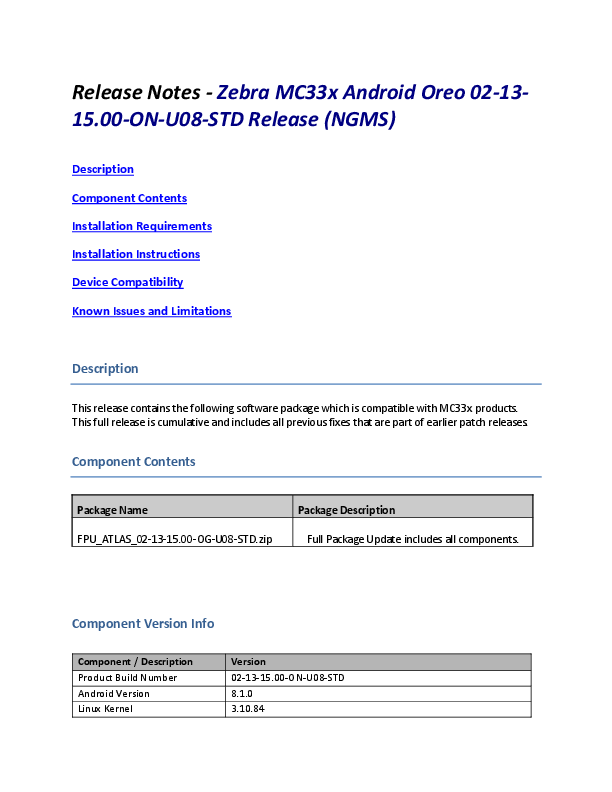
Release Notes - Zebra MC33x Android Oreo 02-1315.00-ON-U08-STD Release (NGMS)
Description Component Contents Installation Requirements Installation Instructions Device Compatibility Known Issues and Limitations

Description
This release contains the following software package which is compatible with MC33x products. This full release is cumulative and includes all previous fixes that are part of earlier patch releases.
Component Contents

Package Name FPU_ATLAS_02-13-15.00-OG-U08-STD.zip

Package Description Full Package Update includes all components.

Component Version Info

Component / Description Product Build Number Android Version Linux Kernel

Version 02-13-15.00-ON-U08-STD 8.1.0 3.10.84

Android SDK Level Platform Bluetooth Stack Flash Size RAM Size Scanning DataWedge EMDK MXMF / OSX WiFi
NFC PTT Touch FW RxLogger Bluetooth Pairing Utility Zebra Data Service Files Stage Now Battery Swap User Guide ZVC Battery Manger ActiveEdge WorryFree WiFi Analyzer Device Central Zebra Software License Manager Audio Diagnostic Tool Finger Print
Security Patch Level

27 QC8956 4.1 16/32GB 2/4GB 20.0.38.0 7.0.4 7.0.0.2000 MXMF : 8.2.1.0 / OSX : QCT.81.8.6_3 FUSION_BA_2_11.0.0.024_O Radio: BA_2_11.0.0.017_O Application: BA_2_11.0.0.012_O Middleware: BA_2_11.0.0.015_O Firmware: 7.35.205.8_20181002 NFC_NCIHALx_AR003C.8.3.0_O_OpnSrc 3.1.39 26 5.4.12.0 3.14 3.4.0.1180 8.1.0 3.1.1.1019 1.0 1.0 2.1.0.12 1.4.2 2.5.16 3.2.18 1.0.6.0 3.1.1
0.8.0.0 1.16.0.1 Zebra/MC33/MC33:8.1.0/02-13-15.00-ON-U08STD/200:user/release-keys Zebra/MC33/MC33C:8.1.0/02-13-15.00-ON-U08STD/200:user/release-keys Feb 01 2019

1. FPU v08 Updates:  FPU_ATLAS_02-13-15.00-ON-U08-STD.zip (NGMS)

1. Android Security Patch Level: February 1, 2019. Use the link below to see the Android Security bulletin for more information: https://source.android.com/security/bulletin/
2. Updated below mentioned components: For more detail please refer http://techdocs.zebra.com o OSX - QCT.81.8.6_3 o WLAN o FUSION_BA_2_11.0.0.024_O o Radio: BA_2_11.0.0.017_O o Firmware: 7.35.205.8_20181002 o PTT - 3.1.39 o ZVC - 2.1.0.12 o WorryFree WiFi Analyzer - 3.2.18
3. Fix for SPR 36336: MC330K-GE4HA4US - Will Not Boot Past Zebra Powered by Android Splash Screen After Oreo Update.
Installation Requirements
Download both Full Package. Read specific notes on OS-Upgrade and OS-Downgrade scenarios for more details.
Specific notes on OS-Upgrade Scenarios: 1. OS Upgrade behavior for normal upgrade is same as in previous releases. Data persistence is maintained for the normal upgrade scenarios. Following are the examples of the normal upgrade scenarios: a. Nougat (GMS) -> Oreo (GMS) b. Nougat (NGMS) -> Oreo (NGMS) c. Oreo (GMS) -> Oreo (GMS) d. Oreo (NGMS) -> Oreo (NGMS)
2. When user performs cross upgrade from Nougat to Oreo, system performs automatic enterprise reset.

Following are the examples of cross upgrade scenarios where automatic enterprise reset is performed by the system:
a. Nougat (GMS) -> Oreo (NGMS) b. Nougat (NGMS) -> Oreo (GMS)
Specific notes on OS-Downgrade Scenarios: OS downgrade behavior has changed in Oreo. Automatic enterprise data reset is performed when the system detects OS downgrade operation. Following are the examples of OS downgrade operations:
a) Oreo (GMS/NGMS) -> Nougat (GMS/NGMS) b) Downgrading to lower level patch versions within Oreo
General notes: There is a new feature "Data reset screen" introduced in Android Oreo to handle error scenarios while updating OS. This data reset screen is triggered when the system encounters error situations like continuous system service crash or any application crash during the OS update process. The data reset screen prompts user to select one of the following options
a) "Try again" b) "Factory Reset" Select option (a) "Try again" to continue the OS update process. Do not select option (b) "Factory Reset", as it will erase the user data.

Installation Instructions
Using ADB Sideload
The installation instructions assume you have ADB installed on your PC (the adb drivers etc..) and your MC3300 has developer options enabled and USB debugging ON. Instructions on HOW TO enable ADB is also captured in the user guide.
1. Connect the MC33x to the PC using the USB data cable or through the cradle.
2. You may need to pull down the top menu and if you see "USB for charging", touch it and then change it to "File transfers".
3. Open Command Prompt, run "adb devices" and check if you can see the device's serial number... If yes, proceed... if not, you will need to get the PC set up with the proper drivers or install an External SD Card.
4. You may also get a pop up on your PC (Win 7) that you will be connected as a Portable Media Player... this can be ignored.
 Download Image
a) FPU_ATLAS_02-13-15.00-ON-U08-STD.zip listed above in content section
5. Entering Recovery Mode
a. Choice 1: In Command Prompt, type "adb reboot recovery" and click enter.
b. Choice 2: � Reboot the device and keep the GUN (grip) trigger held � When Zebra Technologies logo appears on the screen release the trigger
6. Your MC33x will reboot and put you on the Android Recovery screen.
7. If applying update via sideload Method
a. Use the Volume + and � to highlight, "Apply update from ADB" and press the Power key to select it for applying OS upgrade package
8. If applying update via External SD card
a. Use the Volume + and � to highlight "Apply update from SD card" and press the Power Key to select it b. Use the Volume + and � to highlight package FPU_ATLAS_02-13-15.00-ON-U08-STD.zip and press the Power Key to select it. c. Go to Step 10 once above steps are completed
9. With your Command Prompt open in the Host machine, type "adb sideload" command and add a space and then drag and drop the FPU_ATLAS_02-13-15.00-ON-U08-STD.zip file on to it and click enter.
a. Your PC screen will show files being installed and a little blue horizontal progress bar

on your device will show status... and after about 6~ minutes (could be 10+ minutes if installing GMS) it should be done and you should be back at the Android Recovery screen.
10. "Reboot system now" is highlighted. Press the Power Key to Reboot.
11. At the Home Screen, we need to verify that the BSP upgrade took place and set the Date & Time. a. Go to "Settings" and scroll down to "About phone" and look at the "Build number". It should start with "02-13-15.00-ON-U08-STD release keys". Now you are on the correct BSP.
12. Now you are all set to use your MC33x.
Using External SD Card
1. Plug the MC3300 into the USB & Charging Cable and then the Cable to the PC. If you have a Cradle with USB connectivity, connect it now.
2. You may need to pull down the top menu and if you see "USB for charging", touch it and then change it to "File transfers".
3. Download FPU_ATLAS_02-13-15.00-ON-U08-STD.zip file and Reset Files (Optional) and drag & drop the files on External SD card.
4. Entering Recovery Mode a. Reset and hold GUN (grip) trigger b. When Zebra Technologies logo appears on the screen, release the PTT Key
5. Your MC3300 will reboot and put you on the Android Recovery screen.
6. Applying update via External SD card a. Use the Volume + and � to highlight select option to "Apply update from SD card" and press the Power Key to select it for applying a OS upgrade package. Note: If you want to apply a downgrade package, select option "Apply downgrade from SD card". b. Use the Volume + and � to highlight package to be installed (FPU_ATLAS_02-13-15.00ON-U08-STD.zip) and press the Power Key to select it. c. Repeat above steps for all mandatory packages
7. "Reboot system now" is highlighted. Press the Power Key to Reboot.
8. Device reboots and you see Zebra on top and POWERED BY android at the bottom and after about 1 minute will transition to the MC3300 Touch Computer splash screen with 5 dancing white dots at bottom... it will stay at this screen for a little over another minute (could be another 7+ minutes if installing GMS) and then you are at the Factory "Welcome" screen.
9. If you installed a GMS BSP, you will need to complete the process by setting up Wi-Fi and Email accounts and such. If on AOSP (non-GMS), there is no process to follow.

10. At the Home Screen, we need to verify that the BSP upgrade took place and set the Date & Time. a. Go to "Settings" and scroll down to "About phone" and look at the "Build number". It should start with "02-13-15.00-ON-U08-STD". Now you are on the correct BSP.
b. Setting the Date and Time. If you associate to a WLAN AP, do so now, as it should automatically set the time and date... the only thing left is to set the time zone. Go to "Settings" and scroll to and select "Date & time". Scroll down to and select "Select time zone", and scroll down to and select the appropriate time zone and you are done.
11. Now you are all set to use your MC3300.

Device Compatibility

This software release has been approved for use on the following devices.

Device Part Number MC330M-RL3SA2RW MC330M-RL2SA2RW MC330M-RL40A2US MC330M-RL3SA2US MC330M-RL2SA2US MC330M-SL3HA2RW MC330M-SL2HA2RW MC330M-RL4SA2RW MC330M-GL4HA2RW MC330M-GL40A2RW MC330M-GL3HA2RW MC330M-GL2HA2RW MC330M-GI4HA2RW MC330M-GI4HA2IN MC330M-GI3HA2RW MC330M-GI3HA2IN MC330M-GI30A2RW MC330M-GI2HA2RW MC330M-RL3HA2RW MC330M-SL4HA2US MC330M-SL3HA2US MC330M-RL4SA2US MC330M-RL3HA2US MC330M-SN3HA2RW

Operating System
Android N,O Android N,O Android N,O Android N,O Android N,O Android N,O Android N,O Android N,O Android N,O Android N,O Android N,O Android N,O Android N,O Android N,O Android N,O Android N,O Android N,O Android N,O Android N,O Android N,O Android N,O Android N,O Android N,O Android N,O

Device Part Number MC330K-SI3HA3RW MC330K-SI2HA3RW MC330K-SN4HA3US MC330K-SI4HA3US MC330K-SI3HA3US MC330K-RC4HA4RW MC330K-RC3HA4RW MC330K-RC4HA4US MC330K-RC3HA4US MC330M-GL4HA2US MC330M-GL40A2US MC330M-GL3HA2US MC330M-GL2HA2US MC330M-GI4HA2US MC330M-GI40A2US MC330M-GI3HA2US MC330M-GI2HA2US MC330K-SP4HA4RW MC330K-SP3HA4RW MC330K-SB4HA4RW MC330K-SB3HA4RW MC330K-SP4HA4US MC330K-SP3HA4US MC330K-SB4HA4US

Operating System
Android N,O Android N,O Android N,O Android N,O Android N,O Android N,O Android N,O Android N,O Android N,O Android N,O Android N,O Android N,O Android N,O Android N,O Android N,O Android N,O Android N,O Android N,O Android N,O Android N,O Android N,O Android N,O Android N,O Android N,O

MC330M-SI4HA2RW MC330M-SI3HA2RW MC330M-SI30A2RW MC330M-SI2HA2RW MC330M-SN4HA2US MC330M-SI4HA2US MC330M-SI40A2US MC330K-GL4HA4RW MC330K-GL4HA3RW MC330K-GL3HA4RW MC330K-GL3HA3RW MC330K-GL2HA3RW MC330K-GI4HA4RW MC330K-GI4HA3RW MC330K-GI3HA4RW MC330K-GI3HA3RW MC330K-GE4HA4RW MC330K-GE4HA3RW MC330K-GE3HA3RW MC330K-GE2HA4RW MC330K-GE2HA3RW MC330M-SI3HA2US MC330K-SL4HA3RW MC330K-SL2HA3RW MC330K-RL4HA3RW MC330K-RL3HA3RW MC330K-RL4HA3US MC330K-SN4HA3RW MC330K-SN3HA3RW MC330K-SI4HA3RW

Android N,O Android N,O Android N,O Android N,O Android N,O Android N,O Android N,O Android N,O Android N,O Android N,O Android N,O Android N,O Android N,O Android N,O Android N,O Android N,O Android N,O Android N,O Android N,O Android N,O Android N,O Android N,O Android N,O Android N,O Android N,O Android N,O Android N,O Android N,O Android N,O Android N,O

MC330K-SB3HA4US MC330K-SE4HA3RW MC330K-SE3HA3RW MC330K-GL4HA4US MC330K-GL4HA3US MC330K-GI4HA4US MC330K-GI4HA3US MC330K-GI3HA3US MC330K-GE4HA4US MC330K-GE4HA3US MC330K-GE3HA3US MC330K-GE2HA4US MC330K-GE2HA3US MC330K-SE2HA3RW MC330K-SE4HA3US MC330K-SE3HA3US MC330K-SE2HA3US MC330K-SG3HA4RW MC330K-SG2HA4RW MC330K-SG4HA4US MC330K-SG3HA4US MC330K-SG2HA4US MC330K-GI3HA3IN MC330K-SP2HA4RW MC330K-GI4HA3USFT MC330K-GI4HA3FT-KT MC330M-SN3HA2US MC330K-SN3HA3US MC330M-SN2HA2US

Android N,O Android N,O Android N,O Android N,O Android N,O Android N,O Android N,O Android N,O Android N,O Android N,O Android N,O Android N,O Android N,O Android N,O Android N,O Android N,O Android N,O Android N,O Android N,O Android N,O Android N,O Android N,O Android N,O Android N,O Android N,O Android N,O Android N,O Android N,O Android N,O

Known Issues and Limitations
1. For an existing Data wedge profile which is configured for Image barcode scanning, if the user updates the profile for SimulScan data capture and reboots the device, the decoder list is shown as blank under DataWedge settings. As a workaround, user needs to use two different Data wedge profiles one for Imager barcode scanning and other profile for Simul scan data capture.
2. Velocity application stops if user use the Android Recent button to close Velocity app. As a workaround, user can close the application from the velocity application client menu.

3. Ethernet shows Connected state when device is configured with Static IP and placed in multislot cradle without Ethernet cable.