

FactoryTalk Analytics LogixAI Quick Start
File info: application/pdf · 6 pages · 1.28MB
FactoryTalk Analytics LogixAI Quick Start
1756-CMS1B4
FactoryTalk Analytics LogixAI Quick Start Access a Web Browser on Your Computer to Configure the Appliance The appliance works best with Google Chrome. 1. Change the IP address of the computer to be in the same range as…
FactoryTalk Analytics LogixAI Quick Start - Literature Library ...
Install the appliance in any open slot in the local ControlLogix chassis, regarding the owner controller. For complete installation instructions, see ControlLogix ...
Extracted Text
Quick Start

FactoryTalk Analytics LogixAI
FactoryTalk� AnalyticsTM LogixAI� (catalog number 1756-CMS1B4) uses predictive analytics to turn raw data about how a system operates into actual decisions about the operation and maintenance of that system.
Summary of Changes
This publication has been revised for the following: � Updated the images for changes to the front of the appliance on page 1 and page 2. � Updated web browser information on page 3. � Updated screen captures, and associated tasks where appropriate, beginning on page 4. � Changes to the table on page 4.

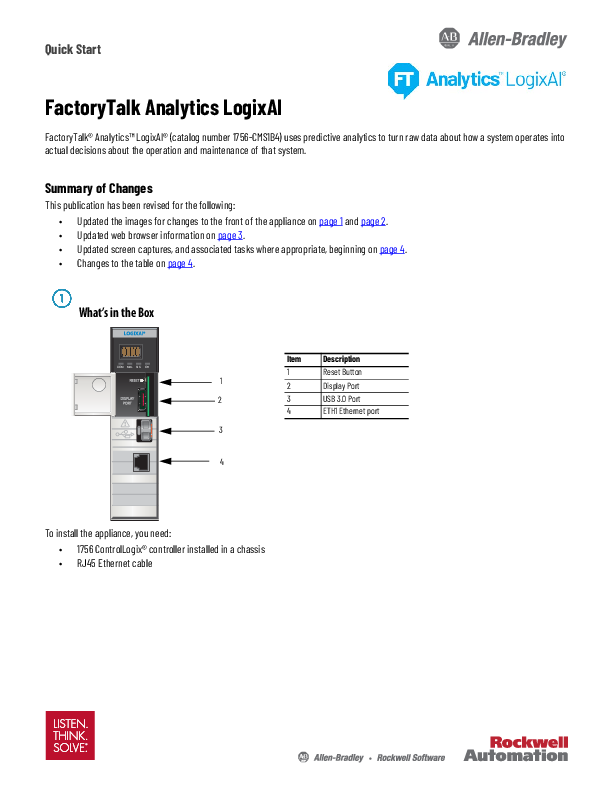
What's in the Box

COM MDL STS OK

Item Description

1

Reset Button

1

2

Display Port

2

3

USB 3.0 Port

4

ETH1 Ethernet port

3

4

To install the appliance, you need: � 1756 ControlLogix� controller installed in a chassis � RJ45 Ethernet cable

FactoryTalk Analytics LogixAI Quick Start
Set Up the Appliance
Remove the Battery Paper Tab
A red paper tab covers the side of the battery that faces the backplane when Battery Paper Tab the appliance is installed in a chassis. Remove the paper tab before you
33802-M
install the appliance.
Install the Appliance in the Chassis
Install the appliance in any open slot in the local ControlLogix chassis, regarding the owner controller. For complete installation instructions, see ControlLogix Compute Modules Installation Instructions, publication 1756-IN072.
1. Align the circuit board with the top and bottom guides in the chassis. 2. Slide the appliance into the chassis until it snaps into place. 3. Verify that the appliance is flush with the other installed modules.

Connect the Appliance to a Computer
1. Leave the dongle in the USB port.
The dongle provides licensing and is required for the appliance to operate. 2. Connect the ETH1 port of the appliance directly to an Ethernet port on a computer.
You use the computer to configure the appliance.

COM MDL STS OK
33801-M

Rockwell Automation Publication 1756-QS002B-EN-P - April 2020

2

FactoryTalk Analytics LogixAI Quick Start
Access a Web Browser on Your Computer to Configure the Appliance
IMPORTANT The default IP address of the appliance is 192.168.100.1.
The appliance works best with Google Chrome. 1. Change the IP address of the computer to be in the same range as the default IP address of the appliance. For example, set the IP address of the computer to 192.168.100.20 and the subnet mask to 255.255.255.0. a. From the Windows Control Panel or System Tray, choose Network and Sharing Center > Change adapter settings. b. Right-click the Local Area Connection that is connected to the appliance and select Properties. c. Double-click the Internet Protocol Version 4 (TCP/IPv4) connection. d. Choose Use the following address and enter the IP address and subnet mask. e. Click OK to save the changes.
a b
c d

Rockwell Automation Publication 1756-QS002B-EN-P - April 2020

3

FactoryTalk Analytics LogixAI Quick Start
2. Open a web browser on the computer and go to: http://192.168.100.1

3. Choose your language and click Get Started to follow the browser prompts to configure the appliance:

Setting Host name Date, time, and time zone
Serial number and product key
Appliance network options Security

Description
Define the network name of the appliance.
Set the time stamp for the appliance to use.
Enter the appropriate information in separate fields. This screen requires that you enter information for both fields or neither.
This setting is optional. However, we strongly recommend that you enter the serial number and product key. Once entered, the information is stored on the onboard memory on the appliance. Future software updates require the serial number and product key. Updates are easier when the information is stored on the appliance because you do not need the Activation Certificate and Envelope that came with the appliance.
Define network settings for the appliance.
Define the administrator password.

4. View and accept the end-user license agreements.

The final configuration screen displays a link to access the appliance web services.

5. To complete the configuration, click Finish and Restart.

The appliance restarts.
6. Return the IP address of your computer back to the original IP address. 7. Connect the ETH1 port of the appliance to the same network as the computer. 8. To create a prediction, follow the steps in the next section.

4

Rockwell Automation Publication 1756-QS002B-EN-P - April 2020

FactoryTalk Analytics LogixAI Quick Start
Create a Prediction Model
1. Access the appliance web services from a web browser at: http://logixAIaddress/ where logixAIaddress = the IP address you configured for the appliance in the configuration steps.
The 4-character display on the appliance shows the configured IP address.
2. Choose CREATE PREDICTION.

Define Predictions
1. Choose Create New Prediction. a. Name the model (each model can have multiple predictions). b. Make sure that the correct controller project is identified. c. Choose the tag method. d. Choose the process type. e. Choose the prediction type. f. Name the prediction.
2. Choose CONTINUE TO ASSIGN TAGS.
3. On the Assign Tags screen, choose controller tags and assign them to the following variables: - Variable of Interest - Input Variable(s) - State Variable(s) a. Drag and drop tags from the left pane into the appropriate variable sections. b. Enter the upper and lower bounds for each variable.
4. To review the tag assignments, choose CONTINUE TO REVIEW.
5. Choose Finish.

Rockwell Automation Publication 1756-QS002B-EN-P - April 2020

5

Train the Model
1. Save the model as a .L5X file.
The .L5X file contains a user-defined data type (UDT) that you import into the controller project. 2. Open the controller project and import the UDT.
You must have the programming software to edit the controller project. 3. Set the .TRAIN tag = 1.
The tag is reset = 0 when training is complete. Complete training during normal system operation so that anomalous operation can be detected later. 4. Repeat setting the train tag as many times as needed, until the confidence in the results is sufficient.
Start Calculations
Once training is complete, that is, when the .State tag = 2, start the analytic calculations.
1. Set the .Calculate tag = 1. 2. To determine appropriate system actions, monitor the results.

Rockwell Automation maintains current product environmental information on its website at http://www.rockwellautomation.com/rockwellautomation/about-us/sustainability-ethics/productenvironmental-compliance.page. Allen-Bradley, ControlLogix, FactoryTalk, FactoryTalk Analytics, LISTEN. THINK. SOLVE, LogixAI, Rockwell Automation, and Rockwell Software are trademarks of Rockwell Automation, Inc. Trademarks not belonging to Rockwell Automation are property of their respective companies.
Rockwell Otomasyon Ticaret A.., Kar Plaza  Merkezi E Blok Kat:6 34752 �erenk�y, stanbul, Tel: +90 (216) 5698400

Publication 1756-QS002B-EN-P - April 2020 Supersedes Publication 1756-QS002A-EN-P - January 2019

PN-583018 Copyright � 2020 Rockwell Automation, Inc. All rights reserved. Printed in the U.S.A.