

Window/Door Contact Sensor in myRoom Systems to Turn Off Fan Coil Unit APP NOTE (048717)
File info: application/pdf · 11 pages · 873.27KB
Window/Door Contact Sensor in myRoom Systems to Turn Off Fan Coil Unit APP NOTE (048717)
Window/Door Contact Sensor in myRoom Systems to Turn Off Fan Coil Unit APP NOTE (048717), Lutron, 048717, 048-717, myRoom, fan coil unit, FCU, HVAC, SMC53-HOSP, SMC55-HOSP
Window/Door Contact Sensor in myRoom Systems to Turn Off Fan ...
Full PDF Document

If the inline viewer fails, it will open the original document in compatibility mode automatically. You can also open the file directly.
Extracted Text
Application Note #717
Revision B
Window/Door Contact Sensor in myRoom Systems October 2019 to Turn Off Fan Coil Unit
This application note explains how to turn off an HVAC system and lock the myRoom Palladiom thermostat when a wired door or window contact sensor is opened.
For myRoom Prime systems, the window or door contact sensor will be connected to the CCI of the FCU Controller*. CCI is not supported for HVAC systems that do not use a SMC53 or SMC55 FCU controller. The instructions for configuring the CCI in a myRoom Prime system are on page 2 of this document.
For myRoom Plus system, the window or door contact sensor will be connected to the CCI of a QSE-IO. In myRoom Plus, CCI is supported for FCUs, VRV/VRF based HVAC systems and other HVAC systems over integration. The instruction for configuring a CCI in a myRoom Plus system are on page 5 of this document.
Instructions to use a CCI in myRoom Prime systems
Operation
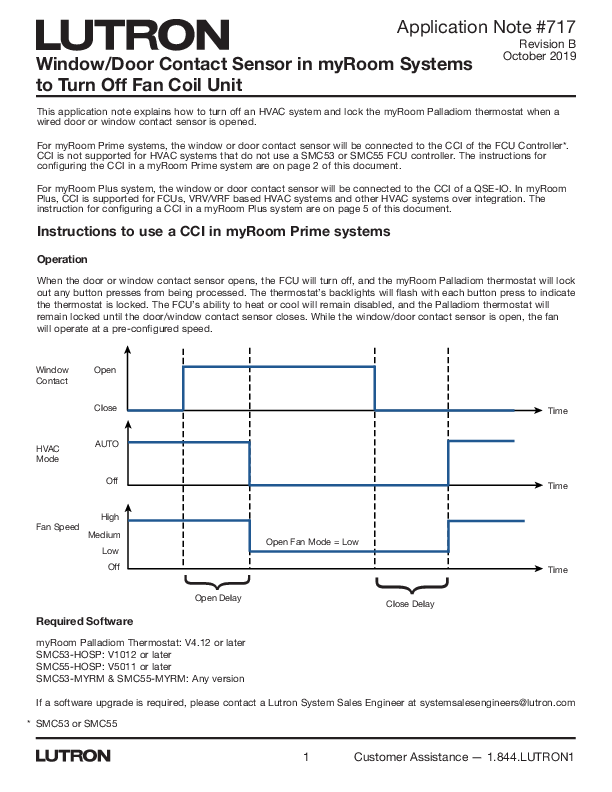
When the door or window contact sensor opens, the FCU will turn off, and the myRoom Palladiom thermostat will lock out any button presses from being processed. The thermostat's backlights will flash with each button press to indicate the thermostat is locked. The FCU's ability to heat or cool will remain disabled, and the Palladiom thermostat will remain locked until the door/window contact sensor closes. While the window/door contact sensor is open, the fan will operate at a pre-configured speed.

Window Contact

Open Close

Time

HVAC Mode

AUTO Off

Time

High Fan Speed
Medium
Low
Off

Open Fan Mode = Low

Time

{
{

Open Delay
Required Software
myRoom Palladiom Thermostat: V4.12 or later SMC53-HOSP: V1012 or later SMC55-HOSP: V5011 or later SMC53-MYRM & SMC55-MYRM: Any version

Close Delay

If a software upgrade is required, please contact a Lutron System Sales Engineer at systemsalesengineers@lutron.com * SMC53 or SMC55

1

Customer Assistance -- 1.844.LUTRON1

Application Note #717
Instructions to use a CCI in myRoom Prime systems (continued)
Window/Door Contact Sensor Installation Connect the window or door contact sensor to the FCU controller, as described below: Step 1: Acquire a wired magnetic contact sensor (type SPST or SPDT). Step 2: Install the sensor to the window or door per the manufacturer's instructions. Step 3: Connect either lead of contact sensor to the white wire on the FCU Controller harness as shown in the first image below. Step 4: Connect the other lead to either of the 2 black wires on the FCU Controller harness. If multiple door or window sensors are used, wire the leads in series, so that any break in the line breaks the entire circuit as shown in the second image below.
Yellow/ Blue Yellow Orange Red

DI1 DI2 DI3 DI4 DI5 DI6 AO2 AO1 12 V- Supply AI1 AI2 AI3 AI4 AI5 GND GND DO5 5 V- Supply

White

Black

Black

CCI Sensor

Red/Grey

Yellow/ Blue Yellow Orange Red

DI1 DI2 DI3 DI4 DI5 DI6 AO2 AO1 12 V- Supply AI1 AI2 AI3 AI4 AI5 GND GND DO5 5 V- Supply

White

Black

Black

CCI Sensor 1 CCI Sensor 2

2

Red/Grey
www.lutron.com/support

Application Note #717
Instructions to use a CCI in myRoom Prime systems (continued)
Configuring the FCU Contact Closure Input (CCI)
Follow the "Thermostat and FCU controller Configuration Instructions" at www.lutron.com to set the following parameters. Refer to the Advanced Configuration Parameters. 1. Set advanced config parameter 64 (CCI type) to either 1 (Normally open) or 2 (Normally closed).
a. By default, it is set to 0 (disabled). 2. (Optional) Set advanced config parameter 65 (Open delay) in seconds to desired value. This value specifies the
required time in seconds after which the HVAC turns off when the window or door is opened. a. By default, it is set to 10 seconds. 3. (Optional) Set advanced config parameter 66 (Closed delay) in seconds to desired value. This value specifies the required time in seconds after which the HVAC turns on when the window or door is closed. a. By default, it is set to 1 second. 4. (Optional) Set advanced config parameter 67 (Open fan mode) to desired value. This value specifies the fan mode or speed for the FCU's fan after the time mentioned in advanced config 65 is elapsed. a. By default, it is set to 0 (OFF)
If the above values aren't available on thermostat or the CCI isn't working as expected, please check if the firmware requirement mentioned above is met by looking at the label on the top-right corner of FCU Controller as shown in image below.

3

Customer Assistance -- 1.844.LUTRON1

Application Note #717

Instructions to use a CCI in myRoom Prime systems (continued)
Testing

Once the FCU CCI is wired and configured, it is recommended to test the setup.

Action Close the door or window to which the CCI sensors are attached and wait for the time specified in advanced config parameter 66. On the myRoom Palladiom thermostat press the fan button to toggle the fan speed.
On the myRoom Palladiom thermostat press the Power button to turn on the FCU. Open the door or window to which the CCI sensors are attached and wait for the time specified in advanced config parameter 65. On the myRoom Palladiom thermostat press the fan button to toggle the fan speed. On the myRoom Palladiom thermostat press the Power button to turn on the FCU.

Expected result No observable result.

Pass/Fail

On the palladiom thermostat screen, we can observe that the fan speed icon cycles from low speed, medium speed, to high speed. Note: Certain speeds may not be supported by the equipment and the equipment may remain in the supported fan speed.
Depending on the room temperature and the set point, the FCU will start to either cool or heat.
The FCU operation will switch to off from its previous state and fan speed will get switched to the speed specified in advanced config parameter 67.
The Palladiom thermostat display flashes and doesn't allow the fan speed to be changed.
The Palladiom thermostat display flashes and doesn't allow the Op Mode to be changed.

Troubleshooting
� If the Palladiom thermostat display flashes and doesn't allow changes, or if the HVAC doesn't turn on while the door is closed, ensure the correct CCI sensor type is programmed in advanced config parameter 64.
� If the HVAC does not turn off when the door is opened, ensure the correct CCI sensor type is programmed in advanced config parameter 64.

4

www.lutron.com/support

Application Note #717
Instructions to Use a CCI in myRoom Plus Systems
Operation When the door or window contact sensor wired to the CCI of the QSE-IO is opened, the HVAC equipment connected to the myRoom Palladiom thermostat will turn off and the thermostat will lock. The HVAC will remain off and the Palladiom thermostat will remain locked until the door/window contact sensor has been closed.

Window Contact

Open Close

HVAC Mode

AUTO Off

Open Delay

{
{

Close Delay

Time Time

5

Customer Assistance -- 1.844.LUTRON1

Application Note #717

Instructions to Use a CCI in myRoom Plus Systems (continued)
Window/Door Contact Sensor Installation
The window or door contact sensor must be connected to a QSE-IO CCI to use this feature. Follow the steps below.
� Acquire a wired magnetic contact sensor (type SPST or SPDT). � Install the sensor to the window or door per the manufacturer's instructions. � Connect either lead of contact sensor to the COM of the QSE-IO as shown in the figure below. � Connect the other end to any of the available CCI inputs as shown in the image below. The selected input will have to
be configured correctly to control the HVAC and lock/unlock the thermostat based on the CCI input.
If multiple door or window sensors are used, wire the leads in series, so that any break in the line breaks the entire circuit as shown in the second image below.

Status CCO 5 CCO 4 CCO 3 CCO 2 CCO 1

O N
8 7 6 5 4 3 2 1

PGM

0 27557 61323 1

QSE-IO
24 - 36 V- 100 mA SELV /PELV /NECR Class 2
www.lutron.com/qs

lutron.com

+ 1.800.523.9466 + 1.610.282.3800

V

R

0-36 V- 1 A

0-36 V~ � A

R V

MUX MUX V+ COM QS
CCO 1 NC CCO 1 NO 1-2 COM CCO 2 NC CCO 2 NO CCO 3 NC CCO 3 NO 3-4 COM CCO 4 NC CCO 4 NO CCO 5 NC CCO 5 NO 5 COM CCI 1 CCI 2 CCI 3 CCI 4 CCI 5 COM

4321

CCI Sensor

Status CCO 5 CCO 4 CCO 3 CCO 2 CCO 1

O N
8 7 6 5 4 3 2 1

PGM

0 27557 61323 1

QSE-IO
24 - 36 V- 100 mA SELV /PELV /NECR Class 2
www.lutron.com/qs

lutron.com

+ 1.800.523.9466 + 1.610.282.3800

V

R

0-36 V- 1 A

0-36 V~ � A

R V

MUX MUX V+ COM QS
CCO 1 NC CCO 1 NO 1-2 COM CCO 2 NC CCO 2 NO CCO 3 NC CCO 3 NO 3-4 COM CCO 4 NC CCO 4 NO CCO 5 NC CCO 5 NO 5 COM CCI 1 CCI 2 CCI 3 CCI 4 CCI 5 COM

4321

CCI Sensor 1

CCI Sensor 2

6

www.lutron.com/support

Application Note #717
Instructions to Use a CCI in myRoom Plus Systems (continued)
Configuring the contact closure inputs of QSE-IO using myRoom GUI Confirm the thermostat is assigned to the correct zone. Perform the following steps and then transfer the database to the GCU-HOSP. � In tab Design -> Controls tab, add the master "thermostat 1" to area "Floor1" � In tab Design -> Equipment tab, add a "Guestroom Control Unit" and "Digital IO/ QSE-IO" to area "Floor1" � In tab Design -> Link assignment tab, assign both the thermostat and the QSE-IO to the GCU processor link � In tab Design -> Subsystem, add the Floor1 GCU1 to the subsystem � Activate the processor, devices and other devices added to the system � In tab Program -> Devices, switch to HVAC zones as shown in Figure 1 below
Figure 1 � Select Input "n" where n is the CCI to which the door/window sensor is wired. � In the Close tab, select the desired settings to apply when the door/window is Closed as shown in Figure 2. For
the purpose of this app note, it is desired to leave the thermostat in Auto mode of operation when the door is closed.

Figure 2

7

Customer Assistance -- 1.844.LUTRON1

Application Note #717
Instructions to Use CCI in myRoom Plus Systems (continued)
Configuring the contact closure inputs of QSE-IO using myRoom GUI (continued) � In the Open tab, select the desired settings to apply when the door/window is Opened as shown in Figure 3. For
the purpose of this app note, it is desired to leave the thermostat in Off mode of operation when the door is open.

Figure 3 If it is desired to lock out the thermostat when the door/window is opened, so the guest/user isn't allowed to change the settings, follow the below steps. � Select Devices as shown in Figure 4.
Figure 4

8

www.lutron.com/support

Application Note #717
Instructions to Use a CCI in myRoom Plus Systems (continued)
Configuring the contact closure inputs of QSE-IO using myRoom GUI (continued) � Set the thermostat to be Unlocked when the door/window is Closed as shown in Figure 5.
Figure 5 � Set the thermostat to be Locked when the door/window is Opened as shown in Figure 6.
Figure 6 � Transfer the database and perform complete system testing as explained on the next page.

9

Customer Assistance -- 1.844.LUTRON1

Application Note #717

Instructions to Use a CCI in myRoom Plus Systems (continued)

Testing

Once the FCU CCI is wired and configured, it is recommended to test the setup.

Action Close the door or window to which the CCI sensors are attached and wait for the time specified in advanced config parameter 66. On the myRoom Palladiom thermostat press the fan button to toggle the fan speed.
On the myRoom Palladiom thermostat press the Power button to turn on the FCU. Open the door or window to which the CCI sensors are attached and wait for the time specified in advanced config parameter 65. On the myRoom Palladiom thermostat press the fan button to toggle the fan speed. On the myRoom Palladiom thermostat press the Power button to turn on the FCU.

Expected result No observable result.

Pass/Fail

On the palladiom thermostat screen, we can observe that the fan speed icon cycles from low speed, medium speed, to high speed. Note: Certain speeds may not be supported by the equipment and the equipment may remain in the supported fan speed.
Depending on the room temperature and the set point, the FCU will start to either cool or heat.
The FCU operation will switch to off from its previous state and fan speed will get switched to the speed specified in advanced config parameter 67.
The Palladiom thermostat display flashes and doesn't allow the fan speed to be changed.
The Palladiom thermostat display flashes and doesn't allow the Op Mode to be changed.

Troubleshooting
� If the Palladiom thermostat display flashes and doesn't allow changes, or if the HVAC doesn't turn on while the door is closed, ensure the correct CCI sensor type is programmed in "Closure Type" as shown in Figure 7 below.
� If the HVAC does not turn off when the door is opened, ensure the correct CCI sensor type is programmed in "Closure Type" as shown in Figure 7 below.

Figure 7

10

www.lutron.com/support

Application Note #717

Lutron, myRoom, and Palladiom are trademarks or registered trademarks of Lutron Electronics Co., Inc. in the US and/or other countries.

Lutron Contact Numbers

WORLD HEADQUARTERS USA Lutron Electronics Co., Inc. 7200 Suter Road Coopersburg, PA 18036-1299 TEL: +1.610.282.3800 FAX: +1.610.282.1243
support@lutron.com
www.lutron.com/support
North & South America Customer Assistance USA, Canada, Caribbean: 1.844.LUTRON1 (1.844.588.7661) Mexico: +1.888.235.2910 Central/South America: +1.610.282.6701

EUROPEAN HEADQUARTERS United Kingdom Lutron EA Limited 125 Finsbury Pavement 4th floor, London EC2A 1NQ United Kingdom TEL: +44.(0)20.7702.0657 FAX: +44.(0)20.7480.6899 FREEPHONE (UK): 0800.282.107 Technical Support: +44.(0)20.7680.4481
lutronlondon@lutron.com

ASIAN HEADQUARTERS Singapore Lutron GL Ltd. 390 Havelock Road #07-04 King's Centre Singapore 169662 TEL: +65.6220.4666 FAX: +65.6220.4333 Technical Support: 800.120.4491
lutronsea@lutron.com
Asia Technical Hotlines Northern China: 10.800.712.1536 Southern China: 10.800.120.1536 Hong Kong: 800.901.849 Indonesia: 001.803.011.3994 Japan: +81.3.5575.8411 Macau: 0800.401 Taiwan: 00.801.137.737 Thailand: 001.800.120.665853 Other Countries: +65.6220.4666

Lutron Electronics Co., Inc.

11

7200 Suter Road

Coopersburg, PA 18036-1299 U.S.A.

P/N 048717 Rev. B 10/2019