

File info: application/pdf · 13 pages · 767.86KB
108
Code Cube - Pitsco Education
A browser tab will open with the application's start screen. CODE CUBE APP. Connecting the Code Cube. Attach the micro USB cable to the computer and the Code ...
Delete Blocks – Clears all blocks in the programming area and places an on program start block on-screen to begin a new program. CODE CUBE APP. Send Code.
Full PDF Document

If the inline viewer fails, it will open the original document in compatibility mode automatically. You can also open the file directly.
Extracted Text
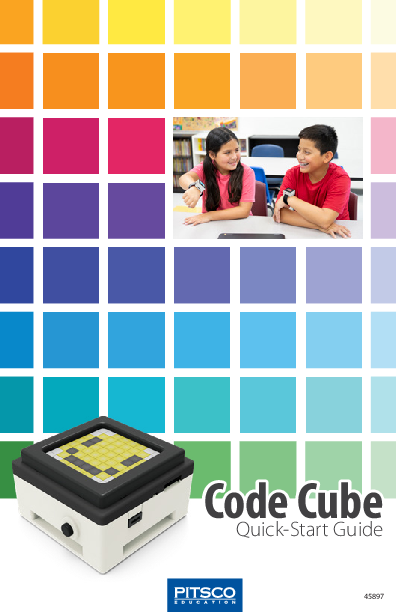
Code Cube Quick-Start Guide 45897

QUICK-START GUIDE AND SPECIFICATIONS

General Description
The Pitsco Code Cube is a programmable wearable designed to teach students basic coding methods using block programming and a 64-pixel lighted unit. The Code Cube can be tested and charged while tethered to a computer. After the code has been uploaded, the unit can execute code while being worn using different accessories either included with this kit or designed by the students.
The Pitsco Code Cube features the following:

8 x 8 Pixel LED Color Display (64 pixels total)

Built-In: � Accelerometer � Speaker

Start Button

Micro USB Port

What's Included

1 LED Unit (with rechargeable lithium battery)

1 Micro USB Cable

1 Slap Band

� 2019 Pitsco, Inc. All rights reserved.

1

QUICK-START GUIDE AND SPECIFICATIONS

Opening the Pitsco Code Cube App
Open the program by going to Pitsco.com/CodeCubeApp. Because the program is browser based, no installation is necessary, and it will start automatically.

Function Statements
The following is a list of common function statements that are available for the Pitsco Code Cube.

Control � On program start � End program � New block column � Pause for � seconds � If � then � If � then � else � Repeat � times � Loop until � Loop while � Wait until
Sensing � Cube tilting � Cube facing � Cube shake detected

Matrix � Create image � Matrix image � Matrix character � color � Matrix pixel at row �, column � with � Matrix row � with � Matrix column � with � Fill matrix with � Fade matrix over � second period � Set brightness to � percent % � Strobe matrix color � times � Blink matrix � times � Clear matrix � Scrolling mode � speed
Sound � Play sound � until done � Play tone � Hz for � seconds � Play note � for � seconds

� 2019 Pitsco, Inc. All rights reserved.

2

QUICK-START GUIDE AND SPECIFICATIONS
Accelerometer An accelerometer is included in the Pitsco Code Cube, which is used to detect movement and orientation of the Code Cube. Using related functions in the program enables the Code Cube to display different images and play sounds based on its movement.
Sound Output The Code Cube is capable of playing sounds or notes by using associated programming blocks. Sounds include preprogrammed sounds, tones, and notes.
Setup Charging the Battery The battery is located within the Code Cube. It will charge when the micro USB cable attaches your Code Cube to a power source, such as a computer or charging station. The battery will take approximately one hour to fully charge after it's fully depleted. When it is tethered to the computer, it will continue charging even while it is running programs. Attaching the USB Connector When the Code Cube is properly attached to your computer, the Code Cube will show a test screen and a red light will remain on. The red light will also remain on when the Code Cube is attached to a power source during charging.

Powering the Code Cube

While you are writing and testing code, it is best to leave the Code Cube tethered to the computer. This will charge the battery while you are uploading and running programs. The Code Cube will dim after five minutes and go to sleep after eight minutes when it is tethered and not being used. It will wake up if a new code is sent or if the Start button is pressed.

When the Code Cube is not tethered to a computer, it will use the battery as its power source. The Code Cube will run for at least one hour when fully charged but can last up to one week depending on the number of times it is started when not connected to a USB port. It will charge while connected to a USB port, even while it is being programmed. A red light indicates that the battery is charging, and the red light will turn off when the battery is fully charged. The Code Cube will shut down after 60 seconds of inactivity or after the Start button is pressed when it is not connected to a USB port.

� 2019 Pitsco, Inc. All rights reserved.

3

CODE CUBE APP
Overview The program application is open-source software designed to run from a Chrome browser. The program will work in most other browsers, but there might be issues. Since the program is cloud based, there is nothing to install on your device. A benefit to this is you will always have access to any updates the app has as they become available without needing to update anything!
Opening the Application To open the application the first time, use a Chrome browser to go to Pitsco.com/CodeCubeApp. You can create a shortcut on your desktop or bookmark the site in your favorites for future access.
To start the application, click the icon (if you installed a shortcut on your desktop) or a bookmark in your browser (if you created one for the link provided). A browser tab will open with the application's start screen.

Connecting the Code Cube
Attach the micro USB cable to the computer and the Code Cube. Your computer should automatically connect. This might take a moment the first time the Code Cube is connected to your computer.
After the Code Cube is connected and recognized by your computer, click Connect Cube at the top left of the application.

Send Code

Connect Cube

Open Blocks

Save Blocks

Delete Blocks

� 2019 Pitsco, Inc. All rights reserved.

4

CODE CUBE APP
A box should pop up with your Code Cube identified. Select your Code Cube and click Connect. The application will automatically detect any Code Cube that is attached. This image shows a Pitsco Code Cube selected.
Pitsco Code Cube � Paired

?

Connect

Cancel

Navigation The buttons located at the top of the application and their functions are:

Send Code

Connect Cube

Open Blocks

Save Blocks

Delete Blocks

� Send Code � Uploads code from the application to the Code Cube. When the Code Cube is tethered and paired, the program will automatically run when the upload is complete.
� Connect Cube � Pairs the Code Cube with the application when the Code Cube is connected with the USB cable. Note: This will become a Disconnect button after the Code Cube is connected.
� Open Blocks � Loads code from a folder on your computer. These can be files that were previously created and saved or files that were shared. If Cancel is clicked as you're opening blocks, the program being opened will be added to any programs currently in the programming area. If OK is clicked, the program being opened will replace any existing blocks. Note: The application will open only .xml files.
� Save Blocks � Saves current program code to a designated folder on your computer. Note: All files will be saved as .xml files.
� Delete Blocks � Clears all blocks in the programming area and places an on program start block on-screen to begin a new program.

� 2019 Pitsco, Inc. All rights reserved.

5

CODE CUBE APP

The menu selections at the left contain code blocks for different functions. These will be explained in more detail as students work through the activities or explore them on their own. A quick explanation of each is included here.
Control
� On program start � This block automatically appears on-screen at the start of the application or when the Delete Blocks button is selected. All programs will need this block to run. Only blocks attached to this one will be executed when the program is sent to the Code Cube. Any unattached blocks on-screen will appear faded and will not be included in the program code.
� End program � This block can be placed at the end of a program to force it to end after it has been executed. If this block is not used, the program will loop indefinitely (when tethered) or stop after one minute (when not tethered).
� New block column � This block can be placed at the top of a new column if students are trying to keep all their code on-screen in the working space. The program will begin execution from the on program start block and follow the functions top to bottom and left to right across the screen. Any columns placed to the left of the on program start block will not be included in the program and will not be executed.
� Pause for � seconds � This block tells the program to pause for a range from 0.1 to 10 seconds after the previous block function has been executed. For example, when this block is used after an image, the image will stay on-screen during the pause time.
� If � then � This block creates a condition that must happen before the program executes the code in the then section. This is useful when students want to show an image, play sounds, or both when the Code Cube is moved or faces certain directions.
� If � then � else � This block creates the same scenario as the if � then block but adds code for what the program does if that condition is not met. For example, students might want to show an image when the Code Cube is on a flat surface facing up, but if the Code Cube is moved out of that orientation, they might want it to play a sound to indicate that its condition has changed.

� 2019 Pitsco, Inc. All rights reserved.

6

� Repeat � times � This block can be used to create a loop that repeats a specified number of times. The default is to repeat the loop five times, but students can enter any whole number value. This can be used for repetitive tasks such as making three quick beeps; this block can be used with two blocks instead of creating six blocks to perform the same function.
� Loop until � This block is used when it is desired for a program to loop until a certain condition is met. Students can use this function to end the program, show images, make sounds, or all of these when the Code Cube is moved a certain way.
� Loop while � Similar to loop until, this block can be used when it is desired for the program to execute only certain functions when a certain condition is met.
� Wait until � This block can be placed in the program to cause an indefinite pause until a certain condition is met. Students might find this function useful when creating stories that show images while the story is being told. The image could wait until someone shakes the Code Cube for it to continue the program.
Sensing
� Cube tilting � This block is used to tell the Code Cube when the accelerometer detects a tilting movement to the left, right, forward, or backward in relation to a normal, flat, facing up orientation with the Start button on the right side.
� Cube facing � This block is used to tell the Code Cube when the accelerometer detects the Code Cube display facing up (toward ceiling) or down (toward floor).
� Cube shake detected � This block is used to tell the Code Cube when the accelerometer detects someone shaking it.

CODE CUBE APP

� 2019 Pitsco, Inc. All rights reserved.

7

Matrix
� Create image � This block is used when a complete user-created image is desired. Note that this block will use a larger percentage of memory than other blocks. Students can usually insert eight to 10 images they have created in a program. The memory space used by a program can be seen in the lower left of the application. If the program uses more than 100% of the memory space available, it will not run.
� Matrix image � This block lets the students choose from a list of premade images. These are useful when the function of the program is more important than the individuality of the images. This block uses much less memory than the create image block.
� Matrix character � color � This block shows a premade character on-screen. The characters include all the letters of the alphabet and numerals 0 through 9. These can be used by students to show single characters at a time or as scrolling messages with the scroll function (see scrolling mode � speed).
� Matrix pixel at row �, column � with � This block lets students change the color of one pixel at a time. Rows and columns are numbered 1 through 8, starting at the top-left pixel (1,1). If an image appears on the display, it will stay on-screen until the matrix is cleared (see clear matrix). Students can use this function to recolor pixels in their own image or a preprogrammed image. Or, they can use it to turn only certain pixels a different color in sequence. A bonus of this function is that it uses minimal memory.
� Matrix row � with � This block tells the Code Cube to change all the pixels in one row of the display to the same color. It can be useful when making horizontal stripes.
� Matrix column � with � This block tells the Code Cube to change all the pixels in one column of the display to the same color. It can be useful when making vertical lines.
� Fill matrix with � This block tells the Code Cube to change all the pixels on the display to the same color. It can be useful when wanting a blank screen between functions that is not black.
� 2019 Pitsco, Inc. All rights reserved.

CODE CUBE APP
8

CODE CUBE APP

� Fade matrix over � second period � This block tells the Code Cube to fade the display down and then back up over a one- to five-second period for a fast to slow fade. Students might want to add a pause after their image before this function, or else it will start fading as soon as it appears on screen.
� Set brightness to � percent % � This block tells the Code Cube to dim the pixels to a lower percentage of brightness. The default setting is 100 percent.
� Strobe matrix color � times � This block tells the Code Cube flash the display a selected color a certain number of times.
� Blink matrix � times � This block tells the Code Cube to have the current image blink a certain number of times.
� Clear matrix � This block tells the Code Cube to remove all images on the screen. Students will find this useful when they want a blank screen before changing pixel colors.
� Scrolling mode � speed � This block tells the Code Cube to scroll images or characters from right to left on the display. It can be useful for scrolling messages or multi-digit numbers. The speed can be set to slow, medium, or fast. Students will need to turn the mode on before images they want to scroll and off before images they do not want to scroll.
Sound
� Play sound � until done � This block tells the Code Cube to play a preprogrammed sound effect until it finishes playing. If an image is desired to appear with any of the sound blocks, it should appear in the code before the sound. Otherwise, the sound will play before the image appears.
� Play tone � Hz for � seconds � This block tells the Code Cube to play a single monotone frequency for a duration of time from 0.25 to 5 seconds.
� Play note � for � seconds � This block tells the Code Cube to play a single musical note for the duration of time from 0.25 to 5 seconds. Students can select from notes on the chromatic scale over four octaves from C3 to C7.
The first time students experience the Code Cube, you might want to help them with connecting it to the computer as well as how they will use the menu and blocks. This can be done as a whole class or individually depending on how you implement it in your classroom.

� 2019 Pitsco, Inc. All rights reserved.

9

USING THE TEACHER'S GUIDE
A free copy of the teacher's guide is available for download by going to Resources.pitsco.com/code-cube-teachers-guide-download.
The teacher's guide contains 10 guided coding lessons with four cross-curricular activities each as well as a reproducible worksheet. An additional Challenge Activities sheet is included for students but does not include a related lesson. The lessons are designed such that they can be printed double-sided on one sheet of paper. After you print these, you can protect the lessons if you have lamination capabilities or clear sheet protectors. The worksheets can be used with any lesson and provide areas for sketching images or writing responses.
Each lesson is designed to introduce students to programming the Pitsco Code Cube. When students become proficient with these basic activities, they should be ready for more challenging activities found in the last section. There are four independent activities to choose from after each lesson that include an ELA, SEL, math, or science focus.
The Code Cube Block Programming Web App
As students go through the activities, it is important they understand the process of how the program is executed in sequential order. Although the students will use blocks for the program's rules, there is a line of text associated with each block that tells the Code Cube what to display. These lines of text are called code, and the line or lines of code are called the program. Sometimes, programming is called coding.
When students begin writing longer programs, it might be helpful for them to use the new block column blocks to keep all their code in the working area where they can see it. The code always begins with the on program start block and goes down and left to right across the columns (see diagram). If anything is to the left of the on program start block column, it will not be included in the program.

� 2019 Pitsco, Inc. All rights reserved.

10

TROUBLESHOOTING
This section should help with possible problems that might occur. If something is not addressed here, please contact Pitsco Education. This section will be updated if needed, so you might check the latest online version of this guide to see if you should download a newer version.
� The Code Cube is not receiving the program when I click the Send Code button. 1. Click Disconnect and disconnect the Code Cube from your computer.
Disconnect
2. Reconnect the Code Cube using the USB cable and click Connect Cube to connect it. 3. Try resending the code by clicking Send Code again. 4. Check that less than 100 percent of the memory is being used by looking at the
status section in the bottom-left area of the application.
Out of Memory! Program is too large.
� Images do not appear or flash too quickly to see. 1. Try adding a pause for � seconds block to the code right after the image to have it stay on-screen for a longer period of time.
� I was informed that the application was updated to include new content or to fix a bug, but I do not see it. 1. Close the application. 2. Clear your browser cache. 3. Reopen the application to load the latest version.
� The students programmed a sound that keeps playing over and over. Do we have to wait for the Code Cube to shut down after eight minutes if tethered to a computer, or one minute if not tethered, for the sound to stop playing? 1. If it is tethered to the computer, you can fix the code to make the sound's loop stop in the application and send the code to the Code Cube. The Code Cube will interrupt the program with the new program and execute only the new code. 2. If it is not tethered, the Code Cube will continue to play the sound until it goes to sleep after 1 minute.
If you have other problems with or questions about your Code Cube, please email us at support@pitsco.com or call us at 800-358-4983.

� 2019 Pitsco, Inc. All rights reserved.

11

Pitsco Education � P.O. Box 1708, Pittsburg, KS 66762 � 800-828-5787 � Pitsco.com �

� 2019 Pitsco, Inc. All rights reserved.

PE�1119�0000�00 45897