

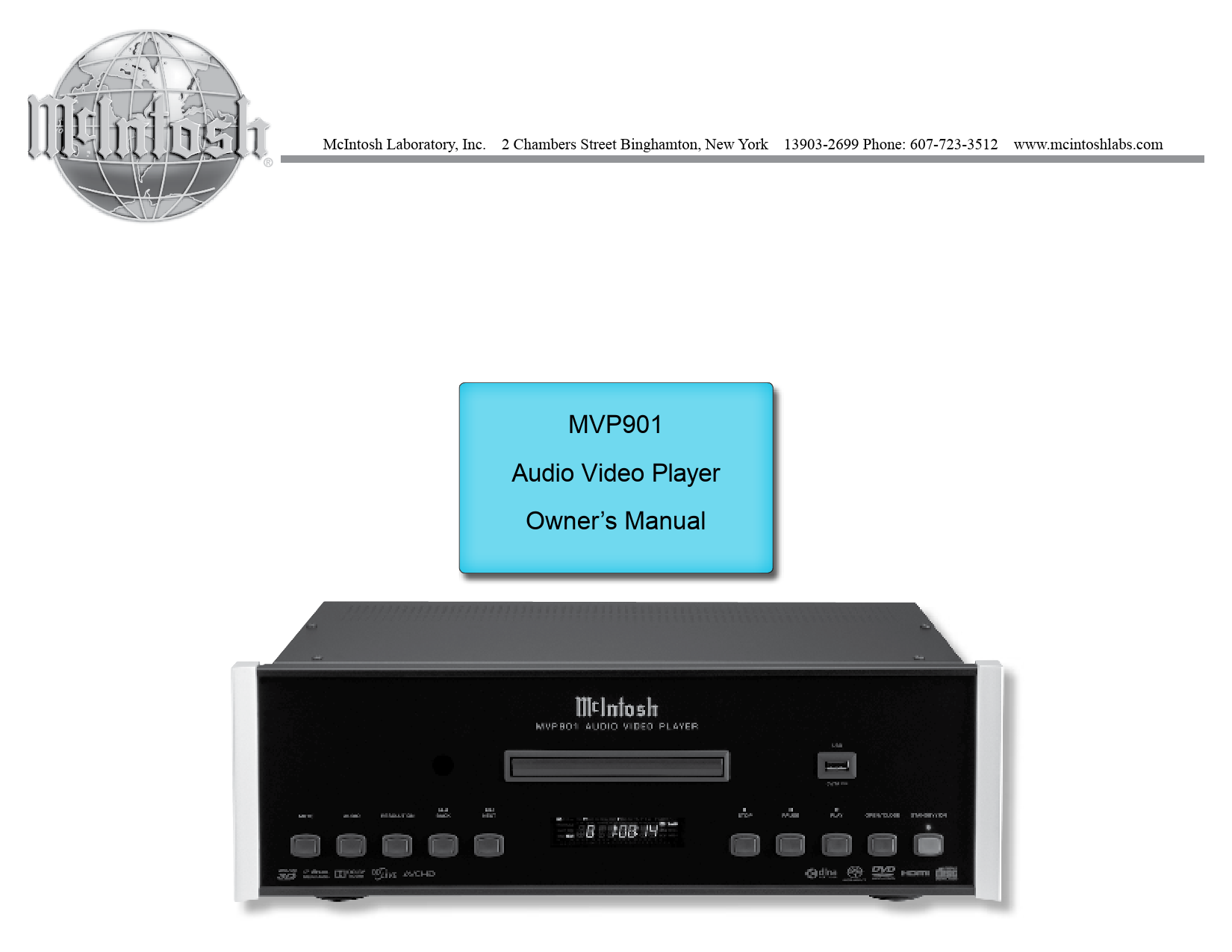
McIntosh Audio Video Player MVP901 Owner's Manual
File info: application/pdf · 32 pages · 5.89MB
MVP901 Audio Video Player Owner's Manual - McIntosh
Use of controls or adjustments or performance of procedures other than those specified in the Owners Manual may result in Hazardous Radiation. Exposure.
Manual
McIntosh MVP901 | Sarte Audio
Full PDF Document

If the inline viewer fails, it will open the original document in compatibility mode automatically. You can also open the file directly.
Extracted Text
McIntosh Laboratory, Inc. 2 Chambers Street Binghamton, New York 13903-2699 Phone: 607-723-3512 www.mcintoshlabs.com
MVP901 Audio Video Player
Owner's Manual

The lightning flash with arrowhead, within an equilateral triangle, is intended to alert the user to the presence of uninsulated "dangerous voltage" within the product's enclosure that may be of sufficient magnitude to constitute a risk of electric shock to persons.
WARNING - TO REDUCE RISK OF FIRE OR ELECTRICAL SHOCK, DO NOT EXPOSE
THIS EQUIPMENT TO RAIN OR MOISTURE.

ATTENTION:
RISQUE DE CHOC ELECTRIQUE - NE PAS OUVRIR
NO USER-SERVICEABLE PARTS INSIDE. REFER SERVICING TO
QUALIFIED PERSONNEL.

The exclamation point within an equilateral triangle is intended to alert the user to the presence of important operating and maintenance (servicing) instructions in the literature accompanying the appliance.
To prevent the risk of electric shock, do not remove cover or back. No user-serviceable parts
inside.

Additional Safety Information is supplied in a separate document "Important Additional Operation Information Guide"

CAUTION:

Invisible Laser Radiation when open. DO NOT stare into the beam or view directly with optical instruments. Use of controls or adjustments or performance of procedures other than those specified in the Owners Manual may result in Hazardous Radiation Exposure.

ATTENTION: Rayonnnement Laser Invisible en
cas d'ouverture. Ne pas regarder dans le faisceau ni observer directement � l'aide d'instruments d'optiques. L'utilisation de commandes, de r�glages ou d'instructions autres que ceux sp�cifi�s dans le manuel du propri�taire peut entra�ner une exposition x � des rayonnements dangereux

This product incorporates an embedded CLASS 3R Laser (IEC60825-1).

LUOKAN 1 LASERLAITE KLASS 1 LASER APPARAT
VAROITUS! Laitteen kayttaminen muulla kuin tassa
kayttoohjeessa mainitulla tavalla saattaa altistaa kayttajan turvallisuusluokan 1 ylittavalle nakymattomalle lasersateiiylle.
VARNING! Om apparaten anvands pa annat satt an i
denna bruksanvisning specificerats, kan anvandaren utsattas for osynbg laserstraining, som overskrider gransen for laserklass 1.

2

Trademark and License Information

Trademark and License Information
The McIntosh MVP901 incorporates copyright protection technology that is protected by U.S. patents and other intellectual property rights. This item incorporates copy protection technology that is protected by U.S. patents and other intellectual

property. Reverse engineering and disassembly are prohibited. "Cinavia" is trademark of Verance Corporation. "VRS ClearView" and "Video Reference Series" are trademarks of Silicon Image, Inc.. DVD Logo is a trademark of DVD Format/Logo Licensing Corp.,

registered in the U.S., Japan and other countries. The MVP901 uses the following Technologies:

Trademark Logo

License Information
BD: Supports Blu-ray with Bonus View and BDLive content, including Blu-ray 3D discs. A 3Dcapable display with compatible glasses is required for 3D playback. BD-R/RE, both single- and duallayer are also supported.

V I D E O TM A U D I OTM HIGH-DEFINITION MULTIMEDIA INTERFACE TM

"Blu-ray 3DTM" logo is a trademark of Blu-ray Disc Association.
DVD Logo is a trademark of DVD Format/Logo Licensing Corp., registered in the U.S., Japan and other countries.
DVD: Plays commercially-released DVDs, as well as finalized DVD�R/RW.
DVD-A: High-resolution stereo or multi-channel audio. Some DVD-Audio discs also contain a DVD-Video portion.
HDMI: the HDMI logo and High- Definition Multimedia Interface are trademarks or registered trademarks of HDMI Licensing LLC.
Java and all other trademarks and logos are trademarks or registered trademarks of Sun Microsystems, Inc. in the United States and/or other countries.
Manufactured under license from Dolby Laboratories. Dolby and the double-D symbol are trademarks of Dolby Laboratories.

Trademark Logo

License Information
DTS products associated with this logo are (1) confidential, proprietary trade secrets, and (2) protected by (a) applicable copyright law and (b) European patent numbers 0864146 and 1741093 and U.S. patent numbers 5,956,674, 5,974,380, 5,978,762, 6,487,535, 6,226,616, 7,212,872, 7,003,467, 7,272,567, 7,668,723, 7,392,195, 7,930,184, 7,333,929 and 7,548,853, as well as other U.S. and international patents both issued & pending. DTS, the Symbol, and DTS and the Symbol together are registered trademarks of DTS, Inc. � DTS, Inc. All Rights Reserved.
Designed for Windows Media, Microsoft, HDCD, and the HDCD logo are trademarks or registered trademarks of Microsoft Corporation in the United States and/or other countries.
"AVCHD" and the "AVCHD" logo are the trademarks of Panasonic Corporation and Sony Corporation.
Super Audio CD, SACD and the SACD logo are joint trademarks of Sony Corporation and Philips Electronics N.V. Direct Stream Digital (DSD) is a trademark of Sony Corporation.
CD: Supports standard Red Book CDs, as well as HDCD and CD-R/RW.

3

Thank You Your decision to own this McIntosh MVP901 Audio Video Player ranks you at the very top among discriminating music listeners. You now have "The Best." The McIntosh dedication to "Quality," is assurance that you will receive many years of visual and musical enjoyment from this unit. Please take a short time to read the information in this manual. We want you to be as familiar as possible with all the features and functions of your new McIntosh.
Please Take A Moment The serial number, purchase date and McIntosh Dealer name are important to you for possible insurance claim or future service. The spaces below have been provided for you to record that information:
Serial Number: ______________________________
Purchase Date: ______________________________
Dealer Name: _______________________________
Technical Assistance If at any time you have questions about your McIntosh product, contact your McIntosh Dealer who is familiar with your McIntosh equipment and any other brands that may be part of your system. If you or your Dealer wish additional help concerning a suspected problem, you can receive technical assistance for all McIntosh products at:
McIntosh Laboratory, Inc. 2 Chambers Street Binghamton, New York 13903 Phone: 607-723-1545 Fax: 607-724-0549

Customer Service
If it is determined that your McIntosh product is in need of repair, you can return it to your Dealer. You can also return it to the McIntosh Laboratory Service Department. For assistance on factory repair return procedure, contact the McIntosh Service Department at:
McIntosh Laboratory, Inc. 2 Chambers Street Binghamton, New York 13903 Phone: 607-723-3515 Fax: 607-723-1917
Table of Contents Safety Instructions ..................................................... 2
(Separate Sheet) ................... Important Additional Operation Information Guide
Trademark and License Information ......................... 3 Thank You and Please Take a Moment...................... 4 Technical Assistance and Customer Service ............. 4 Table of Contents ....................................................... 4 General Information .................................................. 5 USB Memory Drive Information............................... 5 Disc Information........................................................ 6 Connector and Cable Information ............................. 6 Introduction................................................................ 7 Performance Features ................................................ 7 Dimensions ................................................................ 8 Installation ................................................................. 9

Remote Control: Remote Control Push-buttons...................................12 How to Use the Remote Control ...............................13
Front Panel Features: Front Panel Displays, Push-buttons and USB Memory Drive ...........................................14 Front Panel Information Display...............................15
Setup: Introduction to the MVP901 Setup Mode ...........16-17
(Separate Sheet) ............................................ Mc1B Playback Setup Menu Settings .................................18 Video Output Setup Menu Settings ..........................19 Audio Output Setup Menu Settings......................... 20 Audio Processing Setup Menu Settings................... 20 Device Setup Menu Settings.....................................21 Network Setup Menu Settings ................................. 22
Operation: How to Operate MVP901 ................................... 24-29
(Separate Sheets)........ Mc1C, Mc1D, Mc1E,Mc1F
Additional Information: Specifications ............................................................30 Packing Instruction...................................................31

Connections: Rear Panel Connectors..............................................10
(Separate Sheet) ............................................ Mc1A Making Connections.................................................11

Copyright 2016, 2018 � by McIntosh Laboratory, Inc.

4

General and USB Memory Drive Information

General Information
1. For additional connection information, refer to the owner's manual(s) for any component(s) connected to the MVP901 Audio Video Player.
2. The Super Audio Compact Discs (SACD) Audio Signals are converted internally from Digital to Analog.
3. A PCM version of the decoded MP3 Signal is available at the Digital Audio Outputs.
4. The MVP901 has built-in 192kHz 32-Bit DACs (Digital to Analog Converter) to allow playing of Discs recorded with a higher bit and sample rate, by using the Analog Audio Outputs.
5. The DVD-Audio and Super Audio Compact Discs Digital Audio Signal is available via the HDMI Output.
6. The MVP901 is designed to playback 3D Bluray Discs. The 3D Digital Video Signal from the MVP901 is available at the HDMI Out connector. It is extremely important for all A/V Components and the HDMI cables used for connections between the MVP901 and the TV/Monitor, meet or exceed the HDMI High Speed Standards for proper 3D Video Playback.
7. The MVP901 will pass via the HDMI Connection Dolby Atmos, DTS-X and Auro 3D Digital Sound Tracks for decoding by using the appropriate Audio/Video Control Center.
8. HDMI Cable lengths between MVP901 and the Audio/Video Control Center should not exceed 25ft (8.3meters). If there is need to use HDMI Cables longer than 25ft (8.3meters), a high quality in-line HDMI Buffer/Converter would be required for reliable digital signal transmission via the HDMI Connections.

9. When connecting the MVP901 to a TV/Monitor or to a Home Theater Audio/Video Processor, use a Monoprice HDMI Cable with a Ferrite Core at both ends, to prevent RF Interference. The Monoprice Cable part number is 2529.
10. WARNING: The USB Connectors located on the Front and Rear Panels of the MVP901 are not designed for direct connection to a computer. Connecting them to a computer could result in damage to the MVP901 and/or the computer.
11. The MVP901 basic transport functions may also be controlled by using other McIntosh Remote Controls or Keypads thru a McIntosh Control Center or Preamplifier. Refer to the owner's manual(s) supplied with those component(s) for additional operation information.
12. PCM (Pulse Code Modulation) is the name given to a specific type of Digital Audio Signal. The CD Audio Disc and the supplemental audio track found on some Blu-ray Discs use the PCM format.
13. Sound Intensity is measured in units called Decibels and "dB" is the abbreviation.
14. When discarding the unit, comply with local rules or regulations. Batteries should never be thrown away or incinerated but disposed of in accordance with the local regulations concerning battery disposal.
15. For additional information on the MVP901 and other McIntosh Products please visit the McIntosh Web Site at www.mcintoshlabs.com.

USB Memory Drive Information
The MVP901 has a Front Panel Slot for accepting USB Memory Drives only. The USB Memory Drive is used in BD-Live and Bonus View Mode when the storage requirements exceeds the internal memory. The USB Drive provides the memory storage needed for the additional program content which is downloaded from the Movie Studio/Record Company via the MVP901 internet connection. It may also be used for playback of Audio and Video Files. 1. Before switching On the MVP901 insert the USB
Memory Drive into the Front Panel Slot. 2. Do not remove the USB Memory Drive until the
MVP901 has been switched Off. Removing the USB Memory Drive while the MVP901 is On could result in malfunction or loss of the USB Memory Drive's data. 3. USB Memory Drives need to have a storage capacity of 1GB (Gigabit) or greater. 4. Before using the USB Memory Drive for storage in the MVP901, it first must be formated on a computer using the FAT32 File System. 5. USB Memory Drives inserted into the MVP901 containing MP3, WMA, AAC, FLAC, ALAC, AIFF, LPCM and DSD Sound Track Formats will playback. The MVP901 will play PCM Sound Tracks with High Resolution Sound up to 192kHz 24Bit recording, except for Memory Drives containing multi-session recordings. DSD High Resolution Sound Tracks up to DSD128 will also playback. 6. The MVP901 will display Photos using the JPEG File Format. 7. Read and follow all instructions provided by the USB Memory Drive manufacturer to prevent damage to the Drive and to the files contained on the Drive.

5

Disc Information, Connector and Cable Information

Disc Information
1. Compact Discs that are not round (e.g. Novelty discs with octagonal or heart shapes) will not play properly in the MVP901 and should not be tried, as possible damage may occur.
2. The MVP901 Audio Video Player is designed to play all standard CD Audio Discs that conform to the Official Compact Disc Standards which is indicated by the Symbol .
3. The MVP901 Audio Video Player is designed to play all standard Blu-ray Video Discs that conform to the Official Blu-ray Disc Standards, which do not include Blu-ray UHD 4K Discs.
4. The MVP901 will play most of the following discs, however some recorded discs may not be able to play due to the condition of the recording: BDs with cartridge DVD-RAMs, HD-DVDs, BD-Video, BD-3D Video, Super Audio CD (SACD), CD-R, CD-RW, Picture CD (Kodak), Fujicolor CD, WMA (Windows), DVD-Audio, DVD-Video, DVD-R, DVD+R, DVD-RW, DVD+RW, DVD-AVCHD Data portion of CDExtras, some Dual-Discs and Audio discs with copy-protection may not be playable.
5. The MVP901 will play CD and Data Audio Discs recorded in the MP3, WMA, AAC, FLAC, ALAC, AIFF, LPCM and DSD Formats. It will also playback PCM Sound Tracks with High Resolution Sound up to 192kHz 24Bit recording, except for discs that contain multi-session recordings. The MVP901 will playback DSD High Resolution Sound Tracks up to DSD128.
6. The MVP901 will display Photos in the JPEG File Format from a Disc.
7. A Dual-Disc is a two-sided disc with DVD-video on one side and digital audio on the other side. The digital audio side does not meet the technical

specifications of the Compact Disc Digital Audio specifications found in the industry "Redbook"; the MVP901 may not read the CD side of a Dual Disc. 8. Several of the DVD, DVD-Audio and SACD performance features available on the MVP901 are active only if the Disc includes the supporting encoded information. 9. BD-Video and DVD-Video Discs are designed to only play in certain regions of the world. A region may be a single country or a group of countries. Usually on the back cover of the Video Disc container is a Symbol with either a "Character" or "Number(s)" or the word "All" inside it. The MVP901 is designed to play discs for Regions "A", "1" and "All". 10. Certain Dolby Digital and DTS Encoded Discs display their own unique Audio Mode Selection menu, every time the disc is loaded into the player. If you do not make a choice from this menu, the disc will revert to its default Audio Mode when play is started.

Connector and Cable Information

XLR Connectors

Below is the Pin configuration for the XLR Balanced

Output Connectors on the MVP901. Refer to the dia-

gram for connection:

PIN 1: Shield/Ground

PIN 2: + Output

PIN 3: - Output

PIN 1

PIN 2

PIN 3

Power Control Connector

The MVP901 Power Control Input/Output Jacks

receive/send Power On/Off Signals Power
when connected to other McIntosh Control

Components. A 1/8 inch stereo mini

N/C

phone plug is used for connection to

Ground

the Power Control Input/Output on the MVP901.

Data and IR Input Port Connectors

The MVP901 Data In Port receives

Remote Control Signals. A 1/8 inch

Data Signal

stereo mini phone plug is used for

N/C

connection. The IR Ports also use a

Data

Ground

1/8 inch stereo mini phone plug and

allow the connection of other brand IR Receivers to the MVP901.

IR Data Control
N/C

Ground
RS232 DB9 Connector Pin Layout

1. N/C

6. N/C

RS-232C Connector

2. Data Out (TXD) 7. N/C PIN 5

PIN 1

3. Data In (RXD)

8. N/C

4. N/C

9. N/C

5. Gnd.

PIN 9

PIN 6

Note: For assistance in making a RS232 connection

between the MVP901 and a Control Unit, contact

your McIntosh Dealer and/or the Control Unit

Manufacture for assistance.

6

Introduction and Performance Features

Introduction The McIntosh MVP901 Audio Video Player offers the latest in audio/video technology, providing state of the art reproduction of digital video and audio program sources. A full complement of performance features allows for the enjoyment of 3D Blu-ray, Blu-ray, DVD, SACD, DVD-Audio and Audio CD discs. Special Audio and Video formats are also reproduced with flawless realism. The advanced mechanical design of the transport ensures many years of smooth trouble free operation.
Performance Features � Triple Laser Pickup The MVP901 incorporates three laser elements, with different wavelengths, that are focused through one lens assembly. This unique design allows reading many different types of Audio and Video Disc Formats.
� Advanced Transport The MVP901 has a new vibration-resistant transport with an advanced digital servo for faster, quieter and accurate operation. The fast read speeds help to insure better disc tracking and error correction processing.
� Upscaling to Ultra HD (4K) resolution The MVP901 has the highest video resolution available, 2,160p/24 frames per second image quality via the HDMI (version 1.4) Video Output. The MVP901 also supports playback of 3D 1080p Blu-ray Discs.
� Video Circuitry The MVP901 uses the VRS� ClearViewTM Video Processor.

� 32 Bit Audio DAC The MVP901 is equipped with 192kHz 32Bit PCM/ DSD stereo DACs for high fidelity sound. 8 channel D/A converter is used in STEREO QUAD BALANCED mode for 2 channel audio output.
� High Resolution Audio Playback The MVP901 has the ability to playback Data Discs and USB Data Drives containing up to 192kHz 24Bit High Resolution Sound Tracks including DSD 128 24Bit.
� Balanced Outputs The MVP901 has Balanced Outputs for the Left and Right Channels when playing a CD/SACD. When a Multichannel Disc is playing, the Balanced Left and Right Outputs provide a two channel mix down of the Multichannel Recording.
� Built-in Dolby True HD and DTS-HD Master Decoders The MVP901 decodes/downmixes Dolby True HD and DTS-HD Master sound tracks to the two channel output. It also streams Dolby Atmos, DTS-X and Auro 3D Digital Sound Tracks via the HDMI Connection for decoding by using the appropriate Audio/Video Control Center.
� Digital Audio Outputs There are HDMI, Optical and Coaxial Digital Audio Outputs for external decoding of the various Dolby Digital, DTS Digital Signals, PCM or MP3 Signals from CDs.

� On Screen Setup and Calibration Loudspeaker Size, Level and Time Delay Adjustments are available for Dolby Digital, DTS Digital, DVDAudio and SACD Disc Signals and effects the multichannel analog audio outputs.
� Power Control The Power Control (Trigger) Input connection provides convenient Turn-On/Off of the MVP901 when connected to a McIntosh System with Power Control.
� Remote Control The Remote Control with illuminated push-buttons, provides control of the MVP901 operating functions. A Data Port Connection to a McIntosh A/V Control Center or Preamplifier allows for convenient system operation using one Remote Control. An External IR Sensor Input allows for remote operation when the MVP901 is located behind closed doors.
� Special Power Supply A fully regulated Switching Power Supply, with a special R-Core Power Transformer, ensures stable operation even though the power line varies.
� Fiber Optic Solid State Front Panel Illumination The Illumination of the Glass Front Panel is accomplished by the combination of custom designed Fiber Optic Light Diffusers and extra long life Light Emitting Diodes (LEDs). This provides even Front Panel Illumination and is designed to ensure the pristine beauty of the MVP901 will be retained for many years.

7

Dimensions The following dimensions can assist in determining the best location for your MVP901. There is additional information on the next page pertaining to installing the MVP901 into cabinets.
Front View of the MVP901 17-1/2"
44.5cm
1 2 1 32 45

5-3/8"

6"

13.7cm 15.2cm

Rear View of the MVP901
16-5/8"
42.2cm

4-9/16"
11.6cm

13/16"
2.06cm
2"
5.1cm

13-1/4"
33.7cm
8

Dimensions

Side View of the MVP901
11-1/2"
29.2cm
10-1/2"
26.7cm

3/16"

4-3/4"
12.1cm

0.48cm

6-9/16"
16.7cm

1-5/16"
4.9cm

Installation
The MVP901 can be placed upright on a table or shelf, standing on its four feet. It also can be custom installed in a piece of furniture or cabinet of your choice. The four feet may be removed from the bottom of the MVP901 when it is custom installed as outlined below. The four feet together with the mounting screws should be retained for possible future use if the MVP901 is removed from the custom installation and used free standing. The required panel cutout, ventilation cutout and unit dimensions are shown. Always provide adequate ventilation for your MVP901. Cool operation ensures the longest possible operating life for any electronic instrument. Do not install the MVP901 directly above a heat generating component such as a high powered amplifier. If all the components are installed in a single cabinet, a quiet running ventilation fan can be a definite asset in maintaining all the system components at the coolest possible operating temperature. A custom cabinet installation should provide the following minimum spacing dimensions for cool operation. Allow at least 6 inches (15.24cm) above the top, 2 inches (5.08cm) below the bottom, 3 inches (7.62cm) behind the rear panel and 2 inches (5.08cm) on each side of the Audio Video Player, so that airflow is not obstructed. Do not block the ventilation holes on the top and bottom cover. Allow 1 inch (2.54 cm) in front of the mounting panel for clearance. When the DISC Tray is opened, the panel clearance required in front of mounting panel is 6-3/4 inches (17.2cm). Be sure to cut out a ventilation hole in the mounting shelf according to the dimensions in the drawing.

Installation

MVP901 Front Panel Custom Cabinet Cutout

17-1/16"
43.34cm OOppeennininggfofor rVVeenntiltailatiotionn
1 2 1 32 45

10-7/8"
27.62cm

Cabinet Front Panel

Cabinet Front Panel
Opening for Ventilation

6"
15.24cm

Cutout Opening for Custom Mounting

MVP901 Side View in Custom Cabinet
Support Shelf

Cutout Opening for Ventilation
1-1/8"
2.8cm

Chassis Spacers

MVP901 Bottom View in Custom Cabinet

3/4"
1.9cm

8"
20.3cm
13-1/2"
34.3cm
Cutout Opening for Ventilation

15"
38.1cm

1-3/8"
3.5cm
Note: Center the cutout Horizontally on the unit. For purposes of clarity, the above illustration is not drawn to scale.

8-3/8"
21.2cm

9

RS-232C connector for connection to a remote control device
For service use only

Rear Panel Connectors

DATA IN receives operating data from a McIntosh Control Center

BALANCED AUDIO OUTPUTS supply two channels of analog audio to connect to Balanced Inputs of other components

TRIGGER (Power Control) IN receives turn-on signals from a McIntosh component and TRIGGER (Power Control) OUT sends turn-on signals on to another McIntosh Component

UNBALANCED AUDIO OUTPUTS supply two Channels of Analog Audio and connects to the Analog Input of an A/V Control Center

USB1 and USB2 for connnecting USB Memory Drives

COAXIAL and OPTICAL Digital Audio output send signals to a Control Center with a D/A Converter or a Decoder

LAN Network Connector for connecting the MVP901 to a Broadband Ethernet Network

HDMI OUT supplies digital video and digital audio signals to an Input of an A/V Control Center or other audio/video component

IR INput for connecting an IR Receiver

10

Connect the MVP901 power cord to a live AC outlet. Refer to information on the back panel of your MVP901 to determine the correct voltage for your unit

Making Connections
The MVP901 has the ability to be remotely switched On/Off from a McIntosh Preamplifier or A/V Control Center via the TRIGGER (Power Control) connection. The MVP901 Data Port Connection allows for the remote operation of basic functions using the A/V Control Center Remote Control. With an external sensor connected to the MVP901, remote control operation is possible from another room and/or when the MVP901 is located in a cabinet with the doors closed.
The connection instructions below, together with the MVP901 Connection Diagram located on the separate folded sheet "Mc1A", is an example of an audio/video system. Your system may vary from this, however the actual components would be connected in a similar manner. For additional information refer to "Connector and Cable Information" on page 6. Trigger (Power Control) Connections:
1. Connect a Control Cable from the A/V Control Center PC (Trigger/ Power Control) "A" Jack to the TRIGGER (Power Control) IN Jack on the McIntosh MVP901 Audio/Video Player.
2. Optionally, connect a Control Cable from the MVP901 Audio Video Player TRIGGER (Power Control) OUT Jack to the next McIntosh Component Power Control (Trigger) In Jack.
3. Connect any additional components in a similar manner, as outlined in step 2.
Data Control Connections: 4. Connect a Control Cable from the A/V Control Center Data Out 2 Jack to the McIntosh MVP901 Audio Video Player DATA IN Jack.
Sensor Connections: 5. Optionally, connect an external Sensor to the McIntosh MVP901 Audio Video Player IR IN Jack.

HDMI Connections: 6. Connect a HDMI Cable from the McIntosh MVP901 Audio Video Player HDMI OUT to the HDMI Input 3 on the A/V Control Center.
Digital Audio Connections: 7. Connect a Cable from the McIntosh MVP901 Audio Video Player Digital Out COAXIAL connector to the Digital Coaxial In 6 on the A/V Control Center.
Analog Audio Connections: 8. Connect Balanced Cables from the McIntosh
MVP901 Audio Video Player AUDIO OUTPUTS BALANCED Connectors to the A/V Control Center BAL IN 2 connectors. 9. Optionally, connect the MVP901 Audio Video Player AUDIO OUTPUTS UNBALANCED to the A/V Control Center Audio Inputs. Ethernet Connection: 10. Connect a CAT5 or CAT6 cable from the MVP901 ETHERNET connector to a Computer Network with router providing High Speed Broadband Internet Access or directly to a High Speed Modem with Broadband Internet Access.
Note: For proper operation of the BD-Live feature a High Speed Internet connection is required.
AC Power Cords Connections: 11. Connect the McIntosh MVP901 Audio Video
Player AC Power Cord to a live AC outlet.

Making Connections
11

Remote Control Push-Buttons

SHIFT push-button with LED Indicators used to select a push-button function with white or gold color nomenclature
Use to CLEAR the last programmed track
Access the TEXT Display Mode when playing a SACD Disc containing the information
Circular Push-button to move left, right, up or down through on-screen menu, press the SELECT Push-button to choose an option
Use to select various disc information, including TIME, on the Front Panel DISPlay. It is also used to cancel the text display mode on a SACD Disc
Press to select between various on-screen pages of information on Video/Audio Discs, press PAGE HOME (�) to activate the Home OnScreen Menu
Press to play the Previous Selection. Also used to select one of various repeat modes
Press to start playback of a audio track or video chapter
Press to FAST-REVERSE thru the current selection

Press the DIM Push-button to adjust the brightness of the Front Panel Information Display
Momentarily press to Power ON or OFF Use to select disc tracks or any numbered operation Press the TOP MENU Push-button to access the main Video Disc Title menu (disc dependent), AUDIO indicates the available sound track format options
Use to access the SETUP Mode
Press the MODE Push-button to select Shuffle/ Random Play, Repeat Play or Program Play Disc Modes during playback of a CD Disc. With a Video Disc playing, press the MODE Push-button to select Subtitle Adj., 3D, Zoom, Angle, PIP or SAP Video Disc Modes Settings
Press the RETURN Push-button to return to the previous video screen display, PIC ADJ offer various On-Screen Video Adjustment Settings
Press the LEVEL (�) Push-button to mute or unmute the sound Press to play the NEXT Selection
Press to FAST-FORWARD thru the current selection
Press to PAUSE playback of a audio track or video chapter
Select the available Video Resolution for the selected video source
Press to STOP disc playback and SUB is used to select Subtitle function

Note: Push-buttons whose function is not identified above are for use with other McIntosh Components 12

How to use the Remote Control
The Remote Control is capable of performing both basic Operating Functions and Setup Options for the MVP901 Audio Video Disc Player.
Notes: Refer to the "How to Operate" and "How to Operate Setup Mode" Sections of this manual for additional information using this Remote Control.
If the Remote Control seems unresponsive for the desired command, first note the color of the pushbutton nomenclature for the desired command. Then press the SHIFT Push-button to select either white or gold, as indicated by the LEDs, and then within 3 seconds press the desired command push-button.
Play With a disc loaded, press the PLAY Push-button to start the disc playing.
Pause To temporarily stop disc playback at any time, press the PAUSE;Push-button. To resume playback press either the PLAY or PAUSE;Push-button.
Stop Press the STOP< Push-button to stop disc playback and return to displaying the table of contents of the disc.

Note: To direct access Chapters on a DVD and Blu-ray Discs, refer to "How to Operate MVP901" section on page 27.
Reverse and Fast Foward Press the7 (Reverse) or8 (Fast Forward) Push-button to start moving rapidly through a track/chapter on the disc. When the desired location is reached, release the7 (Reverse) or8 (Fast Forward) Push-button to resume normal playback.
Back and Next Press the : (Next) Push-button to move forward one track/chapter or the 9 (Back) Push-button to move back to the beginning of the current track/chapter playing. Also used to review the Programmed Tracks from the disc on the Front Panel Information Display, while in the Program Mode.
Note: If the 9 (Back) Push-button is pressed during playback of the first three seconds of the track, the Disc will start playing back the previous track/ chapter from the beginning.
Display/Time Press the DISPlay/TIME Push-button to access DVD and Blu-ray Disc Playback Information.

Numbered Push-buttons Press 1 through 9 to directly access Tracks on Audio CD and SACD Discs using the Front Panel Information Display. To access track numbers greater than number 9 requires entering both numbers. For example, to access Disc Track/Chapter 23, first press the number 2 Push-button followed by pressing the number 3 Push-button.

How to use the Remote Control
13

Front Panel Displays, Push-buttons and USB Memory Drive

Disc Tray opens to load and unload a disc

IR Sensor receives commands from a Remote Control

Front Panel Information Display

Socket for connnecting a USB Memory Drive

STANDBY Power ON Indicator

1 2 1 32 45

MUTE Push-button mutes the audio

Selects from the available video RESOLUTION formats

Moves forward one track, chapter or photo at a time

STOP disc or USB Drive playback

Starts PLAYback of a disc or USB Drive Card

STANDBY/ON Push-button switches the MVP901 ON or OFF (Standby)

Selects from the available AUDIO sound formats
14

Moves backward one track, chapter or photo at a time

Use to PAUSE during playback of a disc or USB Drive playback

OPENS and CLOSES the disc tray for loading or unloading a disc

Indicates when the first two digits from the left are displaying the TRK (Track) or CH (Chapter) Number
Indicates the type of disc loaded

Indicates when the Remaining Playing Time is displayed

Indicates when the Repeat All Mode is active

Indicates when the numeric display is indicating the Total Playing Time of the disc

Indicates when the Pause Mode is active

Indicates when the Random/ Shuffle Mode is active
Indicates when the A - B Repeat Mode is active

Front Panel Information Display
Indicates when a video scene has additional angles to view
Indicates when the MVP901 HDMI Output has an active connection to another component
Indicates when the Network Connection is active

Indicates the MUTE function is active

1 2 1 32 45

Indicates either two or multi-channel sound playback

Indicates when the Time displayed is a group

Indicates when the Title is displayed

Indicates when the Repeat Mode is active

Indicates when the Play Mode is active

Indicates the Digital Signal Format being decoded
Indicates the current Track Time, Remaining Track Time, Total Disc Playing Time and various other Information

Note: Display items not identified above are for use with other McIntosh Components 15

Introduction to the MVP901 Setup Mode
Your McIntosh MVP901 has been factory configured for default operating settings that will allow you to immediately enjoy superb video and high fidelity audio from a Blu-ray 3D Disc. It also reproduces Blu-ray Disc (3D & 2D), DVD-Audio, SACDs and CDs with unparalleled sonic purity. If you wish to make changes to the factory default settings perform the following steps, if not proceed to "How to Operate the MVP901" starting on page 24.
Power The Red LED above the STANDBY/ON switch lights to indicate the MVP901 is connected to AC Power. To Switch ON the MVP901, press the STANDBY/ ON Push-button on the Front Panel or the (Power) Push-button on the Remote Control. The STANDBY Red LED will flash during the initialization process. Refer to figures 1 and 2.

The ability to change a menu item setting or have access to a menu item setting is dependent on the operational state of the player and the choices made in other menu items. Some menu choices require more than one step to complete. The Setup Main Menu Screen Captures (figures 1S thru 7S) are located on the separate folded sheet "Mc1B".
Note: The MVP901 must be connected to a MONITOR/TV either through an A/V Control Center or directly, for setup and use. The Remote Control supplied with the McIntosh MVP901 has several Push-buttons labeled differently than as indicated on the On Screen Menu, please refer to the Instructions in this Owner's Manual for the correct Push-button to use.

ON (Device Setup Menu figure 5S) the MVP901 will periodically scan for an update. If an update is available, the MVP901 will display a message On-Screen. For more information about the MVP901 and Network Connections refer to pages 11 and 22.
With the MVP901 connected to your Home Network via a Network Router with an active Internet Access Device connected, perform the following steps:
1. If there is a disc playing in the MVP901 press the STOP Push-button twice.
2. Press the SETUP Push-button on the Remote Control and the Main Setup Menu (Playback Setup) will appear on the Monitor/TV screen. Refer to figure 1S.
3. Using the Down Directional Push-buttons on the Remote Control select "Network". Refer to figures 2 and 6S.
4. Press the SELECT Push-button on the Remote Control. Refer to figure 3.

Figure 1
Note: When the MVP901 is switched On, it will take about 20 seconds for initialization of the internal circuitry to take place before the player is ready to begin operation.
Adjustments and Setting changes All of the adjustments and settings are performed by using the extensive On-Screen Setup Menu System. The On-Screen Setup Menuing System is interactive.

Checking the Network Connection

The following example will illus-

trate how to navigate through the

built-in MVP901 SETUP Mode and

the multiple On-Screen Menus.

Occasionally, McIntosh might

make available Firmware Updates

for the MVP901. These Updates would be from the McIntosh Com-

Figure 2

puter Server via a Network Internet

Connection. When the Firmware Notification is set to

Figure 3
5. Using the Down Directional Push-buttons on the Remote Control select "Connection Test".
6. Press the SELECT Push-button on the Remote Control. Refer to figure 4.

16

Introduction to the MVP901 Setup Mode

Figure 4
The MVP901 will now check for a Network Connection first. Second, it will check for access to the Internet. A window will appear On-Screen indicating "Connection Successful!". Refer to figure 5.

all one needs for full enjoyment of movies, still photos, videos and music.
The MVP901 Setup Mode has a number of additional options allowing integration into your Home Theater System. Usually, your McIntosh Dealer and/or Custom Installer uses these additional capabilities.
The navigation and selection methods previously illustrated also apply to the remainder of Setup Mode Settings, which resume on page 18.
To begin enjoying the MVP901 Audio Video Player proceed to page 24 and "How to Operate the MVP901".

Figure 5
7. Press the SELECT Push-button on the Remote Control and then press the SETUP Push-button to exit the Setup Mode and return to normal operation. Note: If, when the above Connection Test was performed and the message appearing in the Window indicated "Not Connected" proceed to Setup Mode, Network Settings on page 22 to resolve the difficulty.
For the vast majority of MVP901 Owners, the Default Settings and Suggested Component Connections are
17

MENU ITEM Auto Play Mode Auto Resume Language
Closed Caption

SUB MENU
Player Language Disc Menu Language Audio Language Subtitle Language
CC Display CC Attribute CC Select Font Color Font Size Font Style
Font Opacity Font Edge Font Edge Color BG Color

SELECTION On On

PLAYBACK SETUP MENU

OPTION(S)

DESCRIPTION

Off

Refer to the bottom of Video Screen for Information

Off

Refer to the bottom of Video Screen for Information

English English English English

Deutsch, Francais, Espanol, Italiano, Svenska, Nederlands, Polski, Pycck
Deutsch, Francais, Espanol, Italiano, Svenska, Nederlands, Polski, Pycck
Deutsch, Francais, Espanol, Italiano, Svenska, Nederlands, Polski, Pycck
Deutsch, Francais, Espanol, Italiano, Svenska, Nederlands, Polski, Pycck

Refer to the bottom of Video Screen for Information Refer to the bottom of Video Screen for Information Refer to the bottom of Video Screen for Information Refer to the bottom of Video Screen for Information

Off Auto Analog CC1 White Standard Default
Solid None
White Black

On Custom
Black, Red, Green, Blue, Yellow, Megenta or Cyan Small, Large Monospaced with serifs, Proportionally spaced with serifs, Monospaced without serifs, Proportionally spaced without serifs, casual font style, Cursive font style, Small Capitals Translucent, Transparent Raised, Depressed, Uniform, Left drop shadowed, Right drop shadowed Black, Red, Green, Blue, Yellow, Megenta or Cyan White, Red, Green, Blue, Yellow, Megenta or Cyan

Refer to the bottom of Video Screen for Information Refer to the bottom of Video Screen for Information Refer to the bottom of Video Screen for Information Refer to the bottom of Video Screen for Information Refer to the bottom of Video Screen for Information Refer to the bottom of Video Screen for Information
Refer to the bottom of Video Screen for Information Refer to the bottom of Video Screen for Information
Refer to the bottom of Video Screen for Information Refer to the bottom of Video Screen for Information

Note: The  indicates the default setting 18

MENU ITEM Closed Caption, con't
Subtitle Shift OSD Position OSD Mode Angle Mark Screen Saver Parental Control
MENU ITEM Picture Adjust
Output Resolution Custom Resolution

Setup Mode

SUB MENU BG Opacity Window Color BG Opacity
SUB MENU Picture Mode Brightness Contrast Hue Saturation Detail Enhancement Edge Enhancement Video Smoothing Demo Mode

PLAYBACK SETUP MENU, con't

SELECTION

OPTION(S)

DESCRIPTION

Solid Red
Solid 0 0 Normal Off On  _ _ _ _

Translucent, Transparent

Refer to the bottom of Video Screen for Information

White, Black, Green, Blue, Yel- Refer to the bottom of Video Screen for Information low, Megenta or Cyan

Translucent, Transparent

Refer to the bottom of Video Screen for Information

+10 to -10

Refer to the bottom of Video Screen for Information

0 to +5

Refer to the bottom of Video Screen for Information

Minimal, Remaining, Off

Refer to the bottom of Video Screen for Information

On

Refer to the bottom of Video Screen for Information

Off, Energy Saver

Refer to the bottom of Video Screen for Information

Enter Password to Activated

Refer to the bottom of Video Screen for Information

(exit Setup if you do not want to

enter a password)

VIDEO OUTPUT SETUP MENU

SELECTION

OPTION(S)

DESCRIPTION

 Mode 1  0  0  0  0  0  0  0  Off  Auto  1080p Auto

Mode 2, Mode 3

Allows selection between three different preset video settings listed below

-16 to +16

Allow adjustment of the "Black Level" of the video output

-16 to +16

Allow adjustment of the "White Level" of the video output

-16 to +16

Allow adjustment of the "Tint" of the video output

-16 to +16

Allow adjustment of the "Color Level" of the video output

-16 to +16

Allow adjustment of the "Picture Sharpness" of the video output

-16 to +16

Allow adjustment of the "Object Edge Sharpness" of the video output

0 to +4

Allow reduction of the "Stair Stepped Effect" of the video output

Off or On

Slip screen comparing VRS Processing (Left Side) to no Processing (Right Side)

Custom

Allows for Automatic or Custom (Manual) selection of Video Screen Resolution

UHD Auto, UHD 24Hz, UHD 50Hz, UHD 60Hz, 1080p 24Hz, 1080p 50Hz, 1080p 60Hz, 1080i 50Hz, 1080i 60Hz, 720p 50Hz, 720p 60 Hz, 576p, 576i, 480p,
480i, Source Direct

Allows for Manual selection of Video Screen Resolution

19

MENU ITEM HDMI 1 Setup
TV Aspect Ratio 3D Setting
DVD 24p Conversion De-interlacing

SUB MENU Color Space Deep Color
3D Output 3D TV Size

MENU ITEM Secondard Audio HDMI Audio Format
S/PDIF Output
DVD-Audio Mode SACD Priority
SACD Output
HDCD Decoding A/V Sync

SUB MENU

MENU ITEM Dynamic Range Control

SUB MENU

VIDEO OUTPUT SETUP MENU, con't

SELECTION

OPTION(S)

DESCRIPTION

 Auto  Off  16:9 Wide / Auto

RGB Video Level, RGB PC Level, YCbCr 4:4:4,
36 Bits, 30 Bits (Dithered), 30 Bits, Off (Dithered), Off
16:9 Wide

Refer to the bottom of Video Screen for Information Refer to the bottom of Video Screen for Information Refer to the bottom of Video Screen for Information

 Auto  46  Off  Auto

Off, Forced Enter your TV Screen Size On Film, Video

Refer to the bottom of Video Screen for Information Refer to the bottom of Video Screen for Information Refer to the bottom of Video Screen for Information Refer to the bottom of Video Screen for Information

AUDIO OUTPUT SETUP MENU

SELECTION

OPTION(S)

DESCRIPTION

 Off

On

Refer to the bottom of Video Screen for Information

 Auto

LPCM, Bitstream, Off

Refer to the bottom of Video Screen for Information

 Bitstream

48k LPCM, 96k LPCM, 192k LPCM

Refer to the bottom of Video Screen for Information

 DVD- Audio

DVD-Video

Refer to the bottom of Video Screen for Information

 Stereo

CD Mode, Multi-Channel

Refer to the bottom of Video Screen for Information

 Auto

PCM, DSD

When the MVP901 Optical or Coaxial Outputs are used during playback of a SACD it is important to change the "SACD Output" setting from "Auto" to PCM for playback

 Off

On

Refer to the bottom of Video Screen for Information

 0

-100ms to +200ms

Refer to the bottom of Video Screen for Information

AUDIO PROCESSING MENU

SELECTION

OPTION(S)

DESCRIPTION

 Auto

On, Off

Refer to the bottom of Video Screen for Information

Note: The  indicates the default setting 20

Setup Mode

MENU ITEM Firmware Information Firmware Upgrade
Firmware Notification HDMI CEC Standby Mode Auto Power Off Sleep Timer Front Panel Brightness Cache Media Info Persistance Storage
Settings Management
Reset Factory Defaults

SUB MENU

SELECTION MVP901-24-0621

DEVICE SETUP MENU

OPTION(S)

DESCRIPTION

OK, Open Source Credits

To exit the list of Open Source Credits press the RETURN Push-Button

Via USB Via Disc Via Network

 On  Off  Energy Efficient  On  Off
 Standard  Off

Off HDMI 1, HDMI 1 (Limited) Quick Start Off 30 Min, 45 Min, 60 Min, 90 Min, 120 Min Dim On

Refer to the bottom of Video Screen for Information Refer to the bottom of Video Screen for Information Refer to the bottom of Video Screen for Information Refer to the bottom of Video Screen for Information Refer to the bottom of Video Screen for Information Refer to the bottom of Video Screen for Information Refer to the bottom of Video Screen for Information Refer to the bottom of Video Screen for Information
Front Panel Information Display Bightness Refer to the bottom of Video Screen for Information

Storage Device Space Used Erase Persistance Storage

 Internal Flash  0 OK

USB Drive  0 Cancel

Refer to the bottom of Video Screen for Information Refer to the bottom of Video Screen for Information Erases all BD-Video data in the Persistance Internal Storage or External USB Storage

Backup Settings Restore Settings Lock Settings

Enter Password

To external USB Storage Device From external Storage Device To exit from Enter Password press the RETURN Push-Button

Erase Accounts and Settings Erase Settings
Return

Returns all settings to Factory Default values and also Erases all Passwords that may have been entered
Returns all settings to Factory Default values and keeps any Passwords that may have been entered
Exits out with no changes made

21

Setup Mode

MENU ITEM Player Name Connection Information

SUB MENU
Connection Information

IP Setting (Refer to note 2 below) Proxy Settings Connection Test BD-Live Network Access My Network IP Control

NETWORK SETUP MENU

SELECTION

OPTION(S)

DESCRIPTION

 McIntosh MVP901 Press the "SELECT" Push-button

Change the name by using the built-in electronic keyboard

Internet Connection, IP Address, Subnet Mask, Gateway, DNS1, DNS2, Ethernet Mac Address
 Auto (HDCP)

Manual

 Off

On

 On  On  On

Limited, Off Off Off

Summary of current network connection
Allows for manually entering the IP Address, Subnet Mask, Gateway, DNS1, DNS2 Refer to the bottom of Video Screen for Information Press the SELECT Push-button to start the Internet Connection Test Refer to the bottom of Video Screen for Information Refer to the bottom of Video Screen for Information Refer to the bottom of Video Screen for Information

Notes: 1. The  indicates the default setting. 2. If the factory default automatic network settings do not allow access to the Internet (use the MVP901 "Connection Test" above for verification of Internet Access) then contact your McIntosh Dealer, Router Manufacture and/or Internet Service Provider for assistance before entering the network settings manually.

22

Notes
23

How to Operate the MVP901
Your McIntosh MVP901 has been configured for default operating settings that will allow you to immediately enjoy superb video and high fidelity audio from a wide variety of discs. If you wish to make changes to the default settings, a Setup feature is provided to customize the operating settings using On Screen Menus (refer to the Setup instructions in this manual starting on page 18). Most operations that can be performed with the Front Panel Push-buttons can also be performed with the Remote Control. Notes: 1. Some of the MVP901 operating functions such
as Disc Languages, Video Angle or Menu Language are active only if the function is supported by data encoded on the disc. 2. Some Blu-ray discs support BD Live downloads, providing various forms of additional information for the disc currently in the player. 3. When the MVP901 is On and has been idle for approximately 3 minutes, the internal circuitry goes into a Screen Saver Mode. To bring the MVP901 out of hibernation, press a command function such as Play, Open/Close, etc.

Power On The Red LED above the STANDBY/ON switch lights to indicate the MVP901 is connected to AC Power. To Switch ON the MVP901, press the STANDBY/ ON Push-button on the Front Panel or the (Power) Push-button on the Remote Control. During the initialization process the MVP901 Front Panel Display will inidicate "ON", "MVP901" followed by "HOME". Refer to figures 30, 31 and 40.
Note: When the MVP901 is switched On, it will take about 20 seconds for initialization of the internal circuitry to take place before the player is ready to begin operation.
HOME
Figure 31
Home Menu Selection Besides playing back standard Audio/Video Optical Discs and USB Memory Drives, the MVP901 also incorporates the latest in technology playback of High Resolution Sound Tracks. The type of Playback is performed by "On-Screen Video Displays". Refer to figure 32 for the "HOME" Main display.

Figure 32

Refer to the chart below for Icon Identification.

HOME ICON

DESCRIPTION

Indicates when a disc has been inserted and the disc type (CD, SACD, DVD, BLU-RAY or DATA)

Indicates playback of music has been selected from either a disc, USB Drive or Network Connected Device

Indicates viewing of Photos has been selected from either a disc, USB Drive or Network Connected Device

Indicates playback of movie video has been selected from either a disc, USB Drive or Network Connected Device

Indicates access to folders containing Photos, Music and Videos from Network Connected Device

1 2 1 32 45

Indicates access to the MVP901 Setup Menu

Figure 30 24

Note: Depending on how a given disc has been mastered, the MVP901 Front Panel Display may indicate something different.
How to Load a Disc 1. Press the OPEN/CLOSE Push-button. The disc tray will slide out allowing a disc to be loaded. Refer to figures 30 and 32. Note: When the player is in Standby Mode, the MVP901 Power will automatically SwitchOn when the OPEN/CLOSE Push-button is pressed. 2. Press the OPEN/CLOSE Push-button and the disc tray will close. The MVP901 Front Panel Information Display will indicate "LOAD". 3. When the initialization of the Disc has occured, the Front Panel will indicate the disc type (CD, SACD, DVD, DVD-A or Blu-ray) briefly and it will start to play without pressing the PLAY Pushbutton. When a disc containing High Resolution Audio, Photos or Movie (Video) or disc containing combinations is initialized, the Front Panel Information Display will indicate "DATA". To playback those discs, first requires selecting the desired content (Audio, Photo or Movie) using the On-Screen Video Display of the "HOME" Main Icons. Use the ptu Directional, SELECT and RETURN Push-buttons on the Remote Contol for navigating and selecting Menu Items. Refer to figures 33 thru 40.

Figure 33

Figure 34

Figure 35

Figure 36

How to Operate the MVP901
Figure 37

Figure 38 Figure 39

Figure 40
25

How to Operate the MVP901, con't Mute To Mute the Audio coming from the MVP901 at any time, press the Front Panel MUTE Push-button or the LEVEL (-) Push-button on the Remote Control. When the MUTE function has been activated, the Front Panel Information Display and the On-Screen Video Display Speaker Icon will indicated the MVP901 Audio Output is Muted. Refer to figures 41, 42, 43 and 49. To Un-Mute the Audio press either Push-Button again.
1 2 1 32 45
Figure 41
Figure 42
Figure 43
Audio The MVP901 Front Panel AUDIO Push-button and the Remote Control AUDIO Push-button allows for selec-

tion of the available

Sound Format Type

and/or the number

of Audio Chan-

nels. This includes

Blu-ray, DVD, DVD

-Audio, and SACD

Discs. Refer to

Figure 44

figures 44, 45, 46,

and 47.

Note: When playing

back a SACD

multi-format

(Stereo - 5.1

Channel) Disc,

the MVP901

will default

Figure 45

to the cur-

rent SETUP

Settings. By

pressing the

AUDIO Push-

button the audio default

Figure 46

setting will

temporarily

change while

the disc is in

the MVP901.

If you wish

Figure 47

to change the

default setting when playing all SACD Discs, refer

to page 22 "Audio Output Setup Menu", SACD Pri-

ority and SACD Output.

Resolution The MVP901 Front Panel RESOLUTION Push-button and the HDMI RES Push-button on the Remote Control are used to select the Video Resolution based on

the capability of the connected TV/ Monitor via the HDMI connection. To change the current On-Screen Video Resolution, either press the RESOLUTION Push-button or the HDMI RES Push-button. Then select from the On-Screen Menu Choices either using the p Directional Push-buttons followed by pressing the SELECT Push-button or repeated presses of the HDMI RES Push-button on the Remote Control. Refer to figures 43, 48 and 49.
Figure 48
Additional Operation Functions The MVP901 offers a variety of Operation Functions implemented by using the Video On-Screen Displays. The following pages contain information on how to use the various Operation Functions. Refer to the Graphic Images located on the separate folded sheets "Mc1C thru MC1F" when using these Operation Functions.

26

Figure 49

How to Operate the MVP901, con't

FUNCTION
(Menu Selection)
SUBTITLE ADJUST

MEDIA TYPE Blu-ray, DVD

3D

Blu-ray, DVD

ZOOM ANGLE

All Video Sources Blu-ray, DVD

PIP (Picture-in-Picture)

Blu-ray

SAP (Separate Audio Program) Blu-ray

PICTURE ADJUST

All Video Sources

CHAPTER SELECTION

Blu-ray, DVD

TIME SELECTION

Blu-ray, DVD

PLAYBACK INFORMATION Blu-ray, DVD

BLU-RAY, DVD and DVD-AUDIO OPERATION FUNCTIONS

ACTIVATION SEPARATE SHEET GRAPHIC

(PUSH-BUTTON)

NUMBER

IMAGES

DESCRIPTION

MODE

1C

20S, 21S

Selects the desired type of Video Characteristics when On-Screen Subtitle is active

MODE

Converts 2D Video to simulated 3D Video. First use the tu Directional Push-

1C

22S, 23S

buttons to select the Menu Setting of "3D". Then use the Directional and Select

Push-buttons to make the desired 3D adjustments

MODE

1C

24S, 25S

Provides various image size enlargements and other Zoom functions

MODE

1C

26S, 27S

When available on the disc, provides different camera positions of the same scene

MODE

1C

28S, 29S

When available on the disc and selected by the disc setup menu, provides a smaller window on screen containing different video while the movie is playing

MODE

1C

30S, 31S

When available on the disc, provides the ability to select from secondary audio

PIC ADJ

1D

32S

Provides the storing of three different Picture Modes affecting Video Settings such as Brightness, Contrast, Hue (Tint), Saturation (Color Intensity), etc.

SEARCH

1D

33S

Press the SEARCH Push-button twice, wait for three seconds2, then use the Direction pPush-buttons to select the desired chapter or enter the directly using the
numeric keypad Push-buttons

SEARCH

1D

34S

Press the SEARCH Push-button, wait for three seconds2, then use the Direction pPush-buttons to select the desired chapter or enter the directly using the
numeric keypad Push-buttons

DSP/TIME

1D

35S

Provides information such as Chapter, Time, Data Rate, Sound Track Type, Subtitle Status,Video Format, Aspect Ratio, etc.

TRACK NUMBER

DVD-Audio

SEARCH

Press the SEARCH Push-button three times2, then use the Direction pPush-

1D

36S, 37S

buttons to select the desired Track (Program) or enter the directly using the

numeric keypad Push-buttons

SUBTITLE STATUS

Blu-ray, DVD

DISP/TIME, SUB

The On-Screen Subtitle Icon . . . . Off appears indicating the disc contains

subtitles (use the DISP/TIME Push-button, refer to figure 38S). Press the SUB

38S, 39S

Push-button to activate the Subtitle Menu and then select the desired Subtitle by

1D

and 40S

Direction pPush-buttons followed by SELECT Push-button (refer to figure

39S). Press the DISP/TIME Push-button to verify the change has been made (refer

to figure 40S)

Notes: 1. Navigation and Selection of the various On-Screen Menus is accomplished by using the ptu Directional, SELECT and RETURN Push-buttons on the Remote Control. 2. Some of the Remote Control Push-buttons serve dual functions. Default operational functions are labeled in white and the secondary operation functions are labeled in Gold. When a secondary function is activated, it takes three seconds before the Remote Control returns to the default operating functions.

27

FUNCTION
(Menu Selection) SHUFFLE/RANDOM REPEAT TIME SELECTION
PROGRAM PLAY
SHUFFLE/RANDOM REPEAT
PLAY LIST
SONG LOCATION GAPLESS PLAY

MEDIA TYPE
SACD, CD and USB Drive
SACD, CD and USB Drive
SACD, CD and USB Drive
SACD, CD and USB Drive
High Resoultion Audio Disc and USB Drive High Resoultion Audio Disc and USB Drive
High Resoultion Audio Disc and USB Drive
High Resoultion Audio Disc and USB Drive High Resoultion Audio Disc and USB Drive

SACD, CD and USB Drive OPERATION FUNCTIONS

ACTIVATION SEPARATE SHEET GRAPHIC

(PUSH-BUTTON)

NUMBER

IMAGES

DESCRIPTION

MODE MODE

41S, 42S

Repeated presses of the SELECT Push-button, either selects SHUFFLE or RAN-

1E

and 43S

DOM Playback of music

1E

44S, 45S and 46S

Repeat either the current track or repeat all the tracks. First use the tu Directional Push-buttons to select the Menu Setting of "REPEAT". Repeated presses of the SELECT Push-button, either selects REPEAT 1 or REPEAT ALL

SEARCH

1E

47S

Press the SEARCH Push-button, wait for three seconds2, then use the Direction ppPush-buttons to enter the desired time for the current track playing, then
press the SELECT Push-button

MODE

First use the tu Directional Push-buttons to select the Menu Setting of "PRO-

GRAM PLAY"and press the SELECT Push-button, press the SELECT Push-

1E

48S thru 54S

button then use the tu Directional Push-buttons to select the desired track then use the  Directional Push-button to enter the next desired track, Start playback

of the Program Play just entered press the u Push-buttons

MODE

55S, 56S

Repeated presses of the SELECT Push-button, either selects SHUFFLE or RAN-

1E

and 57S

DOM Playback of music

MODE MODE

1F

58S, 59S and 60S

Repeat either the current track or repeat all the tracks. First use the tu Directional Push-buttons to select the Menu Setting of "REPEAT". Repeated presses of the SELECT Push-button, either selects REPEAT 1 or REPEAT ALL

First use the tu Directional Push-buttons to select the Menu Setting of "ADD

TO PLAY LIST"and press the SELECT Push-button and use the p Directional

Push-buttons to highlight the first desired track, then press the SELECT Push-

1F

61S thru 67S

button to enter it and a P checkmark will appear to the left of the On-Screen u

symbol or track number, repeat the same procedure to enter additional desired

tracks, to start playback select "GOTO PLAYLIST and press the SELECT Push-

button

MODE

1F

68S

To see the progress of the playback using the previously entered GOTO PLAYLIST, select the "SONG LOCATION" from the MODE MENU

MODE

1F

69S and 70S

Removes the silent time between tracks during playback (however that is dependent on how the High Resolution Disc or USB Drive was created)

Notes: 1. Navigation and Selection of the various On-Screen Menus is accomplished by using the ptu Directional, SELECT and RETURN Push-buttons on the Remote Control. 2. Some of the Remote Control Push-buttons serve dual functions. Default operational functions are labeled in white and the secondary operation functions are labeled in Gold. When a secondary function is activated, it takes three seconds before the Remote Control returns to the default operating functions.
28

Media and Format Type of Music Playback

Media Type

Format Type and
File Extension

Maximum Sampling Frequency

Maximum Bit Rate

CD Disc
(R/-RW)

MP3 (.mp3)

48KHz

Up to 320kbs

CD Disc
(R/-RW)

WMA (.wma) 48KHz

Up to 320kbs

CD Disc
(R/-RW)

ACC (.mp4)

48KHz

Up to 320kbs

CD Disc
(R/-RW+R+RW)

WAV (.wma)

48KHz

16Bit

CD Disc
(R/-RW+R+RW)

FLAC (.flac)

48KHz

16Bit

CD Disc
(R/-RW+R+RW)

ALAC (.m4a)

48KHz

16Bit

CD Disc
(R/-RW+R+RW)

AIFF(.aif/aiff)

48KHz

16Bit

Reset the Microprocessor
Reset of Microprocessors In the unlikely event the controls of the MVP901 stop functioning, the microprocessors can be reset by performing one of the two methods listed below:
Method One: With the MVP901 in Standby Mode, press and hold in the Front Panel HDMI RES and MUTE Push-buttons. Release both Push-buttons when the LED above the STANDBY/ON Push-button is extinguished.
Method Two: Remove AC Power from the MVP901 for at least 15 seconds, then reapply AC Power to the MVP901.

DVD Disc
(R/-RW+R+RW)
DVD Disc
(R/-RW+R+RW)
DVD Disc
(R/-RW+R+RW)
DVD Disc
(R/-RW+R+RW)
DSD Disc
(DSD64 to DSD128)

WAV (.wma) FLAC (.flac) ALAC (.m4a) AIFF(.aif/aiff) DSD(.diff/dsf)

192KHz 192KHz 192KHz 192KHz 5.6MHz

Up to 24Bit Up to 24Bit Up to 24Bit Up to 24Bit
1Bit

USB Flash Drive supports many of the Disc Media Types, Format Types and File Extensions. It also has the same Maximum Sampling Frequencies and Bit Rates.

How to Operate the MVP901, con't

29

Audio Specifications Number of Channels 2 Channel Stereo (Includes Multichannel Down Mix)
Output Level 4.0Vrms Balanced 2.0Vrms Unbalanced
Output Impedance 600 ohms Balanced 600 ohms Unbalanced
Audio Frequency Response (Blu-ray, DVD) 4Hz to 22,000Hz (48kHz Sampling, Linear Audio) 4Hz to 44,000Hz (96kHz Sampling, Linear Audio) 4Hz to 88,000Hz (192kHz Sampling, Linear Audio)
SACD Frequency Response 4Hz to 40,000Hz
CD Frequency Response 4Hz to 20,000Hz
Signal to Noise Ratio 115dB
Dynamic Range 110dB
Harmonic Distortion 0.002%
Channel Separation Better than 110dB (1,000Hz)
Digital Output Coaxial: 0.5V p-p/75 ohm Optical: -15dbm to -21dbm

Video Specifications Signal System NTSC/PAL

Region Code A, 1

HDMI Connector Version 1.4

HDMI Output Supports 3D, Deep Color, x.v. Color, and CEC

Transport Specifications

Transport

Laser Beam Wavelength: 630nm/810nm

Laser Power:

CLASS I

30

Specifications
General Specifications Power Requirements Field AC Voltage conversion of the MVP901 is not possible. The MVP901 is factory configured for one of the following AC Voltages: 100 Volts, 50/60Hz at 35 watts 110 Volts, 50/60Hz at 35 watts 120 Volts, 50/60Hz at 35 watts 220 Volts, 50/60Hz at 35 watts 230 Volts, 50/60Hz at 35 watts 240 Volts, 50/60Hz at 35 watts Standby: less than 0.5 watt
Note: Refer to the rear panel of the MVP901 for the correct voltage.
Overall Dimensions Width is 17-1/2 inches (44.5cm) Height is 6 inches (15.4cm) Depth is 13-1/2 inches (34.3cm) including connections
Note: When the Disc Tray is opened, the panel clearance required in front of mounting panel is 6-3/4 inches (17.2cm).
Weight 19.5 pounds (8.8Kg) net, 35.9 pounds (16.3Kg) in shipping carton
Shipping Carton Dimensions Width is 26-1/2 inches (67.3cm) Depth is 24-1/4 inches (62.2cm) Height is 11-3/4 inches (29.9cm)

Packing Instructions
In the event it is necessary to repack the equipment for shipment, the equipment must be packed exactly as shown below. It is very important that the four plastic feet are attached to the bottom of the equipment. This will ensure the proper equipment location on the bottom pad. Failure to do this will result in shipping damage. Use the original shipping carton and interior parts only if they are all in good serviceable condition. If a shipping carton or any of the interior part(s) are needed, please call or write Customer Service Department of McIntosh Laboratory. Refer to page 4. Please see the Part List for the correct part numbers.

Quantity Part Number Description

1

033838

Shipping carton only

4

033837

End cap

1

033836

Inside carton only

1

033725

Top pad

1

034301

Bottom pad

2

034446

Foam plug

4

017937

Plastic foot

4

400159

#10-32 x 3/4" screw

4

404080

#10 Flat washer

Packing Instructions

31

McIntosh Laboratory, Inc. 2 Chambers Street
Binghamton, NY 13903 www.mcintoshlabs.com
The continuous improvement of its products is the policy of McIntosh Laboratory Incorporated who reserve the right to improve design without notice. Printed in the U.S.A.
McIntosh Part No. 04166201