

Schneider Electric XW Pro 8548 Solar Hybrid Inverter Owner's Manual
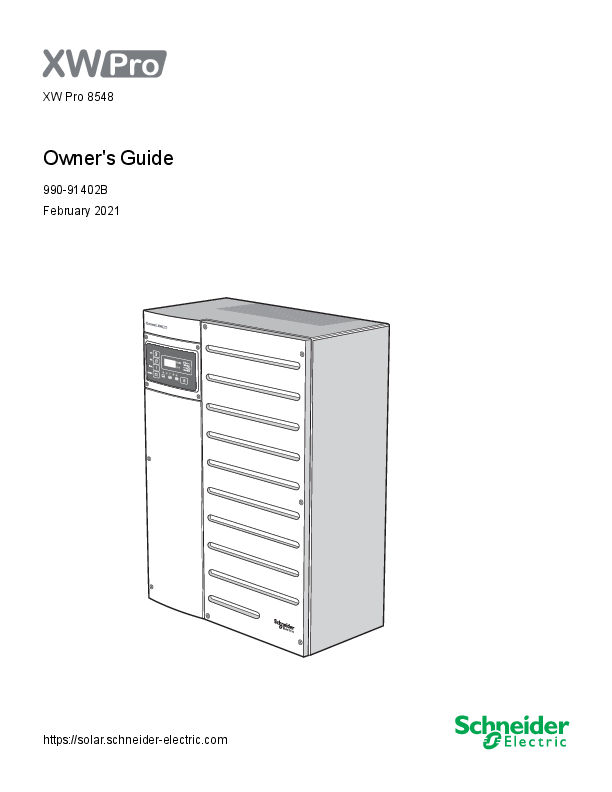
File info: application/pdf · 159 pages · 3.08MB
Conext XW Pro IEC Owner's Guide (990-91402B)
Conext XW Pro IEC Owner's Guide (990-91402B)
Pro XWPro8548 Owner'sGuide 990-91402B February2021 https://solar.schneider-electric.com
Full PDF Document

If the inline viewer fails, it will open the original document in compatibility mode automatically. You can also open the file directly.
Extracted Text
Pro
XW Pro 8548
Owner's Guide
990-91402B February 2021
https://solar.schneider-electric.com

Copyright � 2021 Schneider Electric. All Rights Reserved. Trademarks are owned by Schneider Electric Industries SAS or its affiliated companies. Other trademarks are owned by their respective companies. Exclusion for Documentation
UNLESS SPECIFICALLY AGREED TO IN WRITING, SELLER

(A) MAKES NO WARRANTY AS TO THE ACCURACY, SUFFICIENCY OR SUITABILITY OF ANY TECHNICAL OR OTHER INFORMATION PROVIDED IN ITS MANUALS OR OTHER DOCUMENTATION;

(B) ASSUMES NO RESPONSIBILITY OR LIABILITY FOR LOSSES, DAMAGES, COSTS OR EXPENSES, WHETHER SPECIAL, DIRECT, INDIRECT, CONSEQUENTIAL OR INCIDENTAL, WHICH MIGHT ARISE OUT OF THE USE OF SUCH INFORMATION. THE USE OF ANY SUCH INFORMATION WILL BE ENTIRELY AT THE USER'S RISK; AND

(C) REMINDS YOU THAT IF THIS MANUAL IS IN ANY LANGUAGE OTHER THAN ENGLISH, ALTHOUGH STEPS HAVE BEEN TAKEN TO MAINTAIN THE ACCURACY OF THE TRANSLATION, THE ACCURACY CANNOT BE GUARANTEED. APPROVED CONTENT IS CONTAINED WITH THE ENGLISH LANGUAGE VERSION WHICH IS POSTED AT https://solar.schneider-electric.com.

Document Number: 990-91402B Model Name: Product Part Number:

XW Pro 8548 865-8548-55

Date: February 2021

Contact Information For country-specific details, please contact your local Schneider Electric Sales Representative or visit the Schneider Electric Solar Business website at: https://solar.schneider-electric.com Information About Your System As soon as you open your product, record the following information and be sure to keep your proof of purchase.

Serial Number Product Number Purchased From Purchase Date

____________________________ ____________________________ ____________________________ ____________________________

READ AND SAVE THESE INSTRUCTIONS
Safety Information
Important Information
Read these instructions carefully and look at the equipment to become familiar with the device before trying to install, operate, service or maintain it. The following special messages may appear throughout this documentation or on the equipment to warn of potential hazards or to call attention to information that clarifies or simplifies a procedure.

The addition of either symbol to a "Danger" or "Warning" safety label indicates that an electrical hazard exists which will result in personal injury if the instructions are not followed.
This is the safety alert symbol. It is used to alert you to potential personal injury hazards. Obey all safety messages that follow this symbol to avoid possible injury or death.

DANGER
DANGER indicates a hazardous situation which, if not avoided, will result in death or serious injury.

WARNING
WARNING indicates a hazardous situation which, if not avoided, could result in death or serious injury.

CAUTION
CAUTION indicates a hazardous situation which, if not avoided, could result in minor or moderate injury.

Please Note

NOTICE
NOTICE is used to address practices not related to physical injury.
Electrical equipment should be installed, operated, serviced, and maintained only by qualified personnel. No responsibility is assumed by Schneider Electric for any consequences arising out of the use of this material. A qualified person is one who has skills and knowledge related to the construction, installation, and operation of electrical equipment and has received safety training to recognize and avoid the hazards involved. For more information, see Audience.

Label Symbols
NOTE: The term "ground" is equivalent to "earth", and the use of these terms depends on local codes and standards. This document uses the term "ground" throughout. The following symbols appear on labels on or in the inverter.
Hazardous voltage
Hot surface
Stored energy hazard discharge time
Refer to the Installation or Operation instructions
Protective (grounding) conductor terminal
Direct current
Alternating current

Product Labels
The XW Pro inverter has different product labels designed to provide information on product ratings and specifications, provide safety information, and identify parts and functions of the inverter. Table 1 Product labels
1 Main product ratings label
2 Front panel label
3 Main product safety label

Main Product Ratings Label
The main product ratings label contains the inverter's product ratings and technical specifications. Do not remove, cover, deface, or alter the main product label. A localized main product label is available to install on the product. Figure 1 Main product ratings label example
NOTE: This is for illustration purposes only. Actual ratings vary for each model. 1 Name of the product and model number 2 Charger ratings 3 Inverter ratings 4 Product part number and operating temperature range 5 Product serial number information 6 Product date of manufacture information 7 Regulatory markings 8 Enclosure rating

Front Panel Label

The front panel label contains the LCD display and LED indicators. It also identifies the various buttons used in inverter operation. For information on the indicators and control button, see the Figure 9 on page 29.
Figure 2 Inverter Information Panel

Main Product Safety Label
The main product safety label is the main safety label for the inverter which lists general hazards and instructions on avoiding them. The label is applied on the exterior of the inverter.
Do not remove, cover, deface, or alter the main product safety label. A localized label is available to install on the product. For information on the symbols appearing in the label, see Label Symbols on page 4.
Other Safety Labels
Other safety labels appear on many areas of the equipment to warn of potential hazards within those areas of the inverter or to call attention to information that clarifies or simplifies a procedure. Read and follow all safety labels before proceeding.
Do not remove, cover, deface, or alter safety labels. Localized safety labels are available to install on the product. For information on the symbols appearing in the label, see Label Symbols on page 4.

Audience

This guide is intended for use by anyone needs to operate, configure, and troubleshoot the XW Pro inverter/charger. Certain configuration tasks should only be performed by qualified personnel in consultation with your local utility and/or an authorized dealer. Electrical equipment should be installed, operated, serviced, and maintained only by qualified personnel. Keep unqualified personnel away from batteries. Servicing of batteries must only be performed or supervised by qualified personnel with knowledge of batteries and their required precautions. Qualified personnel have training, knowledge, and experience in
n Installing electrical equipment.
n Applying all applicable installation codes.
n Analyzing and reducing the hazards involved in performing electrical work.
n Installing and configuring batteries.
n Selecting and using Personal Protective Equipment (PPE).
This guide does not contain information regarding servicing or de-energization for servicing. No responsibility is assumed by Schneider Electric for any consequences arising out of the use of this material.

About

Purpose

This guide provides explanations and procedures for operating the Schneider Electric XW Pro inverter/charger.
n Installation instructions are available in the XW Pro Installation Guide (document number 990-91403)
n Instructions for configuring inverter settings are available in this guide.
For explanations and procedures related to other products, please contact the manufacturer of those products.

Scope

This guide provides safety guidelines and information about operating the XW Pro inverter/charger.
The Owner's Guide provides safety guidelines and information about operating the XW Pro inverter/charger and related system components. It does not provide details about installation, maintenance, or servicing. See the Operation Guide or Owner's Guide of each device for this information. This Owner's Guide does not provide details about particular brands of batteries, photoelectric cells, or generators. Consult individual battery manufacturers for this information.

Abbreviations and Acronyms

GT IEC LCD LED MPPT PV PVGFP VAC VDC

Grid Tie International Electrotechnical Commission Liquid Crystal Display Light Emitting Diode Maximum Power Point Tracking Photovoltaic PV Ground Fault Protection Volts Alternating Current Volts Direct Current

Related Information
Find more information about Schneider Electric, as well as its products and services at: www.schneider-electric.com.
For specific information about Schneider Electric Solar products, visit: https://solar.schneider-electric.com. For available accessories, see the XW Pro Installation Guide (document number 99091403).

Product Safety Information

XW Pro Owner's Guide

Product Safety Information
IMPORTANT: Remember to read and follow all product safety information in this document.
General Safety Instructions
Before using the inverter/charger, read all instructions and cautionary markings on the unit, the batteries, and all appropriate sections of this manual.
n Use of accessories not recommended or sold by the manufacturer may result in a risk of fire, electric shock, or injury to persons.
n The inverter/charger is designed to be permanently connected to your AC and DC electrical systems. The manufacturer recommends that all wiring be done by a certified technician or electrician to ensure adherence to the local and national electrical codes applicable in your jurisdiction.
n To avoid a risk of fire and electric shock, make sure that existing wiring is in good condition and that wire is not undersized. Do not operate the inverter/charger with damaged or substandard wiring.
n Do not operate the inverter/charger if it has been damaged in any way.
n Most of the parts in this unit are not user-serviceable parts.Do not disassemble the inverter/charger except where noted for connecting wiring and cabling. See your warranty for instructions on obtaining service. Attempting to service the unit yourself may result in a risk of electrical shock or fire. Internal capacitors remain charged after all power is disconnected.
n To reduce the risk of electrical shock, disconnect both AC and DC power from the inverter/charger before attempting any maintenance or cleaning or working on any components connected to the inverter/charger. Putting the unit in Standby mode will not reduce this risk.
n The inverter/charger must be provided with an equipment-grounding conductor connected to the AC input ground.
n Do not expose this unit to rain, snow, or liquids of any type. This product is designed for indoor use only. Damp environments will significantly shorten the life of this product and corrosion caused by dampness will not be covered by the product warranty.
n To reduce the chance of short-circuits, always use insulated tools when installing or working with this equipment.
n Remove personal metal items such as rings, bracelets, necklaces, and watches when working with electrical equipment.
n Do not expose this unit to excessive shock or vibration. This product is designed for stationary indoor use only. Mechanical fatigue caused by excessive shock or vibration can significantly shorten the life of this product and will not be covered by the product warranty.

990-91402B

This document is intended for use by qualified personnel

11

XW Pro Owner's Guide

Product Safety Information
DANGER
HAZARD OF ELECTRIC SHOCK, EXPLOSION, ARC FLASH, AND FIRE This document is in addition to, and incorporates by reference, the relevant product manuals for XW Pro inverter/charger. Before reviewing this document, you must read the relevant product manuals. Unless specified, information on safety, specifications, installation and operation is as shown in the primary documentation received with the product. Ensure you are familiar with that information before proceeding. Failure to follow these instructions will result in death or serious injury.
DANGER
HAZARD OF ELECTRIC SHOCK, EXPLOSION, ARC FLASH, AND FIRE n Apply appropriate personal protective equipment (PPE) and follow safe electrical work
practices. Refer to EN 50110 or other regional safety standards. n This equipment must only be installed and serviced by qualified electrical personnel. n Never operate energized with covers removed n Energized from multiple sources. Before removing covers identify all sources, de-
energize, lock-out, and tag-out and wait 5 minutes for circuits to discharge n Always use a properly rated voltage sensing device to confirm all circuits are de-
energized. Failure to follow these instructions will result in death or serious injury.
DANGER
HAZARD OF ELECTRIC SHOCK, EXPLOSION, ARC FLASH, AND FIRE n Disconnect negative and positive DC conductors before servicing. DC conductors are to
be treated as Hazardous Live and must be disconnected. n Normally GROUNDED conductors may be UNGROUNDED and ENERGIZED when a
GROUND FAULT is indicated on the front panel. Must be serviced by qualified personnel. Failure to follow these instructions will result in death or serious injury.

12

This document is intended for use by qualified personnel

990-91402B

Product Safety Information

XW Pro Owner's Guide

Precautions when Working with Batteries
NOTE: Battery work and maintenance must be done by qualified personnel knowledgeable about batteries to help ensure compliance with battery handling and maintenance safety precautions.
DANGER
HAZARD OF ELECTRIC SHOCK, EXPLOSION, OR ARC FLASH n Remove watches, rings, or other metal objects. n This equipment must only be installed and serviced by qualified electrical personnel. n Keep sparks and flames away from the batteries. n Use tools with insulated handles. n Wear protective glasses, gloves and boots. n Do not lay tools or other metal parts on top of batteries. Failure to follow these instructions will result in death or serious injury.
DANGER
HAZARD OF ELECTRICAL SHOCK, EXPLOSION, OR FIRE n Battery Circuit Breakers must be installed according to the specifications and
requirements defined by Schneider Electric. n Servicing of batteries must only be performed by qualified personnel knowledgeable
about batteries and the required precautions. Keep unqualified personnel away from batteries. n Disconnect the charging source prior to connecting or disconnecting battery terminals. Failure to follow these instructions will result in death or serious injury.
Limitations on Use
WARNING
HAZARD DUE TO UNINTENDED USE The XW Pro inverter is not intended for use in connection with life support systems or other medical equipment or devices. The XW Pro inverter can only be used in gridinterconnected, off grid, and integrated PV systems. It is not suitable for any other application areas. Failure to follow these instructions can result in death, serious injury, or equipment damage.

990-91402B

This document is intended for use by qualified personnel

13

XW Pro Owner's Guide

Product Safety Information

Explosive Gas Precautions

WARNING
EXPLOSION HAZARD
The XW Pro is not ignition protected. To prevent fire or explosion, do not install this product in locations that require ignition-protected equipment. This includes any space containing gasoline-powered machinery, fuel tanks, as well as joints, fittings, or other connections between components of the fuel system.
Failure to follow these instructions can result in death, serious injury, or equipment damage.
Working in the vicinity of lead acid batteries is dangerous. Batteries generate explosive gases during normal operation. Therefore, you must read this Owner's Guide and follow the instructions exactly before installing or using your inverter/charger.
To reduce the risk of battery explosion, follow these instructions and those published by the battery manufacturer and the manufacturer of the equipment in which the battery is installed.

Maintenance

The XW Pro does not require scheduled maintenance. However it is required to be clear of dust and debris, especially around air intake and exhaust areas, at all times. Use a soft-bristle brush to clear the area around the air intake and exhaust. The surface of XW Pro can be cleaned by using a lint-free soft cloth.
NOTICE
STATEMENT OF HAZARD Use only a soft cloth dampened with water and mild soap to clean the inverter.
Do not use solvents or chemicals that are corrosive or flammable.
Failure to follow these instructions can result in equipment damage.

14

This document is intended for use by qualified personnel

990-91402B

Contents
990-91402B

XW Pro Owner's Guide

Safety Information

3

Label Symbols

4

Product Labels

5

Audience

8

About

9

Purpose

9

Scope

9

Abbreviations and Acronyms

9

Related Information

10

Product Safety Information

11

General Safety Instructions

11

Precautions when Working with Batteries

13

Limitations on Use

13

Explosive Gas Precautions

14

Maintenance

14

Introduction

19

Features

20

Performance Highlights

20

Distinguishing Features

20

Available XW Pro Accessories

21

Regulatory Certification

21

Operation

22

Bidirectional Theory of Operation

22

Surge Performance

25

Islanding Protection

25

AC Coupling

26

Multi-unit Operation

27

Auxiliary Output

28

Transfer Relays

28

Monitoring the XW Pro

29

XW Pro Information Panel

29

Conext Gateway

30

Conext Configuration Tool

30

Monitoring Operation

31

Monitoring Operation with the Inverter Information Panel

32

Monitoring AC Input Status

33

Monitoring XW Pro Status

33

Monitoring Charger Status

34

Monitoring Events

34

Equalizing Batteries

34

Using Startup/Shutdown/Standby Modes

36

Monitoring Battery Level

38

This document is intended for use by qualified personnel

15

XW Pro Owner's Guide

Reading the Display Screen Monitoring Operation with the Conext Gateway
Accessing the Device in the Web Application Status Page Performance Page Events Page
External Monitoring Control
Overview SunSpec Modbus
Power Limiting Communications Loss IEEE2030.5 Demand Response Mode 0 (DRM0)
Configuration
Configuration with the Conext Gateway Web Application Accessing the Web Application Setting the Device Name Setting the Device Number Setting the Time and Date
XW Pro Configuration Page Controls Settings Inverter Settings Charger Settings AC Settings Grid Support Settings Generator Support Settings Auxiliary Output Settings Multi-Unit Configuration Menu Associations Settings Advanced Features Advanced Device Settings Battery Management System Settings Device Instance Settings Modbus Settings
Prioritizing and Managing Energy Sources with Advanced Features Grid Support Charger Block Peak Load Shaving (PLS)
Managing Firmware Managing Compliance Regions
Grid Support Utility Interactive Functions AS/NZS 4777.2-2015 Australia Resetting the XW Pro to Default Settings
Troubleshooting

39 39 39 39 42 43
45
46 46 46 46 47 47
49
50 50 51 51 52 52 52 53 57 69 73 77 79 82 84 85 87 88 90 90 92 92 95 95 98 99 100 102 111
113

16

This document is intended for use by qualified personnel

990-91402B

General Troubleshooting Guidelines Inverter Applications
Resistive Loads Motor Loads Problem Loads Inverter Troubleshooting Battery Charger Troubleshooting Faults and Warnings Warning Messages Fault Messages
Specifications
Appendix A: Specifications Electrical Specifications
Mechanical and Regulatory Specifications XW Pro Overload Capability Output Power Versus Ambient Temperature XW Pro Efficiency
Defaults
Default Settings

XW Pro Owner's Guide
114 115 115 115 115 117 120 122 122 125
135
136 136 138 140 141 142
145
146

990-91402B

This document is intended for use by qualified personnel

17

1 Introduction

What's in This Chapter?

Features

20

Performance Highlights

20

Distinguishing Features

20

Available XW Pro Accessories

21

Regulatory Certification

21

Operation

22

Bidirectional Theory of Operation

22

Surge Performance

25

Islanding Protection

25

AC Coupling

26

Multi-unit Operation

27

Auxiliary Output

28

Transfer Relays

28

Monitoring the XW Pro

29

XW Pro Information Panel

29

Conext Gateway

30

Conext Configuration Tool

30

XW Pro Owner's Guide

Introduction

Features

The XW Pro is a modular building block sine-wave inverter/charger that can be used for residential and commercial battery based off-grid, grid backup, and grid interactive applications.
The XW Pro is a self-contained DC to AC inverter, battery charger, and integrated AC transfer switch. It is configurable in a hybrid system to operate with generators and renewable energy sources. These configurations are capable of extending battery based off-grid/backup autonomy.

Performance Highlights

n High-capacity motor load starting with high 30-minute and 5-second power. n Off-grid AC Coupling with PV inverters using frequency power curtailment method. n Operation in hot environments up to 40�C without derating. n Conversion of DC energy to AC energy for export to the utility grid. n Power factor corrected charging minimizes AC current required for charging. n Very low distortion sine wave output.

Distinguishing Features

n Grid-interactive feature set enables time management and prioritization of energy sources and power conversion to support advanced modes of operation such as load shifting, self consumption and peak load shaving.
n Dual AC input connections with 60 A automatic transfer switch integrates both utility grid and generator.
n Generator Support functionality assists small generators with heavy loads.
n Auxiliary port assist with relay switching of external devices such as battery room fans, diversion loads and generators.
n Configurable battery parameters for customized battery charging.
n Field serviceable boards and components.
XanbusTM Network Communications Protocol
The XW Pro uses XanbusTM, a network communications protocol developed by Schneider to communicate with other Xanbus-enabled devices. You can configure and monitor the XW Pro and other Xanbus-enabled devices in the system using the Conext Gateway (part number 865-0329).

20

This document is intended for use by qualified personnel

990-91402B

Introduction

XW Pro Owner's Guide

Available XW Pro Accessories

Accessory XW Pro Power Distribution Panel

Part Number 865-1015-01

XW Pro Power Distribution Panel (Without AC Breakers) 865-1014-01

XW Pro Conduit Box

865-1025-01

Conext Gateway

865-0329

Conext Configuration Tool

865-1155-01

Conext AGS Automatic Generator Start

865-1060-01

Conext MPPT solar charge controller MPPT 60 150

865-1030-1

Conext MPPT solar charge controller MPPT 80 600

865-1032

Conext Battery Monitor

865-1080-01

Conext Response (dongle for DRM feature)

865-1170

Regulatory Certification
See Mechanical and Regulatory Specifications on page 138

990-91402B

This document is intended for use by qualified personnel

21

XW Pro Owner's Guide

Introduction

Operation
Bidirectional Theory of Operation
NOTICE
EQUIPMENT DAMAGE
n The Automatic Transfer Relays are rated at 60 A.
n Loads connected at AC OUT must not exceed the inverter's overload ratings or the 60 A limit, whichever is lower. Unless an external contactor or external transfer switch is used, the 60 A limit also applies to loads connected to the AC OUT bus of multiple inverters connected in parallel.
Failure to follow these instructions can result in equipment damage.
The XW Pro is a grid forming device consisting of a bidirectional inverter/charger. It is capable of inverting DC power into AC power and controlling the voltage and frequency of its inverter output. It will power external loads attached to AC OUT, see Figure 4 on page 23.
The XW Pro is also capable of charging external batteries by converting AC power into DC power, see Figure 5 on page 23. The XW Pro accepts AC power through connection AC2 for charging batteries, usually from a generator, see Figure 6 on page 24.
The XW Pro will convert externally sourced DC power into AC power for export to the utility grid attached to its AC1 connection, see Figure 7 on page 24.
The XW Pro has internal automatic transfer switches (K1, K2), rated at 60 A, which allow either AC1 or AC2 to be connected to the inverter input, but not both at the same time, see Figure 3 on page 23. This allows shared AC energy during charging or to directly passthrough from AC1, or AC2, to AC Out.
Through firmware control over power conversion and the management of K1 and K2, XW Pro can facilitate advanced interaction with the utility grid to optimize the utilization of renewable and non-renewable energy sources. Because the XW Pro is a device capable of forming an AC grid signal (AC voltage and frequency) it is also ideal for use off-grid.
The red arrows in the diagrams below represent the direction of power flow in the respective modes of operation. These modes and other special functions will be explained throughout this manual.

22

This document is intended for use by qualified personnel

990-91402B

Introduction

XW Pro Owner's Guide Figure 3 Connection Points and Major Power Conversion Components of XW Pro

AC1

K1

AC2

K2

ACOUT

AC Interface Board

AC Transformer

Bidirectional AC/DC power block
Figure 4 Inverting of DC to AC Connected to AC OUT

Figure 5 Charging External Batteries and Supplying AC Out with AC Passthrough from AC1 Grid

990-91402B

This document is intended for use by qualified personnel

23

XW Pro Owner's Guide

Introduction
Figure 6 Charging External Batteries and Supplying AC Out with AC Passthrough from AC2 Generator

Figure 7 Converting Excess Available DC power for Export to Utility Grid (AC1) and AC Out
Figure 8 AC Passthrough

24

This document is intended for use by qualified personnel

990-91402B

Introduction

XW Pro Owner's Guide

Surge Performance
Unlike many other inverters, the XW Pro helps stop voltage from sagging dramatically during surge conditions. The XW Pro handles surges of over twice its rated output power with only a minimal drop in output voltage for limited periods of time.
Islanding Protection
Islanding protection is an essential safety feature that helps reduce harm to those working on the utility grid from a distributed energy source such as the XW Pro. Islanding protection also helps to prevent loads connected to the XW Pro from being damaged by a fluctuating utility grid input. The XW Pro uses proprietary positive feedback control to achieve anti-islanding operation while maintaining low total harmonic distortion at the grid connection. Default software settings are programmed into each XW Pro at the factory so that they comply with applicable safety regulations (such as IEC/EN 62116 (for IEC, EU and Australia regions)).
In some instances it may be desirable from both a utility and a customer point of view to adjust the default anti-islanding settings. For example, the XW Pro may experience "nuisance trips" if the grid is weak and the voltage falls outside the allowable range specified by regulations. It may be difficult for a utility to adjust the grid to stop this problem. With permission from the utility, the factory settings may be changed to allow the XW Pro to operate over a wider grid voltage range. These settings must only be changed by qualified service personnel using either Conext Gateway or a special software application (XW Pro Configuration Tool, Order # 865-1155-01) provided by the manufacturer.
While exporting energy, the XW Pro continuously monitors the utility grid voltage and frequency. If the grid voltage or frequency move beyond the XW Pro default ranges (for example, during a power surge or outage) the XW Pro stops exporting energy through AC1 and disconnects from the utility. If disconnected due to a grid voltage disturbance, one minute is the non-adjustable minimum reconnect time during which the XW Pro does not export energy through AC1 to the grid. The Event LED on the XW Pro information panel will indicate a utility fault. No fault code appears on the three-character display because the fault is with the utility grid, not with the XW Pro.
In addition to the information panel, the Conext Gateway web application indicates any utility faults with details present under all affected instances of XW Pro. The faults cannot be manually cleared. Utility faults will clear automatically when the utility grid voltage and frequency return to within the ranges programmed into the XW Pro. If grid support is enabled and the utility voltage and frequency come back within tolerance, the XW Pro information panel displays a countdown timer for one minute until the XW Pro can start interacting with the grid again.

990-91402B

This document is intended for use by qualified personnel

25

XW Pro Owner's Guide
AC Coupling

Introduction
Off-grid AC Coupled system architecture is often used to create a stand-alone grid. Commonly this means that PV inverters are connected to the output of a battery-based inverter/charger putting both on the same AC bus along with the AC loads. In this scenario, the battery powered inverter charger provides the necessary frequency and voltage to enable the PV inverter to produce power. This type of system must be able to maintain power generation in balance with power consumption at all times. If there is more power being generated than can be consumed by the loads, power will flow to the inverter/charger and be converted to DC power which flows into the battery. Once the battery reaches capacity, power generation by the PV inverter must be curtailed to maintain the balance between generation and consumption. As the battery bank reaches capacity, XW Pro curtails PV inverter generation by raising the AC line frequency causing compatible PV inverters to reduce their power output in an orderly manner. This is called Active Frequency Shift Power Curtailment. In some compliance regions, when the grid returns from an outage, XW Pro will cause any AC coupled PV inverter to transition offline via the same mechanism prior to grid reconnection.
During a grid outage even a home with a grid-tie PV inverter system will be without power because PV inverters cannot produce power without the presence of a reference voltage and frequency. To enable the PV inverter to provide power during a grid outage the XW Pro is retrofitted in front of the PV inverter. The PV inverter is rewired from the grid connection to a critical load (sub) panel and is AC Coupled to the XW Pro AC Output port. When the grid is present, PV inverter power feeds the loads and any excess is exported by XW Pro to the grid using AC1 (where permitted by the local utility). During a grid outage, XW Pro anti-islanding protection helps to prevents power from being exported to grid on AC1. XW Pro then uses Active Frequency Shift Power Curtailment to reduce the power output of compatible PV inverters, maintaining the balance of generation and consumption.
Consult the manufacturer's specifications to determine if your PV inverter is compatible with Active Frequency Shift Power Curtailment. XW Pro AC coupling function is enabled by default (Advanced Features Menu).
NOTICE
AC COUPLED PV INVERTER COMPATIBILITY
AC power generated by AC coupling PV inverters with XW Pro must be consumed by AC loads or used to charge batteries. As an alternative, the excess power produced from a PV inverter can be routed to dump loads. Do not AC couple PV inverters with the XW Pro that are unable to reduce, derate or cease the excess PV inverter power in response to the changes in AC line frequency controlled by the XW Pro. Consult the manufacturer's specifications of your PV inverter and confirm compatibility.
Failure to follow these instructions can result in equipment damage.
The AC coupling advanced setting should remain enabled except in cases when the DC voltage level is allowed to have large variations and the line frequency needs to remain constant.

26

This document is intended for use by qualified personnel

990-91402B

Introduction

XW Pro Owner's Guide

Further details about AC Coupling can be found in the document AC Coupling of Inverters Solutions Guide (976-0240-01-01) available at http://solar.schneider-
electric.com.

Multi-unit Operation
Important: An external transfer switch may be required to protect the internal relays from the combined loads of the system. For more information, see the XW Pro Multi-unit Design Guide (990-91373).
Up to three XW Pro units can be installed together in a split phase configuration with the XW Pro PDP (Power Distribution Panel). The PDP is an ideal optional companion for managing AC connections and integrating a battery bank and other DC connections.
Multiple XW Pro units and other Xanbus devices with common connections to battery banks, PV arrays, the utility grid or a generator require programming during commissioning to enable correct operation.
Inverting
For multiple units, the master XW Pro synchronizes operation of other connected units using the same Xanbus network. When AC loads are present, all units produce power. Refer to the XW Pro Multi-unit Design Guide (990-91373) for total system surge ratings.
Parallel Charging
Multiple XW Pro units on the same Xanbus network synchronize their charging stages to help provide efficient charging of the battery bank. When a single unit transitions from bulk to absorption, so do all other units. In absorption, all units must complete the absorption stage before any of them transition to the next stage. Note that units stop sharing charge current just before completing the bulk stage and only share charging load during the bulk stage.
Each XW Pro unit provides a maximum charging current set by the Max Charge Rate setting. The maximum current may be decreased, subject to the internal operating temperature.
When one or more Conext Solar Charge Controllers are installed and operating in the system, XW Pro units synchronize only their bulk charging stage with the charge controllers.

Note: Equalization is device specific. Only the device(s) on which equalization was initiated will perform the equalization. Other devices will stay in float or no-float depending on their settings.

AC Transfer

Multiple XW Pro units monitor each other to determine the quality of AC input. If AC input is deemed to be bad by any of the paralleled units, no transfer to AC Out occurs and the AC LED continues to flash on each unit's information panel until the AC is qualified by all. If the system was in passthrough and AC fails on any unit, all units transfer to invert simultaneously.

990-91402B

This document is intended for use by qualified personnel

27

XW Pro Owner's Guide

Introduction

Faults

When the XW Pro detects a fault condition, the fault is displayed on the XW Pro. The XW Pro also turns on the Event LED on the XW Pro and inverter information panel. A fault affects the operation of the unit. See "Fault Types" on page 125 for an explanation of the different fault types.
When a single XW Pro slave unit in a multi-unit system has a fault, only the affected device shuts down.
When a master unit has an invert mode fault that causes it to stop inverting, it is considered a system-wide fault and all units shut down. Invert mode faults on slave units only shut down the affected slave unit.
All units shut down when there is a battery-related fault such as battery over-temperature or over-voltage.

Independent Operation of Features
Each XW Pro grid-interactive feature (e.g. enhanced grid support, grid sell, load shave and generator support) operates independently. This enables XW Pro units in a multi-unit system to be configured to perform multiple functions independently and allows greater flexibility in operating the entire system.

Auxiliary Output

Each XW Pro has one programmable 12 V, 0.25 A auxiliary output that is able to run a small fan or operate an external relay to perform other functions. Examples include remotely starting a two-wire start generator in cases where the Xanbus-enabled XW Pro AGS is not used, disconnecting external non-critical loads, or turning on a diversion load for battery voltage regulation. See "Auxiliary Output Settings" on page 79 for programing parameters.

Transfer Relays

The built-in transfer relays, designated K1 and K2, are each is rated for 60 amps. Connected loads must not draw currents exceeding this.When an external AC source is detected and qualified on either of the AC1 or AC2 inputs, the relay transfers loads from the XW Pro to the external power source, and then activates the battery charger. The XW Pro design does not allow the K1 and K2 relays to close simultaneously. This design helps stop the generator input (AC2) from back feeding to the utility grid (AC1). Multi-unit systems of three or more require the use of an external AC contactor to manage the AC bus.

28

This document is intended for use by qualified personnel

990-91402B

Introduction

XW Pro Owner's Guide

Monitoring the XW Pro
Operation of the XW Pro can be monitored using the factory-installed inverter information panel or the optional Conext Gateway. To configure the XW Pro, operators must use the Conext Gatewayand service personnel can use the Config Tool or Conext Gateway.
XW Pro Information Panel
The XW Pro information panel features:
n Buttons for XW Pro Startup/Shutdown/Standby control, clearing faults and warnings, and battery equalization.
n A three-character display to indicate power output, charge current, anti-islanding countdown or troubleshooting information.
n LEDs to indicate AC input status, output status, battery condition, and system warnings/faults.
Figure 9 XW Pro Information Panel

990-91402B

Symbol

AC input status.

Description

Second AC input status.

Event status. Equalizing status. Battery level of charge.

STARTUP/SHUTDOWN button. Charging status. Inverting status.

This document is intended for use by qualified personnel

29

XW Pro Owner's Guide

Introduction

Conext Gateway

The Conext Gateway is a multi-function communication device that provides an overall view of system performance for residential power monitoring systems. It also provides a communications gateway between a network of XanbusTM-enabled devices and Modbus devices, including third-party controllers. It is the primary tool for monitoring and configuring all Xanbus-enabled devices.

Conext Configuration Tool
The Conext Configuration Tool is used by system installers to simplify the task of system configuration and reduce installation time. It is a PC-based software tool that works on Conext series devices and peripherals.

30

This document is intended for use by qualified personnel

990-91402B

2 Monitoring Operation

What's in This Chapter?

Monitoring Operation with the Inverter Information Panel

32

Monitoring AC Input Status

33

Monitoring XW Pro Status

33

Monitoring Charger Status

34

Monitoring Events

34

Equalizing Batteries

34

Using Startup/Shutdown/Standby Modes

36

Monitoring Battery Level

38

Reading the Display Screen

39

Monitoring Operation with the Conext Gateway

39

Accessing the Device in the Web Application

39

Status Page

39

Performance Page

42

Events Page

43

XW Pro Owner's Guide

Monitoring Operation

Monitoring Operation with the Inverter Information Panel
The inverter information panel on each XW Pro monitors a single XW Pro. The XW Pro information panel displays basic information and performs start up, shut down, equalization and standby functions. LEDs on the information panel indicate AC input status, XW Pro status, battery condition, and charging and equalization status. The XW Pro LEDs and three-character display screen indicate warning and event conditions.
Figure 10 Inverter Information Panel

Symbol

AC input status.

Description

Second AC input status.

Event status. Equalizing status. Battery level of charge.

STARTUP/SHUTDOWN button. Charging status. Inverting status.

32

This document is intended for use by qualified personnel

990-91402B

Monitoring Operation

XW Pro Owner's Guide

Monitoring AC Input Status

Grid (AC1)
The green Grid (AC1) LED indicates the presence and status of the AC source connected to the AC1 input.

Symbol

LED On
AC input is present and qualified. The XW Pro is ready to charge batteries, pass AC through to the loads, or interact with the grid.

LED Flashing
AC input is present and is being qualified.

LED Off
The XW Pro is not connected to the grid. AC input is not present, or AC input is present but not within qualifying range.

Gen (AC2)
The green Gen (AC2) LED indicates the presence and status of a generator or other auxiliary AC source on the AC2 input.

Symbol

LED On

LED Flashing

The AC source is present and AC input is qualified. The XW Pro is ready to charge batteries and pass power through to the loads.

AC input is present and is being qualified.

LED Off
AC input is not present, or AC input is present but not within qualifying range.

When one AC input LED is on and the other AC input LED is flashing, AC input is present on both AC1 and AC2. However, the XW Pro can qualify and receive AC input from only one source at a time. The qualified source is represented by the steadily lit LED. When two sources of AC input are present, the XW Pro uses the source selected under AC Priority in the AC Settings menu.

Monitoring XW Pro Status

The Green kW LED indicates the XW Pro is inverting DC input to AC output. When this LED is on or flashing, the display screen shows XW Pro output power in kilowatts.

Symbol

LED On

LED Flashing

The XW Pro is inverting and generating an AC output. Display screen shows output power in kW.

The XW Pro is in Grid Support mode. Display screen shows output power in kW.

LED Off
The XW Pro is not inverting.

990-91402B

This document is intended for use by qualified personnel

33

XW Pro Owner's Guide

Monitoring Operation

Monitoring Charger Status

The green LED labelled "A" indicates the XW Pro is charging the battery bank. When this LED is on, the numeric display screen shows battery charging current in amps.

Symbol

LED On

LED Flashing

LED Off

The XW Pro is

AC coupled

The XW Pro is not

charging the battery charging is bank. The numeric occurringa.

in charge mode.

display screen shows May flash in AC

battery charging

coupled mode

current in amps.

where reverse

current greater

than 3 A is present.

Multiple units are connected in parallel under no load.

When a charge cycle ends or charging is manually disabled, the XW Pro does not leave charge mode immediately, and the charging LED remains on for 60 seconds.

Monitoring Events

The Red Event LED indicates the presence of a fault or warning in the system. To clear active events, briefly press and release the STARTUP/SHUTDOWN button n (see Figure 10 on page 32).

Symbol

LED On

LED Flashing

The XW Pro has stopped charging or inverting due to a event. The LED also turns on steadily if the unit has both a fault and a warning.

The XW Pro has a warning. A warning may escalate to a fault if the warning condition does not go away.

Equalizing Batteries
Button
Pressing the Equalize button ( symbol) for five seconds initiates a battery equalization cycle. This cycle is used to restore battery capacity when battery life has deteriorated due to sulphation. After the button is pressed the XW Pro begins a full charge cycle, which is automatically followed by an equalization cycle. Equalization functions only when AC is present and qualified and the charger is enabled. Otherwise the XW Pro generates a Cannot Equalize warning (W96).

aSee the document "AC Coupling of Inverters Solutions Guide" available at http://solar.schneiderelectric.com for more information about AC coupling.

34

This document is intended for use by qualified personnel

990-91402B

Monitoring Operation

XW Pro Owner's Guide
WARNING
EQUALIZATION HAZARD n Only flooded lead acid batteries permitted by the manufacturer should be equalize
charged. Hydrogen and oxygen gases are produced when batteries are equalized and can potentially cause an explosion if ignited. Corrosive battery acid can escape. n Provide adequate ventilation and remove all sources of ignition, such as open flames, sparks, electric motors, relays, light switches, etc. n Equalization voltage is significantly higher than nominal battery voltage. Detach electronics that can be damaged by high DC voltage. Failure to follow these instructions can result in death, serious injury, or equipment damage.
WARNING
BATTERY TYPE AND SETUP HAZARDS n Incorrect battery configurations or settings for battery types can lead to dangerously
high battery temperature, fire and explosion. To avoid damaging your batteries during charging or equalization, and to minimize the risk of fire or explosion consult battery manufacturer's documentation before setting battery parameters and follow the battery manufacturer's recommended settings. n Always use and connect the Battery Temperature Sensor (BTS) unless an external BMS fulfilling this function is used. n Always verify that the configured battery type matches the battery type being used. n Custom battery settings should be configured by qualified personnel only. n When using Lithium-Ion batteries, ensure that the battery pack being used includes a Battery Management System (BMS) with safety controls. Refer to Li-Ion Battery Solution Guide (document number 990-6359) for additional information. Failure to follow these instructions can result in death, serious injury, or equipment damage.
In a system where more than one device is capable of equalizing batteries (such as a system including multiple XW Pro units and/or XW Pro Solar Charge Controllers), there is no system-wide equalization command for all devices. To equalize with multiple devices, each would have to be enabled individually. Alternatively, equalization can be performed using only the selected device. During the equalization process, one device applies the equalization charge while the other devices continue to operate in synchronized charge mode, typically in float (three-stage charging) or no-float (twostage charging).
LED The yellow Equalize LED indicates that the XW Pro is equalizing batteries.

990-91402B

This document is intended for use by qualified personnel

35

XW Pro Owner's Guide

Monitoring Operation

Symbol

LED On
The XW Pro has begun equalizing the batteries.

LED Flashing
Equalization has been requested but has not begun. The XW Pro must complete a charge cycle before applying the equalization charge.

Using Startup/Shutdown/Standby Modes
Startup/Shutdown control
When the XW Pro is operating, pressing and holding the STARTUP/SHUTDOWN button (see Figure 10 on page 32) for five seconds shuts down the unit. To return the unit to its operating state, press the STARTUP/SHUTDOWN button again.
While the XW Pro is turning off, the other inverter information panel buttons stop working. The shutdown process cannot be cancelled. The XW Pro can only be restarted once the display is blank.
Standby mode
In Standby mode, the XW Pro stops charging and inverting. Also in Standby mode, the XW Pro disconnects its internal transfer switches which stops AC to pass through to the AC output. However, the unit remains powered and present on the Xanbus network. Lastly, in Standby mode, XW Pro basic and advanced settings can be changed and put into effect.
To put the XW Pro into Standby mode, press and hold the STARTUP/SHUTDOWN button and the Equalize button simultaneously for about five seconds. The display shows Stb. To return the XW Pro to operating mode, press the STARTUP/SHUTDOWN button momentarily.
Pressing the STARTUP/SHUTDOWN button momentarily while the XW Pro is operating clears active faults and warnings.
Single-unit installations
In a single-unit installation, when the XW Pro is shut down using the STARTUP/SHUTDOWN button, Xanbus network power is off. When Xanbus network power is off, network-connected accessories such as the Automatic Generator Start (Conext AGS) and Conext Gateway could lose power and stop operating. Conext MPPT solar charge controllers continue to operate if Xanbus network power is removed, but they do not continue to communicate with each other.
If the STARTUP/SHUTDOWN button is pressed and held on a XW Pro and a Conext AGS is installed in the system, the unit stops inverting or charging immediately and shuts down completely in 120 seconds. During this time, the display shows OFF. This interval allows the Conext AGS to stop the generator after a cool down period. During the 120 second shutdown time, all network communication is blocked and the unit sends a shutdown command to all other devices in the system. As well, the inverter information panel buttons stop working. The shutdown process cannot be canceled. The XW Pro can only be restarted again once the display is blank.

36

This document is intended for use by qualified personnel

990-91402B

Monitoring Operation

XW Pro Owner's Guide
Multiple-unit installations
If the STARTUP/SHUTDOWN power button is pressed and held on a master XW Pro and a Conext AGS is installed in the system, the unit stops inverting or charging immediately and turns off completely in 120 seconds. During this time, the display shows OFF. This interval allows the Conext AGS to stop the generator after a cool down period. During the 120 second shutdown time, the master unit stops network communication and the slave units issue an external sync fault (F69) or a system configuration fault (F66). As well, the inverter information panel buttons stop working. The shutdown process cannot be cancelled. The XW Pro can only be restarted once the display is blank.
In a multiple-unit installation, when a slave XW Pro is shut down, other XW Pro units continue to supply Xanbus network power and the Conext AGS and Conext Gateway continue to operate.

990-91402B

This document is intended for use by qualified personnel

37

XW Pro Owner's Guide

Monitoring Operation

Monitoring Battery Level
When the XW Pro is inverting, the row of five LEDs indicates the approximate available SOC (State of Charge) of the batteries connected to the system. This capacity reading is based on battery voltage.
The battery LEDs can retrieve information from various sources depending on the devices installed in the system. SOC information is reported from one of the following devices, listed in order of priority:
1. Conext Battery Monitor (If installed)
2. Conext MPPT solar charge controller (When operating)
3. XW Pro
When the XW Pro is reporting, there are five battery states from empty to full. When the available battery state is empty, no LEDs are lit. The battery is considered empty when its depth of discharge exceeds approximately 50 per cent. When the battery capacity is low, the two leftmost LEDs are lit. When the battery is at medium capacity, the four leftmost LEDs are lit. When the battery capacity is full, all five LEDs are lit. When the Conext Battery Monitor or Conext MPPT solar charge controller devices are reporting, the true SOC will be indicated on the battery level LEDs and all LEDs will be utilized.
NOTE: The battery LEDs are not a precise indicator of battery level. They are to be considered a general guideline rather than an exact measurement. For greatest accuracy, install the Conext Battery Monitor (Part # 865-1080-01) or refer to the external BMS readings, if installed.

Figure 11 Battery Level LEDs

38

This document is intended for use by qualified personnel

990-91402B

Monitoring Operation

XW Pro Owner's Guide

Reading the Display Screen
The numeric display screen shows the following information about the operational state of the XW Pro:

n Output power in kilowatts (when the

(kW) LED is lit).

n Battery charger current in Amps (when the n Stb when the XW Pro is in Standby mode.

(A) charging LED is lit).

n Sch when the XW Pro is in Search mode.

n OFF when the STARTUP/SHUTDOWN button is pressed and held for five seconds. OFF is displayed briefly before the unit turns off.

n "---" appears when the XW Pro is in transition between modes, when inverter selection is disabled via the Conext Gateway, or operating in AC passthrough mode.

n En appears momentarily when the XW Pro is enabled.

n dIS appears momentarily when the XW Pro is disabled.

n 5 minute countdown timer value may appear if there is no other more significant information to display after grid interruption during energy export operation.

Monitoring Operation with the Conext Gateway
The Conext Gateway provides remote configuration and monitoring capability for the XW Pro and all other Xanbus-enabled devices in the network via its browser-based web application. It is the primary and recommended way to monitor operations of all networked devices.

Accessing the Device in the Web Application
Refer to Logging in to the Conext Gateway Web Application in the Conext Gateway Owner's Guide to gain access to the web application. If connectivity between system components are working, networked XW Pro units can be accessed by clicking the device icon in the Dashboard screen, or its instance under the Devices menu.

Status Page

The XW Pro Status page displays real-time operational data specific to the selected XW Pro instance. In Tables 2 and 3 are all possible states that can be shown for Inverter Status and Charger Status.

990-91402B

This document is intended for use by qualified personnel

39

XW Pro Owner's Guide

Figure 12Status page

Monitoring Operation

Table 2 Status page inverter states
Status

Displayed when...

Inverting

The XW Pro is supplying power to loads on AC OUT by inverting power from the batteries. AC input from the utility (AC1) or generator (AC2) is absent or out of nominal range.

AC Passthrough

The AC connected to the AC1 or AC2 input is passing directly through the XW Pro to the loads attached to AC Out. The batteries are not being charged or discharged in this state.

APS only

Battery power is being consumed to power the control circuitry only. During grid outages, the inverter is disabled. To enable the inverter for grid-forming, refer to the Controls submenu in the Configuration menu.

Inverter Disabled

Inverter is disabled or the unit has been placed in standby mode using the Conext Gateway web application or the Standby key press (STARTUP/SHUTDOWN and Equalization) on the inverter information panel. To enable the inverter, see "Configuration" on page 49.

Inverter Fault

The XW Pro has an active fault.

Grid Support

There is AC input from the utility grid on AC1, however the priority for the XW Pro is to supply energy converted from external DC sources to the critical loads on AC Out.
The XW Pro enters this state only when Grid Support is set to ON and battery voltage is above the Grid Support Voltage or SOC setting.

40

This document is intended for use by qualified personnel

990-91402B

Monitoring Operation

XW Pro Owner's Guide

Status

Displayed when...

There is AC input from the generator on AC2, and the XW Pro is supporting the generator by supplying additional power to the loads attached to AC Out.

The XW Pro supports the generator (or other power source connected to the generator [default AC2] input) when the AC load current drawn from the generator exceeds the Generator Support Amps setting for 1 to 2 seconds.

Gen Support

The XW Pro uses stored battery energy to load share with the generator until the total AC load current (generator plus XW Pro output) drops by 2 amps plus 10 per cent of the Generator Support Amps setting for 0.5 seconds.

For example, if Generator Support Amps is set to 10 amps, the XW Pro starts to support when the load exceeds 10 amps for 2 seconds and stops when it drops more than 3 amps below the Generator Support Amps setting, or 7 amps (2 amps plus 10 per cent of 10 amps = 3 amps).

The system can enter this state if the battery voltage is above Low Batt Cut Out +2V and generator support is enabled. Refer to "Configuration" on page 49.

The XW Pro is grid-tied and is exporting energy to the utility grid on AC1. Both

Selling to Grid Support and Sell must be enabled in order to sell power back to the utility.

Grid

Refer to "Configuration" on page 49. All configurations must comply with local

and national electrical codes.

Load Shaving

The XW Pro supports the utility grid when there is AC input on AC1 and the current required to power the loads rises above the Load Shave Amps setting between the Load Shave Start and Load Shave Stop times set on the Grid Support menu. However, AC charging including force charging is disabled during these times. AC charging is enabled when battery voltage falls below [LBCO + 1V], or when battery SOC falls below the SOC LBCO. For an illustration, refer to Figure 17 on page 75 .
When load shaving, the XW Pro uses stored battery energy to reduce the peak load on the AC1 input by providing the difference between the actual load current and the Load Shave Amps setting. The XW Pro enters this state only when Grid Support is enabled, the load shave time window is valid and the load draw exceeds the Load Shave Amps setting. The battery voltage must also be between Recharge Volts +0.5 V and the Grid Support Voltage setting or Recharge SOC and Grid Support SOC settings respectively if SOC control is enabled. Refer to "Configuration" on page 49.

AC

If AC Coupling is enabled, the XW Pro is modulating the incoming power from

Coupling any AC-coupled PV inverters as needed via frequency-shifting.

990-91402B

This document is intended for use by qualified personnel

41

XW Pro Owner's Guide

Monitoring Operation

Table 3Status page charger states
Header 1

Header 2

Absorption Exit Pending

The XW Pro has completed the absorption stage and is waiting for other XW Pro units in the system to complete absorption. This status can occur only when there is another XW Pro also charging the battery.

Bulk

The XW Pro is bulk charging the batteries from qualified AC input from the utility grid (AC1) or a generator (AC2). AC input is also passed through to the load while bulk charging.

Absorption

The XW Pro is absorption charging the batteries from qualified AC input from the utility grid (AC1) or a generator (AC2). AC input is also passed through to the load while absorption charging.

Equalize

Equalization has been turned on and the XW Pro is equalizing the batteries after completing a full charge cycle.

Float

The XW Pro is float charging the batteries from qualified AC input from the utility grid (AC1) or a generator (AC2). The XW Pro is set for three-stage charging. AC input is also passed through to the load while float charging.

Constant Voltage and Current
Charger Disabled

Charging state when External BMS is selected for Charge Cycle.
Charging functionality is disabled. To enable this, refer to "Configuration" on page 49.

Qualifying AC

The XW Pro is determining if AC input on AC1 or AC2 is within a usable voltage and frequency range. Qualifying AC is also displayed when the XW Pro is awaiting application of AC power or a command to enable invert mode.

Qualifying APS

The XW Pro is undergoing a self-test to ensure the power to the control circuitry (Auxiliary Power Supply) is adequate for use.

AC Good

The unit has qualified the input at AC1 or AC2 as within a usable voltage and frequency range.

APS Good The unit has qualified the Auxiliary Power Supply.

AC Fault

The unit has encountered a fault. The fault description is displayed in the Status or Events menus along with suggested remedies. To clear the fault, refer to the Controls submenu in the Configuration menu.

Charge

The XW Pro is charging the batteries from qualified AC input from the utility grid (AC1) or a generator (AC2). The charge state is in transition to either bulk, absorption, float, or equalize. AC input is also passed through to the load while charging.

Ground Fault A ground fault has been detected by the system.

Performance Page

The Performance page provides a more graphical dashboard-type interface of energy and power flow through the system, as well as the ability to plot historical incoming/outgoing

42

This document is intended for use by qualified personnel

990-91402B

Monitoring Operation

energy and to export the data into various file formats. Figure 13Performance Page

XW Pro Owner's Guide

Events Page

The Events page displays all active faults and warnings and maintains a record of all that has occurred in the past until it is cleared. To clear logged Events, refer to the Configuration menu for the XW Pro device instance in the Conext Gateway web application, under the Controls submenu.

990-91402B

This document is intended for use by qualified personnel

43

3 External Monitoring Control

What's in This Chapter?

Overview

46

SunSpec Modbus

46

Power Limiting

46

Communications Loss

46

IEEE2030.5

47

Demand Response Mode 0 (DRM0)

47

XW Pro Owner's Guide
Overview

External Monitoring Control

The XW Pro digital communications interface with the Conext Gatewaysupports commands from external equipment to control power output and operational modes, which allows support for industry-accepted communication standards SunSpec Modbus and IEEE2030.5.
Figure 14 SunSpec Configuration

External Controller

Controller Heartbeat Control Mode Slow P Commands

Utility

Control Mode Slow P Commands

Conext Gateway
Gateway Heartbeat Controller Heartbeat Control Mode Slow P Commands

Conext XW Pro

SunSpec Modbus

The XW Pro supports the following data models from the SunSpec Modbus specification via the Conext Gateway.

SunSpec Model Name Model 1 Model 102 Model 121 Model 123 Model 124 Model 20001

Description Equipment Identification Split-Phase Inverter Monitoring Basic Settings Immediate Controls Storage Controls Inverter Custom Model

Power Limiting

Externally-controlled power limits are applied at the AC transformer at the inverter output prior to connecting with the AC bus. During Selling, XW Pro arbitrates between all sources of power limitation, including externally-controlled limits, by taking the minimum. If the system receives a lower power request than what is currently in effect, the XW Pro will control power flow to the new limit.
Similarly, during Peak Load Shaving, the lower of Load Shave Amps and the externallycontrolled limit minus the load power is taken.

Communications Loss
Communications with the SunSpec Controller is continuously monitored. When a communications loss with either the Conext Gateway or the SunSpec Controller is detected, the XW Pro supports the following configurable responses via a datapoint in Model 20001. This setting cannot be set in theConext Gateway web application.

46

This document is intended for use by qualified personnel

990-91402B

External Monitoring Control

XW Pro Owner's Guide

Fallback Action Heartbeat Disabled

Datapoint Value 0 (default)

Do Nothing

1

Autonomous Operation 2

AC Passthrough

3

Description
Commands revert to default until communication is re-established. A warning will not appear.
Continue with the last received set of control parameters. A warning will appear.
Commands revert to default until communication is re-established. A warning will appear.
3 XW Pro transitions to AC Passthrough mode. A warning will appear.

IEEE2030.5

The XW Pro is IEEE2030.5-certified when connected to the Conext Gateway and External Monitoring & Control is done by client-server communication type. This includes California Rule Phase 3 Functions 1, 2, 3 and 8:

Phase 3 Function 1
Phase 3 Function 2 Phase 3 Function 3 Phase 3 Function 8

Monitor Key DER Data n Reactive power (Vars) n Phase voltage n Frequency n Energy storage state of charge (%) n Operational state DER Disconnect and Reconnect Command
Limit Maximum Active Power Mode
Scheduling Power Values and Modes n Volt-Var curve control n Fixed power factor control n Volt-Watt curve control

Demand Response Mode 0 (DRM0)
Some compliance regions require the DRM0 external means to remotely disconnect and connect a XW Pro unit with the grid. The XW Pro can fulfill this requirement using its AUX port via the Conext Response Demand Dongle (part number 865-1170), a Response Enabling Device (DRED). Only one Conext Response DRED is required for

990-91402B

This document is intended for use by qualified personnel

47

XW Pro Owner's Guide

External Monitoring Control
each system and it is connected to the Master unit in a multi-unit system. In a threephase system, the connection is made to the Phase 1 Master. For more information about this product and a setup guide, refer to the Conext Response Quick Setup Guide (document number 975-0771-01-01). For information on configuring the XW Pro with a Conext Response, refer to "Configuration for DRM0" on page 87

48

This document is intended for use by qualified personnel

990-91402B

4 Configuration

What's in This Chapter?

Configuration with the Conext Gateway Web Application

50

Accessing the Web Application

50

Setting the Device Name

51

Setting the Device Number

51

Setting the Time and Date

52

XW Pro Configuration Page

52

Controls Settings

52

Inverter Settings

53

Charger Settings

57

AC Settings

69

Grid Support Settings

73

Generator Support Settings

77

Auxiliary Output Settings

79

Multi-Unit Configuration Menu

82

Associations Settings

84

Advanced Features

85

Advanced Device Settings

87

Battery Management System Settings

88

Device Instance Settings

90

Modbus Settings

90

Prioritizing and Managing Energy Sources with Advanced Features

92

Grid Support

92

Charger Block

95

Peak Load Shaving (PLS)

95

Managing Firmware

98

Managing Compliance Regions

99

Grid Support Utility Interactive Functions

100

AS/NZS 4777.2-2015 Australia

102

Resetting the XW Pro to Default Settings

111

XW Pro Owner's Guide

Configuration

Configuration with the Conext Gateway Web Application
The XW Pro is configured primarily using the Conext Gateway web application interface. The Conext Gateway provides access to settings relating to AC input and output, battery charging, compliance regions, and grid-tie operation. Refer to the Conext Gateway Owner's Guide more details.
Accessing the Web Application
Refer to "Logging in to the Conext Gateway Web Application" in the Conext Gateway Owner's Guide to gain access to the web application. If connectivity between system components are working, a XW Pro can be accessed by clicking the device figure in the Dashboard screen, or its instance under the Devices menu. Device configuration is available only to the Administrator access level.
NOTICE
EQUIPMENT DAMAGE
Ensure you put the XW Pro in Standby mode prior to changing basic or advanced settings. Return to Operating mode for the settings to take effect.
Any configuration (change in settings) made when theXW Pro is in Operating mode will not be saved unless theXW Pro is put in Standby mode and then back to Operating mode.
Failure to follow these instructions can result in equipment damage.

50

This document is intended for use by qualified personnel

990-91402B

Configuration

XW Pro Owner's Guide

Setting the Device Name
The Dev Name setting allows you to customize the name of the XW Pro as it is displayed on other screens and menus.
The characters available are:
n A to Z
n a to z
n 0 to 9
n space
NOTE: Increasing the number of characters in a device name may cause other text on the same line to run off the edge of the screen. Device names should be limited to 10 characters or less.
The XW Pro device name can be set at the device's Configuration page in the Conext Gateway web application under the Device Instance menu.
NOTE: It is also possible to change the device name using the Conext Configuration Tool. Please refer to the Owner's Guides for the Conext Configuration Tool for further information.
Setting the Device Number
When several devices of the same type are installed in the Xanbus network, setting the device number is required to give a Xanbus-enabled device a unique identity. When each identical device has a unique number, the Conext Gateway web application can correctly identify and display status information for each device. A device number consists of two digits ranging from 0 (default) to 247.
If only one of each type of device is installed in the networked power system, a device number is not needed. However, setting the device number to a value other than 0 is recommended in case you need to use the Restore Defaults command. This command resets the device number to 0. After performing the command, checking that the device number has returned to 0 indicates that the command was successfully completed. The Device Number can be set at the device's Configuration page in the Conext Gateway web application under Device Instance.

990-91402B

This document is intended for use by qualified personnel

51

XW Pro Owner's Guide

Configuration

Setting the Time and Date
XW Pro advanced features such as peak load shaving, charger block, and time-stamped events (faults, warnings, and logged historical data) require that the system be set to the correct time. The Conext Gateway has an internal clock that controls the time for the Xanbus-enabled devices in the system. You can set the time, time format, and date on the Clock menu. The Time Setup menu is accessible under Configuration in the Conext Gateway Setup Screen where the time zone, time, and date are adjustable.
For more information, see "Changing the Time" in the Conext Gateway Owner's Guide.

XW Pro Configuration Page
The XW Pro device's configurable operating parameters can be found on the Configuration page within the Conext Gateway web application in the device instance's own menus. This document will also cover the additional parameters available in the Advanced view.

Controls Settings

The Controls Settings menu provides the high-level controls that are expected to be used often.

Table 4 Controls Settings Menu

Item

Description

Operating Mode

Places the XW Pro into Standby or Operating mode.

Reset

Allows the user to either do a software reset or revert all configuration parameters to factory defaults.

Clear

Allows the user to clear active or logged faults and warnings, and other logged statistics

Inverter Enable/Disable

Enable or disable grid-forming functionality

Grid Support Sell Enable/Disable

Enables or disables grid-interactive XW Pro features, such as grid support and grid sell mode. Unless an external BMS is utilized and Charge Cycle is set accordingly, to allow grid support to function after battery charging has completed, it is recommended to set the Charge Cycle to 2- Stage. The MPPT controllers must still be set to 3-stage. When using load shave, turning ON Sell and setting Maximum Sell Amps to 0.0 is a way to make the net power flow to the grid zero. If sell is not enabled, there will be a net purchase of as much as 2.0 3.0 kWh per day due to the current control loop not allowing any outgoing current. If you wish to further reduce grid draw using this function, enable sell mode even if you do not wish to export power and set Maximum Sell Amps to a value of 0.

Charger Enable/Disable

Enable or disable the charger.

52

This document is intended for use by qualified personnel

990-91402B

Configuration

XW Pro Owner's Guide

Inverter Settings

Manually changes the charge stage to either bulk or float (when 3- Stage cycle is selected), bulk or no float (when 2-Stage cycle is selected), or Constant Voltage and Current (when Lithium Ion is selected).

Force Charger State

This command has no effect if load shaving is enabled. For more information, see "Load Shaving" in Table 2 on page 40.

Manual Aux

Sets the state of the auxiliary output. ManualOn or ManualOff allow manual control of the auxiliary output. When set to Automatic, a trigger source can then be selected.

For default settings, see "Controls Settings Menu" on page 146.

The Inverter Settings menu contains settings that control when the XW Pro starts and stops producing AC output.

Table 5 Inverter Settings Menu

Item

Description

Low Battery Cut Out

Low Battery Cut Out (LBCO) controls when the inverter stops producing AC output due to a low battery voltage condition. The inverter will stop producing AC output only after this level has been reached for the period of time set by the Low Battery Cut Out Delay. This setting is not temperature compensated.

Low Battery Cut Out Delay

Low Battery Cut Out Delay controls how long the inverter is allowed to operate at or below the Low Battery Cut Out level before turning off due to a low battery voltage condition. The inverter will stop producing AC output only after the Low Battery Cut Out level has been reached for this uninterrupted period of time.

Once the inverter has shut off, the battery voltage must rise the amount of volts set in Low Battery Cut Out Hysteresis above the Low Battery Cut Out setting for inverter operation to resume.

Low Battery Cut Out Hysteresis

The voltage increment on top theLow Battery Cut Out parameter above which the battery voltage must be for inverter operation to be allowed to resume.

990-91402B

This document is intended for use by qualified personnel

53

XW Pro Owner's Guide

Configuration

Item
High Battery Cut Out
High Battery Cut Out Delay Search Mode Maximum Search Watts
Search Delay
High SOC Cut Out High SOC Cut Out Delay Low Battery Cut Out SOC

Description
High Battery Cut Out sets the maximum battery voltage at which the inverter will operate. If the battery voltage exceeds this limit for more than 1 minute, the XW Pro displays a fault message (F49) and shuts down. The inverter will not support AC loads when in this condition. If a qualified AC source is present, the unit passes AC through to the loads. The inverter automatically restarts when the voltage drops to 6 volts below the High Battery Cut Out setting. If battery voltage continues to rise after shutdown, an external charger may still be charging the batteries. The XW Pro cannot control how external chargers operate.
High Battery Cut Out Delay controls how long the inverter is allowed to operate at or above the High Battery Cut Out level before turning off due to a high battery voltage condition. The inverter will stop producing AC output only after the High Battery Cut Out level has been reached for this uninterrupted period of time.
Enable or disable Search Mode.
Maximum Search Watts sets search sensitivity for the XW Pro when search mode is enabled. When a load larger than this setting is present on AC OUT, the inverter starts producing AC output from battery power. Enabling search mode from the same menu can minimize power draw from the battery during periods of low demand from loads. Note that energy-efficient light bulbs may not provide enough power to wake the inverter from Search mode.
Search Delay sets the time between search pulses. When searching for loads, the XW Pro sends out search pulses on AC OUT to determine the presence of a load above Search Watts. XW Pro power draw while in search mode decreases when Search Delay is increased, but the XW Pro response time to active loads is slower.
The upper limit of whereXW Pro will charge its connected battery pack when State of Charge Control is enabled. When the battery pack has been charged at or above this level after a delay set in High SOC Cut Out Delay, charging will terminate.
The time duration for which the battery State of Charge must be at or above High SOC Cut Out before terminating.
The lower limit of where XW Pro will discharge its connected battery pack when State of Charge Control is enabled. When the battery pack has been discharge at or below this level after a delay set in Low Battery Cut Out SOC Delay, the discharging activity will terminate.

54

This document is intended for use by qualified personnel

990-91402B

Configuration

XW Pro Owner's Guide

Item
Low Battery Cut Out SOC Delay
Action on Communication Loss

Description The time duration for which the battery State of Charge must be at or below Low Battery Cut Out SOC before terminating the discharge.
Configures the action taken during a general communications loss with the Conext Gateway.

For default settings, see "Inverter Settings Menu" on page 146.

Using the Low Battery Cut Out and LBCO Delay Settings

WARNING
ADVANCED CONFIGURATION HAZARD
n Advanced menu settings should be used by qualified personnel only.
n Three phase operation should be configured by qualified personnel only.
n Consult with the local utility before enabling XW Pro sell mode or grid support functions.
n Do not change these settings unless you are under the supervision and direction of qualified personnel.
n Connect the Conext Gateway and the network router connected to the Conext Gateway to an assured power source during configuration.
Failure to follow these instructions can result in death, serious injury, or equipment damage.
The Low Battery Cut Out setting is the lowest battery voltage or SOC level acceptable for use by the inverter. When the batteries discharge to the Low Battery Cut Out setting, and are held at or below this level for the LBCO Delay time, the inverter output shuts down and connects any available AC source (AC1 or AC2) to the charger to bring the battery level back above the Low Battery Cut Out setting. After shutdown, the inverter does not support loads on AC OUT, and AC loads must be powered by either a generator (AC2) or grid power (AC1). If the battery voltage or SOC stays below the LBCO threshold for more than 24 hours, the XW Pro shuts down.
If using the Conext Automatic Generator Start system, it is recommended to set the AGS voltage or low SOC trigger setting higher than the XW Pro Low Battery Cut Out voltage or SOC level.
Although not recommended, if using the Conext Automatic Generator Start system with the start trigger set to the same voltage as the LBCO voltage, do not set the LBCO Delay for less than the amount of time it takes the generator to start and connect.
Otherwise � in both of the scenarios above � inverter output turns off before the generator automatically starts, causing the battery voltage to recover slightly. This may then stop the AGS from starting the generator or result in the XW Pro cycling on and off multiple times before the generator automatically starts.

990-91402B

This document is intended for use by qualified personnel

55

XW Pro Owner's Guide

Configuration

Using Search Mode
Why use Search mode?
Search mode allows the inverter to selectively power only items that draw more than a certain amount of power, which can result in energy savings. The XW Pro has a no-load power draw of about 28 watts. Enabling search mode reduces this power draw to less than 8 watts. Search mode operates differently in single-unit and multi-unit installations.
Single units
When a single XW Pro has search mode enabled, the inverter sends electrical search pulses through its AC output. These search pulses look for connected AC loads. The delay between search pulses is set using the Search Delay setting. After a load larger than the Search Watts setting is detected, the inverter starts producing AC output.
Multiple units
It is not recommended to use search mode for XW Pro inverters in a multi-unit configuration.
When to set up Search mode
The search mode feature is only valuable if the inverter can spend a fair amount of time "sleeping" each day. Therefore, if search mode is to be used it must be adjusted properly. The initial adjustment should be made so that the XW Pro comes on only when needed.
Certain types of loads can cause search mode to work improperly. These types of loads are described in "Problem Loads" on page 115. If these kinds of loads are in the system, follow the suggestions given to resolve the problem.
If the problem loads cannot be resolved, there are two workaround solutions:
Disable search mode from the main XW Pro Setup menu, causing the inverter to remain at full output voltage.
Use a search friendly companion load whose only purpose is to be switched on to wake up the inverter to power the load that is unable to bring the inverter out of search mode.
NOTE: Search mode, by function, cannot work with clocks and timers or devices that need power 24 hours a day. Examples of devices with timers include video recorders, coffee makers with brew timers, refrigerators, and freezers with defrost timers. Examples of devices that need power 24 hours a day include telephone answering machines, alarm systems, motion detection lights, and some thermostats.
When the inverter is searching the output for loads, lights that have a wattage lower than this setting may flash momentarily.

56

This document is intended for use by qualified personnel

990-91402B

Configuration

XW Pro Owner's Guide

Charger Settings

WARNING
ADVANCED CONFIGURATION HAZARD n Advanced menu settings should be used by qualified personnel only.
n Three phase operation should be configured by qualified personnel only.
n Consult with the local utility before enabling XW Pro sell mode or grid support functions.
n Do not change these settings unless you are under the supervision and direction of qualified personnel.
n Connect the Conext Gateway and the network router connected to the Conext Gateway to an assured power source during configuration.
Failure to follow these instructions can result in death, serious injury, or equipment damage.
WARNING
BATTERY TYPE AND SETUP HAZARDS n Incorrect battery configurations or settings for battery types can lead to dangerously
high battery temperature, fire and explosion. To avoid damaging your batteries during charging or equalization, and to minimize the risk of fire or explosion consult battery manufacturer's documentation before setting battery parameters and follow the battery manufacturer's recommended settings.
n The battery must be sized at a minimum to safely accept the combined charge current from all sources in the system, and the discharge current of all connected loads. Consult the manufacturer for the recommended charge/discharge limits of the selected battery. The Maximum Charge Rate of the XW Pro must also be configured if the battery recommended charge current is less than the XW Pro rating. Refer to the Charger Settings Menu table below for information on this setting.
n If the inverter is reset to factory defaults, ensure the correct battery settings are reapplied.
n Always use and connect the Battery Temperature Sensor (BTS), unless an external BMS fulfilling this function is installed.
n Always verify that the configured battery type matches the battery type being used.
n Custom battery settings should be configured by qualified personnel only.
n When using Lithium-Ion batteries, ensure that the battery pack being used includes a certified Battery Management System (BMS) with safety controls. Refer to Li-Ion Battery Solution Guide (document number 990-6359) for additional information.
Failure to follow these instructions can result in death, serious injury, or equipment damage.
The Charger Settings menu provides options for configuring the XW Pro to operate from your battery bank.

990-91402B

This document is intended for use by qualified personnel

57

XW Pro Owner's Guide

Configuration

Table 6 Charger Settings Menu
Item

Description

Batt Type

Sets the system battery chemistry and type: Flooded (default), AGM, Gel, Lithium Ion, and Custom.

Battery Bank Capacity

Selects the system battery capacity in Ah (amp hours). Setting the Battery Bank Capacity to 0 resets the charging current to its default values. Zero Ah battery capacity implies there is no absorption exit current criteria and absorption only exits when the absorption timer (default 3 hours, range 1 minute-8 hours) expires.

Sets the percentage of the maximum DC output current that is available to the charger. The maximum DC output current for different models is:

Maximum Charge Rate

n XW Pro 8548 --140 A
If multiple XW Pros are charging the same battery bank, set each inverter's Maximum Charge Rate to 1/n of the desired charge rate (where n is the number of inverter/chargers).

Always refer to the battery manufacturer's specifications before setting the Maximum Charge Rate. Do not set the Maximum Charge Rate above these specifications.

Maximum Bulk Charge Current

Adjustable only when the Batt Type is set to Li-ion. Sets the bulk current for a lithium ion battery type. This configures the current limit when the XW Pro is in Bulk Charge Mode. However, between the maximum charge current (Maximum Charge Rate � maximum DC output current) and the value set here, the XW Pro charger will charge at the lesser of these two values.

Adjustable only when the Batt Type is set to Li-ion. Sets the absorb

Maximum

current for a lithium ion battery type. This configures the current limit

Absorption Charge when the XW Pro is in Absorption Charge Mode. However, between

the maximum charge current (Maximum Charge Rate � maximum

Current

DC output current) and the value set here, the XW Pro charger will

charge at the lesser of these two values.

Maximum Float Charge Current

Adjustable only when the Batt Type is set to Li-ion. Sets the float current for a lithium ion battery type. This configures the current limit when the XW Pro is in Float Charge Mode. However, between the maximum charge current (Maximum Charge Rate � maximum DC output current) and the value set here, the XW Pro charger will charge at the lesser of these two values.

Charge Cycle

Sets the charging method: 3-Stage (bulk, absorption, float), 2-Stage (bulk, absorption, no float), or External BMS.

58

This document is intended for use by qualified personnel

990-91402B

Configuration

XW Pro Owner's Guide

Item

Description

Default Battery Temperature

Selects the battery temperature charging compensation if a battery temperature sensor is not installed. In the absence of a battery temperature sensor, the charger uses one of three settings: Cool (5 �C), Warm (25 �C), or Hot (40 �C).

Recharge Voltage

When charger is set for 2-stage operation, sets the battery voltage level at which a new charge cycle begins. Recharge Voltage is automatically temperature compensated to be consistent with the charge voltage (also temperature compensated).

Absorption Time

Sets the maximum time spent in the absorption stage, before transitioning to float or no float.

Charge Block Start

Sets the time to halt charging on AC1 (Grid). The AC2 (Gen) port is unaffected by the XW Pro block settings. The charger block start and stop settings allow you to select when the charger stops charging on AC1. To disable the charger block function, set Charge Block Start and Charge Block Stop to the same time.

Charge Block Stop Sets the time that charging on AC1 can resume. At the Charge Block Stop time, charging on AC1 is enabled again.

Equalize Support

Enables or disables the ability to enter an equalization cycle. Refer to the battery manufacturer's specifications to determine whether equalization is recommended.

Equalize Now

Set to Enable to force an equalization process.

Equalize Voltage Set Selects the equalization voltage for a Custom battery type. Consult

Point

your battery manufacturer for equalization voltage setting.

Bulk/Boost

Sets the bulk voltage for a custom battery type. When set above the

Voltage Set Point absorption voltage set point, this value becomes the reference for

boost voltage.

Absorption Sets the absorption voltage for a custom battery type.
Voltage Set Point

Float Voltage Set

Point

Sets the float voltage for a custom battery type.

990-91402B

This document is intended for use by qualified personnel

59

XW Pro Owner's Guide

Configuration

Item

Description

Battery temperature compensation for a custom battery type. This setting is the reference that the BTS uses to adjust the charging voltage when the temperature is above or below 25 �C.

The following voltage thresholds are not temperature compensated:

Battery Temperature Coefficient

n Grid Support entry voltage n Grid Support exit voltage n Low Battery Cut-Out trigger voltage n Low Battery Cut-Out condition clear voltage
The following battery voltage set points are temperature compensated:

n Float exit voltage n Bulk exit voltage n Float and Gassing voltages used in Constant Voltage exit
criteria n Recharge Volts n Charge Control target voltage

Max Discharge Current

Each Lithium Ion battery has an internal contactor and over load protection which is based on maximum current. If exceeded, the contactor may open, resulting in complete isolation of the battery pack, thus removing power to the XW Pro. In this case the Xanbus communication as well as devices powered from the XW Pro could become unusable. When the XW Pro current draw exceeds the set value for a period defined in Max Discharge Time Interval, the XW Pro disables INV output.

Max Discharge Time Interval

Allows the XW Pro current in Invert mode to exceed the Max Discharge Current limit for inrush periods to startup loads such as pumps/motors. When the timer expires, the XW Pro disables INV output.

Bulk Termination Time

Sets the time delay to exit the bulk charging stage once the absorption voltage has been reached or exceeded.

Absorption Period Timeout

Sets the time period that the XW Pro will remain in the absorption charge stage

Recharge SOC

Sets the SOC at or under which the XW Pro will terminate any discharging activity and begin to charge the battery if a qualified AC source is available. Takes effect only when State of Charge Control is enabled..

Sets the time delay after which the XW Pro will begin to charge the Recharge SOC Delay battery when SOC falls below the Recharge SOC, if a qualified AC
source is available.

EPC Max Charge Power

Maximum charge power controllable via external interface.

60

This document is intended for use by qualified personnel

990-91402B

Configuration

XW Pro Owner's Guide

For default settings, see "Charger Settings Menu" on page 147.
Battery Charger Functions
When AC power is available, the XW Pro can operate as a battery charger. Different battery types and chemistries require different charging voltage levels. Not charging batteries at the required levels can shorten battery life or damage the batteries. The XW Pro is configured at the factory to work with the battery types recommended for inverter applications. If the default settings do not work for your specific installation, you can adjust the charge stage settings (as recommended by the battery manufacturer) by setting the Battery Type to Custom.
NOTE: This information is provided for guidance only. Variations in battery chemistry and site-specific environmental considerations mean that you should consult your system designer or battery manufacturer for specific recommendations for appropriate battery voltage and current settings.
Battery Monitoring
The following table illustrates how to configure the XW Pro for the available battery monitoring methods.

990-91402B

This document is intended for use by qualified personnel

61

XW Pro Owner's Guide

Configuration

Battery Type

No External Battery Monitoring

Conext Battery Monitor

Any1

Any

External Battery Management System
(BMS)
Li-ion

Charge Cycle
State of Charge Control

2-stage or 3-stage Disabled

2-stage or 3-stage External BMS

Enabled

Enabled

Without any external battery monitoring, XW Pro operational state transitions, charge control, and AC coupling functions are completely based upon the measured battery voltage.

The Conext Battery Monitor is a dedicated piece of hardware that determines the hours of battery-based runtime and battery bank state of charge, and shares this information with other devices on the same Xanbus network. With the Battery Monitor installed, enabling State of Charge Control is recommended. State transitions will be based on the reported State of Charge and will utilize the corresponding SOC threshold settings. Charge control will still be based on battery voltage.

Typically installed with lithium-ion battery packs, external battery monitoring systems take on a more extensive role in monitoring the battery and ensuring it does not operate outside of its safe parameters. When Charge Cycle is set to External BMS, charge control on the XW Pro will be based on the SOC readings from the BMS and will utilize the corresponding SOC threshold settings.

Multi-Unit Charger Settings

NOTICE
DAMAGE FROM HAVING DIFFERENT CHARGER SETTINGS
n Make sure that all XW Pro units in the multi-unit setup have the same Charger Settings. For example, if one unit has a Battery Type of Flooded, all XW Pro units must have the same Battery Type. To copy the settings to one unit from another, see Configuration with the Conext Gateway Web Application on page 50.
n Make sure that all Xanbus devices in the same network, such as connected MPPT solar charge controllers and the Battery Monitor, have the same Charger settings. Refer to each device's owner's guide for information on how to change the charger settings.
Failure to follow these instructions can result in battery damage.

NOTE: Make sure that every XW Pro unit in the multi-unit configuration is set to Charger = Enabled under the Controls menu for each inverter.
Multi-Stage Charging Process
The charging cycle is a multi-stage process. Whenever qualified AC power is present at the AC1 or AC2 input, power runs through to the connected load and begins charging the

1 When using Lithium Ion, the flat voltage profile introduces difficulty in precisely monitoring state of charge. A BMS or Conext Battery Monitor is highly recommended in these applications.

62

This document is intended for use by qualified personnel

990-91402B

Configuration

XW Pro Owner's Guide
batteries in parallel.
Bulk Stage
Bulk charge is the first stage in the charging process and provides the batteries with a controlled, constant current. Once the battery voltage rises to the Absorption Termination Voltage, the charger switches to the absorption stage.
Absorption Stage
During the absorption stage, the XW Pro begins operating in constant voltage mode and the DC charge current falls gradually as energy is returned to the battery. For the first 60 minutes of the absorption stage, the XW Pro regulates the battery voltage at the Bulk/Boost Voltage Set Point setting. The voltage limit used for the remaining time in this stage is the Absorption Voltage Set Point setting. By default, the bulk and absorption voltage settings are the same for each battery type. The voltage limit settings for bulk and absorption can be adjusted independently if the battery type is set to Custom. The XW Pro transitions to the float stage if either one of the following two conditions are met:
The charge current allowed by the batteries falls below the exit current threshold, which is equal to 2% of the programmed battery capacity (for a 500 Ah battery bank, this would be 10 A), for three minutes.
The XW Pro has been in absorption for the programmed maximum absorption time limit. The default is 3 hours, but the time limit is programmable from 1 minute to 8 hours. The timer begins when the battery voltage is above the Absorption Termination Voltage for three minutes.
NOTE: If there are DC loads on the batteries, the charger's current may not decrease to a level to transition to the next stage of charging. In this case, the charger stays in absorption until the Absorption Time setting is reached.
To avoid having the charger remain in absorption for too long, adjust Absorption Time on the Charger Settings menu. The timer begins at the start of the absorption stage and terminates absorption charging if the charge current does not decrease to below 2 per cent of the battery capacity before the Absorption Time setting expires. The Absorption Time setting may be increased if the charge cycle continually runs the complete Absorption Time in the absence of DC loads. This is an indication of too large a battery bank for the selected Absorption Time setting.

990-91402B

This document is intended for use by qualified personnel

63

XW Pro Owner's Guide

Configuration
Boost Charging
n Boost charging allows for better utilization of flooded lead acid batteries under moderate cycling in off-grid or grid support applications. Boost charging encourages a short duration charging voltage--above the gassing voltage--at the beginning of the absorption charge state. Testing has shown that boost charging improves battery performance by providing a regular mixing of the liquid electrolyte. Boost charging specifically discourages capacity robbing acid stratification and plate sulfation.
n Boost mode charging can be enabled by selecting the Custom battery type and by setting the Bulk/Boost Voltage Set Point higher than the absorption voltage. The multi-stage charge algorithm then attempts to use the higher voltage for the first hour of the absorption stage, unless it is interrupted by the max absorption timer or exit current threshold.
n Boost charging encourages gassing of flooded lead acid batteries.
n Boost charging is NOT recommended for AGM, GEL or any other electrolyte-limited and/or valve-regulated sealed battery application.
n Boost charging may result in higher than normal water consumption. However, the benefits of boost charging are likely to be greater than the extra watering effort. Check battery water levels at least once per month.
n Boost charging has maximum benefit when used on batteries that experience moderate cycling. An unoccupied cottage, for example, where batteries are full the majority of the time may not benefit from boost charging, especially if battery watering is difficult.
n For equalize charging, a custom Boost charge profile can be configured if the equalize method is not periodically used. Boost charging occurs in the first hour of the absorption stage. It allows for a higher constant voltage than absorption voltage to encourage a "mini equalize" each time the battery is charged.
n The boost voltage is defined by the Bulk/Boost Voltage Set Point setting. The Conext system will still allow manual equalize charging when the boost absorption voltage is implemented. This is for advanced users only who pay strict attention to battery maintenance and have an appropriately vented and protected battery installation. Consult your battery manufacturer for appropriate voltages.

64

This document is intended for use by qualified personnel

990-91402B

Configuration

XW Pro Owner's Guide
Float Stage
Float charge maintains the batteries slightly above the self discharge voltage of the batteries. The charge current in float is the current necessary to maintain the batteries at the Float Voltage setting, limited only by the inverter's capability or other settings that limit the inverter's maximum charge rate. Float charging reduces battery gassing, minimizes watering requirements (for flooded batteries), and helps the batteries remain in a constant state of readiness. When three-stage charging is selected, the charger automatically switches to the float stage after the batteries have received a bulk and absorption charge. The batteries are maintained at the default float voltage level for the selected battery type or the voltage selected under Float Voltage Set Point on the Charger Settings menu.
NOTE: The battery voltage can increase above the float voltage when using an external charging device such as charge controllers attached to PV arrays, wind turbines, and micro-hydro generators. Be sure to include appropriate charge management equipment with all external DC sources.
Three-Stage Charge Cycle
The three-stage charge mode includes bulk, absorption and float stages described above. The three-stage charge mode is not used with generators or grid-tied systems where grid support features are used.
Two-Stage
Two-stage (or no float) mode differs from an ordinary three-stage charge mode in that it does not continuously maintain the battery at float voltage. Instead, the XW Pro begins charging the battery in bulk mode whenever the battery voltage drops below the recharge level. While the battery voltage is above the recharge level the inverter's AC transfer switch continues to pass through power from the utility grid to the loads, but does not actively charge the batteries.
Two-stage mode increases efficiency of utility connected systems by reducing the amount of power consumed by the inverter and batteries compared to when the battery is continuously maintained at Float Voltage. This feature can extend the life of many batteries.
Unless an external BMS is installed and Charge Cycle is set to External BMS, to allow grid support and sell mode to function after battery charging has completed, it is recommended to set Charge Cycle to 2-stage.

990-91402B

This document is intended for use by qualified personnel

65

XW Pro Owner's Guide

Figure 15 Two-Stage Charging Cycle

Configuration

Battery Voltage

Bulk Stage

Absorption Stage

(Boost Stage)

Absorption Voltage

Recharge Voltage

2-Stage Charge Custom Charge

Battery Current
Max Charge Rate

Boost Timer 1hr fixed

Max Absorb Time - Dflt 3 hrs (adjustable 1 min - 8 hrs)

Return to Bulk Stage Time
Absorption Exit Current Threshold = 2% of
programmed AH capacity

Time
Charge Cycle Notes
n When the charge cycle is interrupted, the charger will restart charging at the beginning of the multi-stage algorithm.
n If the AC input stops or drops below the lower VAC limit (as set in AC Settings), the complete multi-stage charge cycle (bulk, absorption, float/no float) restarts once the source AC recovers to within the acceptable range. If
n Exit Current Threshold can be effectively disabled by programming the amp-hour capacity to 0. In this case, absorption will only exit once the Max Absorption timer expires.
n Charge current during equalize state (optional state not shown here) is normally limited to 10% of the programmed amp-hour capacity setting. If this setting is programmed to 0 Ah, the charge current during equalize is instead limited to whatever is programmed for the maximum current limit of the unit (the default current limit in equalize mode is 60 A).
n Synchronized charge states are active when more than one charging device (XW Pro or Conext MPPT solar charge controller is connected in the system via the Xanbus network.
n The first XW Pro or Conext MPPT solar charge controller to enter bulk, causes the other chargers to enter bulk.
n The first XW Pro to enter absorption causes the other chargers to enter absorption.

66

This document is intended for use by qualified personnel

990-91402B

Configuration
Equalize Charging

XW Pro Owner's Guide
n The last XW Pro ready to exit absorption triggers the rest to exit absorption and exit charge. The XW Pro will not wait for any connected Conext MPPT solar charge controllers to transition to absorption or float.
Many lead acid battery manufacturers recommend periodic equalize charging to counter cell charge imbalance and capacity robbing sulphation. Equalizing helps to improve battery performance and lifespan by encouraging more of the battery material to become active. Battery equalization is a controlled overcharging method that reduces sulphation and mixes up stratified electrolyte and reactivates unused areas of the plate material. Periodic equalizing can help to regularly restore flooded lead acid batteries to a healthy state of charge. Consult the battery manufacturer's recommendation for equalize charging settings. Sealed lead acid, gel, AGM, and lithium ion batteries should not be equalized unless recommended by the battery manufacturer. Consult the battery manufacturer for optimal charging procedures when using sealed batteries. When Equalize mode is enabled, the battery is charged from bulk to absorption, and then to the equalize phase. The XW Pro will transition from the absorption phase to equalize if:
n The DC charge current is below 2% of the configured battery capacity (for example, 8.8 A for 440 Ah).
n The absorption time is exceeded (for example, 180 minutes).
After absorption, the maximum charge DC current is set to 10% of battery capacity (for example, 44 A for 440 Ah). This constant current charge will continue until the voltage has increased to the equalize voltage at which point the battery will be regulated at the temperature compensated equalize voltage. If the battery capacity is set to zero, the equalize charge current is fixed at maximum 44 A (Ah=0 effectively disables the exit current criteria for the absorption charge stage, making the absorption stage defined by time only). Equalization duration is fixed at one hour. NOTE: The graphs below apply only to flooded battery types.

990-91402B

This document is intended for use by qualified personnel

67

XW Pro Owner's Guide

Figure 16 Equalize Charging Grid-tie Sell Mode

Battery Voltage

Bulk Stage

Absorption Stage

Bulk Voltage=Boost Voltage Absorption Voltage

Configuration
Equalize Stage
Equalize Voltage Equalize mode Custom Charge

Battery Current

Boost Timer 1hr fixed

Max Absorb Time - Dflt 3 hrs (adjustable 1 min - 8 hrs)

Time

Absorption Exit Current Threshold = 2% of
programmed AH capacity

Equalize Timer 1hr fixed
10% of programmed AH capacity

Time

68

This document is intended for use by qualified personnel

990-91402B

Configuration
AC Settings
990-91402B

XW Pro Owner's Guide
Equalization Procedure To start equalizing the batteries, do one of the following: 1. On the Charger Settings menu, toggle the Equalize Now toggle switch to Enabled. 2. Press the Equalize button on the inverter information panel for five seconds.
If the XW Pro will not perform the equalization, see Warning W96 "Cannot Equalize" in Table 23 on page 122.
WARNING
EQUALIZATION HAZARD Only flooded lead acid batteries should be equalize charged. Hydrogen and oxygen gases are produced when batteries are equalized and can potentially cause an explosion if ignited. Corrosive battery acid can escape. n Provide adequate ventilation and remove all sources of ignition, such as open flames,
sparks, electric motors, relays, light switches, etc. n Equalization voltage is significantly higher than nominal battery voltage. Detach
electronics that can be damaged by high DC voltage. Failure to follow these instructions can result in death, serious injury, or equipment damage.
NOTE: In a system where more than one device is capable of equalizing batteries (such as a system including multiple XW Pro units and Conext MPPT solar charge controllers, there is no system-wide equalization command for all devices. To equalize with multiple devices, each would have to be enabled individually. Alternatively, equalization can be performed using only one device. During the equalization process, one device applies the equalization charge while the other devices continue to operate in synchronized charge mode, typically in float (three-stage charging) or no-float (two-stage charging).
WARNING
ADVANCED CONFIGURATION HAZARD n Advanced menu settings should be used by qualified personnel only. n Three phase operation should be configured by qualified personnel only. n Consult with the local utility before enabling XW Pro sell mode or grid support functions. n Do not change these settings unless you are under the supervision and direction of
qualified personnel. n Connect the Conext Gateway and the network router connected to the Conext Gateway
to an assured power source during configuration. Failure to follow these instructions can result in death, serious injury, or equipment damage.

This document is intended for use by qualified personnel

69

XW Pro Owner's Guide

Configuration

The AC Settings menu configures the voltage and frequency limits for AC port 1 (Grid) and AC port 2 (Gen). These are the limits at which the XW Pro considers AC input voltage qualified--that is, suitable for charging batteries or passing through to loads attached to AC OUT. If the input voltage is not qualified according to these settings, the XW Pro reverts to inverting external DC energy to AC energy for loads on AC OUT.

Table 7 AC Settings Menu

Item

Description

Sets the priority for the AC input source (AC1 or AC2) for qualification and transfer.

AC Priority

In systems that use both utility grid (AC1) and generator (AC2) input, it is recommended that you set AC Priority to AC1. Assuming the generator is intended for occasional use only, the XW Pro will use utility power. It will use the generator only if AC1 is unavailable, and if the generator is running.

AC1 Breaker

Sets the AC1 (Grid) breaker size, based on the size of the breaker installed upstream from the AC1 connection port. The installed breaker size must not exceed the capacity of the upstream distribution panel. The XW Pro helps to limit the maximum current draw on AC1 by derating its charging current to an equivalent of 80% of the AC1 breaker setting.

However, if the connected loads on AC OUT exceed the AC1 breaker setting, the upstream AC breaker trips. The breaker may not trip if grid support is enabled and battery voltage is above the Grid Support Voltage setting, or if peak load shave is enabled and the load shave time window is active.

AC1 Low Voltage Disconnect

Minimum acceptable input voltage level from the utility grid, below which the inverter will disconnect.

AC1 Low Voltage Reconnect Offset

Determines the reconnect level relative to AC1 Low Voltage Disconnect. AC1 Low Voltage Disconnect plus AC1 Low Voltage Reconnect Offset equals the voltage at which the inverter reconnects.

AC1 High Voltage Maximum acceptable input voltage level from the utility grid, above

Disconnect

which the inverter will disconnect.

AC1 High Voltage Reconnect Offset

Determines the reconnect level relative to AC1 High Voltage Disconnect. AC1 High Voltage Disconnect plus AC1 High Voltage Reconnect Offset equals the voltage at which the inverter reconnects.

AC1 Low Voltage Time Delayed Disconnect

Input voltage level from the utility grid, below which the inverter will have a delay of AC1 Time Delayed Disconnects Delay before disconnecting. This value must be higher than AC1 Low Voltage Disconnect.

70

This document is intended for use by qualified personnel

990-91402B

Configuration

XW Pro Owner's Guide

Item

Description

AC1 High Voltage Time Delayed Disconnect

Input voltage level from the utility grid, above which the inverter will have a delay of AC1 Time Delayed Disconnects Delay before disconnecting. This value must be lower than AC1 High Voltage Disconnect.

AC1 Low Frequency Disconnect

Minimum acceptable utility grid input frequency, below which the inverter will disconnect.

AC1 Low Frequency Reconnect Offset

Determines the reconnect level relative to AC1 Low Frequency Disconnect. AC1 Low Frequency Disconnect plus AC1 Low Frequency Reconnect Offset equals the frequency at which the inverter reconnects.

AC1 High Frequency Maximum acceptable utility grid input frequency, above which the

Disconnect

inverter will disconnect.

AC1 High Frequency Reconnect Offset

Determines the reconnect level relative to AC1 High Frequency Disconnect. AC1 High Frequency Disconnect plus AC1 High Frequency Reconnect Offset equals the frequency at which the inverter reconnects.

AC1 Low Frequency Time Delayed Disconnect

Input frequency level from the utility grid, below which the inverter will have a delay of AC1 Time Delayed Disconnects Delay before disconnecting. This value must be higher than AC1 Low Frequency Disconnect.

AC1 High Frequency Time Delayed Disconnect

Input frequency level from the utility grid, above which the inverter will have a delay of AC1 Time Delayed Disconnects Delay before disconnecting. This value must be lower than AC1 High Frequency Disconnect.

AC1 Time Delayed Disconnects Delay

The time delay used for all AC1 time delayed voltage and frequency setpoints.

Static Operating Reference Voltage

Sets the voltage for static effective voltage.2

AC1 Transfer Switch The time delay between qualifying AC1 and closing its contactor.
Delay

990-91402B

2 The following functions use effective voltage, not measured voltage: Bridge Reconnect High V, Bridge Reconnect Low V, HVRT, LVRT, HV-CTE, LV-CTE, Q(V), P(V).

This document is intended for use by qualified personnel

71

XW Pro Owner's Guide

Configuration

Item

Description

AC2 Breaker

Sets the AC2 (Gen) breaker size, based on the size of the installed AC breaker upstream from the AC2 connection port. The installed upstream breaker and the AC2 breaker set point must not exceed the capacity of the generator. The XW Pro helps to limit the maximum current draw on AC2 by derating its charging current to an equivalent of 80% of the AC2 breaker setting.

However, if the connected loads on AC OUT exceed the AC2 breaker setting, the upstream AC breaker trips. The breaker may not trip if Gen Support is enabled and Gen Amps is configured not to exceed the generator's rated output current.

AC2 Low Voltage Disconnect

Minimum acceptable input voltage level from the utility grid, below which the inverter will disconnect.

AC2 Low Voltage Reconnect Offset

Determines the reconnect level relative to AC2 Low Voltage Disconnect. AC2 Low Voltage Disconnect plus AC2 Low Voltage Reconnect Offset equals the voltage at which the inverter reconnects.

AC2 High Voltage Maximum acceptable input voltage level from the utility grid, above

Disconnect

which the inverter will disconnect.

AC2 High Voltage Reconnect Offset

Determines the reconnect level relative to AC2 High Voltage Disconnect. AC2 High Voltage Disconnect plus AC2 High Voltage Reconnect Offset equals the voltage at which the inverter reconnects.

AC2 Low Voltage Time Delayed Disconnect

Input voltage level from the utility grid, below which the inverter will have a delay of AC2 Time Delayed Disconnects Delay before disconnecting. This value must be higher than AC2 Low Voltage Disconnect.

AC2 High Voltage Time Delayed Disconnect

Input voltage level from the utility grid, above which the inverter will have a delay of AC2 Time Delayed Disconnects Delay before disconnecting. This value must be lower than AC2 High Voltage Disconnect.

AC2 Low Frequency Disconnect

Minimum acceptable utility grid input frequency, below which the inverter will disconnect.

AC2 Low Frequency Reconnect Offset

Determines the reconnect level relative to AC2 Low Frequency Disconnect. AC2 Low Frequency Disconnect plus AC2 Low Frequency Reconnect Offset equals the frequency at which the inverter reconnects.

AC2 High Frequency Maximum acceptable utility grid input frequency, above which the

Disconnect

inverter will disconnect.

72

This document is intended for use by qualified personnel

990-91402B

Configuration

XW Pro Owner's Guide

Item

Description

AC2 High Frequency Reconnect Offset

Determines the reconnect level relative to AC2 High Frequency Disconnect. AC2 High Frequency Disconnect plus AC2 High Frequency Reconnect Offset equals the frequency at which the inverter reconnects.

AC2 Low Frequency Time Delayed Disconnect

Input frequency level from the utility grid, below which the inverter will have a delay of AC2 Time Delayed Disconnects Delay before disconnecting. This value must be higher than AC2 Low Frequency Disconnect.

AC2 High Frequency Time Delayed Disconnect

Input frequency level from the utility grid, above which the inverter will have a delay of AC2 Time Delayed Disconnects Delay before disconnecting. This value must be lower than AC2 High Frequency Disconnect.

AC2 Time Delayed Disconnects Delay

The time delay used for all AC2 time delayed voltage and frequency setpoints.

AC2 Transfer Switch The time delay between qualifying AC2 and closing its contactor.
Delay

The trip time needed to activate fault F72 if the external contactor External Contactor command does not match the actual status of the external contactor. Mismatch Fault Delay Adjust this parameter to account for varying close and opening
times of the contactors available for use.

Inverter to Grid Overlap

The time delay from closing the external contactor (if equipped) due to grid qualification to exiting grid-forming operation. Depending on the external contactor installed, this value must be tuned to accommodate its closing time reliably. By default, this value is set to 0.015 seconds.

Grid to Invert Delay

The time delay from opening the external contactor (if equipped) due to a grid outage to grid-forming operation. Depending on the external contactor installed, this value must be tuned to accommodate its opening time reliably. By default, this value is set to 0.1 seconds.

For default settings, see "AC Settings Menu" on page 148.

Configuring Nominal Grid Frequency

This adjustment is performed by selecting the appropriate compliance region for each
XW Pro. For instance, by selecting Australia, the unit being configured will adopt a 50 Hz
nominal grid frequency. All frequency-related functions, including over/underfrequency detection, are based upon these settings. Refer to "Managing Compliance Regions" on page 99 for information on how to select a compliance region.

Grid Support Settings
The Grid Support Settings menu contains configuration options for grid-tie operation. To enable these settings, Grid Support must be enabled in the Grid Support menu. Individual

990-91402B

This document is intended for use by qualified personnel

73

XW Pro Owner's Guide

Configuration

grid-interactive features such as PLS and Sell are enabled individually.

In grid support mode, the XW Pro supports the utility grid by limiting the power drawn from the utility to close to zero. This mode is desirable for using excess energy from auxiliary DC sources like PV, while still maintaining a charged battery bank. No power is sold to the utility in this mode.

NOTE: Grid support and sell functions are modes of operation that are subject to local and/or national grid interconnection requirements in most jurisdictions. It is the responsibility of the installer and system operator to ensure that all applicable procedures and technical requirements are complied with before turning on either of these modes.

The interconnect codes and standards with which the XW Pro complies are listed in "Mechanical and Regulatory Specifications" on page 138.

NOTE: Upon startup, the XW Pro does not enable grid support functions for one minute (60 seconds). During this period the XW Pro connects to AC input and determines whether the utility grid voltage and frequency are stable and within nominal range. If Grid Support is enabled, the inverter information panel also displays a 60 second countdown during this period. For more information, see "Islanding Protection" on page 25.

NOTE: In grid support mode, the XW Pro should not draw a large amount of current from the grid. If the XW Pro is drawing more than expected, it is important to note that it cannot distinguish between real power and reactive power. Large current draw will only affect reactive power and not real power, and utility companies generally only charge by real power consumed.

Table 8 Grid Support Menu Values

Setting

Description

Grid Support

Turns the Grid Support feature on and off.

Grid Support Voltage

Sets the voltage level above which Grid Support features are enabled. Takes effect when State of Charge Control is disabled.

Maximum Sell Amps

Maximum amount of current to sell to the grid.

Load Shave

Turns the Load Shave feature on and off.

Load Shave Amps

The load current above which Peak Load Shaving activates and begins to supplement the power drawn from the grid.

Load Shave Start

The time of day from which Peak Load Shaving is permitted to operate.

Load Shave Stop

The time of day when Peak Load Shaving is no longer permitted to operate.

Sell Block Start

The time of day from which the selling of power to the grid is permitted.

74

This document is intended for use by qualified personnel

990-91402B

Configuration

XW Pro Owner's Guide

AC PV Charge SoC

The SoC upper limit during grid forming when AC coupled PV inverters are equipped. Below this level, excess power from the PV inverters would charge the battery. As the actual SoC approaches this level, the XW Pro will shift the grid forming frequency to moderate the PV inverter output power as to prevent further charging of the battery. Takes effect when State of Charge Control is enabled

Sell Block End

The time of day when the selling of power to the grid is no longer permitted.

State of Charge Control

Enable if equipped with a Conext Battery Monitor or an external BMS (Eg. With lithium-ion batteries) to utilize State of Charge to control mode transitions instead of battery voltage.

Grid Support SoC

The SoC threshold above which grid support features are enabled. This threshold takes effect when State of Charge Control is enabled

Grid Support SoC Exit Delay

Sets a delay period between when SoC falls below the Grid Support threshold and when grid support functions cease.

Maximum battery discharge power available to an EPC Maximum Discharge Power
external power controller.

For default settings, see "Grid Support Menu" on page 151.

Figure 17 Load Shave Mode

990-91402B

State of Charge Control
Different battery chemistries have associated charge and discharge SOC (State of Charge) versus voltage profiles. Some batteries, such as lead acid, have reasonably

This document is intended for use by qualified personnel

75

XW Pro Owner's Guide

Configuration
large changes in battery voltage across the nominal operating range of 20-80% SOC, allowing the inverter to control battery charging and discharging based on measured voltage. Other batteries, such as Li-ion, have a very small change in voltage across the nominal 20-80% SOC operating range making control decisions based on battery voltage difficult (see Figure 18 for illustrative purposes only). To accommodate battery chemistries such as these, SOC-based control can be enabled in the XW Pro under the Grid Support menu in the Configuration tab of the Conext Gateway web application. When enabled, all SOC-based threshold configurations for transitioning between operating modes shall take effect, and their voltage-based counterparts shall be deactivated.
Figure 18 SOC vs. voltage for battery profiles

The battery SOC is typically calculated by a third-party Battery Management System, Conext Battery Monitor, or any other external device with such a function. The BMS also ensures safe operation of the batteries by establishing operational limits for the attached inverter-charger unit.
With lead-acid, the XW Pro utilizes battery voltage to transition between operational modes. A duplicate set of SOC-based thresholds are used when State of Charge Control is enabled, and their voltage-based counterparts are ignored. The following figure depicts the SOC settings available assigned with some typical values.
Figure 19 State of Charge Thresholds

76

This document is intended for use by qualified personnel

990-91402B

Configuration

XW Pro Owner's Guide

Generator Support Settings
WARNING
ADVANCED CONFIGURATION HAZARD
n Advanced menu settings should be used by qualified personnel only.
n Three phase operation should be configured by qualified personnel only.
n Consult with the local utility before enabling XW Pro sell mode or grid support functions.
n Do not change these settings unless you are under the supervision and direction of qualified personnel.
n Connect the Conext Gateway and the network router connected to the Conext Gateway to an assured power source during configuration.
Failure to follow these instructions can result in death, serious injury, or equipment damage.
Generator support allows power to be automatically drawn from the batteries to assist an AC generator on AC2 to support heavy loads on AC OUT (loads that exceed the available power from the generator).
Generators have a limited output current and it is possible to reach this limit when operating heavy loads. The XW Pro is designed to assist the generator when heavy current demands load down the generator by supplying additional power from the batteries.
In addition, the battery charger can reduce its charging current to the batteries so the combined AC current required for charging and the total load current do not exceed the capacity of the generator or trip its output breakers or fuses.
For imbalanced loads and small generators, the generator support feature may be used. When Generator Support Plus is enabled, the XW Pro will connect the center of its transformer to the AC2 input neutral to act as a load balancing transformer. This feature will attempt to balance the load between L1 and L2. Generator support is most effective for generators under 5 kW. See "Advanced Features" on page 85.
NOTE: The passthrough running and startup (peak) currents of generators attached to AC2 are limited to the maximum current limits of the XW Pro.
NOTE: If generator support is used with generators larger than 5 kW, it is possible for current to recirculate. In this case, the efficiency losses would outweigh the benefit of generator support.

990-91402B

This document is intended for use by qualified personnel

77

XW Pro Owner's Guide

Figure 20 Gen Support Mode Graph

Configuration

Ensure that the battery bank has sufficient energy to support your loads for the anticipated time period, otherwise draining the battery to LBCO may put the system in Fault mode.

Table 9 Generator Support Menu Values
Setting

Description

Generator Support Mode

Turns the Generator Support feature on and off.

Generator

Sets the generator load level at which the XW Pro supplies power

Support Amps from the batteries to support the generator.

NOTE: When Generator Support Mode is enabled and actively operating, the XW Pro compensates for active power as a reference for controlling the total current as specified in the Generator Support Amps setting. However, there is also reactive power that is not compensated for by the XW Pro. For example, if Generator Support Amps is set to 48A, the inverter will only start to assist the generator at a current level which would measure approximately 49A which is 1A higher than the Generator Support Amps value.
For default settings, see Generator Support Menu on page 151.
AGS Setting in a Multi-Unit System
To prevent the generator from nuisance cycling when the multi-unit XW Pro units are installed with an external contactor (that is, the generator starts and stops in a loop) set Inverter Load Start/Stop Triggers to Disabled under the AGS device Configuration menu in the Conext Gateway web application.

78

This document is intended for use by qualified personnel

990-91402B

Configuration

XW Pro Owner's Guide

Auxiliary Output Settings

WARNING
ADVANCED CONFIGURATION HAZARD n Advanced menu settings should be used by qualified personnel only.
n Three phase operation should be configured by qualified personnel only.
n Consult with the local utility before enabling XW Pro sell mode or grid support functions.
n Do not change these settings unless you are under the supervision and direction of qualified personnel.
n Connect the Conext Gateway and the network router connected to the Conext Gateway to an assured power source during configuration.
Failure to follow these instructions can result in death, serious injury, or equipment damage.

The Aux menu allows you to enable and set the auxiliary output. The auxiliary output provides 12 volts DC at 250 milliamps to power a relay, indicator light, or alarm.

NOTE: Changing Auxiliary Output Trigger Level resets the auxiliary output. If an auxiliary output trigger is active, changing the trigger level will clear the trigger.

For default settings, see "Auxiliary Menu" on page 152.

Table 10 Auxiliary Menu Values

Setting

Description

Auxiliary Output Active Level

Sets the mode (polarity) of the auxiliary output. When triggered, the output can be active high (12 V output turns on) or active low (output is high until the trigger turns it off).

Auxiliary Output Selects the desired condition (trigger source) to activate the Trigger Source auxiliary output.

The following parameter set controls the activation and de-activation conditions for the Auxiliary Output and are available for each trigger source.

Table 11 Auxiliary Menu Values

Setting

Description

Trigger Set

Sets the voltage or temperature level (depending on the selected trigger source) at which the auxiliary output is activated. If the selected Trigger Source is a battery voltage, the range also varies according to the nominal battery voltage of your system.

Trigger Set Delay

Sets a delay period between when the trigger occurs and when the auxiliary output is activated.

Trigger Clear

Sets the voltage or temperature level (depending on the selected trigger source) at which the auxiliary output becomes inactive.

990-91402B

This document is intended for use by qualified personnel

79

XW Pro Owner's Guide

Configuration

Setting Trigger Clear Delay

Description
Sets a delay period between when the Trigger Clear setting occurs and when the auxiliary output becomes inactive.

Trigger Source Descriptions

Table 12 Trigger Source Descriptions

Low Battery Voltage

Activates the auxiliary output when the battery voltage falls below Low Battery Voltage after the trigger delay time. The auxiliary output turns off when the battery voltage rises above the clear setting after the Clear Delay time. Use this setting if the auxiliary output needs to control a relay to disconnect loads from a battery or to activate a low battery voltage alarm such as a buzzer or light.

Activates the auxiliary output when the battery voltage rises above High Battery Voltage for the trigger delay time. The auxiliary output turns off when the battery voltage falls below the clear setting for the Clear Delay time. This setting is useful for:

High Battery Voltage

n Installations that have another external charging source such as a wind generator or hydro generator connected directly to the batteries. The XW Pro auxiliary output can control a relay to disconnect the external charging source from the battery or control a relay to turn on a diversion load.

n Activating a high battery voltage alarm such as a buzzer or light.

n Activating a vent fan to ventilate the battery compartment.

Low Battery Temperature

Activates the auxiliary output when the battery temperature falls below Low Battery Temperature for the trigger delay time. The auxiliary output turns off when the battery temperature rises above the clear setting for the Clear Delay time. Battery temperature is measured with a battery temperature sensor. Do not use this setting if a battery temperature sensor is not installed.

High Battery Temperature

Activates the auxiliary output when the battery temperature rises above High Battery Temperature for the trigger delay time. The auxiliary output turns off when the battery temperature falls below the clear setting for the Clear Delay time. Battery temperature is measured with a battery temperature sensor. Do not use this setting if a battery temperature sensor is not installed. With this setting, the auxiliary output can turn on a fan to vent the battery compartment.

80

This document is intended for use by qualified personnel

990-91402B

Configuration

XW Pro Owner's Guide

Heat Sink Overtemperature
Bulk Exit
Absorption Exit Fault Battery Low State of Charge
Time of Day

Activates the auxiliary output when the heat sink temperature exceeds its trigger set for longer than its set delay. The auxiliary output turns off when the temperature falls below its clear threshold for longer than its clear delay.
Exits charge bulk mode. In charge bulk mode, the XW Pro operates as a constant power source to the battery bank. The aux port clears its state when the inverter exits from Bulk charge stage.
Exits charge absorption mode and starts the following mode, depending on whether the unit is set to two or three-stage charge. The aux port clears its state when the inverter exits from Absorption charge stage.
Activates the auxiliary output when a fault occurs. The auxiliary output clears when the fault is cleared.
This feature works in conjunction with the Conext Battery Monitor or an external BMS. This auxiliary output is triggered when the state of charge falls outside of the range of 25-90% of total battery charge.
When Time of Day is selected as a trigger source, the Trigger Block Start and Block End become available. Both can be set to a value between 12:00 AM and 11:59 PM.
Block Start is when the Auxiliary Output goes into inactive state. Block End is when the Auxiliary Output goes into active state.

990-91402B

This document is intended for use by qualified personnel

81

XW Pro Owner's Guide

Configuration

Multi-Unit Configuration Menu
WARNING
ADVANCED CONFIGURATION HAZARD n Advanced menu settings should be used by qualified personnel only.
n Three phase operation should be configured by qualified personnel only.
n Consult with the local utility before enabling XW Pro sell mode or grid support functions.
n Do not change these settings unless you are under the supervision and direction of qualified personnel.
n Connect the Conext Gateway and the network router connected to the Conext Gateway to an assured power source during configuration.
Failure to follow these instructions can result in death, serious injury, or equipment damage.
The Multi-Unit Config menu configures the XW Pro to operate as a part of a multi-unit installation. When installing a multi-unit system, each setting on the Multi-Unit Config menu (except for Dev Name) must be configured for each XW Pro in the system. The settings should be configured in the following order: n Dev Number (see "Device Instance Menu" on page 157) n Inverter Mode (see table below) n Associations (see "Associations Menu" on page 154)

82

This document is intended for use by qualified personnel

990-91402B

Configuration

XW Pro Owner's Guide

Table 13 Multi-Unit Configuration Menu

Item

Description

Default

Range

Invalid

Single Phase

Stand Alone

Master

Slave

Inverter Mode

For a multi-unit system to operate in single and split configurations, one XW Pro must be configured to Master and the rest as Slave, otherwise a system-wide fault is asserted.

For multi-cluster two or three phase systems, only one multi-phase cluster is to be comprised of Masters of their respective phases (Phase 1 Master, Phase 2 Master, Phase 3 Master), and the remaining clusters as Slaves of their respective phases (Phase 1 Slave, Phase 2 Slave, Phase 3 Slave).

Split Phase Master

Split Phase Stand Alone Master Slave
Two Phase Phase 1 Master Phase 1 Slave Phase 2 Master Phase 2 Slave
Three Phase Stand Alone Master Slave Phase 1 Master

Phase 1 Slave

Phase 2 Master

Phase 2 Slave

Phase 3 Master

Phase 3 Slave

For default settings, see "Multi-unit Configuration Menu" on page 154.

990-91402B

This document is intended for use by qualified personnel

83

XW Pro Owner's Guide

Configuration

Associations Settings

WARNING
ADVANCED CONFIGURATION HAZARD n Advanced menu settings should be used by qualified personnel only.
n Three phase operation should be configured by qualified personnel only.
n Consult with the local utility before enabling XW Pro sell mode or grid support functions.
n Do not change these settings unless you are under the supervision and direction of qualified personnel.
n Connect the Conext Gateway and the network router connected to the Conext Gateway to an assured power source during configuration.
Failure to follow these instructions can result in death, serious injury, or equipment damage.

The Associations menu contains additional settings to allow the XW Pro to function as part of a multi-unit networked system.

Setting the connections for a Xanbus-enabled device provides a way of identifying nonnetwork associations for Xanbus-enabled devices and enhancing networked power system management. When connections are set, devices of different types become associated and can share sources, e.g. a common DC input source, or a common grid/generator source.

In multi-unit networked systems, multiple inverter/chargers can be stacked to produce increased charge current. To achieve this functionality, the devices must be configured to the same DC connection, such as House Battery Bank 1. The units will collaborate on battery charging by communicating with other units on this shared DC connection.

NOTE: When configuring clusters of three XW Pro units (or a grouping of up to six in a grid-tie application), each cluster's DC connections must be set to the same battery bank. If one of the units is set with a different DC connection, a system configuration fault (F66) occurs.

Table 14 Associations Menu

Item

Description

DC input and output connection. This is the common DC connection Battery
shared between the XW Pro, charge controllers, and referenced by the Association
Conext AGS.

AC output connection. This connection specifies a common AC output connection shared between XW Pro units. The AC output connection has AC Output to be configured so that the units know if they are connected to the same Association load or not. If connected to the same load, select the same name on all (Loads) units; for example, "ACLoad1." If connected to separate load banks, use different names for the AC output connection on each unit; for example, "ACLoad1" on one unit and "ACLoad2" on the other.

84

This document is intended for use by qualified personnel

990-91402B

Configuration

XW Pro Owner's Guide

Item

Description

AC1 AC1 input connection. This connection specifies a common AC port 1
Association input for multiple XW Pro units.
(Grid)

AC2 AC2 input connection. This connection specifies a common AC port 2
Association input for multiple XW Pro units.
(Generator)

For default settings, see "Associations Menu" on page 154.

Figure 21 XW Pro Connections Representation

AC OUT AC IN AC IN

L1 N
AC LOAD

L1 N
GRID (AC1)

L1 N
GEN (AC2)

4

1

2

3

1

AC Out Connection: Select AC Load 1 to 10

2

AC1 Connection: Select Grid 1 to 10, Generator 1 to 10

3

DC Connection: Select House Battery Bank 1 to 5

4

AC2 Connection: Select Grid 1 to 10, Generator 1 to 10

Advanced Features
WARNING
ADVANCED CONFIGURATION HAZARD n Advanced menu settings should be used by qualified personnel only. n Three phase operation should be configured by qualified personnel only. n Consult with the local utility before enabling XW Pro sell mode or grid support functions. n Do not change these settings unless you are under the supervision and direction of
qualified personnel. n Connect the Conext Gateway and the network router connected to the Conext Gateway
to an assured power source during configuration. Failure to follow these instructions can result in death, serious injury, or equipment damage.

990-91402B

This document is intended for use by qualified personnel

85

XW Pro Owner's Guide

Configuration

Table 15 Advanced Features Menu
Item

Description

Remote Power Off

Enables or disables the Remote Power Off function. Enable this setting if an external switch has been connected to the XW Pro auxiliary port. See the XW Pro Installation Guide for more information about the auxiliary port.

Power Save

When enabled, power save mode can reduce tare loss from the battery by reducing output from 230 volts to 213 volts when the loads are less than 100 watts. When the XW Pro detects loads higher than 100 watts, it produces the full 230 volts. Power Save mode is disabled by default.

Sell Delay 40 Sec

When enabled--and other conditions are satisfied--there will be a 40 second delay before the system starts exporting energy to the grid. When disabled, the default value of 20 seconds is used. This feature is useful when the battery voltage is not constant. It also helps avoid power fluctuations during sell.
As an exception, there will be zero time delay when the battery voltage suddenly rises to 2 V above Grid Support Voltage. For example, a wind turbine or micro hydro connected to a small battery bank may create a sudden change on the battery voltage. In this case the system will immediately respond to convert the energy from the battery to grid.

Generator Support Plus

When Generator Support Plus is enabled, the XW Pro will
connect the center of its transformer to the AC2 input neutral to
act as a load balancing transformer. This feature will attempt to balance the load between L1 and L2. See "Generator Support Settings" on page 77 for more details..

AC Coupling

AC Coupling function is enabled by default (Advanced Features Menu) and should remain enabled except in cases where the DC voltage level is allowed to have large variations and the AC line frequency needs to remain constant.

Battery Energy Balance

The Battery Energy Balance function is disabled by default and is intended for use with inverters drawing power from a single battery bank. The Battery Energy Balance function should be enabled when XW Pro units are used in multi-unit systems with multiple battery banks. When enabled this feature helps balance the power draw across multiple battery banks.

Peak Load Shaving Delay

When enabled, Peak Load Shaving mode is delayed by 2 hours to allow the MPPT solar charge controller to charge the battery bank first, then when the timer of 2 hours expires, the unit enters Peak Load Shaving mode for AC load support.

86

This document is intended for use by qualified personnel

990-91402B

Configuration

XW Pro Owner's Guide

Item
External Transfer Contactor
External Load Switch

Description
Enable if an external transfer contactor between the grid point of connection and the Inverter-Chargers is present. Refer to the XW Pro Multi-unit Design Guide (990-91373) for an overview guide. Refer to "Multi-Unit Configuration Menu" on page 82 for additional configuration settings required in a multi-unit set up involving an external contactor.
Enable if an external load/transfer switch is present. Refer to the XW Pro Multi-unit Design Guide (990-91373) for an overview guide.

For default settings, see "Advanced Features Menu" on page 155.

Configuration for DRM0

For compliance regions requiring DRM0 functionality, the RPO and External Transfer Contactor must be configured correctly to enable the feature. Because the AUX port is used to connect the Conext Response Dongle for DRM0, systems that utilize DRM0 are unable to support larger systems that require an External Transfer Contactor.

Configuration Parameter Advanced Features > Remote Power Off Advanced Features > External Transfer Contactor
Setup > Configuration > Region Settings > Region

Value On
Off
AS/NZS 4777.2:2015 Australia, AS/NZS 4777.2:2015 New Zealand, any other region that requires DM0

Advanced Device Settings
WARNING
ADVANCED CONFIGURATION HAZARD n Advanced menu settings should be used by qualified personnel only. n Three phase operation should be configured by qualified personnel only. n Consult with the local utility before enabling XW Pro sell mode or grid support functions. n Do not change these settings unless you are under the supervision and direction of
qualified personnel. n Connect the Conext Gateway and the network router connected to the Conext Gateway
to an assured power source during configuration. Failure to follow these instructions can result in death, serious injury, or equipment damage.

990-91402B

This document is intended for use by qualified personnel

87

XW Pro Owner's Guide

Configuration

Table 16 Advanced Device Settings Menu
Item

Description

Periodic Transmit Enable

When enabled the XW Pro will periodically transmit status messages over the Xanbus to all networked monitoring devices. This is enabled by default and required when operating networked with other monitoring devices.

Identify Enable

When Enabled, all illumination elements of the front panel of the XW Pro will flash rapidly to identify itself to the currently selected Inverter-Charger instance in the web application.

For default settings, see "Advanced Device Settings Menu" on page 155.

Battery Management System Settings

WARNING

ADVANCED CONFIGURATION HAZARD

n Advanced menu settings should be used by qualified personnel only.

n Three phase operation should be configured by qualified personnel only.

n Consult with the local utility before enabling XW Pro sell mode or grid support functions.

n Do not change these settings unless you are under the supervision and direction of qualified personnel.

n Connect the Conext Gateway and the network router connected to the Conext Gateway to an assured power source during configuration.

Failure to follow these instructions can result in death, serious injury, or equipment damage.

Table 17 Battery Management System Menu

Item

Description

Configures the XW Pro response to lost BMS Status message from the Fault on loss Conext Gateway. Set to Enabled to configure the XW Pro to activate Fault of BMS status F90 and go offline, and to Disabled to configure it to activate Warning W90 information and use measured battery voltage for control until communications of BMS
status information is restored..

BMS Status Lost Fault Trip time

The time delay from the moment the BMS Status message from the Conext Gateway is lost to the XW Pro activating W90 if Fault on loss of BMS status information is disabled, or F90 if enabled.

Charge Voltage Limit The default charge voltage limit applied when the value normally provided (BMS status by the associated Battery Management System is no longer being received. lost)

88

This document is intended for use by qualified personnel

990-91402B

Configuration 990-91402B

XW Pro Owner's Guide

Discharge Voltage Limit (BMS status lost)

The default discharge voltage limit applied when the value normally provided by the associated Battery Management System is no longer being received.

Charge Current Limit (BMS status lost)

The default charge current limit applied when the value normally provided by the associated Battery Management System is no longer being received.

Discharge Current Limit (BMS status lost)

The default discharge current limit applied when the value normally provided by the associated Battery Management System is no longer being received.

Charge Overcurrent Offset

Offset added to the charge overcurrent limit broadcasted by the associated BMS. The resulting threshold becomes the XW Pro's own charge overcurrent limit.

Charge Overcurrent Trip Time

The time delay from the moment charge current exceeds the threshold determined above until the XW Pro activates fault F73.

Discharge Overcurrent Offset

Offset added to the discharge overcurrent limit broadcasted by the associated BMS. The resulting threshold becomes the XW Pro's own discharge overcurrent limit.

Discharge Overcurrent Trip Time

The time delay from the moment discharge current exceeds the threshold determined above until the XW Pro activates fault F71.

DC Offset added to the undervoltage limit broadcasted by the associated BMS.
Undervoltage The resulting threshold becomes the XW Pro's own undervoltage limit.
Offset

DC The time delay from the moment battery voltage exceeds the threshold
Undervoltage determined above until the XW Pro activates fault F74.
Trip Time

DC Overvoltage Offset

Offset added to the overvoltage limit broadcasted by the associated BMS. The resulting threshold becomes the XW Pro's own overvoltage limit.

DC Overvoltage Trip Time

The time delay from the moment battery voltage exceeds the threshold determined above until the XW Pro activates fault F75.

Fault on loss of State of Charge information

Configures the XW Pro response to lost BMS State of Charge from theConext Gateway. Set to Enabled to configure the XW Pro to go offline, and to Disabled to configure it to use measured battery voltage for control.

For default settings, see "Battery Management Systems Menu" on page 156.

This document is intended for use by qualified personnel

89

XW Pro Owner's Guide

Configuration

Device Instance Settings

WARNING

ADVANCED CONFIGURATION HAZARD

n Advanced menu settings should be used by qualified personnel only.

n Three phase operation should be configured by qualified personnel only.

n Consult with the local utility before enabling XW Pro sell mode or grid support functions.

n Do not change these settings unless you are under the supervision and direction of qualified personnel.

n Connect the Conext Gateway and the network router connected to the Conext Gateway to an assured power source during configuration.

Failure to follow these instructions can result in death, serious injury, or equipment damage.

Table 18 Device Instance Menu
Item

Description

Device Number

Allows setting of a unique unit number in a multiple-unit system. In multi-unit configurations, the XW Pro designated as the Master must be assigned the Device Number of 1.

Device Name

Allows customization of the default device name. This setting is optional and does not affect operation.

System Instance Identifies the Xanbus association of all devices on the same network. Accepts numerical values only.

For default settings, see "Device Instance Menu" on page 157.

Modbus Settings

WARNING
ADVANCED CONFIGURATION HAZARD n Advanced menu settings should be used by qualified personnel only.
n Three phase operation should be configured by qualified personnel only.
n Consult with the local utility before enabling XW Pro sell mode or grid support functions.
n Do not change these settings unless you are under the supervision and direction of qualified personnel.
n Connect the Conext Gateway and the network router connected to the Conext Gateway to an assured power source during configuration.
Failure to follow these instructions can result in death, serious injury, or equipment damage.

90

This document is intended for use by qualified personnel

990-91402B

Configuration

XW Pro Owner's Guide

Table 19 Modbus Settings Menu

Item

Description

Modbus Slave Address (Port 502)

Port 502 is the Sunspec-compliant port for all Sunspec devices. The default address is 10.

Modbus Slave Address (Port 503)

Port 503 is used for all other Modbus devices, including legacy devices. The default address is 10.

For default settings, see "Modbus Settings Menu" on page 157.

990-91402B

This document is intended for use by qualified personnel

91

XW Pro Owner's Guide

Configuration

Prioritizing and Managing Energy Sources with Advanced Features
The XW Pro can be programmed to control how and when to use utility power as well as external DC sources of energy such as batteries and solar charge controllers. Advanced features allow management of peak loads, time-of-use billing and self consumption.
Grid Support
WARNING
ADVANCED CONFIGURATION HAZARD
n Advanced menu settings should be used by qualified personnel only.
n Three phase operation should be configured by qualified personnel only.
n Consult with the local utility before enabling XW Pro sell mode or grid support functions.
n Do not change these settings unless you are under the supervision and direction of qualified personnel.
n Connect the Conext Gateway and the network router connected to the Conext Gateway to an assured power source during configuration.
Failure to follow these instructions can result in death, serious injury, or equipment damage.
NOTE: Grid support and sell functions are modes of operation that are subject to local and/or national grid interconnection requirements in most jurisdictions. It is the responsibility of the installer and system operator to ensure that all applicable procedures and technical requirements are complied with before turning on either of these modes. The interconnect codes and standards with which the XW Pro complies are listed in Specifications.
The grid support mode allows the XW Pro to support local loads by converting excess capacity from external DC sources connected to its battery bank. Examples of external DC sources are solar charge controllers and batteries.
For Grid Support to function, Grid Support must be enabled on the Grid Support menu and either the battery voltage must be above the Grid Support Voltage setting or SoC must be above Grid Support SoC setting, depending on whether or not State of Charge Control is enabled.".
There are two modes of operation within Grid Support.
Grid Support Enabled, Sell Disabled
In this mode, available excess DC power is converted and used to power local loads. No power is exported to the utility. If the local load demand exceeds the available power from the external DC sources, power is then drawn from the utility to support the load. However, if the local load demand is less than the power available from external DC sources, the net excess power from the external DC sources is not converted and hence not used.

92

This document is intended for use by qualified personnel

990-91402B

Configuration

XW Pro Owner's Guide

Grid Support Enabled, Sell Enabled
In this mode, all available excess DC power is first used to power local loads. Any remaining power is exported to the utility grid.

Note: To comply with anti-islanding requirements, in a grid tied AC coupled system, change the AC1 Transfer Delay setting under AC Transfer Configuration to 300 seconds.

Sell Block
The sell block feature halts the export of energy to the grid connected to AC1 for a period of time each day. This period of time is defined by the Sell Block Start and Sell Block Stop settings. Sell Block can be useful in managing the self consumption of renewable energy.

Note: Sell block will not block selling from an AC coupled inverter.

Grid Support and Battery Charging
Charge Cycle Settings
With the charger enabled, the XW Pro enters grid support mode only after completing a charge cycle when it is first powered up or reconnected to the grid. Unless an external BMS is installed with Charge Cycle set accordingly, set the XW Pro Charge Cycle to two-stage (default) to allow grid support to function immediately after the absorption charge stage is completed. See "Charger Settings" on page 57 for more information.
NOTE: Only the XW Pro needs to be set to two-stage charging. The Conext MPPT solar charge controllers can remain set for three-stage charging. The XW Pro should be set in two-stage charging and the charge controllers set in three- stage for solar charging to occur properly. Alternately, charger block can be used to for correct charging. See "Charger Settings" on page 57 for further information.

Grid Support modes

Grid Support can be configured to operate in one of two modes:
n Grid Support with DC Sources Not Communicating Over Xanbus
n Enhanced Grid Support with Conext MPPT Solar Charge Controllers
At this time, State of Charge Control is not supported with any sort of DC-coupled sources.
Grid Support with DC Sources Not Communicating Over Xanbus
This setup is suitable for use with DC sources (such as wind turbines, DC generator sets, fuel cells, and so on) that do not communicate with the XW Pro through Xanbus or for mixed systems which have both Xanbus-connected Conext Solar Charge Controllers and other DC sources (such as those listed above). Grid Support Voltage is set 0.5 volts below the voltage provided by the DC source (typically the float voltage setting of the DC source or charge controller). See Figure 16 on page 68. Schneider Electric does not provide support for these energy sources.

990-91402B

This document is intended for use by qualified personnel

93

XW Pro Owner's Guide

Configuration
In a `fixed' battery voltage system configuration, the XW Pro manages the battery voltage to the Grid Support Voltage setting. This is done by converting the available DC power to AC power to support the AC loads attached to the inverter output or exports to the utility grid (AC1). Because the battery bank voltage may not reach bulk/absorption voltages in this mode, it is recommended to occasionally force a full charge cycle by either temporarily disabling grid support or forcing a bulk charge cycle from the grid (see Force Charger State in "Controls Settings" on page 52).
Enhanced Grid Support with Conext MPPT Solar Charge Controllers
This setup is suitable for Conext Systems with only Conext MPPT Solar Charge Controller(s) networked to XW Pro units through Xanbus. In this configuration, Grid Support Voltage is set above the charge controller's Equalization voltage (for example, 64 volts).
In an enhanced grid support set up the XW Pro automatically tracks the Conext MPPT Solar Charge Controller voltage as it transitions through charge states (from bulk to absorption to float). This allows the system to execute a complete battery charge cycle while still converting excess DC power to AC power to support the AC loads or be exported to the utility grid. In doing so, the XW Pro only uses excess DC not required by the battery or used to support local AC loads and sells it to the grid, thereby maximizing the use of the PV array. Since this set up allows the battery bank voltage to reach absorption levels (when PV harvest is adequate), the state of health of the battery is improved. The sell entry and regulation voltage level is 1 V below absorption and float of the Conext Solar Charge Controller set points. The exit from sell is 1.5 V below absorption and float of the Conext Solar Charge Controller set points.
Figure 22 Charger Block

NOTE: [Tdelay] is an entry/exit transition time delay to/from grid support and sell mode. If the battery voltage has higher fluctuations due to DC renewable sources (e.g. charge controllers, wind turbines, and so on), then the time delay can be increased (refer to "Advanced Features" on page 85). If the battery voltage has a sudden increase change greater than Grid Support Volts + 2 V, then the XW Pro will override the delay and enter grid support or sell mode immediately.

94

This document is intended for use by qualified personnel

990-91402B

Configuration

XW Pro Owner's Guide

Charger Block

The charger block feature halts charging on AC1 (Grid) for a period of time each day. This period of time is defined by the Charge Block Start and Charge Block Stop settings. In areas where the utility charges variable rates for electricity, it is preferable to use utility power for charging only during non-peak hours. Charger block can prevent utility power from being used for battery charging during peak billing periods.
During the time period set between Charge Block Start and Charge Block Stop, AC1 (Grid) input continues to be passed through to the loads. Inverter operation remains unaffected during the charger block period.
During the charger block period, no charging on AC1 occurs even if the batteries discharge below Recharge Voltage/SoC setting. However, a generator connected to AC2 (in the absence of utility/AC1 power) or a Conext MPPT solar charge controller may charge batteries during the charger block period. AC priority must be set to AC2 to charge batteries with a generator connected to AC2 during the charger block period.
If the charger is operating (that is, in float, absorption, bulk, or equalize stage) at the Charge Block Start time, charging on AC1 stops immediately and the charger enters an idle state identical to no float (see "Charger Settings" on page 57). When the charger block period is over, the charger does not resume the charge stage that was interrupted. Instead, if the batteries are above the Recharge Voltage/SoC setting, the charger remains idle.
If the battery voltage discharges below the Recharge Voltage/SoC setting during the charger block period, the XW Pro begins a new charge cycle with the bulk stage after the charger block period has expired (at the Charge Block Stop time).
For example, charger block is set to start at 5:00 PM and end at 8:00 PM. If the XW Pro is charging from AC1, charging stops at 5:00. When charger block ends at 8:00, the XW Pro does not automatically resume charging. The unit first measures the battery voltage.
n If the voltage is below the Recharge Voltage setting, or if the state of charge is below Recharge SoC, then the XW Pro starts a new charge cycle from bulk.
n If the voltage is above the Recharge Voltage setting, or if the state of charge is above Recharge SoC, then the XW Pro remains idle and continues passing through AC to the loads.
The XW Pro also keeps measuring the battery voltage as before to determine whether to start a new charge cycle.

Peak Load Shaving (PLS)
Many utilities impose a surcharge on their customers based on the peak load used by a facility. To reduce utility peak demand charges, the inverter can be configured (using the Load Shave Amps setting) to help limit the maximum draw the AC loads place on the utility. The inverter can be programmed to provide power above a specified level to avoid the surcharge. When the utility current draw reaches the maximum level, the inverter assists by sourcing power from the batteries to the loads.

990-91402B

This document is intended for use by qualified personnel

95

XW Pro Owner's Guide

Configuration

Time-of-Use Metering

For PLS to be effective, all loads must be connected to the inverter. For large loads, multiple (or stacked) inverters may be required.
To help the batteries supplement the power requirements of the connected load, an additional source of power (solar, wind, or hydroelectric) is recommended.
The default PLS setting for Time in Float is zero. In this case, PLS is only entered/exited as programmed within the time window.
When the Time in Float is different than zero, PLS shall start only if the battery amperage remained at the specified level for the configured time.
Example Settings
Load Shave=Enabled, Load Shave Amps=10 A, LoadShaveStart=6:00pm, LoadShaveStop=9:00pm, Time in Float=60 min, Peak Load Shave Delay = Enabled.
With these example settings, the XW Pro would enter PLS within the configured window of time only if the battery was charged from MPPT in Float (including Absorption) for 2 hours.
NOTE: When actively operating, the XW Pro compensates for active power as a reference for controlling the total current as specified in the Load Shave Amps setting. However, there is also reactive power that is not compensated for by the XW Pro. For example, if Load Shave Amps is set to 10A, the inverter will only start drawing power from the batteries at a current level which would measure approximately 11A which is 1A higher than the Load Shave Amps value to meet the demand of the loads.
Utilities use time-of-use metering to determine utility charges during peak usage hours and to impose a surcharge. The XW Pro can be configured (using the Load Shave Start, Load Shave Stop and Charger Block settings) to overcome these peak charges by using utility power to charge the battery bank during the inexpensive energy hours and consuming the battery energy during expensive energy hours.
For example, if Charger Block is set between 9:00 AM and 10:00 PM and Load Shave is set between 6:00 PM and 9:00 PM, charging on AC1 stops at 9:00 AM and continues to pass through utility AC to the loads. If charging is required during the charger block period, and AC Priority is set to AC2, the XW Pro can use any AC source connected to AC2. Loads will transfer to the AC source on AC2 as well.The inverter connects to the utility grid at 6:00 PM and supports loads using the batteries. The inverter continues to run until 9:00 PM. The XW Pro then stops supporting the utility grid and passes utility AC through to the loads. At 10:00 PM utility AC begins maintaining the batteries based on the battery charger settings.
The above example allows an external renewable energy source to be utilized as a primary charging source during a desired time window. The charger (using utility AC connected to AC1) can then be used to supplement the battery charging when the utility rates are low.

96

This document is intended for use by qualified personnel

990-91402B

Configuration
Self-Consumption

XW Pro Owner's Guide
When using the system for time-of-use metering, the system should be designed with a battery capacity large enough to support loads during the entire peak rate period without reaching the Low Battery Cut Out or Low Battery Cut Out SoC setting. NOTE: If the batteries reach the Low Battery Cut Out setting, the XW Pro automatically reconnects to the utility grid to maintain the connected load.
PLS can also be used with time-of-use metering to support self-consumption. In the selfconsumption mode of operation, the XW Pro delays Peak Load Shave mode by a fixed time of 2 hours. This is done by allowing a priority for the MPPT solar charge controller to charge the battery bank. This configuration can be selected under the XW Pro menu by setting Peak Load Shaving Delay under Advanced Features to Enabled. The default setting for is Disabled.

990-91402B

This document is intended for use by qualified personnel

97

XW Pro Owner's Guide

Configuration

Managing Firmware
The firmware running on the XW Pro can be upgraded under the Firmware tab in the XW Pro menus.
To upgrade the firmware:
1. Download the latest firmware for your XW Pro from http://solar.schneiderelectric.com and save it onto your computer.
2. Using the Conext Gateway, place the entire system in Standby before installing the inverter firmware update.

3. Install the firmware on the inverters by clicking Upgrade or Upgrade All XWs for single or multi-unit systems respectively.

4. Re-apply the grid code settings as per instructions in Managing Compliance Regions on page 99. NOTE: This is required even if the inverter is still showing the correct grid code in the device menu.

98

This document is intended for use by qualified personnel

990-91402B

Configuration

XW Pro Owner's Guide

Managing Compliance Regions
WARNING
ADVANCED CONFIGURATION HAZARD
n Advanced menu settings should be used by qualified personnel only.
n Three phase operation should be configured by qualified personnel only.
n Consult with the local utility before enabling XW Pro sell mode or grid support functions.
n Do not change these settings unless you are under the supervision and direction of qualified personnel.
n Connect the Conext Gateway and the network router connected to the Conext Gateway to an assured power source during configuration.
Failure to follow these instructions can result in death, serious injury, or equipment damage.
The Grid Codes tab in the XW Pro menus provides access to the autonomous grid interactive functionality including active/reactive power curves and ride-through profiles. By selecting the applicable grid compliance region, the XW Pro immediately makes all the appropriate configurations to conform with the requirements of that region, which in turn also sets the nominal grid frequency of the unit. Further adjustments of these functions can be applied after selecting a compliance region. The menu options in this page are password protected.
To apply a compliance region to all units connected to a Conext Gateway simultaneously, access the Region Settings menu under Setup > Configuration. As with compliance settings for individual XW Pro in their respective menus, this menu is accessible only by qualified technicians.
To apply a grid code:
1. Using Conext Gateway, navigate to Setup -> Configuration -> Region Settings.

990-91402B

This document is intended for use by qualified personnel

99

XW Pro Owner's Guide

Configuration
2. Select the appropriate region grid code from the Select Region pulldown menu. a. For grid interactive systems, the appropriate grid code is specified by the utility in their interconnection rules. b. For AC-coupled systems, ensure that the AC coupled PV inverters are set to the same grid code. c. Note, off-grid systems may typically use any of the grid codes. For off-grid AC coupled systems, the AS/NZS 4777.2-2015 Australia grid code is recommended for the XW Pro and PV inverters.

3. Verify that each inverter accepted the correct Grid Code Region by navigating to Devices -> (inverter) -> Grid Codes.

Grid Support Utility Interactive Functions
These Grid Support Utility Interactive Functions (including Power Quality Response Modes) are part of XW Pro inverter:
n Volt-Watt P(V) n Volt-Watt P(V) Charge n Volt-Var Q(V) n Fixed Power Factor and Reactive Power

100

This document is intended for use by qualified personnel

990-91402B

Configuration

n Ramp Rates n Frequency-Watt P(f) Pre-Disturbance n Frequency-Watt P(f) Pre-Disturbance Charge

XW Pro Owner's Guide

990-91402B

This document is intended for use by qualified personnel

101

XW Pro Owner's Guide

Configuration

AS/NZS 4777.2-2015 Australia
P(V) Volt-Watt Function
When the XW Pro is in Grid Support mode and P(V) function is enabled:
n XW Pro dynamically curtails active power injected into the utility grid in response to voltage fluctuations.
n By adjusting active power in response to grid voltage fluctuations, XW Pro contributes to grid stabilization towards the nominal value.
P(V) function is enabled by default. This mode can be checked/configured via Conext Gateway GUI by navigating to Devices -> XW Pro -> Grid Codes (password-protected).
Figure 23 Default settings of Volt-Watt function

If needed, customer can change parameters of the functions and click Apply to save the news settings. The following parameters are supported:
n Point 1 is the starting point of active power curtailment. n Point 2 is the finish point of active power curtailment.
l Y is expressed as % of rated active power of the inverter. l X is expressed as % of nominal AC voltage of the inverter.

102

This document is intended for use by qualified personnel

990-91402B

Configuration

XW Pro Owner's Guide

n Response Time � open loop response time of the function, the time to ramp to 90% of the new target in response to the change in voltage.
n Ramp Rate Increment/Decrement � ramp rate of active power increase/decrease in response to voltage variations.
P(V) Volt-Watt Charge Function
When the XW Pro is in Charge mode and P(V) Charge function is enabled:
n XW Pro dynamically curtails charge active power consumed from the utility grid in response to voltage fluctuations.
n By adjusting active power in response to grid voltage fluctuations, XW Pro contributes to grid stabilization towards the nominal value.
P(V) function is enabled by default. This mode can be checked/configured via Conext Gateway GUI by navigating to Devices -> XW Pro -> Grid Codes (password-protected).
Figure 24 Default settings of Volt-Watt Charge function

If needed, customer can change parameters of the functions and click Apply to save the news settings. The following parameters are supported:

990-91402B

This document is intended for use by qualified personnel

103

XW Pro Owner's Guide

Configuration

n Point 1 is the finish point of active power curtailment. n Point 2 is the starting point of active power curtailment.
l Y is expressed as % of rated charge active power of the inverter. l X is expressed as % of nominal AC voltage of the inverter. n Response Time � open loop response time of the function, the time to ramp to 90% of the new target in response to the change in voltage. n Ramp Rate Increment/Decrement � ramp rate of active power increase/decrease in response to voltage variations.
Q(V) Volt-Var Function
When the XW Pro is in Grid Support mode and Q(V) function is enabled:
n XW Pro dynamically changes reactive power injected into the utility grid in response to voltage variations.
n By adjusting reactive power in response to grid voltage fluctuations, XW Pro contributes to grid stabilization towards the nominal value.
Q(V) function is disabled by default. Q(V) Volt-Var function has priority over generated active power. XW Pro may need to reduce produced active power to meet the reactive power demand. This mode can be checked/configured via Conext Gateway GUI by navigating to Devices -> XW Pro -> Grid Codes (password-protected).
Figure 25 Default settings of Volt-Var function

104

This document is intended for use by qualified personnel

990-91402B

Configuration

XW Pro Owner's Guide

If needed, customer can change parameters of the functions and click Apply to save the news settings. The following parameters are supported:
n Point 1 � the finish point of positive* reactive power injection. n Point 2 � the starting point of positive* reactive power injection. n Point 3 � the starting point of negative* reactive power injection. n Point 4 � the finish point of negative* reactive power injection.
l Y is expressed as % of Y Axis Units. l X is expressed as % of nominal AC voltage of the inverter. n Response Time � open loop response time of the function, the time to ramp to 90% of the new target in response to the change in voltage. n Ramp Rate Increment/Decrement � ramp rate of reactive power increase/decrease in response to voltage variations. n Static Vref � shifts operating voltage on which the function acts to higher or lower value than the nominal voltage. For example, Static Vref can be set to 102% effectively shifting the curve to the left by 2% with respect to nominal. n Autonomous Vref Enable� enables dynamic change of reference voltage for Q(V) function based on low-pass-filtered slow average of the measured grid voltage value. n Autonomous Vref Time Constant � time constant of low-pass filter (aka moving average) of measured grid voltage used as a voltage reference for Q(V) function. n Y-axis Units � base value for % Y output of the function.
* (EEI Reactive Power and Power Factor sign convention)
Fixed Power Factor and Reactive Power Function
These functions allow the user to set XW Pro output power factor or reactive power in Grid Support mode. Both functions are controllable from 25% to 100% nominal output active power and have priority over generated active power. XW Pro may need to reduce produced active power to meet the reactive power demand. Both functions are disabled by default and only one function can be enabled at a time. The functions can be checked/configured via Conext Gateway GUI by navigating to Devices -> XW Pro -> Grid Codes (password-protected).

990-91402B

This document is intended for use by qualified personnel

105

XW Pro Owner's Guide

Configuration Figure 26 Default settings of Fixed Power Factor and Reactive Power Functions

If needed, customer can change parameters of the functions and click Apply to save the news settings. The following parameters are supported:
n Power Factor Target Enable/Disable � turning Fixed Power Factor function ON/OFF. n Power Factor � target value of power factor*. n Reactive Power Command EQC Enable � turning Reactive Power function ON/OFF. n Reactive Power Command � target value of reactive power injection in % of Nominal
Reactive Power*.
* (EEI Reactive Power and Power Factor sign convention)
Ramp Rates Function
During normal operation, any transition between power output levels will be executed at a ramp rate no larger than the Normal Ramp setting. Normal Ramp Rate function is enabled by default. Upon starting up, returning to service, or re-connecting, XW Pro limits the rate of exported/generated active power to no larger than the Reconnection Ramp setting. Reconnection Ramp Rate function is enabled by default. Upon change of available energy on DC side, XW Pro limits the rate of exported/generated active power to no larger than the Energy Source Ramp setting. Energy Source Ramp Rate function is disabled by default. The functions can be checked/configured via Conext Gateway GUI by navigating to Devices -> XW Pro -> Grid Codes (password-protected).
Figure 27 Default settings of Ramp Rate functions

106

This document is intended for use by qualified personnel

990-91402B

Configuration

XW Pro Owner's Guide

If needed, customer can change parameters of the functions and click Apply to save the news settings. The following parameters are supported:
n Normal Power Ramp � ramp rate setting in % of nominal power per second. n Reconnect Ramp � ramp time in seconds which take to ramp from 0 to 100 % of
nominal power. n Energy Source Ramp � ramp rate setting in % of nominal power per second.
P(f) Frequency-Watt Pre-Disturbance Function
When the XW Pro is in Grid Support mode and P(f) Pre-Disturbance function is enabled:
n XW Pro dynamically curtails active power injected into the utility grid from predisturbance level in response to frequency increase.
n By adjusting active power in response to grid frequency fluctuations, XW Pro contributes to grid stabilization towards the nominal value.
The P(f) function is enabled by default. The functions can be checked/configured via Conext Gateway GUI by navigating to Devices -> XW Pro -> Grid Codes (password-protected).
Figure 28 Default settings of Frequency-Watt function

990-91402B

This document is intended for use by qualified personnel

107

XW Pro Owner's Guide

Configuration

If needed, customer can change parameters of the functions and click Apply to save the news settings. The following parameters are supported:
n Point 1 � the starting point of active power curtailment.
n Point 2 � the finish point of active power curtailment.
n Point 3 � start (deactivation) frequency (active power must be set to zero) of active power returning to pre-disturbance level after frequency returns below this value and Deactivation Delay expires.
n Point 4 � active power level must be equal to Point 1 and frequency must be equal to Point 3.
l Y is expressed as % of rated active power of the inverter.
l X is expressed as AC frequency in Hz.
n Response Time � open loop response time of the function, the time to ramp to 90% of the new target in response to the change in frequency.
n Ramp Rate Increment/Decrement � ramp rate of active power increase/decrease in response to voltage variations.
n Activation Delay � not currently used.
n Deactivation Delay � the amount of the inverter waits before returning to predisturbance level after frequency returns below deactivation frequency.
n Deactivation Ramp Enable � turns P(f) deactivation ramp ON/OFF. If enabled, come back to pre-disturbance power level with be subject to Deactivation Ramp Rate setting.
n Deactivation Ramp Rate � maximum active power increment rate of change expressed as % of nominal active power per second upon P(f) deactivation.
P(f) Frequency-Watt Pre-Disturbance Charge Function
When the XW Pro is in Charge mode and P(f) Pre-Disturbance Charge function is enabled:
n XW Pro dynamically curtails charge active power consumed from the utility grid from pre-disturbance level in response to frequency decrease.
n By adjusting active power in response to grid frequency fluctuations, XW Pro contributes to grid stabilization towards the nominal value.
The P(f) Charge function is enabled by default.
The functions can be checked/configured via Conext Gateway GUI by navigating to Devices -> XW Pro -> Grid Codes (password-protected).

108

This document is intended for use by qualified personnel

990-91402B

Configuration

XW Pro Owner's Guide Figure 29 Default settings of Frequency-Watt Charge Function

990-91402B

If needed, customer can change parameters of the functions and click Apply to save the news settings. The following parameters are supported:
n Point 1 � start (deactivation) frequency (active power must be set to zero) of active power returning to pre-disturbance level after frequency returns above this value and Deactivation Delay expires.
n Point 2 � active power level must be equal to Point 3 and frequency must be equal to Point 1.
n Point 3 � the starting point of active power curtailment.
n Point 4 � the finish point of active power curtailment.
l Y is expressed as % of rated charge active power of the inverter.
l X is expressed as AC frequency in Hz.
n Response Time � open loop response time of the function, the time to ramp to 90% of the new target in response to the change in frequency.
n Ramp Rate Increment/Decrement � ramp rate of active power increase/decrease in response to voltage variations.
n Activation Delay � not currently used.

This document is intended for use by qualified personnel

109

XW Pro Owner's Guide

Configuration
n Deactivation Delay � the amount of the inverter waits before returning to predisturbance level after frequency returns above deactivation frequency.
n Deactivation Ramp Enable � turns P(f) deactivation ramp ON/OFF. If enabled, come back to pre-disturbance power level will be subject to Deactivation Ramp Rate setting.
n Deactivation Ramp Rate � maximum active power increment rate of change expressed as % of nominal charge active power per second upon P(f) deactivation.

110

This document is intended for use by qualified personnel

990-91402B

Configuration

XW Pro Owner's Guide

Resetting the XW Pro to Default Settings
WARNING
ADVANCED CONFIGURATION HAZARD n Advanced menu settings should be used by qualified personnel only. n Three phase operation should be configured by qualified personnel only. n Consult with the local utility before enabling XW Pro sell mode or grid support functions. n Do not change these settings unless you are under the supervision and direction of
qualified personnel. n Connect the Conext Gateway and the network router connected to the Conext Gateway
to an assured power source during configuration. Failure to follow these instructions can result in death, serious injury, or equipment damage.
The Reset to Factory command returns the XW Pro to factory default settings. After using the Reset to Factory command, the XW Pro is no longer configured for the power system.
NOTICE
RESTORING DEFAULTS Do not restore defaults while the XW Pro is operating. De-energize the power system and disconnect the XW Pro AC input before restoring defaults. Reconfigure the XW Pro before reconnecting the AC input and re-energizing the power system. Failure to follow these instructions can result in equipment damage.
To restore the XW Pro default settings, on the Controls Setup menu in the Advanced view, select Reset to Factory for the Reset control.

990-91402B

This document is intended for use by qualified personnel

111

5 Troubleshooting

What's in This Chapter?

General Troubleshooting Guidelines

114

Inverter Applications

115

Resistive Loads

115

Motor Loads

115

Problem Loads

115

Inverter Troubleshooting

117

Battery Charger Troubleshooting

120

Faults and Warnings

122

Warning Messages

122

Fault Messages

125

XW Pro Owner's Guide

Troubleshooting

General Troubleshooting Guidelines
This section will help you narrow down the source of any problem you may encounter. Please read the following troubleshooting steps:
1. Check for a Warning or Fault message on the Conext Gateway web application or a Fault code on the inverter information panel. If a message is displayed, record it immediately.
2. As soon as possible, create a detailed record of the conditions at the time the problem occurred. These details should include, but not be limited to, the following:
n Loads the XW Pro was running or attempting to run.
n Battery condition at the time of failure (for example battery voltage or temperature) if known.
n Recent sequence of events (for example, charging had just finished, utility grid had failed but the inverter did not start up).
n Any known unusual AC input factors such as low voltage or unstable generator output.
n Extreme conditions which may have existed at the time (for example, temperature or moisture).
3. Attempt the solution corresponding to the Warning or Fault message in Faults and Warnings on page 122.
4. If the Event LED is not lit up on the front of the inverter information panel or the Conext Gateway web application shows no event, check the following list to make sure that the present state of the installation allows proper operation of the unit. See also "Inverter Troubleshooting" on page 117 or "Battery Charger Troubleshooting" on page 120.
n Is the XW Pro located in a clean, dry, adequately ventilated area?
n Have the AC input breakers opened? If so, your passthrough load may have exceeded the rating of one or more of the input breakers.
n Are the battery cables adequately sized and short enough? See the XW Pro Installation Guide for more information.
n Is the battery in good condition and are all DC connections tight?
n Are the AC input and output connections and wiring in good condition?
n Are the configuration settings correct for your particular installation?
n Are the display panel and the communications cable properly connected and undamaged?
n Are the battery temperature sensor and its cable properly connected and undamaged?
5. Contact Customer Service for further assistance. Please be prepared to describe details of your system installation and provide the model and serial number of the unit. See beginning of document for contact information.

114

This document is intended for use by qualified personnel

990-91402B

Troubleshooting

XW Pro Owner's Guide

Inverter Applications
The XW Pro performs differently depending on the AC loads connected to it. If you are having problems with any of your loads, read this section.

Resistive Loads

Resistive loads are the easiest and most efficient to drive. Voltage and current are in phase, which means they are in step with one another. Resistive loads generate heat in order to accomplish their tasks. Toasters, coffee pots, and incandescent lights are typical resistive loads. It is usually impractical to run larger resistive loads--such as electric stoves and water heaters--from an inverter due to their high current requirements. Even though the inverter may be able to accommodate the load, the size of battery bank will limit inverter run time.

Motor Loads

Induction motors (AC motors without brushes) require up to six times their running current on startup. The most demanding are those that start under load (for example, compressors and pumps). Of the capacitor start motors (typical in tools such as drill presses and band saws), the largest you can expect to run is 1 horsepower. Universal motors are generally easier to start. Check that the Locked Rotor Amps (LRA) rating of the motor load does not exceed the maximum surge current rating of the inverter. Since motor characteristics vary, only testing will determine whether a specific load can be started and how long it can be run.
If a motor fails to start within a few seconds or loses power after running for a time, it should be turned off. When the inverter attempts to start a load that is greater than it can handle, the inverter may shut down from an AC overload fault.

Problem Loads

Very Small Loads

If the power consumed by a device is less than the threshold of the search mode
circuitry, and search mode is enabled, the inverter will not run. Most likely the solution will be to disable Search mode or lower the sense threshold (see "Inverter Settings" on page 53).

Fluorescent Lights and Power Supplies
Some devices cannot be detected when scanned by search mode circuitry. Small fluorescent lights are the most common example. Some computers and sophisticated electronics have power supplies that do not present a load until line voltage is available. When this occurs, each unit waits for the other to begin. To drive these loads, either a small companion load like a light bulb rated for more than the Search Watts setting must be used to bring the inverter out of search mode, or the inverter may be programmed to remain on by disabling search mode (see "Inverter Settings" on page 53).

990-91402B

This document is intended for use by qualified personnel

115

XW Pro Owner's Guide
Clocks
Searching

Troubleshooting
You may notice that your clocks are not accurate. Some of the clocks on your appliances may reset when the XW Pro is in search mode. Disabling search mode will resolve this issue (see "Inverter Settings" on page 53).
When the inverter is in search mode, it may fail to start some loads even though the rated wattage on the load is more than the Maximum Search Watts setting. Disable search or apply an additional load (companion load) to make the inverter exit search mode.

116

This document is intended for use by qualified personnel

990-91402B

Troubleshooting

XW Pro Owner's Guide

Inverter Troubleshooting

To determine the cause of an inverter error condition, refer to the troubleshooting table below for possible solutions.

Table 20 Troubleshooting Common Problems

Problem

Possible cause

Solution(s)

Unit will not power on (no LEDs are on) and the inverter information panel is blank or off.

Unit was turned off using STARTUP/SHUTDOWN Turn the unit on again. button on front panel.

DC voltage on the inverter's DC terminals is incorrect.

Check the battery voltage, fuses or breakers and DC cable connections to the inverter. If the DC voltage on the inverter's DC terminals is correct, have unit serviced.

Unit goes into invert mode and starts producing AC output, but stops quickly (several attempts made).

Excessive load on output.
Unit is in over-temperature protection and needs to cool down.

Reduce loads.
Stop inverting by putting the inverter into Standby mode, and then allow the unit to cool and increase ventilation. If necessary, replace the foam air filter on the bottom of the unit.

Remote Power Off signal is present.

Release or reset the Remote Power Off switch.

No AC power output.
The inverter information panel displays Sch.

Open AC output breakers or fuses and bad output wire connections.
Inverter is disabled. Re-enable inverter.

Check the Load AC Voltage status on the Conext Gateway Status page and check AC voltage on the inverter AC Out terminal block.
If the Status page shows correct AC voltage but there is no AC voltage on the inverter AC Out terminal block, check for loose connections on the inverter terminal block. If connections are not loose, the inverter may need to be serviced.

If there is correct AC voltage on the Status page and on the inverter AC terminal block, check for open AC output breakers or fuses and bad output wire connections.

If AC voltage on the Status page or inverter AC terminal block is incorrect, have unit serviced.

No AC power output. INVERT LED is flashing.

AC load too small for search mode circuit to detect.

Reduce Maximum Search Watts setting, increase load above Maximum Search Watts setting, or disable Search on the Setup menu.

If the AC1 LED is on, check inverter output connections and voltage.

990-91402B

This document is intended for use by qualified personnel

117

XW Pro Owner's Guide

Troubleshooting

Problem

Possible cause

Solution(s)

Low AC power output or low surge power. INVERT LED is on.
AC inductive loads are not running at full speed.

Insufficient DC current being provided to the inverter to operate the AC loads.

Check the battery voltage, fuses or breakers and cable connections.
Make sure the battery bank is sufficient (check for low DC voltage while running the load).
Make sure the cable length and size is correct (see the XW Pro Installation Guide for correct cable). Tie the battery cables together to reduce inductance.

Apply a load greater than 100 W or disable Power Save (see "Advanced Features" on page 85).

Inverter goes into invert mode and starts producing AC output and then stops or does not start at all.

Maximum Search Watts setting is too low or If the search sensitivity is set higher than the

high.

combined loads, then connect an auxiliary load

Potential problem loads for search mode: to bring the inverter out of search mode before

the appliances can be turned on.

Incandescent lights have a higher starting

wattage when the filament is cold than the If the sensitivity is set lower than the combination

continuous rating of the bulb.

of the loads, the loads will remain on and excess

battery drain will occur since the inverter won't

Fluorescent bulbs draw little power until the ever idle.

mercury vapor begins to conduct enough

current to light the tube.

Another solution is to turn the item off at the wall,

use an extension cord with a rocker switch, a

Other loads: Some appliances draw power switch at the outlet, or an appropriate circuit

even when turned off: TVs with instant-on breaker.

circuits and VCRs, for example.

The utility grid is not

The AC voltage or frequency provided to the Adjust the AC1 voltage and frequency settings

dropping out, but the unit is inverter input is outside the AC Setting

(see "AC Settings" on page 69). Raise the high

disconnecting from the

voltage or frequency range.

voltage and frequency settings, and lower the low

grid.

voltage and frequency settings. If Grid support is

enabled, these limits are over-ridden by the

default anti-islanding AC parameters.

118

This document is intended for use by qualified personnel

990-91402B

Troubleshooting

XW Pro Owner's Guide

Problem

Possible cause

Solution(s)

The inverter connects to the grid and can charge normally. In a grid interactive mode (Grid Support enabled), the unit is experiencing excessive anti-islanding faults during periods of high sell amperage.

The impedance of the AC connection to the Measure the grid voltage at the service panel

inverter is too high for the power being sold (meter base). It is important to measure L1-N, L2-

to the grid. The impedance may be on the N, L1-L2, and N-Ground. If these measurements

high end if the installation is too far from the are not within the voltage range for sell mode utility point of common connection or if the (see "Appendix A: Specifications" on page 136),

wires are too small between the XW Pro and contact your utility for resolution. If these

the main service panel.

measurements are within the voltage range for sell mode (see "Appendix A: Specifications" on page 136), the most likely event is that the AC

wiring between the inverter and the meter base is

not sized appropriately. It should be sized for a

1 to 1.5% maximum voltage drop. Alternately, the

Max Sell Amps can be reduced until the unit

stops disconnecting.

990-91402B

This document is intended for use by qualified personnel

119

XW Pro Owner's Guide

Troubleshooting

Battery Charger Troubleshooting

To determine the cause of a charger error condition, refer to the troubleshooting solutions below to resolve the situation.

Table 21 Troubleshooting Battery Charger Problems

Problem

Possible Cause

Solution

AC1/AC2 LED is on, but will not start charging (allow 40 seconds to synchronize).

1) Charger is disabled on the Setup menu. 2) Charger Block is enabled and the XW Pro is inside of the charger block time window. 3) The XW Pro is load shaving.

1) Enable the charger.
2) Disable Charger Block if you need to override this feature.
3) Check the load shave settings. If the load draw from the grid exceeds Load Shave Amps, the charger will not operate.

4) Charger is set for 2-stage charging and has 4) No action required. The charger comes on

completed a full charge cycle.

when the battery reaches the Recharge Volts

setting. Otherwise use the Force Charge setting

on the device setup menu to force a bulk or

float charge.

5) Battery voltage is below 40 V and AC source could not be qualified.

5) Recharge the batteries with an external battery charger or replace the batteries.

6) Gen support is enabled and the draw from the loads exceeds the Gen support amps setting.

6) Temporarily disable Gen support mode, or reduce loads below Gen Support Amps setting.

AC1 or AC2 LED is flashing, but will not start charging
(allow 40 seconds to synchronize).

AC voltage and frequency at the AC input terminal are within nominal range, but the inverter output is not yet synchronized to the AC source. There are four possible causes:
1) The inverter may already be synchronized to another AC source.

1) The inverter is operating normally.

2) The AC voltage or frequency applied to the 2) Adjust the AC acceptance settings, see "AC input is outside of the acceptable range of the Settings" on page 69, or possibly service an

inverter.

unstable generator.

3) AC voltage and frequency at the AC input terminals are within acceptable range, but the inverter is not yet synchronized to the AC source.

3) For 120 V/240 V units, measure voltage in four places on the input of the inverter: L1-N, L2-N, L1-L2, and N-Ground. These readings must be approximately 120, 120, 240, and 0 respectively. Make sure these readings are within the tolerance for AC acceptance and are stable for at least 60 seconds.

120

This document is intended for use by qualified personnel

990-91402B

Troubleshooting

XW Pro Owner's Guide

Problem

Possible Cause

Solution

Charger amperage drops off before full charging has finished (no Event LED).

AC frequency at the AC input terminal may be out-of-tolerance (too high or low) or the AC voltage may be outside the Hi AC Volt or Lo AC Volt settings. AC input voltage approaching the low disconnect level.

Check the settings on the AC Settings menu. Check for the correct AC voltage or frequency at the AC input terminal. If the AC source is a generator, adjust the AC voltage or frequency accordingly.

Increase the difference between the Hi AC Volt (AC1) and Lo AC Volt (AC1) settings to allow synchronization.

The charge settings are incorrectly configured Select the correct battery type or configure a

for your battery type.

Custom battery type.

Ambient temperature may be high, causing Cool the unit down or check for anything unit to overheat and ramp down the charging. preventing air flow around the unit.

Battery bank has one or more bad cells or inadequate wiring.

Check tightness of battery connections and interconnections. Replace battery.

Battery Management System on Lithium Ion battery has interrupted charging.

Consult with battery manufacturer for battery compatibility.

Charger stops before full charging (or equalization) has finished.
Event LED flashes and AC output drops momentarily.

Cold temperature around batteries with battery temperature sensor (BTS) installed may be causing unit to reach High Batt Cut Out setting.

Disconnect BTS during charging or increase High Batt Cut Out setting.

Charger output is low.

Loose or corroded battery connections.

Check and clean all connections.

Loose AC input connections.

Check and tighten AC wiring connections.

Worn out batteries.

Replace batteries.

Battery cables too small or too long.

Refer to cable and battery recommendations in the XW Pro Installation Guide.

Batteries being charged above the bulk/float settings.

If a BTS (Battery Temperature Sensor) is installed, it may be in a cold area or have fallen off the batteries.

Inspect the BTS. Reduce Battery Temperature Coefficient on Custom Battery Settings menu.

Another DC charging source may be on the batteries.

Battery bank size too small relative to charger Increase battery bank size or decrease max

output.

charge rate.

Note: To bring batteries that are cold to the correct state of charge may require charging at a higher voltage. This may be normal BTS operation. Unplug the BTS and determine if your voltage returns to the bulk/float voltage.

990-91402B

This document is intended for use by qualified personnel

121

XW Pro Owner's Guide

Troubleshooting

Faults and Warnings
When a fault or warning message appears on the Conext Gateway device status page, you can acknowledge the message to clear the screen. To acknowledge a fault or warning message, press the Enter button. This action does not clear the fault or warning condition - consult Table 23 on page 122 and Table 26 on page 127 for suggested actions after you have acknowledged the message.

Warning Messages

Warning messages appear on the Conext Gateway to alert you to an impending system change. You can access all past warnings for a device in the Conext Gateway web application by navigating to Events > Historical Events in the XW Pro status page. Each warning has a time stamp to let you know the date and time that the warning appeared.

If several warning messages occur before you can acknowledge or clear them, they are displayed together on a warning list. This list contains messages from every Xanbusenabled device, not just the XW Pro. You can select a message and view its details from warning list.

Warning Types

There are two types of warnings: automatic and manual. When the XW Pro detects a warning condition, it displays a warning message on the Conext Gateway web application. Table 22 describes how their behavior differs and how you can respond to them.

Table 22 Warning Types and Behavior
Warning type

Behavior

Automatic warning

Clear automatically if the warning condition that generated the message goes away. You can also acknowledge automatic warnings without waiting for them to clear automatically.

Manual warning

Require you to clear them manually via the Conext Gateway web application before you can proceed with configuring or operating the XW Pro.

Table 23 provides descriptions of the warning messages and solutions.

Table 23 Warning Messages

Warning Number

Message Name

Warning Type

Cause

Solution

W44

Battery Over

Temperature

Automatic

Battery Over Temperature

Check battery voltage and battery

Warning. Battery temperature is cable connections. Stop charging, if

over 50 �C (122 �F).

necessary. Check for excessive

ambient temperature and adequate

ventilation in the battery compartment

W45

Capacitor over

temperature

Automatic

DC Bulk Capacitor over temperature (100 �C/212 �F)

Ensure adequate ventilation around the XW Pro. Reduce the AC loads.

122

This document is intended for use by qualified personnel

990-91402B

Troubleshooting

XW Pro Owner's Guide

Warning Number
W48

Message Name DC Under Voltage

W49

DC Over Voltage

W57

FET1 Over

Temperature

W58

FET2 Over

Temperature

W63

AC Overload

W64

AC Overload L1

W65

AC Overload L2

Warning Type
Automatic Automatic
Automatic
Automatic

Cause

Solution

Battery voltage is below 47 V.

Check for the correct battery voltage at the inverter's DC input terminals. Check for an external DC load on the batteries. Check condition of batteries and recharge if possible or reduce your Low Batt Cut Out setting.

Battery voltage goes within the [High Batt Cut Out � 2V] threshold.

Turn off or check additional charging sources to batteries. Check battery cables.

Check for the correct battery voltage at the inverter's DC input terminals. Ensure your DC source is regulated below your high battery cut out or increase your High Batt Cut Out setting.

Internal temperature is over 85 �C (185 �F).

Check for high input AC voltage.

AC input voltage may be too high while charging.

Operating too large of a load for Remove excessive loads. too long while inverting.

Ambient temperature may be high.

Let inverter cool down and try restarting.

Inverter cooling fan may have failed.

Hold a piece of paper to inverter vents to check the fan. If the fan has failed, have the inverter serviced.

Inverter airflow intake may be blocked.

Increase clearance around the inverter or unclog the fan air intake.

Charging setting is too high based on ambient temperature around inverter.

Lower the Max Charge Rate setting.

See W57.

See W57.

Automatic

Excessive load on the AC output.

Automatic Automatic

See W63. See W63.

Check for loads above the inverter's capacity. Turn off some loads if necessary.
See W63.
See W63.

990-91402B

This document is intended for use by qualified personnel

123

XW Pro Owner's Guide

Troubleshooting

Warning Number W68
W70

Message Name
Transformer Over Temperature Synchronization Warning

Warning Type
Automatic

Cause See W57.

See W57.

Solution

Manual, AC input is not qualified

1. An AC input voltage phase is 1. Check the AC voltage presence of

lost or out of the AC range in each phase at the AC input terminals

the three-phase.

for each XW Pro.

2. AC input voltage phases are not synchronized with Conext 3-phase system.

2. Inspect the three-phase wiring to have the correct phase sequence: XW-Phase-A, XW-Phase-B, XWPhase-C with the same AC input sequence to each unit.

W90

BMS Status Lost

Automatic BMS Status from the Conext Verify connectivity between BMS,

Gateway is not being received. Conext Gateway, and XW Pro.

Verify Battery Type and Charge Cycle settings appropriate for the application.

W91

SOC Level Lost

Automatic

SOC Level information is not being received.

Verify connectivity between external BMS or Battery Monitor, Conext Gateway and XW Pro. If an external BMS or Battery Monitor does not exist in the application, disable State of Charge Control.

W92

Conext Gateway

Automatic XW Pro has lost communication Verify connectivity with Conext

Comms Lost

with the Conext Gateway.

Gateway.

W93

SunSpec Controller

Automatic XW Pro has lost communication Verify connectivity of Conext Gateway

Comms Lost

with the SunSpec Controller. with SunSpec Controller.

If no SunSpec Controller exists on the network, refer to the Conext Gateway Owner's Guide (975-0806-01-03).

W94

Remote Power Off

Automatic The unit has been turned off No action required. The unit stops

with a Remote Power Off

inverting or charging immediately, and

switch.

shuts down after five seconds. If the

unit is configured as a master, it

signals other network devices to also

shut down.

W95

Equalize Abort

Manual

Equalization terminated abnormally because of interrupted AC input.

Wait until AC input (utility grid) returns to in-tolerance condition.

124

This document is intended for use by qualified personnel

990-91402B

Troubleshooting

XW Pro Owner's Guide

Warning Number
W96

Message Name Cannot Equalize

Warning Type
Manual

W97 W500 W501

Battery temperature sensor failure

Automatic

Lost network connection

Automatic

Inv/Chg is trying to fix a Manual memory problem

Cause

Solution

The selected battery type should not be equalized.

Change battery type if your batteries should be equalized. Gel or AGM batteries should not be equalized.

AC input is not qualified or the charge setting is not adequate.

Check for presence of AC. Make sure Charge and Equalize are enabled. Verify the Conext AGS trigger is set to Stop Float. If Stop Voltage is enabled, then the voltage level should be above the Equalize Voltage Setpoint level.

Battery Temperature Sensor Shorted

Replace battery temperature sensor.

Lost network connection

Check network cables.

Non-volatile memory warning

Normal operation may return or may go to fault. Turn XW Pro off and on to resume normal operation.

Fault Messages
Fault Types

When the XW Pro detects a fault condition, the fault is displayed within the the Conext Gateway web application. The XW Pro also illuminates the Event/Warning LED on the inverter information panel. A fault affects the operation of the unit. See Table 24 on page 125 for an explanation of the different fault types.
You can access all past fault messages for a device in the Conext Gateway web application by navigating to Events > Historical Events in the XW Pro status page.

There are three types of fault messages: automatic faults, manual faults, and escalating automatic faults. Table 24 describes how they differ in their behavior and how you can
respond to them when they appear on the Conext Gateway.

Table 24 Fault Types and Behaviors
Fault type

Behavior

Automatic faults

Clear automatically if the fault condition that generated the message goes away. You can also acknowledge automatic faults without waiting for them to clear automatically. It is not possible to clear a fault if the cause of the fault is still present.

990-91402B

This document is intended for use by qualified personnel

125

XW Pro Owner's Guide

Troubleshooting

Fault type

Behavior

Require you to clear them by:

Manual faults

n selecting Clear Faults on the Main XW Pro menu or on the menu for the Xanbus-enabled device that generated the fault (if the fault condition still exists, the fault message reappears).

n correcting the condition that caused the fault.

Clear automatically if the fault condition goes away, just like an automatic fault.

However, if an escalating automatic fault occurs several times

Escalating automatic faults

within a defined time period, the escalating automatic fault becomes a manual fault, requiring user intervention. For example, if an AC Overload fault occurs three times in five

minutes, it will no longer clear itself and become a manual fault.

Then you must identify the problem, correct the fault condition,

and clear the fault.

Inverter Operation After Faults

XW Pro operation changes when a fault occurs. How the operation changes depends on the operating state of the unit when the fault occurred--inverting, charging, grid or generator support, AC bypass, and so on--and on which fault has occurred.

Table 25 Inverter Operation After Faults

Faults

State when Faults Occur

Action After Faults

F1, F2: AC Output

Inverting

Unit stops inverting and waits for nominal AC output voltage level, or a manual clear from user.

F17 to F22: Relay Welded

Inverting

Unit stops inverting and waits for user to clear fault.

F23 to F40: Anti-Islanding

Grid Support (Peak Load Shaving or Selling)

Unit moves to AC bypass and waits for nominal grid conditions to return for a minimum of five minutes.

F41, F42: Aux power Unit has qualified AC

supply voltage

input.

Unit shuts down and waits for nominal AC output voltage level, or a manual clear from user.

126

This document is intended for use by qualified personnel

990-91402B

Troubleshooting

XW Pro Owner's Guide

Faults

State when Faults Occur

Action After Faults

F44: Battery Over Temp
F45: Capacitor Over Temp

Any state.

If inverting, the unit shuts down and waits for the temperature to return to nominal value. If in any of the AC-interactive states (charging, peak load shaving, sell, gen support), the unit goes into AC bypass mode until the temperature returns to the nominal value. If the unit is not in AC bypass, it shuts down until the temperature returns to nominal value. After these faults clear, the unit returns to its previous operating state.

F47 to F49: DC Under Voltage and Over Voltage

Unit is inverting or has qualified AC input and is preparing to charge.

If inverting, the unit shuts down and waits for nominal voltage. If operating with a qualified AC source, the unit charges if charging is enabled, or remains in AC bypass if charging is disabled.

F63 to F65: AC Overload

Inverting or Grid Support

Unit stops inverting and waits to qualify AC. Unit waits for user to manually clear fault.

Table 26 Fault Messages

Fault Number

Message

F1

AC Output Under

Voltage

Table 26 provides descriptions of the fault messages and solutions. If you are unable to resolve the problem after referring to this table, contact your dealer or Customer Service.

Fault Type

Cause

Solution

Escalating Auto AC under voltage shutdown at

Fault. Must occur 108 V. The inverter has shut

3 times in

down to protect the loads.

2 minutes before

becoming a

manual fault.

Clear the fault and attempt restart. If problem persists, call customer service.

F2

AC Output Over

Escalating Auto AC over voltage shutdown at Clear the fault and attempt restart. If

Voltage

Fault. Must occur 135 V. The inverter has shut problem persists, call customer

3 times in

down to protect the loads.

service.

30 seconds

before becoming

a manual fault.

F17

Relay(s) Welded

Manual

The AC1 L1 transfer relay is Disconnect the inverter's output

bad or an AC source was wired wiring. If error continues, have unit

directly to the AC output.

serviced.

990-91402B

This document is intended for use by qualified personnel

127

XW Pro Owner's Guide

Troubleshooting

Fault Number
F18

Message Relay(s) Welded

Fault Type Manual

F19

Relay(s) Welded

Manual

F20

Relay(s) Welded

Manual

F21

Relay(s) Welded

Manual

F22

Relay(s) Welded

Manual

F23

AI Over Frequency Automatic

F24

AI Under Frequency Automatic

F25

AI Over Frequency Automatic

F26

AI Under Frequency Automatic

F27

AI L1 Over Voltage Automatic

F28

AI L2 Over Voltage Automatic

F29

AI L1L2 Over Voltage Automatic

F30

AI L1L2 Over Voltage Automatic

Cause

Solution

The AC1 L2 transfer relay is Disconnect the inverter's output

bad or an AC source was wired wiring. If error continues, have unit

directly to the AC output.

serviced.

The AC2 L1 transfer relay is Disconnect the inverter's output

bad or an AC source was wired wiring. If error continues, have unit

directly to the AC output.

serviced.

The AC2 L2 transfer relay is Disconnect the inverter's output

bad or an AC source was wired wiring. If error continues, have unit

directly to the AC output.

serviced.

An unidentified transfer relay is Disconnect the inverter's output

bad or an AC source was wired wiring. If error continues, have unit

directly to the AC output.

serviced.

An unidentified L1 transfer relay is bad or an AC source was wired directly to the AC output.

Disconnect the inverter's output wiring. If error continues, have unit serviced.

Over-frequency anti-islanding, caught by the AC qualification limit.

No action required. The inverter stops selling and disconnects from the grid. When the fault clears, a five-minute timer begins counting down. The inverter does not sell again until grid voltage and frequency are within range for five minutes.

Under-frequency antiislanding, caught by the AC qualification limit.

See F23.

Over-frequency anti-islanding. See F23.

Under-frequency antiislanding.

See F23.

Over-voltage anti-islanding, fast disconnect, 135 VAC.

See F23.

See F27.

See F23.

Over-voltage anti-islanding

See F23.

fault, caught by the qualification

limit, voltage difference

between L1 and L2.

Over-voltage anti-islanding, fast disconnect, 270 V.

See F23.

128

This document is intended for use by qualified personnel

990-91402B

Troubleshooting

XW Pro Owner's Guide

Fault Number F31 F32 F33 F34 F35 F36 F37 F38 F39
F40 F41
F42

Message AI L1 Over Voltage AI L2 Over Voltage AI L1L2 Over Voltage AI L1 Under Voltage AI L2 Under Voltage AI L1L2 Under Voltage AI L1 Under Voltage AI L2 Under Voltage AI L1L2 Under Voltage
AI L1L2 Under Voltage APS Under Voltage
APS Over Voltage

Fault Type Automatic Automatic Automatic Automatic Automatic Automatic

Cause

Over-voltage anti-islanding, slow disconnect, 130 V.
Over-voltage anti-islanding, slow disconnect, 130 V.
Over-voltage anti-islanding, slow disconnect, 260 V.
Under-voltage anti-islanding, slow disconnect, 108 V.
See F34.
See F34.

See F23. See F23. See F23. See F23. See F23. See F23.

Solution

Automatic

Under-voltage anti-islanding, fast disconnect, 66 VAC.

See F23.

Automatic

See F37.

See F23.

Automatic

Under-voltage anti-islanding See F23. fault, caught by the qualification limit, voltage difference between L1 and L2.

Automatic

Under-voltage anti-islanding, fast disconnect, 132 V.

See F23.

Escalating Auto Auxiliary power supply underFault. Must occur voltage shutdown 3 times in 30 seconds before becoming a manual fault.

Clear the fault and attempt restart. If problem persists, call customer service.

Escalating Auto Auxiliary power supply overFault. Must occur voltage shutdown 3 times in 30 seconds before becoming a manual fault.

Clear the fault and attempt restart. If problem persists, call customer service.

990-91402B

This document is intended for use by qualified personnel

129

XW Pro Owner's Guide

Troubleshooting

Fault Number
F44

Message
Battery Over Temperature

F45

Capacitor Over

Temperature

F46

Controller fault

F47

DC Under Voltage

F48

DC Under Voltage

F49

DC Over Voltage

F52

EEPROM Error

F53

EEPROM Error

F54

EEPROM Error

F55

EEPROM Error

F56

EEPROM Error

Fault Type

Cause

Solution

Automatic

Battery over- temperature shutdown at 60 �C.

Clear the fault and attempt restart. Stop charging, check battery voltage and temperature. Check for excessive ambient temperature and adequate ventilation in the battery compartment.

Note: Shutdown temperature is above 60 �C. Recovery occurs at 50 �C where the XW Pro will be enabled again.

Automatic

Capacitor over-temperature shutdown at 105 �C.

Clear the fault and attempt restart. Ensure adequate ventilation around the XW Pro. Reduce AC loads.

Manual

Controller fault

Service required.

Automatic

DC under-voltage shutdown Check for the correct battery voltage

(immediate) occurs if DC

at the inverter's DC input terminals.

voltage is below 32 V. The fault Check for an external DC load on

clears and the inverter restarts the batteries. Check condition of

when DC voltage reaches

batteries and recharge if possible.

V+4 V.

Automatic

DC under-voltage shutdown occurs if DC voltage is below voltage level.

See F47.

Escalating Auto Fault.

DC over-voltage shutdown.

Clear the fault and attempt restart.

Occurs if DC voltage goes over Ensure battery voltage is below

the High Batt Cut Out setting. 58 VDC at XW Pro terminals. Check

The fault can also occur when all other charging source outputs,

batteries are disconnected at battery cables. Ensure that batteries

the DC breaker while the XW are connected, or that your DC

Pro is operating.

source is regulated below your high

battery cut out or increase your Hi

Batt Cut Out setting.

Manual

No action. Clear fault and resume operating or configuring the unit. If the fault persists, have the unit serviced.

Manual

See F52.

Manual

See F52.

Manual

See F52.

Manual

See F52.

130

This document is intended for use by qualified personnel

990-91402B

Troubleshooting

XW Pro Owner's Guide

Fault Number

Message

Fault Type

Cause

Solution

F57

FET1 Over

Temperature

Shutdown

Automatic

Internal temperature is over 105 �C.
AC input voltage may be too high while charging.

Fault clears when temperature drops to 75 �C.
Check for high input AC voltage.

Operating too large of a load for too long while inverting.

Remove excessive loads.

Ambient temperature may be high.

Let inverter cool down and try restarting.

Inverter cooling fan may have failed.

Hold a piece of paper to inverter vents to check the fan. If the fan has failed, have the inverter serviced.

Inverter airflow intake may be blocked.

Increase clearance around the inverter or unclog the fan air intake.

Charging setting is too high based on ambient temperature around inverter.

Lower the Max Charge Rate setting.

F58

FET2 Over

Temperature

Shutdown

Automatic

See F57.

See F57.

F59

GOCFG process failed Manual

Auto-configuration process failed.

Retry the "Copy From" procedure, or configure the unit manually.

F63

AC Overload

Escalating Auto Excessive load on the AC Fault. Must occur output. 3 times in 5 minutes before becoming a manual fault.

Check for loads above the inverter's capacity. Turn off some loads if necessary. To clear the fault:
Turn off the unit by holding the power button for 5 sec.
Disconnect the XW Pro from the battery bank for 20 sec.

F64

AC Overload L1

Escalating Auto Excessive load on the AC

See F63

Fault. Must occur output.

3 times in

5 minutes before

becoming a

manual fault.

990-91402B

This document is intended for use by qualified personnel

131

XW Pro Owner's Guide

Troubleshooting

Fault Number F65
F66
F67 F68
F69

Message

Fault Type

Cause

Solution

AC Overload L2

Escalating Auto Excessive load on the AC Fault. Must occur output. 3 times in 5 minutes before becoming a manual fault.

See F63.

System Configuration Automatic Fault

Multi-Unit Configuration settings are incorrect.

Ensure only one unit is configured as the master. For three-phase installations, make sure that only one unit on each phase is configured as the master. Ensure each unit has a unique Device Number and that Inverter Mode and Connections have been configured correctly. See XW Pro Multi-unit Design Guide (990-91373) for more details.

Watchdog Error

Manual

Service required.

Transformer Over Temperature

Automatic

The transformer temperature is over 140 �C.

The fault clears when the transformer temperature falls to 125 �C. Ensure adequate ventilation around the XW Pro. Reduce AC loads.

External Sync Failed Manual

Check connections and cable on external AC sync port. In a singleinverter system, nothing must be plugged into the AC sync port. Clear fault and try again. If these steps fail, the unit requires service.

132

This document is intended for use by qualified personnel

990-91402B

Troubleshooting

XW Pro Owner's Guide

Fault Number
F70

Message
Check Phase Configuration

Fault Type Automatic

F71

Battery Discharge

Manual

Over Current

F72

External AC Contactor Manual

Malfunction

F73

Battery Charge Over Manual

Current

F74

Battery Under Voltage Manual

F75

Battery Over Voltage Manual

Cause

Solution

The unit cannot qualify its AC 1. Make sure that only one unit on

input because of an incorrect each phase is configured as the

three-phase installation. For master. Make sure each unit has a

example, phase B and phase C unique Device Number and that

are reversed, either through Inverter Mode and Connections

miswiring or incorrect

have been configured correctly. See

Connections and Inverter Mode "Setting the Device Name" on

settings.

page 51, "Setting the Device

Number" on page 51, and "Multi-

Unit Configuration Menu" on

page 82.

2. Disconnect all units and make sure that the three-phase wiring is correct.

There is an excessive load on Change the default threshold of the

the Li-ion battery. (The fault

max battery discharge current limit

applies only to Li-ion batteries). or reduce the load.

The External AC Contactor was Check why the AC contactor has

not set as expected.

failed. Check for fusing of coil, wiring

and connections. Verify that the AC

contactor has power.

Charge current exceeded the BMS limits (this fault applies only to Li-ion batteries).

Change the default threshold of the max. battery charge current limit and clear the fault. If problem persists, call customer service.

DC bus voltage is below BMS reference discharge voltage.

Verify DC bus for secure connectivity and confirm battery output voltage is above BMS discharge reference voltage.

DC bus voltage exceeds BMS charge reference voltage.

Verify battery pack voltage does not exceed BMS limits + configured offset. If problem persists, call customer service.

F76

External Battery Stop Automatic

Command

Battery charging and discharging stopped due to external command.

Inspect battery pack or other external control devices for conditions that may prompt it to send a stop command. Configure to warning-only if required.

990-91402B

This document is intended for use by qualified personnel

133

XW Pro Owner's Guide

Troubleshooting

Fault Number
F90

Message BMS Status Lost

Fault Type Automatic

F91

SOC Level Lost

Automatic

F92 F93
F500

Gateway Comms Lost Automatic

SunSpec Controller Comms Lost

Automatic

Silicon Serial ID Failure

Manual

Cause

Solution

BMS Status from the Conext Gateway is not being received

Verify connectivity between external BMS or Battery Monitor, Conext Gateway and XW Pro.

Verify Battery Type and Charge Cycle settings appropriate for the application.

Conext Gateway is not receiving SOC data from the external BMS or Battery Monitor, and so cannot relay to XW Pro.

Verify connectivity between external BMS or Battery Monitor, Conext Gateway and XW Pro.
If an external BMS or Battery Monitor does not exist in the application, disable State of Charge Control.

see W92

see W92

see W93

see W93

Silicon Serial ID Failure

Service required.

134

This document is intended for use by qualified personnel

990-91402B

6 Specifications

What's in This Chapter?

Appendix A: Specifications

136

Electrical Specifications

136

Mechanical and Regulatory Specifications

138

XW Pro Overload Capability

140

Output Power Versus Ambient Temperature

141

XW Pro Efficiency

142

XW Pro Owner's Guide

Specifications

Appendix A: Specifications
Appendix A: "Specifications" provides the electrical and mechanical specifications for the XW Pro.
DISCLAIMER REGARDING STATUS DATA
Status data reported by the XW Pro are approximate values intended to provide general and non-exact information about the XW Pro. Under no circumstances should this status data be used for precise evaluation of the XW Pro system performance, including efficiency considerations. In systems with a single XW Pro, the measurement capabilities of the inverter/charger allow for deviations of up to 5% of actual values. In systems with multiple inverter/charger units, the compounded effect of accuracy deviations in the status data could result in aggregated deviations exceeding 5% of actual values. For systems requiring higher accuracy status reporting of ac parameters, Schneider Electric recommends the use of external monitoring equipment of appropriate and accurate calibration. For higher accuracy measurement of dc (battery) parameters, Schneider Electric recommends installing an appropriate dc battery monitor in the system.

Electrical Specifications

NOTE: Specifications are subject to change without prior notice.

Table 27XW Pro Electrical Specifications
Specification

XW Pro 8548

Max. Continuous AC Output Power @ 25C (AC Out)

6,800 VA

Max. Continuous AC Output Power @ 40C (AC Out)

6,000 VA

Surge Rating AC (Overload for 1 minute, AC Out)

12,000 VA

Surge Rating AC (Overload for 30 minutes, AC Out) Max. Continuous AC Output Sell Power (AC1)

8,500 VA 6,000 VA (5,000 VA)1

Nominal AC Voltage (AC1, AC2, AC Out) AC Voltage Range (AC1)

230V, 1-ph/N 165 � 280 V2

Nominal AC Frequency (AC1, AC2, AC Out)

50 Hz

AC Frequency Range (AC1)

40 � 70 Hz

Power Factor (Charge Mode, AC1, AC2)

> 0.98

Power Factor Range (Inverter Mode, AC Out)

0.60 leading to 0.60 lagging

Power Factor Range (Grid Interactive Mode, AC1)

0.80 leading to 0.80 lagging

AC1 (Grid) Input Current

3�60 A

1 Ratings for Australia 2 Operation is specific to the active grid code.

136

This document is intended for use by qualified personnel

990-91402B

Specifications

XW Pro Owner's Guide

Specification AC2 (Generator) Input Current Max. Continuous Input AC Current (AC1, AC2) Max. Continuous Output Sell AC Current (AC1, AC2) Max. Continuous Output AC Current (AC Out) Surge Current AC (Inverter Mode)
Inrush Current (AC1, AC2, AC Out)
Max. AC Output Fault Current (AC1, AC2) Max. AC Output Fault Current (AC Out) Max. AC Output Overcurrent Protection AC Breaker Capacity (AC1, AC2, AC Out) Total Harmonic Distortion Automatic Transfer Relay Capacity & Typical Transfer Time Anti-Islanding Method
DC Voltage Range (BATT)
Max. Continuous Input DC Current (Inverter Mode, BATT) Max. Continuous Output DC Current (Charger Mode, BATT)
Compatible Batteries
Peak Efficiency Protective Class Rating
Decisive Voltage Class
Inverter Topology Idle Consumption � (Inverter Mode, No Load) Idle Consumption � (Search Mode)
Auxiliary Relay Output

XW Pro 8548 3�60 A 56 A 27 A 30 A 53 ARMS for 60 s Max. Continuous AC Current 5150 A peak for 1 ms 925 A peak for 0.5 ms 60 A max with 10 kA short-circuit interrupt rating < 5% at rated power 60 A / 8 ms Active Frequency Shifting 40 - 64 VDC, 48 VDC nominal 180 A 140 A Flooded, Gel, AGM, Li-ion, Custom 95.0 % Class I AC: DVC-C DC: DVC-C Comm: DVC-A Transformer Isolated 28 W <7W 0 - 12 VDC, Maximum 250 mA

990-91402B

This document is intended for use by qualified personnel

137

XW Pro Owner's Guide

Specifications

Mechanical and Regulatory Specifications

NOTE: Specifications are subject to change without prior notice.

Table 28 XW Pro Mechanical Specifications
Model

XW Pro 8548

Non-Volatile Memory

Yes

Inverter Information Panel

Status LEDs indicate AC In status, events/warnings, equalize mode, battery level. 3-character display indicates output power or charge current, event/warning codes. STARTUP/SHUTDOWN and equalize button

Multiple Unit Configurations

Refer to Related Documents for supported configurations.

System Network

Conext XanbusTM (publish-subscribe network, no need for hubs or special cards)

Emissions

EN61000-6-3 "Emission Standard for Residential, Commercial, and Light-Industrial Environments"

Immunity

EN61000-6-1 "Immunity for Residential, Commercial, and Light-Industrial Environments" IEC/EN 62040-2 "Uninterruptible power systems (UPS) � Part 2: Electromagnetic compatibility (EMC) requirements"

Pollution Degree

PD2

138

This document is intended for use by qualified personnel

990-91402B

Specifications 990-91402B

XW Pro Owner's Guide

Model
Regulatory approvals
Enclosure Type Rated Temperature Range (meets specifications) Operational Temperature Range Storage Temperature Range Operational Humidity Range Altitude

XW Pro 8548 CE marked and complies with: Low Voltage Directive 2014/35/EU, per:
n EN62109-1 Power converters used in photovoltaic systems
n EN62109-2 Particular requirements for Inverters n ENG60529 Degrees of protection by enclosures n AS 62040-1 EMC Directive 2014/30/EU, per: n EN61000-6-3 "Emission Standard for Residential,
Commercial, and Light-Industrial Environments" n EN61000-6-1 "Immunity for Residential,
Commercial, and Light-Industrial Environments" n IEC/EN 62040-2 "Uninterruptible power systems
(UPS) � Part 2: Electromagnetic compatibility (EMC) requirements" ROHS Directive 2011/65/EU - Restriction of Hazardous Substances n EN 50581:2012 Technical documentation for the assessment of hazardous substances RCM marked and complies with: n AS NZS 4777.2:2015 "Inverter Requirements" n IEC 62109-1:2010 "General Requirements" n IEC 62109-2:2011 "Particular Requirements for Inverters" n AS 62040.1: 2019 "Uninterruptible power systems (UPS) � art 1: Safety requirements" n IEC/EN 62116: 2014 "Utility-interconnected photovoltaic inverters � Test procedure of islanding prevention measures" n Registered with the Clean Energy Council IP20-- Indoor use only
0�25 �C
-25�65 �C -40�85 �C 5 � 95 % Non-Condensing Sea level up to 2000 m

This document is intended for use by qualified personnel

139

XW Pro Owner's Guide

Model Overvoltage Category Inverter Dimensions (H � W � D) Shipping Dimensions (H � W � D) Inverter Weight Shipping Weight

XW Pro 8548 OVCIII (AC mains), OVCII (DC) 586 � 406 � 230 mm 711 � 572 � 394 mm 55.5 kg 60 kg

Figure 30 XW Pro Dimensions

Specifications

Figure 31 XW Pro Block Diagram

XW Pro Overload Capability
Loads connected to the inverter are seldom constant, and large loads are often operated for short periods. To accommodate larger loads, the XW Pro can temporarily exceed its continuous output power rating.

140

This document is intended for use by qualified personnel

990-91402B

Specifications

XW Pro Owner's Guide

The graphs below illustrate approximate operation time versus load. Inverter operation time during overload is limited by both inverter internal temperature protection and by the product of AC output current and elapsed time.
Figure 32 AC Overload Capability

12000

Conext XW Pro 8548 L-L Inverter Surge Profile

1 Minute

Surge Power Versus Time

11000

Line-Line (230 V) Load [W]

8500

30 Minutes

6800

100

101

102

103

104

105

106

Time in Seconds

Output Power Versus Ambient Temperature
The XW Pro power can be limited by the installed DC and AC breakers. For example, at 8500 W the DC or AC breakers may disconnect before the 30 minute rating.
When the internal temperature of the XW Pro exceeds a preset limit, it begins to limit output power automatically to stop maximum internal temperatures being exceeded.

990-91402B

This document is intended for use by qualified personnel

141

XW Pro Owner's Guide

Figure 33 Output Power Versus Ambient Temperature

Specifications

XW Pro Efficiency
Inverting Efficiency (Typical)
Figure 34 Inverting Efficiency (typical)

142

This document is intended for use by qualified personnel

990-91402B

Specifications
Charging Efficiency (Typical)
Figure 35 Charging Efficiency (typical)

XW Pro Owner's Guide

990-91402B

This document is intended for use by qualified personnel

143

7 Defaults

What's in This Chapter?

Default Settings

146

XW Pro Owner's Guide

Defaults

Default Settings

This section contains the default configuration settings and ranges for the XW Pro. Configuration settings can be viewed and changed using the Conext Gateway web application.

Controls Settings Menu

Item Operating Mode
Inverter Enable/Disable
Grid Support Sell Enable/Disable
Charger Enable/Disable

Default Setting Standby Enabled
Enabled
Enabled

Range Standby/Operating Enabled/Disabled
Enabled/Disabled
Enabled/Disabled

Step Size n/a n/a
n/a
n/a

Inverter Settings Menu

Item

Default Setting

Low Battery Cut Out 44 V

Range 36�48 V

Step Size 0.1

LBCO Hysteresis

2V

0-10 V

0.1

LBCO Delay

10s

0�600s

1

High Battery Cut

65 V

58�70 V

0.1

Out

High SOC Cut Out

99%

0�100%

1

High SOC Cut Out

60s

0�300s

1

Delay

Low Battery Cut Out

25%

0�100%

1

SOC

Low Battery Cut Out

60s

0�300s

1

SOC Delay

Search Mode

Disabled

Enabled/Disabled

n/a

Search Watts

50 W

25�255 W

5

Search Delay

2s

1�25s

1

Heartbeat Disabled

Action on

Do Nothing

Heartbeat Disabled

n/a

Communication Loss

Autonomous Operation

AC Passthrough

146

This document is intended for use by qualified personnel

990-91402B

Defaults

XW Pro Owner's Guide

Charger Settings Menu
Item Battery Type

Default Setting Flooded

Battery Capacity

440 Ah

Maximum Charge Rate 100%

Maximum Bulk Charge 140 A
Current

Maximum Absorption 140 A
Charge Current

Maximum Float Charge Current

140 A

Charge Cycle

2-Stage

Default Batt Temp Recharge Volts Absorption Time

Warm 50 V 180 min

Charge Block Start 12:00 AM

Charge Block Stop 12:00 AM

Equalize Support
Equalize Voltage Set Point

Allowed 64.0 V

Bulk/Boost Voltage Set Point

57.6 V (Flooded) 56.8 V (Gel) 57.2 V (AGM)

Absorption Voltage Set Point

57.6 V (Flooded) 56.8 V (Gel) 57.2 V (AGM)

Float Voltage Set Point

54.0 V (Flooded) 55.2 V (Gel) 53.6 V (AGM)

Range Flooded, Gel, AGM, Custom, Li-ion 0�10000 Aha 5�100% 10�140 A
10�140 A
10�140 A 2-Stage, 3-Stage, External BMS Cold, Warm, Hot 40.0�54.0 V 1�480 min 12:00 AM�11:59 PM, 00:00�23:59 12:00 AM�11:59 PM, 00:00�23:59 Allowed/Disallowed 54.0�64.0 V
40.0�64.0 V
40.0�64.0 V
40.0�64.0 V

Step Size n/a 1 1 1 1 1 n/a n/a 0.1 1 1 1 n/a 0.1
0.1
0.1
0.1

990-91402B

aSetting the battery capacity to 0 will reset the charging current to its default values. Zero Ah battery capacity implies there is no absorption exit current criteria and absorption only exits when the absorption timer (default 3 hrs, range 1 min-8 hr) expires.

This document is intended for use by qualified personnel

147

XW Pro Owner's Guide

Item
Battery Temperature Coefficient
Maximum Discharge Current Maximum Discharge Time Interval Bulk Termination Time Absorption Period Timeout Recharge SOC Recharge SOC Delay EPC Maximum Charge Power

Default Setting 108 mV/�C (Flooded, Gel) 84 mV/�C (AGM) 150 A
8s 1s 480 min 50% 60s 6800 W

Range 0�180 mV/�C
20�500 A 1�300s 1�3600s 1�1440 min 0�100% 0�300s 0�6800 W

Defaults Step Size 1
1 1 1 1 1 1 1

AC Settings Menu

Item

Default Setting

AC Priority

AC1

AC1 Breaker Size

56 A

AC1 Low Voltage Disconnect 184 V

AC1 Low Voltage Reconnect Offset

11.5 V

AC1 High Voltage Disconnect 264.5 V

AC1 High Voltage Reconnect -11.5 V
Offset

AC1 Low Voltage Time Delayed Disconnect

189.75 V

AC1 High Voltage Time Delayed Disconnect

258.75 V

AC1 Low Frequency Disconnect

45 Hz

Range AC1, AC2 3�60 A 112.7�220 V no limit 240�310.5 V no limit

Step Size n/a 1 1 1 1 1

112.7�2230 V 1

230�310.5 V 1

40�70 Hz

1

148

This document is intended for use by qualified personnel

990-91402B

Defaults 990-91402B

XW Pro Owner's Guide

Item

Default Setting

AC1 Low Frequency Reconnect 3.5 Hz
Offset

AC1 High Frequency Disconnect

55 Hz

AC1 High Frequency Reconnect Offset

-3.5 Hz

AC1 Low Frequency Time Delayed Disconnect

47.5 Hz

AC1 High Frequency Time Delayed Disconnect

52.5 Hz

AC1 Time Delayed 2s
Disconnects Delay

Static Operating Reference 230 V
Voltage

AC2 Breaker Size

56 A

AC2 Low Voltage Disconnect 184 V

AC2 Low Voltage Reconnect Offset

18.4 V

AC2 High Voltage Disconnect 264.5 V

AC2 High Voltage Reconnect 11.5 V
Offset

AC2 Low Voltage Time Delayed Disconnect

195.5 V

AC2 High Voltage Time Delayed Disconnect

258.75 V

AC2 Low Frequency Disconnect

45 Hz

Range

Step Size

(Low Frequency

Disconnect +

Low Frequency

Reconnect

1

Offset) <=

Nominal

Frequency

40�70 Hz

1

(High Frequency Disconnect + High Frequency
1 Reconnect Offset) >= Nominal Frequency

40�70 Hz

1

40�70 Hz

1

0�500 s

1

112.70�310.5 s 1

3�60 A

1

112.7�220 V 1

no limit

1

240�310.5 V 1

no limit

1

112.7�230 V 1

230�310.5 V 1

40�70 Hz

1

This document is intended for use by qualified personnel

149

XW Pro Owner's Guide

Defaults

Item

Default Setting

AC2 Low Frequency Reconnect 3.5 Hz
Offset

AC2 High Frequency Disconnect

55 Hz

AC2 High Frequency Reconnect Offset

-3.5 Hz

AC2 Low Frequency Time Delayed Disconnect

47.5 Hz

AC2 High Frequency Time Delayed Disconnect

52.5 Hz

AC2 Time Delayed 2s
Disconnects Delay

AC2 Transfer Switch Delay 36s

External Contactor Mismatch 1s
Fault Delay

Inverter to Grid Overlap 0.015s

Grid to Invert Delay

0.1s

Range

Step Size

(Low Frequency

Disconnect +

Low Frequency

Reconnect

1

Offset) <=

Nominal

Frequency

40�70 Hz

1

(High Frequency Disconnect + High Frequency
1 Reconnect Offset) >= Nominal Frequency

40�70 Hz

1

40�70 Hz

1

0�500 s 10�655s 1�60s 0.008�0.2s 0�0.2s

1 1 1 0.001 0.01

150

This document is intended for use by qualified personnel

990-91402B

Defaults
Grid Support Menu

Item Grid Support Grid Supp Volts Max Sell Ampsc Load Shave Load Shave Amps
Load Shave Startd

Default Disabled 53.0 Vb 26 A Disabled 48 A
12:00 AM

Load Shave Stop

12:00 AM

Sell Block Start

12:00 AM

Sell Block Stop
AC PV Charge SOC State of Charge Control Grid Support SOC Grid Support SOC Exit Delay EPC Maximum Discharge Power

12:00 AM 90% Disabled Disabled 600s
6500 W

XW Pro Owner's Guide

Range Enabled/Disabled 42.0�70.0 V 0�27 A Enabled/Disabled 0�48 A 12:00 AM�11:59 PM, 00:00�23:59 12:00 AM�11:59 PM, 00:00�23:59 12:00 AM�11:59 PM, 00:00�23:59 12:00 AM�11:59 PM, 00:00�23:59 0�100%
Enabled/Disabled
Enabled/Disabled
0�300s

Step Size n/a 0.1 1 n/a 1 1
1
1
1 1 n/a n/a 1

0�6500 W

1

Generator Support Menu
Setting Generator Support Enable Generator Support Amps

Default Disabled 48.0 A

Range Enabled/Disabled 0�48.0 A

Step Size n/a 1

990-91402B

bThe setting for Grid Supp Volts must be greater or equal to LBCO+2 V. For example, if LBCO is
44 V then the minimum Grid Supp Volts is 46 V. cThis setting is restricted to the selected external AC1 breaker size. dWhen Load Shaving is enabled, if Load Shave Start and Load Shave Stop are set to the same
time, the XW Pro load shaves continuously.

This document is intended for use by qualified personnel

151

XW Pro Owner's Guide
Auxiliary Menu

Defaults

Item Auxiliary Output Active Level

Default Active High

Range

Step Size

Active Low/ Active High n/a

Low Battery Voltage

High Battery Voltage

Low Battery

Temperature

High Battery

Temperature

Auxiliary Output Trigger

Low Battery Voltage Fault

n/a

Source

Bulk Exit

Absorption Exit

Heat Sink

Overtemperature

Battery Low SOC

Time of Day

Low Battery Trigger Set 44 V Low Battery Trigger
1.0s Set Delay

40.0�58.0 V

0.1

0�600.0s

1

Low Battery Trigger Clear

48 V

40.0�58.0 V

0.1

Low Battery Trigger 1.0s
ClearDelay

0�600.0s

1

High Battery Trigger Set 56 V High Battery
1.0s Trigger Set Delay

48.0�70.0 VDC

0.1

0�600.0s

1

High Battery Trigger Clear

52 V

High Battery 1.0s
Trigger Clear Delay

48.0�70.0 V

0.1

0�600.0s

1

Low Temperature Trigger Set
Low Temperature Trigger Set Delay

0.0�C 1.0s

-30.0�10.0�C

1

0�600.0s

1

Low Temperature 5�C
Trigger Clear Low Temperature
1.0s Trigger Clear Delay

-30.0�10.0�C

1

0�600.0s

1

152

This document is intended for use by qualified personnel

990-91402B

Defaults

Item High Temperature Trigger Set High Temperature Trigger Set Delay

Default 45�C 1.0s

High Temperature Trigger Clear

35�C

High Temperature 1.0s
Trigger Clear Delay

Heat Sink High 100�C
Temperature Trigger Set
Heat Sink High Temperature Trigger 1.0s Set Delay

Heat Sink High Temperature Trigger Clear

95�C

Heat Sink High Temperature Trigger 1.0s Clear Delay

Auxiliary Output 12:00 AM
Trigger Block Start

Auxiliary Output Trigger Block End

12:00 AM

State of Charge Start

25%

State of Charge Stop

90%

State of Charge 1.0s
Start Delay

State of Charge 1.0s
Stop Delay

XW Pro Owner's Guide

Range 30.0�60.0�C

Step Size 1

0�600.0s

1

30.0�60.0�C

1

0�600.0s

1

-30.0�120.0�C

1

0�600.0s

1

-30.0�120.0�C

1

0�600.0s

1

12:00 AM�11:59 PM, 1
00:00�23:59 12:00 AM�11:59 PM,
1 00:00�23:59

0�100%

1

0�100%

1

0�600.0s

0.1

0�600.0s

0.1

990-91402B

This document is intended for use by qualified personnel

153

XW Pro Owner's Guide
Multi-unit Configuration Menu
Item Inverter Mode

Default Split Phase Master

Range Invalid

Single Phase

Stand Alone

Master

Slave

Split Phase

Stand Alone

Master

Slave

Two Phase

Phase 1 Master

Phase 1 Slave

Phase 2 Master

Phase 2 Slave

Three Phase

Stand Alone

Master

Slave

Phase 1 Master

Phase 1 Slave

Phase 2 Master

Phase 2 Slave

Phase 3 Master

Phase 3 Slave

Defaults
Step Size n/a

Associations Menu

Item
AC1 Association (Grid)

Default Grid 1

Range
None Grid 1-10 Generator 1-10

Step Size n/a

154

This document is intended for use by qualified personnel

990-91402B

Defaults

XW Pro Owner's Guide

Item
AC2 Association (Generator)

Default Generator 1

AC Output AC Load 1
Association (Loads)

Range None Generator 1-10 Grid 1-10
AC Load 1-10

Step Size n/a n/a

House Battery Bank

Battery Association

House Battery Bank 1-5 n/a

1

Advanced Features Menu

Item Remote Power Off Power Save Sell Delay 40 sec Generator Support Plus AC Coupling Battery Energy Balance Peak Load Shaving Delay External Transfer Contactor External Load Switch

Default Disabled Disabled Disabled Disabled Enabled Disabled
Disabled
Disabled
Disabled

Range Enabled/Disabled Enabled/Disabled Enabled/Disabled Enabled/Disabled Enabled/Disabled Enabled/Disabled
Enabled/Disabled
Enabled/Disabled
Enabled/Disabled

Step Size n/a n/a n/a n/a n/a n/a
n/a
n/a
n/a

For an explanation of these features, see "Advanced Features" on page 85.

Advanced Device Settings Menu
Item Periodic Transmit Enable Identify Enable

Default Enabled Disabled

Range Enabled/Disabled Enabled/Disabled

Step Size n/a n/a

990-91402B

This document is intended for use by qualified personnel

155

XW Pro Owner's Guide

Battery Management Systems Menu

Item
Fault on loss of BMS status information

Default Disabled

BMS Status Lost 7s
Fault Trip time

Charge Voltage Limit

40.0 V

Discharge Voltage Limit

72.0 V

Charge Current 0A
Limit

Discharge Current 0A
Limit

Charge Overcurrent 5.0 A
Offset

Charge Overcurrent 2s
Trip Time

Discharge 5.0 A
Overcurrent Offset

Discharge

Overcurrent Trip

2s

Time

DC Undervoltage Offset

3.0 V

DC Undervoltage 10s
Trip Time

DC Overvoltage Offset

1.0 V

DC Overvoltage Trip 5s
Time

Fault on loss of State of Charge information

Disabled

Range Enabled/Disabled 0�200s 40.0�72.0 V 40.0�72.0 V 0�140.0 A 0�140.0 A 0�100.0 A 0�900s 0�100.0 A 0�900s 0�10.0 V 0�60s 0�10.0 V 0�60s Enabled/Disabled

Defaults
Step Size n/a 1 0.1 0.1 0.1 0.1 0.1 1 0.1 1 0.1 1 0.1 1 n/a

156

This document is intended for use by qualified personnel

990-91402B

Defaults
Device Instance Menu
Item Device Number
Device Name
System Instance

Default 0
n/a
0

XW Pro Owner's Guide

Range

Step Size

0�247

1

Alphanumeric characters and spaces n/a only

0�255

1

Modbus Settings Menu

Item Modbus Slave
10 Address (Port 502) Modbus Slave
10 Address (Port 503)

Default

Range 2�246 2�246

Step Size 1 1

990-91402B

This document is intended for use by qualified personnel

157

Schneider Electric
As standards, specifications, and designs change from time to time, please ask for confirmation of the information given in this publication. For other country details please contact your local Schneider Electric Sales Representative or visit the Schneider Electric Solar Business website at: https://solar.schneider-electric.com � 2021 Schneider Electric. All Rights Reserved.
990-91402B

barcode
Printed in: India