

PHILIPS DVT1160 Voice Tracer Audio Recorder User Manual
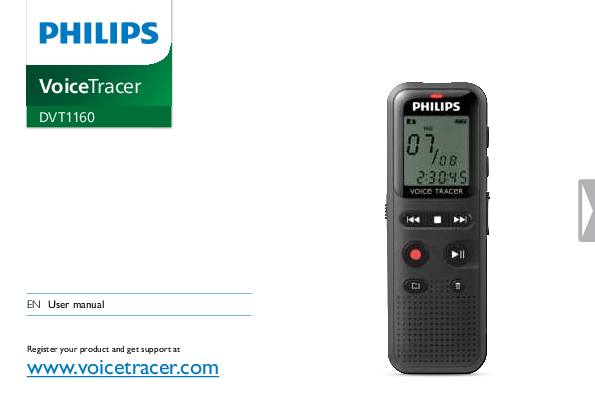
File info: application/pdf · 36 pages · 3.08MB
Voice Tracer
2 About this user manual. You can find a quick overview of your device in the following pages. For detailed description, see the following chapters of this user manual. Read this.. View
PDF Voice Tracer
2 About this user manual. You can find a quick overview of your device in the following pages. For detailed description, see the following chapters of this user manual. Read this user manual carefully.
Philips DVT1160/00 User Manual
Philips VoiceTracer Audio Recorder DVT1160/00 B&H Photo Video
Full PDF Document

If the inline viewer fails, it will open the original document in compatibility mode automatically. You can also open the file directly.
Extracted Text
VoiceTracer
DVT1160
EN User manual
Register your product and get support at
www.voicetracer.com

2

Table of contents

Table of contents
1 Important safety information 1.1 Safety instructions
2 About this user manual 2.1 Symbols used
3 VoiceTracer 3.1 Product highlights 3.2 What's in the box 3.3 Product overview 3.3.1 Front and rear sides 3.3.2 Keys 3.4 Start-up screen 3.4.1 Menu overview
4 First steps 4.1 Inserting the batteries 4.2 Power on/off 4.3 Initial installation process 4.3.1 Setting date & time 4.4 Enabling/disabling the keypad lock 4.5 Accessories 4.5.1 Connecting the headphones 4.6 Connecting to a computer 4.6.1 Transferring files from or to the device 4.6.2 Disconnecting from a computer
Table of contents

5 Record

19

5.1 Recording settings

19

5.1.1 Displaying the remaining recording time

20

5.2 Starting recording automatically

20

5

5.2.1 Using voice activation

20

5

6 Playback

21

7 6.1 Selecting a recording

21

7 6.2 Playing a recording back

21

6.3 Adjusting playback speed

21

8 6.4 Quick search

21

8 6.5 Repeating playback

22

9

6.5.1 Endless loop / sequence repeating

22

10 6.6 Protecting a recording / lock file

23

10 6.7 Unprotect / unlock file

23

11

12 7 Delete

24

13 7.1 Deleting recordings on the device

24

7.2 Deleting all recordings in the folder

24

14

14 8 Settings

25

15 8.1 Recording settings

25

15

8.1.1 Setting recording quality

25

15

8.1.2 Enabling/disabling the record indicator

25

16

8.1.3 Setting microphone sensitivity

26

16

8.1.4 Enabling/disabling voice-activated recording

26

16

8.1.5 Monitoring during recording

27

17

8.1.6 Setting auto divide

27

17 8.2 Device settings

27

18

8.2.1 Enabling/disabling key and signal tones

27

8.2.2 Auto-off

28

3

8.2.3 Setting date & time

28

9 Service

30

9.1 Service functions

30

9.1.1 Memory formatting

30

9.1.2 Device reset

30

9.1.3 Displaying the remaining memory space

31

9.2 Replacing batteries or rechargeable batteries

31

9.3 Updating the firmware

31

9.3.1 Displaying the firmware version

31

9.4 Troubleshooting

32

10 Appendix

33

10.1 Technical data

33

4

Table of contents

1 Important safety information
Do not make any adjustments and modifications that are not described in this manual. Follow all safety instructions to ensure proper operation of the device. The manufacturer assumes no liability for damages resulting from non-compliance with the safety instructions.
1.1 Safety instructions
� Protect the device from rain or water to prevent a short circuit. � Do not expose the device to excessive heat caused by placing it on a
heating device or in direct sunlight. � Protect the cables from damage by being trapped, particularly at the
plugs and where cables exit the housing. � Back up your data and recordings. The manufacturer cannot be held
responsible for any loss of data. � Do not perform any maintenance operations that are not
described in this user manual. Do not disassemble the device into its component parts to carry out repairs. The device may only be repaired in authorised service centres.

1.1.1 Batteries and rechargeable batteries
� Only use AAA batteries with the device. � Never try to recharge alkaline or non-rechargeable batteries. � Remove batteries or rechargeable batteries from the device if it
will not be used for an extended period of time. The device can be damaged by leaking batteries or rechargeable batteries. � Do not remove batteries or rechargeable batteries from the device while it is recording. If you do this, data may be damaged or lost. Device malfunctions may also occur. � Batteries and rechargeable batteries contain substances that may pollute the environment. Used batteries and rechargeable batteries should be disposed of at an official collection point.

Table of contents

5

1.1.2 Hearing protection

1.1.4 Legal restrictions on recording

Observe the following guidelines when using headphones: � Set the volume to a moderate level and do not use headphones to
listen for excessively long periods of time. � Be particularly careful to avoid adjusting the volume to a level that
your hearing cannot deal with. � Do not turn the volume up so high that you cannot hear what is
going on around you. � In potentially dangerous situations you must be very careful, or
temporarily discontinue use. � Do not use headphones while operating a motorised vehicle, cycling,
or skateboarding, etc. You could be a hazard to yourself and other road users, and possibly be breaking the law.

� The use of the device's recording function is subject to the legal restrictions that may apply in your country. You should also respect the privacy and personal rights of the third parties if you record talks or lectures.
� Please note that, in certain countries, you may be legally required to inform the person you are conversing with on the telephone that you are recording the conversation, or that the recording of telephone conversations is illegal. Please check if the use of such data is legal in your country prior to recording telephone calls.

1.1.3 Maximum sound power
� The manufacturer guarantees compliance with the maximum sound power of its audio players as determined by relevant regulatory bodies, but only with the original model of headphones supplied. If you need to replace these headphones, we recommend contacting your dealer to order the respective original Philips model.

6

Table of contents

2 About this user manual
You can find a quick overview of your device in the following pages. For detailed description, see the following chapters of this user manual. Read this user manual carefully.

Warning
� This symbol warns of danger to persons. Bodily injury or damage could be caused by improper handling.

2.1 Symbols used
Tip
� This symbol identifies information that helps you to use your device more efficiently and simply.

Note
� This symbol indicates notices which you must observe when handling or operating the device.

Caution
� This symbol warns of damage to the device and possible data loss. Damage can be caused by improper handling.

Table of contents

About this user manual 7

3 VoiceTracer
We are delighted that you have chosen a Philips device. Visit our website for comprehensive support such as user manuals, software downloads, warranty information and much more: www.voicetracer.
3.1 Product highlights
� Voice-activated recording for hands-free dictating � Highlight important parts of your recording using index marks � Super-fast USB transfer of recordings and data � USB mass storage ensures optimum compatibility � Fast and simple file management using four folders
8 VoiceTracer

Table of contents

3.2 What's in the box
a Device b Two AAA batteries c Quick-start guide d USB cable to connect to a computer
Note � If any item is missing or damaged, please contact your distributor.
Table of contents

Quick Guide
VoiceTracer 9

3.3 Product overview
3.3.1 Front and rear sides
a ON/OFF switch / HOLD (keypad lock) b Micro USB port for computer connection c Status LED:
Red � device is recording Green � device is playing back Yellow � data is being transferred to/from the computer d Display e Operating panel with keys f Speaker g Operating panel with keys h Microphone i Headphone socket (stereo jack, 3.5 mm) j Battery compartment
10 VoiceTracer

Table of contents

3.3.2 Keys a a Stop mode: Change folder b g Start recording (record key), confirm selection c h Short press: jump to the previous recording
Long press: fast seek rewind mode Menu navigation: Select setting j Stop playback (stop key), close menu b Short press: jump to the next recording Long press: fast seek forward mode Menu navigation: Select setting d e Play recording back (playback key), Pause playback (pause playback), Menu navigation: call next menu tab, Long press: Change playback speed e z Delete recording (delete key) f Short press: set index mark, long press: Call up index marks (INDEX key) g Call up menu functions (MENU key) h + Increase volume / Increase playback speed � Reduce volume / Reduce playback speed
Table of contents

-

VOL

MENU INDEX +

VoiceTracer 11

3.4 Start-up screen
a Playback/recording time / Remaining recording time / Menu entry
b Indicator for the remaining recording time (in stop mode press stop key j)
c Playback/recording: current number index: number of the current index
d k S � Playback, { � Pause, k � Record e HQ Set recording quality: LP, SP, HQ /
� Set microphone quality: � � high sensitivity (longer distance), � � low sensitivity (shorter distance)
f u Selected folder � u, v, w, x g Z Keypad lock: lock symbol h p Battery charge level i t �Index mark set / Index marks j q �Endless loop: repeat selection/sequence k } � Voice activation switched on l n Set repeat mode: n � no repeat, � � repeat folder playback,
� � repeat file playback m Total number of recordings in the folder / menu option
Note
� The symbol display may vary, depending on the model, the mode and the selected functions.

u v w xZ
LP SP HQ H L
00
��� REMAIN
REC TIME
��:��:��

12 VoiceTracer

Table of contents

3.4.1 Menu overview
Note � In stop mode (start-up screen), press MENU, for at least two
seconds to call the menu. � Repeatedly press e, to select one of the following menus. Setting recording quality Enabling/disabling the record indicator Setting microphone sensitivity Enabling/disabling voice-activated recording Monitoring during recording Enabling/disabling key and signal tones Auto-off Setting date & time Memory formatting Device reset Setting auto divide Displaying the remaining memory space
Table of contents

VoiceTracer 13

4 First steps

2 Fold the cover out.

Use the installation guide on the following pages to start using your device quickly and easily.
Caution
� Follow the instructions on handling the device, especially the batteries and rechargeable batteries (see also chapter 1.1.1 Batteries and rechargeable batteries, page 5).

3 Insert the batteries or rechargeable batteries into the device as
shown. Ensure correct polarity!

4.1 Inserting the batteries
Your device is supplied with two AAA batteries.
1 Slide the battery compartment cover downwards.

4 Fold the cover in. Push the cover up until it engages.

14 First steps

Table of contents

4.2 Power on/off
1 Slide the on/off switch on the side of the device downwards for
approximately two seconds. X The device turns on and the start-up screen is displayed.

4.3 Initial installation process
When using for the first time, you must set the date and time of the device.
4.3.1 Setting date & time Follow the description in the chapter "Setting date & time" (see also chapter 8.2.3 Setting date & time, page 28).

2 To power off, pull down the power switch on the side of the device
again and hold for about two seconds.
Note
� The device switches itself off automatically if no key is pressed within a pre-set period of time (see also chapter 8.2.2 Auto-off, page 28).

Table of contents

First steps 15

4.4 Enabling/disabling the keypad lock

4.5 Accessories

The keypad lock deactivates all keys on the device. The timer function of the device continues to function.

4.5.1 Connecting the headphones

1 Slide the HOLD switch up into the HOLD position to lock the
keypad of the device.
X The lock symbol Z appears on the display.

Warning
� Set the volume to a moderate level and do not use headphones to listen for excessively long periods of time. Exposure to intense sound can cause hearing damage. Observe the Hearing safety instructions (see also chapter 1.1.2 Hearing protection, page 6).

1 Turn down the volume of the device before you plug in the
headphones.

2 Insert the stereo jack into the headphone connection EAR on the
top of the device.

2 Slide the HOLD switch down to the Off position to disengage the
HOLD. EAR

EAR

16 First steps

Table of contents

3 Turn up the volume until you reach a comfortable listening level.
The speaker is switched off when headphones are connected.
4.6 Connecting to a computer
You can select one of the following options once you have connected the device to a computer � A USB mass storage device: You can use the File Explorer to
access the device data without installing additional software. It is automatically displayed, similarly to a USB memory stick or card, as a mass storage device. It is a convenient way to store, back up and and move files. (see also chapter 4.6.1 Transferring files from or to the device, page 17).
1 Plug the USB connector into a USB port on your computer.
2 Insert the micro USB plug into the USB port on the side of the
device. X The device is displayed as a mass storage device in File Explorer.

Caution
� Do not disconnect the device from the computer while files are transferred from or to the device (the status LED indicator flashes yellow when data is being transferred). This this may damage or corrupt the files.
� Do not format the drive of the device on a computer. If you want to delete all data, use the FMT (FORMAT) function (see also chapter 9.1.1 Memory formatting, page 30).
4.6.1 Transferring files from or to the device
You can use the File Explorer to access the device data without installing additional software. It is automatically displayed, similarly to a USB memory stick or card, as a mass storage device.
1 Connect the device to the computer as described.
2 Open File Explorer.
X The device is automatically displayed, similarly to a USB memory stick or card, as a mass storage device. The Voice folder on the device contains recordings.

3 Copy or move files to your computer or delete files to archive
recordings and free up space on the device.

Table of contents

First steps 17

Caution � Do not disconnect the device from the computer while files are
transferred from or to the device (the status LED indicator flashes yellow when data is being transferred). This this may damage or corrupt the files. � Do not format the drive of the device on a computer. If you want to delete all data, use the FMT (FORMAT) function (see also chapter 9.1.1 Memory formatting, page 30). 4.6.2 Disconnecting from a computer
1 Select Eject USB in File Explorer. 2 Disconnect the USB cable from the computer.
18 First steps

Table of contents

5 Record

3 Press g to pause recording.
X The record/play indicator will blink red.

The device offers many features that you can use during recording or to improve the quality of a recording. Use the timer and the voice activation functions to start recording automatically.

4 Press the g key to resume recording. 5 Press the j key to stop recording.
X The device returns to stop mode.

5.1 Recording settings
Before starting a recording, set the required recording quality and microphone sensitivity.
Caution
� Do not remove batteries or rechargeable batteries from the device while it is recording. If you do this, data may be damaged or lost. Device malfunctions may also occur.
1 In stop mode (start-up screen), press a to select the desired
folder for the recording. X The following symbols will be displayed, depending on the selected folder: u, v, w, x � internal memory.

Note
� Start a new recording: To stop the current recording and start a new one, press b.
� To prevent files becoming too big during a long recording, for example a meeting lasting several hours, you can automatically split recordings (see also chapter 8.1.6 Setting auto divide, page 27).
� Each folder can store up to 99 files. The size of the memory depends on the recording quality (see also chapter 8.1.1 Setting recording quality, page 25). If the recording time or the number of files exceeds the available capacity, recording stops and a message is displayed. You cannot make any more recordings. Delete the recordings which you no longer require, or connect the device to a computer and transfer the files to your computer.

2 Point the built-in microphone toward the sound source and press
g. X The record/play indicator lights red. The display indicates the
duration of the recording.

Tip
� Before starting a long recording session, replace or recharge the batteries before beginning.

Table of contents

Record 19

5.1.1 Displaying the remaining recording time
1 In stop mode press the stop key j.
X The remaining recording time in the memory is shown in hours and minutes.

3 Press the j key to stop recording.
X The device returns to stop mode.

5.2 Starting recording automatically
The following methods are available for automatic starting of recording: Voice activation.
5.2.1 Using voice activation
When voice-activated recording is enabled, recording will start when you begin speaking. When you stop speaking, the device will automatically pause recording after three seconds of silence, and resume only when you begin speaking again.
1 Customize the voice-activated recording settings in the Settings
menu and turn on the feature (see also chapter 8.1.4 Enabling/ disabling voice-activated recording, page 26). X If this feature is on, the } symbol is displayed.
2 Press the g key.
X The devices switches to standby mode. The symbol for a paused recording is shown on the display. Recording will start when you begin speaking. When you stop speaking, the device will automatically pause recording after three seconds of silence.

20 Record

Table of contents

6 Playback
6.1 Selecting a recording 1 In stop mode (start-up screen), press a to select the desired
folder for the recording. X The following symbols will be displayed, depending on the selected folder: u, v, w, x � internal memory.
2 Press b while the device is stopped.
X The position indicator jumps to the start of the next file.
3 Press h while the device is stopped.
X The position indicator jumps to the start of the preceding recording.
6.2 Playing a recording back 1 Select the required file as described. 2 Press e to playback the selected file.
X The record/play indicator will light green. During playback, the time indication for the recording is shown on the display.
3 Press the + / � buttons to adjust the volume. 4 Press the e key to pause playback.
X The playback will stop and the green LED will start blinking.
Table of contents

5 Press e to continue playback from the previous position. 6 Press the j key to stop playback.
6.3 Adjusting playback speed 1 Press and hold the playback key e for at least 3 seconds during
playback.
2 Press + / � to set the desired playback speed. 3 Press the record key, g, to confirm.
6.4 Quick search
You can scan backward or forward in the current file at a fast speed. This allows to find a specific part of the recording.
1 During playback press and hold one of the two navigation keys h
or b. X The selected recording is searched for at high speed in either forward or rewind mode.
2 Release the key
Playback 21

6.5 Repeating playback
You can automatically repeat playback of a certain file, folder or sequence (=loop).

6.5.1 Endless loop / sequence repeating
1 Select the required file as described. 2 Press e to playback the selected file.

1 Select the required file as described.

3 Press a, to specify the sequence start point.

2 Press e to playback the selected file.
3 Press MENU briefly.
4 Using either h / b, select whether you wish either the playback
of an individual recording or a folder to repeat automatically. X The symbol of the selected repeat mode is displayed on the display: n � no repeat � � repeat folder playback � � repeat file playback

4 Press a, to specify the sequence end point.
X The selected sequence is played in an endless loop.
5 Press a, to stop repeating of the sequence and continue with
normal playback.

5 Press the record key, g, to confirm.

22 Playback

Table of contents

6.6 Protecting a recording / lock file
You can protect recordings against unintentional deletion.
1 Select the required file as described. 2 Press MENU briefly. 3 Using h / b select LOCK. 4 Press the record key, g, to confirm. 6.7 Unprotect / unlock file 1 Select the required file as described. 2 Press MENU briefly. 3 Using h / b select UNLOCK. 4 Press the record key, g, to confirm.
Table of contents

Playback 23

7 Delete

7.2 Deleting all recordings in the folder

You can delete an individual recording on the device or all the recordings in the folder
7.1 Deleting recordings on the device
You can delete individual recordings from the device. Connect the device to a computer if you want to delete multiple files.
Caution
� Only delete the recordings that you no longer need. Keep in mind that deleted recordings can not be recovered.

You can delete all recordings in the selected folder. Connect the device to a computer if you want to rename an entire folder.
1 In stop mode (start screen), select the folder in which you wish to
delete all recordings by pressing a.
2 Press the delete key z. 3 Select DELALL by pressing h / b. 4 Press g to confirm the deletion.
X All recordings in the folder are deleted. The numbering of the recordings is renewed.

1 In stop mode (start-up screen) select the folder in which you wish
to delete a recording by pressing a.

2 Press h / b to select the recording that you wish to delete. 3 Press the delete key z. 4 Select DELONE by pressing h / b. 5 Press g to confirm the deletion.
X The recording is deleted. Sequential file numbers are reassigned automatically.

24 Delete

Table of contents

8 Settings
Press and hold the MENU key for at least two seconds while the device is stopped (start-up screen) to enter the Settings menu.
Note

3 Press h / b to select the required recording quality.
X The selected quality setting symbol is shown on the display. HQ � High Quality,
Format: WAV, 384 kbit/s SP � (Short play) above-average recording time,
Format: WAV, 128 kbit/s LP � (Long play) longest recording time,
Format: WAV, 32 kbit/s

� Press the j key at the end of an operation to return to the stop mode. Press the j key during the operation to cancel the
operation without saving and return to the stop mode.

4 Press the record key, g, to confirm. 5 Press the j key to exit the menu.

8.1 Recording settings
8.1.1 Setting recording quality Use the recording quality settings to set the file format and the quality of the recording as the data rate (bit rate). The higher the recording quality the bigger the file and the less recordings you can create.

Tip � Press the j key to cancel the operation without saving and return
to the stop mode.
8.1.2 Enabling/disabling the record indicator This function allows you to switch off the status LED.

1 In stop mode (start-up screen), press MENU for at least two
seconds.

1 In stop mode (start-up screen), press MENU for at least two
seconds.

2 Press e to select the MODE function.

2 Press e to select the LED function.

3 Press h / b, to select whether you want to turn the status LED
on or off.

4 Press the record key, g, to confirm.

Table of contents

Settings 25

5 Press the j key to exit the menu.
Tip
� Press the j key to cancel the operation without saving and return to the stop mode.

5 Press the j key to exit the menu.
Tip
� Press the j key to cancel the operation without saving and return to the stop mode.

8.1.3 Setting microphone sensitivity
You can customize the microphone settings to suit the recording conditions. Adjust the recording sensitivity to avoid recording background noises and to adapt to the recording environment.
1 In stop mode (start-up screen), press MENU for at least two
seconds.
2 Press e to select the SENS function.
3 Press h / b to select the required recording quality.
X The selected microphone/recording sensitivity symbol is shown on the display: � � high sensitivity, source far away � � low sensitivity, source very near
4 Press the record key, g, to confirm.

8.1.4 Enabling/disabling voice-activated recording If voice-activated recording is enabled, recording session will start when you begin speaking. When you stop speaking, the device will automatically pause recording after three seconds of silence, and resume only when you begin speaking again.
1 In stop mode (start-up screen), press MENU for at least two
seconds.
2 Press e to select the VA function.
3 Press h / b ON or OFF, to switch voice activation on or off.
4 Press the record key, g, to confirm.
X If this feature is on, the } symbol is displayed.
5 Press the j key to exit the menu.
Tip
� Press the j key to cancel the operation without saving and return to the stop mode.

26 Settings

Table of contents

8.1.5 Monitoring during recording Using this feature you can listen to the current recording using the headphones (see also chapter 4.5.1 Connecting the headphones, page 16).
1 In stop mode (start-up screen), press MENU for at least two
seconds.
2 Press e to select the LISTEN function.
3 Press h / b ON or OFF, to switch the feature on or off.
4 Press the record key, g, to confirm.
5 Press the j key to exit the menu.
Tip
� Press the j key to cancel the operation without saving and return to the stop mode.
8.1.6 Setting auto divide You can automatically divide large recordings, such as a multi-hour meeting recording. Once the set time has been reached, the device stops the current recording and automatically starts a new one.

1 In stop mode (start-up screen), press MENU for at least two
seconds.
2 Press e to select the DIVIDE function. 3 Press h / b, to select whether longer recordings are to be
automatically divided after 30 or 60 minutes, or switch the feature off.
4 Press the record key, g, to confirm. 5 Press the j key to exit the menu.
Tip
� Press the j key to cancel the operation without saving and return to the stop mode.
8.2 Device settings
8.2.1 Enabling/disabling key and signal tones
1 In stop mode (start-up screen), press MENU for at least two
seconds.
2 Press e to select the BEEP function. 3 Press h / b, to enable/disable the key and signal tones.

Table of contents

Settings 27

4 Press the record key, g, to confirm. 5 Press the j key to exit the menu.
Tip
� Press the j key to cancel the operation without saving and return to the stop mode.
8.2.2 Auto-off The device switches off automatically if no key is pressed within a preset period of time. This saves power.

8.2.3 Setting date & time The date and time entered are saved with each recording as the recording time.
1 In stop mode (start-up screen), press MENU for at least two
seconds.
2 Press e to select the 00.00.00 function. 3 Press b.
4 Press + / � to set the year.

1 In stop mode (start-up screen), press MENU for at least two
seconds.
2 Press e to select the AU OFF function.
3 Press h / b, to automatically turn the device off after 5, 15, 30
or 60 minutes' inactivity.

5 Press b. 6 Press + / � to set the month. 7 Press b. 8 Press + / � to set the day.

4 Press the record key, g, to confirm.

9 Press b.

5 Press the j key to exit the menu.

10 Press + / � to set the hours.

Tip

11 Press b.

� Press the j key to cancel the operation without saving and return to the stop mode.

12 Press + / � to set the minutes. 13 Press b.

28 Settings

Table of contents

14 Press + / � to set the seconds. 15 Press the record key, g, to confirm. 16 Press the j key to exit the menu.
Tip � Press the j key to cancel the operation without saving and return
to the stop mode.
Table of contents

Settings 29

9 Service

4 Press the record key, g, to confirm.
Tip

Do not perform any maintenance operations that are not described in this user manual. Do not disassemble the device into its component parts to carry out repairs. The device may only be repaired in authorised service centres.
9.1 Service functions

� Press the j key to cancel the operation without saving and return to the stop mode.
9.1.2 Device reset This function is used to return all settings to the factory defaults. Recordings and files are not deleted.

9.1.1 Memory formatting

1 In stop mode (start-up screen), press MENU for at least two
seconds.

Caution
� Formatting the memory deletes all recordings and files saved on the device.
You can use this feature to delete all data and format the selected memory.
1 In stop mode (start-up screen), press MENU for at least two
seconds.
2 Press e to select the FMT (FORMAT) function. 3 Select YES by pressing h / b.

2 Press e to select the RESTORE function.
3 Press h / b to select YES.
4 Press the record key, g, to confirm.
X All device settings will be reset to the factory defaults. You must reset the date and time (see also chapter 4.3 Initial installation process, page 15).
5 Press the j key to exit the menu.

30 Service

Table of contents

9.1.3 Displaying the remaining memory space
1 In stop mode (start-up screen), press MENU for at least two
seconds.
2 Press e to select the REMAIN function.
X The remaining memory space in megabytes is shown on the display.

Note
� If it takes longer than 2 minutes to replace the batteries, you may have to reset the time.
� Never try to recharge alkaline or non-rechargeable batteries. � Batteries and rechargeable batteries contain substances that
may pollute the environment. Used batteries and rechargeable batteries should be disposed of at an official collection point.

3 Press the j key to exit the menu.

9.3 Updating the firmware

9.2 Replacing batteries or rechargeable batteries
Caution
� Do not remove batteries or rechargeable batteries from the device while it is recording. If you do this, data may be damaged or lost. Device malfunctions may also occur.
When the batteries are nearly empty, the battery indicator blinks; you should replace them. Proceed as described in 4.1 Inserting the batteries.

Your device is controlled by an internal program called firmware. As a part of ongoing product maintenance, the firmware is upgraded and errors are corrected. It is possible that a newer version (an "update") of the firmware has been released since you purchased the device. In this case you can easily update your device to the latest version.
You can find more information under www.philips.com/dictation.
9.3.1 Displaying the firmware version
1 In stop mode (start-up screen), press MENU for at least two
seconds.

2 Press e to select the REMAIN function.

3 Press MENU for at least two seconds.
X The version number and date of the firmware is indicated on the display.

Table of contents

Service 31

9.4 Troubleshooting

Problem

Possible cause/solution

The device does not turn on � The batteries or rechargeable batteries are not inserted correctly. X Check to ensure that the batteries or rechargeable batteries are correctly inserted. Make sure the polarity is correct.
� Batteries are empty. X Replace or recharge the batteries.

The device does not playback � The keypad lock may be enabled.

recordings

X Slide the HOLD switch to the

"Off" position.

� No recordings are saved in the device.

Problem

Possible cause/solution

The recording session does not start

� Voice activation may be switched on. � Keypad lock (HOLD) is switched on.
X Slide the HOLD switch to the "Off" position. � The maximum number of recordings may have been reached or the available space for recording is full. X Delete some recordings or move them to an external device.

I cannot hear anything from the headphones.

� The headphones are incorrectly connected. X Check the headphone connection.
� The volume is at the lowest setting.

The device does not respond.

Remove the batteries/rechargeable batteries and insert them again.

I cannot hear anything from � A headset is connected to the device.

the speaker.

� The volume is at the lowest setting.

32 Service

Table of contents

10 Appendix
The information in this user manual has been produced to the best of our knowledge. It (particularly the technical data) may be modified or updated at any time without prior notice.

Technical data Recording format
Speaker

10.1 Technical data
Technical data Dimensions Weight
Batteries USB connection USB input Headset connection Display
Internal memory

37 � 108 � 20 mm 70 g (incl. batteries/rechargeable batteries) 2 � AAA alkaline batteries High-speed 2.0, Micro-USB USB 5 V/DC �, 500 mA Stereo jack, 3.5 mm 22 � 24.6 mm Segment display NAND-Flash, 8 GB

Recording time Internal storage
Battery life
Sampling rate
System requirements Temperature Humidity

Table of contents

HQ � WAV, 384 kbit/s SP � WAV, 128 kbit/s LP � WAV, 32 kbit/s Frequency range: 750 � 18,000 Hz Output: 1 W HQ � 48 h SP � 146 h LP � 590 h Recording in LP mode: 44 h (alkaline batteries) HQ � 24 kHz SP � 8 kHz LP � 8 kHz Operating system: Windows, macOS 5 �C � 45 �C / 41 �F � 113 �F 10 % � 90 %
Appendix 33

~
The conformity with the relevant EU directives is confirmed by the CE mark.
Declaration of Conformity Speech Processing Solutions GmbH hereby declares that the device fully complies with the basic requirements and other relevant provisions of Directives 2006/95/EC, 2004/108/EC and 2009/125/EC. A complete Declaration of Conformity for this product is available at www.philips.com/dictation.
This product was manufactured using high-quality materials and components which may be recycled and reused. Adhere to the applicable statutory provisions, and only dispose of these products at official collection points. The proper disposal of the device helps avoid potential adverse impacts on environment and health.
-- Y
Packaging: Please observe the recycling and packaging provisions applicable in your country. Batteries: Used batteries should be disposed of at an official collection point.

Product: The crossed dustbin symbol on your product indicates that special waste regulations shall apply to the electrical and electronic equipment contained therein. In keeping with the provisions of the EU Directive relating to the disposal of waste electrical and electronic equipment and the protection of the environment and the health, old devices which are no longer required, may be disposed of as follows: � Your dealer will take care of the old equipment when you buy a new device from him. � Used devices should be disposed of at an official collection point. Neither Speech Processing Solutions GmbH nor its affiliates shall be liable to the purchaser of this product or third parties with respect to claims for damages, losses, costs or expenses incurred by purchaser or third parties as a result of an accident, misuse or abuse of this product or unauthorized modifications, repair, modification of the product or failure to meet the operating and maintenance instructions provided by Philips. This User Manual is a document with no contractual nature. We accept no liability for changes, mistakes or printing errors. Philips and the Philips Shield Emblem are registered trademarks of Koninklijke Philips NV and are used by Speech Processing Solutions under license from Koninklijke Philips NV. Trademarks are the property of their respective owners.

>

34 Appendix

Table of contents

Table of contents

35

� 2021 Speech Processing Solutions GmbH. All rights reserved. Documents Version 1.0, 2021/06/30