

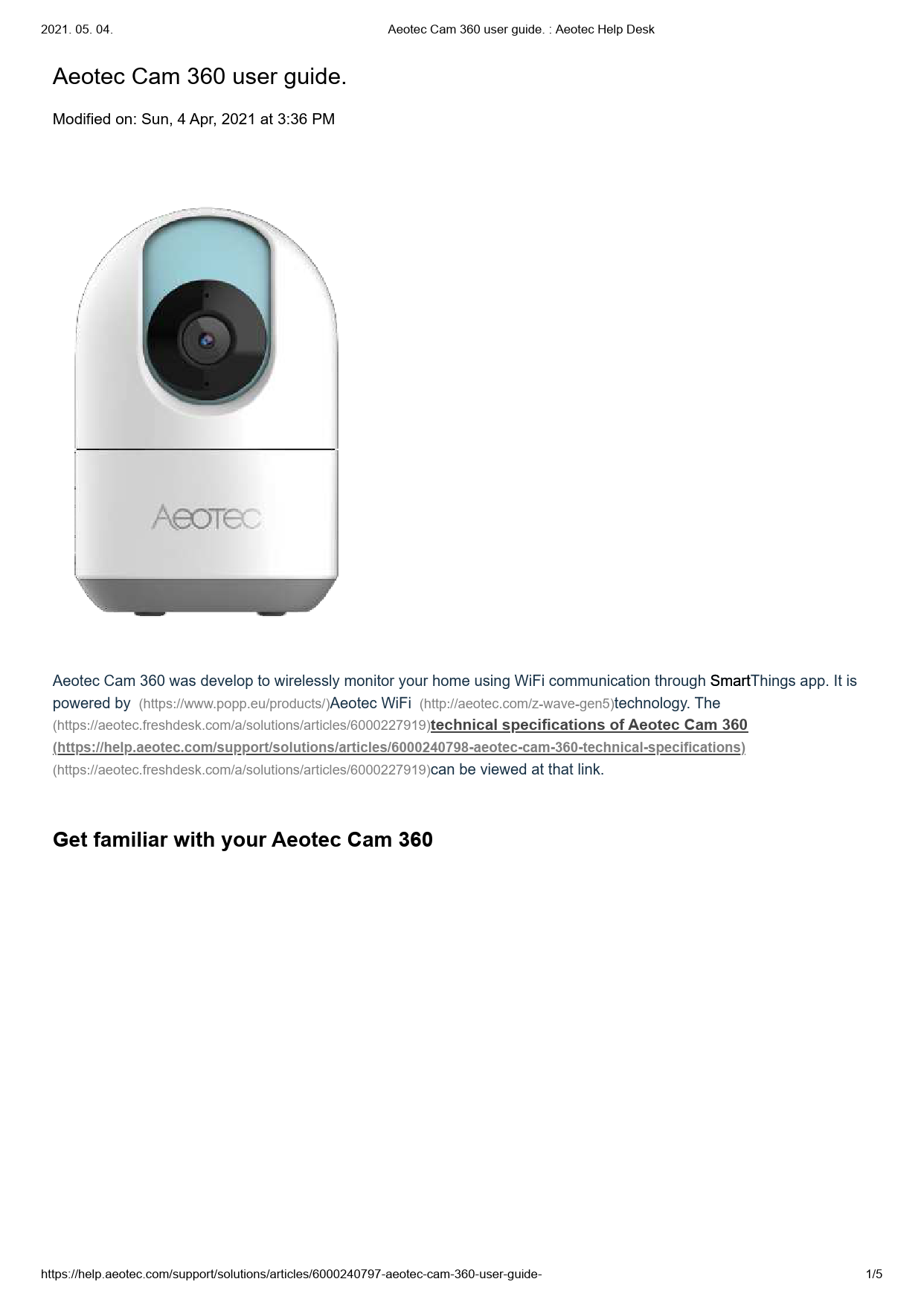
Aeotec Cam 360 User Guide
Modified on: Sun, 4 Apr, 2021 at 3:36 PM
Introduction
The Aeotec Cam 360 is designed to wirelessly monitor your home using WiFi communication through the SmartThings app. It is powered by Aeotec WiFi technology.
You can view the technical specifications of the Aeotec Cam 360 at the provided link: Aeotec Cam 360 technical specifications.
Get Familiar with your Aeotec Cam 360
The Aeotec Cam 360 features a white, dome-shaped design with a rotating head. Key components include:
- Status Indicator light
- Lens
- Microphone (MIC)
- Speaker
- Reset Button
- Micro-USB Charging Port
Package Content
- Aeotec Cam 360
- USB Cable
- Power Adapter
LED Status Indicator
| LED Status Indicator | Status |
|---|---|
| No light | Power off |
| Blue on | Power on |
| Blue Slowly Blinking | Voice communication |
| Blue Quickly Blinking | Reset |
| Alternately flashes Blue and Amber | Firmware update |
| Amber on | Network is disconnected or firmware update fail |
| Amber Quickly Blinking | Ready for QR scanning |
| Amber Slowly Blinking | Recording |
Important Safety Use Information
- For indoor use only.
- Avoid installing in wet or humid places.
- Avoid installing in high temperature environments, such as near radiators, stoves, or other heat sources.
- Avoid installing on appliances that generate vibration, such as refrigerators or air conditioners.
- Avoid installing it near devices that emit strong radio waves, as this may degrade Wi-Fi performance.
- This product can be placed on a flat surface, such as a desk or table.
- This product can be mounted on a wall or ceiling with supporting installation accessories.
- This product does not rotate its head beyond the allowed range of -180° to +180°.
Install your Aeotec Cam 360
The Aeotec Cam 360 requires a power connection via its Micro-USB port using the provided USB cable and power adapter. The camera can rotate its head up to 180 degrees in either direction.
Pair to SmartThings Connect
Before proceeding, ensure your phone is connected to the same WiFi network as the device and download the SmartThings App.
SmartThings is available for Android devices (minimum 2GB RAM, Android 7.0 or higher recommended) and iOS devices (iOS 11 or later required). For more details on iOS, visit: SmartThings App Details.
Through QR Code:
- Open the SmartThings Connect app.
- Tap the 'Add' (+) icon.
- Tap 'Device'.
- Select 'Scan QR code'.
- Scan the QR Code located on the Aeotec Cam 360.
- Plug the Cam 360 into any outlet within range of your WiFi Router.
- Once SmartThings Connect discovers the device, choose its Room and Location.
- Tap 'Next'.
- Select a WiFi Network for the Aeotec Cam 360 and enter the security password.
If you are having issues:
- Select 'Add Device Manually'.
- Input the Aeotec Cam 360 Serial Number.
Through Catalog (Alternative Method):
- Open SmartThings Connect.
- Tap 'Add' (+).
- Tap 'Device'.
- Choose Brand "Aeotec".
- Select "Camera".
- Tap "Start", then plug in your Aeotec Cam 360 within range of your WiFi Router.
- Scan the QR code on the Aeotec Cam 360.
- Once SmartThings Connect discovers the device, choose its Room and Location.
- Tap 'Next'.
- Select a WiFi Network for Aeotec Cam 360 and enter the security password.
Other Functions
Factory Reset
If you encounter issues connecting the Cam 360 to SmartThings Connect, perform a factory reset using these steps:
- Hold the reset button on the back of the Cam 360 for 3 seconds.
- Release the reset button when the LED begins blinking blue.
- The speaker will announce, "The camera is booting, please wait," confirming the reset.
- Once the LED begins blinking amber, the Cam 360 is factory reset and ready for pairing.
WiFi Signal Strength
This feature in SmartThings Connect allows you to check the signal strength between your WiFi Router and the Aeotec Cam 360. Use this if your Cam 360 becomes unavailable.
- Select Cam 360 in SmartThings Connect.
- Tap 'More Options' (three-dot icon) in the top right corner.
- Tap "Check WiFi signal strength".
Troubleshooting
LED is not blinking amber upon initial power
If the indicator light flashes amber, it indicates the Cam 360 has successfully booted. If the light is not flashing amber, reset the device using the Factory Reset steps.
Mobile discovery error
If the Cam 360 is unable to pair with your mobile device after a factory reset, follow these steps:
- Confirm the LED indicator is blinking amber.
- Power cycle your Cam 360 (remove power, wait 30 seconds, then reconnect).
- Ensure the Cam 360 is within range of your mobile device for onboarding.
- Force close and re-open the SmartThings Connect app.
- Ensure the QR code is scanned correctly.
- Use the manual method of adding the Cam 360.
Device setup error
If the Cam 360 pairs with your mobile device but fails to onboard, these steps may help finalize setup:
- Factory reset the Cam 360.
- Confirm the device is within range of your 2.4GHz WiFi network.
- Ensure WiFi credentials were entered correctly.
- Reboot your WiFi router and check for any special network settings (e.g., mesh networks, firewalls) that might affect discovery.
Cam 360 offline
If the Cam 360 goes offline after being added to SmartThings Connect, follow these steps:
- Confirm the Cam 360 is receiving power and the LED indicator is on.
- Confirm the Cam 360 is within range of your WiFi network by checking its signal strength.
- Reboot the Cam 360 by unplugging and plugging it back in.
- Reboot your WiFi router and verify no network changes have occurred.
- Remove the Cam 360 from your SmartThings Connect app, factory reset it, and reconnect it.
If SmartThings Connect app does not work
Please restart the app. If the issue persists, contact support@smartthings.com.
