

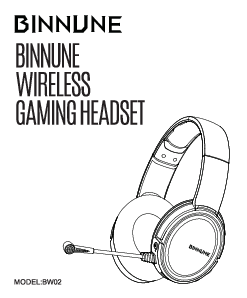
BINNUNE BW02 Wireless Gaming Headset
Model: BW02
Contents
a. Info and Table of Contents
Package Contents
- BINNUNE BW02 Wireless Gaming Headset
- 2.4G Wireless Transmitter
- User Manual
- 3.5mm Audio Cable
- USB Type-c Charging Cable
Engine Requirements
Platforms:
- Windows 7 - Windows 10
- Mac OS X 10.8 - 10.11
See page 12 for details.
b. Product Overview
The BINNUNE BW02 Wireless Gaming Headset features:
- 01 Retractable Headband
- 02 Soft Memory Protein Ear Cushions
- 03 Unidirectional Microphone
- 04 Mic Mute Button
- 05 2.4G Wireless Transmitter
- 06 3.5mm Audio Cable
- 07 USB Type-c Charging Cable
- 08 Master Volume Wheel
- 09 Power Button
- 10 3.5mm Audio Port
- 11 USB Type-c Charging port
c. Setup
1. Using with PC/Mac in Wireless Mode
Connect the 2.4G Wireless Transmitter to your PC or Mac.
LED Indicator:
- Solid Tone: Connected
- Blue lights flash: Failure
Steps:
- Open Sound settings.
- Choose your output device 'BW02'.
- Choose your input device 'BW02'.
- The BW02 wireless headset can now be used.
2. Using with PS4/PS5 Controller in Wired Mode
Connect the headset to the PS4/PS5 controller using the 3.5mm audio cable.
3. Using with PS4/PS5 Console in Wireless Mode
Plug the USB dongle into the USB port of the PS4 or PS5 console.
Route: Settings → Devices → Audio Devices. Set 'BW02' as Input Device & Output Device.
4. Using with Xbox Controller in Wired Mode
Connect the headset to the Xbox controller using the 3.5mm audio cable.
Note: Wireless mode is not available for Xbox.
Specifications
- Model: BW02
- Headset battery capacity: lithium battery 3.7V/1500mA
- Working time: about 17 hours (70% volume)
- Charging time: about 4 hours
- Standby time: about 200 hours
- Input charging standard: USB Type-C, DC5V/1A
- Frequency response: 20Hz - 20KHz
- Sensitivity: 100±3dB@1KHz
- MIC sensitivity: -38±3dB@1KHz (Unidirectional)
- Wireless Range: Up to 32 feet
d. Power ON/OFF
Power On: Hold the power button for 1 second. The LED indicator will turn blue. ?
Power Off: Hold the power button for 2 seconds. The LED indicator will turn from blue to grey. ?
e. MIC ON/OFF
On: Microphone On
Off: Microphone Off
Press the ON/OFF button once to toggle the microphone mute status.
Note: On the wired mode, the microphone mute function does not work.
f. Headset Charging
Connect the USB Type-c charging cable to the headset and a power source.
LED Indicator:
- Charging: Red LED ?
- Fully Charged: LED turns off ⚪
Output: 5V=1A
Note:
- If your headset is disconnected from your devices and no operation is performed for five minutes, your headset will turn off automatically.
- Insert the 3.5mm audio cable, then the headset turns off and enters the wired mode.
- Low Battery Reminder: When you hear the low battery tone 'battery low' and the red light flashes, please charge the headset in time.
g. Troubleshooting
2.4GHz Wireless
The 2.4GHz connection is available on Windows / Mac / PS4 / PS5.
Charging and Working Time
- Please charge the headset with a 5V/1A standard adapter or via the USB port of PC.
- Generally, it takes 4 hours to fully charge the headset, but the actual charging time may vary according to different charging devices.
- Up to 17 hours working time (at 70% volume) after fully charged.
The Microphone Can Not Work
Wireless mode:
- Check whether you've set the headset as the default recording device.
- Check if the microphone has been turned off.
Wired mode:
- Make sure the line-in cable has been connected tightly.
- Please use a converter cable while connecting with PC.
No Sound or Intermittent Sound from the Headset
- Check if there are other obstacles which affect the transmitter.
- If intermittent sound occurs when you are communicating, check whether the network of your device works smoothly.
- Check whether you've set the headset as the default recording device.
- Check whether the headset is in the lowest volume setting.
Can't Connect to Devices
- Check whether you used a USB Extension Cable or USB Hub. It is not recommended.
- Plug directly into the USB jack of the devices host.
- Try to replace a USB jack. (Some USB jacks may have power shortage)
- For PC, it is recommended to plug into the USB jack at the back of the host.
h. Support
Compatibility table for BINNUNE BW02 Wireless Gaming Headset:
| Device | Wireless | Wired | ||||
|---|---|---|---|---|---|---|
| Sound ✔️ | Mic ✔️ | Mic Mute ✔️ | Sound ✔️ | Mic ✔️ | Mic Mute ❌ | |
| PC | ✔️ | ✔️ | ✔️ | ✔️ | ✔️ (requires splitter adapter not included) | ❌ |
| PS5/PS4 Console | ✔️ | ✔️ | ✔️ | ❌ | ❌ | ❌ |
| Xbox Series X Console | ❌ | ❌ | ❌ | ❌ | ❌ | ❌ |
| PS5/PS4 Controller | ❌ | ❌ | ❌ | ✔️ | ✔️ | ✔️ |
| Xbox Series X Controller | ❌ | ❌ | ❌ | ✔️ (old version requires adapter) | ✔️ | ✔️ |
| Switch | ❌ | ❌ | ❌ | ✔️ | ✔️ | ❌ |
| Cell phone (3.5mm) | ❌ | ❌ | ❌ | ✔️ | ✔️ | ❌ |
| Tablet (3.5mm) | ❌ | ❌ | ❌ | ✔️ | ✔️ | ❌ |
For further assistance, please contact BINNUNE customer support:
Website: www.binnunetech.com
Email: support@binnune.com
