

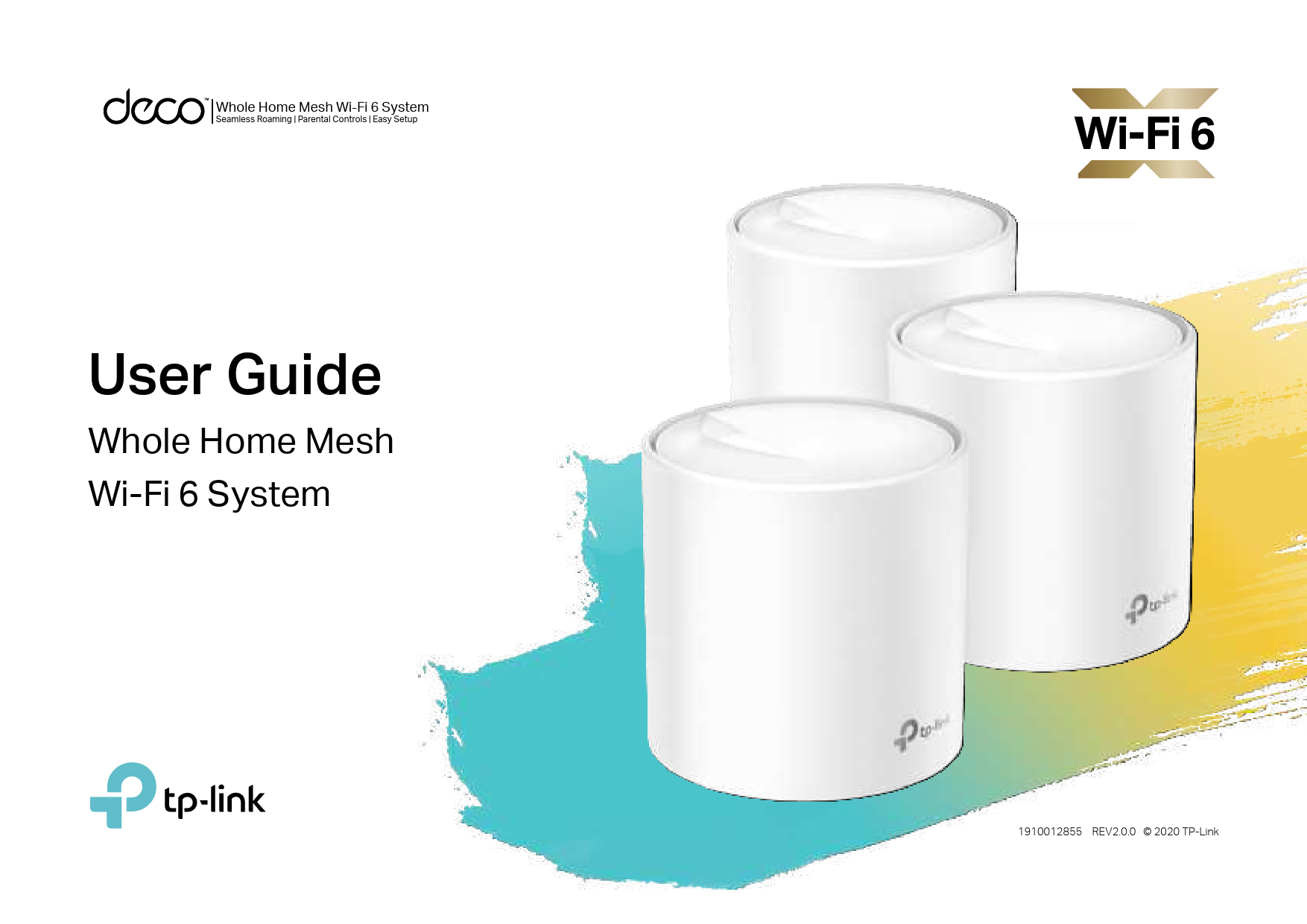
tp-link Deco X20 Whole Home Mesh Wi-Fi 6 System User Guide
File info: application/pdf · 30 pages · 12.23MB
User Guide - TP-Link
Wi-Fi 6 System. 1910012855 REV2.0.0 © 2020 TP-Link ... and operated. Issue Date: 2020-09-24 ... Caution. Operator's manual. Class II ...
User Guide
Issue Date: 2020-09-24. 21. FCC Compliance Information Statement. ... Symbol. DC voltage Caution Operator’s manual.
User Guide - KommaGo
Operator's manual. Class II equipment. Polarity of output terminals. Energy efficiency Marking. Indoor use only. RECYCLING. This product bears the selective ...
Extracted Text
Whole Home Mesh Wi-Fi 6 System
Seamless Roaming | Parental Controls | Easy Setup
User Guide
Whole Home Mesh Wi-Fi 6 System

1910012855 REV2.0.0 � 2020 TP-Link

Contents
About This Guide ���������������������������������������������������� 1 Appearance ��������������������������������������������������������������� 2 Set Up Your Deco ��������������������������������������������������� 3 Dashboard ������������������������������������������������������������������ 6 Overview���������������������������������������������������������������������� 7 Wi-Fi Settings������������������������������������������������������������ 9 Blacklist ����������������������������������������������������������������������10 Online Update ��������������������������������������������������������11 Advanced Features ���������������������������������������������12 WPS ������������������������������������������������������������������������������17 Monthly Report ������������������������������������������������������18 Managers ������������������������������������������������������������������19 Authentication ��������������������������������������������������������20

About This Guide
This guide provides a brief introduction to Deco Whole Home Mesh Wi-Fi System and the Deco app, as well as regulatory information. Features available in Deco may vary by model and software version. Deco availability may also vary by region or ISP. All images, steps, and descriptions in this guide are only examples and may not reflect your actual Deco experience.

Conventions
In this guide, the following conventions are used:

Convention Description

Deco Stands for Deco Whole Home Mesh Wi-Fi System/Unit.

Underline Teal

Hyperlinks are in teal and underlined. You can click to redirect to a website or a specific section.
Key information appears in teal, including management page text such as menus, items, buttons and so on.

Note: Tips:

Ignoring this type of note might result in a malfunction or damage to the device.
Indicates important information that helps you make better use of your device.

More Info
� Specific product information can be found on the product page at https://www.tp-link.com.
� A Technical Community is provided for you to discuss our products at https://community.tp-link.com.
� Our Technical Support contact information can be found at the Help center of the Deco app and the Contact Technical Support page at https://www.tp-link.com/support.

Speed/Coverage/Device Quantity Disclaimer Maximum wireless signal rates are the physical rates derived from IEEE Standard 802.11 specifications. Actual wireless data throughput and wireless coverage, and quantity of connected devices are not guaranteed and will vary as a result of network conditions, client limitations, and environmental factors, including building materials, obstacles, volume and density of traffic, and client location.
MU-MIMO Disclaimer Use of MU-MIMO requires clients to also support MU-MIMO.
HomeCare Disclaimer A basic TP-Link HomeCareTM package, powered by Trend MicroTM, is included for 3 years from date of activation at no additional cost. It includes Parental Controls, Quality of Service, and Antivirus. Deactivation of HomeCareTM will disable certain controls and protections. For a complete list of HomeCareTM functions, go to www.tp-link.com.
IoT Compatibility Disclaimer
IoT compatibility refers only to smart devices that can be controlled via the Deco app. Other wireless devices can still connect to Deco for normal Wi-Fi use.
Seamless Roaming Disclaimer
Clients need to support 802.11k/v/r and may require additional set up. Performance may vary depending on the client device.
1

Appearance
Each Deco has an LED that changes color according to its status, two RJ-45 Ethernet ports, a power slot, and a Reset button. See the explanation below:

Yellow pulse: Deco is resetting. Yellow solid: Deco is starting up.
Blue pulse: Deco is ready for setup. Blue solid: Deco is setting up.
Green pulse: Deco is upgrading firmware. Green solid: Deco is registered and all is well.
Red pulse: Deco is disconnected from main Deco. Red solid: Deco has an issue.

Ethernet Ports: For connecting Deco to your modem, the Ethernet outlet or other internet devices.
Power Slot: For connecting Deco to the power socket via the provided power adapter.
Reset Button: Press for 1 second and release to reset Deco to factory default settings. The light turning pulsing yellow indicates a successful reset.
2

Set Up Your Deco

The intuitive Deco app guides you through an easy setup process that gets each unit up and running and all your devices connected and online. Follow the steps below to set up your Deco Whole Home Mesh Wi-Fi System.

1. Download and install the Deco app
Scan the QR code below or go to Google Play or the Apple App Store to download the Deco app. Install the app on your Android or iOS smartphone or tablet.

2. Log in or sign up with TP-Link ID
Open the app. Use your TP-Link ID to log in.
If you don't have a TP-Link ID, tap Sign Up. The Deco app will guide you through the rest.

3. Connect Deco to your modem
Power off your modem. Connect your Deco to the modem and power them both on.
If you don't have a modem, connect the Ethernet outlet directly to your Deco.

or

3

4. Select a location
Select a location for this Deco. If its location is not listed, you can create a new one by choosing Custom.

5. Set up internet connection
Select the internet connection type and enter the information. If you are not sure, contact your internet service provider.

6. Create your Wi-Fi network
Set a network name and a password. These will be the name and password you use to connect your devices to Wi-Fi.

4

7. Connect to your Wi-Fi network
Connect your devices to the Deco's Wi-Fi to continue the setup.

8. Setup complete
Your Deco network is now up. Connect all devices to the Deco network.

9. Add more Decos
You can add more Decos to expand Wi-Fi coverage.

5

Dashboard
After you successfully set up your Deco network, you will see the dashboard of the Deco app. Here you can get an overview of the network status, create HomeCareTM services, and set up various advanced features.
Note: To use HomeCare services, upgrade your Deco to the latest version.

Tap to enter OVERVIEW

Tap to enter HomeCare

Tap to set up more features

6

Overview
In Overview, you can check the working status of all the Decos, manage the connected devices, add smart devices, use friends of Deco, and more.

Tap to view all connected clients

Tap to check all Deco status

Select a Deco to view the details

7

Swipe right to open the menu

Tap to add more devices

8

Wi-Fi Settings
You can change the network name and password of your main network, create a separate network for guests, and shake your device to share the network details easily with family and friends.

Tap > Wi-Fi

Manage main Wi-Fi network

Enable guest network

Shake to share your network

9

Blacklist
Compile a blacklist to avoid devices added on the blacklist to access to your network, ensuring the safety of your personal information shared in the network.

Tap > Blacklist

Add clients to blacklist

Add other devices to blacklist

Manage blacklist

10

Online Update
Deco is dedicated to improving product features and providing a better customer experience. An up-to-date firmware provides better and more stable network performance. Always update your Deco to the latest firmware version when prompted in the Deco app.

Tap > Update Deco

Update your Deco to the latest version
Tip: If the firmware update fails, please reboot the main Deco, move the Satellite Deco closer to the main Deco, then try to update again.

11

Advanced Features

Additional features are available under the Advanced menu. You can modify WAN settings (IPv4 & IPv6), add IPv6 firewall rules, modify LAN IP, set up DHCP server, enable VLAN/IPTV/MAC Clone mode, reserve the same IP address for a specific device, set up port forwarding rules to make your local computers accessible to other devices over the internet, enable TP-Link DDNS, SIP ALG, fast roaming and beamforming, control Deco's LED, change the working mode, and configure the notification settings.

Tap > Advanced

View IPv4 details

Enable IPv6

Add IPv6 firewall rules

12

Modify LAN IP

Set DHCP server

Enable VLAN mode

Enable IPTV mode

13

Enable MAC Clone

Reserve IP addresses for specific devices

Set up port forwarding rules

Register a TP-Link DDNS domain name

14

Enable SIP ALG

Enable Fast Roaming

Enable Beamforming

Enable LED controls

15

Change the operating mode
Note: When the Deco works in Access Point mode, advanced features such as Parental Controls, QoS, IPv4, Address Reservation, Port Forwarding, and DHCP server are not available.

Set notifications
Note: If the Notifications option shows "Disabled", go to Settings > Notifications on your mobile device to enable it.

16

WPS
WPS (Wi-Fi Protected Setup) helps you to quickly and securely connect a client to a network with a tap without entering any password.

Tap > WPS

Tap the WPS icon on Deco app and then on the client

Successfully connected to the network

17

Monthly Report
Review the monthly usage statistics, such as security threats and total connected network devices each day.

Tap > Monthly Report

View monthly reports

Enable or disable monthly report Clear monthly report data

18

Managers
Add friends and family members to help manage your network. Each manager should have their own TP-Link ID.

Tap > Managers

Add as manager

Set privileges for managers

Manage manager list

19

Authentication
FCC Compliance Information Statement

Product Name: AX1800 Whole Home Mesh Wi-Fi 6 System

Model Number: Deco X20/W3600

Component Name I.T.E POWER SUPPLY I.T.E POWER SUPPLY

Component Model T120150-2B4 T120120-2B4

Product FCC ID TE7X20 TE7X20V2

Product Name: AX3000 Whole Home Mesh Wi-Fi 6 System

Model Number: Deco X60

Component Name I.T.E POWER SUPPLY

Component Model T120200-2B4

Responsible party:
TP-Link USA Corporation, d/b/a TP-Link North America, Inc.
Address: 145 South State College Blvd. Suite 400, Brea, CA 92821 Website: http://www.tp-link.com/us/ Tel: +1 626 333 0234 Fax: +1 909 527 6803 E-mail: sales.usa@tp-link.com This equipment has been tested and found to comply with the limits for a Class B digital device, pursuant to part 15 of the FCC Rules. These limits are designed to provide reasonable protection against harmful interference in a residential installation. This equipment generates, uses and can radiate radio frequency energy and, if not installed and used in accordance with the instructions, may cause harmful interference to radio communications. However, there is no guarantee that interference will not occur in a particular installation. If this equipment does cause harmful interference to radio
20

or television reception, which can be determined by turning the equipment off and on, the user is encouraged to try to correct the interference by one or more of the following measures:

�

Reorient or relocate the receiving antenna.

�

Increase the separation between the equipment and receiver.

�

Connect the equipment into an outlet on a circuit different from that to which the receiver is connected.

�

Consult the dealer or an experienced radio/ TV technician for help.

This device complies with part 15 of the FCC Rules. Operation is subject to the following two conditions:

1. This device may not cause harmful interference.

2. This device must accept any interference received, including interference that may cause undesired operation.

Any changes or modifications not expressly approved by the party responsible for compliance could void the user's authority to operate the equipment.

Note: The manufacturer is not responsible for any radio or TV interference caused by unauthorized modifications to this equipment. Such modifications could void the user's authority to operate the equipment.

FCC RF Radiation Exposure Statement
This equipment complies with FCC RF radiation exposure limits set forth for an uncontrolled environment. This device and its antenna must not be co-located or operating in conjunction with any other antenna or transmitter.
"To comply with FCC RF exposure compliance requirements, this grant is applicable to only Mobile Configurations. The antennas used for this transmitter must be installed to provide a separation distance of at least 20 cm from all persons and must not be co-located or operating in conjunction with any other antenna or transmitter."
We, TP-Link USA Corporation, has determined that the equipment shown as above has been shown to comply with the applicable technical standards, FCC part 15. There is no unauthorized change is made in the equipment and the equipment is properly maintained and operated.

Issue Date: 2020-09-24

21

FCC Compliance Information Statement

Product Name: I.T.E POWER SUPPLY

Model Number: T120150-2B4 / T120120-2B4 /T120200-2B4

Responsible party:

TP-Link USA Corporation, d/b/a TP-Link North America, Inc.

Address: 145 South State College Blvd. Suite 400, Brea, CA 92821

Website: http://www.tp-link.com/us/

Tel: +1 626 333 0234

Fax: +1 909 527 6803

E-mail: sales.usa@tp-link.com

This equipment has been tested and found to comply with the limits for a Class B digital device, pursuant to part 15 of the FCC Rules. These limits are designed to provide reasonable protection against harmful interference in a residential installation. This equipment generates, uses and can radiate radio frequency energy and, if not installed and used in accordance with the instructions, may cause harmful interference to radio communications. However, there is no guarantee that interference will not occur in a particular installation. If this equipment does cause harmful interference to radio or television reception, which can be determined by turning the equipment off and on, the user is encouraged to try to correct the interference by one or more of the following measures:

�

Reorient or relocate the receiving antenna.

�

Increase the separation between the equipment and receiver.

�

Connect the equipment into an outlet on a circuit different from that to which the receiver is connected.

�

Consult the dealer or an experienced radio/ TV technician for help.

This device complies with part 15 of the FCC Rules. Operation is subject to the following two conditions:

1) This device may not cause harmful interference.

2) This device must accept any interference received, including interference that may cause undesired operation.

22

Any changes or modifications not expressly approved by the party responsible for compliance could void the user's authority to operate the equipment. We, TP-Link USA Corporation, has determined that the equipment shown as above has been shown to comply with the applicable technical standards, FCC part 15. There is no unauthorized change is made in the equipment and the equipment is properly maintained and operated.
Issue Date: 2020-09-24
23

CE Mark Warning
This is a class B product. In a domestic environment, this product may cause radio interference, in which case the user may be required to take adequate measures.
OPERATING FREQUENCY(the maximum transmitted power)
2412MHz--2483.5MHz (20dBm) 5150MHz--5250MHz (23dBm)
EU declaration of conformity
TP-Link hereby declares that the device is in compliance with the essential requirements and other relevant provisions of directives 2014/53/EU, 2009/125/EC, 2011/65/EU and (EU)2015/863. The original EU declaration of conformity may be found at http://www.tp-link.com/en/ce
RF Exposure Information
This device meets the EU requirements (2014/53/EU Article 3.1a) on the limitation of exposure of the general public to electromagnetic fields by way of health protection. The device complies with RF specifications when the device used at 20 cm from your body.
Attention: This device may only be used indoors in all EU member states and EFTA countries.
Canadian Compliance Statement
This device complies with Industry Canada license-exempt RSS standard(s). Operation is subject to the following two conditions: 24

1. This device may not cause interference, and 2. This device must accept any interference, including interference that may cause undesired operation of the device. Le pr�sent appareil est conforme aux CNR d'Industrie Canada applicables aux appareils radio exempts de licence. L'exploitation est autoris�e aux deux conditions suivantes : 1. l'appareil ne doit pas produire de brouillage; 2. l'utilisateur de l'appareil doit accepter tout brouillage radio�lectrique subi, meme si le brouillage est susceptible d'en compromettre le
fonctionnement.
Caution:
The device for operation in the band 5150�5250 MHz is only for indoor use to reduce the potential for harmful interference to co-channel mobile satellite systems;
Avertissement:
Le dispositif fonctionnant dans la bande 5150-5250 MHz est r�serv� uniquement pour une utilisation � l'int�rieur afin de r�duire les risques de brouillage pr�judiciable aux syst�mes de satellites mobiles utilisant les m�mes canaux;
Radiation Exposure Statement:
This equipment complies with IC radiation exposure limits set forth for an uncontrolled environment. This equipment should be installed and operated with minimum distance 20cm between the radiator & your body.
D�claration d'exposition aux radiations:
Cet �quipement est conforme aux limites d'exposition aux rayonnements IC �tablies pour un environnement non contr�l�. Cet �quipement doit �tre install� et utilis� avec un minimum de 20 cm de distance entre la source de rayonnement et votre corps.
Industry Canada Statement
CAN ICES-3 (B)/NMB-3(B)
Korea Warning Statements:
     .
25

NCC Notice & BSMI Notice:
   LP0002_3.8.2     5.7.9.1


�

�

�

�

�

�


Equipment name:

Type designation (Type)

AX1800 Whole Home Mesh Wi-Fi 6 System

Deco X20 / Deco W3600

AX3000 Whole Home Mesh Wi-Fi 6 System

Deco X60

26


Restricted substances and its chemical symbols


Unit

Lead Mercury Cadmium Hexavalent Polybrominated

(Pb)

(Hg)

(Cd)

chromium

biphenyls

PCB


-


-


(Cr+6)


(PBB)


1. 0.1 wt %"  "0.01 wt %"


Polybrominated diphenyl ethers
(PBDE)

Note 1"Exceeding 0.1 wt %" and "exceeding 0.01 wt %" indicate that the percentage content of the restricted substance exceeds the reference percentage value of presence condition.

2.""

Note 2"" indicates that the percentage content of the restricted substance does not exceed the percentage of reference value of presence.

3." - "

Note 3The " - " indicates that the restricted substance corresponds to the exemption.

             ,      .

Safety Information � Keep the device away from water, fire, humidity or hot environments.
27

� Do not attempt to disassemble, repair, or modify the device. If you need service, please contact us. � Do not use damaged charger or USB cable to charge the device. � Do not use any other chargers than those recommended. � Do not use the device where wireless devices are not allowed. � Adapter shall be installed near the equipment and shall be easily accessible. Please read and follow the above safety information when operating the device. We cannot guarantee that no accidents or damage will occur due to improper use of the device. Please use this product with care and operate at your own risk.

Explanation of the symbols on the product label

Symbol

DC voltage Caution Operator's manual

Explanation

Class II equipment

Polarity of output terminals

Energy efficiency Marking

Indoor use only
RECYCLING This product bears the selective sorting symbol for Waste electrical and electronic equipment (WEEE). This means that this product must be handled pursuant to European directive 2012/19/EU in order to be recycled or dismantled to minimize its impact on the environment. User has the choice to give his product to a competent recycling organization or to the retailer when he buys a new electrical or electronic equipment.

28