Wedge it com HHR1 AP router User Manual

Wedge-it.com Ltd AP router Users Manual

Users Manual

11n AP Router User’s Manual     1 802.11n WLAN  AP Router   User’s Manual
11n AP Router User’s Manual     2Table of Contents 1 Introduction ........................................................... 6 Features ................................................................................. 6 Device Requirements ............................................................ 6 Using this Document .............................................................. 7 Notational conventions .................................................. 7 Typographical conventions ............................................ 7 Special  messages .......................................................... 7 Getting Support ...................................................................... 7 2 Getting to know the device ................................... 8 Computer / System requirements ......................................... 8 Package Contents .................................................................. 8 LED meanings & activations .................................................. 8 Top Side ......................................................................... 8 Rear and Left Panel and bottom Side ........................... 9 3 Computer configurations under different OS, to obtain IP address automatically ...................................................... 10 For Windows 98SE / ME / 2000 / XP .................................. 10 For Windows Vista-32/64 .................................................... 14 For Windows 7-32/64 ........................................................... 19 For Windows 8-32/64 ........................................................... 24 4 Connecting your device ..................................... 29 Connecting the Hardware .................................................... 29 5 Advanced Configuration ..................................... 31 Advanced Configuration with Router Mode ........................ 31 Wireless Connection ............................................................ 35 6 What the Internet/WAN access of your own Network now is ........................................... 38 Internet/WAN access is the DHCP client ............................ 40 Internet/WAN access is the Static IP ................................... 41 Internet/WAN access is the PPPoE client ........................... 43 7 Getting Started with the Web pages .................. 44 Accessing the Web pages ................................................... 44 Testing your Setup ............................................................... 46 Default device settings ......................................................... 46 8 Quick Setup ........................................................ 48 Static IP ........................................................................ 49
11n AP Router User’s Manual     3Dynamic IP ................................................................... 50 PPPoE .......................................................................... 51 Wireless Basic Setup ........................................................... 52 Finish the Quick Setup ......................................................... 53 9 LAN Interface ..................................................... 54 LAN Interface Setup ............................................................. 54 Changing the LAN IP address and subnet mask .................................................................................. 56 DHCP Static IP Configuration .............................................. 59 10 Internet Setup ..................................................... 61 Configuring Static IP connection ......................................... 64 Configuring DHCP Client connection .................................. 65 Configuring PPPoE connection ........................................... 66 Clone MAC Address ............................................................ 67 11 IPv6 .................................................................... 68 Wireless Basics .................................................................... 68 12 Wireless Network ............................................... 69 Wireless Basics .................................................................... 69 Wireless Multiple BSSID Settings ....................................... 71 WPS Setup ........................................................................... 73 Wireless Advanced Settings ................................................ 74 Wireless Access Control Mode ........................................... 75 Allow Listed .................................................................. 76 Wireless Repeater ............................................................... 78 13 Access Control List Configuration ...................... 81 Access Control List Config ................................................... 81 14 Port Triggering.................................................... 82 Port Triggering Config .......................................................... 82 15 URL Blocking ..................................................... 83 URL Blocking for specified URL Address ........................... 84 16 Dynamic DNS ..................................................... 86 Configure DynDNS .............................................................. 89 Configure TZO ..................................................................... 91 17 QoS .................................................................... 93 18 UPnP .................................................................. 94 19 Virtual Server ...................................................... 95 Configuring Virtual Server .................................................... 95 Configuring custom applications ......................................... 96 Virtual Server for FTP .................................................. 97
11n AP Router User’s Manual     4Port Forwarding for HTTP ........................................... 99 Deleting custom applications ..................................... 101 20 Reboot/Reset ...................................................102 Reboot/Reset ..................................................................... 102 21 Firmware Upgrade ...........................................103 About firmware versions .................................................... 103 Manually updating firmware ............................................... 103 22 Backup/Restore Settings .................................105 Save Settings to File .......................................................... 105 Load Settings from File ...................................................... 106 23 Password .........................................................108 Setting your username and password .............................. 108 24 Time and Date ..................................................110 Time and Date Configuration settings ............................... 110 25 Status ...............................................................112 26 Active Client Table ...........................................113 27 Statistics ...........................................................114 28 IPV6 ..................................................................115 A Configuring your Computers ............................116 Configuring Ethernet PCs .................................................. 116 Before you begin ........................................................ 116 Windows® XP PCs .................................................... 116 Windows 2000 PCs ................................................... 116 Windows Me PCs ...................................................... 118 Windows 95, 98 PCs ................................................. 118 Windows NT 4.0 workstations ................................... 119 Assigning static Internet information to your PCs ................................................................. 120 B IP Addresses, Network Masks, and Subnets ............................................................121 IP Addresses ...................................................................... 121 Structure of an IP address ......................................... 121 Network classes ......................................................... 121 Subnet masks .................................................................... 122 C UPnP Control Point Software on Windows ME/XP ..............................................124 UPnP Control Point Software on Windows ME ................ 124 UPnP Control Point Software on Windows XP with Firewall ..................................................................... 125
11n AP Router User’s Manual     5SSDP requirements ................................................... 125 D Troubleshooting ...............................................128 Troubleshooting Suggestions ............................................ 128 Diagnosing Problem using IP Utilities ............................... 130 ping ............................................................................. 130 nslookup ..................................................................... 130 E Glossary ...........................................................132
11n AP Router User’s Manual     61  Introduction Congratulations on becoming the owner of the Wireless Gateway. You will now be able to access the Internet using your high-speed xDSL/Cable modem connection. This User Guide will show you how to connect your Wireless Gateway, and how to customize its configuration to get the most out of your new product. Features The list below contains the main features of the device and may be useful to users with knowledge of networking protocols. If you are not an experienced user, the chapters throughout this guide will provide you with enough information to get the most out of your device. Features include: •  10/100Base-T Ethernet router to provide Internet connectivity to all computers on your LAN •  Network address translation (NAT) functions to provide security for your LAN • Network configuration through DHCP Server and DHCP Client •  Services including IP route and DNS configuration, RIP, and IP •  Supports remote software upgrades •  User-friendly configuration program accessed via a web browser  The Wireless Gateway has the internal Ethernet switch  allows for a direct connection to a 10/100BASE-T Ethernet  network via an RJ-45 interface, with LAN connectivity for  both the Wireless Gateway and a co-located PC or other  Ethernet-based device. Device Requirements In order to use the Wireless Gateway, you must have the following: •  One RJ-45 Broadband Internet connection via cable modem or xDSL modem •  Instructions from your ISP on what type of Internet access you will be using, and the addresses needed to set up access •  One or more computers each containing an Ethernet card (10Base-T/100Base-T network interface card (NIC)) •  TCP/IP protocol for each PC •  For system configuration using the supplied  a. web-based program: a web browser such as Internet Explorer v4 or later, or Netscape v4 or later. Note that version 4 of each browser is the minimum version
11n AP Router User’s Manual     7requirement – for optimum display quality, use Internet Explorer v5, or Netscape v6.1   Note  You do not need to use a hub or switch in order to connect more than one Ethernet PC to your device. Instead, you can connect up to four Ethernet PCs directly to your device using the ports labeled Ethernet on the rear panel. Using this Document Notational conventions •  Acronyms are defined the first time they appear in the text and also in the glossary. •  For brevity, the Wireless Gateway is referred to as “the device”. • The term LAN refers to a group of Ethernet-connected computers at one site.  Typographical conventions • Italic text is used for items you select from menus and drop-down lists and the names of displayed web pages. • Bold text is used for text strings that you type when prompted by the program, and to emphasize important points. Special messages This document uses the following icons to draw your attention to specific instructions or explanations.  Note Provides clarifying or non-essential information on the current topic.   Definition Explains terms or acronyms that may be unfamiliar to many readers. These terms are also included in the Glossary.   WARNING Provides messages of high importance, including messages relating to personal safety or system integrity. Getting Support Supplied by: Helpdesk Number:  Website:
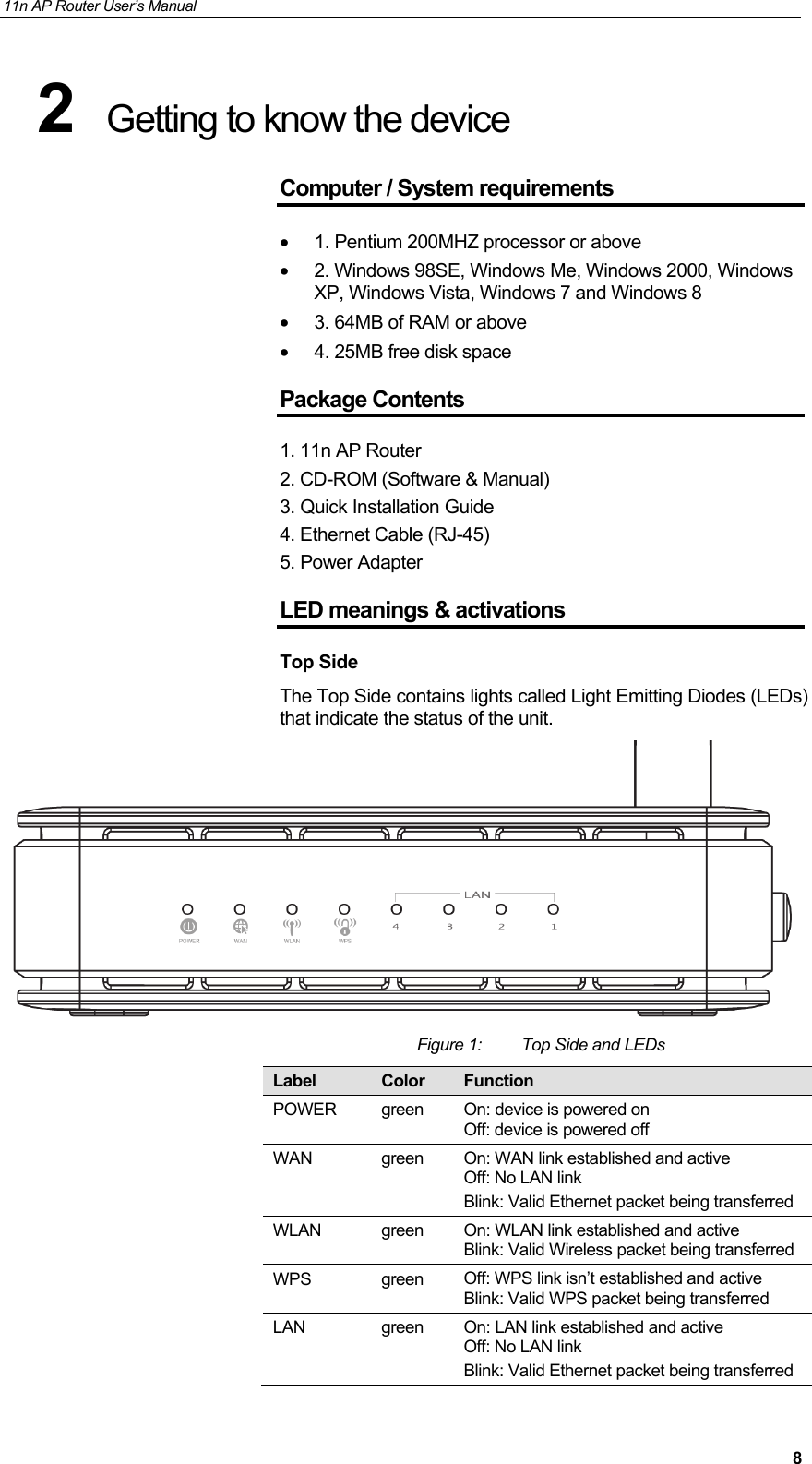
11n AP Router User’s Manual     82  Getting to know the device Computer / System requirements •  1. Pentium 200MHZ processor or above •  2. Windows 98SE, Windows Me, Windows 2000, Windows XP, Windows Vista, Windows 7 and Windows 8 •  3. 64MB of RAM or above •  4. 25MB free disk space Package Contents 1. 11n AP Router 2. CD-ROM (Software & Manual) 3. Quick Installation Guide 4. Ethernet Cable (RJ-45) 5. Power Adapter LED meanings & activations Top Side The Top Side contains lights called Light Emitting Diodes (LEDs) that indicate the status of the unit.  Figure 1:  Top Side and LEDs Label  Color  Function POWER green On: device is powered on Off: device is powered off WAN green On: WAN link established and active Off: No LAN link Blink: Valid Ethernet packet being transferred WLAN green On: WLAN link established and active Blink: Valid Wireless packet being transferred WPS green Off: WPS link isn’t established and active Blink: Valid WPS packet being transferred LAN green On: LAN link established and active Off: No LAN link Blink: Valid Ethernet packet being transferred
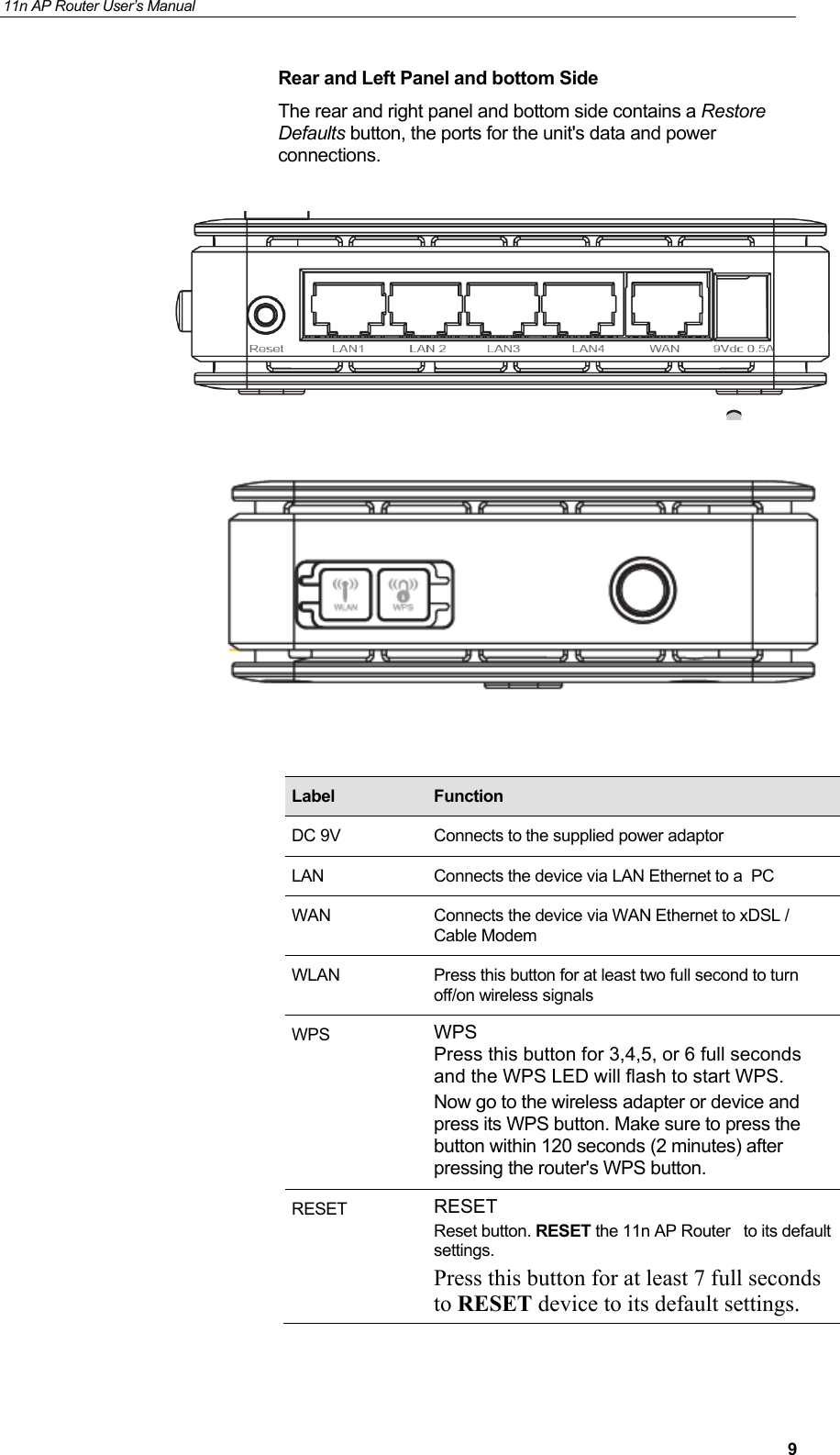
11n AP Router User’s Manual     9Rear and Left Panel and bottom Side The rear and right panel and bottom side contains a Restore Defaults button, the ports for the unit's data and power connections.                                                                                                                                                                                           Label  Function DC 9V  Connects to the supplied power adaptor LAN  Connects the device via LAN Ethernet to a  PC WAN  Connects the device via WAN Ethernet to xDSL / Cable Modem WLAN  Press this button for at least two full second to turn off/on wireless signals WPS  WPS Press this button for 3,4,5, or 6 full seconds and the WPS LED will flash to start WPS. Now go to the wireless adapter or device and press its WPS button. Make sure to press the button within 120 seconds (2 minutes) after pressing the router's WPS button. RESET  RESET Reset button. RESET the 11n AP Router   to its default settings. Press this button for at least 7 full seconds to RESET device to its default settings.
11n AP Router User’s Manual     103  Computer configurations under different OS, to obtain IP address automatically  Before starting the 11n AP Router configuration, please kindly configure the PC computer as below, to have automatic IP address / DNS Server. For Windows 98SE / ME / 2000 / XP 1.  Click on "Start" -> "Control Panel" (in Classic View). In the Control Panel, double click on "Network Connections" to continue.
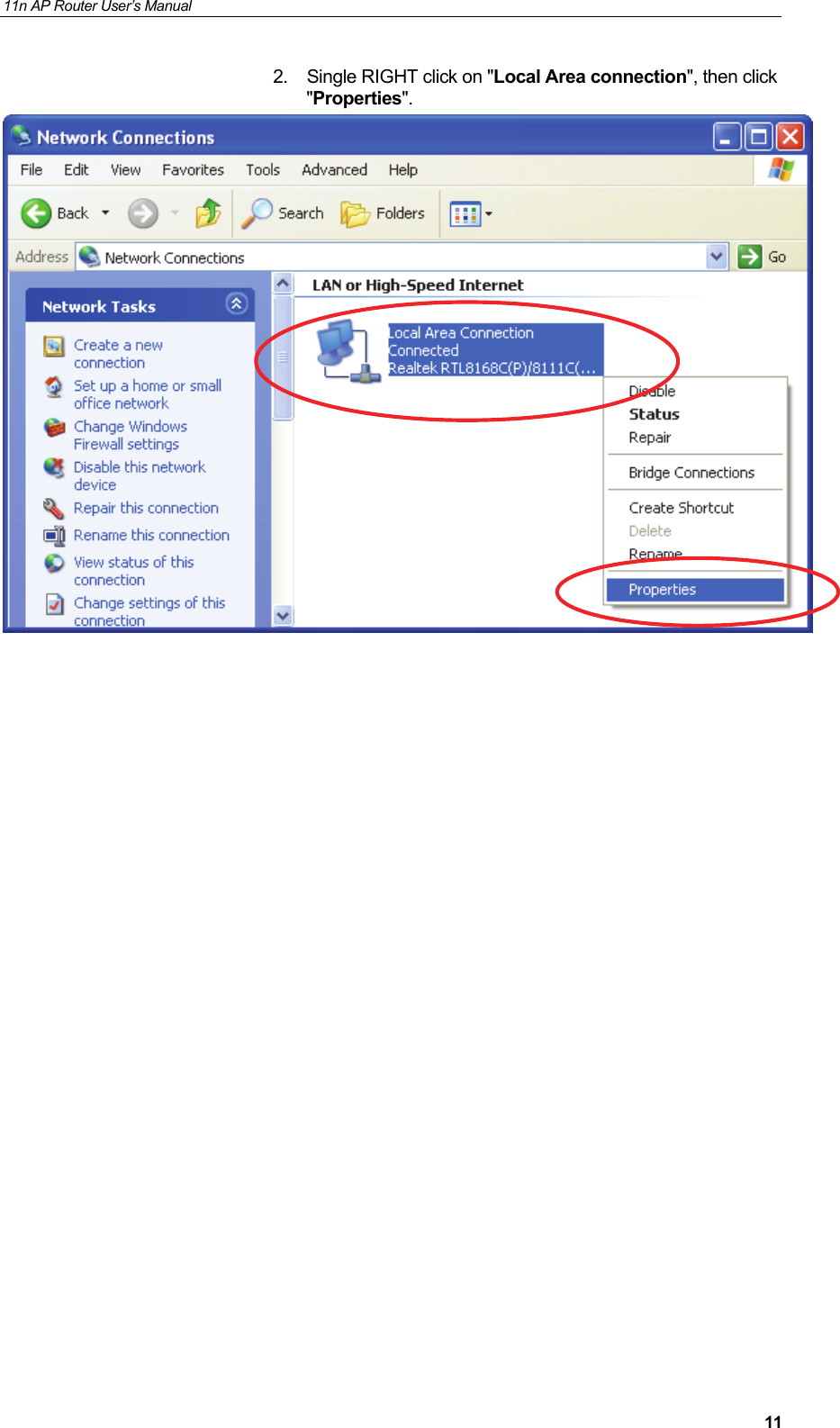
11n AP Router User’s Manual     112.  Single RIGHT click on "Local Area connection", then click "Properties".
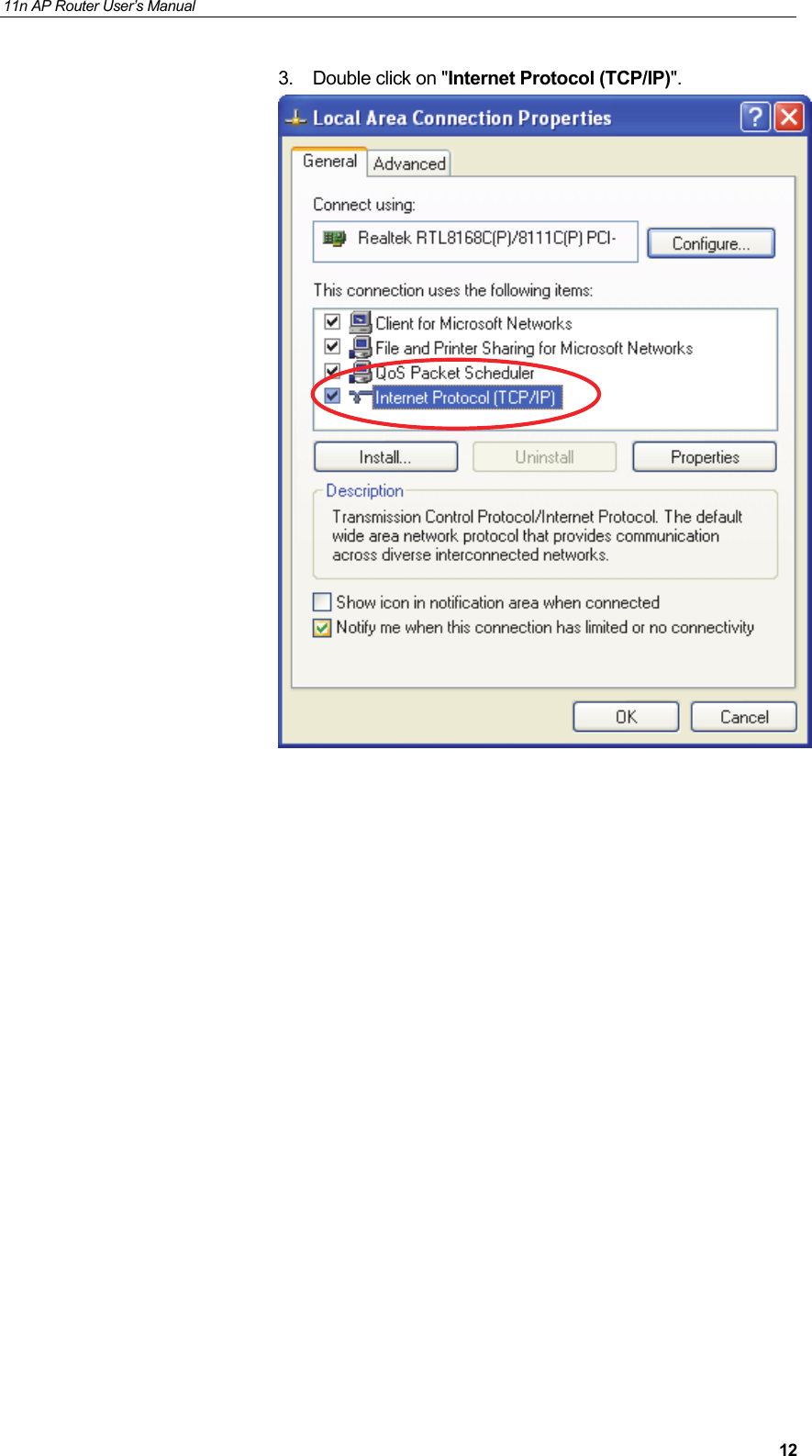
11n AP Router User’s Manual     123.  Double click on "Internet Protocol (TCP/IP)".
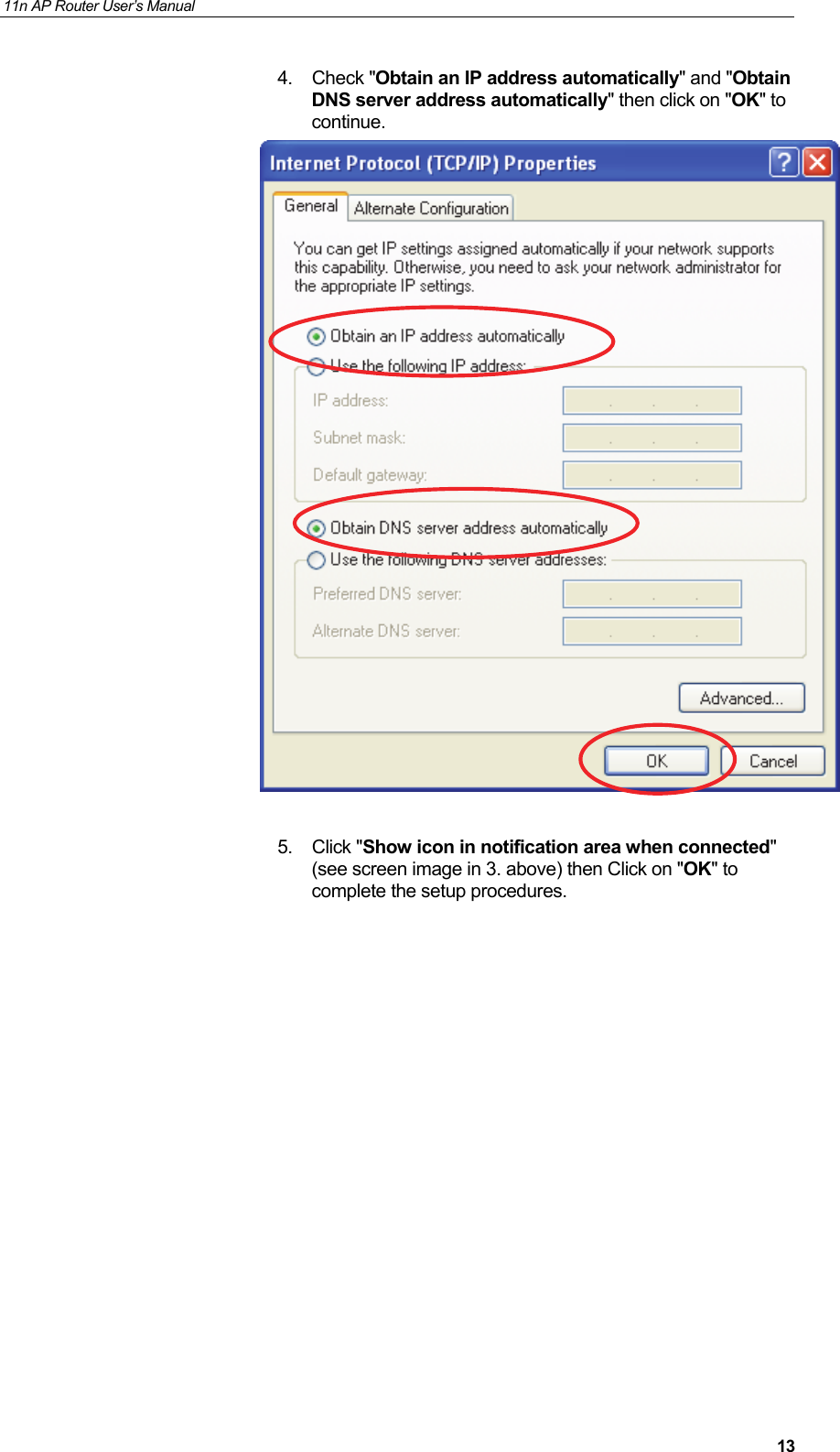
11n AP Router User’s Manual     134. Check "Obtain an IP address automatically" and "Obtain DNS server address automatically" then click on "OK" to continue.   5. Click "Show icon in notification area when connected" (see screen image in 3. above) then Click on "OK" to complete the setup procedures.
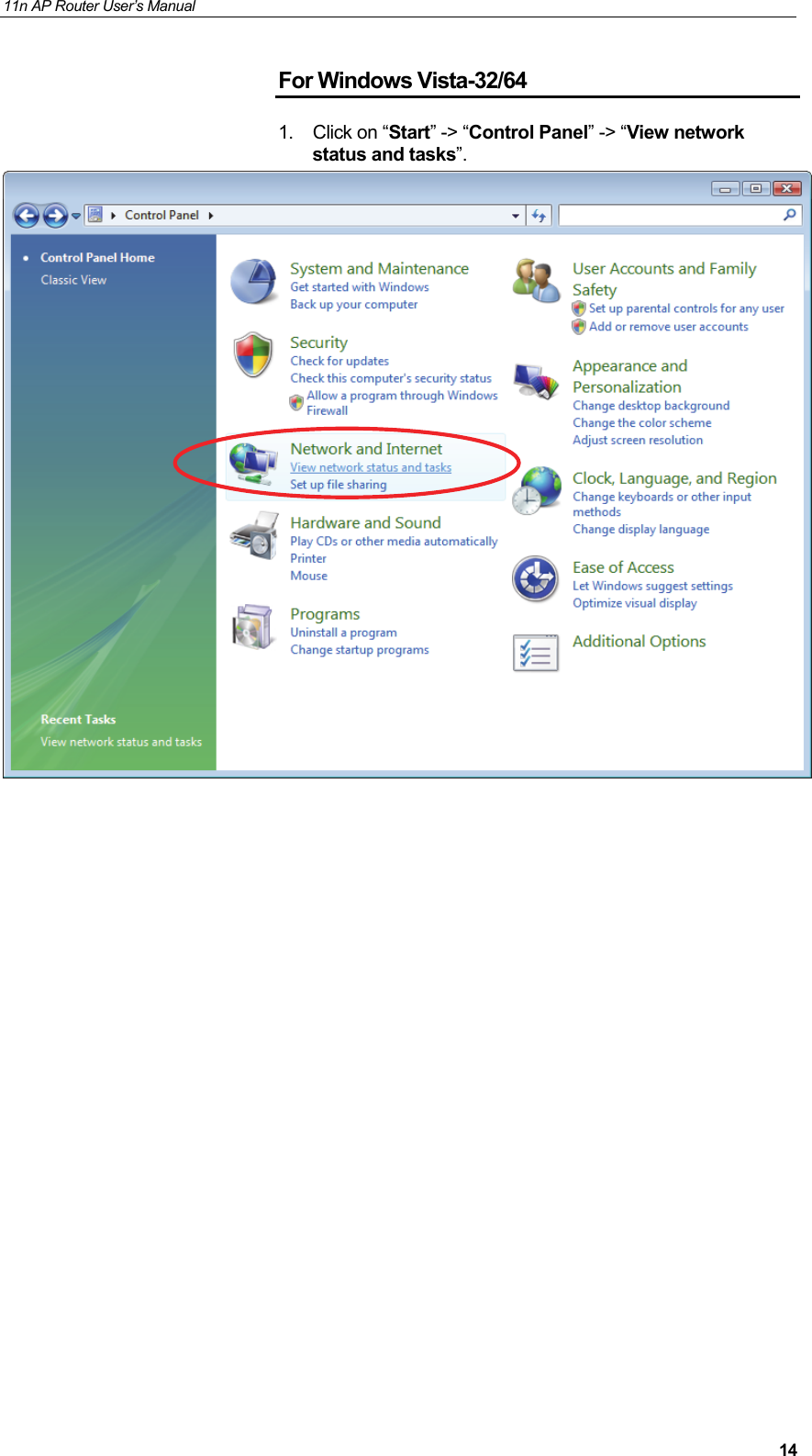
11n AP Router User’s Manual     14For Windows Vista-32/64 1. Click on “Start” -> “Control Panel” -> “View network status and tasks”.
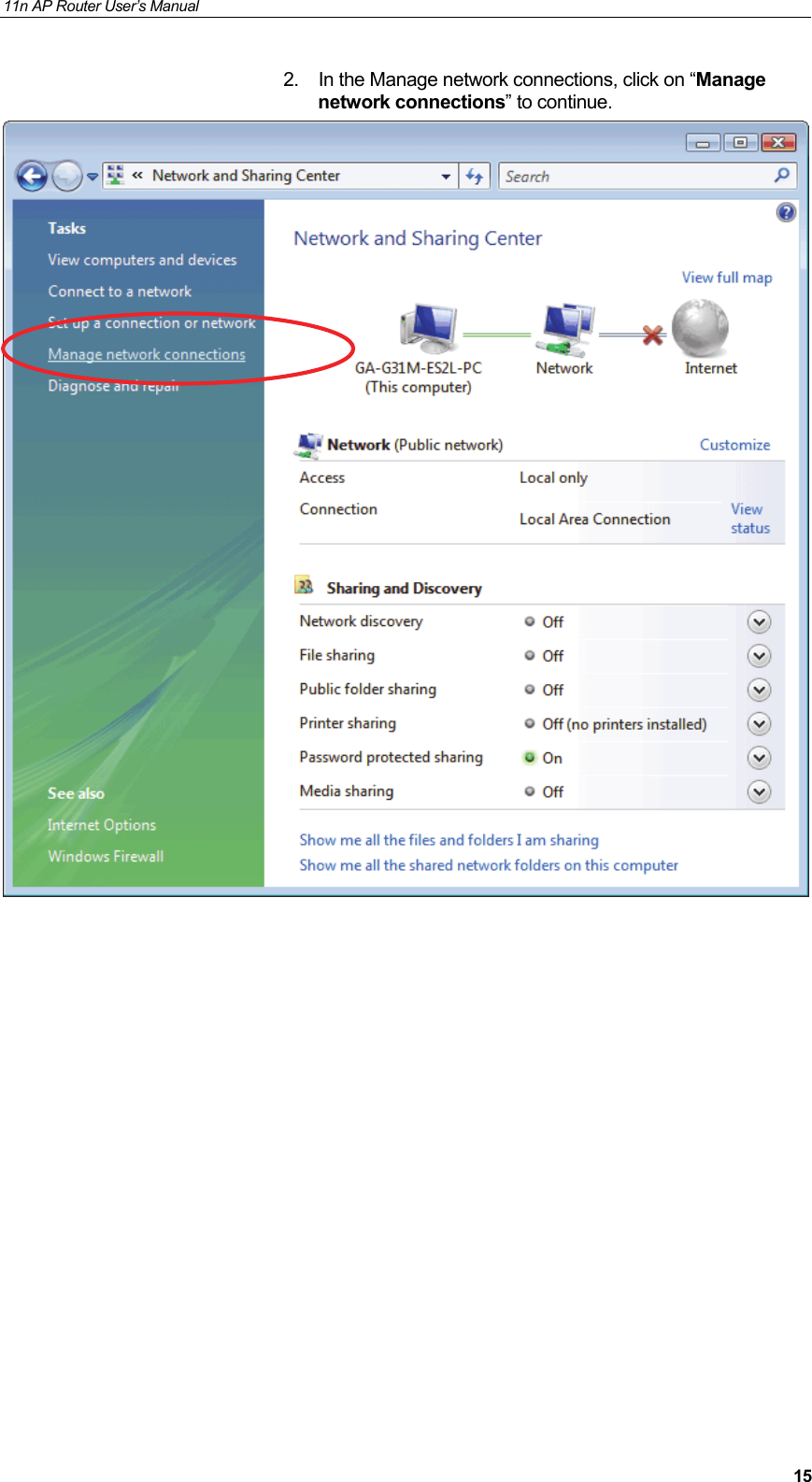
11n AP Router User’s Manual     152.  In the Manage network connections, click on “Manage network connections” to continue.
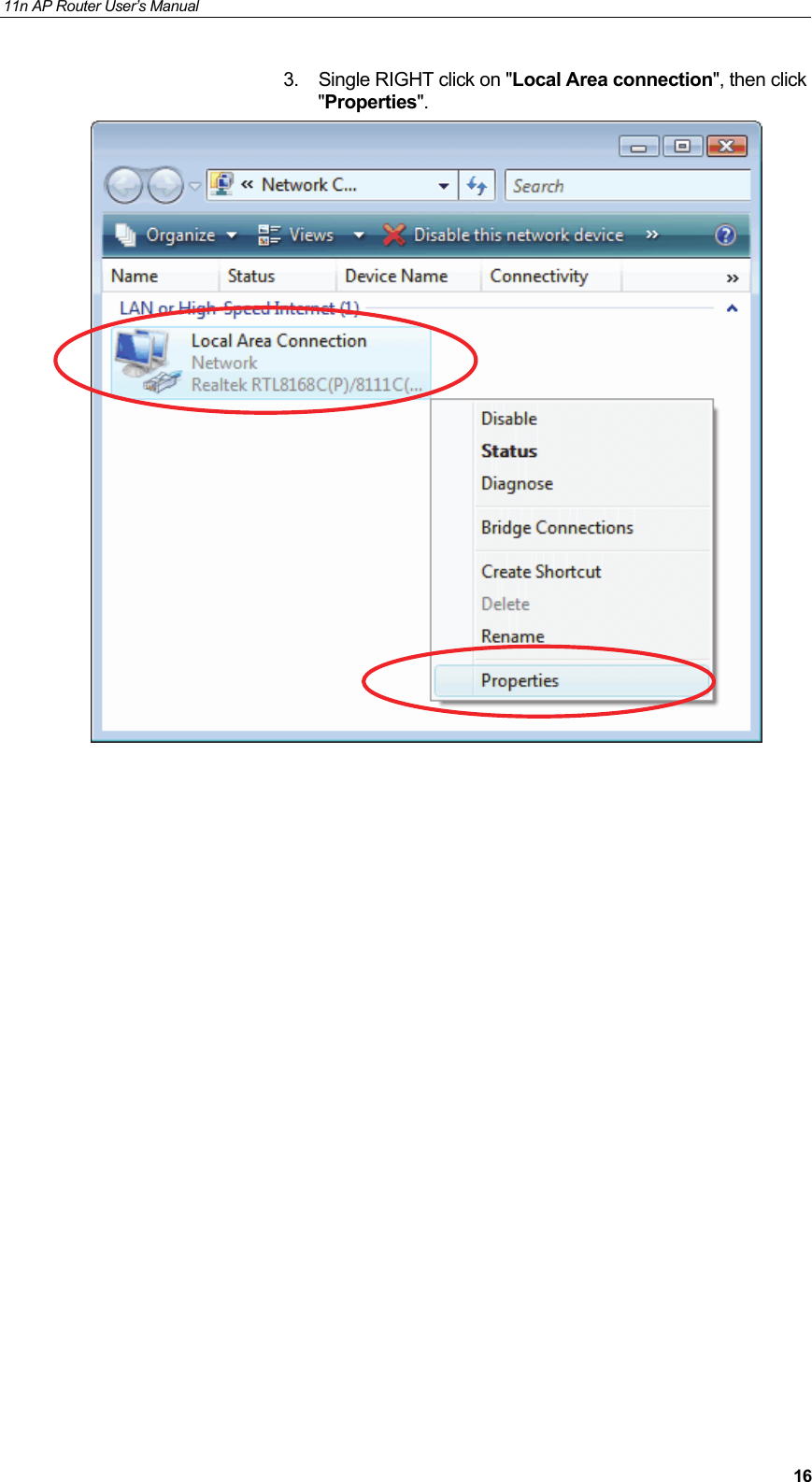
11n AP Router User’s Manual     163.  Single RIGHT click on "Local Area connection", then click "Properties".
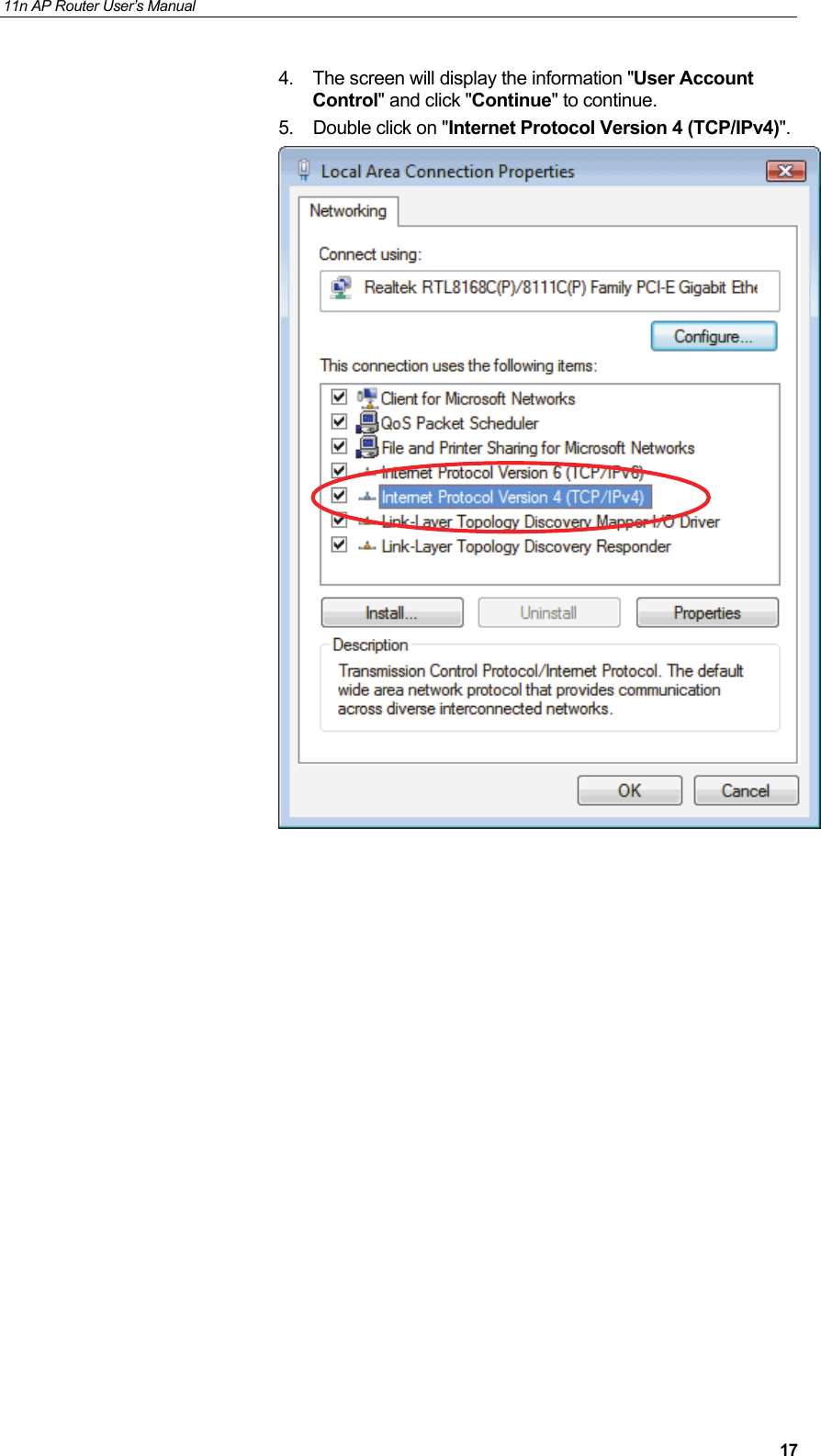
11n AP Router User’s Manual     174.  The screen will display the information "User Account Control" and click "Continue" to continue. 5.  Double click on "Internet Protocol Version 4 (TCP/IPv4)".
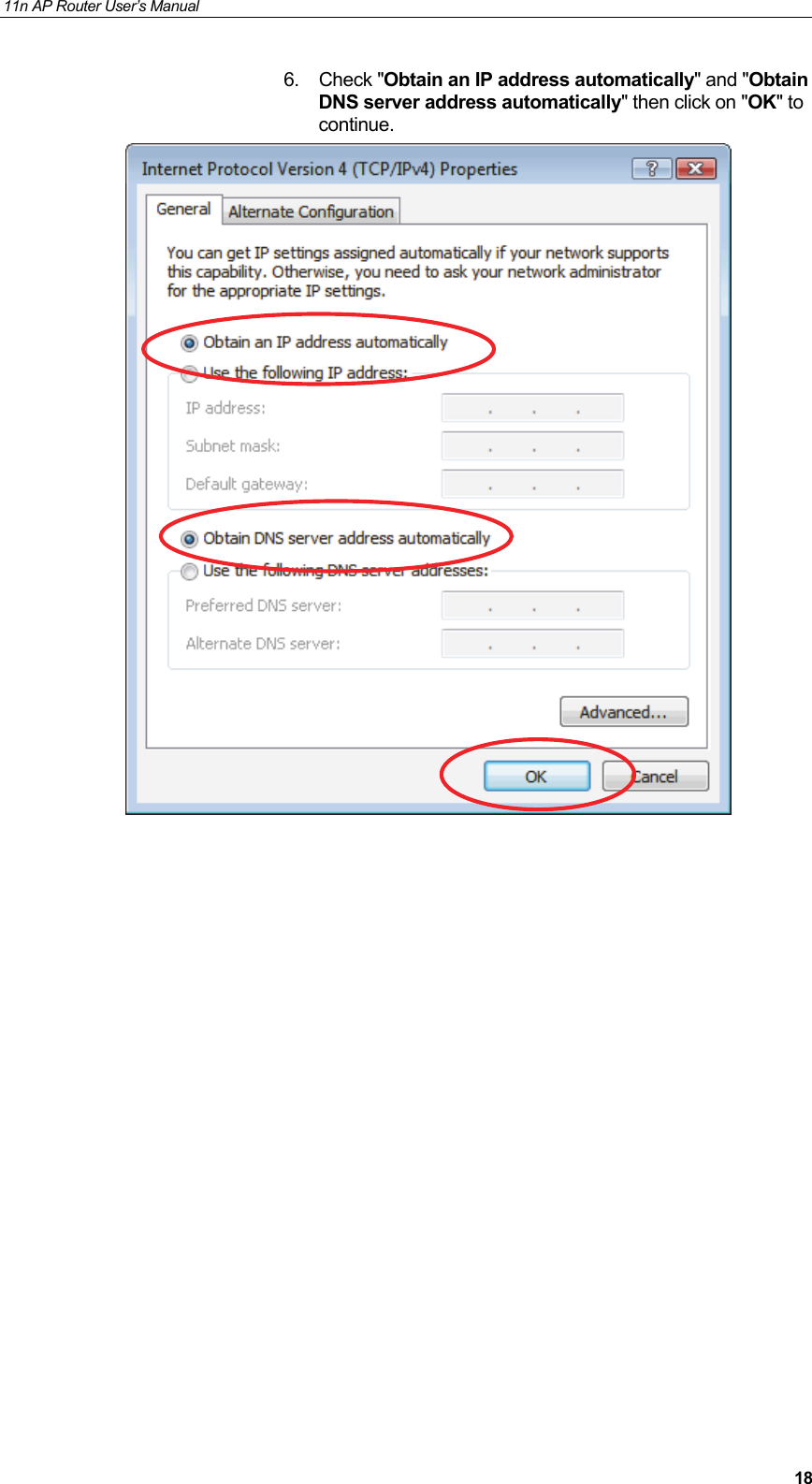
11n AP Router User’s Manual     186. Check "Obtain an IP address automatically" and "Obtain DNS server address automatically" then click on "OK" to continue.
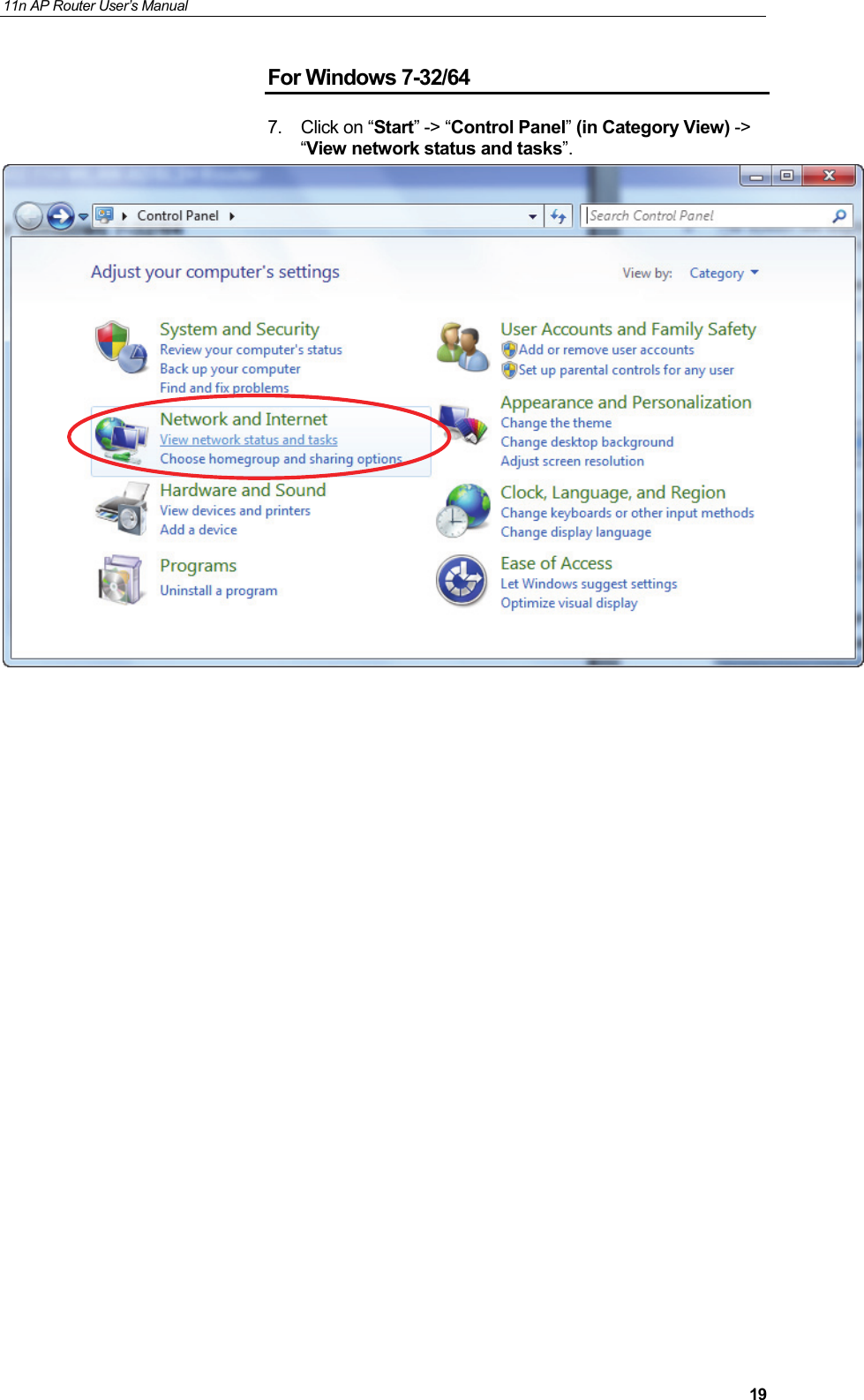
11n AP Router User’s Manual     19For Windows 7-32/64 7. Click on “Start” -> “Control Panel” (in Category View) -> “View network status and tasks”.
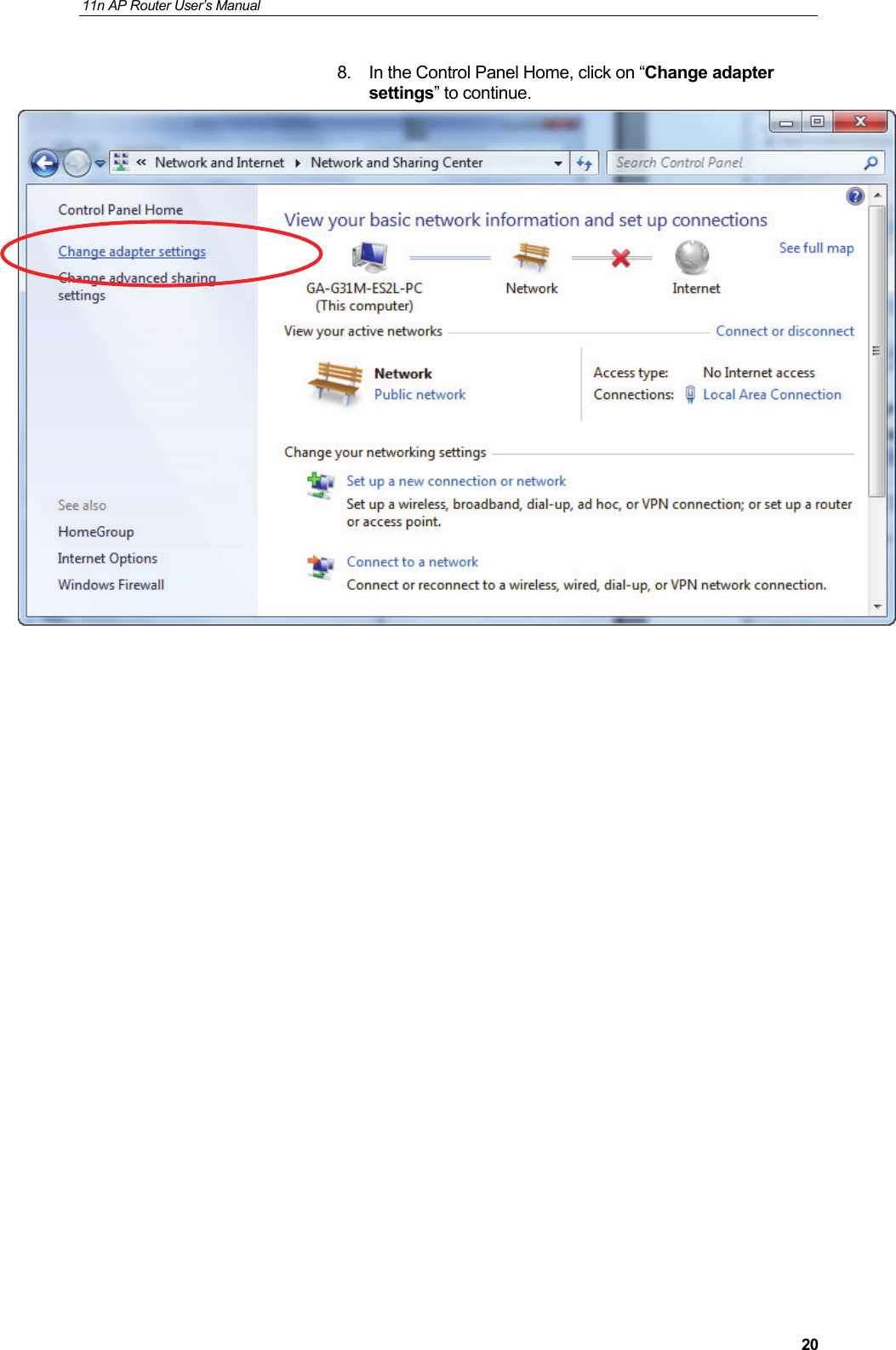
11n AP Router User’s Manual     208.  In the Control Panel Home, click on “Change adapter settings” to continue.
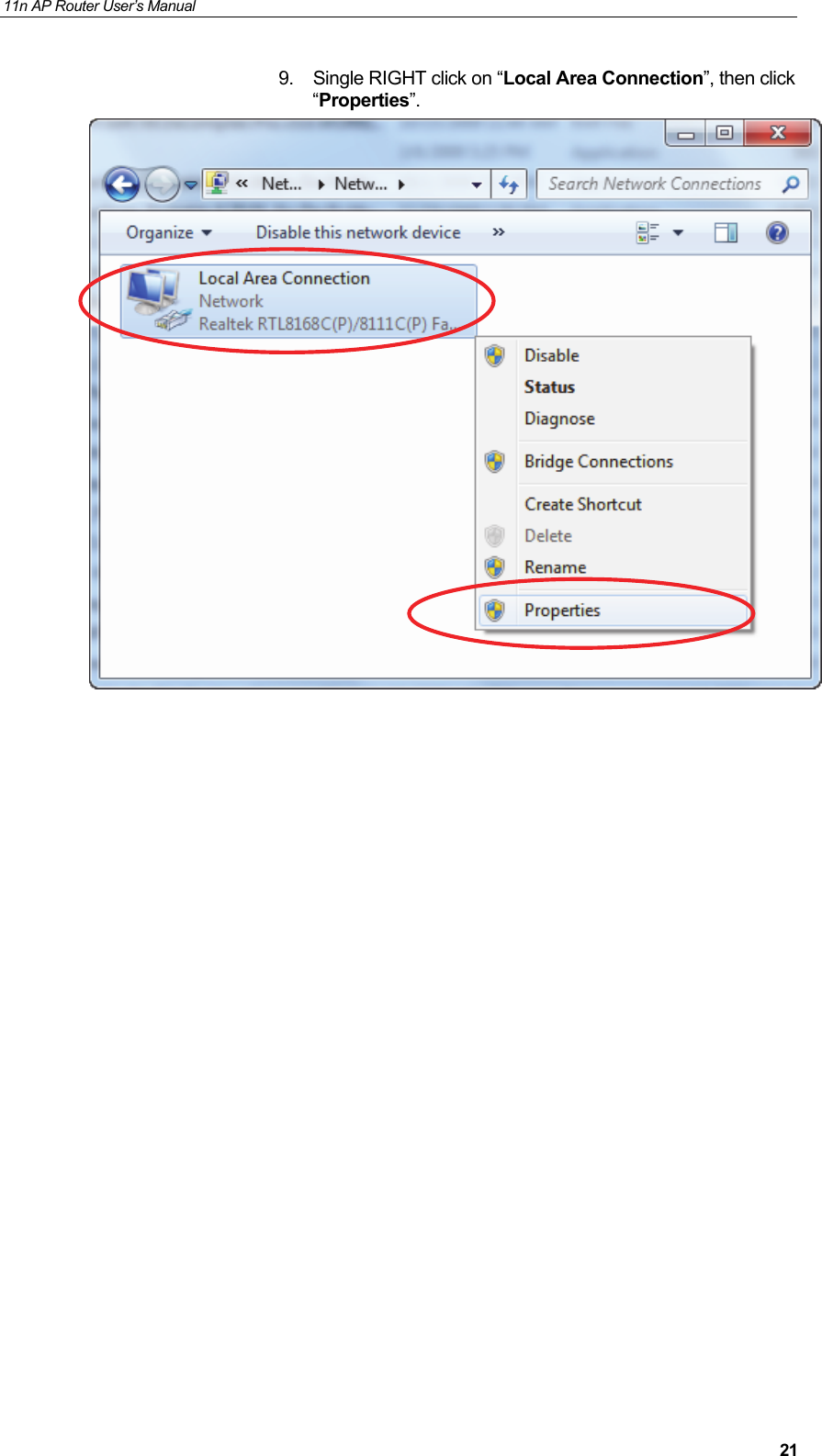
11n AP Router User’s Manual     219.  Single RIGHT click on “Local Area Connection”, then click “Properties”.
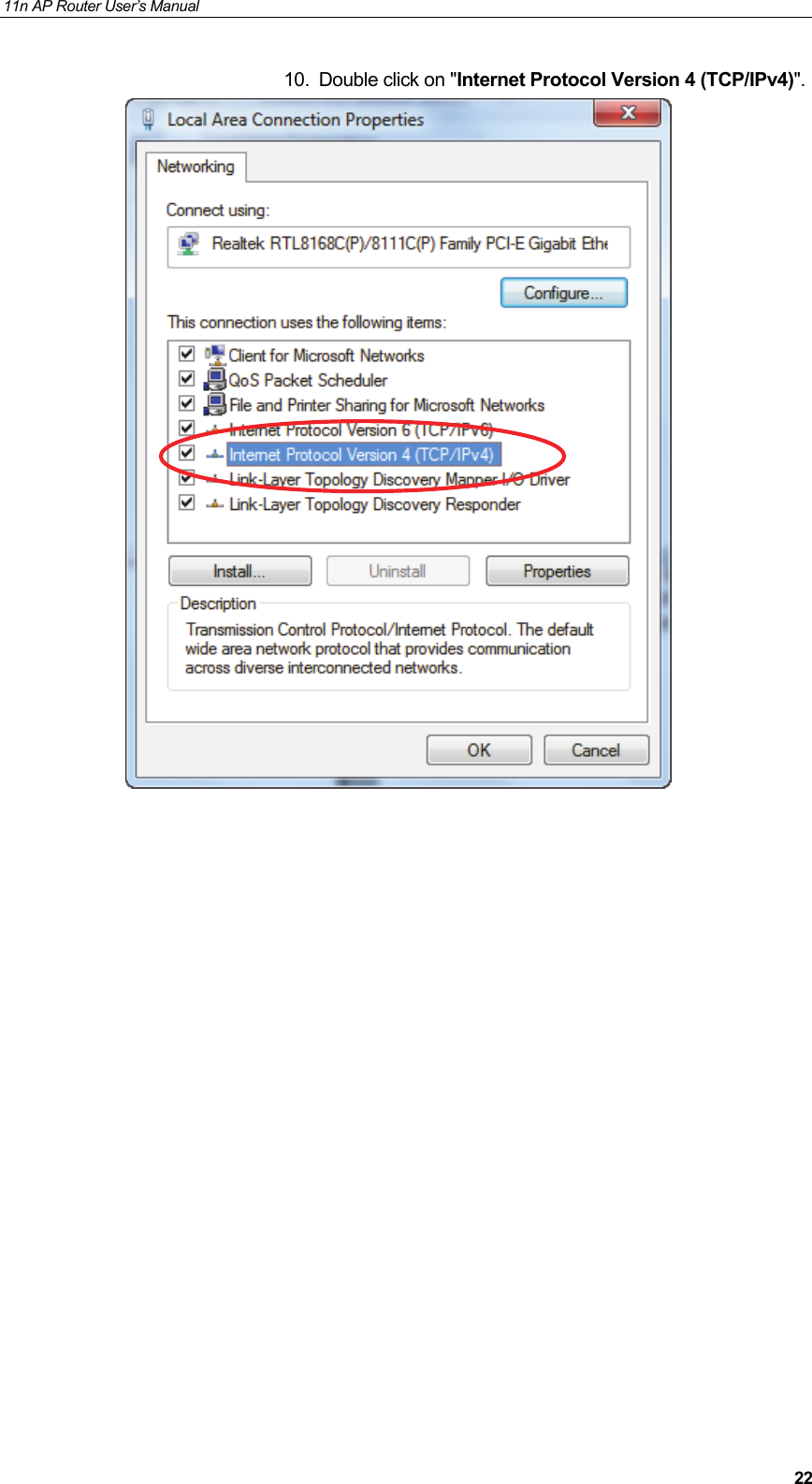
11n AP Router User’s Manual     2210.  Double click on "Internet Protocol Version 4 (TCP/IPv4)".
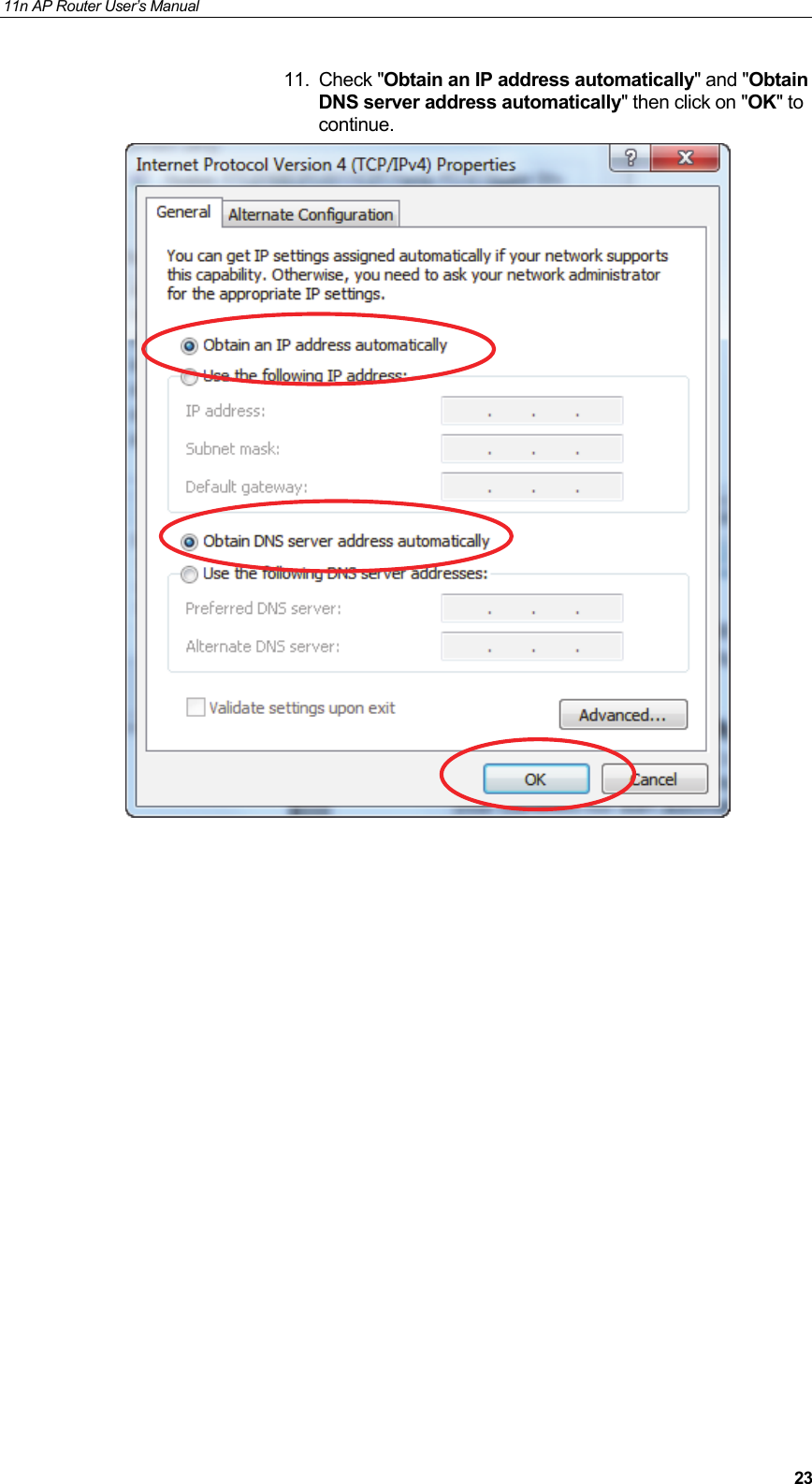
11n AP Router User’s Manual     2311. Check "Obtain an IP address automatically" and "Obtain DNS server address automatically" then click on "OK" to continue.
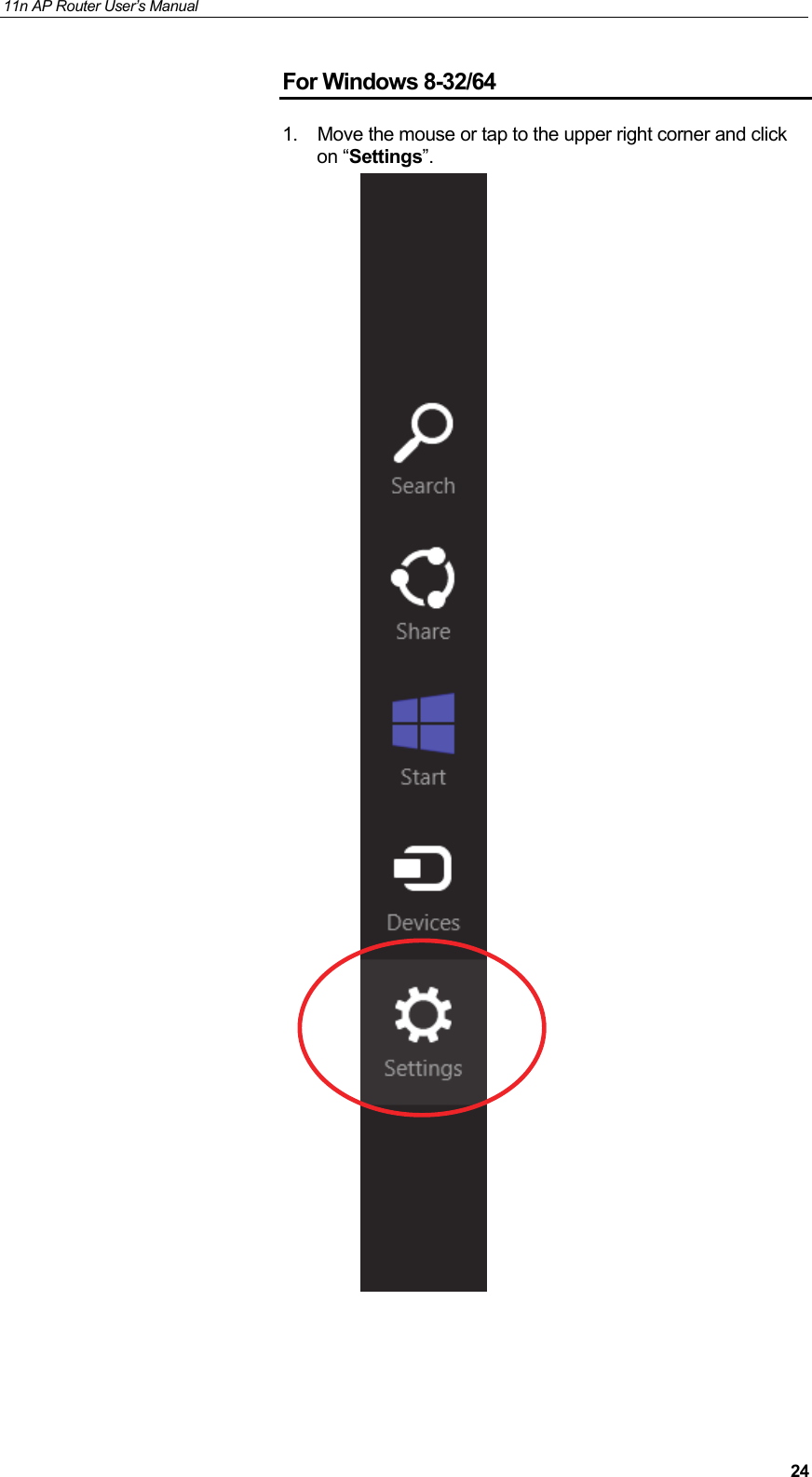
11n AP Router User’s Manual     24For Windows 8-32/64 1.  Move the mouse or tap to the upper right corner and click on “Settings”.
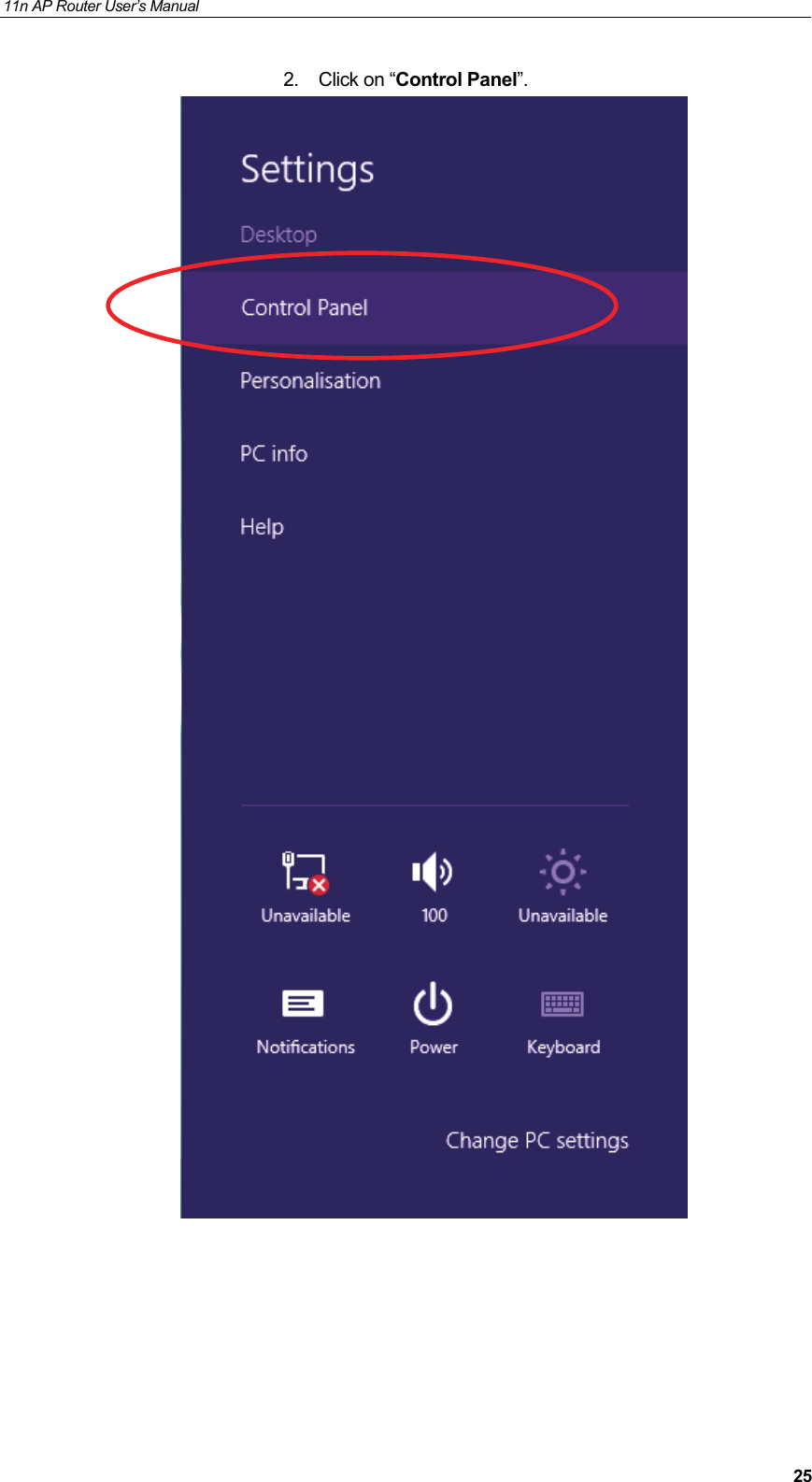
11n AP Router User’s Manual     252. Click on “Control Panel”.
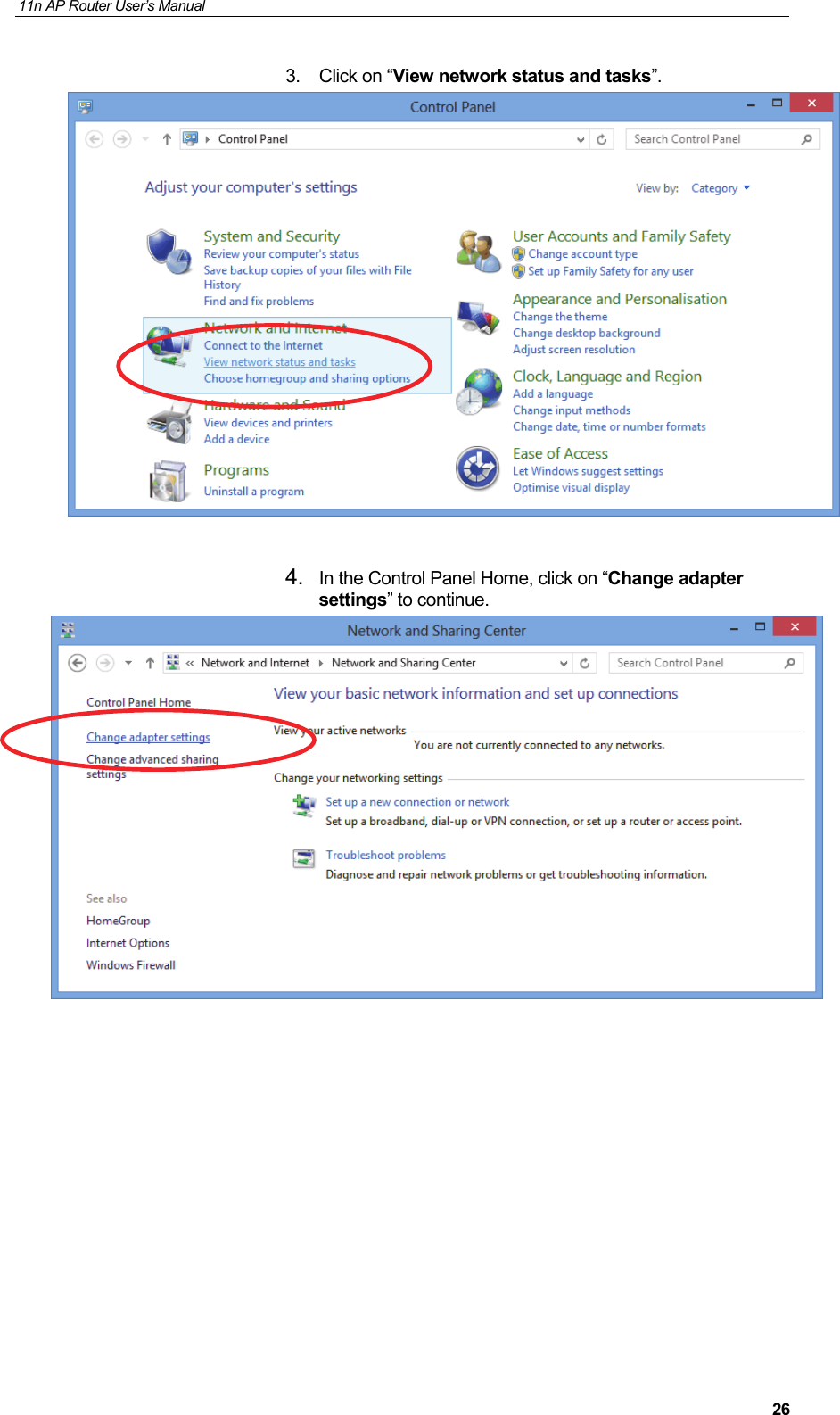
11n AP Router User’s Manual     263. Click on “View network status and tasks”.   4.  In the Control Panel Home, click on “Change adapter settings” to continue.
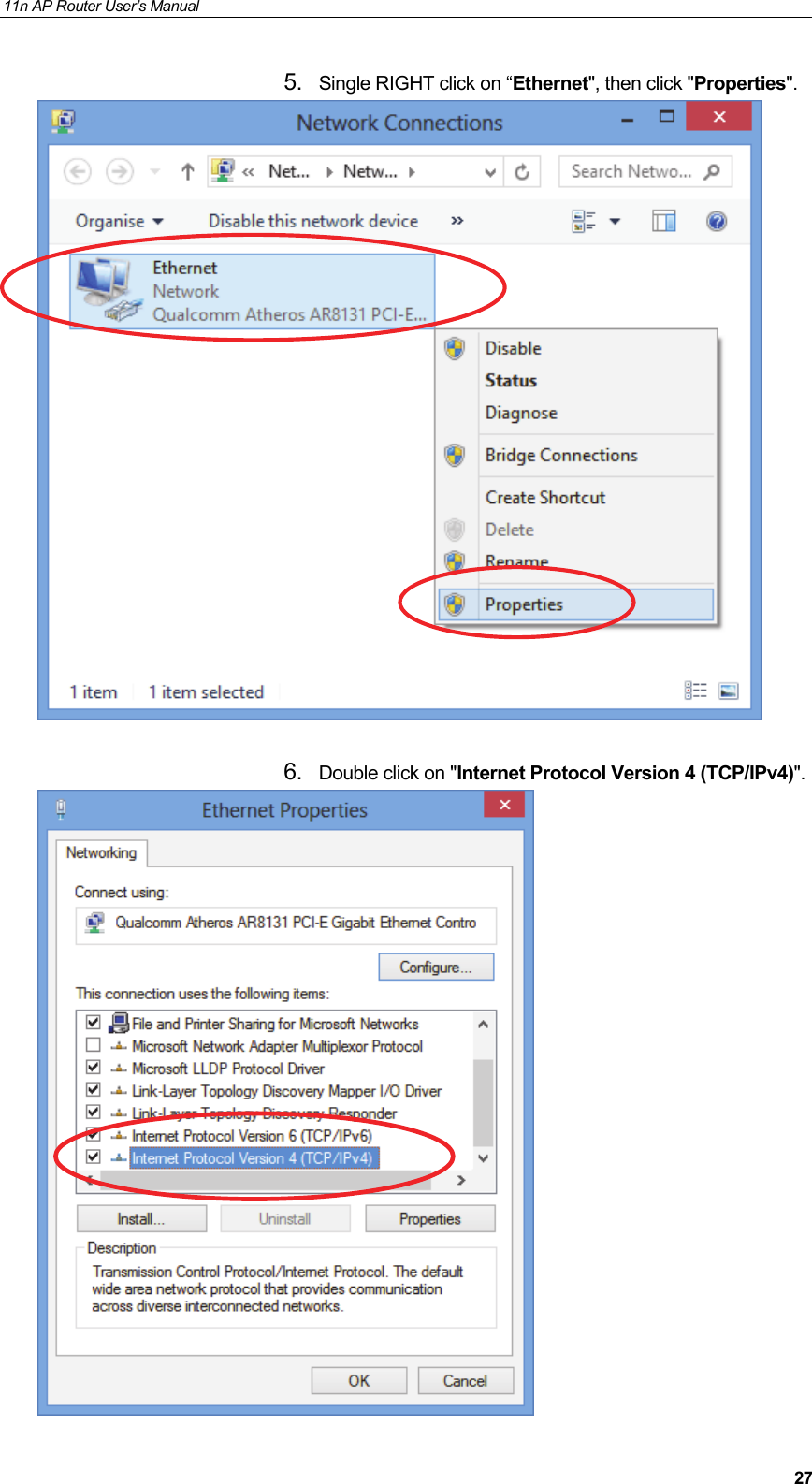
11n AP Router User’s Manual     275.  Single RIGHT click on “Ethernet", then click "Properties".   6.  Double click on "Internet Protocol Version 4 (TCP/IPv4)".
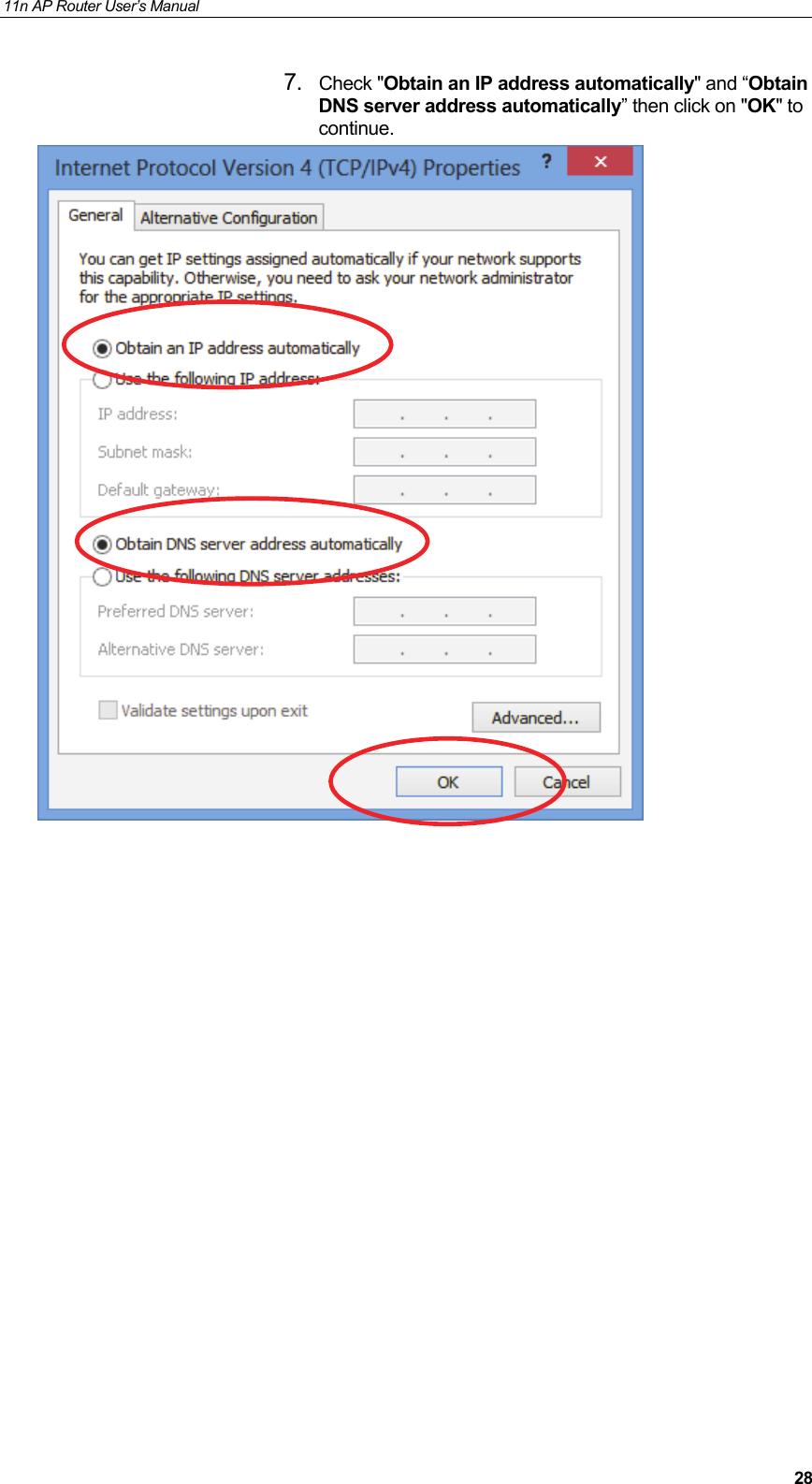
11n AP Router User’s Manual     287.  Check "Obtain an IP address automatically" and “Obtain DNS server address automatically” then click on "OK" to continue.
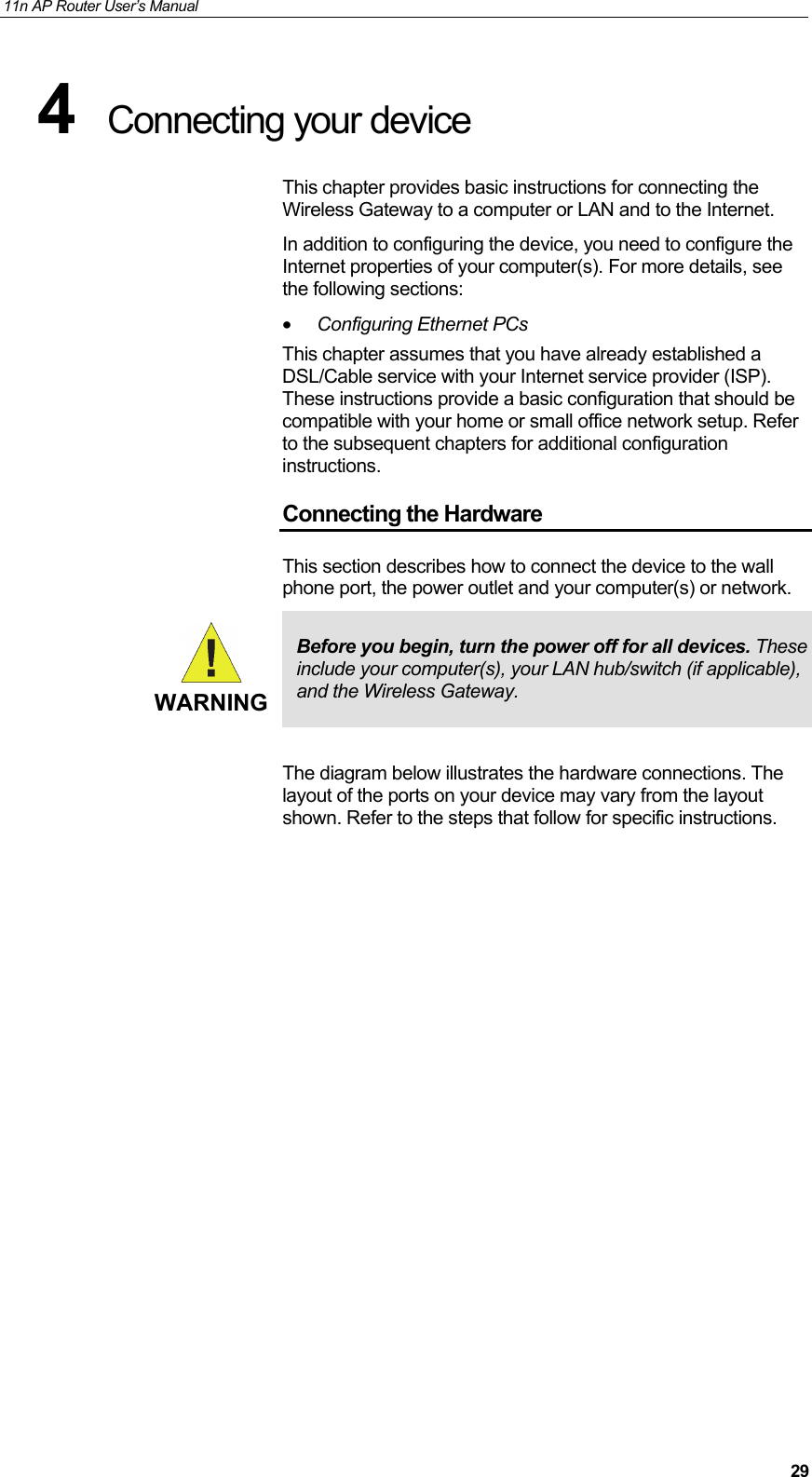
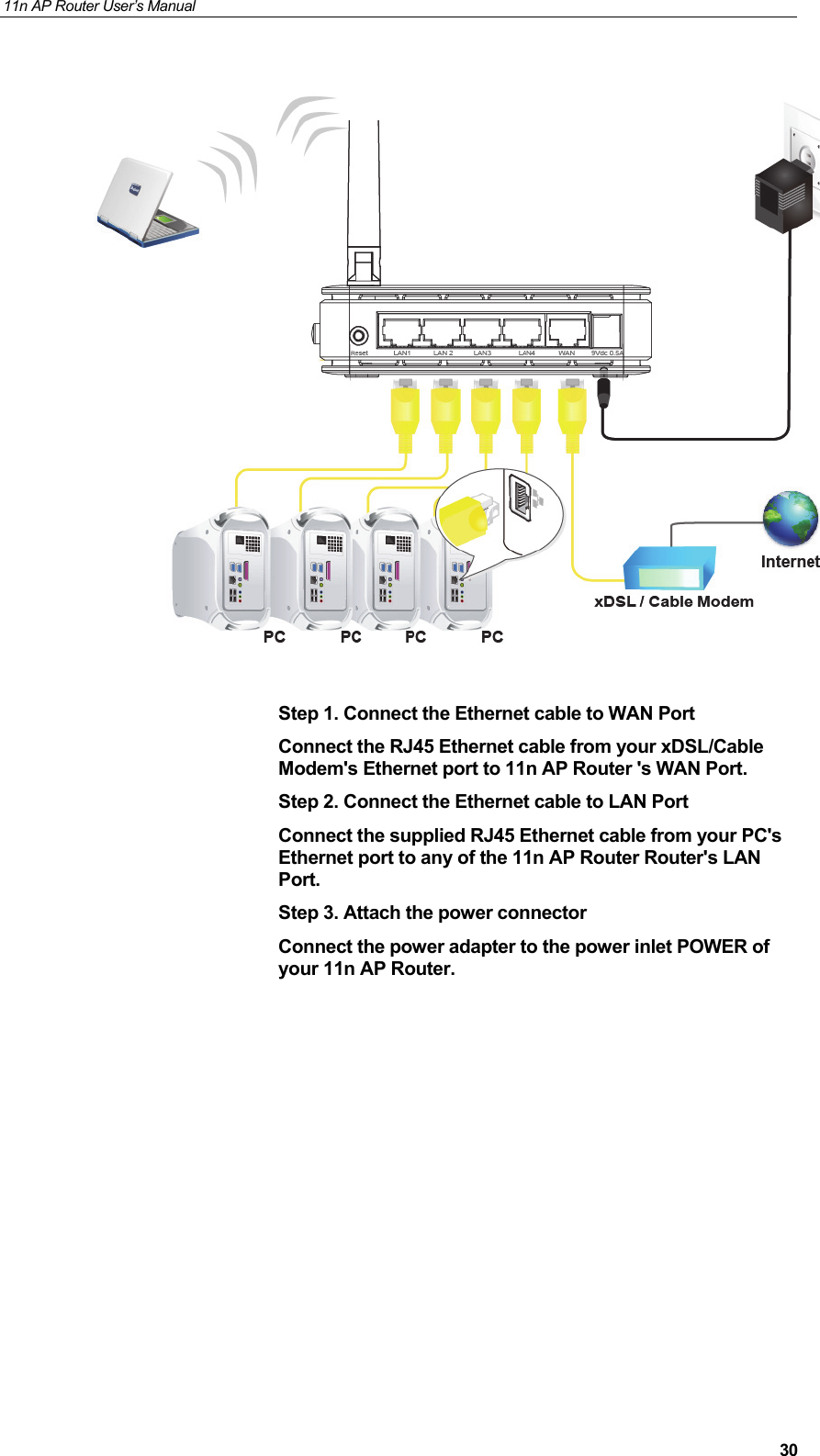
11n AP Router User’s Manual     294  Connecting your device  This chapter provides basic instructions for connecting the Wireless Gateway to a computer or LAN and to the Internet. In addition to configuring the device, you need to configure the Internet properties of your computer(s). For more details, see the following sections: • Configuring Ethernet PCs  This chapter assumes that you have already established a DSL/Cable service with your Internet service provider (ISP). These instructions provide a basic configuration that should be compatible with your home or small office network setup. Refer to the subsequent chapters for additional configuration instructions. Connecting the Hardware This section describes how to connect the device to the wall phone port, the power outlet and your computer(s) or network.  WARNING Before you begin, turn the power off for all devices. These include your computer(s), your LAN hub/switch (if applicable), and the Wireless Gateway.  The diagram below illustrates the hardware connections. The layout of the ports on your device may vary from the layout shown. Refer to the steps that follow for specific instructions.
11n AP Router User’s Manual     30  Step 1. Connect the Ethernet cable to WAN Port Connect the RJ45 Ethernet cable from your xDSL/Cable Modem's Ethernet port to 11n AP Router 's WAN Port. Step 2. Connect the Ethernet cable to LAN Port Connect the supplied RJ45 Ethernet cable from your PC's Ethernet port to any of the 11n AP Router Router's LAN Port. Step 3. Attach the power connector Connect the power adapter to the power inlet POWER of your 11n AP Router.
11n AP Router User’s Manual     315  Advanced Configuration  Advanced Configuration with Router Mode 1.  From any of the LAN computers connected to , launch your web browser, type the following URL in the web address (or location) box, and press [Enter] on your keyboard:        http://10.0.0.2 2. Select the Connect type DHCP, Static or PPPoE and enter related parameters that your ISP (Internet Services Provider) or Network Administrator provided. 3.  Please enter the “SSID” if you want to change (the default settings SSID = 11n_APxxxx which could be found on the bottom side of the device). 4.  Please enter your own wireless password at least 8 characters for example 12345678 in the Key field / Network key field (the Encryption type = WPA/WPA2-PSK AES). 5. Click on “Save” button.
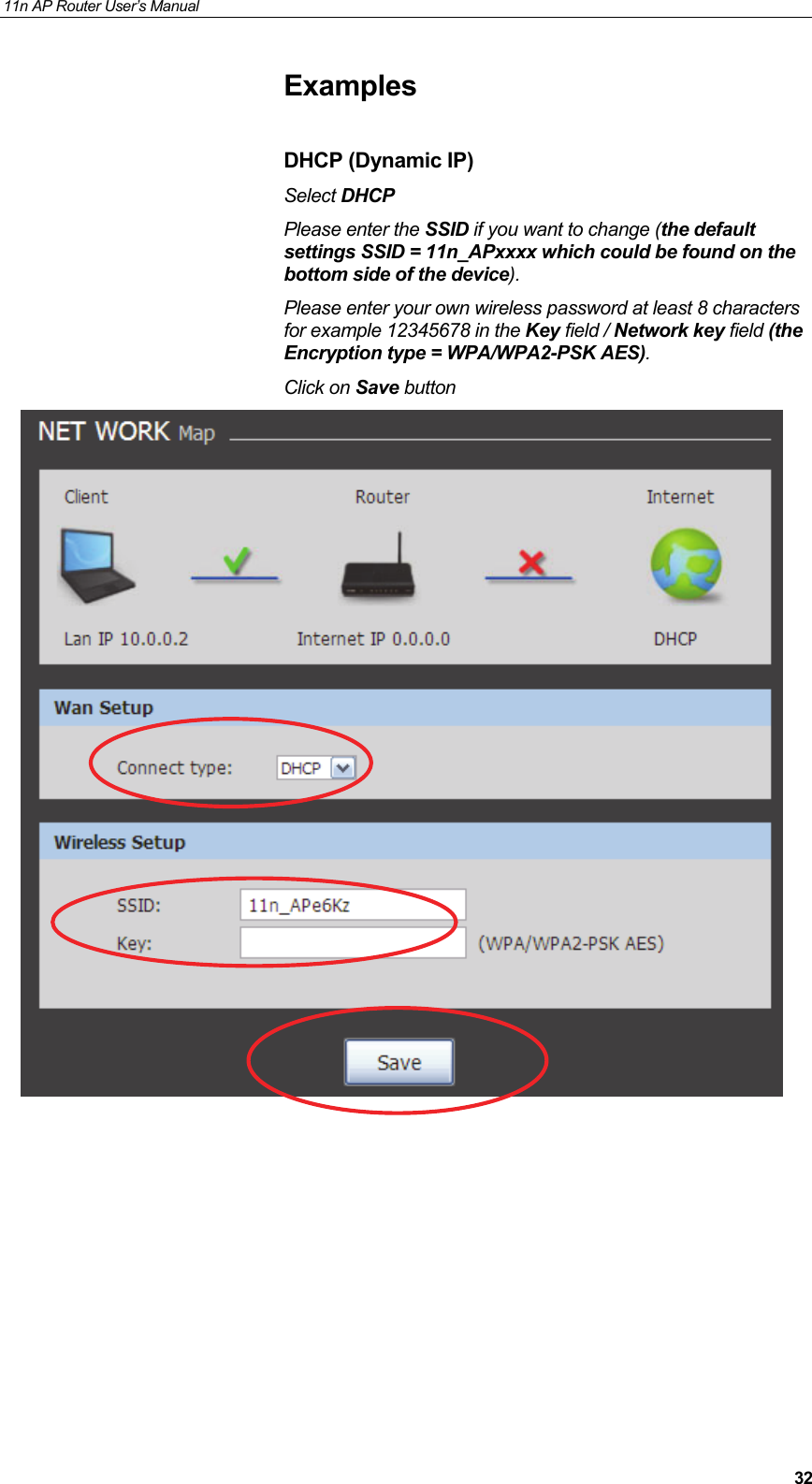
11n AP Router User’s Manual     32Examples  DHCP (Dynamic IP) Select DHCP  Please enter the SSID if you want to change (the default settings SSID = 11n_APxxxx which could be found on the bottom side of the device). Please enter your own wireless password at least 8 characters for example 12345678 in the Key field / Network key field (the Encryption type = WPA/WPA2-PSK AES). Click on Save button
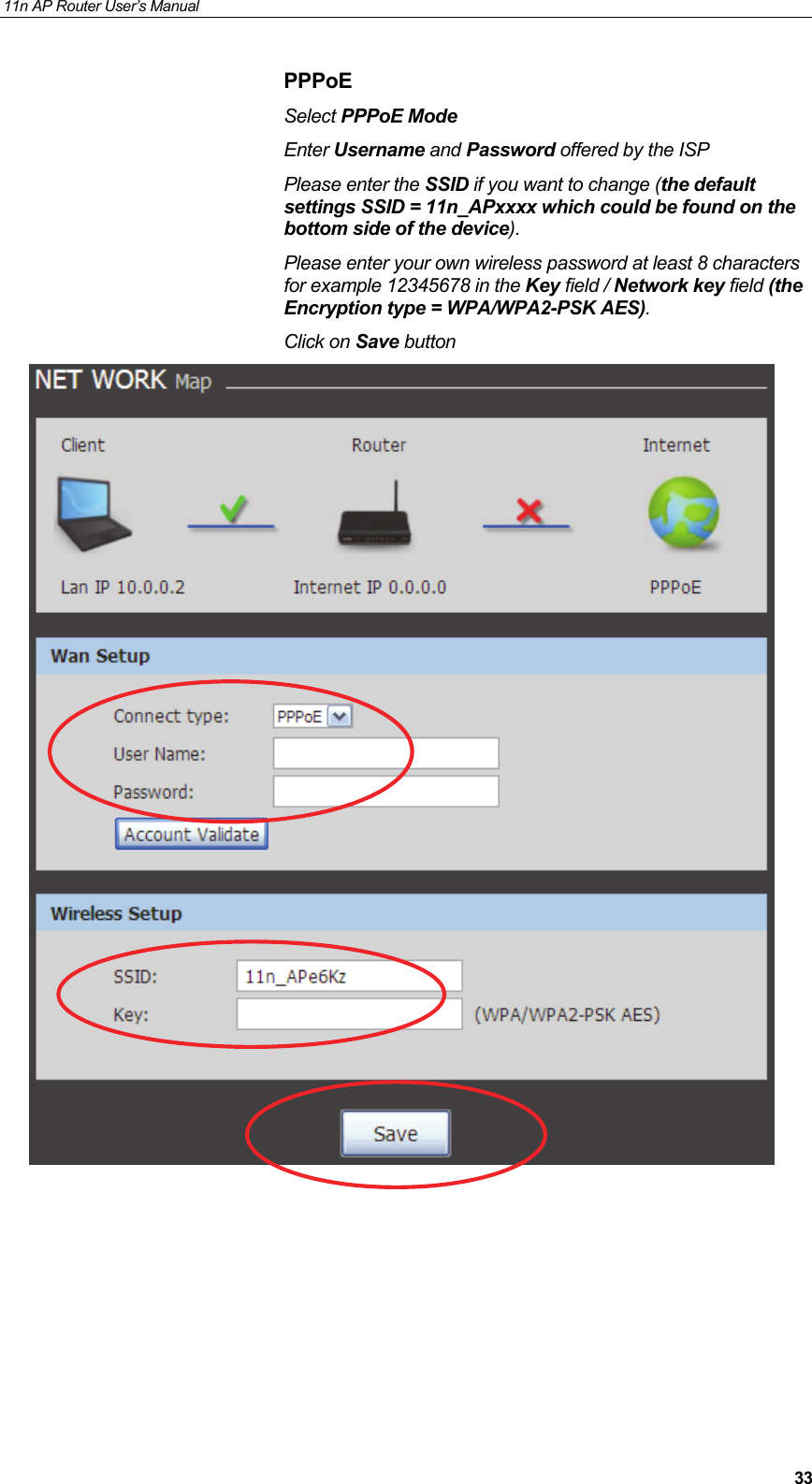
11n AP Router User’s Manual     33PPPoE Select PPPoE Mode  Enter Username and Password offered by the ISP Please enter the SSID if you want to change (the default settings SSID = 11n_APxxxx which could be found on the bottom side of the device). Please enter your own wireless password at least 8 characters for example 12345678 in the Key field / Network key field (the Encryption type = WPA/WPA2-PSK AES). Click on Save button
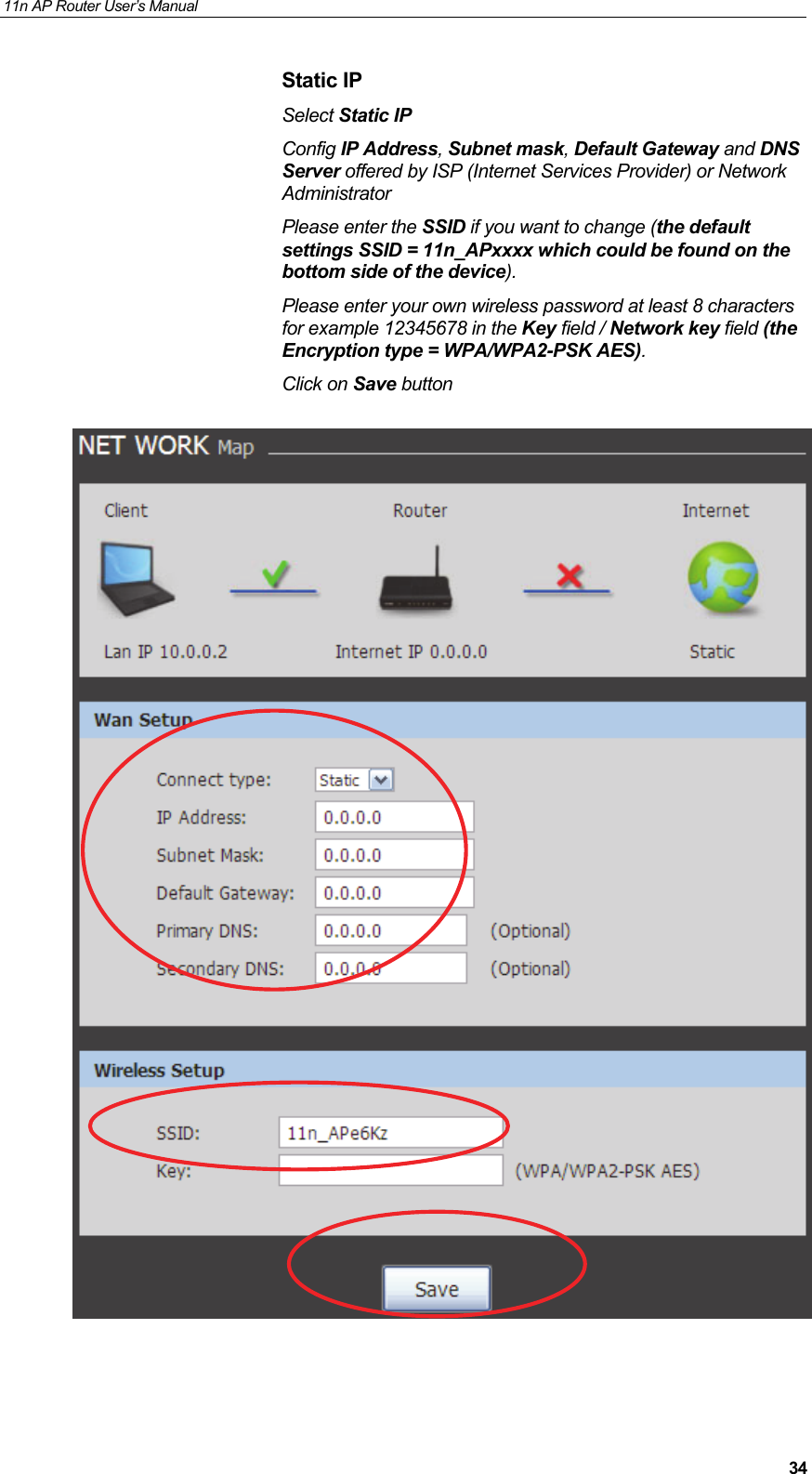
11n AP Router User’s Manual     34Static IP Select Static IP  Config IP Address, Subnet mask, Default Gateway and DNS Server offered by ISP (Internet Services Provider) or Network Administrator Please enter the SSID if you want to change (the default settings SSID = 11n_APxxxx which could be found on the bottom side of the device). Please enter your own wireless password at least 8 characters for example 12345678 in the Key field / Network key field (the Encryption type = WPA/WPA2-PSK AES). Click on Save button
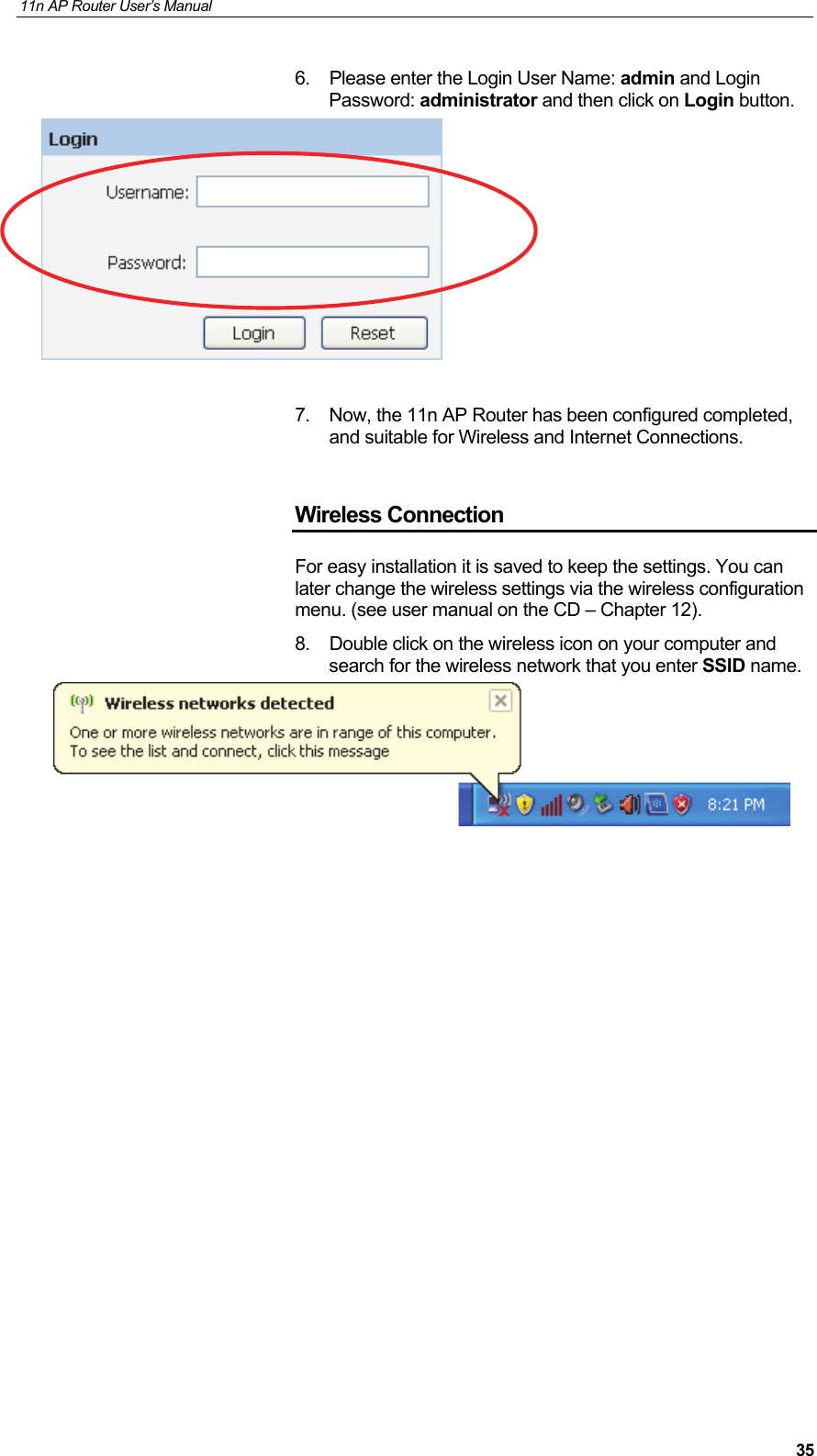
11n AP Router User’s Manual     356.  Please enter the Login User Name: admin and Login Password: administrator and then click on Login button.    7.  Now, the 11n AP Router has been configured completed, and suitable for Wireless and Internet Connections.  Wireless Connection For easy installation it is saved to keep the settings. You can later change the wireless settings via the wireless configuration menu. (see user manual on the CD – Chapter 12). 8.  Double click on the wireless icon on your computer and search for the wireless network that you enter SSID name.
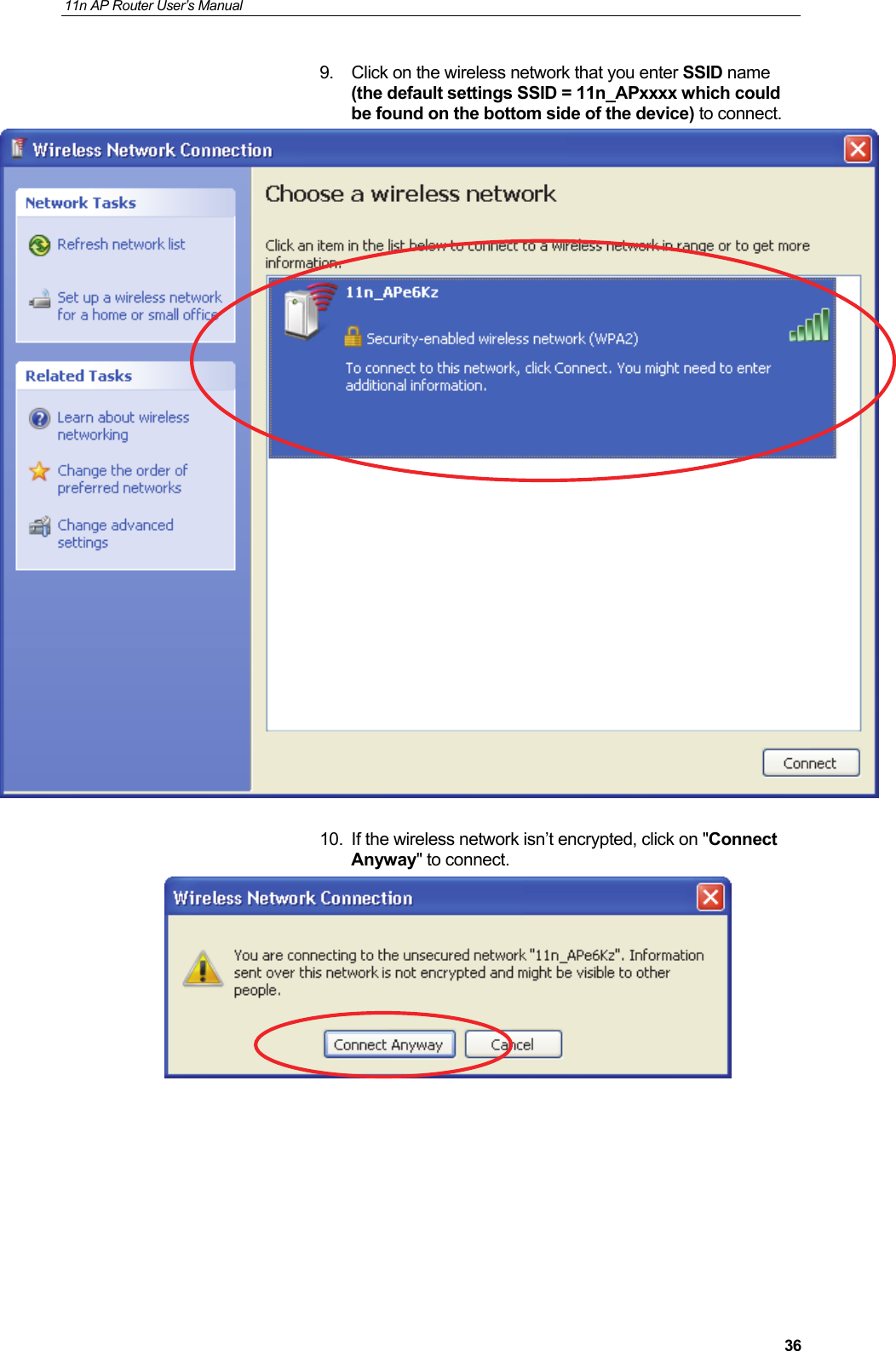
11n AP Router User’s Manual     369.  Click on the wireless network that you enter SSID name (the default settings SSID = 11n_APxxxx which could be found on the bottom side of the device) to connect.   10.  If the wireless network isn’t encrypted, click on "Connect Anyway" to connect.
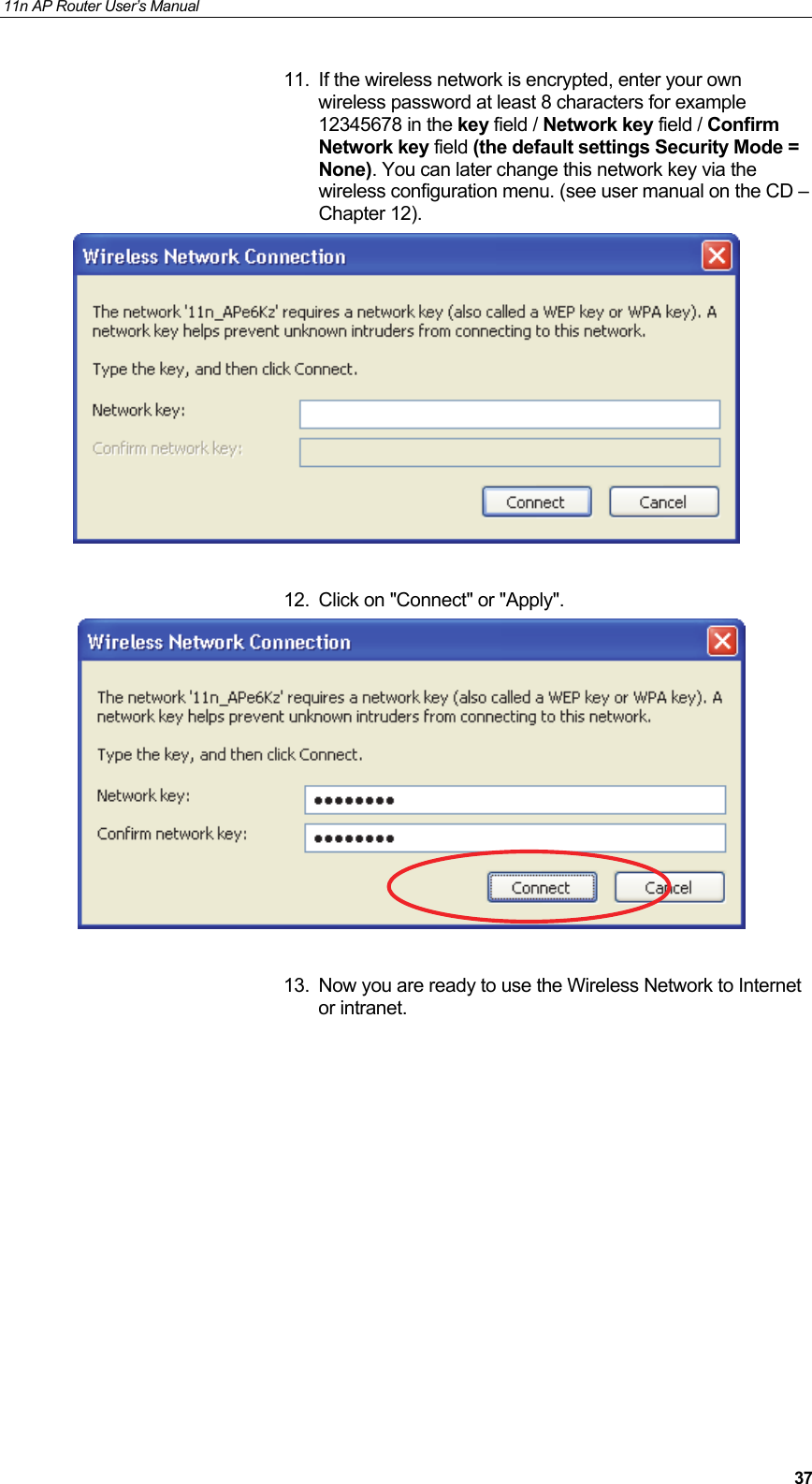
11n AP Router User’s Manual     3711.  If the wireless network is encrypted, enter your own wireless password at least 8 characters for example 12345678 in the key field / Network key field / Confirm Network key field (the default settings Security Mode = None). You can later change this network key via the wireless configuration menu. (see user manual on the CD – Chapter 12).   12.  Click on "Connect" or "Apply".    13.  Now you are ready to use the Wireless Network to Internet or intranet.
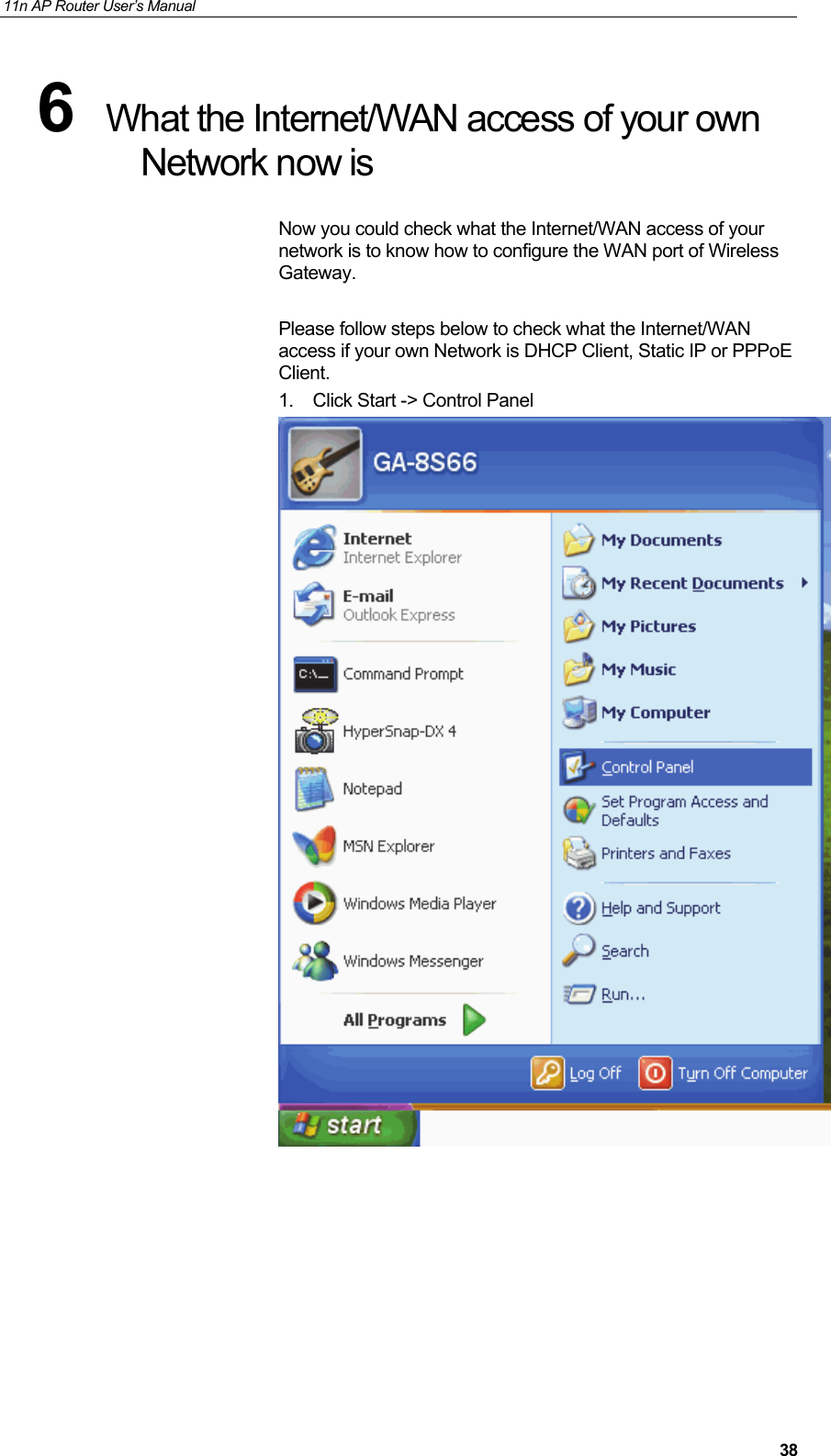
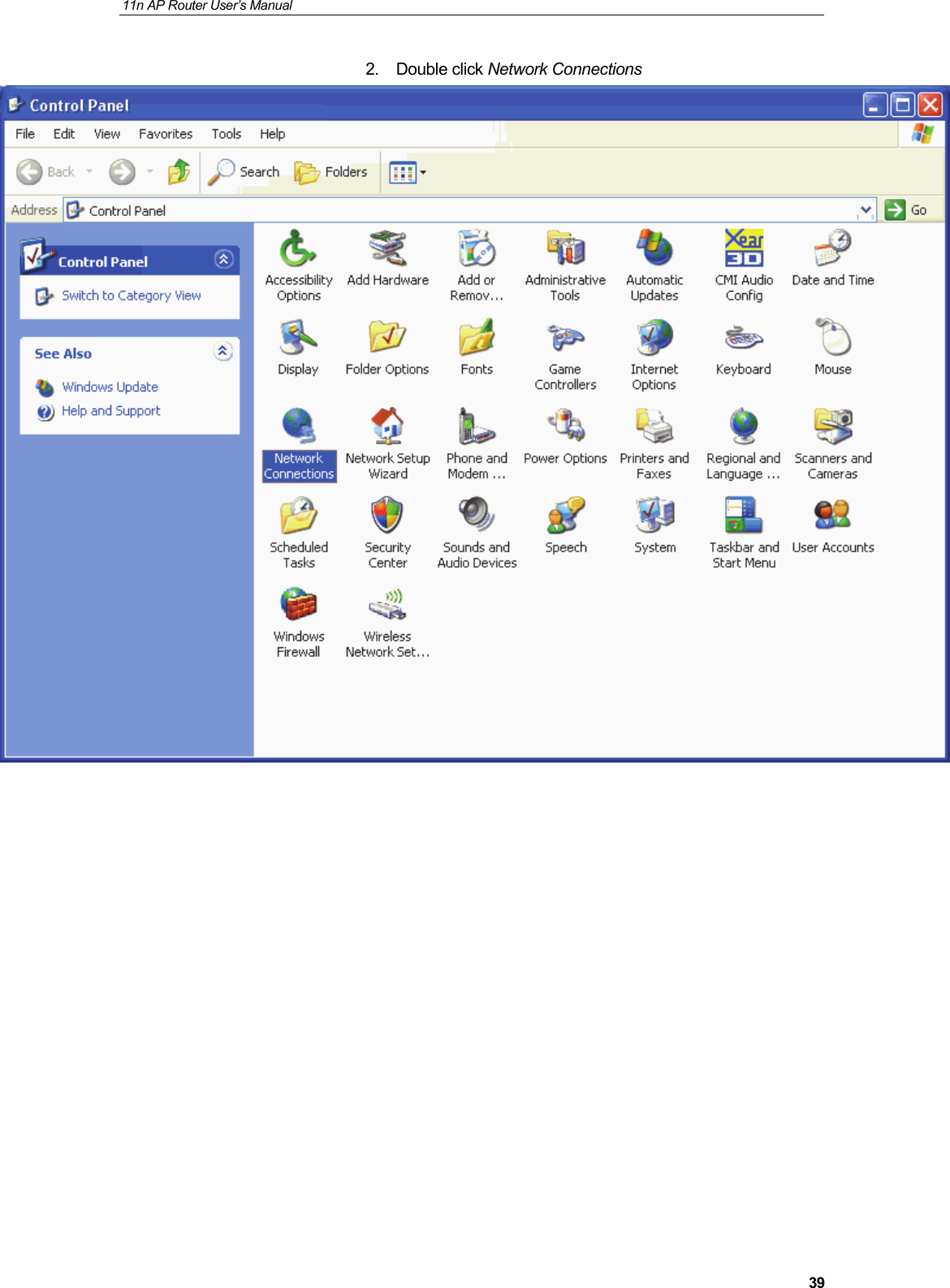
11n AP Router User’s Manual     386  What the Internet/WAN access of your own Network now is Now you could check what the Internet/WAN access of your network is to know how to configure the WAN port of Wireless Gateway.  Please follow steps below to check what the Internet/WAN access if your own Network is DHCP Client, Static IP or PPPoE Client. 1.  Click Start -> Control Panel
11n AP Router User’s Manual     392. Double click Network Connections
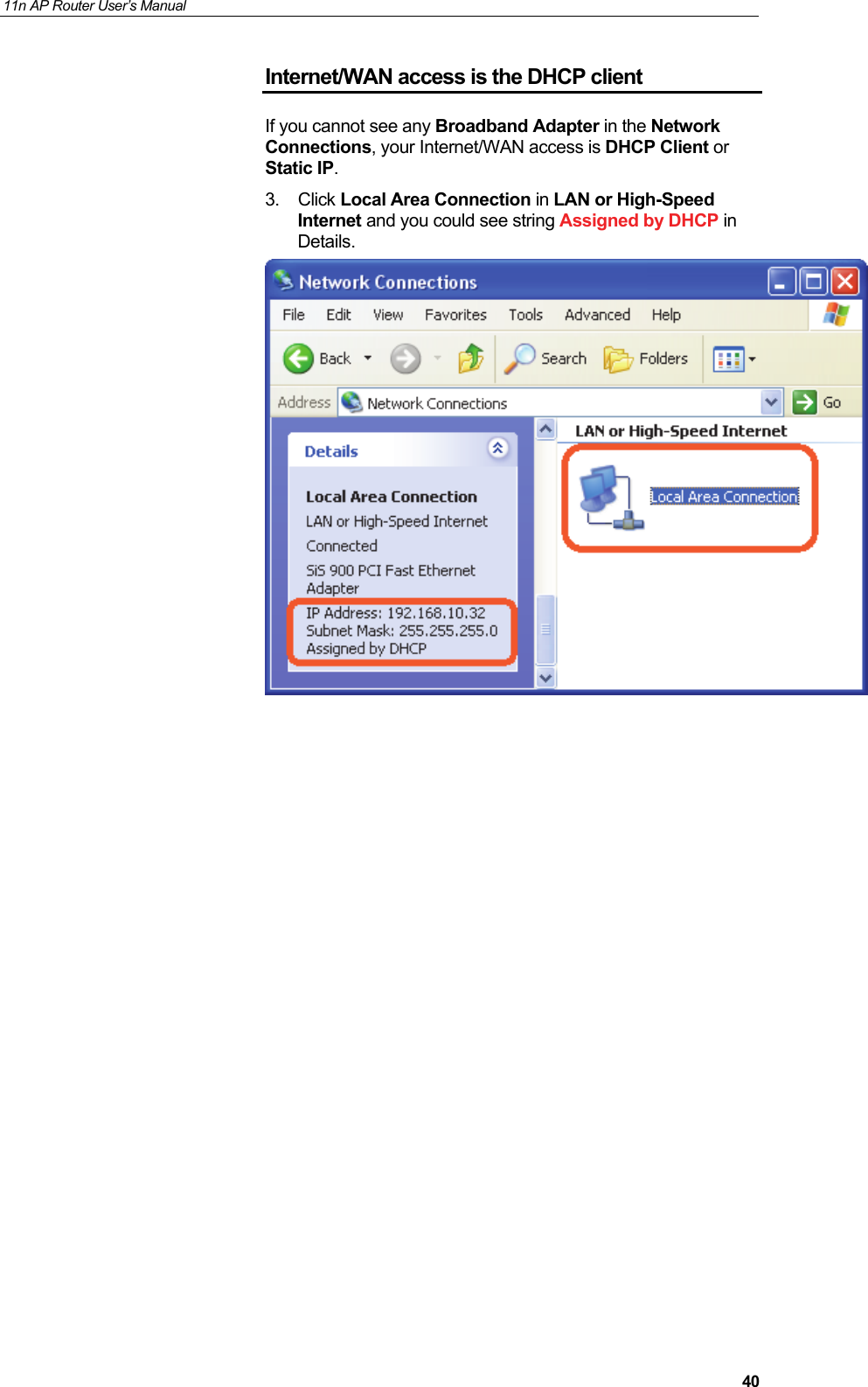
11n AP Router User’s Manual     40Internet/WAN access is the DHCP client If you cannot see any Broadband Adapter in the Network Connections, your Internet/WAN access is DHCP Client or Static IP. 3. Click Local Area Connection in LAN or High-Speed Internet and you could see string Assigned by DHCP in Details.
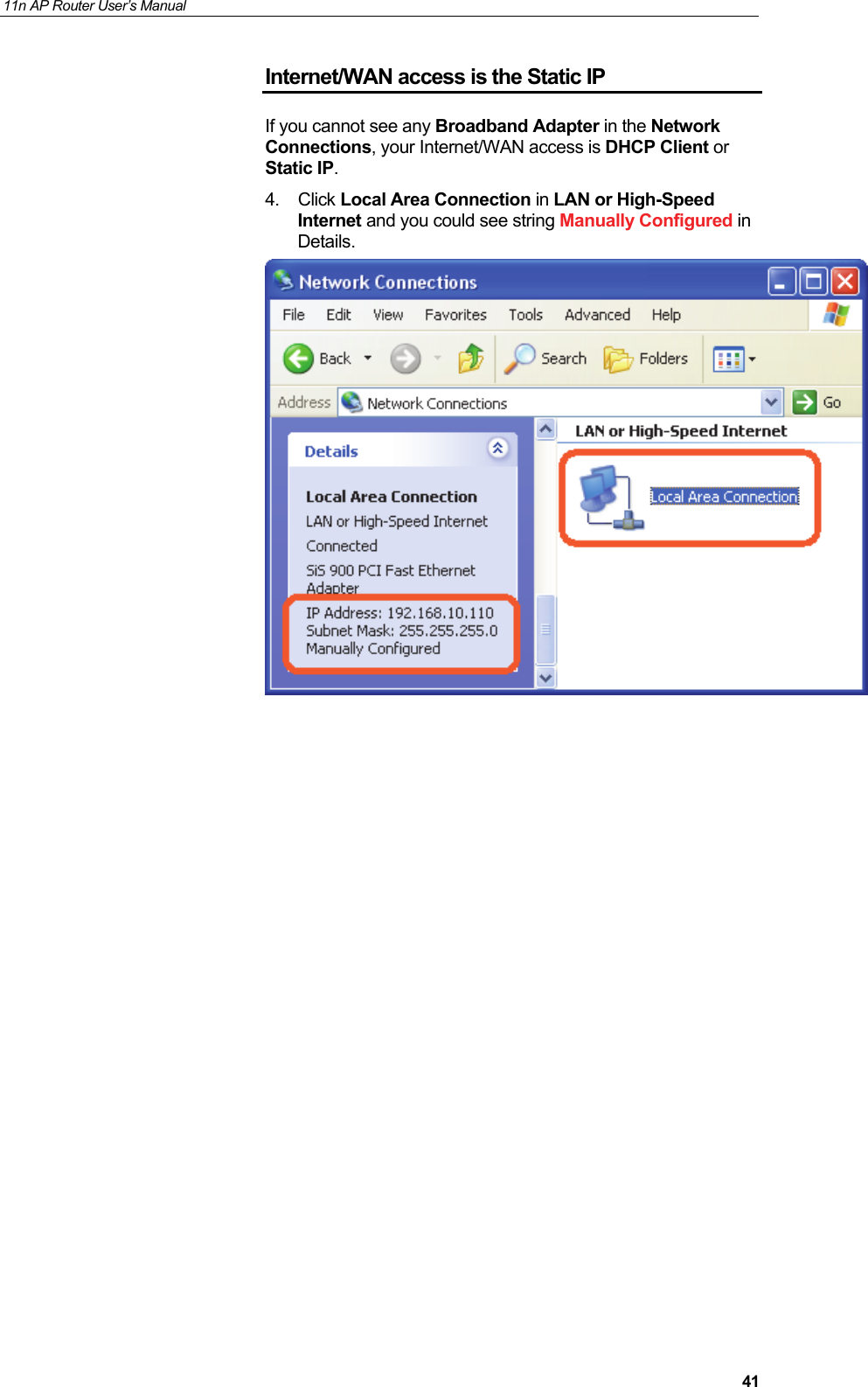
11n AP Router User’s Manual     41Internet/WAN access is the Static IP If you cannot see any Broadband Adapter in the Network Connections, your Internet/WAN access is DHCP Client or Static IP. 4. Click Local Area Connection in LAN or High-Speed Internet and you could see string Manually Configured in Details.
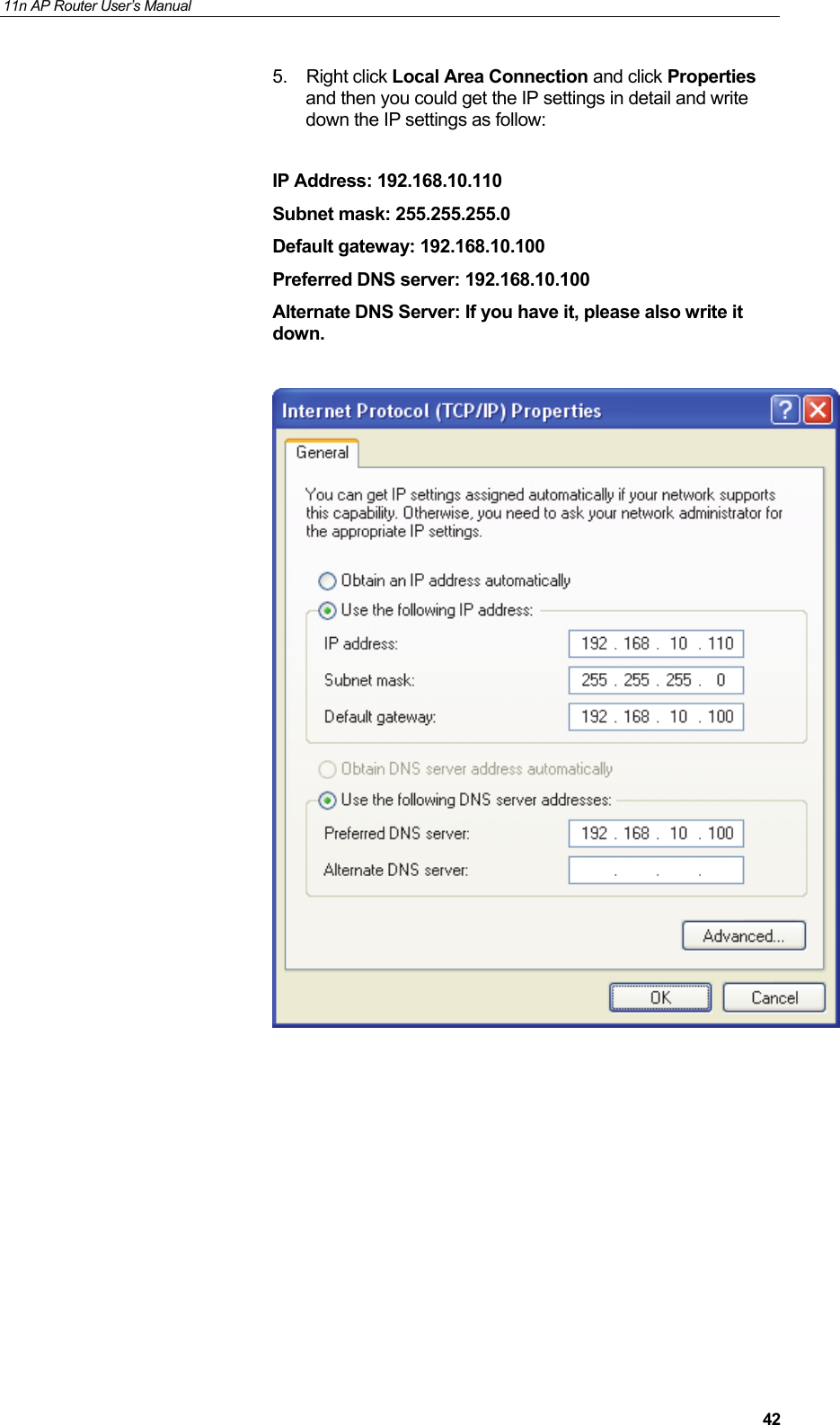
11n AP Router User’s Manual     425. Right click Local Area Connection and click Properties and then you could get the IP settings in detail and write down the IP settings as follow:  IP Address: 192.168.10.110 Subnet mask: 255.255.255.0 Default gateway: 192.168.10.100 Preferred DNS server: 192.168.10.100 Alternate DNS Server: If you have it, please also write it down.
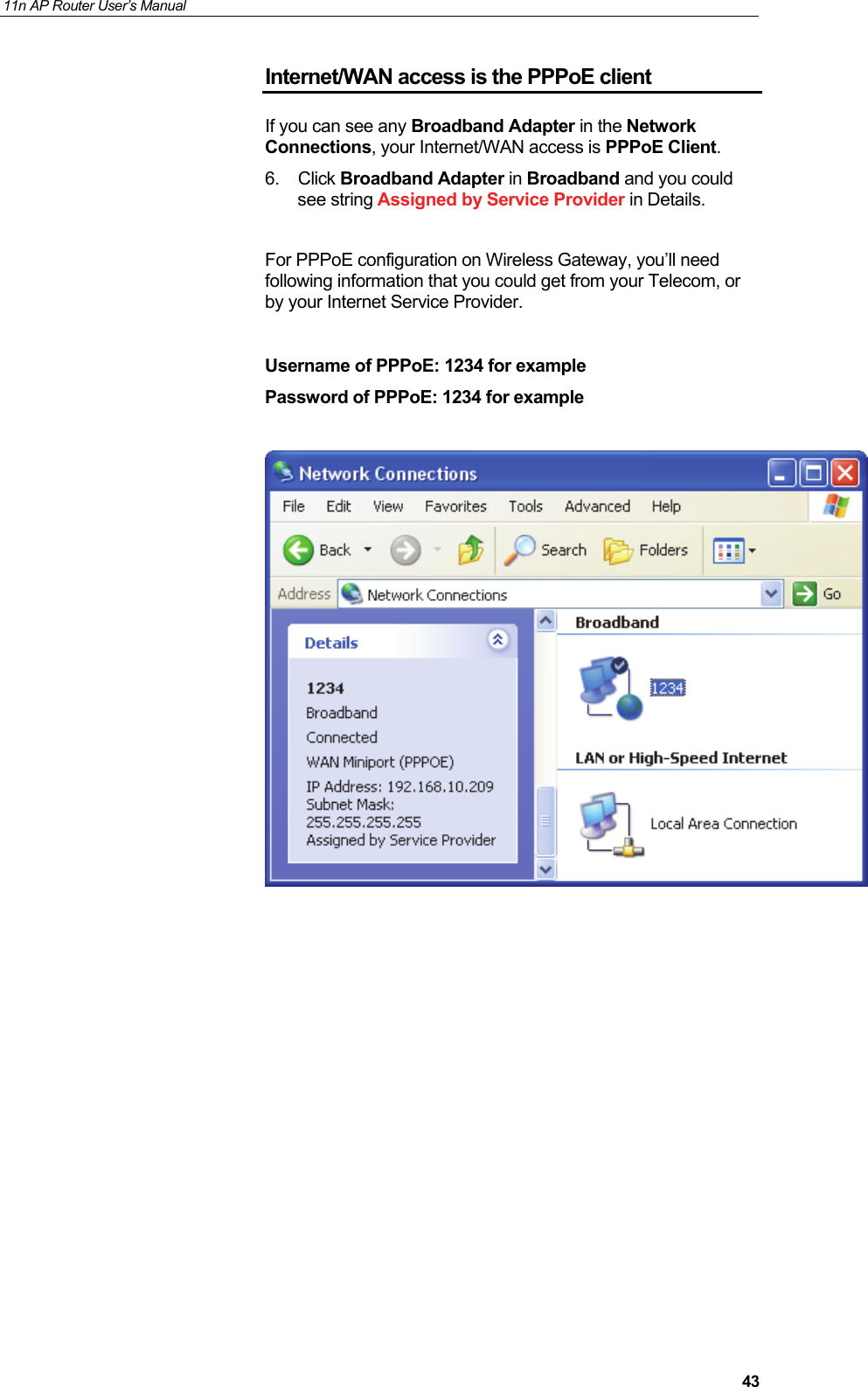
11n AP Router User’s Manual     43Internet/WAN access is the PPPoE client If you can see any Broadband Adapter in the Network Connections, your Internet/WAN access is PPPoE Client. 6. Click Broadband Adapter in Broadband and you could see string Assigned by Service Provider in Details.  For PPPoE configuration on Wireless Gateway, you’ll need following information that you could get from your Telecom, or by your Internet Service Provider.  Username of PPPoE: 1234 for example Password of PPPoE: 1234 for example
11n AP Router User’s Manual     447  Getting Started with the Web pages The Wireless Gateway includes a series of Web pages that provide an interface to the software installed on the device. It enables you to configure the device settings to meet the needs of your network. You can access it through your web browser from any PC connected to the device via the LAN ports. Accessing the Web pages To access the Web pages, you need the following: •  A PC or laptop connected to the LAN port on the device. •  A web browser installed on the PC. The minimum browser version requirement is Internet Explorer v4 or Netscape v4. For the best display   quality, use latest version of Internet Explorer, Netscape or Mozilla Fire fox. From any of the LAN computers, launch your web browser, type the following URL in the web address (or location) box, and press [Enter] on your keyboard: http://10.0.0.2 The Status homepage for the web pages is displayed:  Figure 2:  Homepage The first time that you click on an entry from the left-hand menu, a login box is displayed. You must enter your username and password to access the pages.
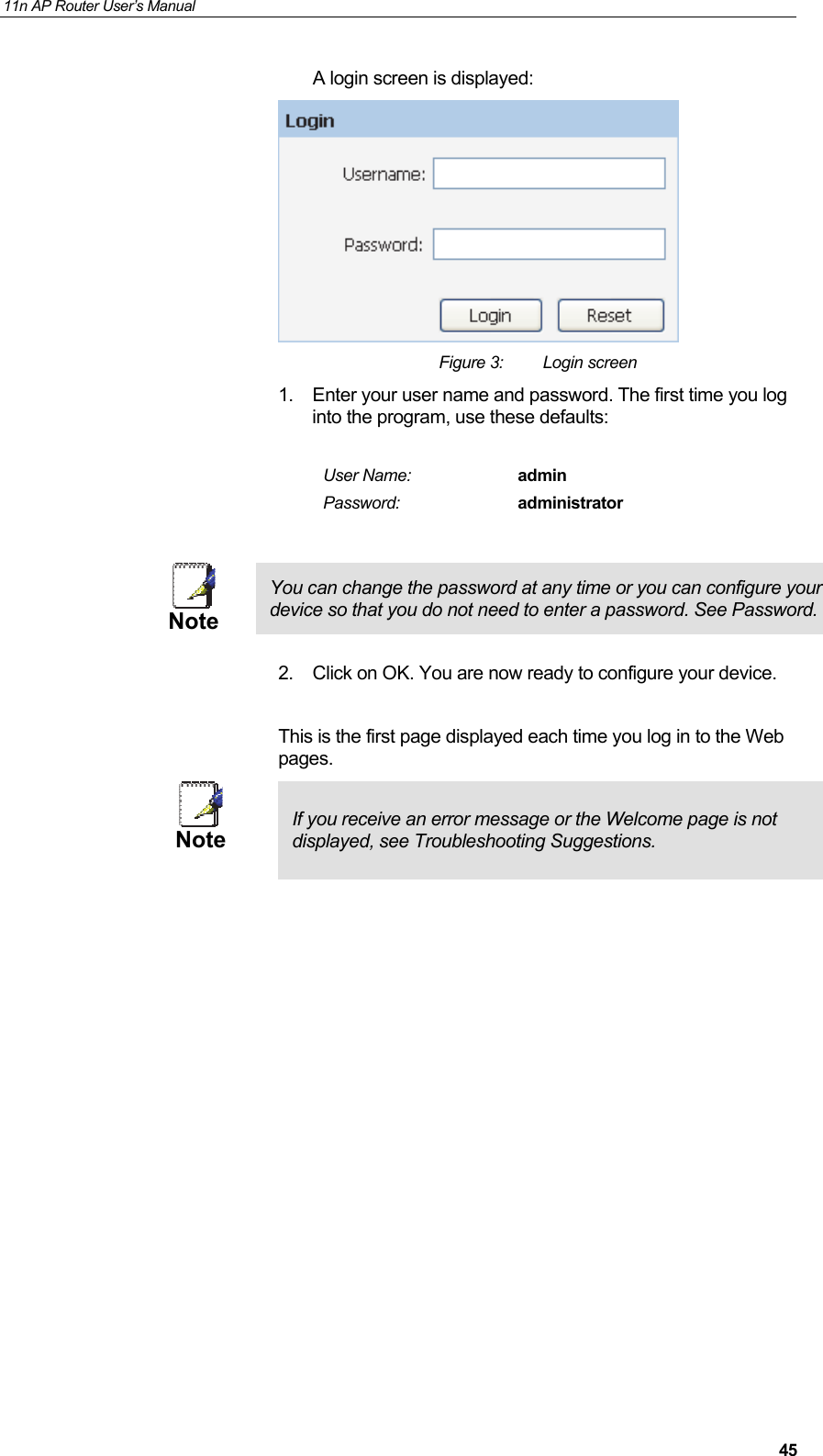
11n AP Router User’s Manual     45A login screen is displayed:  Figure 3:  Login screen 1.  Enter your user name and password. The first time you log into the program, use these defaults:  User Name:  admin Password:  administrator   Note You can change the password at any time or you can configure your device so that you do not need to enter a password. See Password.  2.  Click on OK. You are now ready to configure your device.  This is the first page displayed each time you log in to the Web pages.  Note  If you receive an error message or the Welcome page is not displayed, see Troubleshooting Suggestions.
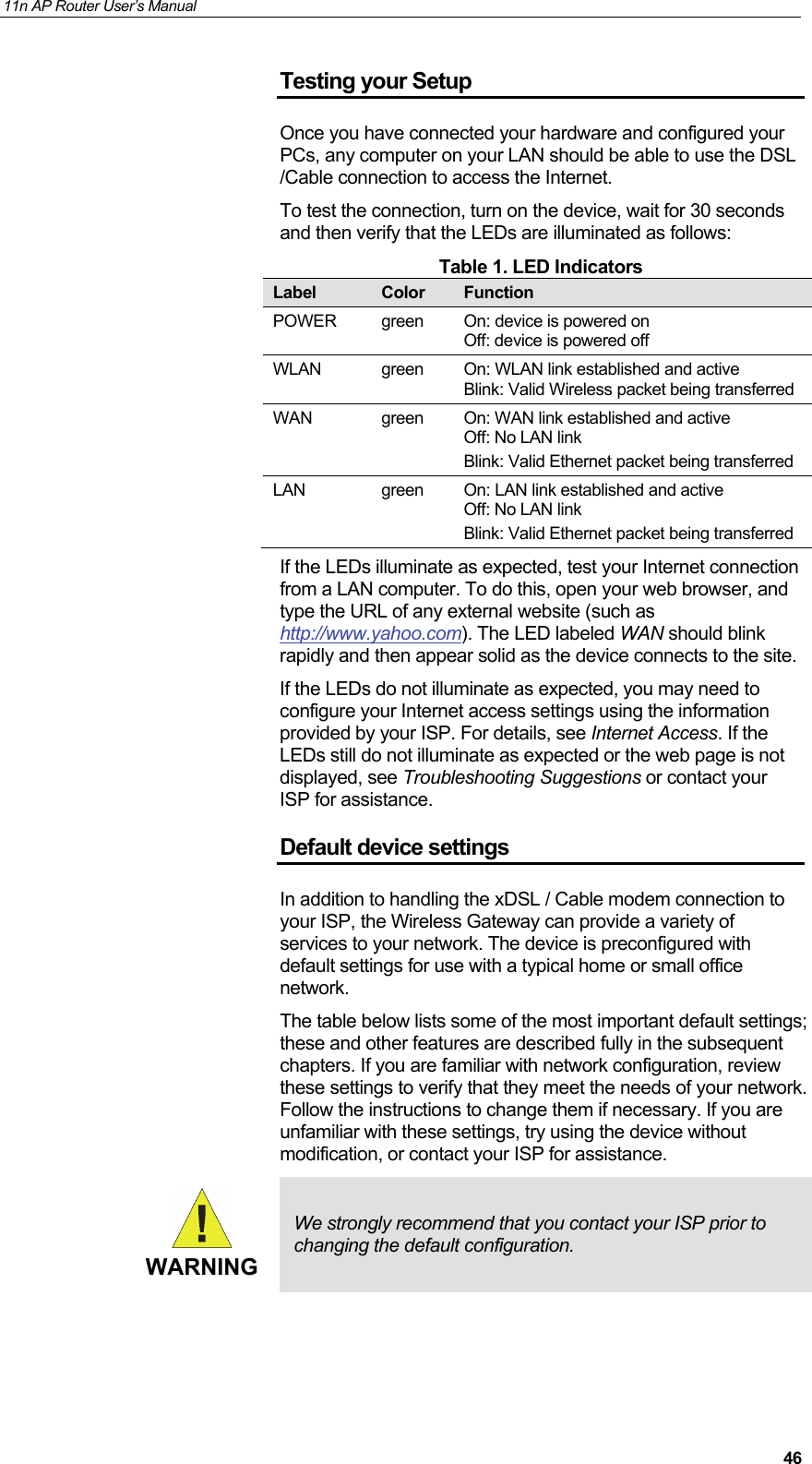
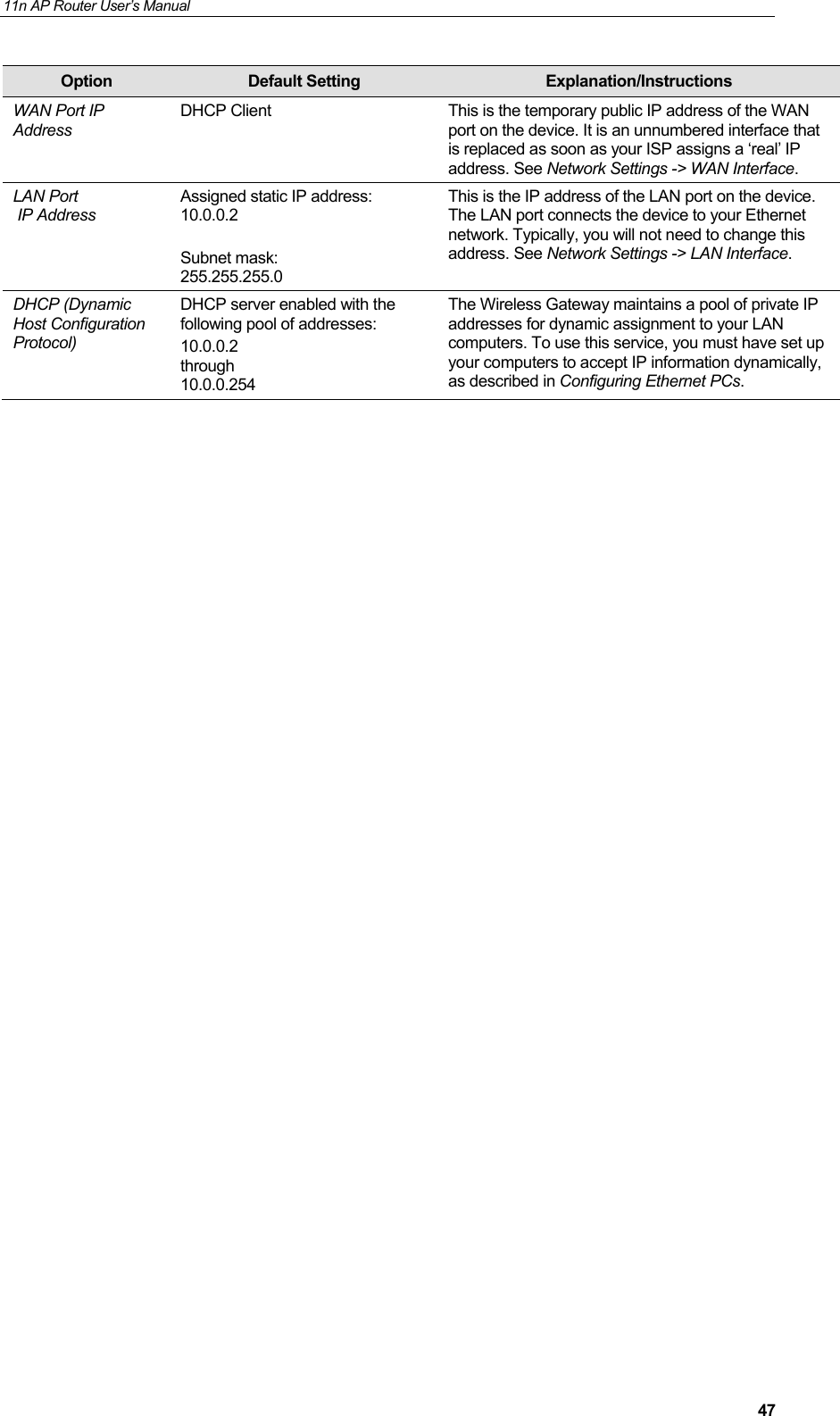
11n AP Router User’s Manual     46Testing your Setup Once you have connected your hardware and configured your PCs, any computer on your LAN should be able to use the DSL /Cable connection to access the Internet. To test the connection, turn on the device, wait for 30 seconds and then verify that the LEDs are illuminated as follows: Table 1. LED Indicators Label  Color  Function POWER green On: device is powered on Off: device is powered off WLAN green On: WLAN link established and active Blink: Valid Wireless packet being transferred WAN green On: WAN link established and active Off: No LAN link Blink: Valid Ethernet packet being transferred LAN green On: LAN link established and active Off: No LAN link Blink: Valid Ethernet packet being transferred If the LEDs illuminate as expected, test your Internet connection from a LAN computer. To do this, open your web browser, and type the URL of any external website (such as http://www.yahoo.com). The LED labeled WAN should blink rapidly and then appear solid as the device connects to the site. If the LEDs do not illuminate as expected, you may need to configure your Internet access settings using the information provided by your ISP. For details, see Internet Access. If the LEDs still do not illuminate as expected or the web page is not displayed, see Troubleshooting Suggestions or contact your ISP for assistance. Default device settings In addition to handling the xDSL / Cable modem connection to your ISP, the Wireless Gateway can provide a variety of services to your network. The device is preconfigured with default settings for use with a typical home or small office network. The table below lists some of the most important default settings; these and other features are described fully in the subsequent chapters. If you are familiar with network configuration, review these settings to verify that they meet the needs of your network. Follow the instructions to change them if necessary. If you are unfamiliar with these settings, try using the device without modification, or contact your ISP for assistance.  WARNING We strongly recommend that you contact your ISP prior to changing the default configuration.
11n AP Router User’s Manual     47Option  Default Setting  Explanation/Instructions WAN Port IP Address DHCP Client  This is the temporary public IP address of the WAN port on the device. It is an unnumbered interface that is replaced as soon as your ISP assigns a ‘real’ IP address. See Network Settings -> WAN Interface. LAN Port  IP Address Assigned static IP address:  10.0.0.2  Subnet mask:  255.255.255.0 This is the IP address of the LAN port on the device. The LAN port connects the device to your Ethernet network. Typically, you will not need to change this address. See Network Settings -> LAN Interface. DHCP (Dynamic Host Configuration Protocol) DHCP server enabled with the following pool of addresses:  10.0.0.2 through 10.0.0.254 The Wireless Gateway maintains a pool of private IP addresses for dynamic assignment to your LAN computers. To use this service, you must have set up your computers to accept IP information dynamically, as described in Configuring Ethernet PCs.
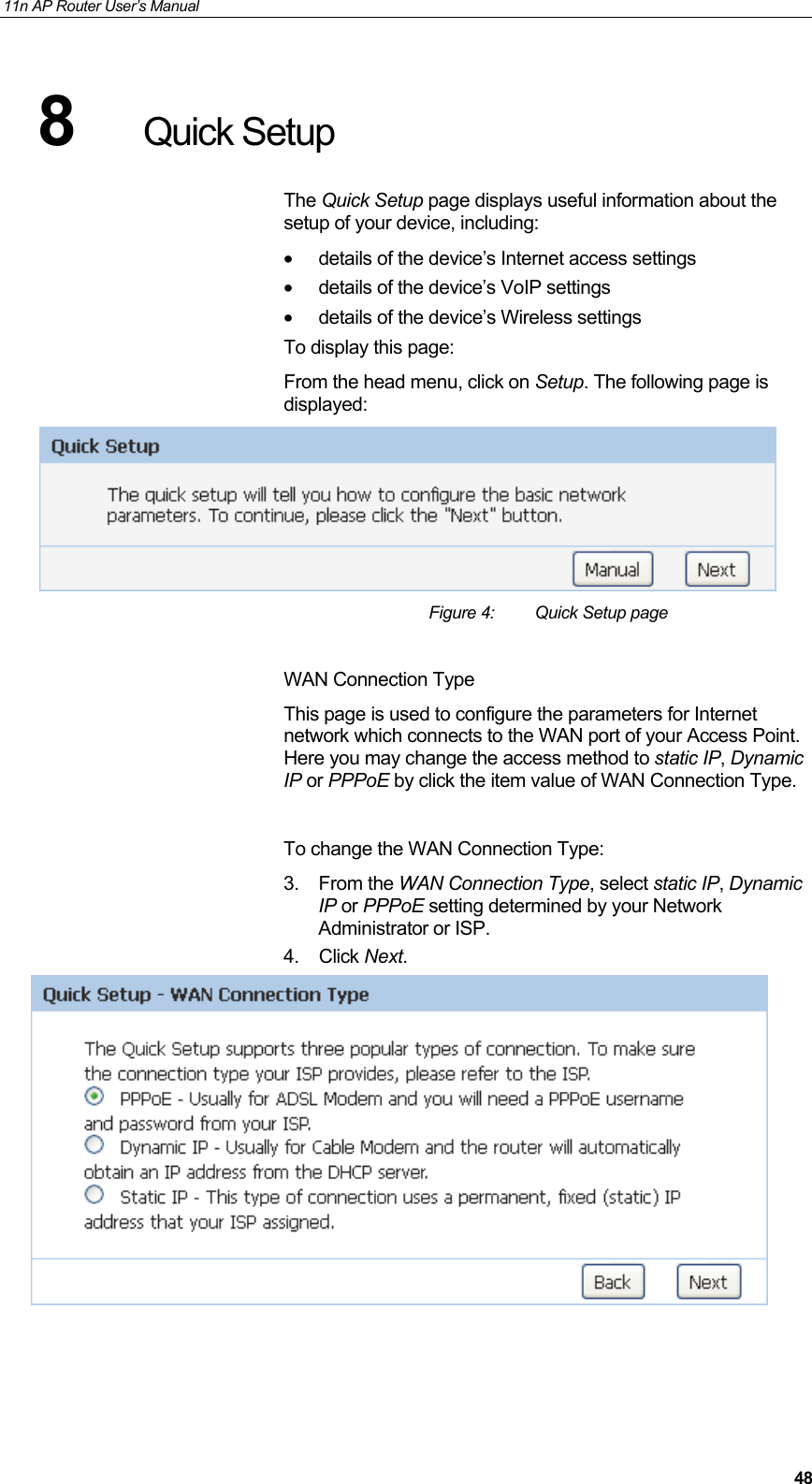
11n AP Router User’s Manual     488  Quick Setup The Quick Setup page displays useful information about the setup of your device, including: •  details of the device’s Internet access settings •  details of the device’s VoIP settings •  details of the device’s Wireless settings To display this page: From the head menu, click on Setup. The following page is displayed:  Figure 4:  Quick Setup page  WAN Connection Type This page is used to configure the parameters for Internet network which connects to the WAN port of your Access Point. Here you may change the access method to static IP, Dynamic IP or PPPoE by click the item value of WAN Connection Type.  To change the WAN Connection Type: 3. From the WAN Connection Type, select static IP, Dynamic IP or PPPoE setting determined by your Network Administrator or ISP. 4. Click Next.
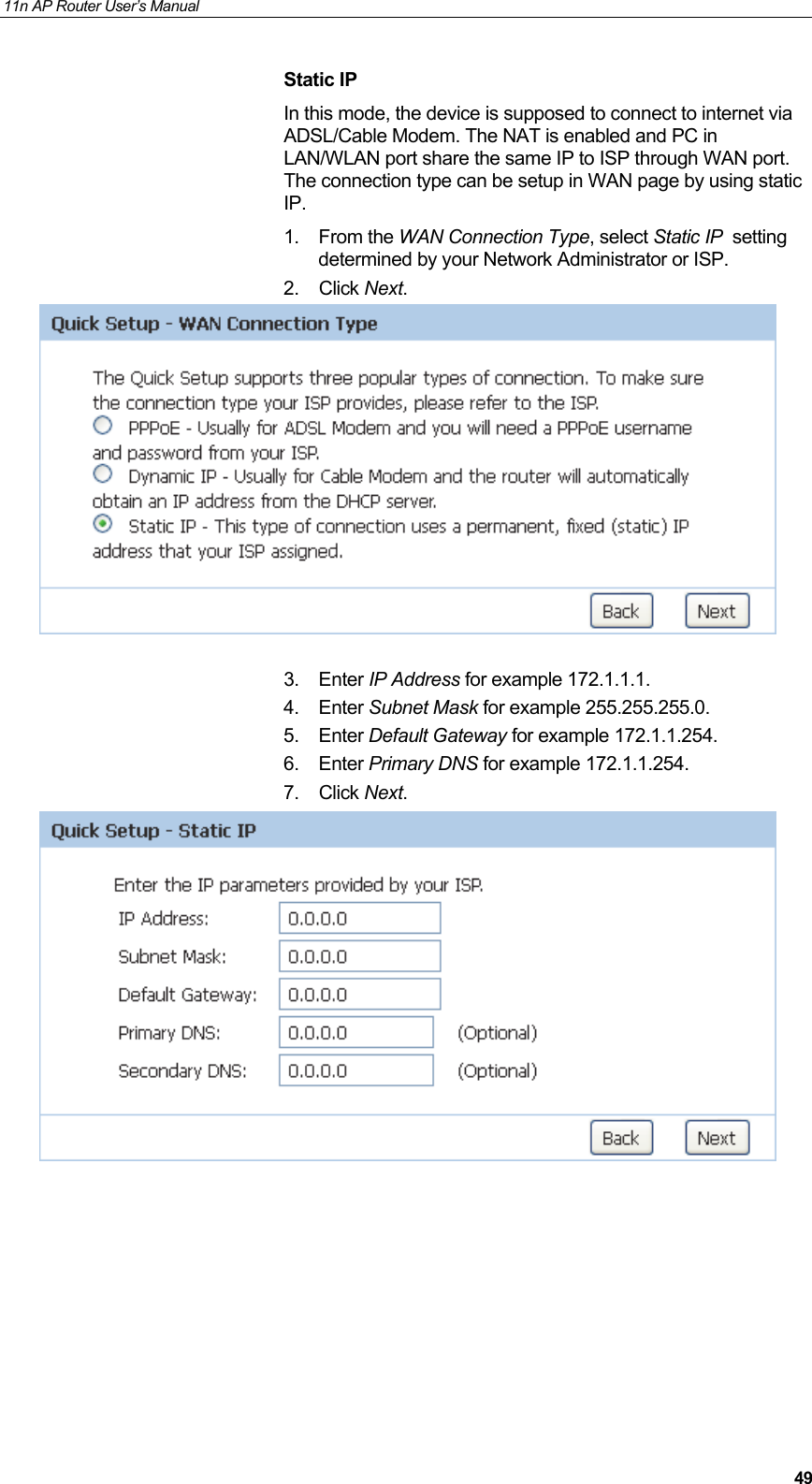
11n AP Router User’s Manual     49Static IP In this mode, the device is supposed to connect to internet via ADSL/Cable Modem. The NAT is enabled and PC in LAN/WLAN port share the same IP to ISP through WAN port. The connection type can be setup in WAN page by using static IP. 1. From the WAN Connection Type, select Static IP  setting determined by your Network Administrator or ISP. 2. Click Next.   3. Enter IP Address for example 172.1.1.1. 4. Enter Subnet Mask for example 255.255.255.0. 5. Enter Default Gateway for example 172.1.1.254. 6. Enter Primary DNS for example 172.1.1.254. 7. Click Next.
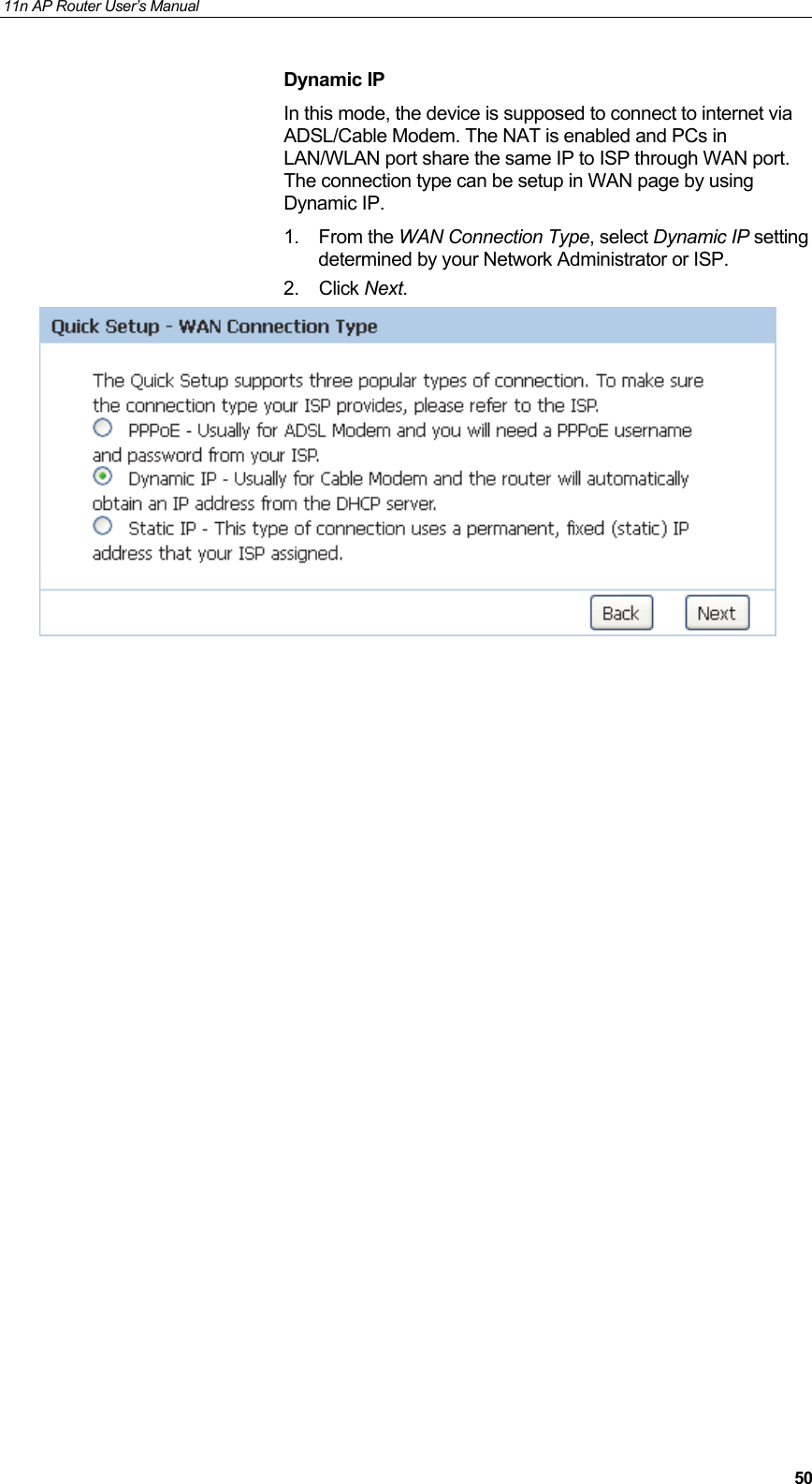
11n AP Router User’s Manual     50Dynamic IP In this mode, the device is supposed to connect to internet via ADSL/Cable Modem. The NAT is enabled and PCs in LAN/WLAN port share the same IP to ISP through WAN port. The connection type can be setup in WAN page by using Dynamic IP. 1. From the WAN Connection Type, select Dynamic IP setting determined by your Network Administrator or ISP. 2. Click Next.
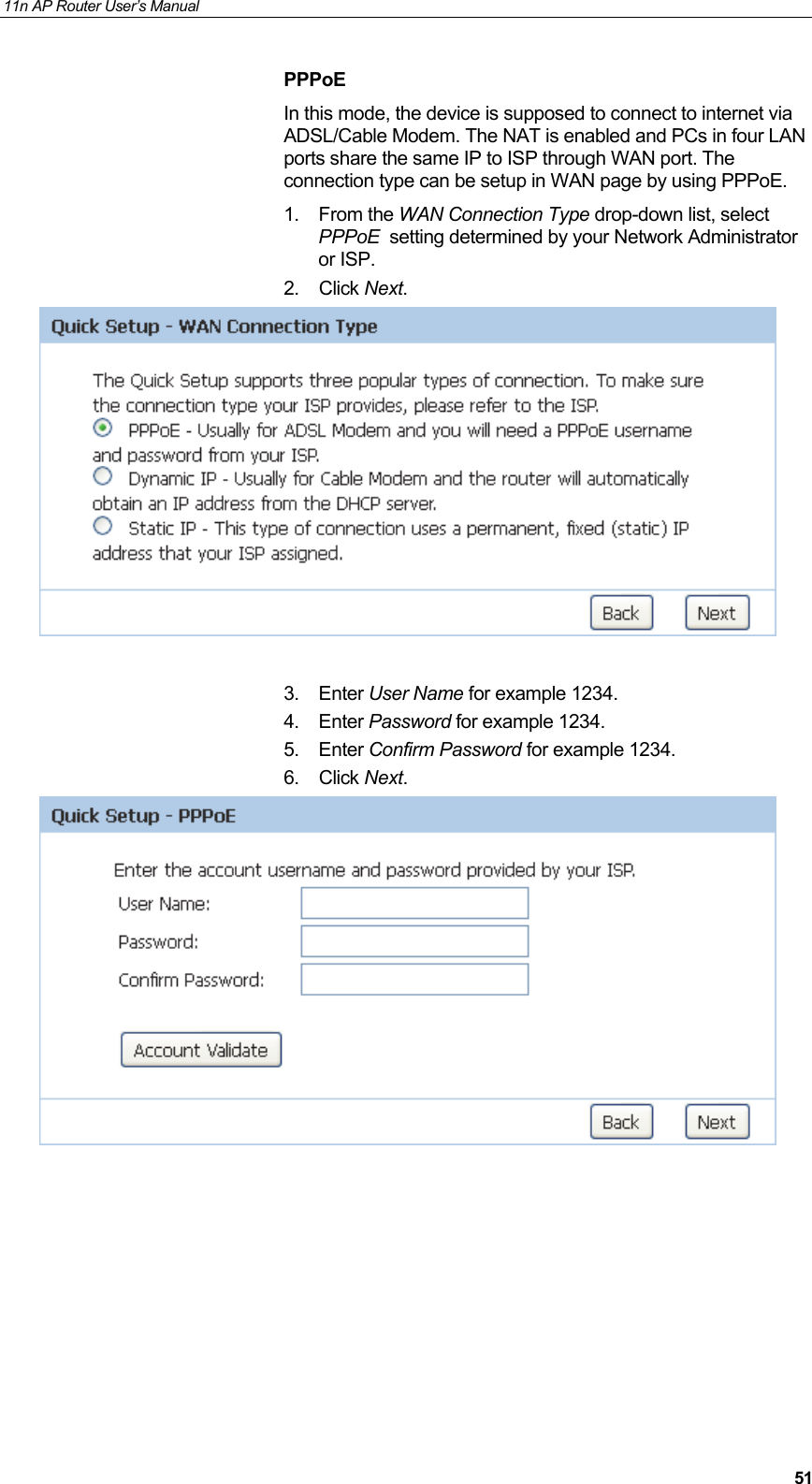
11n AP Router User’s Manual     51PPPoE In this mode, the device is supposed to connect to internet via ADSL/Cable Modem. The NAT is enabled and PCs in four LAN ports share the same IP to ISP through WAN port. The connection type can be setup in WAN page by using PPPoE. 1. From the WAN Connection Type drop-down list, select PPPoE  setting determined by your Network Administrator or ISP. 2. Click Next.   3. Enter User Name for example 1234. 4. Enter Password for example 1234. 5. Enter Confirm Password for example 1234. 6. Click Next.
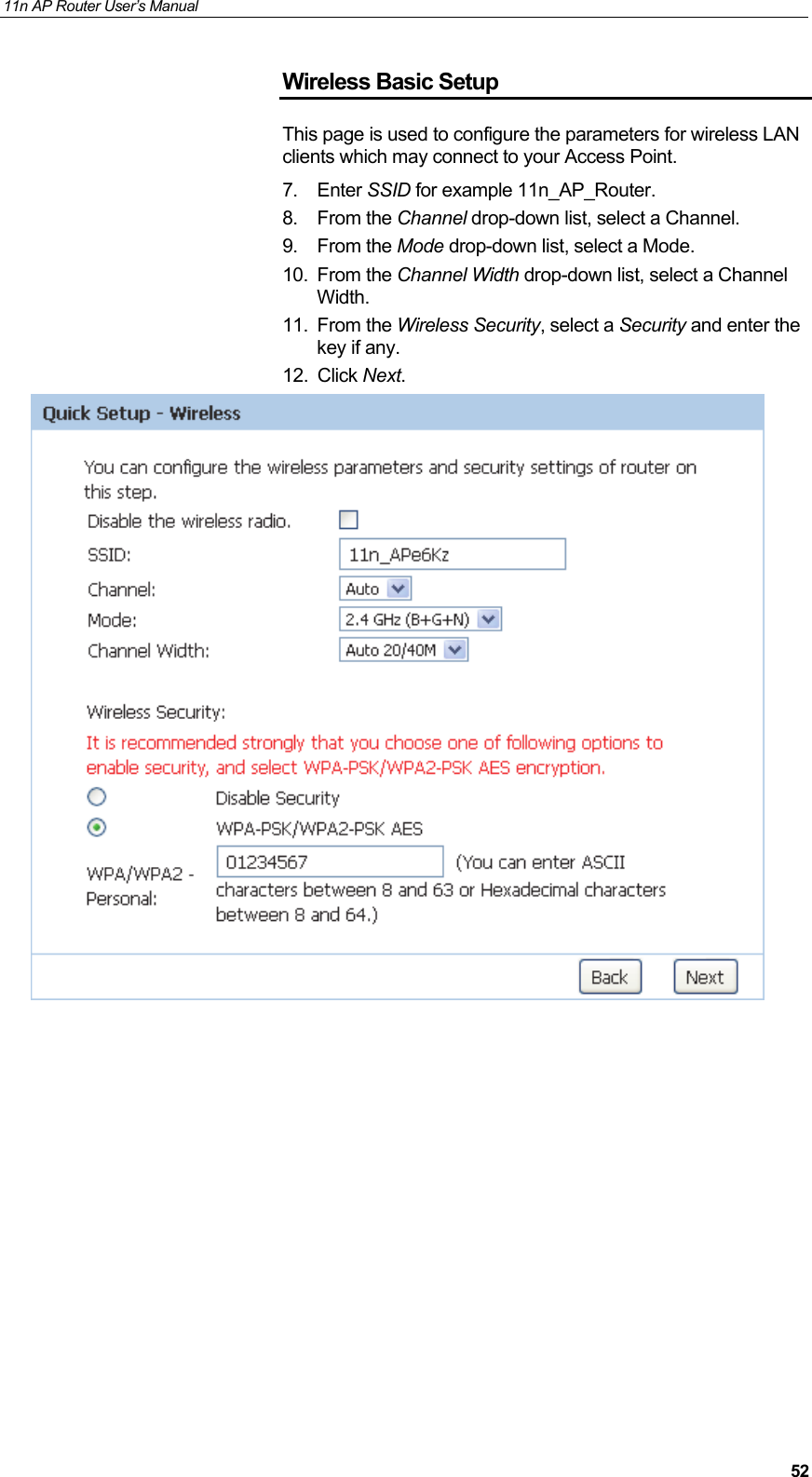
11n AP Router User’s Manual     52Wireless Basic Setup This page is used to configure the parameters for wireless LAN clients which may connect to your Access Point. 7. Enter SSID for example 11n_AP_Router. 8. From the Channel drop-down list, select a Channel. 9. From the Mode drop-down list, select a Mode. 10. From the Channel Width drop-down list, select a Channel Width. 11. From the Wireless Security, select a Security and enter the key if any. 12. Click Next.
11n AP Router User’s Manual     53Finish the Quick Setup This page is used to finish the all the settings of Quick Setup. 13. Click Finish.
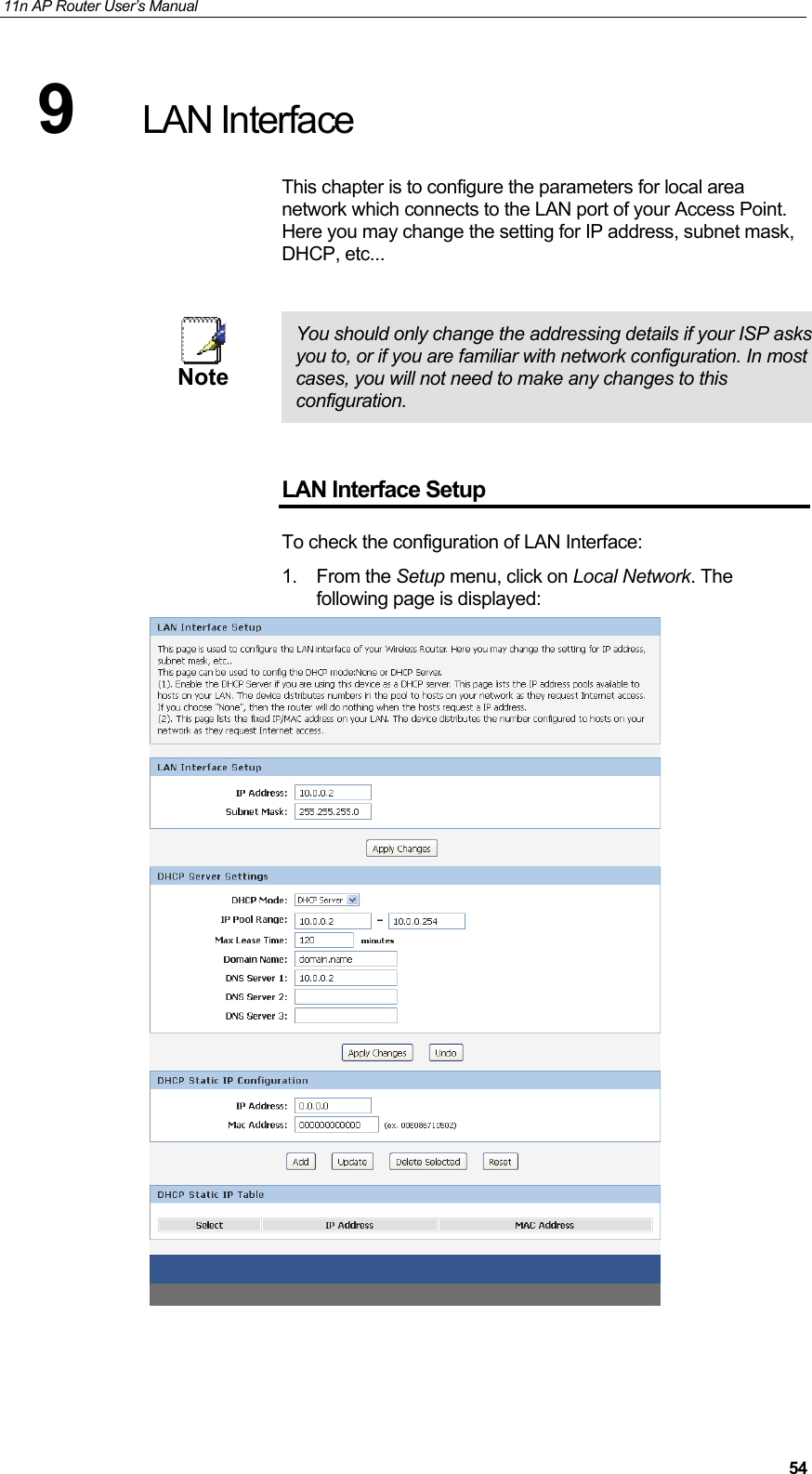
11n AP Router User’s Manual     549  LAN Interface This chapter is to configure the parameters for local area network which connects to the LAN port of your Access Point. Here you may change the setting for IP address, subnet mask, DHCP, etc...   Note  You should only change the addressing details if your ISP asks you to, or if you are familiar with network configuration. In most cases, you will not need to make any changes to this configuration.  LAN Interface Setup To check the configuration of LAN Interface: 1. From the Setup menu, click on Local Network. The following page is displayed:
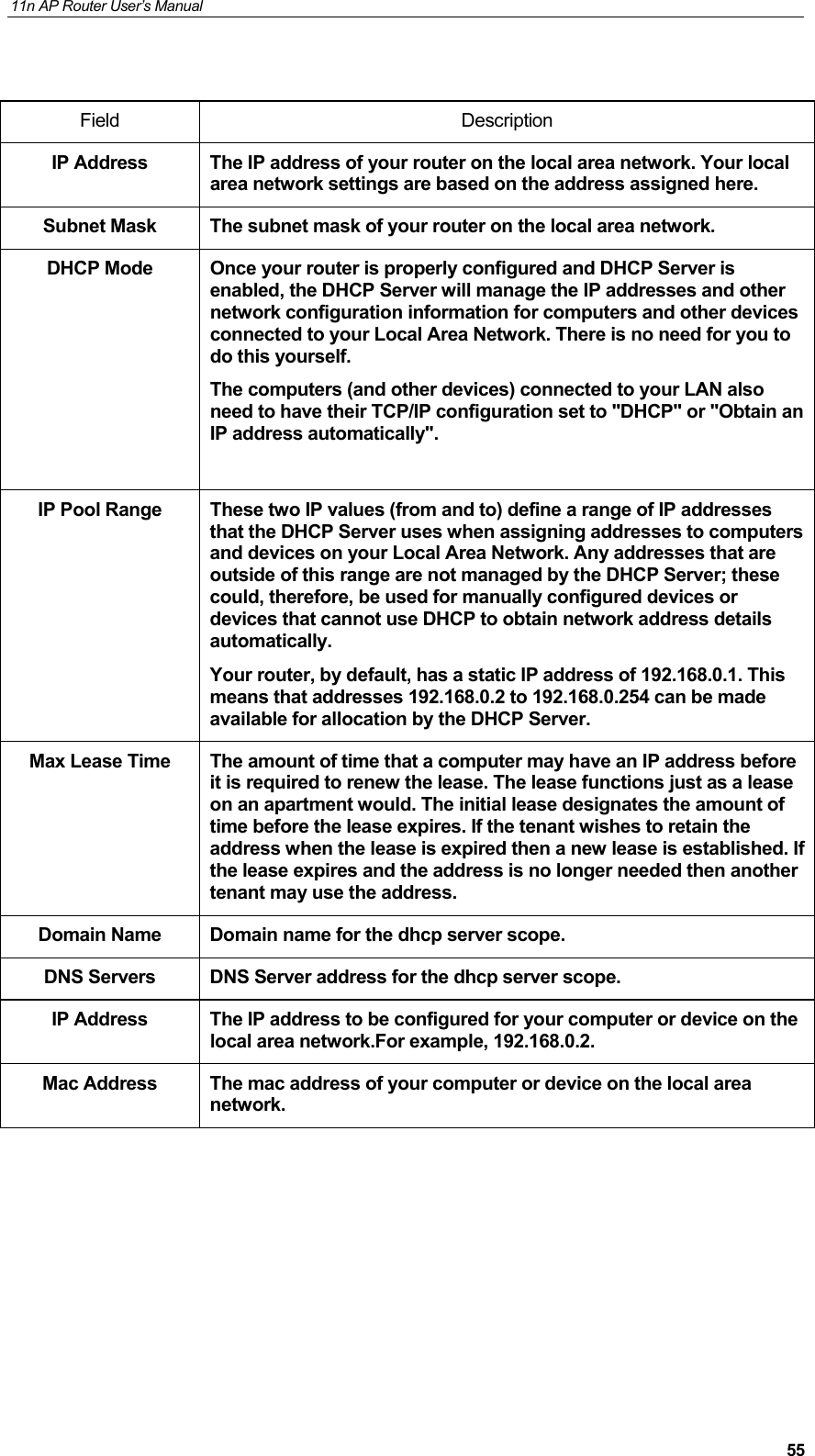
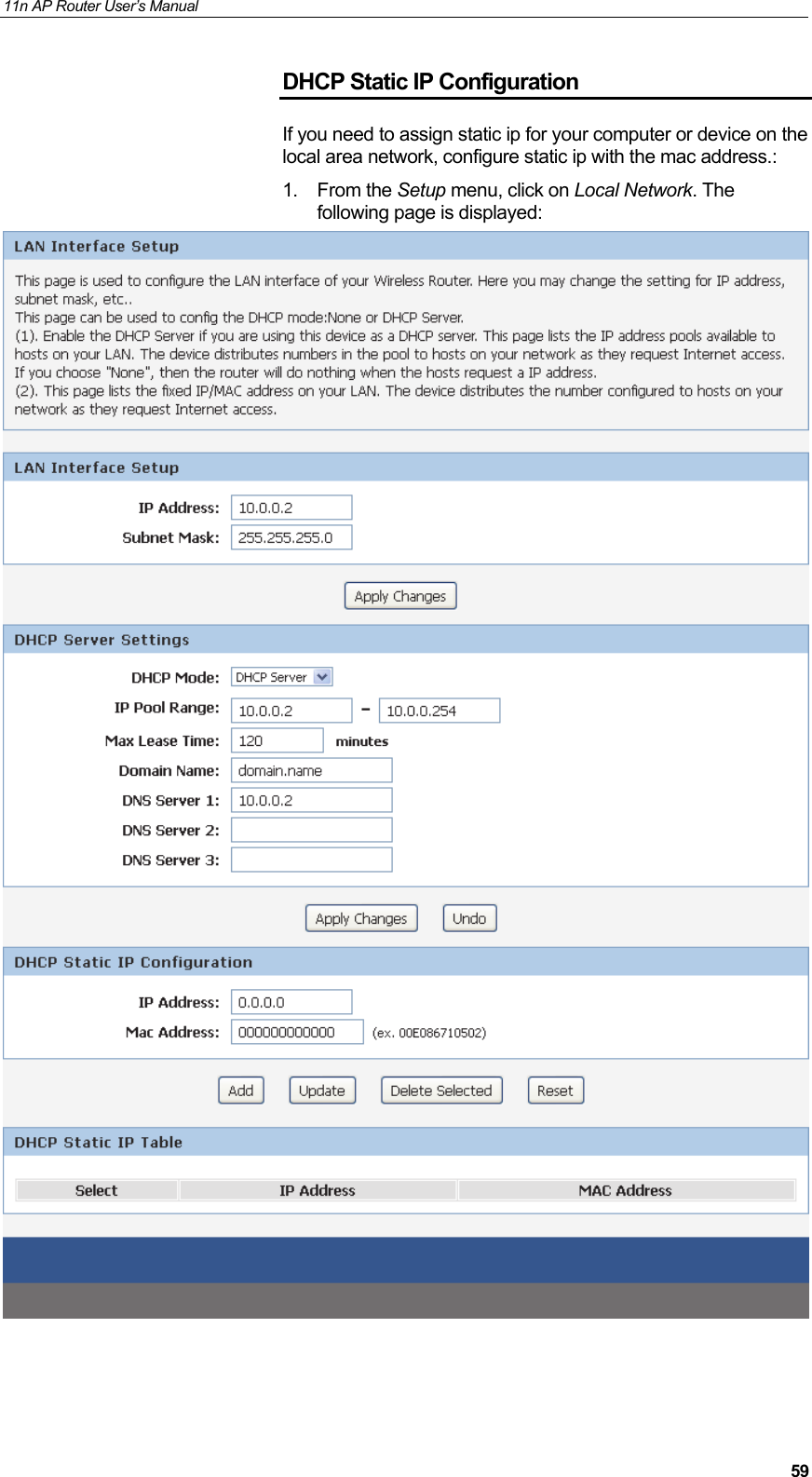
11n AP Router User’s Manual     55 Field Description IP Address  The IP address of your router on the local area network. Your local area network settings are based on the address assigned here. Subnet Mask  The subnet mask of your router on the local area network. DHCP Mode  Once your router is properly configured and DHCP Server is enabled, the DHCP Server will manage the IP addresses and other network configuration information for computers and other devices connected to your Local Area Network. There is no need for you to do this yourself.  The computers (and other devices) connected to your LAN also need to have their TCP/IP configuration set to "DHCP" or "Obtain an IP address automatically".  IP Pool Range  These two IP values (from and to) define a range of IP addresses that the DHCP Server uses when assigning addresses to computers and devices on your Local Area Network. Any addresses that are outside of this range are not managed by the DHCP Server; these could, therefore, be used for manually configured devices or devices that cannot use DHCP to obtain network address details automatically.  Your router, by default, has a static IP address of 192.168.0.1. This means that addresses 192.168.0.2 to 192.168.0.254 can be made available for allocation by the DHCP Server.  Max Lease Time  The amount of time that a computer may have an IP address before it is required to renew the lease. The lease functions just as a lease on an apartment would. The initial lease designates the amount of time before the lease expires. If the tenant wishes to retain the address when the lease is expired then a new lease is established. If the lease expires and the address is no longer needed then another tenant may use the address. Domain Name  Domain name for the dhcp server scope. DNS Servers  DNS Server address for the dhcp server scope. IP Address  The IP address to be configured for your computer or device on the local area network.For example, 192.168.0.2.   Mac Address  The mac address of your computer or device on the local area network.
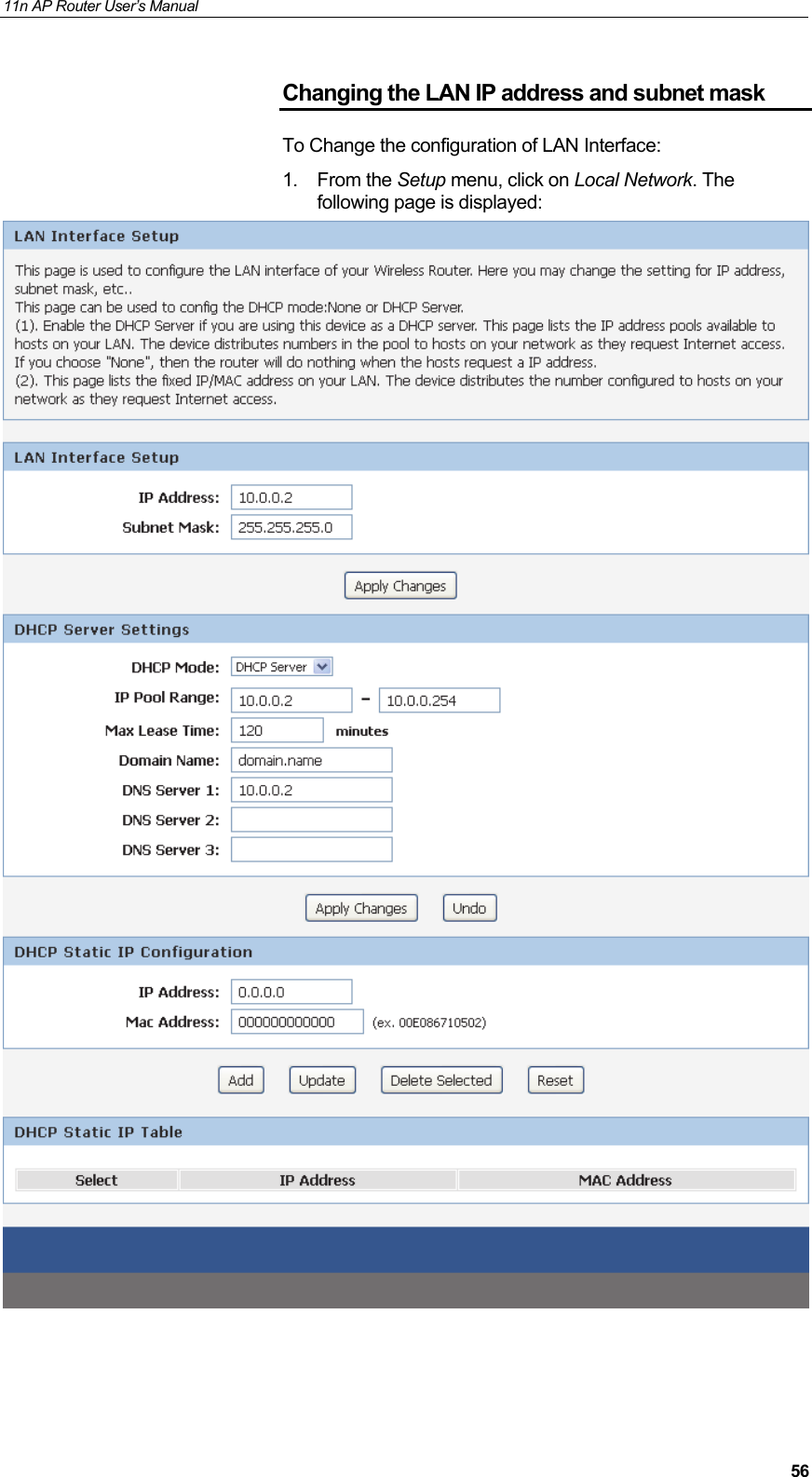
11n AP Router User’s Manual     56Changing the LAN IP address and subnet mask To Change the configuration of LAN Interface: 1. From the Setup menu, click on Local Network. The following page is displayed:
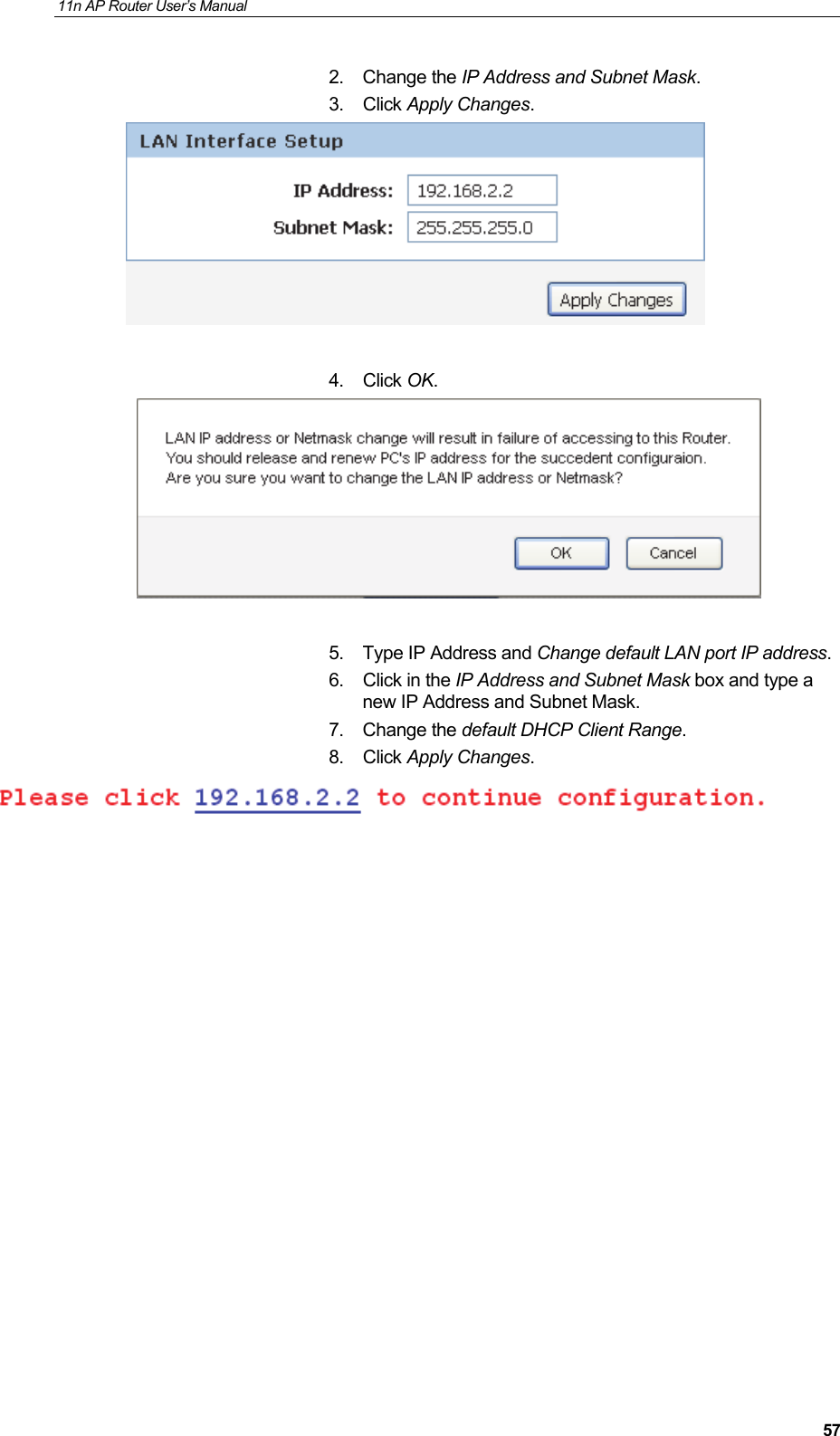
11n AP Router User’s Manual     572. Change the IP Address and Subnet Mask. 3. Click Apply Changes.   4. Click OK.   5.  Type IP Address and Change default LAN port IP address. 6.  Click in the IP Address and Subnet Mask box and type a new IP Address and Subnet Mask. 7. Change the default DHCP Client Range. 8. Click Apply Changes.
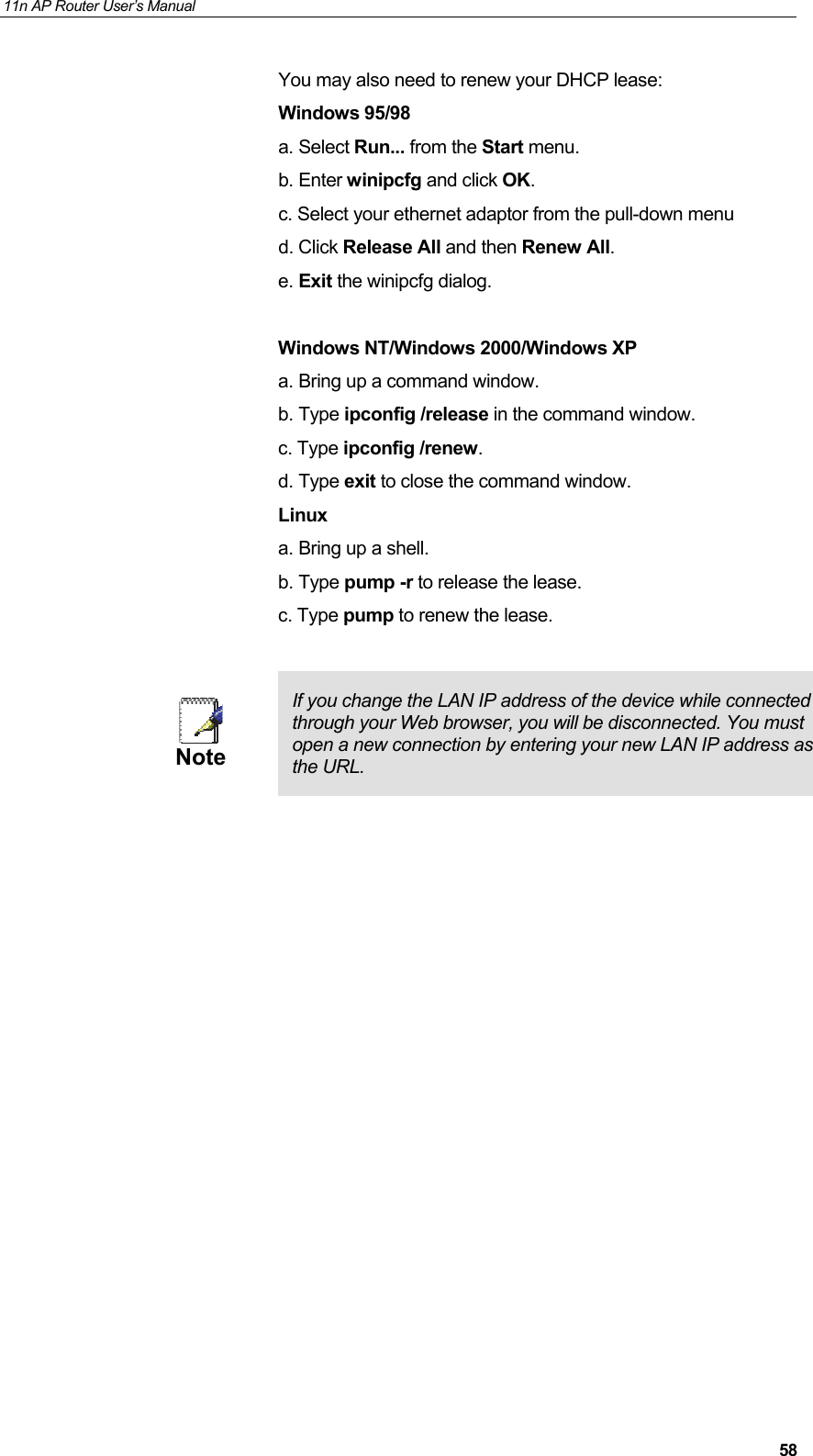
11n AP Router User’s Manual     58You may also need to renew your DHCP lease:  Windows 95/98 a. Select Run... from the Start menu.  b. Enter winipcfg and click OK.  c. Select your ethernet adaptor from the pull-down menu  d. Click Release All and then Renew All.  e. Exit the winipcfg dialog.   Windows NT/Windows 2000/Windows XP a. Bring up a command window.  b. Type ipconfig /release in the command window.  c. Type ipconfig /renew.  d. Type exit to close the command window.  Linux a. Bring up a shell.  b. Type pump -r to release the lease.  c. Type pump to renew the lease.      Note  If you change the LAN IP address of the device while connected through your Web browser, you will be disconnected. You must open a new connection by entering your new LAN IP address as the URL.
11n AP Router User’s Manual     59DHCP Static IP Configuration If you need to assign static ip for your computer or device on the local area network, configure static ip with the mac address.: 1. From the Setup menu, click on Local Network. The following page is displayed:
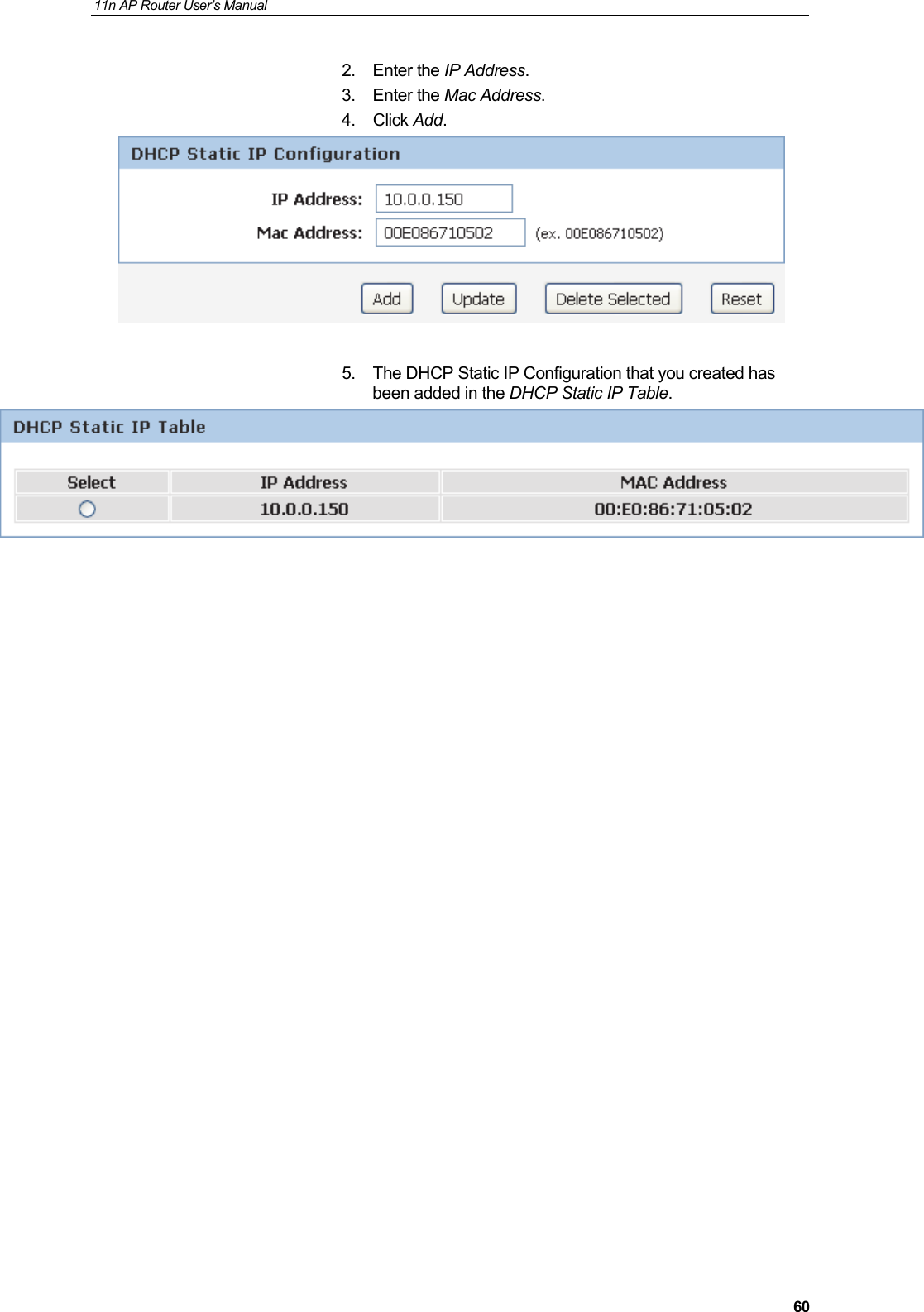
11n AP Router User’s Manual     602. Enter the IP Address. 3. Enter the Mac Address. 4. Click Add.   5.  The DHCP Static IP Configuration that you created has been added in the DHCP Static IP Table.
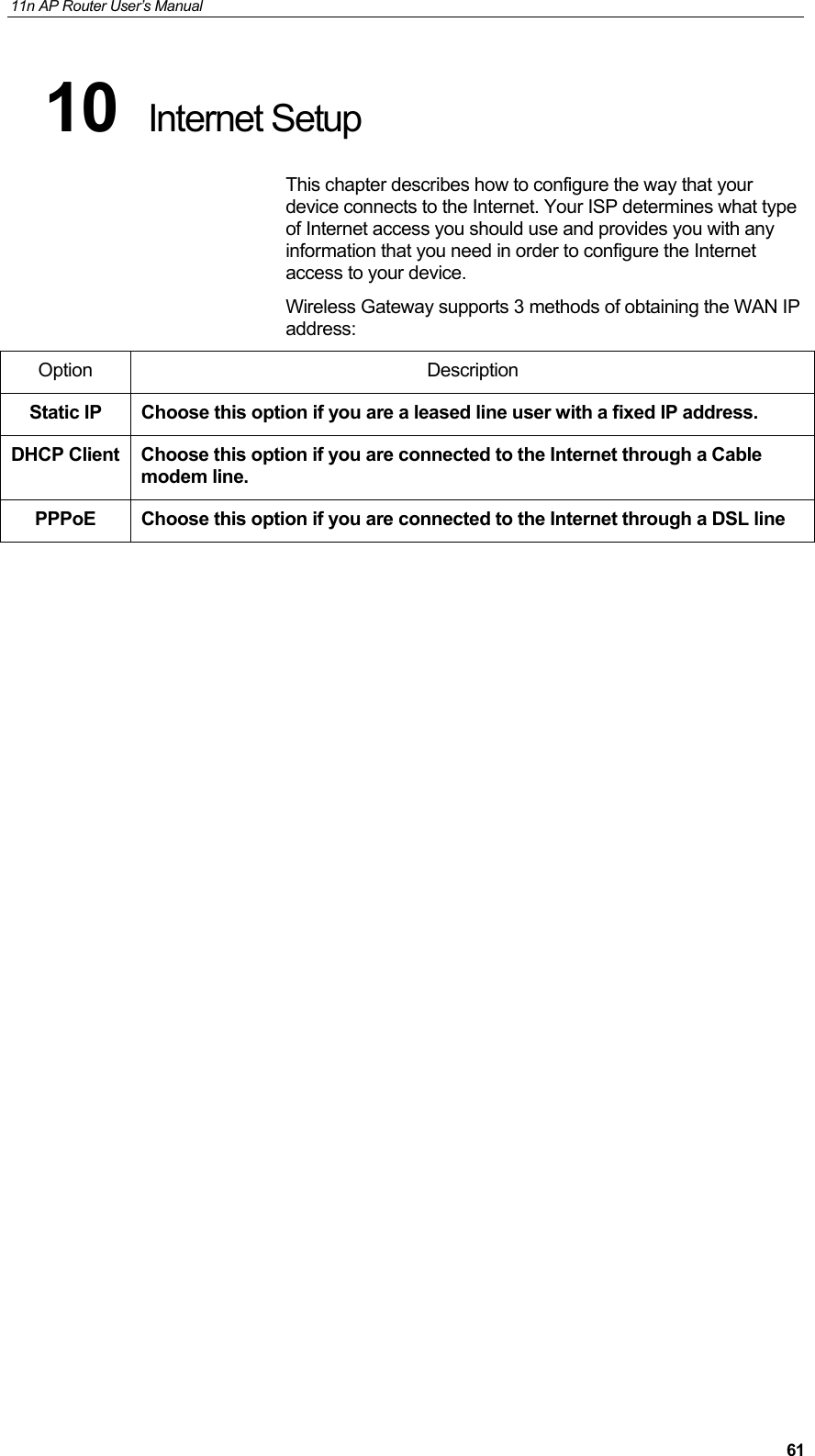
11n AP Router User’s Manual     6110  Internet Setup This chapter describes how to configure the way that your device connects to the Internet. Your ISP determines what type of Internet access you should use and provides you with any information that you need in order to configure the Internet access to your device. Wireless Gateway supports 3 methods of obtaining the WAN IP address: Option Description Static IP  Choose this option if you are a leased line user with a fixed IP address. DHCP Client  Choose this option if you are connected to the Internet through a Cable modem line. PPPoE  Choose this option if you are connected to the Internet through a DSL line
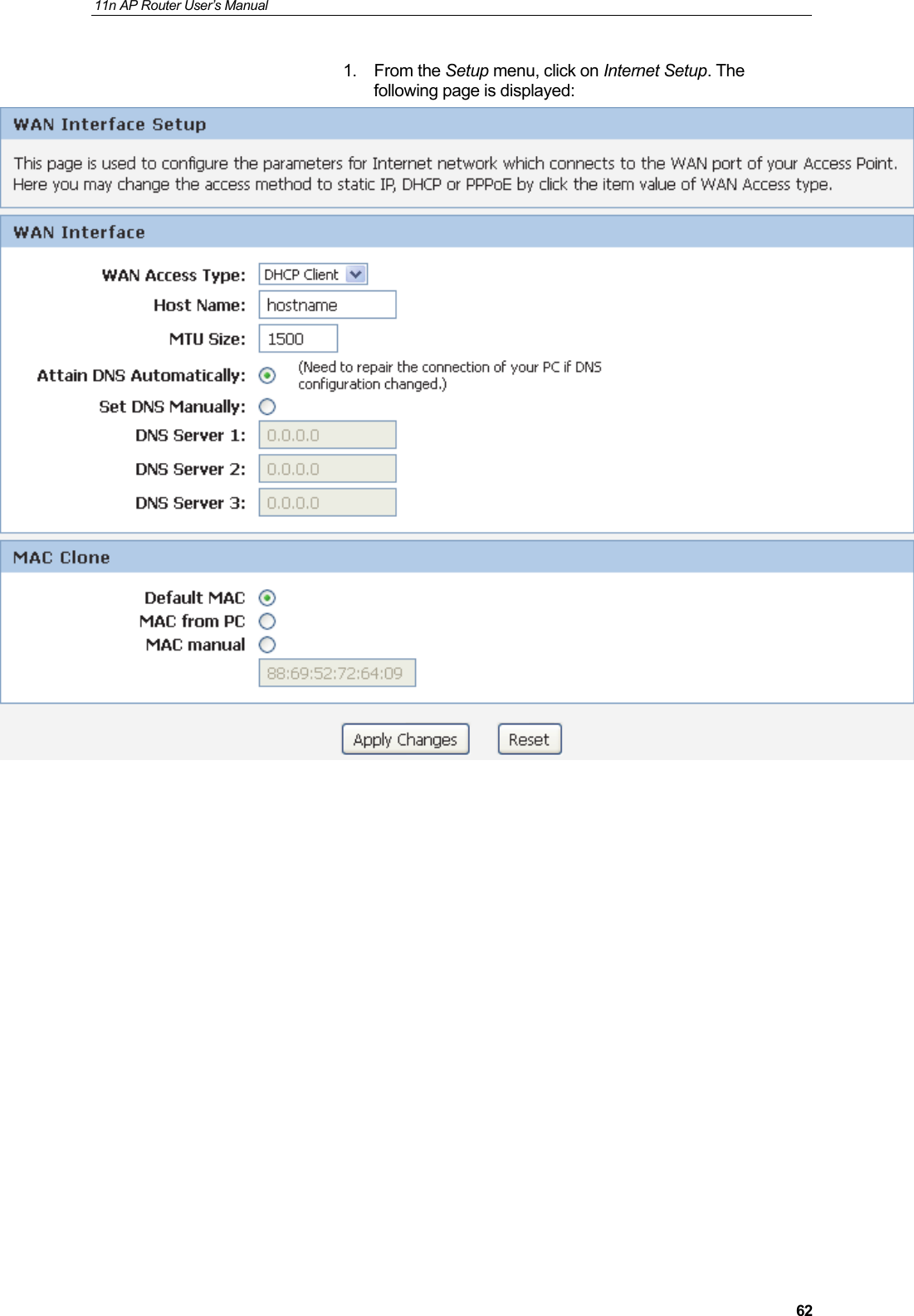
11n AP Router User’s Manual     621. From the Setup menu, click on Internet Setup. The following page is displayed:
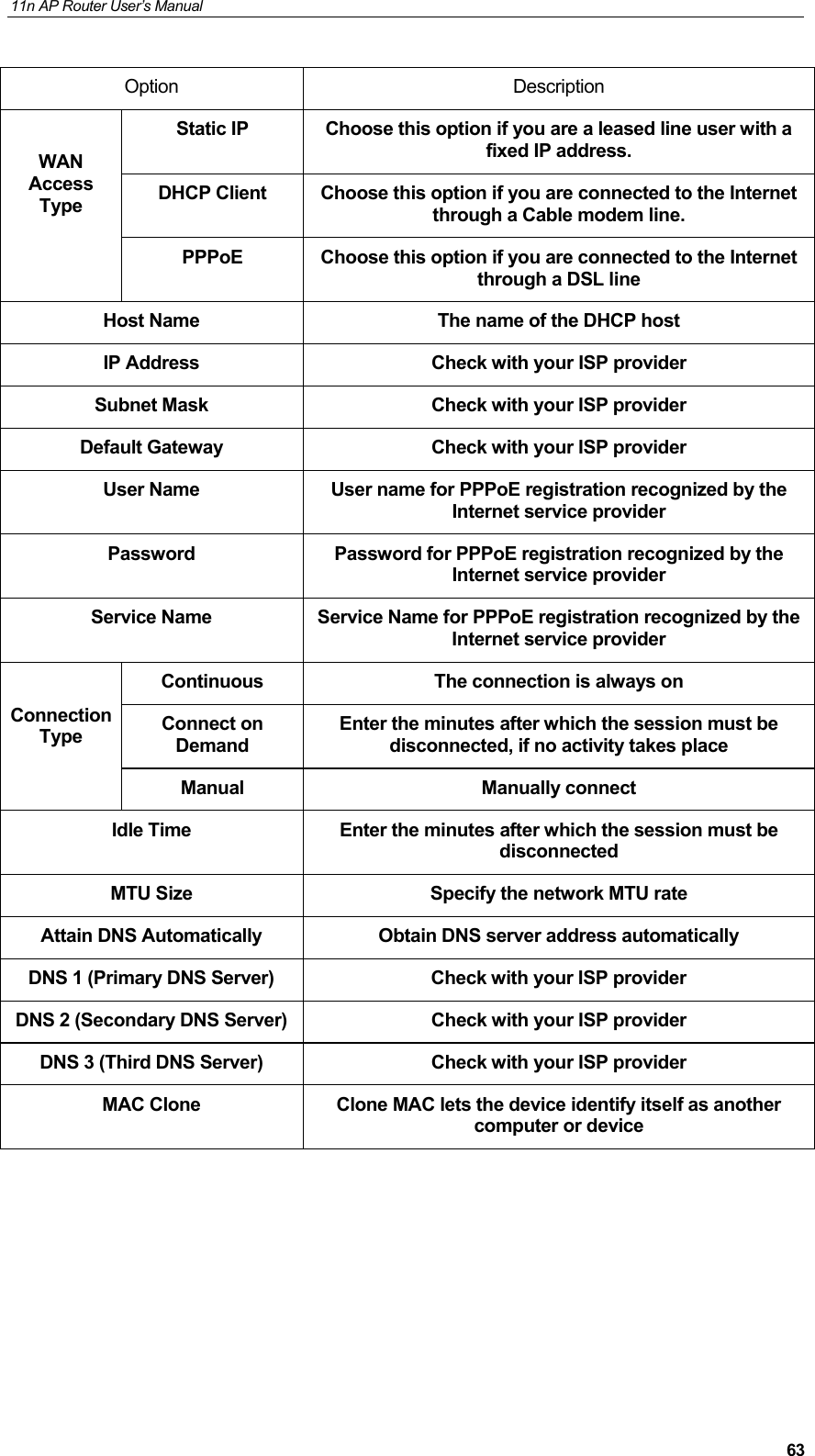
11n AP Router User’s Manual     63Option Description  WAN Access Type Static IP  Choose this option if you are a leased line user with a fixed IP address. DHCP Client  Choose this option if you are connected to the Internet through a Cable modem line. PPPoE  Choose this option if you are connected to the Internet through a DSL line Host Name  The name of the DHCP host IP Address  Check with your ISP provider Subnet Mask  Check with your ISP provider Default Gateway  Check with your ISP provider User Name  User name for PPPoE registration recognized by the Internet service provider Password  Password for PPPoE registration recognized by the Internet service provider Service Name  Service Name for PPPoE registration recognized by the Internet service provider  Connection Type Continuous  The connection is always on Connect on Demand Enter the minutes after which the session must be disconnected, if no activity takes place Manual Manually connect Idle Time  Enter the minutes after which the session must be disconnected MTU Size  Specify the network MTU rate Attain DNS Automatically  Obtain DNS server address automatically DNS 1 (Primary DNS Server)  Check with your ISP provider DNS 2 (Secondary DNS Server)  Check with your ISP provider DNS 3 (Third DNS Server)  Check with your ISP provider MAC Clone  Clone MAC lets the device identify itself as another computer or device
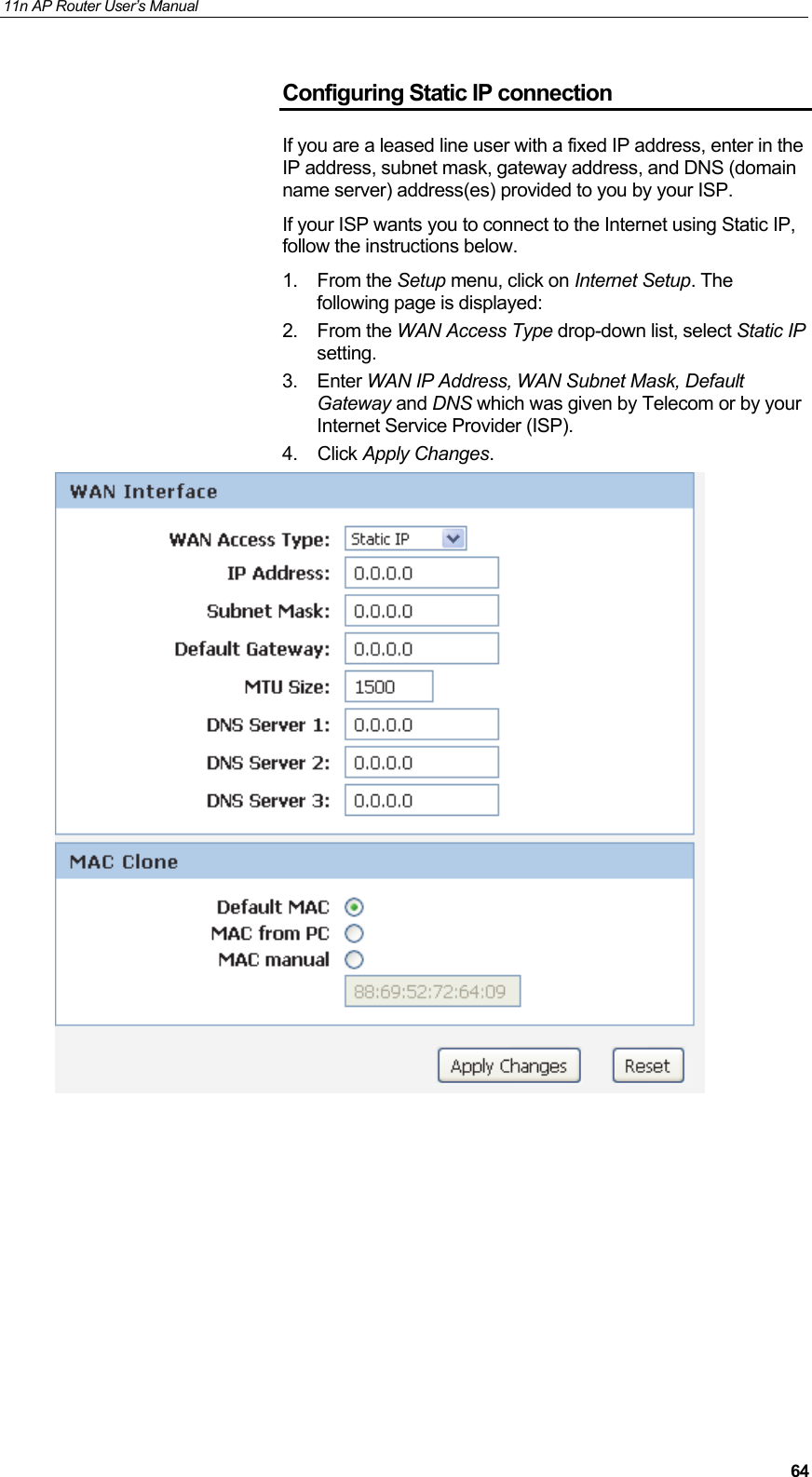
11n AP Router User’s Manual     64Configuring Static IP connection If you are a leased line user with a fixed IP address, enter in the IP address, subnet mask, gateway address, and DNS (domain name server) address(es) provided to you by your ISP. If your ISP wants you to connect to the Internet using Static IP, follow the instructions below. 1. From the Setup menu, click on Internet Setup. The following page is displayed: 2. From the WAN Access Type drop-down list, select Static IP setting. 3. Enter WAN IP Address, WAN Subnet Mask, Default Gateway and DNS which was given by Telecom or by your Internet Service Provider (ISP). 4. Click Apply Changes.
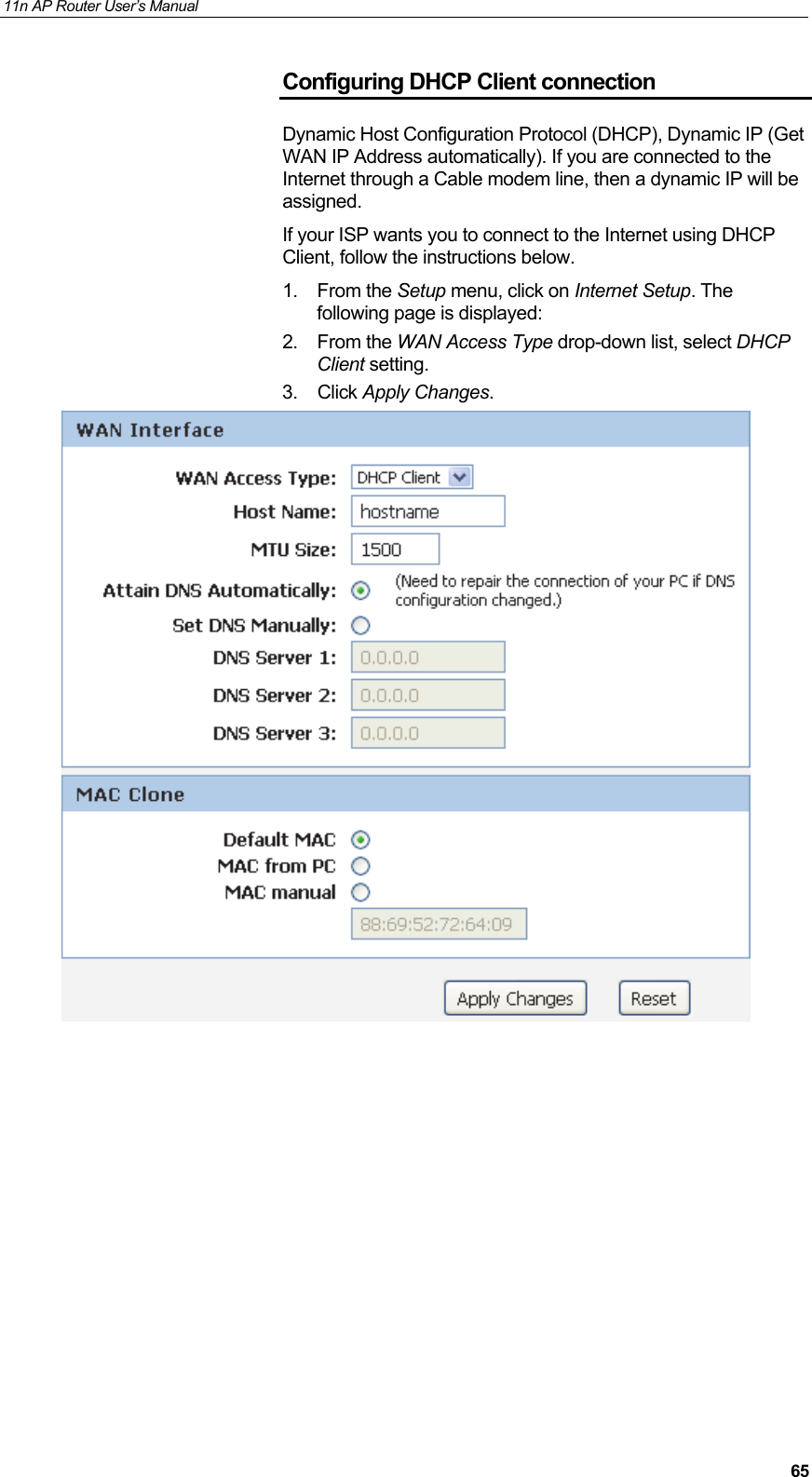
11n AP Router User’s Manual     65Configuring DHCP Client connection Dynamic Host Configuration Protocol (DHCP), Dynamic IP (Get WAN IP Address automatically). If you are connected to the Internet through a Cable modem line, then a dynamic IP will be assigned. If your ISP wants you to connect to the Internet using DHCP Client, follow the instructions below. 1. From the Setup menu, click on Internet Setup. The following page is displayed: 2. From the WAN Access Type drop-down list, select DHCP Client setting. 3. Click Apply Changes.
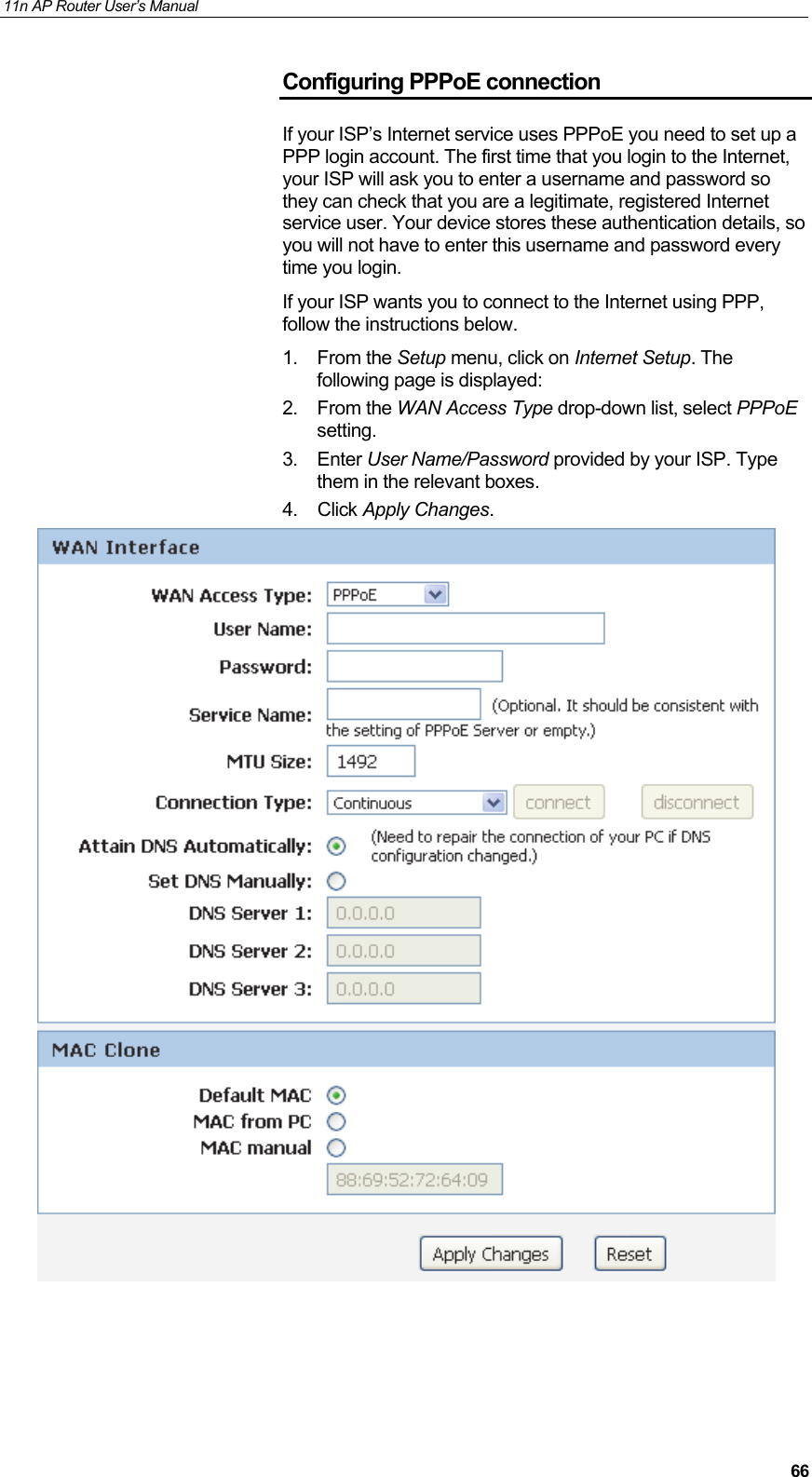
11n AP Router User’s Manual     66Configuring PPPoE connection If your ISP’s Internet service uses PPPoE you need to set up a PPP login account. The first time that you login to the Internet, your ISP will ask you to enter a username and password so they can check that you are a legitimate, registered Internet service user. Your device stores these authentication details, so you will not have to enter this username and password every time you login. If your ISP wants you to connect to the Internet using PPP, follow the instructions below. 1. From the Setup menu, click on Internet Setup. The following page is displayed: 2. From the WAN Access Type drop-down list, select PPPoE setting. 3. Enter User Name/Password provided by your ISP. Type them in the relevant boxes. 4. Click Apply Changes.
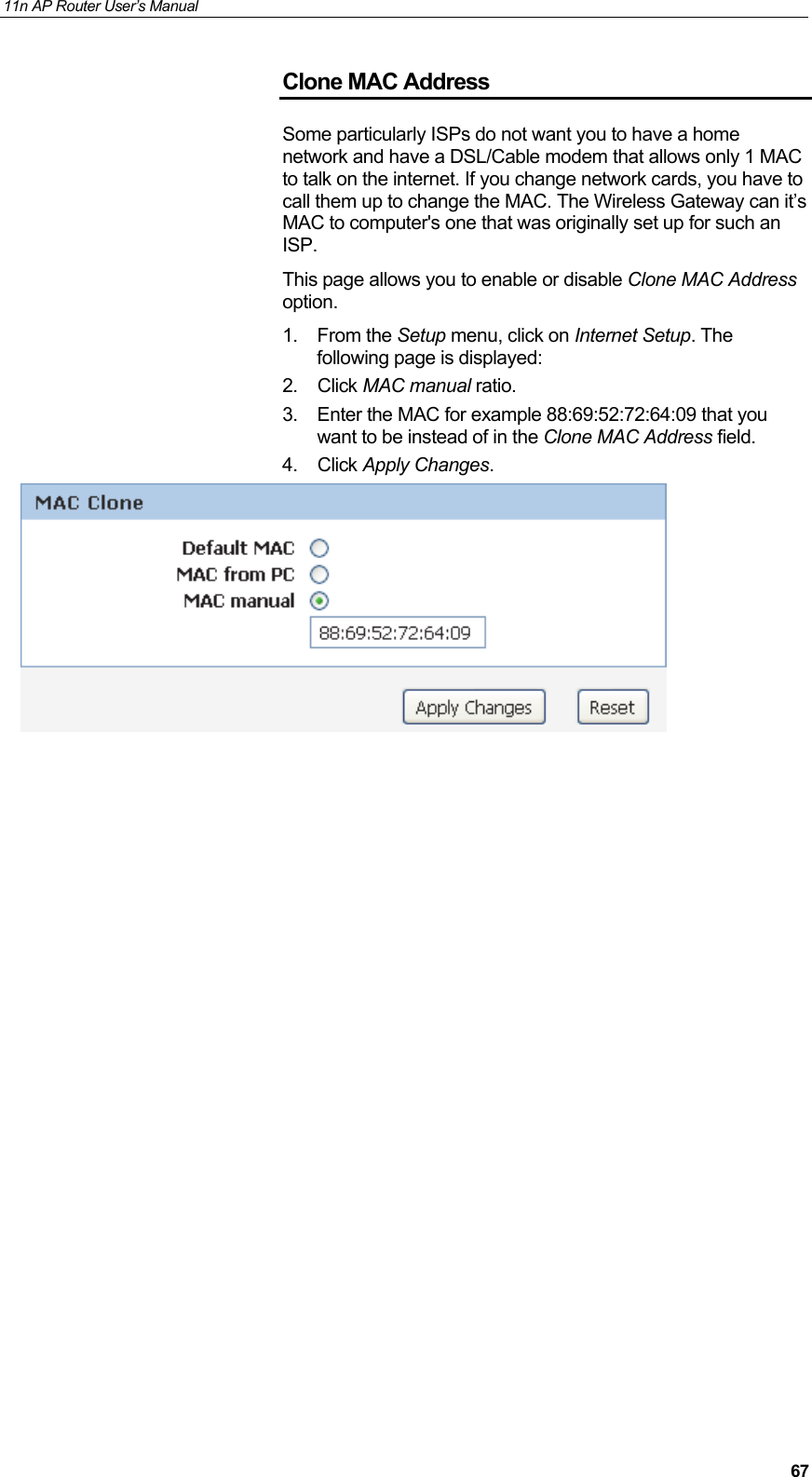
11n AP Router User’s Manual     67Clone MAC Address Some particularly ISPs do not want you to have a home network and have a DSL/Cable modem that allows only 1 MAC to talk on the internet. If you change network cards, you have to call them up to change the MAC. The Wireless Gateway can it’s MAC to computer's one that was originally set up for such an ISP. This page allows you to enable or disable Clone MAC Address option.  1. From the Setup menu, click on Internet Setup. The following page is displayed: 2. Click MAC manual ratio. 3.  Enter the MAC for example 88:69:52:72:64:09 that you want to be instead of in the Clone MAC Address field. 4. Click Apply Changes.
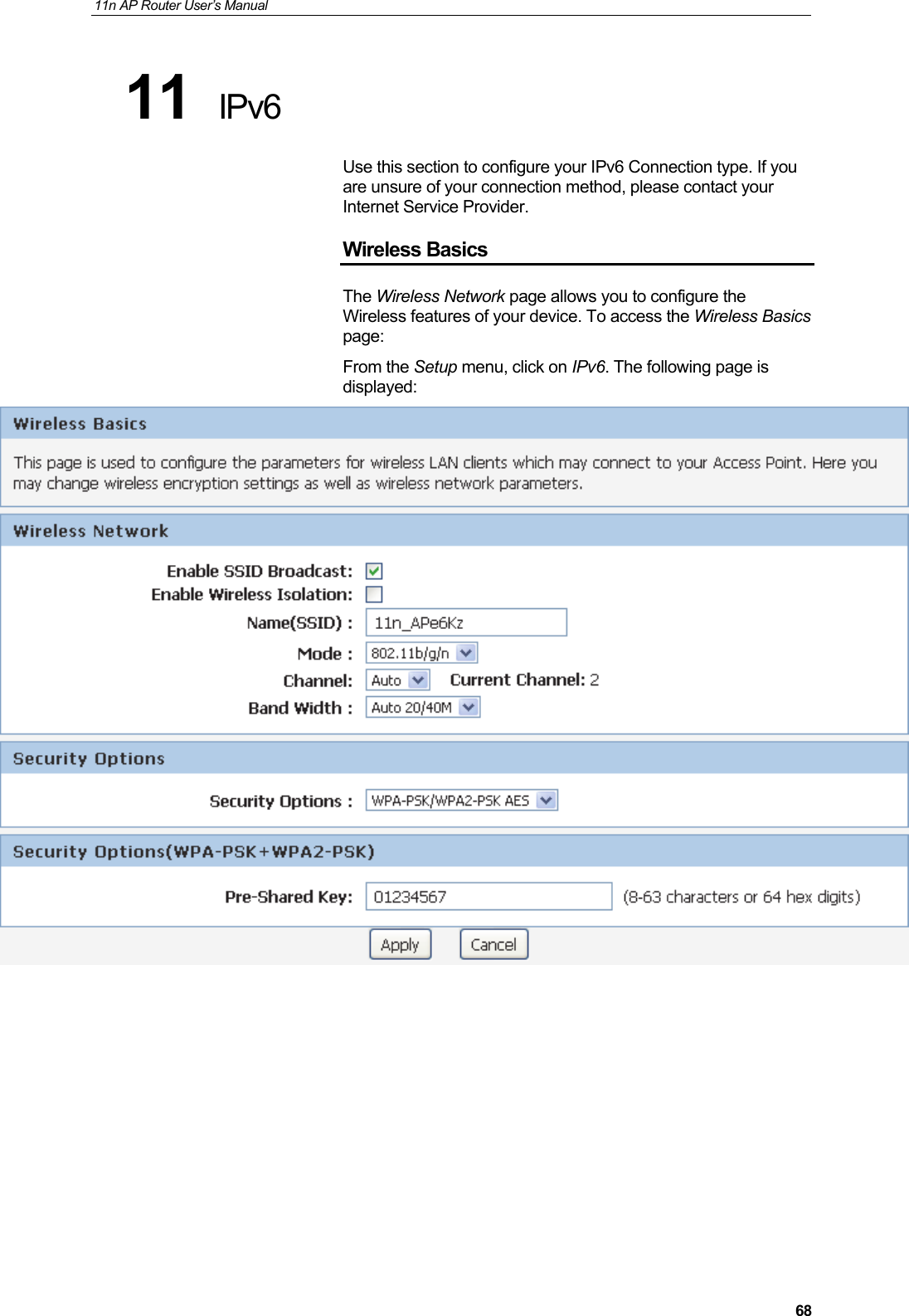
11n AP Router User’s Manual     6811  IPv6 Use this section to configure your IPv6 Connection type. If you are unsure of your connection method, please contact your Internet Service Provider. Wireless Basics The Wireless Network page allows you to configure the Wireless features of your device. To access the Wireless Basics  page: From the Setup menu, click on IPv6. The following page is displayed:
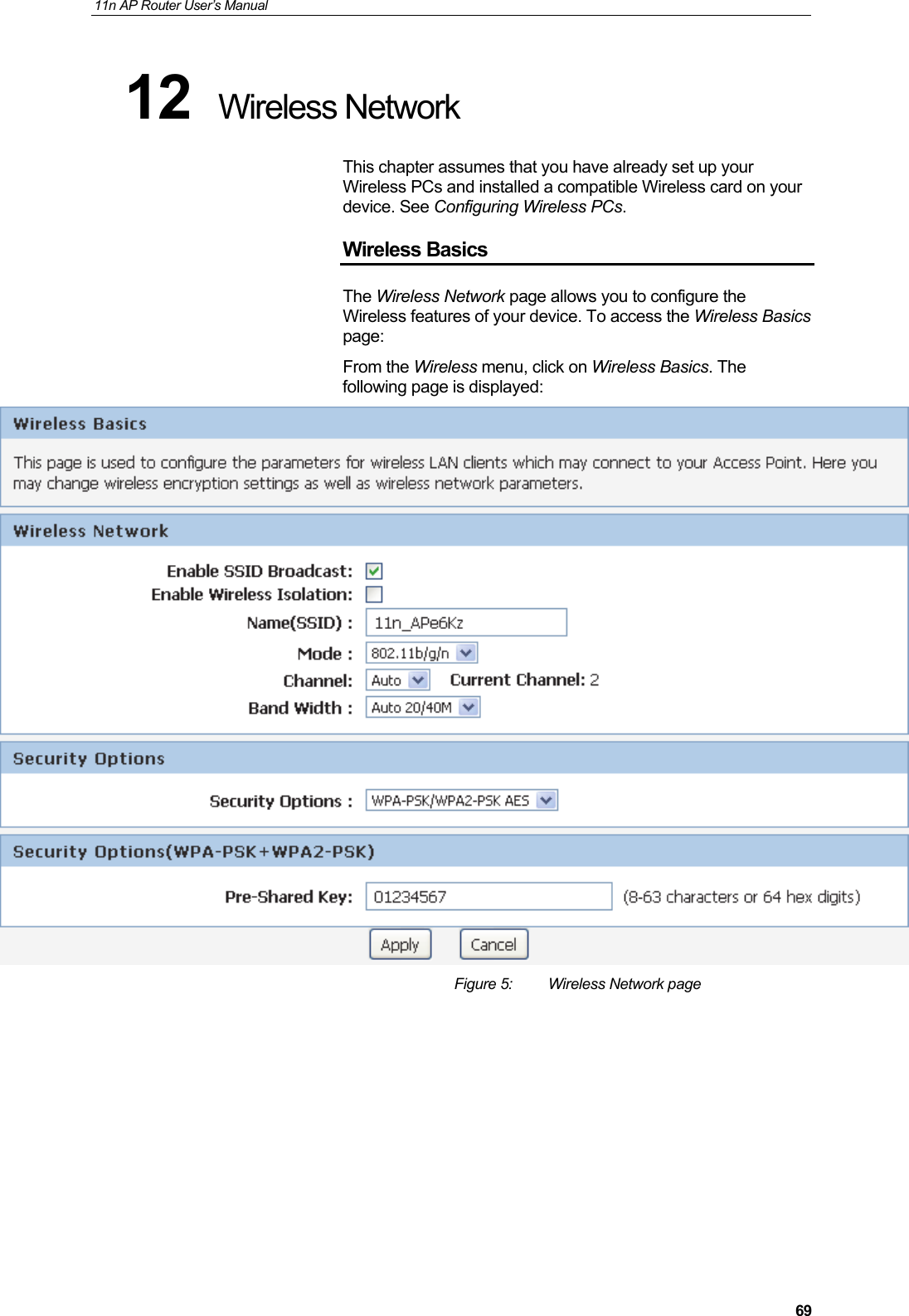
11n AP Router User’s Manual     6912  Wireless Network This chapter assumes that you have already set up your Wireless PCs and installed a compatible Wireless card on your device. See Configuring Wireless PCs. Wireless Basics The Wireless Network page allows you to configure the Wireless features of your device. To access the Wireless Basics  page: From the Wireless menu, click on Wireless Basics. The following page is displayed:  Figure 5:  Wireless Network page
11n AP Router User’s Manual     70Field Description Enable SSID Broadcast Broadcast or Hide SSID to your Network. Default: Enabled     Enable Wireless Isolation Isolate your Network. Default: Disabled     SSID  Specify the network name.  Each Wireless LAN network uses a unique Network Name to identify the network. This name is called the Service Set Identifier (SSID). When you set up your wireless adapter, you specify the SSID. If you want to connect to an existing network, you must use the name for that network. If you are setting up your own network you can make up your own name and use it on each computer. The name can be up to 20 characters long and contain letters and numbers. Mode  Specify the WLAN Mode to 802.11b mode, 802.11g mode, 802.11b/g mode, 802.11n mode, 802.11n/g mode or 802.11b/g/n mode Channel  Choose a Channel from the pull-down menu. Band Width  Choose a Band Width from the pull-down menu. Max Transmission Rate Select the Max Transmission Rate from the drop-down list Security Options  Configure the Encryption to None, WEP, WPA-PSK[TKIP] , WPA2-PSK[AES] or WPA-PSK/WPA2-PSK AES Security Encryption(WEP) Authentication Type: Automatic or Shared Keys Encryption Strength: 64 bits or 128 bits Security Encryption(WEP) Key Select and configure Key 1, Key 2, Key 3 or Key 4 Security Options(WPA-PSK) Enter the Pre-Shared Key Security Options(WPA2-PSK) Enter the Pre-Shared Key Security Options(WPA-PSK+WPA2-PSK) Enter the Pre-Shared Key
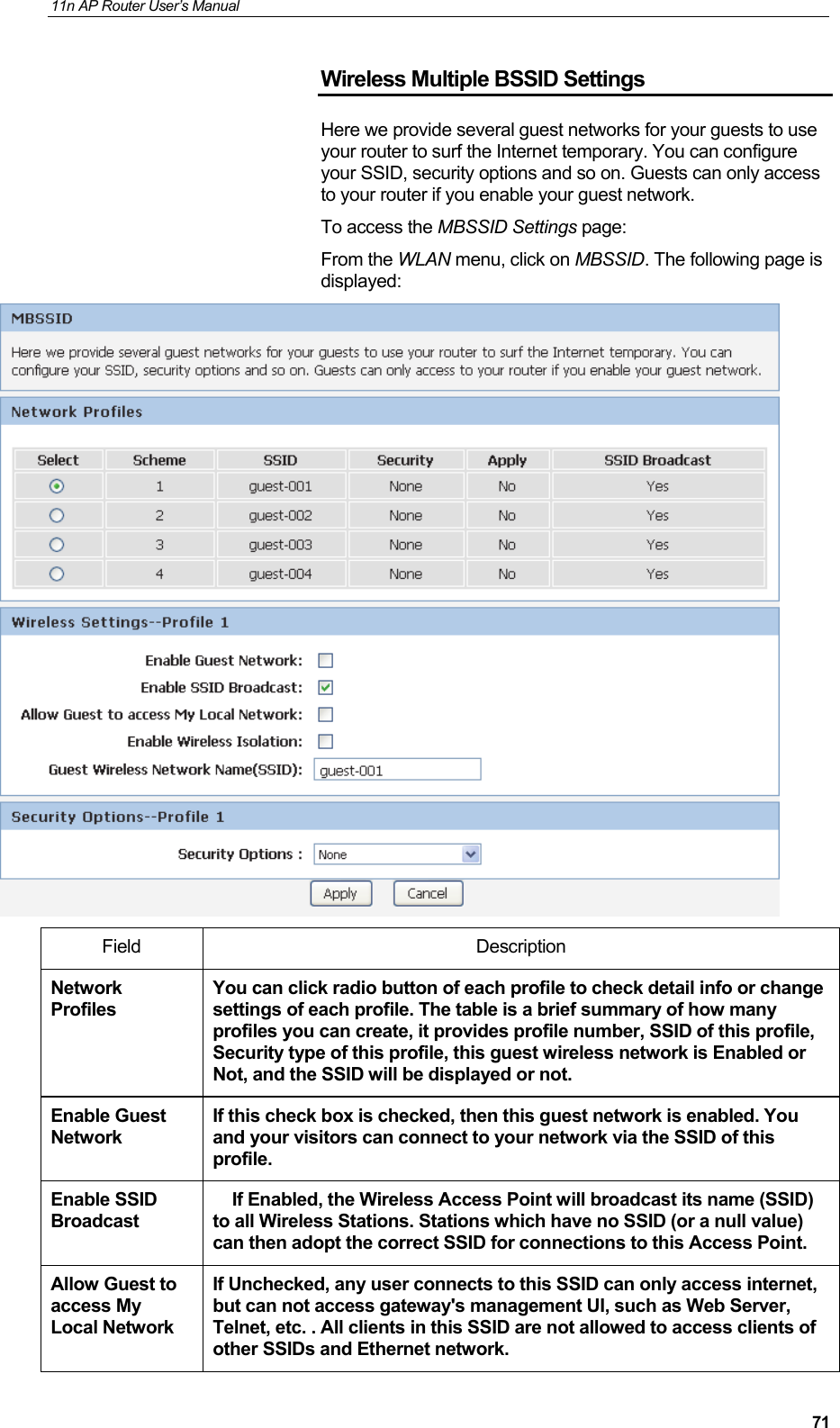
11n AP Router User’s Manual     71Wireless Multiple BSSID Settings Here we provide several guest networks for your guests to use your router to surf the Internet temporary. You can configure your SSID, security options and so on. Guests can only access to your router if you enable your guest network. To access the MBSSID Settings page: From the WLAN menu, click on MBSSID. The following page is displayed:  Field Description Network Profiles You can click radio button of each profile to check detail info or change settings of each profile. The table is a brief summary of how many profiles you can create, it provides profile number, SSID of this profile, Security type of this profile, this guest wireless network is Enabled or Not, and the SSID will be displayed or not. Enable Guest Network If this check box is checked, then this guest network is enabled. You and your visitors can connect to your network via the SSID of this profile. Enable SSID Broadcast     If Enabled, the Wireless Access Point will broadcast its name (SSID) to all Wireless Stations. Stations which have no SSID (or a null value) can then adopt the correct SSID for connections to this Access Point. Allow Guest to access My Local Network If Unchecked, any user connects to this SSID can only access internet, but can not access gateway's management UI, such as Web Server, Telnet, etc. . All clients in this SSID are not allowed to access clients of other SSIDs and Ethernet network.
11n AP Router User’s Manual     72If Checked, any user who connects to this SSID can access not only internet but also local networks of this wireless router like users in primary SSID. Enable Wireless Isolation If checked, the wireless client under this SSID can`t access other wireless clients under the same SSID. If unchecked, the wireless client under this SSID can access other wireless clients under the same SSID. Guest Wireless Network Name(SSID) Enter a value of up to 32 alphanumeric characters. The same Name (SSID) must be assigned to all wireless devices in your network. The default SSID is SSID_N, N is profile number, but we strongly recommend that you change your network`s Name (SSID) to a different value. This value is also case-sensitive. For example, SSID is not the same as SSId. Security Options None - no data encryption WEP - Wired Equivalent Privacy, use WEP 64- or 128-bit data encryptionNote:  Wi-Fi Protected Setup function is disabled when the security setting is WEP with Shared-Key authentication WPA-PSK [TKIP] - Wi-Fi Protected Access with Pre-Shared Key, use WPA-PSK standard encryption with TKIP encryption type WPA2-PSK [AES] - Wi-Fi Protected Access version 2 with Pre-Shared Key, use WPA2-PSK standard encryption with the AES encryption type WPA-PSK [AES] + WPA2-PSK [AES] - Allow clients using either WPA-PSK [AES] or WPA2-PSK [AES] To achieve the best performance with 11N wireless adapters under robust security network, we recommends that you change your network`s security option to WPA2-PSK.
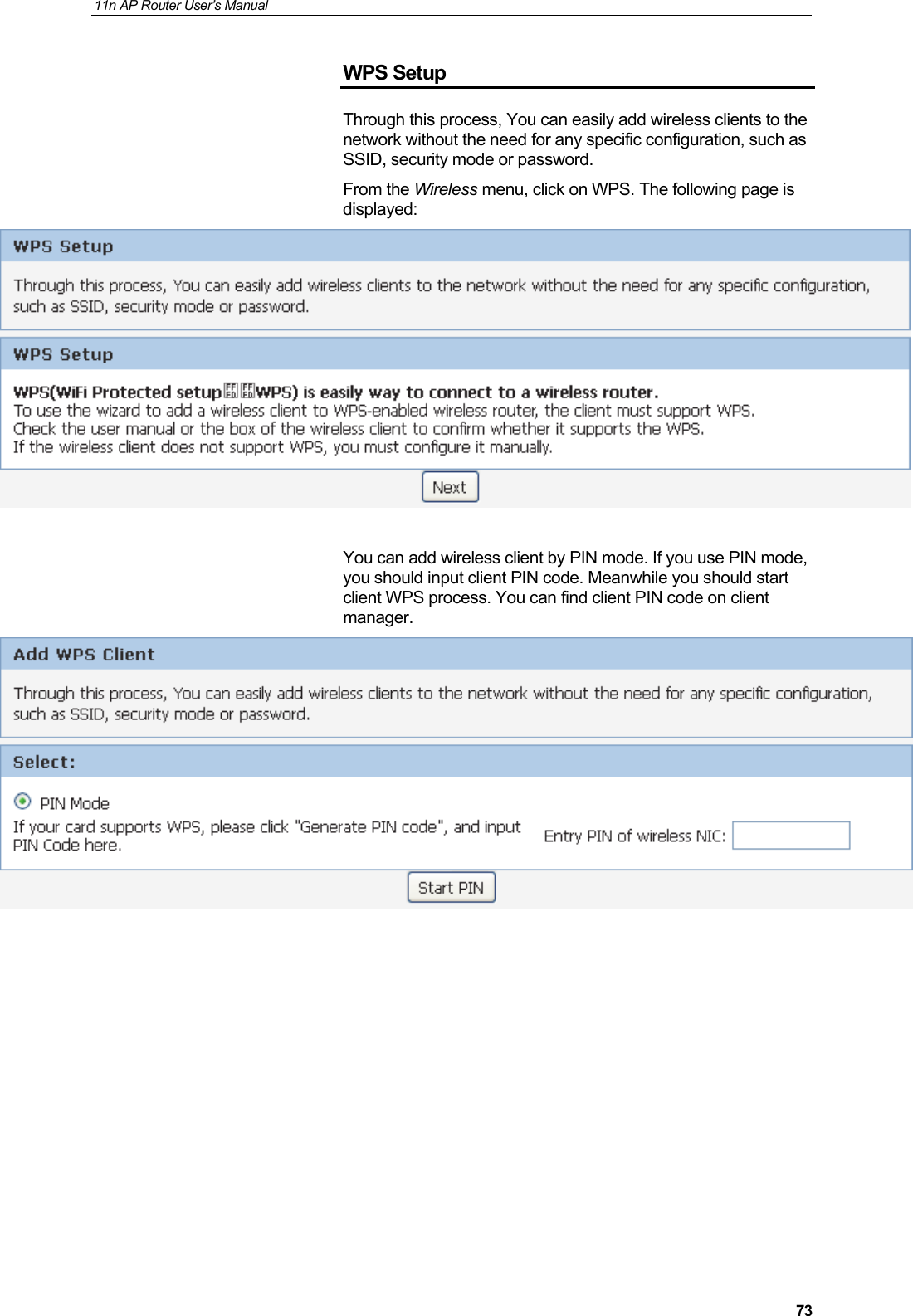
11n AP Router User’s Manual     73WPS Setup Through this process, You can easily add wireless clients to the network without the need for any specific configuration, such as SSID, security mode or password.   From the Wireless menu, click on WPS. The following page is displayed:   You can add wireless client by PIN mode. If you use PIN mode, you should input client PIN code. Meanwhile you should start client WPS process. You can find client PIN code on client manager.
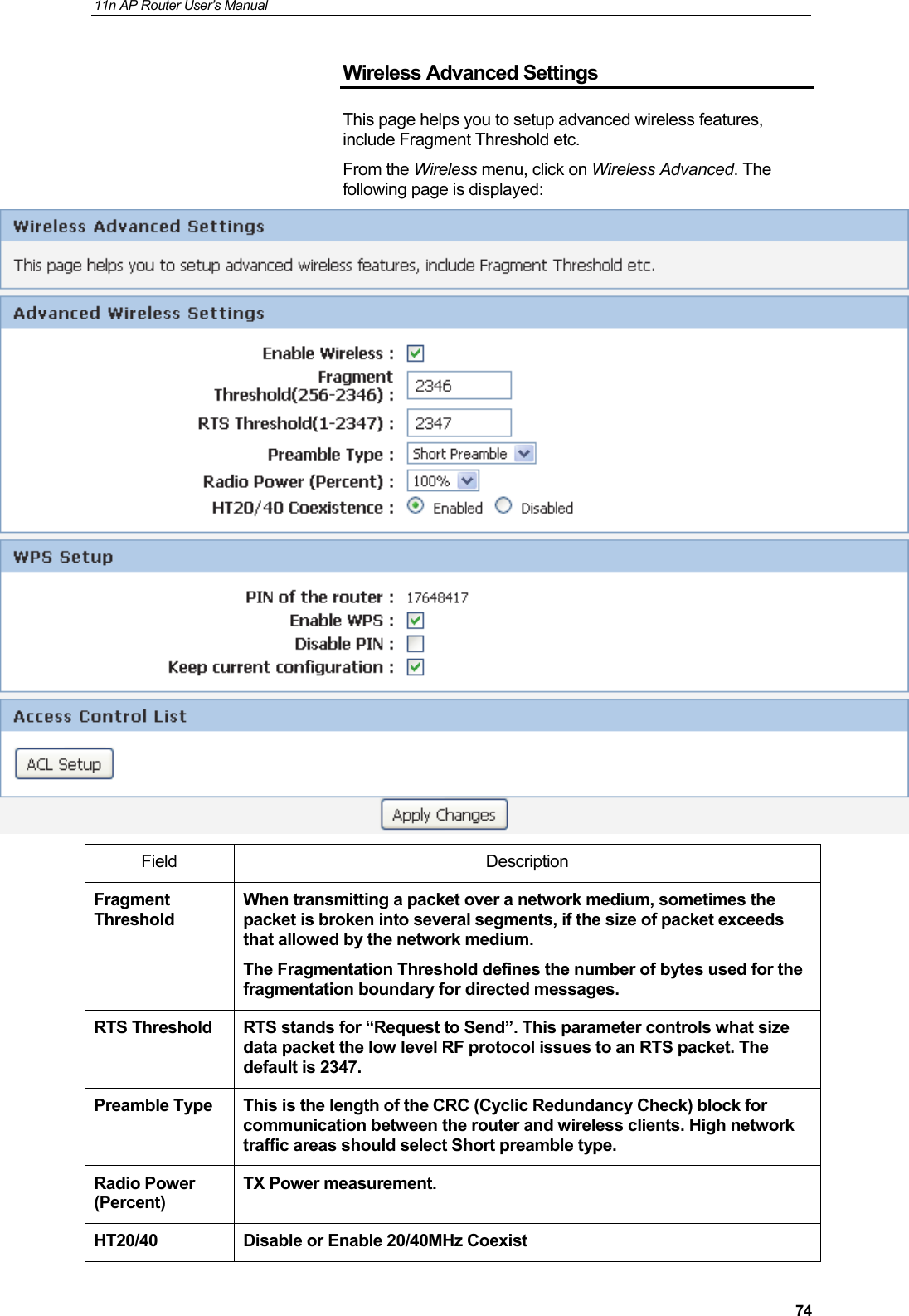
11n AP Router User’s Manual     74Wireless Advanced Settings This page helps you to setup advanced wireless features, include Fragment Threshold etc. From the Wireless menu, click on Wireless Advanced. The following page is displayed:  Field Description Fragment Threshold When transmitting a packet over a network medium, sometimes the packet is broken into several segments, if the size of packet exceeds that allowed by the network medium.    The Fragmentation Threshold defines the number of bytes used for the fragmentation boundary for directed messages.    RTS Threshold  RTS stands for “Request to Send”. This parameter controls what size data packet the low level RF protocol issues to an RTS packet. The default is 2347.   Preamble Type  This is the length of the CRC (Cyclic Redundancy Check) block for communication between the router and wireless clients. High network traffic areas should select Short preamble type. Radio Power (Percent) TX Power measurement. HT20/40  Disable or Enable 20/40MHz Coexist
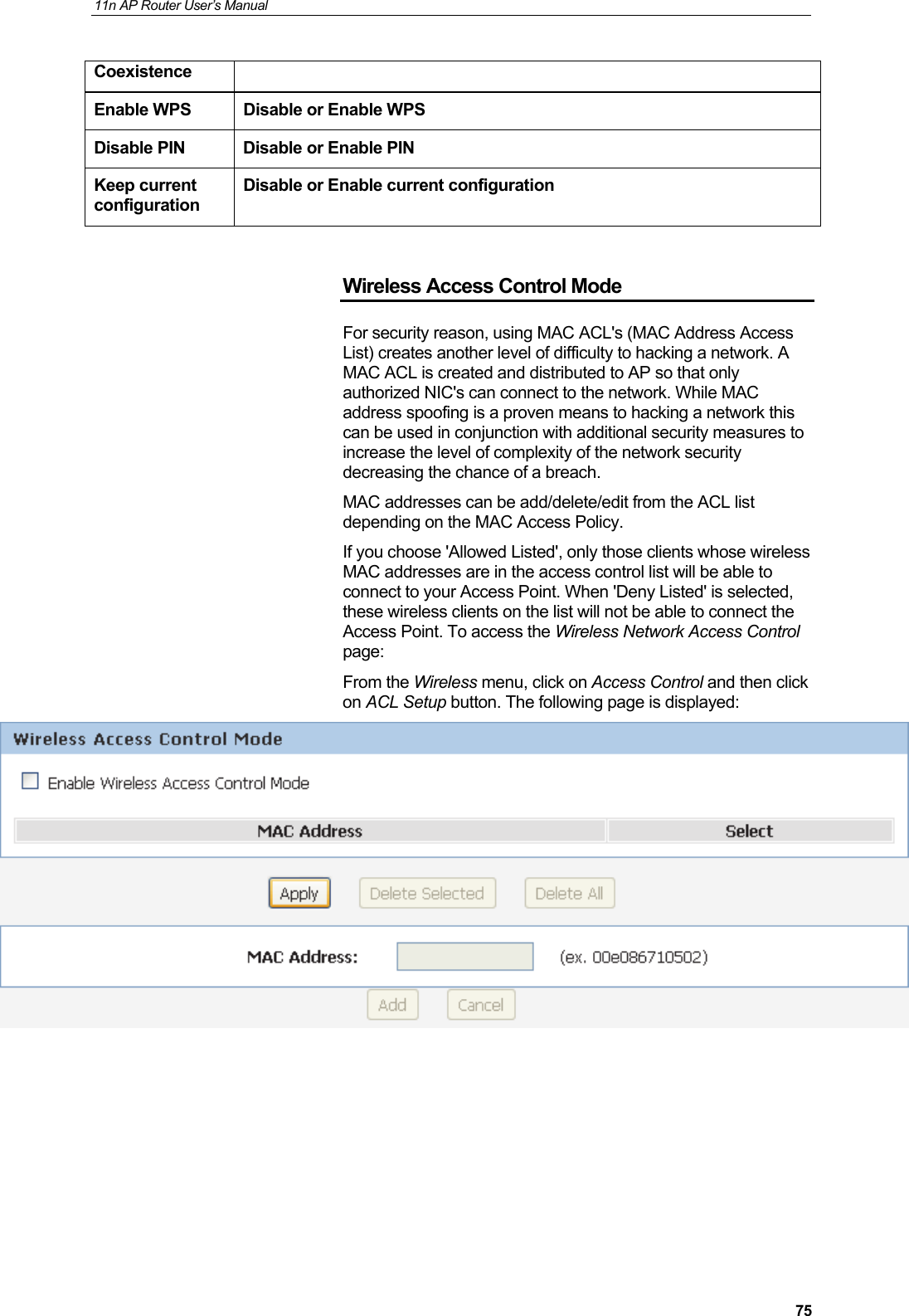
11n AP Router User’s Manual     75Coexistence Enable WPS  Disable or Enable WPS Disable PIN  Disable or Enable PIN Keep current configuration Disable or Enable current configuration  Wireless Access Control Mode For security reason, using MAC ACL's (MAC Address Access List) creates another level of difficulty to hacking a network. A MAC ACL is created and distributed to AP so that only authorized NIC's can connect to the network. While MAC address spoofing is a proven means to hacking a network this can be used in conjunction with additional security measures to increase the level of complexity of the network security decreasing the chance of a breach.  MAC addresses can be add/delete/edit from the ACL list depending on the MAC Access Policy. If you choose 'Allowed Listed', only those clients whose wireless MAC addresses are in the access control list will be able to connect to your Access Point. When 'Deny Listed' is selected, these wireless clients on the list will not be able to connect the Access Point. To access the Wireless Network Access Control page: From the Wireless menu, click on Access Control and then click on ACL Setup button. The following page is displayed:
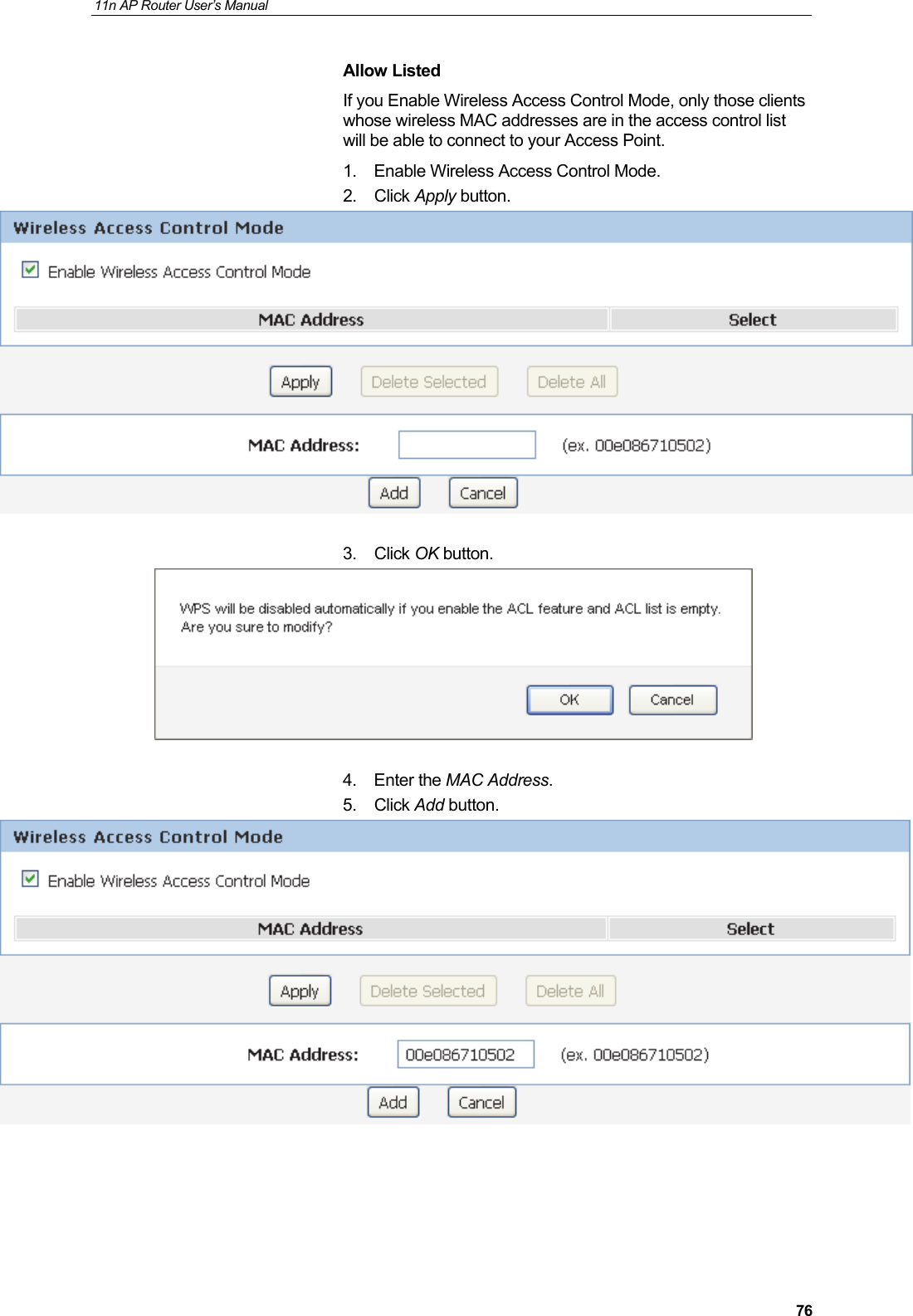
11n AP Router User’s Manual     76Allow Listed If you Enable Wireless Access Control Mode, only those clients whose wireless MAC addresses are in the access control list will be able to connect to your Access Point.    1.  Enable Wireless Access Control Mode. 2. Click Apply button.   3. Click OK button.   4. Enter the MAC Address. 5. Click Add button.
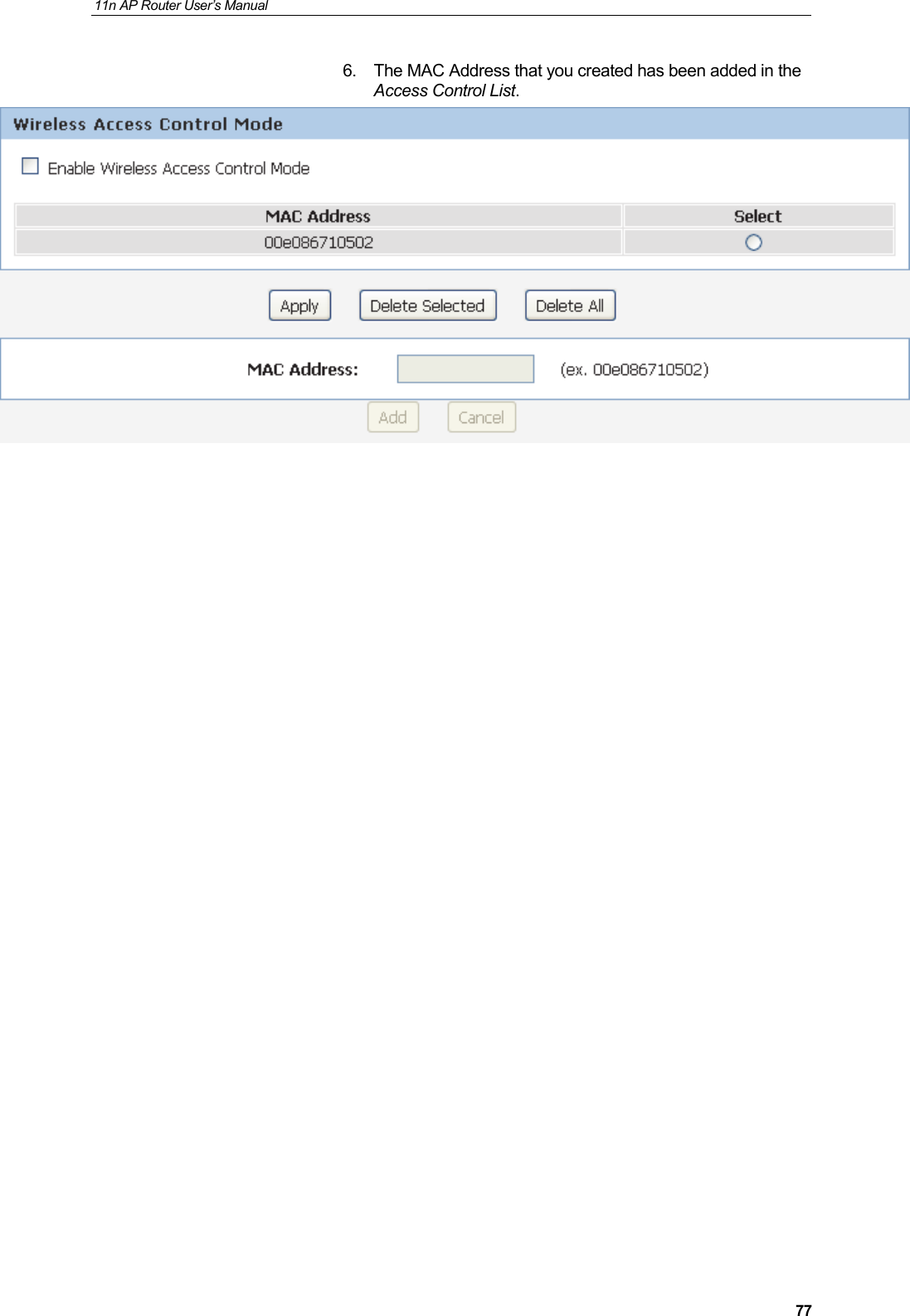
11n AP Router User’s Manual     776.  The MAC Address that you created has been added in the Access Control List.
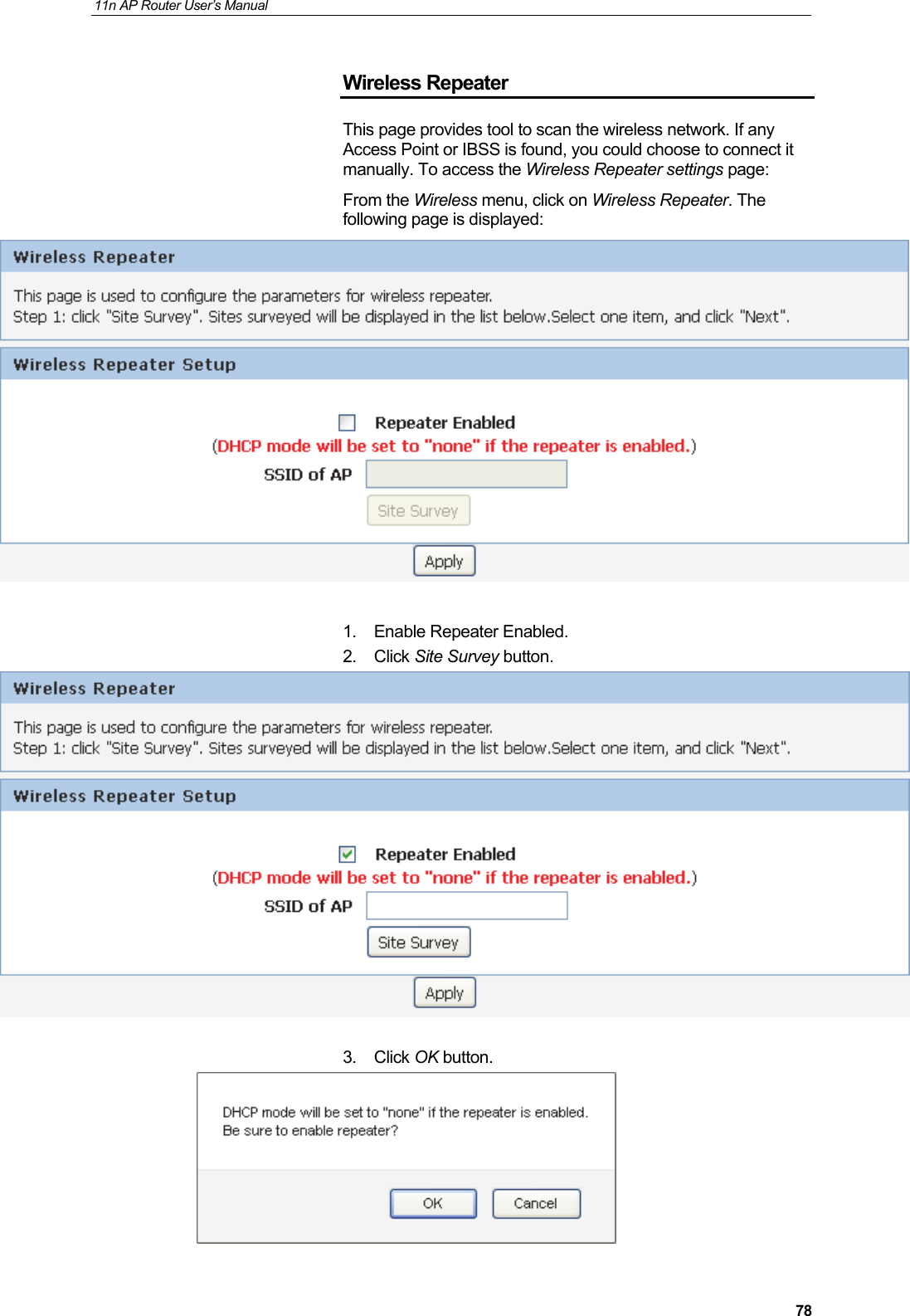
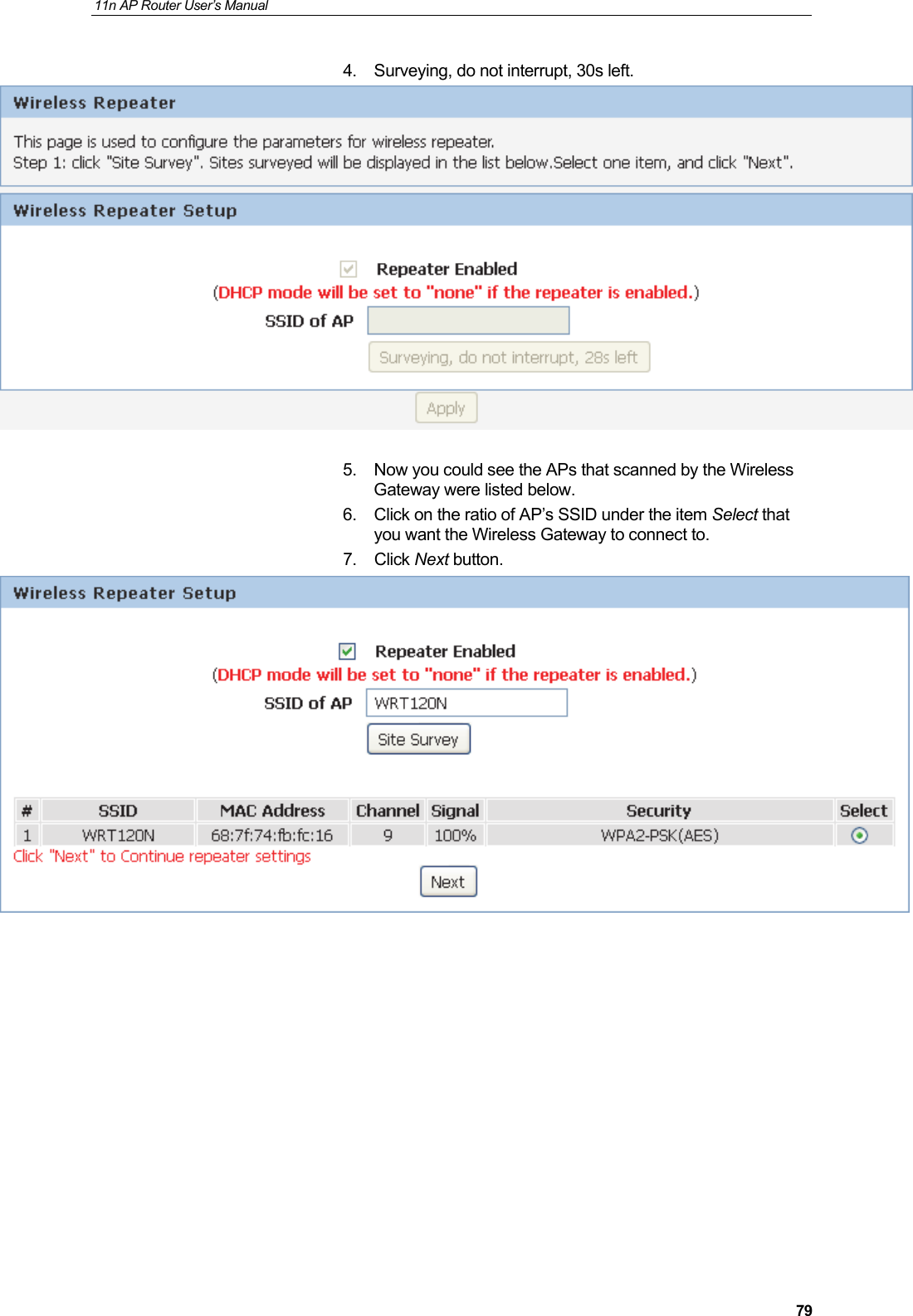
11n AP Router User’s Manual     78Wireless Repeater This page provides tool to scan the wireless network. If any Access Point or IBSS is found, you could choose to connect it manually. To access the Wireless Repeater settings page: From the Wireless menu, click on Wireless Repeater. The following page is displayed:   1. Enable Repeater Enabled. 2. Click Site Survey button.   3. Click OK button.
11n AP Router User’s Manual     794.  Surveying, do not interrupt, 30s left.   5.  Now you could see the APs that scanned by the Wireless Gateway were listed below. 6.  Click on the ratio of AP’s SSID under the item Select that you want the Wireless Gateway to connect to. 7. Click Next button.
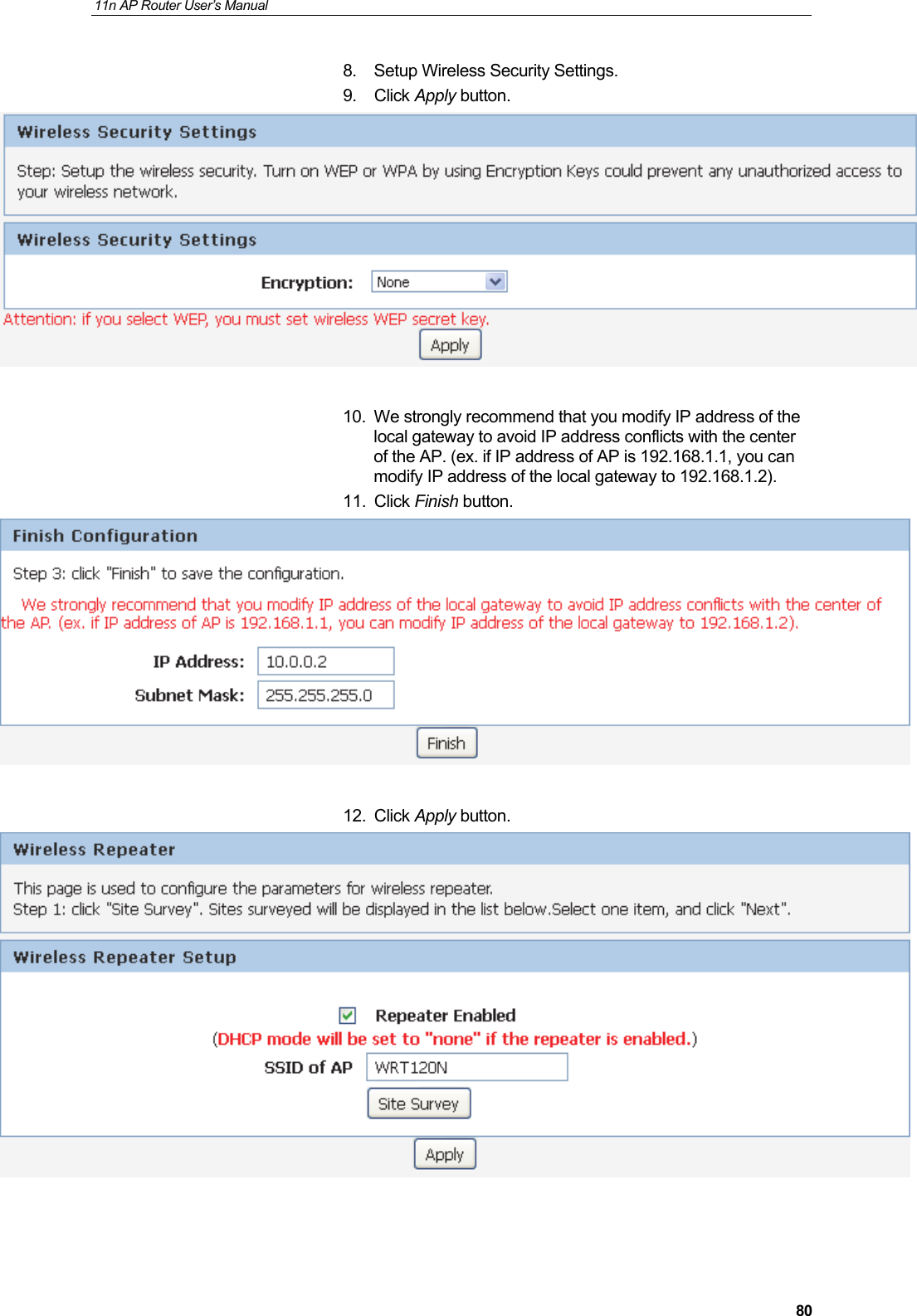
11n AP Router User’s Manual     808.  Setup Wireless Security Settings. 9. Click Apply button.   10.  We strongly recommend that you modify IP address of the local gateway to avoid IP address conflicts with the center of the AP. (ex. if IP address of AP is 192.168.1.1, you can modify IP address of the local gateway to 192.168.1.2). 11. Click Finish button.   12. Click Apply button.
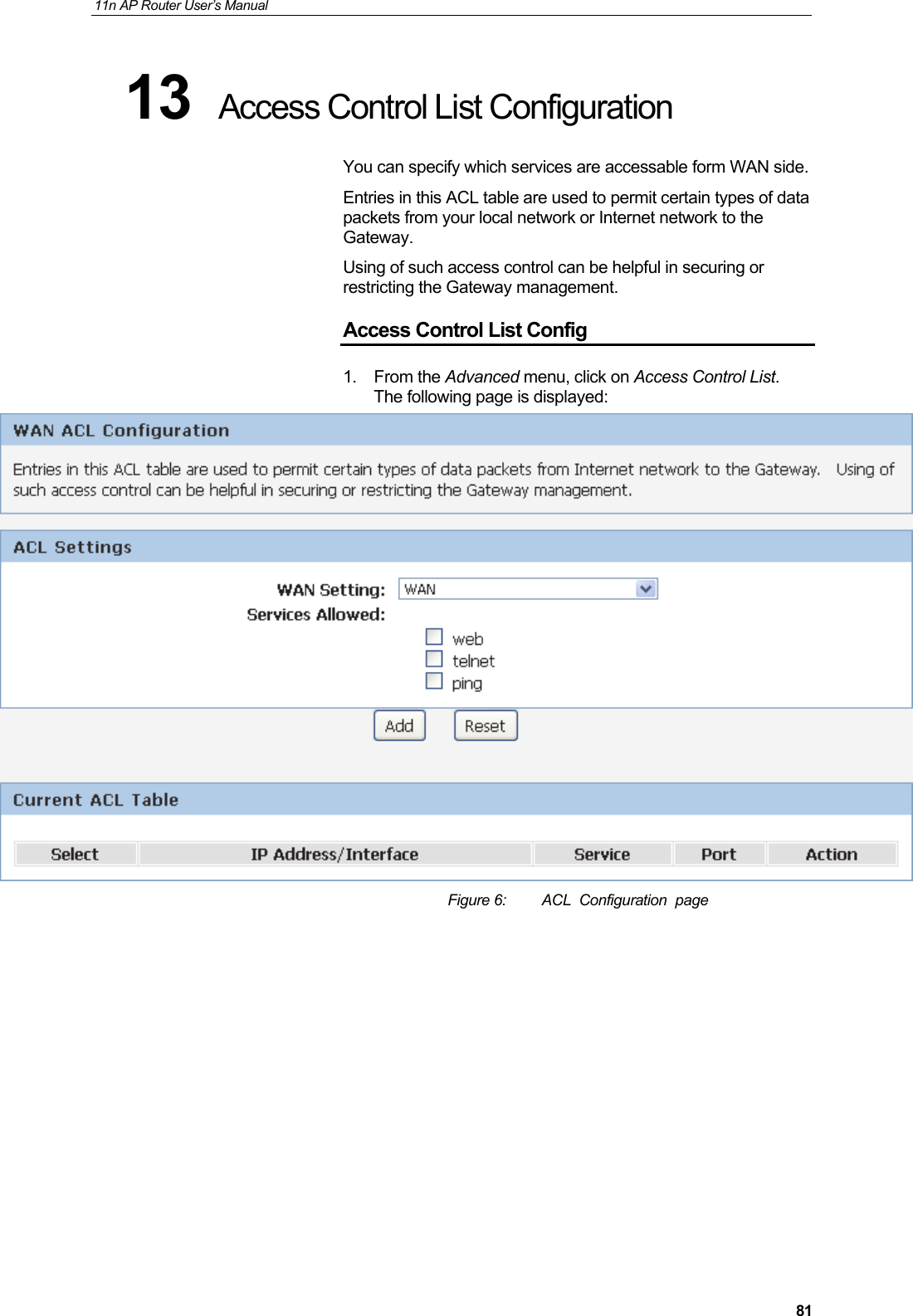
11n AP Router User’s Manual     8113  Access Control List Configuration You can specify which services are accessable form WAN side. Entries in this ACL table are used to permit certain types of data packets from your local network or Internet network to the Gateway. Using of such access control can be helpful in securing or restricting the Gateway management. Access Control List Config 1. From the Advanced menu, click on Access Control List. The following page is displayed:  Figure 6:  ACL  Configuration  page
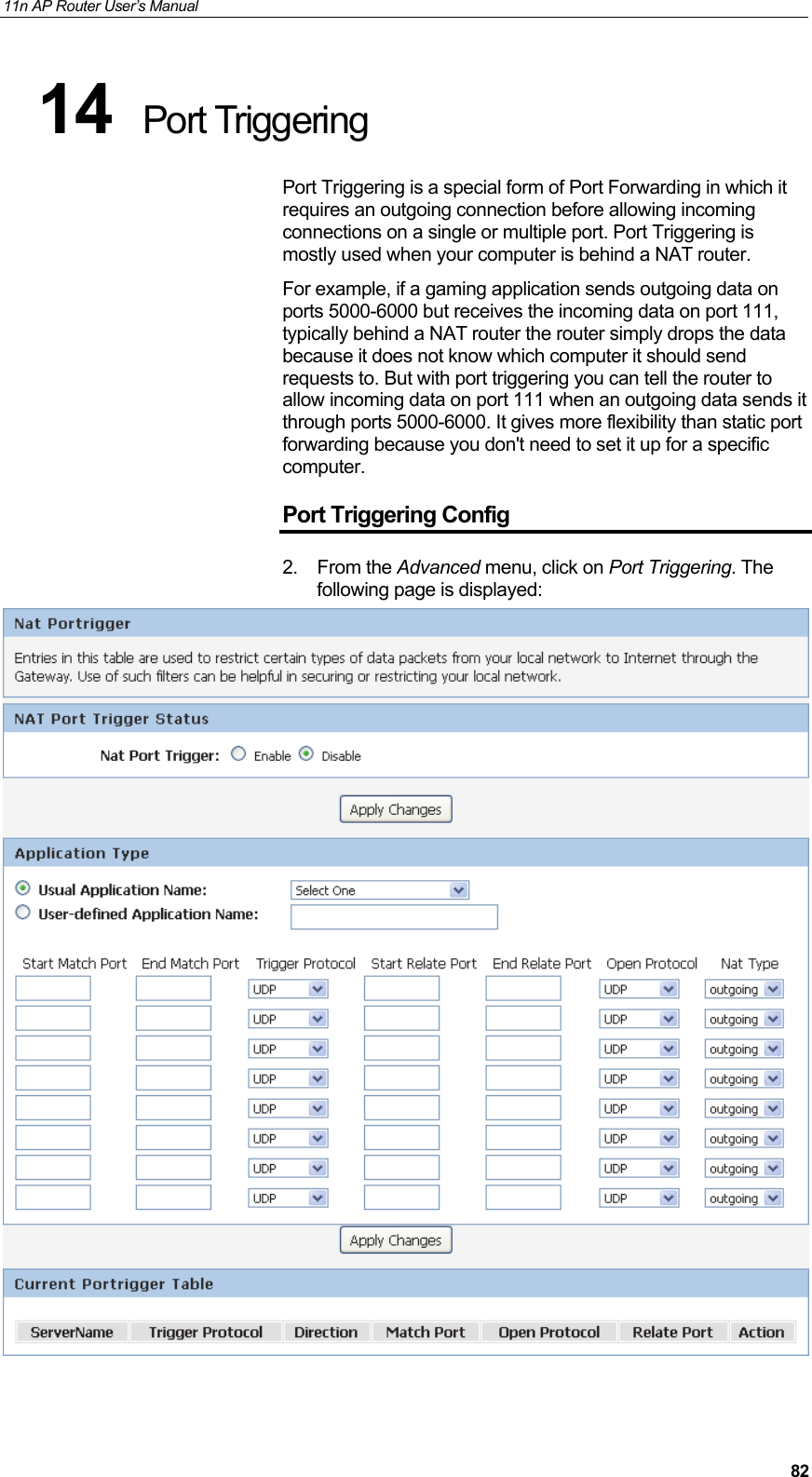
11n AP Router User’s Manual     8214  Port Triggering Port Triggering is a special form of Port Forwarding in which it requires an outgoing connection before allowing incoming connections on a single or multiple port. Port Triggering is mostly used when your computer is behind a NAT router. For example, if a gaming application sends outgoing data on ports 5000-6000 but receives the incoming data on port 111, typically behind a NAT router the router simply drops the data because it does not know which computer it should send requests to. But with port triggering you can tell the router to allow incoming data on port 111 when an outgoing data sends it through ports 5000-6000. It gives more flexibility than static port forwarding because you don't need to set it up for a specific computer. Port Triggering Config 2. From the Advanced menu, click on Port Triggering. The following page is displayed:
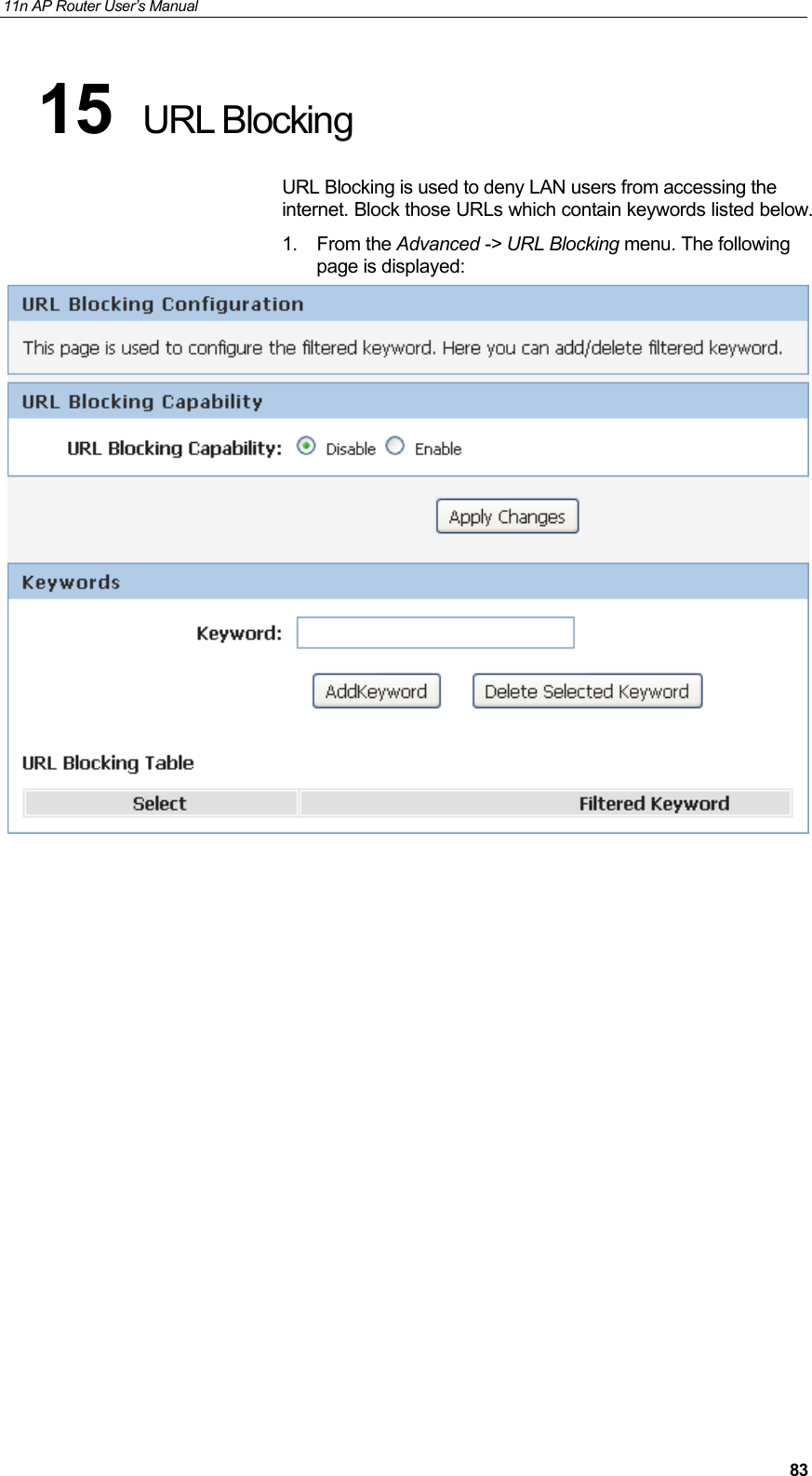
11n AP Router User’s Manual     8315  URL Blocking URL Blocking is used to deny LAN users from accessing the internet. Block those URLs which contain keywords listed below. 1. From the Advanced -> URL Blocking menu. The following page is displayed:
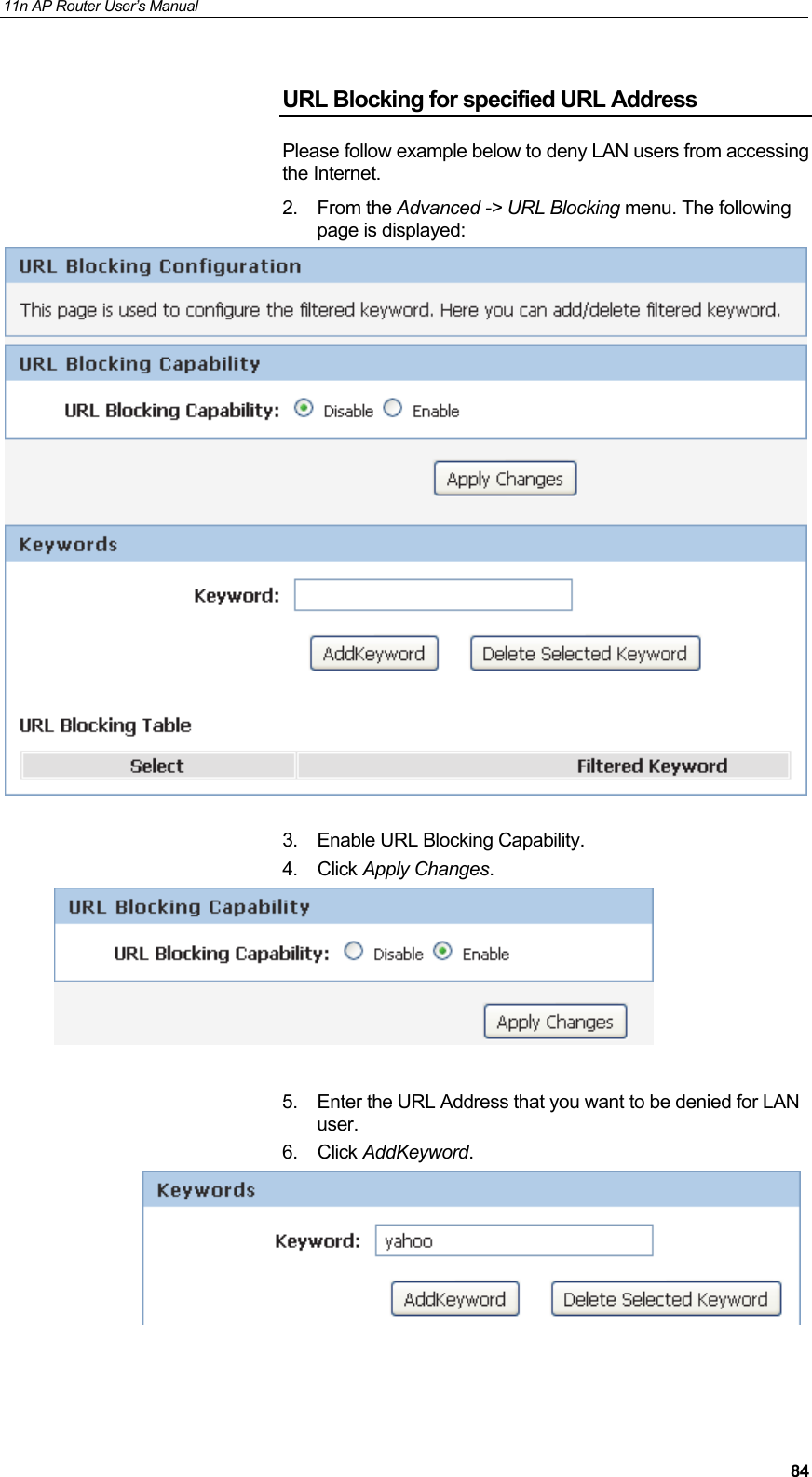
11n AP Router User’s Manual     84URL Blocking for specified URL Address Please follow example below to deny LAN users from accessing the Internet. 2. From the Advanced -> URL Blocking menu. The following page is displayed:   3.  Enable URL Blocking Capability.  4. Click Apply Changes.   5.  Enter the URL Address that you want to be denied for LAN user.  6. Click AddKeyword.
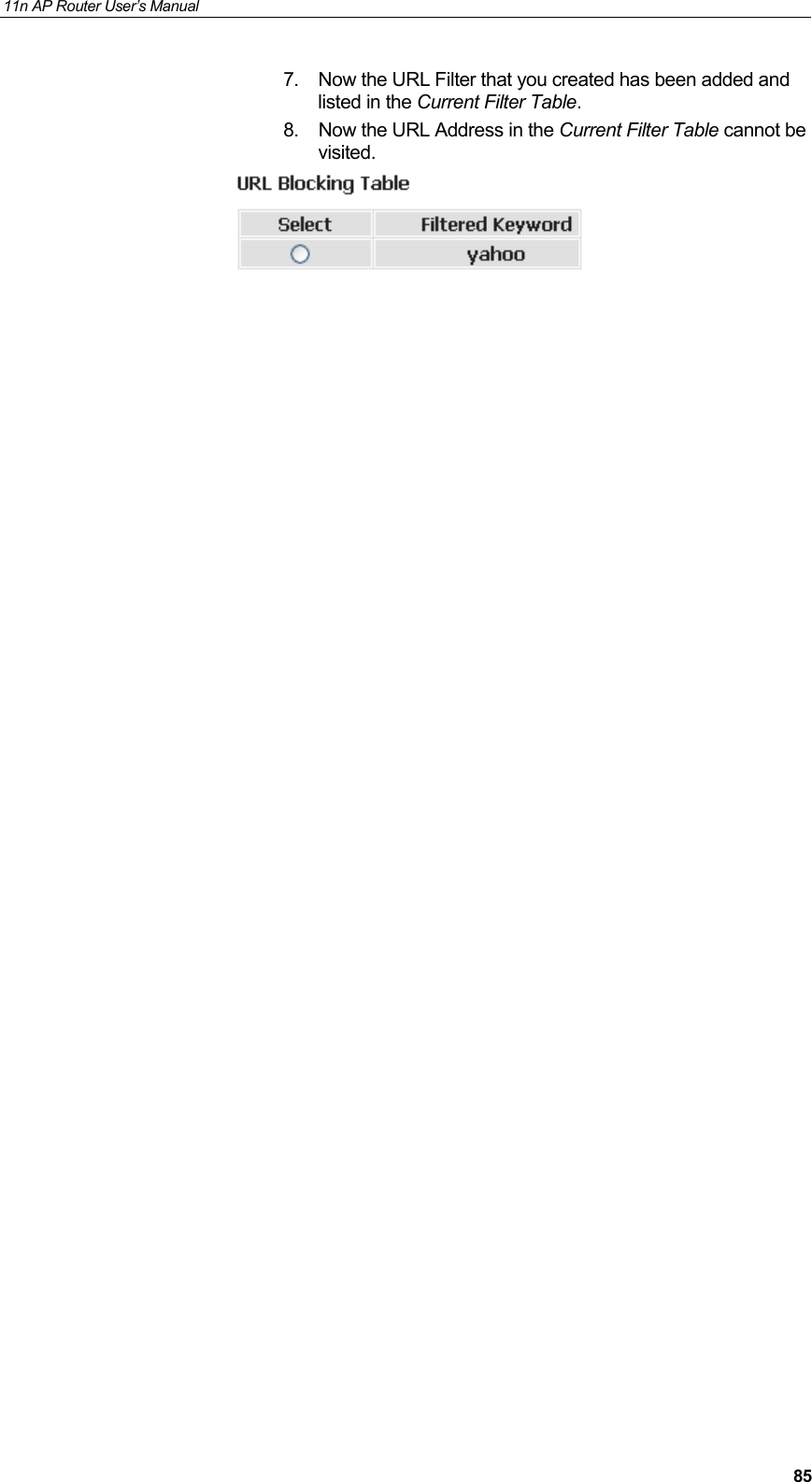
11n AP Router User’s Manual     857.  Now the URL Filter that you created has been added and listed in the Current Filter Table. 8.  Now the URL Address in the Current Filter Table cannot be visited.
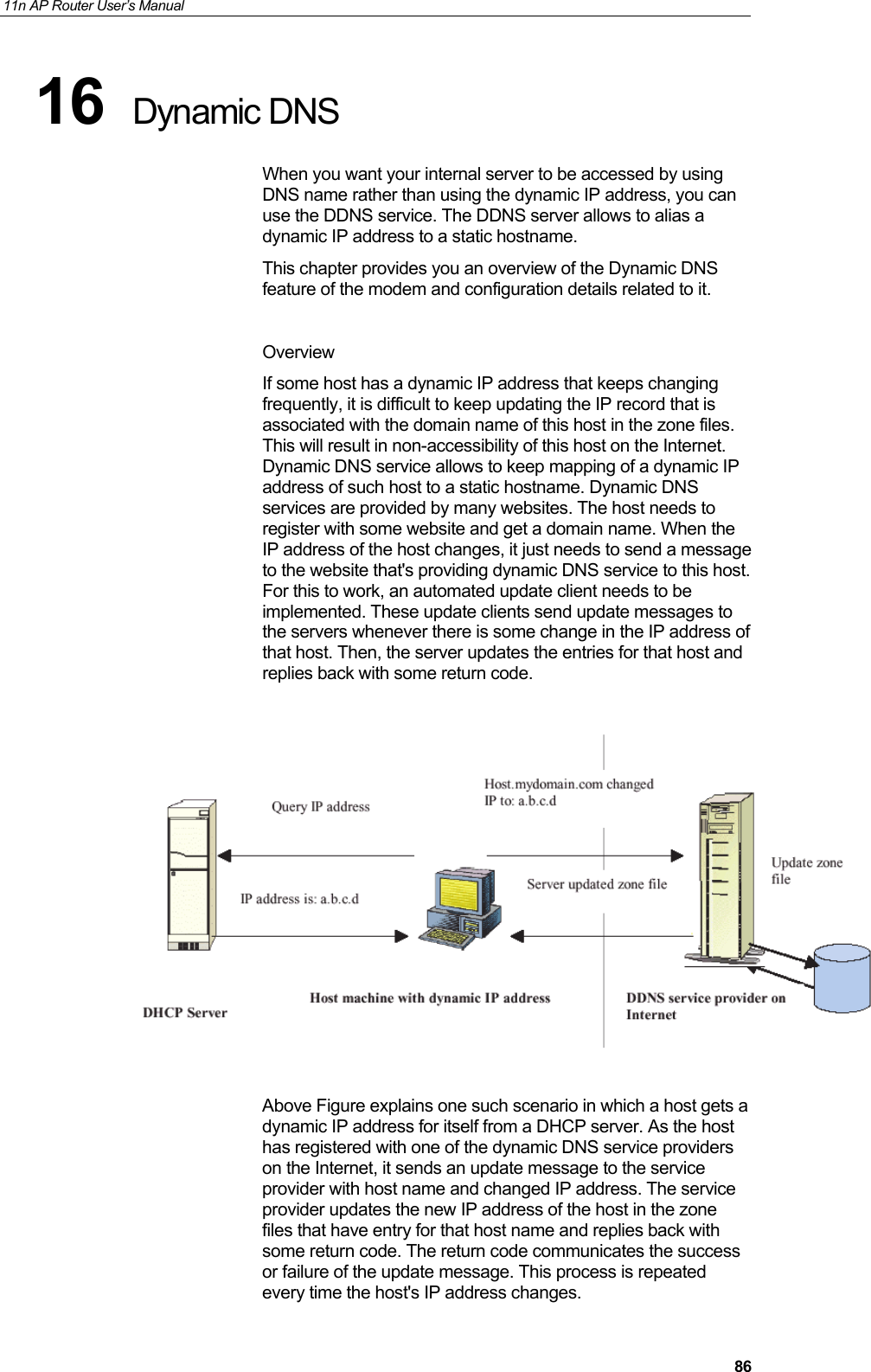
11n AP Router User’s Manual     8616  Dynamic DNS When you want your internal server to be accessed by using DNS name rather than using the dynamic IP address, you can use the DDNS service. The DDNS server allows to alias a dynamic IP address to a static hostname. This chapter provides you an overview of the Dynamic DNS feature of the modem and configuration details related to it.  Overview If some host has a dynamic IP address that keeps changing frequently, it is difficult to keep updating the IP record that is associated with the domain name of this host in the zone files. This will result in non-accessibility of this host on the Internet. Dynamic DNS service allows to keep mapping of a dynamic IP address of such host to a static hostname. Dynamic DNS  services are provided by many websites. The host needs to register with some website and get a domain name. When the IP address of the host changes, it just needs to send a message to the website that's providing dynamic DNS service to this host. For this to work, an automated update client needs to be implemented. These update clients send update messages to the servers whenever there is some change in the IP address of that host. Then, the server updates the entries for that host and replies back with some return code.    Above Figure explains one such scenario in which a host gets a dynamic IP address for itself from a DHCP server. As the host has registered with one of the dynamic DNS service providers on the Internet, it sends an update message to the service provider with host name and changed IP address. The service provider updates the new IP address of the host in the zone files that have entry for that host name and replies back with some return code. The return code communicates the success or failure of the update message. This process is repeated every time the host's IP address changes.
11n AP Router User’s Manual     87If the dynamic DNS service provider is notified of the same IP address again and again, then it considers it an abuse and might block the host name. To avoid this scenario, the IP address that was successfully updated to the ISP is stored on the unit. Whenever we receive an IP address change notification, the new IP address is compared with the IP address that was stored on the last update. If they differ, then only an update request is sent. However, when the system comes up there is no way of knowing what was the IP address on last  successful update before the system went down. You need to give the command “system config save“ periodically to save this IP address on Flash.  Registering With Dynamic DNS Service Provider Currently, Wireless Gateway supports two Dynamic DNS service providers, www.tzo.com and www.dyndns.com. To use their Dynamic DNS service, you first need to visit the Web site of a service provider and register. While registering, you need to provide your username, password, and hostname as mandatory parameters. A service provider may also prompt you to fill some optional parameters.  Configuring IP Interfaces You need to create a Dynamic DNS interface per IP interface and can only create one Dynamic DNS interface service on one IP interface. For more information on creating IP interfaces,  refer to section Creating IP interfaces.   Note  www.dyndns.org provides three kinds of services - Dynamic DNS, Custom DNS and Static DNS. You can create different domains in these systems. Custom DNS service is a full DNS solution for newly purchased domains or domains you already own. A web-based interface provides complete control over resource records and your entire domain, including support for dynamic IPs and automated updates. Static DNS service points a DNS hostname in some domain owned by dyndns.org to the user's ISP-assigned static or pseudo-static IP address.  DynDNS service points a fixed hostname in some domain owned by dyndns.org to the user's ISP-assigned dynamic IP address. This allows more frequent update of IP addresses, than allowed by Static DNS.
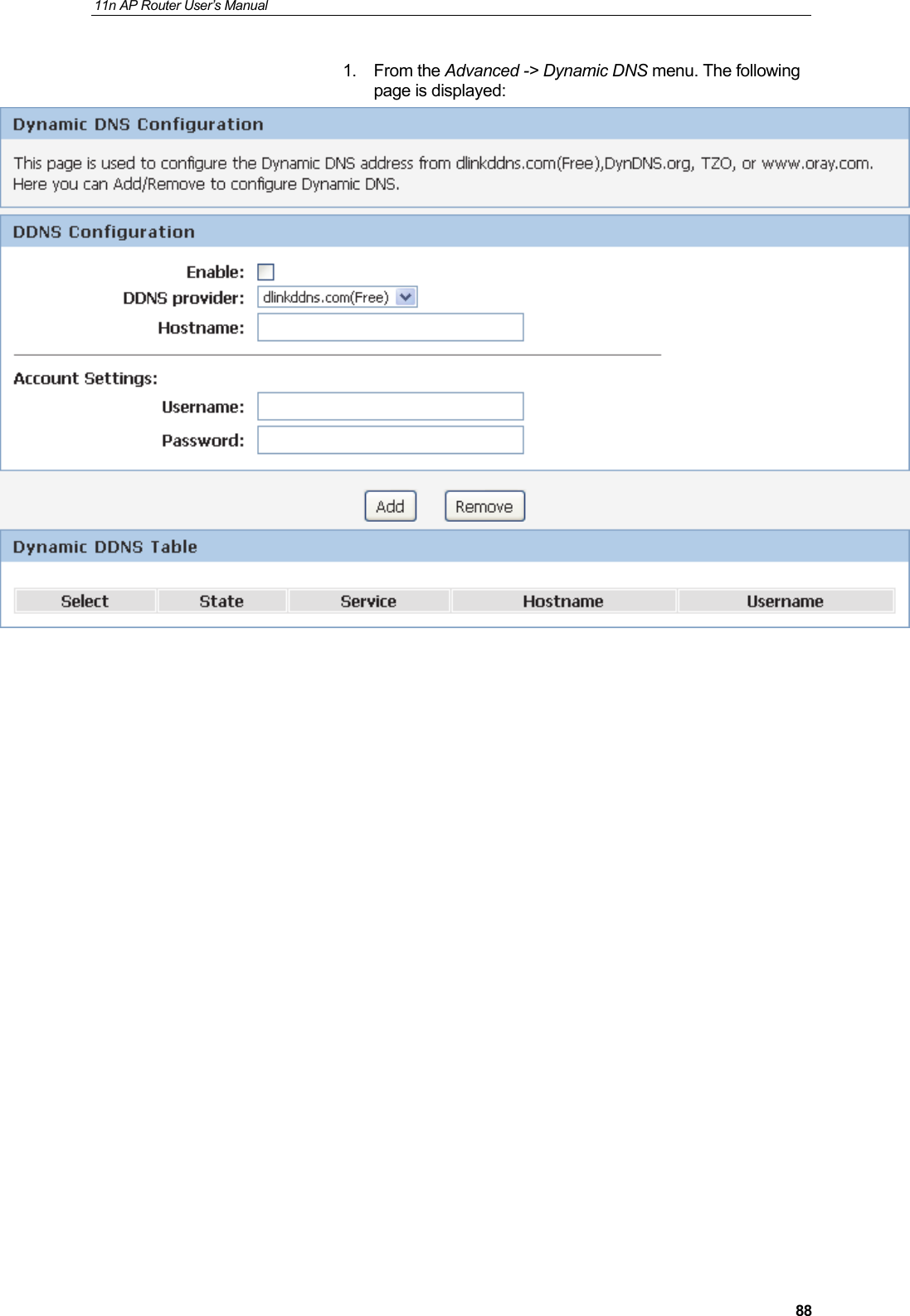
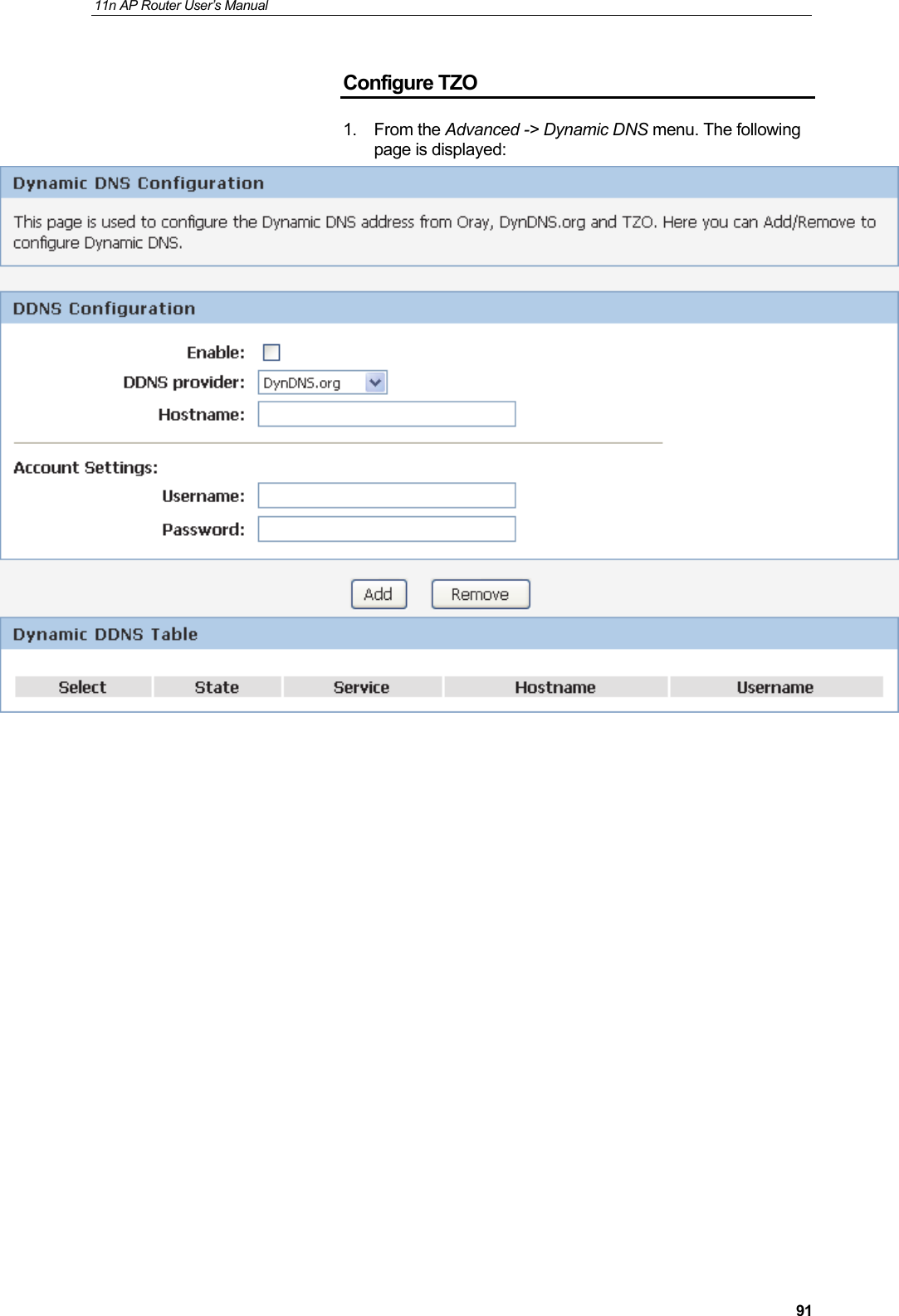
11n AP Router User’s Manual     881. From the Advanced -> Dynamic DNS menu. The following page is displayed:
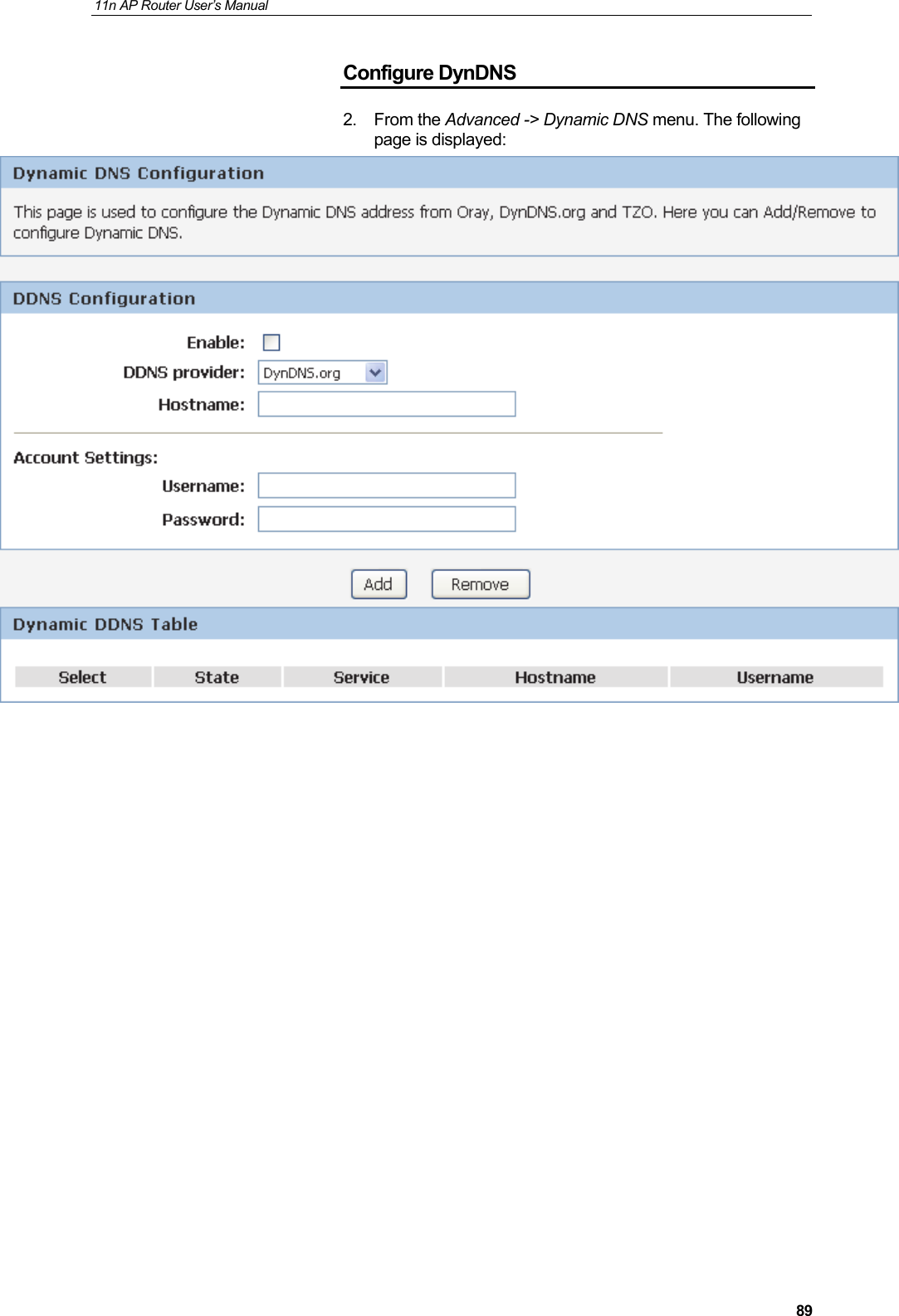
11n AP Router User’s Manual     89Configure DynDNS 2. From the Advanced -> Dynamic DNS menu. The following page is displayed:
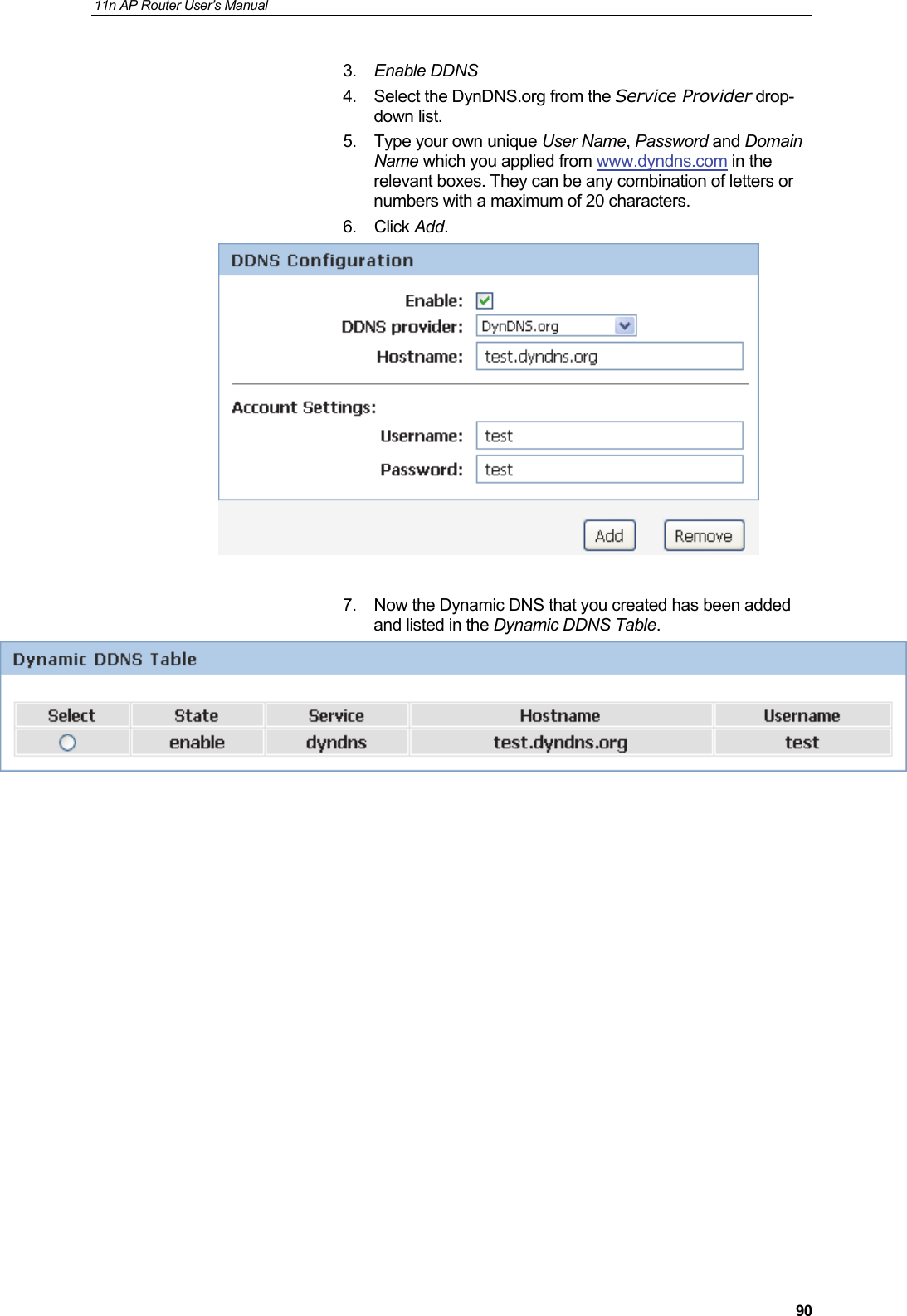
11n AP Router User’s Manual     903.  Enable DDNS 4.  Select the DynDNS.org from the Service Provider drop-down list. 5.  Type your own unique User Name, Password and Domain Name which you applied from www.dyndns.com in the relevant boxes. They can be any combination of letters or numbers with a maximum of 20 characters.  6. Click Add.   7.  Now the Dynamic DNS that you created has been added and listed in the Dynamic DDNS Table.
11n AP Router User’s Manual     91Configure TZO 1. From the Advanced -> Dynamic DNS menu. The following page is displayed:
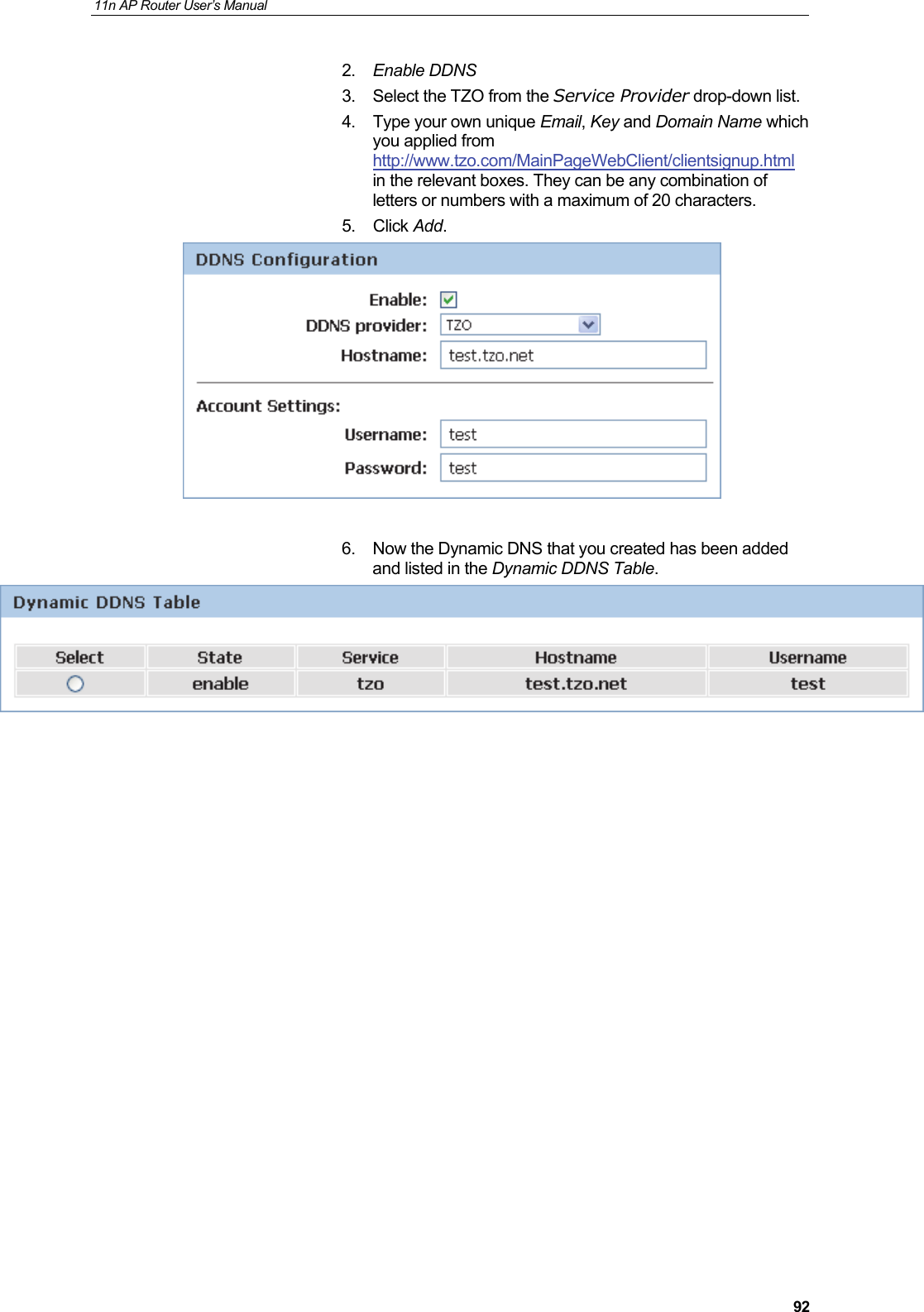
11n AP Router User’s Manual     922.  Enable DDNS 3.  Select the TZO from the Service Provider drop-down list. 4.  Type your own unique Email, Key and Domain Name which you applied from http://www.tzo.com/MainPageWebClient/clientsignup.html  in the relevant boxes. They can be any combination of letters or numbers with a maximum of 20 characters.  5. Click Add.   6.  Now the Dynamic DNS that you created has been added and listed in the Dynamic DDNS Table.
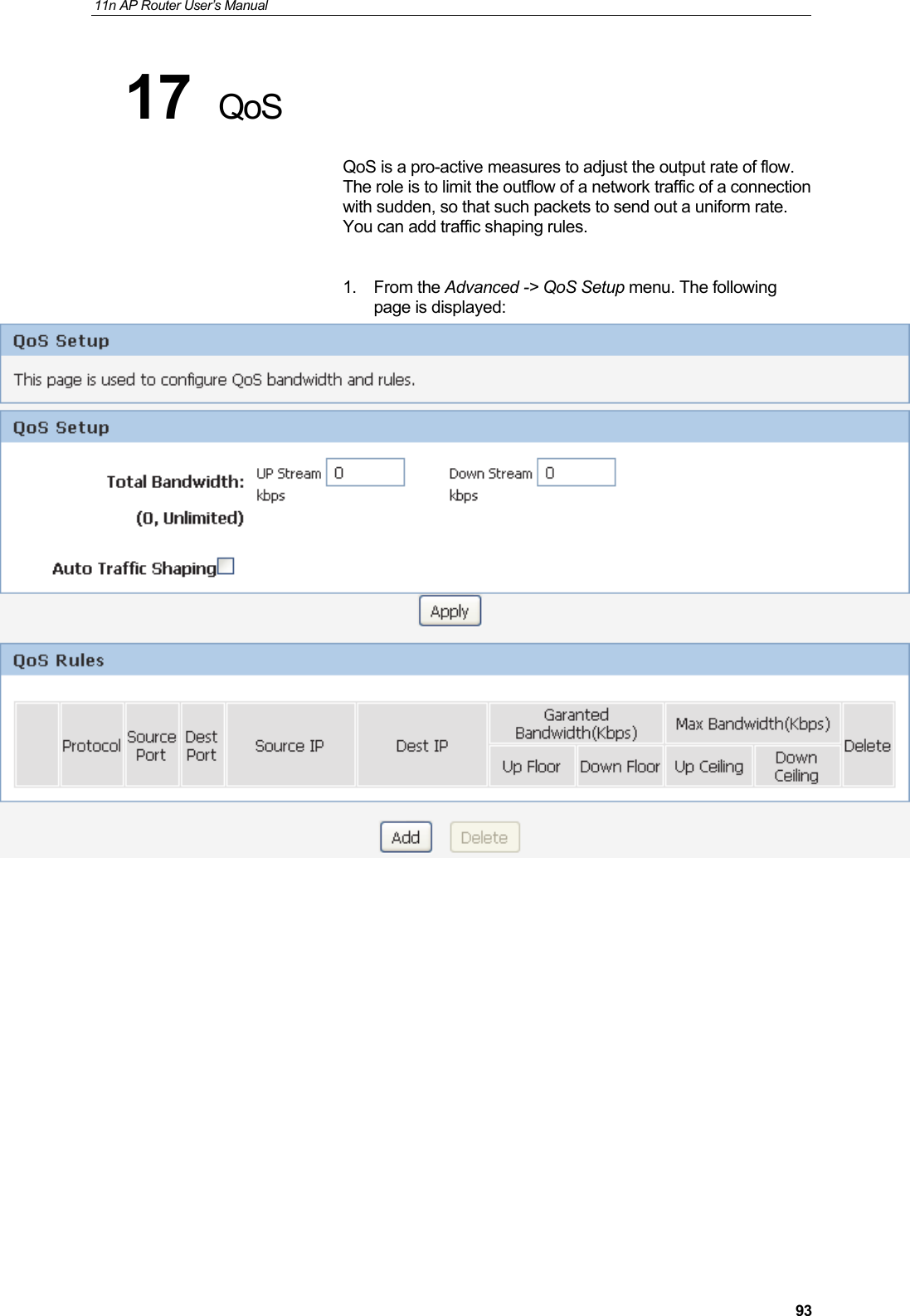
11n AP Router User’s Manual     9317  QoS QoS is a pro-active measures to adjust the output rate of flow. The role is to limit the outflow of a network traffic of a connection with sudden, so that such packets to send out a uniform rate. You can add traffic shaping rules.  1. From the Advanced -> QoS Setup menu. The following page is displayed:
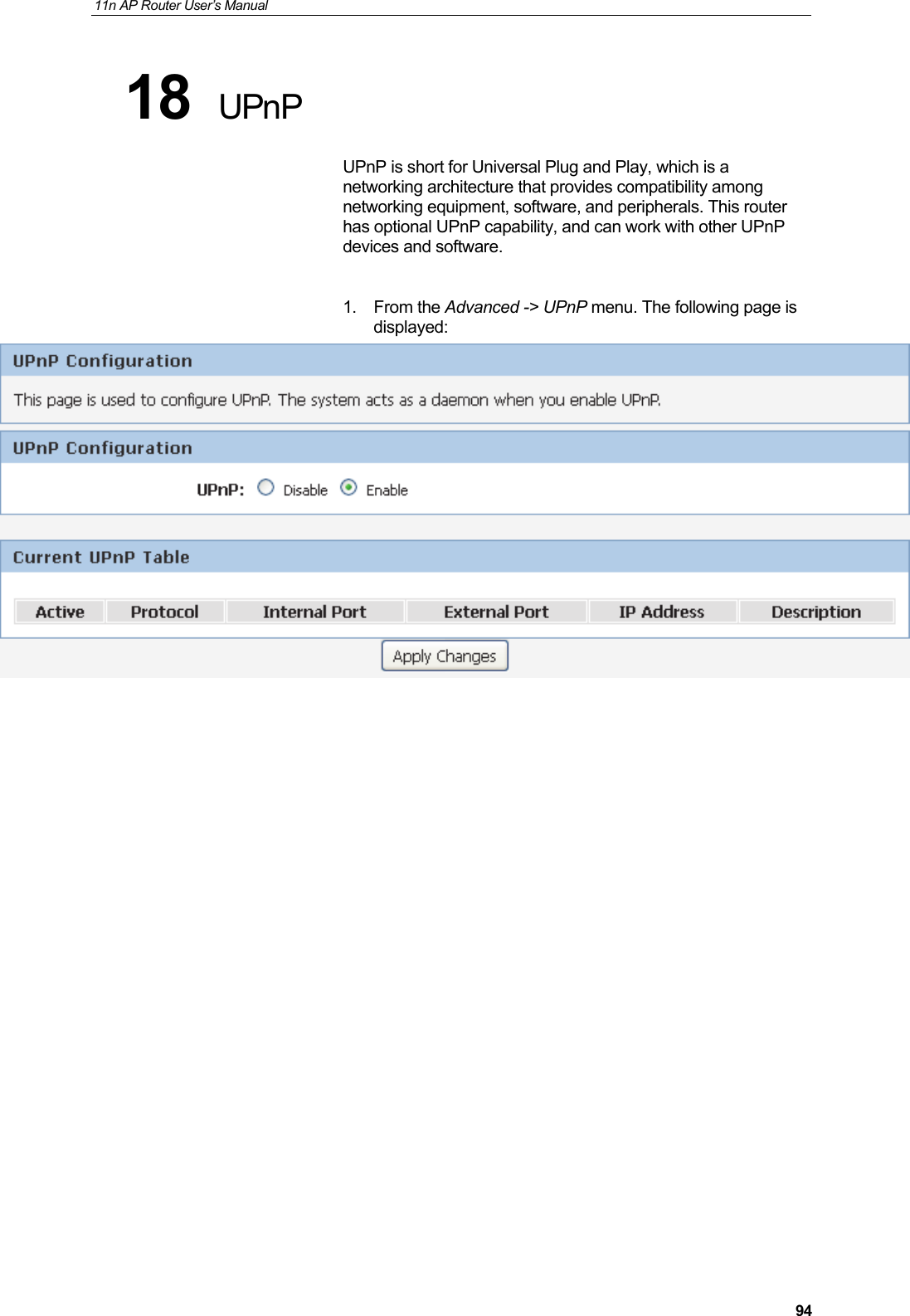
11n AP Router User’s Manual     9418  UPnP UPnP is short for Universal Plug and Play, which is a networking architecture that provides compatibility among networking equipment, software, and peripherals. This router has optional UPnP capability, and can work with other UPnP devices and software.  1. From the Advanced -> UPnP menu. The following page is displayed:
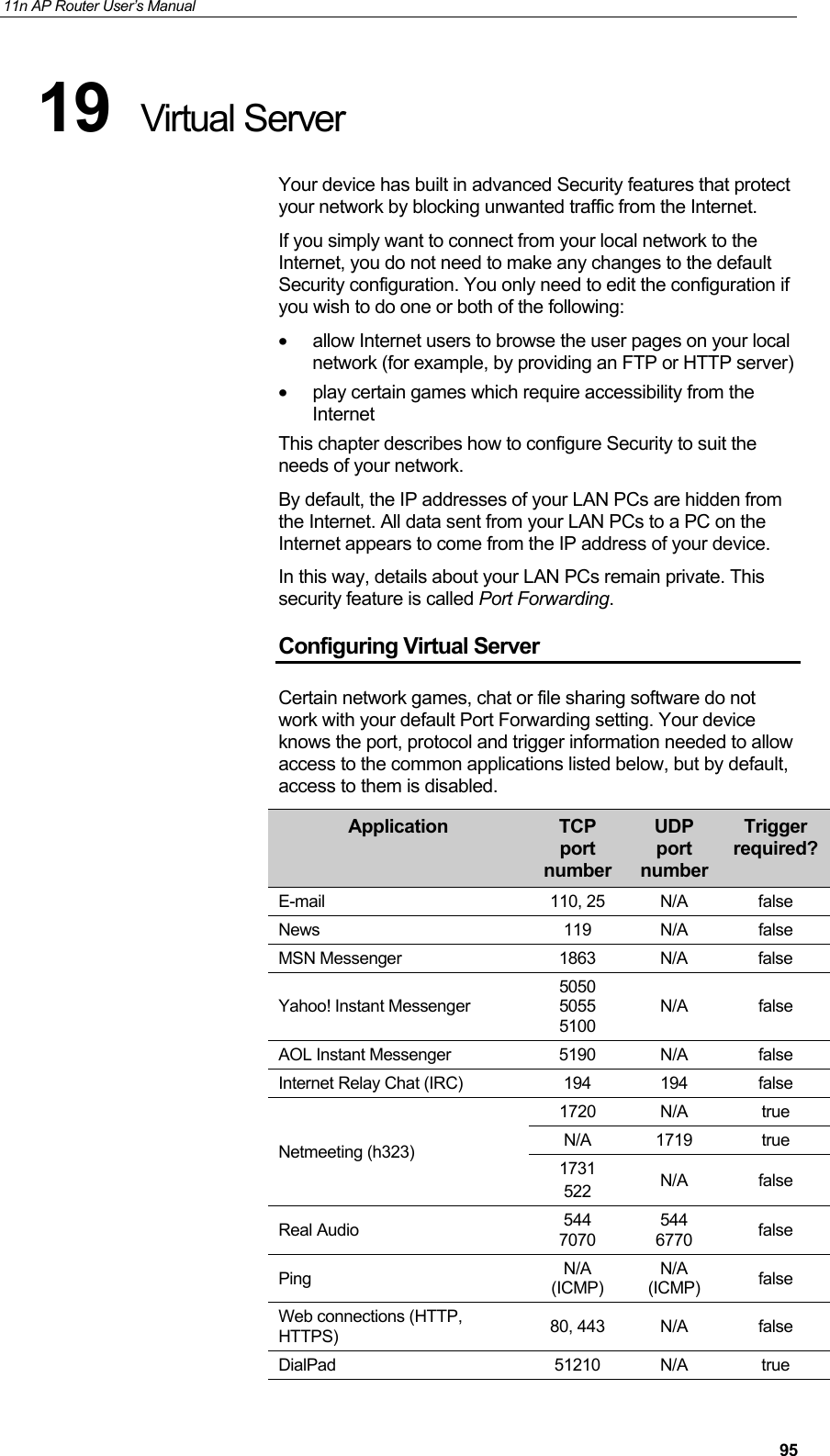
11n AP Router User’s Manual     9519  Virtual Server Your device has built in advanced Security features that protect your network by blocking unwanted traffic from the Internet.  If you simply want to connect from your local network to the Internet, you do not need to make any changes to the default Security configuration. You only need to edit the configuration if you wish to do one or both of the following: •  allow Internet users to browse the user pages on your local network (for example, by providing an FTP or HTTP server) •  play certain games which require accessibility from the Internet This chapter describes how to configure Security to suit the needs of your network.  By default, the IP addresses of your LAN PCs are hidden from the Internet. All data sent from your LAN PCs to a PC on the Internet appears to come from the IP address of your device.  In this way, details about your LAN PCs remain private. This security feature is called Port Forwarding. Configuring Virtual Server Certain network games, chat or file sharing software do not work with your default Port Forwarding setting. Your device knows the port, protocol and trigger information needed to allow access to the common applications listed below, but by default, access to them is disabled.  Application  TCP port numberUDP port number Trigger required?E-mail 110, 25 N/A false News 119 N/A false MSN Messenger  1863  N/A  false Yahoo! Instant Messenger 5050 5055  5100 N/A false AOL Instant Messenger  5190  N/A  false Internet Relay Chat (IRC)  194  194  false Netmeeting (h323) 1720 N/A  true N/A 1719  true 1731 522  N/A false Real Audio  544    7070 544   6770  false Ping  N/A (ICMP) N/A (ICMP)  false Web connections (HTTP, HTTPS)  80, 443  N/A  false DialPad 51210 N/A true
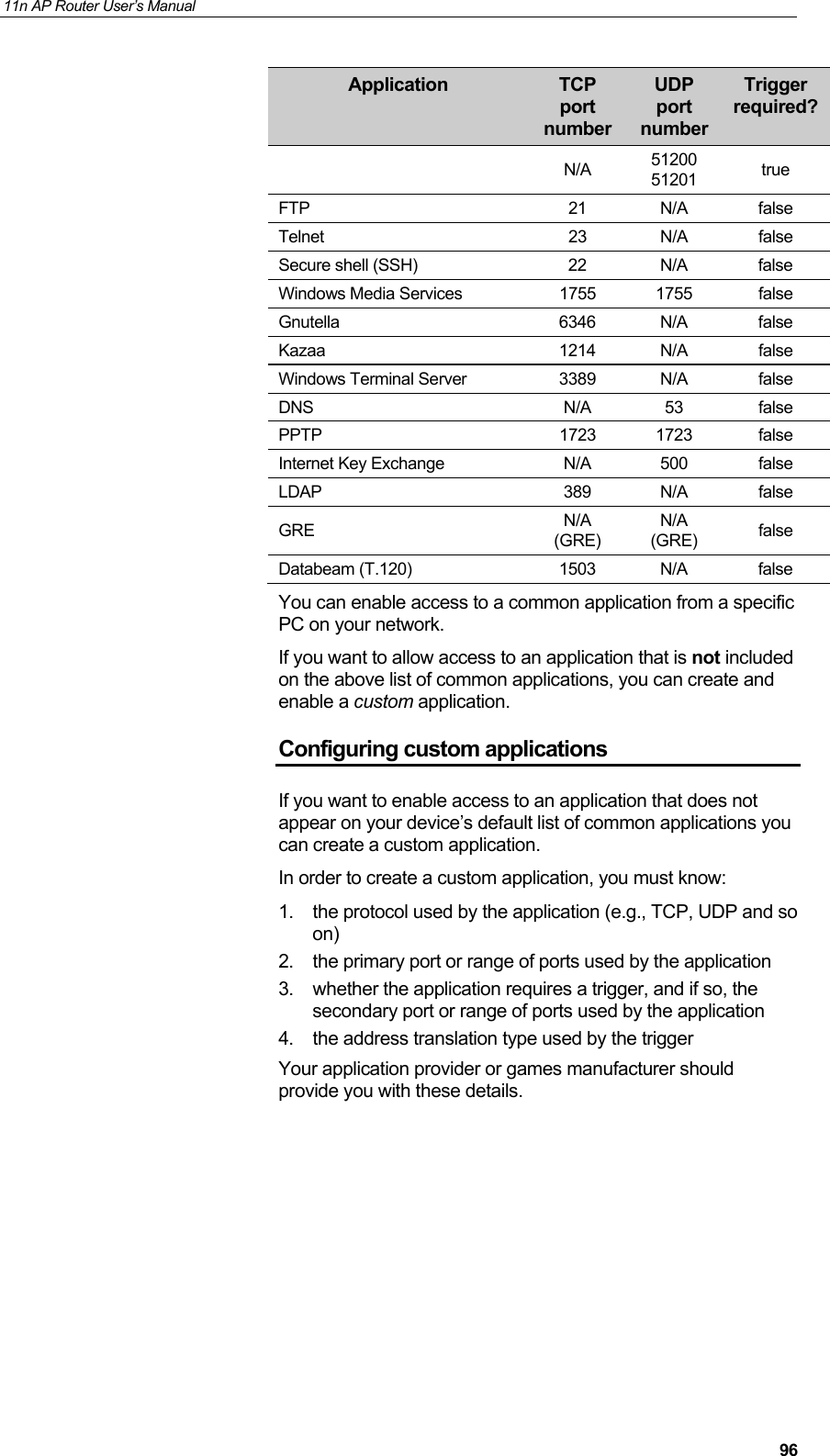
11n AP Router User’s Manual     96Application  TCP port numberUDP port number Trigger required?N/A  51200 51201  true FTP 21 N/A false Telnet 23 N/A false Secure shell (SSH)  22  N/A  false Windows Media Services  1755  1755  false Gnutella 6346 N/A false Kazaa 1214 N/A false Windows Terminal Server  3389  N/A  false DNS N/A 53 false PPTP 1723 1723 false Internet Key Exchange  N/A  500  false LDAP 389 N/A false GRE  N/A (GRE) N/A (GRE)  false Databeam (T.120)  1503  N/A  false You can enable access to a common application from a specific PC on your network. If you want to allow access to an application that is not included on the above list of common applications, you can create and enable a custom application. Configuring custom applications If you want to enable access to an application that does not appear on your device’s default list of common applications you can create a custom application. In order to create a custom application, you must know: 1.  the protocol used by the application (e.g., TCP, UDP and so on) 2.  the primary port or range of ports used by the application 3.  whether the application requires a trigger, and if so, the secondary port or range of ports used by the application 4.  the address translation type used by the trigger  Your application provider or games manufacturer should provide you with these details.
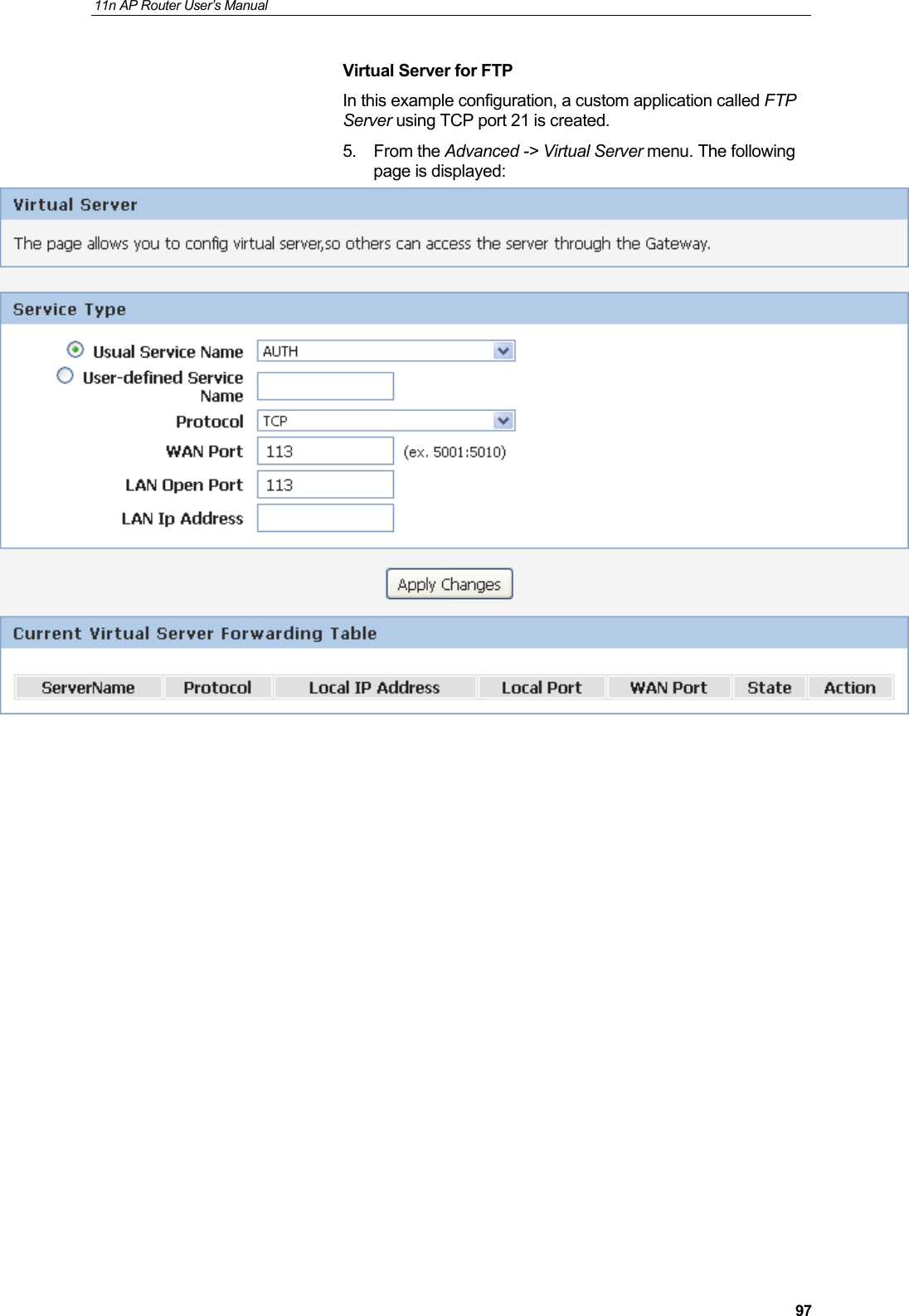
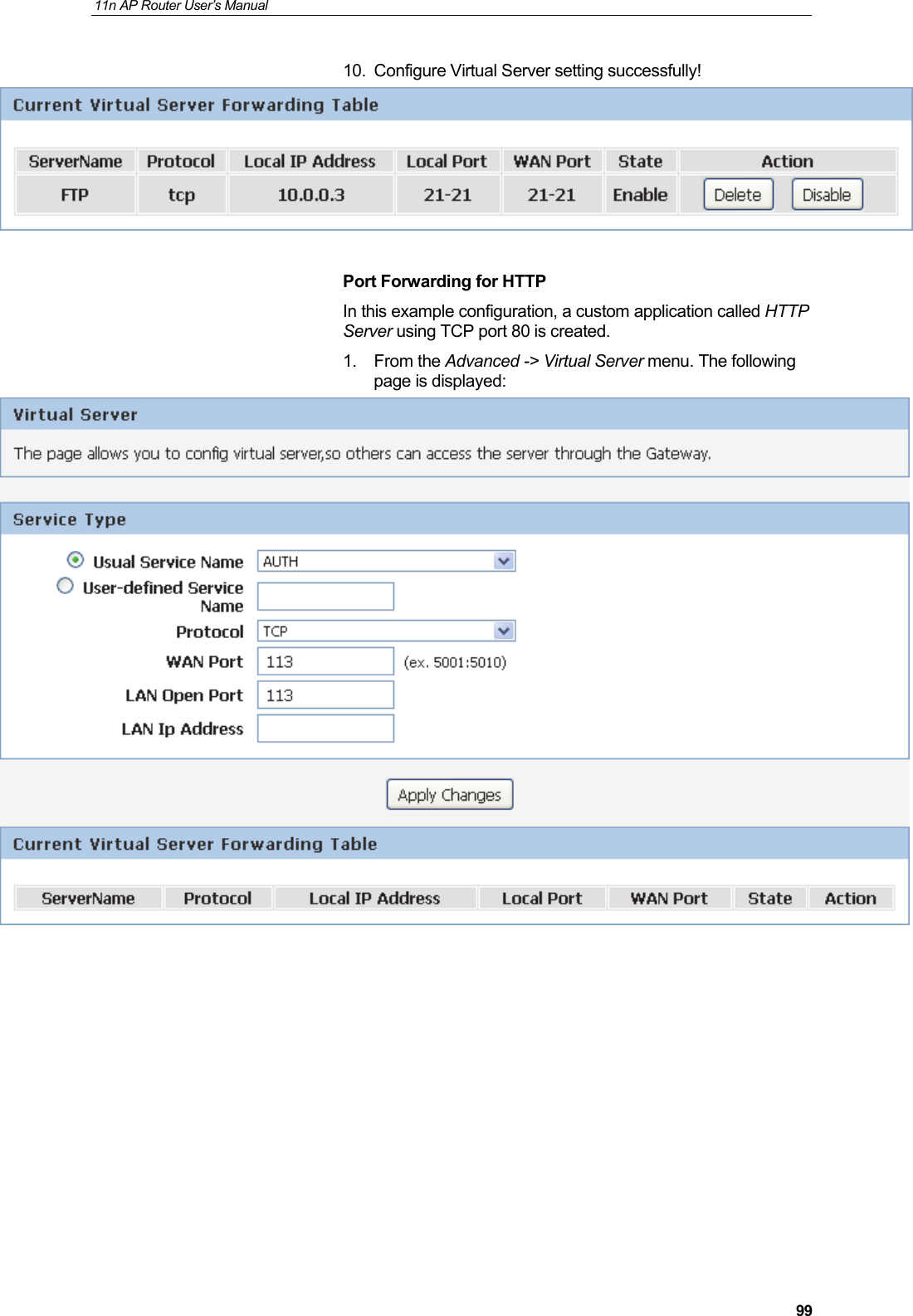
11n AP Router User’s Manual     97Virtual Server for FTP In this example configuration, a custom application called FTP Server using TCP port 21 is created. 5. From the Advanced -> Virtual Server menu. The following page is displayed:
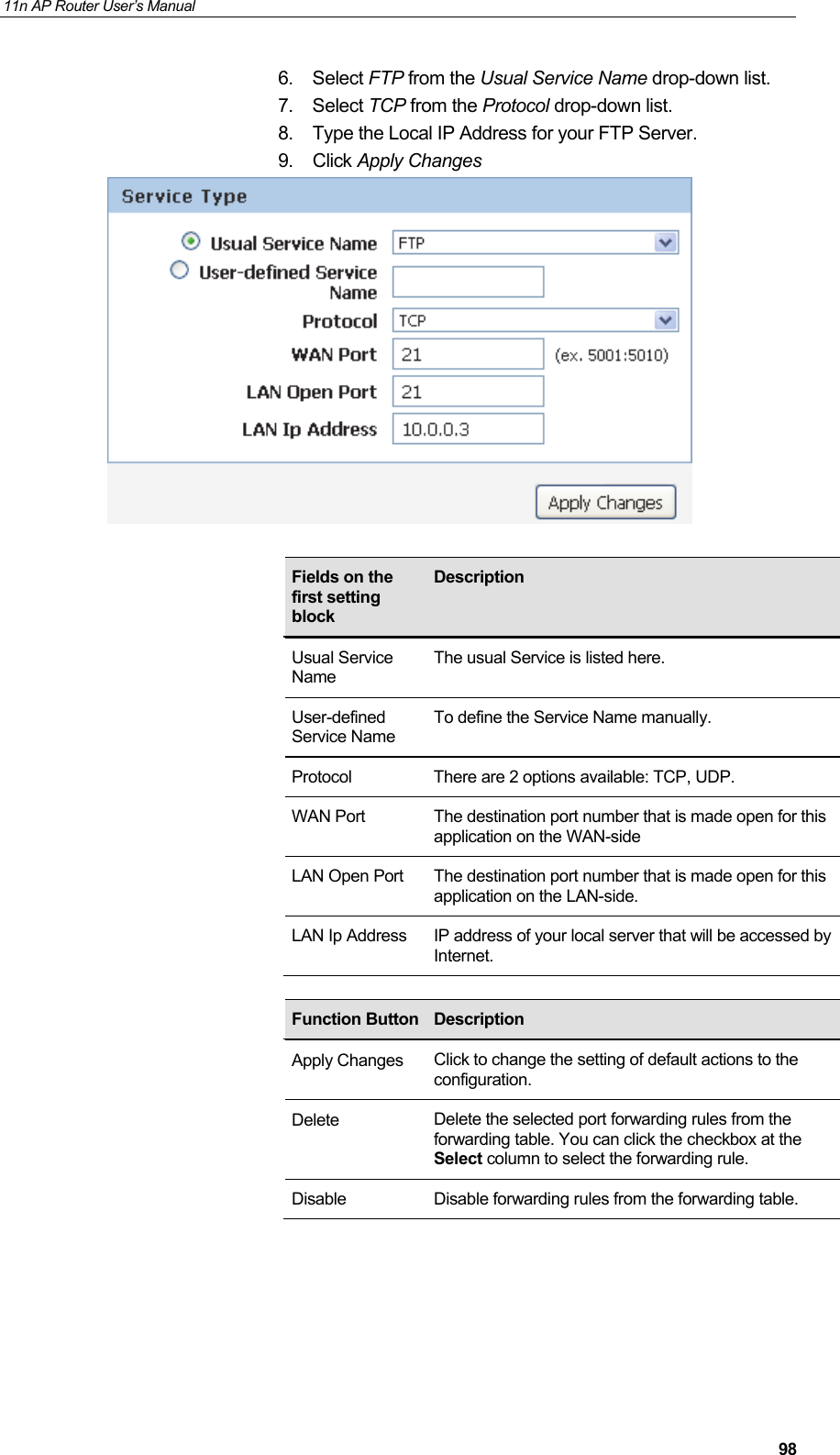
11n AP Router User’s Manual     986. Select FTP from the Usual Service Name drop-down list. 7. Select TCP from the Protocol drop-down list. 8.  Type the Local IP Address for your FTP Server. 9. Click Apply Changes                                 Fields on the first setting block Description Usual Service Name The usual Service is listed here. User-defined Service Name To define the Service Name manually. Protocol  There are 2 options available: TCP, UDP. WAN Port  The destination port number that is made open for this application on the WAN-side LAN Open Port  The destination port number that is made open for this application on the LAN-side. LAN Ip Address  IP address of your local server that will be accessed by Internet. Function Button Description Apply Changes  Click to change the setting of default actions to the configuration. Delete  Delete the selected port forwarding rules from the forwarding table. You can click the checkbox at the Select column to select the forwarding rule. Disable  Disable forwarding rules from the forwarding table.
11n AP Router User’s Manual     9910.  Configure Virtual Server setting successfully!   Port Forwarding for HTTP In this example configuration, a custom application called HTTP Server using TCP port 80 is created. 1. From the Advanced -> Virtual Server menu. The following page is displayed:
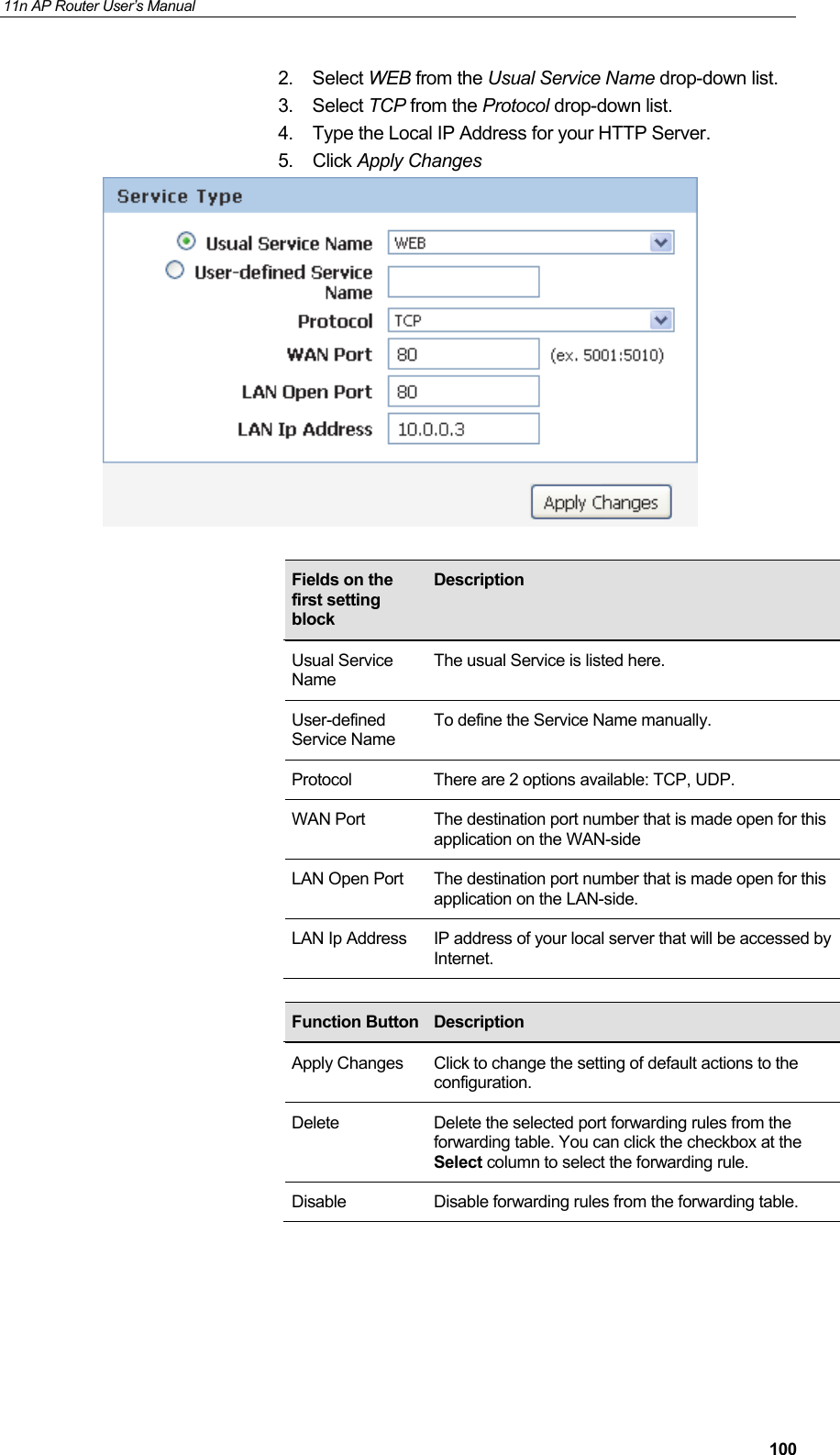
11n AP Router User’s Manual     1002. Select WEB from the Usual Service Name drop-down list. 3. Select TCP from the Protocol drop-down list. 4.  Type the Local IP Address for your HTTP Server. 5. Click Apply Changes                                 Fields on the first setting block Description Usual Service Name The usual Service is listed here. User-defined Service Name To define the Service Name manually. Protocol  There are 2 options available: TCP, UDP. WAN Port  The destination port number that is made open for this application on the WAN-side LAN Open Port  The destination port number that is made open for this application on the LAN-side. LAN Ip Address  IP address of your local server that will be accessed by Internet. Function Button Description Apply Changes  Click to change the setting of default actions to the configuration. Delete  Delete the selected port forwarding rules from the forwarding table. You can click the checkbox at the Select column to select the forwarding rule. Disable  Disable forwarding rules from the forwarding table.
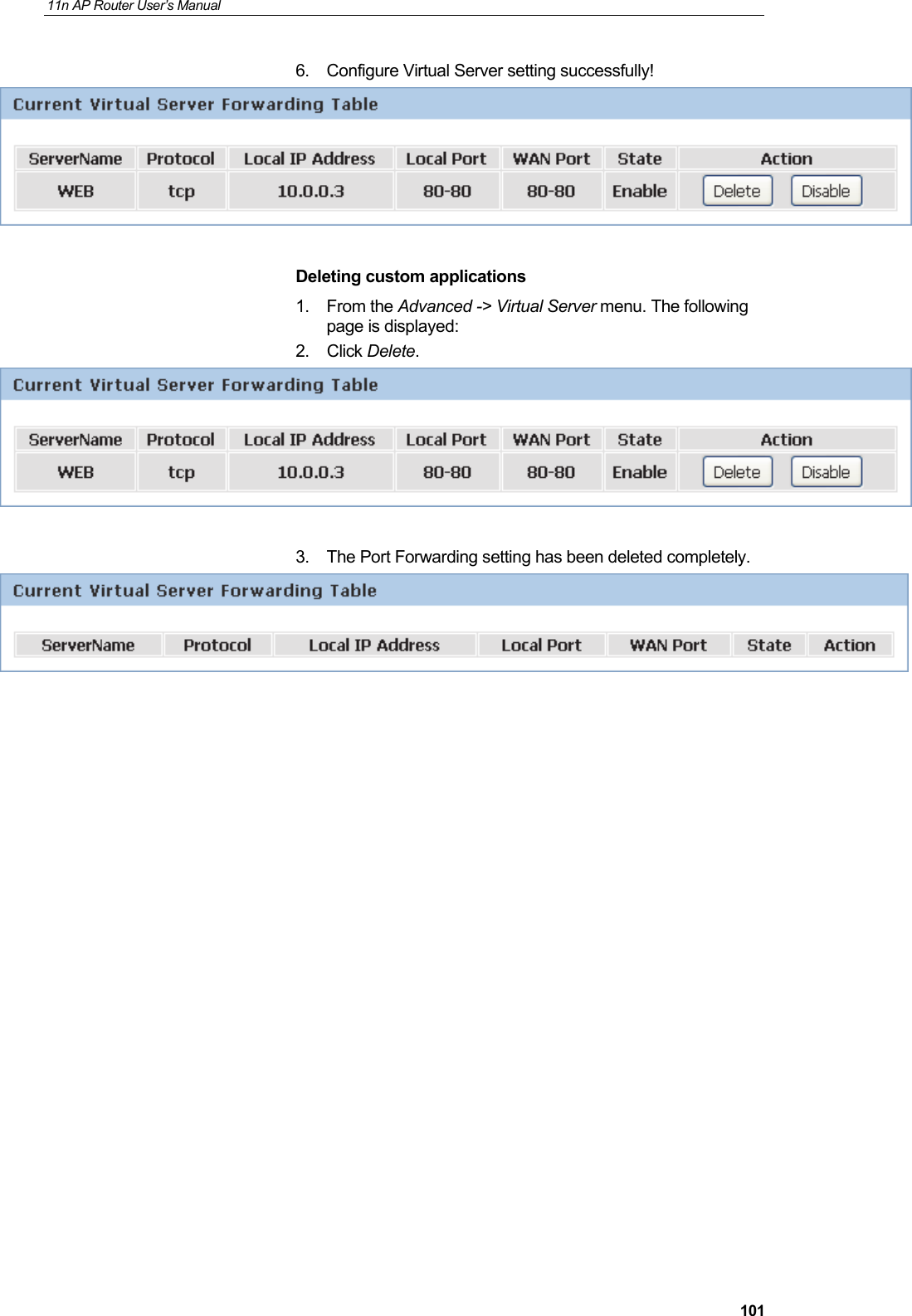
11n AP Router User’s Manual     1016.  Configure Virtual Server setting successfully!  Deleting custom applications 1. From the Advanced -> Virtual Server menu. The following page is displayed: 2. Click Delete.   3.  The Port Forwarding setting has been deleted completely.
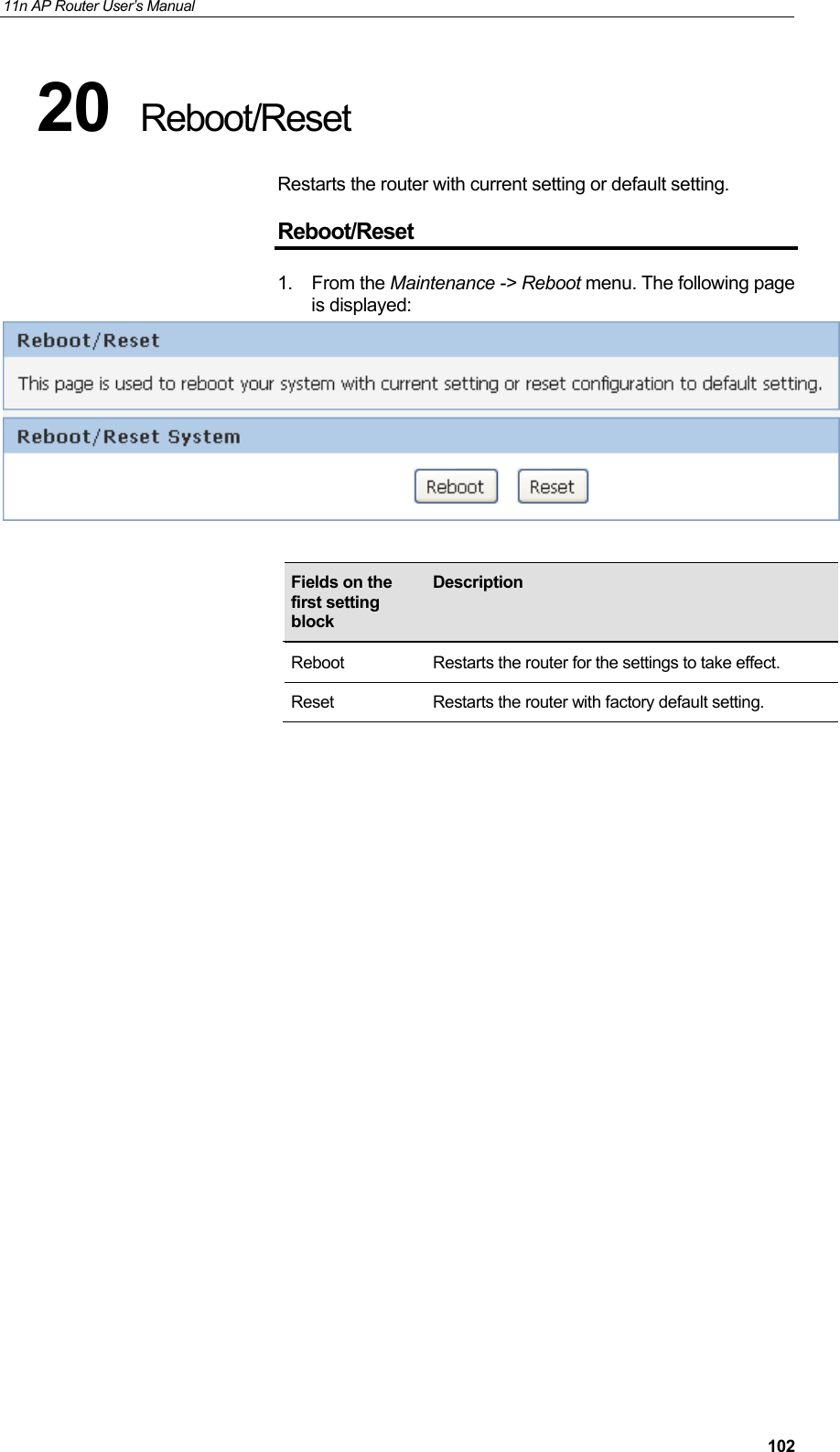
11n AP Router User’s Manual     10220  Reboot/Reset Restarts the router with current setting or default setting. Reboot/Reset 1. From the Maintenance -> Reboot menu. The following page is displayed:                                Fields on the first setting block Description Reboot  Restarts the router for the settings to take effect. Reset Restarts the router with factory default setting.
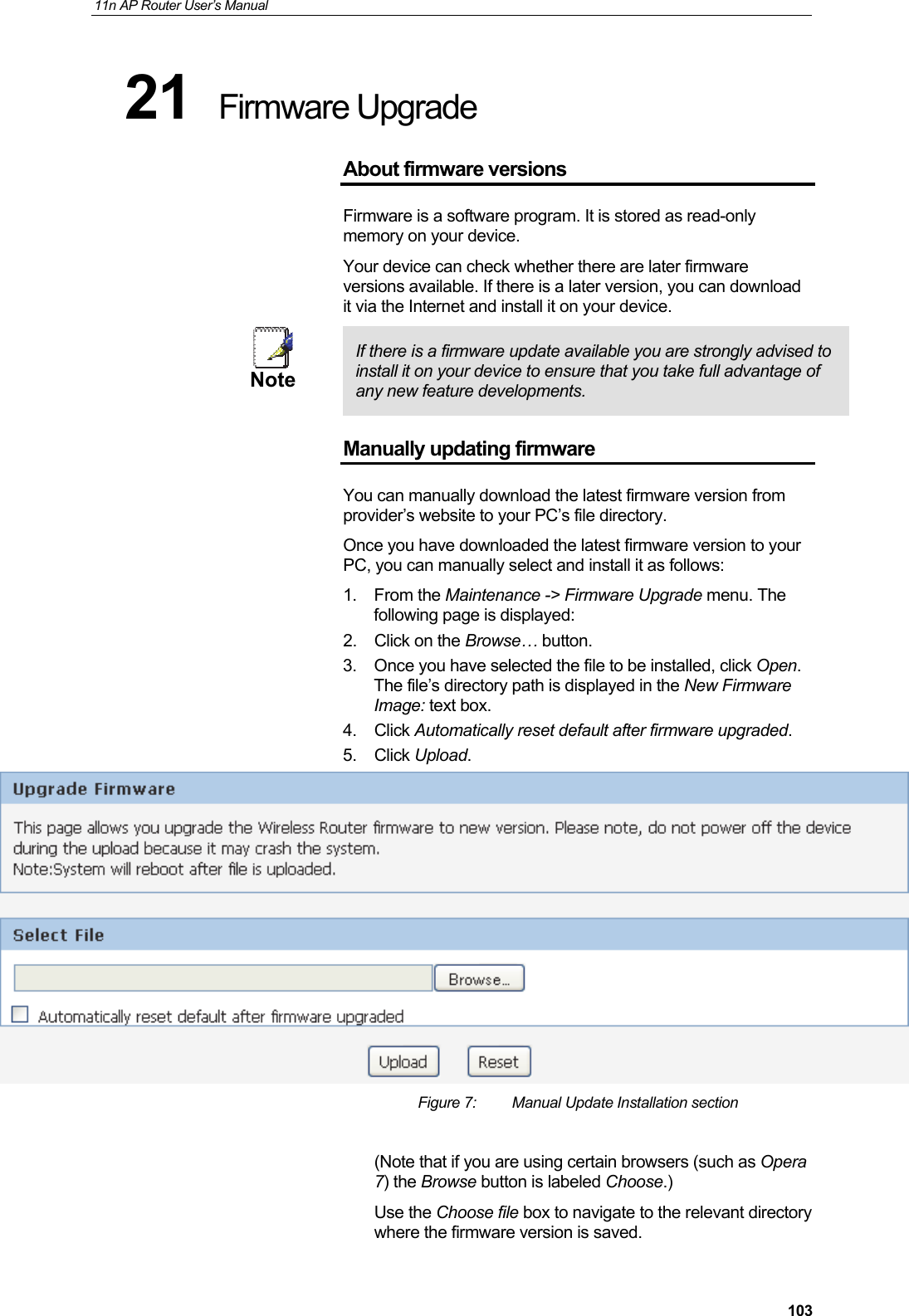
11n AP Router User’s Manual     10321  Firmware Upgrade About firmware versions Firmware is a software program. It is stored as read-only memory on your device. Your device can check whether there are later firmware versions available. If there is a later version, you can download it via the Internet and install it on your device.  Note  If there is a firmware update available you are strongly advised to install it on your device to ensure that you take full advantage of any new feature developments. Manually updating firmware You can manually download the latest firmware version from provider’s website to your PC’s file directory.  Once you have downloaded the latest firmware version to your PC, you can manually select and install it as follows: 1. From the Maintenance -> Firmware Upgrade menu. The following page is displayed: 2.  Click on the Browse… button.  3.  Once you have selected the file to be installed, click Open. The file’s directory path is displayed in the New Firmware Image: text box. 4. Click Automatically reset default after firmware upgraded. 5. Click Upload.   Figure 7:  Manual Update Installation section  (Note that if you are using certain browsers (such as Opera 7) the Browse button is labeled Choose.) Use the Choose file box to navigate to the relevant directory where the firmware version is saved.
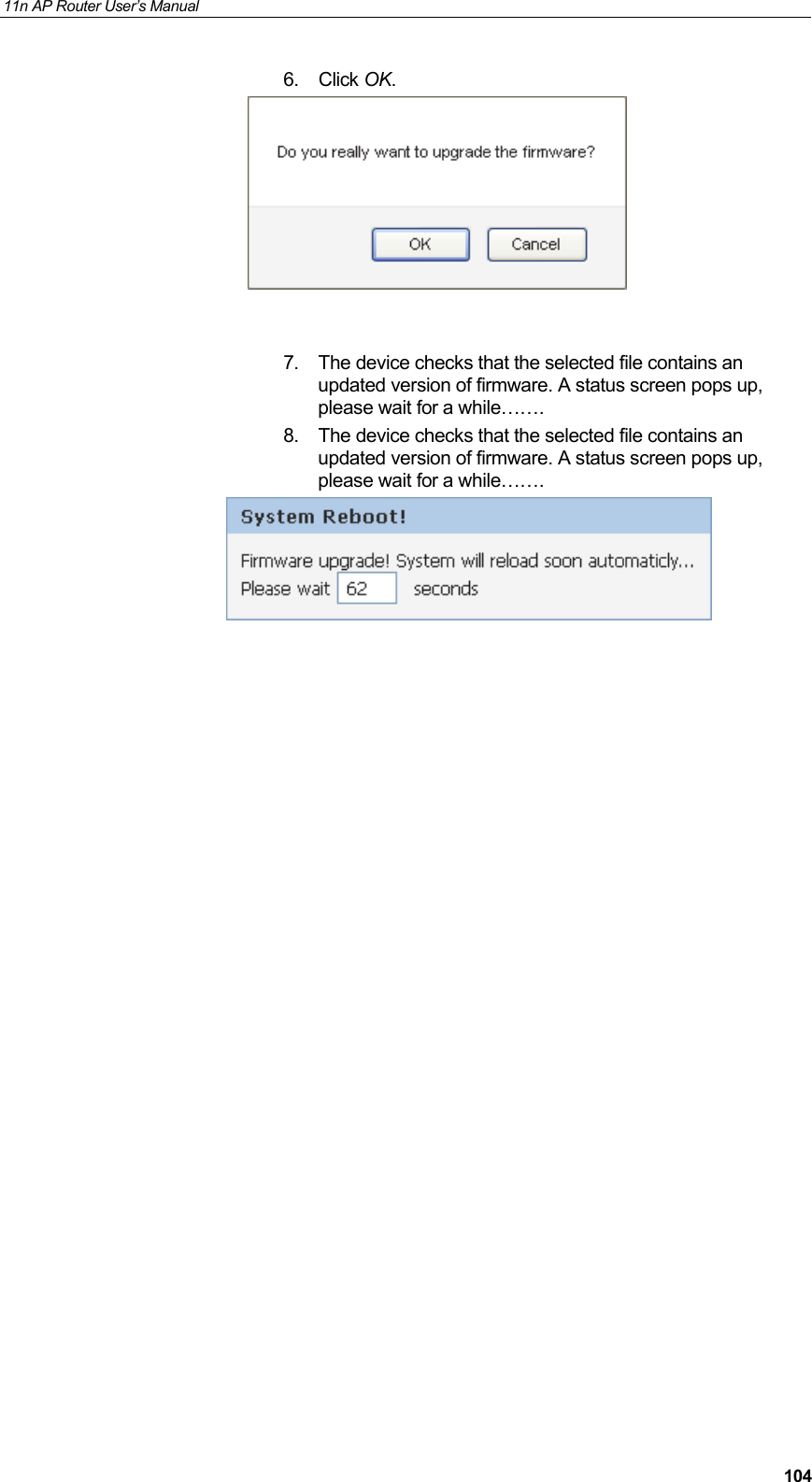
11n AP Router User’s Manual     1046. Click OK.     7.  The device checks that the selected file contains an updated version of firmware. A status screen pops up, please wait for a while……. 8.  The device checks that the selected file contains an updated version of firmware. A status screen pops up, please wait for a while…….
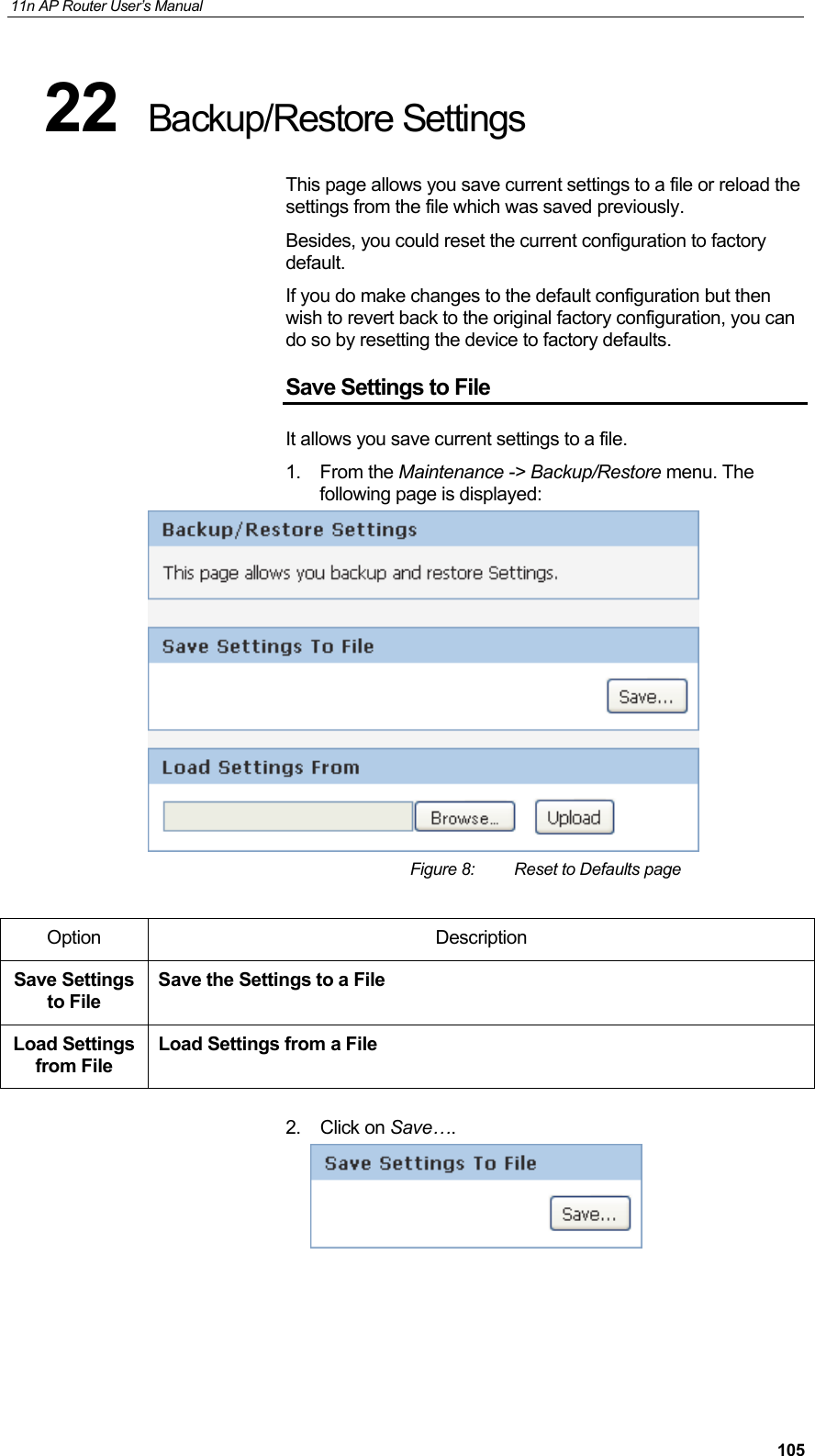
11n AP Router User’s Manual     10522  Backup/Restore Settings This page allows you save current settings to a file or reload the settings from the file which was saved previously. Besides, you could reset the current configuration to factory default.  If you do make changes to the default configuration but then wish to revert back to the original factory configuration, you can do so by resetting the device to factory defaults. Save Settings to File It allows you save current settings to a file. 1. From the Maintenance -> Backup/Restore menu. The following page is displayed:  Figure 8:  Reset to Defaults page  Option Description Save Settings to File Save the Settings to a File Load Settings from File Load Settings from a File  2. Click on Save….
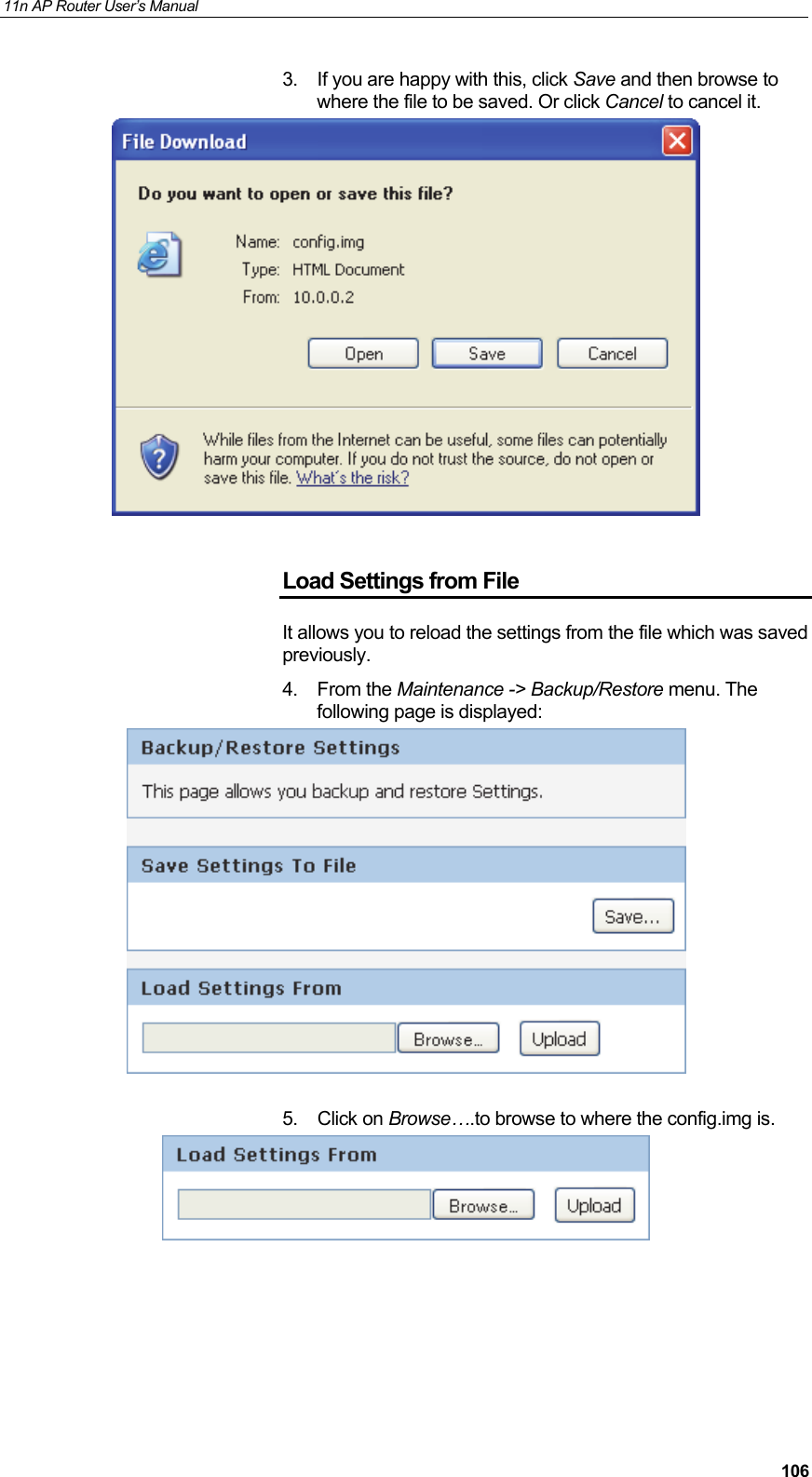
11n AP Router User’s Manual     1063.  If you are happy with this, click Save and then browse to where the file to be saved. Or click Cancel to cancel it.   Load Settings from File It allows you to reload the settings from the file which was saved previously. 4. From the Maintenance -> Backup/Restore menu. The following page is displayed:   5. Click on Browse….to browse to where the config.img is.
11n AP Router User’s Manual     1076.  If you are happy with this, click Upload to start to load settings from file.   7.  If you are happy with this, click Upload to start to load settings from file.   8.  please wait for a while…….
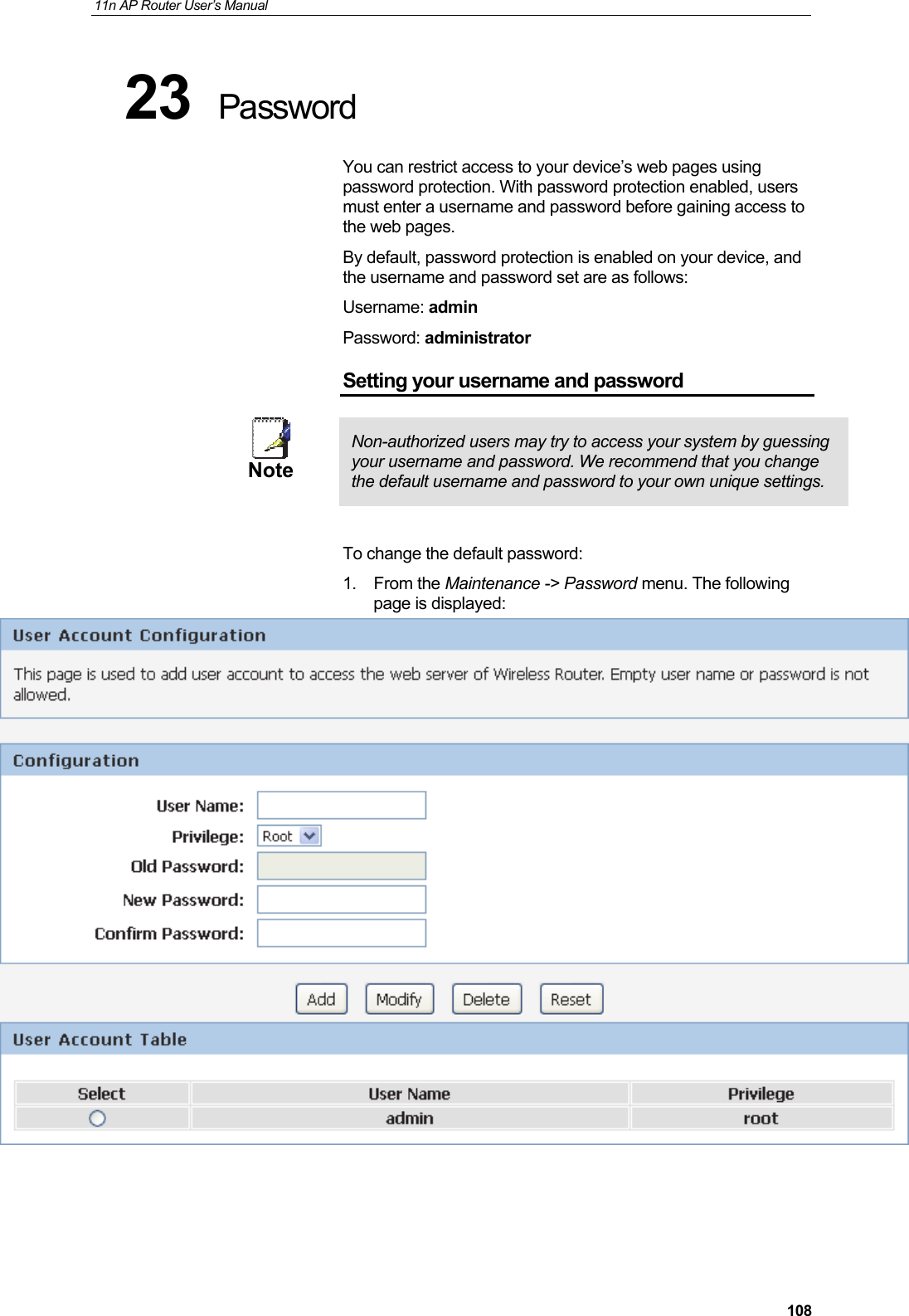
11n AP Router User’s Manual     10823  Password You can restrict access to your device’s web pages using password protection. With password protection enabled, users must enter a username and password before gaining access to the web pages. By default, password protection is enabled on your device, and the username and password set are as follows: Username: admin Password: administrator Setting your username and password  Note  Non-authorized users may try to access your system by guessing your username and password. We recommend that you change the default username and password to your own unique settings.  To change the default password: 1. From the Maintenance -> Password menu. The following page is displayed:
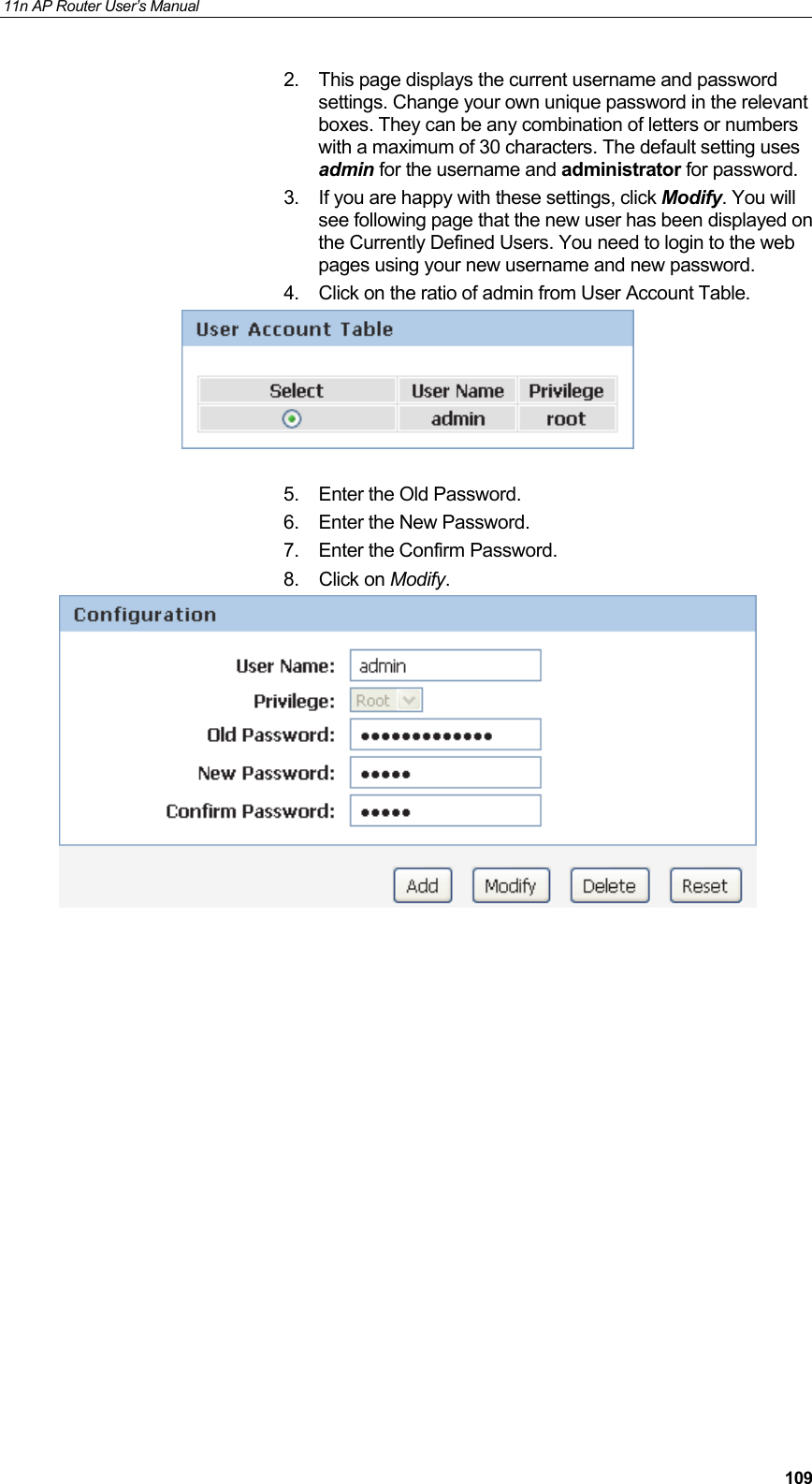
11n AP Router User’s Manual     1092.  This page displays the current username and password settings. Change your own unique password in the relevant boxes. They can be any combination of letters or numbers with a maximum of 30 characters. The default setting uses admin for the username and administrator for password.  3.  If you are happy with these settings, click Modify. You will see following page that the new user has been displayed on the Currently Defined Users. You need to login to the web pages using your new username and new password. 4.  Click on the ratio of admin from User Account Table.    5.  Enter the Old Password.  6.  Enter the New Password.  7.  Enter the Confirm Password.  8. Click on Modify.
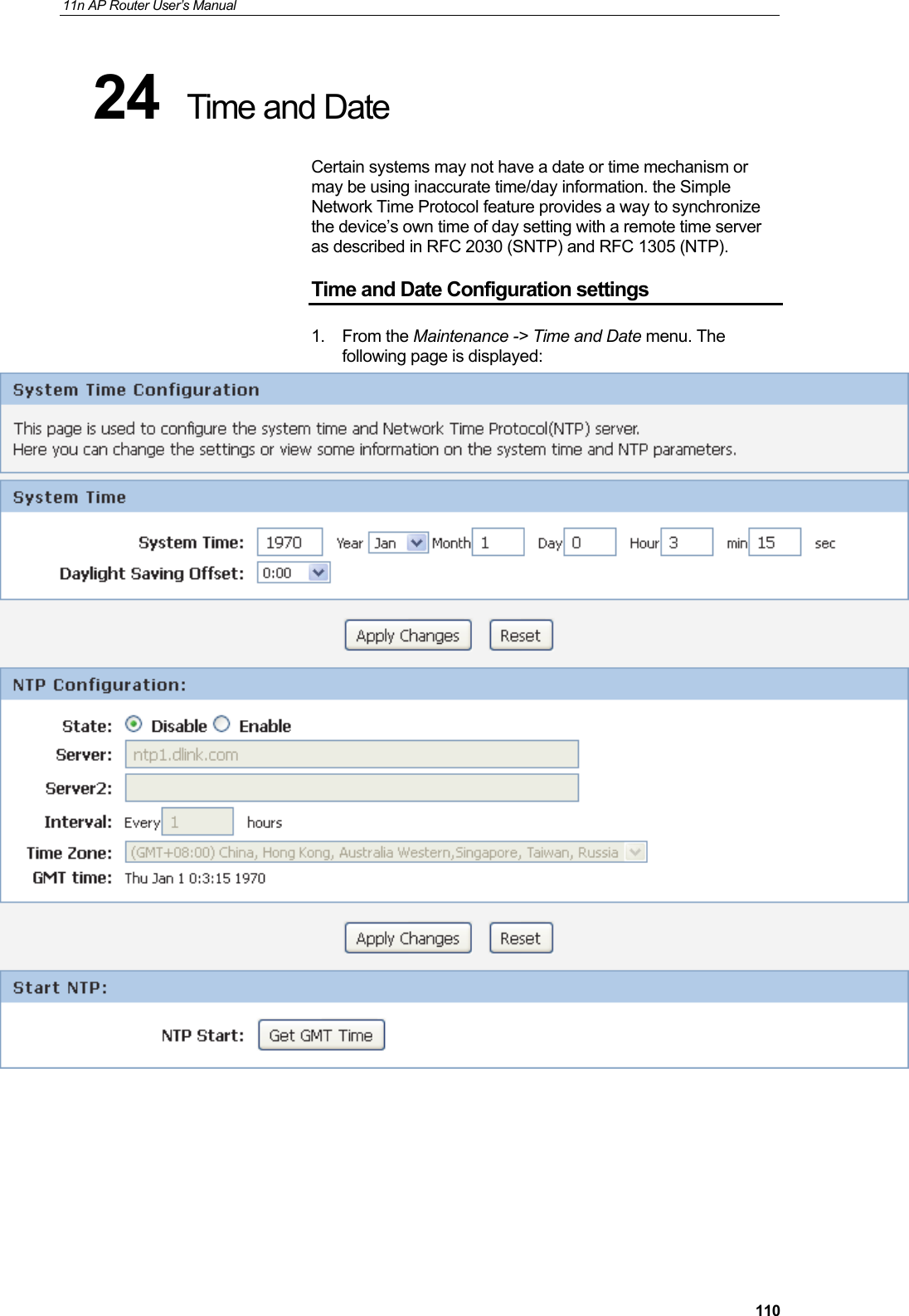
11n AP Router User’s Manual     11024  Time and Date Certain systems may not have a date or time mechanism or may be using inaccurate time/day information. the Simple Network Time Protocol feature provides a way to synchronize the device’s own time of day setting with a remote time server as described in RFC 2030 (SNTP) and RFC 1305 (NTP). Time and Date Configuration settings 1. From the Maintenance -> Time and Date menu. The following page is displayed:
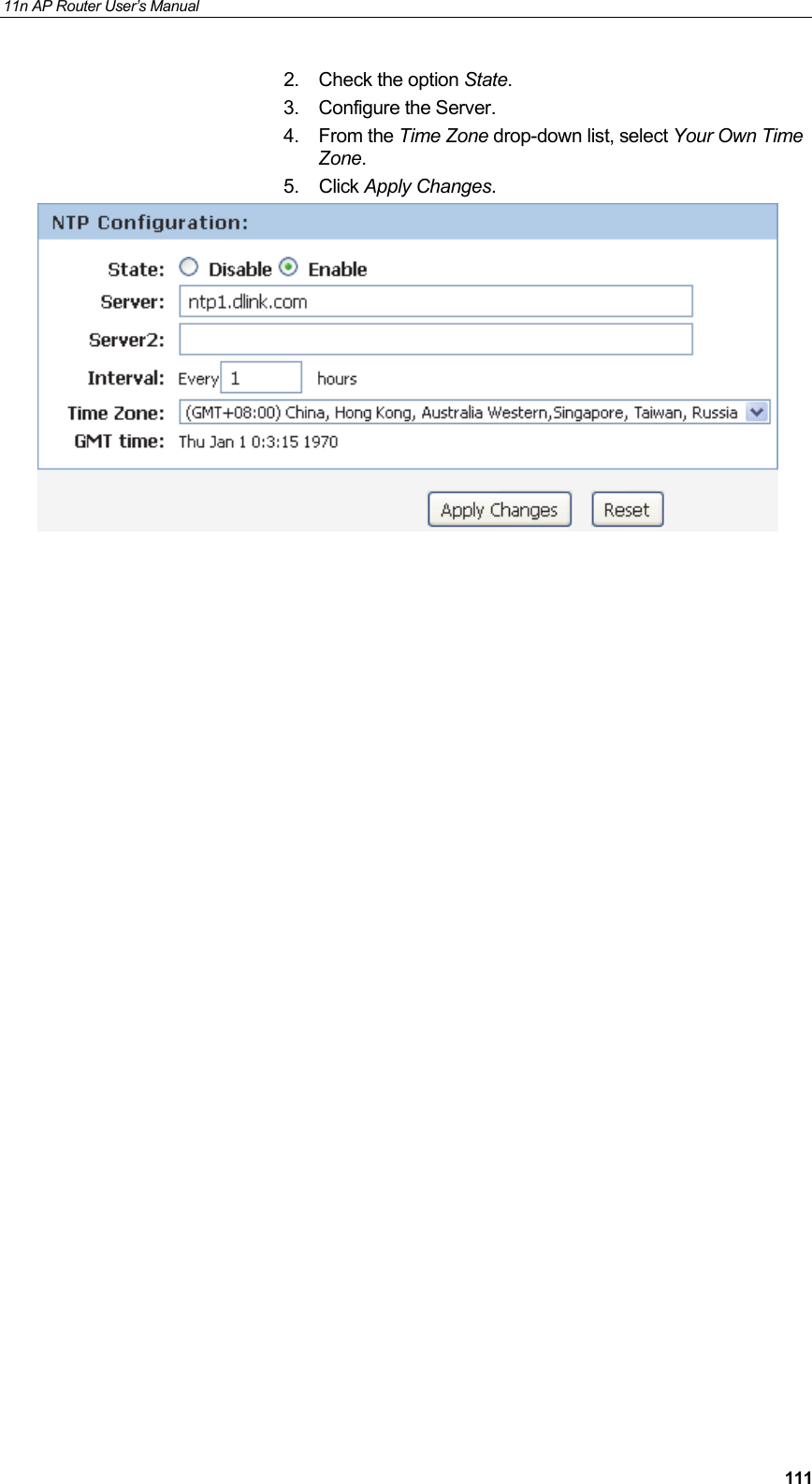
11n AP Router User’s Manual     1112.  Check the option State. 3. Configure the Server. 4. From the Time Zone drop-down list, select Your Own Time Zone. 5. Click Apply Changes.
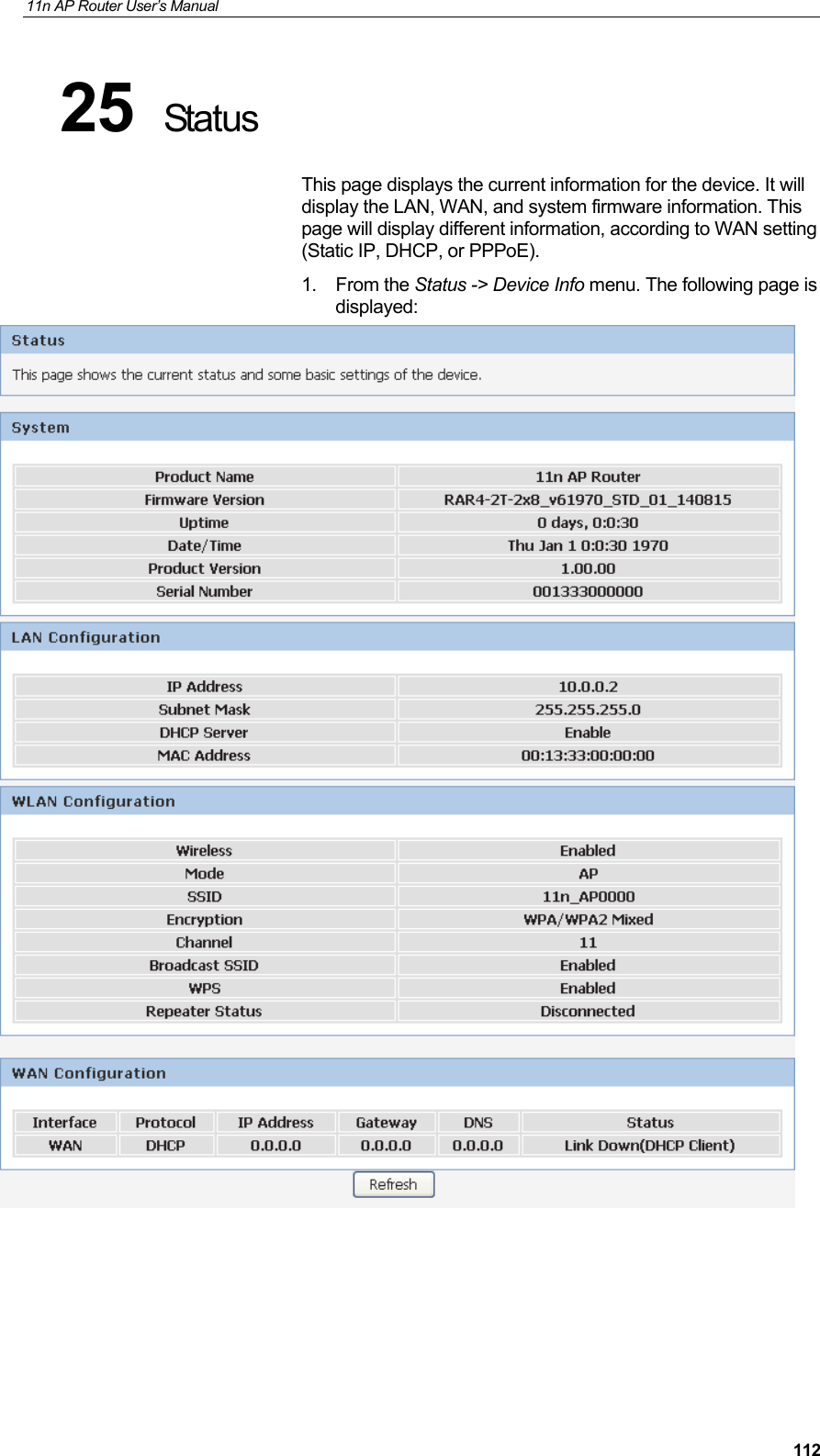
11n AP Router User’s Manual     11225  Status This page displays the current information for the device. It will display the LAN, WAN, and system firmware information. This page will display different information, according to WAN setting (Static IP, DHCP, or PPPoE). 1. From the Status -> Device Info menu. The following page is displayed:
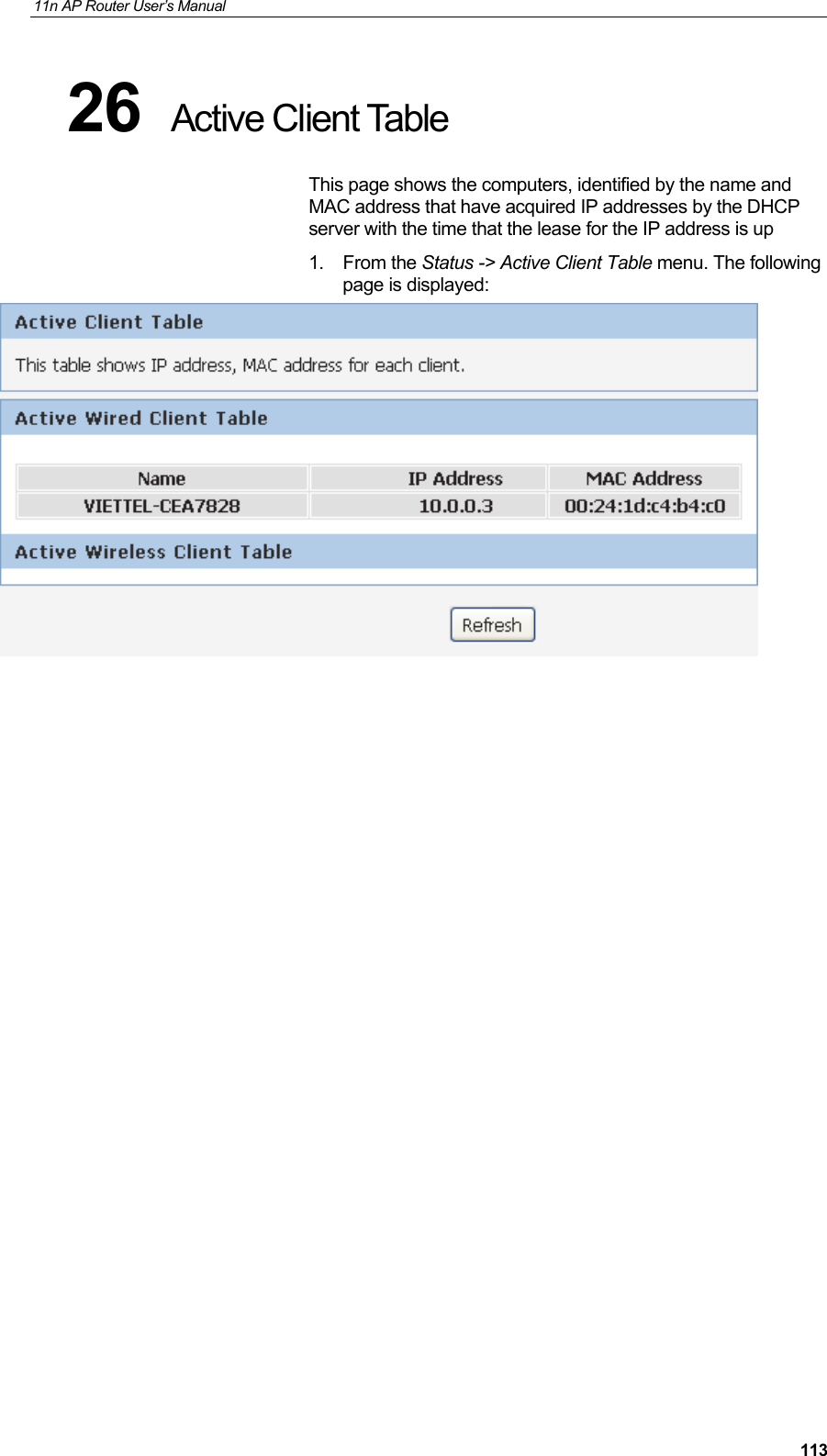
11n AP Router User’s Manual     11326  Active Client Table This page shows the computers, identified by the name and MAC address that have acquired IP addresses by the DHCP server with the time that the lease for the IP address is up 1. From the Status -> Active Client Table menu. The following page is displayed:
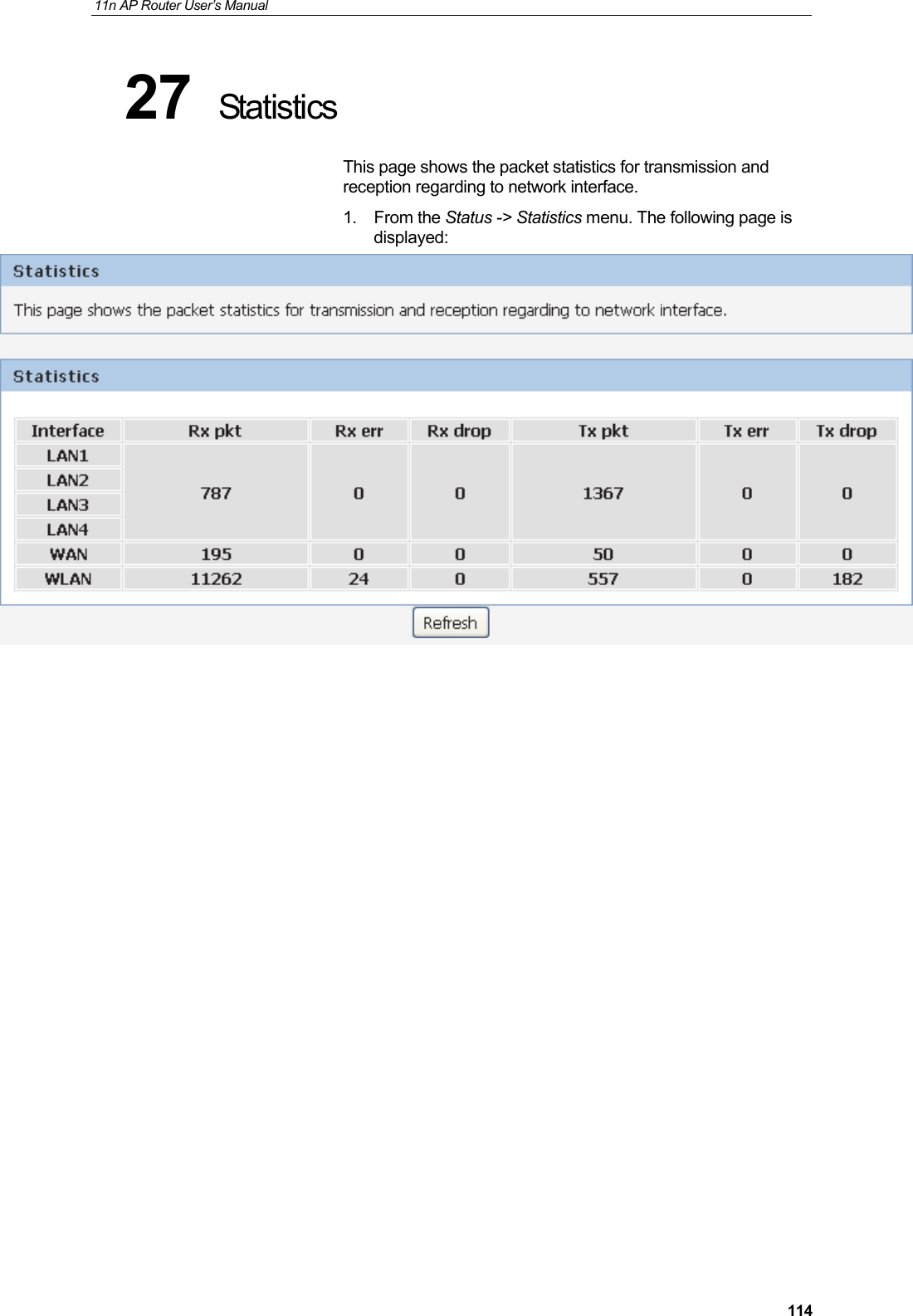
11n AP Router User’s Manual     11427  Statistics This page shows the packet statistics for transmission and reception regarding to network interface. 1. From the Status -> Statistics menu. The following page is displayed:
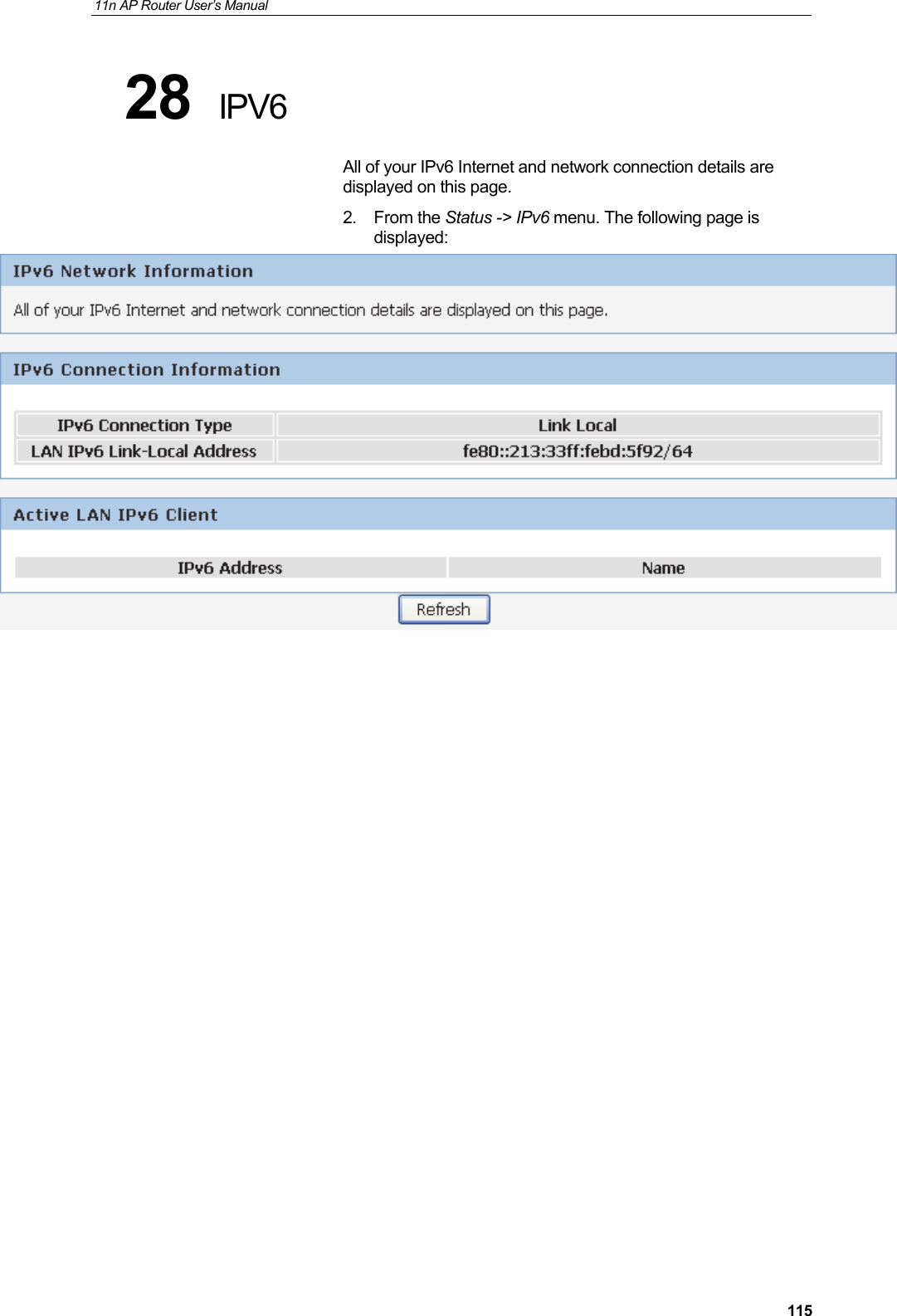
11n AP Router User’s Manual     11528  IPV6 All of your IPv6 Internet and network connection details are displayed on this page. 2. From the Status -> IPv6 menu. The following page is displayed:
11n AP Router User’s Manual     116A  Configuring your Computers This appendix provides instructions for configuring the Internet settings on your computers to work with the Wireless Gateway.  Configuring Ethernet PCs Before you begin By default, the Wireless Gateway automatically assigns the required Internet settings to your PCs. You need to configure the PCs to accept this information when it is assigned.   Note  In some cases, you may want to assign Internet information manually to some or all of your computers rather than allow the Wireless Gateway to do so. See Assigning static Internet information to your PCs for instructions.    •  If you have connected your LAN PCs via Ethernet to the Wireless Gateway, follow the instructions that correspond to the operating system installed on your PC: •  Windows® XP PCs  •  Windows 2000 PCs  •  Windows Me PCs  •  Windows 95, 98 PCs •  Windows NT 4.0 workstations  Windows® XP PCs 1.  In the Windows task bar, click the Start button, and then click Control Panel.  2.  Double-click the Network Connections icon. 3. In the LAN or High-Speed Internet window, right-click on the icon corresponding to your network interface card (NIC) and select Properties. (Often, this icon is labeled Local Area Connection). The Local Area Connection dialog box is displayed with a list of currently installed network items. 4.  Ensure that the check box to the left of the item labeled Internet Protocol TCP/IP is checked and click Properties. 5. In the Internet Protocol (TCP/IP) Properties dialog box, click the radio button labeled Obtain an IP address automatically. Also click the radio button labeled Obtain DNS server address automatically. 6. Click OK twice to confirm your changes, and then close the Control Panel. Windows 2000 PCs First, check for the IP protocol and, if necessary, install it: 1.  In the Windows task bar, click the Start button, point to Settings, and then click Control Panel. 2.  Double-click the Network and Dial-up Connections icon.
11n AP Router User’s Manual     1173. In the Network and Dial-up Connections window, right-click the Local Area Connection icon, and then select Properties. The Local Area Connection Properties dialog box is displayed with a list of currently installed network components. If the list includes Internet Protocol (TCP/IP), then the protocol has already been enabled. Skip to step 10. 4.  If Internet Protocol (TCP/IP) does not display as an installed component, click Install… 5. In the Select Network Component Type dialog box, select Protocol, and then click Add… 6. Select Internet Protocol (TCP/IP) in the Network Protocols list, and then click OK. You may be prompted to install files from your Windows 2000 installation CD or other media. Follow the instructions to install the files. 7. If prompted, click OK to restart your computer with the new settings. Next, configure the PCs to accept IP information assigned by the Wireless Gateway: 8. In the Control Panel, double-click the Network and Dial-up Connections icon. 9. In the Network and Dial-up Connections window, right-click the Local Area Connection icon, and then select Properties. 10.  In the Local Area Connection Properties dialog box, select Internet Protocol (TCP/IP), and then click Properties.  11. In the Internet Protocol (TCP/IP) Properties dialog box, click the radio button labeled Obtain an IP address automatically. Also click the radio button labeled Obtain DNS server address automatically. 12. Click OK twice to confirm and save your changes, and then close the Control Panel.
11n AP Router User’s Manual     118Windows Me PCs 1.  In the Windows task bar, click the Start button, point to Settings, and then click Control Panel. 2.  Double-click the Network and Dial-up Connections icon. 3. In the Network and Dial-up Connections window, right-click the Network icon, and then select Properties. The Network Properties dialog box displays with a list of currently installed network components. If the list includes Internet Protocol (TCP/IP), then the protocol has already been enabled. Skip to step 11. 4.  If Internet Protocol (TCP/IP) does not display as an installed component, click Add… 5. In the Select Network Component Type dialog box, select Protocol, and then click Add… 6. Select Microsoft in the Manufacturers box. 7. Select Internet Protocol (TCP/IP) in the Network Protocols list, and then click OK. You may be prompted to install files from your Windows Me installation CD or other media. Follow the instructions to install the files. 8. If prompted, click OK to restart your computer with the new settings. Next, configure the PCs to accept IP information assigned by the Wireless Gateway: 9. In the Control Panel, double-click the Network and Dial-up Connections icon. 10. In Network and Dial-up Connections window, right-click the Network icon, and then select Properties. 11. In the Network Properties dialog box, select TCP/IP, and then click Properties.  12.  In the TCP/IP Settings dialog box, click the radio button labeled Server assigned IP address. Also click the radio button labeled Server assigned name server address. 13. Click OK twice to confirm and save your changes, and then close the Control Panel. Windows 95, 98 PCs First, check for the IP protocol and, if necessary, install it: 1.  In the Windows task bar, click the Start button, point to Settings, and then click Control Panel. 2.  Double-click the Network icon. The Network dialog box displays with a list of currently installed network components. If the list includes TCP/IP, and then the protocol has already been enabled. Skip to step 9. 3.  If TCP/IP does not display as an installed component, click Add… The Select Network Component Type dialog box displays. 4. Select Protocol, and then click Add… The Select Network Protocol dialog box displays.
11n AP Router User’s Manual     1195. Click on Microsoft in the Manufacturers list box, and then click TCP/IP in the Network Protocols list box. 6. Click OK to return to the Network dialog box, and then click OK again. You may be prompted to install files from your Windows 95/98 installation CD. Follow the instructions to install the files. 7. Click OK to restart the PC and complete the TCP/IP installation. Next, configure the PCs to accept IP information assigned by the Wireless Gateway: 8.  Open the Control Panel window, and then click the Network icon. 9.  Select the network component labeled TCP/IP, and then click Properties.  If you have multiple TCP/IP listings, select the listing associated with your network card or adapter. 10.  In the TCP/IP Properties dialog box, click the IP Address tab. 11.  Click the radio button labeled Obtain an IP address automatically. 12.  Click the DNS Configuration tab, and then click the radio button labeled Obtain an IP address automatically.  13. Click OK twice to confirm and save your changes. You will be prompted to restart Windows.  14. Click Yes. Windows NT 4.0 workstations First, check for the IP protocol and, if necessary, install it: 1.  In the Windows NT task bar, click the Start button, point to Settings, and then click Control Panel. 2.  In the Control Panel window, double click the Network icon. 3. In the Network dialog box, click the Protocols tab. The Protocols tab displays a list of currently installed network protocols. If the list includes TCP/IP, then the protocol has already been enabled. Skip to step 9. 4.  If TCP/IP does not display as an installed component, click Add… 5. In the Select Network Protocol dialog box, select TCP/IP, and then click OK. You may be prompted to install files from your Windows NT installation CD or other media. Follow the instructions to install the files. After all files are installed, a window displays to inform you that a TCP/IP service called DHCP can be set up to dynamically assign IP information. 6. Click Yes to continue, and then click OK if prompted to restart your computer. Next, configure the PCs to accept IP information assigned by the Wireless Gateway:
11n AP Router User’s Manual     1207.  Open the Control Panel window, and then double-click the Network icon. 8. In the Network dialog box, click the Protocols tab. 9. In the Protocols tab, select TCP/IP, and then click Properties. 10. In the Microsoft TCP/IP Properties dialog box, click the radio button labeled Obtain an IP address from a DHCP server. 11. Click OK twice to confirm and save your changes, and then close the Control Panel. Assigning static Internet information to your PCs If you are a typical user, you will not need to assign static Internet information to your LAN PCs because your ISP automatically assigns this information for you.  In some cases however, you may want to assign Internet information to some or all of your PCs directly (often called “statically”), rather than allowing the Wireless Gateway to assign it. This option may be desirable (but not required) if: •  You have obtained one or more public IP addresses that you want to always associate with specific computers (for example, if you are using a computer as a public web server). •  You maintain different subnets on your LAN (subnets are described in Appendix B). Before you begin, you must have the following information available: •  The IP address and subnet mask of each PC  •  The IP address of the default gateway for your LAN. In most cases, this is the address assigned to the LAN port on the Wireless Gateway. By default, the LAN port is assigned the IP address 10.0.0.2. (You can change this number or another number can be assigned by your ISP. See Addressing for more information.) •  The IP address of your ISP’s Domain Name System (DNS) server. On each PC to which you want to assign static information, follow the instructions relating only to checking for and/or installing the IP protocol. Once it is installed, continue to follow the instructions for displaying each of the Internet Protocol (TCP/IP) properties. Instead of enabling dynamic assignment of the IP addresses for the computer, DNS server and default gateway, click the radio buttons that enable you to enter the information manually.  Note Your PCs must have IP addresses that place them in the same subnet as the Wireless Gateway’s LAN port. If you manually assign IP information to all your LAN PCs, you can follow the instructions in Addressing to change the LAN port IP address accordingly.
11n AP Router User’s Manual     121B  IP Addresses, Network Masks, and Subnets IP Addresses  Note This section refers only to IP addresses for IPv4 (version 4 of the Internet Protocol). IPv6 addresses are not covered. This section assumes basic knowledge of binary numbers, bits, and bytes. IP addresses, the Internet's version of telephone numbers, are used to identify individual nodes (computers or devices) on the Internet. Every IP address contains four numbers, each from 0 to 255 and separated by dots (periods), e.g. 20.56.0.211. These numbers are called, from left to right, field1, field2, field3, and field4. This style of writing IP addresses as decimal numbers separated by dots is called dotted decimal notation. The IP address 20.56.0.211 is read "twenty dot fifty-six dot zero dot two-eleven." Structure of an IP address IP addresses have a hierarchical design similar to that of telephone numbers. For example, a 7-digit telephone number starts with a 3-digit prefix that identifies a group of thousands of telephone lines, and ends with four digits that identify one specific line in that group.  Similarly, IP addresses contain two kinds of information: • Network ID Identifies a particular network within the Internet or intranet • Host ID Identifies a particular computer or device on the network The first part of every IP address contains the network ID, and the rest of the address contains the host ID. The length of the network ID depends on the network's class (see following section). The table below shows the structure of an IP address.  Field1 Field2 Field3 Field4 Class A Network ID  Host ID Class B Network ID  Host ID Class C Network ID  Host ID Here are some examples of valid IP addresses: Class A: 10.30.6.125 (network = 10, host = 30.6.125) Class B: 129.88.16.49 (network = 129.88, host = 16.49) Class C: 192.60.201.11 (network = 192.60.201, host = 11) Network classes The three commonly used network classes are A, B, and C. (There is also a class D but it has a special use beyond the
11n AP Router User’s Manual     122scope of this discussion.) These classes have different uses and characteristics.  Class A networks are the Internet's largest networks, each with room for over 16 million hosts. Up to 126 of these huge networks can exist, for a total of over 2 billion hosts. Because of their huge size, these networks are used for WANs and by organizations at the infrastructure level of the Internet, such as your ISP. Class B networks are smaller but still quite large, each able to hold over 65,000 hosts. There can be up to 16,384 class B networks in existence. A class B network might be appropriate for a large organization such as a business or government agency. Class C networks are the smallest, only able to hold 254 hosts at most, but the total possible number of class C networks exceeds 2 million (2,097,152 to be exact). LANs connected to the Internet are usually class C networks. Some important notes regarding IP addresses: •  The class can be determined easily from field1: field1 = 1-126:  Class A field1 = 128-191:  Class B field1 = 192-223:  Class C (field1 values not shown are reserved for special uses) •  A host ID can have any value except all fields set to 0 or all fields set to 255, as those values are reserved for special uses. Subnet masks  Definition mask A mask looks like a regular IP address, but contains a pattern of bits that tells what parts of an IP address are the network ID and what parts are the host ID: bits set to 1 mean "this bit is part of the network ID" and bits set to 0 mean "this bit is part of the host ID." Subnet masks are used to define subnets (what you get after dividing a network into smaller pieces). A subnet's network ID is created by "borrowing" one or more bits from the host ID portion of the address. The subnet mask identifies these host ID bits. For example, consider a class C network 192.168.1. To split this into two subnets, you would use the subnet mask: 255.255.255.128 It's easier to see what's happening if we write this in binary:  11111111. 11111111. 11111111.10000000 As with any class C address, all of the bits in field1 through field3 are part of the network ID, but note how the mask specifies that the first bit in field4 is also included. Since this extra bit has only two values (0 and 1), this means there are two subnets. Each subnet uses the remaining 7 bits in field4 for its host IDs, which range from 1 to 126 hosts (instead of the usual 0 to 255 for a class C address). Similarly, to split a class C network into four subnets, the mask is:
11n AP Router User’s Manual     123255.255.255.192    or    11111111. 11111111. 11111111.11000000 The two extra bits in field4 can have four values (00, 01, 10, 11), so there are four subnets. Each subnet uses the remaining six bits in field4 for its host IDs, ranging from 1 to 62.   Note Sometimes a subnet mask does not specify any additional network ID bits, and thus no subnets. Such a mask is called a default subnet mask. These masks are: Class A:  255.0.0.0 Class B:  255.255.0.0 Class C:  255.255.255.0 These are called default because they are used when a network is initially configured, at which time it has no subnets.
11n AP Router User’s Manual     124C  UPnP Control Point Software on Windows ME/XP This appendix provides instructions for configuring the UPnP on your computers to work with the Wireless Gateway.   UPnP is an architecture for pervasive peer-to-peer network connectivity of intelligent appliances, Wireless devices, and PCs of all form factors. It is designed to bring easy-to-use, flexible, standards-based connectivity to ad-hoc or unmanaged networks whether in the home, in a small business, public spaces, or attached to the Internet. UPnP is a distributed, open networking architecture that leverages TCP/IP and the Web technologies to enable seamless proximity networking in addition to control and data transfer among networked devices in the home, office, and public spaces. UPnP is more than just a simple extension of the plug and play peripheral model. It is designed to support zero-configuration, "invisible" networking, and automatic discovery for a breadth of device categories from a wide range of vendors. This means a device can dynamically join a network, obtain an IP address, convey its capabilities, and learn about the presence and capabilities of other devices. DHCP and DNS servers are optional and are used only if available on the network. Finally, a device can leave a network smoothly and automatically without leaving any unwanted state behind.  UPnP Control Point Software on Windows ME To install the control point software on Windows ME:  1. In the Control Panel, select "Add/Remove Programs".  2. In the "Add/Remove Programs Properties" dialog box, select the "Windows Setup" tab. In the "Components" list, double click on the "Communications" entry.  3. In the "Communications" dialog box, scroll down the "Components" list to display the UPnP entry. Select the entry, click "OK".  4. Click "OK" to finish the "Add/Remove Programs" dialog.  5. Reboot your system. Once you have installed the UPnP software and you have rebooted (and your network includes the IGD system), you should be able to see the IGD controlled device on your network.
11n AP Router User’s Manual     125UPnP Control Point Software on Windows XP with Firewall On Windows XP versions earlier than SP2, Firewall support is provided by the Windows XP Internet Connection Firewall. You cannot use the Windows XP Internet Connection Firewall support on a system that you intend to use as a UPnP control point. If this feature is enabled, although the control point system may display controlled devices in the list of network devices, the control point system cannot participate in UPnP communication. (This restriction also applies to controlled devices running on Windows XP systems earlier than SP2.)    On Windows XP SP2 and later, Firewall support is provided by Windows Firewall. Unlike earlier versions, Windows XP SP2 can be used on a system that you intend to use as a UPnP control point. To turn off the Firewall capability on any version of Windows XP, follow the steps below: 1. In the Control Panel, select "Network and Internet Connections". 2. In the "Network and Internet Connections" dialog box, select "Network Connections". 3. In the "Network Connections" dialog box, right-click on the local area connection entry for your network; this will display a menu. Select the "Properties" menu entry. 4. In the "Local Area Connection Properties" dialog box, select the "Advanced" tab. Disable the Internet Connection Firewall by de-selecting the entry with the following label: "Protect my computer and network by limiting or preventing access to the computer from the Internet". 5. Click "OK".  SSDP requirements You must have SSDP Discovery Service enabled on your Windows XP system to use the UPnP Control point software. SSDP Discovery Service is enabled on a default installation of Windows XP. To check if it is enabled on your system, look in Control Panel > Administrative Tools > Services).  Installation procedure To install the Control point software on Windows XP, follow the steps below:  1. In the Control Panel, select "Add/Remove Programs".  2. In the "Add or Remove Programs" dialog box, click the "Add / Remove Windows Components" button.  3. In the "Windows Component Wizard" dialog box, scroll down the list to display the "Networking Services" entry. Highlight (select) the entry, and click on the "Details" button.
11n AP Router User’s Manual     1264. The “Networking Services” window is displayed.  The subcomponents shown in the Networking Services window will be different depending on if you are using Windows XP, Windows XP (SP1), or Windows XP (SP2).  If you are using Windows XP SP2, the Networking Services window will display the following list of sub-components:   5. Select the following entries from the “Networking Services” window and then click "OK": If you are using Windows XP, select: • "Universal Plug and Play". If you are using Windows XP SP1, select: • "Internet Gateway Device discovery and Control Client". • "Universal Plug and Play". If you are using Windows XP SP2, select: • "Internet Gateway Device discovery and Control Client". • "UPnP User Interface".    6. Reboot your system. Once you have installed the UPnP software and you have rebooted (and your network includes the IGD system), you should be able to see the IGD controlled device on your network.
11n AP Router User’s Manual     127For example, from the Network Connections window you should see the Internet Gateway Device:
錯誤! 使用 [常用] 索引標籤將 Title 套用到您想要在此處顯示的文字。 User’s Guide   Troubleshooting  D  Troubleshooting This appendix suggests solutions for problems you may encounter in installing or using the Wireless Gateway, and provides instructions for using several IP utilities to diagnose problems.  Contact Customer Support if these suggestions do not resolve the problem. Troubleshooting Suggestions Problem  Troubleshooting Suggestion LEDs Power LED does not illuminate after product is turned on.Verify that you are using the power cable provided with the device and that it is securely connected to the Wireless Gateway and a wall socket/power strip. LINK LAN LED does not illuminate after Ethernet cable is attached. Verify that the Ethernet cable is securely connected to your LAN hub or PC and to the Wireless Gateway. Make sure the PC and/or hub is turned on. Verify that your cable is sufficient for your network requirements. A 100 Mbit/sec network (10BaseTx) should use cables labeled CAT 5. A 10Mbit/sec network may tolerate lower quality cables. Internet Access My PC cannot access the Internet Use the ping utility (discussed in the following section) to check whether your PC can communicate with the device’s LAN IP address (by default 10.0.0.2). If it cannot, check the Ethernet cabling.  If you statically assigned a private IP address to the computer, (not a registered public address), verify the following: •  Check that the gateway IP address on the computer is your public IP address (see Current Status for instructions on viewing the IP information.) If it is not, correct the address or configure the PC to receive IP information automatically. •  Verify with your ISP that the DNS server specified for the PC is valid. Correct the address or configure the PC to receive this information automatically. My LAN PCs cannot display web pages on the Internet. Verify that the DNS server IP address specified on the PCs is correct for your ISP, as discussed in the item above. If you specified that the DNS server be assigned dynamically from a server, then verify with your ISP that the address configured on the Wireless Gateway is correct, then You can use the ping utility, to test connectivity with your ISP’s DNS server. Web pages
11n AP Router User’s Manual     129Problem  Troubleshooting Suggestion I forgot/lost my user ID or password. If you have not changed the password from the default, try using “admin” the user ID and “administrator“ as password. Otherwise, you can reset the device to the default configuration by pressing the Reset Default button on the Rare panel of the device (see Rare Panel). Then, type the default User ID and password shown above. WARNING: Resetting the device removes any custom settings and returns all settings to their default values. I cannot access the web pages from my browser. Use the ping utility, discussed in the following section, to check whether your PC can communicate with the device’s LAN IP address (by default 10.0.0.2). If it cannot, check the Ethernet cabling. Verify that you are using Internet Explorer or Netscape Navigator v4.0 or later. Verify that the PC’s IP address is defined as being on the same subnet as the IP address assigned to the LAN port on the Wireless Gateway. My changes to the web pages are not being retained. Be sure to use the Confirm Changes/Apply function after any changes.
11n AP Router User’s Manual     130Diagnosing Problem using IP Utilities ping Ping is a command you can use to check whether your PC can recognize other computers on your network and the Internet. A ping command sends a message to the computer you specify. If the computer receives the message, it sends messages in reply. To use it, you must know the IP address of the computer with which you are trying to communicate.  On Windows-based computers, you can execute a ping command from the Start menu. Click the Start button, and then click Run. In the Open text box, type a statement such as the following: ping 10.0.0.2 Click OK. You can substitute any private IP address on your LAN or a public IP address for an Internet site, if known.  If the target computer receives the message, a Command Prompt window is displayed:  Figure 9:  Using the ping Utility If the target computer cannot be located, you will receive the message Request timed out. Using the ping command, you can test whether the path to the Wireless Gateway is working (using the preconfigured default LAN IP address 10.0.0.2) or another address you assigned. You can also test whether access to the Internet is working by typing an external address, such as that for www.yahoo.com (216.115.108.243). If you do not know the IP address of a particular Internet location, you can use the nslookup command, as explained in the following section. From most other IP-enabled operating systems, you can execute the same command at a command prompt or through a system administration utility. nslookup You can use the nslookup command to determine the IP address associated with an Internet site name. You specify the common name, and the nslookup command looks up the name in on your DNS server (usually located with your ISP). If that
11n AP Router User’s Manual     131name is not an entry in your ISP’s DNS table, the request is then referred to another higher-level server, and so on, until the entry is found. The server then returns the associated IP address. On Windows-based computers, you can execute the nslookup command from the Start menu. Click the Start button, and then click Run. In the Open text box, type the following: Nslookup Click OK. A Command Prompt window displays with a bracket prompt (>). At the prompt, type the name of the Internet address that you are interested in, such as www.microsoft.com. The window will display the associate IP address, if known, as shown below:  Figure 10:  Using the nslookup Utility There may be several addresses associated with an Internet name. This is common for web sites that receive heavy traffic; they use multiple, redundant servers to carry the same information. To exit from the nslookup utility, type exit and press [Enter] at the command prompt.
11n AP Router User’s Manual     132E  Glossary 10BASE-T  A designation for the type of wiring used by Ethernet networks with a data rate of 10 Mbps. Also known as Category 3 (CAT 3) wiring. See data rate, Ethernet. 100BASE-T  A designation for the type of wiring used by Ethernet networks with a data rate of 100 Mbps. Also known as Category 5 (CAT 5) wiring. See data rate, Ethernet. ADSL Asymmetric Digital Subscriber Line The most commonly deployed "flavor" of DSL for home users is asymmetrical DSL. The term asymmetrical refers to its unequal data rates for downloading and uploading (the download rate is higher than the upload rate). The asymmetrical rates benefit home users because they typically download much more data from the Internet than they upload. analog  An analog signal is a signal that has had its frequency modified in some way, such as by amplifying its strength or varying its frequency, in order to add information to the signal. The voice component in DSL is an analog signal. See digital. ATM  Asynchronous Transfer Mode A standard for high-speed transmission of data, text, voice, and video, widely used within the Internet. ATM data rates range from 45 Mbps to 2.5 Gbps. See data rate. authenticate  To verify a user’s identity, such as by prompting for a password. binary  The "base two" system of numbers, that uses only two digits, 0 and 1, to represent all numbers. In binary, the number 1 is written as 1, 2 as 10, 3 as 11, 4 as 100, etc. Although expressed as decimal numbers for convenience, IP addresses in actual use are binary numbers; e.g., the IP address 209.191.4.240 is 11010001.10111111.00000100.11110000 in binary. See bit, IP address, network mask. bit  Short for "binary digit," a bit is a number that can have two values, 0 or 1. See binary. bps bits per second bridging  Passing data from your network to your ISP and vice versa using the hardware addresses of the devices at each location. Bridging contrasts with routing, which can add more intelligence to data transfers by using network addresses instead. The Wireless Gateway can perform both routing and bridging. Typically, when both functions are enabled, the device routes IP data and bridges all other types of data. See routing. broadband  A telecommunications technology that can send different types of data over the same medium. DSL is a broadband technology. broadcast  To send data to all computers on a network. DHCP  Dynamic Host Configuration Protocol DHCP automates address assignment and management.
11n AP Router User’s Manual     133When a computer connects to the LAN, DHCP assigns it an IP address from a shared pool of IP addresses; after a specified time limit, DHCP returns the address to the pool. DHCP relay  Dynamic Host Configuration Protocol relay A DHCP relay is a computer that forwards DHCP data between computers that request IP addresses and the DHCP server that assigns the addresses. Each of the Wireless Gateway's interfaces can be configured as a DHCP relay. See DHCP. DHCP server  Dynamic Host Configuration Protocol server A DHCP server is a computer that is responsible for assigning IP addresses to the computers on a LAN. See DHCP. digital  Of data, having a form based on discrete values expressed as binary numbers (0's and 1's). The data component in DSL is a digital signal. See analog. DNS  Domain Name System  The DNS maps domain names into IP addresses. DNS information is distributed hierarchically throughout the Internet among computers called DNS servers. For example, www.yahoo.com is the domain name associated with IP address 216.115.108.243. When you start to access a web site, a DNS server looks up the requested domain name to find its corresponding IP address. If the DNS server cannot find the IP address, it communicates with higher-level DNS servers to determine the IP address. See domain name. domain name  A domain name is a user-friendly name used in place of its associated IP address. Domain names must be unique; their assignment is controlled by the Internet Corporation for Assigned Names and Numbers (ICANN). Domain names are a key element of URLs, which identify a specific file at a web site. See DNS. download  To transfer data in the downstream direction, i.e., from the Internet to the user. DSL  Digital Subscriber Line A technology that allows both digital data and analog voice signals to travel over existing copper telephone lines.  encryption keys  See network keys Ethernet  The most commonly installed computer network technology, usually using twisted pair wiring. Ethernet data rates are 10 Mbps and 100 Mbps. See also 10BASE-T, 100BASE-T, twisted pair. FTP  File Transfer Protocol A program used to transfer files between computers connected to the Internet. Common uses include uploading new or updated files to a web server, and downloading files from a web server. Gbps  Abbreviation of Gigabits per second, or one billion bits per second. Internet data rates are often expressed in Gbps. host  A device (usually a computer) connected to a network. HTTP  Hyper-Text Transfer Protocol HTTP is the main protocol used to transfer data from web
11n AP Router User’s Manual     134sites so that it can be displayed by web browsers. See web browser, web site. Hub  A hub is a place of convergence where data arrives from one or more directions and is forwarded out in one or more directions. It connects an Ethernet bridge/router to a group of PCs on a LAN and allows communication to pass between the networked devices. ICMP  Internet Control Message Protocol An Internet protocol used to report errors and other network-related information. The ping command makes use of ICMP. IEEE  The Institute of Electrical and Electronics Engineers is a technical professional society that fosters the development of standards that often become national and international standards. Internet  The global collection of interconnected networks used for both private and business communications. intranet  A private, company-internal network that looks like part of the Internet (users access information using web browsers), but is accessible only by employees. IP See TCP/IP. IP address  Internet Protocol address The address of a host (computer) on the Internet, consisting of four numbers, each from 0 to 255, separated by periods, e.g., 209.191.4.240. An IP address consists of a network ID that identifies the particular network the host belongs to, and a host ID uniquely identifying the host itself on that network. A network mask is used to define the network ID and the host ID. Because IP addresses are difficult to remember, they usually have an associated domain name that can be specified instead. See domain name, network mask. ISP  Internet Service Provider A company that provides Internet access to its customers, usually for a fee. LAN Local Area Network A network limited to a small geographic area, such as a home or small office. LED  Light Emitting Diode An electronic light-emitting device. The indicator lights on the front of the Wireless Gateway are LEDs. MAC address  Media Access Control address The permanent hardware address of a device, assigned by its manufacturer. MAC addresses are expressed as six pairs of hex characters, with each pair separated by colons. For example; NN:NN:NN:NN:NN:NN. mask See network mask. Mbps  Abbreviation for Megabits per second, or one million bits per second. Network data rates are often expressed in Mbps. NAT  Network Address Translation A service performed by many routers that translates your network’s publicly known IP address into a private IP address for each computer on your LAN. Only your router and your LAN know these addresses; the outside world sees only the public IP address when talking to a computer on your LAN.
11n AP Router User’s Manual     135network  A group of computers that are connected together, allowing them to communicate with each other and share resources, such as software, files, etc. A network can be small, such as a LAN, or very large, such as the Internet. network mask  A network mask is a sequence of bits applied to an IP address to select the network ID while ignoring the host ID. Bits set to 1 mean "select this bit" while bits set to 0 mean "ignore this bit." For example, if the network mask 255.255.255.0 is applied to the IP address 100.10.50.1, the network ID is 100.10.50, and the host ID is 1. See binary, IP address, subnet. NIC  Network Interface Card An adapter card that plugs into your computer and provides the physical interface to your network cabling. For Ethernet NICs this is typically an RJ-45 connector. See Ethernet, RJ-45. packet  Data transmitted on a network consists of units called packets. Each packet contains a payload (the data), plus overhead information such as where it came from (source address) and where it should go (destination address). ping  Packet Internet (or Inter-Network) Groper A program used to verify whether the host associated with an IP address is online. It can also be used to reveal the IP address for a given domain name.  port  A physical access point to a device such as a computer or router, through which data flows into and out of the device. PPP Point-to-Point Protocol A protocol for serial data transmission that is used to carry IP (and other protocol) data between your ISP and your computer. The WAN interface on the Wireless Gateway uses two forms of PPP called PPPoA and PPPoE. See PPPoA, PPPoE. PPPoA  Point-to-Point Protocol over ATM One of the two types of PPP interfaces you can define for a Virtual Circuit (VC), the other type being PPPoE. You can define only one PPPoA interface per VC. PPPoE  Point-to-Point Protocol over Ethernet One of the two types of PPP interfaces you can define for a Virtual Circuit (VC), the other type being PPPoA. You can define one or more PPPoE interfaces per VC. protocol  A set of rules governing the transmission of data. In order for a data transmission to work, both ends of the connection have to follow the rules of the protocol. remote  In a physically separate location. For example, an employee away on travel who logs in to the company’s intranet is a remote user. RIP  Routing Information Protocol The original TCP/IP routing protocol. There are two versions of RIP: version I and version II.  RJ-11  Registered Jack Standard-11 The standard plug used to connect telephones, fax machines, modems, etc. to a telephone port. It is a 6-pin connector usually containing four wires.
11n AP Router User’s Manual     136RJ-45  Registered Jack Standard-45 The 8-pin plug used in transmitting data over phone lines. Ethernet cabling usually uses this type of connector. routing  Forwarding data between your network and the Internet on the most efficient route, based on the data’s destination IP address and current network conditions. A device that performs routing is called a router. SDNS  Secondary Domain Name System (server) A DNS server that can be used if the primary DSN server is not available. See DNS. subnet  A subnet is a portion of a network. The subnet is distinguished from the larger network by a subnet mask that selects some of the computers of the network and excludes all others. The subnet's computers remain physically connected to the rest of the parent network, but they are treated as though they were on a separate network. See network mask. subnet mask  A mask that defines a subnet. See network mask. TCP See TCP/IP. TCP/IP  Transmission Control Protocol/Internet Protocol The basic protocols used on the Internet. TCP is responsible for dividing data up into packets for delivery and reassembling them at the destination, while IP is responsible for delivering the packets from source to destination. When TCP and IP are bundled with higher-level applications such as HTTP, FTP, Telnet, etc., TCP/IP refers to this whole suite of protocols. Telnet  An interactive, character-based program used to access a remote computer. While HTTP (the web protocol) and FTP only allow you to download files from a remote computer, Telnet allows you to log into and use a computer from a remote location. TFTP  Trivial File Transfer Protocol A protocol for file transfers, TFTP is easier to use than File Transfer Protocol (FTP) but not as capable or secure. TKIP  Temporal Key Integrity Protocol (TKIP) provides WPA with a data encryption function. It ensures that a unique master key is generated for each packet, supports message integrity and sequencing rules and supports re-keying mechanisms.  triggers  Triggers are used to deal with application protocols that create separate sessions. Some applications, such as NetMeeting, open secondary connections during normal operations, for example, a connection to a server is established using one port, but data transfers are performed on a separate connection. A trigger tells the device to expect these secondary sessions and how to handle them. Once you set a trigger, the embedded IP address of each incoming packet is replaced by the correct host address so that NAT can translate packets to the correct destination. You can specify whether you want to carry out address replacement, and if so, whether to replace addresses on TCP packets only, UDP packets only, or both. twisted pair  The ordinary copper telephone wiring used by telephone companies. It contains one or more wire pairs twisted
11n AP Router User’s Manual     137together to reduce inductance and noise. Each telephone line uses one pair. In homes, it is most often installed with two pairs. For Ethernet LANs, a higher grade called Category 3 (CAT 3) is used for 10BASE-T networks, and an even higher grade called Category 5 (CAT 5) is used for 100BASE-T networks. See 10BASE-T, 100BASE-T, Ethernet. unnumbered interfaces  An unnumbered interface is an IP interface that does not have a local subnet associated with it. Instead, it uses a router-id that serves as the source and destination address of packets sent to and from the router. Unlike the IP address of a normal interface, the router-id of an unnumbered interface is allowed to be the same as the IP address of another interface. For example, the WAN unnumbered interface of your device uses the same IP address of the LAN interface (10.0.0.2).   The unnumbered interface is temporary – PPP or DHCP will assign a ‘real’ IP address automatically. upstream  The direction of data transmission from the user to the Internet. VC Virtual Circuit A connection from your DSL router to your ISP. VCI  Virtual Circuit Identifier Together with the Virtual Path Identifier (VPI), the VCI uniquely identifies a VC. Your ISP will tell you the VCI for each VC they provide. See VC. VPI  Virtual Path Identifier Together with the Virtual Circuit Identifier (VCI), the VPI uniquely identifies a VC. Your ISP will tell you the VPI for each VC they provide. See VC. WAN  Wide Area Network Any network spread over a large geographical area, such as a country or continent. With respect to the Wireless Gateway, WAN refers to the Internet. Web browser  A software program that uses Hyper-Text Transfer Protocol (HTTP) to download information from (and upload to) web sites, and displays the information, which may consist of text, graphic images, audio, or video, to the user. Web browsers use Hyper-Text Transfer Protocol (HTTP). Popular web browsers include Netscape Navigator and Microsoft Internet Explorer. See HTTP, web site, WWW. Web page  A web site file typically containing text, graphics and hyperlinks (cross-references) to the other pages on that web site, as well as to pages on other web sites. When a user accesses a web site, the first page that is displayed is called the home page. See hyperlink, web site. Web site  A computer on the Internet that distributes information to (and gets information from) remote users through web browsers. A web site typically consists of web pages that contain text, graphics, and hyperlinks. See hyperlink, web page. WWW  World Wide Web
11n AP Router User’s Manual     138Also called (the) Web. Collective term for all web sites anywhere in the world that can be accessed via the Internet.
Warning Notice: Any changes or modifications not expressly approved by the party responsible for compliance could void your authority to operate the equipment.  Note: This equipment has been tested and found to comply with the limits for a Class B digital device, pursuant to part 15 of the FCC Rules. These limits are designed to provide reasonable protection against harmful interference in a residential installation. This equipment generates, uses and can radiate radio frequency energy and, if not installed and used in accordance with the instructions, may cause harmful interference to radio communications. However, there is no guarantee that interference will not occur in a particular installation. If this equipment does cause harmful interference to radio or television reception, which can be determined by turning the equipment off and on, the user is encouraged to try to correct the interference by one or more of the following measures:  —Reorient or relocate the receiving antenna. —Increase the separation between the equipment and receiver. —Connect the equipment into an outlet on a circuit different from that to which the receiver is connected. —Consult the dealer or an experienced radio/TV technician for help.   Notice: 1. This Transmitter must not be colocated or operating in conjunction with any other antenna or transmitter.2. This equipment complies with FCC RF radiation exposure limits set forth for an uncontrolled environment. Thisequipment should be installed and operated with a minimum distance of 20 centimeters between the radiator and your body.  Label Requirement:This device complies with Part 15 of the FCC Rules. Operation is subject to the following two conditions: (1) this device may not cause harmful interference and (2) this device must accept any interference received, including interference that may cause undesired operation.

Navigation menu