2MTECH 2MT-SM400 7 Inch Navigation System User Manual PPTVIEW

2MTECH Inc. 7 Inch Navigation System PPTVIEW

User manual

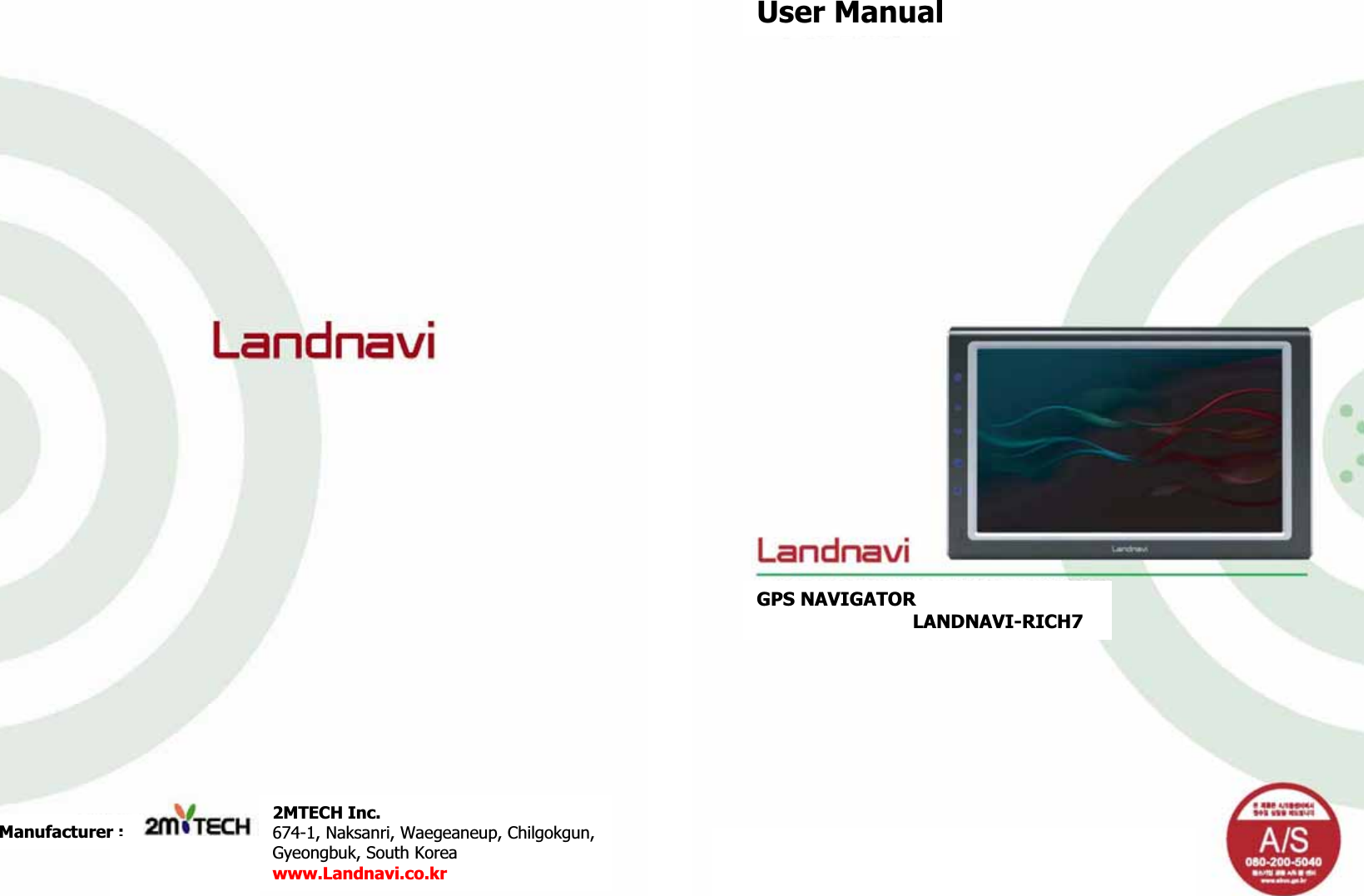
GPS NAVIGATORG                             LANDNAVI-RICH7GUser ManualGGManufacturer :G2MTECH Inc.G674-1, Naksanri, Waegeaneup, Chilgokgun,GGyeongbuk, South KoreaGwww.Landnavi.co.krGG
User ManualG
     GreetingsGThank you for purchasing our product.GGLANDNAVI product is Car Multimedia System enhances your driving circumstances. You and your passengers can enjoy Navigation, Movie, Music, Photos and etc in the car.GPlease read this manual carefully before using this product. GGGwww.Landnavi.co.krGGWe give you all the supports and information through the above web site. You can download the newest update files and manuals from the web site. Please register the customer information card in our web site for best service to join some events and to get online support.GG1. Before Usage  ------------------------------------------------ 3GG2. Usage  -------------------------------------------------------   12G1. NAVIGATION-------------------------------------- 12G2. FILE LIST ------------------------------------------ 13G3. VIDEO PLAYER ----------------------------------- 14G4. AUDIO PLAYER ----------------------------------- 15G5. AV INPUT ----------------------------------------- 16G6. UTILITY ------------------------------------------- 17G7. PIP ------------------------------------------------- 20G8. Settings ------------------------------------------- 25GG3. ETC ----------------------------------------------------------- 33G1. SPECIFICATIONS -------------------------------- 33G2. CERTIFICATION --------------------------------- 35G3. CUSTOMER SUPPORT --------------------------- 36G     ContentsG
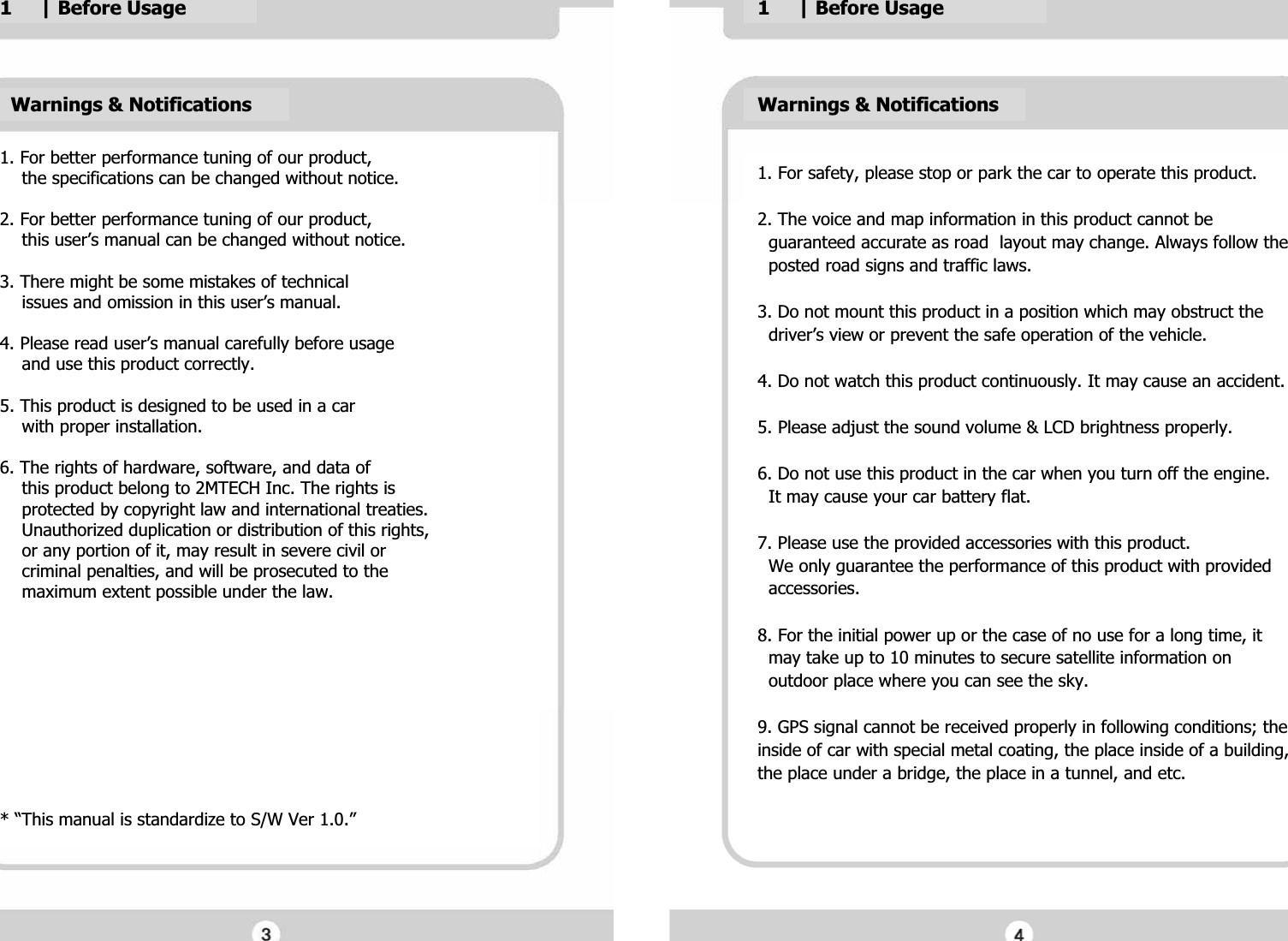
Warnings & NotificationsG1. For better performance tuning of our product,G    the specifications can be changed without notice.GG2. For better performance tuning of our product,G    this user’s manual can be changed without notice.GG3. There might be some mistakes of technicalG    issues and omission in this user’s manual.GG4. Please read user’s manual carefully before usageG    and use this product correctly.GG5. This product is designed to be used in a carG    with proper installation.GG6. The rights of hardware, software, and data ofG    this product belong to 2MTECH Inc. The rights isG    protected by copyright law and international treaties.G    Unauthorized duplication or distribution of this rights,G    or any portion of it, may result in severe civil orG    criminal penalties, and will be prosecuted to theG    maximum extent possible under the law. GGGGGGGGGGG* “This manual is standardize to S/W Ver 1.0.”G1. For safety, please stop or park the car to operate this product.GG2. The voice and map information in this product cannot be   G  guaranteed accurate as road  layout may change. Always follow theG  posted road signs and traffic laws.GG3. Do not mount this product in a position which may obstruct the G  driver’s view or prevent the safe operation of the vehicle.GG4. Do not watch this product continuously. It may cause an accident.GG5. Please adjust the sound volume & LCD brightness properly.GG6. Do not use this product in the car when you turn off the engine. G  It may cause your car battery flat.GG7. Please use the provided accessories with this product.G  We only guarantee the performance of this product with provided G  accessories.GG8. For the initial power up or the case of no use for a long time, it G  may take up to 10 minutes to secure satellite information on G  outdoor place where you can see the sky.GG9. GPS signal cannot be received properly in following conditions; the inside of car with special metal coating, the place inside of a building, the place under a bridge, the place in a tunnel, and etc.GGGGGWarnings & NotificationsG1     | Before UsageG1     | Before UsageG
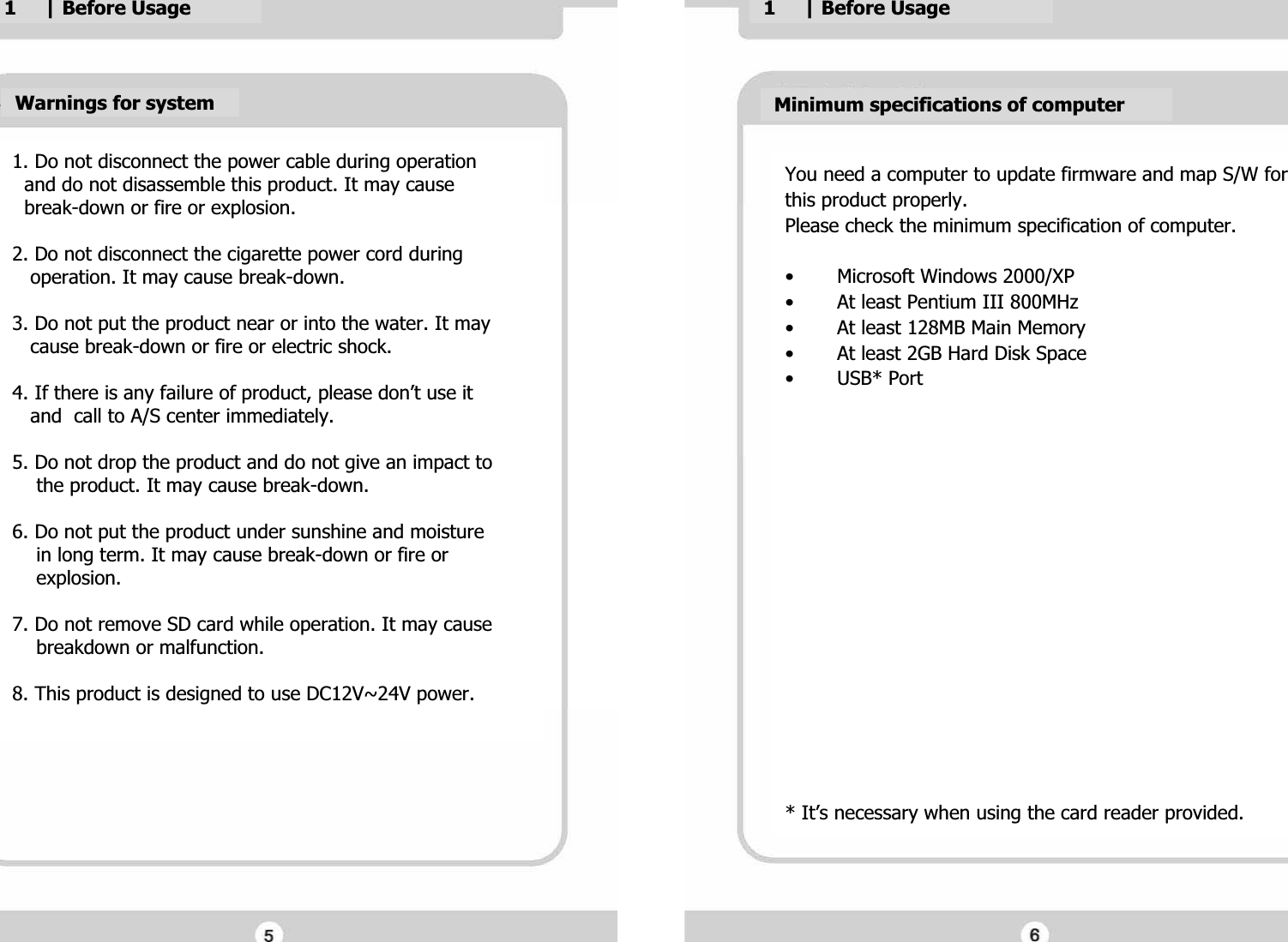
1. Do not disconnect the power cable during operationG  and do not disassemble this product. It may cause G  break-down or fire or explosion.GG2. Do not disconnect the cigarette power cord during G   operation. It may cause break-down.GG3. Do not put the product near or into the water. It may G   cause break-down or fire or electric shock.GG4. If there is any failure of product, please don’t use it G   and  call to A/S center immediately.GG5. Do not drop the product and do not give an impact to G    the product. It may cause break-down.GG6. Do not put the product under sunshine and moisture G    in long term. It may cause break-down or fire or G    explosion.GG7. Do not remove SD card while operation. It may cause G    breakdown or malfunction.GG8. This product is designed to use DC12V~24V power.GGWarnings for systemGMinimum specifications of computerGYou need a computer to update firmware and map S/W forGthis product properly. GPlease check the minimum specification of computer.GG• Microsoft Windows 2000/XPG• At least Pentium III 800MHzG• At least 128MB Main MemoryG• At least 2GB Hard Disk SpaceG•USB* PortGGGGGGGGGGGGGGGGG* It’s necessary when using the card reader provided.G1     | Before UsageG1     | Before UsageG
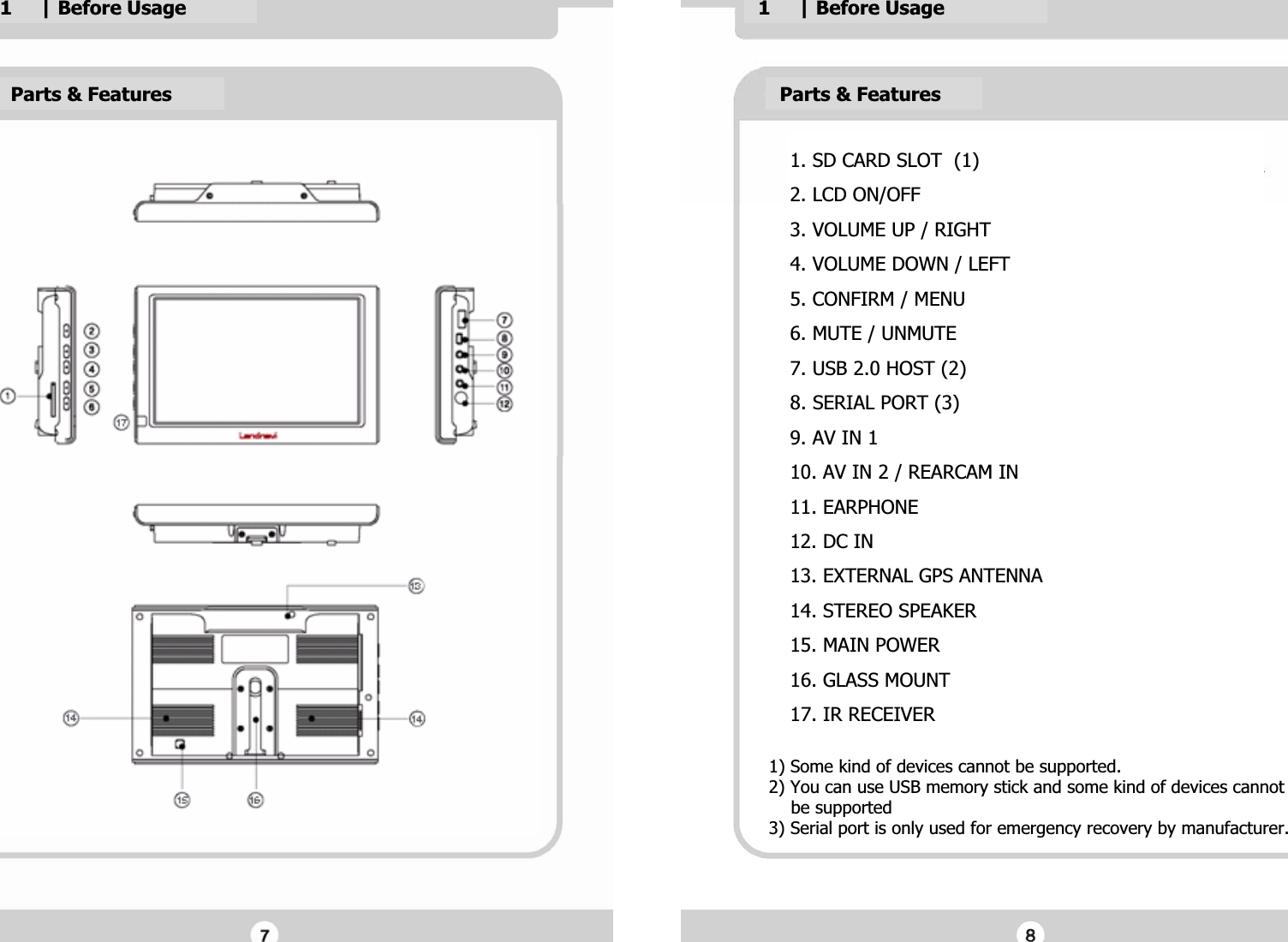
1     | Before UsageGParts & FeaturesG1     | Before UsageGParts & FeaturesG1) Some kind of devices cannot be supported.G2) You can use USB memory stick and some kind of devices cannotG    be supportedG3) Serial port is only used for emergency recovery by manufacturer.G1. SD CARD SLOT  (1)G2. LCD ON/OFFG3. VOLUME UP / RIGHTG4. VOLUME DOWN / LEFTG5. CONFIRM / MENUG6. MUTE / UNMUTEG7. USB 2.0 HOST (2)G8. SERIAL PORT (3)G9. AV IN 1G10. AV IN 2 / REARCAM ING11. EARPHONEG12. DC ING13. EXTERNAL GPS ANTENNA G14. STEREO SPEAKERG15. MAIN POWERG16. GLASS MOUNTG17. IR RECEIVERG
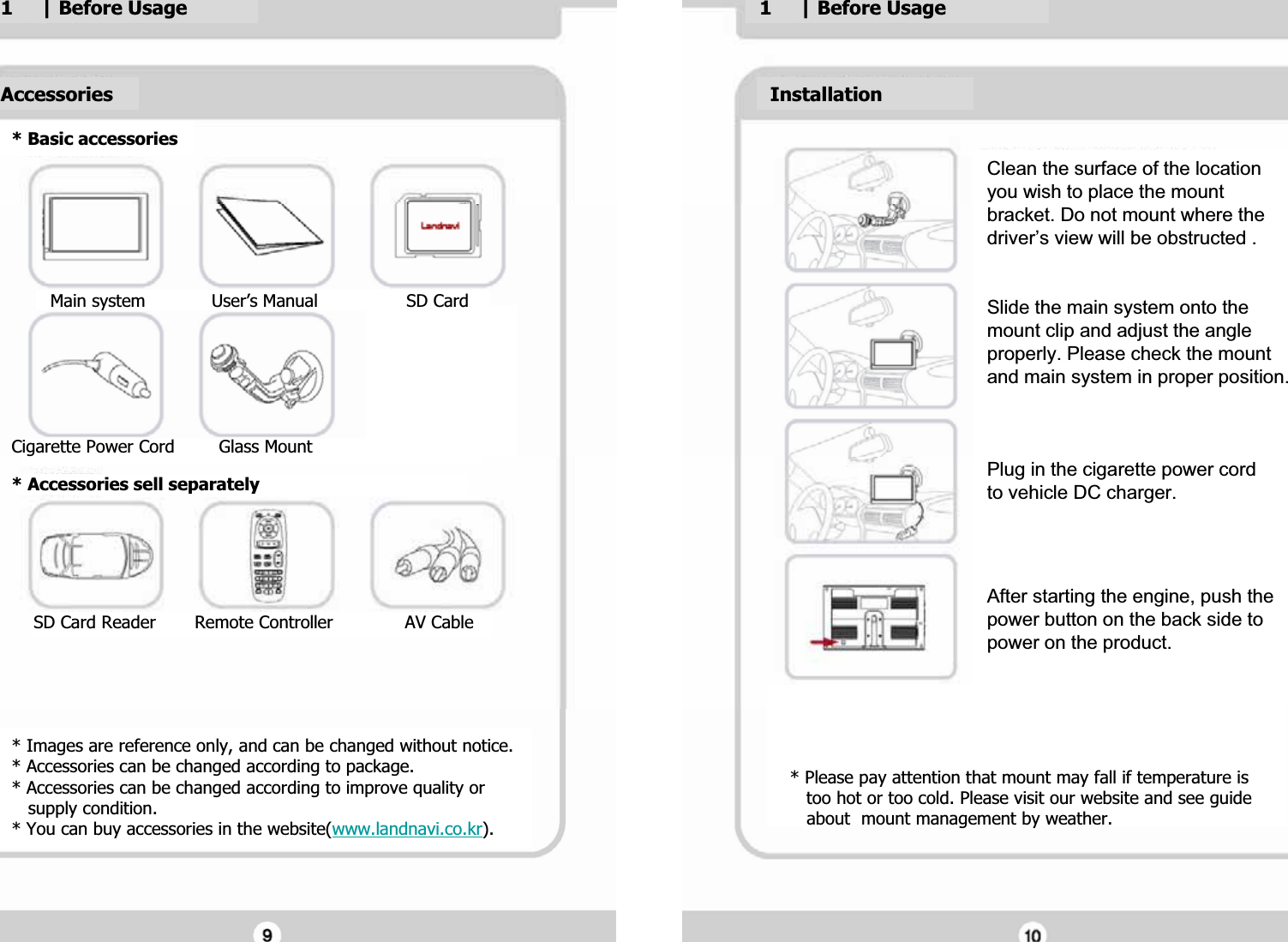
GGGGG* Images are reference only, and can be changed without notice.G* Accessories can be changed according to package.G* Accessories can be changed according to improve quality orG   supply condition.G* You can buy accessories in the website(www.landnavi.co.kr).G* Basic accessoriesGAccessoriesG1     | Before UsageG1     | Before UsageGGClean the surface of the location Gyou wish to place the mount Gbracket. Do not mount where the Gdriver’s view will be obstructed .GGGSlide the main system onto the Gmount clip and adjust the angle Gproperly. Please check the mount Gand main system in proper position.GGGGPlug in the cigarette power cord  Gto vehicle DC charger.GGGGAfter starting the engine, push the Gpower button on the back side to Gpower on the product.GGInstallationG* Please pay attention that mount may fall if temperature is G   too hot or too cold. Please visit our website and see guideG   about  mount management by weather.G       Main system            User’s Manual                SD Card GGGGGGGCigarette Power Cord        Glass MountG* Accessories sell separatelyGGGGG    SD Card Reader       Remote Controller             AV CableGGG
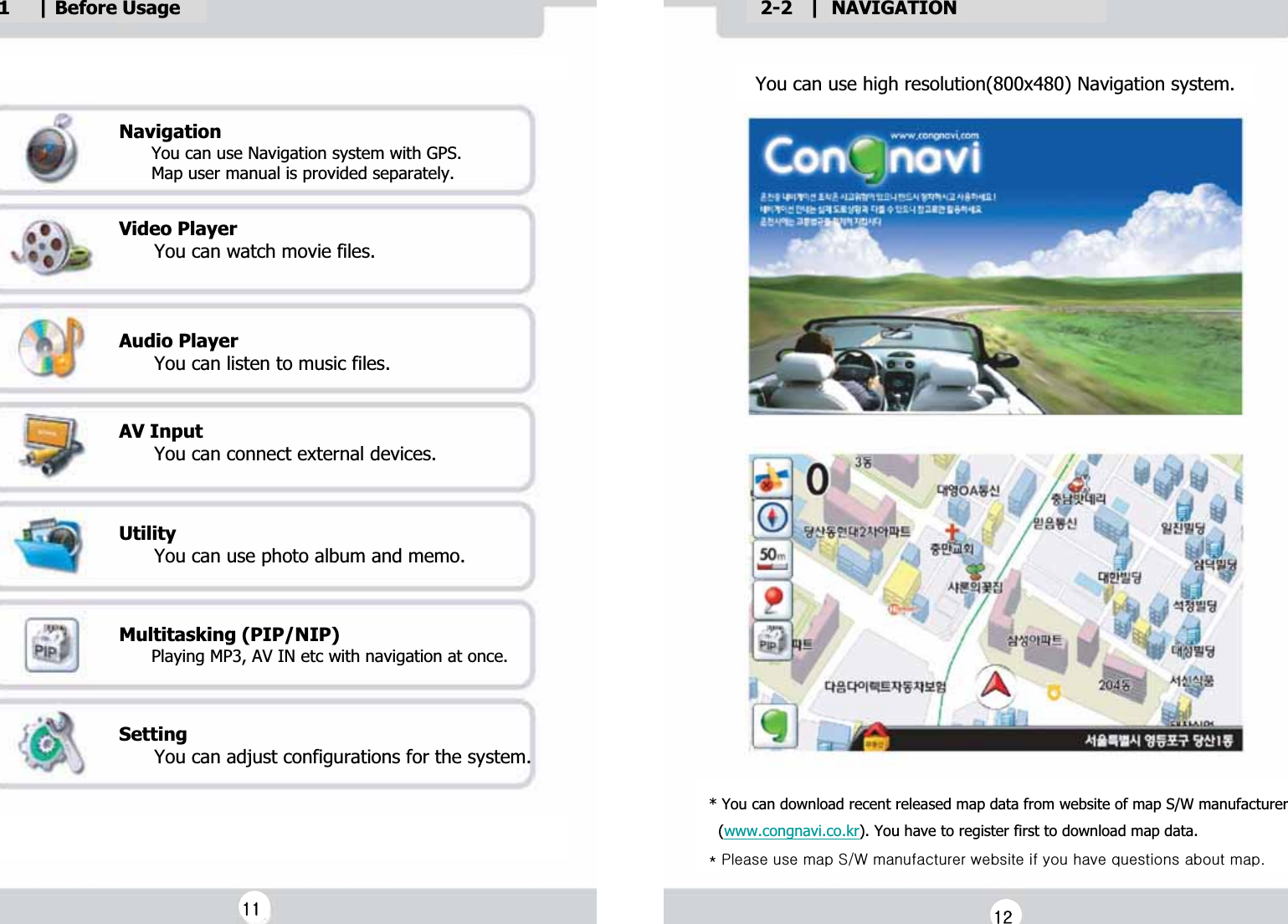
1     | Before UsageGGNavigationG      You can use Navigation system with GPS.G      Map user manual is provided separately.GGVideo PlayerG      You can watch movie files.GGGAudio PlayerG      You can listen to music files.GGAV InputG      You can connect external devices.GGUtilityG      You can use photo album and memo.GGGMultitasking (PIP/NIP)G      Playing MP3, AV IN etc with navigation at once.GGSettingG      You can adjust configurations for the system.G You can use high resolution(800x480) Navigation system.G2-2   |  NAVIGATIONG* You can download recent released map data from website of map S/W manufacturerG  (www.congnavi.co.kr). You have to register first to download map data.GQGwGGGzV~GGGGGGGGUGGXXGGXYG
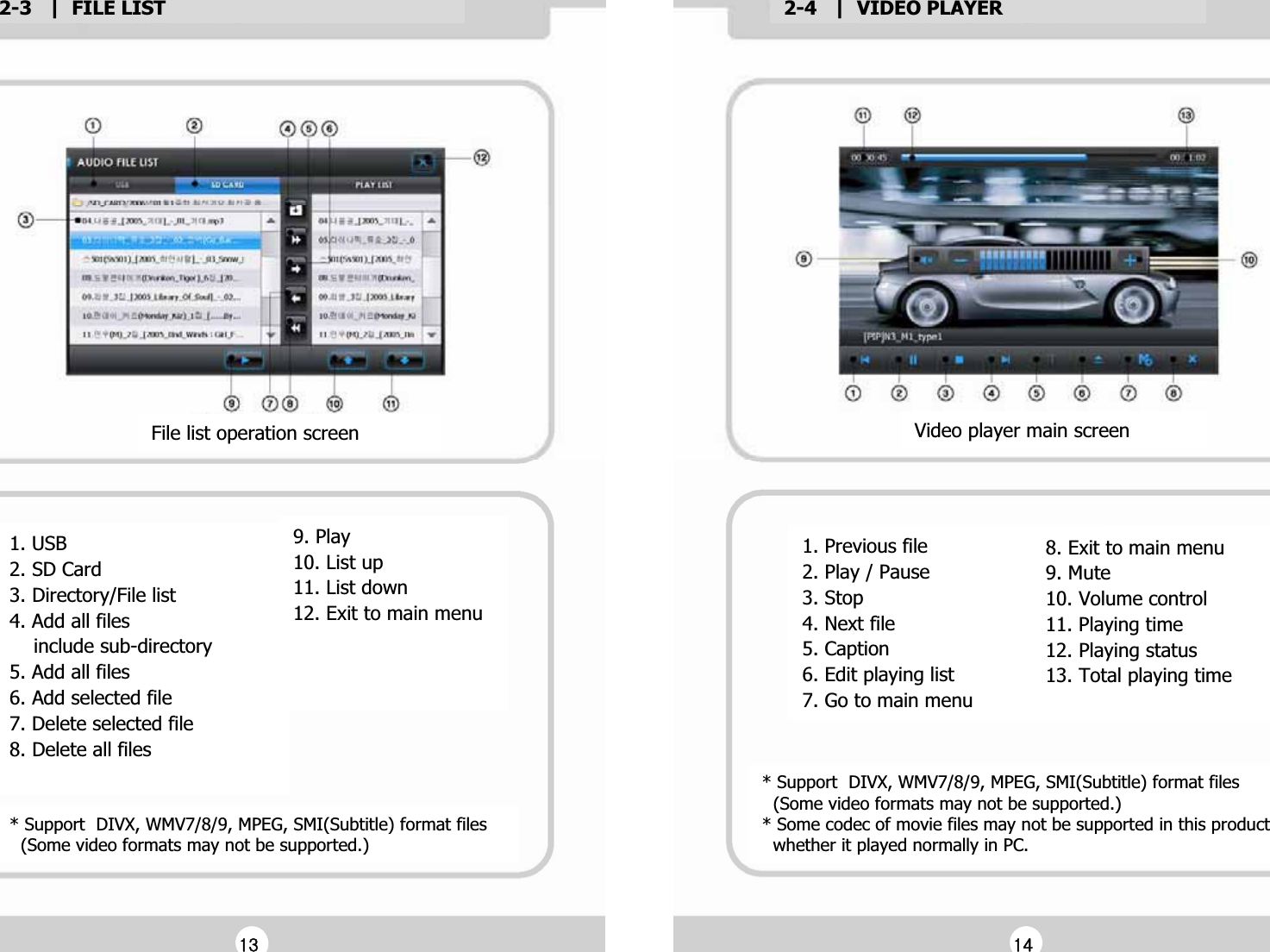
2-3   |  FILE LISTG2-4   |  VIDEO PLAYERG1. USBG2. SD CardG3. Directory/File listG4. Add all files G    include sub-directoryG5. Add all filesG6. Add selected fileG7. Delete selected fileG8. Delete all filesGGFile list operation screenG9. PlayG10. List upG11. List downG12. Exit to main menuGGGG* You can edit the playing list for video player and audio playerG1. Previous fileG2. Play / PauseG3. Stop G4. Next fileG5. CaptionG6. Edit playing listG7. Go to main menuGVideo player main screenG8. Exit to main menu G9. MuteG10. Volume controlG11. Playing timeG12. Playing statusG13. Total playing timeGG* Support  DIVX, WMV7/8/9, MPEG, SMI(Subtitle) format files G  (Some video formats may not be supported.)G* Some codec of movie files may not be supported in this productG  whether it played normally in PC.G* Support  DIVX, WMV7/8/9, MPEG, SMI(Subtitle) format files G  (Some video formats may not be supported.)GGXZGGX[G
2-5   |  AUDIO PLAYERG2-6   |  AV INPUTGAudio player main screenG1. Previous fileG2. Play / PauseG3. StopG4. Next fileG5. Mute / UnmuteG6. Volume downG7. Volume upG8. Edit playing listG9. Equalizer settingG10. Equalizer G11. Repeat optionG12. Exit to main menuG13. Playing listG14. Playing timeG15. View playing listGG* Support  FLAC, APE, MP3, OGG, WMA format files G  (Some audio formats may not be supported.)G* Some codec of music files may not be supported in this productG  whether it played normally in PC.G1. AV Input 1G2. AV Input 2G3. Go to main menuG4. Exit to main menuG5. Mute / UnmuteG6. Volume controlGAV IN main screenG* “No Signal” message will show when there is no video signal.G* There can be noise of screen or sound depends on connectedG  AV device. This is not a fault of product but a problem of G  compatibility between devices.GGX\GGX]G
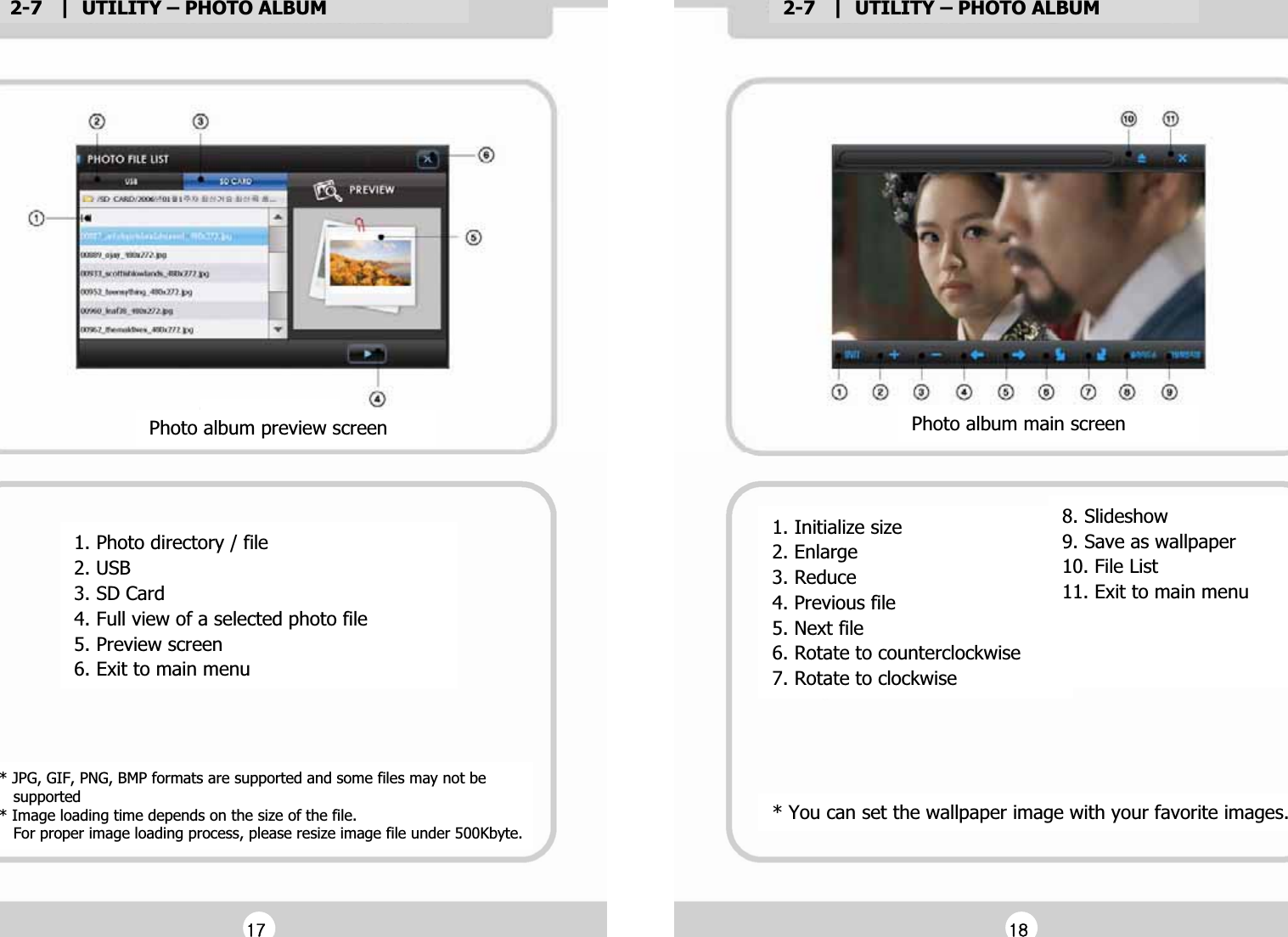
2-7   |  UTILITY – PHOTO ALBUMG2-7   |  UTILITY – PHOTO ALBUMG1. Photo directory / fileG2. USBG3. SD CardG4. Full view of a selected photo fileG5. Preview screenG6. Exit to main menuGPhoto album preview screenG* JPG, GIF, PNG, BMP formats are supported and some files may not beG   supportedG* Image loading time depends on the size of the file. G   For proper image loading process, please resize image file under 500Kbyte.GG1. Initialize sizeG2. EnlargeG3. ReduceG4. Previous fileG5. Next fileG6. Rotate to counterclockwiseG7. Rotate to clockwiseGPhoto album main screenG8. SlideshowG9. Save as wallpaperG10. File ListG11. Exit to main menuGGGG* You can set the wallpaper image with your favorite images.GGX^GGX_G
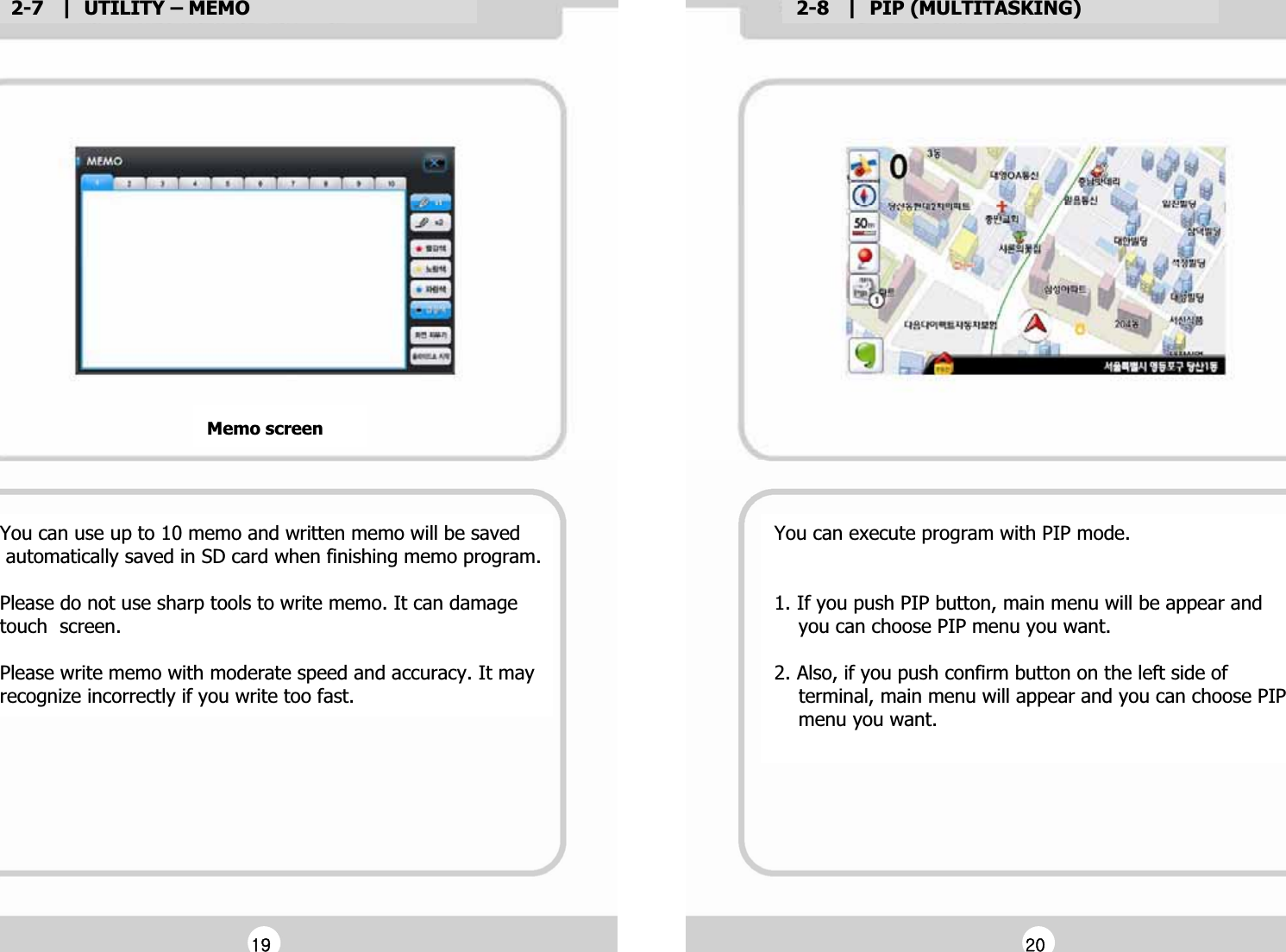
2-7   |  UTILITY – MEMOG2-8   |  PIP (MULTITASKING)GMemo screenGYou can execute program with PIP mode.GGG1. If you push PIP button, main menu will be appear and G    you can choose PIP menu you want.GG2. Also, if you push confirm button on the left side of G    terminal, main menu will appear and you can choose PIP G    menu you want.   GGGX`GGYWGYou can use up to 10 memo and written memo will be savedG automatically saved in SD card when finishing memo program.GGPlease do not use sharp tools to write memo. It can damageGtouch  screen.GGPlease write memo with moderate speed and accuracy. It may Grecognize incorrectly if you write too fast.G
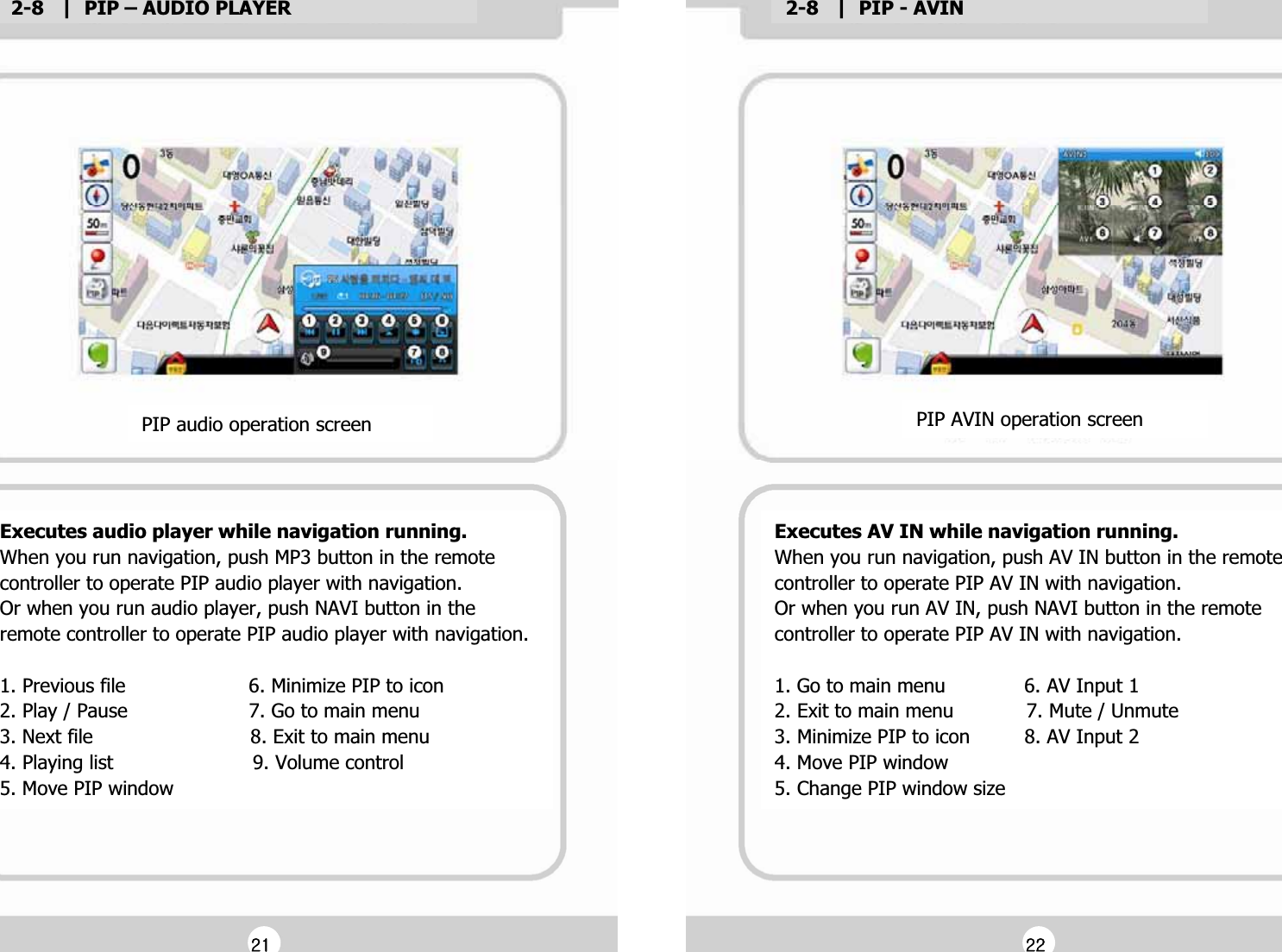
2-8   |  PIP – AUDIO PLAYERG2-8   |  PIP - AVINGExecutes audio player while navigation running.GWhen you run navigation, push MP3 button in the remote Gcontroller to operate PIP audio player with navigation.GOr when you run audio player, push NAVI button in theGremote controller to operate PIP audio player with navigation.GG1. Previous file                     6. Minimize PIP to iconG2. Play / Pause                    7. Go to main menuG3. Next file                          8. Exit to main menuG4. Playing list                       9. Volume controlG5. Move PIP windowGPIP audio operation screenGExecutes AV IN while navigation running.GWhen you run navigation, push AV IN button in the remote Gcontroller to operate PIP AV IN with navigation.GOr when you run AV IN, push NAVI button in the remote Gcontroller to operate PIP AV IN with navigation.GG1. Go to main menu             6. AV Input 1G2. Exit to main menu            7. Mute / UnmuteG3. Minimize PIP to icon         8. AV Input 2G4. Move PIP windowG5. Change PIP window sizeGPIP AVIN operation screenGGYXGGYYG
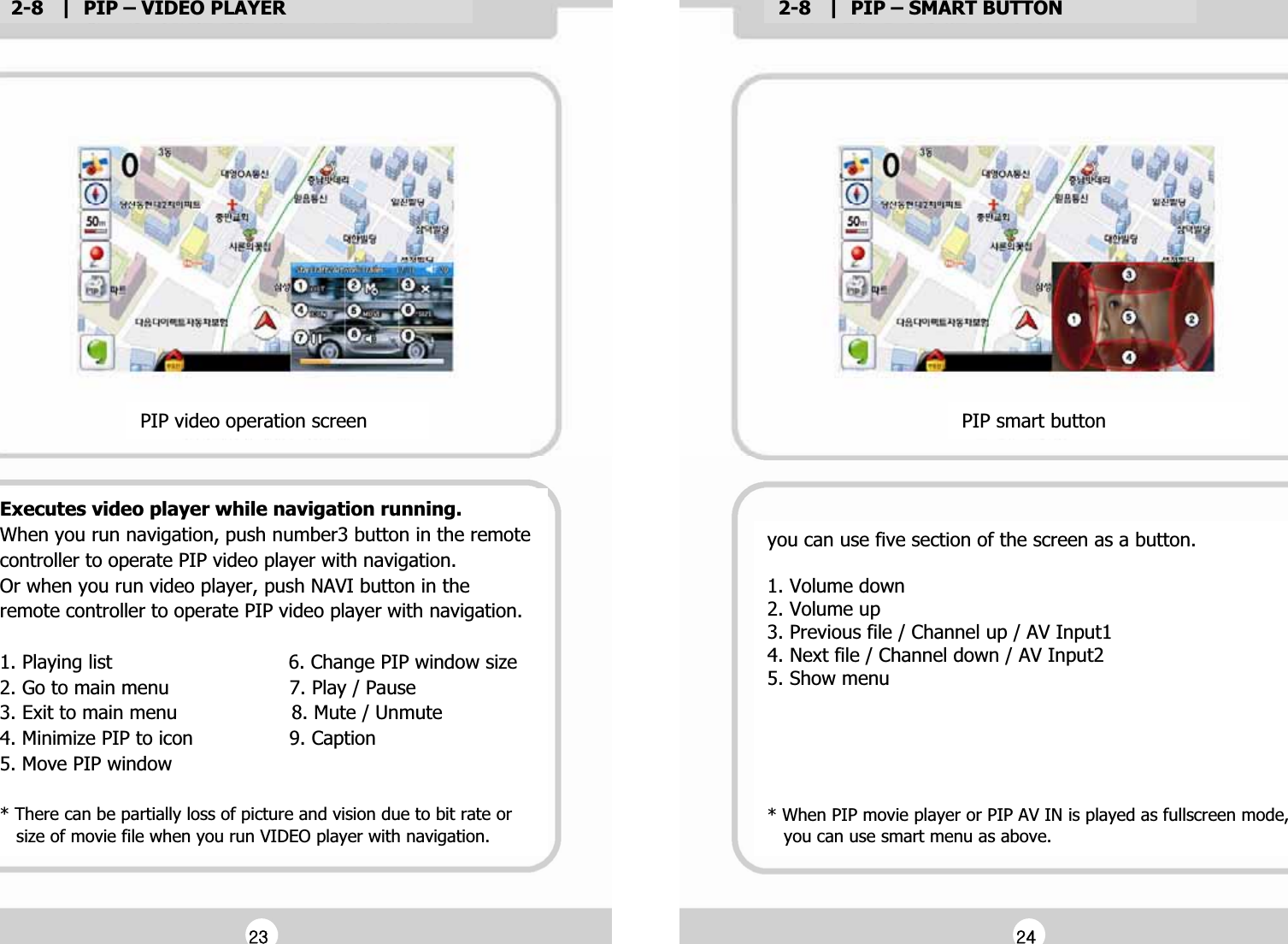
2-8   |  PIP – VIDEO PLAYERG2-8   |  PIP – SMART BUTTONGExecutes video player while navigation running.GWhen you run navigation, push number3 button in the remote Gcontroller to operate PIP video player with navigation.GOr when you run video player, push NAVI button in theGremote controller to operate PIP video player with navigation.GG1. Playing list                             6. Change PIP window sizeG2. Go to main menu                    7. Play / PauseG3. Exit to main menu                   8. Mute / UnmuteG4. Minimize PIP to icon                9. Caption G5. Move PIP windowGG* There can be partially loss of picture and vision due to bit rate or G   size of movie file when you run VIDEO player with navigation.GPIP video operation screenGPIP smart buttonGyou can use five section of the screen as a button.GG1. Volume downG2. Volume upG3. Previous file / Channel up / AV Input1G4. Next file / Channel down / AV Input2G5. Show menuGGGGGG* When PIP movie player or PIP AV IN is played as fullscreen mode,G   you can use smart menu as above.GGYZGGY[G
2-9   |  SETTINGG2-9   |  SETTINGGYou can change main menu type.GG1. Standard main menu typeG2. User-define main menu typeGMain menu typeG* You can set the wallpaper image with your favorite images.GYou can change start program when you turn on the device.GG1. Main menuG2. NavigationG3. Navigation + Audio playerG4. Video playerG5. Audio playerG6. AV ING7. Last programGGGStart program settingGGY\GGY]G
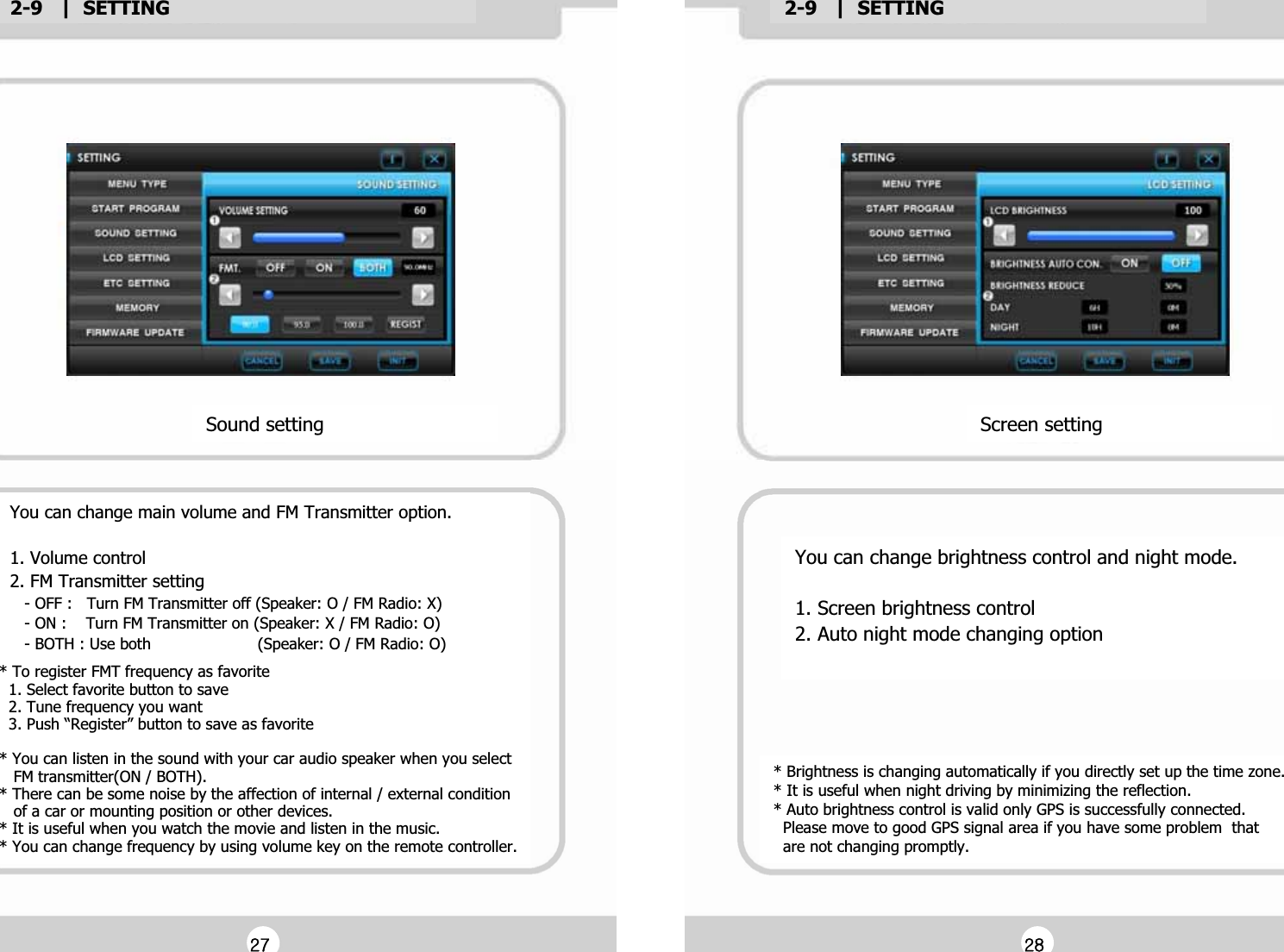
2-9   |  SETTINGG2-9   |  SETTINGGSound settingGYou can change main volume and FM Transmitter option.GG1. Volume controlG2. FM Transmitter settingG   - OFF :   Turn FM Transmitter off (Speaker: O / FM Radio: X)G   - ON :    Turn FM Transmitter on (Speaker: X / FM Radio: O)G   - BOTH : Use both                      (Speaker: O / FM Radio: O)G* To register FMT frequency as favoriteG  1. Select favorite button to saveG  2. Tune frequency you wantG  3. Push “Register” button to save as favoriteGG* You can listen in the sound with your car audio speaker when you select G   FM transmitter(ON / BOTH).G* There can be some noise by the affection of internal / external conditionG   of a car or mounting position or other devices.G* It is useful when you watch the movie and listen in the music.G* You can change frequency by using volume key on the remote controller.GYou can change brightness control and night mode.GG1. Screen brightness controlG2. Auto night mode changing optionGGScreen settingG* Brightness is changing automatically if you directly set up the time zone.G* It is useful when night driving by minimizing the reflection.G* Auto brightness control is valid only GPS is successfully connected.G  Please move to good GPS signal area if you have some problem  thatG  are not changing promptly.GGY^GGY_G
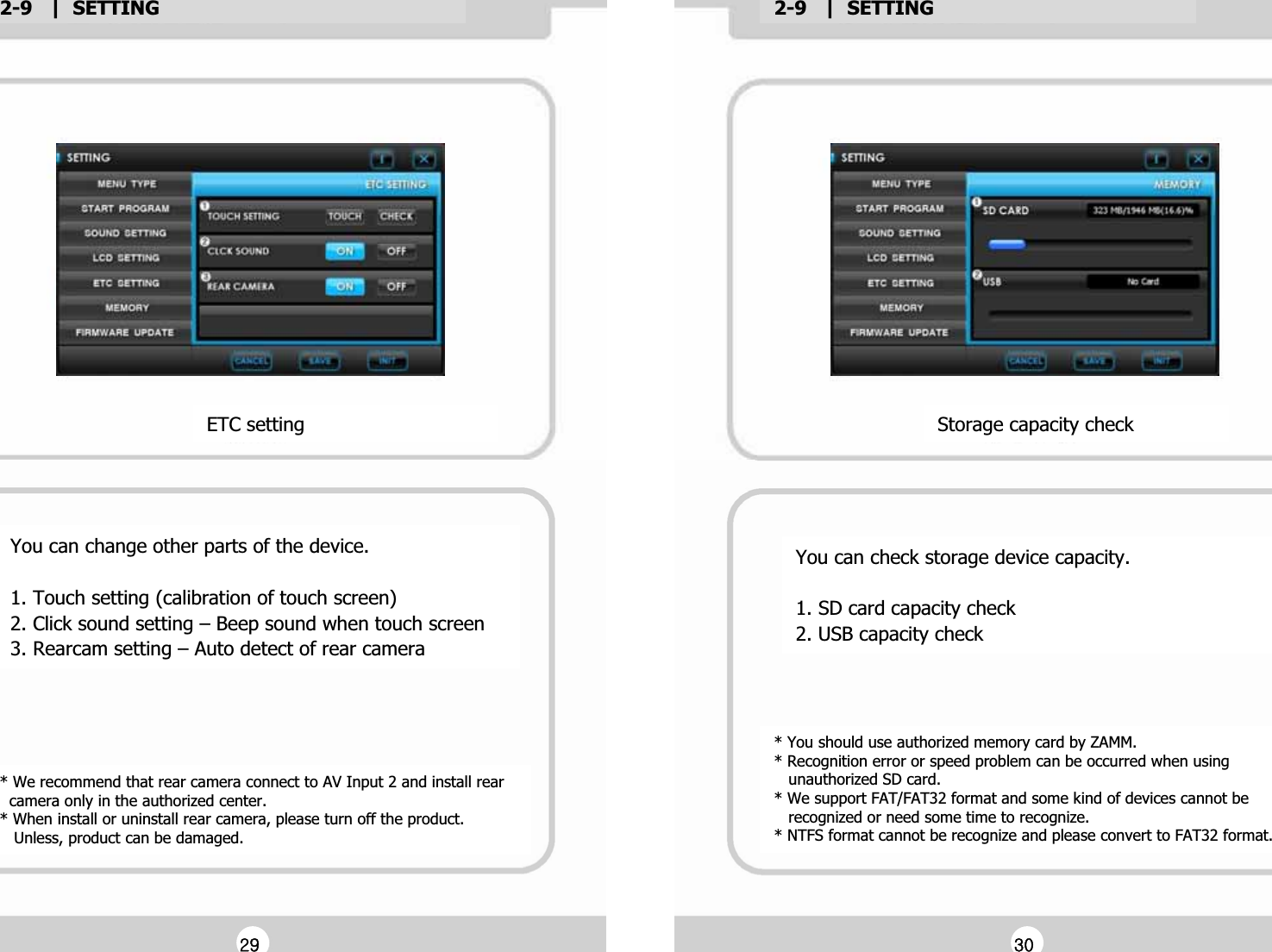
2-9   |  SETTINGG2-9   |  SETTINGGYou can change other parts of the device.GG1. Touch setting (calibration of touch screen)G2. Click sound setting – Beep sound when touch screenG3. Rearcam setting – Auto detect of rear cameraGETC settingG* We recommend that rear camera connect to AV Input 2 and install rear G  camera only in the authorized center.G* When install or uninstall rear camera, please turn off the product.G   Unless, product can be damaged.G* You should use authorized memory card by ZAMM.G* Recognition error or speed problem can be occurred when using G   unauthorized SD card.G* We support FAT/FAT32 format and some kind of devices cannot be G   recognized or need some time to recognize.G* NTFS format cannot be recognize and please convert to FAT32 format.GYou can check storage device capacity.GG1. SD card capacity checkG2. USB capacity checkGStorage capacity checkGGY`GGZWG
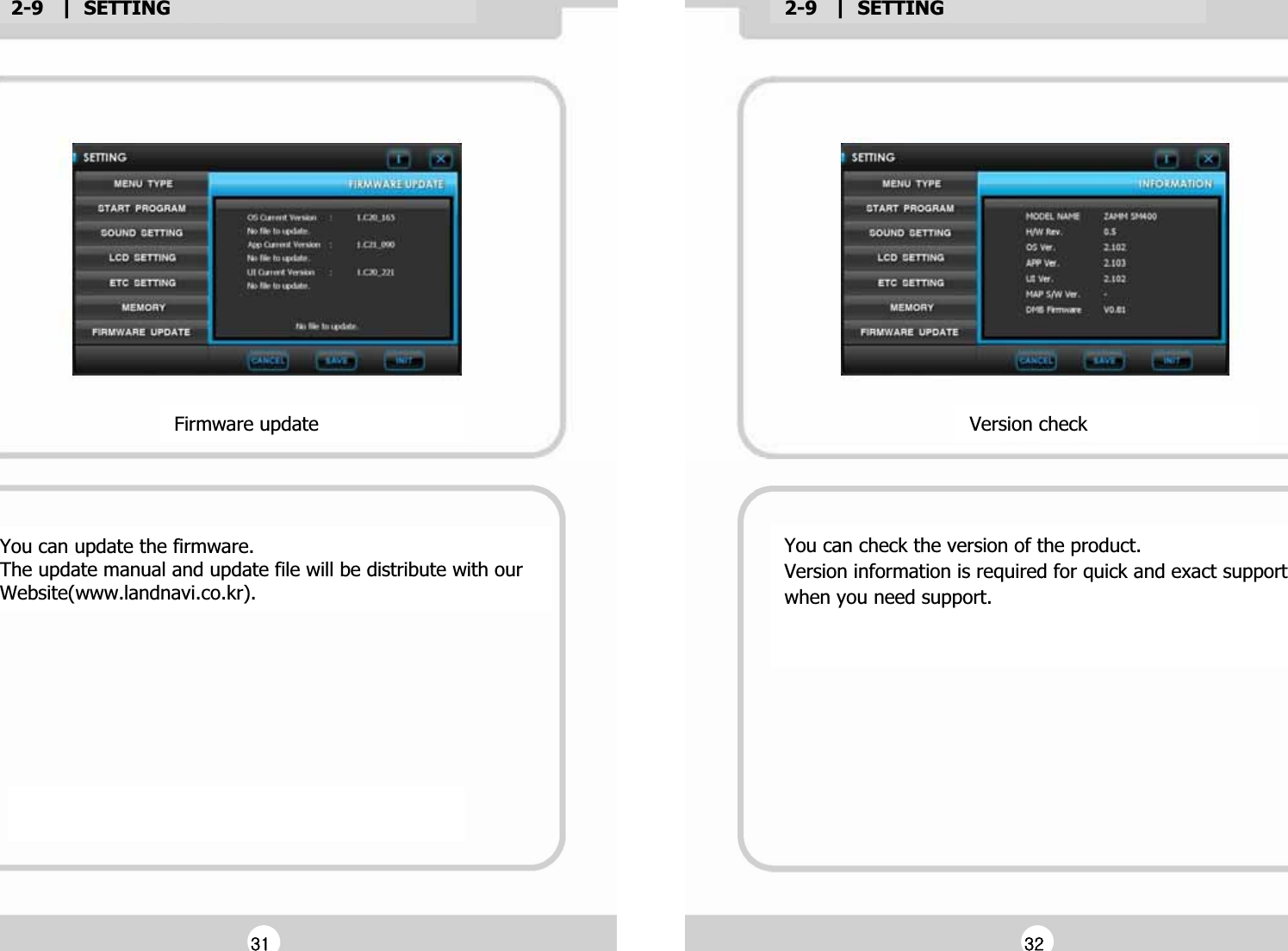
2-9   |  SETTINGG2-9   |  SETTINGGYou can check the version of the product. GVersion information is required for quick and exact support Gwhen you need support.GGGFirmware updateGVersion checkGYou can update the firmware.GThe update manual and update file will be distribute with ourGWebsite(www.landnavi.co.kr).GGGZXGGZYG
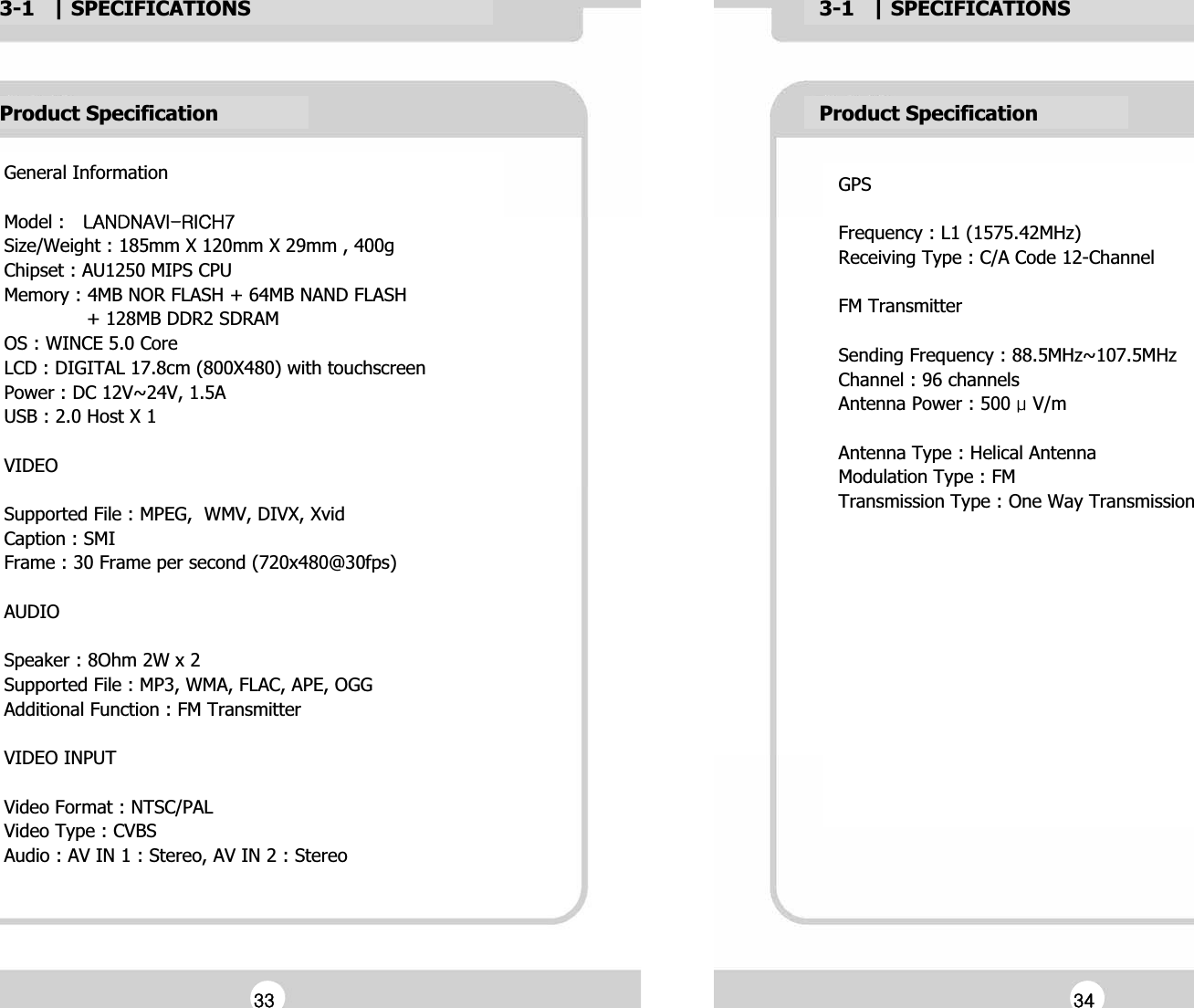
3-1   | SPECIFICATIONSG3-1   | SPECIFICATIONSGProduct SpecificationGGeneral InformationGGModel : Gshukuh}pTypjo^GSize/Weight : 185mm X 120mm X 29mm , 400gGChipset : AU1250 MIPS CPUGMemory : 4MB NOR FLASH + 64MB NAND FLASHG              + 128MB DDR2 SDRAMGOS : WINCE 5.0 CoreGLCD : DIGITAL 17.8cm (800X480) with touchscreenGPower : DC 12V~24V, 1.5AGUSB : 2.0 Host X 1GGVIDEOGGSupported File : MPEG,  WMV, DIVX, XvidGCaption : SMIGFrame : 30 Frame per second (720x480@30fps)GGAUDIOGGSpeaker : 8Ohm 2W x 2GSupported File : MP3, WMA, FLAC, APE, OGGGAdditional Function : FM TransmitterGGVIDEO INPUTGGVideo Format : NTSC/PALGVideo Type : CVBSGAudio : AV IN 1 : Stereo, AV IN 2 : StereoGProduct SpecificationGGPSGGFrequency : L1 (1575.42MHz)GReceiving Type : C/A Code 12-ChannelGGFM TransmitterGGSending Frequency : 88.5MHz~107.5MHzGChannel : 96 channelsGAntenna Power : 500 Ɇ V/mGGAntenna Type : Helical AntennaGModulation Type : FMGTransmission Type : One Way TransmissionGGGGGGGZZGGZ[G
3-2   | CERTIFICATIONG3-3   | CUSTOMER SUPPORTGWarrantyGPRODUCT : Car Navigation SystemGMODEL : Gshukuh}pTypjo^GSerial No. :GPurchased Date :GPurchased Place :GGElements of WarrantyGG2MTECH Inc. warrants to the original retail owner for the duration of this warranty; its LANDNAVI RICH7(hereinafter referred to as the Product) to be free from defects in materials and craftsmanship with only the limitations or exclusion set out below.GGWarranty DurationsGGThis warranty to the original retail owner only, shall terminate and be of no further effect ONE (1) Year after the date of original retail sale. This warranty will be deemed invalid if the Product is; GG(A)Damaged or not maintained as reasonable and necessary; G(B) Modified, altered or used as part of any conversion kits, subassemblies, or any configurations not sold by 2MTECH, G(C) Improperly installed, G(D) Repaired by someone other than an authorized 2MTECH Repair Agent,G(E) Used in conjunction with any equipment or parts or as part of a system not manufactured by 2MTECH, G(F) Installed, programmed or serviced by anyone other than an authorized 2MTECH Repair Agent, G(G) broken by fire, earthquake, flood and natural disaster,G(H) Where the Serial Number label of the product has been removed or damaged beyond recognition. GFCC InformationGGZ\GGZ]G

Navigation menu