2MTECH ZAMM-TM T-DMB(DAB) Navigation System w/ FM Transmitter User Manual 1

2MTECH Inc. T-DMB(DAB) Navigation System w/ FM Transmitter 1

Users Manual

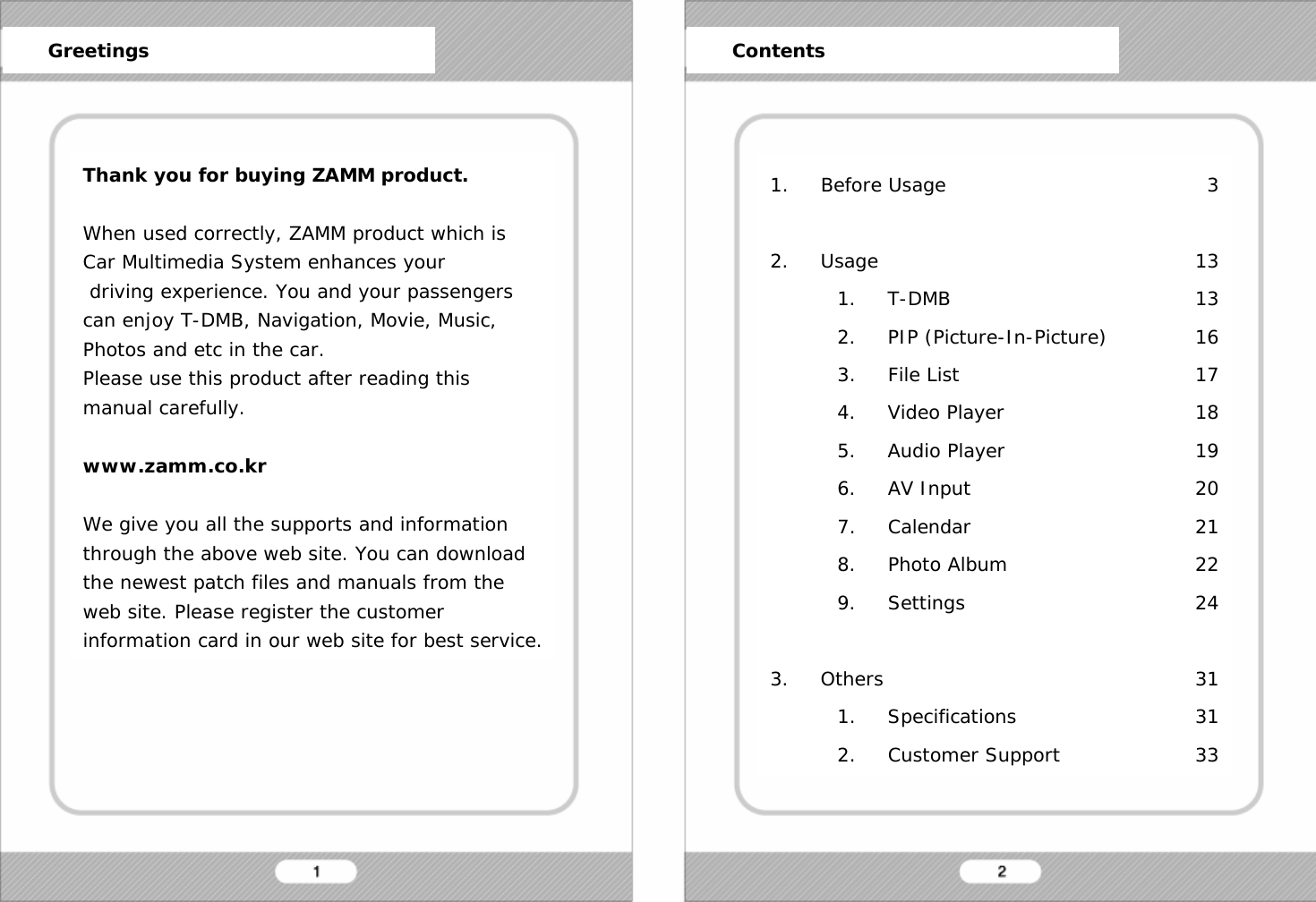
User’s ManualCar DMB & Navigation System2MTECH Inc.674-1 Naksan-riWaegwan-eup Chilgok-gunGyungbuk, 718-801, KoreaTEL. 82-54-977-2500FAX. 82-54-977-2510www.zamm.co.kr * Thank you for buying ZAMM product.* Please read user’s manual carefully before using ZAMM product.
Thank you for buying ZAMM product.When used correctly, ZAMM product which is Car Multimedia System enhances yourdriving experience. You and your passengers can enjoy T-DMB, Navigation, Movie, Music, Photos and etc in the car.Please use this product after reading this manual carefully. www.zamm.co.krWe give you all the supports and information through the above web site. You can download the newest patch files and manuals from the web site. Please register the customer information card in our web site for best service.1. Before Usage2. Usage1. T-DMB2. PIP (Picture-In-Picture)3. File List4. Video Player5. Audio Player6. AV Input7. Calendar8. Photo Album9. Settings3. Others1. Specifications2. Customer SupportGreetings Contents313131617181920212224313133
1. For better performance tuning of our product,the specifications can be changed without notice.2. For better performance tuning of our product,this user’s manual can be changed without notice.3. There might be some mistakes of technicalissues and edition in this user’s manual.4. Please read user’s manual carefully before usage.5. This product is designed to be used in a carwith proper installation.6. The rights of hardware, software, and data ofthis product belong to 2MTECH Inc. The rights isprotected by copyright law and international treaties.Unauthorized duplication or distribution of this rights,or any portion of it, may result in severe civil orcriminal penalties, and will be prosecuted to themaximum extent possible under the law. 7. This product is designed to use DC12V power.1. For safety, please stop or park the car to operatethis product.2. The voice and map information in this product cannot be guaranteed accurate as road  layout may change. Always follow the posted road signs and traffic laws.3. Do not mount this product in a position which mayobstruct the driver’s view or prevent the safe operationof the vehicle.4. Do not watch this product continuously. It may causean accident.5. Please adjust the sound volume & LCD brightness properly.6. Do not use this product in the car when you turn off the engine. It may cause your car battery flat.7. Please use the provided accessories with this product.We only guarantee the performance of this product withprovided accessories.8. For the initial pwer up it may take up to 15 minutesto secure satellite information on outdoor place.9. GPS signal cannot be received properly in following conditions; the inside of car with special metal coating, the inside of a building, the place under a bridge, the place in a tunnel, and etc.10. T-DMB can be work properly in the good signal areas.If you are in the bad signal areas, the screen quality maylooks no good.Before Usage Before UsageWarnings & Notifications Warnings & Notifications
Before Usage1. Do not disconnect the power cable during operation and do not disassemble this product. It may cause break-down or fire or explosion.2. Do not disconnect the cigarette power cord during operation. It may cause break-down or fire or explosion.3. Do not put the product near water. It may cause break-down or fire or explosion.4. If there is any failure of product, please don’t use it and  call to A/S center immediately.5. Do not drop the product and do not give an attack to the product. It may cause break-down or fire or explosion.6. Do not put the product under sunshine and moisture in long term. It may cause break-down or fire or explosion.You need a computer to use this product properly.Please check the minimum specification of computer.• Microsoft Windows 2000/XP• At least Pentium III 800MHz• At least 128MB Main Memory• At least 2GB Hard Disk Space•USB* Port* It’s necessary when using the card reader provided.Before Usage Before UsageWarnings for system Minimum specfications of computer
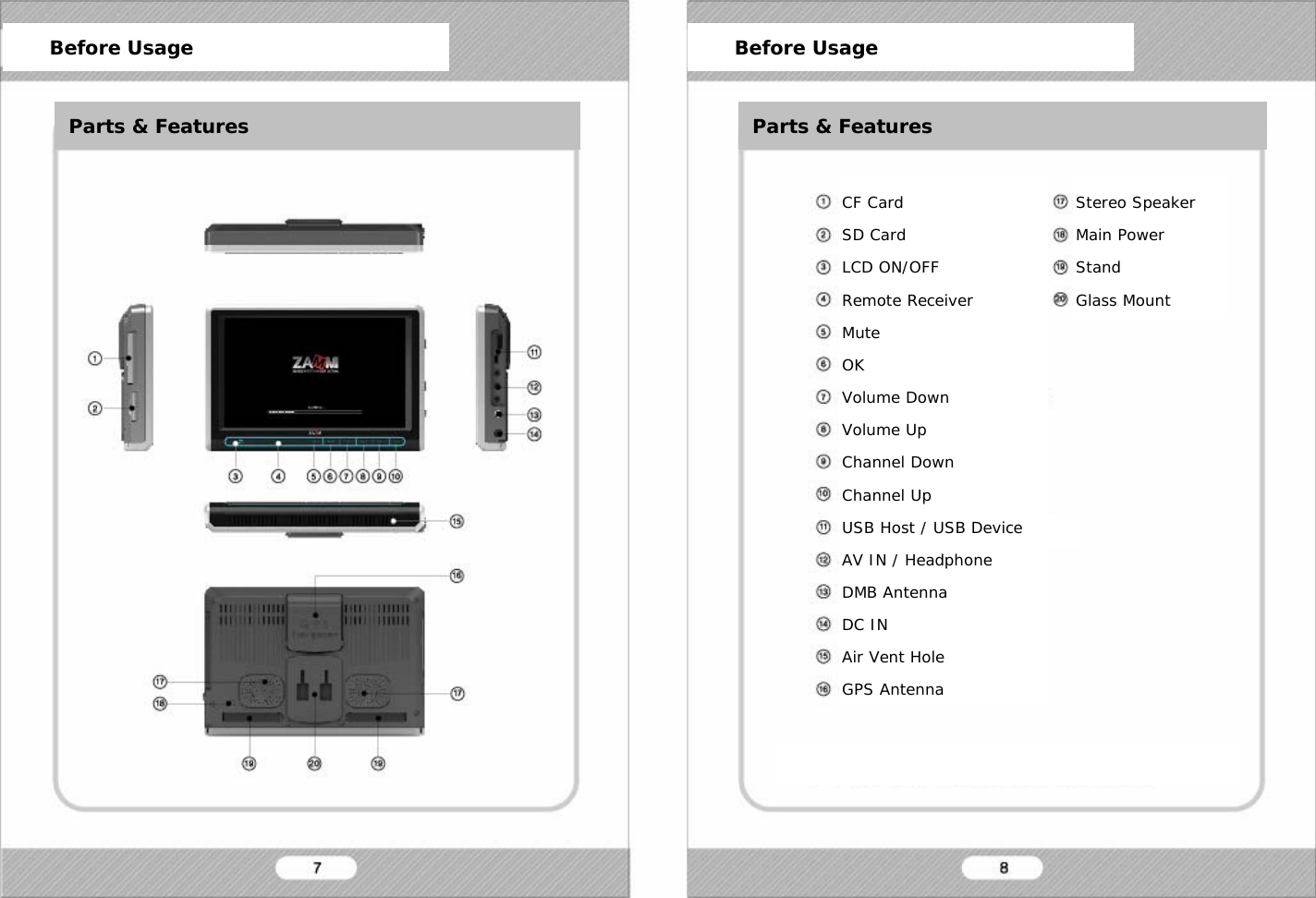
Before Usage Before UsageParts & FeaturesCF CardSD CardLCD ON/OFFRemote ReceiverMuteOKVolume DownVolume UpChannel DownChannel UpUSB Host / USB DeviceAV IN / HeadphoneDMB AntennaDC INAir Vent HoleGPS AntennaBefore Usage Before UsageParts & Features Parts & FeaturesStereo SpeakerMain PowerStandGlass Mount
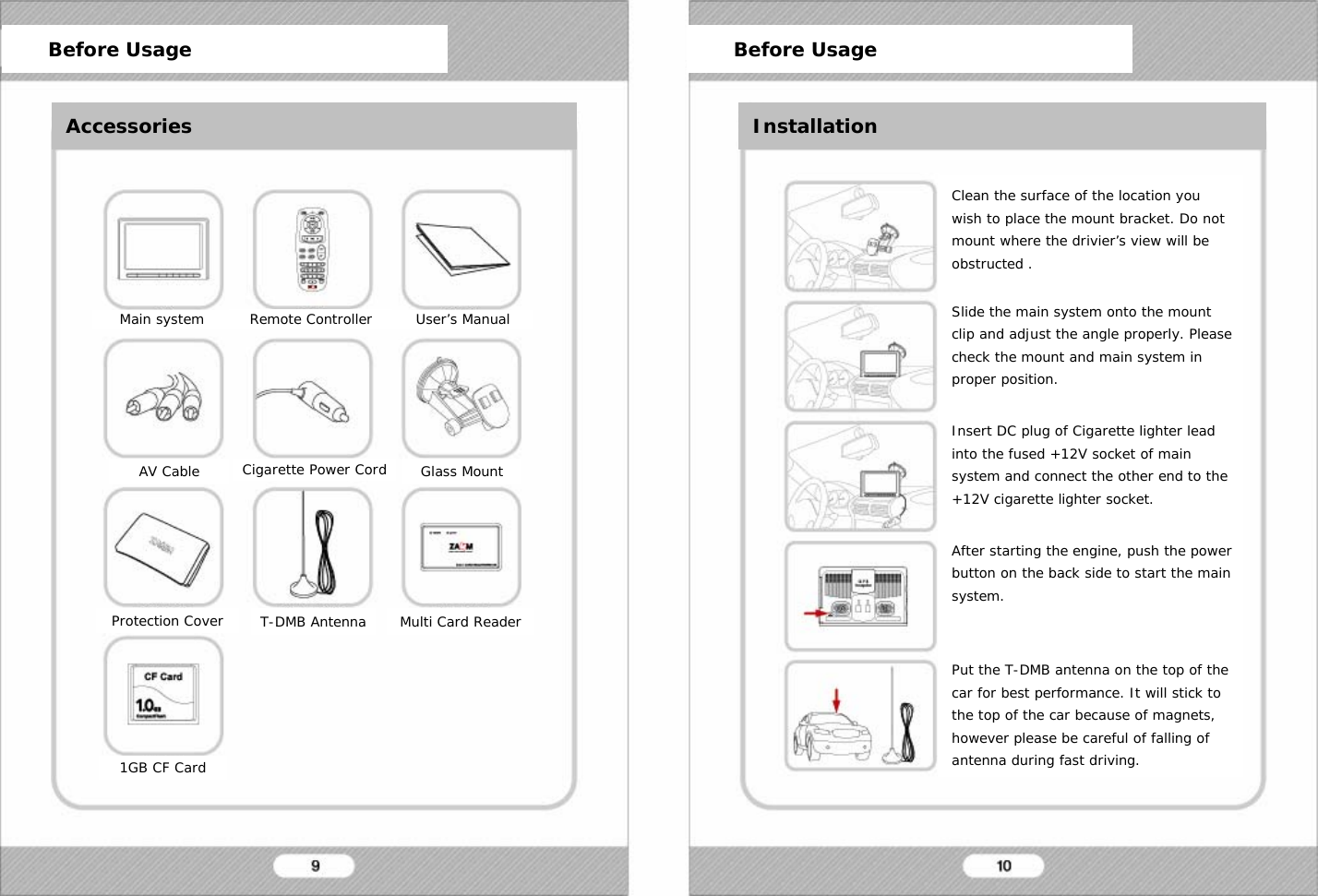
Before Usage Before UsageInstallationMain system Remote Controller User’s ManualAV Cable Cigarette Power Cord Glass MountProtection Cover T-DMB Antenna Multi Card Reader1GB CF CardClean the surface of the location you wish to place the mount bracket. Do not mount where the drivier’s view will be obstructed .Slide the main system onto the mount clip and adjust the angle properly. Please check the mount and main system in proper position.Insert DC plug of Cigarette lighter lead into the fused +12V socket of main system and connect the other end to the +12V cigarette lighter socket.After starting the engine, push the power button on the back side to start the main system.Put the T-DMB antenna on the top of the car for best performance. It will stick to the top of the car because of magnets, however please be careful of falling of antenna during fast driving.Before Usage Before UsageAccessories Installation
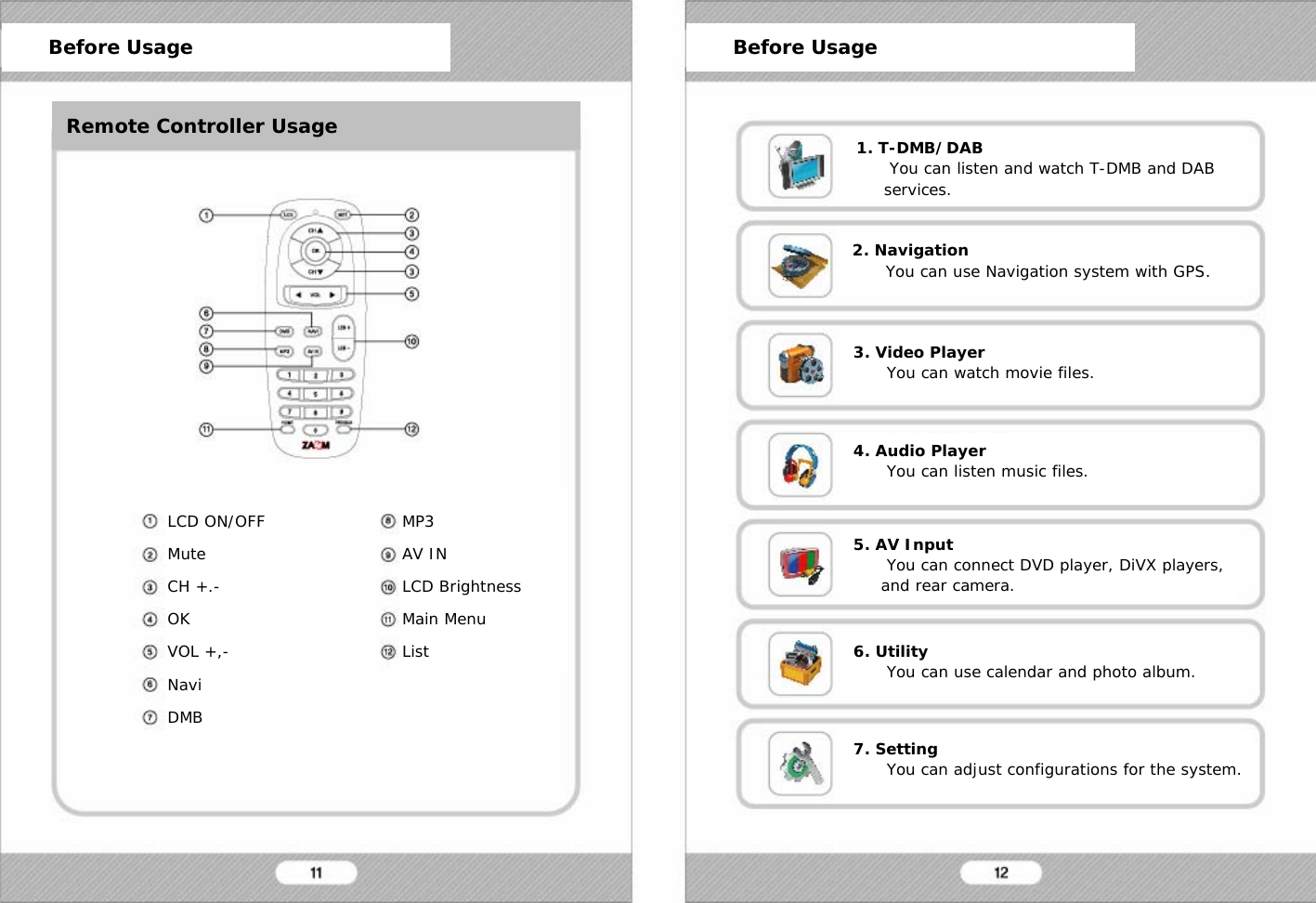
1. T-DMB/DABYou can listen and watch T-DMB and DAB services.LCD ON/OFFMuteCH +.-OKVOL +,-NaviDMBMP3AV INLCD BrightnessMain MenuListBefore Usage Before UsageRemote Controller Usage2. NavigationYou can use Navigation system with GPS.3. Video PlayerYou can watch movie files.4. Audio PlayerYou can listen music files.5. AV InputYou can connect DVD player, DiVX players, and rear camera.6. UtilityYou can use calendar and photo album.7. SettingYou can adjust configurations for the system.
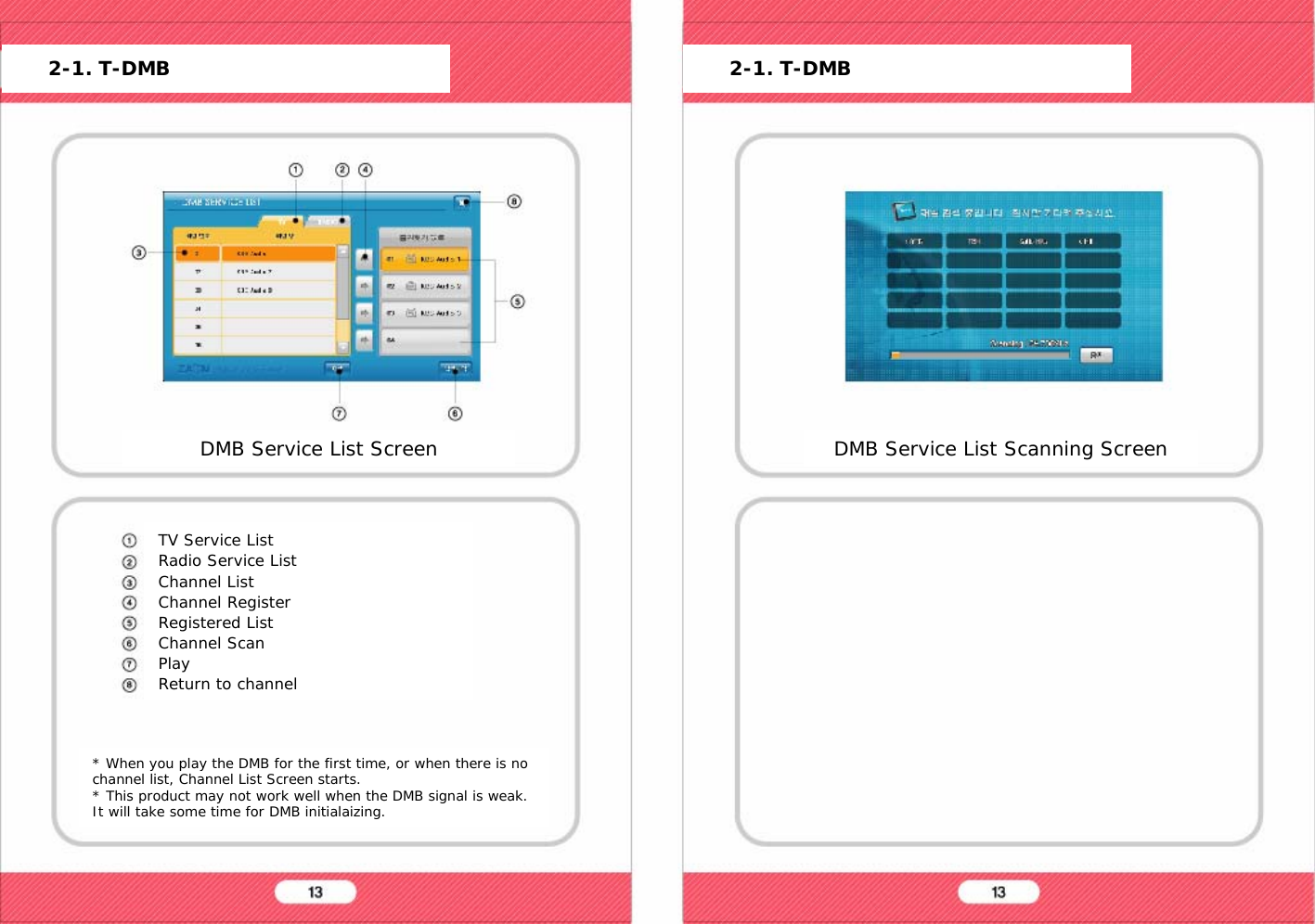
TV Service ListRadio Service ListChannel ListChannel RegisterRegistered ListChannel ScanPlayReturn to channel* When you play the DMB for the first time, or when there is no channel list, Channel List Screen starts.* This product may not work well when the DMB signal is weak.It will take some time for DMB initialaizing.DMB Service List Scanning Screen2-1. T-DMB 2-1. T-DMBDMB Service List Screen
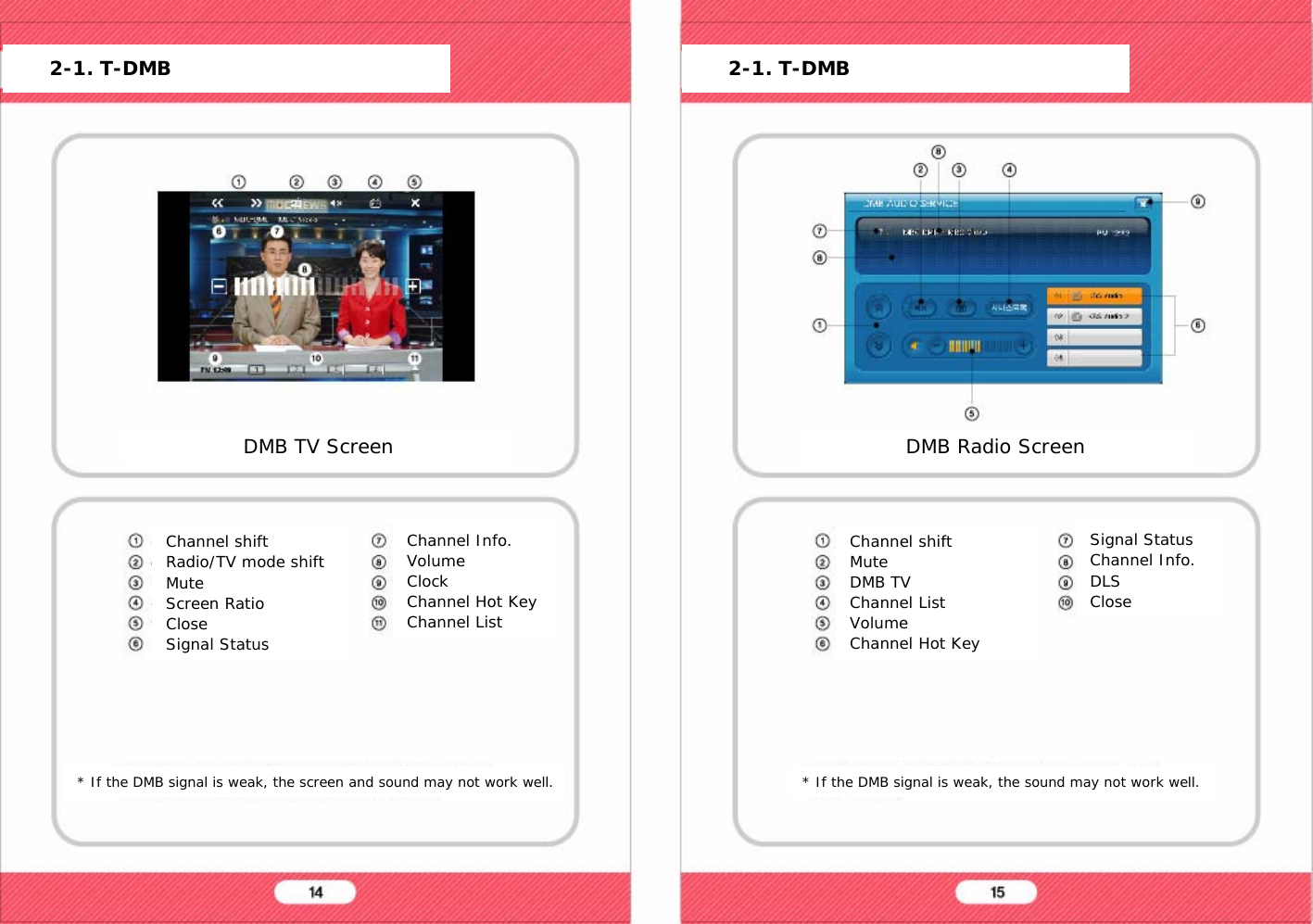
Channel shiftRadio/TV mode shiftMuteScreen RatioCloseSignal Status* If the DMB signal is weak, the screen and sound may not work well.Channel shiftMuteDMB TVChannel ListVolumeChannel Hot Key* If the DMB signal is weak, the sound may not work well.2-1. T-DMB 2-1. T-DMBDMB TV ScreenChannel Info.VolumeClockChannel Hot KeyChannel ListDMB Radio ScreenSignal StatusChannel Info.DLSClose
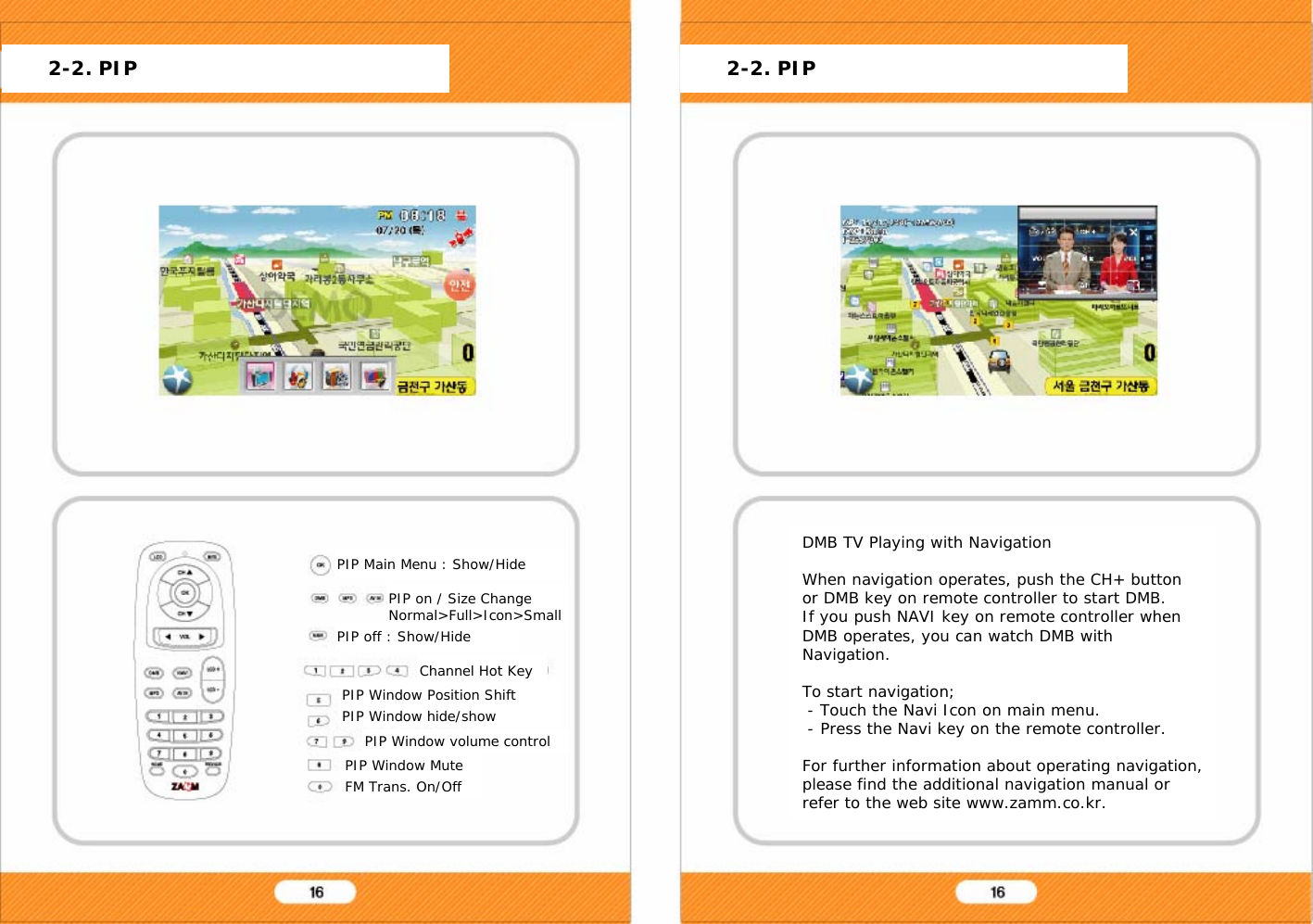
PIP Main Menu : Show/Hide DMB TV Playing with NavigationWhen navigation operates, push the CH+ button or DMB key on remote controller to start DMB.If you push NAVI key on remote controller when DMB operates, you can watch DMB with Navigation.To start navigation;- Touch the Navi Icon on main menu.- Press the Navi key on the remote controller.For further information about operating navigation, please find the additional navigation manual or refer to the web site www.zamm.co.kr.PIP Window Position ShiftPIP Window hide/show2-2. PIP 2-2. PIPPIP on / Size ChangeNormal>Full>Icon>SmallPIP off : Show/HideChannel Hot KeyPIP Window volume controlPIP Window MuteFM Trans. On/Off
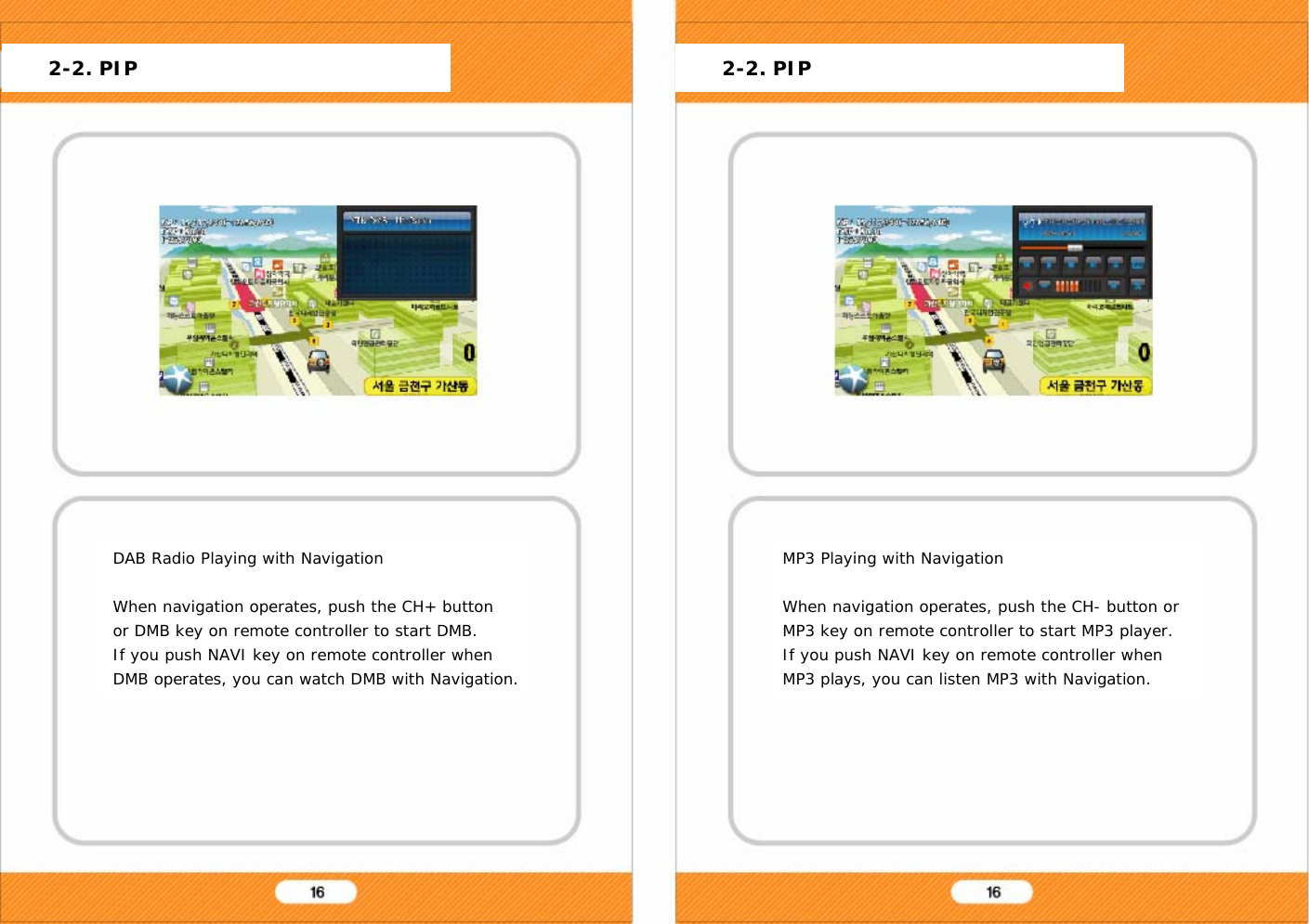
DAB Radio Playing with NavigationWhen navigation operates, push the CH+ button or DMB key on remote controller to start DMB.If you push NAVI key on remote controller when DMB operates, you can watch DMB with Navigation.MP3 Playing with NavigationWhen navigation operates, push the CH- button or MP3 key on remote controller to start MP3 player.If you push NAVI key on remote controller when MP3 plays, you can listen MP3 with Navigation.2-2. PIP 2-2. PIP
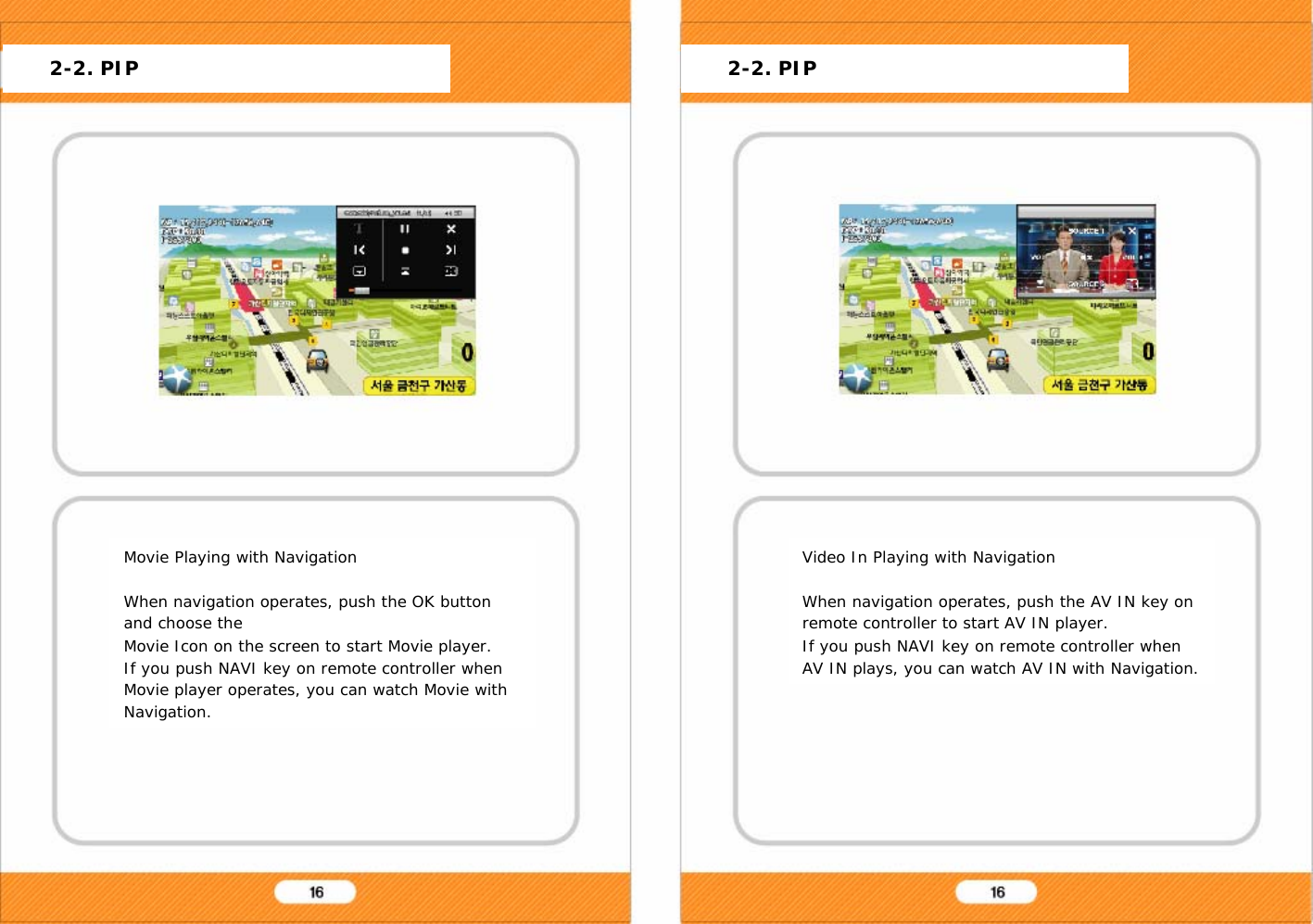
Movie Playing with NavigationWhen navigation operates, push the OK button and choose theMovie Icon on the screen to start Movie player.If you push NAVI key on remote controller when Movie player operates, you can watch Movie with Navigation.Video In Playing with NavigationWhen navigation operates, push the AV IN key on remote controller to start AV IN player.If you push NAVI key on remote controller when AV IN plays, you can watch AV IN with Navigation.2-2. PIP 2-2. PIP
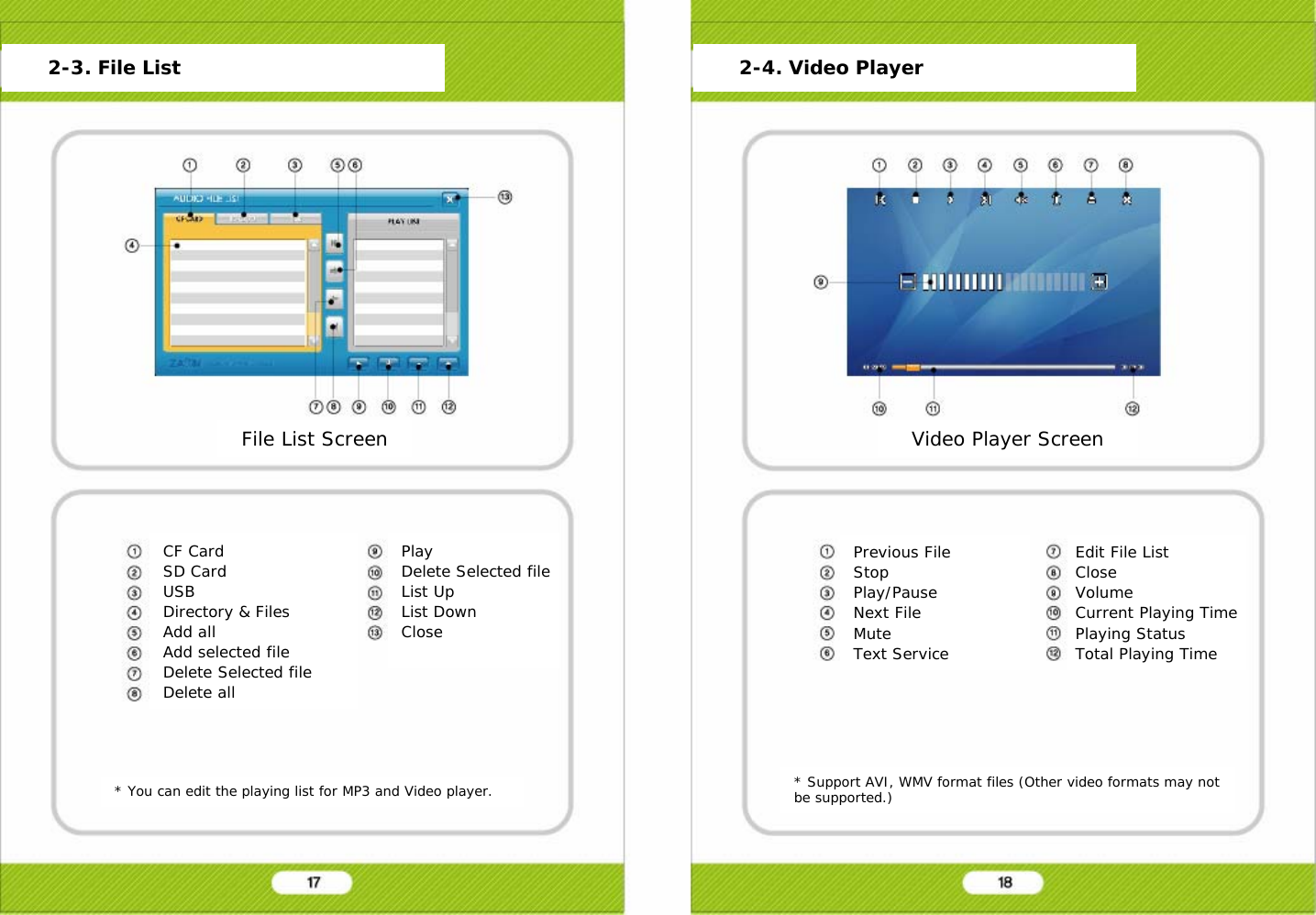
File List ScreenCF CardSD CardUSBDirectory & FilesAdd allAdd selected fileDelete Selected fileDelete allPrevious FileStopPlay/PauseNext FileMuteText Service* You can edit the playing list for MP3 and Video player. * Support AVI, WMV format files (Other video formats may not be supported.)2-3. File List 2-4. Video PlayerPlayDelete Selected fileList UpList DownCloseVideo Player ScreenEdit File ListCloseVolumeCurrent Playing TimePlaying StatusTotal Playing Time
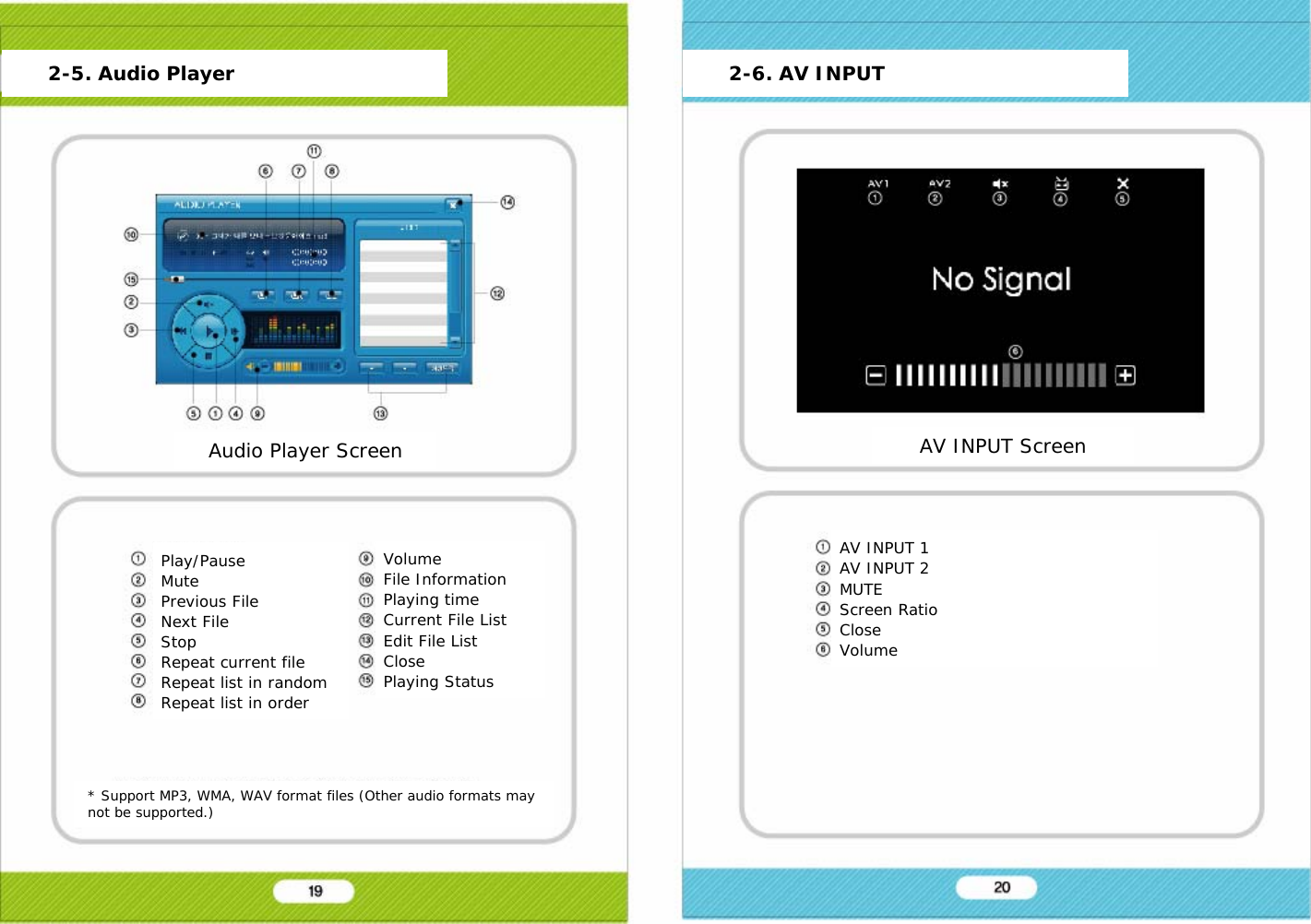
Play/PauseMutePrevious FileNext FileStopRepeat current fileRepeat list in randomRepeat list in order* Support MP3, WMA, WAV format files (Other audio formats may not be supported.)AV INPUT 1AV INPUT 2MUTEScreen RatioCloseVolume2-5. Audio Player 2-6. AV INPUTAudio Player ScreenVolumeFile InformationPlaying timeCurrent File ListEdit File ListClosePlaying StatusAV INPUT Screen
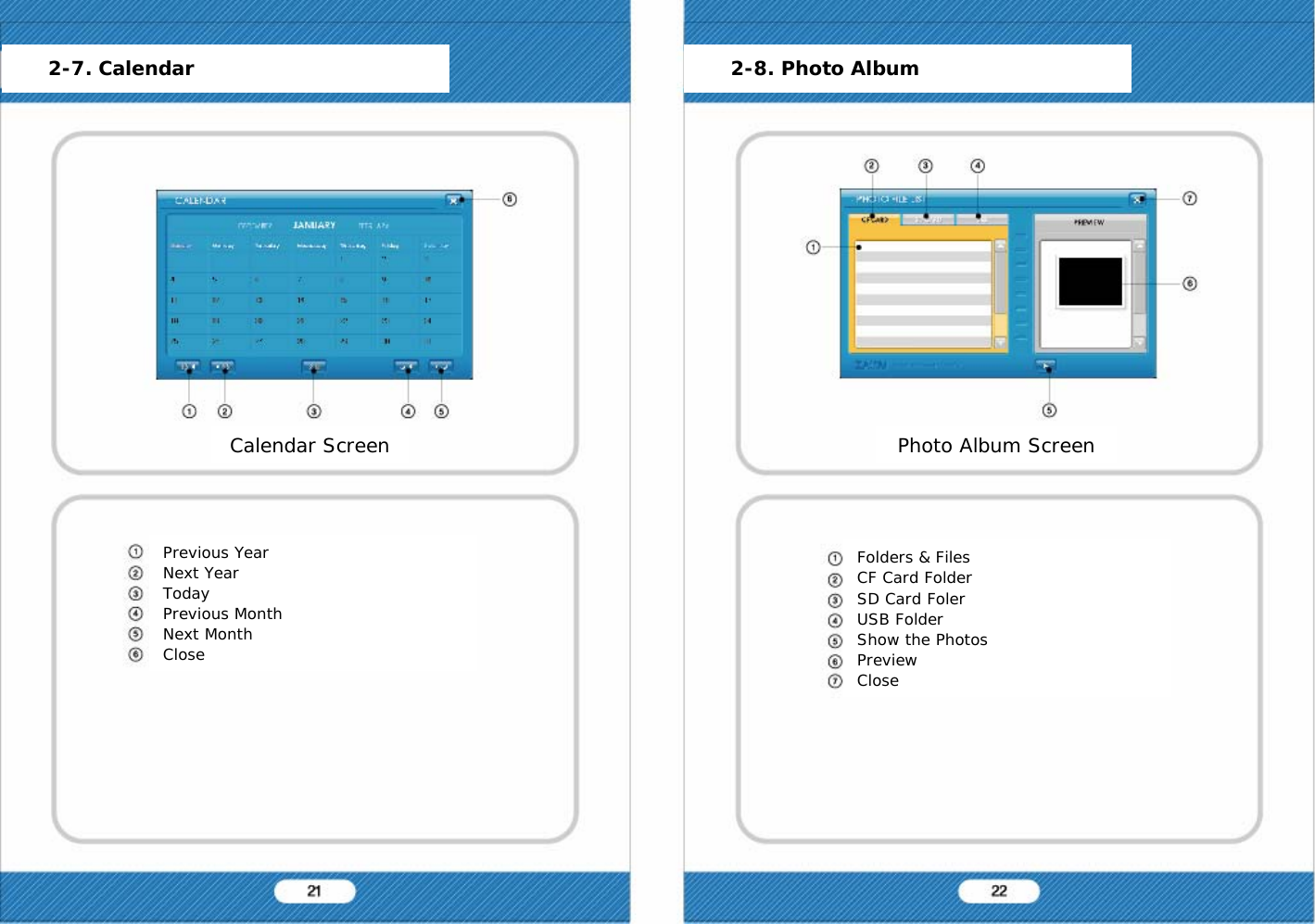
Previous YearNext YearTodayPrevious MonthNext MonthCloseFolders & FilesCF Card FolderSD Card FolerUSB FolderShow the PhotosPreviewCloseCalendar Screen2-7. Calendar 2-8. Photo AlbumPhoto Album Screen
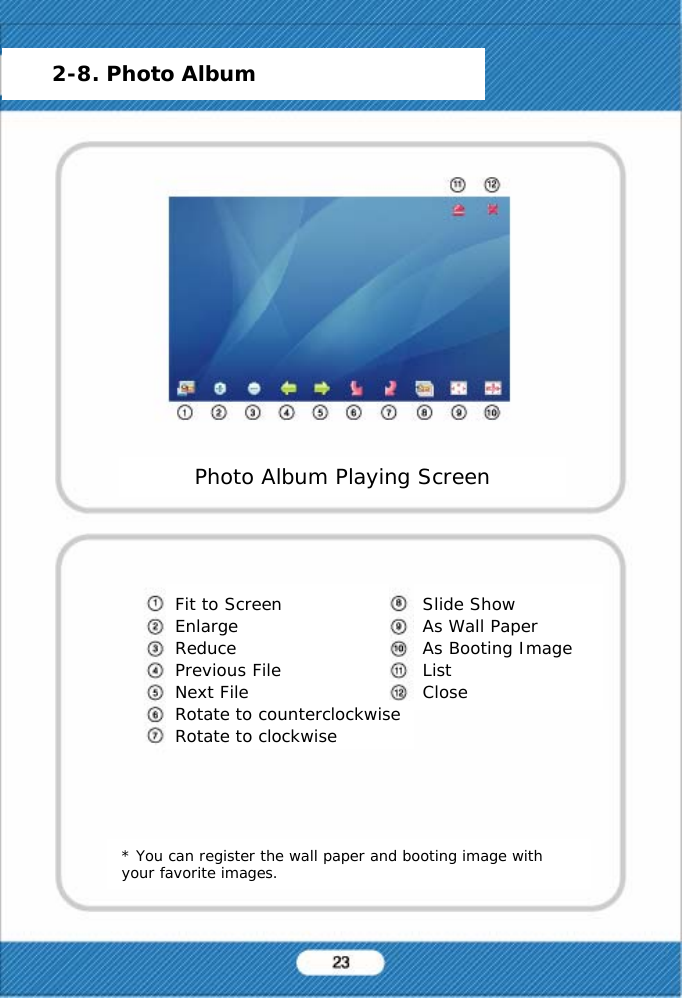
Fit to ScreenEnlargeReducePrevious FileNext FilePhoto Album Playing Screen* You can register the wall paper and booting image with your favorite images.2-8. Photo AlbumSlide ShowAs Wall PaperAs Booting ImageListCloseRotate to counterclockwiseRotate to clockwise
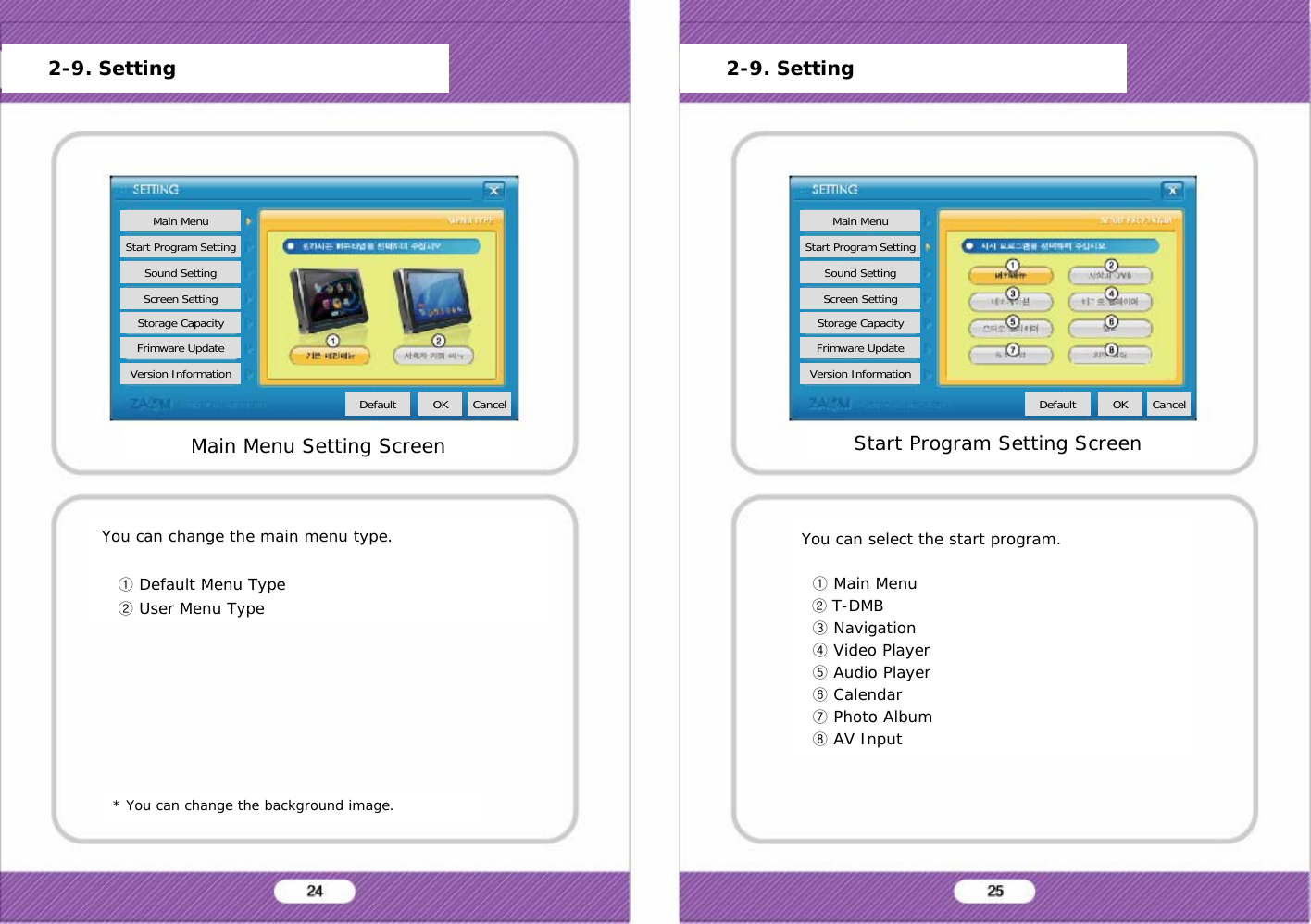
You can change the main menu type.①Default Menu Type②User Menu Type* You can change the background image.You can select the start program.①Main Menu②T-DMB③Navigation④Video Player⑤Audio Player⑥Calendar⑦Photo Album⑧AV InputMain Menu Setting ScreenMain MenuStart Program SettingSound SettingScreen SettingStorage CapacityFrimware UpdateVersion InformationDefault OK Cancel2-9. SettingStart Program Setting ScreenMain MenuStart Program SettingSound SettingScreen SettingStorage CapacityFrimware UpdateVersion InformationDefault OK Cancel2-9. Setting
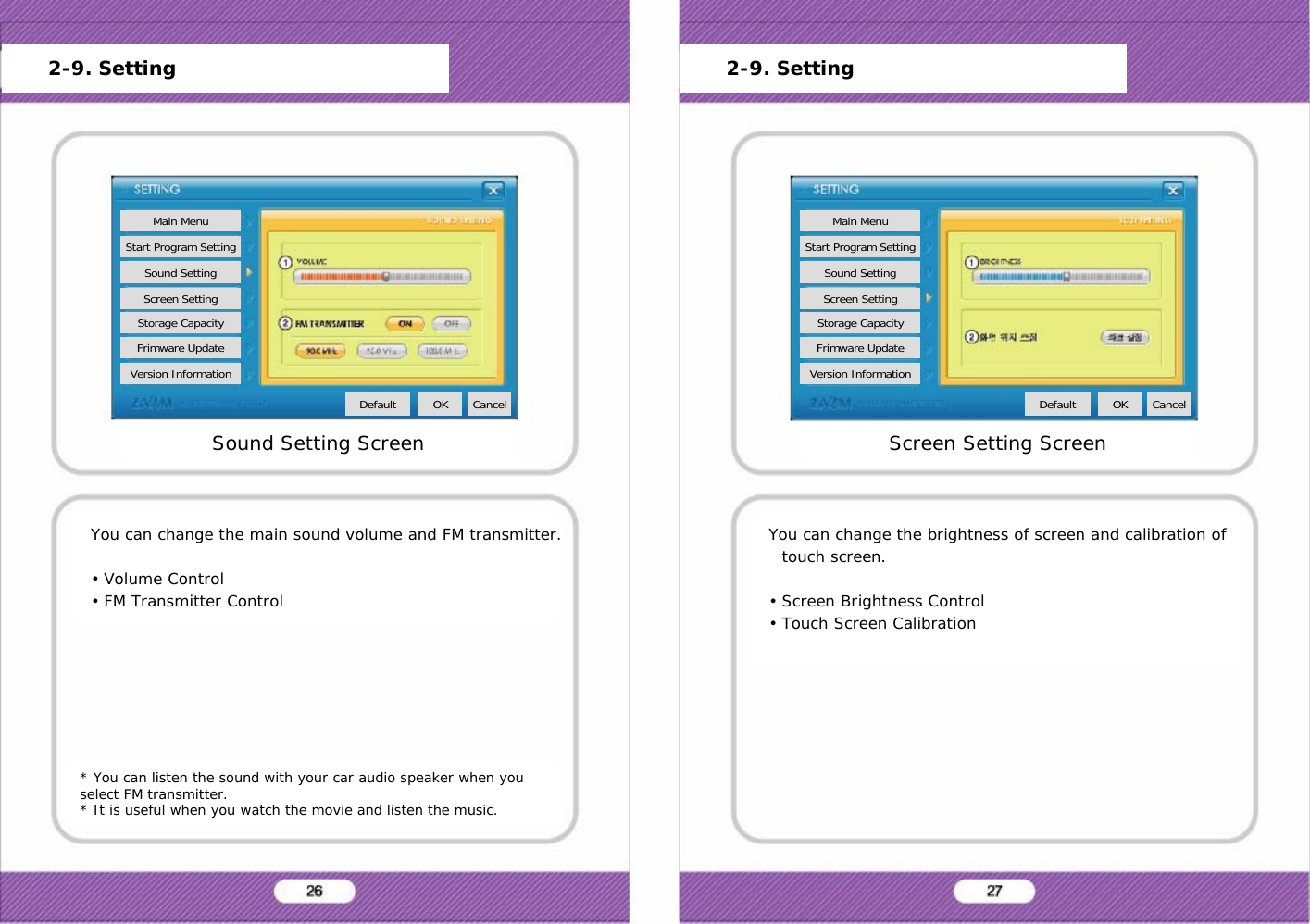
* You can listen the sound with your car audio speaker when you select FM transmitter.* It is useful when you watch the movie and listen the music.You can change the main sound volume and FM transmitter.• Volume Control• FM Transmitter ControlSound Setting ScreenMain MenuStart Program SettingSound SettingScreen SettingStorage CapacityFrimware UpdateVersion InformationDefault OK Cancel2-9. SettingYou can change the brightness of screen and calibration of touch screen.• Screen Brightness Control• Touch Screen CalibrationScreen Setting ScreenMain MenuStart Program SettingSound SettingScreen SettingStorage CapacityFrimware UpdateVersion InformationDefault OK Cancel2-9. Setting
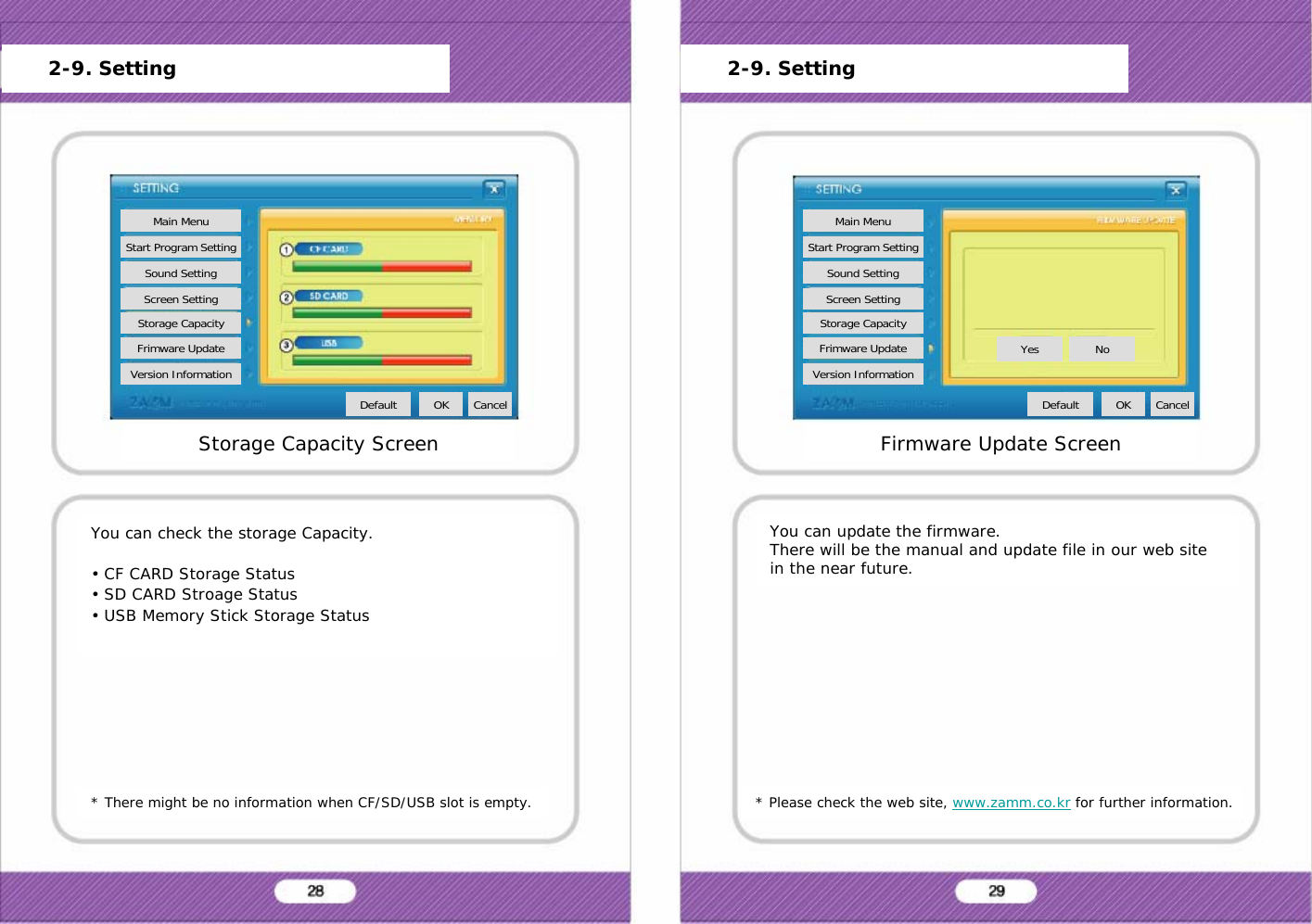
* There might be no information when CF/SD/USB slot is empty.You can check the storage Capacity.• CF CARD Storage Status• SD CARD Stroage Status• USB Memory Stick Storage Status* Please check the web site, www.zamm.co.kr for further information.You can update the firmware.There will be the manual and update file in our web site in the near future.Storage Capacity ScreenMain MenuStart Program SettingSound SettingScreen SettingStorage CapacityFrimware UpdateVersion InformationDefault OK CancelFirmware Update ScreenMain MenuStart Program SettingSound SettingScreen SettingStorage CapacityFrimware UpdateVersion InformationDefault OK CancelYes No2-9. Setting 2-9. Setting
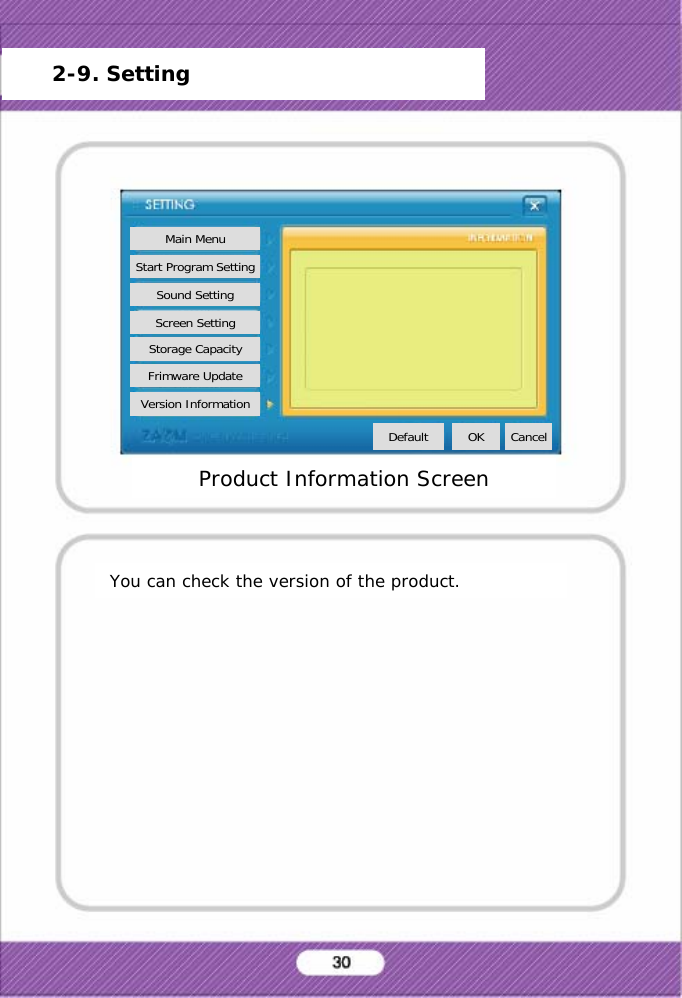
You can check the version of the product.Product Information Screen2-9. SettingMain MenuStart Program SettingSound SettingScreen SettingStorage CapacityFrimware UpdateVersion InformationDefault OK Cancel
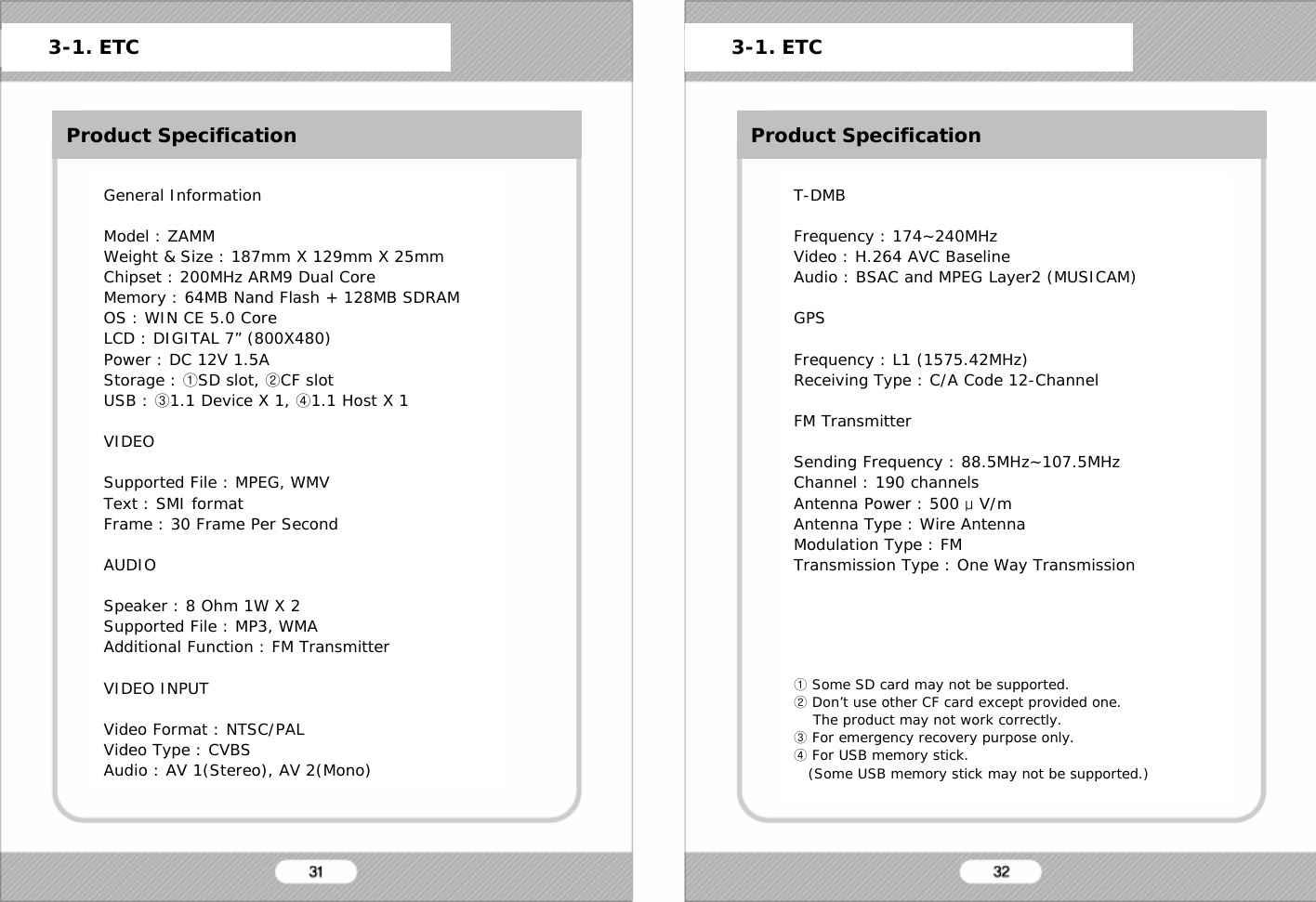
ETCProduct SpecificationGeneral InformationModel : ZAMMWeight & Size : 187mm X 129mm X 25mmChipset : 200MHz ARM9 Dual CoreMemory : 64MB Nand Flash + 128MB SDRAMOS : WIN CE 5.0 CoreLCD : DIGITAL 7” (800X480)Power : DC 12V 1.5AStorage : ①SD slot, ②CF slotUSB : ③1.1 Device X 1, ④1.1 Host X 1VIDEOSupported File : MPEG, WMVText : SMI formatFrame : 30 Frame Per SecondAUDIOSpeaker : 8 Ohm 1W X 2Supported File : MP3, WMAAdditional Function : FM TransmitterVIDEO INPUTVideo Format : NTSC/PALVideo Type : CVBSAudio : AV 1(Stereo), AV 2(Mono)3-1. ETC 3-1. ETCProduct SpecificationT-DMBFrequency : 174~240MHzVideo : H.264 AVC BaselineAudio : BSAC and MPEG Layer2 (MUSICAM)GPSFrequency : L1 (1575.42MHz)Receiving Type : C/A Code 12-ChannelFM TransmitterSending Frequency : 88.5MHz~107.5MHzChannel : 190 channelsAntenna Power : 500 μV/mAntenna Type : Wire AntennaModulation Type : FMTransmission Type : One Way Transmission①Some SD card may not be supported.②Don’t use other CF card except provided one.The product may not work correctly.③For emergency recovery purpose only.④For USB memory stick.(Some USB memory stick may not be supported.)
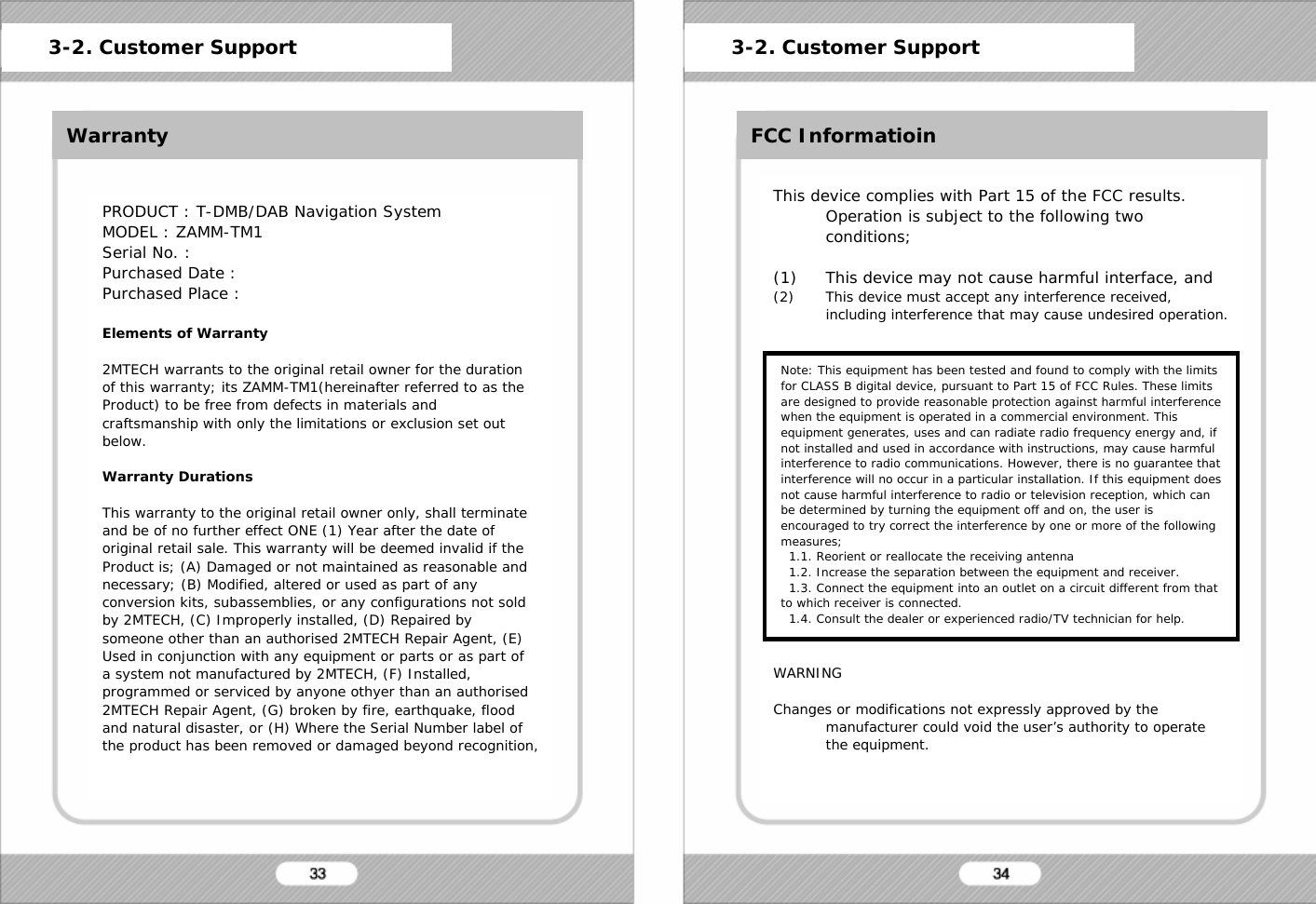
WarrantyPRODUCT : T-DMB/DAB Navigation SystemMODEL : ZAMM-TM1Serial No. :Purchased Date :Purchased Place :Elements of Warranty2MTECH warrants to the original retail owner for the duration of this warranty; its ZAMM-TM1(hereinafter referred to as the Product) to be free from defects in materials and craftsmanship with only the limitations or exclusion set out below.Warranty DurationsThis warranty to the original retail owner only, shall terminateand be of no further effect ONE (1) Year after the date of original retail sale. This warranty will be deemed invalid if the Product is; (A) Damaged or not maintained as reasonable and necessary; (B) Modified, altered or used as part of any conversion kits, subassemblies, or any configurations not sold by 2MTECH, (C) Improperly installed, (D) Repaired by someone other than an authorised 2MTECH Repair Agent, (E) Used in conjunction with any equipment or parts or as part of a system not manufactured by 2MTECH, (F) Installed, programmed or serviced by anyone othyer than an authorised2MTECH Repair Agent, (G) broken by fire, earthquake, flood and natural disaster, or (H) Where the Serial Number label of the product has been removed or damaged beyond recognition, 3-2. Customer Support 3-2. Customer SupportFCC InformatioinThis device complies with Part 15 of the FCC results. Operation is subject to the following two conditions;(1) This device may not cause harmful interface, and(2) This device must accept any interference received, including interference that may cause undesired operation.WARNINGChanges or modifications not expressly approved by the manufacturer could void the user’s authority to operate the equipment.Note: This equipment has been tested and found to comply with the limits for CLASS B digital device, pursuant to Part 15 of FCC Rules. These limits are designed to provide reasonable protection against harmful interference when the equipment is operated in a commercial environment. Thisequipment generates, uses and can radiate radio frequency energy and, if not installed and used in accordance with instructions, may cause harmful interference to radio communications. However, there is no guarantee that interference will no occur in a particular installation. If this equipment does not cause harmful interference to radio or television reception, which can be determined by turning the equipment off and on, the user is encouraged to try correct the interference by one or more of the following measures;1.1. Reorient or reallocate the receiving antenna1.2. Increase the separation between the equipment and receiver.1.3. Connect the equipment into an outlet on a circuit different from that to which receiver is connected.1.4. Consult the dealer or experienced radio/TV technician for help.
MEMO MEMO

Navigation menu