2MTECH ZAMM-Z7 Car Navigation System User Manual 1

2MTECH Inc. Car Navigation System 1

User manual

User’s ManualCar Navigation System2MTECH Inc.674-1 Naksan-riWaegwan-eup Chilgok-gunGyungbuk, 718-801, KoreaTEL. 82-54-977-2500FAX. 82-54-977-2510www.zamm.co.kr* Thank you for buying ZAMM product.* Please read user’s manual carefully before using ZAMM product.
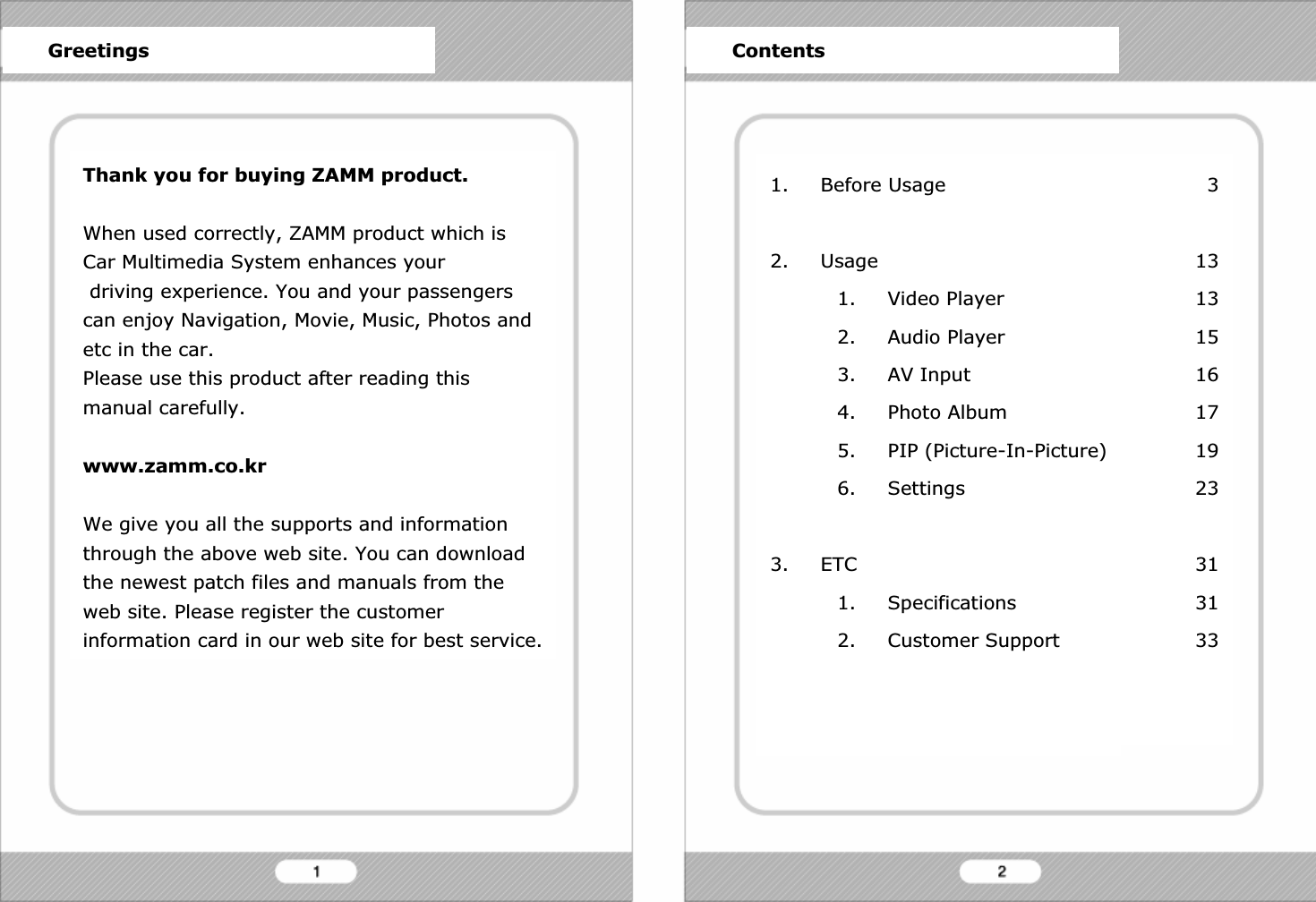
Thank you for buying ZAMM product.When used correctly, ZAMM product which is Car Multimedia System enhances yourdriving experience. You and your passengers can enjoy Navigation, Movie, Music, Photos and etc in the car.Please use this product after reading this manual carefully. www.zamm.co.krWe give you all the supports and information through the above web site. You can download the newest patch files and manuals from the web site. Please register the customer information card in our web site for best service.1. Before Usage2. Usage1. Video Player2. Audio Player3. AV Input4. Photo Album5. PIP (Picture-In-Picture)6. Settings3. ETC1. Specifications2. Customer SupportGreetings Contents313131516171923313133
1. For better performance tuning of our product,the specifications can be changed without notice.2. For better performance tuning of our product,this user’s manual can be changed without notice.3. There might be some mistakes of technicalissues and edition in this user’s manual.4. Please read user’s manual carefully before usage.5. This product is designed to be used in a carwith proper installation.6. The rights of hardware, software, and data ofthis product belong to 2MTECH Inc. The rights isprotected by copyright law and international treaties.Unauthorized duplication or distribution of this rights,or any portion of it, may result in severe civil orcriminal penalties, and will be prosecuted to themaximum extent possible under the law. 7. This product is designed to use DC12V~24 power.1. For safety, please stop or park the car to operatethis product.2. The voice and map information in this product cannot be guaranteed accurate as road  layout may change. Always follow the posted road signs and traffic laws.3. Do not mount this product in a position which mayobstruct the driver’s view or prevent the safe operationof the vehicle.4. Do not watch this product continuously. It may causean accident.5. Please adjust the sound volume & LCD brightness properly.6. Do not use this product in the car when you turn off the engine. It may cause your car battery flat.7. Please use the provided accessories with this product.We only guarantee the performance of this product withprovided accessories.8. For the initial power up it may take up to 15 minutesto secure satellite information on outdoor place.9. GPS signal cannot be received properly in following conditions; the inside of car with special metal coating, the inside of a building, the place under a bridge, the place in a tunnel, and etc.Before Usage Before UsageWarnings & Notifications Warnings & Notifications
Before Usage1. Do not disconnect the power cable during operation and do not disassemble this product. It may cause break-down or fire or explosion.2. Do not disconnect the cigarette power cord during operation. It may cause break-down or fire or explosion.3. Do not put the product near water. It may cause break-down or fire or explosion.4. If there is any failure of product, please don’t use it and  call to A/S center immediately.5. Do not drop the product and do not give an attack to the product. It may cause break-down or fire or explosion.6. Do not put the product under sunshine and moisture in long term. It may cause break-down or fire or explosion.You need a computer to use this product properly.Please check the minimum specification of computer.• Microsoft Windows 2000/XP• At least Pentium III 800MHz• At least 128MB Main Memory• At least 2GB Hard Disk Space• USB* Port* It’s necessary when using the card reader provided.Before Usage Before UsageWarnings for system Minimum specfications of computer
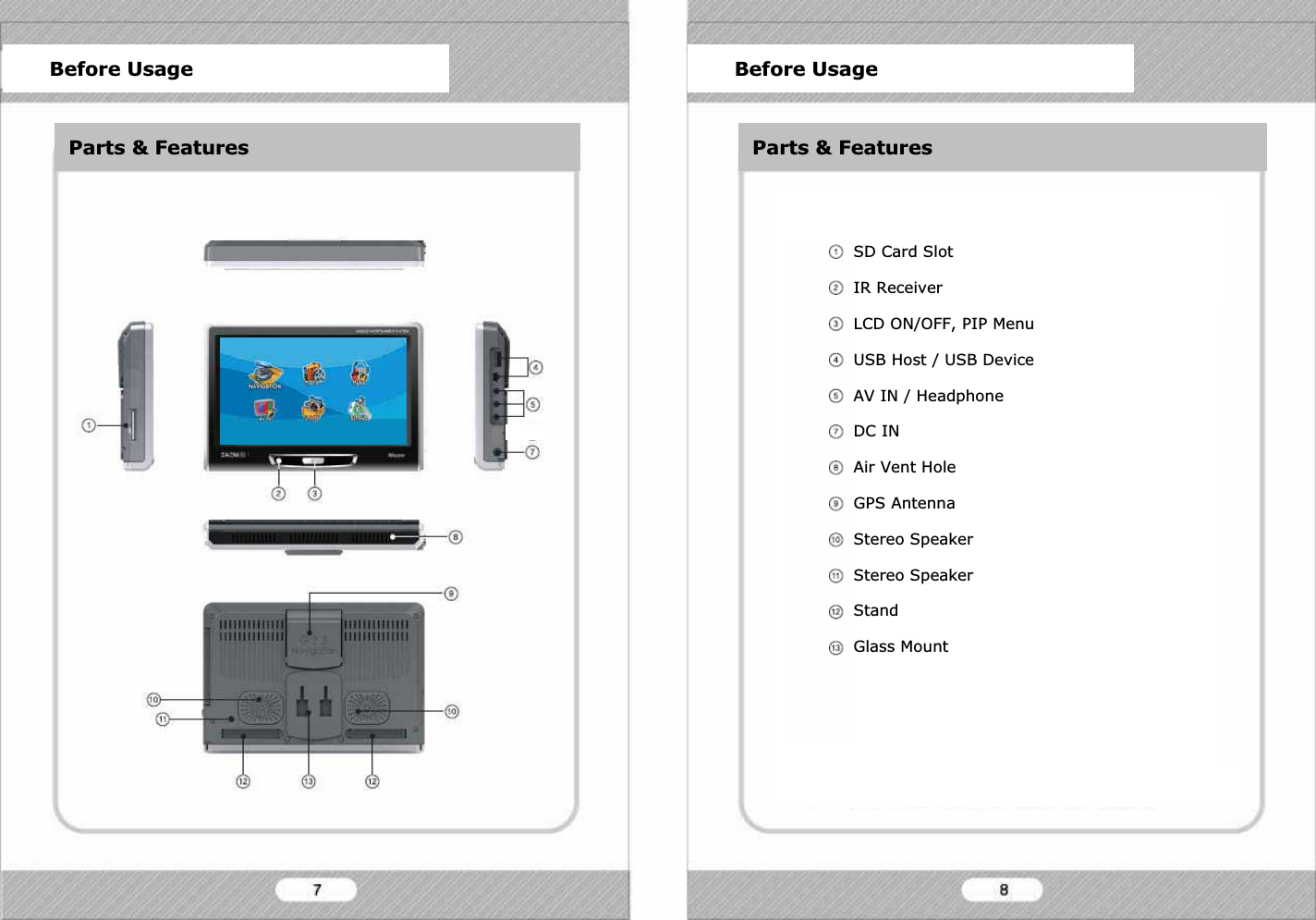
Before Usage Before UsageParts & FeaturesBefore Usage Before UsageParts & Features Parts & FeaturesMain PowerStandGlass MountSD Card SlotIR ReceiverLCD ON/OFF, PIP MenuUSB Host / USB DeviceAV IN / HeadphoneDC INAir Vent HoleGPS AntennaStereo SpeakerStereo SpeakerStandGlass Mount
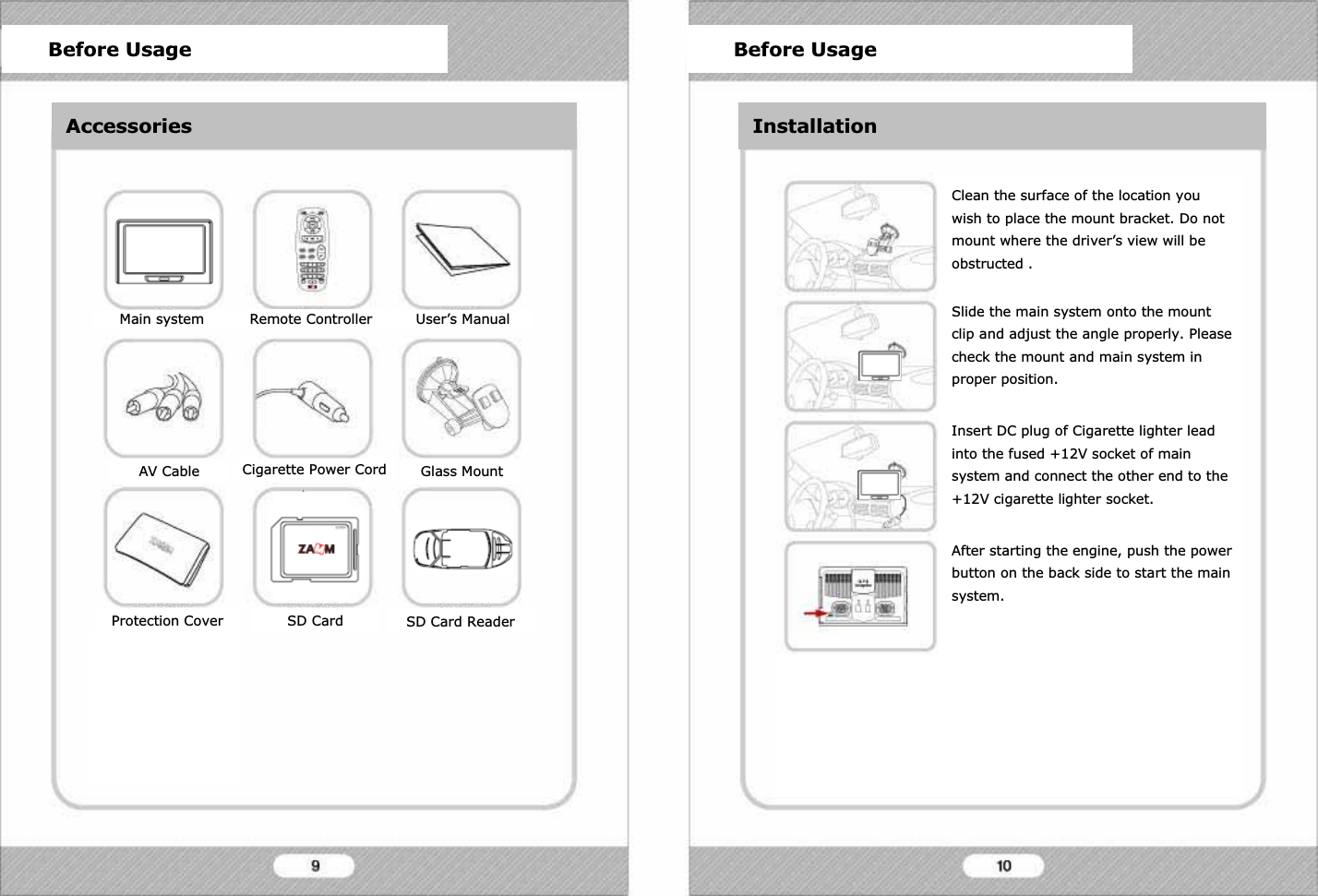
Before Usage Before UsageInstallationMain system Remote Controller User’s ManualAV Cable Cigarette Power Cord Glass MountProtection Cover T-DMB Antenna SD Card ReaderSD CardClean the surface of the location you wish to place the mount bracket. Do not mount where the driver’s view will be obstructed .Slide the main system onto the mount clip and adjust the angle properly. Please check the mount and main system in proper position.Insert DC plug of Cigarette lighter lead into the fused +12V socket of main system and connect the other end to the +12V cigarette lighter socket.After starting the engine, push the power button on the back side to start the main system.Put the T-DMB antenna on the top of the car for best performance. It will stick to the top of the car because of magnets, however please be careful of falling of antenna during fast driving.Before Usage Before UsageAccessories InstallationSD Card
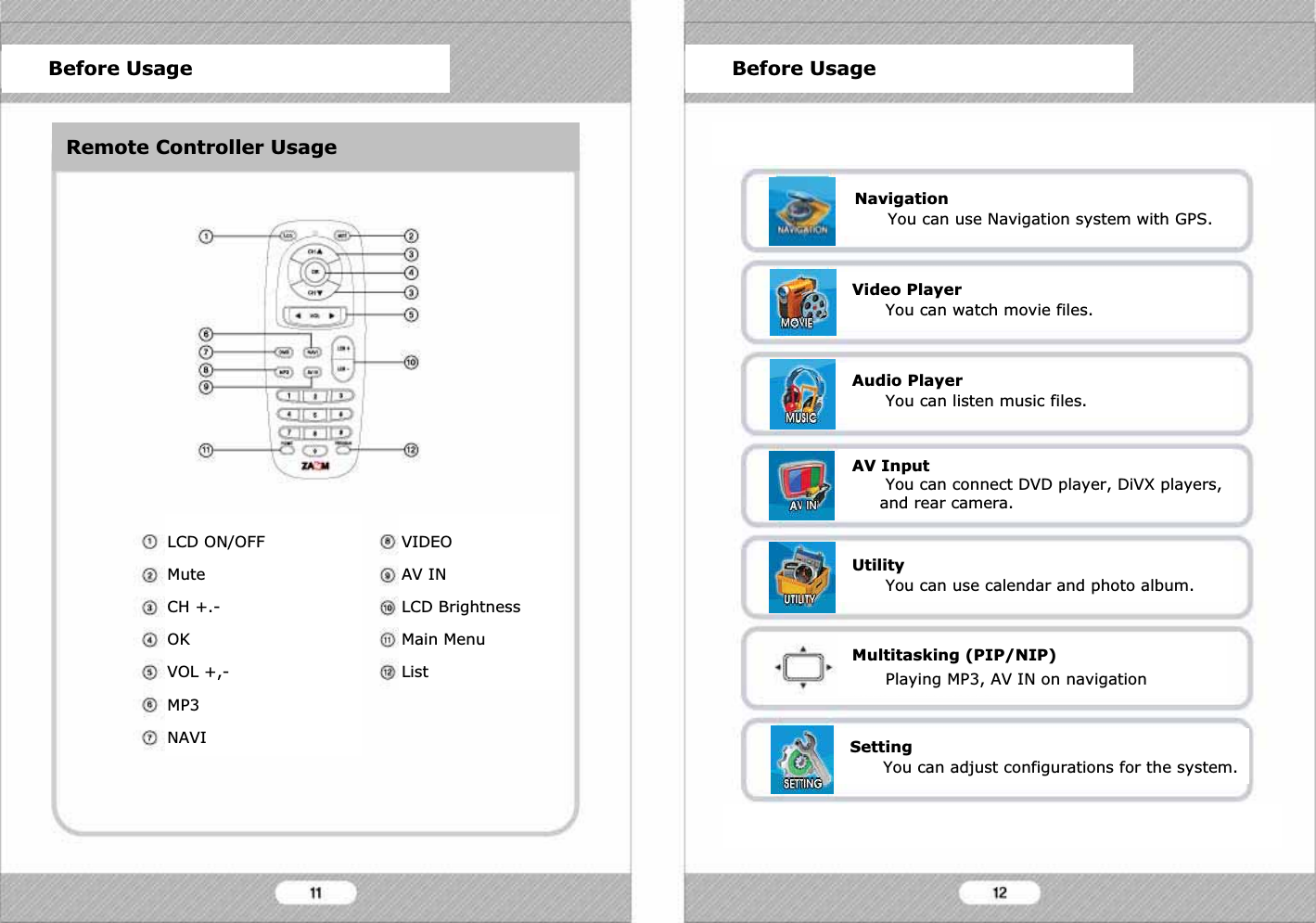
LCD ON/OFFMuteCH +.-OKVOL +,-MP3NAVIVIDEOAV INLCD BrightnessMain MenuListBefore Usage Before UsageRemote Controller UsageNavigationYou can use Navigation system with GPS.Video PlayerYou can watch movie files.Audio PlayerYou can listen music files.AV InputYou can connect DVD player, DiVX players, and rear camera.UtilityYou can use calendar and photo album.SettingYou can adjust configurations for the system.Multitasking (PIP/NIP)Playing MP3, AV IN on navigation
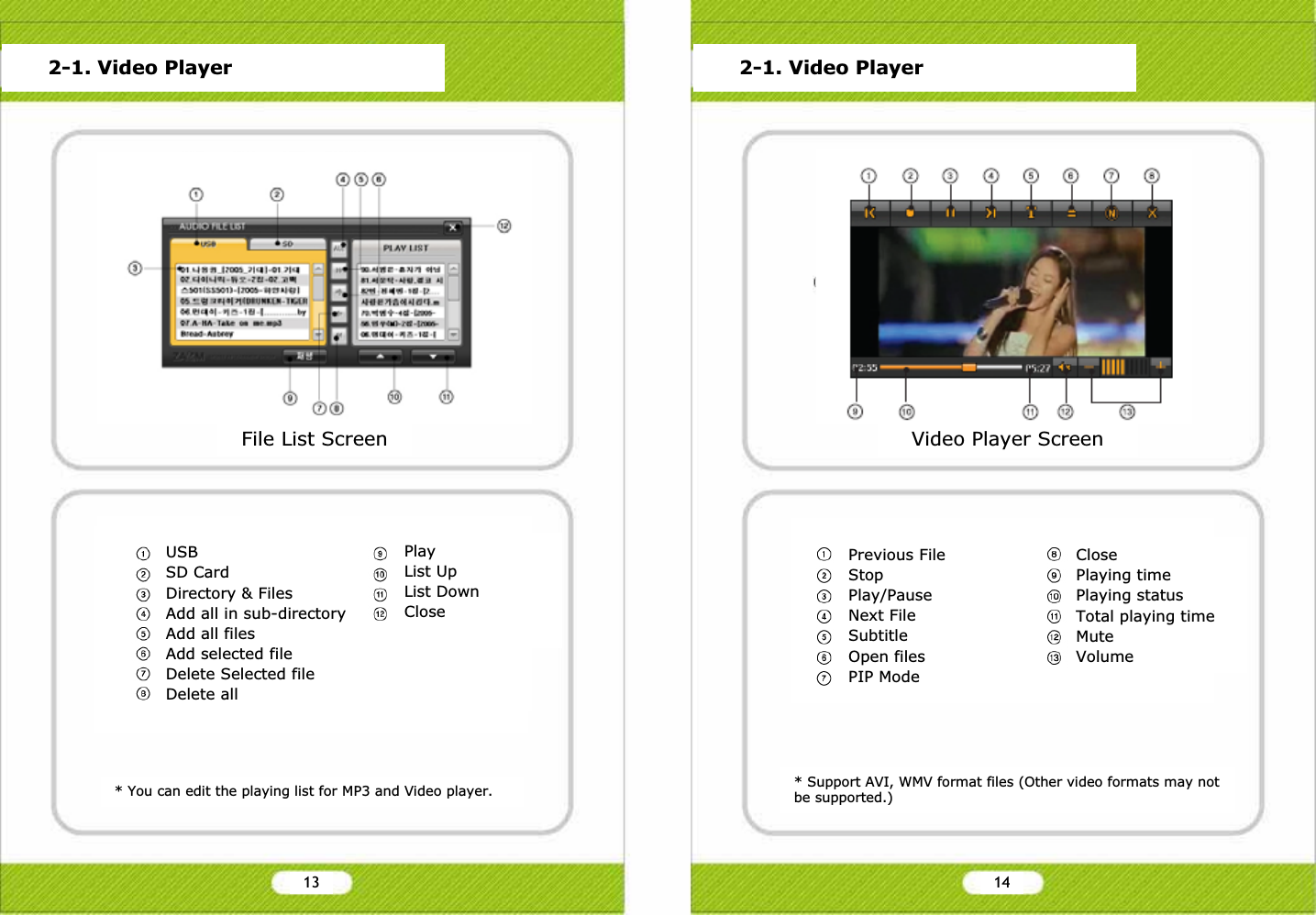
File List Screen* You can edit the playing list for MP3 and Video player. * Support AVI, WMV format files (Other video formats may not be supported.)2-1. Video Player 2-1. Video PlayerVideo Player ScreenUSBSD CardDirectory & FilesAdd all in sub-directoryAdd all filesAdd selected fileDelete Selected fileDelete allPlayList UpList DownClosePrevious FileStopPlay/PauseNext FileSubtitleOpen filesPIP ModeClosePlaying timePlaying statusTotal playing timeMuteVolume13 14
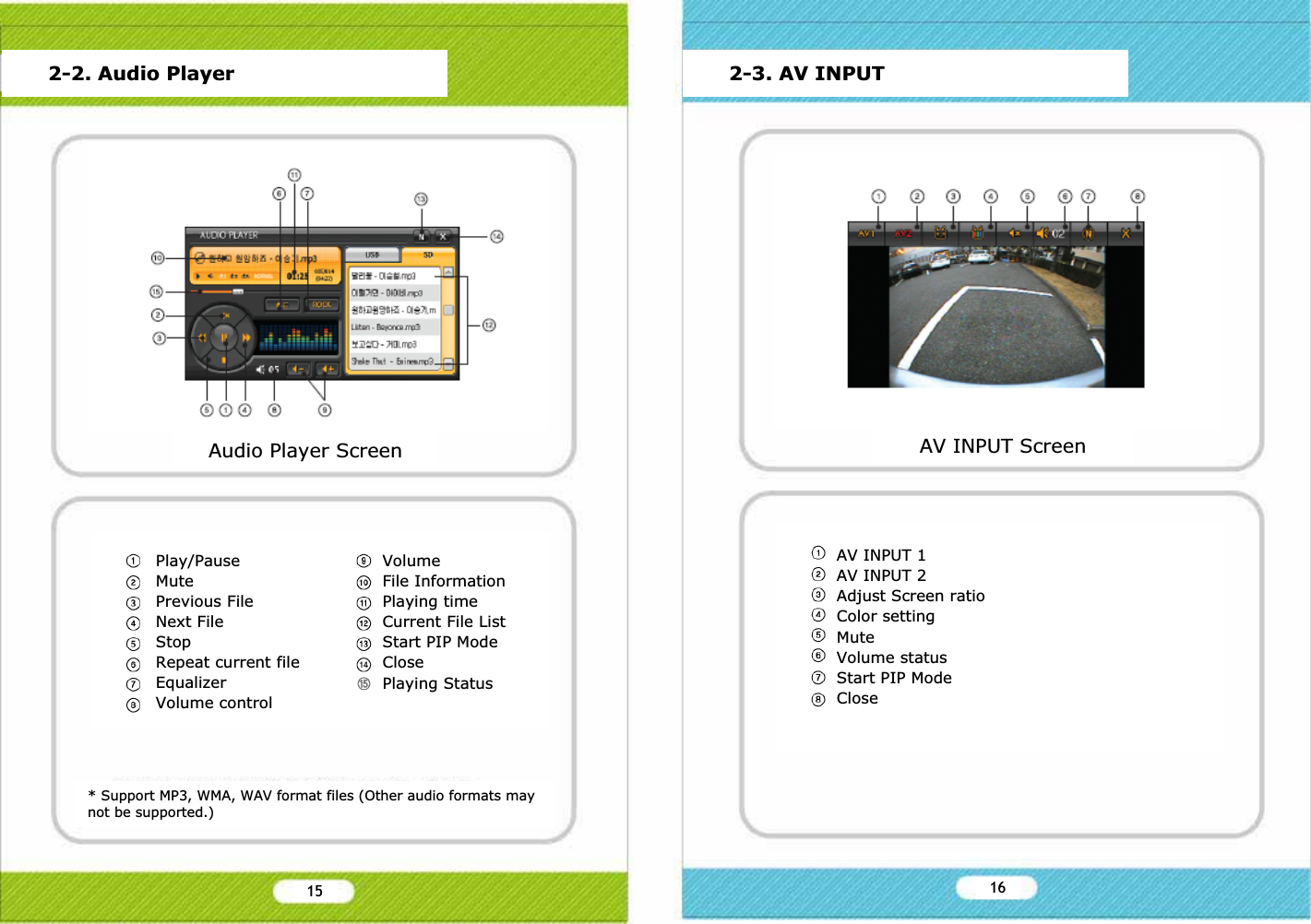
* Support MP3, WMA, WAV format files (Other audio formats may not be supported.)2-2. Audio Player 2-3. AV INPUTAudio Player Screen AV INPUT ScreenPlay/PauseMutePrevious FileNext FileStopRepeat current fileEqualizerVolume controlVolumeFile InformationPlaying timeCurrent File ListStart PIP Mode ClosePlaying StatusAV INPUT 1AV INPUT 2Adjust Screen ratioColor settingMuteVolume statusStart PIP ModeCloseྦྷ15 16
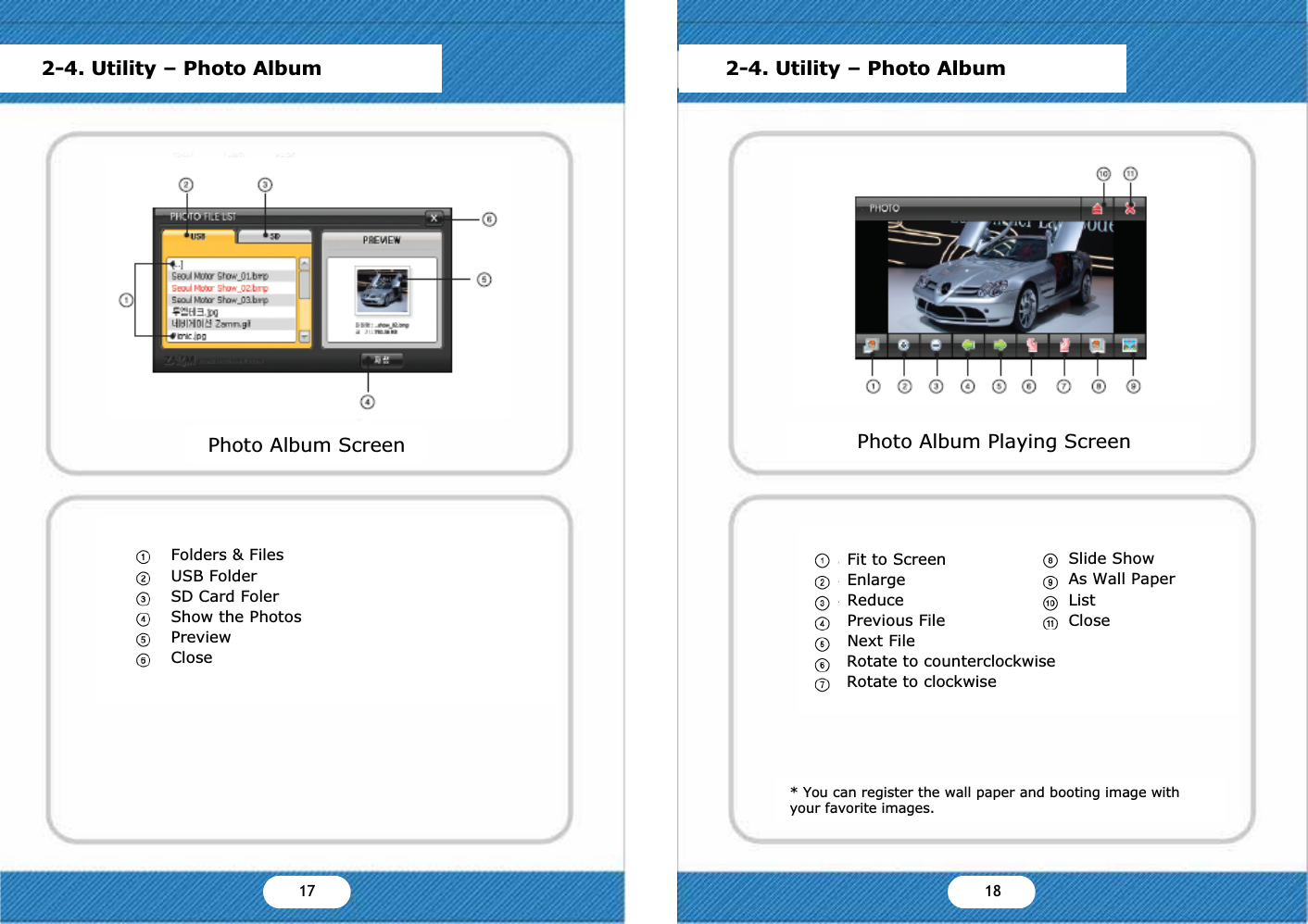
2-4. Utility – Photo AlbumPhoto Album ScreenFolders & FilesUSB FolderSD Card FolerShow the PhotosPreviewClosePhoto Album Playing Screen* You can register the wall paper and booting image with your favorite images.2-4. Utility – Photo AlbumSlide ShowAs Wall PaperListCloseFit to ScreenEnlargeReducePrevious FileNext FileRotate to counterclockwiseRotate to clockwiseYX YY17 18
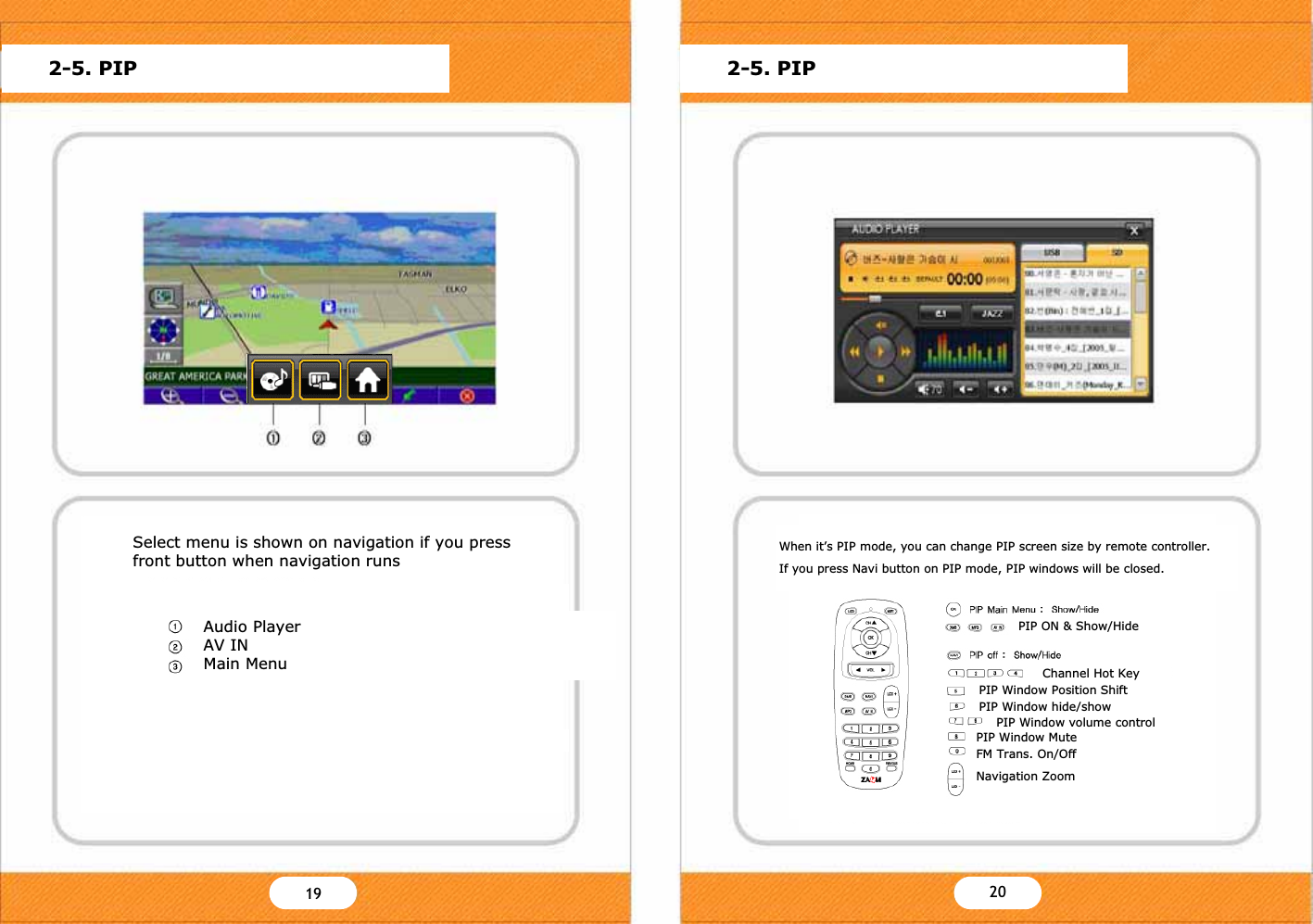
PIP Main Menu : Show/HideDMB TV Playing with NavigationWhen navigation operates, push the CH+ button or DMB key on remote controller to start DMB.If you push NAVI key on remote controller when DMB operates, you can watch DMB with Navigation.To start navigation;- Touch the Navi Icon on main menu.- Press the Navi key on the remote controller.For further information about operating navigation, please find the additional navigation manual or refer to the web site www.zamm.co.kr.PIP Window Position ShiftPIP Window hide/show2-5. PIP 2-5. PIPPIP on / Size ChangeNormal>Full>Icon>SmallPIP off : Show/HideChannel Hot KeyPIP Window volume controlPIP Window MuteFM Trans. On/OffSelect menu is shown on navigation if you press front button when navigation runsAudio PlayerAV INMain MenuPIP Window Position ShiftPIP Window hide/showPIP ON & Show/HideChannel Hot KeyPIP Window volume controlPIP Window MuteFM Trans. On/OffNavigation ZoomWhen it’s PIP mode, you can change PIP screen size by remote controller.If you press Navi button on PIP mode, PIP windows will be closed.YZ Y[19 20
When navigation operates, push the front button or MP3 key on remote controller to start MP3 player.If you push NAVI key on remote controller when MP3 plays, you can listen MP3 with Navigation.2-5. PIP 2-5. PIPY\ Y]21 22When navigation operates, push the AV IN key on remote controller to start AV IN player.If you push NAVI key on remote controller when AV IN plays, you can watch AV IN with Navigation.AV IN 1AV IN 2MuteVolumeCloseྙ ྚ ྛ ྜ ྜྷ
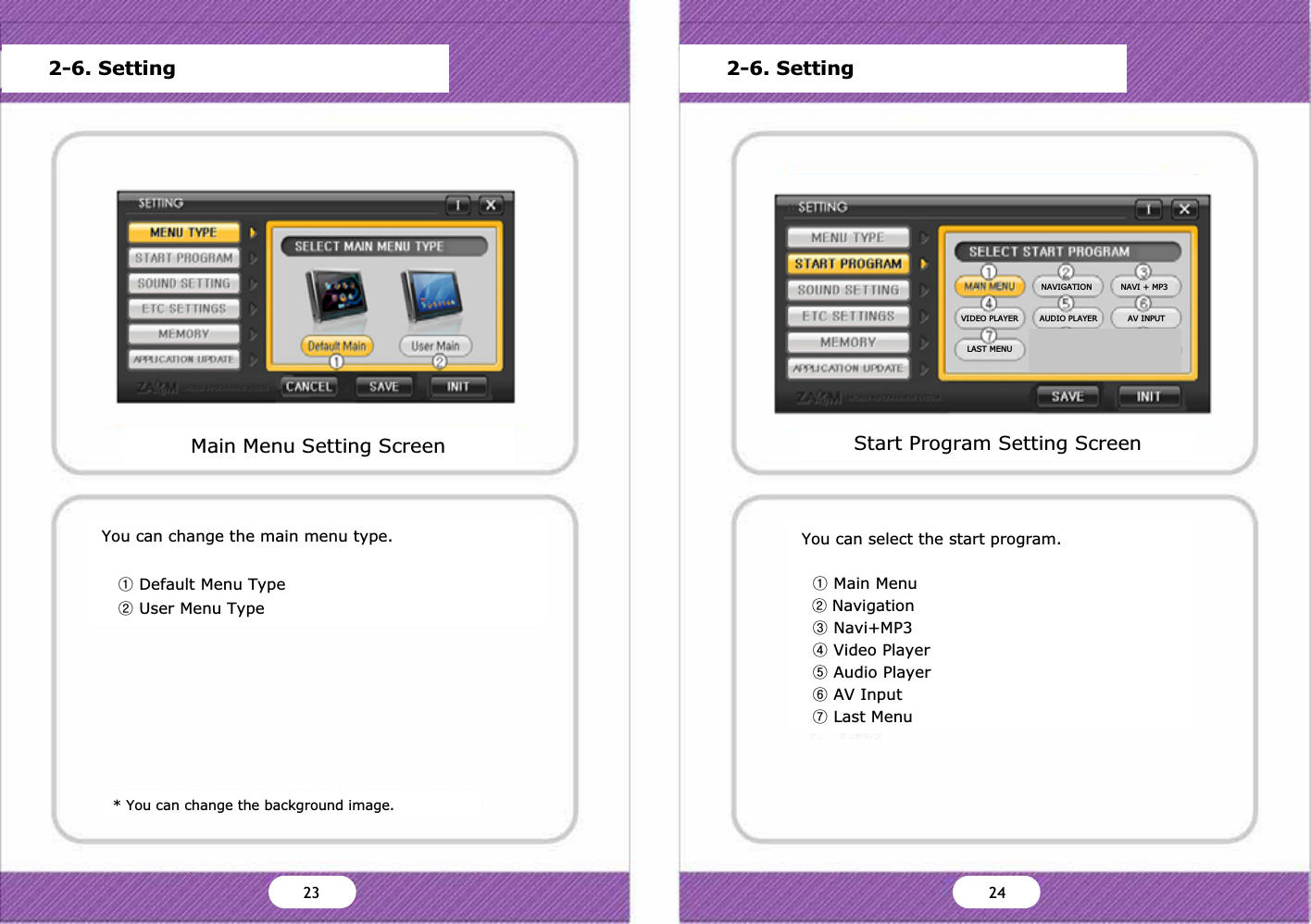
You can change the main menu type.ྙDefault Menu TypeྚUser Menu Type* You can change the background image.Main Menu Setting ScreenMain MenuStart Program SettingSound SettingScreen SettingStorage CapacityFrimware UpdateVersion InformationDefault OK Cancel2-6. SettingStart Program Setting ScreenMain MenuStart Program SettingSound SettingScreen SettingStorage CapacityFrimware UpdateVersion InformationDefault OK Cancel2-6. SettingYou can select the start program.ྙMain MenuྚNavigationྛNavi+MP3ྜVideo PlayerྜྷAudio PlayerྞAV InputྟLast MenuY` ZW23 24NAVIGATION NAVI + MP3VIDEO PLAYER AUDIO PLAYER AV INPUTLAST MENU
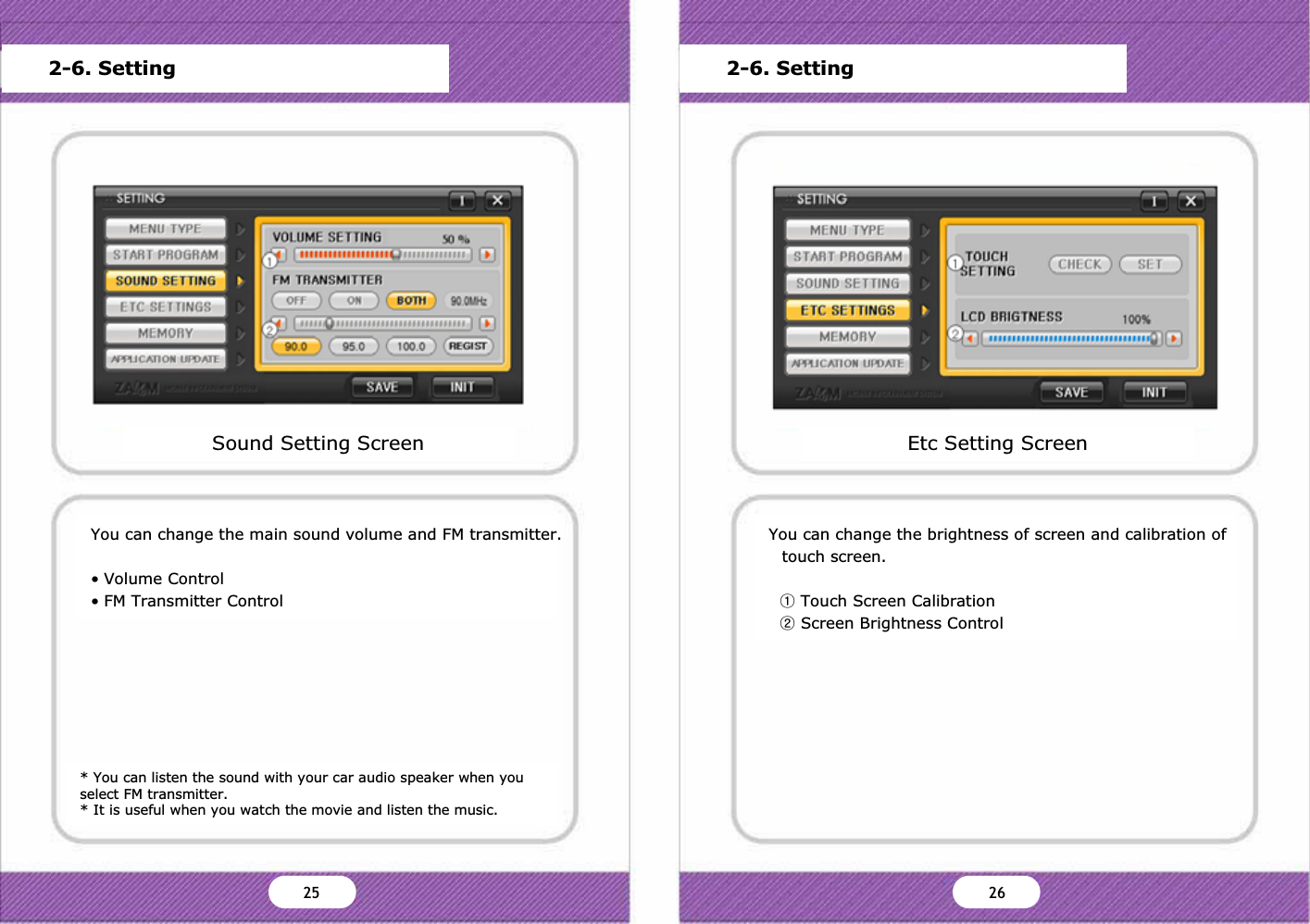
* You can listen the sound with your car audio speaker when you select FM transmitter.* It is useful when you watch the movie and listen the music.You can change the main sound volume and FM transmitter.• Volume Control• FM Transmitter ControlSound Setting ScreenMain MenuStart Program SettingSound SettingScreen SettingStorage CapacityFrimware UpdateVersion InformationDefault OK Cancel2-6. SettingYou can change the brightness of screen and calibration of touch screen.ྙTouch Screen CalibrationྚScreen Brightness ControlEtc Setting ScreenMain MenuStart Program SettingSound SettingScreen SettingStorage CapacityFrimware UpdateVersion InformationDefault OK Cancel2-6. SettingZX ZY25 26
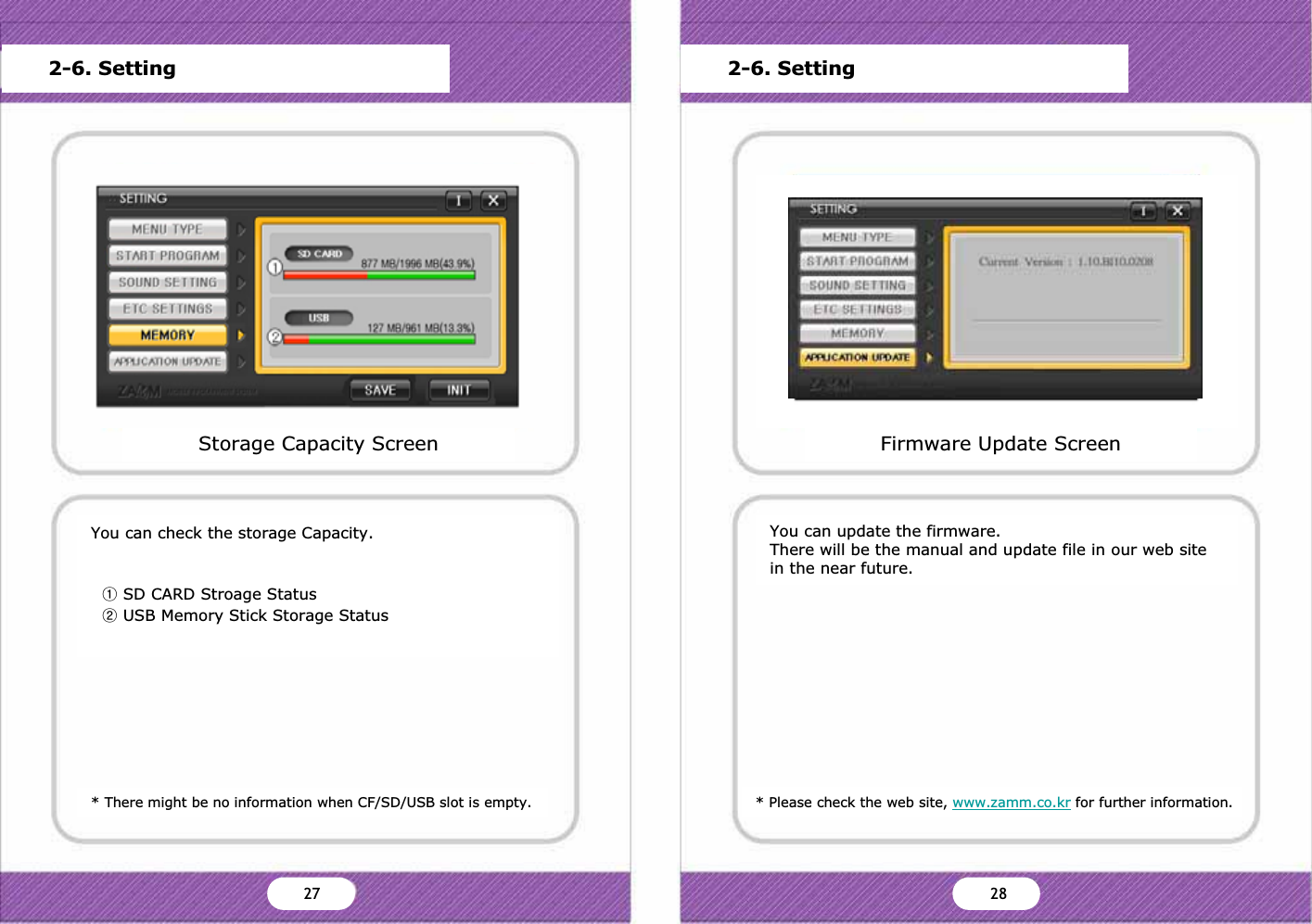
* There might be no information when CF/SD/USB slot is empty.You can check the storage Capacity.ྙSD CARD Stroage StatusྚUSB Memory Stick Storage Status* Please check the web site, www.zamm.co.kr for further information.You can update the firmware.There will be the manual and update file in our web site in the near future.Storage Capacity ScreenMain MenuStart Program SettingSound SettingScreen SettingStorage CapacityFrimware UpdateVersion InformationDefault OK CancelFirmware Update ScreenMain MenuStart Program SettingSound SettingScreen SettingStorage CapacityFrimware UpdateVersion InformationDefault OK CancelYes No2-6. Setting 2-6. SettingZZ Z[27 28
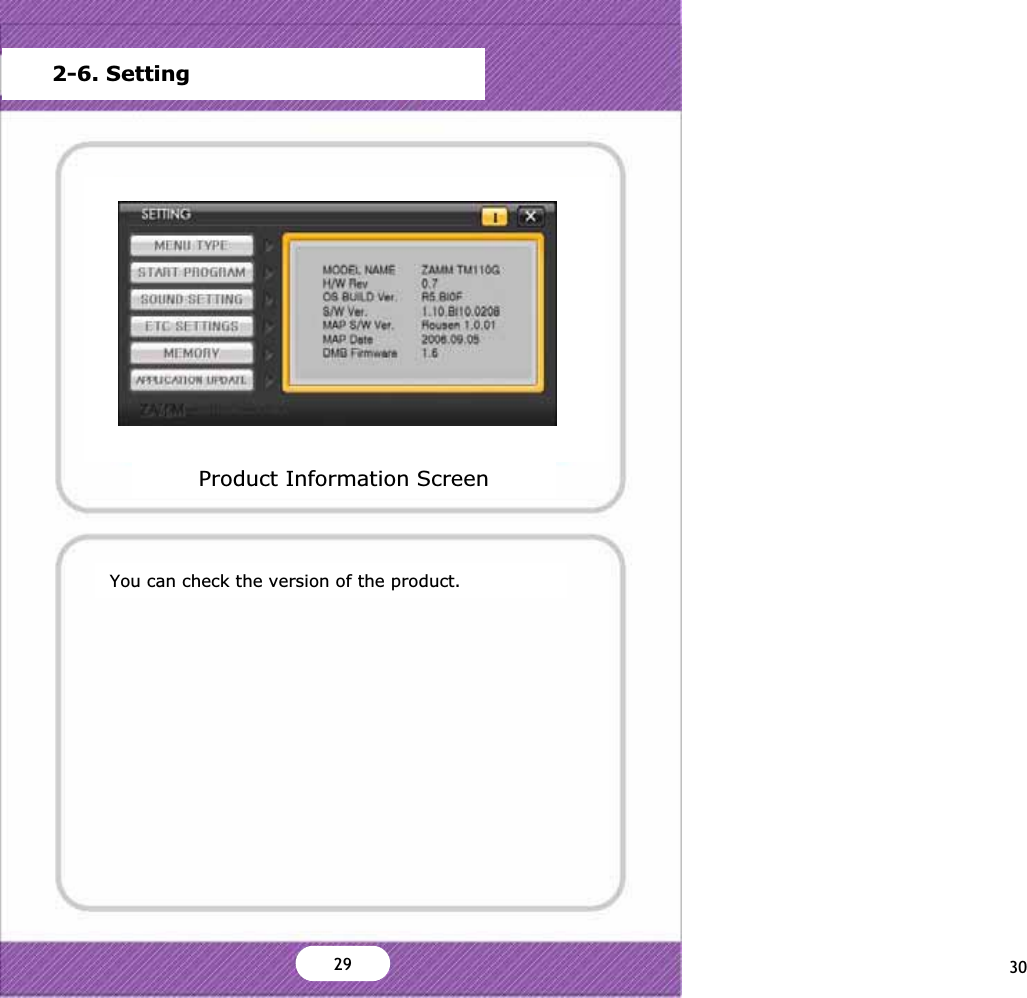
You can check the version of the product.Product Information Screen2-6. SettingMain MenuStart Program SettingSound SettingScreen SettingStorage CapacityFrimware UpdateVersion InformationDefault OK CancelZ\29 30
ETCProduct SpecificationGeneral InformationModel : ZAMM-Z7Weight & Size : 187mm X 127mm X 26mmChipset : 400MHz ARM9 CPUMemory : 64MB Nand Flash + 64MB SDRAMOS : WIN CE 5.0 CoreLCD : DIGITAL 7” (480X234)Power : DC 12V~24V 1.5AStorage : 1)SD slotUSB : 2)1.1 Host X 1VIDEOSupported File : MPEG, WMVText : SMI formatFrame : 30 Frame Per SecondAUDIOSpeaker : 8 Ohm 1W X 2Supported File : MP3, WMAAdditional Function : FM TransmitterVIDEO INPUTVideo Format : NTSC/PALVideo Type : CVBSAudio : AV 1(Stereo), AV 2(Mono)3-1. ETC 3-1. ETCProduct SpecificationGPSFrequency : L1 (1575.42MHz)Receiving Type : C/A Code 12-ChannelFM TransmitterSending Frequency : 88.5MHz~107.5MHzChannel : 190 channelsAntenna Power : 500 ɆV/mAntenna Type : Wire AntennaModulation Type : FMTransmission Type : One Way TransmissionྙSome SD card may not be supported.ྚmGGGGUྛmG|ziGGUOzG|ziGGGGGGUPZ] Z^31 32
ETCProduct SpecificationGeneral InformationModel : ZAMM-Z7Weight & Size : 187mm X 127mm X 26mmChipset : 400MHz ARM9 CPUMemory : 64MB Nand Flash + 64MB SDRAMOS : WIN CE 5.0 CoreLCD : DIGITAL 7” (480X234)Power : DC 12V~24V 1.5AStorage : 1)SD slotUSB : 2)1.1 Host X 1VIDEOSupported File : MPEG, WMVText : SMI formatFrame : 30 Frame Per SecondAUDIOSpeaker : 8 Ohm 1W X 2Supported File : MP3, WMAAdditional Function : FM TransmitterVIDEO INPUTVideo Format : NTSC/PALVideo Type : CVBSAudio : AV 1(Stereo), AV 2(Mono)3-1. ETCZ]31WarrantyPRODUCT : Car Navigation SystemMODEL : ZAMM-Z7Serial No. :Purchased Date :Purchased Place :Elements of Warranty2MTECH warrants to the original retail owner for the duration of this warranty; its ZAMM-TM1(hereinafter referred to as the Product) to be free from defects in materials and craftsmanship with only the limitations or exclusion set out below.Warranty DurationsThis warranty to the original retail owner only, shall terminateand be of no further effect ONE (1) Year after the date of original retail sale. This warranty will be deemed invalid if the Product is; (A) Damaged or not maintained as reasonable and necessary; (B) Modified, altered or used as part of any conversion kits, subassemblies, or any configurations not sold by 2MTECH, (C) Improperly installed, (D) Repaired by someone other than an authorised 2MTECH Repair Agent, (E) Used in conjunction with any equipment or parts or as part of a system not manufactured by 2MTECH, (F) Installed, programmed or serviced by anyone othyer than an authorised2MTECH Repair Agent, (G) broken by fire, earthquake, flood and natural disaster, or (H) Where the Serial Number label of the product has been removed or damaged beyond recognition, 3-2. Customer SupportZ_33 343-2. Customer Support
MEMO MEMO

Navigation menu