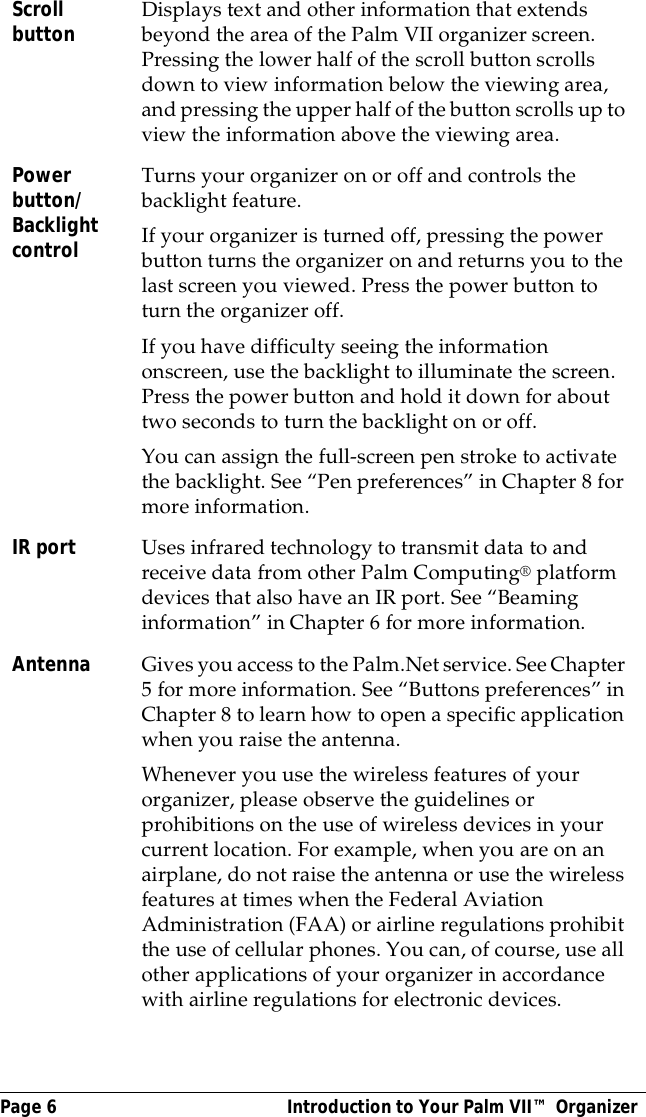
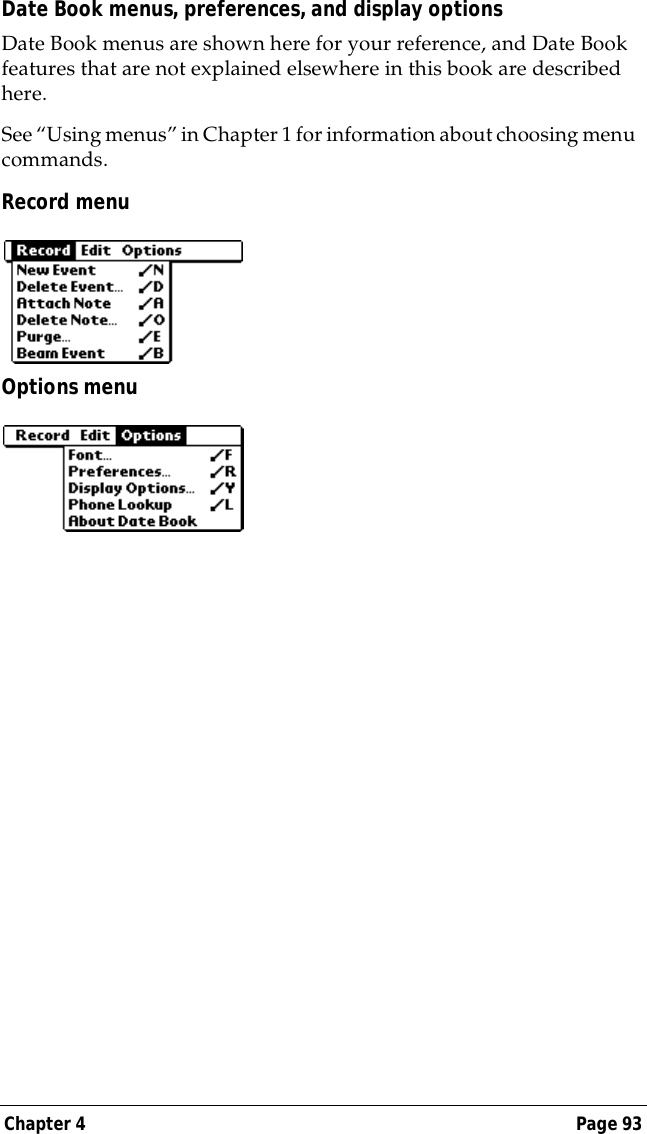
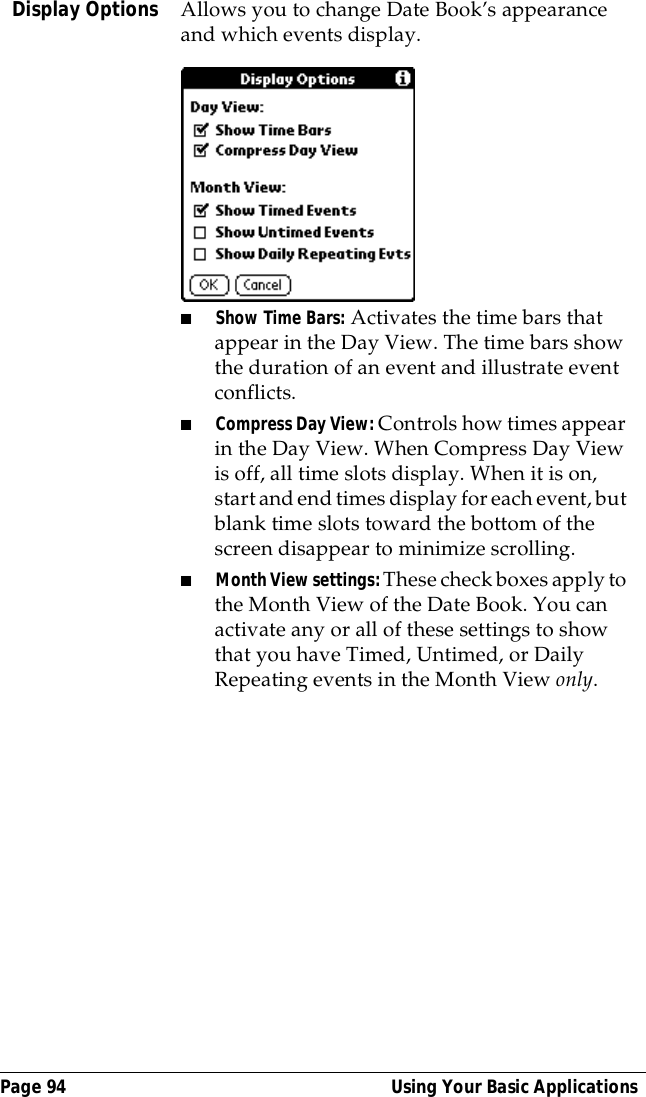
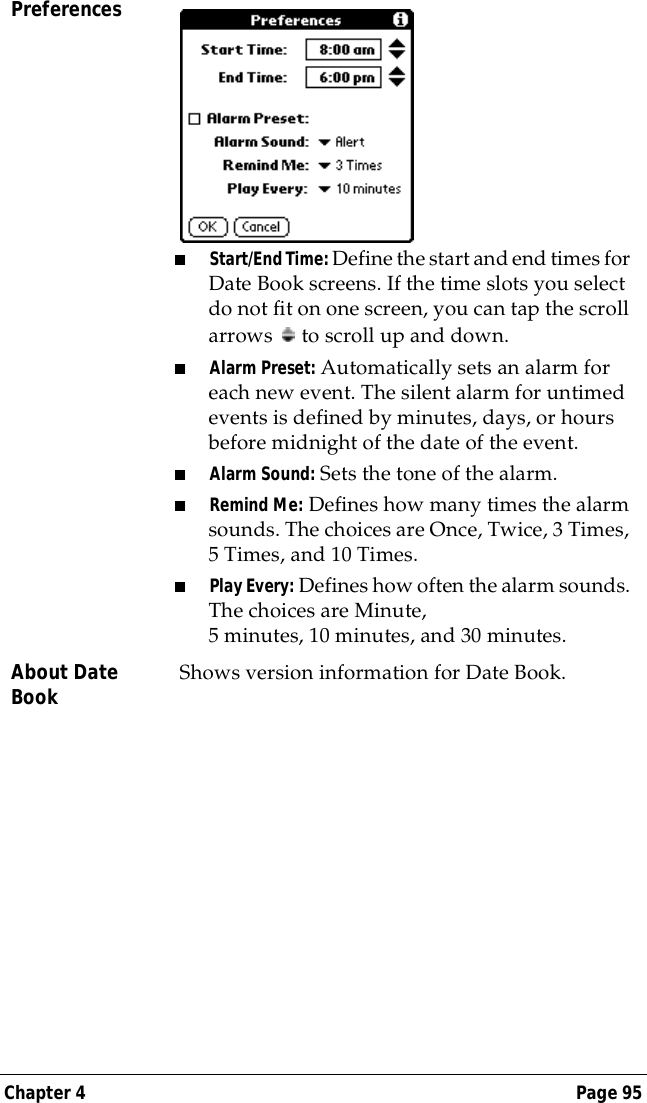
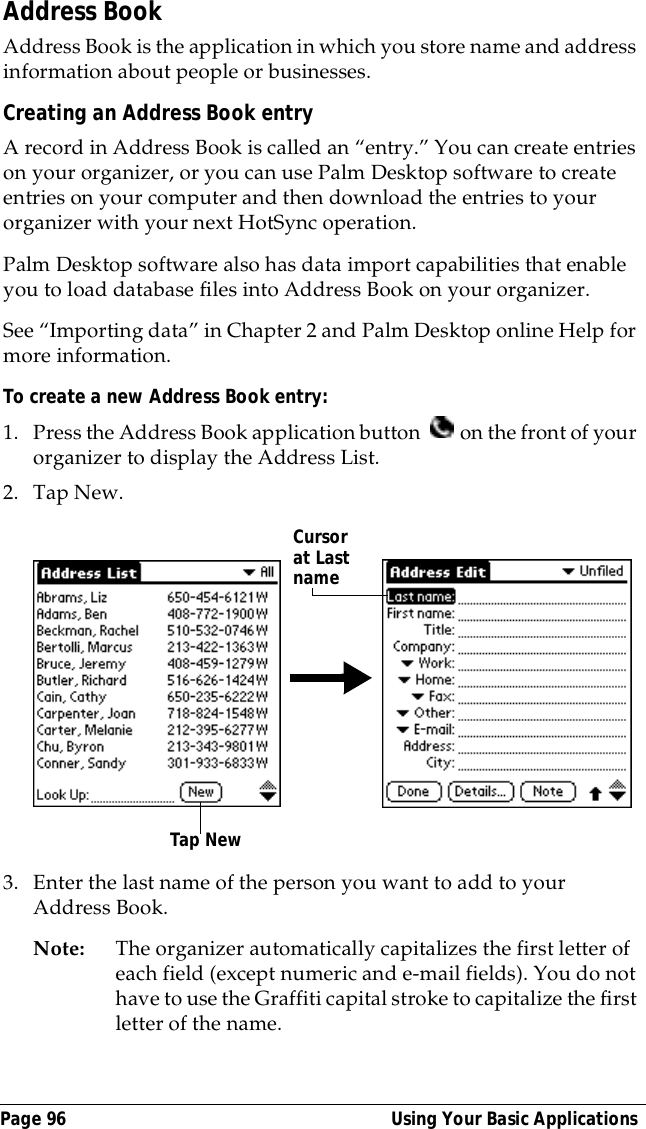
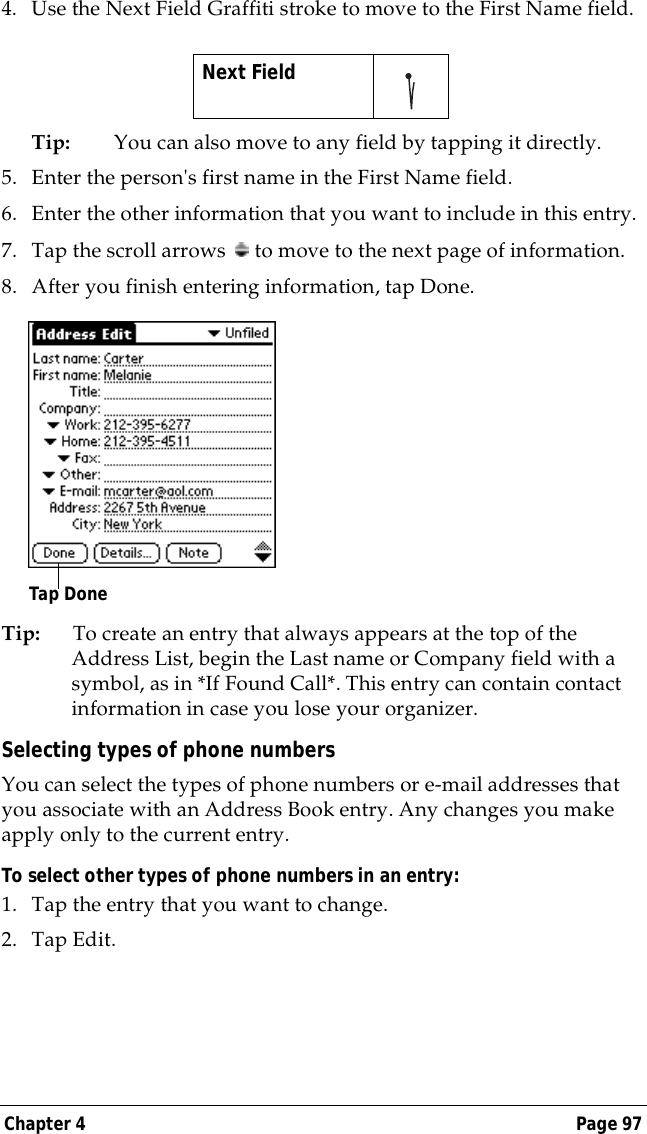
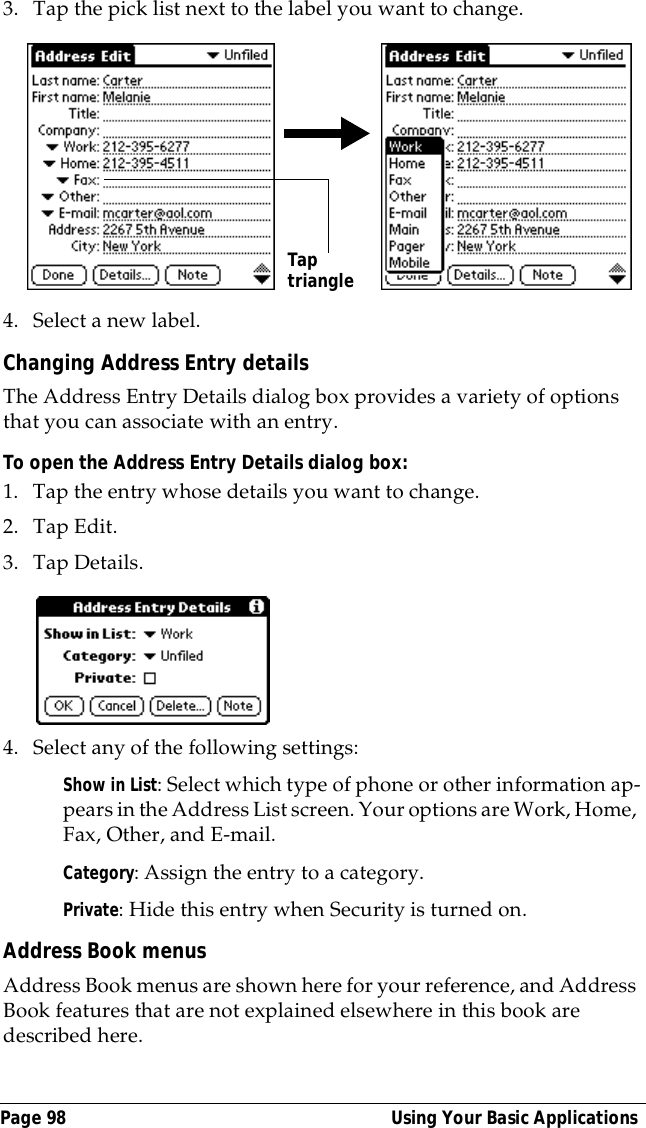
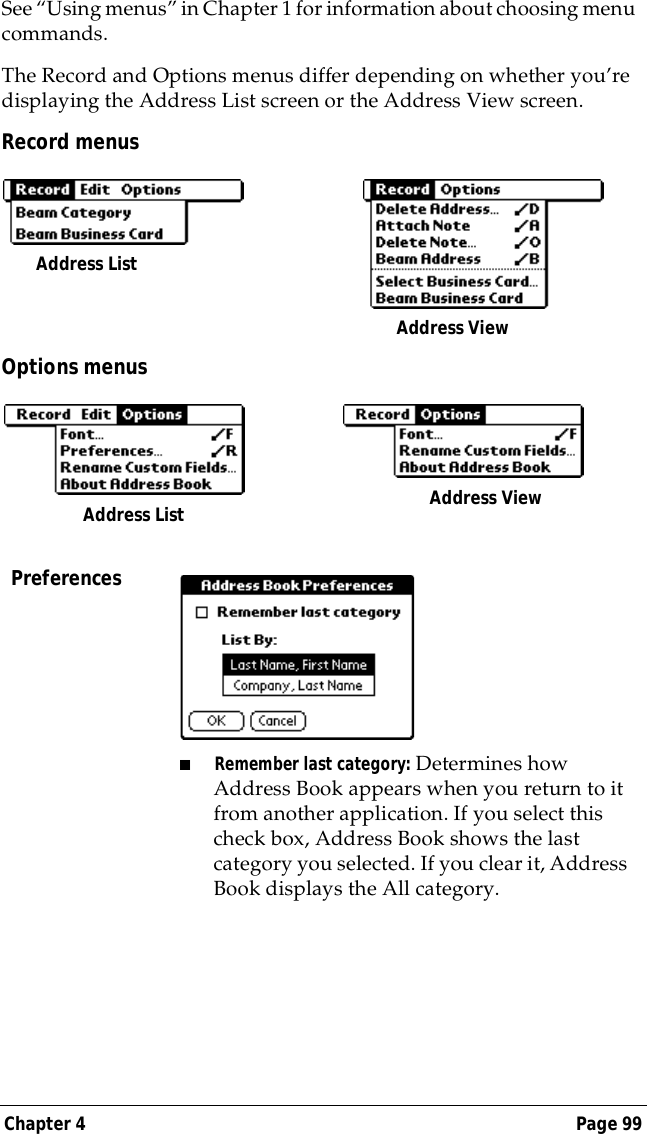
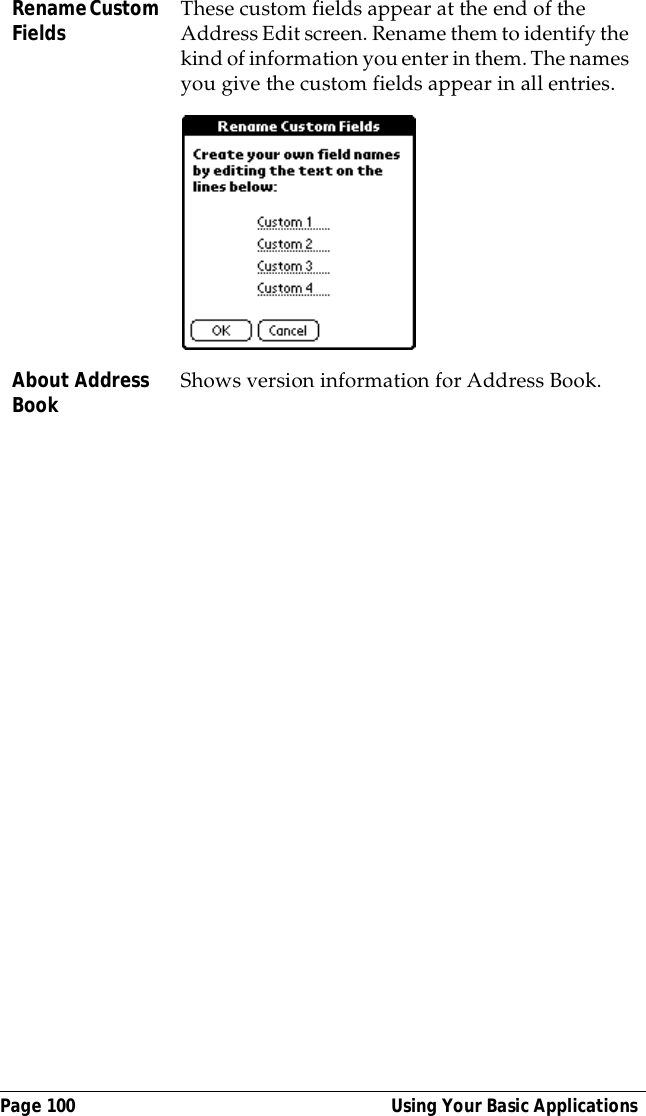
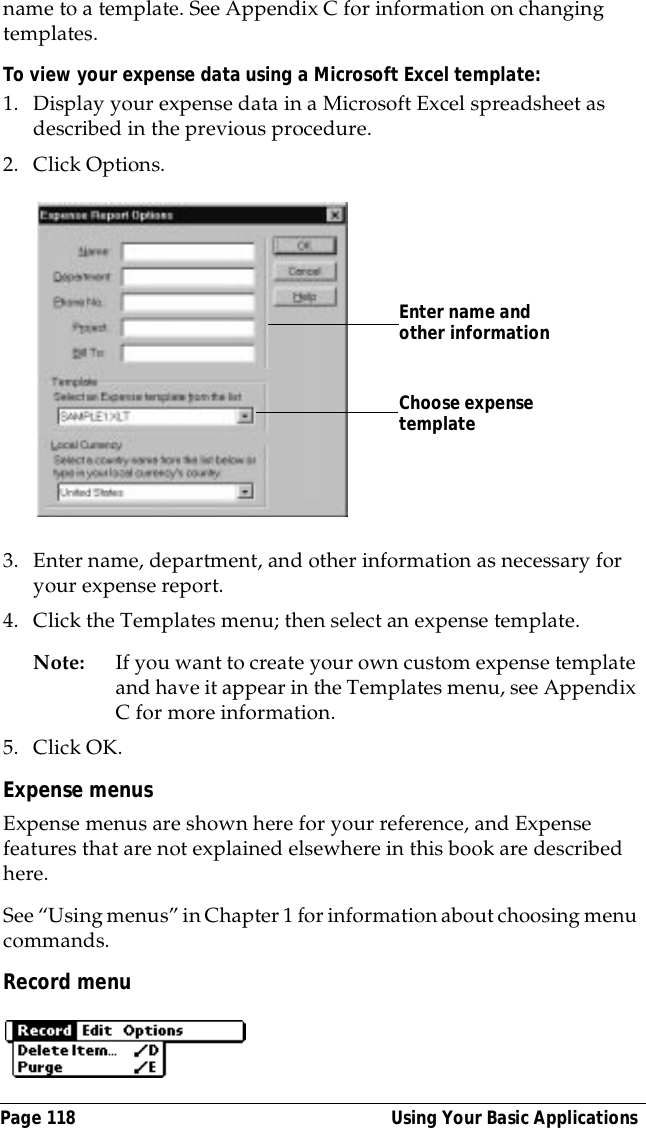
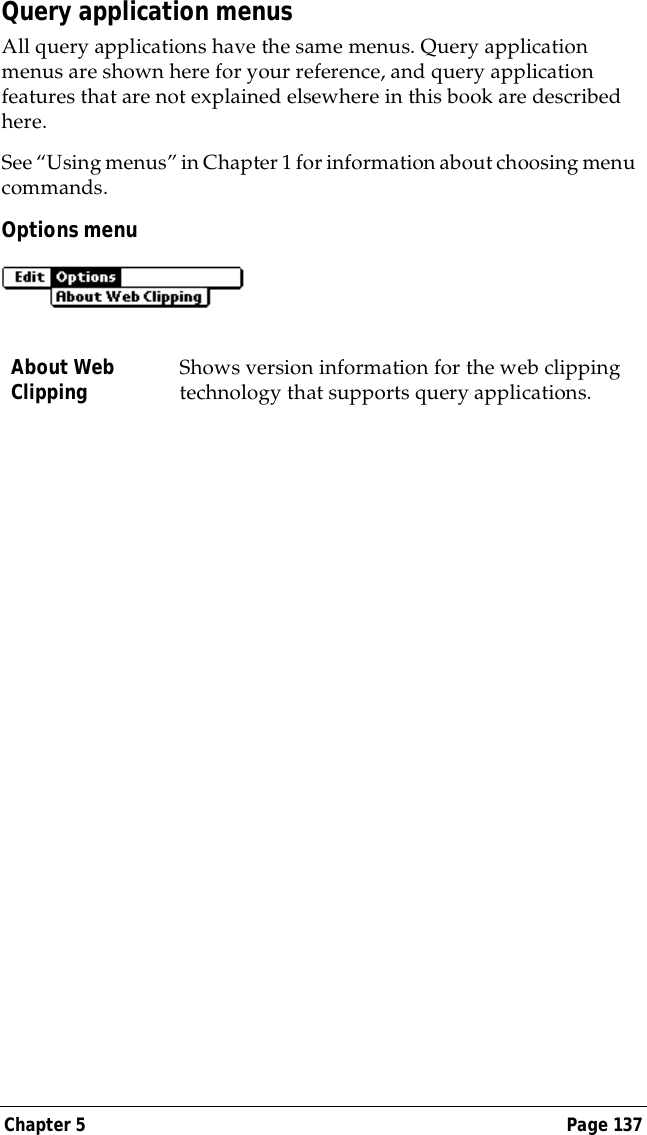
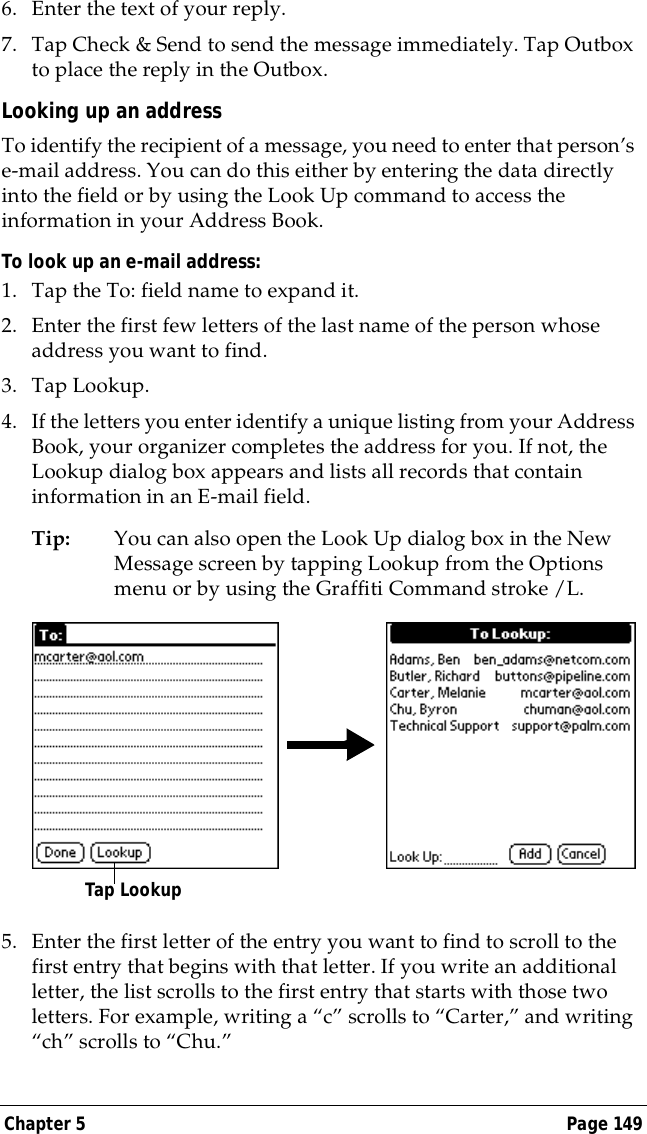
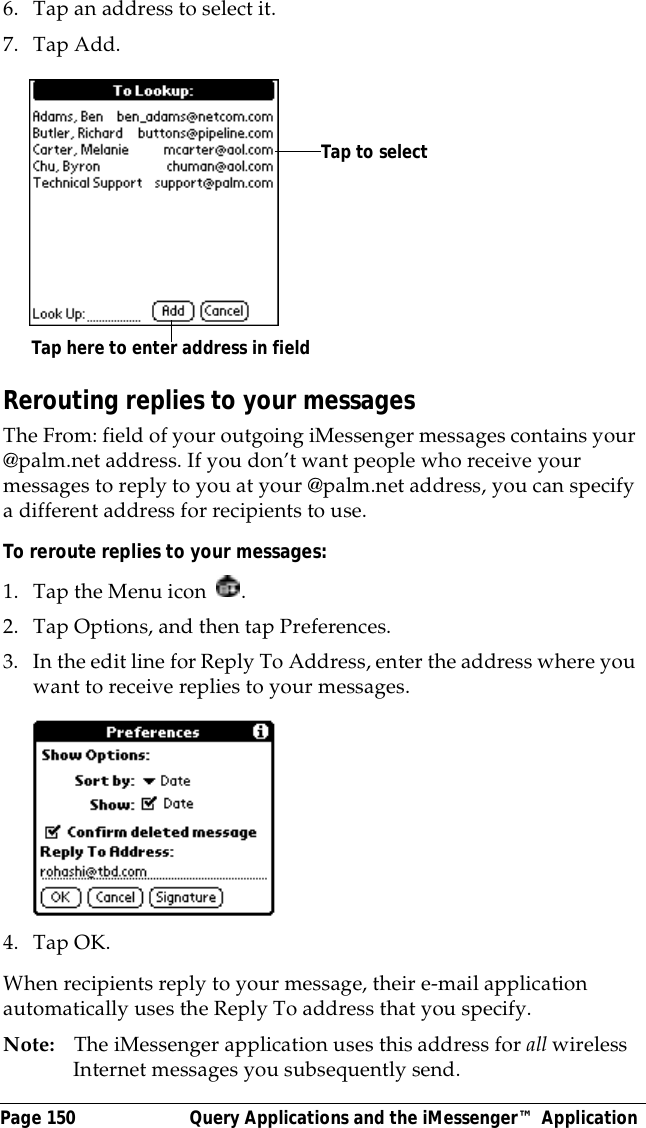
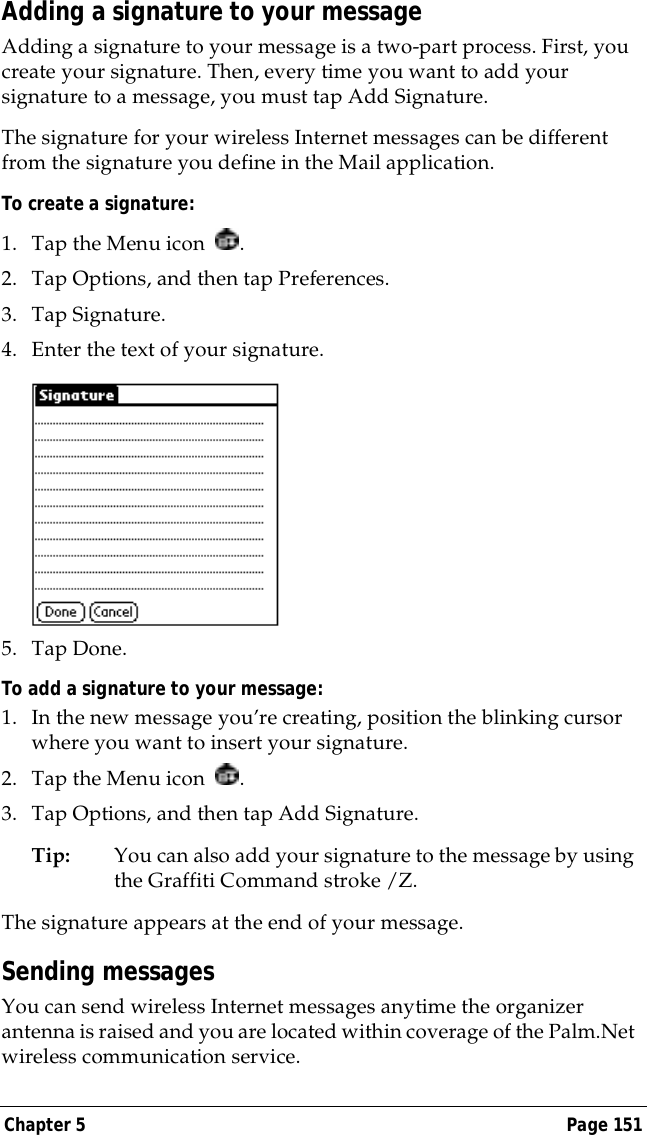
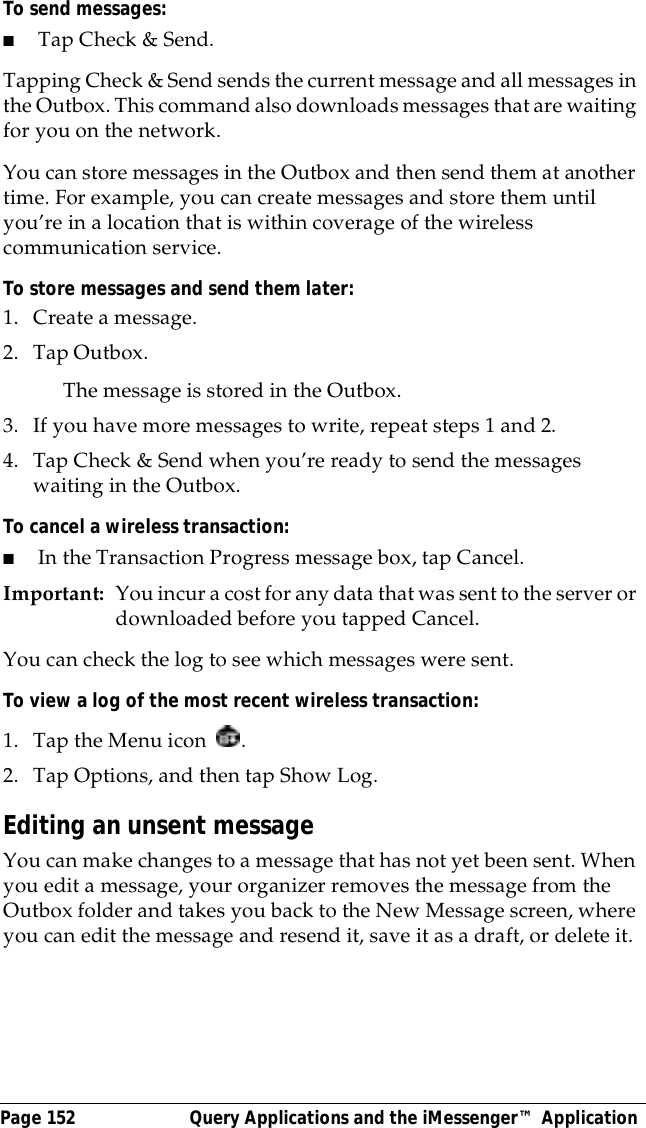
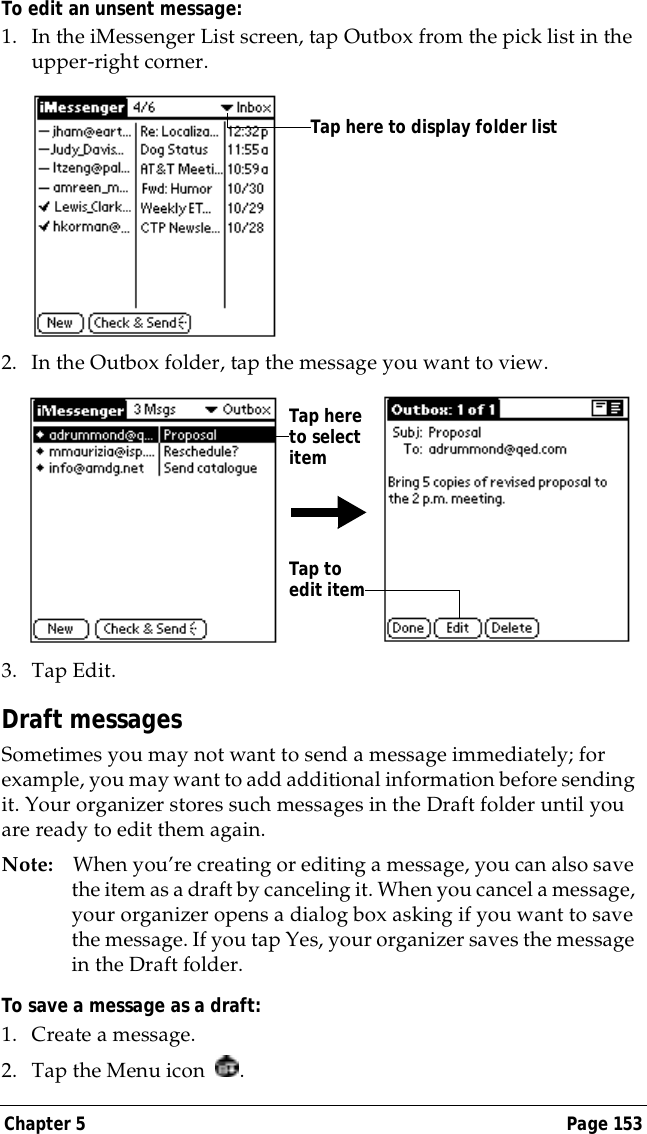
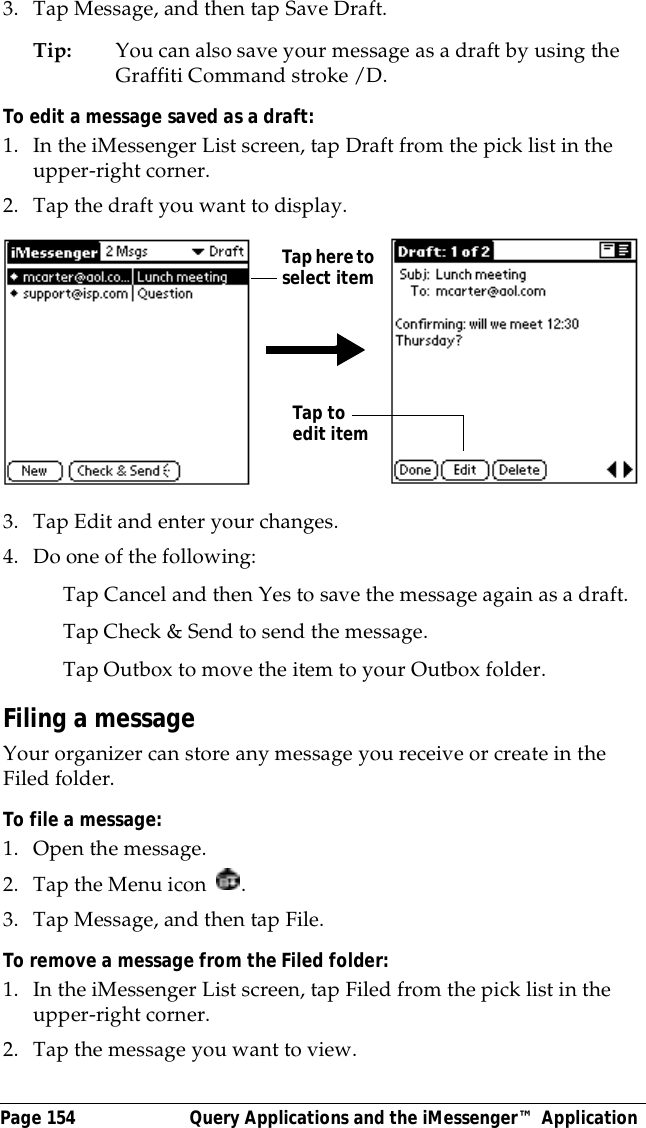
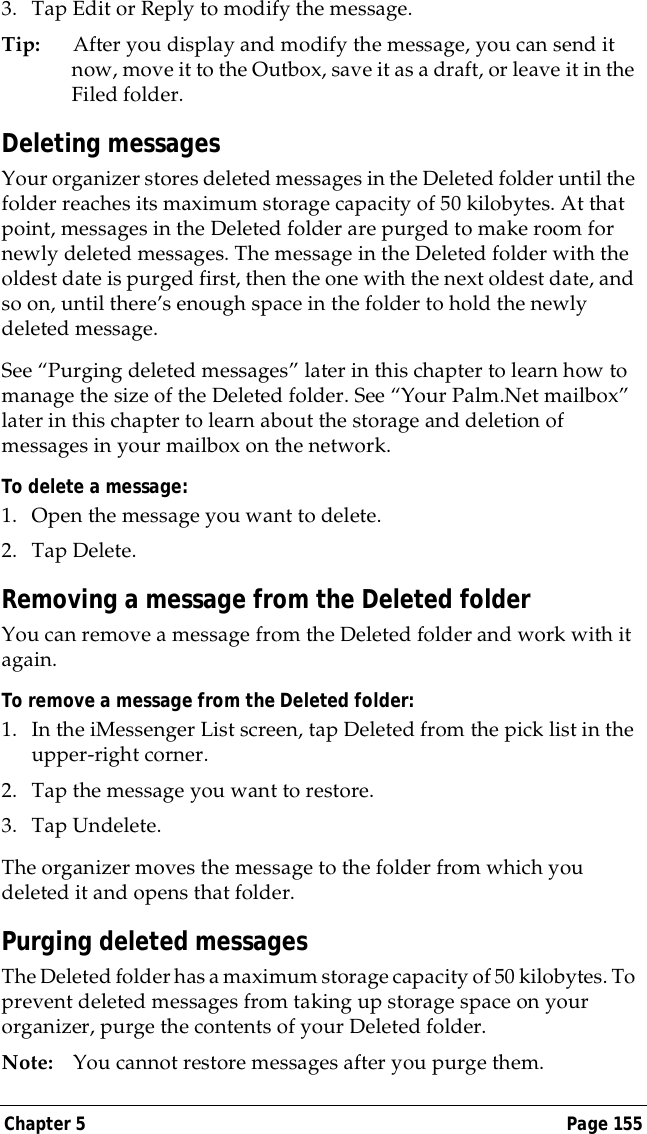
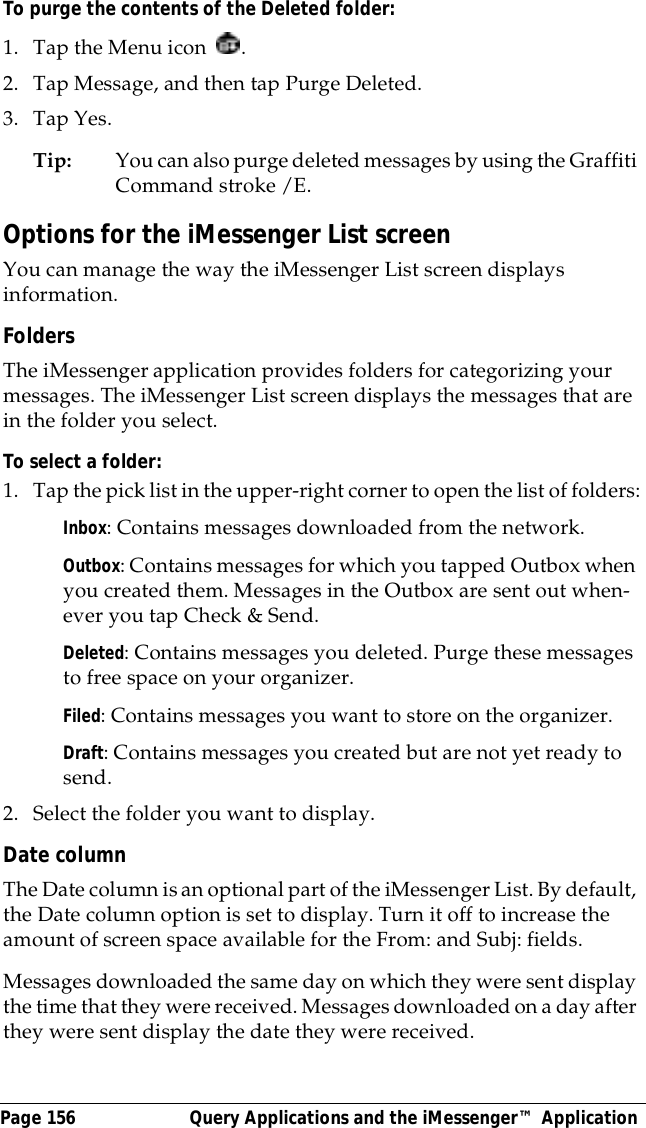
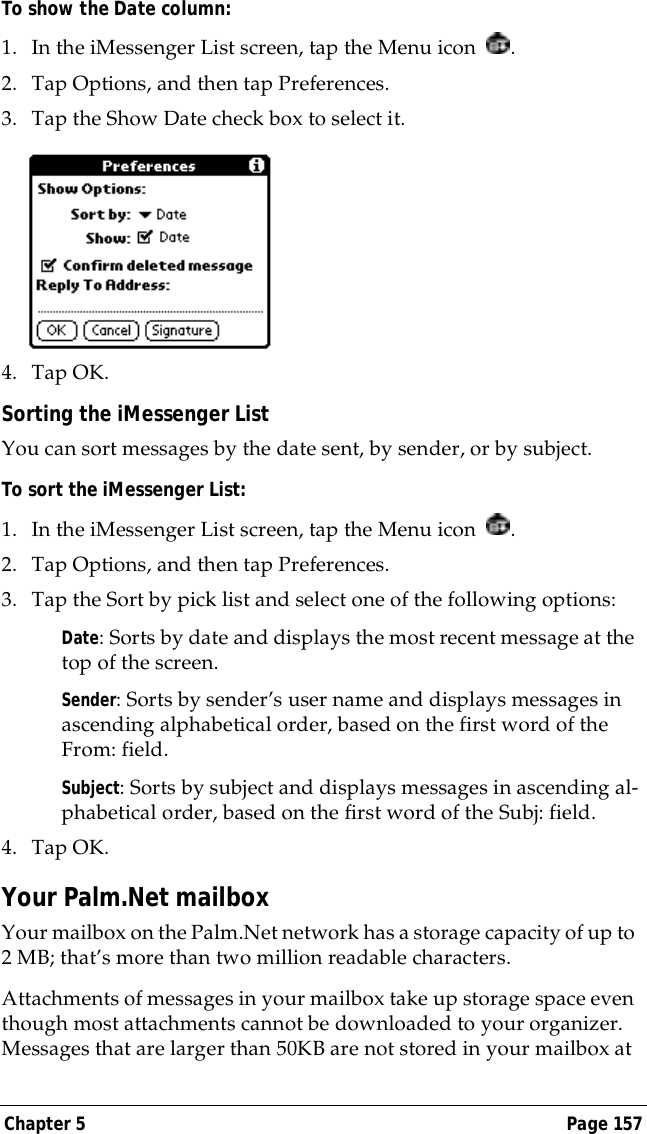
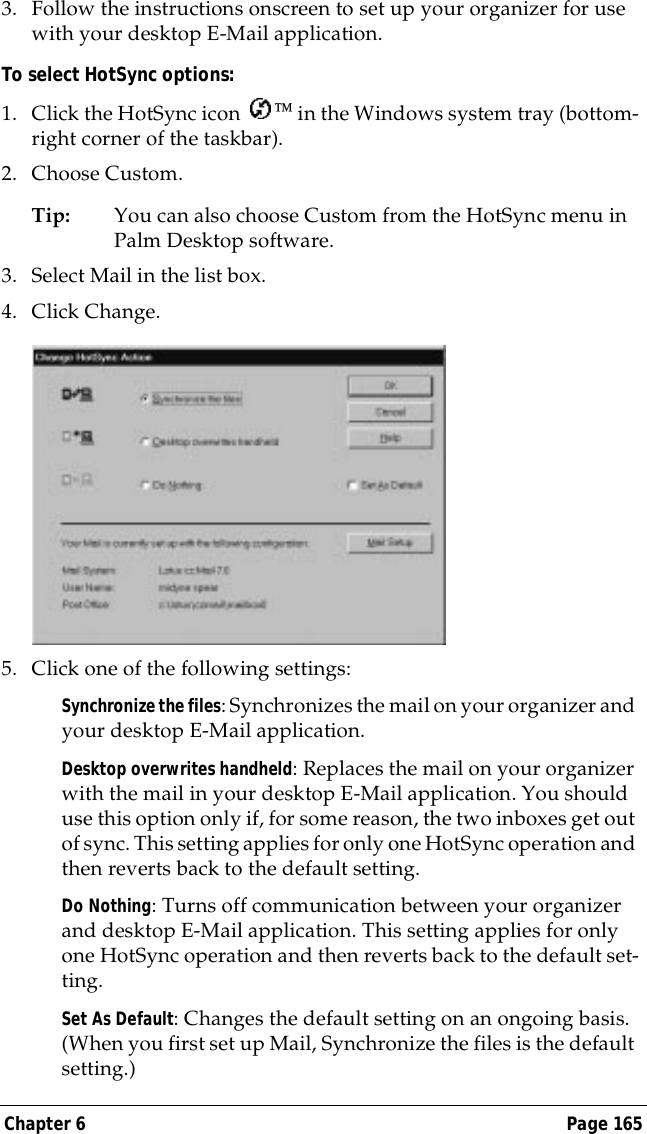
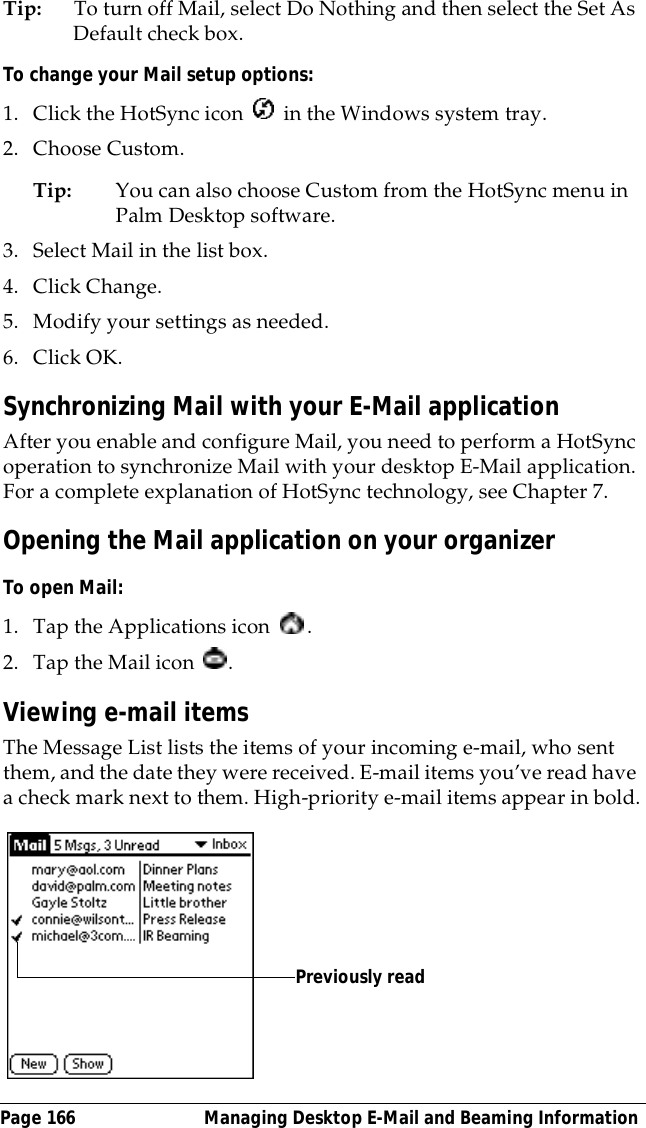
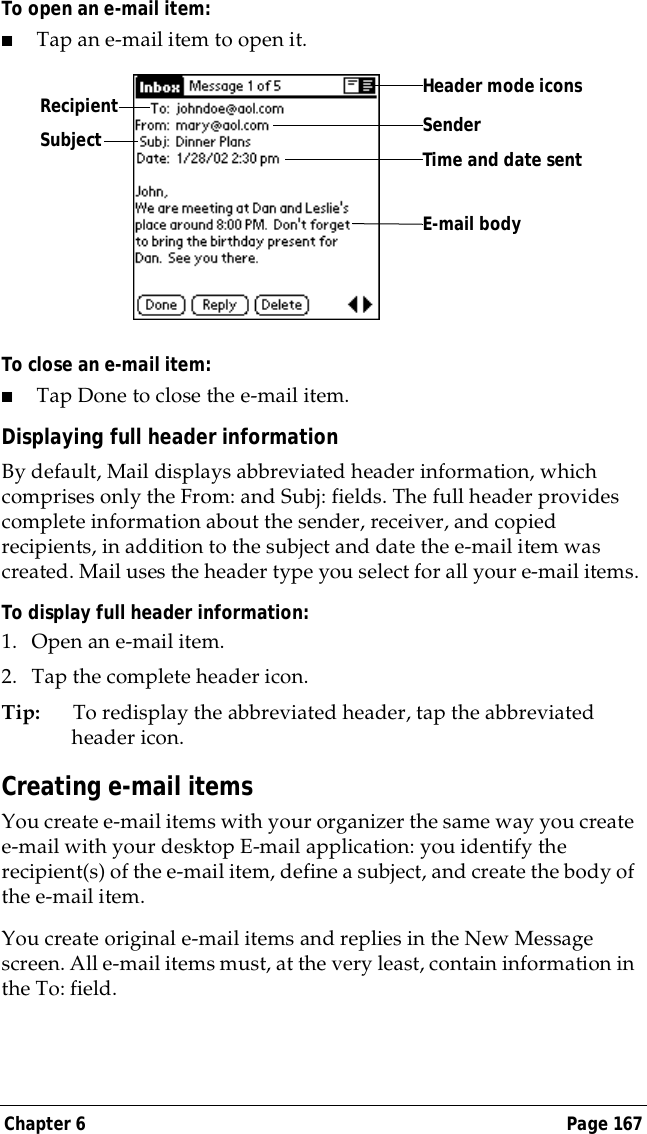
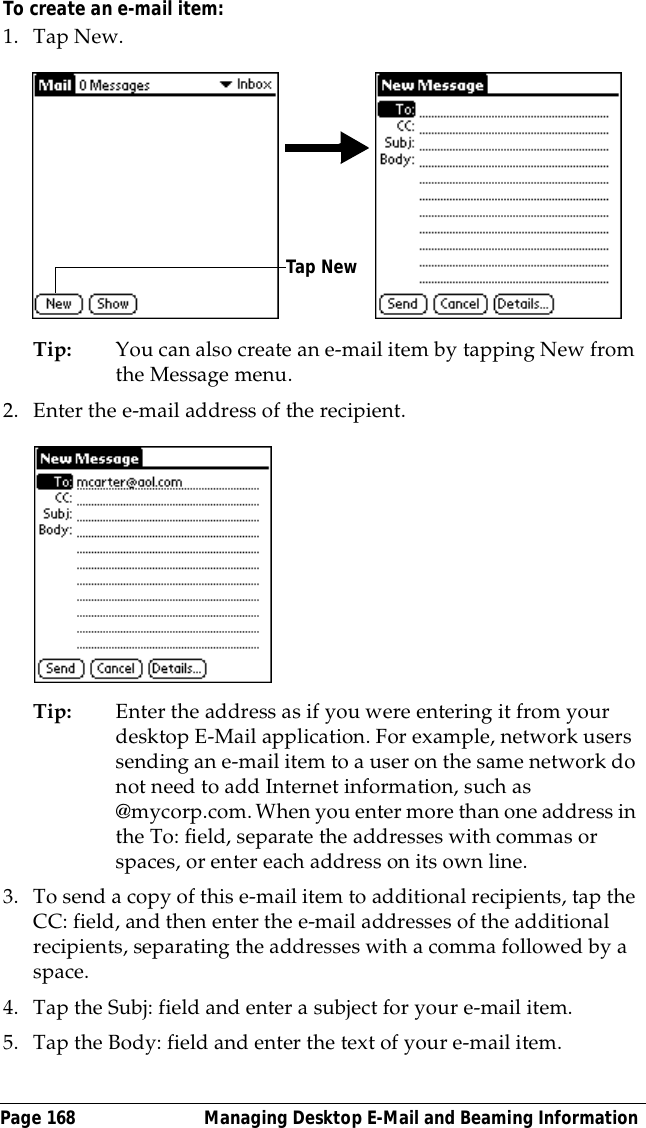
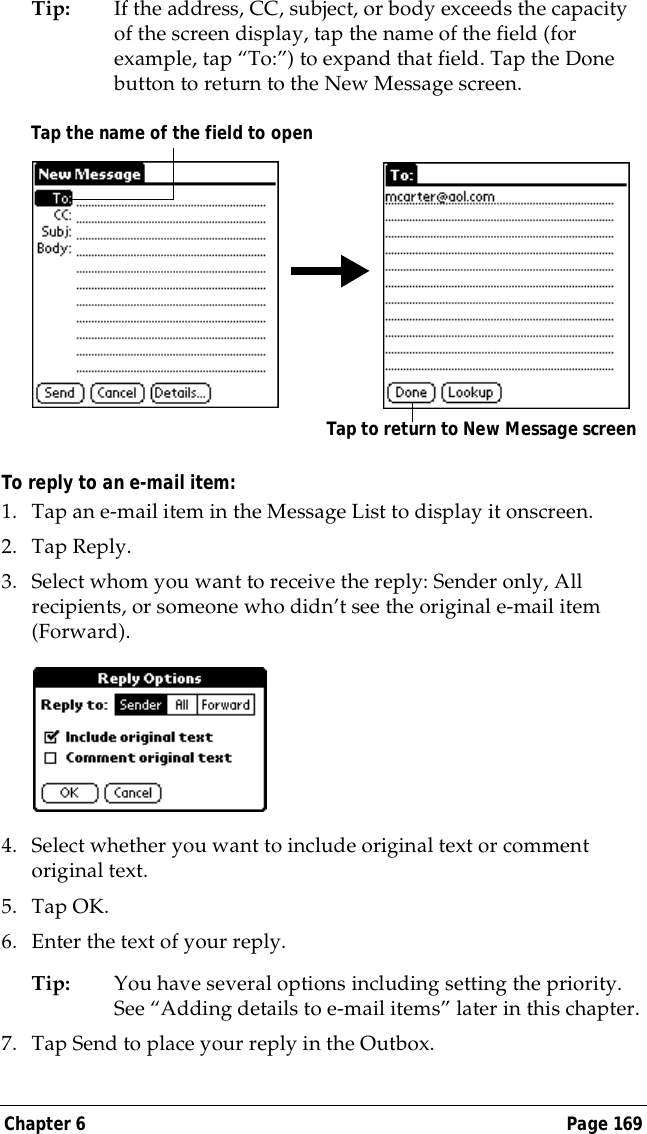
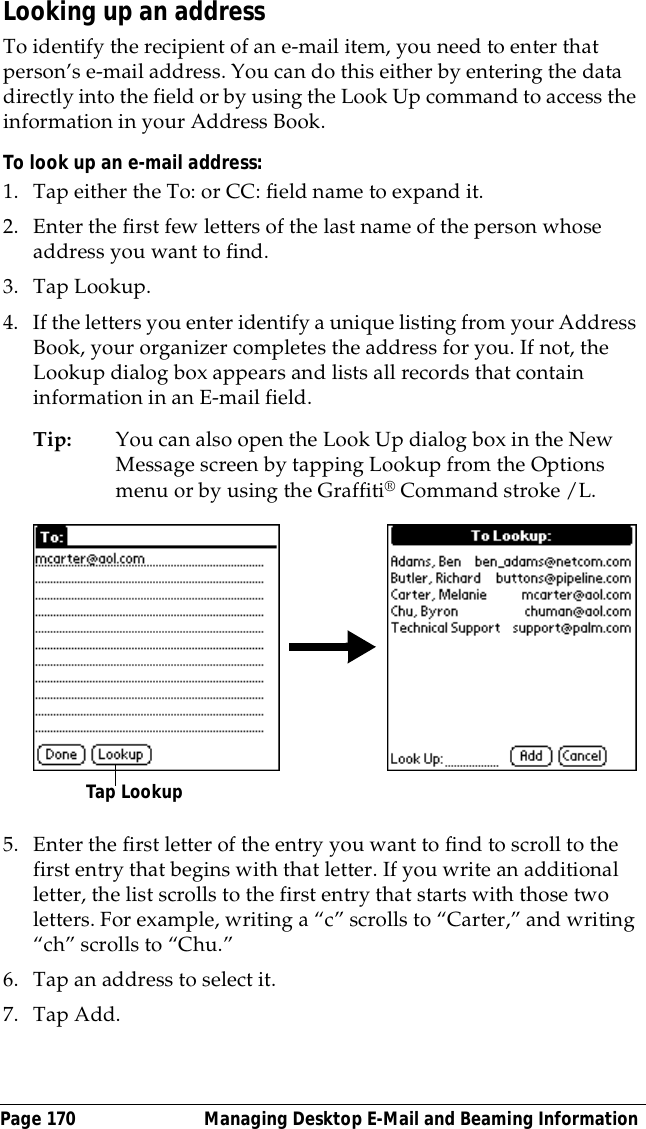
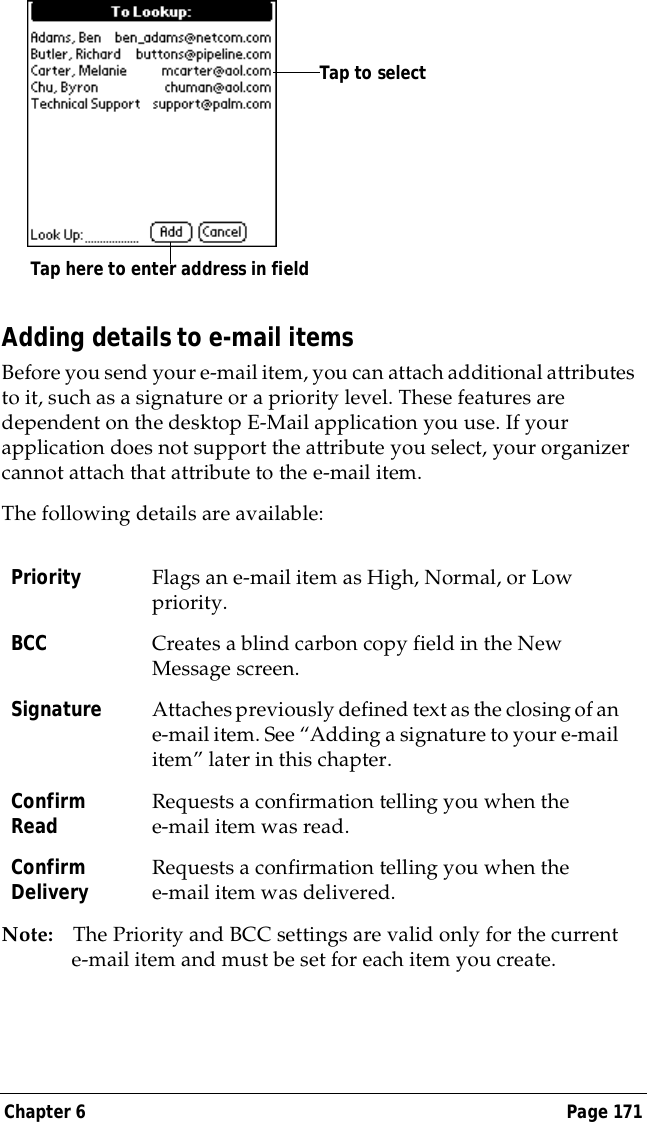
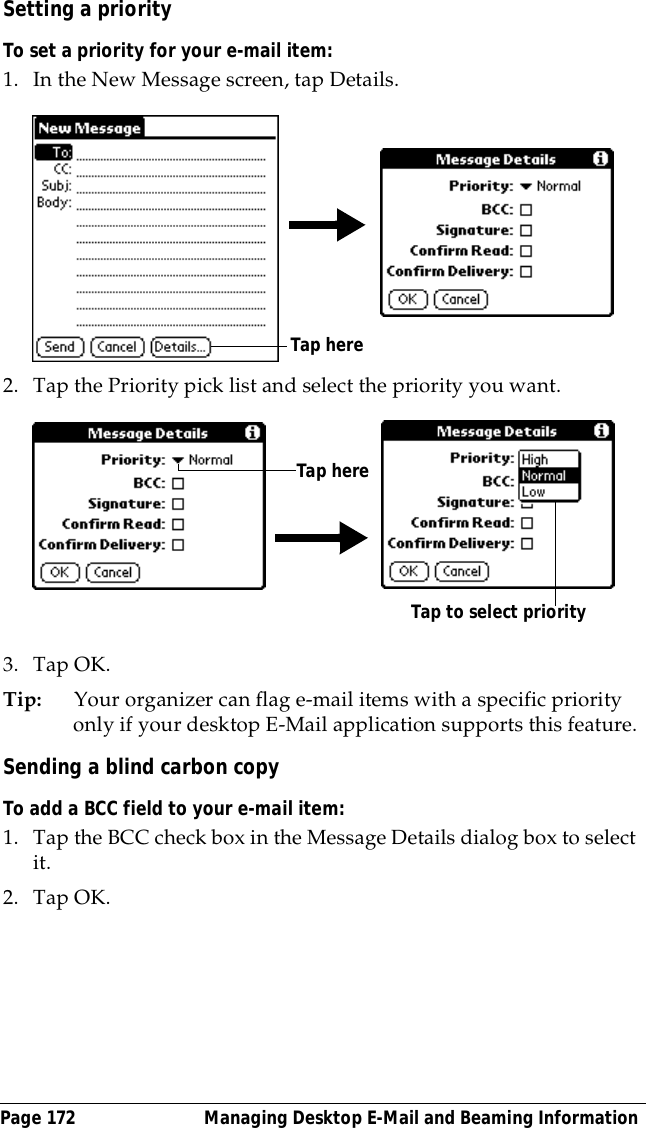
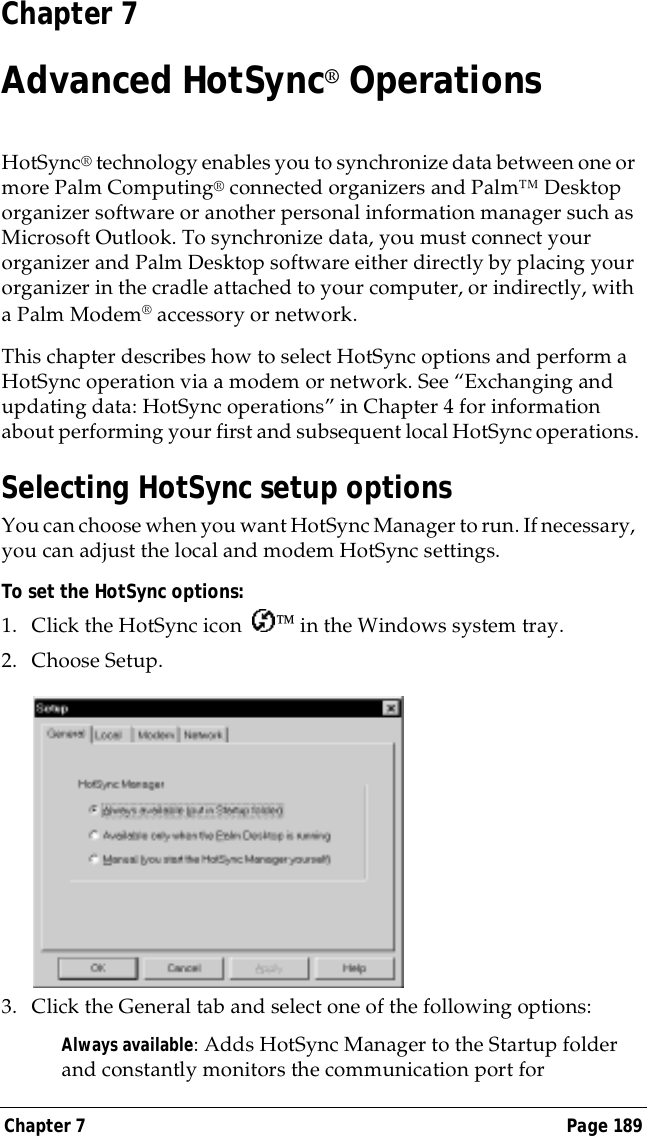
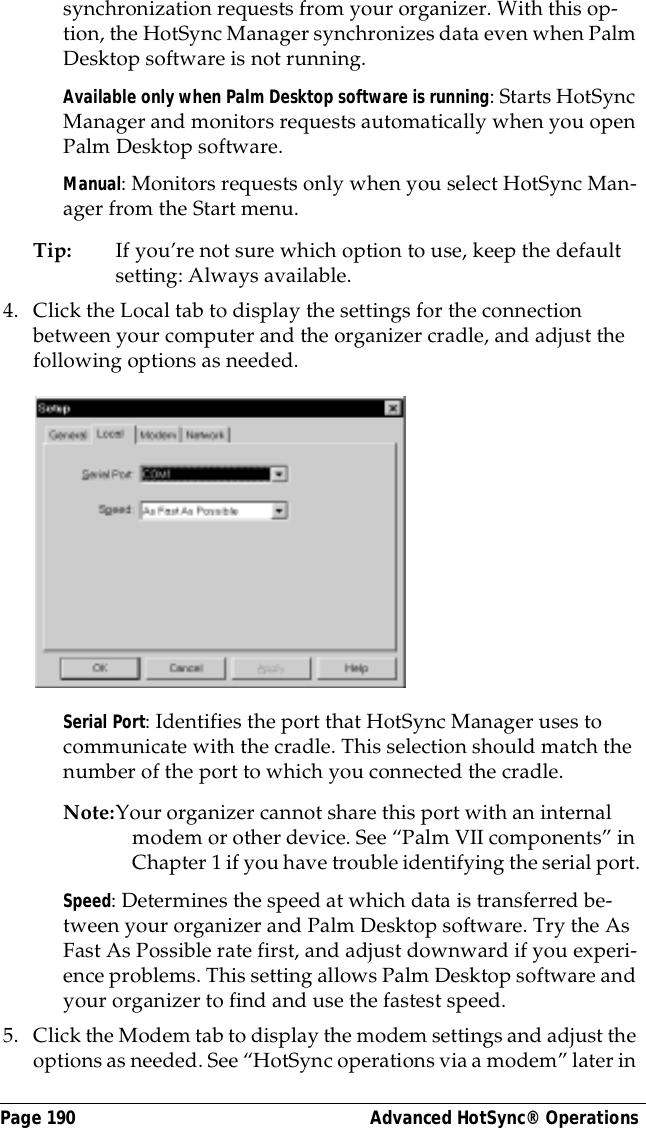
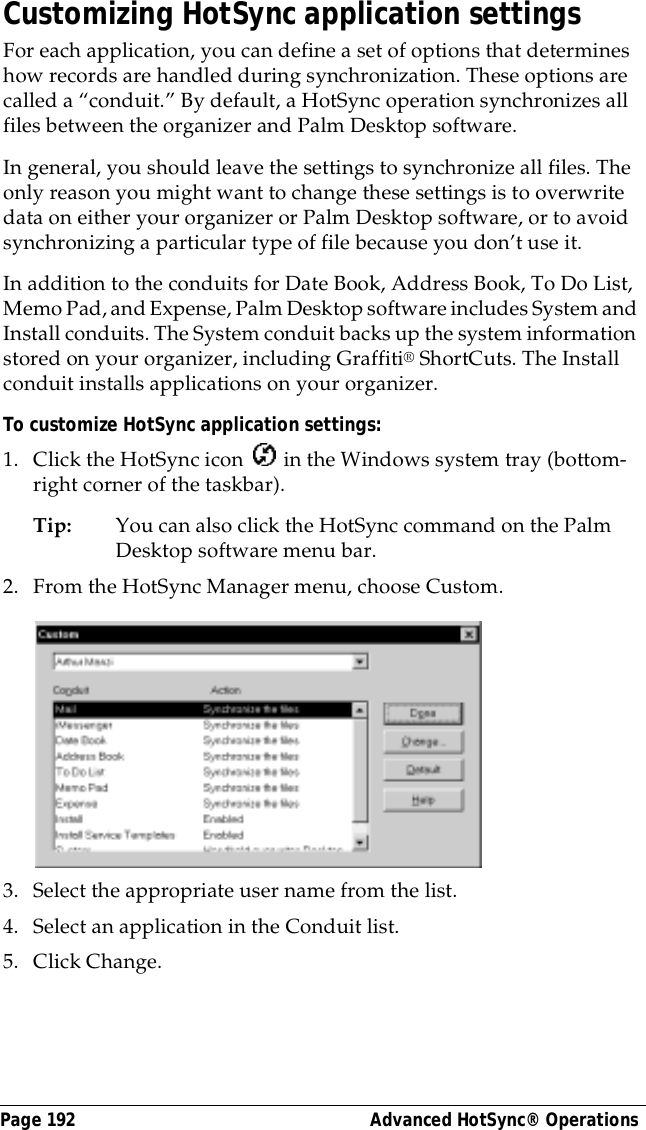
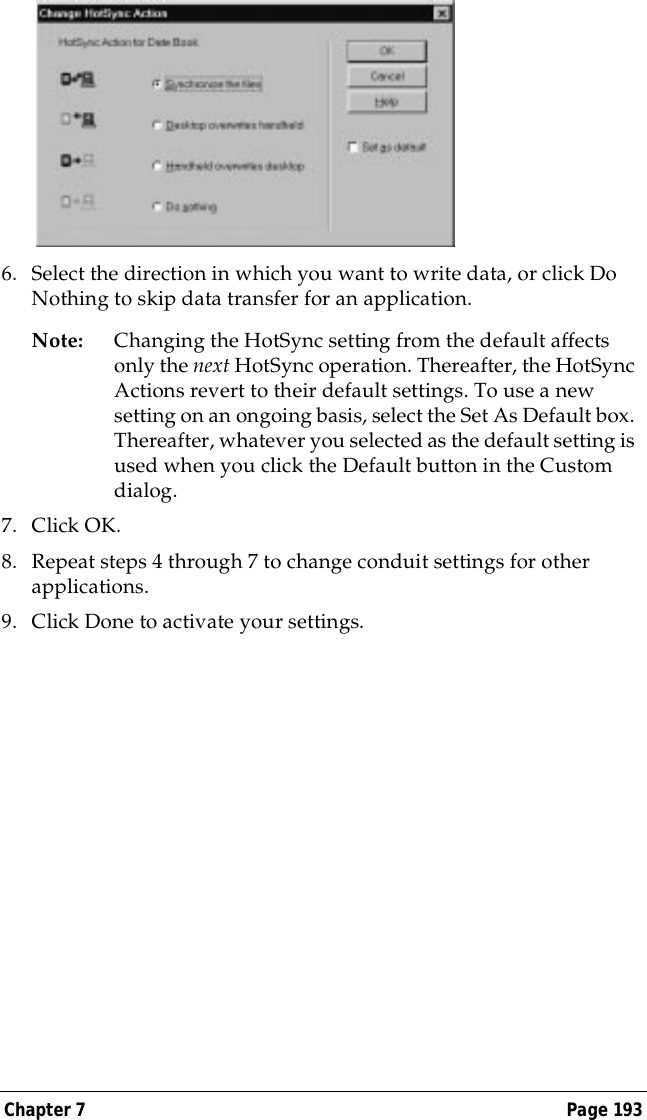
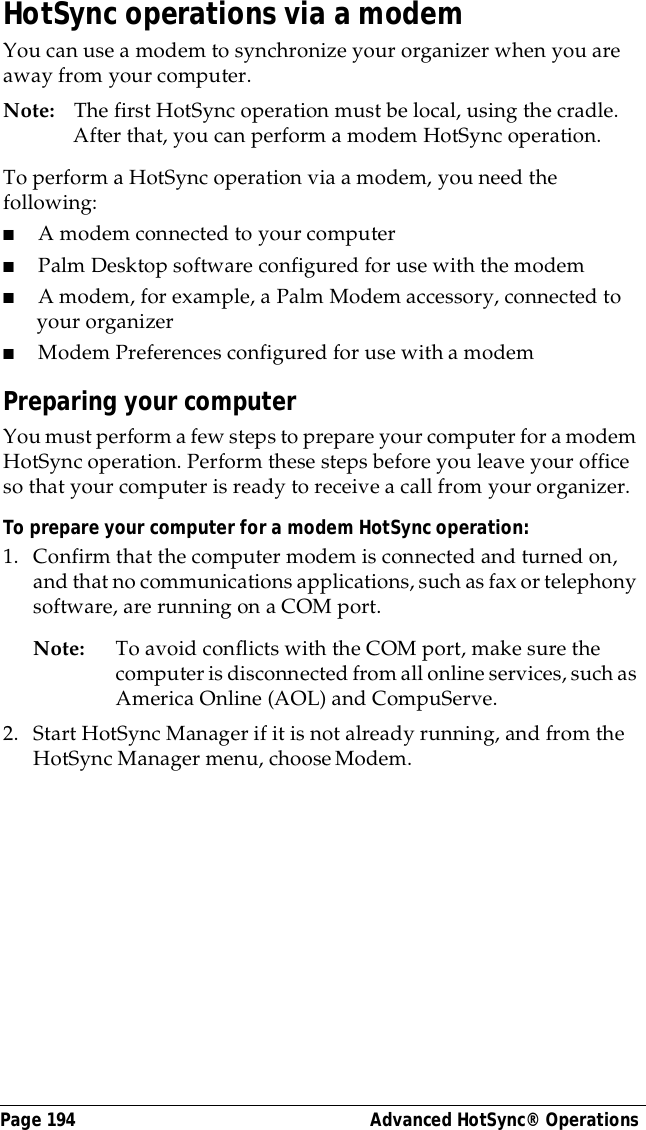
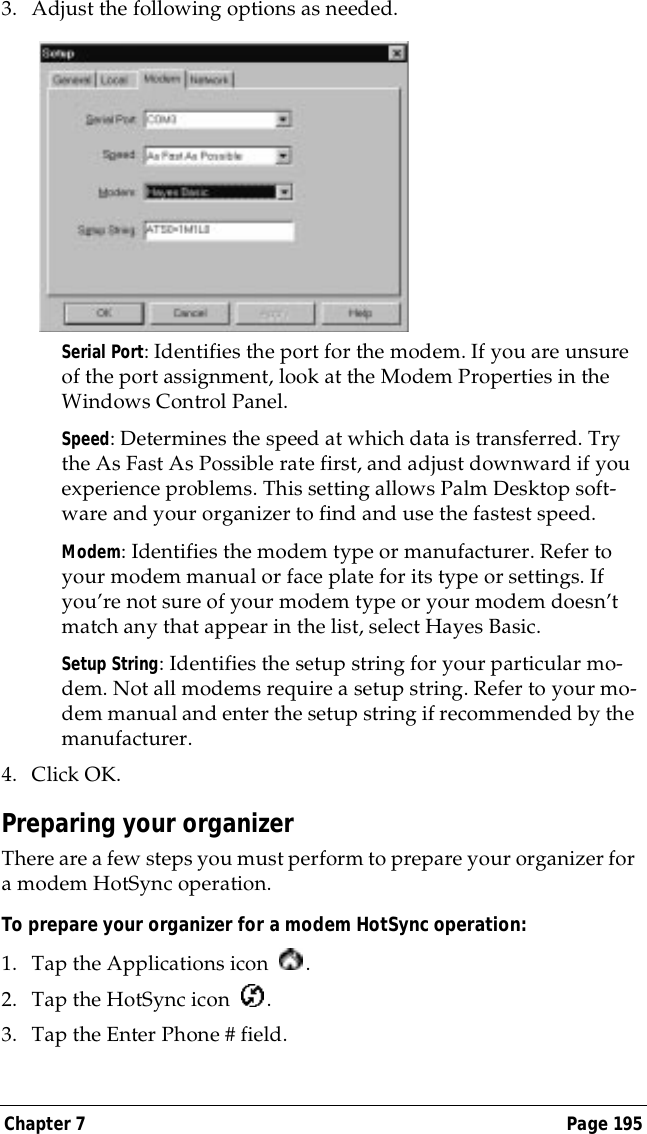
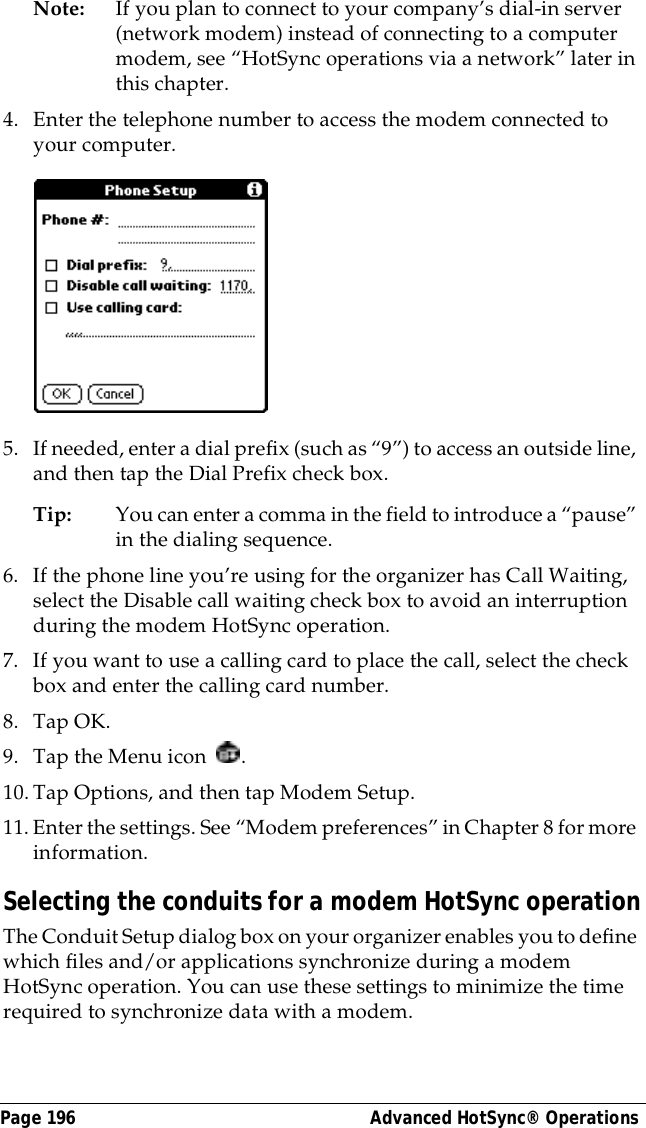
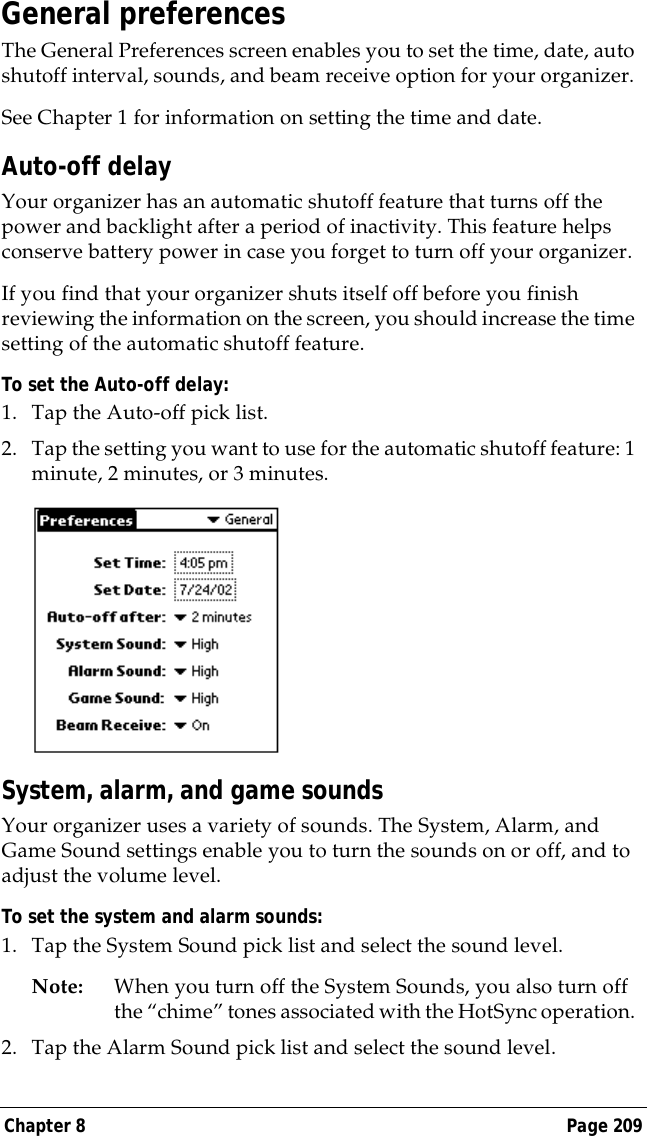
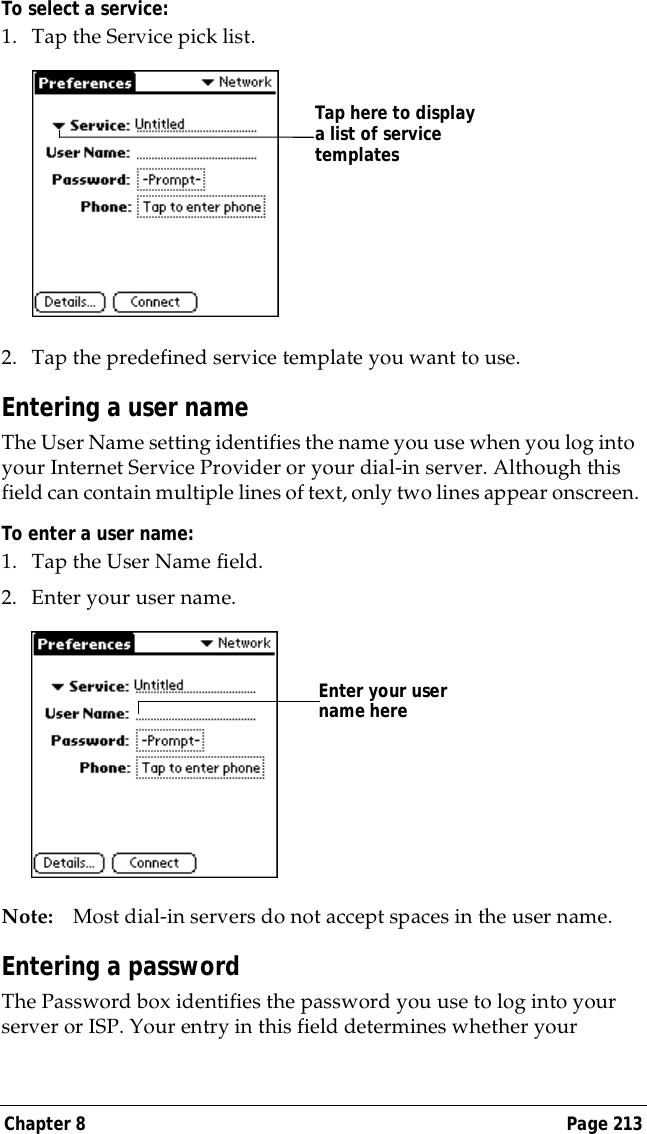
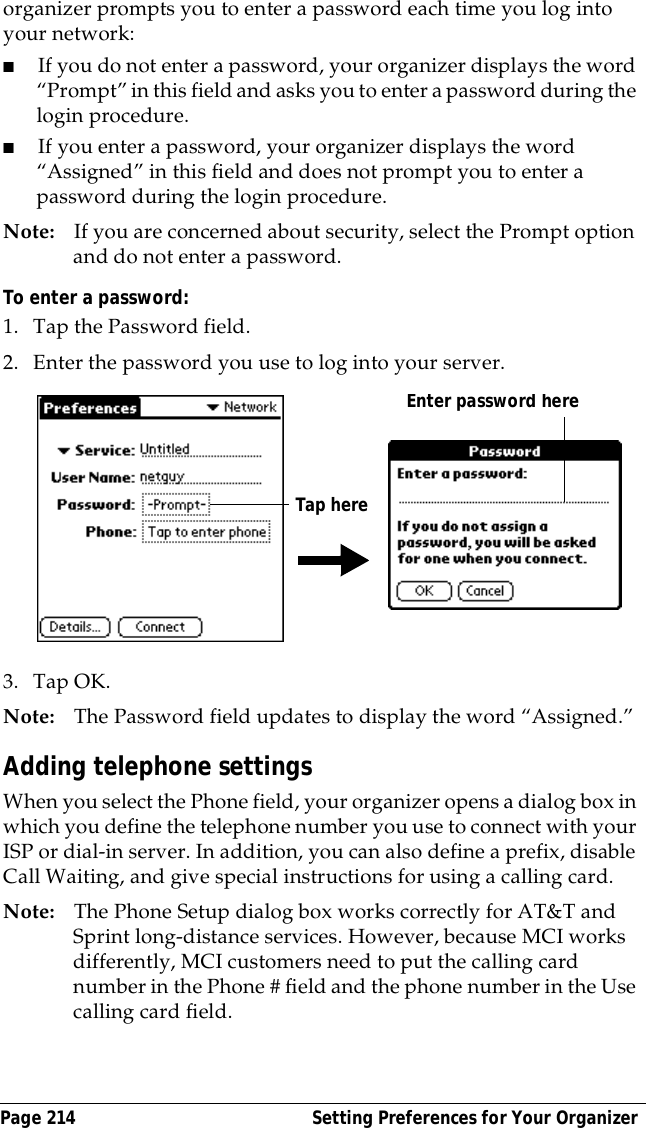
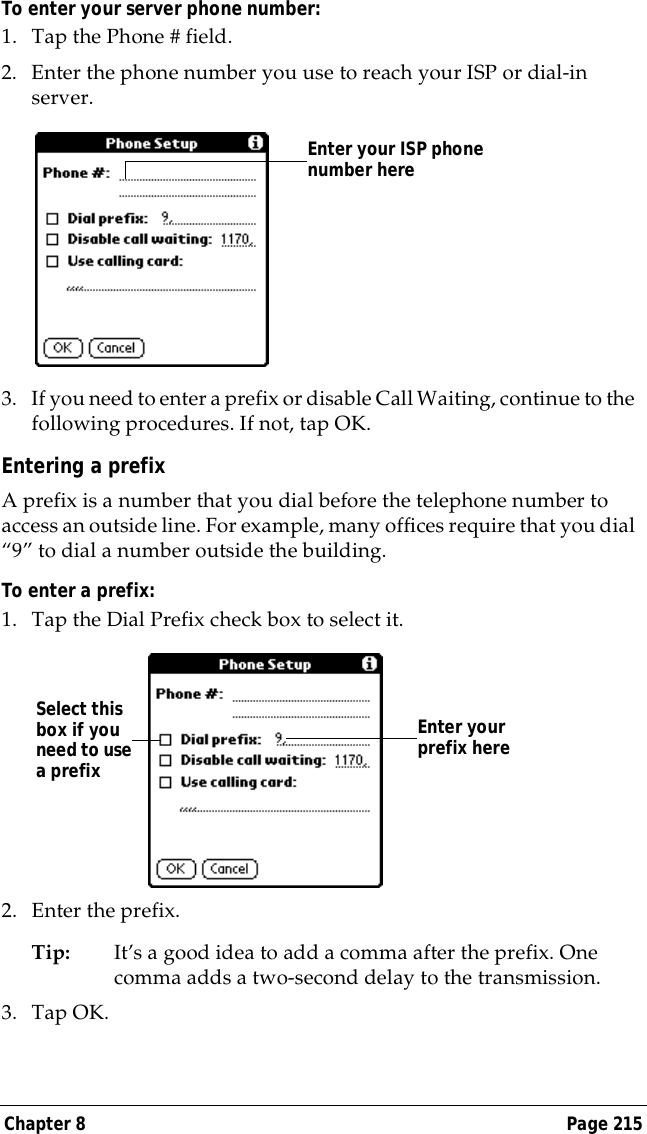
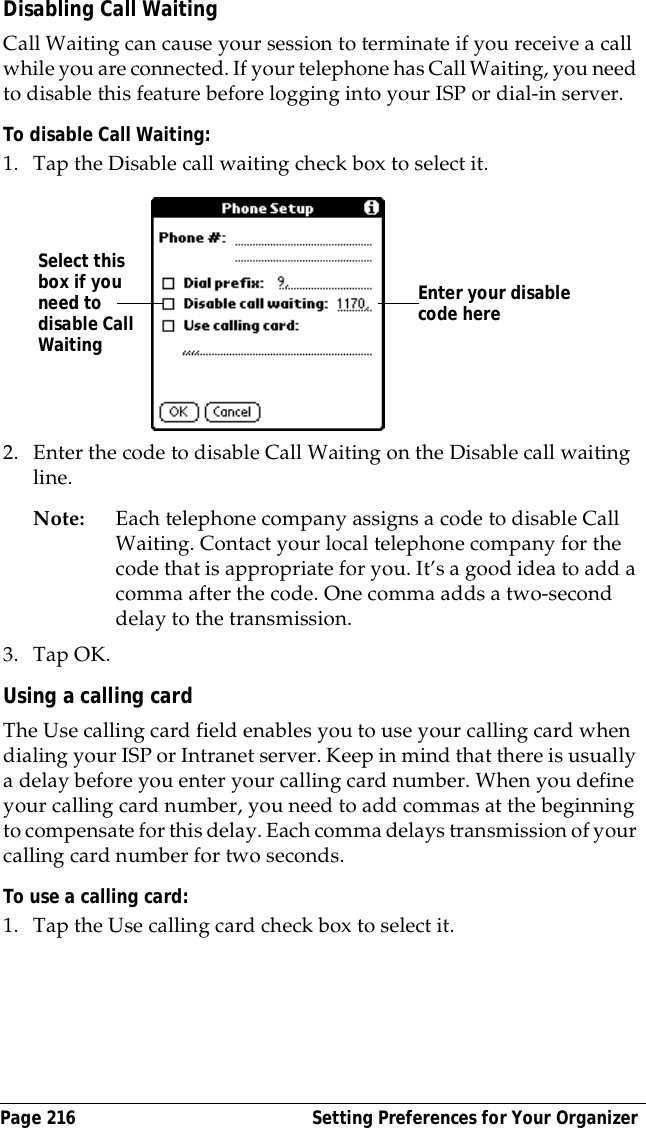
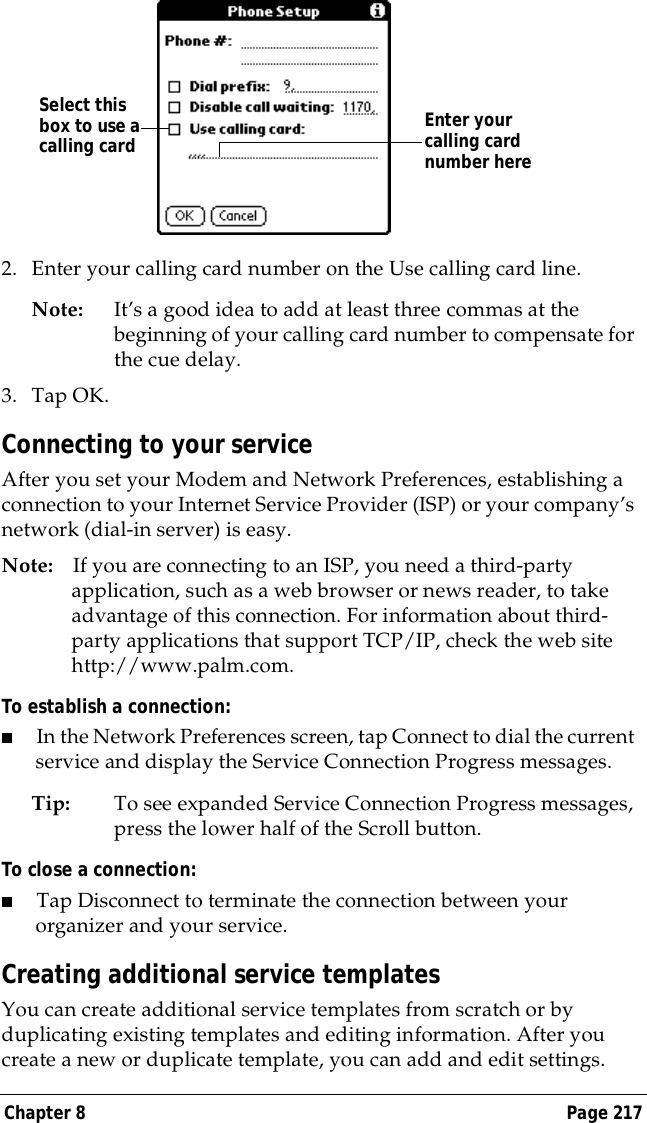
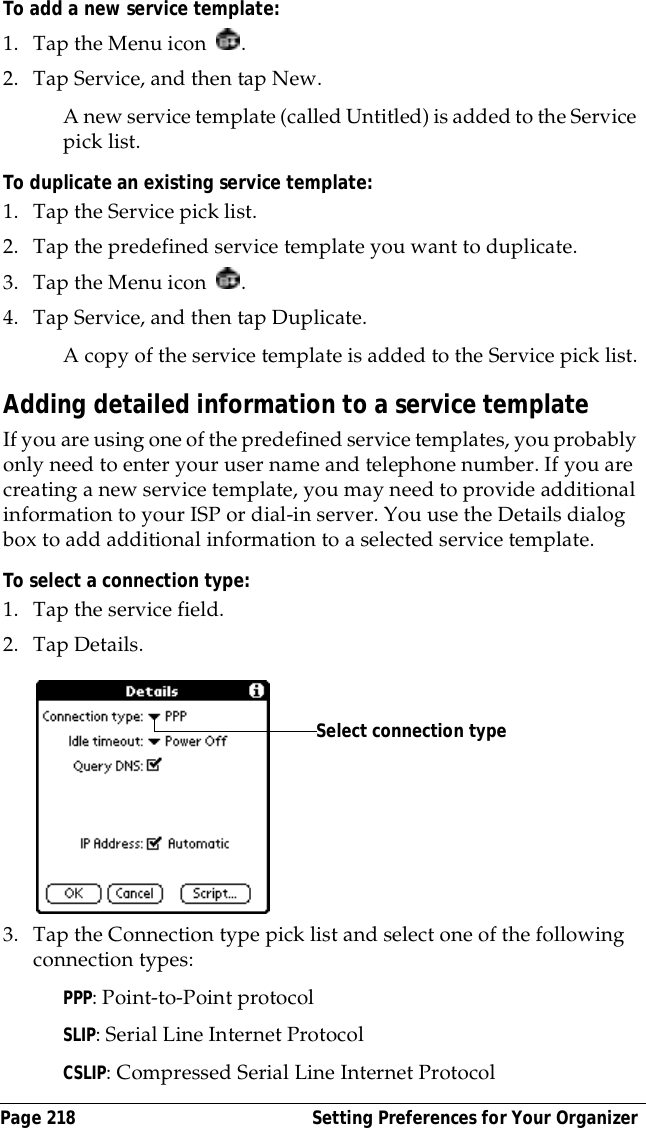
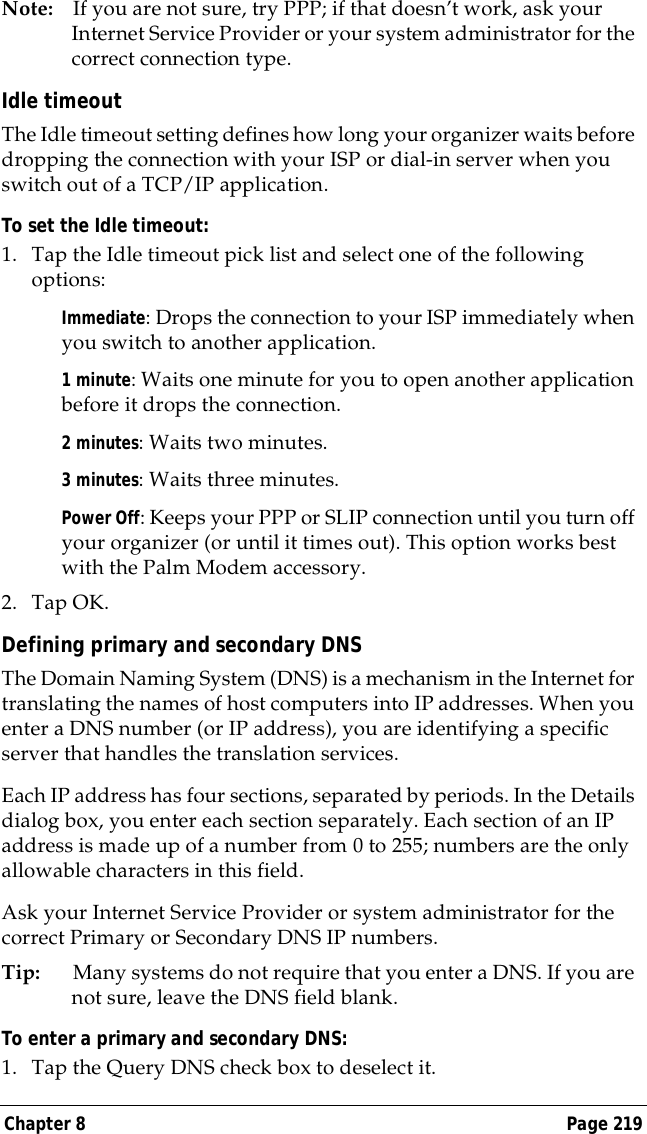
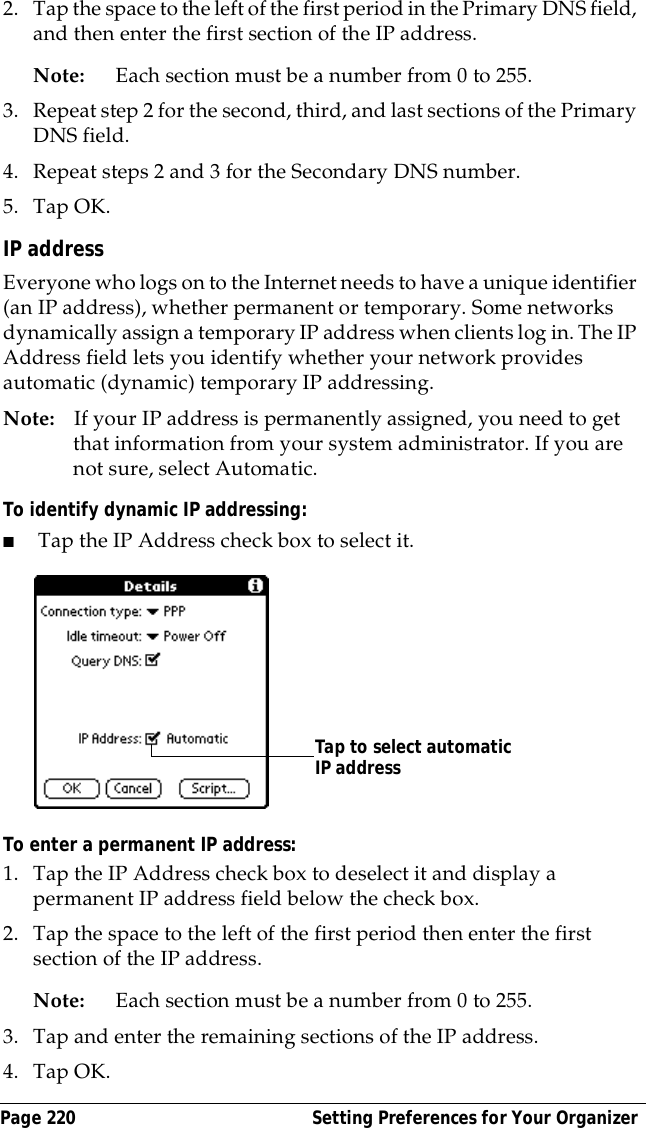
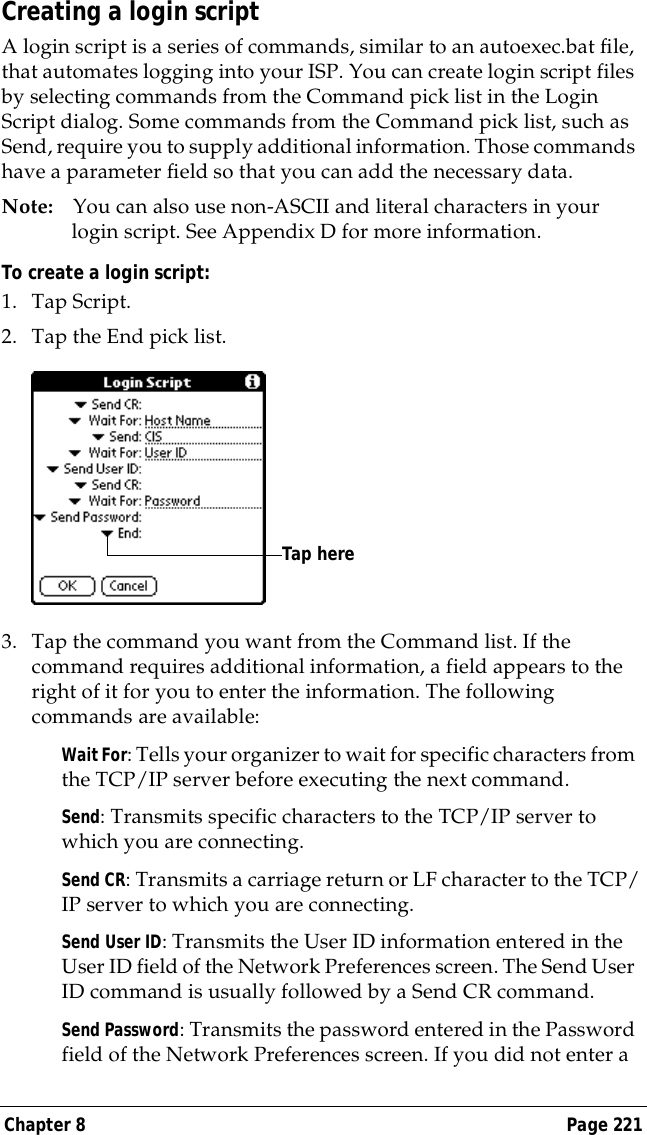
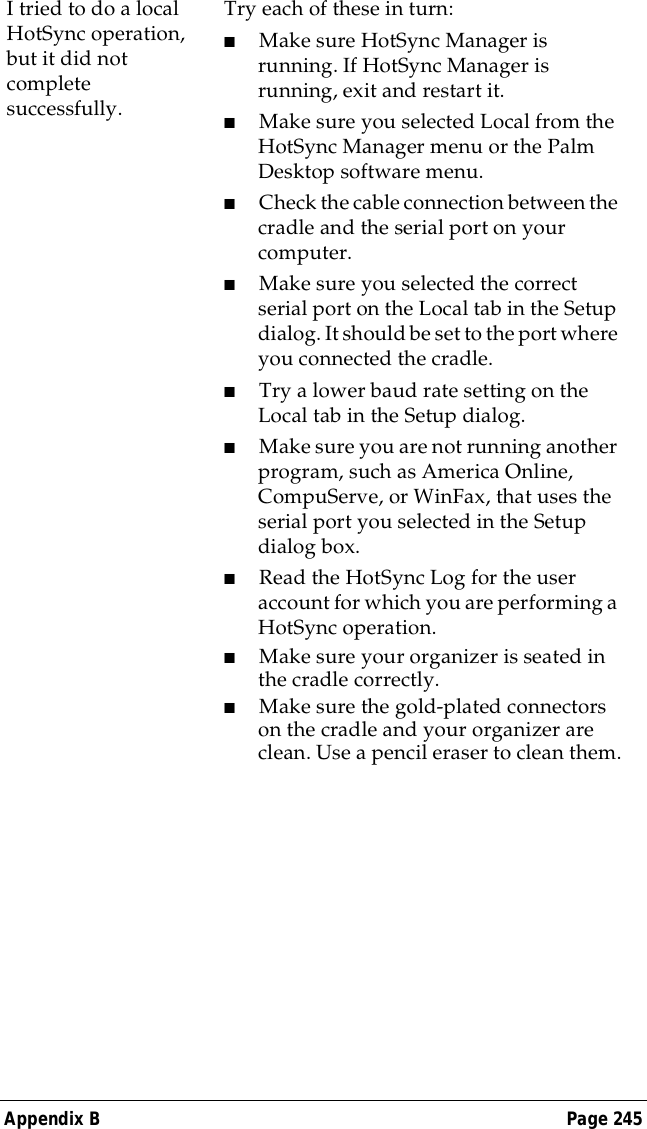
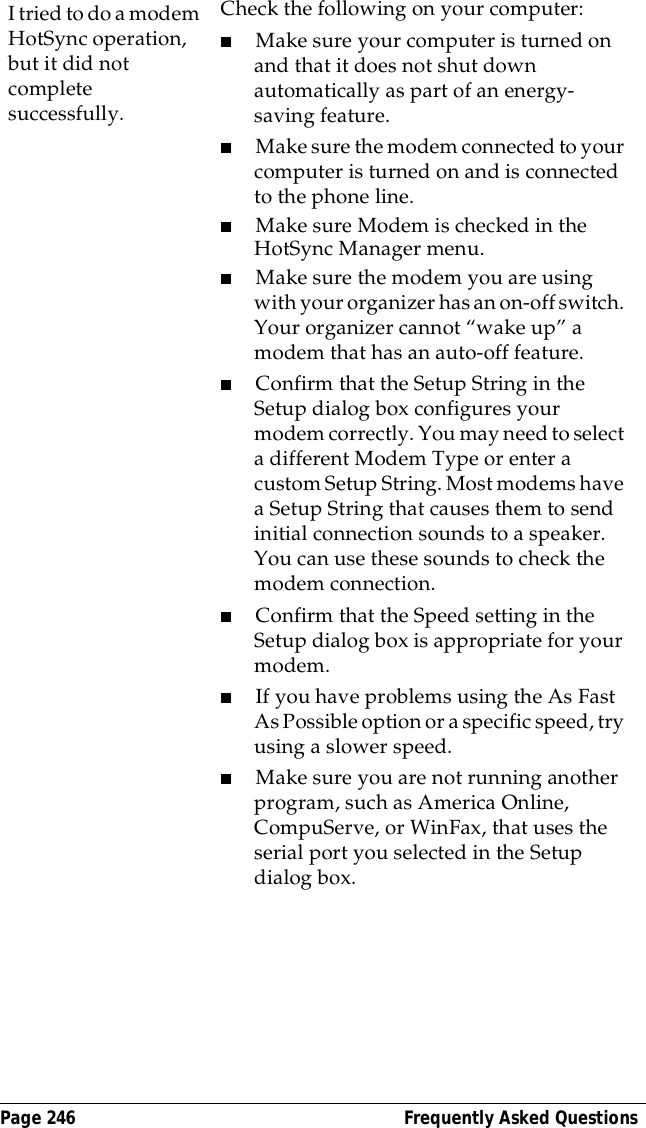
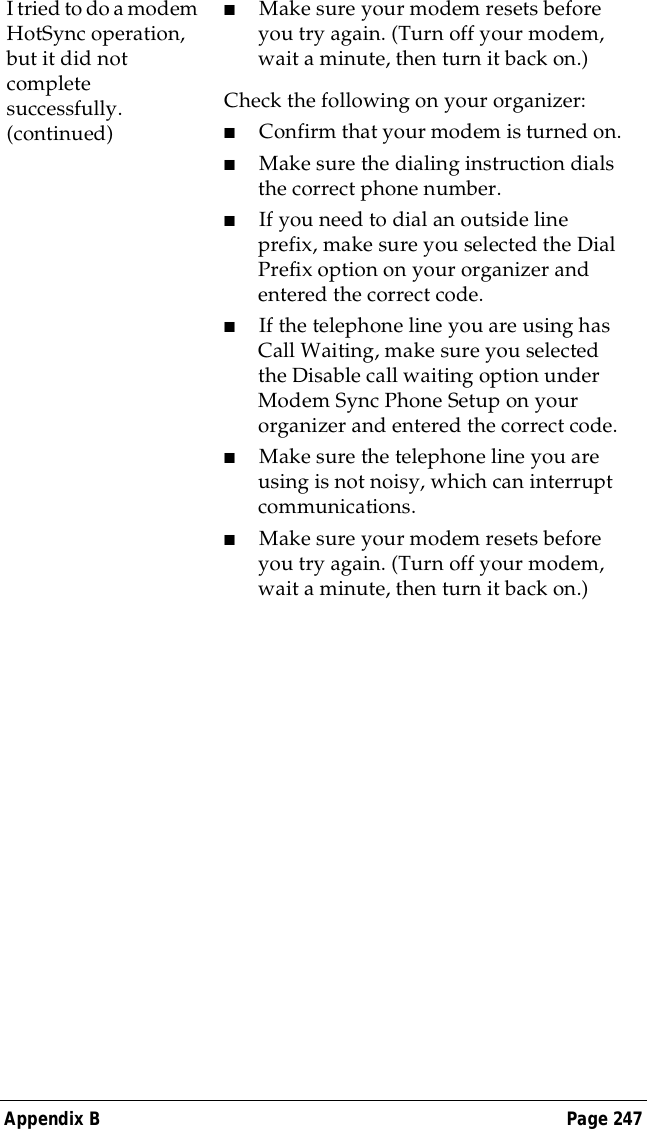
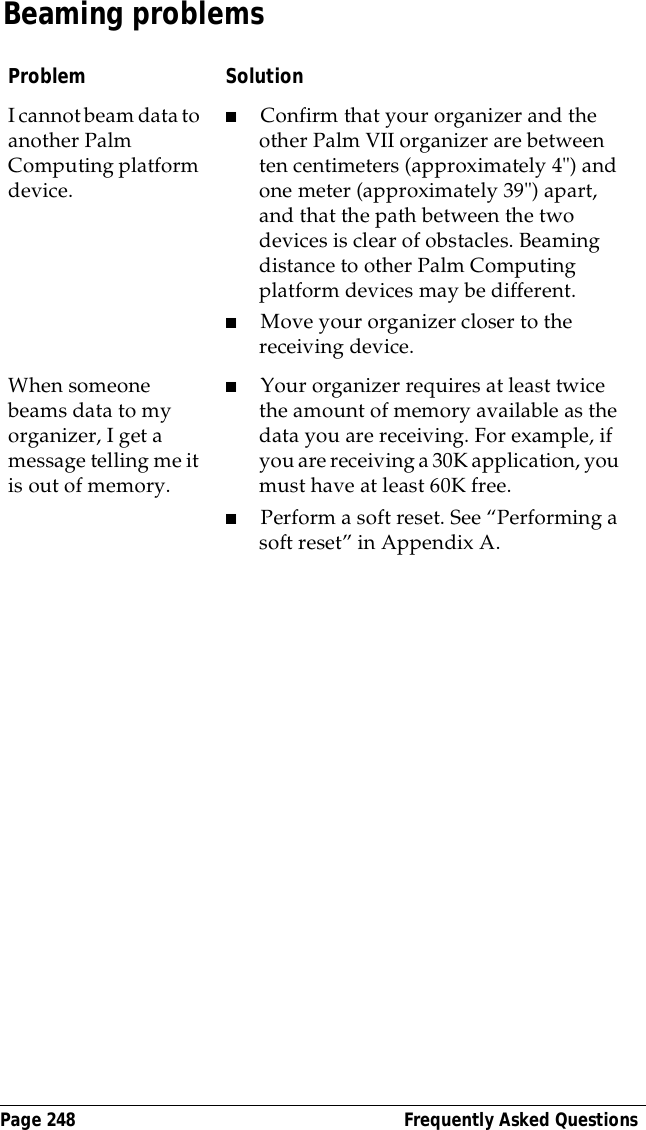
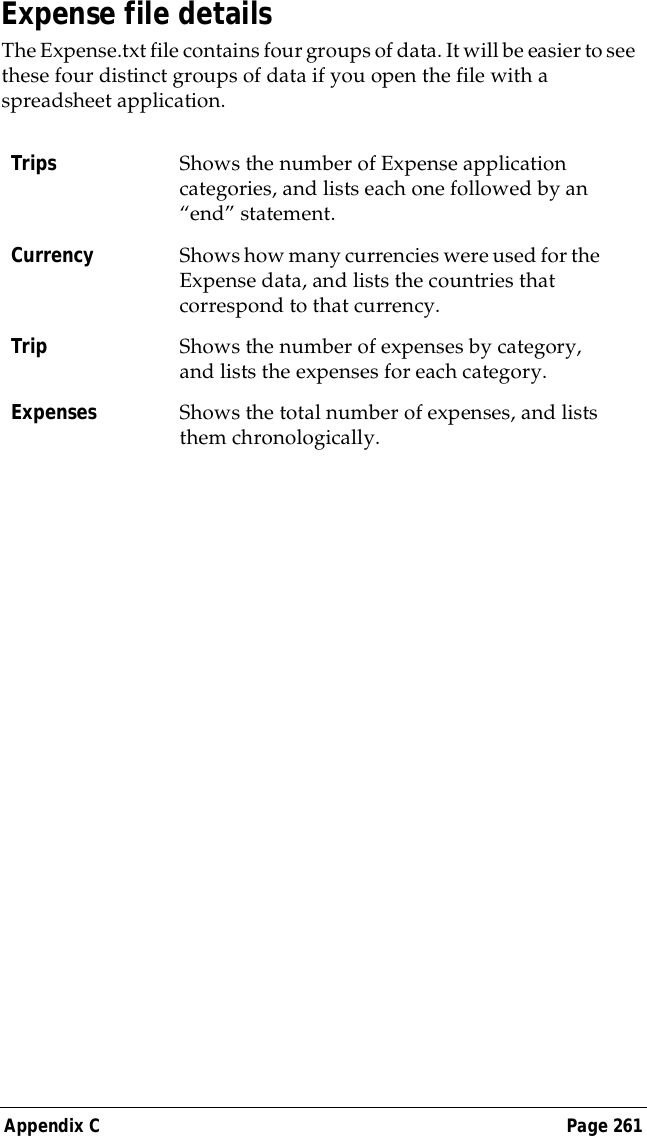
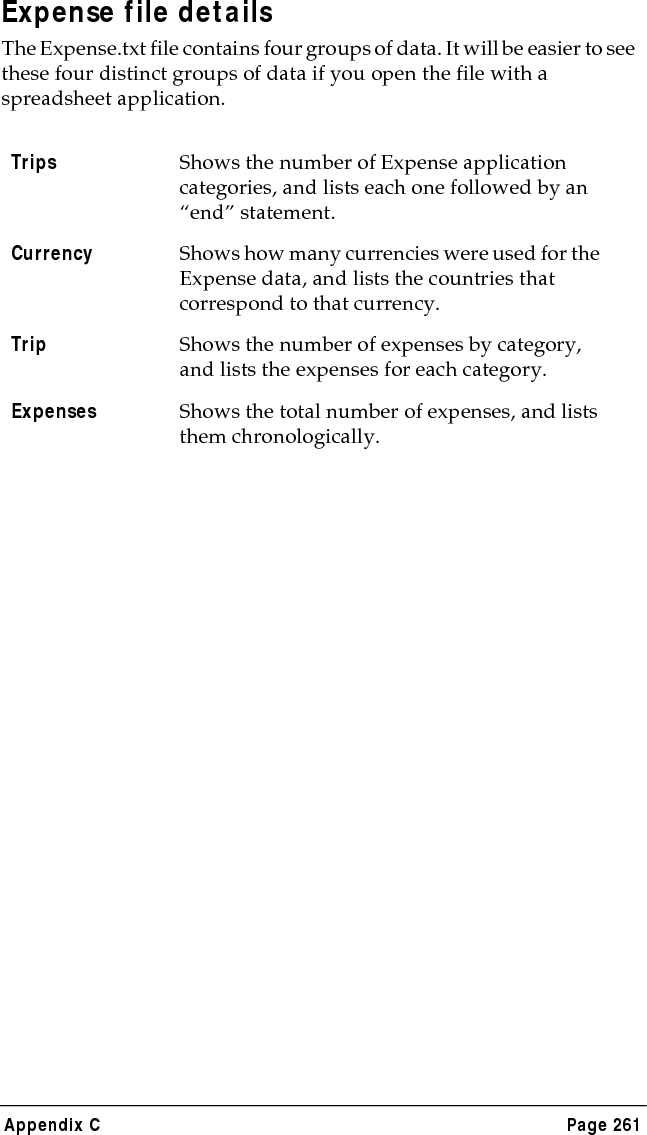
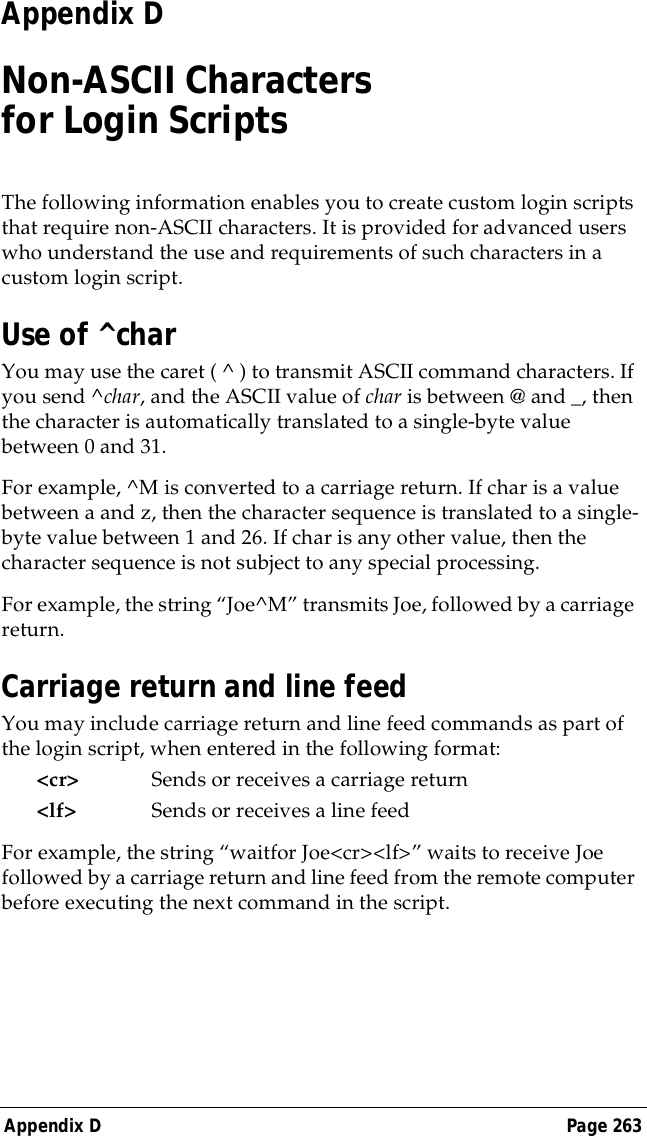
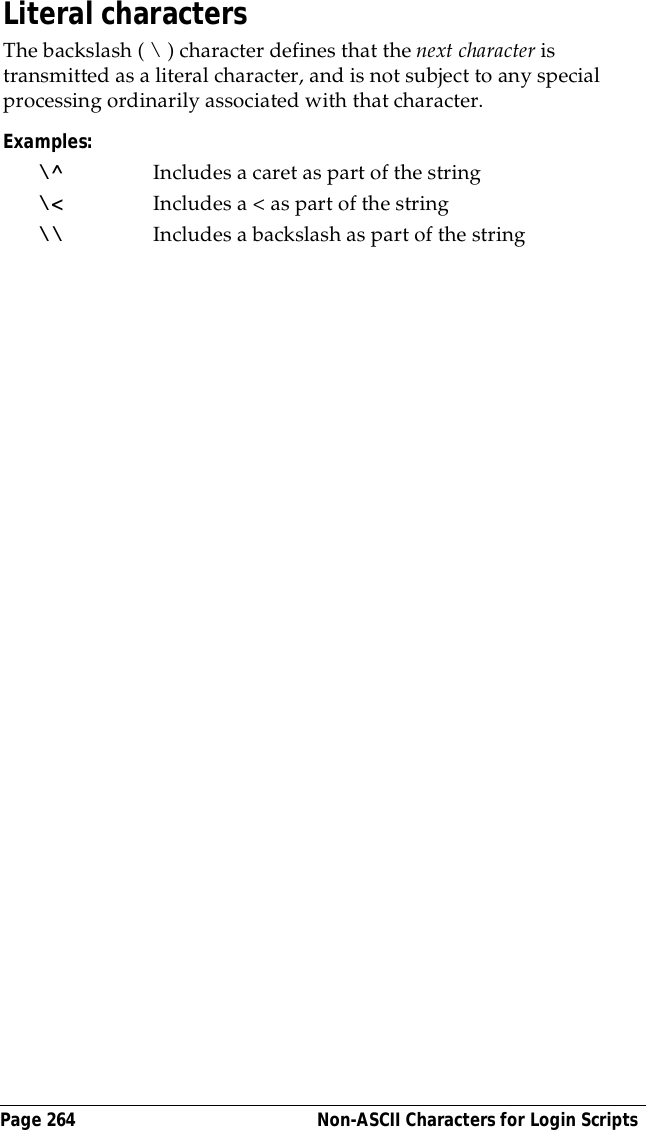
3Com 3C80500 Handheld PDA with low duty cycle packet data User Manual PCPLOGO BLK EPS

3Com Corporation Handheld PDA with low duty cycle packet data PCPLOGO BLK EPS

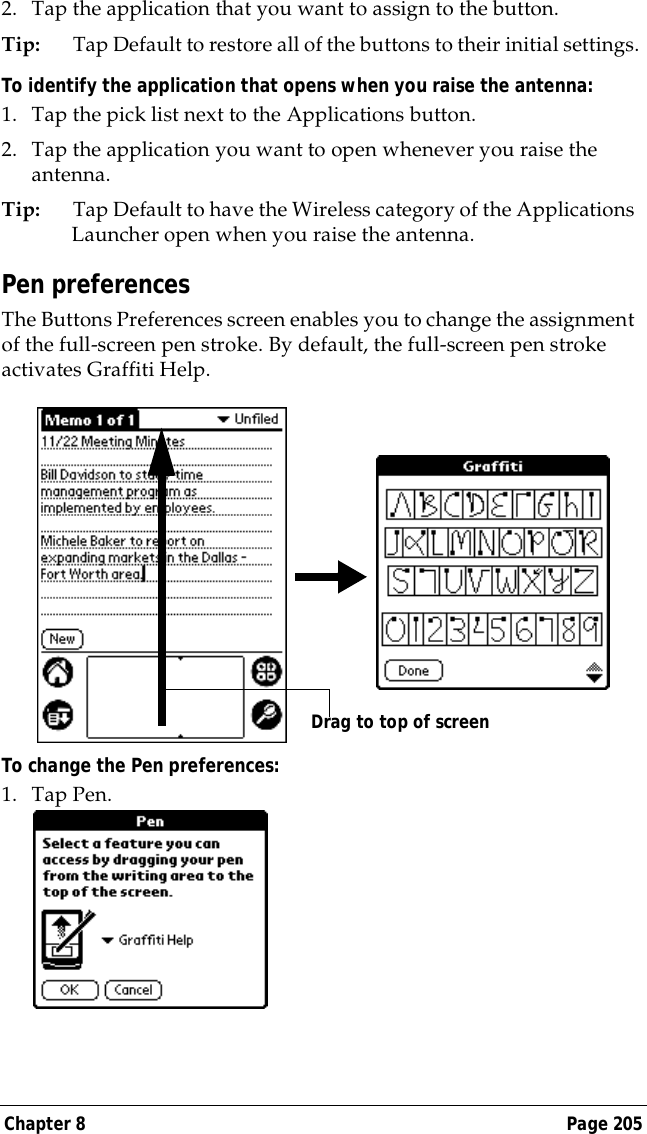
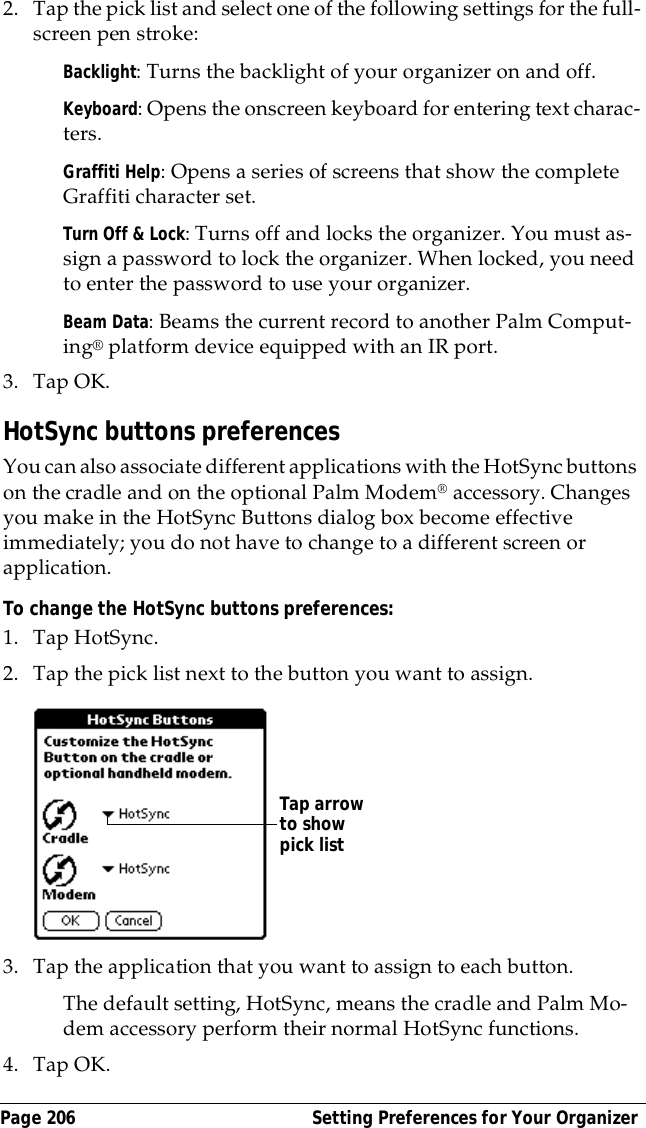
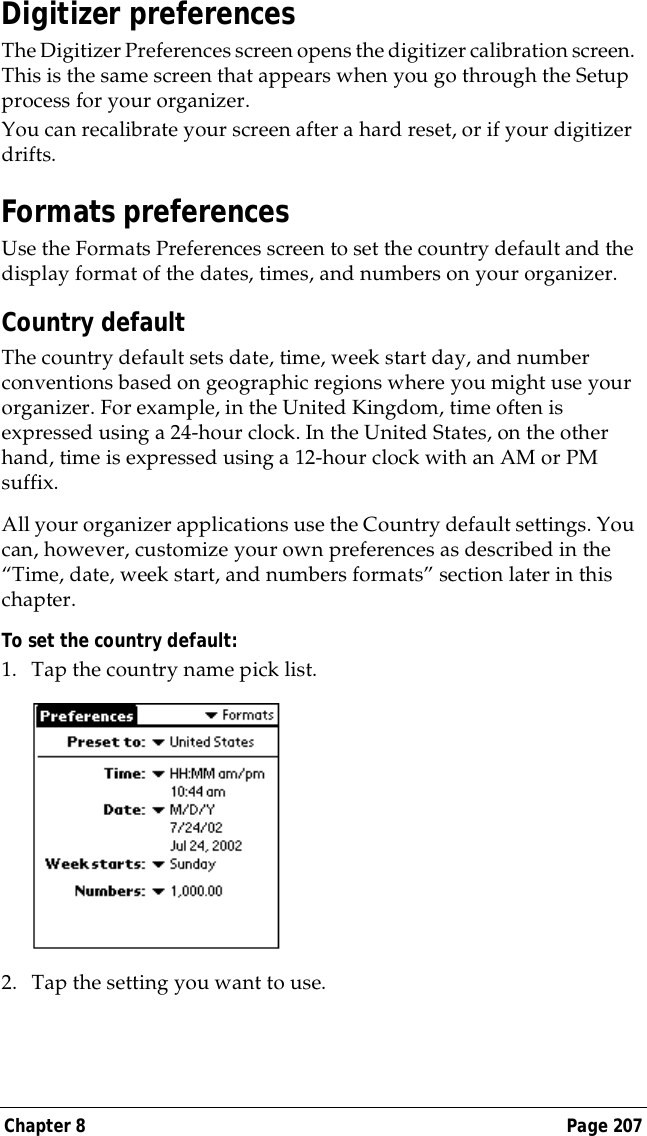
J11 J13 user manual same
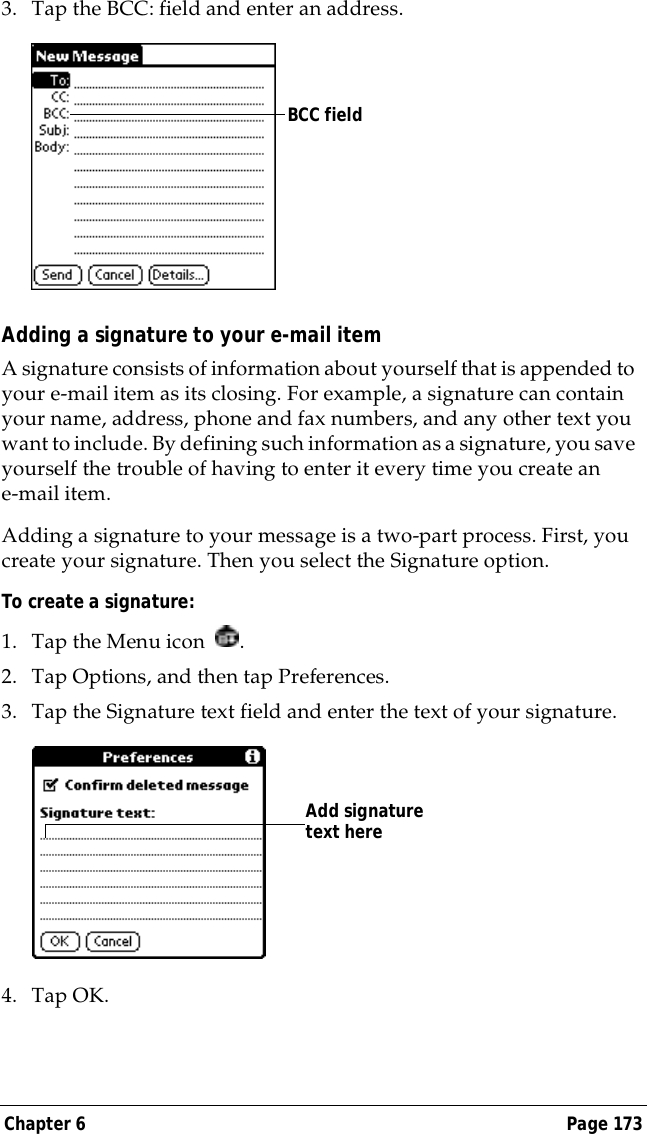
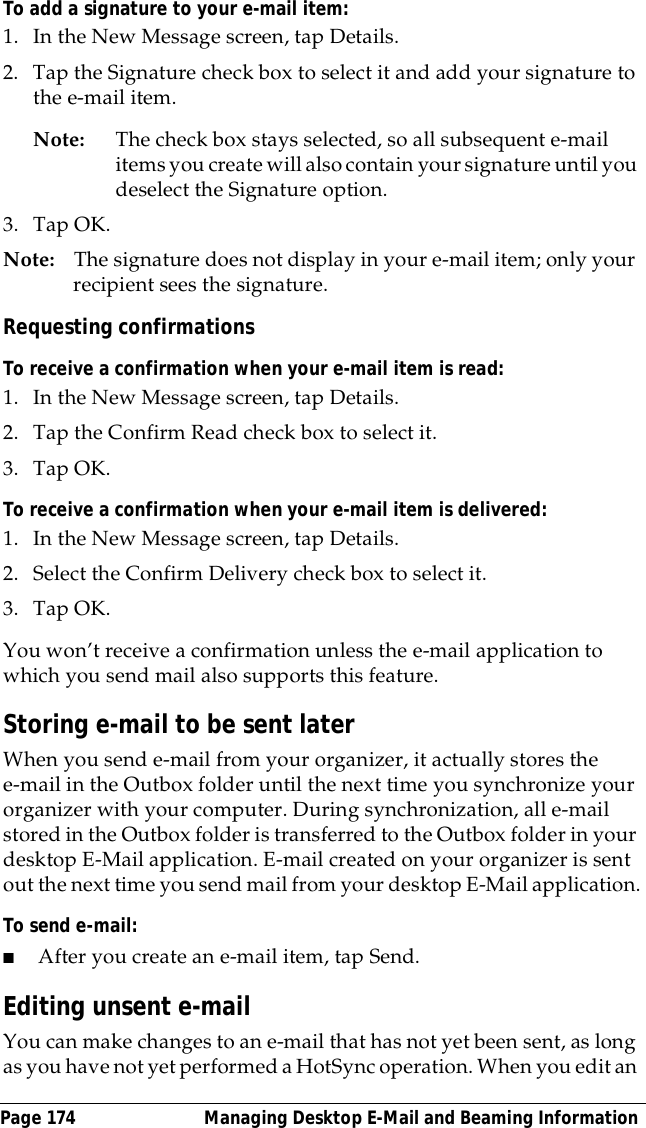
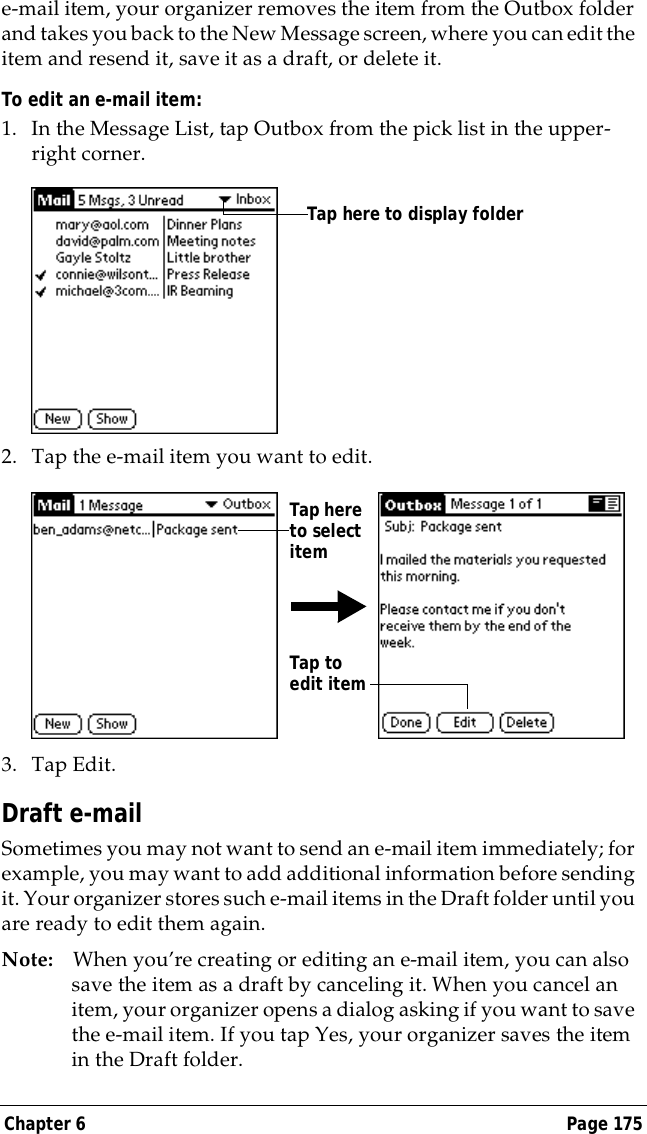
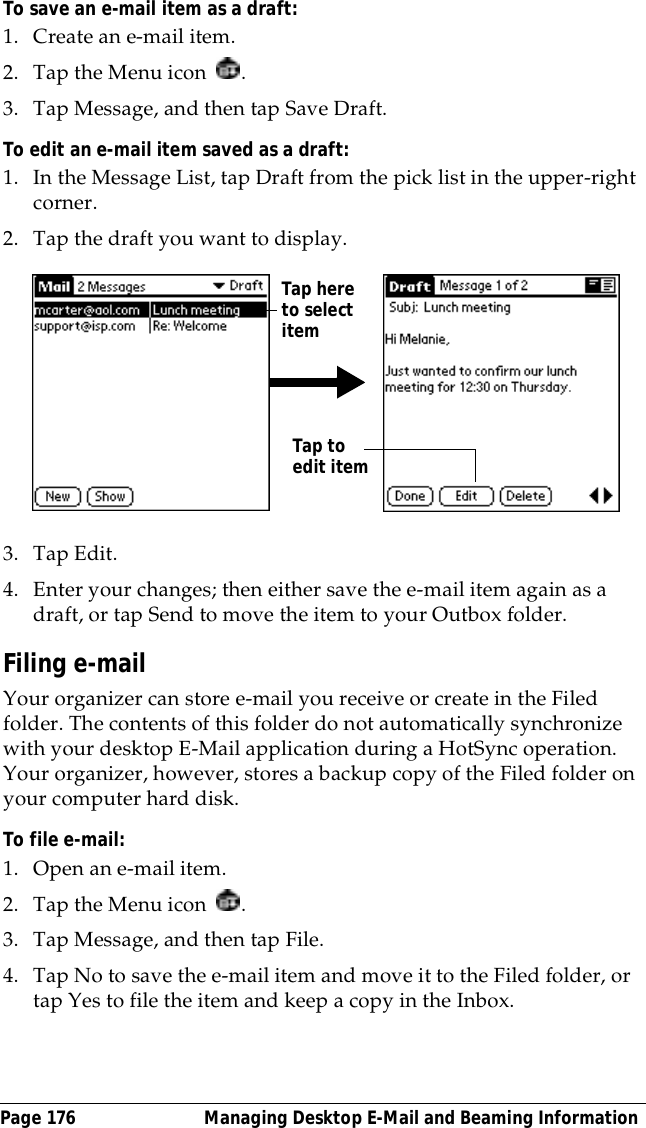
Handbookfor the Palm VII™ Organizer
Page iiCopyrightCopyright © 1998 3Com Corporation or its subsidiaries. All rights reserved. 3Com, the3Com logo, Palm Computing, Palm Modem, Graffiti, and HotSync are registered trade-marks, and Palm, PalmPilot, Palm III, Palm VII, Palm OS, Palm.Net, iMessenger, MoreConnected., the Palm Computing Platform logo, the PalmPilot logo, Palm VII logo, andthe HotSync logo are trademarks of Palm Computing, Inc., 3Com Corporation or itssubsidiaries. Other product and brand names may be trademarks or registered trade-marks of their respective owners.Disclaimer and Limitation of Liability3Com Corporation and its subsidiaries assume no responsibility for any damage or lossresulting from the use of this handbook.3Com Corporation and its subsidiaries assume no responsibility for any loss or claimsby third parties which may arise through the use of this software. 3Com Corporationand its subsidiaries assume no responsibility for any damage or loss caused by deletionof data as a result of malfunction, dead battery or repairs. Be sure to make backup copiesof all important data on other media to protect against data loss.Important: Please read the 3Com End User Software License Agreement contained inthis handbook before using the accompanying software program(s). Using any part ofthe software indicates that you accept the terms of the 3Com End User Software LicenseAgreement.3.5" Software Diskettes AvailablePalm™ Desktop organizer software is supplied on a CD-ROM disc. If you do not haveaccess to a CD-ROM drive for your computer, you may download the Palm Desktopsoftware from http://www.palm.net. Alternatively, you can order 3.5" diskettes bycompleting and mailing the diskette order card supplied in the Palm VII™ connectedorganizer product package, or call to order the diskettes. See the Getting Started guidefor the appropriate phone number.P/N: 405-0406AA/N:  423-0233
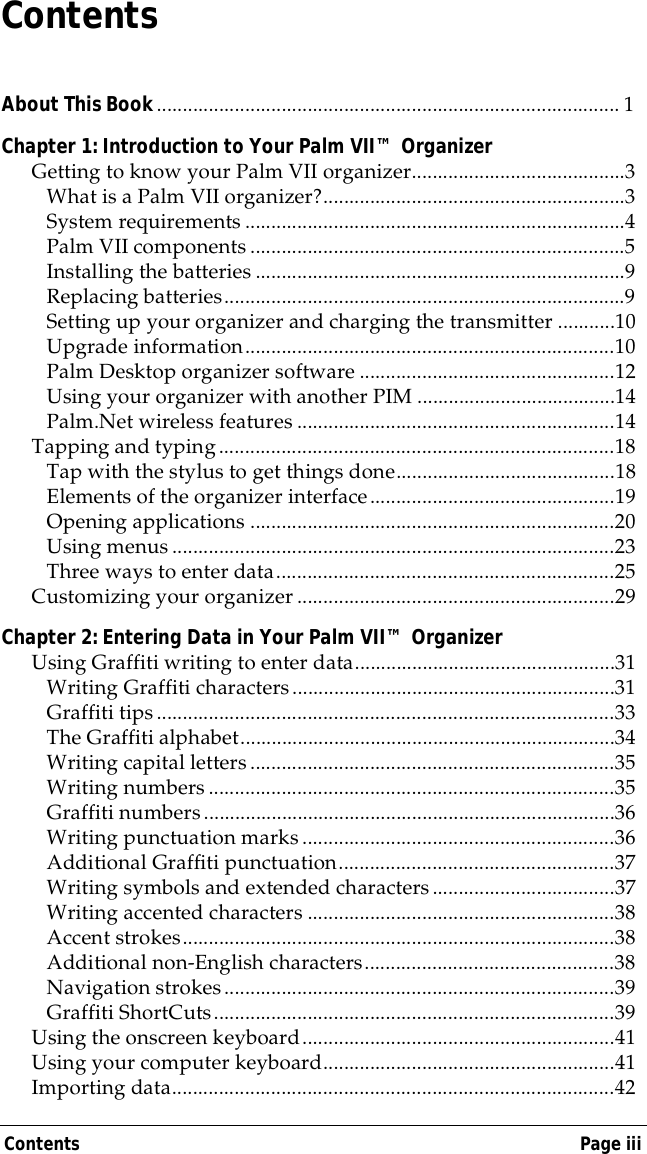
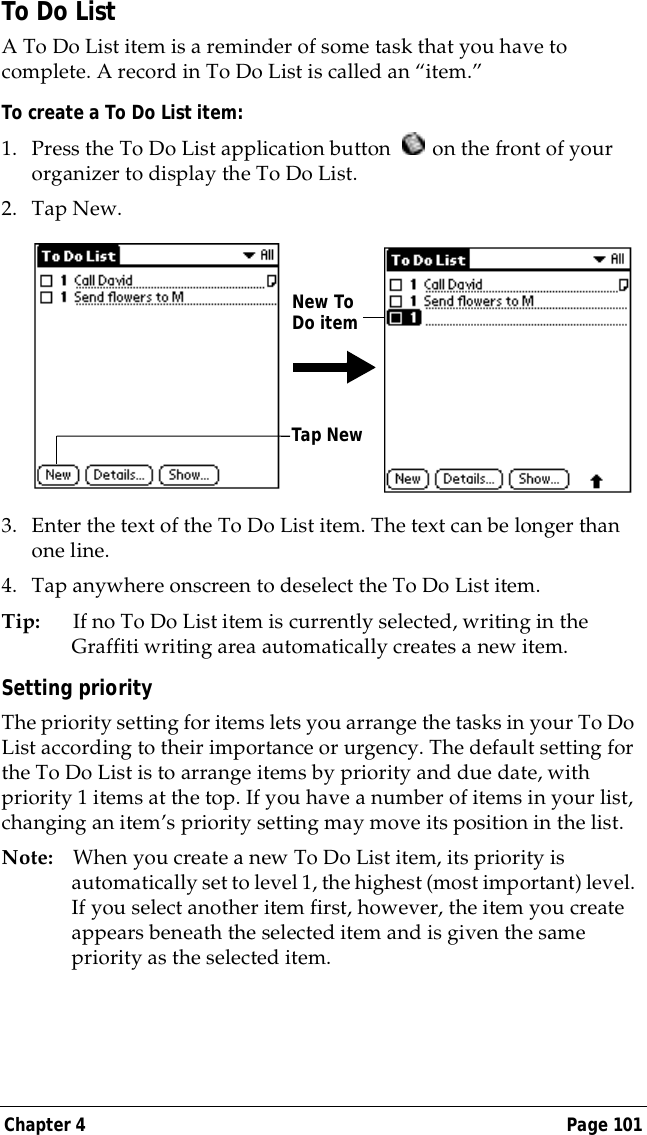
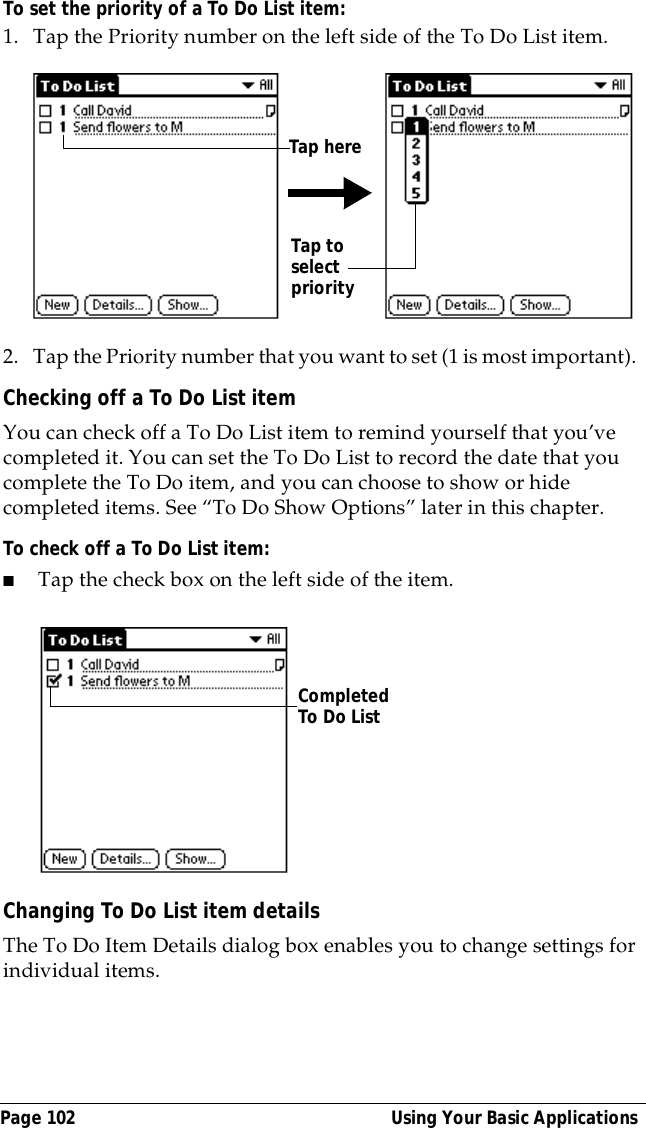
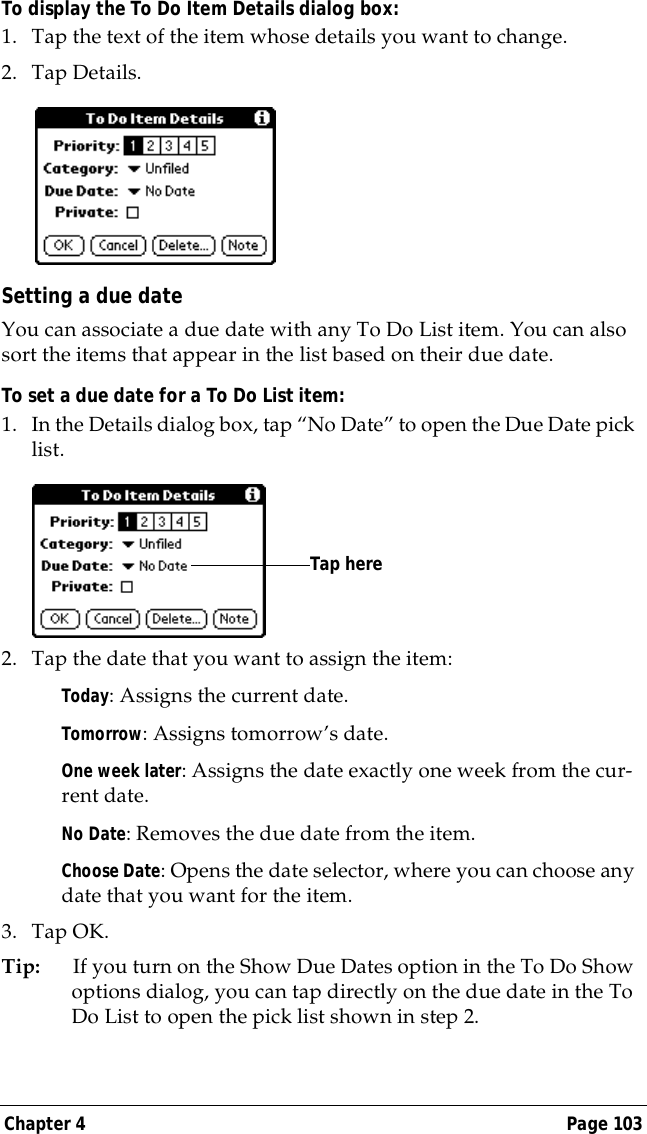
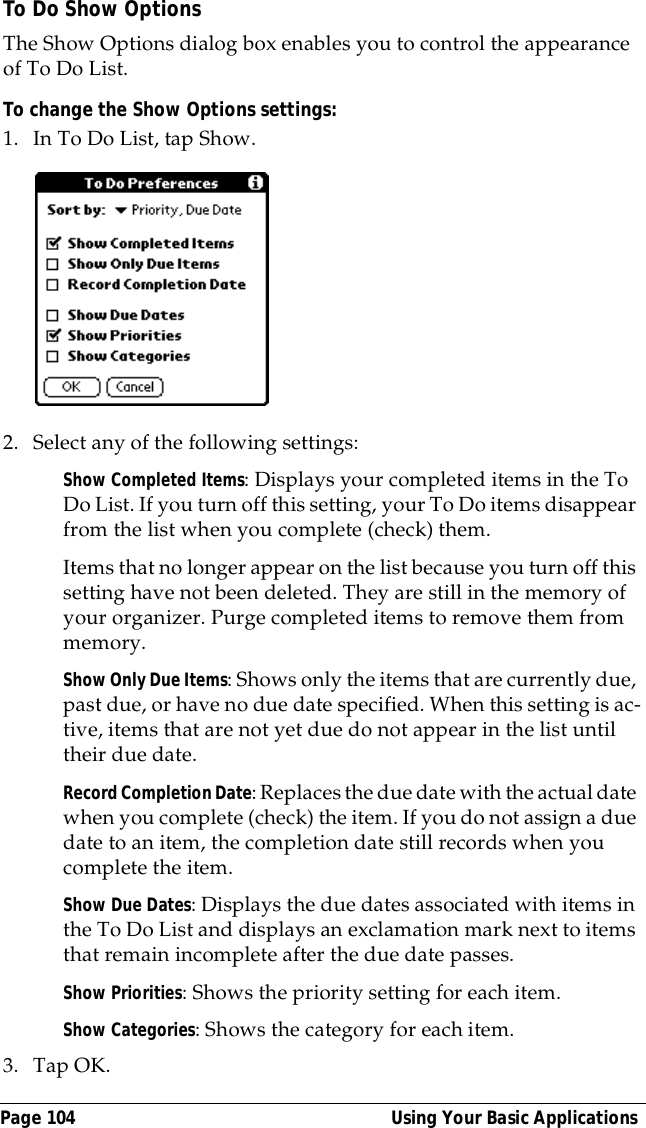
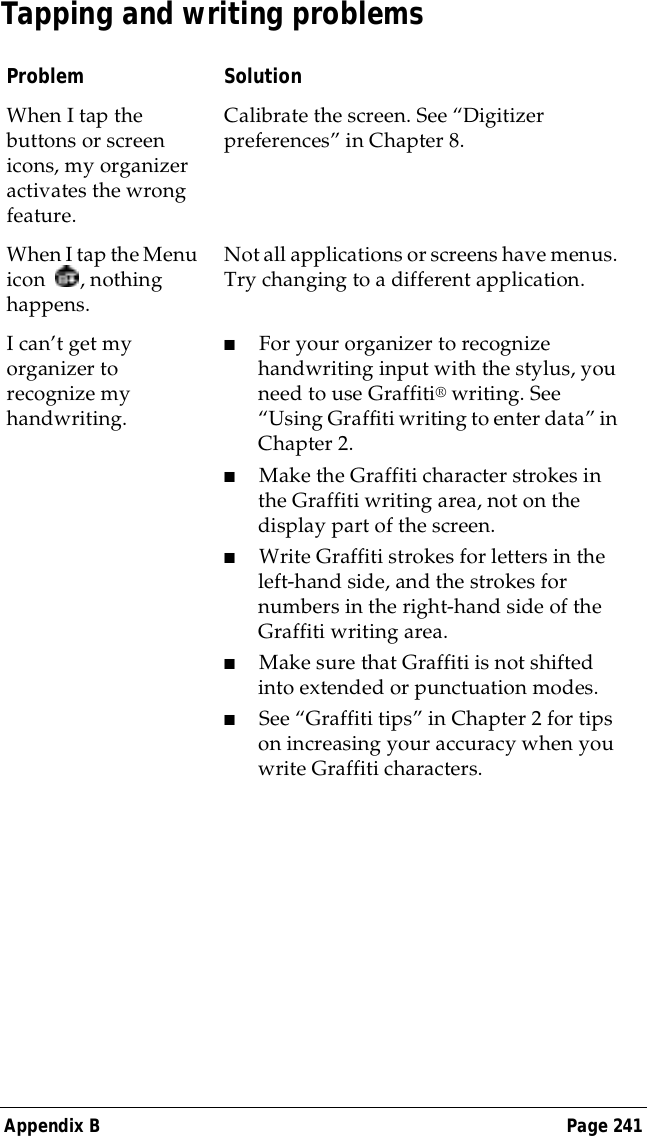
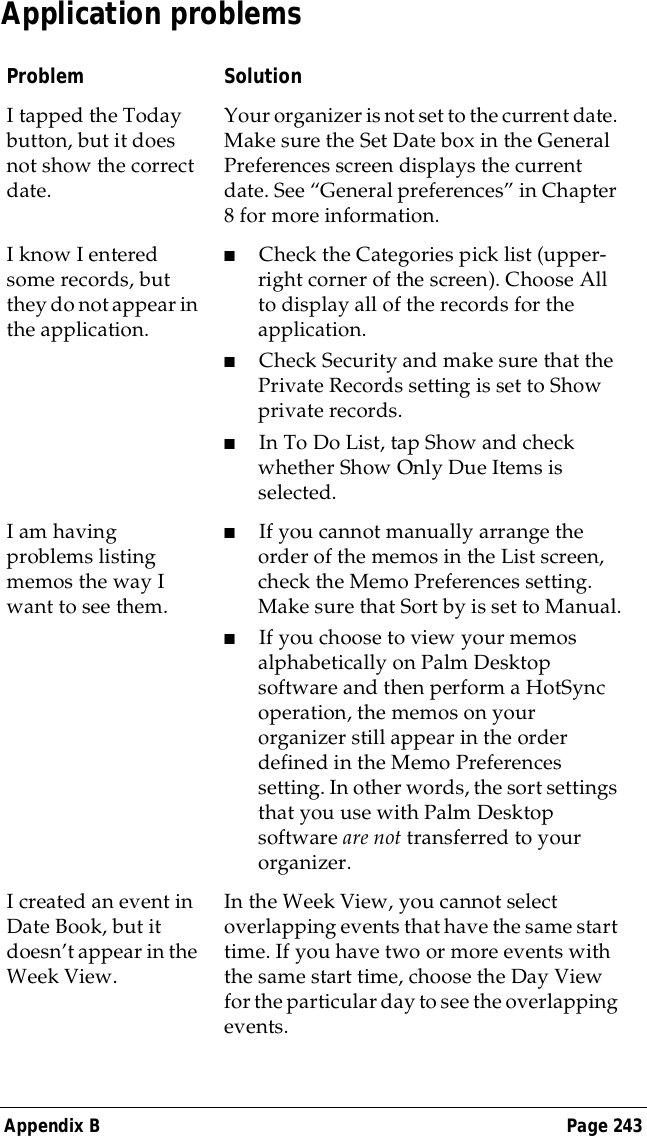
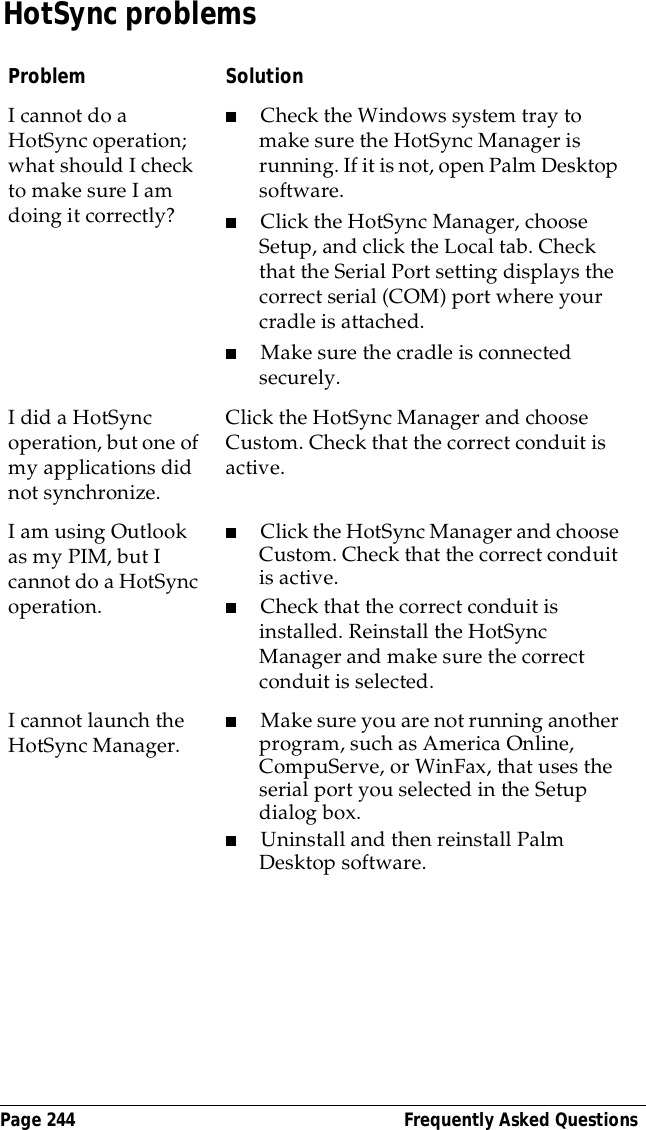
Contents Page iiiContentsAbout This Book......................................................................................... 1Chapter 1: Introduction to Your Palm VII™ OrganizerGetting to know your Palm VII organizer.........................................3What is a Palm VII organizer?..........................................................3System requirements .........................................................................4Palm VII components ........................................................................5Installing the batteries .......................................................................9Replacing batteries.............................................................................9Setting up your organizer and charging the transmitter ...........10Upgrade information.......................................................................10Palm Desktop organizer software .................................................12Using your organizer with another PIM ......................................14Palm.Net wireless features .............................................................14Tapping and typing............................................................................18Tap with the stylus to get things done..........................................18Elements of the organizer interface...............................................19Opening applications ......................................................................20Using menus .....................................................................................23Three ways to enter data.................................................................25Customizing your organizer .............................................................29Chapter 2: Entering Data in Your Palm VII™ OrganizerUsing Graffiti writing to enter data..................................................31Writing Graffiti characters..............................................................31Graffiti tips........................................................................................33The Graffiti alphabet........................................................................34Writing capital letters......................................................................35Writing numbers..............................................................................35Graffiti numbers...............................................................................36Writing punctuation marks............................................................36Additional Graffiti punctuation.....................................................37Writing symbols and extended characters...................................37Writing accented characters ...........................................................38Accent strokes...................................................................................38Additional non-English characters................................................38Navigation strokes...........................................................................39Graffiti ShortCuts.............................................................................39Using the onscreen keyboard............................................................41Using your computer keyboard........................................................41Importing data.....................................................................................42
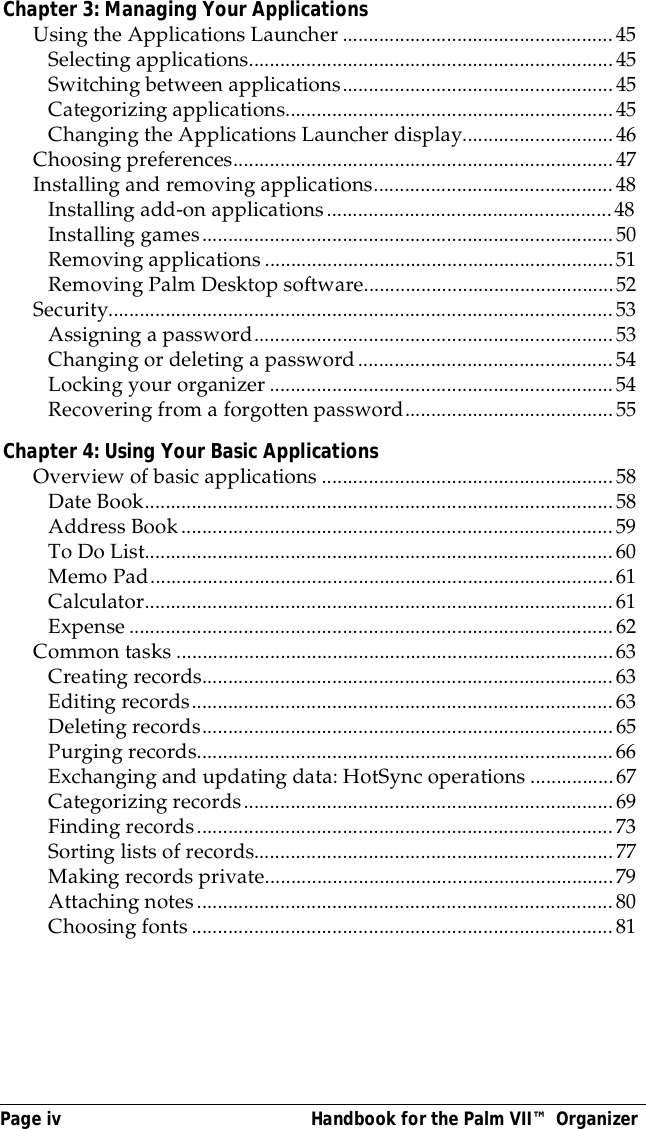
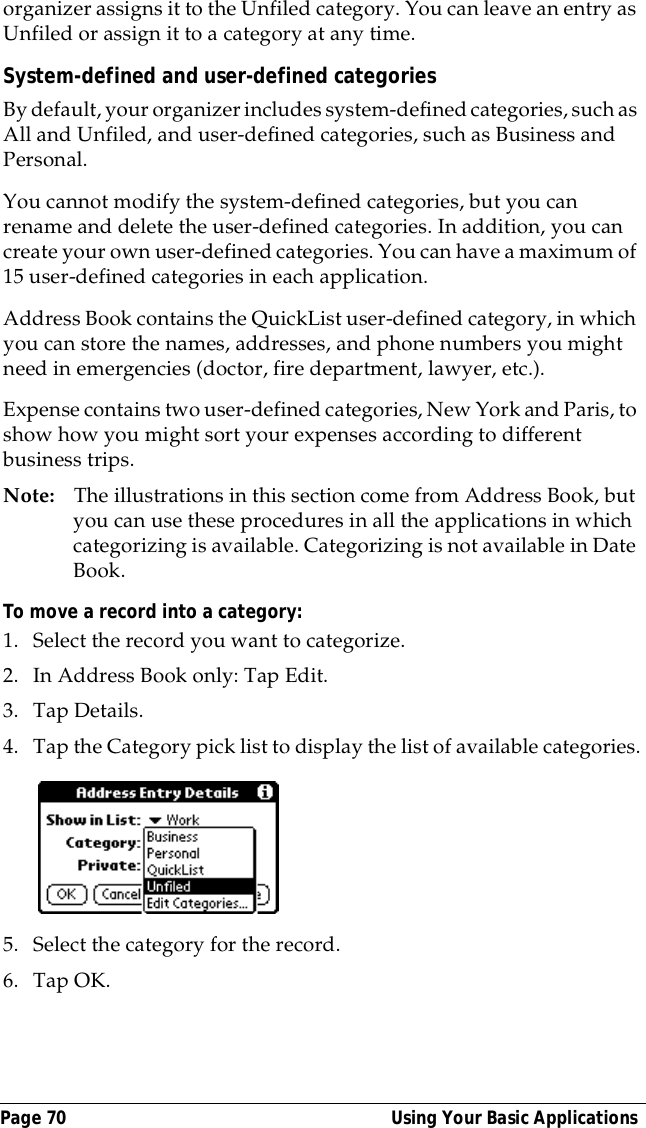
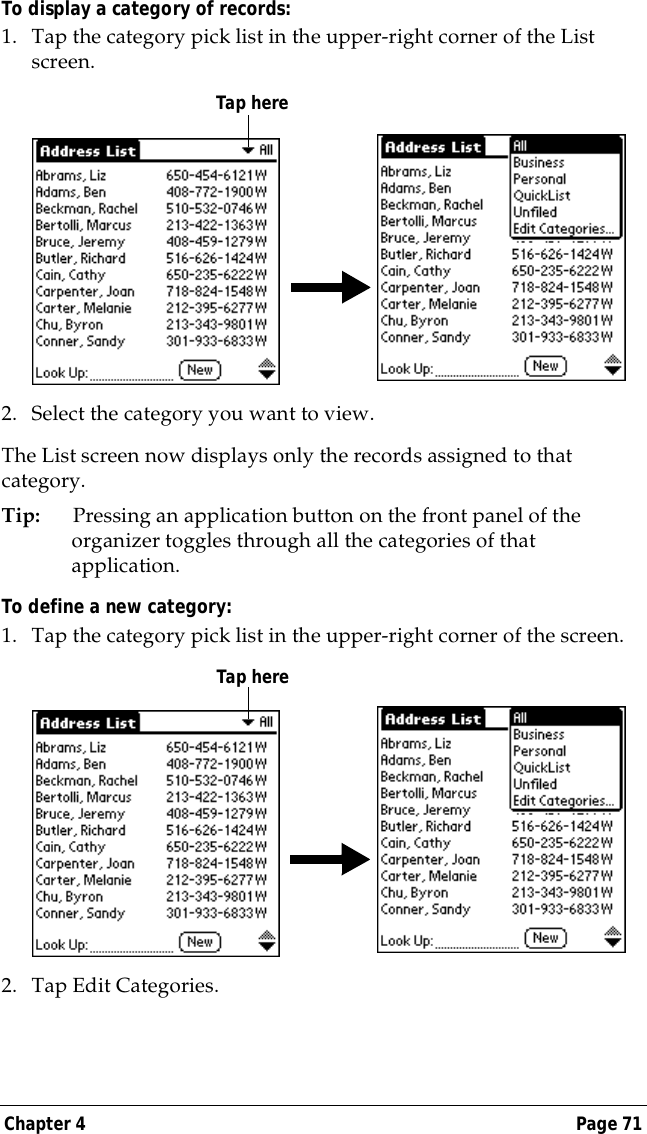
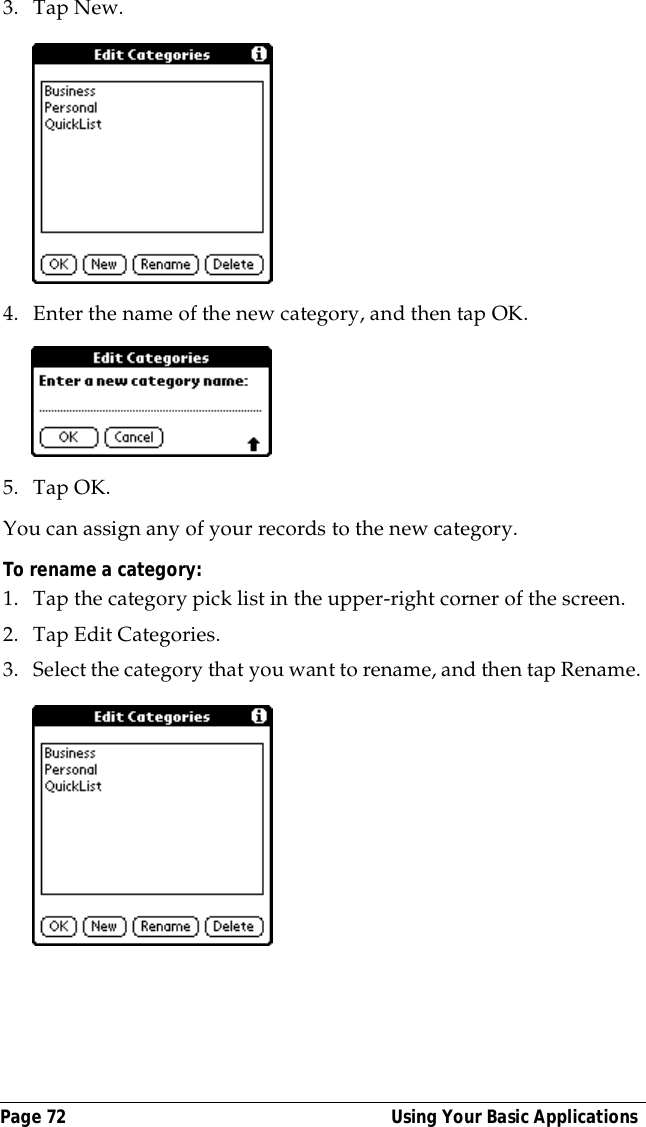
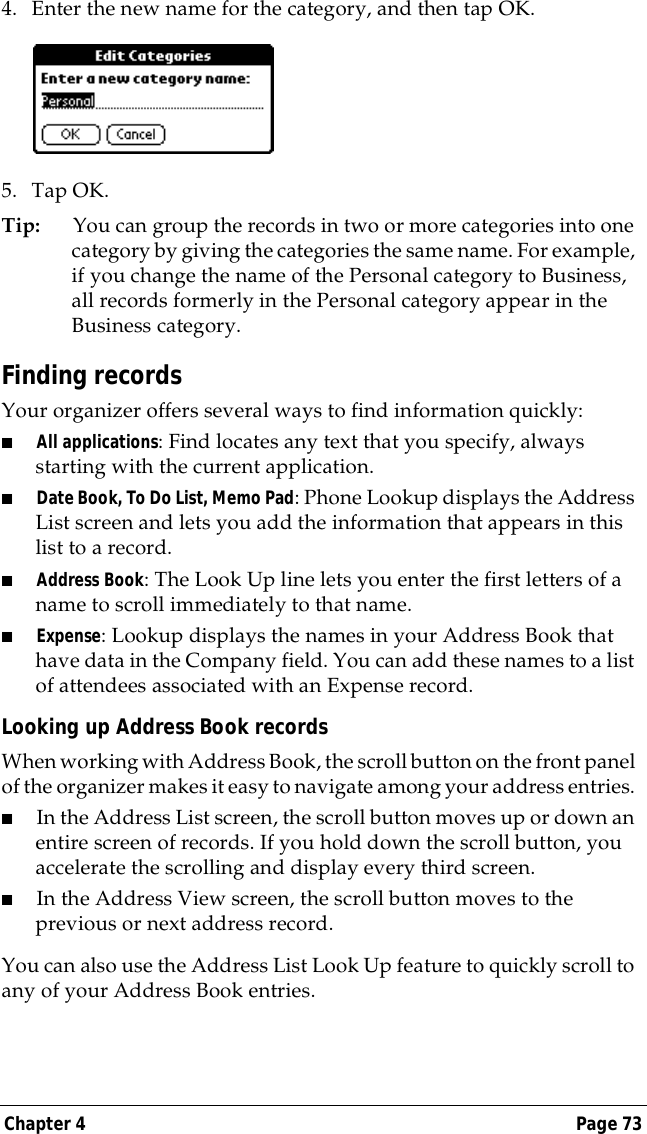
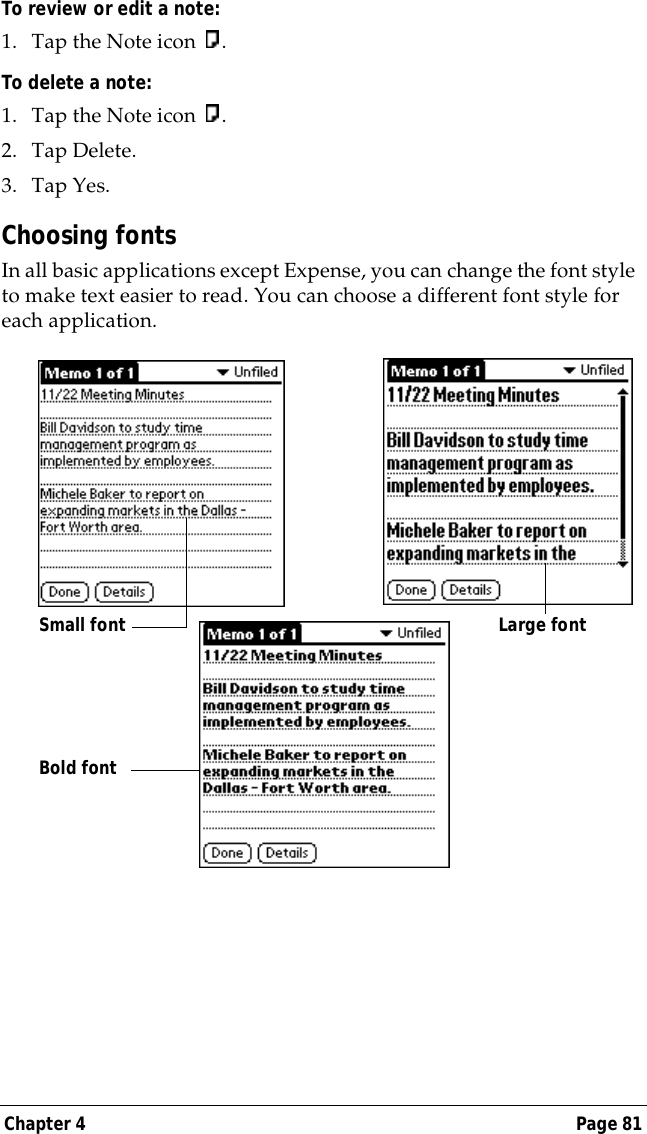
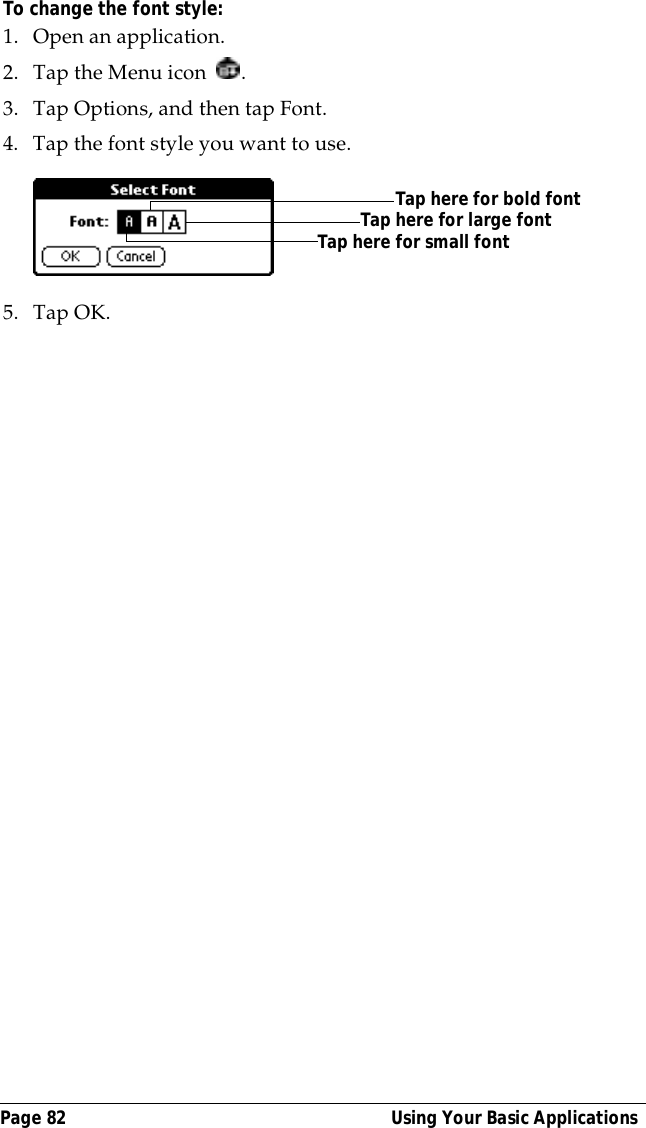
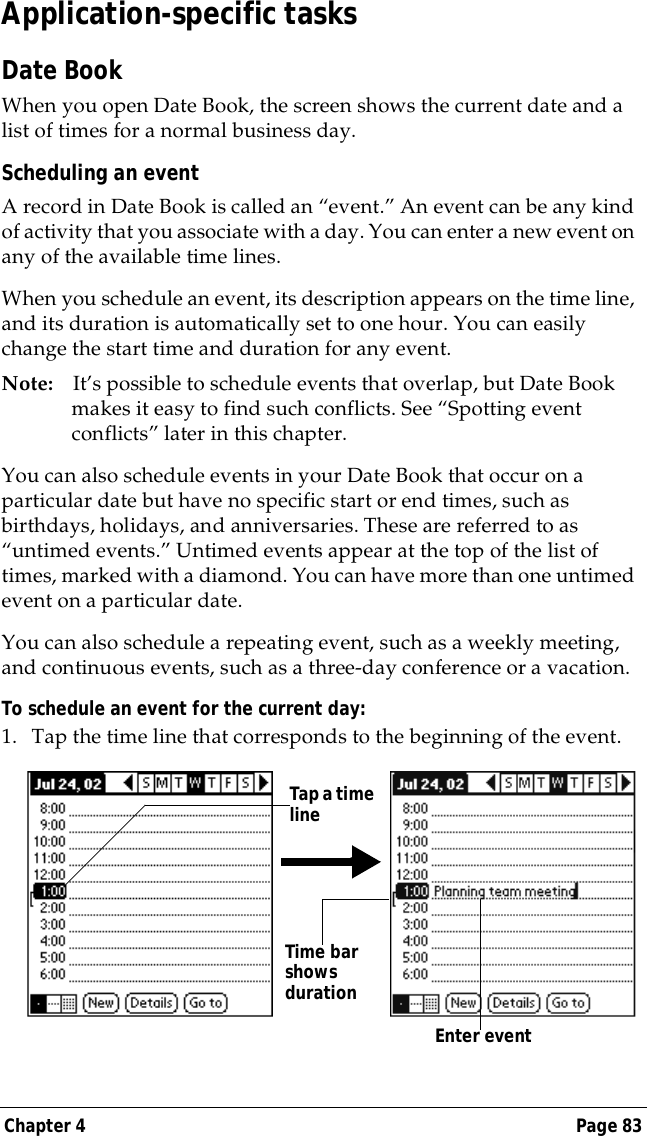
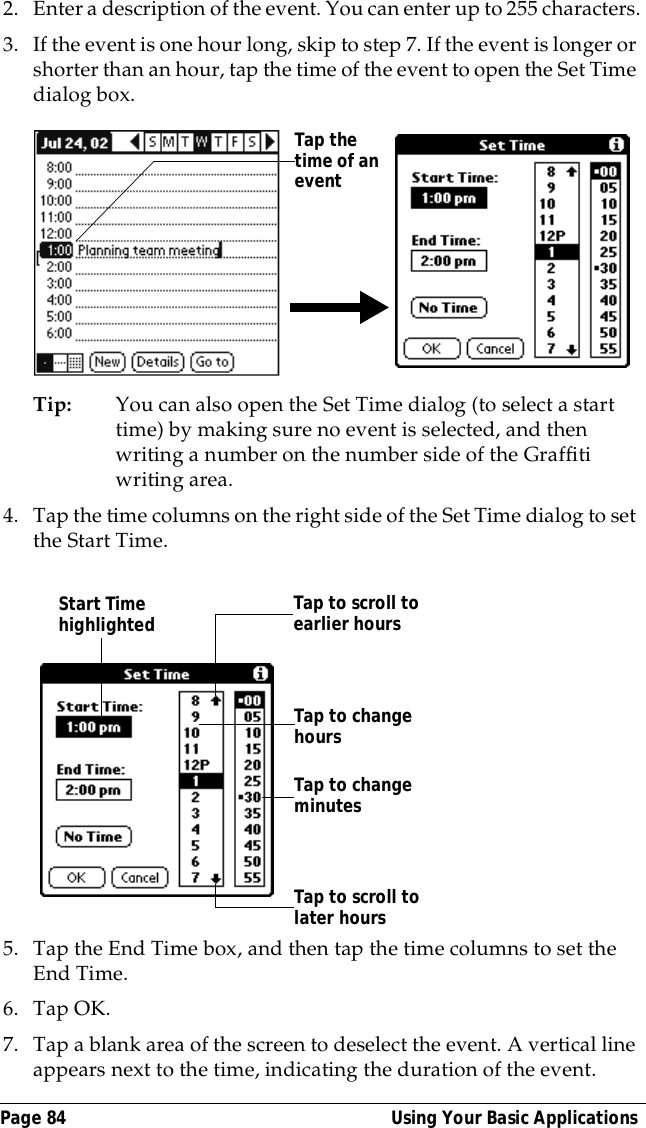
Page iv  Handbook for the Palm VII™ OrganizerChapter 3: Managing Your ApplicationsUsing the Applications Launcher ....................................................45Selecting applications......................................................................45Switching between applications....................................................45Categorizing applications...............................................................45Changing the Applications Launcher display.............................46Choosing preferences.........................................................................47Installing and removing applications..............................................48Installing add-on applications.......................................................48Installing games...............................................................................50Removing applications...................................................................51Removing Palm Desktop software................................................52Security.................................................................................................53Assigning a password.....................................................................53Changing or deleting a password.................................................54Locking your organizer ..................................................................54Recovering from a forgotten password........................................55Chapter 4: Using Your Basic ApplicationsOverview of basic applications ........................................................58Date Book..........................................................................................58Address Book...................................................................................59To Do List..........................................................................................60Memo Pad.........................................................................................61Calculator..........................................................................................61Expense .............................................................................................62Common tasks ....................................................................................63Creating records...............................................................................63Editing records.................................................................................63Deleting records...............................................................................65Purging records................................................................................66Exchanging and updating data: HotSync operations ................67Categorizing records.......................................................................69Finding records................................................................................73Sorting lists of records.....................................................................77Making records private...................................................................79Attaching notes................................................................................80Choosing fonts .................................................................................81
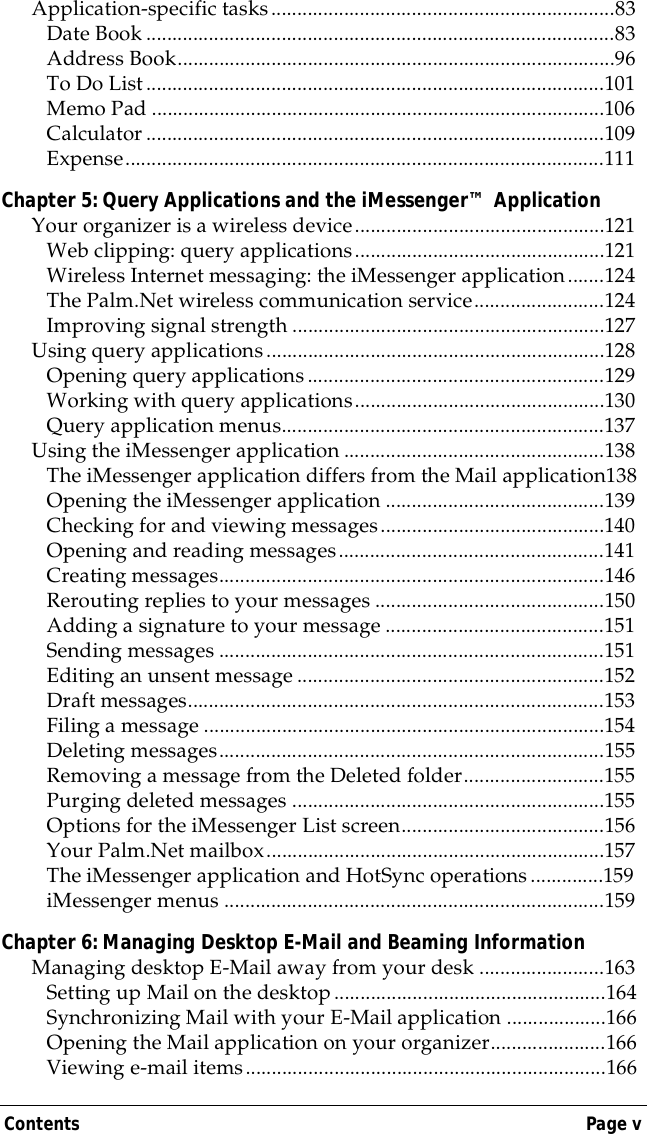
Contents Page vApplication-specific tasks..................................................................83Date Book ..........................................................................................83Address Book....................................................................................96To Do List........................................................................................101Memo Pad .......................................................................................106Calculator ........................................................................................109Expense............................................................................................111Chapter 5: Query Applications and the iMessenger™ ApplicationYour organizer is a wireless device................................................121Web clipping: query applications................................................121Wireless Internet messaging: the iMessenger application.......124The Palm.Net wireless communication service.........................124Improving signal strength ............................................................127Using query applications.................................................................128Opening query applications.........................................................129Working with query applications................................................130Query application menus..............................................................137Using the iMessenger application ..................................................138The iMessenger application differs from the Mail application138Opening the iMessenger application ..........................................139Checking for and viewing messages...........................................140Opening and reading messages...................................................141Creating messages..........................................................................146Rerouting replies to your messages ............................................150Adding a signature to your message ..........................................151Sending messages ..........................................................................151Editing an unsent message ...........................................................152Draft messages................................................................................153Filing a message .............................................................................154Deleting messages..........................................................................155Removing a message from the Deleted folder...........................155Purging deleted messages ............................................................155Options for the iMessenger List screen.......................................156Your Palm.Net mailbox.................................................................157The iMessenger application and HotSync operations..............159iMessenger menus .........................................................................159Chapter 6: Managing Desktop E-Mail and Beaming InformationManaging desktop E-Mail away from your desk ........................163Setting up Mail on the desktop....................................................164Synchronizing Mail with your E-Mail application ...................166Opening the Mail application on your organizer......................166Viewing e-mail items.....................................................................166
Page vi  Handbook for the Palm VII™ OrganizerCreating e-mail items....................................................................167Looking up an address .................................................................170Adding details to e-mail items ....................................................171Storing e-mail to be sent later ......................................................174Editing unsent e-mail....................................................................174Draft e-mail.....................................................................................175Filing e-mail....................................................................................176Deleting e-mail...............................................................................177Removing e-mail from the Deleted folder.................................177Purging deleted e-mail..................................................................178Message List options.....................................................................178HotSync options.............................................................................180Creating special filters ..................................................................181Truncating e-mail items................................................................185Mail menus.....................................................................................185Beaming information .......................................................................187Chapter 7: Advanced HotSync® OperationsSelecting HotSync setup options....................................................189Customizing HotSync application settings..................................192HotSync operations via a modem..................................................194Preparing your computer.............................................................194Preparing your organizer.............................................................195Selecting the conduits for a modem HotSync operation.........196Performing a HotSync operation via a modem.........................197HotSync operations via a network.................................................198Connecting to your company’s dial-in server...........................198Using File Link..................................................................................200Creating a user profile .....................................................................200Chapter 8: Setting Preferences for Your OrganizerViewing preferences.........................................................................204Buttons preferences..........................................................................204Pen preferences..............................................................................205HotSync buttons preferences.......................................................206Digitizer preferences........................................................................207Formats preferences.........................................................................207Country default..............................................................................207Time, date, week start, and numbers formats...........................208General preferences..........................................................................209Auto-off delay................................................................................209System, alarm, and game sounds................................................209Beam Receive..................................................................................210Modem preferences..........................................................................211
Contents Page viiNetwork preferences and TCP/IP software .................................212Selecting a service ..........................................................................212Entering a user name.....................................................................213Entering a password......................................................................213Adding telephone settings............................................................214Connecting to your service...........................................................217Creating additional service templates ........................................217Adding detailed information to a service template..................218Creating a login script ...................................................................221Deleting a service template...........................................................222Network preferences menu commands......................................222TCP/IP troubleshooting................................................................223Owner preferences............................................................................224ShortCuts preferences ......................................................................225Creating a ShortCut .......................................................................225Editing a ShortCut .........................................................................226Deleting a ShortCut .......................................................................226Wireless preferences.........................................................................227Proxy................................................................................................227Sending ID or location information.............................................228Appendix A: Maintaining Your OrganizerCaring for your organizer................................................................229About the AAA batteries .................................................................230Automatic recharging of the transmitter.......................................231Proper use of the antenna................................................................233Resetting your organizer..................................................................235Performing a soft reset ..................................................................235Performing a hard reset.................................................................236Appendix B: Frequently Asked QuestionsSoftware installation problems .......................................................239Operating problems..........................................................................240Tapping and writing problems.......................................................241Wireless problems.............................................................................242Application problems.......................................................................243HotSync problems.............................................................................244Beaming problems ............................................................................248Password problems ..........................................................................249Technical support and customer care............................................250Appendix C: Creating a Custom Expense ReportAbout mapping tables......................................................................251Customizing existing sample templates........................................252
Page viii  Handbook for the Palm VII™ OrganizerDetermining the layout of the Expense Report............................253Labels...............................................................................................253Sections............................................................................................254Analyzing your custom Expense Report......................................255Programming the mapping table...................................................256Using applications other than Microsoft Excel............................260Expense file details...........................................................................261Appendix D: Non-ASCII Characters for Login ScriptsUse of ^char.......................................................................................263Carriage return and line feed..........................................................263Literal characters ..............................................................................264Palm.Net™ Service Agreement, Warranty, and Other Product InformationPalm.Net service agreement...........................................................265Limited warranty..............................................................................2733Com end user software license agreement.................................276FCC Statement ..................................................................................279Canadian RFI Statement..................................................................279Index ........................................................................................................281
About This Book Page 1About This BookWelcome to the Palm VII™ connected organizer. This handbook describes all you need to know about how to use your Palm VII organizer and the applications that come with it. It walks you through viewing and entering data, using the features of the Palm.Net™ wireless communication service, using your Palm VII organizer with your computer, and personalizing your organizer with your own preferences.This book is designed to help you get up and running quickly on your organizer. The beginning chapter explains the following:■All the parts of your organizer■The Palm VII interface■The Palm VII wireless features■Entering data■Setting up security and other preferencesAfter you become familiar with the basic functionality, you can use the rest of this handbook as a reference for less common tasks and for maintaining your organizer, and also as a source of information if you have problems operating the organizer.
Page 2  About This Book
Chapter 1 Page 3Chapter 1Introduction to Your Palm VII™ OrganizerThis chapter explains the physical buttons and controls on your Palm VII™ connected organizer, how to set up your organizer and charge the transmitter, how to use your organizer for the first time, and how to use HotSync® technology to synchronize your organizer and Palm™ Desktop organizer software. This chapter also introduces the Palm.Net™ wireless communication service and the wireless features of the Palm VII organizer.Getting to know your Palm VII organizerWhat is a Palm VII organizer?With your Palm VII organizer you will no longer have trouble getting to meetings and appointments on time, or remembering the names and personal details of the people you connect with. It will be easy for you to remember all the items on your to do list. The organizer can help you improve your track record in all these areas, both at work and at home. You can enter all your schedule details in Date Book so you can view them by the day, week, or month; you can even set an alarm to remind you of important meetings. Keep all your contact names, addresses, phone numbers, and other details in Address Book, so you can find them as soon as you need them. Add your tasks to To Do List, prioritize them so you don’t overlook them, and assign them a due date. Your Palm VII organizer can be easily connected to the Internet, without using a wire or an external modem, through a wireless communication service maintained by 3Com. Using applications called query applications, you can access a wide spectrum of information available on the Internet and view that information in a format that is easy to read on your organizer screen. Another application, the iMessenger™ application, gives you an Internet messaging address; so you can use your Palm VII organizer to stay
Page 4  Introduction to Your Palm VII™ Organizerconnected by wireless Internet messaging anytime, anywhere within the coverage area of the wireless communication service. To make sure you don’t lose any important information, you can synchronize your data with Palm Desktop software on your computer so you always have a backup copy. You can set different levels of security for your organizer so unauthorized eyes cannot view your data.When you are out of the office, track your expenses for your expense reports; then transfer the data to your computer to print it out. You can write, edit, and view your e-mail, and then synchronize your e-mail with your desktop E-Mail application when you return to your office.System requirementsTo install and operate Palm Desktop software, your computer system must meet the following requirements:Minimum requirements ■Windows 98, Windows 95, or Windows NT 4.0■IBM-compatible 486 computer or higher ■8 MB RAM (memory) minimum, 16 MB recommended (required with Windows NT 4.0)■20 MB available hard disk space■VGA monitor or better (the Quick Tour requires a 256 color video display)■CD-ROM drive (you can also download Palm Desktop software from http://www.palm.net, or order 3.5" diskettes from 3Com)■Mouse■One available serial portSee “Activating the Palm.Net wireless communication service” later in this chapter for information on what is required to activate the service.Optional equipment■Palm Modem® accessory■Windows-compatible printerMacintosh compatibilityYou can connect your Palm VII organizer to your Macintosh using Palm™ MacPac version 2 or higher (sold separately). For more
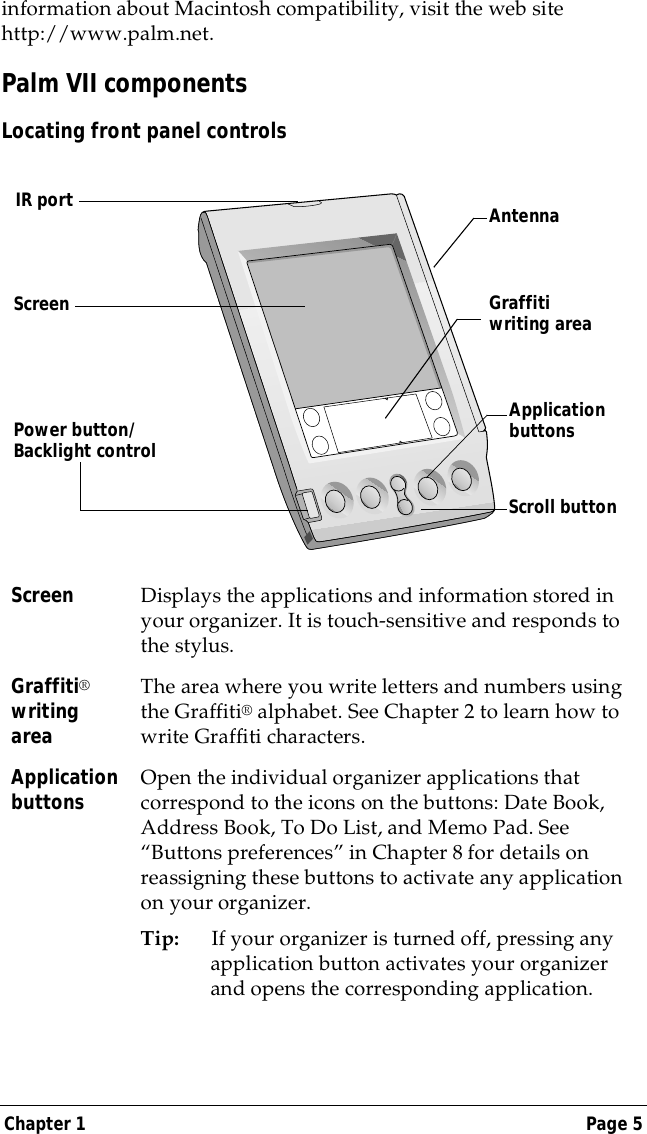
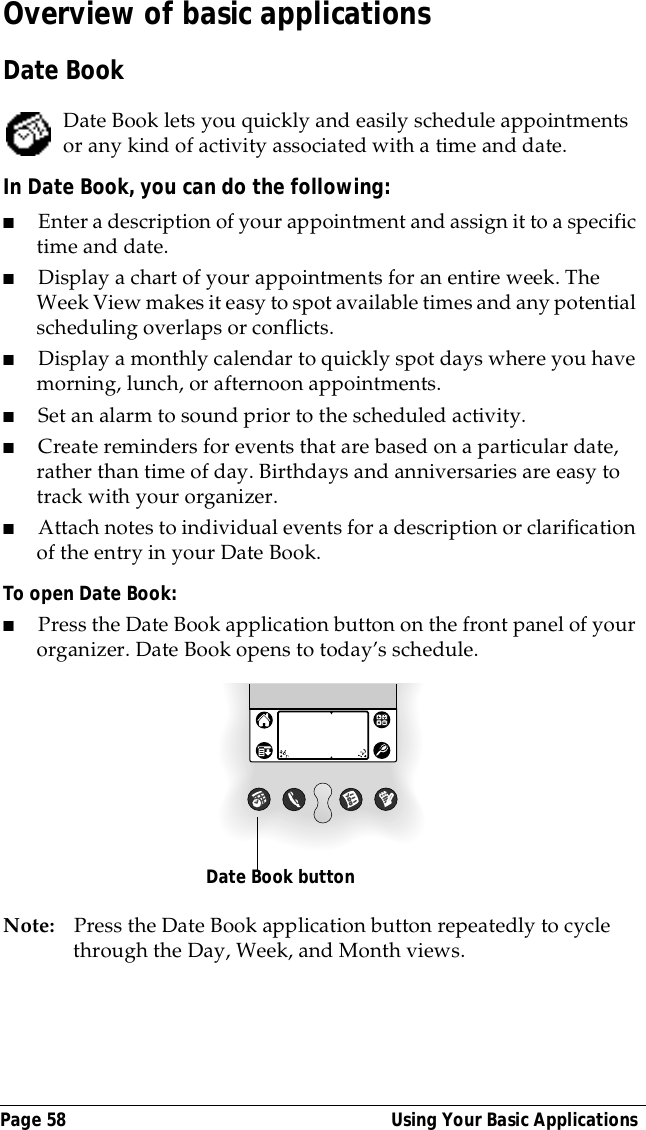
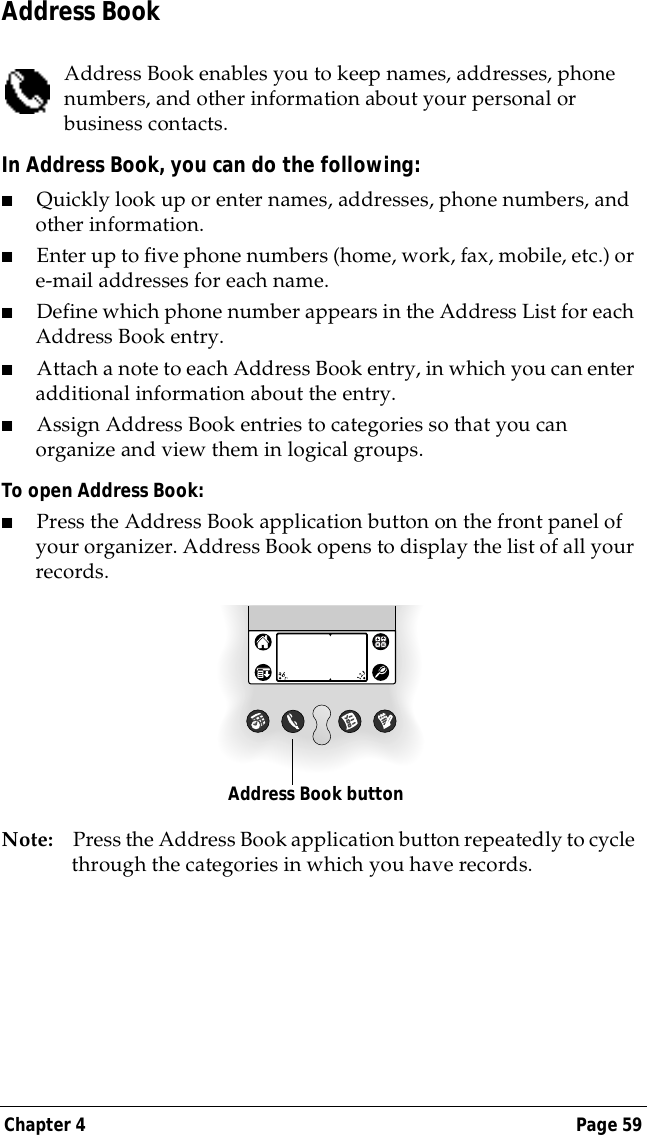
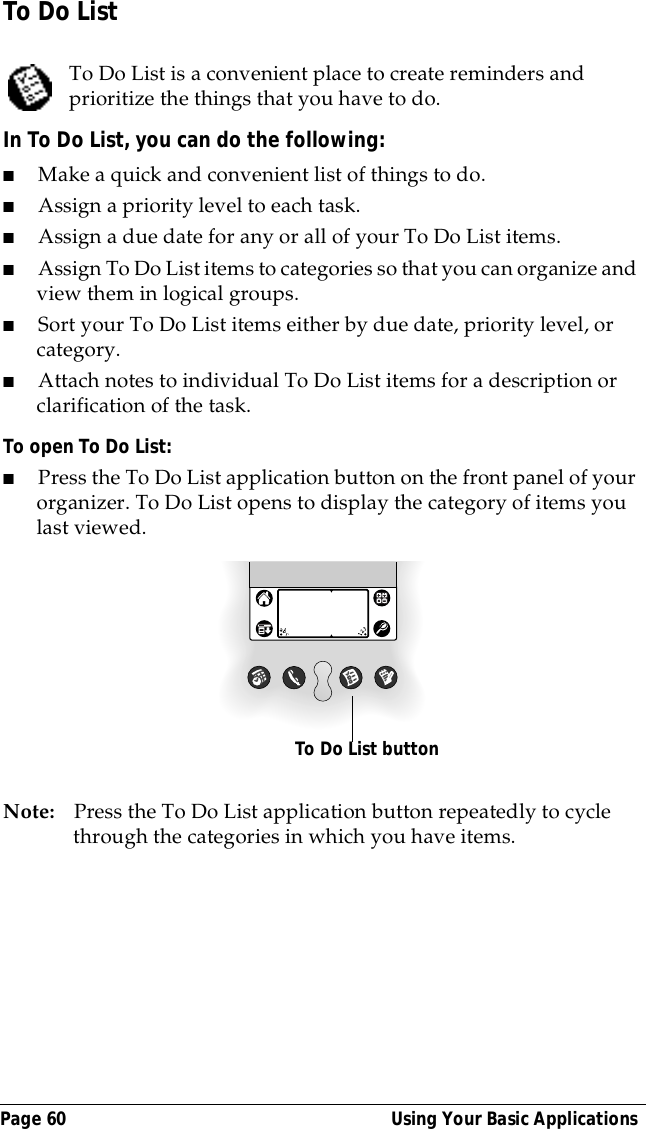
Chapter 1 Page 5information about Macintosh compatibility, visit the web site http://www.palm.net.Palm VII componentsLocating front panel controlsScreen Displays the applications and information stored in your organizer. It is touch-sensitive and responds to the stylus.Graffiti® writing areaThe area where you write letters and numbers using the Graffiti® alphabet. See Chapter 2 to learn how to write Graffiti characters. Application buttons Open the individual organizer applications that correspond to the icons on the buttons: Date Book, Address Book, To Do List, and Memo Pad. See “Buttons preferences” in Chapter 8 for details on reassigning these buttons to activate any application on your organizer.Tip: If your organizer is turned off, pressing any application button activates your organizer and opens the corresponding application.Graffiti writing areaApplication buttonsScroll buttonPower button/ Backlight controlScreenAntennaIR port
Page 6  Introduction to Your Palm VII™ OrganizerScroll button Displays text and other information that extends beyond the area of the Palm VII organizer screen. Pressing the lower half of the scroll button scrolls down to view information below the viewing area, and pressing the upper half of the button scrolls up to view the information above the viewing area.Power button/Backlight controlTurns your organizer on or off and controls the backlight feature. If your organizer is turned off, pressing the power button turns the organizer on and returns you to the last screen you viewed. Press the power button to turn the organizer off. If you have difficulty seeing the information onscreen, use the backlight to illuminate the screen. Press the power button and hold it down for about two seconds to turn the backlight on or off.You can assign the full-screen pen stroke to activate the backlight. See “Pen preferences” in Chapter 8 for more information.IR port Uses infrared technology to transmit data to and receive data from other Palm Computing® platform devices that also have an IR port. See “Beaming information” in Chapter 6 for more information.Antenna Gives you access to the Palm.Net service. See Chapter 5 for more information. See “Buttons preferences” in Chapter 8 to learn how to open a specific application when you raise the antenna. Whenever you use the wireless features of your organizer, please observe the guidelines or prohibitions on the use of wireless devices in your current location. For example, when you are on an airplane, do not raise the antenna or use the wireless features at times when the Federal Aviation Administration (FAA) or airline regulations prohibit the use of cellular phones. You can, of course, use all other applications of your organizer in accordance with airline regulations for electronic devices.
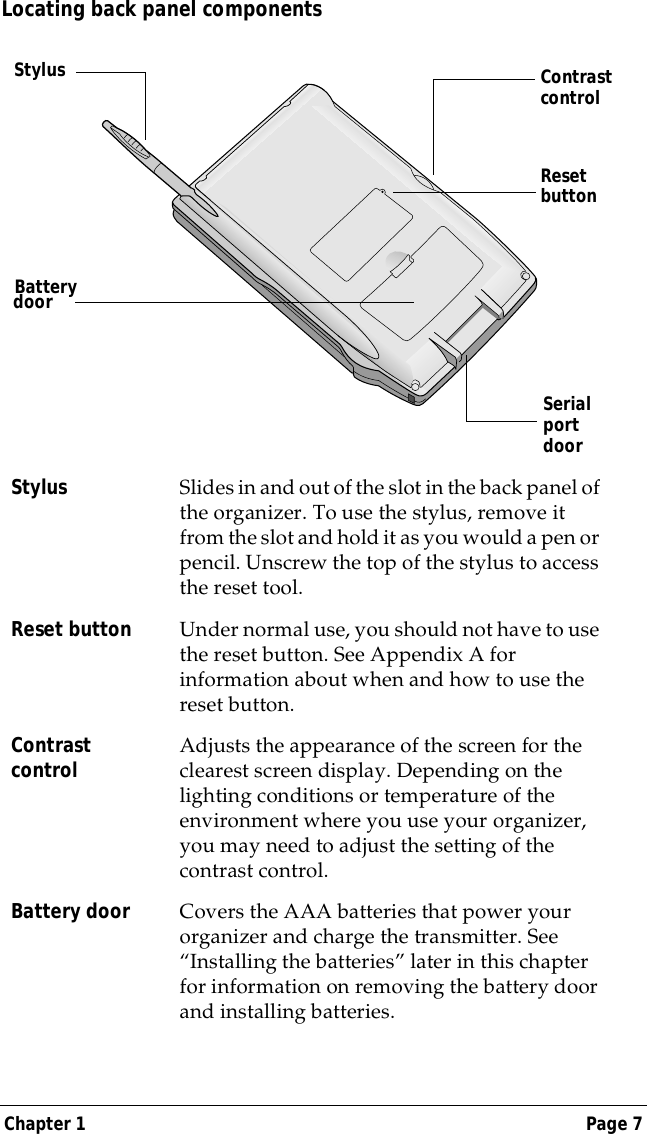
Chapter 1 Page 7Locating back panel componentsStylus Slides in and out of the slot in the back panel of the organizer. To use the stylus, remove it from the slot and hold it as you would a pen or pencil. Unscrew the top of the stylus to access the reset tool.Reset button Under normal use, you should not have to use the reset button. See Appendix A for information about when and how to use the reset button.Contrast control Adjusts the appearance of the screen for the clearest screen display. Depending on the lighting conditions or temperature of the environment where you use your organizer, you may need to adjust the setting of the contrast control.Battery door Covers the AAA batteries that power your organizer and charge the transmitter. See “Installing the batteries” later in this chapter for information on removing the battery door and installing batteries.Reset buttonSerial port doorStylusBatterydoorContrast control
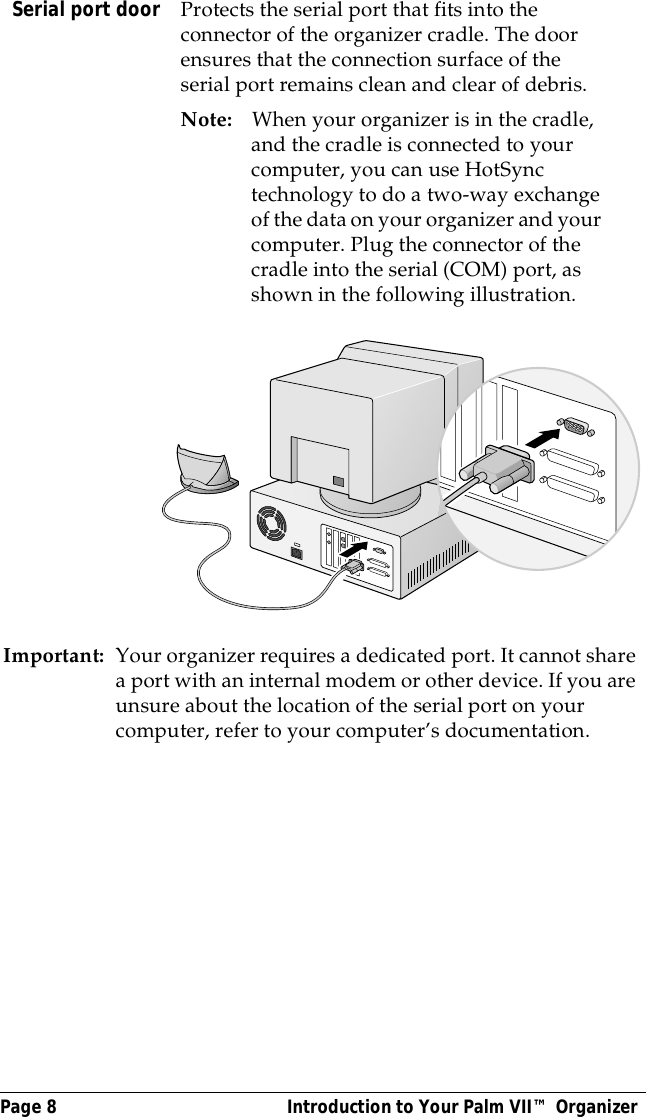
Page 8  Introduction to Your Palm VII™ OrganizerImportant: Your organizer requires a dedicated port. It cannot share a port with an internal modem or other device. If you are unsure about the location of the serial port on your computer, refer to your computer’s documentation.Serial port door Protects the serial port that fits into the connector of the organizer cradle. The door ensures that the connection surface of the serial port remains clean and clear of debris.Note: When your organizer is in the cradle, and the cradle is connected to your computer, you can use HotSync technology to do a two-way exchange of the data on your organizer and your computer. Plug the connector of the cradle into the serial (COM) port, as shown in the following illustration.
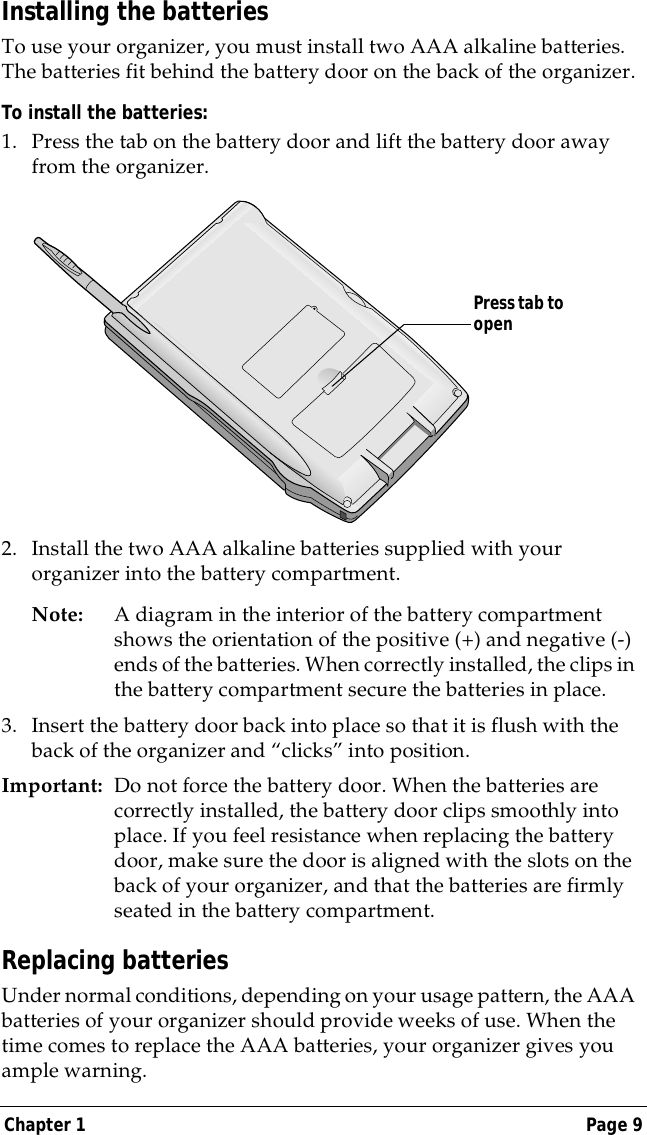
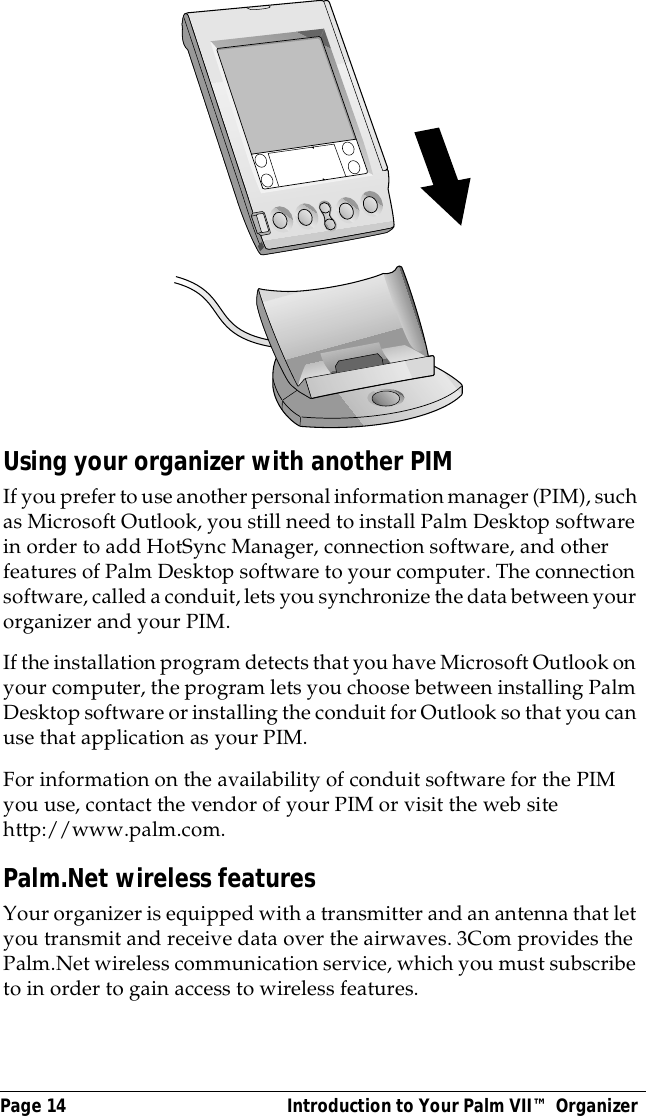
Chapter 1 Page 9Installing the batteriesTo use your organizer, you must install two AAA alkaline batteries. The batteries fit behind the battery door on the back of the organizer.To install the batteries:1. Press the tab on the battery door and lift the battery door away from the organizer.2. Install the two AAA alkaline batteries supplied with your organizer into the battery compartment.Note: A diagram in the interior of the battery compartment shows the orientation of the positive (+) and negative (-) ends of the batteries. When correctly installed, the clips in the battery compartment secure the batteries in place.3. Insert the battery door back into place so that it is flush with the back of the organizer and “clicks” into position.Important: Do not force the battery door. When the batteries are correctly installed, the battery door clips smoothly into place. If you feel resistance when replacing the battery door, make sure the door is aligned with the slots on the back of your organizer, and that the batteries are firmly seated in the battery compartment.Replacing batteries Under normal conditions, depending on your usage pattern, the AAA batteries of your organizer should provide weeks of use. When the time comes to replace the AAA batteries, your organizer gives you ample warning.Press tab to open
Page 10  Introduction to Your Palm VII™ OrganizerWhen you replace the AAA batteries, keep these points in mind:■Before you replace the batteries, perform a HotSync operation so that you have a backup copy of all your data on your computer.■When you remove the old batteries, the built-in backup power of your organizer maintains memory data. Whenever you remove the batteries, replace them immediately. We recommend replacing batteries within a period of one minute. If you encounter any difficulties or delays while you’re replacing the batteries, reinstall the original batteries and wait a few minutes for the backup power to recharge.■When you dispose of the AAA batteries, please dispose of them without damaging the environment.Setting up your organizer and charging the transmitterThe first time you insert the AAA batteries, your organizer automatically begins two processes:■The batteries begin to charge the transmitter you use with the wireless communication service. This takes about 70 minutes. As soon as the transmitter has been charged, you can activate the service. See “Activating the Palm.Net wireless communication service” later in this chapter.■Your organizer turns on automatically and Setup begins. Setup consists of a short series of screens that you complete to prepare your organizer for use. Setup also lists the query applications that are preloaded on your organizer. To complete Setup, follow the instructions onscreen.As soon as you finish Setup, you can use all the basic applications of your organizer. See Chapter 4 for the list of your basic applications.Upgrade informationIf you already own a PalmPilot™ organizer or Palm III™ organizer, 3Com recommends that you install the version of Palm Desktop software that comes with your new Palm VII organizer into the same folder as your current Palm Desktop software. When you install the new version in the same folder as the previous version, all your data is preserved.If you use another personal information manager (PIM), you still need to install Palm Desktop software in order to add HotSync Manager,
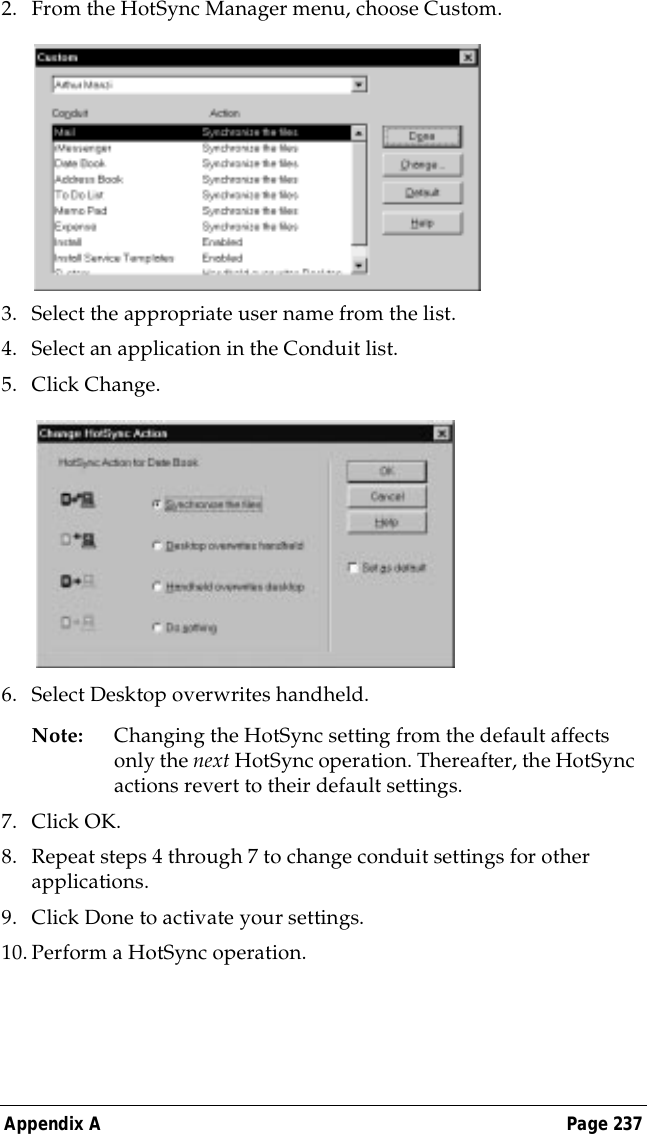
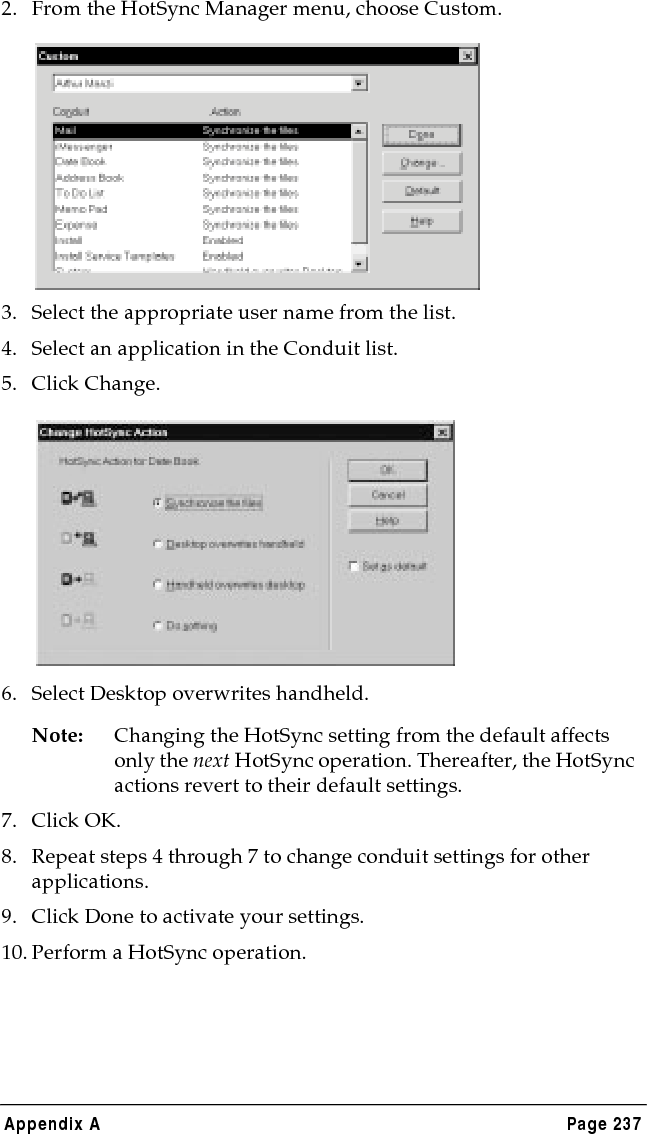
Chapter 1 Page 11conduit software, and other features of Palm Desktop software to your computer.You perform HotSync operations in exactly the same way, so you can quickly synchronize your old data with your new organizer.To upgrade:1. Read the Getting Started guide for an overview of the complete installation process.2. (Optional) To ensure against any data loss, go to the folder that stores Palm Desktop software, copy your username folder, and store the copy outside the Palm Desktop software folder.3. Synchronize your old organizer with your old Palm Desktop software.This ensures that the latest information from your organizer is on your desktop computer.4. Follow the installation instructions in “Installing Palm Desktop software” later in this chapter.Be sure to install the new software in the same folder as the old software.5. To prepare for the first HotSync operation that synchronizes your new organizer with your new Palm Desktop software, go to the HotSync Manager and choose Custom.Note: Be sure your username appears in box at the top of the Custom dialog box. If not, select your username.6. For all conduits, click Change and select the option Desktop overwrites handheld. Then click Done.See “Customizing HotSync application settings” in Chapter 7 for more information.7. Place your new organizer in the cradle and press the HotSync button.8. If the Select User dialog box appears, select your username.9. Return to the Getting Started guide and complete the activation of your organizer.Each organizer must have a unique nameAfter you complete the upgrade process described above, you have two organizers with the same name. This is an undesirable situation.
Page 12  Introduction to Your Palm VII™ OrganizerEach organizer must have a unique name in order to prevent unexpected results during HotSync operations and other complications.We strongly recommend that you perform a hard reset on your old organizer. See “Performing a hard reset” in Appendix A for details.A hard reset not only erases all data from the old organizer; it also erases the name and makes that organizer a clean slate, ready to receive a new name. The next time you perform a HotSync operation with this old organizer, you are asked to give it a name. Be sure to give it a unique name.Palm Desktop organizer softwarePalm Desktop software extends many of the functions of your organizer to your computer and serves to back up all your data. Viewing and editing your data using Palm Desktop software is optional. However, when you use it with your organizer and the built-in HotSync technology, you can fully synchronize the information on your organizer with the information on your computer. It is a good idea to back up your data in case something happens to the data on your organizer. Changes you make on your organizer or Palm Desktop software appear in both places after you synchronize.With Palm Desktop software, you can do the following:■Work with your organizer applications on your computer. Palm Desktop software duplicates the Date Book, Address Book, To Do List, and Memo Pad applications on your organizer, so you can view, enter, and modify any data stored on your organizer.■Back up the data stored on your organizer with HotSync technology and synchronize the data on your Palm Desktop software. Synchronization is a one-step procedure that ensures your data is always safe and up-to-date. See “Exchanging and updating data: HotSync operations” in Chapter 4 for more information. ■Import and export data. See “Importing data” in Chapter 2 for more information.■Print your Date Book, Address Book, To Do List, and Memo Pad information on any printer.
Chapter 1 Page 13Installing Palm Desktop softwareThe following instructions guide you through installing Palm Desktop software. After installation, refer to the online Help in Palm Desktop software for information about how to use the software.To ensure a safe and uninterrupted installation of Palm Desktop software, please do the following before installing:■Turn off your computer and connect the cradle to it. Do not put the organizer in the cradle yet; you do that later in the process.■If you install from diskettes, make sure the original Palm Desktop software diskettes are write-protected, and then make backup copies of them. When you finish, install using the copies.■Do not simply copy the Palm Desktop software files to your computer’s hard disk. You must use the installer to place the files in their proper locations and to decompress the files. To install Palm Desktop software:1. Exit any open programs, including those that run automatically at startup. Disable any virus-scanning software.2. Insert the Palm Desktop software CD-ROM into the computer’s CD-ROM drive (or insert the diskette labeled Setup into the diskette drive). 3. Click the Install button to begin the installation program.4. Follow the onscreen instructions to complete the installation. During installation you will be asked to insert your organizer into the cradle.
Page 14  Introduction to Your Palm VII™ OrganizerUsing your organizer with another PIMIf you prefer to use another personal information manager (PIM), such as Microsoft Outlook, you still need to install Palm Desktop software in order to add HotSync Manager, connection software, and other features of Palm Desktop software to your computer. The connection software, called a conduit, lets you synchronize the data between your organizer and your PIM.If the installation program detects that you have Microsoft Outlook on your computer, the program lets you choose between installing Palm Desktop software or installing the conduit for Outlook so that you can use that application as your PIM. For information on the availability of conduit software for the PIM you use, contact the vendor of your PIM or visit the web site http://www.palm.com.Palm.Net wireless featuresYour organizer is equipped with a transmitter and an antenna that let you transmit and receive data over the airwaves. 3Com provides the Palm.Net wireless communication service, which you must subscribe to in order to gain access to wireless features.
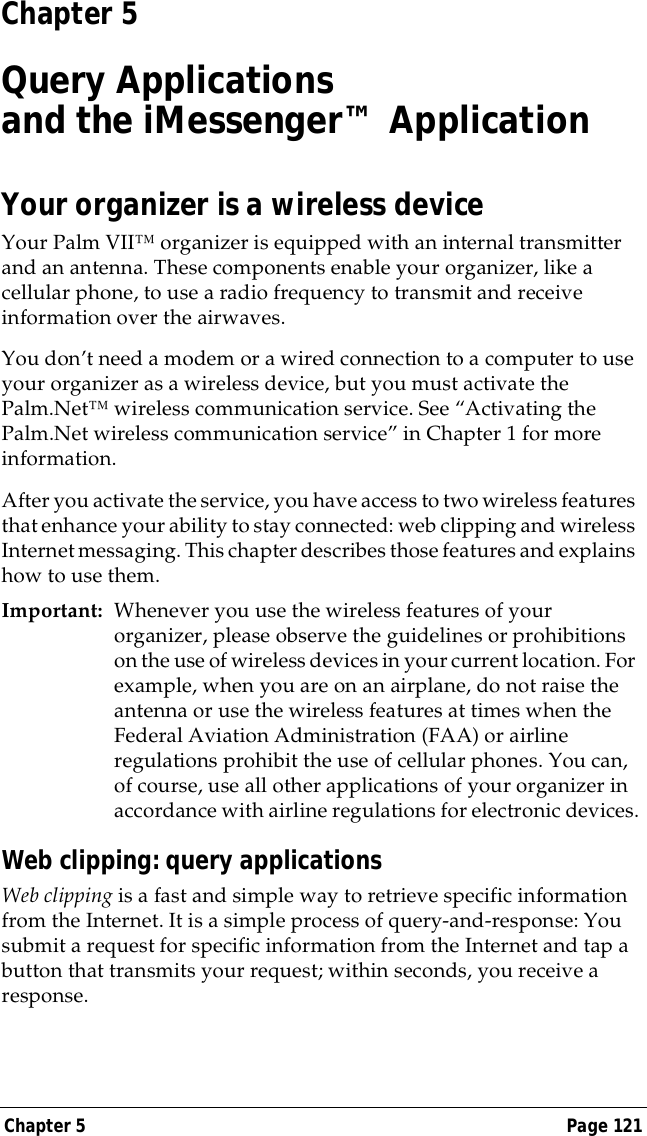
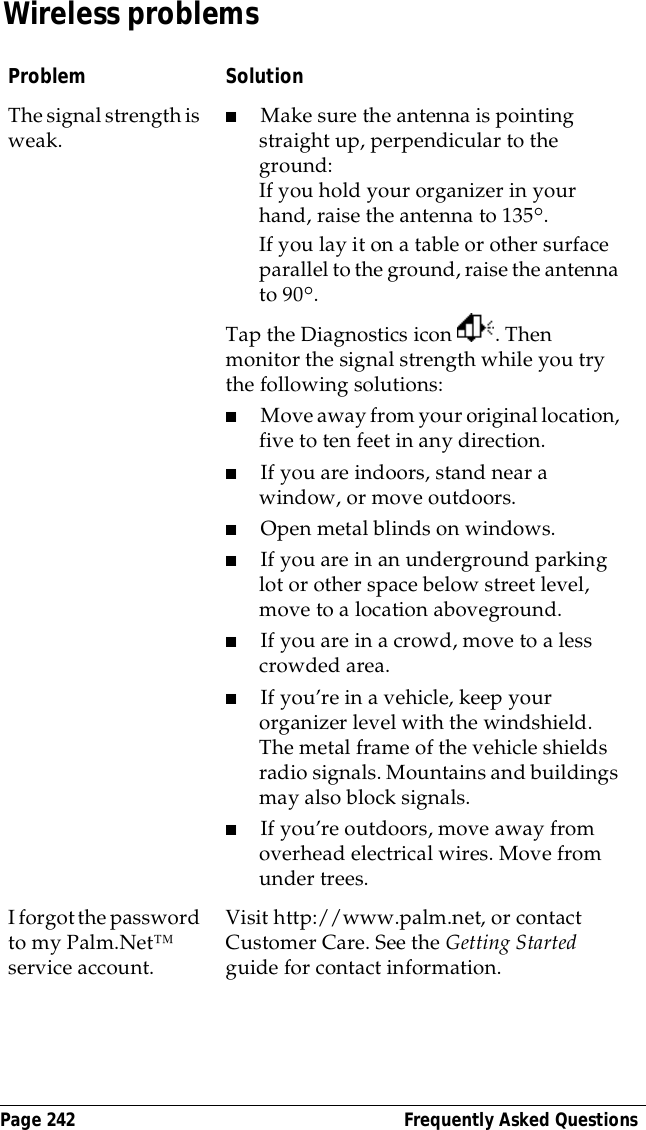
Chapter 1 Page 15After you activate the wireless communication service, the two new wireless features become available to you:■Web clipping, using query applications■Wireless Internet messaging, using the iMessenger applicationActivating the Palm.Net wireless communication service The transmitter inside your organizer contains a rechargeable battery that must be charged before you can activate the wireless communication service and use the wireless features. The AAA batteries that you install during Setup of your organizer charge the transmitter, and charging begins as soon as you insert the batteries. Charging takes about 70 minutes. Before you activate the Palm.Net service, be sure of the following:■You’re within coverage of the network. To find detailed maps of coverage, visit the web site http://www.palm.net.■You’re in a location that can receive a strong radio signal. See “Wireless problems” in Appendix B for tips on eliminating obstacles to the signal.To activate the Palm.Net service:1. Read the brochure, Choosing a Palm.Net Service Plan, included in the organizer package, describing the monthly service plans. Decide on a plan. (You can switch plans at any time.)2. Prepare to enter the following information: your name, firm, billing address, phone number, current desktop e-mail address, choice of service plan, and credit card information (or corporate account number).During activation you are also asked to create a username and a password. You can accept one of the usernames suggested by the Activate application or create your own; it must be at least 3 characters long. Your password must be 4 to 15 characters long.3. Read the Palm.Net service agreement, located at the back of this book.4. When the charging of the transmitter is finished, raise the antenna on the right side of your organizer by gently rotating it upwards.
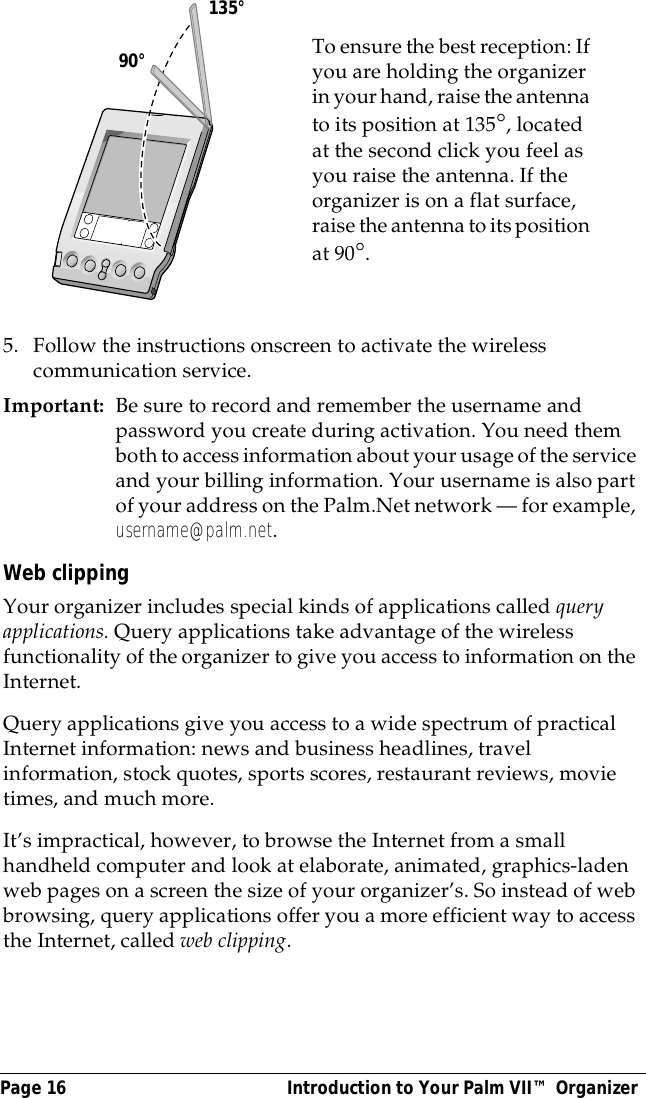
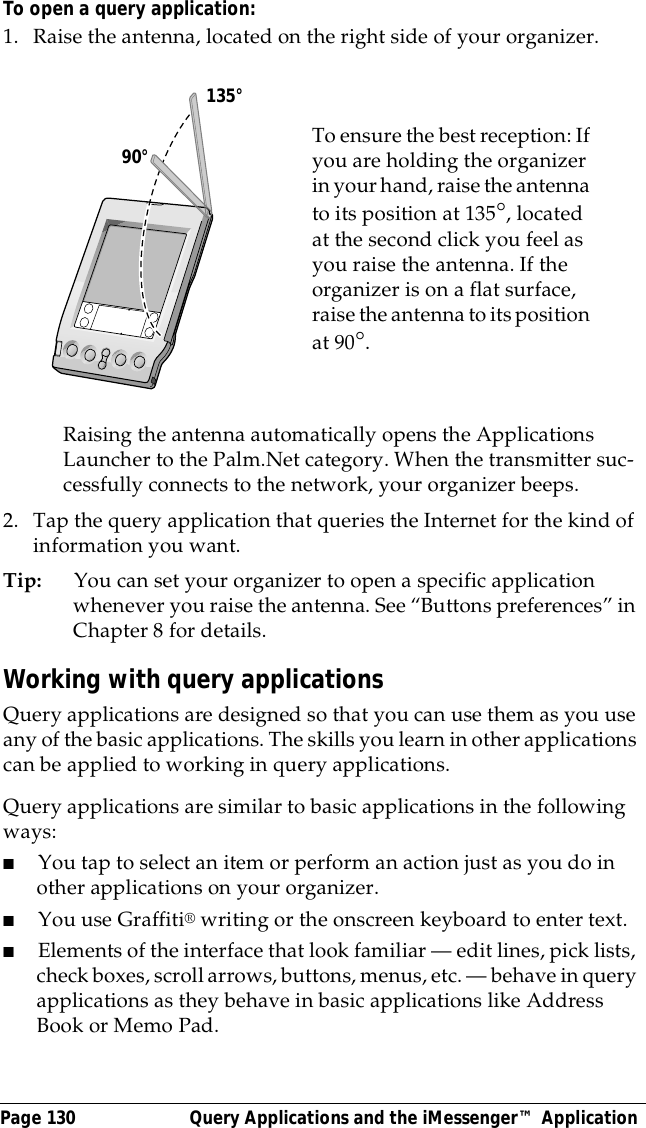
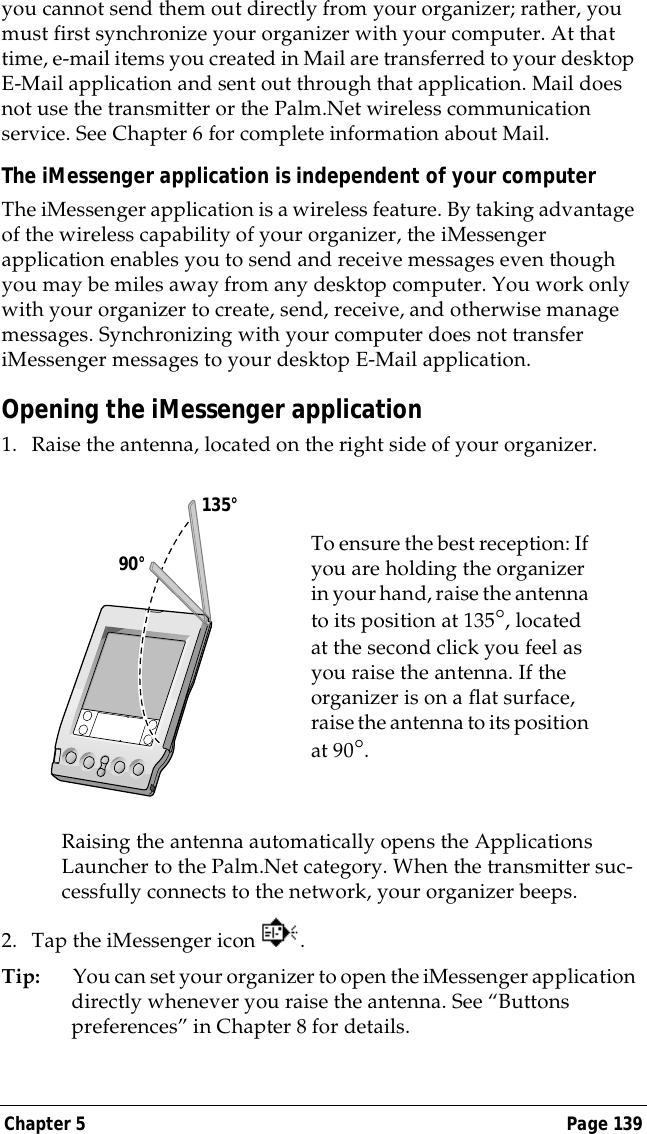
Page 16  Introduction to Your Palm VII™ Organizer5. Follow the instructions onscreen to activate the wireless communication service.Important: Be sure to record and remember the username and password you create during activation. You need them both to access information about your usage of the service and your billing information. Your username is also part of your address on the Palm.Net network — for example, username@palm.net.Web clippingYour organizer includes special kinds of applications called query applications. Query applications take advantage of the wireless functionality of the organizer to give you access to information on the Internet. Query applications give you access to a wide spectrum of practical Internet information: news and business headlines, travel information, stock quotes, sports scores, restaurant reviews, movie times, and much more. It’s impractical, however, to browse the Internet from a small handheld computer and look at elaborate, animated, graphics-laden web pages on a screen the size of your organizer’s. So instead of web browsing, query applications offer you a more efficient way to access the Internet, called web clipping.To ensure the best reception: If you are holding the organizer in your hand, raise the antenna to its position at 135°, located at the second click you feel as you raise the antenna. If the organizer is on a flat surface, raise the antenna to its position at 90°.           90°135°
Chapter 1 Page 17In general, web clipping is a simple process of query-and-response. You simply request information, tap a button that transmits your request to the Internet, and within seconds, you receive a response. See Chapter 5 for more information.Wireless Internet messagingLike web clipping, the iMessenger application takes advantage of the wireless functionality of your organizer to give you wireless Internet messaging. Your organizer, like a cellular phone, uses a radio frequency to transmit and receive information. Your organizer is part of the Palm.Net network, which receives and stores messages sent to you at your @palm.net address, and delivers messages you send from your organizer to the recipient’s Internet e-mail address.After you activate the wireless communication service, whenever you’re within the coverage area, you can communicate with anyone who has an Internet e-mail account. See Chapter 5 for more information.
Page 18  Introduction to Your Palm VII™ OrganizerTapping and typingTap with the stylus to get things doneLike using a mouse to click elements on a computer screen, using the stylus to tap elements on your organizer screen is the basic action that gets things done on your organizer.The first time you start your organizer, setup instructions appear on the screen. These instructions include a calibration screen, or digitizer. Calibration aligns the internal circuitry of your organizer with its touch-sensitive screen so that when you tap an element on the screen, the organizer can detect exactly which task you want to perform.Important:Always use the point of the stylus for tapping or making strokes on the organizer screen. Never use an actual pen, pencil, or other sharp object to write on the organizer screen.With your organizer turned on, you can tap the organizer screen to do many operations, such as the following:■Open applications■Submit queries to the Internet■Check for and send messages in the iMessenger application■Choose menu commands■Initiate a global Find operation■Select options in dialog boxes■Open the onscreen keyboardJust as you can drag the mouse to select text or move objects on your computer, you can also drag the stylus to select text. You can also use the stylus to drag the slider of any scroll bar.
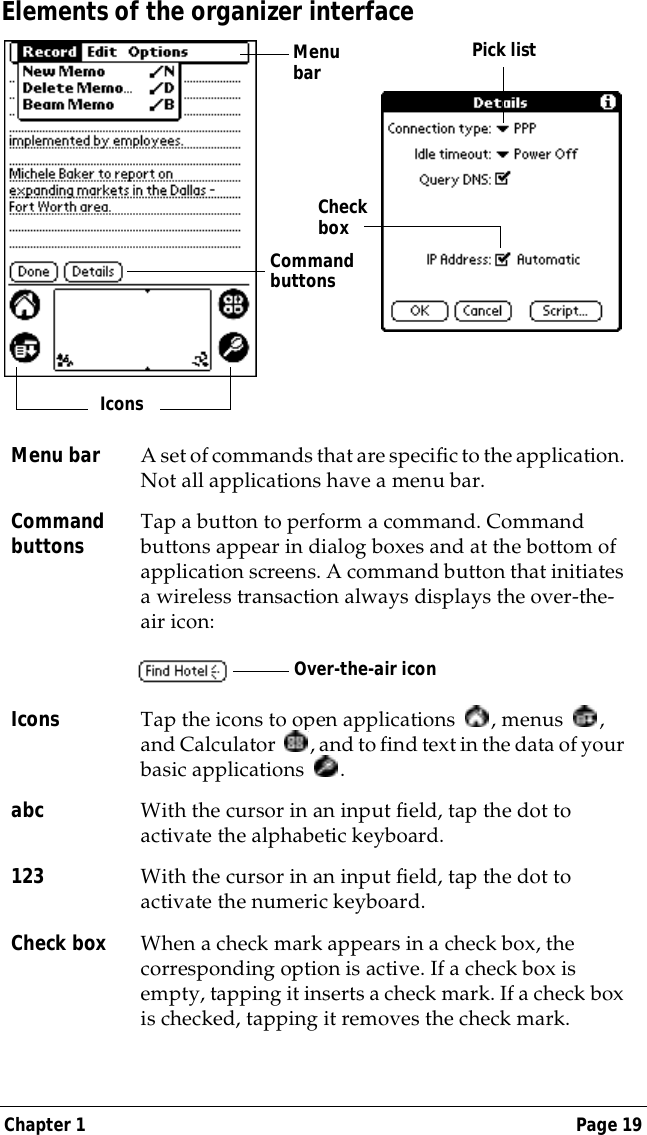
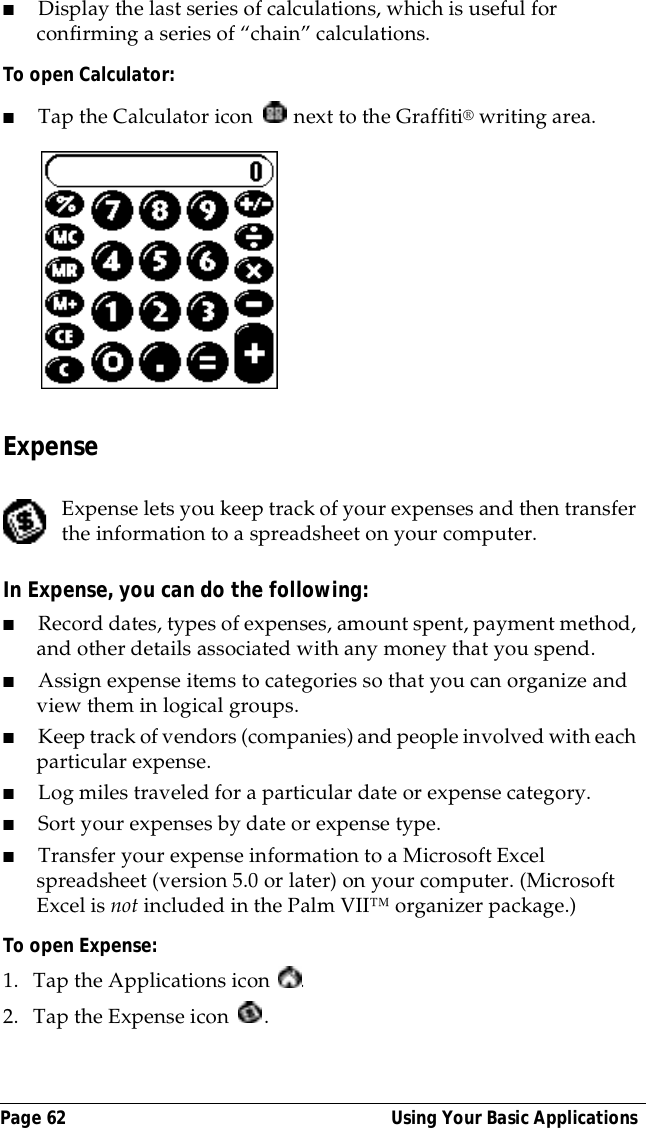
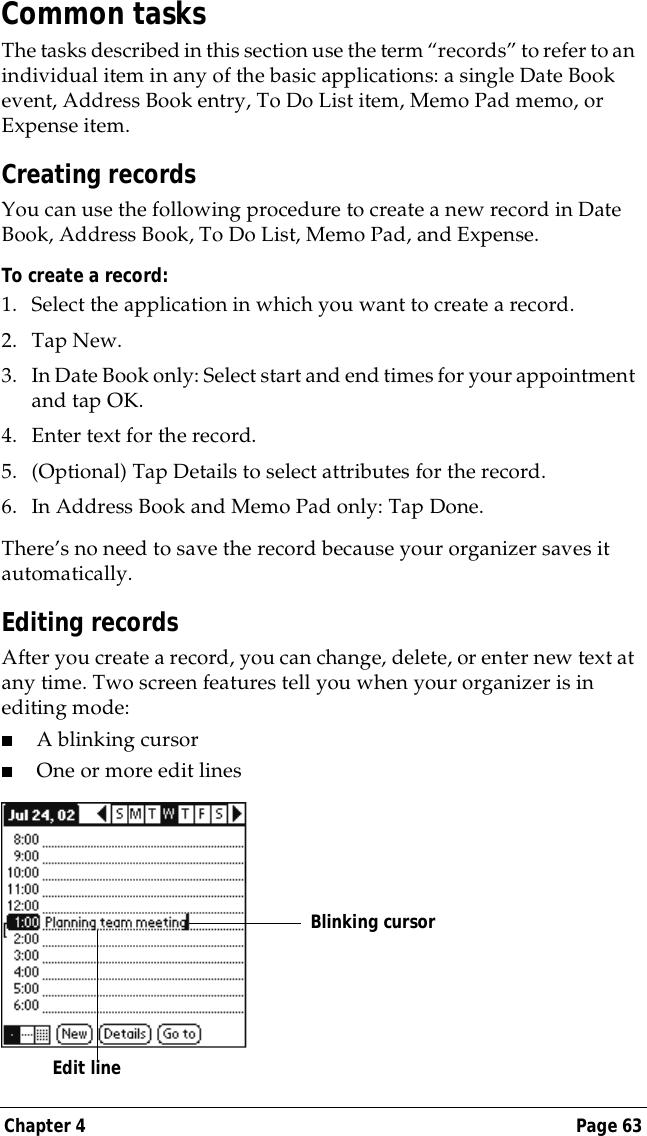
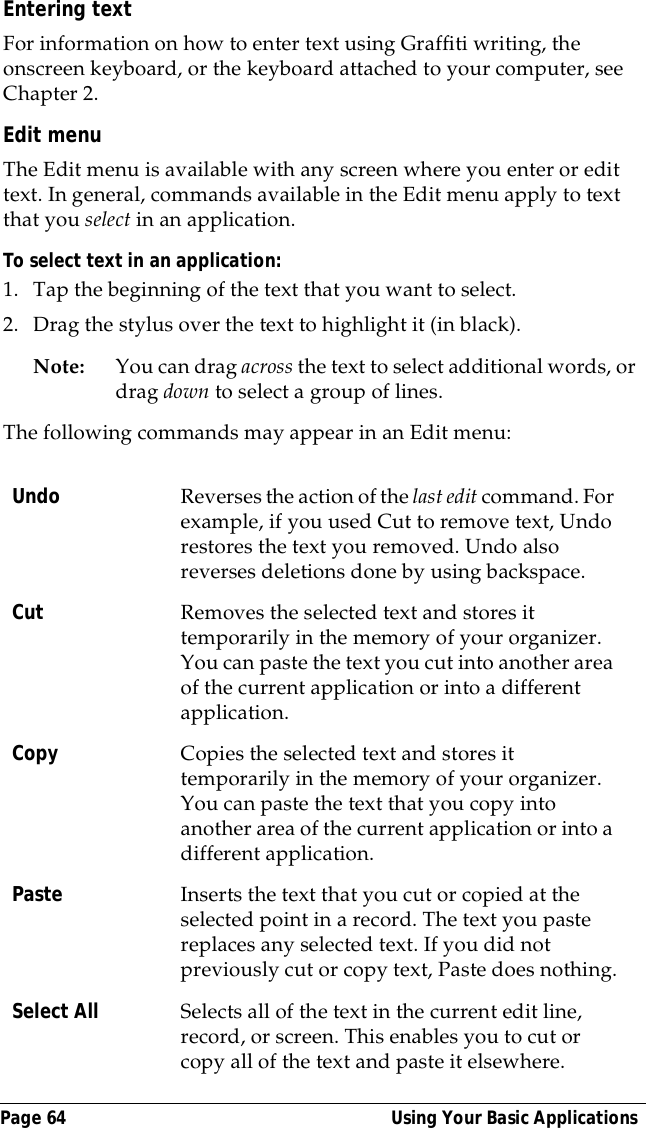
Chapter 1 Page 19Elements of the organizer interfaceMenu bar A set of commands that are specific to the application. Not all applications have a menu bar.Command buttons Tap a button to perform a command. Command buttons appear in dialog boxes and at the bottom of application screens. A command button that initiates a wireless transaction always displays the over-the-air icon:Icons Tap the icons to open applications  , menus  , and Calculator  , and to find text in the data of your basic applications .abc With the cursor in an input field, tap the dot to activate the alphabetic keyboard.123 With the cursor in an input field, tap the dot to activate the numeric keyboard.Check box When a check mark appears in a check box, the corresponding option is active. If a check box is empty, tapping it inserts a check mark. If a check box is checked, tapping it removes the check mark.Menu barCommand buttonsIconsPick listCheck boxOver-the-air icon
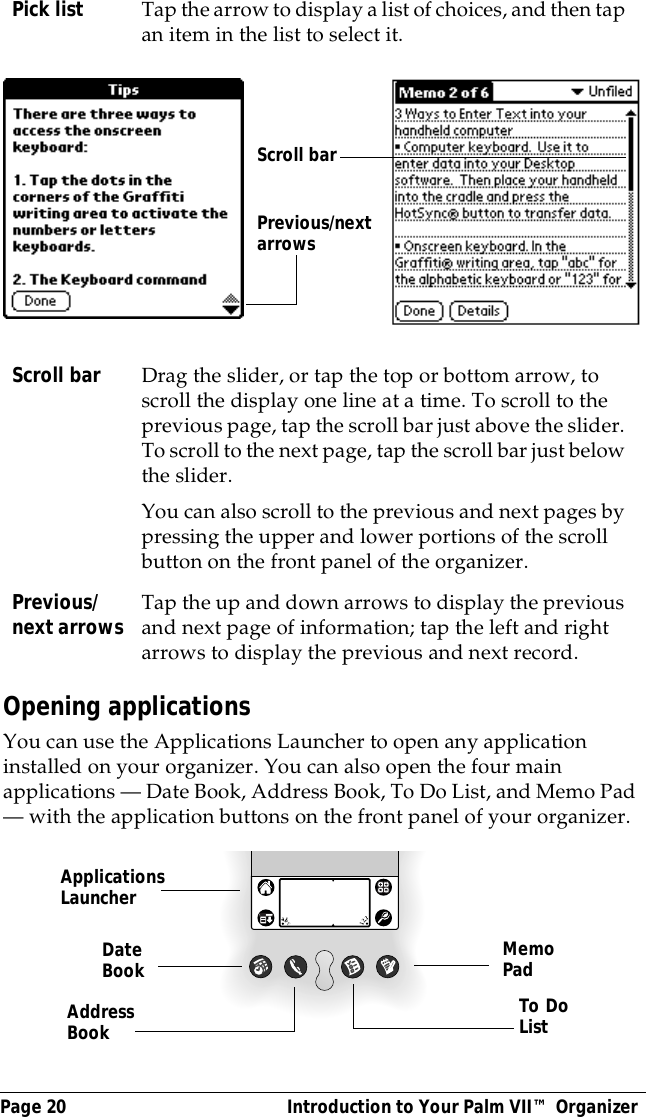
Page 20  Introduction to Your Palm VII™ OrganizerOpening applicationsYou can use the Applications Launcher to open any application installed on your organizer. You can also open the four main applications — Date Book, Address Book, To Do List, and Memo Pad — with the application buttons on the front panel of your organizer.Pick list Tap the arrow to display a list of choices, and then tap an item in the list to select it.Scroll bar Drag the slider, or tap the top or bottom arrow, to scroll the display one line at a time. To scroll to the previous page, tap the scroll bar just above the slider. To scroll to the next page, tap the scroll bar just below the slider.You can also scroll to the previous and next pages by pressing the upper and lower portions of the scroll button on the front panel of the organizer.Previous/next arrows Tap the up and down arrows to display the previous and next page of information; tap the left and right arrows to display the previous and next record.Previous/next arrows Scroll barApplications LauncherAddress BookDate Book MemoPadTo DoList
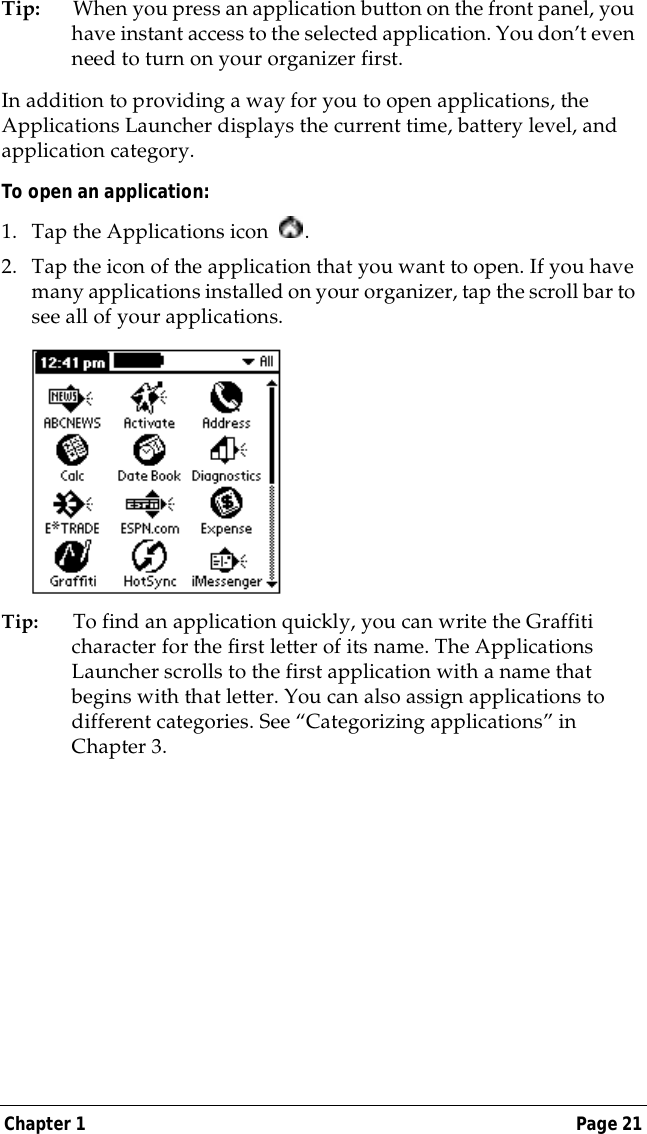
Chapter 1 Page 21Tip: When you press an application button on the front panel, you have instant access to the selected application. You don’t even need to turn on your organizer first. In addition to providing a way for you to open applications, the Applications Launcher displays the current time, battery level, and application category.To open an application:1. Tap the Applications icon  . 2. Tap the icon of the application that you want to open. If you have many applications installed on your organizer, tap the scroll bar to see all of your applications. Tip: To find an application quickly, you can write the Graffiti character for the first letter of its name. The Applications Launcher scrolls to the first application with a name that begins with that letter. You can also assign applications to different categories. See “Categorizing applications” in Chapter 3.
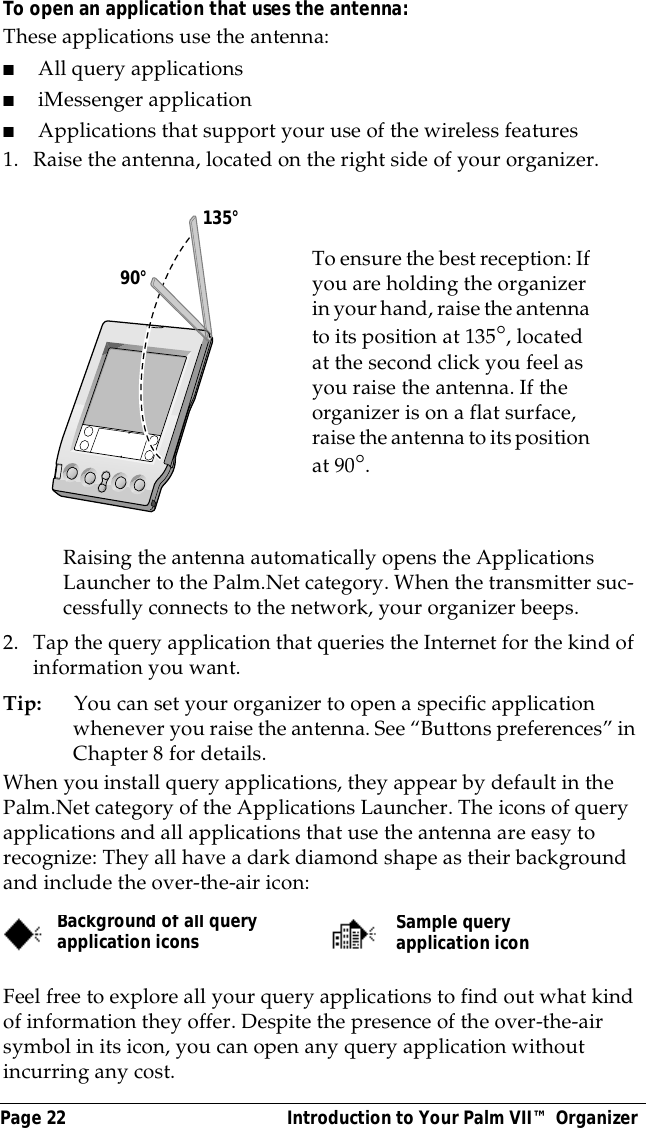
Page 22  Introduction to Your Palm VII™ OrganizerTo open an application that uses the antenna:These applications use the antenna: ■All query applications■iMessenger application■Applications that support your use of the wireless features1. Raise the antenna, located on the right side of your organizer.Raising the antenna automatically opens the Applications Launcher to the Palm.Net category. When the transmitter suc-cessfully connects to the network, your organizer beeps.2. Tap the query application that queries the Internet for the kind of information you want.Tip: You can set your organizer to open a specific application whenever you raise the antenna. See “Buttons preferences” in Chapter 8 for details.When you install query applications, they appear by default in the Palm.Net category of the Applications Launcher. The icons of query applications and all applications that use the antenna are easy to recognize: They all have a dark diamond shape as their background and include the over-the-air icon:Feel free to explore all your query applications to find out what kind of information they offer. Despite the presence of the over-the-air symbol in its icon, you can open any query application without incurring any cost.To ensure the best reception: If you are holding the organizer in your hand, raise the antenna to its position at 135°, located at the second click you feel as you raise the antenna. If the organizer is on a flat surface, raise the antenna to its position at 90°.       90°135°Background of all query application iconsSample query application icon
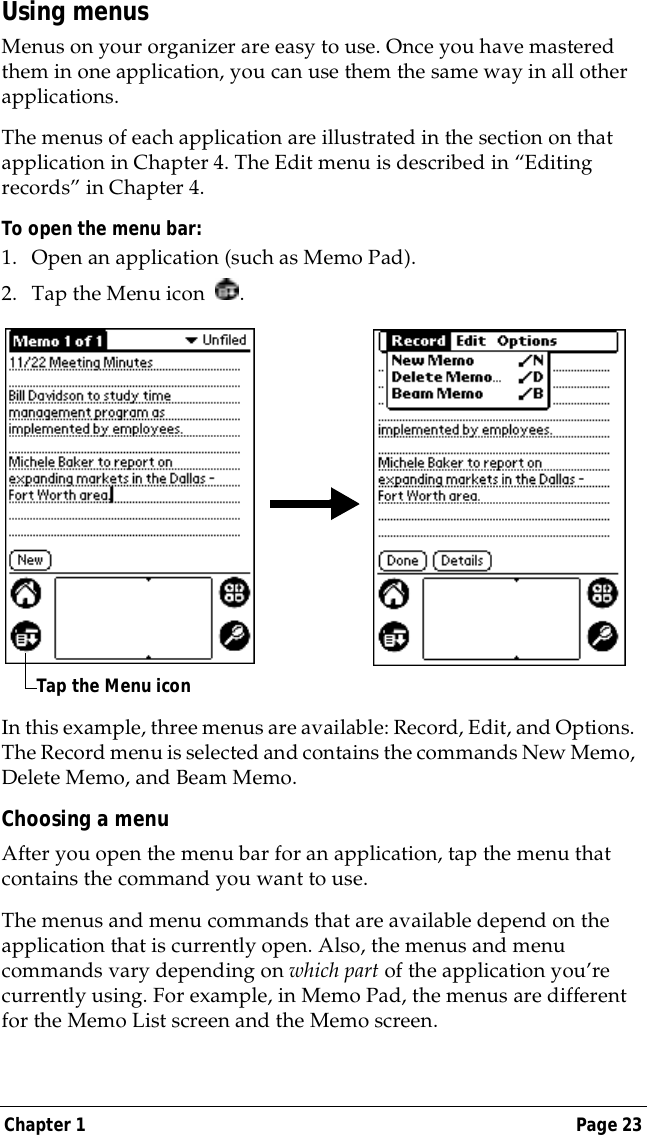
Chapter 1 Page 23Using menusMenus on your organizer are easy to use. Once you have mastered them in one application, you can use them the same way in all other applications. The menus of each application are illustrated in the section on that application in Chapter 4. The Edit menu is described in “Editing records” in Chapter 4. To open the menu bar:1. Open an application (such as Memo Pad).2. Tap the Menu icon  . In this example, three menus are available: Record, Edit, and Options. The Record menu is selected and contains the commands New Memo, Delete Memo, and Beam Memo.Choosing a menuAfter you open the menu bar for an application, tap the menu that contains the command you want to use.The menus and menu commands that are available depend on the application that is currently open. Also, the menus and menu commands vary depending on which part of the application you’re currently using. For example, in Memo Pad, the menus are different for the Memo List screen and the Memo screen.Tap the Menu icon
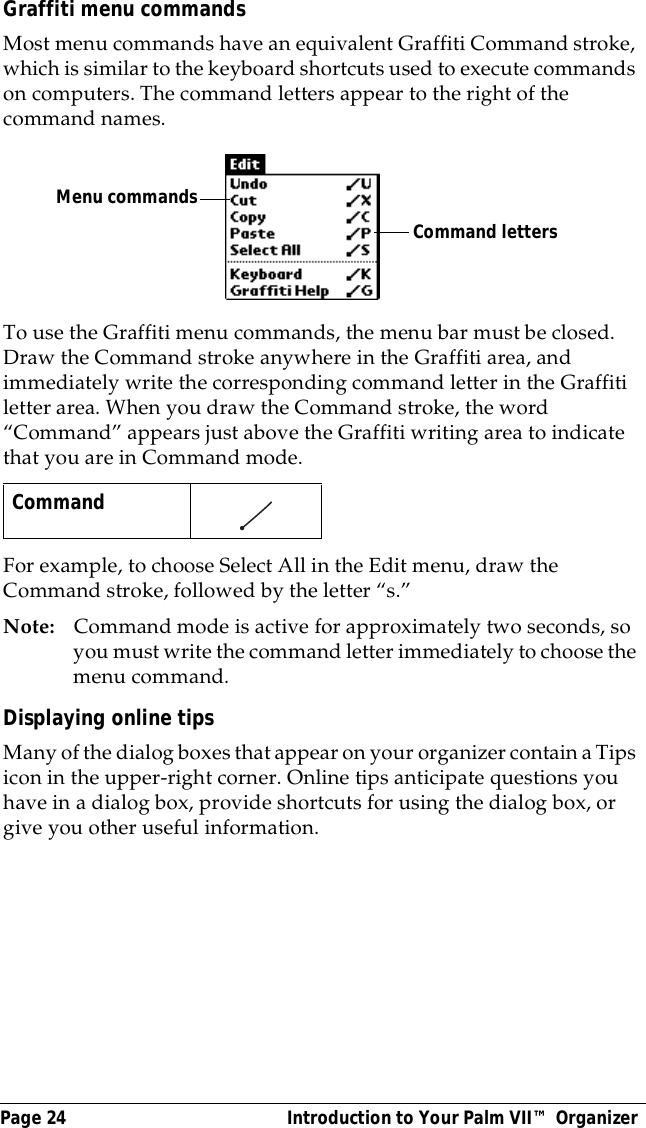
Page 24  Introduction to Your Palm VII™ OrganizerGraffiti menu commandsMost menu commands have an equivalent Graffiti Command stroke, which is similar to the keyboard shortcuts used to execute commands on computers. The command letters appear to the right of the command names. To use the Graffiti menu commands, the menu bar must be closed. Draw the Command stroke anywhere in the Graffiti area, and immediately write the corresponding command letter in the Graffiti letter area. When you draw the Command stroke, the word “Command” appears just above the Graffiti writing area to indicate that you are in Command mode.For example, to choose Select All in the Edit menu, draw the Command stroke, followed by the letter “s.”Note: Command mode is active for approximately two seconds, so you must write the command letter immediately to choose the menu command. Displaying online tipsMany of the dialog boxes that appear on your organizer contain a Tips icon in the upper-right corner. Online tips anticipate questions you have in a dialog box, provide shortcuts for using the dialog box, or give you other useful information.Command    Command lettersMenu commands
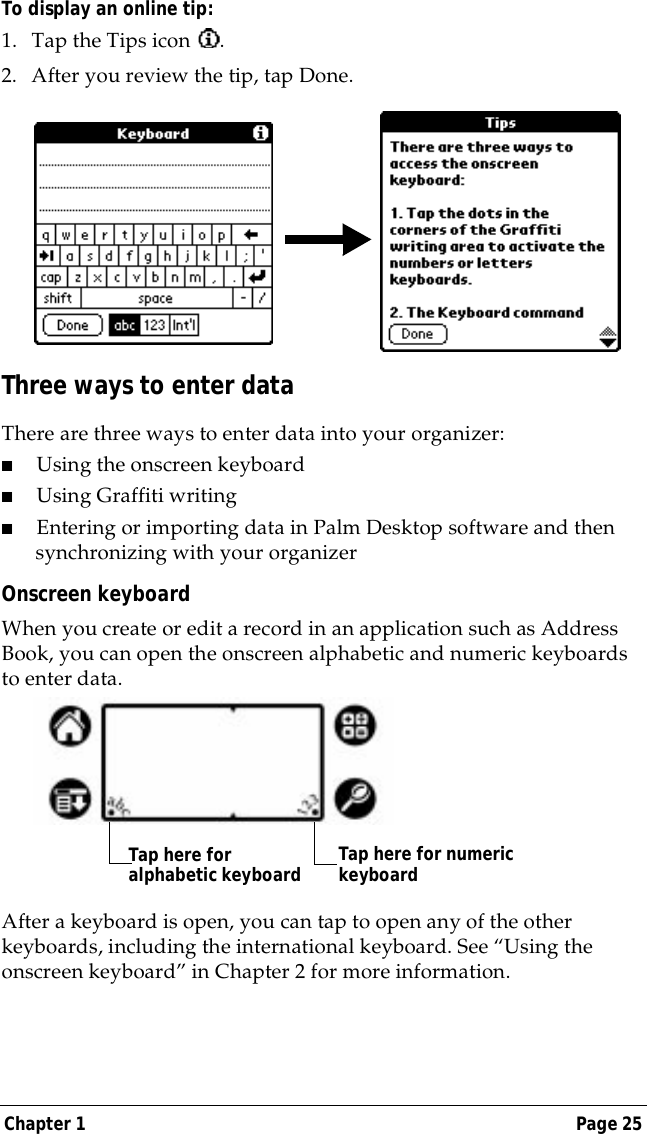
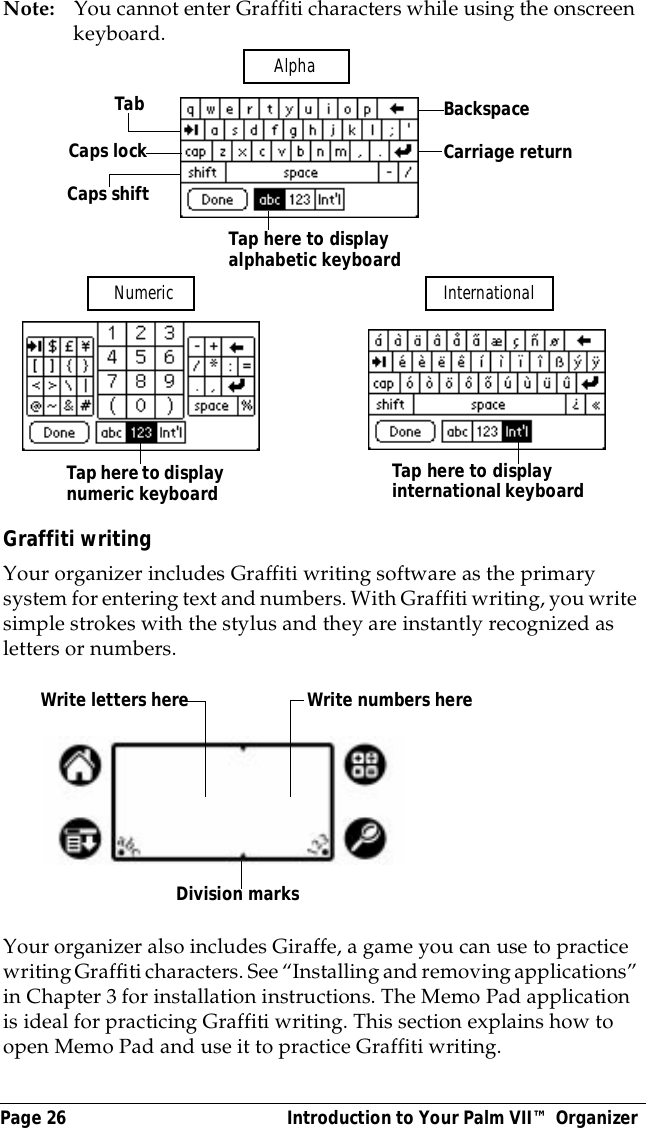
Chapter 1 Page 25To display an online tip:1. Tap the Tips icon  . 2. After you review the tip, tap Done.Three ways to enter dataThere are three ways to enter data into your organizer:■Using the onscreen keyboard■Using Graffiti writing■Entering or importing data in Palm Desktop software and then synchronizing with your organizerOnscreen keyboardWhen you create or edit a record in an application such as Address Book, you can open the onscreen alphabetic and numeric keyboards to enter data. After a keyboard is open, you can tap to open any of the other keyboards, including the international keyboard. See “Using the onscreen keyboard” in Chapter 2 for more information.Tap here for alphabetic keyboard Tap here for numeric keyboard
Page 26  Introduction to Your Palm VII™ OrganizerNote: You cannot enter Graffiti characters while using the onscreen keyboard. Graffiti writingYour organizer includes Graffiti writing software as the primary system for entering text and numbers. With Graffiti writing, you write simple strokes with the stylus and they are instantly recognized as letters or numbers. Your organizer also includes Giraffe, a game you can use to practice writing Graffiti characters. See “Installing and removing applications” in Chapter 3 for installation instructions. The Memo Pad application is ideal for practicing Graffiti writing. This section explains how to open Memo Pad and use it to practice Graffiti writing.BackspaceCarriage returnTabCaps lockCaps shiftTap here to display alphabetic keyboard Tap here to display numeric keyboard  Tap here to display international keyboard Alpha Numeric  InternationalWrite letters here Write numbers hereDivision marks
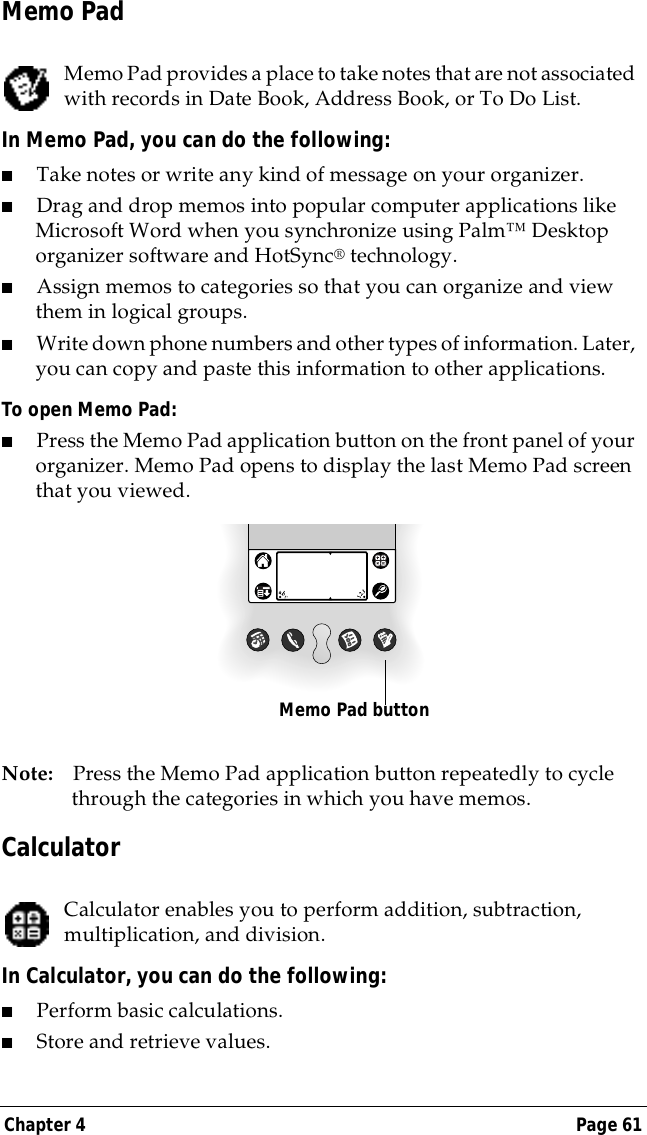
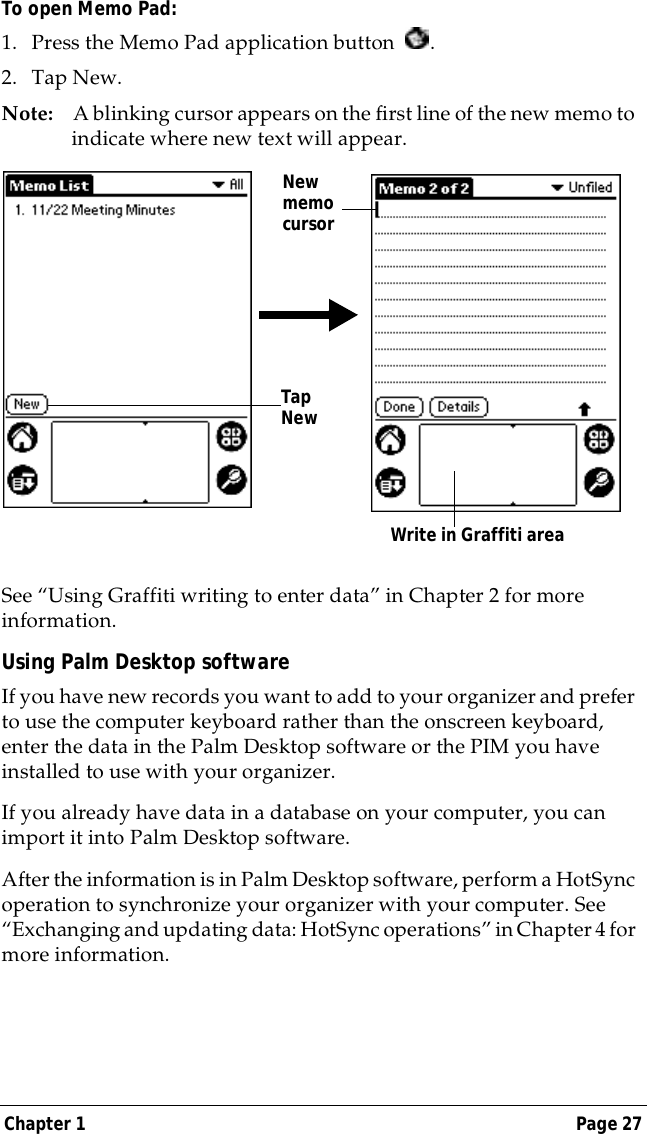
Chapter 1 Page 27To open Memo Pad:1. Press the Memo Pad application button  . 2. Tap New.Note: A blinking cursor appears on the first line of the new memo to indicate where new text will appear.  See “Using Graffiti writing to enter data” in Chapter 2 for more information.Using Palm Desktop softwareIf you have new records you want to add to your organizer and prefer to use the computer keyboard rather than the onscreen keyboard, enter the data in the Palm Desktop software or the PIM you have installed to use with your organizer. If you already have data in a database on your computer, you can import it into Palm Desktop software. After the information is in Palm Desktop software, perform a HotSync operation to synchronize your organizer with your computer. See “Exchanging and updating data: HotSync operations” in Chapter 4 for more information.New memo cursorTap New Write in Graffiti area
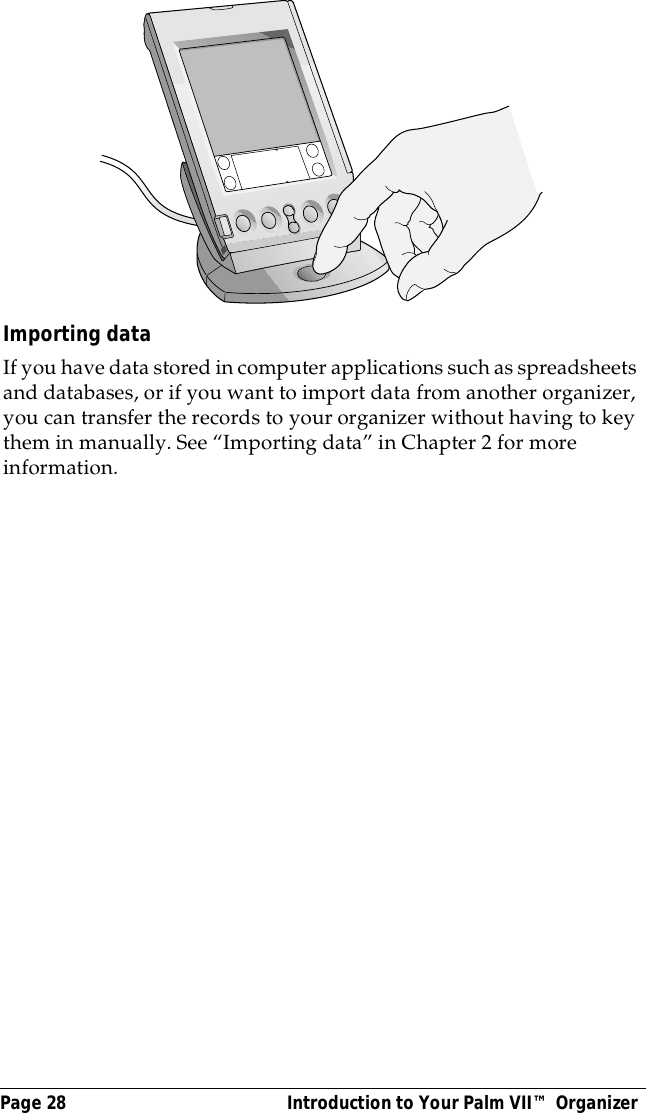
Page 28  Introduction to Your Palm VII™ OrganizerImporting dataIf you have data stored in computer applications such as spreadsheets and databases, or if you want to import data from another organizer, you can transfer the records to your organizer without having to key them in manually. See “Importing data” in Chapter 2 for more information.
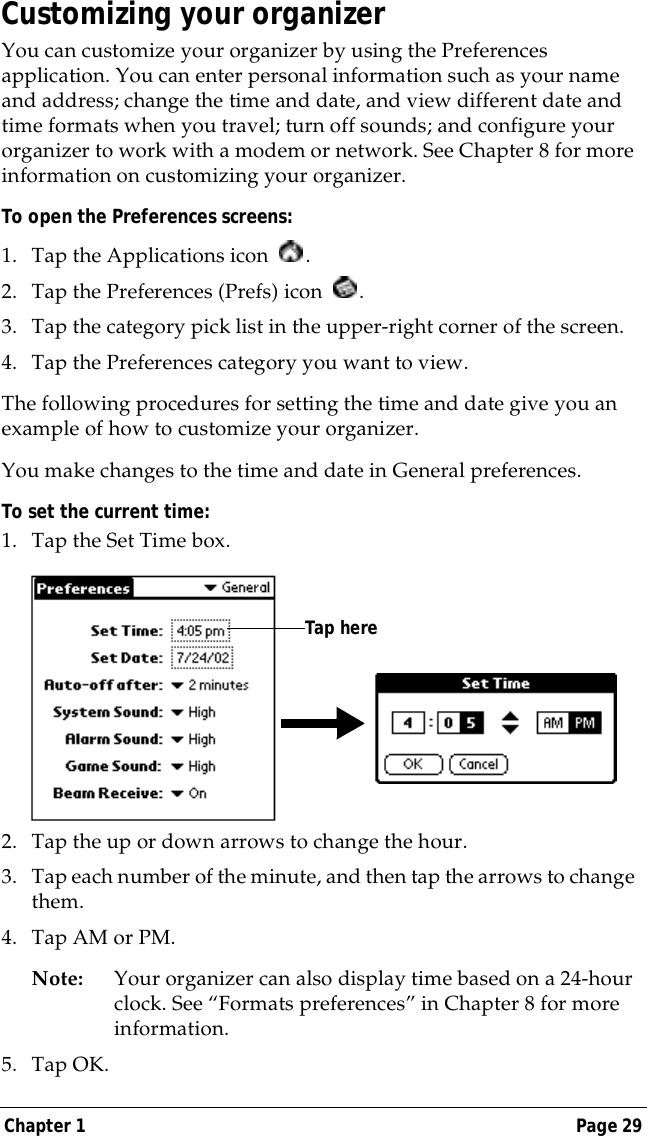
Chapter 1 Page 29Customizing your organizerYou can customize your organizer by using the Preferences application. You can enter personal information such as your name and address; change the time and date, and view different date and time formats when you travel; turn off sounds; and configure your organizer to work with a modem or network. See Chapter 8 for more information on customizing your organizer.To open the Preferences screens:1. Tap the Applications icon  . 2. Tap the Preferences (Prefs) icon  . 3. Tap the category pick list in the upper-right corner of the screen.4. Tap the Preferences category you want to view.The following procedures for setting the time and date give you an example of how to customize your organizer.You make changes to the time and date in General preferences.To set the current time:1. Tap the Set Time box.2. Tap the up or down arrows to change the hour.3. Tap each number of the minute, and then tap the arrows to change them.4. Tap AM or PM.Note: Your organizer can also display time based on a 24-hour clock. See “Formats preferences” in Chapter 8 for more information. 5. Tap OK.Tap here
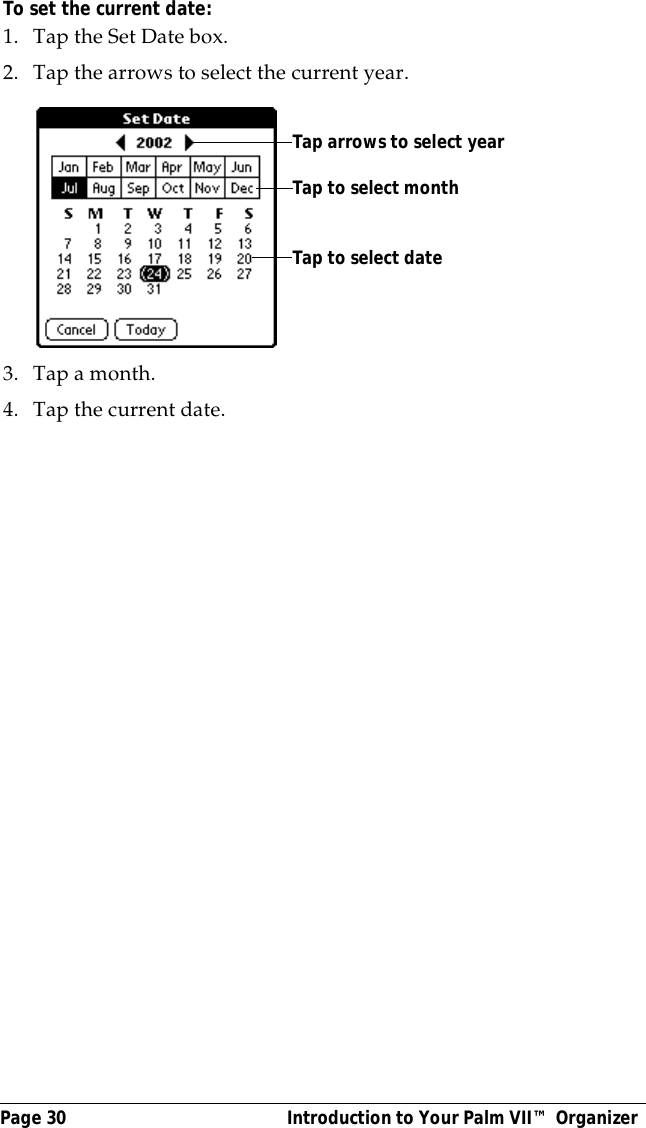
Page 30  Introduction to Your Palm VII™ OrganizerTo set the current date:1. Tap the Set Date box.2. Tap the arrows to select the current year. 3. Tap a month.4. Tap the current date. Tap arrows to select yearTap to select monthTap to select date
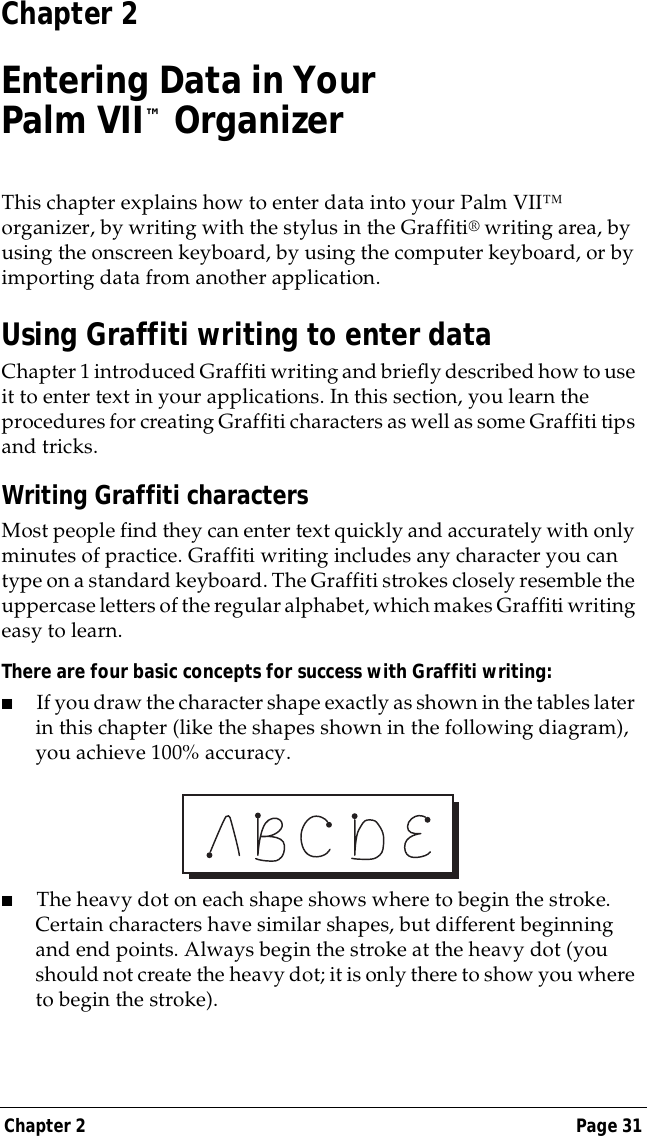
Chapter 2 Page 31Chapter 2Entering Data in YourPalm VII™ OrganizerThis chapter explains how to enter data into your Palm VII™ organizer, by writing with the stylus in the Graffiti® writing area, by using the onscreen keyboard, by using the computer keyboard, or by importing data from another application.Using Graffiti writing to enter dataChapter 1 introduced Graffiti writing and briefly described how to use it to enter text in your applications. In this section, you learn the procedures for creating Graffiti characters as well as some Graffiti tips and tricks.Writing Graffiti charactersMost people find they can enter text quickly and accurately with only minutes of practice. Graffiti writing includes any character you can type on a standard keyboard. The Graffiti strokes closely resemble the uppercase letters of the regular alphabet, which makes Graffiti writing easy to learn. There are four basic concepts for success with Graffiti writing:■If you draw the character shape exactly as shown in the tables later in this chapter (like the shapes shown in the following diagram), you achieve 100% accuracy.■The heavy dot on each shape shows where to begin the stroke. Certain characters have similar shapes, but different beginning and end points. Always begin the stroke at the heavy dot (you should not create the heavy dot; it is only there to show you where to begin the stroke).
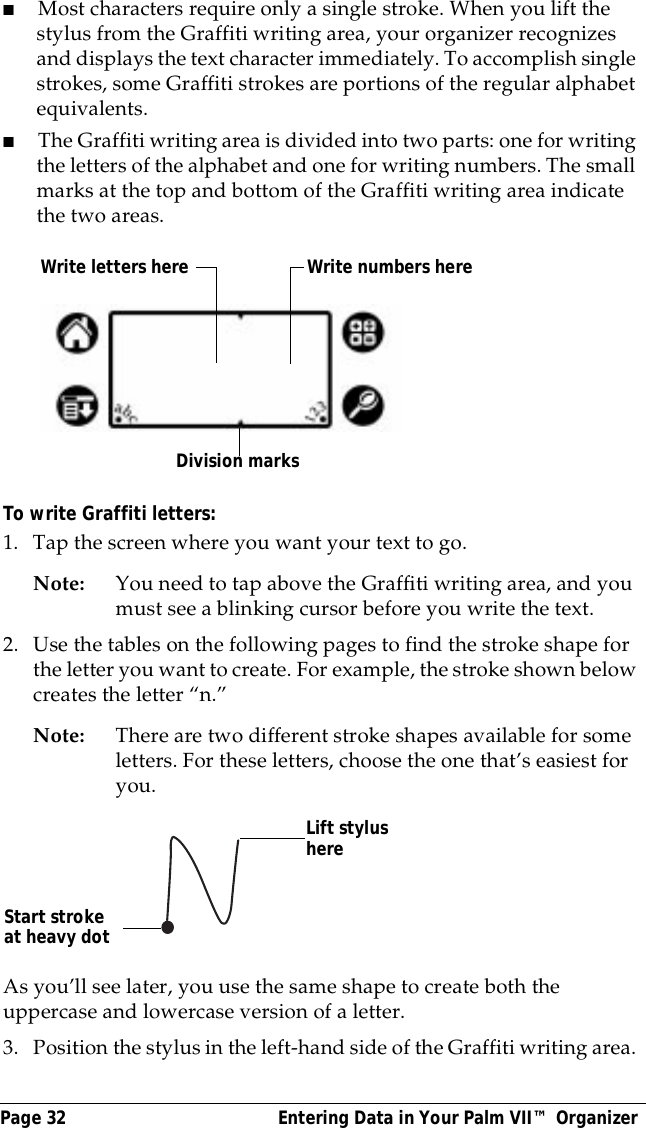
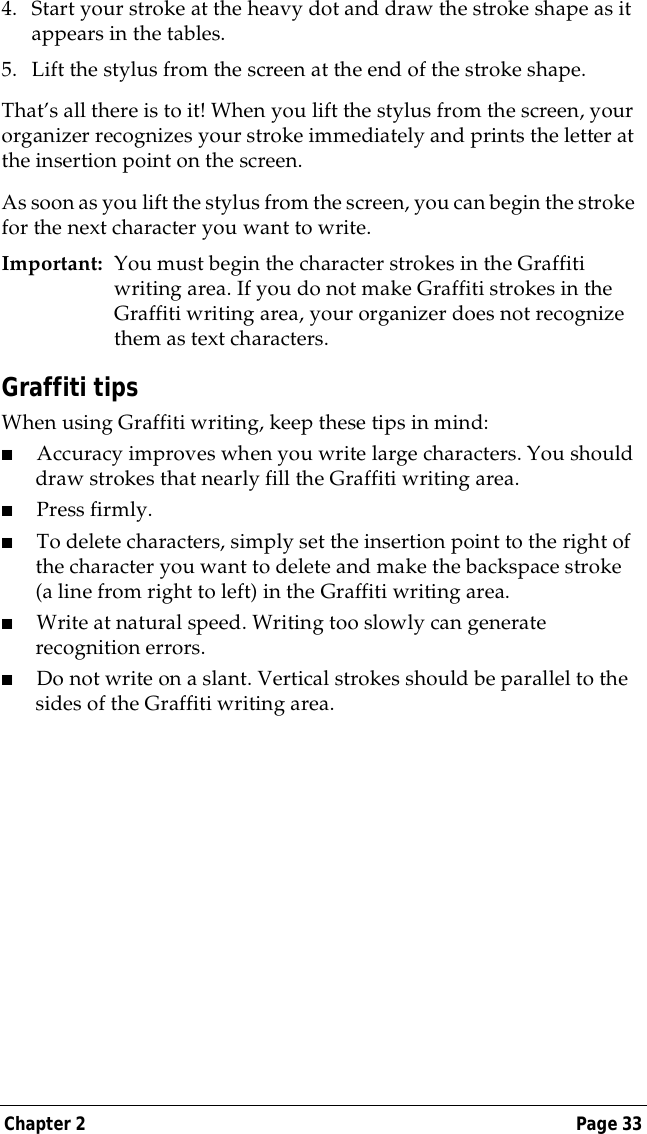
Page 32  Entering Data in Your Palm VII™ Organizer■Most characters require only a single stroke. When you lift the stylus from the Graffiti writing area, your organizer recognizes and displays the text character immediately. To accomplish single strokes, some Graffiti strokes are portions of the regular alphabet equivalents.■The Graffiti writing area is divided into two parts: one for writing the letters of the alphabet and one for writing numbers. The small marks at the top and bottom of the Graffiti writing area indicate the two areas.To write Graffiti letters:1. Tap the screen where you want your text to go. Note: You need to tap above the Graffiti writing area, and you must see a blinking cursor before you write the text.2. Use the tables on the following pages to find the stroke shape for the letter you want to create. For example, the stroke shown below creates the letter “n.”Note: There are two different stroke shapes available for some letters. For these letters, choose the one that’s easiest for you.As you’ll see later, you use the same shape to create both the uppercase and lowercase version of a letter.3. Position the stylus in the left-hand side of the Graffiti writing area. Write letters here Write numbers hereDivision marksStart stroke at heavy dotLift stylus here
Chapter 2 Page 334. Start your stroke at the heavy dot and draw the stroke shape as it appears in the tables.5. Lift the stylus from the screen at the end of the stroke shape.That’s all there is to it! When you lift the stylus from the screen, your organizer recognizes your stroke immediately and prints the letter at the insertion point on the screen.As soon as you lift the stylus from the screen, you can begin the stroke for the next character you want to write.Important: You must begin the character strokes in the Graffiti writing area. If you do not make Graffiti strokes in the Graffiti writing area, your organizer does not recognize them as text characters.Graffiti tipsWhen using Graffiti writing, keep these tips in mind:■Accuracy improves when you write large characters. You should draw strokes that nearly fill the Graffiti writing area.■Press firmly.■To delete characters, simply set the insertion point to the right of the character you want to delete and make the backspace stroke (a line from right to left) in the Graffiti writing area.■Write at natural speed. Writing too slowly can generate recognition errors.■Do not write on a slant. Vertical strokes should be parallel to the sides of the Graffiti writing area.
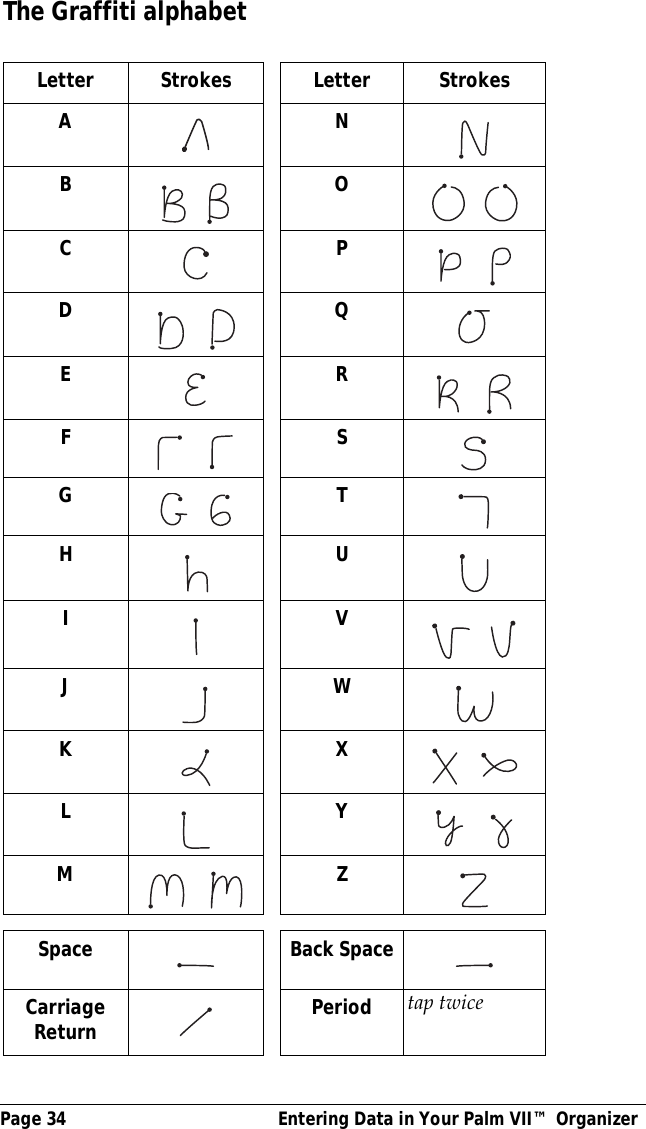
Page 34  Entering Data in Your Palm VII™ OrganizerThe Graffiti alphabetLetter Strokes Letter StrokesANB    O   CP    D     QER    F     SG    THUIV   JWKX   LY    M     ZSpace Back SpaceCarriageReturn Period tap twice
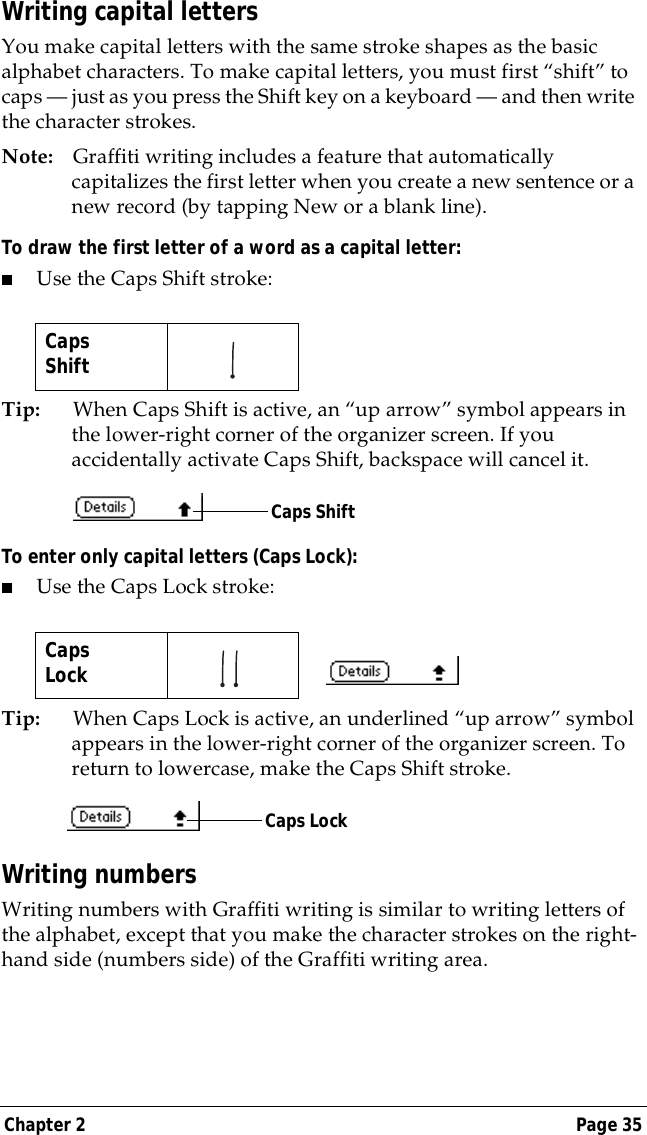
Chapter 2 Page 35Writing capital lettersYou make capital letters with the same stroke shapes as the basic alphabet characters. To make capital letters, you must first “shift” to caps — just as you press the Shift key on a keyboard — and then write the character strokes.Note: Graffiti writing includes a feature that automatically capitalizes the first letter when you create a new sentence or a new record (by tapping New or a blank line). To draw the first letter of a word as a capital letter:■Use the Caps Shift stroke:Tip: When Caps Shift is active, an “up arrow” symbol appears in the lower-right corner of the organizer screen. If you accidentally activate Caps Shift, backspace will cancel it.To enter only capital letters (Caps Lock):■Use the Caps Lock stroke:Tip: When Caps Lock is active, an underlined “up arrow” symbol appears in the lower-right corner of the organizer screen. To return to lowercase, make the Caps Shift stroke.Writing numbersWriting numbers with Graffiti writing is similar to writing letters of the alphabet, except that you make the character strokes on the right-hand side (numbers side) of the Graffiti writing area.CapsShift   CapsLock   Caps ShiftCaps Lock
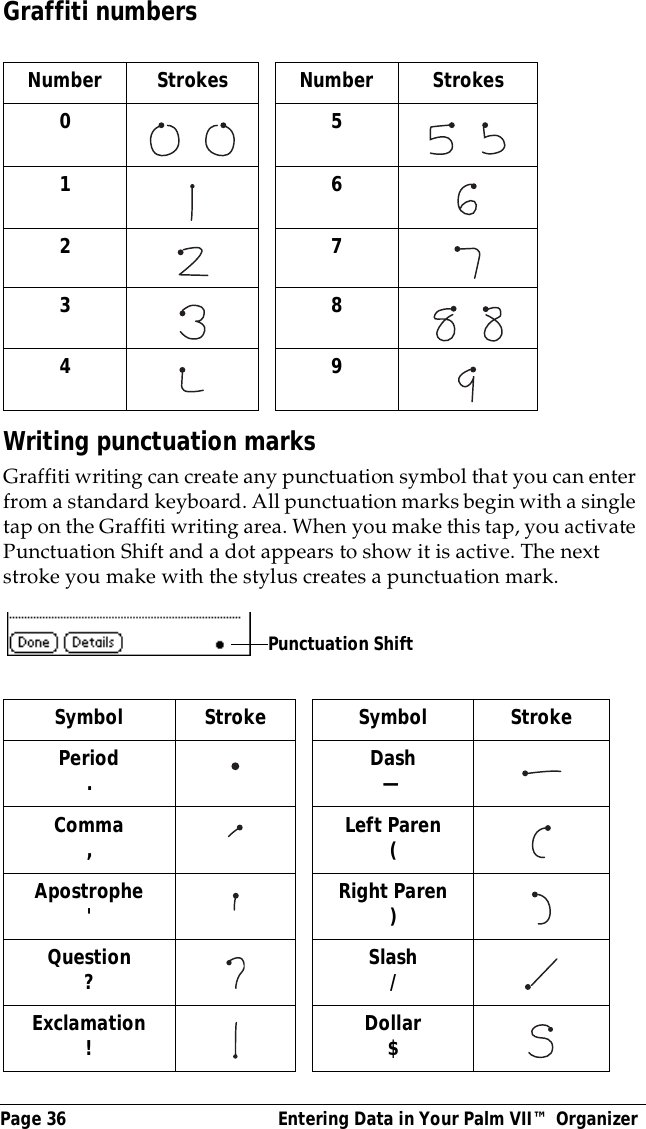
Page 36  Entering Data in Your Palm VII™ OrganizerGraffiti numbersWriting punctuation marksGraffiti writing can create any punctuation symbol that you can enter from a standard keyboard. All punctuation marks begin with a single tap on the Graffiti writing area. When you make this tap, you activate Punctuation Shift and a dot appears to show it is active. The next stroke you make with the stylus creates a punctuation mark.Number Strokes Number Strokes0     5    1 627 38    4     9Symbol Stroke Symbol StrokePeriod. Dash—Comma,Left Paren(Apostrophe'Right Paren)Question?Slash/ Exclamation!Dollar$Punctuation Shift
Chapter 2 Page 37Additional Graffiti punctuationTip: When Punctuation Shift is active, you can make a symbol stroke anywhere in the Graffiti writing area (the letters or numbers side).Writing symbols and extended charactersAll symbols and extended characters begin with the stroke in the Graffiti writing area of your organizer:When the Symbol Shift is active, a slanted shift symbol appears in the lower-right corner of the screen. The next stroke that you make creates the symbol or extended character.SymbolShift   @     #     %     ^      &    *     <     >              +      =      | —\      {      }     [       ]     ~     `         ;     :      "      tabSymbol Shift•                           ,,,,,°,+—X:==cY?!ƒ∅
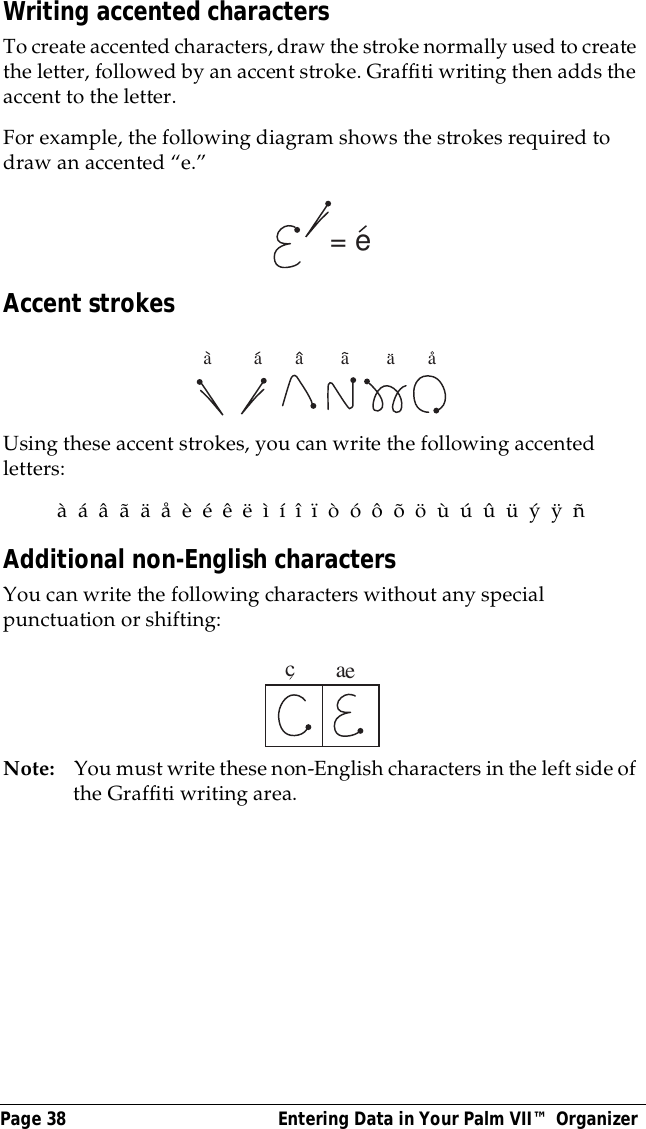
Page 38  Entering Data in Your Palm VII™ OrganizerWriting accented charactersTo create accented characters, draw the stroke normally used to create the letter, followed by an accent stroke. Graffiti writing then adds the accent to the letter.For example, the following diagram shows the strokes required to draw an accented “e.”Accent strokesUsing these accent strokes, you can write the following accented letters:à  á  â  ã  ä  å  è  é  ê  ë  ì  í  î  ï  ò  ó  ô  õ  ö  ù  ú  û  ü  ý  ÿ  ñAdditional non-English charactersYou can write the following characters without any special punctuation or shifting:Note: You must write these non-English characters in the left side of the Graffiti writing area.= ea         a       a        a        a       acae
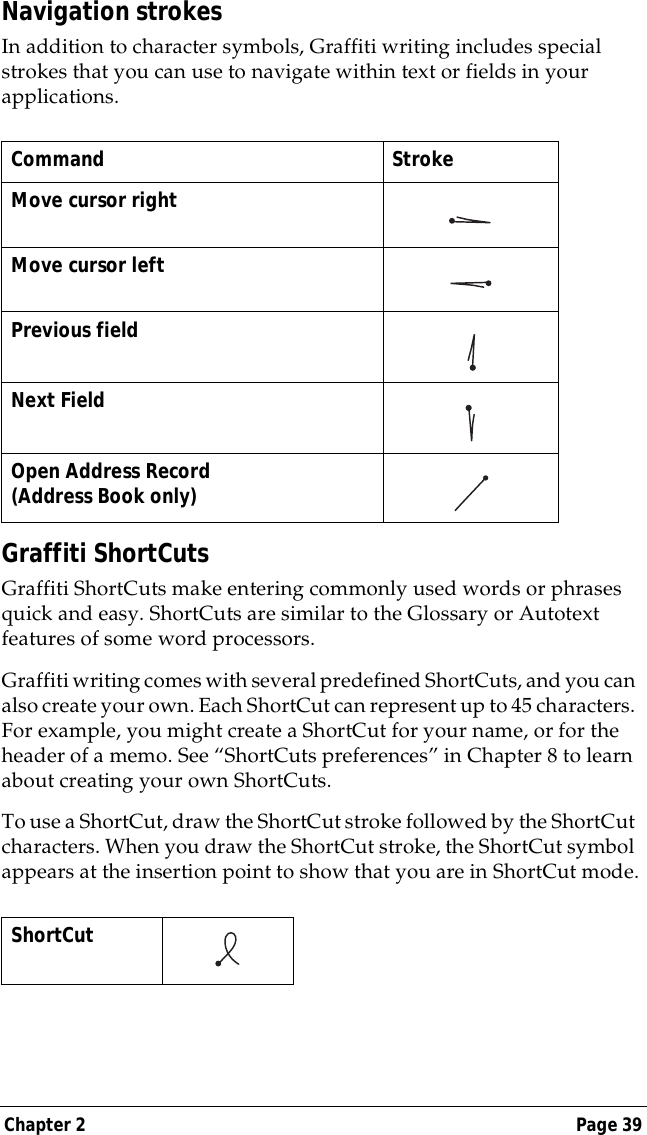
Chapter 2 Page 39Navigation strokesIn addition to character symbols, Graffiti writing includes special strokes that you can use to navigate within text or fields in your applications. Graffiti ShortCutsGraffiti ShortCuts make entering commonly used words or phrases quick and easy. ShortCuts are similar to the Glossary or Autotext features of some word processors. Graffiti writing comes with several predefined ShortCuts, and you can also create your own. Each ShortCut can represent up to 45 characters. For example, you might create a ShortCut for your name, or for the header of a memo. See “ShortCuts preferences” in Chapter 8 to learn about creating your own ShortCuts.To use a ShortCut, draw the ShortCut stroke followed by the ShortCut characters. When you draw the ShortCut stroke, the ShortCut symbol appears at the insertion point to show that you are in ShortCut mode.Command StrokeMove cursor right  Move cursor leftPrevious fieldNext FieldOpen Address Record(Address Book only)ShortCut
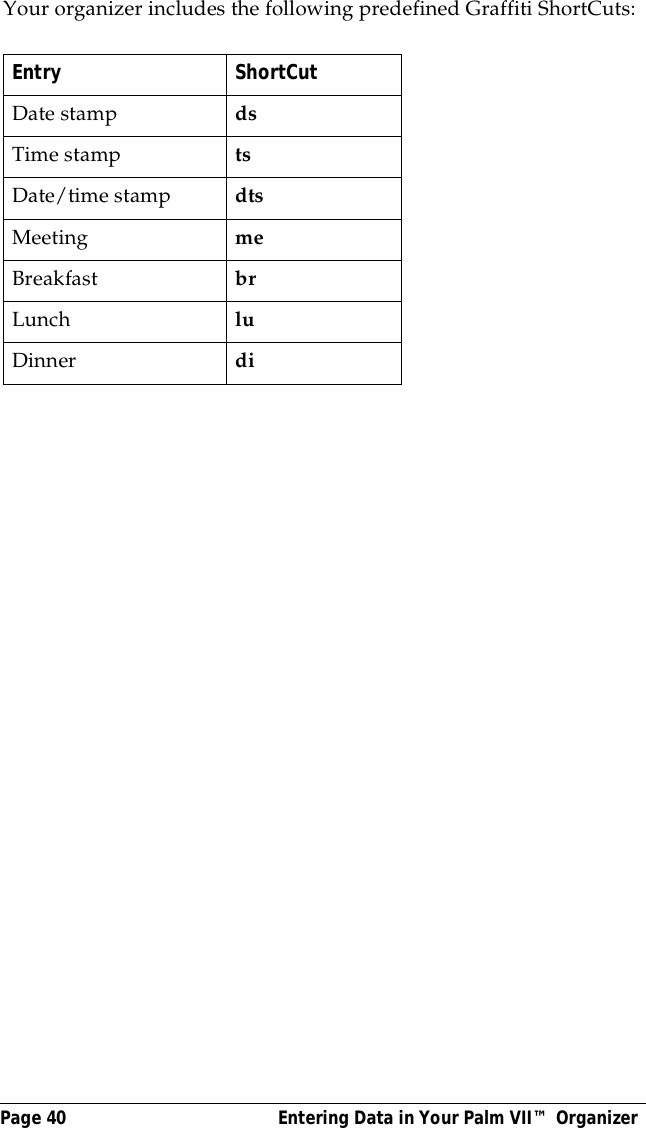
Page 40  Entering Data in Your Palm VII™ OrganizerYour organizer includes the following predefined Graffiti ShortCuts:    Entry ShortCutDate stamp dsTime stamp tsDate/time stamp dtsMeeting meBreakfast brLunch luDinner di
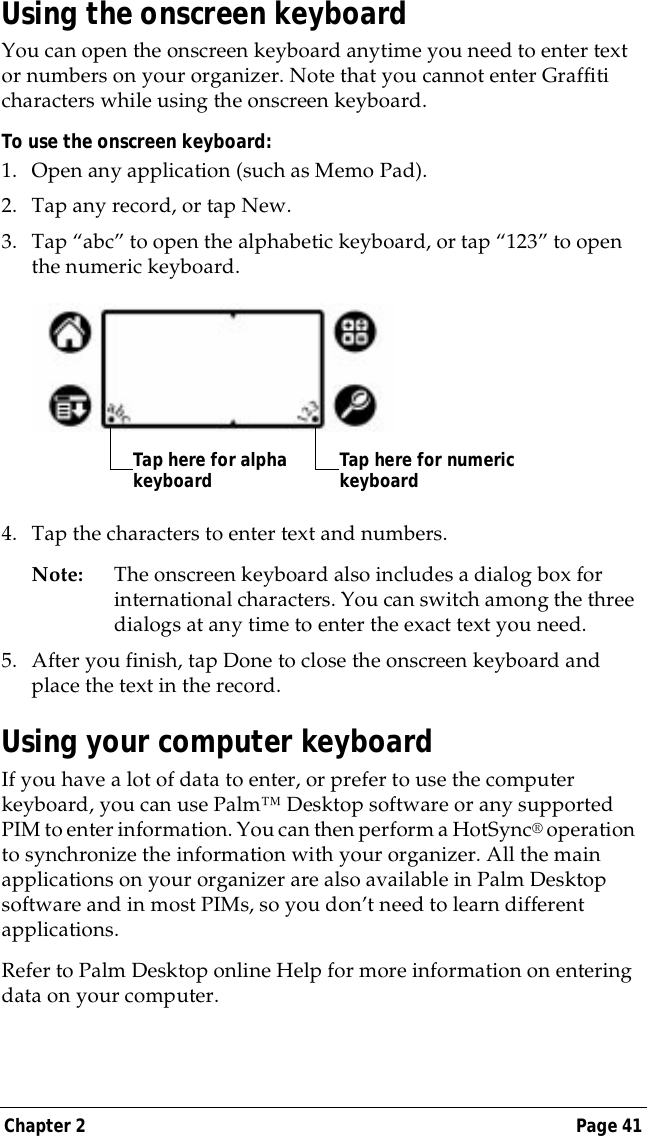
Chapter 2 Page 41Using the onscreen keyboardYou can open the onscreen keyboard anytime you need to enter text or numbers on your organizer. Note that you cannot enter Graffiti characters while using the onscreen keyboard. To use the onscreen keyboard:1. Open any application (such as Memo Pad). 2. Tap any record, or tap New.3. Tap “abc” to open the alphabetic keyboard, or tap “123” to open the numeric keyboard.4. Tap the characters to enter text and numbers.Note: The onscreen keyboard also includes a dialog box for international characters. You can switch among the three dialogs at any time to enter the exact text you need.5. After you finish, tap Done to close the onscreen keyboard and place the text in the record.Using your computer keyboardIf you have a lot of data to enter, or prefer to use the computer keyboard, you can use Palm™ Desktop software or any supported PIM to enter information. You can then perform a HotSync® operation to synchronize the information with your organizer. All the main applications on your organizer are also available in Palm Desktop software and in most PIMs, so you don’t need to learn different applications.Refer to Palm Desktop online Help for more information on entering data on your computer.Tap here for alpha keyboard Tap here for numeric keyboard
Page 42  Entering Data in Your Palm VII™ OrganizerImporting dataIf you have data stored in computer applications such as spreadsheets and databases, or if you want to import data from another organizer, you can transfer the data to your organizer without having to key it in manually. Save the data in one of the file formats listed below, import it into Palm Desktop software, and then perform a HotSync operation to transfer the data to your organizer.Palm Desktop software can import data in the following file formats: ■Comma delimited (.csv, .txt): Address Book and Memo Pad only■Tab delimited (.tab, .tsv, .txt): Address Book and Memo Pad only■CSV (Lotus Organizer 2.x/97 Mapping): Address Book only■Date Book archive (.dba)■Address Book archive (.aba)■To Do List archive (.tda)■Memo Pad archive (.mpa)Archive formats can only be used with Palm Desktop software. Use the archive file formats to share information with other people who use organizers based on the Palm Computing® platform.To import data:1. Open Palm Desktop software.2. Click the application into which you want to import data.3. If you are importing records that contain a field with category names, do the following:Select All in the Category box.Be sure that the same categories that appear in the imported file also exist in the application. If the categories do not exist, create them now; otherwise, the records are imported into the Unfiled category.4. From the File menu, choose Import.5. Select the file you want to import.6. Click Open.7. To import data into the correct Palm Desktop fields, drag fields in the left-hand column so that they are opposite the corresponding imported field on the right.
Chapter 2 Page 438. If you do not want to import a field, deselect the check box for that field.9. Click OK.The imported data is highlighted in the application.10.To add the imported data to your organizer, perform a HotSync operation.See Palm Desktop online Help for more information on importing and exporting data.
Page 44  Entering Data in Your Palm VII™ Organizer
Chapter 3 Page 45Chapter 3Managing YourApplicationsThis chapter explains how to switch between applications on your Palm VII™ organizer, how to change application settings so they are personalized to your work methods, and how to categorize applications so you view them in related groups.Using the Applications LauncherTo open the Applications Launcher, tap the Applications icon  .Selecting applicationsYour organizer is equipped with a variety of applications. All the applications installed on your organizer appear in the Applications Launcher. See “Opening applications” in Chapter 1 for details.Switching between applicationsWhen working in any application, tap the Applications icon   or press an application button on the front panel of your organizer to switch to another application. Your organizer automatically saves your work in the current application and displays it when you return to that application. Categorizing applicationsThe category feature enables you to manage the number of application icons that appear onscreen in the Applications Launcher. You can assign an application to a category and then display a single category or all of your applications.
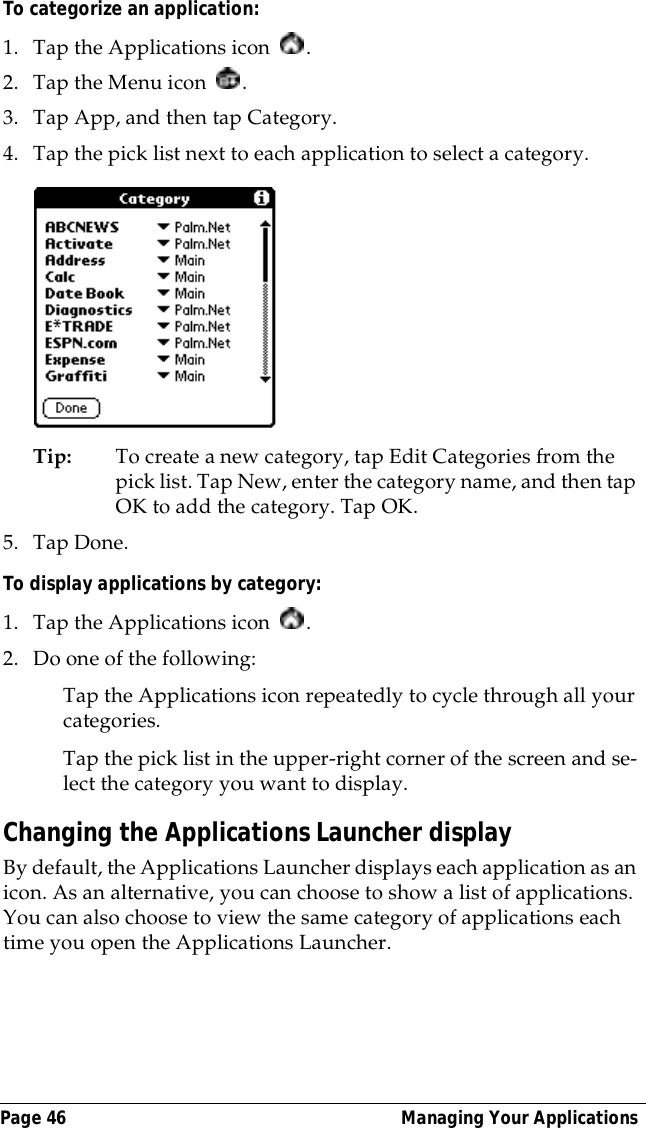
Page 46  Managing Your ApplicationsTo categorize an application: 1. Tap the Applications icon  . 2. Tap the Menu icon  . 3. Tap App, and then tap Category.4. Tap the pick list next to each application to select a category.Tip: To create a new category, tap Edit Categories from the pick list. Tap New, enter the category name, and then tap OK to add the category. Tap OK.5. Tap Done.To display applications by category: 1. Tap the Applications icon  . 2. Do one of the following:Tap the Applications icon repeatedly to cycle through all your categories.Tap the pick list in the upper-right corner of the screen and se-lect the category you want to display.Changing the Applications Launcher displayBy default, the Applications Launcher displays each application as an icon. As an alternative, you can choose to show a list of applications. You can also choose to view the same category of applications each time you open the Applications Launcher.
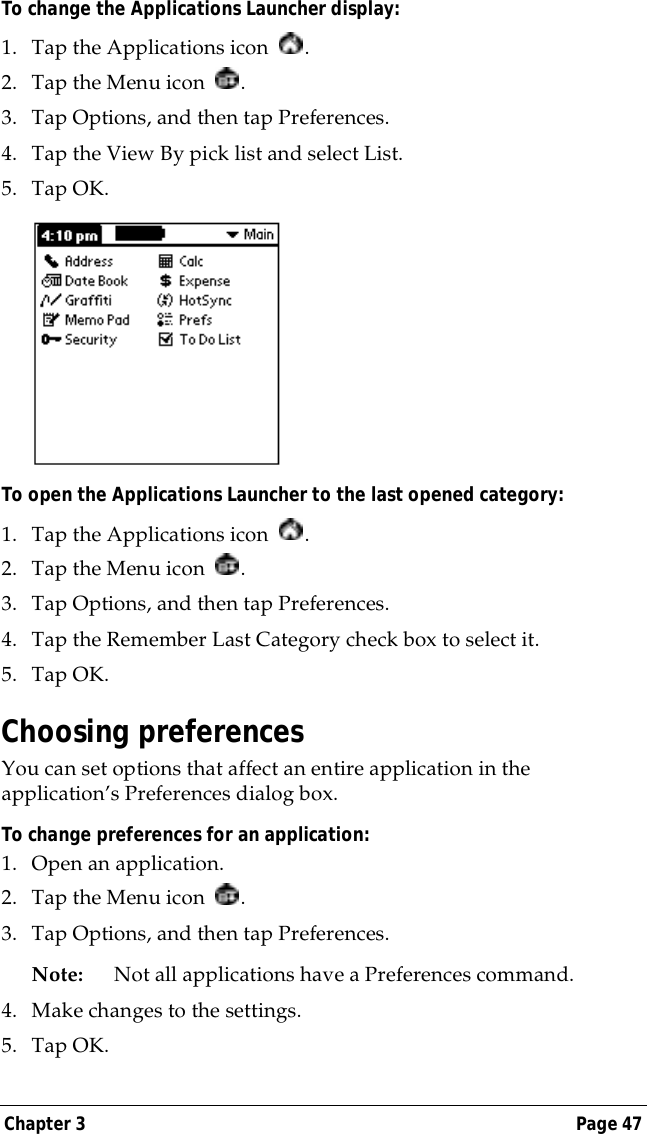
Chapter 3 Page 47To change the Applications Launcher display:1. Tap the Applications icon  .2. Tap the Menu icon  . 3. Tap Options, and then tap Preferences.4. Tap the View By pick list and select List.5. Tap OK.To open the Applications Launcher to the last opened category:1. Tap the Applications icon  .2. Tap the Menu icon  . 3. Tap Options, and then tap Preferences.4. Tap the Remember Last Category check box to select it.5. Tap OK.Choosing preferencesYou can set options that affect an entire application in the application’s Preferences dialog box.To change preferences for an application: 1. Open an application.2. Tap the Menu icon  . 3. Tap Options, and then tap Preferences.Note: Not all applications have a Preferences command.4. Make changes to the settings.5. Tap OK.
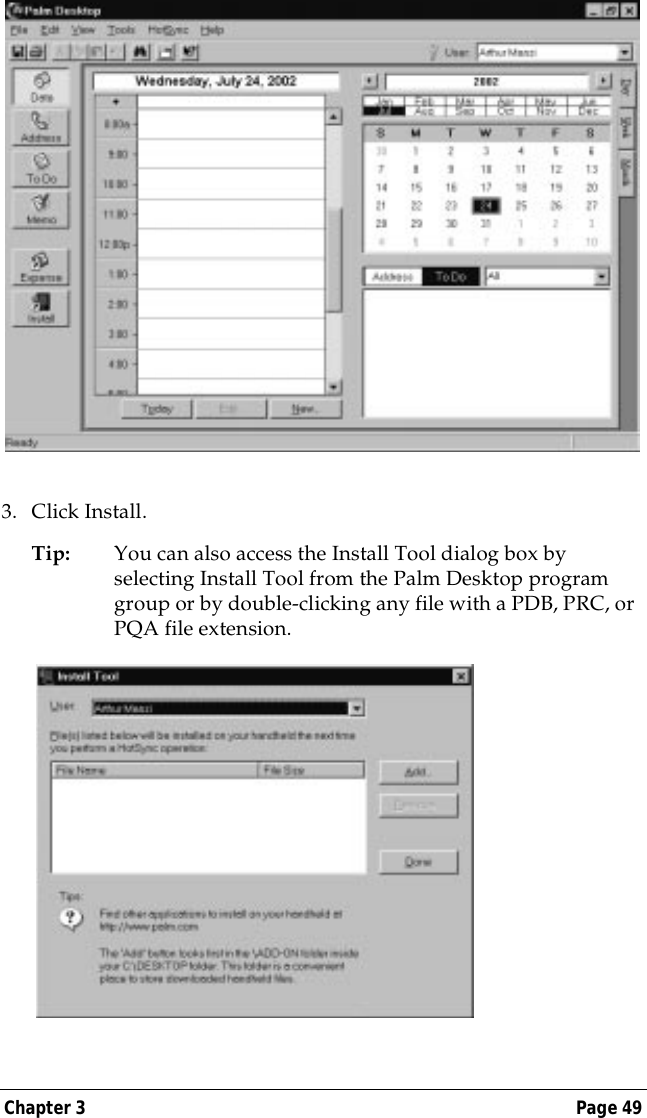
Page 48  Managing Your ApplicationsInstalling and removing applicationsThis section explains how to install and remove applications on your organizer and how to remove Palm™ Desktop organizer software from your computer.Installing add-on applicationsYour organizer comes with the Date Book, Address Book, To Do List, Memo Pad, Expense, Calculator, and Mail applications installed and ready to use.Your organizer also contains several built-in query applications; so after you activate the wireless communication service, you have immediate access to Internet information.The CD-ROM containing Palm Desktop software also contains many more query applications. You can transfer these to your computer at the same time that you install the software. These query applications are stored in the Add-on folder, and you can add them to your organizer using the Install Tool.You can also install additional applications on your organizer, such as games and other software, including more query applications. Many third-party applications are available for your organizer. The web site http://www.palm.net has more information about these applications.Note: Any game or application that you install on your organizer resides in RAM memory; you can delete it at any time. See “Removing applications” later in this chapter for more information.With the Install Tool and HotSync® technology, you can easily install software on your organizer.To install add-on software on your organizer:1. Using your desktop computer, copy or download the application you want to install into the Add-on folder in your Palm Desktop directory.Note: If the software you download is compressed, you need to decompress it into this folder. If you prefer to place the application into another folder, you need to navigate to that folder before you complete step 5.2. Double-click the Palm Desktop icon on your desktop.
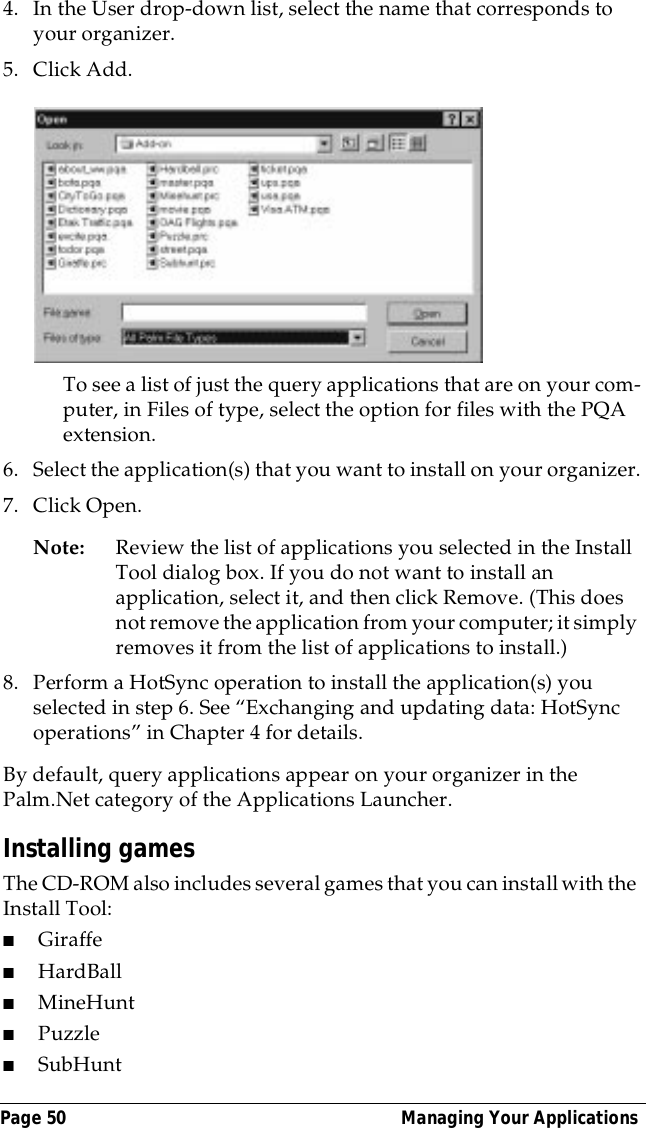
Chapter 3 Page 493. Click Install.Tip: You can also access the Install Tool dialog box by selecting Install Tool from the Palm Desktop program group or by double-clicking any file with a PDB, PRC, or PQA file extension.
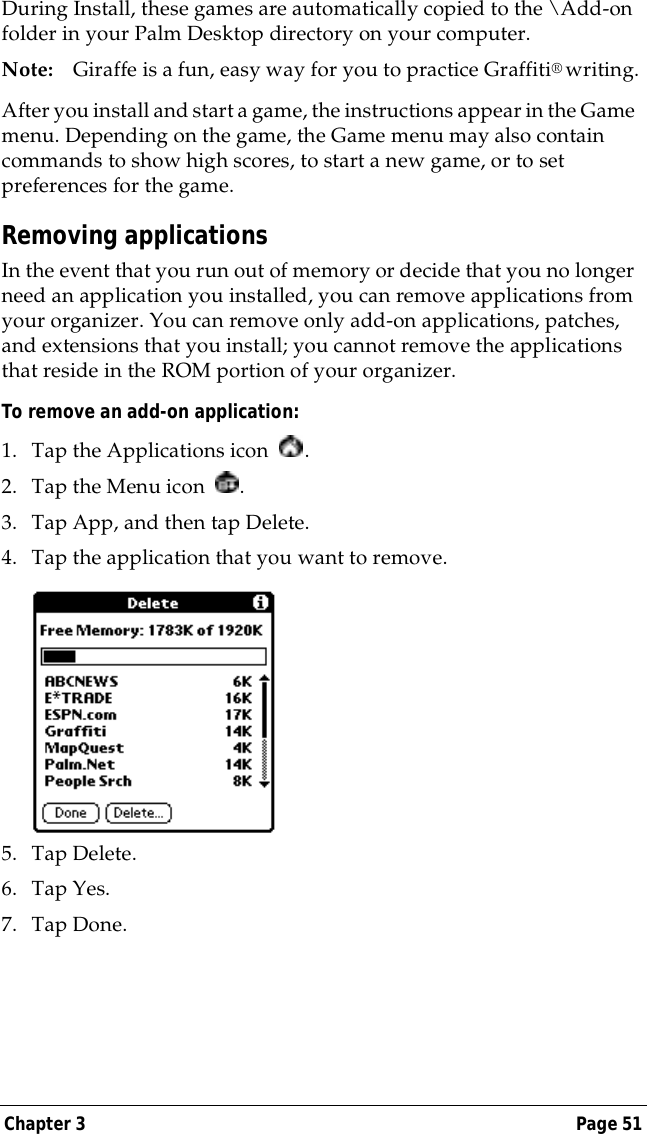
Page 50  Managing Your Applications4. In the User drop-down list, select the name that corresponds to your organizer.5. Click Add. To see a list of just the query applications that are on your com-puter, in Files of type, select the option for files with the PQA extension.6. Select the application(s) that you want to install on your organizer.7. Click Open.Note: Review the list of applications you selected in the Install Tool dialog box. If you do not want to install an application, select it, and then click Remove. (This does not remove the application from your computer; it simply removes it from the list of applications to install.)8. Perform a HotSync operation to install the application(s) you selected in step 6. See “Exchanging and updating data: HotSync operations” in Chapter 4 for details.By default, query applications appear on your organizer in the Palm.Net category of the Applications Launcher.Installing gamesThe CD-ROM also includes several games that you can install with the Install Tool:■Giraffe■HardBall■MineHunt■Puzzle ■SubHunt
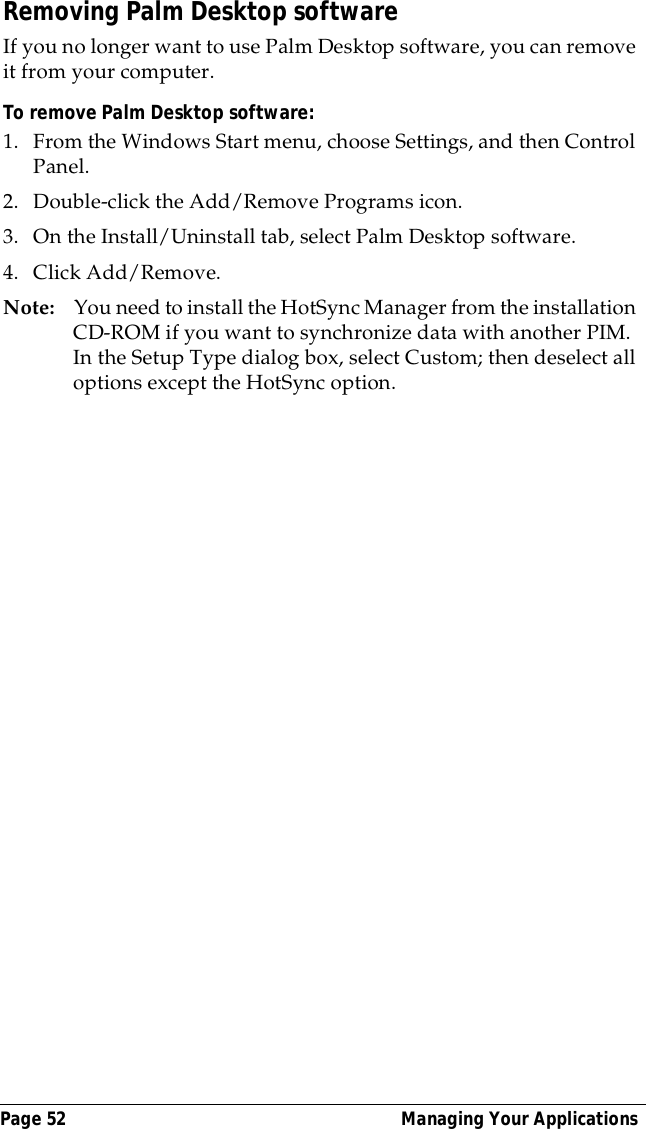
Chapter 3 Page 51During Install, these games are automatically copied to the \Add-on folder in your Palm Desktop directory on your computer.Note: Giraffe is a fun, easy way for you to practice Graffiti® writing.After you install and start a game, the instructions appear in the Game menu. Depending on the game, the Game menu may also contain commands to show high scores, to start a new game, or to set preferences for the game.Removing applicationsIn the event that you run out of memory or decide that you no longer need an application you installed, you can remove applications from your organizer. You can remove only add-on applications, patches, and extensions that you install; you cannot remove the applications that reside in the ROM portion of your organizer.To remove an add-on application: 1. Tap the Applications icon  . 2. Tap the Menu icon  . 3. Tap App, and then tap Delete.4. Tap the application that you want to remove.5. Tap Delete.6. Tap Yes.7. Tap Done.
Page 52  Managing Your ApplicationsRemoving Palm Desktop softwareIf you no longer want to use Palm Desktop software, you can remove it from your computer. To remove Palm Desktop software: 1. From the Windows Start menu, choose Settings, and then Control Panel.2. Double-click the Add/Remove Programs icon. 3. On the Install/Uninstall tab, select Palm Desktop software.4. Click Add/Remove.Note: You need to install the HotSync Manager from the installation CD-ROM if you want to synchronize data with another PIM. In the Setup Type dialog box, select Custom; then deselect all options except the HotSync option.
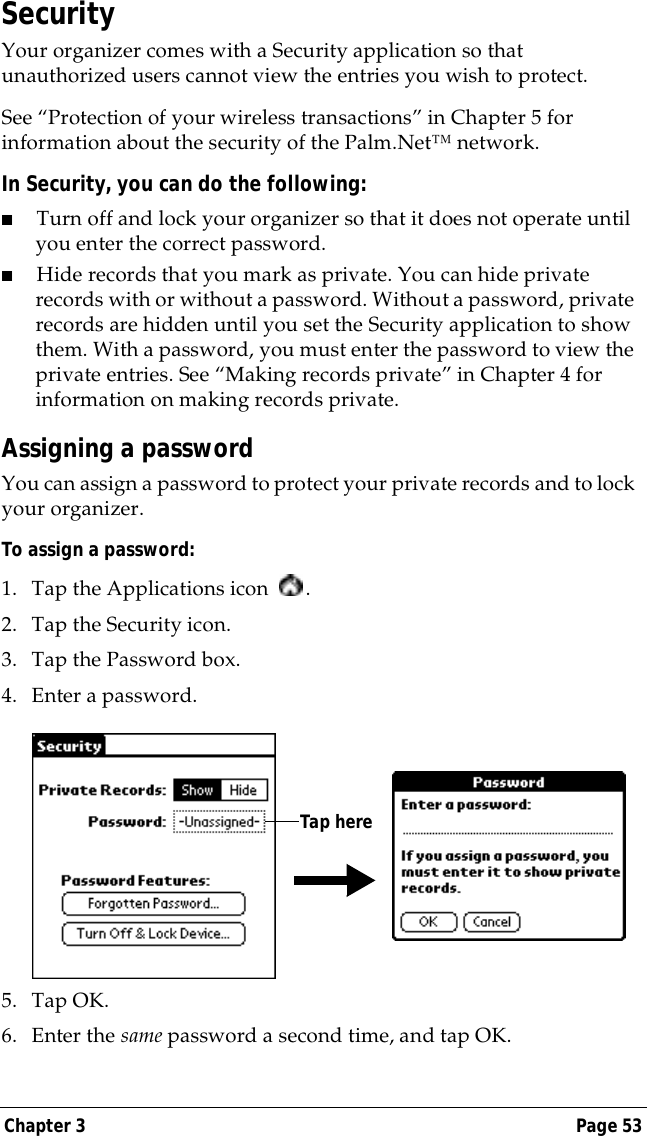
Chapter 3 Page 53SecurityYour organizer comes with a Security application so that unauthorized users cannot view the entries you wish to protect. See “Protection of your wireless transactions” in Chapter 5 for information about the security of the Palm.Net™ network.In Security, you can do the following:■Turn off and lock your organizer so that it does not operate until you enter the correct password.■Hide records that you mark as private. You can hide private records with or without a password. Without a password, private records are hidden until you set the Security application to show them. With a password, you must enter the password to view the private entries. See “Making records private” in Chapter 4 for information on making records private.Assigning a passwordYou can assign a password to protect your private records and to lock your organizer.To assign a password:1. Tap the Applications icon  . 2. Tap the Security icon.3. Tap the Password box.4. Enter a password. 5. Tap OK. 6. Enter the same password a second time, and tap OK.Tap here
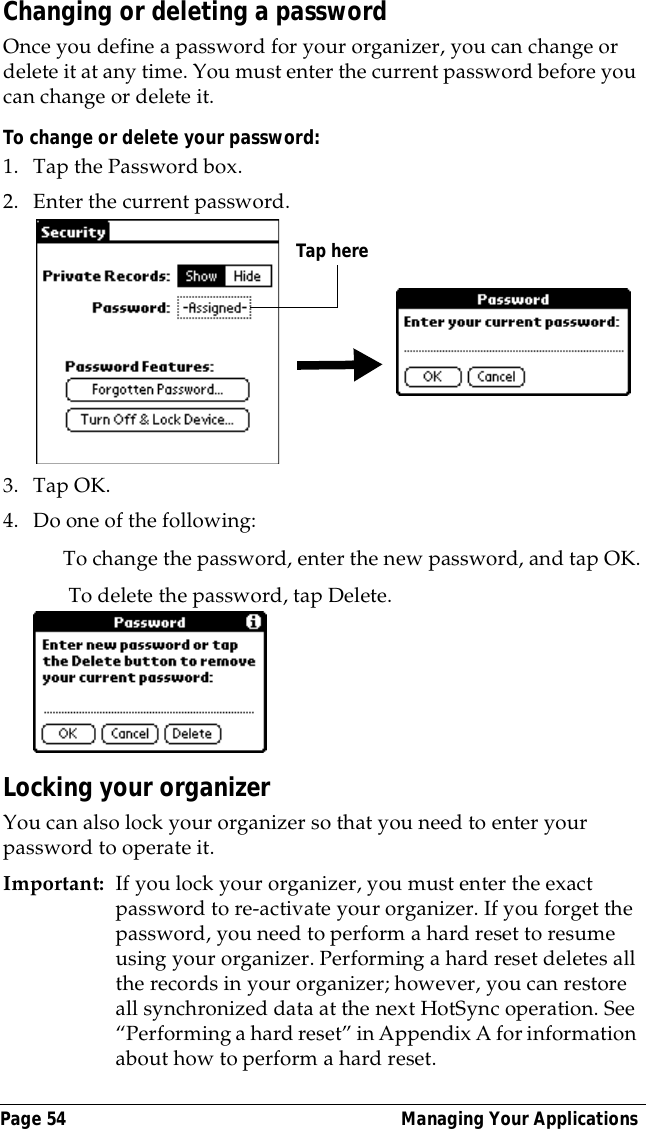
Page 54  Managing Your ApplicationsChanging or deleting a passwordOnce you define a password for your organizer, you can change or delete it at any time. You must enter the current password before you can change or delete it.To change or delete your password:1. Tap the Password box.2. Enter the current password. 3. Tap OK.4. Do one of the following:To change the password, enter the new password, and tap OK. To delete the password, tap Delete.Locking your organizerYou can also lock your organizer so that you need to enter your password to operate it.Important: If you lock your organizer, you must enter the exact password to re-activate your organizer. If you forget the password, you need to perform a hard reset to resume using your organizer. Performing a hard reset deletes all the records in your organizer; however, you can restore all synchronized data at the next HotSync operation. See “Performing a hard reset” in Appendix A for information about how to perform a hard reset.Tap here
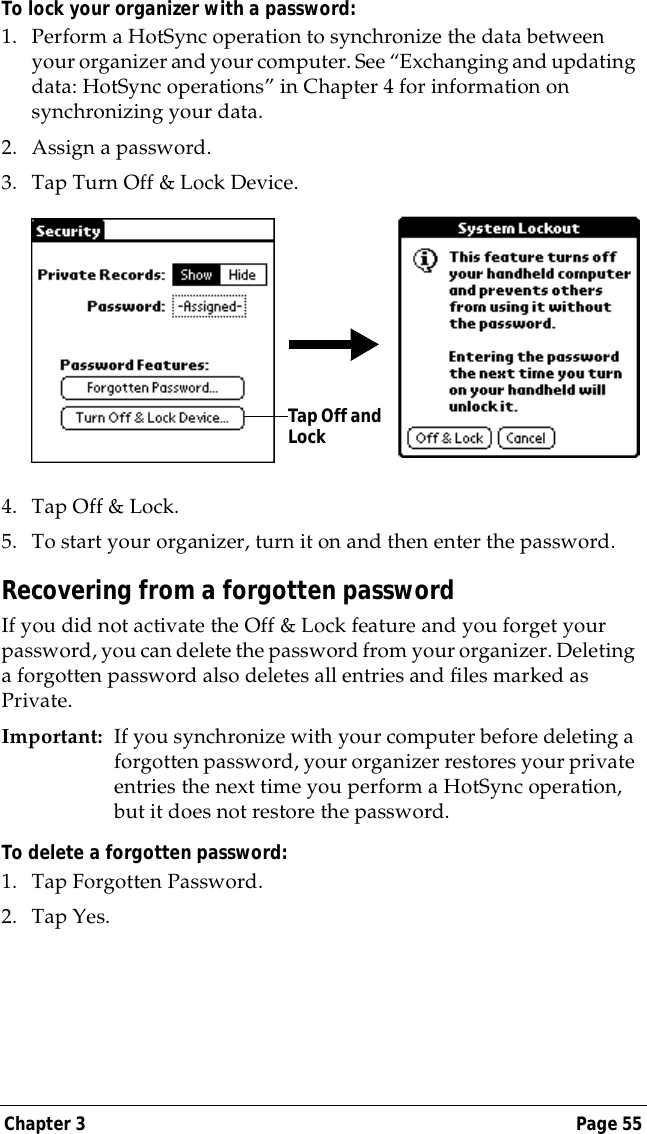
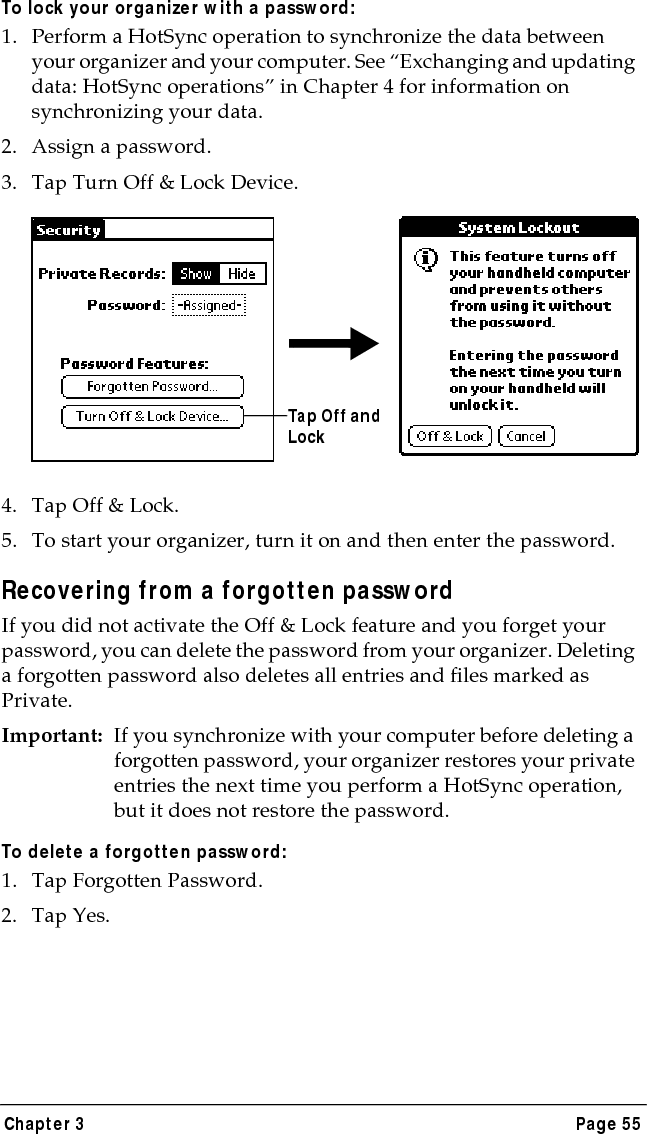
Chapter 3 Page 55To lock your organizer with a password:1. Perform a HotSync operation to synchronize the data between your organizer and your computer. See “Exchanging and updating data: HotSync operations” in Chapter 4 for information on synchronizing your data.2. Assign a password.3. Tap Turn Off & Lock Device.4. Tap Off & Lock.5. To start your organizer, turn it on and then enter the password. Recovering from a forgotten passwordIf you did not activate the Off & Lock feature and you forget your password, you can delete the password from your organizer. Deleting a forgotten password also deletes all entries and files marked as Private.Important: If you synchronize with your computer before deleting a forgotten password, your organizer restores your private entries the next time you perform a HotSync operation, but it does not restore the password.To delete a forgotten password:1. Tap Forgotten Password.2. Tap Yes.Tap Off and Lock
Page 56  Managing Your Applications
Chapter 4 Page 57Chapter 4Using Your Basic ApplicationsThese are the basic applications of your organizer:■Date Book■Address Book■To Do List■Memo Pad■Calculator■ExpenseSee Chapter 5 for information on query applications and the iMessenger™ application. See Chapter 6 for information on Mail.This chapter is divided into three sections:■“Overview of basic applications” briefly describes each application and explains how to open it.■“Common tasks” gives instructions on how to do tasks that you can do in most or all of the basic applications. It’s easy to transfer what you learn in one application to the others because the structure and behavior of all the applications are quite similar.■“Application-specific tasks” is organized by application and gives instructions on how to do tasks that are specific to each application.
Page 58  Using Your Basic ApplicationsOverview of basic applicationsDate BookDate Book lets you quickly and easily schedule appointments or any kind of activity associated with a time and date.In Date Book, you can do the following:■Enter a description of your appointment and assign it to a specific time and date.■Display a chart of your appointments for an entire week. The Week View makes it easy to spot available times and any potential scheduling overlaps or conflicts.■Display a monthly calendar to quickly spot days where you have morning, lunch, or afternoon appointments.■Set an alarm to sound prior to the scheduled activity. ■Create reminders for events that are based on a particular date, rather than time of day. Birthdays and anniversaries are easy to track with your organizer.■Attach notes to individual events for a description or clarification of the entry in your Date Book.To open Date Book:■Press the Date Book application button on the front panel of your organizer. Date Book opens to today’s schedule.Note: Press the Date Book application button repeatedly to cycle through the Day, Week, and Month views.Date Book button
Chapter 4 Page 59Address BookAddress Book enables you to keep names, addresses, phone numbers, and other information about your personal or business contacts.In Address Book, you can do the following:■Quickly look up or enter names, addresses, phone numbers, and other information.■Enter up to five phone numbers (home, work, fax, mobile, etc.) or e-mail addresses for each name.■Define which phone number appears in the Address List for each Address Book entry. ■Attach a note to each Address Book entry, in which you can enter additional information about the entry.■Assign Address Book entries to categories so that you can organize and view them in logical groups.To open Address Book:  ■Press the Address Book application button on the front panel of your organizer. Address Book opens to display the list of all your records.Note: Press the Address Book application button repeatedly to cycle through the categories in which you have records.Address Book button
Page 60  Using Your Basic ApplicationsTo Do ListTo Do List is a convenient place to create reminders and prioritize the things that you have to do.In To Do List, you can do the following:■Make a quick and convenient list of things to do.■Assign a priority level to each task.■Assign a due date for any or all of your To Do List items. ■Assign To Do List items to categories so that you can organize and view them in logical groups.■Sort your To Do List items either by due date, priority level, or category.■Attach notes to individual To Do List items for a description or clarification of the task.To open To Do List:■Press the To Do List application button on the front panel of your organizer. To Do List opens to display the category of items you last viewed.Note: Press the To Do List application button repeatedly to cycle through the categories in which you have items. To Do List button
Chapter 4 Page 61Memo PadMemo Pad provides a place to take notes that are not associated with records in Date Book, Address Book, or To Do List.In Memo Pad, you can do the following:■Take notes or write any kind of message on your organizer. ■Drag and drop memos into popular computer applications like Microsoft Word when you synchronize using Palm™ Desktop organizer software and HotSync® technology.■Assign memos to categories so that you can organize and view them in logical groups.■Write down phone numbers and other types of information. Later, you can copy and paste this information to other applications. To open Memo Pad:■Press the Memo Pad application button on the front panel of your organizer. Memo Pad opens to display the last Memo Pad screen that you viewed.Note: Press the Memo Pad application button repeatedly to cycle through the categories in which you have memos.CalculatorCalculator enables you to perform addition, subtraction, multiplication, and division.In Calculator, you can do the following:■Perform basic calculations.■Store and retrieve values.Memo Pad button
Page 62  Using Your Basic Applications■Display the last series of calculations, which is useful for confirming a series of “chain” calculations.To open Calculator:■Tap the Calculator icon   next to the Graffiti® writing area.ExpenseExpense lets you keep track of your expenses and then transfer the information to a spreadsheet on your computer.In Expense, you can do the following:■Record dates, types of expenses, amount spent, payment method, and other details associated with any money that you spend.■Assign expense items to categories so that you can organize and view them in logical groups.■Keep track of vendors (companies) and people involved with each particular expense.■Log miles traveled for a particular date or expense category.■Sort your expenses by date or expense type.■Transfer your expense information to a Microsoft Excel spreadsheet (version 5.0 or later) on your computer. (Microsoft Excel is not included in the Palm VII™ organizer package.)To open Expense:1. Tap the Applications icon  .2. Tap the Expense icon  .
Chapter 4 Page 63Common tasksThe tasks described in this section use the term “records” to refer to an individual item in any of the basic applications: a single Date Book event, Address Book entry, To Do List item, Memo Pad memo, or Expense item.Creating recordsYou can use the following procedure to create a new record in Date Book, Address Book, To Do List, Memo Pad, and Expense.To create a record:1. Select the application in which you want to create a record.2. Tap New.3. In Date Book only: Select start and end times for your appointment and tap OK.4. Enter text for the record.5. (Optional) Tap Details to select attributes for the record.6. In Address Book and Memo Pad only: Tap Done.There’s no need to save the record because your organizer saves it automatically.Editing recordsAfter you create a record, you can change, delete, or enter new text at any time. Two screen features tell you when your organizer is in editing mode:■A blinking cursor ■One or more edit linesEdit line  Blinking cursor
Page 64  Using Your Basic ApplicationsEntering textFor information on how to enter text using Graffiti writing, the onscreen keyboard, or the keyboard attached to your computer, see Chapter 2.Edit menuThe Edit menu is available with any screen where you enter or edit text. In general, commands available in the Edit menu apply to text that you select in an application.To select text in an application:1. Tap the beginning of the text that you want to select.2. Drag the stylus over the text to highlight it (in black). Note: You can drag across the text to select additional words, or drag down to select a group of lines.The following commands may appear in an Edit menu:Undo Reverses the action of the last edit command. For example, if you used Cut to remove text, Undo restores the text you removed. Undo also reverses deletions done by using backspace. Cut Removes the selected text and stores it temporarily in the memory of your organizer. You can paste the text you cut into another area of the current application or into a different application.Copy Copies the selected text and stores it temporarily in the memory of your organizer. You can paste the text that you copy into another area of the current application or into a different application.Paste Inserts the text that you cut or copied at the selected point in a record. The text you paste replaces any selected text. If you did not previously cut or copy text, Paste does nothing.Select All Selects all of the text in the current edit line, record, or screen. This enables you to cut or copy all of the text and paste it elsewhere.
Chapter 4 Page 65Deleting recordsTo delete a record in any of the basic applications:1. Select the record you want to delete.2. Tap the Menu icon  . 3. Tap Record, and then tap the Delete command:Date Book: Delete EventAddress Book: Delete AddressTo Do List: Delete ItemMemo Pad: Delete MemoExpense: Delete ItemA confirmation dialog box appears. If you want to save a copy of the deleted item to an archive file in Palm Desktop software, be sure that the check box is checked. If you don’t want to save a copy, tap the check box to remove the check.4. Tap OK.If you save a copy of the item, your organizer transfers it to the archive file on your desktop the next time you perform a HotSync operation.Other ways to delete recordsYou can also delete records in the following ways:■In the Details dialog box of the application, tap Delete, and then tap OK.■Delete the text of the record.Note: In Date Book, if you delete the text of a repeating event, you delete all instances of that event. Copy Page Copies the first 4,000 bytes of a clipping or page in a query application. See “Saving information from a query application” in Chapter 5.Keyboard Opens the onscreen keyboard. When you finish with the onscreen keyboard, tap Done.Graffiti Help Opens screens that show all the Graffiti character strokes. Use this command anytime you forget a stroke for a character.
Page 66  Using Your Basic ApplicationsPurging recordsOver time, as you use Date Book, To Do List, and Expense, you’ll accumulate records in these applications that have outlived their usefulness. For example, events that occurred months ago remain in the Date Book, and To Do List items that you marked as completed remain in the list, as do Expense items.All these outdated records take up memory on your organizer, so it’s a good idea to remove them by using Purge. If you think Date Book or To Do List records might prove useful later, you can purge them from your organizer and save them in an archive file.Purging is also available in the iMessenger application (see Chapter 5) and in Mail (see Chapter 6).Purging is not available in Address Book or Memo Pad. You must delete unneeded records from these applications.To purge records:1. Open the application.2. Tap the Menu icon  . 3. Tap Record, and then tap Purge. A confirmation dialog box appears. Date Book: Tap the pick list and select how old a record must be to be purged. Purge deletes repeating events if the last of the se-ries ends before the date that you purge records.Date Book, To Do List: If you want to save a copy of the purged records to an archive file on your desktop, be sure that the check box is checked. If you don’t want to save a copy, tap the check box to remove the check box.4. Tap OK.If you chose to save a copy of the purged records, your organizer transfers them to an archive file on your desktop the next time you perform a HotSync operation.Note: Purging does not happen automatically. You must tap the command to make it happen.
Chapter 4 Page 67Exchanging and updating data: HotSync operationsThe HotSync process automatically synchronizes — that is, exchanges and updates — the data on your organizer and Palm Desktop software. Changes made on your organizer are transferred to your Palm Desktop software, and vice versa. The first HotSync operation takes a little time, but after that, HotSync operations happen quickly because only changes are synchronized.You can synchronize your data by connecting your organizer directly to your computer with the cradle or indirectly with a network or a Palm Modem® accessory. See Chapter 7 for information about performing HotSync operations via a modem or network.Performing a HotSync operation for the first timeThe first time you synchronize your data, you need to enter user information on both the organizer and Palm Desktop software. After you enter this information and synchronize, the HotSync Manager recognizes your organizer and doesn’t ask for this information again.If you are a System Administrator preparing organizers for a group of users, you may want to create a user profile. See “Creating a user profile” in Chapter 7 before performing the following steps.Important: You must perform your first HotSync operation with a local, direct connection, rather than using a modem.
Page 68  Using Your Basic ApplicationsTo perform a local HotSync operation:1. Insert your organizer into the cradle.Tip: The bottom edge of the organizer should align smoothly with the cradle when it is inserted properly.2. If the HotSync Manager is not running, start it: on the Windows desktop, click Start, and then choose Programs. Navigate to the Palm Desktop software program group and choose HotSync Manager. Alternatively, you can start the Palm Desktop software.3. Press the HotSync button  ™ on the cradle.Note:  If you are using an optional HotSync cable instead of a cradle, click the HotSync Manager icon in the Windows system tray and choose Local from the menu.
Chapter 4 Page 69Important: The first time you perform a HotSync operation, you must select a username in the New User dialog box and choose OK. Every organizer must have a unique name. To prevent undesirable results, never try to synchronize more than one organizer to the same username.The HotSync dialog box appears and synchronization begins.4. Wait for a message on your organizer indicating that the process is complete.After the HotSync process is complete, you can remove your organizer from the cradle.Categorizing recordsCategorize records in the Address Book, To Do List, Memo Pad, and Expense applications so that they are grouped logically and are easy to review. (You can also categorize applications. See “Using the Applications Launcher” in Chapter 3 for more information.)When you create a record, your organizer automatically places it in the category that is currently displayed. If the category is All, your
Page 70  Using Your Basic Applicationsorganizer assigns it to the Unfiled category. You can leave an entry as Unfiled or assign it to a category at any time.System-defined and user-defined categoriesBy default, your organizer includes system-defined categories, such as All and Unfiled, and user-defined categories, such as Business and Personal. You cannot modify the system-defined categories, but you can rename and delete the user-defined categories. In addition, you can create your own user-defined categories. You can have a maximum of 15 user-defined categories in each application.Address Book contains the QuickList user-defined category, in which you can store the names, addresses, and phone numbers you might need in emergencies (doctor, fire department, lawyer, etc.).Expense contains two user-defined categories, New York and Paris, to show how you might sort your expenses according to different business trips.Note: The illustrations in this section come from Address Book, but you can use these procedures in all the applications in which categorizing is available. Categorizing is not available in Date Book.To move a record into a category:1. Select the record you want to categorize.2. In Address Book only: Tap Edit.3. Tap Details.4. Tap the Category pick list to display the list of available categories.5. Select the category for the record.6. Tap OK.
Chapter 4 Page 71To display a category of records:1. Tap the category pick list in the upper-right corner of the List screen.2. Select the category you want to view.The List screen now displays only the records assigned to that category.Tip: Pressing an application button on the front panel of the organizer toggles through all the categories of that application.To define a new category:1. Tap the category pick list in the upper-right corner of the screen.2. Tap Edit Categories. Tap hereTap here
Page 72  Using Your Basic Applications3. Tap New.4. Enter the name of the new category, and then tap OK.5. Tap OK.You can assign any of your records to the new category.To rename a category:1. Tap the category pick list in the upper-right corner of the screen.2. Tap Edit Categories. 3. Select the category that you want to rename, and then tap Rename.
Chapter 4 Page 734. Enter the new name for the category, and then tap OK.5. Tap OK.Tip: You can group the records in two or more categories into one category by giving the categories the same name. For example, if you change the name of the Personal category to Business, all records formerly in the Personal category appear in the Business category.Finding recordsYour organizer offers several ways to find information quickly:■All applications: Find locates any text that you specify, always starting with the current application.■Date Book, To Do List, Memo Pad: Phone Lookup displays the Address List screen and lets you add the information that appears in this list to a record.■Address Book: The Look Up line lets you enter the first letters of a name to scroll immediately to that name.■Expense: Lookup displays the names in your Address Book that have data in the Company field. You can add these names to a list of attendees associated with an Expense record.Looking up Address Book recordsWhen working with Address Book, the scroll button on the front panel of the organizer makes it easy to navigate among your address entries. ■In the Address List screen, the scroll button moves up or down an entire screen of records. If you hold down the scroll button, you accelerate the scrolling and display every third screen.■In the Address View screen, the scroll button moves to the previous or next address record.You can also use the Address List Look Up feature to quickly scroll to any of your Address Book entries.
Page 74  Using Your Basic ApplicationsTo look up an Address Book record:1. Display the Address List screen.2. Enter the first letter of the name you want to find.The list scrolls to the first entry that begins with that letter. If you write another letter, the list scrolls to the first entry that starts with those two letters. For example, writing an “s” scrolls to “Sands,” and writing “sm” scrolls further to “Smith.” If you sort the list by company name, the Look Up feature scrolls to the first letter of the company name.3. Tap the record to view its contents.Using FindYou can use Find to locate any text that you specify, in any application except query applications.To use Find:1. Tap the Find icon  .Tip: If you select text in an application before you tap Find, the selected text automatically appears in the Find dialog box.2. Enter the text that you want to find. Find is not case-sensitive. For example, searching for the name “davidson” also finds “Davidson.”Find locates any words that begin with the text you enter. For example, searching for “plane” finds “planet,” but not “air-plane.”Look Up line
Chapter 4 Page 753. Tap OK. Find searches for the text in all records and all notes.During the search, you can tap Stop at any time. You may want to do this if the entry you want appears before your organizer finishes the search. To continue the search after you tap Stop, tap Find More.4. Tap the text that you want to review.Using Phone LookupPhone Lookup displays the Address List screen and lets you add information from that list to a record.To use Phone Lookup:1. Display the record in which you want to insert a phone number. The record can be in Date Book, To Do List, or Memo Pad.2. Tap the Menu icon  .3. Tap Options, and then tap Phone Lookup.4. Spell the last name of the name you want to find.
Page 76  Using Your Basic ApplicationsThe list scrolls to the first record in the list that starts with the first letter you enter. Continue to spell the name you’re looking for, or when you see the name, tap it. 5. Tap Add.The name you selected, along with the other information associated with it, is pasted into the record you selected in step 1.Phone Lookup tipsWrite the Graffiti Command stroke /L to activate the Phone Lookup feature. You can also activate it in the following circumstances:■While entering text: For example, to insert the full name and phone number for someone with the last name “Williams,” write the Graffiti characters for “Wi” and then the Phone Lookup Command stroke /L.Assuming you have only one Address Book record that begins with “Wi,” your organizer inserts the full name “Williams” (and its associated information). If you have more than one name that begins with “Wi,” the Phone Lookup screen appears and highlights the first record that begins with “Wi.”■For selected text: Drag to highlight the text, and then write the Phone Lookup Command stroke /L. Your organizer replaces the selected text and adds the name and its associated information.Looking up names to add to expense recordsIn Expense, Lookup displays the names in your Address Book that have data in the Company field. You can add these names to a list of attendees associated with an Expense record.
Chapter 4 Page 77To add names to an Expense record:1. Tap the Expense record you want to add names to.2. Tap Details.3. Tap Who.4. Tap Lookup.The Attendees Lookup screen displays all the names in your Address Book that have data in the Company field.5. Select the name you want to add, and then tap Add.The name appears in the Attendees screen.6. Repeat steps 4 and 5 to add more names.7. Tap Done.8. Tap OK.Sorting lists of recordsYou can sort lists of records in various ways, depending on the application. Sorting is available in applications that have List screens: Address Book, To Do List, Memo Pad, and Expense.Tap here
Page 78  Using Your Basic ApplicationsNote: You can also assign records to categories. See “Categorizing records” earlier in this chapter.To sort records in To Do List and Expense:1. Open the application to display the List screen.2. Tap Show.3. Tap the Sort by pick list and select an option.4. Tap OK.To sort records in Address Book and Memo Pad:1. Open the application to display the List screen.2. Tap the Menu icon  .3. Tap Options, and then tap Preferences.4. Do one of the following:Address Book: Tap the setting you want.Memo Pad: Tap the Sort by pick list and select Alphabetic or Manual.5. Tap OK.To sort the Memo List manually, tap and drag a memo to a new location in the list. Note: To make the list of your memos appear in Palm Desktop software as you manually sorted it on your organizer, open Memo Pad in Palm Desktop software and click List by. Then select Order on handheld.Address Book Memo Pad
Chapter 4 Page 79Making records privateIn all basic applications except Expense, you can make individual records private. Private records remain visible and accessible, however, until you select the Security setting to hide all private records. See “Security” in Chapter 3 for more information.Hiding private recordsYou can hide records that you mark as private. If you define a password for your organizer, you must enter it to display private records.To hide private records:1. Tap the Applications icon  .2. Tap Security.3. Tap Hide.4. Tap Hide to confirm that you want to hide private records. To display private records:1. Tap the Applications icon  .2. Tap Security.3. Tap Show.If you do not have a password, hidden records become visible. If you have a password, the Show Private Records dialog box appears. Go to step 4.Tap Hide
Page 80  Using Your Basic Applications4. Enter your password, and then tap Show.To make a record private:1. Display the entry that you want to make private. 2. Tap Details. 3. Tap the Private check box to select it.4. Tap OK.Attaching notesIn all basic applications except Memo Pad, you can attach a note to a record. A note can be up to several thousand characters long. For example, for an appointment in Date Book, you can attach a note with directions to the location.To attach a note to a record:1. Display the entry to which you want to add a note. 2. In Address Book only: Tap Edit.3. Tap Details. 4. Tap Note.5. Enter your note.6. Tap Done.A small note icon appears at the right side of any item that has a note.Tap ShowNote icon
Chapter 4 Page 81To review or edit a note:1. Tap the Note icon  .To delete a note:1. Tap the Note icon  .2. Tap Delete.3. Tap Yes.Choosing fontsIn all basic applications except Expense, you can change the font style to make text easier to read. You can choose a different font style for each application.Small font Large fontBold font
Page 82  Using Your Basic ApplicationsTo change the font style:1. Open an application.2. Tap the Menu icon  . 3. Tap Options, and then tap Font.4. Tap the font style you want to use.5. Tap OK.Tap here for small fontTap here for large fontTap here for bold font
Chapter 4 Page 83Application-specific tasksDate BookWhen you open Date Book, the screen shows the current date and a list of times for a normal business day. Scheduling an eventA record in Date Book is called an “event.” An event can be any kind of activity that you associate with a day. You can enter a new event on any of the available time lines. When you schedule an event, its description appears on the time line, and its duration is automatically set to one hour. You can easily change the start time and duration for any event.Note: It’s possible to schedule events that overlap, but Date Book makes it easy to find such conflicts. See “Spotting event conflicts” later in this chapter.You can also schedule events in your Date Book that occur on a particular date but have no specific start or end times, such as birthdays, holidays, and anniversaries. These are referred to as “untimed events.” Untimed events appear at the top of the list of times, marked with a diamond. You can have more than one untimed event on a particular date.You can also schedule a repeating event, such as a weekly meeting, and continuous events, such as a three-day conference or a vacation.To schedule an event for the current day:1. Tap the time line that corresponds to the beginning of the event.Tap a time lineEnter event Time bar shows duration
Page 84  Using Your Basic Applications2. Enter a description of the event. You can enter up to 255 characters.3. If the event is one hour long, skip to step 7. If the event is longer or shorter than an hour, tap the time of the event to open the Set Time dialog box. Tip: You can also open the Set Time dialog (to select a start time) by making sure no event is selected, and then writing a number on the number side of the Graffiti writing area.4. Tap the time columns on the right side of the Set Time dialog to set the Start Time.5. Tap the End Time box, and then tap the time columns to set the End Time.6. Tap OK.7. Tap a blank area of the screen to deselect the event. A vertical line appears next to the time, indicating the duration of the event.Tap the time of an eventStart Time highlighted Tap to scroll to earlier hoursTap to scroll to later hoursTap to change hoursTap to change minutes
Chapter 4 Page 85To schedule an event for another day:1. Select the date you want for the event by doing one of the following:   ■Tap the day of the week that you want in the date bar at the top of the screen. If necessary, tap the Previous week or Next week scroll arrows to move to another week.Tip: You can also use the scroll button on the front panel of your organizer to move forward or backward one day at a time.■Tap Go To at the bottom of the screen to open the Go to Date dialog box. Select a date by tapping a year, month, and day in the calendar.Tip: In the Go to Date dialog box, you can also use the scroll button on the front panel of the organizer to move forward or backward one month at a time.2. After you locate the date, follow the steps for scheduling an event for the current day.Previous week Next weekTap to select a day of the current weekPrevious year Next yearTap to selectcurrent dateTap to select a monthTap to select a day
Page 86  Using Your Basic ApplicationsTo schedule an untimed event:  1. Select the date that you want for the event as described in “To schedule an event for another day.”2. Tap New.3. Tap OK, so that no start or end times are defined for the new event.Tip: You can also create a new untimed event by making sure no event is selected and then writing letters in the Graffiti writing area.4. Enter a description of the event.5. Tap a blank area on the screen to deselect the untimed event.Note: If you create an event and decide later that there is no particular start or end time, you can easily change it to an untimed event. Tap the time of the event in the Date Book screen, tap No Time, and then tap OK.No time selectedNew untimed event
Chapter 4 Page 87Rescheduling an eventYou can easily make changes to your schedule with your organizer. To reschedule an event:1. Tap the event you want to reschedule.2. Tap Details.3. To change the time, tap the Time box and select a new time.4. To change the date, tap the Date box and select a new date.5. Tap OK.Setting an alarm for an eventThe Alarm setting enables you to set an audible alarm for events in your Date Book. You can set an alarm to sound minutes, hours, or days before an event. The default Alarm setting is 5 minutes before the time of the event, but you can change this to any number of minutes, hours, or days.When you set an alarm, this icon   appears to the far right of the event with the alarm. When the alarm tone sounds, a reminder message also appears onscreen.To set an alarm for an event:1. Tap the event to which you want to assign an alarm.2. Tap Details.3. Tap the Alarm check box to select it.The default setting, 5 Minutes, appears.4. Tap the pick list to select Minutes, Hours, or Days.5. Select the 5 and enter any number from 0 to 99 (inclusive) as the number of time units.6. Tap OK.Tap here to select unit of timeEnter number of time units here
Page 88  Using Your Basic ApplicationsAlarm for untimed events: You can set a silent alarm for an untimed event. In this case, the alarm triggers at the specified period of minutes, hours, or days before midnight (beginning) of the day of the untimed event. No audible alarm sounds for an untimed event; instead, the reminder message appears onscreen.For example, you set an alarm for an untimed event that occurs on February 4th. If the alarm is set for 5 minutes, the reminder message appears at 11:55 PM on the night of February 3rd. The reminder remains onscreen until you turn on your organizer and tap OK to dismiss it.Scheduling repeating or continuous eventsThe Repeat function lets you schedule events that recur at regular intervals or extend over a period of consecutive days. A birthday is a good example of an event that repeats annually. Another example is a weekly guitar lesson that falls on the same day of the week and the same time of day. A business trip or a vacation is an example of a continuous event.To schedule a repeating or continuous event:1. Tap the event.Typically, a continuous event is an untimed event.2. Tap Details.3. Tap the Repeat box to open the Change Repeat dialog box.4. Tap Day, Week, Month, or Year to set how often the event repeats.For a continuous event, tap Day.Tap the Repeat box
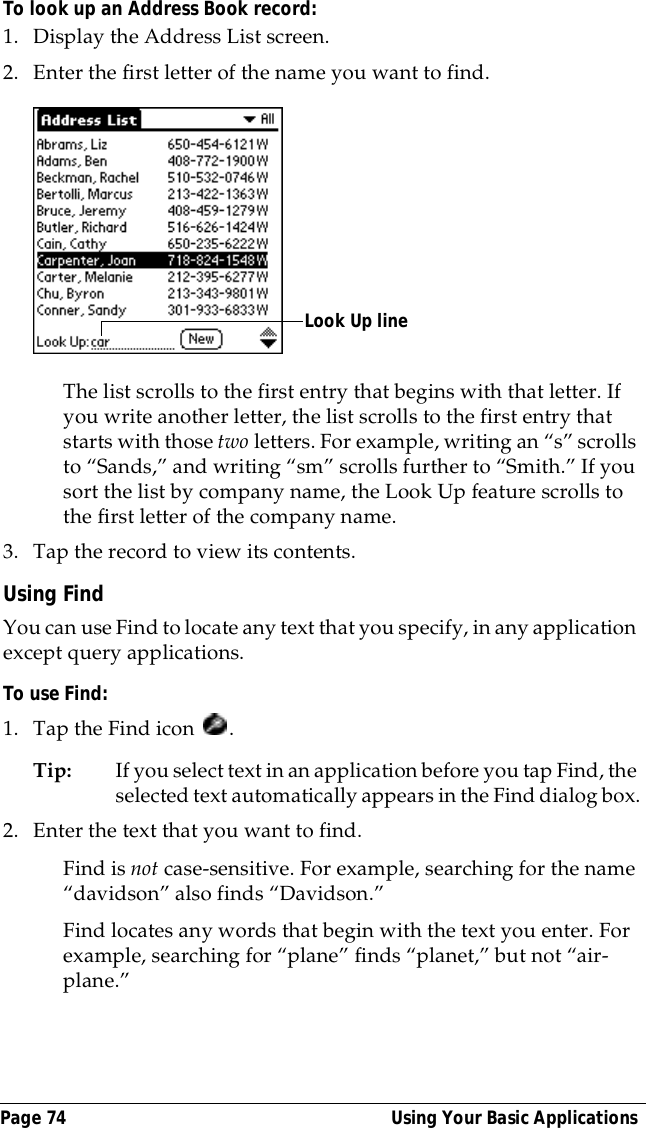
Chapter 4 Page 895. Enter a number that corresponds to how often you want the event to repeat on the Every line. For example, if you select Month and enter the number 2, the event repeats every other month.6. To specify an end date for the repeating or continuous event, tap the End on pick list and tap Choose Date. Use the date picker to select an end date.7. Tap OK.After you schedule a repeating or continuous event, this icon   appears to the far right of the event.Considerations for repeating or continuous events: Keep the following points in mind.■If you change the start date of a repeating event, your organizer calculates the number of days you moved the event. Your organizer then automatically changes the end date to maintain the duration of the repeating event.■If you change the repeat interval (e.g., daily to weekly) of a repeating event, past occurrences (prior to the day on which you change the setting) are not changed, and your organizer creates a new repeating event.■If you change the date of an occurrence of a repeating event (e.g., from January 14th to January 15th) and apply the change to all occurrences, the new date becomes the start date of the repeating event. Your organizer adjusts the end date to maintain the duration of the event.■If you change other repeat settings (e.g., time, alarm, private) of a repeating event and apply the change to all occurrences, your organizer creates a new event. The start date of this new event is the day on which the setting is changed. Past occurrences (prior to the day of the change) are not changed.■If you apply a change to a single occurrence of a repeating event (e.g., time), that occurrence no longer shows the Repeat icon  .Changing the Date Book viewIn addition to displaying the time list for a specific day, you can also display a whole week or month. You can also display the current time. To cycle through Day, Week, and Month views:■Press the Date Book application button repeatedly to display the next view.
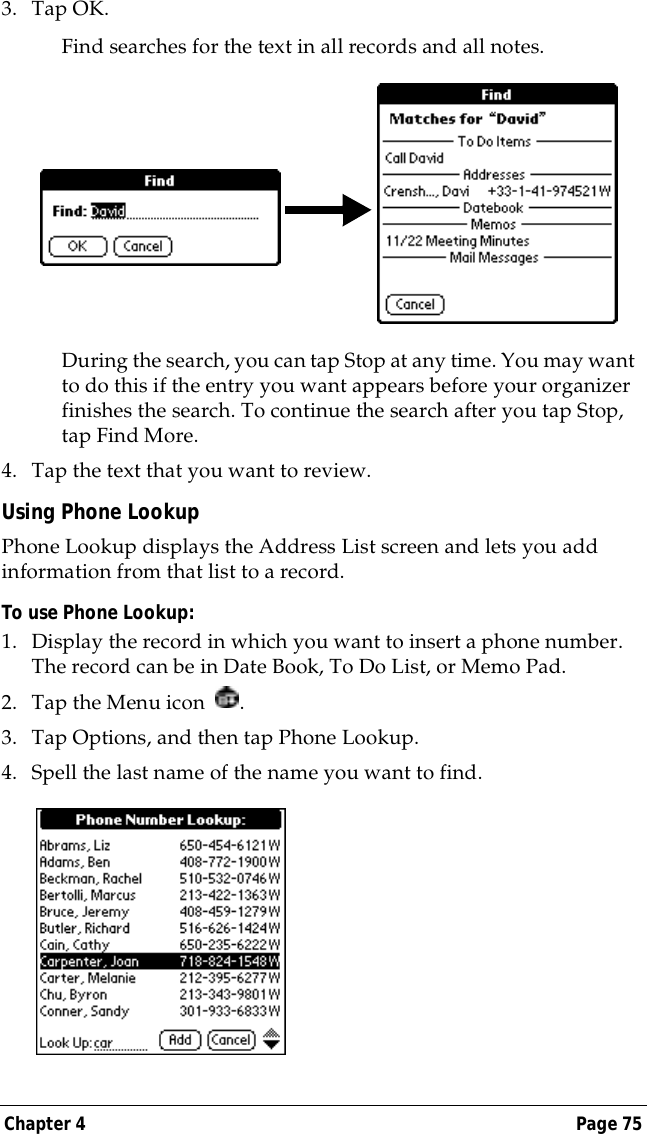
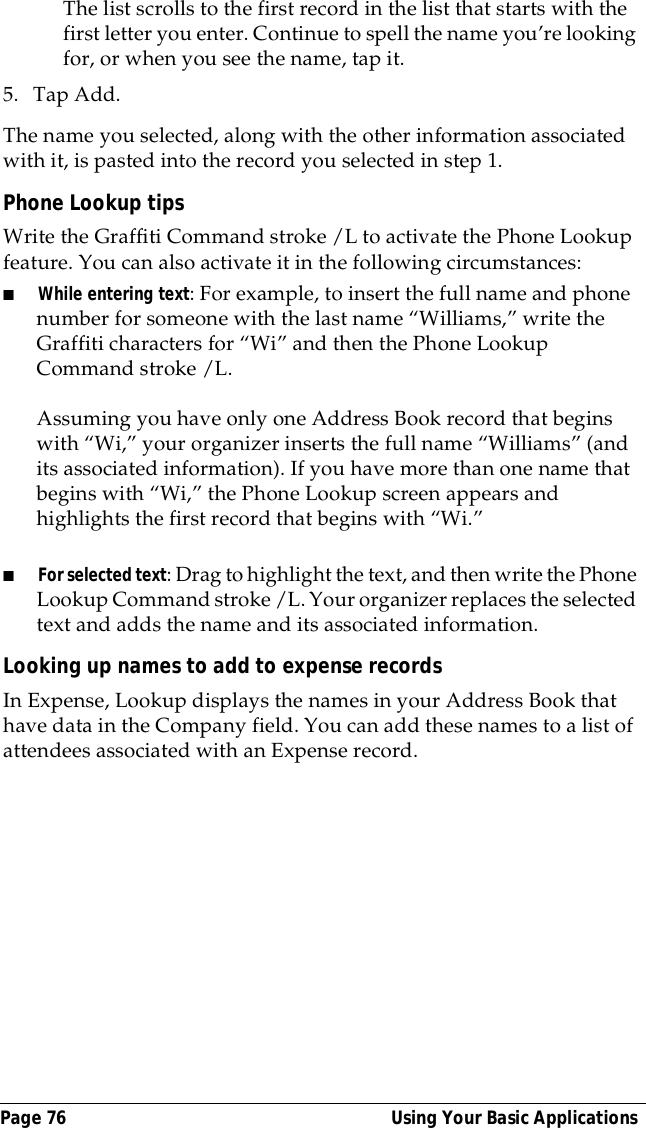
Page 90  Using Your Basic ApplicationsTo display the current time:■Tap the date in the date bar to display the current time. After a few seconds, the date reappears.Working in Week View: Week View shows the calendar of your events for an entire week. This view lets you quickly review your appointments and available time slots. In addition, the graphical display helps you spot overlaps and conflicts in your schedule.To display the Week View:1. Tap the Week View button.2. Tap the navigation controls to move forward or backward a week at a time, or to display details of an event. Note: The Week View also shows untimed events and events that are before and after the range of times shown.Tap the date Current time displaysWeek ViewPrevious week Next weekTap for that dayBar indicates earlier event Bar indicates later event Dot indicates untimed event
Chapter 4 Page 913. Tap an event to show a description of the event.Tips for using Week View: Keep the following points in mind.■To reschedule an event, tap and drag the event to a different time or day.■Tap a blank time on any day to move to that day and have the time selected for a new event. ■Tap any day or date that appears at the top of the Week View to move directly to that day without selecting an event.■The Week View shows the time span defined by the Start Time and End Time in the Date Book Preferences settings. If you have an event before or after this time span, a bar appears at the top or bottom of that day's column. Use the onscreen scroll arrows   to scroll to the event.Spotting event conflictsWith the ability to define specific start and end times for any event, it’s possible to schedule events that overlap (an event that starts before a previous event finishes).An event conflict (time overlap) appears in the Week View as overlapping bars. The Day View displays overlapping brackets to the left of the conflicting times.Event detailsTap to show event details
Page 92  Using Your Basic ApplicationsWorking in Month ViewThe Month View screen shows which days have events scheduled. Dots and lines in the Month View indicate events, repeating events, and untimed events.You can control the dots and lines that appear in the Month View. See “Options menu” at the end of this section on Date Book.Tips for using Month View: Keep the following points in mind.■Tap a day in the Month View to display that day in the Day View.■Tap the scroll arrows in the upper-right corner to move forward or backward a month. ■Tap Go to in order to open the date selector and select a different month.■Use the scroll button on the front panel of your organizer to move between months. Press the upper half of the button to display the previous month, the lower half to display the next month.Event conflictsPrevious/next monthDots on right side indicate eventsDashed line indicates continuous eventDots below date indicate untimed eventsMonth View button
Chapter 4 Page 93Date Book menus, preferences, and display optionsDate Book menus are shown here for your reference, and Date Book features that are not explained elsewhere in this book are described here.See “Using menus” in Chapter 1 for information about choosing menu commands.Record menuOptions menu
Page 94  Using Your Basic ApplicationsDisplay Options Allows you to change Date Book’s appearance and which events display.■Show Time Bars: Activates the time bars that appear in the Day View. The time bars show the duration of an event and illustrate event conflicts.■Compress Day View: Controls how times appear in the Day View. When Compress Day View is off, all time slots display. When it is on, start and end times display for each event, but blank time slots toward the bottom of the screen disappear to minimize scrolling. ■Month View settings: These check boxes apply to the Month View of the Date Book. You can activate any or all of these settings to show that you have Timed, Untimed, or Daily Repeating events in the Month View only.
Chapter 4 Page 95Preferences■Start/End Time: Define the start and end times for Date Book screens. If the time slots you select do not fit on one screen, you can tap the scroll arrows   to scroll up and down.■Alarm Preset: Automatically sets an alarm for each new event. The silent alarm for untimed events is defined by minutes, days, or hours before midnight of the date of the event. ■Alarm Sound: Sets the tone of the alarm.■Remind Me: Defines how many times the alarm sounds. The choices are Once, Twice, 3 Times, 5 Times, and 10 Times.■Play Every: Defines how often the alarm sounds. The choices are Minute, 5 minutes, 10 minutes, and 30 minutes.About Date Book Shows version information for Date Book.
Page 96  Using Your Basic ApplicationsAddress BookAddress Book is the application in which you store name and address information about people or businesses.Creating an Address Book entryA record in Address Book is called an “entry.” You can create entries on your organizer, or you can use Palm Desktop software to create entries on your computer and then download the entries to your organizer with your next HotSync operation.Palm Desktop software also has data import capabilities that enable you to load database files into Address Book on your organizer. See “Importing data” in Chapter 2 and Palm Desktop online Help for more information.To create a new Address Book entry:1. Press the Address Book application button   on the front of your organizer to display the Address List.2. Tap New.3. Enter the last name of the person you want to add to your Address Book. Note: The organizer automatically capitalizes the first letter of each field (except numeric and e-mail fields). You do not have to use the Graffiti capital stroke to capitalize the first letter of the name. Tap NewCursor at Last name
Chapter 4 Page 974. Use the Next Field Graffiti stroke to move to the First Name field.Tip: You can also move to any field by tapping it directly.5. Enter the person's first name in the First Name field.6. Enter the other information that you want to include in this entry.7. Tap the scroll arrows   to move to the next page of information.8. After you finish entering information, tap Done.Tip: To create an entry that always appears at the top of the Address List, begin the Last name or Company field with a symbol, as in *If Found Call*. This entry can contain contact information in case you lose your organizer.Selecting types of phone numbersYou can select the types of phone numbers or e-mail addresses that you associate with an Address Book entry. Any changes you make apply only to the current entry. To select other types of phone numbers in an entry:1. Tap the entry that you want to change. 2. Tap Edit.Next Field     Tap Done
Page 98  Using Your Basic Applications3. Tap the pick list next to the label you want to change. 4. Select a new label.Changing Address Entry detailsThe Address Entry Details dialog box provides a variety of options that you can associate with an entry. To open the Address Entry Details dialog box:1. Tap the entry whose details you want to change.2. Tap Edit.3. Tap Details.4. Select any of the following settings:Show in List: Select which type of phone or other information ap-pears in the Address List screen. Your options are Work, Home, Fax, Other, and E-mail.Category: Assign the entry to a category. Private: Hide this entry when Security is turned on.Address Book menusAddress Book menus are shown here for your reference, and Address Book features that are not explained elsewhere in this book are described here.Tap triangle
Chapter 4 Page 99See “Using menus” in Chapter 1 for information about choosing menu commands.The Record and Options menus differ depending on whether you’re displaying the Address List screen or the Address View screen.Record menusOptions menusPreferences■Remember last category: Determines how Address Book appears when you return to it from another application. If you select this check box, Address Book shows the last category you selected. If you clear it, Address Book displays the All category.Address List Address ViewAddress List  Address View
Page 100  Using Your Basic ApplicationsRename Custom Fields These custom fields appear at the end of the Address Edit screen. Rename them to identify the kind of information you enter in them. The names you give the custom fields appear in all entries. About Address Book Shows version information for Address Book.
Chapter 4 Page 101To Do ListA To Do List item is a reminder of some task that you have to complete. A record in To Do List is called an “item.”To create a To Do List item:1. Press the To Do List application button   on the front of your organizer to display the To Do List.2. Tap New.3. Enter the text of the To Do List item. The text can be longer than one line.4. Tap anywhere onscreen to deselect the To Do List item.Tip: If no To Do List item is currently selected, writing in the Graffiti writing area automatically creates a new item.Setting priorityThe priority setting for items lets you arrange the tasks in your To Do List according to their importance or urgency. The default setting for the To Do List is to arrange items by priority and due date, with priority 1 items at the top. If you have a number of items in your list, changing an item’s priority setting may move its position in the list. Note: When you create a new To Do List item, its priority is automatically set to level 1, the highest (most important) level. If you select another item first, however, the item you create appears beneath the selected item and is given the same priority as the selected item. Tap NewNew To Do item
Page 102  Using Your Basic ApplicationsTo set the priority of a To Do List item:1. Tap the Priority number on the left side of the To Do List item.2. Tap the Priority number that you want to set (1 is most important). Checking off a To Do List itemYou can check off a To Do List item to remind yourself that you’ve completed it. You can set the To Do List to record the date that you complete the To Do item, and you can choose to show or hide completed items. See “To Do Show Options” later in this chapter.To check off a To Do List item:■Tap the check box on the left side of the item.Changing To Do List item detailsThe To Do Item Details dialog box enables you to change settings for individual items. Tap to select priorityTap hereCompleted To Do List
Chapter 4 Page 103To display the To Do Item Details dialog box:1. Tap the text of the item whose details you want to change.2. Tap Details.Setting a due dateYou can associate a due date with any To Do List item. You can also sort the items that appear in the list based on their due date.To set a due date for a To Do List item:1. In the Details dialog box, tap “No Date” to open the Due Date pick list.2. Tap the date that you want to assign the item:Today: Assigns the current date.Tomorrow: Assigns tomorrow’s date.One week later: Assigns the date exactly one week from the cur-rent date.No Date: Removes the due date from the item.Choose Date: Opens the date selector, where you can choose any date that you want for the item.3. Tap OK.Tip: If you turn on the Show Due Dates option in the To Do Show options dialog, you can tap directly on the due date in the To Do List to open the pick list shown in step 2. Tap here
Page 104  Using Your Basic ApplicationsTo Do Show OptionsThe Show Options dialog box enables you to control the appearance of To Do List.To change the Show Options settings:1. In To Do List, tap Show.2. Select any of the following settings:Show Completed Items: Displays your completed items in the To Do List. If you turn off this setting, your To Do items disappear from the list when you complete (check) them.Items that no longer appear on the list because you turn off this setting have not been deleted. They are still in the memory of your organizer. Purge completed items to remove them from memory.Show Only Due Items: Shows only the items that are currently due, past due, or have no due date specified. When this setting is ac-tive, items that are not yet due do not appear in the list until their due date.Record Completion Date: Replaces the due date with the actual date when you complete (check) the item. If you do not assign a due date to an item, the completion date still records when you complete the item.Show Due Dates: Displays the due dates associated with items in the To Do List and displays an exclamation mark next to items that remain incomplete after the due date passes.Show Priorities: Shows the priority setting for each item.Show Categories: Shows the category for each item.3. Tap OK.
Chapter 4 Page 105To Do List menusTo Do List menus are shown here for your reference, and To Do List features that are not explained elsewhere in this book are described here.See “Using menus” in Chapter 1 for information about choosing menu commands.Record menuOptions menuAbout To Do List Shows version information for To Do List.
Page 106  Using Your Basic ApplicationsMemo PadA memo can contain up to 4,000 characters. The number of memos you can store is dependent only on the memory available on your organizer. A record in Memo Pad is called a “memo.” To create a new memo:1. Press the Memo Pad application button   on the front of your organizer to display the Memo List.2. Tap New.Tip: In the Memo List screen, you can also begin writing in the Graffiti writing area to create a new memo. The first letter is automatically capitalized and begins your new memo.3. Enter the text you want to appear in the memo. Use the carriage return stroke to move down to new lines in the memo.4. Tap Done. Reviewing memosThe first line of a memo appears in the Memo List. This makes it easy to locate and review your memos. Tap New
Chapter 4 Page 107To review a memo:1. In the Memo List, tap the text of the memo.2. Review or edit the text in the memo. 3. Tap Done.Memo Pad menusMemo Pad menus are shown here for your reference, and Memo Pad features that are not explained elsewhere in this book are described here.See “Using menus” in Chapter 1 for information about choosing menu commands.The Record and Options menus differ depending on whether you’re displaying the Memo List or an individual memo.Record menusOptions menusTap a memo to see its contentsMemo List Memo screenMemo ListMemo screen
Page 108  Using Your Basic ApplicationsGo to Top of Page Moves to the top (first) line of the memo.Go to Bottom of Page Moves to the bottom (last) line of the memo.Preferences  Displays the Memo Preferences dialog box, where you define the sort order for memos. About Memo Pad Shows version information for Memo Pad.
Chapter 4 Page 109CalculatorThe Calculator includes several buttons to help you perform calculations.Recent CalculationsThe Recent Calculations command enables you to review the last series of calculations and is particularly useful for confirming a series of “chain” calculations.To display recent calculations:1. Tap the Menu icon  .2. Tap Options, and then tap Recent Calculations.Clears the last number you entered. Use this button if you make a mistake while entering a number in the middle of a calculation. This button enables you to re-enter the number without starting the calculation over.Clears the entire calculation and enables you to begin a fresh calculation.Toggles the current number between a negative and positive value. If you want to enter a negative number, enter the number first and then press the +/- button.Places the current number in memory. Each new number you enter with the M+ button is added to the total already stored in memory. The number that you add can be either a calculated value or any number you enter by pressing the number buttons. Pressing this button has no effect on the current calculation (or series of calculations); it merely places the value into memory until it is recalled.Recalls the stored value from memory and inserts it in the current calculation.Clears any value that is stored in the Calculator memory.
Page 110  Using Your Basic Applications3. After you finish reviewing the calculations, tap OK.Calculator menusCalculator menus are shown here for your reference, and Calculator features that are not explained elsewhere in this book are described here.See “Using menus” in Chapter 1 for information about choosing menu commands.Options menusAbout Calculator Shows version information for Calculator.
Chapter 4 Page 111ExpenseExpense enables you to record the date, expense type, and the amount that you spent. A record in Expense is called an “item.” You can sort your Expense items into categories or add other information that you want to associate with the item.To create an Expense item:1. Tap the Applications icon  .2. Tap Expense.3. Tap New.Tip: You can also create a new Expense item by writing on the number side of the Graffiti writing area while in the Expense List screen. The first number you write begins your new Expense item.4. Enter the amount of the expense. 5. Tap the Expense type pick list and select a type from the list.Note: As soon as you select an expense type, your organizer saves your entry. If you do not select an expense type, it does not save the entry.Tap NewCursor of new itemTap here
Page 112  Using Your Basic ApplicationsTip: A quick way to create a new Expense item is to make sure that no Expense item is selected in the Expense List, write the first letter(s) of the expense type, and then write the numerical amount of the Expense item. This technique takes advantage of the automatic fill feature. See “Options menu” later in this chapter for details.Changing the date of an Expense itemInitially, Expense items appear with the date you enter them. You can use Expense to change the date associated with any Expense item.To change the date of an Expense item:1. Tap the Expense item you want to change.2. Tap the date of the selected item. 3. Tap the new date.Entering receipt detailsExpense provides a variety of options that you can associate with an item. These options appear in the Receipt Details dialog box.To open the Receipt Details dialog box:1. Tap the Expense item to which you want to assign details.2. Tap Details.Tap date
Chapter 4 Page 1133. Select any of the following options:Category: See “Categorizing records” earlier in this chapter.Type: Opens a pick list of expense types. Payment: Lets you choose the payment method used to pay the Expense item. If the item is prepaid (such as airline tickets sup-plied by your company), you can choose Prepaid to place your expense in the appropriate company-paid cell of your printed expense report spreadsheet. See “Transferring your data to Mi-crosoft Excel” later in this chapter for more information.Currency: Enables you to choose the type of currency used to pay the Expense item. The default currency unit is defined in the Preferences dialog (see See “Options menu”  later in this chap-ter). You can also display up to four other common types of cur-rency. See “Customizing the Currency pick list” later in this chapter for more information.Vendor and City: Lets you record the name of the vendor (usually a company) associated with the expense and the city where the expense was incurred. For example, a business lunch might be at Rosie's Cafe (Vendor) in San Francisco (City).Attendees: See “Looking up names to add to expense records” earlier in this chapter.4. Tap OK.Customizing the Currency pick listYou can select the currencies and symbols that appear in the Currency pick list.To customize the Currency pick list:1. Tap the Currency pick list in the Receipt Details dialog box, and then select Edit currencies.Tap Edit currencies
Page 114  Using Your Basic Applications2. Tap each Currency pick list and select the country whose currency you want to display on that line.3. Tap OK to close the Select Currencies dialog box.4. Tap OK.Defining a custom currency symbolIf the currency you want to use is not in the list of countries, you can create your own custom country and currency symbol. To define a custom currency symbol:1. Tap the Menu icon  .2. Tap Options, and then tap Custom Currencies.3. Tap one of the four Country boxes.4. Enter the name of the country and the symbol that you want to appear in Expense.5. Tap OK to close the Currency Properties dialog box.6. Tap OK.Note: If you want to use your custom currency symbol as the default for all Expense items, select the symbol in the Preferences dialog box. If you want to use your custom currency symbol only for a particular Expense item, select the symbol in the Receipt Details dialog box associated with that item.Tap a Country box
Chapter 4 Page 115Show OptionsShow Options define the sort order and other settings that relate to your Expense items.To open the Show Options dialog box:1. In the Expense List, tap Show.2. Select any of the options.Sort by: Enables you to sort expense items by date or type.Distance: Enables you to display Mileage entries in miles or kilo-meters.Show currency: Shows or hides the currency symbol in the Ex-pense List.3. Tap OK.Transferring your data to Microsoft ExcelAfter you enter your expenses into the Expense application on your organizer, Palm Desktop software enables you to view and print the data with your computer. Note: You need Microsoft Excel version 5.0 (or later) to view and print your Expense data using one of the provided templates. Microsoft Excel is not included with the Palm VII organizer package. The procedures in this section also assume that you have installed Palm Desktop software. See “Palm Desktop organizer software” in Chapter 1 for more information.Creating or printing an expense reportYou can use Palm Desktop software to view and print your Expense data in a Microsoft Excel spreadsheet. Tap Show
Page 116  Using Your Basic ApplicationsTo create or print an expense report:1. Perform a HotSync operation to transfer your latest Expense data to your computer. 2. Click Expense in Palm Desktop software to open Microsoft Excel and the Expense Report configuration dialog box. Note: If you launch Expense from the Start menu instead of Palm Desktop software, you must first choose your organizer user name.3. Click the expense category that you want. Tip: You can press Ctrl+click to select multiple categories. To print the expenses associated with all of your Expense categories, select All in the Categories group.4. If you want to define an end date for the expense report, enter the date in the End Date box.Note: If you do not specify an end date, all expense entries for the selected categories appear — up to the date of the last HotSync operation.5. Do one of the following:Click Print to display the expense report in the Print Preview window, and then click Print in the Microsoft Excel window to print your expense report.Click Create to display a Microsoft Excel spreadsheet contain-ing your expense data. Your data appears in Microsoft Excel spreadsheet form. You can enter information, make formatting changes, and save and print the file in the normal manner.Click to select Categories
Chapter 4 Page 117Using expense report templatesPalm Desktop software includes several expense report templates. When you use one of these templates, you can edit your expense data in Microsoft Excel. The templates have the extension .xlt and are stored in the template folder in the Palm Desktop software directory on your computer. To see what a template looks like before you use it, open the template in Microsoft Excel. For example, the template Sample2.xlt looks like this:If you want to streamline or customize your expense reports, you can change these templates. For example, you can add your company
Page 118  Using Your Basic Applicationsname to a template. See Appendix C for information on changing templates.To view your expense data using a Microsoft Excel template:1. Display your expense data in a Microsoft Excel spreadsheet as described in the previous procedure.2. Click Options.3. Enter name, department, and other information as necessary for your expense report.4. Click the Templates menu; then select an expense template.Note: If you want to create your own custom expense template and have it appear in the Templates menu, see Appendix C for more information.5. Click OK.Expense menusExpense menus are shown here for your reference, and Expense features that are not explained elsewhere in this book are described here.See “Using menus” in Chapter 1 for information about choosing menu commands.Record menuChoose expense templateEnter name and other information
Chapter 4 Page 119Options menuPreferences■Use automatic fill: Lets you select an expense type by writing the first letter of an expense type in the Graffiti writing area. For example, if you write the letter “T,” it enters the “Taxi” expense type. Writing “T” and then “E” enters “Telephone” which is the first expense type beginning with the letters “TE.” ■Default currency: Sets the default currency symbol for Expense. About Expense Shows version information for Expense.
Page 120  Using Your Basic Applications
Chapter 5 Page 121Chapter 5Query Applicationsand the iMessenger™ ApplicationYour organizer is a wireless deviceYour Palm VII™ organizer is equipped with an internal transmitter and an antenna. These components enable your organizer, like a cellular phone, to use a radio frequency to transmit and receive information over the airwaves.You don’t need a modem or a wired connection to a computer to use your organizer as a wireless device, but you must activate the Palm.Net™ wireless communication service. See “Activating the Palm.Net wireless communication service” in Chapter 1 for more information.After you activate the service, you have access to two wireless features that enhance your ability to stay connected: web clipping and wireless Internet messaging. This chapter describes those features and explains how to use them.Important: Whenever you use the wireless features of your organizer, please observe the guidelines or prohibitions on the use of wireless devices in your current location. For example, when you are on an airplane, do not raise the antenna or use the wireless features at times when the Federal Aviation Administration (FAA) or airline regulations prohibit the use of cellular phones. You can, of course, use all other applications of your organizer in accordance with airline regulations for electronic devices.Web clipping: query applicationsWeb clipping is a fast and simple way to retrieve specific information from the Internet. It is a simple process of query-and-response: You submit a request for specific information from the Internet and tap a button that transmits your request; within seconds, you receive a response.
Page 122  Query Applications and the iMessenger™ ApplicationQuery applicationsJust as your web browser gives you access to many different web sites, your organizer gives you access to many different “sites” for web clipping — as many as you care to add and your organizer can store. If you have already set up your organizer, you have some already.These “sites” are called query applications. They were created by third-party developers, but you open them and use them just as you would a basic Palm VII application like Address Book. Query applications give you access to a wide spectrum of practical Internet information. Each query application is designed to let you query the Internet for a specific kind of information. For example, the query applications available to you when you set up your organizer and install Palm™ Desktop organizer software give you access to the following kinds of information: traffic and weather conditions; airline, hotel, and restaurant information; locations of automatic teller machines; driving directions; stock market data; movie listings; availability of tickets to local events; business and general news; definitions, spelling, and synonyms of words; and business and residential phone numbers, addresses, and e-mail addresses.Web clipping, not web browsingIt’s impractical to browse the Internet from a small handheld computer and look at elaborate, animated, graphics-laden web pages on a screen the size of your organizer’s. As a way to access Internet information, web clipping offers you the following advantages:■Convenience: Because your organizer is a wireless device, you can be walking down the street while accessing the Internet.■Focus: Query applications focus on retrieving small pieces of specific, up-to-date information.
Chapter 5 Page 123So when you’re near a desktop computer and have some time, you can take advantage of the elaborate graphics, variety, and many choices offered by a web site —But when you’re in a car or on the street and need information fast, a query application on your organizer makes it easy to find the specific information you need — Adding more query applicationsWhen you set up your organizer, you find that several query applications have been preloaded onto your organizer.
Page 124  Query Applications and the iMessenger™ ApplicationWhen you install Palm Desktop software on your computer, you can select many more query applications. Use the Install Tool to transfer these to your organizer.Still more query applications are available on the web site http://www.palm.net.You add query applications to your organizer just as you would any other application. See “Installing add-on applications” in Chapter 3 for details.Wireless Internet messaging: the iMessenger applicationUsing the iMessenger application on your organizer, you can send and receive short text messages. Your organizer is part of the Palm.Net network. This network receives and stores messages sent to you at your Palm.Net address, and it delivers any message you send directly from your organizer to the Internet e-mail address you specify.When you activate the Palm.Net wireless communication service, you acquire an address on the network — for example, username@palm.net. Then, whenever you’re within coverage of the network, you can communicate with anyone who has an Internet e-mail account.Important: The iMessenger application is completely independent of the Mail application. Mail does not use the transmitter or the Palm.Net wireless communication service. See “The iMessenger application differs from the Mail application” later in this chapter for details. See Chapter 6 for information about Mail.The Palm.Net wireless communication serviceThe Palm.Net wireless communication service includes the following: ■The network through which you access the Internet.■The web site on which you can track your usage of the service, learn about the service and its features, and find new query applications to download.■The Palm.Net query application, in which you can also track your usage of the service and learn about the service and its features.
Chapter 5 Page 125■Customer Care. See the Getting Started guide for the support e-mail addresses and phone numbers.■Convenient credit card billing.The networkThe Internet is often described as a “network of networks,” and the Palm.Net network is just another network tied into the Internet. The advantage of the Palm.Net network is that your organizer has a wireless, over-the-air connection to it. So long as one of the radio transmitter/receivers of the network can pick up the signal sent by your organizer — referred to as being “within coverage” — you can use query applications and the iMessenger application.Note: See the important notice at the beginning of this chapter about observing regulations on the use of wireless devices on airplanes and in other locations where their use may be restricted.Protection of your wireless transactionsYour organizer is equipped with next generation encryption technology from Certicom. This encryption technology is used to secure your credit card number when you activate the Palm.Net service. It is also used by various query applications to secure the transmission of sensitive information such as messages and passwords that are sent over the Palm.Net network. Data is protected both when sent from your organizer over the network and when coming in from the Internet directly to your organizer.When a wireless transaction is secured, the command button that initiates the transaction is marked not only by the over-the-air icon, but also by the security icon.Encryption makes your data unreadable by anyone but the intended recipient. Encryption is done using elliptic curve cryptography, a technology developed by Certicom and used in a wide variety of consumer handheld devices and enterprise applications. For more information about Certicom’s encryption technology, visit the Certicom web site http://www.certicom.com.The security icon indicates that your transmission is encrypted
Page 126  Query Applications and the iMessenger™ ApplicationIt’s not unusual to experience a delay of a several seconds when a wireless transaction is being encrypted. In addition to the protection provided by the Palm.Net network, individual query applications may add another layer of protection to their transactions. For example, a query application may require you to create and use a password to access sensitive information (for example, your checking account).See “Wireless preferences” in Chapter 8 for information about preventing the transmission of your location and identification. See “Security” in Chapter 3 for information about locking your organizer. See “Making records private” in Chapter 4 for information about hiding specific records.The Palm.Net web site: http://www.palm.netThe Palm.Net web site is an important source of information about the wireless features of your organizer and about your use of the wireless communication service. The following features are available on the web site: ■Coverage maps: Review detailed maps that show where Palm.Net coverage is available. You can also look up a ZIP code to see if an area is within coverage. Go here if you want to report an area where the signal strength is too weak to perform wireless transactions.■My Account: Check the current status of your account, in both summary and detailed (day-by-day) form. Go here to change your account information and password.Note: Access to My Account is restricted to users who have an account with the Palm.Net wireless communication service. To access My Account, you must log in with the username and password you created during activation.■iMessenger application support: Delete messages, designate a forwarding address, and designate an address to which to send a copy of all your outgoing messages. ■Support: Learn about Palm.Net services and wireless features, get answers to frequently asked questions, and submit questions to Palm.Net Customer Care. ■Query Apps: Download the latest query applications to your desktop computer. ■Web Resources: Order books about the Palm Computing® platform and sign up for InSync Online, an e-mail service that distributes
Chapter 5 Page 127new query applications, tips about your organizer, and news about Palm Computing platform compatible products. Use the links on this site to visit hundreds of other sites related to products for the Palm Computing platform.The Palm.Net query applicationThe Palm.Net query application is a condensed version of the web site. If you have a question about the service or your use of it, the query application is the first place to go to find your answer.To open the Palm.Net query application:■Tap the Palm.Net query application icon: . You can do the following in the query application:■Check a summary of the current status of your account■Read Customer Support topics■Submit a question or comment to Customer SupportImproving signal strengthRadio signals can be blocked by many kinds of objects in the environment. Trying to perform wireless transactions using a weak signal requires more power from your batteries. If you experience poor reception, often you can improve it simply by moving five or ten feet in any direction away from the spot where reception is poor. See “Wireless problems” in Appendix B for a list of steps you can take to improve reception.As you move around to improve reception, you can monitor the increase or decrease in signal strength.
Page 128  Query Applications and the iMessenger™ ApplicationTo monitor signal strength in the Diagnostics application:■Tap the Diagnostics icon  .Both the bar graph and the number represent the signal strength:■The graph represents signal strength as a series of bars. The more bars displayed, the stronger the signal. ■The number represents signal strength as a percentage. The higher the number, the stronger the signal.You can also monitor signal strength from within query applications and the iMessenger application. A small version of the same bar graph you see in the Diagnostics application appears onscreen when you’re performing a wireless transaction.Using query applicationsIn general, web clipping is a simple process of query-and-response that works like this:More bars =Strongersignal  In query applications    In the iMessenger application
Chapter 5 Page 129■You open the query application that provides the information you want. For example, you open a query application that reports the weather.■You submit a query that requests specific information. For example, you ask what the weather forecast is for San Francisco.■You tap a button that sends your request to the Internet.■The query application sends your request to the Internet and returns, quickly, with a clipping that gives you only the specific piece of information that you requested.Opening query applicationsWhen you install query applications, they appear by default in the Palm.Net category of the Applications Launcher. The icons of query applications are easy to recognize: They all have a dark diamond shape as their background and include the over-the-air icon:Feel free to explore all of your query applications to find out what kind of information they offer. Despite the presence of the over-the-air symbol in its icon, you can open any query application without incurring any cost.Background of all query    application iconsPalm.Net category of the Applications Launcher
Page 130  Query Applications and the iMessenger™ ApplicationTo open a query application:1. Raise the antenna, located on the right side of your organizer.Raising the antenna automatically opens the Applications Launcher to the Palm.Net category. When the transmitter suc-cessfully connects to the network, your organizer beeps.2. Tap the query application that queries the Internet for the kind of information you want.Tip: You can set your organizer to open a specific application whenever you raise the antenna. See “Buttons preferences” in Chapter 8 for details.Working with query applicationsQuery applications are designed so that you can use them as you use any of the basic applications. The skills you learn in other applications can be applied to working in query applications.Query applications are similar to basic applications in the following ways:■You tap to select an item or perform an action just as you do in other applications on your organizer.■You use Graffiti® writing or the onscreen keyboard to enter text.■Elements of the interface that look familiar — edit lines, pick lists, check boxes, scroll arrows, buttons, menus, etc. — behave in query applications as they behave in basic applications like Address Book or Memo Pad. To ensure the best reception: If you are holding the organizer in your hand, raise the antenna to its position at 135°, located at the second click you feel as you raise the antenna. If the organizer is on a flat surface, raise the antenna to its position at 90°.      90°135°
Chapter 5 Page 131■In edit lines, you can select, cut, copy, and paste text as you do in other applications on your organizer. Sorted pick listsIn query applications, pick lists of words sorted alphabetically or numbers sorted in ascending order work in the same way that Phone Lookup works: if you write the first letter of a word, the list scrolls to the first entry that begins with that letter. If you write the first two letters, the list scrolls to the entry that starts with those two letters; and so on, until the letters you write identify a unique entry.For example, when you select a state from an alphabetical list of states, writing “m” causes the list to scroll to and select Maine. If you then write “o,” the list selects Montana and enters it in the field.Actions that incur a costTapping a command button or other object that displays the over-the-air icon initiates a wireless transaction. Typically, you incur a cost whenever you perform a wireless transaction. This cost takes the form of either (1) a deduction from the kilobytes included in your monthly plan or (2) if your monthly kilobytes have been used up, an additional charge. Consult http://www.palm.net or the Palm.Net query application for details on billing.Simply reviewing the contents of a query application does not initiate a wireless transaction and costs nothing.To submit a query to the Internet:1. Raise the antenna.2. Tap the icon of the query application you want to open.3. Follow the directions onscreen for specifying the information you want from the Internet.Some query applications need you to identify a location in or-der to give you useful information. For example, query applica-tions that report the weather or list movie theaters need to know the location for which you want information. Such query applications may ask you to specify the ZIP code of the location you’re interested in.Over-the-air icon
Page 132  Query Applications and the iMessenger™ Application4. Tap the button or other object that displays the over-the-air icon to submit your query to the Internet.The response — your clipping— typically appears onscreen within seconds. To stop a wireless transaction:■Tap the Stop icon.Any data that is downloaded to your organizer before you tap the Stop icon appears onscreen.Important: You incur a cost for any data that is downloaded to your organizer or sent to the Palm.Net server. Reviewing current queries and clippings: Back arrowYour organizer stores the queries and clippings of your current session so that you can review them. Use the Back arrow to review the pages you displayed since you opened the query application.To go back to a previously viewed page:■Tap the Back arrow in the query application you want to review.Note: You do not incur a cost when you review pages.Stop icon
Chapter 5 Page 133Example of web clippingThis example takes you through the process of finding someone’s phone number and address using the Yahoo!® People Search query application. This query application is preloaded on your organizer.To find a phone number and an address:1. Raise the antenna.Raising the antenna automatically opens the Applications Launcher to the Palm.Net category. If you moved the Yahoo! People Search query application, go to that category. 2. Tap the Yahoo! People Search icon.3. Tap the First Name edit line and enter the first name of a person whose address and phone number you want to find.You can use Graffiti writing or the onscreen keyboard to enter data.4. Enter the last name of the person and the city where the person lives.5. Tap the State pick list and select the state where the person lives.Back arrowTap here
Page 134  Query Applications and the iMessenger™ ApplicationTip: Writing the first few letters of the state you want causes the list to scroll to the first entry that begins with those letters. For example, write “ca” to select and enter California.6. (Optional) If you want to find the address of the person, tap the Show Addresses check box to select it.7. Tap Search.Within seconds, your clipping appears. In this case, the query application found two items that satisfy your query.How big was that clipping?After you receive a clipping, you can find out the size of the clipping by tapping the title area of the screen. If you see two exclamation points (!!) there, the clipping is larger than 1,000 bytes.Tap here to submit your query
Chapter 5 Page 135To see the size of a clipping:■Tap the title area. The title area expands to show how many bytes the clipping contains.Reviewing stored clippings: History listYou can see a list of stored clippings in the History list and then select the one you want to review. You can see clippings that pertain only to the query application that is open. When you open another query application, the History list changes to display only clippings that you received in that query application.Note: You do not incur a cost when you review clippings in the History list.To review the History list:1. Open the query application that has clippings you want to review.2. Tap the History pick list.3. Select the clipping you want to review.Saving information from a query applicationYou can copy the text in a clipping or a page of a query application and paste it into another application. For example, you can copy an address you receive as a clipping from Yahoo! People Search and paste the address into Address Book.To save the text of a clipping or page:1. Make sure the clipping or page you want to copy is onscreen.Tap hereHistory pick list
Page 136  Query Applications and the iMessenger™ ApplicationYou can use the Back arrow or the History list to display the clipping or page you want.2. Tap the Menu icon  . 3. Tap Edit, and then tap Copy Page.4. Open one of the basic applications, such as Address Book or Memo Pad.5. Create a new record.6. Tap the Menu icon. 7. Tap Edit, and then tap Paste.Keep the following points in mind about the Copy Page command:■Copying always starts at the top of the current clipping or page, regardless of what is displayed onscreen.■The Copy Page command copies only the first 4,000 bytes (4KB) of data. If the clipping or page you copy contains more than 4KB of data, your organizer appends the word “truncated” to the end of the pasted text.■The Copy Page command does not copy images or icons; table structures; or text formatting such as bold, italics, and so on.Sending e-mail from a pageIf a query application or clipping gives you the opportunity to reply to an e-mail address, you can do so. To send e-mail from a page: 1. Tap the address displayed in the page.The iMessenger application opens. The To: field contains the address to reply to.2. Enter the text of your message.3. Do one of the following:Tap Put in Outbox to file the message in the Outbox. Your mes-sage is sent the next time you open the  iMessenger application and tap Check & Send. Tap Cancel, and then tap Yes to save the message in the Draft folder of the iMessenger application. Tap No to delete the message.
Chapter 5 Page 137Query application menusAll query applications have the same menus. Query application menus are shown here for your reference, and query application features that are not explained elsewhere in this book are described here.See “Using menus” in Chapter 1 for information about choosing menu commands.Options menuAbout Web Clipping Shows version information for the web clipping technology that supports query applications.
Page 138  Query Applications and the iMessenger™ ApplicationUsing the iMessenger applicationIn addition to the Mail application and infrared (IR) beaming, which are explained in Chapter 6, your organizer offers you another way to stay in communication with others: wireless Internet messaging.By activating the Palm.Net wireless communication service, you acquire an address and mailbox on the Palm.Net network. You can then use the iMessenger application to send and receive short text messages. Whenever you’re within coverage of the network, you can use the iMessenger application to be in contact with anyone who has an Internet e-mail account.In the iMessenger application, you can do the following:■Download messages waiting for you on the Palm.Net network.■Read, delete, reply to, and reroute incoming messages.■Create outgoing messages and drafts of messages.■Send messages to any Internet e-mail address directly from your organizer.The iMessenger application differs from the Mail applicationThe iMessenger application is completely independent of the Mail application. You use them differently, and they do not interact in any way. You do not have to choose between Mail and the iMessenger application, however. You can use both. One convenient similarity between the iMessenger application and Mail is this: skills you learn in one application you can easily transfer to the tasks you do in the other. For example, writing text, looking up addresses, viewing header information, saving drafts, and purging deleted items are all done the same way in both applications.Mail depends on your computerYou use Mail to manage the e-mail that you receive in your desktop computer’s E-Mail application. When you create e-mail items in Mail, Icon of the iMessenger applicationIcon of the Mail application
Chapter 5 Page 139you cannot send them out directly from your organizer; rather, you must first synchronize your organizer with your computer. At that time, e-mail items you created in Mail are transferred to your desktop E-Mail application and sent out through that application. Mail does not use the transmitter or the Palm.Net wireless communication service. See Chapter 6 for complete information about Mail.The iMessenger application is independent of your computerThe iMessenger application is a wireless feature. By taking advantage of the wireless capability of your organizer, the iMessenger application enables you to send and receive messages even though you may be miles away from any desktop computer. You work only with your organizer to create, send, receive, and otherwise manage messages. Synchronizing with your computer does not transfer iMessenger messages to your desktop E-Mail application.Opening the iMessenger application1. Raise the antenna, located on the right side of your organizer.Raising the antenna automatically opens the Applications Launcher to the Palm.Net category. When the transmitter suc-cessfully connects to the network, your organizer beeps.2. Tap the iMessenger icon  .Tip: You can set your organizer to open the iMessenger application directly whenever you raise the antenna. See “Buttons preferences” in Chapter 8 for details.To ensure the best reception: If you are holding the organizer in your hand, raise the antenna to its position at 135°, located at the second click you feel as you raise the antenna. If the organizer is on a flat surface, raise the antenna to its position at 90°.     90°135°
Page 140  Query Applications and the iMessenger™ ApplicationChecking for and viewing messagesThe iMessenger List screen of the Inbox lists your downloaded messages, who sent them, and optionally, the date they were received. (See “Date column” later in this chapter.)■Unread messages have a dash ( — ) next to them.■Messages you’ve already read have a check mark ( ✔ ) next to them.■Messages you create have a diamond (◆) next to them.You can tap these symbols to open a menu of commands that you can use in the current context.To check for new messages:■Tap Check & Send.Tapping Check & Send accomplishes two actions:■Downloads messages that are waiting for you on the network■Sends out messages that are in the iMessenger OutboxA Transaction Progress message box appears onscreen and tracks the progress of the transaction.The iMessenger application downloads no more than ten messages at a time to your organizer. The Transaction Progress message box notifies you if more messages are waiting for you on the network.To cancel a wireless transaction:■In the Transaction Progress message box, tap Cancel.Any messages that were downloaded to your organizer before you tapped Cancel appear in the Inbox.4/6 = Four unread messages out of a total of six
Chapter 5 Page 141Important: You incur a cost for any data that was downloaded or sent to the server before you tapped Cancel. To view a log of the most recent wireless transaction:1. Tap the Menu icon  .2. Tap Options, and then tap Show Log.To open a message:■In the iMessenger List screen, tap a message to open it.To close a message:■Tap Done.Opening and reading messagesA message is downloaded from the network in compressed characters. When you open the message, the characters are converted to an uncompressed, readable form. The message arrives in segments, each comprising 500 readable characters.Note: You are charged for the number of bytes downloaded as compressed characters, not by the number of readable characters.Short messages and long messagesThe following table outlines how incoming messages of various lengths are treated:RecipientSenderTime and date sentMessage bodySubject
Page 142  Query Applications and the iMessenger™ ApplicationIf a message has x readable characters Then this happens:500 or fewer characters The entire message is downloaded. <Message Complete> appears at the end of the message.500 - 50,000 characters The first 500 characters are downloaded. A message at the end tells you how many readable characters are left to be retrieved. You can download as much of the rest of the message as you want or ignore what’s left.More than 50,000 characters Palm.Net service returns the message to the sender as undeliverable.Marks the end of a messageTap right arrow to view thenext message, left arrow for the previous one
Chapter 5 Page 143Downloading the remainder of a long messageYou download long messages in separate segments so that you can choose how much of the message you want to read (and pay for).To download more of a long message:1. At the bottom of the screen, tap More.The Retrieve More dialog box appears.2. Do one of the following:For a message with fewer than 500 characters left, tap Get Rest.For a message with more than 500 characters left, a different Retrieve More dialog box appears. Tap one of the following:Get Next: Retrieves the next 500 characters of the messageGet Rest: Retrieves all the remaining text of the messageTap hereIndicates there’s at least one more screen to view
Page 144  Query Applications and the iMessenger™ ApplicationThe maximum amount you can download in one transaction is 6,000 characters. If you want to get the rest of a message that has more than 6,000 characters left to download, you can download only 6,000 characters at one time. The Retrieve More dialog box looks like this:Note: You don’t have to download all the segments of a long message at one time. From the time you download the first 500 characters, you have a maximum of 30 days to download the remainder of the message. Then it’s deleted from your mailbox on the Palm.Net network.Displaying header informationComplete header information includes the distribution lists and the From:, Subj:, and Date: fields. By default, the iMessenger application displays abbreviated header information, which comprises only the From: and Subj: fields. To display complete header information:1. Open a message.2. Tap the complete header icon.Abbreviated header icon
Chapter 5 Page 145Tip: To redisplay the abbreviated header, tap the abbreviated header icon. The iMessenger application uses the header type you select for all incoming messages.Distribution lists of incoming messagesDistribution lists are the addresses in the To:, CC:, and BCC: fields of an incoming message. A maximum of 300 of the first 500 characters of a message is used to download the distribution lists. (A maximum of 100 characters is used to download the text in the Subj: field.)If a distribution list must be truncated, an ellipsis (. . .) appears after the last name. There is no way to retrieve the truncated part of the list.Your address (username@palm.net) always appears as the first address in the distribution list you are part of. After your address is downloaded, as much of the remaining information in the distribution lists is downloaded, up to the maximum 300 characters, in the following order: the To:, CC:, and BCC: fields.AttachmentsThe iMessenger application does not support attachments, with one exception: If an attachment is a simple ASCII text file, the iMessenger application appends the text of the file to the end of the message, so you can read it as part of the body of the message.Otherwise, when you open a message that was sent to you with any other kind of attachment, a message notifies you that the attachment cannot be downloaded. To prevent attachments from taking up space in your Palm.Net mailbox, delete the message as soon as you can.Complete header icon
Page 146  Query Applications and the iMessenger™ ApplicationOne way to retrieve attachments sent to you is to have all messages delivered to your Palm.Net mailbox also delivered to your e-mail address. See “Identifying a forwarding address” later in this chapter.Creating messagesTo create a message in the iMessenger application, you identify the recipient(s) of the message, define a subject, and create the body of the message.Note: A new message in the iMessenger application does not have CC: (copied) or BCC: (blind carbon copy) fields. You can, however, add as many names to the To: field as you like.You create original messages and replies in the New Message screen. All messages must, at the very least, contain information in the To: field. To create a message:1. Tap New.Tip: You can also create a message by tapping New from the Message menu.Tap New
Chapter 5 Page 1472. Enter the e-mail address of the recipient.You have two ways to enter the at sign (@):When you enter more than one address in the To: field, separate the addresses with commas or spaces, or enter each address on its own line.3. Tap the Subj: field and enter a subject for your message. @Or, tap “123” in the Graffiti writing area. Then tap @ on the numeric keyboardThen make this strokeTap once in the Graffiti writing area to activate Punctuation Shift. A dot appears
Page 148  Query Applications and the iMessenger™ Application4. Tap the Body: field and enter the text of your message.Tip: If the address, subject, or body exceeds the capacity of the screen display, tap the name of the field (for example, tap “To:”) to expand that field. Tap the Done button to return to the New Message screen.To reply to a message:1. Tap a message in the iMessenger List to display it onscreen.2. Tap Reply.3. Select whom you want to reply to: Sender only or Forward (for someone who didn’t see the original message).Note: Although the iMessenger application does not have a “reply to all” option, you can add as many names to the To: field as you like.4. Select whether you want to include original text and if so, whether you want to insert comments within the original text.If you decide to insert comments, each line of the original text is marked with a >.5. Tap OK.Tap to return to New Message screenTap the name of the field to open
Chapter 5 Page 1496. Enter the text of your reply.7. Tap Check & Send to send the message immediately. Tap Outbox to place the reply in the Outbox.Looking up an addressTo identify the recipient of a message, you need to enter that person’s e-mail address. You can do this either by entering the data directly into the field or by using the Look Up command to access the information in your Address Book. To look up an e-mail address:1. Tap the To: field name to expand it.2. Enter the first few letters of the last name of the person whose address you want to find. 3. Tap Lookup. 4. If the letters you enter identify a unique listing from your Address Book, your organizer completes the address for you. If not, the Lookup dialog box appears and lists all records that contain information in an E-mail field.Tip: You can also open the Look Up dialog box in the New Message screen by tapping Lookup from the Options menu or by using the Graffiti Command stroke /L. 5. Enter the first letter of the entry you want to find to scroll to the first entry that begins with that letter. If you write an additional letter, the list scrolls to the first entry that starts with those two letters. For example, writing a “c” scrolls to “Carter,” and writing “ch” scrolls to “Chu.”Tap Lookup
Page 150  Query Applications and the iMessenger™ Application6. Tap an address to select it.7. Tap Add.Rerouting replies to your messagesThe From: field of your outgoing iMessenger messages contains your @palm.net address. If you don’t want people who receive your messages to reply to you at your @palm.net address, you can specify a different address for recipients to use. To reroute replies to your messages:1. Tap the Menu icon  .2. Tap Options, and then tap Preferences.3. In the edit line for Reply To Address, enter the address where you want to receive replies to your messages.4. Tap OK.When recipients reply to your message, their e-mail application automatically uses the Reply To address that you specify.Note: The iMessenger application uses this address for all wireless Internet messages you subsequently send.Tap here to enter address in fieldTap to select
Chapter 5 Page 151Adding a signature to your messageAdding a signature to your message is a two-part process. First, you create your signature. Then, every time you want to add your signature to a message, you must tap Add Signature.The signature for your wireless Internet messages can be different from the signature you define in the Mail application.To create a signature:1. Tap the Menu icon  .2. Tap Options, and then tap Preferences.3. Tap Signature.4. Enter the text of your signature. 5. Tap Done.To add a signature to your message:1. In the new message you’re creating, position the blinking cursor where you want to insert your signature.2. Tap the Menu icon  .3. Tap Options, and then tap Add Signature. Tip: You can also add your signature to the message by using the Graffiti Command stroke /Z. The signature appears at the end of your message.Sending messagesYou can send wireless Internet messages anytime the organizer antenna is raised and you are located within coverage of the Palm.Net wireless communication service.
Page 152  Query Applications and the iMessenger™ ApplicationTo send messages:■Tap Check & Send.Tapping Check & Send sends the current message and all messages in the Outbox. This command also downloads messages that are waiting for you on the network.You can store messages in the Outbox and then send them at another time. For example, you can create messages and store them until you’re in a location that is within coverage of the wireless communication service. To store messages and send them later:1. Create a message.2. Tap Outbox.The message is stored in the Outbox.3. If you have more messages to write, repeat steps 1 and 2.4. Tap Check & Send when you’re ready to send the messages waiting in the Outbox.To cancel a wireless transaction:■In the Transaction Progress message box, tap Cancel.Important: You incur a cost for any data that was sent to the server or downloaded before you tapped Cancel. You can check the log to see which messages were sent.To view a log of the most recent wireless transaction:1. Tap the Menu icon  .2. Tap Options, and then tap Show Log.Editing an unsent messageYou can make changes to a message that has not yet been sent. When you edit a message, your organizer removes the message from the Outbox folder and takes you back to the New Message screen, where you can edit the message and resend it, save it as a draft, or delete it.
Chapter 5 Page 153To edit an unsent message:1. In the iMessenger List screen, tap Outbox from the pick list in the upper-right corner.2. In the Outbox folder, tap the message you want to view.3. Tap Edit.Draft messagesSometimes you may not want to send a message immediately; for example, you may want to add additional information before sending it. Your organizer stores such messages in the Draft folder until you are ready to edit them again.Note: When you’re creating or editing a message, you can also save the item as a draft by canceling it. When you cancel a message, your organizer opens a dialog box asking if you want to save the message. If you tap Yes, your organizer saves the message in the Draft folder.To save a message as a draft:1. Create a message.2. Tap the Menu icon  .Tap here to display folder listTap here to select itemTap to edit item
Page 154  Query Applications and the iMessenger™ Application3. Tap Message, and then tap Save Draft.Tip: You can also save your message as a draft by using the Graffiti Command stroke /D. To edit a message saved as a draft:1. In the iMessenger List screen, tap Draft from the pick list in the upper-right corner.2. Tap the draft you want to display.3. Tap Edit and enter your changes.4. Do one of the following:Tap Cancel and then Yes to save the message again as a draft.Tap Check & Send to send the message.Tap Outbox to move the item to your Outbox folder.Filing a messageYour organizer can store any message you receive or create in the Filed folder.To file a message:1. Open the message.2. Tap the Menu icon  .3. Tap Message, and then tap File.To remove a message from the Filed folder:1. In the iMessenger List screen, tap Filed from the pick list in the upper-right corner.2. Tap the message you want to view. Tap here to select itemTap to edit item
Chapter 5 Page 1553. Tap Edit or Reply to modify the message.Tip: After you display and modify the message, you can send it now, move it to the Outbox, save it as a draft, or leave it in the Filed folder.Deleting messagesYour organizer stores deleted messages in the Deleted folder until the folder reaches its maximum storage capacity of 50 kilobytes. At that point, messages in the Deleted folder are purged to make room for newly deleted messages. The message in the Deleted folder with the oldest date is purged first, then the one with the next oldest date, and so on, until there’s enough space in the folder to hold the newly deleted message.See “Purging deleted messages” later in this chapter to learn how to manage the size of the Deleted folder. See “Your Palm.Net mailbox” later in this chapter to learn about the storage and deletion of messages in your mailbox on the network.To delete a message:1. Open the message you want to delete.2. Tap Delete. Removing a message from the Deleted folderYou can remove a message from the Deleted folder and work with it again.To remove a message from the Deleted folder:1. In the iMessenger List screen, tap Deleted from the pick list in the upper-right corner.2. Tap the message you want to restore. 3. Tap Undelete.The organizer moves the message to the folder from which you deleted it and opens that folder.Purging deleted messagesThe Deleted folder has a maximum storage capacity of 50 kilobytes. To prevent deleted messages from taking up storage space on your organizer, purge the contents of your Deleted folder.Note: You cannot restore messages after you purge them.
Page 156  Query Applications and the iMessenger™ ApplicationTo purge the contents of the Deleted folder:1. Tap the Menu icon  . 2. Tap Message, and then tap Purge Deleted.3. Tap Yes. Tip: You can also purge deleted messages by using the Graffiti Command stroke /E. Options for the iMessenger List screenYou can manage the way the iMessenger List screen displays information.FoldersThe iMessenger application provides folders for categorizing your messages. The iMessenger List screen displays the messages that are in the folder you select.To select a folder:1. Tap the pick list in the upper-right corner to open the list of folders:Inbox: Contains messages downloaded from the network.Outbox: Contains messages for which you tapped Outbox when you created them. Messages in the Outbox are sent out when-ever you tap Check & Send.Deleted: Contains messages you deleted. Purge these messages to free space on your organizer.Filed: Contains messages you want to store on the organizer.Draft: Contains messages you created but are not yet ready to send.2. Select the folder you want to display.Date columnThe Date column is an optional part of the iMessenger List. By default, the Date column option is set to display. Turn it off to increase the amount of screen space available for the From: and Subj: fields. Messages downloaded the same day on which they were sent display the time that they were received. Messages downloaded on a day after they were sent display the date they were received.
Chapter 5 Page 157To show the Date column:1. In the iMessenger List screen, tap the Menu icon  .2. Tap Options, and then tap Preferences.3. Tap the Show Date check box to select it. 4. Tap OK.Sorting the iMessenger ListYou can sort messages by the date sent, by sender, or by subject.To sort the iMessenger List:1. In the iMessenger List screen, tap the Menu icon  .2. Tap Options, and then tap Preferences.3. Tap the Sort by pick list and select one of the following options:Date: Sorts by date and displays the most recent message at the top of the screen.Sender: Sorts by sender’s user name and displays messages in ascending alphabetical order, based on the first word of the From: field.Subject: Sorts by subject and displays messages in ascending al-phabetical order, based on the first word of the Subj: field.4. Tap OK. Your Palm.Net mailboxYour mailbox on the Palm.Net network has a storage capacity of up to 2 MB; that’s more than two million readable characters. Attachments of messages in your mailbox take up storage space even though most attachments cannot be downloaded to your organizer. Messages that are larger than 50KB are not stored in your mailbox at
Page 158  Query Applications and the iMessenger™ Applicationall because they cannot be delivered to your organizer; rather, they’re  returned to the sender as undeliverable.A full mailboxIf your mailbox should run out of storage space, incoming messages are returned to the sender as undeliverable. To make room quickly in a full mailbox, you can delete blocks of messages. See “Deleting messages from your mailbox” below.Life span of a message on the networkAfter you download the complete text of a message, or part of a long message, the message remains in your mailbox for 30 days. After 30 days, it is deleted from your mailbox.Important: A message that you do not download to your organizer remains in your mailbox for 60 days. After 60 days, it is deleted from your mailbox. Identifying a forwarding addressYou can have all messages that are delivered to your Palm.Net mailbox also delivered to another address. Go to the My Account area of the web site http://www.palm.net and follow the instructions onscreen for identifying a forwarding address. This can be useful if you want to be able to retrieve attachments that are sent to you.Keeping a copy of messages you sendYou can keep a copy of your outgoing iMessenger messages by identifying an address to which to send a blind carbon copy of your messages. Go to the My Account area of the Palm.Net web site and follow the instructions onscreen for identifying a blind carbon copy address. Deleting messages from your mailboxYou can delete blocks of messages directly from your Palm.Net mailbox. Go to the My Account area of the Palm.Net web site and follow the instructions onscreen. You can delete messages older than two weeks, older than four weeks, or all messages in the mailbox. You cannot look at your messages from the web site, and you cannot delete individual messages.
Chapter 5 Page 159The iMessenger application and HotSync operationsThe iMessenger application is independent of Palm Desktop software, with this exception: when you synchronize your organizer with Palm Desktop software, the following information is stored on your computer:■Your iMessenger application preferences■A record of what is currently in the iMessenger application, including the last message you downloaded from the networkThis information becomes useful if you do a hard reset of your organizer. A hard reset erases all data on your organizer, including messages in the iMessenger application.Important: Synchronize immediately after you do a hard reset in order to restore the record of what messages were on your organizer before the hard reset. Then the next time you use the Check & Send command, only messages you have not read yet are downloaded from the network.See “Performing a hard reset” in Appendix A for more information.To enable synchronization of the iMessenger application with a Macintosh computer, Macintosh users need a special version of Palm Desktop software. Go to the web site http://www.palm.net for information about this software.iMessenger menusiMessenger menus are shown here for your reference, and features that are not explained elsewhere in this book are described here.See “Using menus” in Chapter 1 for information about choosing menu commands.
Page 160  Query Applications and the iMessenger™ ApplicationPop-up menusIn the iMessenger List screen, tap the icon (a dash, check mark, or diamond) at the left to open a menu of commands that you can use in the current context.Message menusThe Message menu varies depending on whether you are viewing a message, creating a message, or viewing the iMessenger List.Tap to open pop-upmenuiMessenger ListNew MessageView Message
Chapter 5 Page 161Options menusThe Options menu varies depending on whether you are viewing a message, creating, or viewing the iMessenger List.About iMessenger Shows version information for the iMessenger application.iMessenger ListNew MessageView Message
Page 162  Query Applications and the iMessenger™ Application
Chapter 6 Page 163Chapter 6Managing Desktop E-Mail and Beaming InformationIn addition to web clipping and wireless Internet messaging, your Palm VII™ organizer offers you the following features to help you stay connected:■Managing desktop E-Mail: Using your organizer, you can read, reply to, compose, and delete e-mail from your desktop E-Mail application while you’re away from your desk.Note: This feature, called Mail, is completely independent of the iMessenger™ application, the application for wireless Internet messaging. Mail does not use the transmitter or the wireless communication service. See “The iMessenger application differs from the Mail application” in Chapter 5 for details.■Infrared (IR) beaming: The infrared port located at the top of your organizer lets you send data from your organizer — including entire applications — to any other Palm Computing® platform device that’s close by and also equipped with an IR port.Managing desktop E-Mail away from your deskMail lets you manage the e-mail that you send and receive through the E-Mail application on your desktop computer. You can read, reply to, compose, and delete e-mail on your organizer; but to send or receive e-mail, you must perform a HotSync® operation either locally, using the organizer cradle, or remotely, using a Palm Modem® accessory or other modem. The key to Mail is that it truly synchronizes the mail in the Inbox of your desktop E-Mail application with the mail on your organizer. For example, if you delete e-mail items from Mail, your next HotSync operation also deletes the e-mail items from your desktop E-Mail application, so you never have to delete e-mail items twice. Similarly, if you read an e-mail item on your organizer and leave it in your
Page 164  Managing Desktop E-Mail and Beaming InformationInbox, your next HotSync operation marks it as read in your desktop E-Mail application.In Mail, you can do the following:■View, delete, file, and reply to incoming mail.■Create outgoing e-mail items and drafts of e-mail items.■Create simple or complex filters, which allow you to decide the type of e-mail that your organizer retrieves from your desktop E-mail application.■Use your organizer in its cradle to send and retrieve e-mail items from your desktop E-Mail application.Setting up Mail on the desktopBefore you use Mail for the first time, make sure your desktop E-Mail application is up and running. You must also set up Palm™ Desktop organizer software for use with your desktop E-Mail application. Your organizer supports a number of desktop E-Mail applications, such as Microsoft Exchange (version 4.0 or higher), Microsoft Windows Messaging 4.0, Microsoft Outlook 97, Microsoft Outlook Express, QUALCOMM Eudora (version 3.0.3 or higher), and Lotus cc:Mail (versions 2.5, 6.0, and 7.0). You can see the full list of the supported applications when you set up Mail.If your desktop E-Mail application does not appear on the list, you may still be able to manage your desktop E-Mail application from your organizer by means of special connection software, called a conduit, that lets you synchronize your desktop E-Mail application and your organizer. Contact the vendor of your E-Mail application for more information.Note: The following instructions assume that you have already installed Palm Desktop software on your computer and that you did not set up Mail during the installation. If you have not yet installed the Palm Desktop software, the installation procedure prompts you to set up Mail as part of the Palm Desktop software installation.To set up Mail:1. Click Start in the Windows taskbar.2. Highlight Programs, highlight Palm Desktop software, and then click Mail Setup to begin setup.
Chapter 6 Page 1653. Follow the instructions onscreen to set up your organizer for use with your desktop E-Mail application.To select HotSync options:1. Click the HotSync icon   in the Windows system tray (bottom-right corner of the taskbar). 2. Choose Custom.Tip: You can also choose Custom from the HotSync menu in Palm Desktop software.3. Select Mail in the list box.4. Click Change.5. Click one of the following settings:Synchronize the files: Synchronizes the mail on your organizer and your desktop E-Mail application.Desktop overwrites handheld: Replaces the mail on your organizer with the mail in your desktop E-Mail application. You should use this option only if, for some reason, the two inboxes get out of sync. This setting applies for only one HotSync operation and then reverts back to the default setting.Do Nothing: Turns off communication between your organizer and desktop E-Mail application. This setting applies for only one HotSync operation and then reverts back to the default set-ting.Set As Default: Changes the default setting on an ongoing basis. (When you first set up Mail, Synchronize the files is the default setting.)
Page 166  Managing Desktop E-Mail and Beaming InformationTip: To turn off Mail, select Do Nothing and then select the Set As Default check box.To change your Mail setup options:1. Click the HotSync icon   in the Windows system tray. 2. Choose Custom.Tip: You can also choose Custom from the HotSync menu in Palm Desktop software.3. Select Mail in the list box.4. Click Change.5. Modify your settings as needed.6. Click OK.Synchronizing Mail with your E-Mail applicationAfter you enable and configure Mail, you need to perform a HotSync operation to synchronize Mail with your desktop E-Mail application. For a complete explanation of HotSync technology, see Chapter 7.Opening the Mail application on your organizerTo open Mail:1. Tap the Applications icon  .2. Tap the Mail icon  .Viewing e-mail itemsThe Message List lists the items of your incoming e-mail, who sent them, and the date they were received. E-mail items you’ve read have a check mark next to them. High-priority e-mail items appear in bold.Previously read
Chapter 6 Page 167To open an e-mail item:■Tap an e-mail item to open it.To close an e-mail item:■Tap Done to close the e-mail item.Displaying full header informationBy default, Mail displays abbreviated header information, which comprises only the From: and Subj: fields. The full header provides complete information about the sender, receiver, and copied recipients, in addition to the subject and date the e-mail item was created. Mail uses the header type you select for all your e-mail items.To display full header information:1. Open an e-mail item.2. Tap the complete header icon.Tip: To redisplay the abbreviated header, tap the abbreviated header icon. Creating e-mail itemsYou create e-mail items with your organizer the same way you create e-mail with your desktop E-mail application: you identify the recipient(s) of the e-mail item, define a subject, and create the body of the e-mail item.You create original e-mail items and replies in the New Message screen. All e-mail items must, at the very least, contain information in the To: field. Recipient SenderTime and date sentE-mail bodySubjectHeader mode icons
Page 168  Managing Desktop E-Mail and Beaming InformationTo create an e-mail item:1. Tap New.Tip: You can also create an e-mail item by tapping New from the Message menu.2. Enter the e-mail address of the recipient.Tip: Enter the address as if you were entering it from your desktop E-Mail application. For example, network users sending an e-mail item to a user on the same network do not need to add Internet information, such as @mycorp.com. When you enter more than one address in the To: field, separate the addresses with commas or spaces, or enter each address on its own line.3. To send a copy of this e-mail item to additional recipients, tap the CC: field, and then enter the e-mail addresses of the additional recipients, separating the addresses with a comma followed by a space.4. Tap the Subj: field and enter a subject for your e-mail item. 5. Tap the Body: field and enter the text of your e-mail item.Tap New
Chapter 6 Page 169Tip: If the address, CC, subject, or body exceeds the capacity of the screen display, tap the name of the field (for example, tap “To:”) to expand that field. Tap the Done button to return to the New Message screen.To reply to an e-mail item:1. Tap an e-mail item in the Message List to display it onscreen.2. Tap Reply.3. Select whom you want to receive the reply: Sender only, All recipients, or someone who didn’t see the original e-mail item (Forward).4. Select whether you want to include original text or comment original text.5. Tap OK.6. Enter the text of your reply.Tip: You have several options including setting the priority. See “Adding details to e-mail items” later in this chapter.7. Tap Send to place your reply in the Outbox.Tap to return to New Message screenTap the name of the field to open
Page 170  Managing Desktop E-Mail and Beaming InformationLooking up an addressTo identify the recipient of an e-mail item, you need to enter that person’s e-mail address. You can do this either by entering the data directly into the field or by using the Look Up command to access the information in your Address Book. To look up an e-mail address:1. Tap either the To: or CC: field name to expand it.2. Enter the first few letters of the last name of the person whose address you want to find. 3. Tap Lookup. 4. If the letters you enter identify a unique listing from your Address Book, your organizer completes the address for you. If not, the Lookup dialog box appears and lists all records that contain information in an E-mail field.Tip: You can also open the Look Up dialog box in the New Message screen by tapping Lookup from the Options menu or by using the Graffiti® Command stroke /L. 5. Enter the first letter of the entry you want to find to scroll to the first entry that begins with that letter. If you write an additional letter, the list scrolls to the first entry that starts with those two letters. For example, writing a “c” scrolls to “Carter,” and writing “ch” scrolls to “Chu.”6. Tap an address to select it.7. Tap Add.Tap Lookup
Chapter 6 Page 171Adding details to e-mail itemsBefore you send your e-mail item, you can attach additional attributes to it, such as a signature or a priority level. These features are dependent on the desktop E-Mail application you use. If your application does not support the attribute you select, your organizer cannot attach that attribute to the e-mail item.The following details are available:Note: The Priority and BCC settings are valid only for the current e-mail item and must be set for each item you create.Priority Flags an e-mail item as High, Normal, or Low priority.BCC Creates a blind carbon copy field in the New Message screen. Signature Attaches previously defined text as the closing of an e-mail item. See “Adding a signature to your e-mail item” later in this chapter.Confirm Read Requests a confirmation telling you when the e-mail item was read.Confirm Delivery Requests a confirmation telling you when the e-mail item was delivered.Tap here to enter address in fieldTap to select
Page 172  Managing Desktop E-Mail and Beaming InformationSetting a priorityTo set a priority for your e-mail item:1. In the New Message screen, tap Details.2. Tap the Priority pick list and select the priority you want.3. Tap OK.Tip: Your organizer can flag e-mail items with a specific priority only if your desktop E-Mail application supports this feature.Sending a blind carbon copyTo add a BCC field to your e-mail item:1. Tap the BCC check box in the Message Details dialog box to select it.2. Tap OK.Tap hereTap hereTap to select priority
Chapter 6 Page 1733. Tap the BCC: field and enter an address.Adding a signature to your e-mail itemA signature consists of information about yourself that is appended to your e-mail item as its closing. For example, a signature can contain your name, address, phone and fax numbers, and any other text you want to include. By defining such information as a signature, you save yourself the trouble of having to enter it every time you create an e-mail item. Adding a signature to your message is a two-part process. First, you create your signature. Then you select the Signature option. To create a signature:1. Tap the Menu icon  .2. Tap Options, and then tap Preferences.3. Tap the Signature text field and enter the text of your signature. 4. Tap OK.BCC fieldAdd signature text here
Page 174  Managing Desktop E-Mail and Beaming InformationTo add a signature to your e-mail item:1. In the New Message screen, tap Details.2. Tap the Signature check box to select it and add your signature to the e-mail item.Note: The check box stays selected, so all subsequent e-mail items you create will also contain your signature until you deselect the Signature option. 3. Tap OK.Note: The signature does not display in your e-mail item; only your recipient sees the signature.Requesting confirmationsTo receive a confirmation when your e-mail item is read:1. In the New Message screen, tap Details.2. Tap the Confirm Read check box to select it. 3. Tap OK.To receive a confirmation when your e-mail item is delivered:1. In the New Message screen, tap Details.2. Select the Confirm Delivery check box to select it. 3. Tap OK.You won’t receive a confirmation unless the e-mail application to which you send mail also supports this feature.Storing e-mail to be sent laterWhen you send e-mail from your organizer, it actually stores the e-mail in the Outbox folder until the next time you synchronize your organizer with your computer. During synchronization, all e-mail stored in the Outbox folder is transferred to the Outbox folder in your desktop E-Mail application. E-mail created on your organizer is sent out the next time you send mail from your desktop E-Mail application.To send e-mail:■After you create an e-mail item, tap Send. Editing unsent e-mailYou can make changes to an e-mail that has not yet been sent, as long as you have not yet performed a HotSync operation. When you edit an
Chapter 6 Page 175e-mail item, your organizer removes the item from the Outbox folder and takes you back to the New Message screen, where you can edit the item and resend it, save it as a draft, or delete it.To edit an e-mail item:1. In the Message List, tap Outbox from the pick list in the upper-right corner.2. Tap the e-mail item you want to edit.3. Tap Edit.Draft e-mailSometimes you may not want to send an e-mail item immediately; for example, you may want to add additional information before sending it. Your organizer stores such e-mail items in the Draft folder until you are ready to edit them again.Note: When you’re creating or editing an e-mail item, you can also save the item as a draft by canceling it. When you cancel an item, your organizer opens a dialog asking if you want to save the e-mail item. If you tap Yes, your organizer saves the item in the Draft folder.Tap here to display folder Tap here to select itemTap to edit item
Page 176  Managing Desktop E-Mail and Beaming InformationTo save an e-mail item as a draft:1. Create an e-mail item.2. Tap the Menu icon  .3. Tap Message, and then tap Save Draft.To edit an e-mail item saved as a draft:1. In the Message List, tap Draft from the pick list in the upper-right corner.2. Tap the draft you want to display.3. Tap Edit.4. Enter your changes; then either save the e-mail item again as a draft, or tap Send to move the item to your Outbox folder.Filing e-mailYour organizer can store e-mail you receive or create in the Filed folder. The contents of this folder do not automatically synchronize with your desktop E-Mail application during a HotSync operation. Your organizer, however, stores a backup copy of the Filed folder on your computer hard disk.To file e-mail:1. Open an e-mail item.2. Tap the Menu icon  .3. Tap Message, and then tap File.4. Tap No to save the e-mail item and move it to the Filed folder, or tap Yes to file the item and keep a copy in the Inbox.Tap here to select itemTap to edit item
Chapter 6 Page 177To remove e-mail from the Filed folder:1. In the Message List, tap Filed from the pick list in the upper-right corner.2. Tap the e-mail item you want to restore. 3. Tap Edit or Reply to modify the item.Tip: After you display and modify the e-mail item, you can send it, save it as a draft, or return it to the Filed folder.Deleting e-mailYour organizer stores deleted e-mail in the Deleted folder until you perform the next HotSync operation. If you delete an e-mail item from the organizer, it is also deleted from your desktop E-Mail application when you perform the next HotSync operation.To delete e-mail:1. Open the e-mail item you want to delete.2. Tap Delete. 3. If you selected the Preferences option to confirm deletion, tap Yes. Removing e-mail from the Deleted folderYou can reverse the deletion of an e-mail item (by removing it from the Deleted folder) as long as you have not performed a HotSync operation or purged the contents of the Deleted folder.To remove an e-mail item you received from the Deleted folder:1. In the Message List, tap Deleted from the pick list in the upper-right corner.2. Tap the e-mail item you want to restore. 3. Tap Undelete to move the selected item to the Inbox and mark it as read.To remove an e-mail item you created from the Deleted folder:1. In the Message List, tap Deleted from the pick list in the upper-right corner.2. Tap the e-mail item you want to restore. 3. Tap Edit to display and modify the item.Note: After you display and modify the e-mail item, you can send it or save it as a draft.
Page 178  Managing Desktop E-Mail and Beaming InformationPurging deleted e-mailBecause your organizer stores deleted e-mail in the Deleted folder until you perform a HotSync operation, deleted e-mail can monopolize storage space. To avoid or correct this problem, purge the contents of your Deleted folder. E-mail that you purge is still deleted from your desktop E-Mail application when you perform the next HotSync operation.To purge the contents of the Deleted folder:1. Tap the Menu icon  . 2. Tap Message, and then tap Purge Deleted.3. Tap Yes. Note: You cannot restore e-mail items after you purge them.Message List optionsMessage List options enable you to manage the way the Message List displays information.FoldersYour organizer provides folders for categorizing your mail. The Message List displays the e-mail items in the folder you select.To select a folder:1. Tap the pick list in the upper-right corner to open the list of folders:Inbox: Contains the e-mail from your desktop E-Mail application Inbox, minus any that you have excluded using filtering op-tions. See “Creating special filters” later in this chapter.Outbox: Contains the e-mail you created and sent on the organiz-er since the last HotSync operation.Deleted: Contains the e-mail you deleted since the last HotSync operation.Filed: Contains the e-mail you want to store on the organizer.Draft: Contains the e-mail you created using the organizer but are not yet ready to send.2. Select the folder you want to display in the Message List screen.
Chapter 6 Page 179Date columnThe Date column is optional in the Message List. By default, the Date column is hidden to increase the available screen space. To show the Date column:1. In the Message List, tap Show.2. Tap the Show Date check box to select it. 3. Tap OK.Sorting the Message ListYou can sort e-mail items by the date sent, by sender, or by subject.Note: High-priority e-mail items always appear first, no matter how you sort the list.To sort the Message List:1. In the Message List, tap Show.2. Tap the Sort by pick list and select one of the following options:Date: Sorts e-mail by date and displays the most recent e-mail item at the top of the screen.Sender: Sorts e-mail by sender’s user name and displays items in ascending alphabetical order, based on the first word of the From: field.Subject: Sorts e-mail by subject and displays items in ascending alphabetical order, based on the first word of the Subj: field.3. Tap OK. Tap Show
Page 180  Managing Desktop E-Mail and Beaming InformationHotSync optionsHotSync options enable you to manage your e-mail more effectively by selecting which e-mail items download when you synchronize your computer and your organizer. You can define different settings for local and remote synchronization. For example, you may want to download all of your e-mail during local synchronization and only urgent e-mail during remote synchronization. Once defined, your organizer determines if synchronization is occurring locally or remotely and uses the appropriate settings for the HotSync operation.To open the HotSync Options dialog box:1. Tap the Menu icon  .2. Tap Options, and then tap HotSync Options.3. Tap the Settings for pick list and select Local HotSync or Remote HotSync.Note: For more information about Local and Remote HotSync operations, see Chapter 7.4. Tap the filtering option you want to apply:All: During synchronization, all e-mail items in your desktop E-Mail Inbox synchronize with your organizer, and all e-mail items in your organizer Outbox are sent to your desktop E-Mail application.Send only: During synchronization, only the e-mail items in your organizer Outbox are sent to your desktop E-Mail application; from there, they are sent to their destinations.Filter: During synchronization, all e-mail items in your organiz-er Outbox are sent to your desktop E-Mail application, and items in your desktop E-Mail Inbox that meet specific criteria Tap here to display HotSync options
Chapter 6 Page 181download to your organizer. When you select the Filter setting, the HotSync Options dialog box opens and displays additional filter settings. See “Creating special filters” later in this chapter.Unread: During synchronization, only unread e-mail items download to your organizer from your desktop E-Mail Inbox, and all items in your organizer Outbox are sent to your desktop E-Mail application.Note: The All setting does not mean that all information included in each e-mail item downloads to your organizer. Truncation settings (explained in a following section) for long e-mail items still apply. Also, Mail never downloads any attachments to your organizer. The e-mail item and any text information appear, but the attachment is left in your desktop E-Mail application.5. If you selected All, Send only, or Unread, tap OK. If you selected Filter, continue to the next section.Creating special filtersYou can create special filters to control the type of e-mail items that download to your organizer during synchronization. Special filters work on the premise of ignoring or retrieving items that contain specific information in their header fields. To create a special filter, you must decide whether you want to ignore or retrieve certain e-mail items. Then, based on that decision, you must tell your organizer what it needs to look for in the To:, From:, and Subj: fields to single out those e-mail items. To access the special filter settings:■Tap the Filter box in the HotSync Options dialog box.Tap here to display Filter options
Page 182  Managing Desktop E-Mail and Beaming InformationIgnoring or receiving e-mailThe first step in establishing a special filter is to determine whether you want to ignore or retrieve e-mail that matches the information you specify.To define whether to ignore or receive e-mail:■Tap the pick list in the center of the HotSync Options dialog box and select one of the following settings:Ignore Messages Containing: Tells your organizer to exclude the e-mail items that meet the criteria you define and download all other e-mail items during synchronization. In general, this filter downloads more e-mail during synchronization because it blocks only one defined subset of e-mail.Retrieve Only Msgs Containing: Tells your organizer to include only the e-mail items that meet the criteria you define and to ignore all other e-mail items during synchronization. This filter has the potential to block more e-mail during synchronization because it downloads only one subset of e-mail.Defining filter stringsE-mail items are filtered based on the information contained in their To:, From:, and Subj: fields. The information that defines what your organizer is looking for is called a filter string. You create a filter string by listing the words you want your organizer to find and separating them with either a comma or a space. Each word in the filter string is joined by an implicit OR, so you do not need to enter logical connectors like AND or OR.To create a more complex filter, you can define filter strings for the To:, From:, and Subj: fields simultaneously. Your organizer joins the filter Select Filter optionTap here
Chapter 6 Page 183strings for these fields using an implicit AND; once again, you do not need to add the logical connector. Your organizer does that for you.For example, suppose you want to receive only e-mail items from John Smith (jsmith@aol.com) or Jack Jones (jjones@aol.com) concerning the Apollo Project. You would create the following filter strings:In the To: field: jsmith@aol.com, jjones@aol.comIn the Subj: field: Apollo ProjectYour organizer interprets this as, “Accept e-mail items about the Apollo Project from John Smith or Jack Jones. Do not accept e-mail items from other people. Do not accept e-mail items from John or Jack about any other subject.”When you define a string, note that your organizer searches for any instance of that sequence of characters. For example, if you create a filter that retrieves only e-mail items containing the string “info,” your organizer considers “info,” “rainforest” and “kinfolk” appropriate matches.To define a filter string:1. Tap a header field in the HotSync Options dialog box. 2. Enter your filter string, using commas or spaces to separate the words. Do not add connectors, such as AND or OR, between words in a string.Tap here to insert cursor
Page 184  Managing Desktop E-Mail and Beaming Information3. If your string exceeds the length of the field, tap the name of the field to display the Notes screen for that header field. For more information about header field Notes screens, see “Creating e-mail items” earlier in this chapter.4. Tap Done to return to the HotSync Options dialog box.5. Tap OK.High-priority e-mailThe Retrieve All High Priority setting lets you retrieve e-mail items marked high-priority, even if those items would have been blocked by a defined filter.To retrieve high-priority e-mail items:1. Tap the Filter box in the HotSync Options dialog box.2. Tap the Retrieve All High Priority check box to select it. 3. Tap OK.Note: This setting is applicable only if your E-Mail application has the capacity to flag high-priority e-mail items.Tap here Tap Done to return to HotSync OptionsEnter filter dataTap check box
Chapter 6 Page 185Truncating e-mail itemsThe Truncate feature lets you set a point at which long e-mail items truncate when downloading to your organizer. By default, this Truncate value is 4,000 characters. By truncating long messages, you reduce the time it takes to synchronize your desktop E-Mail and Mail, as well as the amount of storage space e-mail uses on your organizer.Note: Truncation is separate and independent from filtering.To truncate e-mail items:1. Tap Truncate in the HotSync Options dialog box.2. Tap to select the truncation setting you want.Tip: If you select the maximum setting, messages can be 8,000 characters; longer messages are truncated. If you select a lower value, you’ll have more room for e-mail items.3. Tap OK.Mail menusMail menus are shown here for your reference, and Mail features that are not explained elsewhere in this book are described here.See “Using menus” in Chapter 1 for information about choosing menu commands.Tap Truncate Tap toselect maximum length
Page 186  Managing Desktop E-Mail and Beaming InformationMessage menusThe Message menu varies depending on whether you are viewing an e-mail item, creating an e-mail item, or viewing the Message List.Options menusThe Options menu varies depending on whether you are creating or editing an e-mail item.About Mail Shows version information for Mail.Message ListNew Message View MessageMessage List New Message
Chapter 6 Page 187Beaming informationYour organizer is equipped with an IR (infrared) port that you can use to beam information to another Palm Computing platform device that’s close by and also has an IR port. The IR port is located at the top of the organizer, behind the small dark shield. You can beam the following information between Palm Computing platform devices:■The record currently displayed in Date Book, Address Book, To Do List, or Memo Pad■All records in the category currently displayed in Address Book, To Do List, or Memo Pad■A special Address Book record that you designate as your business card, containing information you want to exchange with business contacts■An application installed in RAM memoryTo select a business card:1. Create an Address Book record that contains the information you want on your business card.2. Tap the Menu icon  .3. Tap Record, and then tap Select Business Card.4. Tap Yes.To beam a record, business card, or category of records:1. Locate the record, business card, or category you want to beam.2. Tap the Menu icon  .3. Tap Record, and then tap one of the following:The Beam command for an individual recordIn Address Book only: Beam Business CardBeam Category4. When the Beam Status dialog box appears, point the IR port directly at the IR port of the receiving organizer.Tip: For best results, Palm VII organizers should be between 10 centimeters (approximately 4 inches) and 1 meter (approximately 39 inches) apart, and the path between the two devices must be clear of obstacles. Beaming distance to other Palm Computing platform devices may be different.
Page 188  Managing Desktop E-Mail and Beaming Information5. Wait for the Beam Status dialog box to indicate that the transfer is complete before you continue working on your organizer.To beam an application:1. Open the Applications Launcher.2. Tap the Menu icon  .3. Tap App, and then tap Beam.4. Tap the application you want to transfer.Note: Some applications are copy-protected and cannot be beamed. These are listed with a lock icon next to them.5. Tap Beam. 6. When the Beam Status dialog box appears, point the IR port directly at the IR port of the receiving organizer.7. Wait for the Beam Status dialog box to indicate that the transfer is complete before you continue working on your organizer.To receive beamed information:1. Turn on your organizer.2. Point the IR port directly at the IR port of the transmitting device to open the Beam Status dialog box.3. Tap Yes.4. Wait for the Beam Status dialog box to indicate that the transfer is complete, and then tap OK to display the new entry.Incoming records are placed in the Unfiled category. Tips on beaming information■You can press the Address Book application button   for about two seconds to beam your business card.■You can set the full-screen pen stroke to beam the current entry.See “Pen preferences” in Chapter 8 for more information. ■You can use the Graffiti Command stroke /B to beam the current entry.
Chapter 7 Page 189Chapter 7Advanced HotSync® OperationsHotSync® technology enables you to synchronize data between one or more Palm Computing® connected organizers and Palm™ Desktop organizer software or another personal information manager such as Microsoft Outlook. To synchronize data, you must connect your organizer and Palm Desktop software either directly by placing your organizer in the cradle attached to your computer, or indirectly, with a Palm Modem® accessory or network.This chapter describes how to select HotSync options and perform a HotSync operation via a modem or network. See “Exchanging and updating data: HotSync operations” in Chapter 4 for information about performing your first and subsequent local HotSync operations.Selecting HotSync setup optionsYou can choose when you want HotSync Manager to run. If necessary, you can adjust the local and modem HotSync settings.To set the HotSync options:1. Click the HotSync icon   in the Windows system tray.2. Choose Setup.3. Click the General tab and select one of the following options:Always available: Adds HotSync Manager to the Startup folder and constantly monitors the communication port for
Page 190  Advanced HotSync® Operationssynchronization requests from your organizer. With this op-tion, the HotSync Manager synchronizes data even when Palm Desktop software is not running.Available only when Palm Desktop software is running: Starts HotSync Manager and monitors requests automatically when you open Palm Desktop software.Manual: Monitors requests only when you select HotSync Man-ager from the Start menu.Tip: If you’re not sure which option to use, keep the default setting: Always available.4. Click the Local tab to display the settings for the connection between your computer and the organizer cradle, and adjust the following options as needed.Serial Port: Identifies the port that HotSync Manager uses to communicate with the cradle. This selection should match the number of the port to which you connected the cradle.Note:Your organizer cannot share this port with an internal modem or other device. See “Palm VII components” in Chapter 1 if you have trouble identifying the serial port.Speed: Determines the speed at which data is transferred be-tween your organizer and Palm Desktop software. Try the As Fast As Possible rate first, and adjust downward if you experi-ence problems. This setting allows Palm Desktop software and your organizer to find and use the fastest speed.5. Click the Modem tab to display the modem settings and adjust the options as needed. See “HotSync operations via a modem” later in
Chapter 7 Page 191this chapter for more information.6. If you are attached to a network, click the Network tab to display the network settings and adjust the options as needed. See “HotSync operations via a network” later in this chapter for more information.7. Click OK.
Page 192  Advanced HotSync® OperationsCustomizing HotSync application settingsFor each application, you can define a set of options that determines how records are handled during synchronization. These options are called a “conduit.” By default, a HotSync operation synchronizes all files between the organizer and Palm Desktop software. In general, you should leave the settings to synchronize all files. The only reason you might want to change these settings is to overwrite data on either your organizer or Palm Desktop software, or to avoid synchronizing a particular type of file because you don’t use it.In addition to the conduits for Date Book, Address Book, To Do List, Memo Pad, and Expense, Palm Desktop software includes System and Install conduits. The System conduit backs up the system information stored on your organizer, including Graffiti® ShortCuts. The Install conduit installs applications on your organizer. To customize HotSync application settings:1. Click the HotSync icon   in the Windows system tray (bottom-right corner of the taskbar).Tip: You can also click the HotSync command on the Palm Desktop software menu bar.2. From the HotSync Manager menu, choose Custom.3. Select the appropriate user name from the list.4. Select an application in the Conduit list.5. Click Change.
Chapter 7 Page 1936. Select the direction in which you want to write data, or click Do Nothing to skip data transfer for an application.Note: Changing the HotSync setting from the default affects only the next HotSync operation. Thereafter, the HotSync Actions revert to their default settings. To use a new setting on an ongoing basis, select the Set As Default box. Thereafter, whatever you selected as the default setting is used when you click the Default button in the Custom dialog.7. Click OK.8. Repeat steps 4 through 7 to change conduit settings for other applications.9. Click Done to activate your settings.
Page 194  Advanced HotSync® OperationsHotSync operations via a modemYou can use a modem to synchronize your organizer when you are away from your computer.Note: The first HotSync operation must be local, using the cradle. After that, you can perform a modem HotSync operation.To perform a HotSync operation via a modem, you need the following:■A modem connected to your computer■Palm Desktop software configured for use with the modem■A modem, for example, a Palm Modem accessory, connected to your organizer■Modem Preferences configured for use with a modemPreparing your computerYou must perform a few steps to prepare your computer for a modem HotSync operation. Perform these steps before you leave your office so that your computer is ready to receive a call from your organizer. To prepare your computer for a modem HotSync operation: 1. Confirm that the computer modem is connected and turned on, and that no communications applications, such as fax or telephony software, are running on a COM port.Note: To avoid conflicts with the COM port, make sure the computer is disconnected from all online services, such as America Online (AOL) and CompuServe.2. Start HotSync Manager if it is not already running, and from the HotSync Manager menu, choose Modem.
Chapter 7 Page 1953. Adjust the following options as needed. Serial Port: Identifies the port for the modem. If you are unsure of the port assignment, look at the Modem Properties in the Windows Control Panel.Speed: Determines the speed at which data is transferred. Try the As Fast As Possible rate first, and adjust downward if you experience problems. This setting allows Palm Desktop soft-ware and your organizer to find and use the fastest speed.Modem: Identifies the modem type or manufacturer. Refer to your modem manual or face plate for its type or settings. If you’re not sure of your modem type or your modem doesn’t match any that appear in the list, select Hayes Basic.Setup String: Identifies the setup string for your particular mo-dem. Not all modems require a setup string. Refer to your mo-dem manual and enter the setup string if recommended by the manufacturer.4. Click OK.Preparing your organizerThere are a few steps you must perform to prepare your organizer for a modem HotSync operation. To prepare your organizer for a modem HotSync operation:1. Tap the Applications icon  . 2. Tap the HotSync icon  . 3. Tap the Enter Phone # field.
Page 196  Advanced HotSync® OperationsNote: If you plan to connect to your company’s dial-in server (network modem) instead of connecting to a computer modem, see “HotSync operations via a network” later in this chapter.4. Enter the telephone number to access the modem connected to your computer.5. If needed, enter a dial prefix (such as “9”) to access an outside line, and then tap the Dial Prefix check box.Tip: You can enter a comma in the field to introduce a “pause” in the dialing sequence. 6. If the phone line you’re using for the organizer has Call Waiting, select the Disable call waiting check box to avoid an interruption during the modem HotSync operation. 7. If you want to use a calling card to place the call, select the check box and enter the calling card number. 8. Tap OK.9. Tap the Menu icon  . 10. Tap Options, and then tap Modem Setup.11. Enter the settings. See “Modem preferences” in Chapter 8 for more information. Selecting the conduits for a modem HotSync operationThe Conduit Setup dialog box on your organizer enables you to define which files and/or applications synchronize during a modem HotSync operation. You can use these settings to minimize the time required to synchronize data with a modem.
Chapter 7 Page 197To change the Conduit Setup for a modem HotSync operation:1. Tap the Applications icon  . 2. Tap the HotSync icon  . 3. Tap the Menu icon  . 4. Tap Options, and then tap Conduit Setup.5. Tap the check boxes to deselect the files and applications that you do not want to synchronize during a modem HotSync operation. The default setting is to synchronize all files. Note: Applications that do not have a database (such as games) do not synchronize — even if you select the item in the Conduit Setup dialog box. 6. Tap OK.Performing a HotSync operation via a modemAfter you prepare your computer and your organizer, and select your Conduit Setup options, you are ready to perform a modem HotSync operation.To perform a modem HotSync operation:1. Tap the Applications icon  . 2. Tap the HotSync icon  . 3. Tap the Modem icon   to dial the Palm Desktop modem and synchronize the applications.4. Wait for the HotSync operation to complete. See “HotSync problems” in Appendix B if you have any problems conducting a successful HotSync operation.
Page 198  Advanced HotSync® OperationsHotSync operations via a networkWhen you establish a HotSync network connection, you can take advantage of the LAN and WAN connectivity available in many office environments. The HotSync network connection enables you to perform a HotSync operation by dialing in to a network or by using a cradle that is connected to any computer on your LAN or WAN (provided that the computer connected to the cradle also has the HotSync network connection enabled, your computer is on, and the HotSync Manager is running).Connecting to your company’s dial-in serverThe HotSync network connection requires the following:■Your computer has TCP/IP support installed.■Both your company’s network system and its remote access server support TCP/IP. (Your system administrator has this information.)■You have a remote access account. (If you don’t have an account, consult your system administrator.)Everything you need to connect to your company’s dial-in server (network modem) is included with Palm Desktop software and your organizer. You need to activate the feature, however, on both Palm Desktop software and your organizer.To prepare your computer for a network HotSync operation: 1. Click the HotSync Manager icon   in the Windows system tray.Tip: The Windows system tray is usually in the lower-right corner on your computer display. The location may vary depending on the location of the taskbar and the version of Windows you are using.2. Be sure Network is selected in the HotSync Manager menu.
Chapter 7 Page 1993. From the HotSync Manager menu, choose Setup.4. Click the Network tab and make sure your user name has a check mark next to it. If the check mark is not there, click the check box next to your user name.5. Click OK.6. Place your organizer in the cradle and perform a HotSync operation.The HotSync operation records network information about your computer on your organizer. With this information, your organizer can locate your computer when you perform a HotSync operation over the network.To prepare your organizer for a network HotSync operation: 1. Tap the Applications icon  . 2. Tap the HotSync icon  . 3. Tap the Menu icon  . 4. Tap Options, then tap Modem Sync Prefs.5. Tap Network.6. Tap OK.Note: For more information on using a HotSync network connection, see the web site http://www.palm.com. See “Network preferences and TCP/IP software” in Chapter 8 for information on configuring preferences for a HotSync network connection.
Page 200  Advanced HotSync® OperationsUsing File LinkThe File Link feature enables you to import Address Book and Memo Pad information onto your organizer from a separate external file such as a company phone list. HotSync Manager stores the data in a separate category on your Palm Desktop software and your organizer. You can configure the File Link feature to check for changes to the external file when you perform a HotSync operation. With File Link, you can import data stored in any of the following formats:■Comma delimited (.csv)■Tab delimited (.tsv)■Memo Pad archive (.mpa)■Address Book archive (.aba)■Text (.txt)For information on how to set up a file link, see the Palm Desktop online Help.Creating a user profileIf you use the File Link feature to configure several Palm Computing connected organizers with specific information (such as a company phone list) before distributing them to their actual users, you can create a user profile to load the data into an organizer without associating that data with a user name. The User Profile feature is designed only for the first-time HotSync operation, before you assign a User ID to a particular organizer. To create a user profile:1. Open Palm Desktop software.2. From the Tools menu, choose Users.3. Click Profiles.
Chapter 7 Page 2014. Click New.5. Enter a unique name for the profile, and click OK. 6. Repeat steps 3 and 4 for each profile that you want to create, and then click OK to return to Palm Desktop software. 7. Select the profile from the User list and create the data for the profile (e.g., company phone list, etc.).To use a profile for the first-time HotSync operation:1. Place the new organizer in the cradle.2. Press the HotSync button   on the cradle.3. Click Profiles.
Page 202  Advanced HotSync® Operations4. Select the profile that you want to load on the organizer, and click OK.5. Click Yes to transfer all the profile data to the organizer.The next time you perform a HotSync operation, Palm Desktop software prompts you to assign a user name to the organizer.
Chapter 8 Page 203Chapter 8Setting Preferences forYour OrganizerThe Preferences screens enable you to customize the configuration options on your organizer.In the Preferences screens, you can do the following:Buttons Assign different applications to the buttons on the front panel of your organizer and the HotSync® button on the cradle; identify an application to open whenever you raise the antenna; reassign the full-screen pen stroke command.Digitizer Calibrate the screen on your organizer.Formats Set the country default and the formats for dates, times, calendar, and numbers.General Set the current date and time, the auto shut-off interval, the Beam Receive feature, and the system, alarm, and game sounds.Modem Configure your organizer for use with a modem.Network Configure your organizer for use with a network.Owner Assign your name, phone number, and other owner information to your organizer.ShortCuts Define a list of Graffiti® abbreviations.Wireless View your Palm.Net™ address; change the proxy server IP address; and receive a warning when a wireless transaction is about to transmit your identification or location.
Page 204  Setting Preferences for Your OrganizerViewing preferencesTo open the Preferences screens:1. Tap the Applications icon  . 2. Tap the Preferences icon  . 3. Tap the pick list in the upper-right corner of the screen.4. Select the Preferences screen you want to view.Buttons preferencesThe Buttons Preferences screen enables you to assign different applications to the buttons on the front panel of your organizer and the HotSync button on the cradle. For example, if you find that you seldom use To Do List and often use Expense, you can assign the To Do List button to start Expense.If you assign a different application to a button, you can still access the original application using the Applications Launcher. The Buttons Preferences screen also enables you to reassign the full-screen pen stroke command and identify an application to open whenever you raise the antenna. Any changes you make in the Buttons Preferences screen become effective immediately; you do not have to change to a different screen or application.To reassign the applications buttons:1. Tap the pick list next to the button you want to reassign.Tap arrow to show pick list
Chapter 8 Page 2052. Tap the application that you want to assign to the button.Tip: Tap Default to restore all of the buttons to their initial settings.To identify the application that opens when you raise the antenna: 1. Tap the pick list next to the Applications button.2. Tap the application you want to open whenever you raise the antenna.Tip: Tap Default to have the Wireless category of the Applications Launcher open when you raise the antenna. Pen preferencesThe Buttons Preferences screen enables you to change the assignment of the full-screen pen stroke. By default, the full-screen pen stroke activates Graffiti Help.To change the Pen preferences:1. Tap Pen.Drag to top of screen
Page 206  Setting Preferences for Your Organizer2. Tap the pick list and select one of the following settings for the full-screen pen stroke:Backlight: Turns the backlight of your organizer on and off.Keyboard: Opens the onscreen keyboard for entering text charac-ters.Graffiti Help: Opens a series of screens that show the complete Graffiti character set.Turn Off & Lock: Turns off and locks the organizer. You must as-sign a password to lock the organizer. When locked, you need to enter the password to use your organizer.Beam Data: Beams the current record to another Palm Comput-ing® platform device equipped with an IR port.3. Tap OK.HotSync buttons preferencesYou can also associate different applications with the HotSync buttons on the cradle and on the optional Palm Modem® accessory. Changes you make in the HotSync Buttons dialog box become effective immediately; you do not have to change to a different screen or application.To change the HotSync buttons preferences:1. Tap HotSync. 2. Tap the pick list next to the button you want to assign. 3. Tap the application that you want to assign to each button.The default setting, HotSync, means the cradle and Palm Mo-dem accessory perform their normal HotSync functions.4. Tap OK.Tap arrow to show pick list
Chapter 8 Page 207Digitizer preferencesThe Digitizer Preferences screen opens the digitizer calibration screen. This is the same screen that appears when you go through the Setup process for your organizer. You can recalibrate your screen after a hard reset, or if your digitizer drifts.Formats preferencesUse the Formats Preferences screen to set the country default and the display format of the dates, times, and numbers on your organizer. Country defaultThe country default sets date, time, week start day, and number conventions based on geographic regions where you might use your organizer. For example, in the United Kingdom, time often is expressed using a 24-hour clock. In the United States, on the other hand, time is expressed using a 12-hour clock with an AM or PM suffix.All your organizer applications use the Country default settings. You can, however, customize your own preferences as described in the “Time, date, week start, and numbers formats” section later in this chapter.To set the country default:1. Tap the country name pick list.2. Tap the setting you want to use.
Page 208  Setting Preferences for Your OrganizerTime, date, week start, and numbers formatsThe Time setting defines the format for the time of day. The time format that you select appears in all applications on your organizer. To select the time, date, week start, and numbers format:1. Tap the Time pick list and select a format. 2. Tap the Date pick list and select a format.3. Tap the Week starts pick list, and select whether you want the first day of the week to be Sunday or Monday. Note: This setting controls the Day, Week, and Month views in Date Book and all other aspects of your organizer that display a calendar.4. Tap the Numbers pick list, and select formats for the decimal point and thousands separator.
Chapter 8 Page 209General preferencesThe General Preferences screen enables you to set the time, date, auto shutoff interval, sounds, and beam receive option for your organizer. See Chapter 1 for information on setting the time and date.Auto-off delayYour organizer has an automatic shutoff feature that turns off the power and backlight after a period of inactivity. This feature helps conserve battery power in case you forget to turn off your organizer.If you find that your organizer shuts itself off before you finish reviewing the information on the screen, you should increase the time setting of the automatic shutoff feature.To set the Auto-off delay:1. Tap the Auto-off pick list. 2. Tap the setting you want to use for the automatic shutoff feature: 1 minute, 2 minutes, or 3 minutes. System, alarm, and game soundsYour organizer uses a variety of sounds. The System, Alarm, and Game Sound settings enable you to turn the sounds on or off, and to adjust the volume level.To set the system and alarm sounds:1. Tap the System Sound pick list and select the sound level. Note: When you turn off the System Sounds, you also turn off the “chime” tones associated with the HotSync operation. 2. Tap the Alarm Sound pick list and select the sound level.
Page 210  Setting Preferences for Your Organizer3. Tap the Game Sound pick list and select the sound level.Note: The Game Sound setting works only with games that are programmed to respond to this setting. Older games typically do not respond to this setting. Beam ReceiveYou can choose to turn off the Beam Receive feature. This prohibits anyone from beaming information to your organizer. It also results in a slight saving of battery power.To change the Beam Receive setting:■Tap the Beam Receive pick list and select On or Off.
Chapter 8 Page 211Modem preferencesThe Modem Preferences screen enables you to define the settings for a modem that is directly connected to your organizer. These settings are for applications that activate and use the modem.Note: You can purchase a Palm Modem accessory to use with your organizer. Visit the web site http://www.palm.com.To define the Modem preferences:1. Tap TouchTone or Rotary.Note: Select the Rotary setting only if you are certain that your telephone service does not support TouchTone dialing.2. Tap the Speed pick list and select the maximum speed for your modem.Note: This is the speed at which your modem communicates with your organizer, not the speed at which the modem communicates with your telephone service.3. Tap the Speaker pick list and select the volume for the modem.4. Tap the Flow Ctl (Flow Control) pick list and select Automatic, On (Xon), or Off (Xoff) for the modem connection.5. Tap the Modem pick list and select the type of modem connected to your organizer.Note: If the modem connected to your organizer is not on the list, select Hayes Basic. In most cases, your organizer can function correctly with the Hayes Basic settings.6. If necessary, edit the String text to change the modem setup string.
Page 212  Setting Preferences for Your OrganizerNetwork preferences and TCP/IP softwareThe Network Preferences settings enable you to use the TCP/IP software that is included in the organizer operating system. You can use the TCP/IP software to connect with Internet Service Providers (ISPs) or dial-in (remote access) servers. Because the TCP/IP software is a feature of the operating system, you configure all parameters relating to it from the Preferences application.To use TCP/IP, you must configure both the Modem Preferences and the Network Preferences settings. Note: Modem Preferences settings enable your organizer to use a modem to communicate with remote devices. For example, you can communicate with your ISP server or with your computer if you are away on travel. See “Modem preferences” earlier in this chapter to learn how to configure modem parameters.After you configure both the Network and Modem Preferences, you can establish a PPP (Point-to-Point Protocol), SLIP (Serial Line Internet Protocol), or CSLIP (Compressed Serial Line Internet Protocol) connection with your ISP or dial-in server. You can do this either by using menu commands from the Network Preferences screen or by using a third-party application. Note: TCP/IP provides the ability to connect to your ISP or dial-in server with applications that allow you to view the transmitted data. Visit the web site http://www.palm.com for information on third-party applications that take advantage of TCP/IP.Selecting a serviceUse the Service setting to select the service template for your Internet Service Provider or a dial-in server. Service templates are a set of ISP and dial-in server configuration settings that you can create, save, and reuse.
Chapter 8 Page 213To select a service:1. Tap the Service pick list.2. Tap the predefined service template you want to use.Entering a user nameThe User Name setting identifies the name you use when you log into your Internet Service Provider or your dial-in server. Although this field can contain multiple lines of text, only two lines appear onscreen.To enter a user name:1. Tap the User Name field. 2. Enter your user name.Note: Most dial-in servers do not accept spaces in the user name.Entering a passwordThe Password box identifies the password you use to log into your server or ISP. Your entry in this field determines whether your Tap here to display a list of service templatesEnter your user name here
Page 214  Setting Preferences for Your Organizerorganizer prompts you to enter a password each time you log into your network: ■If you do not enter a password, your organizer displays the word “Prompt” in this field and asks you to enter a password during the login procedure. ■If you enter a password, your organizer displays the word “Assigned” in this field and does not prompt you to enter a password during the login procedure.Note: If you are concerned about security, select the Prompt option and do not enter a password.To enter a password:1. Tap the Password field.2. Enter the password you use to log into your server.3. Tap OK. Note: The Password field updates to display the word “Assigned.”Adding telephone settingsWhen you select the Phone field, your organizer opens a dialog box in which you define the telephone number you use to connect with your ISP or dial-in server. In addition, you can also define a prefix, disable Call Waiting, and give special instructions for using a calling card.Note: The Phone Setup dialog box works correctly for AT&T and Sprint long-distance services. However, because MCI works differently, MCI customers need to put the calling card number in the Phone # field and the phone number in the Use calling card field.Enter password hereTap here
Chapter 8 Page 215To enter your server phone number:1. Tap the Phone # field.2. Enter the phone number you use to reach your ISP or dial-in server.3. If you need to enter a prefix or disable Call Waiting, continue to the following procedures. If not, tap OK.Entering a prefixA prefix is a number that you dial before the telephone number to access an outside line. For example, many offices require that you dial “9” to dial a number outside the building.To enter a prefix:1. Tap the Dial Prefix check box to select it.2. Enter the prefix. Tip: It’s a good idea to add a comma after the prefix. One comma adds a two-second delay to the transmission.3. Tap OK.Enter your ISP phone number hereEnter your prefix hereSelect this box if you need to use a prefix
Page 216  Setting Preferences for Your OrganizerDisabling Call WaitingCall Waiting can cause your session to terminate if you receive a call while you are connected. If your telephone has Call Waiting, you need to disable this feature before logging into your ISP or dial-in server.To disable Call Waiting:1. Tap the Disable call waiting check box to select it.2. Enter the code to disable Call Waiting on the Disable call waiting line.Note: Each telephone company assigns a code to disable Call Waiting. Contact your local telephone company for the code that is appropriate for you. It’s a good idea to add a comma after the code. One comma adds a two-second delay to the transmission.3. Tap OK.Using a calling cardThe Use calling card field enables you to use your calling card when dialing your ISP or Intranet server. Keep in mind that there is usually a delay before you enter your calling card number. When you define your calling card number, you need to add commas at the beginning to compensate for this delay. Each comma delays transmission of your calling card number for two seconds.To use a calling card:1. Tap the Use calling card check box to select it.Enter your disable code hereSelect this box if you need to disable Call Waiting
Chapter 8 Page 2172. Enter your calling card number on the Use calling card line.Note: It’s a good idea to add at least three commas at the beginning of your calling card number to compensate for the cue delay.3. Tap OK.Connecting to your serviceAfter you set your Modem and Network Preferences, establishing a connection to your Internet Service Provider (ISP) or your company’s network (dial-in server) is easy.Note: If you are connecting to an ISP, you need a third-party application, such as a web browser or news reader, to take advantage of this connection. For information about third-party applications that support TCP/IP, check the web site http://www.palm.com.To establish a connection:■In the Network Preferences screen, tap Connect to dial the current service and display the Service Connection Progress messages. Tip: To see expanded Service Connection Progress messages, press the lower half of the Scroll button.To close a connection:■Tap Disconnect to terminate the connection between your organizer and your service.Creating additional service templatesYou can create additional service templates from scratch or by duplicating existing templates and editing information. After you create a new or duplicate template, you can add and edit settings.Enter your calling card number hereSelect this box to use a calling card
Page 218  Setting Preferences for Your OrganizerTo add a new service template:1. Tap the Menu icon  . 2. Tap Service, and then tap New.A new service template (called Untitled) is added to the Service pick list.To duplicate an existing service template:1. Tap the Service pick list.2. Tap the predefined service template you want to duplicate.3. Tap the Menu icon  . 4. Tap Service, and then tap Duplicate.A copy of the service template is added to the Service pick list.Adding detailed information to a service templateIf you are using one of the predefined service templates, you probably only need to enter your user name and telephone number. If you are creating a new service template, you may need to provide additional information to your ISP or dial-in server. You use the Details dialog box to add additional information to a selected service template.To select a connection type:1. Tap the service field.2. Tap Details.3. Tap the Connection type pick list and select one of the following connection types:PPP: Point-to-Point protocolSLIP: Serial Line Internet ProtocolCSLIP: Compressed Serial Line Internet ProtocolSelect connection type
Chapter 8 Page 219Note: If you are not sure, try PPP; if that doesn’t work, ask your Internet Service Provider or your system administrator for the correct connection type.Idle timeoutThe Idle timeout setting defines how long your organizer waits before dropping the connection with your ISP or dial-in server when you switch out of a TCP/IP application.To set the Idle timeout:1. Tap the Idle timeout pick list and select one of the following options:Immediate: Drops the connection to your ISP immediately when you switch to another application. 1 minute: Waits one minute for you to open another application before it drops the connection. 2 minutes: Waits two minutes. 3 minutes: Waits three minutes. Power Off: Keeps your PPP or SLIP connection until you turn off your organizer (or until it times out). This option works best with the Palm Modem accessory.2. Tap OK.Defining primary and secondary DNSThe Domain Naming System (DNS) is a mechanism in the Internet for translating the names of host computers into IP addresses. When you enter a DNS number (or IP address), you are identifying a specific server that handles the translation services.Each IP address has four sections, separated by periods. In the Details dialog box, you enter each section separately. Each section of an IP address is made up of a number from 0 to 255; numbers are the only allowable characters in this field.Ask your Internet Service Provider or system administrator for the correct Primary or Secondary DNS IP numbers.Tip: Many systems do not require that you enter a DNS. If you are not sure, leave the DNS field blank.To enter a primary and secondary DNS:1. Tap the Query DNS check box to deselect it.
Page 220  Setting Preferences for Your Organizer2. Tap the space to the left of the first period in the Primary DNS field, and then enter the first section of the IP address. Note: Each section must be a number from 0 to 255.3. Repeat step 2 for the second, third, and last sections of the Primary DNS field.4. Repeat steps 2 and 3 for the Secondary DNS number.5. Tap OK.IP addressEveryone who logs on to the Internet needs to have a unique identifier (an IP address), whether permanent or temporary. Some networks dynamically assign a temporary IP address when clients log in. The IP Address field lets you identify whether your network provides automatic (dynamic) temporary IP addressing.Note: If your IP address is permanently assigned, you need to get that information from your system administrator. If you are not sure, select Automatic.To identify dynamic IP addressing:■Tap the IP Address check box to select it.To enter a permanent IP address:1. Tap the IP Address check box to deselect it and display a permanent IP address field below the check box.2. Tap the space to the left of the first period then enter the first section of the IP address. Note: Each section must be a number from 0 to 255.3. Tap and enter the remaining sections of the IP address.4. Tap OK.Tap to select automatic IP address
Chapter 8 Page 221Creating a login scriptA login script is a series of commands, similar to an autoexec.bat file, that automates logging into your ISP. You can create login script files by selecting commands from the Command pick list in the Login Script dialog. Some commands from the Command pick list, such as Send, require you to supply additional information. Those commands have a parameter field so that you can add the necessary data.Note: You can also use non-ASCII and literal characters in your login script. See Appendix D for more information.To create a login script:1. Tap Script.2. Tap the End pick list.3. Tap the command you want from the Command list. If the command requires additional information, a field appears to the right of it for you to enter the information. The following commands are available:Wait For: Tells your organizer to wait for specific characters from the TCP/IP server before executing the next command.Send: Transmits specific characters to the TCP/IP server to which you are connecting.Send CR: Transmits a carriage return or LF character to the TCP/IP server to which you are connecting.Send User ID: Transmits the User ID information entered in the User ID field of the Network Preferences screen. The Send User ID command is usually followed by a Send CR command.Send Password: Transmits the password entered in the Password field of the Network Preferences screen. If you did not enter a Tap here
Page 222  Setting Preferences for Your Organizerpassword, this command prompts you to enter one. The Send Password command is usually followed by a Send CR com-mand.Delay: Tells your organizer to wait a specific number of seconds before executing the next command in the login script.Get IP: Reads an IP address and uses it as the IP address for your organizer. This command is used with SLIP connections.Prompt: Opens a dialog box and prompts you to enter text of some kind (for example, a password or a security code).End: Identifies the last line in the login script.4. Repeat steps 2 and 3 until the login script is complete.5. Tap OK.Deleting a service templateUse the Delete command from the Service menu to delete a service template.To delete a service template:1. Tap the Service pick list.2. Tap the service template you want to delete.3. Tap the Menu icon  . 4. Tap Service, and then tap Delete.5. Tap OK.Network preferences menu commandsThe Network Preferences screen includes menu commands to make it fast and easy to create and edit service templates. TCP/IP application menus are shown here for your reference.See “Using menus” in Chapter 1 for more information about choosing menu commands.Service menu
Chapter 8 Page 223Options menuTCP/IP troubleshootingIf you are having a problem establishing a network connection using TCP/IP, check this section and try the suggestions listed.Displaying expanded Service Connection Progress messagesIt’s helpful to identify at what point in the login procedure the connection fails. An easy way to do this is to display the expanded Service Connection Progress messages. Expanded Service Connection Progress messages describe the current stage of the login procedure. Press the lower half of the scroll button at any point during login to display these messages.Viewing the Network LogIf viewing the expanded Service Connection Progress messages does not give you enough information to find out why you cannot connect to your ISP or dial-in server, take a look at the Network Log. The Network Log lists all of the communication that occurs between your modem and your dial-in server during the login procedure. The information in the Network Log can help your ISP or your system administrator pinpoint where and why the login procedure communication fails.To view the Network Log:1. Tap Options, and then tap View Log.2. Tap the up and down arrows of the scroll bar to see the entire Network Log.3. Tap Done.Adding a DNS numberIf your ISP or dial-in server requires a DNS number and you did not enter that information in the Network Preferences screen, it will appear that you successfully logged into your network. When you try to use an application or look up information, however, the connection fails. If this occurs, try adding a DNS number. Ask your ISP or your system administrator for the correct Primary and Secondary DNS IP numbers.
Page 224  Setting Preferences for Your OrganizerOwner preferencesThe Owner Preferences screen enables you to record a name, company name, phone number, or any other information that you want to associate with your organizer.If you use the Security application to turn off and lock your organizer with a password, information that you put in the Owner Preferences displays the next time you turn on your organizer. See “Security” in Chapter 3 for more information.To enter the Owner preferences:■Enter the text that you want to associate with your organizer in the Owner Preferences screen. If you enter more text than can fit on one screen, a scroll bar automatically appears on the right side of the screen.If you assign a password with the Security application, the information in the Owner Preferences screen cannot be changed. In this case, an Unlock button appears at the bottom of the screen. To unlock the Owner Preferences screen:1. Tap Unlock.2. Enter the password that you defined in the Security application.3. Tap OK.
Chapter 8 Page 225ShortCuts preferencesThe ShortCuts Preferences screen enables you to define abbreviations for entering text with Graffiti strokes. This section describes how to create, edit, and delete a ShortCut. See “Graffiti ShortCuts” in Chapter 2 for more information on the use of ShortCuts. Creating a ShortCutYou can create a ShortCut for any words, letters, or numbers. All ShortCuts you create appear on the list in the ShortCut Preferences screen. All the ShortCuts are available in any of your organizer applications and are backed up on your computer when you perform a HotSync operation.To create a ShortCut:1. Tap New.2. On the ShortCut name line, enter the letters you want to use to activate the ShortCut.3. Tap the ShortCut Text area and enter the text that you want to appear when you write the ShortCut characters.Tip: You may want to add a space (space character) after the last word in your ShortCut text. This way, a space automatically follows the ShortCut text.4. Tap OK.Tip: To use a ShortCut, draw the ShortCut stroke followed by the ShortCut characters. When you draw the ShortCut stroke, the ShortCut symbol appears at the insertion point to show that you are in ShortCut mode.Tap New
Page 226  Setting Preferences for Your OrganizerEditing a ShortCutAfter you create a ShortCut, you can modify it at any time.To edit a ShortCut:1. Tap the ShortCut you want to edit.2. Tap Edit.3. Make the changes you want and tap OK.Deleting a ShortCutIf you no longer need a ShortCut, you can delete it from the list of ShortCuts.To delete a ShortCut:1. Tap the ShortCut you want to delete.2. Tap Delete.3. Tap Yes.ShortCut
Chapter 8 Page 227Wireless preferencesThe Wireless Preferences screen enables you to do the following:■View your address on the Palm.Net network, which you create when you activate the service.■Change the proxy server with which your organizer communicates.■Receive a warning when a wireless transaction is about to transmit your identification or location.ProxyThe IP address that appears by default in this screen is the address of the Palm.Net proxy server. You do not need to identify a different proxy server unless your organization has its own proxy server and supplies you with an IP address for that proxy server.To change the IP address of your proxy server:1. Tap the Proxy field.2. Tap the dot to the right of the first section of the Proxy field, and then enter the first section of the IP address. Note: Each section must be a number from 0 to 255.3. Repeat step 2 for the second, third, and last sections of the IP address.4. Tap OK.Tip: To restore the initial IP address of the proxy server, tap Default.Tap here
Page 228  Setting Preferences for Your OrganizerSending ID or location informationWhen you submit a query to some query applications, they automatically elicit the following information from your organizer:■The number that uniquely identifies your organizer ■Your approximate location, reported as the ZIP code of the area where you are currently locatedHaving such information enables the query application to offer you better service and more accurate information in its clippings. If, however, you do not want to send this information over the airwaves, you can receive a warning whenever a query application is about to send this information. The warning gives you a choice; you can continue the transaction or cancel the transaction before any information is sent.To activate the warning about transmission of ID or location:■Select the check box next to Warn when sending ID or location information. A check mark should appear in the check box.
Appendix A Page 229Appendix AMaintaining Your OrganizerThis chapter provides information on the following:■Caring for your organizer■About the AAA batteries■Automatic recharging of the transmitter■Proper use of the antenna■Resetting your organizerCaring for your organizerYour organizer is designed to be rugged and reliable and to provide years of trouble-free service. Please observe the following general tips when using your organizer:■Take care not to scratch the screen of your organizer. Keep the screen clean. When working with your organizer, use the supplied stylus or plastic-tipped pens intended for use with a touch-sensitive screen. Never use an actual pen or pencil or other sharp object on the surface of the organizer screen.■Your organizer is not waterproof and should not be exposed to rain or moisture. Under extreme conditions, water may enter the circuitry through the front panel buttons. In general, treat your organizer as you would a pocket calculator or other small electronic instrument.■The touch-sensitive screen of your organizer contains a glass element. Take care not to drop your organizer or subject it to any strong impact. Do not carry your organizer in your back pocket: if you sit on it, the glass may break.■Protect your organizer from temperature extremes. Do not leave your organizer on the dashboard of a car on a hot day, and keep it away from heaters and other heat sources.■Do not store or use your organizer in any location that is extremely dusty, damp, or wet.■Use a soft, damp cloth to clean your organizer. If the surface of the organizer screen becomes soiled, clean it with a soft cloth moistened with a diluted window-cleaning solution.
Page 230  Maintaining Your OrganizerAbout the AAA batteriesPlease note the following considerations when replacing the batteries in your organizer:■Under normal conditions, depending on your usage pattern, the AAA batteries of your organizer should provide weeks of use. You can conserve battery life by minimizing the use of the backlight feature, and changing the Auto-off setting that automatically turns the organizer off after a period of inactivity. See “General preferences” in Chapter 8 for more information.■As the batteries become low in the course of normal use, messages appear onscreen alerting you to the low battery condition. Replace the batteries as soon as you can after the first alert appears. Remember to perform a HotSync® operation to back up your data before you replace the batteries. This helps prevent accidental data loss.■When replacing the batteries, begin by turning your organizer off (so there is no screen display).■When replacing the batteries, always use good quality batteries of the same type. Do not mix old and new batteries. Use only alkaline batteries with your organizer.■When you remove the old batteries, the built-in backup power of your organizer maintains memory data. Whenever you remove the batteries, replace them immediately. We recommend replacing batteries within a period of one minute. If you encounter any difficulties or delays while you’re replacing the batteries, reinstall the original batteries and wait a few minutes for the backup power to recharge.■If the batteries drain to the point where you cannot turn on your organizer, there is enough residual power in the batteries to preserve your data safely only for a few days beyond that point. If your organizer does not turn on when you press the power button, you should replace the batteries immediately.■If you leave drained batteries in your organizer for an extended period of time, you can lose all of the stored data. If this happens, replace the batteries and use the reset button to reset your organizer. (See “Resetting your organizer” later in this chapter for details.) After you reset your organizer, perform a HotSync operation to restore the data from your computer.
Appendix A Page 231Automatic recharging of the transmitterThe transmitter used by your organizer for web clipping and wireless Internet messaging contains a rechargeable storage battery. It is a NiCad (nickel-cadmium) battery.When you first set up your organizer, the initial charging of the transmitter takes about 70 minutes. Like any storage battery, the transmitter must be recharged. How often recharging must happen depends on the frequency with which you use web clipping and wireless Internet messaging.You don’t have to do anything to recharge the transmitter. Your organizer senses when the transmitter needs to be recharged and automatically recharges it from the AAA batteries. Your organizer also tries to schedule the recharging of the transmitter at a time when you typically don’t use the organizer. The organizer does not have to be turned on to recharge the transmitter.To monitor the status of the transmitter:1. In the Applications Launcher, tap the Diagnostics icon.2. Tap Details.3. Refer to the following fields for information on the transmitter:Transmitter Charge: Indicates the voltage remaining in the trans-mitter. A number above 5 indicates that the transmitter has ad-equate power.Scheduled Charge: Can show one of the five following states:“Not Scheduled” indicates that your transmitter has adequate power.“Today” or “Tomorrow” and a time indicate that your trans-mitter needs to be recharged, and your organizer has scheduled recharging to occur either today or tomorrow at the indicated time.“Charging” indicates that your organizer is currently recharg-ing the transmitter.“Charging Suspended” indicates that your organizer is unable to recharge the transmitter because of power demands by your organizer (typically, the backlight is in use). To resume recharg-ing, turn off the backlight or simply turn off your unit. Recharg-ing resumes when power demands are reduced.
Page 232  Maintaining Your Organizer“Insert new AAA batteries” indicates that the batteries in your organizer lack sufficient power to continue recharging the transmitter. Insert new batteries as soon as you can.Charge Finish: Appears only when recharging has been scheduled or is under way. Displays the estimated time that recharging will end.Recharging takes less time than the initial charging of the transmitter. While the transmitter is being recharged, you cannot use query applications or the iMessenger™ application. You can, however, use all other applications.Important: You yourself cannot replace the transmitter, even when it can no longer be recharged, because attempting to open the organizer voids the warranty. There are no parts inside your organizer that you can replace, so do not attempt to open it. See “Palm.Net™ Service Agreement, Warranty, and Other Product Information” for details.For information on returning the organizer to 3Com, visit the web site http://www.palm.netThe RBRC Battery Recycling Seal is on the NiCad battery inside your organizer, which indicates that 3Com is voluntarily participating in an industry program to collect and recycle these batteries at the end of their useful life, when taken out of service in the United States or Canada. The RBRC program provides a convenient alternative to placing used NiCad batteries into the trash or the municipal waste stream, which is illegal in some areas. Please call 1-800-8-BATTERY for information on NiCad battery recycling in your area. 3Com Corporation’s involvement in this program is part of our commitment to preserving our environment and conserving our natural resources.If you ever dispose of your organizer, please dispose of it without damaging the environment. Either return your organizer to 3Com, or take it to your nearest environmental recycling center.
Appendix A Page 233Proper use of the antennaThe antenna of your organizer is designed to be durable and can easily withstand years of normal use. It is a movable part, however, so it’s important to handle it with care. Keep these points in mind as you use the antenna:■Do not lift or drag your organizer by the raised antenna.■Do not bend the antenna.■When you raise the antenna, you feel three clicks at its three positions: 90°, 135°, and 180°. We recommend that you transmit or receive data only after you raise the antenna at least to 90°.■Whenever you’re not using an application that performs wireless transactions, keep the antenna fully lowered.■Before you use the wireless features of your organizer, please observe the guidelines or prohibitions on the use of wireless devices in your current location. For example, when you are on an airplane, do not raise the antenna or use the wireless features at times when the Federal Aviation Administration (FAA) or airline regulations prohibit the use of cellular phones. You can, of course, use all other applications of your organizer in accordance with airline regulations for electronic devices.If the antenna is damaged, you can remove it and replace it with another antenna. For information on ordering a new antenna, visit the web site http://www.palm.net.Important: Do not remove the antenna until you have a new antenna ready to install. Using the wireless features without an antenna can damage your organizer.To remove the antenna:1. Perform a HotSync operation, and then turn off your organizer.2. Remove the AAA batteries.Important: When you remove the batteries, the built-in backup power of your organizer maintains memory data. If you encounter any difficulties or delays while you’re replacing the antenna, however, we recommend that you reinstall the batteries and wait a few minutes for the backup power to recharge. Then start the replacement process again.3. Raise the antenna to 180°.
Page 234  Maintaining Your OrganizerTo be sure the antenna is raised to 180°, place the organizer face down on a flat surface and flatten the antenna against the sur-face.4. Grasp the antenna close to the pivot point with your thumb and index finger.5. Using your thumb, firmly push the antenna out of the pivot point.Note: After you remove the antenna, be careful not to change the alignment of the pivot point.To insert the new antenna:1. Holding the antenna in the 180° position, insert the contact pin into the center hole of the pivot point.2. Align the transverse pin with the opening for it in the pivot point. Push the antenna the rest of the way into the pivot point until you feel the antenna snap into place.3. Lower the antenna.Contact pinPivot pointTransverse pin
Appendix A Page 2354. Put the AAA batteries back in.5. If necessary, perform a HotSync operation to restore your data.Resetting your organizerUnder normal circumstances, you will not have to use the reset button. On rare occasions, however, your organizer may no longer respond when you press buttons or tap the screen. In this case, you need to reset your organizer so that it will work again.Performing a soft resetA soft reset tells your organizer to stop what it’s doing and start over again. All records stored in your organizer are retained with a soft reset. Tip: The stylus that comes with your organizer has a reset tool inside. To use the tool, unscrew the top of the stylus.To perform a soft reset:■Use the reset tool, or the tip of an unfolded paper clip (or similar object without a sharp tip), to gently press the reset button inside the hole on the back panel of your organizer.After a soft reset, the Welcome screen appears, followed by the General Preferences screen (to set time and date).Reset button
Page 236  Maintaining Your OrganizerPerforming a hard resetWith a hard reset, all records stored in your organizer are erased. Never perform a hard reset unless a soft reset does not solve your problem. After performing a hard reset, you can transfer the data in Palm™ Desktop software to your organizer by performing a HotSync operation.To perform a hard reset:1. Hold down the power button on the front panel of the organizer.2. While holding down the power button, use the reset tool, or the tip of an unfolded paper clip (or similar object without a sharp tip), to gently press the reset button.3. Release the reset button, and then release the power button.4. When a message appears on the organizer screen warning that you are about to erase all the data stored on your organizer, do one of the following:Press the upper half of the scroll button on the front panel of the organizer to complete the hard reset and start Setup.Press any other button to perform a soft reset.Besides erasing all records, note these results of a hard reset:■The current date and time are retained.■Formats Preferences and other settings are restored to their initial default settings.■Preloaded query applications reappear on your organizer. Other add-on applications, however, are deleted from your organizer, so you need to re-install them.■If you use a proxy server other than the Palm.Net proxy server, you must re-enter its IP address. See “Wireless preferences” in Chapter 8 for details.To restore your data after a hard reset:Important: Be sure to perform a HotSync operation before you use the Check & Send command in the iMessenger application.1. Click the HotSync icon   in the Windows system tray (bottom-right corner of the taskbar).
Appendix A Page 2372. From the HotSync Manager menu, choose Custom.3. Select the appropriate user name from the list.4. Select an application in the Conduit list.5. Click Change.6. Select Desktop overwrites handheld.Note: Changing the HotSync setting from the default affects only the next HotSync operation. Thereafter, the HotSync actions revert to their default settings. 7. Click OK.8. Repeat steps 4 through 7 to change conduit settings for other applications.9. Click Done to activate your settings.10.Perform a HotSync operation.
Page 238  Maintaining Your Organizer
Appendix B Page 239Appendix BFrequently Asked QuestionsIf you encounter a problem with your organizer, please search the following areas before you contact Customer Care or Technical Support:■The solutions offered in this chapter■The README file and HelpNotes located in the folder where you installed Palm™ Desktop organizer software on your computer (or on your installation CD-ROM or diskettes) ■The Palm Desktop online Help■The latest Palm VII™ organizer customer support information on http://www.palm.netIf you are unable to find a solution in these areas, contact Customer Care or Technical Support. For e-mail addresses and telephone numbers, see the Getting Started guide, which comes with your organizer.Note: Many third-party add-on applications have been designed for the Palm Computing® platform. Unfortunately, we are not able to support such a large number of third-party applications. If you are having a problem with a third-party application, please contact the developer or publisher of that software.Software installation problemsProblem SolutionWhen I install Palm Desktop software I get an error that a modem is attached to my serial port, but there is no modem attached.Take your organizer out of the cradle and install again.
Page 240  Frequently Asked QuestionsOperating problemsProblem SolutionI don’t see anything on my organizer’s screen. Try each of these in turn:■Adjust the contrast control.■Make sure batteries are installed properly.■Replace the batteries. If your organizer still does not operate, try a soft reset. See “Resetting your organizer” in Appendix A.I get a warning message telling me my organizer memory is full. ■Purge the Date Book, To Do List, Mail, and iMessenger™ applications. This removes records that you deleted from these applications from memory. You may need to perform a HotSync® operation to recover the memory.■Delete unused memos and records. If necessary, you can save these records. See “Deleting records” in Chapter 4.■If you have installed additional applications on your organizer, remove them to recover memory. See “Removing applications” in Chapter 3.My organizer keeps turning itself off. Your organizer is designed to turn itself off after a period of inactivity. This period can be set at one, two, or three minutes. Check the Auto-off setting. See “General preferences” in Chapter 8.My organizer is not making any sounds. Check the System Sound setting. See “General preferences” in Chapter 8.My organizer has frozen.  Perform a soft reset. See “Resetting your organizer” in Appendix A.
Appendix B Page 241Tapping and writing problemsProblem SolutionWhen I tap the buttons or screen icons, my organizer activates the wrong feature.Calibrate the screen. See “Digitizer preferences” in Chapter 8.When I tap the Menu icon  , nothing happens.Not all applications or screens have menus. Try changing to a different application.I can’t get my organizer to recognize my handwriting.■For your organizer to recognize handwriting input with the stylus, you need to use Graffiti® writing. See “Using Graffiti writing to enter data” in Chapter 2.■Make the Graffiti character strokes in the Graffiti writing area, not on the display part of the screen.■Write Graffiti strokes for letters in the left-hand side, and the strokes for numbers in the right-hand side of the Graffiti writing area.■Make sure that Graffiti is not shifted into extended or punctuation modes.■See “Graffiti tips” in Chapter 2 for tips on increasing your accuracy when you write Graffiti characters.
Page 242  Frequently Asked QuestionsWireless problemsProblem SolutionThe signal strength is weak. ■Make sure the antenna is pointing straight up, perpendicular to the ground:If you hold your organizer in your hand, raise the antenna to 135°. If you lay it on a table or other surface parallel to the ground, raise the antenna to 90°.Tap the Diagnostics icon  . Then monitor the signal strength while you try the following solutions:■Move away from your original location, five to ten feet in any direction.■If you are indoors, stand near a window, or move outdoors.■Open metal blinds on windows.■If you are in an underground parking lot or other space below street level, move to a location aboveground.■If you are in a crowd, move to a less crowded area.■If you’re in a vehicle, keep your organizer level with the windshield. The metal frame of the vehicle shields radio signals. Mountains and buildings may also block signals.■If you’re outdoors, move away from overhead electrical wires. Move from under trees.I forgot the password to my Palm.Net™ service account.Visit http://www.palm.net, or contact Customer Care. See the Getting Started guide for contact information.
Appendix B Page 243Application problemsProblem SolutionI tapped the Today button, but it does not show the correct date.Your organizer is not set to the current date. Make sure the Set Date box in the General Preferences screen displays the current date. See “General preferences” in Chapter 8 for more information.I know I entered some records, but they do not appear in the application.■Check the Categories pick list (upper-right corner of the screen). Choose All to display all of the records for the application.■Check Security and make sure that the Private Records setting is set to Show private records.■In To Do List, tap Show and check whether Show Only Due Items is selected. I am having problems listing memos the way I want to see them.■If you cannot manually arrange the order of the memos in the List screen, check the Memo Preferences setting. Make sure that Sort by is set to Manual.■If you choose to view your memos alphabetically on Palm Desktop software and then perform a HotSync operation, the memos on your organizer still appear in the order defined in the Memo Preferences setting. In other words, the sort settings that you use with Palm Desktop software are not transferred to your organizer.I created an event in Date Book, but it doesn’t appear in the Week View.In the Week View, you cannot select overlapping events that have the same start time. If you have two or more events with the same start time, choose the Day View for the particular day to see the overlapping events.
Page 244  Frequently Asked QuestionsHotSync problemsProblem SolutionI cannot do a HotSync operation; what should I check to make sure I am doing it correctly?■Check the Windows system tray to make sure the HotSync Manager is running. If it is not, open Palm Desktop software.■Click the HotSync Manager, choose Setup, and click the Local tab. Check that the Serial Port setting displays the correct serial (COM) port where your cradle is attached.■Make sure the cradle is connected securely.I did a HotSync operation, but one of my applications did not synchronize.Click the HotSync Manager and choose Custom. Check that the correct conduit is active. I am using Outlook as my PIM, but I cannot do a HotSync operation.■Click the HotSync Manager and choose Custom. Check that the correct conduit is active.■Check that the correct conduit is installed. Reinstall the HotSync Manager and make sure the correct conduit is selected.I cannot launch the HotSync Manager. ■Make sure you are not running another program, such as America Online, CompuServe, or WinFax, that uses the serial port you selected in the Setup dialog box.■Uninstall and then reinstall Palm Desktop software.
Appendix B Page 245I tried to do a local HotSync operation, but it did not complete successfully.Try each of these in turn:■Make sure HotSync Manager is running. If HotSync Manager is running, exit and restart it. ■Make sure you selected Local from the HotSync Manager menu or the Palm Desktop software menu.■Check the cable connection between the cradle and the serial port on your computer.■Make sure you selected the correct serial port on the Local tab in the Setup dialog. It should be set to the port where you connected the cradle.■Try a lower baud rate setting on the Local tab in the Setup dialog.■Make sure you are not running another program, such as America Online, CompuServe, or WinFax, that uses the serial port you selected in the Setup dialog box.■Read the HotSync Log for the user account for which you are performing a HotSync operation.■Make sure your organizer is seated in the cradle correctly.■Make sure the gold-plated connectors on the cradle and your organizer are clean. Use a pencil eraser to clean them.
Page 246  Frequently Asked QuestionsI tried to do a modem HotSync operation, but it did not complete successfully.Check the following on your computer:■Make sure your computer is turned on and that it does not shut down automatically as part of an energy-saving feature.■Make sure the modem connected to your computer is turned on and is connected to the phone line. ■Make sure Modem is checked in the HotSync Manager menu.■Make sure the modem you are using with your organizer has an on-off switch. Your organizer cannot “wake up” a modem that has an auto-off feature.■Confirm that the Setup String in the Setup dialog box configures your modem correctly. You may need to select a different Modem Type or enter a custom Setup String. Most modems have a Setup String that causes them to send initial connection sounds to a speaker. You can use these sounds to check the modem connection.■Confirm that the Speed setting in the Setup dialog box is appropriate for your modem.■If you have problems using the As Fast As Possible option or a specific speed, try using a slower speed.■Make sure you are not running another program, such as America Online, CompuServe, or WinFax, that uses the serial port you selected in the Setup dialog box.
Appendix B Page 247I tried to do a modem HotSync operation, but it did not complete successfully. (continued)■Make sure your modem resets before you try again. (Turn off your modem, wait a minute, then turn it back on.) Check the following on your organizer:■Confirm that your modem is turned on.■Make sure the dialing instruction dials the correct phone number. ■If you need to dial an outside line prefix, make sure you selected the Dial Prefix option on your organizer and entered the correct code.■If the telephone line you are using has Call Waiting, make sure you selected the Disable call waiting option under Modem Sync Phone Setup on your organizer and entered the correct code.■Make sure the telephone line you are using is not noisy, which can interrupt communications.■Make sure your modem resets before you try again. (Turn off your modem, wait a minute, then turn it back on.)
Page 248  Frequently Asked QuestionsBeaming problemsProblem SolutionI cannot beam data to another Palm Computing platform device.■Confirm that your organizer and the other Palm VII organizer are between ten centimeters (approximately 4") and one meter (approximately 39") apart, and that the path between the two devices is clear of obstacles. Beaming distance to other Palm Computing platform devices may be different.■  Move your organizer closer to the receiving device.When someone beams data to my organizer, I get a message telling me it is out of memory.■  Your organizer requires at least twice the amount of memory available as the data you are receiving. For example, if you are receiving a 30K application, you must have at least 60K free.■  Perform a soft reset. See “Performing a soft reset” in Appendix A.
Appendix B Page 249Password problemsProblem SolutionI forgot the password, and my organizer is not locked.You can use Security to delete the password. If you do this, your organizer deletes all entries marked as private. You can, however, perform a HotSync operation before you delete the password: the HotSync process backs up all entries, whether or not they are marked private. In this case, the following procedure restores your private entries and lets you access them:1. Use the Palm Desktop software and the cradle to synchronize your data.2. Tap Forgotten Password in Security to remove the password and delete all private records.3. Perform a HotSync operation to syn-chronize your data and restore the private records by transferring them from your computer to your organizer.I forgot the password and my organizer is locked.If you assign a password and lock your organizer, you must perform a hard reset to continue using your organizer. See “Performing a hard reset” in Appendix A for more information.I forgot the password to my Palm.Net service account.Visit http://www.palm.net, or contact Customer Care. See the Getting Started guide for contact information.
Page 250  Frequently Asked QuestionsTechnical support and customer careIf, after reviewing the sources listed at the beginning of this appendix, you cannot solve your problem, contact your regional technical support office by e-mail, phone, or fax. For support e-mail addresses and phone numbers, see the Getting Started guide, which comes with your organizer.Before requesting support, please experiment a bit to reproduce and isolate the problem. When you do contact support, please be ready to provide the following information:■The name and version of the computer operating system you are using■The actual error message or state you are experiencing■The steps you take to reproduce the problem■The version of organizer software you are using and available memoryTo find version and memory information:1. Tap the Applications icon  . 2. Tap the Menu icon  . 3. Tap App, and then tap Info.4. Tap Version to see version numbers, and tap Size to see the amount of free memory, in kilobytes.Note: Many third-party add-on applications have been designed for the Palm Computing platform. Unfortunately, we are not able to support such a large number of third-party applications. If you are having a problem with a third-party application, please contact the developer or publisher of that software.
Appendix C Page 251Appendix CCreating a Custom Expense ReportThis section explains how to modify existing Expense application templates and how to create your own custom expense report templates for use with the Expense application.Note: This section assumes that you are familiar with Microsoft Excel or a similar spreadsheet application. If you are not familiar with Microsoft Excel, consult your company’s Information Services department or another experienced user.About mapping tablesBefore creating or modifying an Expense template, it’s important to understand the function of the Palm™ Desktop organizer software Expense application. In simple terms, the Expense application is designed to move Expense data from your organizer into a Microsoft Excel spreadsheet.Each Expense item stored in your organizer represents a group of related data. The following data can be associated with an expense item:■Category ■Payment Currency■Date ■Vendor■Expense Type ■City■Amount ■Attendees■Payment Method ■NoteWhen you perform a HotSync® operation between your organizer and Palm Desktop software on your computer, the Expense data is stored on your computer (in a file named Expense.txt). When you open the Expense application in Palm Desktop software, an Excel macro starts, and populates an expense template with your data based on the rules specified in a spreadsheet file named Maptable.xls. The Maptable.xls file is an editable spreadsheet that functions as a “mapping table.” The function of the mapping table is to guide the Excel macro in extracting the Expense data. The mapping table tells
Page 252  Creating a Custom Expense Reportthe Excel macro how large the spreadsheet is and provides the data-cell layout of the Excel template used for the Expense Report.Customizing existing sample templatesFour sample Expense Report templates come with Palm Desktop software. These templates are stored in the Template folder (which is in the same folder as Palm Desktop software). If the layout of one (or more) of these templates is appropriate for your reporting needs, you can easily customize the templates with your company name and other information.To customize a sample Expense Report template:1. Make a backup copy of the contents of the Template folder.2. Double-click the name of the sample template you want to modify to open it in Microsoft Excel.3. Make any changes that you want to the names (or other information) in the sample template.Important: Do not insert rows or columns in the sample template. Doing so changes the way your Expense data maps to the template and causes errors. If you want to move the cells to a different location or add or delete rows or columns, you have to make changes to the Maptable.xls file.Note: You can insert your own company logo without changing the Maptable.xls file. If you change the file name, however, you need to make a corresponding change in the Maptable.xls file.You can also rename cells without changing the Maptable.xls file, provided that the expense type corresponds to your organizer data. For example, you can
Appendix C Page 253change “Snack” to “Munchies,” and then all items entered on your organizer as “Snack” map to the cell(s) labeled “Munchies.”4. From the File menu, choose Save As.5. Click the Save as type drop-down list and choose Template (*.xlt).6. Navigate to the Template folder (in the Palm Desktop software directory).Note:  If you do not need to change the Maptable.xls file, save the template file with its original file name (e.g., Sample2.xlt).If you do need to change the Maptable.xls file, give your modified template a unique name. Be sure to use the .xlt file suffix, which defines the file as a Microsoft Excel template.7. Click Save to save your modified template and make it available for future use.Note: If you need to modify the Maptable.xls file, you must do this before you can use the modified template with your Expense data. To modify the Maptable.xls file for your new template, see “Programming the mapping table”  later in this appendix. Read all of the sections of this appendix before making changes to the Maptable.xls file.Determining the layout of the Expense ReportThis section describes the layout considerations for the Expense Report and explains the terms used for creating the report. LabelsThere are two kinds of labels that you need to define for your report: day/date and expense type. Each kind of label can be either Fixed or Variable. A Fixed label means that the label always appears as a header at the beginning of a row or column. If a label is not Fixed, it is variable.For example, a list table of expenses could have variable labels in the rows for day/date, and variable labels in the columns for expense type. In this case, neither day/date or expense type information would be “fixed” (as a header). Instead, the date and expense type information would be filled into the cells of the spreadsheet as appropriate.
Page 254  Creating a Custom Expense ReportExamples of both Fixed and Variable labels appear in the sample expense templates. SectionsA Section is an area of the report that has common formatting. It is common for an Expense report to have more than one Section. For example, the following sample Expense Report named Sample3.xlt contains several Sections.Because your Expense data maps to row and column areas of your final report, different Sections require different definitions for the data mapping. To create additional Sections with different mapping, you create corresponding additional lines to the mapping table file named Maptable.xls. This procedure is explained later in this appendix.If a section contains cells for prepaid (company paid) expenses, you need to create an additional line in the mapping table for “prepaid.” This will count as an additional section in the mapping table. The only data that differs in the prepaid section (from the non-prepaid section) is the row/column numbers for the expense type.Section 1 (not prepaid)Section 2 (prepaid)Section 3
Appendix C Page 255Analyzing your custom Expense ReportIf you already have a custom Excel expense report, you can use it with a modified mapping table. However, before you can create a Maptable.xls file that corresponds to your custom Expense Report, you must first analyze the characteristics of your report. Perform the following before you begin a custom mapping table:■Print a copy of your custom expense report. Activate the Row and Column Headings option in the Sheet settings of the Page Setup command. This enables you to quickly determine the size of the Section(s), as well as the numbers for the start rows and columns.■On the printed copy, identify the data Sections. A Section is an area of data with common row and column formatting. A yellow highlighter marking pen can make it easy to see the Sections as you work with programming the mapping table. Your custom Expense Report can contain any number of Sections, and the same data can be repeated in any Section.■On the printed copy, identify the type of Labels that apply to each Section. Each Section can have only one kind of Fixed or Variable Label for rows. Likewise, each Section can have only one kind of Fixed or Variable Label for columns.■Place a copy of your custom Expense Report in the Template folder (in the Palm Desktop software directory). Change the file name so it has the file extension .xlt (which defines it as a Microsoft Excel template). Make a note of the exact file name so it can be defined in the mapping table file.
Page 256  Creating a Custom Expense ReportProgramming the mapping tableOnce you have analyzed the components of your custom Expense Report, you can program the mapping table to fill the report with data from the organizer.To program a new custom mapping table:1. Open a copy of the Maptable.xls file in Microsoft Excel. Note: This file is located in the same folder as the Palm Desktop software application. Make a backup copy of this file before you make your modifications.2. Mapping a new template. Scroll to where you find the name of the original template that you chose for your modifications. The name of the template will appear in column B of the Maptable.xls file, next to the cell highlighted in green that reads “Template Name:”. If you did not modify an existing template, move to any table in the Maptable.xls file. 3. Select all the rows associated with the template name. To select the rows, click and drag on the row numbers (left side), so they appear highlighted.4. From the Edit menu, choose Copy.All rows associatedwith template are selected
Appendix C Page 2575. Scroll down to a blank area of the Maptable.xls file (below the rows used for Sample4.xlt), and click on a row number to select a blank row.6. From the Edit menu, choose Paste. A copy of the rows you selected in step 3 is pasted into the Maptable.xls file.7. Name the table. In the cell immediately to the right of the cell entitled Template Name, enter the exact file name of your custom Expense Report template. 8. Define the number of Sections. Each row in a table defines how your organizer data will be placed in a Section of your custom Expense Report. Note that the prepaid portion of a section has its own row and counts as a separate section for map table purposes, even though it is not a separate section in your template.You may add or delete rows as necessary so that the total number of rows corresponds to the number of Sections in your custom Expense Report. To clear all of the existing settings in a row, click to select the row and press Ctrl+Delete. Name each row to correspond to a Section of your custom Expense Report.9. Determine the Label settings. The orientation of the data fields (Row, Column) appears in the yellow section of the table.Determine whether the Rows will contain expense or date information, and place an “x” in the appropriate cell. When you do this, you also define whether the label is Fixed or Variable. You can place only one “x” in the Row section (columns 2–5).Determine whether the Columns will contain expense or date information, and place an “x” in the appropriate cell. When you do this, you also define whether the label is Fixed or Variable. You can place only one “x” in the Column section (columns 6–9).Table with four sections
Page 258  Creating a Custom Expense Report10.Define the dimensions of the Section. The dimensions of the Section appear in the green columns (10–13).# of Rows: Represents the total number of rows in the Section, ex-cluding any header or total rows. In other words, this includes only the number of rows in the Section where your organizer data will be placed.# of Columns: Represents the total number of columns in the Sec-tion, excluding any header or total columns. In other words, this includes only the number of columns in the Section where your organizer data will be placed.Start Row: Is the number of the first row of the Section that will be filled with your organizer data.Start Column: Is the number of the first column of the Section that will be filled with your organizer data.11.Define the Dates and Intervals. The dates and intervals between dates appears in the light blue columns (14–17).In the Date cell, enter the row or column number where all the date information will be placed.In the Dates cell, enter the number of blank columns (or rows) separating the date fields. If there are no blank columns (or rows) between date entries, leave this number set to zero.In the Start Day cell, enter the day of the week that starts the expense reporting period. Enter a three-character abbreviation for the day (e.g., Sun, Mon, Tue).In the Day cell, enter the row or column number where all the day information will be placed. If the dates are in a row, enter the row number. If the dates are in a column, enter the column number.
Appendix C Page 25912.Define whether the Section is in list format. This setting appears in the light purple columns (18–19).If the Section will present the data in a list format, enter the word “yes”. Otherwise, enter the word “no”. The following diagram shows data presented in a list format:Only if your section is in list format: In the Expense Type cell, enter the number of the row or column where the expense description will be placed. Expense amounts can be entered in several different columns or rows if required by your template. Expense type labels must all appear in the same column.13.Enter the row or column numbers for the expense types that appear in the Section. These settings appear in the aqua columns (20–48).For these settings, simply enter the row or column number for the expense types that you want to appear in the Section. Note that the same row or column number can be used more than once. An example of this would be meals that encompass breakfast, lunch, dinner, and snacks. In the previous example, all expense items would be populated into row/column 4 of the custom Expense Report.14.Complete the table. All of the remaining columns (49–57) in the table are used to define the column or row number that corresponds to the description.
Page 260  Creating a Custom Expense Report15.Mark a Section for prepaid expenses (yellow column). If a row in the map table is for prepaid (company paid) expenses, type a “yes” in the cell on that Section’s row. Type “no” in all the cells of this column that do not pertain to prepaid expenses.16.Repeat steps 9 through 15 for each Section that you have defined for your custom Expense Report. 17.Map Expense Report Options dialog (magenta section). The Expense Report Options dialog has five fields where you can enter data for the header on your expense report. Use this section to specify the row and column on your template where this information will be mapped. Because header data is not related to any particular Section, you have to enter data in only one row. If the item does not appear on your template, leave these cells blank.Using applications other than Microsoft ExcelYou can use applications other than Microsoft Excel (such as Lotus 1-2-3 or Quattro Pro) to open and manipulate the Expense data on your computer. The data file is named “Expense.txt,” and is stored in the Expense folder, within the folder containing the organizer user data.Expense data in the Expense.txt file is in tab-delimited format.
Appendix C Page 261Expense file detailsThe Expense.txt file contains four groups of data. It will be easier to see these four distinct groups of data if you open the file with a spreadsheet application.Trips Shows the number of Expense application categories, and lists each one followed by an “end” statement.Currency Shows how many currencies were used for the Expense data, and lists the countries that correspond to that currency.Trip Shows the number of expenses by category, and lists the expenses for each category.Expenses Shows the total number of expenses, and lists them chronologically.
Page 262  Creating a Custom Expense Report
Appendix D Page 263Appendix DNon-ASCII Characters for Login ScriptsThe following information enables you to create custom login scripts that require non-ASCII characters. It is provided for advanced users who understand the use and requirements of such characters in a custom login script.Use of ^charYou may use the caret ( ^ ) to transmit ASCII command characters. If you send ^char, and the ASCII value of char is between @ and _, then the character is automatically translated to a single-byte value between 0 and 31. For example, ^M is converted to a carriage return. If char is a value between a and z, then the character sequence is translated to a single-byte value between 1 and 26. If char is any other value, then the character sequence is not subject to any special processing.For example, the string “Joe^M” transmits Joe, followed by a carriage return.Carriage return and line feedYou may include carriage return and line feed commands as part of the login script, when entered in the following format:<cr> Sends or receives a carriage return<lf> Sends or receives a line feedFor example, the string “waitfor Joe<cr><lf>” waits to receive Joe followed by a carriage return and line feed from the remote computer before executing the next command in the script.
Page 264  Non-ASCII Characters for Login ScriptsLiteral charactersThe backslash ( \ ) character defines that the next character is transmitted as a literal character, and is not subject to any special processing ordinarily associated with that character. Examples:\^ Includes a caret as part of the string\< Includes a < as part of the string\\ Includes a backslash as part of the string
Page 265Palm.Net™ Service Agreement, Warranty, and Other Product InformationPalm.Net service agreementNOTICE TO END USER: CAREFULLY READ THE FOLLOWING LEGAL AGREE-MENT (“AGREEMENT”). USE OF THE PALM.NET™ WIRELESS COMMUNICA-TION SERVICE (THE “SERVICE”) CONSTITUTES YOUR ACCEPTANCE OF THESETERMS. IF YOU DO NOT AGREE TO THE TERMS OF THIS AGREEMENT, DO NOTACTIVATE THE SERVICE. AS USED IN THIS AGREEMENT “YOU” MEANS BOTHTHE INDIVIDUAL ACTIVATING THE SERVICE AND ANY CORPORATION OROTHER ENTITY RESPONSIBLE FOR THE PAYMENT OF THE CORRESPONDINGACCOUNT. UPON WRITTEN OR ELECTRONIC NOTICE TO YOU, 3COM MAYMODIFY THIS AGREEMENT, MAY MODIFY THE SERVICE RULES OR PRICES,AND MAY DISCONTINUE OR REVISE ANY OR ALL OTHER ASPECTS OF THE SER-VICE.1. General Information, Definitions, and Operating Policies.1.1 Description. The Service is provided by Palm Computing, Inc., a subsidiary of3Com Corporation, hereinafter referred to as “3Com,” through the facilities of a wire-less service provider(s) to 3Com (“Wireless Service Provider”). The “Network” is themethod by which a Palm VII™ device connects to the Service. A Venue Host is a thirdparty content provider to the Service. By subscribing to the Service, you have acceptedthe terms of this Agreement. Further, you agree to use the Service in a manner consis-tent with any and all applicable laws and regulations. If any information provided byyou is incomplete or inaccurate, 3Com retains the right to terminate your access to theService.(a) 3Com is providing you with access to various types of informationthrough the Service which may include, without limitation, financial information, news,maps and directions (the “Information”) solely for your own use and not for further re-distribution. The Information is the property of 3Com or its Venue Hosts (or other licen-sors) and is protected by applicable law. 3Com and its Venue Hosts (or other licensors)reserve any rights not expressly granted herein.(b) The Information does not include the design or layout of the web pageson which the Information is displayed. Elements of such web pages are protected bytrade dress and other laws and may not be copied or retransmitted without the expresspermission of the web site owner.(c) Neither 3Com nor the Venue Hosts assume the responsibility of enforcinglicensing requirements, or of checking for licenses, with respect to licensed professionsor trades, prior to publishing advertisements. Neither 3Com nor the Venue Hosts are re-sponsible for the content of any advertising published on the server.
Page 266 (d) You may obtain information regarding the general availability and recep-tion quality of the Service in a given location within the United States (“Service Rat-ings”) through the Palm.Net site on the World Wide Web at the URL http://www.palm.net (the “Palm.Net Site”) by entering the corresponding U.S. Postal Servicezip code in the space provided. You acknowledge and agree, however, that the ServiceRatings are merely approximate guidelines, and shall not be considered to be a warran-ty or representation of 3Com, the Wireless Service Provider or any other third party asto the availability and/or reception quality of a Network connection from any given lo-cation at any given time. You acknowledge that neither 3Com, the Wireless Service Pro-vider nor any other third party shall be liable to you if the actual Service in a givenlocation is not available or is not of the same reception quality as any posted Service Rat-ing for such location.1.2 Accounts. To use the Service, you must have an open, active account that cor-responds to your Palm VII device.1.3 Password Responsibility. Once you subscribe to the Service, you shall receivea password and an account. You are solely and entirely responsible for maintaining theconfidentiality of your password. Furthermore, you are solely and entirely responsiblefor any and all activities which occur under your account. You agree to immediately no-tify 3Com of any unauthorized use of your account or any other breach of securityknown to you. You acknowledge that the complete privacy of your data and messagestransmitted while using the Service cannot be guaranteed. For the purposes hereof,“use” means to transfer data over the Network.1.4 Lost or Stolen Units. You agree to notify 3Com immediately if your Palm VIIdevice is lost or stolen. If you fail to do so, any charges incurred on your account will beyour responsibility.2. Copyright and Licenses. You acknowledge that no title to the intellectual propertyin, or transmitted by, the Service is transferred to you. Subject to the terms and condi-tions of this Agreement, you will have a nonexclusive, nontransferable, nonassignablepersonal subscription to the Service for the term of this Agreement. The use of any Ser-vice software or documentation related thereto is licensed, not sold, to you for use onlyunder the terms of the license contained herein. 3. Interruptions of Service. In the event that the Service is interrupted or you experi-ence some other difficulty with the Service, including any problems or outages with theNetwork, 3Com shall use commercially reasonable efforts to try to correct problemswith the Service as soon as reasonably possible. You acknowledge and agree that 3Comis not responsible for performance degradation and delays due to conditions on the In-ternet or due to the equipment or actions of the Venue Hosts.4. Charges and Billing Practices.4.1 Current Rates. You may obtain current rates and surcharges for using the Ser-vice via 3Com’s web site located at http://www.palm.net or by calling the Palm.NetService customer service department at 1-888-756-PALM. In addition, you are respon-sible for paying any governmental taxes imposed on your use of the Service, including,but not limited to, sales, use or value-added taxes. You are solely responsible for arrang-ing payment for any and all additional or premium charges for your use of any third
Page 267party services via the Service.4.2 Payment. To establish an individual, non-corporate accounts, payment must bemade by a major credit card accepted by 3Com (currently, VISA, MasterCard, andAmerican Express). For a corporate account, payment may be made by major creditcard or via an approved purchase order. Cash will not be accepted.4.3 Activation and Changes. Upon each activation of your account, you may becharged an activation fee. If you request any change to your level of service, you agreeto pay any additional fees, if applicable, related thereto.4.4 Billing Information. The billing period ends each month on the monthly anni-versary of your activation date. If, however, the billing period would end on the 29th,30th or 31st day of a month, the Billing Date will be the first day of the following month.You will be billed in advance for the next month’s service level charge, and in arrearsfor any previously unbilled usage. It is possible that 3Com may (but you agree that it isnot obligated to) give you the option to obtain an estimate of the then-current chargesincurred by you since your last billing statement through the Palm.Net Site; however,you acknowledge that the amount displayed therein at any given time is only a generalestimate of the total amount that will be billed to you in your next billing statement, andagree that additional charges owed by you for your use of the Service (including with-out limitation taxes, service level change fees, and other charges incurred but not yetbilled to your account) may be included in your next monthly bill. If you have electedto pay for the Service by credit card and 3Com does not receive payment from the cardissuer or its agent, you agree to pay all amounts due upon demand by 3Com. Each timeyou use the Service you agree and reaffirm that 3Com is authorized to charge your des-ignated credit card. Your card issuer agreement governs your use of your designatedcard in connection with the Service, and you must refer to that agreement and not thisAgreement to determine your rights and liabilities as a cardholder. Further, you agreethat 3Com may delay obtaining authorization from your card issuer until submission ofthe accumulated charges.4.5 Late Payment; Discrepancies. If 3Com does not receive the full amount of yourService account balance within thirty (30) days of the Billing Date, a late paymentcharge of one and one-half percent (1.5%) per month (or the highest amount allowed bylaw, whichever is lower) may be added to your bill and immediately become due andpayable. Unless you notify 3Com of any discrepancies within sixty (60) days after theyfirst appear on your account statement, they will be deemed accepted by you for all pur-poses, including resolution of inquiries made by your card issuer. You release 3Comfrom all liabilities and claim of loss resulting from any error or discrepancy that is notreported to 3Com within sixty (60) days of its first appearance on an invoice or creditcard statement.4.6 Deactivation for Non Payment. You agree to pay 3Com all reasonable attor-ney’s fees and costs incurred by 3Com to collect any past due amounts. Your accountmay be deactivated without further notice if payment is sixty (60) days past due, re-gardless of the dollar amount. You agree to pay any outstanding balance in full withinthirty (30) days of cancellation or termination of your Service account. 4.7 Reservation of Rights. 3COM RESERVES THE RIGHT, AT ANY TIME, TOCHANGE ITS FEES AND BILLING METHODS, INCLUDING THE ADDITION OF
Page 268 SUPPLEMENTAL FEES OR SEPARATE CHARGES FOR CONTENT, OR SERVICESPROVIDED BY 3COM, EFFECTIVE THIRTY (30) DAYS AFTER AN ONLINE POST-ING ON THE PALM.NET SITE. 3COM MAY ADDITIONALLY PROVIDE NOTICE OFBILLING CHANGES THROUGH YOUR DESKTOP E-MAIL OR THROUGH THE U.S.MAIL. If any such change is unacceptable to you, you may terminate your subscriptionto the Service, as provided in Section 5 below. YOUR CONTINUED USE OF THE SER-VICE FOLLOWING THE EFFECTIVE DATE OF A CHANGE TO SUCH FEES ANDBILLING METHODS SHALL CONSTITUTE YOUR ACCEPTANCE OF SUCHCHANGE.5. Term; Termination; Effect of Termination. 5.1 Obligations. This Agreement shall be effective as of the date when you activatethe Service. This Agreement shall remain in effect until terminated as set forth herein.3Com reserves the right, in its sole discretion, to suspend or terminate your access to anduse of Service without further notice if you breach any of the terms and conditions ofthis Agreement. Additionally, either you or 3Com may terminate this Agreement at anytime without cause by sending notice to the other party.5.2 Responsibilities. Termination of this Agreement shall not relieve you of any ob-ligations to pay accrued charges, including any prorated charges accrued for the billingcycle in which this Agreement is terminated. The payment in advance for the nextmonth’s service level is nonrefundable.5.3 Additional Charges. You will be charged for any additional charges beyond themonthly rates and applicable usage surcharges that have accumulated through the dateof termination of your account, and will be billed for such additional amounts on theaccount’s monthly anniversary date.6. Links to Other Content. Some Service plans enable access through the Network tothird-party World Wide Web sites and other resources. Neither 3Com nor any VenueHost assumes responsibility for the availability or content of these sites and resources.Therefore, any concerns that you may have regarding any site should be directed to therelevant site administrator or webmaster.7. Availability of Service. The Service will be available in the United States and in theDistrict of Columbia, EXCEPT for Alaska, Guam, Hawaii, the Marshall Islands, Mon-tana, North Dakota, Puerto Rico, South Dakota, Vermont and Wyoming. There will alsobe areas within the 44 covered states and District of Columbia where the Service is notavailable. Specific coverage information will be available at the Palm.Net Site. If the Ser-vice is not available within your intended location, you agree that your sole remedyshall be to terminate this Agreement.7.1 Compliance with Laws. You shall not use the Service in any manner contraryto local, state or federal law. 3Com expressly disclaims any and all responsibility or lia-bility for any action by you that is contrary to such law(s) by you and reserves the rightto terminate your Service immediately upon notice for your failure to comply with anysuch local, state or federal law.
Page 2698. Disclaimer of Service Warranties.8.1 Subscription to Service does not affect the warranty that came with yourPalm VII device. No additional warranty is provided as a result of subscribing to theService. 3Com SPECIFICALLY DISCLAIMS ANY RESPONSIBILITY FOR ANY EQUIP-MENT OR SOFTWARE PROVIDED BY YOU AND IN NO WAY WARRANTS THECAPABILITIES OF ANY SUCH PROVIDED EQUIPMENT OR SOFTWARE USED INCONJUNCTION WITH THE SERVICE OR THE PALM VII DEVICE. 3COM FURTHERMAKES NO REPRESENTATIONS OR WARRANTIES THAT THE PALM VII DEVICEOR THE SERVICE WILL ACHIEVE THE MAXIMUM NETWORK ACCESS SPEED SETFORTH IN ANY 3COM DOCUMENTATION.8.2 YOU EXPRESSLY AGREE THAT USE OF THE SERVICE IS AT YOUR SOLERISK. THE SERVICE IS PROVIDED ON AN “AS IS” AND AN “AS AVAILABLE” BA-SIS.8.3 3COM AND ITS LICENSORS EXPRESSLY DISCLAIM ALL WARRANTIESOF ANY KIND, WHETHER EXPRESS, IMPLIED OR STATUTORY, INCLUDING, BUTNOT LIMITED TO THE IMPLIED WARRANTIES OF MERCHANTABILITY, FITNESSFOR A PARTICULAR PURPOSE, TITLE AND NON-INFRINGEMENT OF THIRDPARTY RIGHTS.8.4 3COM MAKES NO WARRANTY THAT THE SERVICE WILL MEET YOURREQUIREMENTS, OR THAT THE SERVICE WILL BE UNINTERRUPTED, TIMELY,SECURE, OR ERROR FREE; NOR DO 3COM OR ITS LICENSORS MAKE ANY WAR-RANTY AS TO THE RESULTS THAT MAY BE OBTAINED FROM THE USE OF THESERVICE OR AS TO THE ACCURACY, COMPLETENESS OR RELIABILITY OF ANYINFORMATION OBTAINED THROUGH THE SERVICE. 3COM AND/OR ITS LI-CENSORS MAY MAKE IMPROVEMENTS AND/OR CHANGES IN THE SERVICEAT ANY TIME.8.5 YOU UNDERSTAND AND AGREE THAT ANY MATERIAL AND/ORDATA DOWNLOADED OR OTHERWISE OBTAINED THROUGH THE USE OF THESERVICE IS DONE AT YOUR OWN DISCRETION AND RISK AND THAT YOU WILLBE SOLELY RESPONSIBLE FOR ANY DAMAGE TO YOUR PALM VII DEVICE AND/OR YOUR COMPUTER SYSTEM OR LOSS OF DATA THAT RESULTS FROM THEDOWNLOAD OF SUCH MATERIAL AND/OR DATA.8.6 3COM MAKES NO WARRANTY REGARDING ANY GOODS OR SERVICESPURCHASED OR OBTAINED THROUGH THE SERVICE OR ANY TRANSACTIONSENTERED INTO THROUGH THE SERVICE.8.7 NO ADVICE OR INFORMATION, WHETHER ORAL OR WRITTEN, OB-TAINED BY YOU FROM 3COM OR THROUGH THE SERVICE SHALL CREATE ANYWARRANTY NOT EXPRESSLY MADE HEREIN.8.8 SOME JURISDICTIONS DO NOT ALLOW THE EXCLUSION OF CERTAINWARRANTIES, SO SOME OF THE ABOVE EXCLUSIONS MAY NOT APPLY TOYOU.
Page 270 9. Limitation Of Liability For The Service.9.1 3Com shall not be liable for any loss, injury, claim, liability or damage of anykind resulting in any way from (i) your use of the Service, (ii) your use of any equip-ment in connection with the Service, or (iii) the content of materials included with or ac-cessed via use of the Service, or (iv) any goods or services purchased through theService. Neither 3Com nor any Wireless Service Providers shall have any liability of anykind, direct or indirect, to you for any damages other than actual damages directly orproximately resulting from the failure, delay, or nonperformance of the Service. Thelimitations stated in this Section 9 (“Limitation of Liability”) also apply to Venue Hostsand Wireless Service Providers.9.2 3COM, WIRELESS SERVICE PROVIDERS AND/OR 3COM’S LICENSORSSHALL NOT BE LIABLE FOR ANY DIRECT, INDIRECT, INCIDENTAL, SPECIAL ORCONSEQUENTIAL DAMAGES, WHETHER BASED IN CONTRACT, TORT (IN-CLUDING NEGLIGENCE), STRICT LIABILITY, OR OTHERWISE, RESULTINGFROM THE USE OR THE INABILITY TO USE THE SERVICE, RELATED FACILITIES,EQUIPMENT OR SOFTWARE, EITHER SEPARATELY OR IN COMBINATION WITHANY OTHER SERVICES, FACILITIES, EQUIPMENT, OR SOFTWARE, WHETHER ORNOT PERFORMED OR PROVIDED UNDER THIS AGREEMENT, OR FOR COST OFPROCUREMENT OF SUBSTITUTE GOODS AND SERVICES OR RESULTING FROMANY GOODS OR SERVICES PURCHASED OR OBTAINED OR MESSAGES RE-CEIVED OR TRANSACTIONS ENTERED INTO THROUGH THE SERVICE, OR RE-SULTING FROM UNAUTHORIZED ACCESS TO OR ALTERATION OF YOURTRANSMISSIONS OR DATA, INCLUDING BUT NOT LIMITED TO, DAMAGES FORLOSS OF PROFITS, USE, DATA OR OTHER INTANGIBLE, EVEN IF 3COM, WIRE-LESS SERVICE PROVIDERS AND/OR 3COM’S LICENSORS HAVE BEEN ADVISEDOF THE POSSIBILITY OF SUCH DAMAGES.9.3 NOTWITHSTANDING ANY OTHER PROVISION OF THIS AGREEMENT,THE MAXIMUM LIABILITY OF 3COM FOR DAMAGES HEREUNDER SHALL NOTEXCEED $100.00 AND THE MAXIMUM COLLECTIVE LIABILITY OF 3COM ANDWIRELESS SERVICE PROVIDERS FOR ACTUAL DAMAGES DIRECTLY AND PROX-IMATELY RESULTING FROM THE FAILURE, DELAY, OR NONPERFORMANCE OFTHE SERVICE HEREUNDER SHALL BE LIMITED SOLELY TO THE AMOUNT PAIDBY YOU TO 3COM FOR THE SERVICE DURING SUCH PERIOD OF FAILURE, DE-LAY, OR NONPERFORMANCE.9.4 SOME JURISDICTIONS DO NOT ALLOW THE LIMITATION OR EXCLU-SION OF LIABILITY FOR INCIDENTAL OR CONSEQUENTIAL DAMAGES SOSOME OF THE ABOVE LIMITATIONS MAY NOT APPLY TO YOU.10. Third Party Rights. The provisions of this Agreement are for the benefit of 3Com,Venue Hosts, and their respective licensors. Each of these individuals or entities shallhave the right to assert and enforce this Agreement on its own behalf.11. Messaging Service Terms and Conditions. 11.1 Rules of Use. If you elect to use the Wireless Internet Messaging Service (the“Messaging Service”), you hereby agree to comply with the additional terms and con-ditions set forth in this Section 11 (“Messaging Terms and Conditions”). You further
Page 271agree that this Agreement applies with equal force and effect to your use of the Messag-ing Service.(a) You are solely responsible for the contents of your transmissions throughthe Messaging Service. Your use of the Messaging Service is subject to all applicable lo-cal, state, national and international laws and regulations.(b) You agree: (1) to comply with US law regarding the transmission of tech-nical data exported from the United States through the Messaging Service; (2) not to usethe Messaging Service for unlawful or wrongful purposes, including, but not limited to,distributing material that (i) is copyrighted (except to the extent expressly permitted bythe copyright owner), (ii) is obscene, libelous, harassing or discriminatory, (iii) is pro-tected by trade secret, (iv) is an invasion of the privacy of a third party; (v) creates a clearand present danger, or (vi) advocates unlawful conduct; (3) not to interfere or disruptnetworks connected to the Messaging Service; and (4) to comply with all regulations,policies and procedures of networks connected to the Messaging Service.(c) You agree not to use the Messaging Service for chain letters, junk mail,spamming or any use of distribution lists to any person who has not given specific per-mission to be included in such a process.11.2 Modifications To Messaging Service. 3Com reserves the right to modify or dis-continue the Messaging Service with or without notice. 3Com shall not be liable to youor any third party should 3Com exercise its right to modify or discontinue the Messag-ing Service. You agree that 3Com has no obligation to monitor or regulate the transmis-sions sent by you. 3Com will endeavor to keep your messages private, viewable only byyou and the person to whom you address it. However, systems operators may need tolook at your messages if 3Com believes it is necessary to protect itself or others from in-jury or damage; for example, if 3Com has reason to believe you are involved in illegalactivities which could lead the authorities to seize or search its system. 3Com reservesthe right to the appropriate action if it becomes aware of any use of the Messaging Ser-vice which 3Com believes violates any law or is otherwise wrongful, including immedi-ately terminating your access to the Messaging Service, but 3Com will not monitormessages unless it believes the Messaging Service is being misused.11.3 No Resale Or Commercial Use Of The Service. Your right to use the Messag-ing Service is personal to you. You agree not to resell the use of the Messaging Service,without the express written consent of 3Com. 11.4 Indemnification. Since you are responsible for your transmissions and theirconsequences, you agree to indemnify and hold 3Com, its parents, subsidiaries, affili-ates, officers and employees, harmless from and against any claim or demand, includ-ing reasonable attorneys' fees, made by any third party resulting from or arising out ofyour use of the Messaging Service (or the Messaging Service by persons using yourpassword), your violation of this Agreement, or the infringement by you, or other userof the Messaging Service using your computer or password, of any intellectual propertyor other right of any person or entity.
Page 272 12. General.12.1 Entire Agreement. This Agreement is intended as the complete, final and ex-clusive statement of the terms of the agreement between the parties relating to the sub-ject matter hereof and supersede all prior understandings, writings, proposals,representations or communications, oral or written, relating to the subject matter here-of. 3Com may make changes to this Agreement by notifying you in accordance with Sec-tion 12.3. No change requested by you shall be binding upon 3Com unless agreed to inwriting executed by both parties.12.2 Force Majeure. Except with respect to your payment obligations under thisAgreement, neither party shall be liable to the other party for any alleged loss or dam-ages resulting from delays in performance caused by acts of the other party, acts of civilor military authority, governmental priorities, earthquake, fire flood, epidemic, quaran-tine, energy crisis, strike, labor trouble, war, riot, accident, shortage, delay in transpor-tation, or any other causes beyond the reasonable control of the party whoseperformance is so delayed.12.3 Notices. You may send notices to 3Com by postal mail or by express delivery,addressed to 3Com at 5400 Bayfront Plaza, Santa Clara, CA 95052-8145, Attention:Palm VII Customer Care or at such other address as 3Com may provide. 3Com may sendnotices to you electronically by facsimile, desktop e-mail, or by postal mail, addressedto you at your last known address or number. All notices shall be deemed to have beengiven and received on the earlier of actual delivery or three (3) days from the date ofpostmark.12.4 Waiver. A waiver of any default hereunder or of any of the terms and condi-tions of this Agreement shall not be deemed to be a continuing waiver or a waiver ofany other default or of any other term or condition, but shall apply solely to the instanceto which such waiver is directed. The exercise of any right or remedy provided in thisAgreement shall be without prejudice to the right to exercise any other right or remedyprovided by law or equity.12.5 Severability. In the event any provisions of this Agreement are found to be in-valid, illegal or unenforceable, the validity, legality and enforceability of any of the re-maining provisions shall not in any way be affected or impaired thereby.12.6 Assignment. Assignment of this Agreement shall be prohibited without theexpress written consent of the other party; except that 3Com shall be entitled to assignits rights and obligations hereunder to any subsidiary or affiliate or in connection witha merger or other business combination in which 3Com is not the surviving entity. Anyattempted assignment in violation of this provision shall be null and void.12.7 Governing Law. THE VALIDITY, PERFORMANCE, CONSTRUCTION,AND INTERPRETATION OF THIS AGREEMENT SHALL BE GOVERNED BY THELAWS OF THE STATE OF CALIFORNIA, EXCLUDING CONFLICTS OF LAWS PRIN-CIPLES. The Superior Court of Santa Clara County and/or the United States DistrictCourt for the Northern District of California shall have jurisdiction and venue over allcontroversies in connection herewith.
Page 27312.8 Arbitration. All disputes, claims, and controversies between the parties aris-ing out of or related to this Agreement or the breach thereof (except for non-payment orlate payment; and breach of any obligation of confidentiality or infringement of any in-tellectual property right for which an injunction may be sought) shall be settled by ar-bitration. The arbitration shall be conducted by one arbitrator under the then currentCommercial Arbitration Rules of the American Arbitration Association. The power ofthe arbitrator shall be limited to that possessed by a Superior Court Judge in California.The arbitrator is prohibited from awarding damages or remedies in excess of those al-lowed by the provisions of this Agreement. The decision and award of the arbitratorshall be final and binding and judgment on the award so rendered may be entered inany court having jurisdiction thereof. The arbitration shall be held in Santa Clara Coun-ty, California, or a mutually convenient location, and the award shall be deemed to bemade in California.12.9 Survival. Sections 4 (“Charges and Billing Practices”), 5.3 (“Additional Charg-es”), 8 (“Disclaimer of Service Warranties”), 9 (“Limitation Of Liability For The Ser-vice”), 11.4 (“Indemnification”), and 12 (“General”) shall survive the expiration ortermination of this Agreement.Limited warrantyHARDWARE: Palm Computing, Inc., a subsidiary of 3Com Corporation (collectively“3Com“), warrants to the original end user (“Customer”) that this product will be freefrom defects in workmanship and materials, under normal use, for one year from thedate of original purchase from 3Com or its authorized reseller. 3Com's sole obligationunder this express warranty shall be, at 3Com's option and expense, to replace the prod-uct or part with a comparable product or part, repair the product or part, or if neitherrepair nor replacement is reasonably available, 3Com may, in its sole discretion, refundto Customer the purchase price paid for the product or part. Replacement products orparts may be new or reconditioned. 3Com warrants any replaced or repaired productor part, and any hardware upgrade to which Customer is entitled under an agreementbetween Customer and 3Com, for a period of ninety (90) days from shipment, orthrough the end of the original warranty, whichever is longer. All products or parts thatare replaced become the property of 3Com.Accessory products, as listed in the applicable 3Com catalogue, are not covered underthis Limited Warranty except for the modem for the connected organizer, the cradles,cables, memory upgrades, and leather items sold under the 3Com® brand. 3Com shallnot be responsible for Customer's software, firmware, information, or memory datacontained in, stored on, or integrated with any products returned to 3Com for repair,whether under warranty or not.SOFTWARE: 3Com warrants to Customer that the Palm™ Desktop organizer softwareand Palm OS™ software licensed from it will perform in substantial conformance totheir program specifications, for a period of ninety (90) days from the date of originalpurchase from 3Com or its authorized reseller. 3Com warrants the media containingsoftware against failure during the warranty period. No updates are provided. 3Comdoes not provide any warranty for Adobe® Acrobat® Reader or any other third-partyapplications software that is licensed to Customer by the third party. 3Com's sole obli-gation with respect to this express warranty shall be (at 3Com's discretion) to refund the
Page 274 purchase price paid by Customer for any defective software product, or to replace anydefective media with software which substantially conforms to applicable 3Com pub-lished specifications. 3Com makes no warranty or representation that its software prod-ucts will meet Customer's requirements or will work in combination with any hardwareor applications software products provided by third parties, that the operation of thesoftware products will be uninterrupted or error free, or that all defects in the softwareproducts will be corrected.YEAR 2000 WARRANTY: In addition to the Hardware Warranty and Software War-ranty stated above, 3Com warrants that the following date-data sensitive Palm Com-puting® products, namely the Pilot 1000, Pilot 5000, PalmPilot™ Personal Edition,PalmPilot Professional Edition, Palm III™, and Palm VII™ connected organizers, aswell as all other 3Com products based on the Palm Computing platform software as ofJuly 1, 1998 and later, including the companion desktop software for Microsoft® Win-dows® and MAC OS™ platforms, will continue performing properly with regard tosuch date-data on and after January 1, 2000, provided that all other products used byCustomer in connection or combination with the Palm Computing product, includinghardware, software, and firmware, accurately exchange date-data with the Palm Com-puting product. 3Com makes no certification regarding the Year 2000 status of any otherPalm Computing products.Any Palm Computing platform application supplied by 3Com that makes correct use ofPalm Computing platform date and time functions will not have a problem transition-ing to the year 2000. The date and time utilities for the Palm Computing platform use 32bits to store seconds, starting at January 1, 1904. This approach allows the correct repre-sentation of dates up to 6:28:15 A.M. on February 6, 2040. Provided the product is stillbeing sold by 3Com, 3Com will make software enhancements to remove this limitationto the Palm Computing platform well in advance of this date.If it appears that any Palm Computing product does not perform properly with regardto such date-data on and after January 1, 2000, and Customer notifies Palm Computingbefore the later of April 1, 2000, or ninety (90) days after original purchase of the productfrom 3Com or its authorized reseller, 3Com shall, at its option and expense, provide asoftware update which would effect the proper performance of the product, repair theproduct, deliver to Customer an equivalent product to replace the product, or, if noneof the foregoing is feasible, refund to Customer the purchase price paid for the product.Any software update or replaced or repaired Palm Computing product will carry a Year2000 Limited Warranty for ninety (90) days after purchase or until April 1, 2000, which-ever is later.Customers using date and time utilities other than those supplied by Palm Computingshould check with the developer to determine if the software will correctly handle all ofthe subtle issues of date and time conversion.OBTAINING WARRANTY SERVICE: Customer must contact a Palm Computing,Inc. or 3Com Technical Support or Customer Service center within the applicable war-ranty period to obtain warranty service authorization. Dated proof of original purchasefrom 3Com or its authorized reseller will be required. 3Com is not responsible for Cus-tomer products or parts received without a warranty service authorization. In the Unit-ed States, 3Com may ship a replacement product or part prior to receiving the original
Page 275product or part (“advance exchange”). If advance exchange is not available, then the re-paired product or part will be shipped as soon as reasonably possible, which will be nolater than thirty (30) days after 3Com receives the original product or part. Repaired orreplacement products will be shipped to Customer at 3Com's expense. The repair andreplacement process for products or parts in locations outside of the United States willvary depending on Customer's location.Products or parts shipped by Customer to 3Com must be sent prepaid and packagedappropriately for safe shipment, and it is recommended that they be insured or sent bya method that provides for tracking of the package. When an advance exchange is pro-vided and Customer fails to return the original product or part to 3Com within thirty(30) days from the date the warranty service authorization is issued, 3Com will chargeCustomer the then-current published catalogue price of such product or part.WARRANTIES EXCLUSIVE: IF THIS PRODUCT DOES NOT OPERATE AS WAR-RANTED ABOVE, CUSTOMER'S SOLE REMEDY FOR BREACH OF THAT WAR-RANTY SHALL BE REPLACEMENT OR REPAIR OF THE PRODUCT OR PART ORREFUND OF THE PURCHASE PRICE PAID, AT 3COM'S OPTION. TO THE FULL EX-TENT ALLOWED BY LAW, THE FOREGOING WARRANTIES AND REMEDIES AREEXCLUSIVE AND ARE IN LIEU OF ALL OTHER WARRANTIES, TERMS, OR CON-DITIONS, EXPRESS OR IMPLIED, EITHER IN FACT OR BY OPERATION OF LAW,STATUTORY OR OTHERWISE, INCLUDING WARRANTIES, TERMS, OR CONDI-TIONS OF MERCHANTABILITY, FITNESS FOR A PARTICULAR PURPOSE, SATIS-FACTORY QUALITY, CORRESPONDENCE WITH DESCRIPTION, AND NON-INFRINGEMENT, ALL OF WHICH ARE EXPRESSLY DISCLAIMED. 3COM NEI-THER ASSUMES NOR AUTHORIZES ANY OTHER PERSON TO ASSUME FOR ITANY OTHER LIABILITY IN CONNECTION WITH THE SALE, INSTALLATION,MAINTENANCE OR USE OF ITS PRODUCTS.3COM SHALL NOT BE LIABLE UNDER THIS WARRANTY IF ITS TESTING AND EX-AMINATION DISCLOSE THAT THE ALLEGED DEFECT OR MALFUNCTION INTHE PRODUCT DOES NOT EXIST OR WAS CAUSED BY CUSTOMER'S OR ANYTHIRD PERSON'S MISUSE, NEGLECT, IMPROPER INSTALLATION OR TESTING,UNAUTHORIZED ATTEMPTS TO OPEN, REPAIR, OR MODIFY THE PRODUCT, ORANY OTHER CAUSE BEYOND THE RANGE OF THE INTENDED USE, OR BY ACCI-DENT, FIRE, LIGHTNING, OTHER HAZARDS, OR ACTS OF GOD. THIS WARRAN-TY DOES NOT COVER PHYSICAL DAMAGE TO THE SURFACE OF THE PRODUCT,INCLUDING CRACKS OR SCRATCHES ON THE LCD TOUCHSCREEN OR OUT-SIDE CASING. THIS WARRANTY DOES NOT APPLY WHEN THE MALFUNCTIONRESULTS FROM THE USE OF THIS PRODUCT IN CONJUNCTION WITH ACCESSO-RIES, OTHER PRODUCTS, OR ANCILLARY OR PERIPHERAL EQUIPMENT AND3COM DETERMINES THAT THERE IS NO FAULT WITH THE PRODUCT ITSELF.THIS WARRANTY DOES NOT APPLY TO ANY MALFUNCTION OR FAILURE OFTHE PRODUCT OR PART DUE TO ANY COMMUNICATION SERVICE CUSTOMERMAY SUBSCRIBE TO OR USE WITH THE PRODUCT.LIMITATION OF LIABILITY: TO THE FULL EXTENT ALLOWED BY LAW, 3ComALSO EXCLUDES FOR ITSELF AND ITS SUPPLIERS ANY LIABILITY, WHETHERBASED IN CONTRACT OR TORT (INCLUDING NEGLIGENCE), FOR INCIDENTAL,CONSEQUENTIAL, INDIRECT, SPECIAL, OR PUNITIVE DAMAGES OF ANY KIND,OR FOR LOSS OF REVENUE OR PROFITS, LOSS OF BUSINESS, LOSS OF INFORMA-
Page 276 TION OR DATA, OR OTHER FINANCIAL LOSS ARISING OUT OF OR IN CONNEC-TION WITH THE SALE, INSTALLATION, MAINTENANCE, USE, PERFORMANCE,FAILURE, OR INTERRUPTION OF THIS PRODUCT, EVEN IF 3COM OR ITS AU-THORIZED RESELLER HAS BEEN ADVISED OF THE POSSIBILITY OF SUCH DAM-AGES, AND LIMITS ITS LIABILITY TO REPLACEMENT, REPAIR, OR REFUND OFTHE PURCHASE PRICE PAID, AT 3COM'S OPTION. THIS DISCLAIMER OF LIABIL-ITY FOR DAMAGES WILL NOT BE AFFECTED IF ANY REMEDY PROVIDED HERE-IN SHALL FAIL OF ITS ESSENTIAL PURPOSE.DISCLAIMER: Some countries, states, or provinces do not allow the exclusion or limi-tation of implied warranties or the limitation of incidental or consequential damages forcertain products supplied to consumers, or the limitation of liability for personal injury,so the above limitations and exclusions may be limited in their application to you. Whenthe implied warranties are not allowed to be excluded in their entirety, they will be lim-ited to the duration of the applicable written warranty. This warranty gives you specificlegal rights which may vary depending on local law.GOVERNING LAW: This Limited Warranty shall be governed by the laws of the Stateof California, U.S.A. excluding its conflicts of laws principles and excluding the UnitedNations Convention on Contracts for the International Sale of Goods.Palm Computing, Inc., a subsidiary of 3Com Corporation5400 Bayfront PlazaPO Box 58007Santa Clara, California 95052-8007(408) 326-500012/02/983Com end user software license agreementYOU SHOULD CAREFULLY READ THE FOLLOWING TERMS AND CONDITIONSBEFORE USING THIS PRODUCT. IT CONTAINS SOFTWARE, THE USE OF WHICHIS LICENSED BY PALM COMPUTING, INC., A SUBSIDIARY OF 3COM CORPORA-TION (COLLECTIVELY, “3COM“), TO ITS CUSTOMERS FOR THEIR USE ONLY ASSET FORTH BELOW. IF YOU DO NOT AGREE TO THE TERMS AND CONDITIONSOF THIS AGREEMENT, DO NOT USE THE SOFTWARE. USING ANY PART OF THESOFTWARE INDICATES THAT YOU ACCEPT THESE TERMS.LICENSE: 3Com grants you a nonexclusive license to use the accompanying softwareprogram(s) (the “Software”) subject to the terms and restrictions set forth in this LicenseAgreement. You are not permitted to lease or rent (except under separate mutuallyagreeable terms set forth in writing), distribute or sublicense the Software or to use theSoftware in a time-sharing arrangement or in any other unauthorized manner. Further,no license is granted to you in the human readable code of the Software (source code).Except as provided below, this License Agreement does not grant you any rights to pat-ents, copyrights, trade secrets, trademarks, or any other rights in respect to the Software.The Software is licensed to be used on any personal computer and/or any 3Com prod-uct, provided that the Software is used only in connection with 3Com products. Withrespect to the Desktop Software, you may reproduce and provide one (1) copy of such
Page 277Software for each personal computer or 3Com product on which such Software is usedas permitted hereunder. With respect to the Device Software, you may use such Soft-ware only on one (1) 3Com product. Otherwise, the Software and supporting documen-tation may be copied only as essential for backup or archive purposes in support of youruse of the Software as permitted hereunder. You must reproduce and include all copy-right notices and any other proprietary rights notices appearing on the Software on anycopies that you make.Notwithstanding any other provision of this License Agreement, this License Agree-ment shall not be deemed to apply to the Adobe® Acrobat® Reader software or any oth-er applications software licensed to you by third parties that is included on the samemedia as 3Com's Software (“Other Software”) if the Other Software provides that theuse of the Other Software is subject to the terms and conditions of the third party's li-cense agreement.NO ASSIGNMENT; NO REVERSE ENGINEERING: You may transfer the Softwareand this License Agreement to another party if the other party agrees in writing to ac-cept the terms and conditions of this License Agreement. If you transfer the Software,you must at the same time either transfer all copies of the Software as well as the sup-porting documentation to the same party or destroy any such materials not transferred.Except as set forth above, you may not transfer or assign the Software or your rights un-der this License Agreement.Modification, reverse engineering, reverse compiling, or disassembly of the Software isexpressly prohibited. However, if you are a European Community (“EC”) resident, in-formation necessary to achieve interoperability of the Software with other programswithin the meaning of the EC Directive on the Legal Protection of Computer Programsis available to you from 3Com upon written request.EXPORT RESTRICTIONS: You agree that you will not export or re-export the Soft-ware or accompanying documentation (or any copies thereof) or any products utilizingthe Software or such documentation in violation of any applicable laws or regulationsof the United States or the country in which you obtained them.The software covered by this agreement may contain strong data encryption codewhich cannot be exported outside of the U.S. or Canada. You agree that you will not ex-port/reexport, either physically or electronically, the encryption software or accompa-nying documentation without obtaining written authorization from the U.S.Department of Commerce.TRADE SECRETS; TITLE: You acknowledge and agree that the structure, sequenceand organization of the Software are the valuable trade secrets of 3Com and its suppli-ers. You agree to hold such trade secrets in confidence. You further acknowledge andagree that ownership of, and title to, the Software and all subsequent copies thereof re-gardless of the form or media are held by 3Com and its suppliers.UNITED STATES GOVERNMENT LEGEND: The Software is commercial in natureand developed solely at private expense. The Software is delivered as “CommercialComputer Software” as defined in DFARS 252.227-7014 (June 1995) or as a commercialitem as defined in FAR 2.101(a) and as such is provided with only such rights as are pro-vided in this License Agreement, which is 3Com's standard commercial license for the
Page 278 Software. Technical data is provided with limited rights only as provided in DFAR252.227-7015 (Nov. 1995) or FAR 52.227-14 (June 1987), whichever is applicable.TERM AND TERMINATION: This License Agreement is effective until terminated.You may terminate it at any time by destroying the Software and documentation to-gether with all copies and merged portions in any form. It will also terminate immedi-ately if you fail to comply with any term or condition of this License Agreement. Uponsuch termination you agree to destroy the Software and documentation, together withall copies and merged portions in any form.GOVERNING LAW: This License Agreement shall be governed by the laws of the Stateof California as such laws are applied to agreements entered into and to be performedentirely within California between California residents and by the laws of the UnitedStates. You agree that the United Nations Convention on Contracts for the InternationalSale of Goods (1980) is hereby excluded in its entirety from application to this LicenseAgreement.LIMITED WARRANTY; LIMITATION OF LIABILITY: All warranties and limita-tions of liability applicable to the Software are as stated on the Limited Warranty Cardor in the product manual accompanying the Software. Such warranties and limitationsof liability are incorporated herein in their entirety by this reference.SEVERABILITY: In the event any provision of this License Agreement is found to beinvalid, illegal or unenforceable, the validity, legality and enforceability of any of the re-maining provisions shall not in any way be affected or impaired and a valid, legal andenforceable provision of similar intent and economic impact shall be substituted there-for.ENTIRE AGREEMENT: This License Agreement sets forth the entire understandingand agreement between you and 3Com, supersedes all prior agreements, whether writ-ten or oral, with respect to the Software, and may be amended only in a writing signedby both parties.Palm Computing, Inc., a subsidiary of 3Com Corporation5400 Bayfront PlazaPO Box 58007Santa Clara, California 95052-8007(408) 326-50009/03/98
Page 279FCC StatementThis device complies with part 15 of the FCC rules. Operation is subject to the conditionthat this device may not cause harmful interference.Note: This equipment has been tested and found to comply with the limits for a Class B digital device, pursuant to Part 15 of the FCC rules. These limits are designed to provide reasonable protection against harmful interference in a residential installation. This equipment generates, uses, and can radiate radio frequency energy and, if not installed and used in accordance with the instructions, may cause harmful interference to radio communications. However, there is no guarantee that interference will not occur in a particular installation. If this equipment does cause harmful interference to radio or television reception, which can be determined by turning the equipment off and on, the user is encouraged to try to correct the interference by one or more of the following measures:■Reorient or relocate the receiving antenna.■Increase the separation between the equipment and receiver.■Connect the equipment into an outlet on a circuit different from that to which the receiver is connected.■Consult the dealer or an experienced radio/TV technician for help.The use of shielded I/O cables is required when connecting this equipment to any andall optional peripheral or host devices. Failure to do so may violate FCC rules.Caution: Changes or modifications not covered in this manual must be approved in writing by the manufacturer’s Regulatory Engineering Department. Changes or modifications made without written approval may void the user’s authority to operate this equipment.Canadian RFI StatementThis Class B digital apparatus meets all requirements of the Canadian Interference-Causing Equipment Regulations.Cet appareil numérique de la classe B respecte toutes les exigences du Réglement sur lematériel brouilleur du Canada.
Page 280
Index Page 281IndexAAAA batteries. See BatteriesABA (Address Book archive file) 42Accented charactersGraffiti writing 38onscreen keyboard 41Account on Palm.Net service 126Activating the Palm.Net service 15, 125Add-on applications 48–51, 236Address Book*If Found Call* entry 97adding custom fields 100archive files (.aba) 42business card for beaming 187categorizing records 70conduit for synchronizing 192creating records 63, 96–97deleting records 65displaying category 99displaying data in the Address List 98finding records 73–74fonts 81menus 98notes for records 80–81opening 59overview 59pressing button to beam information 188private records 80sorting records 78Address on Palm.Net network 124Airline regulations on use of wireless devices 121Alarmpreset 95setting 87sound 95, 209, 240for untimed events 88AlphabetGraffiti writing 34onscreen keyboard 19, 25Antennabest positions 6, 130, 242location 5pen stroke to open application 205proper use 121, 233replacing 233–235Application buttons 5, 20for beaming 188for cycling through views 58, 59, 60, 61reassigning 204ApplicationsAddress Book 59beaming 187–188Calculator 61categories 45–46Date Book 58Expense 62font style 82iMessenger 138installing 48–51Memo Pad 61opening 21preferences for 47problems with 243query applications 128removing 51security 53size in kilobytes 250third-party 250To Do List 60version of 250viewing as icons 46viewing as list 46See also Add-on applicationsApplications Launcher 20–21, 45–47Archive filesimporting data from 42for main applications 42saving deleted records 65saving purged records 66Arrows 20AttachmentsiMessenger application 145, 157Mail 181
Page 282  IndexAutomatic fill, in Expense 119Auto-off delay 209Autotext. See Graffiti ShortCutsBBacklight 6, 206Bar graph showing signal strength 128Batteriesbackup power when removed 230battery door 7, 9battery life 230conserving power 209gauge 21installing 9, 10See also TransmitterBCC (blind carbon copy) 158, 172Beaming information 187–188location of IR port 6pen stroke to activate 206problems with 248Billing 126, 131, 267Bold font for text 81Brightness control 7Business card for beaming 187Buttons preferences 204CCalculatorbuttons explained 109memory 109opening 62overview 61recent calculations 62, 109Calibration 18, 207, 241Call Waiting, disabling 196, 216Calling card, using in phone settings 196, 216Capital letters (Graffiti writing) 35Caring for the organizer 229Categoriesapplication 45–46assigning records to 69–70beaming 187–188creating 71–72default 70displaying 71, 99, 243folders for e-mail 178folders for iMessenger messages 156merging 73renaming 72using in Applications Launcher 46cc:Mail 164Certicom 125Chain calculations 109Characters, Graffiti 31Charging the transmitter 10Check boxes 19Check marks to mark read itemse-mail (Mail) 166messages (iMessenger application) 140Clearing Calculator entries 109Clippingsresponse to query 129reviewing 132–135saving information from 135–136size of 134COM port. See Serial portCombining categories 73Comma delimited files, importing data from 42Command buttons 19, 125, 131Command equivalents (Graffiti writing) 24Compressing Day view 94Computer keyboard, entering data with 27Conduitsfor connecting to PIMs 14for modem HotSync operations 196for synchronizing applications 244, 192–193, 236–237Confirming e-mail 174Conflicting events 91Connectingto Internet 130, 139
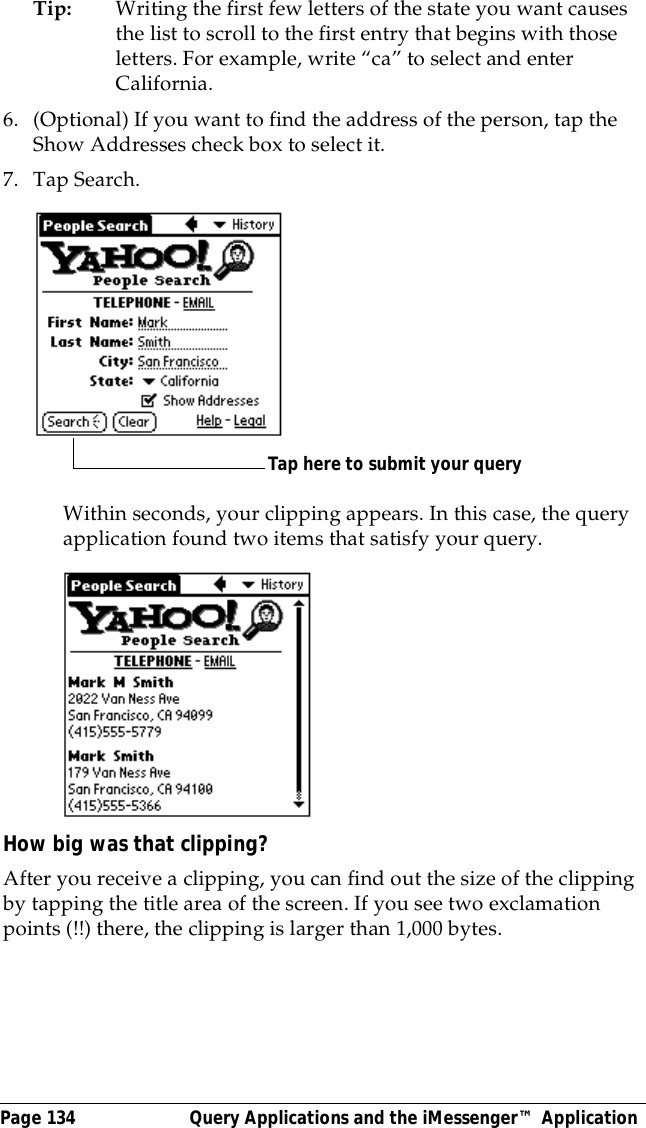
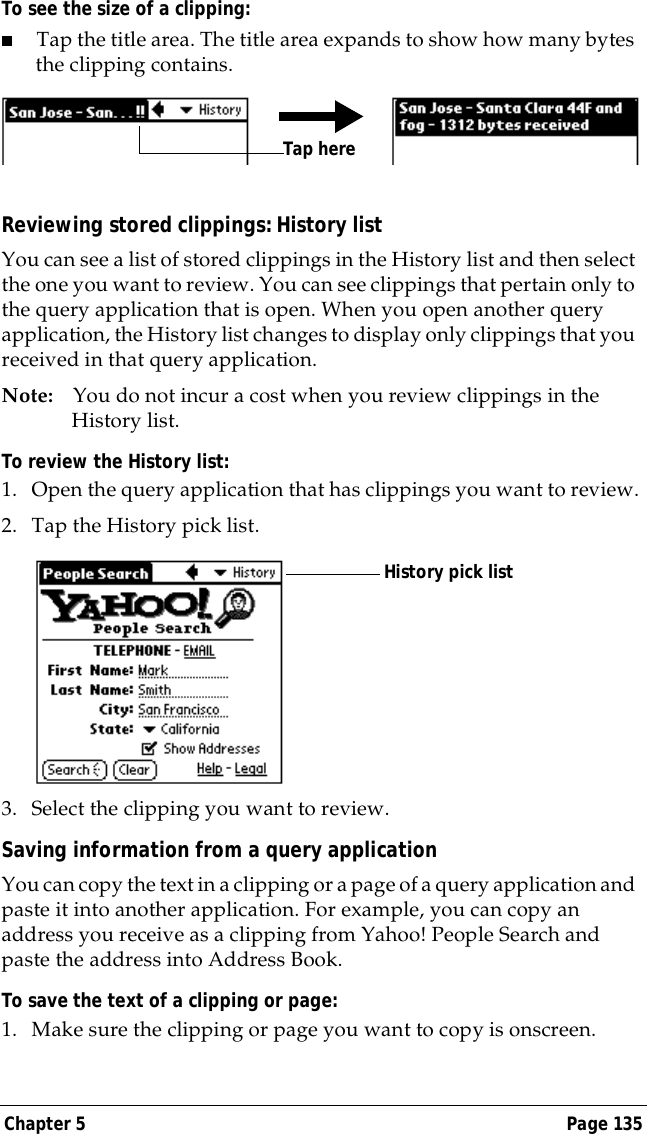
Index Page 283service templates 217to server or ISP 217Continuous eventsdeleting from Date Book 65scheduling 88Contrast control 7Copy Page command in query applications 136Copying text 64Country default setting 207Coverage of Palm.Net service 125, 126Cradleconnecting to serial port 8for local HotSync operations 68CreatingAddress Book entries 96–97categories 45–46, 71–72currency symbols 114custom fields in Address Book 100Date Book events 83e-mail in Mail 167–169Expense items 111expense reports in Excel 115–118memos 106messages in iMessenger application 146–149notes for records 80queries to submit to Internet 130–132records 63To Do List items 101Currencydefault 119defining 114for Expense items 113Current date 30, 243Current time 21displaying in Date Book 90setting 29Custom currencies and symbols 114Custom expense reports 251–261Custom fields in Address Book 100Customer support 125, 126, 239, 250Customizing. See PreferencesCutting text 64Cycling through views 58, 59, 60, 61DData entry. See Entering dataDate Bookadding Address Book data to records 75–76alarm 87archive files (.dba) 42changing event time 87changing event to untimed 86conduit for synchronizing 192conflicting events 91continuous events 88–89creating records 63, 83–87Day view 89deleting records 65display options 94end time for Day view 95fonts 81menus 93Month view 92notes for records 80–81opening 58overview 58private records 80purging records 66repeating events 65, 88–89scheduling events 83–87selecting dates 85start time for Day view 95Sunday or Monday to start week 208switching views 89untimed events 83, 86Week view 90, 208, 243DatesExpense item 112setting current 30, 243showing in iMessenger list 156showing in Mail list 179To Do List record due 103Year 2000 warranty 274Day (Date Book view) 83, 94DBA (Date Book archive file) 42Decimal point 208
Page 284  IndexDefaultcategories 70currency in Expense 119proxy server 227settings. See PreferencesDeleteddata, saving in archive files 65e-mail, recovering 177iMessenger messages, recovering 155Deletingapplications 48, 51Desktop software 52e-mail 177Graffiti characters 33iMessenger messages 155iMessenger messages from network 158passwords 54records 65service templates 222text 64See also Purging recordsDeliveringe-mail (Mail) 171, 174messages (iMessenger application) 151Desktop E-Mail applicationapplications supported 164managing 163–186support of Mail features 171Desktop software 12–13configuring mail 164–166for entering data 27linking to external files 200removing 52saving deleted data to an archive file 65system requirements 4upgrading 10See also PIMDiagnostics applicationmonitoring signal strength 128, 242monitoring transmitter charge 231Digitizer 18, 207, 241Distribution lists in iMessenger application 145DNS (Domain Naming System) 219Double-booked events 91Downloading iMessenger messages 140–145Draftsin iMessenger application 153in Mail 175Draggingmemos into other applications 61stylus to activate features 205using the stylus 18EEditingrecords 63–65unsent e-mail (Mail) 174unsent messages (iMessenger application) 152Elliptic curve cryptography 125E-mail addressesin Address Book 97, 98looking up (iMessenger application) 149–150looking up (Mail) 170–171E-mail items. See MailEncryption 125Entering data 25–28importing from other applications 42–43problems with 241using Graffiti writing 31–40using the computer keyboard 41using the onscreen keyboard 41Entries. See Address BookEudora 164Events. See Date BookExcel, transferring Expense data to 115–118Exchange 164Exchanging data. See HotSyncExclamation marks in To Do List 104Expenseadding Address Book data to records 76–77
Index Page 285categorizing records 70conduit for synchronizing 192creating records 63, 111currency 113, 119date of item 112defining new currency 114deleting records 65menus 118notes for records 80–81opening 62overview 62purging records 66receipt details 112reports in Excel 115–118, 251–261sorting records 78templates for reports 117type 113, 119vendor 113FFAQ 239–250FCC Statement 279Federal Aviation Administration (FAA) guidelines on using wireless devices 121Files, linking to external 200Filinge-mail (Mail) 176messages (iMessenger application) 154Filters for e-mail 181–184Findingapplications, using Graffiti writing 21e-mail addresses (iMessenger application) 149–150e-mail addresses (Mail) 170–171information in applications 73–77phone numbers 75–76using the Find application 74Foldersfor e-mail (Mail) 178for messages (iMessenger application) 156Fonts 81, 82Formats preferences 207Frequently asked questions 239–250Frozen organizer 240GGames 50, 210General preferencesalarm sounds 209auto-off delay 209system sounds 209Getting more of truncated messages 143–144Glossary. See Graffiti ShortCutsGraffitiaccented characters 38alphabet 31, 34basic concepts 31capital letters 35Command stroke 24, 151defined 26Giraffe game for practicing 51how to write characters 32menu commands 24moving the cursor 39numbers 35online Help 65, 205problems using 241punctuation marks 36ShortCuts for entering data 39, 225–226symbols 37tips 33writing 31–40writing area 5, 32HHard reset 236effect on iMessenger application 159after upgrading 12Header informationin iMessenger application 144, 148in Mail 167, 169HelpGraffiti 65
Page 286  Indexonline Tips 24Hiding records 79High Priority e-mail filter 184History, list of clippings 135HotSyncbuttons preferences 206conduits for synchronizing applications 192–193, 236–237customizing 192defined 67first-time operation 67–69, 200–202for managing desktop E-Mail 165–166HotSync Manager 67and iMessenger application 159linking to external files 200local operation 68, 190, 245modem operation 190, 194–197, 246–247modem settings 195network operation 198options for filtering e-mail 180–184problems with 244–247before replacing batteries 230setting options 189–191for synchronizing data 12using with another PIM 52IIconsalarm 87application 19, 46in iMessenger application 140, 160note 80online Tips 24onscreen 241over-the-air 131for query applications 129repeating event 89security (for wireless transactions) 125Idle timeout of ISP or server connection 219Ignoring e-mail. See Filters for e-mailiMessenger applicationaddress 124, 227address lookup 149–150attachments 145canceling transactions 140checking for messages 140–141closing messages 141copy of outgoing messages 158creating messages 146–149deleting messages 155, 158different from Mail 138draft messages 153editing unsent messages 152filing messages 154folders 156fonts 81forwarding address 158icons in 140log of wireless transaction 141long messages 141–144mailbox on network 157menus 159opening messages 141–145opening upon raising antenna 205overview 17, 124, 138purging deleted messages 155recovering deleted messages 155replying to messages 148rerouting replies 150sending messages 146–149, 151–152short messages 141showing dates 156signature 151sorting messages 157synchronizing after hard reset 159undeliverable messages 157viewing messages 140–145Importing data 28, 42–43InboxiMessenger application 156Mail 178Infrared port. See IR port
Index Page 287Installingapplications 48–51batteries 9conduit to install applications 192Desktop software 13, 239Mail. See Mail, desktop configurationInSync Online 126Interface elements 19International charactersGraffiti writing 38onscreen keyboard 41Internet. See iMessenger application and Query applicationsIP addressfor Network preferences 220for Palm.Net proxy server 227for service template 218IR port 6See also  Beaming informationItems. See To Do List or ExpenseKKeyboardcomputer 41onscreen 19, 41, 206Kilobytes (KB) 131, 134, 136LLettersfont style 82Graffiti 31, 34onscreen keyboard 41List, in Applications Launcher 46Locking the organizer with a password 54–55, 206, 224Log of iMessenger transactions 141Login scripts 221, 263Looking up Address Book datato add to other records 75–76scrolling in Address List 73to add to e-mail (Mail) 170–171to add to messages (iMessenger application) 149–150Lost organizer, contact for 97Lost records 243Lotus1-2-3, for expense reports 260cc:Mail 164Organizer, importing data from 42MMacintosh compatibility 4, 159Mailaddress lookup 170–171attachments 181BCC (blind carbon copy) 171, 172changing setup 166closing e-mail 167confirm delivery 171, 174confirm read 171, 174creating e-mail 167–169deleting e-mail 177desktop configuration 164–166different from iMessenger application 138draft e-mail 175editing unsent e-mail 174filing e-mail 176filtering options 180–184folders 178fonts 81HotSync options 165–166menus 185opening e-mail 166overview 163–164priority of delivery 171, 172purging deleted e-mail 178recovering deleted e-mail 177replying to e-mail 169sending 174showing dates 179signature 171, 173–174sorting e-mail 179synchronizing 166truncating e-mail 185viewing e-mail 166Mailbox on Palm.Net network 157Main applications 20Maintenance information 229
Page 288  IndexMapQuest 123Maps of Palm.Net coverage 126Memo Padadding Address Book data to records 75–76archive files (.mpa) 42categorizing records 69conduit for synchronizing 192creating records 63, 106deleting records 65dragging memos into other applications 61fonts 81menus 107, 110opening 61overview 61private records 80reviewing memos 106sorting records 78, 243Memoryamount of free 250for beaming 248Calculator 109regaining 66, 240Memos. See Memo PadMenus 23–24, 241Address Book 98choosing 23command equivalents (Graffiti writing) 24Date Book 93Edit menu 64–65Expense 118iMessenger application 159Mail 185Memo Pad 107, 110menu bar 19, 23Network Preferences 222pop-up (iMessenger application) 160query applications 137To Do List 105Messages. See iMessenger applicationMicrosoftExcel, transferring Expense data to 115–118Exchange 164Outlook, connecting to 14, 164, 244Windows Messaging 4.0 164ModemHotSync operations via 194–197, 246–247preferences 211Monday, to start week 208Month (Date Book view) 92, 94Moving the cursor (Graffiti writing) 39MPA (Memo Pad archive file) 42NNetworkconnecting 217connection type 218idle timeout 219login scripts 221Palm.Net service 125password 214phone settings 214preferences 212–223primary DNS 219secondary DNS 219selecting service 212TCP/IP 212user name 213Network HotSync operation 198NiCad (nickel-cadmium) battery 231–232Notes, attaching to records 80–81Numbersdecimal point and thousands separator 208Graffiti writing 35onscreen keyboard 19, 25, 41O1-2-3, for expense reports 260Onscreen keyboard 25, 41, 65pen stroke to open 206OpeningAddress Book 59applications 20–21Calculator 62
Index Page 289Date Book 58Expense 62iMessenger application 139Mail 166Memo Pad 61query applications 129–130To Do List 60Organizerinterface elements 19locking 54–55problems with 239–250setting up 10turning on and off 6unique name 12Organizer (Lotus PIM) 42OutboxiMessenger application 152, 156Mail 174, 178Outlook, connecting to 14, 164, 244Overlapping events 91Owner preferences 224PPalm Desktop software. See Desktop softwarePalm.Net serviceaccount status 126activating 15mailbox on 157maps of coverage 126network 125overview 14, 124password 15protection of wireless transactions 125query application 127service agreement 265signal strength 127support information 126username 16web site 126Passwords 53–55changing 54creating 53deleting 54for network 214forgotten 55, 249for Palm.Net service 15, 16, 242Pasting text 64Payment, Expense item 113PDB (add-on application file extension) 49Pen stroke, full-screen 205–206Personal information managers. See PIMPhone Lookup 75–76Phone numbersselecting for Address List 98selecting types 97Phone settings for ISP or dial-in server 214–217Pick lists 20, 131PIM (personal information manager)in upgrading process 10using HotSync Manager with 52using with organizer 14Pop-up menus (iMessenger application) 160Power button 6PPP 218PQA (query application file extension) 49PRC (add-on application file extension) 49Preferences 29Buttons 204choosing 47Digitizer 207Formats 207General 209HotSync buttons 206Modem 211Network 212–223Owner 224ShortCuts 225Wireless 227Primary DNS 219Printingexpense reports from Excel 115–118records from applications 12Prioritizing To Do List records 101, 104Priority of delivery (Mail) 172
Page 290  IndexPrivate recordsdisplaying and creating 79–80, 243lost with forgotten password 55See also SecurityProblems with organizer 239–250Profiles 200Proxy server for Palm.Net service 227Punctuation marksGraffiti writing 36onscreen keyboard 41Purgingdeleted e-mail (Mail) 178deleted messages (iMessenger application) 155records 66See also DeletingQQUALCOMM 164Quattro Pro, for expense reports 260Query applicationsdownloading new 123, 126example 133–134going back through pages 132menus 137overview 16, 122, 128for Palm.Net service 127preferred application to open 205preventing transmission of location and ID 228reviewing clippings 135saving information from 135–136sending messages from 136stopping transactions 132submitting queries 131RRadio signal 121, 127, 242Range of times in Day view 95Reading e-mail on organizer 166Receipts, recording in Expense 112Receiving data. See Beaming informationReception 127, 242Recharging the transmitter 231RecordsAddress Book 96beaming 187–188choosing categories 69creating 63Date Book 83defined 63deleting 65displaying a category of 71editing 63–65Expense 111fonts 81hiding private 53, 79lost 243Memo Pad 106notes for 80–81number of 250private 79–80purging 66sorting 77–78To Do List 101Recoveringdeleted e-mail (Mail) 177deleted messages (iMessenger application) 155filed e-mail (Mail) 177filed messages (iMessenger application) 154Recycling NiCad battery 232Removingapplications 51Desktop software 52Renaming categories 72Repeating eventsdeleting from Date Book 65scheduling 88Replacing antenna 233–235Replying to mailin iMessenger application 148, 150in Mail 169in query applications 136Requirements 4Rerouting replies to messages (iMessenger application) 150
Index Page 291Rescheduling events 87Resetting organizerhard reset 236location of reset button 7, 235soft reset 235tool for 235Responses to queries. See ClippingsRetrieving e-mail. See Filters for e-mailSSavingclippings 135–136data 45, 63, 65draft e-mail (Mail) 175draft messages (iMessenger application) 153Scheduling events 83–87Screenbacklight 6blank 240calibrating 18, 207caring for 229touching with your finger 5Scroll bar 20Scroll button 6Searching. See FindingSecondary DNS 219Security 53–55changing password 54deleting password 54displaying owner’s name 224forgotten password 55locking the organizer 54preventing transmission of location and ID 228private records 79–80of wireless transactions 125Selectingdate for event 85e-mail to be synchronized. See Filters for e-mailphone numbers in Address Book 97text 64Sendingdata. See Beaming informatione-mail (Mail) 167–169, 174messages (iMessenger application) 146–149, 151–152messages from query applications 136queries to Internet 131Separators between addresses 147, 168Serial port 8, 190, 194Service agreement, Palm.Net 265Service templates 217, 222Service, Palm.Net 124Service, selecting for network 212Setting up organizer 10Settings. See PreferencesShortCutsbacking up 192managing 225–226menu commands 24predefined 40using 39Showing datesin iMessenger list 156in Mail list 179Signal strength 127–128, 242Signaturefor e-mail (Mail) 173–174for messages (iMessenger application) 151Soft reset 235Sortingapplications 46e-mail (Mail) 179messages (iMessenger application) 157records 77–78, 243Sounds. See Alarm and System soundsStarting applicationsbasic applications 20–21iMessenger application 139query applications 130Storinge-mail (Mail) 174, 176messages (iMessenger application) 152
Page 292  IndexStylusdragging with 18pen stroke to activate a feature 205reset tool 235tapping with 18writing with 7, 31Submitting queries to Internet 131Sunday, to start week 208Symbolsfor currency 113in Graffiti writing 37See also IconsSynchronizing data. See HotSyncSystem conduit 192System requirements for Desktop software 4System sounds 209TTab delimited files, importing data from 42Tapping 18, 241TCP/IP 212, 223TDA (To Do List archive file) 42Technical Support 125, 126, 239, 250Templates for expense reports 117Textcopying 64cutting 64entry. See Entering datafonts for 81selecting all 64Text files, importing data from 42Thousands separator 208Timealarm setting 87format 208setting current 29setting event 83start and end for Date Book Day view 95Time bars in Date Book 94Tips, online 24To Do Listadding Address Book data to records 75–76archive files (.tda) 42categorizing records 69, 104checking off items 102completed items 104completion date 104conduit for synchronizing 192creating records 63, 101deleting records 65due date 103, 104fonts 81menus 105notes for records 80–81opening 60overview 60prioritizing records 101, 104private records 80problems with 243purging records 66, 104sorting records 78Today. See Current dateTransferring data. See HotSyncTransmitter 10, 231Transmitting data. See Beaming informationTroubleshooting 239–250Truncated messages (iMessenger application) 143–144Truncating e-mail (Mail) 185Turning off organizerautomatically 209pen stroke for 206power button 6problems with 240Turning on organizerapplication buttons 5displaying owner’s name 224power button 6problems with 2402000, Year 274UUndeliverable iMessenger messages 157Undoing actions 64Uninstalling Desktop software 52Unresponsive organizer 240Unsent e-mail, editing 174
Index Page 293Unsent iMessenger messages, editing 152Untimed events 83, 86, 88Updating data. See HotSyncUpgrading 10–12User profiles 200User-defined categories 70Usernameidentifying organizer 224for ISP 213for Palm.Net service 15, 16, 227unique for each organizer 11VVendor for Expense item 113WWeb clipping 137example 133–134overview 16, 121–123See also Query applicationsWeb sites 14, 125, 126Week (Date Book view) 90–91, 208, 243Windows Messaging (Microsoft) 164Wireless communication service. See Palm.Net serviceWireless features. See iMessenger application and Query applicationsWireless Internet messaging. See iMessenger applicationWireless preferences 227Writing area 5Writing. See Entering dataXXLT (Expense report template in Excel) 117YYahoo! People Search 133Year 2000 warranty 274
Page 294  Index

Navigation menu