3Com WL305 Wireless LAN PC, WL-305 User Manual WirelessLANNICmockup

3Com Corporation Wireless LAN PC, WL-305 WirelessLANNICmockup

Exhibit 8 user guide

 ® Wireless LAN PC Card, PCI Card and USB User Guide Model WL-305Model WL-307Model WL-308 Published May 2000     Exhibit 8:  User's Manual
 3Com Corporation   ■   5400 Bayfront Plaza   ■   Santa Clara, California   ■   95052-8145 Copyright © 2000, 3Com Corporation. All rights reserved. No part of this documentation may be reproduced in any form or by any means or used to make any derivative work (such as translation, transformation, or adaptation) without written permission from 3Com Corporation.3Com Corporation reserves the right to revise this documentation and to make changes in content from time to time without obligation on the part of 3Com Corporation to provide notification of such revision or change.3Com Corporation provides this documentation without warranty, term, or condition of any kind, either implied or expressed, including, but not limited to, the implied warranties, terms or conditions of merchantability, satisfactory quality, and fitness for a particular purpose. 3Com may make improvements or changes in the product(s) and/or the program(s) described in this documentation at any time.If there is any software on removable media described in this documentation, it is furnished under a license agreement included with the product as a separate document, in the hard copy documentation, or on the removable media in a directory file named LICENSE.TXT or !LICENSE.TXT. If you are unable to locate a copy, please contact 3Com and a copy will be provided to you. UNITED STATES GOVERNMENT LEGEND If you are a United States government agency, then this documentation and the software described herein are provided to you subject to the following:  All technical data and computer software are commercial in nature and developed solely at private expense. Software is delivered as “Commercial Computer Software” as defined in DFARS 252.227-7014 (June 1995) or as a “commercial item” as defined in FAR 2.101(a) and as such is provided with only such rights as are provided in 3Com’s standard commercial license for the Software. Technical data is provided with limited rights only as provided in DFAR 252.227-7015 (Nov 1995) or FAR 52.227-14 (June 1987), whichever is applicable. You agree not to remove or deface any portion of any legend provided on any licensed program or documentation contained in, or delivered to you in conjunction with, this User Guide.Unless otherwise indicated, 3Com registered trademarks are registered in the United States and may or may not be registered in other countries.3Com, the 3Com logo, and Wireless LAN are registered trademarks of 3Com Corporation. Microsoft, MS-DOS, Windows, and Windows NT are registered trademarks of Microsoft Corporation. Novell and NetWare are registered trademarks of Novell, Inc.All other company and product names may be trademarks of the respective companies with which they are associated. EXPORT RESTRICTIONS:  This product or software contains encryption code which may not be exported or transferred from the US or Canada without an approved US Department of Commerce export license.        Exhibit 8:  User's Manual
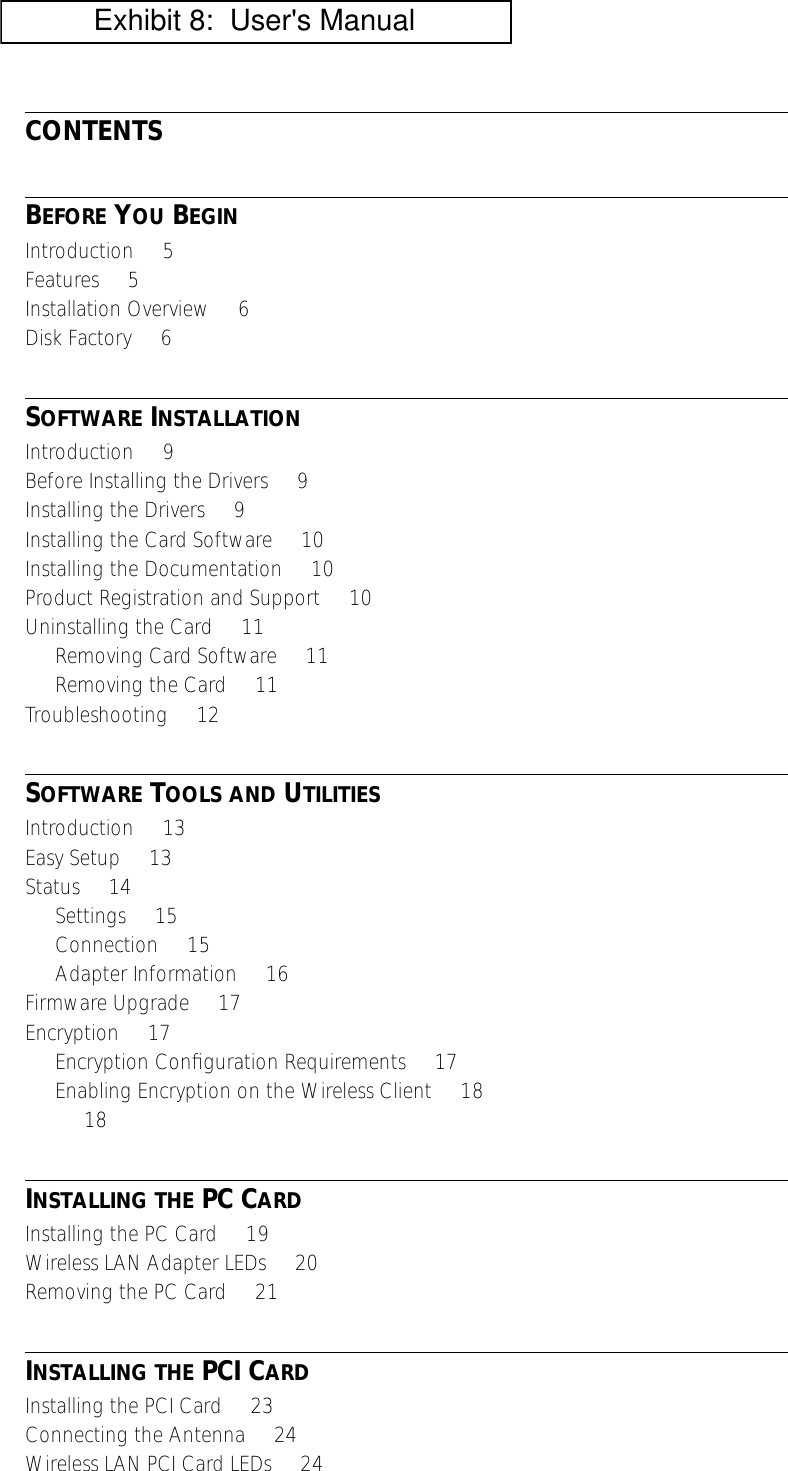
 CONTENTS B EFORE  Y OU  B EGIN Introduction     5Features     5Installation Overview     6Disk Factory     6 S OFTWARE  I NSTALLATION Introduction     9Before Installing the Drivers     9Installing the Drivers     9Installing the Card Software     10Installing the Documentation     10Product Registration and Support     10Uninstalling the Card     11Removing Card Software     11Removing the Card     11Troubleshooting     12 S OFTWARE  T OOLS   AND  U TILITIES Introduction     13Easy Setup     13Status     14Settings     15Connection     15Adapter Information     16Firmware Upgrade     17Encryption     17Encryption Configuration Requirements     17Enabling Encryption on the Wireless Client     18     18 I NSTALLING   THE  PC C ARD Installing the PC Card     19Wireless LAN Adapter LEDs     20Removing the PC Card     21 I NSTALLING   THE  PCI C ARD Installing the PCI Card     23Connecting the Antenna     24Wireless LAN PCI Card LEDs     24           Exhibit 8:  User's Manual
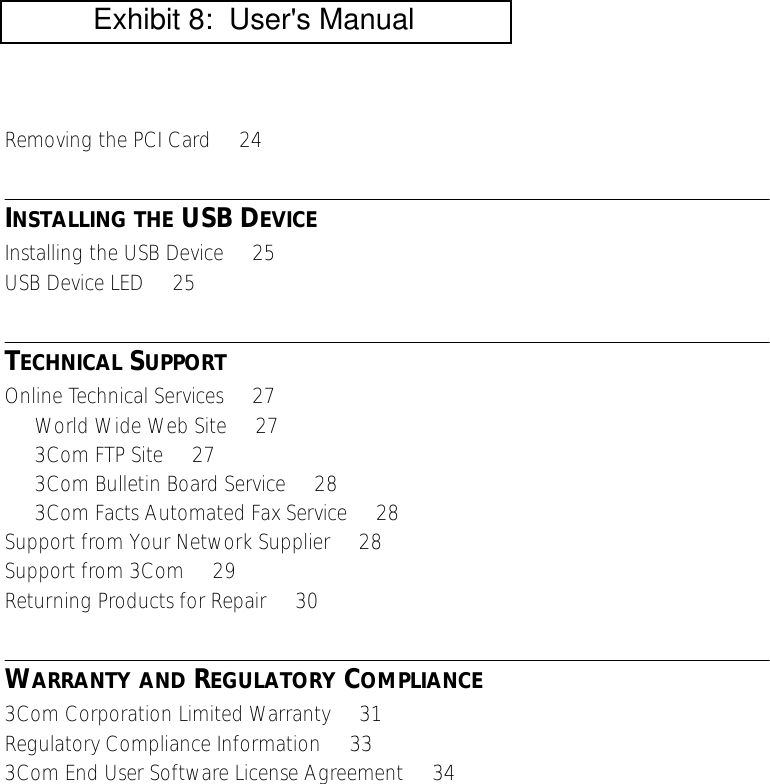
 Removing the PCI Card     24 I NSTALLING   THE  USB D EVICE Installing the USB Device     25USB Device LED     25 T ECHNICAL  S UPPORT Online Technical Services     27World Wide Web Site     273Com FTP Site     273Com Bulletin Board Service     283Com Facts Automated Fax Service     28Support from Your Network Supplier     28Support from 3Com     29Returning Products for Repair     30 W ARRANTY   AND  R EGULATORY  C OMPLIANCE 3Com Corporation Limited Warranty     31Regulatory Compliance Information     333Com End User Software License Agreement     34           Exhibit 8:  User's Manual
 1 B EFORE  Y OU  B EGIN Introduction The Wireless LAN network offers performance comparable to Ethernet networks, but without the restraints of network cables. The Wireless LAN product family includes the model WL-305 PC Card, the WL-307 USB Device, and the WL-308 PCI Card described in this manual. Features Wireless LAN adapters use IEEE 802.11HR direct-sequence-based technology to extend the range and versatility of a network. They provide a high-capacity link across multiple access points within large or small indoor environments. Wireless LAN product-family features include: ■ Bridging architecture allows communication between wired network devices and mobile devices. ■ Compliance with IEEE 802.11 HR specification. This open architecture allows Wireless LAN devices to communicate with wireless devices from other manufacturers. ■ Extended roaming allows mobile devices to roam throughout large facilities while remaining connected to the LAN.Wireless LAN PC and PCI Card operating features include: ■ Support for standard NDIS (Network Driver Interface Specification) and drivers. ■ Support for Wndows 2000, Windows 98, Windows 95B, and Windows NT 4.0 (with Service Pack 3.0 or greater). ■ Plug and Play support. ■ Power management. ■ Low-power operation for battery-powered devices with PC Card slots.Wireless LAN adapters support a maximum data rate of 11 Mbps. (The data rate drops back to 5.5, 2, or 1 Mbps when the adapter cannot establish or maintain an 11 Mbps association.) Factors that can affect the data rate include: ■ A separation or change in signal strength between the Access Point and the wireless client ■ The ratio of packets transmitted to transmissions attempted falling below a preset threshold ■ The wireless client finding and switching to another Access Point with a higher transmit rate           Exhibit 8:  User's Manual
 6 C HAPTER  1: B EFORE  Y OU  B EGIN Roaming means the Wireless LAN NIC Card will maintain your network connection as you roam between Access Points in the same subnet. You can also roam across routers, depending on how your Extended Roaming configuration is set. When configured for Extended Roaming, the wireless client retains its network address as it moves between subnets, between Ethernet segments, or from an Ethernet segment to a wireless LAN. See “Easy Setup” on page 13 for details.The wireless LAN NIC cards support  Continuous Active  and  Power Save Polling  power-management modes. ■ In  Continuous Active Mode , the radio that establishes and maintains the link to the network remains on. Continuous Active mode is not recommended for battery powered devices. ■ Power Save Polling  conserves power by suspending the adapter’s communication with an associated access point. The access point saves data for transmission to the wireless client when it wakes at given intervals. When the adapter wakes to check for data, it switches back into  Continuous Active Mode  until it is ready to suspend communications again.  Installation Overview Installing the Wireless LAN network PC or PCI card involves these tasks: ■ Running the Setup program from the  End User Utilities CD . See “Installing the Drivers” on page 9. ■ Installing the card in a PC Card slot on your computer. Do not install the card until instructed to do so by the setup software. The procedure for installing the PC card is described in “Installing the PC Card” on page 19. The procedure for installing the PCI card is described in “Installing the PCI Card” on page 23.  ■ Installing the software, including the drivers for the card and the Wireless LAN software utilities. See “Installing the Card Software” on page 10.If you are reading this manual from the CD and want to install it on your hard disk for easier access, see “Installing the Documentation” on page 10. ■ The card installation procedure covers basic configuration. For advanced configuration options, or to explore the utilities available for managing and configuring the card, see “Software Tools and Utilities” on page 13. Disk Factory If you are installing the software on a computer that does not have a CD-ROM drive, or if you choose to install the drivers manually, you will have to make diskettes from the  End User Utilities CD . The setup application includes Disk Factory, a utility for creating disks from CD. To use disk factory, you need access to a computer with a CD-ROM drive and a floppy drive. 1 For a transfer of the driver software to a diskette, prepare a diskette labeled  Drivers. For a transfer of the application software to diskette, prepare three disks labeled as follows: Wireless LAN Application Disk 1Wireless LAN Application Disk 2Wireless LAN Application Disk 3           Exhibit 8:  User's Manual
 Disk Factory 7 2 Put the  End User Utilities CD  in the CD-ROM drive. The SETUP program should start automatically. If it does not start, you can run it manually by selecting  Run  from the Start menu. 3 Select  Create Diskettes . 4 In the Disk Factory window, click  Next . 5 Select the software you want to transfer to diskette. If you select  All , you will need four floppy diskettes. 6 Select the action, for example,  Create and Verify Disks , and click  Next . 7 When you are ready to install the application software from diskette, put  Wireless LAN Application Disk 1  in the floppy drive and run SETUP . If you are installing the drivers manually, use the Drivers diskette when the setup wizard for your operating system prompts for drivers supplied by the manufacturer.          Exhibit 8:  User's Manual
 2 S OFTWARE  I NSTALLATION Introduction  Use the procedures described in this chapter to install the Wireless LAN NIC Card software and drivers under Windows 2000, Windows 98, and Windows 95.Windows 95 users should note that the Wireless LAN NIC card runs under Windows 95 version B or higher. If you do not know which version of Windows 95 is installed on your computer, follow these steps: 1 In the Control Panel, double-click  System  to display the System Properties dialog box. 2 Click the  General Tab  to display the Windows 95 version information.Version B (also known as OSR 2) is identified as 4.00.950b.Windows NT 4.0 users should refer to the driver installation instructions described later in this book.For drivers for other operating systems, refer to the 3Com customer support Web site at http://support.3com.com. Before Installing the Drivers Before installing the driver, you will need a copy of the Windows 98 installation media supplied with your computer or operating system. On many Windows 98 systems, instead of a CD, the installation files are archived on the hard disk in C:\WINDOWS\OPTIONS\CABS. On Windows 2000 systems, you may be prompted to load operating system files from the Windows 2000 installation disk.You will also need the Wireless LAN  End User Utilities CD  supplied with your Wireless LAN NIC card. Along with other utilities, the  End User Utilities CD  installs the Wireless LAN  Network Configuration Properties Application  in the Control Panel on your system. Use this application to view and edit Wireless LAN WLAN adapter settings.If your site requires installation using diskettes, see “Disk Factory” on page 6. Where the driver installation procedure mentions the  End User Utilities CD  and and CD-ROM drive, use the diskettes and the floppy drive instead. Installing the Drivers 1 Turn on your computer. 2 Put the  End User Utilities CD  in the CD-ROM drive.The setup program should start automatically. If it does not start, you can run it manually by selecting  Run  from the Start menu. 3 From the 3Com Wireless LAN WLAN Installer, select  Install Wireless LAN WLAN Adapter . Follow the instructions as they appear.          Exhibit 8:  User's Manual
 10 C HAPTER  2: S OFTWARE  I NSTALLATION 4 When prompted to insert the Wireless LAN PC card, insert the card into the notebook or laptop PC slot as described in “Installing the PC Card” on page 19. The PCI card installation into a desktop PC is described in “Installing the PCI Card” on page 23.The driver installation procedure will guide you through the steps standard for your operating system. If you are unfamiliar with driver installation procedures, refer to the  Wireless LAN Network Interface Card User Guide  for details. You will be asked to supply CDs or directory path information for the  End User Utilities CD  and your operating system software.As part of the driver installation process, the setup program will install and open the Network application in the Control Panel. 5 Enter the name of the Wireless LAN Service Area of the wireless network to which your computer will connect. The name you enter here must match exactly the name assigned to the access point. Characters, capitalization, and spacing must be identical.  6 Save the configuration settings and exit by clicking  OK . 7 Restart your computer. Installing the Card Software When the system reboots, restart the setup program and install any other components required.3Com recommends that you install the wireless LAN applications so you can access the utilities described in the Wireless LAN Network Interface Card User Guide.Restart your computer for changes to take effect. Installing the Documentation If you are reading this manual from the CD, you may want to install it on your hard disk using the following procedure: 1 Put the  End User Utilities  CD in the CD-ROM drive. The Setup program will start automatically.If the Setup program does not start, use Start/Run to run the SETUP.EXE program from CD-ROM drive. 2 Select  Documentation .You can view the manuals from the CD. 3 To install the manuals on your hard disk, select Install User Documentation. Follow the instructions on the screen to complete the installation.4Exit the setup program.You can open the manuals from the Wireless LAN program group.Product Registration and Support To register this product with 3Com, go to the following Web page:http://www.3com.com/productreg/index.htmlFor support information and pointers to the latest drivers and utilities available for the Wireless LAN network interface card, go to the following Web page:http://support.3com.com          Exhibit 8:  User's Manual
Uninstalling the Card 11Uninstalling the Card If the card installation is unsuccessful for any reason, your best course may be to completely uninstall the Wireless LAN PC Card and its software and repeat the installation procedure.Previous installations or interrupted installation attempts sometimes leave problems that affect card operation. Possible problems include:■The card functions not working.■Windows 98 not detecting the card.■The system issuing a warning tone at startup.You can remove the card and driver files using the procedures below.Removing CardSoftware Open Control Panel/System/Device Manager. Select the Wireless LAN WLAN NIC card components and click Remove.Using the Device Manager to remove the card will uninstall the driver files.Removing the Card When removing the PC card, use the release lever or button on your card slot to release the card. When pulling out the card, do not pull on the antenna. Refer to “Removing the PC Card” on page 21.When removing the PC card, use the release lever or button on your card slot to release the card. When pulling out the card, do not pull on the antenna. Refer to “Removing the PCI Card” on page 24.CAUTION: Exit any networking applications and disable PC Card in thesoftware before removing the card.         Exhibit 8:  User's Manual
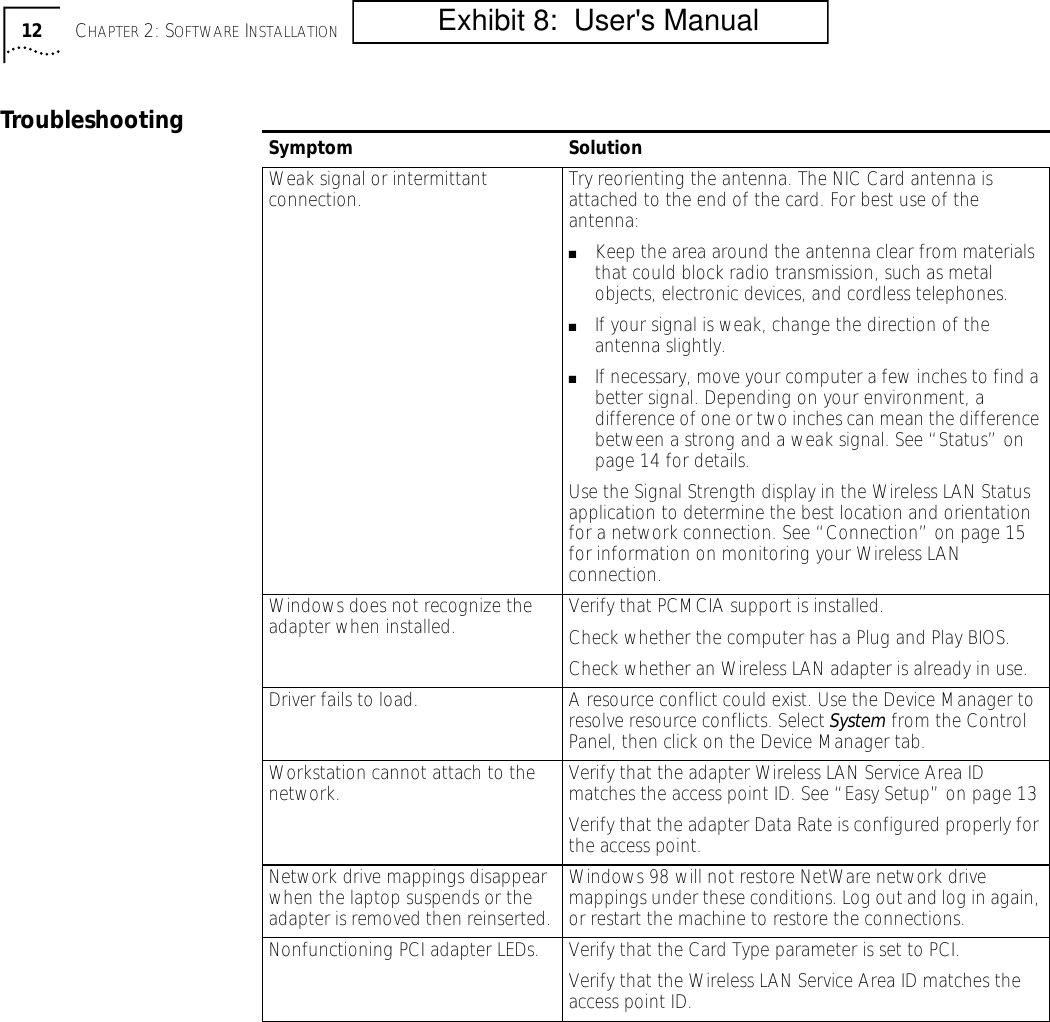
12 CHAPTER 2: SOFTWARE INSTALLATIONTroubleshooting Symptom SolutionWeak signal or intermittant connection. Try reorienting the antenna. The NIC Card antenna is attached to the end of the card. For best use of the antenna:■Keep the area around the antenna clear from materials that could block radio transmission, such as metal objects, electronic devices, and cordless telephones.■If your signal is weak, change the direction of the antenna slightly.■If necessary, move your computer a few inches to find a better signal. Depending on your environment, a difference of one or two inches can mean the difference between a strong and a weak signal. See “Status” on page 14 for details.Use the Signal Strength display in the Wireless LAN Status application to determine the best location and orientation for a network connection. See “Connection” on page 15 for information on monitoring your Wireless LAN connection.Windows does not recognize the adapter when installed. Verify that PCMCIA support is installed.Check whether the computer has a Plug and Play BIOS.Check whether an Wireless LAN adapter is already in use. Driver fails to load. A resource conflict could exist. Use the Device Manager to resolve resource conflicts. Select System from the Control Panel, then click on the Device Manager tab.Workstation cannot attach to the network. Verify that the adapter Wireless LAN Service Area ID matches the access point ID. See “Easy Setup” on page 13Verify that the adapter Data Rate is configured properly for the access point.Network drive mappings disappear when the laptop suspends or the adapter is removed then reinserted. Windows 98 will not restore NetWare network drive mappings under these conditions. Log out and log in again, or restart the machine to restore the connections.Nonfunctioning PCI adapter LEDs. Verify that the Card Type parameter is set to PCI.Verify that the Wireless LAN Service Area ID matches the access point ID.          Exhibit 8:  User's Manual
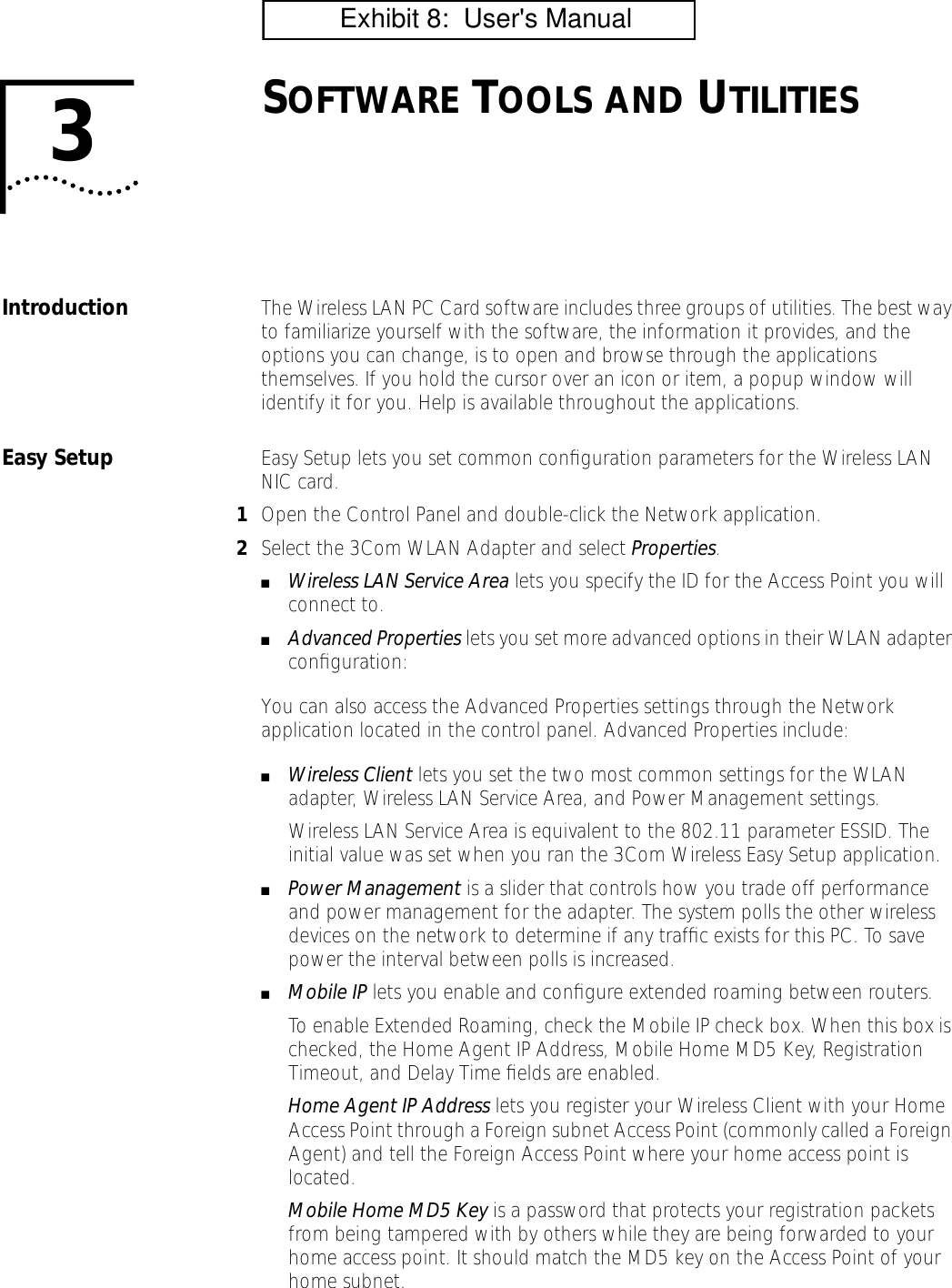
3SOFTWARE TOOLS AND UTILITIESIntroduction The Wireless LAN PC Card software includes three groups of utilities. The best way to familiarize yourself with the software, the information it provides, and the options you can change, is to open and browse through the applications themselves. If you hold the cursor over an icon or item, a popup window will identify it for you. Help is available throughout the applications.Easy Setup Easy Setup lets you set common configuration parameters for the Wireless LAN NIC card.1Open the Control Panel and double-click the Network application.2Select the 3Com WLAN Adapter and select Properties.■Wireless LAN Service Area lets you specify the ID for the Access Point you will connect to.■Advanced Properties lets you set more advanced options in their WLAN adapter configuration:You can also access the Advanced Properties settings through the Network application located in the control panel. Advanced Properties include:■Wireless Client lets you set the two most common settings for the WLAN adapter, Wireless LAN Service Area, and Power Management settings.Wireless LAN Service Area is equivalent to the 802.11 parameter ESSID. The initial value was set when you ran the 3Com Wireless Easy Setup application.■Power Management is a slider that controls how you trade off performance and power management for the adapter. The system polls the other wireless devices on the network to determine if any traffic exists for this PC. To save power the interval between polls is increased.■Mobile IP lets you enable and configure extended roaming between routers.To enable Extended Roaming, check the Mobile IP check box. When this box is checked, the Home Agent IP Address, Mobile Home MD5 Key, Registration Timeout, and Delay Time fields are enabled.Home Agent IP Address lets you register your Wireless Client with your Home Access Point through a Foreign subnet Access Point (commonly called a Foreign Agent) and tell the Foreign Access Point where your home access point is located.Mobile Home MD5 Key is a password that protects your registration packets from being tampered with by others while they are being forwarded to your home access point. It should match the MD5 key on the Access Point of your home subnet.          Exhibit 8:  User's Manual
14 CHAPTER 3: SOFTWARE TOOLS AND UTILITIESRegistration Timeout (5 to 3600 seconds) tells the Wireless Client how often it needs to reregister with the Home Agent. When a Wireless Client registers with the Home Agent through a Foreign Agent the registration has an expiration time associated with it. The Registration Timeout value The default value is 60 seconds.  If the Wireless Client does not reregister in the time allowed, the Home Agent will remove the Wireless Client from its list of registered Wireless Clients when the time expires.Delay Time is the amount of time (1 to 10 seconds) that the Wireless Client will wait for a response from aforeign subnet access point when trying to register with that access point.  The Wireless Client will try to register a maximum of three times.WLAN Adapter lets you set specific hardware parameters that effect the operation of the WLAN adapter. This tab has different views depending on the operating system. In Windows NT 4, the tab displays hardware resource information and lets you change the settings. In Windows 95 and Windows 98, the tab does not display this information because it is set by Plug and Play.Card Type lets you specify the card currently installed. For the selected card, you can review or change:Interrupt Number is displayed only in the Windows NT environment. This field lets you select an Interrupt Request Number (IRQ) to use with this card.I/O Port Address is displayed only in the Windows NT environment. This field lets you select an I/O Port Address to use with this card.Memory Base Address is displayed only in the Windows NT environment. This field lets you select an Memory Base Address to use with this card.Status The Wireless LAN Status application displays status information about the current signal strength and provides access to 3Com WLAN application tools, including Settings, Connection, and Adapter Information utilities.Start the Status application by clicking the 3Com icon in the tool tray in the lower right-hand corner of the Windows desktop.■Settings launches the 3Com Wireless LAN Settings application in another window. ■Connection launches the 3Com Wireless LAN Connection application in another window. The signal status display is constantly updated to show the status of the wireless signal. The signal is rated as follows: no adapter installed, no connection, no signal, poor signal, fair signal, average signal, good signal, and excellent signal.■Adapter Information launches the 3Com Wireless LAN Adapter Information application in another window.          Exhibit 8:  User's Manual
Status 15Settings The Settings application displays information about the current card settings. It also lets you change the configuration of the card without rebooting your system. The application lets you set parameters such as Wireless Service Area and Power Mode settings. ■Wireless LAN Service Area displays the name of the access point with which the wireless PC Card is associated. You can enter a new name in this field or select a name from the drop-down list.■Power Mode lets you select the power mode to use and specify when power-save options are in effect.Continuous access does not use power save polling and disables it.Power save polling uses Power Save Polling at all times.Switch based upon active power source causes the system to switch the power mode based upon whether the system is using AC or battery power. In this mode, the system use continuous polling mode with an AC power source and power save polling with battery power.The Power Save Polling slider lets you balance network performance against power consumption. When the slider is set to lowest power, the adapter checks network traffic less frequently, reducing power consumption used. When the slider is set to highest performance, the adapter tries to maintain constant contact with the network, increasing network performance but consuming correspondingly more power. If you check Let the adapter manage power usage, the card will use the best setting available at any given time. The polling interval is based on whether the system has received data recently. If no data is being received, the polling interval becomes less frequent over time, gradually decreasing power consumption.Connection The Connection application allows more detailed checks of card performance than is possible with the Wireless LAN Status application. Signal strength is displayed over time, which lets you check the performance of the wireless link.■Signal Strength tracks the signal strength in real time and displays a graph showing the historical trend.■Link Performance lets you run a ping test between the wireless client and another IP device on the network. When the ping test is run to another wireless device, the round trip ping time can give an idea of what the upper limit is for connection speed.Start Test starts a ping test using the information provided in the Test Count and Host Address fields.Test Count lets you select the number of pings to perform in testing link performance.Host Address lets you enter the IP address or host name of the system to perform the ping test. Link Performance displays the results of the ping test specified on this tab. A graph indicating the round trip ping time of each ping and timing statistics are shown.          Exhibit 8:  User's Manual
16 CHAPTER 3: SOFTWARE TOOLS AND UTILITIESAdapter Information The Adapter Information application lets you perform a wide range of adapter configuration and monitoring tasks from a single user interface. The application lets you configure the adapter, monitor performance, diagnose problems, and set up system logging. Each screen has a category list that lets you select which information is to be displayed in the window.■Adapter provides basic information about the adapter and the current hardware settingsSignal Quality updates in real time to indicate the current signal strength.Adapter Information displays basic adapter information.Hardware Properties indicate the hardware resources being used by the PC, and hardware characteristics of the WLAN adapter (Hardware Revision, MAC Address, and Adapter Type).■Known Access Points shows which access points your adapter can sense and displays basic statistics for each. The display shows the access point addresses, channel, a type/status indicator, noise, and signal. The access point is indicated by a graphic of an access point transmitting on the left hand side of the list.■Association displays statistics on the performance of the adapter related to adapter to access point associations and roaming.Association Statistics include the current number of associations, access point counts, number of fill scans, number of partial scans, and the current access point that the adapter is associated with.Roaming Reasons list the reason that the adapter roamed from access point to access point.Miscellaneous Statistics lets you see if the adapter is experiencing transmission problems.Reset Statistics clears and restarts all statistics counters.■Transmit and Receive Statistics are concerned with the quality of the wireless connection between the PC Card and the access point.Transmit Statistics include the total host packets transmitted, information on non-directed packets, information on directed packets, and the total number of bytes transmitted.Receive Statistics include the total host packets received, information on non-directed packets, information on directed packets, and the total number of bytes received.The transmit and receive graph displays a histogram of the directed and non-directed traffic at varying data rates.■Diagnostics panel lets you perform low level tests to determine if the WLAN hardware is functioning.Select Function lets you choose a self-test or reset the adapter. Execute Function perfors the selection.Results shows the results of the diagnostics.■Options lets you save adapter performance information in a file.Enable Logging starts or stops logging to a group of HTML files on the system.         Exhibit 8:  User's Manual
Firmware Upgrade 17Log File Path is the current path to store the log files. The field is disabled when logging is not turned on. Use Browse to select a Log File Path. View Log Files selects the log file to view in the default browser.Firmware Upgrade The Adapter Firmware Upgrade tool lets you download and install firmware updates that you have downloaded from the 3Com Customer Support Web site at http://support.3com.com.To run the Card Upgrade utility:1Open the Start menu.2Select Programs.3Select 3Com Wireless LAN.4Select Wireless LAN Upgrade Utility.The Upgrade Utility lets you view information on the current firmware version of the currently installed card and install firmware updates by selecting a firmware and CIS file downloaded from the 3Com Web site.■Firmware loaded in adapter displays the version information for the current firmware on the adapter.■Primary Firmware Filename lets you specify a new firmware binary to load on the adapter.■Pbrowse opens a browser so you can select a primary firmware file. The new selection updates the Firmware Filename field.■Secondary Firmware Filename lets you specify a new firmware binary to load on the adapter.■Sbrowse opens a browser so you can select a secondary firmware file. The new selection updates the Firmware Filename field.■CIS Filename lets you specify a new CIS binary to load on the adapter.■Cbrowse opens a browser so you can select a CIS file. The new selection updates the Firmware Filename field.■Update initiates the update of the firmware on the adapter based using the Firmware and CIS files specified.Encryption The client and access point can be set for encryption to provide a level of security to the data stream between the client and its associated AP.EncryptionConfigurationRequirements■The encryption level (open, 40-bit, or 128-bit) must be the same on the wireless client and the access point.■All Shared Keys on the wireless client must be the same as those on the access point with which the client will associate.  They must match exactly (key order and hex-digit sequence).■The selected keys do not need to be the same among different clients and/or access points.          Exhibit 8:  User's Manual
Enabling Encryption onthe Wireless Client This procedure describes how to enable encryption on the wireless client. Refer to the Access Point User Guide for instructions on how to enable encryption on the AP.1Go to Start > Settings > Control Panel > Network.2Highlight the Wireless LAN Card, click on the Properties tab.3Click on the Wireless LAN tab, 4Click on the Advanced button.5Select the Encryption tab.6Change the current Encryption setting from the default "No encryption" to 40-bit or 128-bit (USA) or 40-bit (-E1 product, non-USA).7Select Shared Keys.  8Click OK in the Advanced Properties window to save changes.9Click OK to exit the 3Com Wireless LAN WLAN Easy Setup window.10 Click OK to exit the Network window. 11 Reboot the system.          Exhibit 8:  User's Manual
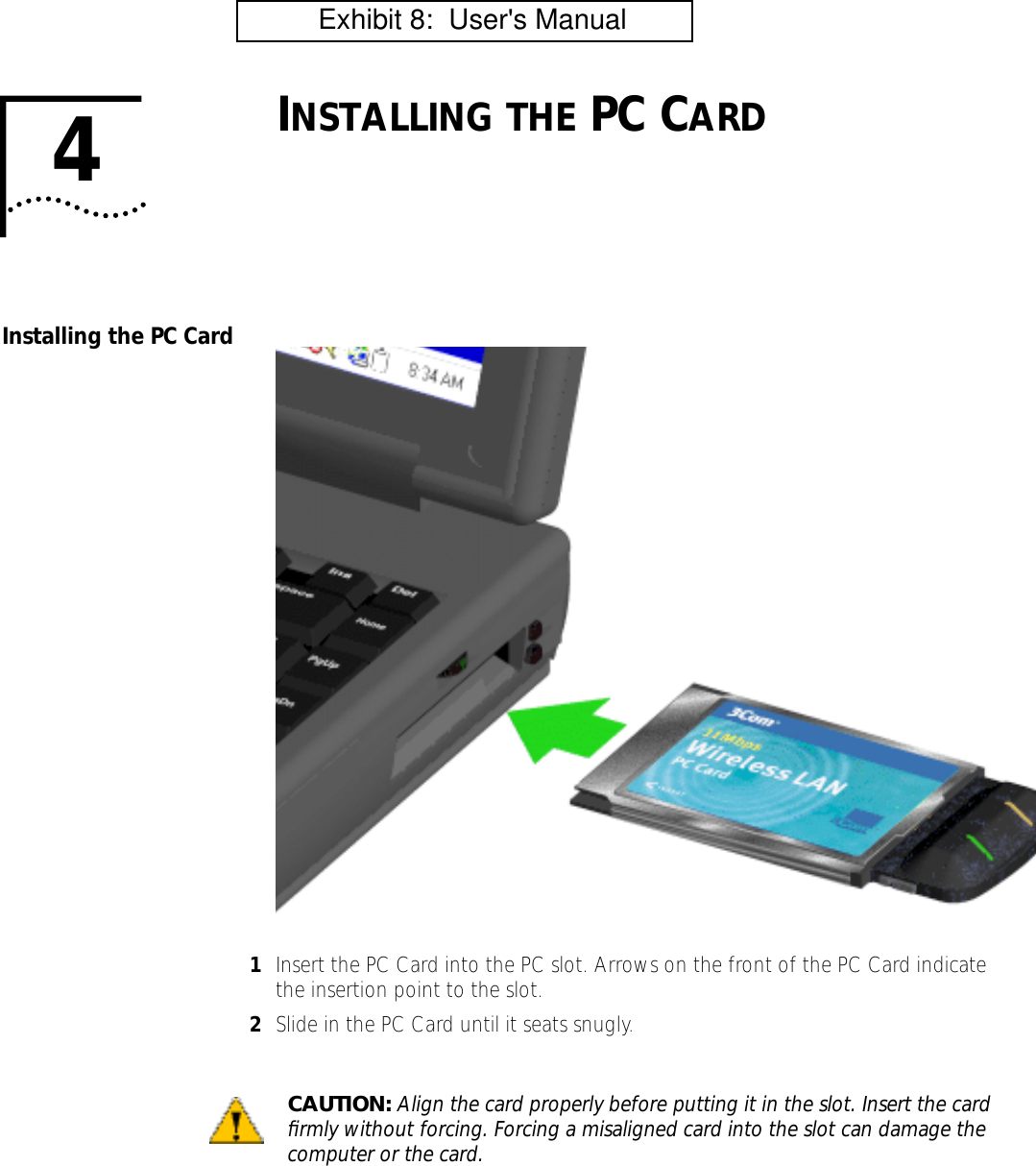
4INSTALLING THE PC CARDInstalling the PC Card1Insert the PC Card into the PC slot. Arrows on the front of the PC Card indicate the insertion point to the slot.2Slide in the PC Card until it seats snugly.CAUTION: Align the card properly before putting it in the slot. Insert the card firmly without forcing. Forcing a misaligned card into the slot can damage the computer or the card.          Exhibit 8:  User's Manual
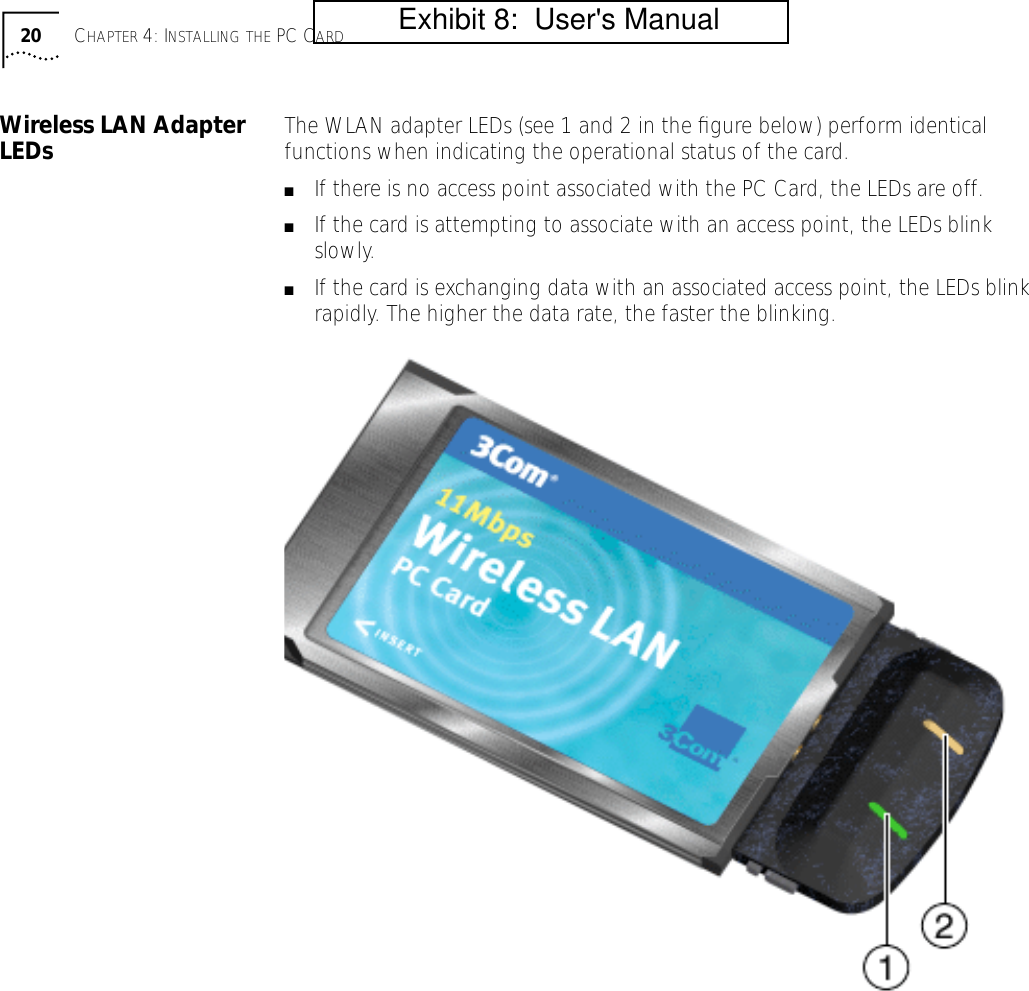
20 CHAPTER 4: INSTALLING THE PC CARDWireless LAN Adapter LEDs The WLAN adapter LEDs (see 1 and 2 in the figure below) perform identical functions when indicating the operational status of the card.■If there is no access point associated with the PC Card, the LEDs are off.■If the card is attempting to associate with an access point, the LEDs blink slowly.■If the card is exchanging data with an associated access point, the LEDs blink rapidly. The higher the data rate, the faster the blinking.           Exhibit 8:  User's Manual
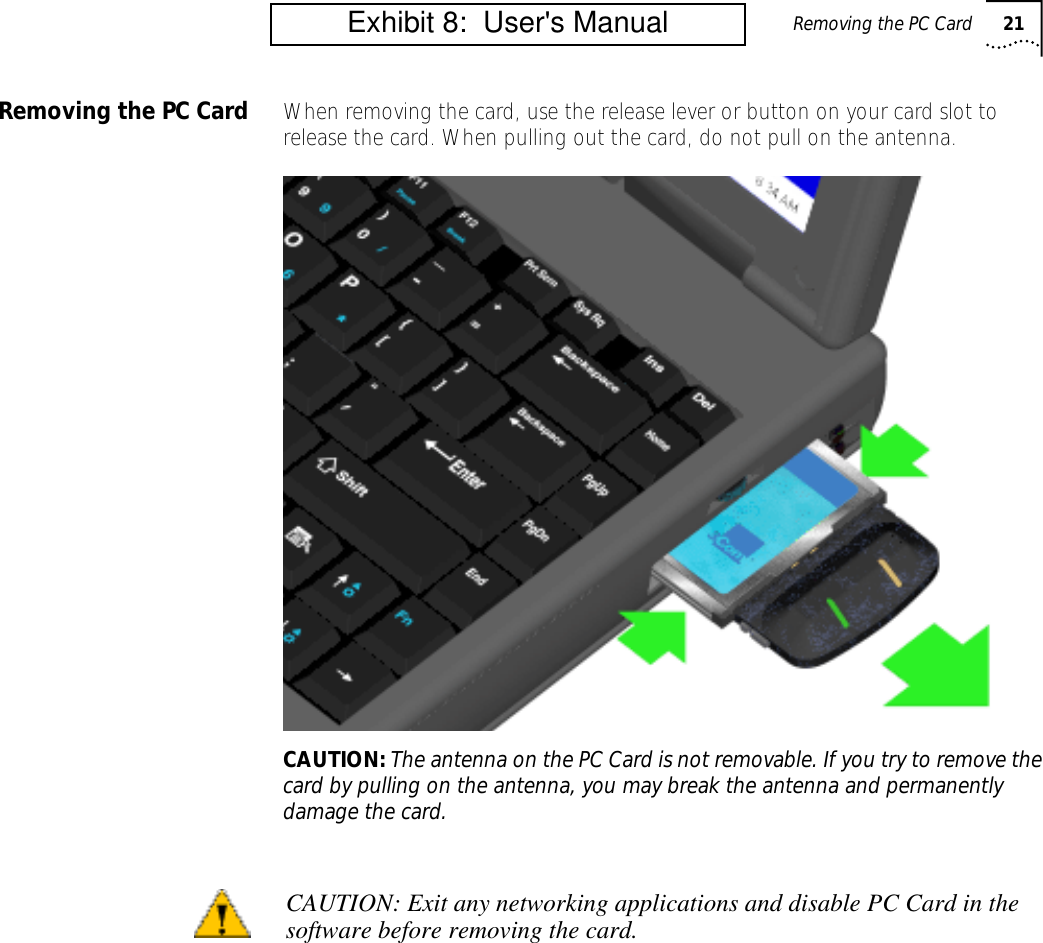
Removing the PC Card 21Removing the PC Card When removing the card, use the release lever or button on your card slot to release the card. When pulling out the card, do not pull on the antenna.CAUTION: The antenna on the PC Card is not removable. If you try to remove the card by pulling on the antenna, you may break the antenna and permanently damage the card.CAUTION: Exit any networking applications and disable PC Card in thesoftware before removing the card.         Exhibit 8:  User's Manual
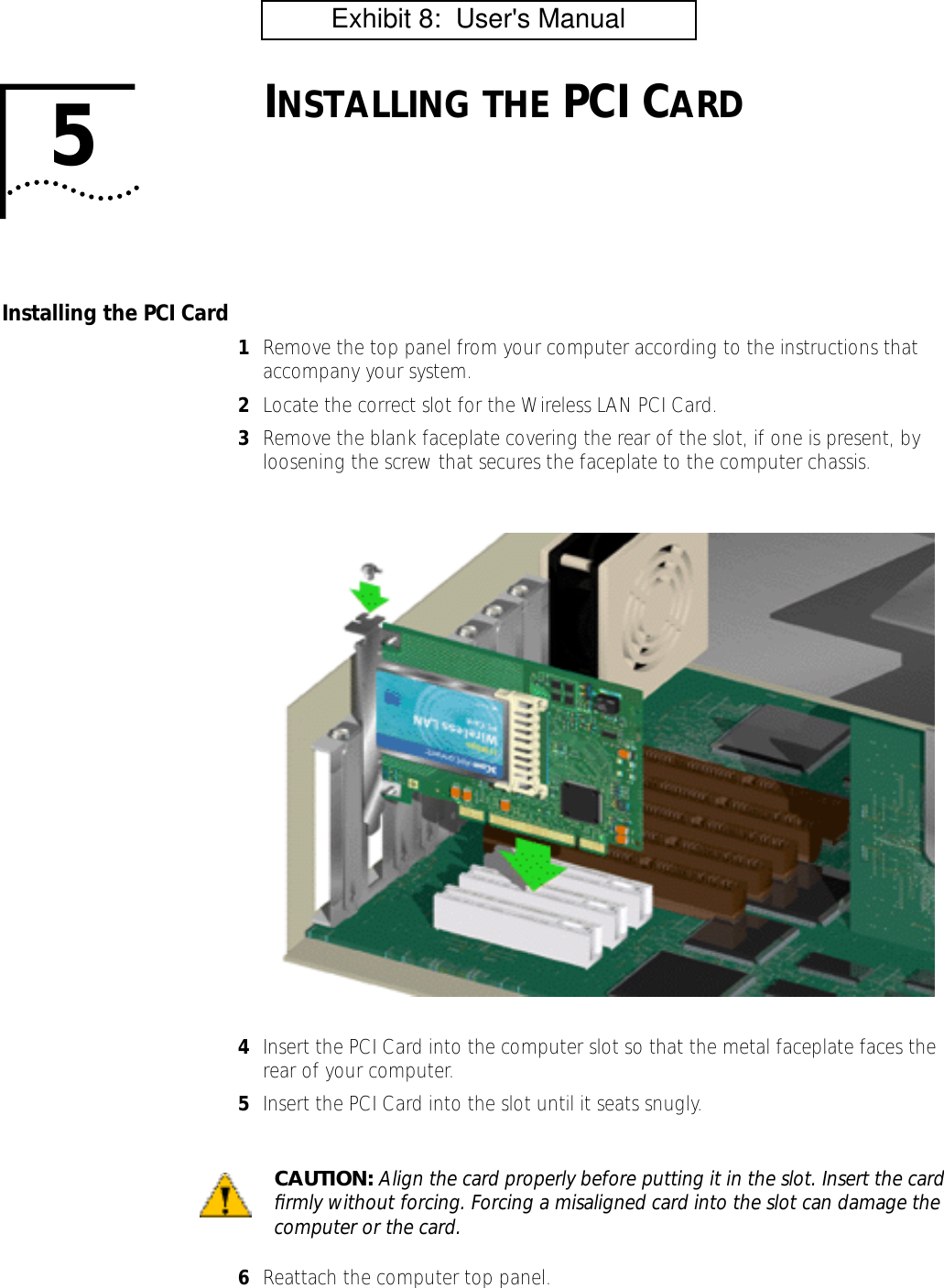
5INSTALLING THE PCI CARDInstalling the PCI Card1Remove the top panel from your computer according to the instructions that accompany your system.2Locate the correct slot for the Wireless LAN PCI Card.3Remove the blank faceplate covering the rear of the slot, if one is present, by loosening the screw that secures the faceplate to the computer chassis.4Insert the PCI Card into the computer slot so that the metal faceplate faces the rear of your computer.5Insert the PCI Card into the slot until it seats snugly.6Reattach the computer top panel.CAUTION: Align the card properly before putting it in the slot. Insert the card firmly without forcing. Forcing a misaligned card into the slot can damage the computer or the card.         Exhibit 8:  User's Manual
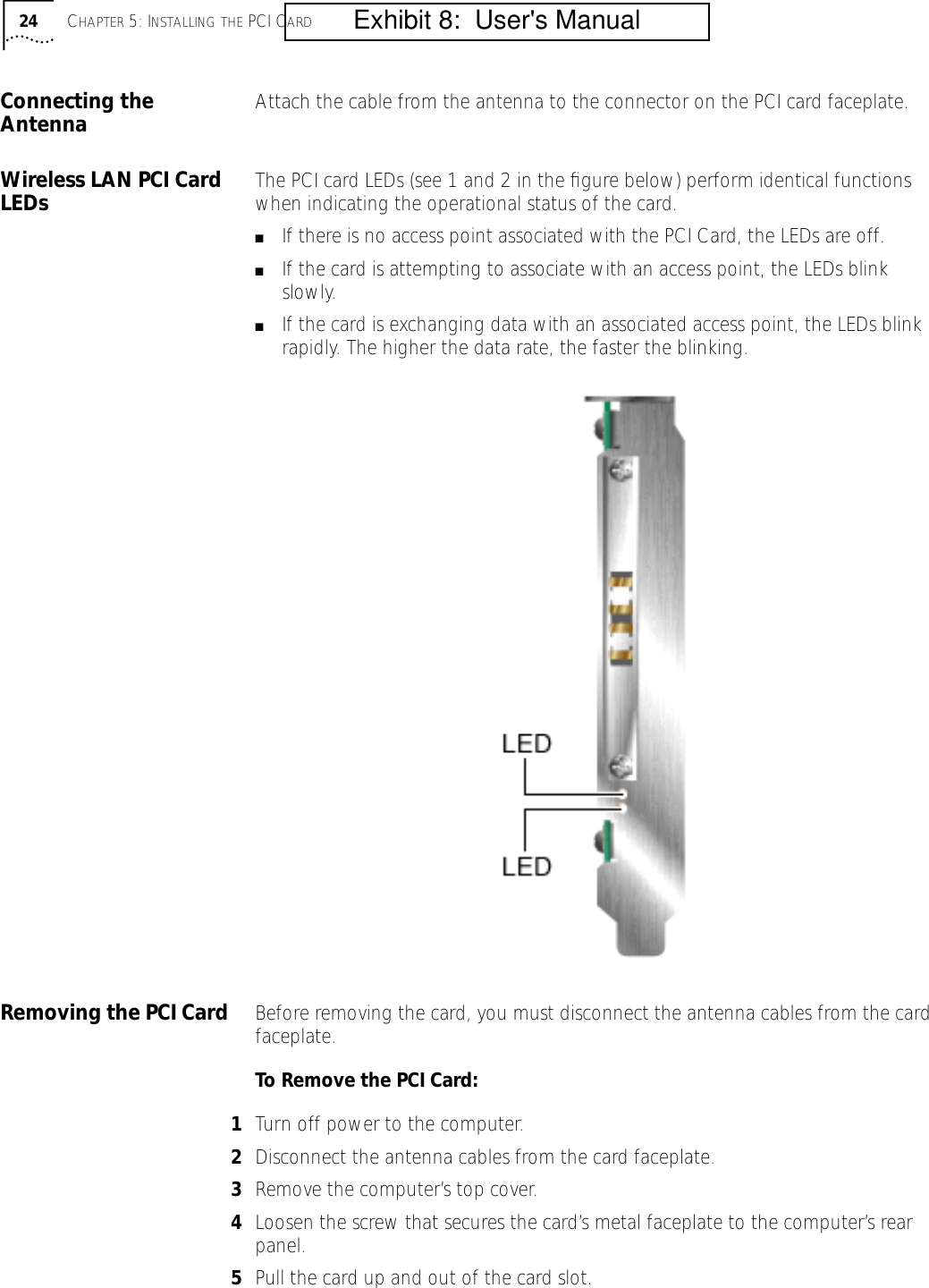
24 CHAPTER 5: INSTALLING THE PCI CARDConnecting the Antenna Attach the cable from the antenna to the connector on the PCI card faceplate.Wireless LAN PCI Card LEDs The PCI card LEDs (see 1 and 2 in the figure below) perform identical functions when indicating the operational status of the card.■If there is no access point associated with the PCI Card, the LEDs are off.■If the card is attempting to associate with an access point, the LEDs blink slowly.■If the card is exchanging data with an associated access point, the LEDs blink rapidly. The higher the data rate, the faster the blinking. Removing the PCI Card Before removing the card, you must disconnect the antenna cables from the card faceplate.To Remove the PCI Card:1Turn off power to the computer.2Disconnect the antenna cables from the card faceplate.3Remove the computer’s top cover.4Loosen the screw that secures the card’s metal faceplate to the computer’s rear panel.5Pull the card up and out of the card slot.         Exhibit 8:  User's Manual
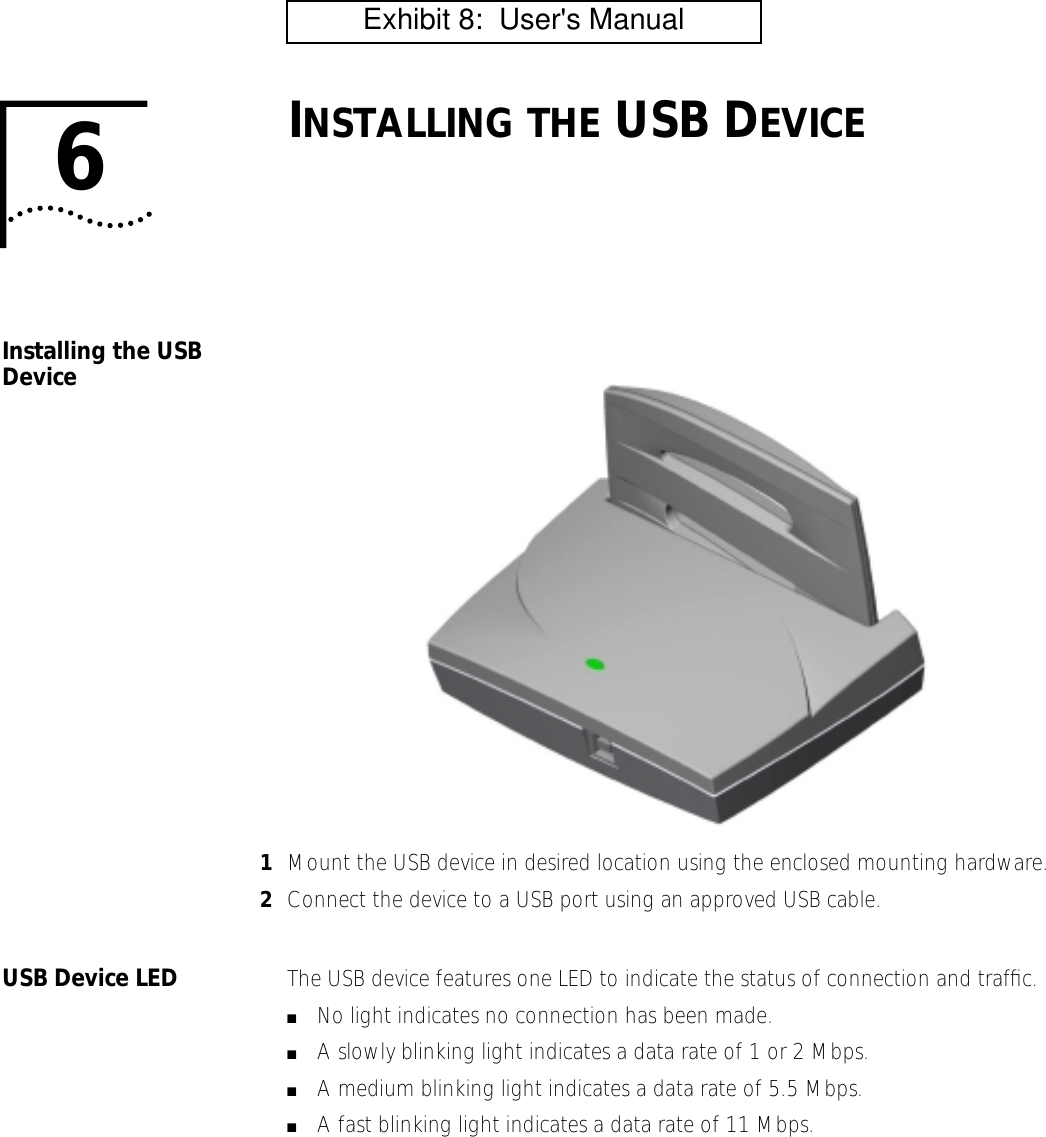
6INSTALLING THE USB DEVICEInstalling the USB Device1Mount the USB device in desired location using the enclosed mounting hardware.2Connect the device to a USB port using an approved USB cable.USB Device LED The USB device features one LED to indicate the status of connection and traffic.■No light indicates no connection has been made.■A slowly blinking light indicates a data rate of 1 or 2 Mbps.■A medium blinking light indicates a data rate of 5.5 Mbps.■A fast blinking light indicates a data rate of 11 Mbps.         Exhibit 8:  User's Manual
ATECHNICAL SUPPORTOnline Technical Services 3Com offers worldwide product support 24 hours a day, 7 days a week, through the following online systems:■World Wide Web site■3Com FTP site■3Com Bulletin Board Service (3Com BBS)■3Com FactsSM  automated fax serviceWorld Wide Web Site Access the latest networking information on the 3Com Corporation World Wide Web site by entering the URL into your Internet browser:http://www.3com.com/This service provides access to online support information such as technical documentation and software library, as well as support options ranging from technical education to maintenance and professional services.3Com FTP Site Download drivers, patches, software, and MIBs across the Internet from the 3Com public FTP site.  This service is available 24 hours a day, 7 days a week.To connect to the 3Com FTP site, enter the following information into your FTP client:■Hostname:  ftp.3com.com (or 192.156.136.12)■Username:  anonymous■Password:  <your Internet e-mail address>         Exhibit 8:  User's Manual
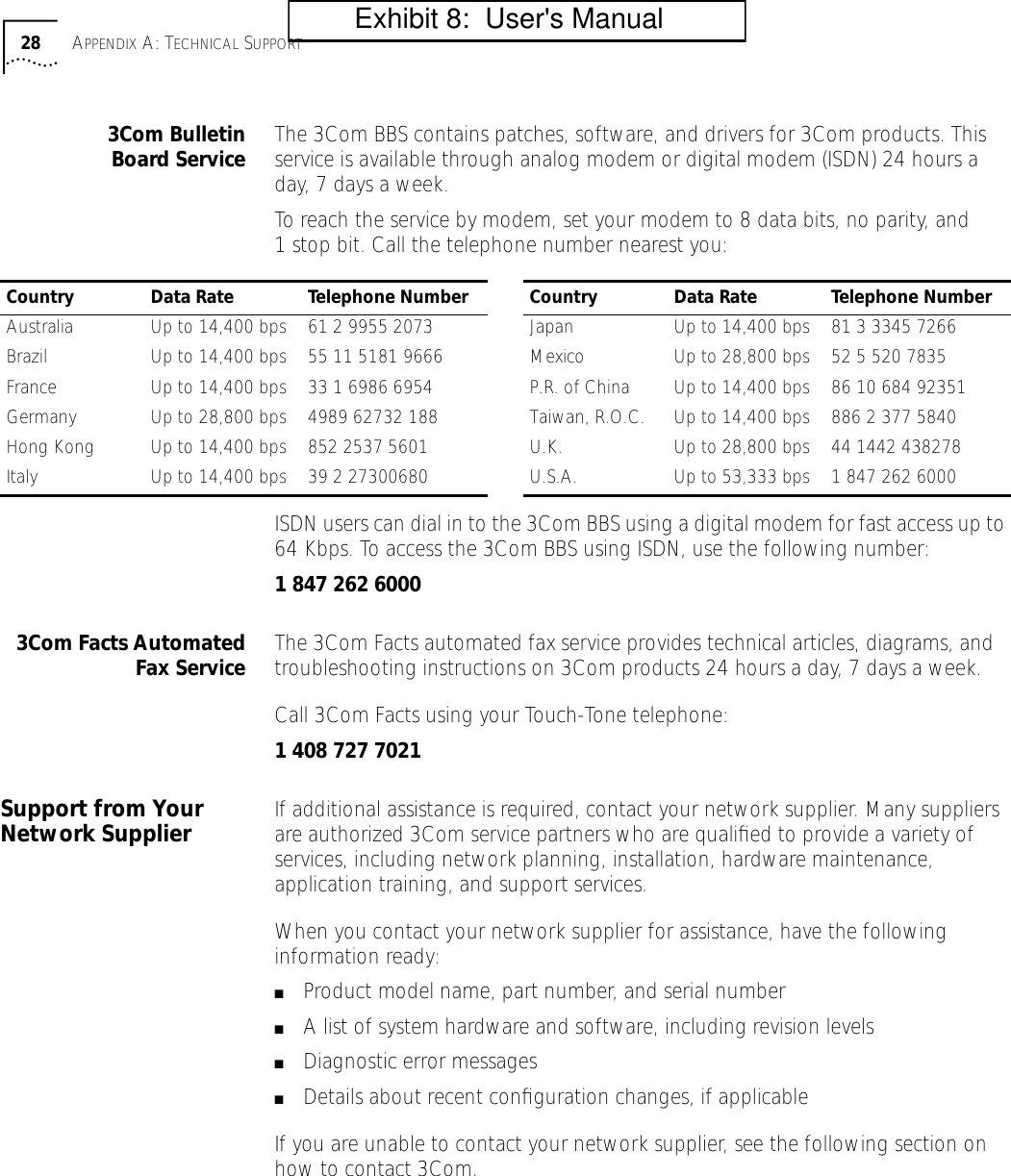
28 APPENDIX A: TECHNICAL SUPPORT3Com BulletinBoard Service The 3Com BBS contains patches, software, and drivers for 3Com products. This service is available through analog modem or digital modem (ISDN) 24 hours a day, 7 days a week. To reach the service by modem, set your modem to 8 data bits, no parity, and 1 stop bit. Call the telephone number nearest you:ISDN users can dial in to the 3Com BBS using a digital modem for fast access up to 64 Kbps. To access the 3Com BBS using ISDN, use the following number:1 847 262 60003Com Facts AutomatedFax Service The 3Com Facts automated fax service provides technical articles, diagrams, and troubleshooting instructions on 3Com products 24 hours a day, 7 days a week. Call 3Com Facts using your Touch-Tone telephone:1 408 727 7021Support from Your Network Supplier If additional assistance is required, contact your network supplier. Many suppliers are authorized 3Com service partners who are qualified to provide a variety of services, including network planning, installation, hardware maintenance, application training, and support services.When you contact your network supplier for assistance, have the following information ready:■Product model name, part number, and serial number■A list of system hardware and software, including revision levels■Diagnostic error messages■Details about recent configuration changes, if applicableIf you are unable to contact your network supplier, see the following section on how to contact 3Com.Country Data Rate Telephone Number Country Data Rate Telephone NumberAustralia Up to 14,400 bps 61 2 9955 2073 Japan Up to 14,400 bps 81 3 3345 7266Brazil Up to 14,400 bps 55 11 5181 9666 Mexico Up to 28,800 bps 52 5 520 7835France Up to 14,400 bps 33 1 6986 6954 P.R. of China Up to 14,400 bps 86 10 684 92351Germany Up to 28,800 bps 4989 62732 188 Taiwan, R.O.C. Up to 14,400 bps 886 2 377 5840Hong Kong Up to 14,400 bps 852 2537 5601 U.K. Up to 28,800 bps 44 1442 438278Italy Up to 14,400 bps 39 2 27300680 U.S.A. Up to 53,333 bps 1 847 262 6000        Exhibit 8:  User's Manual
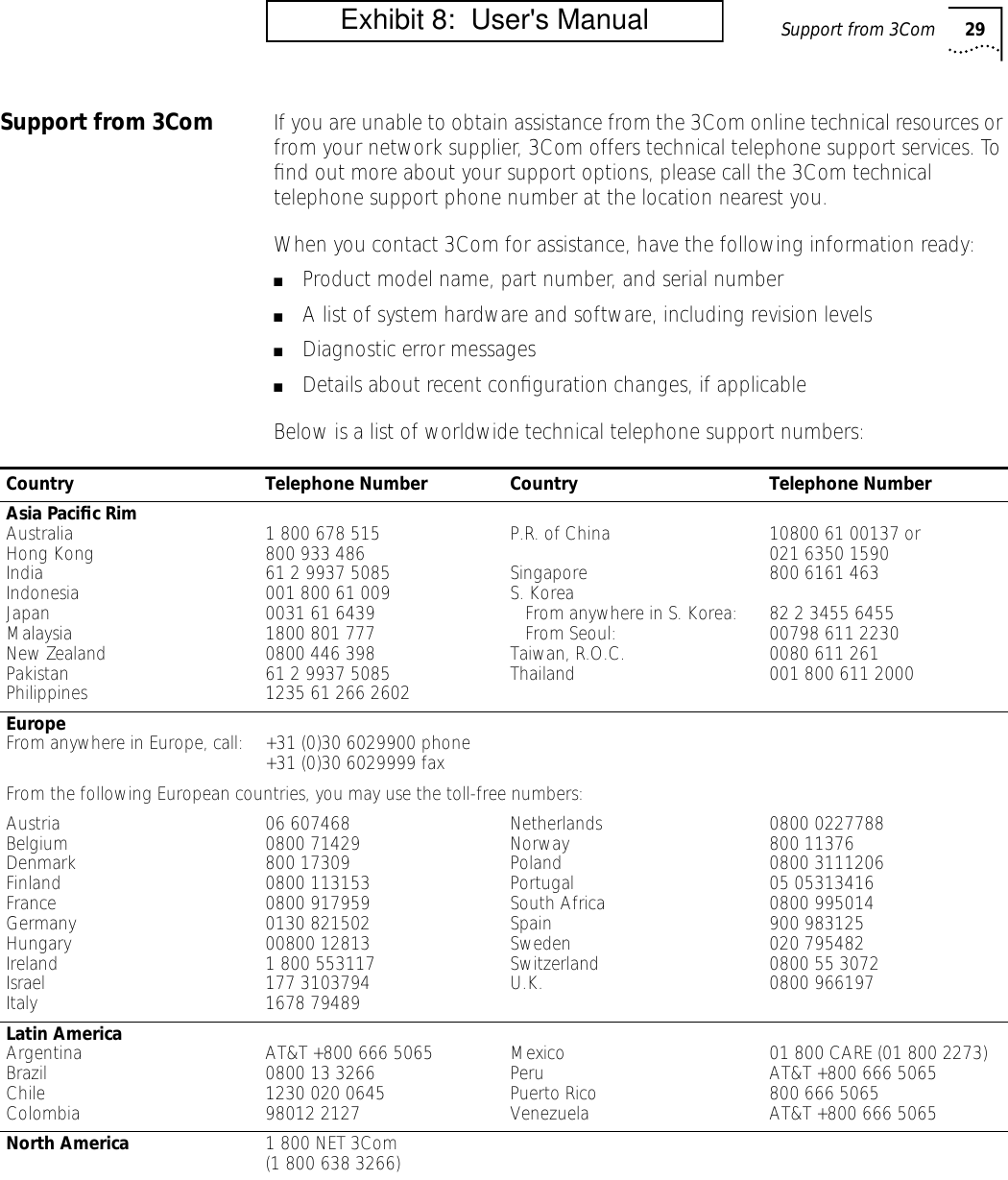
Support from 3Com 29Support from 3Com If you are unable to obtain assistance from the 3Com online technical resources or from your network supplier, 3Com offers technical telephone support services. To find out more about your support options, please call the 3Com technical telephone support phone number at the location nearest you.When you contact 3Com for assistance, have the following information ready:■Product model name, part number, and serial number■A list of system hardware and software, including revision levels■Diagnostic error messages■Details about recent configuration changes, if applicableBelow is a list of worldwide technical telephone support numbers:Country Telephone Number Country Telephone NumberAsia Pacific RimAustraliaHong KongIndiaIndonesiaJapanMalaysiaNew ZealandPakistanPhilippines1 800 678 515800 933 48661 2 9937 5085001 800 61 0090031 61 64391800 801 7770800 446 39861 2 9937 50851235 61 266 2602P.R. of ChinaSingaporeS. Korea   From anywhere in S. Korea:   From Seoul:Taiwan, R.O.C.Thailand10800 61 00137 or021 6350 1590800 6161 46382 2 3455 645500798 611 22300080 611 261001 800 611 2000EuropeFrom anywhere in Europe, call: +31 (0)30 6029900 phone+31 (0)30 6029999 faxFrom the following European countries, you may use the toll-free numbers:AustriaBelgiumDenmarkFinland FranceGermanyHungaryIrelandIsraelItaly06 6074680800 71429800 173090800 1131530800 9179590130 82150200800 128131 800 553117177 31037941678 79489NetherlandsNorwayPolandPortugalSouth AfricaSpainSwedenSwitzerlandU.K.0800 0227788800 113760800 311120605 053134160800 995014900 983125020 7954820800 55 30720800 966197Latin AmericaArgentinaBrazilChileColombiaAT&T +800 666 50650800 13 32661230 020 064598012 2127MexicoPeruPuerto RicoVenezuela01 800 CARE (01 800 2273)AT&T +800 666 5065800 666 5065AT&T +800 666 5065North America 1 800 NET 3Com(1 800 638 3266)         Exhibit 8:  User's Manual
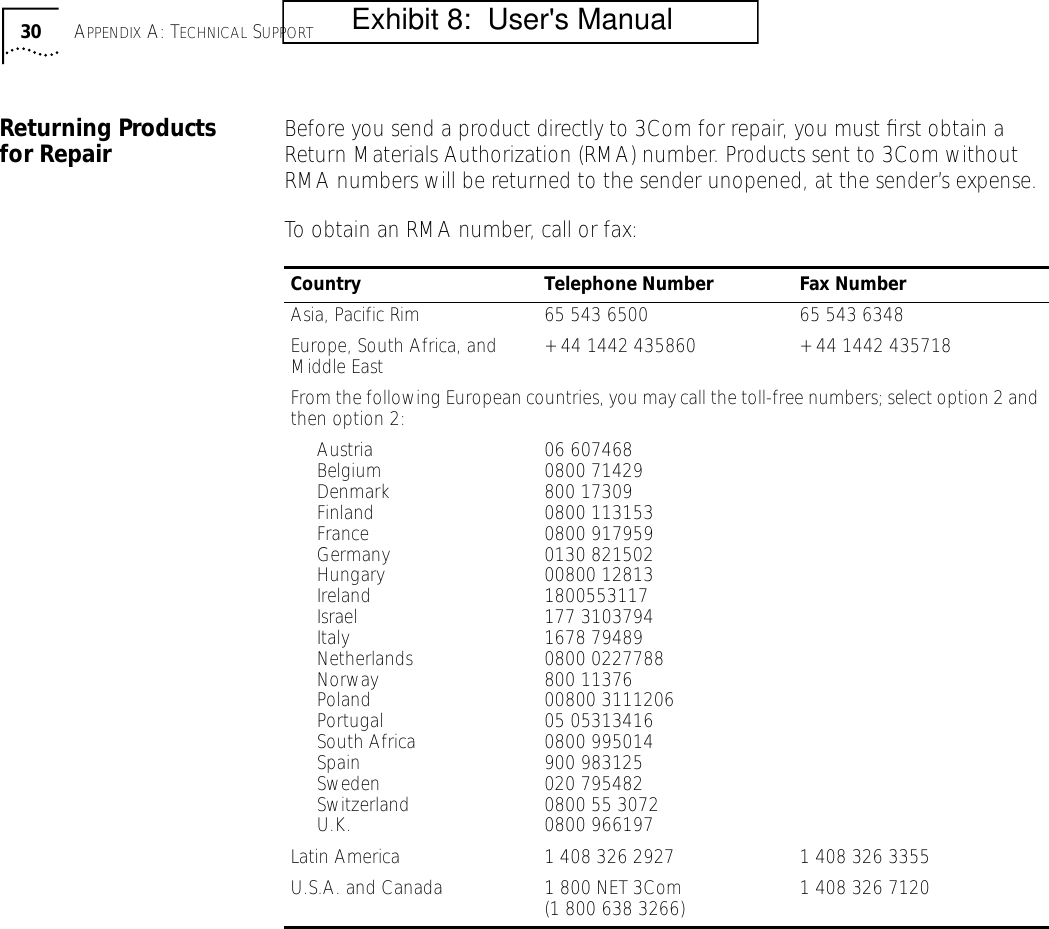
30 APPENDIX A: TECHNICAL SUPPORTReturning Products for Repair Before you send a product directly to 3Com for repair, you must first obtain a Return Materials Authorization (RMA) number. Products sent to 3Com without RMA numbers will be returned to the sender unopened, at the sender’s expense.To obtain an RMA number, call or fax:Country Telephone Number Fax NumberAsia, Pacific Rim 65 543 6500 65 543 6348Europe, South Africa, and Middle East + 44 1442 435860 + 44 1442 435718From the following European countries, you may call the toll-free numbers; select option 2 and then option 2:AustriaBelgiumDenmarkFinlandFranceGermanyHungaryIrelandIsraelItalyNetherlandsNorwayPolandPortugalSouth AfricaSpainSwedenSwitzerlandU.K.06 6074680800 71429800 173090800 1131530800 9179590130 82150200800 128131800553117177 31037941678 794890800 0227788800 1137600800 311120605 053134160800 995014900 983125020 7954820800 55 30720800 966197Latin America 1 408 326 2927 1 408 326 3355U.S.A. and Canada 1 800 NET 3Com(1 800 638 3266) 1 408 326 7120        Exhibit 8:  User's Manual
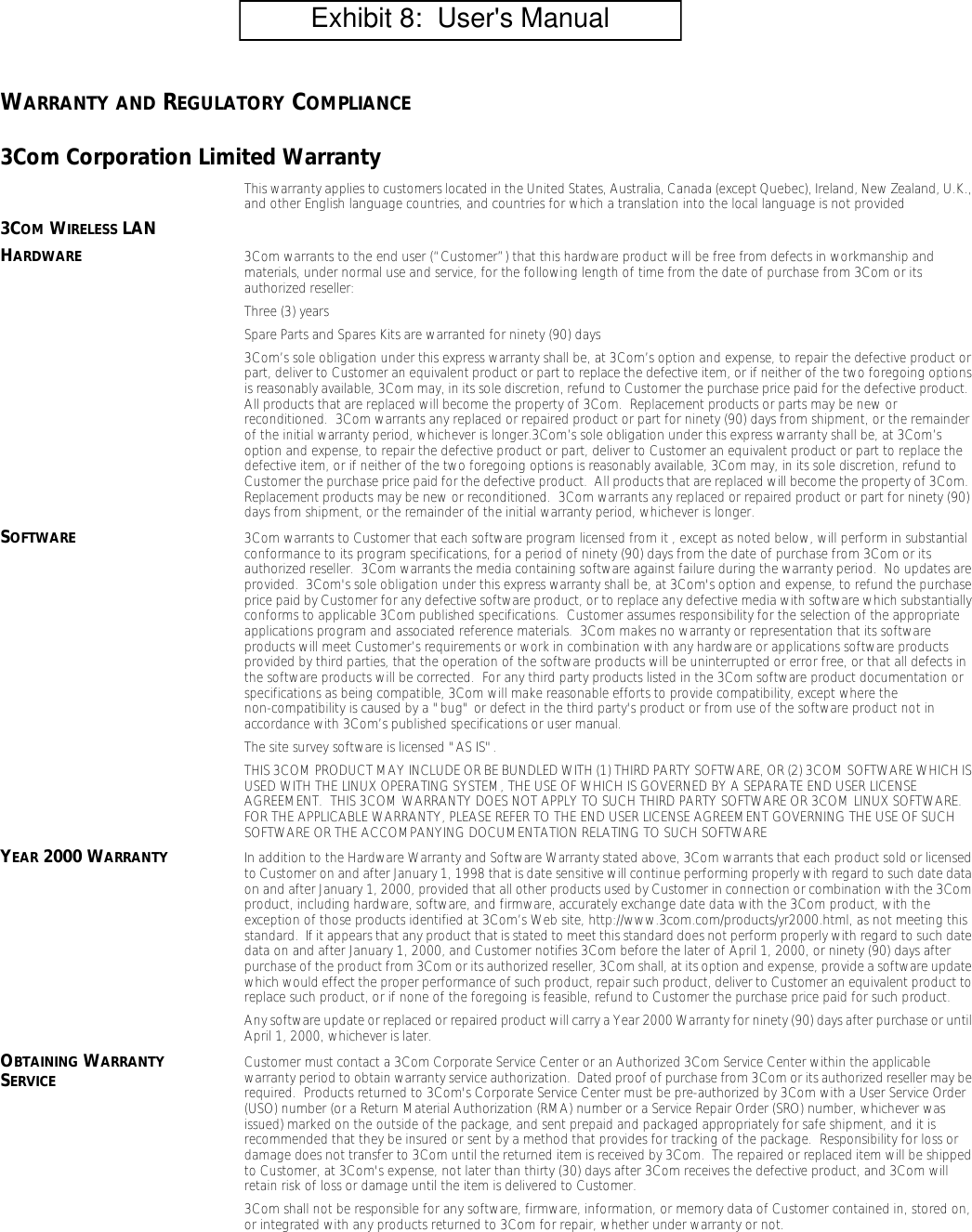
WARRANTY AND REGULATORY COMPLIANCE3Com Corporation Limited WarrantyThis warranty applies to customers located in the United States, Australia, Canada (except Quebec), Ireland, New Zealand, U.K., and other English language countries, and countries for which a translation into the local language is not provided3COM WIRELESS LANHARDWARE 3Com warrants to the end user (“Customer”) that this hardware product will be free from defects in workmanship and materials, under normal use and service, for the following length of time from the date of purchase from 3Com or its authorized reseller:Three (3) yearsSpare Parts and Spares Kits are warranted for ninety (90) days3Com’s sole obligation under this express warranty shall be, at 3Com’s option and expense, to repair the defective product or part, deliver to Customer an equivalent product or part to replace the defective item, or if neither of the two foregoing options is reasonably available, 3Com may, in its sole discretion, refund to Customer the purchase price paid for the defective product.  All products that are replaced will become the property of 3Com.  Replacement products or parts may be new or reconditioned.  3Com warrants any replaced or repaired product or part for ninety (90) days from shipment, or the remainder of the initial warranty period, whichever is longer.3Com’s sole obligation under this express warranty shall be, at 3Com’s option and expense, to repair the defective product or part, deliver to Customer an equivalent product or part to replace the defective item, or if neither of the two foregoing options is reasonably available, 3Com may, in its sole discretion, refund to Customer the purchase price paid for the defective product.  All products that are replaced will become the property of 3Com.  Replacement products may be new or reconditioned.  3Com warrants any replaced or repaired product or part for ninety (90) days from shipment, or the remainder of the initial warranty period, whichever is longer.SOFTWARE 3Com warrants to Customer that each software program licensed from it , except as noted below, will perform in substantial conformance to its program specifications, for a period of ninety (90) days from the date of purchase from 3Com or its authorized reseller.  3Com warrants the media containing software against failure during the warranty period.  No updates are provided.  3Com's sole obligation under this express warranty shall be, at 3Com's option and expense, to refund the purchase price paid by Customer for any defective software product, or to replace any defective media with software which substantially conforms to applicable 3Com published specifications.  Customer assumes responsibility for the selection of the appropriate applications program and associated reference materials.  3Com makes no warranty or representation that its software products will meet Customer’s requirements or work in combination with any hardware or applications software products provided by third parties, that the operation of the software products will be uninterrupted or error free, or that all defects in the software products will be corrected.  For any third party products listed in the 3Com software product documentation or specifications as being compatible, 3Com will make reasonable efforts to provide compatibility, except where the non-compatibility is caused by a "bug" or defect in the third party's product or from use of the software product not in accordance with 3Com’s published specifications or user manual.The site survey software is licensed "AS IS".THIS 3COM PRODUCT MAY INCLUDE OR BE BUNDLED WITH (1) THIRD PARTY SOFTWARE, OR (2) 3COM SOFTWARE WHICH IS USED WITH THE LINUX OPERATING SYSTEM, THE USE OF WHICH IS GOVERNED BY A SEPARATE END USER LICENSE AGREEMENT.  THIS 3COM WARRANTY DOES NOT APPLY TO SUCH THIRD PARTY SOFTWARE OR 3COM LINUX SOFTWARE.  FOR THE APPLICABLE WARRANTY, PLEASE REFER TO THE END USER LICENSE AGREEMENT GOVERNING THE USE OF SUCH SOFTWARE OR THE ACCOMPANYING DOCUMENTATION RELATING TO SUCH SOFTWAREYEAR 2000 WARRANTY In addition to the Hardware Warranty and Software Warranty stated above, 3Com warrants that each product sold or licensed to Customer on and after January 1, 1998 that is date sensitive will continue performing properly with regard to such date data on and after January 1, 2000, provided that all other products used by Customer in connection or combination with the 3Com product, including hardware, software, and firmware, accurately exchange date data with the 3Com product, with the exception of those products identified at 3Com’s Web site, http://www.3com.com/products/yr2000.html, as not meeting this standard.  If it appears that any product that is stated to meet this standard does not perform properly with regard to such date data on and after January 1, 2000, and Customer notifies 3Com before the later of April 1, 2000, or ninety (90) days after purchase of the product from 3Com or its authorized reseller, 3Com shall, at its option and expense, provide a software update which would effect the proper performance of such product, repair such product, deliver to Customer an equivalent product to replace such product, or if none of the foregoing is feasible, refund to Customer the purchase price paid for such product. Any software update or replaced or repaired product will carry a Year 2000 Warranty for ninety (90) days after purchase or until April 1, 2000, whichever is later. OBTAINING WARRANTY SERVICE Customer must contact a 3Com Corporate Service Center or an Authorized 3Com Service Center within the applicable warranty period to obtain warranty service authorization.  Dated proof of purchase from 3Com or its authorized reseller may be required.  Products returned to 3Com's Corporate Service Center must be pre-authorized by 3Com with a User Service Order (USO) number (or a Return Material Authorization (RMA) number or a Service Repair Order (SRO) number, whichever was issued) marked on the outside of the package, and sent prepaid and packaged appropriately for safe shipment, and it is recommended that they be insured or sent by a method that provides for tracking of the package.  Responsibility for loss or damage does not transfer to 3Com until the returned item is received by 3Com.  The repaired or replaced item will be shipped to Customer, at 3Com's expense, not later than thirty (30) days after 3Com receives the defective product, and 3Com will retain risk of loss or damage until the item is delivered to Customer.3Com shall not be responsible for any software, firmware, information, or memory data of Customer contained in, stored on, or integrated with any products returned to 3Com for repair, whether under warranty or not.         Exhibit 8:  User's Manual
Dead- or Defective-on-Arrival.  In the event a product completely fails to function or exhibits a defect in materials or workmanship within the first forty-eight (48) hours of installation but no later than thirty (30) days after the date of purchase, and this is verified by 3Com, it will be considered dead- or defective-on-arrival (DOA) and a replacement shall be provided by advance replacement, but only if Customer provides a purchase order number, credit card number, or other method of payment acceptable to 3Com, to be used if 3Com needs to charge Customer for the replacement, as explained below.  The replacement product will normally be shipped not later than three (3) business days after 3Com’s verification of the DOA product, but may be delayed due to export or import procedures.  The shipment of advance replacement products is subject to local legal requirements and may not be available in all locations.  When an advance replacement is provided and Customer fails to return the original product to 3Com within fifteen (15) days after shipment of the replacement, 3Com will charge Customer for the replacement product, at list price.INCLUDED SERVICES:   Telephone Support, with coverage for basic troubleshooting only, will be provided for ninety (90) days from the date of purchase, on a commercially reasonable efforts basis.  Telephone support is available from 3Com only if Customer purchased this product directly from 3Com, or if Customer’s reseller is unable to provide telephone support.  Please refer to the Technical Support appendix in the User Guide for telephone numbers.WARRANTIES EXCLUSIVE IF A 3COM PRODUCT DOES NOT OPERATE AS WARRANTED ABOVE, CUSTOMER'S SOLE REMEDY FOR BREACH OF THAT WARRANTY SHALL BE REPAIR, REPLACEMENT, OR REFUND OF THE PURCHASE PRICE PAID, AT 3COM'S OPTION.  TO THE FULL EXTENT ALLOWED BY LAW, THE FOREGOING WARRANTIES AND REMEDIES ARE EXCLUSIVE AND ARE IN LIEU OF ALL OTHER WARRANTIES, TERMS, OR CONDITIONS, EXPRESS OR IMPLIED, EITHER IN FACT OR BY OPERATION OF LAW, STATUTORY OR OTHERWISE, INCLUDING WARRANTIES, TERMS, OR CONDITIONS OF MERCHANTABILITY, FITNESS FOR A PARTICULAR PURPOSE, SATISFACTORY QUALITY, CORRESPONDENCE WITH DESCRIPTION, AND NON-INFRINGEMENT, ALL OF WHICH ARE EXPRESSLY DISCLAIMED.  3COM NEITHER ASSUMES NOR AUTHORIZES ANY OTHER PERSON TO ASSUME FOR IT ANY OTHER LIABILITY IN CONNECTION WITH THE SALE, INSTALLATION, MAINTENANCE OR USE OF ITS PRODUCTS.3COM SHALL NOT BE LIABLE UNDER THIS WARRANTY IF ITS TESTING AND EXAMINATION DISCLOSE THAT THE ALLEGED DEFECT OR MALFUNCTION IN THE PRODUCT DOES NOT EXIST OR WAS CAUSED BY CUSTOMER'S OR ANY THIRD PERSON'S MISUSE, NEGLECT, IMPROPER INSTALLATION OR TESTING, UNAUTHORIZED ATTEMPTS TO OPEN, REPAIR OR MODIFY THE PRODUCT, OR ANY OTHER CAUSE BEYOND THE RANGE OF THE INTENDED USE, OR BY ACCIDENT, FIRE, LIGHTNING, POWER CUTS OR OUTAGES, OTHER HAZARDS, OR ACTS OF GOD.LIMITATION OF LIABILITY TO THE FULL EXTENT ALLOWED BY LAW, 3COM ALSO EXCLUDES FOR ITSELF AND ITS SUPPLIERS ANY LIABILITY, WHETHER BASED IN CONTRACT OR TORT (INCLUDING NEGLIGENCE), FOR INCIDENTAL, CONSEQUENTIAL, INDIRECT, SPECIAL, OR PUNITIVE DAMAGES OF ANY KIND, OR FOR LOSS OF REVENUE OR PROFITS, LOSS OF BUSINESS, LOSS OF INFORMATION OR DATA, OR OTHER FINANCIAL LOSS ARISING OUT OF OR IN CONNECTION WITH THE SALE, INSTALLATION, MAINTENANCE, USE, PERFORMANCE, FAILURE, OR INTERRUPTION OF ITS PRODUCTS, EVEN IF 3COM OR ITS AUTHORIZED RESELLER HAS BEEN ADVISED OF THE POSSIBILITY OF SUCH DAMAGES, AND LIMITS ITS LIABILITY TO REPAIR, REPLACEMENT, OR REFUND OF THE PURCHASE PRICE PAID, AT 3COM'S OPTION.  THIS DISCLAIMER OF LIABILITY FOR DAMAGES WILL NOT BE AFFECTED IF ANY REMEDY PROVIDED HEREIN SHALL FAIL OF ITS ESSENTIAL PURPOSE.DISCLAIMER Some countries, states, or provinces do not allow the exclusion or limitation of implied warranties or the limitation of incidental or consequential damages for certain products supplied to consumers, or the limitation of liability for personal injury, so the above limitations and exclusions may be limited in their application to you.  When the implied warranties are not allowed to be excluded in their entirety, they will be limited to the duration of the applicable written warranty.  This warranty gives you specific legal rights which may vary depending on local law.GOVERNING LAW This Limited Warranty shall be governed by the laws of the State of California, U.S.A. excluding its conflicts of laws principles and excluding the United Nations Convention on Contracts for the International Sale of Goods.3Com Corporation5400 Bayfront PlazaSanta Clara, CA  95054(408) 326-5000January 3, 2000         Exhibit 8:  User's Manual
Regulatory Compliance InformationCAUTION:FCC RADIO-FREQUENCY  EXPOSURE NOTICEThis device generates and radiates radio-frequency energy.  In order to comply with FCC radio-frequency radiation exposure guidelines for anuncontrolled environment, this equipment has to be installed and operated while maintaining a minimum body to antenna distance of 2.5 cm.This product does not contain any user serviceable components.  Any unauthorized product changes or modifications will invalidate 3Com’swarranty and all applicable regulatory certifications and approvals.FCC PART 15 NOTICE (APPLICABLE TO USE WITHIN THE  USA)This device complies with part 15 of the FCC Rules. Operation is subject to the following two conditions: (1) This device may not causeharmful interference, and (2) this device must accept any interference received, including interference that may cause undesired operation.WARNING:  This equipment has been tested and found to comply with the limits for a Class B digital device, pursuant to Part 15 of the FCCRules.  These limits are designed to provide reasonable protection against harmful interference in a residential installation. This equipmentgenerates, uses and can radiate radio frequency energy and, if not installed and used in accordance with the instructions, may cause harmfulinterference to radio communications.  However, there is no guarantee that interference will not occur in a particular installation.  If thisequipment does cause harmful interference to radio or television reception, which can be determined by turning the equipment off and on, theuser is encouraged to try to correct the interference by one or more of the following measures:• Reorient or relocate the receiving antenna.• Increase the separation between the equipment and receiver.• Connect the equipment into an outlet on a circuit different from the one which the receiver is connected to.• Consult the dealer or an experienced radio/TV technician for help.The user may find the following booklet prepared by the Federal Communications Commission helpful:The Interference HandbookThis booklet is available from the U.S. Government Printing Office, Washington, D.C. 20402. Stock No. 004-000-00345-4.         Exhibit 8:  User's Manual
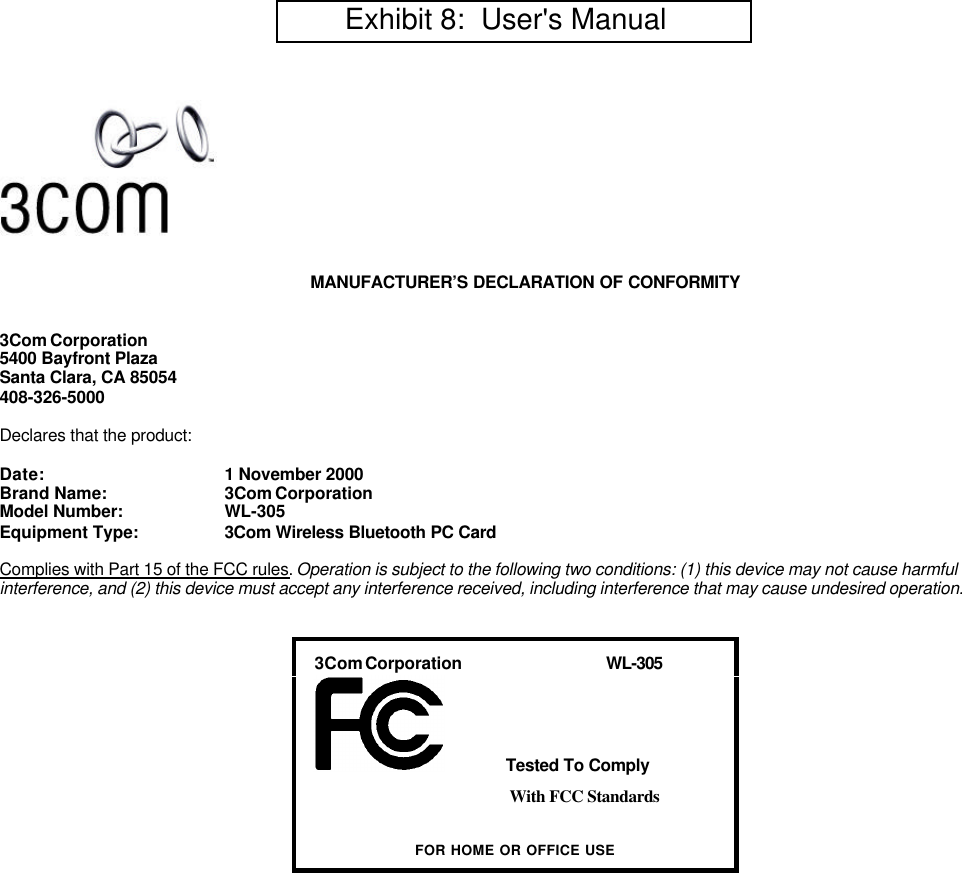
MANUFACTURER’S DECLARATION OF CONFORMITY3Com Corporation5400 Bayfront PlazaSanta Clara, CA 85054408-326-5000Declares that the product:Date: 1 November 2000Brand Name: 3Com CorporationModel Number: WL-305Equipment Type: 3Com Wireless Bluetooth PC CardComplies with Part 15 of the FCC rules. Operation is subject to the following two conditions: (1) this device may not cause harmfulinterference, and (2) this device must accept any interference received, including interference that may cause undesired operation.   3Com Corporation                                    WL-305    Tested To ComplyWith FCC StandardsFOR HOME OR OFFICE USE        Exhibit 8:  User's Manual
INDUSTRY  CANADA  NOTICE (APPLICABLE TO USE WITHIN CANADA)This Class B digital apparatus complies with Canadian ICES-003.To prevent radio interference to the licensed service, this device is intended to be operated indoors and away from windows to providemaximum shielding.  Equipment (or its transmit antenna) that is installed outdoors is subject to licensing.AVIS DE CONFORMITÉ À LA RÉGLEMENTATION D’INDUSTRIE CANADACet appareil numérique de la classe B est conform à la norme NMB-003 du Canada.Pour empêcher que cet appareil cause du brouillage au service faisant l'objet d'une licence, cet appareil doit être utilisé à l'intérieur seulementet devrait être placé loin des fenêtres afin de fournir un écran de blindage maximal.EUROPEAN COMMUNITY  - CE NOTICEMarking by the symbol   0682   indicates compliance of this equipment to the R&TTE Directive 1999/5/EC. Such marking is indicativethat this equipment meets or exceeds the following technical standards:• ETS 300 328 - Electromagnetic compatibility and Radio spectrum Matters (ERM); Wideband Transmission systems; data transmissionequipment operating in the 2,4 GHz ISM band and using spread spectrum modulation techniques• ETS 300 826 - Electromagnetic compatibility and Radio spectrum Matters (ERM); ElectroMagnetic Compatibility (EMC) standard for 2,4GHz wideband transmission systems and HIgh PErformance Radio Local Area Network (HIPERLAN) equipment• ES 59005 - Considerations for the evaluation of human exposure to electromagnetic fields (EMF's) from mobile telecommunicationequipment (MTE) in the frequency range 30 MHz - 6 GHz• EN 55022 - Limits and Methods of Measurement of Radio Interference Characteristics of Information Technology Equipment. (CISPR 22Class B).• EN 60950 - Safety of information technology equipment, including electrical business equipment.SAFETY  COMPLIANCE  NOTICEThis device has been tested and certified according to the following safety standards and is intended for use only in Information TechnologyEquipment which has been tested and certified to these or other equivalent standards:• UL Standard 1950 / CSA C22.2 No. 950• IEC 60950• EN 60950         Exhibit 8:  User's Manual
3Com End User Software License AgreementIMPORTANT: Read Before Using This ProductYOU SHOULD CAREFULLY READ THE FOLLOWING TERMS AND CONDITIONS BEFORE USING THIS PRODUCT. IT CONTAINS SOFTWARE, THE USE OF WHICH IS LICENSED BY 3COM CORPORATION (“3COM”) TO ITS CUSTOMERS FOR THEIR USE ONLY AS SET FORTH BELOW. IF YOU DO NOT AGREE TO THE TERMS AND CONDITIONS OF THIS AGREEMENT, DO NOT USE THE SOFTWARE. USING ANY PART OF THE SOFTWARE INDICATES THAT YOU ACCEPT THESE TERMS.LICENSE: 3Com grants you a nonexclusive license to use the accompanying software program(s) (the “Software”) subject to the terms and restrictions set forth in this License Agreement. You are not permitted to lease, rent, distribute or sublicense the Software or to use the Software in a time-sharing arrangement or in any other unauthorized manner. Further, no license is granted to you in the human readable code of the Software (source code). Except as provided below, this License Agreement does not grant you any rights to patents, copyrights, trade secrets, trademarks, or any other rights in respect to the Software.The Software is licensed to be used on any workstation or any network server owned by or leased to you, provided that the Software is used only in connection with a 3Com adapter. You may reproduce and provide one (1) copy of the Software and supporting documentation for each such workstation or network server on which the Software is used as permitted hereunder. Otherwise, the Software and supporting documentation may be copied only as essential for backup or archive purposes in support of your use of the Software as permitted hereunder. You must reproduce and include all copyright notices and any other proprietary rights notices appearing on the Software and the supporting documentation on any copies that you make.NO ASSIGNMENT; NO REVERSE ENGINEERING: You may not transfer or assign the Software and/or this License Agreement to another party without the prior written consent of 3Com. If such consent is given and you transfer or assign the Software and/or this License Agreement, then you must at the same time either transfer any copies of the Software as well as the supporting documentation to the same party or destroy any such materials not transferred. Except as set forth above, you may not transfer or assign the Software or your rights under this License Agreement. Modification, reverse engineering, reverse compiling, or disassembly of the Software is expressly prohibited. However, if you are a European Community (“EC”) resident, information necessary to achieve interoperability of the Software with other programs within the meaning of the EC Directive on the Legal Protection of Computer Programs is available to you from 3Com upon written request.EXPORT RESTRICTIONS: You agree that you will not export or re-export the Software or accompanying documentation (or any copies thereof) or any products utilizing the Software or such documentation in violation of any applicable laws or regulations of the United States and the country in which you obtained them.The 3Com product and/or software covered by this agreement may contain encryption code which is unlawful to export from the US or Canada without an approved US Department of Commerce export license. You agree that you will not export, reexport, either physically or electronically, any encrypted product without an approved export license.TRADE SECRETS; TITLE: You acknowledge and agree that the structure, sequence and organization of the Software are the valuable trade secrets of 3Com and its suppliers. You agree to hold such trade secrets in confidence. You further acknowledge and agree that ownership of, and title to, the Software and all subsequent copies thereof regardless of the form or media are held by 3Com and its suppliers.UNITED STATES GOVERNMENT LEGEND: All technical data and computer software are commercial in nature and developed solely at private expense. The Software is delivered as “Commercial Computer Software” as defined in DFARS 252.227-7014 (June 1995) or as a “commercial item” as defined in FAR 2.101(a) and as such is provided with only such rights as are provided in this License Agreement, which is 3Com’s standard commercial license for the Software. Technical data is provided with limited rights only as provided in DFAR 252.227-7015 (Nov. 1995) or FAR 52.227-14 (June 1987), whichever is applicable. You agree not to remove or deface any portion of any legend provided on any licensed program or documentation delivered to you under this License Agreement.TERM AND TERMINATION: This license will expire fifty (50) years from the date that you first use the Software, if it is not earlier terminated. You may terminate it at any time by destroying the Software and documentation together with all copies and merged portions in any form. It will also terminate immediately if you fail to comply with any term or condition of this License Agreement. Upon such termination you agree to destroy the Software and documentation, together with all copies and merged portions in any form.GOVERNING LAW: This License Agreement shall be governed by the laws of the State of California as such laws are applied to agreements entered into and to be performed entirely within California between California residents and by the laws of the United States. You agree that the United Nations Convention on Contracts for the International Sale of Goods (1980) is hereby excluded in its entirety from application to this License Agreement.LIMITED WARRANTY; LIMITATION OF LIABILITY: All warranties and limitations of liability applicable to the Software are as stated on the Limited Warranty Card or in the product manual, whether in paper or electronic form, accompanying the Software. Such warranties and limitations of liability are incorporated herein in their entirety by this reference. SEVERABILITY: In the event any provision of this License Agreement is found to be invalid, illegal or unenforceable, the validity, legality and enforceability of any of the remaining provisions shall not in any way be affected or impaired and a valid, legal and enforceable provision of similar intent and economic impact shall be substituted therefor.ENTIRE AGREEMENT: This License Agreement sets forth the entire understanding and agreement between you and 3Com, supersedes all prior agreements, whether written or oral, with respect to the Software, and may be amended only in a writing signed by both parties. 3Com is a registered trademark of 3Com Corporation.3Com Corporation, 5400 Bayfront Plaza, P.O. Box 58145, Santa Clara, CA 95052-8145. (408) 326-5000         Exhibit 8:  User's Manual

Navigation menu