3Com WL306 WLAN Access point User Manual AP8UG

3Com Corporation WLAN Access point AP8UG

modified manual

 http://www.3com.com/http://support.3com.com/registration/frontpg.pl/ 11 Mbps Wireless LAN Access Point 8000 User Guide Version 1.1 Published April, 2002Version 1.1.1
 3Com Corporation5400 Bayfront PlazaSanta Clara, California95052-8145 Copyright © 2002 3Com Corporation. All rights reserved. No part of this documentation may be reproduced in any form or by any means or used to make any derivative work (such as translation, transformation, or adaptation) without written permission from 3Com Corporation.3Com Corporation reserves the right to revise this documentation and to make changes in content from time to time without obligation on the part of 3Com Corporation to provide notification of such revision or change.3Com Corporation provides this documentation without warranty, term, or condition of any kind, either implied or expressed, including, but not limited to, the implied warranties, terms or conditions of merchantability, satisfactory quality, and fitness for a particular purpose. 3Com may make improvements or changes in the product(s) and/or the program(s) described in this documentation at any time.If there is any software on removable media described in this documentation, it is furnished under a license agreement included with the product as a separate document, in the hard copy documentation, or on the removable media in a directory file named LICENSE.TXT or !LICENSE.TXT. If you are unable to locate a copy, please contact 3Com and a copy will be provided to you. UNITED STATES GOVERNMENT LEGEND If you are a United States government agency, then this documentation and the software described herein are provided to you subject to the following:  All technical data and computer software are commercial in nature and developed solely at private expense. Software is delivered as “Commercial Computer Software” as defined in DFARS 252.227-7014 (June 1995) or as a “commercial item” as defined in FAR 2.101(a) and as such is provided with only such rights as are provided in 3Com’s standard commercial license for the Software. Technical data is provided with limited rights only as provided in DFAR 252.227-7015 (Nov 1995) or FAR 52.227-14 (June 1987), whichever is applicable. You agree not to remove or deface any portion of any legend provided on any licensed program or documentation contained in, or delivered to you in conjunction with, this User Guide.Unless otherwise indicated, 3Com registered trademarks are registered in the United States and may or may not be registered in other countries.3Com is a registered trademark and the 3Com logo and AirConnect are trademarks of 3Com Corporation. Microsoft, Windows, and Windows NT are registered trademarks of Microsoft Corporation.Wi-Fi is a trademark of the Wireless Ethernet Compatibility Alliance.All other company and product names may be trademarks of the respective companies with which they are associated. EXPORT RESTRICTIONS:  This product contains Encryption and may require US and/or Local Government authorization prior to export or import to another country.
 C ONTENTS 1 I NTRODUCTION Wireless and Wired Networks     1Access Point 8000 Feature Summary     1Installation Overview     3 2 I NSTALLING   THE  A CCESS  P OINT Before You Begin     5Deciding Where to Place Equipment     5Connecting the Standard Antenna     6Placing the Access Point     6Mounting on a Wall     7Mounting on a Ceiling     8Connecting Power     9Connecting to an Ethernet Network     10Checking the LEDs     10Selecting A Different Antenna     11Omnidirectional Antenna     11Ceiling Mount Omnidirectional Antenna     12Ceiling Mount Hallway Antenna     12Directional Panel Antenna     13Connecting an Optional Antenna     13Installing Software Utilities     14 3 A CCESS  P OINT  S ECURITY Upper-Layer Authentication     17EAP-MD5     17EAP-TLS     173Com Serial Authentication     18Additional Security Configuration Options     18802.1x RADIUS Support     19Using the Wireless 802.1x Agent     19Authentication and Login     19802.1x Client Properties     20 4 C ONFIGURING   THE  A CCESS  P OINT  8000 Installing the Device Manager     23Launching a Wireless Device Configuration     24
 Using the Configuration Management System     25Changing Access Point Properties     26Setting Network Properties     26Setting Data Transmission Properties     27Setting Advanced Data Transmission Properties     28Setting up Security     28Security Settings     29Access Point Encryption Settings     29Setting up a User Access List     30Setting up a MAC Address Access List     31Defining RADIUS Servers     31Configuring for SNMP Management     31Defining a TFTP Server     31Setting up a System Log     32Upgrading the System     32Changing the Administration Password     33Restoring Factory Defaults     33Resetting the Access Point     33Backing up Configurations     33Restoring Configurations     34Viewing Statistics     34Viewing System Status     34 5 C ONDUCTING   A  S ITE  S URVEY Before You Begin     35Choosing Trial Locations     35Environmental Requirements     35Electrical Requirements     36Summary of the Survey Procedure     36Using the Site Survey Tool     37Setting up Equipment     37Launching the Tool     37Configuring the Survey     37Running the Tests     37Interpreting Test Results     38Site Survey Menus     39 6 T ROUBLESHOOTING A T ECHNICAL  S UPPORT Online Technical Services     43World Wide Web Site     433Com Knowledgebase Web Services     433Com FTP Site     43Support from Your Network Supplier     44Support from 3Com     44
 Returning Products for Repair     46 R EGULATORY  C OMPLIANCE  I NFORMATION I NDEX
 1 I NTRODUCTION The 3Com wireless product family lets you set up a local area network (LAN) without the restraints of network cabling. If your office already has an Ethernet LAN, the 3Com 11 Mbps Wireless LAN Access Point 8000 can extend the network without additional cabling. The access point security features extend the security of installed wired networks to include all wireless components.The type of network you configure depends on the size of your office and whether you require a connection to a wired LAN. A simple configuration consists of an access point and several clients. The clients can associate with the wireless network anywhere within the coverage area of the access point.For more complex requirements, you can configure several access points as separate networks at the same site. The access points use different network identifiers called wireless LAN service areas (WLAN service areas) or Extended Service Set Identities (ESSID). Client computers can roam within the coverage areas of access points in the same segment with the same WLAN service areas. Wireless and Wired Networks An access point can be connected to a wired LAN by an Ethernet cable acting as a bridge between the wired and wireless networks. In this configuration, the access point provides the link between the wired network and wireless clients. Clients can move freely throughout the service area of the access point and remain associated with the larger network, allowing client access to the full range of network services.For complete wireless coverage, several access points can be connected to an existing LAN. Wireless clients can roam freely between different access points with the same WLAN service areas and remain associated with the larger network. Access Point 8000 Feature Summary Clear channel select When initializing, automatically scans the frequency spectrum and selects the channel with the least interference.Power over Ethernet Powered over the Ethernet cable to reduce the number of cables and simplify installation.Access point discovery Clients and network administrators can discover access points and ESSIDs within the same network segment. The network administrator can also discover, manage, and upgrade access points across routers by means of the 3Com Network Supervisor (3NS).Rate control Rate Control options available in the access point to select Optional, Required, or Not Used.Transmit power control Adjustable power level from minimum to maximum to extend transmission range.Roaming within segments Allows client to roam between access points within the same segment.
 2 C HAPTER  1: I NTRODUCTION User support Supports up to 256 simultaneous users, regardless of mode of operation.DHCP support Uses DHCP to obtain a leased IP address and network configuration information from a server. If the network has no DHCP server, the access point’s internal DHCP server assigns IP addresses to wireless clients in a stand-alone wireless network.SNMP and MIB interfaces SNMP, HP OpenView, and 3Com Network Supervisor (3NS).Authentication features Supports RADIUS authentication between the wireless client and the RADIUS servers, in conjunction with the IEEE 802.1x. For Serial Authentication, requires the 3Com 3CRWE62092A wireless LAN PC card upgraded with the latest firmware.Supports client authentication by MAC address list on access point or on RADIUS server.802.1x Support Port-based network access control utilizes the physical characteristics of the switched LAN infrastructures to authenticate devices attached to a LAN port, and prevent access to that port in cases where the authentication process fails. Encryption Supports 40-bit and 128-bit shared encryption, and 128-bit dynamic encryption key. Compatible with Cisco and Agere/Lucent access points and clients. Also supports 3Com Dynamic Security Link 128-bit dynamic encryption key.Management tools Web server in the access point supports device configuration and management through your web browser. Access point software tools run under Windows 98, 98 SE, Me, 2000, and XP; Windows NT 4.0 with Service Pack 6 or higher;. The 3Com Network Supervisor discovers and displays a map of all Wireless Clients within a segment. Built-in Web server simplifies firmware upgrades. Web-based interface is compatible with Internet Explorer 5.0 or greater and Netscape Communicator 6.0 or greater.Privacy Mode Broadcasting of ESSID can be disabled.Client-to-client blocking Prevents communication among associated clients, providing client privacy in public access situations.
 Installation Overview 3 Installation Overview 1 Choose the best place for the installation (flat surface, wall, or acoustical ceiling). Look for a location away from equipment that might cause radio interference. The site should be elevated and centrally located relative to the users on your wireless network. 2 Make sure that you are familiar with the following items and have them available where required for your installation: ■ Access point ■ 3Com Integrated Power-over-Ethernet power supply and power cord ■ Standard category 5 straight-through (8-wire) Ethernet cable ■ Mounting hardware (for wall- or ceiling-mount installations)It may be useful for you to conduct a site survey before permanently installing the access point. See “Conducting a Site Survey” on page 35. 3 Install the access point following the steps outlined in “Installing the Access Point” on page 5. 4 For information on improving the signal between the access point and a wireless client, see “Selecting A Different Antenna” on page 11. 5 After hardware installation is complete, install the access point tools, utilities, and user guide from the installation CD. See “Installing Software Utilities” on page 14. 6 To set up a wireless client to authenticate through the access point to your RADIUS server, refer to “Using the Wireless 802.1x Agent” on page 19. 7 To set access point security or configure the wireless network, refer to “Configuring the Access Point 8000” on page 23. 8 Review the system settings and ensure they are suitable for your site.
 2 I NSTALLING   THE  A CCESS  P OINT Before You Begin The following items are required for installation: ■ 3Com Integrated Power-over-Ethernet power supply and power cord. ■ Standard category 5 straight (8-wire) Ethernet cable for connecting the access point to the power supply. This length of cable must reach from the access point to the power supply.If you plan to connect the access point to a wired network, you will need an additional length of Ethernet cable. ■ If you plan to mount the access point on a wall: ■ Mounting template ■ Wall mount hardware kit ■ If you plan to mount the access point to the T-rail grid of an acoustical ceiling: ■ Mounting bracket ■ Two #6 panhead screws Deciding Where to Place Equipment Select a clean, dry location that provides good reception. The site should not be close to transformers, heavy-duty motors, fluorescent lights, microwave ovens, refrigerators and other electrical equipment. The power supply must be located near a power source. If you are connecting the access point to a wired network, the location must provide an Ethernet connection. You will need to run an Ethernet cable from the power supply to the access point.An access point provides coverage at distances of up to 1000 feet. Signal loss can occur if metal, concrete, brick, walls, or floors block transmission. If your office has these kinds of obstructions, you may need to add additional access points to improve coverage.If you plan to use one of the available optional antennas instead of the standard detachable antennas, review “Selecting A Different Antenna” on page 11 before  For advanced installations, we recommend that you conduct a site survey before permanently installing the access point. A site survey tool is provided on the 3Com CD. To conduct the survey, you must also use the administrator utilities to set up a wireless client. See “Conducting a Site Survey” on page 35. Only professional network personnel should install the access point, cables, and antennas.
 6 C HAPTER  2: I NSTALLING   THE  A CCESS  P OINT selecting the final location and be sure to allow for routing the antenna cable as required.Do not install the access point in wet or dusty areas without protection. Make sure the temperature ranges between –20˚ C to 55˚ C (–4˚ F to 131˚ F). Connecting the Standard Antenna The access point is supplied with standard detachable antennas. These should be attached before the access point is installed. 1 Carefully unpack the standard detachable antennas. 2 Screw an antenna into each of the sockets in the access point housing. 3 Hand-tighten the antennas. 4 Position the antennas so they turn out and away from the access point at a 45-degree angle. As a rule, the initial orientation of the antennas should be perpendicular to the floor. After network startup, you may need to adjust the antennas to fine-tune coverage in your area.Depending on the coverage required for your site, you may want to replace the standard detachable antennas with one of the external antennas available for use with the access point. See “Selecting A Different Antenna” on page 11. Placing the Access Point The access point can be placed on a flat surface such as a table or desktop or it can be mounted on a wall or to the T-rail grid of an acoustical ceiling. If you choose a flat surface, select one that is clear of obstructions and provides good reception. Place the access point and adjust the antenna so that the arms point up and away from the access point at a 45˚ angle.
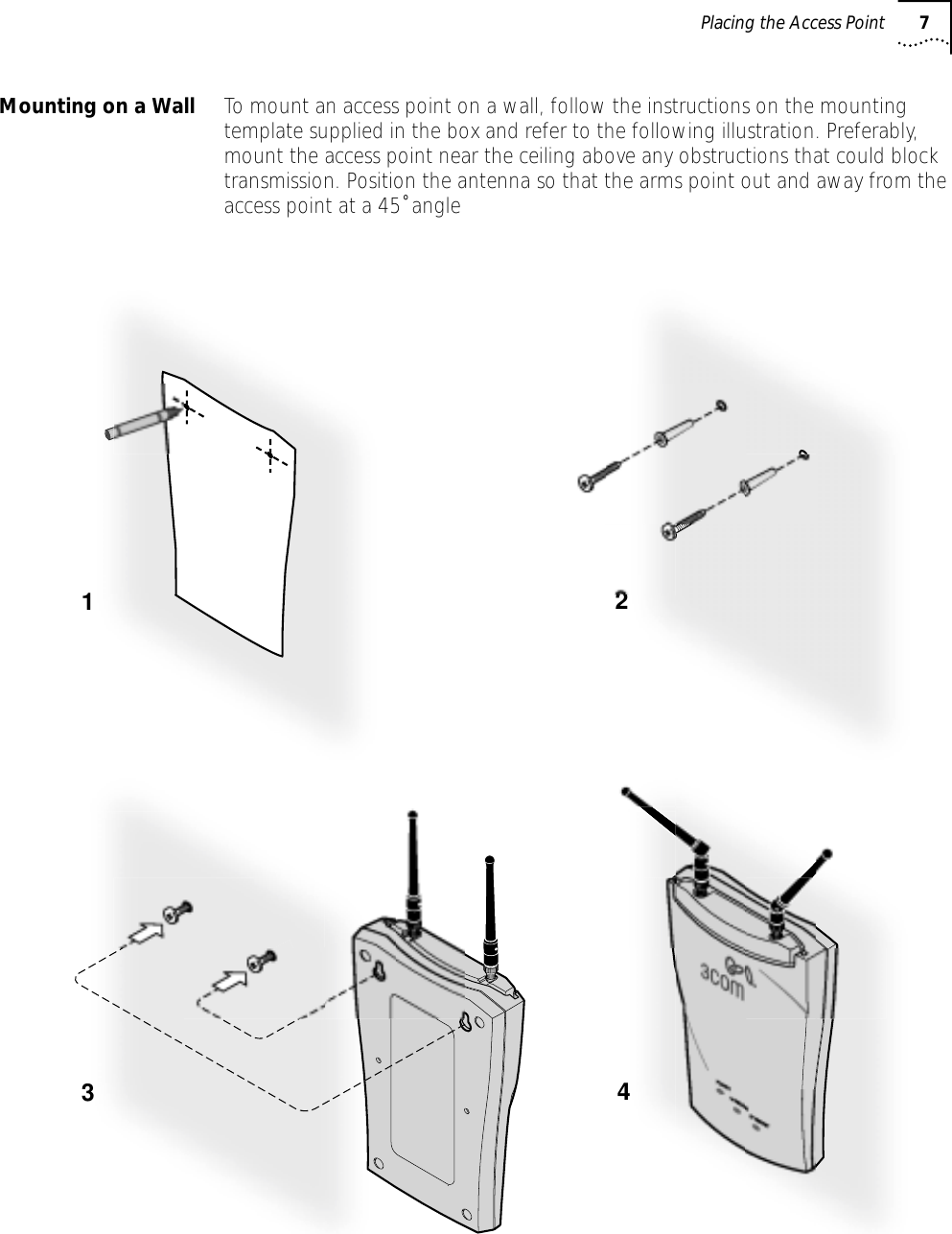
 Placing the Access Point 7Mounting on a Wall To mount an access point on a wall, follow the instructions on the mounting template supplied in the box and refer to the following illustration. Preferably, mount the access point near the ceiling above any obstructions that could block transmission. Position the antenna so that the arms point out and away from the access point at a 45˚ angle1234
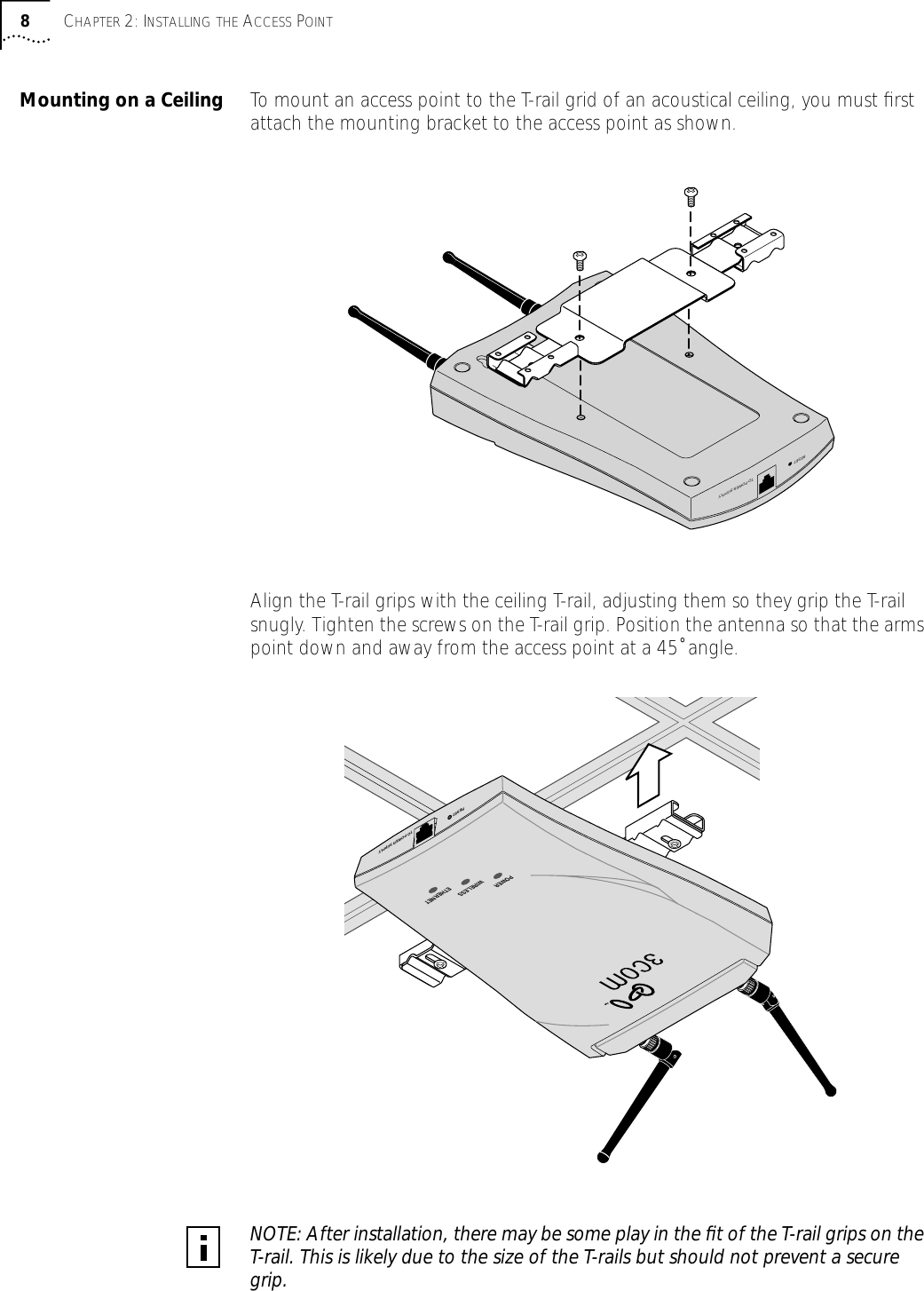
8CHAPTER 2: INSTALLING THE ACCESS POINTMounting on a Ceiling To mount an access point to the T-rail grid of an acoustical ceiling, you must first attach the mounting bracket to the access point as shown.Align the T-rail grips with the ceiling T-rail, adjusting them so they grip the T-rail snugly. Tighten the screws on the T-rail grip. Position the antenna so that the arms point down and away from the access point at a 45˚ angle.NOTE: After installation, there may be some play in the fit of the T-rail grips on the T-rail. This is likely due to the size of the T-rails but should not prevent a secure grip.RESETTO POWER SUPPLYPOWERWIRELESSETHERNETRESETTO POWER SUPPLY
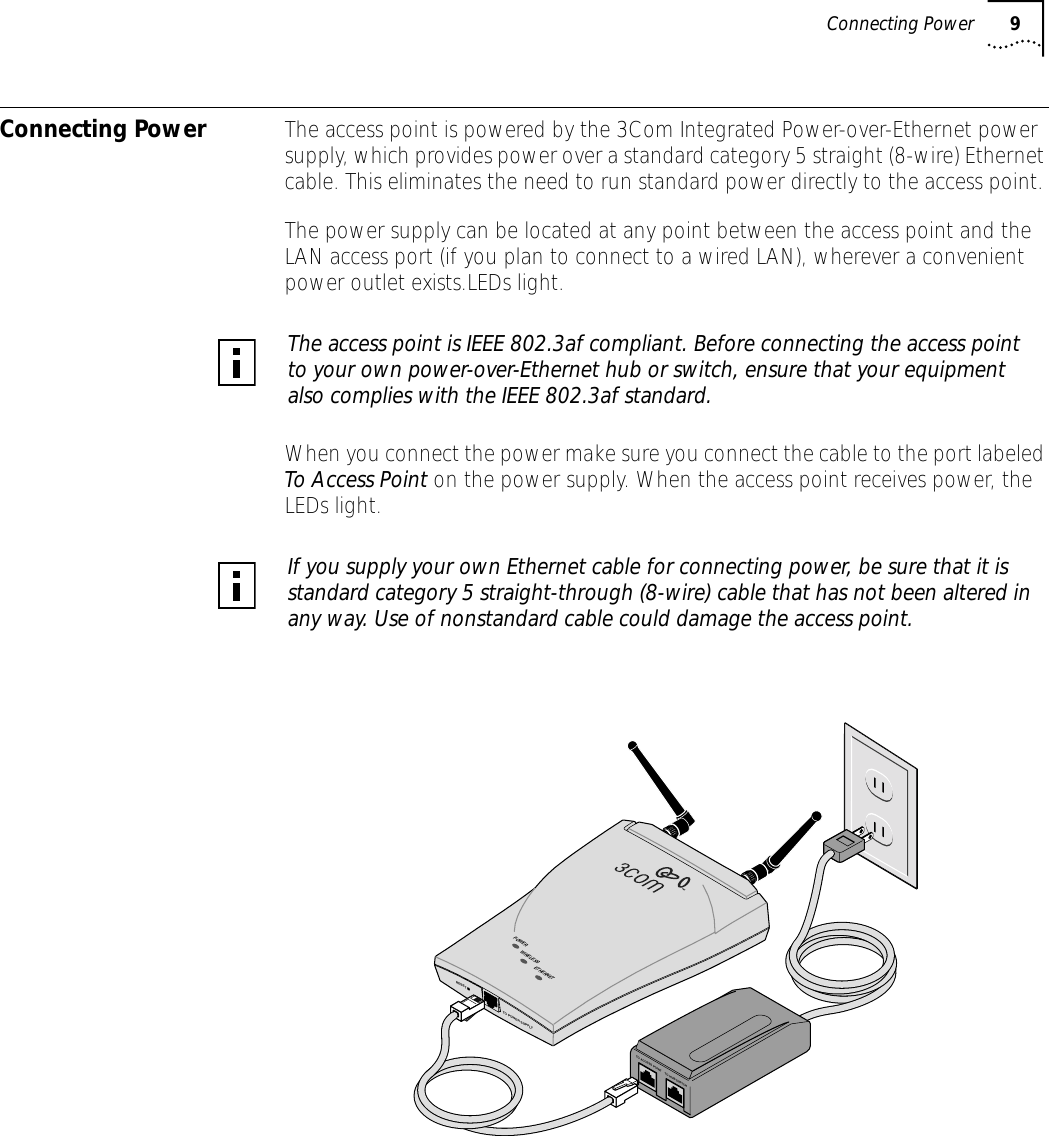
Connecting Power 9Connecting Power The access point is powered by the 3Com Integrated Power-over-Ethernet power supply, which provides power over a standard category 5 straight (8-wire) Ethernet cable. This eliminates the need to run standard power directly to the access point. The power supply can be located at any point between the access point and the LAN access port (if you plan to connect to a wired LAN), wherever a convenient power outlet exists.LEDs light.When you connect the power make sure you connect the cable to the port labeled To Access Point on the power supply. When the access point receives power, the LEDs light.The access point is IEEE 802.3af compliant. Before connecting the access point to your own power-over-Ethernet hub or switch, ensure that your equipment also complies with the IEEE 802.3af standard.If you supply your own Ethernet cable for connecting power, be sure that it is standard category 5 straight-through (8-wire) cable that has not been altered in any way. Use of nonstandard cable could damage the access point.RESETTO POWER SUPPLYETHERNETWIRELESSPOWERTO ACCESS POINTTO HUB/SWITCH
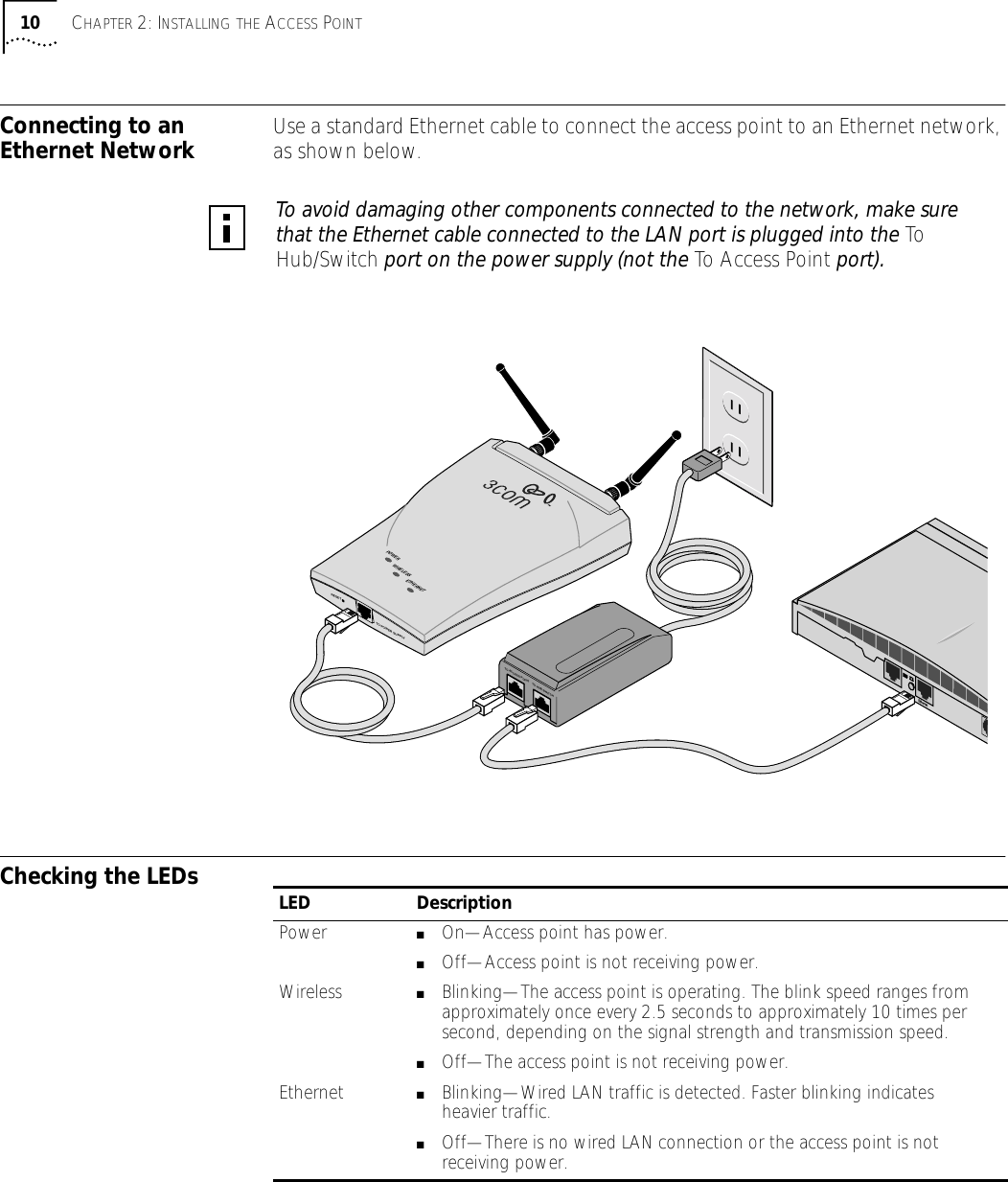
10 CHAPTER 2: INSTALLING THE ACCESS POINTConnecting to an Ethernet Network Use a standard Ethernet cable to connect the access point to an Ethernet network, as shown below.Checking the LEDsTo avoid damaging other components connected to the network, make sure that the Ethernet cable connected to the LAN port is plugged into the To Hub/Switch port on the power supply (not the To Access Point port).RESETTO POWER SUPPLYETHERNETWIRELESSPOWERTO ACCESS POINT TO HUB/SWITCHEthernetLED DescriptionPower ■On—Access point has power.■Off—Access point is not receiving power.Wireless ■Blinking—The access point is operating. The blink speed ranges from approximately once every 2.5 seconds to approximately 10 times per second, depending on the signal strength and transmission speed.■Off—The access point is not receiving power.Ethernet ■Blinking—Wired LAN traffic is detected. Faster blinking indicates heavier traffic.■Off—There is no wired LAN connection or the access point is not receiving power.
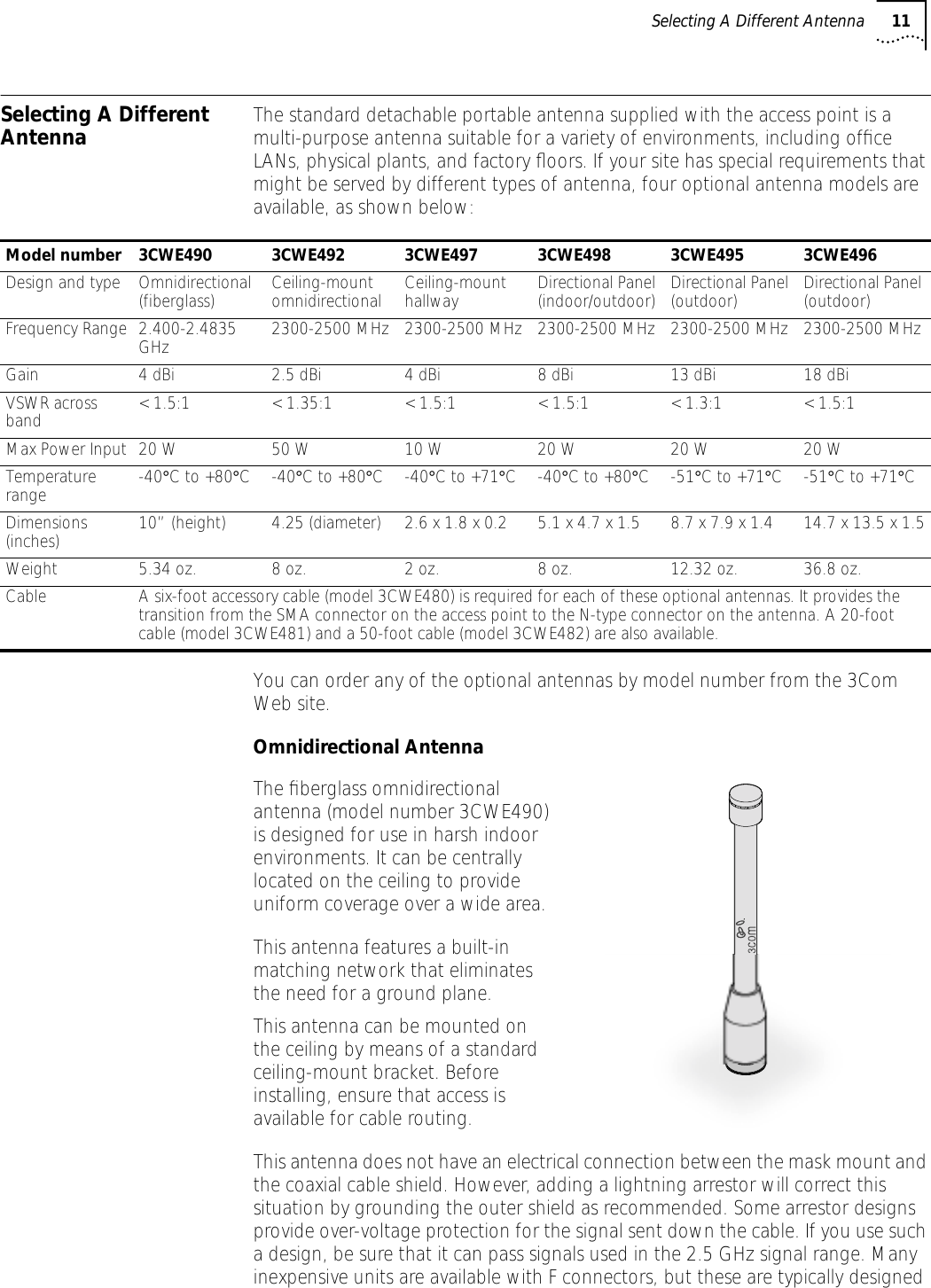
Selecting A Different Antenna 11Selecting A Different Antenna The standard detachable portable antenna supplied with the access point is a multi-purpose antenna suitable for a variety of environments, including office LANs, physical plants, and factory floors. If your site has special requirements that might be served by different types of antenna, four optional antenna models are available, as shown below:You can order any of the optional antennas by model number from the 3Com Web site.Omnidirectional AntennaThe fiberglass omnidirectional antenna (model number 3CWE490) is designed for use in harsh indoor environments. It can be centrally located on the ceiling to provide uniform coverage over a wide area.This antenna features a built-in matching network that eliminates the need for a ground plane.This antenna can be mounted on the ceiling by means of a standard ceiling-mount bracket. Before installing, ensure that access is available for cable routing.This antenna does not have an electrical connection between the mask mount and the coaxial cable shield. However, adding a lightning arrestor will correct this situation by grounding the outer shield as recommended. Some arrestor designs provide over-voltage protection for the signal sent down the cable. If you use such a design, be sure that it can pass signals used in the 2.5 GHz signal range. Many inexpensive units are available with F connectors, but these are typically designed Model number 3CWE490 3CWE492 3CWE497 3CWE498 3CWE495 3CWE496Design and type Omnidirectional (fiberglass) Ceiling-mount omnidirectional Ceiling-mount hallway Directional Panel (indoor/outdoor) Directional Panel (outdoor) Directional Panel (outdoor)Frequency Range 2.400-2.4835 GHz 2300-2500 MHz 2300-2500 MHz 2300-2500 MHz 2300-2500 MHz 2300-2500 MHzGain 4 dBi 2.5 dBi 4 dBi 8 dBi 13 dBi 18 dBiVSWR across band < 1.5:1 < 1.35:1 < 1.5:1 < 1.5:1 < 1.3:1 < 1.5:1Max Power Input 20 W 50 W 10 W 20 W 20 W 20 WTemperature range -40°C to +80°C -40°C to +80°C -40°C to +71°C -40°C to +80°C -51°C to +71°C -51°C to +71°CDimensions (inches) 10” (height) 4.25 (diameter) 2.6 x 1.8 x 0.2 5.1 x 4.7 x 1.5 8.7 x 7.9 x 1.4 14.7 x 13.5 x 1.5Weight 5.34 oz. 8 oz. 2 oz. 8 oz. 12.32 oz. 36.8 oz.Cable A six-foot accessory cable (model 3CWE480) is required for each of these optional antennas. It provides the transition from the SMA connector on the access point to the N-type connector on the antenna. A 20-foot cable (model 3CWE481) and a 50-foot cable (model 3CWE482) are also available.
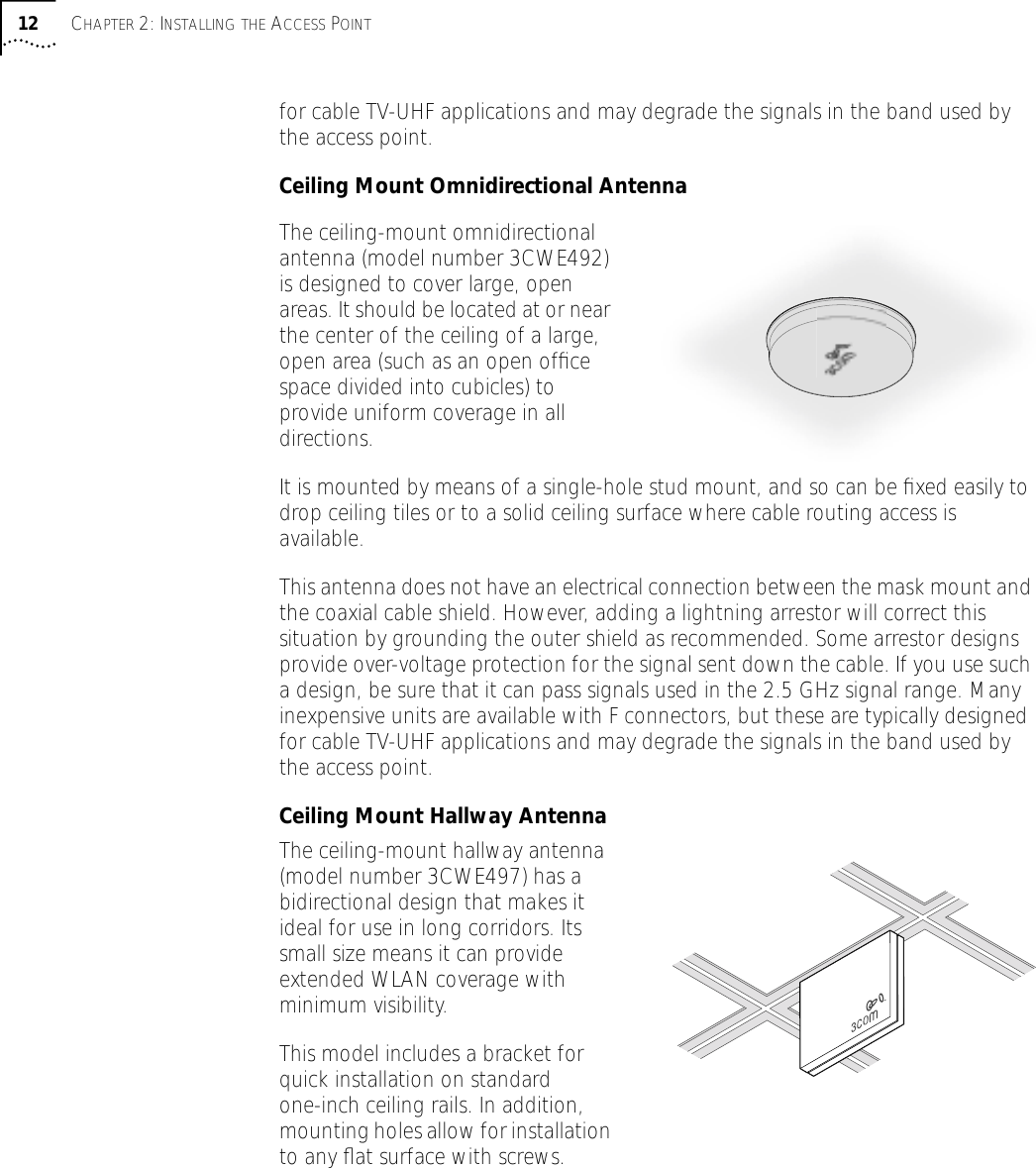
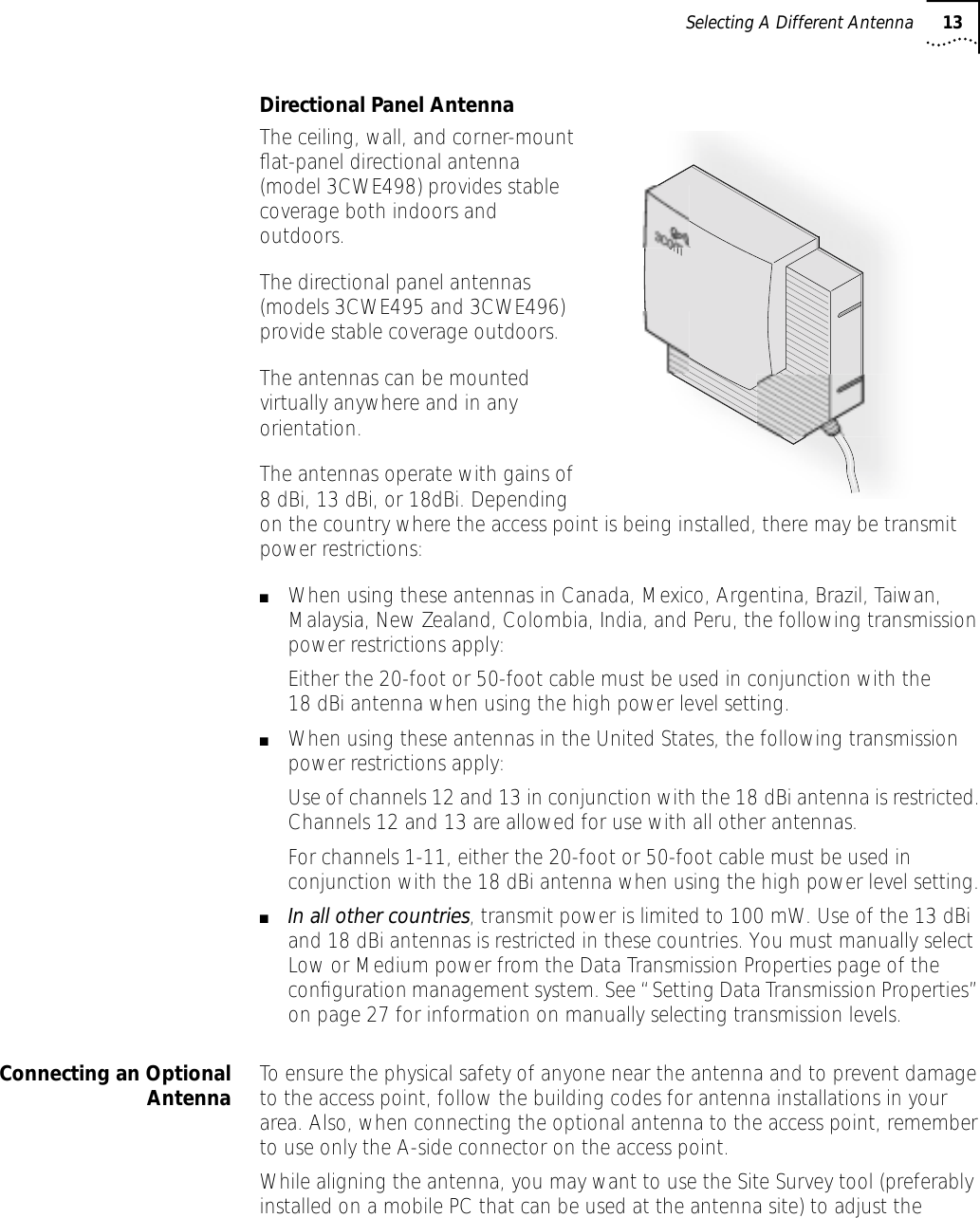
12 CHAPTER 2: INSTALLING THE ACCESS POINTfor cable TV-UHF applications and may degrade the signals in the band used by the access point.Ceiling Mount Omnidirectional AntennaThe ceiling-mount omnidirectional antenna (model number 3CWE492) is designed to cover large, open areas. It should be located at or near the center of the ceiling of a large, open area (such as an open office space divided into cubicles) to provide uniform coverage in all directions.It is mounted by means of a single-hole stud mount, and so can be fixed easily to drop ceiling tiles or to a solid ceiling surface where cable routing access is available.This antenna does not have an electrical connection between the mask mount and the coaxial cable shield. However, adding a lightning arrestor will correct this situation by grounding the outer shield as recommended. Some arrestor designs provide over-voltage protection for the signal sent down the cable. If you use such a design, be sure that it can pass signals used in the 2.5 GHz signal range. Many inexpensive units are available with F connectors, but these are typically designed for cable TV-UHF applications and may degrade the signals in the band used by the access point.Ceiling Mount Hallway AntennaThe ceiling-mount hallway antenna (model number 3CWE497) has a bidirectional design that makes it ideal for use in long corridors. Its small size means it can provide extended WLAN coverage with minimum visibility.This model includes a bracket for quick installation on standard one-inch ceiling rails. In addition, mounting holes allow for installation to any flat surface with screws.
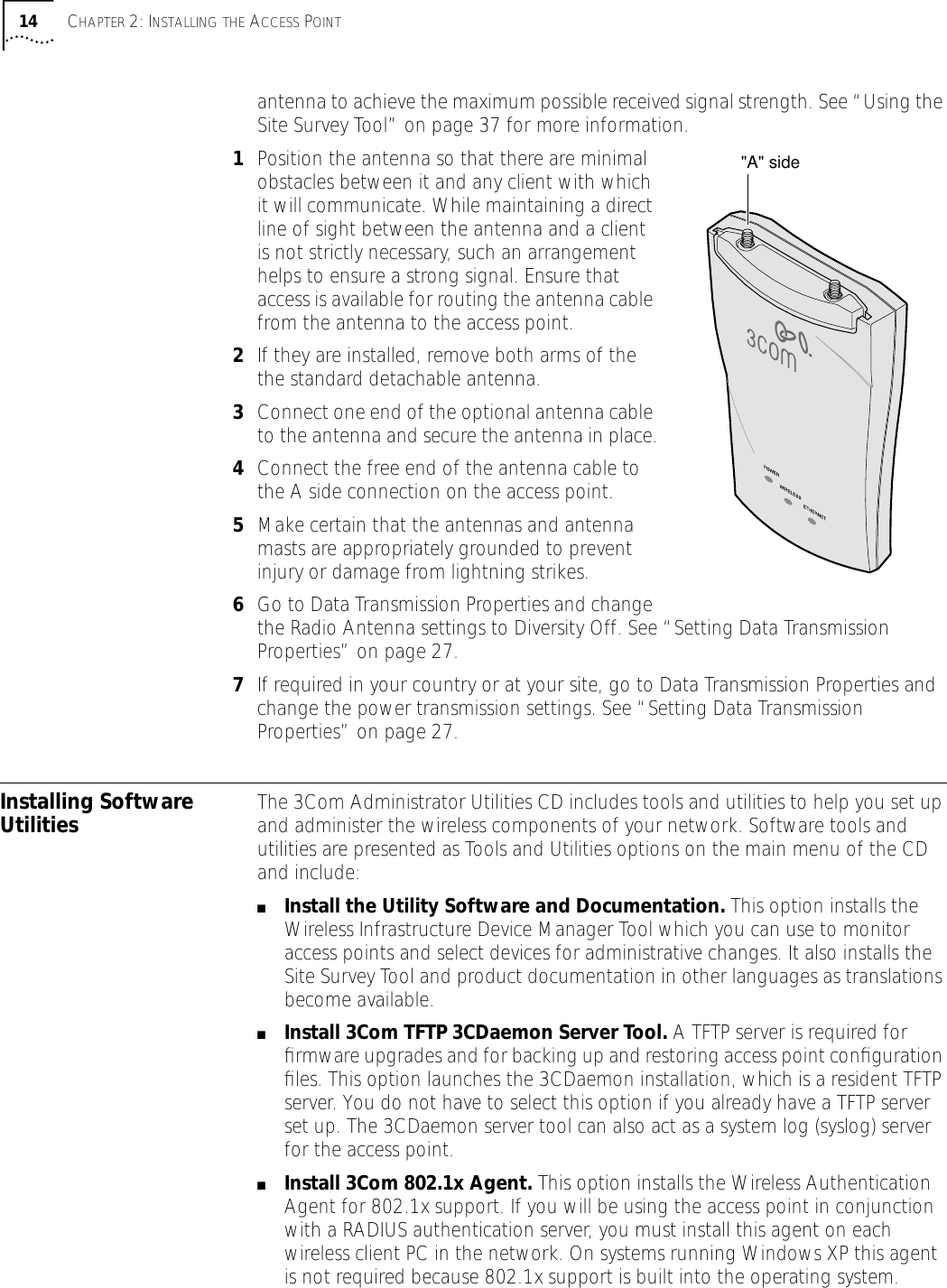
Selecting A Different Antenna 13Directional Panel AntennaThe ceiling, wall, and corner-mount flat-panel directional antenna (model 3CWE498) provides stable coverage both indoors and outdoors.The directional panel antennas (models 3CWE495 and 3CWE496) provide stable coverage outdoors.The antennas can be mounted virtually anywhere and in any orientation.The antennas operate with gains of 8 dBi, 13 dBi, or 18dBi. Depending on the country where the access point is being installed, there may be transmit power restrictions:■When using these antennas in Canada, Mexico, Argentina, Brazil, Taiwan, Malaysia, New Zealand, Colombia, India, and Peru, the following transmission power restrictions apply:Either the 20-foot or 50-foot cable must be used in conjunction with the 18 dBi antenna when using the high power level setting.■When using these antennas in the United States, the following transmission power restrictions apply:Use of channels 12 and 13 in conjunction with the 18 dBi antenna is restricted. Channels 12 and 13 are allowed for use with all other antennas.For channels 1-11, either the 20-foot or 50-foot cable must be used in conjunction with the 18 dBi antenna when using the high power level setting.■In all other countries, transmit power is limited to 100 mW. Use of the 13 dBi and 18 dBi antennas is restricted in these countries. You must manually select Low or Medium power from the Data Transmission Properties page of the configuration management system. See “Setting Data Transmission Properties” on page 27 for information on manually selecting transmission levels.Connecting an OptionalAntenna To ensure the physical safety of anyone near the antenna and to prevent damage to the access point, follow the building codes for antenna installations in your area. Also, when connecting the optional antenna to the access point, remember to use only the A-side connector on the access point.While aligning the antenna, you may want to use the Site Survey tool (preferably installed on a mobile PC that can be used at the antenna site) to adjust the
14 CHAPTER 2: INSTALLING THE ACCESS POINTantenna to achieve the maximum possible received signal strength. See “Using the Site Survey Tool” on page 37 for more information.1Position the antenna so that there are minimal obstacles between it and any client with which it will communicate. While maintaining a direct line of sight between the antenna and a client is not strictly necessary, such an arrangement helps to ensure a strong signal. Ensure that access is available for routing the antenna cable from the antenna to the access point.2If they are installed, remove both arms of the the standard detachable antenna.3Connect one end of the optional antenna cable to the antenna and secure the antenna in place.4Connect the free end of the antenna cable to the A side connection on the access point.5Make certain that the antennas and antenna masts are appropriately grounded to prevent injury or damage from lightning strikes.6Go to Data Transmission Properties and change the Radio Antenna settings to Diversity Off. See “Setting Data Transmission Properties” on page 27.7If required in your country or at your site, go to Data Transmission Properties and change the power transmission settings. See “Setting Data Transmission Properties” on page 27.Installing Software Utilities The 3Com Administrator Utilities CD includes tools and utilities to help you set up and administer the wireless components of your network. Software tools and utilities are presented as Tools and Utilities options on the main menu of the CD and include:■Install the Utility Software and Documentation. This option installs the Wireless Infrastructure Device Manager Tool which you can use to monitor access points and select devices for administrative changes. It also installs the Site Survey Tool and product documentation in other languages as translations become available.■Install 3Com TFTP 3CDaemon Server Tool. A TFTP server is required for firmware upgrades and for backing up and restoring access point configuration files. This option launches the 3CDaemon installation, which is a resident TFTP server. You do not have to select this option if you already have a TFTP server set up. The 3CDaemon server tool can also act as a system log (syslog) server for the access point.■Install 3Com 802.1x Agent. This option installs the Wireless Authentication Agent for 802.1x support. If you will be using the access point in conjunction with a RADIUS authentication server, you must install this agent on each wireless client PC in the network. On systems running Windows XP this agent is not required because 802.1x support is built into the operating system."A" side
Installing Software Utilities 15■Install the 3Com Network Supervisor. The 3Com Network Supervisor v. 3.5 (3NS) graphically discovers, maps, and displays network links and IP devices, including 3Com wireless access points. It is not required for access point management. It is included for sites that require centralized network management and are not already using an SNMP-based tool. 3NS maps devices and connections so you can easily monitor stress levels, set thresholds and alerts, view network events, generate reports in user-defined formats, and launch device configuration tools. For use with the Access Point 8000, it should be installed in conjunction with the 3Com Network Supervisor Advanced Package v 1.0.■Install the 3Com Network Supervisor Advanced Package v 1.0. This is a supplementary upgrade package that lets the 3Com Network Supervisor manage additional 3Com equipment. You should install the service pack only after installing the 3Com Network Supervisor.■Install Adobe Acrobat Reader. For users who do not already have Acrobat Reader 5.0 for viewing the PDF documentation, a current version is included on the CD.■Install Internet Explorer 5.5. A copy of Internet Explorer is included on the CD in case you are running an older browser. You must have Internet Explorer 5.0 or greater or Netscape 6.0 or greater in order to use the Configuration Management System. We recommend that you make this the default browser on the workstation you will use for system configuration and management.To install a tool from the CD:1Turn on the computer and put the 3Com CD in the CD-ROM drive.2The setup menu should appear when the CD autostarts. If no menu appears, you can run the startup program from the Windows Start menu: Start / Run / d:setup.exe.3From the CD startup menu, select Tools and Utilities.4Select the item you want to install and follow the instructions on the screen.
3ACCESS POINT SECURITYThe advanced security features of the Access Point 8000 address the two primary aspects of wireless networking security: network authentication and transmission encryption. The access point provides standardized methods for authentication and encryption, but also offers innovative technology from 3Com that extends the standards and makes wireless networking more secure.The access point can provide a complete stand-alone security solution. Alternatively, it can be integrated into an enterprise-class security solution, interacting with a networked RADIUS server and 802.1x-enabled wireless clients.Upper-Layer Authentication The basic authentication schemes defined in the 802.11 standard are limiting because they do not provide a way to centralize authentication information into a central server. Upper layer authentication solves this problem. Through the use of the Extensible Authentication Protocol (EAP), the access point supports a number of upper layer authentication schemes, including EAP-MD5, EAP-TLS, and 3Com Serial Authentication.EAP-MD5 EAP-MD5 provides a simple way to centralize client network authentication information in a RADIUS server. Under this scheme, the server does not require certificates or other security information installed on client machines. At login, the RADIUS server verifies the username and password provided by the user. Once the user is authenticated, the server informs the access point of successful authentication and data traffic from the client is allowed to pass to the wired network. EAP-MD5 provides authentication only. It is possible to configure the access point to use any of the 802.11 standard encryption mechanisms along with EAP-MD5 authentication. EAP-MD5 is a one-way authentication scheme: it authenticates the client to the server, but does not authenticate the server to the client.EAP-MD5 is supported by the 3Com 802.1x agent (described below) and is built into the Windows XP operating system.EAP-TLS EAP-TLS provides both authentication and dynamic session key distribution.This authentication scheme provides mutual authentication between the client and server. A unique X.509 certificate must be generated for each network user. In addition, the certificate must be installed on all client PCs that will be used to log onto the network. Both a client and a server certificate are exchanged as part of authentication.Once authenticated, the server informs the access point and data traffic from the client is allowed to pass to the wired network. As part of authentication, the client and TLS server derive session-specific keys based on information shared between
18 CHAPTER 3: ACCESS POINT SECURITYthem. After successful authentication, the TLS server securely sends the session keys to the access point and user data is allowed to pass. EAP-TLS is currently supported only under Windows XP.3Com SerialAuthentication Serial Authentication, a 3Com-proprietary upper layer authentication mechanism, uses a two-phase process involving both EAP-TLS and EAP-MD5■In the first phase, the wireless client and the RADIUS EAP-TLS server mutually authenticate each other. All clients can authenticate to the TLS server because a common certificate is provided during software installation. Successful completion of this phase establishes dynamic session keys that protect subsequent communication between the wireless client and access point.■In the second phase, the server can securely use EAP-MD5 to authenticate the user. Once authenticated, the server informs the access point and data traffic from the client is allowed to pass to the wired network.3Com Serial Authentication also includes optional dynamic session-key renewal, which greatly enhances system security. Dynamic key renewal means that, following the initial upper layer authentication, the client and the access point periodically update the session keys used for encryption. 3Com’s Serial Authentication method provides obvious advantages. By combining encryption key distribution and a secure network authentication, it makes use of two complementary authentication schemes. Additionally, the client and the access point dynamically update session keys while the network session is in progress. Because Serial Authentication is a 3Com proprietary scheme, it must be used with the 3Com Wireless LAN PC Card (model 3CRWE62092A) and the 3Com Access Point 8000. Serial authentication is supported by the 3Com 802.1x agent (described below).Additional Security Configuration Options If you choose not to use an upper layer authentication scheme, 3Com’s security solution also supports the authentication and encryption methods described below.Open Network. The open-network option assumes that neither authentication nor encryption are required. No security is used.40-bit Shared Key Encryption. This option is compatible with Wi-Fi certified equipment from other vendors. Encryption keys must be set up on both the client and the access point. The network administrator sets up a fixed set of encryption keys for the wireless network and supplies users with an encryption string or a set of hexadecimal keys. This option can be used with local access point authentication or with EAP-MD5 RADIUS authentication.128-bit Shared Key Encryption. This option is compatible with 128-bit shared key from most vendors, including 3Com, Agere, and Cisco. The network administrator sets up encryption keys for the wireless network and supplies users with an encryption string or hexadecimal keys. You must set up encryption keys on both the client and access point. This option can be used with local access point authentication or with EAP-MD5 RADIUS authentication.
802.1x RADIUS Support 193Com 128-bit Dynamic Security Link Encryption. 3Com’s proprietary 128-bit Dynamic Security Link is built into the access point and permits user-level authentication. This option can be used only with local access point authentication. Users must log in with username and password. (The access point username and password database can support up to 1000 names.) Once the user is authenticated, the access point dynamically creates a unique 128-encryption key for the user for that session. Encryption keys are generated automatically and so do not need to be supplied. To take advantage of this security setting, clients must use a 3Com Wireless LAN PC Card (model 3CRWE62092A).802.1x RADIUS Support The IEEE 802.1x standard specifies a general method for the provision of port-based network access control. It provides an architecture framework for User-RADIUS authentication through an authenticator such as a wireless access point or a switch. The access point supports any RADIUS implementation compliant with RFC 2865 and following standard EAP, RFC 2284, 2716, and 2548 protocols. This includes support for port-based network access control, which permits standard security protocols such as EAP and RADIUS to provide centralized user identification, authentication, dynamic key management, and accounting. (The access point supports RADIUS Accounting per RFC2866: Username, Start time, Stop time, and Packet input/output.)Using the Wireless 802.1x Agent 3Com provides a software utility to allow Windows clients to authenticate to the Access Point 8000 using either EAP-MD5 or 3Com Serial Authentication. The 802.1x agent can be used with any vendor’s PC card, but to take advantage of 3Com’s Serial Authentication, it must be used with a 3Com Wireless LAN PC Card (model 3CRWE62092A) that has been upgraded to the latest firmware. A copy of the agent must be installed on each client computerUse the 3Com CD to install the wireless 802.1x agent on systems running under, Windows 98, Windows 98 SE, Windows ME, Windows NT 4.0 with Service Pack 6a, Windows 2000, or Windows XP. Systems running under Windows XP include support for EAP-MD5 and EAP-TLS. On Windows XP, the 802.1x agent is only required when using 3Com’s Serial Authentication.Authentication andLogin Authentication is initiated by associating to the access point. Alternatively, authentication can be manually initiated by selecting Start from the 802.1x agent menu. At login, the agent prompts for user name and password. The user name and password must match the name and password maintained by the RADIUS server.When the agent is running, a status icon in the system tray monitors the authentication process. The appearance of this icon changes to reflect the current state of the authentication process. If the user hovers the mouse over the icon, a tool tip also appears to indicate the current authentication status. 3Com does not supply RADIUS software or configuration instructions other than what is applicable for access point configuration. Refer to your system administrator for additional third-party software and configuration information. The access point supports any RADIUS server that complies with RFC 2865 and follows standard EAP, RFC 2284, 2716, and 2548.
20 CHAPTER 3: ACCESS POINT SECURITYIf authentication fails, the access point will continue to block traffic from that client. The user may also manually log off and stop the agent, which suspends the authentication process until the client manually logs on again or intentionally re-associates with an access point. When a computer is logged off manually, the access point blocks traffic from the client until the client logs on again.Note that your authentication status icon may not necessarily reflect your connection status. The status icon cannot be updated if the authenticating access point cannot communicate with your computer. For example, you may have left the coverage area of a subnet maintained by the access point in your network. If you have roamed to the coverage area of another type of access point, the status icon will continue to reflect the status it displayed when it was last in contact with the authenticating access point. If you are unsure of your authentication status:■Log off and log on again.■Check the adapter status to see if it is still associating with an access point.802.1x Client Properties Use the Properties window to configure the agent for the type of authentication the client should use.Enable network access control using IEEE 802.1X. This box must be checked if you are using authentication with your RADIUS server. If this box is unchecked, the remainder of the window is grayed out.Network Adapter. Use this field to identify the network adapter to use for connections requiring authentication. The list box lists all the network adapters found in the computer. The highest level of security, 3Com’s Serial Authentication, is available when the 3Com Wireless LAN PC card is installed and selected.Authentication Method. This field lets you specify the authentication method used for this connection. The wireless authentication agent supports two types of authentication:■EAP-MD5■Serial Authentication The client and the access point must have the same authentication settings. If you switch from serial authentication to EAP-MD5, or from EAP-MD5 to serial authentication, clients will have to re-associate to the access point. When using serial authentication with a 3Com Wireless LAN PC card, you should configure the card to use “no security.” This is because the 802.1x agent configures the security on the card. Serial Authentication Advanced Configuration. This window lets you configure how the 802.1x agent handles certificates received from the EAP-TLS server. The first option enables verification of authentication server certificates. When this option is disabled, the 802.1x agent will not validate authentication server certificates. Disabling this verification results in one-way authentication of the client to the server, instead of the normal mutual authentication that takes place in EAP-TLS.Two settings affect the way the 802.1x agent verifies the authentication sever certificate. The first option allows you to import a certificate for a trusted server. The second option causes the 802.1x agent to prompt for user validation
Using the Wireless 802.1x Agent 21whenever an untrusted certificate is received. The 802.1x agent remembers the last trusted certificate, whether imported or manually verified, and automatically accepts that certificate.
4CONFIGURING THE ACCESS POINT 8000If the access point factory default configuration does not meet your network requirements, or if you want to customize the configuration settings, you can use these tools, which are included on the 3Com Access Point 8000 Installation CD, to change the configuration. ■3Com Wireless Infrastructure Device Manager—As a discovery tool, the Device Manager finds all of the 3Com wireless infrastructure devices on the same network segment as your workstation. It starts up with a hierarchical representation of the wireless infrastructure. You can select a device from this display, view its properties, and open the device for configuration and management through its configuration management system.■3Com Network Supervisor (3NS) — 3Com Network Supervisor graphically discovers, maps, and displays network links and IP devices, including 3Com wireless access points. It maps devices and connections so you can easily monitor stress levels, set thresholds and alerts, view network events, generate reports in user-defined formats, and launch device configuration tools. When your network changes, you can prompt 3Com Network Supervisor to regenerate the appropriate part of the map to ensure that you have current information. Automated operations, intelligent defaults, and the ability to detect Network misconfigurations and offer optimization suggestions make this application ideal for network managers at all levels of experience. Together with the optional 3Com Network Supervisor Advanced Package, 3Com Network Supervisor Version 3.5 helps businesses manage larger networks and easily upgrade agent software in 3Com devices. For detailed information on features and installation, refer to the Network Supervisor user guide which is installed with the Network Supervisor software. ■3Com 11 Mbps Wireless LAN Access Point 8000 Configuration Management System—The Configuration Management System is a set of Web pages stored on the access point that lets you view and modify the access point configuration settings through the Web browser on your workstation. (You must have Internet Explorer 5.0 or later or Netscape 6.0 or later installed as the default browser on your workstation.)Installing the Device Manager  The 3Com Wireless Infrastructure Device Manager can be installed on any Windows client or on a desktop computer wired to the LAN. 1Turn on the computer.2Put the 3Com CD in the CD-ROM drive.3In the main screen, click Tools and Utilities.4In the next screen, click Install Utility Software and Documentation.5Follow the instructions on the screens to complete the installation.
24 CHAPTER 4: CONFIGURING THE ACCESS POINT 80006After you install the device manager, you can launch it by double-clicking the device manager icon on your computer desktop, or, from the Windows Start menu select Start / Programs / 3Com Wireless Infrastructure Device Manager / 3Com Wireless Infrastructure Device Manager.Launching a Wireless Device Configuration Make sure that the 3Com Wireless Infrastructure Device Manager is installed. The device to be configured must be either wired to the network, associating with the wireless network, or connected directly to the computer, and it must be connected to power. If more than one device using the factory default name is connected, make a note of the MAC address of the device you want to select so that you can identify it in the device manager.If you do not have a DHCP server on your network, it can take up to one minute for a device to become discoverable after it has been powered up.1To launch the device manager, select Start /Programs /3Com Wireless/Wireless Infrastructure Device Manager.If you have more than one network adapter installed on your computer, you may be prompted to choose a network adapter. Choose the appropriate adapter and click OK.The Wireless Network Tree appears in the 3Com Wireless Infrastructure Device Manager window. The tree lists all WLAN service areas on the network and expands to show the 3Com wireless LAN devices that are associated to each service area. Devices in a different subnet than your computer are identified with exclamation points (!). You can refresh this display by clicking Refresh. You should refresh the display, for example, after you change a device IP address.2In the Wireless Network Tree, select the device you want to configure.If more than one wireless LAN device appears in the tree and you are not sure that you have selected the right one, click Properties and check the MAC address to verify that it is the one you want. 3Click Configure. ■If the selected device is on the same subnet as your computer, the Configuration Management System main page appears in your Web browser. (If a password is set on the device, enter it when prompted.)■If the selected device is on a different subnet, the Pre-IP Configuration Wizard is activated automatically. This wizard lets you configure the IP settings for the selected wireless device. It proposes IP address and subnet mask settings derived from your computer’s settings, so the selected device will then reside on the same subnet as your computer. You can accept the suggested settings or change them as required. The next window prompts for an administrative password to allow the new IP address to be set. When the units are shipped from the factory, there is no administration password and you should leave the password field blank. If an administration password has been set for the device, enter the password and click Next. The Configuration Management System main page appears in your Web browser.
Using the Configuration Management System 25The following table describes the functions of the buttons in the 3Com Wireless Infrastructure Device Manager window.Using the Configuration Management SystemFrom the Configuration Management System main page, you can select which configuration page to view by clicking on the page names in the navigation tree in the left-hand frame. The corresponding content is displayed in the main window. Each page has a question mark icon in the upper-right corner that you can use to display help on the contents of that page.The Configuration Management System is password protected. If you are starting it for the first time, it asks you to enter and confirm an administrative password. If the device has an administrative password, the default Web browser prompts for username and password (you need not enter the username – only the password is required).The following table summarizes the Access Point 8000 configuration pages.Button DescriptionProperties Displays the following properties of the selected device: Device Name, Device Type, Wireless LAN Service Area (ESSID), IP Address, Subnet Mask, and MAC Address.Configure Launches the Configuration Management System for the selected device. If the selected device is on a different subnet, you are prompted to assign an address on the same subnet as your computer.Refresh Scans the network and displays the connected 3Com 11 Mbps Wireless LAN devices.Choose NIC If your computer has more than one network interface card installed, allows you to choose which card you want to use.Close Closes the device manager window and ends the session.Help Launches the device manager help page in your browser.Any changes you make on a configuration page must be saved before you leave that page. Otherwise, the settings will revert back to the current settings. New settings are applied to the device as each save operation is completed.Page Group DescriptionSystem Configuration The system configuration pages are concerned with high-level network management, including access point properties, network properties, and data transmission properties.Security The Security pages allow you to set up authentication and encryption, control access, and set up access point RADIUS server parameters.Management The Management pages let you configure the access point for use with third-party SNMP management programs, specify the TFTP server you will use for various administrative functions, and set up the access point system log.Tools Use the Tools pages to upgrade access point firmware, change the administration password, restore factory defaults, and reset the access point.Statistics The Statistics pages display various categories of operational and performance statistics associated with the access point.
26 CHAPTER 4: CONFIGURING THE ACCESS POINT 8000Changing Access Point Properties The Access Point Properties page displays the properties of the selected access point. You can change properties by entering values in the fields and clicking the radio buttons described below. When you are finished, click Save.■Device Name—This name appears on the device manager window.■Device Location—Optionally, you can enter the location of the access point.■Wireless LAN Service Area—To enable clients to roam among multiple access points, the access points must have identical WLAN service areas. To maintain wireless association, the WLAN service area on the client and the access point with which it is associated must match exactly. If you are associated with the access point that you are configuring and you change the access point WLAN service area, make sure to change the client WLAN service area also.Setting Network Properties The Network Properties page lets you change the settings shown below. ■Network Setting—This setting lets you change the IP address of the access point.To let the access point get an IP address automatically from a DHCP server, click Obtain an IP address automatically and click Save.To specify an IP address, click Specify an IP address, enter the IP address parameters in the spaces provided, and click Save. If you change the IP address, you cannot continue to configure the access point using the old IP address. If you want to continue configuring this access point, you must close your browser and start a new configuration session.When you specify an IP address, the access point cannot act as a DHCP server. Make sure that clients are using IP addresses on the same network. ■Wireless DHCP Server—If your wired network has a DHCP server, it is recommended that you use it. However, the access point provides a DHCP server that can automatically assign addresses to clients in a simple, all-wireless network.The access point’s default IP address is 169.254.xxx.1, where xxx is the last byte of the access point’s MAC address. When it is acting as a DHCP server, the access point can assign up to 253 IP addresses to currently associated wireless clients. The IP addresses range from 169.254.xxx.2 to 169.254.xxx.254.If the access point detects that another DHCP server is available, all wireless clients get IP addresses from that DHCP server. If your wired LAN DHCP server goes down, the access point assigns IP addresses after the lease periods on the previous IP addresses expire.To let the access point act as a DHCP server when there is no other DHCP server available, click Enable and click Save. System Status The System Status pages show currently associated clients, general information about the access point, and details about wireless configuration settings.Page Group Description
Setting Data Transmission Properties 27To turn off the access point DHCP server capability regardless of whether or not another DHCP server is available, click Disable and click Save.■Gateways—You can specify up to three additional gateway IP addresses. These settings are optional. (Only the default gateway is required).Setting Data Transmission PropertiesThe Data Transmission Properties page lets you select radio channel settings and performance settings. This page contains a link to the Advanced Settings page, where you can set additional data transmission properties.■Clear Channel Select—Lets the access point find a channel automatically.When this option is enabled, the access point scans the primary channels to determine the traffic on those channels and chooses the channel with the least number of packets.By default, the access point automatically selects the optimal channel for wireless transmissions. The access point will select between channels 1–13. If your network supports clients that do not acknowledge 13 channels, you will have to manually select a channel within the reach of those clients. For example, if you have clients that only support channels 1–11, you must manually set the access point to use a specific channel in that range.If France, you must manually select from channels 10–13.To select a specific channel, click the off (Specify the channel) button and choose a channel from the Channel list. ■Network Traffic Accelerator—To increase performance, click On (enhanced performance). If you experience problems when equipment other than 3Com 11 Mbps Wireless LAN equipment is being used, click Off.■Data Preamble—To increase performance, click Short (enhanced performance). When equipment that does not support short preamble is also being used, click Long.■Data Rate—These settings configure the data rates used for wireless transmissions. By default, the access point selects the best data rate for the current connection.If “Automatically set the best data rate” is selected, the Data Rate cannot be selected manually.If “Manually set the data rate” is selected, the 5.5Mbps and 11Mpbs options become active. You may not alter the settings for the 1Mbps and 2Mbps rates since these rates must always be available to transmit certain types of wireless traffic.The data rates may either be Required or Optional. When the data rate is set to Optional, the AP determines if it is appropriate to use that data rate or if the signal strength requires a lower data rate to be used. If the data rate is set to Required, the AP does not have the option to modulate to a lower data rate, and may lose connection with clients that cannot support the higher data rate.■Beacon Period—The beacon period sets the amount of time between beacons sent out from the AP. Normally you will not have to change this setting, although it can be useful in extremely noisy RF environments.■Radio Antenna—These settings determine whether the radio will use one or two antennas. If the user attaches an external antenna, this parameter should
28 CHAPTER 4: CONFIGURING THE ACCESS POINT 8000be set to Diversity Off. Generally, if the access point is using the standard detachable antennas, this parameter should be set to Diversity On to maximize the transmission and reception qualities of using both antennas. ■Transmit Power—You can adjust the transmit power between these settings:High: +18 dBm at the connectorMedium: +13 dBm at the connectorLow: +7 dBm at the connectorThese settings may need to be adjusted for compatibility with different types of external antennas that have different gains. These adjustments may be required to be legally compliant with the communications regulations in certain countries. For example, if you are using a high-gain antenna such as the optional flat-panel directional antenna (model 3CWE498) in the United States, Canada, Mexico, Argentina, Brazil, Taiwan, Malaysia, New Zealand, Colombia, India, and Peru, no transmit power restrictions apply. If you are using it in any other country, however, you must manually select Low or Medium power.Setting Advanced Data Transmission PropertiesThe Advanced Settings page provides additional features for controlling client access and communications among clients.■Load Balancing—Allows you to specify the maximum number of clients that can associate with the access point at the same time. To specify a number, click On, enter a number between 1 and 256, and click Save. To disable load balancing, click Off. When load balancing is Off (the default) up to 256 clients can associate with the access point. If you specify a small number of clients, it is recommended that you also choose the shortest possible time in the Client List Timeout setting.■Client-to-Client Blocking—When this setting is On, clients associating with the access point are prevented from communicating with one another, providing client privacy in public access situations. When this setting is Off, clients associating with the access point can communicate.■Client List Timeout—This setting determines the length of time a client remains in the access point’s list of associated clients after ending the association. You can choose a timeout setting from the list. It is recommended that you choose the shortest possible timeout setting, especially if you have specified a small number of clients in the Load Balancing setting.■Broadcast WLAN Service Area Name (ESSID)—When this mode is enabled (the default mode), the access point WLAN service area is visible to wireless clients. When this mode is disabled, the access point WLAN service area is invisible to wireless clients. Clients that support association with access points in privacy mode can associate with the access point by specifying the access point’s Wireless LAN Service Area.Click On to enable broadcasting. Click Off to disable broadcasting. Setting up Security The Encryption page lets you select the type of security to be used on the access point. The page is divided into Security Settings, which determine the type of access authentication, and Access Point Encryption Settings, which determine the
Setting up Security 29type of encryption used if the access point is handling encryption. To maintain wireless association, the encryption settings on clients and all the access points they associate with must match exactly. In addition to providing wireless encryption, access point security can be integrated with upper layer authentication provided by a RADIUS server on the wired LAN using IEEE 802.1x support. Security Settings The following security settings are available on the Encryption page. Security settings that use access point encryption also require you to select from the options available under Access Point Encryption Settings, which are described in “Access Point Encryption Settings”.■Access Point Local Authentication/Encryption—Disables upper-layer authentication, so the access point handles both authentication and encryption. It can be used with any of the encryption options described in “Access Point Encryption Settings”.■RADIUS EAP-MD5 Authentication with Access Point Encryption—Enables RADIUS authentication using MD5 (username-password) authentication. It can be used with No Security (Open System), 40-bit Encryption Shared Key (Wi-Fi), or 128-bit Encryption Shared Key as described in “Access Point Encryption Settings”.■RADIUS Serial Authentication with Dynamic Encryption Key—Enables mutual RADIUS authentication implementation, which allows client and RADIUS to mutually authenticate (EAP-TLS) and perform user authentication (EAP-MD5). You can select either 40-bit or 128-bit Dynamic Encryption. Selecting Auto-Session Key Renew causes the access point and clients to periodically change session keys, greatly enhancing security.RADIUS EAP-TLS Authentication with Dynamic Encryption Key (Windows XP only)—Enables certificate-based mutual RADIUS authentication with 40-bit or 128-bit Dynamic Encryption. This setting is supported for clients running under Windows XP.■Access Point Local MAC Authentication/Encryption—Enables client authentication through a list of MAC addresses stored on the access point. Only clients whose MAC addresses are on the list can associate with the access point. This option can be used with No Security (Open System), 40-bit Encryption Shared Key (Wi-Fi), or 128-bit Encryption Shared Key as described in “Access Point Encryption Settings”. For details on how to set up the access list, see “Setting up a MAC Address Access List” on page 31. ■RADIUS MAC Authentication with Access Point Encryption—Enables client authentication through a list of MAC addresses stored on a RADIUS server. Only clients whose MAC addresses are on the list can associate with the access point. This option can be used with No Security (Open System), 40-bit Encryption Shared Key (Wi-Fi), or 128-bit Encryption Shared Key as described in “Access Point Encryption Settings”. For details on how to create the MAC authentication list on the RADIUS server, see RADIUS documentation. Access Point EncryptionSettings The following encryption settings are available on the Encryption page. These encryption settings are for Security settings that use access point encryption:■No Security (Open System)—No encryption is used. The network communications could be intercepted by unintended recipients.
30 CHAPTER 4: CONFIGURING THE ACCESS POINT 8000■40-bit Encryption Shared Key (Wi-Fi)—This option encrypts the wireless transmissions to protect data, but still permits communication among compatible wireless LAN clients and access points from third-party manufacturers.40-bit Encryption Shared Key (Wi-Fi) security requires you to set up encryption in one of the following ways:■An encryption string is a string of characters between 6 and 30 characters long. The string can be any combination of letters and numbers and is case sensitive. The encryption string can be used only with other 3Com 11 Mbps wireless PC Cards and Access Points. ■Hexadecimal keys are sequences of hexadecimal digits arranged into four keys. A hexadecimal digit may be a letter from A to F or a number from 0 to 9. This type of encryption is compatible with equipment from other manufacturers that use Wi-Fi certified 40-bit encryption.■128-bit Encryption Shared Key—This setting is compatible with 3Com AirConnect products and products from other vendors, including Agere and Cisco. 128-bit Encryption Shared Key security requires you to set up an encryption string or hexadecimal keys as described for 40-bit Encryption Shared Key (Wi-Fi).■128-bit Dynamic Security Link—This setting requires that you select Access Point Local Authentication/Encryption option under Security Settings. 128-bit Dynamic Security Link is the highest level of access point local security, requiring a user name and password to access the wireless LAN. The user name and password set up on the access point must match those set up on the client. Each network session creates a unique, one-time encryption code. If you choose this type of security, you must also set up the user access list (see “Setting up a User Access List”). If you check the Require Windows user authentication check box, clients will be required to enter a user name and password every time they associate with the network. If you leave this box unchecked, the system will authenticate clients based on the user access list and the saved passwords on the clients.Setting up a User Access List The user access list is required only if you configure an access point for 128-bit Dynamic Security Link on the encryption page. There must be at least one entry in the List. The user access list determines which users are allowed to pass data to the access point. Through this list, you can perform high-level management of up to 1000 user accounts.■Adding users—To add a user, you must supply a username and password for each new user. The username and password pairs must match the user names and passwords of any clients trying to associate with the access point.■Deleting users—To delete users, check the boxes next to the users you want to delete and click Delete. If you click Reset, all checked boxes are cleared and you may reselect which users to delete from the list.■Modify Passwords—To modify a password, select the button next to the user name click Change. Change the password in the spaces provided and click OK.
Setting up a MAC Address Access List 31If you click Undo, all password fields are cleared and you may type another password.Setting up a MAC Address Access List The MAC address access list is only required if you use the Access Point Local MAC Authentication/Encryption security setting. Up to 1000 client MAC addresses can be stored in this list. If a client’s MAC address is not on the list, that client cannot associate with the access point.■Adding MAC addresses—You must supply a MAC address for each client. ■Deleting MAC addresses—To delete MAC addresses, check the boxes next to the addresses you want to delete and click Delete. If you click Reset, all checked boxes are cleared and you may reselect which users to delete from the list.Defining RADIUS Servers  The RADIUS Server Setup page lets you define the servers to be used for RADIUS authentication and accounting functions. These include RADIUS authentication servers, dynamic key exchange servers, and accounting servers. If you enter an invalid IP address for any of the servers, an error message is displayed. Once an accounting server is set up, you can turn accounting on or off from this page. If the servers are set up and accounting is turned off, the settings remain saved.To set up the servers, you will need to specify a valid IP address as well as the port and shared secret for the primary and secondary servers your network uses for authentication, dynamic key exchange, and accounting. Secondary servers are optional. The authentication scheme implemented at your site determines which servers you must set up: ■If you are using EAP-MD5, you must set up the RADIUS authentication server information.■If you are using EAP-TLS, you must set up the dynamic key exchange server information.■If you are using Serial Authentication, you must set up both the RADIUS authentication server and the dynamic key exchange server.Configuration of the RADIUS accounting server is optional.Configuring for SNMP Management The SNMP Management page lets you set up the configuration for using the access point in conjunction with third-party SNMP management programs. From this page, you can:■Modify the Read Only (default “public”) or Read/Write (default “private”) community names. Activation of either Modify button displays the corresponding page where the community names can be set.■Identify one or two host machines to receive SNMP traps.■Identify which traps to send to the trap host or hosts.Defining a TFTP Server A TFTP server must be set up in order to perform firmware updates, backups, and restores. The TFTP Setup page identifies the TFTP server that will be used. If you do
32 CHAPTER 4: CONFIGURING THE ACCESS POINT 8000not have a TFTP server, you can install the one shipped with the access point. Use the 3Com CD (Tools and Utilities options) to install the 3CDaemon TFTP server.You must supply the IP address of the TFTP server computer. The default TFTP client port number is 69, the TCP/UDP port number that is most commonly used for TFTP, although you can change this to a different port number if required. Setting up a System Log The System Log page lets you set up one or two computers for saving log files and to enable or disable logging. Log files are not viewable through the Configuration Management System or the access point, and so must be accessed from a host computer running a syslog server.By default, logging is off. If you turn on logging, you must specify at least one host. The access point sends log information to the host using syslog through port 514 (the TCP/UDP port number that is most commonly used for syslog).If you do not have a syslog server, you can install the one shipped with the access point. Use the 3Com CD (Tools and Utilities options) to install the 3CDaemon syslog server.Upgrading the System You can download system firmware upgrade files from the 3Com Web site at http://www.3com.com and install those upgrades on the access point. You must have a TFTP server set up on which to store the upgrade file. This is the server specified on the TFTP setup page.To avoid problems that could occur if a wireless association were interrupted during the upgrade, it is recommended that you perform the upgrade from a computer that is wired to the LAN.To locate an upgrade file and download it to your computer:1Log on to the 3Com Web site at http://www.3com.com.2Navigate to the product support page.3Navigate to the software download page and locate the file you want to download.4Follow the instructions to download the file into a directory on your computer.5Copy or move the file to the TFTP server upload/download directory.To install an upgrade:1Back up the configuration.Under Backup/Restore Configuration, click Backup Configuration. For details, see “Backing up Configurations” on page 33.2Under Tools, click Upgrade System. 3In the Upgrade System page, make sure the TFTP server IP address is correct.Because an upgrade sets all configuration parameters back to default, it is recommended that you back up configurations before upgrading firmware so that you can restore the configurations later.
Changing the Administration Password 33If you need to change the TFTP server address, click Change. In the TFTP Setup page, enter the server address and click Save. Then under Tools, click Upgrade System to return to the Upgrade System page.4Click the Access Point Firmware check box.5Enter the name of the upgrade file that you downloaded earlier. 6Click Upgrade Now. The upgrade file is copied from the TFTP server to the access point and the access point restarts using the new upgrade.7Restore the configuration.Under Backup/Restore Configuration, click Restore Configuration. For details, see “Restoring Configurations” on page 34.Changing the Administration PasswordWhen you log in for the first time, the Configuration Management System asks you to supply an administration password. Enter a password of at least 6-16 alphanumeric characters. If you choose not to use a password, be sure to check the check box instead.To change the administration password, under Tools click Change Administration Password. In the Change Administration Password page, enter the current password and the new password in the spaces provided and click Save.You can remove an existing administrative password by selecting Change Administration Password and leaving the new password fields blank.Restoring Factory Defaults The Restore Factory Defaults page allows you to erases the access point’s current configuration and restore the factory default settings. You can also erase the current configuration and restore the factory default settings by pressing the end of a pin or paper clip into the Reset hole on the front of the access point (near the RJ-45 connector) and holding it in for five seconds.Resetting the Access Point The Reset Wireless Access Point page allows you to reboot the access point without affecting the current configuration settings. You can also reset the hardware by disconnecting and reconnecting the power.Backing up Configurations Access Point configurations can be saved as data files and later used to restore the access point configuration. The Backup Configuration page lets you save access point settings in an external file. (You must have a TFTP server set up on which to store the backup file. This is the server specified on the TFTP setup page.)When you back up a configuration, you must supply the name of the file that the configuration is saved to. This file will be written to the upload/download directory of the TFTP server. If you need to change the TFTP configuration, click the Change button to open the TFTP Setup page.
Restoring Configurations Use Restore Configuration to restore settings from a previously saved backup file to the current access point. If you select All Configuration Settings, the saved configuration is restored completely.If you select Only Template Settings, only general configuration parameters such as WLAN service area, data transmission settings, security settings, dynamic security link user access list, RADIUS server settings, and management setup information are restored. Template settings would be used in common by several access points in a network and provide an easy way to reconfigure all access points in a network. Template parameters do not affect nor overwrite settings unique to individual access points, such as device name, location, IP addresses, and administration passwords.Viewing Statistics The statistics pages display various categories of operational and performance statistics associated with the access point. The values do not update dynamically, but you can update them at any time by refreshing the display.■RF Statistics—Displays performance data for the radio transmissions to and from the access point. The statistics related to transmissions from the access point are listed in the Transmitted table on the left. Statistics related to radio signals received by the access point are listed in the Received table on the right. ■Ethernet Statistics—Displays performance data for the wired Ethernet traffic to and from the access point. The statistics related to wired transmissions from the access point are listed in the Transmitted table on the left. Statistics related to Ethernet traffic received by the access point are listed in the Received table on the right. ■Interface Statistics—Displays the interface statistics for the access point. The top table displays the interface counts, showing the cumulative packets or frames sent and received and the bytes sent and received over the Ethernet and wireless interfaces. The bottom table displays the rates per second for each of these parameters.■Channel Retry Statistics—Provides statistics for each of the radio channels supported by the access point. For each channel, the table indicates the number of frames sent and received, and the number of retries that have occurred for that channel.■Forwarding Counts—Displays the cumulative number of packets forwarded between the two types of interfaces. The rows represent the source, and the columns represent the destination of the forward.Viewing System Status The system status pages display the following information:■Currently Associated Clients—Displays a list of MAC addresses of the wireless clients currently associated with the access point.■System Summary—Displays information about the access point.From the System Summary page, you can also view Wireless Details for a one-page display of the current wireless configuration settings for the access point.
5CONDUCTING A SITE SURVEYSetting up a basic wireless LAN can be as simple as placing a 3Com 11 Mbps Wireless LAN access point in a central area, plugging it in, and setting up one or more clients. However, you can be certain that you have selected the best location if you conduct a site survey before installing an access point permanently. The 3Com Site Survey utility performs a set of tests that help you evaluate locations for 3Com access point units.Before You Begin You need the following items to conduct a site survey:■3Com 11 Mbps Wireless LAN access point, power adapter, and mounting hardware.■Wireless client laptop computer with a wireless PC card and the 3Com Site Survey tool installed. Alternatively, you can run the tests from client desktop computers with wireless PCI cards and the 3Com Site Survey tool installed. ■The IP address of the access point being surveyed. You can use the device manager tool that came with your 3Com access point or another network management tool to find the IP address.Choosing Trial Locations To set up the tests, you install the access point temporarily in several trial locations. Look at your site floor plan and make a list of work areas where clients are likely to be positioned. For example, list the office cubicles where users will be logging on to the 3Com Wireless LAN. Then select several trial locations for the access point and make a list of these locations. For example, you may wish to test the access point mounted on the ceiling, on a desk, and on a wall. Look for locations in the center of the room and away from potential transmission barriers. Consider the following environmental and electrical factors when you choose locations.EnvironmentalRequirements Look for installation locations away from transformers, heavy-duty motors, fluorescent lights, microwave ovens, refrigerators, and other industrial equipment. Avoid areas with excessive moisture, heat, and dust. Signal loss can occur when metal, concrete, Interfering metal fire breaks, walls, or floors block transmission. Doorways and passages can also affect the radio signal.The Site Survey utility is designed to test one 3Com 11 Mbps Wireless LAN access point unit at a time. The tool cannot be used with access points from other manufacturers.
36 CHAPTER 5: CONDUCTING A SITE SURVEYYou should also consider the following items:■If there any radio frequency (RF) systems already in use at the site, their signals could interfere with the access point signals.■If the access point will be connecting to a wired LAN, the access point must be installed close enough to connect to the hub with an Ethernet cable.■Available AC power. See “Electrical Requirements”.Electrical Requirements The 3Com 11 Mbps Wireless LAN access point draws power over Category 5 Ethernet cabling using a power adapter. Because erratic electrical power can lead to serious transmission problems and loss of data, 3Com recommends using one of the following power alternatives.■Preferred: Isolated ground circuit with online, uninterruptable power supply (UPS) that also acts as filter and surge suppressor■Good: Isolated ground circuit with surge suppressor■Fair: Dedicated circuit with UPS■Acceptable: Dedicated circuit with surge suppressorIf you must use a nondedicated circuit, avoid using the following types of devices on that circuit, because they can affect the reliability of the circuit:■Devices with components intended or known to produce heat (such as space heaters, laser printers, heat guns, or soldering irons)■Single devices drawing more than 20% of the rated value of the circuit■Multiple devices drawing a total of more than 60% of the rated circuit valueSummary of the Survey Procedure Following is a summary of the basic procedure for setting up and running the site survey tests. For details, see the topics indicated in the steps.■Set up the access point in the first trial location and set up a client in the first work area.See “Setting up Equipment” on page 37.■On the client computer, launch the Site Survey tool, configure the site survey, and run the tests from the first work area.See “Launching the Tool” on page 37, “Configuring the Survey” on page 37, and “Running the Tests” on page 37.■Move the client computer to the next work area and run the Site Survey tool again. (Alternatively, run the Site Survey tool on the client desktop computer in the next work area.)Repeat this step for each work area.■Set up the access point in the next trial location and run the Site Survey tool again from each of the work areas.Repeat this step for each trial location.The 3Com 11 Mbps Wireless LAN access point must be provided with power 24 hours a day. 3Com recommends that you avoid providing power to the access point from an energy management system.
Using the Site Survey Tool 37■At the end of the testing, use the results from the Site Survey tool to help you decide on the best location for the access point.Based on the tests, the Site Survey tool lists the locations in descending order from best to worst. For more information, see “Interpreting Test Results” on page 38.Using the Site Survey Tool If you have set up more than one access point, make sure that only the access point you are testing is powered on, or make sure that each access point has a unique WLAN Service Area.Setting up Equipment Place the access point in the first test location and connect it to power.When the access point receives power, the LEDs light.Place the wireless client computer in the first test location and turn on the computer. Make sure the client has the 3Com Site Survey tool installed and that it is associating with the access point that you want to test.Find the IP address of the access point and make a note of it. You can use the device manager tool that came with your 3Com access point or another network management tool to find the IP address. If the access point is configured with a static IP address, you only need to make note of it one time. If the access point gets its IP address from a DHCP server, you will need to find it each time you move the access point while conducting the survey.Launching the Tool Launch the tool from the Windows Start menu. Select Start/Programs/3Com 11 Mbps Wireless LAN Administrator Utilities/3Com Site Survey.The 3Com 11 Mbps Wireless LAN Site Survey window and the Site Survey dialog box appear.Configuring the Survey In the Site Survey Configuration dialog box:1Enter the IP address of the test access point.2Select one or more tests to perform:Ping Currently Associated AP—Finds the average round trip value (in milliseconds) of a ping to the access point.Throughput (UDP Test)—Finds the value (in kilobytes per second) of a transmission between the client and the access point. This value is only meaningful for the test; it does not reflect throughput with a network.For the most accurate results, select both tests.3Click OK.Running the Tests In the 3Com 11 Mbps Wireless LAN Site Survey window:1In the AP Test Location field, type the location of the access point. For example, if you are testing the access point located on a desk, type Desk.2In the PC Test Location field, type the location of the wireless client. For example, if you are in office number 1, type Office1.
38 CHAPTER 5: CONDUCTING A SITE SURVEY3From the Run menu, select Start Test.The tests take a few moments to run. When they are finished, the results appear in the window. For details on the information that is presented, see “Interpreting Test Results” on page 38.4Optionally, save the test: From the File menu, select Save. Name the test and save it in the location of your choice. The Site Survey tool appends the characters .ssf to the file name.5Move the client to the next test location and perform the next test:aIf you previously saved the test, open it: From the File menu, select Open. Select the saved test, and click OK.bIn the PC Test Location field, type the new location of the wireless client. For example, if you are in office number 2, type Office2.cFrom the Run menu, select Start Test.The tests take a few moments to run. When they are finished, the results appear in the window. 6Repeat the tests in all of the client test locations. Specify a unique name for each client test location.7When you are finished testing the first access point location in all of the client test locations, place the access point in the next location, power it up, and repeat the tests from the same client test locations. Repeat this process for all access point locations. Make sure that you specify a new name for each access point location, and that you use the same set of client test locations for each access point location. At any time during the testing, you can save the current set of tests, start a new set of tests, and print test results. For a description of the commands available in the utility, see “Site Survey Menus” on page 39.Interpreting Test Results As you run the tests, the Site Survey utility keeps track of results and builds a list of access point locations rated from best to least desirable. In the 3Com 11 Mbps Wireless LAN Site Survey window you see the following information:■Preferred AP Test Locations—This list of access point locations appears in the left-hand pane of the window, and is sorted from best to least desirable, based on the test results in the right-hand pane.■AP Test Location—This column lists access point locations associated with client test locations listed in the PC Test Location column. You can sort this list in ascending or descending order by clicking the AP Test Location column head.■PC Test Location—This column lists client test locations associated with access point locations listed in the AP Test Location column. You can sort this list in ascending or descending order by clicking the PC Test Location column head.■Throughput—This column lists the throughput in kilobytes per second for each pair of access point and client test locations. Larger numbers indicate better throughput. You can sort this list in ascending or descending order by clicking the Throughput column head.■Avg Ping RTT—This column lists the average time it takes for a ping to travel round trip from the client to the access point, in milliseconds. Smaller numbers
Site Survey Menus 39indicate faster ping rates. You can sort this list in ascending or descending order by clicking the Avg Ping RTT column head.The Site Survey utility recommends access point locations based purely on the test numbers. You can use the recommendations to guide your decision about access point locations. For example, you may decide, based on factors such as where users will most often be located or your own special knowledge about the test results, that a location other than the most recommended is the best for your site.Site Survey Menus The following tables describe the command menus in the 3Com 11 Mbps Wireless LAN Site Survey window.FileNew Survey Start a new set of tests.Open Open a set of tests that you saved previously.Save Save the current set of tests.Save As Save the current set of tests with a new name.Print Print the current set of test results.Print Preview Show a preview of how the printout will look.Print Setup Set up the print page.Exit Exit the Site Survey utility.EditDelete Selected Items Deletes the currently selected row from the right hand pane.Delete All From List Deletes all test results in the current survey.ViewTool Bar Make the tool bar visible or invisible.Status Bar Make the status bar visible or invisible.RunStart Tests Start the tests for the current AP Test Location and PC Test Location.HelpHelp Displays help for the site survey tool.About Site Survey Displays information about this version of the site survey tool.
6TROUBLESHOOTINGIf you have difficulty with the access point, try the solutions in the following table.Symptom SolutionsAccess point does not power up. Make sure the Ethernet cable is plugged into the port labeled To Access Point on the power brick.Check for a faulty access point power supply.Check for a failed AC power supplyNo operation. Verify the access point configuration.Review access point firmware revisions and update firmware if necessary.Make sure that there are no duplicate IP addresses on the network. Unplug the access point and ping the assigned address to make sure that no other device responds to that address.Access point powers up, but has no connection to the wired network.Make sure that the Ethernet cable is plugged into the port labeled To Hub/Switch on the power brick.Verify the network wiring and topology for proper configuration. Check that the cables used are the proper type.Access point powers up, but does not associate with wireless clients.Confirm that the WLAN service area on the access point matches that on the clients.Verify that the clients are operating correctly.Make sure that security settings on the access point match those on the clients.Make sure that the access point antennas are positioned properly.Check the range and move clients closer if necessary.Slow or erratic performance. Try changing the wireless channel on the access point.Check the access point antennas, connectors, and cabling for loose connections.Check the wired network topology and configuration for malfunctions.Running on a computer connected to the wired LAN, the device manager cannot find an access point.The device manager cannot discover devices across routers. Make sure that the computer is connected on the same segment as the access point.
42 CHAPTER 6: TROUBLESHOOTINGWhile you are configuring the access point, the Configuration Management System stops responding.To maintain wireless association, the WLAN service area and the security settings on the client and the access point must match exactly. Therefore, if you are associated with the access point that you are configuring and you change the access point WLAN service area or security, make sure to change the client WLAN service area to match.If you change the IP address and save the change, you cannot continue to configure the access point using the old IP address. Therefore, if you want to continue configuring this access point after you save this change, you must do the following:1Close your browser.2Return to the device manager Wireless Network Tree and click Refresh.3Select the access point and click Configure to start a new configuration session.After you specify an IP address for an access point, the device manager continues to point to the old IP address when you select the access point in the Wireless Network Tree.In the Device Manager window click the Refresh button to refresh the Wireless Network Tree. Then click the access point in the Wireless Network Tree and click Properties. The IP address you specified is now listed. If you want to continue configuring the access point, click Configure.Your wired LAN DHCP server malfunctions, but the access point DHCP server fails to assign IP addresses.If the Wireless DHCP Server property on the access point is enabled, the access point assigns IP addresses after the lease periods on the previous IP addresses expire. If you want to force the access point to start assigning IP addresses before the lease periods expire, reboot the access point.The access point stops assigning IP addresses after you assign it an IP address.Set the access point to obtain an IP address automatically. It cannot act as a DHCP server when it has an assigned IP address.PC Cards other than 3Com 11 Mbps Wireless LAN PC Cards cannot communicate with the access point.The cards may not support the access point’s enhanced performance features. Try turning the Network Traffic Accelerator off and set the Data Preamble transmission properties to “Long”.Symptom Solutions
ATECHNICAL SUPPORT3Com provides easy access to technical support information through a variety of services. This appendix describes these services.Information contained in this appendix is correct at time of publication. For the most recent information, 3Com recommends that you access the 3Com Corporation World Wide Web site.Online Technical Services 3Com offers worldwide product support 24 hours a day, 7 days a week, through the following online systems:■World Wide Web site■3Com Knowledgebase Web Services■3Com FTP siteWorld Wide Web Site To access the latest networking information on the 3Com Corporation World Wide Web site enter this URL into your Internet browser:http://www.3com.com/This service provides access to online support information such as technical documentation and software library, as well as support options that range from technical education to maintenance and professional services.3Com KnowledgebaseWeb Services This interactive tool contains technical product information compiled by 3Com expert technical engineers around the globe. Located on the World Wide Web at http://knowledgebase.3com.com, this service gives all 3Com customers and partners complementary, round-the-clock access to technical information on most 3Com products.3Com FTP Site Download drivers, patches, software, and MIBs across the Internet from the 3Com public FTP site. This service is available 24 hours a day, 7 days a week.To connect to the 3Com FTP site, enter the following information into your FTP client:■Hostname:  ftp.3com.com■Username:  anonymous■Password:  <your Internet e-mail address>You do not need a user name and password with Web browser software such as Netscape Navigator and Internet Explorer.
44 APPENDIX A: TECHNICAL SUPPORTSupport from Your Network Supplier If you require additional assistance, contact your network supplier. Many suppliers are authorized 3Com service partners who are qualified to provide a variety of services, including network planning, installation, hardware maintenance, application training, and support services.When you contact your network supplier for assistance, have the following information ready:■Product model name, part number, and serial number■A list of system hardware and software, including revision levels■Diagnostic error messages■Details about recent configuration changes, if applicableIf you are unable to contact your network supplier, see the following section on how to contact 3Com.Support from 3Com If you are unable to obtain assistance from the 3Com online technical resources or from your network supplier, 3Com offers technical telephone support services. To find out more about your support options, call the 3Com technical telephone support phone number at the location nearest you.When you contact 3Com for assistance, have the following information ready:■Product model name, part number, and serial number■A list of system hardware and software, including revision levels■Diagnostic error messages■Details about recent configuration changes, if applicableHere is a list of worldwide technical telephone support numbers. These numbers are correct at the time of publication. Refer to the 3Com Web site for updated information.Country Telephone NumberAsia, Pacific RimAustraliaHong KongIndiaIndonesiaJapanMalaysiaNew ZealandPakistanPhilippinesP.R. of ChinaSingaporeS. KoreaTaiwan, R.O.C.Thailand1 800 678 515800 933 486+61 2 9242 5179 or000800 650111100 531 616 43903 5783 12701800 801 7770800 446 398+61 2 9937 50831235 61 266 260210800 61 00137 or021 6350 1590 or00800 0638 3266800 6161 46302 3455 6455 or00798 611 22300080 611 261001 800 611 2000Or, send a description of the problem by email to: apr_technical_support@3com.com
Support from 3Com 45Europe, Middle East and AfricaFrom anywhere in these regions, call: +44 (0)1442 435529 phone+44 (0)1442 436722 faxEurope and South AfricaFrom the following countries, you may use the toll-free numbers:AustriaBelgiumDenmarkFinland FranceGermanyHungaryIrelandIsraelItalyLuxembourgNetherlandsNorwayPolandPortugalSouth AfricaSpainSwedenSwitzerlandU.K.0800 2974680800 71429800 173090800 1131530800 9179590800 182150206800 128131800 5531171800 9453794800 8 794890800 236250800 0227788800 1137600800 31112060800 8314160800 995014900 983125020 7954820800 55 30720800 966197Latin AmericaBrazilMexicoPuerto RicoCentral and South America0800 13 326601 800 849CARE800 666 5065AT&T +800 998 2112North America 1 800 NET 3Com (1 800 638 3266)Enterprise Customers: 1 800 876-3266Country Telephone Number
Returning Products for Repair Before you send a product directly to 3Com for repair, you must first obtain an authorization number. Products sent to 3Com without authorization numbers will be returned to the sender unopened, at the sender’s expense. To obtain an authorization number, call or fax:Country Telephone Number Fax NumberAsia, Pacific Rim +65 543 6500 +65 543 6348Europe, South Africa, and Middle East +31 30 6029900 +31 30 6029999Central and South America 525 201 0075ArgentinaBoliviaBrazilCaribbeanChileColombiaEcuadorMexicoParaguayPeruUruguayVenezuela0810 222 3266511 241 16910800 133266 or55 11 5643 2700525 201 0004562 240 6200525 201 0004525 201 0004525 201 0004525 201 0004511 241 1691525 201 0004525 201 0004From the following countries, you may call the toll-free numbers; select option 2 and then option 2:AustriaBelgiumDenmarkFinlandFranceGermanyHungaryIrelandIsraelItalyNetherlandsNorwayPolandPortugalSouth AfricaSpainSwedenSwitzerlandU.K.0800 2974680800 71429800 173090800 1131530800 9179590800 182150206800 1281318005531171800 9453794800 879 4890800 0227788800 1137600800 31112060800 8314160800 995014900 983125020 7954820800 55 30720800 966197U.S.A. and Canada 1 800 NET 3Com(1 800 638 3266)Enterprise Customers:1 800 876 3266
REGULATORY COMPLIANCE INFORMATIONFCC RADIO-FREQUENCY EXPOSURE NOTICE This device generates and radiates radio-frequency energy. In order to comply with FCC radio-frequency radiation exposure guidelines for an uncontrolled environment, this equipment has to be installed and operated while maintaining a minimum body to antenna distance of 2 meters.This product does not contain any user serviceable components. Any unauthorized product changes or modifications will invalidate 3Com’s warranty and all applicable regulatory certifications and approvals. This product must be installed by a professional technician/installer.FCC PART 15 NOTICE (APPLICABLE TO USE WITHIN THE USA)This device complies with part 15 of the FCC Rules. Operation is subject to the following two conditions: (1) This device may not cause harmful interference, and (2) this device must accept any interference received, including interference that may cause undesired operation.WARNING: This equipment has been tested and found to comply with the limits for a Class B digital device, pursuant to Part 15 of the FCC Rules. These limits are designed to provide reasonable protection against harmful interference in a residential installation. This equipment generates, uses and can radiate radio frequency energy and, if not installed and used in accordance with the instructions, may cause harmful interference to radio communications. However, there is no guarantee that interference will not occur in a particular installation. If this equipment does cause harmful interference to radio or television reception, which can be determined by turning the equipment off and on, the user is encouraged to try to correct the interference by one or more of the following measures:■Reorient or relocate the receiving antenna.■Increase the separation between the equipment and receiver.■Connect the equipment into an outlet on a circuit different from the one which the receiver is connected to.■Consult the dealer or an experienced radio/TV technician for help.The user may find the following booklet prepared by the Federal Communications Commission helpful:The Interference HandbookThis booklet is available from the U.S. Government Printing Office, Washington, D.C. 20402. Stock No. 004-000-00345-4.MANUFACTURER’S DECLARATION OF CONFORMITY3Com Corporation5400 Bayfront PlazaP.O. Box 58145Santa Clara, CA 95054-8145(408) 326-5000Declares that the product:Date: 11 January 2002Brand Name: 3Com CorporationModel Number: WL-306Equipment Type: Wireless LAN Access PointComplies with Part 15 of the FCC rules. Operation is subject to the following two conditions: (1) this device may not cause harmful interference, and (2) this device must accept any interference received, including interference that may cause undesired operation.INDUSTRY CANADA NOTICE (APPLICABLE TO USE WITHIN CANADA)This Class B digital apparatus complies with Canadian ICES-003.To prevent radio interference to the licensed service, this device is intended to be operated indoors and away from windows to provide maximum shielding. Equipment (or its transmit antenna) that is installed outdoors is subject to licensing.AVIS DE CONFORMITÉ À LA RÉGLEMENTATION D’INDUSTRIE CANADACet appareil numérique de la classe B est conform à la norme NMB-003 du Canada.Pour empêcher que cet appareil cause du brouillage au service faisant l'objet d'une licence, cet appareil doit être utilisé à l'intérieur seulement et devrait être placé loin des fenêtres afin de fournir un écran de blindage maximal.3Com Corporation WL-306Tested to ComplyWith FCC StandardsFOR HOME OR OFFICE USE
EUROPEAN COMMUNITY - CE NOTICE Marking by the symbol:indicates compliance with the essential requirements of Directive 73/23/EC and the essential requirements of articles 3.1(b), 3.2 and 3.3 of Directive 1999/5/EC. Such marking is indicative that this equipment meets or exceeds the following technical standards:■EN 300 328-2 - Electromagnetic compatibility and Radio spectrum Matters (ERM); Wideband Transmission systems; data transmission equipment operating in the 2,4 GHz ISM band and using spread spectrum modulation techniques■ETS 300 826 - Electromagnetic compatibility and Radio spectrum Matters (ERM); ElectroMagnetic Compatibility (EMC) standard for 2,4 GHz wideband transmission systems and HIgh PErformance Radio Local Area Network (HIPERLAN) equipment■EN 60950 - Safety of information technology equipment, including electrical business equipment.Marking by the symbol:indicates that this product cannot be used in France.SAFETY COMPLIANCE NOTICE This device has been tested and certified according to the following safety standards and is intended for use only in Information Technology Equipment which has been tested and certified to these or other equivalent standards:■UL Standard 1950 / CSA C22.2 No. 950■IEC 60950■EN 60950Published April, 2002User Guide Version 1.1.1
INDEXNumbers128-bit Dynamic Security Link   30128-bit dynamic security link encryption   19128-bit Shared Encryption Key Settings   30128-bit shared key encryption   183CDaemon   143Com 128-bit dynamic security link encryption   193Com 802.1x agent   173Com Knowledgebase Web Services   433Com Network Supervisor (3NS)   15Advanced Package   153Com serial authentication   183Com Wireless Infrastructure Device Manager   233Com Wireless Lan PC Card (model 3CRWE62092A)   193NS (3Com Network Supervisor)   1540-bit Shared Key (Wi-Fi)   3040-bit shared key encryption   18802.11   17802.1x   14, 17agent   14RADIUS support   19802.1x agent   19802.1x client properties   20Aaccess controlMAC address access list   31user acccess list   30access point   1features   1installation   5IP address   26changing   26troubleshooting   42LEDs   10reset   33security features   17access point properties   26adapter, choosing   25administration password, changing   33administration tool   23advanced settings   28antenna   6, 11antenna options   11ceiling-mount hallway antenna   12ceiling-mount omnidirectional antenna   12comparison data   11connecting an optional antenna   13fiberglass omnidirectional antenna   11flat-panel directional antenna   13optional antenna   13optional cables   11standard detachable antenna   6transmit power restrictions   13authentication   173Com serial authentication   18authentication schemes   17dynamic key renewal   18EAP-MD5   17EAP-TLS   17login   19serial authentication   18upper-layer authentication   17authentication, MAC address   31Bbackup configuration   33backupsconfiguration templates   34beacon period   27blocking client communications   28broadcast ESSID   28Ccable   5ceiling-mount hallway antenna   12ceiling-mount omnidirectional antenna   12change administration password   33changing passwordsadministration   33user   30channel retry counts   34choosing a NIC   25circuit, nondedicated   36clear channel select   27client list timeout   28client-to-client blocking   28configuration backups   33Configuration Management System   24, 25configuration restore   34Configure button   25Ddata preamble   27data rate   27data transmission properties   27, 28clear channel select   27data preamble   27network traffic accelerator   27deviceconfiguring   24, 25device manager   23launching   24DHCP server   26, 42directional antenna   13dynamic key renewal   18EEAP-MD5   17, 31EAP-TLS   17, 31electrical considerations   36encryption   28encryption settings   28Ethernet cable   5Ethernet statistics   34Extensible Authentication Protocol (EAP)   17Ffirmware upgrade   32access point   32flat-panel antenna   13forwarding counts   34Iinstallation   5access point   5antenna   6cable   5ceiling mount   8connecting to a wired network   10firmwareaccess point   32location for   5power   9required for installation   5software utilities   15T-rail grips   8wall mount   7interface statistics   34IP address   37refreshing after changing   24specifying   26troubleshooting   42Llaunching the device manager   24LEDs   10access point   10load balancing   28locating devices   24
MMAC address access list   31MAC address, use in locating devices   24managementSNMP management   31system log   32TFTP setup   31Nnetwork privacy mode   28network properties   26network supplier support   44network traffic accelerator   27NIC, choosing   25nondedicated circuit, recommendations   36Oomnidirectional antenna   11online technical services   43open network   18open system   29Ppassword   30changing administrator   33changing user   30power   9connecting power   9power, 24-hour requirement   36Pre-IP Configuration Wizard   24privacy mode   28Properties button   25Rradio antenna   27RADIUS   17, 19RADIUS authentication and accounting   31Refresh button   25reset access point   33restore configuration   34restore factory defaults   33returning products for repair   46RF statistics   34Ssecurity128-bit dynamic security link encryption   19128-bit shared key encryption   1840-bit shared key encryption   18authentication   17EAP-MD5   31EAP-TLS   31encryption   28MAC address access list   31open network   18security options   17, 18serial authentication   31user access list   30serial authentication   18, 31server, DHCP   26site electrical considerations   36site survey   35SNMP management   31software utilities   14802.1x agent   14, 19documentation   14installing   14, 15TFTP server tool   14statistics   34channel retry counts   34Ethernet statistics   34forwarding counts   34interface statistics   34RF statistics   34status   34system status   34syslog   32system configurationaccess point properties   26data transmission properties   27, 28network properties   26system log   32system status   34Ttechnical support3Com Knowledgebase Web Services   43network suppliers   44product repair   46TFTP setup   31timeout, client list   28toolschange administration password   33reset access point   33restore factory defaults   33upgrade system   32transmission propertiesbeacon period   27data rate   27radio antenna   27transmit power   28transmit power   28troubleshooting   41access point firmware   32Uupgradingaccess point firmware   32upper-layer authentication   17user access list   30Wwireless network tree   24World Wide Web (WWW)   43

Navigation menu