ACA Digital CT1100 CT1100 Pen Tablet User Manual CT1100 for Pad
ACA Digital Corporation CT1100 Pen Tablet CT1100 for Pad
Users Manual
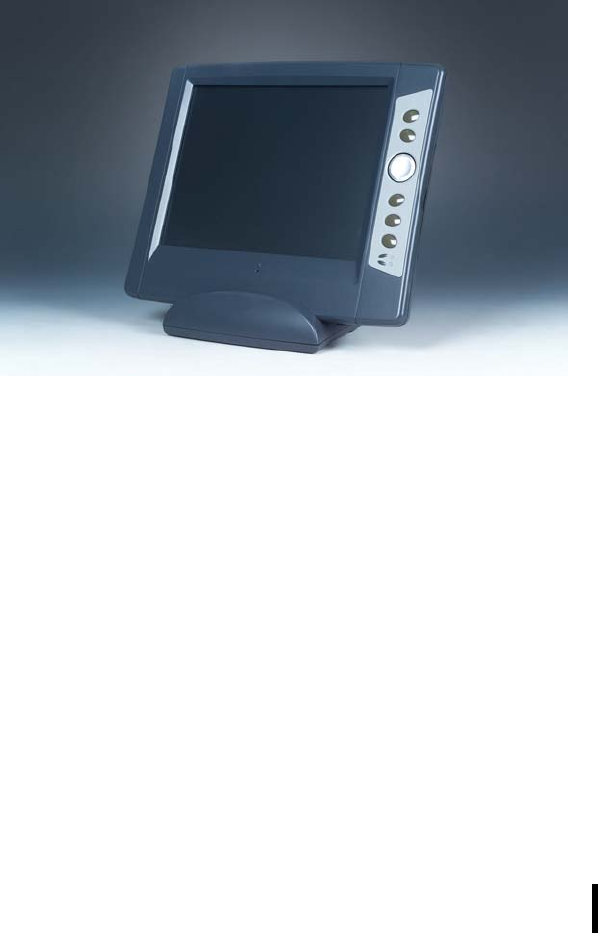
CT1100 Pen Tablet
User Manual

Preface
About This Manual
This manual explains how to install, operate and maintain the CT1100
Pen Tablet.
No part of this publication may be reproduced or used in any form, or by
any electrical or mechanical means, without permission in writing from
the manufacturer. This includes electronic or mechanical means, such as
photocopying, recording, or information storage and retrieval sys- tems.
The material in this manual is subject to change without notice.
© Copyright 2007 ACA-Digital, Ltd. All rights reserved.
Microsoft, Windows and ActiveSync are either registered trademarks
or trademarks of Microsoft Corporation. Other product names men-
tioned in this manual may be trademarks or registered trademarks of
their respective companies and are hereby acknowledged.
Regulatory Compliance Statements
FCC Caution :To assure continued compliance, any changes or
modifications not expressly approved by the party responsible for
compliance could void the user's authority to operate this equipment.
(Example - use only shielded interface cables when connecting to
computer or peripheral devices).
FCC Radiation Exposure Statement
This equipment complies with FCC RF radiation exposure limits set forth
for an uncontrolled environment. This equipment should be installed and
operated with a minimum distance of 20 centimeters between the
radiator and your body.
This device complies with Part 15 of the FCC Rules. Operation is
subject to the following two conditions:
(1) This device may not cause harmful interference, and (2) This device must accept any
interference received, including interference that may cause undesired operation.
This transmitter must not be co-located or operating in conjunction with
any other antenna or transmitter.
The antennas used for this transmitter must be installed to provide a
separation distance of at least 20 cm from all persons and must not be
co-located or operating in conjunction with any other antenna or
transmitter.
i

Preface
ii
Federal Communications Commission Notice
This equipment has been tested and found to comply with the limits for
a Class B digital device, pursuant to Part 15 of the FCC Rules. These
limits are designed to provide reasonable protection against harmful
interference in a residential installation.
This equipment generates, uses, and can radiate radio frequency
energy. If this equipment does cause harmful interference to radio or
television reception, which can be determined by turning the equip-
ment off and on, the user is encouraged to try and correct the interfer-
ence by one or more of the following measures:
• Reorient or relocate the receiving antenna.
• Increase the distance between the equipment and the
receiver.
• Connect the equipment to an outlet on a circuit different from
that to which the receiver is connected.
• Consult the dealer or an experienced radio/TV technician for
help.
Canada-Industry Canada (IC)
The wireless radio of this device complies with RSS 139 & RSS 210
Industry Canada. This Class B digital apparatus complies with Cana-
dian ICES-003.
Cet appareil numérique de la classe B conforme á la norme NMB-003
du Canada.
Europe-European Union Notice
Radio products with the CE alert marking comply with the R&TTE
Directive (1999/5/EC) issued by the Commission of the European
Community. Compliance with this directive implies conformity to the
following European Norms (in brackets are the equivalent international
standards).
• EN 60950-1 (IEC60950-1) - Product Safety
• EN 300 328 Technical requirement for radio equipment
• ETS 301 489 General EMC requirements for radio equipment.
Products that contain the radio transmitter are labeled with CE alert
marking and may also carry the CE logo.

Preface
iii
Safety
Use the following safety guidelines to help protect yourself and the
CT1100.
• Do not attempt to service the CT1100 yourself. Always follow
installation instructions closely.
• Be sure that nothing rests on the AC adapter's power cable
and that the cable is not located where it can be tripped over or
stepped on.
• Do not cover the AC adapter with papers or other items that
will reduce cooling; also, do not use the AC adapter while it is
inside a carrying case.
• Use only the AC adapter, power cord, and batteries that are
approved for use with this CT1100. Use of another type of bat-
tery or AC adapter may cause risk of fire or explosion.
• If you use an extension cable with the AC adapter, ensure that
the total ampere rating of the products plugged in to the exten-
sion cable does not exceed the ampere rating of the extension
cable.
• When you move the CT1100 between environments with very
different temperature and/or humidity ranges, condensation
may form on or within the CT1100. To avoid damaging the
CT1100, allow sufficient time for the moisture to evaporate
before using the CT1100.
• When you disconnect a cable, pull on its connector or on its
strain relief loop, not on the cable itself. As you pull out the
connector, keep it evenly aligned to avoid bending any con-
nector pins. Also, before you connect a cable make sure both
connectors are correctly oriented and aligned.
Battery Safety
• Do not place the battery incorrectly as this may cause danger
of explosion.
• Dispose of used batteries according to the manufacturer's
instructions.
• Do not dispose of batteries in a fire. They may explode. Check
with local authorities for disposal instructions.

Preface
iv
Battery Charge Notice
It is important to consider the environment temperature whenever you
are charging the Lithium-Ion battery pack. The process is most efficient
at normal room temperature or slightly cooler. It is essential that you
charge batteries within the stated range of 0°C to 50°C. Charging bat-
teries outside of the specified range could damage the batteries and
shorten their charging life cycle.
Storage and Safety Notice
Although charged Lithium-Ion batteries may be left unused for several
months, their capacity may be depleted due to build up of internal
resistance. If this happens they will require recharging prior to use.
Lithium-Ion batteries may be stored at temperatures between-20°C to
50°C, however they may be depleted more rapidly at the high end of
this range. It is recommended to store batteries within normal room
temperature ranges.

v
Table of Contents
Preface
About This Manual .............................................................................i
Regulatory Compliance Statements .............................................i
FCC Statement..................................................................................... i
Federal Communications Commission Notice ................................. ii
Canada-Industry Canada (IC)........................................................ ii
Europe-European Union Notice .................................................... ii
Safety ................................................................................................... iii
Battery Safety...................................................................................... iii
Battery Charge Notice...................................................................... iv
Storage and Safety Notice ............................................................. iv
Chapter 1
Introducing the CT1100
Features ...............................................................................................2
Package Contents .............................................................................3
A Tour of the CT1100 .......................................................................4
Front View ............................................................................................ 4
Left and Right View........................................................................... 6
Top View............................................................................................... 8
Back View............................................................................................. 9
About the Cradle .............................................................................. 10
Chapter 2
Getting Started
Installing the Battery ....................................................................... 11
Charging the Battery....................................................................... 13
Charging the Battery Using the AC Adapter .................................. 13
Charging the Battery with the Docking Station.............................. 14
Checking the Battery Status.................................................................. 15
Connecting the CT1100 to a PC ................................................ 15
Turning the CT1100 on for the First Time .............................. 16
Powering On ................................................................................................ 16
Calibrating the CT1100 Screen ........................................................... 17
Setting the Time and Date ............................................................19
Adjusting the Screen Brightness ................................................20
Chapter 3
Using the Hardware
Using the Stand ...............................................................................22
Navigation and Function Buttons ...............................................22
Setting Function Button Assignments...................................... 23
Entering Alphanumeric Characters ............................................25

Table of Contents
vi
Entering Characters with the Keypad....................................... 25
Using the Stylus ..............................................................................26
Adjusting the Double-Tap Rate .................................................. 27
Inserting a PCMCIA Card ..............................................................27
Removing a PCMCIA Card .......................................................... 28
Inserting an SD Memory Card ......................................................29
Removing a Storage Card............................................................ 29
Connecting Devices to the CT1100 ............................................30
Opening the Port Covers .............................................................. 30
Connecting USB............................................................................... 30
Connecting a USB Type A..................................................................... 30
Connecting a Serial Cable............................................................ 31
Connecting an External Monitor................................................. 31
Connecting LAN............................................................................... 32
Connecting Headphones and a Microphone ......................... 32
Connecting to the Cradle.............................................................. 33
Connecting USB......................................................................................... 33
Chapter 4
Getting Connected
Connecting to a PC .........................................................................34
Installing Microsoft ActiveSync ................................................... 34
Connecting the Device to Your Computer.............................. 34
WiFi Connection......................................................................................... 36
Chapter 5
Advance Settings
Checking the Battery Status ........................................................38
Extending Battery Life ...................................................................39
Changing the Automatic Power Settings ................................ 39
Adjusting Backlight Setting........................................................... 40
Performing a Reset .........................................................................40
Performing a Hardware Reset .................................................... 41
Performing a Software Reset ...................................................... 41
System Specifications
Maintenance
Maintaining the Battery Pack....................................................... 44
Maintaining your LCD Display..................................................... 44
Cleaning the CT1100 ..................................................................... 44
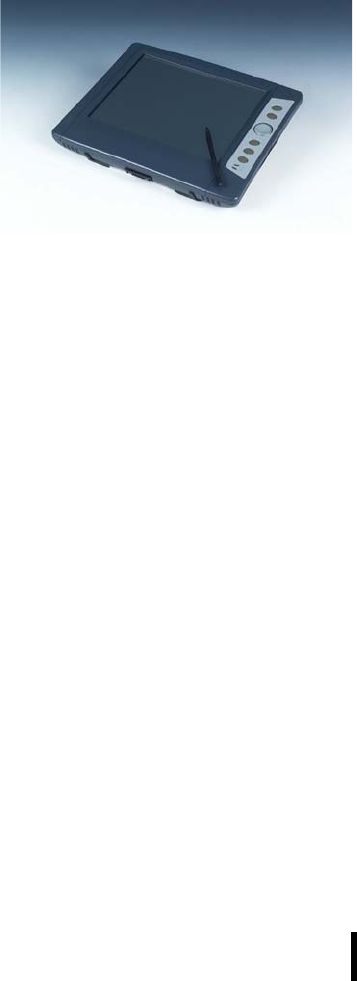
1
Chapter 1
Introducing the CT1100
Thank you for purchasing
the CT1100 Pen Tablet. The
durable CT1100 is made for
heavy duty use in industrial
applications. The high per-
formance processor incorpo-
rates an additionally graphic
controller to provide speed
and efficiency in the field,
while using minimal power to
extend battery life.
The CT1100 I/O ports provide ample connectivity, with two USB ports,
an RS-232 serial port, a VGA port, microphone and headphone jacks,
PCMCIA and SD slot, and an RJ-45 jack for LAN.
The CT1100 supports 802.11b/g WLAN.
The CT1100 uses the Windows CE 5.0 operating system. Five pro-
grammable function buttons and a navigation pad make it easy to inter-
act with the operating system, and a software keyboard enables users
to enter and edit text.
To reduce TCO and enhance industrial applications, the CT1100 is
sealed to meet IP53 standards and has undergone multiple 3-foot drop
tests to prevent downtime.

Chapter 1 — Introducing the CT1100
2
Features
Powerful system
• Microsoft Windows CE 5.0
operating system
• Intel Bulverde PXA270
processor with speed up to
520 MHz
System memory
• 128MB SDRAM
• 128MB Flash ROM
Display
• 10.4-inch SVGA LCD with
touchscreen
• 800 x 600 resolution
Communication
• USB Host & Client
• Internal antenna
Audio
• Built-in microphone
• Built-in speaker
• External microphone
connector
• External headset connector
Expansion slot
•SD
• PCMCIA
Battery life
• Normal usage:4.5 hours
• Charging time: 3 hours
User-friendly interface
• User configurable function
buttons
• Navigation keys
Chapter 1 — Introducing the CT1100
3
Package Contents
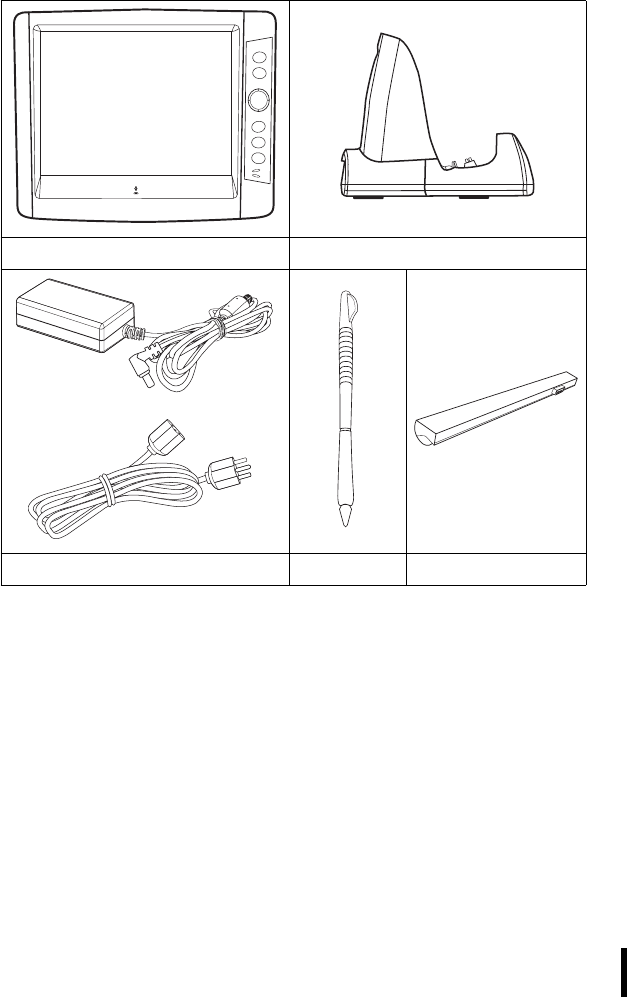
After opening the box, ensure the following accessories for the CT1100
are present:
CT1100 Terminal Cradle
AC adapter and power cord Stylus Battery
Chapter 1 — Introducing the CT1100
4
A Tour of the CT1100
The following sections describe the main components and features of
the CT1100.
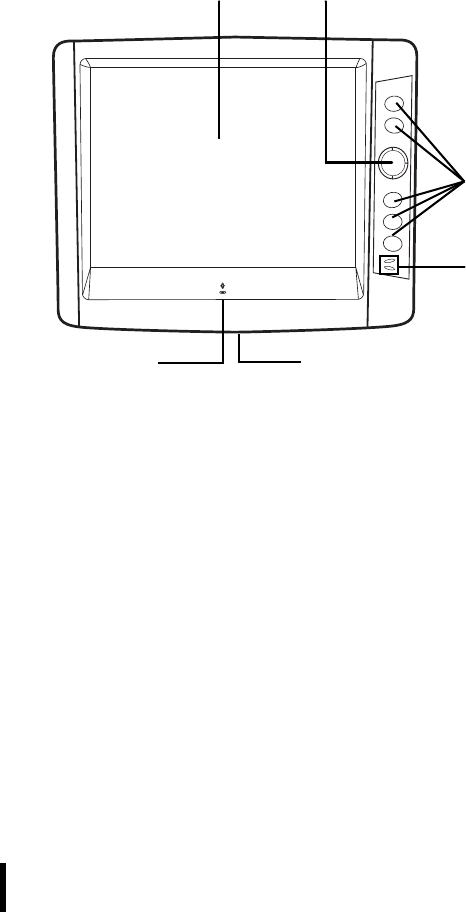
Front View
Navigation padDisplay
Function
buttons
Status LEDs
Internal
microphone
Cradle connector
Chapter 1 — Introducing the CT1100
5
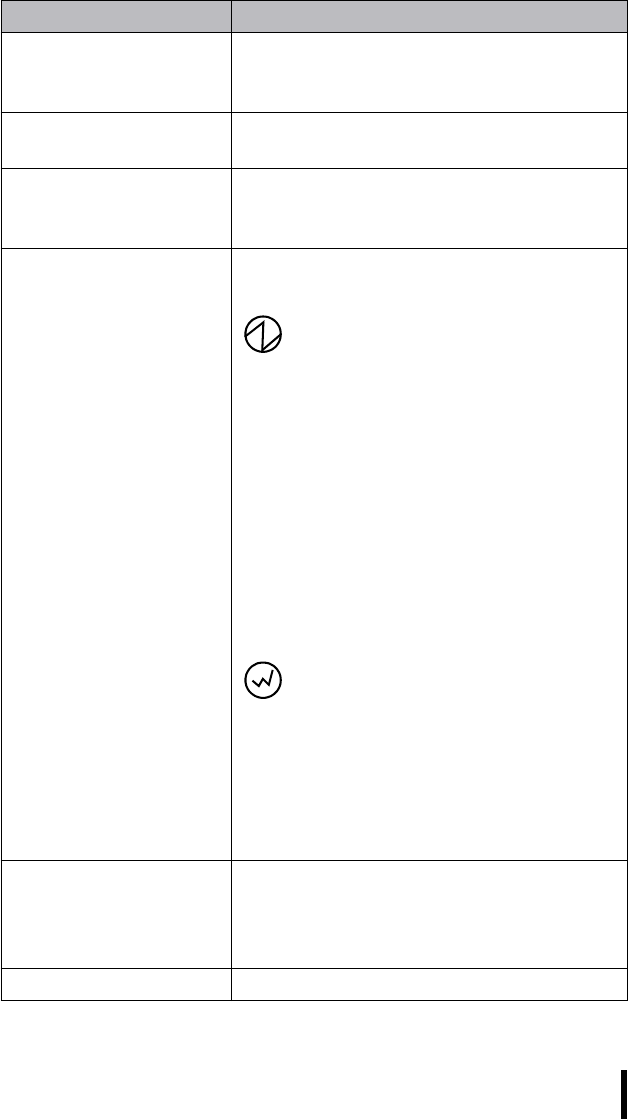
Component Description
Display Displays the applications and data stored
on your device. It is touch-sensitive and
responds to the stylus or finger.
Navigation key Press this key to navigate in the CT1100
interface.
Function buttons Interface for controlling the CT1100. See
Navigation and Function Buttons on
page 22. for more information.
Status LEDs Indicates the battery charging power
status.
Power LED (bottom)
•Off: power is off.
•Solid green: power is on, battery
charge is good, or AC power is con-
nected and battery is fully charged.
•Blinking green: AC power is con-
nected and battery is charging.
•Solid orange: power is on, battery is
low (30%).
•Blinking orange: power is on, battery
charge is very low (13%). The CT1100
will auto-suspend at 10% battery
charge.
Wireless LAN LED (top)
•Off: no connection
•Solid green: excellent or very good
signal
•Solid orange: good signal
•Blinking orange: low or very low sig-
nal
Cradle connector Connects to the cradle to synchronize with
a PC.
Note: The cradle connector is protected
by a rubber cover.
Microphone Enables you to record voice audio.
Chapter 1 — Introducing the CT1100
6
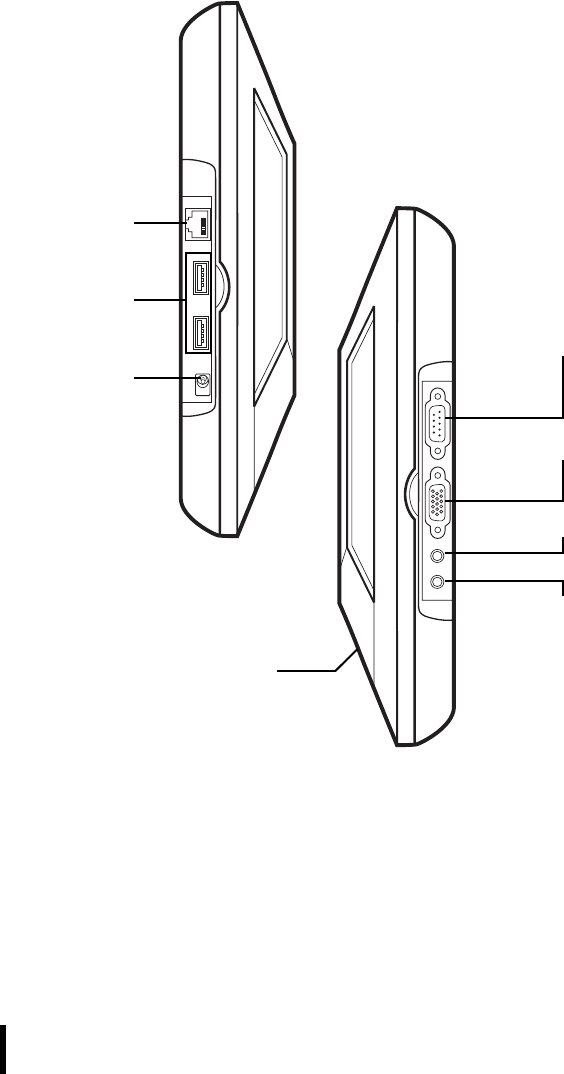
Left and Right View
RJ-45 LAN
port
DC-in jack
USB ports
RS-232 port
VGA port
Headphone
Microphone
Docking/cradle
connector

Chapter 1 — Introducing the CT1100
7
Component Description
RJ-45 connector Connect this jack to the LAN.
USB ports Connect USB type A connectors to these
ports.
DC-in jack Connect the AC adapter to this jack to
supply power to the pad and charge the
CT1100 battery.
RS232 port Connect a serial connector to this port for
serial communications.
VGA Connect an external monitor to this port.
Headphone jack Connects to audio line-out devices
(earphones or headphones) for use in
noisy environments.
Microphone jack Enables you to record voice audio with an
external microphone.
Docking/Cradle
connector
Connects the CT1100 to cradle, enabling
you to charge the battery, connect the
CT1100 to a computer to synchronize
data, and connect USB devices.
Chapter 1 — Introducing the CT1100
8
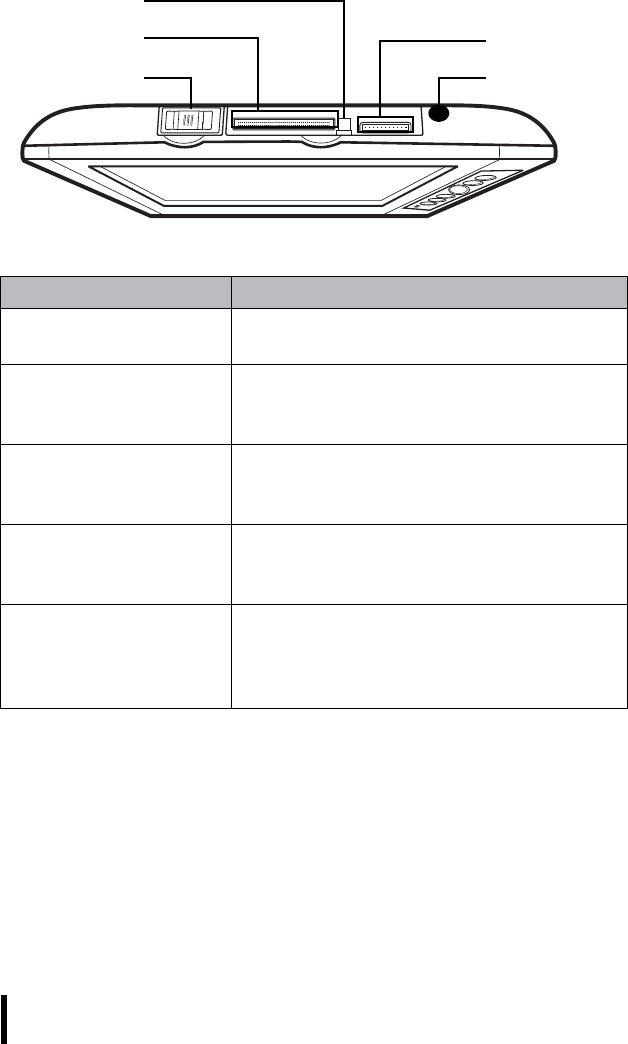
Top View
Component Description
Power Switch Slide this switch to turn the CT1100 on
and off.
PCMCIA slot Remove the cover to install a PCMCIA
card for added functionality. See Inserting
a PCMCIA Card on page 27.
PCMCIA eject button Press this button to eject the PCMCIA
card. See Removing a PCMCIA Card on
page 28.
SD Card slot Accommodates Secure Digital memory
cards. See Inserting an SD Memory Card
on page 29.
Stylus Enables you to interact with the operating
system. Remove the stylus from the
holder and hold and use it the same way
you would a pen or pencil.
PCMCIA card
eject button
SD card slot
Stylus
PCMCIA slot
Power switch
Chapter 1 — Introducing the CT1100
9
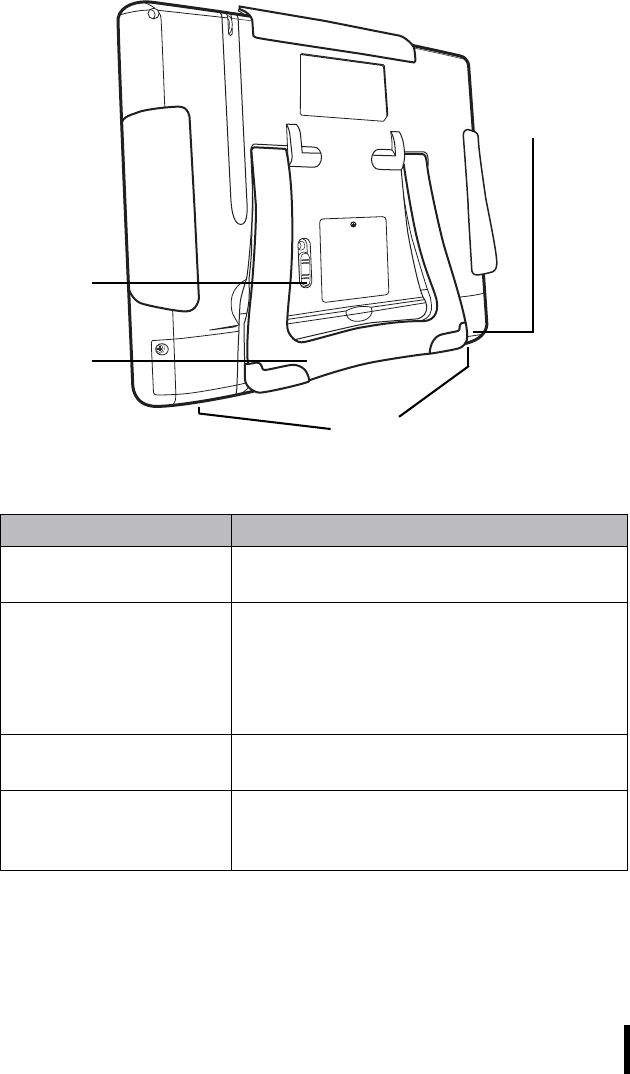
Back View
Component Description
Speakers Enables you to hear audio from the
CT1100.
Reset button Press the end of the stylus into the button
to reset your device.
There are two reset options: hardware
reset and software reset. See Performing
a Reset on page 41.
Stand Adjust this stand to provide the best
viewing angle.
Battery compartment Houses the removable and rechargeable
battery pack. See Installing the Battery on
page 11.
Speakers
Reset
button
Battery
compartment
Stand
Chapter 1 — Introducing the CT1100
10
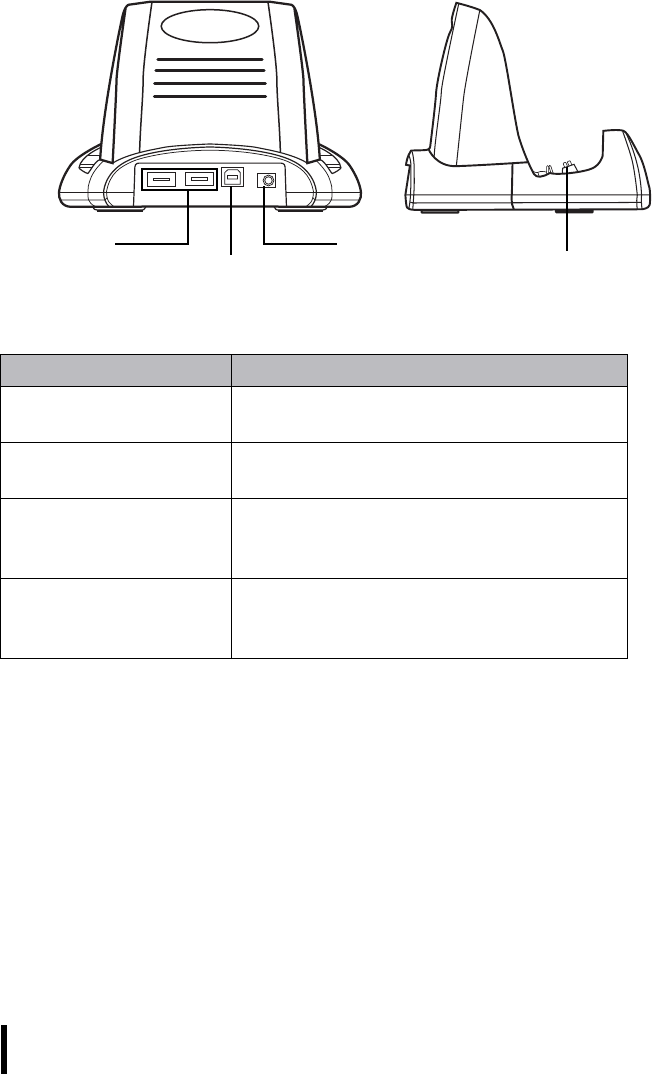
About the Cradle
Component Description
USB type A ports
(host)
Connect a USB type A connector to this
port.
USB type B port
(client)
Connect a USB type B connector to this
port.
DC-in jack Connect the AC adapter to this jack to
supply power to the cradle and charge the
CT1100 battery.
Cradle connector Insert the CT1100 to this connector to
charge the battery, synchronize data with
a PC or connect USB devices.
DC-in
USB Type A
USB Type B Cradle connector

11
Chapter 2
Getting Started
This chapter explains how to install and charge the battery, how to
check battery status, how to turn on the CT1100, and how to calibrate
the screen.
Installing the Battery
This section explains how to install the battery.
WARNING!There is a risk of fire and burns if the battery pack
is handled improperly. DO NOT disassemble, crush, puncture,
short external contacts, or dispose the battery pack in fire or
water. DO NOT attempt to open or service the battery pack.
Dispose of used batteries according to local recycling guide-
lines in your area.
A backup battery cell is embedded into your device to prevent data
loss in instances when the removable battery pack is removed or com-
pletely discharged. This backup battery cell will only support the sys-
tem for a maximum of 3 minutes.
Chapter 2 — Getting Started
12
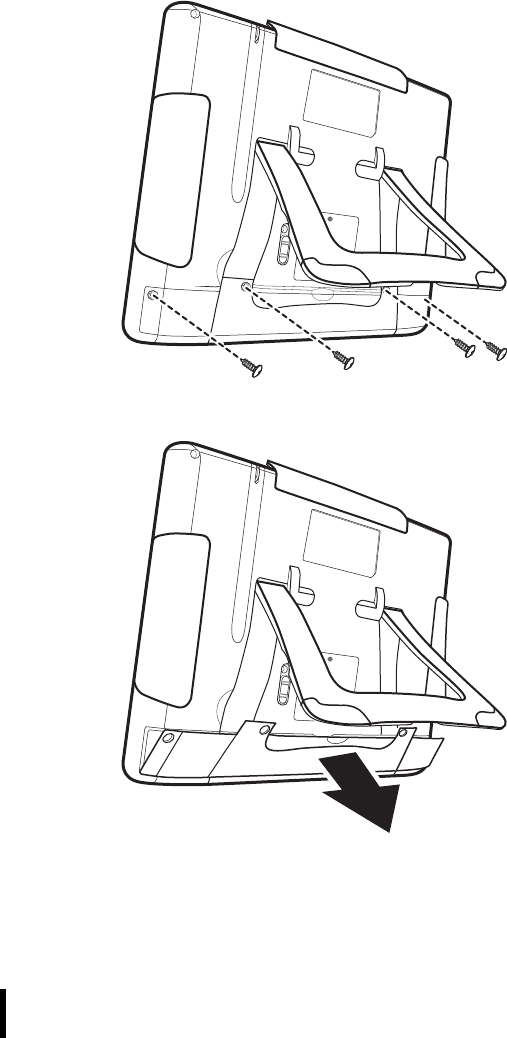
1. Lift the stand out of the way.
2. Remove the four screws that secure the battery compartment
cover to the chassis.
3. Pull up at the lip of the battery compartment cover and remove
the cover.
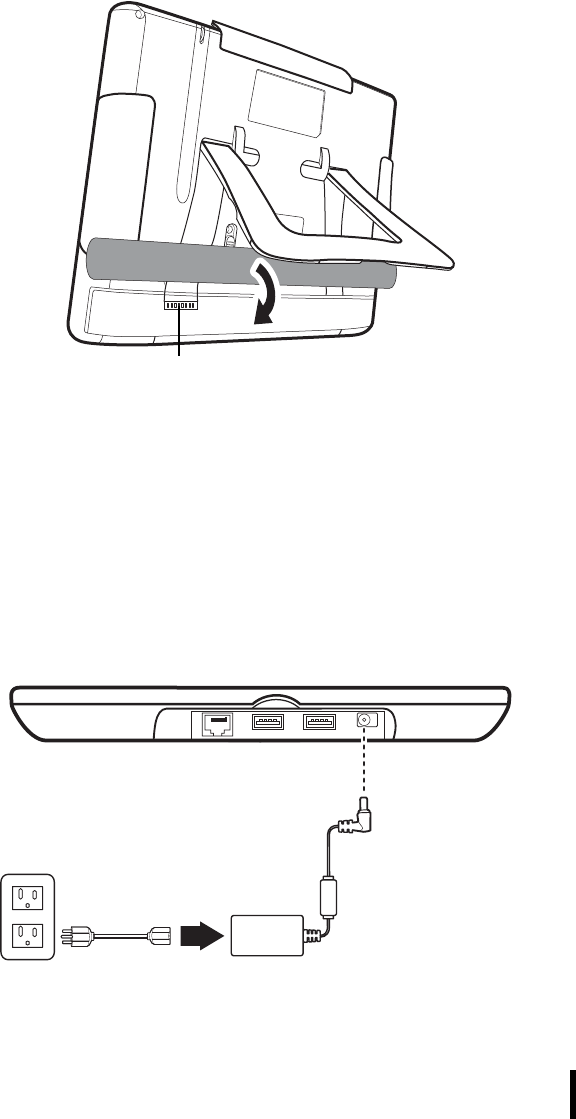
4. Align the battery pack, making sure the battery contacts are
aligned with the contacts in the compartment and place the
battery in the compartment as shown in the following illustra-
tion.
Chapter 2 — Getting Started
13
5. Replace the battery compartment cover.
Charging the Battery
Before using the CT1100 for the first time, you need to charge it for
about 3 hours. Charge the CT1100 using the AC adapter or the dock-
ing station.
Charging the Battery Using the AC Adapter
1. Plug the AC adapter cable into the power jack on the CT1100
(A).
2. Plug the power cable connector into the AC adapter (B)
3. Plug the AC adapter into an electrical outlet (C).
Contacts
A
BC
Chapter 2 — Getting Started
14
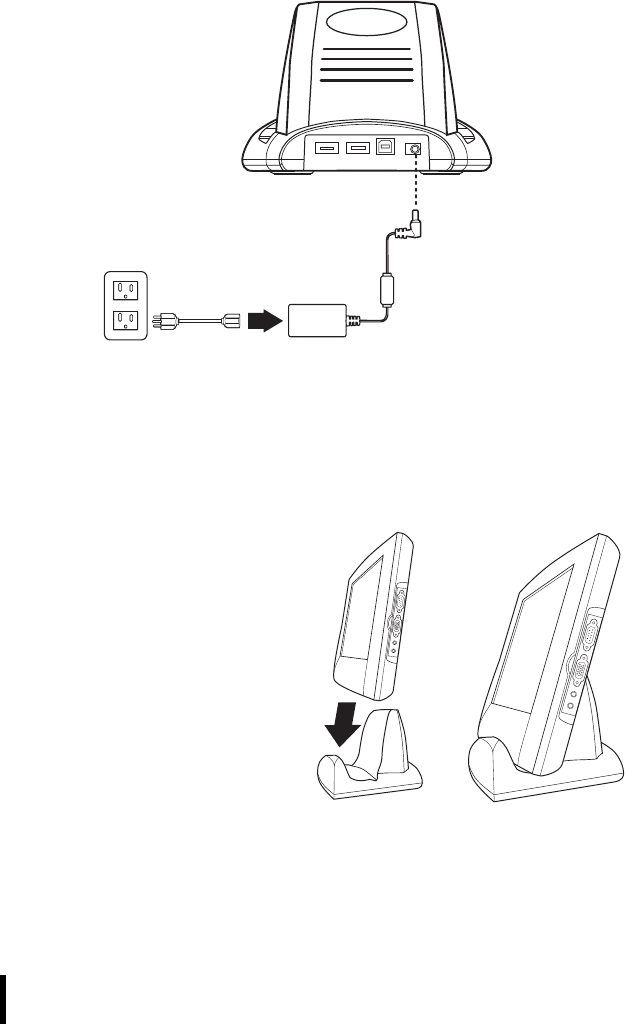
Charging the Battery with the Docking Station
1. Plug the AC adapter cable into the power jack on the docking
station (A).
2. Plug the power cable connector into the AC adapter (B)
3. Plug the AC adapter into an electrical outlet (C).
4. Open the docking connector cover and place it into the hous-
ing.
5. Slide the device into the
docking station until it
clicks into place.
6. The connection is secure
when the bottom edge of
the CT1100 is aligned
with the docking station,
and the LED indicator on
the device lights up
green.
BC
A
Chapter 2 — Getting Started
15
Checking the Battery Status
If the battery level becomes low in the course of normal use, a status
icon appears on the device screen indicating low or very low bat-
tery status. In both cases recharge your device as soon as possible.
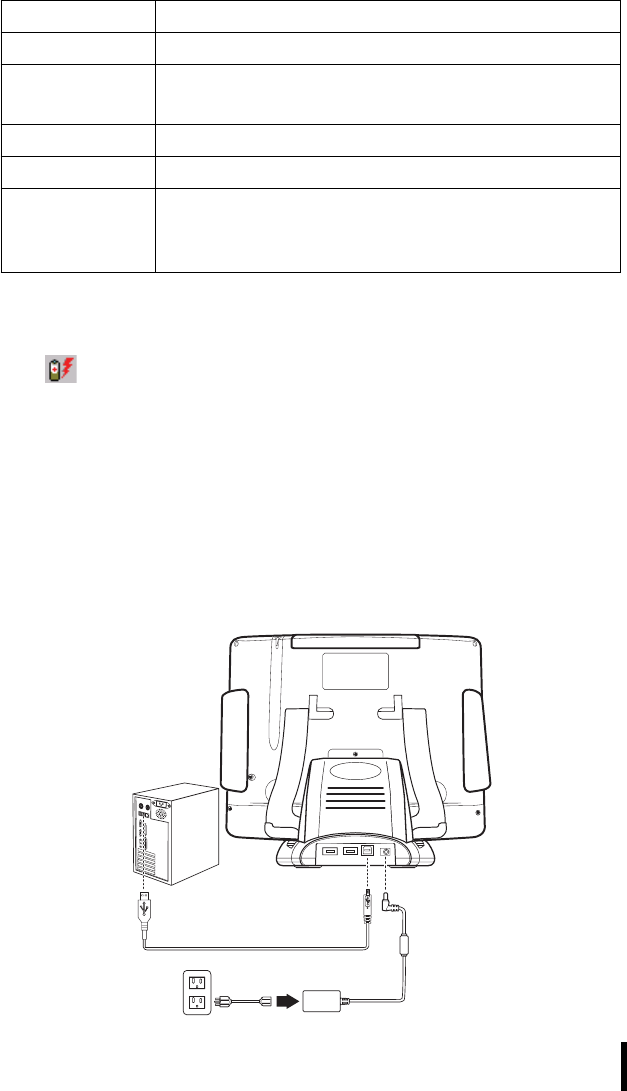
Connecting the CT1100 to a PC
Use the USB cable to connect the CT1100 to a PC to use with Active-
Sync.
1. Connect the USB type B connector to the port on the cradle
(A).
2. Plug the other end of the USB cable into the USB port on the
PC (B).
Power LED Status
LED State Meaning
Off Power off
Solid green Power on, battery is okay.
AC power connected, battery is fully charged.
Blinking green AC power is connected and battery is charging.
Solid orange Power is on; battery charge is low (30%)
Blinking orange Power is on; battery is very low (13%).
Note: The CT1100 will enter auto-suspend mode at
10% battery charge.
BA
Chapter 2 — Getting Started
16
Turning the CT1100 on for the First Time
After you have initially charged your device for about 3 hours, the
device is ready to be used. You can now start up your device where
you’ll calibrate the display, learn some basic stylus usage, and set up
the system time zone, date and time.
Powering On
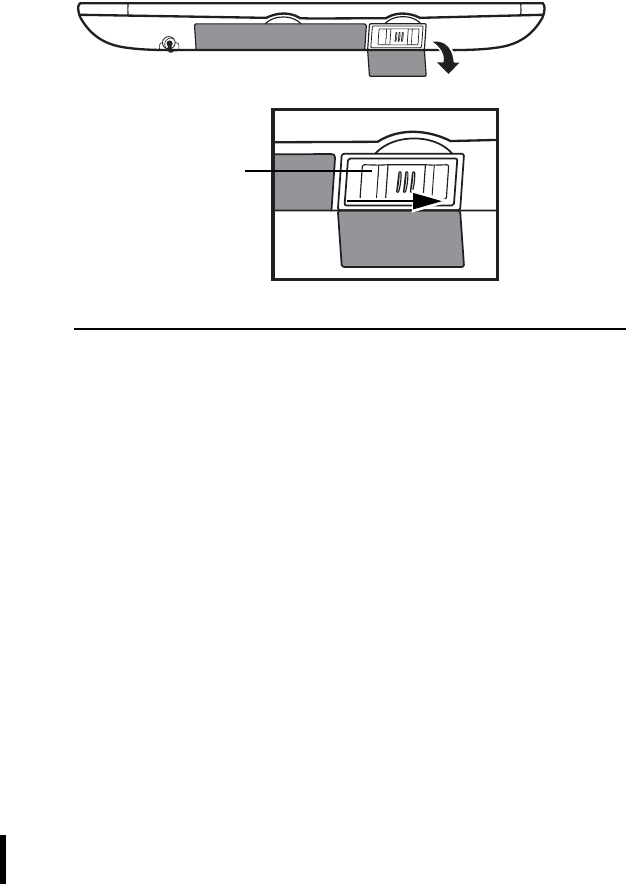
Turn on the CT1100 by sliding the power button on the top of the unit.
NOTE:The CT1100 screen ships with a protective plastic film.
You may remove this if desired by peeling from one corner.
The screen will be susceptible to scratching without the film,
but will be more readable.
Turn the CT1100 off by sliding the power button in the opposite direc-
tion.
Power Button
Chapter 2 — Getting Started
17
Calibrating the CT1100 Screen
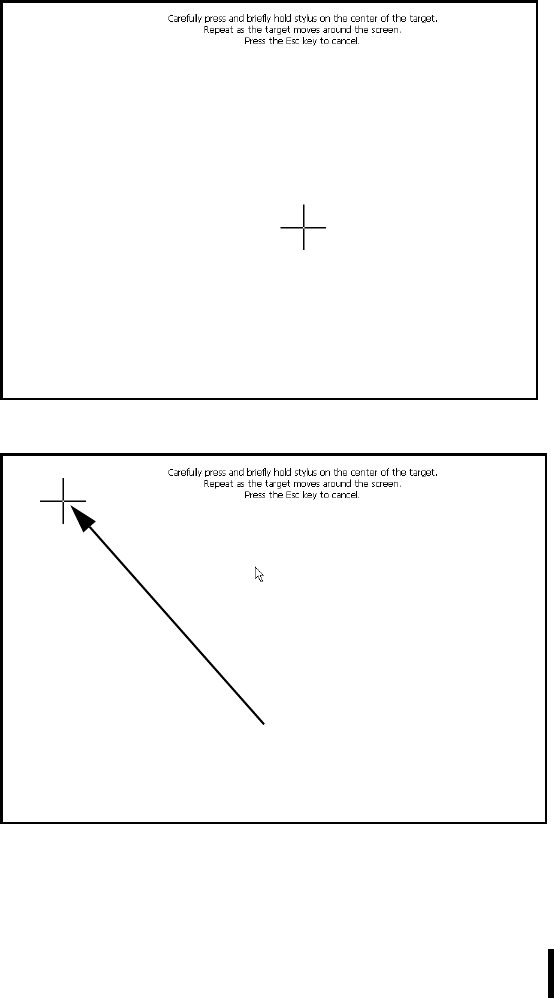
The calibrate screen automatically appears when the unit is powered-
on for the first time or after the system is reset.
1. Tap the center cross hair firmly and accurately with the stylus.
The cross hair moves to the next location.
Chapter 2 — Getting Started
18
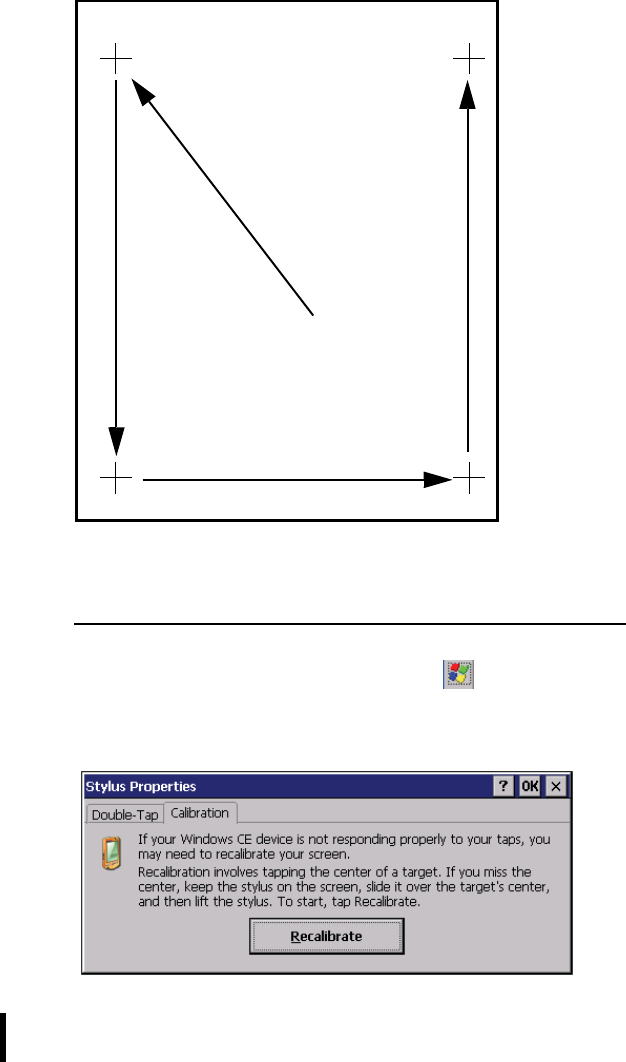
2. Continue tapping the cross hairs until the screen has been cal-
ibrated.
3. After calibration is finished, press the Enter key to save the
settings or press Esc to revert to the previous settings.
NOTE:
To recalibrate the screen at any time, tap Starto
SettingsoControl Panel.
Then double-tap Stylus. Tap the Calibration tab, and tap
Recalibrate.
New calibration settings have been measured.
Press the Enter key to accept the new settings.
Press the Esc key to keep the old settings.
Chapter 2 — Getting Started
19
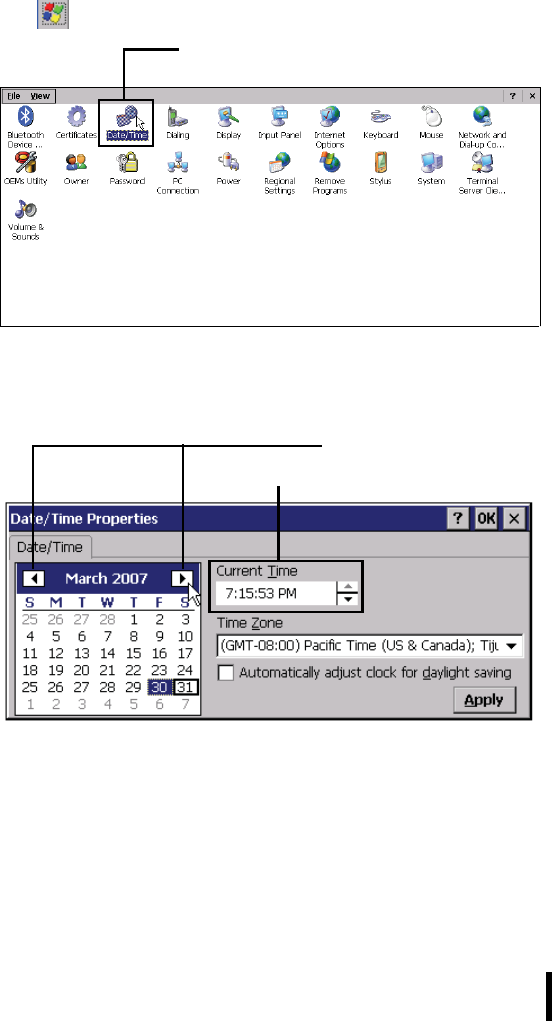
Setting the Time and Date
Follow these instructions to set the time and date.
1. Tap StartoSettingsoControl Panel.
2. Double-tap Date/Time.
3. The date time dialog opens.
4. Tap the arrows next to the month to select the correct month.
5. Select a field in the time box and tap the arrows next to the
time to change the value of the field.
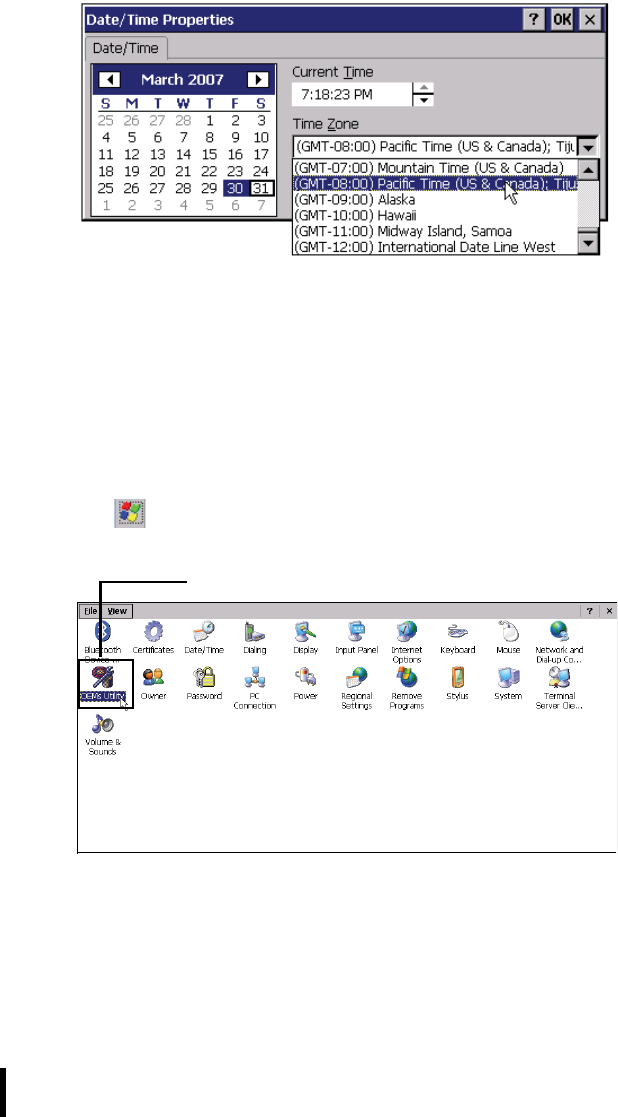
6. Tap the drop-down arrow next to Time Zone to select the cor-
rect time zone for your area.
Date and time
Set month
Set time
Chapter 2 — Getting Started
20
7. Check the box next to Automatically adjust... to have the OS
automatically adjust for daylight saving time.
8. Click Apply to save the settings.
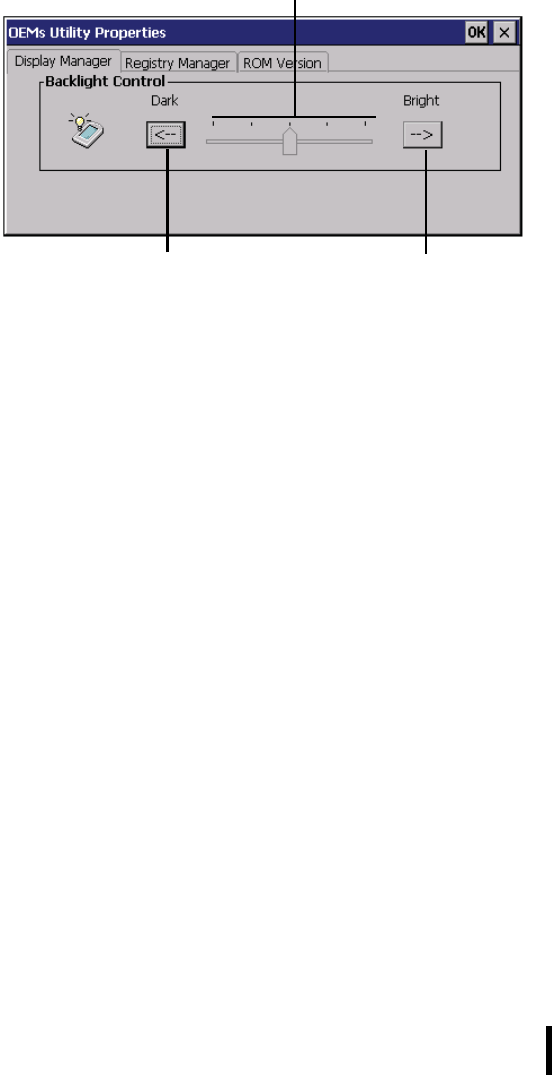
Adjusting the Screen Brightness
Follow these instructions to adjust the screen brightness.
1. Tap StartoSettingsoControl Panel.
2. Double-tap OEMs Utility.
3. Click the Display Manager tab.
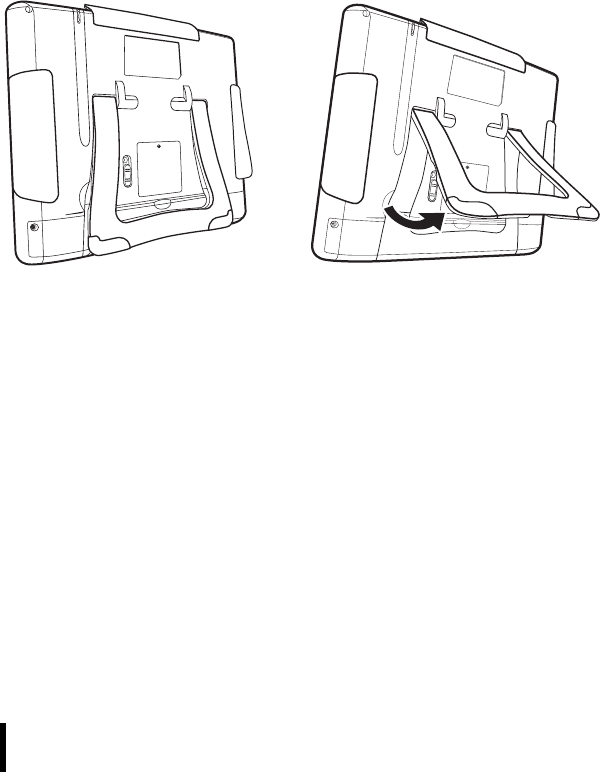
4. Under Backlight Control, click the Dark arrow to make the
screen darker, or click the Bright arrow to make the screen
brighter.
OEMs Utility
Chapter 2 — Getting Started
21
5. Click the close button to exit the utility.
Click to make the
backlight darker
Click to make the
backlight darker
Drag slider to make the back-
light brighter or darker
22
Chapter 3
Using the Hardware
Using the Stand
The CT1100 has a built-in stand for easy configuration on a desk or
table top. The stand can be folded in to enable users to mount the
CT1100 on a wall or other surface.
Open the stand and adjust the tilt to provide the best viewing angle.
Navigation and Function Buttons
The navigation and function buttons enable you to access commonly
used applications with a press of a button and also navigate the oper-
ating system.
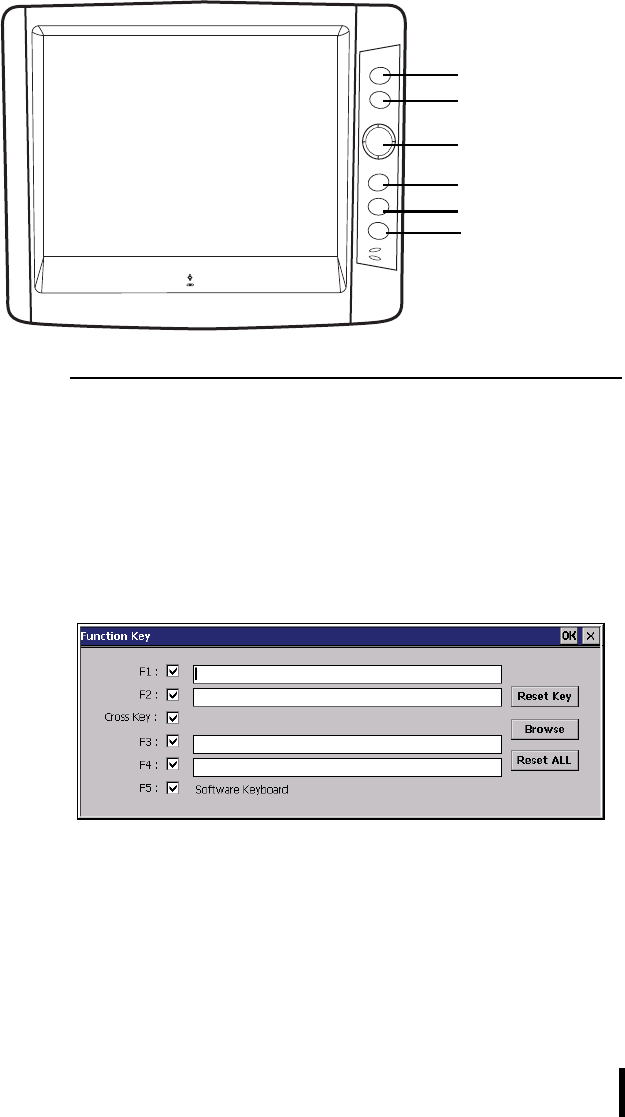
The following illustration shows the keypad keys.
Chapter 3 — Using the Hardware
23
NOTE:Function button F5 is assigned to open the software
keyboard, and cannot be changed. However, the button can
be disabled.
Setting Function Button Assignments
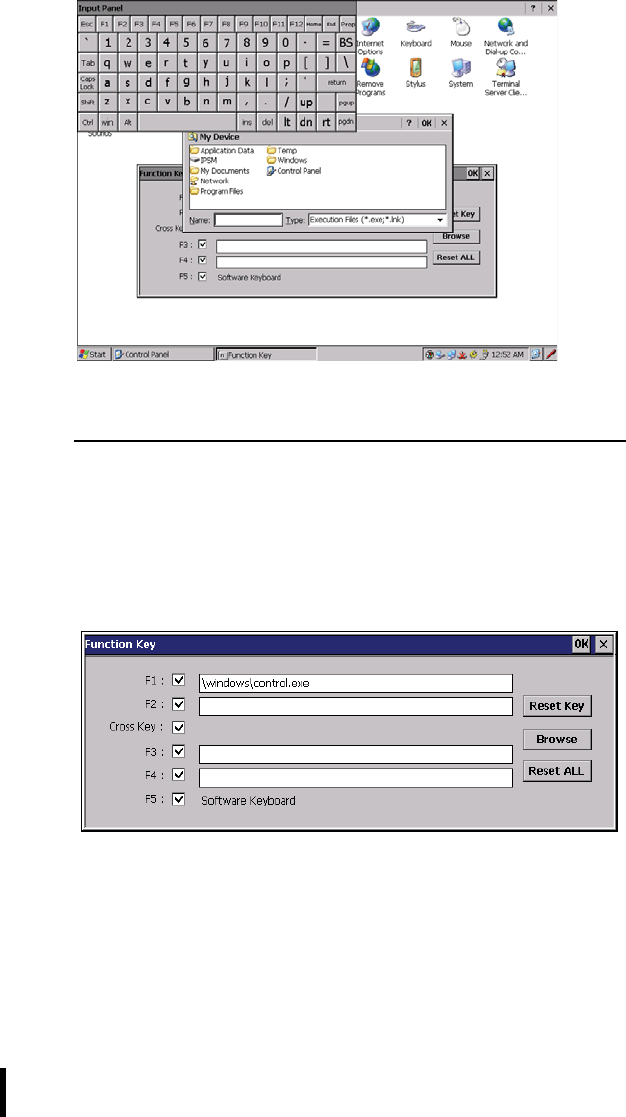
Follow these instructions to set Function button assignments.
1. Press any function button except F5.
The Function Key dialog opens.
2. Check the box next to the Function buttons or Cross Key to
enable or disable the button.
– Function keys can open applications or links
– Cross Key can be used to navigate the operating system
and open applications by pressing the center
3. Assign a function to a button by selecting the text box next to
the function key name and tapping Browse.
Navigation
F1
F5
(Software
keyboard)
F2
F3
F4
Chapter 3 — Using the Hardware
24
You are prompted for the name of an executable file or link.
NOTE:Whenever you are prompted to enter text, the input
panel (software keyboard) automatically appears. See Enter-
ing Alphanumeric Characters on page 25.
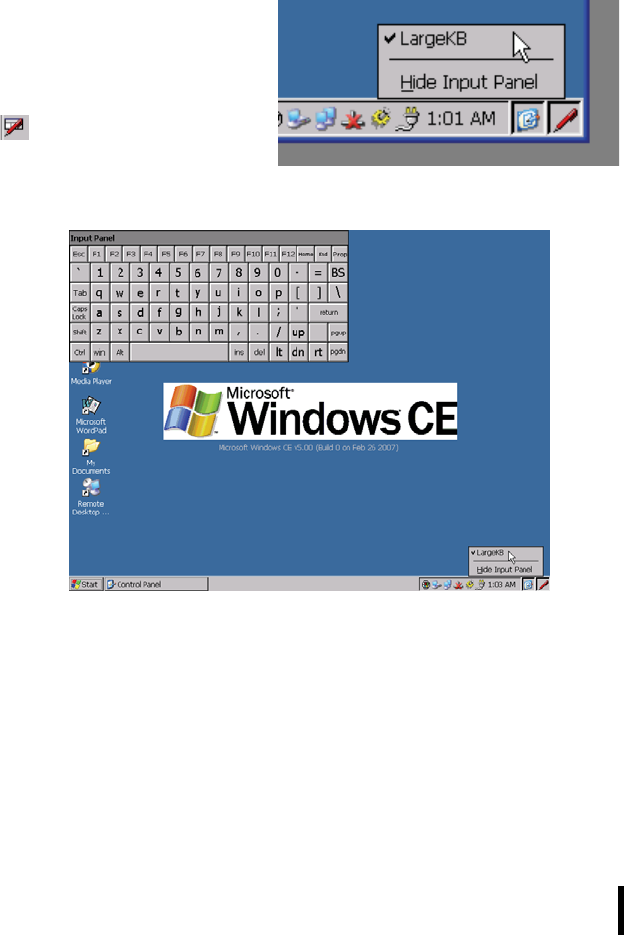
4. Type the name or browse the folders for the desired applica-
tion or link and tap OK.
The application is listed next to the function key.
Pressing the button will launch the assigned application or link.
5. To replace an assigned function key, follow the steps above.
6. To return the key to the default value (unassigned), select the
text box next to the function key and tap Reset Key. To reset
all assignments, tap Reset ALL.
Chapter 3 — Using the Hardware
25
Entering Alphanumeric Characters
Use the input panel (software keyboard) in the operating system to
enter text in the CT1100 operating system.
Entering Characters with the Keypad
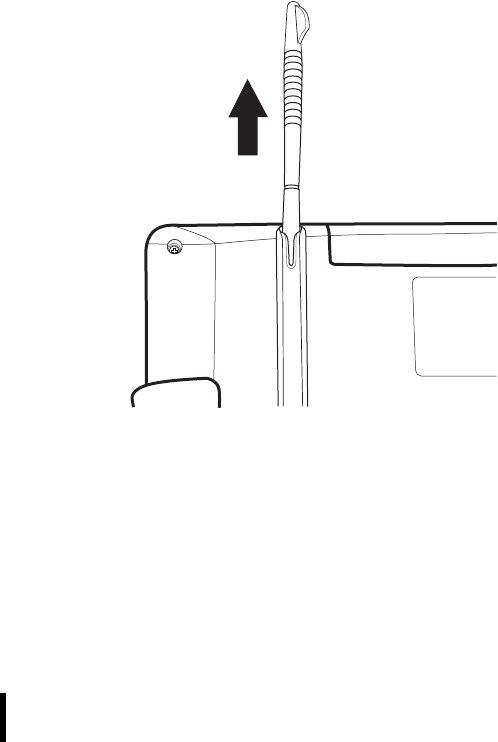
The operating system has a
onscreen keyboard that
enables you to enter alphanu-
meric characters with the sty-
lus. Press the input panel icon
in the system tray to view
the input panel menu.
Tap LargeKB to view the
onscreen keyboard.
Tap Hide Input Panel to close the keyboard.
The keyboard emulates a standard computer keyboard. Tap the
onscreen keyboard to enter, edit, and delete text.
Chapter 3 — Using the Hardware
26
Using the Stylus
Use the stylus to interact with the operating system by tapping or dou-
ble-tapping on an application icon and to select items on the menu.
The stylus is also used to enter text by tapping on the Input Panel.
When not in use, place the stylus in the storage slot located on the top
of the CT1100.
CAUTION! Never use anything other than the CT1100 stylus
on the screen. Using another object as a stylus could cause
permanent damage. You can use your finger to interact with
the screen as well.
1. Remove the stylus from its holder.
2. Hold the stylus as you would a pencil.
3. To make a choice from a menu, lightly tap the tip of the stylus
on that choice.
Chapter 3 — Using the Hardware
27
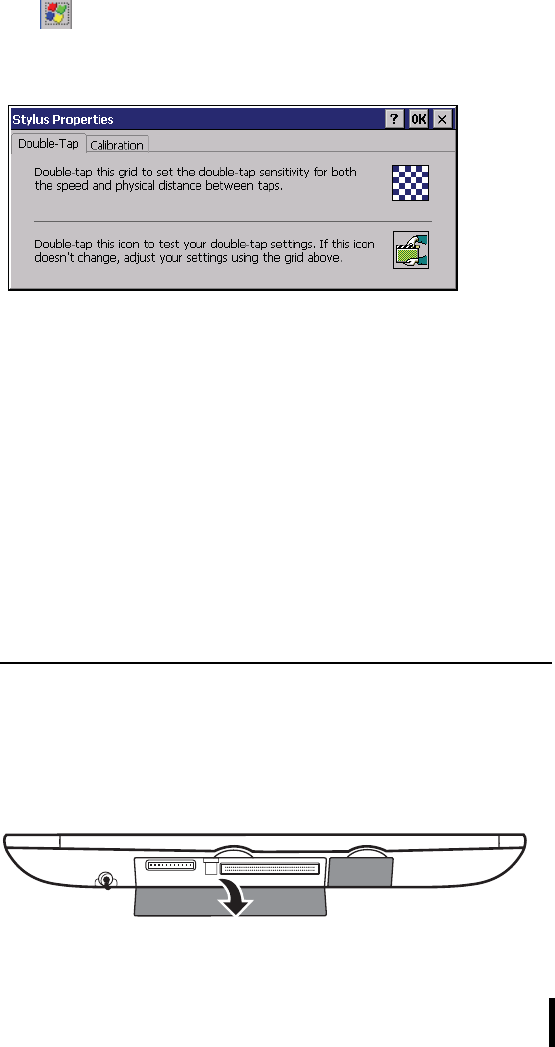
Adjusting the Double-Tap Rate
Set the stylus double-tap rate as follows.
1. Tap Starto SettingsoControl Panel.
2. Double-tap Stylus.
3. Tap the Double-Tap tab.
4. Double-tap on the checkerboard graphic to set your double tap
rate.
Inserting a PCMCIA Card
The CT1100 accommodates a Type II PCMCIA interface.
You can enhance the functionality of the CT1100 by installing PCMCIA
cards such as the following:
•GPRS card
•RFID card
• PCMCIA storage
NOTE:The list above are examples of the types of cards you
can install and is not exhaustive.
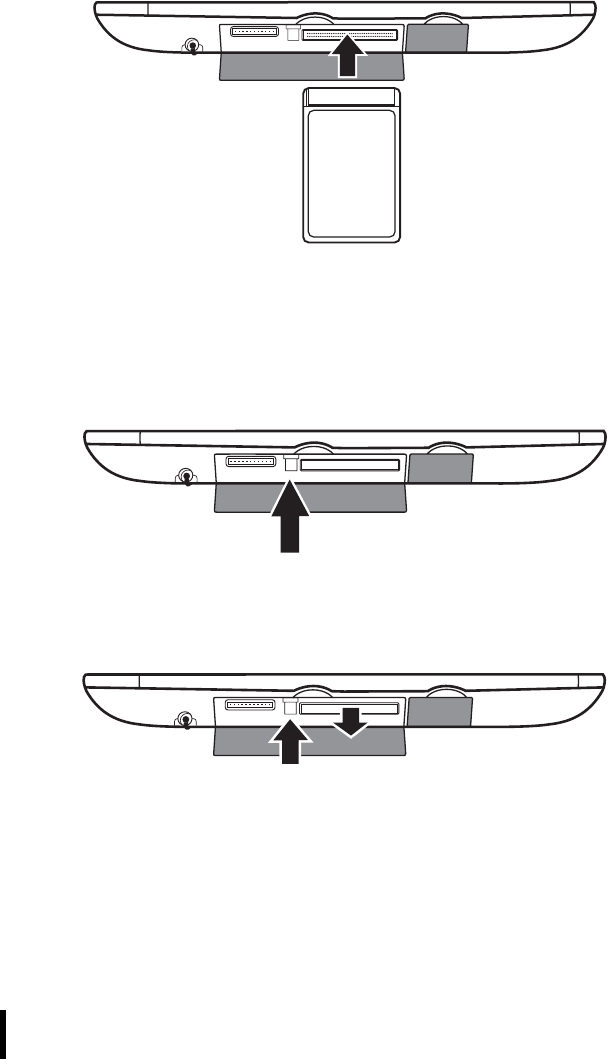
Follow these instructions to insert a PCMCIA card into the PCMCIA
slot.
1. Lift the protective cover away from the PCMCIA slot.
Chapter 3 — Using the Hardware
28
2. Slide the PCMCIA card into the slot as shown, until the con-
tacts are seated into the PCMCIA connector.
3. Replace the cover.
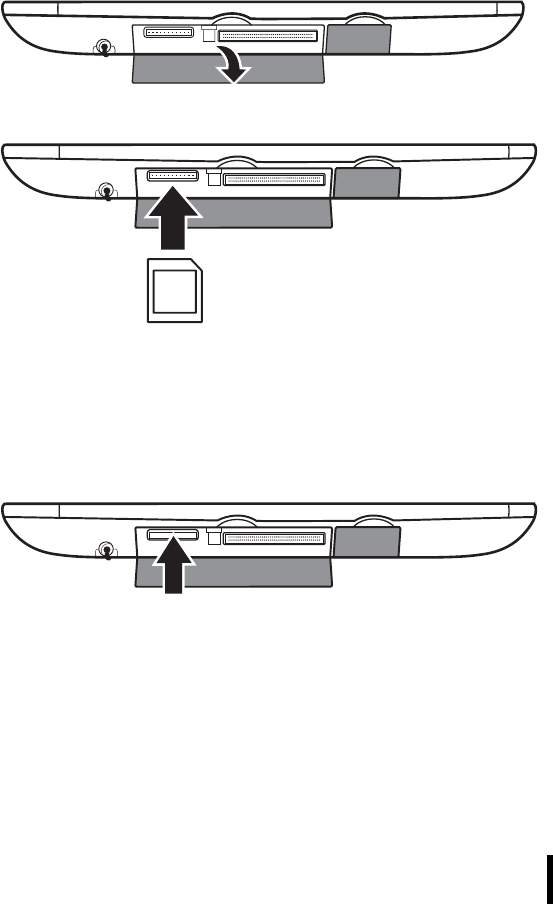
Removing a PCMCIA Card
To remove the PCMCIA card:
1. Press the black PCMCIA button next to the slot
The button pops out.
2. Press the button again to push the PCMCIA card out.
3. Remove the card.
Chapter 3 — Using the Hardware
29
Inserting an SD Memory Card
Your CT1100 has an expansion slot compatible with a range of SD
cards, which are primarily used to back up or transfer files and data.
The slot also supports SDIO cards for added connectivity options.
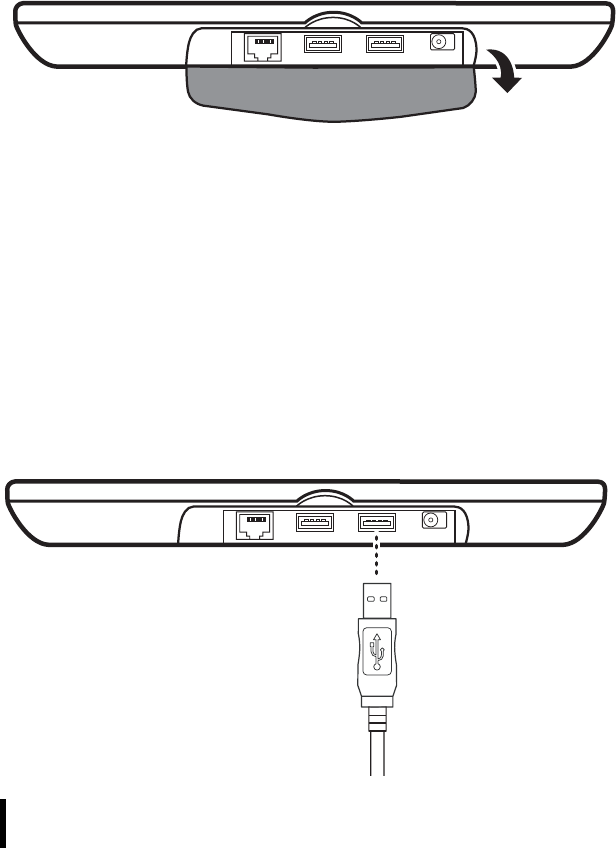
Follow these instructions to insert a SD card into the SD slot.
1. Lift the protective cover away from the SD slot.
2. Slide the SD card all the way into the slot as shown.
3. Replace the cover.
Removing a Storage Card
1. Lift the protective cover away from the SD slot.
2. Press the card in and release.
The card pops out.
3. Remove the card from the slot.
SD
Chapter 3 — Using the Hardware
30
Connecting Devices to the CT1100
This section describes how to connect devices to the CT1100. You can
connect devices directly to the CT1100 or connect using the cradle.
Opening the Port Covers
The port covers protect the ports and connectors from rain, dust (IP53
standard), and adverse environmental conditions.
Open the port covers to access the ports.
Ensure that you close the covers tightly after disconnecting cables and
connectors.
Connecting USB
The CT1100 accommodates two USB Type A connectors, or you can
connect a USB Type B cable to the cradle. See Connecting to the Cra-
dle on page 33.
Connecting a USB Type A
The following illustration shows how to connect a USB type A device to
the CT1100. The connector can only go in one way. If it does not go in
smoothly, check the orientation and try again.
Chapter 3 — Using the Hardware
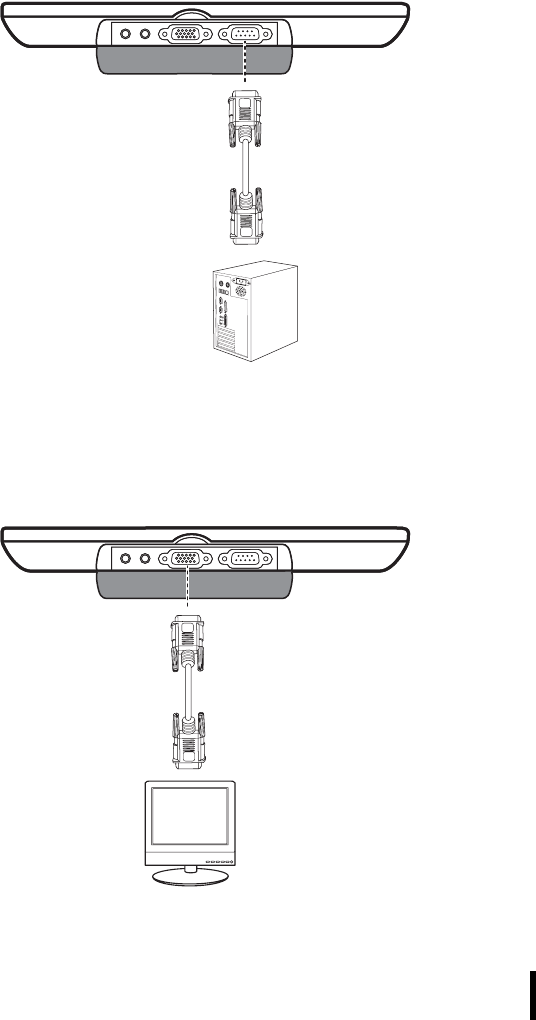
31
Connecting a Serial Cable
Connect a serial cable to the CT1100 to perform serial communica-
tions. Refer to the following illustration
Connecting an External Monitor
Connect an external monitor cable to the VGA port on the CT1100 to
view the output on an external monitor. Refer to the following illustra-
tion
Chapter 3 — Using the Hardware
32
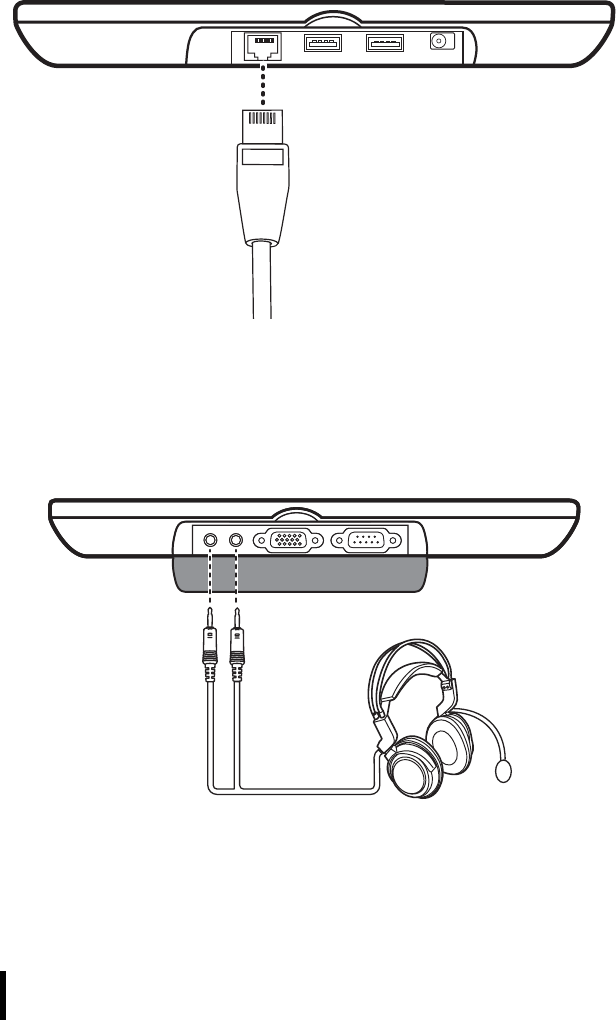
Connecting LAN
Connect an RJ-45 cable to the Ethernet port on the CT1100 to enable
you to connect to the LAN. Refer to the following illustration
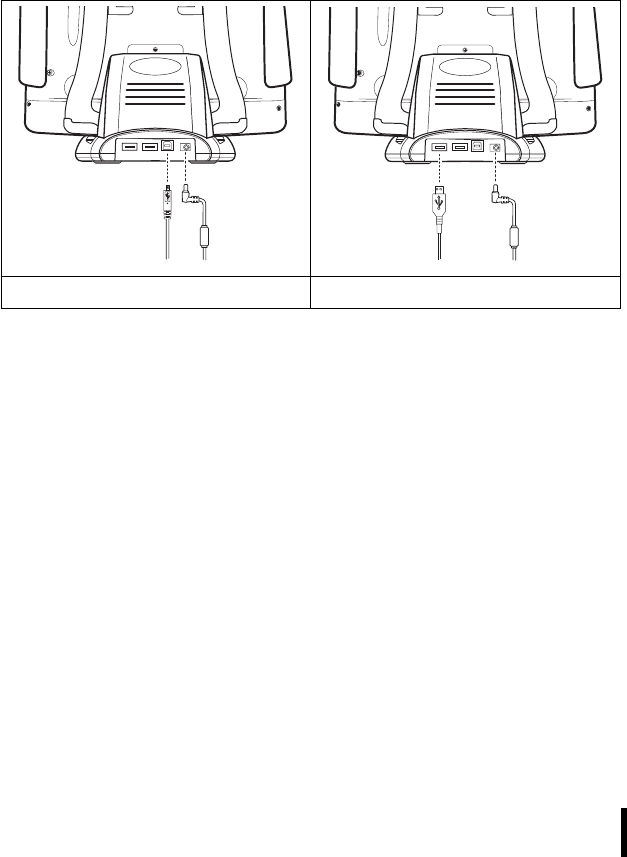
Connecting Headphones and a Microphone
The CT1100 has a built-in microphone and speaker. However, you can
connect a headset and microphone to the CT1100 for use in noisy
environments. Refer to the following illustrations.
Chapter 3 — Using the Hardware
33
Connecting to the Cradle
The cradle enables you not only to recharge the CT1100’s batteries, it
also enables you to connect USB and synchronize data with a PC.
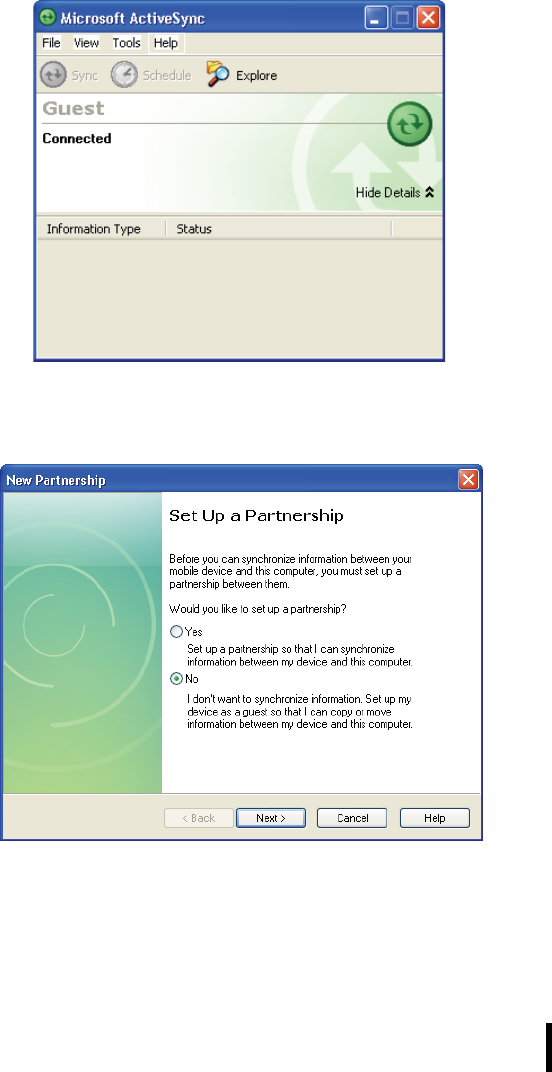
Connecting USB
You can connect both USB Type A and USB Type B connectors to the
cradle to transfer data with the CT1100. There is one Type B USB port
at the rear of the cradle, and two Type A USB ports on the sides.
Refer to the following:
Connecting Type B USB Connecting Type A USB

34
Chapter 4
Getting Connected
Connecting to a PC
Installing Microsoft ActiveSync
In order to exchange data between your computer and the CT1100 and
install extra applications or utilities to the CT1100, Microsoft Active-
Sync must be installed on your computer. Connect the CT1100 to a PC
using a USB type B cable. Download the latest version of Microsoft
ActiveSync from the Microsoft website.
NOTE:If you have a previous version of the Microsoft
ActiveSync installed in your computer, uninstall it first before
installing the latest version of Microsoft ActiveSync.
Connecting the Device to Your Computer
1. After ActiveSync has been installed, connect the USB B cable
to the USB port on your CT1100. Refer to Turning the CT1100
on for the First Time on page 16.
2. Plug the other end of the USB cable into a USB port on your
computer.
3. Turn the device on.
4. ActiveSync starts automatically and configure the USB port to
work with the CT1100. The New Partnership setup wizard will
automatically start.
NOTE:If ActiveSync doesn’t start automatically, click Start
oPrograms oMicrosoft ActiveSync.
If a message appears indicating that it is unable to detect a
connection, click the Cancel button and manually configure
the communication settings.
5. Follow the onscreen instructions.
Chapter 4 — Getting Connected
35
6. When the configuration process is complete, the ActiveSync
window appears.
7. Synchronization will be initialized and will take place if you’ve
chosen to synchronize periodically or upon connection.
8. ActiveSync detects the CT1100 and establishes a connection.
9. Click No, and then click Next.
Chapter 4 — Getting Connected
36
WiFi Connection
With the device’s embedded WLAN module, you can send and receive
signals to a WiFi network then synchronize files.
NOTE:WiFi access requires a separate purchase of a service
contract with a wireless service provider. Contact a wireless
service provider for more information.
A wireless network can be added either when the network is detected
or by manually entering settings information. Before doing these steps,
determine if authentication information is needed.
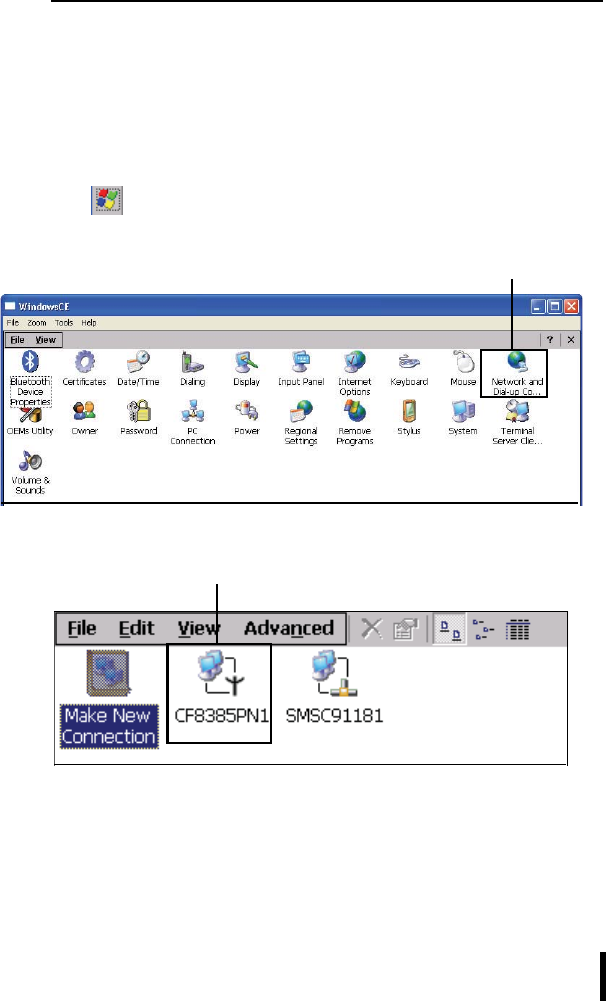
1. Tap StartoSettingsoControl Panel, then double-tap
the Network and Dial-up Connections.
The following screen appears.
2. Double-tap the wireless network connection icon.
3. The following screen appears.
Network and Dial-up Connections
Wireless network connection
37
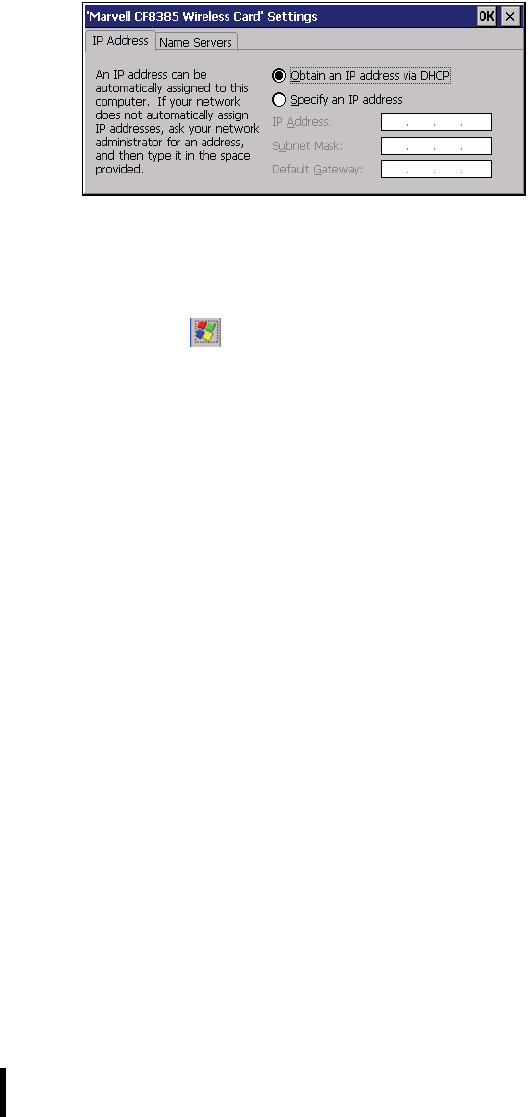
4. Enter the IP address in the text box if you are using a static IP,
or tap “Obtain an IP address via DHCP” if you are assigned an
IP address by a DHCP server.
For more information on how to configure the wireless network
settings, tap Start oHelp.
Chapter 5 — Advance Settings
38
Chapter 5
Advance Settings
Checking the Battery Status
This section describes how to view the power level for the main battery
and how to set power saving options.
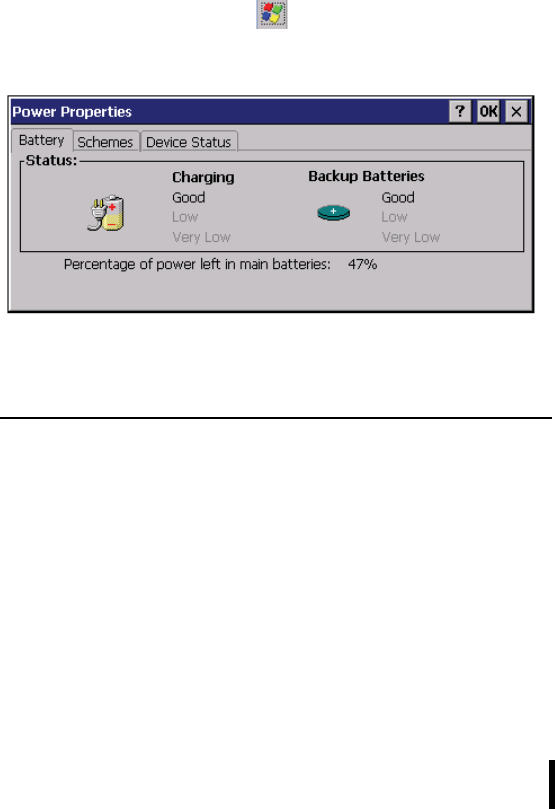
To check the main and backup battery status:
1. Open Power Properties. Tap Start oSettings oControl
Panel. Then double-tap Power.
The Power screen appears.
2. The battery menu item displays the status of the main and
backup batteries.
NOTE:It is necessary to charge the battery when the battery
charge reaches below 13%. If the battery does not accept a
charge, contact Technical Support.
Chapter 5 — Advance Settings
39
Extending Battery Life
You can extend the CT1100 battery life by doing either of the following:
• Change the automatic power settings
• Minimize the use of the backlight
Changing the Automatic Power Settings
To change the automatic power settings:
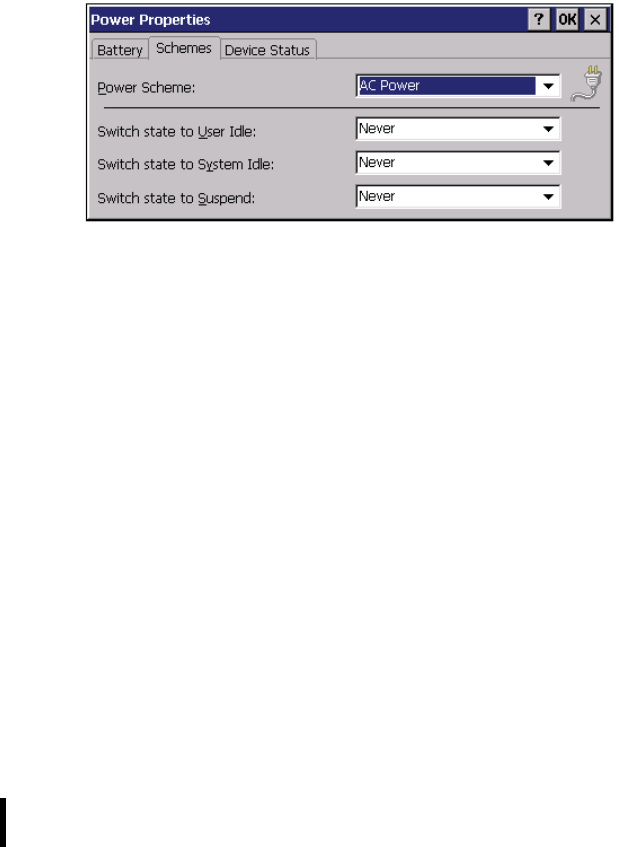
1. In the Power Properties screen tap the Schemes tab.
2. Tap the arrow next to the Power Scheme and select Battery
Power.
3. Tape the arrows next to the following three power saving sce-
narios and select the desired time out for each item.
– Switch state to User Idle: CT1100 enters power saving
mode when there is no user input after the selected timeout.
The backlight brightness is reduced. The backlight resumes
normal brightness when the LCD is touched.
– Switch state to System Idle: CT1100 enters power saving
mode when there is no system activity after the selected
timeout. The backlight is turned off. The backlight turns on
again when the LCD is touched.
– Switch state to Suspend: CT1100 enters suspend mode
when there is no user input or system activity after the
selected timeout.
Time out values range from Never, and 4/5/10/30 minutes.
Chapter 5 — Advance Settings
40
Adjusting Backlight Setting
The power consumption of the LCD backlight may be high, turn off the
backlight function if it is not necessary.
If a backlight is required, set “automatically turn off the backlight” func-
tion.
To change backlight settings:
1. Tap Start oSettings oControl Panel.
2. Tap OEMs Utility.
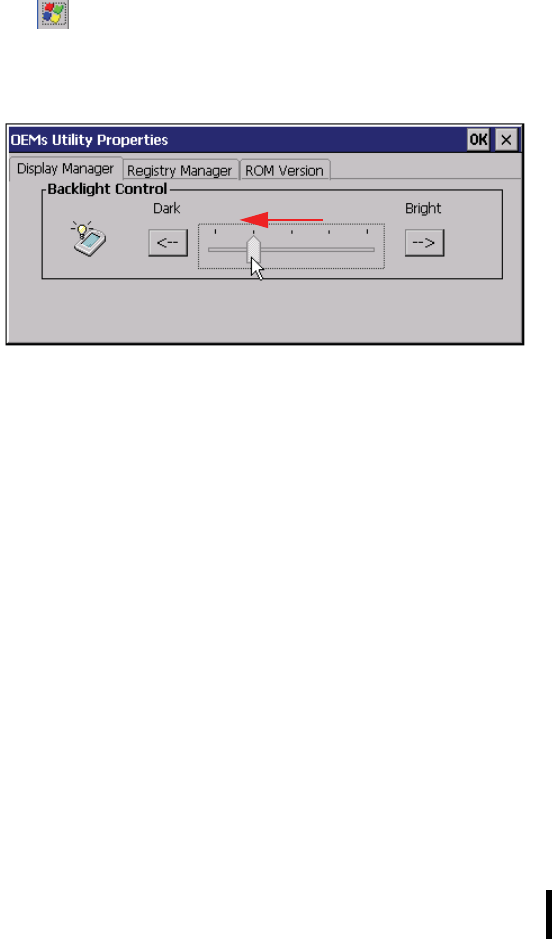
3. Select Display Manager, and tap the arrow next to Dark or drag the
slider to the left to reduce the screen brightness.
Performing a Reset
You may have to perform a reset if the device freezes (i.e., device no
longer responds to the buttons on the screen). A reset allows your
device to get a fresh start, similar to rebooting a computer. You can
perform a software reset or a hardware reset.
•Software reset: restarts the CT1100 and adjusts memory allo-
cation. All records and entries are retained after a reset.
Unsaved data in open programs may in some cases be lost.
•Hardware reset: the system reverts to default factory settings.
All data, installed programs, and settings are lost.
41
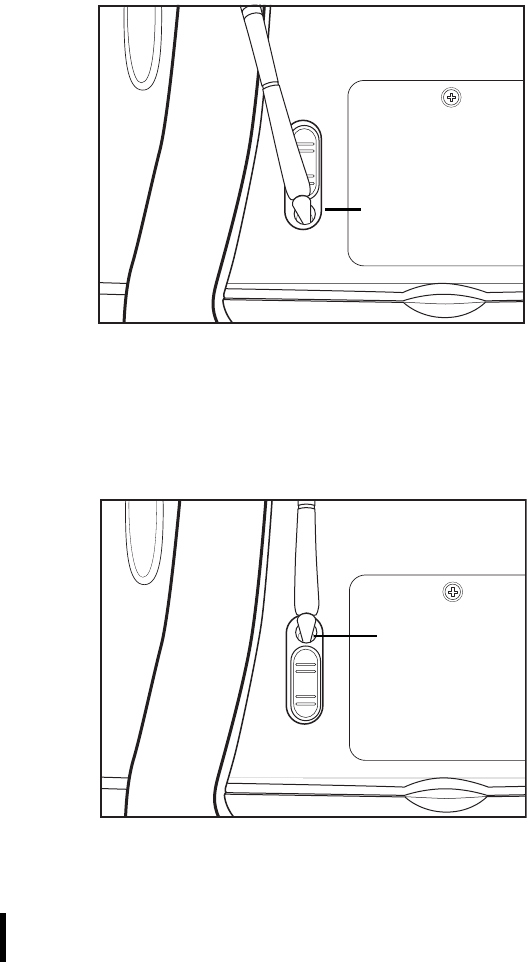
Performing a Hardware Reset
1. Remove the stylus from its holder.
2. Press the reset switch to expose the hardware reset button
(A).
3. Press the tip of the stylus to the hardware reset button (B).
Performing a Software Reset
1. Remove the stylus from its holder.
2. Press the reset switch to expose the software reset button (A).
3. Press the tip of the stylus to the software reset button (B).
Hardware
reset button
A
B
Software reset
button
A
B

Chapter 5 — System Specifications
42
Appendix A
System Specifications
Item CT1100
Operating System Windows CE 5.0
Processor Intel PXA270 520MHz
Memory 128MB SDRAM on board
128MB Flash ROM(M-System) on board
Display 10.4-inch TFT LCD, SVGA resolution
(800 X 600)
Touch Panel Resistive touch panel
Audio System AC-97, Internal microphone and one speaker
(stereo supported via headphone jack)
Application
Buttons
5 programmable function keys
1 x Navigation pad
1 x software reset button
1 x hardware reset button
Communication 802.11b/g WLAN module built-in with internal
a n t e n n a
External I/O
Interfaces
One RS-232 port
Two USB type A connectors
One RJ45 for 10/100Mbps Ethernet port
One PCMCIA type II slot
One SD slot
One stereo headphone jack
One microphone jack
One VGA output
One DC-in jack
One Docking connector for cradle

43
Main Battery Rechargeable Li-ion 2200mAh 4 cells pack
(4S1P)
Power Adapter Universal AC 100V ~ 240V, 50~60Hz input,
19V, 3.16A for output voltage & current
Physical Supports one hinge stand
295mm(W) x 238mm(H) x 30 ~ 39mm(D)
1.6Kg
Environment Operating Temperature: 0 to +40°C
Storage Temperature -20 to +60°C
Charging Temperature 0 to +50°C
Operating Humidity 20% ~ 80% non-
condensing
Rugged
Specification
IP53, 3 feet drop to concrete
Certification CE, FCC, cUL/UL, TUV, CB, CCC
Accessories • One AC-Adapter & power cord
•Stylus
• Cradle (one LED, one DC-in jack, USB
type B x 1, two USB Type A connectors
one pad connector)
• Battery
Item CT1100

Chapter 5 — Maintenance
44
Appendix B
Maintenance
Maintaining the Battery Pack
• Do not expose heat to or attempt to disassemble a battery, and
do not place a battery in water or in fire.
• Do not subject batteries to strong impacts, such as hitting them
with a hammer, stepping on or dropping them.
• Do not drop, puncture or disassemble batteries.
• Do not attempt to open or service the battery pack.
• Replace only with the battery pack designed for this product.
• Keep out of reach from children.
• Dispose of used batteries according to local regulations.
Maintaining your LCD Display
• Do not scratch the surface of the screen with any hard objects.
• Do not spray liquid directly on the screen or allow excess liquid
to drip down inside the device.
• Do not place anything on the screen at any time to prevent
screen damage, for example, drink or food.
• Cleaning the LCD display should only be done with a soft cloth
dampened with denatured alcohol or a proprietary LCD screen
cleaner.
Cleaning the CT1100
• Turn off the CT1100 and unplug the power cord.
• Wipe the screen and the exterior with a soft, damp cloth moist-
ened only with water. Do not use liquid or aerosol cleaners on
the screen, it will discolor the finish and damage the screen.