ACE BAYOU BABT20 GAMING CHAIR User Manual Print

ACE BAYOU CORP. GAMING CHAIR Print

User manual-FCC-revised

Thank you for purchasing the X Rocker!Welcome to the world of interactive audio. With your new X Rocker you can not only hear your musicbut actually FEEL it. Whether you are listeningto music, watching a movie, or playing a game, you will become a part of it. We know you will enjoy your X Rocker experience!Get ready to experience sound as you never have before!IMPORTANT: You must keep your original retail receipt as proof of purchase.1X Rocker Gaming Chair SKU#5177301Have this item number ready when contacting customer servicesUK resident and need assistance?Contact customer services at www.x-rocker.co.uk or call+44 (0) 118 907 0140Non-UK residents contact customer services at www.thexrocker.com for assistanceMon - Fri 09:30 - 17:00 excluding bank holidays.
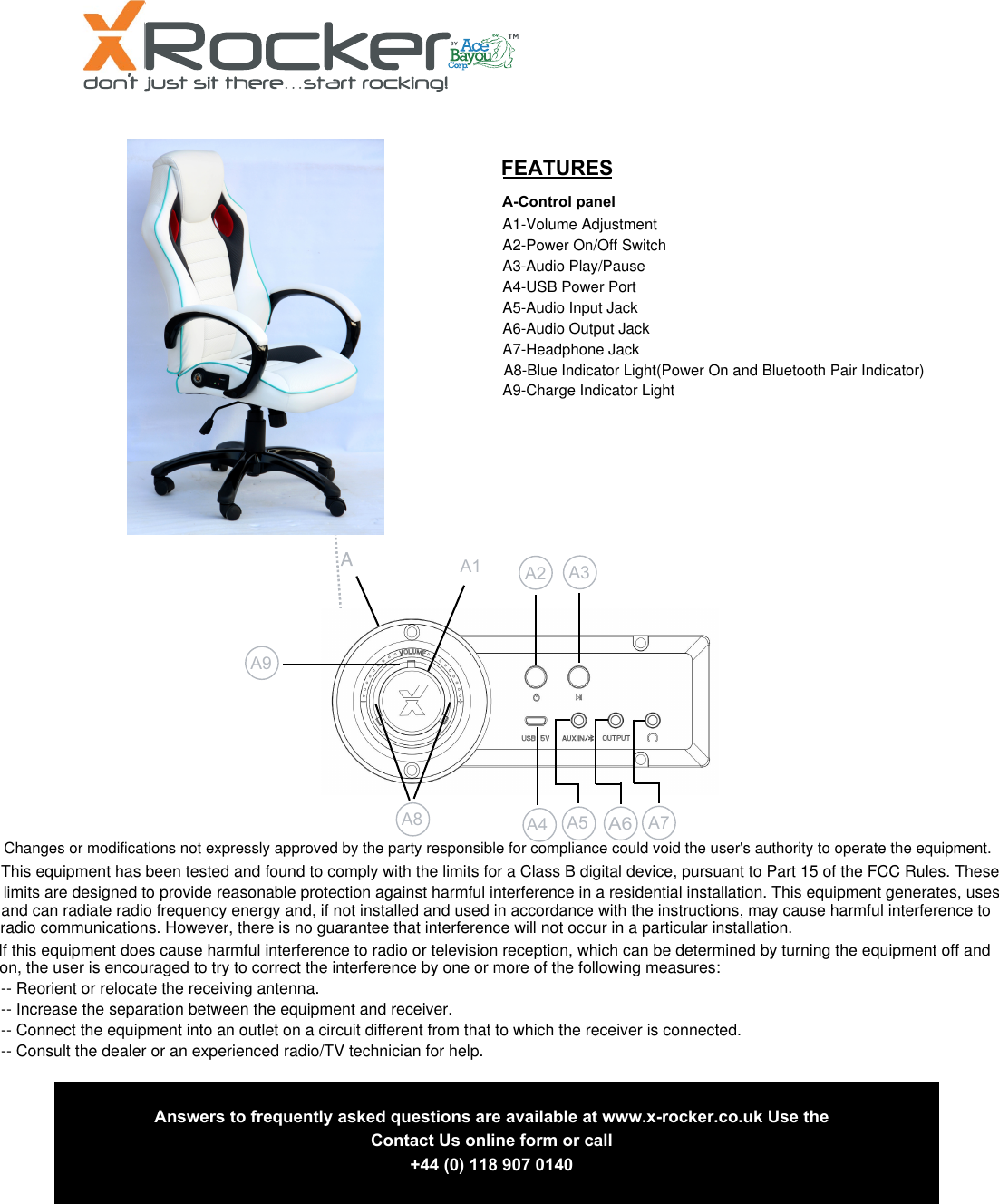
2FEATURES  A-Control panel A1 A2 A3 A4  A5 A6A7 Answers to frequently asked questions are available at www.x-rocker.co.uk Use theContact Us online form or call+44 (0) 118 907 0140A8 A9A1-Volume AdjustmentA2-Power On/Off SwitchA3-Audio Play/PauseA4-USB Power PortA5-Audio Input JackA6-Audio Output JackA7-Headphone JackA8-Blue Indicator Light(Power On and Bluetooth Pair Indicator)A9-Charge Indicator LightChanges or modifications not expressly approved by the party responsible for compliance could void the user's authority to operate the equipment. This equipment has been tested and found to comply with the limits for a Class B digital device, pursuant to Part 15 of the FCC Rules. These If this equipment does cause harmful interference to radio or television reception, which can be determined by turning the equipment off and -- Reorient or relocate the receiving antenna.-- Increase the separation between the equipment and receiver.-- Connect the equipment into an outlet on a circuit different from that to which the receiver is connected.-- Consult the dealer or an experienced radio/TV technician for help.limits are designed to provide reasonable protection against harmful interference in a residential installation. This equipment generates, uses and can radiate radio frequency energy and, if not installed and used in accordance with the instructions, may cause harmful interference to radio communications. However, there is no guarantee that interference will not occur in a particular installation.on, the user is encouraged to try to correct the interference by one or more of the following measures:
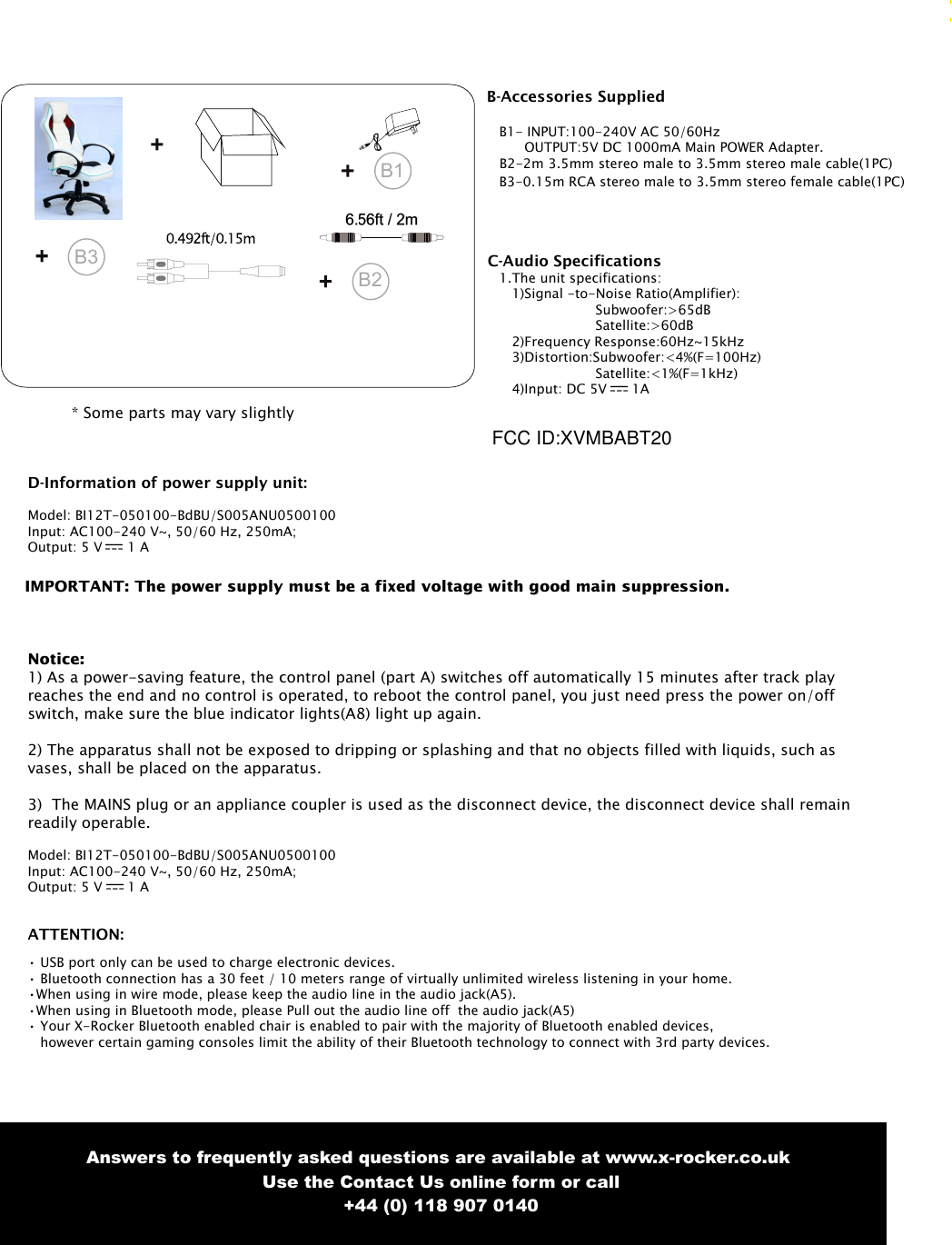
3B1* Some parts may vary slightlyAnswers to frequently asked questions are available at www.x-rocker.co.uk Use the Contact Us online form or call+44 (0) 118 907 0140ATTENTION:• USB port only can be used to charge electronic devices.• Bluetooth connection has a 30 feet / 10 meters range of virtually unlimited wireless listening in your home.•When using in wire mode, please keep the audio line in the audio jack(A5).•When using in Bluetooth mode, please Pull out the audio line off  the audio jack(A5)• Your X-Rocker Bluetooth enabled chair is enabled to pair with the majority of Bluetooth enabled devices,however certain gaming consoles limit the ability of their Bluetooth technology to connect with 3rd party devices. B3B2C-Audio Specifications1.The unit specifications:1)Signal -to-Noise Ratio(Amplifier):Subwoofer:>65dBSatellite:>60dB2)Frequency Response:60Hz~15kHz3)Distortion:Subwoofer:<4%(F=100Hz)Satellite:<1%(F=1kHz)4)Input: DC 5V  1AB-Accessories SuppliedB1- INPUT:100-240V AC 50/60HzOUTPUT:5V DC 1000mA Main POWER Adapter.B2-2m 3.5mm stereo male to 3.5mm stereo male cable(1PC)B3-0.15m RCA stereo male to 3.5mm stereo female cable(1PC)D-Information of power supply unit:Model: BI12T-050100-BdBU/S005ANU0500100Input: AC100-240 V~, 50/60 Hz, 250mA;Output: 5 V  1 AIMPORTANT: The power supply must be a fixed voltage with good main suppression.Notice:1) As a power-saving feature, the control panel (part A) switches off automatically 15 minutes after track playreaches the end and no control is operated, to reboot the control panel, you just need press the power on/offswitch, make sure the blue indicator lights(A8) light up again.2) The apparatus shall not be exposed to dripping or splashing and that no objects filled with liquids, such asvases, shall be placed on the apparatus.3) The MAINS plug or an appliance coupler is used as the disconnect device, the disconnect device shall remainreadily operable.Model: BI12T-050100-BdBU/S005ANU0500100Input: AC100-240 V~, 50/60 Hz, 250mA;Output: 5 V  1 AFCC ID:XVMBABT20
4FUNCTIONS:• Foldable construction for ease of storage and portability.•Side control panel with volume,audio input/audio output jacks.• Ergonomic design with full back support.• Headphone Jack for personal use.• Easy to clean, heavy duty upholstery grade PU cover.• Connect most Bluetooth devices to your X Rocker• Control your music from your Bluetooth device.• Easily connect your Bluetooth device without going near the X Rocker.READ BEFORE USE:• Keep these instructions for future reference.• Heed all warnings.• Follow all instructions.• Do not use the chair near water.• Clean only with dry cloth.• Do not block any ventilation openings, Install in accordance with these instructions.• Do not install near any heat sources such as radiators, heat registers, stoves, or other apparatus(including amplifiers) thatproduce heat.• Do not defeat the safety purpose of the polarized or grounding-type plug.  A polarized plug has two blades with one widerthan the other.  A grounding type has two blades and a third grounding prong. The wide blade or the third prong are providedfor your safety.   If the provided plug does not fit into your outlet, consult an electrician for replacement of the obsolete outlet.• Protect the power cord from being walked on or pinched particularly at plugs, convenience receptacles, and the point wherethey exit from the chair.• Only use attachments/accessories specified by the manufacturer.• Use only with the cart, stand, tripod, bracket, or table specified by the manufacturer, or sold with the chair,  When a cart is used,use caustion when moving the cart/chair combination to avoid injury from tip-over.• Unplug this chair during lightning storms or when unused for long periods of time.• Refer all servicing to qualified service personnel,  Servicing is required when the chair has been damaged in any way, such aspower-supply cord or plug is damaged, liquid has been spilled or objects have been fallen into the chair, the chair has been exposedto rain or moisture, does not operate normally, or has been dropped.• Always make sure hinge is locked before moving.• Always make sure hinge is locked before sitting in the chair.• Excessive use of audio equipment could lead to hearing loss.• Excessive sound pressure from earphones and  headphones can cause hearing loss.• Children under the age of 13 should not use this product without adult supervision.• Strictly for indoor use. Do not expose to direct sunlight,moisture or extreme temperatures.• if the cover becomes wet, disconnect the power immediately and don’t use until it is completely dry.• Do not attempt to remove the cover or any components.  Removal of the cover or tampering with components puts youat risk for injury or death from electrical shock.• The apparatus shall not be exposed to dripping or splashing and that no objects filled with liquids, such asvases, shall be placed on the chair.• The MAINS plug or an appliance coupler is used as the disconnect device, the disconnect device shall remainreadily operable.SET UP:1. Lift X Rocker out of box.2. Keep the chair in the folded position and place it on the floor so that the back side of the chair is touching the floor andthe bottom of the seat is facing up.3. Review the set up diagrams to familiarize yourself with the X Rocker’s components, accessories, and set-up.4. Please complete steps 1- 4 to assemble the chair.5.Unpack the power adapter and connect it to the main power outlet, then to the USB power port(A4) on the control panel.6.Press the power button(A2) and confirm that the blue indicator light(A8) is on. 7. Follow the connection diagrams. They show how to connect the X Rocker to the audio source of your choice.8. More information please reference the additional assembly instructions.9.Adjust the volume levels to your preference...start rocking. Answers to frequently asked questions are available at www.x-rocker.co.uk Use the Contact Us online form or call+44 (0) 118 907 0140When the lithium battery in control panel is running low,the charge indicator light(A9) is on
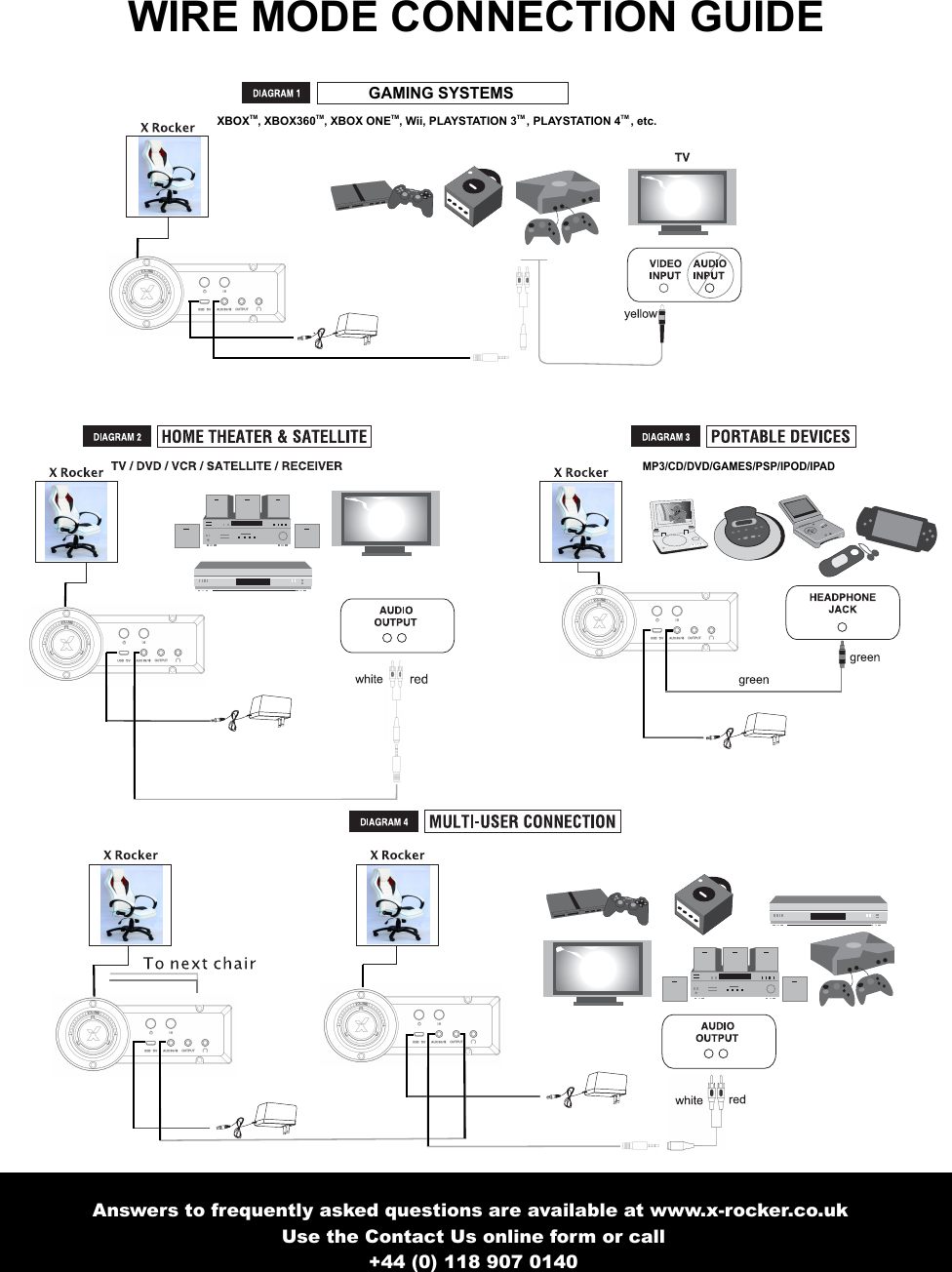
5WIRE MODE CONNECTION GUIDEGAMING SYSTEMSXBOXTM, XBOX360TM, XBOX ONETM, Wii, PLAYSTATION 3TM , PLAYSTATION 4TM , etc.MP3/CD/DVD/GAMES/PSP/IPOD/IPADAnswers to frequently asked questions are available at www.x-rocker.co.uk Use the Contact Us online form or call+44 (0) 118 907 0140
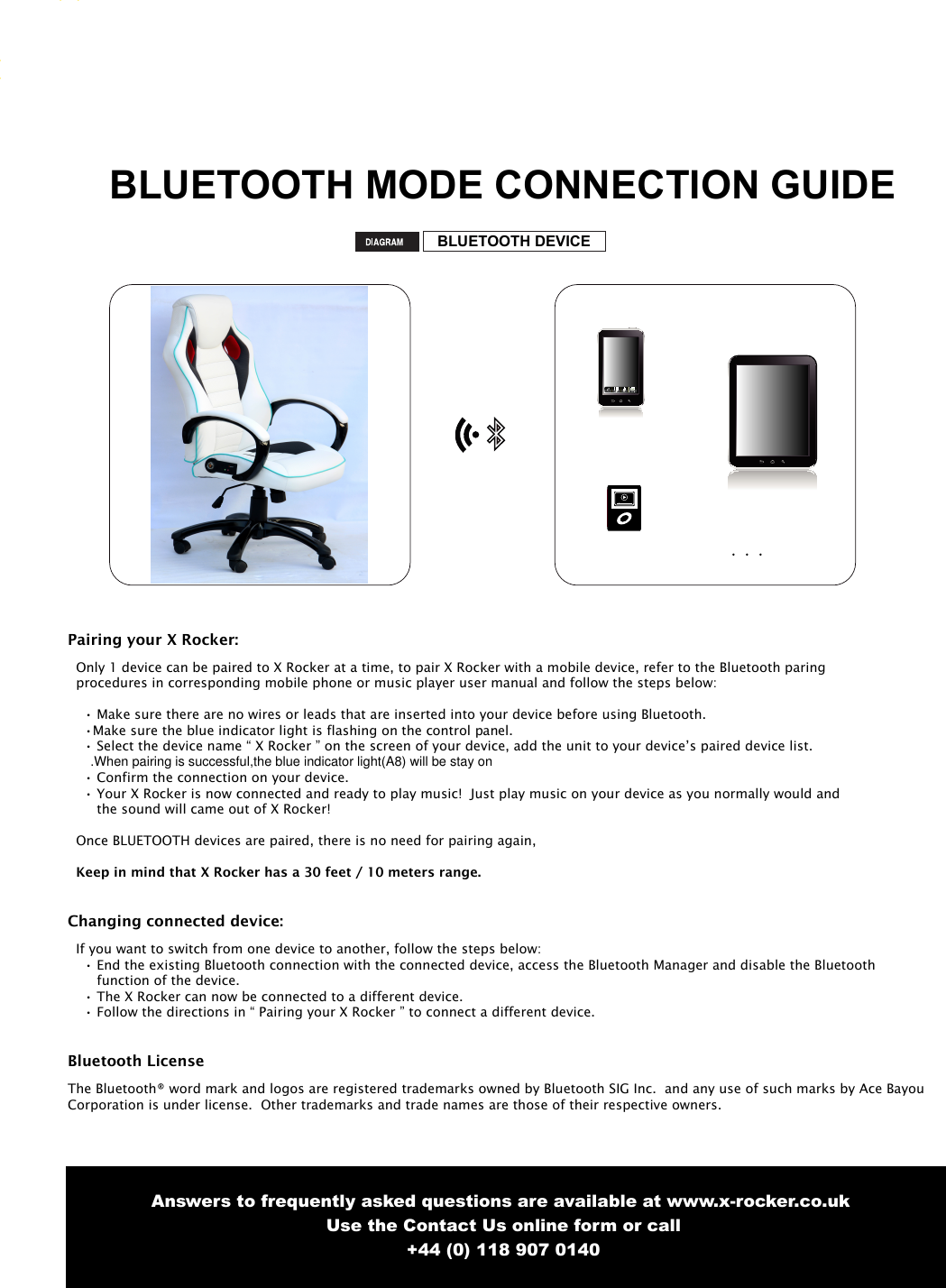
6BLUETOOTH MODE CONNECTION GUIDEBLUETOOTH DEVICECallPairing your X Rocker:  Only 1 device can be paired to X Rocker at a time, to pair X Rocker with a mobile device, refer to the Bluetooth paring   procedures in corresponding mobile phone or music player user manual and follow the steps below:• Make sure there are no wires or leads that are inserted into your device before using Bluetooth.•Make sure the blue indicator light is flashing on the control panel.• Select the device name “ X Rocker ” on the screen of your device, add the unit to your device’s paired device list.• Confirm the connection on your device.• Your X Rocker is now connected and ready to play music!  Just play music on your device as you normally would andthe sound will came out of X Rocker!  Once BLUETOOTH devices are paired, there is no need for pairing again, Keep in mind that X Rocker has a 30 feet / 10 meters range.Changing connected device:  If you want to switch from one device to another, follow the steps below:• End the existing Bluetooth connection with the connected device, access the Bluetooth Manager and disable the Bluetooth       function of the device.• The X Rocker can now be connected to a different device.• Follow the directions in “ Pairing your X Rocker ” to connect a different device.Bluetooth LicenseThe Bluetooth® word mark and logos are registered trademarks owned by Bluetooth SIG Inc.  and any use of such marks by Ace BayouCorporation is under license.  Other trademarks and trade names are those of their respective owners. Answers to frequently asked questions are available at www.x-rocker.co.uk Use the Contact Us online form or call+44 (0) 118 907 0140.When pairing is successful,the blue indicator light(A8) will be stay on
7Answers to frequently asked questions are available at www.x-rocker.co.uk Use the Contact Us online form or call+44 (0) 118 907 0140If you use component or AV cable to connect console to TV:•Fit the B3 connectors to the ends of the B1cable•Unplug the Red and White plugs of the console’s AV cable from the TV, leaving the Yellow (video)plug in place.•Plug the Red and White plugs of the console’s AV cable into the B3 connectors on the Rocker’s B1cable.Component or AV cables are supplied with new models of PlayStation 3, X Box Elite and Wii, as well as earlier generation consoles.   If you use HDMI cable to connect to TVConnect Rocker to one of TV’s Audio Out connections, Most HD-ready TV sets have some combination of RCA, mini-plug or optical audio interfaces enabling audio connection to accessories. Many have all three.•RCA connection is direct to the RCA plug terminations of the Rocker’s B1 cable, but makesure you are connecting to an Audio Out pair.  If your TV has only two RCA sockets and they are not marked Audio Out, they are probably input sockets and cannot send audio    Information to the Rocker.•Mini Plug connection. Mini Plug sockets are often found on the front or side of the TVset, marked with the headset icon². Fit the RCA-to-Mini Plug adapter[B4 on instructions] to the RCA ends of your three-meter cable[B1 on the instructions], converting your three-meter cable to a mini plug-to-mini plug connector. Plug one end into TV’s headset socket and the other into Rocker’s mini Plug input socket.(This is same configuration as for MP3 and other portable/handheld devices.) NOTE:Audio out volume through this outlet is usually separately adjustable from speaker volume, Please consult TV’s user guide for how to regulate output.•Optical Audio Out: A few models of TV only have optical audio out. if you have one of these sets,you will need anoptical to cable or optical to RCA coaxial adapter, sometimes called a Toslink to RCA adapter, and some connecting cables. There are several models of adapter available at reasonable prices from general electronic retailers and HD specialist shops and web sites.•If you use the console’s Component or AV cable: For direct connection to a game console, fit the mini-plug end ofthe B4 Mini Plug-RCA adapter to the Rocker’s transmitter. Fit the RCA socket ends to the the red and white audio plugsof the component or AV cable.If they are plugged into the TV, remove them, leaving the yellow video cable in place.•If you use HDMI connection to the TV: Fit the rocker’s transmitter to an available audio-out on the TV, using theappropriate connector mini-plug to mini-plug for the headset audio-out, or mini plug -to-RCA for RCA audio-out.•Other sound sources: Connect transmitter to MP3 players or handheld games using mini plug-to-mini plugconnector. For other devices such as stereo amplifiers, locate the most suitable audio output. Connectors compatiblewith most sound sources are included with your X Rocker.IMPORTANT: Refer to TV Manual for the audio outputs your TV has. You will require:-Headphone socket-Red and White RCA (not next to a yellow socket)If you have a scart socket, you will need a scart to an audio output adapter.Wired ConnectionDirect connection to game consoleWireless Connection
8TROUBLE SHOOTING -Unable to connect to game console-Most gaming consoles are shipped from the manufacturers with an Audio/Video RCA cable.  The A/V RCA cable has three RCA plugs: a video plug(yellow) and two audio plugs(red and white).  if your gaming console came with an A/V RCA cable.please follow the instructions supplied by the manufacturer for setting it up and connecting it to the TV. Please note that you must leave the red and white audio jacks on the A/V cable UNCONNECTED.  Once the console is properly connected to your TV. please follow the diagram in the illustrated X Rocker Set-up guide to connect the gaming console to the X Rocker.If your gaming console was shipped with a coaxial cable,  Instead of an A/V RCA cable, you must follow an alternate set-up procedure (coaxial cable is the same type of cable that is used to connect a VCR to the TV).  You will quickly recognize if your gaming console uses this type of cable.  it connects  the  gaming console directly to the television and carries both the audio and video signal over a single cable, if your gaming console uses a coaxial cable, you CAN NOT connect it directly to the X Rocker.  Instead,you must use an intermediary A/V device(such as a TV,VCR,DVD,TIVO,etc).a. Connect your gaming console to the intermediary A/V device via the coaxial cable.b. Connect the X Rocker to the ‘Audio Out’ jack on the intermediary A/V device.c. Follow diagram 2 in the X Rocker Set-up guide to connect the X Rocker to the  intermediary A/V device andfinalize the setup.If your gaming console is attached to an HD TV with an HDMI cable.You will need to connect the chair using either the audio out jacks on the back of the TV or by plugging into the headphone jack on the front of the TV.-Unable to hear any sound from the X Rocker-1.Check to ensure that the power adapter is properly connected to the USB power port(A4).  When properly connected, the charge indicator light(A9) on the control panel should light up.  If the charge  indicator light(A9)does not light up, try to use another power outlet in your home.2. Make sure the power unit is turned on and blue indicator light on the control panel is lit.  If it is not, please press the power  on/offbutton on the control panel.3. When you use wire mode, make sure keep  the audio line in the audio input jack(A5).4. When you use Bluetooth mode:• Make sure that there is no wired line that insert in your device before using Bluetooth.• Make sure the volume of  X Rocker and the volume of mobile musice device is set to a comfortable listening level.• Make sure you are within range of the X Rocker and your mobile music device is connected via Bluetooth technologywith the X Rocker.5. Once you have successfully completed 1 - 4. Please review the X Rocker illustrated set-up guide.  Double check all audioconnections.  Finally, check that the volume on the hand remote is turned to an audible level on both the TV and the chair.6. If you have completed 1 - 5 and still do not hear sound, try connecting another audio source(CD player, television,VCR orgame console) and go through the steps again.  DO NOT SHIP ANYTHING TO US WITHOUT CONTACTING US FIRST.  DO NOT SHIP ANY PARTS OR WHOLE UNITS TO THISADDRESS FOR REPAIR WITHOUT OUR CONFIRMATION. Answers to frequently asked questions are available at www.x-rocker.co.uk Use the Contact Us online form or call+44 (0) 118 907 0140

Navigation menu