ADDVALUE INNOVATION AVIATLASIP Maritime Satellite Terminal User Manual

ADDVALUE INNOVATION PTE LTD Maritime Satellite Terminal

Contents

User manual

             Thuraya ATLAS IP Satellite Terminal    Installation Manual  Rev 1.0
   Atlas IP Terminal Installation Manual        Page 2 of 34    LIST OF CONTENT:  REGULATORY INFORMATION_________________________________________________4 SAFETY INSTRUCTIONS  __________________________________________________________  5 IMPORTANT INFORMATION TO INSTALLERS AND USERS  ___________________________  8 SYSTEM CONFIGURATION ________________________________________________________  9 1 ATLAS IP TERMINAL _________________________________________________________  10 1.1 Introduction  _____________________________________________________________  10 1.2 Above Deck Equipment ____________________________________________________  10 1.3 Below Deck Equipment ____________________________________________________  11 1.4 Wired Primary Handset with Cradle _________________________________________  11 2 INSTALLATION OF ATLAS IP TERMINAL  ______________________________________  12 2.1 Installation of ADU  _______________________________________________________  12 2.1.1 Overview  ____________________________________________________________  12 2.1.2 Radiation Hazard ______________________________________________________  12 2.1.3 Interference ___________________________________________________________  13 2.1.4 Obstruction ___________________________________________________________  14 2.1.5 Antenna Mast _________________________________________________________  15 2.1.6 Installing ADU ________________________________________________________  16 2.2 Installation of BDU ________________________________________________________  17 2.3 Installation of Primary Handset and Cradle ___________________________________  19 2.3.1 Connecting Primary Handset with a Cable Holder  ____________________________  19 2.3.2 Overview  ____________________________________________________________  20 3 CONNECTIONS ______________________________________________________________  21 3.1 BDU’s Outputs Connection _________________________________________________  22 3.1.1 RS-232 Serial Connector ________________________________________________  22 3.1.2 GPIO Output Port ______________________________________________________  23 3.1.3 Grounding Stud  _______________________________________________________  24 4 GETTING STARTED ON THE SYSTEM __________________________________________  24 4.1 Installing the SIM card  ____________________________________________________  24 4.2 Powering up the system ____________________________________________________  26 4.2.1 Switching on the BDU __________________________________________________  26 4.3 Settings on Web Console ___________________________________________________  27 4.3.1 Activating on Web Console ______________________________________________  27 4.3.2 Data Connection Settings ________________________________________________  28 4.4 Selection of Data / CS Voice Mode ___________________________________________  30 5 GLOSSARY __________________________________________________________________  31
   Atlas IP Terminal Installation Manual        Page 3 of 34    APPENDIX A OUTLINE DRAWINGS ________________________________________________  32 A-1 ADU’s Outline Dimensions and Weight _______________________________________  32 A-2 ADU’s Hole Pattern (Cut-out Holes) _________________________________________  33 A-5 BDU’s Outline Dimensions _________________________________________________  34 A-4 Primary Handset’s Outline Dimensions _______________________________________  34
   Atlas IP Terminal Installation Manual        Page 4 of 34    REGULATORY INFORMATION  Federal Communication Commission Notice FCC Identifier: QO4-AVIATLASIP USE CONDITIONS: This device complies with part 15 of the FCC Rules. Operation is subject to the following two Conditions: (1) This device may not cause harmful interference, and (2) This device must accept any interference received, including interference that may cause undesired operation. NOTE: This equipment has been tested and found to comply with the limits for a Class B digital device, pursuant to Part 15 of the FCC Rules. These limits are designed to provide reasonable protection against harmful interference in a residential installation. This equipment generates uses and can radiate radio frequency energy and, if not installed and used in accordance with the instructions, may cause harmful interference to radio communications. However, there is no guarantee that interference will not occur in a particular installation. If this equipment does cause harmful interference to radio or television reception, which can be determined by turning the equipment off and on, the user is encouraged to try to correct the interference by one of the following measures: ·  Reorient or relocate the receiving antenna. ·  Increase the separation between the equipment and receiver. ·  Connect the equipment into an outlet on a circuit different from that to which the receiver is connected. ·  Consult the dealer or an experienced radio/TV technician for help.  IMPORTANT NOTE: EXPOSURE TO RADIO FREQUENCY RADIATION This Device complies with FCC radiation exposure limits set forth for an uncontrolled environment. The Antenna used for this transmitter must be installed to provide a separation distance of at least 100cm from all persons and must not be co-located or operating in conjunction with any other antenna or transmitter.  FCC CAUTION: Any Changes or modifications not expressly approved by the manufacturer could void the user’s authority, which is granted by FCC, to operate this Maritime Broadband Satellite Terminal, ATLAS IP
   Atlas IP Terminal Installation Manual        Page 5 of 34    Declaration of Conformity: Addvalue Innovation Pte Ltd., 8, Tai Seng Link, Level 5 (Wing 2), Singapore 534158. declares under our sole responsibility that the Product, brand name as Thuraya and model: ATLAS IP, Maritime Broadband Satellite Terminal to which this declaration relates, is in conformity with the following standards and/or other normative documents: ETSI EN 301 489-1, -17, -19, -20, ETSI EN 301 444, ETSI EN 300 328, EN 60945,  IEC 60950 – 1 AND EN 60950-1,  We hereby declare that all essential radio test suite have been carried out and that the above named product is in conformity to all the essential requirements of Directive 1999/5/EC. The Conformity Assessment procedure referred to Article 10 and detailed in Annex [III] or [IV] of Directive 1999/5/EC has been followed with involvement of the following notified body(ies): TIMCO ENGINEERING, INC., P.O BOX 370,NEW BERRY, FLORIDA 32669. Identification mark: 1177 (Notified Body number) The technical documentation relevant to the above equipment are held at: · Addvalue Innovation Pte Ltd., 8, Tai Seng Link, Level 5 (Wing 2), Singapore 534158. ·Signed by Mr. Tan Khai Pang (Chief Technology Officer, September 29, 2014) and  Mr. Prabakar Kuttaniseeri (Manager- Quality Management, September 29, 2014).  SAFETY INSTRUCTIONS For the sake of safety and protection, read the manual before attempting to use Thuraya Atlas IP Terminal.   The  following  general  safety  precautions  must  be  observed  during  all  phases  of  operation, service and repair of this equipment. Failure to comply with these precautions or with specific warnings  elsewhere  in  this  user  guide  violates  safety  standards  of  intended  use  of  the terminal.  Addvalue  Innovation  Pte  Ltd  assumes  no  liability  for  the  customer's  failure  to  comply  with these requirements.  Hazard Symbols    Antenna Radiation Warning and Distance to other Radiation Equipment     For safety reasons, all personnel must keep at least 2 meters from the ADU.
   Atlas IP Terminal Installation Manual        Page 6 of 34     Power Supply            Turn off the power at the mains switchboard before beginning of the installation.  Confirm  the  power  voltage  is  compatible  with  voltage rating of the equipment. It is highly recommended to use +24V DC power line, provided that it is available on the vessel.   In case of unavailability of +24V DC power line provided by  the  vessel,  an  external  AC/DC  power  supply  of 115/230V AC with its output of +24V DC can be used.   Note:  The  requirements  of  the  AC/DC  power  supply should take care of  high  surge  current  of  25A  at  24V DC for 1ms.   Grounding, cables and connections       The chassis of the equipment must be connected to an electrical ground. This will minimise electric shock and mutual interference. In short, the EQUIPMENT must be grounded to the vessel.   Service       Do not attempt to access to the interior of the equipment. Only  qualified  personnel  authorized  by  its  manufacturer may perform service. Failure to comply with this rule will result in the warranty void.  Under certain conditions, dangerous  voltages may exist even  with  the  power  cable  removed.  To  avoid  injuries, always  disconnect  power  before  accessing  the equipment.   Equipment Ventilation To  ensure  adequate  cooling  of  the  terminal,  5-centimeter  of  unobstructed  space  must  be maintained around all sides of the unit except the bottom side. The ambient temperature range of the transceiver is: -25°C to +55°C.   Fire Precautions The equipment shall not be operated in the presence of flammable gases or fumes as well as any  explosive  atmosphere.  Operation  of  any  electrical  equipment  in  such  an  environment constitutes a definite safety hazard.
   Atlas IP Terminal Installation Manual        Page 7 of 34      Obtaining Licensing For Thuraya Transceivers  Under  rights  given  under  ITU  Radio  Regulations,  local  telecommunications  administrations  establish and  enforce  national  rules  and  regulations  governing  types  of  emissions,  power  levels,  and  other parameters that affect the purity of signal, which may be radiated in the various frequency bands of the radio spectrum.  To  legally  operate  Thuraya  equipment,  it  is  necessary  to  obtain  permission  from  the  local telecommunications  regulatory  authorities  of  the  country  you  are  operating  from.  Using  your equipment in any country without permission causes you to run the risk of confiscation of the equipment by the local authorities. The normal procedure to bring such equipment into another country is to apply for a license before travel. If a license has not been obtained before travel, the equipment may be put in to storage by local authorities until such time license is obtained.
   Atlas IP Terminal Installation Manual        Page 8 of 34    IMPORTANT INFORMATION TO INSTALLERS AND USERS   General  It is important that the user of this equipment read and observe all safety requirements and operate the terminal according to the descriptions published in this manual.   Failure to comply may result in risk of injury or equipment failure and voids the validity of the warranty provided by equipment manufacturer.  The  terminal  consists  of  2  systems,  BDU  and  ADU  and  they  must  be  used  as  provided  by  the manufacturer or authorized dealer. Do not substitute any one of the system which is not provided by the manufacturer or authorized dealer. Should needs of servicing or replacement is required, always contact the distributor or manufacturer for instructions.  Any modifications or attempts to open up the devices by not authorized personnel will void the warranty.      Contents  in  this  manual  may  be  subjected  to  change  without  notice,  to  obtain  latest  version,  please enquire it from product manufacturer or distributor.  Copyright  © Copyright 2012 Addvalue Innovation Pte Ltd.  All rights reserved. This publication and its contents are proprietary to Addvalue Innovation Pte Ltd. No part of this publication may be reproduced in any form or by any means without the written permission of Addvalue Innovation Pte Ltd.    Warranty  Addvalue Innovation Pte Ltd has made every effort to ensure the correctness and completeness of the material in this  document. Addvalue Innovation  Pte Ltd shall  not be liable  for errors  contained herein. The  information  in  this  document  is  subject  to  change  without  notice.  Addvalue  Innovation  Pte  Ltd makes  no  warranty  of  any  kind  with  regard  to  this  material,  including,  but  not  limited  to,  the  implied warranties of merchantability and fitness for a particular purpose.   Trademarks  All trademarks, marks, names, or product names referenced in this publication are the property of their respective owners, and Addvalue Innovation Pte Ltd neither endorses nor otherwise sponsors any such products or services referred to herein.  Microsoft,  Windows,  Windows  NT,  Windows  2000,  and  Windows  XP  are  registered  trademarks  of Microsoft Corporation in the U.S.A. and/or other countries.  All  other  company  and  product  names  may  be  the  registered  trademarks  or  trademarks  of  their respective owners.
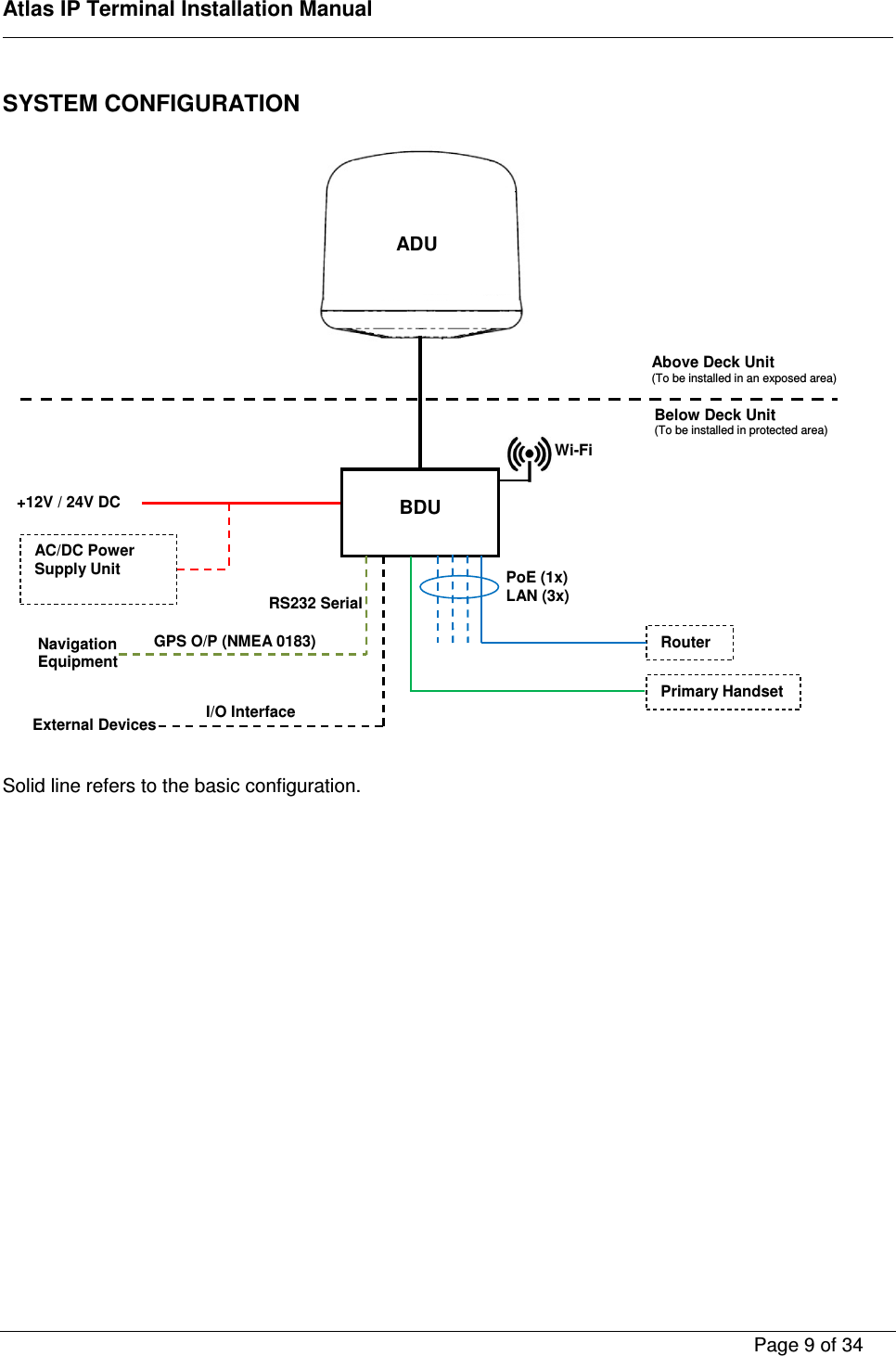
   Atlas IP Terminal Installation Manual        Page 9 of 34    SYSTEM CONFIGURATION                              Solid line refers to the basic configuration.               ADU  BDU Router External Devices Above Deck Unit (To be installed in an exposed area) Below Deck Unit (To be installed in protected area) AC/DC Power Supply Unit +12V / 24V DC PoE (1x) LAN (3x) I/O Interface Navigation Equipment GPS O/P (NMEA 0183)  Wi-Fi RS232 Serial Primary Handset
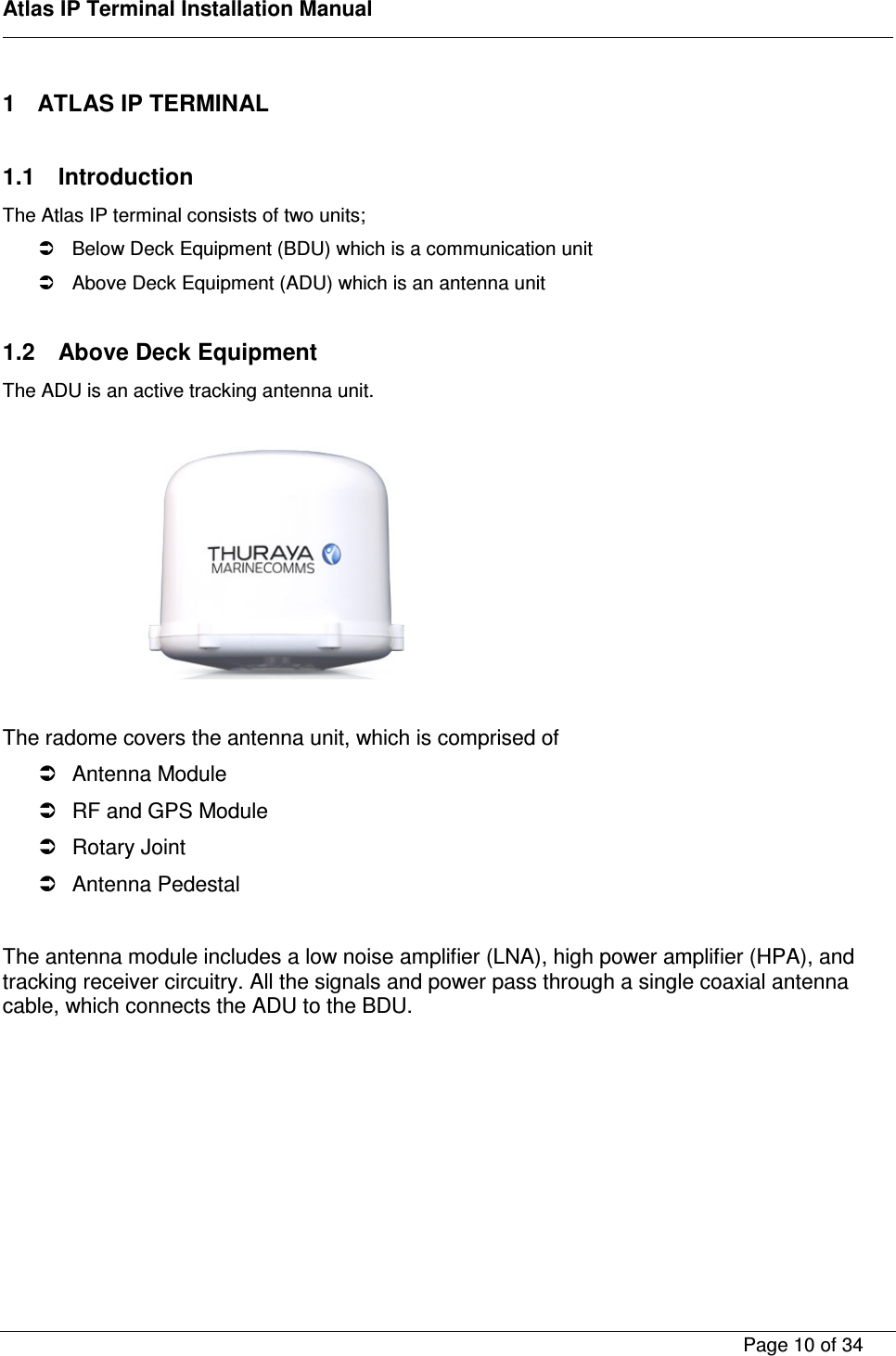
   Atlas IP Terminal Installation Manual        Page 10 of 34    1  ATLAS IP TERMINAL  1.1  Introduction The Atlas IP terminal consists of two units;   Below Deck Equipment (BDU) which is a communication unit   Above Deck Equipment (ADU) which is an antenna unit  1.2  Above Deck Equipment The ADU is an active tracking antenna unit.          The radome covers the antenna unit, which is comprised of   Antenna Module   RF and GPS Module   Rotary Joint   Antenna Pedestal  The antenna module includes a low noise amplifier (LNA), high power amplifier (HPA), and tracking receiver circuitry. All the signals and power pass through a single coaxial antenna cable, which connects the ADU to the BDU.
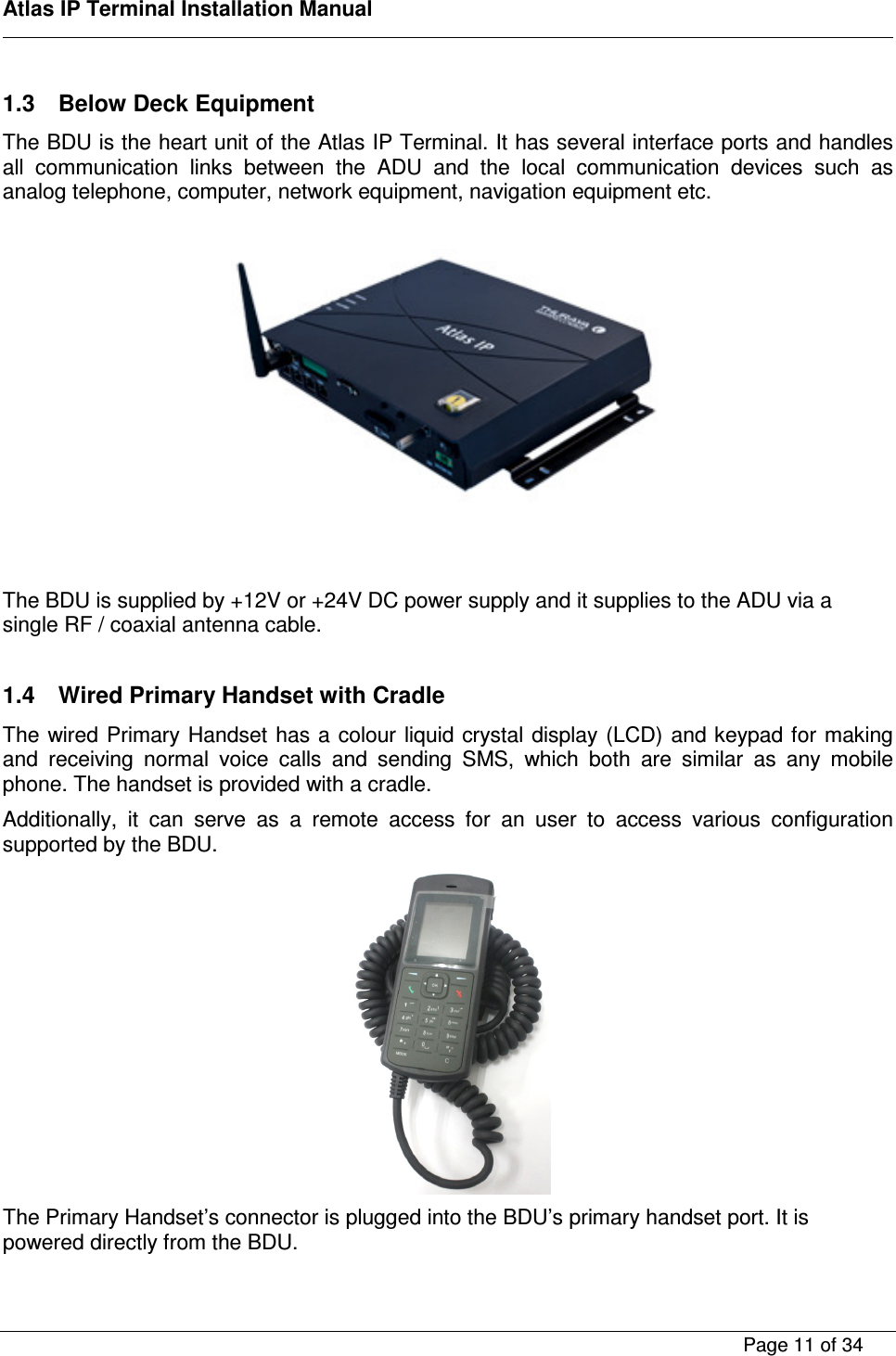
   Atlas IP Terminal Installation Manual        Page 11 of 34    1.3  Below Deck Equipment The BDU is the heart unit of the Atlas IP Terminal. It has several interface ports and handles all  communication  links  between  the  ADU  and  the  local  communication  devices  such  as analog telephone, computer, network equipment, navigation equipment etc.      The BDU is supplied by +12V or +24V DC power supply and it supplies to the ADU via a single RF / coaxial antenna cable.  1.4  Wired Primary Handset with Cradle The wired Primary Handset has a colour liquid crystal display (LCD) and keypad for making and  receiving  normal  voice  calls  and  sending  SMS,  which  both  are  similar  as  any  mobile phone. The handset is provided with a cradle. Additionally,  it  can  serve  as  a  remote  access  for  an  user  to  access  various  configuration supported by the BDU.  The Primary Handset’s connector is plugged into the BDU’s primary handset port. It is powered directly from the BDU.
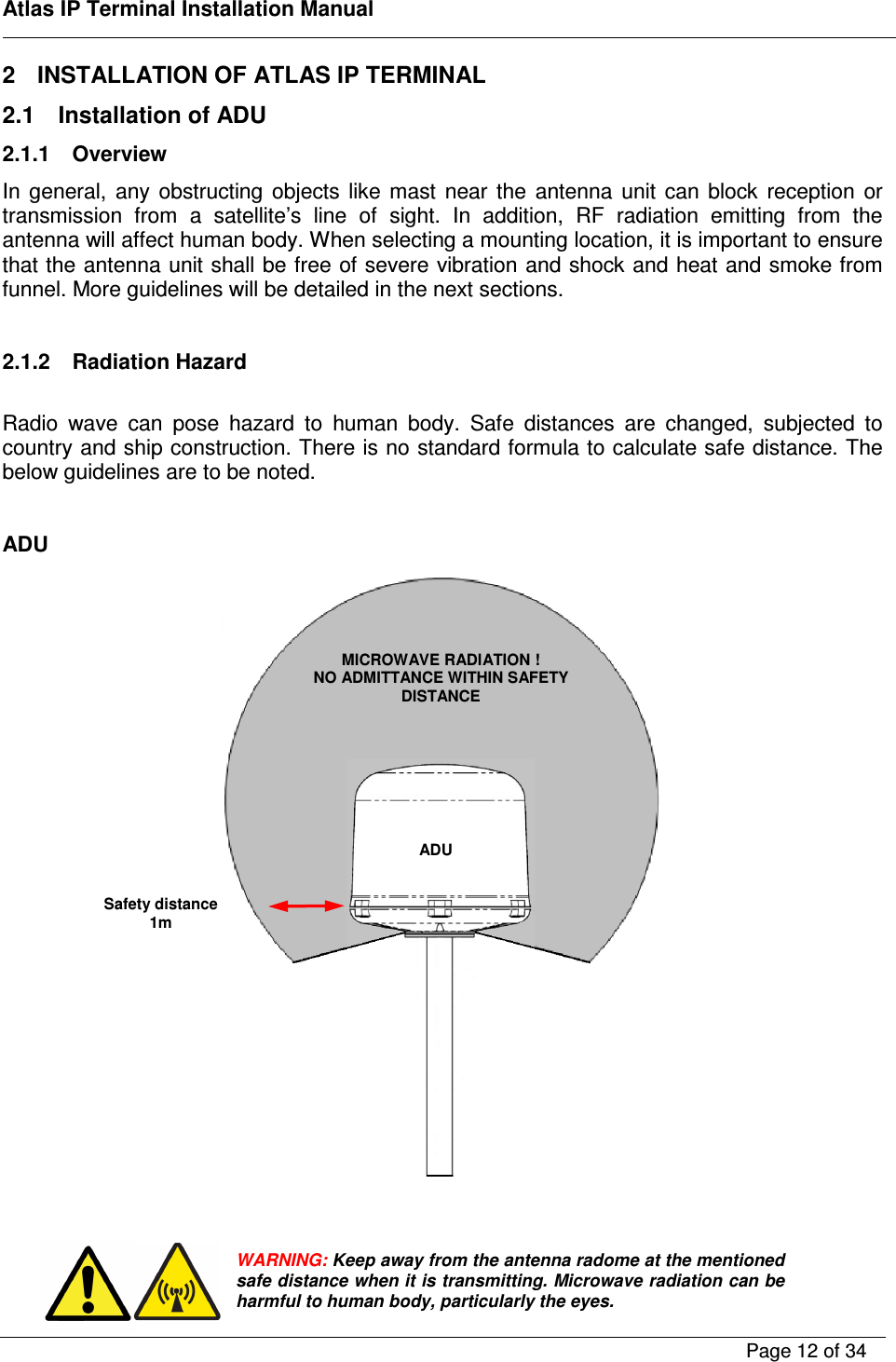
   Atlas IP Terminal Installation Manual        Page 12 of 34    2  INSTALLATION OF ATLAS IP TERMINAL 2.1  Installation of ADU 2.1.1  Overview In  general,  any  obstructing  objects  like  mast  near  the  antenna  unit  can  block  reception  or transmission  from  a  satellite’s  line  of  sight.  In  addition,  RF  radiation  emitting  from  the antenna will affect human body. When selecting a mounting location, it is important to ensure that the antenna unit shall be free of severe vibration and shock and heat and smoke from funnel. More guidelines will be detailed in the next sections.  2.1.2  Radiation Hazard  Radio  wave  can  pose  hazard  to  human  body.  Safe  distances  are  changed,  subjected  to country and ship construction. There is no standard formula to calculate safe distance. The below guidelines are to be noted.  ADU       WARNING: Keep away from the antenna radome at the mentioned safe distance when it is transmitting. Microwave radiation can be harmful to human body, particularly the eyes. MICROWAVE RADIATION ! NO ADMITTANCE WITHIN SAFETY DISTANCE Safety distance 1m ADU
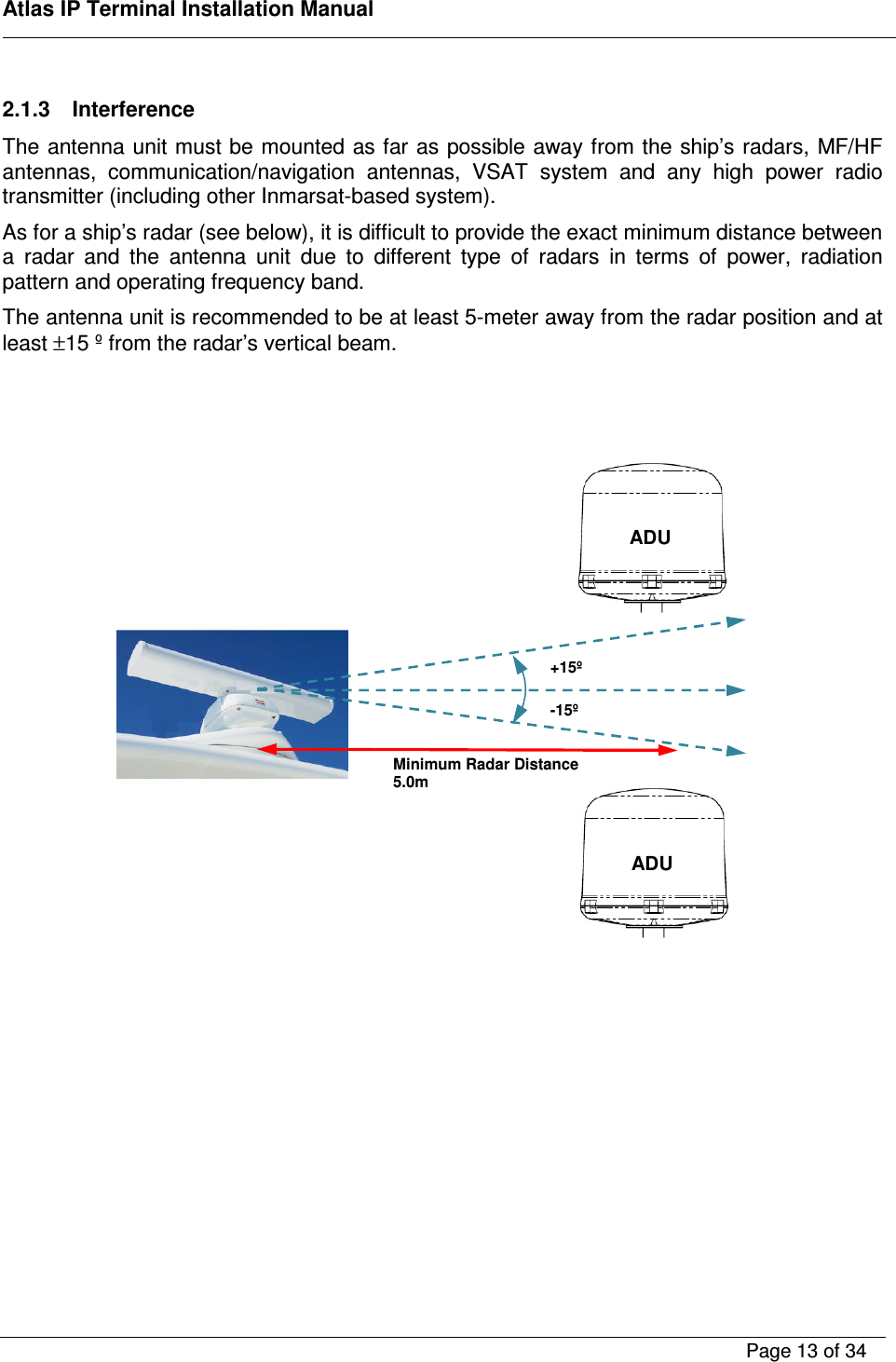
   Atlas IP Terminal Installation Manual        Page 13 of 34     2.1.3  Interference The antenna unit must be mounted as far as possible away from the ship’s radars, MF/HF antennas,  communication/navigation  antennas,  VSAT  system  and  any  high  power  radio transmitter (including other Inmarsat-based system). As for a ship’s radar (see below), it is difficult to provide the exact minimum distance between a  radar  and  the  antenna  unit  due  to  different  type  of  radars  in  terms  of  power,  radiation pattern and operating frequency band. The antenna unit is recommended to be at least 5-meter away from the radar position and at least ±15 º from the radar’s vertical beam.                     Minimum Radar Distance 5.0m +15º -15º  ADU  ADU
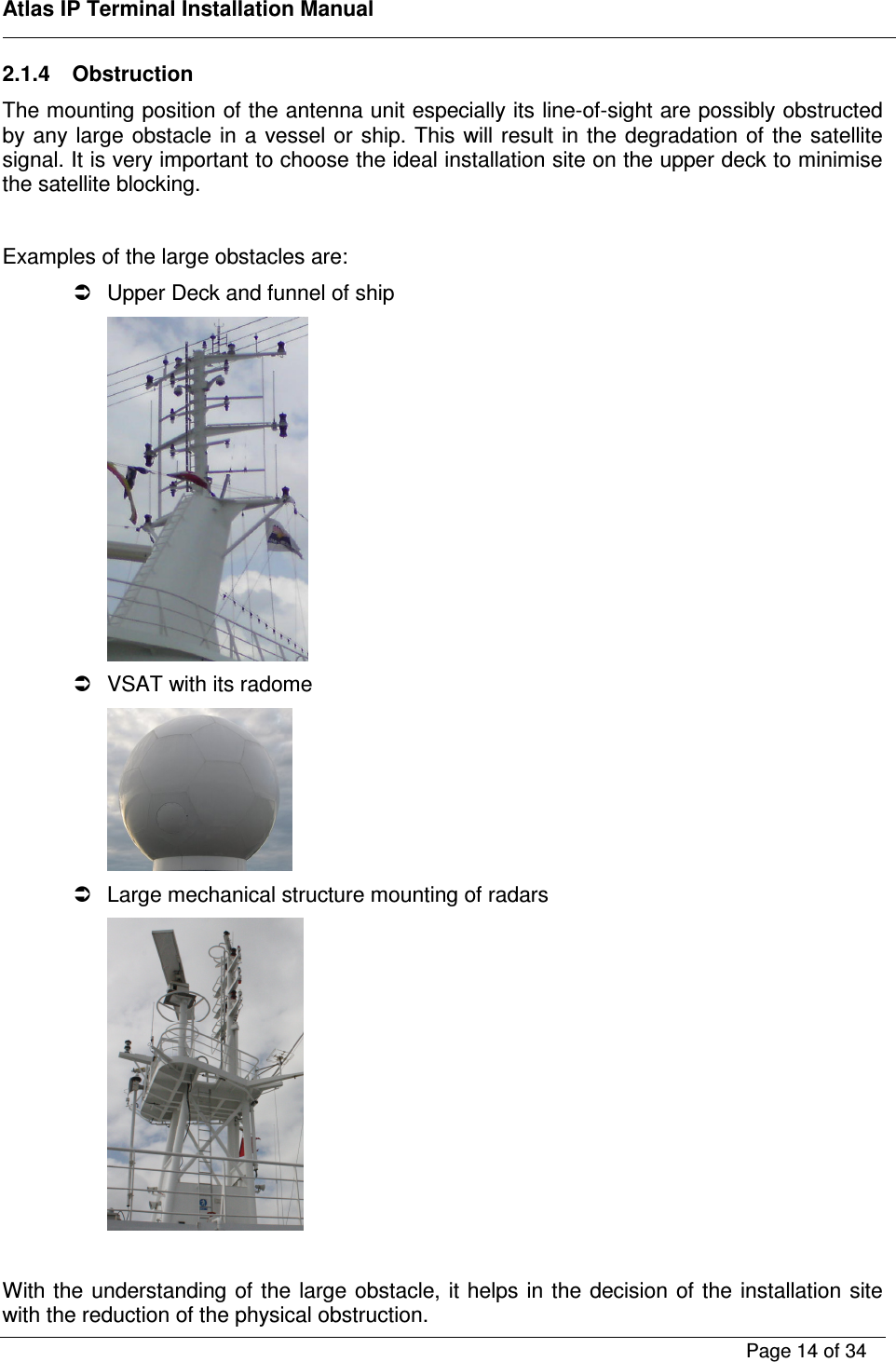
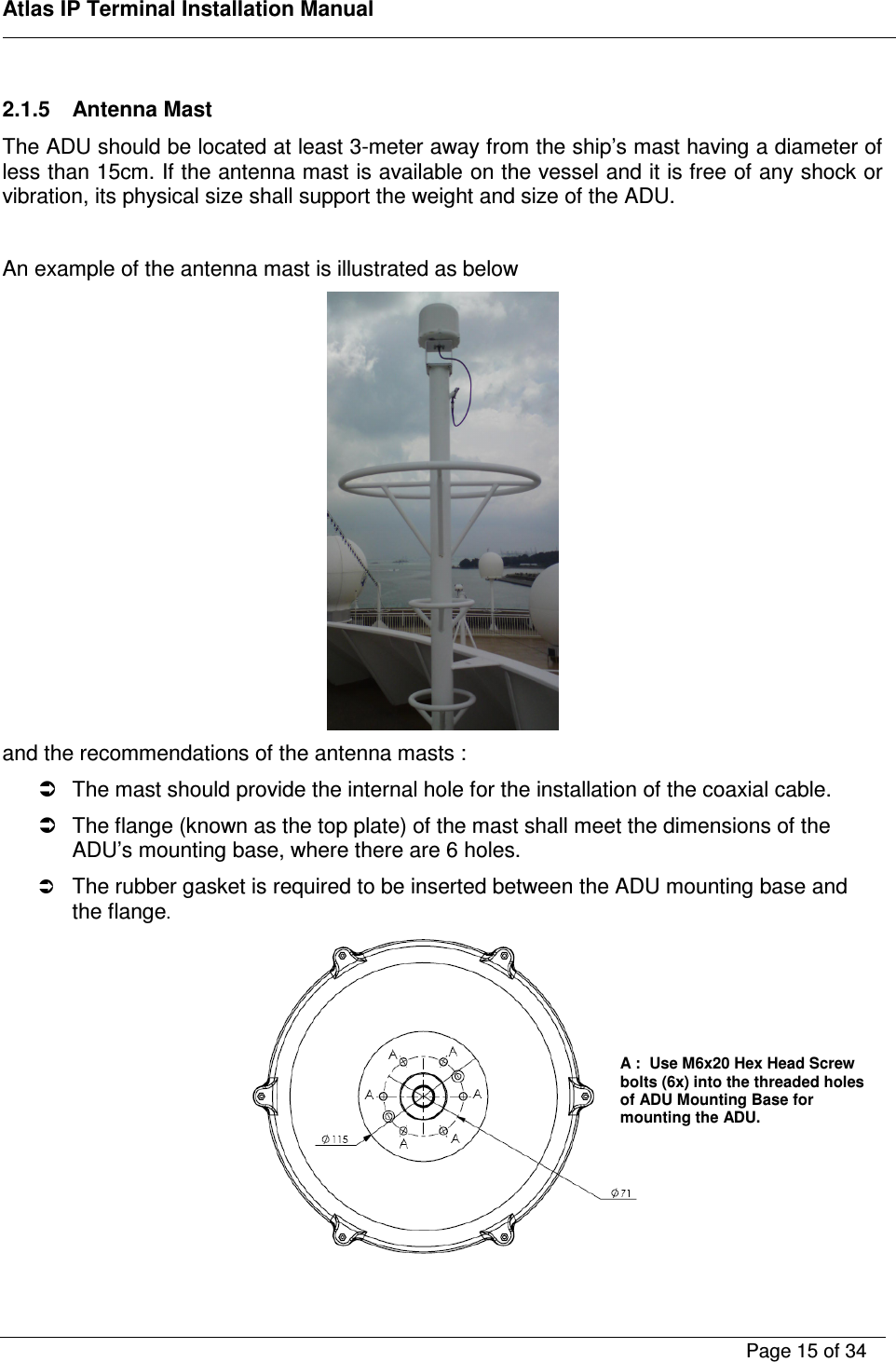
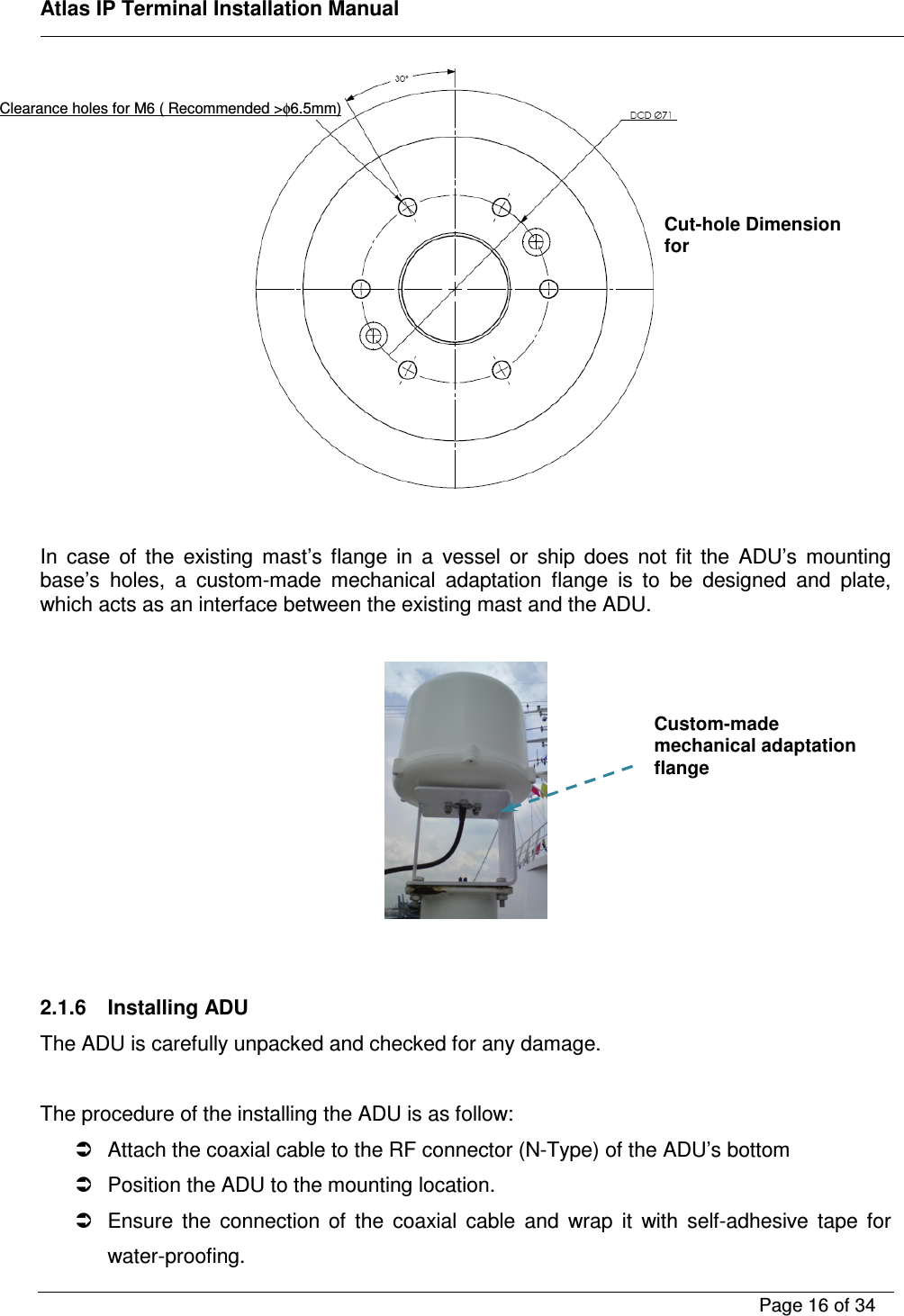
   Atlas IP Terminal Installation Manual        Page 14 of 34    2.1.4  Obstruction The mounting position of the antenna unit especially its line-of-sight are possibly obstructed by any large obstacle in  a vessel or  ship. This will result  in the degradation of  the  satellite signal. It is very important to choose the ideal installation site on the upper deck to minimise the satellite blocking.  Examples of the large obstacles are:   Upper Deck and funnel of ship    VSAT with its radome    Large mechanical structure mounting of radars   With the understanding of the large obstacle, it helps in the decision of the installation site with the reduction of the physical obstruction.
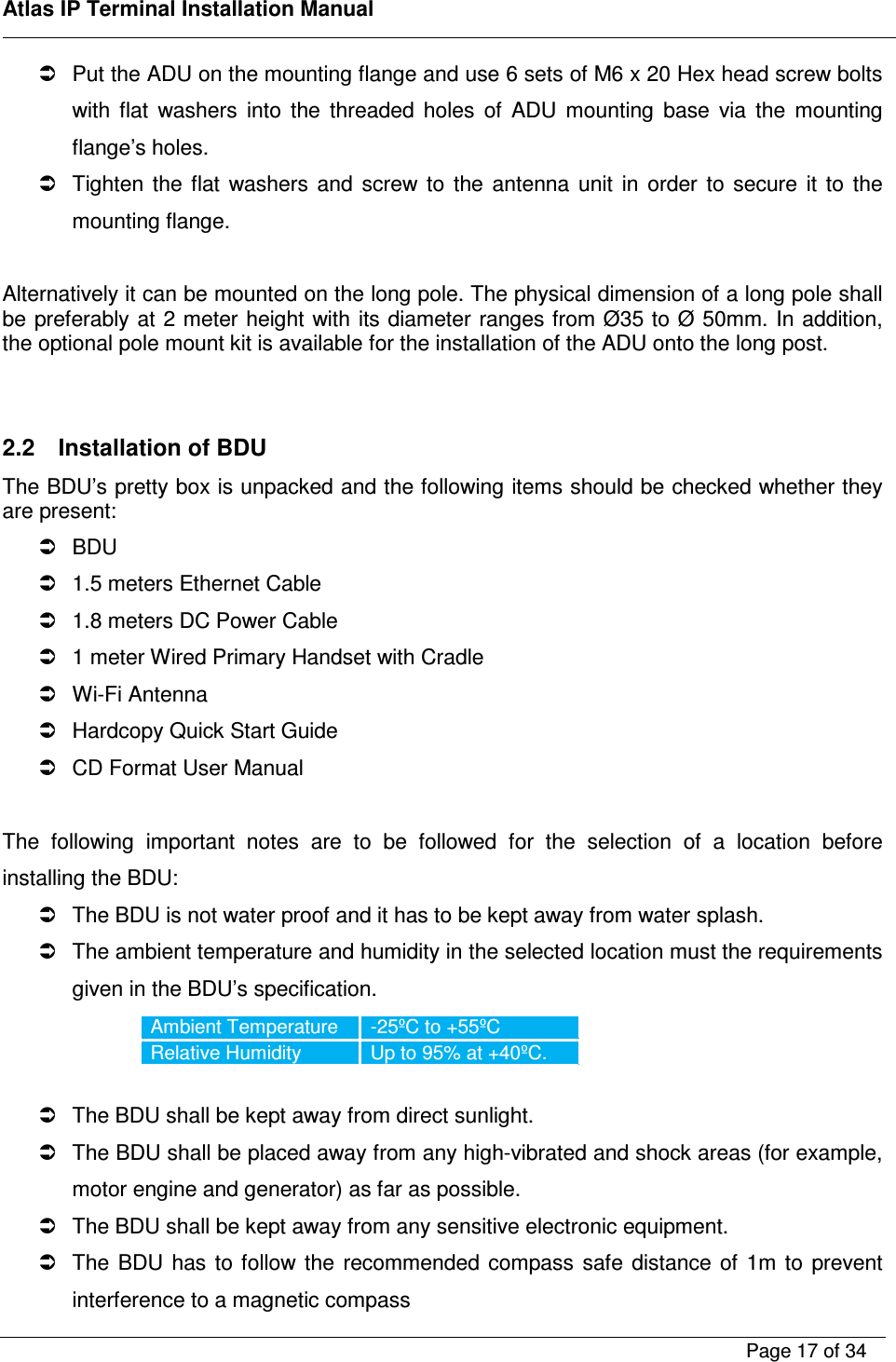
   Atlas IP Terminal Installation Manual        Page 15 of 34     2.1.5  Antenna Mast  The ADU should be located at least 3-meter away from the ship’s mast having a diameter of less than 15cm. If the antenna mast is available on the vessel and it is free of any shock or vibration, its physical size shall support the weight and size of the ADU.   An example of the antenna mast is illustrated as below  and the recommendations of the antenna masts :    The mast should provide the internal hole for the installation of the coaxial cable.   The flange (known as the top plate) of the mast shall meet the dimensions of the ADU’s mounting base, where there are 6 holes.  The rubber gasket is required to be inserted between the ADU mounting base and the flange.   A :  Use M6x20 Hex Head Screw bolts (6x) into the threaded holes of ADU Mounting Base for mounting the ADU.
   Atlas IP Terminal Installation Manual        Page 16 of 34      In  case  of  the  existing  mast’s  flange  in  a  vessel  or  ship  does  not  fit  the  ADU’s  mounting base’s  holes,  a  custom-made  mechanical  adaptation  flange  is  to  be  designed  and  plate, which acts as an interface between the existing mast and the ADU.       2.1.6  Installing ADU The ADU is carefully unpacked and checked for any damage.  The procedure of the installing the ADU is as follow:   Attach the coaxial cable to the RF connector (N-Type) of the ADU’s bottom    Position the ADU to the mounting location.   Ensure  the  connection  of  the  coaxial  cable  and  wrap  it  with  self-adhesive  tape  for water-proofing. Cut-hole Dimension for Clearance holes for M6 ( Recommended >φ6.5mm) Custom-made mechanical adaptation flange
   Atlas IP Terminal Installation Manual        Page 17 of 34      Put the ADU on the mounting flange and use 6 sets of M6 x 20 Hex head screw bolts with  flat  washers  into  the  threaded  holes  of  ADU  mounting  base  via  the  mounting flange’s holes.   Tighten  the  flat  washers  and  screw  to  the  antenna  unit  in  order  to  secure  it  to  the mounting flange.  Alternatively it can be mounted on the long pole. The physical dimension of a long pole shall be preferably at 2 meter height with its diameter ranges from Ø35 to Ø 50mm. In addition, the optional pole mount kit is available for the installation of the ADU onto the long post.    2.2  Installation of BDU The BDU’s pretty box is unpacked and the following items should be checked whether they are present:   BDU   1.5 meters Ethernet Cable   1.8 meters DC Power Cable   1 meter Wired Primary Handset with Cradle   Wi-Fi Antenna   Hardcopy Quick Start Guide   CD Format User Manual  The  following  important  notes  are  to  be  followed  for  the  selection  of  a  location  before installing the BDU:   The BDU is not water proof and it has to be kept away from water splash.   The ambient temperature and humidity in the selected location must the requirements given in the BDU’s specification. Ambient Temperature  -25ºC to +55ºC Relative Humidity  Up to 95% at +40ºC.    The BDU shall be kept away from direct sunlight.   The BDU shall be placed away from any high-vibrated and shock areas (for example, motor engine and generator) as far as possible.   The BDU shall be kept away from any sensitive electronic equipment.   The  BDU  has  to  follow  the  recommended  compass  safe  distance  of  1m  to  prevent interference to a magnetic compass
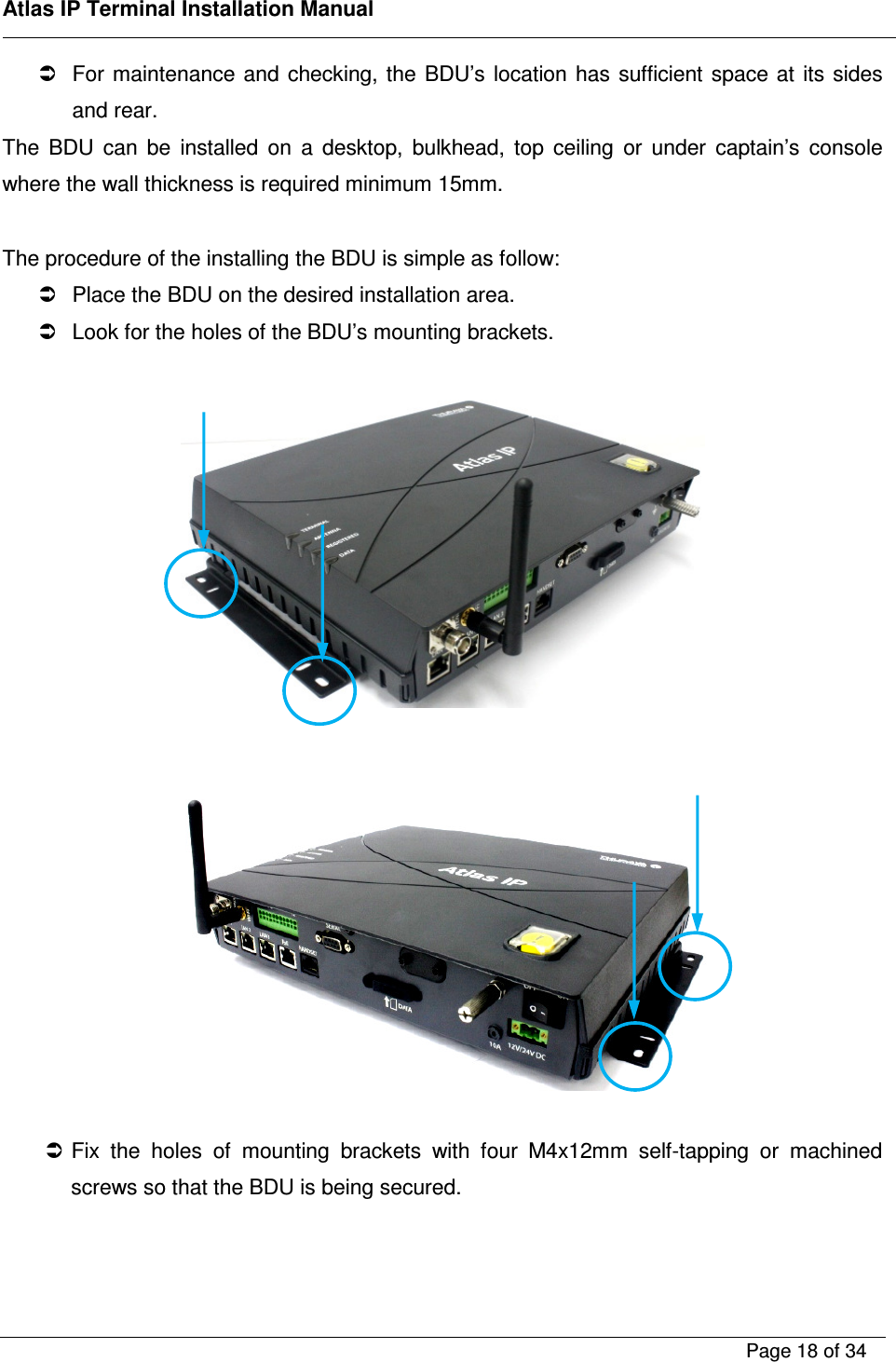
   Atlas IP Terminal Installation Manual        Page 18 of 34      For maintenance and checking, the  BDU’s location  has  sufficient space at  its  sides and rear.  The  BDU  can  be  installed  on  a  desktop,  bulkhead,  top  ceiling  or  under  captain’s  console where the wall thickness is required minimum 15mm.  The procedure of the installing the BDU is simple as follow:   Place the BDU on the desired installation area.   Look for the holes of the BDU’s mounting brackets.        Fix  the  holes  of  mounting  brackets  with  four  M4x12mm  self-tapping  or  machined screws so that the BDU is being secured.
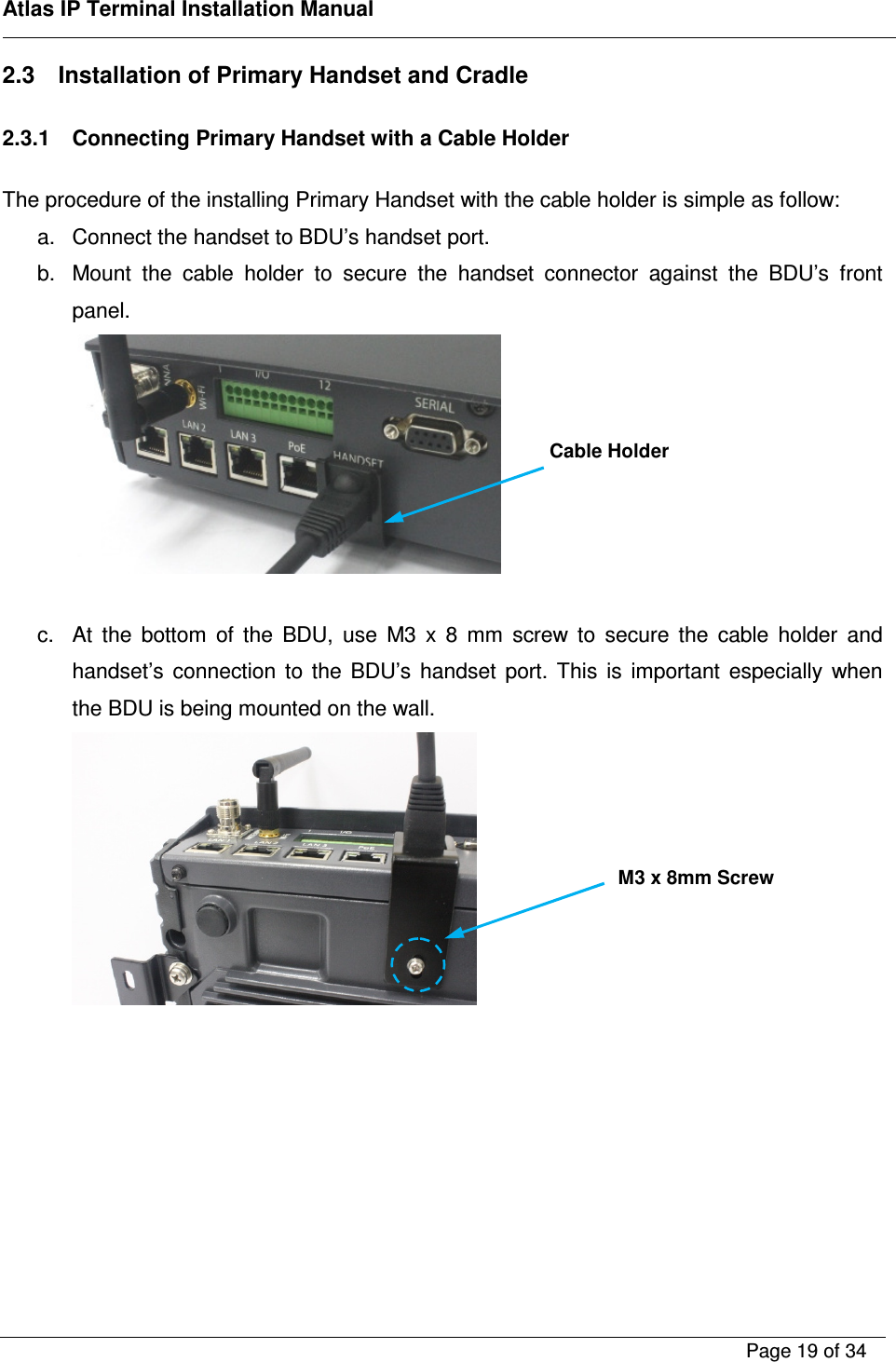
   Atlas IP Terminal Installation Manual        Page 19 of 34    2.3  Installation of Primary Handset and Cradle  2.3.1  Connecting Primary Handset with a Cable Holder  The procedure of the installing Primary Handset with the cable holder is simple as follow: a.  Connect the handset to BDU’s handset port. b.  Mount  the  cable  holder  to  secure  the  handset  connector  against  the  BDU’s  front panel.     c.  At  the  bottom  of  the  BDU,  use  M3  x  8  mm  screw  to  secure  the  cable  holder  and handset’s  connection  to  the  BDU’s  handset  port.  This  is  important  especially  when the BDU is being mounted on the wall.      Cable Holder M3 x 8mm Screw
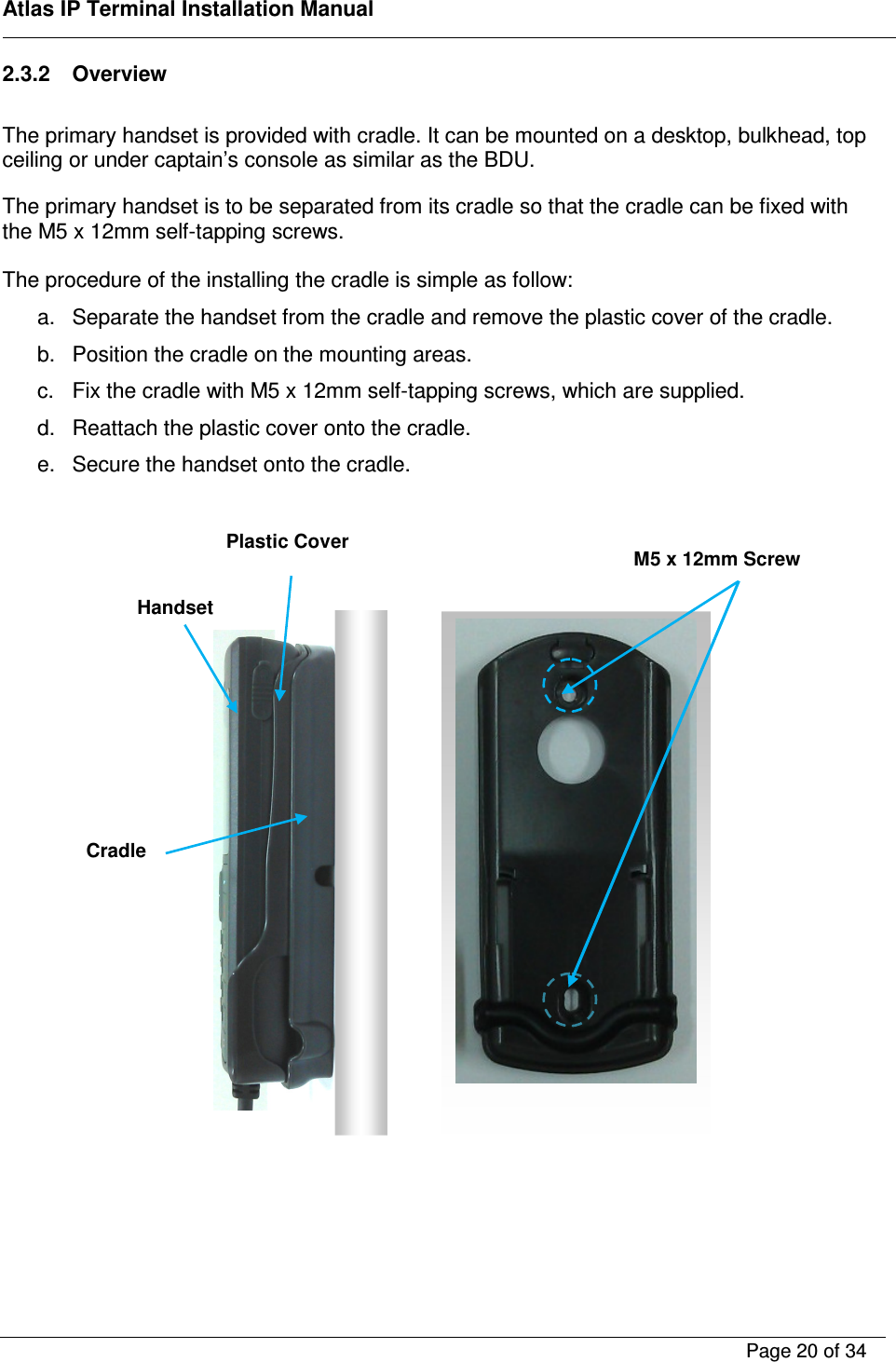
   Atlas IP Terminal Installation Manual        Page 20 of 34    2.3.2  Overview  The primary handset is provided with cradle. It can be mounted on a desktop, bulkhead, top ceiling or under captain’s console as similar as the BDU.  The primary handset is to be separated from its cradle so that the cradle can be fixed with the M5 x 12mm self-tapping screws.  The procedure of the installing the cradle is simple as follow: a.  Separate the handset from the cradle and remove the plastic cover of the cradle. b.  Position the cradle on the mounting areas. c.  Fix the cradle with M5 x 12mm self-tapping screws, which are supplied. d.  Reattach the plastic cover onto the cradle. e.  Secure the handset onto the cradle.                       Handset Cradle  M5 x 12mm Screw Plastic Cover
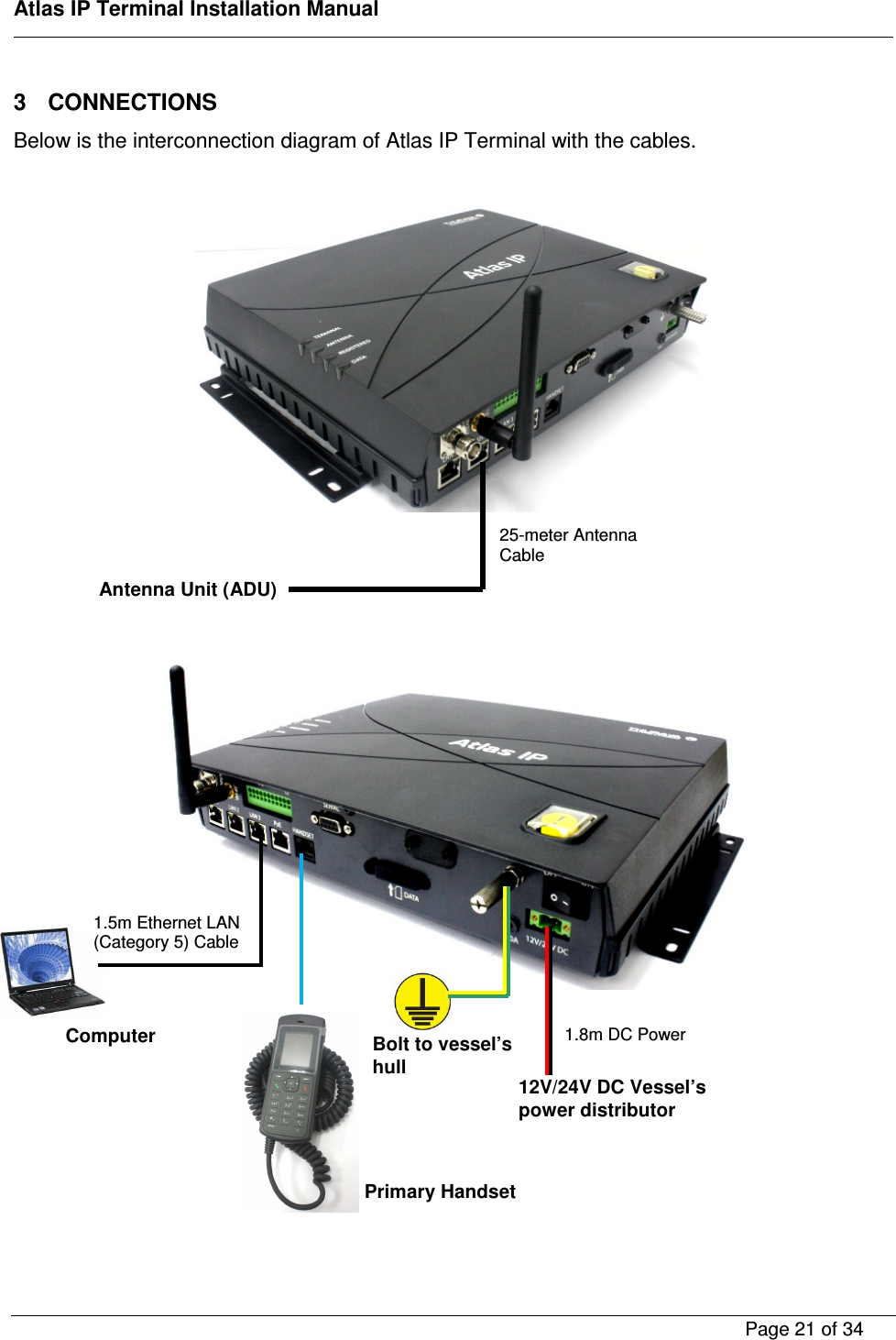
   Atlas IP Terminal Installation Manual        Page 21 of 34    3  CONNECTIONS Below is the interconnection diagram of Atlas IP Terminal with the cables.                        12V/24V DC Vessel’s power distributor Bolt to vessel’s hull Computer 1.5m Ethernet LAN  (Category 5) Cable 1.8m DC Power Cable Antenna Unit (ADU) 25-meter Antenna Cable  Primary Handset
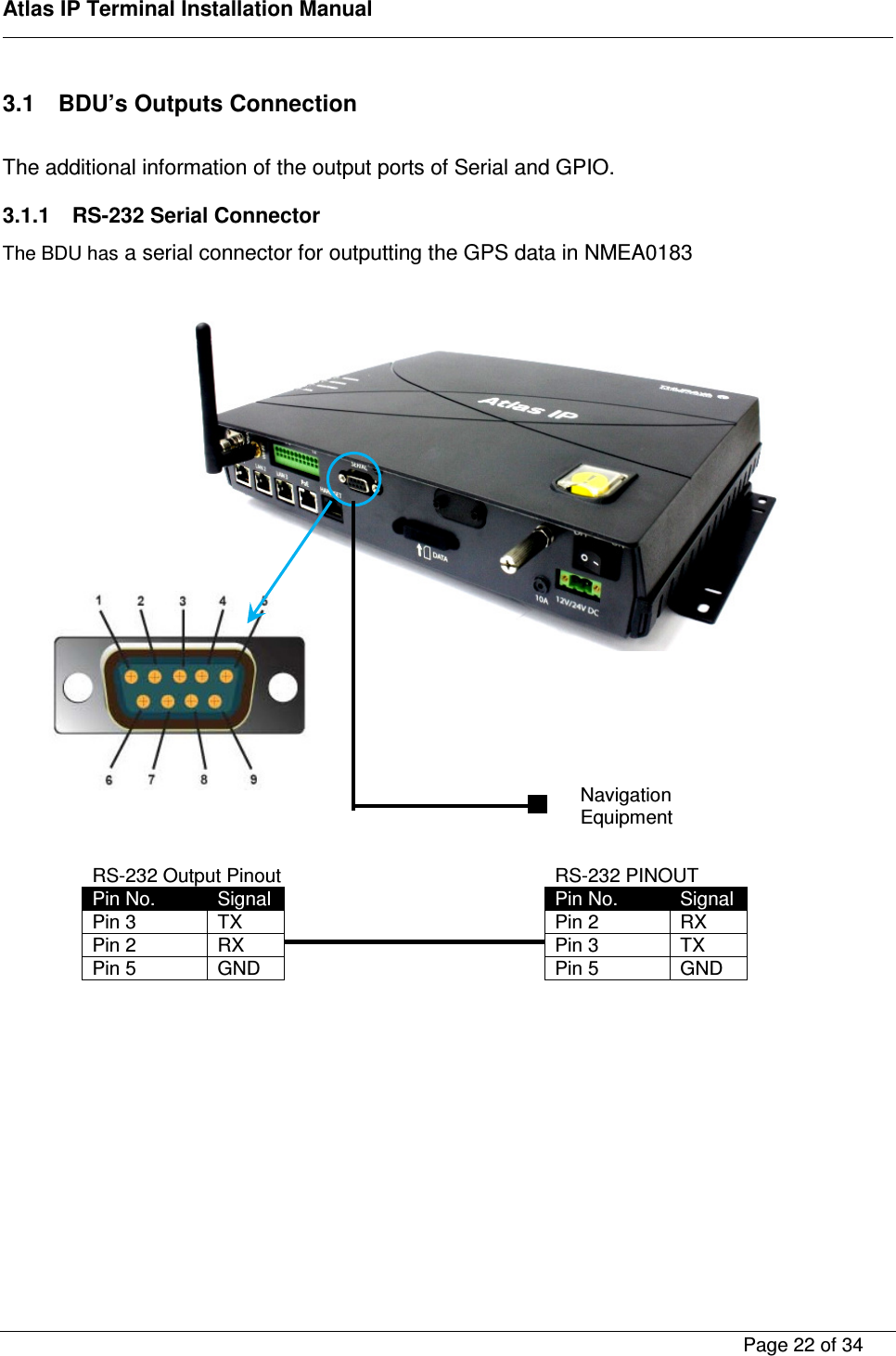
   Atlas IP Terminal Installation Manual        Page 22 of 34    3.1  BDU’s Outputs Connection  The additional information of the output ports of Serial and GPIO.  3.1.1  RS-232 Serial Connector  The BDU has a serial connector for outputting the GPS data in NMEA0183                  RS-232 Output Pinout Pin No.  Signal Pin 3  TX Pin 2  RX Pin 5  GND  Navigation Equipment RS-232 PINOUT Pin No.  Signal Pin 2  RX Pin 3  TX Pin 5  GND
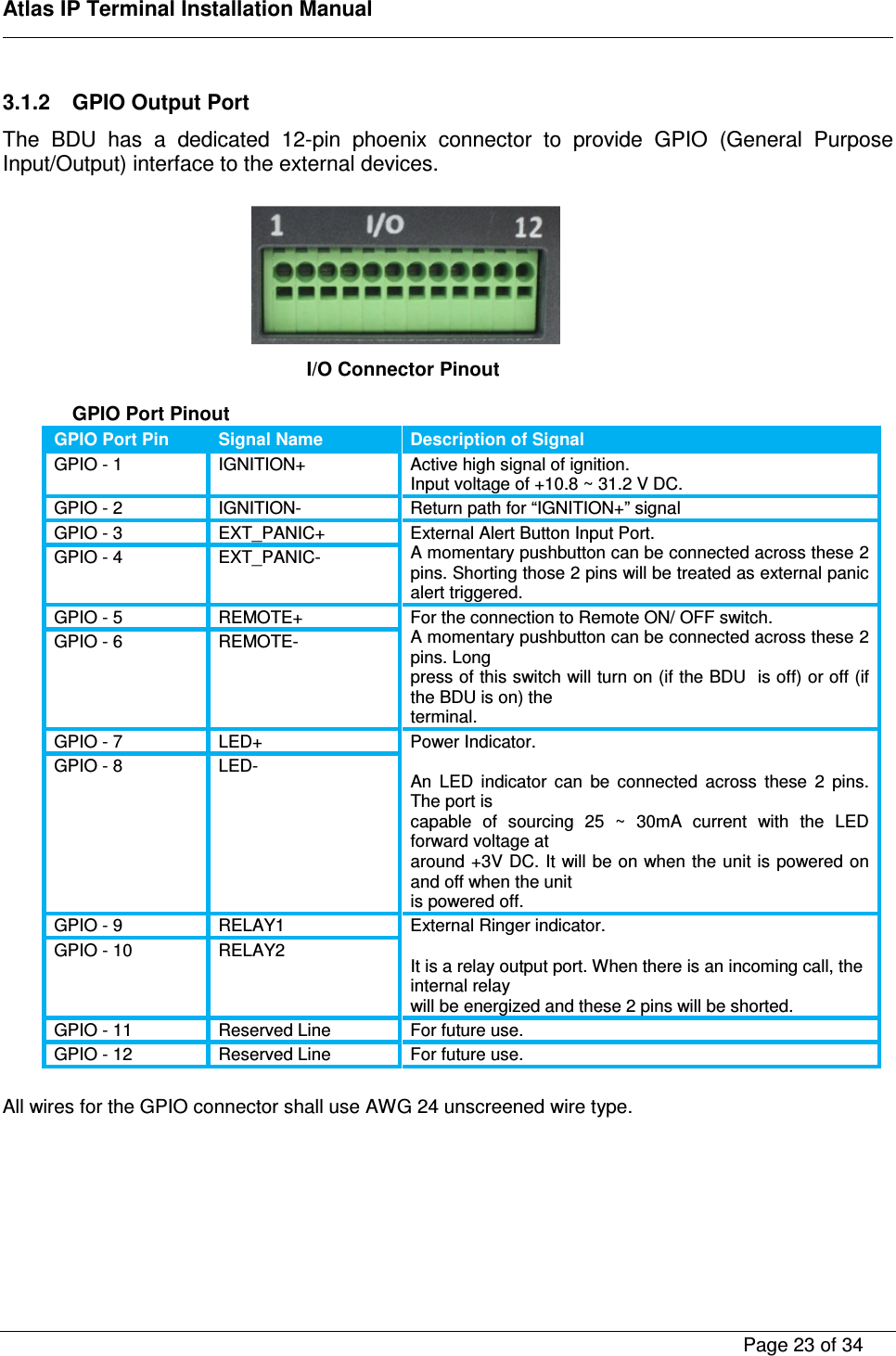
   Atlas IP Terminal Installation Manual        Page 23 of 34    3.1.2  GPIO Output Port The  BDU  has  a  dedicated  12-pin  phoenix  connector  to  provide  GPIO  (General  Purpose Input/Output) interface to the external devices.        GPIO Port Pinout GPIO Port Pin Signal Name Description of Signal GPIO - 1  IGNITION+  Active high signal of ignition. Input voltage of +10.8 ~ 31.2 V DC. GPIO - 2  IGNITION-  Return path for “IGNITION+” signal GPIO - 3  EXT_PANIC+  External Alert Button Input Port. A momentary pushbutton can be connected across these 2 pins. Shorting those 2 pins will be treated as external panic alert triggered. GPIO - 4  EXT_PANIC- GPIO - 5  REMOTE+  For the connection to Remote ON/ OFF switch. A momentary pushbutton can be connected across these 2 pins. Long press of this switch will turn on (if the BDU  is off) or off (if the BDU is on) the terminal. GPIO - 6  REMOTE- GPIO - 7  LED+  Power Indicator.  An  LED  indicator  can  be  connected  across  these  2  pins. The port is capable  of  sourcing  25  ~  30mA  current  with  the  LED forward voltage at around +3V DC. It will be on when the unit is powered on and off when the unit is powered off. GPIO - 8  LED- GPIO - 9  RELAY1  External Ringer indicator.  It is a relay output port. When there is an incoming call, the internal relay will be energized and these 2 pins will be shorted. GPIO - 10  RELAY2 GPIO - 11  Reserved Line  For future use. GPIO - 12  Reserved Line  For future use.  All wires for the GPIO connector shall use AWG 24 unscreened wire type.       I/O Connector Pinout
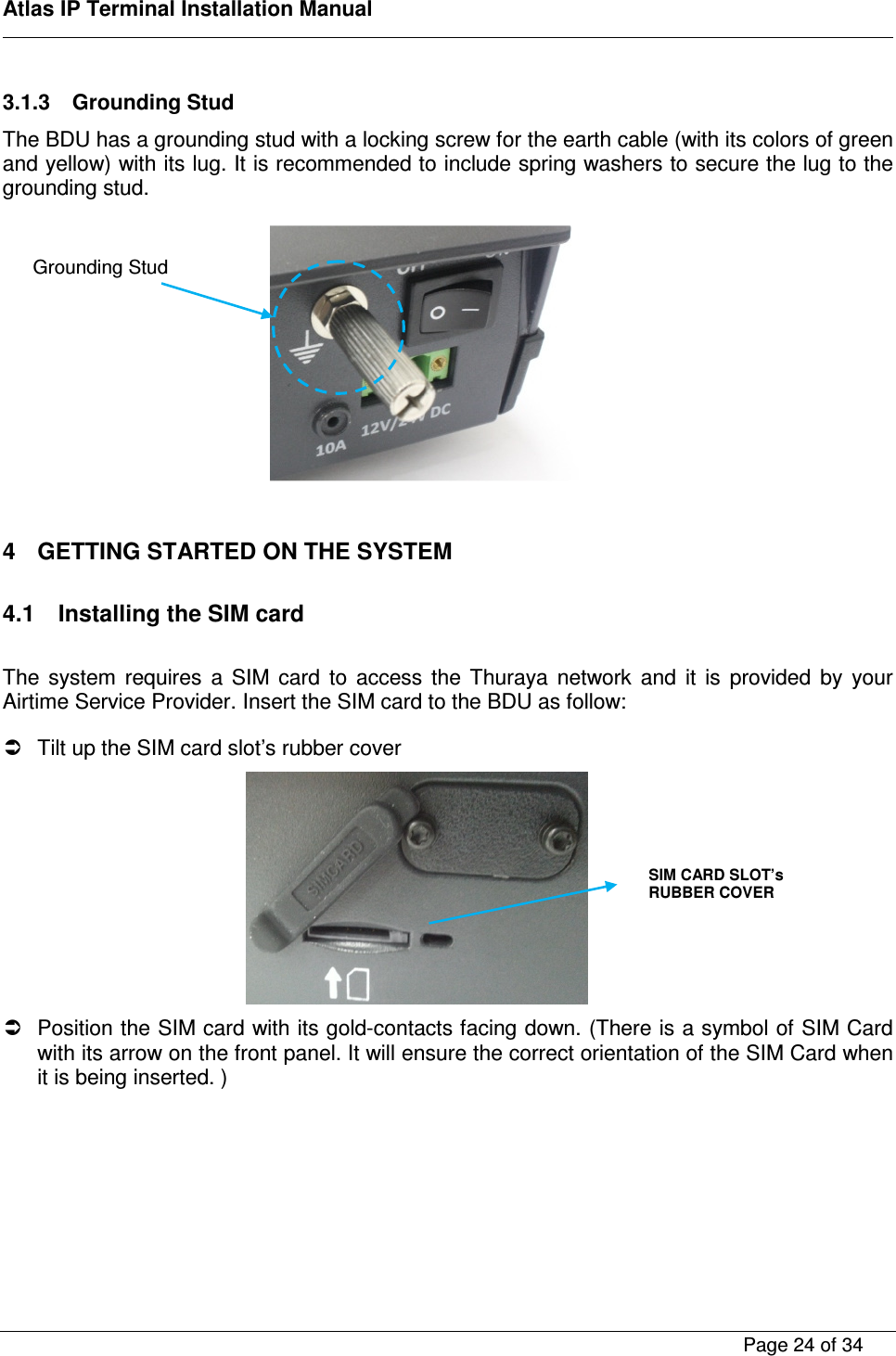
   Atlas IP Terminal Installation Manual        Page 24 of 34    3.1.3  Grounding Stud The BDU has a grounding stud with a locking screw for the earth cable (with its colors of green and yellow) with its lug. It is recommended to include spring washers to secure the lug to the grounding stud.            4  GETTING STARTED ON THE SYSTEM  4.1  Installing the SIM card  The  system  requires  a  SIM  card  to  access  the  Thuraya  network  and  it  is  provided  by  your Airtime Service Provider. Insert the SIM card to the BDU as follow:    Tilt up the SIM card slot’s rubber cover    Position the SIM card with its gold-contacts facing down. (There is a symbol of SIM Card with its arrow on the front panel. It will ensure the correct orientation of the SIM Card when it is being inserted. ) SIM CARD SLOT’s RUBBER COVER  Grounding Stud
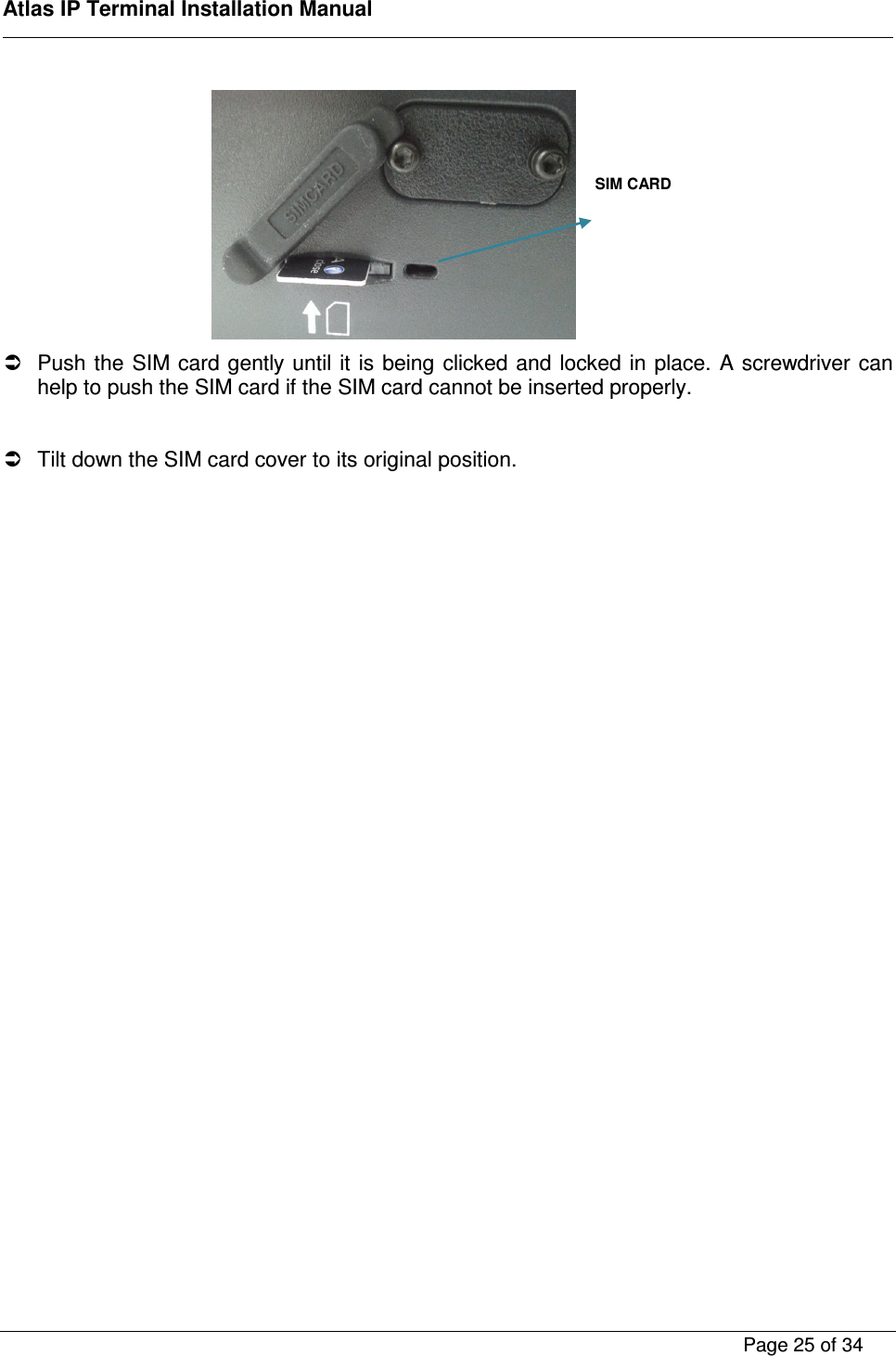
   Atlas IP Terminal Installation Manual        Page 25 of 34       Push the SIM card gently until it  is  being  clicked and  locked in place. A screwdriver can help to push the SIM card if the SIM card cannot be inserted properly.    Tilt down the SIM card cover to its original position.   SIM CARD
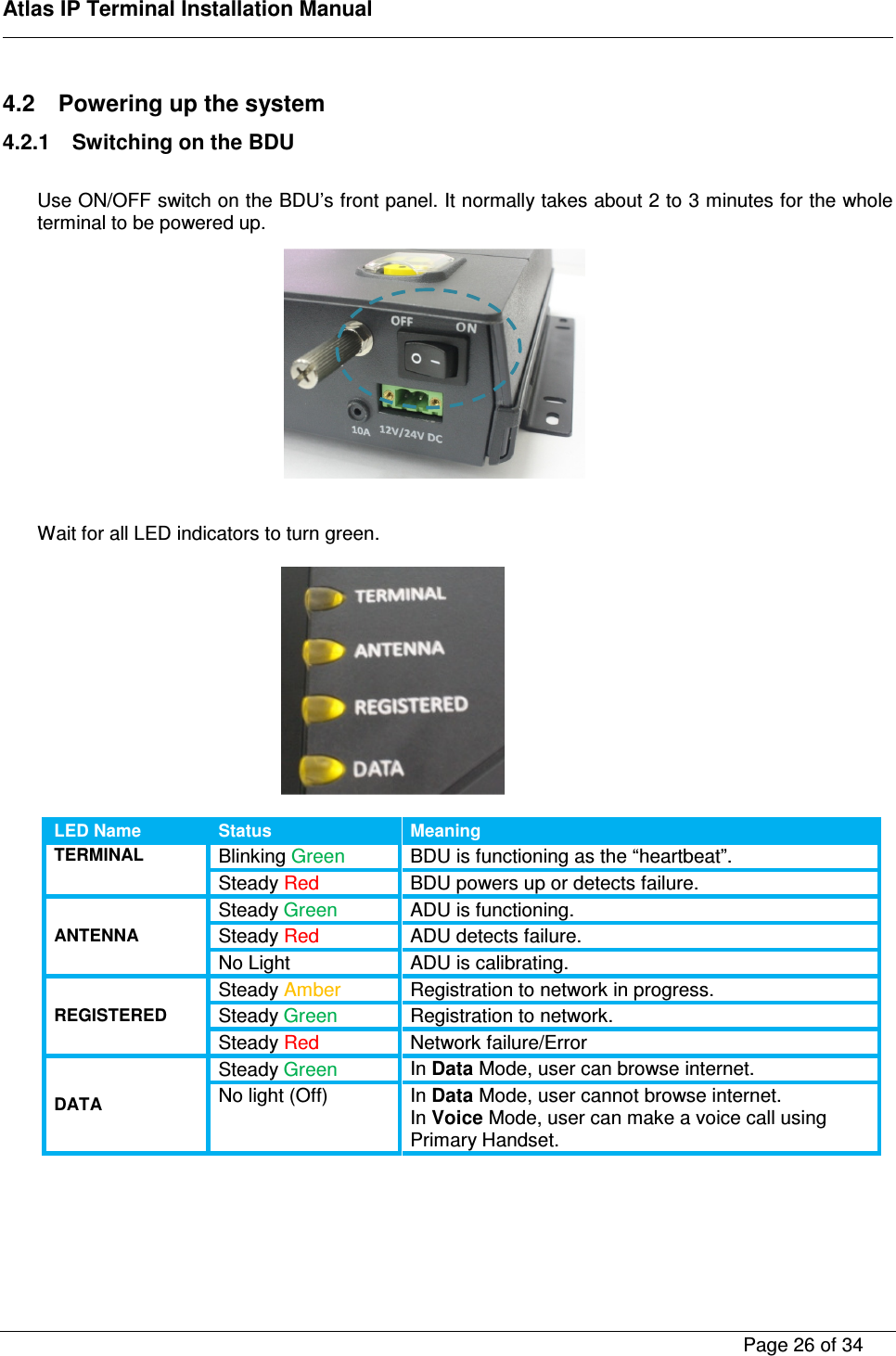
   Atlas IP Terminal Installation Manual        Page 26 of 34    4.2  Powering up the system 4.2.1  Switching on the BDU  Use ON/OFF switch on the BDU’s front panel. It normally takes about 2 to 3 minutes for the whole terminal to be powered up.               Wait for all LED indicators to turn green.    LED Name Status Meaning TERMINAL Blinking Green  BDU is functioning as the “heartbeat”. Steady Red  BDU powers up or detects failure. ANTENNA Steady Green  ADU is functioning. Steady Red  ADU detects failure. No Light  ADU is calibrating. REGISTERED Steady Amber  Registration to network in progress. Steady Green  Registration to network. Steady Red  Network failure/Error DATA Steady Green In Data Mode, user can browse internet. No light (Off)  In Data Mode, user cannot browse internet. In Voice Mode, user can make a voice call using Primary Handset.
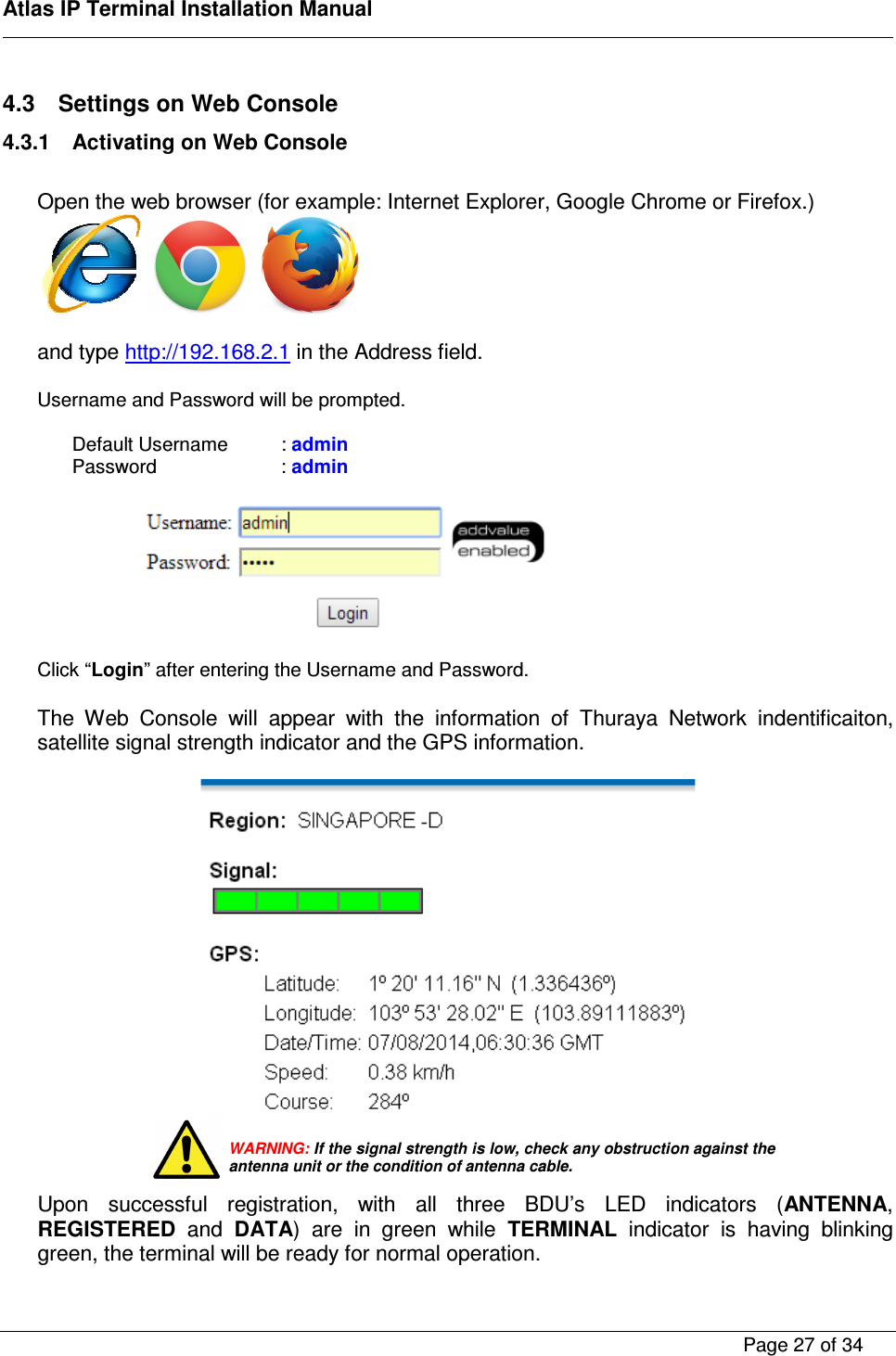
   Atlas IP Terminal Installation Manual        Page 27 of 34    4.3  Settings on Web Console 4.3.1  Activating on Web Console  Open the web browser (for example: Internet Explorer, Google Chrome or Firefox.)         and type http://192.168.2.1 in the Address field.  Username and Password will be prompted.   Default Username   : admin Password     : admin    Click “Login” after entering the Username and Password.  The  Web  Console  will  appear  with  the  information  of  Thuraya  Network  indentificaiton, satellite signal strength indicator and the GPS information.        Upon  successful  registration,  with  all  three  BDU’s  LED  indicators  (ANTENNA, REGISTERED  and  DATA)  are  in  green  while  TERMINAL  indicator  is  having  blinking green, the terminal will be ready for normal operation.  WARNING: If the signal strength is low, check any obstruction against the antenna unit or the condition of antenna cable.
   Atlas IP Terminal Installation Manual        Page 28 of 34    4.3.2  Data Connection Settings  Click   on the web console.  Click Primary Profiles and set the following:   Enable checkbox of “Set as default” and ensure “Standard” in the Profile Name.   Enable radio button of “Standard” of Connection Type.   Enable checkbox of “Always On (Auto PDP Context Activation)”   Enable radio button of “Dynamic IP Address” of IP configuration.   Note:  The Standard profile is set as the default primary profile and the default connection type is standard (this is charged by the volume [in kilobytes] of data used).  Click  “Always  On  (Auto  PDP  Context  Actviation)”  checkbox  if  it  is  required  to  get  the  standard  IP  Data  connection  to  be reconnected automatically in the event the connection is disconnected without user intervention, i.e. antenna blockage, etc.
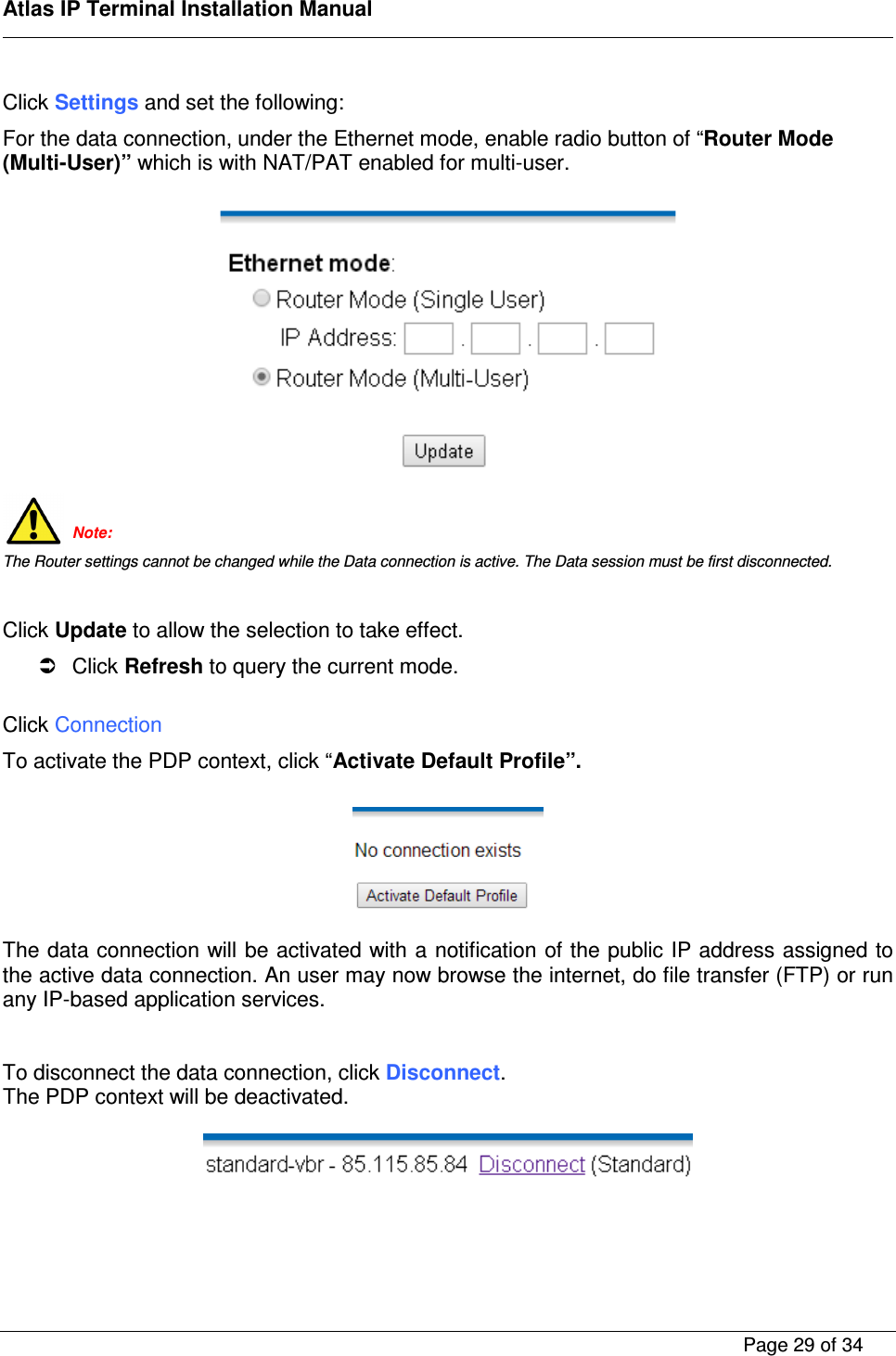
   Atlas IP Terminal Installation Manual        Page 29 of 34    Click Settings and set the following: For the data connection, under the Ethernet mode, enable radio button of “Router Mode (Multi-User)” which is with NAT/PAT enabled for multi-user.     Note: The Router settings cannot be changed while the Data connection is active. The Data session must be first disconnected.  Click Update to allow the selection to take effect.   Click Refresh to query the current mode.  Click Connection To activate the PDP context, click “Activate Default Profile”.    The data connection will be activated with a notification of the public IP address assigned to the active data connection. An user may now browse the internet, do file transfer (FTP) or run any IP-based application services.   To disconnect the data connection, click Disconnect. The PDP context will be deactivated.
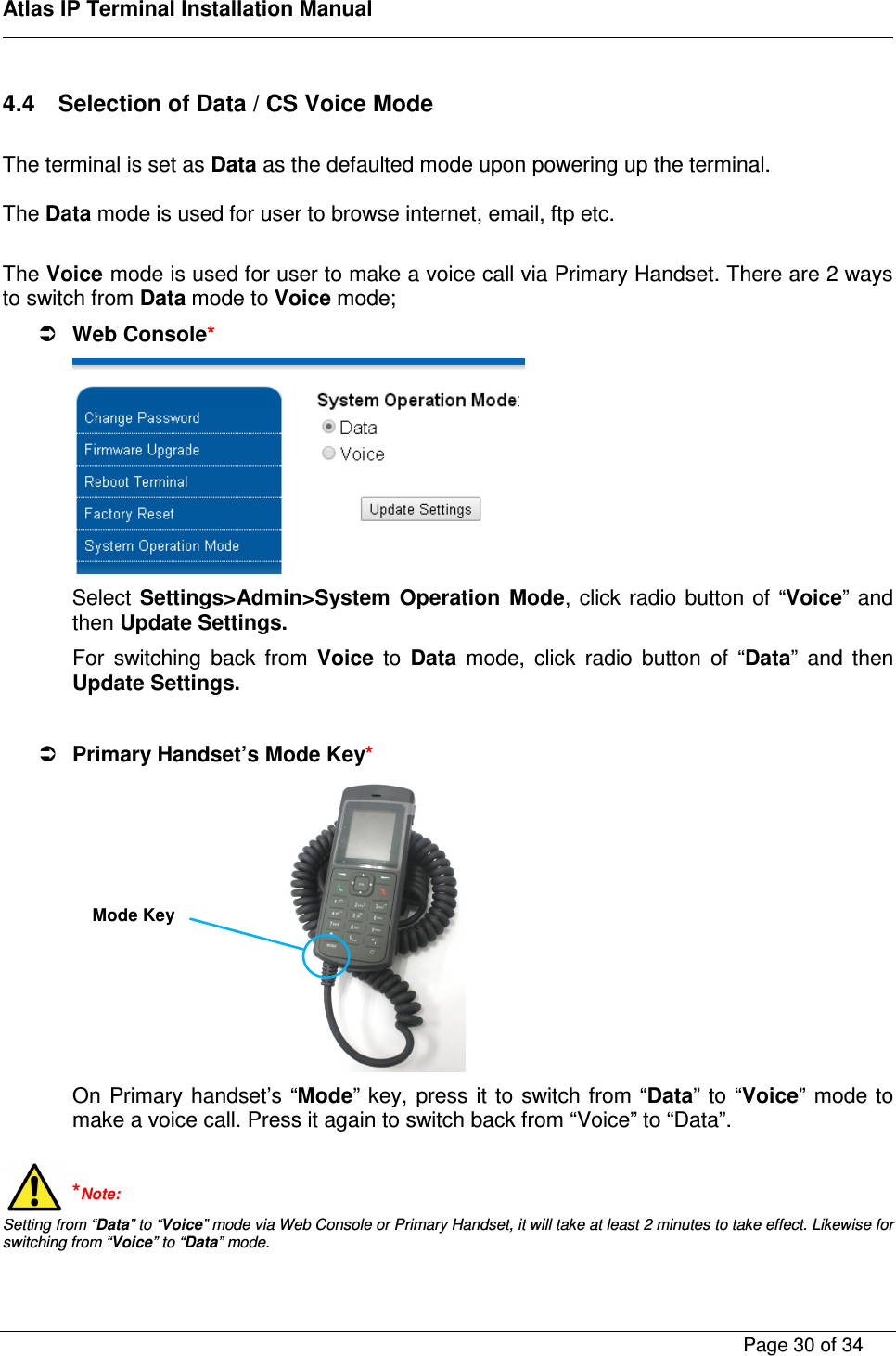
   Atlas IP Terminal Installation Manual        Page 30 of 34    4.4  Selection of Data / CS Voice Mode  The terminal is set as Data as the defaulted mode upon powering up the terminal.  The Data mode is used for user to browse internet, email, ftp etc.  The Voice mode is used for user to make a voice call via Primary Handset. There are 2 ways to switch from Data mode to Voice mode;   Web Console*  Select Settings>Admin>System  Operation  Mode,  click radio button of  “Voice” and then Update Settings. For  switching  back  from  Voice  to  Data  mode,  click  radio  button  of  “Data”  and  then Update Settings.   Primary Handset’s Mode Key*  On  Primary handset’s “Mode” key,  press it to switch from “Data” to “Voice” mode to make a voice call. Press it again to switch back from “Voice” to “Data”.  *Note: Setting from “Data” to “Voice” mode via Web Console or Primary Handset, it will take at least 2 minutes to take effect. Likewise for switching from “Voice” to “Data” mode.  Mode Key
   Atlas IP Terminal Installation Manual        Page 31 of 34    5  GLOSSARY AC  Alternating Current ADU  Above Deck Equipment BDU  Below Deck Equipment DC  Direct Current GPS  Global Position System GPIO  General Purpose Input / Output
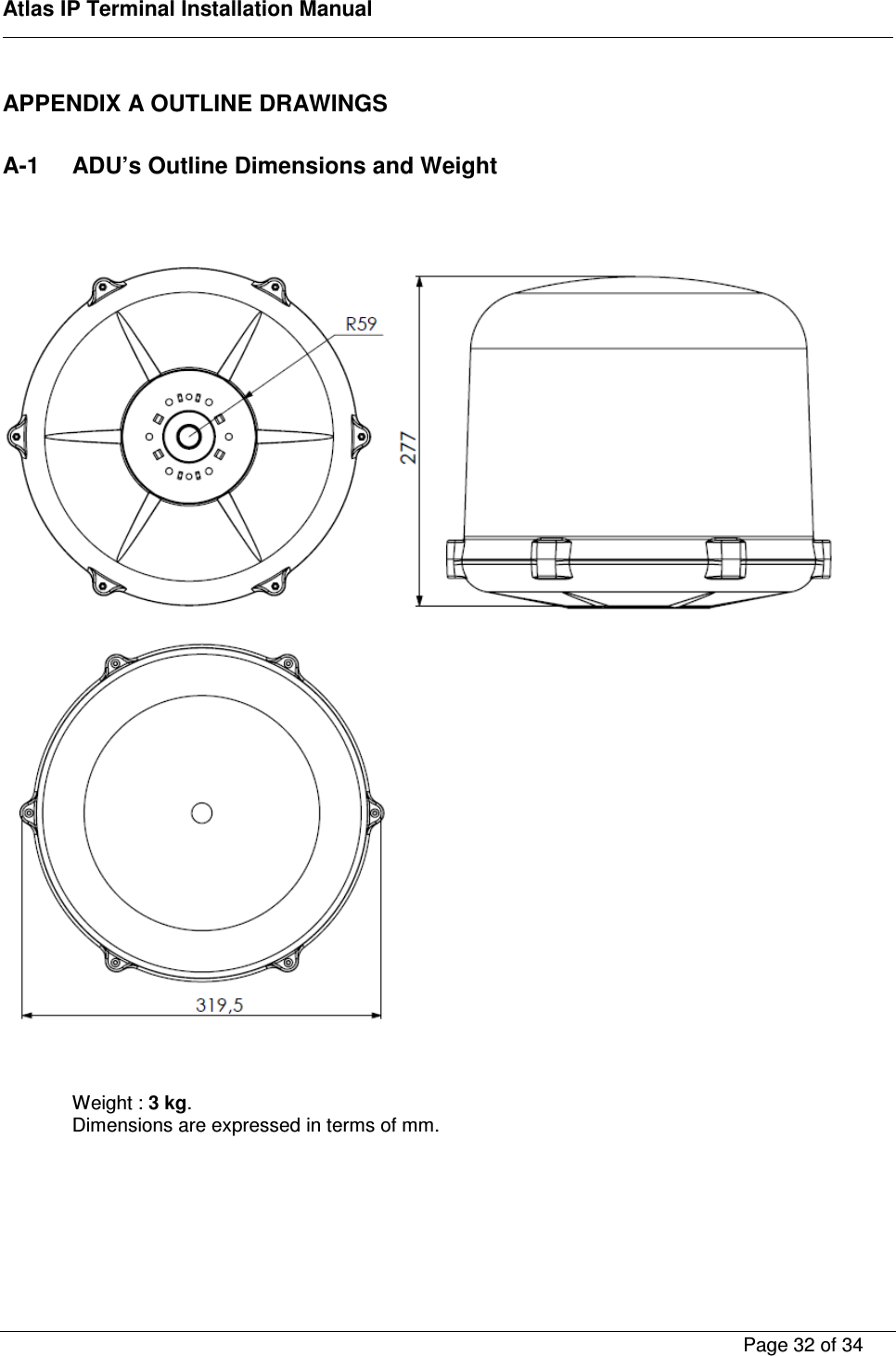
   Atlas IP Terminal Installation Manual        Page 32 of 34    APPENDIX A OUTLINE DRAWINGS  A-1  ADU’s Outline Dimensions and Weight        Weight : 3 kg. Dimensions are expressed in terms of mm.
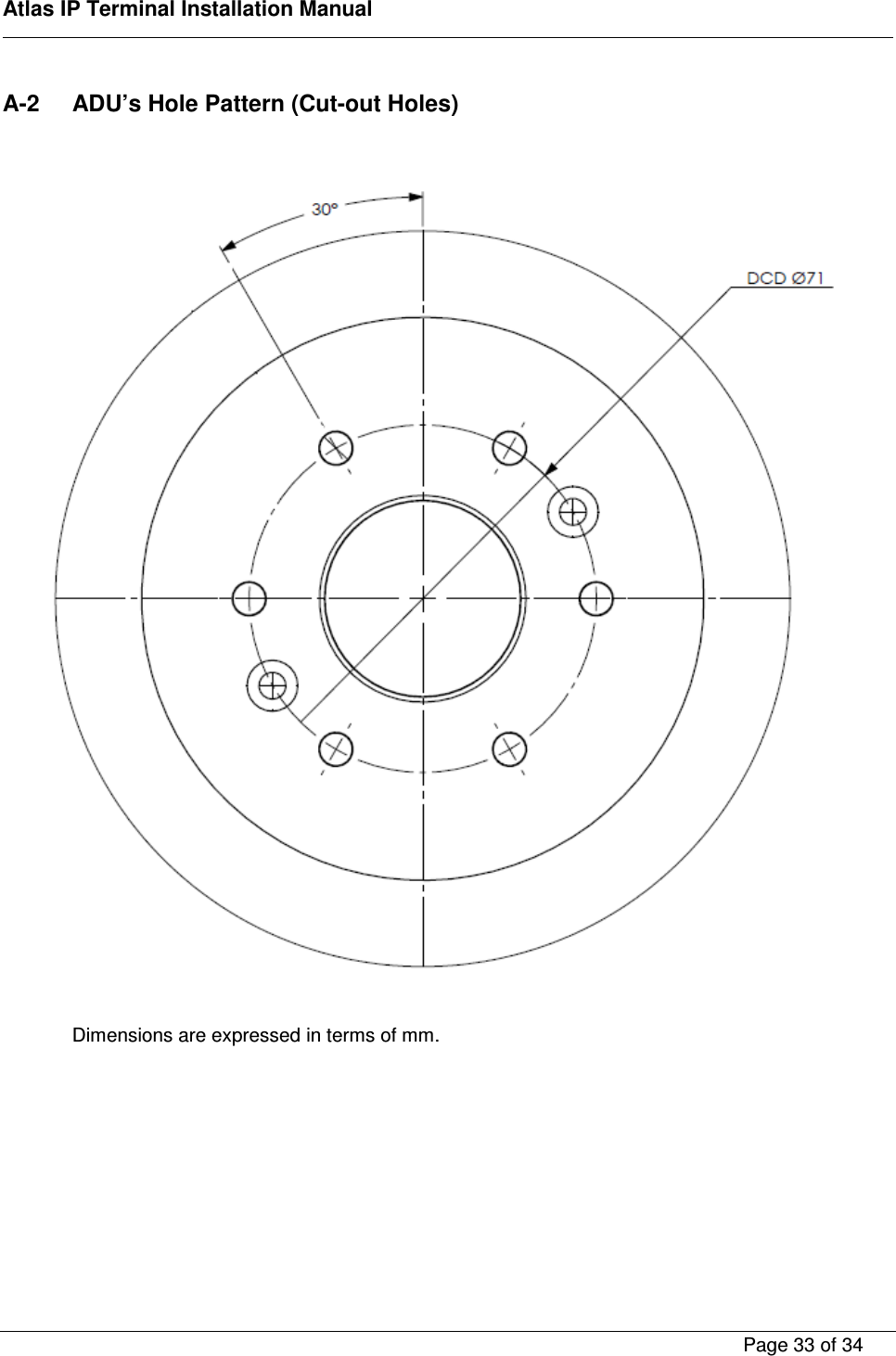
   Atlas IP Terminal Installation Manual        Page 33 of 34    A-2  ADU’s Hole Pattern (Cut-out Holes)      Dimensions are expressed in terms of mm.
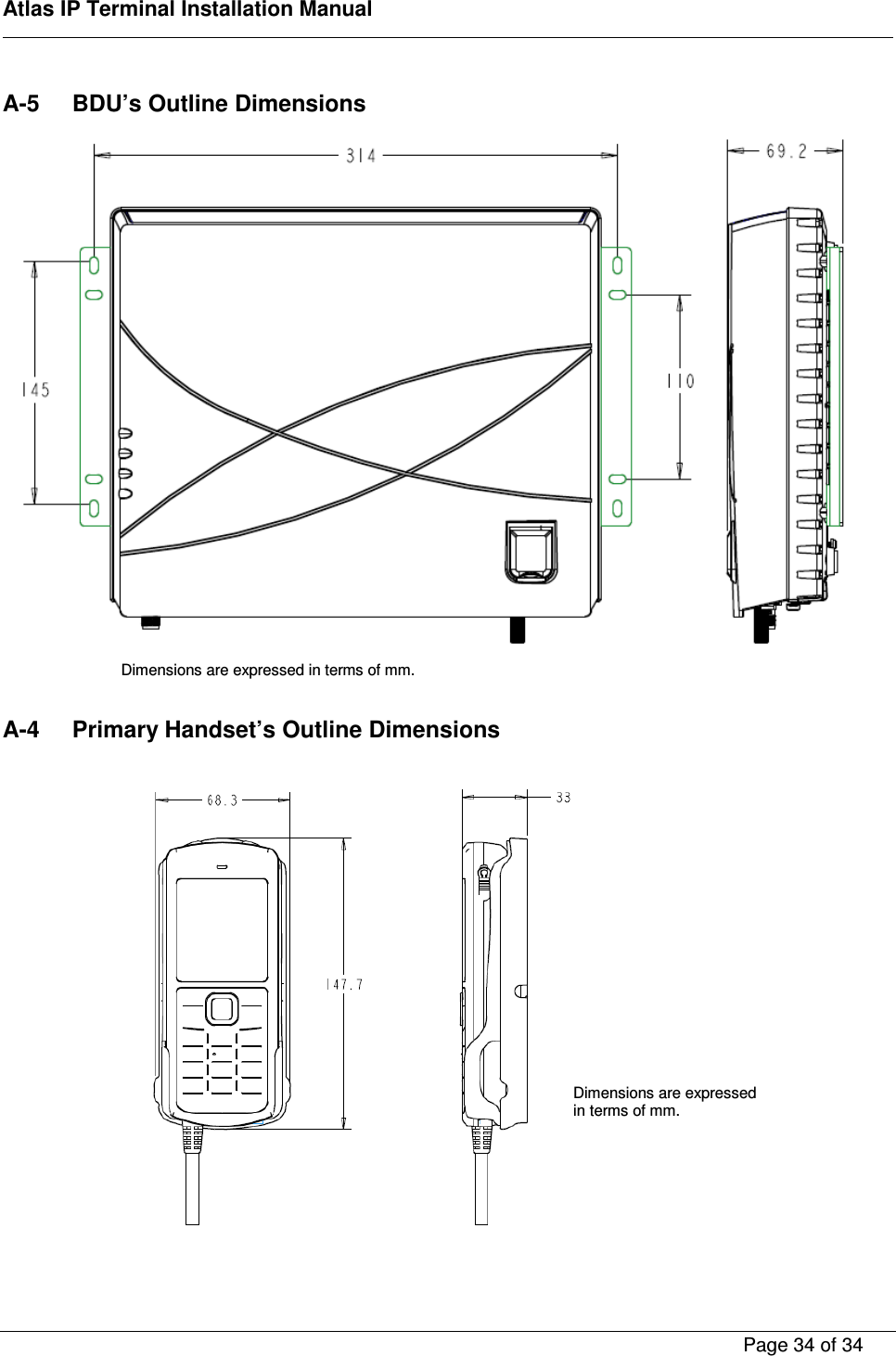
   Atlas IP Terminal Installation Manual        Page 34 of 34    A-5  BDU’s Outline Dimensions      A-4  Primary Handset’s Outline Dimensions    Dimensions are expressed in terms of mm. Dimensions are expressed in terms of mm.
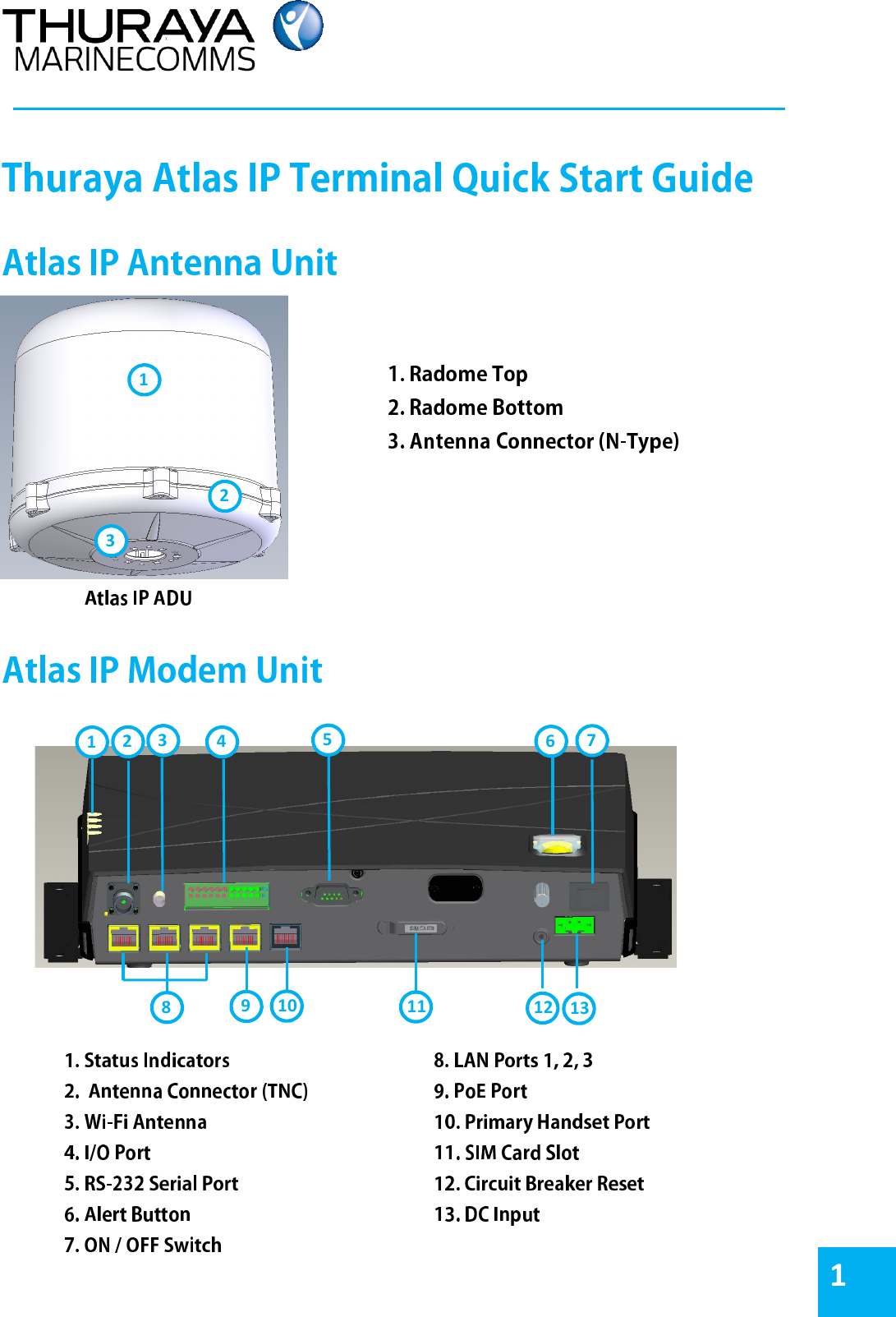
 2 3 1  1 2 3 4 5 6 7 8 9 10 11 12 13 1
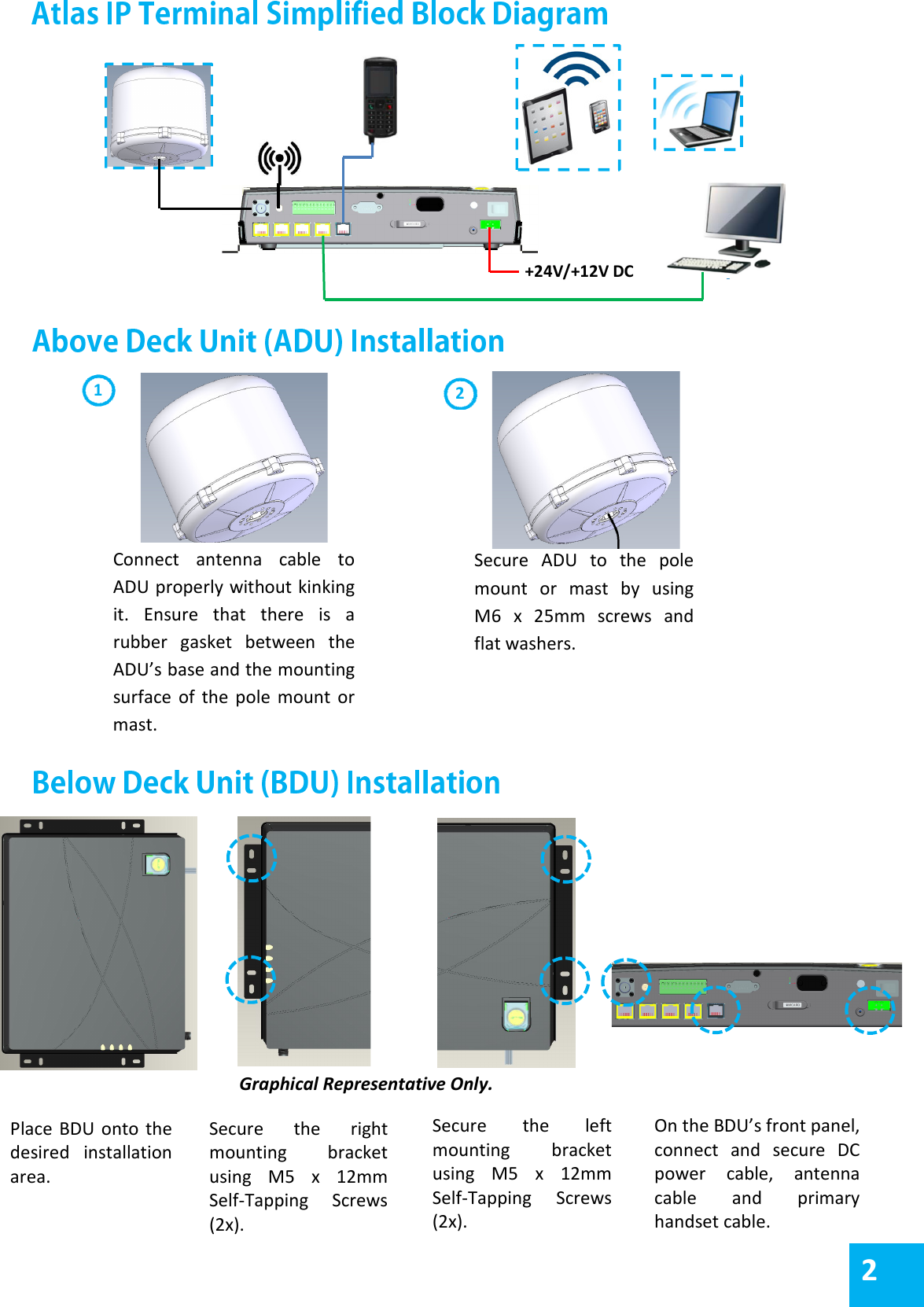
 Place  BDU  onto  the desired  installation area. Secure  the  right mounting  bracket using  M5  x  12mm Self-Tapping  Screws (2x).  Secure  the  left mounting  bracket using  M5  x  12mm Self-Tapping  Screws (2x). On the BDU’s front panel, connect  and  secure  DC power  cable,  antenna cable  and  primary handset cable. Graphical Representative Only. Connect  antenna  cable  to ADU properly without kinking it.  Ensure  that  there  is  a rubber  gasket  between  the ADU’s base and the mounting surface  of  the  pole  mount  or mast. Secure  ADU  to  the  pole mount  or  mast  by  using M6  x  25mm  screws  and flat washers.         +24V/+12V DC    1 2     2
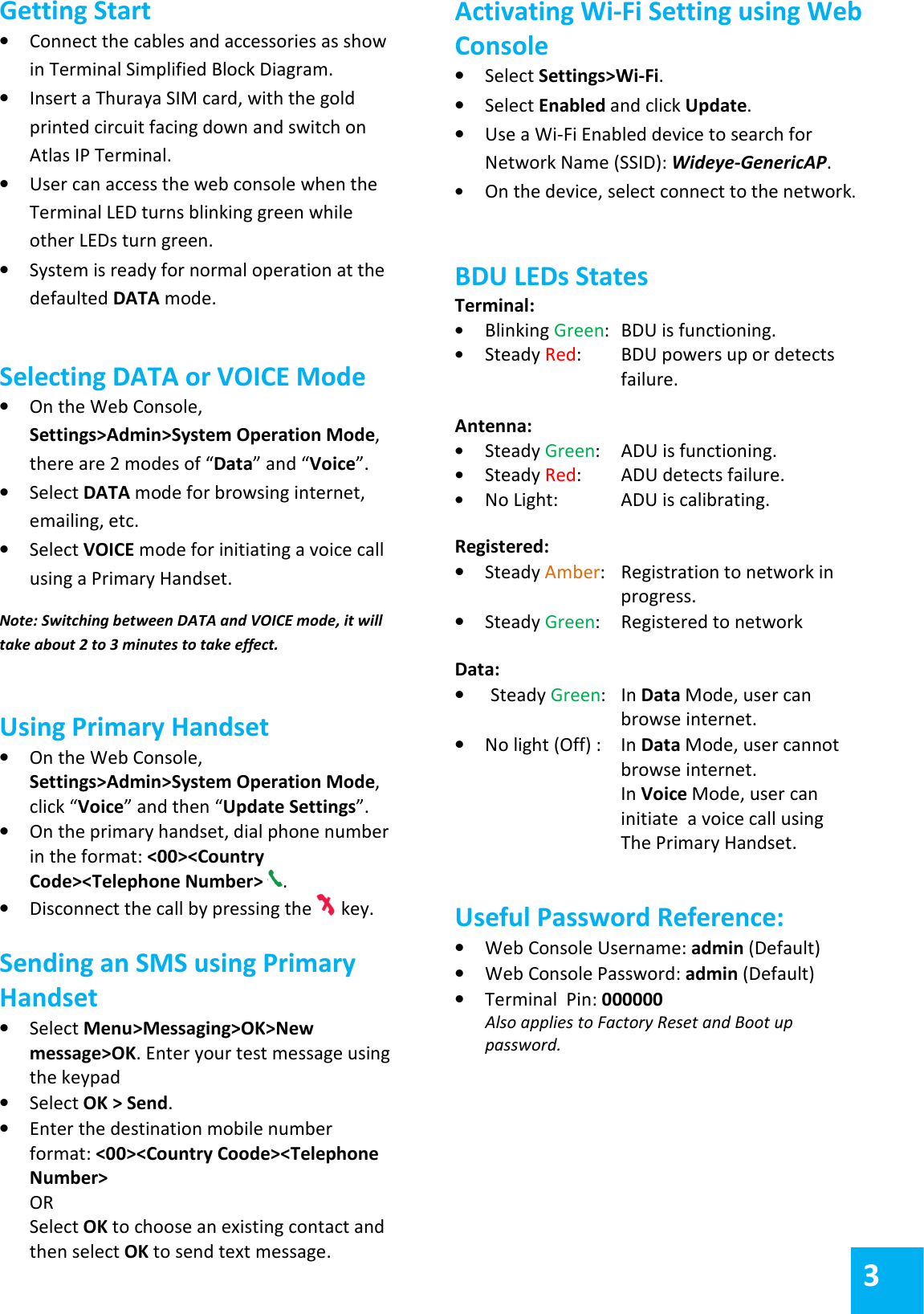
Getting Start • Connect the cables and accessories as show in Terminal Simplified Block Diagram. • Insert a Thuraya SIM card, with the gold printed circuit facing down and switch on Atlas IP Terminal. • User can access the web console when the Terminal LED turns blinking green while other LEDs turn green. • System is ready for normal operation at the defaulted DATA mode.  Selecting DATA or VOICE Mode • On the Web Console, Settings>Admin>System Operation Mode, there are 2 modes of “Data” and “Voice”. • Select DATA mode for browsing internet, emailing, etc. • Select VOICE mode for initiating a voice call using a Primary Handset.  Note: Switching between DATA and VOICE mode, it will take about 2 to 3 minutes to take effect.  Using Primary Handset • On the Web Console, Settings>Admin>System Operation Mode, click “Voice” and then “Update Settings”.  • On the primary handset, dial phone number in the format: <00><Country Code><Telephone Number>  . • Disconnect the call by pressing the   key.  Sending an SMS using Primary Handset • Select Menu>Messaging>OK>New message>OK. Enter your test message using the keypad • Select OK > Send. • Enter the destination mobile number format: <00><Country Coode><Telephone Number> OR Select OK to choose an existing contact and then select OK to send text message.  Activating Wi-Fi Setting using Web Console • Select Settings>Wi-Fi. • Select Enabled and click Update. • Use a Wi-Fi Enabled device to search for Network Name (SSID): Wideye-GenericAP. • On the device, select connect to the network.  BDU LEDs States Terminal: • Blinking Green:  BDU is functioning. • Steady Red:   BDU powers up or detects    failure.  Antenna: • Steady Green:   ADU is functioning. • Steady Red:   ADU detects failure. • No Light:  ADU is calibrating.  Registered: • Steady Amber:   Registration to network in    progress.  • Steady Green:   Registered to network  Data: • Steady Green:   In Data Mode, user can    browse internet.  • No light (Off) :   In Data Mode, user cannot    browse internet.   In Voice Mode, user can    initiate  a voice call using    The Primary Handset.   Useful Password Reference:  • Web Console Username: admin (Default) • Web Console Password: admin (Default) • Terminal  Pin: 000000 Also applies to Factory Reset and Boot up password.  3
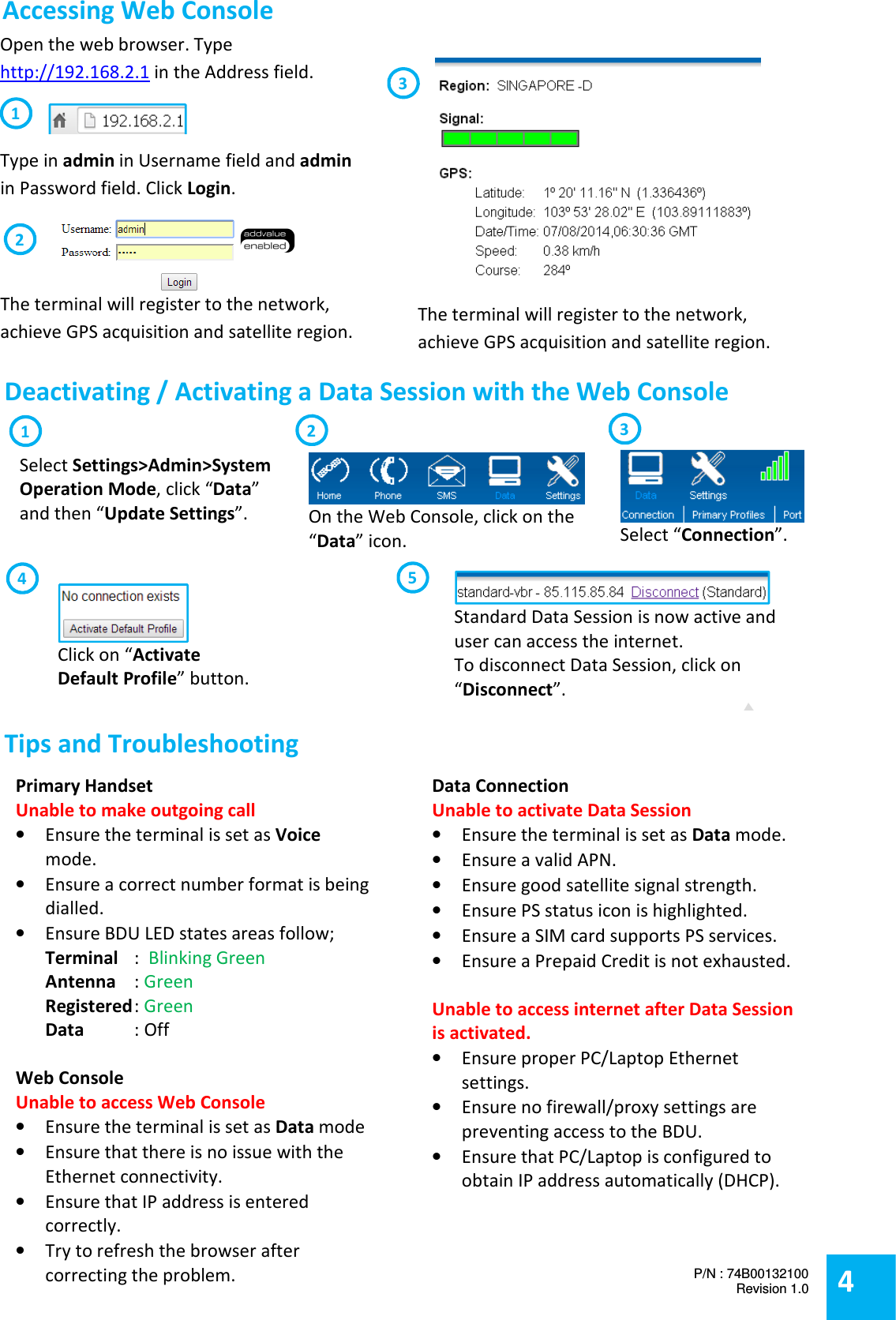
 Standard Data Session is now active and user can access the internet.  To disconnect Data Session, click on “Disconnect”.  Open the web browser. Type http://192.168.2.1 in the Address field.  Type in admin in Username field and admin in Password field. Click Login.   The terminal will register to the network, achieve GPS acquisition and satellite region.  The terminal will register to the network, achieve GPS acquisition and satellite region. 3 2 1  Deactivating / Activating a Data Session with the Web Console  Primary Handset Unable to make outgoing call • Ensure the terminal is set as Voice mode. • Ensure a correct number format is being dialled. • Ensure BDU LED states areas follow; Terminal   :  Blinking Green Antenna  : Green Registered : Green Data  : Off  Web Console Unable to access Web Console • Ensure the terminal is set as Data mode • Ensure that there is no issue with the Ethernet connectivity. • Ensure that IP address is entered correctly. • Try to refresh the browser after correcting the problem.  Data Connection Unable to activate Data Session • Ensure the terminal is set as Data mode.  • Ensure a valid APN. • Ensure good satellite signal strength. • Ensure PS status icon is highlighted. • Ensure a SIM card supports PS services. • Ensure a Prepaid Credit is not exhausted.  Unable to access internet after Data Session is activated. • Ensure proper PC/Laptop Ethernet settings. • Ensure no firewall/proxy settings are preventing access to the BDU. • Ensure that PC/Laptop is configured to obtain IP address automatically (DHCP).    On the Web Console, click on the “Data” icon.  1 Select “Connection”.   2  Click on “Activate Default Profile” button.   3 4 5 Select Settings>Admin>System Operation Mode, click “Data” and then “Update Settings”.  Accessing Web Console  Tips and Troubleshooting  4 P/N : 74B00132100 Revision 1.0

Navigation menu