AEE Technology AEED0200001 Unmanned Aircraft Systems (Ground Control Station) User Manual

Shenzhen AEE Technology CO., LTD. Unmanned Aircraft Systems (Ground Control Station) Users Manual

Users Manual

  Unmanned Aircraft System Professional·AdvancedUnprecedented TechnologyUser’s Manual Please read this Manual carefully before use,and keep it handy for future reference.
  CONTENTS Statement ....................................................................................................................... 1 Product Introduction ....................................................................................................... 1 Safety Precautions ......................................................................................................... 1 Charging ......................................................................................................................... 2 Low Battery Alarms .............................................................................................................................................. 2 Use a Battery Indicator to Detect the Battery Level ............................................................................................. 3 Charge the Power Battery of the UAV .................................................................................................................. 4 Precautions for Use of Lithium Battery ................................................................................................................. 6 Charge the Battery of the Remote Control ........................................................................................................... 6 Charge the Ground Station .................................................................................................................................. 7 List of Components ........................................................................................................ 8 Unmanned Aerial Vehicle ............................................................................................. 10 Guide for Components of the UAV ..................................................................................................................... 10 Install the Propeller Blades ................................................................................................................................ 12 Install the Removable Arms ............................................................................................................................... 12 Install the Airborne Camera................................................................................................................................ 13 Install the Power Battery of the UAV .................................................................................................................. 14 Preparations before Take-off .............................................................................................................................. 15 Control the Flight with the Remote Control .................................................................. 16 Guide for Components of the Remote Control and Description of Button Functions ......................................... 16 Preparations for the Remote Control ................................................................................................................. 18 Parameter Setting for the Remote Control ......................................................................................................... 20 Calibrate the UAV .............................................................................................................................................. 25 Start the UAV ..................................................................................................................................................... 28 Direction Control ................................................................................................................................................ 28 Go Home and Shut down the UAV ..................................................................................................................... 31 Control the Flight with the Ground Station .................................................................... 32
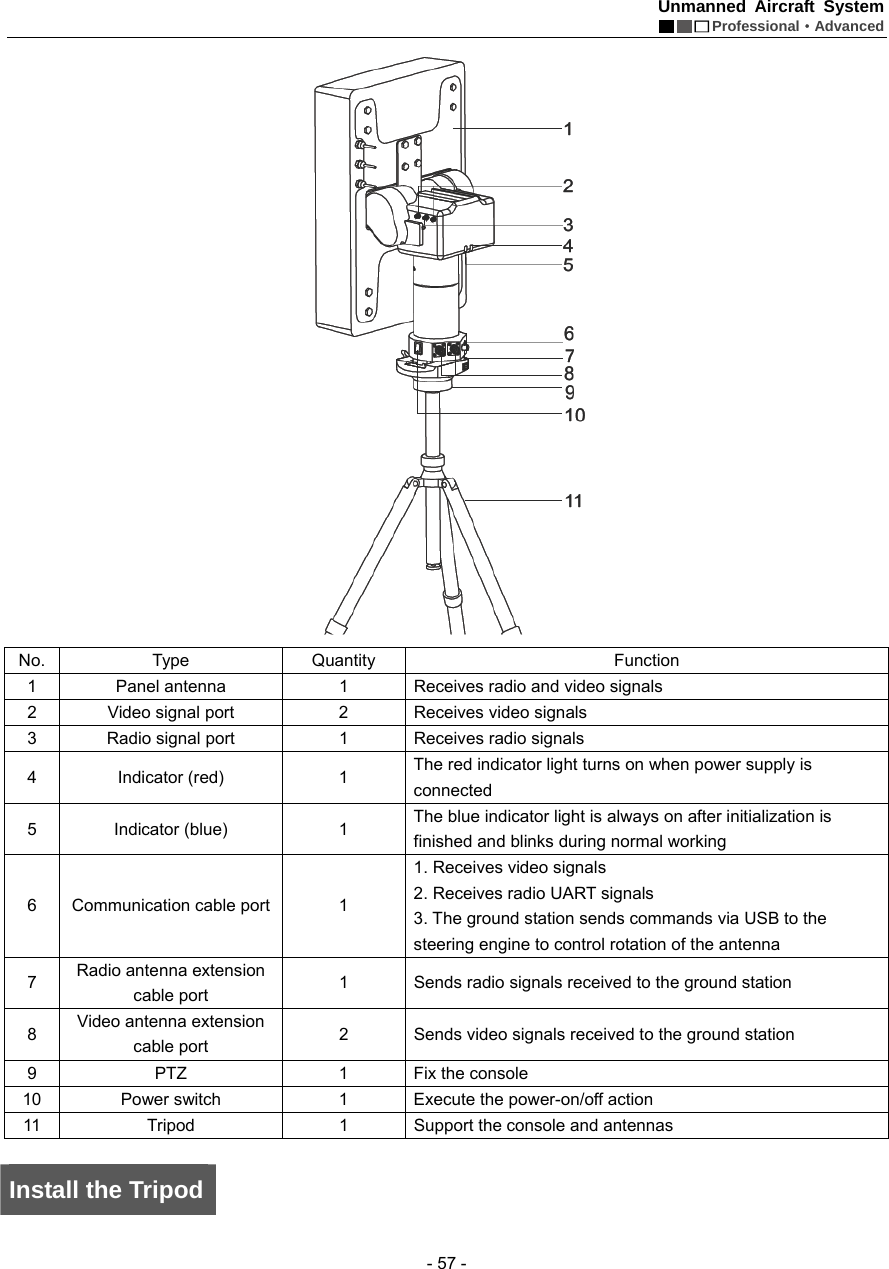
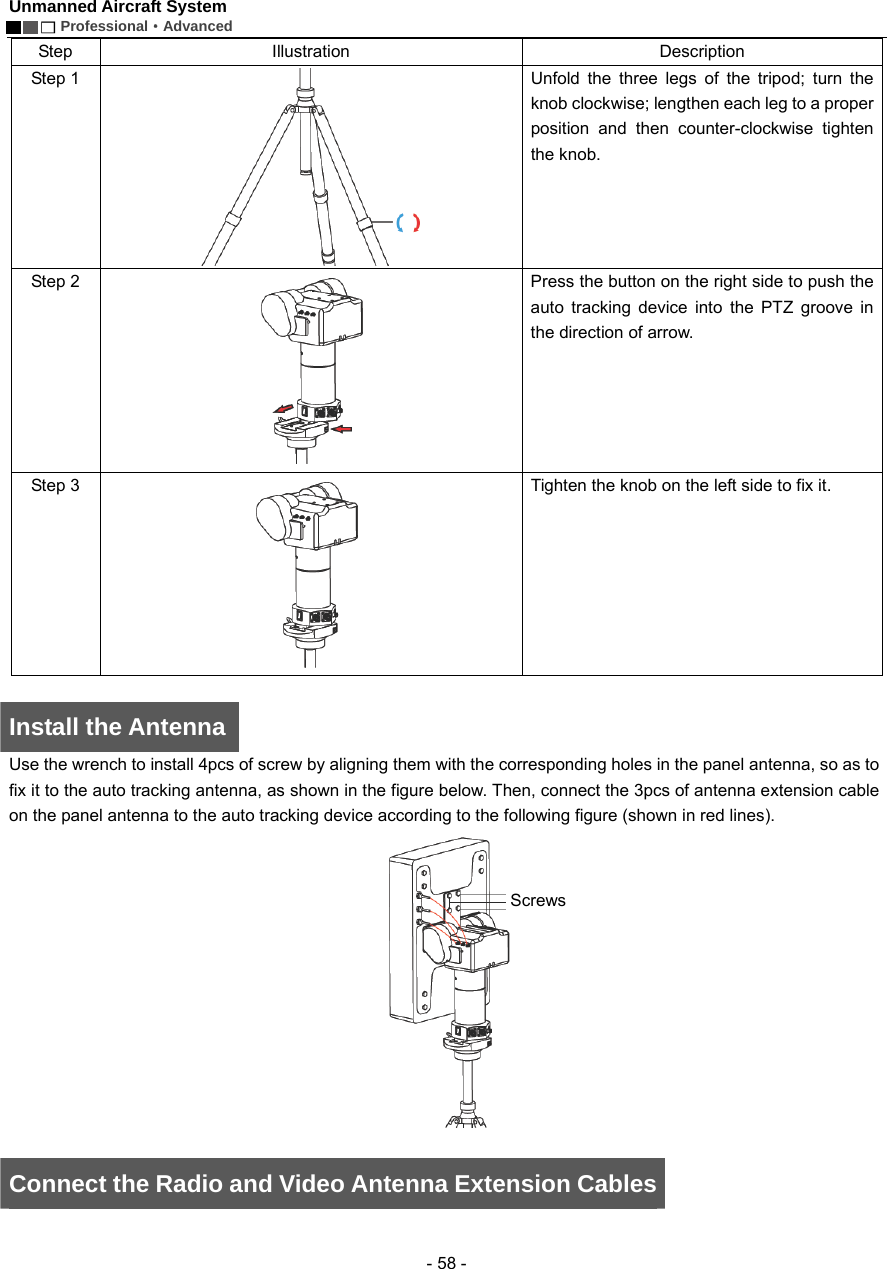
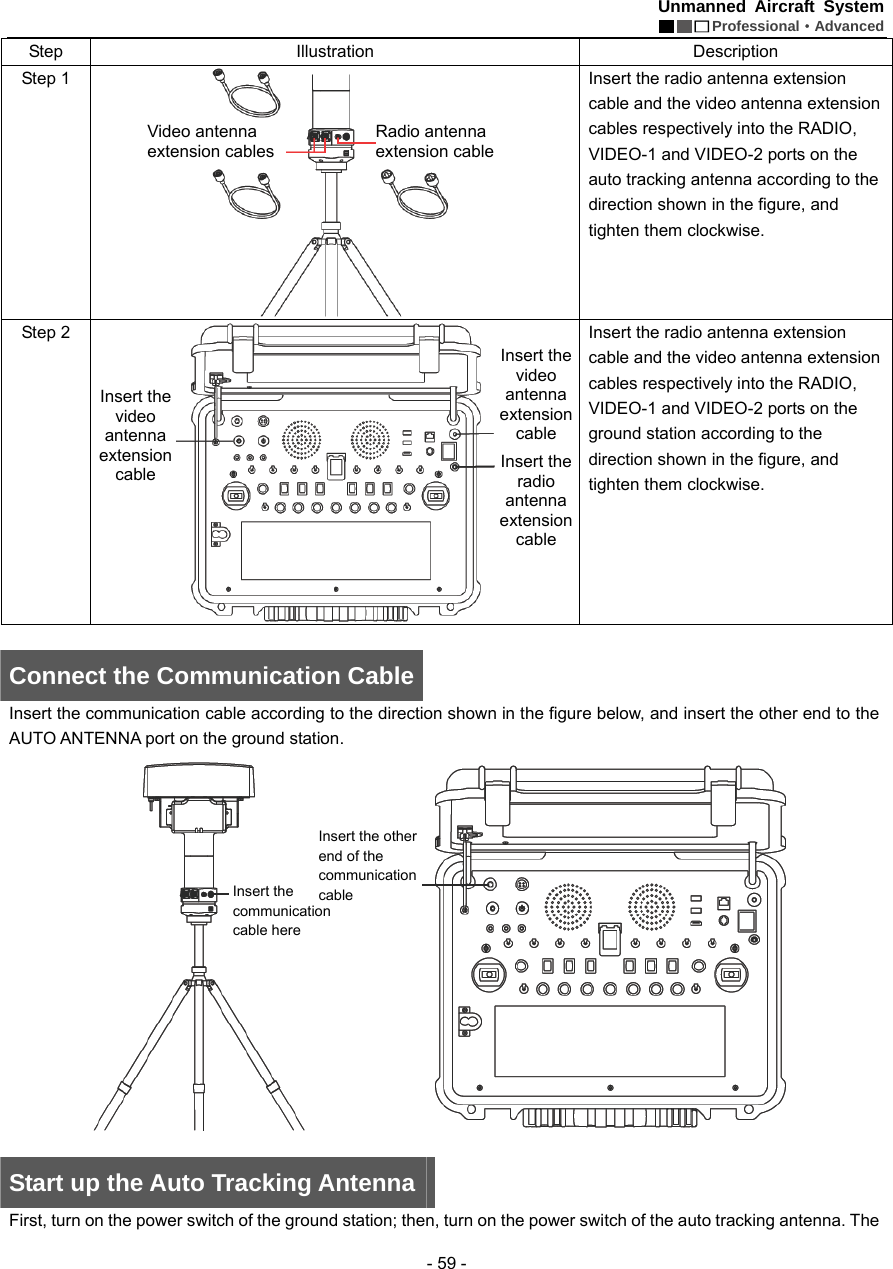
Functions and Features of the Ground Station .................................................................................................. 32 Panel Layout and Port Functions of the Ground Station .................................................................................... 33 Preparations for the Ground Control Station ...................................................................................................... 34 Introduction to Main Interfaces of the Ground Station Software ......................................................................... 36 Execute Manual Flying Missions with the Ground Station .................................................................................. 39 Execute Auto Flying Missions with the Ground Station ...................................................................................... 39 Use the Ground Station Software ....................................................................................................................... 41 Functions of Video Capture Window in the Ground Station Software ................................................................ 50 Map Backup ....................................................................................................................................................... 54 Auto Tracking Antenna ................................................................................................. 56 Guide for Components of the Auto Tracking Antenna ........................................................................................ 56 Install the Tripod ................................................................................................................................................. 57 Install the Antenna ............................................................................................................................................. 58 Connect the Radio and Video Antenna Extension Cables ................................................................................. 58 Connect the Communication Cable ................................................................................................................... 59 Start up the Auto Tracking Antenna .................................................................................................................... 59 Shut Down the Auto Tracking Antenna ............................................................................................................... 60 Video Files .................................................................................................................... 60 Specification ................................................................................................................. 60 Troubleshooting ............................................................................................................  61 Protection Mechanism .................................................................................................. 61
Unmanned Aircraft System  Professional·Advanced - 1 -  Statement  Please read this statement carefully before use of the product. You are deemed to have accepted all contents of this Manual once you start using the product. As a hi-tech electronic product integrating flight control and camera control, this product has excellent performance in flight control and camera monitoring when power supply is normal and no component is damaged. Although the aircraft program provides a safety mechanism which can ensure a safe state upon power-on, we still strongly suggest that you should remove the propellers before calibration.   Shenzhen AEE Aviation Technology Co., Ltd. will not assume any liability for any personal injuries, property losses (including both direct and indirect losses), legal disputes and compensations arising from any of the following situations during use of the product:   1.  Use of the product in any illegal activities; 2.  Use of the product for flight, video recording or photo shooting in any no-fly zones; 3.  Operation or use of the product without following the requirements specified in this Manual; 4.  Other force majeure events, including earthquake, tsunami, lightning stroke, hailstones, etc..    Product Introduction   Thanks for choosing our unmanned aircraft system. This product is a miniature multi-functional unmanned aerial vehicle (UAV) with quad rotors, featuring vertical take-off and landing. With the integrated design based on the highest standards in the world and the professional airborne camera monitoring device, ground station control device, and miniaturized remote control integrating real-time monitoring and video recording, it can satisfy all requirements under different environments and missions. Stable and reliable, this system can be operated in a simple and flexible way. It can easily realize editing of waypoints on a 3D map, setting of air routes, real-time sending back such information as coordinates, flight attitude, speed and video. It can also meet the shooting requirements for multi-dimensional investigation and monitoring. The product is widely applied in such missions as military reconnaissance, anti-terrorism and riot control, security monitoring, emergency rescue and disaster relief, patrol and rescue, tracking and search, public security, traffic control, exploration and survey, and recording and evidence taking, and is favored by various departments and industries like army, armed police, public security, traffic police, fire control, land administration, electric power, communication, mining and geography.    Safety Precautions   *  Check all components of the product to see if they are in good condition; please do not fly if any component is aged or damaged.   *   In the initial stage, please try to avoid operating it alone; it is suggested that an experienced person be on site to offer guidance for flying.   *  In order to avoid accidents, please do not simultaneously start two UAVs within a short distance whenever possible.  *  It is forbidden to abnormally turn off the remote control and the ground station during flying; otherwise, unpredictable consequence may be caused!   *   Before flying, please make sure that the video and radio antennas have been properly installed to avoid influence on the flight or the video receiving distance, or damage to the UAV or the transmitter module inside the remote control.  *   Without permission, please do not disassemble or modify this unmanned aircraft system.   *   Under outdoor conditions, the UAV can be started only when the number of satellites searched out by GPS is greater than or equal to 6. Forced take-off when the number of satellites searched out by GPS is less than 6 may
Unmanned Aircraft System        Professional·Advanced  - 2 - result in the following consequences:       a. When it is beyond the operating range, it may be impossible for the UAV to go back to the take-off position;   b. When the remote control signals are jammed, it may be impossible for the UAV to go back to the take-off position;     c. When switching the auto fly mode, the UAV may not hover at the current position;     d. When “One-key Go Home” is enabled, it may be impossible for the UAV to go back to the take-off position;     *  Please keep away from running parts; when the propellers of the UAV are running, do not touch and do keep away from any rotating part; especially, keep one’s head away from the propellers to avoid injury. In the meantime, keep the UAV away from small metal objects to prevent dangers taking place as the metal objects are attracted by the UAV.   *   At the take-off and landing positions, make sure there is no moving person or obstacle within the radius of 10m around the UAV. Fly the UAV in safety zones away from people, and take care to ensure the safety of your own and other people as well as the safety in the vicinity.     *   Keep away from humid environments; prevent water vapor from entering the UAV which may cause damage to electronic components or result in unpredictable consequences.   *   Keep away from heat sources which may lead to aging, deformation or even melting and damage of materials of the UAV.   *   Do not fly when the wind force is above Level 6, in order to prevent the UAV from being damaged or lost due to loss of control.   *  For editing of waypoints, please make sure each waypoint is high enough in altitude (relative to the take-off position of the UAV) to avoid intersection between the air route and mountains or buildings which may result in collision between the UAV and the said mountains or buildings during flight along the air route.   *   If the map fails to be loaded when the ground station software is started, please close the software, connect to the network and restart the software; or make use of data management of Google Maps to restore map data. *   Under the precondition that network service is available at the ground station, if Google Earth fails to download new map data, you can first enter Google Satellite. After it is confirmed that Google Satellite can download new maps, enter Google Earth again to download new maps. If this problem still exists, please contact our Customer Service Department.   *   When the remote control is used to control the UAV, please make sure that the option of “Send Joystick Data” in the ground station software is NOT checked before take-off; when the ground station joystick is used to control the UAV, please make sure that the remote control is in the OFF state before take-off. *   In order to avoid accidental damage of map files, please timely back up the map data after downloading.   *   Please disable the function of auto clearing Internet Explorer in different types of antivirus software to prevent the map data from being deleted by mistake.   *   For outdoor use, it is suggested to carry a 3G network card in case of absence of local map in the existing map data or backup map data.   *  For the sake of safety of your life and property, please use the product strictly in accordance with the User’s Manual, and do not carry out improper operations.    Notice: Please strictly comply with the above safety precautions; any consequence resulting from incompliance shall be on your own account.    Charging    Low Battery Alarms      1. Remote control
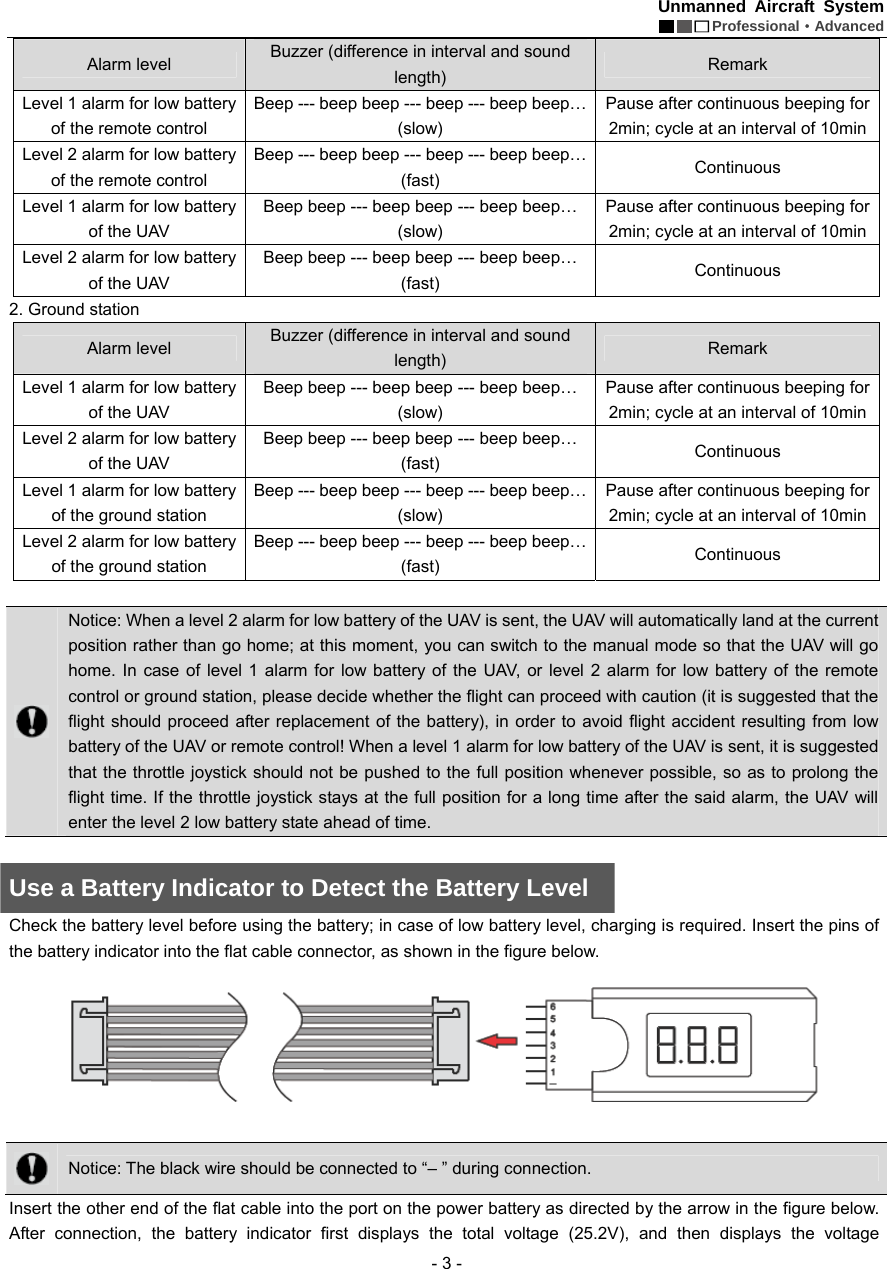
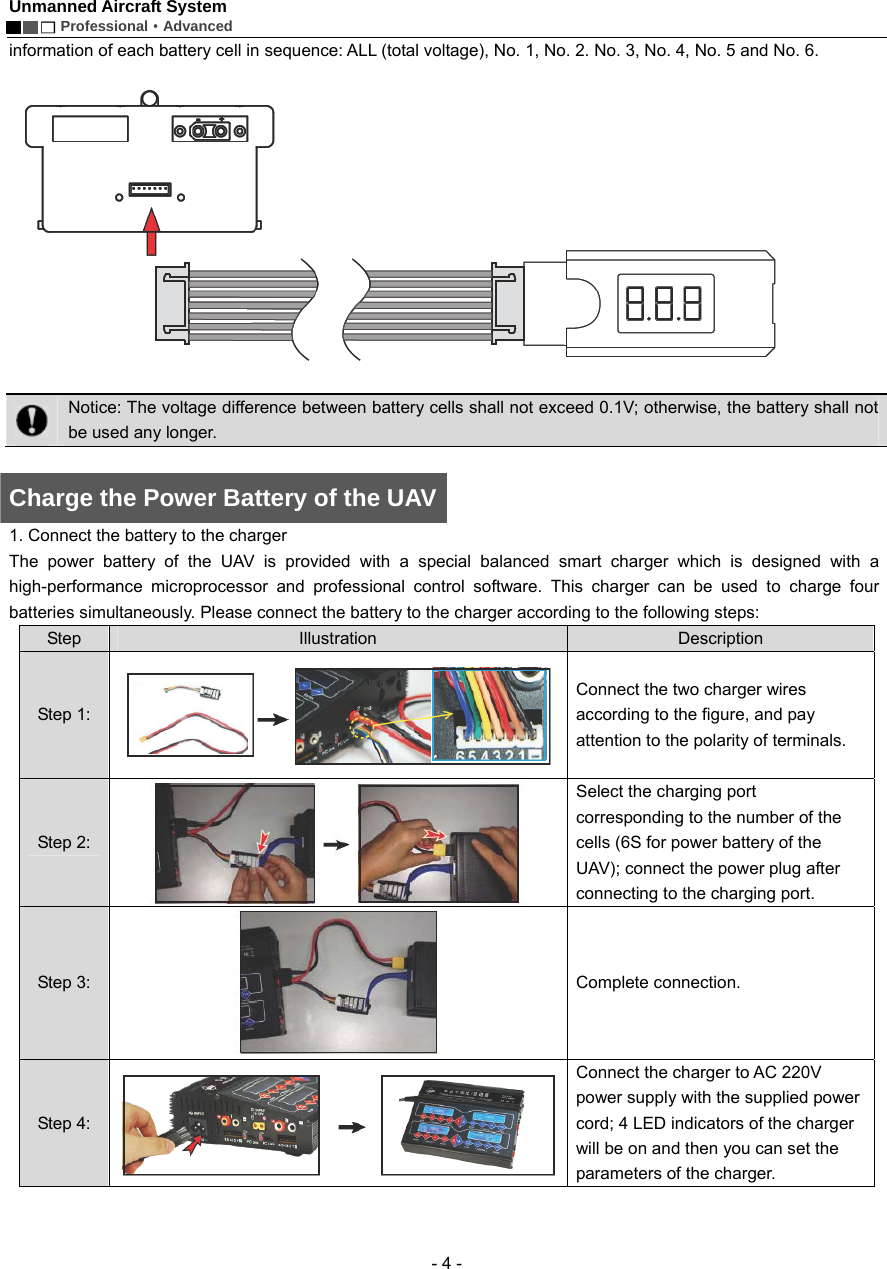
Unmanned Aircraft System  Professional·Advanced - 3 - Alarm level    Buzzer (difference in interval and sound length)  Remark  Level 1 alarm for low battery of the remote control   Beep --- beep beep --- beep --- beep beep… (slow) Pause after continuous beeping for 2min; cycle at an interval of 10min Level 2 alarm for low battery of the remote control Beep --- beep beep --- beep --- beep beep… (fast)  Continuous  Level 1 alarm for low battery of the UAV   Beep beep --- beep beep --- beep beep… (slow) Pause after continuous beeping for 2min; cycle at an interval of 10min Level 2 alarm for low battery of the UAV   Beep beep --- beep beep --- beep beep… (fast)  Continuous  2. Ground station   Alarm level    Buzzer (difference in interval and sound length)  Remark  Level 1 alarm for low battery of the UAV   Beep beep --- beep beep --- beep beep… (slow) Pause after continuous beeping for 2min; cycle at an interval of 10min Level 2 alarm for low battery of the UAV   Beep beep --- beep beep --- beep beep… (fast)  Continuous  Level 1 alarm for low battery of the ground station     Beep --- beep beep --- beep --- beep beep… (slow) Pause after continuous beeping for 2min; cycle at an interval of 10min Level 2 alarm for low battery of the ground station     Beep --- beep beep --- beep --- beep beep… (fast)  Continuous    Notice: When a level 2 alarm for low battery of the UAV is sent, the UAV will automatically land at the current position rather than go home; at this moment, you can switch to the manual mode so that the UAV will go home. In case of level 1 alarm for low battery of the UAV, or level 2 alarm for low battery of the remote control or ground station, please decide whether the flight can proceed with caution (it is suggested that the flight should proceed after replacement of the battery), in order to avoid flight accident resulting from low battery of the UAV or remote control! When a level 1 alarm for low battery of the UAV is sent, it is suggested that the throttle joystick should not be pushed to the full position whenever possible, so as to prolong the flight time. If the throttle joystick stays at the full position for a long time after the said alarm, the UAV will enter the level 2 low battery state ahead of time.    Use a Battery Indicator to Detect the Battery Level   Check the battery level before using the battery; in case of low battery level, charging is required. Insert the pins of the battery indicator into the flat cable connector, as shown in the figure below.      Notice: The black wire should be connected to “– ” during connection.   Insert the other end of the flat cable into the port on the power battery as directed by the arrow in the figure below. After connection, the battery indicator first displays the total voltage (25.2V), and then displays the voltage
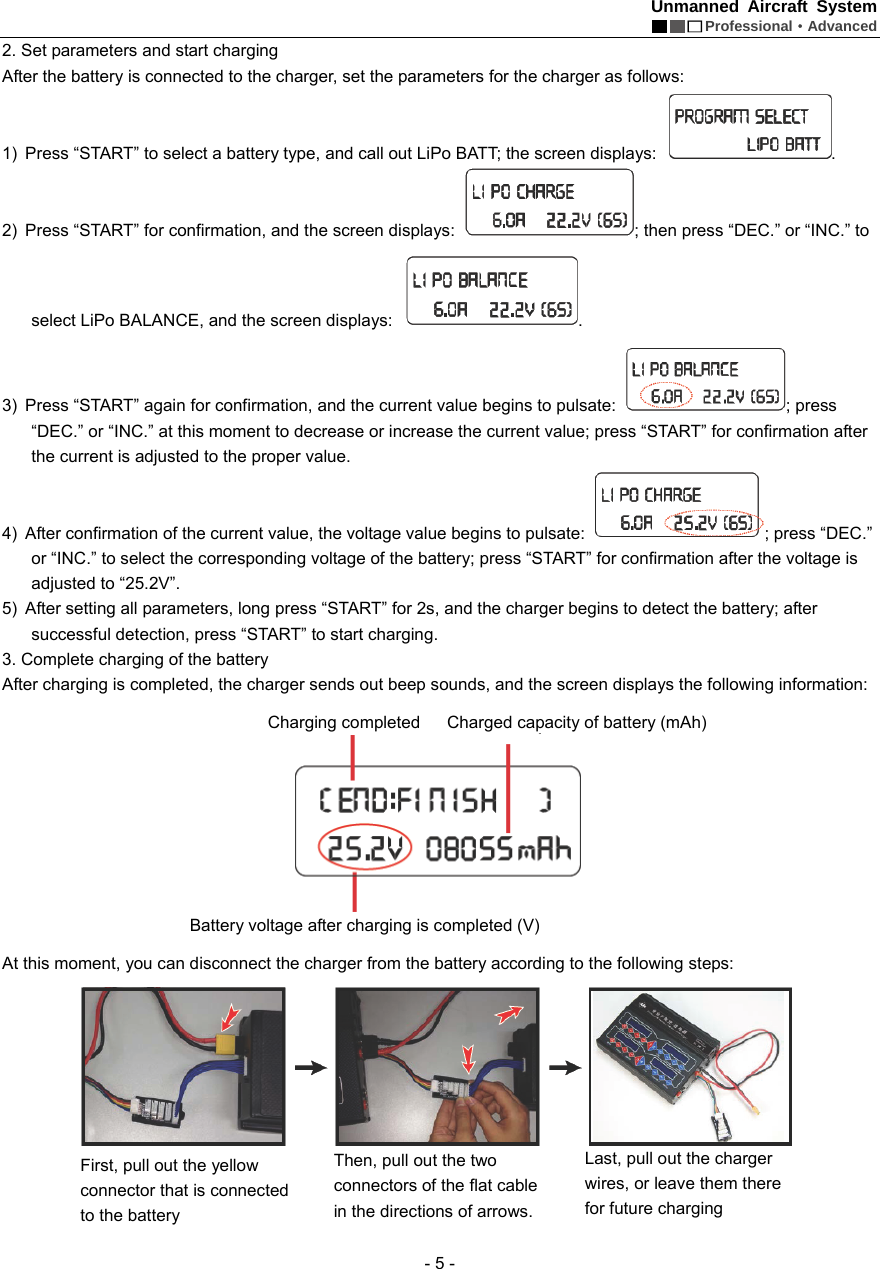
Unmanned Aircraft System        Professional·Advanced  - 4 - information of each battery cell in sequence: ALL (total voltage), No. 1, No. 2. No. 3, No. 4, No. 5 and No. 6.      Notice: The voltage difference between battery cells shall not exceed 0.1V; otherwise, the battery shall not be used any longer.     Charge the Power Battery of the UAV 1. Connect the battery to the charger The power battery of the UAV is provided with a special balanced smart charger which is designed with a high-performance microprocessor and professional control software. This charger can be used to charge four batteries simultaneously. Please connect the battery to the charger according to the following steps: Step  Illustration  Description Step 1: Connect the two charger wires according to the figure, and pay attention to the polarity of terminals.   Step 2: Select the charging port corresponding to the number of the cells (6S for power battery of the UAV); connect the power plug after connecting to the charging port.     Step 3:  Complete connection.   Step 4: Connect the charger to AC 220V power supply with the supplied power cord; 4 LED indicators of the charger will be on and then you can set the parameters of the charger.
Unmanned Aircraft System  Professional·Advanced - 5 - 2. Set parameters and start charging   After the battery is connected to the charger, set the parameters for the charger as follows: 1)  Press “START” to select a battery type, and call out LiPo BATT; the screen displays:  . 2)  Press “START” for confirmation, and the screen displays:  ; then press “DEC.” or “INC.” to select LiPo BALANCE, and the screen displays:  .   3)  Press “START” again for confirmation, and the current value begins to pulsate:  ; press   “DEC.” or “INC.” at this moment to decrease or increase the current value; press “START” for confirmation after the current is adjusted to the proper value.     4)  After confirmation of the current value, the voltage value begins to pulsate:  ; press “DEC.” or “INC.” to select the corresponding voltage of the battery; press “START” for confirmation after the voltage is adjusted to “25.2V”.     5)  After setting all parameters, long press “START” for 2s, and the charger begins to detect the battery; after successful detection, press “START” to start charging.   3. Complete charging of the battery   After charging is completed, the charger sends out beep sounds, and the screen displays the following information:    At this moment, you can disconnect the charger from the battery according to the following steps:        Charging completed   Battery voltage after charging is completed (V) Charged capacity of battery (mAh) First, pull out the yellow connector that is connected to the battery   Then, pull out the two connectors of the flat cable in the directions of arrows. Last, pull out the charger wires, or leave them there for future charging
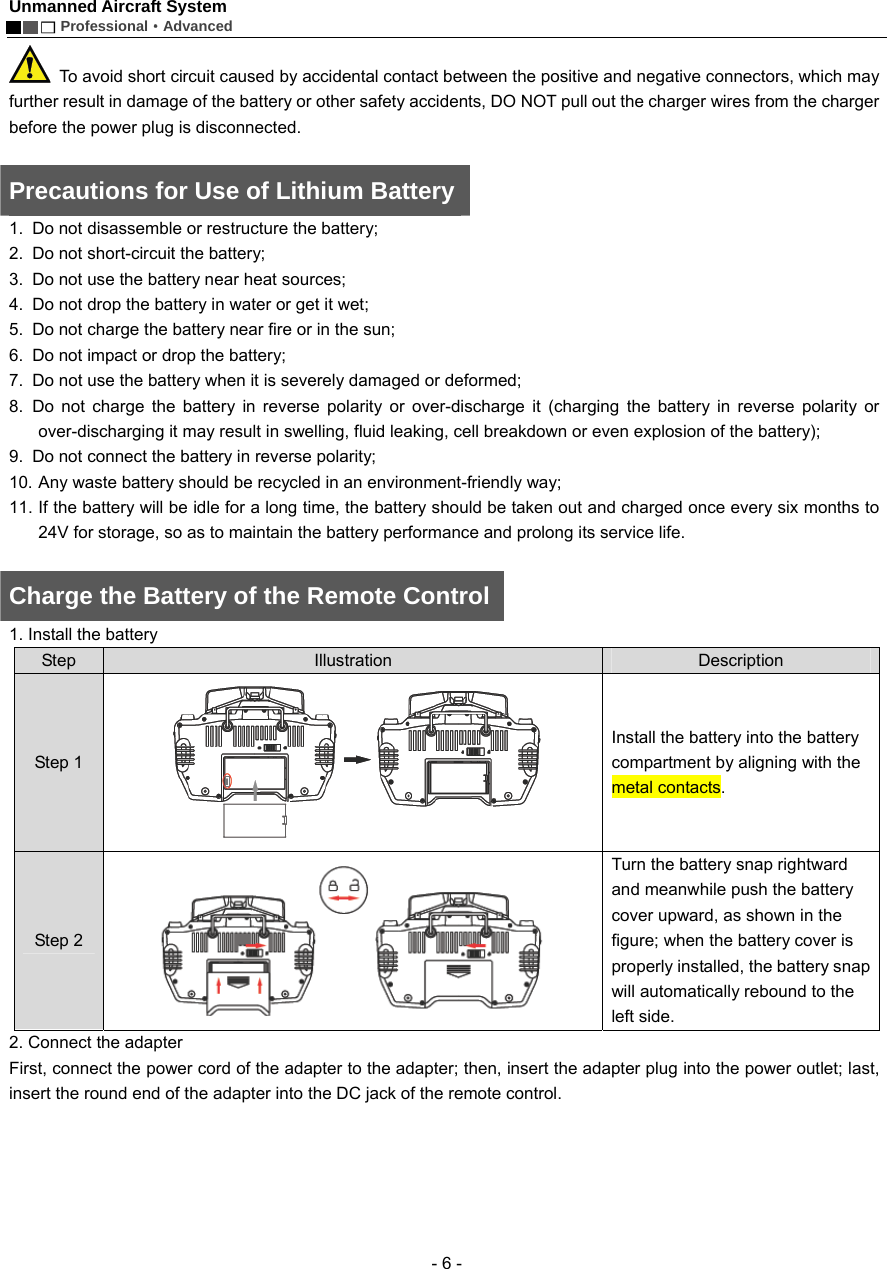
Unmanned Aircraft System        Professional·Advanced  - 6 -   To avoid short circuit caused by accidental contact between the positive and negative connectors, which may further result in damage of the battery or other safety accidents, DO NOT pull out the charger wires from the charger before the power plug is disconnected.    Precautions for Use of Lithium Battery  1.  Do not disassemble or restructure the battery; 2.  Do not short-circuit the battery; 3.  Do not use the battery near heat sources; 4.  Do not drop the battery in water or get it wet;   5.  Do not charge the battery near fire or in the sun;   6.  Do not impact or drop the battery; 7.  Do not use the battery when it is severely damaged or deformed; 8. Do not charge the battery in reverse polarity or over-discharge it (charging the battery in reverse polarity or over-discharging it may result in swelling, fluid leaking, cell breakdown or even explosion of the battery);     9.  Do not connect the battery in reverse polarity; 10. Any waste battery should be recycled in an environment-friendly way;   11. If the battery will be idle for a long time, the battery should be taken out and charged once every six months to 24V for storage, so as to maintain the battery performance and prolong its service life.    Charge the Battery of the Remote Control 1. Install the battery   Step  Illustration  Description Step 1  Install the battery into the battery compartment by aligning with the metal contacts.   Step 2  Turn the battery snap rightward and meanwhile push the battery cover upward, as shown in the figure; when the battery cover is properly installed, the battery snap will automatically rebound to the left side.   2. Connect the adapter   First, connect the power cord of the adapter to the adapter; then, insert the adapter plug into the power outlet; last, insert the round end of the adapter into the DC jack of the remote control.
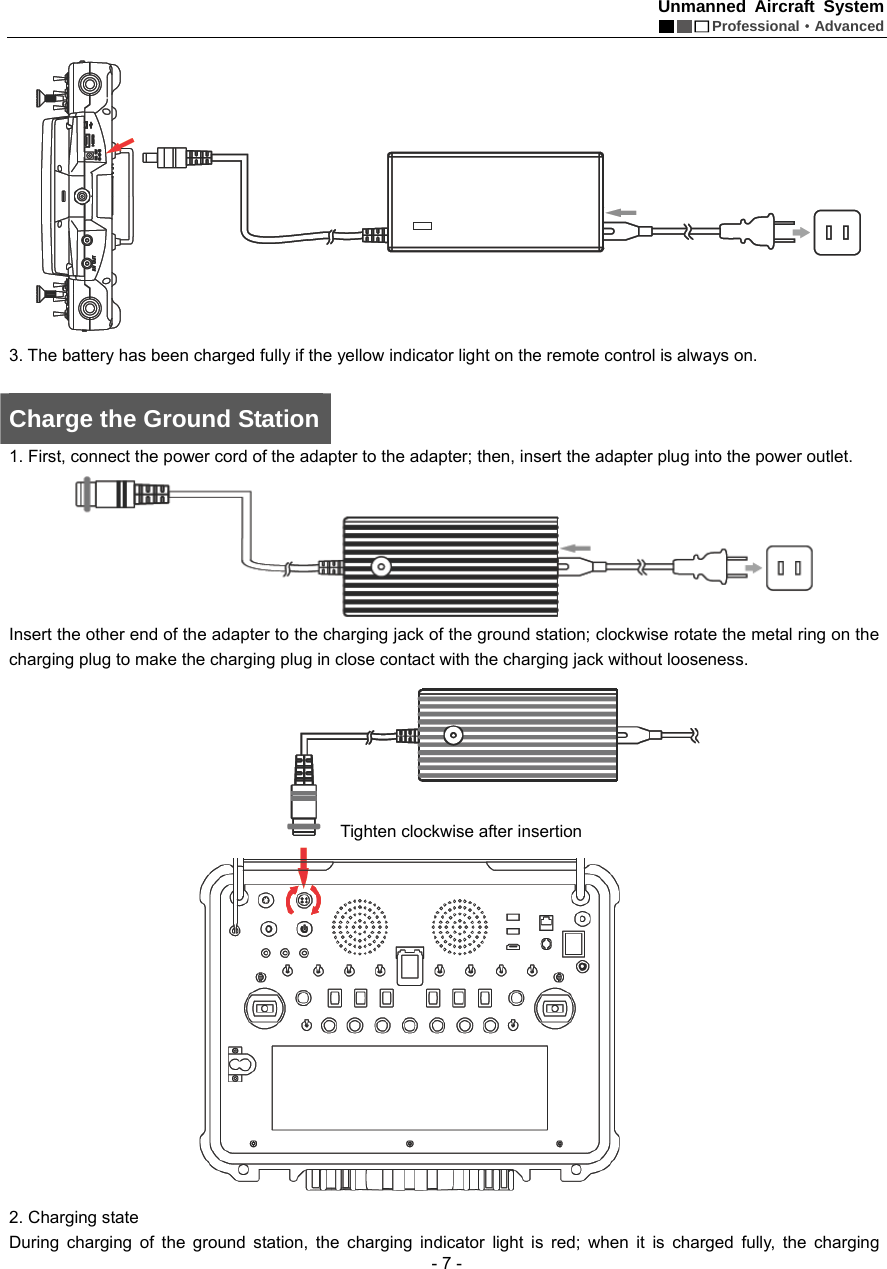
Unmanned Aircraft System  Professional·Advanced - 7 -  3. The battery has been charged fully if the yellow indicator light on the remote control is always on.    Charge the Ground Station 1. First, connect the power cord of the adapter to the adapter; then, insert the adapter plug into the power outlet.    Insert the other end of the adapter to the charging jack of the ground station; clockwise rotate the metal ring on the charging plug to make the charging plug in close contact with the charging jack without looseness.    2. Charging state During charging of the ground station, the charging indicator light is red; when it is charged fully, the charging Tighten clockwise after insertion
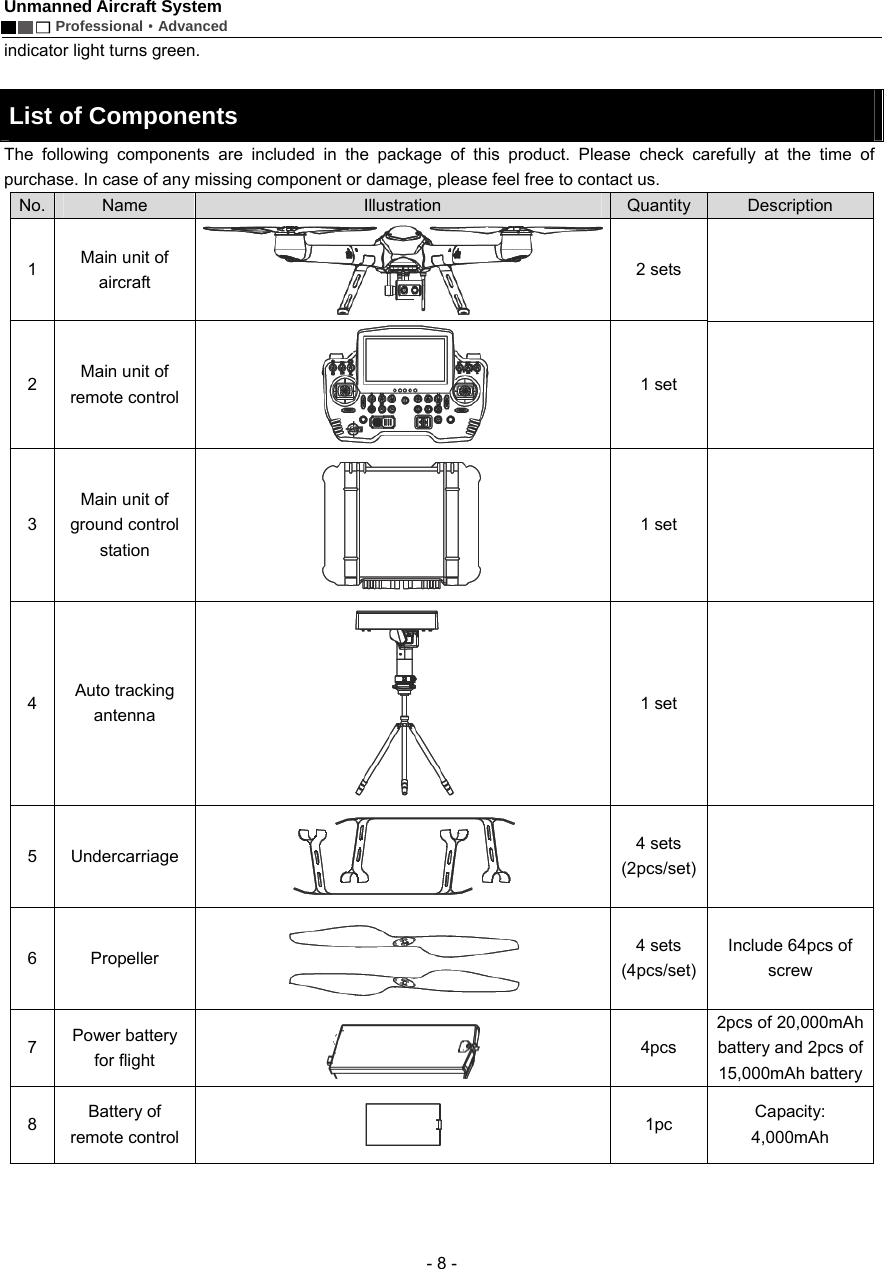
Unmanned Aircraft System        Professional·Advanced  - 8 - indicator light turns green.      List of Components The following components are included in the package of this product. Please check carefully at the time of purchase. In case of any missing component or damage, please feel free to contact us. No.  Name   Illustration   Quantity  Description  1  Main unit of aircraft   2 sets   2  Main unit of remote control  1 set   3 Main unit of ground control station   1 set   4  Auto tracking antenna   1 set   5  Undercarriage   4 sets   (2pcs/set)  6  Propeller   4 sets   (4pcs/set)Include 64pcs of screw   7  Power battery for flight    4pcs  2pcs of 20,000mAh battery and 2pcs of 15,000mAh battery 8  Battery of remote control     1pc   Capacity: 4,000mAh
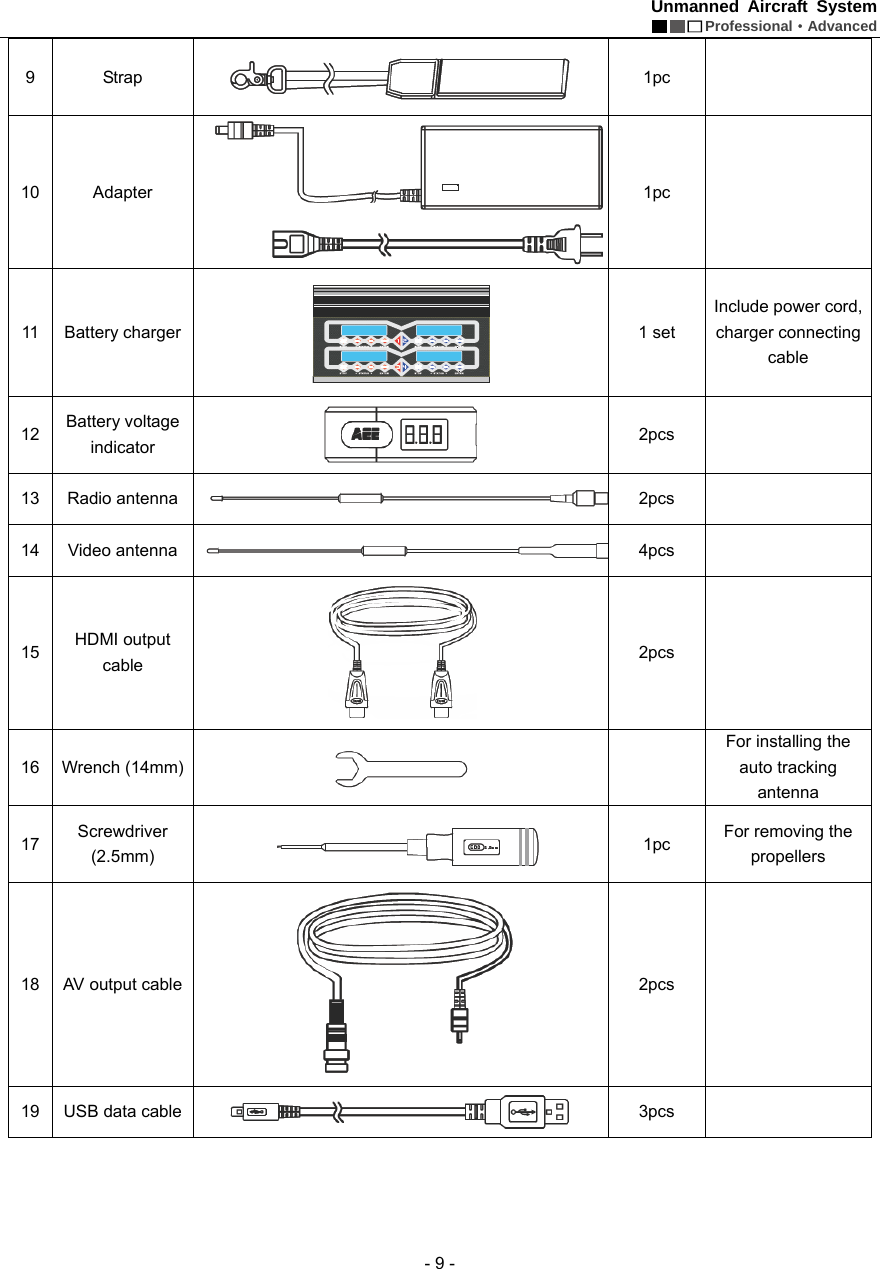
Unmanned Aircraft System  Professional·Advanced - 9 - 9  Strap   1pc    10  Adapter   1pc     11  Battery charger    1 set   Include power cord, charger connecting cable 12  Battery voltage indicator   2pcs    13  Radio antenna    2pcs    14  Video antenna    4pcs    15  HDMI output cable   2pcs    16  Wrench (14mm)   For installing the auto tracking antenna  17  Screwdriver (2.5mm)   1pc   For removing the propellers  18  AV output cable    2pcs    19  USB data cable    3pcs
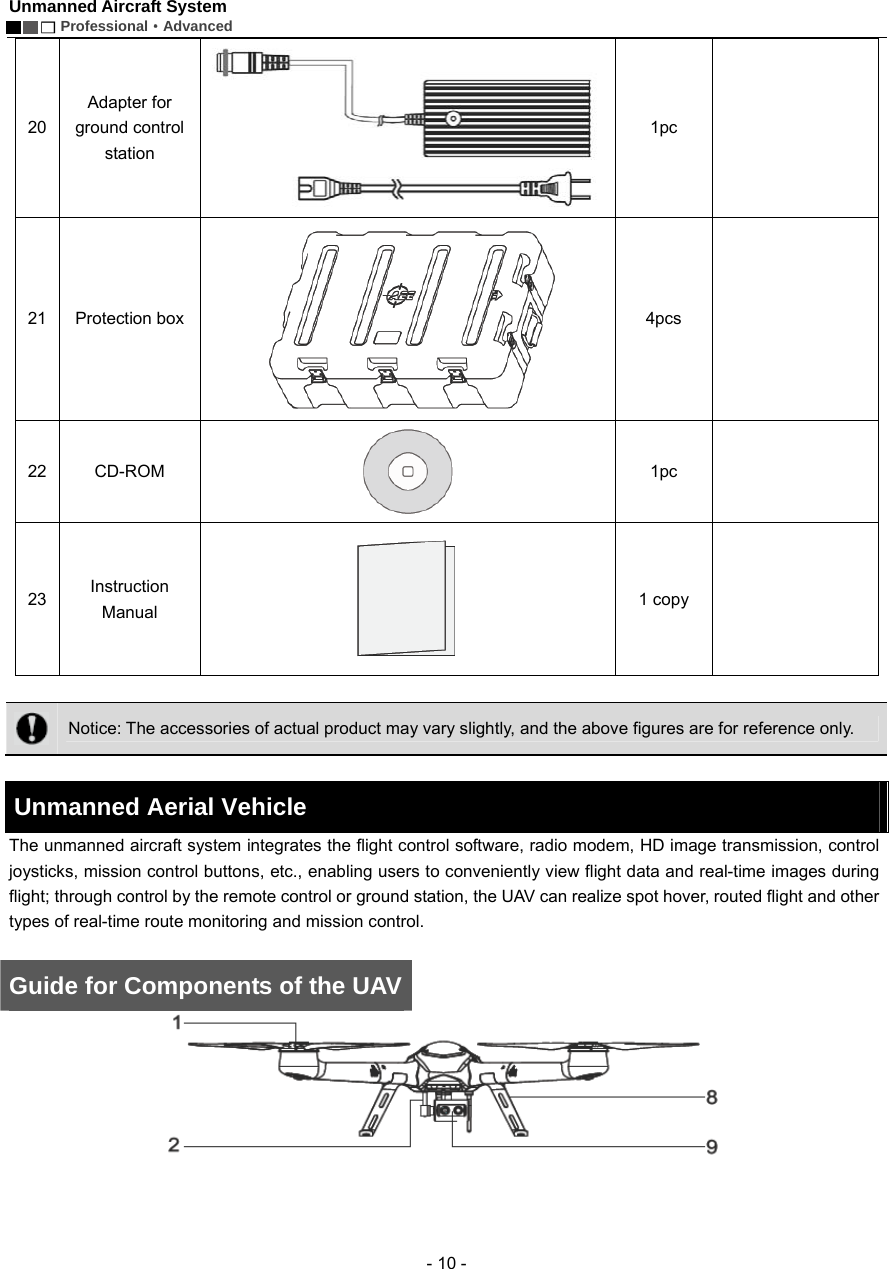
Unmanned Aircraft System        Professional·Advanced  - 10 - 20 Adapter for ground control station  1pc    21  Protection box    4pcs    22  CD-ROM    1pc    23  Instruction Manual   1 copy     Notice: The accessories of actual product may vary slightly, and the above figures are for reference only.    Unmanned Aerial Vehicle   The unmanned aircraft system integrates the flight control software, radio modem, HD image transmission, control joysticks, mission control buttons, etc., enabling users to conveniently view flight data and real-time images during flight; through control by the remote control or ground station, the UAV can realize spot hover, routed flight and other types of real-time route monitoring and mission control.    Guide for Components of the UAV
Unmanned Aircraft System  Professional·Advanced - 11 -   [1] Motor    [2] PTZ     [3] Removable arm A1  [4] Frame arm A1 [5] Frame arm B2   [6] Removable arm B2   [7] Power key      [8] Undercarriage   [9] Airborne camera  [10] Propeller        [11] Removable arm B1  [12] Frame arm B1 [13] Frame arm A2  [14] Removable arm A2  [15] Power indicator      [16] Battery plug switch    Configuration of F100 main unit system
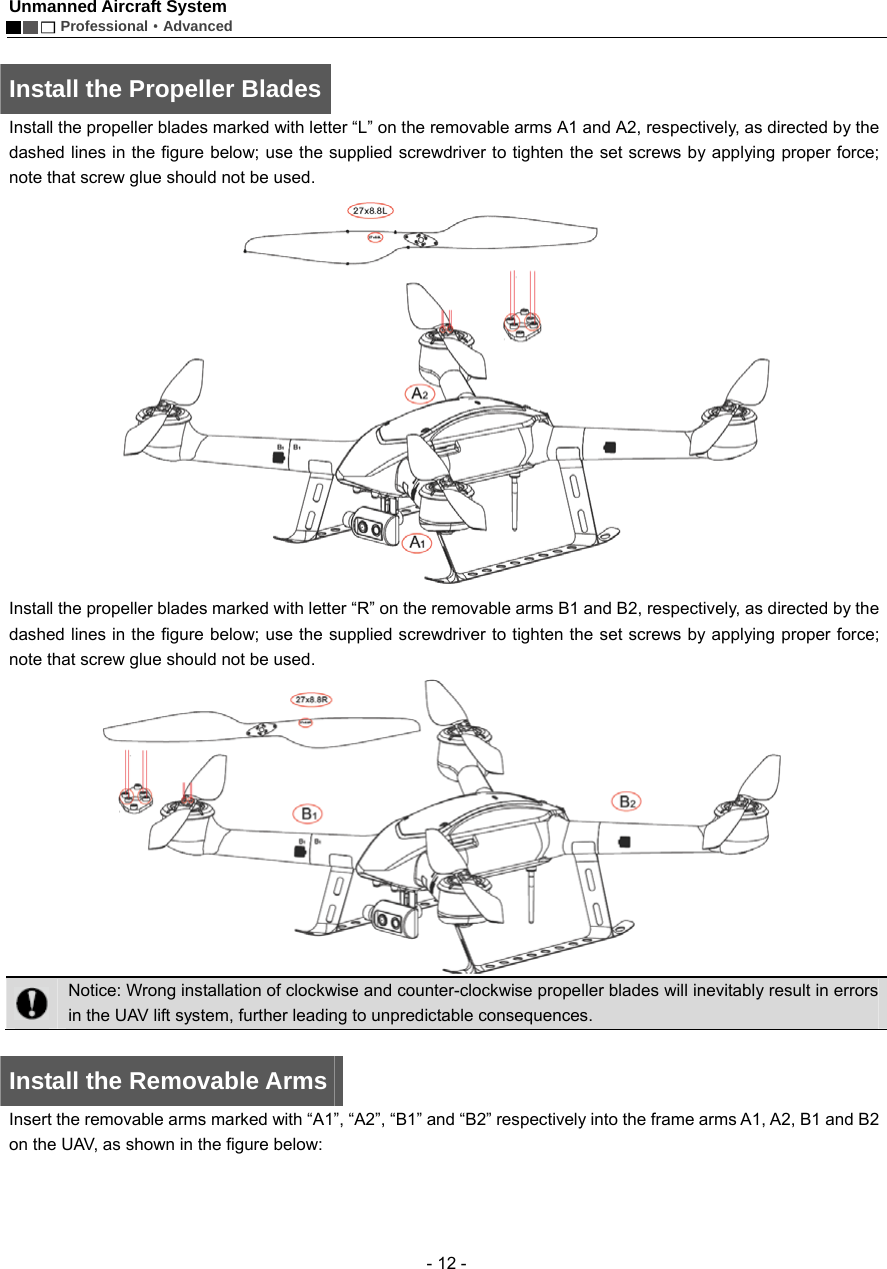
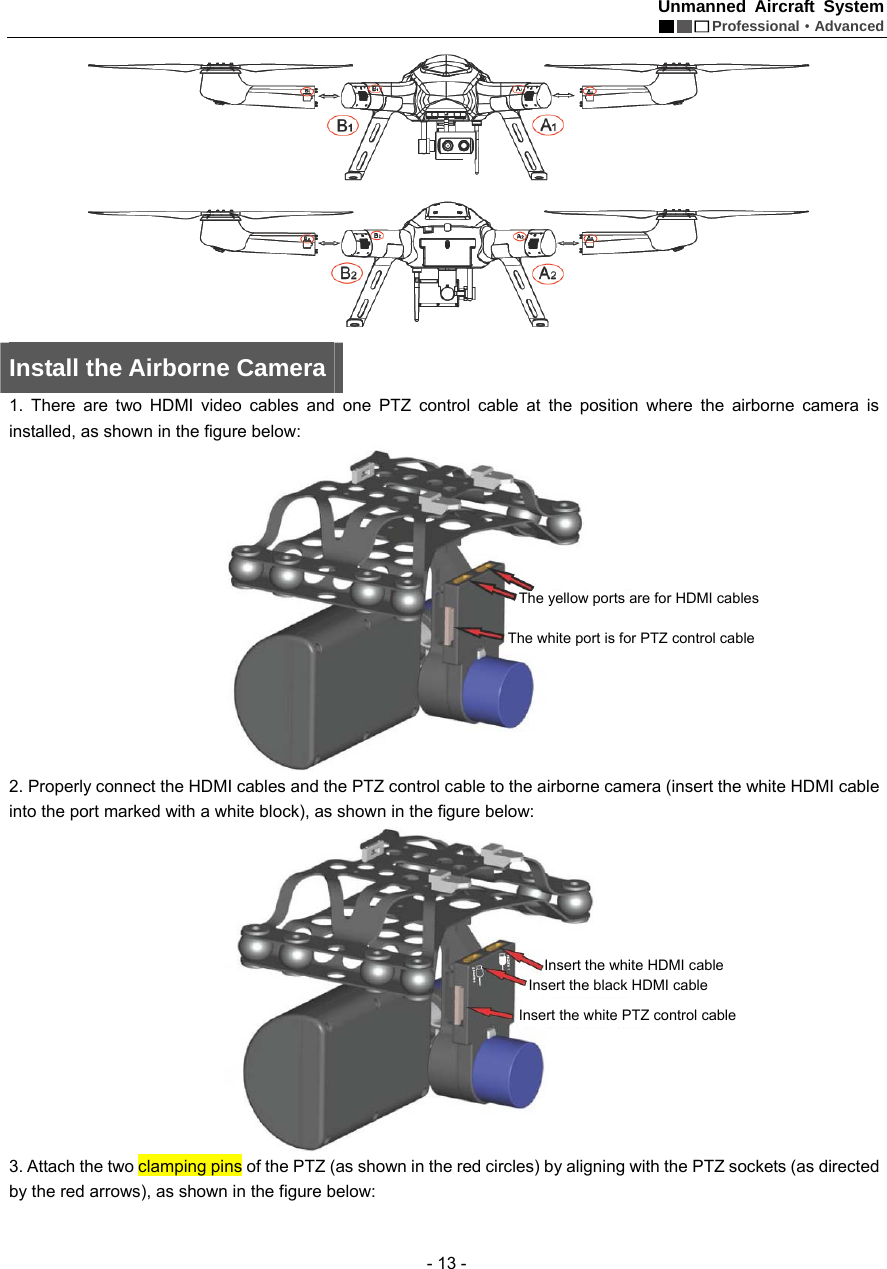
Unmanned Aircraft System        Professional·Advanced  - 12 -  Install the Propeller Blades Install the propeller blades marked with letter “L” on the removable arms A1 and A2, respectively, as directed by the dashed lines in the figure below; use the supplied screwdriver to tighten the set screws by applying proper force; note that screw glue should not be used.    Install the propeller blades marked with letter “R” on the removable arms B1 and B2, respectively, as directed by the dashed lines in the figure below; use the supplied screwdriver to tighten the set screws by applying proper force; note that screw glue should not be used.     Notice: Wrong installation of clockwise and counter-clockwise propeller blades will inevitably result in errors in the UAV lift system, further leading to unpredictable consequences.    Install the Removable Arms   Insert the removable arms marked with “A1”, “A2”, “B1” and “B2” respectively into the frame arms A1, A2, B1 and B2 on the UAV, as shown in the figure below:
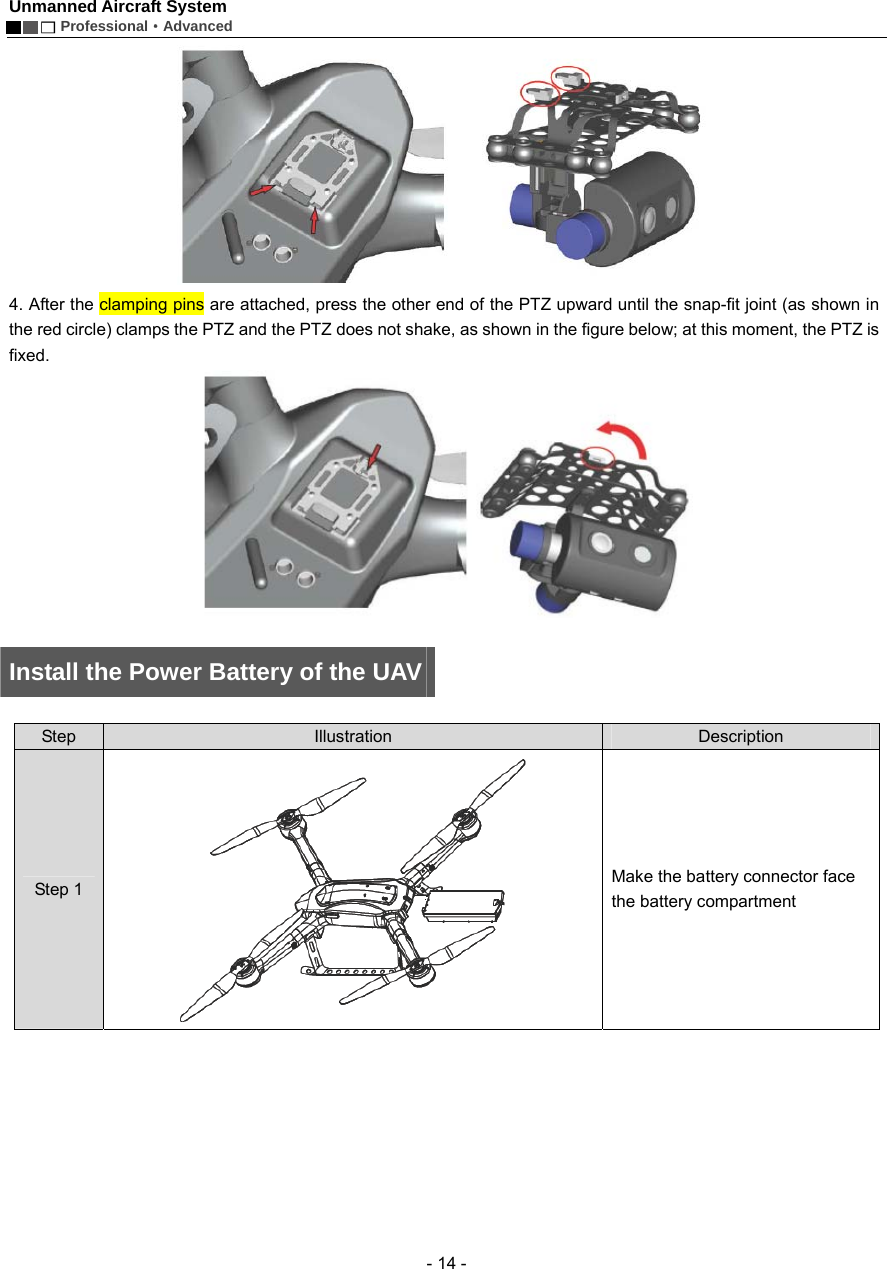
Unmanned Aircraft System  Professional·Advanced - 13 -  Install the Airborne Camera   1. There are two HDMI video cables and one PTZ control cable at the position where the airborne camera is installed, as shown in the figure below:    2. Properly connect the HDMI cables and the PTZ control cable to the airborne camera (insert the white HDMI cable into the port marked with a white block), as shown in the figure below:    3. Attach the two clamping pins of the PTZ (as shown in the red circles) by aligning with the PTZ sockets (as directed by the red arrows), as shown in the figure below:   The yellow ports are forHDMI cables   The white port is for PTZ control cable   Insert the white HDMI cable Insert the black HDMI cable Insert the white PTZ control cable
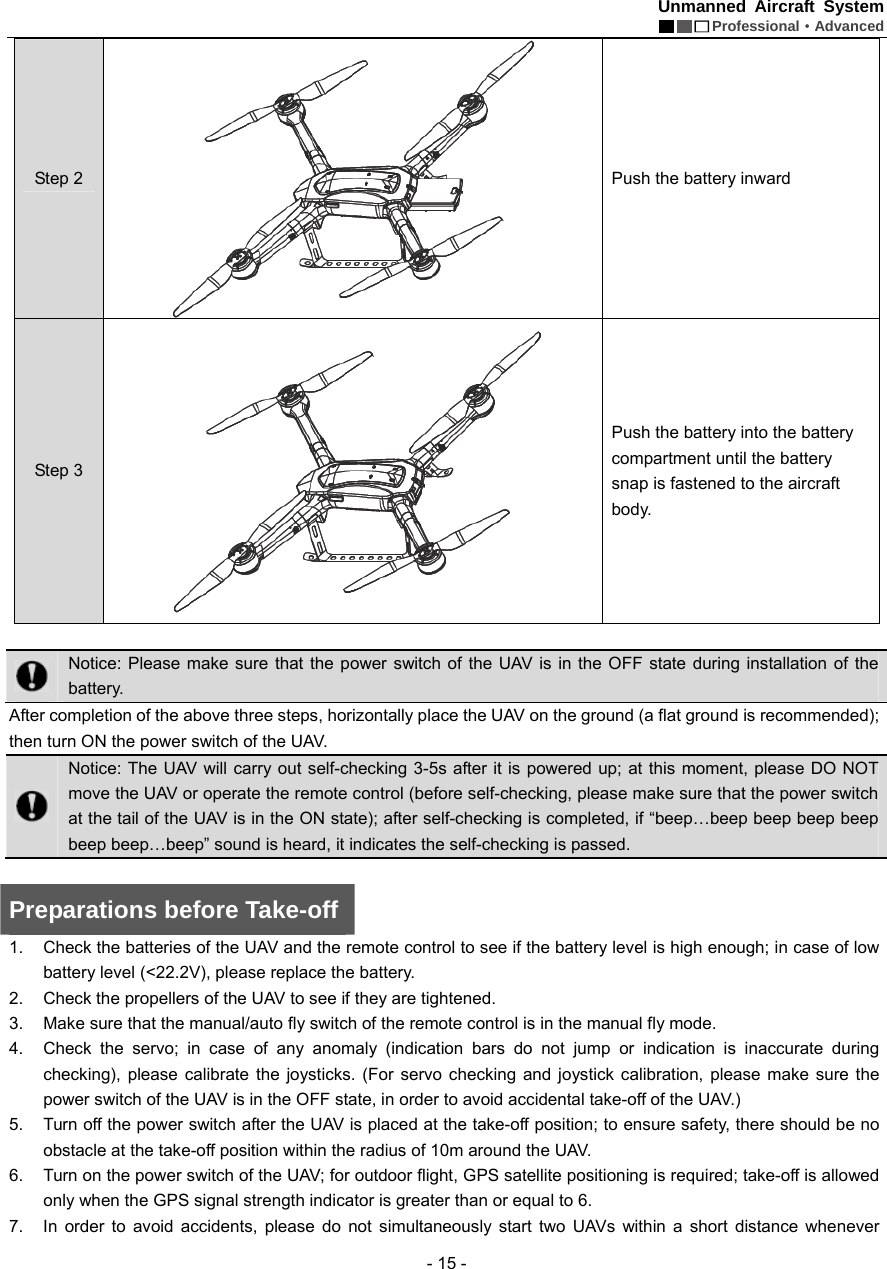
Unmanned Aircraft System        Professional·Advanced  - 14 -  4. After the clamping pins are attached, press the other end of the PTZ upward until the snap-fit joint (as shown in the red circle) clamps the PTZ and the PTZ does not shake, as shown in the figure below; at this moment, the PTZ is fixed.      Install the Power Battery of the UAV    Step  Illustration  Description Step 1  Make the battery connector face the battery compartment
Unmanned Aircraft System  Professional·Advanced - 15 - Step 2  Push the battery inward   Step 3  Push the battery into the battery compartment until the battery snap is fastened to the aircraft body.    Notice: Please make sure that the power switch of the UAV is in the OFF state during installation of the battery. After completion of the above three steps, horizontally place the UAV on the ground (a flat ground is recommended); then turn ON the power switch of the UAV.    Notice: The UAV will carry out self-checking 3-5s after it is powered up; at this moment, please DO NOT move the UAV or operate the remote control (before self-checking, please make sure that the power switch at the tail of the UAV is in the ON state); after self-checking is completed, if “beep…beep beep beep beep beep beep…beep” sound is heard, it indicates the self-checking is passed.    Preparations before Take-off 1.  Check the batteries of the UAV and the remote control to see if the battery level is high enough; in case of low battery level (<22.2V), please replace the battery.   2.  Check the propellers of the UAV to see if they are tightened.   3.  Make sure that the manual/auto fly switch of the remote control is in the manual fly mode.   4.  Check the servo; in case of any anomaly (indication bars do not jump or indication is inaccurate during checking), please calibrate the joysticks. (For servo checking and joystick calibration, please make sure the power switch of the UAV is in the OFF state, in order to avoid accidental take-off of the UAV.) 5.  Turn off the power switch after the UAV is placed at the take-off position; to ensure safety, there should be no obstacle at the take-off position within the radius of 10m around the UAV.   6.  Turn on the power switch of the UAV; for outdoor flight, GPS satellite positioning is required; take-off is allowed only when the GPS signal strength indicator is greater than or equal to 6.   7.  In order to avoid accidents, please do not simultaneously start two UAVs within a short distance whenever
Unmanned Aircraft System        Professional·Advanced  - 16 - possible.  8.  Before take-off, please make sure that the video and radio antennas have been properly installed to avoid influence on the flight or the video receiving distance, or damage to the UAV or the transmitter module inside the remote control. 9.  When the remote control is used to control the UAV, please make sure that the option of “Send Joystick Data” in the ground station software is not checked before take-off; when the ground station joystick is used to control the UAV, please make sure that the remote control is in the OFF state before take-off.  Control the Flight with the Remote Control     The remote control is specially developed for the unmanned aircraft system to make it convenient for controlling the flight of the UAV. The remote control can independently control the flight of the UAV, and can display the flight status of the UAV and the real-time images from the airborne camera simultaneously.    Guide for Components of the Remote Control and Description of Button Functions The components of the remote control and the button functions are shown as follows:    [1] Remote control handle  [2] Battery cover snap   [3] Battery cover       [4] USB port   [5] HDMI port       [6] Adapter port      [7] Reserved port      [8] AV port
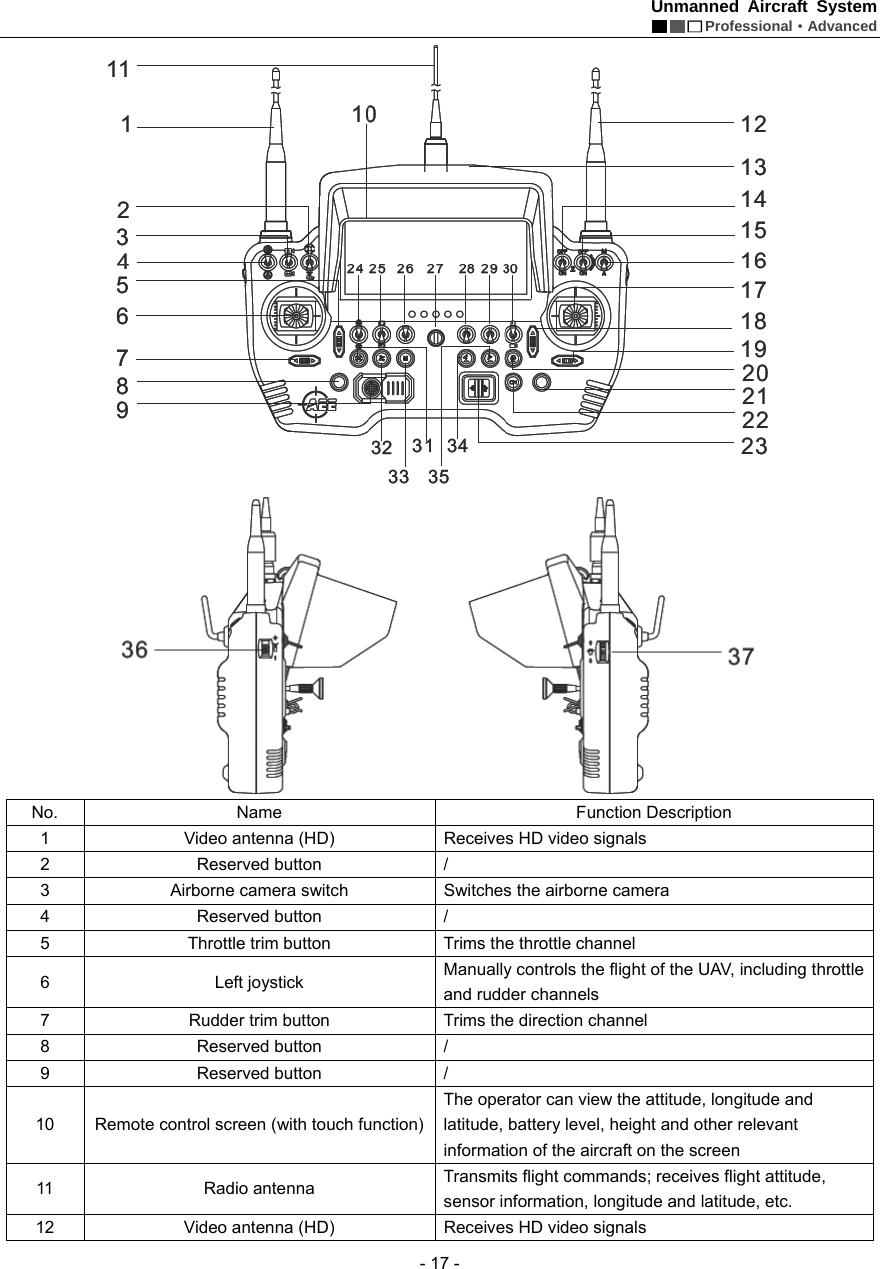
Unmanned Aircraft System  Professional·Advanced - 17 -   No. Name  Function Description 1  Video antenna (HD)  Receives HD video signals   2 Reserved button  / 3  Airborne camera switch    Switches the airborne camera   4 Reserved button  / 5  Throttle trim button    Trims the throttle channel   6 Left joystick  Manually controls the flight of the UAV, including throttle and rudder channels   7  Rudder trim button    Trims the direction channel 8 Reserved button / 9 Reserved button / 10  Remote control screen (with touch function) The operator can view the attitude, longitude and latitude, battery level, height and other relevant information of the aircraft on the screen   11 Radio antenna  Transmits flight commands; receives flight attitude, sensor information, longitude and latitude, etc. 12  Video antenna (HD)  Receives HD video signals
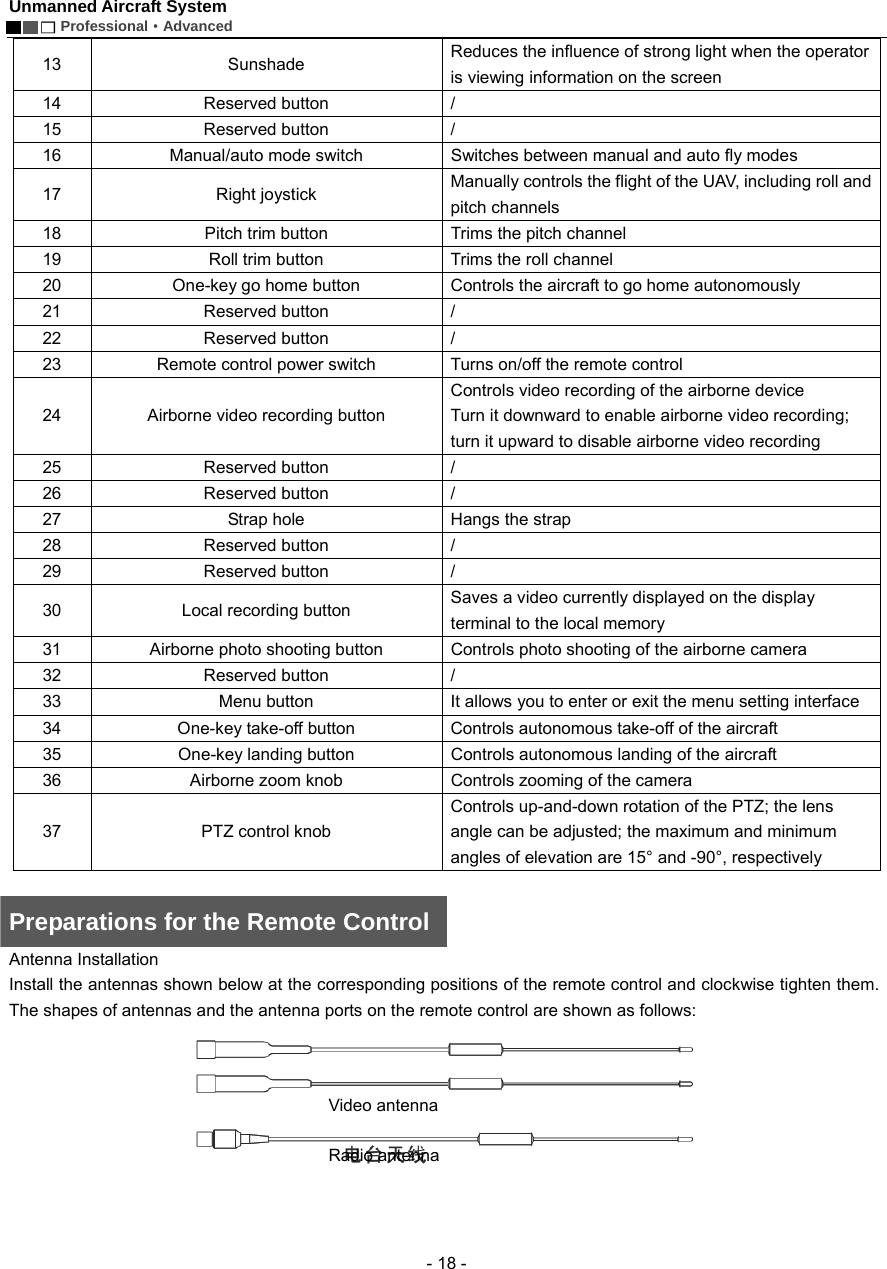
Unmanned Aircraft System        Professional·Advanced  - 18 - 13 Sunshade  Reduces the influence of strong light when the operator is viewing information on the screen 14 Reserved button / 15 Reserved button / 16  Manual/auto mode switch    Switches between manual and auto fly modes   17 Right joystick  Manually controls the flight of the UAV, including roll and pitch channels   18  Pitch trim button    Trims the pitch channel   19  Roll trim button    Trims the roll channel   20  One-key go home button    Controls the aircraft to go home autonomously     21 Reserved button / 22 Reserved button / 23  Remote control power switch    Turns on/off the remote control 24  Airborne video recording button   Controls video recording of the airborne device   Turn it downward to enable airborne video recording; turn it upward to disable airborne video recording 25 Reserved button / 26 Reserved button / 27  Strap hole    Hangs the strap   28 Reserved button / 29 Reserved button / 30  Local recording button    Saves a video currently displayed on the display terminal to the local memory 31  Airborne photo shooting button    Controls photo shooting of the airborne camera   32 Reserved button / 33  Menu button    It allows you to enter or exit the menu setting interface   34  One-key take-off button    Controls autonomous take-off of the aircraft   35  One-key landing button    Controls autonomous landing of the aircraft 36  Airborne zoom knob    Controls zooming of the camera   37 PTZ control knob  Controls up-and-down rotation of the PTZ; the lens angle can be adjusted; the maximum and minimum angles of elevation are 15° and -90°, respectively    Preparations for the Remote Control Antenna Installation   Install the antennas shown below at the corresponding positions of the remote control and clockwise tighten them. The shapes of antennas and the antenna ports on the remote control are shown as follows:  Video antenna Radio antenna
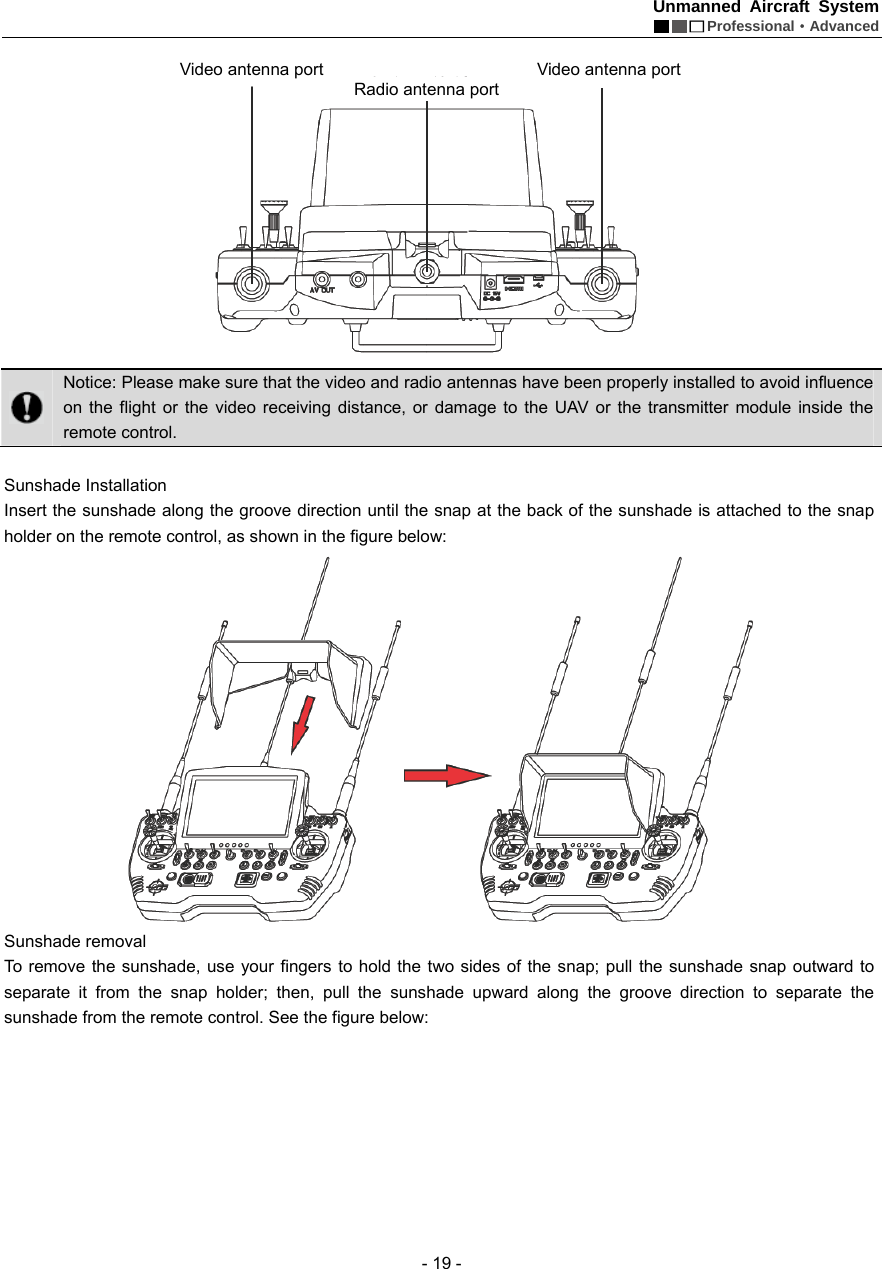
Unmanned Aircraft System  Professional·Advanced - 19 -   Notice: Please make sure that the video and radio antennas have been properly installed to avoid influence on the flight or the video receiving distance, or damage to the UAV or the transmitter module inside the remote control.  Sunshade Installation   Insert the sunshade along the groove direction until the snap at the back of the sunshade is attached to the snap holder on the remote control, as shown in the figure below:    Sunshade removal   To remove the sunshade, use your fingers to hold the two sides of the snap; pull the sunshade snap outward to separate it from the snap holder; then, pull the sunshade upward along the groove direction to separate the sunshade from the remote control. See the figure below:   Video antenna port  Video antenna port Radio antenna port
Unmanned Aircraft System        Professional·Advanced  - 20 -   Parameter Setting for the Remote Control The information displayed on the screen upon power-on is shown as follows:       Press “M” to enter the “Setting” interface of the remote control:    Indication of airborne video recording status  Heading indicator Indication of local recording status of remote control Indication of battery level of UAV Indication of GPS signal strengthIndication of speedvalueLongitude and latitudeof take-off positionThrottle trimCourse trim  Indication of camera clockRoll trimPitch trimLongitude and latitude of current position Indication of height   Horizon instrument (indication of roll andpitch attitudes) Indication of battery level of remote control批注[e1]:下图跟提供的英文界面图有些区别,请确认是否替换
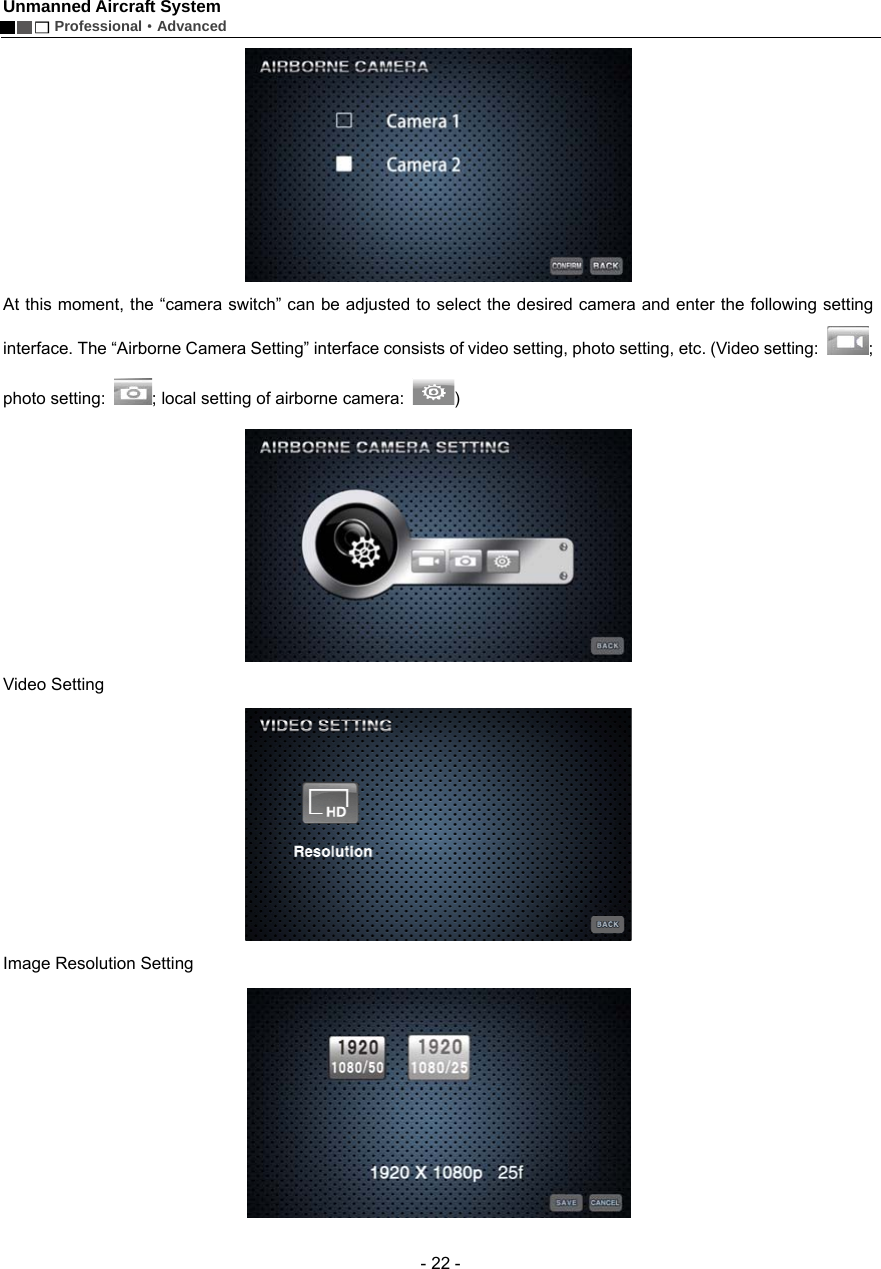
Unmanned Aircraft System  Professional·Advanced - 21 - * * Servo Checking   Check if the functions of joysticks, fly mode switch and PTZ control knob on the remote control are normal through “Servo Checking”. Here are the steps of servo checking:   1)  Press “M” to enter the “Setting” interface the remote control.   2)  Touch “Servo Checking” to enter the setting interface:    3)  At this moment, turn the left and right joysticks by the maximum angle possible, toggle the fly mode switch and rotate the PTZ control knob, and the relevant indication bars will pulsate correspondingly; the functions of roll, pitch, throttle, course, auto fly switch and angle adjustment of airborne camera can be checked.  Notice: Servo checking must be carried out before take-off; before servo checking, please make sure that the power switch of the UAV is in the OFF state, in order to avoid accidental startup of the UAV.    * Joystick Calibration   Touch “[Start]” for joystick calibration in the “Servo Checking” interface in the above step; turn the left and right joysticks for 5-10 circles by 360° to enter the state of joystick calibration; indication bars of roll, pitch, throttle and course will pulsate correspondingly; click “DONE” to finish the calibration process. Carry out servo checking after completion of calibration; it is OK if servo checking shows normal result; otherwise, recalibration is required.     Notice: Before joystick calibration, please make sure that the power switch of the UAV is in the OFF state, in order to avoid accidental startup of the UAV.  * Airborne Camera Setting     Touch    to enter the following interface: 批注[e2]:下图跟提供的英文界面图有些区别,请确认是否替换批注[e3]:下图跟提供的英文界面图有些区别,请确认是否替换
Unmanned Aircraft System        Professional·Advanced  - 22 -  At this moment, the “camera switch” can be adjusted to select the desired camera and enter the following setting interface. The “Airborne Camera Setting” interface consists of video setting, photo setting, etc. (Video setting:  ; photo setting:  ; local setting of airborne camera:  )  Video Setting    Image Resolution Setting
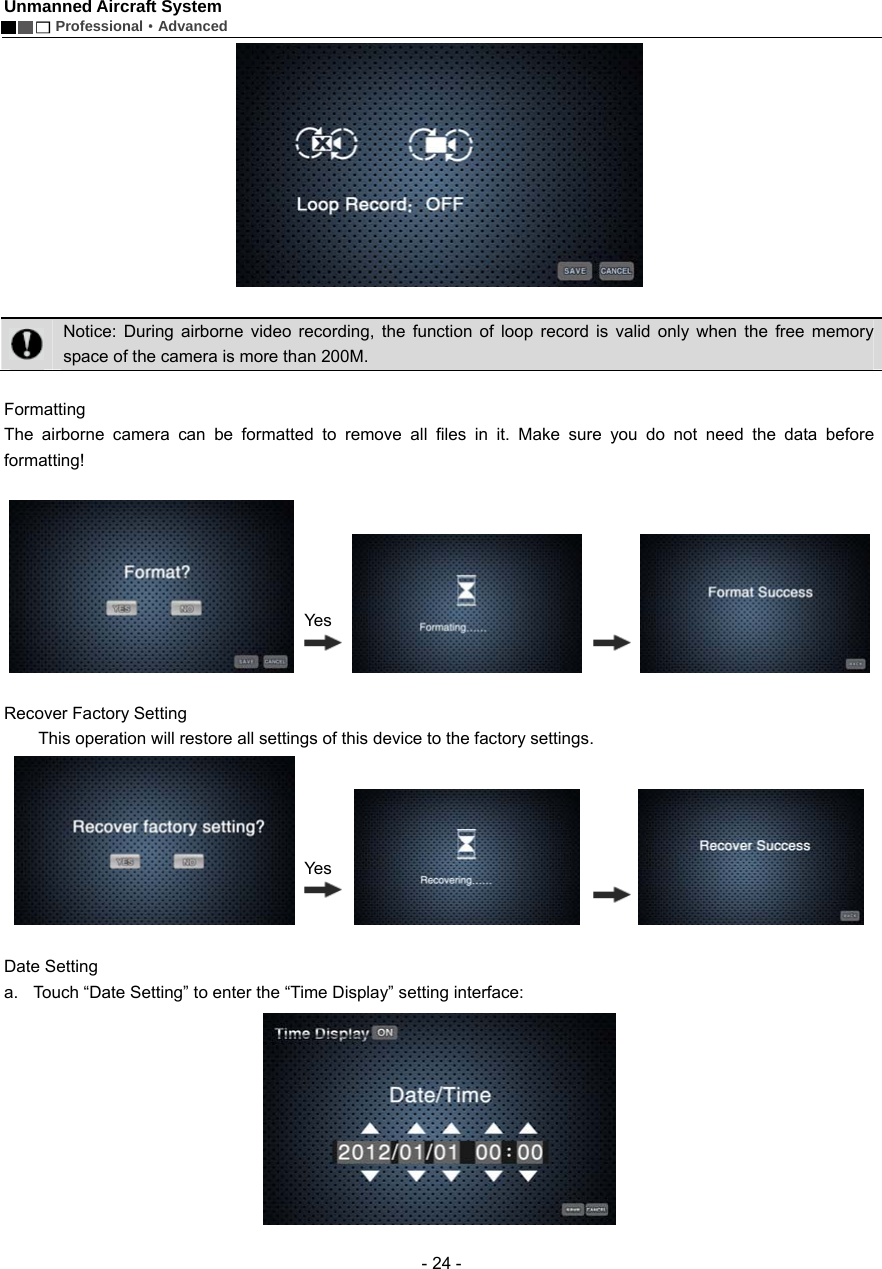
Unmanned Aircraft System  Professional·Advanced - 23 - PAL-system  1920×1080 50f 16:9  1920×1080 25f 16:9 Photo Setting    Photo Resolution   12.0M (4000×3000 4:3)    default    16.0M (4608×3456 4:3 )    Local Setting of Airborne Camera    Touch    to enter the “Local Setting of Airborne Camera” interface:   Loop Record: ON, OFF No matter whether “Loop Record” is ON or OFF, recording is saved as a segment file by each 10 min. When “Loop Record” is ON, if the space of the memory card is not enough, the first segment of recording file will be overwritten automatically.     批注[e4]:提供的英文界面图中没有找到下图批注[e5]:下图原稿中是“开”,而提供的英文界面图中是 OFF,是否可以替换?
Unmanned Aircraft System        Professional·Advanced  - 24 -    Notice: During airborne video recording, the function of loop record is valid only when the free memory space of the camera is more than 200M.    Formatting  The airborne camera can be formatted to remove all files in it. Make sure you do not need the data before formatting!                    Recover Factory Setting           This operation will restore all settings of this device to the factory settings.                   Date Setting   a.  Touch “Date Setting” to enter the “Time Display” setting interface:  YesYes
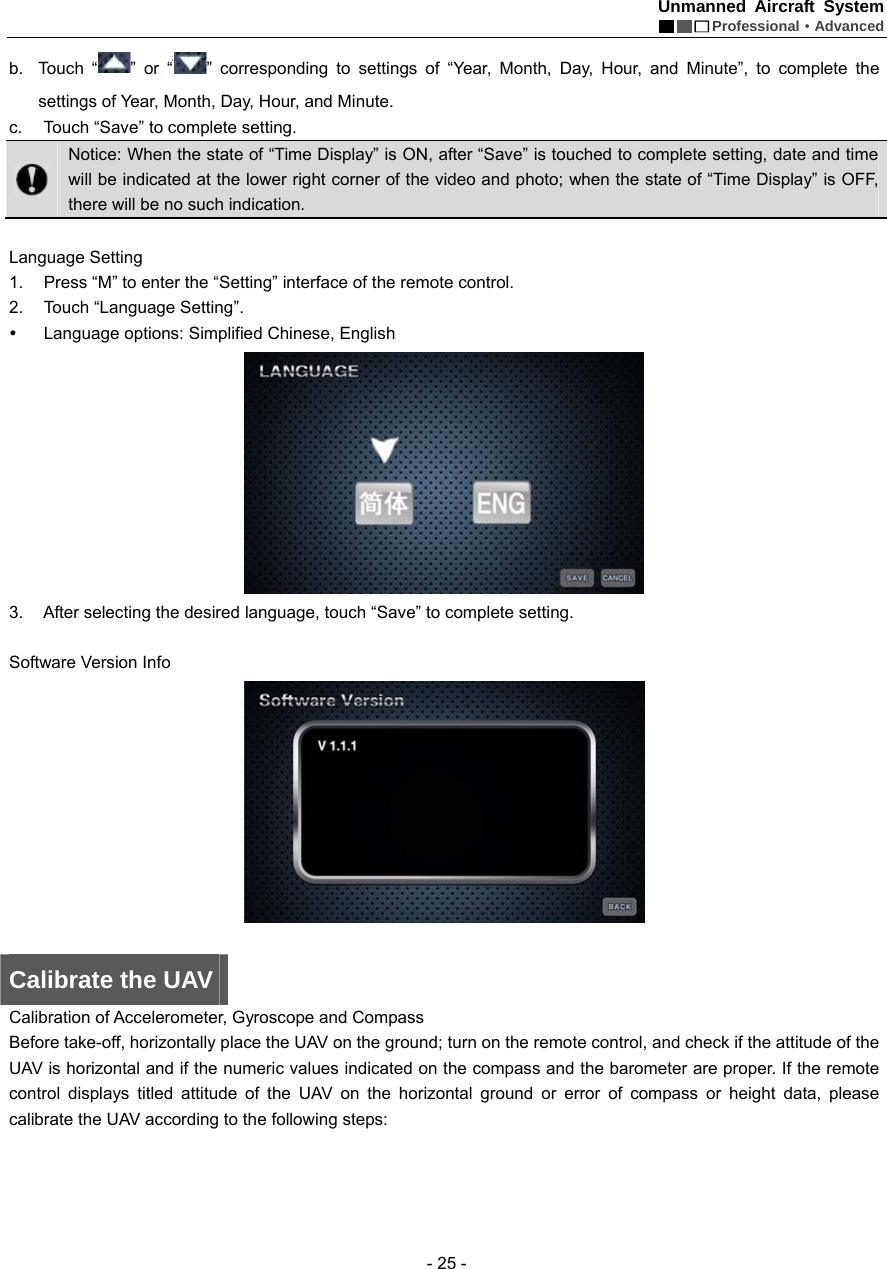
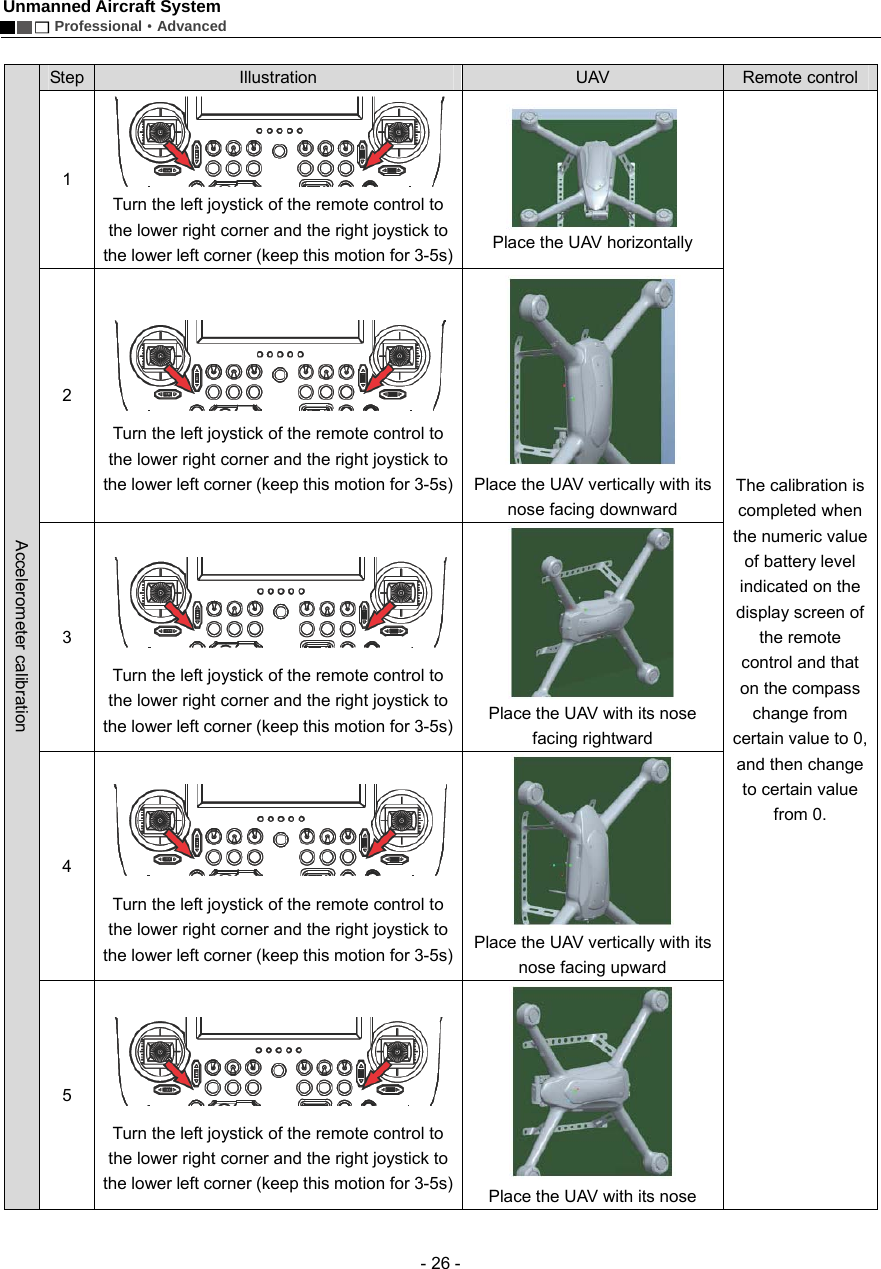
Unmanned Aircraft System  Professional·Advanced - 25 - b. Touch “ ” or “ ” corresponding to settings of “Year, Month, Day, Hour, and Minute”, to complete the settings of Year, Month, Day, Hour, and Minute. c.  Touch “Save” to complete setting.    Notice: When the state of “Time Display” is ON, after “Save” is touched to complete setting, date and time will be indicated at the lower right corner of the video and photo; when the state of “Time Display” is OFF, there will be no such indication.    Language Setting   1.  Press “M” to enter the “Setting” interface of the remote control.       2. Touch “Language Setting”. y  Language options: Simplified Chinese, English    3.  After selecting the desired language, touch “Save” to complete setting.  Software Version Info     Calibrate the UAV Calibration of Accelerometer, Gyroscope and Compass   Before take-off, horizontally place the UAV on the ground; turn on the remote control, and check if the attitude of the UAV is horizontal and if the numeric values indicated on the compass and the barometer are proper. If the remote control displays titled attitude of the UAV on the horizontal ground or error of compass or height data, please calibrate the UAV according to the following steps:
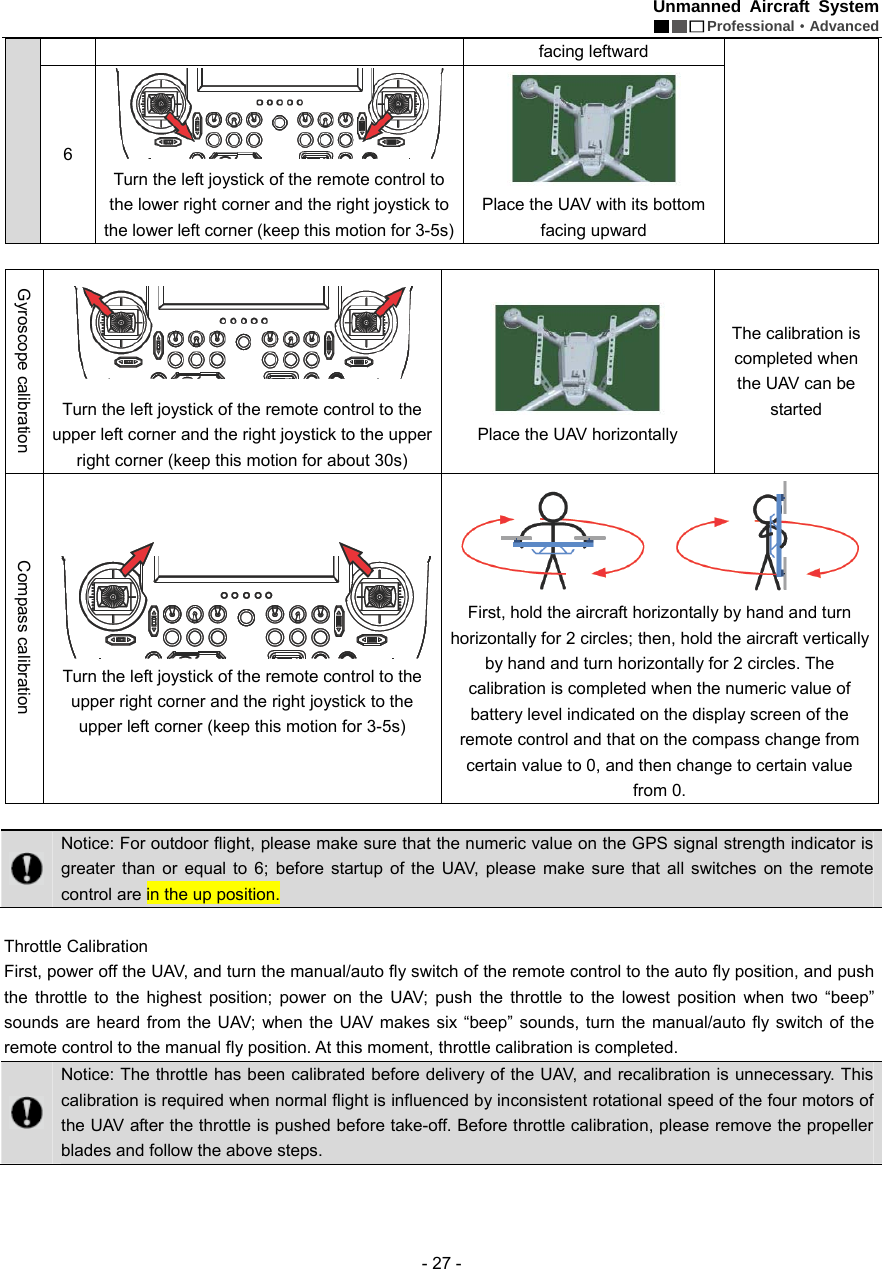
Unmanned Aircraft System        Professional·Advanced  - 26 -  Accelerometer calibration Step  Illustration  UAV  Remote control   1   Turn the left joystick of the remote control to the lower right corner and the right joystick to the lower left corner (keep this motion for 3-5s)  Place the UAV horizontally   The calibration is completed when the numeric value of battery level indicated on the display screen of the remote control and that on the compass change from certain value to 0, and then change to certain value from 0.     2   Turn the left joystick of the remote control to the lower right corner and the right joystick to the lower left corner (keep this motion for 3-5s)  Place the UAV vertically with its nose facing downward 3   Turn the left joystick of the remote control to the lower right corner and the right joystick to the lower left corner (keep this motion for 3-5s)  Place the UAV with its nose facing rightward   4   Turn the left joystick of the remote control to the lower right corner and the right joystick to the lower left corner (keep this motion for 3-5s)  Place the UAV vertically with its nose facing upward 5   Turn the left joystick of the remote control to the lower right corner and the right joystick to the lower left corner (keep this motion for 3-5s)   Place the UAV with its nose
Unmanned Aircraft System  Professional·Advanced - 27 - facing leftward 6   Turn the left joystick of the remote control to the lower right corner and the right joystick to the lower left corner (keep this motion for 3-5s)  Place the UAV with its bottom facing upward    Gyroscope calibration  Turn the left joystick of the remote control to the upper left corner and the right joystick to the upper right corner (keep this motion for about 30s)  Place the UAV horizontally   The calibration is completed when the UAV can be started  Compass calibration   Turn the left joystick of the remote control to the upper right corner and the right joystick to the upper left corner (keep this motion for 3-5s)  First, hold the aircraft horizontally by hand and turn horizontally for 2 circles; then, hold the aircraft vertically by hand and turn horizontally for 2 circles. The calibration is completed when the numeric value of battery level indicated on the display screen of the remote control and that on the compass change from certain value to 0, and then change to certain value from 0.       Notice: For outdoor flight, please make sure that the numeric value on the GPS signal strength indicator is greater than or equal to 6; before startup of the UAV, please make sure that all switches on the remote control are in the up position.    Throttle Calibration     First, power off the UAV, and turn the manual/auto fly switch of the remote control to the auto fly position, and push the throttle to the highest position; power on the UAV; push the throttle to the lowest position when two “beep” sounds are heard from the UAV; when the UAV makes six “beep” sounds, turn the manual/auto fly switch of the remote control to the manual fly position. At this moment, throttle calibration is completed.    Notice: The throttle has been calibrated before delivery of the UAV, and recalibration is unnecessary. This calibration is required when normal flight is influenced by inconsistent rotational speed of the four motors of the UAV after the throttle is pushed before take-off. Before throttle calibration, please remove the propeller blades and follow the above steps.
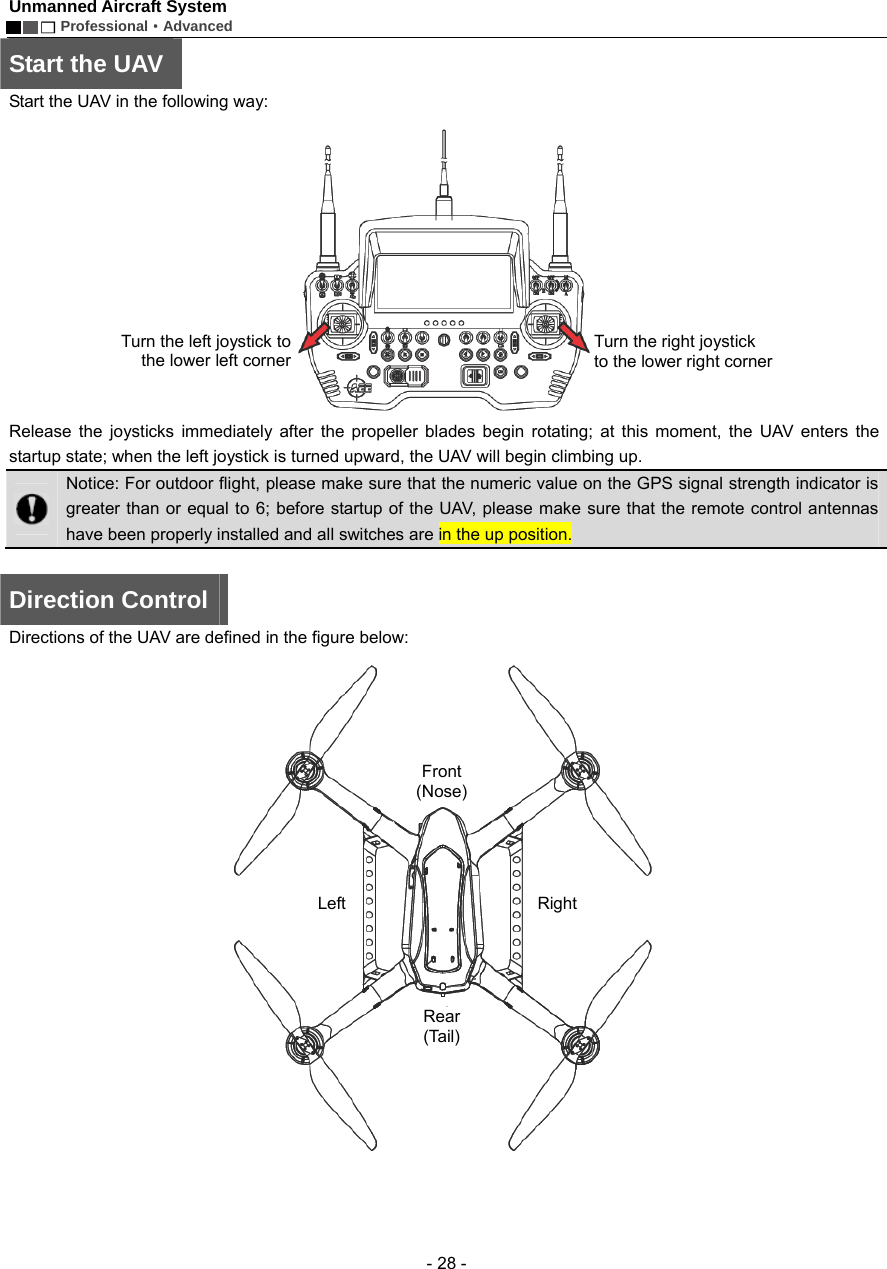
Unmanned Aircraft System        Professional·Advanced  - 28 - Start the UAV Start the UAV in the following way:    Release the joysticks immediately after the propeller blades begin rotating; at this moment, the UAV enters the startup state; when the left joystick is turned upward, the UAV will begin climbing up.    Notice: For outdoor flight, please make sure that the numeric value on the GPS signal strength indicator is greater than or equal to 6; before startup of the UAV, please make sure that the remote control antennas have been properly installed and all switches are in the up position.    Direction Control Directions of the UAV are defined in the figure below:    Turn the left joystick tothe lower left cornerTurn the right joystick to the lower right cornerFront (Nose) Rear (Tail) Left   Right
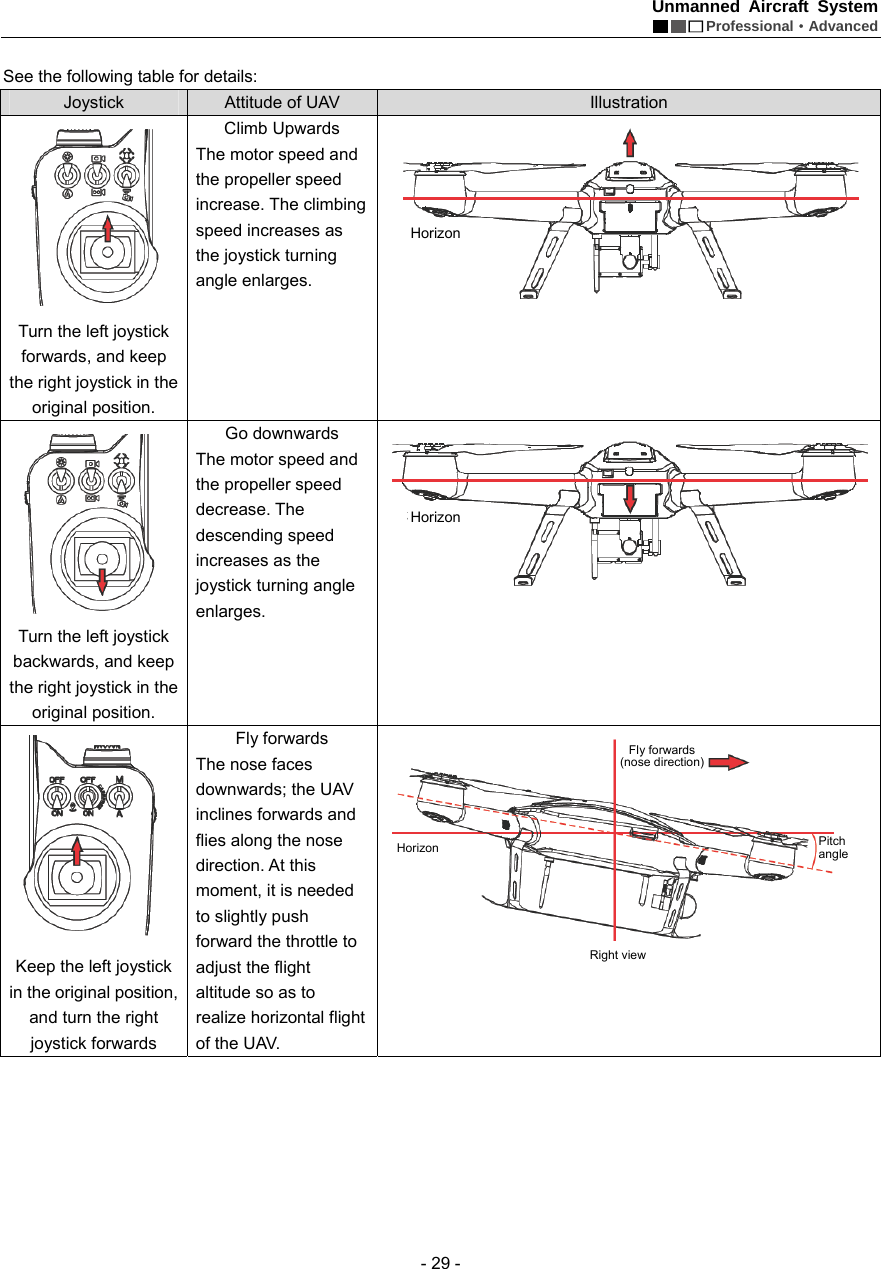
Unmanned Aircraft System  Professional·Advanced - 29 -  See the following table for details: Joystick  Attitude of UAV  Illustration  Turn the left joystick forwards, and keep the right joystick in the original position. Climb Upwards The motor speed and the propeller speed increase. The climbing speed increases as the joystick turning angle enlarges.     Turn the left joystick backwards, and keep the right joystick in the original position. Go downwards   The motor speed and the propeller speed decrease. The descending speed increases as the joystick turning angle enlarges.    Keep the left joystick in the original position, and turn the right joystick forwards Fly forwards The nose faces downwards; the UAV inclines forwards and flies along the nose direction. At this moment, it is needed to slightly push forward the throttle to adjust the flight altitude so as to realize horizontal flight of the UAV.    HorizonHorizonHorizon Fly forwards(nose direction)Pitch angle Right view
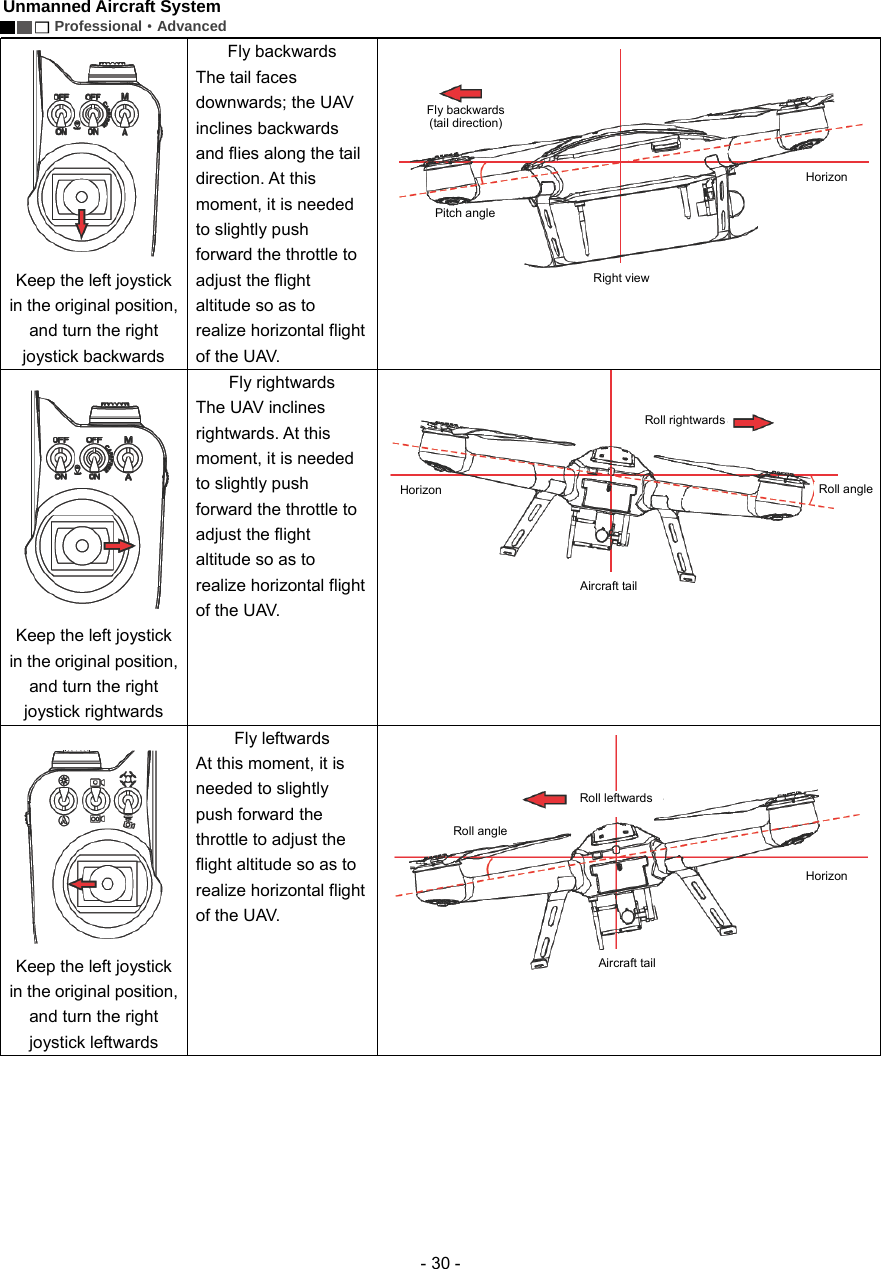
Unmanned Aircraft System        Professional·Advanced  - 30 -  Keep the left joystick in the original position, and turn the right joystick backwards Fly backwards The tail faces downwards; the UAV inclines backwards and flies along the tail direction. At this moment, it is needed to slightly push forward the throttle to adjust the flight altitude so as to realize horizontal flight of the UAV.     Keep the left joystick in the original position, and turn the right joystick rightwards Fly rightwards The UAV inclines rightwards. At this moment, it is needed to slightly push forward the throttle to adjust the flight altitude so as to realize horizontal flight of the UAV.     Keep the left joystick in the original position, and turn the right joystick leftwards Fly leftwards At this moment, it is needed to slightly push forward the throttle to adjust the flight altitude so as to realize horizontal flight of the UAV.  Fly backwards(tail direction)Horizon Right view Pitch angleHorizon Aircraft tail Roll angle Roll rightwardsRoll leftwardsHorizon Roll angleAircraft tail
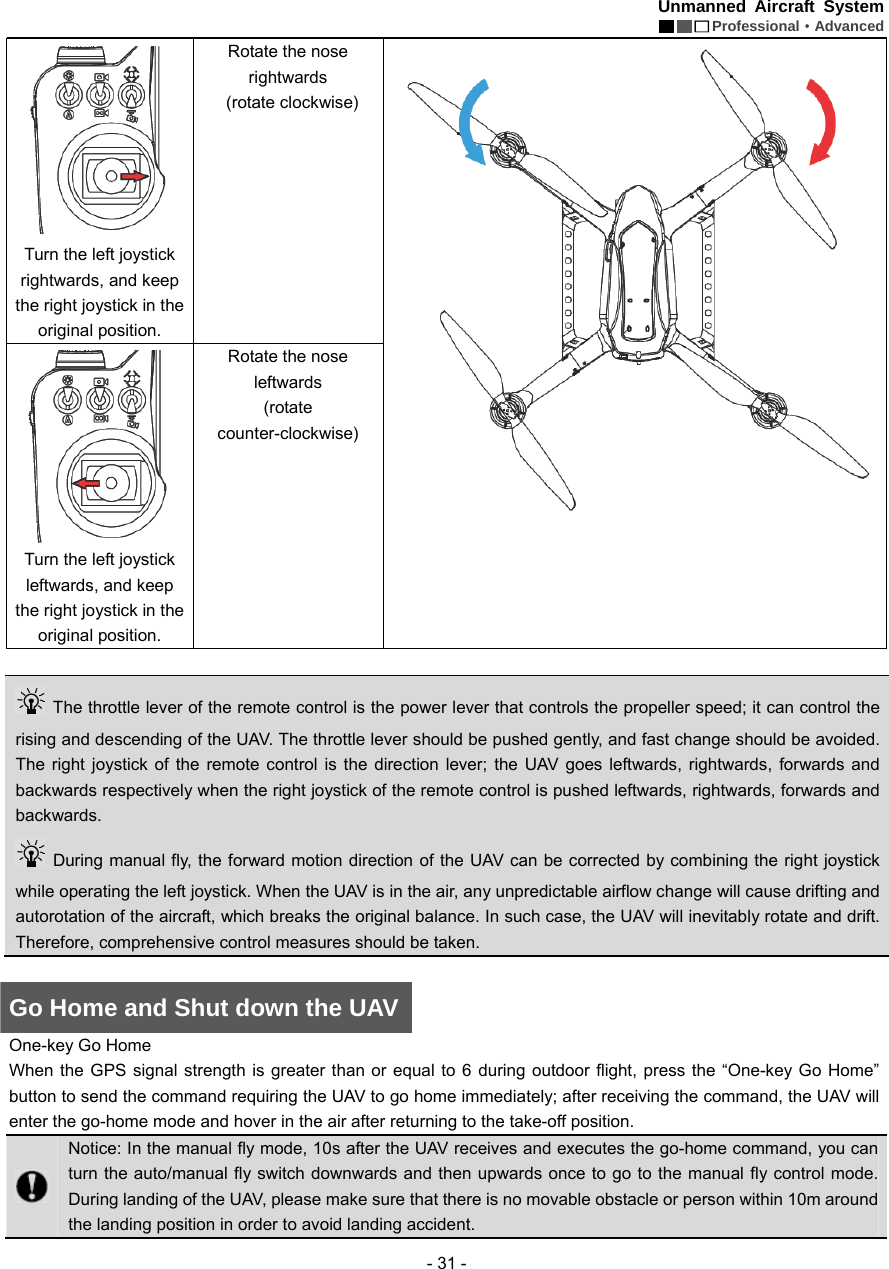
Unmanned Aircraft System  Professional·Advanced - 31 -  Turn the left joystick rightwards, and keep the right joystick in the original position. Rotate the nose rightwards  (rotate clockwise)   Turn the left joystick leftwards, and keep the right joystick in the original position. Rotate the nose leftwards  (rotate counter-clockwise)    The throttle lever of the remote control is the power lever that controls the propeller speed; it can control the rising and descending of the UAV. The throttle lever should be pushed gently, and fast change should be avoided. The right joystick of the remote control is the direction lever; the UAV goes leftwards, rightwards, forwards and backwards respectively when the right joystick of the remote control is pushed leftwards, rightwards, forwards and backwards.     During manual fly, the forward motion direction of the UAV can be corrected by combining the right joystick while operating the left joystick. When the UAV is in the air, any unpredictable airflow change will cause drifting and autorotation of the aircraft, which breaks the original balance. In such case, the UAV will inevitably rotate and drift. Therefore, comprehensive control measures should be taken.    Go Home and Shut down the UAV One-key Go Home When the GPS signal strength is greater than or equal to 6 during outdoor flight, press the “One-key Go Home” button to send the command requiring the UAV to go home immediately; after receiving the command, the UAV will enter the go-home mode and hover in the air after returning to the take-off position.      Notice: In the manual fly mode, 10s after the UAV receives and executes the go-home command, you can turn the auto/manual fly switch downwards and then upwards once to go to the manual fly control mode. During landing of the UAV, please make sure that there is no movable obstacle or person within 10m around the landing position in order to avoid landing accident.
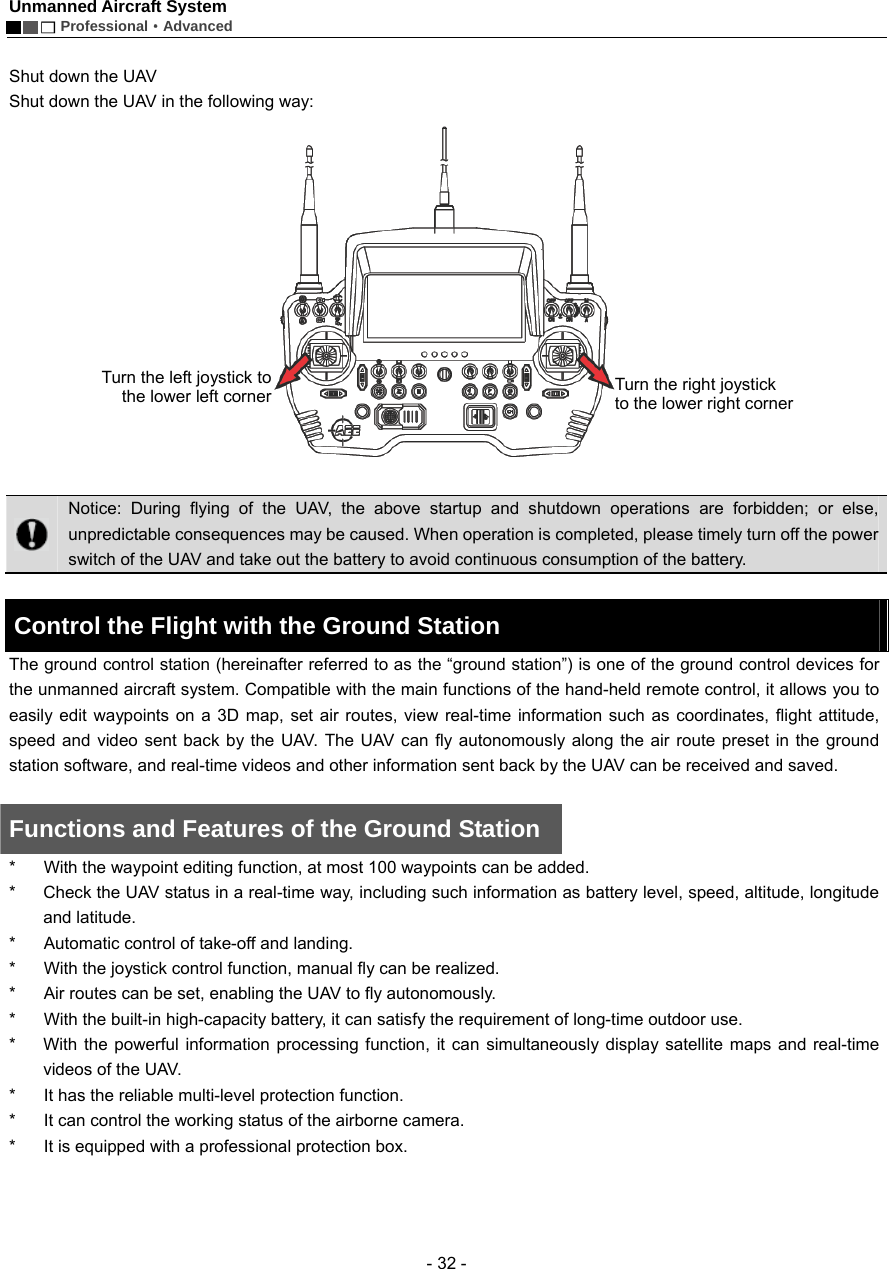
Unmanned Aircraft System        Professional·Advanced  - 32 -  Shut down the UAV   Shut down the UAV in the following way:    Notice: During flying of the UAV, the above startup and shutdown operations are forbidden; or else, unpredictable consequences may be caused. When operation is completed, please timely turn off the power switch of the UAV and take out the battery to avoid continuous consumption of the battery.    Control the Flight with the Ground Station     The ground control station (hereinafter referred to as the “ground station”) is one of the ground control devices for the unmanned aircraft system. Compatible with the main functions of the hand-held remote control, it allows you to easily edit waypoints on a 3D map, set air routes, view real-time information such as coordinates, flight attitude, speed and video sent back by the UAV. The UAV can fly autonomously along the air route preset in the ground station software, and real-time videos and other information sent back by the UAV can be received and saved.    Functions and Features of the Ground Station *  With the waypoint editing function, at most 100 waypoints can be added. *  Check the UAV status in a real-time way, including such information as battery level, speed, altitude, longitude and latitude.   *  Automatic control of take-off and landing.   *  With the joystick control function, manual fly can be realized. *  Air routes can be set, enabling the UAV to fly autonomously.   *  With the built-in high-capacity battery, it can satisfy the requirement of long-time outdoor use.   *  With the powerful information processing function, it can simultaneously display satellite maps and real-time videos of the UAV. *  It has the reliable multi-level protection function.   *  It can control the working status of the airborne camera. *  It is equipped with a professional protection box.    Turn the left joystick tothe lower left cornerTurn the right joystick to the lower right corner
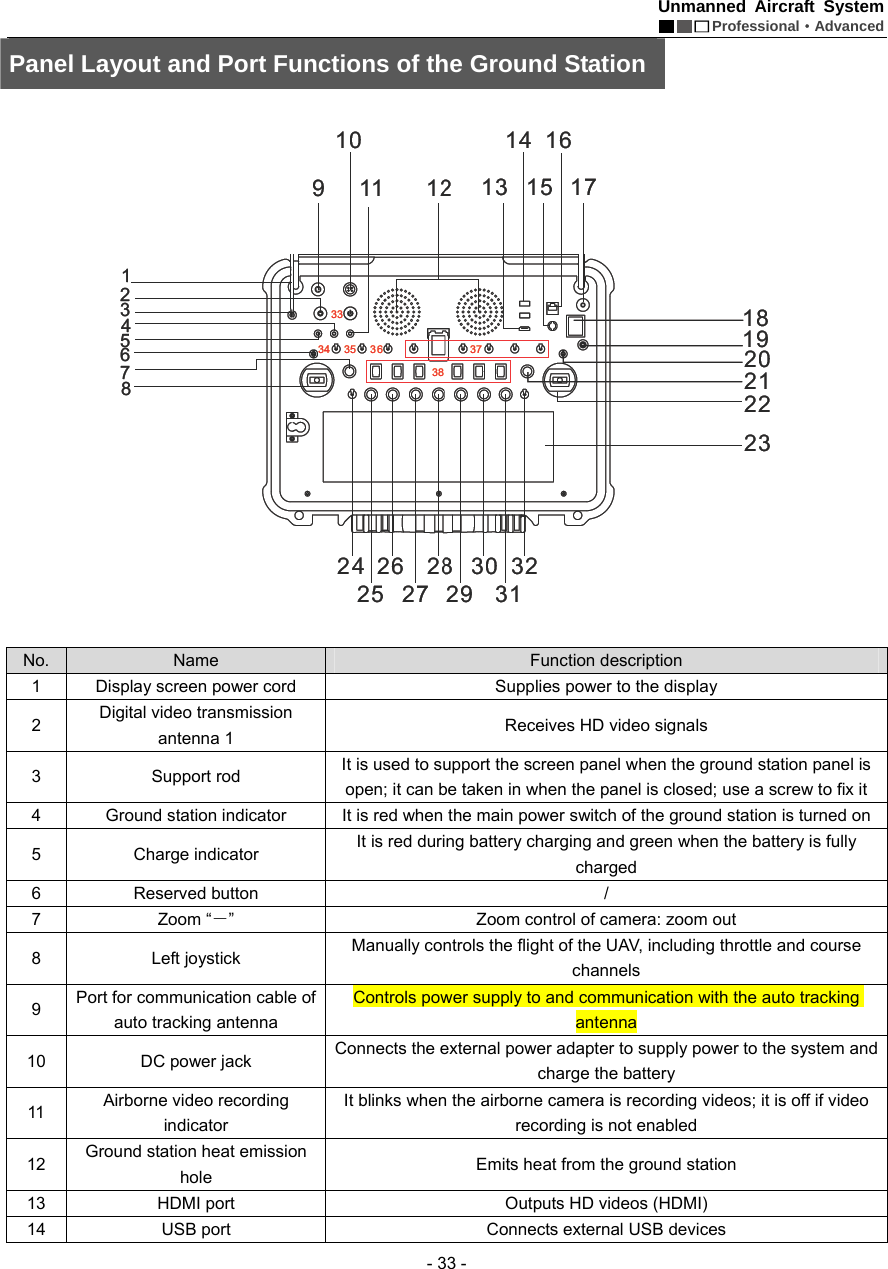
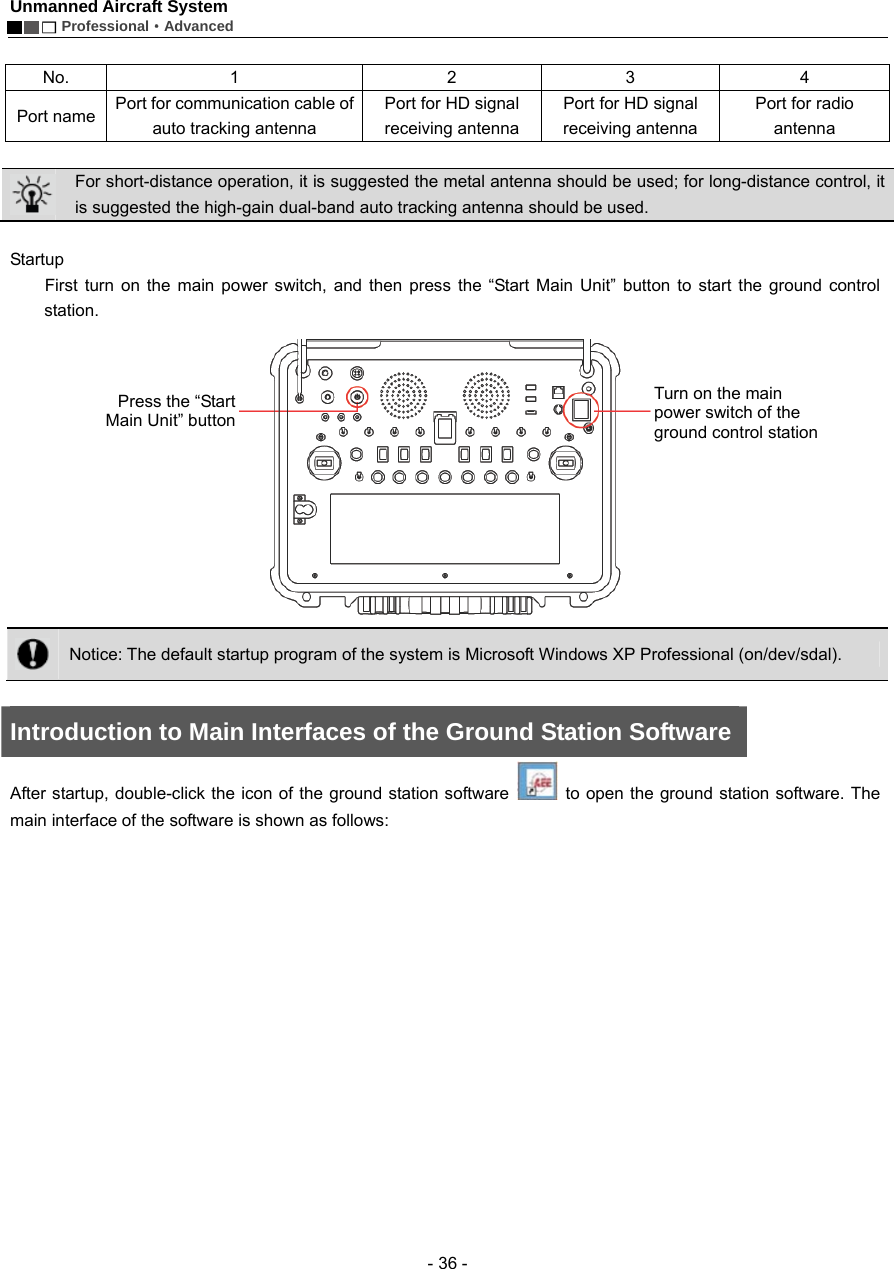
Unmanned Aircraft System  Professional·Advanced - 33 - Panel Layout and Port Functions of the Ground Station    No.  Name  Function description 1  Display screen power cord    Supplies power to the display 2  Digital video transmission antenna 1    Receives HD video signals 3 Support rod  It is used to support the screen panel when the ground station panel is open; it can be taken in when the panel is closed; use a screw to fix it 4  Ground station indicator    It is red when the main power switch of the ground station is turned on 5 Charge indicator  It is red during battery charging and green when the battery is fully charged 6 Reserved button   / 7  Zoom “-”  Zoom control of camera: zoom out 8 Left joystick  Manually controls the flight of the UAV, including throttle and course channels 9  Port for communication cable of auto tracking antenna   Controls power supply to and communication with the auto tracking antenna 10  DC power jack    Connects the external power adapter to supply power to the system and charge the battery 11  Airborne video recording indicator It blinks when the airborne camera is recording videos; it is off if video recording is not enabled 12  Ground station heat emission hole   Emits heat from the ground station 13  HDMI port    Outputs HD videos (HDMI) 14  USB port    Connects external USB devices
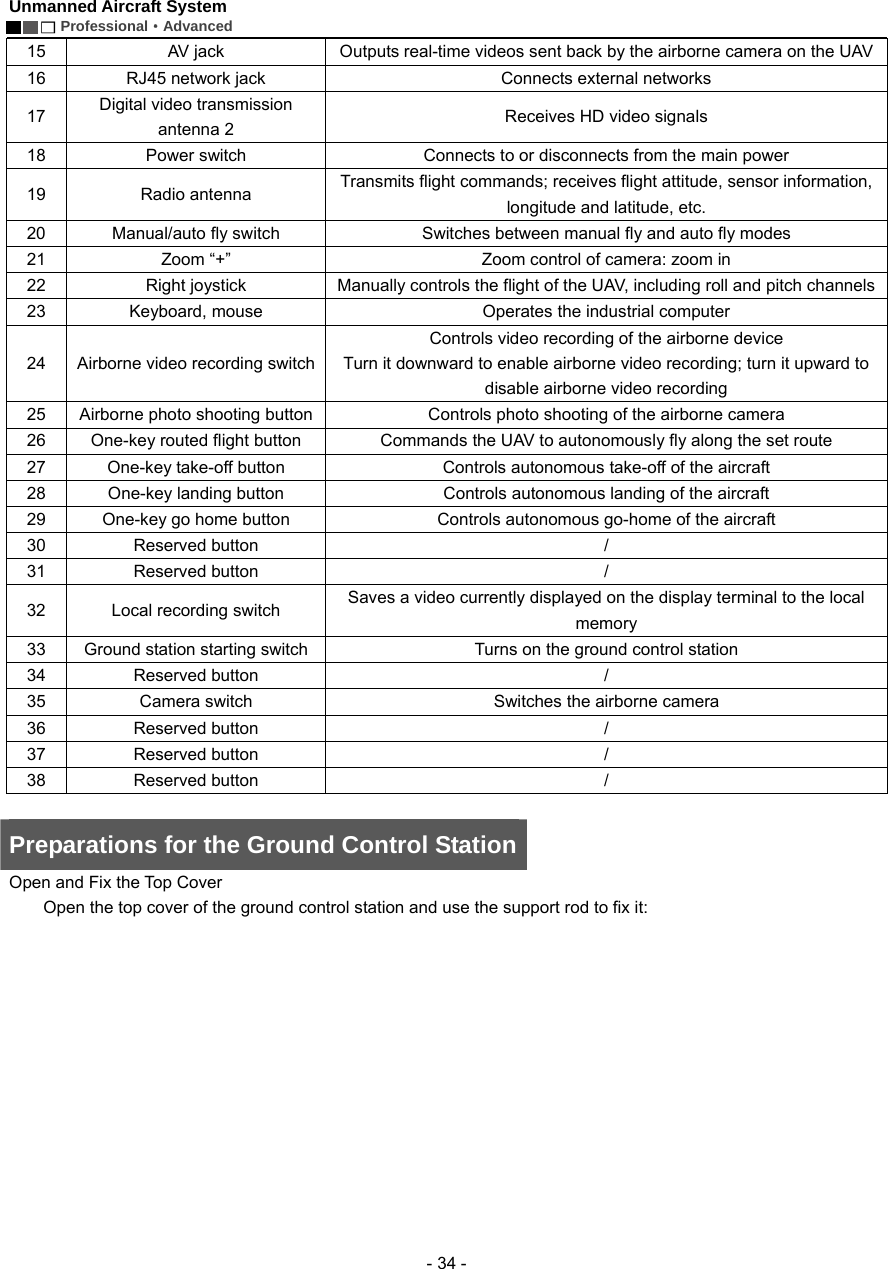
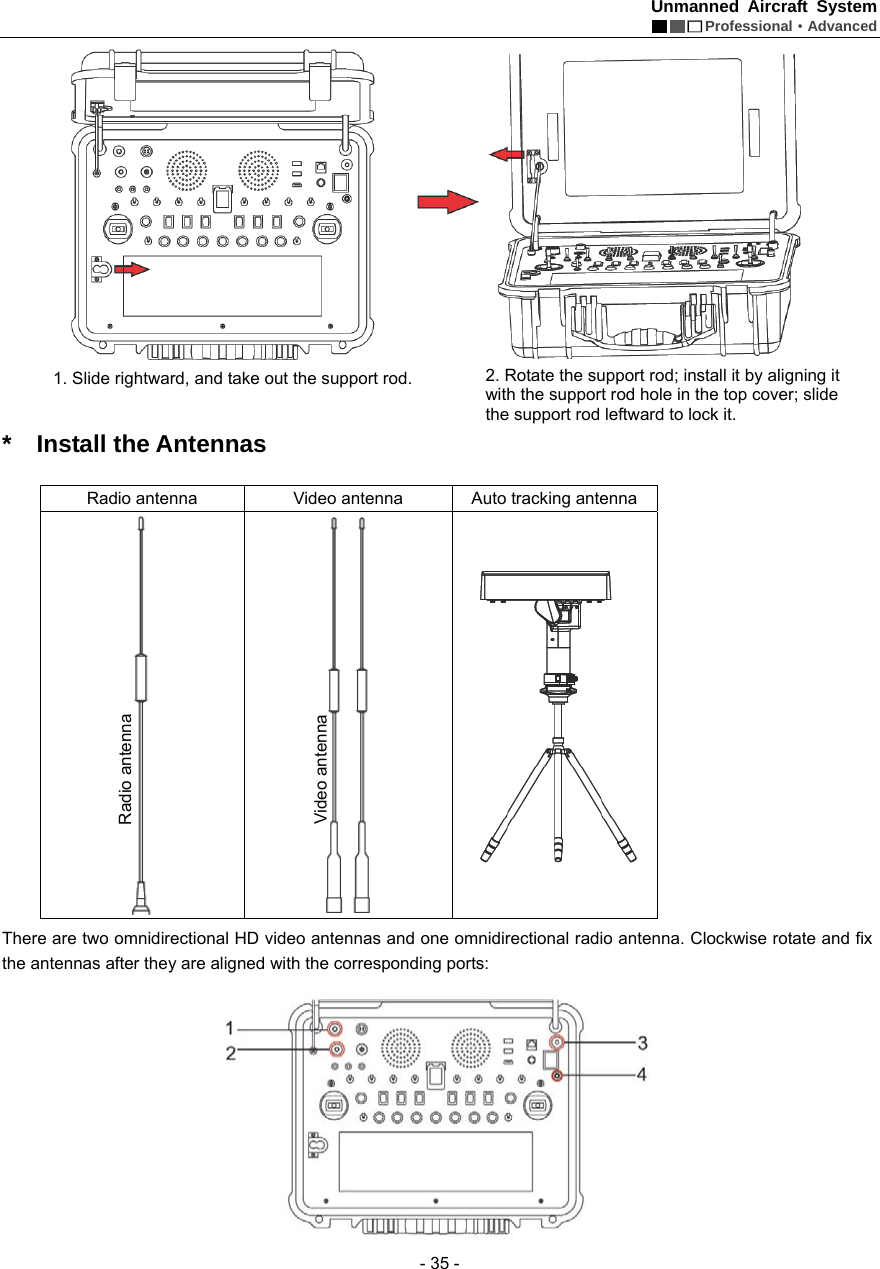
Unmanned Aircraft System        Professional·Advanced  - 34 - 15  AV jack    Outputs real-time videos sent back by the airborne camera on the UAV 16  RJ45 network jack  Connects external networks 17  Digital video transmission antenna 2    Receives HD video signals 18  Power switch    Connects to or disconnects from the main power 19 Radio antenna  Transmits flight commands; receives flight attitude, sensor information, longitude and latitude, etc. 20  Manual/auto fly switch  Switches between manual fly and auto fly modes 21  Zoom “+”    Zoom control of camera: zoom in 22  Right joystick    Manually controls the flight of the UAV, including roll and pitch channels 23  Keyboard, mouse    Operates the industrial computer 24  Airborne video recording switch   Controls video recording of the airborne device Turn it downward to enable airborne video recording; turn it upward to disable airborne video recording 25  Airborne photo shooting button    Controls photo shooting of the airborne camera 26  One-key routed flight button    Commands the UAV to autonomously fly along the set route 27  One-key take-off button    Controls autonomous take-off of the aircraft 28  One-key landing button  Controls autonomous landing of the aircraft 29  One-key go home button    Controls autonomous go-home of the aircraft 30 Reserved button   / 31 Reserved button   / 32 Local recording switch  Saves a video currently displayed on the display terminal to the local memory 33  Ground station starting switch    Turns on the ground control station 34 Reserved button   / 35  Camera switch    Switches the airborne camera 36 Reserved button   / 37 Reserved button   / 38 Reserved button   /  Preparations for the Ground Control StationOpen and Fix the Top Cover     Open the top cover of the ground control station and use the support rod to fix it:
Unmanned Aircraft System  Professional·Advanced - 35 -    * Install the Antennas                     There are two omnidirectional HD video antennas and one omnidirectional radio antenna. Clockwise rotate and fix the antennas after they are aligned with the corresponding ports:    Radio antenna  Video antenna  Auto tracking antenna   1. Slide rightward, and take out the support rod.  2. Rotate the support rod; install it by aligning it with the support rod hole in the top cover; slide the support rod leftward to lock it.   Radio antenna Video antenna
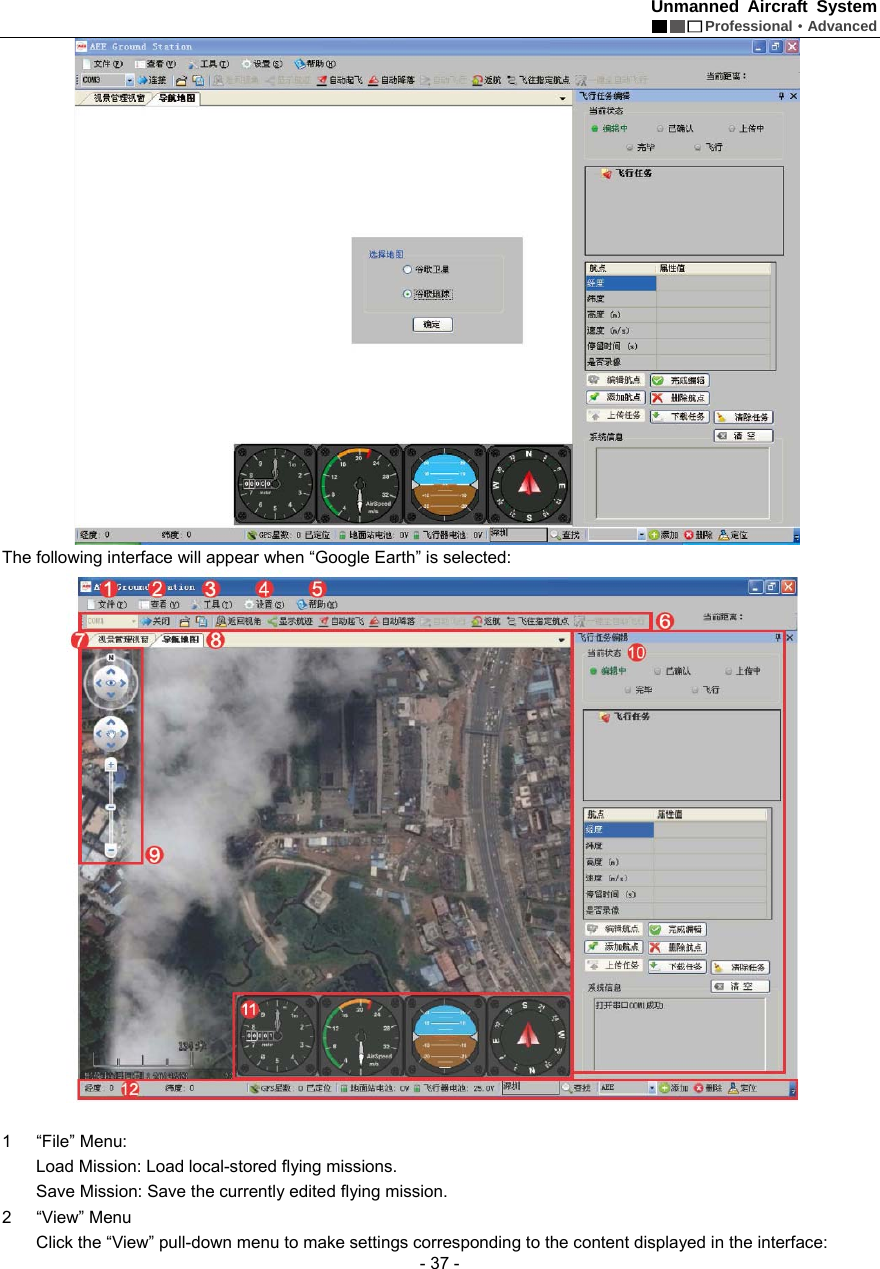
Unmanned Aircraft System        Professional·Advanced  - 36 -  No. 1  2  3  4 Port name  Port for communication cable of auto tracking antenna   Port for HD signal receiving antenna Port for HD signal receiving antenna Port for radio antenna    For short-distance operation, it is suggested the metal antenna should be used; for long-distance control, it is suggested the high-gain dual-band auto tracking antenna should be used.      Startup   First turn on the main power switch, and then press the “Start Main Unit” button to start the ground control station.    Notice: The default startup program of the system is Microsoft Windows XP Professional (on/dev/sdal).    Introduction to Main Interfaces of the Ground Station Software After startup, double-click the icon of the ground station software    to open the ground station software. The main interface of the software is shown as follows:   Press the “StartMain Unit” buttonTurn on the main power switch of the ground control station
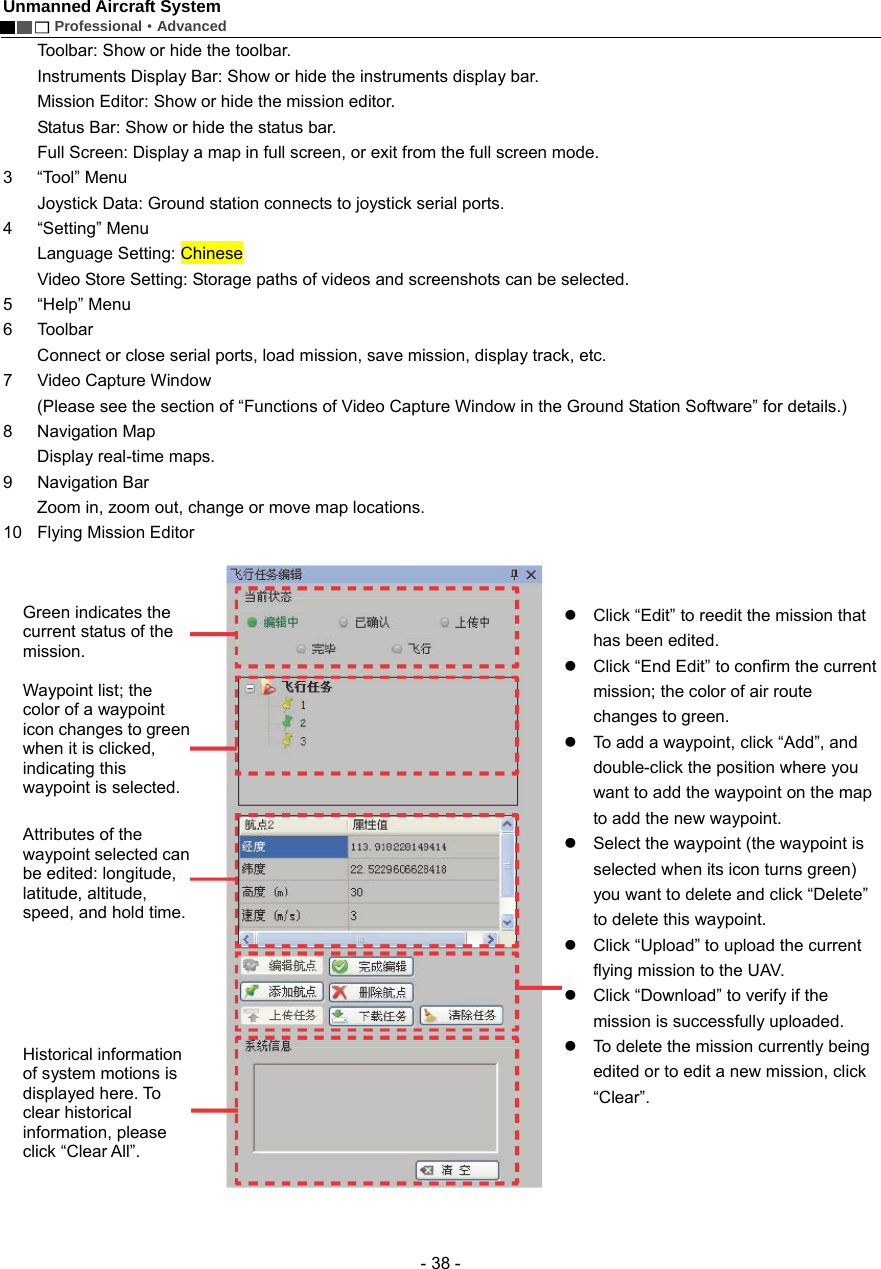
Unmanned Aircraft System  Professional·Advanced - 37 -  The following interface will appear when “Google Earth” is selected:     1 “File” Menu:  Load Mission: Load local-stored flying missions.   Save Mission: Save the currently edited flying mission.   2 “View” Menu  Click the “View” pull-down menu to make settings corresponding to the content displayed in the interface:
Unmanned Aircraft System        Professional·Advanced  - 38 - Toolbar: Show or hide the toolbar.   Instruments Display Bar: Show or hide the instruments display bar.   Mission Editor: Show or hide the mission editor.   Status Bar: Show or hide the status bar.   Full Screen: Display a map in full screen, or exit from the full screen mode.   3 “Tool” Menu  Joystick Data: Ground station connects to joystick serial ports.   4   “Setting” Menu  Language Setting: Chinese   Video Store Setting: Storage paths of videos and screenshots can be selected.   5 “Help” Menu  6 Toolbar  Connect or close serial ports, load mission, save mission, display track, etc.   7    Video Capture Window   (Please see the section of “Functions of Video Capture Window in the Ground Station Software” for details.)   8 Navigation Map Display real-time maps.   9 Navigation Bar Zoom in, zoom out, change or move map locations.   10  Flying Mission Editor    z  Click “Edit” to reedit the mission that has been edited. z  Click “End Edit” to confirm the current mission; the color of air route changes to green. z  To add a waypoint, click “Add”, and double-click the position where you want to add the waypoint on the map to add the new waypoint.   z  Select the waypoint (the waypoint is selected when its icon turns green) you want to delete and click “Delete” to delete this waypoint. z  Click “Upload” to upload the current flying mission to the UAV. z  Click “Download” to verify if the mission is successfully uploaded.   z  To delete the mission currently being edited or to edit a new mission, click “Clear”.    Green indicates the current status of the mission.  Waypoint list; the color of a waypoint icon changes to green when it is clicked, indicating this waypoint is selected.   Attributes of the waypoint selected can be edited: longitude, latitude, altitude, speed, and hold time.  Historical information of system motions is displayed here. To clear historical information, please click “Clear All”.   
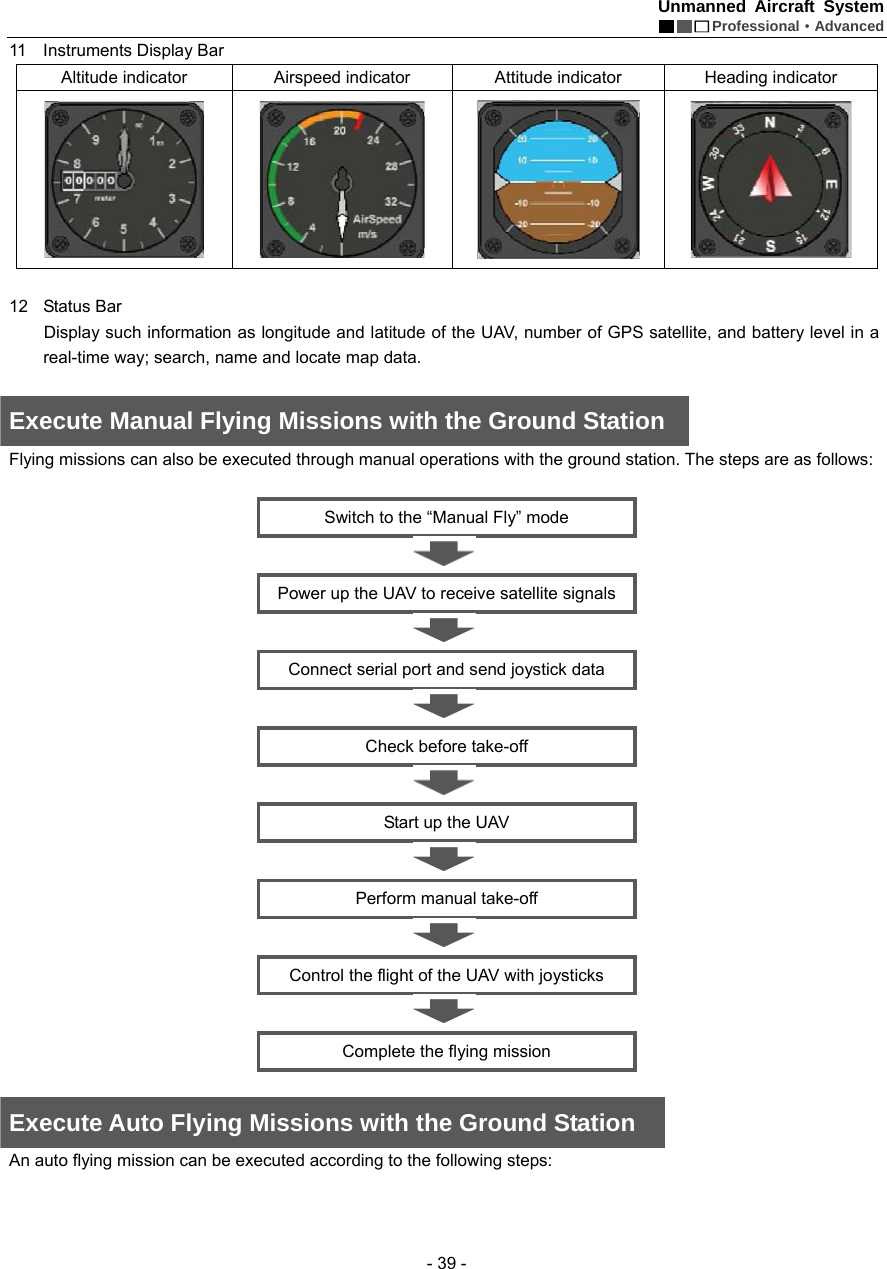
Unmanned Aircraft System  Professional·Advanced - 39 - 11  Instruments Display Bar   Altitude indicator  Airspeed indicator  Attitude indicator  Heading indicator      12 Status Bar   Display such information as longitude and latitude of the UAV, number of GPS satellite, and battery level in a real-time way; search, name and locate map data.    Execute Manual Flying Missions with the Ground Station Flying missions can also be executed through manual operations with the ground station. The steps are as follows:        Switch to the “Manual Fly” mode  Power up the UAV to receive satellite signals  Connect serial port and send joystick data  Check before take-off  Start up the UAV  Perform manual take-off  Control the flight of the UAV with joysticks    Complete the flying mission    Execute Auto Flying Missions with the Ground Station An auto flying mission can be executed according to the following steps:
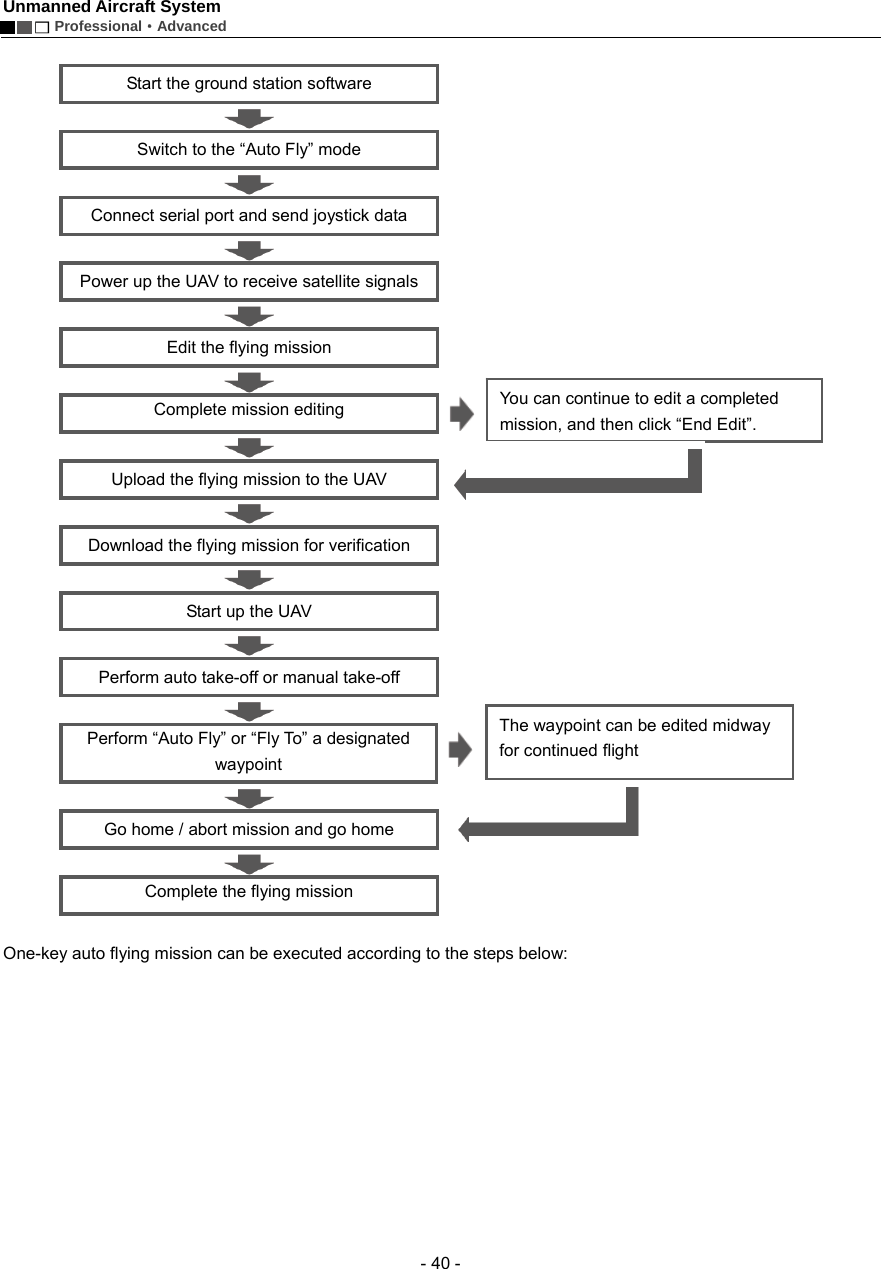
Unmanned Aircraft System        Professional·Advanced  - 40 -  Start the ground station software  Switch to the “Auto Fly” mode  Connect serial port and send joystick data  Power up the UAV to receive satellite signals  Edit the flying mission    Complete mission editing    Upload the flying mission to the UAV  Download the flying mission for verification    Start up the UAV  Perform auto take-off or manual take-off  Perform “Auto Fly” or “Fly To” a designated waypoint  Go home / abort mission and go home  Complete the flying mission    One-key auto flying mission can be executed according to the steps below:   You can continue to edit a completed mission, and then click “End Edit”. The waypoint can be edited midway for continued flight
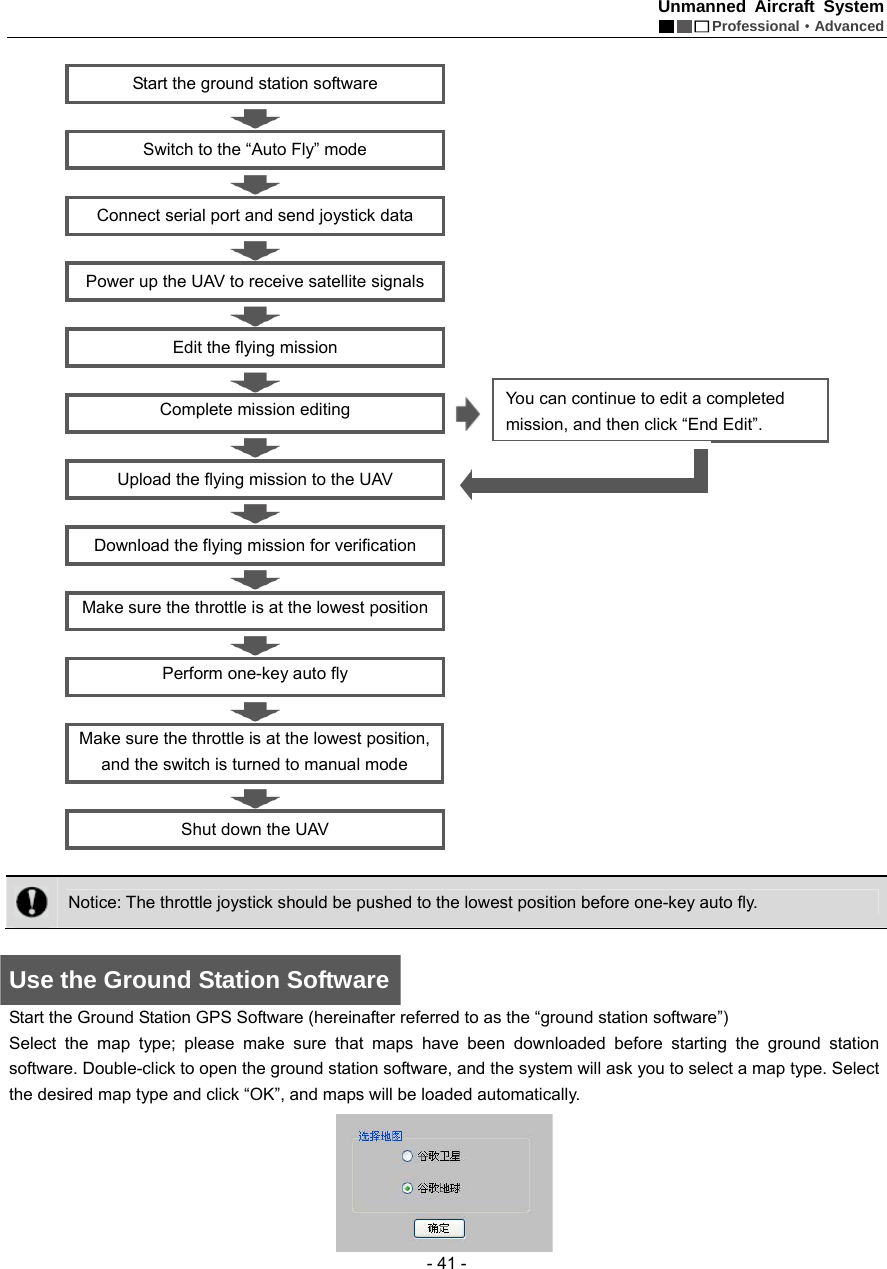
Unmanned Aircraft System  Professional·Advanced - 41 -  Start the ground station software  Switch to the “Auto Fly” mode  Connect serial port and send joystick data  Power up the UAV to receive satellite signals  Edit the flying mission    Complete mission editing    Upload the flying mission to the UAV  Download the flying mission for verification    Make sure the throttle is at the lowest position    Perform one-key auto fly      Make sure the throttle is at the lowest position, and the switch is turned to manual mode  Shut down the UAV     Notice: The throttle joystick should be pushed to the lowest position before one-key auto fly.    Use the Ground Station Software Start the Ground Station GPS Software (hereinafter referred to as the “ground station software”) Select the map type; please make sure that maps have been downloaded before starting the ground station software. Double-click to open the ground station software, and the system will ask you to select a map type. Select the desired map type and click “OK”, and maps will be loaded automatically.  You can continue to edit a completed mission, and then click “End Edit”.
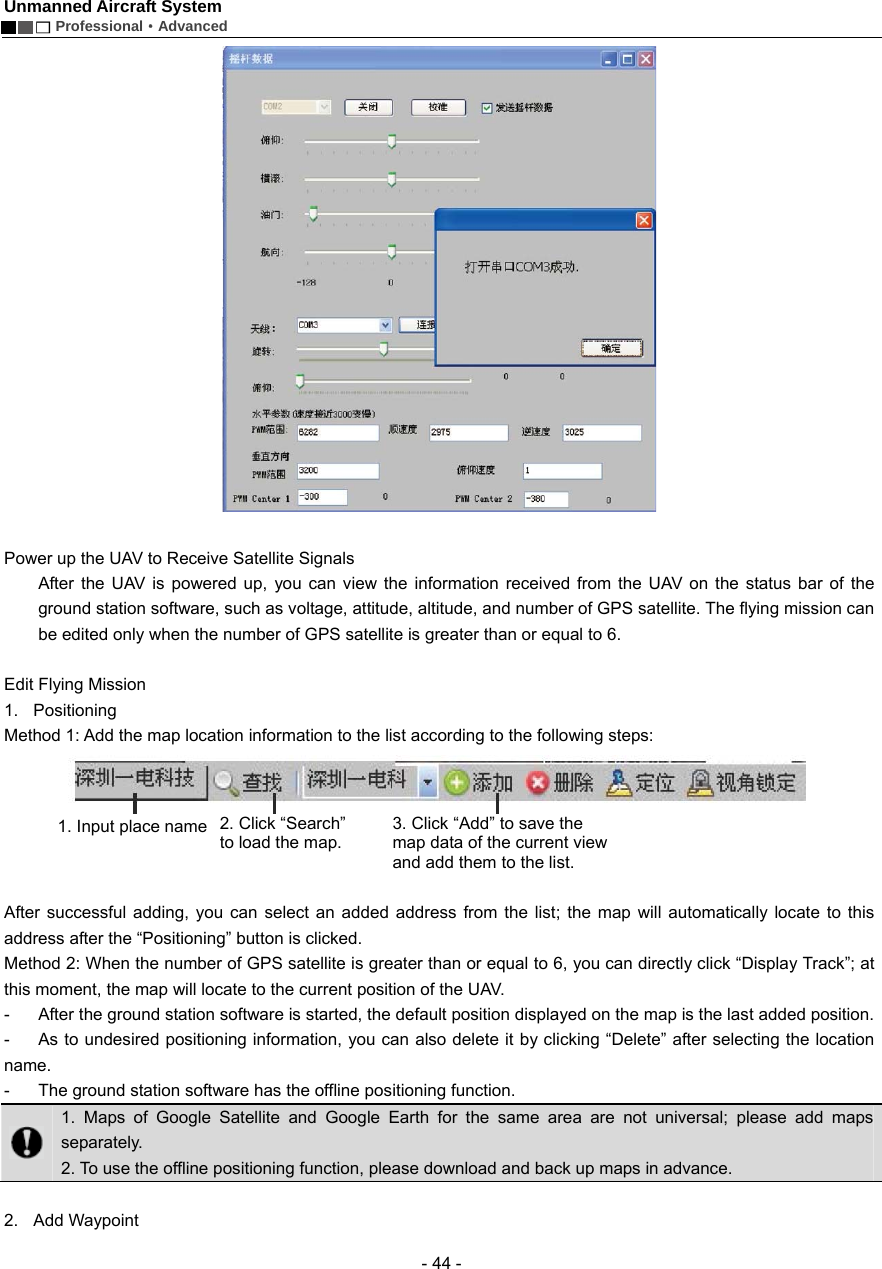
Unmanned Aircraft System        Professional·Advanced  - 42 -   If maps cannot be loaded normally after the ground station software is opened, please restart the software, connect to the network and try loading again.    Connect Serial Ports 1.  Connect serial port COM1 (ground station connects to the communication serial port) Find [COM1   Connect] on the toolbar; please select serial port COM1, and click “Connect”. A dialog box showing “Serial port opened” will pop up on the screen.      2.  Connect serial port COM2 (ground station connects to the joystick serial port) The dialog box of “Joystick Data” (as shown below) will pop up through ->. Menu ->. Tool ->. Joystick Data. Select serial port COM2 and click “Connect” to connect the joysticks which are used to control the UAV. ->. Check “Send Joystick Data”; the progress bars will have corresponding indications when the joysticks are turned..    In case of any error in connection of serial ports, click “Close” on the toolbar and carry out reconnection.    Joystick Calibration:    After connecting serial port COM2, you can calibrate the joysticks according to the following steps. The calibration function is mainly used to adjust the maximum, minimal and median values of the joysticks.
Unmanned Aircraft System  Professional·Advanced - 43 -  1) Click “Calibration”.   2) Rotate the left and right joysticks by 360° until the progress bars of 4 channels pulsate.   3) Push the left and right joysticks, and observe whether there is corresponding pulsation on the progress bar of each channel.   4) If the calibration is inaccurate, please repeat the above steps.    Important:  1. After successful connection of serial port COM2, the UAV can be manually controlled with the ground station joysticks after the manual fly mode is switched to.   2. When the remote control is used to control the UAV, please make sure that the option of “Send Joystick Data” in the ground station software is not checked before take-off; when the ground station joysticks are used to control the UAV, please make sure that the remote control is in the OFF state before take-off.         3. For joystick calibration, please uncheck “Send Joystick Data”, in order to avoid unpredictable consequences caused by accidental take-off of the UAV.    3.  Connect serial port COM3 (auto tracking antenna connection serial port) Select COM3 [Antenna:    Connect]; click “Connect”, and the dialog box showing “Serial port opened” will pop up on the screen.
Unmanned Aircraft System        Professional·Advanced  - 44 -   Power up the UAV to Receive Satellite Signals After the UAV is powered up, you can view the information received from the UAV on the status bar of the ground station software, such as voltage, attitude, altitude, and number of GPS satellite. The flying mission can be edited only when the number of GPS satellite is greater than or equal to 6.  Edit Flying Mission 1. Positioning Method 1: Add the map location information to the list according to the following steps:       After successful adding, you can select an added address from the list; the map will automatically locate to this address after the “Positioning” button is clicked.   Method 2: When the number of GPS satellite is greater than or equal to 6, you can directly click “Display Track”; at this moment, the map will locate to the current position of the UAV.   -  After the ground station software is started, the default position displayed on the map is the last added position.   -  As to undesired positioning information, you can also delete it by clicking “Delete” after selecting the location name.  -  The ground station software has the offline positioning function.    1. Maps of Google Satellite and Google Earth for the same area are not universal; please add maps separately. 2. To use the offline positioning function, please download and back up maps in advance.    2. Add Waypoint 1. Input place name   2. Click “Search” to load the map. 3. Click “Add” to save the map data of the current view and add them to the list.
Unmanned Aircraft System  Professional·Advanced - 45 - Method 1: Directly double-click the position where you want to add a waypoint on the map to add a waypoint.. Method 2: Click [Add Waypoint] in the Flying Mission Editor, and then click the position where you want to add a waypoint on the map to add a waypoint.  It is better to add the first waypoint near home point to prevent the UAV from colliding with obstacles due to excessive obliquity of the UAV route during its ascending.    Add all the desired waypoints with the same method.   After adding the waypoints, you can view the following information of waypoints on the map:      -  Color of air route before editing is finished: Red: Abnormal White: Normal Hidden air route: Abnormal    Notice: Only Google Earth hints abnormality in air route altitude; Google Satellite does not have such hint, so the air route altitude should be judged by yourself.    3. Edit Waypoint  After adding a new waypoint, you can continue to edit the waypoint.  Notice: After selection, the color of waypoint icon changes to green , indicating this waypoint is selected and can be edited.   1) Change waypoint position: Method 1: Use the left mouse button to drag the waypoint to the desired position.   Method 2: Edit longitude and latitude in the Flying Mission Editor. Input the desired longitude and latitude in the corresponding attribute values, then the waypoint will automatically move to the corresponding position.      Air route Horizontal projection distance between two waypoints    Index number of waypoint
Unmanned Aircraft System        Professional·Advanced  - 46 - 2)  Change altitude, speed and hold time of waypoint Input the desired figures in the corresponding attribute values to change the altitude, speed and hold time of the waypoint.  Notice: To edit the position and altitude of a waypoint, please make sure that altitudes of all waypoints are applicable for the current terrain. Please see the description in the section of “Add Waypoint” for details.     Finish Mission Editing Click [End Edit] in the Flying Mission Editor to finish flying mission editing, and all waypoint projection lines change to green:     Upload Mission     After finishing waypoint editing, click [Upload] to upload the current flying mission to the UAV.      Download Mission   After the mission is successfully uploaded, click [Download] to verify if the mission uploaded is correct; the following dialog box will pop up after “Download” is clicked:    Select “Yes” to save the current flying mission; select “No” to exit without saving.  Save Flying Mission
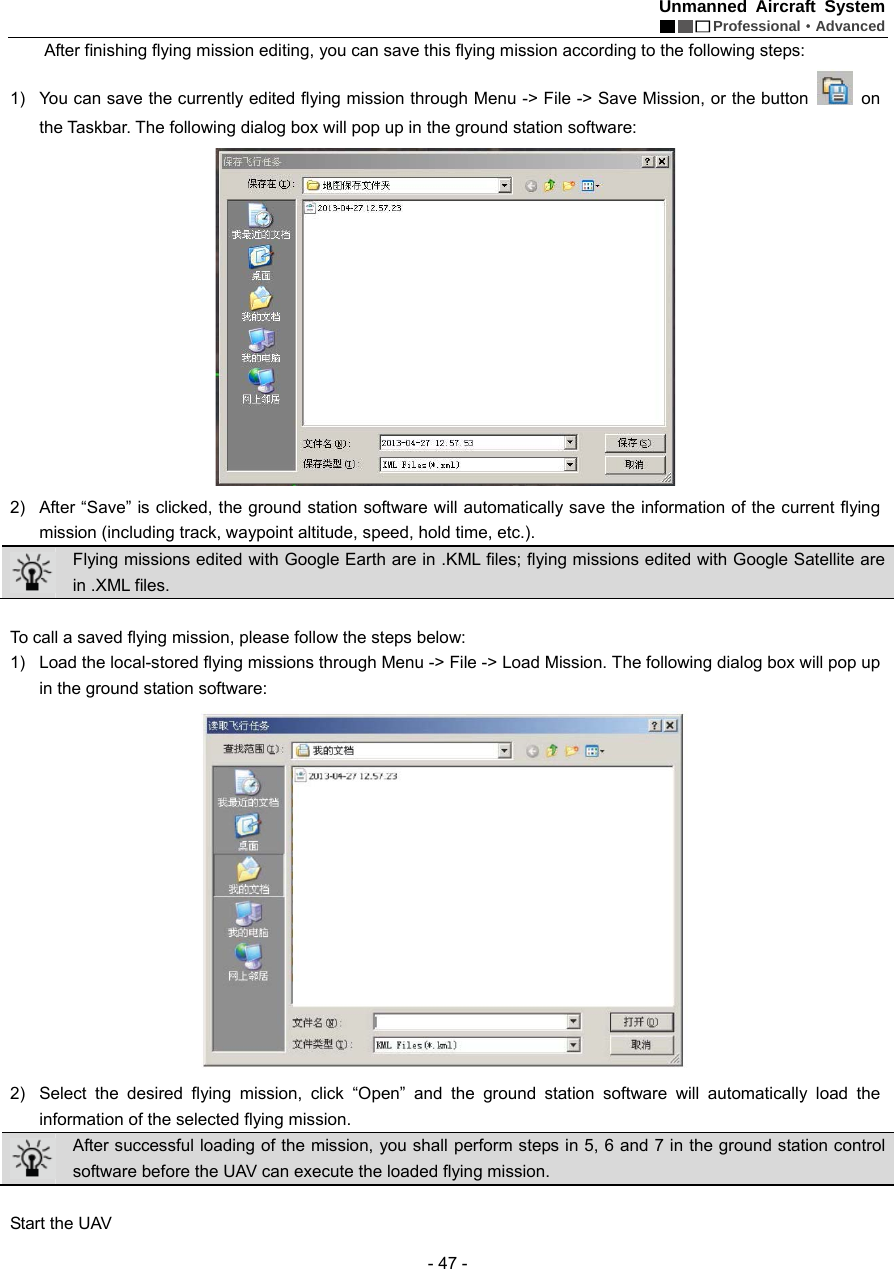
Unmanned Aircraft System  Professional·Advanced - 47 -   After finishing flying mission editing, you can save this flying mission according to the following steps: 1)  You can save the currently edited flying mission through Menu -> File -> Save Mission, or the button   on the Taskbar. The following dialog box will pop up in the ground station software:    2)  After “Save” is clicked, the ground station software will automatically save the information of the current flying mission (including track, waypoint altitude, speed, hold time, etc.).  Flying missions edited with Google Earth are in .KML files; flying missions edited with Google Satellite are in .XML files.    To call a saved flying mission, please follow the steps below: 1)  Load the local-stored flying missions through Menu -> File -> Load Mission. The following dialog box will pop up in the ground station software:    2)  Select the desired flying mission, click “Open” and the ground station software will automatically load the information of the selected flying mission.  After successful loading of the mission, you shall perform steps in 5, 6 and 7 in the ground station control software before the UAV can execute the loaded flying mission.      Start the UAV
Unmanned Aircraft System        Professional·Advanced  - 48 - 1)  After successful connection of the ground station to joystick serial port COM2, check the option of “Send Joystick Data”.   2)  Switch to the manual fly mode. 3)  For the startup method, please see the description in the section of “Start the UAV with the Remote Control”.  1) During outdoor flight, please make sure that the numeric value on the GPS signal strength indicator is greater than or equal to 6.   2) Check if the indications of the heading indicator and the attitude indicator are consistent with the current status of the UAV; in case of any inconsistence, please contact us immediately.    Display Track / Clear Track   1)  After starting the UAV, click “Display Track” to display the real-time flight track of the UAV during its flying along the air route (Fig. 1); if “Display Track” is not clicked, the real-time flight track of the UAV will not be displayed (Fig. 2).   2)  When “Clear Track” is clicked after track is displayed, the current real-time flight track of the UAV will be cleared (Fig. 2).     View Locking/Switching Function     After track display, the map interface will automatically enter the view locking state. If [Lock View] is clicked, the view will be unlocked and you then can move the map. Click this button again to lock up the view.  In the view locking mode, the map view will move as the position of the UAV moves; in the view unlocking mode, the map view has no change.    Auto Take-off 1)  Before take-off, first make sure that the requirements on auto take-off are satisfied. See the instructions in the section of “Safety Precautions” for details. Auto take-off can be executed only when the requirements are satisfied.  2)  Connect the ground station to serial port COM2, and check “Send Joystick Data”; push the throttle joystick to the lowest position.     3)  Click [Auto Take-off] on the toolbar; the UAV will hover after automatically ascending to an altitude of about 20m.   Auto Fly / Fly to   1) Auto Fly  (Fig. 1)  (Fig. 2)
Unmanned Aircraft System  Professional·Advanced - 49 - Click [Auto Fly], and the UAV will automatically fly along the preset air route; the aircraft will hover after reaching the last waypoint.   2) Fly to  Select the waypoint you want to fly to in the Flying Mission Editor (the color of the selected waypoint is green); then click [Fly to] on the toolbar, and the UAV will fly to this waypoint; after reaching this waypoint, the aircraft will hover.    Only one target waypoint can be added every time.   3)  Edit Flying Mission in the Air   You can continue to edit the flying mission after the UAV enters the hover state. The following operations can be realized: a.  Continue to edit the flying mission; after clicking [Edit], you can continue to add waypoints and edit waypoint information; click [End Edit] after editing is completed (at this moment, it is not needed to clear the flying mission; you can directly upload the current mission to overwrite the existing mission in the UAV). Click [Download] to ensure that the mission is correct and then execute the action of [Auto Fly].   b.  The action of [Fly to] can be executed, as shown in Step 2 (at this moment, missions saved in the UAV still exist).   c.  Click [Clear] to clear the flying missions in the UAV and the content of missions shown on the map; at this moment, if [Auto Fly] is clicked, the UAV will stay in the hover state.    Before the UAV executes the “Auto Fly” command, please first download the mission to verify if the flying mission uploaded to the UAV is correct.    Go Home If [Go Home] is clicked during flight or after the UAV enters the hover state, the UAV will automatically return and hover over the take-off position.    The altitude of the homeward course is the altitude of the last waypoint.    Auto Landing   Click [Auto Landing] after the UAV returns, and the UAV will automatically land to the take-off position.    1) There might be minor difference between the landing position and the take-off position. 2) To avoid unpredictable consequences, please do not randomly click “Auto Landing” in the course of flight.   3) To close the ground station, please first shut it down normally and then turn off the main power switch.    One-key Auto Fly Before take-off, please make sure all requirements for one-key auto fly are satisfied (the throttle is at the lowest position; the manual/auto fly switch is turned to the auto mode; at least one waypoint is uploaded). Please see the section of “Precautions”. One-key auto fly can be executed only when all requirements are satisfied.   Place the UAV on a horizontal surface (do not place it on a sloped ground for take-off). Only after adding waypoints to maps in the ground station software, uploading waypoints and downloading waypoints for verification will the “One-key Auto Fly” button light up and become effective. Click the “One-key Auto Fly”  button on the toolbar; the UAV will finish the entire flying mission, including starting the UAV, auto take-off, routed flight, going home and landing.    Notice! 1) Click the “One-key Auto Fly”    button on the toolbar only after the requirements for one-key auto fly are satisfied. Otherwise, the UAV will not execute the command.   2) In order to avoid unnecessary troubles, the UAV should be placed on a horizontal surface for take-off.   3) Always observe the state of the UAV during its landing so that the UAV can be controlled manually in a
Unmanned Aircraft System        Professional·Advanced  - 50 - timely manner in case of any abnormality in this process.  Functions of Video Capture Window in the Ground Station Software The UAV starts automatic video recording after startup; enter the tab of Video Capture Window of the ground station; Click [Preview]; the window will display the real-time video sent back by the UAV.   1   Local Video Recording  Click “Local Video Recording” on the toolbar to start recording; after recording is finished, click [Stop] to end recording and save the video file to the ground station computer. The system will automatically pop up a dialog box indicating the save path of the video file:     2 Screenshot  Click [Screenshot] on the toolbar to capture the current screen and save the screenshot file to the ground station computer; the system will automatically pop up a dialog box indicating the image save path:
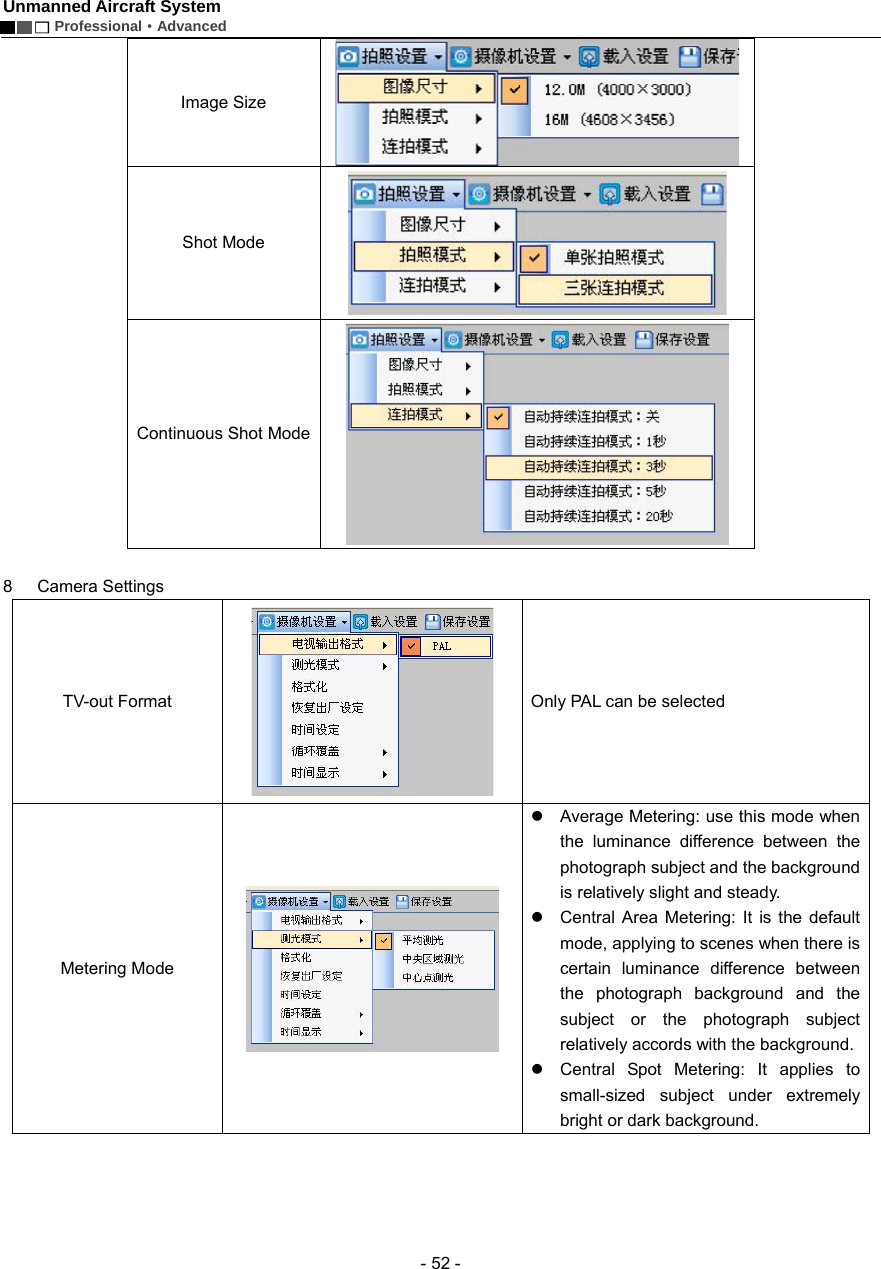
Unmanned Aircraft System  Professional·Advanced - 51 -   3      Zoom in / Zoom out   Click “Zoom in” / “Zoom out” to adjust the focal length of the airborne camera.    4  Airborne Video Recording   Click [Airborne Video Recording] on the toolbar to start video recording of the airborne camera; during recording, the button will remain selected; click the button again to stop recording and it will bounce up.    5  Airborne Photo Shooting   1)  Click [Airborne Photo Shooting] on the toolbar to control the camera to take photos.   2)  Click [Airborne Photo Shooting] during video recording to realize the snapshot function.     Notice: The functions of zoom in, zoom out, airborne video recording and airborne photo shooting can also be realized via corresponding buttons on the ground station panel.      6 Video Setting    Parameters of the UAV camera can be set:   Resolution  View Angle    Bit Rate     7 Photo Setting
Unmanned Aircraft System        Professional·Advanced  - 52 - Image Size   Shot Mode    Continuous Shot Mode    8 Camera Settings  TV-out Format  Only PAL can be selected Metering Mode    z  Average Metering: use this mode when the luminance difference between the photograph subject and the background is relatively slight and steady.   z  Central Area Metering: It is the default mode, applying to scenes when there is certain luminance difference between the photograph background and the subject or the photograph subject relatively accords with the background.   z  Central Spot Metering: It applies to small-sized subject under extremely bright or dark background.
Unmanned Aircraft System  Professional·Advanced - 53 - Formatting   The airborne camera memory can be formatted to remove all files in it. Make sure you do not need the data before formatting!   Recover Factory Setting    This operation will restore all settings of this system to the factory settings.   Time Setting    Set the system time.   Loop Record    No matter whether “Loop Record” is ON or OFF, recording is saved as a segment file by each 10 min. When “Loop Record” is ON, if the space of the memory card is not enough, the first segment of recording file will be overwritten automatically. Time Display    Show or hide time display.    9 Load Setting   Click [Load Setting] on the toolbar to load the current settings of the airborne camera.
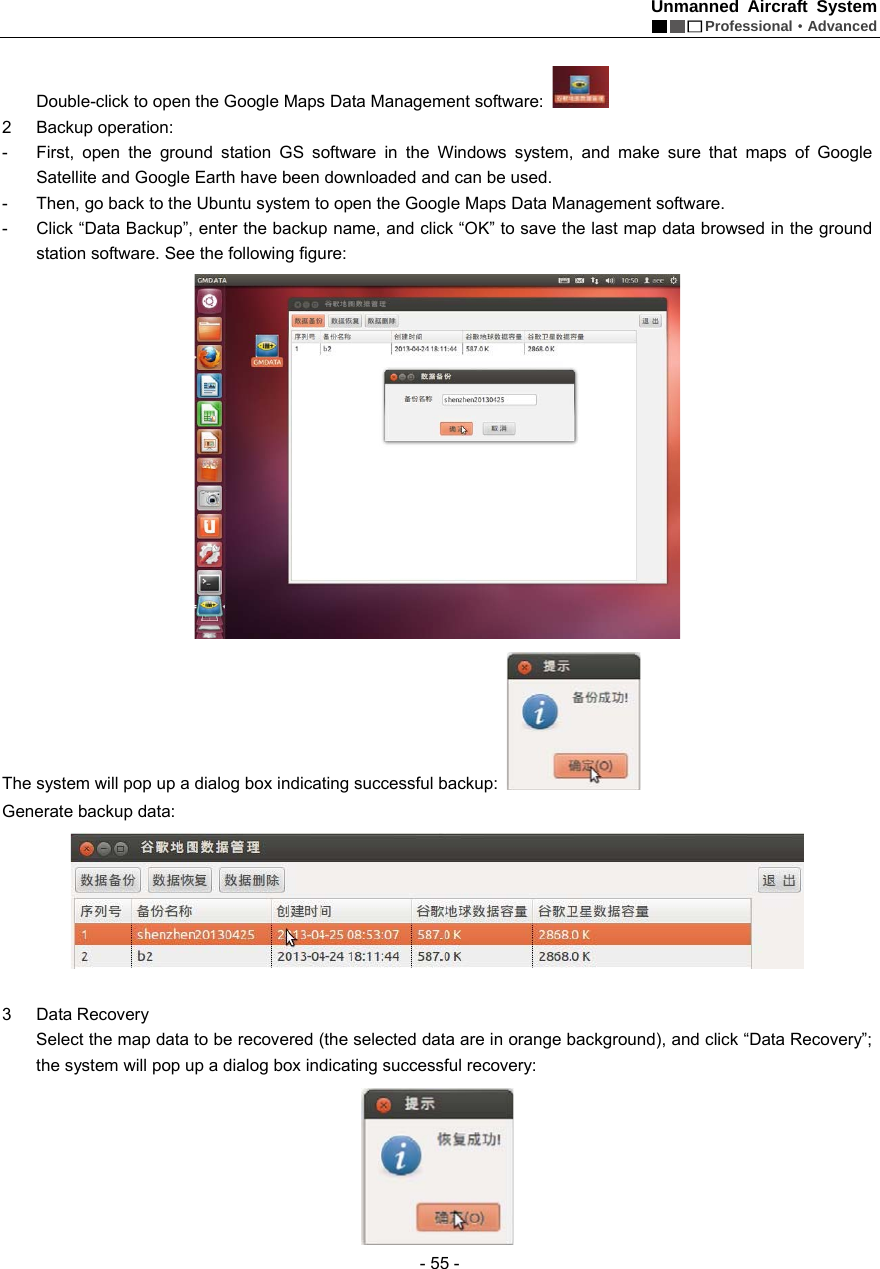
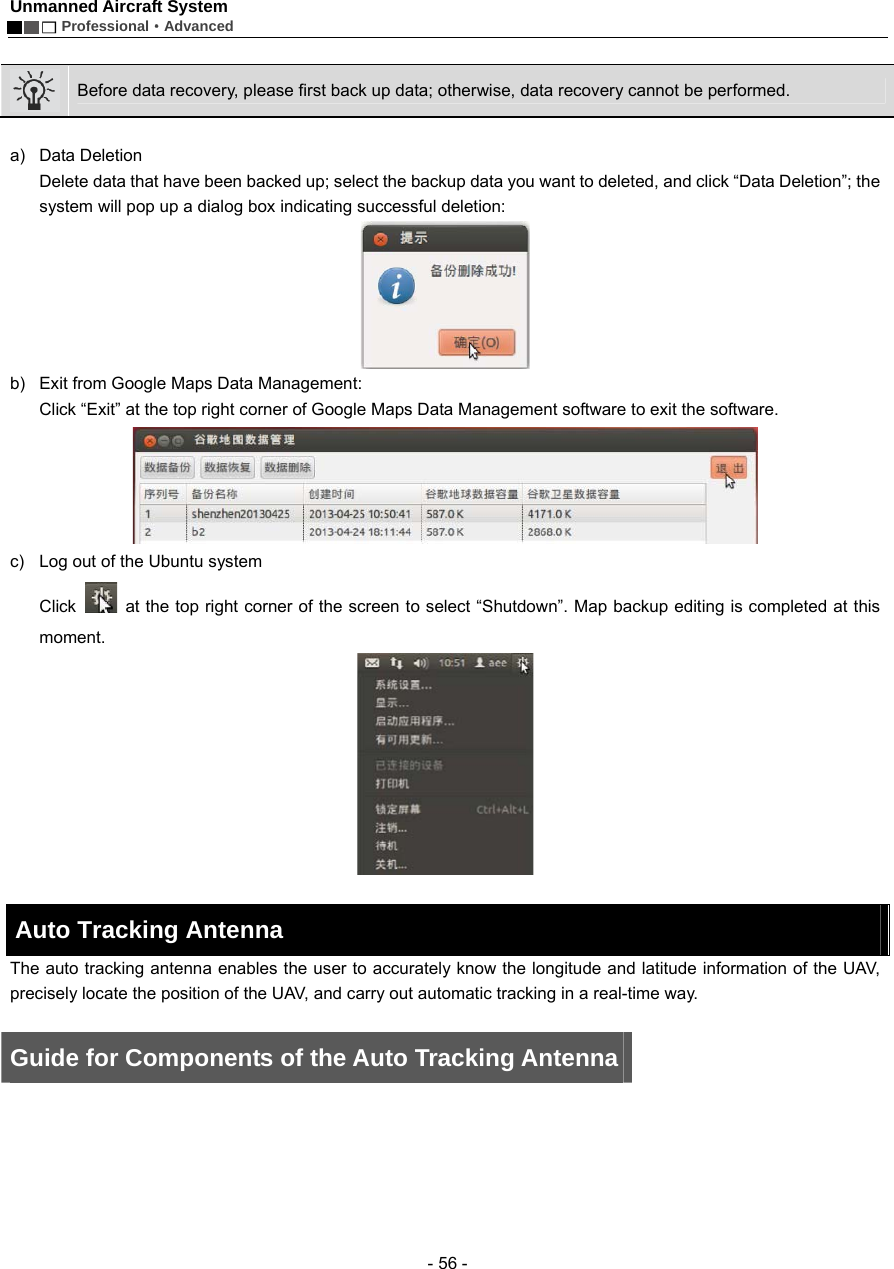
Unmanned Aircraft System        Professional·Advanced  - 54 -  10 Save Setting   Click [Save Setting] on the toolbar to save the current settings of the airborne camera.  Important: Settings will take effect only when [Save Setting] is clicked after a setting is modified.    Map Backup The ground station system adopts the data platforms of Google Earth and Google Satellite. During map browsing, the system will automatically save the data of browsed maps to the system so that you can view the browsed maps offline. However, the map storage capacity of Google Earth is limited (the maximum capacity of Google Earth is 2G and that of Google Maps is 1G). When the capacity of browsed map data exceeds this limit, the old map data will be lost.  In addition, data loss may be caused by misoperation, which will result in the failure of access to Google Earth data platform after the ground station system is opened. To avoid loss of map data, data backup software is provided in the Ubuntu operating system. This software provides the following three functions:   1  Save map data; during use of the ground station, the user can save the map data according to area partition and date.   Note: The data backup file should not exceed the map capacity limit (Google Earth: 2G; Google Maps: 1G).   2  Restore map data; in case maps cannot be loaded due to data loss during use, if access to Internet is also not available, the user can enter this software to restore map data.   3  Delete: Delete undesired backup data.    Important: Before use of map backup, first open the ground station GS software in the Windows system, and make sure that maps of Google Satellite and Google Earth have been downloaded and can be used.      The backup operation steps are as follows: 1  Start up and select to enter the Ubuntu system (see the following figure):    After opening the ground station system, select to enter the Ubuntu system in the “Select System” menu:
Unmanned Aircraft System  Professional·Advanced - 55 -    Double-click to open the Google Maps Data Management software:   2 Backup operation:  -  First, open the ground station GS software in the Windows system, and make sure that maps of Google Satellite and Google Earth have been downloaded and can be used.   -  Then, go back to the Ubuntu system to open the Google Maps Data Management software.   -  Click “Data Backup”, enter the backup name, and click “OK” to save the last map data browsed in the ground station software. See the following figure:  The system will pop up a dialog box indicating successful backup:   Generate backup data:     3 Data Recovery  Select the map data to be recovered (the selected data are in orange background), and click “Data Recovery”; the system will pop up a dialog box indicating successful recovery:
Unmanned Aircraft System        Professional·Advanced  - 56 -   Before data recovery, please first back up data; otherwise, data recovery cannot be performed.      a) Data Deletion Delete data that have been backed up; select the backup data you want to deleted, and click “Data Deletion”; the system will pop up a dialog box indicating successful deletion:    b)  Exit from Google Maps Data Management:   Click “Exit” at the top right corner of Google Maps Data Management software to exit the software.  c)  Log out of the Ubuntu system Click    at the top right corner of the screen to select “Shutdown”. Map backup editing is completed at this moment.   Auto Tracking Antenna   The auto tracking antenna enables the user to accurately know the longitude and latitude information of the UAV, precisely locate the position of the UAV, and carry out automatic tracking in a real-time way.    Guide for Components of the Auto Tracking Antenna
Unmanned Aircraft System  Professional·Advanced - 57 -  No. Type  Quantity  Function 1  Panel antenna  1  Receives radio and video signals   2  Video signal port    2  Receives video signals  3  Radio signal port      1  Receives radio signals   4 Indicator (red)  1 The red indicator light turns on when power supply is connected 5 Indicator (blue)  1 The blue indicator light is always on after initialization is finished and blinks during normal working   6  Communication cable port    1 1. Receives video signals   2. Receives radio UART signals   3. The ground station sends commands via USB to the steering engine to control rotation of the antenna 7  Radio antenna extension cable port    1  Sends radio signals received to the ground station   8  Video antenna extension cable port  2  Sends video signals received to the ground station 9 PTZ  1 Fix the console  10  Power switch    1  Execute the power-on/off action   11  Tripod    1  Support the console and antennas  Install the Tripod
Unmanned Aircraft System        Professional·Advanced  - 58 - Step Illustration  Description Step 1  Unfold the three legs of the tripod; turn the knob clockwise; lengthen each leg to a proper position and then counter-clockwise tighten the knob.   Step 2  Press the button on the right side to push the auto tracking device into the PTZ groove in the direction of arrow.   Step 3  Tighten the knob on the left side to fix it.    Install the Antenna Use the wrench to install 4pcs of screw by aligning them with the corresponding holes in the panel antenna, so as to fix it to the auto tracking antenna, as shown in the figure below. Then, connect the 3pcs of antenna extension cable on the panel antenna to the auto tracking device according to the following figure (shown in red lines).   Connect the Radio and Video Antenna Extension Cables  Screws
Unmanned Aircraft System  Professional·Advanced - 59 - Step Illustration  Description Step 1  Insert the radio antenna extension cable and the video antenna extension cables respectively into the RADIO, VIDEO-1 and VIDEO-2 ports on the auto tracking antenna according to the direction shown in the figure, and tighten them clockwise.   Step 2  Insert the radio antenna extension cable and the video antenna extension cables respectively into the RADIO, VIDEO-1 and VIDEO-2 ports on the ground station according to the direction shown in the figure, and tighten them clockwise.  Connect the Communication Cable Insert the communication cable according to the direction shown in the figure below, and insert the other end to the AUTO ANTENNA port on the ground station.     Start up the Auto Tracking Antenna First, turn on the power switch of the ground station; then, turn on the power switch of the auto tracking antenna. The Video antenna extension cables   Radio antenna extension cableInsert the video antenna extension cable  Insert the video antenna extension cable Insert the radio antenna extension cable Insert the communication cable here Insert the other end of the communication cable
Unmanned Aircraft System        Professional·Advanced  - 60 - red power indicator turns on, and the antenna begins initialization; the initialization is finished when the antenna faces south. As to the method for connecting the auto tracking antenna to the ground station software, please see the section of “Use the Ground Station Software — Auto Tracking Antenna Connection Serial Port” on Page 43.      Notice: 1. When using the auto tracking antenna, please keep away from areas subjected to intense electromagnetic interference. 2. When connecting the auto tracking antenna to the ground station software, please first turn on the power switch of the auto tracking antenna and then open the ground station software.      Shut Down the Auto Tracking Antenna First, close the ground station GS software; then, turn off the power switch of the auto tracking antenna, and disconnect the communication cable, radio antenna extension cable and video antenna extension cables.   Warning: When disconnecting the communication cable of the auto tracking antenna, please first pull the aviation plug shell outward, and then pull out the plug.    Video Files     After startup, the UAV will automatically enter the video recording state. The user can preview the video on the screens of the remote control and the ground station. When the UAV is shut down, recording will be stopped and video files saved automatically. Using a USB data cable, you can copy the video files in the UAV to a PC for playback. The real-time videos sent back by the UAV can be saved to the memory of the remote control by pressing the “Local Recording” button of the remote control or the ground station. For detailed operation methods, please refer to the section of “Description of Buttons” of the remote control and the ground station.    Specification    Description   Specification  Fly mode    Manual remote control, autonomous hover, autonomous route No-load take-off weight    ≤7.8kg (with battery) Load capacity  ≤4.5kg  Endurance time    40min (20,000mAh battery) 30min (15,000mAh battery) Maximum cruising speed    15m/s (not suggested) Maximum remote control range    10km   Maximum flying range    20km   Flight altitude (relative altitude)  Max. 3,000m   Climbing speed    ≥8m/s Normal take-off/landing wind speed    Below Level 6 Working temperature   -10°C ~ +50°C  Working humidity    0% ~ 95%RH Storage temperature    -20°C ~ +60°C Airborne camera    HD camera with two-axis PTZ    批注[e6]:原稿:天线面朝南 方,初始化完毕。 是指天线面朝南方时,初始化完毕吗? 批注[e7]:原稿:P41译稿中该部分是在 43 页上
Unmanned Aircraft System  Professional·Advanced - 61 - Troubleshooting    Before test flight, please read the “Operation Instruction” first. If normal take-off fails, please perform troubleshooting according to the table below. If the problem still exists, please contact us immediately. To avoid unnecessary loss, please do not operate blindly!     Symptom   Solution Self-checking of the UAV fails after it is powered up (the buzzer beeps all the time)  (1)  Check if the removable arms are properly installed     Speeds of the four motors are obviously inconsistent with each other after startup (some run fast, while some run slowly)   (1)  Make sure the UAV is placed on a flat ground before self-checking  (2)  Calibrate the UAV   The UAV cannot be started after successful self-checking  Check the manual/auto switches of the remote control and the ground station to make sure that they are in the manual state   The state of navigation lights is abnormal; the normal state is green in the front and red in the rear Confirm whether the frame arms are properly installed (frame arm A1 shall correspond to body A1, and so on and so forth) The remote control and the ground station shows abnormality of flight attitude and compass (e.g., 360° rotation) Calibrate the compass, accelerometer and gyroscope according to the instruction manual   The UAV fails to execute auto take-off and one-key auto fly Confirm whether the manual/auto switch of the remote control or ground station is in auto state The UAV cannot be controlled manually when it goes home or lands upon low battery   Make sure that the manual/auto switch is switched 2-4 times when the throttle joystick is at the middle position.   The UAV inclines or rotates during one-key auto fly  Power off the UAV and then power it on again   Normal take-off fails when the throttle lever is pushed forward after the UAV is started   (1)  Check the four propellers of the UAV to see if they are installed properly as required in the Instruction Manual (2)  Check the power battery of the UAV to make sure the battery level is high enough.    Protection Mechanism   1.  During flying in the manual mode, when it is beyond the operating range, the UAV will enter the protection mode, and automatically fly back to the take-off position and land.   2.  During flying in the manual/auto mode, when the remote control or the ground station is powered off, the UAV will enter the protection mode, and automatically fly back to the take-off position and land. 3.  In case of Level 2 alarm for low battery, the UAV will enter the protection mode; at this moment, the UAV will vertically descend to the ground (in case of an emergency, in the auto fly mode, you can switch to the manual mode to control landing manually; in the manual fly mode, switch to the auto mode and then to the manual mode to realize manual control of landing).
                                       Please read this Manual carefully before use, and keep it handy for future reference.    Patented Technologies  National Hi-tech Enterprise  Guangdong Famous Trademark   Shenzhen Top BrandPopular in European, American and Asian Markets with Self-owned AEE Brand
 FCC Information and Copyright  This equipment has been tested and found to comply with the limits for a Class B digital device, pursuant to part 15 of the FCC Rules. These limits are designed to provide reasonable protection against harmful interference in a residential installation. This equipment generates, uses and can radiate radio frequency energy and, if not installed and used in accordance with the instructions, may cause harmful interference to radio communications. However, there is no guarantee that interference will not occur in a particular installation. If this equipment does cause harmful interference to radio or television reception, which can be determined by turning the equipment off and on, the user is encouraged to try to correct the interference by one or more of the following measures: —Reorient or relocate the receiving antenna. —Increase the separation between the equipment and receiver. —Connect the equipment into an outlet on a circuit different from that to which the receiver is connected. —Consult the dealer or an experienced radio/TV technician for help.  15.19 Labelling requirements. This device complies with part 15 of the FCC Rules. Operation is subject to the following two conditions: (1)This device may not cause harmful interference, and   (2) this device must accept any interference received, including interference that may cause undesired operation.  changes or modifications not expressly approved by the party responsible for compliance could void the user's authority to operate the equipment.
   Created in China Made in Shenzhen Add.: AEE Hi-Tech Park, Tangtou Intersection, Songbai Road, Shiyan Sub-district, Bao’an District, Shenzhen Tel.: 0755-29518999            Fax: 0755-27358999

Navigation menu