AEE Technology AEES8000001 Action Camcorder User Manual Manual

Shenzhen AEE Technology CO., LTD. Action Camcorder Manual

Manual

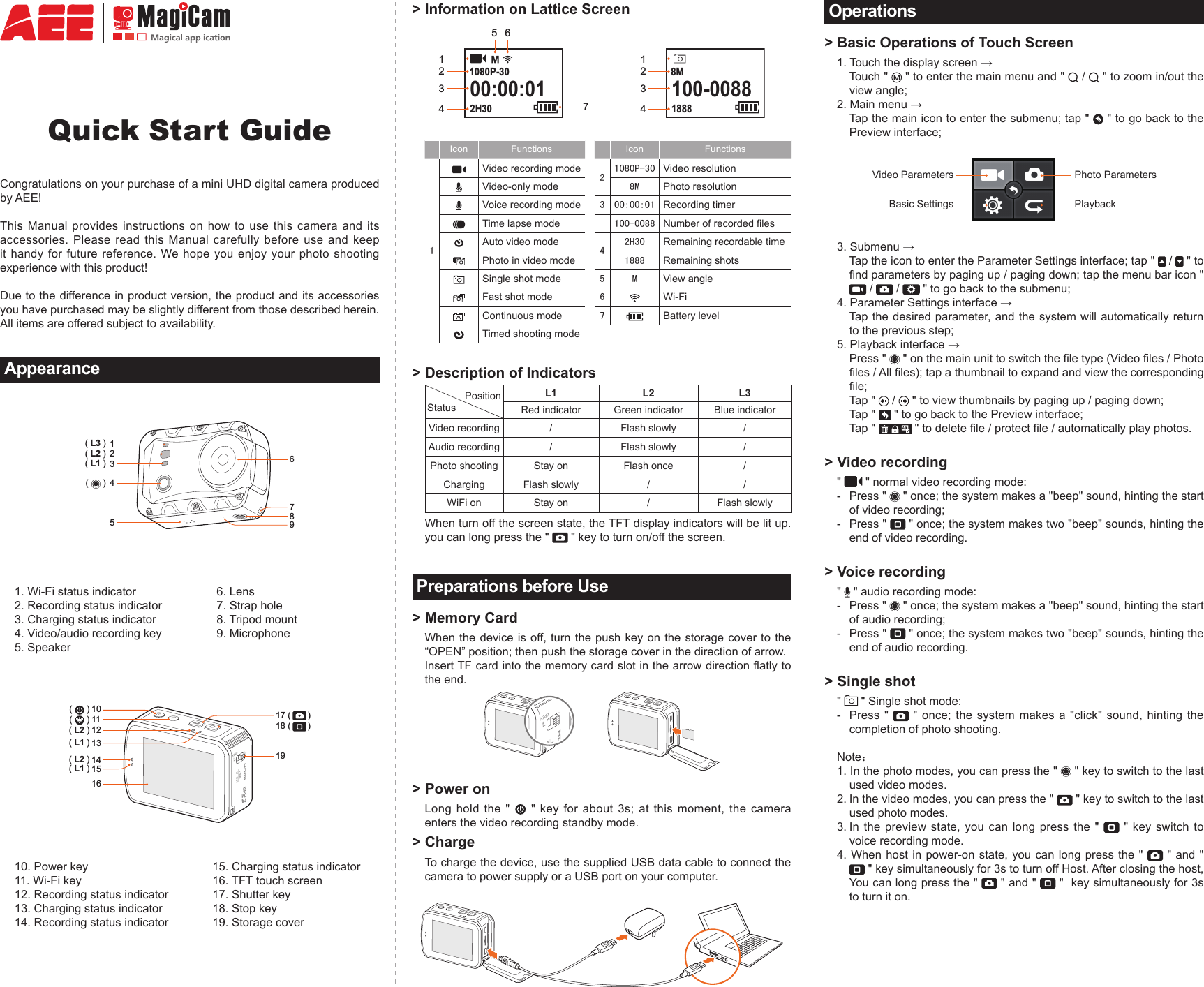
Quick Start GuideCongratulations on your purchase of a mini UHD digital camera produced by AEE! This Manual provides instructions on how to use this camera and its accessories. Please read this Manual carefully before use and keep it handy for future reference. We hope you enjoy your photo shooting experience with this product! Due to the difference in product version, the product and its accessories you have purchased may be slightly different from those described herein. All items are offered subject to availability. Appearance( L3 )( L2 )( L1 )123456987(      )1. Wi-Fi status indicator2. Recording status indicator3. Charging status indicator4. Video/audio recording key5. Speaker6. Lens7. Strap hole8. Tripod mount9. Microphone1011 17 (       )18 (       )191412151613( L2 )( L1 )( L2 )( L1 )(      )(      )10. Power key11. Wi-Fi key12. Recording status indicator13. Charging status indicator14. Recording status indicator15. Charging status indicator16. TFT touch screen17. Shutter key18. Stop key19. Storage cover> Information on Lattice Screen00:00:012H301080P-30100-008818888M15623412347Icon Functions Icon Functions1 Video recording mode21080P-30 Video resolutionVideo-only mode 8M Photo resolutionVoice recording mode 3 00:00:01 Recording timerTime lapse mode 100-0088 Number of recorded lesAuto video mode42H30 Remaining recordable timePhoto in video mode 1888 Remaining shotsSingle shot mode 5 M View angleFast shot mode 6Wi-FiContinuous mode 7Battery levelTimed shooting mode> Description of Indicators             PositionStatusL1 L2 L3Red indicator Green indicator Blue indicatorVideo recording / Flash slowly /Audio recording / Flash slowly /Photo shooting Stay on Flash once /Charging Flash slowly / /WiFi on Stay on / Flash slowlyWhen turn off the screen state, the TFT display indicators will be lit up. you can long press the "   " key to turn on/off the screen.Preparations before Use> Memory CardWhen the device is off, turn the push key on the storage cover to the “OPEN” position; then push the storage cover in the direction of arrow.Insert TF card into the memory card slot in the arrow direction atly to the end.> Power onLong hold the "   " key for about 3s; at this moment, the camera enters the video recording standby mode. > ChargeTo charge the device, use the supplied USB data cable to connect the camera to power supply or a USB port on your computer.Operations> Basic Operations of Touch Screen1. Touch the display screen →   Touch "   " to enter the main menu and "   /   " to zoom in/out the view angle; 2. Main menu →   Tap the main icon to enter the submenu; tap "   " to go back to the Preview interface; Video Parameters Photo ParametersBasic Settings Playback3. Submenu →  Tap the icon to enter the Parameter Settings interface; tap "   /   " to nd parameters by paging up / paging down; tap the menu bar icon "  /   /   " to go back to the submenu;4. Parameter Settings interface →   Tap the desired parameter, and the system will automatically return to the previous step;5. Playback interface →   Press "   " on the main unit to switch the le type (Video les / Photo les / All les); tap a thumbnail to expand and view the corresponding le;   Tap "   /   " to view thumbnails by paging up / paging down;   Tap "   " to go back to the Preview interface;   Tap "   " to delete le / protect le / automatically play photos. > Video recording"   " normal video recording mode:  -  Press "   " once; the system makes a "beep" sound, hinting the start of video recording; -  Press "   " once; the system makes two "beep" sounds, hinting the end of video recording. > Voice recording"   " audio recording mode: -  Press "   " once; the system makes a "beep" sound, hinting the start of audio recording; -  Press "   " once; the system makes two "beep" sounds, hinting the end of audio recording. > Single shot"   " Single shot mode: -  Press "   " once; the system makes a "click" sound, hinting the completion of photo shooting. Note:1. In the photo modes, you can press the "   " key to switch to the last used video modes. 2. In the video modes, you can press the "   " key to switch to the last used photo modes.3. In the preview state, you can long press the "   " key switch to voice recording mode.4. When host in power-on state, you can long press the "   " and "  " key simultaneously for 3s to turn off Host. After closing the host, You can long press the "   " and "   "  key simultaneously for 3s to turn it on.
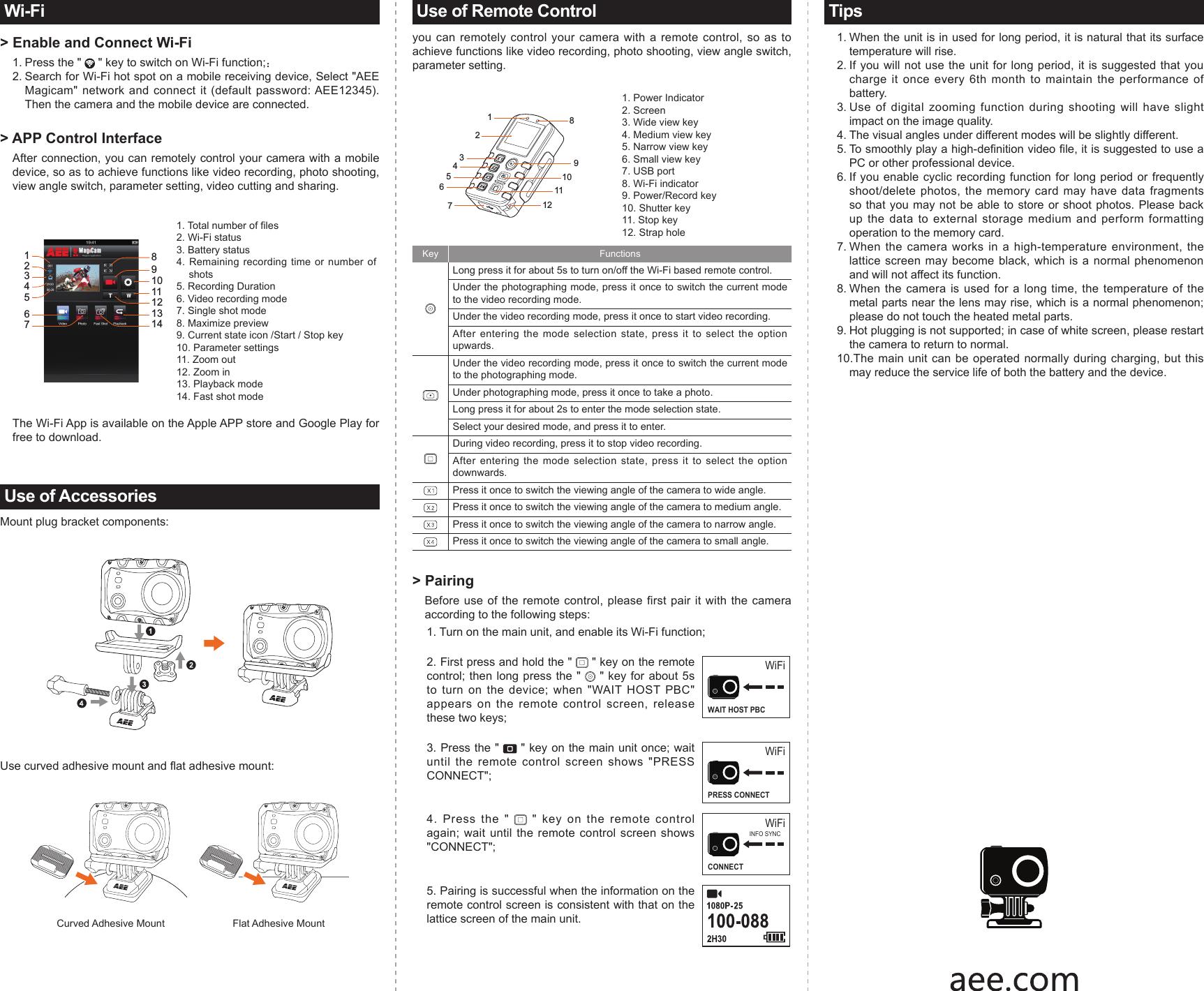
Wi-Fi> Enable and Connect Wi-Fi1. Press the "   " key to switch on Wi-Fi function;:2. Search for Wi-Fi hot spot on a mobile receiving device, Select "AEE Magicam" network  and  connect it  (default  password: AEE12345). Then the camera and the mobile device are connected.> APP Control InterfaceAfter connection, you can remotely control your camera with a mobile device, so as to achieve functions like video recording, photo shooting, view angle switch, parameter setting, video cutting and sharing.12345678910111213141. Total number of les2. Wi-Fi status3. Battery status4. Remaining recording time or number of shots5. Recording Duration6. Video recording mode7. Single shot mode8. Maximize preview9. Current state icon /Start / Stop key10. Parameter settings11. Zoom out12. Zoom in 13. Playback mode14. Fast shot modeThe Wi-Fi App is available on the Apple APP store and Google Play for free to download.Use of AccessoriesMount plug bracket components:Use curved adhesive mount and at adhesive mount:                    Curved Adhesive Mount                        Flat Adhesive Mount Use of Remote Controlyou can remotely control your camera with a remote control, so as to achieve functions like video recording, photo shooting, view angle switch, parameter setting.1234567891011121. Power Indicator2. Screen3. Wide view key4. Medium view key5. Narrow view key6. Small view key7. USB port8. Wi-Fi indicator 9. Power/Record key10. Shutter key11. Stop key12. Strap holeKey Functions Long press it for about 5s to turn on/off the Wi-Fi based remote control. Under the photographing mode, press it once to switch the current mode to the video recording mode. Under the video recording mode, press it once to start video recording. After entering the mode selection state, press it to select the option upwards. Under the video recording mode, press it once to switch the current mode to the photographing mode. Under photographing mode, press it once to take a photo. Long press it for about 2s to enter the mode selection state. Select your desired mode, and press it to enter. During video recording, press it to stop video recording.After entering the mode selection state, press it to select the option downwards. Press it once to switch the viewing angle of the camera to wide angle. Press it once to switch the viewing angle of the camera to medium angle.Press it once to switch the viewing angle of the camera to narrow angle.Press it once to switch the viewing angle of the camera to small angle.> Pairing Before use of the remote control, please first pair it with the camera according to the following steps: 1. Turn on the main unit, and enable its Wi-Fi function; 2. First press and hold the "   " key on the remote control; then long press the "   " key for about 5s to turn on the device; when "WAIT HOST PBC" appears on the remote control screen, release these two keys;WiFiWAIT HOST PBC3. Press the "   " key on the main unit once; wait until the remote control screen shows "PRESS CONNECT";WiFiPRESS CONNECT4. Press the "   " key on the remote control again; wait until the remote control screen shows "CONNECT"; WiFiCONNECTINFO SYNC5. Pairing is successful when the information on the remote control screen is consistent with that on the lattice screen of the main unit.Tips1. When the unit is in used for long period, it is natural that its surface temperature will rise. 2. If you will not use the unit for long period, it is suggested that you charge it once every 6th month to maintain the performance of battery.3. Use of digital zooming function during shooting will have slight impact on the image quality.4. The visual angles under different modes will be slightly different. 5. To smoothly play a high-denition video le, it is suggested to use a PC or other professional device.6. If you enable cyclic recording function for long period or frequently shoot/delete photos, the memory card may have data fragments so that you may not be able to store or shoot photos. Please back up the data to external storage medium and perform formatting operation to the memory card.7. When the camera works in a high-temperature environment, the lattice screen may become black, which is a normal phenomenon and will not affect its function.8. When the camera is used for a long time, the temperature of the metal parts near the lens may rise, which is a normal phenomenon; please do not touch the heated metal parts. 9. Hot plugging is not supported; in case of white screen, please restart the camera to return to normal.10.The main unit can be operated normally during charging, but this may reduce the service life of both the battery and the device.
 FCC Information and Copyright  This equipment has been tested and found to comply with the limits for a Class B digital device, pursuant to part 15 of the FCC Rules. These limits are designed to provide reasonable protection against harmful interference in a residential installation. This equipment generates, uses and can radiate radio frequency energy and, if not installed and used in accordance with the instructions, may cause harmful interference to radio communications. However, there is no guarantee that interference will not occur in a particular installation. If this equipment does cause harmful interference to radio or television reception, which can be determined by turning the equipment off and on, the user is encouraged to try to correct the interference by one or more of the following measures: —Reorient or relocate the receiving antenna. —Increase the separation between the equipment and receiver. —Connect the equipment into an outlet on a circuit different from that to which the receiver is connected. —Consult the dealer or an experienced radio/TV technician for help.  15.19 Labelling requirements. This device complies with part 15 of the FCC Rules. Operation is subject to the following two conditions: (1)This device may not cause harmful interference, and   (2) this device must accept any interference received, including interference that may cause undesired operation.  changes or modifications not expressly approved by the party responsible for compliance could void the user's authority to operate the equipment.  FCC RF warning statement: the device has been evaluated to meet general RF exposure requirement , The device can be used in portable exposure condition without restriction.

Navigation menu