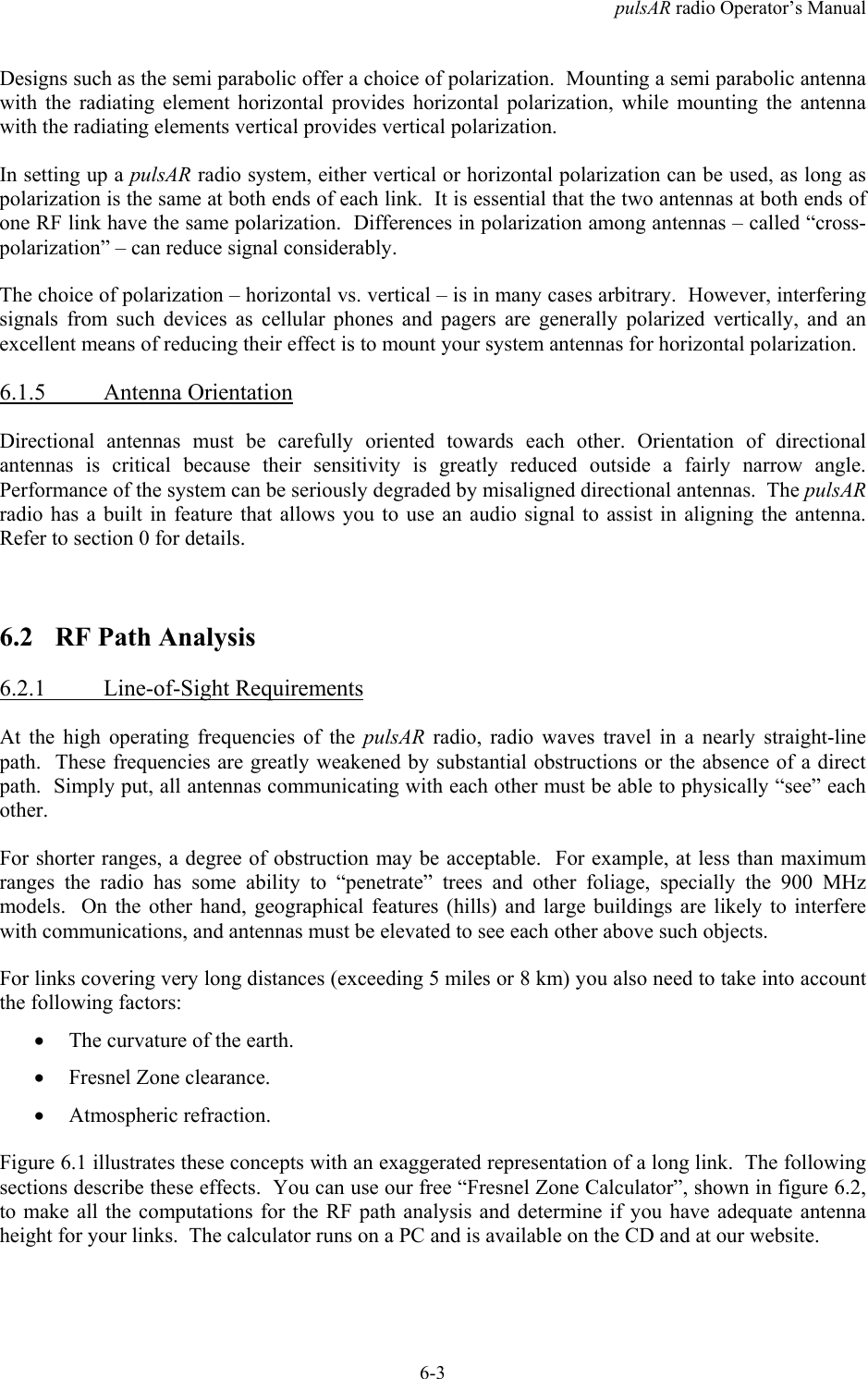
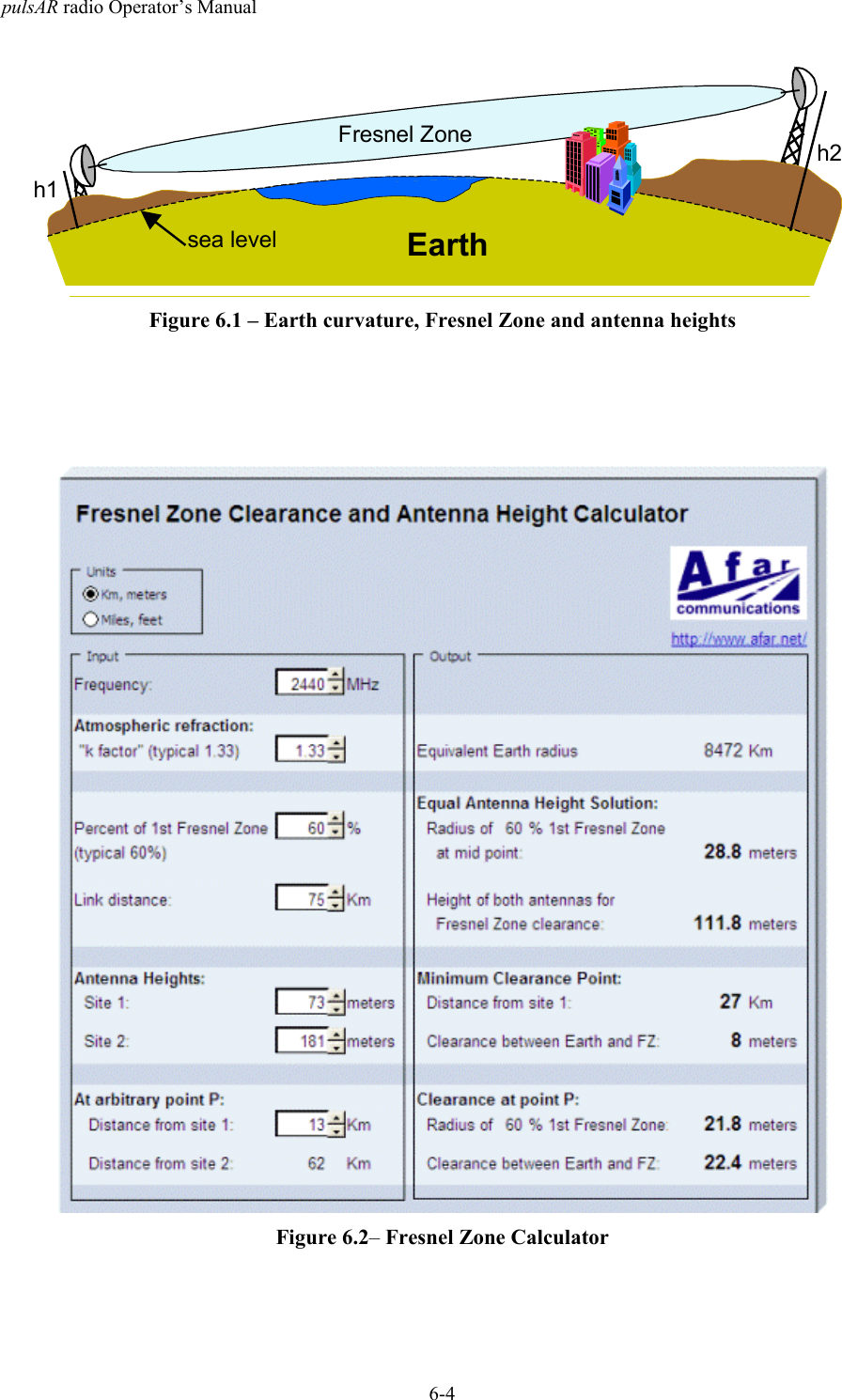
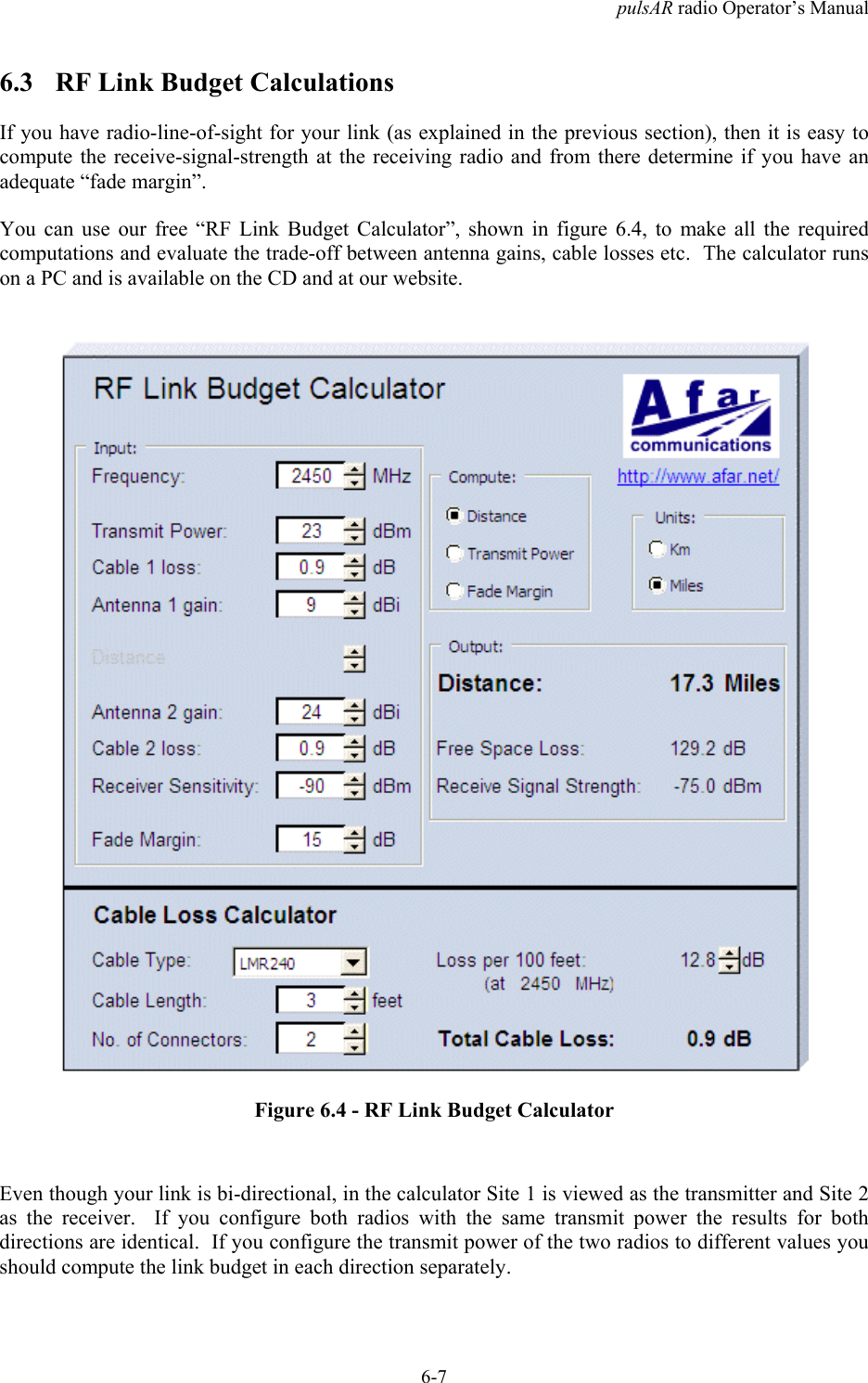
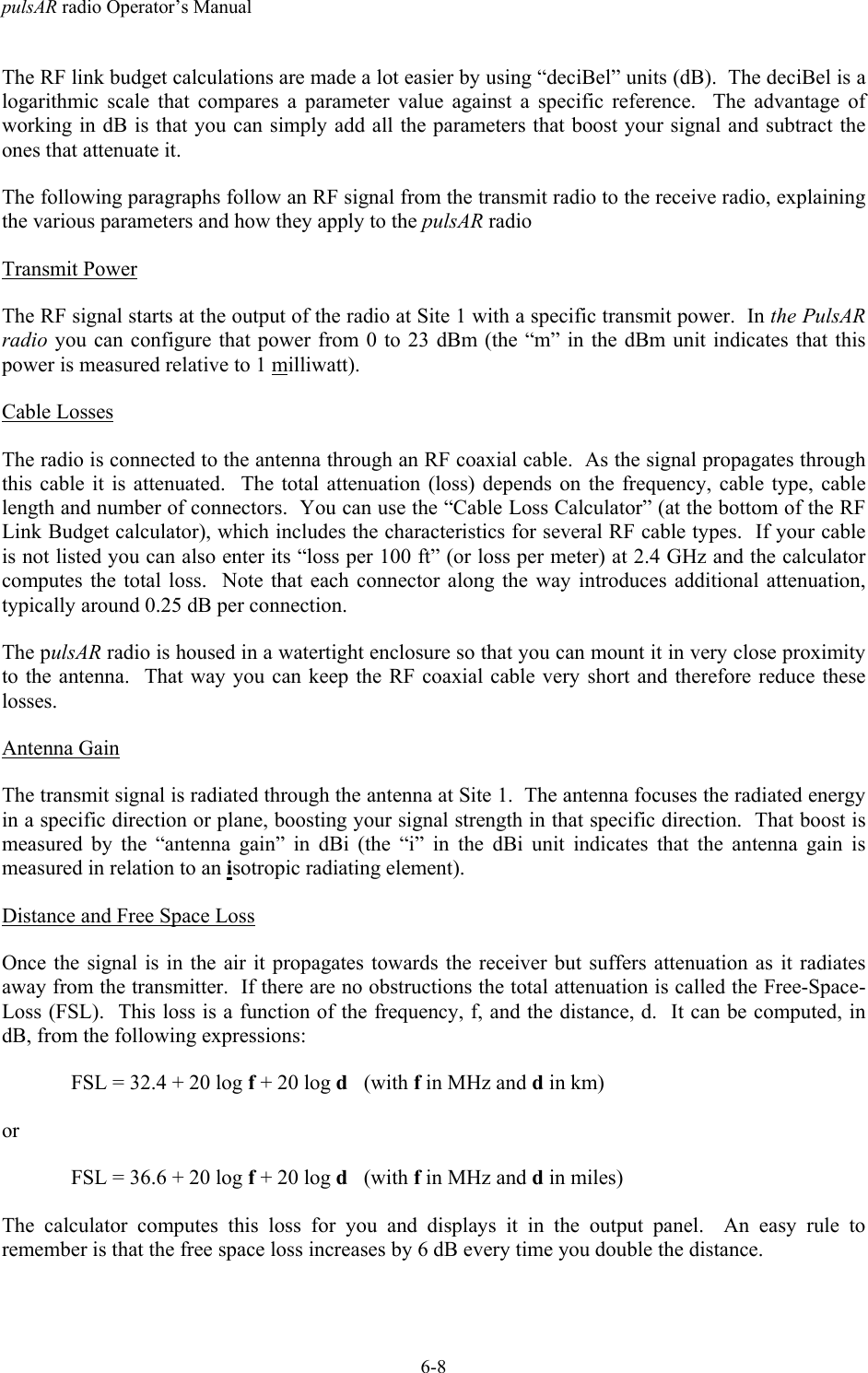
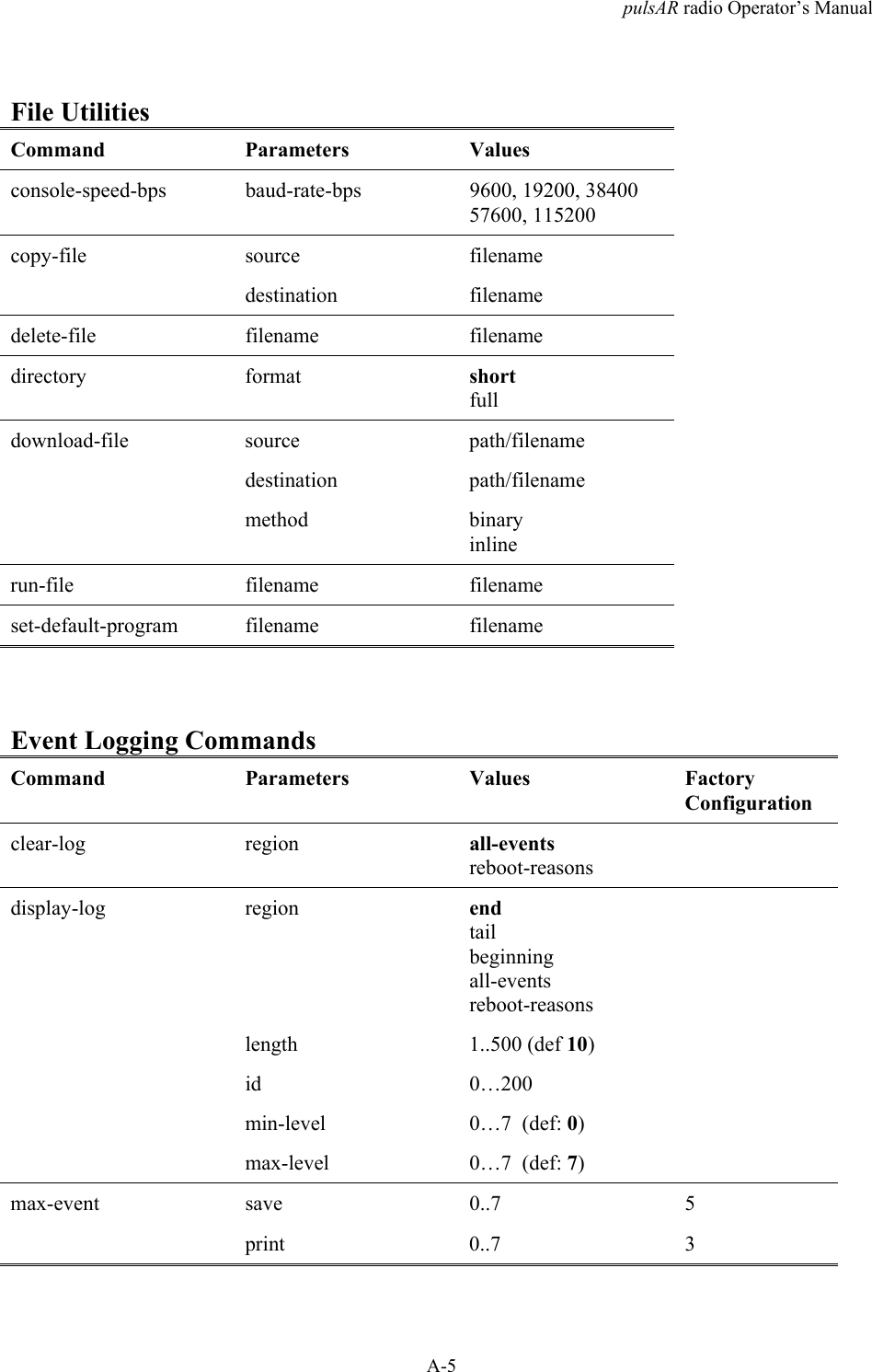
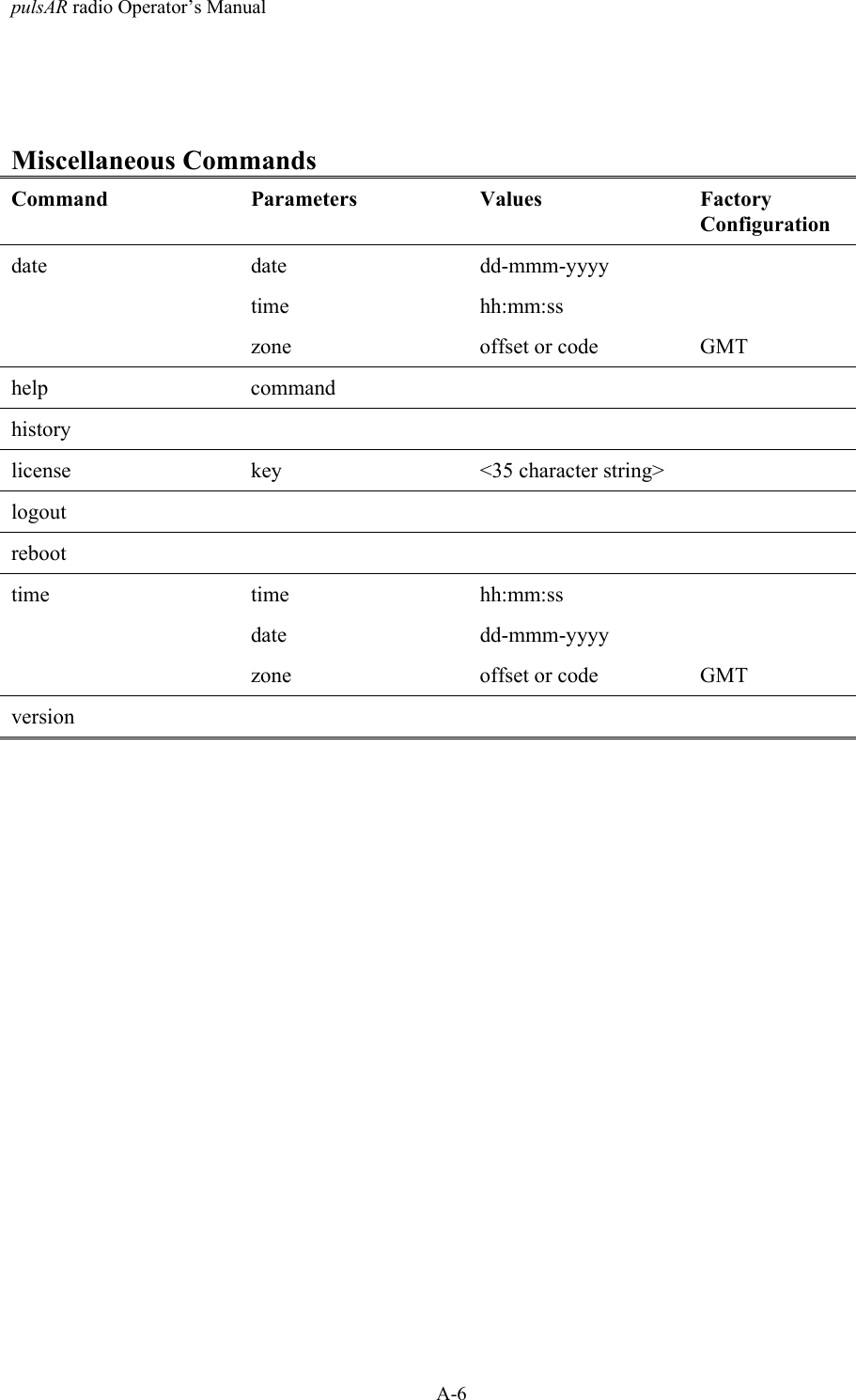
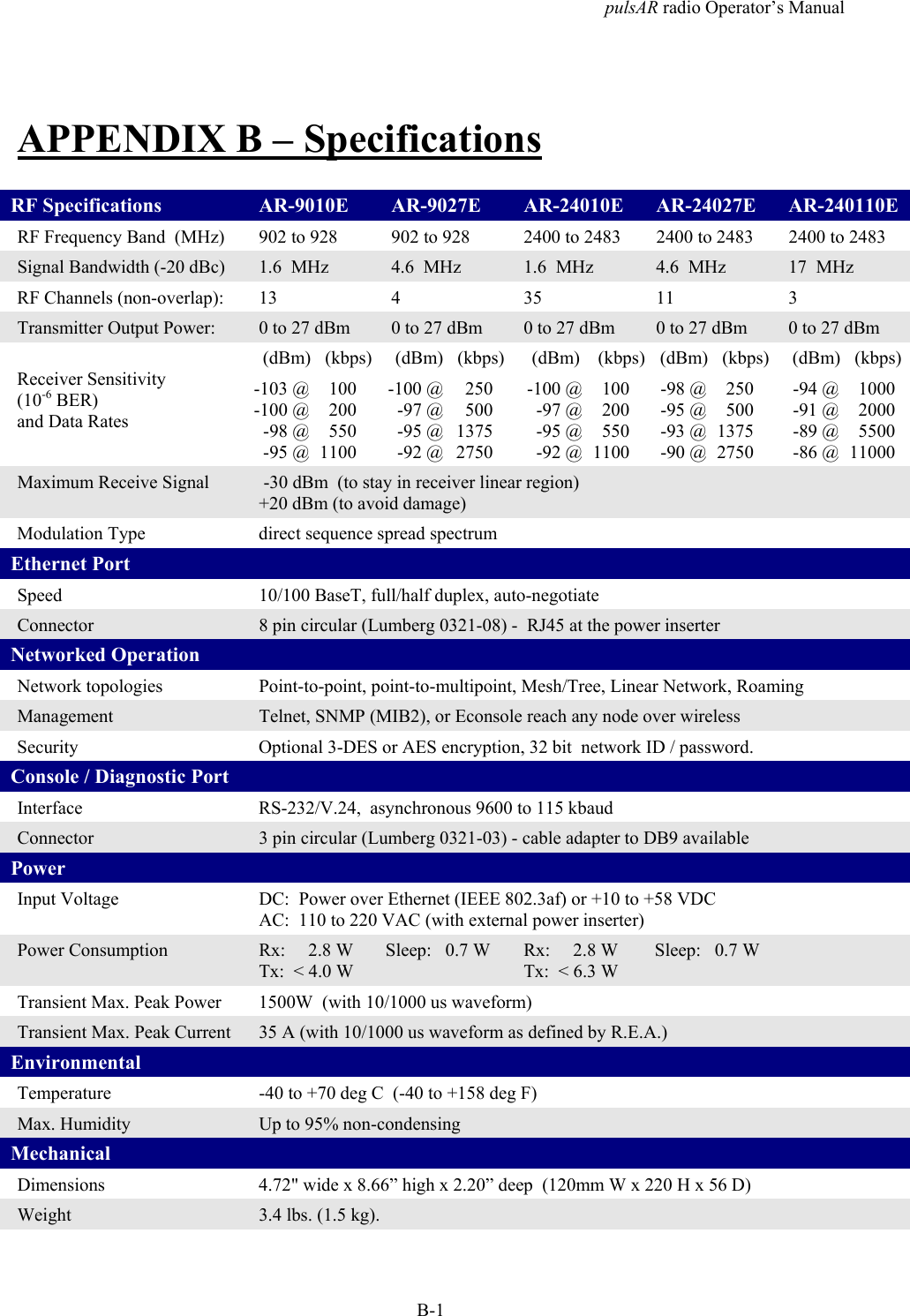
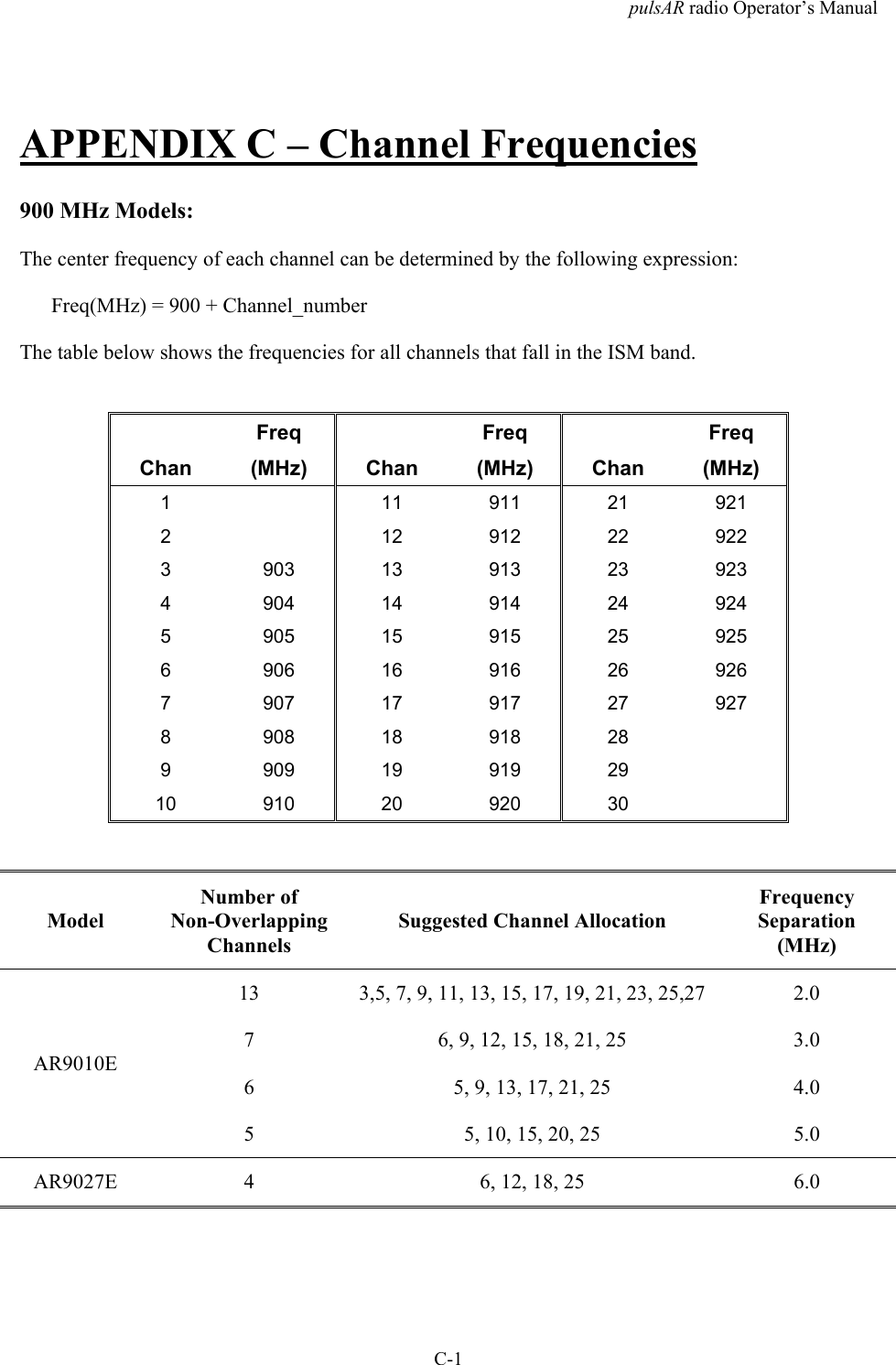
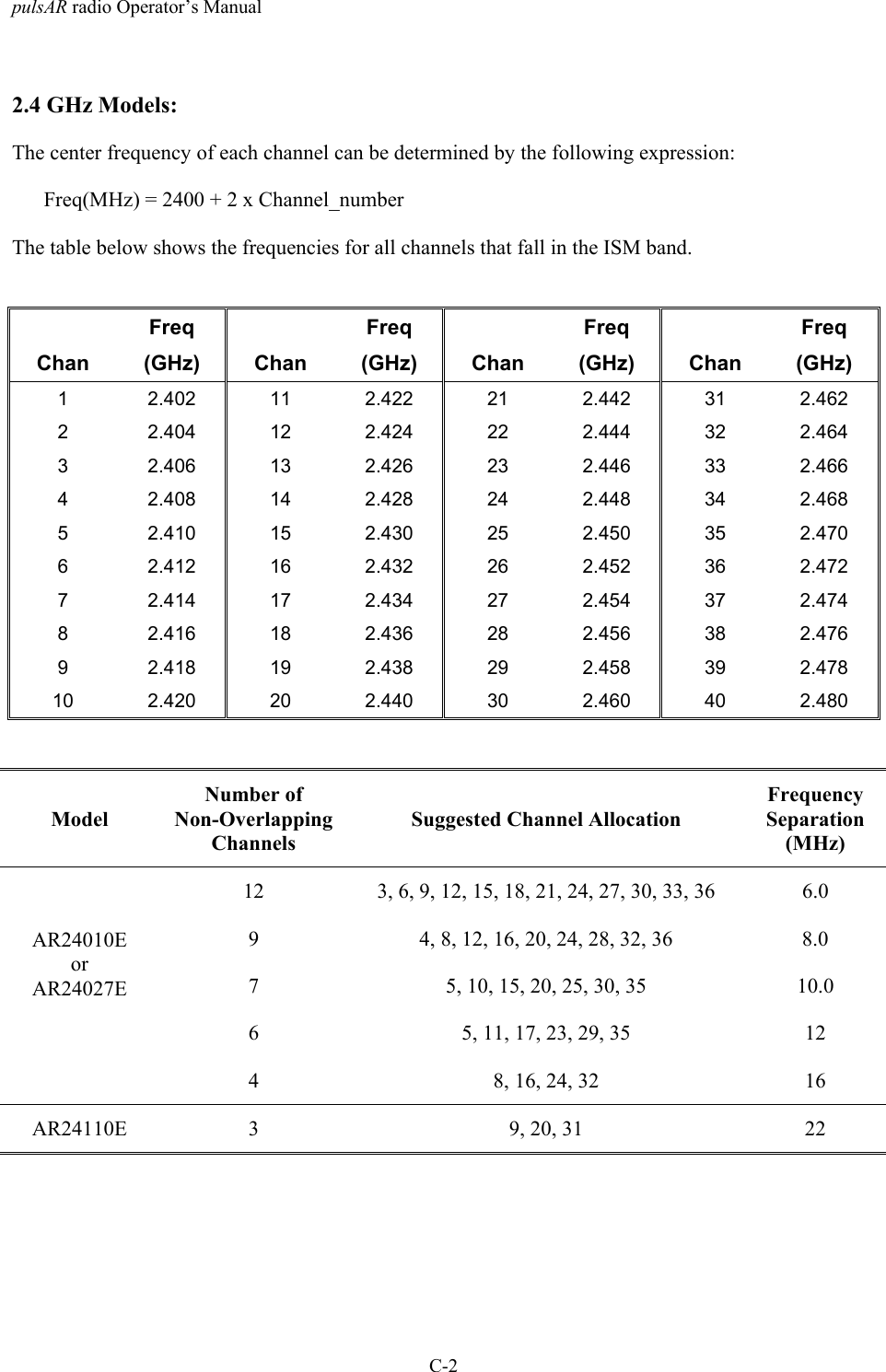
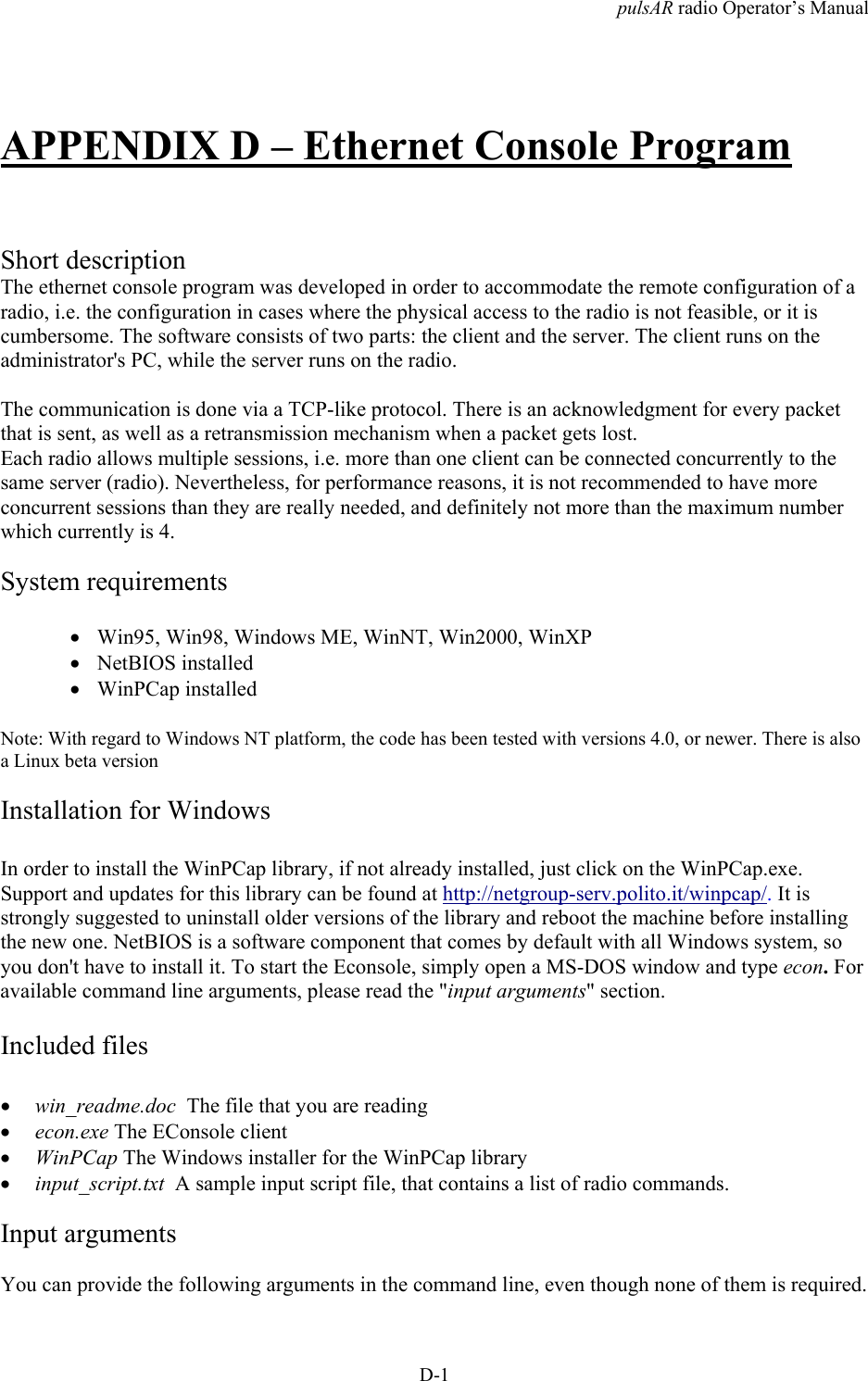
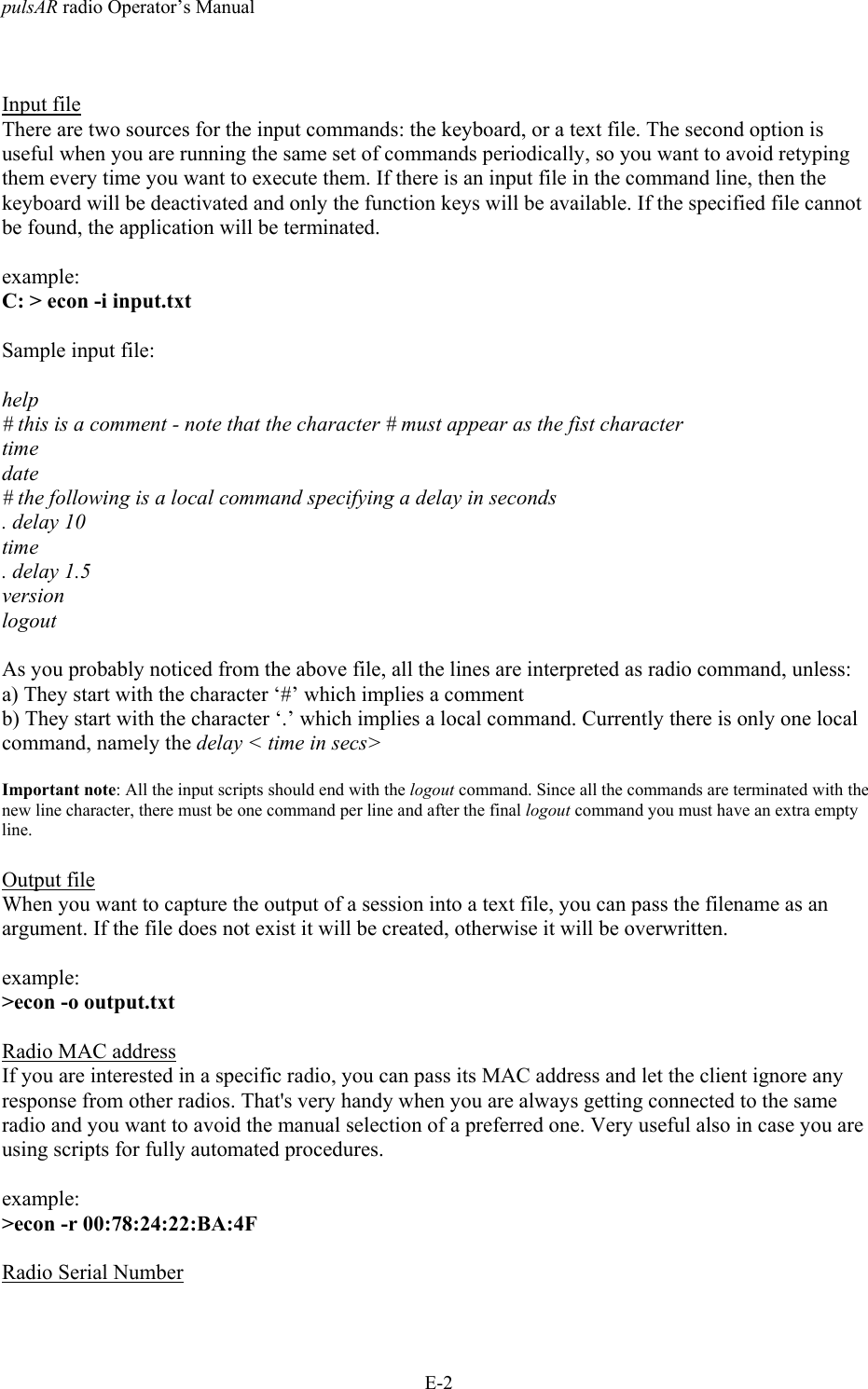
AFAR Communications 24110E Wireless Ethernet Bridge User Manual PulsAR Manual

AFAR Communications, Inc Wireless Ethernet Bridge PulsAR Manual

User Manual

pulsAR Wireless Ethernet BridgeOperator’s ManualModels: AR-9010EAR-9027EAR-24010EAR-24027EAR-24110EFebruary 2010AFAR Communications Inc.81 David Love PlaceSanta Barbara, CA 93117Tel:  +1 805 681 1993Fax: +1 805 681 1994go the distance
pulsAR Wireless Ethernet BridgeOperator’s ManualModels: AR-9010EAR-9027EAR-24010EAR24027EAR24110EFebruary 2010AFAR Communications Inc.81 David Love PlaceSanta Barbara, CA 93117Tel:  +1 805 681 1993Fax: +1 805 681 1994$25.00
pulsAR radio Operator’s Manual- i -Customer ServiceAFAR provides customer service during normal U.S. Pacific Coast business hours and may be reached byvoice, fax, or email as follows:Tel:  +1 805 681 1993Fax: +1 805 681 1994email:  support@afar.netIf you must return the equipment, please contact us for a Return Material Authorization (RMA) number.Equipment should be shipped to:AFAR Communications Inc.81 David Love Place,Santa Barbara,  CA 93117U.S.A.
pulsAR radio Operator’s Manual- ii -STATEMENT OF WARRANTYAfar Communications Inc. products, except as otherwise stated in an applicable price list, are warranted againstdefects in workmanship and material for a period of one (1) year from date of delivery as evidenced by AfarCommunications Inc.’s packing slip or other transportation receipt.Afar Communications Inc.’s sole responsibility under this warranty shall be to either repair or replace, at itsoption, any component which fails during the applicable warranty period because of a defect in workmanshipand material, provided purchaser has promptly reported same to Afar Communications Inc. in writing.  Allreplaced products or parts shall become Afar Communications Inc.’s property.Afar Communications Inc. shall honor this warranty at its facility in Goleta, California.  It is purchaser’sresponsibility to return, at its expense, the defective Product to Afar Communications Inc.  Purchaser mustnotify Afar Communications Inc. and obtain shipping instructions prior to returning any product.  AfarCommunications Inc. will pay the transportation charges for the return of the Product to purchaser but notincluding any custom clearance fees and other related charges which shall be paid by purchaser.  If AfarCommunications Inc. determines that the Product is not defective within the terms of the warranty, purchasershall pay Afar Communications Inc. all costs of handling, transportation and repairs at the prevailing repairrates.All the above warranties are contingent upon proper use of the Product.  These warranties will not apply (i) ifadjustment, repair, or parts replacement is required because of accident, unusual physical, electrical orelectromagnetic stress, negligence, misuse, failure of electric power environmental controls, transportation, orabuses other than ordinary use (ii) if the Product has been modified or has been repaired or altered outside AfarCommunications Inc.’s factory, unless Afar Communications Inc. specifically authorizes such repairs oralterations; (iii) where Afar Communications Inc. serial numbers, or quality assurance decals have beenremoved or altered.Afar Communications Inc. reserves the right to make product improvements without incurring any obligation orliability to make the same changes in Products previously manufactured or purchased.No person, including any dealer, agent or representative of Afar Communications Inc. is authorized to assumefor Afar Communications Inc. any other liability on its behalf except as set forth herein.  Afar CommunicationsInc. hereby disclaims all implied warranties of products including without limitation, all implied warranties ofmerchantability or fitness for a particular purpose.  The warranties expressly stated herein are the soleobligation or liability on the part of Afar Communications Inc. arising out of or in connection with the sale orperformance of the products.In no event will Afar Communications Inc. be liable to purchaser for (i) procurement costs; (ii) special,indirect or consequential damages; (iii) any damages resulting from loss of use, data or profits arising out of theuse of Afar Communications Inc. products.  In no event shall Afar Communications Inc. be liable for anybreach of warranty in an amount exceeding the net selling price of any defective Product.
pulsAR radio Operator’s Manual- iii -FCC NoticeThis device complies with part 15 of the FCC Rules. Operation is subject to thefollowing two conditions: (1) This device may not cause harmful interference, and (2)this device must accept any interference received, including interference that maycause undesired operation.This equipment has been tested and found to comply with the limits for a Class B digitaldevice, pursuant to Part 15 of the FCC Rules.  These limits are designed to providereasonable protection against harmful interference in a residential installation.  Thisequipment generates, uses, and can radiate radio frequency energy and, if not installed andused in accordance with the instructions, may cause harmful interference to radiocommunications.  However, there is no guarantee that interference will not occur in aparticular installation.  If this equipment does cause harmful interference to radio or televisionreception, which can be determined by turning the equipment off and on, the user isencouraged to try to correct the interference by one or more of the following measures:• Reorient or relocate the receiving antenna.• Increase the separation between the equipment and receiver.• Connect the equipment into an outlet on a circuit different from that to which thereceiver is connected.• Consult the dealer or an experienced radio/TV technician for help.Changes or modifications not expressly approved in writing by AFAR Communications Inc.may void the user’s authority to operate this equipment.  AFAR Communications Inc. can notaccept any financial or other responsibilities that may be the result of your use of thisinformation, including direct, indirect, special, or consequential damages.  Refer to warrantydocuments for product warranty coverage and specifics.Industry of Canada NoticeThese devices have been designed to operate with two antennas each, listed on page 3-6,and having a maximum gain of 15 dBi at 900 MHz, or 24 dBi at 2.4 GHz. Antennas having again greater than the values above are strictly prohibited for use with these devices. Therequired antenna impedance is 50 ohms.Operation is subject to the following two conditions: (1) this device may not causeinterference, and (2) this device must accept any interference, including interference that maycause undesired operation of the device.To reduce potential radio interference to other users, the antenna type and its gain should beso chosen that the equivalent isotropically radiated power (e.i.r.p.) is not more than thatpermitted for successful communication.
pulsAR radio Operator’s Manual- iv -
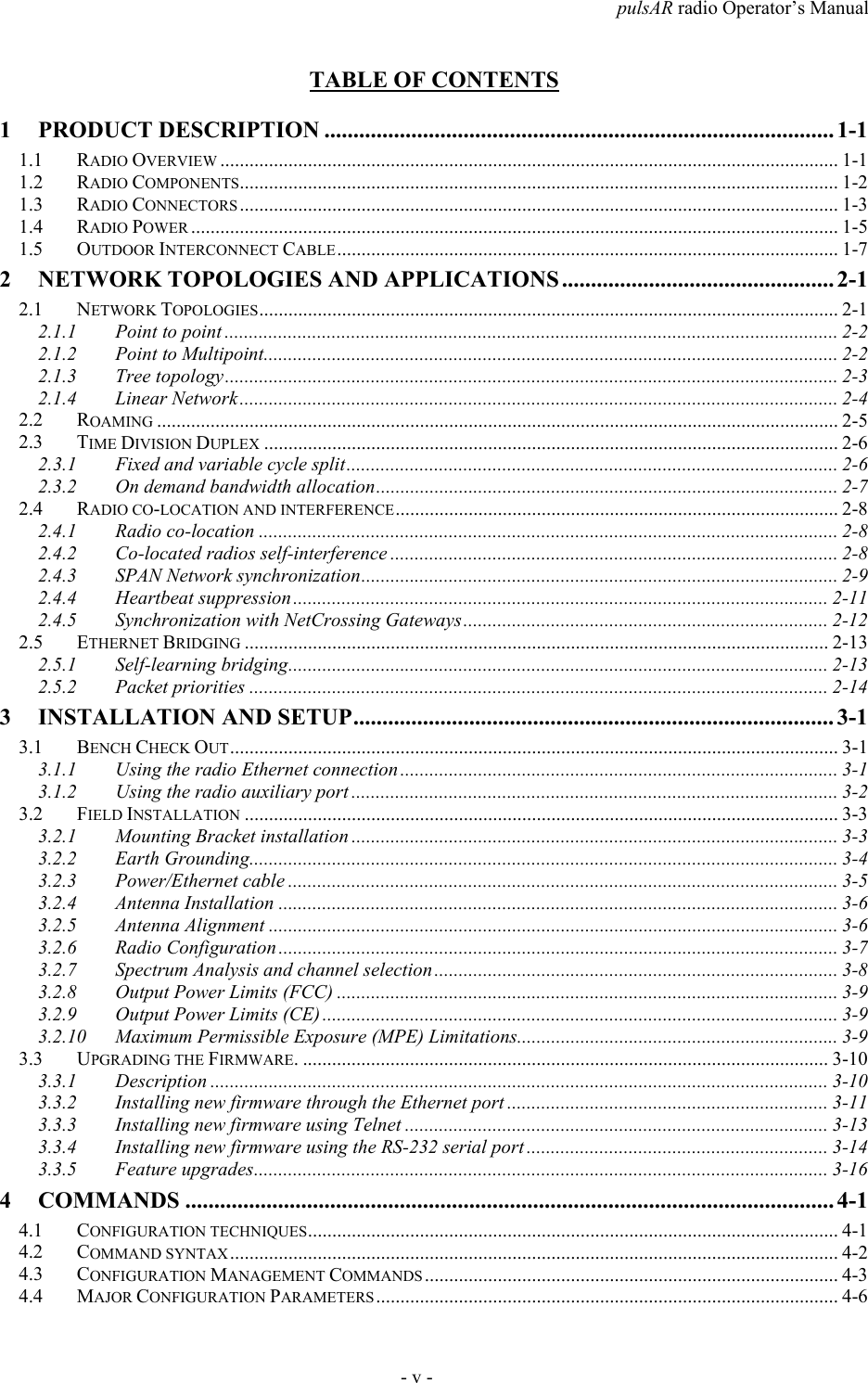
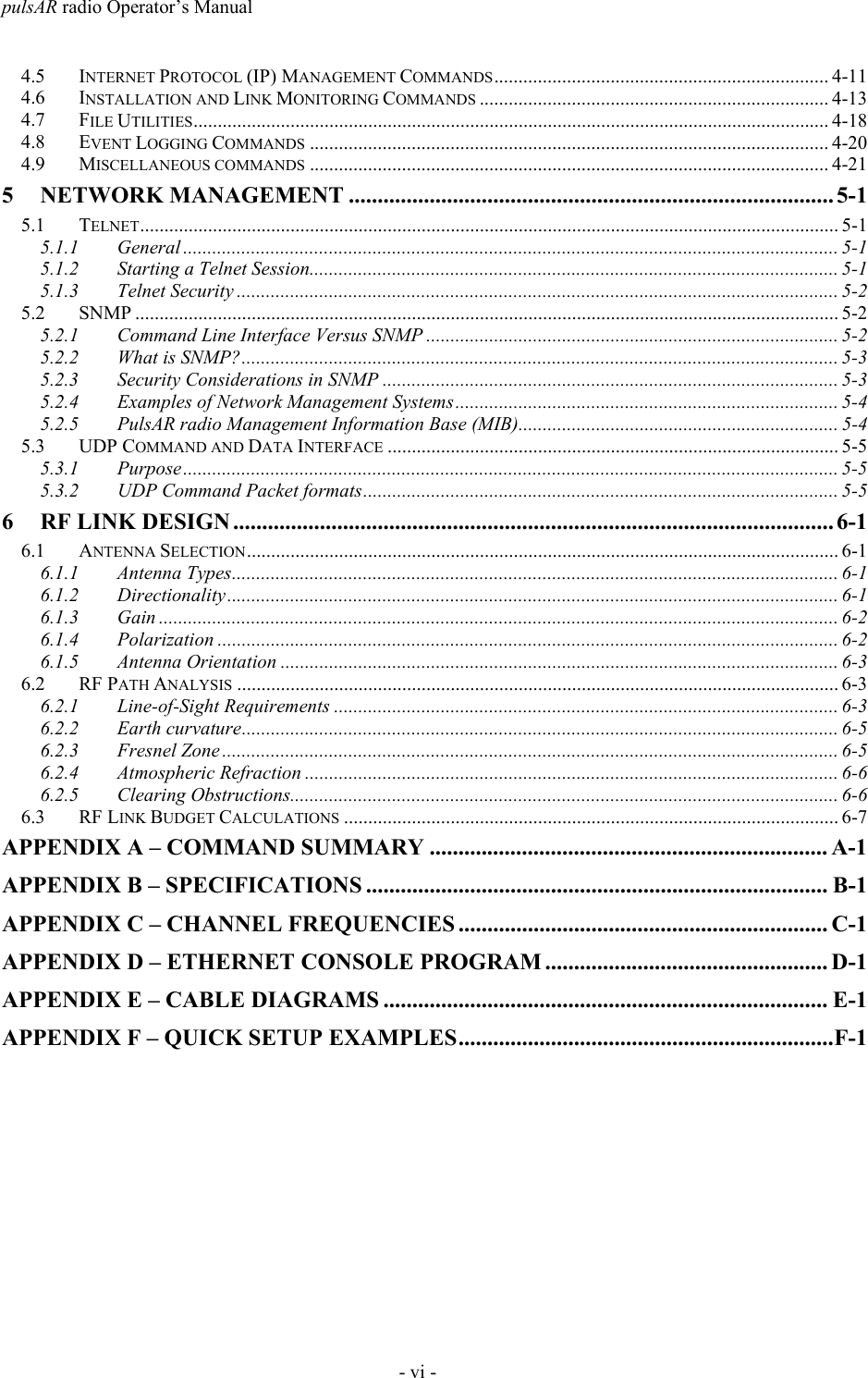
pulsAR radio Operator’s Manual- v -TABLE OF CONTENTS1 PRODUCT DESCRIPTION ........................................................................................ 1-11.1 RADIO OVERVIEW ............................................................................................................................... 1-11.2 RADIO COMPONENTS........................................................................................................................... 1-21.3 RADIO CONNECTORS ........................................................................................................................... 1-31.4 RADIO POWER ..................................................................................................................................... 1-51.5 OUTDOOR INTERCONNECT CABLE....................................................................................................... 1-72 NETWORK TOPOLOGIES AND APPLICATIONS ............................................... 2-12.1 NETWORK TOPOLOGIES....................................................................................................................... 2-12.1.1 Point to point .............................................................................................................................. 2-22.1.2 Point to Multipoint...................................................................................................................... 2-22.1.3 Tree topology.............................................................................................................................. 2-32.1.4 Linear Network........................................................................................................................... 2-42.2 ROAMING ............................................................................................................................................ 2-52.3 TIME DIVISION DUPLEX ...................................................................................................................... 2-62.3.1 Fixed and variable cycle split..................................................................................................... 2-62.3.2 On demand bandwidth allocation............................................................................................... 2-72.4 RADIO CO-LOCATION AND INTERFERENCE........................................................................................... 2-82.4.1 Radio co-location ....................................................................................................................... 2-82.4.2 Co-located radios self-interference ............................................................................................ 2-82.4.3 SPAN Network synchronization.................................................................................................. 2-92.4.4 Heartbeat suppression.............................................................................................................. 2-112.4.5 Synchronization with NetCrossing Gateways........................................................................... 2-122.5 ETHERNET BRIDGING ........................................................................................................................ 2-132.5.1 Self-learning bridging............................................................................................................... 2-132.5.2 Packet priorities ....................................................................................................................... 2-143 INSTALLATION AND SETUP................................................................................... 3-13.1 BENCH CHECK OUT............................................................................................................................. 3-13.1.1 Using the radio Ethernet connection .......................................................................................... 3-13.1.2 Using the radio auxiliary port .................................................................................................... 3-23.2 FIELD INSTALLATION .......................................................................................................................... 3-33.2.1 Mounting Bracket installation .................................................................................................... 3-33.2.2 Earth Grounding......................................................................................................................... 3-43.2.3 Power/Ethernet cable ................................................................................................................. 3-53.2.4 Antenna Installation ................................................................................................................... 3-63.2.5 Antenna Alignment ..................................................................................................................... 3-63.2.6 Radio Configuration................................................................................................................... 3-73.2.7 Spectrum Analysis and channel selection................................................................................... 3-83.2.8 Output Power Limits (FCC) ....................................................................................................... 3-93.2.9 Output Power Limits (CE).......................................................................................................... 3-93.2.10 Maximum Permissible Exposure (MPE) Limitations.................................................................. 3-93.3 UPGRADING THE FIRMWARE. ............................................................................................................ 3-103.3.1 Description ............................................................................................................................... 3-103.3.2 Installing new firmware through the Ethernet port .................................................................. 3-113.3.3 Installing new firmware using Telnet .......................................................................................3-133.3.4 Installing new firmware using the RS-232 serial port .............................................................. 3-143.3.5 Feature upgrades...................................................................................................................... 3-164 COMMANDS ................................................................................................................ 4-14.1 CONFIGURATION TECHNIQUES............................................................................................................. 4-14.2 COMMAND SYNTAX............................................................................................................................. 4-24.3 CONFIGURATION MANAGEMENT COMMANDS ..................................................................................... 4-34.4 MAJOR CONFIGURATION PARAMETERS............................................................................................... 4-6
pulsAR radio Operator’s Manual- vi -4.5 INTERNET PROTOCOL (IP) MANAGEMENT COMMANDS..................................................................... 4-114.6 INSTALLATION AND LINK MONITORING COMMANDS ........................................................................ 4-134.7 FILE UTILITIES................................................................................................................................... 4-184.8 EVENT LOGGING COMMANDS ........................................................................................................... 4-204.9 MISCELLANEOUS COMMANDS ........................................................................................................... 4-215 NETWORK MANAGEMENT .................................................................................... 5-15.1 TELNET................................................................................................................................................ 5-15.1.1 General ....................................................................................................................................... 5-15.1.2 Starting a Telnet Session............................................................................................................. 5-15.1.3 Telnet Security ............................................................................................................................ 5-25.2 SNMP ................................................................................................................................................. 5-25.2.1 Command Line Interface Versus SNMP ..................................................................................... 5-25.2.2 What is SNMP?........................................................................................................................... 5-35.2.3 Security Considerations in SNMP .............................................................................................. 5-35.2.4 Examples of Network Management Systems............................................................................... 5-45.2.5 PulsAR radio Management Information Base (MIB).................................................................. 5-45.3 UDP COMMAND AND DATA INTERFACE ............................................................................................. 5-55.3.1 Purpose....................................................................................................................................... 5-55.3.2 UDP Command Packet formats.................................................................................................. 5-56 RF LINK DESIGN ........................................................................................................ 6-16.1 ANTENNA SELECTION.......................................................................................................................... 6-16.1.1 Antenna Types............................................................................................................................. 6-16.1.2 Directionality.............................................................................................................................. 6-16.1.3 Gain ............................................................................................................................................ 6-26.1.4 Polarization ................................................................................................................................ 6-26.1.5 Antenna Orientation ................................................................................................................... 6-36.2 RF PATH ANALYSIS ............................................................................................................................ 6-36.2.1 Line-of-Sight Requirements ........................................................................................................ 6-36.2.2 Earth curvature........................................................................................................................... 6-56.2.3 Fresnel Zone ............................................................................................................................... 6-56.2.4 Atmospheric Refraction .............................................................................................................. 6-66.2.5 Clearing Obstructions................................................................................................................. 6-66.3 RF LINK BUDGET CALCULATIONS ...................................................................................................... 6-7APPENDIX A – COMMAND SUMMARY ..................................................................... A-1APPENDIX B – SPECIFICATIONS ................................................................................ B-1APPENDIX C – CHANNEL FREQUENCIES ................................................................ C-1APPENDIX D – ETHERNET CONSOLE PROGRAM ................................................. D-1APPENDIX E – CABLE DIAGRAMS ............................................................................. E-1APPENDIX F – QUICK SETUP EXAMPLES.................................................................F-1
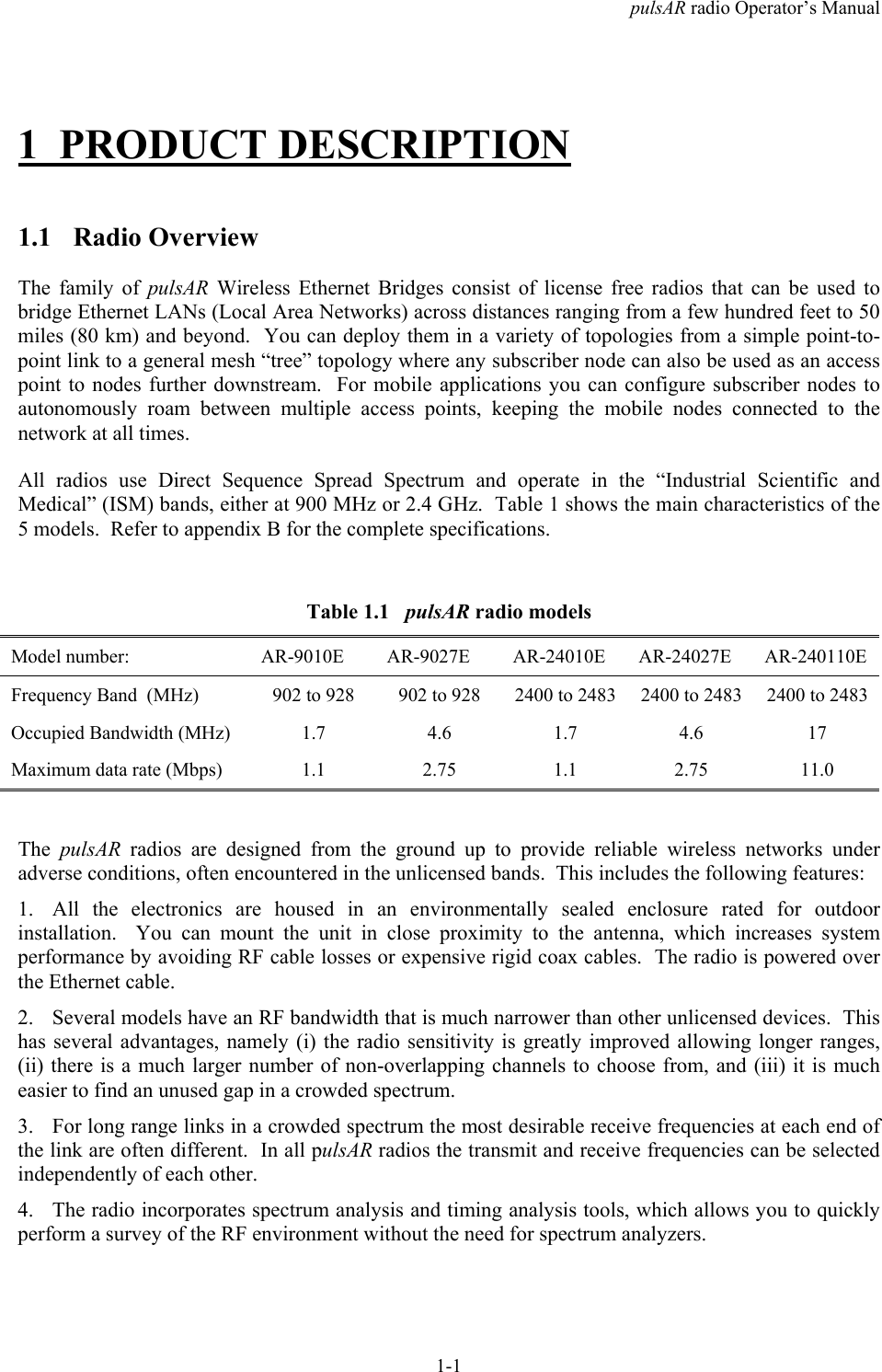
pulsAR radio Operator’s Manual1-11 PRODUCT DESCRIPTION1.1 Radio OverviewThe family of pulsAR  Wireless Ethernet Bridges consist of license free radios that can be used tobridge Ethernet LANs (Local Area Networks) across distances ranging from a few hundred feet to 50miles (80 km) and beyond.  You can deploy them in a variety of topologies from a simple point-to-point link to a general mesh “tree” topology where any subscriber node can also be used as an accesspoint to nodes further downstream.  For mobile applications you can configure subscriber nodes toautonomously roam between multiple access points, keeping the mobile nodes connected to thenetwork at all times.All radios use Direct Sequence Spread Spectrum and operate in the “Industrial Scientific andMedical” (ISM) bands, either at 900 MHz or 2.4 GHz.  Table 1 shows the main characteristics of the5 models.  Refer to appendix B for the complete specifications.Table 1.1   pulsAR radio modelsModel number: AR-9010E AR-9027E AR-24010E AR-24027E AR-240110EFrequency Band  (MHz) 902 to 928 902 to 928 2400 to 2483 2400 to 2483 2400 to 2483Occupied Bandwidth (MHz) 1.7 4.6 1.7 4.6 17Maximum data rate (Mbps) 1.1 2.75 1.1 2.75 11.0The  pulsAR radios are designed from the ground up to provide reliable wireless networks underadverse conditions, often encountered in the unlicensed bands.  This includes the following features:1. All the electronics are housed in an environmentally sealed enclosure rated for outdoorinstallation.  You can mount the unit in close proximity to the antenna, which increases systemperformance by avoiding RF cable losses or expensive rigid coax cables.  The radio is powered overthe Ethernet cable.2. Several models have an RF bandwidth that is much narrower than other unlicensed devices.  Thishas several advantages, namely (i) the radio sensitivity is greatly improved allowing longer ranges,(ii) there is a much larger number of non-overlapping channels to choose from, and (iii) it is mucheasier to find an unused gap in a crowded spectrum.3. For long range links in a crowded spectrum the most desirable receive frequencies at each end ofthe link are often different.  In all pulsAR radios the transmit and receive frequencies can be selectedindependently of each other.4. The radio incorporates spectrum analysis and timing analysis tools, which allows you to quicklyperform a survey of the RF environment without the need for spectrum analyzers.
pulsAR radio Operator’s Manual1-25. Unique antenna alignment aid provides audio feedback proportional to the RSSI, freeing theinstaller’s hands to adjust and tighten the antenna without having to hold or look at otherinstrumentation.The radios implements a transparent bridge algorithm, where each unit automatically learns theaddresses of all stations in the network and forwards over RF only the traffic that needs to bedelivered to the remote units.  In the mesh tree network where packets may need to go throughmultiple hops, the radios always route the packets to reach their destination with the minimumnumber of hops.If the application requires a serial synchronous interface, the radios can be paired with the AfarNetCrossing™ Gateway to provide both an Ethernet and a serial link of up to 2048 kbps across thesame wireless connection.  In this case the NetCrossing™ Gateway provides both the power and datato the radio across the single CAT5 cable.  Refer to the NetCrossing™ Gateway Operator’s Manualfor complete details.The pulsAR radios are the building block for the Afar “Synchronized PulsAR Network” (SPAN).  In aSPAN network all radios synchronize their transmissions such that all co-located radios transmit andreceive at the same time, thereby avoiding self-generated interference.  This technique allowsdeploying large networks with upwards of 24 radios co-located without generating self-interference.Each  pulsAR radio can be configured over a local serial interface or over the Ethernet using an“Ethernet console” program provided by Afar.  Once a unit is configured with an IP address you canalso configure and monitor the unit using Telnet or SNMP.  The radio firmware, in non-volatilememory, can also be updated remotely.1.2 Radio ComponentsTable 1.1 below shows the part numbers of various accessories related with the pulsAR radio. Youmay have received some of these accessories bundled with your radios.
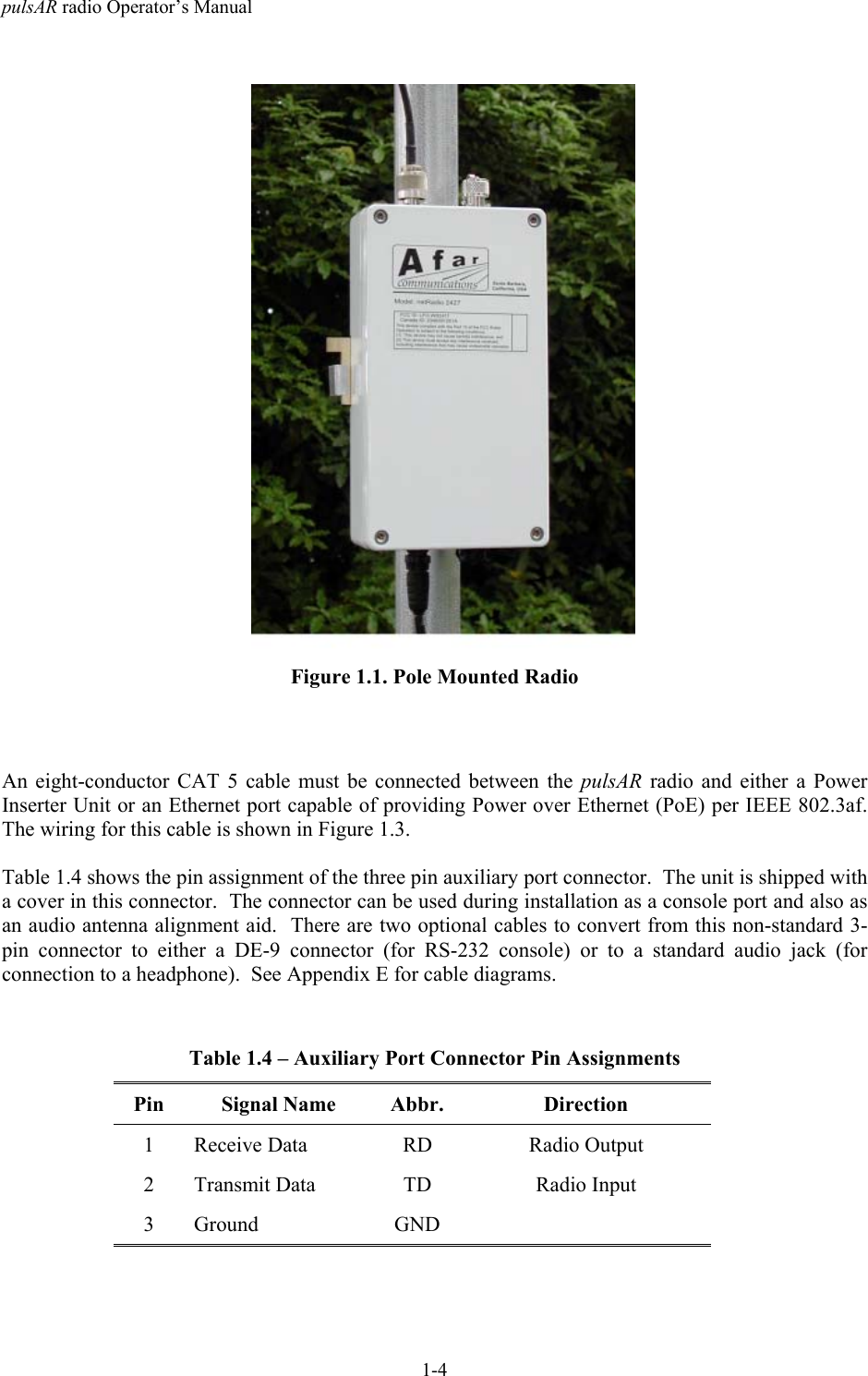
pulsAR radio Operator’s Manual1-3Table 1.2 – pulsAR acccessoriesDescription Part No.Bracket hardware for securing the pulsAR unit to an outdoor mast KIT-0601Bracket hardware for securing the pulsAR unit to a flat surface KIT-0605AC Power Inserter Module with 110-240 VAC power supply    with a 6 ft USA 3-prong power cord:    with a 6ft European connector (Schuko) power cordPWI-0109-06APWI-0109-06BDC Power Inserter Module with pigtail for external DC connection PWI-0106CD with this Operator’s Manual, Econsole program, and other application notes.Outdoor rated cat5 cable for connection between pulsAR radio and power insertermodule (xxx is the length is feet)CBL-0503-xxxAuxiliary port cable for RS-232 connection CBL-0403Auxiliary port cable with Audio jack for antenna alignment CBL-0404Lightning arrestor for the antenna ports SUR-0205Surge suppressor for the Ethernet and Power CAT5 cable SUP-02021.3 Radio ConnectorsFigure 1.1 shows a pulsAR radio mounted on a mast.  The radio is housed in a metal enclosure withtwo N-female connectors at the top for connection to RF antennas, and two special purposeconnectors, at the bottom, for DC power, Ethernet data and control.The function of each connector is described in the table below.Table 1.3 – PulsAR ConnectorsConnector Type FunctionA N-Female RF connector to antenna AB N-Female RF connector to antenna B (used in the tree topology)C Lumberg3 pin maleAuxiliary port (3 pin) used as an antenna alignment aid and forRS-232 console port.D Lumberg8 pin male10/100 Base-T data interface and DC power input (8 pin).Must be connected to the “Power Inserter Unit” with a CAT 5cable.
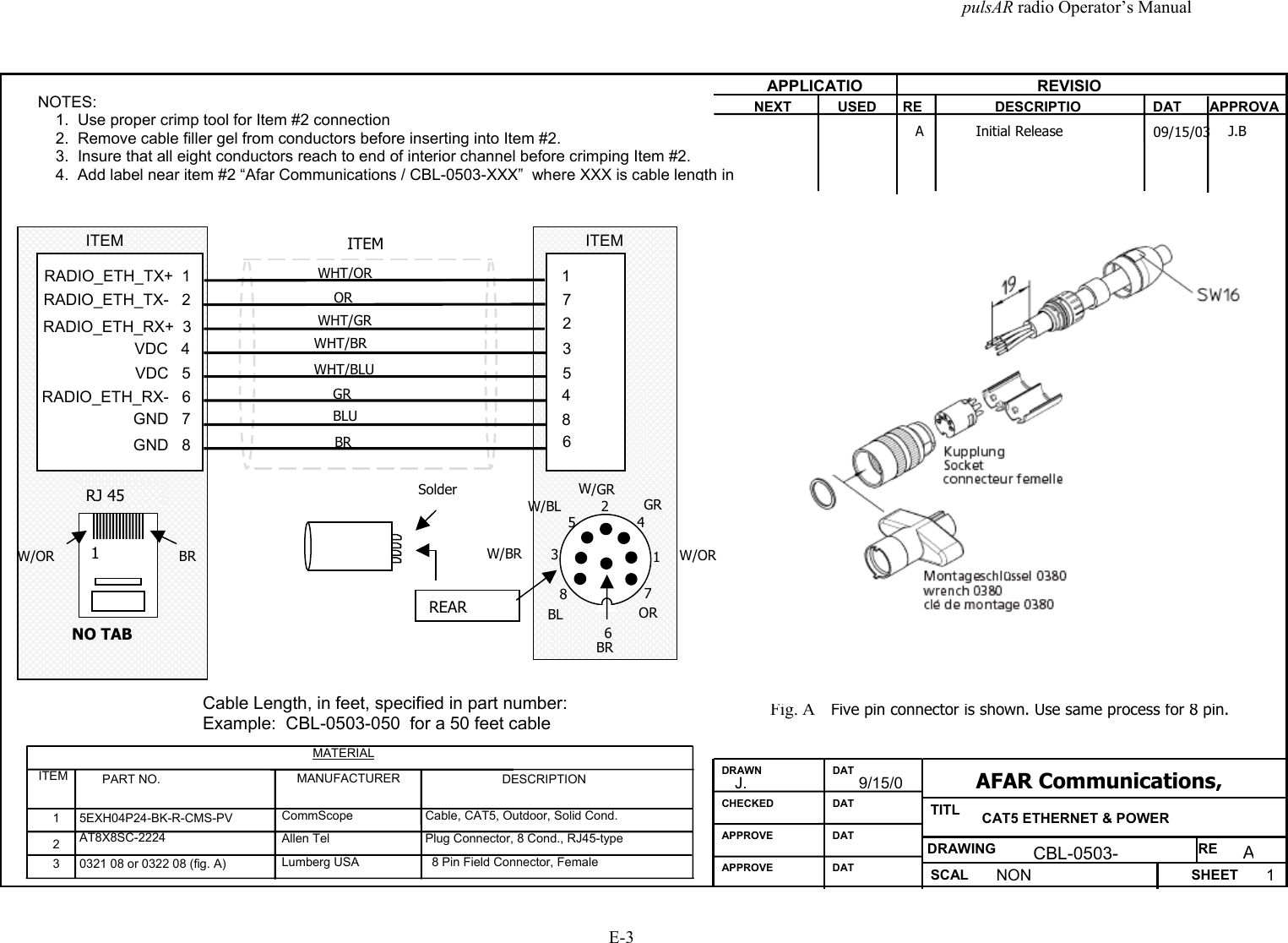
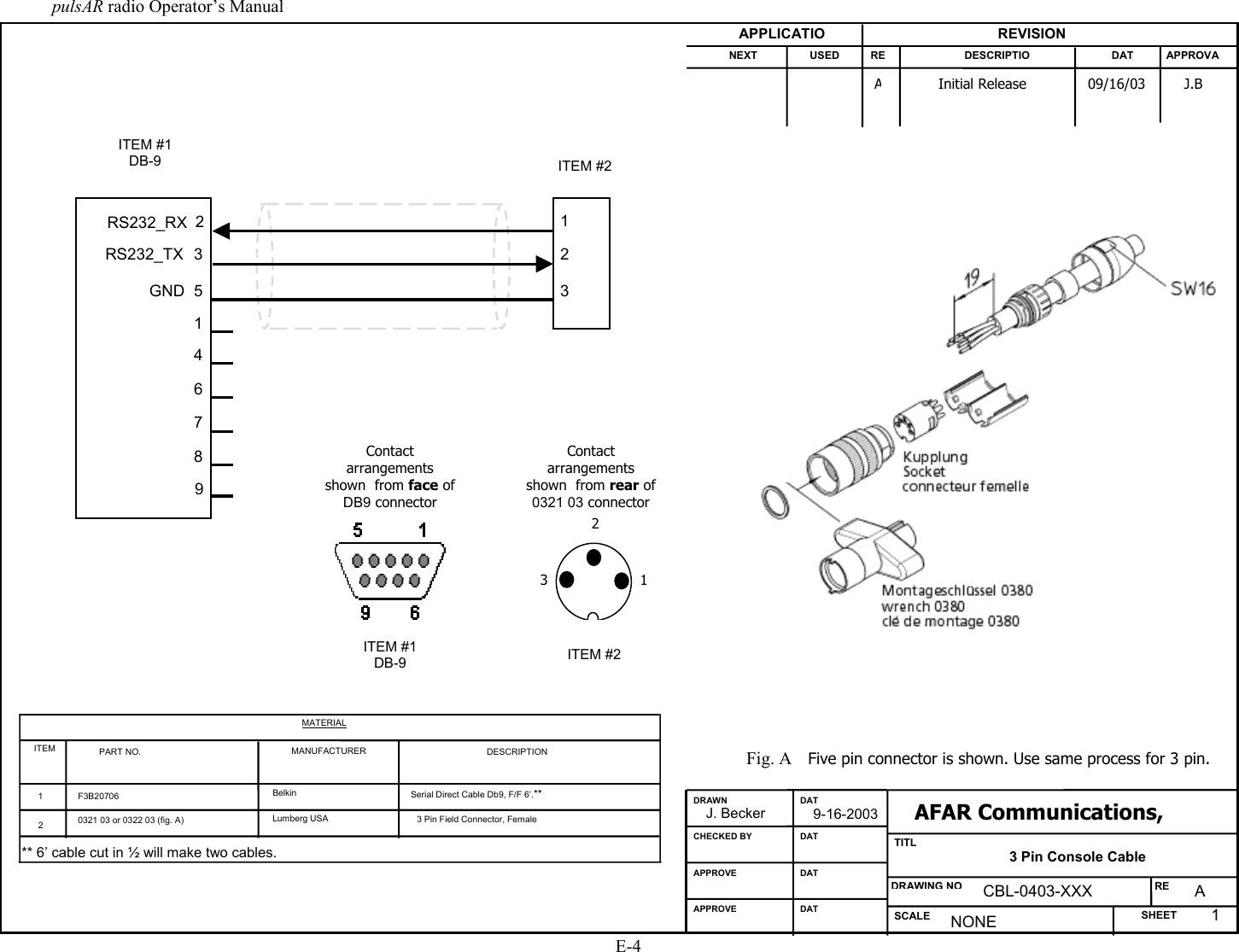
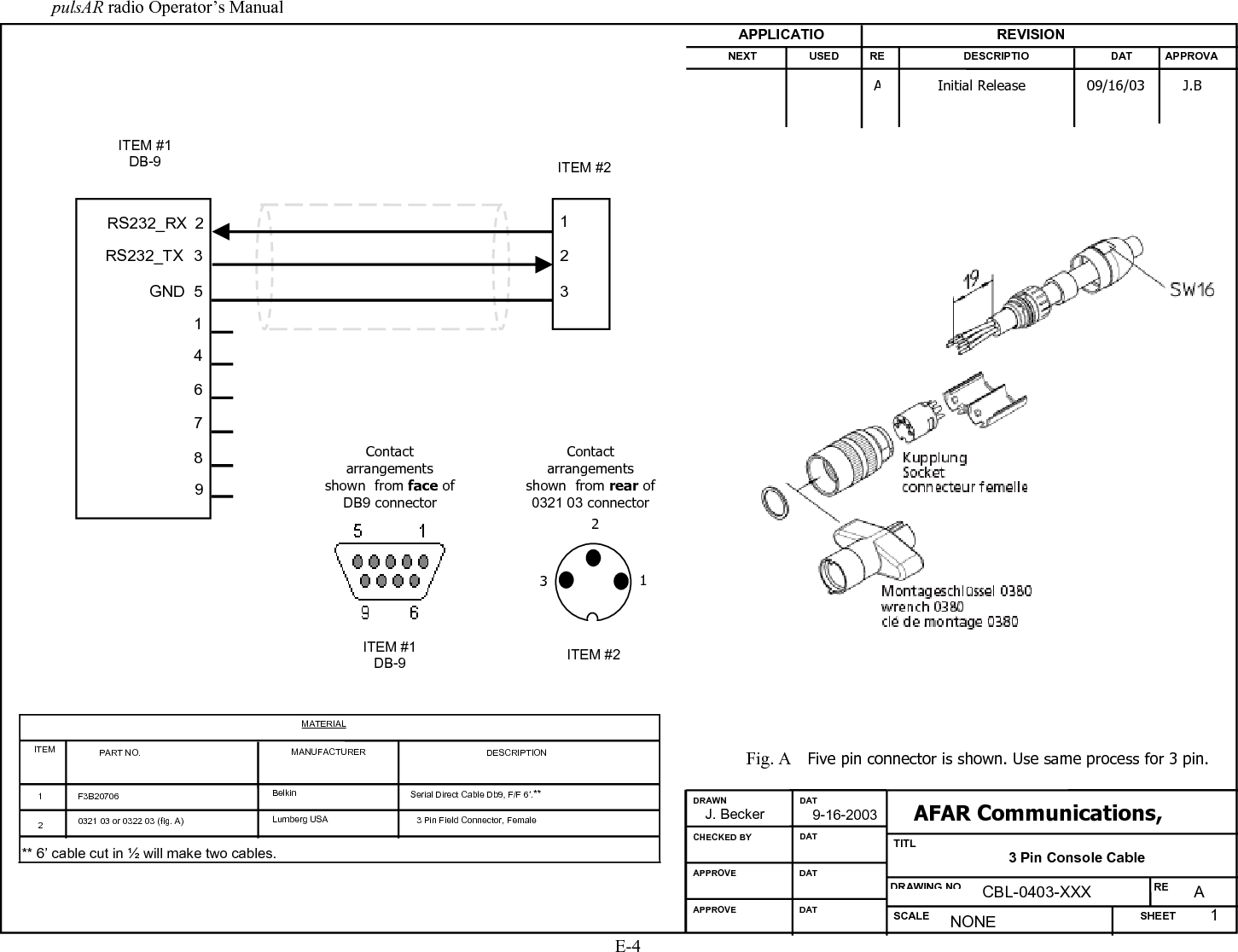
pulsAR radio Operator’s Manual1-4Figure 1.1. Pole Mounted RadioAn eight-conductor CAT 5 cable must be connected between the pulsAR  radio and either a PowerInserter Unit or an Ethernet port capable of providing Power over Ethernet (PoE) per IEEE 802.3af.The wiring for this cable is shown in Figure 1.3.Table 1.4 shows the pin assignment of the three pin auxiliary port connector.  The unit is shipped witha cover in this connector.  The connector can be used during installation as a console port and also asan audio antenna alignment aid.  There are two optional cables to convert from this non-standard 3-pin connector to either a DE-9 connector (for RS-232 console) or to a standard audio jack (forconnection to a headphone).  See Appendix E for cable diagrams.Table 1.4 – Auxiliary Port Connector Pin AssignmentsPin Signal Name Abbr. Direction1 Receive Data RD Radio Output2 Transmit Data TD Radio Input3 Ground GND
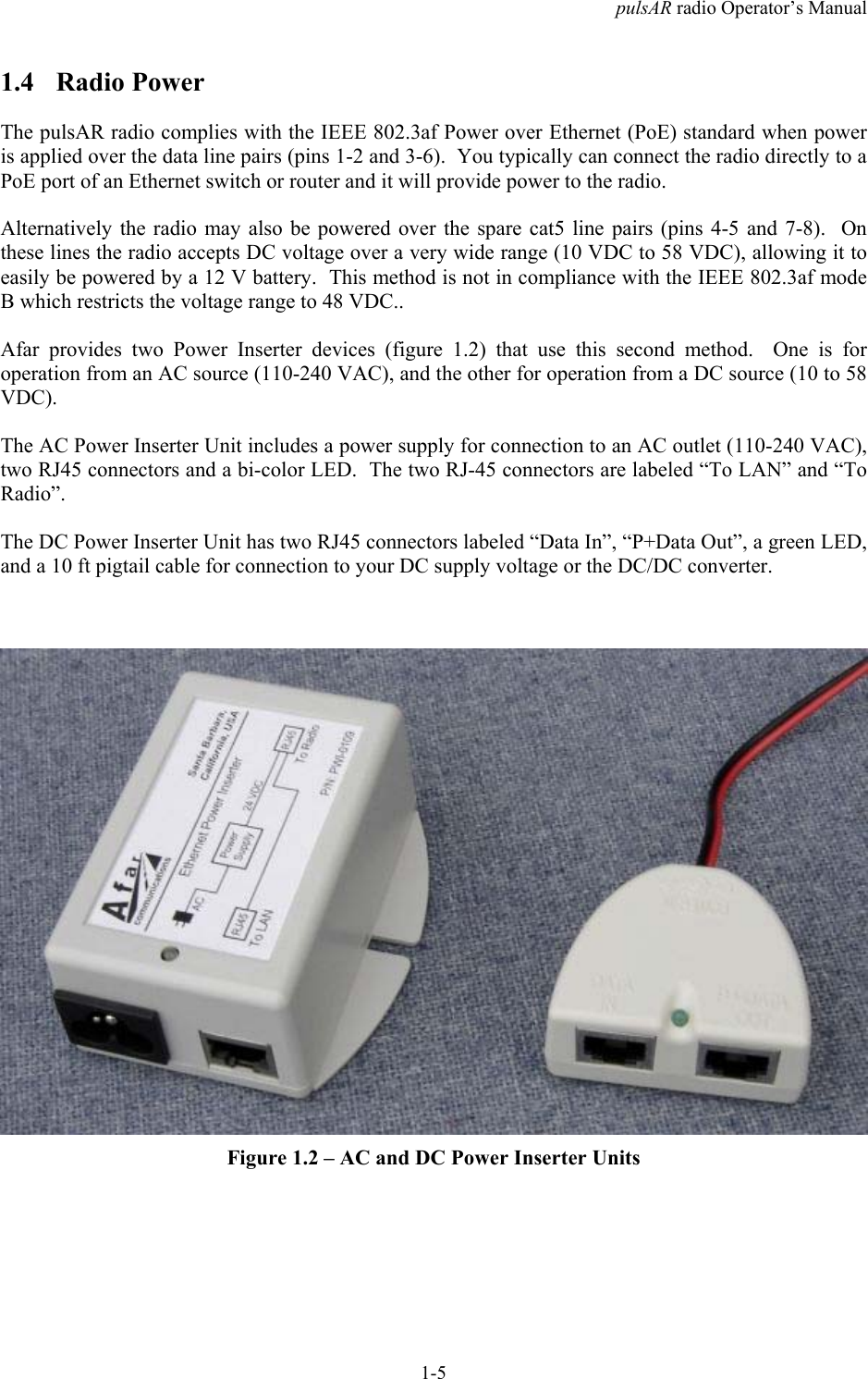
pulsAR radio Operator’s Manual1-51.4 Radio PowerThe pulsAR radio complies with the IEEE 802.3af Power over Ethernet (PoE) standard when poweris applied over the data line pairs (pins 1-2 and 3-6).  You typically can connect the radio directly to aPoE port of an Ethernet switch or router and it will provide power to the radio.Alternatively the radio may also be powered over the spare cat5 line pairs (pins 4-5 and 7-8).  Onthese lines the radio accepts DC voltage over a very wide range (10 VDC to 58 VDC), allowing it toeasily be powered by a 12 V battery.  This method is not in compliance with the IEEE 802.3af modeB which restricts the voltage range to 48 VDC..Afar provides two Power Inserter devices (figure 1.2) that use this second method.  One is foroperation from an AC source (110-240 VAC), and the other for operation from a DC source (10 to 58VDC).The AC Power Inserter Unit includes a power supply for connection to an AC outlet (110-240 VAC),two RJ45 connectors and a bi-color LED.  The two RJ-45 connectors are labeled “To LAN” and “ToRadio”.The DC Power Inserter Unit has two RJ45 connectors labeled “Data In”, “P+Data Out”, a green LED,and a 10 ft pigtail cable for connection to your DC supply voltage or the DC/DC converter.Figure 1.2 – AC and DC Power Inserter Units
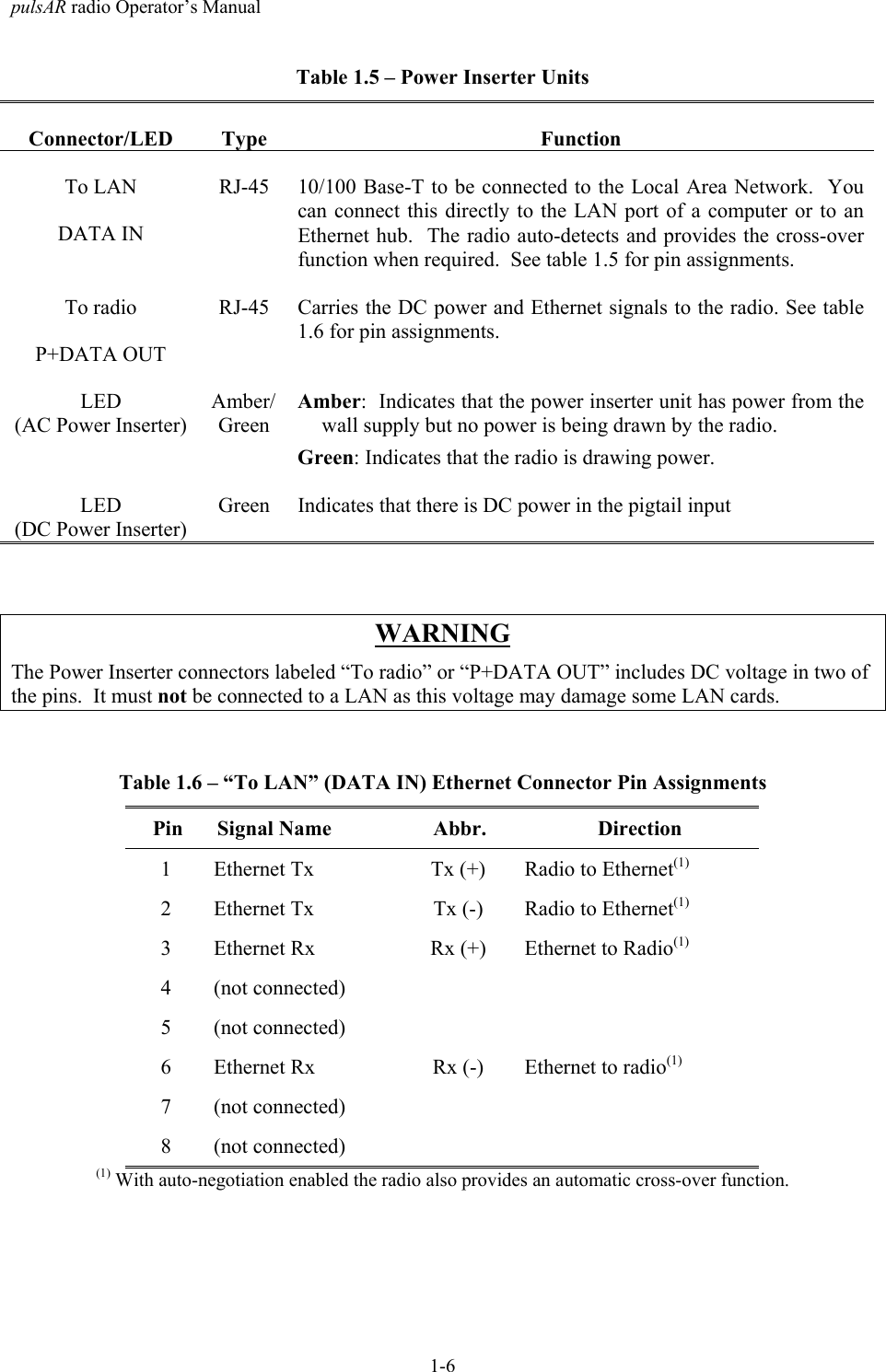
pulsAR radio Operator’s Manual1-6Table 1.5 – Power Inserter UnitsConnector/LED Type FunctionTo LANDATA INRJ-45 10/100 Base-T to be connected to the Local Area Network.  Youcan connect this directly to the LAN port of a computer or to anEthernet hub.  The radio auto-detects and provides the cross-overfunction when required.  See table 1.5 for pin assignments.To radioP+DATA OUTRJ-45 Carries the DC power and Ethernet signals to the radio. See table1.6 for pin assignments.LED(AC Power Inserter)Amber/GreenAmber:  Indicates that the power inserter unit has power from thewall supply but no power is being drawn by the radio.Green: Indicates that the radio is drawing power.LED(DC Power Inserter)Green Indicates that there is DC power in the pigtail inputWARNINGThe Power Inserter connectors labeled “To radio” or “P+DATA OUT” includes DC voltage in two ofthe pins.  It must not be connected to a LAN as this voltage may damage some LAN cards.Table 1.6 – “To LAN” (DATA IN) Ethernet Connector Pin AssignmentsPin Signal Name Abbr. Direction1 Ethernet Tx Tx (+) Radio to Ethernet(1)2 Ethernet Tx Tx (-) Radio to Ethernet(1)3 Ethernet Rx Rx (+) Ethernet to Radio(1)4 (not connected)5 (not connected)6 Ethernet Rx Rx (-) Ethernet to radio(1)7 (not connected)8 (not connected)(1) With auto-negotiation enabled the radio also provides an automatic cross-over function.
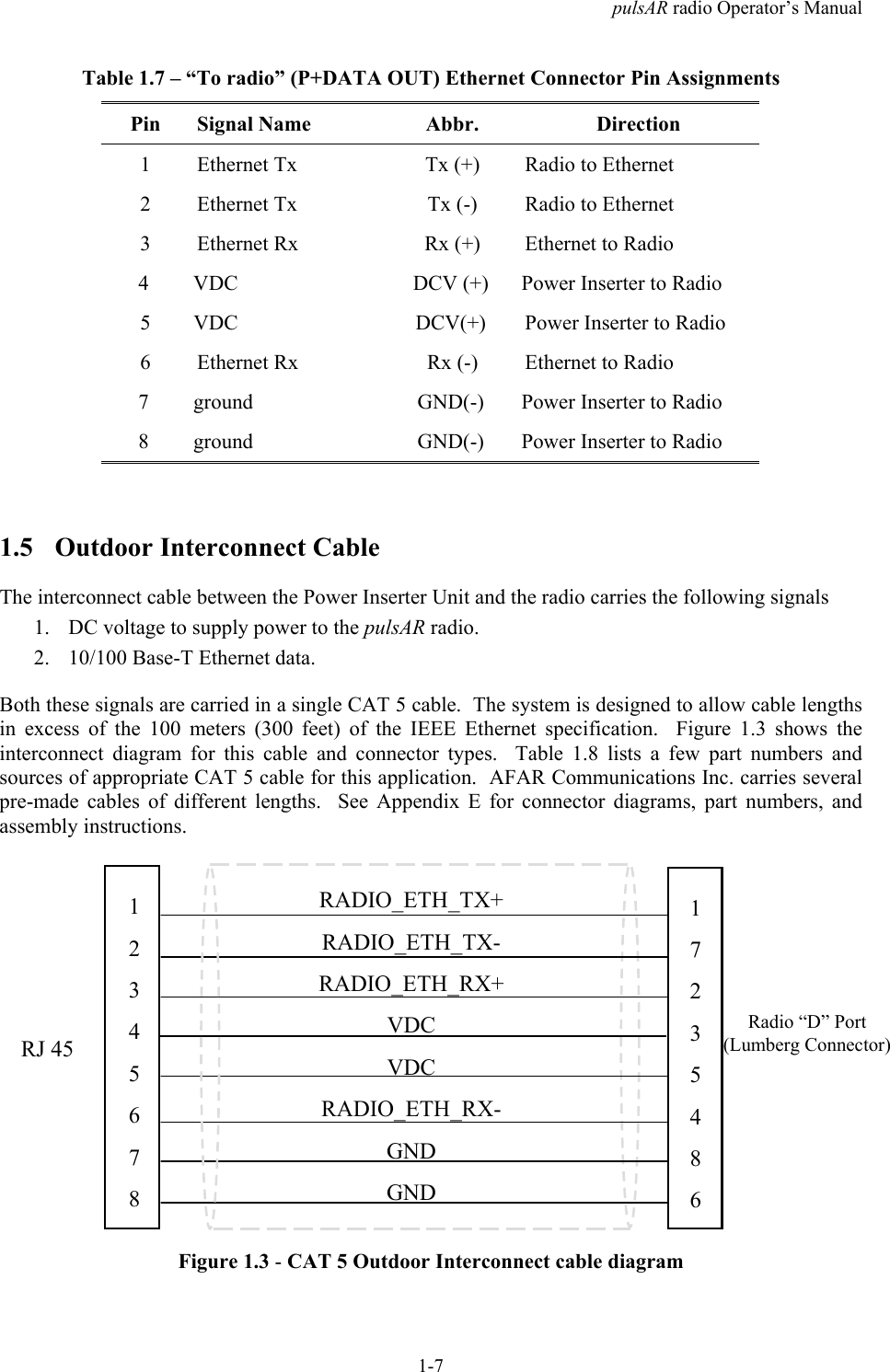
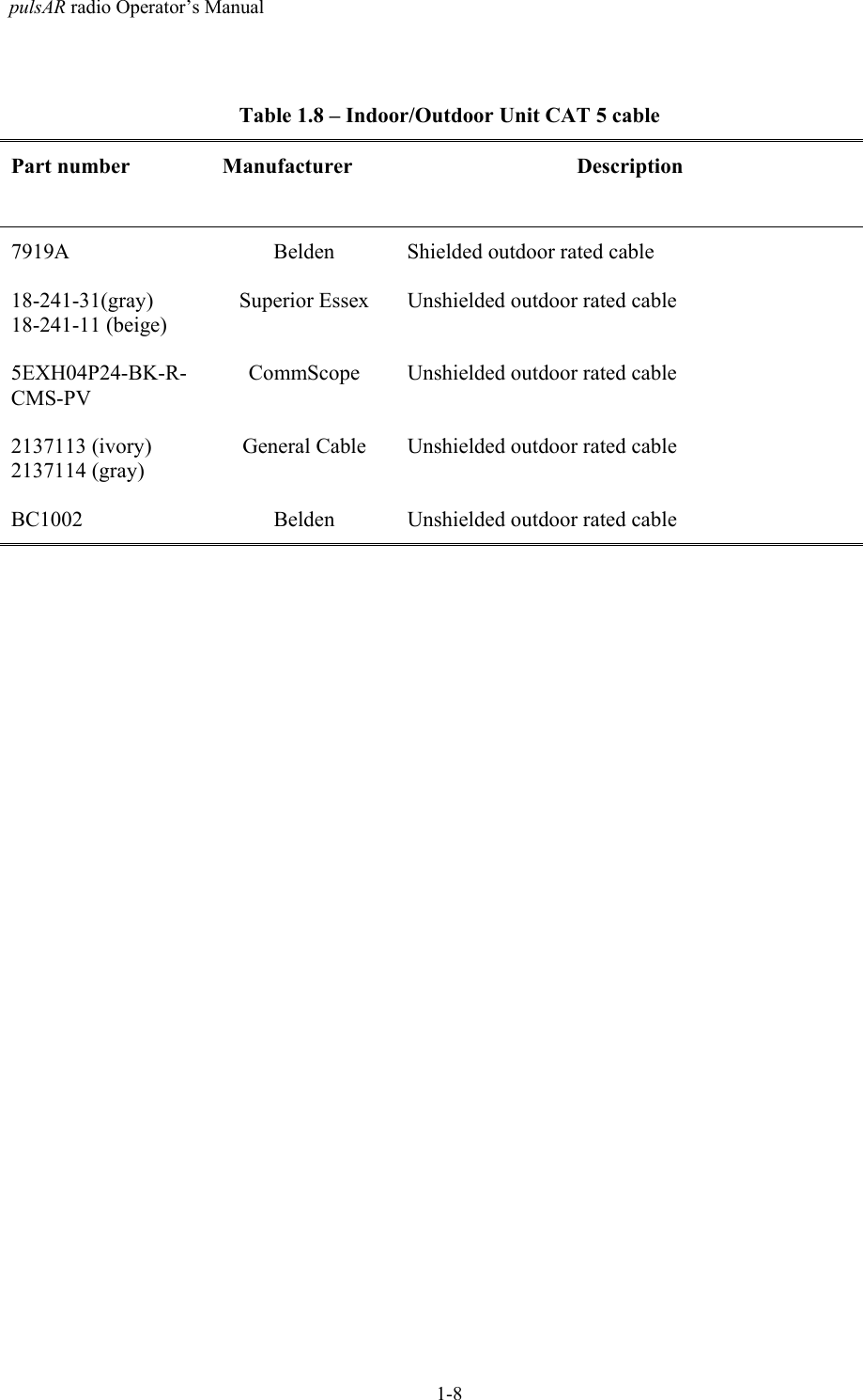
pulsAR radio Operator’s Manual1-7Table 1.7 – “To radio” (P+DATA OUT) Ethernet Connector Pin AssignmentsPin Signal Name Abbr. Direction1 Ethernet Tx Tx (+) Radio to Ethernet2 Ethernet Tx Tx (-) Radio to Ethernet3 Ethernet Rx Rx (+) Ethernet to Radio4 VDC DCV (+) Power Inserter to Radio5 VDC DCV(+) Power Inserter to Radio6 Ethernet Rx Rx (-) Ethernet to Radio7 ground GND(-) Power Inserter to Radio8 ground GND(-) Power Inserter to Radio1.5 Outdoor Interconnect CableThe interconnect cable between the Power Inserter Unit and the radio carries the following signals1. DC voltage to supply power to the pulsAR radio.2. 10/100 Base-T Ethernet data.Both these signals are carried in a single CAT 5 cable.  The system is designed to allow cable lengthsin excess of the 100 meters (300 feet) of the IEEE Ethernet specification.  Figure 1.3 shows theinterconnect diagram for this cable and connector types.  Table 1.8 lists a few part numbers andsources of appropriate CAT 5 cable for this application.  AFAR Communications Inc. carries severalpre-made cables of different lengths.  See Appendix E for connector diagrams, part numbers, andassembly instructions.Figure 1.3 - CAT 5 Outdoor Interconnect cable diagramRADIO_ETH_TX+RADIO_ETH_TX-RADIO_ETH_RX+VDCVDCRADIO_ETH_RX-GNDGND1723548612345678RJ 45Radio “D” Port(Lumberg Connector)
pulsAR radio Operator’s Manual1-8Table 1.8 – Indoor/Outdoor Unit CAT 5 cablePart number Manufacturer Description7919A Belden Shielded outdoor rated cable18-241-31(gray)18-241-11 (beige)Superior Essex Unshielded outdoor rated cable5EXH04P24-BK-R-CMS-PVCommScope Unshielded outdoor rated cable2137113 (ivory)2137114 (gray)General Cable Unshielded outdoor rated cableBC1002 Belden Unshielded outdoor rated cable
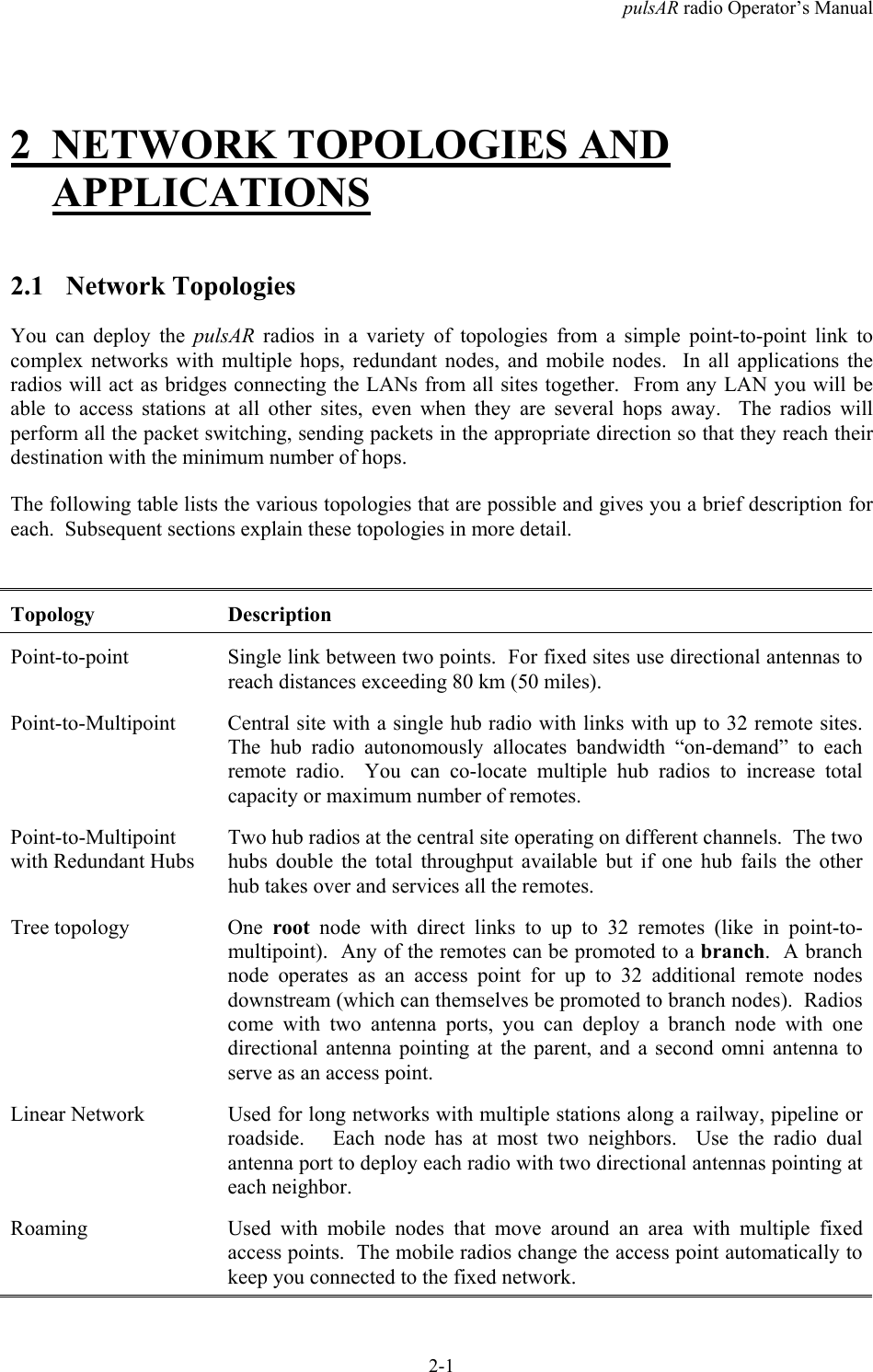
pulsAR radio Operator’s Manual2-12 NETWORK TOPOLOGIES ANDAPPLICATIONS2.1 Network TopologiesYou can deploy the pulsAR  radios in a variety of topologies from a simple point-to-point link tocomplex networks with multiple hops, redundant nodes, and mobile nodes.  In all applications theradios will act as bridges connecting the LANs from all sites together.  From any LAN you will beable to access stations at all other sites, even when they are several hops away.  The radios willperform all the packet switching, sending packets in the appropriate direction so that they reach theirdestination with the minimum number of hops.The following table lists the various topologies that are possible and gives you a brief description foreach.  Subsequent sections explain these topologies in more detail.Topology DescriptionPoint-to-point Single link between two points.  For fixed sites use directional antennas toreach distances exceeding 80 km (50 miles).Point-to-Multipoint Central site with a single hub radio with links with up to 32 remote sites.The hub radio autonomously allocates bandwidth “on-demand” to eachremote radio.  You can co-locate multiple hub radios to increase totalcapacity or maximum number of remotes.Point-to-Multipointwith Redundant HubsTwo hub radios at the central site operating on different channels.  The twohubs double the total throughput available but if one hub fails the otherhub takes over and services all the remotes.Tree topology One  root node with direct links to up to 32 remotes (like in point-to-multipoint).  Any of the remotes can be promoted to a branch.  A branchnode operates as an access point for up to 32 additional remote nodesdownstream (which can themselves be promoted to branch nodes).  Radioscome with two antenna ports, you can deploy a branch node with onedirectional antenna pointing at the parent, and a second omni antenna toserve as an access point.Linear Network Used for long networks with multiple stations along a railway, pipeline orroadside.   Each node has at most two neighbors.  Use the radio dualantenna port to deploy each radio with two directional antennas pointing ateach neighbor.Roaming Used with mobile nodes that move around an area with multiple fixedaccess points.  The mobile radios change the access point automatically tokeep you connected to the fixed network.
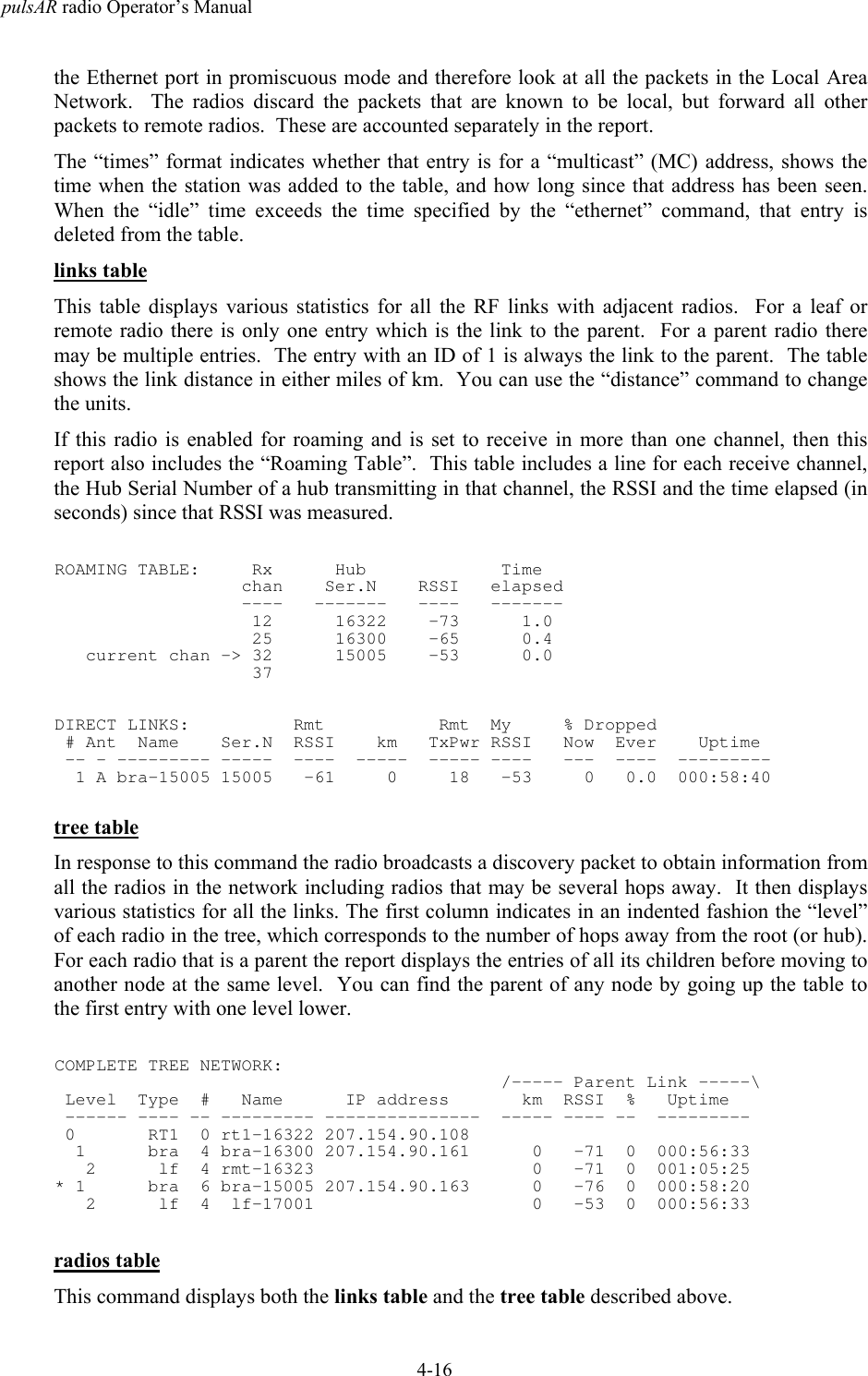
pulsAR radio Operator’s Manual2-22.1.1 Point to pointIn a point-to-point topology, when the two sites are fixed we recommend using directional antennas atboth ends, pointing at each other.  This increases the signal strength in the desired direction andshields the radios against unwanted interference from other sources.  When you use directionalantennas make sure you install both antennas with the same polarization (vertical or horizontal). Mostoften interfering sources are vertically polarized so you may want to install your link with horizontalpolarization to get some additional isolation against those interference sources.The point-to-point topology operates like a point-to-multipoint network where the hub has a singleremote.  You still need to configure one of the two radios to be the hub but configure it with the maxnumber of children set to one.  This optimizes the radio performance for point-to-point operation. Seethe node command in section 4.2.1.2 Point to MultipointIn a Point to Multipoint topology one radio is designated as the hub and all other radios aredesignated as remotes.  You can have up to 32 remote nodes.  You typically deploy the hub radiowith an omni-directional or sectorial antenna so that it can cover all the remotes.  If the remote sitesare fixed deploy them with directional antennas pointing at the hub.  If the remotes are mobile useomni-directional antennas everywhere.Remote radios connect to the network automatically without need to change the configuration of thehub radio.  All you need is to point an antenna at the hub and ensure that the following parameters areconfigured correctly:1. The RF receive channel of the remote must match the transmit channel of the hub (see rf-1-setup).2. The  network-id parameter of the remote must match the network-id of the hub (see nodecommand).3. The max-children parameter at the hub must be large enough to give access to all the plannedremotes (see node command).There are situations when you may want to deploy multiple hub radios at the central site.  Thesesituations include:• You need to increase total throughput of the central site.• The number of remotes increases beyond 32.• Provide hub redundancy.In these situations configure each co-located hub to operate in non-overlapping channels.  Refer tosection 2.4 for additional guidelines on how to synchronize the transmissions from the multiple hubs.For hub redundancy you need to configure the remote nodes to roam between the two channels usedby the two hubs.  You can split the remotes into two groups with one hub servicing each group. If onehub fails or there is strong interference in that channel, then the remotes will reattach to the other hubkeeping the connection to the central site intact.  Refer to section 2.2 for the roaming options.
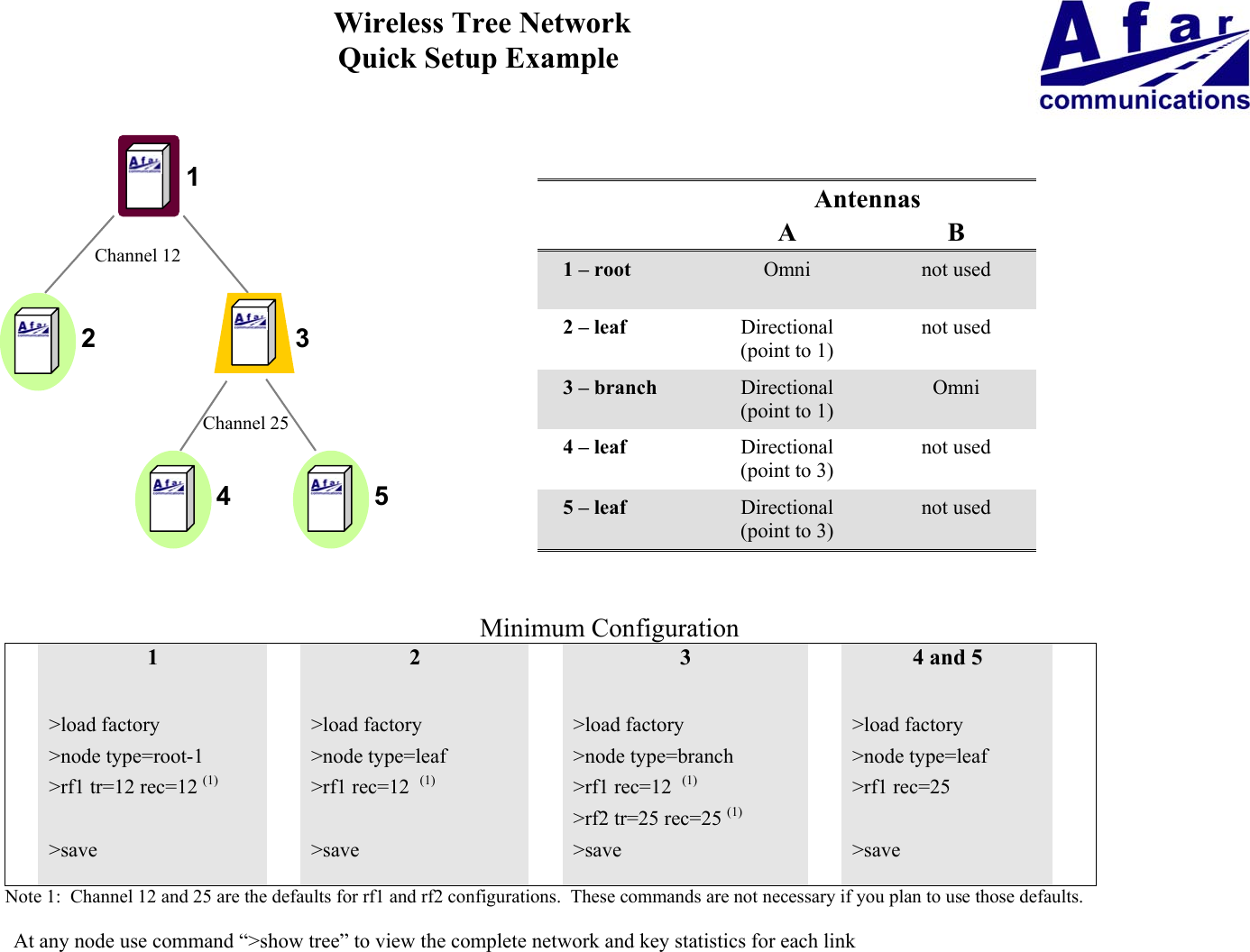
pulsAR radio Operator’s Manual2-32.1.3 Tree topologyIn a tree topology you have three node types:  one root node and multiple branch and leaf nodes (usethe node command to configure the node type).The root node performs a similar function to the hub in a point-to-multipoint topology and can haveup to 32 direct links to remote sites.  The radios at the remote sites can be configured as either leaf orbranch nodes.  A leaf node is similar to the remote in a point-multipoint topology.  But a branchnode, besides having a link to a parent (root or another branch), also operates as an access point forup to 32 additional remote nodes (children).  Each of those nodes can again be configured as either aleaf or a branch.  There is no limit to the number of levels in the tree.Root RootBranchLeafFigure 2.1 – Tree TopologyA branch node has two independent RF configurations, one for the link with the parent, the other forthe links with its children.  Typically you set the link with the parent to use antenna A, and the linkwith the children to use antenna B.  This allows you to deploy a directional antenna pointing at theparent node, while using an omni-directional or sectorial antenna for the links with the multiplechildren.  This is not mandatory, you can configure a branch radio to use a single antenna.With a large network with many branch nodes you must pay special attention to the channelassignments.   One simple approach is to allocate non-overlapping channels to each “cell” (a cellconsists of a parent with all of its direct children).  At the parent set both the transmit and receivechannel to the channel that you assigned to that cell.   At the children set them to receive from the
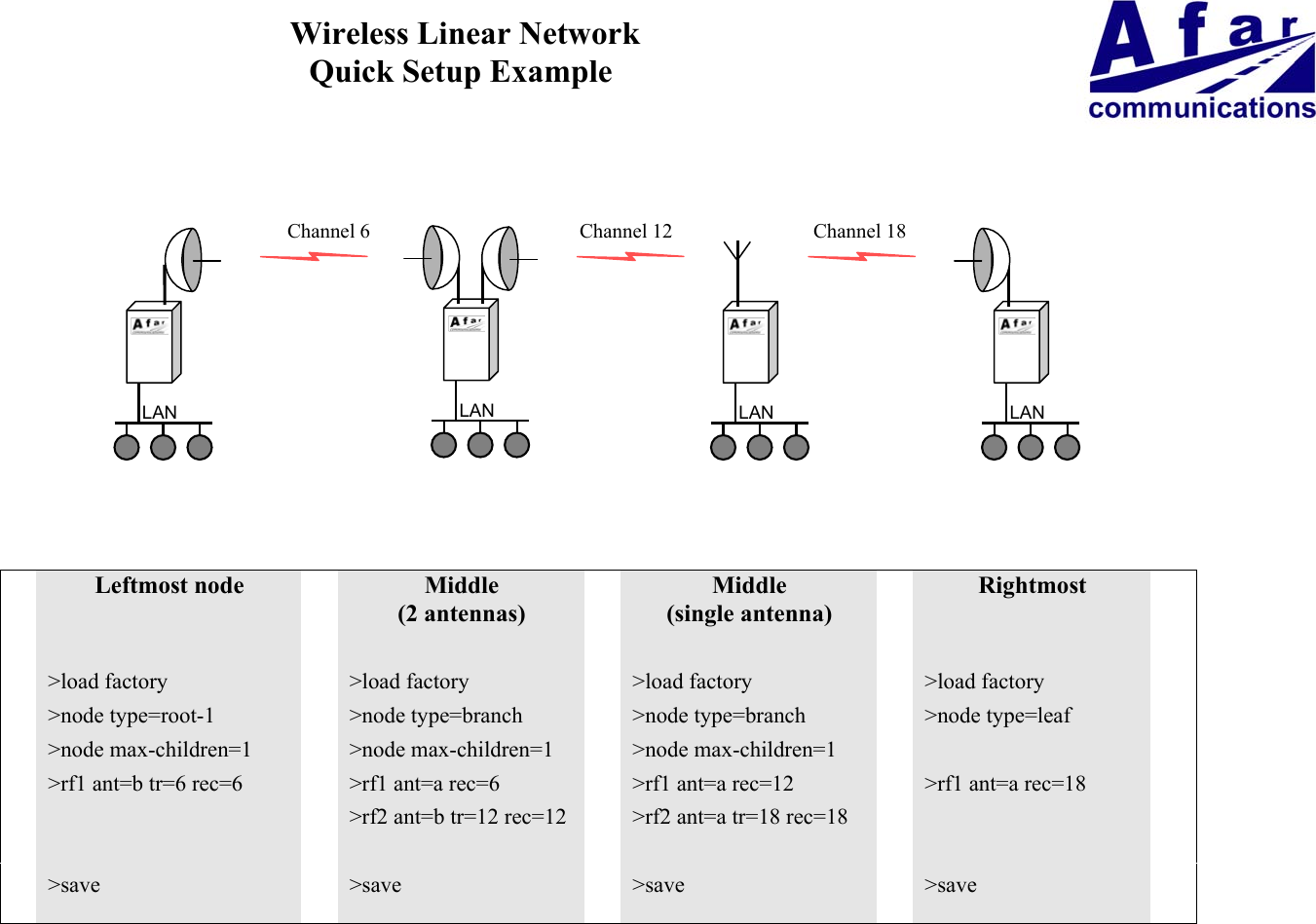
pulsAR radio Operator’s Manual2-4parent in that same channel (see commands rf-1-setup and rf-2-setup).  Once enough distanceseparates cells you can start re-using overlapping channels.The tree topology has the following features:• There is no limit to the number of levels on the tree.• Automatic association of new remote radios: just configure a new remote to receive on thetransmit channel of the desired parent, and it will automatically associate to the network  (use the“network-id” of the node command to prevent unauthorized radios from attaching).• Self-learning bridging algorithm: the radios automatically learn the addresses of your equipmentattached on any of the LANs and route the packets using the minimal number of hops to reachtheir destination.• Self-healing network:  If a parent node goes down a branch continues to operate and pass databetween its children.  Once the parent recovers the branch automatically reattaches to the rest ofthe network.Dual antenna root mode: You also have the option of running the root with two antennas.  This maybe useful if your remotes are grouped geographically such that you can use two directional orsectorial antennas to cover each group.  To run in this mode set the node type to root-2 and use rf-1-setup and rf-2-setup to configure the RF parameters for each antenna.Network throughput:  A branch radio allocates half of the time to communicate with its parent and theother half with its children.  A root radio does not have a parent, so it divides its children into twogroups communicating with one group during the first half cycle, and with the second group duringthe second half.  Each of these two groups gets half of the total network capacity.  Therefore in thetree topology the maximum throughput available at one specific node in the tree is half of the totalnetwork capacity.  This is irrespective of the level in the tree, i.e., there is no further drop inthroughput as you go down the various levels.2.1.4 Linear NetworkA Linear Network topology is ideal for providing communications in systems that naturally requirestations deployed along a line. Some of the applications are:• Railway wayside communications• Pipeline communications• Highway roadside communications• Long links that requires multiple repeaters between the end points
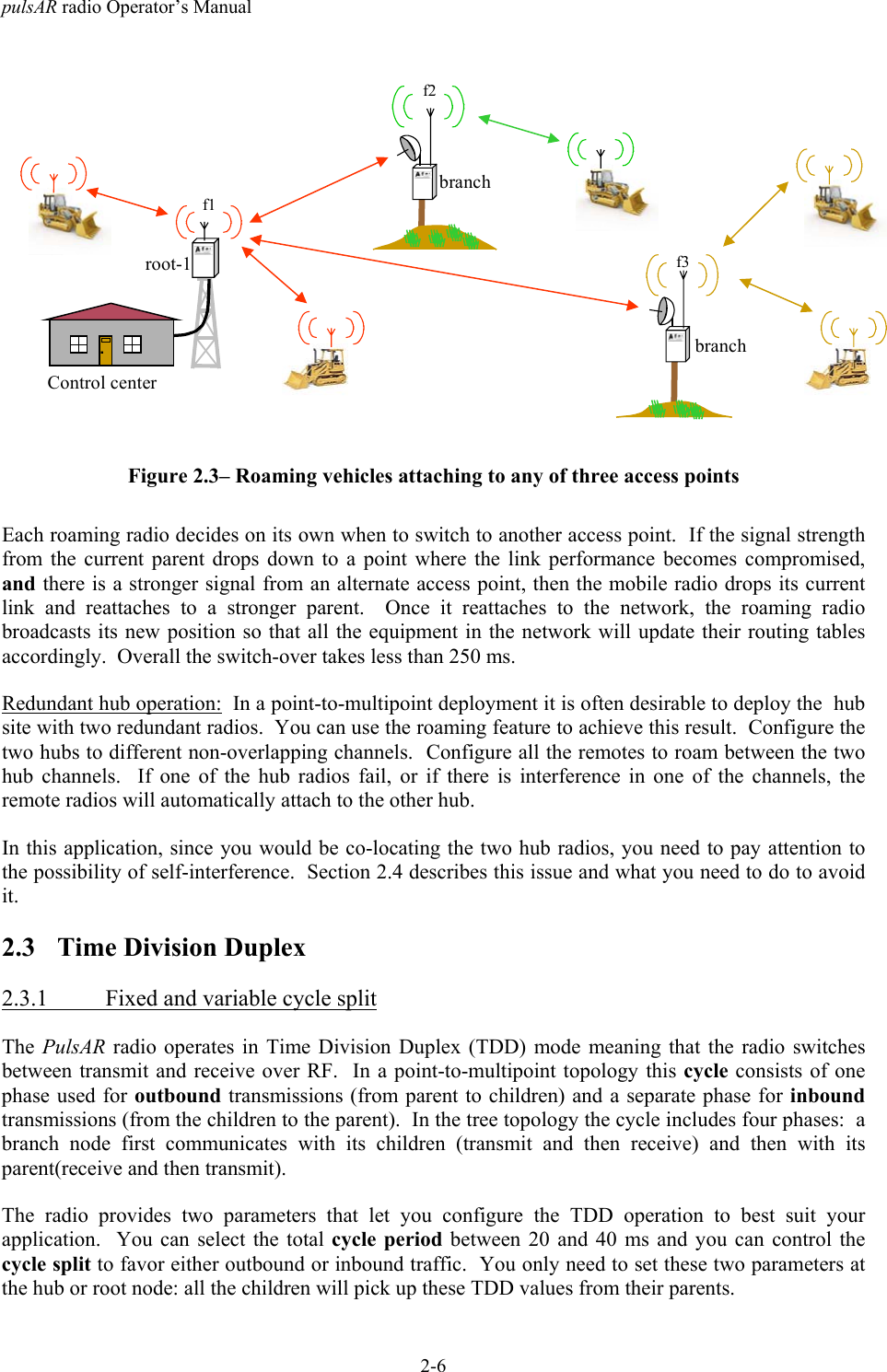
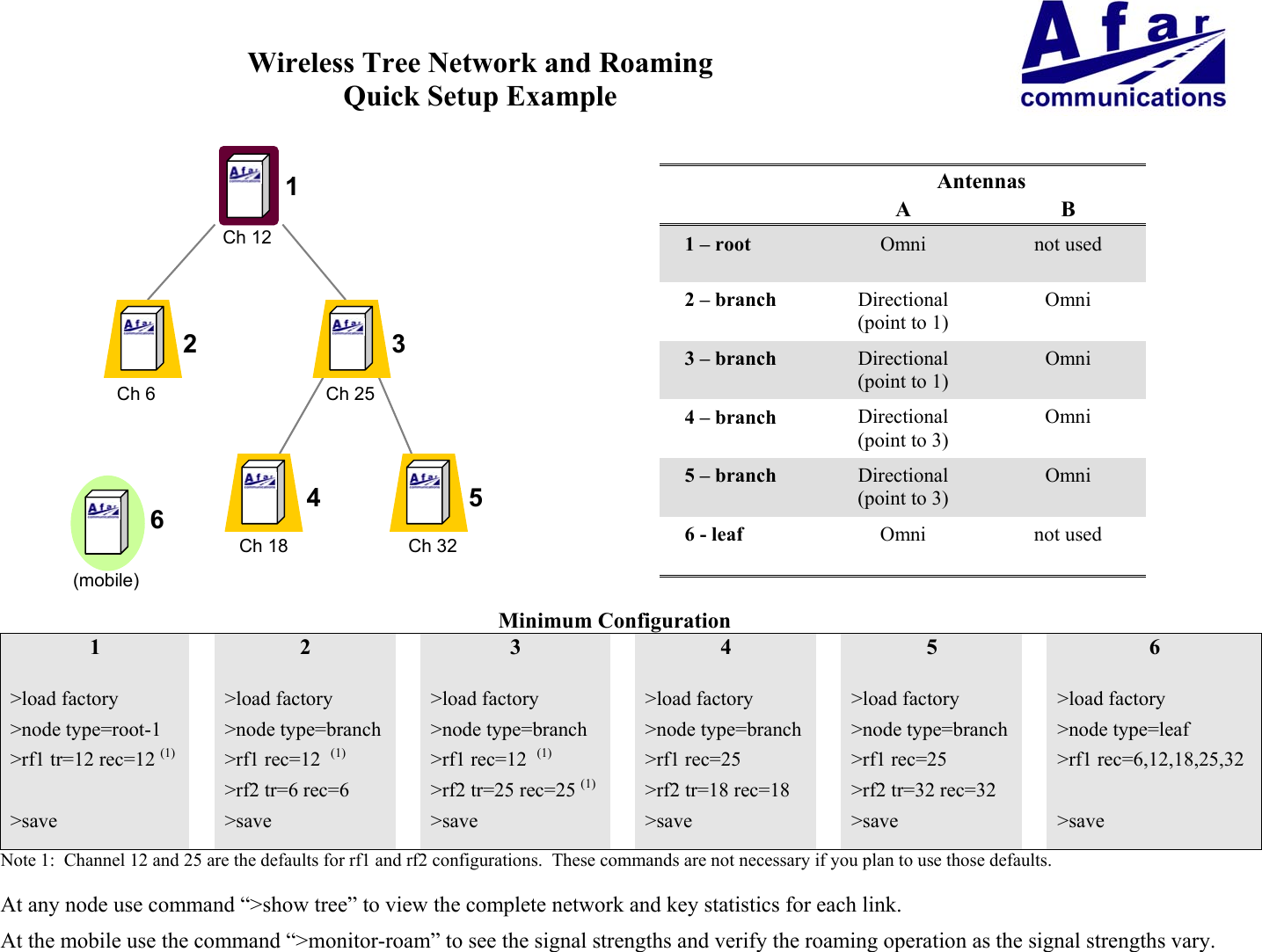
pulsAR radio Operator’s Manual2-5LANLANLANLANLAN12345Figure 2.2 - Linear Network TopologyYou can easily implement a Linear Network as a subset of the Tree topology:  configure the leftmostradio as a root and all the radios in the network as a branch.  Install each radio with two directionalantennas pointing at their two neighbors.2.2 RoamingWith the roaming option, a remote or leaf radio can be configured with up to six different receivechannels (see command rf-1-setup).   With this capability you can deploy multiple access points in aregion where a group of mobile radios will move around.  Mobile radios attach to the networkthrough any of the access points and automatically switch to a new one whenever the need arises.This capability is ideal for communications between a control center and vehicles, where the vehiclesmust move beyond the range of a single hub radio.All the access points are typically connected, through a backbone network, back to a central site.This backbone network can be wired or wireless.  You can use the tree topology and have eachbranch and root serve both as access points and backbone nodes to bring the traffic back to the centralsite (see figure).The overall system supports the following features:1. Mobile nodes automatically attach to the strongest access point.2. As a mobile unit moves and the link to its parent fades, the mobile radio changes autonomously toattach to a stronger parent.3. Connectivity to a central site, through a backbone network, is maintained when a mobile changesparent.  Packet routing is switched over autonomously throughout the network so that packets arecorrectly routed immediately after the mobile radio changes the access point.4. Using the Tree topology you can use the fixed nodes in the tree (root and branches) to provide thebackbone network.  Those same radios can also be the access points to the mobile leaf nodes.This approach depicted in Figure 2.3.
pulsAR radio Operator’s Manual2-6.Control centerbranchf2branchf3root-1f1Figure 2.3– Roaming vehicles attaching to any of three access pointsEach roaming radio decides on its own when to switch to another access point.  If the signal strengthfrom the current parent drops down to a point where the link performance becomes compromised,and there is a stronger signal from an alternate access point, then the mobile radio drops its currentlink and reattaches to a stronger parent.  Once it reattaches to the network, the roaming radiobroadcasts its new position so that all the equipment in the network will update their routing tablesaccordingly.  Overall the switch-over takes less than 250 ms.Redundant hub operation:  In a point-to-multipoint deployment it is often desirable to deploy the  hubsite with two redundant radios.  You can use the roaming feature to achieve this result.  Configure thetwo hubs to different non-overlapping channels.  Configure all the remotes to roam between the twohub channels.  If one of the hub radios fail, or if there is interference in one of the channels, theremote radios will automatically attach to the other hub.In this application, since you would be co-locating the two hub radios, you need to pay attention tothe possibility of self-interference.  Section 2.4 describes this issue and what you need to do to avoidit.2.3 Time Division Duplex2.3.1 Fixed and variable cycle splitThe PulsAR radio operates in Time Division Duplex (TDD) mode meaning that the radio switchesbetween transmit and receive over RF.  In a point-to-multipoint topology this cycle consists of onephase used for outbound transmissions (from parent to children) and a separate phase for inboundtransmissions (from the children to the parent).  In the tree topology the cycle includes four phases:  abranch node first communicates with its children (transmit and then receive) and then with itsparent(receive and then transmit).The radio provides two parameters that let you configure the TDD operation to best suit yourapplication.  You can select the total cycle period between 20 and 40 ms and you can control thecycle split to favor either outbound or inbound traffic.  You only need to set these two parameters atthe hub or root node: all the children will pick up these TDD values from their parents.
pulsAR radio Operator’s Manual2-7A cycle period of 20 ms (default) results in lower latencies throughout the network.  However therewill be more transitions between transmit and receive resulting in somewhat lower throughputcapacity for the network.  A cycle period of 40 ms has the opposite effect.For small networks a cycle period of 20 ms is usually preferred.  If you have a network with manynodes that are simultaneously active the 40 ms cycle will give you better performance.The cycle split controls the percentage of time allocated for outbound traffic (from parent to children)versus inbound traffic (from children to parent).  The default is an automatic mode where the parentradio allocates the split of each cycle dynamically based on the amount of traffic queued up in eachdirection.  In a tree network each parent decides this split independent of the other parents, based onthe local traffic conditions.  In most deployment this setting gives you the best performance.You can also specify a fixed cycle split.  You have the choice of 9 different values in 10% nominalincrements from 10/90 (outbound/inbound) all the way to 90/10.  You need to use the fixed TDD splitwhen you co-locate multiple radios and want to avoid self-generated interference.  Refer to section2.4 for details about synchronizing co-located radios. The fixed split may also be appropriate inapplications where the data traffic is constant and with pre-determined throughput.2.3.2 On demand bandwidth allocationThe complete TDD cycle is divided into slots of approximately 1 ms each.  In automatic cycle splitmode, the parent radio examines the total traffic queued up for outbound and inbound, and selects anappropriate cycle split.  With fixed cycle split this step is omitted.For the outbound traffic, the parent radio allocates the bandwidth on demand to each remote.  If thereis no traffic to a specific remote, the parent does not transmit any packets to that remote.   When theparent has packets to multiple children, it distributes the available bandwidth evenly so that allchildren get equal throughput.The parent starts every outbound transmission with a broadcast packet that includes the current cyclesplit as well as the slot allocation for the inbound phase.  All children decode this packet and onlytransmit if they have been assigned one or more slots during the inbound phase.When the children radios transmit they include a bandwidth request parameter informing the parent ofhow much inbound traffic they have queued up. The parent allocates slots to the children based onthis information. On a given cycle, each child may be allocated zero, one, or several contiguous slotsto transmit.  If the aggregate requested bandwidth exceeds the network throughput the parent dividesthe available bandwidth fairly among the active children.Once in a while the parent allocates a single slot to children that have remained idle to check if theynow have inbound traffic.  This check only takes a single inbound slot and this slot is allocateddynamically depending on current traffic load, available slots, and traffic history.
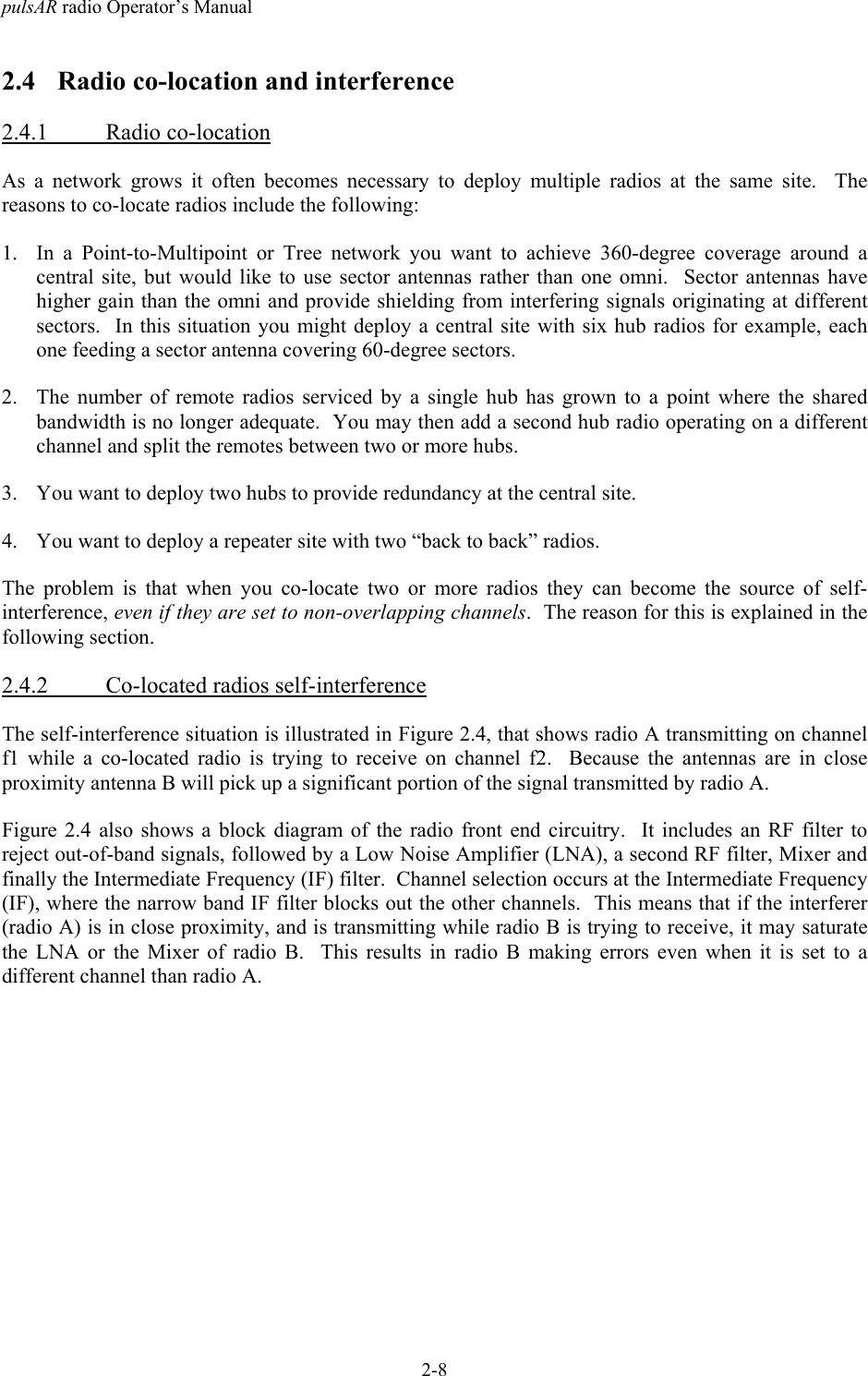
pulsAR radio Operator’s Manual2-82.4 Radio co-location and interference2.4.1 Radio co-locationAs a network grows it often becomes necessary to deploy multiple radios at the same site.  Thereasons to co-locate radios include the following:1. In a Point-to-Multipoint or Tree network you want to achieve 360-degree coverage around acentral site, but would like to use sector antennas rather than one omni.  Sector antennas havehigher gain than the omni and provide shielding from interfering signals originating at differentsectors.  In this situation you might deploy a central site with six hub radios for example, eachone feeding a sector antenna covering 60-degree sectors.2. The number of remote radios serviced by a single hub has grown to a point where the sharedbandwidth is no longer adequate.  You may then add a second hub radio operating on a differentchannel and split the remotes between two or more hubs.3. You want to deploy two hubs to provide redundancy at the central site.4. You want to deploy a repeater site with two “back to back” radios.The problem is that when you co-locate two or more radios they can become the source of self-interference, even if they are set to non-overlapping channels.  The reason for this is explained in thefollowing section.2.4.2 Co-located radios self-interferenceThe self-interference situation is illustrated in Figure 2.4, that shows radio A transmitting on channelf1 while a co-located radio is trying to receive on channel f2.  Because the antennas are in closeproximity antenna B will pick up a significant portion of the signal transmitted by radio A.Figure 2.4 also shows a block diagram of the radio front end circuitry.  It includes an RF filter toreject out-of-band signals, followed by a Low Noise Amplifier (LNA), a second RF filter, Mixer andfinally the Intermediate Frequency (IF) filter.  Channel selection occurs at the Intermediate Frequency(IF), where the narrow band IF filter blocks out the other channels.  This means that if the interferer(radio A) is in close proximity, and is transmitting while radio B is trying to receive, it may saturatethe LNA or the Mixer of radio B.  This results in radio B making errors even when it is set to adifferent channel than radio A.
pulsAR radio Operator’s Manual2-9RadioARadioBf1f2RF Filter   LNA RFFilterIFFilter  LocalOsc.IF(undesired coupling)freqf2f1 freqIFFigure 2.4– Co-located radio interferenceThe traditional approaches to reduce this self-interference include:• Separate the antennas of the two radios further apart.• Use different antenna polarization.• Lower the transmit power of the interfering radio.These approaches are limited and, at most, may allow you to co-locate three of four radios.  The AfarSPAN technology implements a synchronization scheme that completely eliminates this self-interference allowing you to co-locate a much larger number of radios.  This is explained in thefollowing sections.2.4.3 SPAN Network synchronizationThe PulsAR can be operated in a fixed TDD mode, where the complete cycle is divided into fixedlength outbound and inbound phases.  You can specify this cycle split to be 50/50 or asymmetric.When you co-locate multiple devices you must choose a fixed split and it must be the same for all theco-located radios.  The radios will then synchronize their cycle periods so that all co-located radiostransmit at the same time and then receive at the same time.  This avoids the situation depicted inFigure 2.4altogether.  With a synchronized site you can then deploy upwards of 24 radios at the samelocation.The key to the synchronized SPAN network is the generation and distribution of the synchronizationinformation or heartbeat.   At any site where there is more than one co-located radio, the variousradios detect each other, and automatically negotiate which should become the source of theheartbeat.  If that device later is turned off or fails, another device will take its place without userintervention.
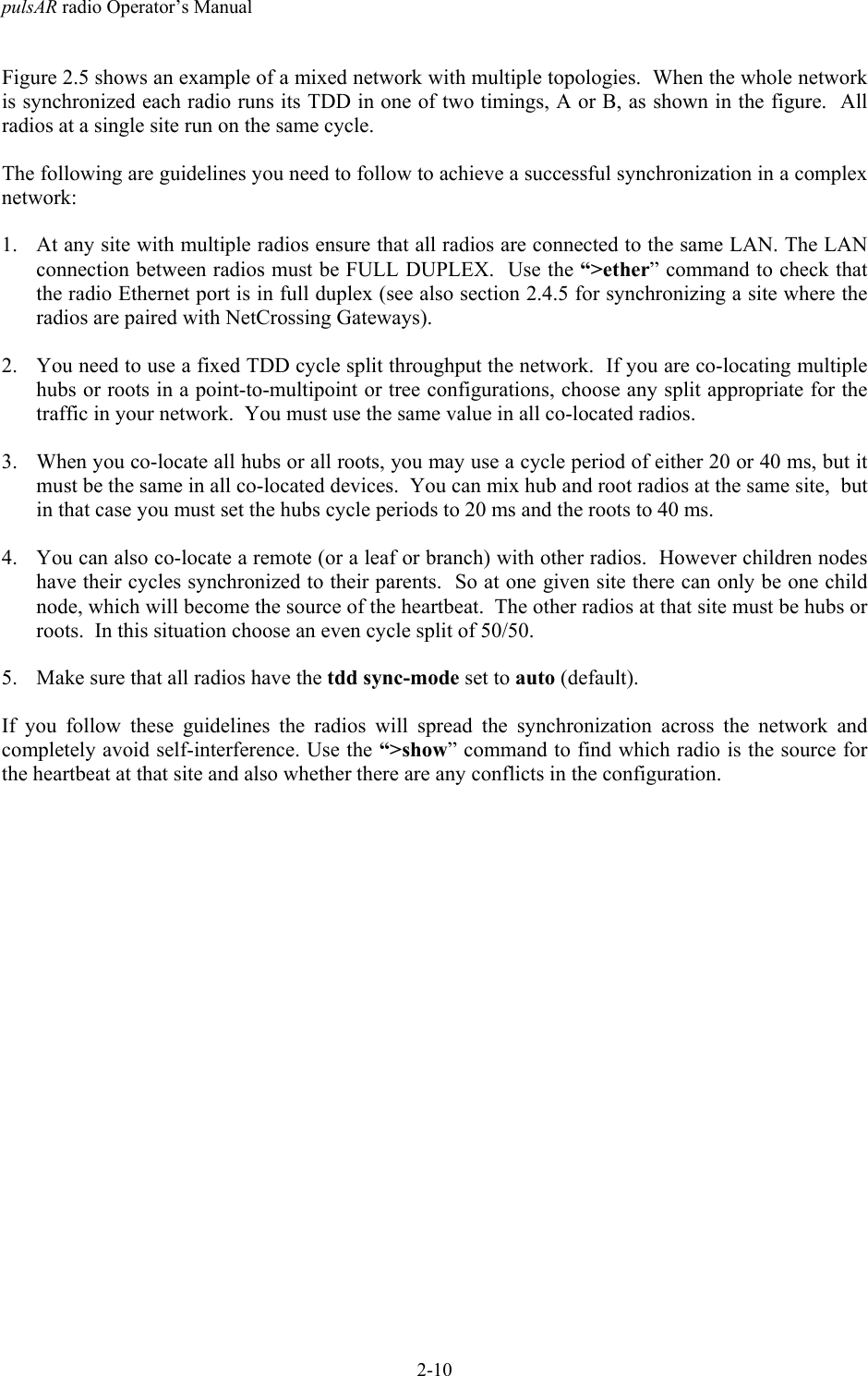
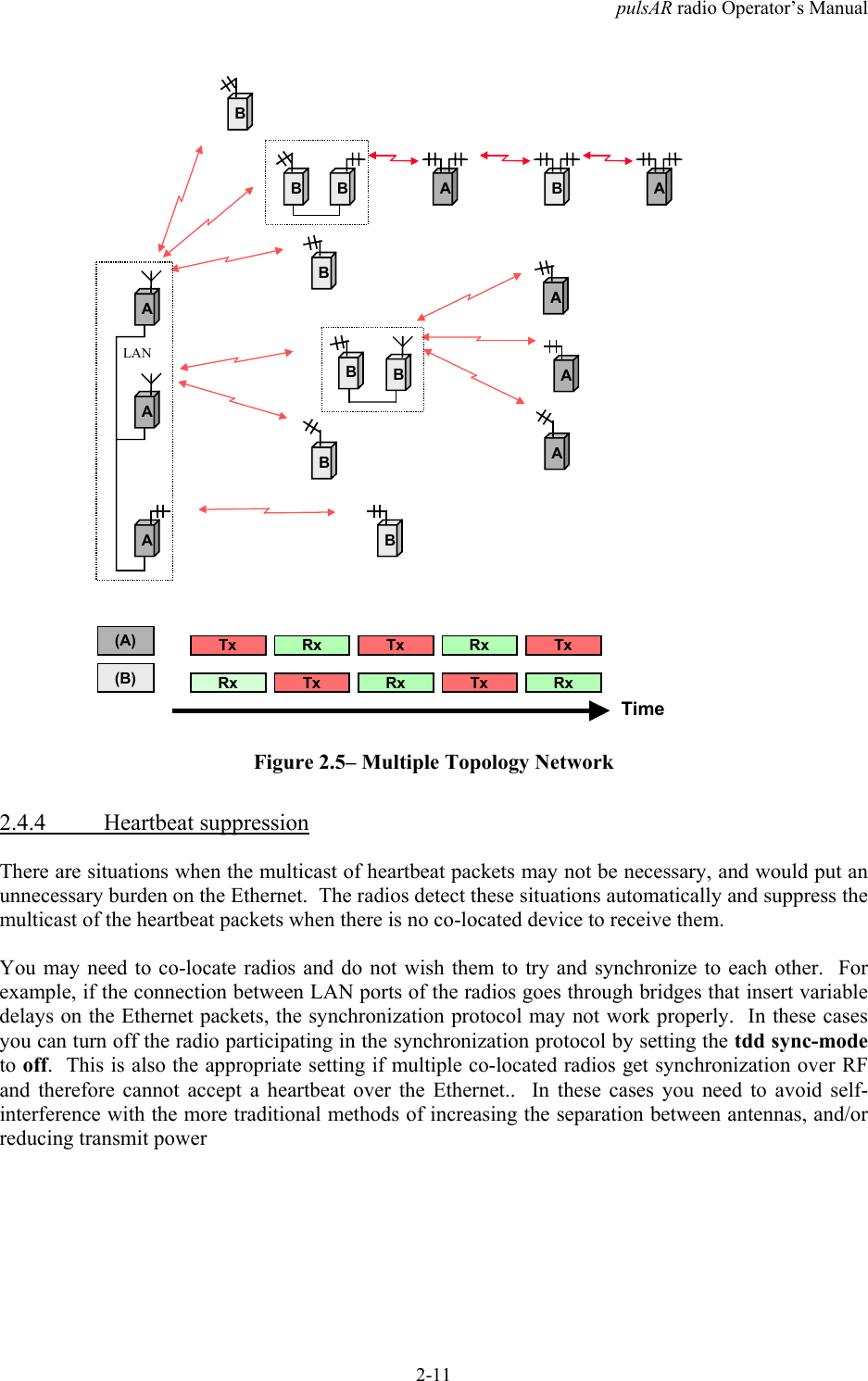
pulsAR radio Operator’s Manual2-10Figure 2.5 shows an example of a mixed network with multiple topologies.  When the whole networkis synchronized each radio runs its TDD in one of two timings, A or B, as shown in the figure.  Allradios at a single site run on the same cycle.The following are guidelines you need to follow to achieve a successful synchronization in a complexnetwork:1. At any site with multiple radios ensure that all radios are connected to the same LAN. The LANconnection between radios must be FULL DUPLEX.  Use the “>ether” command to check thatthe radio Ethernet port is in full duplex (see also section 2.4.5 for synchronizing a site where theradios are paired with NetCrossing Gateways).2. You need to use a fixed TDD cycle split throughput the network.  If you are co-locating multiplehubs or roots in a point-to-multipoint or tree configurations, choose any split appropriate for thetraffic in your network.  You must use the same value in all co-located radios.3. When you co-locate all hubs or all roots, you may use a cycle period of either 20 or 40 ms, but itmust be the same in all co-located devices.  You can mix hub and root radios at the same site,  butin that case you must set the hubs cycle periods to 20 ms and the roots to 40 ms.4. You can also co-locate a remote (or a leaf or branch) with other radios.  However children nodeshave their cycles synchronized to their parents.  So at one given site there can only be one childnode, which will become the source of the heartbeat.  The other radios at that site must be hubs orroots.  In this situation choose an even cycle split of 50/50.5. Make sure that all radios have the tdd sync-mode set to auto (default).If you follow these guidelines the radios will spread the synchronization across the network andcompletely avoid self-interference. Use the “>show” command to find which radio is the source forthe heartbeat at that site and also whether there are any conflicts in the configuration.
pulsAR radio Operator’s Manual2-11ABBBB A B ALANABBA BBAAATx Rx Tx Rx TxRx Tx Rx Tx RxTime(A)(B)Figure 2.5– Multiple Topology Network2.4.4 Heartbeat suppressionThere are situations when the multicast of heartbeat packets may not be necessary, and would put anunnecessary burden on the Ethernet.  The radios detect these situations automatically and suppress themulticast of the heartbeat packets when there is no co-located device to receive them.You may need to co-locate radios and do not wish them to try and synchronize to each other.  Forexample, if the connection between LAN ports of the radios goes through bridges that insert variabledelays on the Ethernet packets, the synchronization protocol may not work properly.  In these casesyou can turn off the radio participating in the synchronization protocol by setting the tdd sync-modeto off.  This is also the appropriate setting if multiple co-located radios get synchronization over RFand therefore cannot accept a heartbeat over the Ethernet..  In these cases you need to avoid self-interference with the more traditional methods of increasing the separation between antennas, and/orreducing transmit power
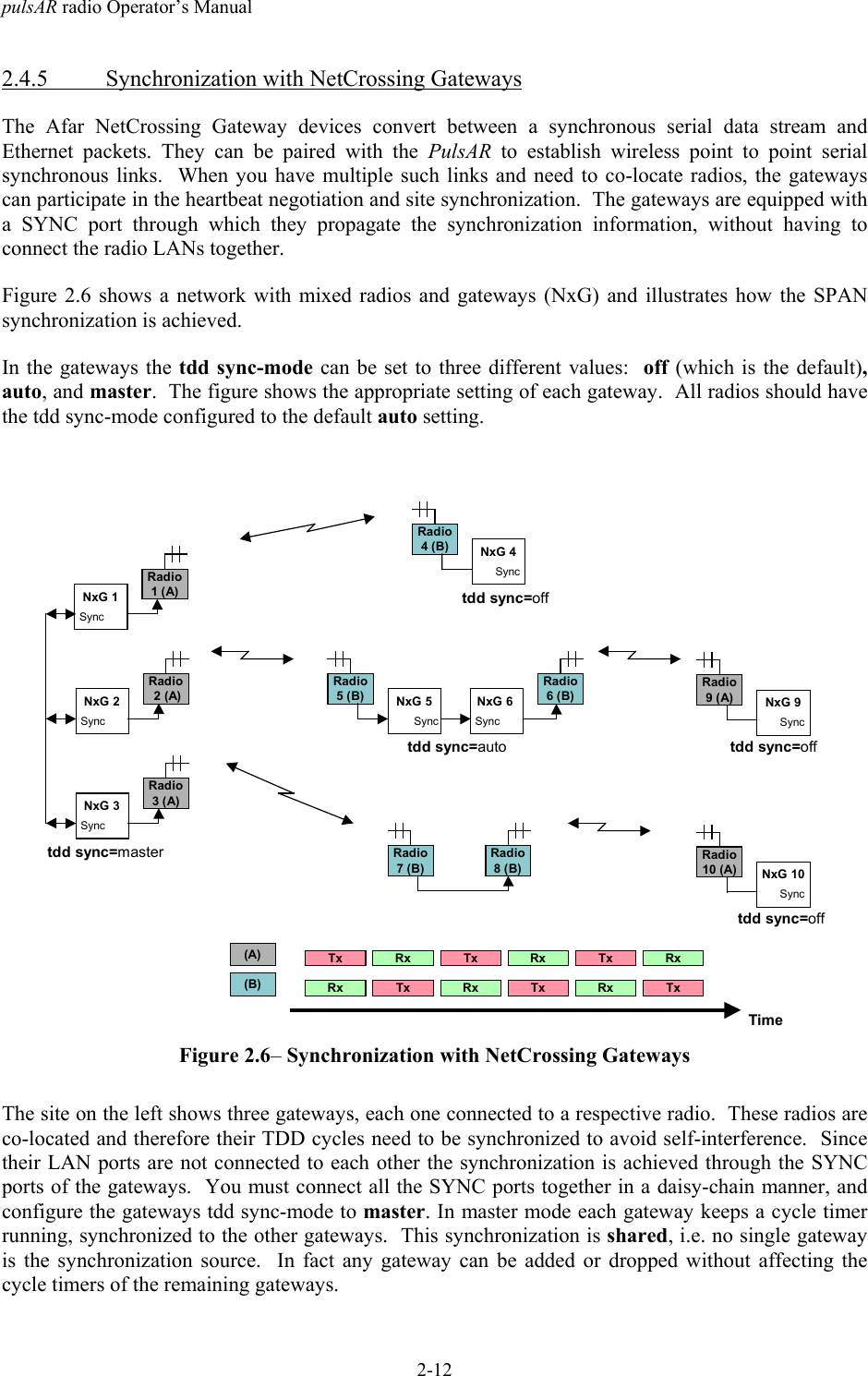
pulsAR radio Operator’s Manual2-122.4.5 Synchronization with NetCrossing GatewaysThe Afar NetCrossing Gateway devices convert between a synchronous serial data stream andEthernet packets. They can be paired with the PulsAR to establish wireless point to point serialsynchronous links.  When you have multiple such links and need to co-locate radios, the gatewayscan participate in the heartbeat negotiation and site synchronization.  The gateways are equipped witha SYNC port through which they propagate the synchronization information, without having toconnect the radio LANs together.Figure 2.6 shows a network with mixed radios and gateways (NxG) and illustrates how the SPANsynchronization is achieved.In the gateways the tdd sync-mode can be set to three different values:  off (which is the default),auto, and master.  The figure shows the appropriate setting of each gateway.  All radios should havethe tdd sync-mode configured to the default auto setting.Tx Rx Tx Rx Tx RxRx Tx Rx Tx Rx TxTime(A)(B)NxG 2SyncRadio 2 (A)NxG 3SyncRadio3 (A)tdd sync=masterNxG 1SyncRadio1 (A)NxG 4SyncRadio4 (B)tdd sync=offNxG 5SyncRadio5 (B) NxG 6 SyncRadio6 (B) NxG 9SyncRadio9 (A)tdd sync=auto tdd sync=offRadio7 (B)Radio8 (B) NxG 10SyncRadio10 (A)tdd sync=offFigure 2.6– Synchronization with NetCrossing GatewaysThe site on the left shows three gateways, each one connected to a respective radio.  These radios areco-located and therefore their TDD cycles need to be synchronized to avoid self-interference.  Sincetheir LAN ports are not connected to each other the synchronization is achieved through the SYNCports of the gateways.  You must connect all the SYNC ports together in a daisy-chain manner, andconfigure the gateways tdd sync-mode to master. In master mode each gateway keeps a cycle timerrunning, synchronized to the other gateways.  This synchronization is shared, i.e. no single gatewayis the synchronization source.  In fact any gateway can be added or dropped without affecting thecycle timers of the remaining gateways.
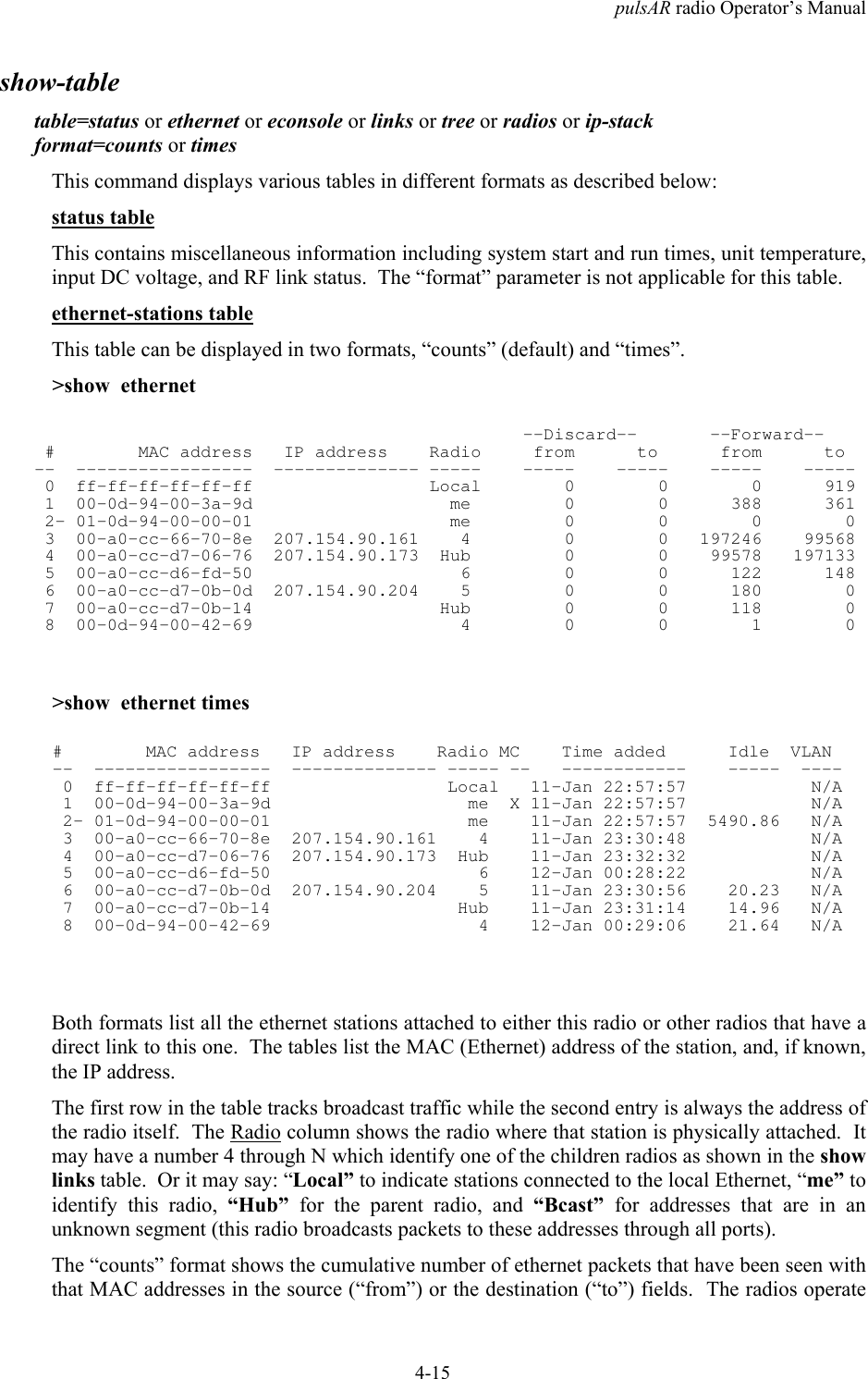
pulsAR radio Operator’s Manual2-13You must configure the three left radios as the “hub” for their RF links.  Each of these three radiosdetects the presence of the respective gateway, which becomes the source of its heartbeat over theEthernet.  In this way, all three radios run their cycle times synchronized and following timeline A inthe figure.The middle site in the figure illustrates another way in which the gateways participate in the cyclesynchronization.  At this site radio 5 is a “remote” with its cycle synchronized to radio 2 across theRF link.  Radio 5 therefore becomes the source of the heartbeat at this site.  It sends heartbeat packetsover the Ethernet, which synchronize the cycle timer of gateway 5.  As shown in the figure you mustconnect gateway 5 and 6 SYNC ports together and configure their tdd sync-mode to auto. In thismode the gateways propagate the heartbeat between the Ethernet WAN port and the SYNC port.Gateway 5, which receives heartbeat packets from the radio, drives the SYNC port.  Gateway 6synchronizes its cycle timer to the SYNC port and sends heartbeat packets to radio 6. The two co-located radios at this site have their cycle times synchronized, following timeline B.  At this same siteyou could have more pairs of gateways and radios.  You would connect the SYNC lines of all thegateways together and configure their tdd sync-mode to auto.At the sites where there is a single radio and gateway you should set the gateway tdd sync-mode tooff.  Since there are no co-located radios this setting turns off the generation of heartbeat packetswhich are unnecessary.2.5 Ethernet Bridging2.5.1 Self-learning bridgingThe radio operates the Ethernet port in a self-learning bridge mode.  It configures the port inpromiscuous mode, i.e., it examines all the Ethernet packets that are flowing in the local LAN.  Sincethese Ethernet packets contain a source and destination address, the radio quickly learns theaddresses of all the local stations connected to the LAN (all the source addresses of packets flowingin the LAN are local).As a radio receives packets over RF it also learns the addresses of stations that can be reached acrossthat RF link.  For a hub radio in a PmP topology, the radio keeps track of which addresses areassociated with each remote.With this information on hand, each radio examines the destination address of every Ethernet packetin the local LAN and makes one of the following decisions:1. If the destination address is for a local station, discard the packet.2. If the destination address is associated with a remote radio, queue that packet to be forwarded tothat remote radio.  Note that for a PmP topology, the hub radio keeps multiple output queues, oneper remote radio.3. If the station address is unknown or is a broadcast send the packet to all the remote radios.Each device has capacity to store 500 entries in its Ethernet table.  Entries are erased after a certainamount of time to allow for stations to be moved between LANs and not show up in two distinctLANs.  You can control this time-out with the “ethernet” command. If the table ever gets full, entriesthat have been least used are erased to make room for new entries.You can examine the table of ethernet addresses and their respective nodes with the command:
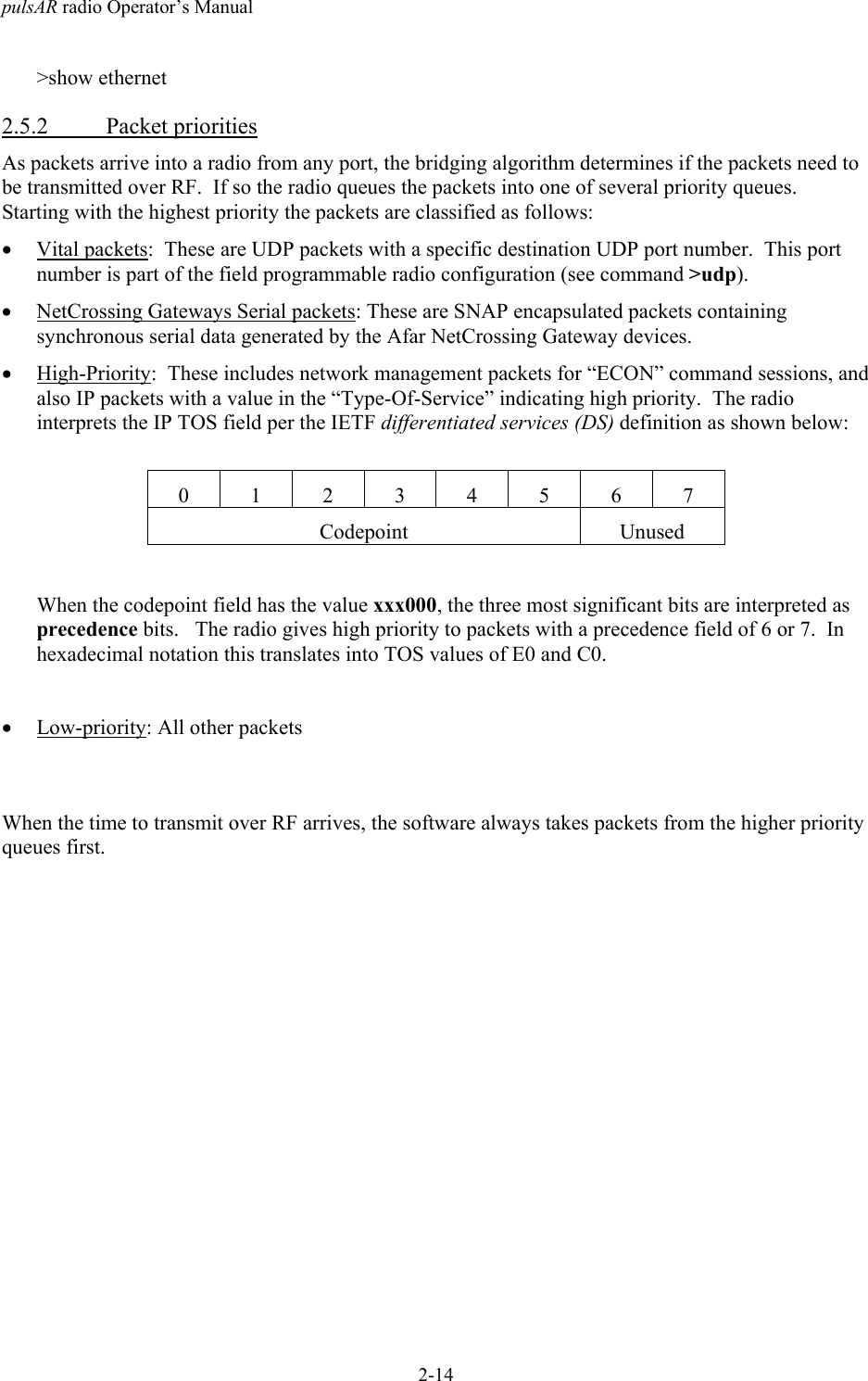
pulsAR radio Operator’s Manual2-14>show ethernet2.5.2 Packet prioritiesAs packets arrive into a radio from any port, the bridging algorithm determines if the packets need tobe transmitted over RF.  If so the radio queues the packets into one of several priority queues.Starting with the highest priority the packets are classified as follows:• Vital packets:  These are UDP packets with a specific destination UDP port number.  This portnumber is part of the field programmable radio configuration (see command >udp).• NetCrossing Gateways Serial packets: These are SNAP encapsulated packets containingsynchronous serial data generated by the Afar NetCrossing Gateway devices.• High-Priority:  These includes network management packets for “ECON” command sessions, andalso IP packets with a value in the “Type-Of-Service” indicating high priority.  The radiointerprets the IP TOS field per the IETF differentiated services (DS) definition as shown below:01234567Codepoint UnusedWhen the codepoint field has the value xxx000, the three most significant bits are interpreted asprecedence bits.   The radio gives high priority to packets with a precedence field of 6 or 7.  Inhexadecimal notation this translates into TOS values of E0 and C0.• Low-priority: All other packetsWhen the time to transmit over RF arrives, the software always takes packets from the higher priorityqueues first.
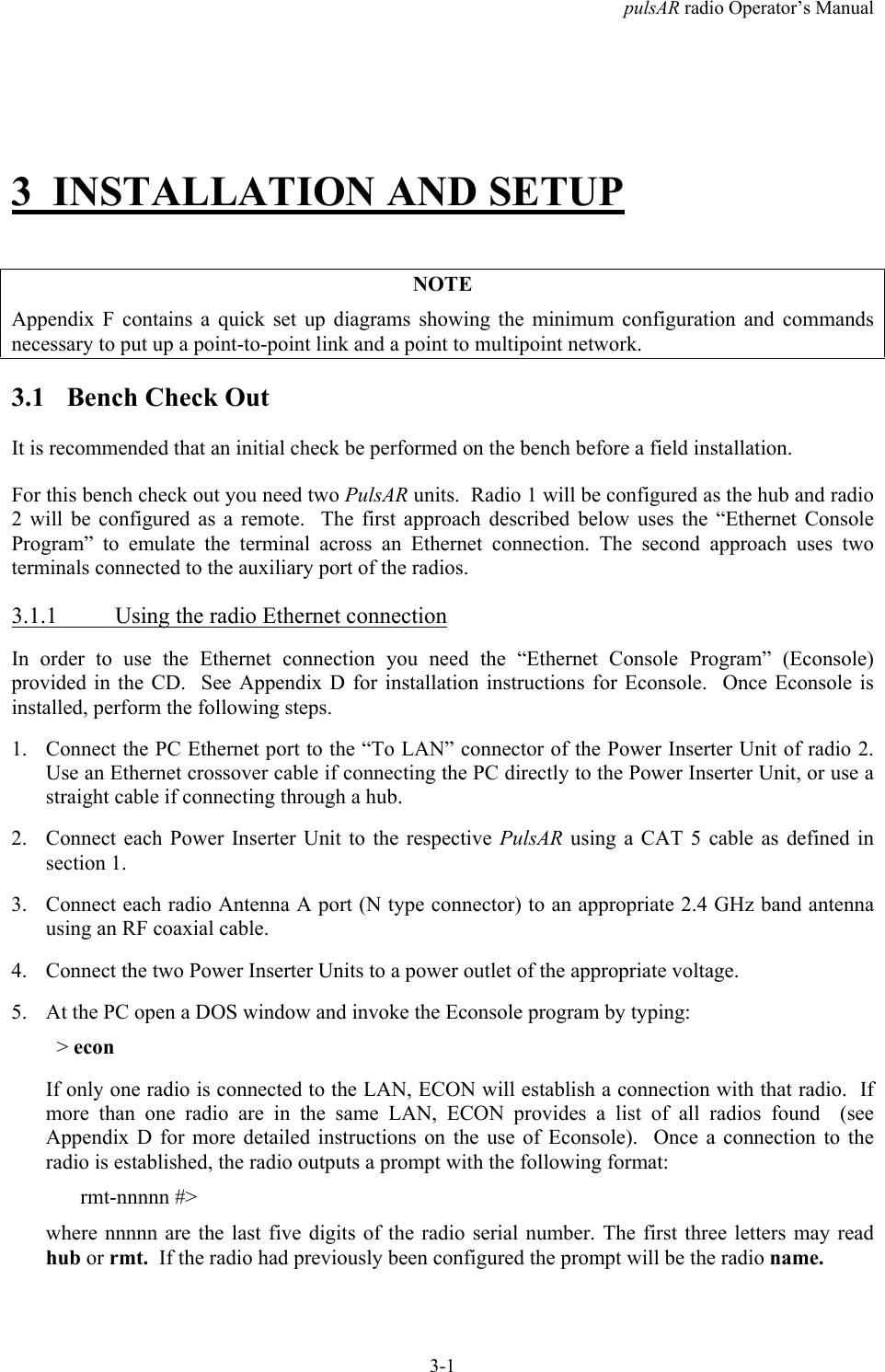
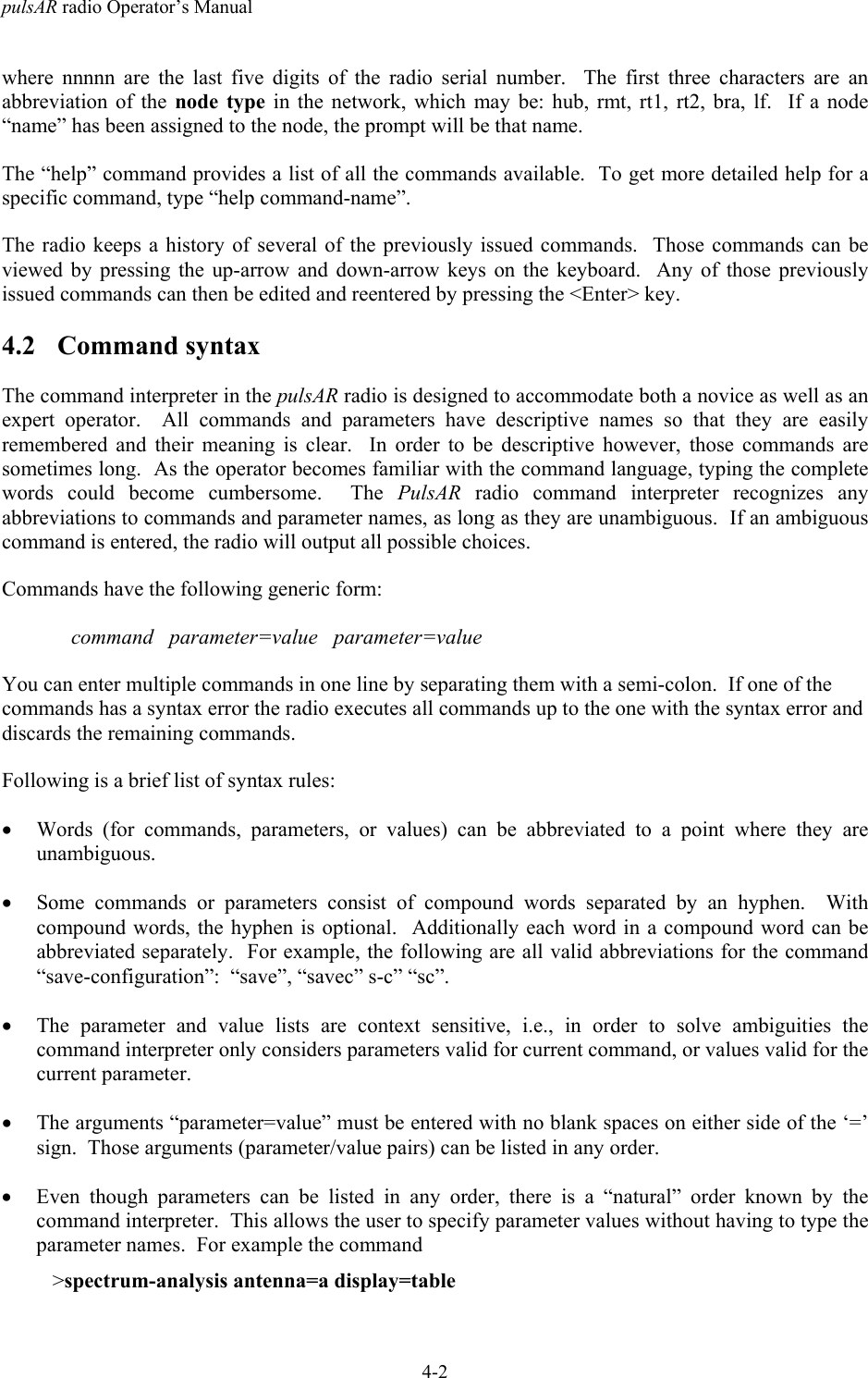
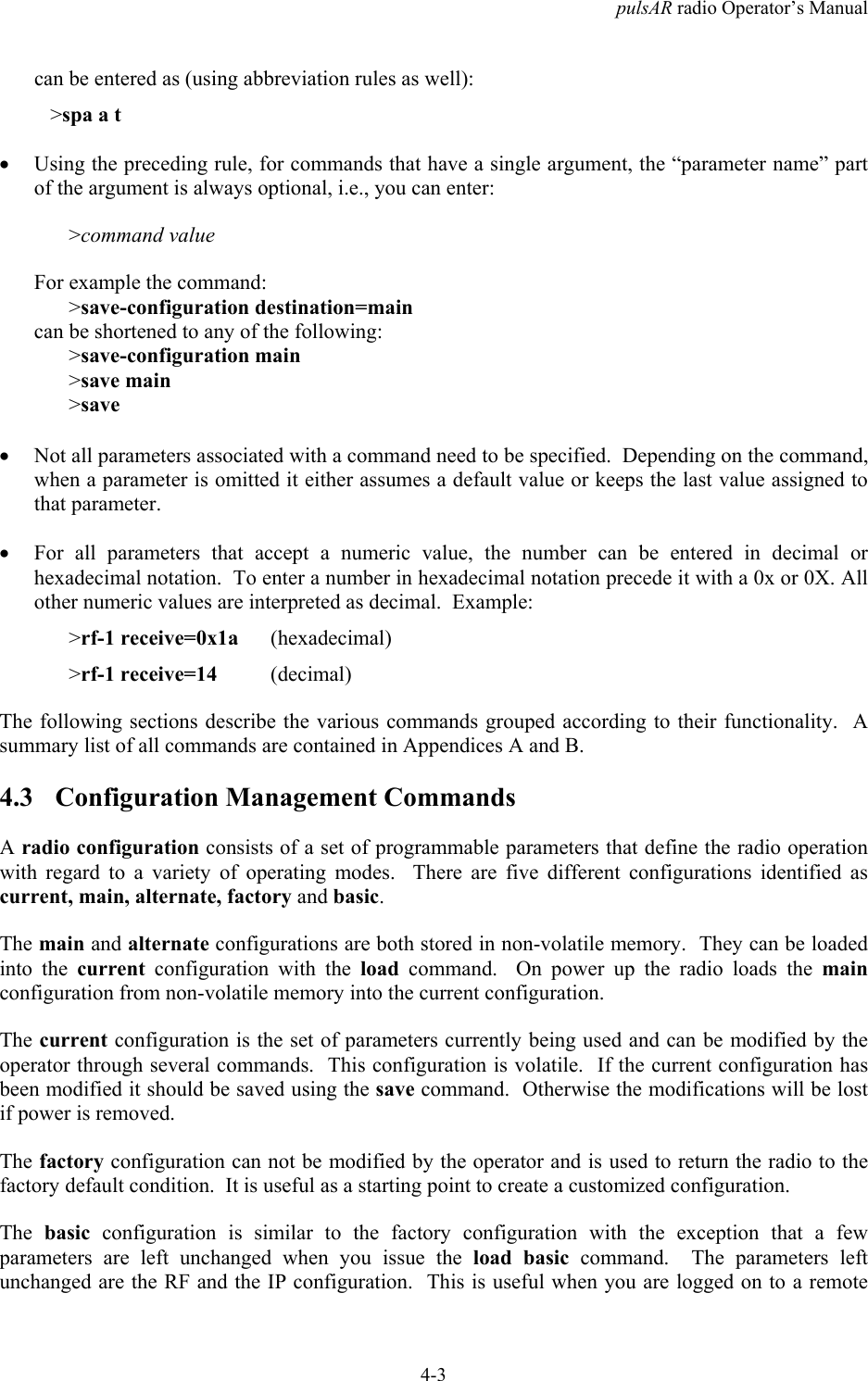
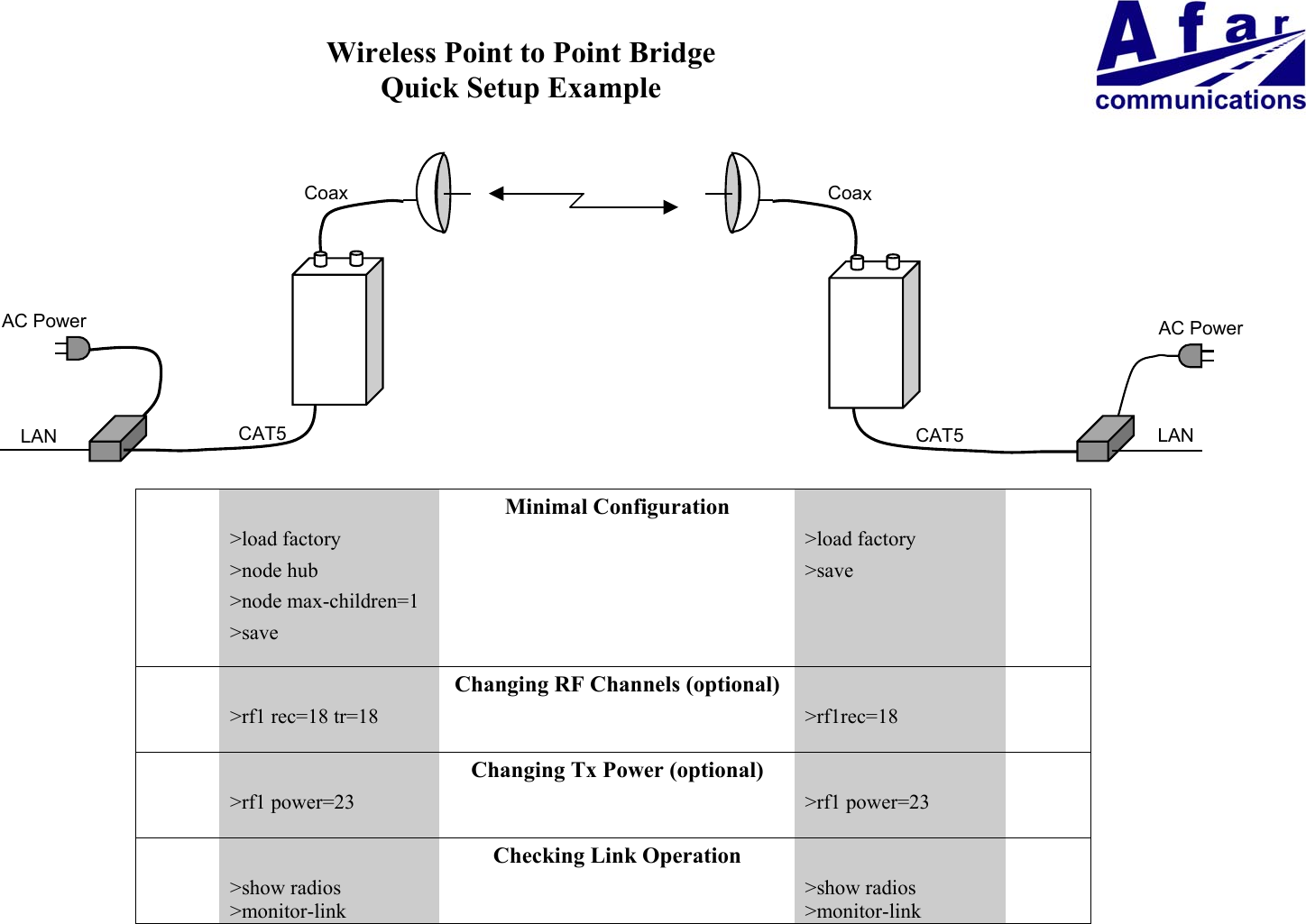
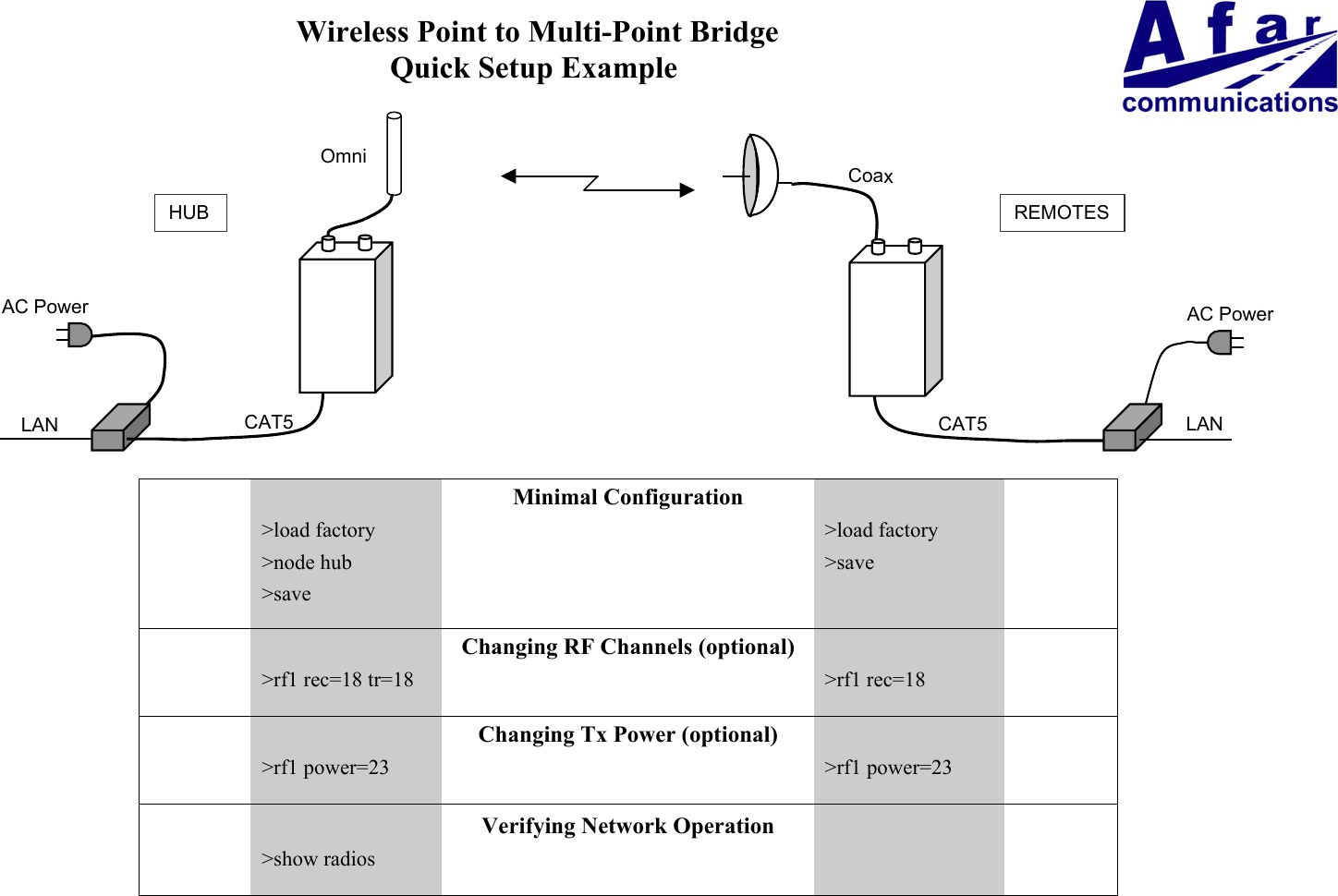
pulsAR radio Operator’s Manual3-13 INSTALLATION AND SETUPNOTEAppendix F contains a quick set up diagrams showing the minimum configuration and commandsnecessary to put up a point-to-point link and a point to multipoint network.3.1 Bench Check OutIt is recommended that an initial check be performed on the bench before a field installation.For this bench check out you need two PulsAR units.  Radio 1 will be configured as the hub and radio2 will be configured as a remote.  The first approach described below uses the “Ethernet ConsoleProgram” to emulate the terminal across an Ethernet connection. The second approach uses twoterminals connected to the auxiliary port of the radios.3.1.1 Using the radio Ethernet connectionIn order to use the Ethernet connection you need the “Ethernet Console Program” (Econsole)provided in the CD.  See Appendix D for installation instructions for Econsole.  Once Econsole isinstalled, perform the following steps.1. Connect the PC Ethernet port to the “To LAN” connector of the Power Inserter Unit of radio 2.Use an Ethernet crossover cable if connecting the PC directly to the Power Inserter Unit, or use astraight cable if connecting through a hub.2. Connect each Power Inserter Unit to the respective PulsAR using a CAT 5 cable as defined insection 1.3. Connect each radio Antenna A port (N type connector) to an appropriate 2.4 GHz band antennausing an RF coaxial cable.4. Connect the two Power Inserter Units to a power outlet of the appropriate voltage.5. At the PC open a DOS window and invoke the Econsole program by typing:  > econIf only one radio is connected to the LAN, ECON will establish a connection with that radio.  Ifmore than one radio are in the same LAN, ECON provides a list of all radios found  (seeAppendix D for more detailed instructions on the use of Econsole).  Once a connection to theradio is established, the radio outputs a prompt with the following format:rmt-nnnnn #>where nnnnn are the last five digits of the radio serial number. The first three letters may readhub or rmt.  If the radio had previously been configured the prompt will be the radio name.
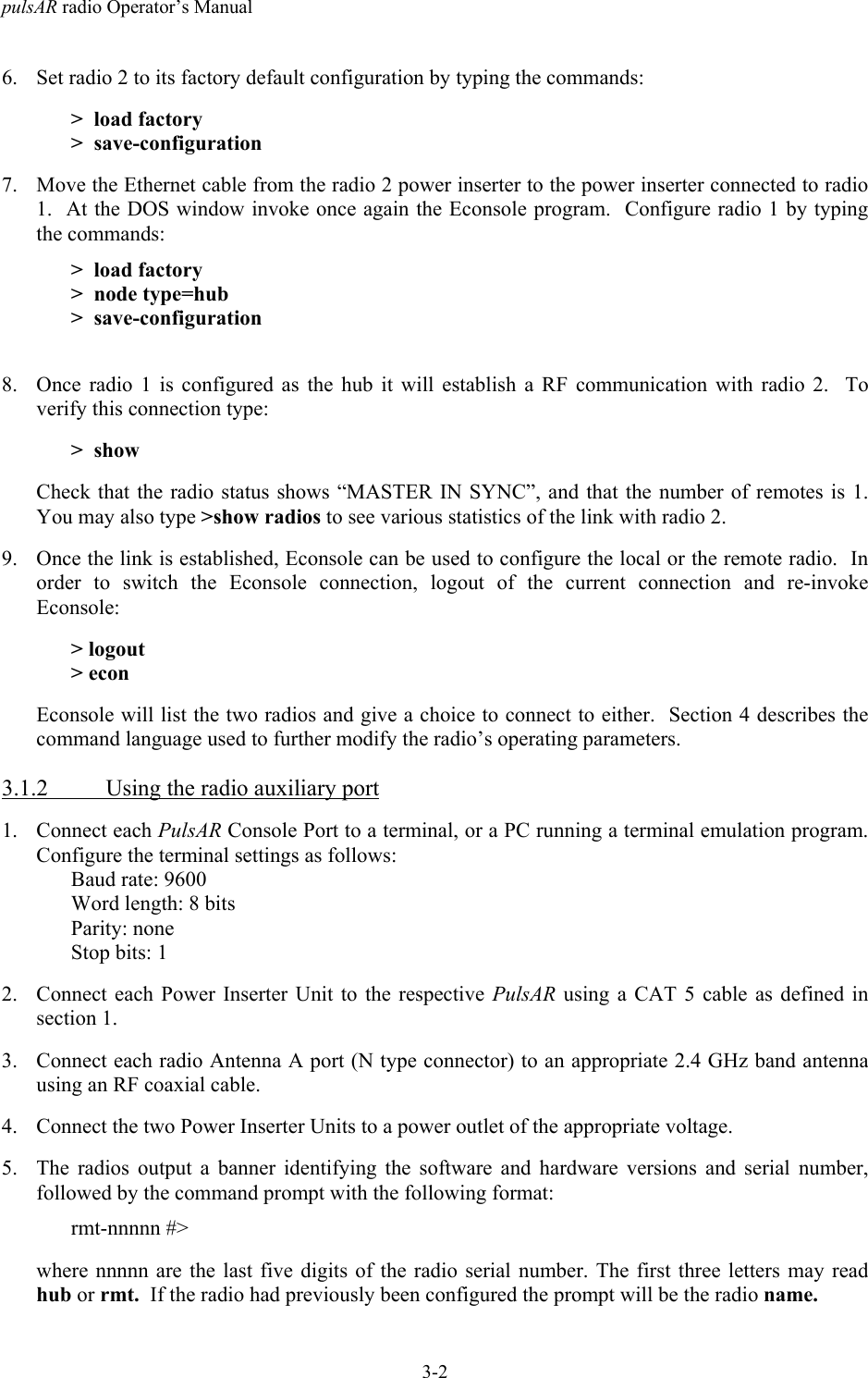
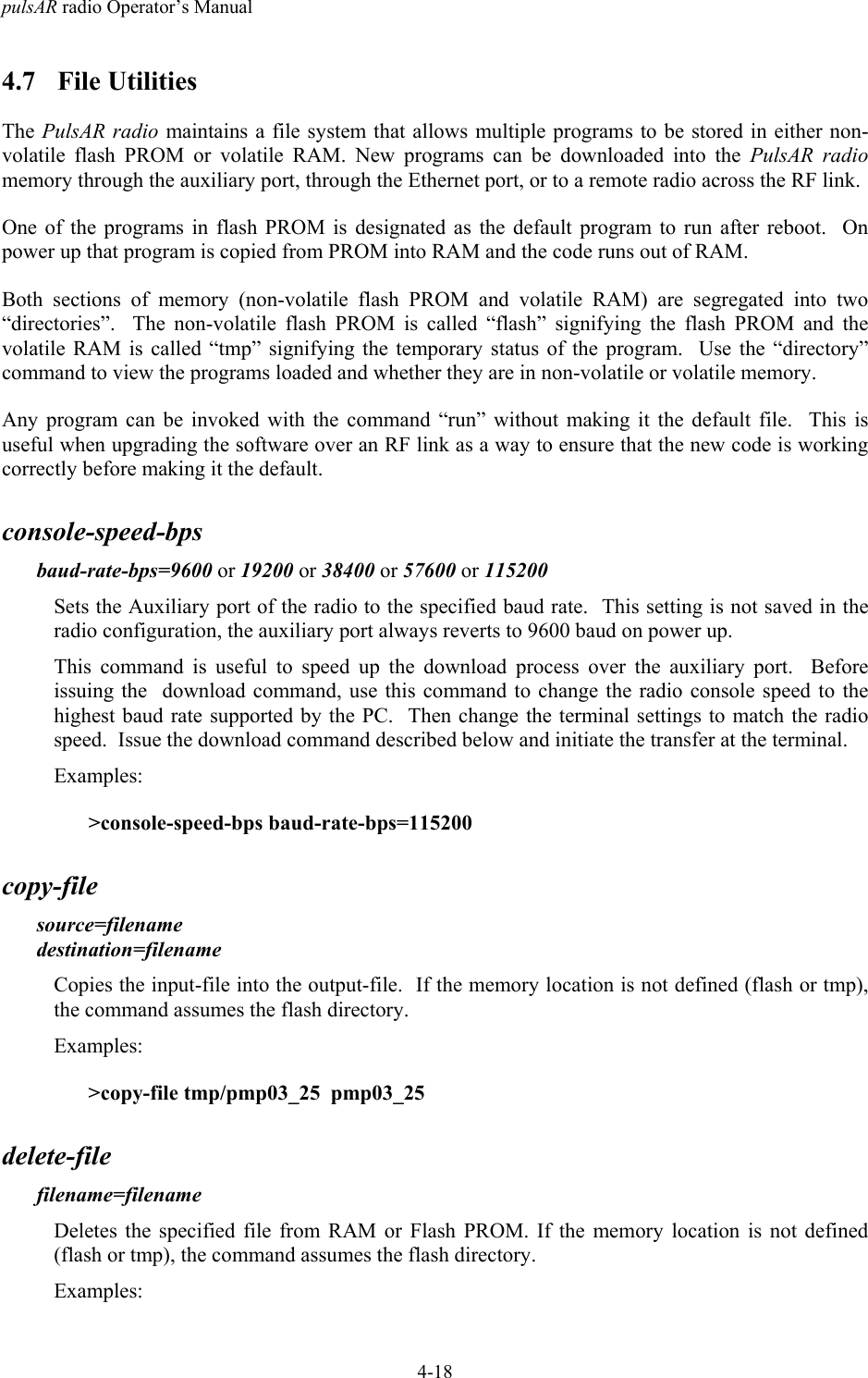
pulsAR radio Operator’s Manual3-26. Set radio 2 to its factory default configuration by typing the commands:>  load factory>  save-configuration7. Move the Ethernet cable from the radio 2 power inserter to the power inserter connected to radio1.  At the DOS window invoke once again the Econsole program.  Configure radio 1 by typingthe commands:>  load factory>  node type=hub>  save-configuration8. Once radio 1 is configured as the hub it will establish a RF communication with radio 2.  Toverify this connection type:>  showCheck that the radio status shows “MASTER IN SYNC”, and that the number of remotes is 1.You may also type >show radios to see various statistics of the link with radio 2.9. Once the link is established, Econsole can be used to configure the local or the remote radio.  Inorder to switch the Econsole connection, logout of the current connection and re-invokeEconsole:> logout> econEconsole will list the two radios and give a choice to connect to either.  Section 4 describes thecommand language used to further modify the radio’s operating parameters.3.1.2 Using the radio auxiliary port1. Connect each PulsAR Console Port to a terminal, or a PC running a terminal emulation program.Configure the terminal settings as follows:Baud rate: 9600Word length: 8 bitsParity: noneStop bits: 12. Connect each Power Inserter Unit to the respective PulsAR using a CAT 5 cable as defined insection 1.3. Connect each radio Antenna A port (N type connector) to an appropriate 2.4 GHz band antennausing an RF coaxial cable.4. Connect the two Power Inserter Units to a power outlet of the appropriate voltage.5. The radios output a banner identifying the software and hardware versions and serial number,followed by the command prompt with the following format:rmt-nnnnn #>where nnnnn are the last five digits of the radio serial number. The first three letters may readhub or rmt.  If the radio had previously been configured the prompt will be the radio name.
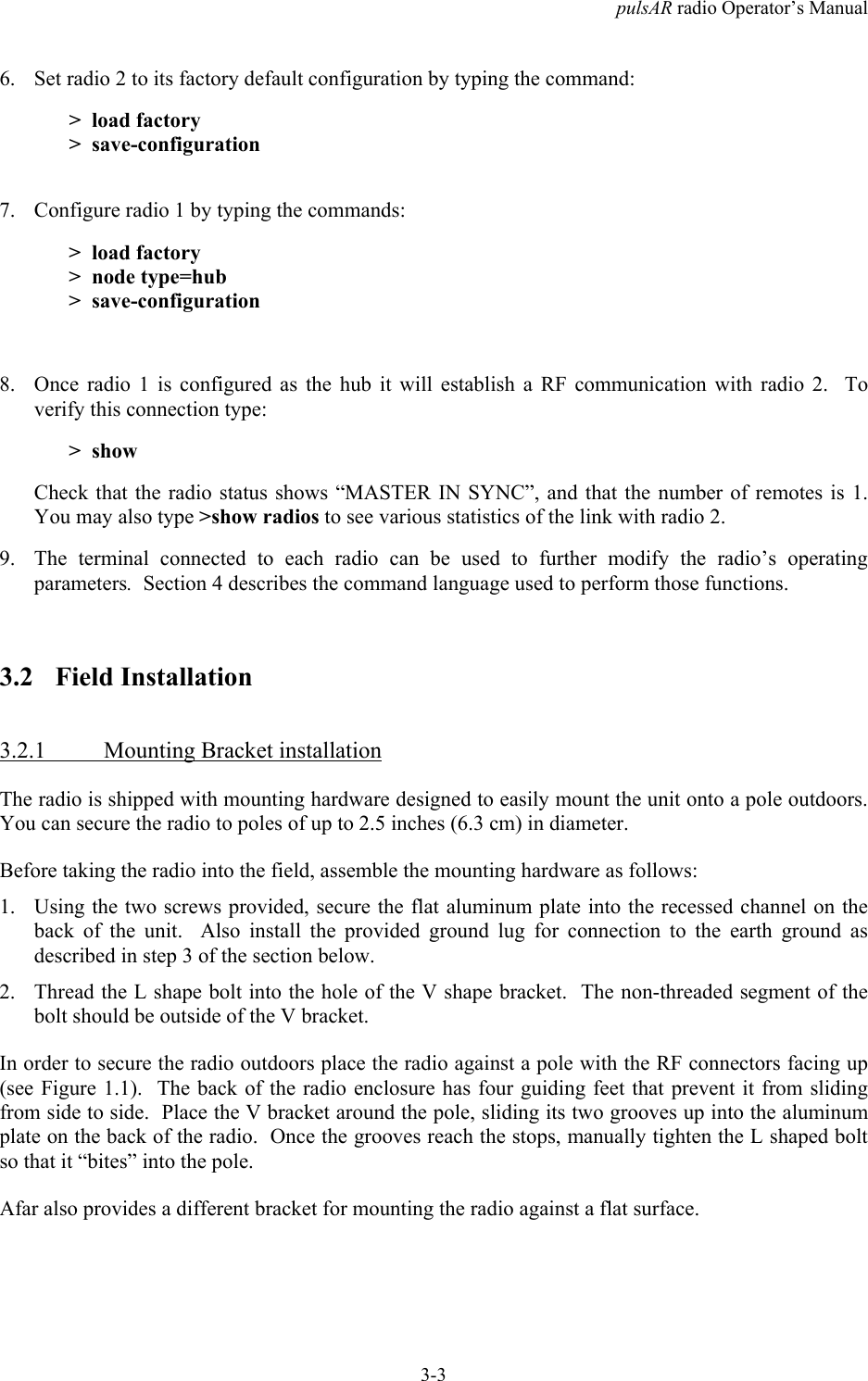
pulsAR radio Operator’s Manual3-36. Set radio 2 to its factory default configuration by typing the command:>  load factory>  save-configuration7. Configure radio 1 by typing the commands:>  load factory>  node type=hub>  save-configuration8. Once radio 1 is configured as the hub it will establish a RF communication with radio 2.  Toverify this connection type:>  showCheck that the radio status shows “MASTER IN SYNC”, and that the number of remotes is 1.You may also type >show radios to see various statistics of the link with radio 2.9. The terminal connected to each radio can be used to further modify the radio’s operatingparameters.  Section 4 describes the command language used to perform those functions.3.2 Field Installation3.2.1 Mounting Bracket installationThe radio is shipped with mounting hardware designed to easily mount the unit onto a pole outdoors.You can secure the radio to poles of up to 2.5 inches (6.3 cm) in diameter.Before taking the radio into the field, assemble the mounting hardware as follows:1. Using the two screws provided, secure the flat aluminum plate into the recessed channel on theback of the unit.  Also install the provided ground lug for connection to the earth ground asdescribed in step 3 of the section below.2. Thread the L shape bolt into the hole of the V shape bracket.  The non-threaded segment of thebolt should be outside of the V bracket.In order to secure the radio outdoors place the radio against a pole with the RF connectors facing up(see Figure 1.1).  The back of the radio enclosure has four guiding feet that prevent it from slidingfrom side to side.  Place the V bracket around the pole, sliding its two grooves up into the aluminumplate on the back of the radio.  Once the grooves reach the stops, manually tighten the L shaped boltso that it “bites” into the pole.Afar also provides a different bracket for mounting the radio against a flat surface.
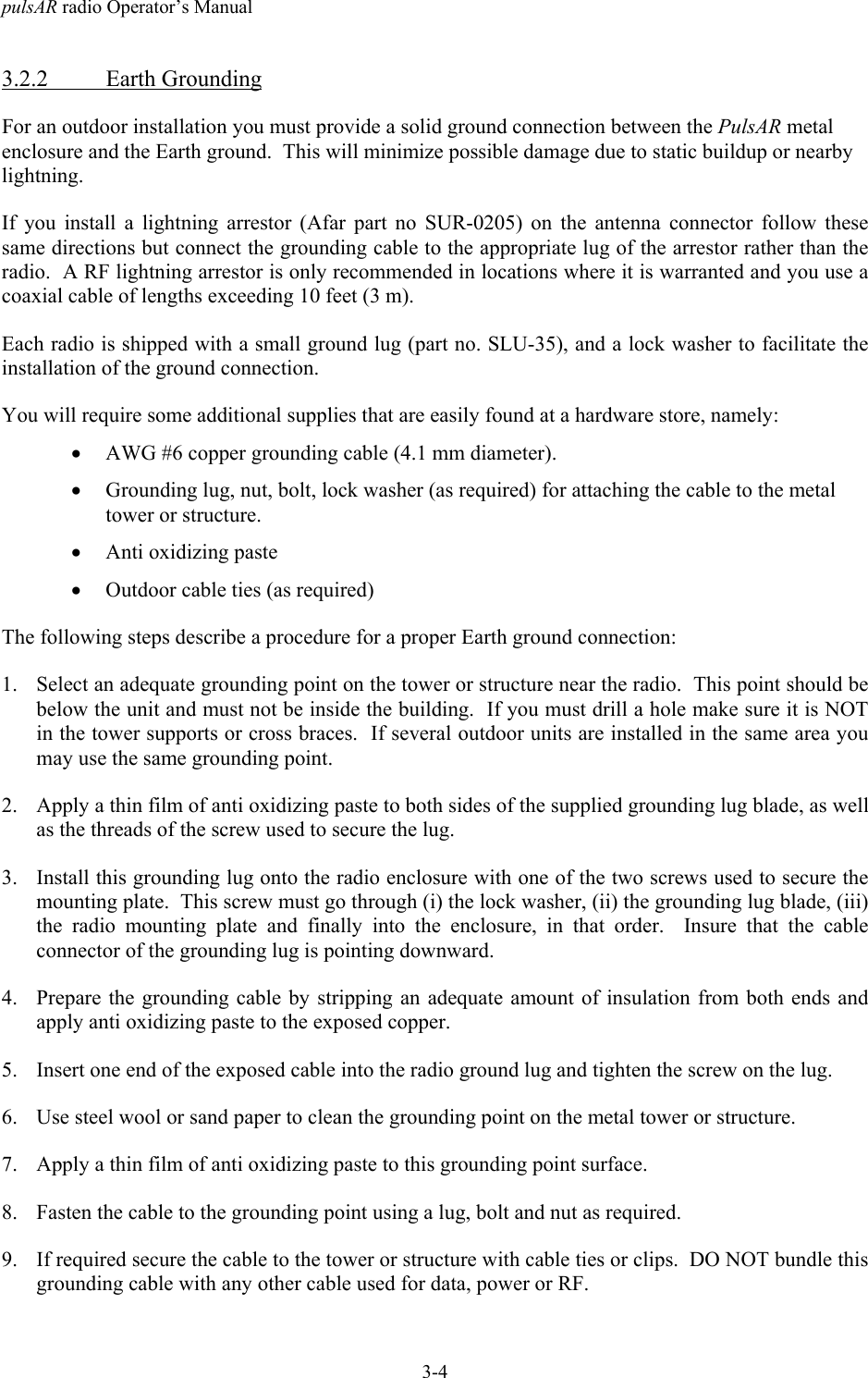
pulsAR radio Operator’s Manual3-43.2.2 Earth GroundingFor an outdoor installation you must provide a solid ground connection between the PulsAR metalenclosure and the Earth ground.  This will minimize possible damage due to static buildup or nearbylightning.If you install a lightning arrestor (Afar part no SUR-0205) on the antenna connector follow thesesame directions but connect the grounding cable to the appropriate lug of the arrestor rather than theradio.  A RF lightning arrestor is only recommended in locations where it is warranted and you use acoaxial cable of lengths exceeding 10 feet (3 m).Each radio is shipped with a small ground lug (part no. SLU-35), and a lock washer to facilitate theinstallation of the ground connection.You will require some additional supplies that are easily found at a hardware store, namely:• AWG #6 copper grounding cable (4.1 mm diameter).• Grounding lug, nut, bolt, lock washer (as required) for attaching the cable to the metaltower or structure.• Anti oxidizing paste• Outdoor cable ties (as required)The following steps describe a procedure for a proper Earth ground connection:1. Select an adequate grounding point on the tower or structure near the radio.  This point should bebelow the unit and must not be inside the building.  If you must drill a hole make sure it is NOTin the tower supports or cross braces.  If several outdoor units are installed in the same area youmay use the same grounding point.2. Apply a thin film of anti oxidizing paste to both sides of the supplied grounding lug blade, as wellas the threads of the screw used to secure the lug.3. Install this grounding lug onto the radio enclosure with one of the two screws used to secure themounting plate.  This screw must go through (i) the lock washer, (ii) the grounding lug blade, (iii)the radio mounting plate and finally into the enclosure, in that order.  Insure that the cableconnector of the grounding lug is pointing downward.4. Prepare the grounding cable by stripping an adequate amount of insulation from both ends andapply anti oxidizing paste to the exposed copper.5. Insert one end of the exposed cable into the radio ground lug and tighten the screw on the lug.6. Use steel wool or sand paper to clean the grounding point on the metal tower or structure.7. Apply a thin film of anti oxidizing paste to this grounding point surface.8. Fasten the cable to the grounding point using a lug, bolt and nut as required.9. If required secure the cable to the tower or structure with cable ties or clips.  DO NOT bundle thisgrounding cable with any other cable used for data, power or RF.
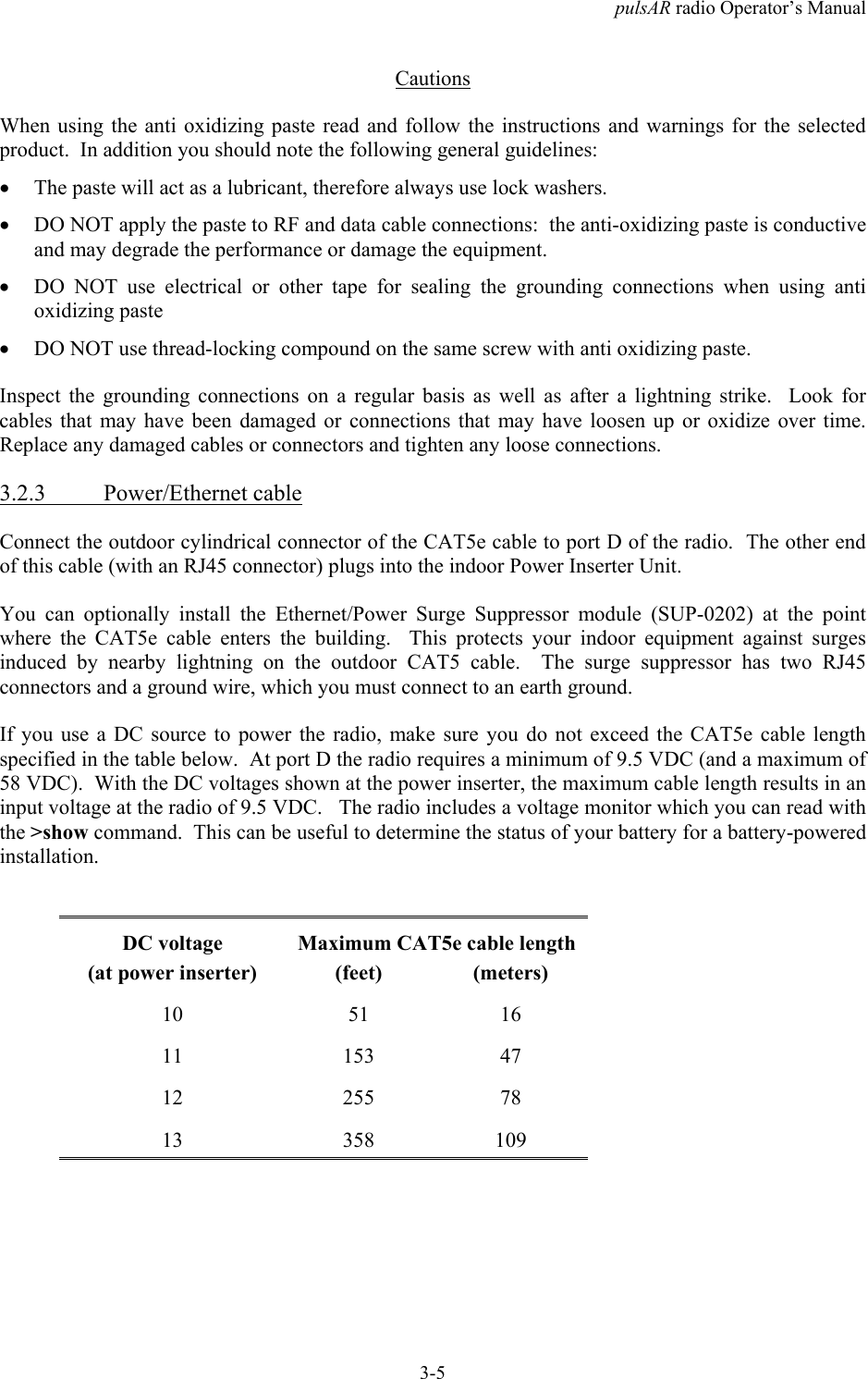
pulsAR radio Operator’s Manual3-5CautionsWhen using the anti oxidizing paste read and follow the instructions and warnings for the selectedproduct.  In addition you should note the following general guidelines:• The paste will act as a lubricant, therefore always use lock washers.• DO NOT apply the paste to RF and data cable connections:  the anti-oxidizing paste is conductiveand may degrade the performance or damage the equipment.• DO NOT use electrical or other tape for sealing the grounding connections when using antioxidizing paste• DO NOT use thread-locking compound on the same screw with anti oxidizing paste.Inspect the grounding connections on a regular basis as well as after a lightning strike.  Look forcables that may have been damaged or connections that may have loosen up or oxidize over time.Replace any damaged cables or connectors and tighten any loose connections.3.2.3 Power/Ethernet cableConnect the outdoor cylindrical connector of the CAT5e cable to port D of the radio.  The other endof this cable (with an RJ45 connector) plugs into the indoor Power Inserter Unit.You can optionally install the Ethernet/Power Surge Suppressor module (SUP-0202) at the pointwhere the CAT5e cable enters the building.  This protects your indoor equipment against surgesinduced by nearby lightning on the outdoor CAT5 cable.  The surge suppressor has two RJ45connectors and a ground wire, which you must connect to an earth ground.If you use a DC source to power the radio, make sure you do not exceed the CAT5e cable lengthspecified in the table below.  At port D the radio requires a minimum of 9.5 VDC (and a maximum of58 VDC).  With the DC voltages shown at the power inserter, the maximum cable length results in aninput voltage at the radio of 9.5 VDC.   The radio includes a voltage monitor which you can read withthe >show command.  This can be useful to determine the status of your battery for a battery-poweredinstallation.DC voltage Maximum CAT5e cable length(at power inserter) (feet) (meters)10 51 1611 153 4712 255 7813 358 109
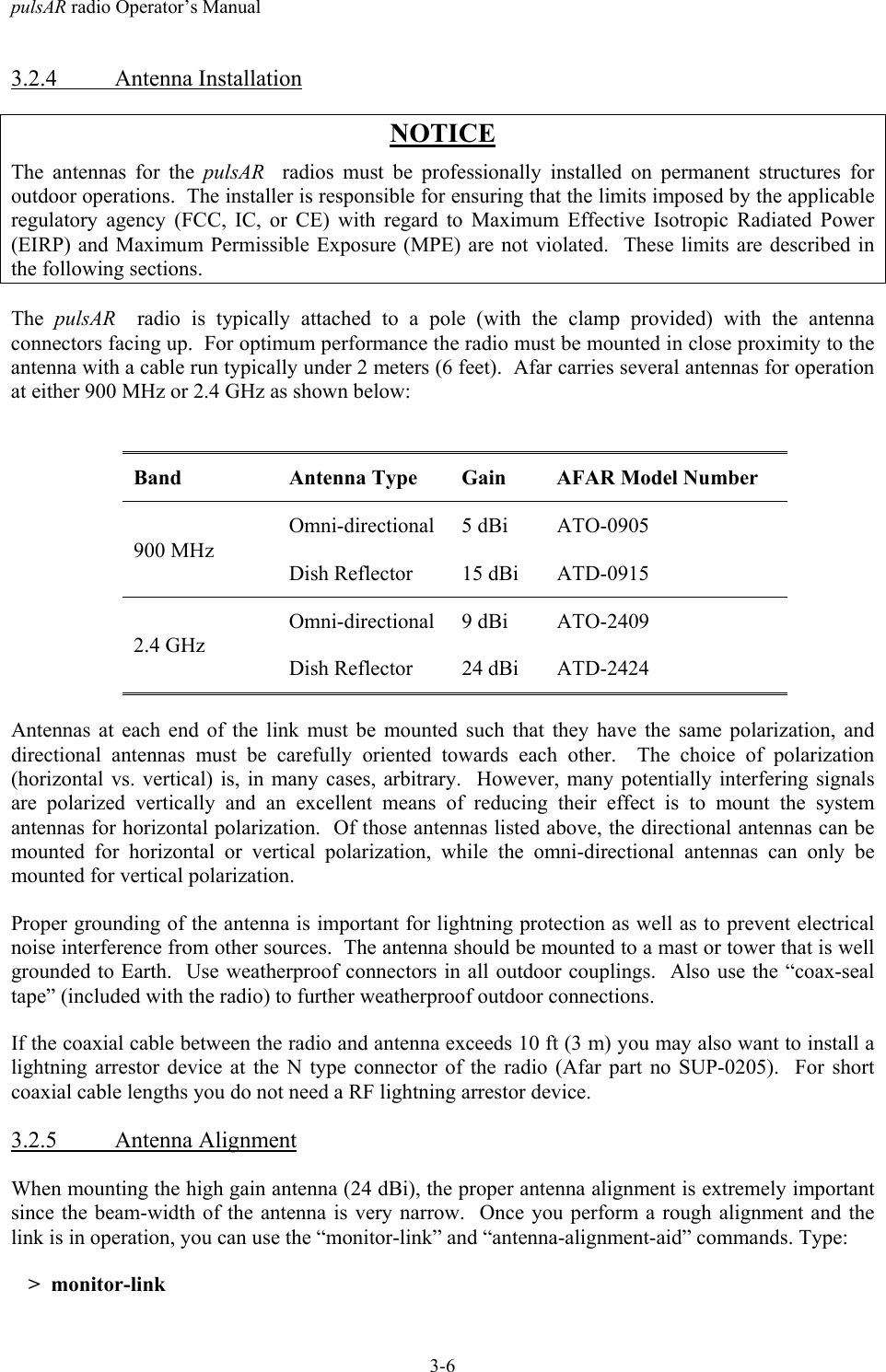
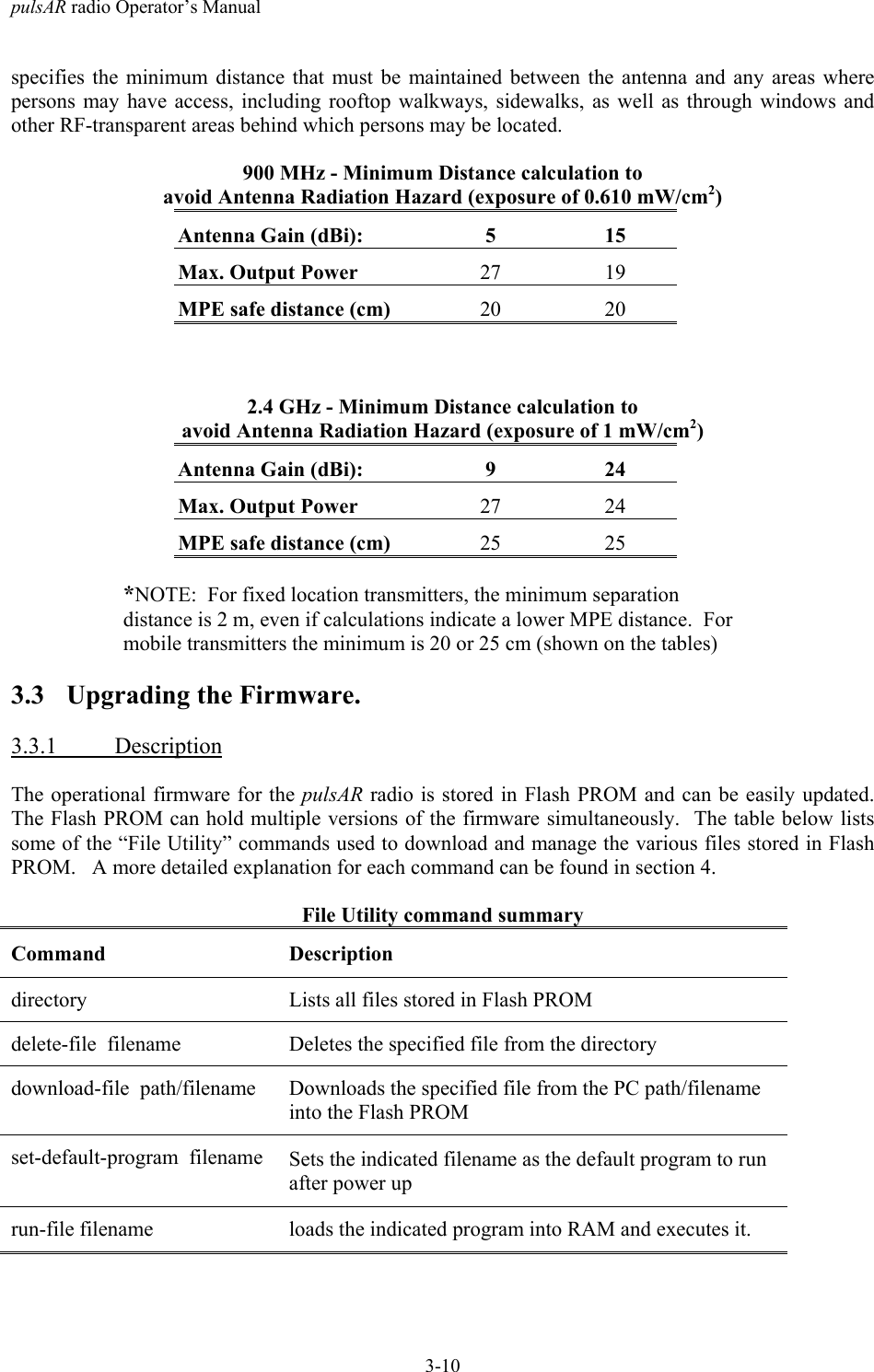
pulsAR radio Operator’s Manual3-63.2.4 Antenna InstallationNOTICEThe antennas for the pulsAR   radios must be professionally installed on permanent structures foroutdoor operations.  The installer is responsible for ensuring that the limits imposed by the applicableregulatory agency (FCC, IC, or CE) with regard to Maximum Effective Isotropic Radiated Power(EIRP) and Maximum Permissible Exposure (MPE) are not violated.  These limits are described inthe following sections.The  pulsAR   radio is typically attached to a pole (with the clamp provided) with the antennaconnectors facing up.  For optimum performance the radio must be mounted in close proximity to theantenna with a cable run typically under 2 meters (6 feet).  Afar carries several antennas for operationat either 900 MHz or 2.4 GHz as shown below:Band Antenna Type Gain AFAR Model NumberOmni-directional 5 dBi ATO-0905900 MHzDish Reflector 15 dBi ATD-0915Omni-directional 9 dBi ATO-24092.4 GHzDish Reflector 24 dBi ATD-2424Antennas at each end of the link must be mounted such that they have the same polarization, anddirectional antennas must be carefully oriented towards each other.  The choice of polarization(horizontal vs. vertical) is, in many cases, arbitrary.  However, many potentially interfering signalsare polarized vertically and an excellent means of reducing their effect is to mount the systemantennas for horizontal polarization.  Of those antennas listed above, the directional antennas can bemounted for horizontal or vertical polarization, while the omni-directional antennas can only bemounted for vertical polarization.Proper grounding of the antenna is important for lightning protection as well as to prevent electricalnoise interference from other sources.  The antenna should be mounted to a mast or tower that is wellgrounded to Earth.  Use weatherproof connectors in all outdoor couplings.  Also use the “coax-sealtape” (included with the radio) to further weatherproof outdoor connections.If the coaxial cable between the radio and antenna exceeds 10 ft (3 m) you may also want to install alightning arrestor device at the N type connector of the radio (Afar part no SUP-0205).  For shortcoaxial cable lengths you do not need a RF lightning arrestor device.3.2.5 Antenna AlignmentWhen mounting the high gain antenna (24 dBi), the proper antenna alignment is extremely importantsince the beam-width of the antenna is very narrow.  Once you perform a rough alignment and thelink is in operation, you can use the “monitor-link” and “antenna-alignment-aid” commands. Type:>  monitor-link
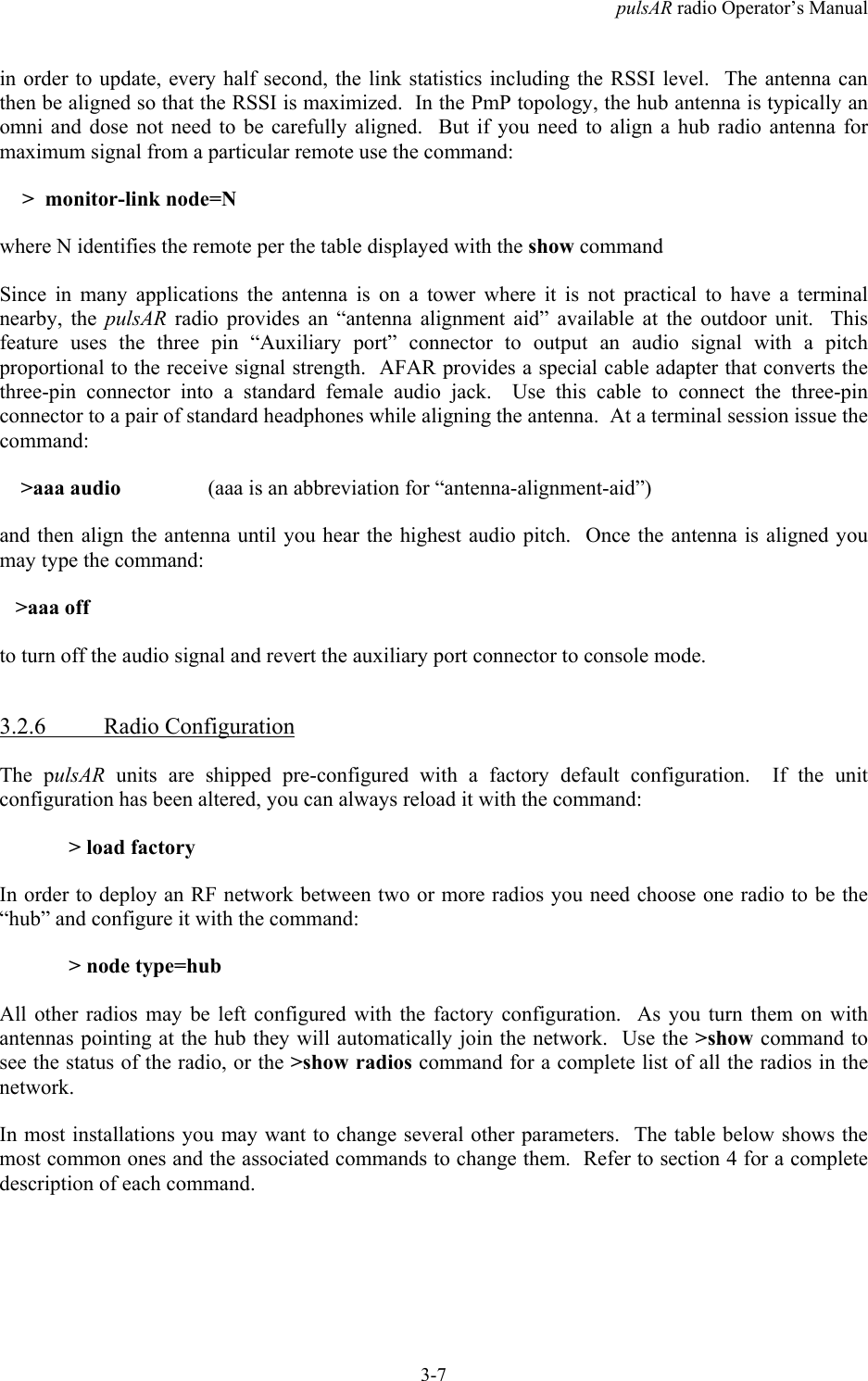
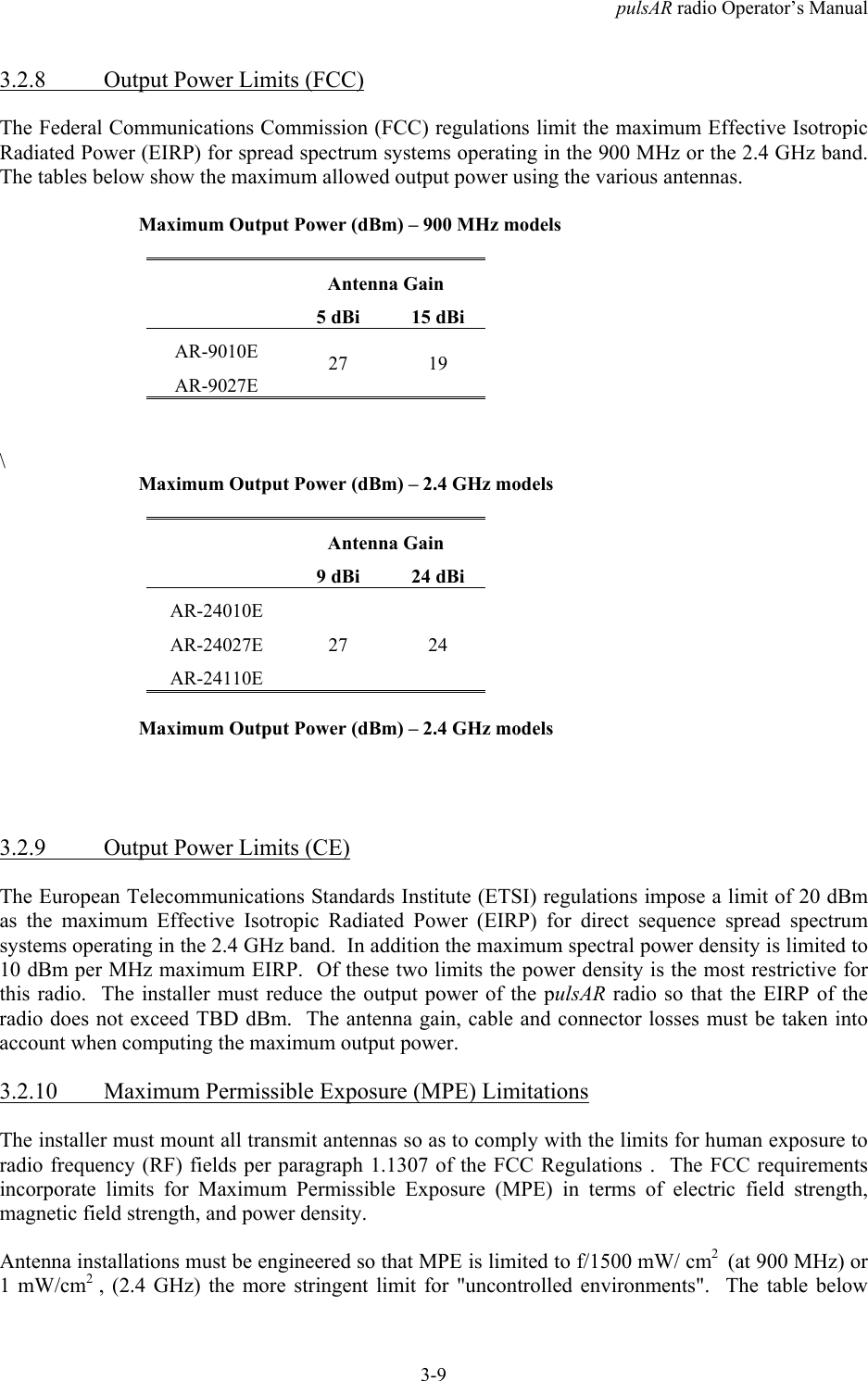
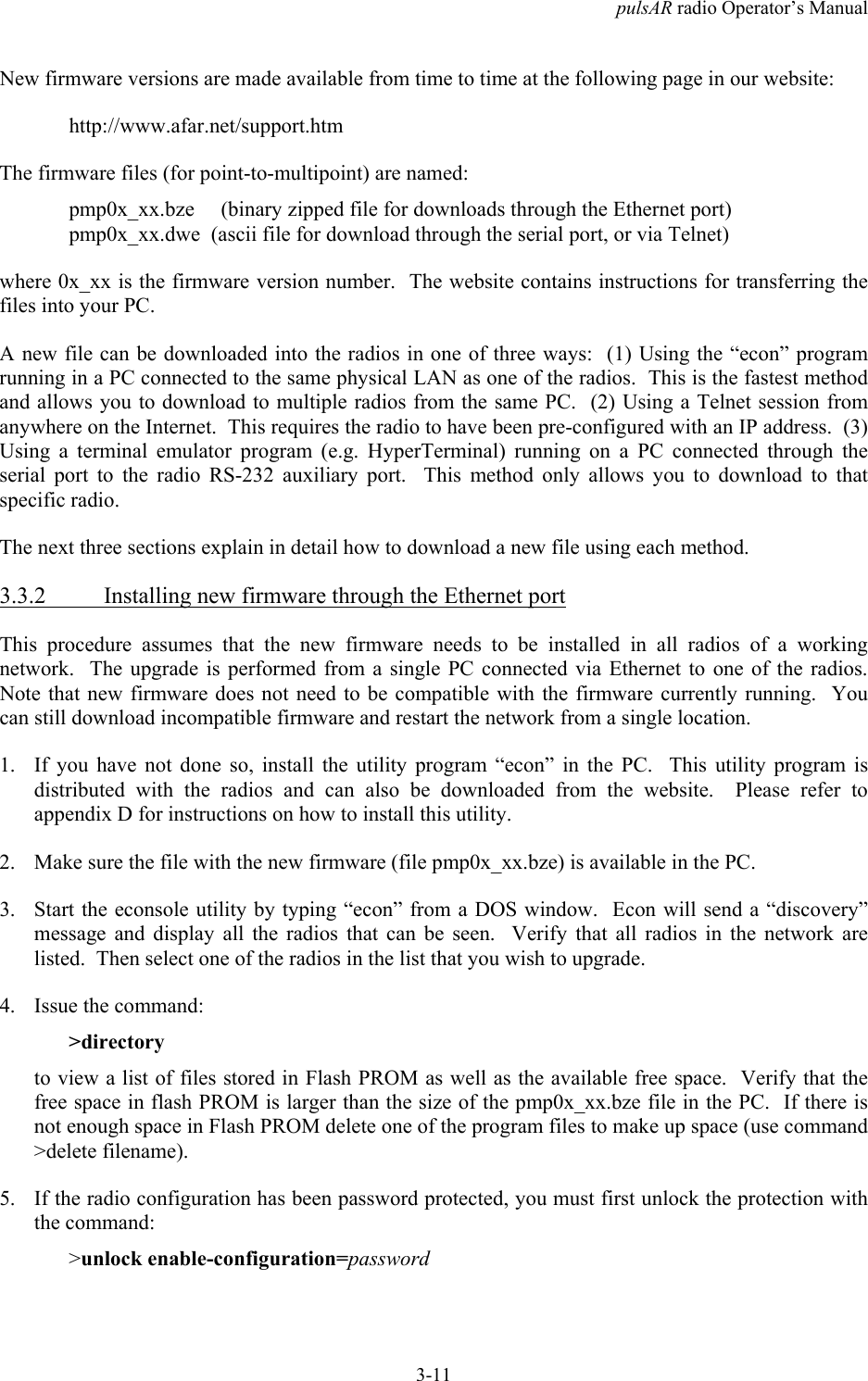
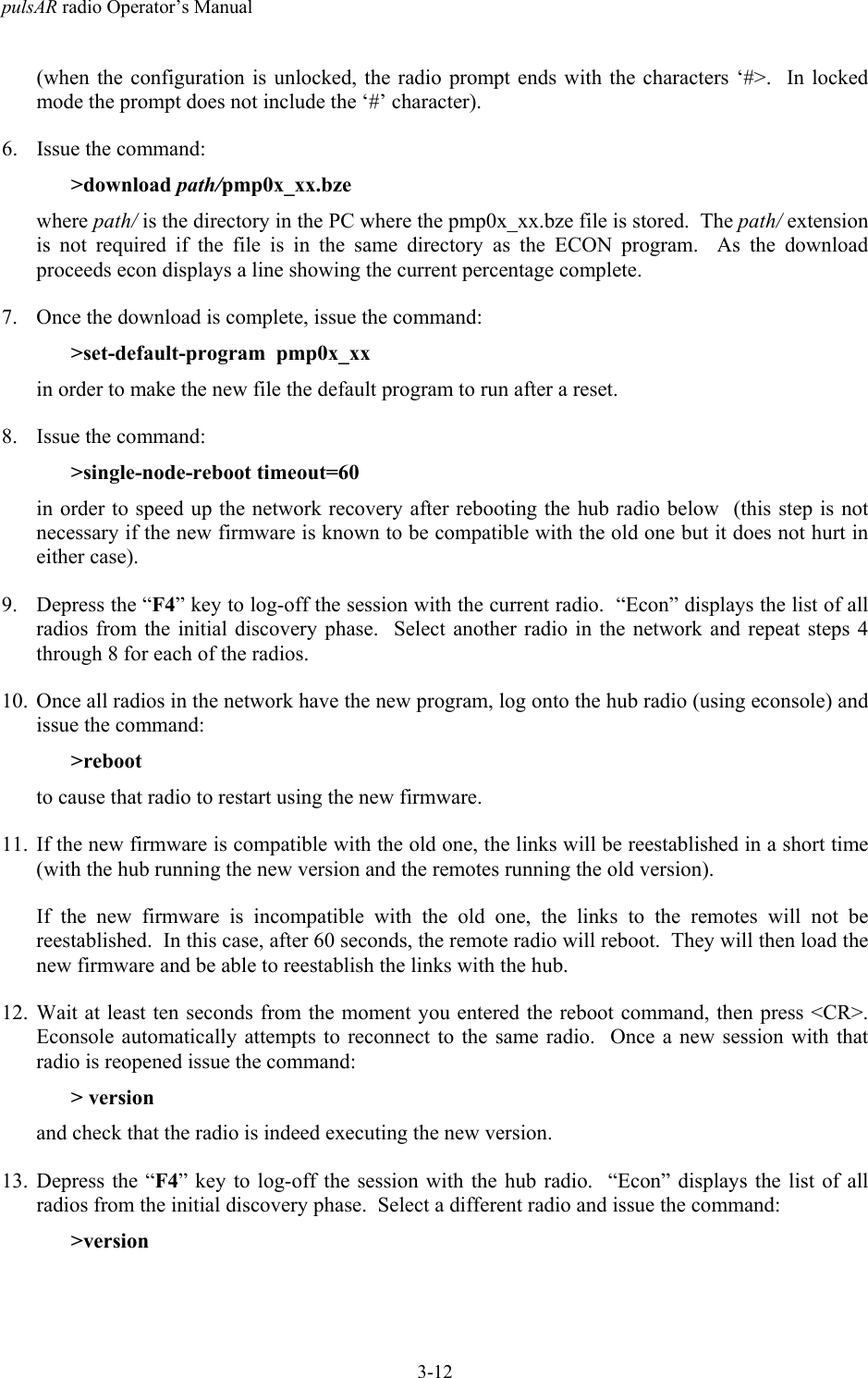
pulsAR radio Operator’s Manual3-7in order to update, every half second, the link statistics including the RSSI level.  The antenna canthen be aligned so that the RSSI is maximized.  In the PmP topology, the hub antenna is typically anomni and dose not need to be carefully aligned.  But if you need to align a hub radio antenna formaximum signal from a particular remote use the command: >  monitor-link node=Nwhere N identifies the remote per the table displayed with the show commandSince in many applications the antenna is on a tower where it is not practical to have a terminalnearby, the pulsAR radio provides an “antenna alignment aid” available at the outdoor unit.  Thisfeature uses the three pin “Auxiliary port” connector to output an audio signal with a pitchproportional to the receive signal strength.  AFAR provides a special cable adapter that converts thethree-pin connector into a standard female audio jack.  Use this cable to connect the three-pinconnector to a pair of standard headphones while aligning the antenna.  At a terminal session issue thecommand:    >aaa audio  (aaa is an abbreviation for “antenna-alignment-aid”)and then align the antenna until you hear the highest audio pitch.  Once the antenna is aligned youmay type the command:   >aaa offto turn off the audio signal and revert the auxiliary port connector to console mode.3.2.6 Radio ConfigurationThe pulsAR units are shipped pre-configured with a factory default configuration.  If the unitconfiguration has been altered, you can always reload it with the command:> load factoryIn order to deploy an RF network between two or more radios you need choose one radio to be the“hub” and configure it with the command:> node type=hubAll other radios may be left configured with the factory configuration.  As you turn them on withantennas pointing at the hub they will automatically join the network.  Use the >show command tosee the status of the radio, or the >show radios command for a complete list of all the radios in thenetwork.In most installations you may want to change several other parameters.  The table below shows themost common ones and the associated commands to change them.  Refer to section 4 for a completedescription of each command.
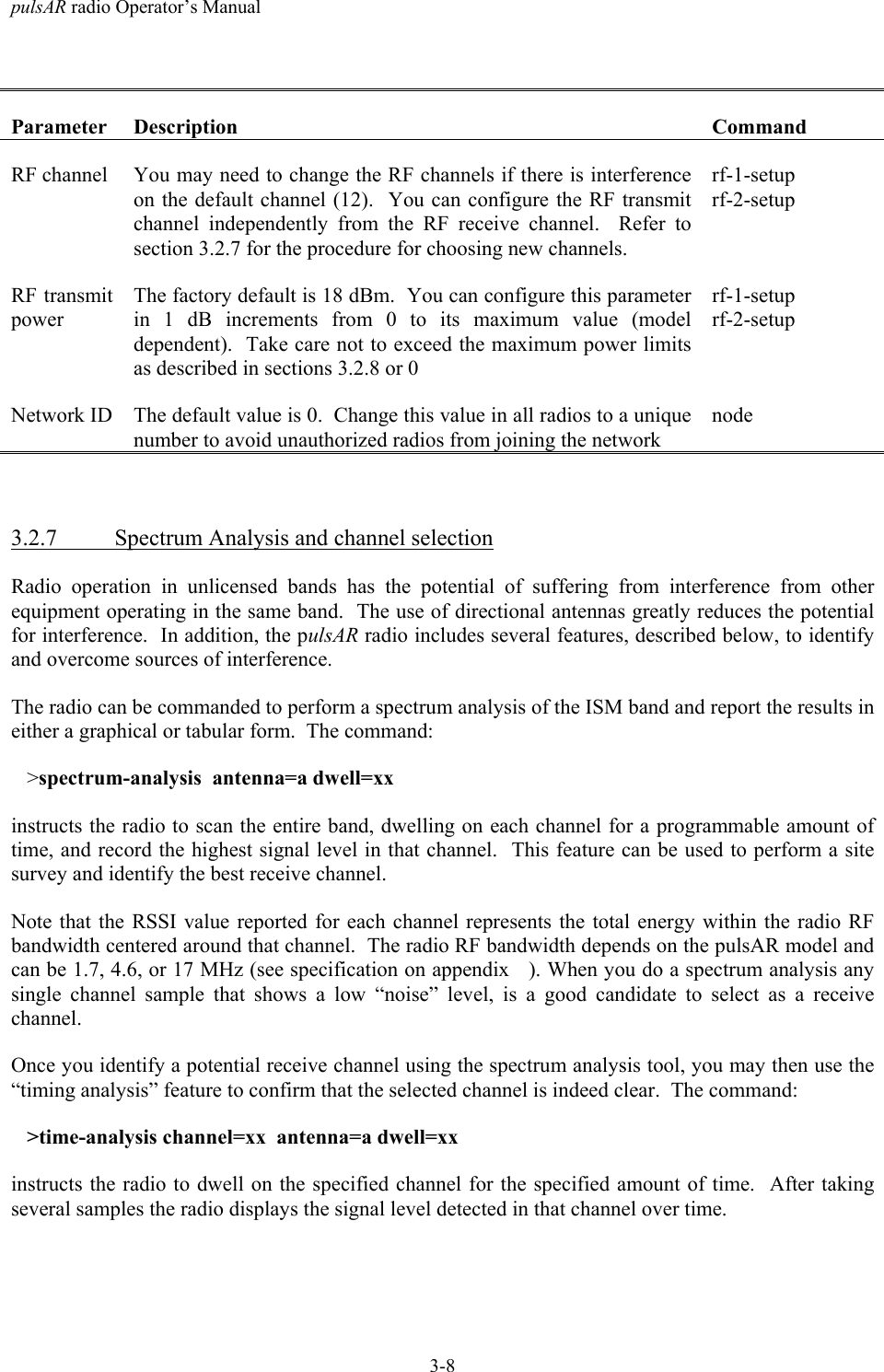
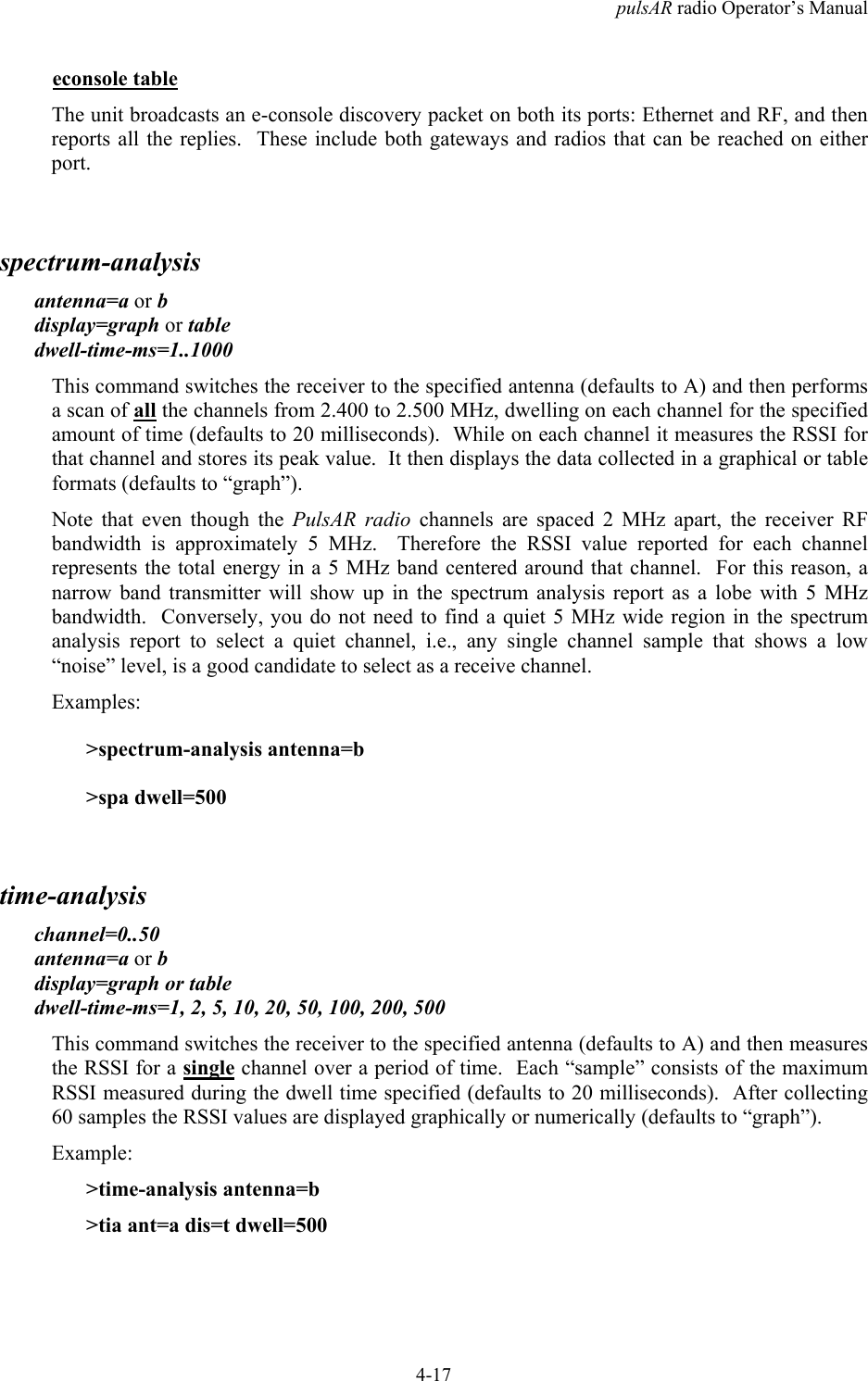
pulsAR radio Operator’s Manual3-8Parameter Description CommandRF channel You may need to change the RF channels if there is interferenceon the default channel (12).  You can configure the RF transmitchannel independently from the RF receive channel.  Refer tosection 3.2.7 for the procedure for choosing new channels.rf-1-setuprf-2-setupRF transmitpowerThe factory default is 18 dBm.  You can configure this parameterin 1 dB increments from 0 to its maximum value (modeldependent).  Take care not to exceed the maximum power limitsas described in sections 3.2.8 or 0rf-1-setuprf-2-setupNetwork ID The default value is 0.  Change this value in all radios to a uniquenumber to avoid unauthorized radios from joining the networknode3.2.7 Spectrum Analysis and channel selectionRadio operation in unlicensed bands has the potential of suffering from interference from otherequipment operating in the same band.  The use of directional antennas greatly reduces the potentialfor interference.  In addition, the pulsAR radio includes several features, described below, to identifyand overcome sources of interference.The radio can be commanded to perform a spectrum analysis of the ISM band and report the results ineither a graphical or tabular form.  The command:   >spectrum-analysis  antenna=a dwell=xxinstructs the radio to scan the entire band, dwelling on each channel for a programmable amount oftime, and record the highest signal level in that channel.  This feature can be used to perform a sitesurvey and identify the best receive channel.Note that the RSSI value reported for each channel represents the total energy within the radio RFbandwidth centered around that channel.  The radio RF bandwidth depends on the pulsAR model andcan be 1.7, 4.6, or 17 MHz (see specification on appendix   ). When you do a spectrum analysis anysingle channel sample that shows a low “noise” level, is a good candidate to select as a receivechannel.Once you identify a potential receive channel using the spectrum analysis tool, you may then use the“timing analysis” feature to confirm that the selected channel is indeed clear.  The command:   >time-analysis channel=xx  antenna=a dwell=xxinstructs the radio to dwell on the specified channel for the specified amount of time.  After takingseveral samples the radio displays the signal level detected in that channel over time.
pulsAR radio Operator’s Manual3-93.2.8 Output Power Limits (FCC)The Federal Communications Commission (FCC) regulations limit the maximum Effective IsotropicRadiated Power (EIRP) for spread spectrum systems operating in the 900 MHz or the 2.4 GHz band.The tables below show the maximum allowed output power using the various antennas.Maximum Output Power (dBm) – 900 MHz modelsAntenna Gain5 dBi 15 dBiAR-9010EAR-9027E27 19\Maximum Output Power (dBm) – 2.4 GHz modelsAntenna Gain9 dBi 24 dBiAR-24010EAR-24027EAR-24110E27 24Maximum Output Power (dBm) – 2.4 GHz models3.2.9 Output Power Limits (CE)The European Telecommunications Standards Institute (ETSI) regulations impose a limit of 20 dBmas the maximum Effective Isotropic Radiated Power (EIRP) for direct sequence spread spectrumsystems operating in the 2.4 GHz band.  In addition the maximum spectral power density is limited to10 dBm per MHz maximum EIRP.  Of these two limits the power density is the most restrictive forthis radio.  The installer must reduce the output power of the pulsAR radio so that the EIRP of theradio does not exceed TBD dBm.  The antenna gain, cable and connector losses must be taken intoaccount when computing the maximum output power.3.2.10 Maximum Permissible Exposure (MPE) LimitationsThe installer must mount all transmit antennas so as to comply with the limits for human exposure toradio frequency (RF) fields per paragraph 1.1307 of the FCC Regulations .  The FCC requirementsincorporate limits for Maximum Permissible Exposure (MPE) in terms of electric field strength,magnetic field strength, and power density.Antenna installations must be engineered so that MPE is limited to f/1500 mW/ cm2  (at 900 MHz) or1 mW/cm2  , (2.4 GHz) the more stringent limit for "uncontrolled environments".  The table below
pulsAR radio Operator’s Manual3-10specifies the minimum distance that must be maintained between the antenna and any areas wherepersons may have access, including rooftop walkways, sidewalks, as well as through windows andother RF-transparent areas behind which persons may be located.900 MHz - Minimum Distance calculation toavoid Antenna Radiation Hazard (exposure of 0.610 mW/cm2)Antenna Gain (dBi): 5 15Max. Output Power 27 19MPE safe distance (cm) 20 202.4 GHz - Minimum Distance calculation toavoid Antenna Radiation Hazard (exposure of 1 mW/cm2)Antenna Gain (dBi): 9 24Max. Output Power 27 24MPE safe distance (cm) 25 25*NOTE:  For fixed location transmitters, the minimum separationdistance is 2 m, even if calculations indicate a lower MPE distance.  Formobile transmitters the minimum is 20 or 25 cm (shown on the tables)3.3 Upgrading the Firmware.3.3.1 DescriptionThe operational firmware for the pulsAR radio is stored in Flash PROM and can be easily updated.The Flash PROM can hold multiple versions of the firmware simultaneously.  The table below listssome of the “File Utility” commands used to download and manage the various files stored in FlashPROM.   A more detailed explanation for each command can be found in section 4.File Utility command summaryCommand Descriptiondirectory Lists all files stored in Flash PROMdelete-file  filename Deletes the specified file from the directorydownload-file  path/filename Downloads the specified file from the PC path/filenameinto the Flash PROMset-default-program  filename Sets the indicated filename as the default program to runafter power uprun-file filename loads the indicated program into RAM and executes it.
pulsAR radio Operator’s Manual3-11New firmware versions are made available from time to time at the following page in our website:http://www.afar.net/support.htmThe firmware files (for point-to-multipoint) are named:pmp0x_xx.bze     (binary zipped file for downloads through the Ethernet port)pmp0x_xx.dwe  (ascii file for download through the serial port, or via Telnet)where 0x_xx is the firmware version number.  The website contains instructions for transferring thefiles into your PC.A new file can be downloaded into the radios in one of three ways:  (1) Using the “econ” programrunning in a PC connected to the same physical LAN as one of the radios.  This is the fastest methodand allows you to download to multiple radios from the same PC.  (2) Using a Telnet session fromanywhere on the Internet.  This requires the radio to have been pre-configured with an IP address.  (3)Using a terminal emulator program (e.g. HyperTerminal) running on a PC connected through theserial port to the radio RS-232 auxiliary port.  This method only allows you to download to thatspecific radio.The next three sections explain in detail how to download a new file using each method.3.3.2 Installing new firmware through the Ethernet portThis procedure assumes that the new firmware needs to be installed in all radios of a workingnetwork.  The upgrade is performed from a single PC connected via Ethernet to one of the radios.Note that new firmware does not need to be compatible with the firmware currently running.  Youcan still download incompatible firmware and restart the network from a single location.1. If you have not done so, install the utility program “econ” in the PC.  This utility program isdistributed with the radios and can also be downloaded from the website.  Please refer toappendix D for instructions on how to install this utility.2. Make sure the file with the new firmware (file pmp0x_xx.bze) is available in the PC.3. Start the econsole utility by typing “econ” from a DOS window.  Econ will send a “discovery”message and display all the radios that can be seen.  Verify that all radios in the network arelisted.  Then select one of the radios in the list that you wish to upgrade.4. Issue the command:>directoryto view a list of files stored in Flash PROM as well as the available free space.  Verify that thefree space in flash PROM is larger than the size of the pmp0x_xx.bze file in the PC.  If there isnot enough space in Flash PROM delete one of the program files to make up space (use command>delete filename).5. If the radio configuration has been password protected, you must first unlock the protection withthe command:>unlock enable-configuration=password
pulsAR radio Operator’s Manual3-12(when the configuration is unlocked, the radio prompt ends with the characters ‘#>.  In lockedmode the prompt does not include the ‘#’ character).6. Issue the command:>download path/pmp0x_xx.bzewhere path/ is the directory in the PC where the pmp0x_xx.bze file is stored.  The path/ extensionis not required if the file is in the same directory as the ECON program.  As the downloadproceeds econ displays a line showing the current percentage complete.7. Once the download is complete, issue the command:>set-default-program  pmp0x_xxin order to make the new file the default program to run after a reset.8. Issue the command:>single-node-reboot timeout=60in order to speed up the network recovery after rebooting the hub radio below  (this step is notnecessary if the new firmware is known to be compatible with the old one but it does not hurt ineither case).9. Depress the “F4” key to log-off the session with the current radio.  “Econ” displays the list of allradios from the initial discovery phase.  Select another radio in the network and repeat steps 4through 8 for each of the radios.10. Once all radios in the network have the new program, log onto the hub radio (using econsole) andissue the command:>rebootto cause that radio to restart using the new firmware.11. If the new firmware is compatible with the old one, the links will be reestablished in a short time(with the hub running the new version and the remotes running the old version).If the new firmware is incompatible with the old one, the links to the remotes will not bereestablished.  In this case, after 60 seconds, the remote radio will reboot.  They will then load thenew firmware and be able to reestablish the links with the hub.12. Wait at least ten seconds from the moment you entered the reboot command, then press <CR>.Econsole automatically attempts to reconnect to the same radio.  Once a new session with thatradio is reopened issue the command:> versionand check that the radio is indeed executing the new version.13. Depress the “F4” key to log-off the session with the hub radio.  “Econ” displays the list of allradios from the initial discovery phase.  Select a different radio and issue the command:>version
pulsAR radio Operator’s Manual3-13and check if that radio is running the new or old version.  If the radio is already running the newversion repeat this step with the next radio.  Otherwise perform the next step.14. If the radio is running the old version issue the command:>rebootWait at least ten seconds for the radio to perform its start up code and re-establish the link.  Thenpress <CR>.  Econsole automatically attempts to reconnect to the same radio again.  Once a newsession with that radio is reopened issue the command:>versionand check that the radio is indeed executing the new version.Note that the file downloads are executed with the link in full operation.  The only downtime in thelink occurs when the radios are rebooting.  The radio configuration is kept intact when a new versionis started.  The downtime for the radio being restarted, is typically less than twenty seconds.  Whenupgrading to an incompatible version, the downtime will be slightly over one minute.3.3.3 Installing new firmware using TelnetTelnet is a protocol that allows you to conduct a remote radio command session from a local host.The radio must have been pre-configured with an IP address and be reachable, over the network, fromthe local host.  Refer to section 5 for details on how to configure a radio IP address and initiate aTelnet session.   The Telnet terminal emulation must have the capability of sending an ASCII file tothe remote machine.  The following description assumes you are using Hyperterminal as the localTelnet terminal emulation.1. Verify that the new software is available in the local machine.  The download software forupgrade via Telnet must have a “.dwn” extension, e.g., pmp03_25.dwn.2. Initiate a Telnet session with the radio as described in section 5.3. If the radio configuration has been password protected, you must first unlock the protection withthe command:>unlock enable-configuration=password(when the configuration is unlocked, the radio prompt ends with the characters ‘#>.  In lockedmode the prompt does not include the ‘#’ character).4. Issue the command:>directoryto view a list of files stored in Flash PROM as well as the available free space.  Verify that thereis enough free space in flash PROM for the new file.  The space required will be the size of thepmp0x_xx.dwn file divided by 2.5.  If there is not enough space in Flash PROM delete one of theprogram files to make up space (use command >delete filename).5. Start the download process by typing:>download-file destination=pmp0x_xx method=inlinewhere 0x_xx file is new version of software being installed.
pulsAR radio Operator’s Manual3-146. The radio will return with the following:“Send the file ... if incomplete, end with a line with just a period”When you get this prompt, go to “Transfer-Send Text file…” in Hyperterminal and select the fileto be installed.  The file must have a “.dwn” extension.7. After the file is successfully installed issue the command:>directoryto insure that the file has been loaded into memory.8. Issue the command:>set-default-program  pmp0x_xxwhere 0x_xx file is new version of software being installed.9. Issue the command:>rebootto restart the radio with the new software.  Close the Telnet session, wait a few seconds and opena new session with the same radio.10. Issue the command:>versionto insure the radio is running the latest version.3.3.4 Installing new firmware using the RS-232 serial portOn occasion, it may be necessary to install new firmware using the RS-232 port.  This is generally aless desirable method as the download time is much longer and you can only update the radio that isdirectly connected to the PC, i.e., remote updates are not possible.The serial upgrade uses a PC with a terminal emulator.  Any emulator can be used, however, it musthave the facility to download a text file on demand.  In the example below, the emulator used isWindows HyperTerminal.1. Connect the PulsAR Auxiliary Port (3 pin circular connector) to a terminal, or a PC running aterminal emulation program. A special adapter cable is supplied by AFAR.  Configure theterminal settings as follows:Baud rate: 9600Word length: 8 bitsParity: noneStop bits: 12. Verify that the new software is available in the PC.  The download software for the serial upgrademust have a “.dwn” extension, e.g., pmp03_25.dwn.3. To have the shortest download time possible, set the radio to use the highest RS-232 speedallowable on the PC.  In this example, a download speed of 57600 baud will be used.  Set theconsole speed of the radio to 57600 baud by issuing the command:
pulsAR radio Operator’s Manual3-15>console-speed-bps  576004. Change the baud rate of the PC to match the radio.  Remember that with HyperTerminal, youmust disconnect the session and re-connect before the changes will take effect.  Verify the PCcommunicates with the radio again.5. If the radio configuration has been password protected, you must first unlock the protection withthe command:>unlock enable-configuration=password(when the configuration is unlocked, the radio prompt ends with the characters ‘#>.  In lockedmode the prompt does not include the ‘#’ character).6. Issue the command:>directoryto view a list of files stored in Flash PROM as well as the available free space.  Verify that thereis enough free space in flash PROM for the new file.  The space required will be the size of thepmp0x_xx.dwn file divided by 2.5.  If there is not enough space in Flash PROM delete one of theprogram files to make up space (use command >delete filename).7. Start the download process by typing:>download-file destination=pmp0x_xx method=inlinewhere 0x_xx file is new version of software being installed.8. The radio will return with the following:“Send the file ... if incomplete, end with a line with just a period”When you get this prompt, go to “Transfer-Send Text file…” in HyperTerminal and select the fileto be installed.  The file must have a “.dwn” extension.9. After the file is successfully installed issue the command:>directoryto insure that the file has been loaded into memory.10. Issue the command:>set-default-program  pmp0x_xxwhere 0x_xx file is new version of software being installed.11. Issue the command:>rebootto restart the radio with the new software.  Remember to change the PC HyperTerminal settingsback to 9600 baud and disconnect/re-connect the session.12. Issue the command:>versionto insure the radio is running the latest version.
pulsAR radio Operator’s Manual3-163.3.5 Feature upgradesThe PulsAR radio firmware includes optional features and capabilities that may have been activated atthe time of purchase or you may purchase later and activate in the field.  This is done via the use ofthe “license” command.  This command requires a “key” that is specific to a particular radio serialnumber and capability.  To obtain a feature key, you must supply the specific model number, theserial number, and the feature desired.  Please contact your local distributor for a list of optionalfeatures available for your radio.
pulsAR radio Operator’s Manual4-14 COMMANDS4.1 Configuration techniquesYou can establish a command session with an Afar radio in any of four different interfaces:1. Serial Console through a 3-pin RS-232 port.2. With the Afar EConsole program running on a PC connected to the radio Ethernet port.3. Using Telnet from anywhere that can reach the radio IP address.4. Using a UDP/IP interface for programming using a host computer.Serial Console:  To establish a command session on this port all you need is a terminal or PC directlyconnected to the radio 3-pin cylindrical connector. Afar provide an adapter cable to convert thisconnector to a DB9 female.  By default this port is set as follows:Baud rate: 9600Word length: 8 bitsParity: noneStop bits: 1This port allows you to configure and monitor only the local radio, i.e. you can not reach any of theremote radios through RF. It is often used for bench testing and for setting up device parameters priorto installation.EConsole:  This is an Afar program, available on the distribution CD or downloaded from ourwebsite, that runs on a PC Windows or a Linux platform connected to the same Ethernet LAN as theradio. With Econsole you can reach any local radios and also remote radios across multiple RF hops.However, EConsole does not cross an IP router. Refer to Appendix D for instructions on theinstallation of Econsole.Telnet:  Lets you establish a command session with a radio from anywhere on the Internet.  The onlyrequirement is that the radio must have been pre-configured with an IP address using one of theprevious two interfaces (see ip-configuration command).  Telnet is explained in more detail insection 5.UDP/IP Interface: This is intended to allow a host computer to issue all the same text commandsavailable through the other interfaces.  Refer to the udp-configuration command and section 5.3 fordetails.After power up the radio performs several diagnostic and calibration tests.  At the end of these tests itoutputs the command prompt.  The default prompt has the following format:   rmt-nnnnn #>
pulsAR radio Operator’s Manual4-2where nnnnn are the last five digits of the radio serial number.  The first three characters are anabbreviation of the node type in the network, which may be: hub, rmt, rt1, rt2, bra, lf.  If a node“name” has been assigned to the node, the prompt will be that name.The “help” command provides a list of all the commands available.  To get more detailed help for aspecific command, type “help command-name”.The radio keeps a history of several of the previously issued commands.  Those commands can beviewed by pressing the up-arrow and down-arrow keys on the keyboard.  Any of those previouslyissued commands can then be edited and reentered by pressing the <Enter> key.4.2 Command syntaxThe command interpreter in the pulsAR radio is designed to accommodate both a novice as well as anexpert operator.  All commands and parameters have descriptive names so that they are easilyremembered and their meaning is clear.  In order to be descriptive however, those commands aresometimes long.  As the operator becomes familiar with the command language, typing the completewords could become cumbersome.  The PulsAR radio command interpreter recognizes anyabbreviations to commands and parameter names, as long as they are unambiguous.  If an ambiguouscommand is entered, the radio will output all possible choices.Commands have the following generic form:command   parameter=value   parameter=valueYou can enter multiple commands in one line by separating them with a semi-colon.  If one of thecommands has a syntax error the radio executes all commands up to the one with the syntax error anddiscards the remaining commands.Following is a brief list of syntax rules:• Words (for commands, parameters, or values) can be abbreviated to a point where they areunambiguous.• Some commands or parameters consist of compound words separated by an hyphen.  Withcompound words, the hyphen is optional.  Additionally each word in a compound word can beabbreviated separately.  For example, the following are all valid abbreviations for the command“save-configuration”:  “save”, “savec” s-c” “sc”.• The parameter and value lists are context sensitive, i.e., in order to solve ambiguities thecommand interpreter only considers parameters valid for current command, or values valid for thecurrent parameter.• The arguments “parameter=value” must be entered with no blank spaces on either side of the ‘=’sign.  Those arguments (parameter/value pairs) can be listed in any order.• Even though parameters can be listed in any order, there is a “natural” order known by thecommand interpreter.  This allows the user to specify parameter values without having to type theparameter names.  For example the command   >spectrum-analysis antenna=a display=table
pulsAR radio Operator’s Manual4-3can be entered as (using abbreviation rules as well):   >spa a t• Using the preceding rule, for commands that have a single argument, the “parameter name” partof the argument is always optional, i.e., you can enter:>command valueFor example the command:>save-configuration destination=maincan be shortened to any of the following:>save-configuration main>save main>save• Not all parameters associated with a command need to be specified.  Depending on the command,when a parameter is omitted it either assumes a default value or keeps the last value assigned tothat parameter.• For all parameters that accept a numeric value, the number can be entered in decimal orhexadecimal notation.  To enter a number in hexadecimal notation precede it with a 0x or 0X. Allother numeric values are interpreted as decimal.  Example:>rf-1 receive=0x1a      (hexadecimal)>rf-1 receive=14          (decimal)The following sections describe the various commands grouped according to their functionality.  Asummary list of all commands are contained in Appendices A and B.4.3 Configuration Management CommandsA radio configuration consists of a set of programmable parameters that define the radio operationwith regard to a variety of operating modes.  There are five different configurations identified ascurrent, main, alternate, factory and basic.The main and alternate configurations are both stored in non-volatile memory.  They can be loadedinto the current configuration with the load command.  On power up the radio loads the mainconfiguration from non-volatile memory into the current configuration.The current configuration is the set of parameters currently being used and can be modified by theoperator through several commands.  This configuration is volatile.  If the current configuration hasbeen modified it should be saved using the save command.  Otherwise the modifications will be lostif power is removed.The factory configuration can not be modified by the operator and is used to return the radio to thefactory default condition.  It is useful as a starting point to create a customized configuration.The  basic configuration is similar to the factory configuration with the exception that a fewparameters are left unchanged when you issue the load basic command.  The parameters leftunchanged are the RF and the IP configuration.  This is useful when you are logged on to a remote
pulsAR radio Operator’s Manual4-4unit and need to start from a known configuration.  If you were to issue the load factory commandyou might lose contact with the remote unit if, for example, it changes the antenna of the remoteradio.The access to change the radio configuration can be password protected.  This password is set by theuser with the change-password command.  Once a password is set, issue the lock command toprevent any unauthorized changes to the configuration.  Once locked, the configuration can only bemodified by issuing the unlock command with the correct password.When the configuration is unlocked, the radio prompt ends with the characters ‘#>’ to remind the userthat the configuration is unlocked.  In locked mode the prompt does not include the ‘#’ character.Once a password is set, the radio will automatically lock the configuration after 10 minutes withoutany commands being issued.The configuration management commands are listed below:change-passwordenable-configuration=”ASCII string”This command allows the user to set or change a password used to “lock” and “unlock” accessto the commands that change the radio configuration.  The PulsAR radio is shipped with nopassword which allows access to all commands.  Once a password is set and the configurationis locked, the password is needed to unlock the access to those commands.  After changing thepassword you should also issue the “save-configuration” command to save the new password innon-volatile memory.Examples:>change-password enable-configuration=bh7g8WARNINGThe pulsAR radios are shipped with no password.  If the “change-password” command is issued makesure you do not forget the password.  Once locked, without a password, you need to contact thefactory to have the radio unlocked.display-configurationsource= current or main or alternate or basic or factoryDisplays all the parameter values for the specified configuration.   If the source is not specifiedit defaults to “current”.  The figure below shows the table displayed with the factory defualtvalues:--------------- TDD Radio Configuration (factory) --------------- Node type:    Remote              Name:     rmt-15005 Max children: (not applicable)    Location: Not defined Network ID:   0                   Contact:  Not defined RF-SETUP    1:with parent        2:(not used)   antenna:    A                    B   rec-chan:   12                   25   tr-chan:    12                   25   tr-power:   18   dBm             18   dBm   speed:      2.75 Mbps            2.75 Mbps
pulsAR radio Operator’s Manual4-5 TDD                               ETHERNET   sync-mode:  auto                 speed:              auto   cycle:      20 ms                station-timeout:    30    sec   split:      auto                 multi-cast-timeout: 30    sec Time-zone:    GMT                 Single-node-timeout: 900   sec                                   Distance-max:        80    km IP and SNMP:  IP Address:                 Netmask:                 Gateway:  No SNMP managers definedExamples:> display-configuration factory> discoload-configurationsource=main or alternate or basic or factoryLoads the specified configuration into the current set of parameters controlling the radiooperation.  If no source is specified it defaults to the “main” configuration.Examples:> load-configuration source=factory> loadlockThis command locks the access to all the commands that can alter the radio configuration.Once locked use the “unlock” command to regain access to those commands.  Note that apassword must be set prior to the “lock” command being issued (the radios are shipped with nopassword), otherwise the lock command has no effect.  If a password is set, the radioautomatically “locks” the configuration at the end of 10 minutes with no command activity.save-configurationdestination=main or alternateSaves the current set of radio operating parameters into one of the two non-volatileconfigurations.  If the destination is not specified it defaults to “main”.Examples:> save-configuration destination=alternate> save
pulsAR radio Operator’s Manual4-6unlockdebug-mode=”ASCII string”enable-configuration=”ASCII string”This command unlocks the access to various commands.  The enable-configuration password(set with the change-password command) unlocks the various commands listed in this manualthat alter the radio configuration.  The debug-mode is a factory mode used for troubleshootingby customer support.Examples:> unlock enable-configuration=bh7g84.4 Major Configuration ParametersThese commands change several operating parameters of the radio that are part of the radioconfiguration.  When entering commands with multiple parameters, if a parameter is notincluded, that parameter keeps its current value.distancemaximum=10..255 (km),  10..158 (miles)units=km or milesSets the limit for the maximum distance of any RF link in this network. You only need to setthis maximum distance at the root or hub node.  All other nodes will automatically configurethe maximum distance to that of the parent node.The units you choose (km or miles) will be used in other displays when reporting the measureddistances.In general you should leave the maximum distance set to the default value of 80 km (50 miles).But if you are deploying a network where one or more links exceed this distance you mustchange this parameter to a value that is equal to or greater than the maximum link distance.Increasing the maximum distance results in a slight decrease of the network capacity.Examples:> distance 100 km> distance units=milesethernetspeed=auto-10 or 10hdx or 10fdx or 100hdx or 100fdx or auto or offSets the ethernet port speed to a combination of 10 or 100 Mbps, half or full duplex, or autonegotiate.In installations requiring a very long outdoor CAT5 cable, operation at 100 Mbps may becomeunreliable.  For this reason the auto-10 setting forces the speed to 10Mbps but negotiates the
pulsAR radio Operator’s Manual4-7half vs full duplex setting.  The auto setting negotiates both the speed and duplex to the fastestconfiguration supported by the other device on the Ethernet.  With this setting the radio alsodetects and crosses over the Tx and Rx signal pairs, if necessary.You can also turn off the ethernet port, but only if your command session is over the consoleport, or remotely over an RF link.  This can be useful for test purposes if you suspect that youcreated a loop in the network and want to shut down this port without turning off the radio.timeout-sec=5..10000Sets the time the radio will retain Ethernet addresses obtained from the network.multi-cast-timeout-sec=5..10000Sets the time the radio will retain Ethernet multi-cast addresses obtained from the network. Thiscan not be set to a value below the station-timeout.Examples:> ethernet speed=10fdx timeout=100nodetype=hub or remote or root-1 or root-2 or branch or leafFor a point-to-point network configure one of the two radios as the hub and the other as theremote.   At the hub also set the max-children parameter to 1, which optimizes the network forpoint-to-point.For a point-to-multipoint network configure the central radio as the hub and all other radios asremote.  In a fixed installation you would typically deploy the remote radios with directionalantennas pointing at the hub radio.In a tree network configure the central radio as the root.  Use root-1 if you have a singleantenna at the root. You may also deploy a root with two antennas on ports A and B in whichcase use root-2.In a tree network all other nodes must be configured as either branch or leaf.  A branch nodewill attempt to connect to a parent (which can be the root or another branch) using the rf-1configuration.  It will also be acting as a parent and serve as an access point using the rf-2configuration.A leaf node will attach to the parent (root or branch) using the rf-1 configuration.When you attempt to configure a node to be a branch or a root the radio may indicate that it isnot authorized to operate in that mode.  In that case contact Afar to purchase a key to operatethe radio in the tree topology.max-children=1..32At the hub, root or branch nodes this value specifies the maximum number of children that willbe allowed to join the network through this access point.  Once the radio has the maximumchildren specified it stops allocating a slot for new nodes to join the network.  This improvesthe inbound throughput slightly, specially if the number of children is small.  It also prevents an
pulsAR radio Operator’s Manual4-8unauthorized radio to join the network.  In a point-to-point link make sure you set thisparameter to 1.name=”ASCII string”Gives the node a meaningful name for further reference.  This name will be used as thecommand prompt. It is also used to identify the node in a variety of commands and displays.The name field can be up to 23 characters with no spaces.  If spaces are desired, you mayinclude the whole name in quotation marks.  In some displays the name is truncated to 10characters.network-id=0..65,535You must set all the radios that are part of the same network with the same network-id,otherwise they will not be allowed to join the network.  The default value is zero. Werecommend that you set the network id to a unique number that you keep private to prevent anunauthorized radio to join your network.To keep the network-id private its value is only displayed if the configuration is unlocked.location=”ASCII string”Optional parameter to define the location of the node.  This field is displayed in the “Display-configuration” output and also reported through SNMP.  This field is used for information only.The location string can be up to 25 characters with no spaces. If spaces are desired, you mayinclude the whole string in quotation marks.contact=”ASCII string”Optional parameter to define the contact for maintenance purposes.  This field is displayed inthe “Display-configuration” output and also reported through SNMP.  This field is used forinformation only.  The contact string can be up to 25 characters with no spaces. If spaces aredesired, you may include the whole string in quotation marks.Examples:>node name=bank location=”wall street” contact=964-5848rf-1-setuprf-2-setupantenna=a or breceive-channel=nn,nn,nn….transmit-channel=nnpower-dbm=nnspeed-mbps=nnThere are two RF configurations, 1 and 2, which take the same parameters.  All node types usethe RF configuration 1.  Node types root-2 or branch also use the RF configuration 2 for linkswith their children.  The table below shows how the radios use the two RF configurationsdepending on the node type.  Once you set the node type issue the “>display-configuration”command to display this information.
pulsAR radio Operator’s Manual4-9Topology Node type rf-1 rf-2hub Link with children Not usedPoint-to-Multipoint remote Link with parent Not usedroot-1 Link with children Not usedroot-2 Link with children Link with childrenbranch Link with parent Link with childrenTreeleaf Link with parent Not usedAntenna:  In most topologies use antenna A for the RF configuration 1, and antenna B for theRF configuration 2.  This is not mandatory, there are situations when you may want to overridethis default.Receive-channel:  For the link with the parent this value must match the transmit channel ofthe desired parent.   If you have the roaming option enabled you can specify up to six receivechannels for the rf-1 configuration (separate values with commas but no spaces).  Thesechannels should match the transmit channels of separate access points in the area (hub, root orbranch).  The radio will then attach to the parent with the strongest signal and change parentautomatically when the signal becomes too weak.Transmit-channel:  This is only applicable at the parent nodes for the links with their children.At the child nodes, the transmit channel is configured automatically when the node attaches tothe parent (it will be set to match the receive channel of the parent).Power-dbm:  This is the transmit power fed into the antenna.  The default value is 18 dBmwhich is adequate in most situations.  If you do not have enough link margin or there isinterference in your channel you may want to increase the power up to the maximum valueaupported by your model.  If your links are very short and you have plenty of signal you canreduce the transmit power in order to re-use the same channel in other links in the area.Speed-mbps:  This is only applicable at the parent nodes for the links with their children.   Atthe child nodes the speed is set automatically to match that of the parent.   The default value isalways the highest speed supported by your specific model.  The lower speeds may beappropriate for very long links where the receive signal strength is too weak and you need alittle more link margin.  We suggest that in those cases you first increase the transmit powerand only then start reducing the speed.Example:> rf1 ant=a rec=15 tra=15 po=23 sp=0.5> rf1 rec=6,13,18,24
pulsAR radio Operator’s Manual4-10single-node-reboottimeout-sec=15..20000After power up, a radio attempts to get an RF  link up with one or more radios.  If a radio failsto get a link up  (or drops all existing links), it will perform a complete reset after the timeoutspecified in this command.This feature is useful if you issue a command to a distant radio (over an existing RF link) andthe link drops as a consequence of the command.  If that radio now has no other links up itwaits for the "single-node-reboot” and then perform a reset.  As a result, the radio reverts to thesaved configuration, allowing it to reestablish the original link.Examples:> snr 60time-division-duplexsync-mode=off or autoThis parameter selects whether this radio participates in the negotiation of the heartbeatsynchronization to select a single source for the heartbeat.  The default auto mode isrecommended for most applications.The off mode may be useful in situations where there is a variable and significant delay in thelocal Ethernet connecting the several co-located radios.  In that case the radios may not be ableto establish synchronization and you may get better results turning off the heartbeat protocol.See section 2.4.3 for a detailed explanation of the synchronization between co-located radios.cycle-period-ms= 20 or 40A cycle period of 20 ms (default) results in lower latencies throughout the network.  Howeverthere will be more transitions between transmit and receive resulting in somewhat lowerthroughput capacity for the network.  A cycle period of 40 ms has the opposite effect.For small networks a cycle period of 20 ms is usually preferred.  If you have a network withmany nodes that are simultaneously active the 40 ms cycle will give you better performance.The cycle period only needs to be set at the hub or root nodes.  All the children will pick up thecycle period from their parents.split-outbound-percent=auto or 10 or 20 or 30 or  40 or 50 or 60 or 70 or 80 or 90This parameter is relevant at the hub or root nodes only.  It specifies the percentage of the totalcycle period dedicated to RF outbound transmissions (from parent to children).  The remainingtime is dedicated to inbound traffic (from children to parent).  You only need to specify thisparameter at the root or the network hub. For all the other nodes, as they join the network theytake the split information from their parent.In auto mode a parent radio dynamically assigns a split based on the current traffic load in eachdirection.  This split may be different from cycle to cycle and different at each branch on a tree.Select fixed splits if you co-locate multiple radios and need to avoid self-interference. You mayalso choose a fixed split if your traffic is constant and consistently favors either outbound or
pulsAR radio Operator’s Manual4-11inbound.  In all other cases select the auto mode. See section 2.3.1 for a more detailedexplanation of fixed versus auto splits.At very low RF speeds (0.25 and 0.5 Mbps) the radio will not allow you to select some of themore asymmetric splits as they would result in packets that have too few bytes.Example:> tdd sync=off cycle=40 split=704.5 Internet Protocol (IP) Management CommandsThe IP Management commands configure the radio IP protocol parameters which allow the radio tobe monitored and configured through Telnet and SNMP.  Refer to section 5 for a more detailedexplanation on those two applications.ip-configurationaddress=<ip address>netmask=<string>gateway=<ip address>dhcp-client=yes or noThis command configures the radio IP address, netmask and gateway.  The IP configuration isoptional and the radios are shipped with these parameters left blank.  Once the IP configurationhas been initialized, the radios will reply to “ping” packets.  The IP configuration is alsorequired in order to use the “ping”, “snmp” and “telnet” features.Alternatively you can enable the dhcp-client function.  In that case the radio will attempt toconfigure its IP address parameters from a DHPC server in the network.Since the two radios in a link are bridged together they are in the same “internet network”.Example:> ipconfig add=207.154.90.81 netmask=255.255.255.0  gateway=207.154.90.2pingdestination=<string>count=0..500size-bytes=32..1400This command causes the radio to “ping” the destination address and display the results.  The“ping” packet consists of an ICMP packet with a length specified by the “size-bytes”parameter.  The destination is any valid IP address.  When the destination host receives thepacket it generates a reply of the same size.  Upon receiving the reply the radio displays theround trip delay.  This process is repeated until the number of replies reaches the value
pulsAR radio Operator’s Manual4-12specified by the “count” parameter (default to 4).  A count of zero leaves ping runningindefinitely until stopped by the user.Example:> ping  207.154.90.81  count=10  size=100snmpThe radio runs an SNMP agent which allows up to four IP addresses to be specified as validSNMP managers.  This command configures those IP addresses and the type of access allowed.You can issue the command up to four times to specify each separate IP address manager.  Theradios are shipped with all entries blank.  While no entries are specified, the unit accepts SNMP“get” requests from any IP address with the “public” community.  Once one or more entries arespecified, the radio only responds to requests from the specific IP addresses listed.  This list ofauthorized managers is also used for validating Telnet requests.Refer to section 5 for an overview of Network Management using SNMP and Telnet.manager=<ip address>Specifies one valid IP address where the SNMP manager or Telnet session will run.community=<string>Any string of up to 9 characters.  For SNMP requests the “community” field in the requestpacket from this IP address must match this parameter.  For a Telnet session the usernameentered when initiating the session from this IP address must match this string.  If thisparameter is not specified it defaults to “public”. Note that you must always enter the“manager” IP address in the same command line that sets the “community” value.access=g or gs or gst or gtSNMP access type authorized for this IP manager.  Specify as any combination of three letters:g (get), s (set) and t(trap).  If this parameter is not specified it defaults to “get”. Note that youmust always enter the “manager” IP address in the same command line that sets the “access”value.authentication-traps=0 or 1Specifies whether an “authentication trap” should be generated if a SNMP request is receivedthat can not be honored (due to invalid IP address, community or access fields).  When enabled,all IP managers that have “trap” access will receive this trap.delete=1..4Allows deleting one entry in the SNMP table.  The number 1..4 refer to the entry number aslisted in the “display configuration” report.Example:> snmp  manager=207.154.90.81  com=support access=gst
pulsAR radio Operator’s Manual4-13udp-configurationconsole=on or offvital-port-1=1..0xFFFFvital-port-2=1..0xFFFFcommand-port=1..0xFFFFmax-response-bytes=500..1466socket-mode=1 or 2peer-address=<ip address>peer-command-port=1..0xFFFFThe console parameter turns on or off the radio UDP interface.  The factory default is off.  Youmay turn it on for either of the following purposes:1. To send and receive vital packets which the radio classifies as the highest priority (seesection 2.5.2).2. Send radio configuration text commands encapsulated in UDP/IP packets. This is usefulwhen you want to configure the radio from a program running on an external computerThe vital-port-1 and vital-port-2 specify two different UDP port numbers. The radio examinesthe “source” and “destination” ports of any UDP encapsulated packets that the radio receivesand queues for transmission over RF.  If any of those two values match the vital-port-1 or vital-port-2, the packet is classified as vital priority and is transmitted ahead of all other packets.All the remaining parameters are used for the purposes of issuing radio commands using UDPencapsulated packets.  The formats of these UDP packets and radio replies are described indetail in section 5.3.The command-port parameter is the UDP port number used by the radio to receive commands.The max-response-bytes parameter allows extending the length of the UDP response packetsgenerated by the radio beyond the default 500.The socket-mode=1 (default) is intended for applications where the controlling programallocates a single socket for packets in both directions, while socket-mode=2 is used when theprogram must create separate sockets for sending to the radio and receiving from the radio.In both modes the radio listens for UDP packets addressed to the specified command-portnumber. In socket-mode 1, if you do not specify a peer-address and a peer-command-portthe radio accepts packets from any IP address and port and sends the responses to the same IPaddress and port from which the command was received.  If you specify a peer-address and/ora  peer-command-port the incoming packets must match these parameters, otherwise thepackets will be ignored.In socket-mode 2, the radio sends the UDP command replies to the IP address specified by thepeer-address parameter and sets the destination UDP port to the value specified by the peer-command-port parameter.  Additionally the IP address on incoming packets must match thepeer-address parameter.4.6 Installation and Link Monitoring CommandsThese commands are useful as installation aids and also for monitoring link statistics after the link isestablished.
pulsAR radio Operator’s Manual4-14antenna-alignment-aidmode=off or a-antenna or b-antennaWith the mode other than off, the radio outputs, through the auxiliary port, an audio signal witha pitch proportional to the Receive Signal Strength (RSS) level of packets received on thespecified antenna.  AFAR provides a special cable adapter that converts the three-pin auxiliaryport connector into a standard female audio jack.  Use this cable to connect the auxiliary port toa pair of standard headphones while aligning the antenna.While the antenna alignment is on the RS-232 console output is not available.  When theantenna alignment output is set to off the auxiliary port output reverts to RS-232 console.The antenna alignment output setting can also be saved as part of the radio configuration.  Thisis useful to take a pre-configured radio to an installation site with no need to turn the antennaalignment ON (through a terminal) after power up.Example:>aaa a-antenna>aaa offmonitor-flowThis command continuously displays the current and peak data rates to and from all the radiosthat have a direct link with this one.  Press the [space bar] to terminate the command.monitor-linknode=1, 4..Nclear=0 or 1This command continuously displays link statistics including the RSSI at both ends of the link,link distance, percent of packets lost, and the elapsed time since this link has been up.  Youmust specify a valid node number from the list displayed by the show links command (if thisradio is involved in only one link you do not need to enter the node number).  Press the [spacebar] to terminate the command.The “clear=1” parameter clears the percent of dropped packets statistic.  You can also clear thatstatistic by pressing the “zero” key while the command is running.Examples:>monitor-link node=4 clear=1monitor-roamingIf a radio is configured to roam between multiple hubs, this command shows which hubs arecurrently within range, and the Receive Signal Strength (RSSI) from each hub.  The report alsoidentifies the current hub that this radio is attached to.  This information is refreshed once persecond.  Press the [space bar] to terminate the command.
pulsAR radio Operator’s Manual4-15show-tabletable=status or ethernet or econsole or links or tree or radios or ip-stackformat=counts or timesThis command displays various tables in different formats as described below:status tableThis contains miscellaneous information including system start and run times, unit temperature,input DC voltage, and RF link status.  The “format” parameter is not applicable for this table.ethernet-stations tableThis table can be displayed in two formats, “counts” (default) and “times”.>show  ethernet                                               --Discard--       --Forward-- #        MAC address   IP address    Radio     from      to      from      to--  -----------------  -------------- -----    -----    -----    -----    ----- 0  ff-ff-ff-ff-ff-ff                 Local        0        0        0      919 1  00-0d-94-00-3a-9d                   me         0        0      388      361 2- 01-0d-94-00-00-01                   me         0        0        0        0 3  00-a0-cc-66-70-8e  207.154.90.161    4         0        0   197246    99568 4  00-a0-cc-d7-06-76  207.154.90.173  Hub         0        0    99578   197133 5  00-a0-cc-d6-fd-50                    6         0        0      122      148 6  00-a0-cc-d7-0b-0d  207.154.90.204    5         0        0      180        0 7  00-a0-cc-d7-0b-14                  Hub         0        0      118        0 8  00-0d-94-00-42-69                    4         0        0        1        0>show  ethernet times#        MAC address   IP address    Radio MC    Time added      Idle  VLAN--  -----------------  -------------- ----- --   ------------    -----  ---- 0  ff-ff-ff-ff-ff-ff                 Local   11-Jan 22:57:57            N/A 1  00-0d-94-00-3a-9d                   me  X 11-Jan 22:57:57            N/A 2- 01-0d-94-00-00-01                   me    11-Jan 22:57:57  5490.86   N/A 3  00-a0-cc-66-70-8e  207.154.90.161    4    11-Jan 23:30:48            N/A 4  00-a0-cc-d7-06-76  207.154.90.173  Hub    11-Jan 23:32:32            N/A 5  00-a0-cc-d6-fd-50                    6    12-Jan 00:28:22            N/A 6  00-a0-cc-d7-0b-0d  207.154.90.204    5    11-Jan 23:30:56    20.23   N/A 7  00-a0-cc-d7-0b-14                  Hub    11-Jan 23:31:14    14.96   N/A 8  00-0d-94-00-42-69                    4    12-Jan 00:29:06    21.64   N/ABoth formats list all the ethernet stations attached to either this radio or other radios that have adirect link to this one.  The tables list the MAC (Ethernet) address of the station, and, if known,the IP address.The first row in the table tracks broadcast traffic while the second entry is always the address ofthe radio itself.  The Radio column shows the radio where that station is physically attached.  Itmay have a number 4 through N which identify one of the children radios as shown in the showlinks table.  Or it may say: “Local” to indicate stations connected to the local Ethernet, “me” toidentify this radio, “Hub” for the parent radio, and “Bcast” for addresses that are in anunknown segment (this radio broadcasts packets to these addresses through all ports).The “counts” format shows the cumulative number of ethernet packets that have been seen withthat MAC addresses in the source (“from”) or the destination (“to”) fields.  The radios operate
pulsAR radio Operator’s Manual4-16the Ethernet port in promiscuous mode and therefore look at all the packets in the Local AreaNetwork.  The radios discard the packets that are known to be local, but forward all otherpackets to remote radios.  These are accounted separately in the report.The “times” format indicates whether that entry is for a “multicast” (MC) address, shows thetime when the station was added to the table, and how long since that address has been seen.When the “idle” time exceeds the time specified by the “ethernet” command, that entry isdeleted from the table.links tableThis table displays various statistics for all the RF links with adjacent radios.  For a leaf orremote radio there is only one entry which is the link to the parent.  For a parent radio theremay be multiple entries.  The entry with an ID of 1 is always the link to the parent.  The tableshows the link distance in either miles of km.  You can use the “distance” command to changethe units.If this radio is enabled for roaming and is set to receive in more than one channel, then thisreport also includes the “Roaming Table”.  This table includes a line for each receive channel,the Hub Serial Number of a hub transmitting in that channel, the RSSI and the time elapsed (inseconds) since that RSSI was measured.ROAMING TABLE:     Rx      Hub             Time                  chan    Ser.N    RSSI   elapsed                  ----   -------   ----   -------                   12      16322    -73      1.0                   25      16300    -65      0.4   current chan -> 32      15005    -53      0.0                   37DIRECT LINKS:          Rmt           Rmt  My     % Dropped # Ant  Name    Ser.N  RSSI    km   TxPwr RSSI   Now  Ever    Uptime -- - --------- -----  ----  -----  ----- ----   ---  ----  ---------  1 A bra-15005 15005   -61     0     18   -53     0   0.0  000:58:40tree tableIn response to this command the radio broadcasts a discovery packet to obtain information fromall the radios in the network including radios that may be several hops away.  It then displaysvarious statistics for all the links. The first column indicates in an indented fashion the “level”of each radio in the tree, which corresponds to the number of hops away from the root (or hub).For each radio that is a parent the report displays the entries of all its children before moving toanother node at the same level.  You can find the parent of any node by going up the table tothe first entry with one level lower.COMPLETE TREE NETWORK:                                           /----- Parent Link -----\ Level  Type  #   Name      IP address       km  RSSI  %   Uptime ------ ---- -- --------- ---------------  ----- ---- --  --------- 0       RT1  0 rt1-16322 207.154.90.108  1      bra  4 bra-16300 207.154.90.161      0   -71  0  000:56:33   2      lf  4 rmt-16323                     0   -71  0  001:05:25* 1      bra  6 bra-15005 207.154.90.163      0   -76  0  000:58:20   2      lf  4  lf-17001                     0   -53  0  000:56:33radios tableThis command displays both the links table and the tree table described above.
pulsAR radio Operator’s Manual4-17econsole tableThe unit broadcasts an e-console discovery packet on both its ports: Ethernet and RF, and thenreports all the replies.  These include both gateways and radios that can be reached on eitherport.spectrum-analysisantenna=a or bdisplay=graph or tabledwell-time-ms=1..1000This command switches the receiver to the specified antenna (defaults to A) and then performsa scan of all the channels from 2.400 to 2.500 MHz, dwelling on each channel for the specifiedamount of time (defaults to 20 milliseconds).  While on each channel it measures the RSSI forthat channel and stores its peak value.  It then displays the data collected in a graphical or tableformats (defaults to “graph”).Note that even though the PulsAR radio channels are spaced 2 MHz apart, the receiver RFbandwidth is approximately 5 MHz.  Therefore the RSSI value reported for each channelrepresents the total energy in a 5 MHz band centered around that channel.  For this reason, anarrow band transmitter will show up in the spectrum analysis report as a lobe with 5 MHzbandwidth.  Conversely, you do not need to find a quiet 5 MHz wide region in the spectrumanalysis report to select a quiet channel, i.e., any single channel sample that shows a low“noise” level, is a good candidate to select as a receive channel.Examples:>spectrum-analysis antenna=b>spa dwell=500time-analysischannel=0..50antenna=a or bdisplay=graph or tabledwell-time-ms=1, 2, 5, 10, 20, 50, 100, 200, 500This command switches the receiver to the specified antenna (defaults to A) and then measuresthe RSSI for a single channel over a period of time.  Each “sample” consists of the maximumRSSI measured during the dwell time specified (defaults to 20 milliseconds).  After collecting60 samples the RSSI values are displayed graphically or numerically (defaults to “graph”).Example:>time-analysis antenna=b>tia ant=a dis=t dwell=500
pulsAR radio Operator’s Manual4-184.7 File UtilitiesThe PulsAR radio maintains a file system that allows multiple programs to be stored in either non-volatile flash PROM or volatile RAM. New programs can be downloaded into the PulsAR radiomemory through the auxiliary port, through the Ethernet port, or to a remote radio across the RF link.One of the programs in flash PROM is designated as the default program to run after reboot.  Onpower up that program is copied from PROM into RAM and the code runs out of RAM.Both sections of memory (non-volatile flash PROM and volatile RAM) are segregated into two“directories”.  The non-volatile flash PROM is called “flash” signifying the flash PROM and thevolatile RAM is called “tmp” signifying the temporary status of the program.  Use the “directory”command to view the programs loaded and whether they are in non-volatile or volatile memory.Any program can be invoked with the command “run” without making it the default file.  This isuseful when upgrading the software over an RF link as a way to ensure that the new code is workingcorrectly before making it the default.console-speed-bpsbaud-rate-bps=9600 or 19200 or 38400 or 57600 or 115200Sets the Auxiliary port of the radio to the specified baud rate.  This setting is not saved in theradio configuration, the auxiliary port always reverts to 9600 baud on power up.This command is useful to speed up the download process over the auxiliary port.  Beforeissuing the  download command, use this command to change the radio console speed to thehighest baud rate supported by the PC.  Then change the terminal settings to match the radiospeed.  Issue the download command described below and initiate the transfer at the terminal.Examples:>console-speed-bps baud-rate-bps=115200copy-filesource=filenamedestination=filenameCopies the input-file into the output-file.  If the memory location is not defined (flash or tmp),the command assumes the flash directory.Examples:>copy-file tmp/pmp03_25  pmp03_25delete-filefilename=filenameDeletes the specified file from RAM or Flash PROM. If the memory location is not defined(flash or tmp), the command assumes the flash directory.Examples:
pulsAR radio Operator’s Manual4-19>delete pmp03_25directoryformat=short or fullLists all the files currently stored in flash PROM and RAM, their size, the sectors occupied andthe MD5 checksum (full version).  It also indicates which of the files is the default program.Files stored in flash PROM have the flash/ prefix.  Files stored in RAM have the tmp/ prefix.Examples:>dirdownload-filesource=path/filenamedestination=filenamemethod=inline or binaryDownloads a program file from a PC to the Radio.To download a file through the Ethernet port or across RF links you need to be running theEconsole program on a PC attached to a radio through the Ethernet port.  In this case theprogram file must be in binary zipped format (with extension .bze).  The path/ in the sourceparameter is the PC directory where the file resides.  The program file is transferred to the radioand is stored in memory under the name specified by the destination parameter.  If thedestination parameter is omitted, the file will be stored in Flash PROM with the same name asthe source.  Note that the “.bze” extension is required in the command.  The download“method” must be “binary” (which is the default).Example:>download C:\load\pmp03_12.bze  download the file pmp03_12.bze from the PC directory C:\load into the unit fileflash/pmp03_12If the download is executed from a terminal connected to the Auxiliary port, the file is in ASCIIformat and has the extension .dwn.  The download method must be “inline”.  The sourceparameter is not needed since, after issuing the command, you must initiate the transfer of thefile from the terminal.Example:>download destination=pmp03_12 method=inline   After issuing the command initiate the file transfer using the terminal facilities.run-filefilename=filenameExecutes the specified file.  The file is first copied into RAM and then the program is executedout of RAM.  If the radio is rebooted or power cycled, the radio reverts back to the program
pulsAR radio Operator’s Manual4-20defined as the default program. If the memory location is not defined (flash or tmp), thecommand assumes the flash directory.Examples:>run pmp03_04set-default-programfilename=filenameSets the specified file as the default program to be loaded upon reboot or power cycle.  Sincethe default program must reside in flash memory, the “flash/” prefix is assumed and is notrequired for the command.Examples:>sdp pmp03_044.8 Event Logging CommandsThe PulsAR radio keeps track of various significant events in an “event log”.  This event log holds upto 500 events.  The first 100 entries in the log are filled sequentially after power up and are notoverwritten.  The remaining 400 entries consist of the last 400 events recorded.  All events are time-tagged with system time.Events are classified in different categories from level 0 (catastrophic error) to 7 (information).clear-logregion= all-events or reboot-reasonsThis command clears the contents of the system event log from the specified “region”. After acode upgrade it is recommended to clear the reboot reasons since the pointer in non-volatilememory pointing to the reason message may no longer be valid.display-logregion=end or tail or beginning or all-events or reboot-reasonslength=1..500id=0..200min-level=0..7max-level=0..7This command outputs to the terminal the specified region of the event log.  The lengthparameter specifies the number of events to output (defaults to 10). The remaining parametersprovide filters to leave out specific events. If the id parameter is specified, only the eventidentified by that id will be displayed.  The min-level and max-level settings allow the user todisplay only the events with the specified category range.When the region is specified as tail, the command displays the last 10 events followed by ablank line, then waits for more events and displays then as they occur.   You can press the spacebar to exit this mode.
pulsAR radio Operator’s Manual4-21The reboot-reasons region of the event log consist of the last four events that that caused thegateway to reboot.  These events are stored in non-volatile memory.  The time tag in theseevents is the time the gateway was up since it was rebooted, not the time of day.Examples:>display-log region=all>display-log region=all length=300 min-level=2 max-level=6max-eventSets the event severity level that should be saved or displayed.  These two parameters are savedas part of the configurationsave=0..7Only events of the specified level or below will be saved in the event log.print=0..7Events of the specified level or below will be output to the console port as they occur.Examples:>max-event print=64.9 Miscellaneous commandsdateThe PulsAR radio will set the internal radio date and time automatically by decoding NetworkTime Protocol (NTP) packets in the Ethernet LAN.  The “zone” parameter specified with the“date” or “time” command will then be used to display the date/time in local time.  The “zone”value is saved as part of the radio configuration.If NTP packets are not available, the user can initialize the radio date and time with either the“date” or “time” commands.  The parameters for both commands are identical, but theparameter order is different.  The date command can be entered as:> date 16-may-2000   10:32:06date=day-month-yearSets the date used by the radio.  The day / month / year parameter may be separated by anyvalid separator (‘-‘   ‘/’  etc.)time=hh:mm:ssSets the radio time in hours, minutes and seconds.  Use colons to separate the three fields.
pulsAR radio Operator’s Manual4-22zone=zone-code or offsetSets the time zone to be used by the radio to translate the NTP time to local time.  It can bespecified by an offset from GMT (-0800 or +0200 for example), or as a “zone-code”.  The valid“zone-codes” and the respective offsets are shown below:Zone zone code offsetPacific Standard Time PST -0800Pacific Daylight Time PDT -0700Mountain Standard Time MST -0700Mountain Daylight Time MDT -0600Central Standard Time CST -0600Central Daylight Time CDT -0500Eastern Standard Time EST -0500Eastern Daylight Time EDT -0400Greenwich Mean Time GMT 0000help  [command-name]If no command is specified, displays the complete list of commands.  If a command is specifiedit displays the valid parameter and corresponding values for that specific command.Examples:>help monitor-linkhistoryDisplays the previous commands entered.licensekey=< ASCII string>The “license” command is used to turn ON or OFF a set of optional features or capabilities. Thekey is a 35-character string combination of ASCII letters, numbers, and hyphens.  The key mustbe input with the syntax as shown in the example below, including hyphens, for the radio toaccept it.  The characters can be input as upper or lower case.After entering the key you must reboot the radio for the feature, enabled by the key, to takeeffect.Each key is unique for a particular radio serial number and capability, i.e. a key generated toturn ON a capability on one serial number will not work on another radio.Example:>license key=02EL1-ZGZ42-G0000-00C54-81WAJ-C9BEK
pulsAR radio Operator’s Manual4-23logoutCloses the current Econsole session.rebootResets the radio causing the software to perform a complete start up sequence.  This isequivalent to power cycling the radio off and on.timetime=hh:mm:ssdate=day-month-yearzone=zone-code or offsetThis command is identical to the “date” command explained above except for the order of theparameters.  It allows the time and date to be entered as:> time 10:32:06  16-may-2000versionDisplays the radio model and software version.
pulsAR radio Operator’s Manual5-15 NETWORK MANAGEMENTThe radios operate as part of a network environment with many devices. Whether operated by anInternet Service Provider (ISP) or the Information Technology (IT) department of a business, there isoften a need to supervise and manage the network from a central Network Operations Center (NOC).This chapter describes the features of the PulsAR radio that are useful for this purpose.5.1 Telnet5.1.1 GeneralTelnet, which stands for Telecommunications Network, is a protocol that allows an operator toconnect to a remote machine giving it commands interactively.  Once a telnet session is in progress,the local machine becomes transparent to the user, it simply simulates a terminal as if there was adirect connection to the remote machine.  Commands typed by the user are transmitted to the remotemachine and the responses from the remote machine are displayed in the telnet simulated terminal.5.1.2 Starting a Telnet SessionIn order to start a telnet session with a radio you first need to configure the radio with a unique validIP address.  This is done with the ip-configuration command described in section 4.  This initialconfiguration must be done using either the RS-232 console port or the ECON program.Once the radio has an IP address, you must start the telnet application at the local machine andestablish a connection with the IP address of the radio.  If the local machine is a PC runningWindows, you can start Telnet through Hyperterminal as follows:1. Start the Hyperterminal application  (in a typical Windows installation Hyperterminal can befound from the Start button under Programs/Accessories/Communications…)2. From the File menu choose New Connection.3. In the Name field enter any name you wish and press the OK button.  This will open the“Connect To” window.4. In the last field, titled “Connect using:”, select TCP/IP (Winsock).  The fields above willchange to Host Address: and Port Number:.5. In the Host Address field, type the IP address of the radio, then press the OK button.6. TCP will now attempt to connect to the specified device.  If successful the radio will request alogin name with the prompt login:7. Type public followed by the Enter keyThe radio will now display its prompt command and you may type any commands as described insection 4.
pulsAR radio Operator’s Manual5-2If after entering the public login name, the terminal displays the message “Login Failed”, this may bedue to the radio being configured to be managed from only some specific IP addresses.  This isexplained in the following section.5.1.3 Telnet SecurityThe remote management capability through Telnet opens the possibility for an unauthorized user tologin to any radio accessible through the Internet.  The radio configuration can be password protectedwith the use of the lock and unlock commands.  If further security is desired you can specify up tofour source IP addresses that are authorized to initiate Telnet sessions with the radio.  Whenconfigured in this way, the radio will reject Telnet requests from all IP addresses that are not in theauthorized list.The authorized source IP addresses for Telnet are the same addresses that are authorized to performSNMP management.  They are entered using the snmp command described in section 4 and can beviewed with the display-configuration command.  When this list is empty, you can initiate a Telnetsession from any IP address with the login name public.  When this list is not empty, Telnet sessionscan only be initiated from the listed hosts.  Additionally, for each host, the login name must match thestring listed for the community field.If you wish to use this security feature you need to know the IP address of the local machine.  On aPC running Windows, one way to find its IP address is to open a DOS window and issue thecommand:>ipconfig5.2 SNMP5.2.1 Command Line Interface Versus SNMPConfiguration settings on the PulsAR radio are displayed and modified using a command lineinterface, which can be accessed using either the RS-232 console port, the ECONSOLE program, orvia a TELNET session.In a NOC environment, there is a need for an automated monitoring system to collect on an ongoingbasis information from devices in the network for three purposes:1) to build an inventory of all the devices of the network2) to keep track of all devices on the network and raise alarms when any device becomesunreachable (device failed, link down, etc)3) to maintain statistics on traffic levels in order to implement usage-based charging, or to determinewhere congestion exists in the network, so that the network can be expanded to accommodategrowthCommand line interfaces are not very suitable for these purposes, and the PulsAR radio supports theSimple Network Management Protocol (SNMP) to assist in these tasks. SNMP is a simple,
pulsAR radio Operator’s Manual5-3transaction-based (command/response) protocol, which allows a variety of third-party softwareproducts to query network devices and collect data for these purposes.For a generic introduction to the SNMP protocol, we recommend the book "The Simple Book - AnIntroduction to Internet Management" by Marshall T Rose (P T R Prentice-Hall, 1994).5.2.2 What is SNMP?The SNMP protocol is described in the following documents:• RFC1157 - Simple Network Management Protocol (SNMP) - ftp://ftp.isi.edu/in-notes/rfc1157.txt• RFC1155 - Structure and identification of management information for TCP/IP-based internets  -ftp://ftp.isi.edu/in-notes/rfc1155.txt• RFC1213 - Management Information Base for Network Management of  TCP/IP-based internets:MIB-II - ftp://ftp.isi.edu/in-notes/rfc1213.txtSNMP is a specification for the interaction (protocol) between the SNMP agent embedded in anetwork device, and the SNMP manager software running on another machine in the network.The data provided by the SNMP agent in a network device is described by a document called the MIB(Management Information Base). MIB-II describes the basic information provided by all devices,and additional documents describe optional extensions for components that may not exist in mostdevices.Devices may also provide non-standard MIB groups. In order for a network management system tomake use of these extended features, the MIB description must be obtained from the devicemanufacturer and loaded into the management station.SNMP data travels in IP packets, using the UDP port 161 for the agent, so in order to use SNMP, thedevice must have an IP address.5.2.3 Security Considerations in SNMPSNMP was designed before the Internet grew commercial, and the original design was not secure.Later versions intended to provide security, but grew cumbersome and complex. As a result, mostdevices provide secure operation in a non-standard way.The original SNMP design as embedded in the protocol, assigns network devices to namedcommunities. Any transactions exchanged between the agent and the manager include the name of thecommunity to which they both belong. The agent has a list of which access rights (set, get, trap) itwill grant for each community of which it is a member.In the PulsAR radio, this has been re-interpreted: The radio has a list of up to 4 management stationsfrom which it will accept requests, and for each one - identified by its IP address - it is indicated whataccess rights it is granted, and which community string it must use. Requests from all other sourcesare ignored.  Refer to the snmp command in section 4 for details on how to configure the radio formanagement using SNMP..If no management stations are listed, get-requests with the community public will be accepted andresponded to from any IP address.
pulsAR radio Operator’s Manual5-45.2.4 Examples of Network Management SystemsSome of the most common network management systems are listed below. All of them provide manysimilar features, including network status displays showing key devices on a map, where the deviceschange color if they have alarms, and with provisions for activating a remote paging device if there isa problem.WhatsUp Gold (Ipswitch Inc)http://www.ipswitch.com/USD 800 (approx)SNMPc (Castle Rock Computing, Inc)http://www.castlerock.com/USD 900 to USD 2700 (approx, depending on options)OpenView (Hewlett-Packard)http://www.openview.hp.com/USD 3,000 to USD 10,000The OpenView product line has been revamped; HP is now positioning it not as a turnkeysoftware product, but as a custom adapted application to be bought through a value-addedimplementation partner.Multi-Router Traffic Graphinghttp://www.mrtg.org/This is a free, open-source software, capacity planning tool.5.2.5 PulsAR radio Management Information Base (MIB)The PulsAR radio implements only the core MIB-II. A management station will see three interfacesin the interfaces group:1 - Bridge2 - Ethernet3 - RadioThe first of these represents the attachment of the SNMP agent to the bridged network. Only IP trafficseen by the embedded host is counted.The ethernet device (ifIndex=2) represents the traffic passing through the radio's ethernet port. This iswhat should be tracked by MRTG.The third device represents the wireless transceiver. If will appear as down if the radio does not havea working link to its peer. This is useful for confirming the loss of a link. The traffic counts show allpackets to and from the radio, including handshaking between the two radios radios.
pulsAR radio Operator’s Manual5-55.3 UDP Command and Data Interface5.3.1 PurposeThe PulsAR radio firmware includes an optional command/data interface based on the UDP/IPprotocol.  This interface can be used for two purposes:1. As a command interface allowing radio text commands and replies to be encapsulated in UDP/IPpackets. This is useful when you want to configure the radio from a program running on anexternal computer2. To send and receive vital packets which the radio classifies as the highest priority.With the UDP Command Interface a host computer can issue all the same text commands availablethrough the other interfaces and described in the radio Operator’s Manual.  The command text, inASCII, must be encapsulated in an UDP/IP packet addressed to the radio.  The radio replies to everycommand with text also encapsulated in an UDP/IP packet.  This reply packet can be addressed to apre-configured IP address or to the device that generated the command.  See the udp-configurationcommand in section 4 for the options to configure this udp interface.5.3.2 UDP Command Packet formatsTable 5.1 below shows the structure of the UDP command and reply packets. The host computeralways initiates the command, and the radios reply to every command.  The command sequencenumber field, in the reply, “echoes” the contents of the sequence number field in the command.If the socket-mode is set to 2, the radio issues an “unsolicited reply” message on power up to theconfigured peer-address.  This can be used to alert a host that the radio just rebooted.  The commandsequence number in this power up unsolicited reply is always zero.The command and reply text is in ASCII.  Refer to section 4 for a complete list of all validcommands.  Prior to using the UDP interface you must initialize the radio IP and the UDPconfiguration (using commands ip-configuration and udp-configuration) through either the RS-232console or the Ethernet Econsole ports.
pulsAR radio Operator’s Manual5-6Table 5.1.  UDP Command / Reply Packet FormatBytes Host to Radio (Command) Radio to Host (reply)0-5 Dest MAC address Dest MAC address6-11 Src MAC address Src MAC address12-13 0x0800 0x0800EthernetEncapsulation14-33 IP header IP header34-35 Src port (any) Src port: radio UDP cmd port36-37 Dest port: radio UDP cmd port Dest port:  UDP peer cmd port38-39 Length of UDP payload (6-500) Length of UDP payload (6-500)40-41 Checksum ChecksumUDP/IPencapsulationRFC-768 (UDP)RFC-760 (IP).42-45 Command Sequence number Command Sequence number46-47 Pad (all zeroes) Reply code48- Command text Reply textPayloadThe values of the “reply code” field are shown in the following table.Table 5.2. Reply Code FieldCode Mnemonic Description0 CMD_SUCCESS Command executed successfully1 CMD_RESTART Unsolicited reply at startup.A start command must be given.2 CMD_TRUNCATED Response text overflow (truncated if over thevalue specified by max-response-bytes)3 CMD_NOT_FOUND Unknown Command4 CMD_AMBIGUOUS Ambiguous abbreviation5 CMD_BAD_ARG_NAME Illegal or ambiguous argument name6 CMD_BAD_ARG_VALUE Argument value out of range7 CMD_ARG_MISSING Required argument missing8 CMD_FAILED Command failed9CMD_DISABLED A start command must be given.
pulsAR radio Operator’s Manual6-16 RF LINK DESIGN6.1 Antenna SelectionThe pulsAR radio comes equipped with two antenna ports to connect to external antennas.  It is veryimportant to select the correct antennas based on the application.  This section provides an overviewof the major antenna parameters to help you select the correct antenna.6.1.1 Antenna TypesThere are a vast number of antenna types designed for various general and special purposes, butdespite the huge variety, all designs essentially address two concerns, directionality and gain.  Theseselection criteria are discussed in the following paragraphs, along with a third criterion, polarization.For the pulsAR  radio, Afar carries the following antennas which should be adequate for mostinstallation requirements.Band Antenna Type Gain AFAR Model NumberOmni-directional 5 dBi ATO-0905900 MHzDish Reflector 15 dBi ATD-0915Omni-directional 9 dBi ATO-2409Panel 16 dBi ATD-2416Panel 19 dBi ATD-24192.4 GHzDish Reflector 24 dBi ATD-24246.1.2 DirectionalityAn antenna may be designed to receive and transmit in all directions.  Such antennas are omni-directional.  The sensitivity and power of an omni-directional antenna are unfocused; that is, they arespread through a wide volume of space, so the advantage of being able to communicate in alldirections is traded off for limited sensitivity and power.If it is determined that all signals of interest are coming from a definable direction, the omni-directional antenna can be replaced by a directional or sectorial antenna, which increases sensitivityand power by focusing the beam in the desired direction.
pulsAR radio Operator’s Manual6-2In practice, even omni-directional antennas take advantage of directionality by focusing theirsensitivity and power in the horizontal plane.  Rather than waste performance by sending signals intospace or into the ground, the omni-directional antenna redirects its power and sensitivity from thesedirections, increasing performance in the horizontal plane.In point-to-point applications, where the direction of communication is known and fixed, a highlyfocused directional antenna can be used to provide maximum sensitivity and power.  In addition,because of its decreased sensitivity in all directions but the desired one, the directional antennaimproves performance by rejecting signals not coming from the desired direction.  This provides aneffective increase in signal-to-noise performance.A sector antenna has a wider “spread” than a directional (generally between 60 to 120 degrees) whichmakes it a cross between an omni-directional and a directional.  This is useful in a point to multipointconfiguration where multiple sites are grouped in the same general area.   The installer can then makeuse of the higher sensitivity and power but also take advantage of the wider beam pattern andimproved front to back ratio.6.1.3 Gain“Gain” specifies the receive and transmit performance of any antenna compared to a theoretical“isotropic” antenna or “spherical radiator”.  The objective of a directional antenna design is toachieve gain, by improving sensitivity and effective radiating power in specific directions.Gain is measured and stated in decibels, abbreviated dB.  The decibel is a logarithmic unit thatrepresents the magnitude of a signal relative to a specific reference level.  A signal 3 dB greater thananother has twice as much power, 6 dB represents a fourfold power increase, 9 dB represents an 8-fold increase, etc.  For antenna gain the units are usually written as “dBi”, because it measures theincrease in signal power relative to an “isotropic” radiating element.One type of directional antenna available from Afar Communications is called a “semi parabolic”.This antenna has a gain of 24 dBi (at 2.4 GHz), representing power and sensitivity levels 256 timesgreater than those of an isotropic antenna.For omni-directional coverage from fixed locations, Afar Communications Inc. provides collinearantennas.  The collinear design achieves gain by increased focus in comparison with the dipoledesign.  At 2.4 GHz the standard collinear antenna used with the pulsAR radio provides 9 dBi gain,representing an eight-fold power and sensitivity increase.6.1.4 PolarizationAnother important concept for antenna performance is polarization.  An antenna radiates radio wavesthat vibrate in a specific plane, normally horizontal or vertical.  Polarization refers to the restriction ofwave vibration to a single plane.NOTEDo not confuse polarization with directionality.  The plane of wavevibration has nothing to do with the direction of wave propagation.For example, an antenna that focuses its energy in the horizontalplane may be vertically or horizontally polarized.
pulsAR radio Operator’s Manual6-3Designs such as the semi parabolic offer a choice of polarization.  Mounting a semi parabolic antennawith the radiating element horizontal provides horizontal polarization, while mounting the antennawith the radiating elements vertical provides vertical polarization.In setting up a pulsAR radio system, either vertical or horizontal polarization can be used, as long aspolarization is the same at both ends of each link.  It is essential that the two antennas at both ends ofone RF link have the same polarization.  Differences in polarization among antennas – called “cross-polarization” – can reduce signal considerably.The choice of polarization – horizontal vs. vertical – is in many cases arbitrary.  However, interferingsignals from such devices as cellular phones and pagers are generally polarized vertically, and anexcellent means of reducing their effect is to mount your system antennas for horizontal polarization.6.1.5 Antenna OrientationDirectional antennas must be carefully oriented towards each other. Orientation of directionalantennas is critical because their sensitivity is greatly reduced outside a fairly narrow angle.Performance of the system can be seriously degraded by misaligned directional antennas.  The pulsARradio has a built in feature that allows you to use an audio signal to assist in aligning the antenna.Refer to section 0 for details.6.2 RF Path Analysis6.2.1 Line-of-Sight RequirementsAt the high operating frequencies of the pulsAR  radio, radio waves travel in a nearly straight-linepath.  These frequencies are greatly weakened by substantial obstructions or the absence of a directpath.  Simply put, all antennas communicating with each other must be able to physically “see” eachother.For shorter ranges, a degree of obstruction may be acceptable.  For example, at less than maximumranges the radio has some ability to “penetrate” trees and other foliage, specially the 900 MHzmodels.  On the other hand, geographical features (hills) and large buildings are likely to interferewith communications, and antennas must be elevated to see each other above such objects.For links covering very long distances (exceeding 5 miles or 8 km) you also need to take into accountthe following factors:• The curvature of the earth.• Fresnel Zone clearance.• Atmospheric refraction.Figure 6.1 illustrates these concepts with an exaggerated representation of a long link.  The followingsections describe these effects.  You can use our free “Fresnel Zone Calculator”, shown in figure 6.2,to make all the computations for the RF path analysis and determine if you have adequate antennaheight for your links.  The calculator runs on a PC and is available on the CD and at our website.
pulsAR radio Operator’s Manual6-4Fresnel ZoneEarthsea levelh1h2Figure 6.1 – Earth curvature, Fresnel Zone and antenna heightsFigure 6.2– Fresnel Zone Calculator
pulsAR radio Operator’s Manual6-56.2.2 Earth curvatureWith long links the earth curvature can prevent the two antennas from seeing each other.  This isillustrated in tables 6.2 and 6.3, which show the minimum antenna heights required, at both ends ofthe link, to simply clear the earth surface at various distances.  As the distance grows the effectworsens requiring you to have access to high elevation points to deploy such links.  The values in thetable used a typical atmospheric refraction factor of 4/3 (see below).6.2.3 Fresnel ZoneThe Fresnel zone is a long ellipsoid that stretches between the two antennas.  The first Fresnel zone issuch that the difference between the direct path (AB) and an indirect path that touches a single pointon the border of the Fresnel zone (ACB) is half the wavelength (see figure 6.3).ABCACB - AB = λ / 2Figure 6.3– Fresnel Zone DefinitionIf a significant portion of the Fresnel Zone is obstructed the receive-signal-strength at the receivingantenna can be significantly attenuated.  A rule of thumb is that you need at least 60% of the firstFresnel Zone clear of any obstructions in order for the radio wave propagation to behave as if it is in“free space”.Even though at 2.4 GHz half of the wavelength is only 2.4 inches (6.2 cm), at long distances theradius of this ellipsoid can be quite large.  This is illustrated in tables 6.2 and 6.3, which show theradius of this (60%) ellipsoid at the mid-point for various distances.Table 6.2 – Antenna heights (meters) to clear the earth and 60% of the Fresnel Zone (2.4 GHz)Distance  (km): 5 10 20 30 40 50 60 70Antenna height to clearearth (meters): 0.41.5 6 132437537260% Fresnel Zone radiusat mid-point (meters): 7.510151821232628Total antenna heightrequired (meters): 7.9122131456079100
pulsAR radio Operator’s Manual6-6Table 6.3 – Antenna heights (feet) to clear the earth and 60% of the Fresnel Zone (2.4 GHz)Distance (miles) 5 10 20 30 40 50Antenna height to clearearth (ft) 3 12 50 113 200 31360% Fresnel Zone radiusat mid-point (ft) 31 44 62 76 87 98Total antenna heightrequired (ft) 34 56 112 189 287 4126.2.4 Atmospheric RefractionUnder normal atmospheric conditions radio waves do not propagate in a straight line, they actuallybend slightly downward.  This is due to "refraction" in the atmosphere that affects radio wavespropagating horizontally.  To take this downward bending into account, we perform all the RF pathcalculations using a larger value for the earth radius, such that we can then consider the radio wavesas propagating in a straight line.In the Fresnel Zone calculator you can change the earth radius multiplying factor (the "k factor") totake into account different atmospheric conditions.  Under normal conditions the "k factor" is 4/3.However unusual weather conditions can cause significant changes to the refraction profile.  For ahigh reliability link you may want to use a lower value for the k factor.6.2.5 Clearing ObstructionsThe calculator allows you to quickly determine whether you have enough clearance above a particularobstruction in the RF path, or alternatively, how high you need to elevate your antennas to clear theobstruction.For each potential obstruction in the path you need to know its distance from one of your end pointsand the height of the obstruction. Drawing the path in “Google Earth” is a quick way of identifyingbuildings or structures that lay in the direct path and finding their distance from the end points.  Youmay need to use a topographic map, draw the line between the end points, and create an accurateterrain profile.  If there are buildings or trees in the path you need to determine or estimate theirheight and add it to the terrain elevation at those points.For each of these potential obstruction points, enter its distance from site 1 in the bottom left input“spinner” of the calculator.   On the right hand side the calculator displays the vertical separationbetween the bottom of the Fresnel Zone and the Earth sea level (“Clearance between Earth and FZ“).This value needs to be larger than the height of your obstruction.  If it is not you can use the antennaheight spinners to increase the height of one or both antennas until that clearance exceeds the heightof your obstruction.
pulsAR radio Operator’s Manual6-76.3 RF Link Budget CalculationsIf you have radio-line-of-sight for your link (as explained in the previous section), then it is easy tocompute the receive-signal-strength at the receiving radio and from there determine if you have anadequate “fade margin”.You can use our free “RF Link Budget Calculator”, shown in figure 6.4, to make all the requiredcomputations and evaluate the trade-off between antenna gains, cable losses etc.  The calculator runson a PC and is available on the CD and at our website.Figure 6.4 - RF Link Budget CalculatorEven though your link is bi-directional, in the calculator Site 1 is viewed as the transmitter and Site 2as the receiver.  If you configure both radios with the same transmit power the results for bothdirections are identical.  If you configure the transmit power of the two radios to different values youshould compute the link budget in each direction separately.
pulsAR radio Operator’s Manual6-8The RF link budget calculations are made a lot easier by using “deciBel” units (dB).  The deciBel is alogarithmic scale that compares a parameter value against a specific reference.  The advantage ofworking in dB is that you can simply add all the parameters that boost your signal and subtract theones that attenuate it.The following paragraphs follow an RF signal from the transmit radio to the receive radio, explainingthe various parameters and how they apply to the pulsAR radioTransmit PowerThe RF signal starts at the output of the radio at Site 1 with a specific transmit power.  In the PulsARradio you can configure that power from 0 to 23 dBm (the “m” in the dBm unit indicates that thispower is measured relative to 1 milliwatt).Cable LossesThe radio is connected to the antenna through an RF coaxial cable.  As the signal propagates throughthis cable it is attenuated.  The total attenuation (loss) depends on the frequency, cable type, cablelength and number of connectors.  You can use the “Cable Loss Calculator” (at the bottom of the RFLink Budget calculator), which includes the characteristics for several RF cable types.  If your cableis not listed you can also enter its “loss per 100 ft” (or loss per meter) at 2.4 GHz and the calculatorcomputes the total loss.  Note that each connector along the way introduces additional attenuation,typically around 0.25 dB per connection.The pulsAR radio is housed in a watertight enclosure so that you can mount it in very close proximityto the antenna.  That way you can keep the RF coaxial cable very short and therefore reduce theselosses.Antenna GainThe transmit signal is radiated through the antenna at Site 1.  The antenna focuses the radiated energyin a specific direction or plane, boosting your signal strength in that specific direction.  That boost ismeasured by the “antenna gain” in dBi (the “i” in the dBi unit indicates that the antenna gain ismeasured in relation to an isotropic radiating element).Distance and Free Space LossOnce the signal is in the air it propagates towards the receiver but suffers attenuation as it radiatesaway from the transmitter.  If there are no obstructions the total attenuation is called the Free-Space-Loss (FSL).  This loss is a function of the frequency, f, and the distance, d.  It can be computed, indB, from the following expressions:FSL = 32.4 + 20 log f + 20 log d   (with f in MHz and d in km)orFSL = 36.6 + 20 log f + 20 log d   (with f in MHz and d in miles)The calculator computes this loss for you and displays it in the output panel.  An easy rule toremember is that the free space loss increases by 6 dB every time you double the distance.
pulsAR radio Operator’s Manual6-9Receive Signal StrengthThe signal is much weakened when it reaches the receiving antenna.   That antenna will give it aboost, measured by the antenna gain in dBi.  The signal is then attenuated as it propagates down theRF coaxial cable that connects that antenna to the radio.  The Receive Signal Strength (RSS)parameter refers to the strength of the signal that finally arrives at the RF connector of the receivingradio at site 2.  With all the gains and losses measured in dB, this receive signal strength is computedwith the following expression:RSS = TxPower – CableLoss1 + AntGain1 – FSL + AntGain2 – CableLoss2The RF Link Budget calculator always computes and displays this value in the output panel.Receive SensitivityThe radio Receiver Sensitivity is the receive-signal-strength at the input of the radio at which point its"Bit Error Rate (BER)" is at a specified value. Most manufacturers, including Afar, use a BER of1x10-6 (1 bit error in one million bits) to specify the radio receiver sensitivity.  However make sureyou check the specifications when comparing the sensitivity in radios from different manufacturers.You can configure the PulsAR radio to operate at four different RF speeds.  Lower speeds give you abetter receiver sensitivity.  Use the appropriate value from the table below:RF Speed  (Mbps): 2.75 1.375 0.500 0.250Receiver Sensitivity (dBm): -90 -93 -95 -98Fade MarginThe Fade Margin is the difference between the Received Signal Strength and the radio ReceiverSensitivity.  When you deploy a link you want to have a Receive Signal Strength that is sufficientlyabove the radio Receiver Sensitivity in order to survive signal fading due to a variety of factors.These factors might include slight misalignment of the antennas, losses due to fog and rain, etc.   As arule of thumb you should try to get at least 15 dB of fade margin in your links.With the calculator you can select whether to compute the Distance, the Fade Margin or the TransmitPower.  All these parameters are inter-related as described above.  When you select one parameter tocompute, its value in the input panel is disabled.All the input values are controlled with “spinners”. As you change any input the calculator instantlyupdates the output values.  By seeing the results immediately you can quickly evaluate trade-offsbetween different parameters.
pulsAR radio Operator’s ManualA-1APPENDIX A – Command SummaryThis appendix lists all commands organized in the respective functional groups.  Parameters that arepart of the radio configuration are identified by having an entry under the “Factory Configuration”heading.   When entering a command, if a parameter that is part of the radio configuration is omitted,the value for that parameter is not modified.For commands that are not part of the radio configuration, if a parameter is omitted, the value for thatparameter defaults to the value indicated in bold.Configuration Management CommandsCommand Parameters Valueschange-password enable-configuration <string>display-configuration source currentmainalternatebasicfactoryload-configuration source mainalternatebasicfactorylocksave-configuration destination mainalternateunlock enable-configuration <string>
pulsAR radio Operator’s ManualA-2Major Configuration ParametersCommand Parameters Values FactoryConfigurationdistance-max maximum 10..160 80units km or miles kmethernet speed auto-10, 10hdx, 10fdx100hdx, 100fdx, auto,offautotimeout-sec 5..10000 30multi-cast-timeout-sec 5..10000 30node type hub, remote, root-1,root-2, branch, leafremotemax-remotes 1..32 32name (23 character string) rmt-nnnnnnetwork-id 0..65535 0location (25 character string)contact (25 character string)rf-1-setup antenna a, b rf-1: a,     rf-2: brf-2-setup receive-channel min..max rf-1: 12    rf-2: 25transmit-channel min..max rf-1: 12    rf-2: 25speed-mbps [speeds] maxpower-dbm 0..max_power 18single-node-reboot timeout-sec 15..20000 900time-division-duplex sync-mode off, auto autocycle-period-ms 20, 40 20split-outbound-percent auto, 10, 20, 30, 40,50, 60, 70, 80, 90auto
pulsAR radio Operator’s ManualA-3Internet Protocol (IP) Management CommandsCommand Parameters Values FactoryConfigurationip-configuration address ip addressnetmask ip addressgateway ip addressdhcp-client on, off offping destination ip addresscount 0..500 (def 4)size-bytes 32..1400snmp manager ip addresscommunity ASCII string (9 max)access g, gs, gt, gstauthentication-traps 0, 1delete 1..4udp-configuration console on, off offvital-port-1 1..0xFFFF 0vital-port-2 1..0xFFFF 0command-port 1..0xFFFF 422max-response-bytes 500..1466 512socket-mode 1, 2 1peer-address ip addresspeer-command-port 1..0xFFFF 0
pulsAR radio Operator’s ManualA-4Installation and Link Monitoring CommandsCommand Parameters Values FactoryConfigurationantenna-alignment-aid mode off,a-antenna, b-antennaoffmonitor-flowmonitor-link node 1,4,5,6…clear 0, 1monitor-roamingshow-tables table status, ethernet,econsole, links,tree, radios, ip-stackformat counttimesspectrum-analysis antenna a, bdisplay graphtabledwell-time-ms 1…1000  (def: 20)time-analysis channel 0..50antenna a, bdisplay graphtabledwell-time-ms 1, 2, 5, 10, 20, 50,100, 200, 500
pulsAR radio Operator’s ManualA-5File UtilitiesCommand Parameters Valuesconsole-speed-bps baud-rate-bps 9600, 19200, 3840057600, 115200copy-file source filenamedestination filenamedelete-file filename filenamedirectory format shortfulldownload-file source path/filenamedestination path/filenamemethod binaryinlinerun-file filename filenameset-default-program filename filenameEvent Logging CommandsCommand Parameters Values FactoryConfigurationclear-log region all-eventsreboot-reasonsdisplay-log region endtailbeginningall-eventsreboot-reasonslength 1..500 (def 10)id 0…200min-level 0…7  (def: 0)max-level 0…7  (def: 7)max-event save 0..7 5print 0..7 3
pulsAR radio Operator’s ManualA-6Miscellaneous CommandsCommand Parameters Values FactoryConfigurationdate date dd-mmm-yyyytime hh:mm:sszone offset or code GMThelp commandhistorylicense key <35 character string>logoutreboottime time hh:mm:ssdate dd-mmm-yyyyzone offset or code GMTversion
pulsAR radio Operator’s ManualB-1APPENDIX B – SpecificationsRF Specifications AR-9010E AR-9027E AR-24010E AR-24027E AR-240110ERF Frequency Band  (MHz) 902 to 928 902 to 928 2400 to 2483 2400 to 2483 2400 to 2483Signal Bandwidth (-20 dBc) 1.6  MHz 4.6  MHz 1.6  MHz 4.6  MHz 17  MHzRF Channels (non-overlap): 13 4 35 11 3Transmitter Output Power: 0 to 27 dBm 0 to 27 dBm 0 to 27 dBm 0 to 27 dBm 0 to 27 dBm(dBm) (kbps) (dBm) (kbps) (dBm) (kbps) (dBm) (kbps) (dBm) (kbps)Receiver Sensitivity(10-6 BER)and Data Rates-103 @-100 @-98 @-95 @   100   200   550 1100-100 @-97 @-95 @-92 @   250   500 1375 2750-100 @-97 @-95 @-92 @   100   200   550 1100-98 @-95 @-93 @-90 @   250   500 1375 2750-94 @-91 @-89 @-86 @   1000   2000   5500 11000Maximum Receive Signal  -30 dBm  (to stay in receiver linear region)+20 dBm (to avoid damage)Modulation Type direct sequence spread spectrumEthernet PortSpeed 10/100 BaseT, full/half duplex, auto-negotiateConnector 8 pin circular (Lumberg 0321-08) -  RJ45 at the power inserterNetworked OperationNetwork topologies Point-to-point, point-to-multipoint, Mesh/Tree, Linear Network, RoamingManagement Telnet, SNMP (MIB2), or Econsole reach any node over wirelessSecurity Optional 3-DES or AES encryption, 32 bit  network ID / password.Console / Diagnostic PortInterface RS-232/V.24,  asynchronous 9600 to 115 kbaudConnector 3 pin circular (Lumberg 0321-03) - cable adapter to DB9 availablePowerInput Voltage DC:  Power over Ethernet (IEEE 802.3af) or +10 to +58 VDCAC:  110 to 220 VAC (with external power inserter)Power Consumption Rx:     2.8 W       Sleep:   0.7 WTx:  < 4.0 WRx:     2.8 W        Sleep:   0.7 WTx:  < 6.3 WTransient Max. Peak Power 1500W  (with 10/1000 us waveform)Transient Max. Peak Current 35 A (with 10/1000 us waveform as defined by R.E.A.)EnvironmentalTemperature -40 to +70 deg C  (-40 to +158 deg F)Max. Humidity Up to 95% non-condensingMechanicalDimensions 4.72" wide x 8.66” high x 2.20” deep  (120mm W x 220 H x 56 D)Weight 3.4 lbs. (1.5 kg).
pulsAR radio Operator’s ManualB-2
pulsAR radio Operator’s ManualC-1APPENDIX C – Channel Frequencies900 MHz Models:The center frequency of each channel can be determined by the following expression:      Freq(MHz) = 900 + Channel_numberThe table below shows the frequencies for all channels that fall in the ISM band.ChanFreq(MHz) ChanFreq(MHz) ChanFreq(MHz)1 11 911 21 9212 12 912 22 9223 903 13 913 23 9234 904 14 914 24 9245 905 15 915 25 9256 906 16 916 26 9267 907 17 917 27 9278 908 18 918 289 909 19 919 2910 910 20 920 30ModelNumber ofNon-OverlappingChannelsSuggested Channel AllocationFrequencySeparation(MHz)13 3,5, 7, 9, 11, 13, 15, 17, 19, 21, 23, 25,27 2.07 6, 9, 12, 15, 18, 21, 25 3.06 5, 9, 13, 17, 21, 25 4.0AR9010E5 5, 10, 15, 20, 25 5.0AR9027E 4 6, 12, 18, 25 6.0
pulsAR radio Operator’s ManualC-22.4 GHz Models:The center frequency of each channel can be determined by the following expression:      Freq(MHz) = 2400 + 2 x Channel_numberThe table below shows the frequencies for all channels that fall in the ISM band.ChanFreq(GHz) ChanFreq(GHz) ChanFreq(GHz) ChanFreq(GHz)1 2.402 11 2.422 21 2.442 31 2.4622 2.404 12 2.424 22 2.444 32 2.4643 2.406 13 2.426 23 2.446 33 2.4664 2.408 14 2.428 24 2.448 34 2.4685 2.410 15 2.430 25 2.450 35 2.4706 2.412 16 2.432 26 2.452 36 2.4727 2.414 17 2.434 27 2.454 37 2.4748 2.416 18 2.436 28 2.456 38 2.4769 2.418 19 2.438 29 2.458 39 2.47810 2.420 20 2.440 30 2.460 40 2.480ModelNumber ofNon-OverlappingChannelsSuggested Channel AllocationFrequencySeparation(MHz)12 3, 6, 9, 12, 15, 18, 21, 24, 27, 30, 33, 36 6.09 4, 8, 12, 16, 20, 24, 28, 32, 36 8.07 5, 10, 15, 20, 25, 30, 35 10.06 5, 11, 17, 23, 29, 35 12AR24010EorAR24027E4 8, 16, 24, 32 16AR24110E 3 9, 20, 31 22
pulsAR radio Operator’s ManualD-1APPENDIX D – Ethernet Console ProgramShort descriptionThe ethernet console program was developed in order to accommodate the remote configuration of aradio, i.e. the configuration in cases where the physical access to the radio is not feasible, or it iscumbersome. The software consists of two parts: the client and the server. The client runs on theadministrator's PC, while the server runs on the radio.The communication is done via a TCP-like protocol. There is an acknowledgment for every packetthat is sent, as well as a retransmission mechanism when a packet gets lost.Each radio allows multiple sessions, i.e. more than one client can be connected concurrently to thesame server (radio). Nevertheless, for performance reasons, it is not recommended to have moreconcurrent sessions than they are really needed, and definitely not more than the maximum numberwhich currently is 4.System requirements• Win95, Win98, Windows ME, WinNT, Win2000, WinXP• NetBIOS installed• WinPCap installedNote: With regard to Windows NT platform, the code has been tested with versions 4.0, or newer. There is alsoa Linux beta versionInstallation for WindowsIn order to install the WinPCap library, if not already installed, just click on the WinPCap.exe.Support and updates for this library can be found at http://netgroup-serv.polito.it/winpcap/. It isstrongly suggested to uninstall older versions of the library and reboot the machine before installingthe new one. NetBIOS is a software component that comes by default with all Windows system, soyou don't have to install it. To start the Econsole, simply open a MS-DOS window and type econ. Foravailable command line arguments, please read the "input arguments" section.Included files• win_readme.doc  The file that you are reading• econ.exe The EConsole client• WinPCap The Windows installer for the WinPCap library• input_script.txt  A sample input script file, that contains a list of radio commands.Input argumentsYou can provide the following arguments in the command line, even though none of them is required.
pulsAR radio Operator’s ManualE-2Input fileThere are two sources for the input commands: the keyboard, or a text file. The second option isuseful when you are running the same set of commands periodically, so you want to avoid retypingthem every time you want to execute them. If there is an input file in the command line, then thekeyboard will be deactivated and only the function keys will be available. If the specified file cannotbe found, the application will be terminated.example:C: > econ -i input.txtSample input file:help# this is a comment - note that the character # must appear as the fist charactertimedate# the following is a local command specifying a delay in seconds. delay 10time. delay 1.5versionlogoutAs you probably noticed from the above file, all the lines are interpreted as radio command, unless:a) They start with the character ‘#’ which implies a commentb) They start with the character ‘.’ which implies a local command. Currently there is only one localcommand, namely the delay < time in secs>Important note: All the input scripts should end with the logout command. Since all the commands are terminated with thenew line character, there must be one command per line and after the final logout command you must have an extra emptyline.Output fileWhen you want to capture the output of a session into a text file, you can pass the filename as anargument. If the file does not exist it will be created, otherwise it will be overwritten.example:>econ -o output.txtRadio MAC addressIf you are interested in a specific radio, you can pass its MAC address and let the client ignore anyresponse from other radios. That's very handy when you are always getting connected to the sameradio and you want to avoid the manual selection of a preferred one. Very useful also in case you areusing scripts for fully automated procedures.example:>econ -r 00:78:24:22:BA:4FRadio Serial Number
pulsAR radio Operator’s ManualD-3The same functionality as above (see Radio MAC address) can be achieved by providing the radioserial number, instead of the radio physical address. Note that you should not include the initial UCcharacters of the serial number (i.e. type 11078 instead of UC11078)example:>econ -r 11787Local Physical AddressEven though econsole identifies the PC local physical address automatically, there are some cases inwhich the user wants to specify the local address on his/her own. These cases usually arise when thereare multiple NIC cards with the same names under WinNT operating system. In such case, the econmight pick up the wrong MAC address, and therefore the user should supply manually the physicaladdress as a command line argument.example:>econ -m 00:78:24:22:BA:4FInverse Screen ColorsYou can change the default settings (white texture on black background) by providing the -b option,which will change the settings to black characters on white background.example:>econ -bChange the console window sizeCurrently you can specify two values, either 25 or 50. These values indicate the number of lines ofthe MS-DOS window.example:>econ -l 50HelpFunction keys, including F1, are activated after you get connected to a radio. If you want to get helpfrom the command line, you can use the -h argument.example:>econ -hSyntax:econ <argument list>argument list = argument list | argument | {}argument = -o outputfile | -i inputfile | -r MAC address    ExamplesLet's say you want to read a list of commands from the text file called in.txt, and capture the output toa text file called out.txt. You are also interested only in a specific radio with MAC address equal to00:78:24:22:BA:4F. In that case, you will start the EConsole with the following arguments (thearguments order is irrelevent):>econ -i in.txt -o out.txt -r 00:78:24:22:BA:4F   or
pulsAR radio Operator’s ManualE-4If you are reading from the keyboard, and you are simply interested in capturing the output of thesession, use the following syntax:>econ -o out.txtSince no input file was specified, it is assumed that the keyboard will be used for input, and ALLradios will participate in the discovery process.Function KeysCurrently there are 6 different function keys.F1 -  Online help - gives a short description of the other function keys and the input  argumentsF2 -  Active/deactivate diagnostic messages. Initially diagnostic messages are not shown, thereforeif you want to see them you should press F2. Diagnostic messages include warnings, andretransmission info in order to get an idea of the connection's speed/integrity. Error messagesare always shown.F3 -  Terminates the current session and closes the application.F4 -  Close the session with the current radio and display the results of the initial discovery phaseto allow the user to connect to a new radio.F5 -  Reverse/Restore screen settings. Initially the screen displays white letters on blackbackground, but you can reverse it to black letters on a white background.F6 -     Increases the console window buffer. This introduces a side bar which enables the user toscroll up and down. Available in Windows NT Only.Troubleshooting & UpdatesCommon problems1. Failed to open adapterThis usually happens when you haven't installed properly the WinPCap library, or you haveand older version of it. Please visit http://netgroup-serv.polito.it/winpcap/ to get the latestversion. You should also make sure that your Ethernet adapters are working properly.2. Cannot find radio(s) even though they are running properlyMake sure that:• The ethernet cables are OK• You are getting connected to the right network segment (i.e. try all ethernet adapters)• You are using the right MAC address. The system tries to identify the adapter physicaladdress through some NetBIOS calls in the Win9X case, or some NDIS queries in theWinNT/Win2000 case. If NetBIOS is not installed, the econ will probably use the wronglocal host MAC address. Also if there are more than one Ethernet adapter installed withthe same name, this might cause problem in the WinNT case.Resolution: Use the command line argument to specify the correct physical local address.You can see all the local physical address by executing the ipconfig -all command. Example:>econ -m 00:78:24:22:BA:4F3. Find a radio but not getting connectedCheck if the maximum number of sessions has been reached. The maximum number ofsessions on the server side is limited to four, therefore you should NOT connect to the sameradio multiple times if not absolutely necessary.  When the number of sessions reaches thelimit the radio will ignore any new discovery messages.
pulsAR radio Operator’s ManualD-5Another reason might be a unreliable RF link causing a high packet loss. Since during thediscovery phase there isn't any retransmission mechanism, it is quite possible that youmanaged to "see" the radio, but you weren't able to connect to it, because the connectionrequest packet was lost. In such case, try to connect again.4. High drop rate - screen freezes momentarily - connection times outThere are two possible causes.1. The link between the client (PC) and the server (radio) is very weak. If the packet drop rate ismore than 20%, then the connection is problematic.2. There are multiple sessions opened on the same server.  With many concurrent sessions theserver response may be noticeably slower. Always close the session gracefully by executingthe logout radio command, and not by closing the MS-DOS console.  If the logout commandis not issued the session at the server will remain open for an additional 15 minutes.  Use thelist long command to find out the number of open sessions.5. If I leave the client inactive for half an hour, and try to type a new command, I get an unable totransfer packet message or I get a "session timeout - application will be closed" message.An open session times out after 15 minutes of inactivity on the server side, and 30 minutes onthe client side.Report a bug & UpdatesPlease visit http://www.afar.net/ for more info.AcknowledgmentsThe WinPCap library was obtained from “Politecnico di Torino” and the code is distributed in binaryform as part of the Econsole.  The following copyright notice applies to that library./** Copyright (c) 1999, 2000* Politecnico di Torino. All rights reserved.** Redistribution and use in source and binary forms, with or without* modification, are permitted provided that: (1) source code distributions* retain the above copyright notice and this paragraph in its entirety, (2)* distributions including binary code include the above copyright notice and* this paragraph in its entirety in the documentation or other materials* provided with the distribution, and (3) all advertising materials mentioning* features or use of this software display the following acknowledgement:* ``This product includes software developed by the Politecnico* di Torino, and its contributors.'' Neither the name of* the University nor the names of its contributors may be used to endorse* or promote products derived from this software without specific prior* written permission.* THIS SOFTWARE IS PROVIDED ``AS IS'' AND WITHOUT ANY EXPRESS OR IMPLIED* WARRANTIES, INCLUDING, WITHOUT LIMITATION, THE IMPLIED WARRANTIES OF* MERCHANTABILITY AND FITNESS FOR A PARTICULAR PURPOSE.*/
pulsAR radio Operator’s ManualE-1APPENDIX E – Cable DiagramsThe next two pages show the assembly drawings for the cables used to connect the Radio to a PowerInserter Unit (CAT5), and a Console cable for connection to a standard computer terminal used forRadio configuration and monitoring.
pulsAR radio Operator’s ManualE-3SHEETREDRAWINGTITLDRAWNCHECKEDDATDATAPPROVE DATAPPROVE DAT SCAL CAT5 ETHERNET & POWERCBL-0503-A1NONJ. 9/15/0APPLICATIO REVISIONEXT USED RE DESCRIPTIO DATAPPROVA8 Pin Field Connector, FemaleLumberg USA0321 08 or 0322 08 (fig. A)3MATERIALPlug Connector, 8 Cond., RJ45-typeAllen TelAT8X8SC-22242Cable, CAT5, Outdoor, Solid Cond.CommScope5EXH04P24-BK-R-CMS-PV1DESCRIPTIONMANUFACTURERPART NO.ITEMFig. A  Five pin connector is shown. Use same process for 8 pin.NOTES:    1.  Use proper crimp tool for Item #2 connection    2.  Remove cable filler gel from conductors before inserting into Item #2.    3.  Insure that all eight conductors reach to end of interior channel before crimping Item #2.    4.  Add label near item #2 “Afar Communications / CBL-0503-XXX”  where XXX is cable length inAFAR Communications,1RJ 45ITEM ITEMWHT/ORORWHT/GRBLUWHT/BLUGRWHT/BRBRITEMW/BLW/GRGRORW/BRBLBRW/OR BRNO TAB1723456W/OR8SolderREARCable Length, in feet, specified in part number:Example:  CBL-0503-050  for a 50 feet cable5AJ.BInitial Release 09/15/03RADIO_ETH_TX+  1RADIO_ETH_TX-   2RADIO_ETH_RX+  3VDC   4VDC   5RADIO_ETH_RX-   6GND   7GND   817235486
pulsAR radio Operator’s ManualE-4SHEETREDRAWING NOTITLDRAWNCHECKED BYDATDATAPPROVE DATAPPROVE DAT SCALE3 Pin Console CableCBL-0403-XXXA1NONEJ. Becker 9-16-2003APPLICATIO REVISIONNEXT USED RE DESCRIPTIO DATAPPROVA3 Pin Field Connector, FemaleMATERIAL2Serial Direct Cable Db9, F/F 6’.**BelkinF3B207061DESCRIPTIONMANUFACTURERPART NO.ITEM123Contactarrangementsshown  from face ofDB9 connectorITEM #1DB-9 ITEM #2Contactarrangementsshown  from rear of0321 03 connector** 6’ cable cut in ½ will make two cables.0321 03 or 0322 03 (fig. A) Lumberg USAITEM #1DB-9 ITEM #2AFAR Communications,Fig. A  Five pin connector is shown. Use same process for 3 pin.123235146789RS232_RXRS232_TXGNDAInitial Release 09/16/03 J.B
APPENDIX F – Quick Setup ExamplesThe next pages show examples on how to configure the pulsAR radios to deploy various topologies
Wireless Point to Point BridgeQuick Setup ExampleMinimal Configuration>load factory >load factory>node hub >save>node max-children=1>saveChanging RF Channels (optional)>rf1 rec=18 tr=18 >rf1rec=18Changing Tx Power (optional)>rf1 power=23 >rf1 power=23Checking Link Operation>show radios >show radios>monitor-link >monitor-linkAC PowerCAT5CoaxLANAC PowerCAT5CoaxLAN
 Wireless Point to Multi-Point BridgeQuick Setup ExampleMinimal Configuration>load factory >load factory>node hub >save>saveChanging RF Channels (optional)>rf1 rec=18 tr=18 >rf1 rec=18Changing Tx Power (optional)>rf1 power=23 >rf1 power=23Verifying Network Operation>show radiosAC PowerCAT5OmniLANAC PowerCAT5CoaxLANHUB REMOTES
 Wireless Linear NetworkQuick Setup ExampleLeftmost node Middle(2 antennas)Middle(single antenna)Rightmost>load factory >load factory >load factory >load factory>node type=root-1 >node type=branch >node type=branch >node type=leaf>node max-children=1 >node max-children=1 >node max-children=1>rf1 ant=b tr=6 rec=6 >rf1 ant=a rec=6 >rf1 ant=a rec=12 >rf1 ant=a rec=18>rf2 ant=b tr=12 rec=12 >rf2 ant=a tr=18 rec=18>save >save >save >saveLAN LAN LANLANChannel 6 Channel 12 Channel 18
 Wireless Tree NetworkQuick Setup ExampleAntennasA B1 – root Omni not used2 – leaf Directional(point to 1)not used3 – branch Directional(point to 1)Omni4 – leaf Directional(point to 3)not used5 – leaf Directional(point to 3)not usedMinimum Configuration1 2 3 4 and 5>load factory >load factory >load factory >load factory>node type=root-1 >node type=leaf >node type=branch >node type=leaf>rf1 tr=12 rec=12 (1) >rf1 rec=12  (1) >rf1 rec=12  (1) >rf1 rec=25>rf2 tr=25 rec=25 (1)>save >save >save >saveNote 1:  Channel 12 and 25 are the defaults for rf1 and rf2 configurations.  These commands are not necessary if you plan to use those defaults.At any node use command “>show tree” to view the complete network and key statistics for each link12345Channel 12Channel 25
Wireless Tree Network and RoamingQuick Setup ExampleAntennasA B1 – root Omni not used2 – branch Directional(point to 1)Omni3 – branch Directional(point to 1)Omni4 – branch Directional(point to 3)Omni5 – branch Directional(point to 3)Omni6 - leaf Omni not usedMinimum Configuration1 2 3 4 5 6>load factory >load factory >load factory >load factory >load factory >load factory>node type=root-1 >node type=branch >node type=branch >node type=branch >node type=branch >node type=leaf>rf1 tr=12 rec=12 (1) >rf1 rec=12  (1) >rf1 rec=12  (1) >rf1 rec=25 >rf1 rec=25 >rf1 rec=6,12,18,25,32>rf2 tr=6 rec=6 >rf2 tr=25 rec=25 (1) >rf2 tr=18 rec=18 >rf2 tr=32 rec=32>save >save >save >save >save >saveNote 1:  Channel 12 and 25 are the defaults for rf1 and rf2 configurations.  These commands are not necessary if you plan to use those defaults.At any node use command “>show tree” to view the complete network and key statistics for each link.At the mobile use the command “>monitor-roam” to see the signal strengths and verify the roaming operation as the signal strengths vary.123456(mobile)Ch 12Ch 25Ch 32Ch 18Ch 6

Navigation menu