AHOKU ELECTRONIC OCAMS1 IP Cam User Manual V1 0

AHOKU ELECTRONIC COMPANY IP Cam V1 0

User Manual

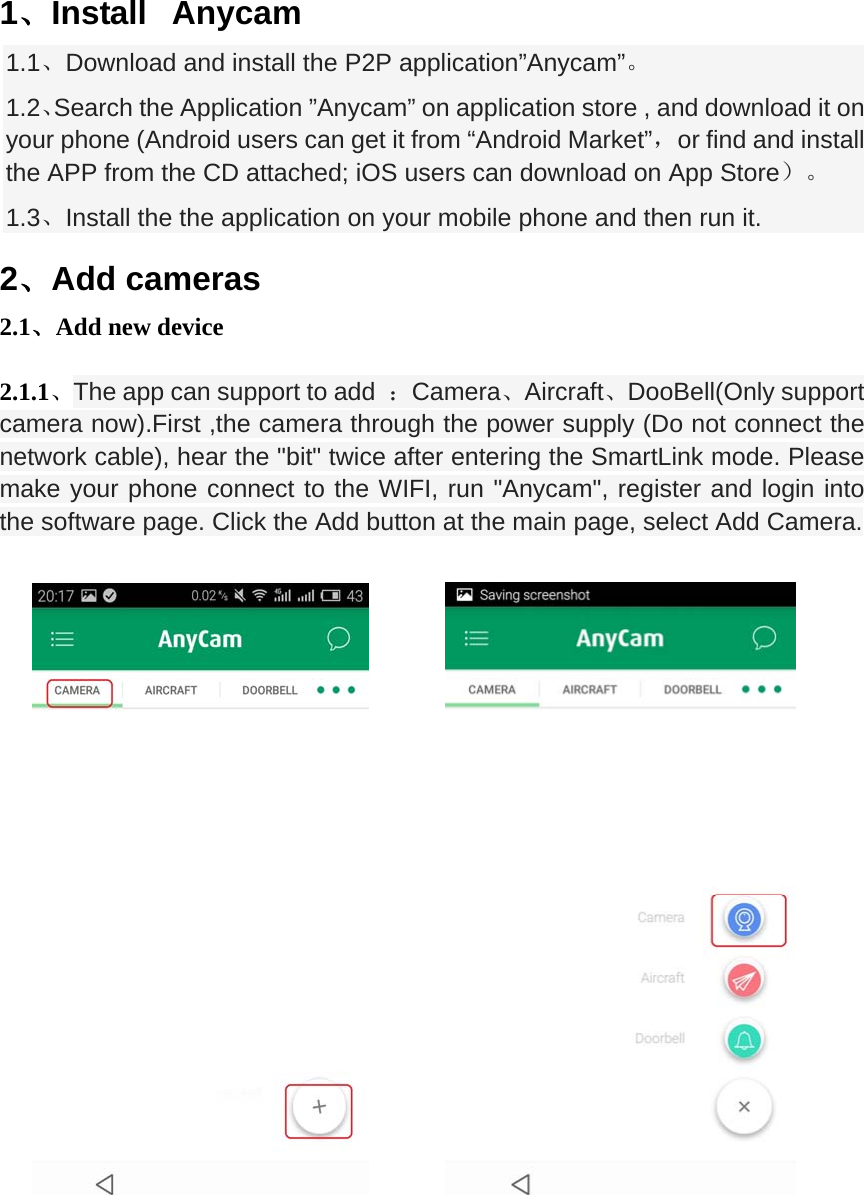
 1、Install  Anycam 1.1、Download and install the P2P application”Anycam”。 1.2、Search the Application ”Anycam” on application store , and download it on your phone (Android users can get it from “Android Market”,or find and install the APP from the CD attached; iOS users can download on App Store)。 1.3、Install the the application on your mobile phone and then run it. 2、Add cameras 2.1、Add new device  2.1.1、The app can support to add  :Camera、Aircraft、DooBell(Only support camera now).First ,the camera through the power supply (Do not connect the network cable), hear the "bit" twice after entering the SmartLink mode. Please make your phone connect to the WIFI, run "Anycam", register and login into the software page. Click the Add button at the main page, select Add Camera.
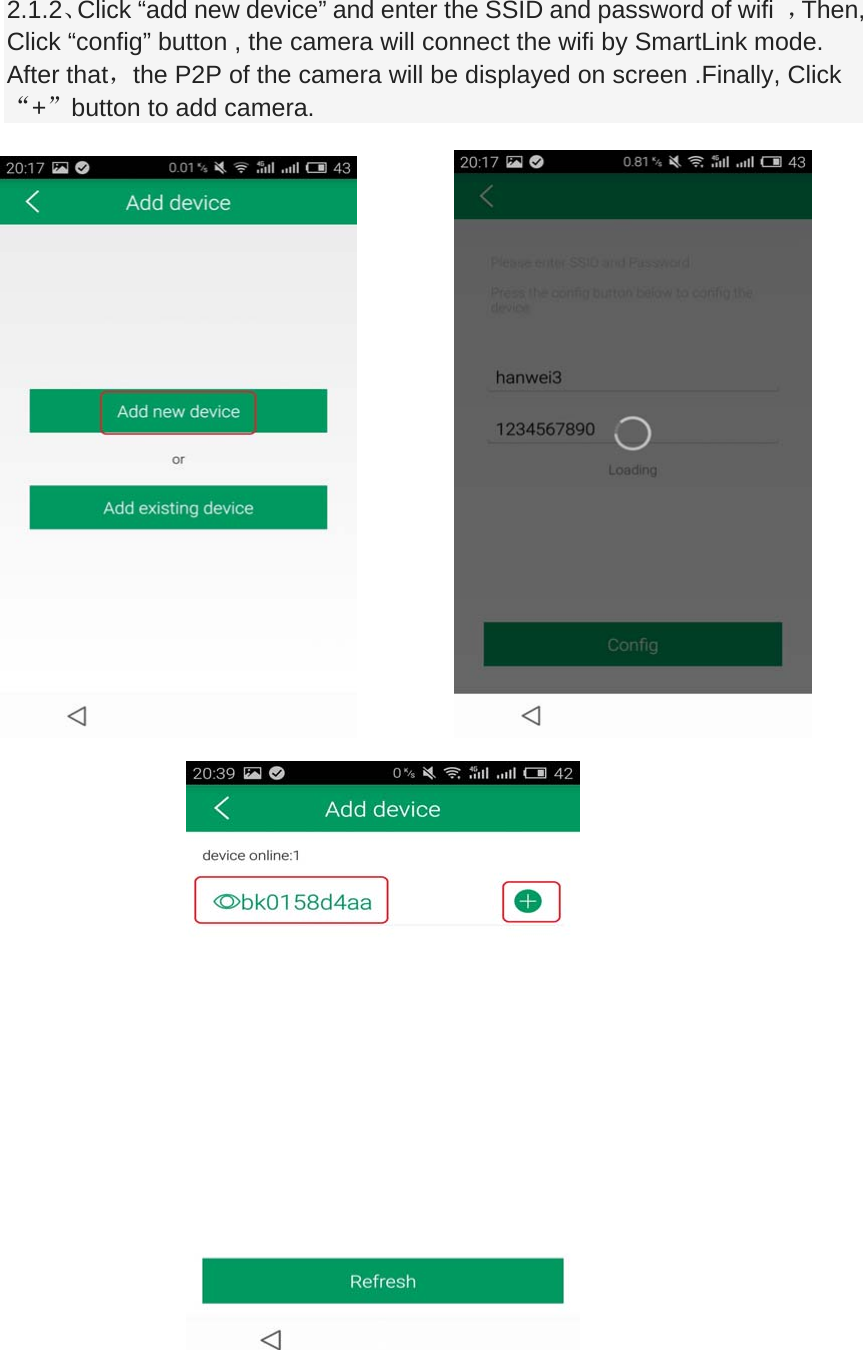
2.1.2、Click “add new device” and enter the SSID and password of wifi  ,Then, Click “config” button , the camera will connect the wifi by SmartLink mode. After that,the P2P of the camera will be displayed on screen .Finally, Click “+”button to add camera.
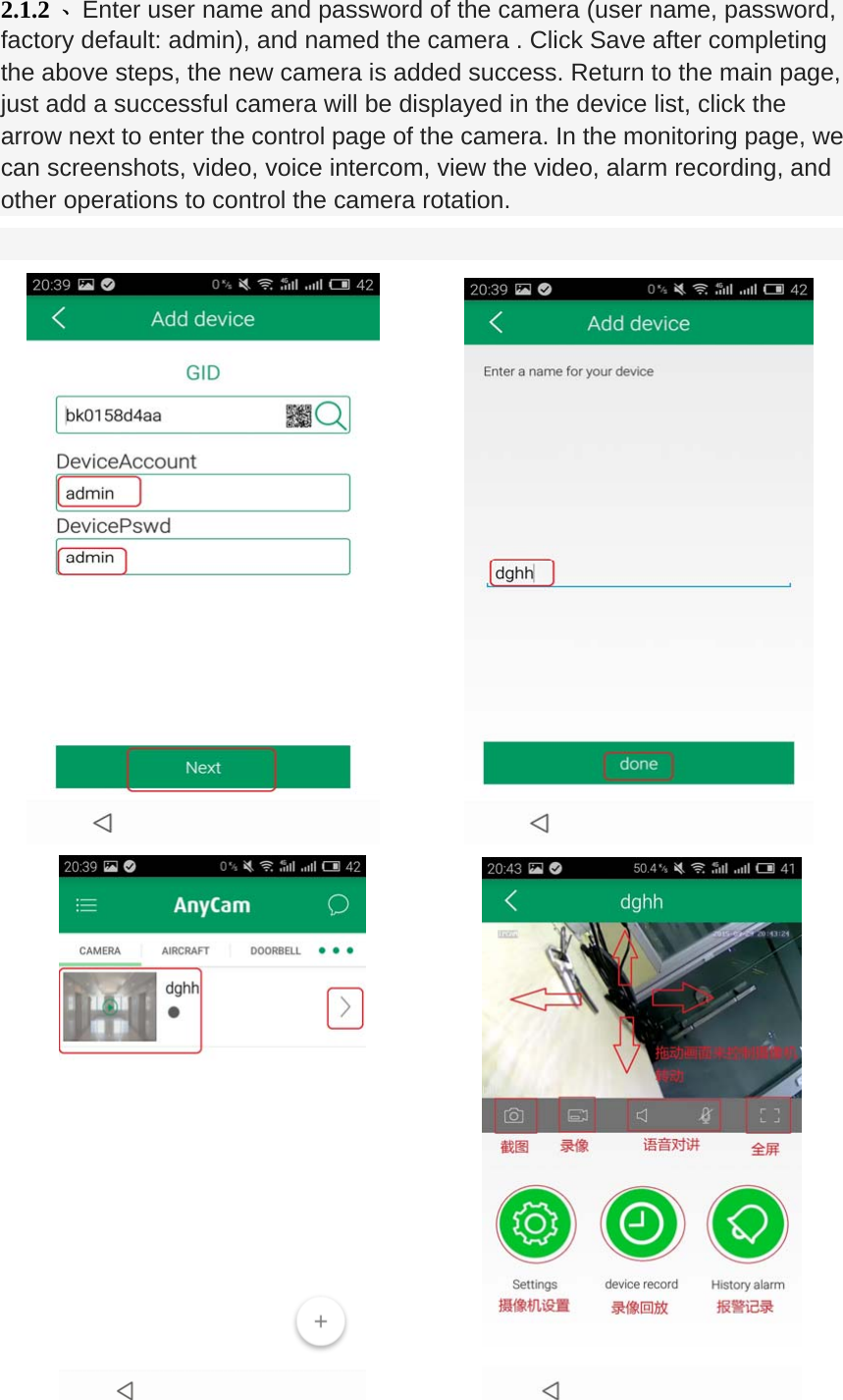
2.1.2 、Enter user name and password of the camera (user name, password, factory default: admin), and named the camera . Click Save after completing the above steps, the new camera is added success. Return to the main page, just add a successful camera will be displayed in the device list, click the arrow next to enter the control page of the camera. In the monitoring page, we can screenshots, video, voice intercom, view the video, alarm recording, and other operations to control the camera rotation.
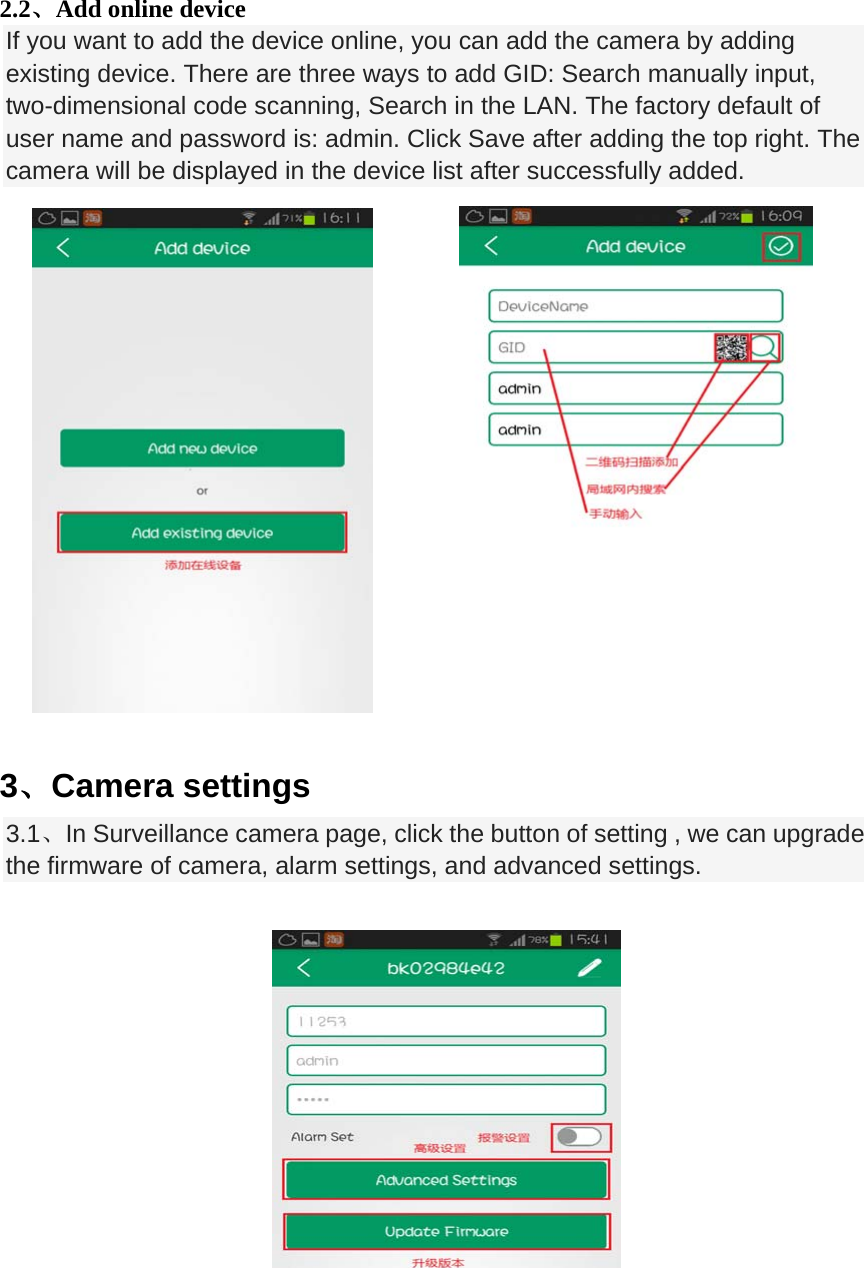
2.2、Add online device If you want to add the device online, you can add the camera by adding existing device. There are three ways to add GID: Search manually input, two-dimensional code scanning, Search in the LAN. The factory default of user name and password is: admin. Click Save after adding the top right. The camera will be displayed in the device list after successfully added.                3、Camera settings 3.1、In Surveillance camera page, click the button of setting , we can upgrade the firmware of camera, alarm settings, and advanced settings.
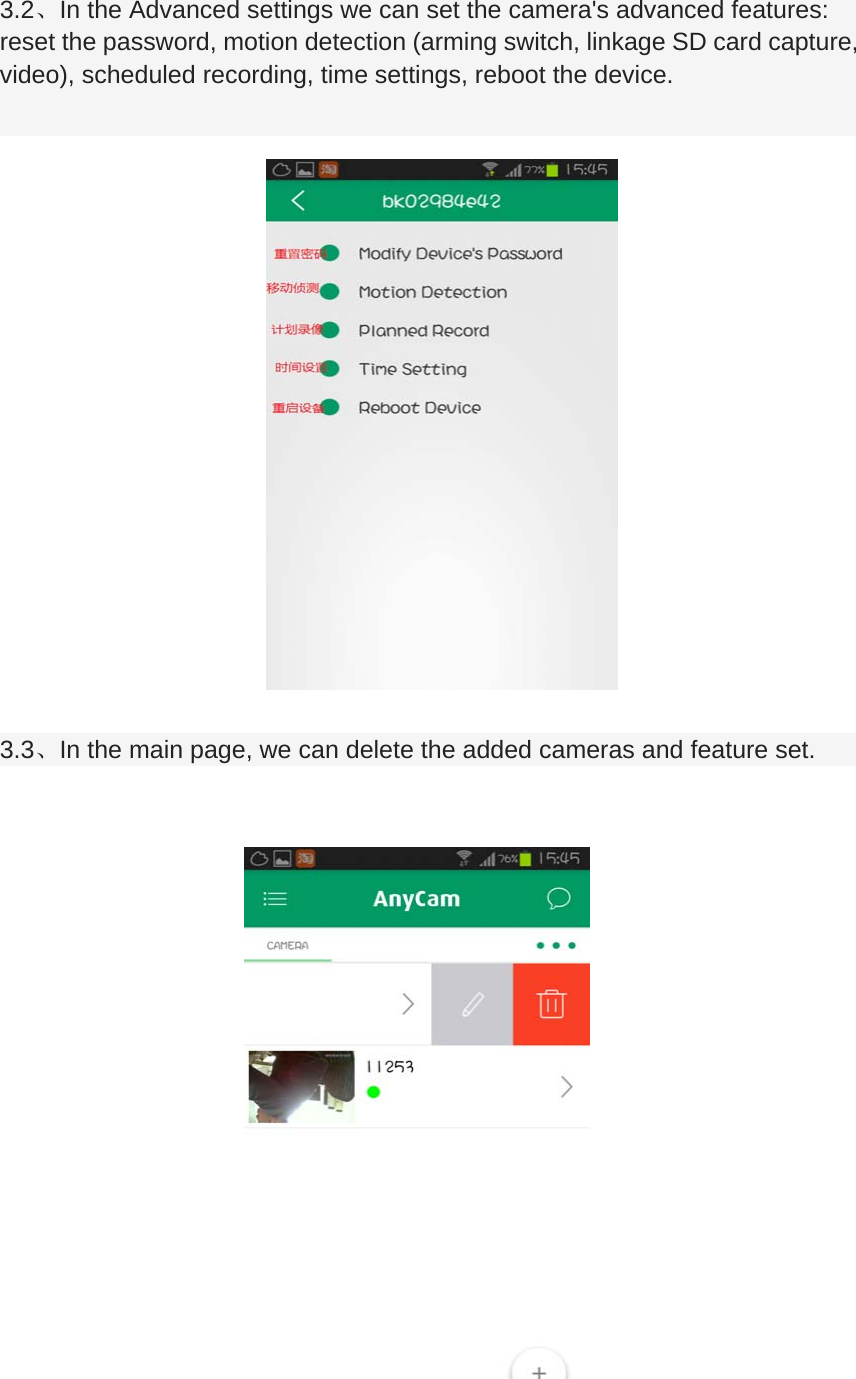
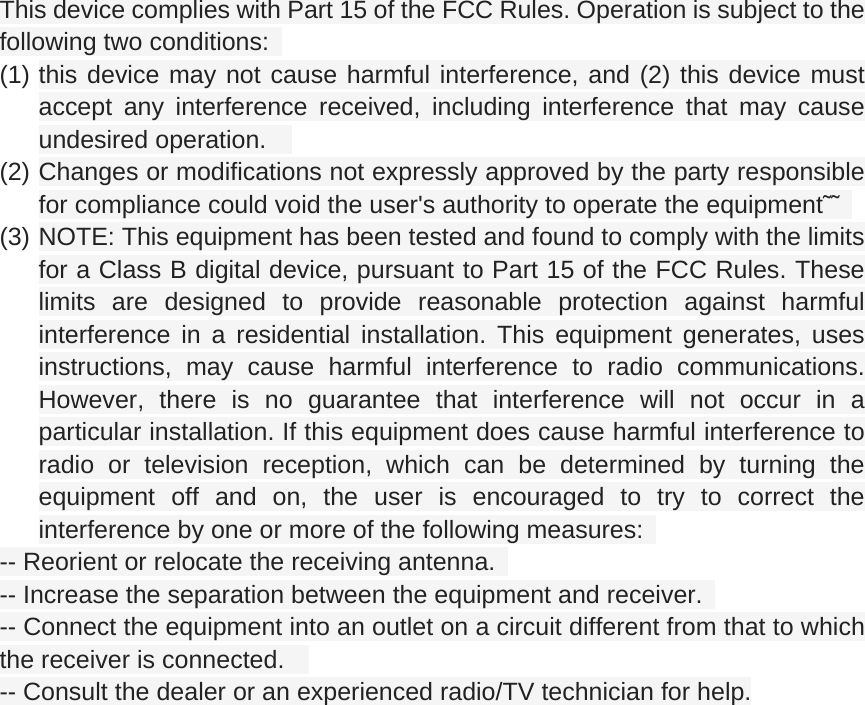
3.2、In the Advanced settings we can set the camera's advanced features: reset the password, motion detection (arming switch, linkage SD card capture, video), scheduled recording, time settings, reboot the device.                              3.3、In the main page, we can delete the added cameras and feature set.
This device complies with Part 15 of the FCC Rules. Operation is subject to the following two conditions:   (1) this device may not cause harmful interference, and (2) this device must accept any interference received, including interference that may cause undesired operation.     (2) Changes or modifications not expressly approved by the party responsible for compliance could void the user's authority to operate the equipment˜˜   (3) NOTE: This equipment has been tested and found to comply with the limits for a Class B digital device, pursuant to Part 15 of the FCC Rules. These limits are designed to provide reasonable protection against harmful interference in a residential installation. This equipment generates, uses instructions, may cause harmful interference to radio communications. However, there is no guarantee that interference will not occur in a particular installation. If this equipment does cause harmful interference to radio or television reception, which can be determined by turning the equipment off and on, the user is encouraged to try to correct the interference by one or more of the following measures:   -- Reorient or relocate the receiving antenna.   -- Increase the separation between the equipment and receiver.   -- Connect the equipment into an outlet on a circuit different from that to which the receiver is connected.     -- Consult the dealer or an experienced radio/TV technician for help.

Navigation menu