Contents
- 1. User Manual
- 2. Users Manual
Users Manual

1
VP-R47P User Manual

2
Content
1Welcome........................................................................................... 6
2 Product Overview.............................................................................8
2.1 Instruction........................................................................................................ 8
2.2 Technical Specification..................................................................................... 9
2.3 Equipment Appearance And Interface Description........................................10
2.3.1 Interface Description........................................................................... 11
2.3.2 Keypad Description..............................................................................11
2.4 Indicators........................................................................................................ 12
3 Installation......................................................................................13
3.1 Equipment Packaging..................................................................................... 13
3.2 Connecting Video Phone................................................................................ 13
3.3 Installation Considerations............................................................................. 14
4 Getting Started............................................................................... 15
4.1 Basic Operation.............................................................................................. 15
4.1.1 Main Screen Instruction...................................................................... 15
4.1.2 Status And Notifications Instruction................................................... 15
4.1.3 Using The Touchscreen........................................................................16
4.1.4 Startup And Shutdown........................................................................ 17
4.1.5 View / Turn Off Notifications...............................................................17
4.2 Connecting To Network And Wi-Fi................................................................. 18
4.2.1 Configuring Static IP............................................................................ 18
4.2.2 Configuring DHCP................................................................................ 19
4.2.3 Configuring PPPOE.............................................................................. 20
4.2.4 Configuring Wi-Fi................................................................................. 22
4.3 SIP Account Configuration..............................................................................25
4.3.1 Add Account........................................................................................ 26
4.3.2 SIP Account ON/OFF............................................................................27
4.3.3 Modify/Remove SIP Account...............................................................28
4.4 Sound..............................................................................................................29
4.4.1 Silent Mode......................................................................................... 30
4.4.2 Volumes............................................................................................... 31
4.4.3 Ringtone.............................................................................................. 31
4.4.4 System Sound...................................................................................... 31
4.5 Call Settings.................................................................................................... 32
4.5.1 Do Not Disturb.....................................................................................32

3
4.5.2 Call Waiting..........................................................................................33
4.5.3 Always forwarding&Forwarding Number............................................33
4.5.4 Call forwarding busy&Forwarding Number.........................................33
4.5.5 No Answer Forwarding&Forwarding Number.................................... 34
4.5.6 Time out.............................................................................................. 34
4.5.7 Playtone...............................................................................................34
4.5.8 Intercom.............................................................................................. 34
4.6 Dial Plan.......................................................................................................... 34
4.7 Personalize......................................................................................................35
4.7.1 Log Level.............................................................................................. 35
4.8 Reboot Manager.............................................................................................36
4.8.1 Reboot time.........................................................................................36
4.8.2 Status of time...................................................................................... 36
4.8.3 Status of active.................................................................................... 36
4.8.4 Reboot settings....................................................................................36
4.9 Date & Time....................................................................................................36
4.10 Personalization Settings............................................................................... 39
4.10.1 Wallpaper.......................................................................................... 39
4.10.2 Widgets..............................................................................................40
4.10.3 Shortcuts........................................................................................... 42
4.10.4 Modify Extended Bar.........................................................................43
4.10.5 Ringtone............................................................................................ 43
4.11 Backup & Reset.............................................................................................44
5 Function.......................................................................................... 45
5.1 Call Function................................................................................................... 45
5.1.1 Make A Call.......................................................................................... 45
5.1.2 Receive A Call...................................................................................... 48
5.1.3 Call Options......................................................................................... 50
5.1.4 Call Records......................................................................................... 51
5.2 Contacts..........................................................................................................53
5.2.1 Contacts...............................................................................................54
5.2.2 Group...................................................................................................57
5.3 Conference..................................................................................................... 58
4.3.1 Create 3-way conference.....................................................................58
5.4 Transfer........................................................................................................... 60
4.4.1 Blind Transfer.......................................................................................60
4.4.2 Attended Transfer................................................................................ 60
5.5 Keypad Input.................................................................................................. 62
5.6 Webpage Browser.......................................................................................... 62
5.6.1 Open The Webpage............................................................................. 62
5.7 Camera........................................................................................................... 63
5.7.1 Photograph Mode............................................................................... 63
5.8 Gallery............................................................................................................ 65

4
5.8.1 View Photo & Picture & Video............................................................ 65
5.9 Bluetooth........................................................................................................66
5.9.1 Turning Bluetooth On /Off...................................................................67
5.9.2 Changing Bluetooth Device Name...................................................... 67
5.9.3 Paring VP-R47P With A Bluetooth Device........................................... 67
5.9.4 Un-pairing A Bluetooth Device............................................................68
5.10 USB............................................................................................................... 68
5.11 Calendar....................................................................................................... 69
5.11.1 Add An Account................................................................................. 69
5.11.2 View Calendar................................................................................... 70
5.11.3 New Activities....................................................................................70
5.11.4 Edit Activities..................................................................................... 71
5.11.5 Delete Activities.................................................................................71
5.12 Clock............................................................................................................. 72
5.12.1 Alarm................................................................................................. 72
5.12.2 Countdown Timer..............................................................................74
5.12.3 Stopwatch..........................................................................................75
5.13 Email............................................................................................................. 75
5.13.1 Add A New Email Account.................................................................75
5.14 Music............................................................................................................ 76
5.15 Explorer........................................................................................................ 77
5.16 Video Player..................................................................................................78
5.16.1 Floating Browse Mode...................................................................... 79
5.17 BLF................................................................................................................ 80
5.18 BLF List.......................................................................................................... 81
5.19 Intercom....................................................................................................... 81
5.20 Call Return.................................................................................................... 82
5.21 Others........................................................................................................... 83
5.21.1 Apk Installer.......................................................................................83
5.21.2 Ping Tool............................................................................................ 84
6 Software Upgrade.......................................................................... 88
6.1 Immediate Update..........................................................................................88
6.1.1 Select Other Upgrade Package............................................................ 89
6.1.2 Local Update........................................................................................89
6.1.3 Remote Update................................................................................... 90
6.2 Auto Update Period........................................................................................ 91
6.3 Upgrade on the web.......................................................................................92
6.4 Check Update After System Power On........................................................... 93
7 System Maintenance......................................................................94
7.1 System State Inspection................................................................................. 94
7.2 IP Query.......................................................................................................... 94
7.3 SIP Account Registration Query......................................................................95

5
7.4 Backup & Reset...............................................................................................96
7.5 Failure Process................................................................................................97
8 Web Interface................................................................................. 99
8.1 Web login........................................................................................................99
8.2 Status->Basic.................................................................................................. 99
8.3 Account->Basic............................................................................................. 100
8.4 Account->Advanced..................................................................................... 103
8.5 Network ->Advanced....................................................................................106
8.6 Phone ->Call Feature.................................................................................... 107
8.7 Phone-> Ext Key............................................................................................109
8.8 Phone->Dial Plan.......................................................................................... 110
8.9 Upgrade->Basic.............................................................................................111
8.10 Upgrade->Advanced...................................................................................112
8.11 Security->Basic........................................................................................... 113

6
1 Welcome
Thank you for purchasing Akuvox VP-R47P Multimedia VoIP Phone. The VP-R47P
is an innovative smart desk phone loaded with tremendous value for business
communications as well as unprecedented power for advanced custom business
applications development and personalization. Featuring Android 4.2 system, a 7
inch capacitive touch screen TFT LCD, a 2M CMOS sensor camera, Bluetooth,
integrated PoE and Wireless, VP-R47P provides excellent user experiences such as
high quality video phone, smooth internet surfing, various 3rd party applications and
daily information. Built with advanced security protection for privacy, this
Multimedia VoIP Phone also features broad interoperability with most 3rd party SIP
based devices, IPPBX and major IMS platforms. The VP-R47P represents the future
multimedia terminal in modern Internet age.
This user manual is designed to help you understand how to configure and
manage the VP-R47P Multimedia VoIP Phone. Besides demonstrating how to install
this unit with ease, this manual will explain how to fully utilize the phone’s voice
calling features as well as explore all the built-in feature-rich applications.
FCC Caution:
Any Changes or modifications not expressly approved by the party responsible for
compliance could void the user’s authority to operate the equipment. This device
complies with part 15 of the FCC Rules. Operation is subject to the following two
conditions: (1) This device may not cause harmful interference, and (2) this device
must accept any interference received, including interference that may cause
undesired operation.
FCC Radiation Exposure Statement:
This equipment complies with FCC radiation exposure limits set forth for an
uncontrolled environment. This equipment should be installed and operated with
minimum distance 20cm between the radiator& your body.
This transmitter must not be co-located or operating in conjunction with any other
antenna or transmitter.
Note: This equipment has been tested and found to comply with the limits for a Class
B digital device, pursuant to part 15 of the FCC Rules. These limits are designed to
provide reasonable protection against harmful interference in a residential
installation. This equipment generates uses and can radiate radio frequency energy
and, if not installed and used in accordance with the instructions, may cause harmful

7
interference to radio communications. However, there is no guarantee that
interference will not occur in a particular installation. If this equipment does cause
harmful interference to radio or television reception, which can be determined by
turning the equipment off and on, the user is encouraged to try to correct the
interference by one or more of the following measures:
Reorient or relocate the receiving antenna.
Increase the separation between the equipment and receiver.
Connect the equipment into an outlet on a circuit different from that to which
the receiver is connected.
8
2 Product Overview
2.1 Instruction
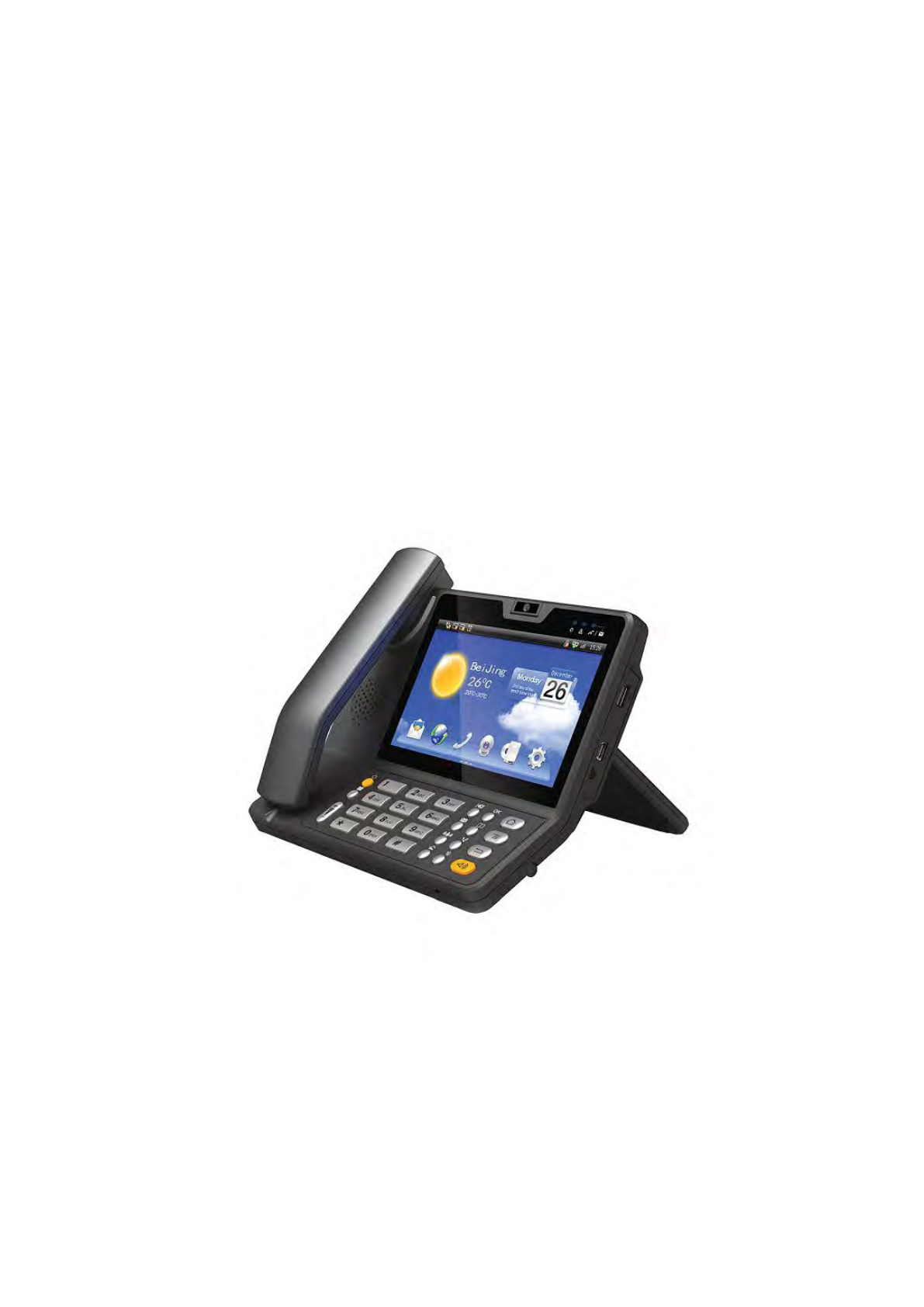
VP-R47P is an Android-based multimedia terminal with a 7 inch touch screen and a
2M CMOS sensor camera. It supports H.264/H.263 codec with adaptive bandwidth
adjustment. The 7 inch touch screen offers excellent user experiences such as high
quality videophone, smooth internet surfing, various Android Apps and daily
information.
VP-R47P provides 2 Ethernet ports, 1USB, 1HDMI, and one 3.5mm headset/audio
port.

9
2.2 Technical Specification
Model
VP-R47P
Graphic Display
7 inch capacitive touch screen TFT LCD, 800x480 pixels, 16:9 wide
screen aspect ratio
Camera
2 mega pixels CMOS camera, free rotation
Network Protocol
SIP RFC3261,TCP/UDP/IP,PPPOE,RTP/RTCP
Operation System
Android 4.2
Voice Codec
G.711A/U, G.723, G.729a/b, G.722, iLBC,
AMR-NB, AMR-WB, OPUS
Video Codec
H.263, H.264
DTMF Modes
Inband, RFC2833, SIP INFO
Audio Features
VAD, CNG, Echo Canceller G.165/G.168
Video Features
QCIF, QVGA, CIF, 4CIF, VGA
Video bitrate: 64kbps~2Mbps
PIP
Full Screen
local video ON/OFF control
Others
Download content from the specified server
Information receiving, storing, and rendering capabilities
Web browser
Contacts and Call records management
Support playing local or online video
Network Interface
Dual switched 10/100Mbps port, optional PoE
Wi-Fi
IEEE802.11 b/g/n
Expansion
Interface
USB 2.0, 3.5mm headset jack, HDMI
IP assignment
Static IP, DHCP, PPPoE
Management
LCD Menu Configuration,TR069, WebUI
Dimension
218×230×93.7mm
10
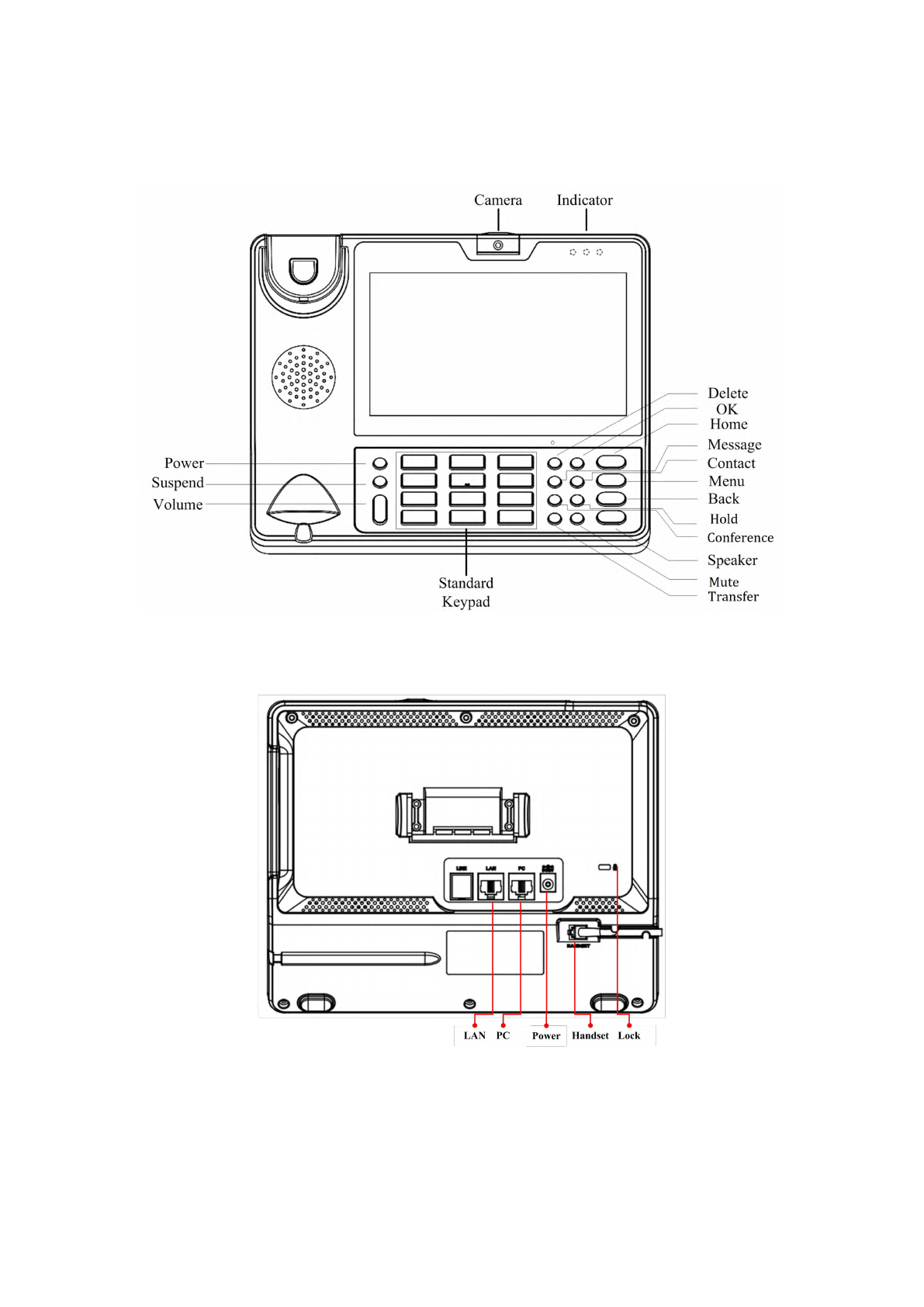
2.3 Equipment Appearance And Interface Description
Figure 1-1 R47P Front View
Figure 1-2 R47P Rear View
11
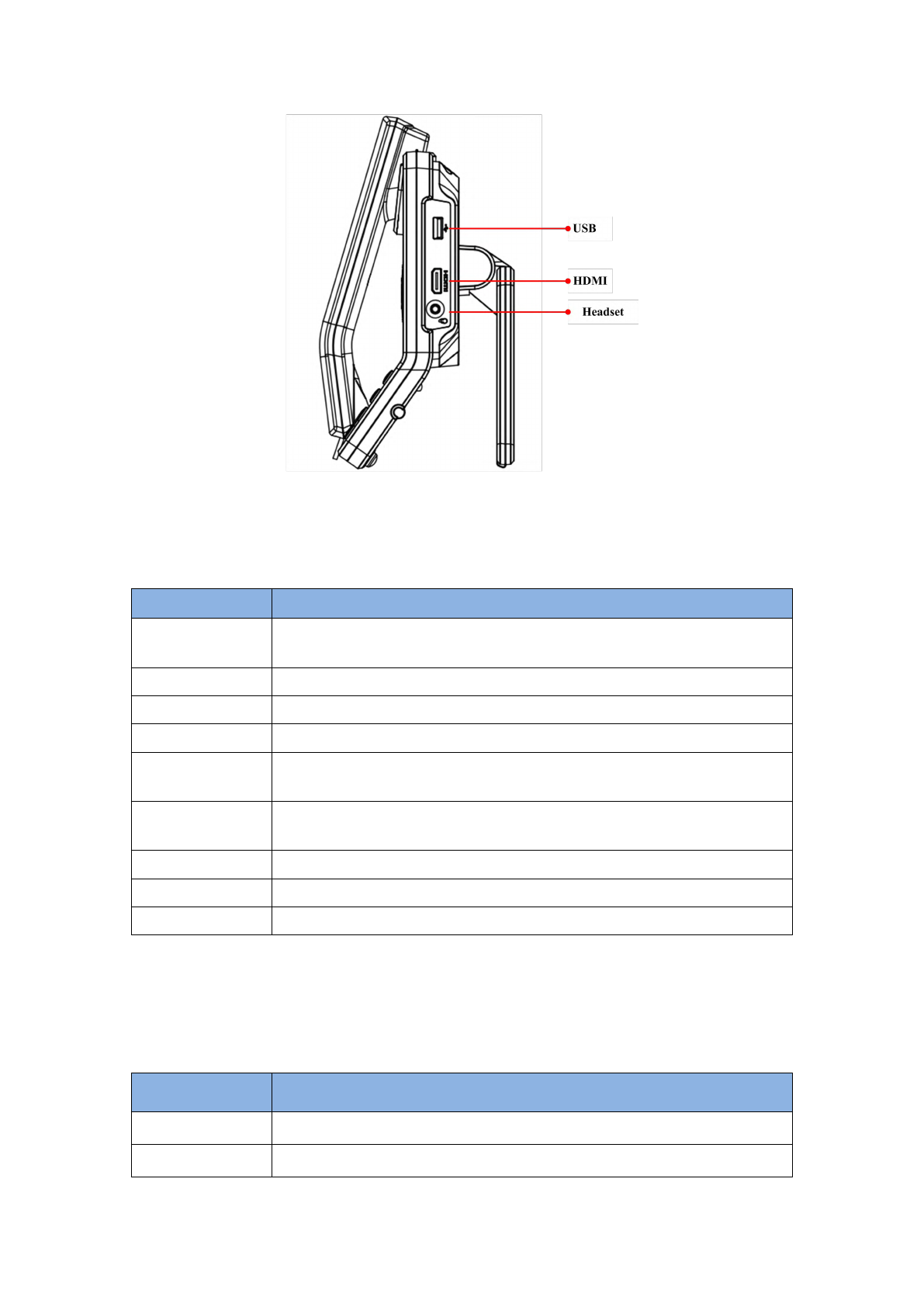
Figure 1-3 R47P Profile View
2.3.1 Interface Description
Interface
Description
Camera
Adjustable camera shooting angle, rotate down the camera to "off"
angle.
USB interface
External USB storage device
Headset
Connect to 3.5mm stereo headphone, headset device
HDMI
Use HDMI cable to output the video to a TV screen
LAN
Network interface can be connected to a hub, switch or other network
access devices. It also supports POE(Power over Ethernet) .
PC
Share the network access from LAN port, and for PC and other
equipment connection
Power
Connect to 12V adapter, Power supply
Handset
Connect to handset
Lock
Lock the video phone with a Laptop lock
Note: If Power over Ethernet is being used, do not plug in the AC adapter.
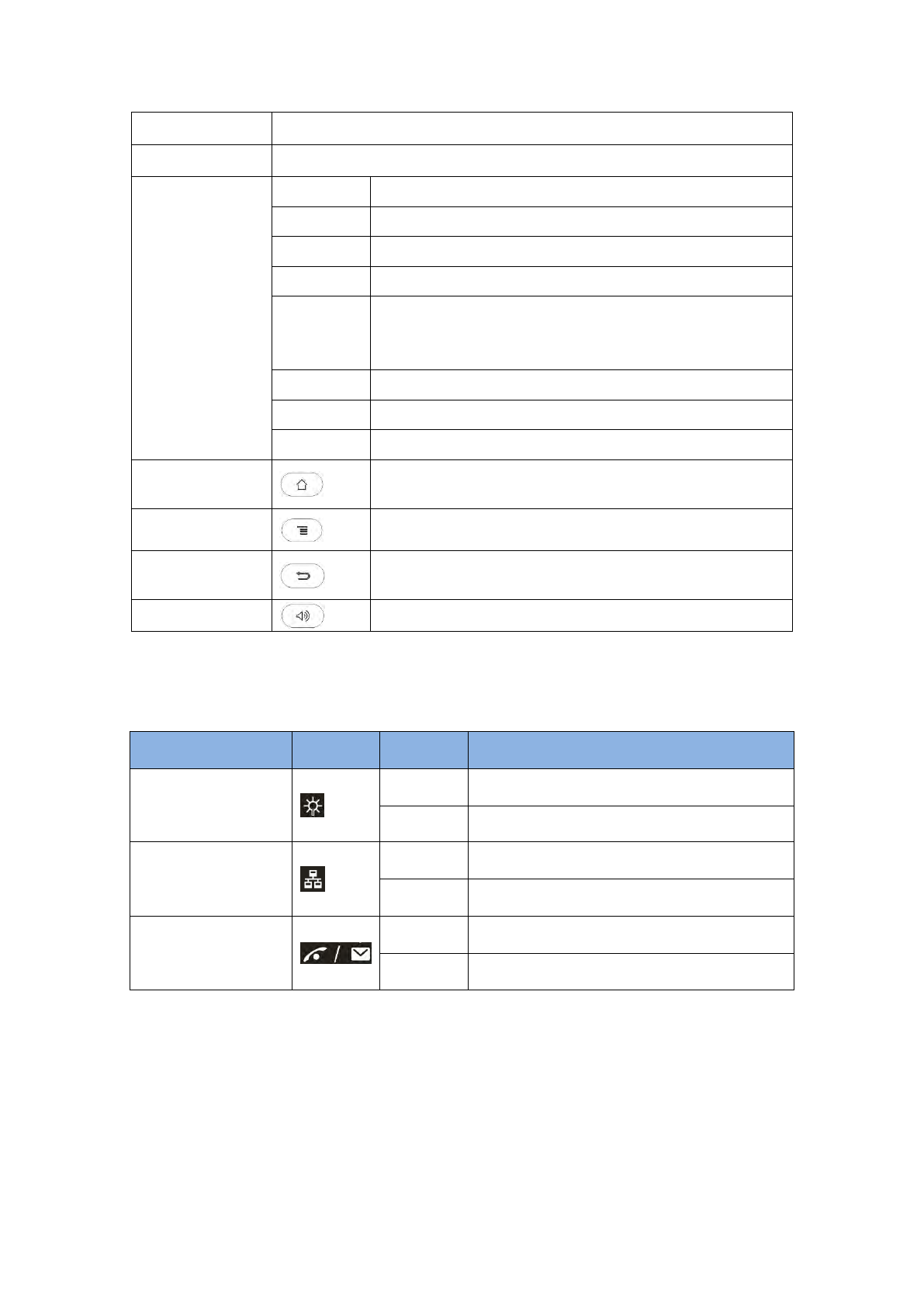
2.3.2 Keypad Description
Interface
Description
Power
Turn on/off the LCD, Reboot, Silent mode
Suspend
Turn on/off the LCD, Reboot, Silent mode
12
Volume
Press + or – for the phone volume adjustment
Standard Keypad
Input the number or symbol
Function Key
Delete
Delete a character before the cursor
OK
Same function with soft keyboard "Enter" key
Message
Optional
Contact
Enter Into the contacts list, you can view the local contact
Conference
The first party is held in the case, according to a
conference key, the first party can be combined to achieve
a tripartite meeting
Hold
To hold a call during the call
Transfer
To transfer the current call to the third party
Mute
The other party cannot heard the voice during the call
Home
Return to the main screen, and long press, it will display
recently used applications
Menu
To call up the System or program setup menu
Back
Return to the previous menu
Speaker
Speaker
2.4 Indicators
Indicator Name
Icon
Status
Description
Power
ON
System is under working
OFF
System is not working
Network Connection
ON
Network(LAN Port)is connected
OFF
Network(LAN Port)is disconnected
Information
Flashing
Contains Miss Calls or Unread Message
OFF
Normal status
13
3 Installation
3.1 Equipment Packaging
Name
Quantity
Main Case
1
Handset
1
Phone Cord
1
Power Adapter
1
Ethernet Cable
1
Quick Start Guide
1
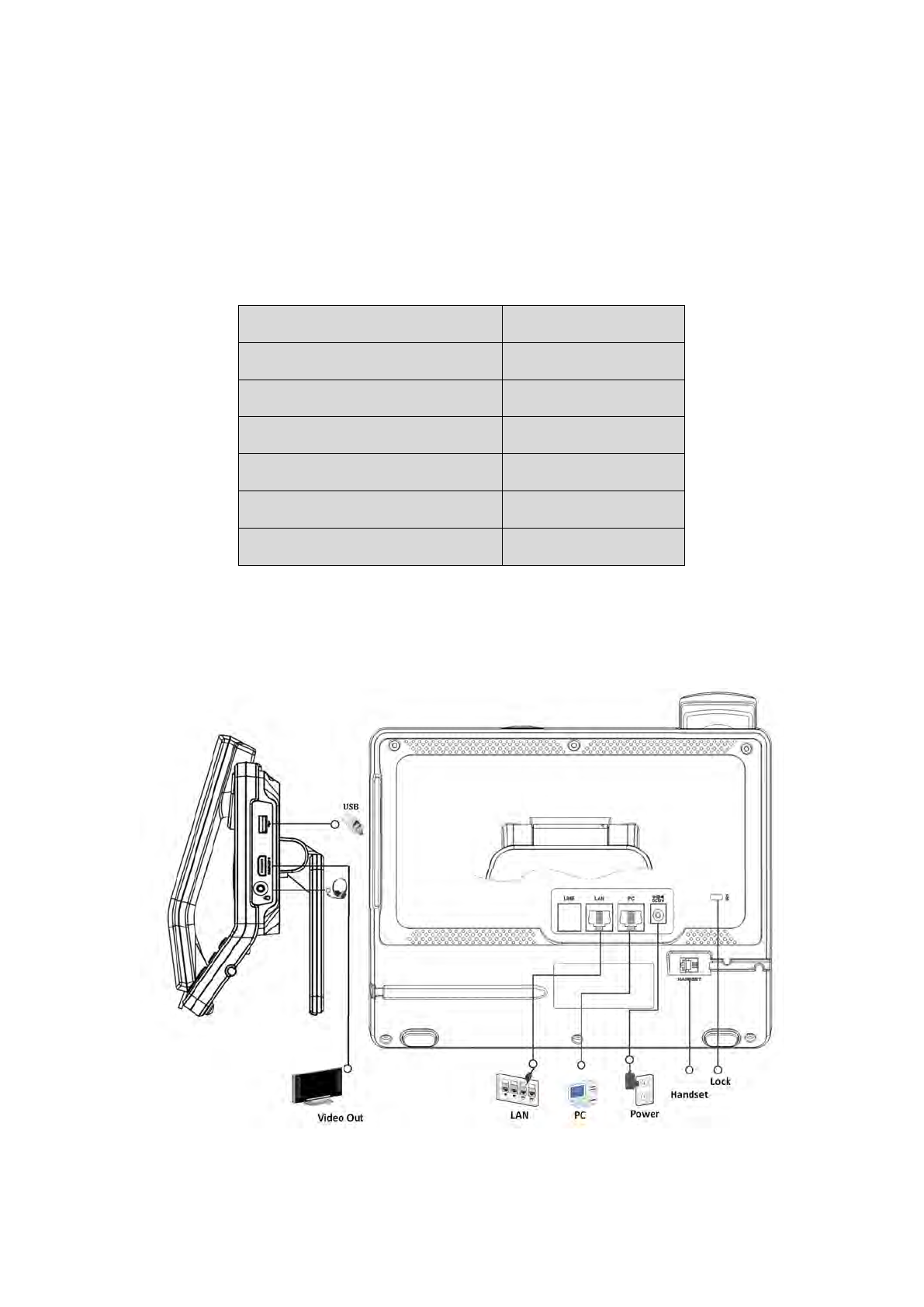
3.2 Connecting Video Phone
Connection diagram

14
Connecting to Network
Use the matched network cable to connect the LAN Port of the video phone to the
Router or Switch. Viewing the top right corner of the screen, if the indicator light
is on, network cable is connected properly.
Connecting to PC
Use the matched network cable to connect the PC Port of the video phone to the
PC’s Ethernet port. The PC can access to the internet network via PC Port of the video
phone.
3.3 Installation Considerations
This product is a desktop product, and here are some safety recommendations about
the installation and the usage:
Do not use this product near water, such as: bath, washbasin, kitchen sink and
other damp places and so on;
Place the device in a place away from heat;
Place the device away from traffic areas to prevent collisions;
Please use the equipment with the matching power adapter or POE;
15
4 Getting Started
4.1 Basic Operation
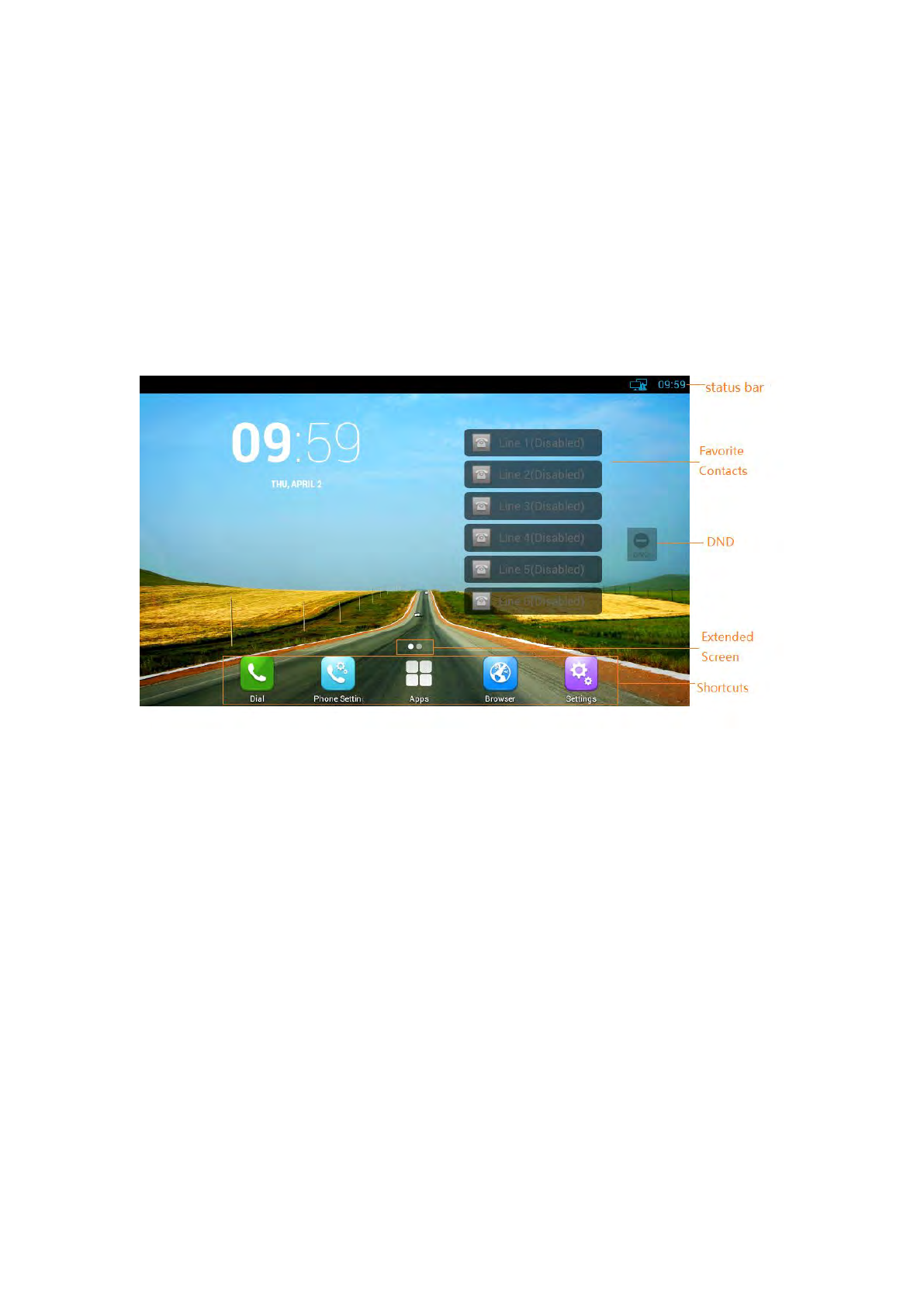
4.1.1 Main Screen Instruction
Status bar, at the top of the screen, displaying the status of system information.
Do Not Disturb plug-in, When enabled DND, prohibit incoming calls in; Incoming
call will be normal when DND is closed
Favorite contacts plug-in, add more commonly used contacts from the address
book, click the plug-in to add a contact, you can choose audio or video call out
directly.
Extended Screen Prompt, Display the location of current screen page; and show
how many pages extended.
Shortcuts, at the bottom of the screen, user can drag a shortcut to this region to
achieve the replacement of the shortcut. Supports max four shortcuts.
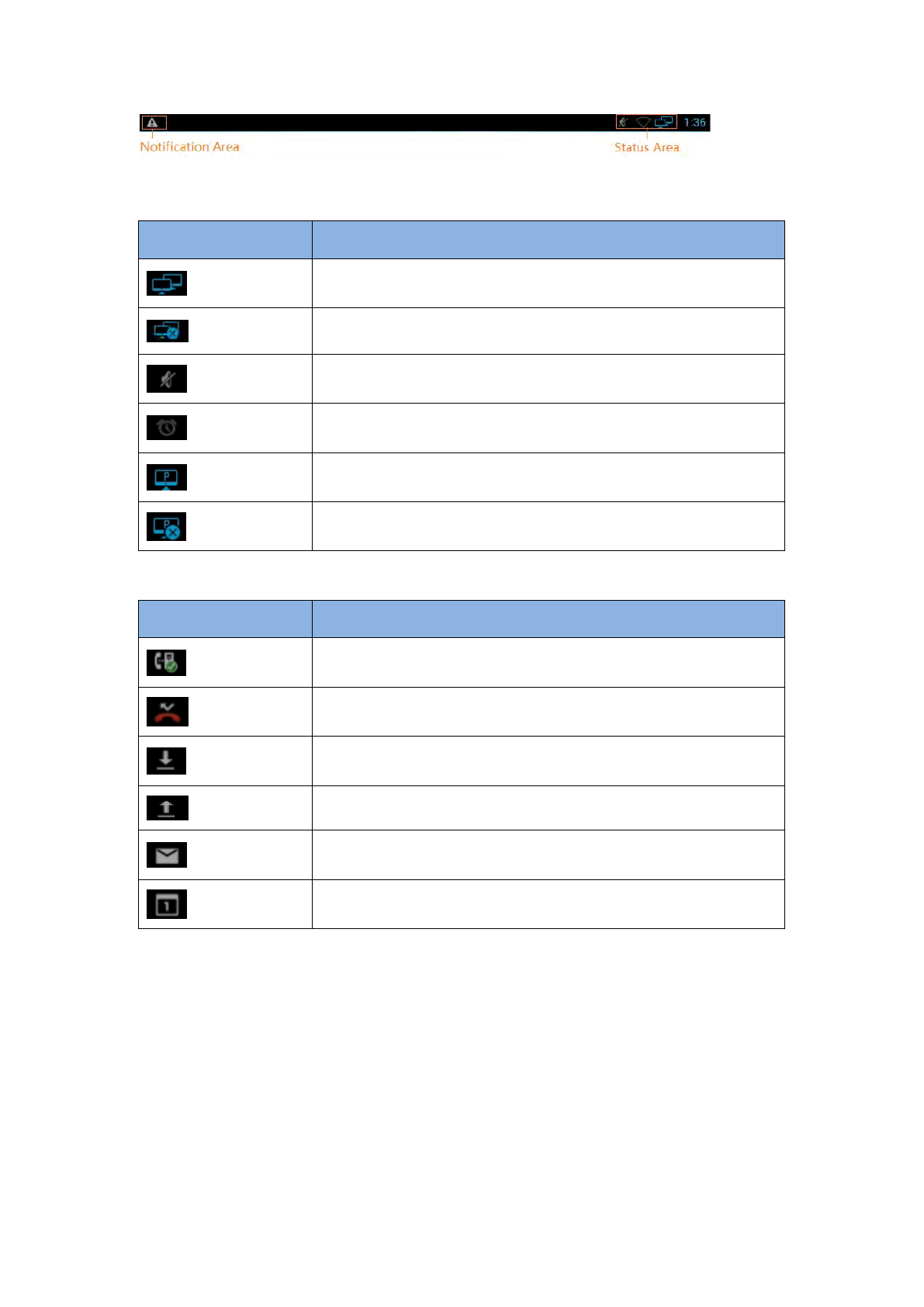
4.1.2 Status And Notifications Instruction
The status bar in main screen is divided into two zones, notification area and status
area, as shown below:
16
Status Area
Icon
Description
Network is connected
Network is not connected
Mute mode
Alarm clock is set
PPPOE is connected
PPPOE is failed
Notification Area
Icon
Description
SIP account is registered
Missed call, number means how many missed calls
downloading
uploading
Receives a new email
An event is coming
4.1.3 Using The Touchscreen
Tap
To select items on the screen (e.g., setting options, apps); to press onscreen
buttons; to type letters and symbols using the onscreen keyboard.
Touch and Hold
Touch the item on the screen and hold it without lifting your finger from the
screen till an action occurs.
For example, touch and hold on a picture to bring up operation options.

17
Drag
Touch and hold an item for a few seconds first. Once the item has a red frame
activated, or a move option shows up, keep your finger on the screen and move
it until the target position is reached. Then lift your finger up to release.
Slide
Move your finger fast across the screen to slide. To view different idle screens or
menu pages, slide left or right; to view the status bar on top of the screen, place
your finger on the bar and slide it down. If your finger stays on the screen for too
long, the item may be selected and sliding won’t occur.
Double-click
Click on the screen twice in quick succession, for example, when user surfs in
browser, you can quickly click twice on the page, the page can be enlarged.
Pinch
Place two fingers on the screen, then pinch them together (zoom out) or spread
them apart (zoom in). This could be used in a picture.
4.1.4 Startup And Shutdown
Startup
Connect to the power supply, the system automatically starts up.
Shutdown
If you do not use the device, directly remove the power supply, to save
electricity.
Reboot
If you need to restart the device, according to the following steps:
1) Press and hold the "Power" button until the pop-up "Options" menu.
2) Click the "Reboot"
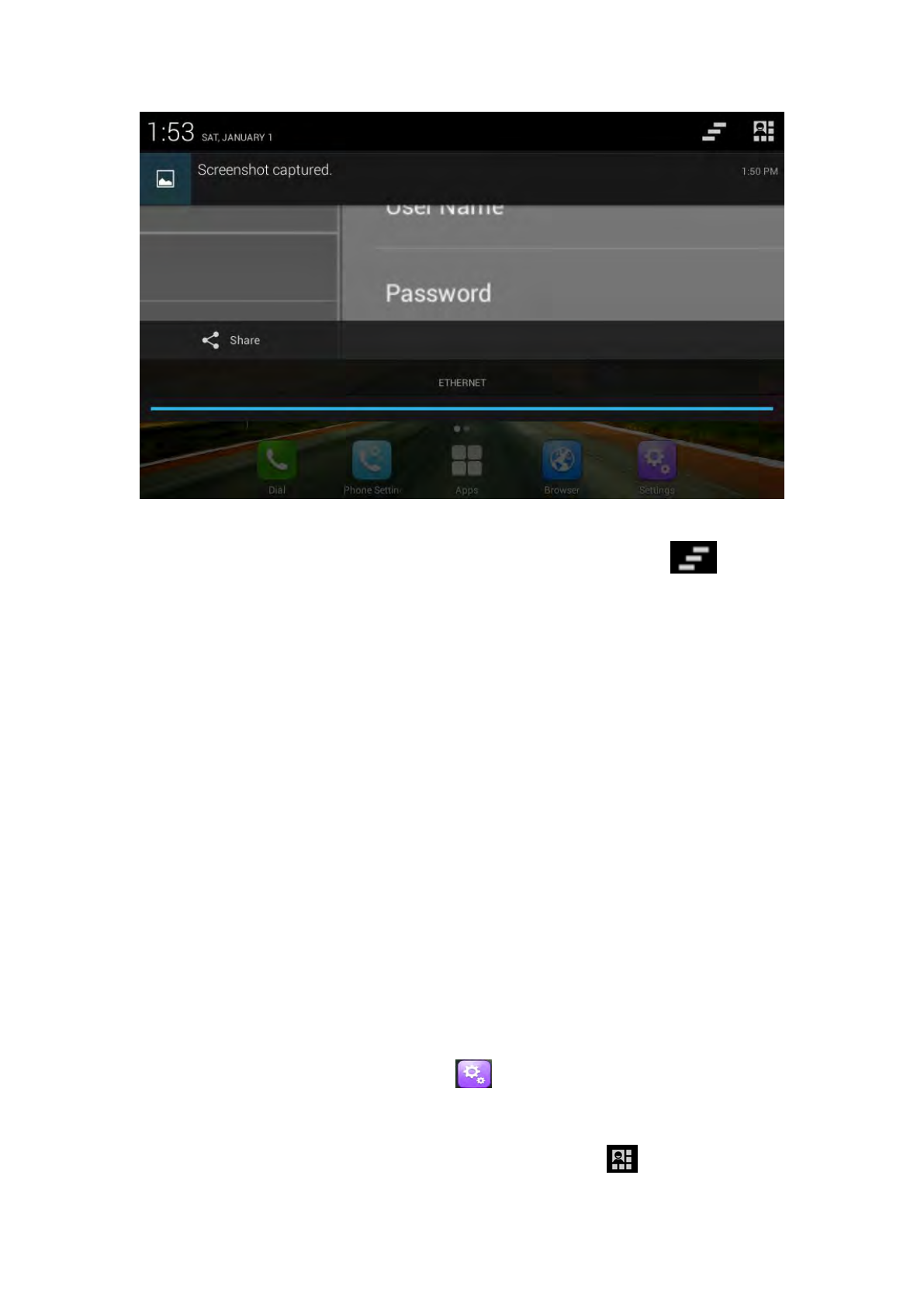
4.1.5 View / Turn Off Notifications
When viewing notifications, simply press and hold the status bar, drag down, as
shown below:
18
To turn off notifications, simply hold the notice at the bottom of the screen and then
drag up or press the "Back" on the hard keyboard. Click on the icon to clear
up the notice
4.2 Connecting To Network And Wi-Fi
VP-R47P supports a variety of network connections (Ethernet, Wireless) and device
connections Network connections includes four modes, Static IP, DHCP, PPPOE, Wi-Fi
access. DHCP is the default configuration. Device connections include EHS headset,
USB and Bluetooth device.
4.2.1 Configuring Static IP
You can select one of the following methods to enter the static IP configuration:
Mode 1: In the main screen, press "Menu" key on the hard keyboard-> System
Settings-> Wireless & Networks-> Ethernet- > Using static IP.
Mode 2: In the main screen, tap -> Settings-> Wireless & Networks->
Ethernet -> Using static IP.
Mode 3: Drag down the status bar, click shortcut icon on the status bar
19
->SETTINGS-> ->Wireless & Networks-> Ethernet->Use static IP.
Mode 4: In the main screen, tap ->Network Settings->LAN
Connecting->Static IP.
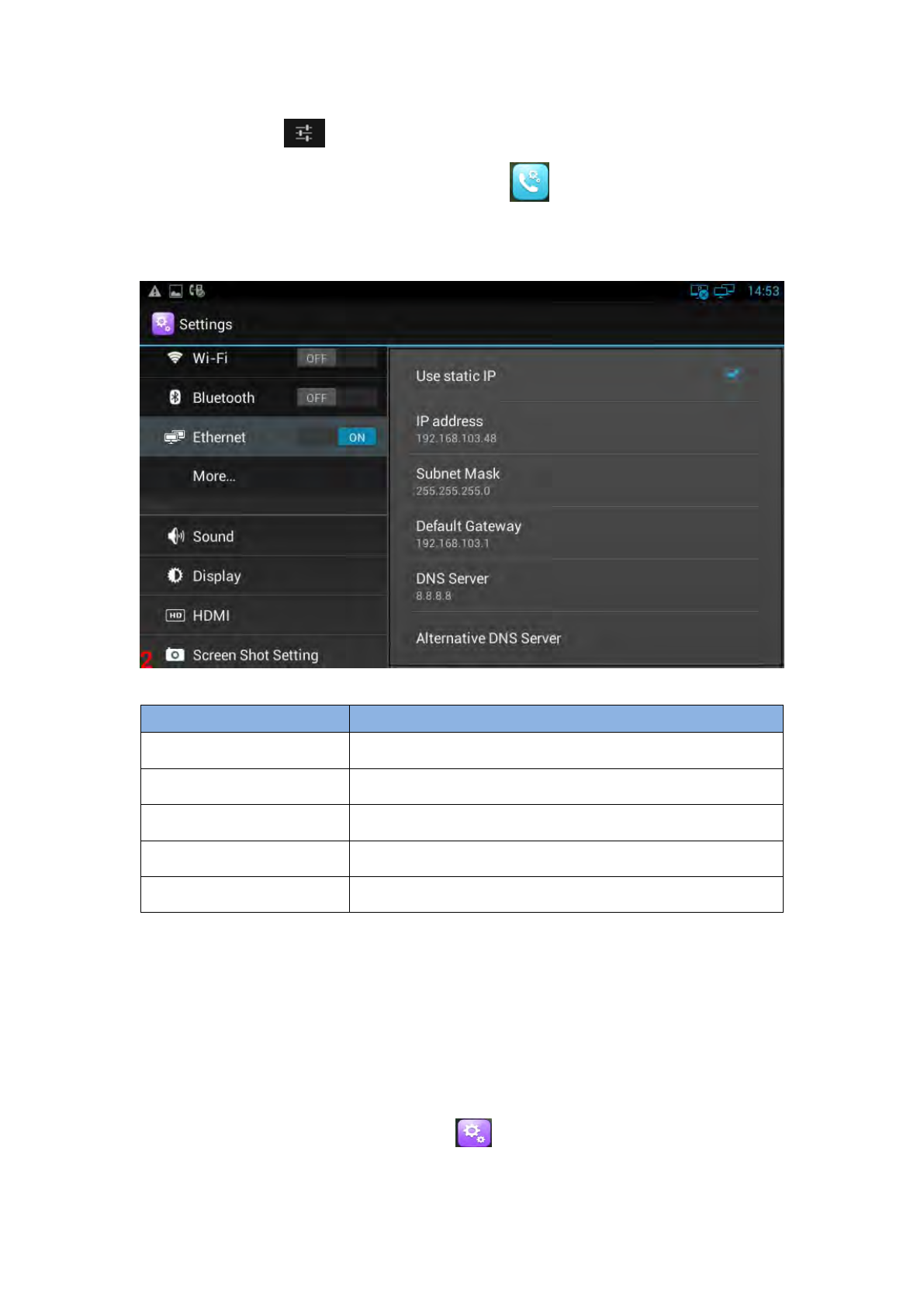
Configuration page is shown as below:
Configuration parameter specification:
Parameter
Specification
IP address
set the IP address of the device
Subnet Mask
set the subnet mask of the device
Default Gateway
set the default gateway
DNS Server
set the DNS address
Alternative DNS Server
set the backup DNS address
4.2.2 Configuring DHCP
You can select one of the following methods to enter the DHCP configuration:
Mode 1: In the main screen, press "Menu" key on the hard keyboard-> System
Settings-> Wireless & Networks-> Ethernet- >uncheck Using static IP.
Mode 2: In the main screen, tap -> Settings-> Wireless & Networks->
Ethernet -> uncheck Using static IP.
20
Mode 3: Drag down the status bar, click shortcut icon on the status bar
->SETTINGS> ->Wireless & Networks-> Ethernet-> uncheck Use static IP.
Mode 4: In the main screen, tap ->Network Settings->LAN
Connecting->DHCP.
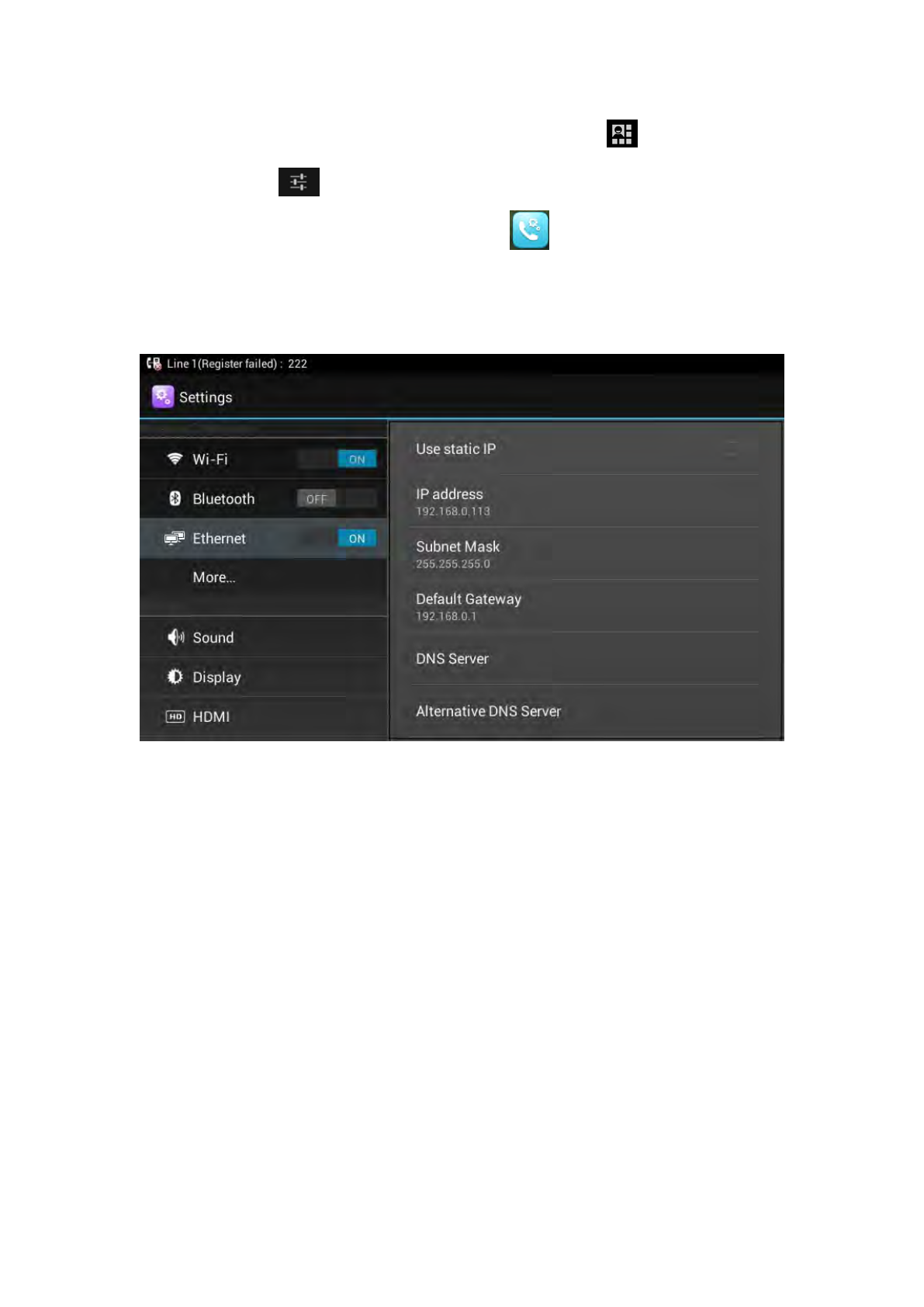
Configuration page is shown as below:
Note:
1) If DHCP acquired IP, it will display dynamic IP address information on the location
of static IP configuration, cannot be modified, and there is a item of Use static DNS at
the bottom the alternative DNS server, when checked, you can modify the primary
DNS address and Secondary DNS address.
2) If DHCP is failed, the IP address will show as: 0.0.0.0.
4.2.3 Configuring PPPOE
You can select one of the following methods to enter the PPPOE configuration:
Mode 1: In the main screen, press "Menu" key on the hard keyboard-> System
Settings-> Wireless & Networks -> Ethernet ->More ->PPPOE.
21
Mode 2: In the main screen, tap -> Settings-> Wireless & Networks->
Ethernet -> More ->PPPOE.
Mode 3: Drag down the status bar, click shortcut icon on the status bar
->SETTINGS ->Wireless & Networks-> Ethernet-> More ->PPPOE.
Mode 4: In the main screen, tap ->Network Settings->LAN
Connecting->PPPOE
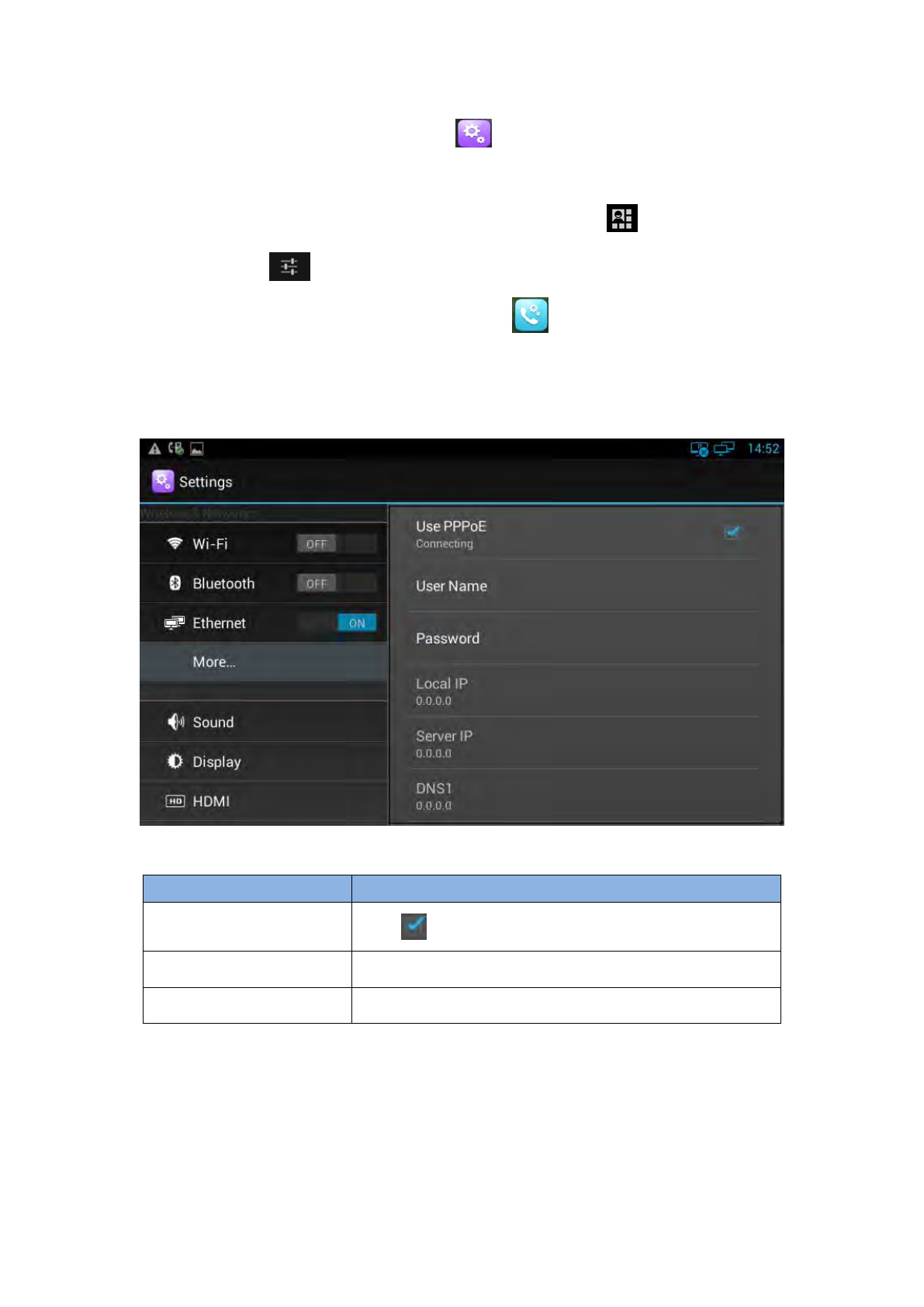
Configuration page is shown as below:
Parameter specification:
Parameter
Specification
Use PPPOE
Check is to enable PPPOE,otherwise, disable.
User Name
PPPOE account, provided by ISP
Password
PPPOE password, provided by ISP
Proceed as follows:
1) Check Use PPPOE
2) Enter the correct user name and password of PPPOE
22
Note:
1) After dialing, can display the acquired IP address, server IP, the primary DNS,
Secondary DNS information, status as connected
2) Not Dial, IP address information will be 0.0.0.0
3) There is a redial entry under Alternate DNS, click redial, then re-launch a PPPOE
dial-up process, re-dial.
4.2.4 Configuring Wi-Fi
You can select one of the following methods to enter the Wi-Fi configuration:
Mode 1: In the main screen, press "Menu" key on the hard keyboard-> System
Settings-> Wireless & Networks-> Ethernet- >Wi-Fi.
Mode 2: In the main screen, tap -> Settings-> Wireless & Networks->
Ethernet -> Wi-Fi.
Mode 3: Drag down the status bar, click shortcut icon on the status bar
->
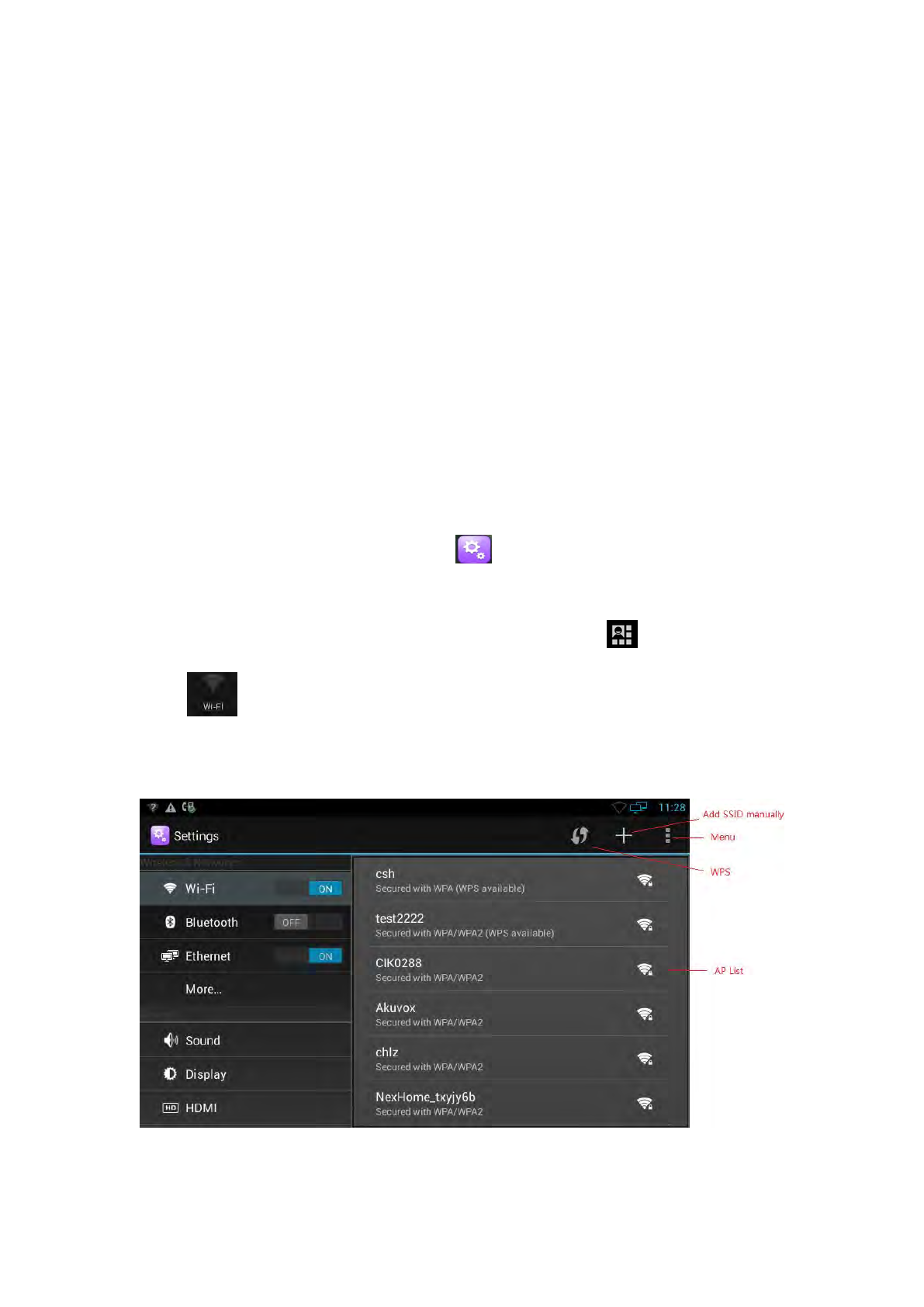
Configuration page is shown as below:
23
1) When the Wi-Fi switch is turned on, the video phone can list and display all Wi-Fi
AP searched in the environment;
2) When connects to available AP in the environment, if a Wi-Fi AP is without
password protection, there is no lock icon on Wi-Fi signal, it will automatically
connect when clicked;
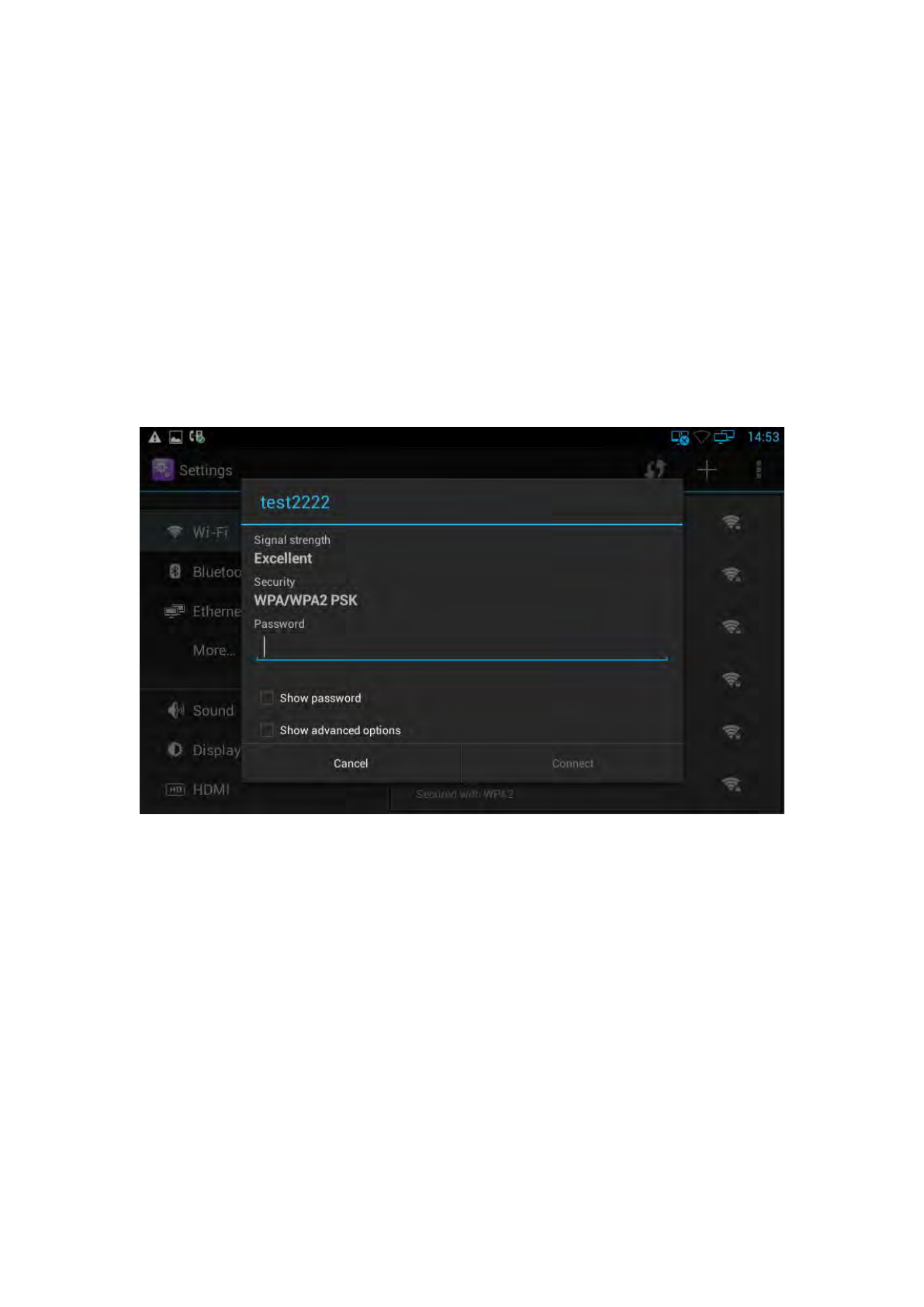
3) If a Wi-Fi AP is encryption, Wi-Fi signal will be added the lock icon, and when
checked, it will pop up a dialog box to enter a password. If the password is incorrect,
the connection will not be successful, as shown below:
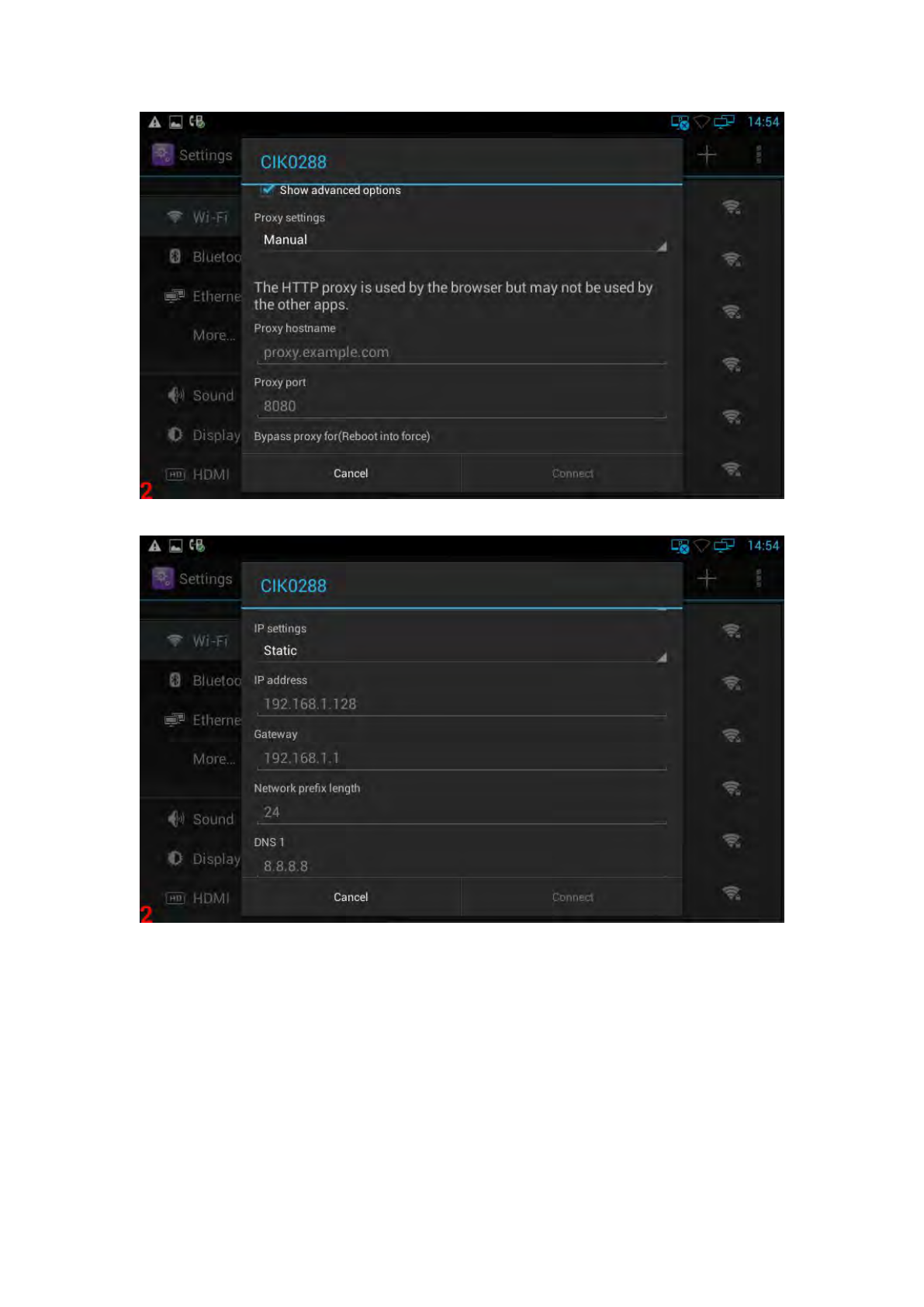
4)check Show advanced options, you can set Proxy server and IP mode.
Proxy Settings
24
IP settings(Static IP):
5)Long press on the connected Wi-Fi AP, it will pop-up a dialog box, you can forget
the network or modify the network. Long press on the non-connected Wi-Fi AP, it will
pop up a dialog box, and you can click and connect to network.
6)Click WPS button, if the wireless router has WPS function, and the router WPS
button is pressed, the video phone will be able to connect to the Wi-Fi without
entering a password.
7)Press “+ ”symbol,you can add a SSID manually.
25
8)Click Menu, you can do the operations such as: Scan(scan the new wi-fi AP), WPS
Pin Entry(enter the PIN on the Router, the phone will no need to input the wi-fi
password), Wi-Fi Direct and Advanced.
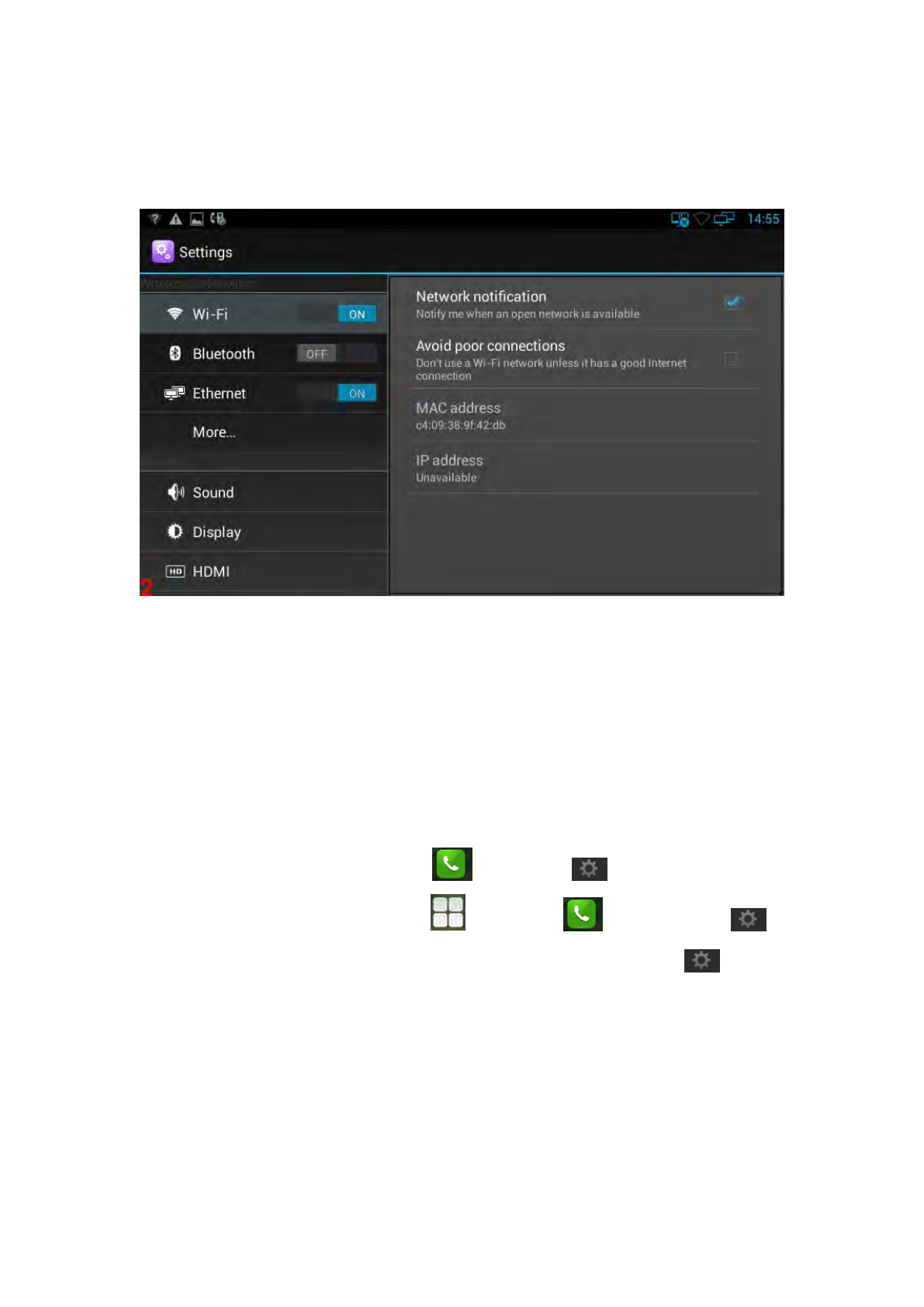
9)In Advanced Menu, shown as below:
a. Check Network notification, it will notify you when an open network is available;
b. Check Avoid poor connections, it will prompt that don’t use a WiFi network
unless it has a good internet connection;
c. View the Wi-Fi Mac address and IP address;
4.3 SIP Account Configuration
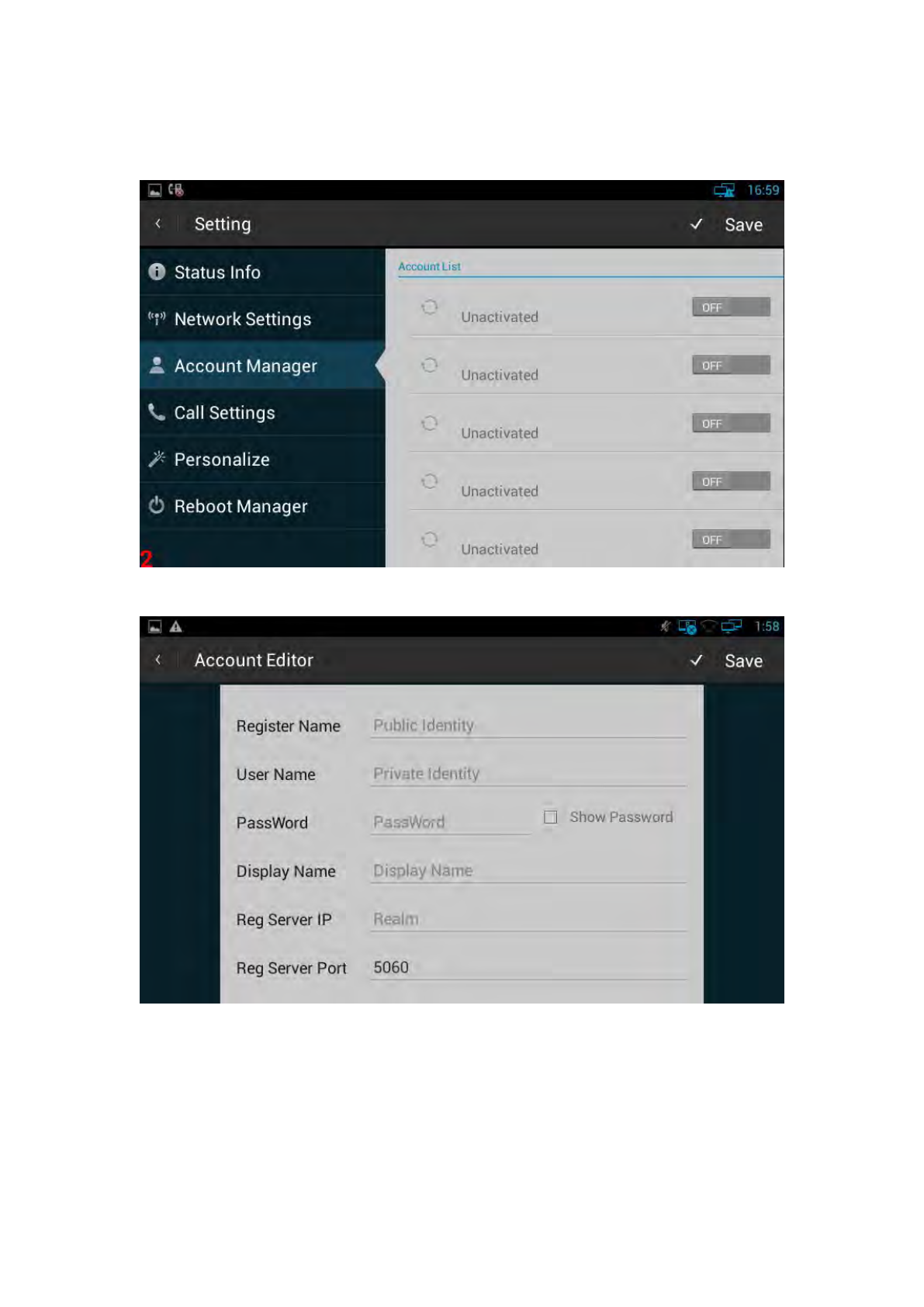
You can select one of the following methods to enter the SIP account configuration:
Mode 1: In the main screen, Click -> then click .
Mode 2: In the main screen, click ->then Click ->and then click .
Mode 3: Directly pick up the handset or press Speaker -> then click .
Mode 4: click Browser, input IP address to enter login interface. Input username:
admin, password is admin, click Login into web, then click Account-Basic;
26
4.3.1 Add Account
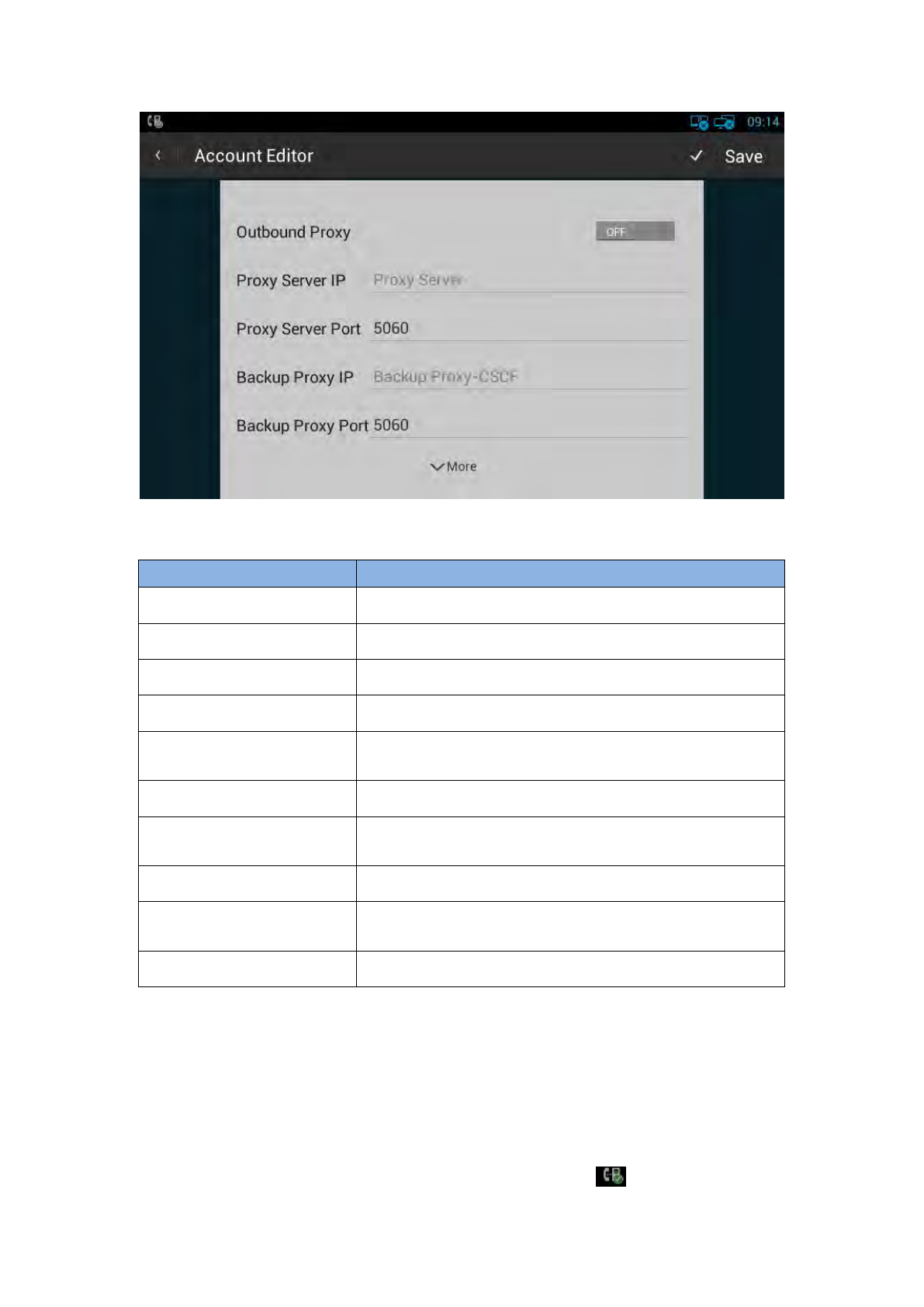
Click an account to enter Account Editor
27
Configuration parameters are described as follows:
Parameter
Specification
Register Name
SIP Accout ID provided by ISP
User Name
SIP User Name provided by ISP
Password
SIP Password provided by ISP
Display Name
SIP Display name
Reg Server IP
SIP Register Server, format: domain/IP, for example:
194.168.1.2
Reg Server Port
The default port is 5060.
Proxy Server IP
SIP Proxy Server, format: domain/IP, for example:
194.168.1.2
Proxy Server Port
The default port is 5060.
Backup Proxy IP
SIP Backup Proxy Server, format: domain/IP,for example:
194.168.1.2
Backup Proxy Port
The default port is 5060.
After all the parameters are configured, Click "save" button to save the
configurations, then the sip account is added successfully. Then active the account.
4.3.2 SIP Account ON/OFF
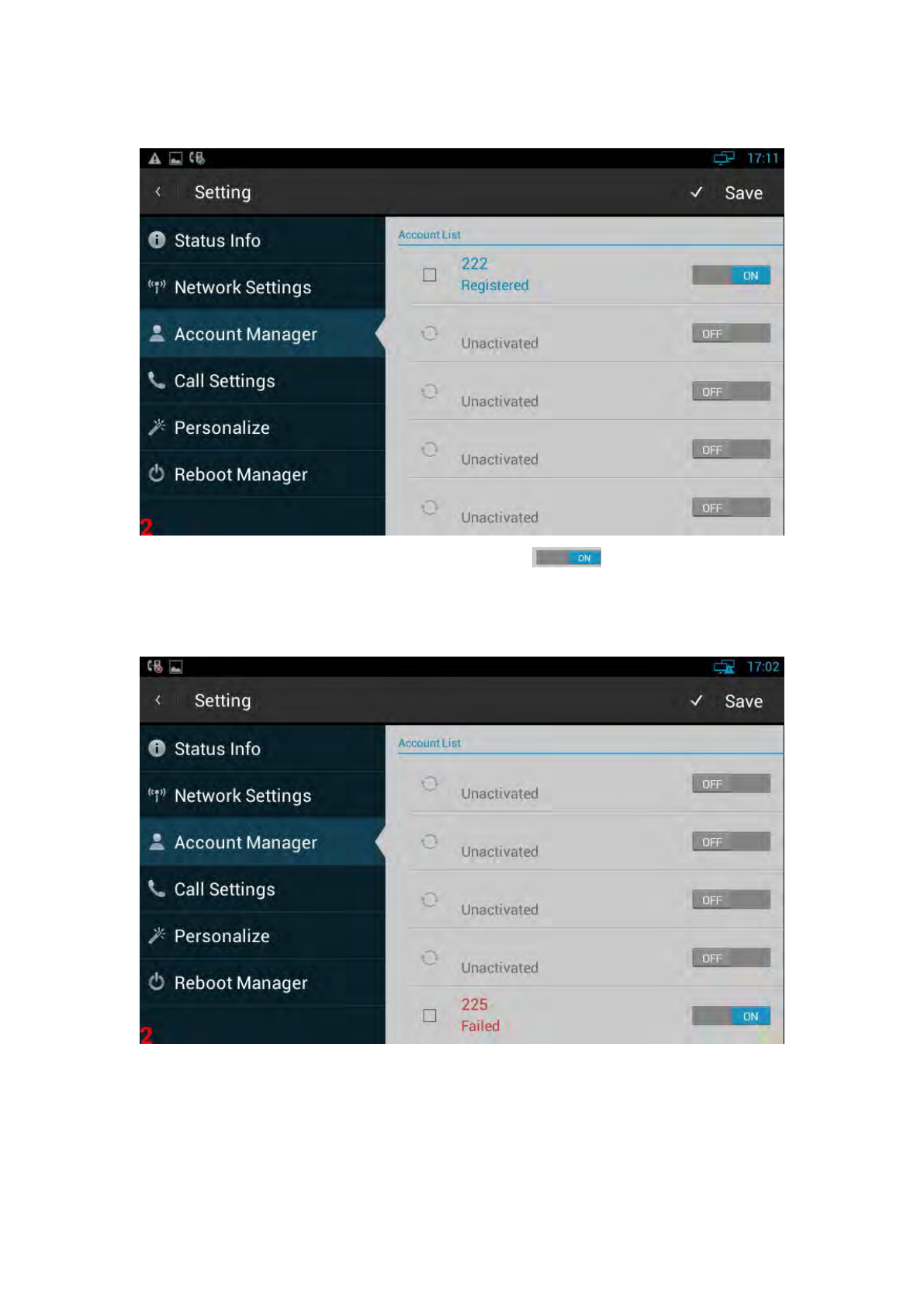
After SIP account is configured and registered successfully, it will display the
prompt ”Registered” in the Account Manager, and the icon will be displayed on
28
the status bar. See the below picture:
a. If you want to disable the account, please click
b. If the sip account is failed to register, the failure code will be displayed under the
account, and then you can check with the account configuration or network
connection. See the below picture:
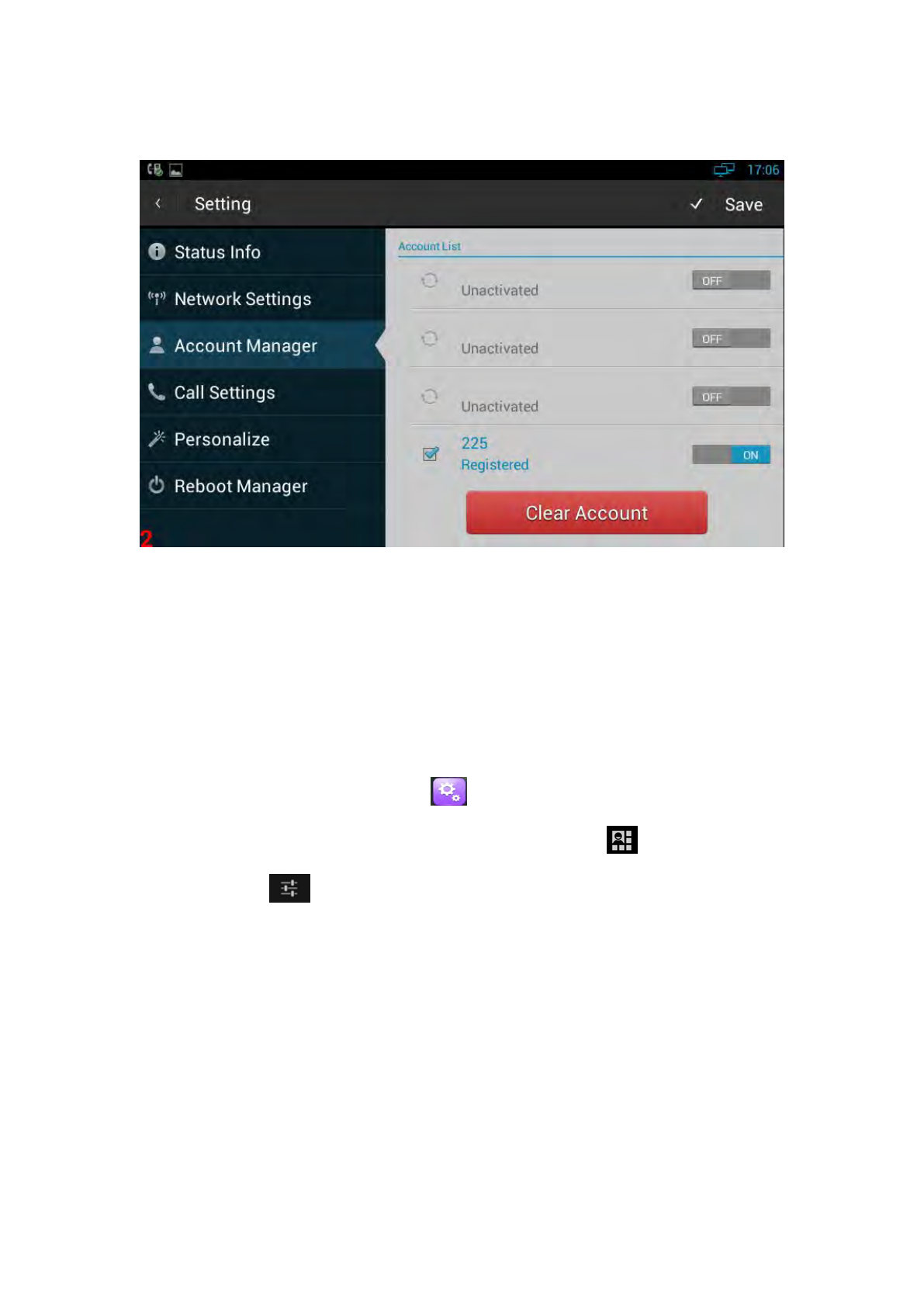
4.3.3 Modify/Remove SIP Account
1)Modify the sip account: Directly click the account to modify;
29
2)Remove the sip account: Click the box of the account which you want to delete,
and then press “Clear Account”.
4.4 Sound
You can select one of the following methods to enter the Sound configuration:
Mode 1: In the main screen, press "Menu" key on the hard keyboard-> System
Settings-> Sound.
Mode 2: In the main screen, click -> Settings -> Sound.
Mode 3: Drag down the status bar, click shortcut icon on the status bar
->SETTINGS ->Sound.
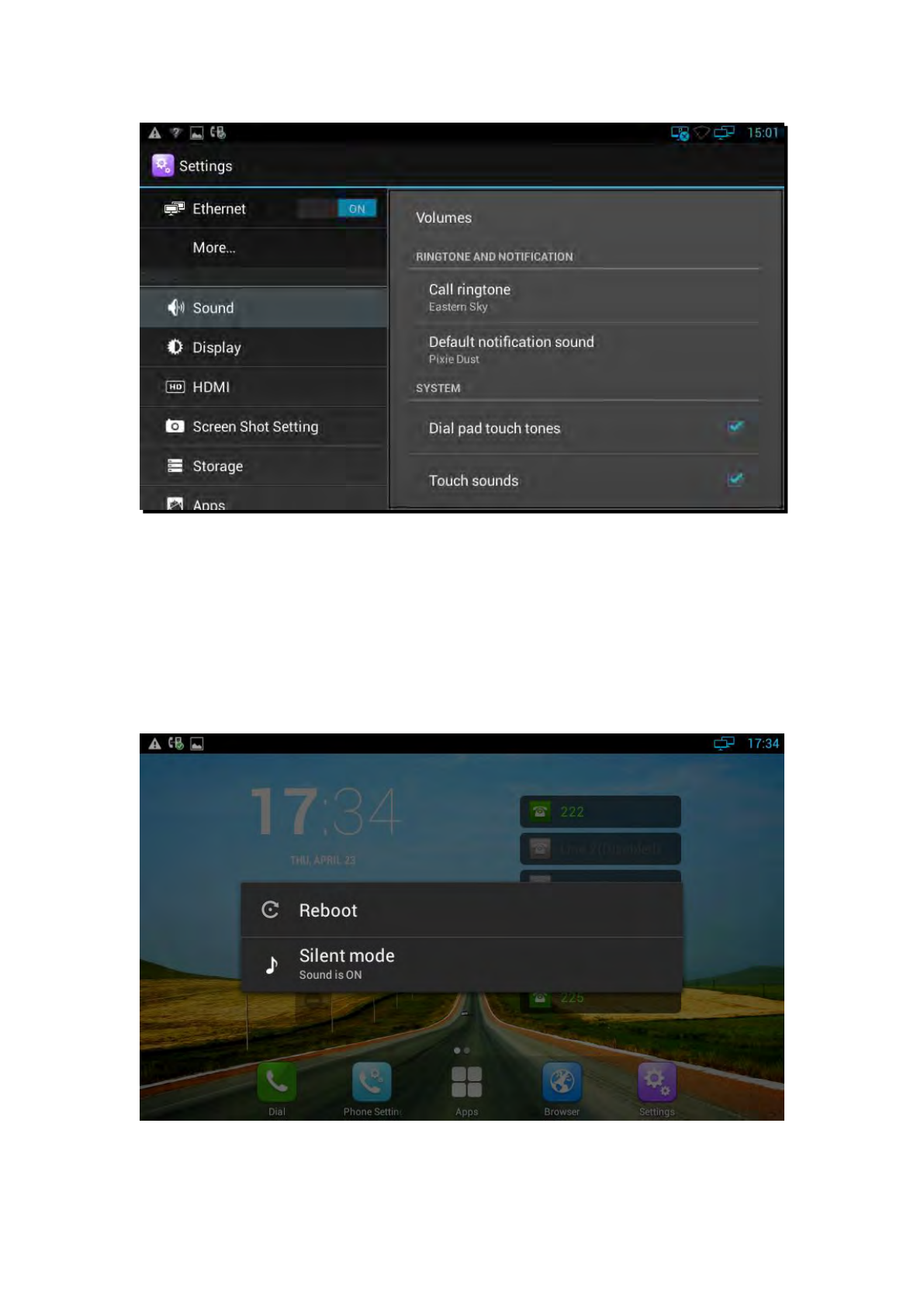
Configuration page is shown as below:
30
Including Volume, Ringtone and Notification, Dial pad touch tones and Touch sound.
4.4.1 Silent Mode
Long press the Power button, then choose Silent mode in the pop-up menu. In
addition to the media and the alarm sound, the rest sound is mute. As shown in the
picture below:
31
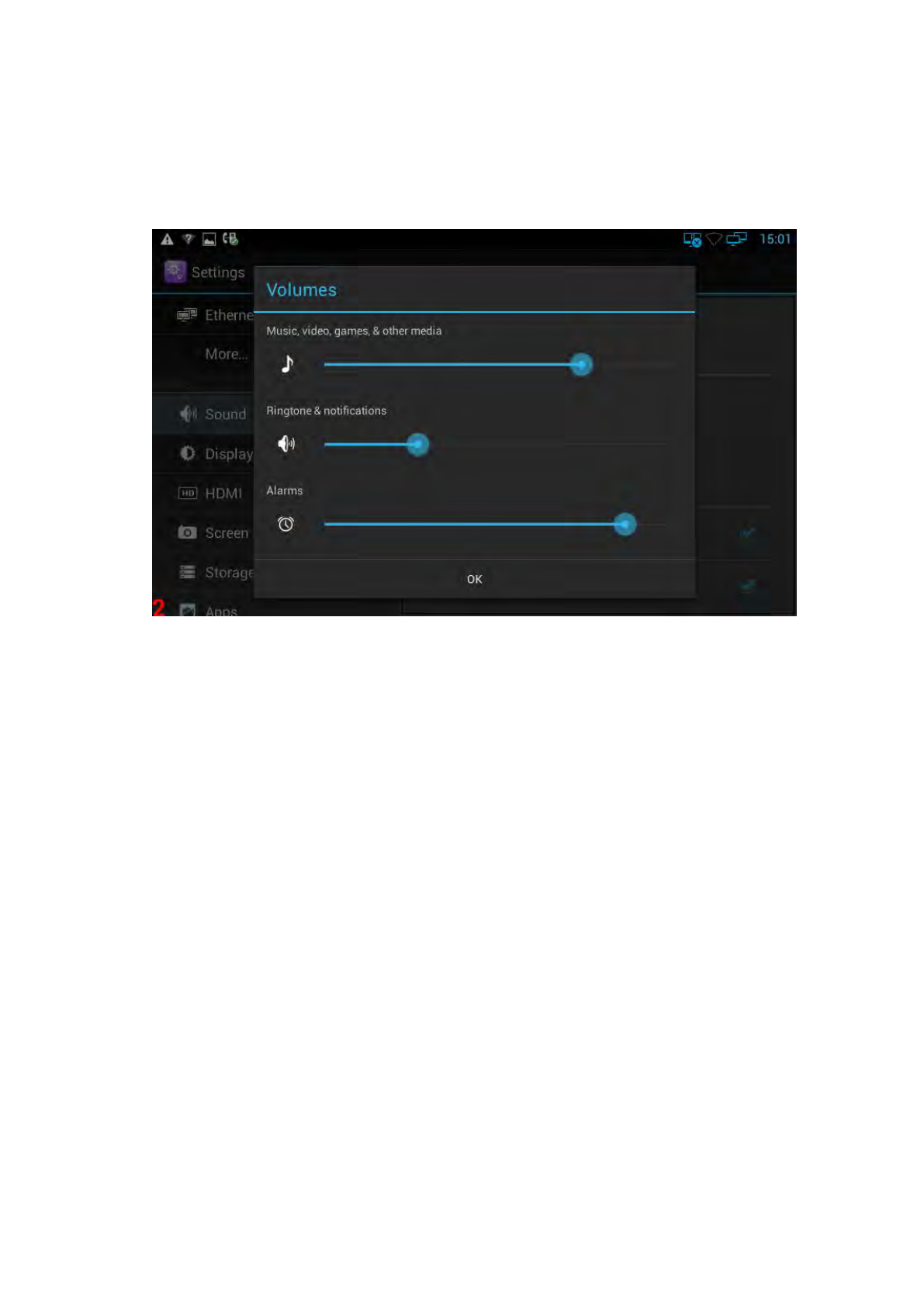
4.4.2 Volumes
In Sound configuration page, click “Volumes”, the volume configure is shown as
below:
Volume options include ringtones and notifications, Media, Alarm clock.
You can hold and drag the slide button or just directly click a volume location to
adjust the volume. Finally click "OK" button to save.
The volume settings, you can also press the keyboard "volume+ -"
button to increase or decrease the volume. Usually, "volume + -" button is
to adjust for ringtone or notification volume, but in
the broadcast media, pressing "volume + -" button is to adjust for media volume.
4.4.3 Ringtone
The ringtone settings, including the default ringtone and default notification tone.
In the sound interface, select the default ringtone or default notification tone, and
then click the ringtone you want to set, after the selection, it will be a short play ring.
Finally, click "OK".
4.4.4 System Sound
If you want to enable Dial pad touch tones and Touch sounds, please go to Sound
32
configuration page to click the correspond sound. Dial pad touch tones and Touch
sounds are enabled in default configuration.
4.5 Call Settings
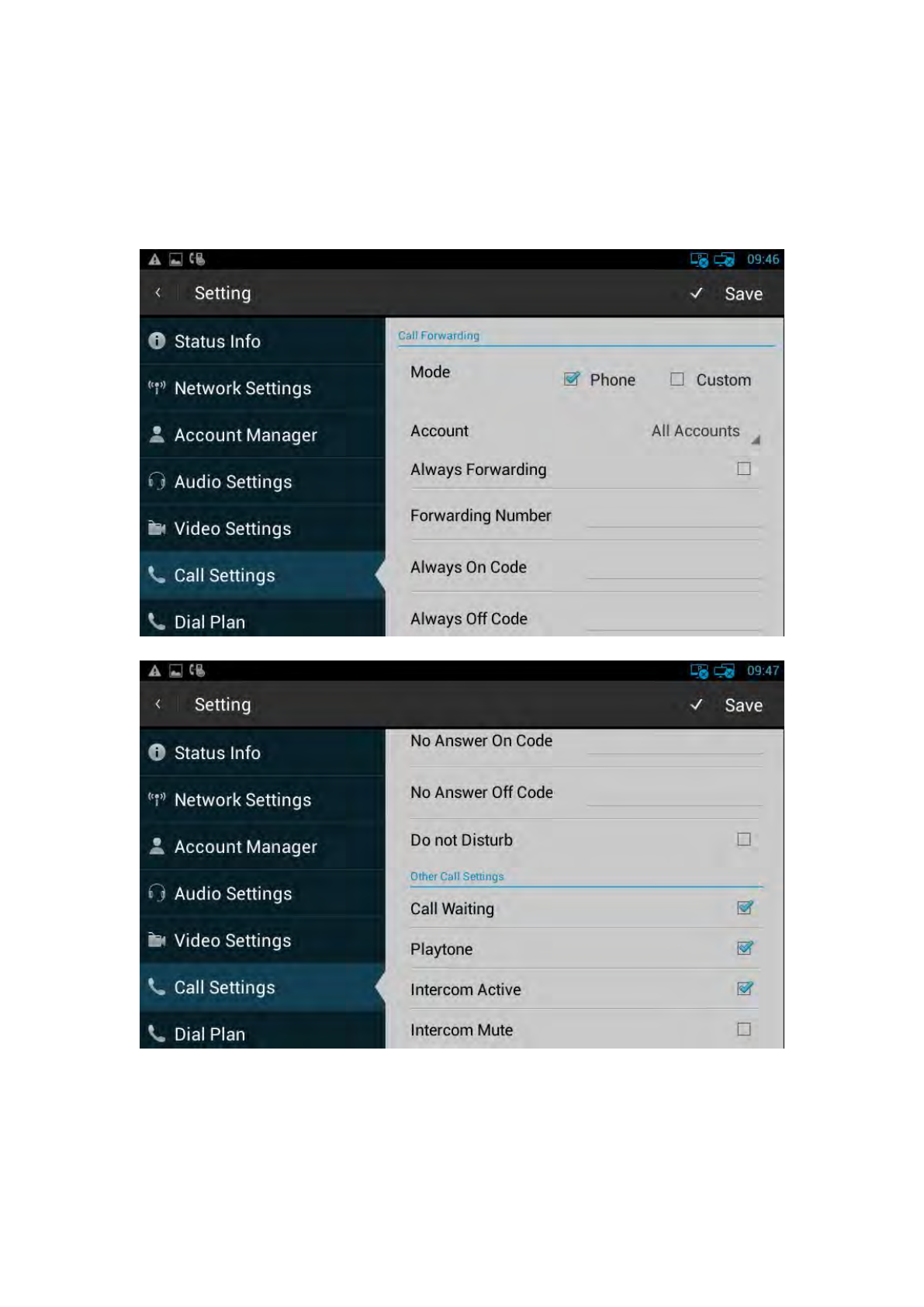
4.5.1 Do Not Disturb
DND function is to prevent foreign phone from disturbing, if open DND, external

33
phone call is unable to call in, turned off by default.
Configuration on the phone:
1.Phone Settings->Call Settings->Call Forwarding
2.Select the desired account.
3.Enable Do not Disturb.
4.5.2 Call Waiting
Open call waiting, if enable call waiting, after establishment of a conversation, there
are a third party call in, then video phone will have a new call tips, you can choose to
answer or reject the call. If you close the call waiting, then the third party cannot call
in, will prompt a busy tone, turned on by default.
Configuration on the phone:
1.Phone Settings->Call Settings->Other Call Settings
2.Enable Call Waiting.
4.5.3 Always forwarding&Forwarding Number
All the incoming calls will be the Switched unconditionally to specified number.
Configuration on the phone:
1. Phone Settings->Call Settings->Call Forwarding
2. Select the desired account.
3. Enable Always Number.
4. Input the number you want to forward.
4.5.4 Call forwarding busy&Forwarding Number
The incoming calls will be the Switched to specified number when the phone is busy.
Configuration on the phone:
1. Phone Settings->Call Settings->Call Forwarding.
2. Select the desired account.
3. Enable Call Forwarding Busy.
4. Input the number you want to forward.

34
4.5.5 No Answer Forwarding&Forwarding Number
The incoming calls will be the Switched to the specified number when the ring tone is
time out without answer.
Configuration on the phone:
1. Phone Settings->Call Settings->Call Forwarding.
2. Select the desired account.
3. Enable No Answer Forwarding.
4. Input the number you want to forward.
4.5.6 Time out
Setup the no answer forwarding time. When the call is beyond the time(the default is
30 seconds)without answer ,it will transfer to the target number.
4.5.7 Playtone
The caller will hear the tone when waiting.
4.5.8 Intercom
It is used to answer the incoming call automatically after users set up the intercom
function. In default situation, the IP phone Akuvox R47P will answer the intercom
incoming calling automatically and make a noise. You can set the phone to enable
silent mode when picking up the intercom call so that the other will not hear you.
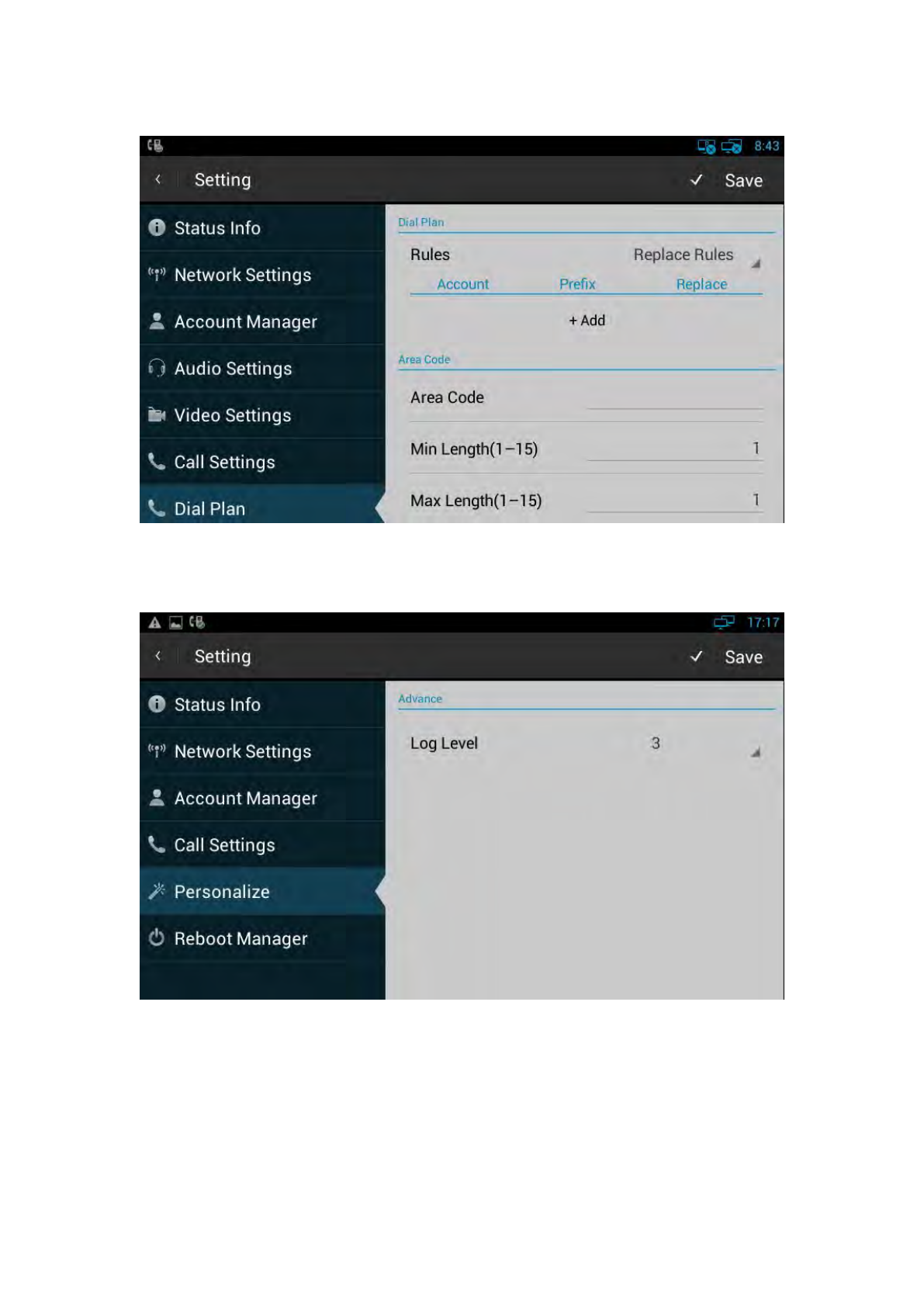
4.6 Dial Plan
Rule: Allow user to select Replace rule or Dial-now to display or edit.
Rules Modify: Allow user to modify selected rules information, for replace rule, you can
modify related accounts, prefix and replace.
Area Code: Area codes are also known as NPAs (Numbering Plan Areas). They usually
indicate different geographical areas within one country. If entered numbers match the
predefined area code rule, the IP phone will automatically prefix outgoing number with area
code.
35
Note: There is only one area code rule supported.
4.7 Personalize
4.7.1 Log Level
The Log level is divided into seven levels: EMERG, ALERT, CRIT, ERR, WARNING,
NOTICE, INFO, DEBUG, log class is from low to high. The default setting is
EMERG, which is the lowest grade log.
36
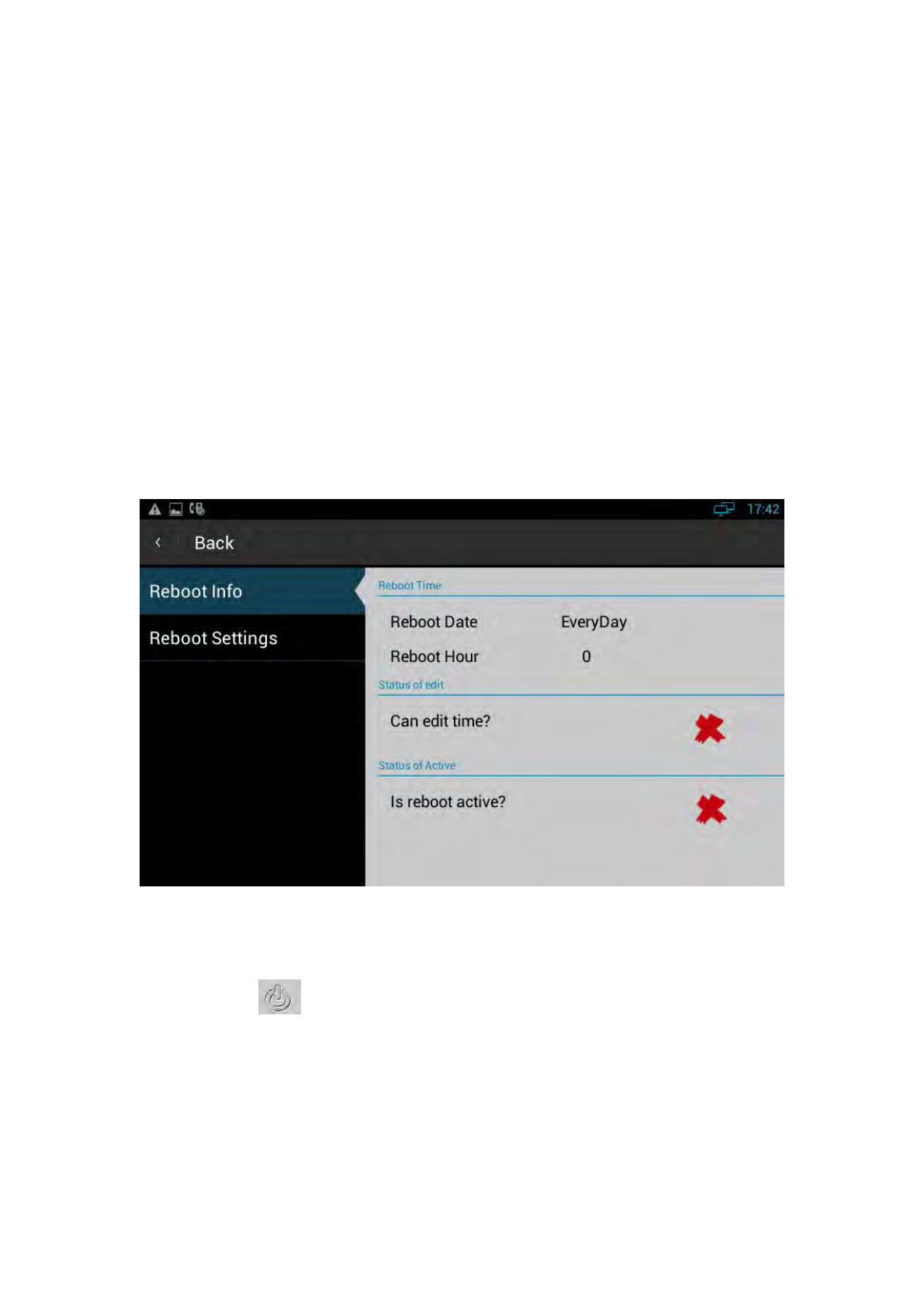
4.8 Reboot Manager
4.8.1 Reboot time
User can setup the reboot date and hour you want .
4.8.2 Status of time
If the status is enable ,users can edit the reboot time you want.
4.8.3 Status of active
Enable/disable the reboot function
4.8.4 Reboot settings
Click the icon to reboot.
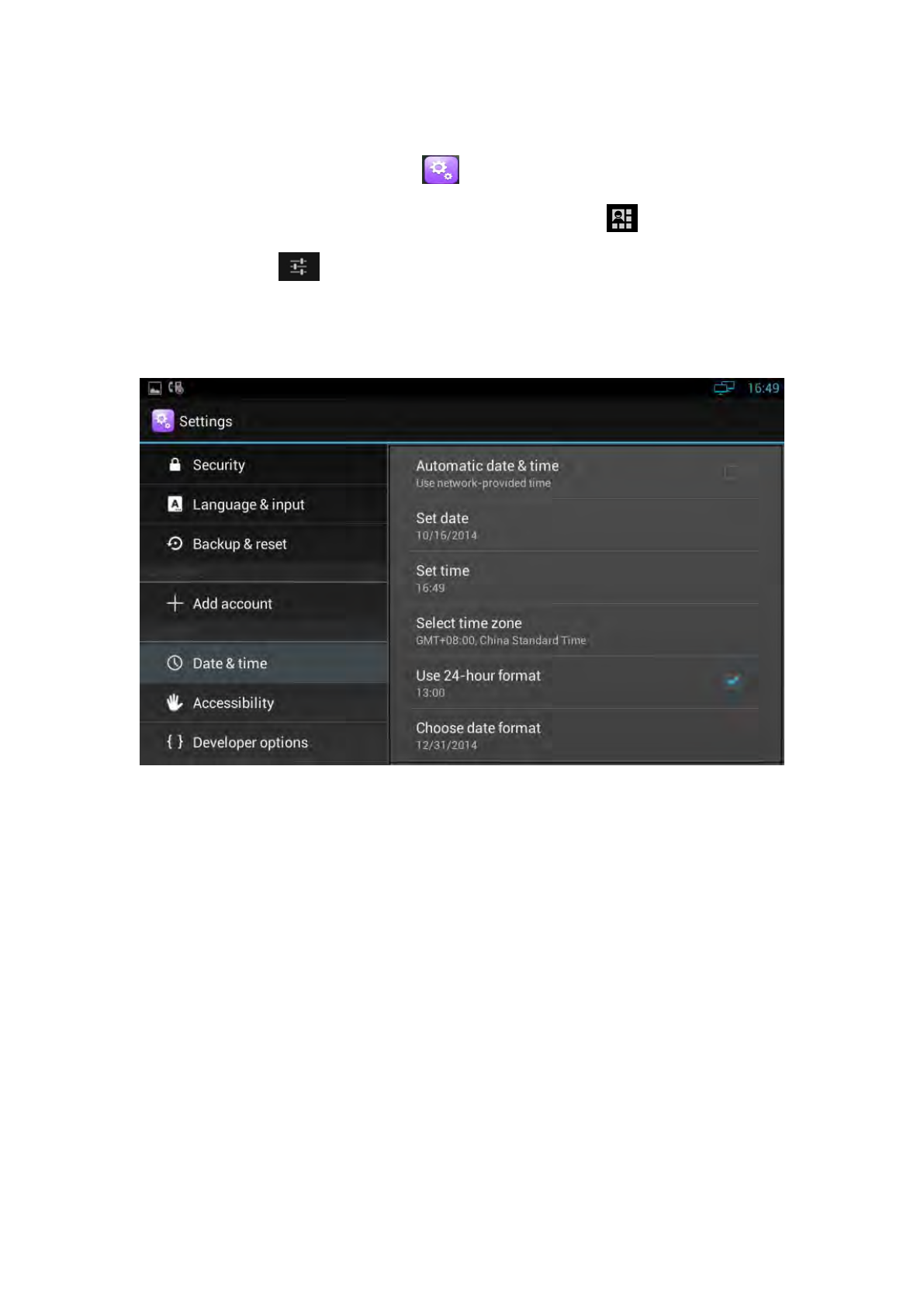
4.9 Date & Time
You can select one of the following methods to enter Date & Time configuration:
Mode 1: In the main screen, press "Menu" key on the hard keyboard-> System
37
Settings-> Date & time.
Mode 2: In the main screen, tap -> Settings-> Date & time.
Mode 3: Drag down the status bar, click shortcut icon on the status bar
->SETTINGS> -> Date & time.
The configuration page is shown as below:
If you want to manually set the date and time, firstly, remove the click ”Automatic
data & time”, and then set the date, time, select a time zone. Check Use 24-hour
format, and then “1:00 PM” will change to “13:00”.
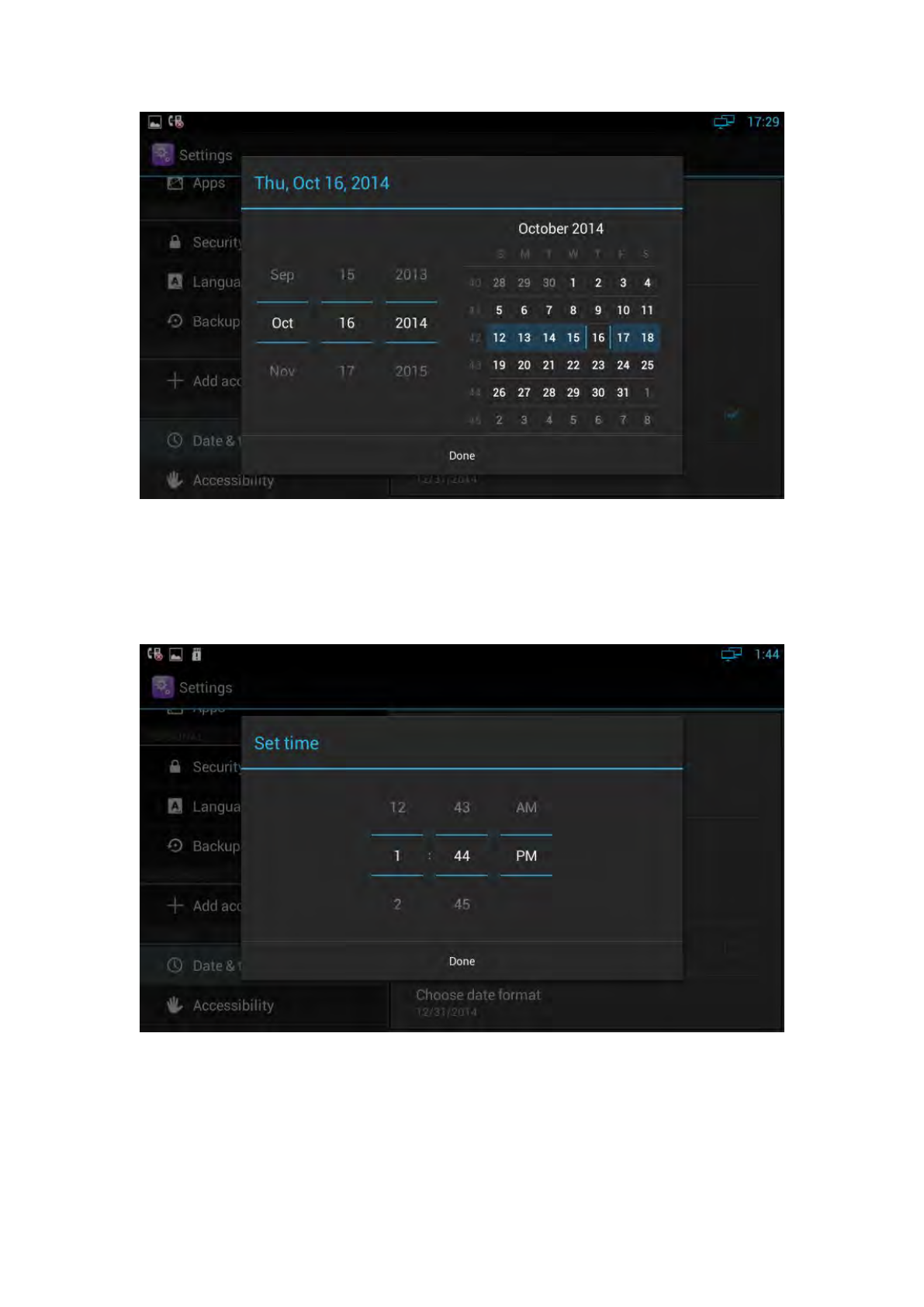
Click "Set date", pop-up date set interface, as shown below:
38
You can increase or decrease the corresponding value by dragging upper or lower,
also can directly input corresponding value in input flied, and then click the "Done"
button.
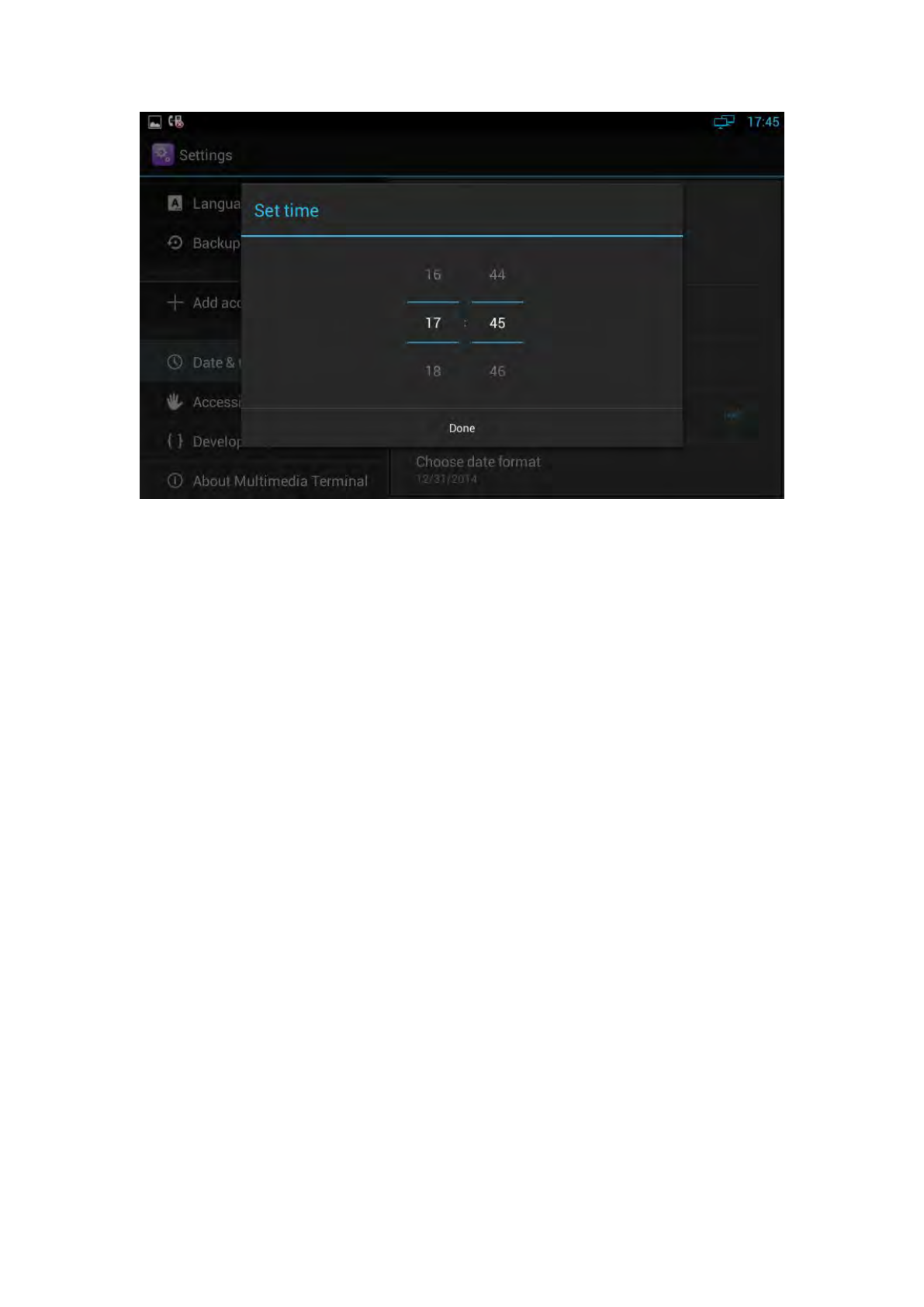
Click "Set time, time settings, as shown below:
In the figure, uncheck Use 24-hour format, you can increase or decrease the
corresponding time value by dragging upper and lower. Click "AM" button, it will
change to "morning", and then click "PM" button, then changed back to "afternoon".
If check Use 24-hour format, time setting interface as shown below:
39
4.10 Personalization Settings
According to personalized settings, you can make the equipment more characteristic.
4.10.1 Wallpaper
You can use the following three ways to change your favorite wallpaper.
Mode 1:
1) You can choose one of the following steps to enter into the choice of wallpaper
source:
In the main screen, Press "Menu" on the keyboard-> wallpaper, it will
pop up wallpaper selection interface to select a wallpaper source.
In the main screen, Press on the blank part of desktop, it will pop up
menu option, select "wallpaper".
2) Perform one of the following steps:
In “Wallpapers”, click the picture you want to set as wallpaper, and then
click "Set wallpaper".
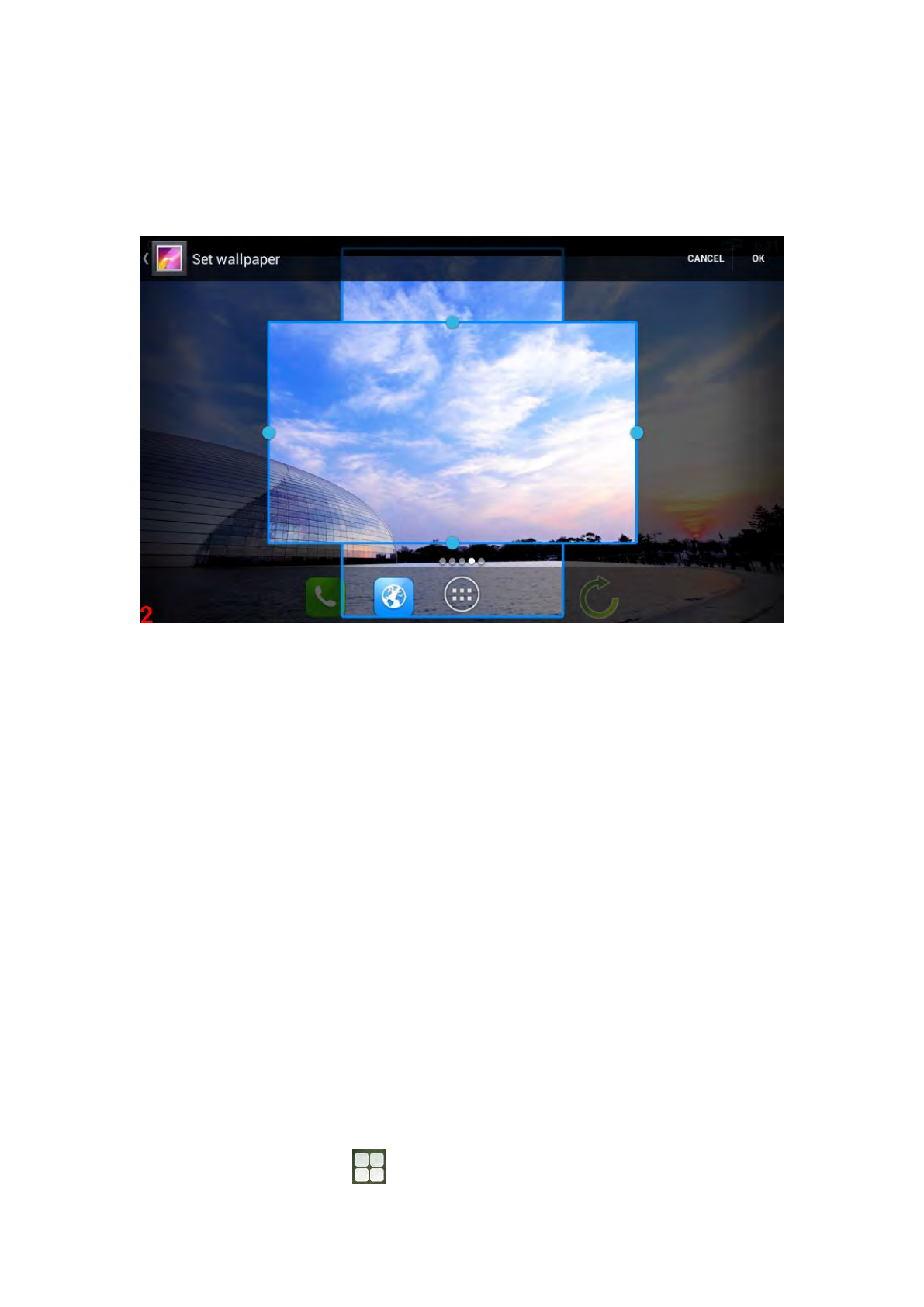
Click "Gallery", In the library, click the corresponding picture folder,
select the picture you want to set as wallpaper, then press and hold the
clip frame picture, drag the clip box, crop the picture finally click "OK".
40
When clipping, if want to change clip size of the box, press clipping
frame, the border follows the direction of the arrow to be shown in the
figure, you can drag it to the border or outside the borders, to change
the size of the crop box.
Mode 2:
Browse pictures in the gallery, and then follow the second step in mode 1 to set the
wallpaper.
Mode 3:
1) Browse a picture In a browser (or pictures on the page), press and hold the
picture.
2) Pop-up a new operation window, click on the "Set as wallpaper" and wait for a
short time, you can set the picture as wallpaper.
4.10.2 Widgets
Applet can be convenient for your use, you can select from the available options
4.10.2.1 Add A Widget
1) In the main screen, Click , left-slide the screen, choose and add a widget. The
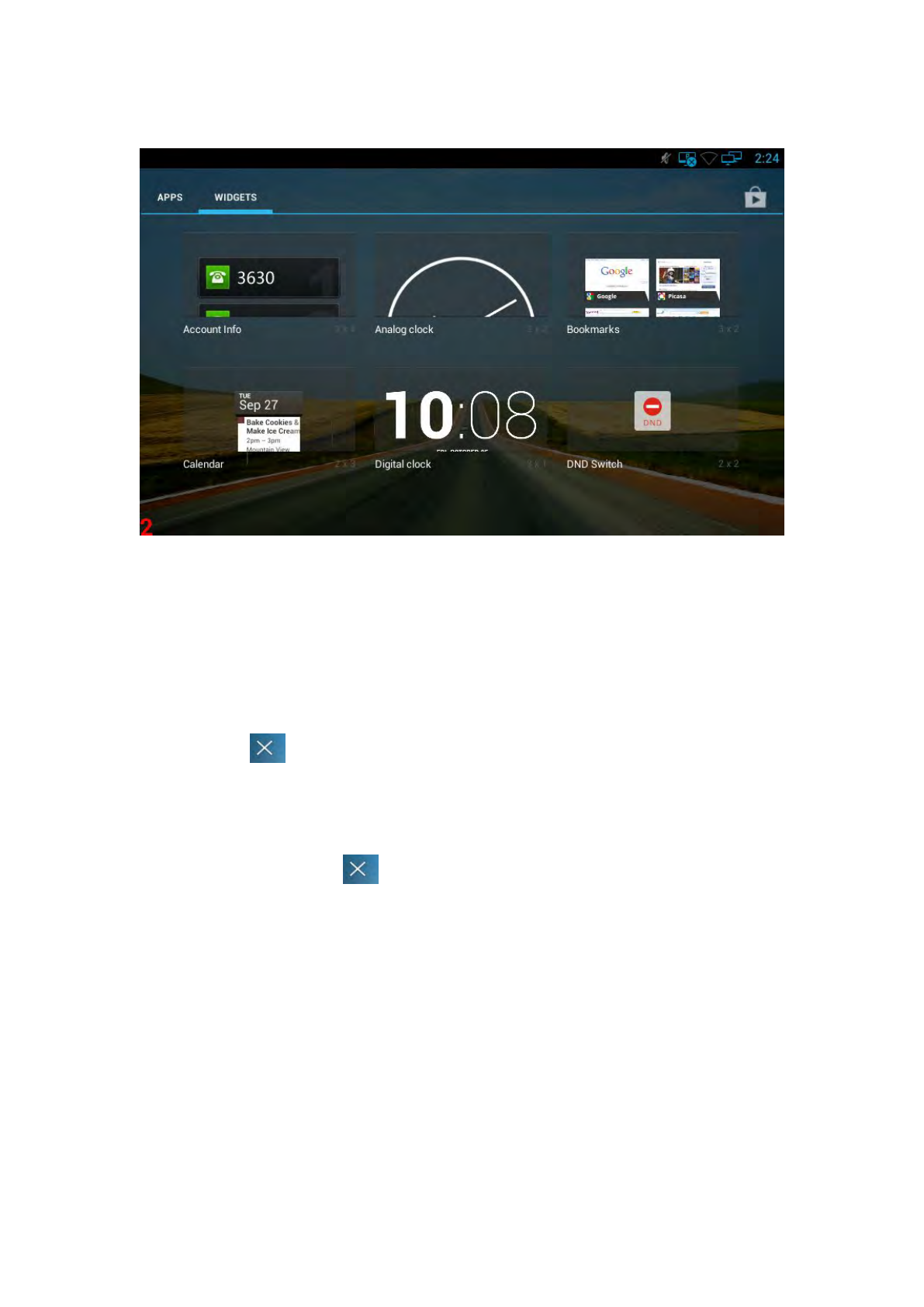
41
following window:
2) Each widget has indicated the name and the location, press and hold
the component, put it to the designated location on the desktop.
4.10.2.2 Modify An Added Widget
If you want to modify the location of added widgets on the desktop, hold the widget
until the icon appears on the upper left corner of the screen, you can drag the
widget to the corresponding position of the desktop.
If you want to change the space size of added widgets on the desktop, press and hold
the widget until the icon appears on the upper left corner of the screen, do
not move, fingers away from the screen, the widget will appear frame border, as
shown below:
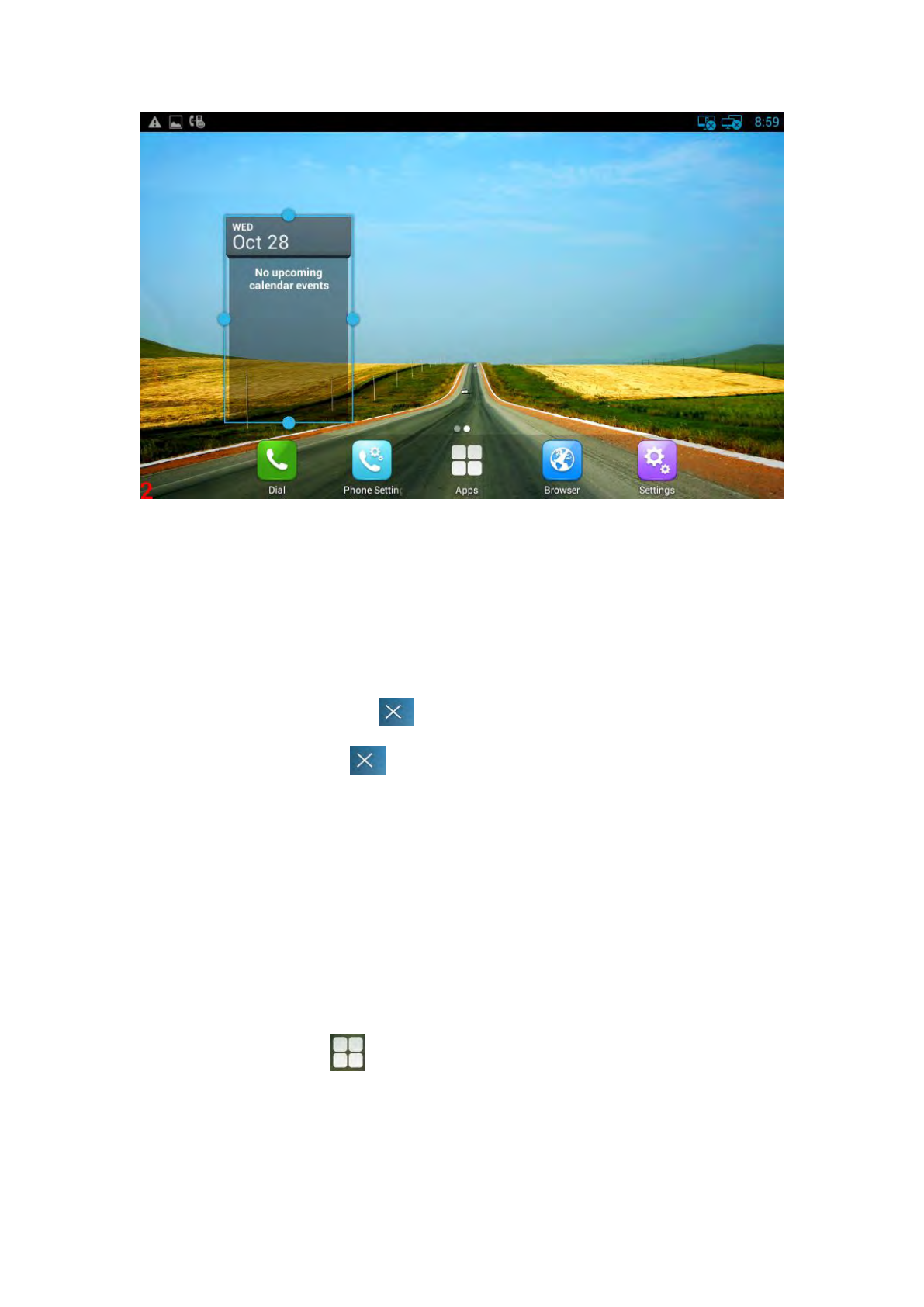
42
At this time, you can press the arrow button to drag the border to change the size of
the widget frame. And then only need to press “Back” button on the keyboard to
save the change.
4.10.2.3 Delete A Widget
Hold the widget until the icon appears on the upper left corner of the screen,
you can drag the widget to to delete the widget.
4.10.3 Shortcuts
You can add the shortcuts such as Application, Webpage bookmarks and so on to the
main screen desktop.
4.10.3.1 Add A Shortcut
In the main screen, Click , left-slide the screen, choose and add a shortcut, press
and hold the component, put it to the designated location on the desktop
43
4.10.3.2 Modify A Shortcut
If you want to modify the location of shortcut on the desktop, hold the shortcut until
the icon appears on the upper left corner of the screen, you can drag the
shortcut to the corresponding position of the desktop.
4.10.3.3 Delete A Shortcut
Hold the shortcut until the icon appears on the upper left corner of the screen,
you can drag the shortcut to to delete the shortcut.
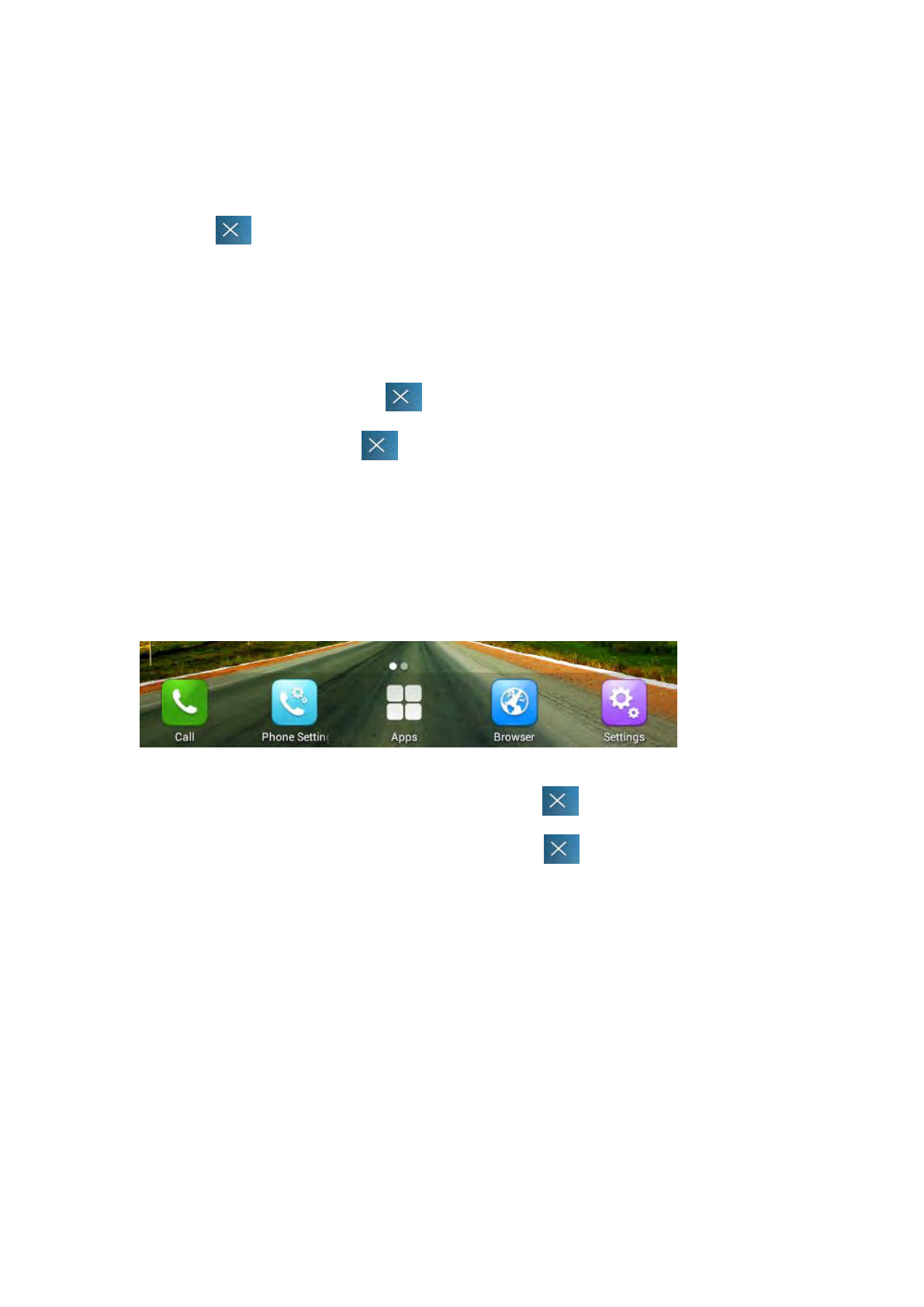
4.10.4 Modify Extended Bar
You can modify the quick start program on the extended bar at the bottom of the
screen. The default extended bar as shown below:
In the main screen, hold the shortcut until the icon appears on the upper left
corner of the screen, you can drag the shortcut to to delete the shortcut or
replace with another shortcut.
4.10.5 Ringtone
You can select the ringtone provided by video phone, and you can also download
music from the Internet, and then set the favorite music as a ringtone.
If you choose the ringtone provided by video phone, please refer to Sound settings.
If you choose the music downloaded from the Internet as a ringtone, please follow
the below steps:

44
1) Click -> Music(App).
2) See the music list in App, select and press a music, and then In the pop-up menu
options, select "Ringtone" -> "Phone"
4.11 Backup & Reset
1) Click Setting ;
2) Click “Backup & reset”;
3) Click “Factory data reset”;
4) Click “Reset Multimedia Terminal”
5) Click “Erase everything”.

45
5 Function
5.1 Call Function
Video phone supports voice calls and video calls. Please ensure that the device has
been configured SIP account successfully before using the call function. SIP account
configuration refers to section 3.3.
5.1.1 Make A Call
You can directly dial from the keypad, from the contact or from call records.
5.1.1.1Dial Out Directly
1) You can choose one of the following steps to enter into the dialing interface:
Directly pick up the handle.
Press “Speaker” button on the keypad.
In the main screen, Click .
In the main screen, select -> .
Dialing interface is shown as below:
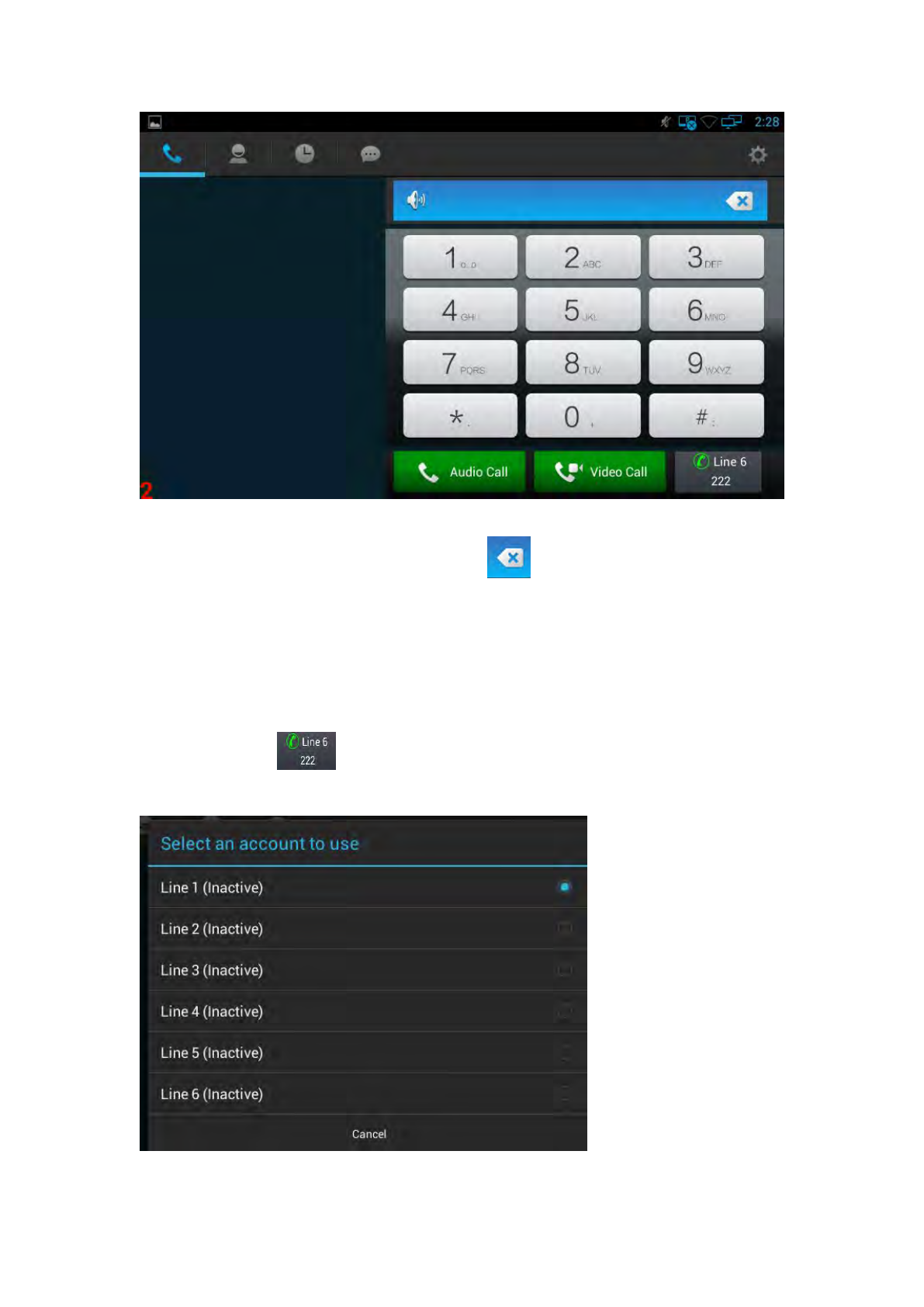
46
1) By pressing the number keys on the dial interface or directly pressing the number
on keypad. To delete a number, press the on the dial interface, or press
Delete button on the keypad.
2) If you want to make an audio call, please click "Audio Call"; if you want to make a
video call, please click "Video Call".
3) If you have registered a multiple of available SIP accounts, when finishing dialing,
you can click line button to choose the outgoing account for the number, as
shown below:
47
5.1.1.2 Dial Out From Contact
You can choose one of the following steps to enter into the contacts:
In dialing interface, Click the icon
Contact is shown as below:
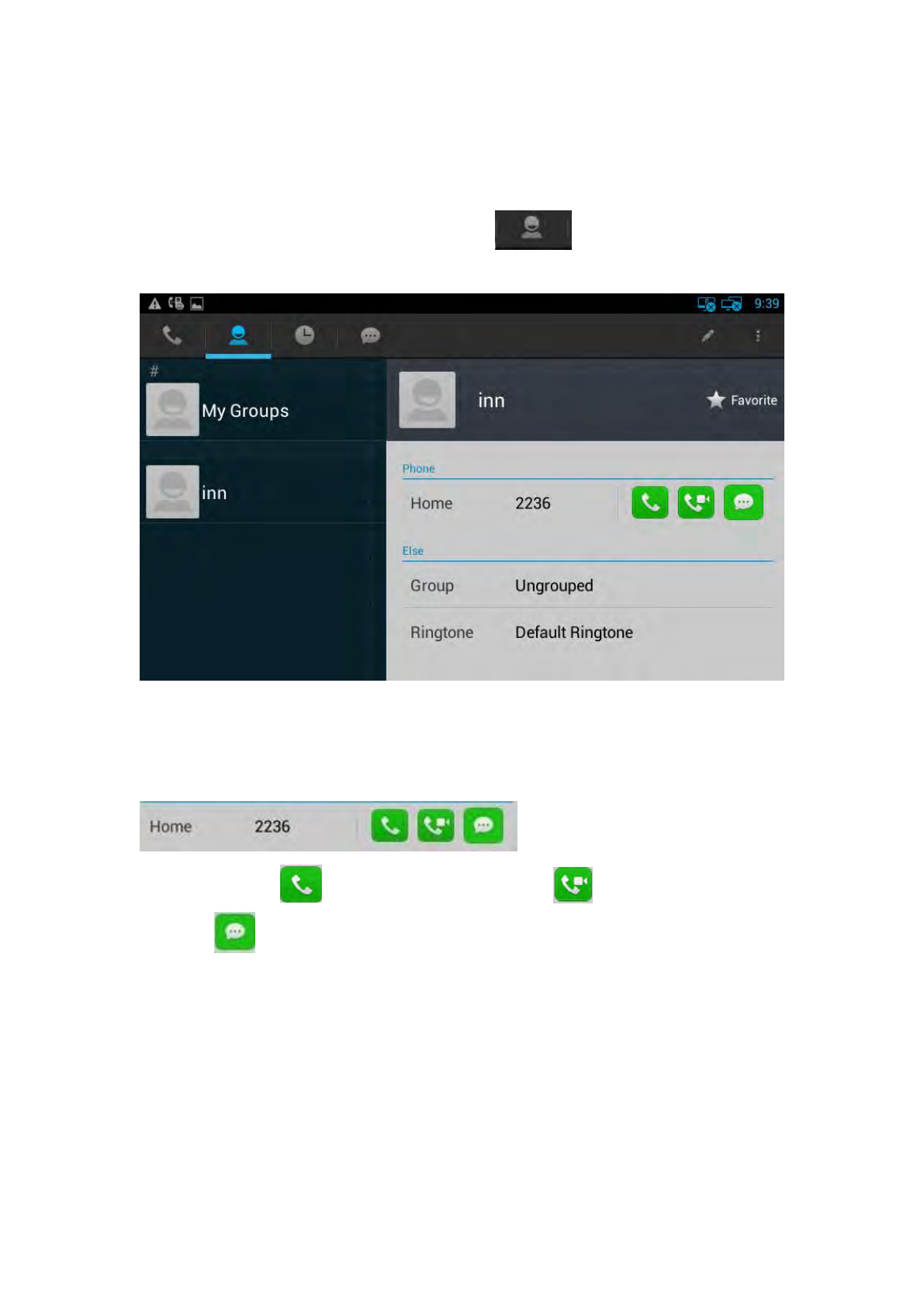
Contact supports rapid locating the contact through first letter.
1) Click the contact in Contacts, and you can view the details on the right side.
As shown in below picture:
2) You can click to make an audio call, click to make a video call, or
click to send the message.
5.1.1.3 Contacts Fuzzy Matching Query
Video phone supports contacts fuzzy matching queried, intuitive, concise dialing
interface for the intelligent input, greatly reducing the number of buttons, achieve
rapid, effective positioning search, avoid duplication of invalid operation, saving time.
For example, to find Terry, only press the number keys 81 to locate the contact
48
quickly.
When input no number, displaying the current call records; when input numbers, list
the current matching results. Click the contact, and it will enter the telephone
number to dial automatically.
5.1.2 Receive A Call
Incoming calls include audio and video calls. If the caller has been stored in the
contacts, it will show the contact name, otherwise the caller number will be
displayed.
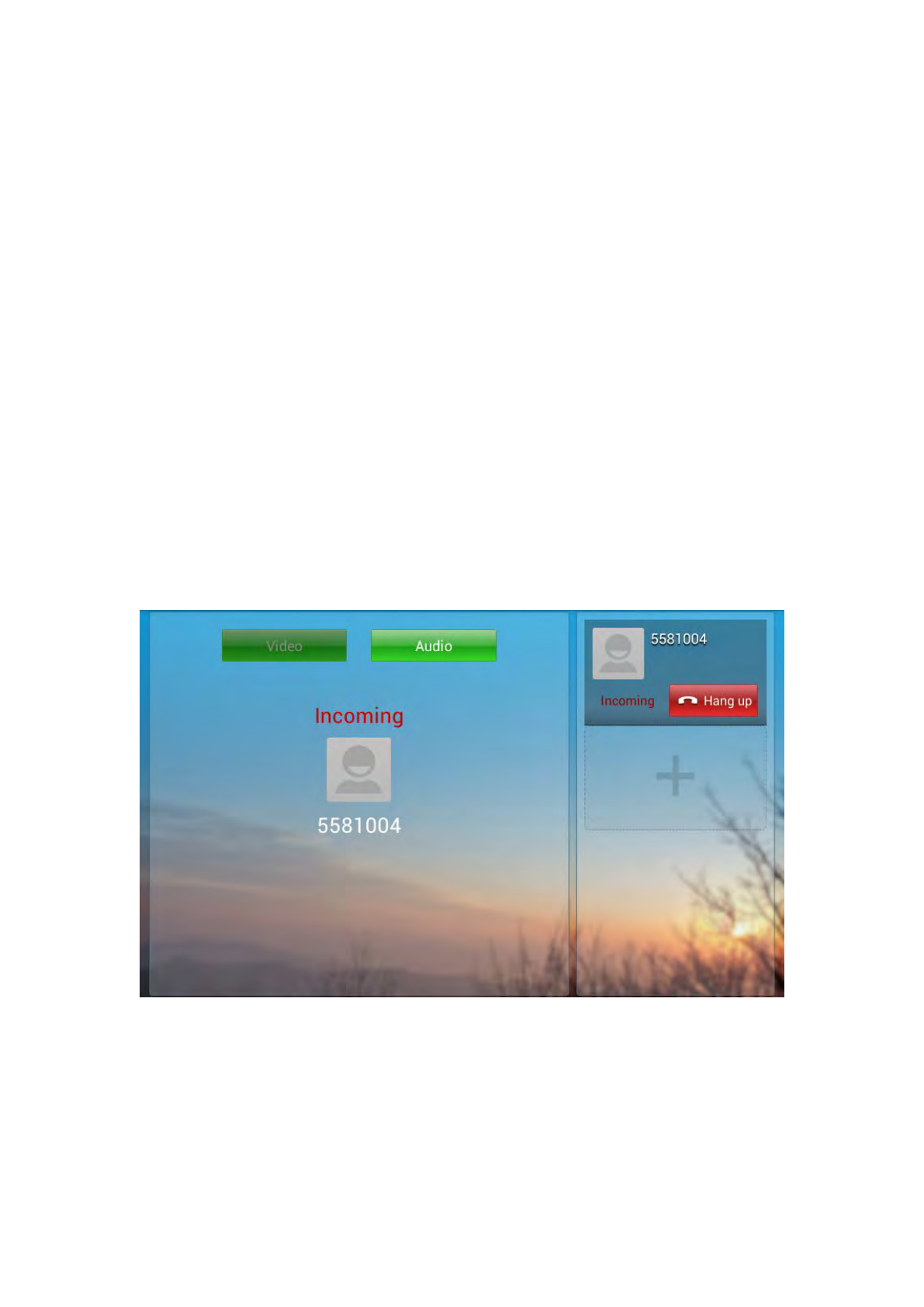
5.1.2.1 Answer A Call
1) Answer an audio call
When receiving an audio call, as shown below:
Click “Audio” or pick up the phone to answer.
2) Answer a video call
When receiving an video call, as shown below:
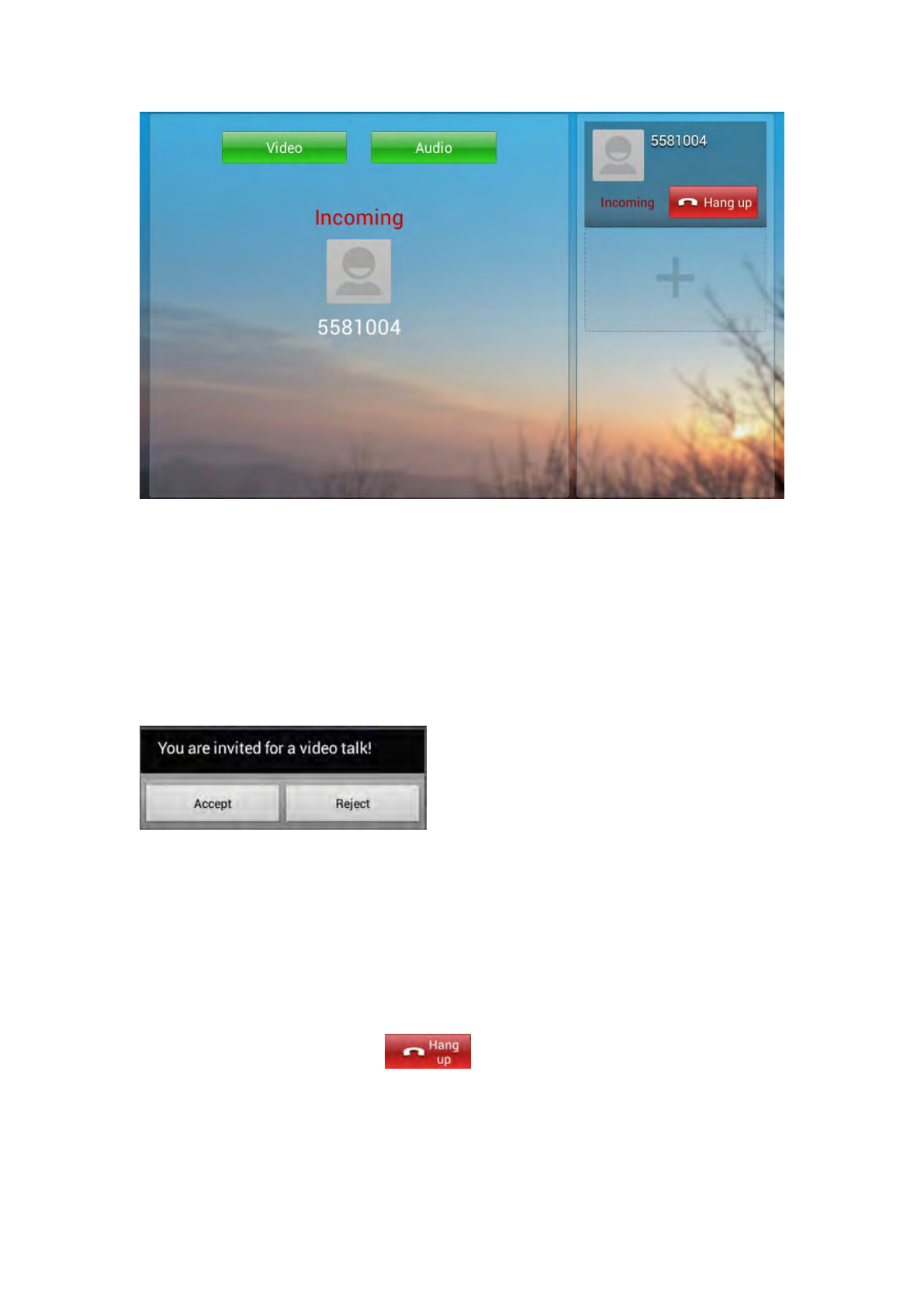
49
Click "Audio" to establish the audio call, and video is not visible; click "Video" to
establish the video call, and video is visible. Pick up the handle is to answer the call
as a video call.
3) Answer a video invite
During an audio call, if a video invite is requested, it will pop up the following
window:
Click “Accept” to accept the video invite, and then the call will change to video call;
Click “Reject” to reject the video invite, audio call will retain. 10s without any
operation, the video invite will terminate.
5.1.2.2 Reject A Call
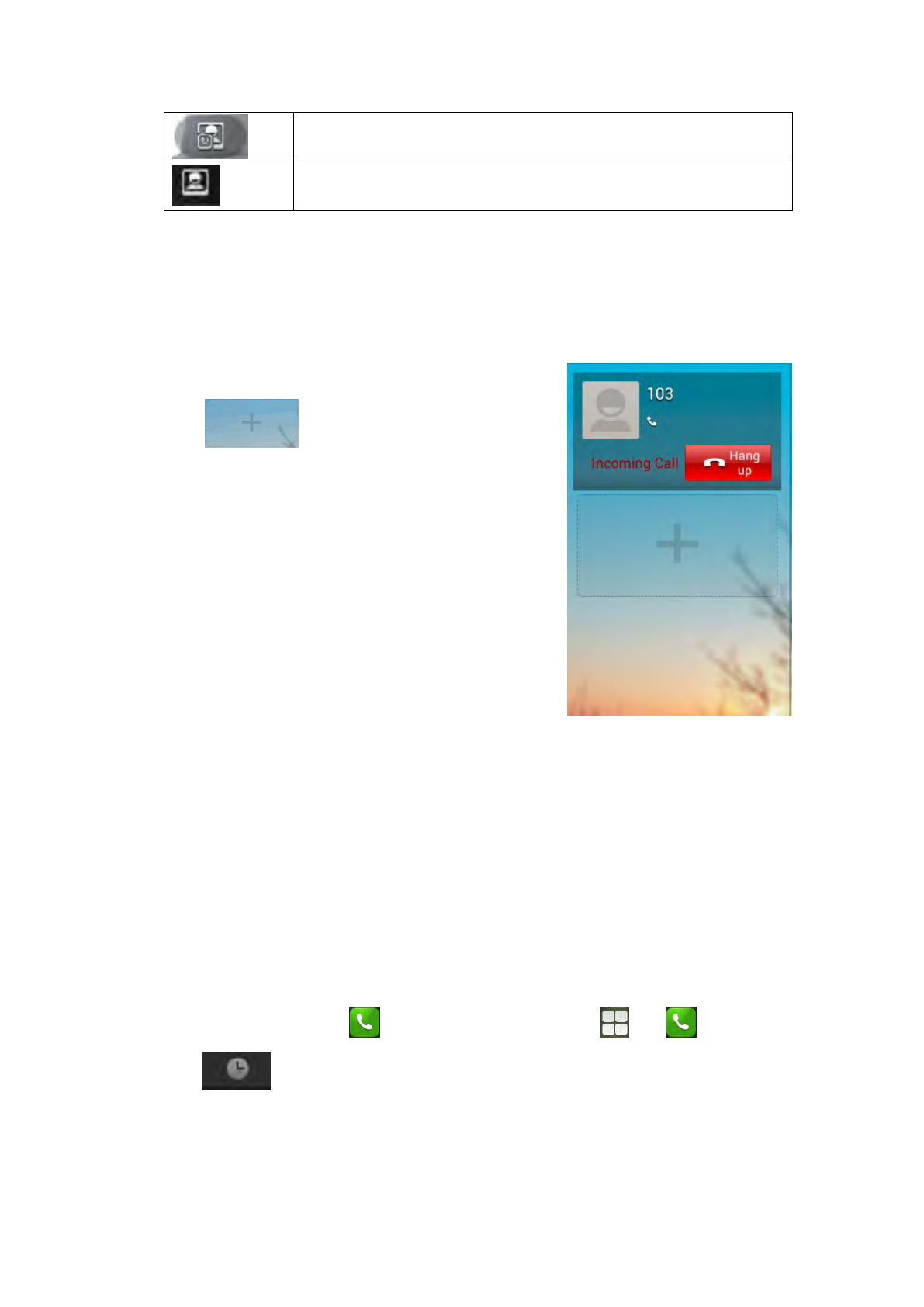
If you want to reject a call, click in calling interface.
If you want to reject a call from a number, you can add the number to the blacklist,
please refer to the specific operation 4.2
50
5.1.3 Call Options
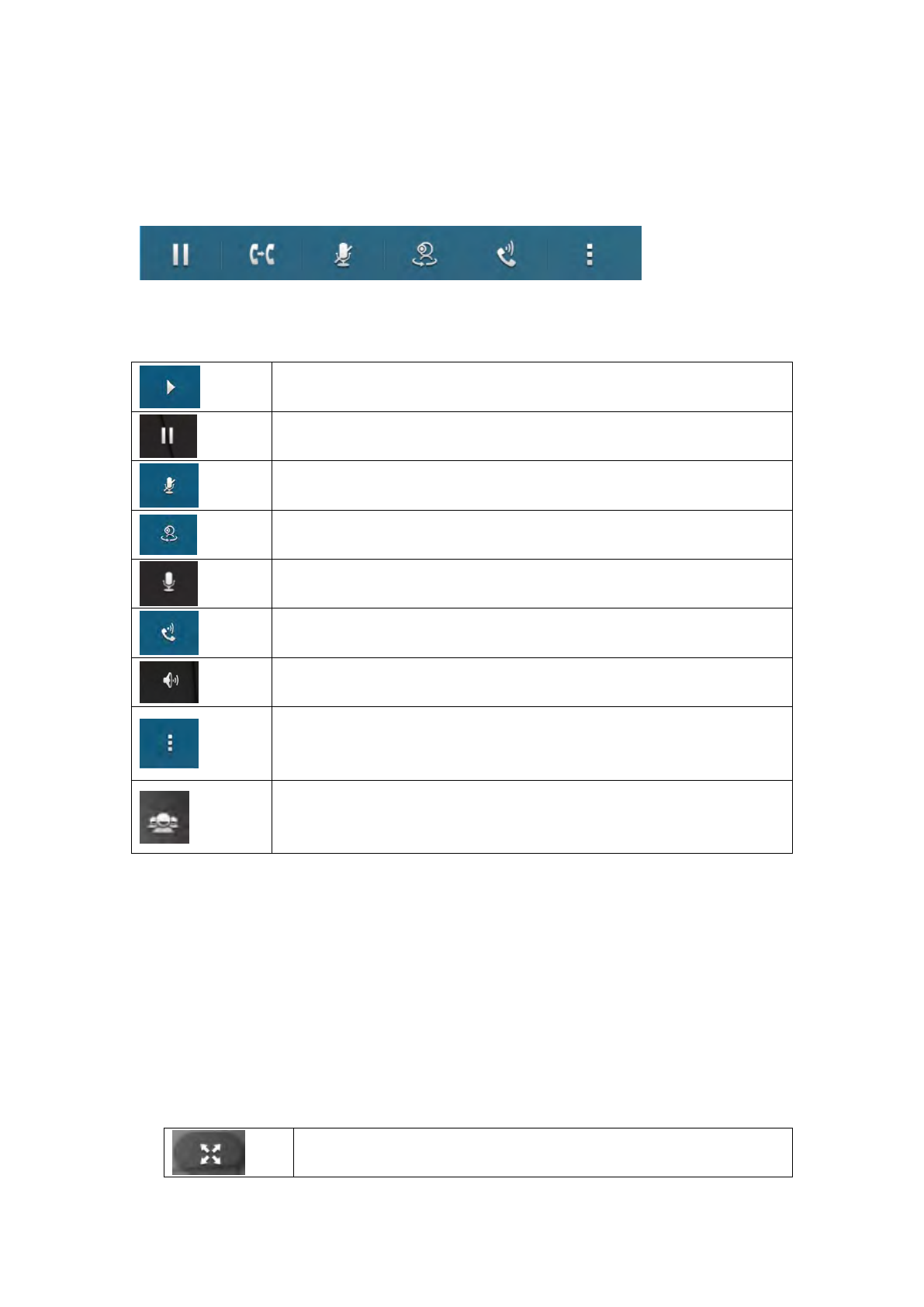
Call options as shown below:
Call options are described as below:
Click the button to hold the current call.
Click the button to resume the current call.
Mute
Click to switch to video call
Click to switch to audio call
Click to switch to Speaker
Click to switch to handset
Extended function
Function under development
5.1.3.1 Dialing Interface
Click the " keyboard” in the conversation, screen will appear the soft keyboard. Input
the number by soft keyboard or keypad on the phone.
5.1.3.2 Video Options
During video call you can switch picture through the button on the video interface.
Switch to full screen
51
View local video
View the other part video
5.1.3.3 Multiple Calls
The Phone supports more than 3 line calls. The line information is on the
right side of call interface.
During a call, you can click on the button
to add a new call. And when
click on this button, the current call will be
hold.
During a call, you can click on any line in the
list to resume the call.
5.1.4 Call Records
5.1.4.1 View Call Records
When got a missed call, the screen will display the missed call notification in above
status bar. You can hold the status bar and drag down to open the notification, and
then click the missed call notification to view call records.
You can also directly through the dialing interface to view call records:
1) In the main screen, click or in the main screen, click - > 。
2) Click :
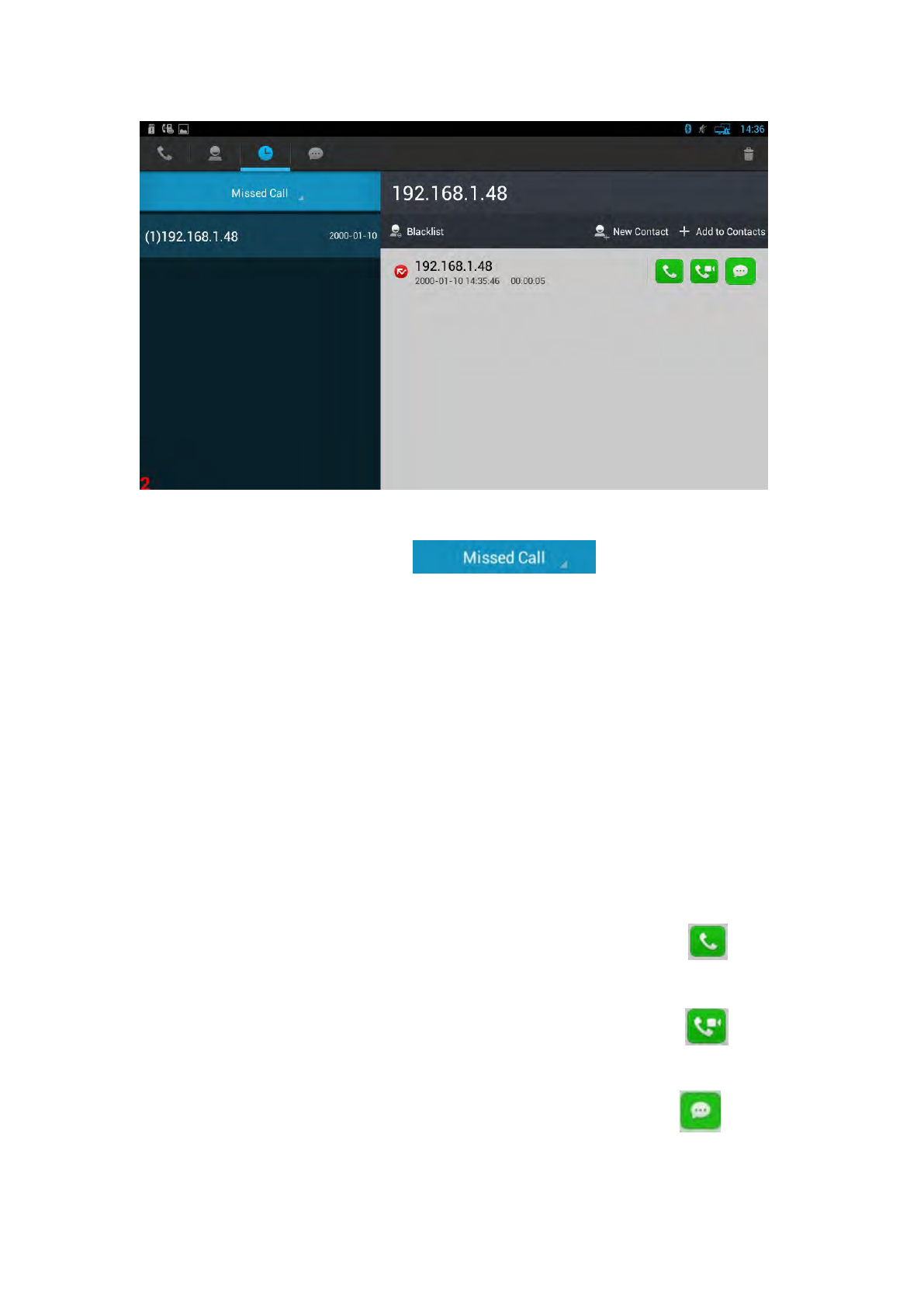
52
1) you can click the drop-down list to choose the call record
types, it supports for all call, missed call, received call, dialed call and forwarded call
five types of call information.
2) Call records are shown on the left, and show the total number in the bracket. Click
the number or contact, and you can view all the call records details on the right.
5.1.4.2 Call From Call Records
In Missed Call, Received Call, Dialed Call or Forwarded Call, you can choose one of
the following steps to initiate a call:
Click a contact or a number in the list
If you want to initiate an audio call directly, please click the icon in call
records;
If you want to initiate an audio call directly, please click the icon in call
records
If you want to send a message directly, please click the icon in call
records;
53
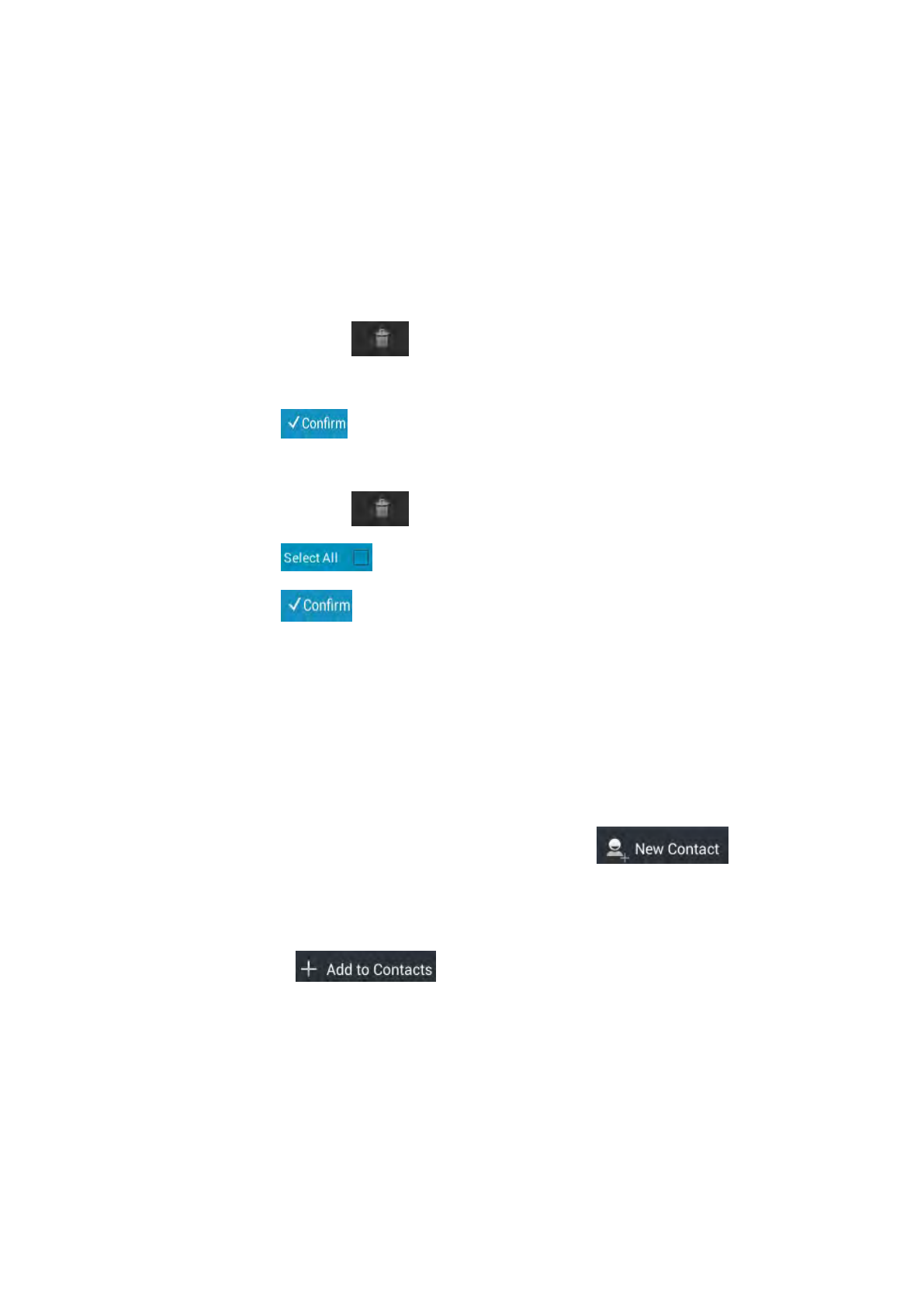
5.1.4.3 Delete Call Records
1) If you want to delete one call record, steps as below:
Long press the call record you want to delete;
Pop-up a menu, press “Confirm” to confirm the deletion.
2) If you want to delete multiple call records, steps as below:
Press the icon on the top right corner;
Click the call records you want to delete;
Click
3) If you want to delete all call records, steps as below:
Press the icon on the top right corner;
Click to select all records;
Click
5.1.4.4 Add A Contact From Call Records
If you want to save a contact from the call records, or merge the contact into
the existing contact, you can do the following operations:
Click the number in the call records list;
If you want add a new contact, click “New Contact” , A new
contact page will pop up. Refer to Chapter 6.2.1.1 for details
If you want to merge the contact into the existing contact,, click “Add to
Contacts” ,Choose the existing contact and then click
"OK".
5.2 Contacts
You can choose the following method to enter into Contacts interface:
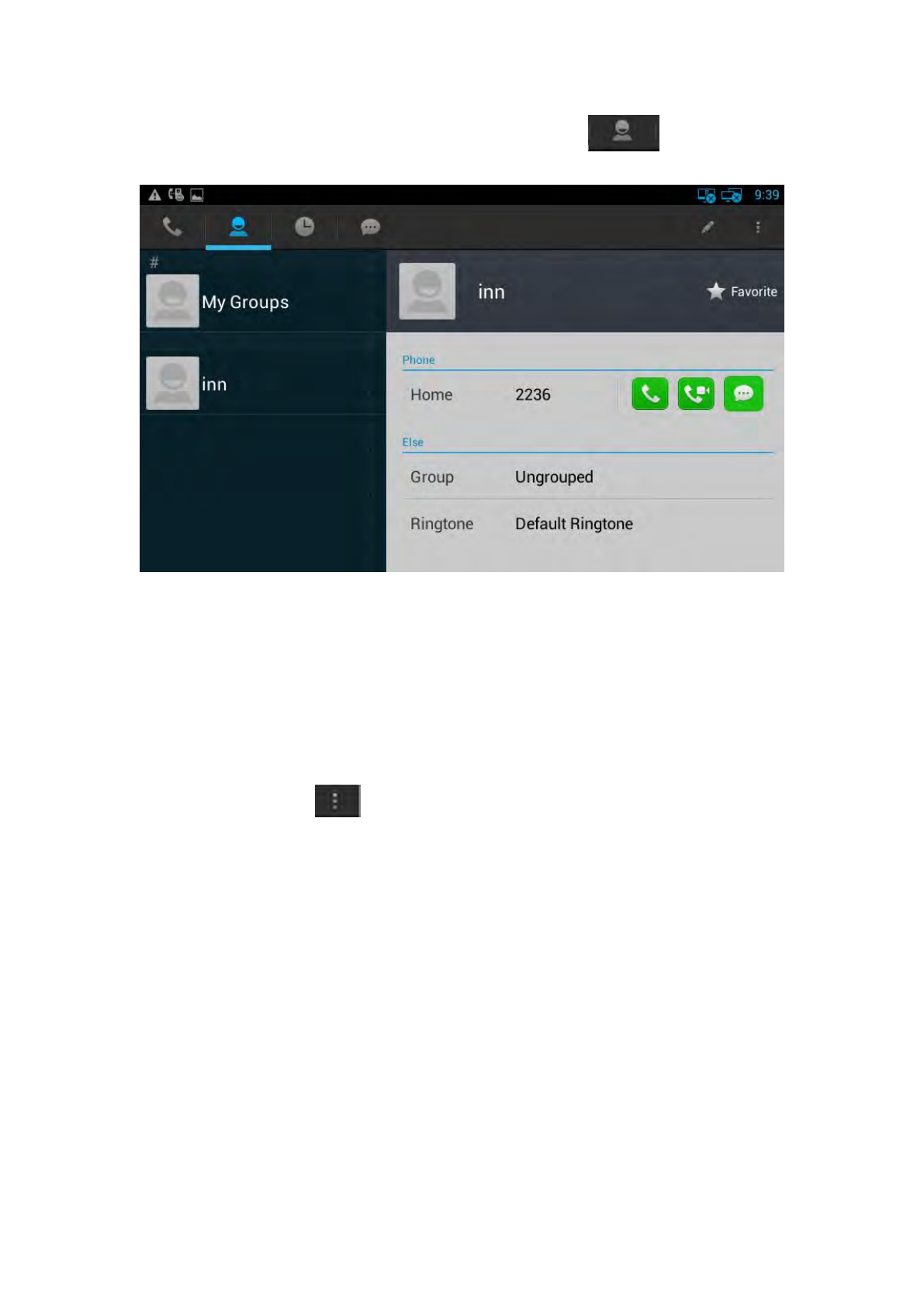
54
Enter the dialing interface, and then click the icon
5.2.1 Contacts
You can view, audio call, video call, add, edit, delete the contacts.
5.2.1.1 Add A New Contact
1) Click the icon on the top right corner, and click “New Contact” in the
drop-down window;
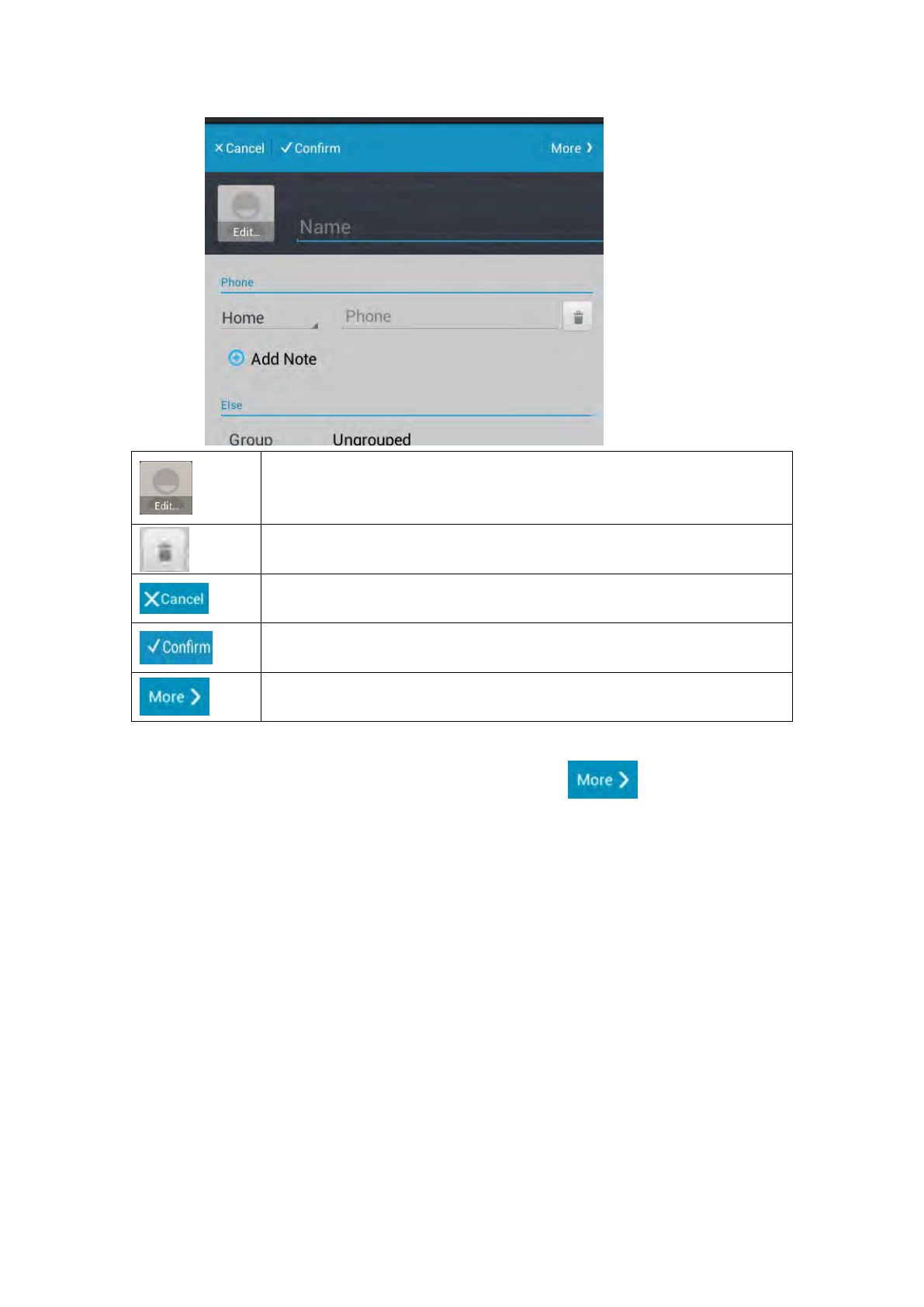
2) The new contact interface is as shown:
55
Edit the contact photo, Browse the image from “Take Photo” or “Choose
photo from Gallery”
Delete the note
Cancel the edit
Save the contact
Some more information
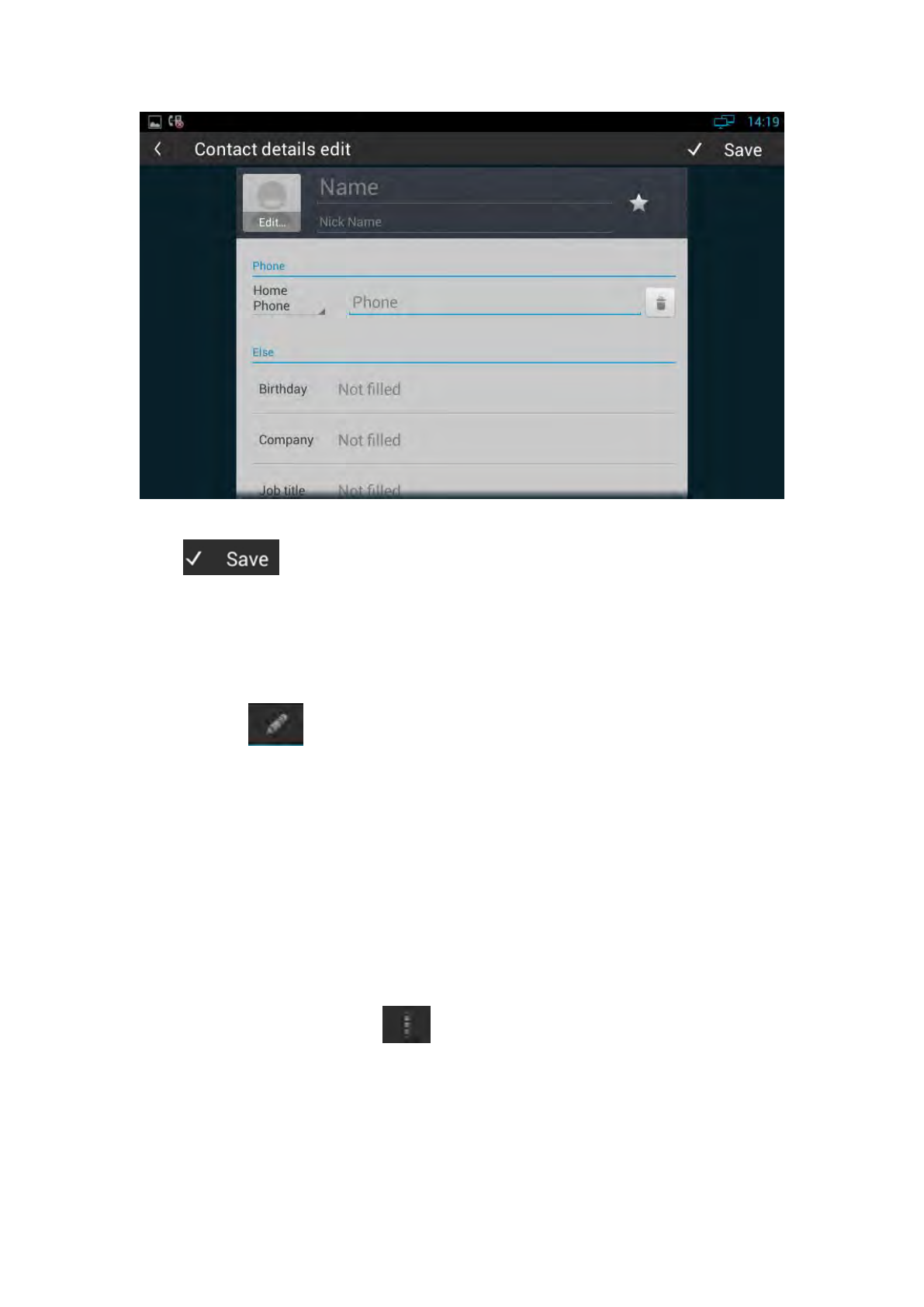
If you want to add some more information, please click ,it will pop up the
page of contact details, as shown:
56
Click to save the contact.
5.2.1.2 Modify The Contact
1) Select the contact you need to modify in the contact list;
2) Click ;
3) Enter into contact edit page, you can edit the contact information.
5.2.1.3 Delete The Contact
You can choose one of the following methods to delete the contacts:
Long press the contact you need to delete from your contact list, and tap
“Confirm” in the pop-up Remove Contact dialog box;
Select the contact, click , select "Remove", click “the contact” and
“Confirm” to delete.
57
5.2.2 Group
Group, it will be convenient for you to have contact group management. Contacts
should at least belong to a group, the default is no group.
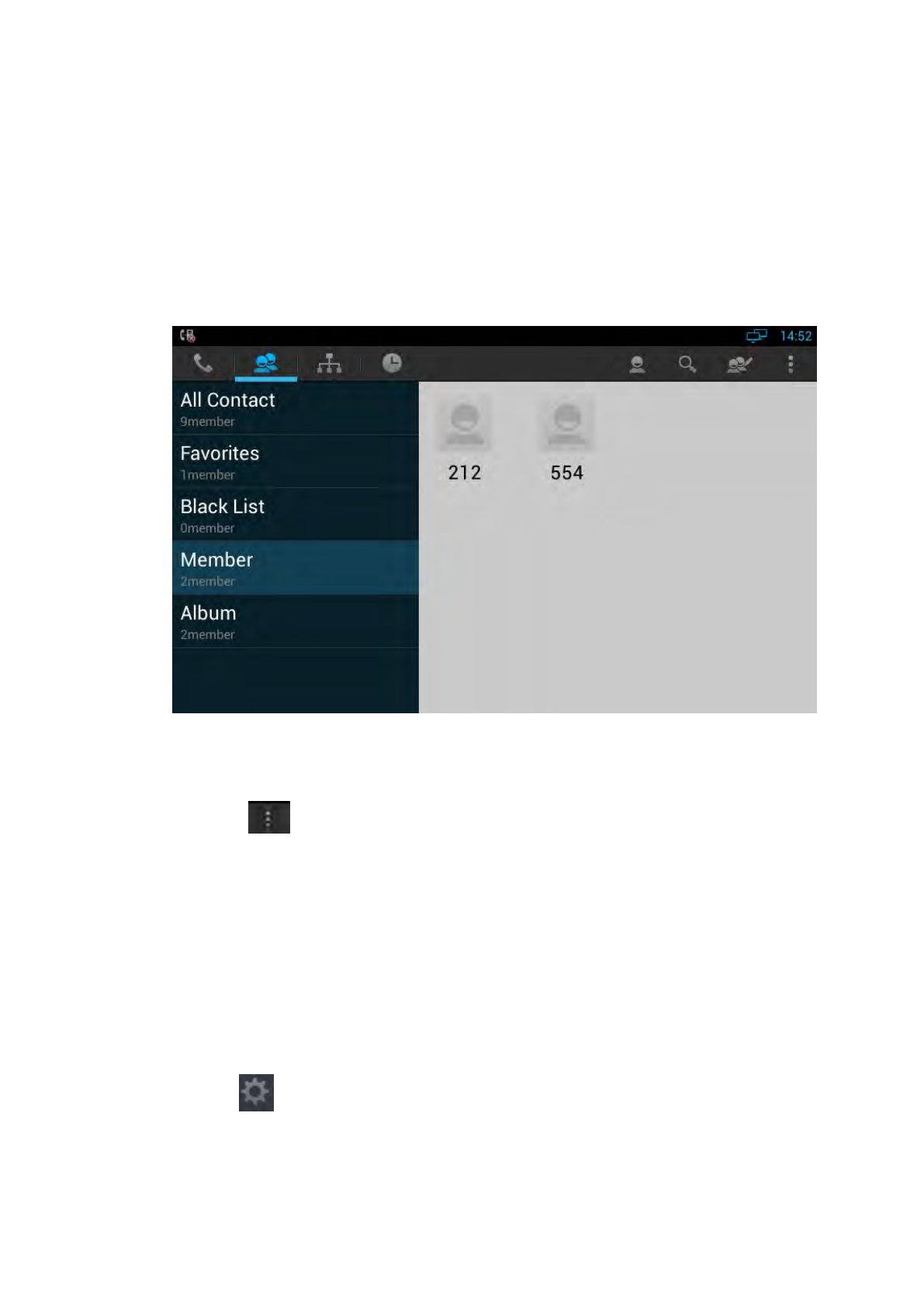
In the contact page, click “My Groups” to view the groups, as shown:
5.2.2.1 Add A New Group
1) Click ;
2) Choose “New group”;
3) Input a new group name in pop-up dialog box;
4) Click “Confirm” to save.
5.2.2.2 Rename A Group
1) Click the group you want to rename in contact page;
2) Click ;
3) Input the new name you want directly;
(Note:the system default group cannot be renamed)
58
4) Click “Confirm” to save.
5.2.2.3 Remove A Group
1) In Contact page, click the group you need to delete, and then click ;
2) Click “Remove Group”, and then click “OK”.
(Note:the system default group cannot be deleted)
5.2.2.4 Edit A Group
1) In Contact page, click the group you need to edit.
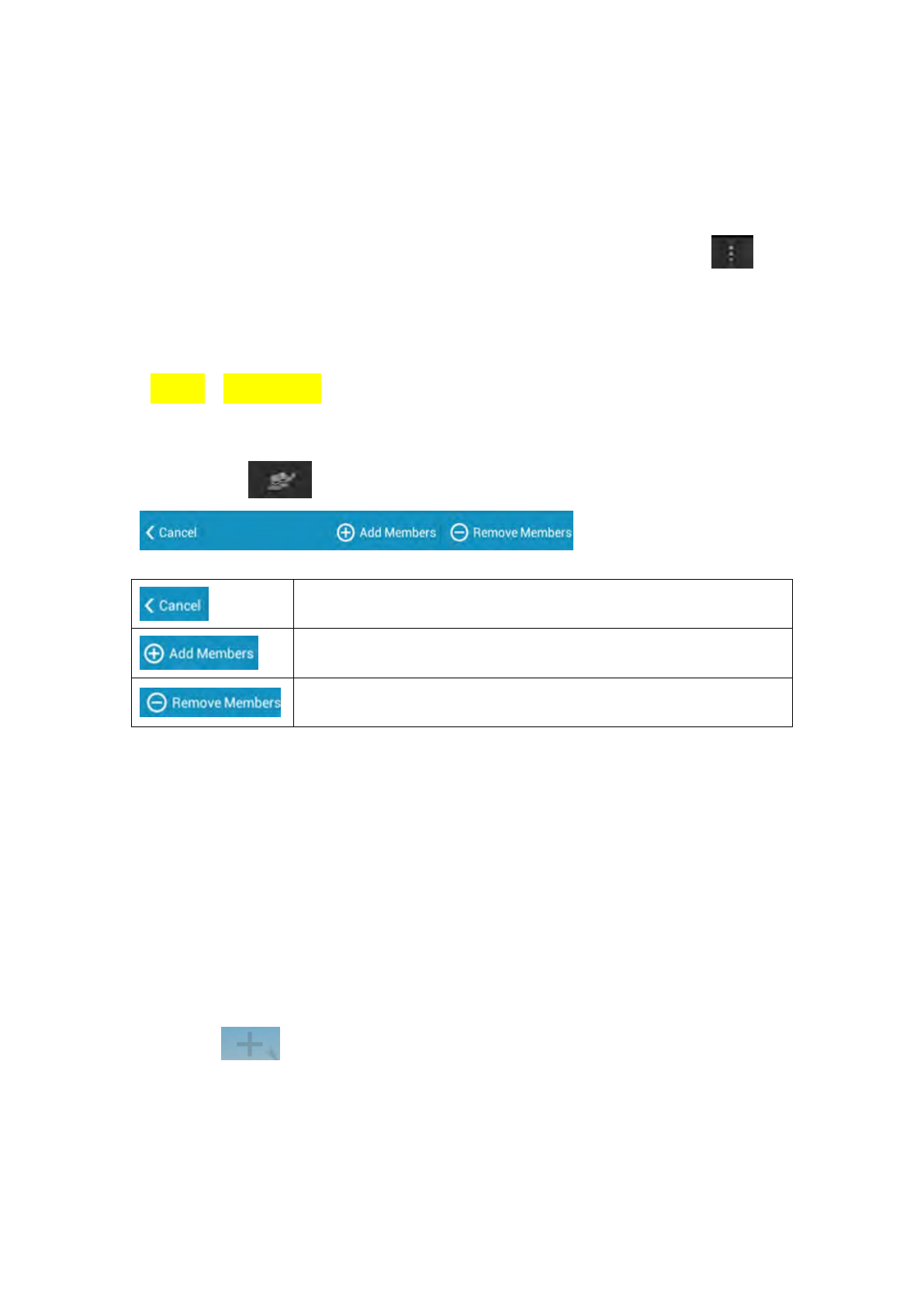
2) Click and display the tool bar
Exit the group edit.
Add contacts to the group, click the contacts in left list, and then click
“OK” to add.
Remove contacts from the group, click the contacts in right list, and
then click “OK” to remove.
5.3 Conference
You can use the conference feature to hold a 3-way conference by pressing the
Conference soft key to invite the current talking and one line talking held to attend
conference.
4.3.1 Create 3-way conference
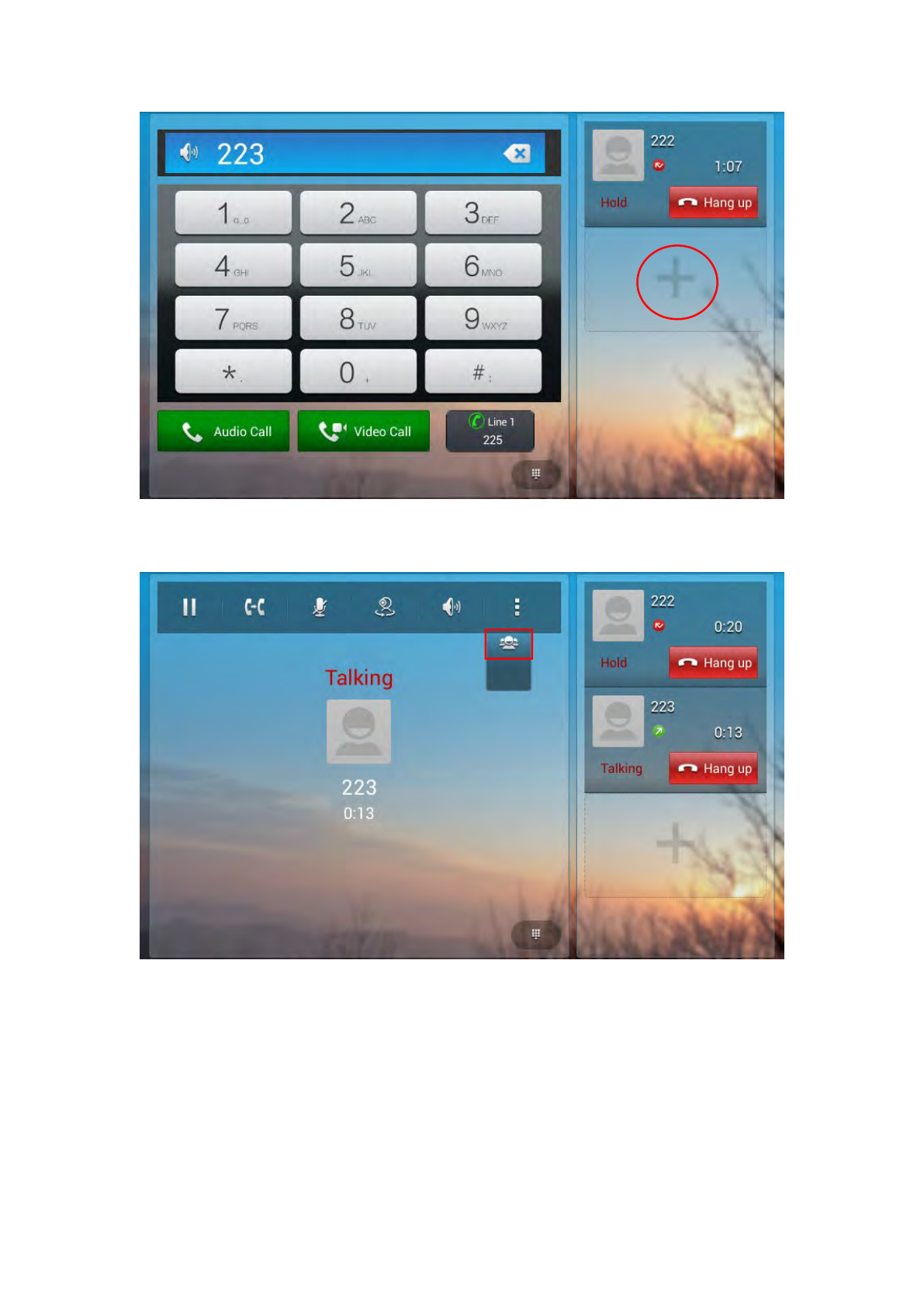
1. Create talking with first party;
2. Press to create a new talking;
3. Input the number of second party and press the Video Call or Auido Call to make
a call;
59
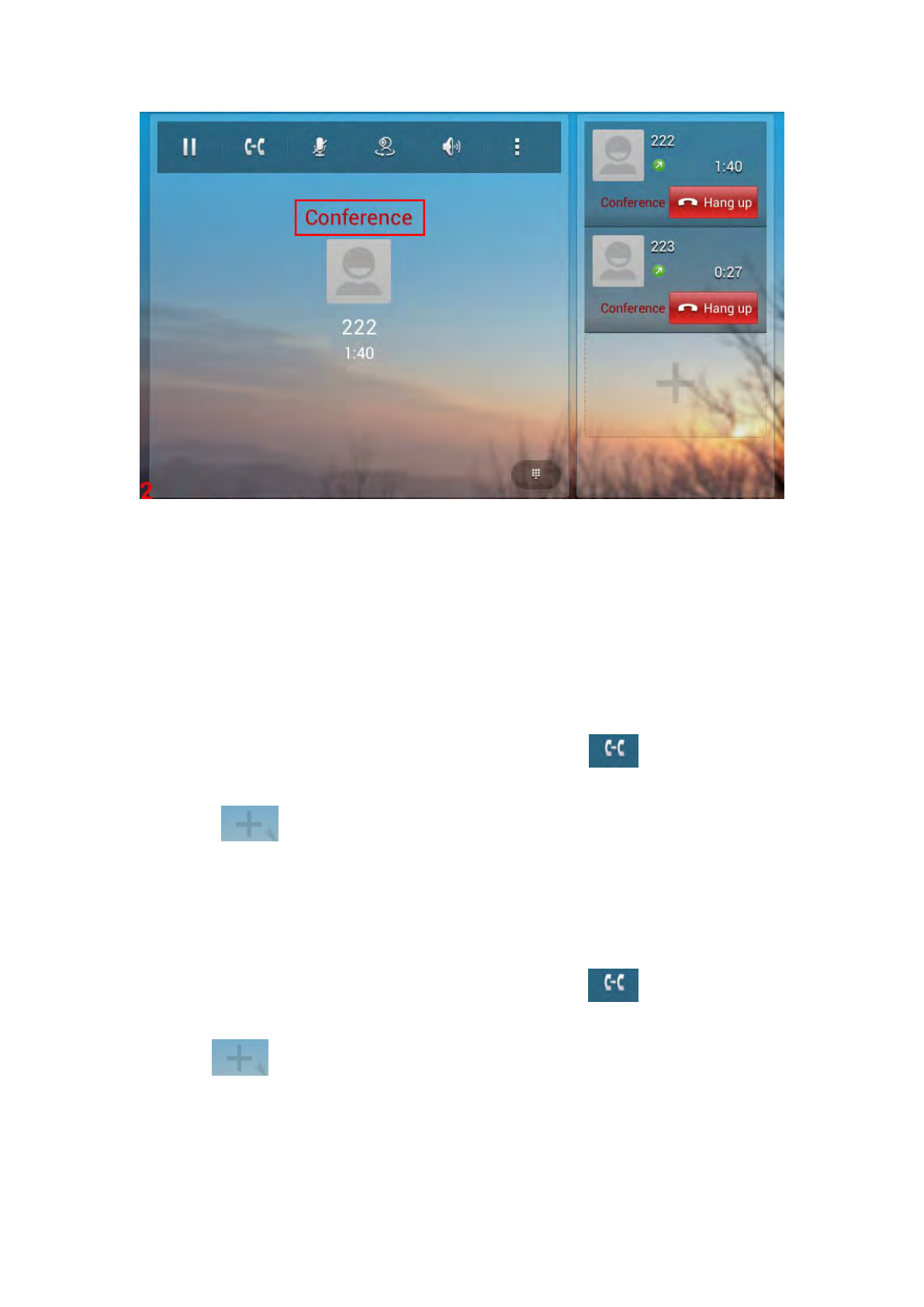
4. When the second party answers your call, press the Conference softkey or the
Conference key on the keypad to start 3-way conference.
60
5.4 Transfer
4.4.1 Blind Transfer
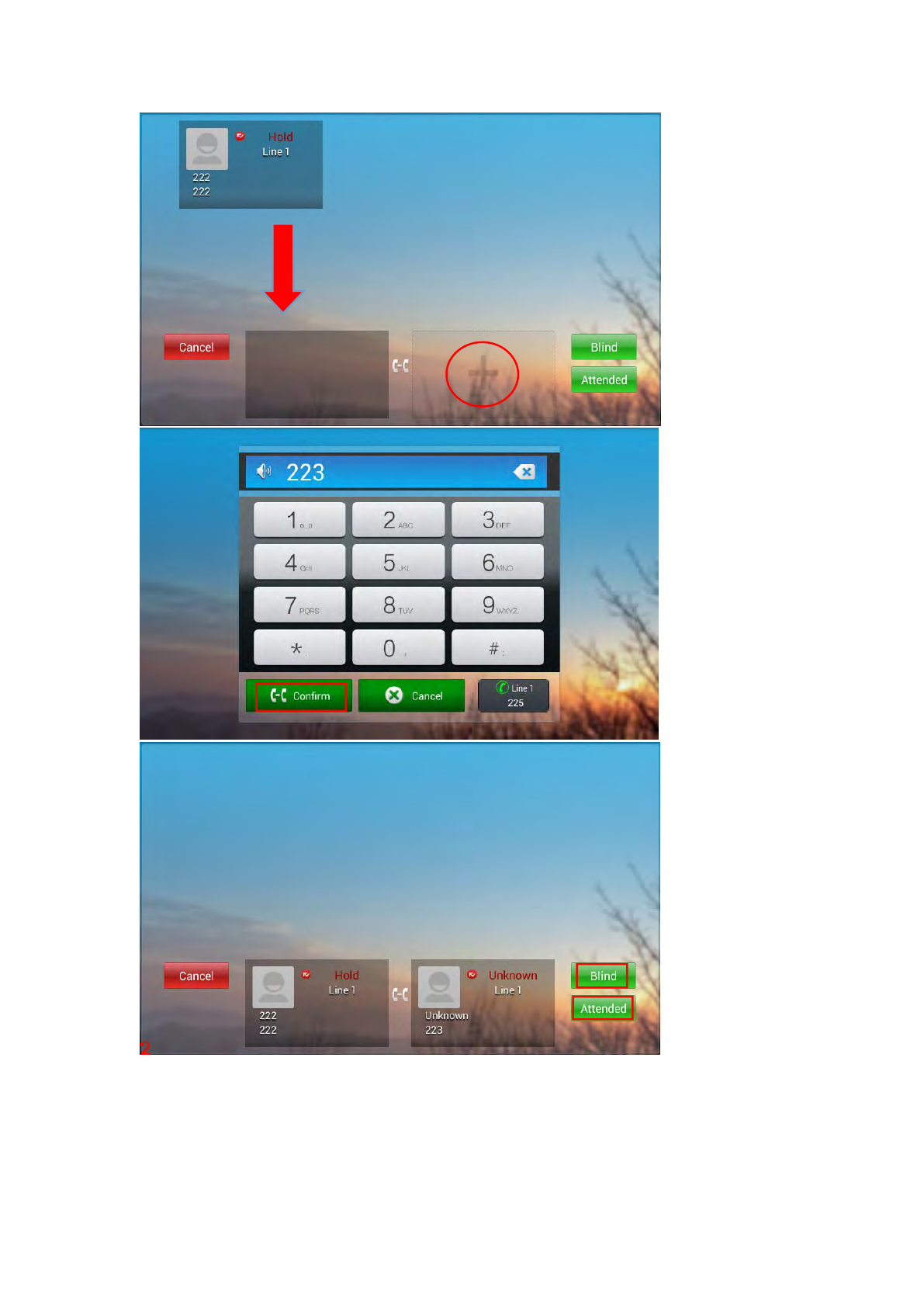
1. When the IP phone blind transfers a call.
2. Pick up a call, press transfer key on the keypad or click .
3. Drag down the current call into the gray box
4. Press to enter the target number, then click Confirm.
5. Click Blind to transfer the number.
4.4.2 Attended Transfer
1. Pick up a call, press transfer key on the keypad or click .
2. Drag down the curent call into the gray box
3. Press to enter the target number, then click Confirm.
4. Click Attended to transfer the number.
61
62
5.5 Keypad Input
Only numbers, * and # can be input by keypad. The default Input method is Android
keyboard. You can also download your preferred input method from the internet.
5.6 Webpage Browser
This section describes the default web browser in the video phone, and you can also
download your preferred browser through the internet.
You can use one of the following methods to run the browser:
Mode 1: In the main screen, click ;
Mode 2: In the main screen, click -> .
5.6.1 Open The Webpage
5.6.1.1 Browser Address Bar
Run the browser, enter the URL in the address bar or direct input the information to
search. After the input, you can click “Go” on the soft keyboard to complete.
5.6.1.2 Bookmark And Browsing History
Run the browser, click to view the “bookmark”:
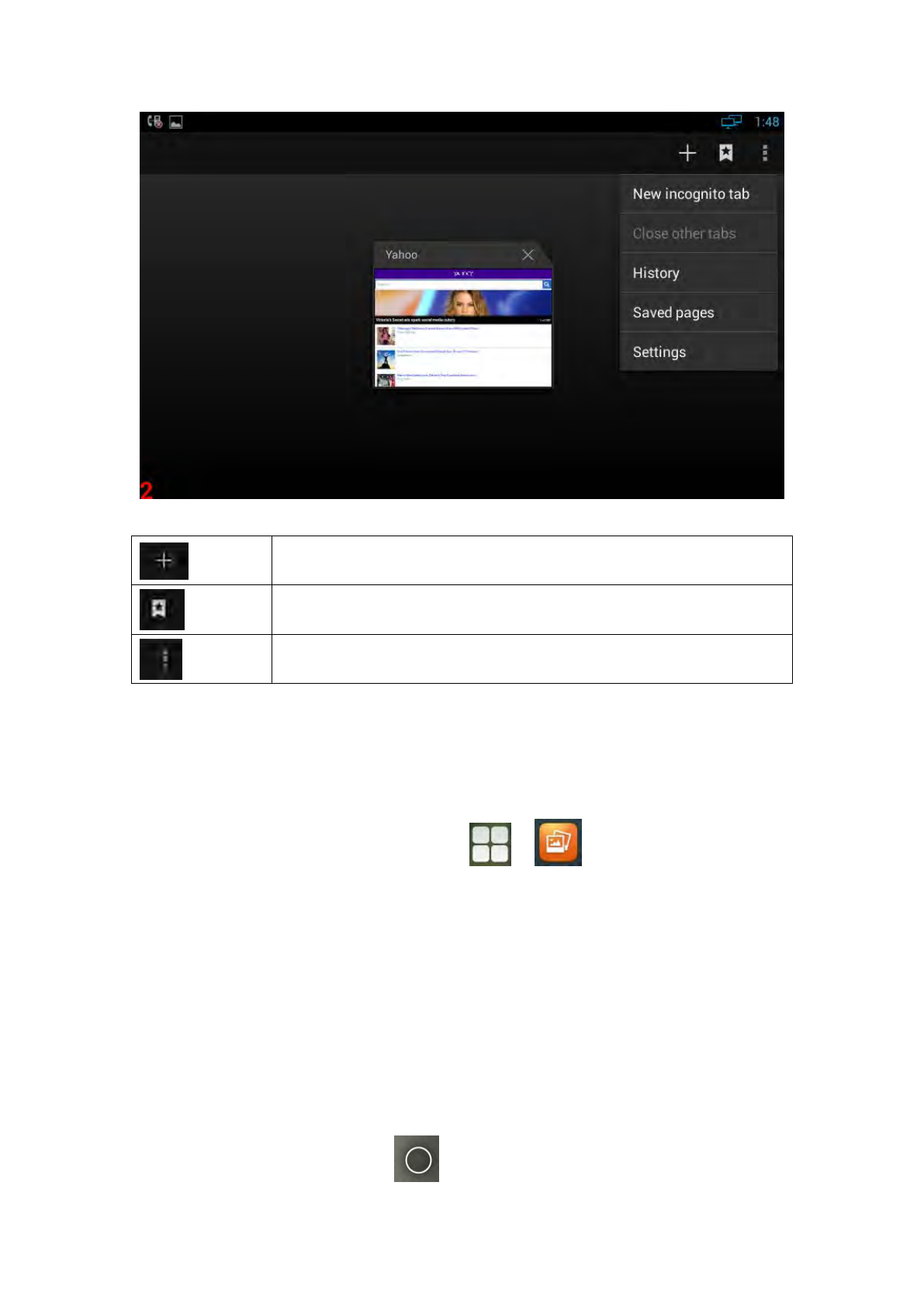
63
Add a new webpage
View the bookmark and browsing history
Others
5.7 Camera
Open the camera: in the main screen, click -> 。
You can view your photos and videos in “Gallery”
5.7.1 Photograph Mode
Turn on the camera, and the default mode is photograph mode.
5.7.1.1 Basic Setting
Click on the upper right corner or long press on the screen to pop up the
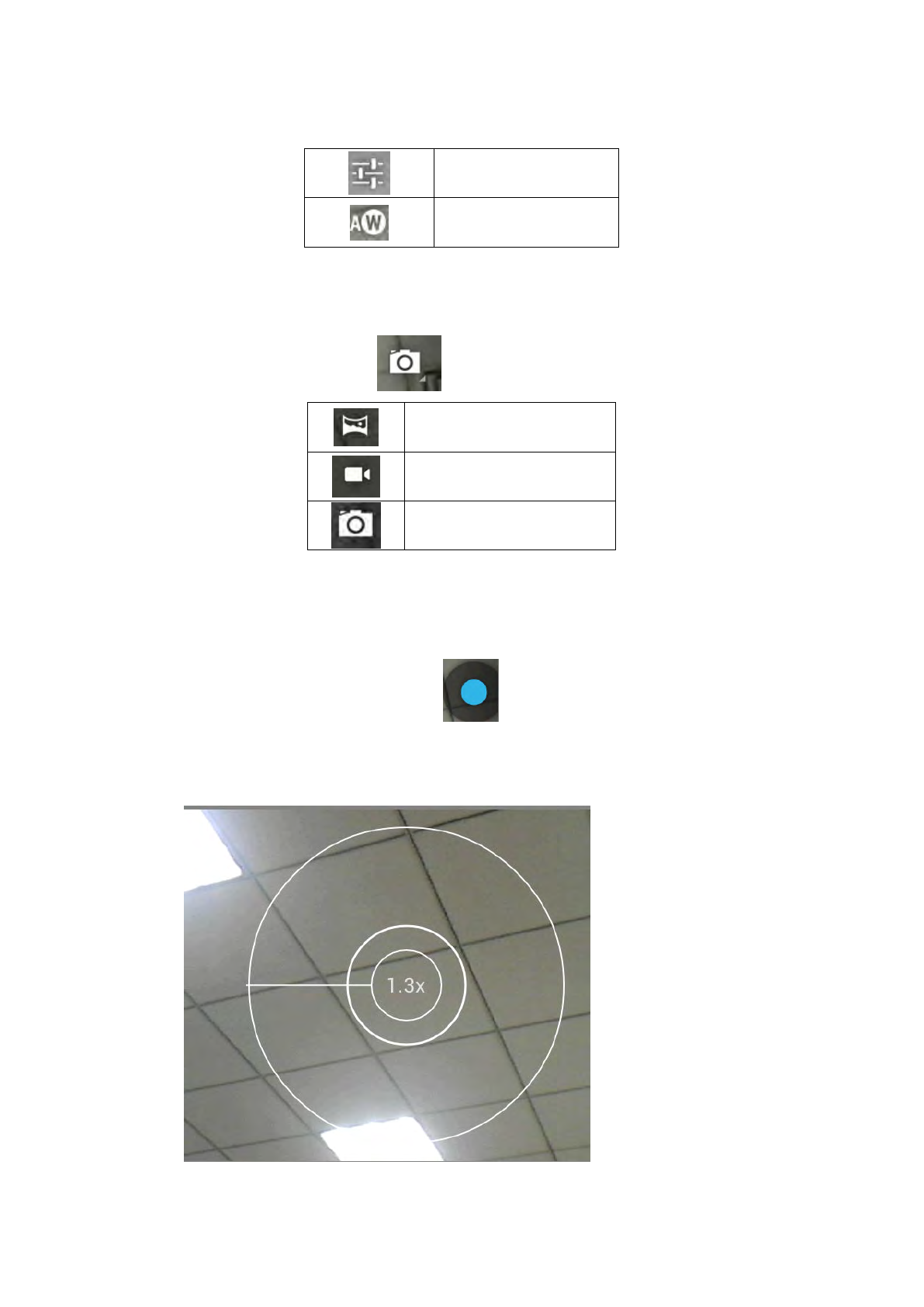
64
menu
Setting
White balance setting
5.7.1.2 Mode Switch
Click on the lower right corner to switch the mode.
Panoramic camera mode
Video mode
Photo mode
5.7.1.3 Take A Photograph
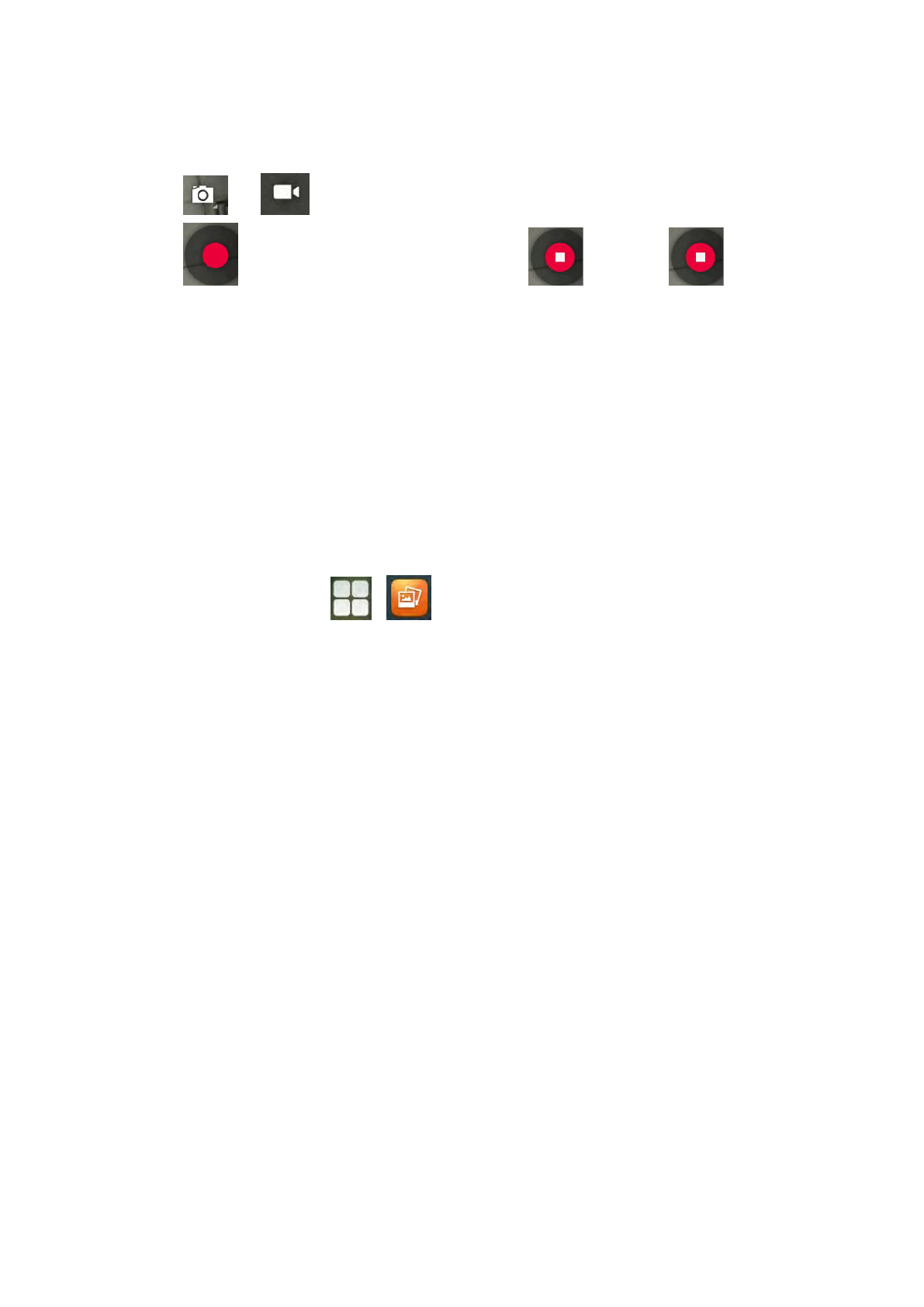
You can click on the center button on the right side to take pictures.
It supports automatic focusing, if you want to adjust the focal length, please use two
fingers to press on the screen, shrinkage or expansion to adjust the focal length.
65
5.7.1.4 Take A Video
Click -> to swith to video mode.
Click ,video starts when the icon turns to . And click to stop
the video recording and save.
5.8 Gallery
You can use Gallery to view photos or videos, and you can also view the picture
or video downloaded from the Internet. You can edit the photo or picture and set it
as wallpaper.
You can follow the below method to enter into the gallery:
In the main screen, click ->
5.8.1 View Photo & Picture & Video
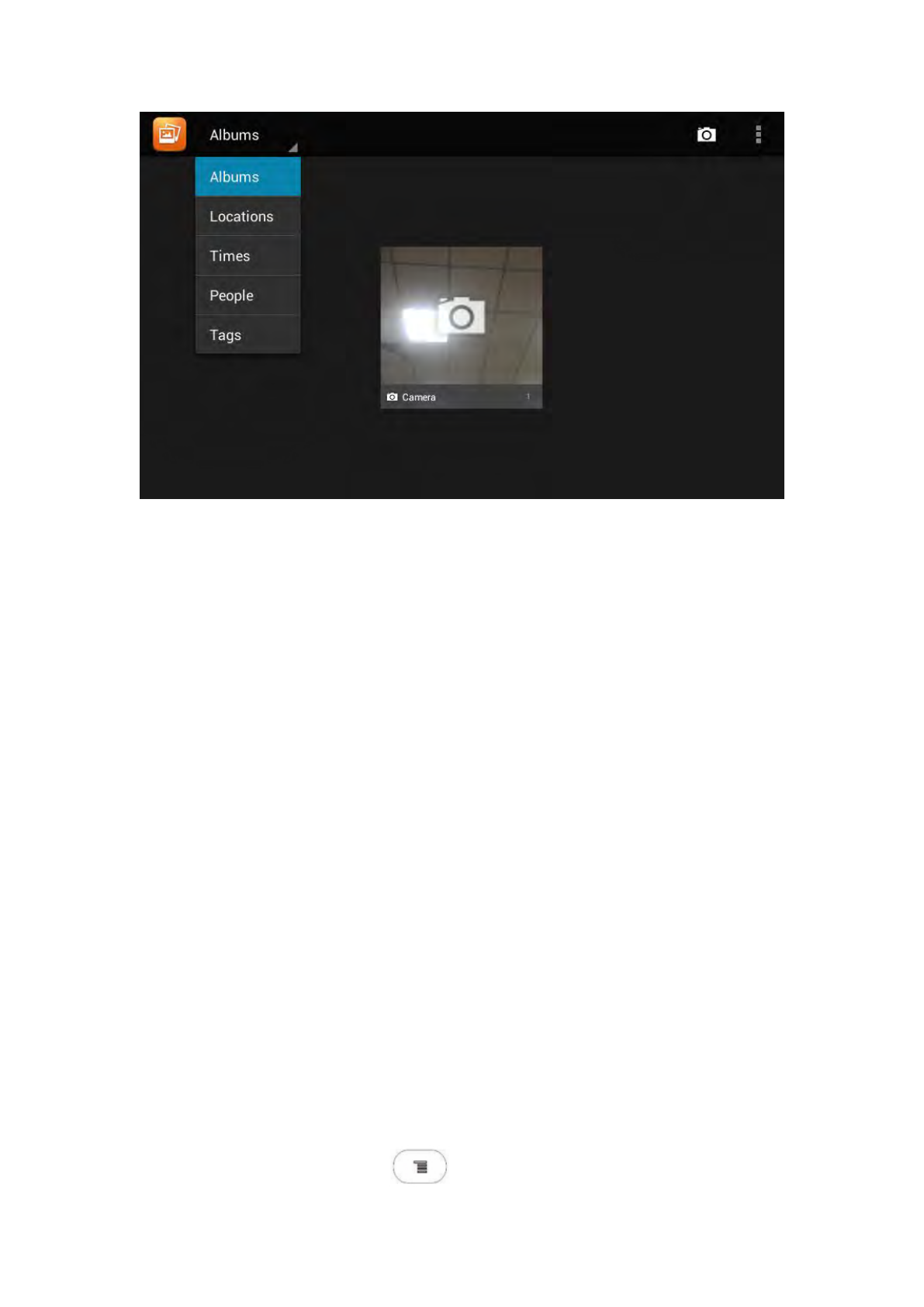
Enter the gallery, and you can view all photos, pictures in the device, as shown
below:
66
Click the icon on the upper left corner, and you can view photos and videos in groups
in the drop-down list. Click on the folder to view all the photos.
While viewing photos, you can use two fingers to press on the screen,
shrinkage or expansion to shrink or enlarge the image.
5.9 Bluetooth
Bluetooth is a proprietary, open wireless technology standard for exchanging data
over short distances from fixed and mobile devices, creating personal area networks
with high levels of security. On VP-R47P, users could use Bluetooth to transfer files,
share contact information with other Bluetooth portable devices by installing
Bluetooth Application, or use Bluetooth headset for making calls.
To connect to a Bluetooth device, turn on VP-R47P’s Bluetooth radio first. The first
time when using a new Bluetooth device with the VP-R47P, “pair” the device with
VP-R47P so that both devices know how to connect securely to each other. After that,
users could simply connect to a pared device. Turn off Bluetooth if it’s not used.
Bluetooth related settings are under VP-R47P’s Settings application → Wireless &
networks. Users could access it via the following two ways:
In the main Screen, press button -> System Settings -> Wireless &

67
Networks;
Press on screen and click on -> Wireless & Networks.
5.9.1 Turning Bluetooth On /Off
Go to VP-R47P’s Settings;
Click on Wireless & Networks;
Click or untick the option for Bluetooth.
5.9.2 Changing Bluetooth Device Name
The VP-R47P uses “VP-R47P” as Bluetooth device name by default. The device name
will be visible to other devices when connecting them. Follow the steps below to
change the name:
Go to VP-R47P’s Settings;
Click on Wireless & networks;
Click on Bluetooth, and click Bluetooth to turn it on;
Click on Bluetooth settings → Rename, and enter a new name. Once done, click
“OK”.
5.9.3 Paring VP-R47P With A Bluetooth Device
Before connecting VP-R47P with other Bluetooth device, users must pare them first.
They will stay paired afterwards unless they are unpaired.
Go to VP-R47P’s Settings;
Click on Wireless & networks;
Click on Bluetooth, and tick Bluetooth to turn it on;
Click on SEARCH FOR DEVICE;
The VP-R47P scans and displays the IDs of all available Bluetooth devices in
range. If the device you would like to pair with does not show up in the list,

68
ensure that the other device is turned on and set to be discoverable;
If the VP-R47P stops scanning before the other device is ready, touch SEARCH
FOR DEVICE;
The discovered device will show in the available devices list with device ID. If it’s
unpaired, it will show “Pairing” under the device ID. Make sure the Bluetooth
device is active in pairing mode. Then tap on the device ID on the VP-R47P to
pair them. Confirm the passkey in the prompted message (if any). Or if PIN is
required, please refer to the device’s documentation or other procedures to
obtain the PIN.
5.9.4 Un-pairing A Bluetooth Device
After successfully pared, the VP-R47P will show item “PAIRED DEVICES” above the
Bluetooth device ID in the scan list.
Once it’s connected, users could also tap on to the Bluetooth device ID needed to be
unpair, then tap on Unpair in the prompted message.
5.10 USB
The video phone supports USB connection for keyboard and USB storage devices. To
use USB keyboard, simply plug it into the USB port on the right side of the video
phone and it will be ready to use.
To connect and access USB storage device:
Insert USB storage device into USB port at the right side of video phone;
It will take a few seconds for the video phone to prepare the connection;
To access USB storage, click on the screen -> Explorer -> USB, to access
and manage your data.
69
5.11 Calendar
To start the calendar:
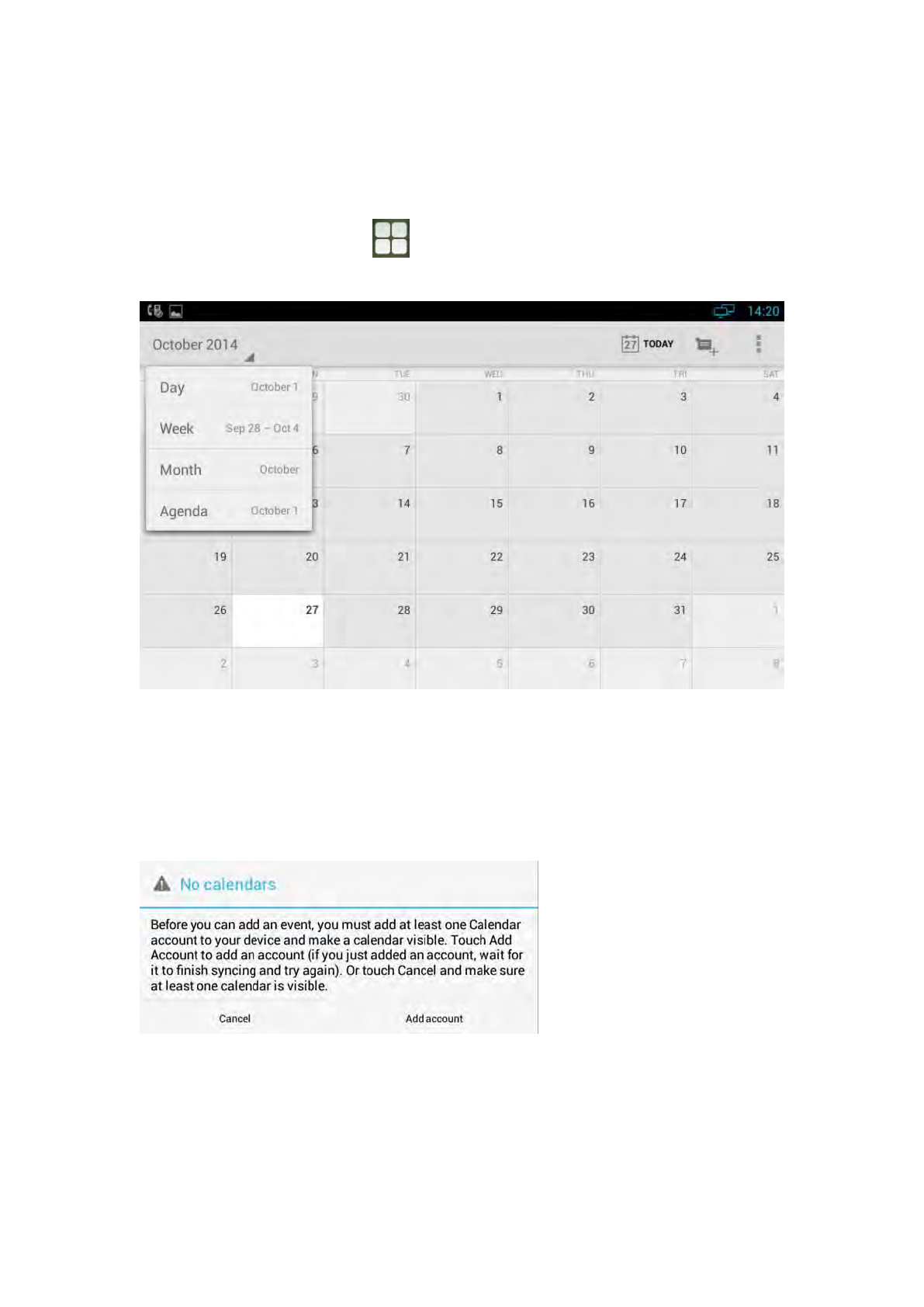
In the main screen,click -> Calendar;
As shown below:
If one day has activity, color will appear on the calendar to remind.
5.11.1 Add An Account
While using the calendar at the first time, it will remind you to add an account.
Click ”Add account” to add an account, and then synchronize all the schedules of the
account to the calendar.
70
5.11.2 View Calendar
The calendar will display weekly by default, and you can slide the calendar up and
down to view the different weeks. In order to view the activities or create the new
activities, you can also make the calendar display daily or monthly. While using daily
or monthly displaying, you can slide the calendar left and right to view the different
day or month.
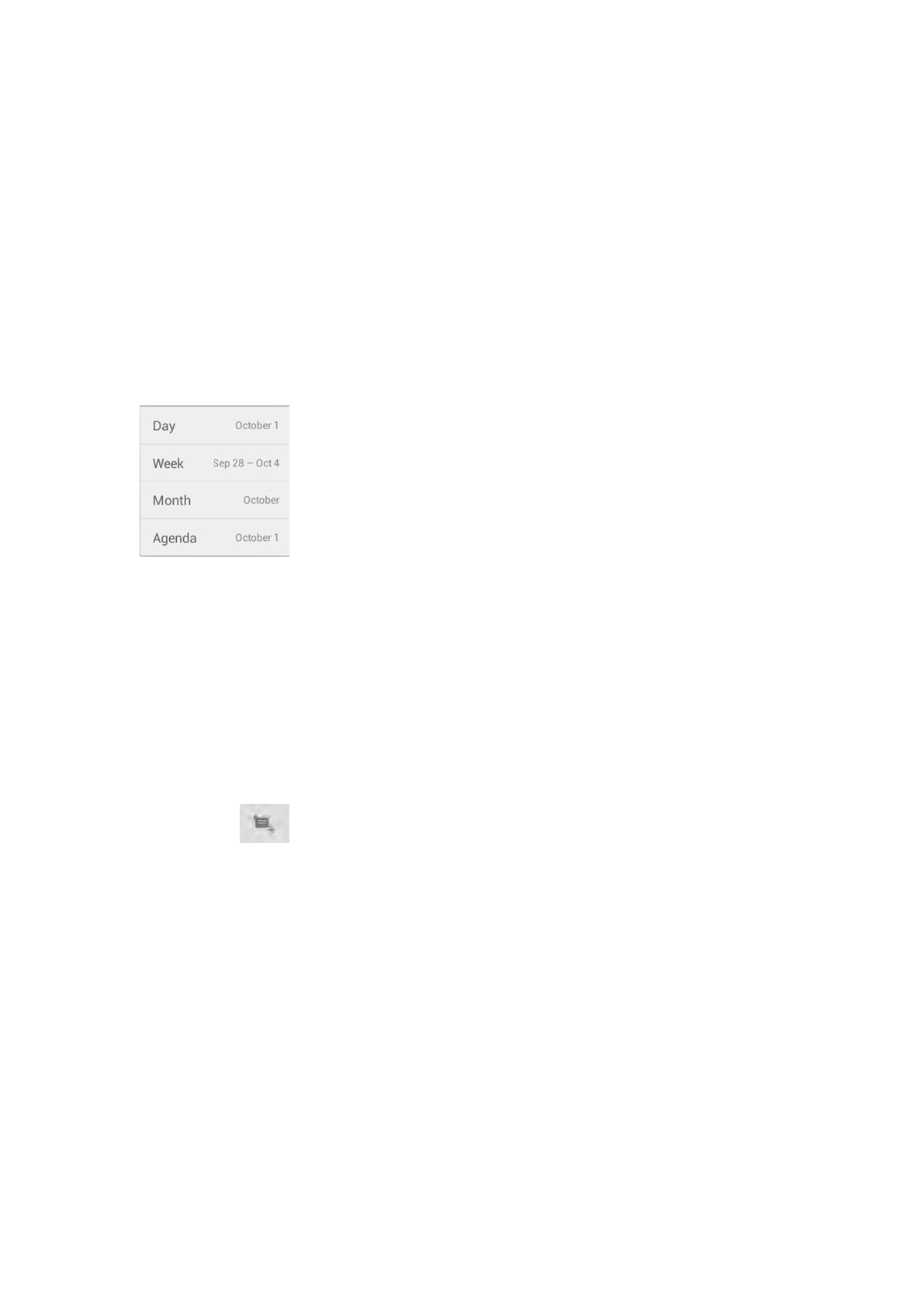
Click the date on the upper left corner, it will display the drop-down list
, Calendar displaying mode can be selected as daily, weekly or
monthly.
5.11.3 New Activities
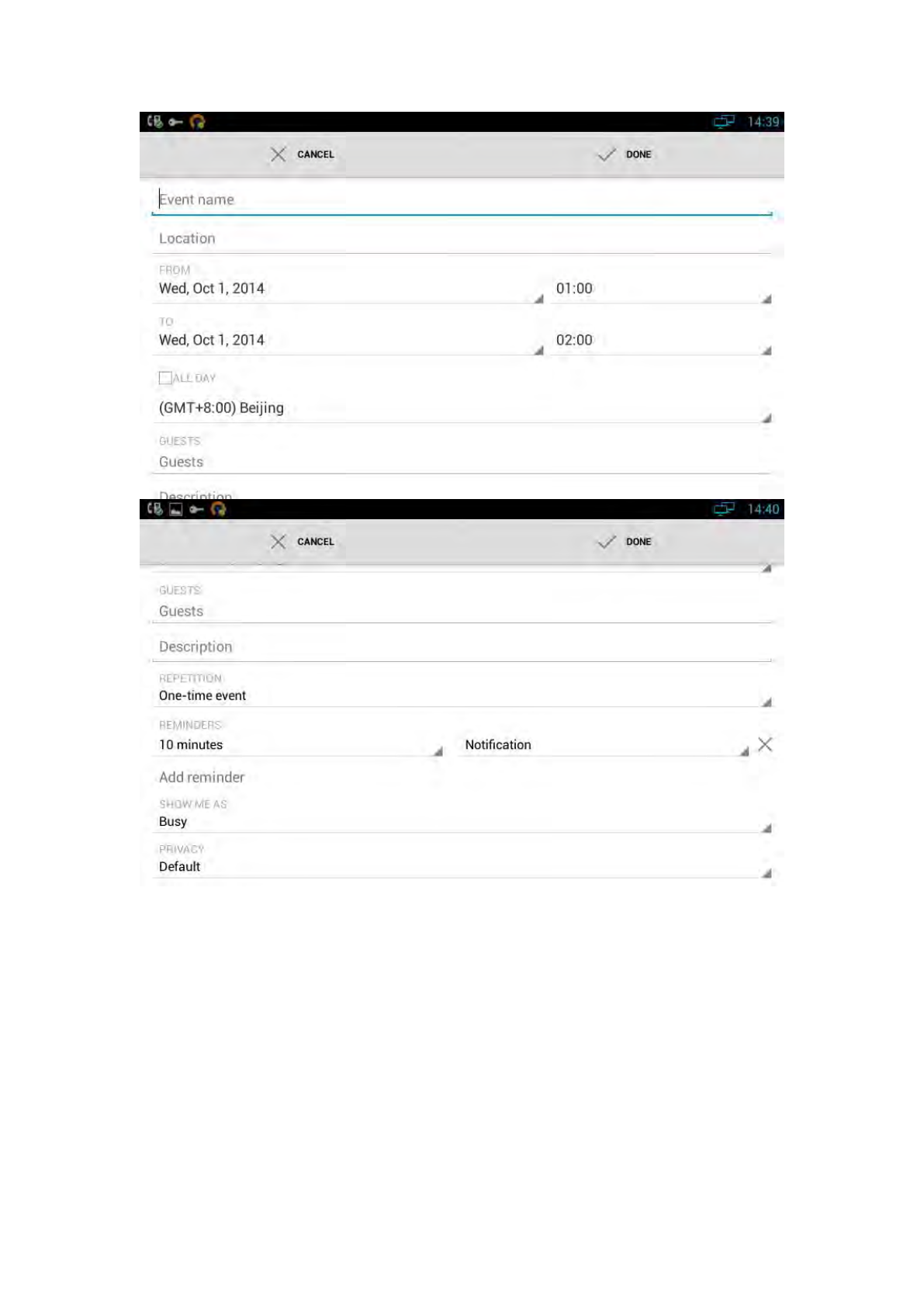
1) While Calendar is displaying as daily or weekly, you can use the following
methods to create a the new activity:
Click on the date, and then click on the time period;
Click on
2) Input the details of the activity, as shown below:
71
3) Click “Done” to finish.
5.11.4 Edit Activities
You can click on schedule needed to be modified to edit the schedule.
5.11.5 Delete Activities
While viewing the activity, you can click “DELETE” on the upper right corner to delete
72
the activity.
5.12 Clock
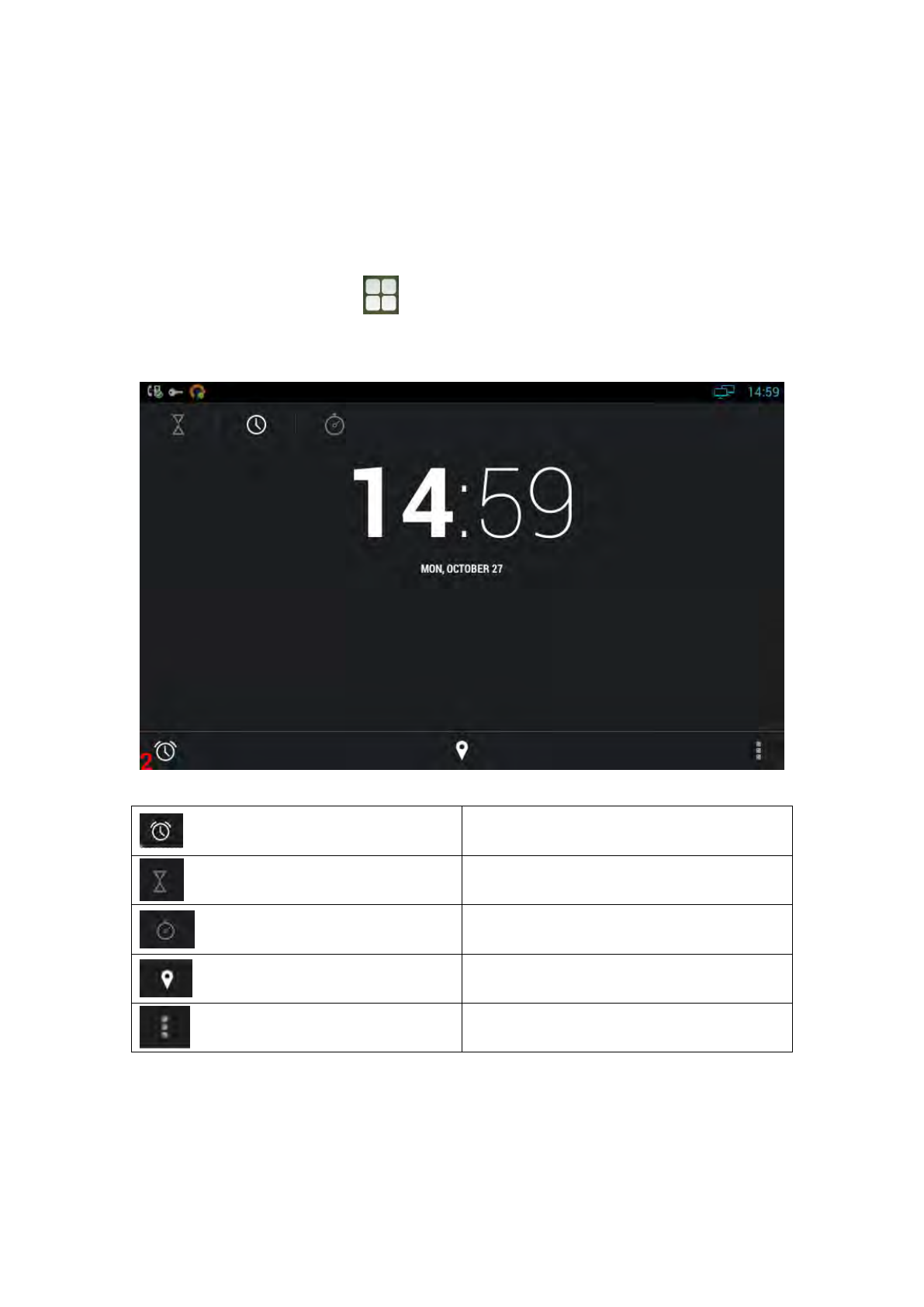
Enter the Clock:
In the main screen, click -> Clock;
As shown below:
Description:
Alarm
Countdown timer
Stopwatch
Time zone
Others
5.12.1 Alarm
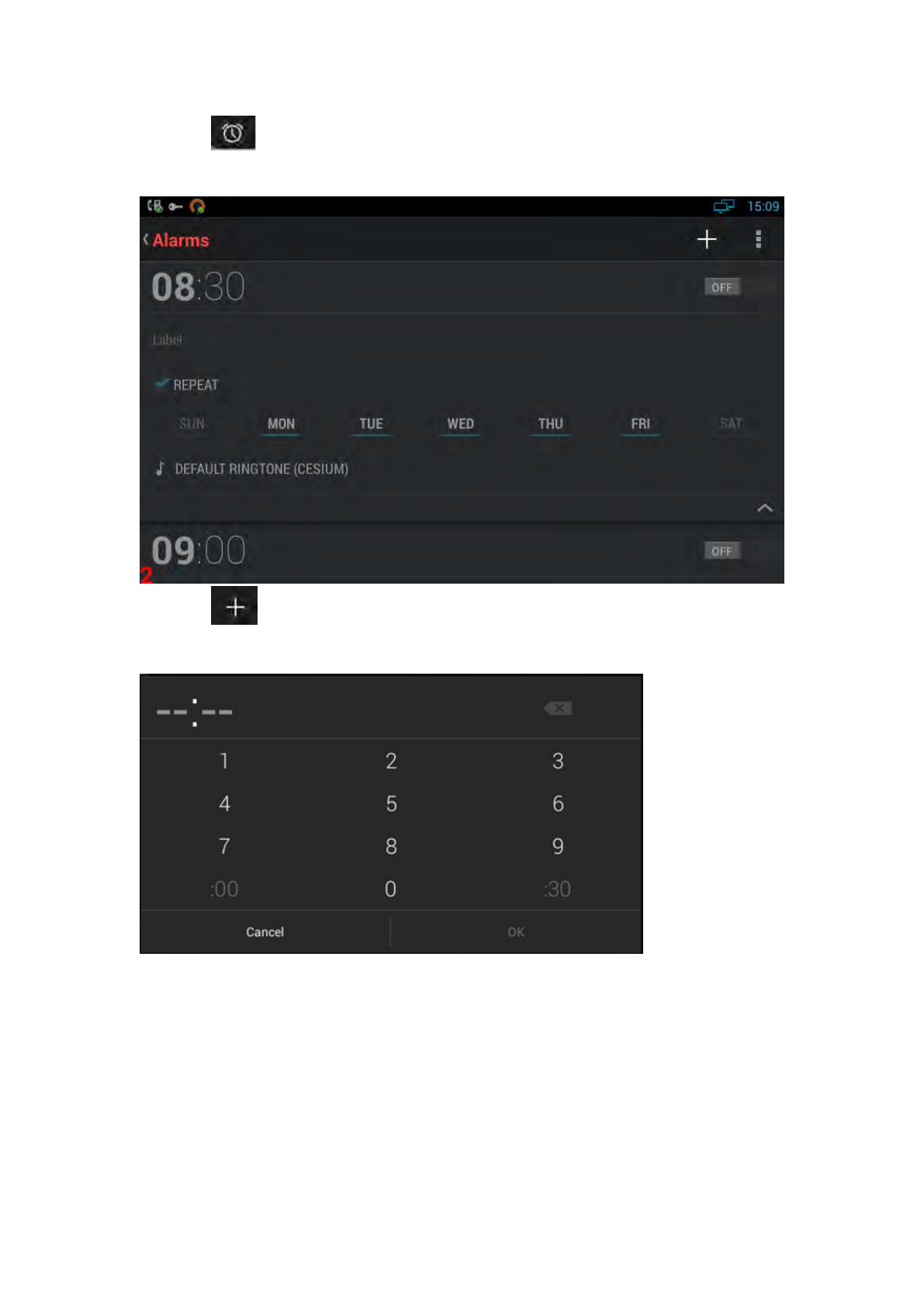
You can add one or multiple alarms:
73
1) Click ;
2) Click ;
3) Input the time of alarm:
4) If you want to repeat the alarm in some days of a week, please click “REPEAT”;
5) You can choose the ringtone of the alarm.
5.12.1.1 Enable/Disable Alarm
You can click ON/OFF to enable or disable the alarm.
Note: if power off the phone, the alarm will also be off.
74
5.12.1.2 Modify Alarm
If you want to modify the status of the alarm, including time, repeat data, alarm
ringtone, you can directly click on the alarm.
5.12.1.3 Delete Alarm
In Alarm page, you can use the following method to delete the alarm:
Press and hold the alarm, after pop-up the dialog box, click , and then
click “OK”
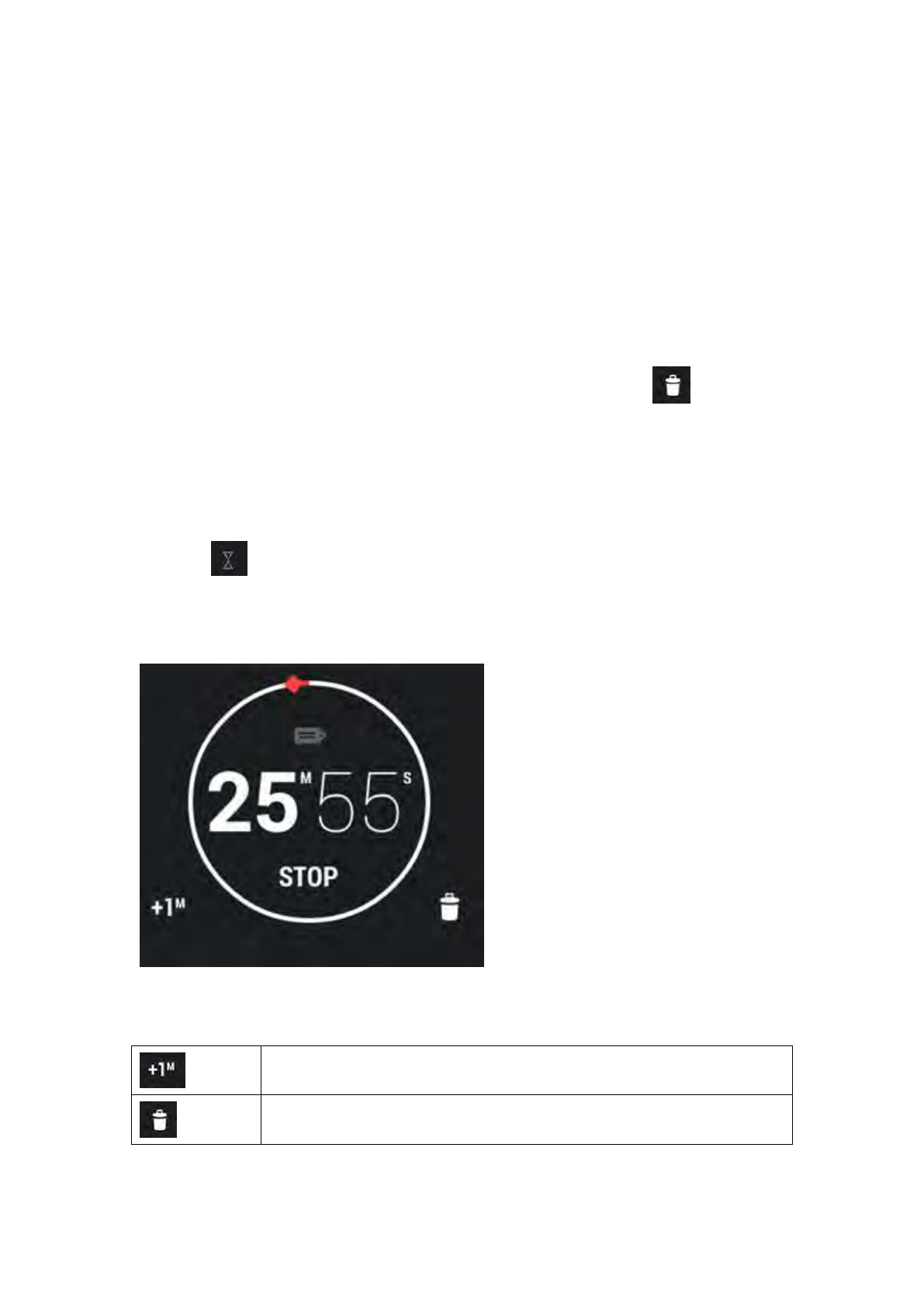
5.12.2 Countdown Timer
1) Click
2) Click the number to set the countdown time.
3) Click “START”
Click on the time in the page of countdown timer can stop or continue the time, and
the other buttons are described as followed:
Add one minute to countdown timer
Delete the current countdown timer

75
5.12.3 Stopwatch
1) Click ;
2) Click “START” or “STOP” to start or stop the stopwatch;
3) Click the time icon to start a new time;
4) When the time is on hold, click to reset the timer.
5.13 Email
Email Application can let you use POP3 or IMAP service to send and receive e-mail.
Start Email:
In the main screen, click ->Email
5.13.1 Add A New Email Account
Make sure the email account has enabled POP3 or IMAP service, and you can add
many accounts.
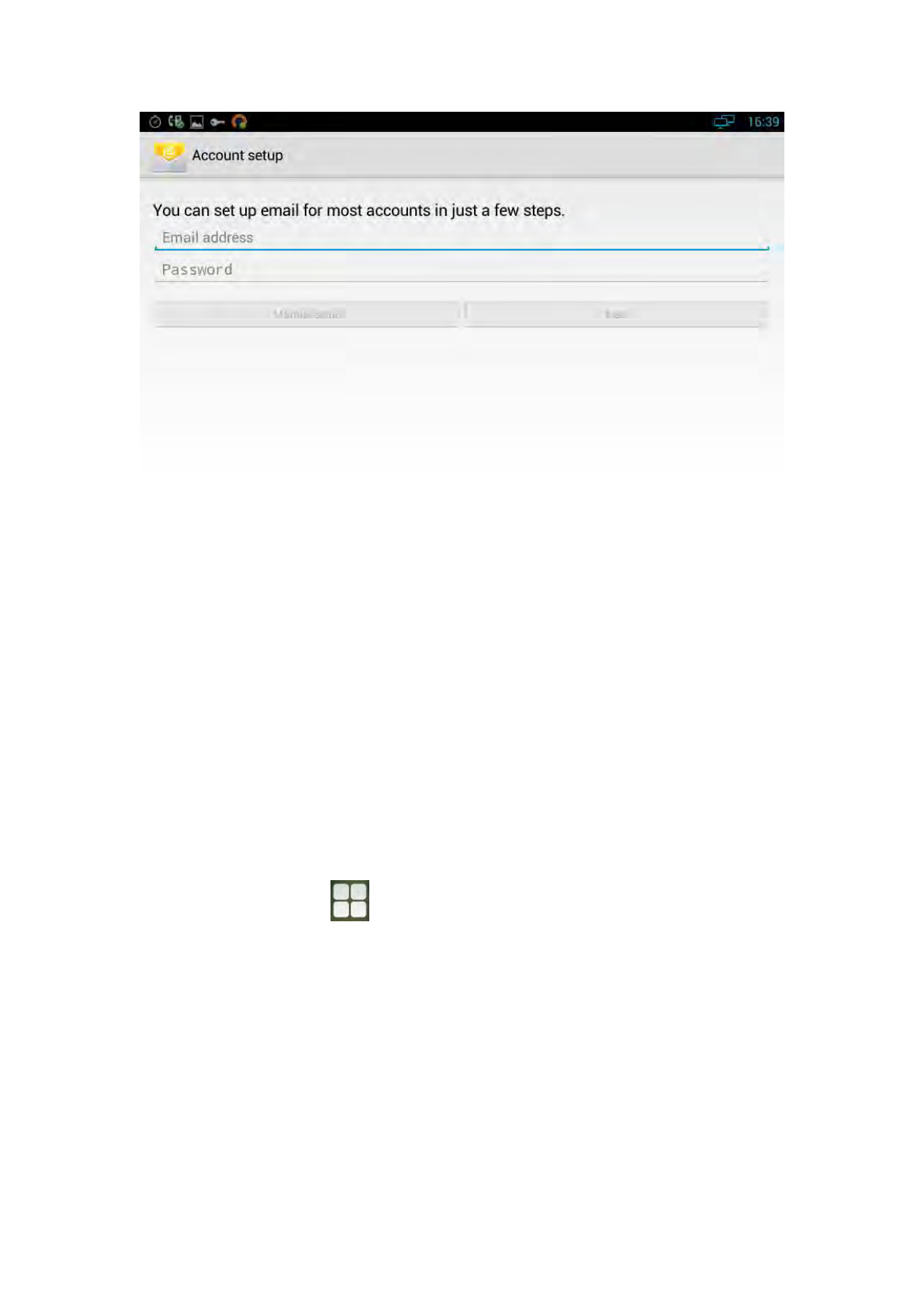
1) Please choose one of the following methods to start:
If you haven’t added an e-mail account yet, while starting the e-mail
application, you will be asked to set up your account, as shown below
76
If you have already set up an email account, In the main Email page, Press
“Menu” button, and then click “Account”, and last press ”Menu” to “Add
Account”.
2) Input the email account and password, and then click “Next”;
If there is no account type in the equipment database you want to set, the device will
require you to enter more detailed information (the receiving server settings
and outgoing server settings).
3) Input the account name and your name, click OK.
5.14 Music
In the main screen, click ->Music.
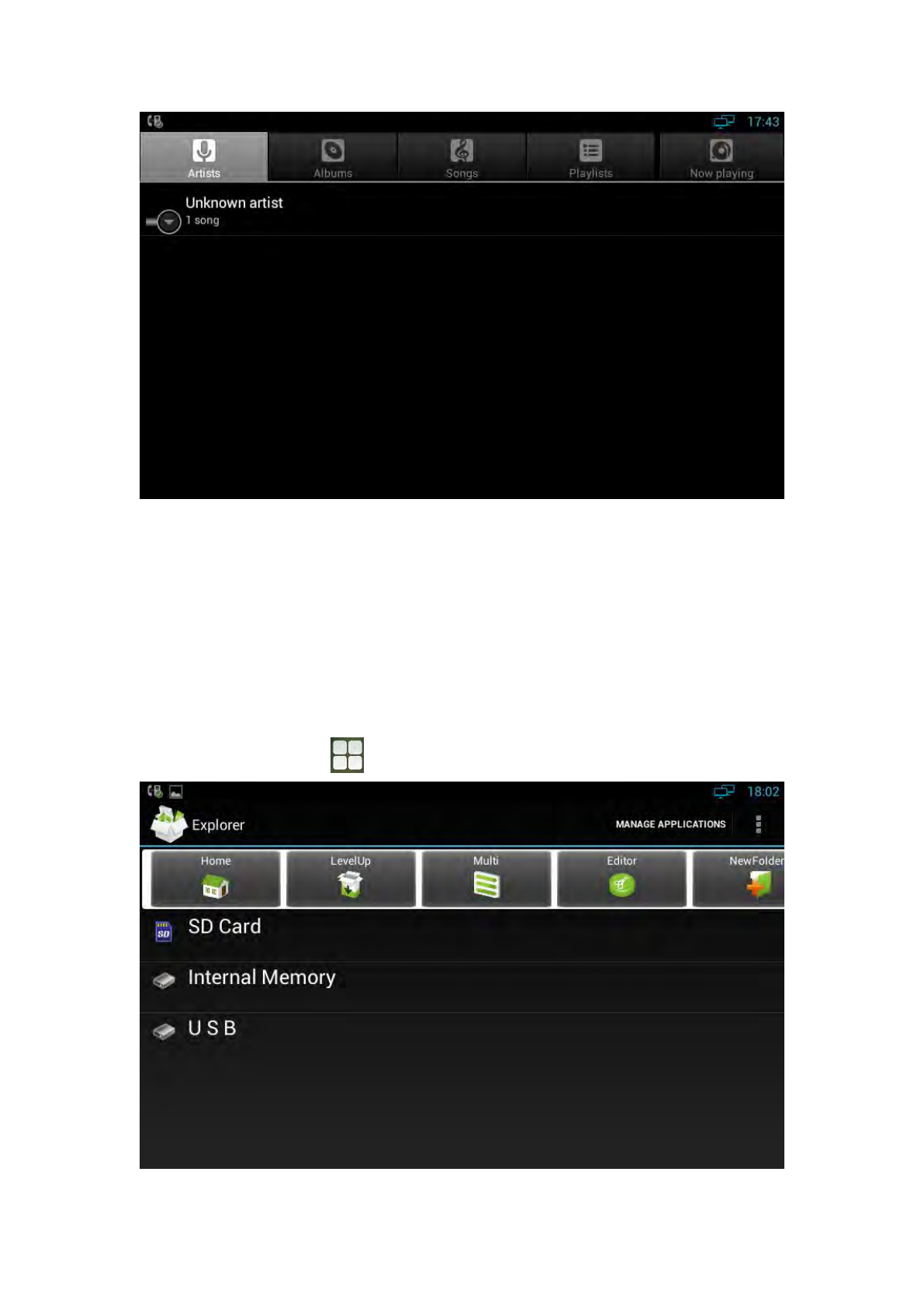
The music page is shown as below:
77
You can click the labels of Artists, Albums or Songs to view all songs. You can also
view or play the songs from the playlists.
To view the currently playing song, please click the "now playing" label
5.15 Explorer
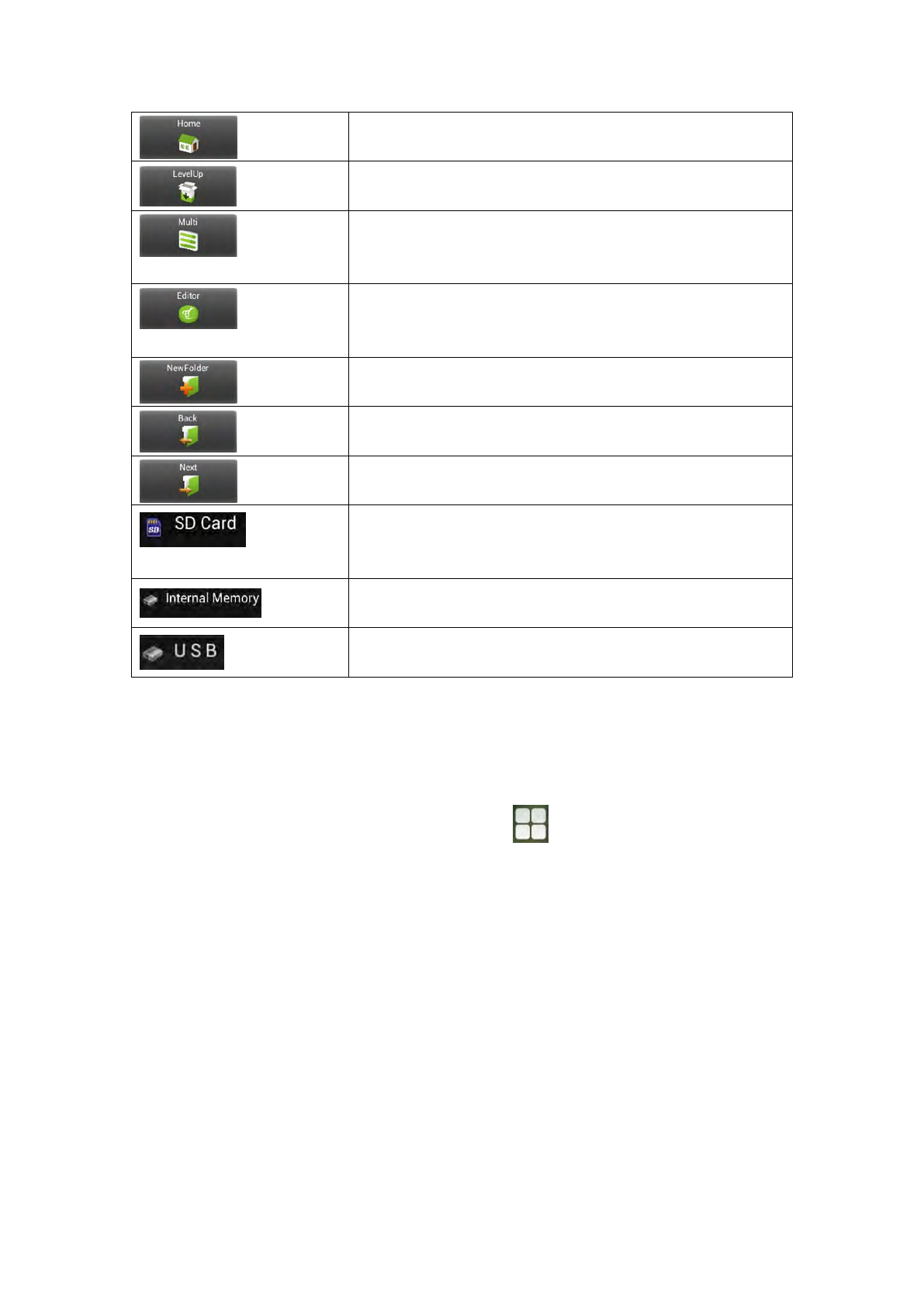
You can use explorer to manage the files in the device.
In the main screen, click -> Explorer, as shown below:
78
Home Page
Upper Layer
Multiple Choices, And the selected file will change to blue
color.
Editor, you can do Copy, Delete, Move, Paste, Rename, Send,
Create shortcut operations.
New Folder
Previous File
Next File
If you insert a SD card, you can view the files in SD card.
(Optional)
View the internal files of the device
View the files in inserted USB device
5.16 Video Player
You can use video player to play local videos.
To run the video player: In the main screen, click -> Video
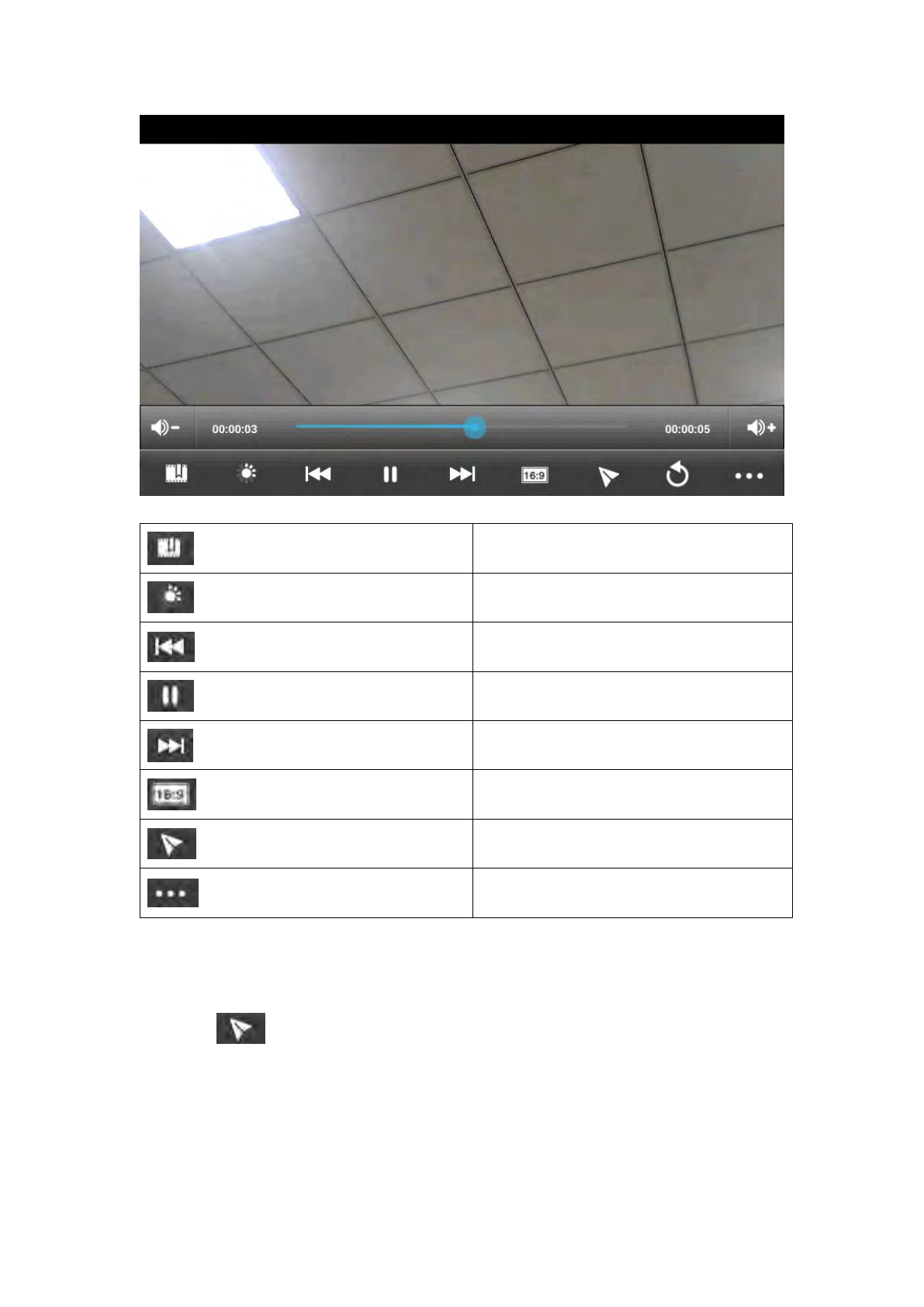
After entering, you can click on the list of videos to watch. As shown below:
79
Bookmark
Screen Brightness Adjustment
The previous video, and long press to make
video fast backward.
Hold/Play
The next video, and long press to make
video fast forward.
Screen size adjustment, four type of video
sizes: original size, full screen, 16:9, 4:3
Floating browse mode
Others
5.16.1 Floating Browse Mode
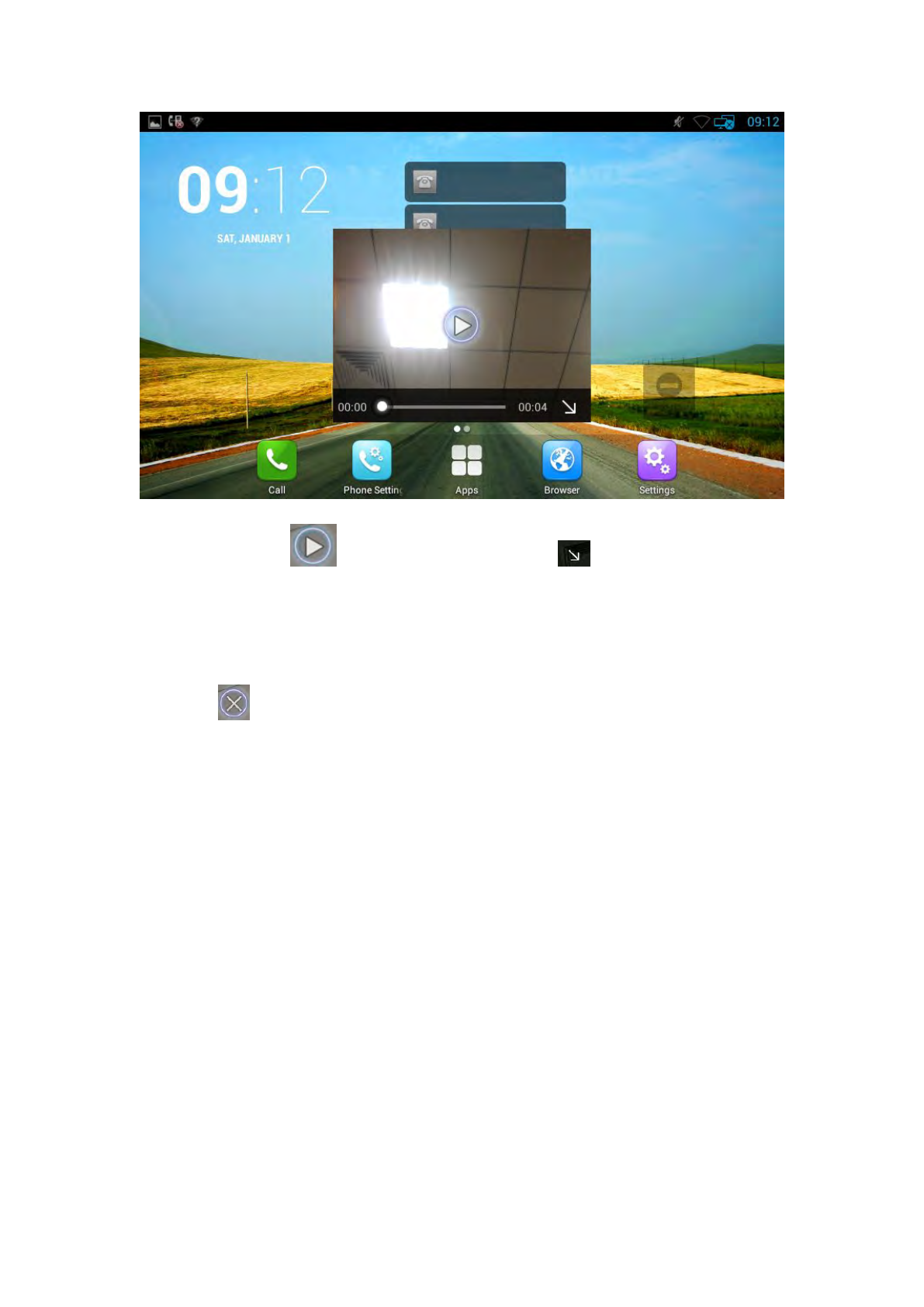
Click on during playing a video to enter the floating browse mode. As
shown:
80
You can click on to play the video, click to shrink the floating
window. And use two fingers to press on the screen, shrinkage or expansion to adjust
the window size.
If you want to close the floating window, please long press the floating window until
it displays icon in the center, click on the icon to close the floating window.
5.17 BLF
Busy Lamp Field (BLF) is used to monitor a specific user for status changes on IP
phones. For example, you can configure a BLF key on a supervisor’s phone to monitor
the phone user status (busy or idle). When the monitored user places a call, a busy
indicator on the supervisor’s phone indicates that the user’s phone is in use.
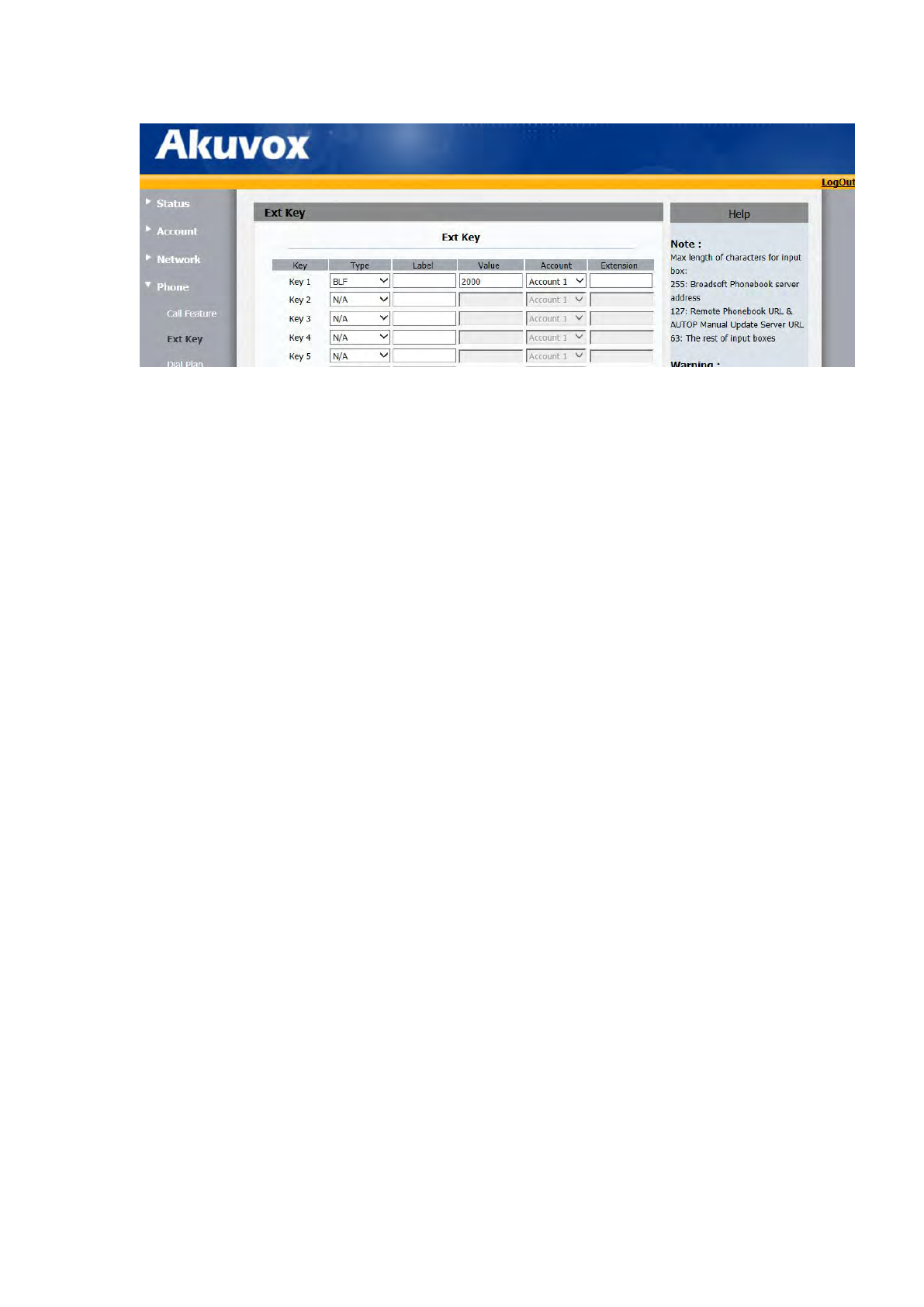
To setup BLF: web-> phone-> Extkey. Set the Type as BLF ,and configure the value and
account.
81
5.18 BLF List
BLF List:While using BroadSoft platform, the accounts which are monitored by the
sip phone will reply the subscribe news in the form of xml list to improve efficiency.
BLF List Code:While using BroadSoft platform,when press BLF List key configured
the BLF LIST CODE,can Pick up call or Barge in call.
Note: BLFListCode is supported by Broadsoft platform, Please consult your
administrator further information.
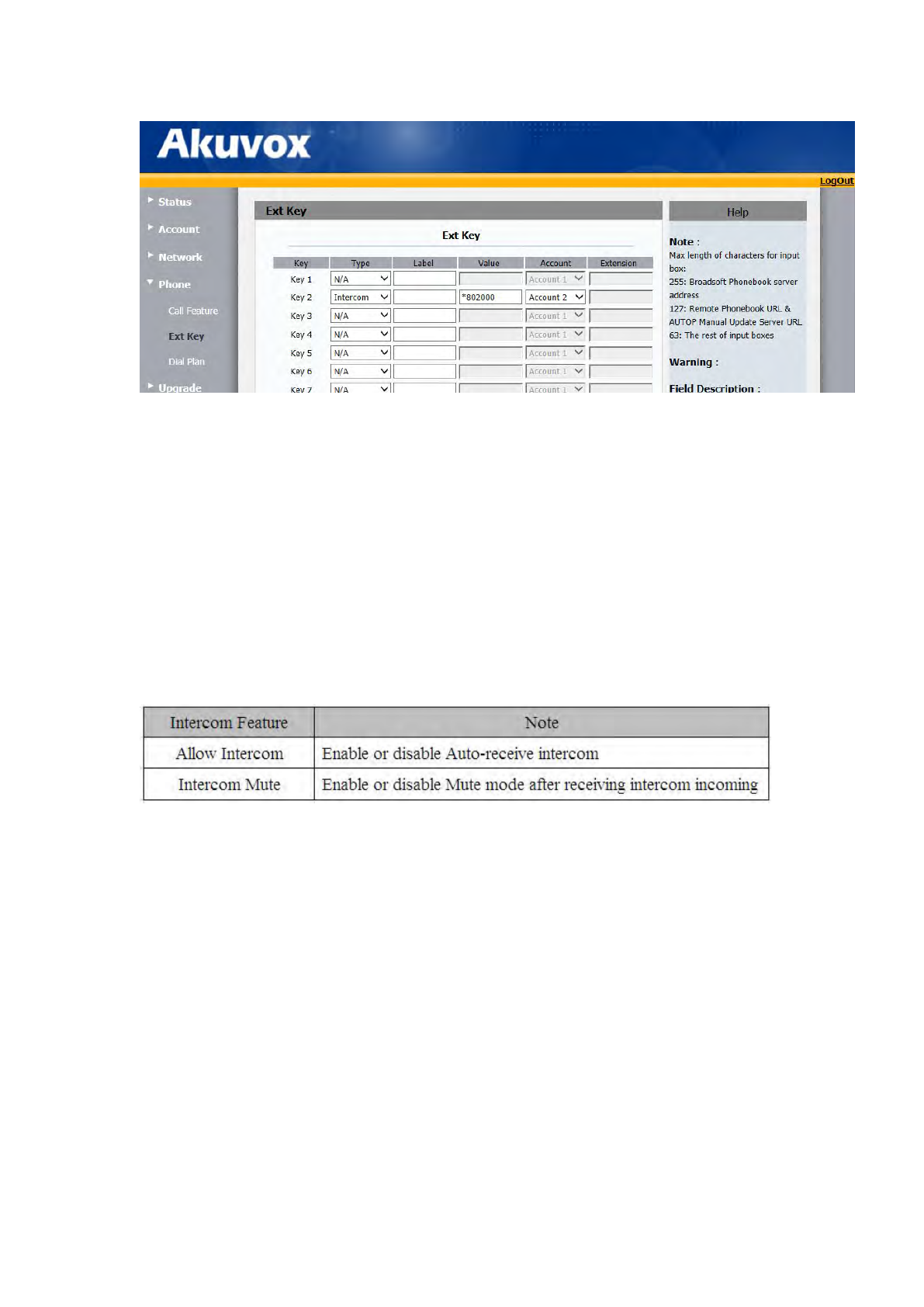
5.19 Intercom
To configure Intercom via web interface:
PATH: Phone-> Ext Key. Configure the type as Intercom, and setup the value and
account
82
1. Press the Intercom key when the phone is available. The phone will connect the
extension number of remote user automatically.
2. Answer the intercom incoming calling.
3. In default situation, the IP phone Akuvox R47P will answer the intercom
incoming calling automatically and make a noise. You can set the phone to
enable silent mode when picking up the intercom call so that the other will not
hear you.
The features of intercom:
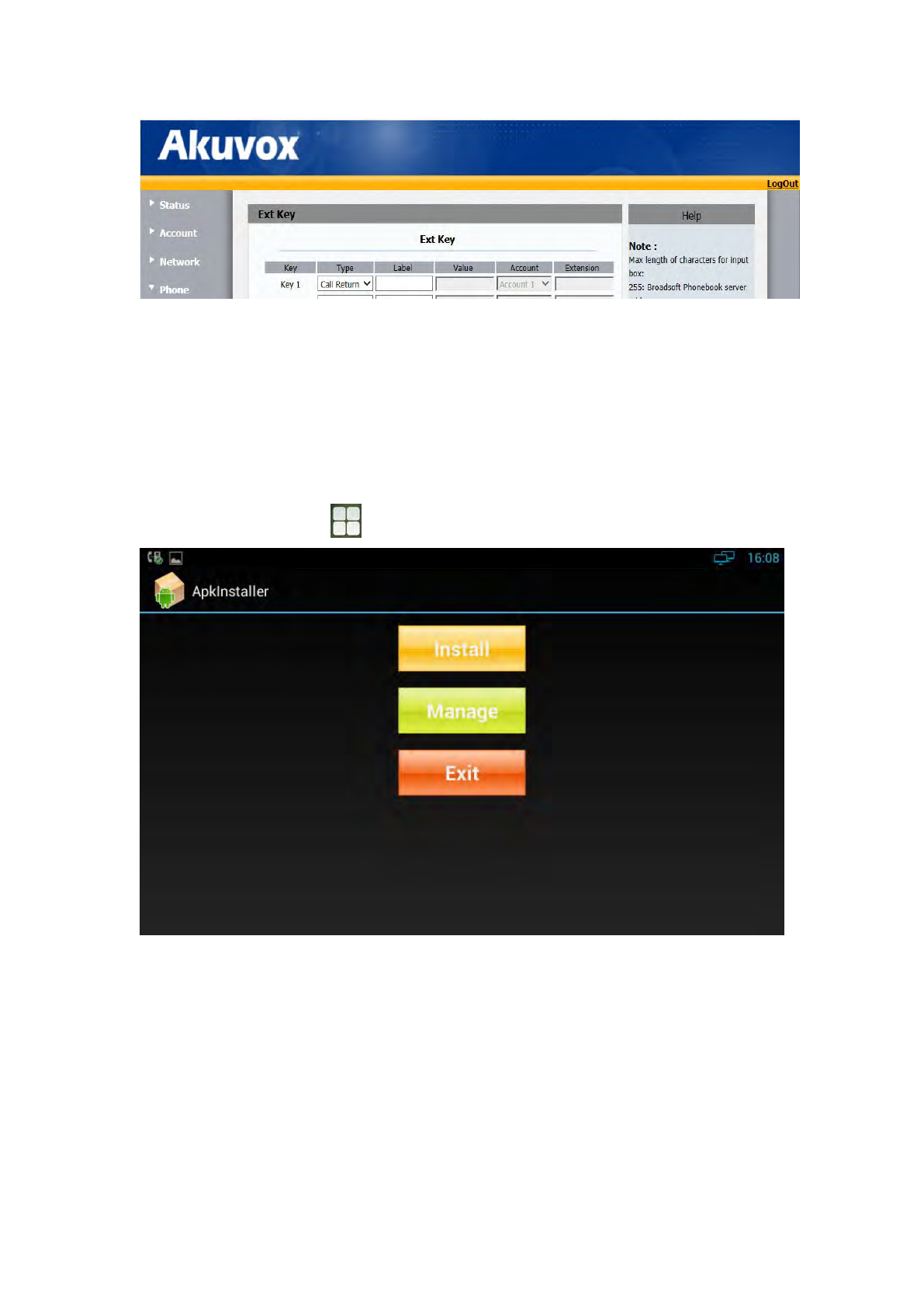
5.20 Call Return
This function can be used to call the latest dialed call record automatically.
To configure Intercom via web interface:
PATH: Phone-> Ext Key. Configure the type as Call Return
83
5.21 Others
5.21.1 Apk Installer
You can use Apk Installer to install the apk application
In the main screen, click ->Apk Installer. As shown below:
5.21.1.1 Install
You can click “Install”, and then browse the path:
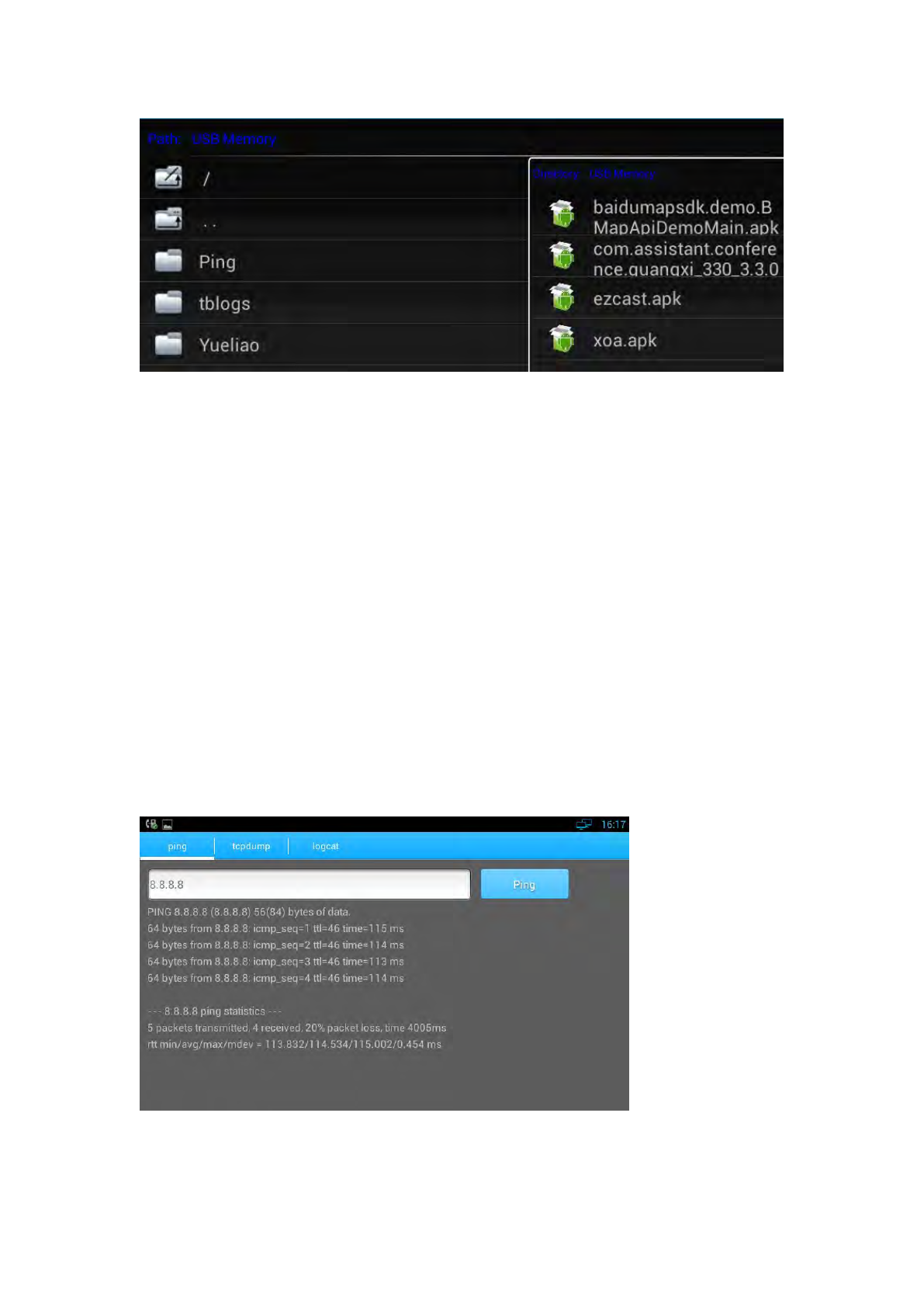
84
The system will list all the Apk applications under the path, click the Apk to install.
5.21.1.2 Manage
You can click on "Manage" button to browse the Apk installed in the system.
5.21.2 Ping Tool
You can use the Ping tool for Ping query, network packet capture and view the
log information.
5.21.2.1 Ping Query
Ping query interface is as shown:
You can input the address you want to Ping, click the Ping button, you can view the
Ping query results. If you take a long Ping query, in the input box, please manually
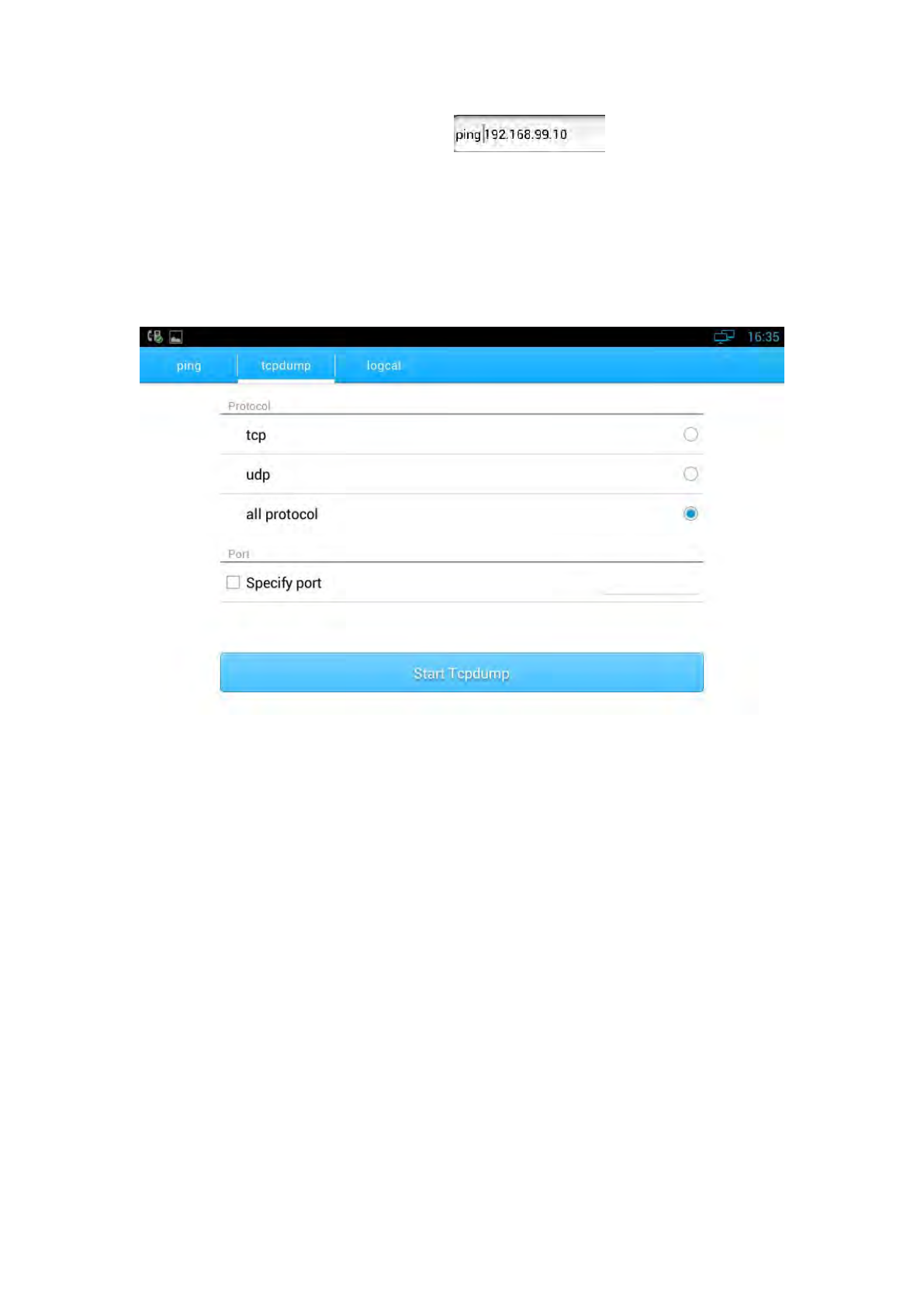
85
enter the Ping + address, such as: , and then click the
Ping button.
5.21.2.2 Tcpdump
Log captured tool interface is as shown:
You can choose what type protocol and specified port you need to capture
the logs. Press “Start Tcpdump” to start the log captured.
If you want to finish the log captured, you can press “Stop Tcpdump” to stop
the capture, and the system will prompt the file saved path. You can use Wireshark
and other tools on PC to read the logs.
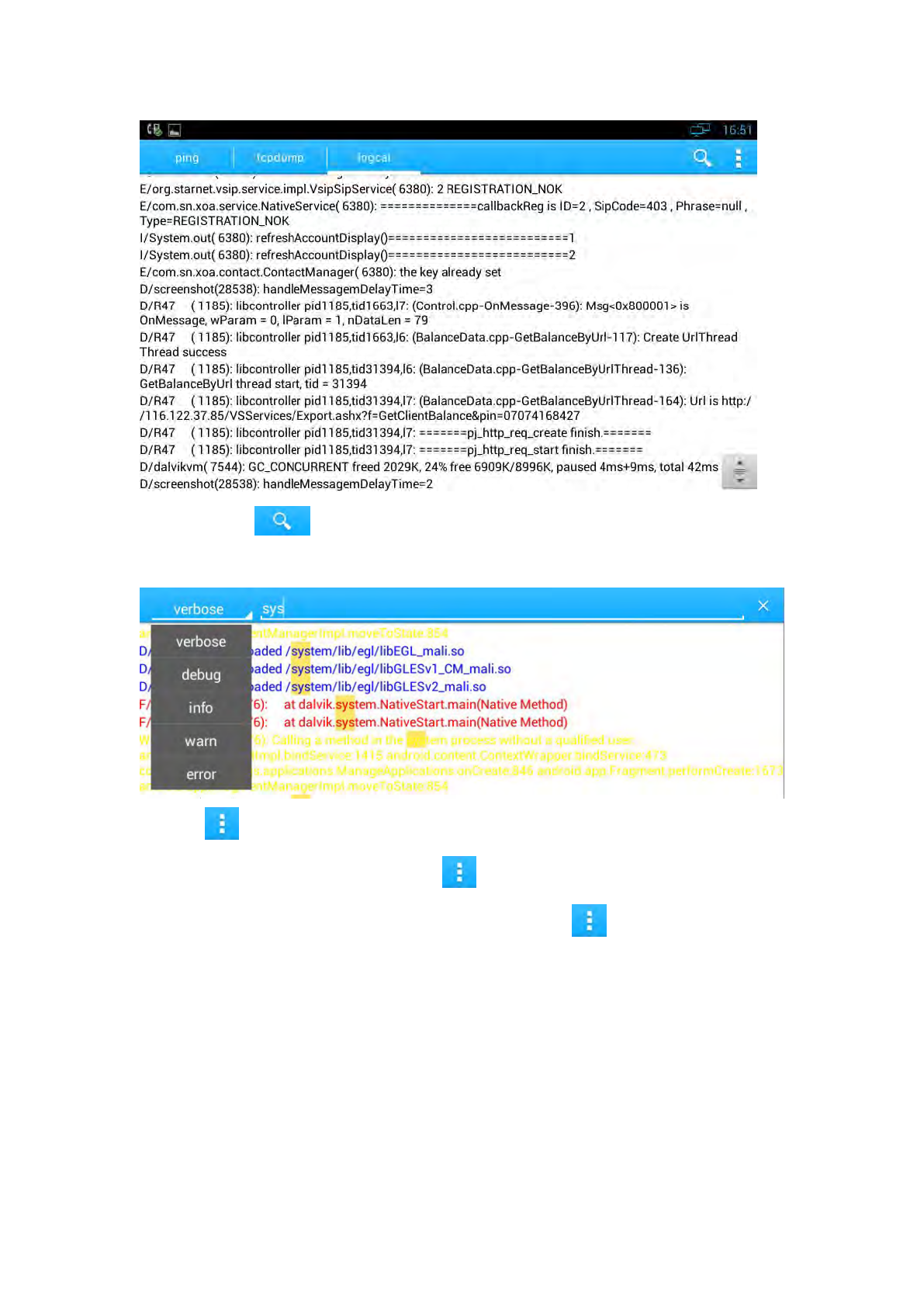
5.21.2.3 Logcat
Logcat interface is as shown:
86
You can use to search the log information, and select the log level
through the drop-down list.
Or click to see more options.
if you need to save the log, please click , select "Save"
If you need to highlight the log information, please click , select "highlight", and
then the log will be showed as different color.

87
88
6 Software Upgrade
6.1 Immediate Update
Choose one way below to enter the system upgrade interface:
In the main screen, press “Menu” on board -> System Settings -> System ->
About Multimedia Terminal -> System Upgrade -> System Update Now
In the main screen, tap on settings icon -> System -> Multimedia
Terminal -> System Upgrade -> System Update Now
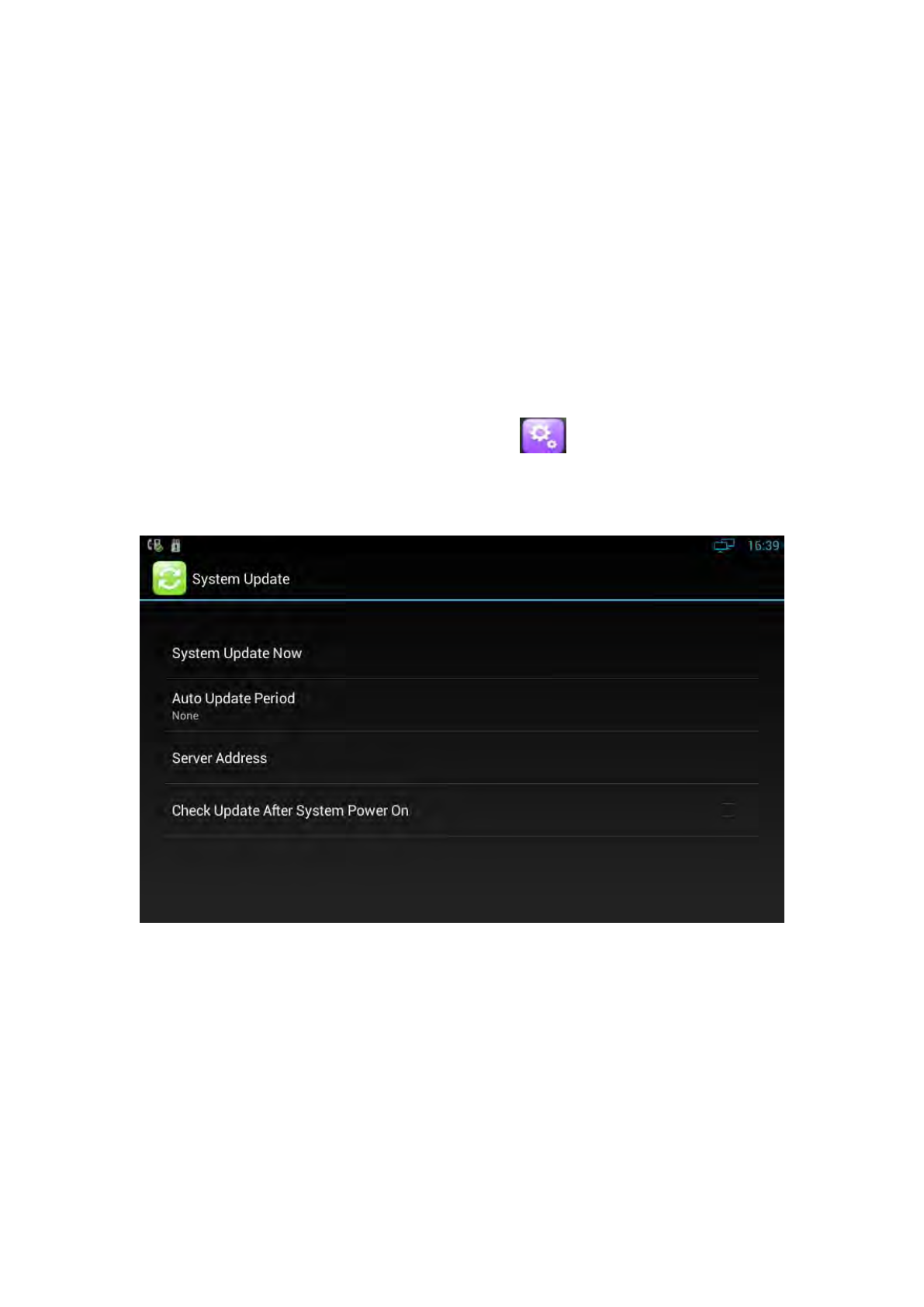
Update interface as shown:
Figure 5-1
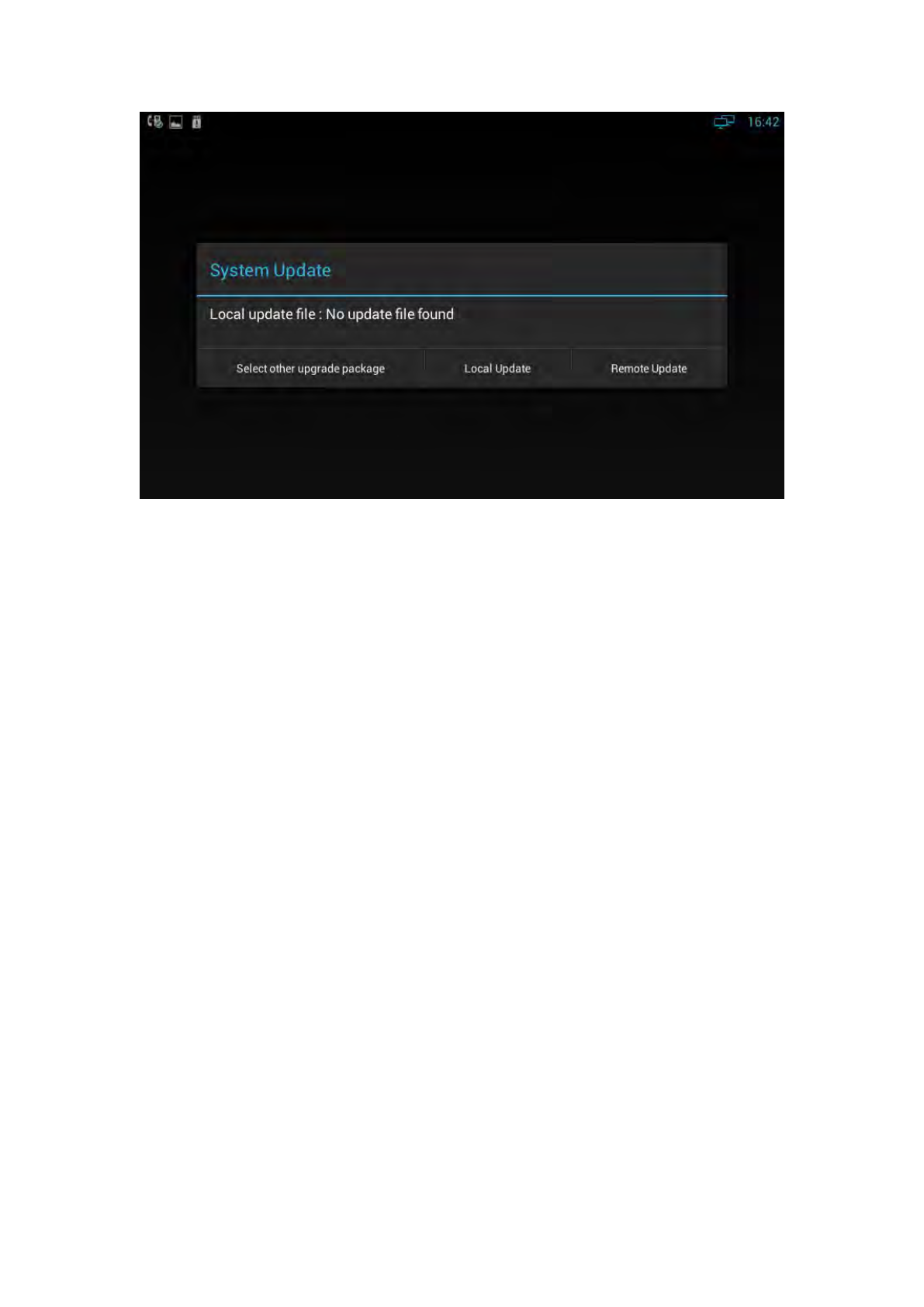
Three ways to update immediately: Select other upgrade package, Local Update,
Remote Upgrade, as shown:
89
6.1.1 Select Other Upgrade Package
1) Via USB to Upgrade
Put upgrade package into USB, insert USB, then click “Select other upgrade package”,
find “/mut/usb_storage”, find the upgrade package, then click “OK” to upgrade.
2) Via Internal Memory to Upgrade
Use USB to copy the upgrade package into Internal Memory, then press “Select other
upgrade package”, find “/mnt/sdcard” ,find upgrade document, then click “OK” to
upgrade.
6.1.2 Local Update
1) Via USB to Upgrade
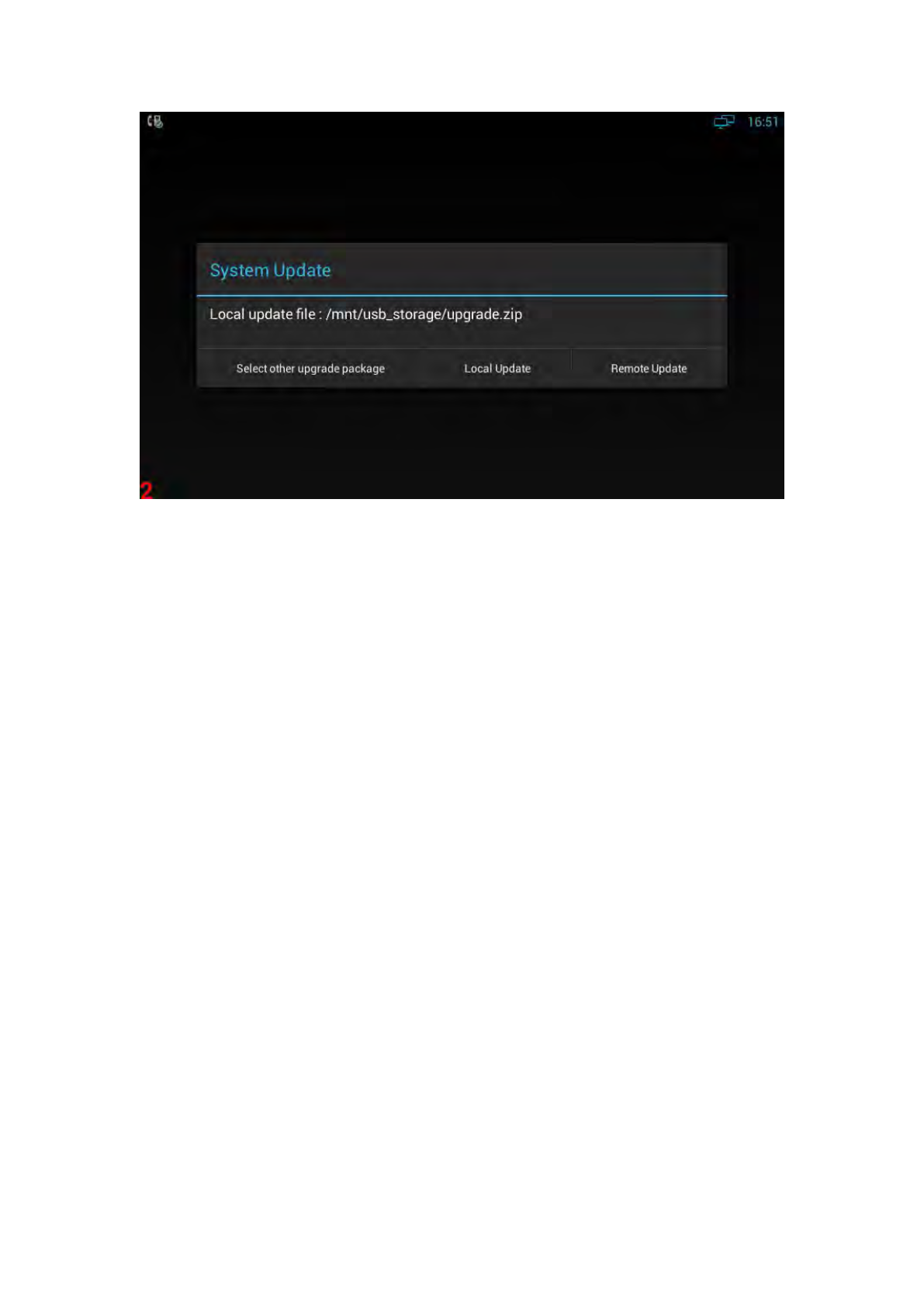
Change the name of upgrade package into upgrade.zip, then copy it into USB, insert
USB, enter the upgrade interface, you will find the path of upgrade package, because
video phone has searched it automatically, click “Local Update” to start upgrading, as
shown:
90
2) Via built-in SD Card to upgrade
First, change the name of upgrade package into upgrade.zip, then copy it into USB,
and then use USB to copy the upgrade package into Internal Memory, enter the
upgrade interface, you will find the path of upgrade
package:/mut/sdcard/upgrade.zip, because video phone has searched it
automatically, press “Local Update” to start upgrading.
6.1.3 Remote Update
1) Enter the interface in figure 5-1, click “Server Address”, and input the server
address that contains upgrade package. As shown:
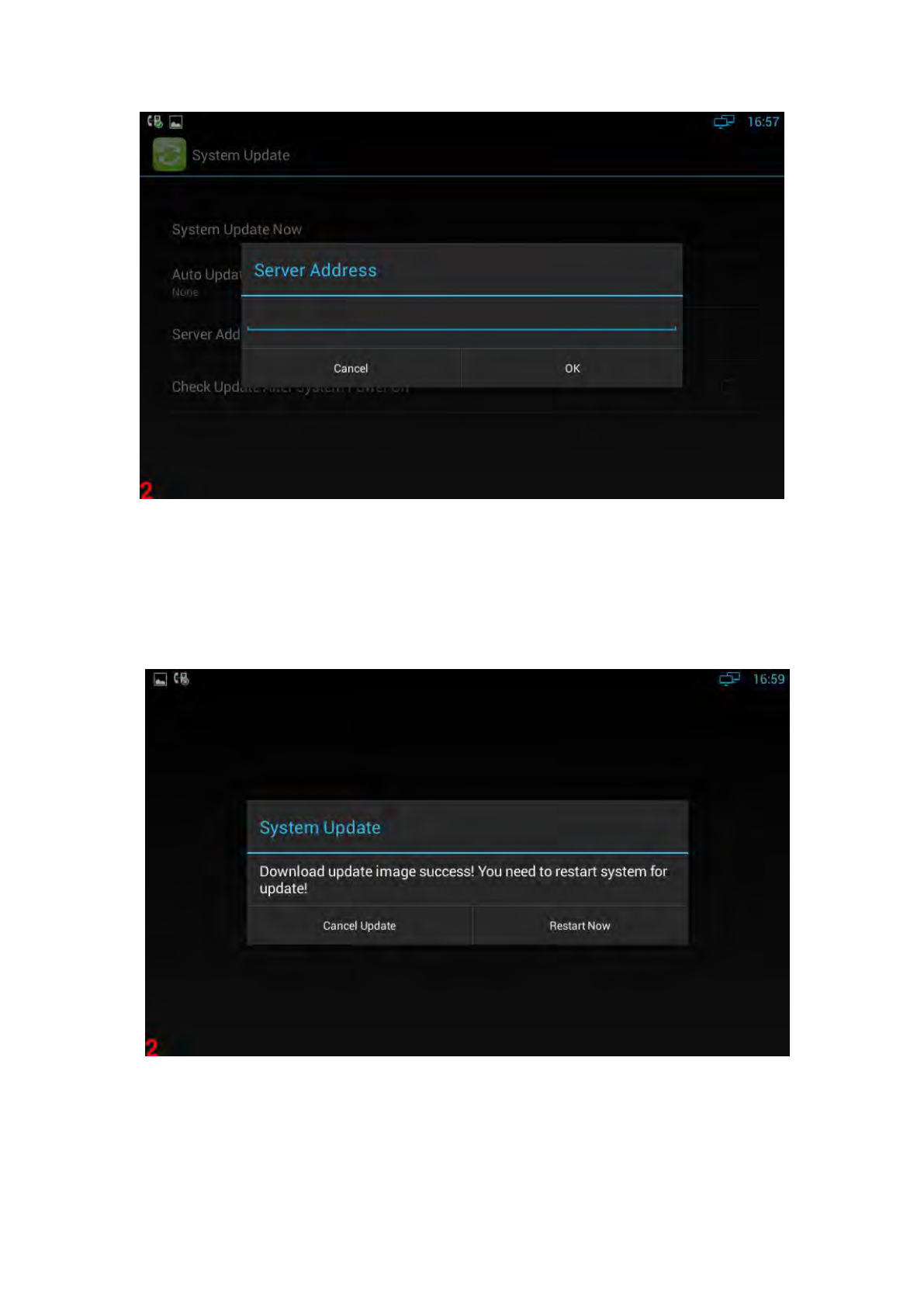
91
2) Click “Remote Upgrade”, video phone will check the new version automatically. If
exist a new version, it will prompt. Press “OK” to download upgrade document.
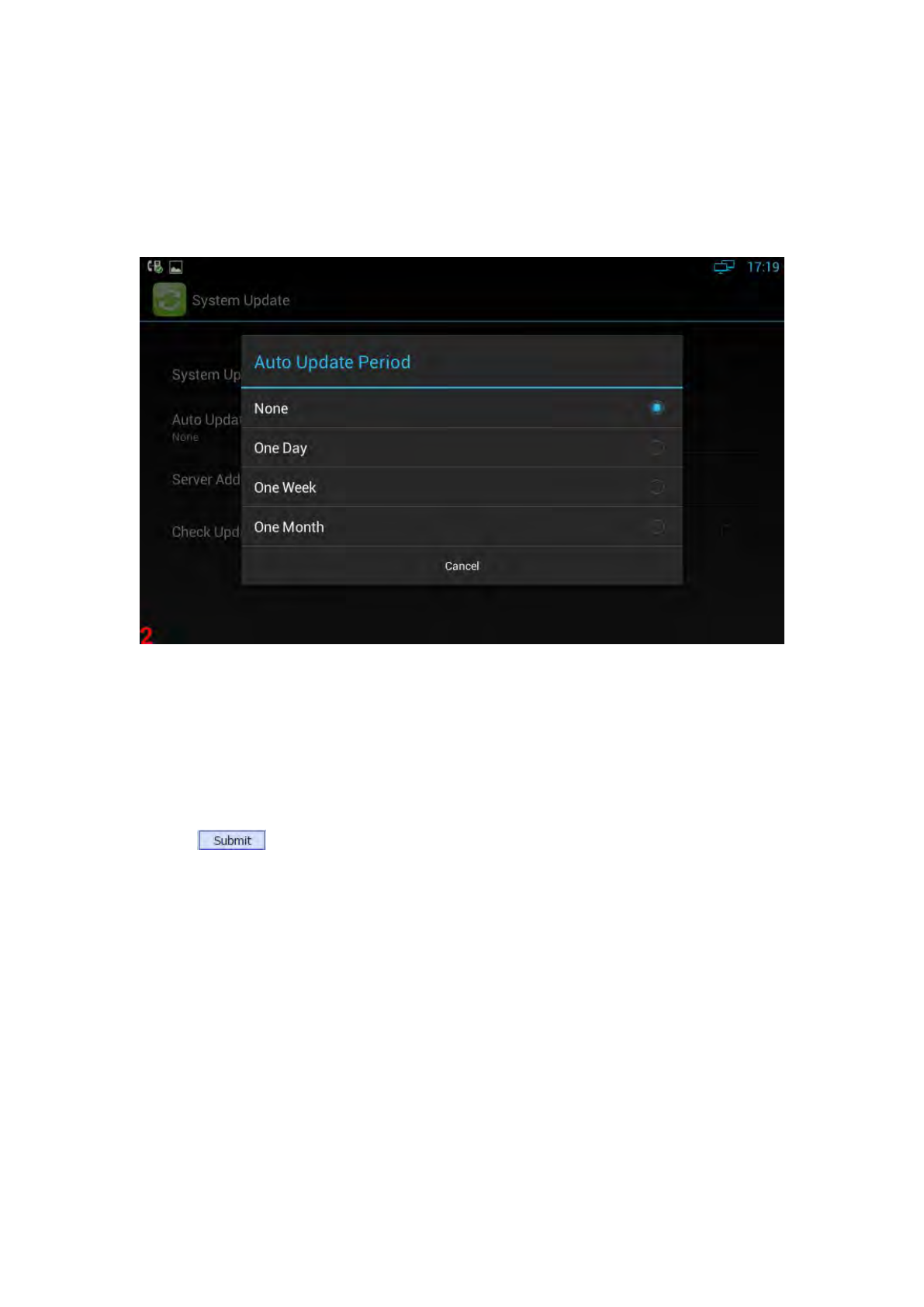
3) After finish downloading, it prompts “Download update image success! You need
to restart system for update! ”, press reboot now, and then system will upgrade
automatically. As shown:
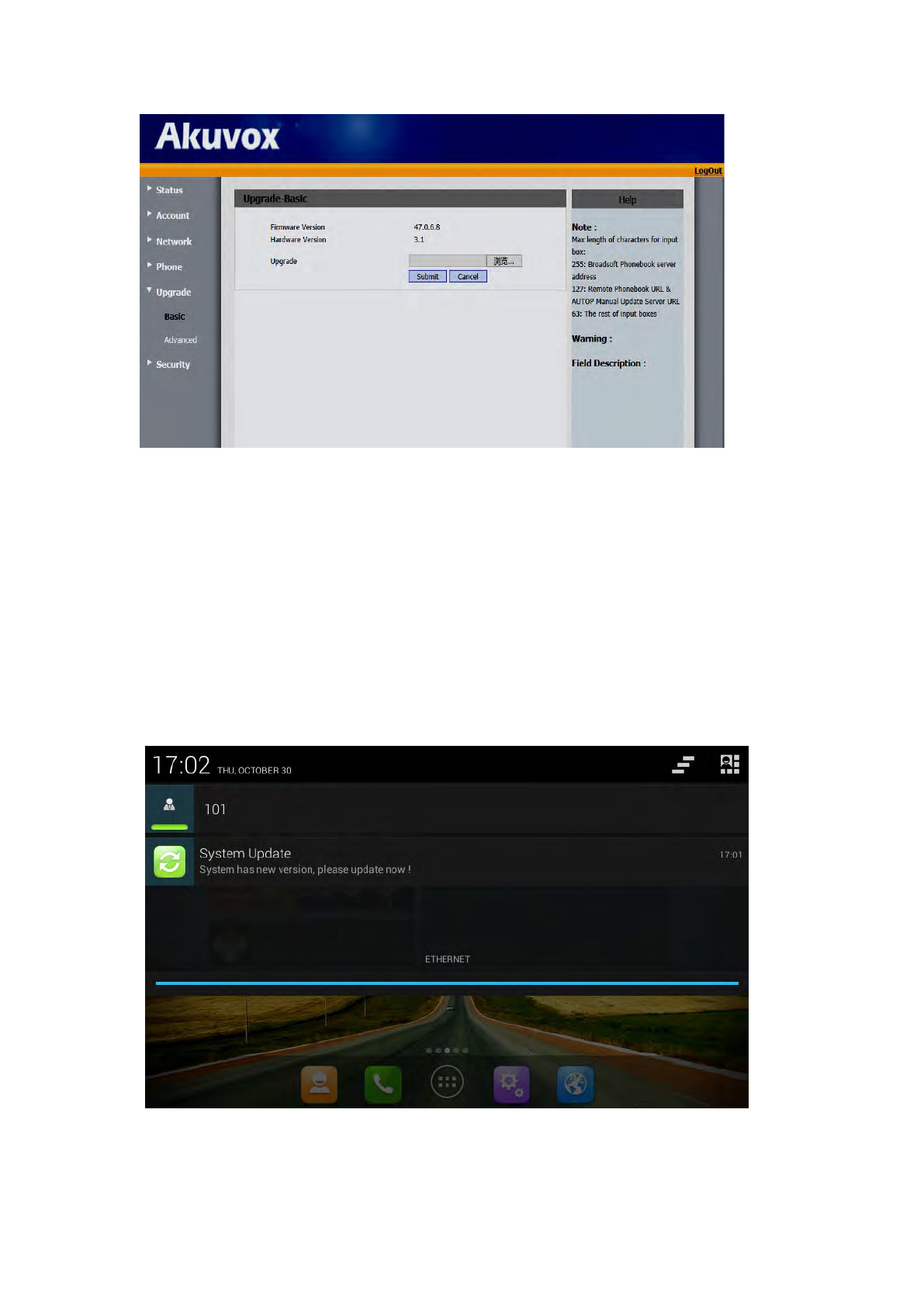
6.2 Auto Update Period
Auto Update Period includes four modes: None, One Day, One Week, and One Month.
92
The terminal will detect the new version automatically in time, if there is, the status
bar will show “There is a new version, please update!”. Click and download the image
for upgrade.
As shown:
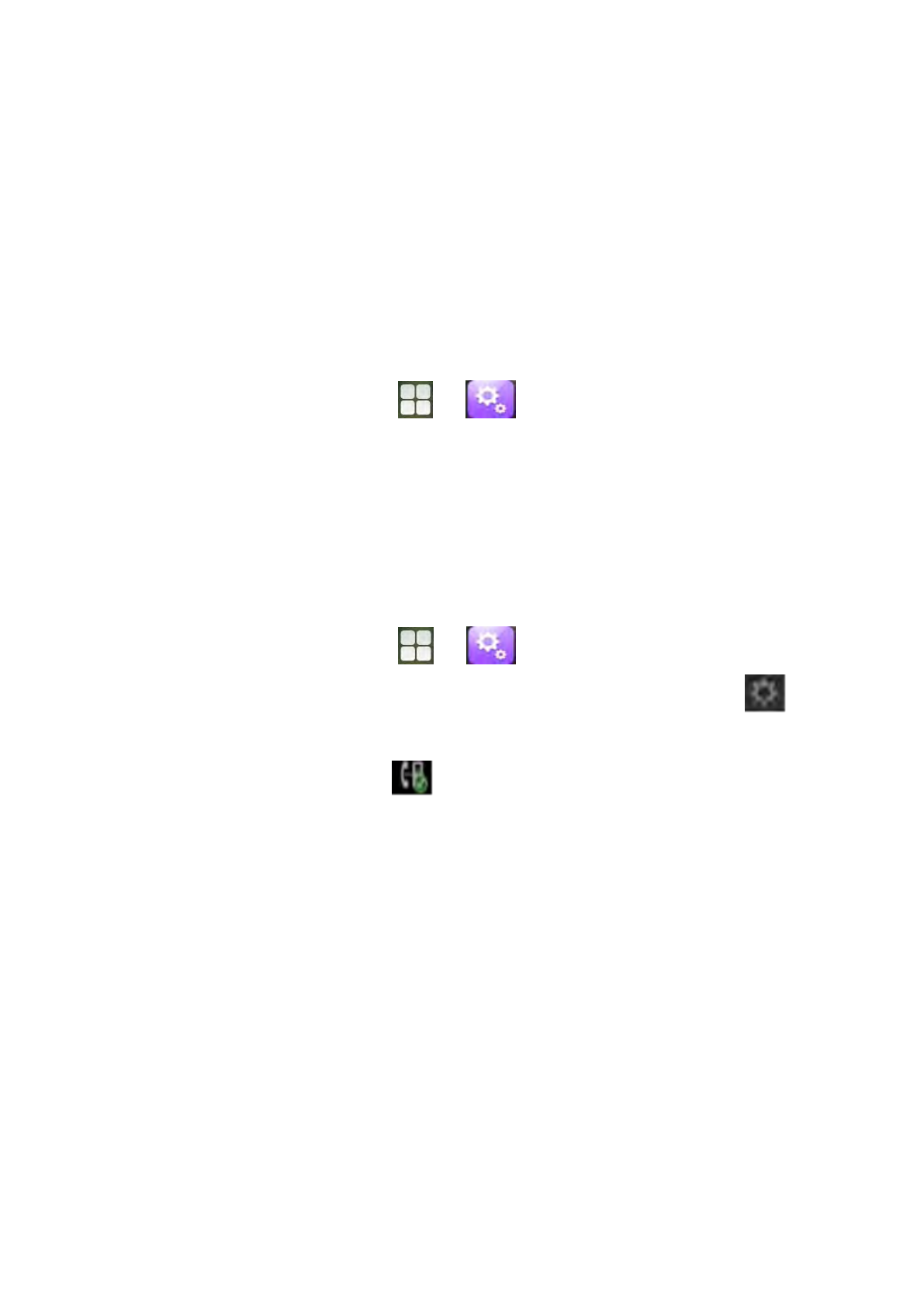
6.3 Upgrade on the web
1.Click Upgrade->Basic
2.Choose the software you want to update from the computer.
3.Click .
93
6.4 Check Update After System Power On
Click “Check Update After System Power On” in figure 5-1. Every time you power on,
the system will check the new version automatically. If there is a new one, the status
bar will notice: “System has new version, please update now!”, click and download
the image for upgrade.
As shown:
94
7 System Maintenance
7.1 System State Inspection
Mode 1: In the main screen, press "Menu" key on the hard keyboard-> System
Settings-> About Multimedia Terminal
Mode 2: In the main screen, click -> -> About Multimedia Terminal
It will display phone status, software version and hardware version in this item.
7.2 IP Query
Mode 1: In the main screen, press "Menu" key on the hard keyboard-> System
Settings-> Ethernet
Mode 2: In the main screen, click -> -> Ethernet
Mode 3: Press Speaker button or pick up to enter the dialing interface, click
on upper right corner -> enter the setting interface, check Status Info;
Mode 4: Slide down the top-left , click the account, enter the setting interface,
check Status Info;
Mode 1 and Mode 2 can check IP address, subnet mask, gateway, DNS server etc. in
Ethernet:
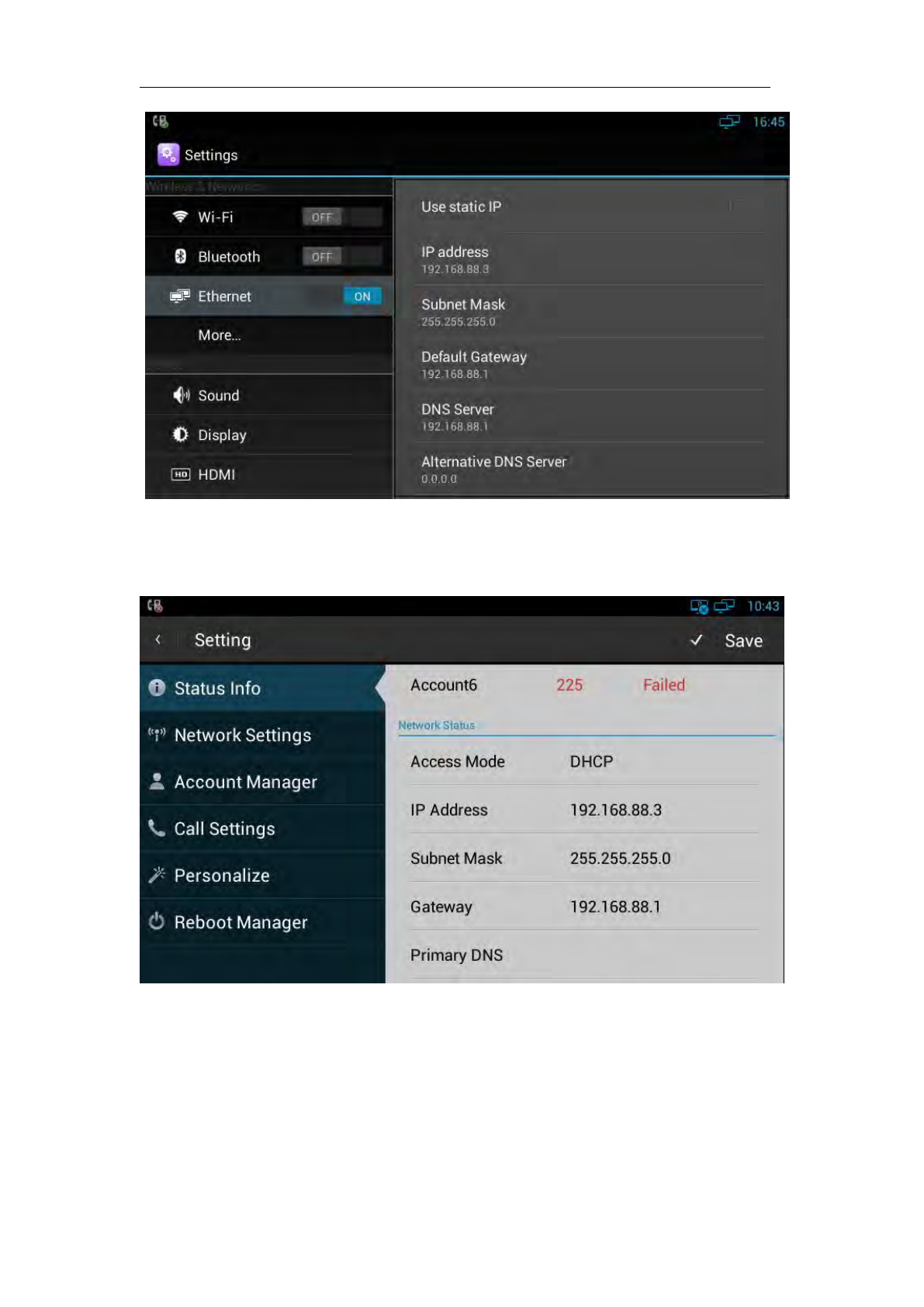
95
Mode 3 and Mode 4 can check the corresponding network information in setting
interface.
7.3 SIP Account Registration Query
You can choose one of the following methods to enter the SIP account registration
query: If the account is successfully registered, the icon will be light up in notification
area of phone.
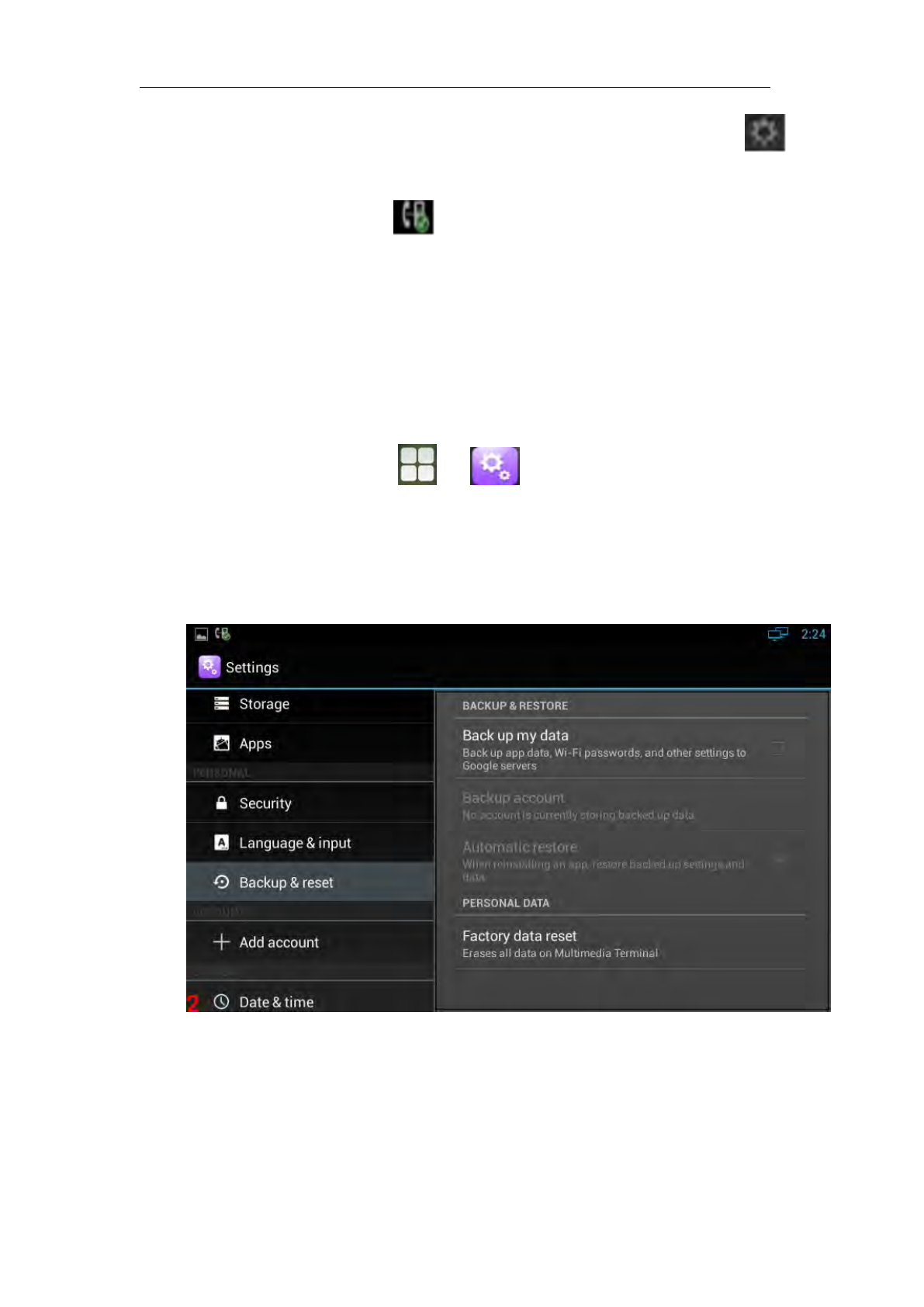
96
Mode 1: Press Speaker button or pick up to enter the dialing interface, click
on upper right corner, check Account Manager.
Mode 2: Slide down the top-left , click the account, enter the setup interface,
check Account Manager.
7.4 Backup & Reset
Mode 1: In the main screen, press "Menu" key on the hard keyboard-> System
Settings-> Backup & reset
Mode 2: In the main screen, click -> -> Backup & reset
Click “Factory data reset”, click “Reset Multimedia Terminal”, then the phone will
restore to factory settings.

97
7.5 Failure Process
Failure 1: Power LED is off
Please check whether the adapter fits this product requirement;
Please check whether the outlet is working properly.
Failure 2: No voice when pick up the handle
Please check whether the connection of handset and base is working properly;
Please adjust the volume + key on keyboard when off-hook the phone, Observe
the display of “volume” prompt. Please pay attention that the volume key in
on-hook and off-hook situation is to adjust the ring volume and media volume
(call volume) separately. These two adjustments are unrelated. Adjust the
volume won’t change call volume when on-hook the phone.
Failure 3: Phone can’t dial properly
Please check whether there is at the top-right of screen. If not, please
check whether the cable in LAN port is loose;
Please check the IP address of phone via configuration (go to 5.2, “network
configuration”);
If it’s now in LAN, please check whether the IP address of phone is conflict with
other IP address in LAN.
If the network connection is properly, please check whether the icon of
successful registration is in the notification area. If there is no explanation of
configuration failure, please contact network administrator to recover it.
Failure 4: No ringing when incoming a call
Please make sure the handle is completely hung on the base
Please adjust the volume + key on keyboard when on-hook the phone, Observe
the display of “volume” prompt. Please pay attention that the volume key in
on-hook and off-hook situation is to adjust the ring volume and media volume

98
(call volume) separately. These two adjustments are unrelated. Adjust the
volume won’t change ring volume when off-hook the phone.
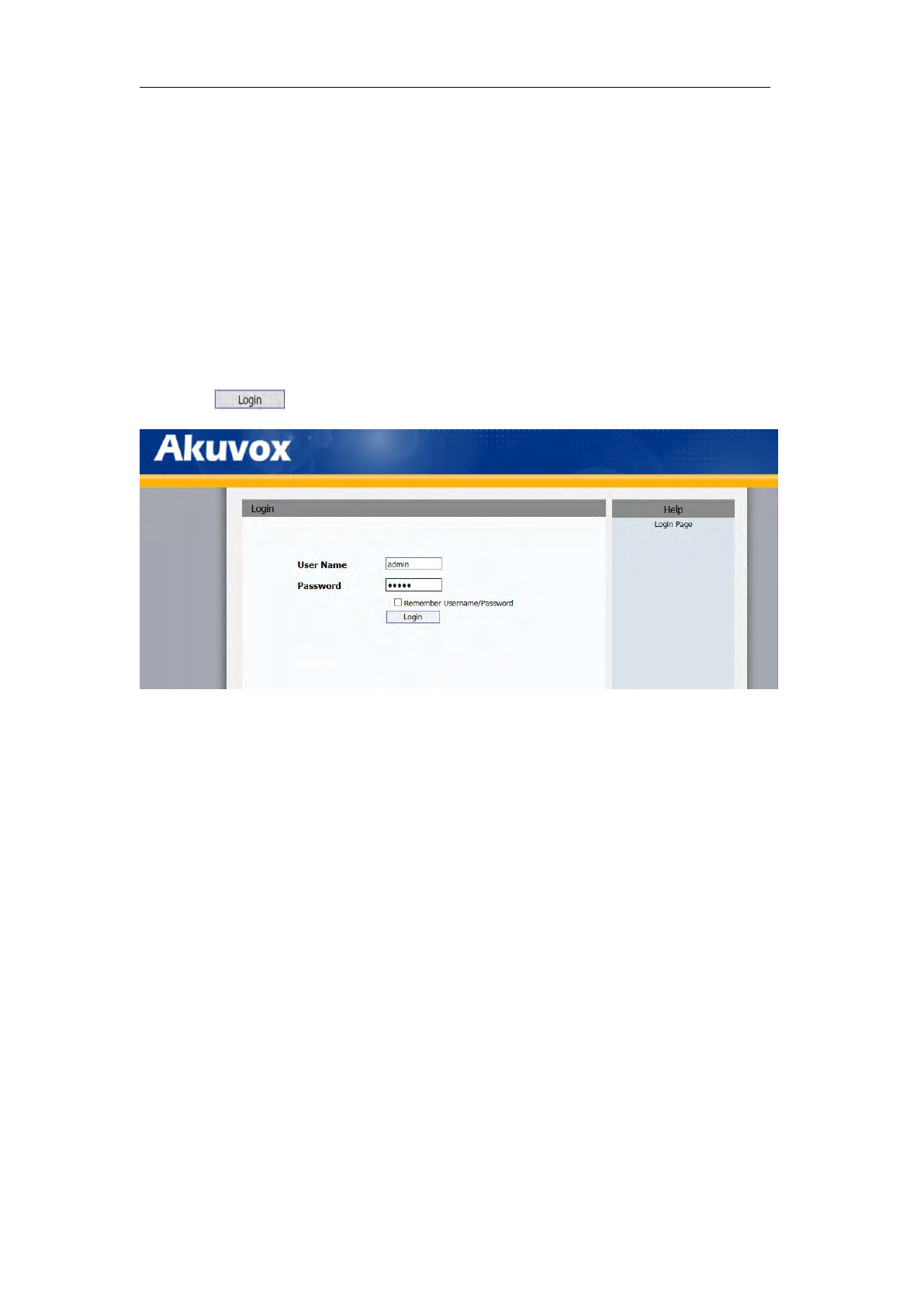
99
8 Web Interface
8.1 Web login
1. Open the browser on your computer.
2. Input the IP address in the address bar.
3. Enter the user name and password (user name: admin, password: admin), then
click .
8.2 Status->Basic
Click Status->Basic to check the phone information.
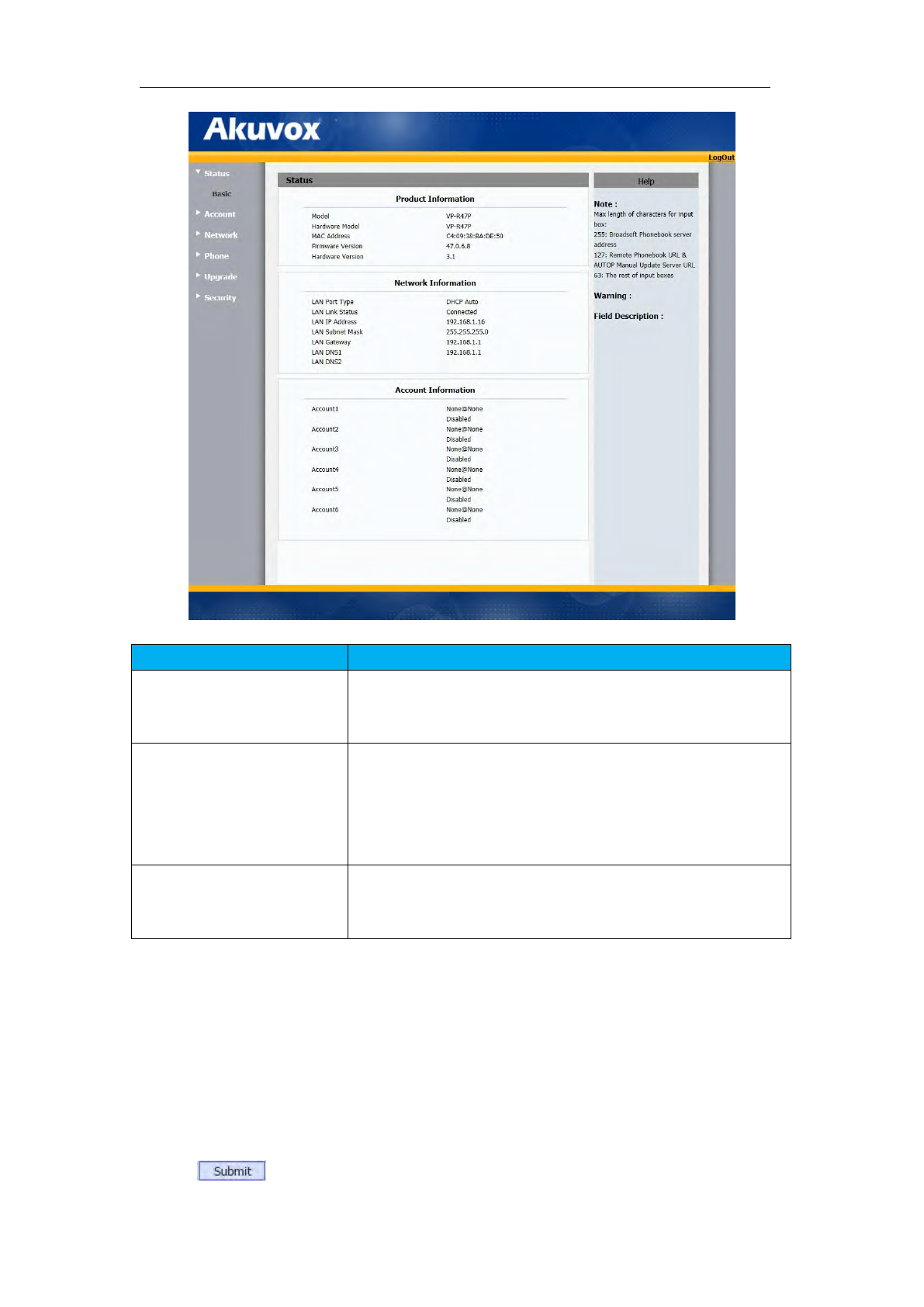
100
Sections
Description
Product Information
To display the device’s information such as Model name,
MAC address (IP device’s physical address),Hardware Model,
Firmware version and Hardware firmware.
Network Information
To display the device’s Networking status(LAN Port),such as
Port Type(which could be DHCP/Static/PPPoE), Link Status, IP
Address, Subnet Mask, Gateway, Primary DNS
server, Secondary DNS server.
Account Information
To display device’s Account information and Registration
status (account username, registered server’s address,
Register result).
8.3 Account->Basic
1.Click Account->Basic.
2.Select the desired account(from account 1 to account 6),then enable the Account
Active.
3.Filled the registration parameters you need.
4.Click .
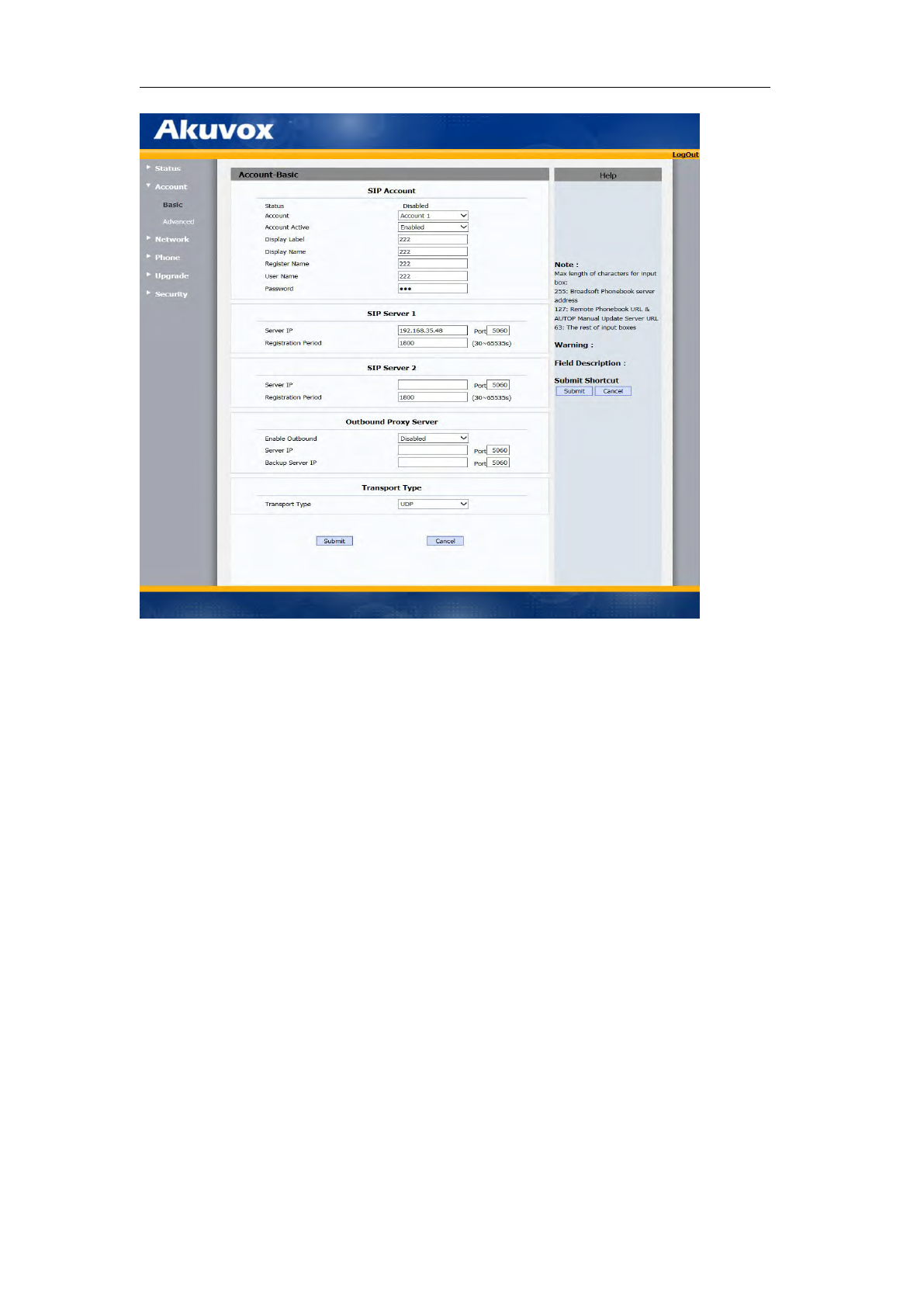
101

102
Sections
Description
SIP Account
To display and configure the specific Account settings.
Status: To display register result.
Display Label: Which is displayed on the phone’s LCD
screen.
Display Name: Which is sent to the other call party for
displaying.
Register Name: Allocated by SIP server provider, used for
authentication.
User Name: Allocated by your SIP server provide, used
for authentication.
Password: Used for authorization.
SIP Server 1
To display and configure Primary SIP server settings.
Server IP: SIP server address, it could be an URL or IP
address.
Registration Period: The registration will expire after
Registration period, the IP phone will re-register
automatically within registration period.
SIP Server 2
To display and configure Secondary SIP server settings.
This is for redundancy, if registering to Primary SIP server
fails, the IP phone will go to Secondary SIP server for
registering.
Note: Secondary SIP server is used for redundancy, it can be
left blank if there is not redundancy SIP server in user’s
environment.
Outbound Proxy Server
To display and configure Outbound Proxy server settings.
An outbound proxy server is used to receive all initiating
request messages and route them to the designated SIP
server.
Note: If configured, all SIP request messages from the IP
phone will be sent to the outbound proxy server forcefully.
Transport Type
To display and configure Transport type for SIP message
UDP: UDP is an unreliable but very efficient transport
layer protocol.
TCP: Reliable but less-efficient transport layer protocol.

103
8.4 Account->Advanced
1. Click Account->Advanced.
2. Filled the corresponding parameters you need.
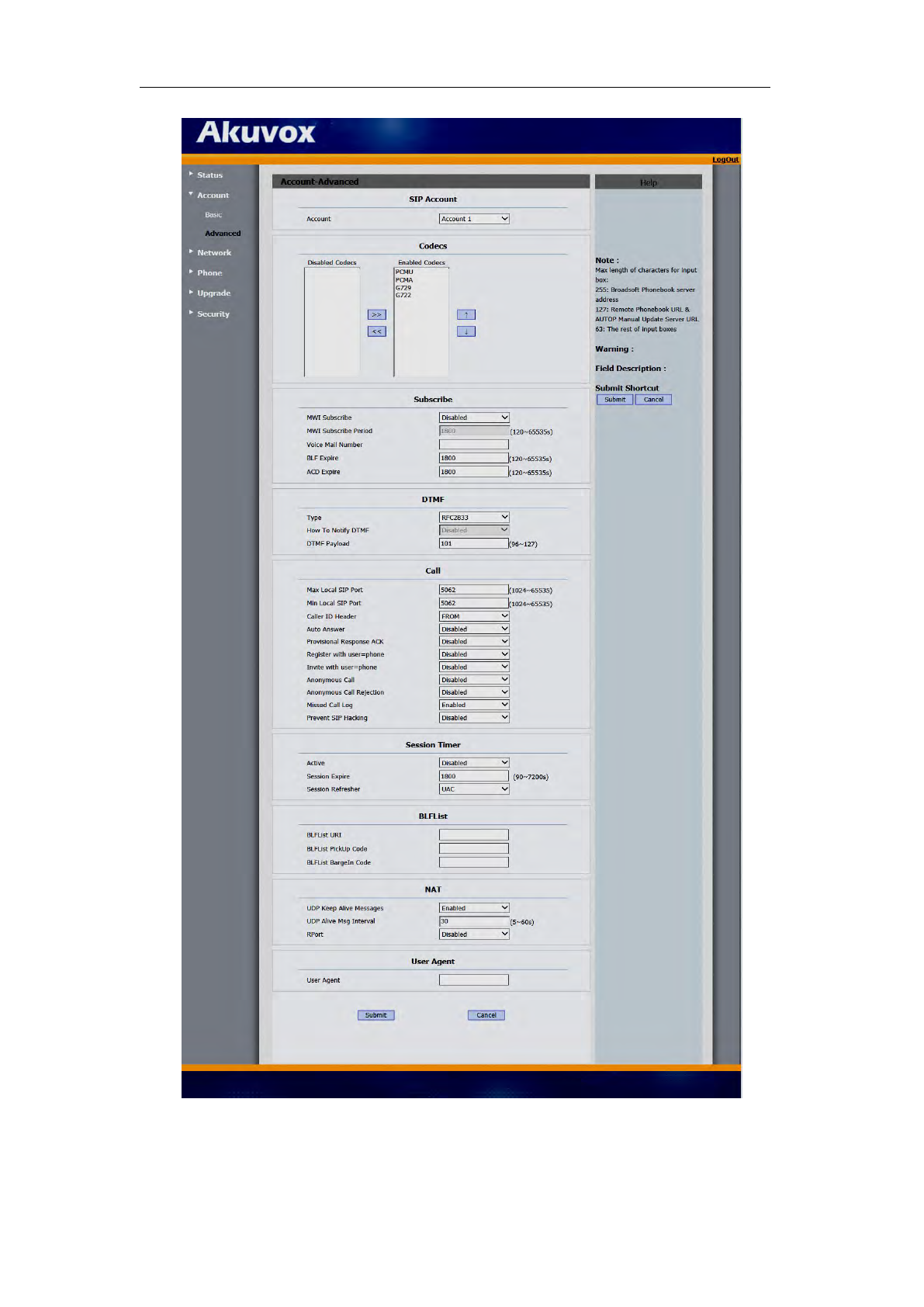
104

105
Sections
Description
SIP Account
To display current Account settings or to select which account
to display.
Codecs
To display and configure available/unavailable codecs list.
Codec means coder-decoder which is used to transfer analog
signal to digital signal or vice versa.
Familiar codecs are PCMU(G711U), PCMA(G711A), G722
(wid-bandth codecs),G729 and so on.
DTMF
To display and configure DTMF settings.
Type: Support Inband,Info,RFC2833 or their
combination.
How To Notify DTMF: Only available when DTMF Type is
Info/Info+Inband/Info+RFC2833.
DTMF Payload: To configure payload type for DTMF.
Note: By default, DTMF type is RFC2833 which is the
standard. Type Inband uses inband frequency to indicate
DTMF tone which is most used to be compatible to
traditional telephone server. Type Info use SIP Info message
to indicate DTMF message.
Call
To display and configure call-related features.
Max Local SIP Port: To configure maximum local sip port
for designated account.
Min Local SIP Port: To configure minimum local sip port
for designated account.
Caller ID Header: To configure which Caller ID format to
fetch for displaying on Phone UI.
Auto Answer: If enabled, IP phone will be
auto-answered when there is an incoming call for
designated account.
Provisional Response ACK: 100% reliability for all
provisional message, this means it will send ACK every
time the IP phone receive a provisional SIP message
from SIP server.
User=phone: If enabled, IP phone will send user=phone
within SIP message.
Anonymous Call: If enabled, all outgoing call for the
designated account will ben anonymous number.
Anoymous Call Rejection: If enabled, all incoming
anonym-out call for the designated account will be
rejected.
Missed Call Log: To display the miss call log.
Prevent SIP Hacking: Enable to prevent SIP from hacking.
Session Timer
To display or configure session timer settings.
Active: To enable or disable this feature, If enable, the
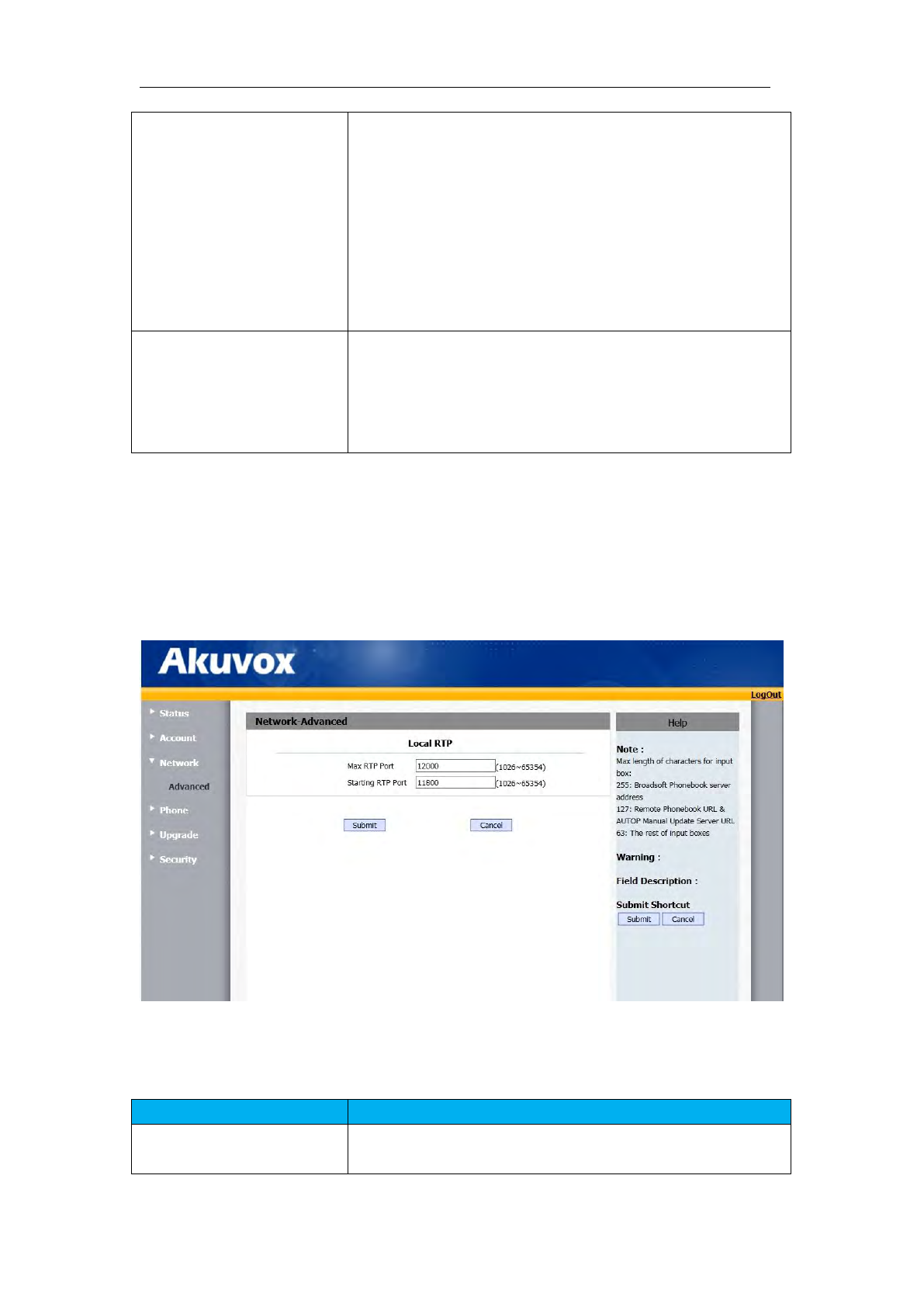
106
ongoing call will be disconnected automatically once the
session expired unless it’s been refreshed by UAC or
UAS.
Session Expire: Configure session expire time.
Session Refresher: To configure who should be response
for refreshing a session.
Note: UAC means User Agent Client, here stands for IP
phone. UAS means User Agent Server, here stands for SIP
server.
User Agent
One can customize User Angent field in the SIP message; If
user agent is set to specific value, user could see the
information from PCAP. If user agent is not set by default,
user could see the company name, model number and
firmware version from PCAP
8.5 Network ->Advanced
1. Click Network->Advanced
2. Filled the corresponding parameters you need.
Sections
Description
Local RTP
To display and configure Local RTP settings.
Max RTP Port: Determine the maximum port that RTP
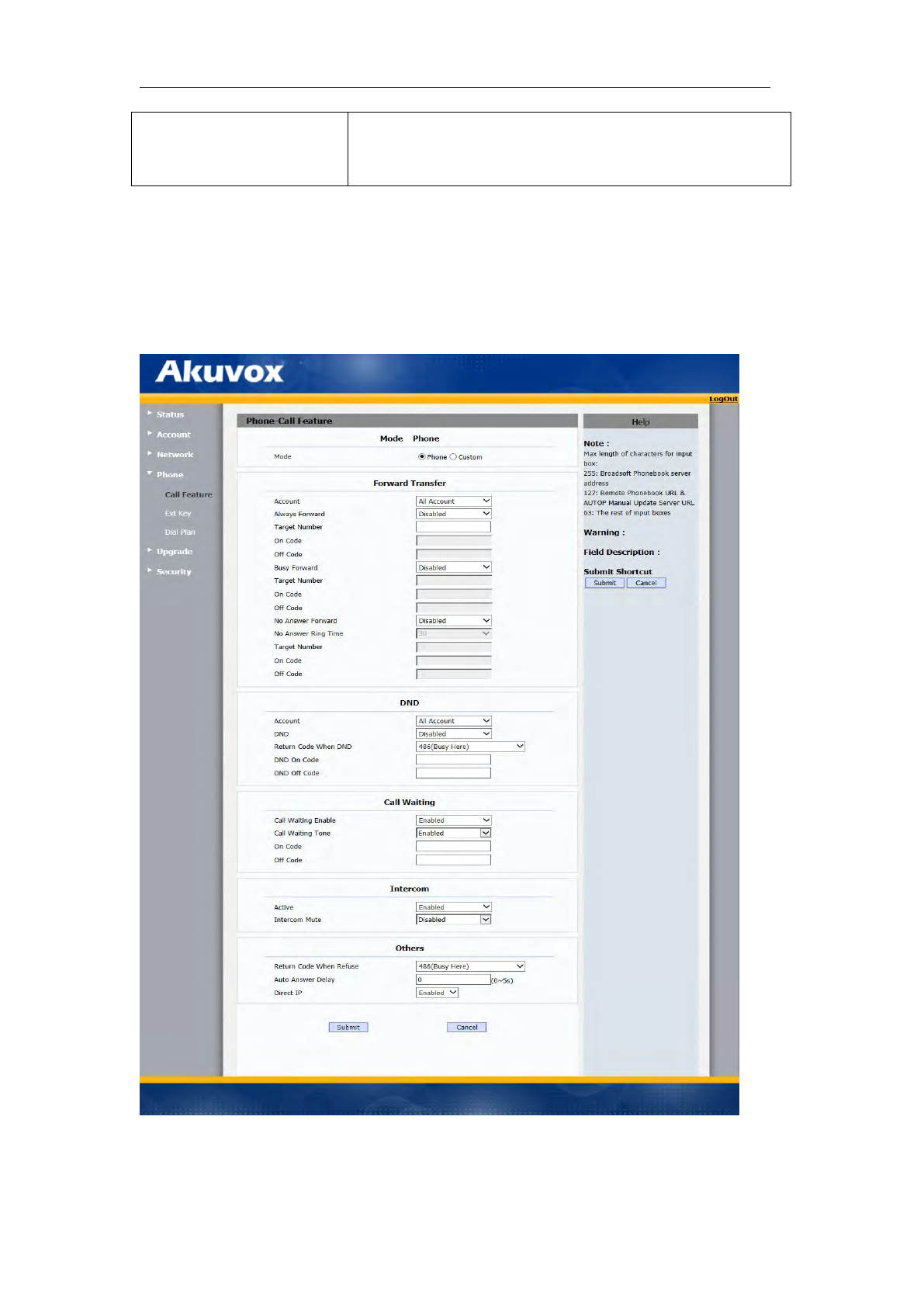
107
stream can use.
Min RTP Port: Determine the minimum port that RTP
stream can use.
8.6 Phone ->Call Feature
1. Click Phone->Call Feature
2. Filled the corresponding parameters you need.

108
Sections
Description
Forward Transfer
To display and configure Forward setting.
Note: There are three types of forward: Always Forward,
Busy Forward and No answer Forward.
Always Forward: Any incoming call will be forwarded in
any situation.
Busy Forward: An incoming call will be forwarded if IP
phone is busy.
No answer Forward: An incoming call will be forwarded
if it’s no answer after a specific time.
Call Waiting
To enable or disable Call Waiting.
Call Waiting Enable: If enabled, it allows IP phones to
receive a new incoming call when there is already an
active call.
Call Waiting Tone: If enabled, it allows IP phones to play
the call waiting tone to the waiting callee.
DND
DND(Do Not Disturb) allows IP phones to ignore any
incoming calls.
Return Code when DND: Determine what response code
should be sent back to server when there is an incoming
call if DND on.
DND On Code: The Code used to turn on DND on
server’s side, if configured, IP phone will send a SIP
message to server to turn on DND on server side if you
press DND when DND is off.
DND Off Code: The Code used to turn off DND on
server’s side, if configured, IP phone will send a SIP
message to server to turn off DND on server side if you
press DND when DND is on.
Intercom
Intercom allow user to establish a call directly with the callee.
Active: To enable or disable Intercom feature.
Intercom Mute: If enabled, once the call established, the
callee will be muted.
Others
Return Code When Refuse: Allows user to assign specific
code as return code to SIP server when an incoming call
is rejected.
Auto Answer Delay: To configure delay time before an
incoming call is automatically answered.
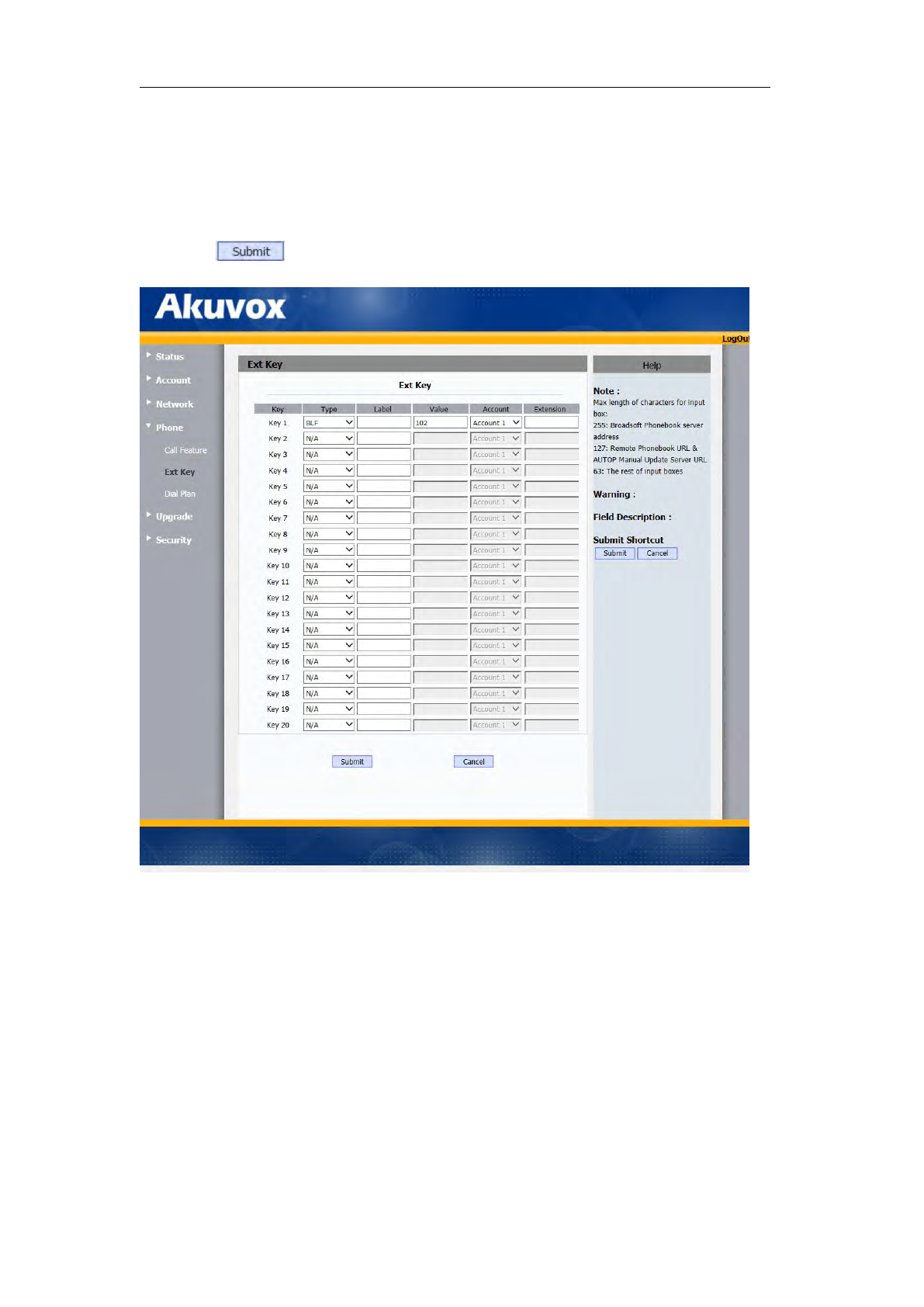
109
8.7 Phone-> Ext Key
1. Click Phone-> Ext Key
2. Select the Type, Account, input the Lable, Value.
3. Click
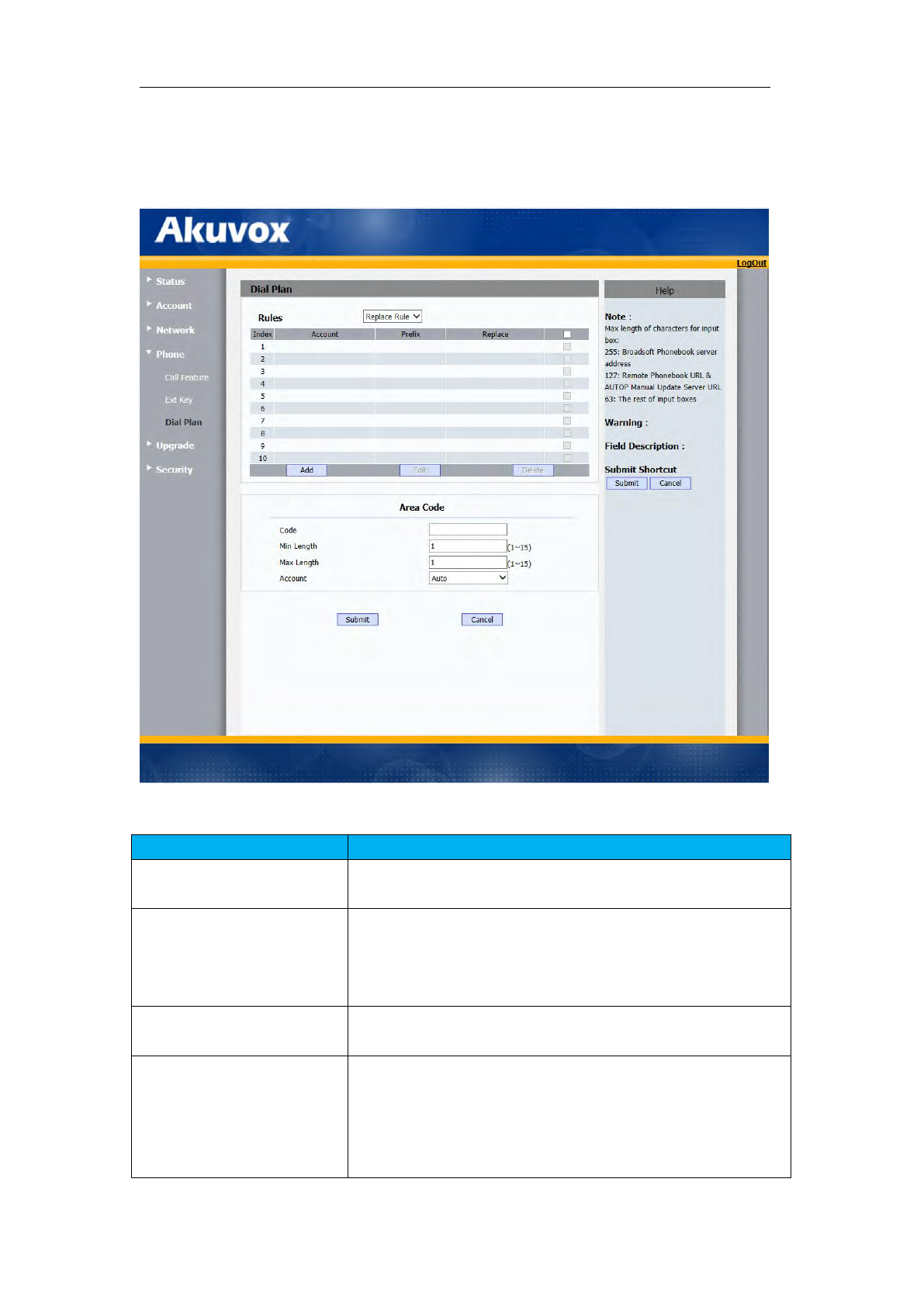
110
8.8 Phone->Dial Plan
Click Phone-> Dial Plan
Sections
Description
Rules
Allow user to select Replace rule or Dial-now to display or
edit.
Dial Now Delay
Allow user configure dial now delay time for dial now.
It means user can configure the IP phone to dial out the
phone number automatically after the designated delay time
if it match any dial now rule.
Rules Modify
Allow user to modify selected rules information, for dial-now
rule, user can modify related accounts, Dial now Rule itself.
Area Code
Area codes are also known as NPAs(Numbering Plan Areas).
They usually indicate different geographical areas within one
country. If entered numbers match the predefined area
code rule, the IP phone will automatically prefix outgoing
number with area code.
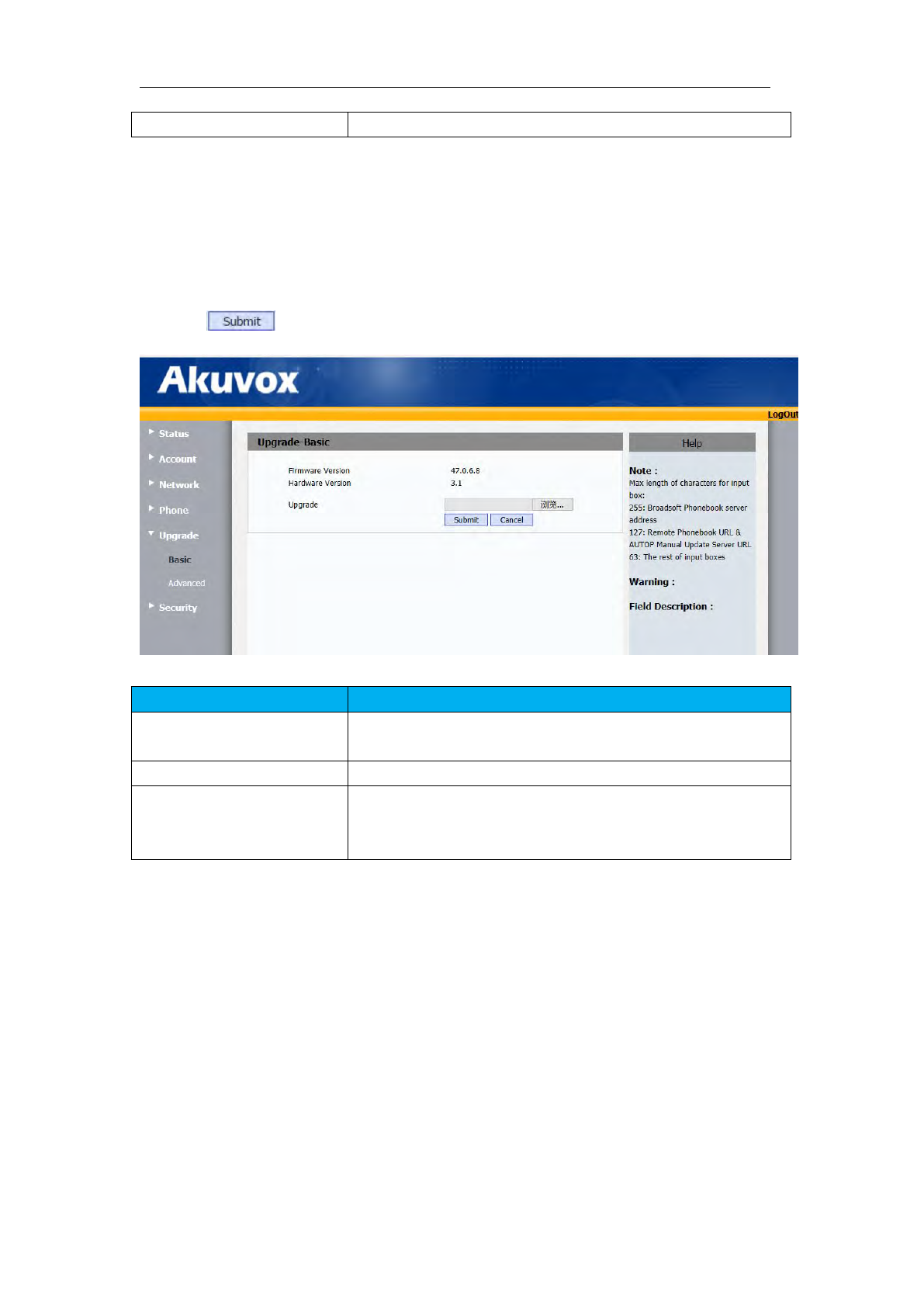
111
Note: There is only one area code rule supported.
8.9Upgrade->Basic
1.Click Upgrade->Basic
2.Choose the software you want to update from the computer.
3.Click
Sections
Description
Firmware version
To display firmware version, firmware version starts with
MODEL name.
Hardware Version
To display Hardware version.
Upgrade
To select upgrading rom file from local or a remote server
automatically.
Note: Please make sure it’s right file format for right model.
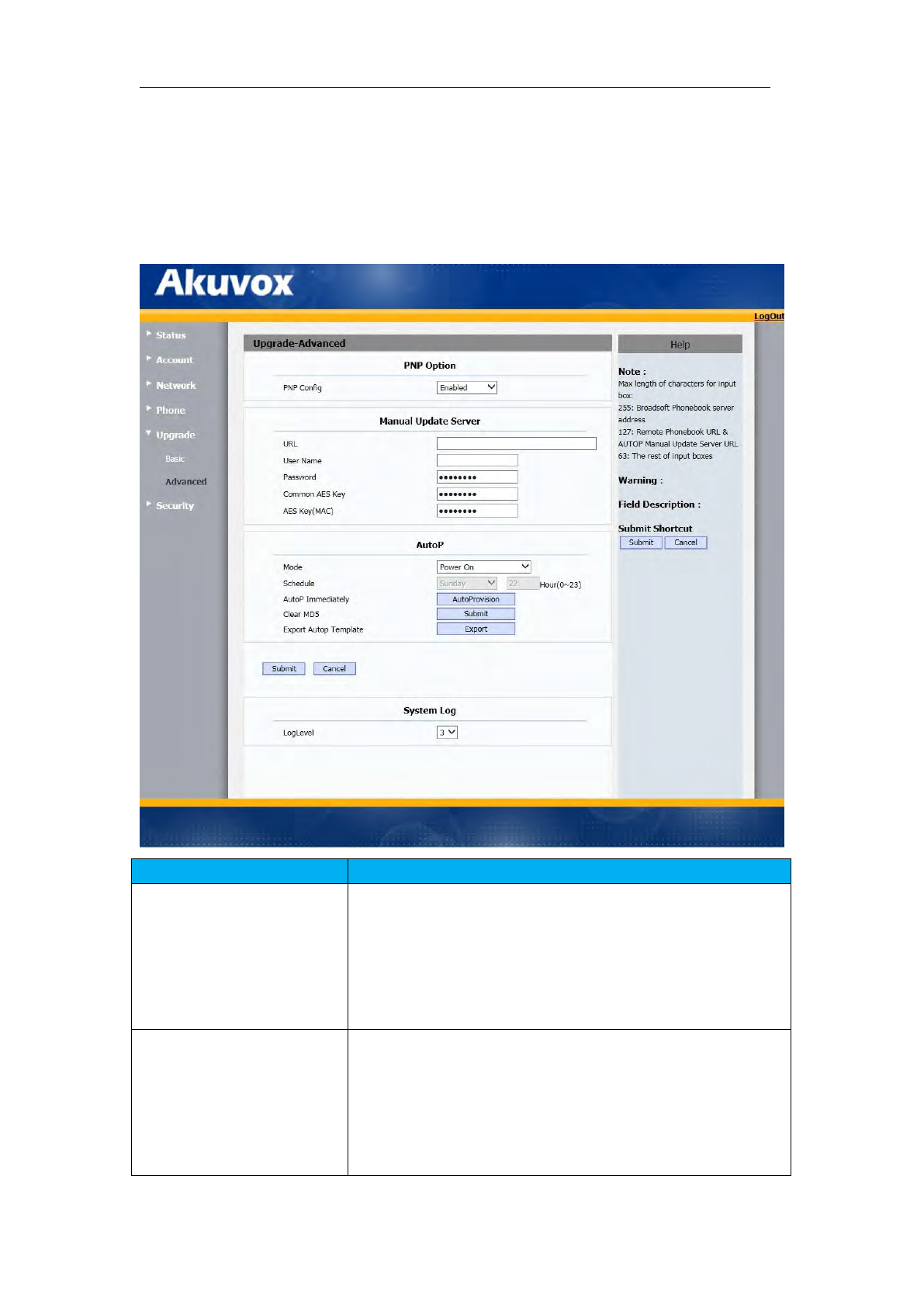
112
8.10 Upgrade->Advanced
1. Click Upgrade->Advanced
2. Filled the corresponding parameters you need.
Sections
Description
PNP Option
To display and configure PNP setting for Auto Provisioning.
PNP: Plug and Play, once PNP is enabled, the phone will
send SIP subscription message to PNP server
automatically to get Auto Provisioning server’s address.
By default, this SIP message is sent to multicast address
224.0.1.75(PNP server address by standard).
Manual Update Server
To display and configure manual update server’s settings.
URL: Auto provisioning server address.
User name: Configure if server needs an username to
access, otherwise left blank.
Password: Configure if server needs a password to
access, otherwise left blank.

113
Common AES Key: Used for IP phone to decipher
common Auto Provisioning configuration file.
AES Key (MAC): Used for IP phone to decipher
MAC-oriented auto provisioning configuration file(for
example, file name could be 0c1105888888.conf if IP
phone’s MAC address is 0c1105888888).
Note: AES is one of many encryption, it should be configure
only configure filed is ciphered with AES, otherwise left
blank.
AutoP
To display and configure Auto Provisioning mode settings.
This Auto Provisioning mode is actually self-explanatory.
For example, mode “Power on” means IP phone will go to do
Provisioning every time it powers on.
System Log
To display syslog level and export syslog file.
Syslog level: From level 0~7.The higher level means the more
specific syslog is saved to a temporary file.
By default, it’s level 3.
Export Log: Click to export temporary syslog file to local PC.
8.11 Security->Basic
1.Choose the user name (admin or user).
2.Enter the current password.
3.Enter the new password.
4.Confirm the new password.
Note: Security is configurable via web only.
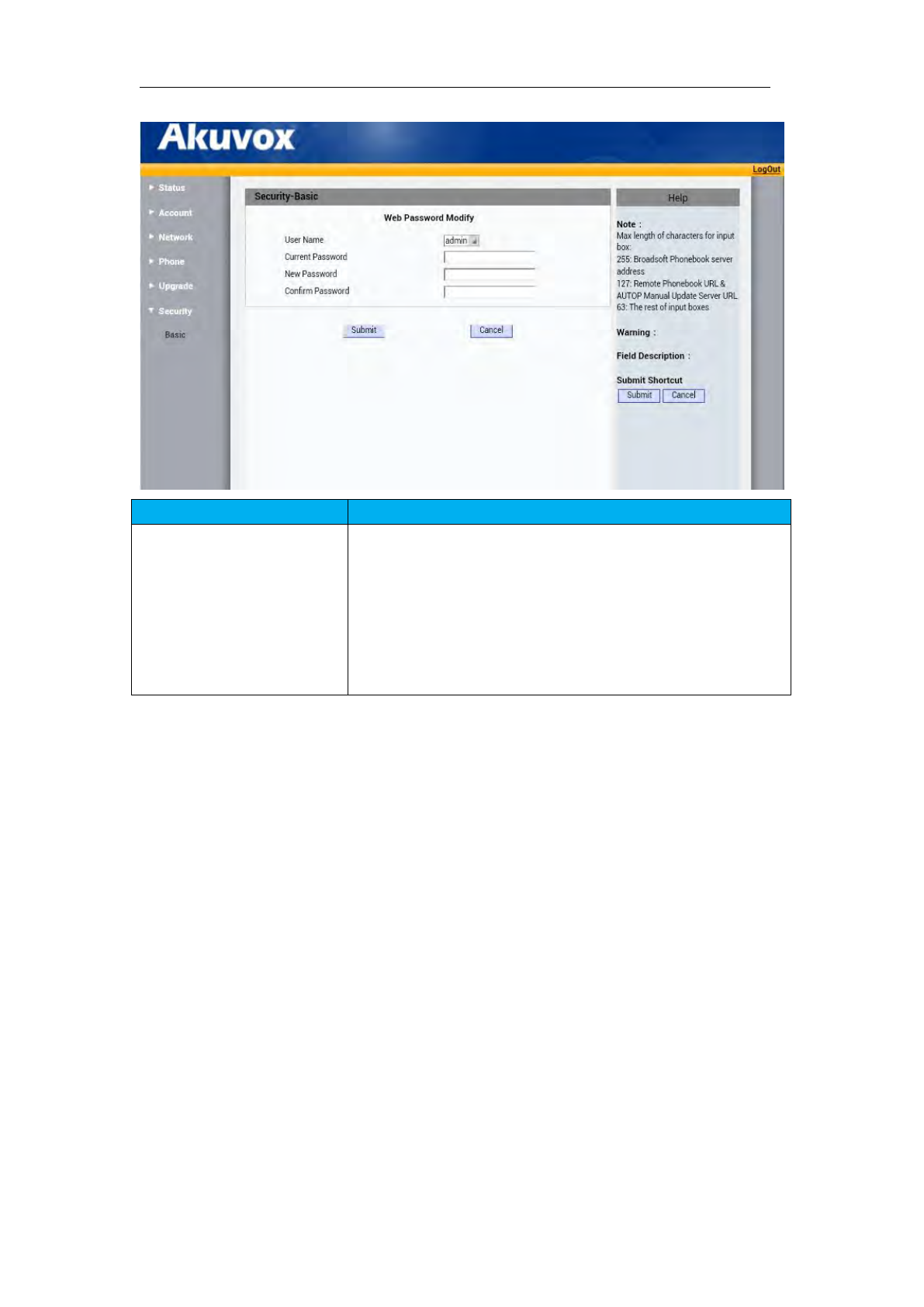
114
Sections
Description
Web Password Modify
To modify user’s password.
User Name: Choose the character you are.(admin or
user)
Current Password: The current password you used.
New Password: Input new password you intend to use.
Confirm Password: Repeat the new password.