ALTECZA VISUS Mobile Phone User Manual VISUS

ALTECZA S.A.S Mobile Phone VISUS

Contents

Users Manual

1MobilePhoneARKVISUSContents1. APPEARANCE AND KEYPAD OPERATIONS .................................................... 1 2. USING MEMORY CARD AS U DISK ........................................................... 2 4. BLUETOOTH .......................................................................................... 3 5. MAIL ................................................................................................... 4 6. DIALLING ........................................................................................... 5 7. MESSAGING .......................................................................................... 6 8. CONTACTS ........................................................................................... 7 9. INTERNET EXPLORER ............................................................................ 8 10. RECORDER ......................................................................................... 9 11.CLOCK ................................................................................................ 9 12.CACULATOR ......................................................................................... 9 13. CAMERA ........................................................................................... 10 14. IMAGES ........................................................................................... 11 15. MUSIC ............................................................................................ 12 16. CALENDER ....................................................................................... 13 17. FM RADIO ..................................................................................... 13 18. SETTINGS ....................................................................................... 14 1. Appearance and Keypad Operations Keys  Functions Home  Press this button to return home from any application or interface.  Press it to open recently opened application window. Menu   Press it to start the menu,which allows you to perform actions in the current interface or options’ menu.Back  Press it to return to the previous interface,or to close dialog box 、options’ menu、notification panel or the keypad. Power  Press it to open the phone’s menu,then you could choose to lock the screen、turn off the phone,or set it to the silent mode .
2UP Press it to increase the volume  Press it to turn the phone to vibration mode from the silent mode.Down Press it to decrease the volume.Proximity Sensor Cover it, and then the phone’s backlight will turn off.Front Camera Entering the camera interface, switched to the front camera can photo yourself. LED Light Display mobile phone status and prompt unread messages 2. Using Memory Card as U Disk Ifyouwanttosendmusic,picturesorotherfilestothephone’smemorycardfromthecomputer,youshouldsetmemorycardasudiskfirst.Setmemorycardasudisk1) ConnectthephonetothecomputerwithUSBcable.Thenotificationiconwillappearinthestatusbox.2) Openthenotificationpanel.3) Inthenotificationpanel,touchUSBisconnected,thentouch“OpentheUSBStorageDevice”. Notices:IfyouconnectyourphonetothecomputerthenchooseopentheUSBdevice,thephonecan’treadthememorycard.Youtemporarilycannotusesomeapplications,suchascamera. UninstalltheUDiskfromcomputerThesameasthemethodofconnectingit,seethefollowingpicture:3. Wifi Wi‐Fiprovidesasfaras300feet(100M)rangeofwirelessnetworkaccess.Ifyouusecellphonetoconnectwifi,youshouldconnecttothewirelessaccesspointor「hotspots」. Notices:TheavailabilityandcoverageofWi‐Fisignaldependonthenumber,infrastructureandotherobjectspenetratedbythesignal.OpenWi‐fiandtoconnecttothewirelessnetwork1) Presshome>menu,thentouchsettings>wifiandinternet2) Selectthewi‐fibox,toopenWi‐Fi.Phonewillautomaticallyscanforavailablewirelessnetworks.3) Tou chWi‐Fisettings.ThenalistofWi‐Finetworkwillshowthefoundednetworknameandsecuritysettings.(opennetworkorWEP、WPA/WPA2withpassword).IfyouenablethenotificationinWi‐Fisettings,Thestatusboxwillshowthisicon()whenopenavailablewirelessnetworkfounded.4) Tou ch oneoftheWi‐Fichoicestoconnectthenetwork.Whenyouchooseopennetwork,phonewillconnecttoitautomatically.IfyouchooseWEP、WPA/WPA2withpassword,youshouldtypethepasswordfirst,thentouchtoconnectit. Notices:whenthephoneisconnectedtothewirelessnetwork,ThestatusboxwillshowthisWi‐Fiicon(),andtheapproximatesignalstrengthen(thenumberoflitbars).Iftouchtheconnected
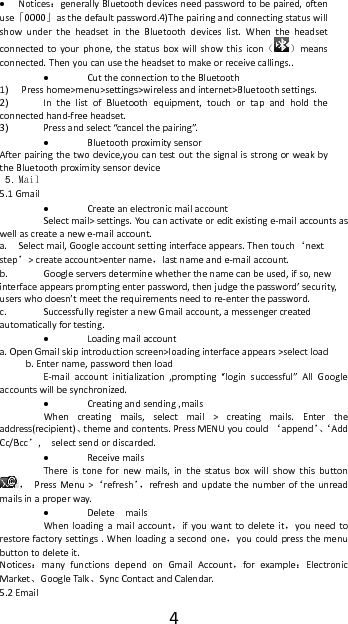
3network,willdisplaythenameofWi—Finetwork,status,speed,signal,strength,security,informationandIPaddress.Ifyouwanttodeletethewirelesssettings,pleasetouch“notreserve”asintherightpicture.Ifyouwanttoconnecttothisnetwork,youshouldre‐enterthesesettings. Notices:Unlessyouchoosenottoreservethenetwork,otherwise,thereisnoneedtore‐enterthecorrespondingpasswordwhennexttimeconnectingtothepreviouslyencryptedwirelessnetwork.Wi‐Fiwillsearchautomatically,thatis,phoneneedn’ttoperformadditionalstepstoconnectWi‐Finetworks. Notices:Unlessyouchoosenottoreservethenetworkwithpassword, otherwise,thereisnoneedtore‐enterthecorrespondingpasswordwhennexttimeconnectingtothepreviouslyencryptedwirelessnetwork.Wi‐Fiwillsearchautomatically,thatis,phoneneedn’ttoperformadditionalstepstoconnectWi‐Finetworks. ConnecttootherWi‐Finetworks1) Intheinterfaceofwirelessandnetwork,touchWi‐Fisettings.ThefoundedWi‐FinetworkswillshowontheWi‐Finetworklist.2) Tou chotherWi‐Finetworks,andthenyoucanconnecttothisnetwork. Notices:inaddition,youcansurftheinternetviaGPRS.WedefaultthattheGPRSinSIM1isopenedafterstarted,userscanselectmanually,thespecificlocationis“settings>wirelessandinternet>dataconnection”,touch“SIM1、SIN2、nodataconnection”,whenthedotturnsgreen,it’salreadyopened.4. Bluetooth TurnonBluetoothorsetthephonecanbedetected1) Presshome>menu,thetouchsettings.2) Tou chwirelessandinternet,thenchooseBluetoothboxtoopentheBluetoothfunction.Afterstarted,thestatusboxwillshowthisicon().Tou ch“scanfordevices”theitstartstoscanforalldeviceswithinrange.3) Tou ch Bluetoothsettings,allthedevicesfoundedwilldisplayinthelistundertheicon.(selectthebox“canbedetected”,setittobedetected,theotherBluetoothdeviceswillbeabletofindthephone.)important:themaximumdetectingtimeofthephoneis2minutes. PairingandconnectionofBluetoothheadset1)Presshome>menu,thentouchsettings.2)Touchwirelessandinternet>Bluetoothsettings,thenselectBluetoothbox,thenyourphonewillscanfortheBluetoothdeviceswithinrange,andshowthefoundeddevicesinthelistundertheicon. Tips:a. Ifthelistcan’tfindyourequipment,touchscanningequipmenttore‐scanit.b. Makesurethatthedeviceswantedareunderthedetectedmode.3)Tou ch headsetintheequipmentlisttofinishtheconnection.
4 Notices:generallyBluetoothdevicesneedpasswordtobepaired,oftenuse「0000」asthedefaultpassword.4)ThepairingandconnectingstatuswillshowundertheheadsetintheBluetoothdeviceslist.Whentheheadsetconnectedtoyourphone,thestatusboxwillshowthisicon()meansconnected.Thenyoucanusetheheadsettomakeorreceivecallings.. CuttheconnectiontotheBluetooth1) Presshome>menu>settings>wirelessandinternet>Bluetoothsettings.2) InthelistofBluetoothequipment,touchortapandholdtheconnectedhand‐freeheadset.3) Pressandselect“cancelthepairing”. Bluetoothproximitysensor Afterpairingthetwodevice,youcantestoutthesignalisstrongorweakbytheBluetoothproximitysensordevice 5. Mail 5.1Gmail CreateanelectronicmailaccountSelectmail>settings.You canactivateoreditexistinge‐mailaccountsaswellascreateanewe‐mailaccount.a. Selectmail,Googleaccountsettinginterfaceappears.Thentouch‘nextstep’>createaccount>entername,lastnameande‐mailaccount.b. Googleserversdeterminewhetherthenamecanbeused,ifso,newinterfaceappearspromptingenterpassword,thenjudgethepassword’security,userswhodoesn’tmeettherequirementsneedtore‐enterthepassword.c. SuccessfullyregisteranewGmailaccount,amessengercreatedautomaticallyfortesting. Loadingmailaccounta.OpenGmailskipintroductionscreen>loadinginterfaceappears>selectloadb.Entername,passwordthenloadE‐mailaccountinitialization,prompting“loginsuccessful”AllGoogleaccountswillbesynchronized. Creatingandsending,mailsWhencreatingmails,selectmail>creatingmails.Entertheaddress(recipient)、themeandcontents.PressMENUyoucould‘append’、‘AddCc/Bcc’,selectsendordiscarded. ReceivemailsThereistonefornewmails,inthestatusboxwillshowthisbutton,PressMenu>‘refresh’,refreshandupdatethenumberoftheunreadmailsinaproperway. DeletemailsWhenloadingamailaccount,ifyouwanttodeleteit,youneedtorestorefactorysettings.Whenloadingasecondone,youcouldpressthemenubuttontodeleteit.Notices:manyfunctionsdependonGmailAccount,forexample:ElectronicMarket、GoogleTalk 、SyncContactandCalendar.5.2Email
5 LoadEmailEnterthecorrectaddressandpassword>settingscorrectportandPOPserver,checktheserversettingsautomatically.SetthecorrectSMTPserver,checkthemailsserver’ssendingandreceivingsettings,thenenterthespecifiedaccountnameanddisplayednameontheoutinge‐mail.>Finish.  CreateandsendmailsWhencreatingmails,selectmails>createmails.Entertheaddress(recipient)、themeandcontents.PressMENUyoucould‘append’、‘AddCc/Bcc’,selectsendordiscardedorsaveasdraft.6. Dialling Whentheiconofinternetserverappearsinthescreen,youcoulddialorreceivecallings.Thesignalbaronthetoprightcornershowthestrengthofnetworksignal(themaximumwith4signalbars). StartdialingOpenapplication’smainmenu>dial.You couldchooseSIM1orSIM2todothedialing. DialingAttheinterfaceof“dialer”,enterthephonenumber,andthenclickthedialingkey,afterthat,youshouldchooseoneSIMcardorinternetcall.Ifneededtocalltheextension,youcouldclickthe“dialpad”inthebottomofthescreentoopentheinterfaceorpressmenukeytoselect“delay2seconds”,andthenenterthenumberoftheextension. TelephonecallsinthecalllogEverytelephonenumbercalledandreceivedin“SIM1、SIM2”willreservedinphone’smenuofcalllog.Onthetopleftofeverycallrecordwillshow“SIM1orSIM2”Allnumbersinthecalllogcanbedialedbyclickingthebutton”dial”ontherightsideofthescreen.Whennumberlistappearing,clickittocatchdetails;pressitforlongyoucoulddialvia“SIM1orSIM2”,meanwhileyoucanedit,delete,savethenumberordootheroperations. ReceivecallingsWhencallingcomes(topleftwillshowfromwhichSIMcard)press“Answer”andslidetowardsrightuntilthemiddlebutton,thenyoucanreceivecallings. ProximitysensorAccording to the distance between phone and human body,it will adjust automatically the switch of the backlight. During the call, close the phone to the ear, the backlight will turn off automatically,which could save batteries and prevent inadvertently touching.  Refusetoanswerthephonea. Whenstandby,callingcomes,press“refuse”buttonandslidetowardsleftsideuntilthemiddlebutton,thenyoucouldrefusethecalling.b. Whenusing,callingcomes,clickonthe“refuse”buttontorefusethecalling.
6 Two‐waycall/multipartycall(conferencecall) Notices:thisfunctionneedsthatSIMcardopenmultipartycallfeatures.1) Alreadyexistacallinthephone2) Click“Addcalls”,dialanothercall(orreceiveanothercall,phonedefaultopen”ca llwaiting”(settings–dialingsettings–otherdialingsettings),afterbothconnected,couldviewthestatusofcalling.3)select“combinecall”–youcancombinetwocallsintooneway.4)aftermultipartycallconnected,youcouldseparatethecallsorhanguponeofthemvia“thesmallarrowofconferencecall”. Telephonerecording Duringthecall,more>startrecord,youcouldrecordthedialogofthecall.1)settings>setotherfunctionsofthecallinthedialingsettings,forexample:CallTra nsfer–afterallthesettingsfinishedandturnedon,youcouldtransferthecalltoacertainnumber.2)Insettings>dialingsettings>otherdialingsettings,open“callwaiting”.Afterturnedon,youcanreceiveanothercallwhenalreadyexistone,Theansweringandrejectingfunctionsarejustliketheordinaryphone. Onlyin73platform VideocallWhenyouusevideocall,ensuretoinstall3GSIMcard.inthedialinginterface,enternumbers,thenpressthesymbol ,sothatcompletethevideocall.ThesecondwaytousevideocallOpenthemenuofapplications>contacts,pressonecontactofthecontacts,thenpresslongthephonenumber,andselectthe”videocall”.7. Messaging  Important:themessagetitleofthisphoneisthephonenumber,willbereservedinssimilarforofdialog,insteadoftheusualfolderstructure.Messageswithbluebackgroundarethosereceived,andmessageswithwhitebackgroundarethosesent. SendSMStocertainphonenumber1) Presshome>messaging,touch“newmessages”.2) Intheinterfaceof“edit”:a. Click“recipient”boxtostartinputmethod,youcanalsoclick“enter”boxtostartinputmethod,inthatwayyoucanentercharacters.b. Clickthebuttonof“sendfromSiM1orSIM2”tostartsending. SendMMStocertainphonenumberWhencreatingmessage,itwasdefaultedasSMS,itwillbeturnedtoMMSwhenfollowingoperationsweredone.YoucansendMMSviaclicking“send”afterediting.1) Intheinterfaceof“edit”,Clickthebuttonof“Menu”:2) Click“append”,youcanspendthefollowingattachments,thenitwill
7beturnedtoMMSautomatically.  SendmessagestomultiplenumbersEntermultiplenumbersintheboxofentering,eachnumberisdividedbythecommainEnglish. Notices:Fornowthisphonecanmassmessagestoalmost20numbers,thecorrectnumberdependsonthecharacters,youcanonlyenter312charactersintheboxof“recipient”.Whenamessageissentorsentagain,alittleyellowletterwillappear.Thenumber1or2ontheletterreferstoSIM1orSIM2.Whenmessagesendingfailed,aredtrianglewithexclamationwillappear.wheneditinginformationotherfunctionsofMenubutton8. Contacts  Openthemenuofapplications>contactsDefaultdisplayphonecontactsandSIMcardcontacts,sortcontactsbyfirstletterofalphabet.ClicktheSearchicontoenterthecontactsearchinterfaceClickthe"+"tocreatenewcontact 1)contacts>Menu>newcontact>SelectSavecontactstophoneorSIMcard,thenintotheinterfaceofeditingcontactsYoucaneditthecontacts’picture,name,phonenumber,e‐mail,postaladdress,thentouch“finish”.2)contacts>Menu>searchera.Enternumbersorletters,ifmatchwithcontacts,theywillbedisplayedinthesearchresults.b.Ifthereisnosearchtomatchthecontacts,theinterfacewillbe'nomatchingcontacts’.3)contact>Menu>deletecontactsa.Youcanselectall,clickthedeletebuttontodeleteallcontacts,includingthecontactsofphoneandSIMcardb.Youcanselectoneormoreindividualcontact,clickDelete,deletealltheselectedcontacts.4)contacts>Menu>groupsa.defaultgroupinclude:VIP,Schoolmate,friends,Family,Co‐worker.b.SelectAddGroups,editthenewgroupname,andgotothecontactsearchinterface,youcanaddthegroupcontact. 5)contacts>menu>speeddiala.Voicemailb.No.2‐9numbers,click”Taptoaddspeeddail”,selectacontactasaspeeddail.Aftersuccessfullysettingthedialerinterface,longpressthenumberkeys,youcandialthecontactnumber.6)contacts>more
8a.clickimport/export,Inthelocalphone,SIMcardandSDcardthreecopiesofeachothertoachievecontactinformation.Youcanselect"CopySource"andthenselectNext,selectthecontactstocopy,soshatcompletethecopyofcontacts.b.Dispayoptions,canselectthewholeorpartscontactsin“Onlycontactswithphones”,”PhoneContacts”o r ”S IMsContacts”c.Accounts,canchoosethe”Backgroupdata”and”Auto‐sync”.d.ShareVisiblecontacts,allofthecontactscanbeimportedintotheSDcard,orsharingviaBluetooth,TextmessageorGmail. Addcommoncontactstothecollectioninterface.1)Tou ch contacttab.2)Tou ch thecontactthatyouwanttoaddtothecollection(contactsreservedontheSIMcardcannotbeadded).3)Inthedetailedinformationofcontacts,touchthisiconbesidesthecontact.4)Pressforlongthecontactinthepop‐upmenutoaddittothecollection. Theinterfaceofcontacts>pressMenubutton>selectsearchaEnterthefirstletterofthenamesinthelist(Chineseorletter)tofindthematchedcontact.bEnterthefirstnumberinthesearchingboxtofindcontactsnamedundernumbers.cEntertheexactlymatchednumberswithcontactsinthesearchingbox,thenpressthe“search”button.dIfthereisnomatchingcontact,thentheinterfacewillappear“nocontactfounded”9. Internet Explorer Internetexplorer1)Intheinterfaceofinternetexplorer,touchaddressfiledandentertheURL.2)UsekeypadtoenterURL.Theappropriatewebsiteswillappearonthescreen.You cantouchitdirectlygotothepageorcontinuetoenterURL. HomepageSelect“homepage”,youcouldloadinthesethomepage.Ifyoudonotsetit,youwillusethevendor’spre‐setsites. Functionsofmenu1) Menu>BackwardAfterbrowsingthroughmultiplepages,willreturntothepreviouspagethecurrentpage.2) Menu>FarwardAfterbrowsingthroughmultiplepages,willmovetoawebpageafterthecurrentpage.3) Menu>WindowsYoucanviewallopenwindowstothecurrent. 4) Menu>Bookmarksa. Clickthe“Bookmarks”tomakethecurrentURLasabookmarksaved.b. Clickthebookmarkunderthebookmarkslist,willopentheURL.5) Menu>More
9a. Addbookmarks,savethecurrentURLasbookmark.b. Findonpage,searchwhatyouneedincurrentpage.c. Selecttext,inthetext,clickanddragtoselectapieceoftext.d. Pageinfo,displaypageaddressandotherinformationofthecurrentbrowsing.e. Sharepage,selecttheBluetoothorSMStosharethecurrentpage.f. Downloads,showallthecontentdownloaded.g. History,Showyourbrowsinghistory,andviewthemostvisitedpagesofinformation.h. Setting,containtsavarietyofbrowsersettings.10. Recorder Recordercanrecordvoice,andsenditquicklyviaBluetoothorMMSaswellasmakeitasringtone. Notices:recordercanonlysavetheaudiofilesasAMRformat.1)Clicktherecorderapplication.2) Keepthephone’smicrophonenearthevoicesource. 3)Clickrecordertorecordvoices,andclicktostoporplayback. Allrecordingssaveinmyrecordingfolderinthedefaultmusicprogram.11.Clock Openthemenuofapplication,click  1) Brightnesscontrol:touchittosetthebrightnessoftheinterface.2) Alarm:touchalarmtoentertheinterface 3) PPT:touchittoshufflethepictures 4) Home:gobacktotheinterfaceofIdle AlarmAfterfunctionsset,phonewillarrivesinthesettingtimetoalertyoubyringingorvibratingtoachieveit’sfunction.PressMenutoaddalarm,youcanalsoadditfromtheaddinginterface.You couldsetthealarmaccordingtoyourneeds.Intheinterfaceofalarmwillshowthreeclosedalarms(twoalarmclocksareMondaytoFriday8:30,9:00).EditYoucaneditthecurrentalarm,youcouldedittime、ringingtones、vibration、repeatformandtabs.ressforlongthetimeyoucould:stopthealarm、changealarmsettings、cancelalarm.Intheinterfaceofalarmsettings,youcouldperformtheoperationsofchangingtime、repeat、ringtones、vibration、tabs,etc.12.Caculator calculatorthisfunctioncanturnyourphoneintocalculator,itcandosomesimplecalculations.·Tou ch thenumberkeystomakeitappearintheblankbox.Intheinterfaceofcalculator,pressMENUbuttonorholddownthescreentotheleft,thentheseniorpanelappears.seniorpanel
1013. Camera  13.1camera PriorpreparationInstallmemorycardbeforeusingthecameraorvideocamera.Allyourphotosorvideostakenbythephonearestoredinmemorycard. OpencameraPresshome,touchmenu,selectcamera.Choosethevideomodeifyouwanttomakevideos.Thescreenwillautomaticallyswitchtolandscapemode. Take pictures1)Aimyourobjectwiththescreen.2)Tou ch the“shutter”buttononthescreen.3)Aftertaking,photoswillsavetothecamera’sgalleyfolderwiththenameoftakingtime.4)Youcanviewthephotosbytouchingthepreviewboxbutton.5)CamerasettingsYoucantouchthebuttonof“set”intheinterfaceofcameratodothesettingsUndercameraviewfindermode,pressMenu,youcanswitchtovideoorphotos’gallery.Onthetoprightofcameraviewfindermode,displaythepreviewofthepreviouspicture.Touc hpreviewbox,thephotodisplayonfullscreenandyoucanenlargeittoviewdetails.Camerasettings:button1:Focusmode,exposure,framingmode,picturesize,picturequality,coloreffect.button2:Cameramode,high‐speedcontinuousshooting,ISOsensitivity,self‐timer,focusmode,facerecognition,meteringmode,toavoidflicker,sharpness,hue,saturation,brightness,contrast.button3:Storagelocation.button4:Whitebalance.button5:Flashmode.button6:Zoom.Tou ch “set”button,youcandosettingsinthecamera.13.2 Videocamera  PriorpreparationInstallmemorycardbeforeusingthecameraorvideocamera.Allyourphotosorvideostakenbythephonearestoredinmemorycard. OpencameraPresshome,touchmenu,selectcamera.Choosevideocameramode.Thescreenwillautomaticallyswitchtolandscapemode. Take pictures1)Aimyourobjectwiththescreen.2)Tou ch the“shutter”buttononthescreen.3)Aftertaking,photoswillsavetothecamera’sgalleyfolderwiththenameoftakingtime.4)Youcanviewthevideosbytouchingthepreviewboxbutton.5)Videocamerasettings
11Youcantouchthebuttonof“set”intheinterfaceofcameratodothesettingsUndercameraviewfindermode,pressMenu,youcanswitchtovideoorphotos’gallery.Onthetoprightofcameraviewfindermode,displaythepreviewofthepreviousvideo.To uc hpreviewbox,thevideowilldisplayonfullscreenandyoucantouchtheplaybuttontoviewit.Videocamerasettingsbutton1:Focusmode,anti‐focus,exposure,framingmode,videoquality,videolength,coloreffects.button2:Voicerecording,avoidingflicker,sharpness,hue,saturation,brightness,contrast,camera.button3:Whitebalancebutton4:Flashmodebutton5:Zoom.Tou ch “set”button,youcandosettingsinthecamera.14. Images  OpenimagesPresshome,touchlabelofapplications,thentouchphotos’galley.Intheinterfaceofcamera,Pressmenutoopenit,thentouchtooperate. UseimagesAftertakingpictures,youcanviewthemandsharethemwithyourfriends. Viewimages1)Inthepictureinterface,touchphotoalbumtoviewimages.2)Tou ch thethumbnailtoviewpicturesonfullscreen.Youcanchoosetodisplaysmallorlargethumbnails.Holddownthescreentowardstheleftsidetoviewthenextphotoortowardsrighttoviewthepreviousone.Inthephotoalbumorlist,pressandholddownthepicturetowardslefttoviewthenextpicture,ortowardsrighttoviewthepreviousone. CropimagesInthephotos’gallery,pressthephotoyouwanttocrop,choosemenu,‘more’and‘crop’,thentheinstrumentsofcroppingwillappear.a.Toadjustthetrimmersize,pressandholdtheedgeofcuttingtool.Afterthetrimmerarrowappears,dragyourfingerfromthecenterinwardoroutward,thenyoucanadjustthesize.b.Tokeeptheratioofthetrimmer,pleasepressanyoneofthefourcorners.。c.Tomovethetrimmertootherareasofthepicture,holddownthecenterofcuttingdevice,thendragyourfingertocertainposition. Sendimagesviamails1)Intheimagesgallery,pressthewantedphoto,choosemenu,thentouchshare.Touc hGmailwhentipsappear. Picturewillbeautomaticallyattachedtoe‐mail.Editthemail,thentouchsend.  Sendimagesviamessages1)Intheimagesgallery,pressthewantedphoto,choosemenu,thentouchshare.Touc hGmailwhentipsappear. Picturewillbeautomaticallyattachedtomessage.Editthemail,andthentouchsend.  Usevideos
12Aftervideotaken,youcanviewitorshareitwithyourfriends.Watchmovies1)Intheinterfaceofphotos’gallery,touchvideosalbum.Youcanwatchmoviesaftertouchingthewantedvideo.2)Tou ch thescreen,thentheplaycontrolkeysappear.15. Music Thephonecanplaydigitalaudiofilesinmemorycard.Thefollowingformatsareavailable:AMR、M4A、MIDI、MP3、WAV、OGG.  OpenMusicPresshome,touchthelabelofapplications,touchmusic.ThentheinterfaceofMusicMediaappears. MusicMediaYourmusicfilesareclassifiedaccordingtothefollowingfourcategories:Artists,albums,songsandplaylists.Touchoneofthesecategories;youcanviewthelistinside.Continuetheoperations,untilyourwantedmusicappears.Suchas,ifyouchooseArtistsalistofartistssortedbythenumbersinEnglishwillappear.Chooseanyontoopenthelist,thenallthealbumsandsongswillappear.Selectonealbum,thenthesongsinitwillbeplayed. Tips:You canplayallofthesongsintheinterfaceofmusicmedia,inrandomsequence.PressMenu,andthentouchthePartyShuffle.Thenwillstartplayingthefirstsongrandomlyselected.ToclosethePartyShuffle,pressMenu,thentouchtoturnoffthePartyShuffle. ViewlyricsWhenthecorrespondingtrackshavelyricsfile,theplayerdisplaysthelyricssources.Clicktheuparrow,youcanplaymusic,viewlyricsatthesametime. Createaplaylist1)Tou ch anycategoryofmusicmediaonthescreen.2)Inthelist,youcanpressandslideupanddownthescreentobrowsetheartist,albumorsongthatyouwanttoaddtotheplaylist.3)Presstheartist,albumorsong,andthentouchtheoptionsmenuintheplaylist.4)Intheinterfaceofaddingtotheplaylistwindow,touchthenewplaylist.5)Enterthenewnameoftheplaylist,andthentouchtosave. ManagetheplaylistEntertheinterfaceofmusicmediathentouchtheplaylist.1)Toplaysongsoftheplaylist,touchthenameofplaylist.2)Todeleteaplaylist,pressandholdthePlaylist,andthentouchRemove.3)Torefreshthelistofsongsorremovesongs,holddowntheplaylist,andthentouchtheoptionsmenuintheeditor.4)Todeletethelistofsongs,holddownthesongs,andthentouchplaylisttodeleteit.5)Torenameaplaylist,pressandholdtheplaylist,thentouchOptionsmenurenamed.Enterthenewplaylistname,andthentouch“save".6)Ifyouwanttosetthesongtotheringtones,andthentouchthesongasaringtone.Thesongwillbesetasthedefaultringtone.7)ifyouwanttousethesongasnoticeringtone,youcanpressmenuandtouch
13thesongasringtone.andthentouchtheNoticeringtone.Thesongwillbesetasthenoticeringtone.8)ifyouwanttocutthesongtotheringtone,youcanpressthemenuandselectthesongasringtone,andthentouchthecutringtone.Asshown,youcanchoosethestarttimeandtheendtime,atlasttouchthe‘save’,itwillbesavedtoringtone.Itcanbesettothedefaulttingtone,canbeassignedtothecontactastheringtoneofthecontacts.16. Calender EnterthecalenderapplicationLoadGogglesaccounts,entertheapplication,Intheinterfaceofmonthorweekwillusegraytohighlighttheday.Displaydefaultthedateonthecurrentmonth. Intheinterface,pressmenu,4displaymodeswillappear:1)ScheduleIntrfaceshowsacertainschedule(clickontheinitialtimeandviewforward,clickthefinaltimetoviewbackwards)2)dayInterfacedisplaysaday'sschedule(lastclickeddate),Slidearoundtoturnpageaccoringday.3)weekInterfacedisplaysaweek'sschedule(lastclickeddate),Slidearoundtoturnpageaccoringweek.4)todayInterfacedisplaysaday'sschedule,Intheinterfaceofmonthorweekusegraytohighlighttheday.5)monthnterfacedisplaysamonth'sschedule(lastclickeddate)Slidearoundtoturnpageaccoringmonth. Newactivities1) Pressmenu,more<touchnewactivities.2) Enterthenameofactivityintheactivities’box.Notices:Suchasspecialoccasionssuchasbirthdayoradaywithevents,settheall‐dayoptiontoYes.Iftheactivityisatacertaintimeperiod,selectthestarttimeandendtime. 3)Entertheeventlocation,description,guests,repeat,remindtime.4) Clickfinishtoreturntocalendar.The details of activities boxNotices:All‐dayeventsappearinthecalendarheading.Itwillnotshowtheperiodofcalendar.Cancelactivities:Inthetimeframe,pressforlongtodeletetheactivity.17. FM Radio FM Radio   Through this program, you may listen to FM radio on the device, FM radio use the wired headset as an antenna to receive signals, before opening this program ,you can install  the original equipment-headphones, when listening, you can switch it manually    to speakers or the mode with wired headphones.  Open FM radio   Touch this label  to open the application of FM radio. Click the Back button, the radio program move to the background, and you can still continue to listen to programs and other applications run at the same time. Press menu and click    to exit radio.  Collect the channel you are favorite
14Press the menu button in the FM interface,click the “search&save” ,and then view the channel list,press long one channel ,click “Add to Favorite”to rename the channel.  Press the menu,you will see below 18. Settings Your serviceprovidermaydefaultsomedevicesettings,soyoumaynotbeabletochangethesesettings. SIM card manage   1)Tou ch ittochooseortodisabletheSIMcard,thecardisgreywhendisabled,theflightmodedisplaysonstatusbar.2)ThedefaultSIMcard,youcanchooseVoicecall,Videocall,Messaging,Dataconnection. Wirelessandinternet  1) FlightmodeTou ch toopenorclose.2)  Wi‐FiandWi‐FisettingsTo uch Wi‐Fi toopen .OpenWi‐Fi,itcansearchforavailablenetworksautomatically,networkswithoutpasswordcanbeuseddirectly,othersneedtoenterthepasswordfirst. Notice:OpenWi‐Fithentheflightmode,Wi‐Fiwillcloseautomatically;OpenflightmodethenconnectWi‐Fi,itcanbeusednormally.WPSconnection,wirelessAPandmobilephoneareneededtosupportAOSS,youcandirectyconnectwithoutenteringakey.3) BluetoothandBluetoothsetting.4) Tethering&portablehotspotShareyourdigitaldataviaUSB5) VirtualPrivateNetworks(VPN)Settings.6) Mobilenetworkenter“mobilenetworksettings”whichinclude:aDataroamingbAccesspintnamecNetworkoperators.7) GPRSdataprioritymode Callingsettings 1) VoiceCalla. Voicemail,inthevoicesettings,youcanenterthevoicemailnumber.b. Callforward,YoucansetAlwaysforward,Forwardwhenbusy,Forwardwhenunanswer,Forwardwhenunreachable.c. Callbarringd. Additingalsettings,CallIDandCallwaiting2) VideoCalla. Pictureforreplacinglocalvideo,setapicturetodisplaywhencameraoffuse.b. Enablebackcamera,availabletoswitchcamerasifturnoff.c. Peervideobiggerthanlocalvideo,trunontomakepeervideobiggerthanlocalvideod. Localvideodisply,tomakeoutgoingvideocallorincomingvideocall.e. Othersettings,includecallforward,callbarring,additionalsettings.3) InternetCallCanaddaccouts4) Othersettingsa. FixedDialingNumbers
15b. Callcostc. Cellbroadcastd. Minuteremindere. Phonesettingsf. TTYsettings Extra settings  a. Applications  allow application moving or select install ocation b. Display         animated、rotatin c. Input           input behavior,button d. Interface       adjust interface、cross border 
16FCCWarning:Thisdevicecomplieswithpart15oftheFCCRules.Operationissubjecttothefollowingtwoconditions:(1)Thisdevicemaynotcauseharmfulinterference,and(2)thisdevicemustacceptanyinterferencereceived,includinginterferencethatmaycauseundesiredoperation.AnyChangesormodificationsnotexpresslyapprovedbythepartyresponsibleforcompliancecouldvoidtheuser'sauthoritytooperatetheequipment.Note:ThisequipmenthasbeentestedandfoundtocomplywiththelimitsforaClassBdigitaldevice,pursuanttopart15oftheFCCRules.Theselimitsaredesignedtoprovidereasonableprotectionagainstharmfulinterferenceinaresidentialinstallation.Thisequipmentgeneratesusesandcanradiateradiofrequencyenergyand,ifnotinstalledandusedinaccordancewiththeinstructions,maycauseharmfulinterferencetoradiocommunications.However,thereisnoguaranteethatinterferencewillnotoccurinaparticularinstallation.Ifthisequipmentdoescauseharmfulinterferencetoradioortelevisionreception,whichcanbedeterminedbyturningtheequipmentoffandon,theuserisencouragedtotrytocorrecttheinterferencebyoneormoreofthefollowingmeasures:‐Reorientorrelocatethereceivingantenna.‐Increasetheseparationbetweentheequipmentandreceiver.‐Connecttheequipmentintoanoutletonacircuitdifferentfromthattowhichthereceiverisconnected.‐Consultthedealeroranexperiencedradio/TVtechnicianforhelp.TheSARlimitofUSA(FCC)is1.6W/kgaveragedoveronegramoftissue.DevicetypesMobilePhone/VISUS(FCCID:2AB6FVISUS)hasalsobeentestedagainstthisSARlimit.ThehighestreportedSARvaluesforhead,body‐wornaccessory,andproductspecific(Hotspot)are0.26W/kg,0.62W/kg,and0.83W/kgrespectively.Thisdevicewastestedfortypicalbody‐wornoperationswiththebackofthehandsetkept10mmfromthebody.TomaintaincompliancewithFCCRFexposurerequirements,useaccessoriesthatmaintaina10mmseparationdistancebetweentheuser'sbodyandthebackofthehandset.Theuseofbeltclips,holstersandsimilaraccessoriesshouldnotcontainmetalliccomponentsinitsassembly.TheuseofaccessoriesthatdonotsatisfytheserequirementsmaynotcomplywithFCCRFexposurerequirements,andshouldbeavoided.

Navigation menu