AMCOR AMIGO-4300B GPS Car Navigation System User Manual
AMCOR Ltd. GPS Car Navigation System Users Manual
Users Manual

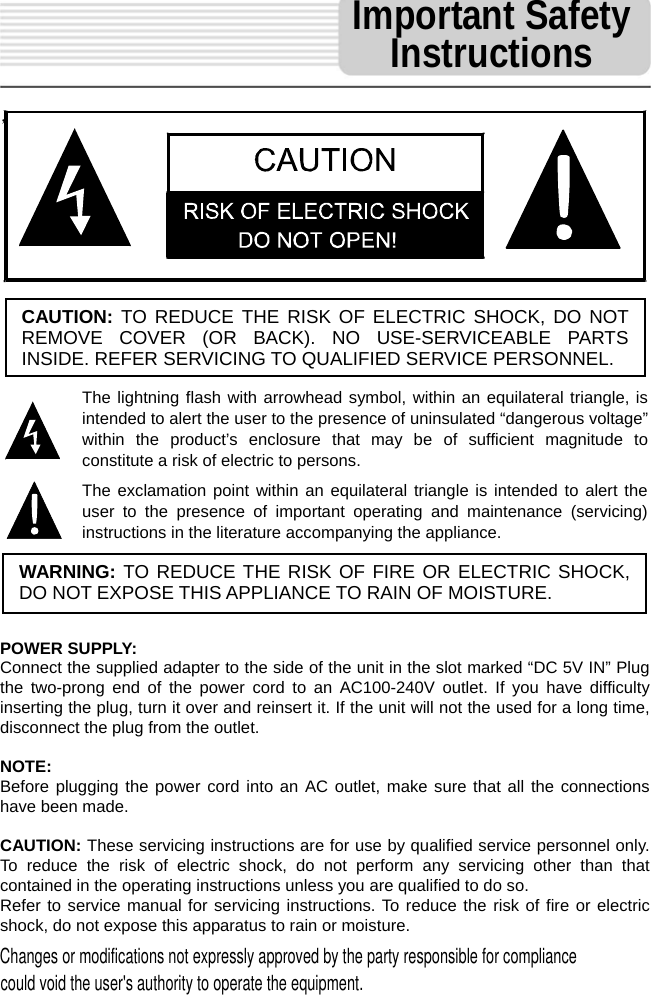
   ,                         POWER SUPPLY: Connect the supplied adapter to the side of the unit in the slot marked “DC 5V IN” Plug the two-prong end of the power cord to an AC100-240V outlet. If you have difficulty inserting the plug, turn it over and reinsert it. If the unit will not the used for a long time, disconnect the plug from the outlet.    NOTE: Before plugging the power cord into an AC outlet, make sure that all the connections have been made.    CAUTION: These servicing instructions are for use by qualified service personnel only. To reduce the risk of electric shock, do not perform any servicing other than that contained in the operating instructions unless you are qualified to do so. Refer to service manual for servicing instructions. To reduce the risk of fire or electric shock, do not expose this apparatus to rain or moisture. CAUTION: TO REDUCE THE RISK OF ELECTRIC SHOCK, DO NOT REMOVE COVER (OR BACK). NO USE-SERVICEABLE PARTS INSIDE. REFER SERVICING TO QUALIFIED SERVICE PERSONNEL. The lightning flash with arrowhead symbol, within an equilateral triangle, is intended to alert the user to the presence of uninsulated “dangerous voltage” within the product’s enclosure that may be of sufficient magnitude to constitute a risk of electric to persons. The exclamation point within an equilateral triangle is intended to alert the user to the presence of important operating and maintenance (servicing) instructions in the literature accompanying the appliance. WARNING: TO REDUCE THE RISK OF FIRE OR ELECTRIC SHOCK, DO NOT EXPOSE THIS APPLIANCE TO RAIN OF MOISTURE. Important Safety Instructions Changes or modifications not expressly approved by the party responsible for compliancecould void the user's authority to operate the equipment.
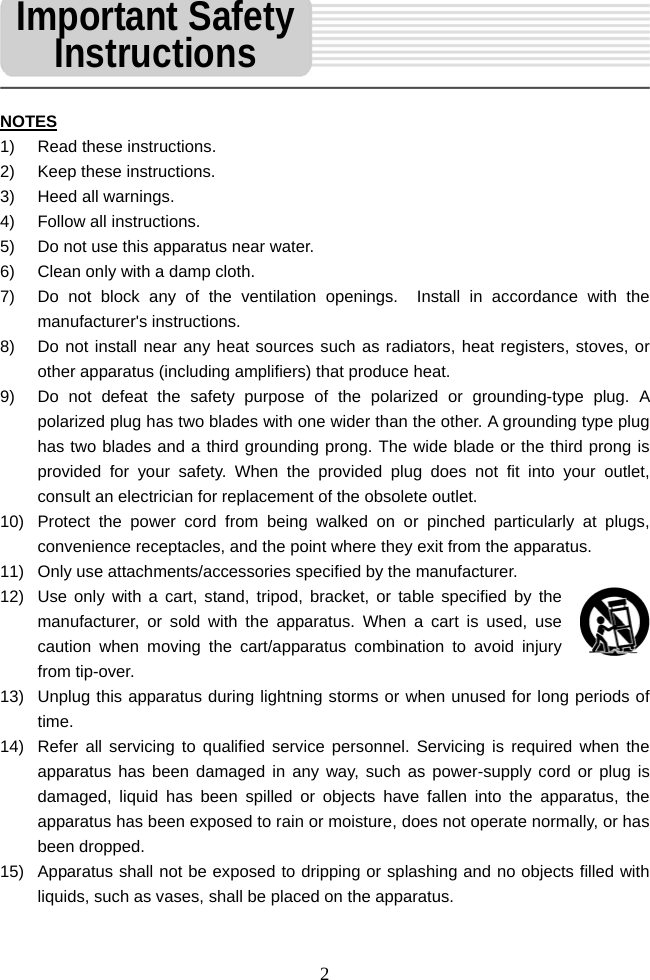
  2 NOTES 1)  Read these instructions. 2)  Keep these instructions. 3) Heed all warnings. 4)  Follow all instructions. 5)  Do not use this apparatus near water. 6)  Clean only with a damp cloth. 7)  Do not block any of the ventilation openings.  Install in accordance with the manufacturer's instructions. 8)  Do not install near any heat sources such as radiators, heat registers, stoves, or other apparatus (including amplifiers) that produce heat. 9)  Do not defeat the safety purpose of the polarized or grounding-type plug. A polarized plug has two blades with one wider than the other. A grounding type plug has two blades and a third grounding prong. The wide blade or the third prong is provided for your safety. When the provided plug does not fit into your outlet, consult an electrician for replacement of the obsolete outlet.  10)  Protect the power cord from being walked on or pinched particularly at plugs, convenience receptacles, and the point where they exit from the apparatus. 11)  Only use attachments/accessories specified by the manufacturer. 12)  Use only with a cart, stand, tripod, bracket, or table specified by the manufacturer, or sold with the apparatus. When a cart is used, use caution when moving the cart/apparatus combination to avoid injury from tip-over.   13)  Unplug this apparatus during lightning storms or when unused for long periods of time. 14)  Refer all servicing to qualified service personnel. Servicing is required when the apparatus has been damaged in any way, such as power-supply cord or plug is damaged, liquid has been spilled or objects have fallen into the apparatus, the apparatus has been exposed to rain or moisture, does not operate normally, or has been dropped. 15)  Apparatus shall not be exposed to dripping or splashing and no objects filled with liquids, such as vases, shall be placed on the apparatus.   Important Safety Instructions
  3 Warning Failure to avoid the following potentially hazardous situations may result in injury or property damage. The unit is designed to provide you with route suggestions. It does not reflect road closures or road conditions, traffic congestion, weather conditions, or other factors that may affect safety or timing while driving.   Use the unit only as a navigational aid. Do not attempt to use the unit for any purpose requiring precise measurement of direction, distance, location, or topography. This product should not be used to determine ground proximity for aircraft navigation.  The images in this manual are only for reference and they may be different from the actual ones.                     Important Safety Instructions
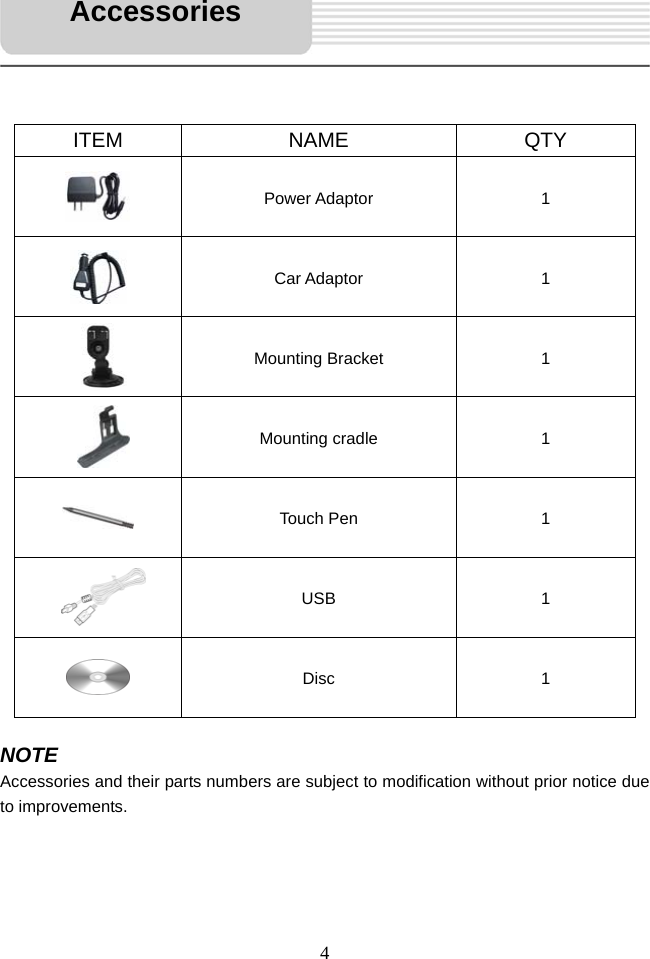
  4      ITEM NAME  QTY  Power Adaptor  1  Car Adaptor  1  Mounting Bracket  1  Mounting cradle  1  Touch Pen  1  USB 1  Disc 1  NOTE Accessories and their parts numbers are subject to modification without prior notice due to improvements.     Accessories
  5                                     …………………………………..………..1  ……………………………….…………...4  ……………………………….…………...6  ……………………………….……….…..8  …………………………….……….……..10  ……………………………….…………...12  …………………………….……………...16  ……………………………….…………...19  …………………………….………….…..22  …………………………….……………...32  …………………………….……………...33  …………………………….……………...35 Important Safety Instructions Contents Accessories View of Main Unit System Connections Power Supply Preparation General Setup MP4 Player Playing Music Photo Viewer Use of the Mount Accessories Troubleshooting Specifications
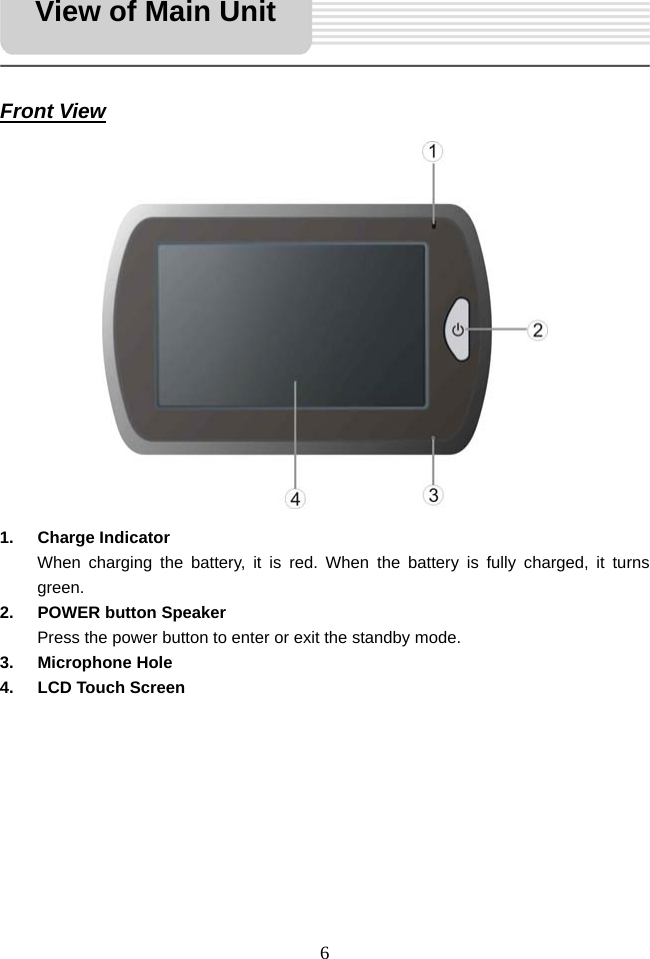
  6     Front View                 1. Charge Indicator  When charging the battery, it is red. When the battery is fully charged, it turns green. 2. POWER button Speaker Press the power button to enter or exit the standby mode. 3. Microphone Hole 4. LCD Touch Screen         View of Main Unit
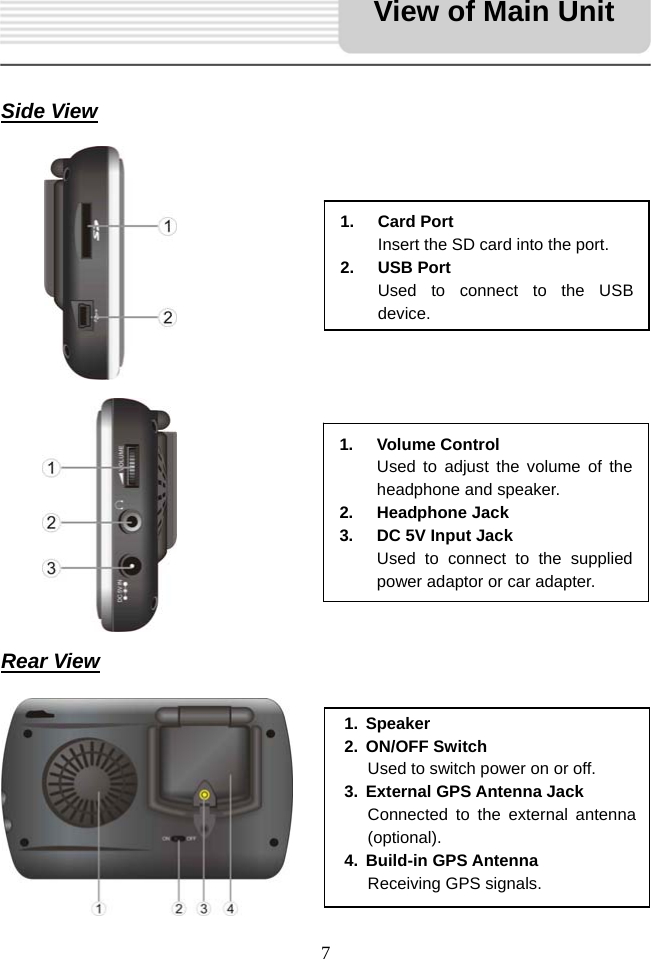
  7     Side View                      Rear View          1. Speaker 2. ON/OFF Switch  Used to switch power on or off. 3. External GPS Antenna Jack Connected to the external antenna (optional). 4. Build-in GPS Antenna Receiving GPS signals. 1. Card Port Insert the SD card into the port. 2. USB Port Used to connect to the USB device.1. Volume Control Used to adjust the volume of the headphone and speaker.   2. Headphone Jack 3.  DC 5V Input Jack Used to connect to the supplied power adaptor or car adapter. View of Main Unit
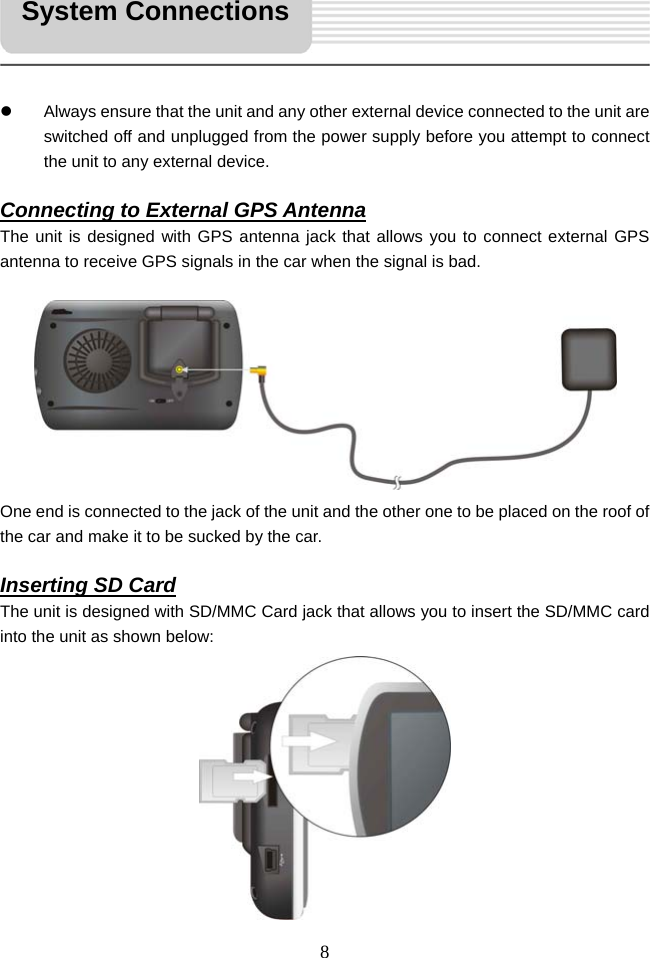
  8     z  Always ensure that the unit and any other external device connected to the unit are switched off and unplugged from the power supply before you attempt to connect the unit to any external device.  Connecting to External GPS Antenna The unit is designed with GPS antenna jack that allows you to connect external GPS antenna to receive GPS signals in the car when the signal is bad.          One end is connected to the jack of the unit and the other one to be placed on the roof of the car and make it to be sucked by the car.  Inserting SD Card The unit is designed with SD/MMC Card jack that allows you to insert the SD/MMC card into the unit as shown below:           System Connections
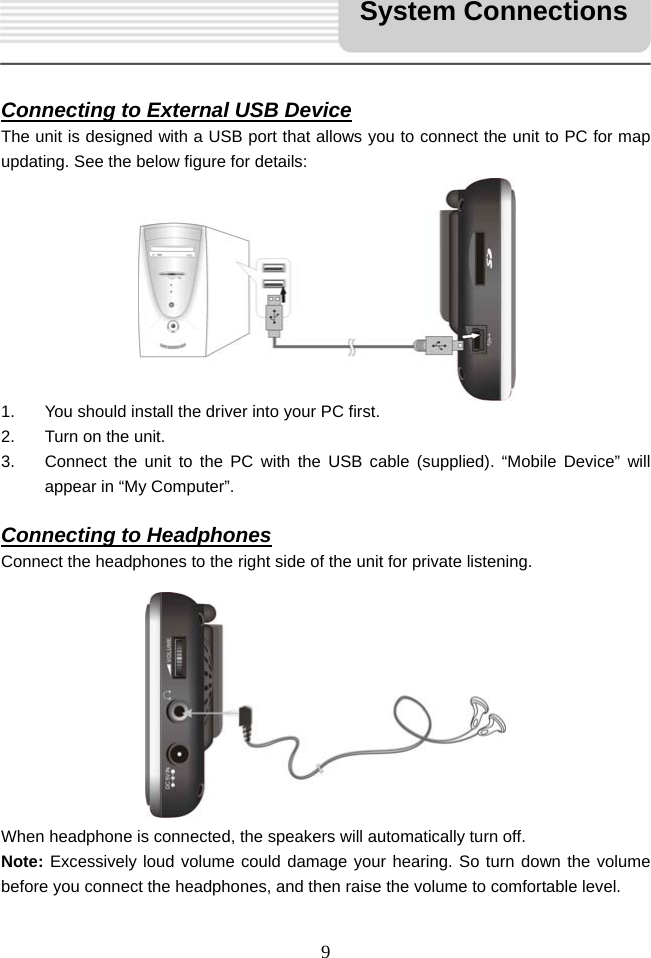
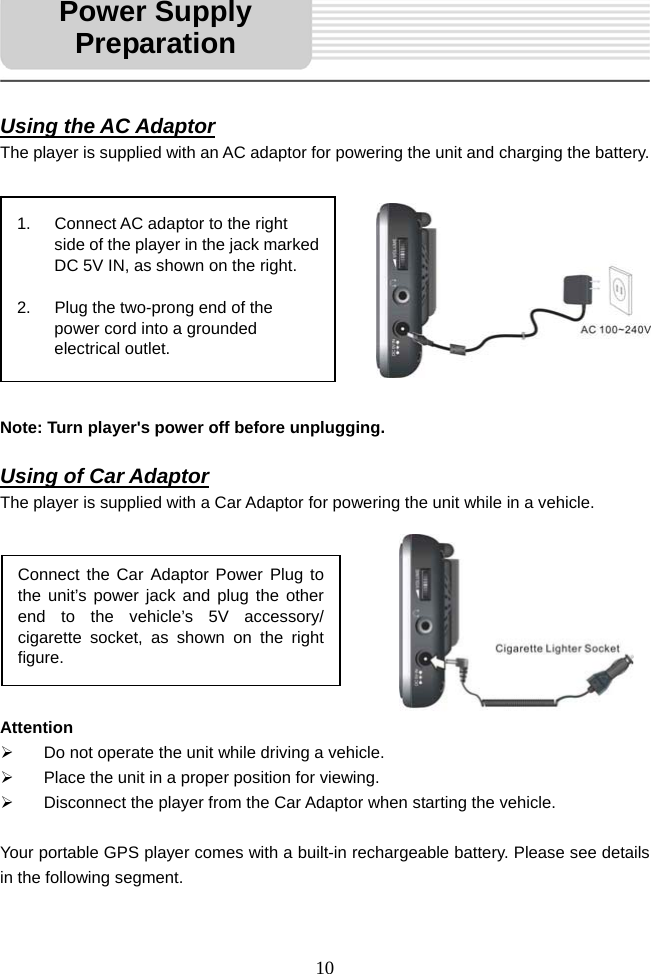
  9     Connecting to External USB Device The unit is designed with a USB port that allows you to connect the unit to PC for map updating. See the below figure for details:          1.  You should install the driver into your PC first. 2.  Turn on the unit. 3.  Connect the unit to the PC with the USB cable (supplied). “Mobile Device” will appear in “My Computer”.  Connecting to Headphones Connect the headphones to the right side of the unit for private listening.           When headphone is connected, the speakers will automatically turn off. Note: Excessively loud volume could damage your hearing. So turn down the volume before you connect the headphones, and then raise the volume to comfortable level. System Connections
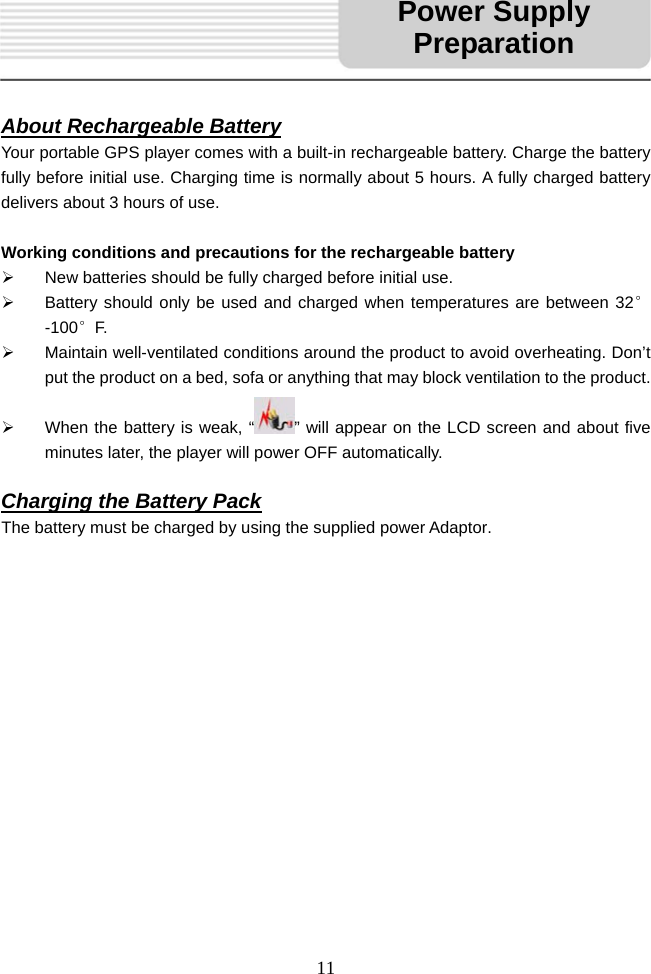
  10     Using the AC Adaptor The player is supplied with an AC adaptor for powering the unit and charging the battery.           Note: Turn player's power off before unplugging.  Using of Car Adaptor The player is supplied with a Car Adaptor for powering the unit while in a vehicle.         Attention ¾  Do not operate the unit while driving a vehicle. ¾  Place the unit in a proper position for viewing. ¾  Disconnect the player from the Car Adaptor when starting the vehicle.  Your portable GPS player comes with a built-in rechargeable battery. Please see details in the following segment.   1.  Connect AC adaptor to the right side of the player in the jack marked DC 5V IN, as shown on the right.  2.  Plug the two-prong end of the power cord into a grounded electrical outlet.   Connect the Car Adaptor Power Plug to the unit’s power jack and plug the other end to the vehicle’s 5V accessory/ cigarette socket, as shown on the right figure. Power Supply Preparation
  11     About Rechargeable Battery Your portable GPS player comes with a built-in rechargeable battery. Charge the battery fully before initial use. Charging time is normally about 5 hours. A fully charged battery delivers about 3 hours of use.  Working conditions and precautions for the rechargeable battery ¾  New batteries should be fully charged before initial use. ¾  Battery should only be used and charged when temperatures are between 32°-100°F. ¾  Maintain well-ventilated conditions around the product to avoid overheating. Don’t put the product on a bed, sofa or anything that may block ventilation to the product. ¾  When the battery is weak, “ ” will appear on the LCD screen and about five minutes later, the player will power OFF automatically.  Charging the Battery Pack The battery must be charged by using the supplied power Adaptor.                    Power Supply Preparation
  12     General Setup When turn on the unit, the screen will display main menu, as shown below.          In the menu, there are six items for selecting, touch the item to enter it. Tap    to enter the map view; tap    to enter MP4 Player; tap    to enter the MP3 player; tap   to enter Bluetooth function; tap     to enter the picture viewer; tap   to enter the settings menu.  Settings Menu Tap   to enter the settings menu, the screen will display as below:           In the settings menu, tap    to return to the main setup menu.     General Setup
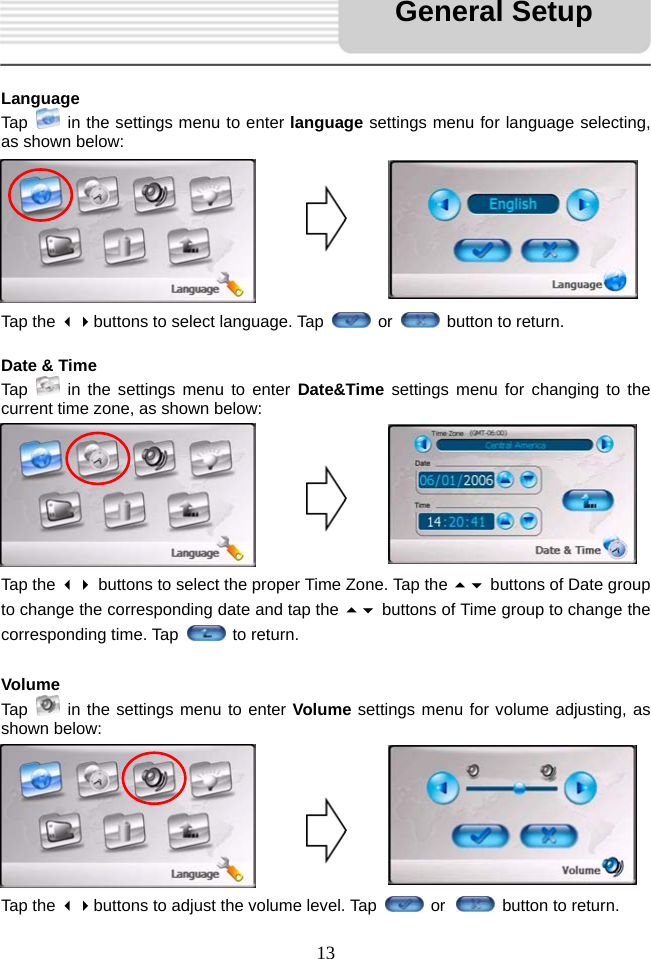
  13    Language Tap    in the settings menu to enter language settings menu for language selecting, as shown below:        Tap the buttons to select language. Tap   or    button to return.  Date & Time Tap   in the settings menu to enter Date&Time settings menu for changing to the current time zone, as shown below:        Tap the  buttons to select the proper Time Zone. Tap the  buttons of Date group to change the corresponding date and tap the  buttons of Time group to change the corresponding time. Tap   to return.  Volume Tap   in the settings menu to enter Volume settings menu for volume adjusting, as shown below:        Tap the buttons to adjust the volume level. Tap   or   button to return. General Setup
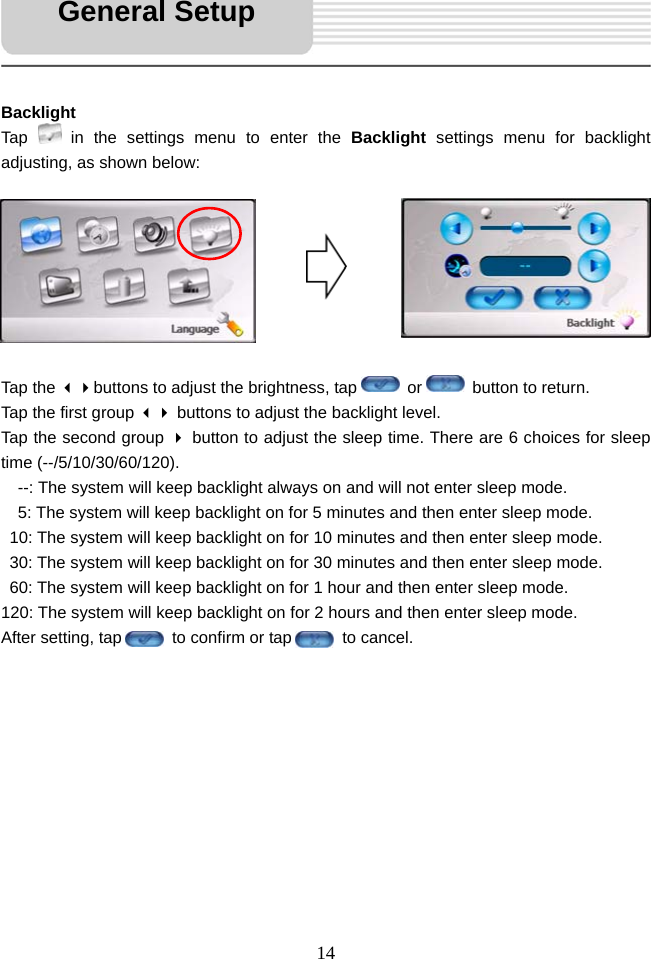
  14     Backlight Tap   in the settings menu to enter the Backlight  settings menu for backlight adjusting, as shown below:         Tap the buttons to adjust the brightness, tap      or      button to return. Tap the first group  buttons to adjust the backlight level.   Tap the second group  button to adjust the sleep time. There are 6 choices for sleep time (--/5/10/30/60/120).     --: The system will keep backlight always on and will not enter sleep mode.   5: The system will keep backlight on for 5 minutes and then enter sleep mode.   10: The system will keep backlight on for 10 minutes and then enter sleep mode.   30: The system will keep backlight on for 30 minutes and then enter sleep mode.   60: The system will keep backlight on for 1 hour and then enter sleep mode. 120: The system will keep backlight on for 2 hours and then enter sleep mode. After setting, tap      to confirm or tap      to cancel.           General Setup
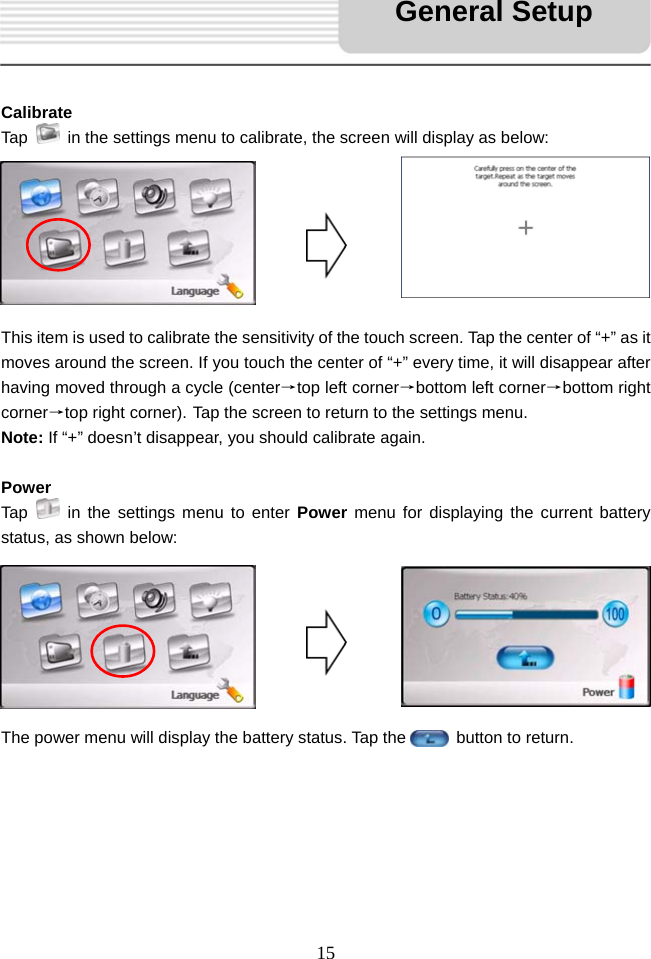
  15     Calibrate Tap    in the settings menu to calibrate, the screen will display as below:        This item is used to calibrate the sensitivity of the touch screen. Tap the center of “+” as it moves around the screen. If you touch the center of “+” every time, it will disappear after having moved through a cycle (center→top left corner→bottom left corner→bottom right corner→top right corner). Tap the screen to return to the settings menu. Note: If “+” doesn’t disappear, you should calibrate again.  Power Tap   in the settings menu to enter Power menu for displaying the current battery status, as shown below:        The power menu will display the battery status. Tap the      button to return.       General Setup
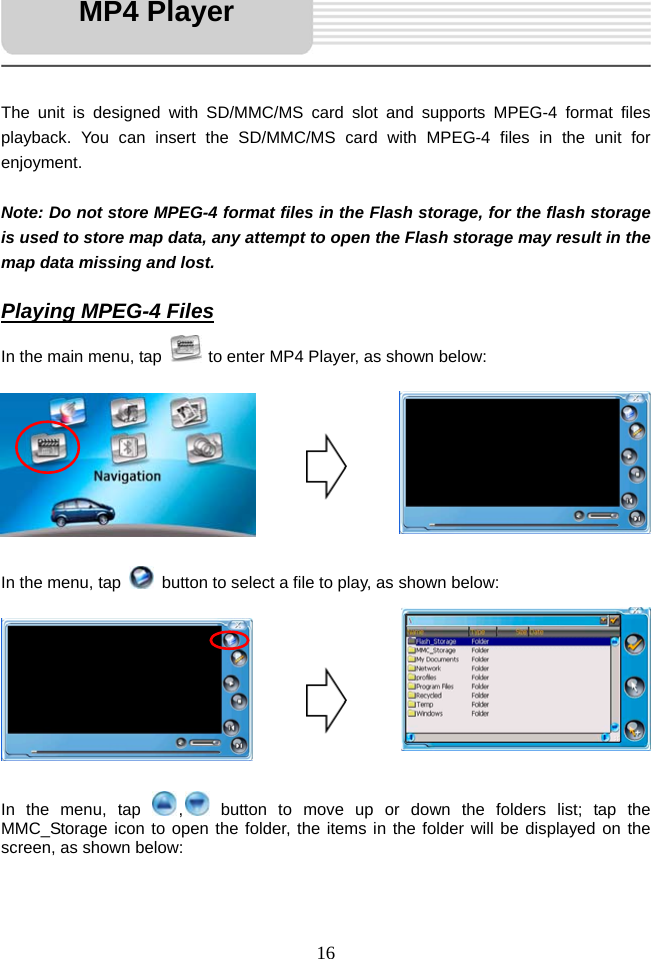
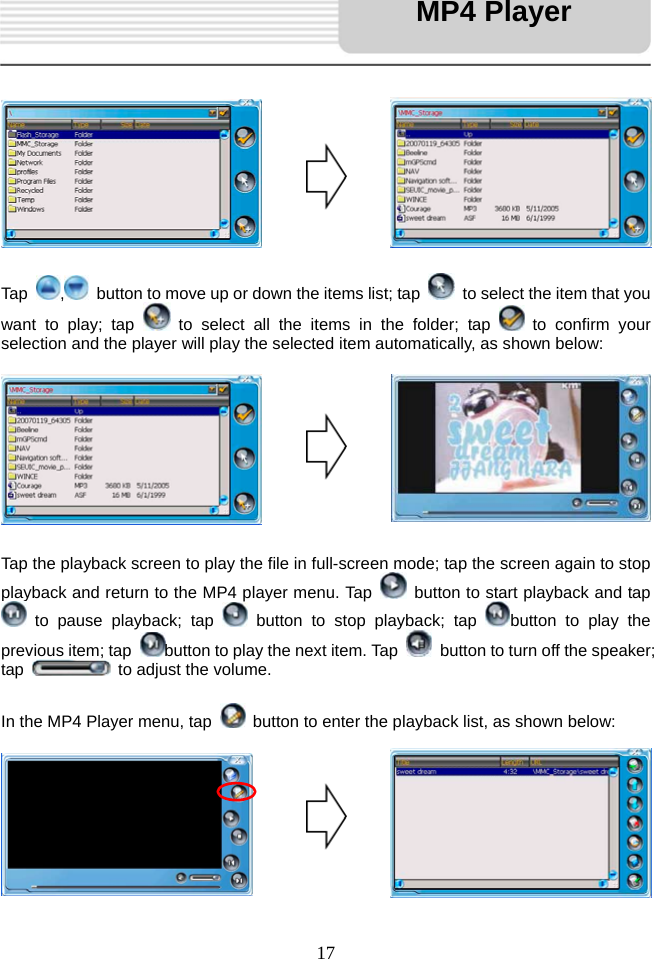
  16     The unit is designed with SD/MMC/MS card slot and supports MPEG-4 format files playback. You can insert the SD/MMC/MS card with MPEG-4 files in the unit for enjoyment.  Note: Do not store MPEG-4 format files in the Flash storage, for the flash storage is used to store map data, any attempt to open the Flash storage may result in the map data missing and lost.  Playing MPEG-4 Files In the main menu, tap   to enter MP4 Player, as shown below:         In the menu, tap    button to select a file to play, as shown below:         In the menu, tap  , button to move up or down the folders list; tap the MMC_Storage icon to open the folder, the items in the folder will be displayed on the screen, as shown below:   MP4 Player
  17            Tap  ,  button to move up or down the items list; tap    to select the item that you want to play; tap   to select all the items in the folder; tap   to confirm your selection and the player will play the selected item automatically, as shown below:         Tap the playback screen to play the file in full-screen mode; tap the screen again to stop playback and return to the MP4 player menu. Tap    button to start playback and tap  to pause playback; tap   button to stop playback; tap  button to play the previous item; tap  button to play the next item. Tap    button to turn off the speaker; tap    to adjust the volume.  In the MP4 Player menu, tap    button to enter the playback list, as shown below:          MP4 Player
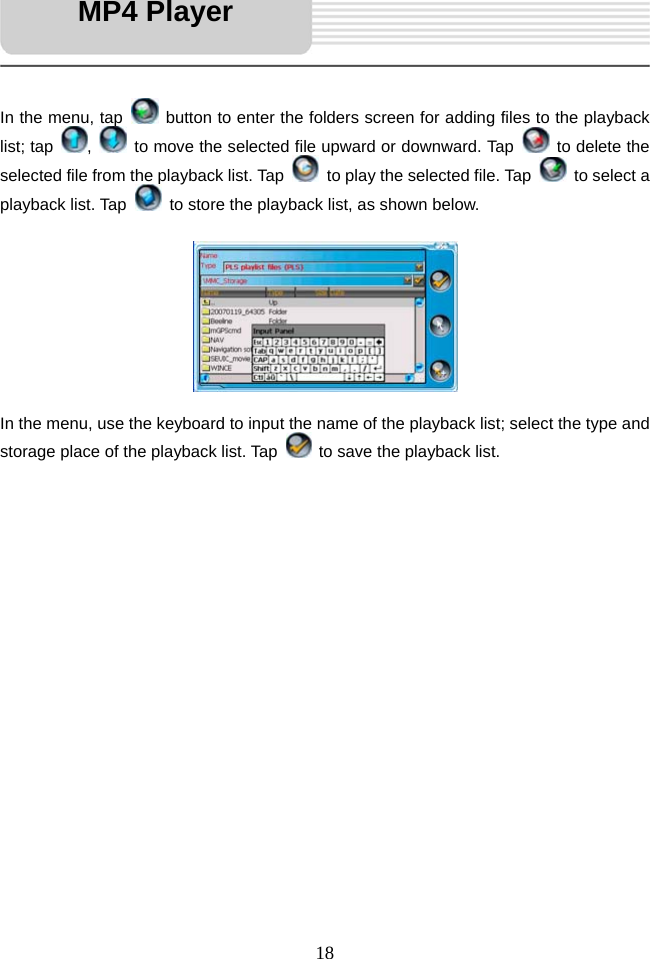
  18     In the menu, tap    button to enter the folders screen for adding files to the playback list; tap  ,    to move the selected file upward or downward. Tap    to delete the selected file from the playback list. Tap    to play the selected file. Tap   to select a playback list. Tap    to store the playback list, as shown below.           In the menu, use the keyboard to input the name of the playback list; select the type and storage place of the playback list. Tap    to save the playback list.                     MP4 Player
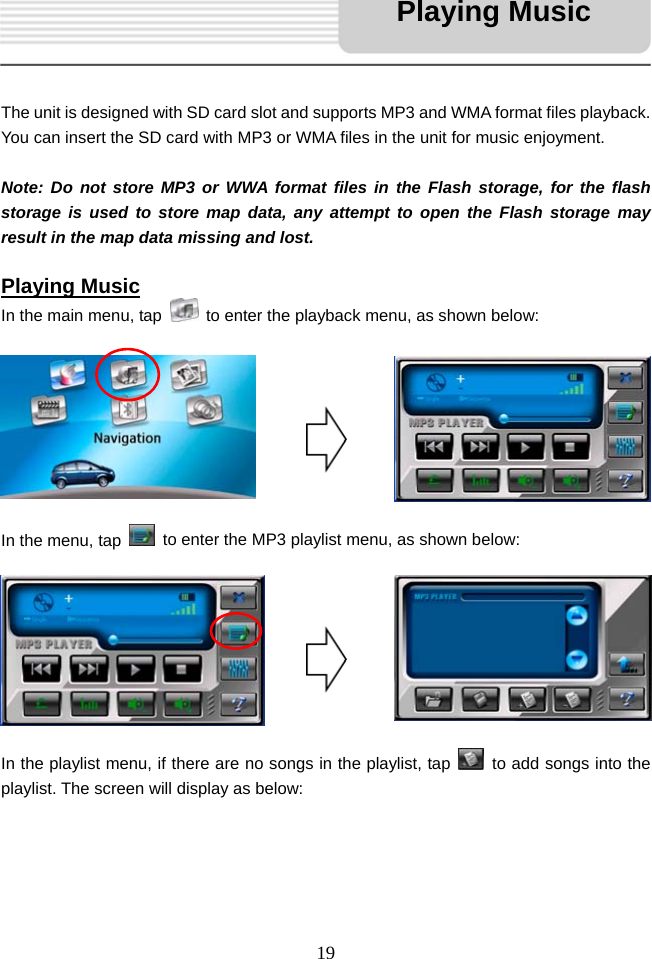
  19     The unit is designed with SD card slot and supports MP3 and WMA format files playback. You can insert the SD card with MP3 or WMA files in the unit for music enjoyment.  Note: Do not store MP3 or WWA format files in the Flash storage, for the flash storage is used to store map data, any attempt to open the Flash storage may result in the map data missing and lost.  Playing Music In the main menu, tap    to enter the playback menu, as shown below:         In the menu, tap    to enter the MP3 playlist menu, as shown below:         In the playlist menu, if there are no songs in the playlist, tap    to add songs into the playlist. The screen will display as below:     Playing Music
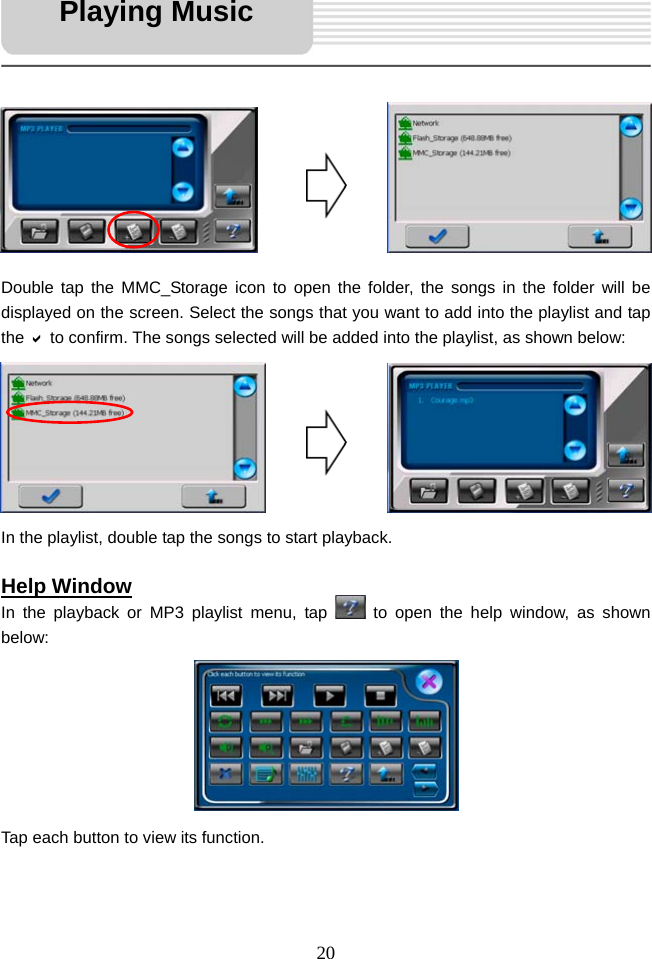
  20            Double tap the MMC_Storage icon to open the folder, the songs in the folder will be displayed on the screen. Select the songs that you want to add into the playlist and tap the D to confirm. The songs selected will be added into the playlist, as shown below:        In the playlist, double tap the songs to start playback.  Help Window In the playback or MP3 playlist menu, tap   to open the help window, as shown below:        Tap each button to view its function.   Playing Music
  21     During playback, tap    button to go to the previous track.   During playback, tap    button to go to the next track. During playback, tap    button to pause playback, or in stop status, tap the button to resume playback. During playback, tap    button to stop playback. During playback, tap    button to repeat all the songs in the playlist. During playback, tap    button to play the current song only. During playback, tap    button to play each song for 15 seconds. During playback, tap    button to play the selected song repeatedly. During playback, tap    button to play the songs in the playlist in sequence. During playback, tap    button to play the songs in the playlist randomly. During playback, tap    button to decrease the volume. During playback, tap    button to increase the volume. In the menu, tap    button to open the playlist menu. In the menu, after adding playlist, tap    button to save the playlist. In the menu, select songs and tap    button to add the selected songs into playlist. In the menu, select songs and tap    button to delete the selected songs in playlist. In all menus, tap    button to exit the menu. During playback, tap    button to open the playlist. During playback, tap    button to enter the equalizer menu. In all menu, tap    button to open the buttons function menu. In all menu, tap    button to return to the previous menu. Tap    button to select the EQ mode in the equalizer menu. Tap    button to select the EQ mode in the equalizer menu.   Playing Music
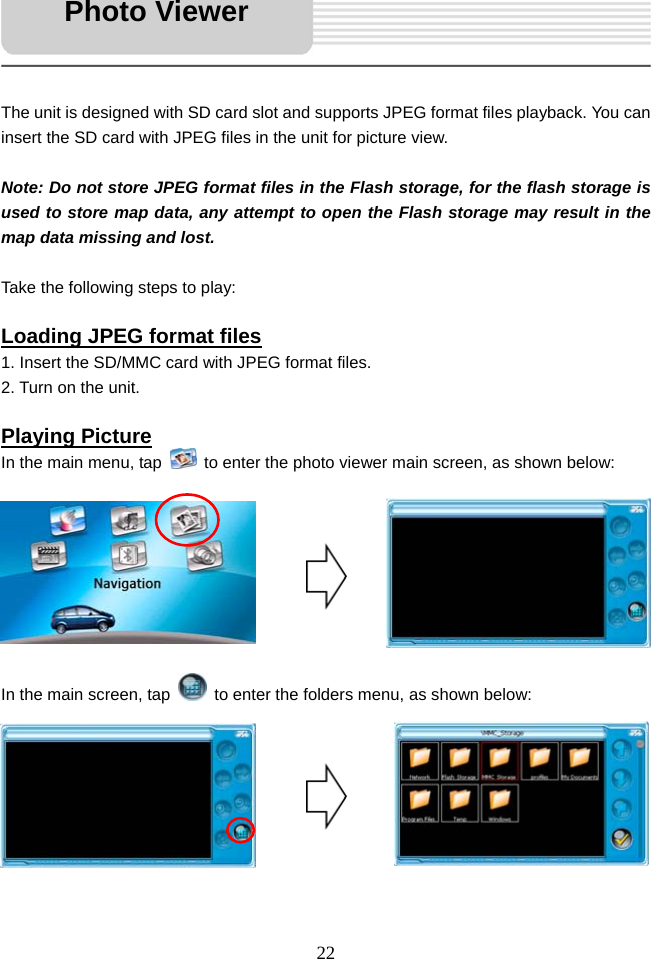
  22     The unit is designed with SD card slot and supports JPEG format files playback. You can insert the SD card with JPEG files in the unit for picture view.  Note: Do not store JPEG format files in the Flash storage, for the flash storage is used to store map data, any attempt to open the Flash storage may result in the map data missing and lost.  Take the following steps to play:  Loading JPEG format files 1. Insert the SD/MMC card with JPEG format files. 2. Turn on the unit.  Playing Picture In the main menu, tap    to enter the photo viewer main screen, as shown below:         In the main screen, tap    to enter the folders menu, as shown below:         Photo Viewer
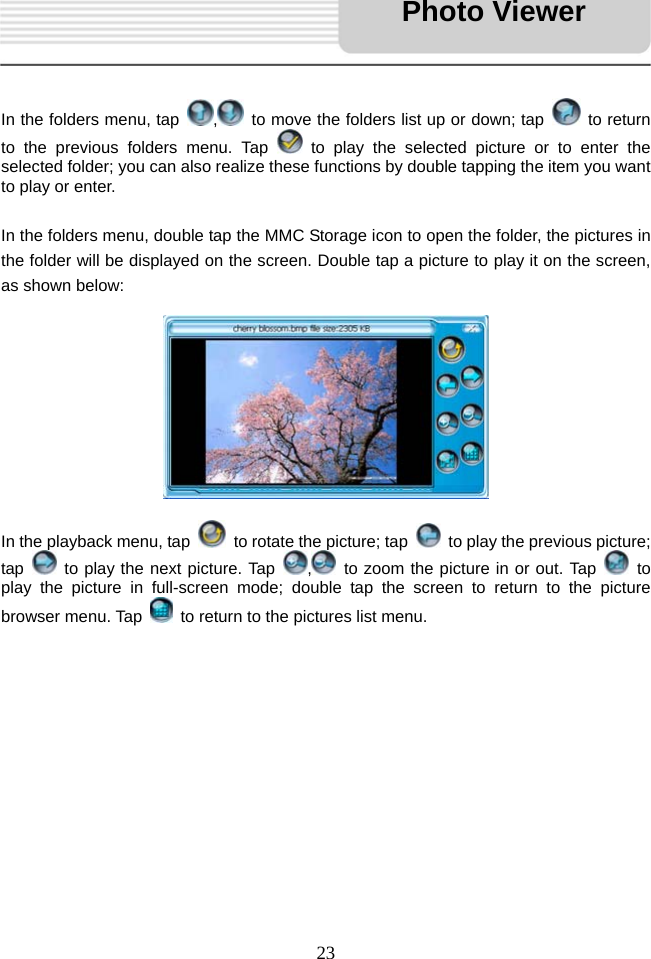
  23     In the folders menu, tap  ,  to move the folders list up or down; tap   to return to the previous folders menu. Tap   to play the selected picture or to enter the selected folder; you can also realize these functions by double tapping the item you want to play or enter.    In the folders menu, double tap the MMC Storage icon to open the folder, the pictures in the folder will be displayed on the screen. Double tap a picture to play it on the screen, as shown below:          In the playback menu, tap    to rotate the picture; tap    to play the previous picture; tap   to play the next picture. Tap  ,  to zoom the picture in or out. Tap   to play the picture in full-screen mode; double tap the screen to return to the picture browser menu. Tap    to return to the pictures list menu.            Photo Viewer
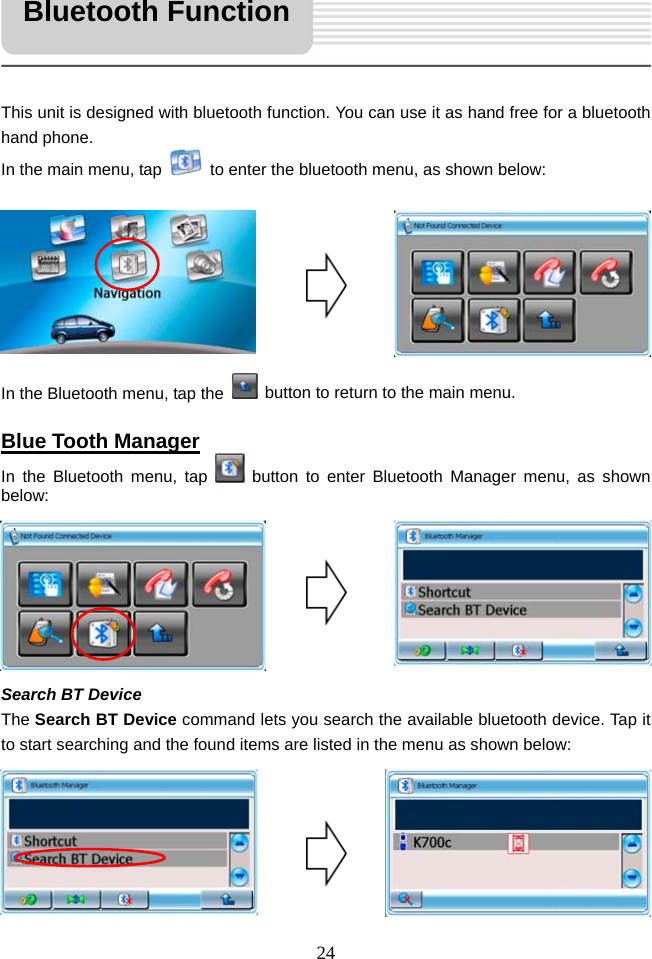
  24     This unit is designed with bluetooth function. You can use it as hand free for a bluetooth hand phone. In the main menu, tap    to enter the bluetooth menu, as shown below:         In the Bluetooth menu, tap the    button to return to the main menu.  Blue Tooth Manager In the Bluetooth menu, tap   button to enter Bluetooth Manager menu, as shown below:        Search BT Device The Search BT Device command lets you search the available bluetooth device. Tap it to start searching and the found items are listed in the menu as shown below:       Bluetooth Function
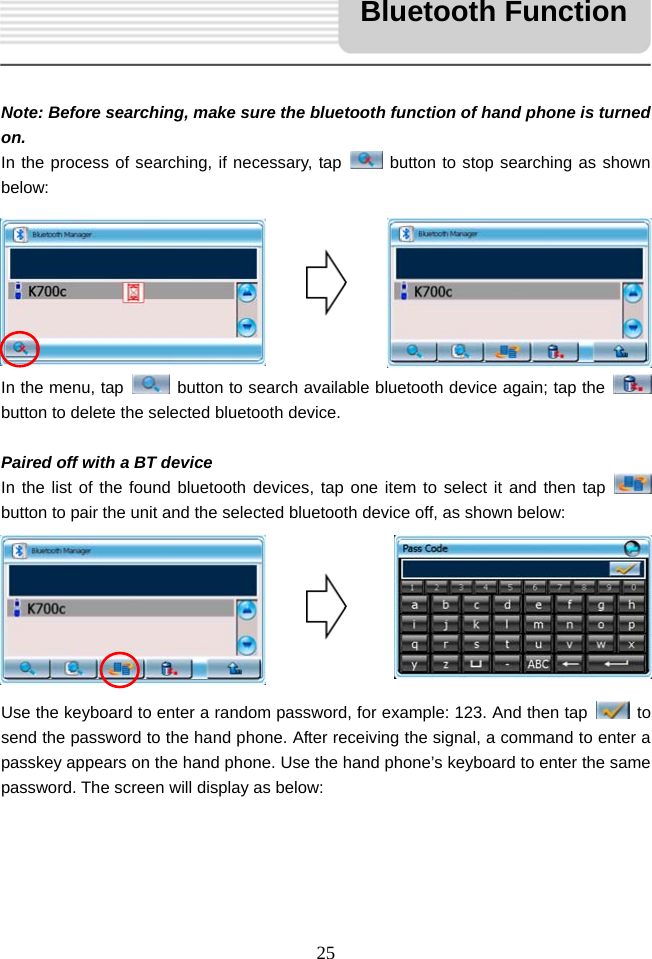
  25     Note: Before searching, make sure the bluetooth function of hand phone is turned on.   In the process of searching, if necessary, tap   button to stop searching as shown below:        In the menu, tap    button to search available bluetooth device again; tap the   button to delete the selected bluetooth device.  Paired off with a BT device In the list of the found bluetooth devices, tap one item to select it and then tap   button to pair the unit and the selected bluetooth device off, as shown below:        Use the keyboard to enter a random password, for example: 123. And then tap   to send the password to the hand phone. After receiving the signal, a command to enter a passkey appears on the hand phone. Use the hand phone’s keyboard to enter the same password. The screen will display as below:     Bluetooth Function
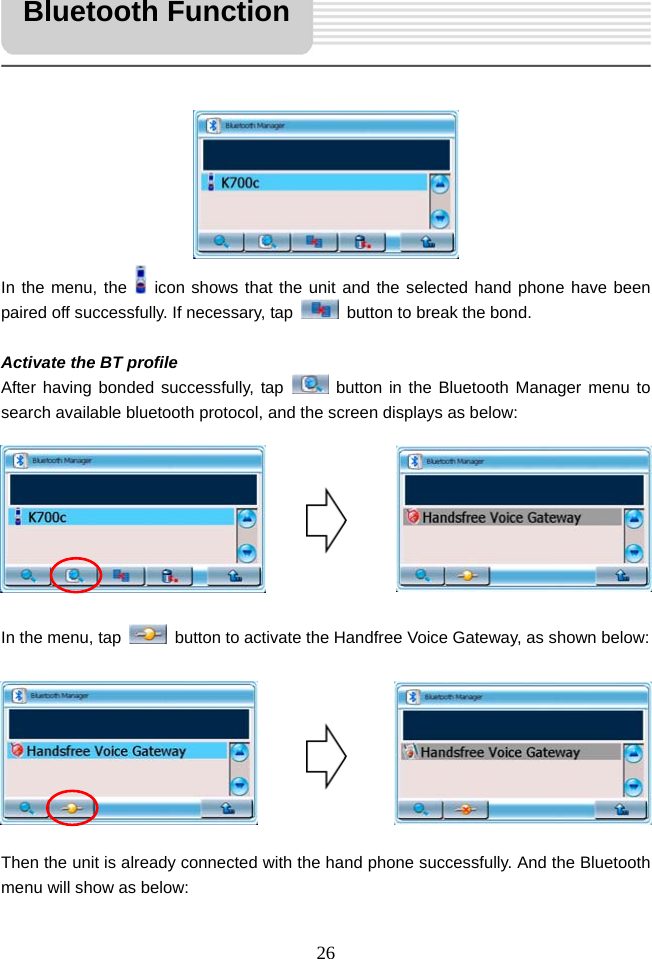
  26            In the menu, the   icon shows that the unit and the selected hand phone have been paired off successfully. If necessary, tap    button to break the bond.  Activate the BT profile After having bonded successfully, tap   button in the Bluetooth Manager menu to search available bluetooth protocol, and the screen displays as below:         In the menu, tap    button to activate the Handfree Voice Gateway, as shown below:         Then the unit is already connected with the hand phone successfully. And the Bluetooth menu will show as below: Bluetooth Function
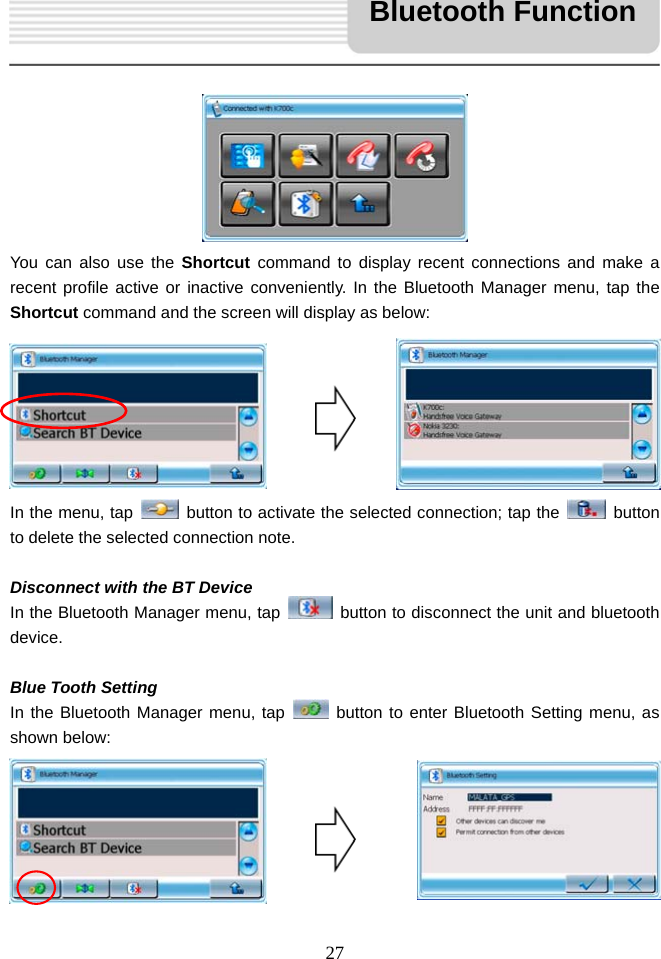
  27           You can also use the Shortcut command to display recent connections and make a recent profile active or inactive conveniently. In the Bluetooth Manager menu, tap the Shortcut command and the screen will display as below:        In the menu, tap    button to activate the selected connection; tap the   button to delete the selected connection note.  Disconnect with the BT Device In the Bluetooth Manager menu, tap    button to disconnect the unit and bluetooth device.  Blue Tooth Setting In the Bluetooth Manager menu, tap   button to enter Bluetooth Setting menu, as shown below:       Bluetooth Function
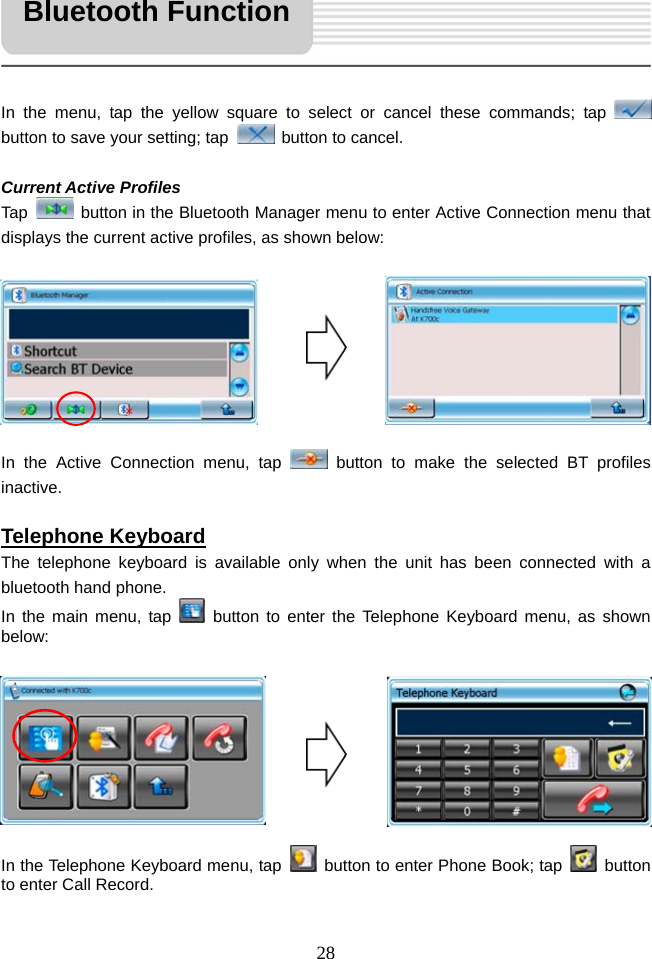
  28     In the menu, tap the yellow square to select or cancel these commands; tap   button to save your setting; tap    button to cancel.  Current Active Profiles Tap    button in the Bluetooth Manager menu to enter Active Connection menu that displays the current active profiles, as shown below:         In the Active Connection menu, tap   button to make the selected BT profiles inactive.  Telephone Keyboard The telephone keyboard is available only when the unit has been connected with a bluetooth hand phone. In the main menu, tap   button to enter the Telephone Keyboard menu, as shown below:         In the Telephone Keyboard menu, tap    button to enter Phone Book; tap   button to enter Call Record. Bluetooth Function
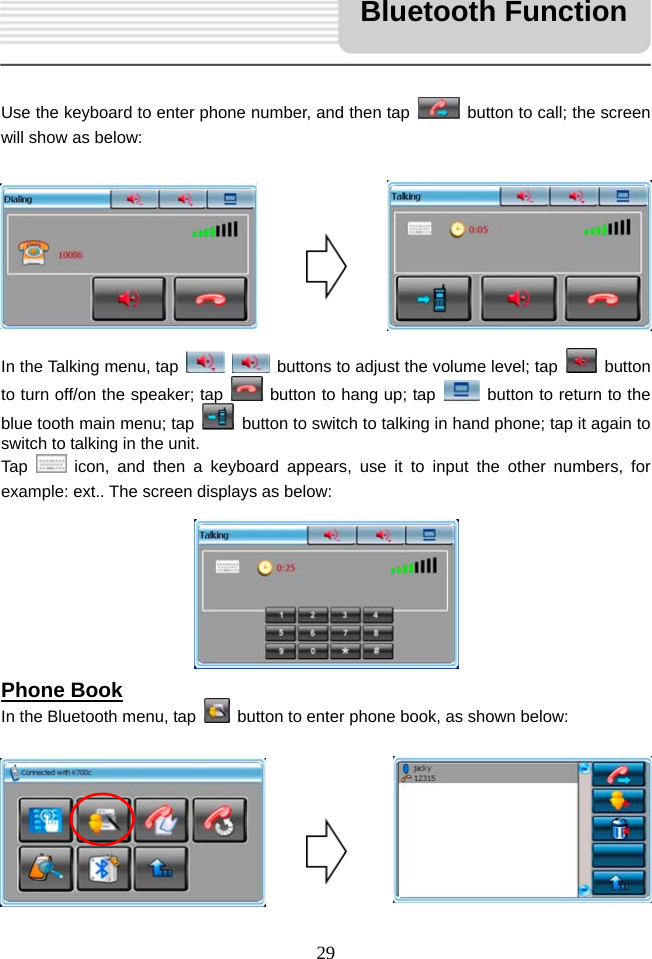
  29     Use the keyboard to enter phone number, and then tap    button to call; the screen will show as below:         In the Talking menu, tap     buttons to adjust the volume level; tap   button to turn off/on the speaker; tap   button to hang up; tap    button to return to the blue tooth main menu; tap    button to switch to talking in hand phone; tap it again to switch to talking in the unit. Tap   icon, and then a keyboard appears, use it to input the other numbers, for example: ext.. The screen displays as below:        Phone Book In the Bluetooth menu, tap    button to enter phone book, as shown below:        Bluetooth Function
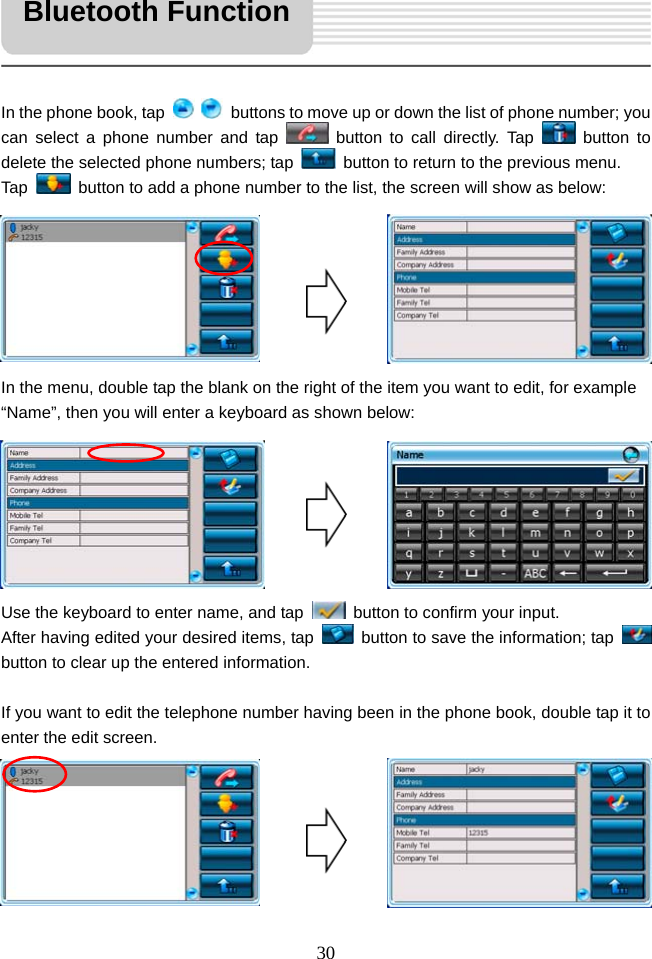
  30     In the phone book, tap     buttons to move up or down the list of phone number; you can select a phone number and tap   button to call directly. Tap   button to delete the selected phone numbers; tap    button to return to the previous menu.   Tap    button to add a phone number to the list, the screen will show as below:        In the menu, double tap the blank on the right of the item you want to edit, for example “Name”, then you will enter a keyboard as shown below:        Use the keyboard to enter name, and tap    button to confirm your input. After having edited your desired items, tap    button to save the information; tap   button to clear up the entered information.  If you want to edit the telephone number having been in the phone book, double tap it to enter the edit screen.       Bluetooth Function
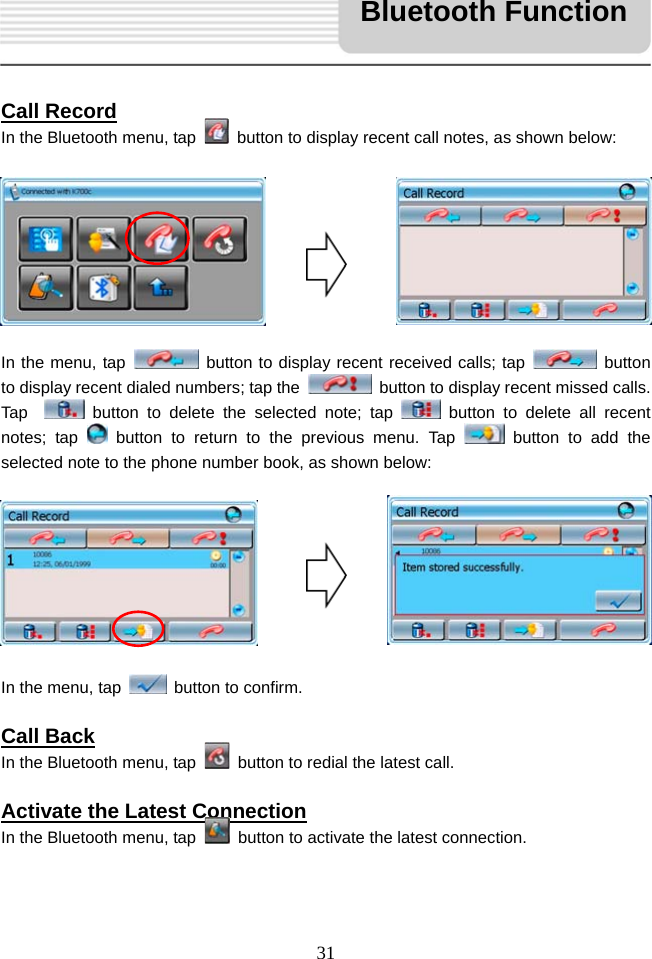
  31     Call Record In the Bluetooth menu, tap    button to display recent call notes, as shown below:         In the menu, tap   button to display recent received calls; tap   button to display recent dialed numbers; tap the    button to display recent missed calls. Tap    button to delete the selected note; tap   button to delete all recent notes; tap   button to return to the previous menu. Tap   button to add the selected note to the phone number book, as shown below:         In the menu, tap    button to confirm.  Call Back In the Bluetooth menu, tap    button to redial the latest call.  Activate the Latest Connection In the Bluetooth menu, tap    button to activate the latest connection.   Bluetooth Function
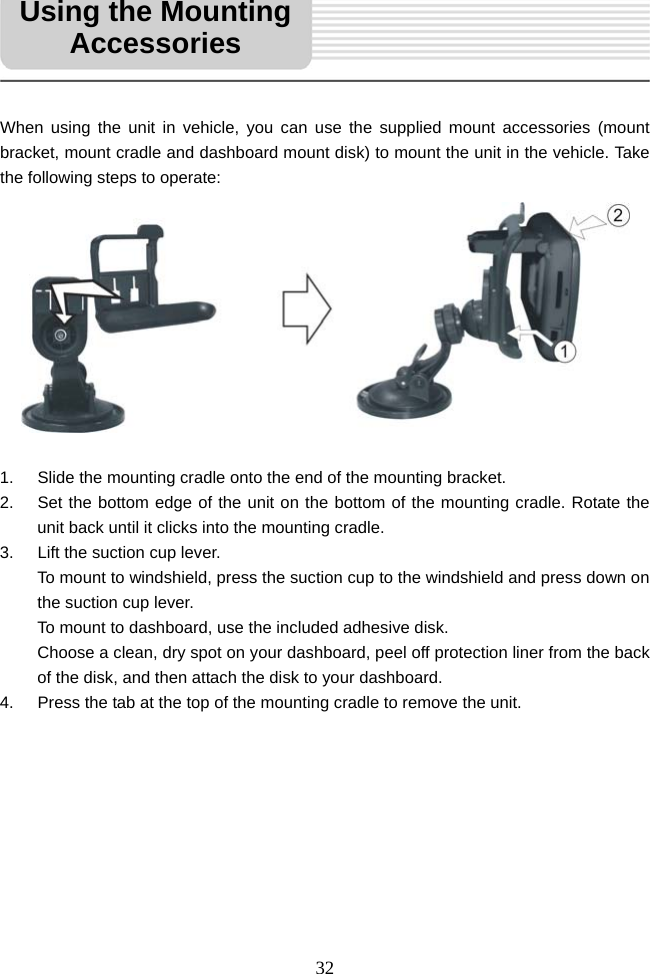
  32     When using the unit in vehicle, you can use the supplied mount accessories (mount bracket, mount cradle and dashboard mount disk) to mount the unit in the vehicle. Take the following steps to operate:            1.  Slide the mounting cradle onto the end of the mounting bracket. 2.  Set the bottom edge of the unit on the bottom of the mounting cradle. Rotate the unit back until it clicks into the mounting cradle. 3.  Lift the suction cup lever.   To mount to windshield, press the suction cup to the windshield and press down on the suction cup lever. To mount to dashboard, use the included adhesive disk. Choose a clean, dry spot on your dashboard, peel off protection liner from the back of the disk, and then attach the disk to your dashboard. 4.  Press the tab at the top of the mounting cradle to remove the unit.           Using the Mounting Accessories
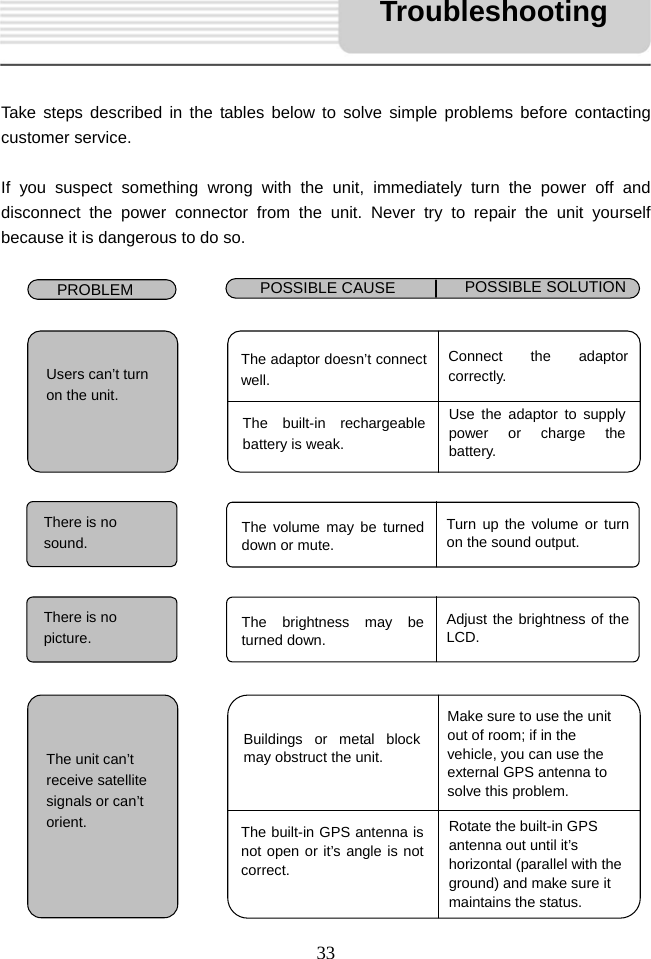
  33     Take steps described in the tables below to solve simple problems before contacting customer service.  If you suspect something wrong with the unit, immediately turn the power off and disconnect the power connector from the unit. Never try to repair the unit yourself because it is dangerous to do so.                           PROBLEM  POSSIBLE CAUSE  POSSIBLE SOLUTION There is no sound.  The volume may be turned down or mute. Turn up the volume or turn on the sound output.  Users can’t turn on the unit. The adaptor doesn’t connect well.Connect the adaptor correctly. The built-in rechargeable battery is weak. Use the adaptor to supply power or charge the battery. There is no picture. The brightness may be turned down.Adjust the brightness of the LCD.   The unit can’t receive satellite signals or can’t orient. Buildings or metal block may obstruct the unit. Make sure to use the unit out of room; if in the vehicle, you can use the external GPS antenna to solve this problem. The built-in GPS antenna is not open or it’s angle is not correct. Rotate the built-in GPS antenna out until it’s horizontal (parallel with the ground) and make sure it maintains the status. Troubleshooting
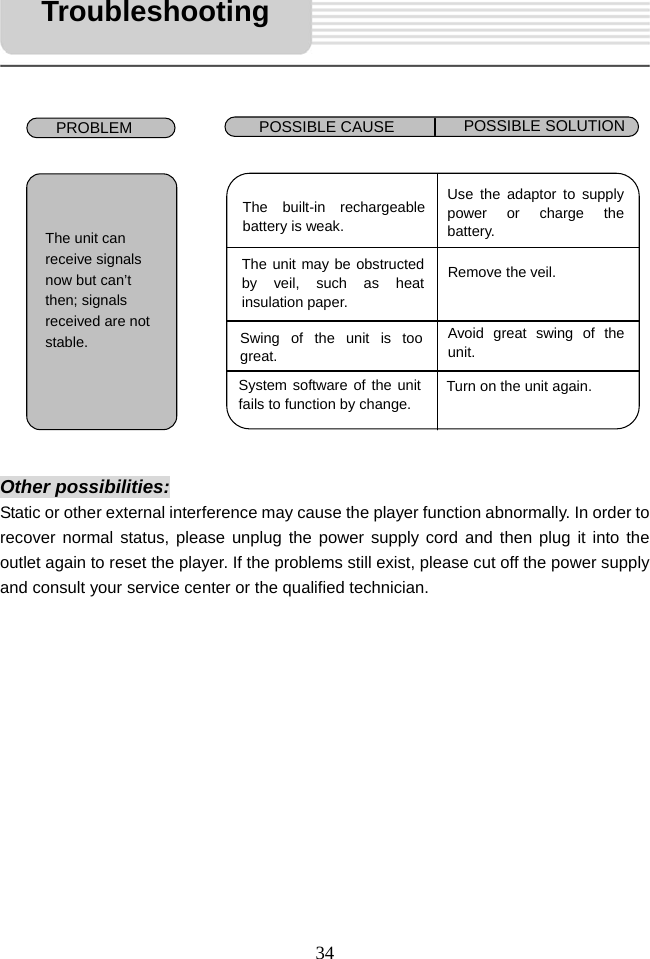
  34                    Other possibilities: Static or other external interference may cause the player function abnormally. In order to recover normal status, please unplug the power supply cord and then plug it into the outlet again to reset the player. If the problems still exist, please cut off the power supply and consult your service center or the qualified technician.               The unit can receive signals now but can’t then; signals received are not stable. The built-in rechargeable battery is weak. Use the adaptor to supply power or charge the battery. The unit may be obstructed by veil, such as heat insulation paper. Remove the veil.Swing of the unit is too great. Avoid great swing of the unit.System software of the unit fails to function by change.Turn on the unit again. Troubleshooting PROBLEM  POSSIBLE CAUSE  POSSIBLE SOLUTION
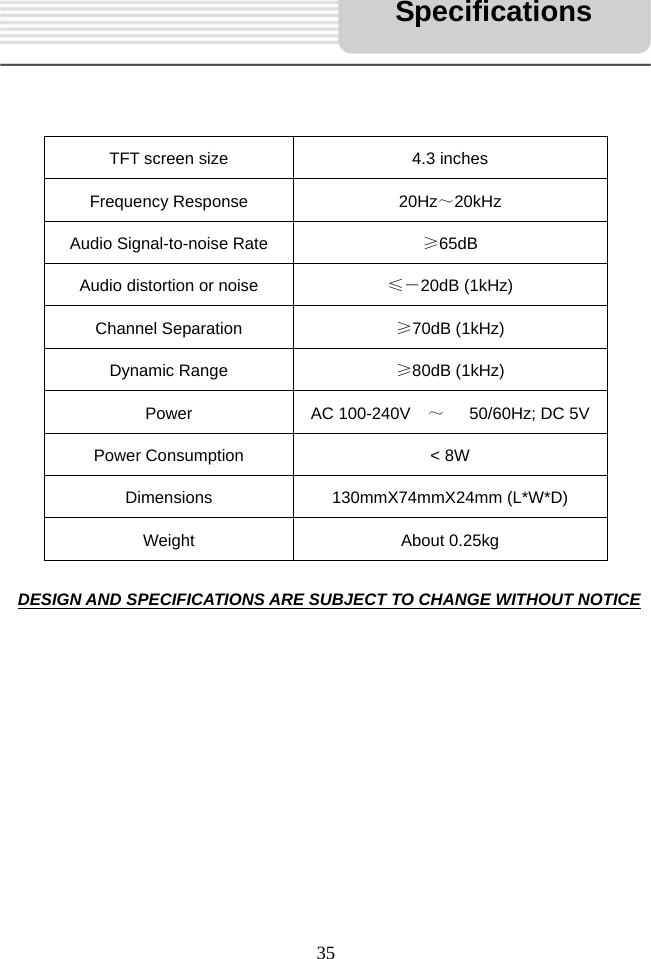
  35       DESIGN AND SPECIFICATIONS ARE SUBJECT TO CHANGE WITHOUT NOTICE             TFT screen size  4.3 inches Frequency Response  20Hz~20kHz     Audio Signal-to-noise Rate  ≥65dB Audio distortion or noise  ≤-20dB (1kHz) Channel Separation  ≥70dB (1kHz) Dynamic Range  ≥80dB (1kHz) Power AC 100-240V  ~   50/60Hz; DC 5V Power Consumption  < 8W Dimensions 130mmX74mmX24mm (L*W*D) Weight About 0.25kg Specifications

Navigation menu