AMOI Electronics BTH003 Bluetooth Headset User Manual BTH003 A20 Eng 1 2 2
AMOI Electronics Co., Ltd. Bluetooth Headset BTH003 A20 Eng 1 2 2
Users Manual Revision 1
-1-
USER MANUAL
Congratulations on selecting Amoi Bluetooth Headset BTH-003!
As you know, BTH-003, not just gets a fashion appearance, but also wears well. Most
importantly, it is convenient for you to call your friends or get calls, when in the office,
walking on the way, or driving. It can be adapted to most devices that support the
Bluetooth Headset and Hands-free profiles, like Bluetooth mobile phone, desktop
computer, notebook computer or PDA.
Bluetooth Earphone
Note: If this BTH-003 is provided as an accessory of AMOI mobile phone, items marked
with *2 will not be attached in your package. In this case, connecting the charge
adapter *1 with the phone's AC adapter, you will get a different AC adapter for the
headset. It works as well. If this headset is sold separately, items marked with *1 will
not be attached.
Packing
Power Adapter
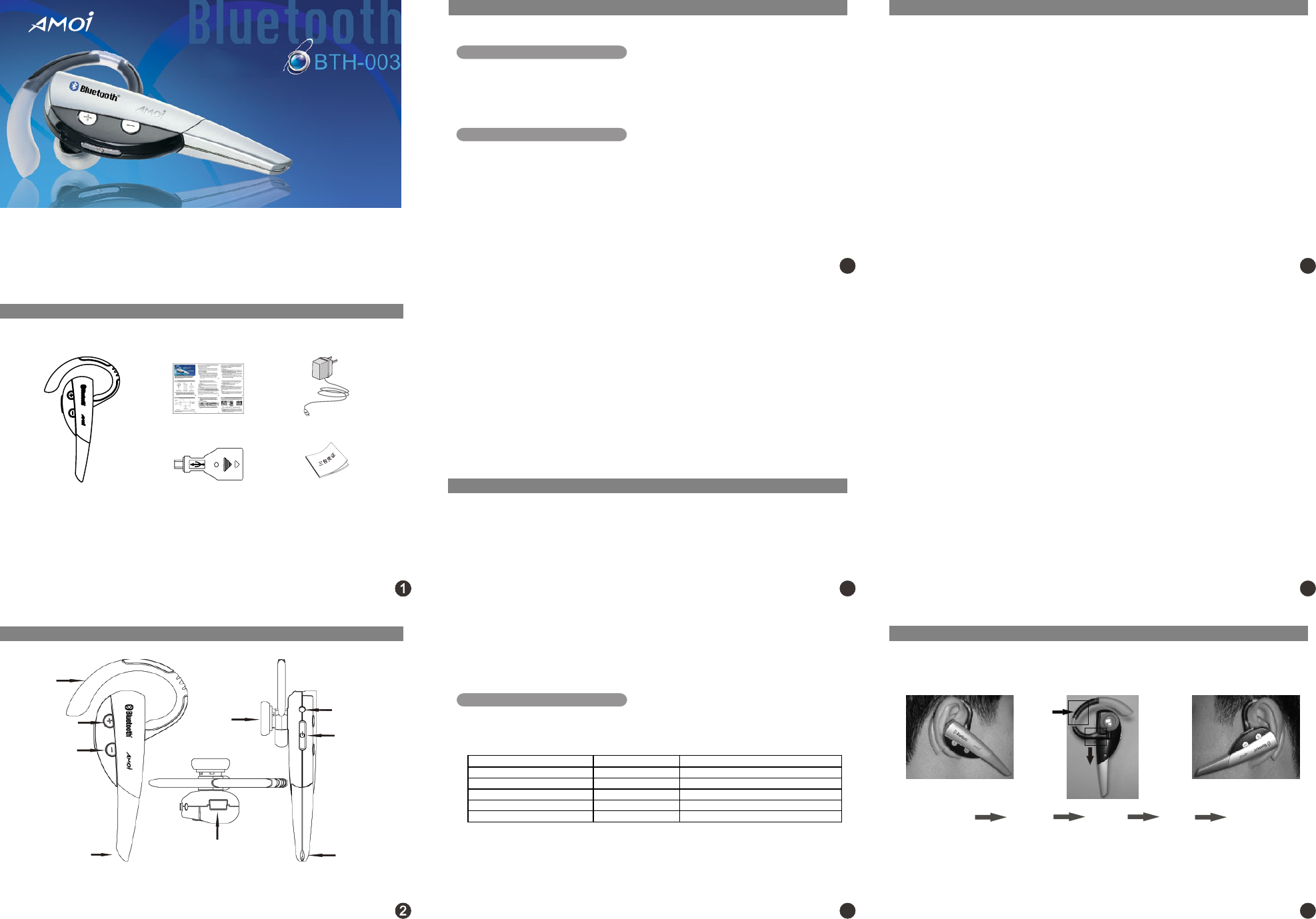
Your package contains the following items:
Charge Adapter Warranty Card
User's Manual
*1*2
*2
Bluetooth Headset
331111
Microphone
USB Charge Socket
Receiver
Microphone
Your Headset
Headset
Hanger
Volume Up Key
(VOL+)
Volume Down Key
(VOL-)
Indicator Light
Multi-function
Key (FCN)
Pictures in this user's manual are for reference only. AMOI reserves the right to change the
package items without prior notice.
22
Before Using your headsetBefore Using your headset
1.Check phone compatibility
Amoi BTH-003 is compatible with most Bluetooth phones that are compliant with
Bluetooth Specification V1.1 or higher specification, and support the headset profile
and hands-free profile. Make sure your phone has Bluetooth capability by visiting
your phone manufacturer's web.
2.Charge BTH-003
A rechargeable Li-ion battery powers this BTH-003. Be sure to fully charge the
battery before using the headset for the first time. To charge the battery, follow the
steps below:
A. Insert one terminal of the AC adapter into the USB charge socket of BTH-003
and another into the AC wall outlet. Or you can use the universal USB to
charge the headset, that is, to insert one terminal of the universal USB to
BTH-003, and another to a device that supports USB such as desktop or
notebook computers.
Before using, please read the following guidelines.
33
B. Charge the headset until the blue light on BTH-003 turns off.
C. When finished, please disconnect the AC adapter and the headset.
D. The headset is off after finishing charging or cutting the power supply during
charging.
Low Battery Indication
When the battery gets extremely low, the headset will utter three beeps every 2
minutes and the blue indicator light will dim out. In this case, please charge your
headset.
Note: BTH-003 cannot be used when charging. See more details in section “battery
&charging” below.
Warning: Do not attempt to charge the headset with anything other than the AC adapter
provided. Use of unauthorized AC adapter might damage or destroy the headset.
Turning headset On / OffTurning headset On / Off
Hold FCN key for 4 ~ 7s to turn on the headset. When it is on, the receiver will utter
two beeps and the blue indicator light will flash for 5 times rapidly.
In standby or pairing mode, hold FCN for about 2s to turn the headset off. When
turning it off, you will hear two beeps and the blue indicator light will quickly flash for 5
times and then go out.
Notes: Please don't hold FCN for more than 8s, or the headset will go into pairing mode
and the blue indicator light will keep flashing rapidly and ceaselessly. If this
happens, turn off the headset, wait for 3 to 5 seconds, and repeat process to turn
on the headset; or wait for about 2 minutes, the headset will go to standby mode
automatically.
Status What you hear What you see
Standby Mode No tone Flash blue once for every 6s
Talk Mode Ring Flash blue 4 times for every 6s
Connecting Mode No tone Flash blue 3 times for every 6s
Low Battery Three alert beeps Dim out
Active Connecting Mode No tone Flash blue twice for every 6s
Headset Status
Notes:
1. Your headset is in standby mode when it's on, but not connected with the phone.
2. In active connecting mode, your headset will search for Bluetooth devices around
actively.
Before pairing, please put the headset near the Bluetooth phone. Distance less than 1
meter would be better. Also, please make sure there is no barrier between the phone and
the headset. Metal barrier may cause failure.
Match Method 1:
A. Turn the headset off.
B. Hold FCN for 8 ~ 10s until the indicator light flashes rapidly and ceaselessly. It will
keep in this status for about 2 minutes.
Note: During the first 4 ~ 6s, the light would flash quickly for 5 times. But please keep holding
the key, or it will go into standby mode, not the pairing mode.
C. Make correct settings on your Bluetooth mobile phone. Typically, the steps involve
going to “Setup”, “Connect”, or “Bluetooth” menu on your phone and then selecting
the option to “discover” a Bluetooth device.
D. After the “BTH-003” headset being found, the mobile will ask if you want to get a
pairing with it. Confirm this by pressing “yes” or “OK”, then enter the pre-programmed
passkey “1234” and press “OK” to pair your headset and mobile phone. The headset
will be connected with your phone automatically.
“Pair” to your Bluetooth Phone“Pair” to your Bluetooth Phone
44
55
66
How to wearHow to wear
E. When pairing and connection are all finished, the indicator light will flash slowly (3
times every 6 seconds). Thus, a unique and encrypted wireless link has been
created between the headset and phone. At the same time, the phone displays
'Pairing/Connection Successful'.
Note: If the light keeps flashing quickly, or the phone displays 'Match /Connection
Unsuccessful', please repeat the processes to try again.
Match Method 2:
Be sure the Bluetooth function of your cellphone is on.
Follow steps A and B in method 1 to go into pairing mode, then press FCN key once, your
headset will go into Active Connecting Mode and begin to search for the Bluetooth device
around actively. The indicator light will flash in blue for 2 times every 6 seconds in this
mode.The phone will display “Pair with? BTH-003”, accept it. Then follow the operation
described in Match Method 1.
Notes:
1. When pairing, the phone password or PIN code may be required. It depends on your phone
model.
2. If it's found in 2 minutes that there is no Bluetooth phone to match with the headset, it will
exit the pairing mode and go into standby mode. The last successful match information
will be kept in the headset memory.
You can wear the headset on the left or right ear. Adjust the headset hanger as shown in
the following pictures. Also you can wear the headset without the hanger, pick the hanger
off in the way as shown in the middle picture below.
77
Headset
Hanger
Adjust the
hanger
Wear on
the right ear
Wear on
the left ear
Turn
Forward
Rotate
Right
Down,
pick the
hanger off
Notes:
1. For optimal performance, please put the headset and the phone on the same side of your
body. Generally speaking, if there is no barrier between the phone and headset, you will get
better performance.
2. The adjustment of the hanger depends on the built-in flexible metal tinsel, but the tinsel is
easy to damage, so please be careful when adjusting.
88
The following table shows the different statuses of the receiver and indicator light
when the headset works in different mode.

Basic OperationsBasic Operations
You can use the headset when it is on and has been connected with your Bluetooth
mobile phone.
Using phone's keypad
Dial number on keyboard, press phone's “send” key, and use BTH-003 to talk with
your friend.
Voice Dialing
Please ensure that you've set up voice tags on your phone.
Press the FCN key once, and you will hear the voice-activated tone, and then say
the related voice command of the number you want to dial.
Voice Redialing
Please make sure that your phone supports the voice redialing and has already set
up the redialing voice command. Press FCN key once, and you will hear the voice-
activated tone, and then say the redialing voice command to redial.
1.Making a Call
2.Ending a Call
3.Answering a Call
4.Rejecting a Call
Press FCN to end or end the call from phone's keyboard.
After you hear the ring tone, press FCN once. Or you can answer the call by using the
keyboard, but maybe you need to press FCN once to transfer the voice from the phone to the
headset.
It depends on your phone. Please refer to the phone's user manual for more details.
Note: Generally speaking, the ring of the headset comes later than that of the phone.
Hold FCN for 2s, you'll hear two beeps, and then release the key; or you can reject
the call through the phone directly.
Note: Call rejecting, diverting or waiting needs the support of your phone, and the cue
tone may also vary with different phones. For more details, please refer to the
phone's user manual.
Manual Redialing
Please ensure that your phone supports headset redialing manually.
In standby mode, press VOL- (Volume Down Key) for 2s and release. When you
hear one short beep, redialing begins.
Note: To improve the successful rate of the voice dialing, please use the headset to
record the voice command.
99
3311
1010
5.Transferring call
When using the headset to answer the call, hold VOL+ (Volume Up Key) until you
hear one short beep, the call will be transferred to the phone. Press FCN once to
switch the call back.
3311
7.Volume Adjusting
In standby mode, use the volume up & down key to adjust the volume, VOL+ to up
and VOL- to down. There are 16 levels to be adjusted. The volume cannot be
adjusted in standby mode.
6.Call-Waiting
During a call, if there is another call coming, you will hear two beeps from your
headset. At this time, you can press FCN once to end the current call, and press
FCN once again to get the new call.
3311
1111
Resetting your headsetResetting your headset
If the headset can't respond or the blue light will not turn on or off after pairing or
flashing abnormally, you may need to Reset your headset.
A. Insert the charging plug of the AC adapter into the USB charging
socket of the headset.
B. Insert the power adapter into the AC power socket.
C. Cut the power after 3 seconds.
D. Unplug the adapter from the headset.
Care & MaintenanceCare & Maintenance
The suggestions below will help you to prolong the life span of your headset.
A. You'd better turn the headset off when putting it in the pocket, or an
unexpected call may be made by accidentally pressing FCN.
B. Don't put the headset in moist or liquid.
C. Don't use organic solvent to clean it.
D. Don't store it in hot or cold areas.
E. Don't expose it to the fire, or it may cause explosion.
F. Put it away from sharp objects or it may cause damage or scratch.
G. Don't insert any object into the headset, or it may damage the internal
parts of the headset.
H. Don't dismantle the headset without permission.
I. Put the headset in dry area and keep it away from dust.
This device complies with Part 15 of the FCC Rules. Operation is subject to
the following two conditions:
(1) this device may not cause harmful interference, and (2) this device must
accept any interference received, including interference that may cause
undesired operation.
The antenna used for this transmitter must not be co-located or operating in
conjunction with any other antenna or transmitter.
Battery & ChargingBattery & Charging
A. Do not attempt to change the battery by yourself. The built-in Li-on
battery is irreplaceable.
B. To prolong battery's life, please follow the instruction of this user
manual to charge the battery.
3311
12121212
3311
1313
3311
1515
3311
1616
FKV2.198.985SS
Add: 45Tiyu Rd, Siming District,Xiamen
FJ 361012, P.R. China
Tel: 86-592-5058123
Fax: 86-592-5091166
Http://www.amoi.com
AMOI ELECTRONICS CO.,LTD.
SpecificationSpecification
Model: BTH-003
Bluetooth Standard: BlueTooth specification V1.2
Profile Supported: BlueTooth Headset Profile & BlueTooth handsfree Profile
Radio Frequency: 2.45GHz ISM
Transmitter Power: Class 2
Communication Distance: More than 10m (No barrier)
Weight: About 17g
Talk Time: About 8 hours (depends on cellphone model)
Standby Time: About 200 hours (depends on cellphone model)
Battery: Chargeable Li-on Battery
Charge Time: About 1.5 hours (depends on cellphone model)
Frequently asked questionsFrequently asked questions
Q: How far away from my phone will my BTH-003 work?
A: The operating range is typically up to 30 feet, with much better performance
when no barrier between them.
Q: Will BTH-003 work with laptops, PCs, and PDAs?
A: BTH-003 will work with devices that are compliant with Bluetooth specification
V1.1 or higher specifications and support the headset and/or hands-free
profile(s). Maybe you need some software while using, just follow the user
guide of the device related.
3311
1414
Q: Will anything cause interference with my conversation when I'm using my
BTH-003?
A: Devices such as cordless phones and wireless networking equipment may
cause interference with your conversation, usually adding a crackling noise. To
reduce any interference, keep the headset away from other devices that use or
produce radio waves.
Q: Will my Amoi BTH-003 interfere with my car's electronics, radio, or computer?
A: BTH-003 produces significantly less power than a typical mobile phone; it also
only emits signals that are in compliant with international Bluetooth standard.
Therefore, you should not expect any interference with standard consumer-grade
electronics equipment.
Q: Can other Bluetooth phone users hear my conversation?
A: When you pair your headset to your Bluetooth phone, you are creating a private link
between only these two devices. The third parties do not easily monitor the wireless
Bluetooth technology used in your headset.
Q: How do I take care of my BTH-003?
A: To clean the headset, use a clean, soft cloth that is slightly damp.
C. Please only use the appointed AC adapter to charge the battery.
D. Don't dismantle the AC adapter without permission, or it may cause
unexpected danger.
E. Don't use the AC adapter in the outside or moist.
F. Avoid charging the battery in hot or cold areas.