AMOI Electronics MX20 GSM850 AND PCS1900 USB MODEM User Manual
AMOI Electronics Co., Ltd. GSM850 AND PCS1900 USB MODEM Users Manual
Users Manual
Welcome to use MX20 USB Modem.
Your user guide is designed to:
First, explain simply how to use your phone, so finding the best way
to enjoy your life.
Then, ensure that you can get the best services offered.
The product you hold can be recycled, so please contact your local
dealer for the information on how to dispose of your used appliance.
Function Introduce
Support EDGE / GPRS / GSM
Phonebook ManagementP17
Support Windows 2000 & XP
Driver Auto InstallationP3
Connect to Internet P8
Send and receive SMS P11
Content
Safety Precautions......................................................................... III
1.Get to Know Your USB Modem................................................... 1
Your USB Modem .................................................................................1
Indicator................................................................................................1
Icon introduction ...................................................................................2
2.Installation Guide......................................................................... 3
System requirements............................................................................3
Device Driver and Dashboard Management Program Installation ........3
Install SIM card.....................................................................................4
Uninstall the Dashboard Management Program...................................5
3.Dashboard Management Interface ............................................. 6
Enter Dashboard Management Program..............................................6
Interface introduction ............................................................................6
4.Internet Connection ..................................................................... 8
Network connection setting...................................................................9
Create a new configuration ...............................................................9
Modify a configuration.......................................................................9
Delete a configuration.......................................................................9
Internet Connection & Disconnection..................................................10
Connect to the Internet ...................................................................10
Disconnect from the Internet...........................................................10
View Internet history ...........................................................................10
5.SMS ..............................................................................................11
New SMS............................................................................................11
Inbox...................................................................................................12
View a SMS ....................................................................................12
Reply a SMS...................................................................................13
Delete a SMS..................................................................................13
Clear Inbox .....................................................................................13
Forward a SMS...............................................................................13
SMS storage management .............................................................13
Extract number ...............................................................................15
Export a SMS..................................................................................15
Outbox ................................................................................................16
Draft....................................................................................................16
6.Contacts...................................................................................... 17
The management of contacts .............................................................17
New contact ....................................................................................17
-I-
Modify a contact..............................................................................17
Delete a contact..............................................................................17
Application of contact entries..............................................................18
Send SMS.......................................................................................18
Search for a contact entry...............................................................18
The storage management of contact ..................................................19
Import contact .................................................................................19
Export contact .................................................................................19
Storage management of contact .....................................................19
7.Options Settings ........................................................................ 21
General setting ...................................................................................21
Security setting ...............................................................................21
Power setting ..................................................................................22
Messaging settings.............................................................................22
Network setting...................................................................................23
Auto Select .....................................................................................23
Manual Select .................................................................................23
8.Troubleshooting......................................................................... 24
Can’t access to Internet......................................................................24
PIN/ PUK code lock ............................................................................24
USIM card state is incorrect................................................................25
9.USB Modem Maintenance ......................................................... 26
10.Safety Information.................................................................... 27
Using environment..............................................................................27
Medical devices ..................................................................................27
The notice of using spare parts...........................................................28
Other safety information .....................................................................28
-II-
Safety Precautions
Please read these simple guidelines. Breaking the rules may be
dangerous or illegal. Further detailed information will be given in this
manual.
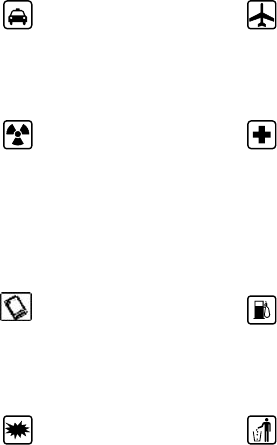
You must not use the
USB Modem while
driving.
The USB Modem may
disturb the
communication
network of aeroplanes,
so please switch off the
device on board.
All USB Modem may
be disturbed, so as to
influence its capability.
Switch off your device
in areas where the use
of the device is
prohibited. Follow the
instructions given by
the respective medical
faculty regarding the
use of the device on
their premises.
In order to ensure the
best performance and
to avoid damage to the
USB Modem, please
only use the original
accessories.
Please turn off the USB
Modem in gas station
or the places near fuel,
chemical solvent or
other dangerous items,
to avoid explosion.
Please turn off the USB
Modem in explosion
spots or in places
where” Switch off
bidirectional radio” icon
are displayed. Pay
attention and obey any
relative regulations and
rules.
Please neither burn
USB Modem nor use
USB Modem as
ordinary rubbish.
Please obey the
environmental policy of
the local government,
to dispose and recycle
them in time.
-III-
You must not
disassemble USB
Modem or its
accessories by
yourself. Please
contact the appointed
maintenance personnel
to repair.
Please put the USB
Modem and the
accessories out of
reach of the children
and don’t let them use
USB Modem without
adults around.
Please back up the
important information
stored in USB Modem
to avoid losing
important information.
Please switch off the
USB Modem when
near the high–precision
electronic devices;
otherwise, it may cause
electronic device
problems.
Cautions:
Any unapproved changes or modifications by the party responsible
for compliance might infringe the user’s authority to operate this
mobile phone.
This mobile phone may generate radio frequency energy, which, if
not installed and used in accordance with the instructions, may
cause harmful interference to radio communications. However, there
is no guarantee that interference will not occur in a particular
installation. If this mobile phone does cause harmful interference to
radio or television reception, which can be determined by turning
the equipment off and on, the user is encouraged to try one or more
of measures listed below to clear the interference:
--Reorient or relocate the receiving antenna.
--Increase the separation between the equipment and receiver.
--Connect the equipment into an outlet on a circuit different from
that to which the receiver is connected.
--Consult the dealer or an experienced radio/TV technician for help.
Attention: 1. Please send used li-ion batteries to appropriate
-IV-
disposal locations or return them to our company. Do not dispose of
the batteries in the dustbin.
2. For body worn operation this phone has been tested and meets
FCC RF exposure guidelines when used with an accessory that
contains no metal and that positions the handset a minimum of 1.5
cm from the body. Use of other accessories may not ensure
compliance with FCC RF exposure guidelines
Statement: This device complies with Part 15 of the FCC Rules.
Operation is subject to the following two conditions: (1) this device
may not cause harmful interference, and (2) this device must accept
any interference received, including interference that may cause
undesired operation.
Changes or modifications not expressly approved by the party
responsible for compliance could void the user's authority to
operate the equipment.
-V-
Get to Know Your USB Modem
MX20 -1-
1. Get to Know Your USB Modem
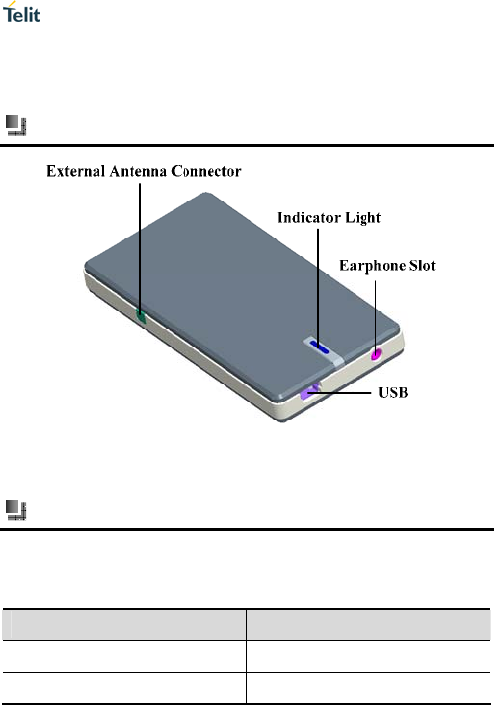
Your USB Modem
Statement:the earphone slot is not used for telephone call now.It is
onl future. y for preparatory funtion in the
Indicator
There are four colors of the Indicator Light: Red, Yellow, Blue and
Green. The different color shows the different network service / status
of USB Modem.
Status of indicator light Indication
Blue(Flash) At 3G network currently
Green(Flash) At 2G network currently
Get to Know Your USB Modem
-2- MX20
f Red No network service or power of
Yellow ervice
or system powering on
Activating the network s
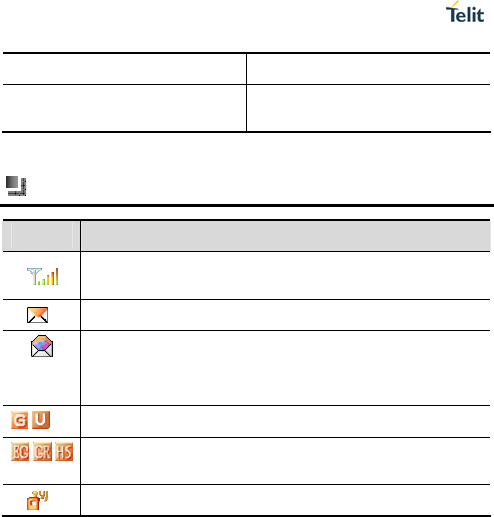
Icon introduction
Icon Description
e better the signal strength.
Shows the strength of the network signal, the more the
number of bars, th
Unread message
ue to receive and
Message memory full. Please delete undesired
message and you can then contin
send message normally.
/ Shows the network type is GSM or UTMS.
/ / nt data service type is EDGE /GPRS / Shows the curre
HSDPA
Appears when roaming.
Installation Guide
MX20 -3-
2. Installation Guide
System requirements
The USB Modem can be used on the PC with the following Windows
operation s
r PC configuration should
m ements:
ve
800X600 pixels d
ystems:
Windows 2000
Windows XP
If you want to use the USB Modem, you
eet the following basic requir
USB 1.1 interface or abo
Pentium 100 or above
32MB RAM or above
isplay resolution or above
Device Driver and Dashboard
Management Program Installation
The USB Modem is built in with installation software.
When you connect the USB Modem to your PC or Laptop for the
time, the software will automatically be
first
gin the installation of the
efore removing the USB Modem or restarting your PC or
required drivers for the USB Modem.
Please note that the process will take several minutes depending on
the type of PC or Laptop you have. Please wait for the installation to
complete b
Laptop.
Caution:
When installation of the Dashboard Management Program is
I
nstallation Guide
-4- MX20
s
e new hardware is found and the USB Modem is ready to
e used.
, please use the CD
will show the shortcuts icon
of USB Modem management program.
completed, a shortcut ICON will appear on your desktop. But at thi
stage the installation still has not been finished. Please wait for a
few moments to find the new hardware (Icon will appear in windows
tray). Onc
b
If the installation does not start automatically
provided to install the necessary software.
After installing successfully, the desktop
Caution:
If your PC operates in Windows 2000 operation system, after
installing successfully, you need to restart your PC, and then you
an use USB Modem management program.
c
Install SIM card
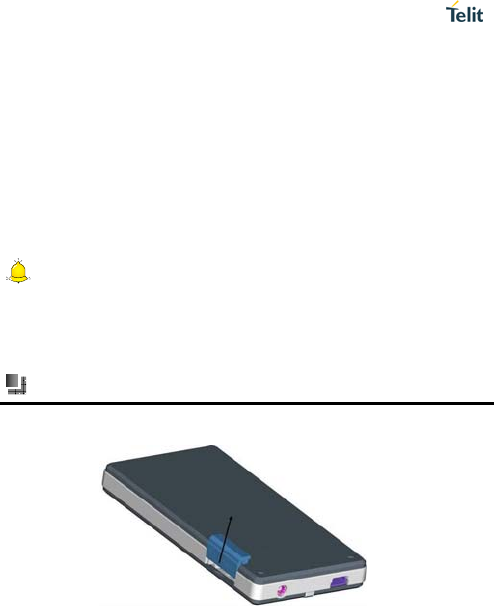
(1) Open USIM card slot, as shown in the below chart:
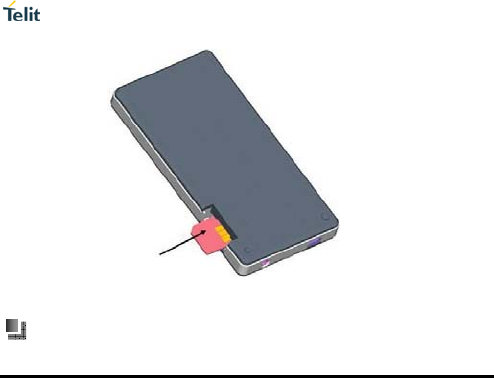
(2) Insert USIM card as shown:(pay attention to the direction)
Installation Guide
MX20 -5-
(3) Close USIM card cover.
Uninstall the Dashboard Management
Program
You can refer to the following instructions to uninstall the Dashboard
management program:
Open [Control Panel → Add or Remove Programs], and select
[Telit MX20 USB Modem] finish the uninstallation as per system
prompts.
Click [Start → Program →Telit MX20 USB Modem →Uninstall
Telit MX20 USB Modem], to run uninstallation program
automatically.
Dashboard Management Interface
-6- MX20
3. Dashboard Management
Interface
Enter Dashboard Management
Program
Select [Start → Program →Telit MX20 USB Modem →Telit MX
USB Modem], or select the shortcut from on your desktop and
double clic
20
k. This opens the USB Modem Dashboard Management
you
should input the correct PIN code.
Program.
If your SIM has a PIN (Personal Identification Number) code set,
Notice
If you input your PIN Code incorrectly for three times in succ
the SIM card will be locked. Please use your PUK code (PIN
Unblocking Key) to unlock your SIM if this oc
ession
curs. Your PUK code
an be obtained from your Service Provider.
c
Interface introduction
Open USB Modem Dashboard Management Program, you can see
the display as follows:
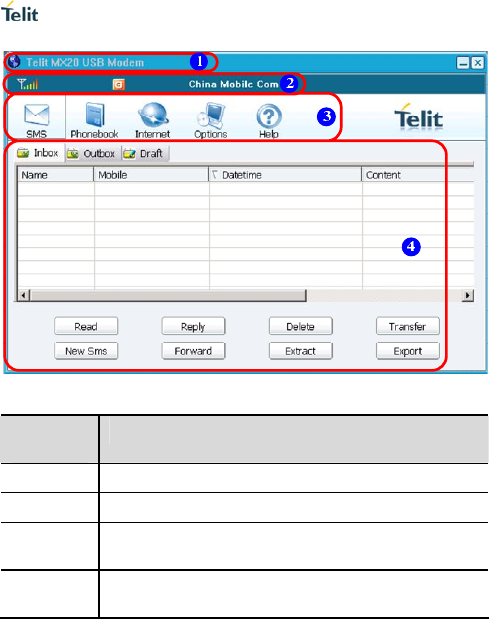
Dashboard Management Interface
MX20 -7-
Area
Code Corresponding Introduction
1 Title bar: Shows the current window title.
2 Status bar: Shows the signal and all kinds of icons.
3 Function buttons: Used for choosing the function
type of the current operation.
4 Function screen: It changes with the selected
function.
Internet Connection
-8- MX20
work supports, you can send messages while surfing
4. Internet Connection
The USB Modem model MX20 allows connection to the Internet via
several air interfaces including HSDPA , UMTS , EDGE and GPRS.
You can establish your desired connection manner according to the
network service available. The default connection manner is HSDPA
Internet If net
the Internet.
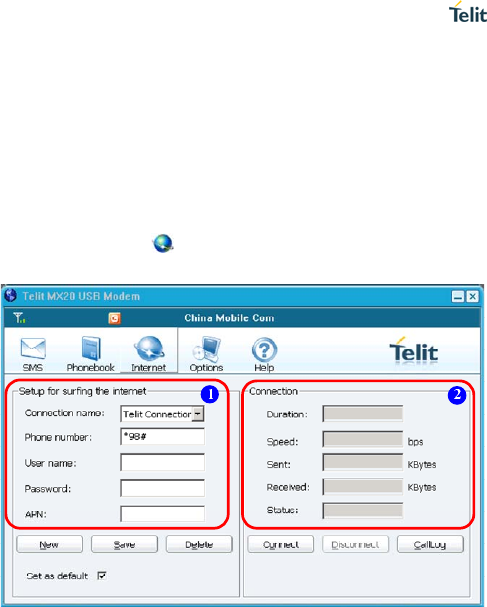
Click function button and enter the Internet function screen.
Please see the below chart:
Internet Connection
MX20 -9-
Area
nu er mb Introduction
1 nternet connection Parameters area: Input I
parameters in this area.
2 Status area: Displays the connection status.
Network connection setting
Crea
(1)
(2) n.
) Click <OK> to finish creating a new configuration.
te a new configuration
Click <New> and enter [New Connection] screen.
Enter the relative parameters of Network connectio
(3
Notice
elect [Set Default] and set the cuS
crrent network connection
onfiguration as the default one.
Mod
(1) net function screen,
modified.
(2)
e the modified configuration.
Dele
(1) ternet function screen,
(2) Click <Delete> to delete the configuration.
ify a configuration
Click” Connection name” listed on the Inter
and select the item needed to be
Modify the relative parameters.
(3) Click <Save> to sav
te a configuration
Click” Connection name” listed on the In
and select a setting you want to delete.
Internet Connection
-10- MX20
Internet Connection & Disconnection
Connect to the Internet
(1)
(2)
Click” Connection name” listed on the Internet function screen,
and select a setting needed connection.
Click <Connect> and dial-up to connect to the Internet.
Disconnect from the Internet
If you want to disconnect from the Internet, click <Disconnect>.
View Internet history
Click <CallLog>, and enter [Call Log] interface on the Internet
function screen, thus you can view the specific records of the
previous connection
Click <Export> to download records.
After selecting your desired connection record, click <Delete> to
delete it.
Click <Exit> to exit [Call Log] screen.

SMS
MX20 -11-
Click the function
5. SMS
button to enter the SMS interface.
New SMS
(1) Click< Write SMS] interface.
You can input th
g “;”
from phone you can hold the < > to select one by one.
(3)
(4)
he recipient and the SMS
ose> to cancel the operation and close [Write
Sms] interface.
New SMS> and enter [
(2) Input a phone number.
e phone number by the following methods:
Input number directly: The USB Modem supports the function of
sending SMS to several (up to 10) people at once, you can input
10 numbers at most, but you should separate them by insertin
between each number in the same way as for normal email.
Insert from phone book: Click <Phone> and enter [Select
Contact] screen, then you can select your desired contact from it.
Click <OK> to insert the selected contact. If there is more than one
number of your selected contact, you can enter [Select Number]
screen and select your desired number from the list, click <OK> to
insert the selected number. If you want to insert several numbers
Ctrl book,
Edit the SMS.
After editing, you can do the following operations:
Send: Click<Send> to send the SMS to t
will be saved in [Outbox] automatically.
Save: Click<Save> to save the SMS to Draft Box.
Clear: Click<Clear> to delete all the recipients’ numbers and SMS.
Close: Click <Cl
SMS
-12- MX20
Notice:
USB Modem supports the long SMS. (You can edit and send five
Segments each time at most)
Inbox
[Inbox] stores all SMS you’ve received. Your PC can store up to 500
messages, while the number that you SIM card can store depends on
the type of your SIM card.
If [Inbox] is full, the USB Modem will prompt you when there is a new
SMS coming and the new SMS will replace the oldest read message
of [Inbox].
If there is an unread SMS, the icon will appear in status bar of the
main screen, and the unread SMS in [Inbox] will be highlighted.
Enter the SMS interface and select [Inbox], the program will list all
SMS in the [Inbox] for you.
Notice:
If the sender’s number has been stored in the phone book, the name
will be displayed or only displayed as Unknown.
You can arrange the order for all SMS by Name, Mobile, Datetime or
Content respectively. Click <Name>, <Mobile>, <Datetime> or
<Content> to arrange them by ascending sort or descending sort.
Press the key to arrange order by ascending sort, while press the
key to arrange order by descending sort. After arranging order,
there will appear an order symbol before the item.
View a SMS
(1)
(2)
Select the SMS you want to read.
Click <Read> or dblclick the SMS to view it.

SMS
MX20 -13-
(1)
(2)
(3)
(4)
(1)
(2)
(1)
(2)
(3)
(4)
Reply a SMS
Select the SMS you want to reply.
Click <Reply> to enter [Write SMS] screen, and the sender’s
number will appear in number box automatically, or you can
modify the number by yourself.
Edit the SMS.
Click <Send> to send the SMS
Delete a SMS
Select a SMS or several SMS
Click <Delete>, if you are sure you want to delete the selected
SMS, click<Yes> in the dialog box to delete the SMS.
Clear Inbox
Click <Del All>, if you are sure you want to delete all SMS in [Inbox],
click [Yes] in the dialog box to delete all SMS in [Inbox].
Forward a SMS
Select the SMS you want to forward.
Click <Forward> to enter the Sending SMS interface.
Enter your desired number directly, or insert the number from
phone book.
Click <Send>to forward the SMS directly, or after editing, click
<Send> to send the SMS
SMS storage management
The SMS stored in PC, USB Modem and USIM card can be
transferred with each other.
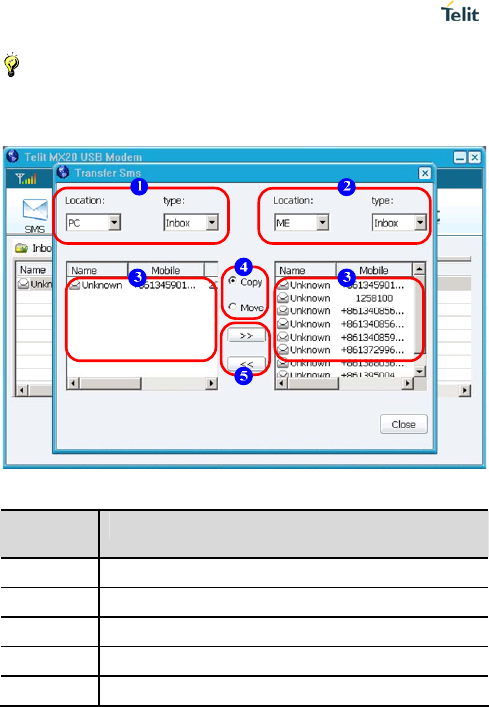
Click <Transfer> and enter the [Transfer SMS] interface, please see
the below figure:
SMS
-14- MX20
Notice
The SMS stored in USB Modem won’t be lost even if PC or USIM card
is changed.
Area
number Introduction
1 SMS storage location 1
2 SMS storage location 2
3 Operation object area
4 Operation manner area
5 Operation direction area
SMS
MX20 -15-
The specific operations of message storage management show as
follows:
(1) In area 1 and 2, click ‘Location’ list and select a storage
location from PC, USB Modem and USIM card.
(2) In area 1 and 2, click ‘Type’ list to select a storage type from
Inbox and Outbox.
(3) Select the SMS you want to copy or remove in operation object
area.
(4) Select the operation manner as [Copy] or [Move] in operation
manner area.
(5) Click , and the SMS will be transferred from the left area of
arrowhead to the right area; while click , the SMS will be
transferred from the right area of arrowhead to the left area
Caution
When you select Copy, the original message is still saved; when you
select Move, the original message is deleted.
Extract number
(1)
(2)
(3)
Select the desired SMS.
Click <Extract> and enter [Select Position] screen, and then
you can select the storage position of the extracted number as
[Mobile], [Home] or [Company].
Click <OK> to extract the number.
Export a SMS
Export [Inbox], [Outbox], [Draft] or all SMS of USB Modem to CSV
files and stored in your PC.
SMS
-16- MX20
Outbox
[Outbox] is used to store the SMS you have sent successfully or
unsuccessfully. The operations for the [Outbox] is similar to that of
[Inbox], so please refer to that for details.
Draft
Click <Save> while editing a SMS, then the SMS will be stored in
[Draft]. The operations for the SMS of [Draft] is similar to that of
[Inbox], please refer to that for details.

Contacts
MX20 -17-
s; and the memory of
from USB Modem to PC, in order to
be convenient for management.
Click
6. Contacts
The USB Modem can store 100 contact entrie
USIM card depends on the USIM card type.
You can create, modify, delete, or search for a contact entry. The
USB Modem also supports import and export of contact entries, so
you can send the contact entries
, and enter Contacts interface.
The management of contacts
New contact
The det act show as follows:
(1) Click
(2) uch as Name, Mobile, Home,
The
(1) blclick the
] interface.
(2)
The w as follows:
(1) Select the contact entry you want to delete.
ailed operations for creating a new cont
<Add> to enter [Contact] interface.
Fill in the contact’s information, s
Company, Email and Remark.
(3) Click<OK> to store the contact’s information.
Modify a contact
detailed operations for modifying a contact show as follows:
Select the contact entry you want to modify, then d
tactentry or click <Edit> to enter [Con
Edit the contact’s information.
(3) Click <OK> to store the contact’s information.
Delete a contact
detailed operations for deleting a contact sho
Contacts
-18- MX20
(2)
(3)
Click <Delete>.
If you confirm to delete, click <Yes> in the prompt box.
Application of contact entries
Send SMS
You can select a contact entry and send SMS directly, and the
specific operations show as follows:
(1)
(2)
(3)
Select a contact entry.
Click <Send SMS>, if there is only one number in the contact
entry, enter [Write SMS] interface; while there is more than one
number in the contact entry, enter [Select Number] , after
selecting one number from it, click <OK> to enter [Write SMS],
and the USB Modem will abstract the phone number
automatically. If you want send SMS to many people, click
<Phone> and enter [Select Contact] screen. As for the detailed
operations, please see” New SMS ” at P11.
After editing SMS, click<Send> to send the SMS.
Notice
For the first step, you can select multiple contact entries and send to
many people. The step 2 and 3 are similar.
Search for a contact entry
The specific operation steps of searching for a contact entry are as
follows:
Click <Search> and enter [Search Contact] interface. (1)
(2) Enter search conditions: You can enter either the contact name
or phone number to search for your desired contact.

Contacts
MX20 -19-
(3) Click <Search> and the first contact entry meeting with the
condition will be highlighted. If there are many contact entries
which meet with the condition, you can click <Ahead> or
<Next> to view the previous or the next entry.
The storage management of contact
Import contact
You can import the contact file with the appointed format from PC to
USB Modem.
Notice
The USB Modem supports the contact file that can be imported are
the files with VCF format and CSV format.
Export contact
You can export the contact file with the appointed format
The specific steps are as follows:
Click <Export> and open the Save dialog box. (1)
(2)
(3)
(1)
First select your desired storage route, then input the contact file
name and select its storage format as VCF and CSV.
Click <Save>, and the contacts of your USB Modem will be
exported as the file with appointed format and stored in your PC.
Storage management of contact
Click <Transfer> and enter [Transfer Dialog] screen, so you can
manage the contact entries stored in PC, USB Modem and USIM
card. The operation steps show as follows:
Select the storage location of two contact entries from PC, USB
Modem and USIM card,

Contacts
-20- MX20
(2)
(3)
Select the contact entry needing to be transferred, and your
selected area is source area, while the other area is target area.
Press transmission manner button and activate file transfer
function, so your selected contact entry will be transferred from
source area to target area. The arrowhead of [Transfer Dialog]
screen shows the transmission direction
The USB Modem provides four kinds of transfer methods:
Click <Copy Some>: You can copy one or many contact entries
from source area to target area.
Click <Move Some>: You can move one or many contact entries
from source area to target area.
Click <Copy All>: You can copy all contact entries from source
area to target area.
Click <Move All>: You can move all contact entries from source
area to target area.
Options Settings
MX20 -21-
Click
7. Options Settings
in Toolbar to enter Options function screen.
General setting
Click [General] option and you have access to some security and
ether to input PIN code or not while activating USB Modem.
power settings for USB Modem.
Security setting
You can set a PIN code. The PIN code is the personal identification
number code supplied with your USIM card; with the PIN code, you
can protect your USIM card from the unauthorized use by other
people. In addition, you can also modify the PIN code and set
wh
Caution
If you input PIN code incorrectly three times in succession, USIM
card will be locked automatically and you need to input PUK code to
unlock it. (Usually, PUK code is supplied with USIM card. If you d
o
ot have your PUK code, please contact your Service Provider).
se the USB
Modem.
(1) Click
(2) ng correct PIN code, click < >and you can enable
n
Enable PIN
You can enable PIN code checking function. After activating PIN
code, only when you input the correct PIN code can you u
The steps for enabling PIN code are as follows:
<Enable Pin> to enter [Enable PIN] interface.
After inputti OK
PIN code.
Modify PIN
You can modify PIN code by yourself. Make sure to enable PIN code

Options Settings
-22- MX20
odifying. The detailed operation of modifying PIN code is as
follow
(1)
(2) de correctly, input the new PIN code
(3 ing.
function if you don’t need it. The
detai
(1)
(2) click <OK> and the Pin code
tion will be disabled.
provider for a
new
(1) ock Pin> and enter [PUK Unlock PIN Code]
(2)
(3) numbers).
Click< em power.
before m
s:
Click <Modify Pin> to enter [Modify PIN Code] interface.
After inputting old PIN co
twice. (for 4-8 digit bits)
) Click <OK> and finish modify
Disable PIN
You can disable PIN code checking
led operations are as follows:
Click <Disable Pin> to enter [Disable PIN] interface.
After inputting correct PIN code,
check func
Unlock PIN
If your PIN code is locked, you can unlock it with this function( If you
input PUK code incorrectly ten times in succession, USIM card can’t
be used any more and you should contact your service
SIM card).The specific operations are as follows:
Click <Unl
interface.
Input the correct PUK code from operator.
Input new PIN code twice (for 4-8
(4) Click <OK> and finish unlocking.
Power setting
ON>/<OFF> to activate/close the USB Mod
Messaging settings
Set the relative parameter related to messaging:

Options Settings
MX20 -23-
Message Center: Input message center number which is used for
sending text message, if you do not have this number, your
Service Provider will be able to provide you with it.
Preferred Storage: Select where to preferred storage from [PC],
[ME] and [USIM].
Validity Period: When the recipient can’t receive the message
you’ve sent, the message center will send the message again in
the valid period you set. The USB Modem provides 6 types of
validity period: [1 hour], [6 hours], [1 day], [3 days], [1 week], and
[1 year].
Delivery Report: Set whether to receive the message delivery
report so as to check whether your recipient has got the message
or not.
Network setting
Auto Select
(1)
(2)
(1)
(2)
You can set the network automatically, there are four types:
[Only GPRS/EDGE], [Only UMTS], [GPRS/EDGE preferred]
and [UMTS preferred].
Click<Set>and finish network setting.
Manual Select
Click<Refresh>to list all available modes, each including
[Status], [Operator Name], [Numeric Symbol] and [Network
Type].
Select the desired network and click <Select> to activate it.
Troubleshooting
-24- MX20
e problem, please contact with
the authorized m
8. Troubleshooting
Please check to see if any problems you have encountered in
respect to the use of your USB Modem are described in the below
tables. If you are unable to resolve th
aintenance center.
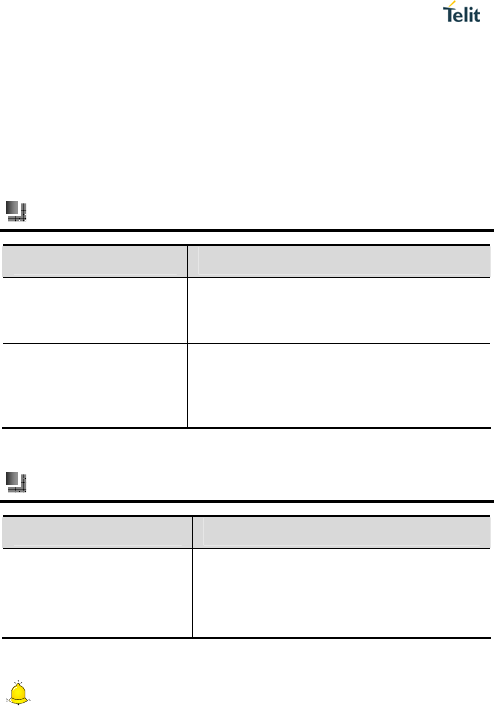
Can’t access to Internet
Possible reasons Solutions
Haven’t subscribed
the wirel
to
ess data Provider to get the service.
service
Please consult with your Service
Have no relative
configuration of
Internet services, or
the configuration error.
ferring to”
Internet connection”
Please configure by re
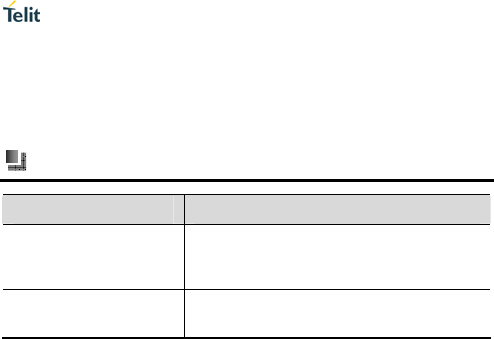
PIN/ PUK code lock
Possible reasons Solutions
PIN Code (Personal
Identification code)/
PUK Code (Unlock PIN
code) input error
Please input correct password
Caution
1 .If PIN code is input incorrectly three times in succession, and then
Troubleshooting
MX20 -25-
d, please
code and/or PUK code, please
ontact your Service Provider.
many functions of USIM card and USB Modem will be locke
refer to “Enter Dashboard Management Program” section.
2. If you are unsure of your PIN
c
USIM card state is incorrect
Possible reasons Solutions
Insert the USIM card
incorrectly ual
em.
Please inset the USIM card correctly
according to the method in user man
and as shown on the USB mod
The USIM card has
been damaged
Please replace the USIM card

USB Modem Maintenance
-26- MX20
advice can help you to maintain
U
and its spare parts should be put out of the reach
USB Modem dry. Moisture or water will corrupt circuit
es with dust, or it will affect the
re.
igh temperature will shorten the life of electronic
odem and destroy the electronic
ntly. Do not use rough
rts that can
be taken down will be stuck and affect its normal use.
9. USB Modem Maintenance
USB Modem is a high-precision electronic product, so please
maintain it carefully. The following
SB Modem and prolong its life.
The USB Modem
of the children.
Keep the
board.
Don’t lay USB Modem in plac
normal use of USB Modem.
Don’t lay the USB Modem in places with too high temperatu
Because h
devices.
Don’t lay the USB Modem in places with too low temperature.
Otherwise, when the temperature rises to the normal temperature,
there will be moisture in USB M
circuit board of USB Modem.
Don’t throw, knock or shake USB Modem intensely, in case to
damage the electronic circuit board and structure of USB Modem.
Use soft cloth to clean the USB Modem ge
chemical or abrasive cleaners to clean it.
Don’t draw your USB Modem with paint, in case the pa
Safety Information
MX20 -27-
n 10. Safety Informatio
Using environment
magnetic devices, such as
agnetism pot and microwave
or fear
r USB Modem isn’t waterproof, please keep it dry
se try not to use the device, to avoid
Modem without people around, or the
and make the power of USB Modem higher than in
normal use.
Please put USB Modem away from
magnetic cards and floppy disk.
Please don’t put the USB Modem in instruments with strong
electromagnetism, such as electrom
oven or it will cause circuit failure.
Please don’t lay and use USB Modem in places of high
temperature and flammable gas, such as fire or heater, f
cause gas burnt, USB Modem failure, fire or explosion.
Because you
while using.
Please avoid intense impact or shake on USB Modem.
In thunderstorm weather, plea
lighting strike or other injury.
Please put USB Modem out of the children’s reach, please don’t
allow children to use USB
children may be injured.
Don’t touch the antenna, otherwise, it will influence the RF
performance
Medical devices
Please turn off your USB Modem in areas near the electronic medica
equipments (such as heart pacemaker, hearing aids and etc). Mos
medical equipments can shield the RF signal of USB Modem, but
some can’t. So if you are not sure whether the medical equipment
l
t
has the function of shielding RF signal, please switch off your device.
Safety Information
-28- MX20
The notice of using spare parts
Please put all spare parts of USB Modem (such as USIM card,) out
of the children’s reach, for fear danger occurs.
Because USB Modem spare parts aren’t water-proofing, so please
keep all spare parts dry.
Other safety information
Please obey the local laws about disposing of the USB Modem
packing material and old USB Modem, and try to support recycle
action.