ANHUI KONKA ELECTRONIC E2SW5018 LCD TV User Manual E2SW5018
ANHUI KONKA ELECTRONIC CO., LTD LCD TV E2SW5018
Users Manual
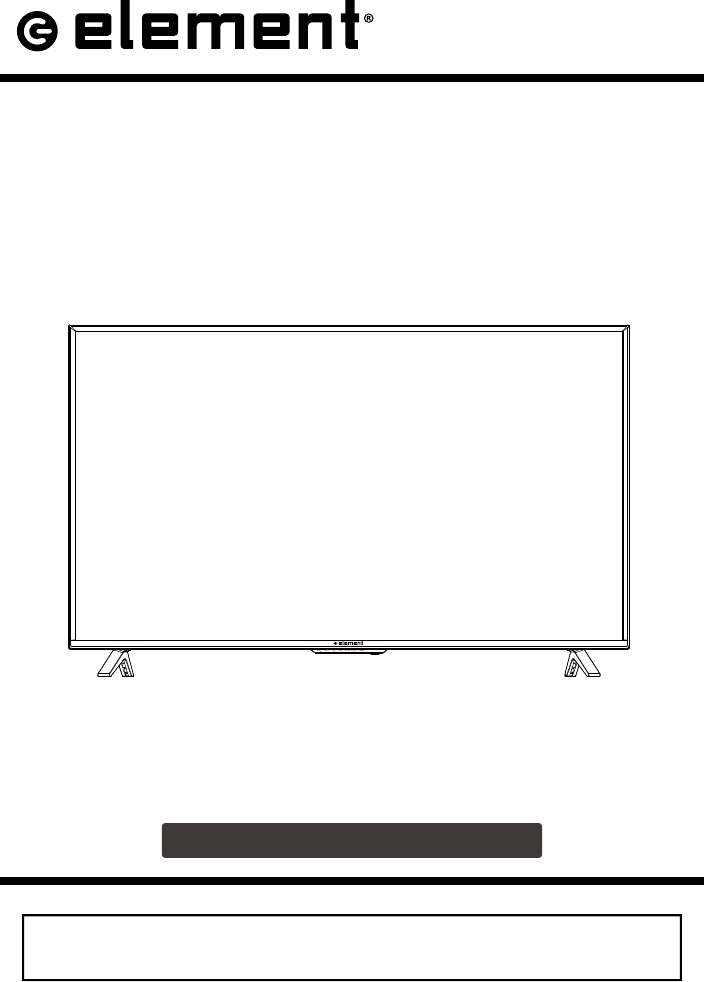
INSTRUCTION MANUAL
Please read all the instructions carefully before using this TV,
and keep the manual for future reference.
E2SW5018
LCD TV
Please refer to the actual product

1
ÝÑÒÌÛÒÌÍ
׳°±®¬¿²¬ Í¿º»¬§ ײ-¬®«½¬·±²- î
ß¼¼·¬·±²¿´ Í¿º»¬§ ײº±®³¿¬·±² í
Ю»°¿®¿¬·±²- ì
What's Included 4
View 5
Rear View 6
Wall Mounting 6
Remote Control 7
ݱ²²»½¬·²¹ Û¨¬»®²¿´ Ü»ª·½»- è
Ý«-¬±³·¦·²¹ ÌÊ Í»¬¬·²¹- ç
Turning On/Off Your TV 9
Initial Setup 9
Source 11
Channel Selection 11
Volume Adjustment 11
Streaming 12
Media 13
Viewing Photos 13
Listening To Music 14
Watching Videos 14
TV Settings 15
General 16
Picture Settings 18
Audio Settings 19
Network Settings 19
Channel Settings 20
Time Settings 20
Lock Settings 21
APP Settings 21
Parental Control 22
Ì®±«¾´»-¸±±¬·²¹ îì
ÚÝÝ Ò±¬»- îé
ÑÌÌ ßÐÐ Í»®ª·½» îè
Rear
2
×ÓÐÑÎÌßÒÌ ÍßÚÛÌÇ ×ÒÍÌÎËÝÌ×ÑÒÍ
λ¿¼ ¬¸»-» ·²-¬®«½¬·±²- – All the safety
and operating instructions should be read
before this product is operated.
Õ»»° ¬¸»-» ·²-¬®«½¬·±²- – The safety
and operating instructions should be
retained for future reference.
Ø»»¼ ¿´´ ©¿®²·²¹- – All warnings on
the appliance and in the operating
instructions should be adhered to.
Ú±´´±© ¿´´ ·²-¬®«½¬·±²- – All operating
and use instructions should be followed.
ܱ ²±¬ «-» ¬¸·- ¿°°¿®¿¬«- ²»¿® ©¿¬»r
– The appliance should not be used near
water or moisture – for example, in a wet
basement or near a swimming pool, and
the like.
Clean only with dry cloth.
ܱ ²±¬ block any ventilation openings.
Install in accordance with the
manufacturer’s instructions.
ܱ ²±¬ install near any heat sources such
as radiators, heat registers, stoves, or
other apparatus (including that
produce heat.
ܱ ²±¬ defeat the safety purpose of
the polarized or grounding-type plug. A
polarized plug has two blades with one
wider than the other. A grounding-type
plug has two blades and a third grounding
prong. The wide blade or the third
prong are provided for your safety. If the
provided plug does not into your outlet,
consult an electrician for replacement of
the obsolete outlet.
Protect the power cord from being walked
on or pinched particularly at plugs,
convenience receptacles, and the point
where they exit from the apparatus.
Only use attachments/accessories
by the manufacturer.
Use only with the cart, stand, tripod,
bracket, or table specified by the
manufacturer, or sold with the apparatus.
When a cart is used, use caution when
moving the cart/apparatus combination to
avoid injury from tip-over.
Unplug this apparatus during lightning
storms or when unused for long periods
of time.
Refer all servicing to qualified service
personnel. Servicing is required when
the apparatus has been damaged in any
way, such as the power-supply cord or
plug is damaged, liquid has been spilled
or objects have fallen into the apparatus,
the apparatus has been exposed to rain
or moisture, does not operate normally, or
has been dropped.
Please keep the unit in a well-ventilated
environment.
ÉßÎÒ×ÒÙæ To reduce the risk of or electric
shock, do not expose this apparatus to rain
or moisture. The apparatus should not be
exposed to dripping or splashing. Objects
with liquids, such as vases should not be
placed on apparatus.
ÉßÎÒ×ÒÙæ The batteries shall not be exposed
to excessive heat such as sunshine, or the
like.
ÉßÎÒ×ÒÙæ The main plug is used as
disconnect device, the disconnect device shall
remain readily operable.
ÉßÎÒ×ÒÙæ To reduce the risk of electric
shock, do not remove cover (or back) as there
are no user-serviceable parts inside. Refer
servicing to personnel.
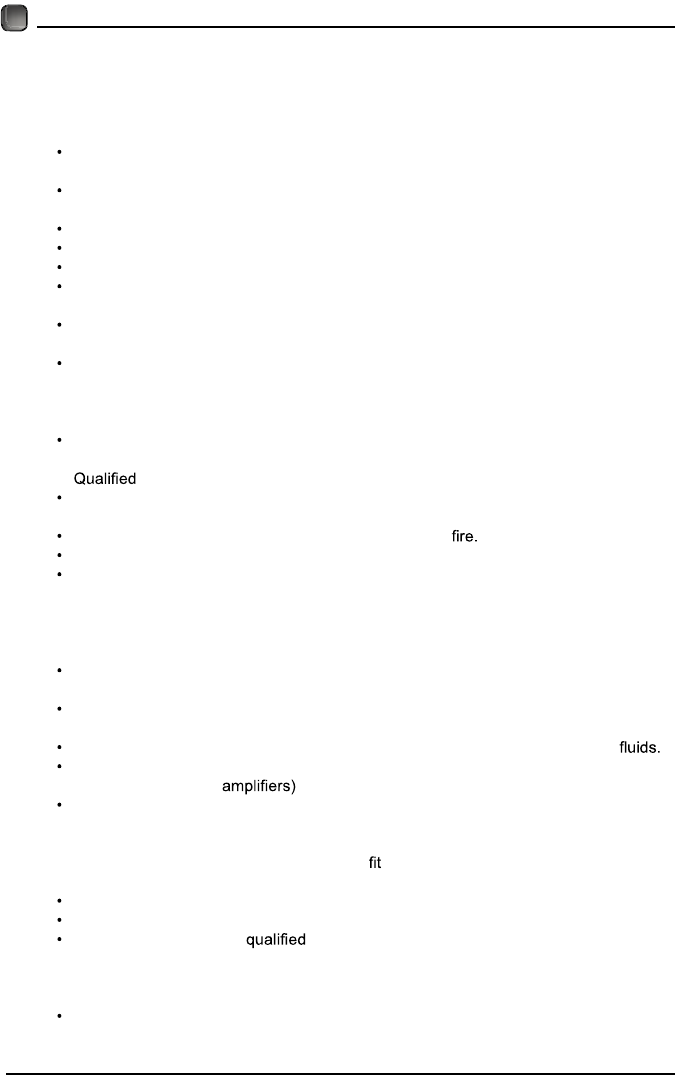
This lightning flash with arrowhead
symbol within an equilateral triangle
is intended to alert the user to
the presence of non-insulated “dangerous voltage”
within the product’s enclosure that may be of
sufficient magnitude to constitute a risk of electric
shock.
The exclamation point within an
equilateral triangle is intended to
alert the user to the presence of
important operating and maintenance instructions in
the literature accompanying the appliance.
This equipment is a Class II or double
insulated electrical appliance. It
has been designed in such a way
that it does not require a safety connection to
electrical earth.
Î×ÍÏËÛ ÜÛ ÝØÑÝ ÛÔÛÝÌÎ×ÏËÛ ÒÛ
ÐßÍ ÑËÊÎ×Î
3
ßÜÜ×Ì×ÑÒßÔ ÍßÚÛÌÇ ×ÒÚÑÎÓßÌ×ÑÒ
To ensure reliable and safe operation of this equipment, please read carefully all the
instructions in this user guide, especially the safety information below.
Û´»½¬®·½¿´ Í¿º»¬§
The TV set should only be connected to a main power supply with voltage that
matches the label at the rear of the product.
To prevent overload, do not share the same power supply socket with too many other
electronic components.
Do not place any connecting wires where they may be stepped on or tripped over.
Do not place heavy items on them, which may damage the leads.
Hold the main plug, not the wires, when removing from a socket.
During a thunderstorm, or when not using the television for extended period of time,
turn off the power switch on the back of the television.
Do not allow water or moisture to enter the TV or power adapter. Do NOT use in wet,
moist areas, such as bathrooms, steamy kitchens or near swimming pools.
Pull the plug out immediately, and seek professional help if the main plug or cable
is damaged, liquid is spilt onto the set, if accidentally exposed to water or moisture,
if anything accidentally penetrates the ventilation slots or if the set does not work
normally.
Do not remove the safety covers. There are no user serviceable parts inside. Trying
to service the unit yourself is dangerous and may invalidate the product’s warranty.
personnel must only service this apparatus.
To avoid battery leakage, remove exhausted batteries from the remote control, or
when not using for long period.
Do not break open or throw exhausted batteries on a
Do not mix old and new batteries.
Do not mix Alkaline,Standard (Carbon-Zinc) or Rechargeable (Nickel Cadmium) or
(Nickel Metal Hydride) batteries.
и§-·½¿´ Í¿º»¬§
Do not block ventilation slots in the back cover. You may place the TV in a cabinet,
but ensure at least 5cm (2'') clearance all around.
Do not tap or shake the TV screen, or you may damage the internal circuits. Take
good care of the remote control.
To clean the TV use a soft dry cloth. Do not use solvents or petroleum based
Do not install near any heat sources such as radiators, heat registers, stoves or other
apparatus (including that produce heat.
Do not defeat the safety purpose of the polarized or grounding-type plug. A polarized
plug has two blades with one wider than the other. A grounding type plug has two
blades and a third grounding prong, the wide blade, or the third prong is provided for
your safety. If the provided plug does not into your outlet, consult an electrician for
replacement of the obsolete outlet.
Protect the power cord from being walked on or pinched particularly at plugs.
Unplug the apparatus during lightning storms or when unused for long periods.
Refer all servicing to a service personnel. Servicing is required when the
apparatus has been damaged in any way, such as power-supply cord or plug is
damaged, liquid has been spilled, or objects have fallen into the apparatus, has been
exposed to rain or moisture, does not operate normally, or has been dropped.
Please always connect your television to a power outlet with protective groud
connection.
4
PREPARATIONS
What is Included?
QUICK START GUIDE
SMART TV
5
PREPARATIONS
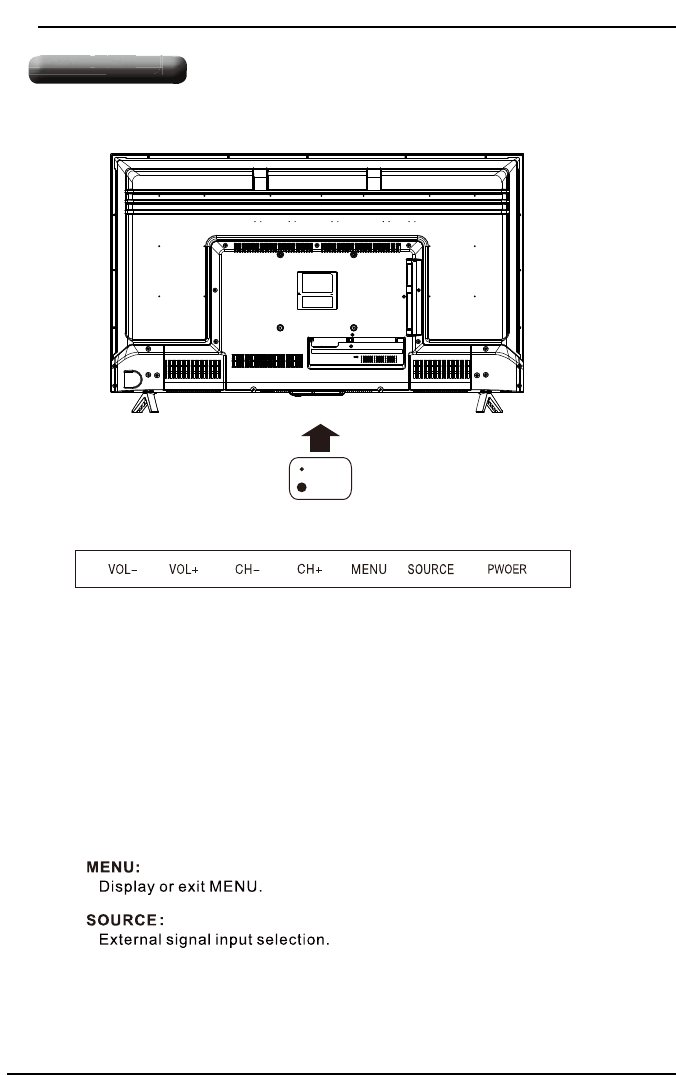
Front View
•
•
•
Switch the TV between On and Standby mode.
POWER
• CH
Press to select a channel.
• VOL +/-
+/-
Press to adjust the volume.
LED
IR
Rear View
6
PREPARATIONS
Rear View
Your new TV is heavy, please consult with professional wall
mount installer to perform this installation.
WARNING
Never place a television set in an unstable location. A television set may fall, causing serious
personal injury or death. Many injuries, particularly to children, can be avoided by taking
simple precautions such as:
- Using cabinets or stands recommended by the manufacturer of the television set.
- Ensuring the television set is not overhanging the edge of the supporting furniture.
- Not placing the television set on tall furniture(for example, cupboards or bookcases)
without anchoring both the furniture and the television set to a suitable support.
- Not placing the television set on cloth or other materials that may be located between the
television set and supporting furniture.
- Educating children about the dangers of climbing on furniture to reach the television
set or its controls.If your existing television set is being retained and relocated, the same
considerations as above should be applied.
Wall Mounting
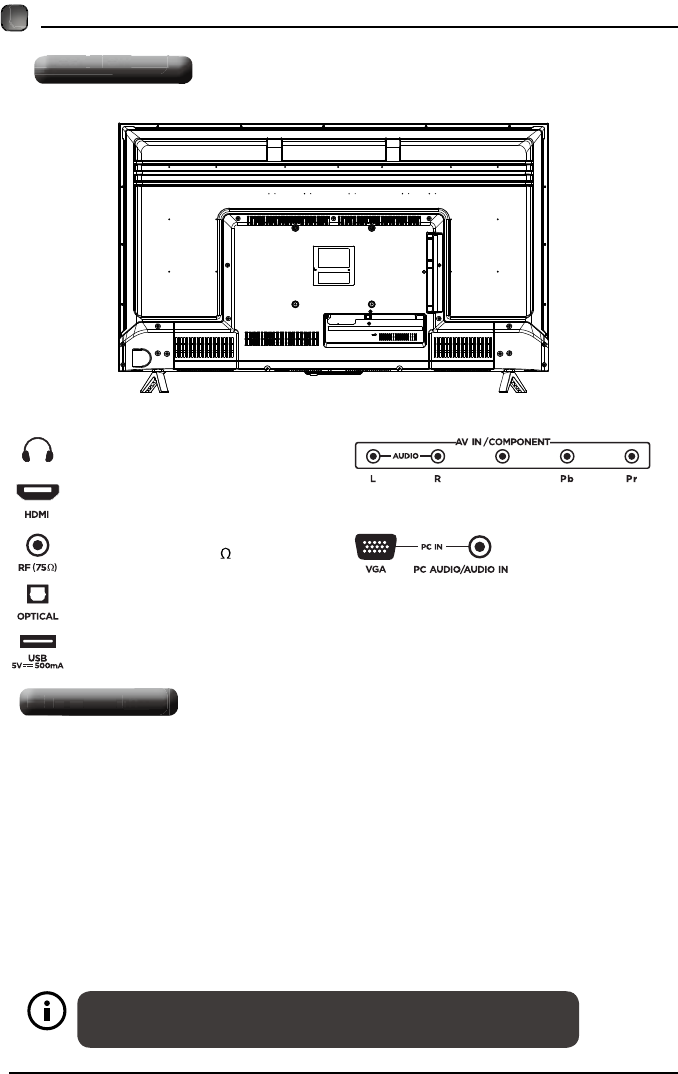
Headphone Output
HDMI Input
Antenna Input(75 VHF/UHF)
Optical Output
USB Input
VGA Input/PC Audio Input
AV/Component Input
VIDEO/Y
Rear View
Wall Mounting
7
ÐÎÛÐßÎßÌ×ÑÒÍ
λ³±¬» ݱ²¬®±´
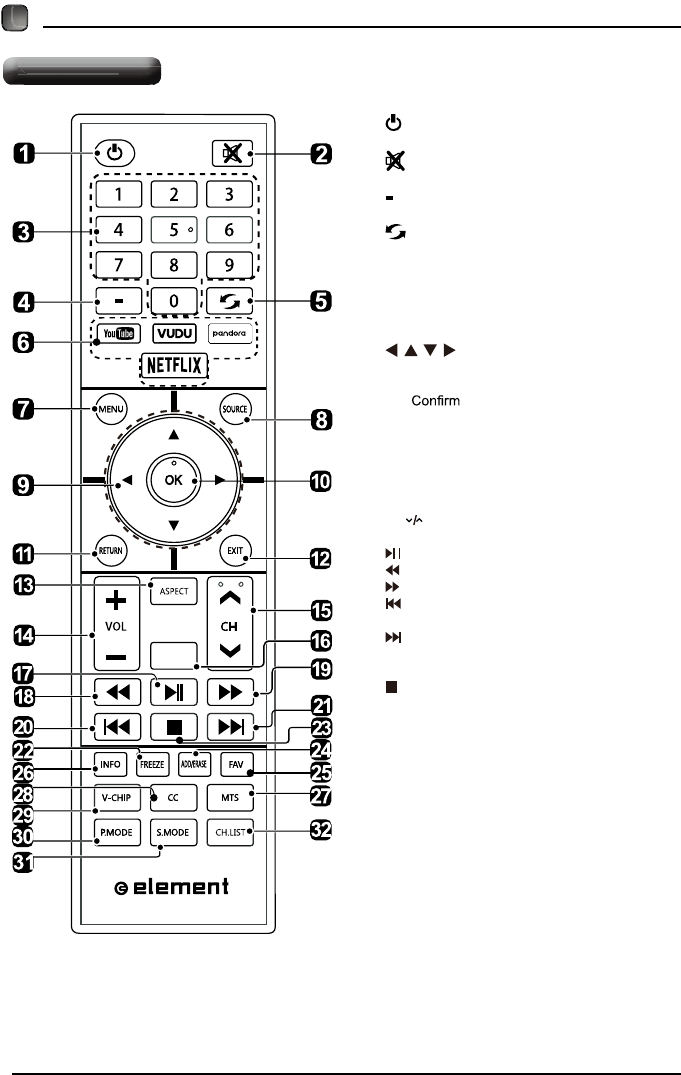
ïò æSwitch the TV between On and Standby
mode.
îò æMute and restore TV sound.
íò ð¢çæSelect a program.(ATV/DTV mode)
ìò æEnter multiple program channel number
such as 2-1.
ëò æReturn to the previous viewing
channel.
êò ßÐÐæPress to select the desired APP.
éò ÓÛÒËæDisplay the main menu.
èò ÍÑËÎÝÛæSelect among the different input
signal sources:TV/AV/COMPONENT/HDMI1/
HDMI2/HDMI3/VGA/USB.
çò æAllows you to navigate the on
screen display menus and adjust the system
settings to your preference.
ïðò ÑÕæ the selection.
ïïò ÎÛÌËÎÒæReturn to previous menu.
ïîò ÛÈ×ÌæExit the on screen display menu.
ïíò ßÍÐÛÝÌæSelect the aspect ratio.
settings:standard/wide/wide zoom/zoom/Just Scan
(HDMI)/Dot by Dot(VGA).
ïìò ÊÑÔõñóæAdjust the volume.
ïëò ÝØ æSelect the channel.
ïêò ÌÊæInto the TV channel.
ïéò æStart playback or pause.
ïèò æReverse playback rapidly.
ïçò æAdvance playback rapidly.
îðò æSkip to the beginning of the previous
chapter/track/photo.
îïò æSkip to the beginning of the next chapter/
track/photo.
îîò ÚÎÛÛÆÛæFreeze the picture.
îíò æStop the playback.
îìò ßÜÜñÛÎßÍÛæAdd or delete Favorite channels.
îëò ÚßÊæDisplay the favorite channel list.
îêò ×ÒÚÑæDisplay the present screen information
such as the current channel and input source.
îéò ÓÌÍæSwitch among different audio
channels:STEREO/MONO/SAP.
îèò ÝÝæClosed Caption selection:ON/OFF/CC On
Mute.
îçò ÊóÝØ×ÐæSet up parental control.
íðò ÐòÓÑÜÛæSelect picture mode:dynamic/movie/
user/standard.
íïò ÍòÓÑÜÛæSelect sound mode:standard/music/
movie/user.
íîò ÝØòÔ×ÍÌæDisplay program list.
TV
λ³±¬» ݱ²¬®±´
8
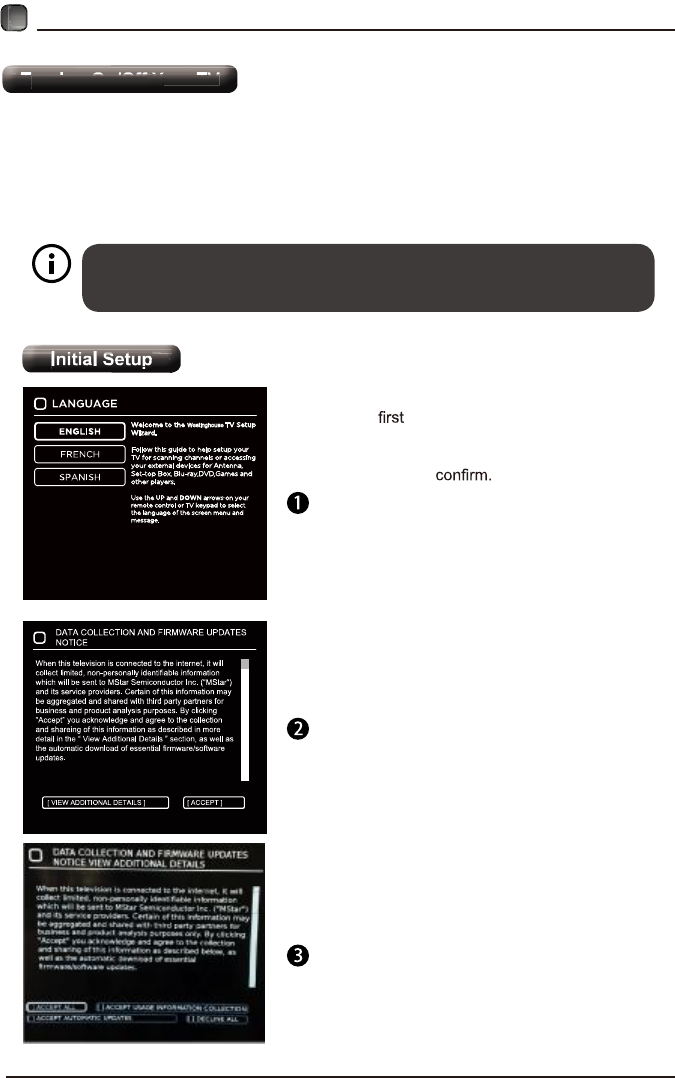
CONNECTING EXTERNAL DEVICES
USB
9
CUSTOMIZING TV SETTINGS
•
•
The POWER button on the main unit or on the remote control can only
switch the TV into standby. To completely turn off the TV, please disconnect
the power cord from the power socket.
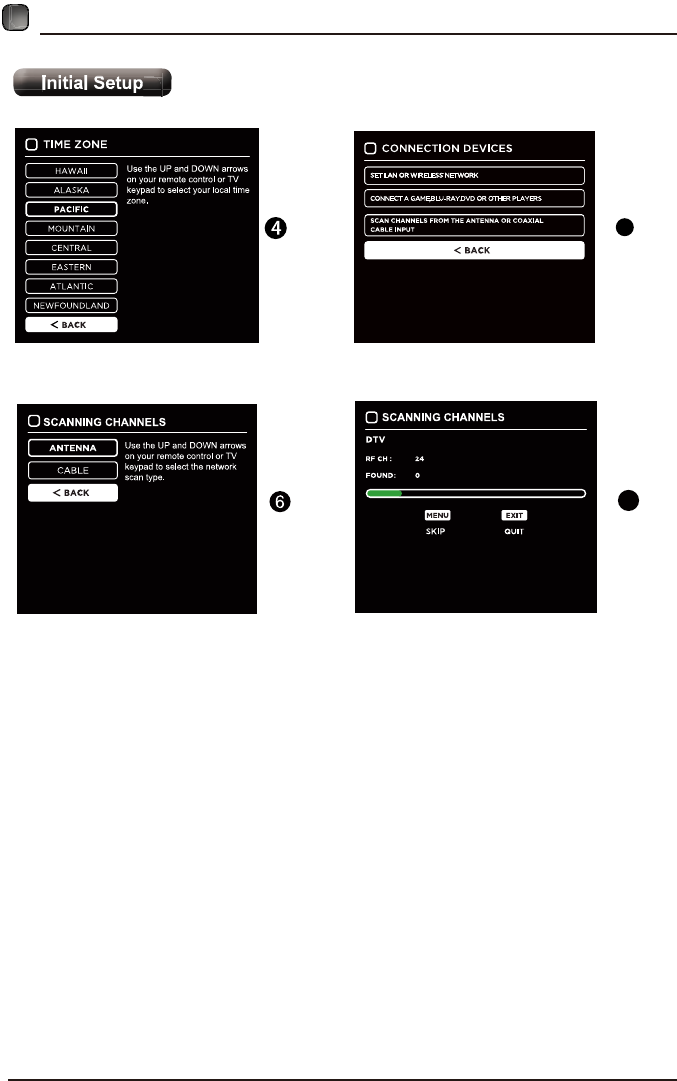
• The time you turn the TV on, it will go into
the Setup Wizard. Press the Arrow buttons
to highlight and select your desired mode and
press OK to
Turning On/Off Your TV
Initial Setup
Westinghouse
Connect the power cord to the power socket after you have completed all the physical
connections. At this stage, the TV will enter Standby Mode and the red LED indicator
will illuminate.
In Standby Mode, press the button on the main unit or on the remote control to turn
the TV on. The red LED indicator will turn blue.
10
CUSTOMIZING TV SETTINGS
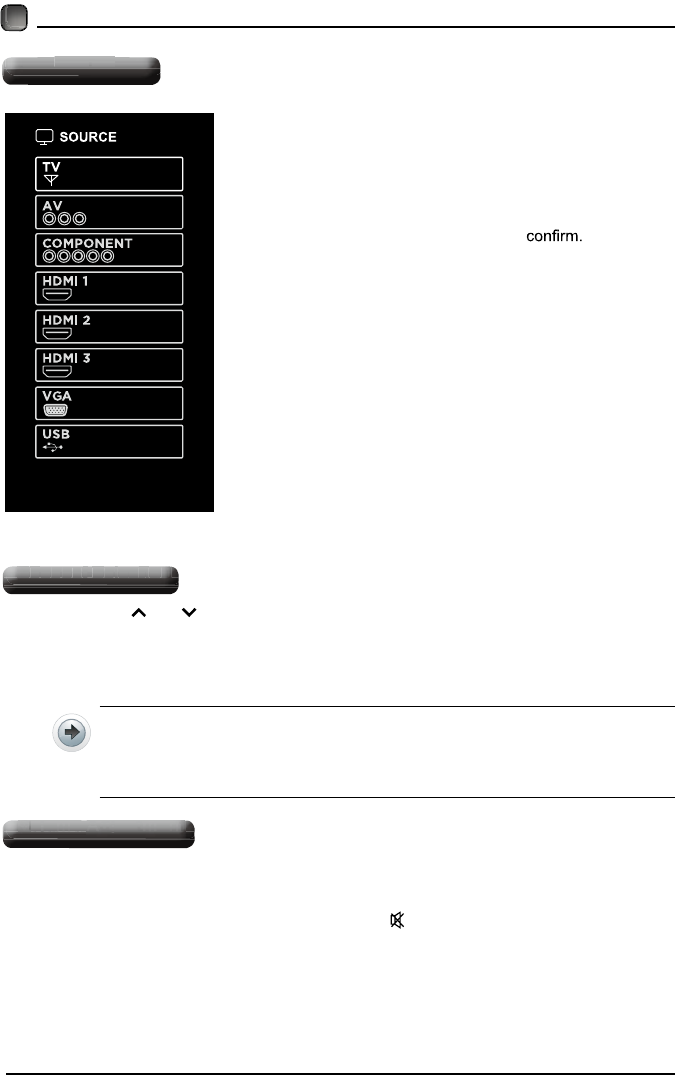
5
Initial Setup
7
SCAN CHANNELS FROM THE ANTENNA OR COAXIAL CABLE INPUT
11
CUSTOMIZING TV SETTINGS
Source
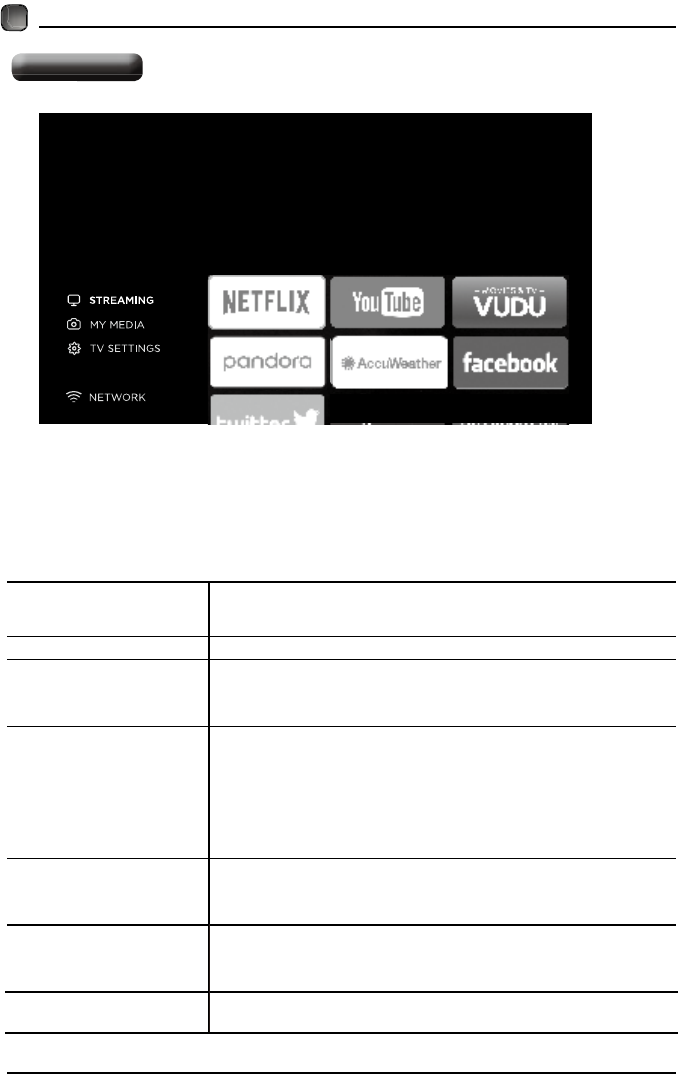
• Press SOURCE on the remote control or on
the main unit to display the source menu, then
use the Arrow buttons to cycle among the
different input sources: TV/AV/COMPONENT/
HDMI1/HDMI2/HDMI3 /VGA/USB, then use
the Arrow buttons
to highlight the
desired
source and press OK to
Channel Selection
• Press the CH /CH buttons on the main unit or on the remote control repeatedly
to select the channel.
• Press the 0-9 buttons on the remote control to select the channel directly.
Press "4", and then press OK button to select channel 4.
Press "4" and "5", and then press OK button to select channel 45.
Press "1", "2" and "3", and then press OK button to select channel 123.
• Press the VOL+/- buttons on the main unit or on the remote control to adjust the
volume.
• If you wish to switch the sound off, press the MUTE button again or the VOL+
button to resume the sound.
Volume Adjustment
Source
Channel Selection
Volume Adjustment
12
CUSTOMIZING TV SETTINGS
NETFLIX Enjoys TV shows & movies streamed instantly over the
Internet.
YouTube YouTube your way on the best screen in your house.
VUDU
Discover, watch and collect the latest movies and
TV shows in high quality 1080p. Free to sign up. No
subscriptions, late fees or commitments.
Pandora
Free personalized radio that offers effortless and
endless music enjoyment and discovery. Just start with
the name of one of your favorite artists, songs, genres
or composers and Pandora will do the rest. It’s easy to
create personalized stations that play only music you’ll
love.
AccuWeather
Displays the current weather conditions and the
temperature anywhere in the world in centigrade or
Fahrenheit.
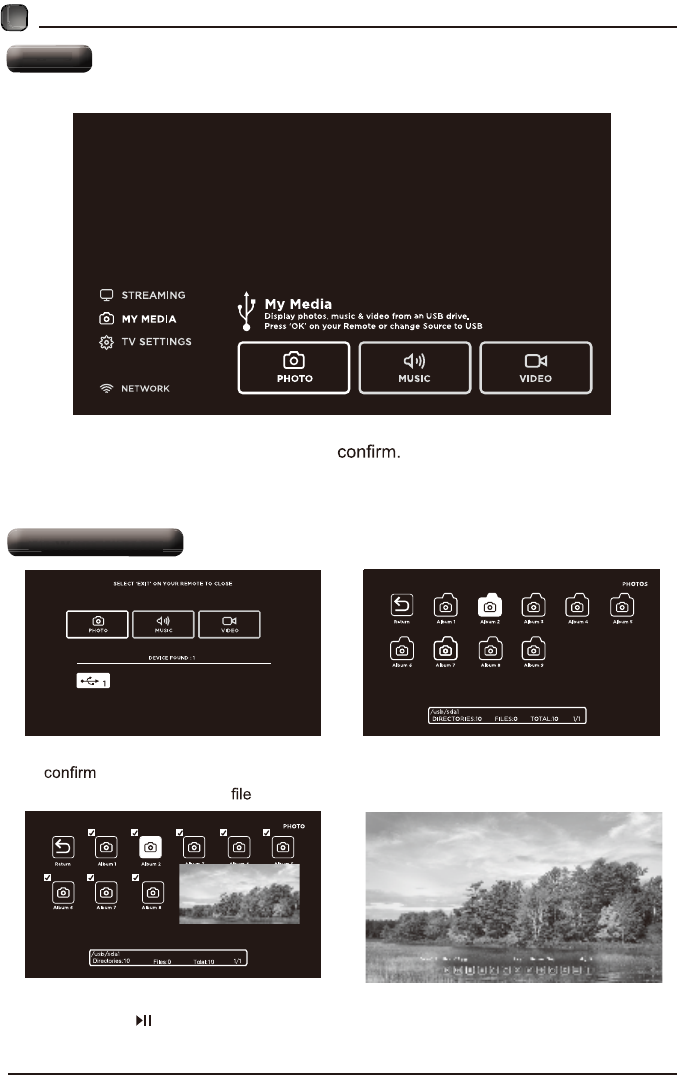
• Press MENU button on the main unit or on the remote to display the main
interface. Then use the Arrow buttons to select STREAMING and press OK to
enter. Use the Arrow buttons to select the desired APP and press OK button to
view. Or press the hotkey on the remote control to enter the desired APP directly.
For full listing of available Apps, please visit elementelectronics.com.
Streaming
Create an account or log into Facebook. Connect with friends,
family and other people you know. Share photos and videos,
send messages and get updates.
Search Twitter to find the latest news and world events faster
Facebook
Twitter
13
CUSTOMIZING TV SETTINGS
Media
Viewing Photos
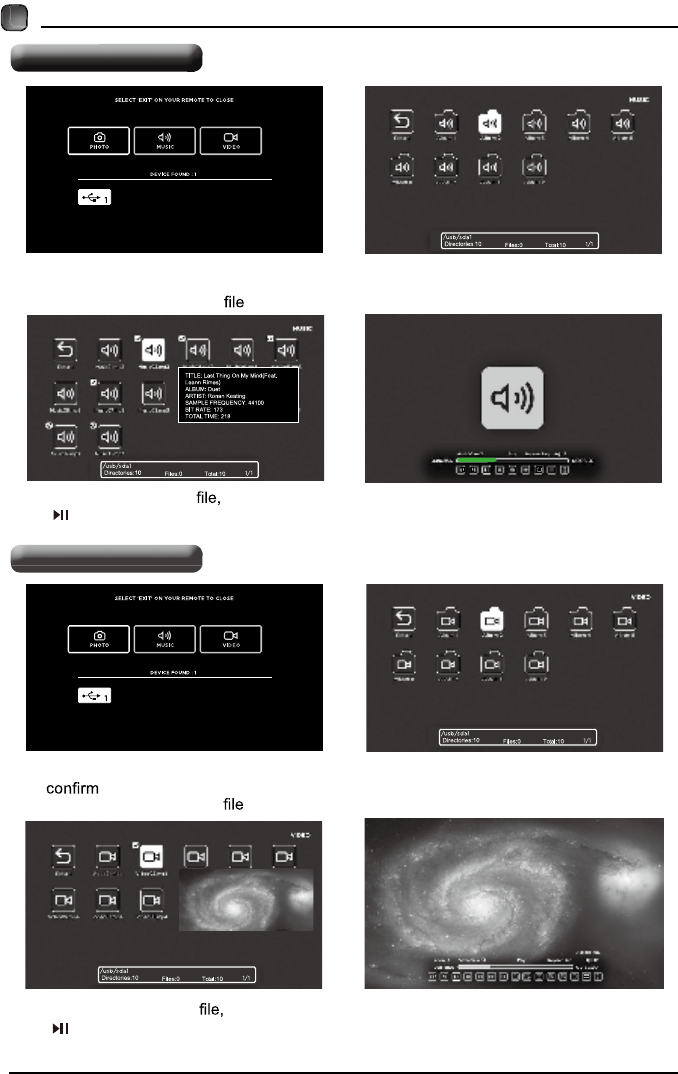
• After entering the picture file, use the Arrow buttons to select the desired picture,
then press the to display. When the picture is playing, the picture Function Bar will be
displayed. Use the Arrow buttons to select the desired function available on the bar.
• Use the Arrow buttons to highlight the PHOTOS option and press OK, then it will jump
to the inserted drive, press OK to enter. After entering PHOTOS, use the Arrow
buttons to select the picture and press OK to enter.
• Press MENU button to display the main interface, then use the Arrow buttons to
highlight MY MEDIA and press OK to Select among Photos, Music and
Video to view what you like.
Note: Portable drives should be inserted before entering MY MEDIA menu.
Media
Viewing Photos
Listening To Music
Watching Videos
14
CUSTOMIZING TV SETTINGS
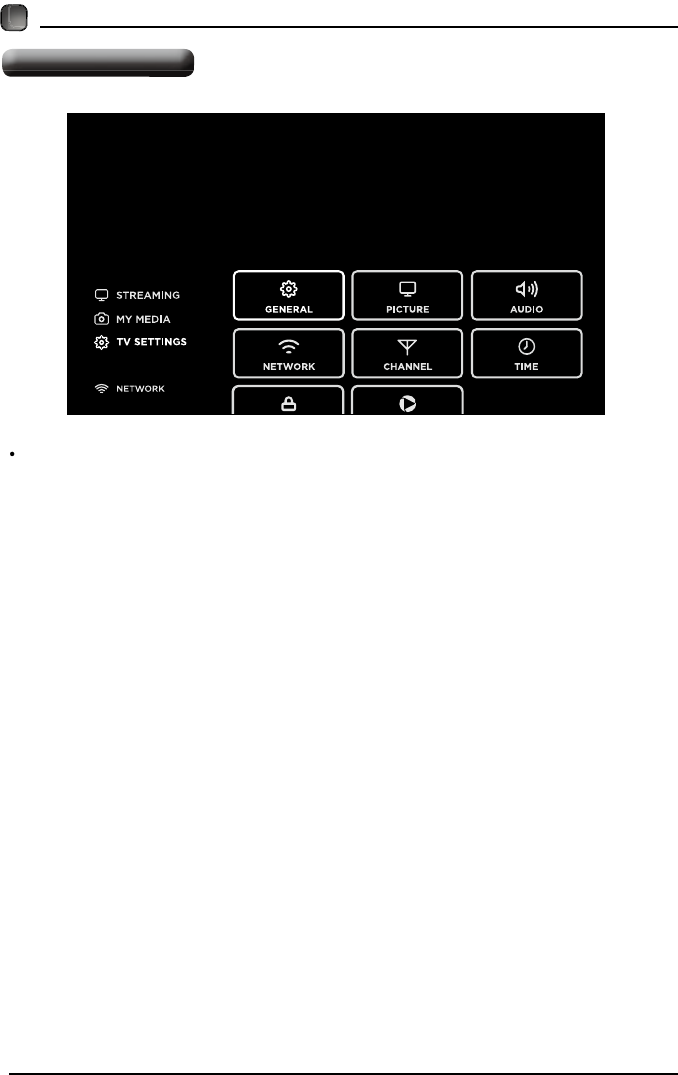
• After entering the audio use the Arrow buttons to select the desired music, then press
the to display. When the music is playing, the music Function Bar will be displayed. Use
the Arrow buttons to select the desired function available on the bar.
• Use the Arrow buttons to highlight the MUSIC option and press OK, then it will jump
to confirm the inserted drive, press OK to enter. After entering MUSIC, use the Arrow
buttons to select the audio and press OK to enter.
• After entering the video use the Arrow buttons to select the desire video, then press
the to display. When the video is playing, the video function bar will be displayed. Use the
Arrow buttons to select the desired function available on the bar.
• Use the Arrow buttons to highlight the VIDEOS option and press OK, then it will jump
to the inserted drive, press OK to enter. After entering VIDEOS, use the Arrow
buttons to select the video and press OK to enter.
ÌÊ Í»¬¬·²¹-
15
ÝËÍÌÑÓ×Æ×ÒÙ ÌÊ ÍÛÌÌ×ÒÙÍ
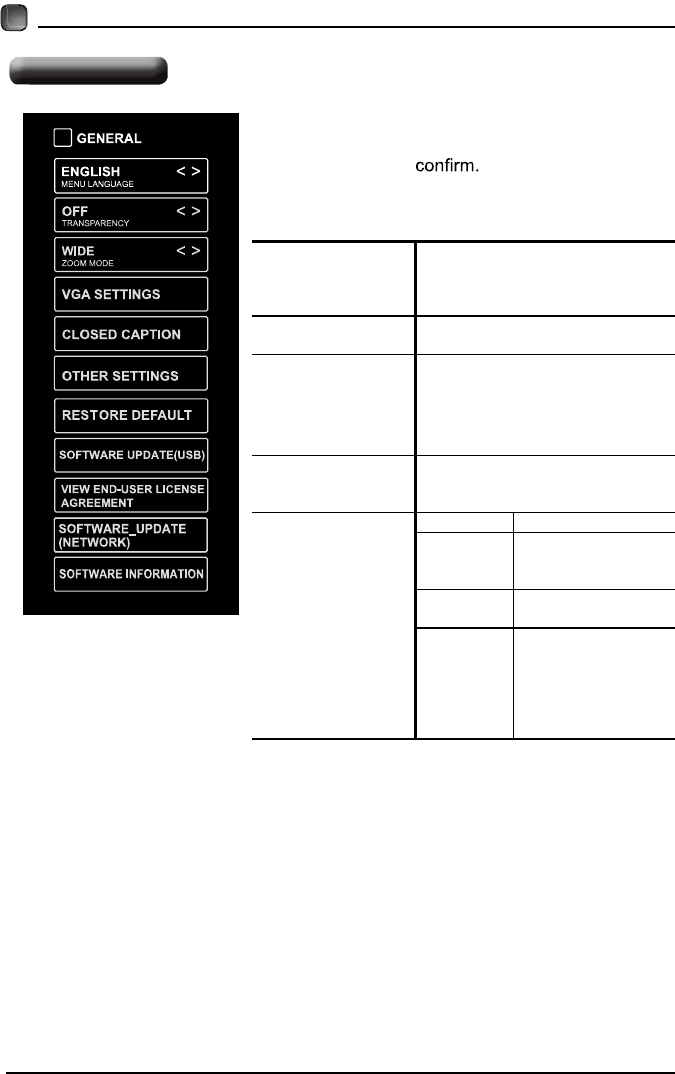
Press the ÓÛÒË button on the main unit or on the remote control to display the
main interface. Then use the ß®®±© buttons to highlight ÌÊ Í»¬¬·²¹- and press
ÑÕ to enter. Then use the ß®®±© buttons to cycle among the following options
and select the desired one to enter.
16
CUSTOMIZING TV SETTINGS
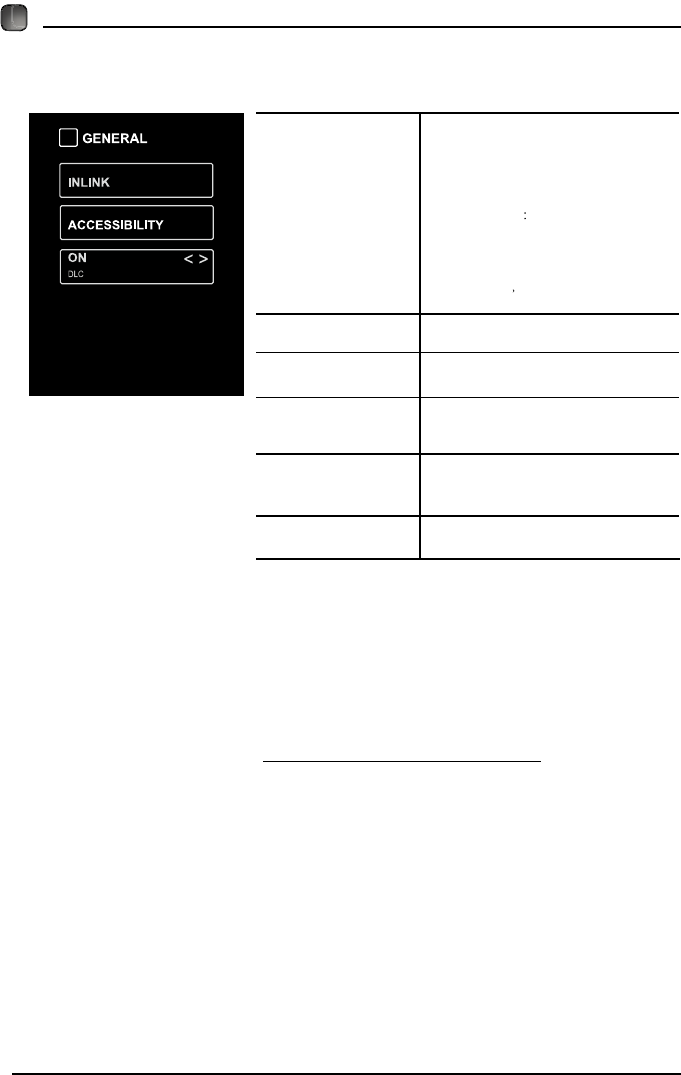
• Press MENU to display the main interface, then
use the Arrow buttons to highlight TV Settings
and press OK to Use the Arrow buttons
to cycle among different options and select
General to enter and adjust each option setting.
MENU LANGUAGE
Select the menu language among
English, Français or Español. The
default on-screen menu language is
English.
TRANSPARENCY Select to turn On/Off transparency
function.
ZOOM MODE
Select zoom mode:
Wide/Wide Zoom/Zoom/Standard/
Just Scan/Dot by Dot.
Note: With a different input source,
the zoom mode options may differ.
VGA SETTINGS
Adjust advanced option’s setting:
H-POS, V-POS, Clock, Phase or
Auto. (only available in VGA mode)
CLOSED CAPTION
CC mode On/Off/CC on Mute.
Basic
Selection
CC1, CC2, CC3,
CC4, TEXT1, TEXT2,
TEXT3, TEXT4,OFF.
Advanced
Selection
Service1/Service2.../
Service6.
Option
Mode, Font Style,
Font Size, Font Edge
Style, Font Edge
Color, FG_ Color,
BG_ Color, FG_
Opacity, BG_Opacity.
General
17
CUSTOMIZING TV SETTINGS
OTHER SETTINGS
INLINK: LINLINK
CONTROL,DEVICE POWER
OFF,TV Auto Power On,AUDIO
RECEIVER,LINLINK DEVICE
LIST,ROOT MENU.
Accessibility Voice
Guide,VERBOISITY,RATE
SUPPORT,PITCH
SUPPORT,VOICE,Video
Description VD VOLUME
DLC:Select to turn On/Off DLC.
RESTORE DEFAULT Restore the TV to factory default
settings.
SOFTWARE
UPDATE (USB)
Software Update In the case of a
USB device.
VIEW END-USER
LINCENSE
AGREEMENT
Choose "I have read the user
agreement" to select Accept or
Decline .
SOFTWARE _
UPDATE
(NETWORK)
Software Update In the case of a
NETWORK device.
SOFTWARE
INFORMATION
Check Module Software Version
NetReady Device ID.
How to turn the Text-to-Speech (TTS) voice guide on or
off?
• Press “MENU” key on the remote control
• Turn the GENERAL menu.
• Select “OTHER SETTING”
• Select “Accessibility”
• Select “Voice Guide” and turn it on or off.
www.elementelectronics.com
18
CUSTOMIZING TV SETTINGS
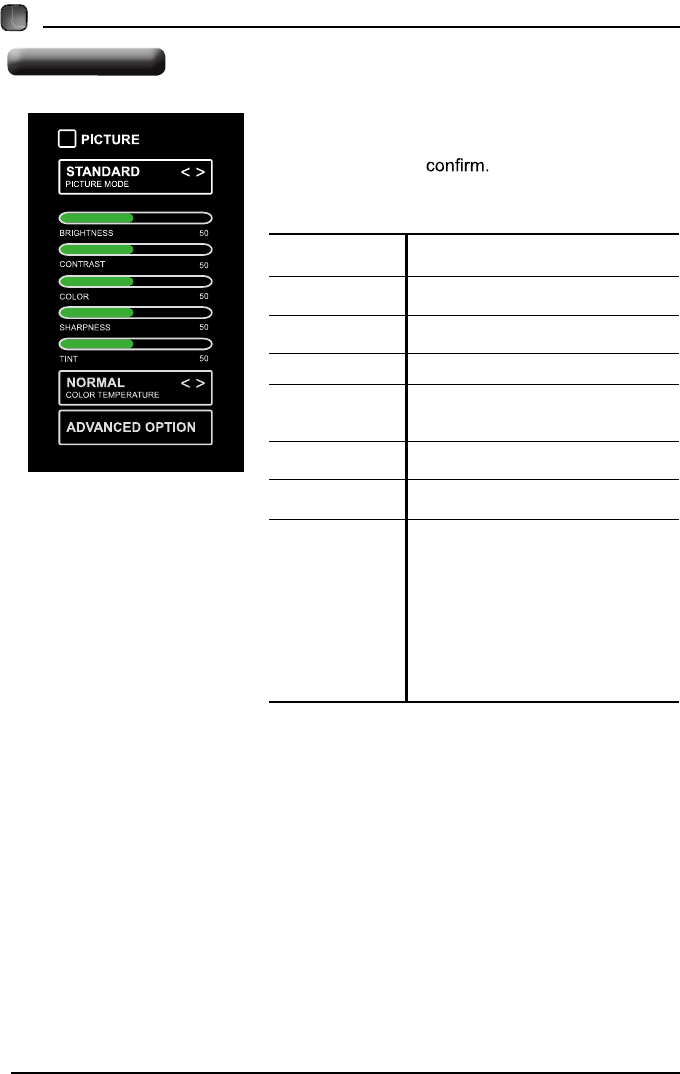
PICTURE MODE Cycle among picture modes:
Dynamic/Standard/Movie/User.
BRIGHTNESS Increase or decrease the amount of
white in the picture.
CONTRAST Adjust the difference between light
and dark levels in the pictures.
COLOR Control the color intensity.
SHARPNESS
Adjust crispness level in edges
between light and dark areas of the
picture.
TINT Adjust the balance between red and
green levels.
COLOR
TEMPERATURE
Cycle among color temperatures:
Normal/Warm/COOL.
ADVANCED
OPTION
Set the following options:
Noise Reduction: Reduce the noise
level of the connected device: OFF/
WEAK/MEDIUM/STRONG.
White Balance: To set the different
options of white balance.
Red Gain/Green Gain/Blue Gain/Red
Offset/Green Offset/Blue Offset.
Backlight: To set the value of
backlight.
• Press MENU to display the main interface, then
use the Arrow buttons to highlight TV Settings
and press OK to Use the Arrow buttons
to cycle among different options and select
Picture to enter and adjust each option setting.
Picture Settings
19
ÝËÍÌÑÓ×Æ×ÒÙ ÌÊ ÍÛÌÌ×ÒÙÍ
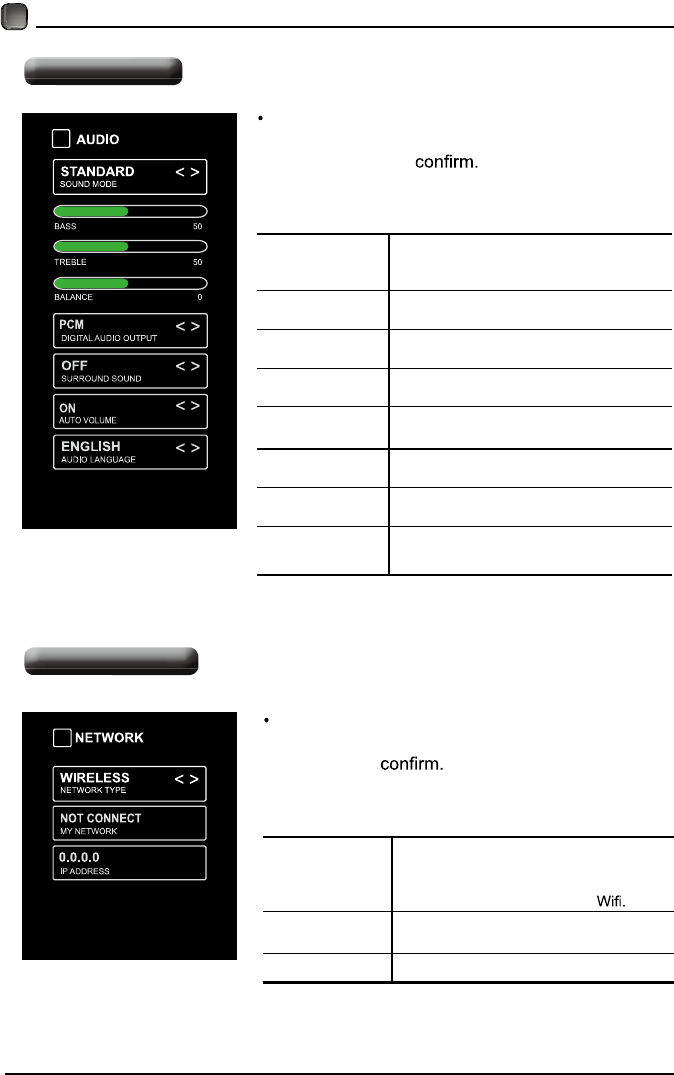
ÍÑËÒÜ ÓÑÜÛ
Allow the selection of an audio-
enhancement technique: Standard/
Music/Movie/User.
ÞßÍÍ Control the relative intensity of lower-
pitched sounds.
ÌÎÛÞÔÛ Control the relative intensity of higher-
pitched sounds.
ÞßÔßÒÝÛ Adjust the relative volume of the
speaker in a multiple speaker system.
Ü×Ù×ÌßÔ ßËÜ×Ñ
ÑËÌÐËÌ
Select the digital audio output mode
between PCM/RAW.
ÍËÎÎÑËÒÜ
ÍÑËÒÜ
Turn On/Off to provide an enhanced
listening experience.
ßËÌÑ ÊÑÔËÓÛ Turn On/Off to automatically control
volume levels.
ßËÜ×Ñ
ÔßÒÙËßÙÛ
Select audio language among: English,
French, Spanish.
Press ÓÛÒË to display the main interface, then
use the ß®®±© buttons to highlight ÌÊ Í»¬¬·²¹-
and press ÑÕ to Use the ß®®±© buttons
to cycle among different options and select ß«¼·±
to enter and adjust each option setting.
ÒÛÌÉÑÎÕ
ÌÇÐÛ
Select Wired and Wireless network,
then connect the TV to the wired
network or search the wireless network
through searching available
ÓÇ ÒÛÌÉÑÎÕ Display the current network which you
connect to.
×Ð ßÜÜÎÛÍÍ Display the current IP information.
Press MENU to display the main interface, use
the Arrow buttons to highlight TV SETTINGS and
press OK to Then Use the Arrow buttons
to select NETWORK to enter and adjust each
option setting.
ß«¼·± Í»¬¬·²¹-
Ò»¬©±®µ Í»¬¬·²¹-
20
CUSTOMIZING TV SETTINGS
Channel Settings
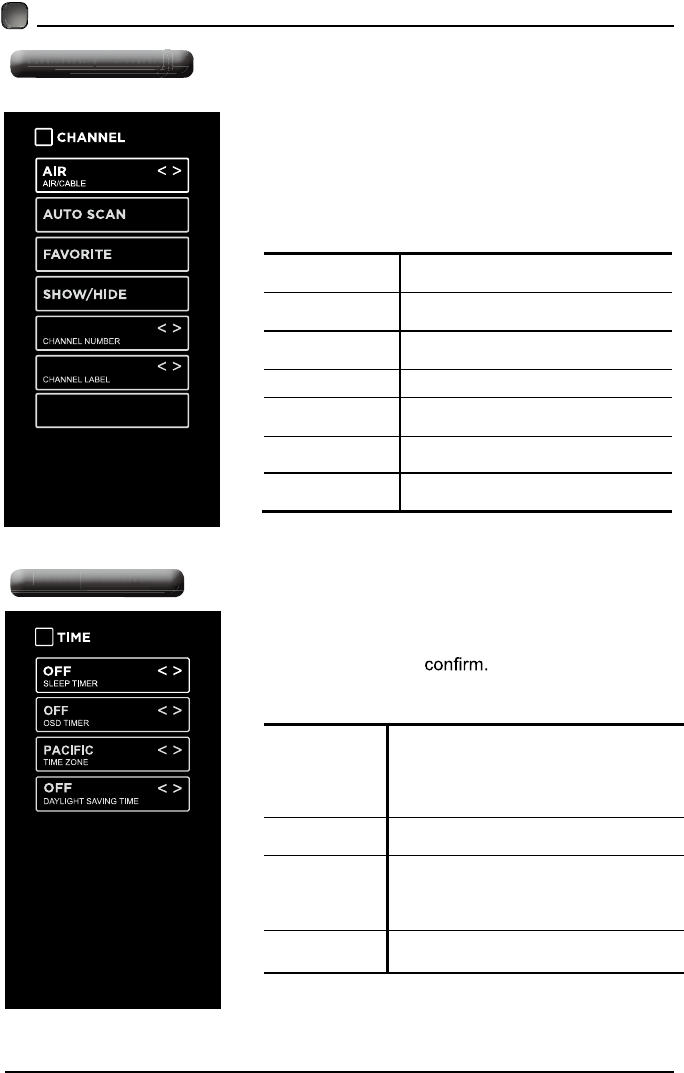
AIR/CABLE Select antenna between Air and
Cable.
AUTO SCAN Select the Auto Scan feature to scan
your available Air and cable channels.
FAVORITE Set the selected channel as a favorite
channel.
SHOW/HIDE Show/Hide the selected channel.
CHANNEL
NUMBER Display the current channel number.
CHANNE
SIGNAL INFORMATION
NO SIGNAL
L
LABEL Display the current channel label.
• Press MENU to display the main interface, then
use the Arrow buttons to highlight TV Settings.
Use the Arrow buttons to cycle among different
options and select Channel to enter and adjust
each option setting.
Time Settings
• Press MENU to display the main interface, then
use the Arrow buttons to highlight TV Settings
and press OK to Use the Arrow buttons
to cycle among different options and select Time
to enter and adjust each option setting.
SLEEP TIMER
Select a period of time after which the TV
automatically switches to standby mode:
Off/5/10/…/180/240 min.
OSD TIMER Set the OSD timer:
Off/15s/30s/60s/120s/240s.
TIME ZONE
Select a Time Zone:
PACIFIC/ALASKA/HAWAII/
NEWFOUNDLAND/ATLANTIC/
EASTERN/CENTRAL/MOUNTAIN.
DAYLIGHT
SAVING TIME Select to turn daylight saving time On/Off.
Channel Settings
Time Settings
SIGNAL
INFORMATION
Display the information of current
signal.
Ô±½µ Í»¬¬·²¹-
ßÐÐ Í»¬¬·²¹-
21
ÝËÍÌÑÓ×Æ×ÒÙ ÌÊ ÍÛÌÌ×ÒÙÍ
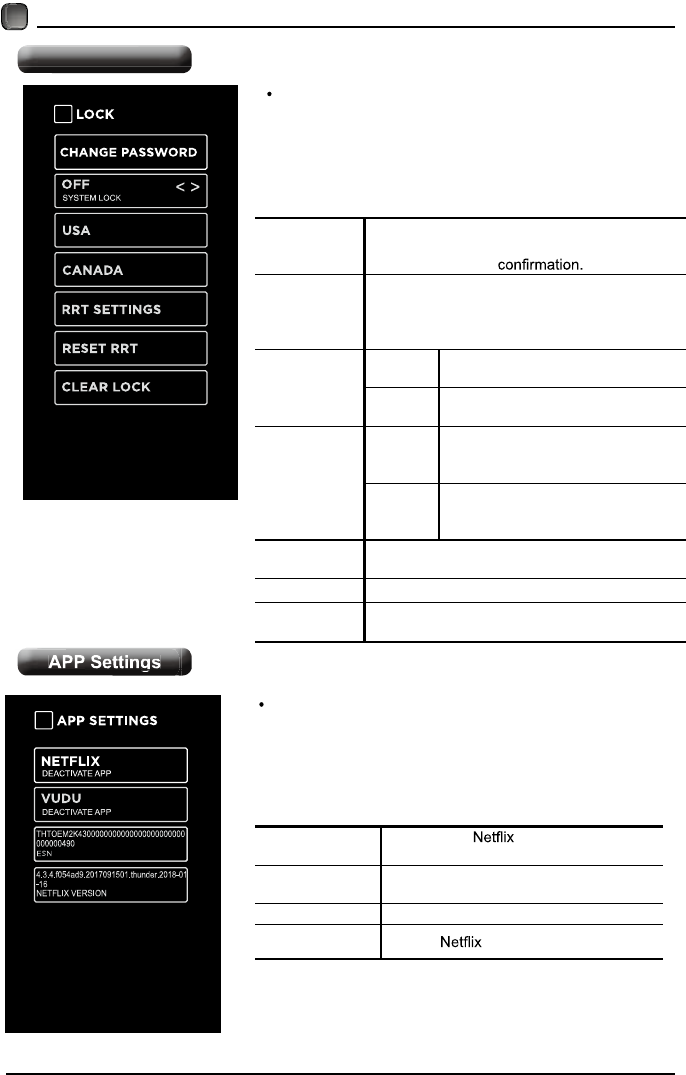
Press ÓÛÒË to display the main interface, then
use the ß®®±© buttons to highlight ÌÊ Í»¬¬·²¹-.
Use the ß®®±© buttons to cycle among different
options and select Ô±½µ to enter and adjust each
option setting.
Ò±¬»æ the default password is “0000”.
ÝØßÒÙÛ
ÐßÍÍÉÑÎÜ
Use ðóç buttons to input the old password and
then input the new 4-digit password. Re-enter
new password for
ÍÇÍÌÛÓ
ÔÑÝÕ
Select to turn On/Off system lock. The
following options (USA, Canada, RRT Setting
and Reset RRT) will only be accessible when
you turn the system lock on.
ËÍß
TV TV RATING: Press ÑÕ button to
lock or unlock TV rating.
MPAA Select MPAA rating : N/A,G, PG,
PG-13, R, NC-17,or X.
ÝßÒßÜß
Canada
English
Select MPAA rating for English-
speaking Canada : E, C, C8+, G,
PG, 14+, 18+.
Canada
French
Select MPAA rating for Quebec
Canada : E, G, 8 ans+, 13 ans+,
16 ans+, 18 ans+.
ÎÎÌ
ÍÛÌÌ×ÒÙ Set Rating Region Table.
ÎÛÍÛÌ ÎÎÌ Select to reset the RRT setting.
ÝÔÛßÎ
ÔÑÝÕ Clear all lock settings.
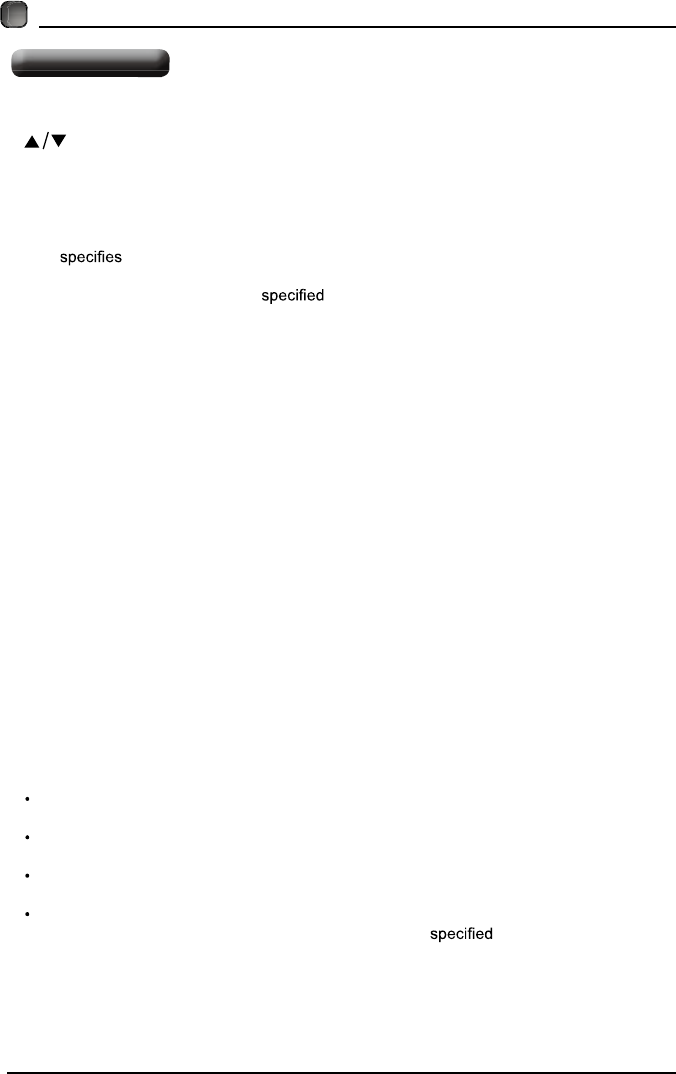
Press ÓÛÒË to display the main interface, then
use ß®®±©- to highlight ÌÊ Í»¬¬·²¹-. Use ß®®±©-
to cycle among different options and select ß°°
Í»¬¬·²¹- to enter and adjust each option setting.
ÜÛßÝÌ×ÊßÌÛ
ßÐÐ
Deactivate and clear the account
information.
ÜÛßÝÌ×ÊßÌÛ
ßÐÐ
Deactivate Vudu and clear the account
information.
ÛÍÒ Electronic Serial Number.
ÒÛÌÚÔ×È
ÊÛÎÍ×ÑÒ Show Version
п®»²¬¿´ ݱ²¬®±´
22
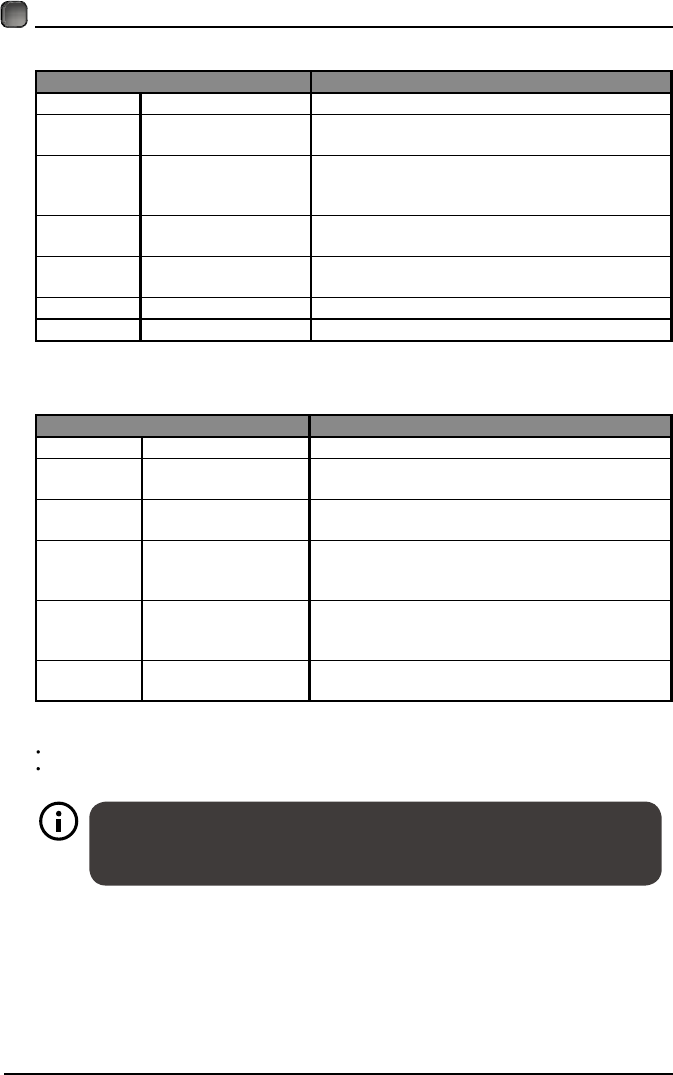
Press the ÓÛÒË button on the main unit or on the remote control and then press the
buttons to select ÔÑÝÕ menu. Use the ðóç buttons to input 4-digit password to enter
the ÔÑÝÕ menu. If used, this option feature can "block'' undesirable programming from
appearing on the TV. Parental Control offers the user a wide variety of options and settings
that restrict or "block'' the programming that can appear on the TV. Parental Control allows
the user the capability of defining which program rating they consider acceptable to the
younger more sensitive viewer. It can be preset and turned either on or off by the user
who the secret 4-number code, the password. The number of hours blocked are
specified. General audiences and children blocks should be both programmed into the
TV's memory. Viewer ratings are for both TV and the motion picture Industry; both
rating systems should be used, for complete coverage. The ratings are based on the ages
of children.
Ѫ»®ª·»©
To ensure complete coverage for all TV programs, (movies and regular TV shows) choose
a rating for MPAA, from the selections below,as well as ratings from the TV Parental
Guidelines Rating Systems below, using the Age Block option for General Audiences, and
for children. In addition to those, you may wish to add additional restrictions from the content
block menu, and submenus examples below.
̸·²¹- ¬± ݱ²-·¼»® ¾»º±®» Í»¬¬·²¹ «° п®»²¬¿´ ݱ²¬®±´
Determine which rating you consider acceptable to the viewer. (For example,if you choose
TV-PG, more restrictive ratings will be automatically blocked; the viewer will not be able to
see: TV-PG,TV-14,or TV-MA rated programming.) Do you want to block the auxiliary video
source entirely? (Blocks the signal sent by the equipment, such as VCR, connected to the
TV Audio/VIdeo Input Jacks) Or leave unblocked, then choose allowable ratings. Block
program "Content" based on individual parameters such as: Strong Dialog, Bad Language,
Sex Scenes,Violence Scenes, or Fantasy. Violent Scenes; in Content Blk option. Select a
secret password, in the Set Password option, using the numbers keys on the remote control.
Do not forget the password, it is the only way you can access the Parental Control menu
and change rating selections, or turn Parental Control off.Do you want the Parental Control
to be active at all times? If not, you can turn it on or off with the Lock On/Off option.
You can set different Parental Control viewing restrictions for general audiences and for
children, both can be active at the same time.
Simply specifying one content block such as Sex Scenes, will not automatically restrict
the programming that appears from the video sources.
Even If you choose to leave the AUX Inputs unblocked, the ratings you specify will
automatically restrict the programming that appears from the video sources.
You can not disable Parental Control by disconnecting the TV from power. Block hours will
be automatically reset to the original block time setting if power is disconnected.
ÝËÍÌÑÓ×Æ×ÒÙ ÌÊ ÍÛÌÌ×ÒÙÍ
23
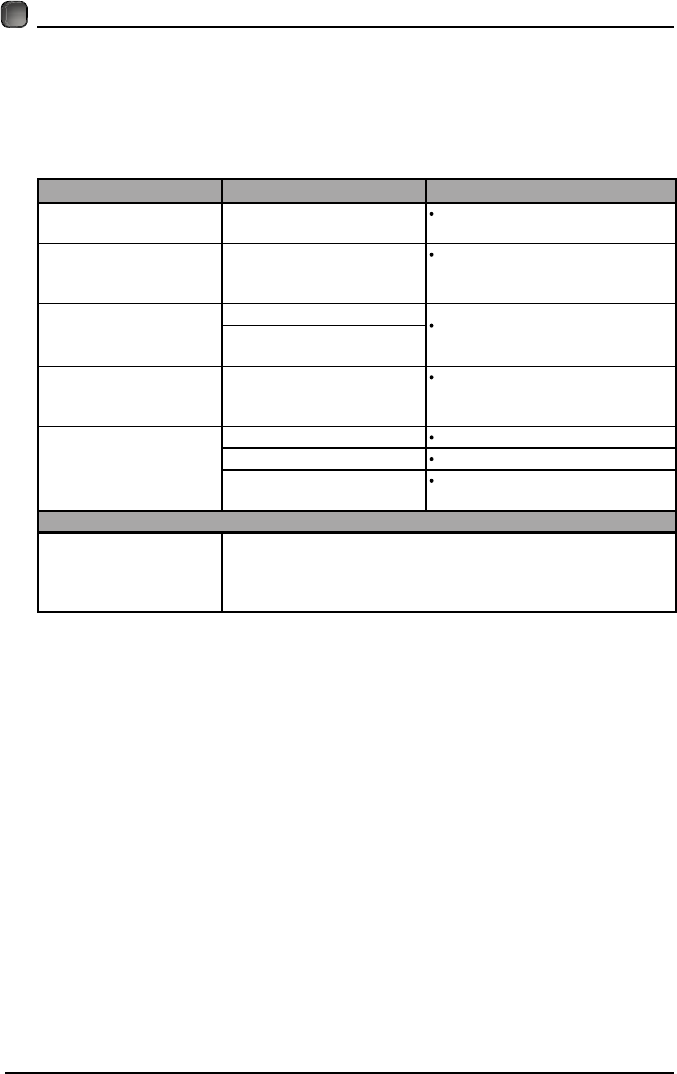
Ó±¬·±² з½¬«®» ß--±½·¿¬·±² ±º ß³»®·½¿ øÓÐßß÷ ο¬·²¹ ͧ-¬»³
Ù®¿¼» Ó»¿²·²¹
ÙGeneral Audiences Content not offensive to most viewers.
ÐÙ Parental Guidance
Suggested
Content is such that parents may not want
their children to view the program.
ÐÙóïí Parents Strongly
Cautioned
Program is inappropriate for pre-teens, with a
greater degree of offensive material suggested
than a PG rated program.
ÎRestricted Not for children under 17, strong element of
sex and/or violence.
ÒÝóïé No children under
age 17
Not for children under 17 under any
circumstances. Strong sexual content.
ÈHard Core Films Same as NC-17 rating.
Ò± ο¬·²¹ No Rating MPAA Not Rated
ÌÊ Ð¿®»²¬¿´ Ù«·¼»´·²» ο¬·²¹ ͧ-¬»³
Ù®¿¼» Ó»¿²·²¹
ÌÊóÇ All Children Content not offensive to most viewers.
ÌÊóÇé Directed to Older
Children
Considered suitable for children over 7, may
contain fantasy violence scenes.
ÌÊóÙ General Audience Considered suitable for all audience; children
may watch unattended.
ÌÊóÐÙ Parental Guidance
Suggested
Suggested unsuitable for younger children,
may contain suggestive language, bad
language, sex and violence scenes.
ÌÊóïì Parents Strongly
Cautioned
unsuitable for children under 14, may contain
strong language, bad language, sex and
violence scenes.
ÌÊóÓß Mature Audience
Only
Adults only, may contain strong language, bad
language, sex and violence scenes.
Ý¿²¿¼·¿² ο¬·²¹æ
Canadian English is used throughout all English-speaking Canada (C, C8+,G, PG,14+, 18+).
Canadian French is used in Quebec (G,8 ans+, 13 ans+,16 ans+, 18 ans+).
ÝËÍÌÑÓ×Æ×ÒÙ ÌÊ ÍÛÌÌ×ÒÙÍ
The V-Chip will automatically block certain categories that are "more
restrictive".If you block TV-Y category,then TV-Y7 will be automatically
blocked. Similarly,if you block TV-G category, then allthe categories in the
"young adult" will be blocked (TV-G, TV-PG,TV-14,and TV-MA).
24
ÌÎÑËÞÔÛÍØÑÑÌ×ÒÙ
If your TV does not operate normally or cannot be turned on, please check
the following troubleshooting questions. Remember also to check any other
connected electronic device, such as DVD or blu-ray player to pinpoint the
problem. If the TV still fails to operate normally, please contact technical support
(Refer to Warraty page).
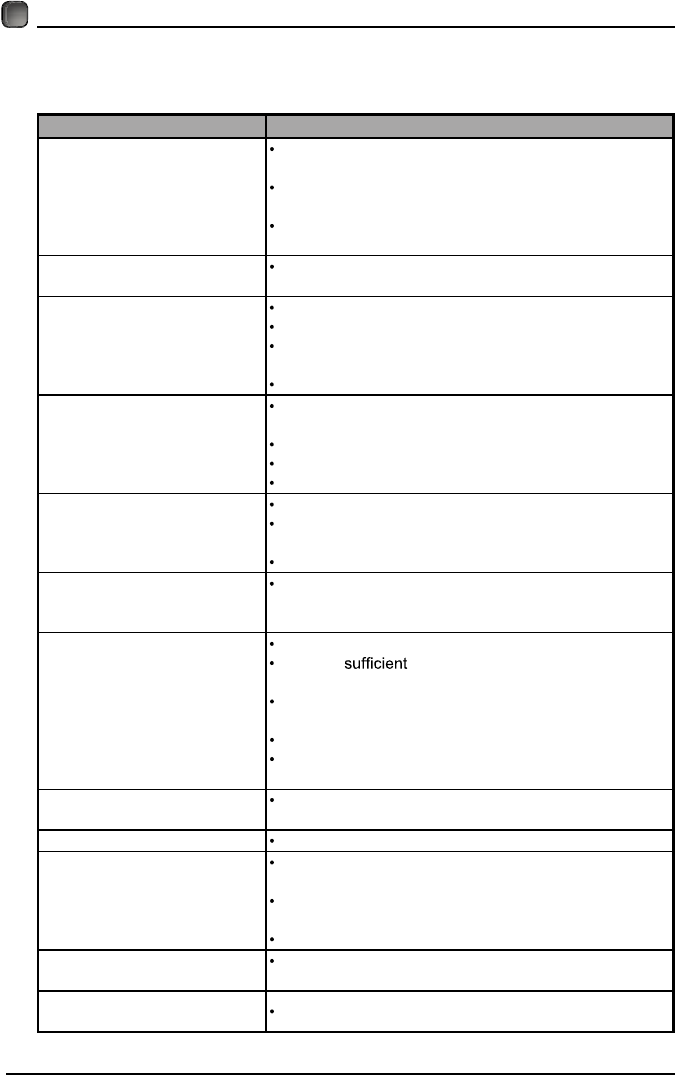
ÍÇÓÐÌÑÓ ÐÑÍÍ×ÞÔÛ ÝßËÍÛ ÎÛÓÛÜÇ
Dead. No LED No power to the TV. Check all connections to the
TV's AC socket.
Dead. No LED Set in standby mode.
Press either the Power button
or the Standby button on the
remote control.
None screen
No signal. Press the SOURCE button to
select the correct source.
Incorrect
source selected.
Noisy, snowy, ghosting
picture (TV) Poor antenna signal.
If using an indoor antenna, try
adjusting the antenna position.
Check antenna connections.
No sound
Sound "Mute". Turn sound "Mute" off.
Volume set too low. Check volume settings.
External leads
not connected "if used".
Check that all external leads
are connected properly.
ÐßÍÍÉÑÎÜ
Lost password
Select the SET Password setting in the LOCK menu, then
enter the following master password “8899”. The master
password clears your previous password and allows you to
enter a new password.
25
Before contacting the service technician, perform the following simple checks. If
any problem still persists, unplug the LED TV and call for assistance.
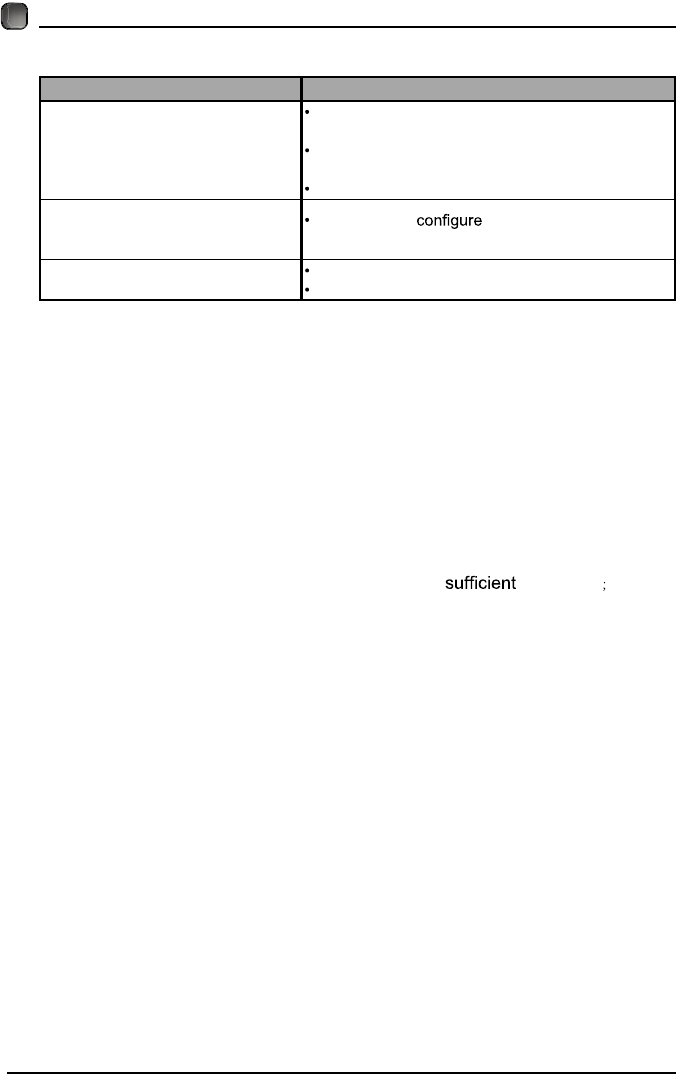
ÐÎÑÞÔÛÓ ÐÑÍÍ×ÞÔÛ ÍÑÔËÌ×ÑÒÍ
No sound and picture
Check that the main plug has been connected to a
wall outlet.
Check that you have pressed the POWER on the
front of the TV set.
Check the picture contrast and the brightness
setting.
White LED indicator lights Set in standby mode. Press either the Power button
or the Standby button on the remote control.
Normal picture but no sound
Check the volume.
Sound muted? Press the MUTE button.
Try another channel, the problem may be with the
broadcast.
Are the audio cables installed properly?
The remote control does not
work
Check to see if there are any objects between the
TV and remote control causing obstruction.
Are batteries installed with correct polarity (+/-)?
Correct remote operating mode set: TV, VCR, etc?
Install new batteries.
Power suddenly turns off
Is the sleep timer set?
Check the power connection, power may be
interrupted.
No broadcast on the station tuned.
Picture appears slowly after
switching on
This is normal, the image is muted during the product
start up process. Please contact a service provider if
the picture has not appeared after 5 minutes.
Poor color or picture
Adjust the color in Menu option.
Keep a distance between the product and
the VCR.
Try another channel, the problem may be with the
broadcast.
Are the VIDEO cables installed properly?
Activate any function to restore the brightness of the
picture.
Horizontal/vertical bars or
picture shaking
Check for local interference, such as an electrical
appliance or power tool.
None screen Press the SOURCE button to select correct source.
Poor reception on
some channels
Station or cable experiencing problems. Tune to
another station.
Station signal is weak, reorient antenna for better
reception.
Check for sources of possible interference.
Lines or streaks in pictures Check the antenna (change the direction of the
antenna).
No output from one of the
speakers Adjust balance in the Menu option.
ÌÎÑËÞÔÛÍØÑÑÌ×ÒÙ
26
ÌÎÑËÞÔÛÍØÑÑÌ×ÒÙ
Note: When there is a problem in VGA mode ( only when VGA mode is applied).
ÐÎÑÞÔÛÓ ÐÑÍÍ×ÞÔÛ ÍÑÔËÌ×ÑÒÍ
The signal is out of range
Adjust resolution, horizontal or vertical
frequency.
Check whether the signal cable is connected or
loose.
Check the input source.
Vertical bar or strip on the
background, horizontal noise
and incorrect position
Set the auto or adjust clock, phase, or
H/V position.
Screen color is unstable or is a
single color
Check the signal cable.
Reinstall the PC video card.
Ó¿·²¬»²¿²½»
Early malfunction can be prevented. Careful and regular cleaning can extend
the amount of time you will have with your new TV. Be sure to turn the power off
and unplug the power cord before you begin any cleaning.
Do not use your TV in areas that are too hot or too cold, because the cabinet
may warp or the screen may malfunction. Your TV works best in temperatures
that are comfortable to you.
Storage temperatures are 32° to 122°F(0° to 50°C).
Working temperatures are 32° to 95°F(0° to 35°C).
Do not place your TV in direct sunlight or near a heat source.
-minimum 5cm distances around the apparatus for ventilation
-the ventilation should not be impeded by covering the ventilation openings with
items, such as newspapers, table-cloths, curtains, etc.;
-no naked flame sources, such as lighted candles, should be placed on the
apparatus;
-attention should be drawn to the environmental aspects of battery disposal.
Ý´»¿² ¬¸» -½®»»²
A great tip to dust off your screen: wet a soft cloth in a mixture of lukewarm
water and a little fabric softener or dish washing detergent. Wring the cloth until
it’s almost dry, and then use to wipe the screen.
Make sure the excess water is off the screen, then let air-dry before you turn on
the TV.
Ý´»¿²·²¹ ¬¸» ½¿¾·²»¬
To remove dirt or dust, wipe the cabinet with a soft, dry, line-free cloth. Please
be sure not to use a wet cloth.

27
ÚÝÝ ÒÑÌÛÍ
ÚÝÝ ÍÌßÌÛÓÛÒÌ
This device complies with Part 15 of the FCC Rules. Operation is subject to the following two
conditions:
(1) This device may not cause harmful interference, and
(2) This device must accept any interference received, including interference that may cause
undesired operation.
Changes or not expressly approved by the party responsible for compliance could void the user's
authority to operate the equipment.
NOTE: This equipment has been tested and found to comply with the limits for a Class B digital device,
pursuant to Part 15 of the FCC Rules. These limits are designed to provide reasonable protection
against harmful interference in a residential installation.
This equipment generates uses and can radiate radio frequency energy and, if not installed and used
in accordance with the instructions, may cause harmful interference to radio communications. However,
there is no guarantee that interference will not occur in a particular installation. If this equipment does
cause harmful interference to radio or television reception, which can be determined by turning the
equipment off and on, the user is encouraged to try to correct the interference by one or more of the
following measures:
Reorient or relocate the receiving antenna.
Increase the separation between the equipment and receiver.
Connect the equipment into an outlet on a circuit different from that to which the receiver is connected.
Consult the dealer or an experienced radio/TV technician for help.
ÚÝÝ Î¿¼·¿¬·±² Û¨°±-«®» ͬ¿¬»³»²¬
This equipment complies with FCC radiation exposure limits set forth for an uncontrolled environment.
This equipment should be installed and operated with minimum distance 20cm between the radiator &
your body.
For customer support: 1-888-842-3577
д»¿-» -»²¼ ¿´´ ½±®®»-°±²¼»²½» ¬±æ
Û´»³»²¬ ÌÊ Ý±³°¿²§ô ÔÐò Ý«-¬±³»® Í»®ª·½»
½«-¬±³»®-»®ª·½»à»´»³»²¬»´»½¬®±²·½-ò½±³
©©©ò»´»³»²¬»´»½¬®±²·½-ò½±³
28
OTT APP SERVICE
׺ §±« ©¿²¬ ¬± µ²±© ¿¾±«¬ ¬¸»-» ßÐÐ ·²º±®³¿¬·±² ±® ¹»¬ ³±®» -»®ª·½»ò д»¿-» ®»º»® ¬± º±´´±©·²¹
½±²¬»²¬ò
‹
DZ« ½¿² ½¿´´ ¬¸» º±´´±©·²¹ ¬»´»°¸±²» º±® ³±®» ¸»´°æ èêêóëéçóéïéî
׺ §±«® ³¿¬¬»® ·- ®»¹¿®¼·²¹ ½«-¬±³»® -»®ª·½»ô °´»¿-» ®»º»® ¬± º±®
¿´¬»®²¿¬·ª» ½±²¬¿½¬ ·²º±®³¿¬·±²ò
‹ DZ«Ì«¾»
DZ« ½¿² ¾®±©-» ¬¸» º±´´±©·²¹ ©»¾-·¬» º±® ³±®» ¸»´°æ
¸¬¬°-æññ°®±¼«½¬º±®«³-ò¹±±¹´»ò½±³ñº±®«³ñýÿ½¿¬»¹±®·»-ñ§±«¬«¾»ñ-³¿®¬ó¬ª-
‹ ÊËÜË
DZ« ½¿² ½¿´´ ¬¸» º±´´±©·²¹ ¬»´»°¸±²» º±® ³±®» ¸»´°æ èèèóëëìóèèíè
‹ п²¼±®¿
DZ« ½¿² -»²¼ Û󳿷´ ¬± п²¼±®¿ º±® ³±®» ¸»´°æ °¿²¼±®¿ó-«°°±®¬à°¿²¼±®¿ò½±³
‹ ß½½«É»¿¬¸»®
DZ« ½¿² -»²¼ Û󳿷´ ¬± ß½½«É»¿¬¸»® º±® ³±®» ¸»´°æ Ý«-¬±³»®Í»®ª·½»àß½½«É»¿¬¸»®ò½±³
ÑÌÌ ßÐÐ ÍÛÎÊ×ÝÛ

This product contains electrical or electronic materials. The presence of these materials may, if
not disposed of properly, have potential adverse effects on the environment and human health.
Presence of this label on the product means it should not be disposed of as unsorted waste
and must be collected separately. As a consumer, you are responsible for ensuring that this
product is disposed of properly.