ARRAY TECHNOLOGIES 11930 Pumped Ink Supply User Manual Installation Guide

ARRAY TECHNOLOGIES, INC. Pumped Ink Supply Installation Guide

Installation Guide

Revision – PRELIMINARY Page 1 of 8     Installation Guide for Pumped Ink Supply P/N 11930-UV P/N 11930-H2O
Revision – PRELIMINARY Page 2 of 8 Revision History  Revision Description  Date - Initial Release  TBD
Revision – PRELIMINARY Page 3 of 8 Notes, Cautions, and Warnings  NOTE: A NOTE indicates important information about the system.  CAUTION: A CAUTION indicates potential damage to hardware if instructions are not followed.  WARNING: A WARNING indicates a potential for property damage, personal injury, or death.   Information in this document is subject to change without notice.  © Array Technologies Inc. All rights reserved. Reproduction of these materials without the written permission of Array Technologies Inc. is forbidden.
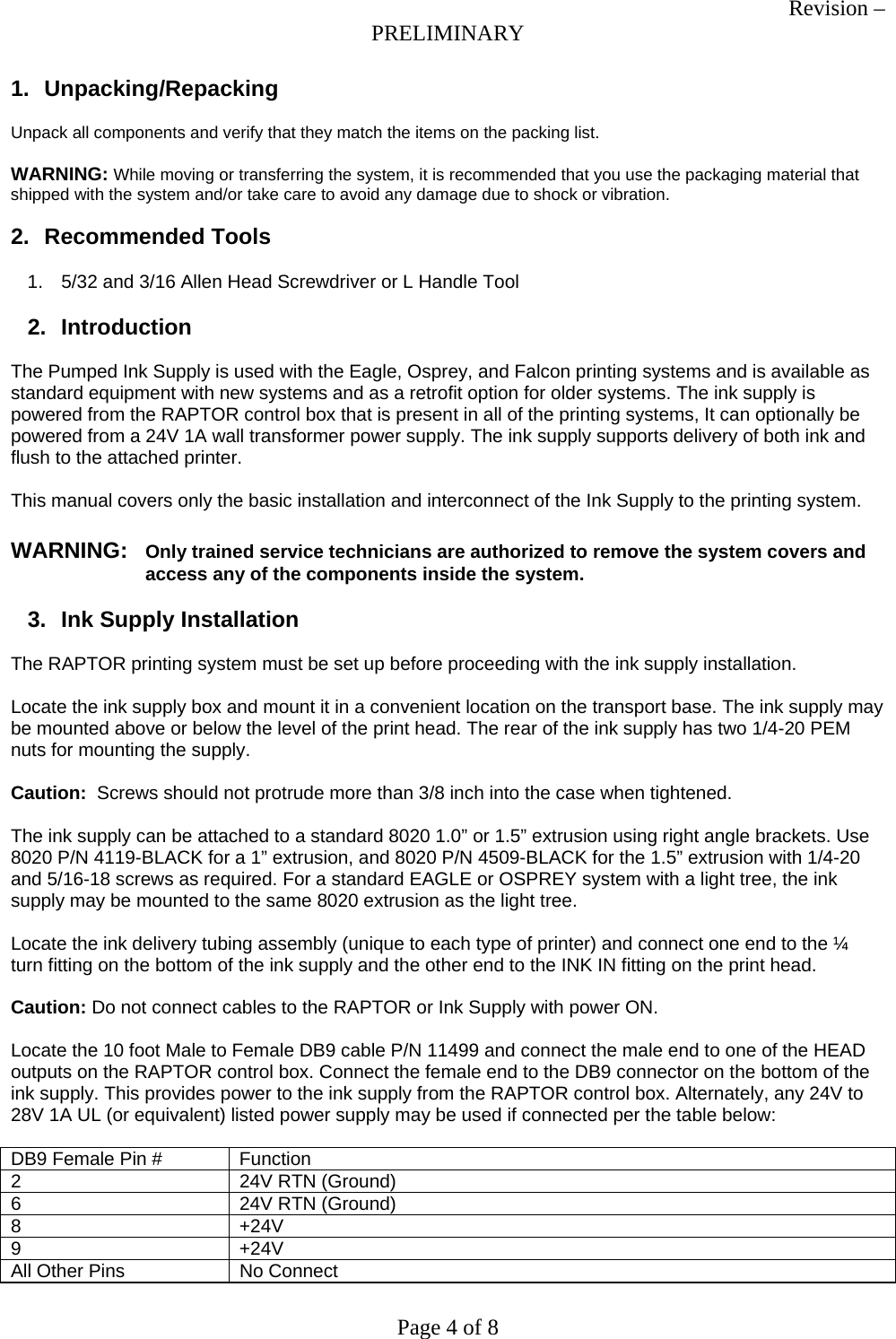
Revision – PRELIMINARY Page 4 of 8 1. Unpacking/Repacking  Unpack all components and verify that they match the items on the packing list.   WARNING: While moving or transferring the system, it is recommended that you use the packaging material that shipped with the system and/or take care to avoid any damage due to shock or vibration.  2. Recommended Tools  1.  5/32 and 3/16 Allen Head Screwdriver or L Handle Tool  2. Introduction  The Pumped Ink Supply is used with the Eagle, Osprey, and Falcon printing systems and is available as standard equipment with new systems and as a retrofit option for older systems. The ink supply is powered from the RAPTOR control box that is present in all of the printing systems, It can optionally be powered from a 24V 1A wall transformer power supply. The ink supply supports delivery of both ink and flush to the attached printer.  This manual covers only the basic installation and interconnect of the Ink Supply to the printing system.  WARNING: Only trained service technicians are authorized to remove the system covers and access any of the components inside the system.  3.  Ink Supply Installation  The RAPTOR printing system must be set up before proceeding with the ink supply installation.  Locate the ink supply box and mount it in a convenient location on the transport base. The ink supply may be mounted above or below the level of the print head. The rear of the ink supply has two 1/4-20 PEM nuts for mounting the supply.  Caution:  Screws should not protrude more than 3/8 inch into the case when tightened.   The ink supply can be attached to a standard 8020 1.0” or 1.5” extrusion using right angle brackets. Use  8020 P/N 4119-BLACK for a 1” extrusion, and 8020 P/N 4509-BLACK for the 1.5” extrusion with 1/4-20 and 5/16-18 screws as required. For a standard EAGLE or OSPREY system with a light tree, the ink supply may be mounted to the same 8020 extrusion as the light tree.  Locate the ink delivery tubing assembly (unique to each type of printer) and connect one end to the ¼ turn fitting on the bottom of the ink supply and the other end to the INK IN fitting on the print head.  Caution: Do not connect cables to the RAPTOR or Ink Supply with power ON.  Locate the 10 foot Male to Female DB9 cable P/N 11499 and connect the male end to one of the HEAD outputs on the RAPTOR control box. Connect the female end to the DB9 connector on the bottom of the ink supply. This provides power to the ink supply from the RAPTOR control box. Alternately, any 24V to 28V 1A UL (or equivalent) listed power supply may be used if connected per the table below:  DB9 Female Pin #  Function 2  24V RTN (Ground) 6  24V RTN (Ground) 8 +24V 9 +24V All Other Pins  No Connect
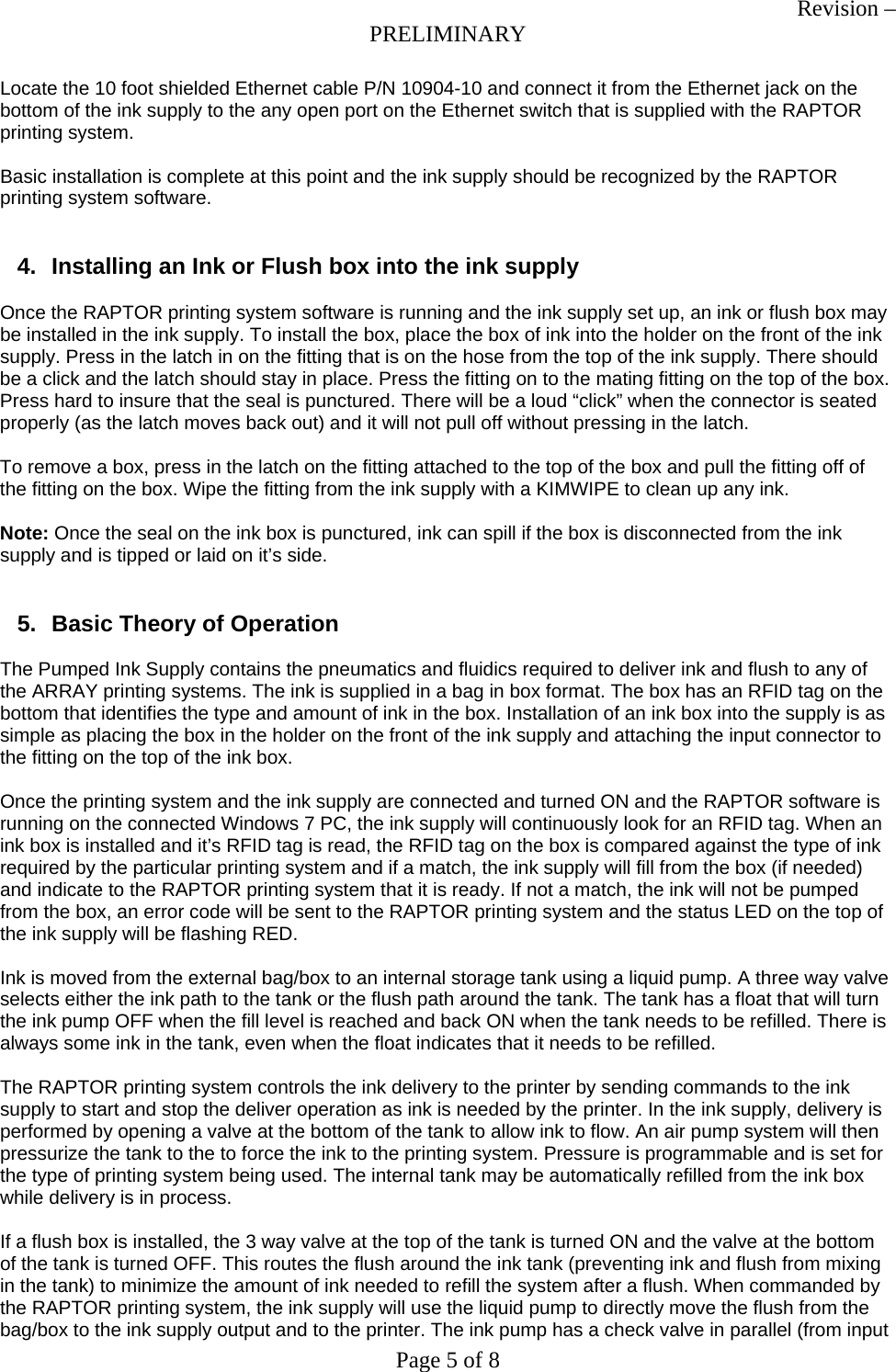
Revision – PRELIMINARY Page 5 of 8 Locate the 10 foot shielded Ethernet cable P/N 10904-10 and connect it from the Ethernet jack on the bottom of the ink supply to the any open port on the Ethernet switch that is supplied with the RAPTOR printing system.  Basic installation is complete at this point and the ink supply should be recognized by the RAPTOR printing system software.   4.  Installing an Ink or Flush box into the ink supply  Once the RAPTOR printing system software is running and the ink supply set up, an ink or flush box may be installed in the ink supply. To install the box, place the box of ink into the holder on the front of the ink supply. Press in the latch in on the fitting that is on the hose from the top of the ink supply. There should be a click and the latch should stay in place. Press the fitting on to the mating fitting on the top of the box. Press hard to insure that the seal is punctured. There will be a loud “click” when the connector is seated properly (as the latch moves back out) and it will not pull off without pressing in the latch.  To remove a box, press in the latch on the fitting attached to the top of the box and pull the fitting off of the fitting on the box. Wipe the fitting from the ink supply with a KIMWIPE to clean up any ink.  Note: Once the seal on the ink box is punctured, ink can spill if the box is disconnected from the ink supply and is tipped or laid on it’s side.   5.  Basic Theory of Operation  The Pumped Ink Supply contains the pneumatics and fluidics required to deliver ink and flush to any of the ARRAY printing systems. The ink is supplied in a bag in box format. The box has an RFID tag on the bottom that identifies the type and amount of ink in the box. Installation of an ink box into the supply is as simple as placing the box in the holder on the front of the ink supply and attaching the input connector to the fitting on the top of the ink box.  Once the printing system and the ink supply are connected and turned ON and the RAPTOR software is running on the connected Windows 7 PC, the ink supply will continuously look for an RFID tag. When an ink box is installed and it’s RFID tag is read, the RFID tag on the box is compared against the type of ink required by the particular printing system and if a match, the ink supply will fill from the box (if needed) and indicate to the RAPTOR printing system that it is ready. If not a match, the ink will not be pumped from the box, an error code will be sent to the RAPTOR printing system and the status LED on the top of the ink supply will be flashing RED.  Ink is moved from the external bag/box to an internal storage tank using a liquid pump. A three way valve selects either the ink path to the tank or the flush path around the tank. The tank has a float that will turn the ink pump OFF when the fill level is reached and back ON when the tank needs to be refilled. There is always some ink in the tank, even when the float indicates that it needs to be refilled.  The RAPTOR printing system controls the ink delivery to the printer by sending commands to the ink supply to start and stop the deliver operation as ink is needed by the printer. In the ink supply, delivery is performed by opening a valve at the bottom of the tank to allow ink to flow. An air pump system will then pressurize the tank to the to force the ink to the printing system. Pressure is programmable and is set for the type of printing system being used. The internal tank may be automatically refilled from the ink box while delivery is in process.  If a flush box is installed, the 3 way valve at the top of the tank is turned ON and the valve at the bottom of the tank is turned OFF. This routes the flush around the ink tank (preventing ink and flush from mixing in the tank) to minimize the amount of ink needed to refill the system after a flush. When commanded by the RAPTOR printing system, the ink supply will use the liquid pump to directly move the flush from the bag/box to the ink supply output and to the printer. The ink pump has a check valve in parallel (from input
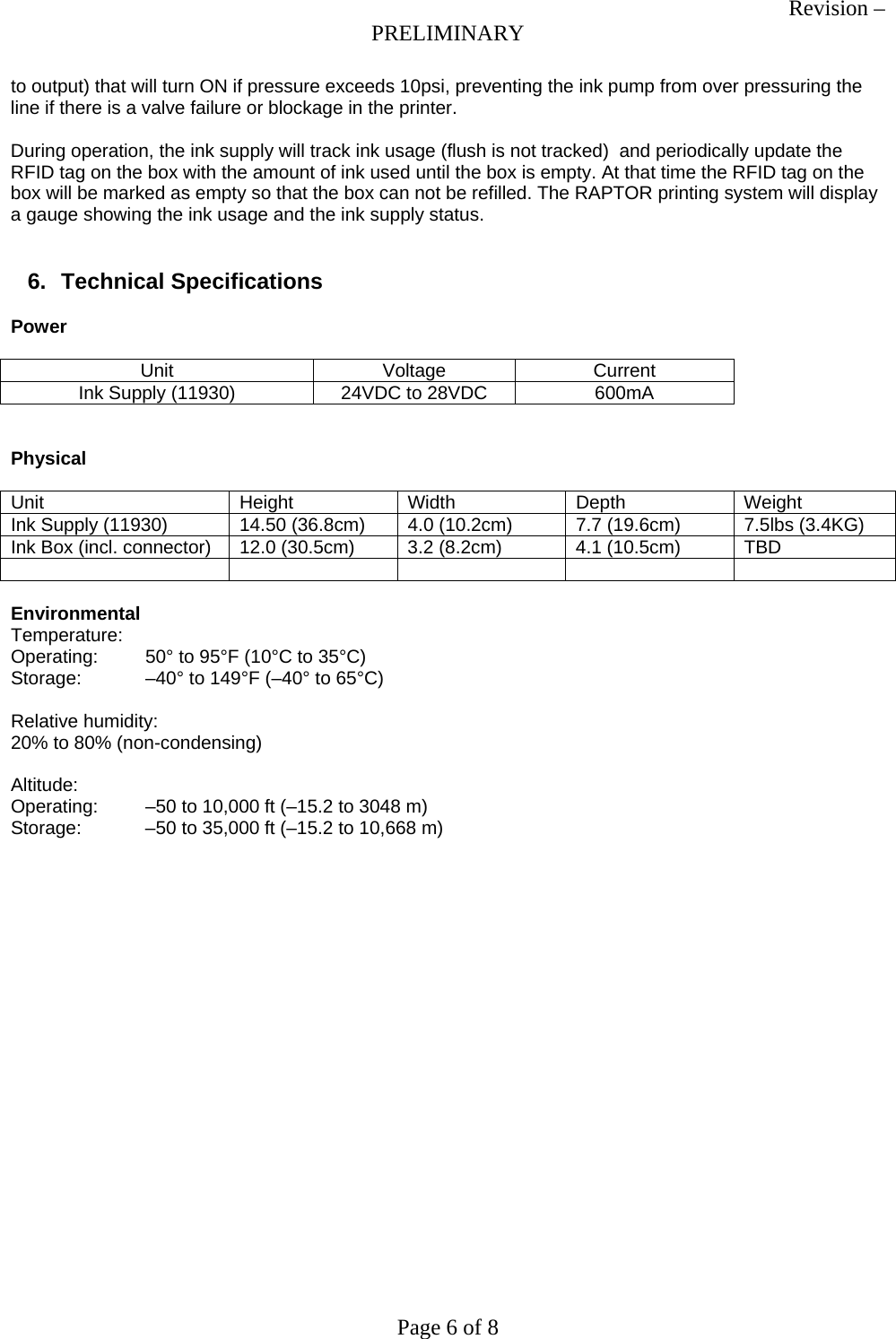
Revision – PRELIMINARY Page 6 of 8 to output) that will turn ON if pressure exceeds 10psi, preventing the ink pump from over pressuring the line if there is a valve failure or blockage in the printer.  During operation, the ink supply will track ink usage (flush is not tracked)  and periodically update the RFID tag on the box with the amount of ink used until the box is empty. At that time the RFID tag on the box will be marked as empty so that the box can not be refilled. The RAPTOR printing system will display a gauge showing the ink usage and the ink supply status.   6. Technical Specifications  Power  Unit Voltage Current Ink Supply (11930)  24VDC to 28VDC  600mA   Physical  Unit Height Width Depth Weight Ink Supply (11930)  14.50 (36.8cm)  4.0 (10.2cm) 7.7 (19.6cm) 7.5lbs (3.4KG) Ink Box (incl. connector)  12.0 (30.5cm)  3.2 (8.2cm)  4.1 (10.5cm)  TBD        Environmental Temperature: Operating:  50° to 95°F (10°C to 35°C) Storage:  –40° to 149°F (–40° to 65°C)  Relative humidity: 20% to 80% (non-condensing)  Altitude: Operating:  –50 to 10,000 ft (–15.2 to 3048 m) Storage:  –50 to 35,000 ft (–15.2 to 10,668 m)
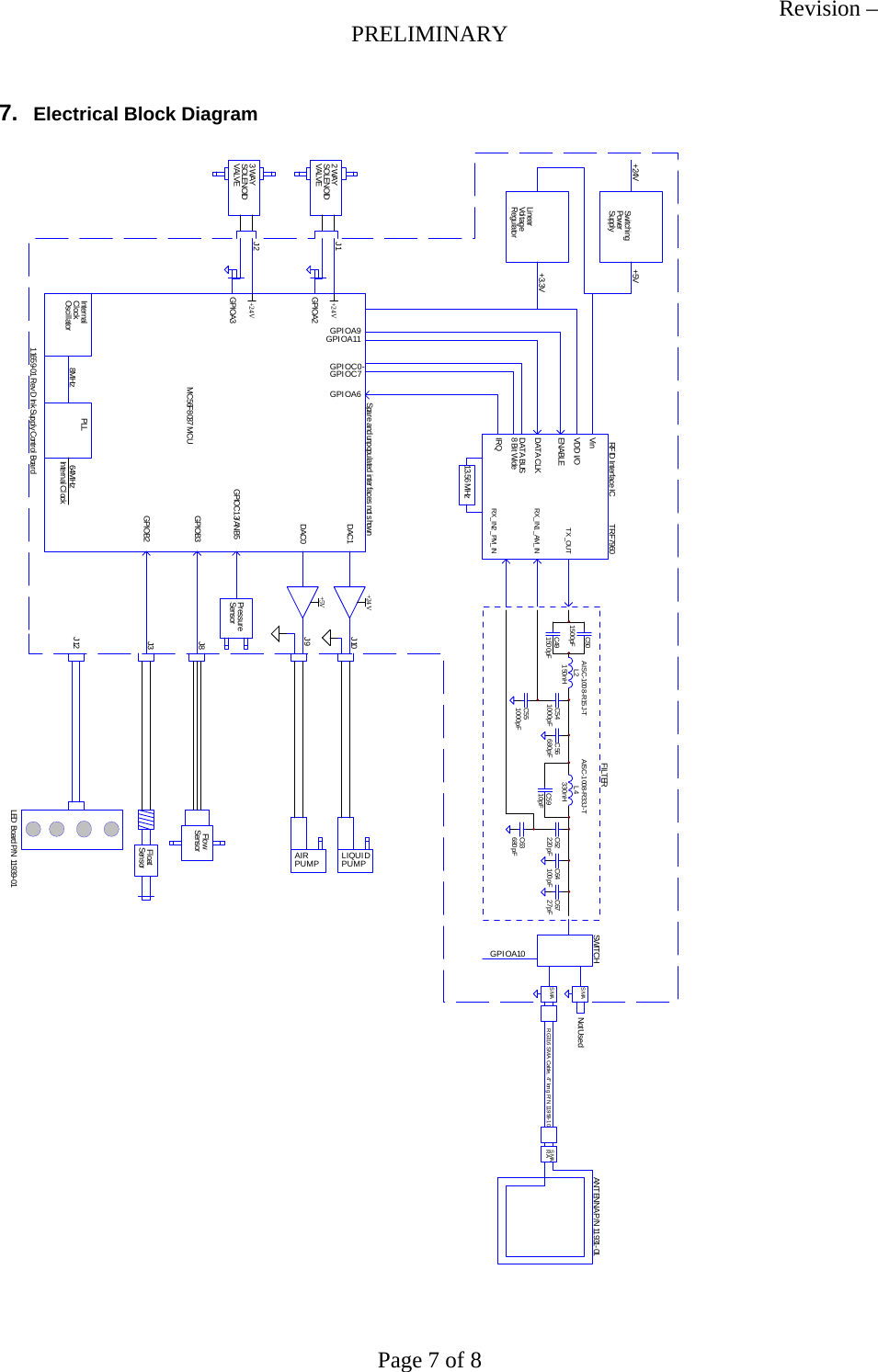
Revision – PRELIMINARY Page 7 of 8  7.  Electrical Block Diagram  RG3 16 S MA Cable , 4" lon g P/ N 11958 -1 0 RASMASMASMAC491500pFC501500pFC541000pF C56680pFC63680pFC551000pFC62220pFL2150nHL4330nH C64100pF C6727pFC5910pFAISC-1008-R15J-T AISC-1008-R33J-TRX_IN1_AM_INRX_IN2_PM_INTX_OUTTRF7960 FILTER SWITCHRFID Interface ICGPIOC0-GPIOA11GPIOA9GPIOA6IRQENABLEDATA CLKDATA BUS8 Bit  WideGPIOA1013.56 MHzGPIOC7DAC1DAC0+24V+5VPUMP PUMPLIQUIDAIRPressureSensorGPIOC13/ANB5+24V+24VSOLENOIDVALVE3 WAYSOLENOIDVALVE2 WAYGPIOA2GPIOA3FlowSensorGPIOB3FloatSensorSwitchingPowerSupplyLinearVol tag eRegulator+24V +5V+3.3VVinVDD I/ OInternalClockOsci llator 8MHzPLL64MHzInternal Cl ockSpar e and unpopulated inter faces not shownLED Board P/N 11939-01GPIOB2J12ANTENNA P/N 11931- 01Not UsedMC56F8037 MCU11659- 01 Rev D Ink Supply Control  Boar dJ9J10J8J3J1J2
Revision – PRELIMINARY Page 8 of 8  8.  Compliance Information (once testing is completed)  FCC Class A  This device complies with Part 15 of the FCC Rules.  Operation is subject to the following two conditions:  •  This device may not cause harmful interference. • This device must accept any interference received, including interference that may cause undesired operation.  This equipment has been tested and found to comply with the limits for a Class A digital device pursuant to Part 15 of the FCC Rules. These limits are designed to provide reasonable protection against harmful interference when the equipment is operated in a commercial environment. This equipment generates, uses, and can radiate radio frequency energy and, if not installed and used in accordance with the manufacturer's instruction manual, may cause harmful interference with radio communications. Operation of this equipment in a residential area is likely to cause harmful interference, in which case you will be required to correct the interference at your own expense.   Add section for RFID Transmitter compliance/licensing

Navigation menu