ATEN Technology IOGEAR GBS301 BLUETOOTH SERIAL ADAPTER User Manual GBS301 M0060 p65

ATEN Technology, Inc., dba IOGEAR BLUETOOTH SERIAL ADAPTER GBS301 M0060 p65

Contents

USER MANUAL

Bluetooth to Serial AdapterBluetooth to Serial AdapterBluetooth to Serial AdapterBluetooth to Serial AdapterBluetooth to Serial AdapterUser Manual  (GBS301)®
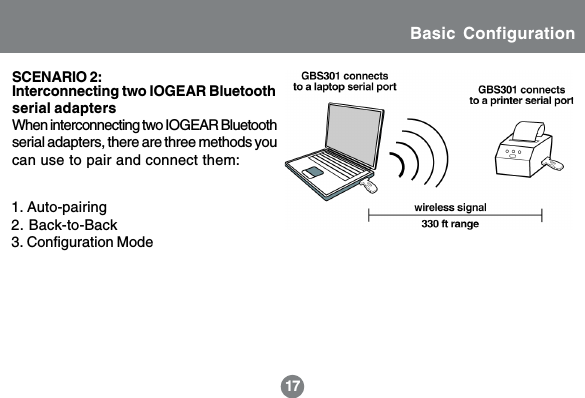
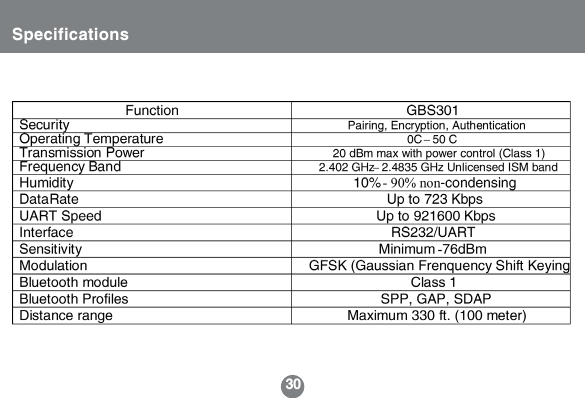
IOGEAR’s Bluetooth serial adapter brings wireless Bluetooth technology to your RS-232serial equipment, allowing you to eliminate conventional cables.  With a maximum range of330 ft (100 meters), you are no longer bound to cable length limitations or messy cables.Simply plug in the Bluetooth adapter to your serial equipment and transfer data to aBluetooth-enabled device such as a PC or PDA.With no software installation required, the Bluetooth serial adapter is a true plug-n-playsolution.  All you need to do is plug in the serial adapter to a serial RS-232 equipment withDB-9 connection and enjoy the freedom of wireless Bluetooth technology.In addition, this unit features external dip switches allowing you to easily configure thebaud rate speed with the simple flip of a switch.  It is also fully compliant with Bluetooth1.1 specifications and supports authentication and encryption.©2005 IOGEAR. All Rights Reserved. M0060IOGEAR, the IOGEAR logo, are trademarks or registered trademarks of IOGEAR, Inc. Microsoft and Windows areregistered trademarks of Microsoft Corporation. IBM is a registered trademark of International Business Machines,Inc.  Macintosh, G3/G4 and iMac are registered trademarks of Apple Computer, Inc.  All other brand and productnames are trademarks or registered trademarks of their respective holders.  IOGEAR makes no warranty of any kindwith regards to the information presented in this document. All information furnished here is for informationalpurposes only and is subject to change without notice. IOGEAR, Inc. assumes no responsibility for anyinaccuracies or errors that may appear in this document.Welcome
Table of ContentsPackage Contents.............................................................................................. 2Features........................................................................................................... 3System Requirements......................................................................................... 4Introduction....................................................................................................... 5Operation.......................................................................................................... 8Basic Configuration............................................................................................11·Connecting GBS301 to Bluetooth-enabled device·Interconnecting two IOGEAR Bluetooth adaptersAdvanced Configuration..................................................................................... 22Unpairing Procedure.......................................................................................... 29Specification.................................................................................................... 30Appendix A-HyperTerminal Menu.......................................................................... 31Technical Support............................................................................................. 38Radio & TV Interference Statement...................................................................... 39Limited Warranty............................................................................................... 40CE Safety Statement ........................................................................................ 41
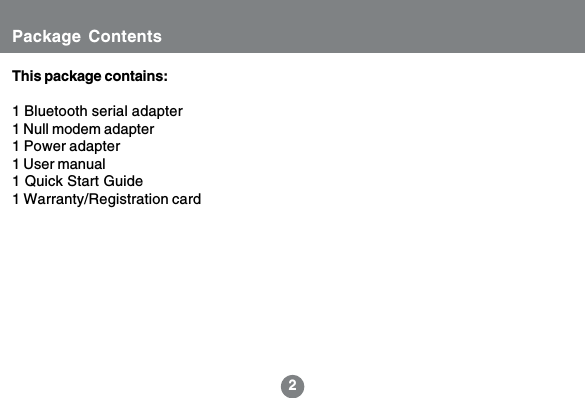
2Package ContentsThis package contains:1 Bluetooth serial adapter1 Null modem adapter1 Power adapter1 User manual1 Quick Start Guide1 Warranty/Registration card
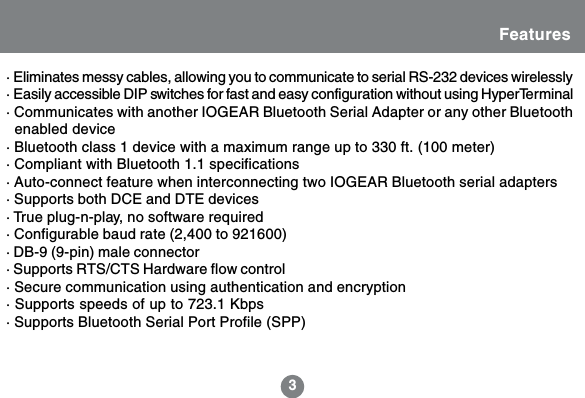
3Features· Eliminates messy cables, allowing you to communicate to serial RS-232 devices wirelessly· Easily accessible DIP switches for fast and easy configuration without using HyperTerminal· Communicates with another IOGEAR Bluetooth Serial Adapter or any other Bluetooth  enabled device· Bluetooth class 1 device with a maximum range up to 330 ft. (100 meter)· Compliant with Bluetooth 1.1 specifications· Auto-connect feature when interconnecting two IOGEAR Bluetooth serial adapters· Supports both DCE and DTE devices· True plug-n-play, no software required· Configurable baud rate (2,400 to 921600)· DB-9 (9-pin) male connector· Supports RTS/CTS Hardware flow control· Secure communication using authentication and encryption· Supports speeds of up to 723.1 Kbps· Supports Bluetooth Serial Port Profile (SPP)
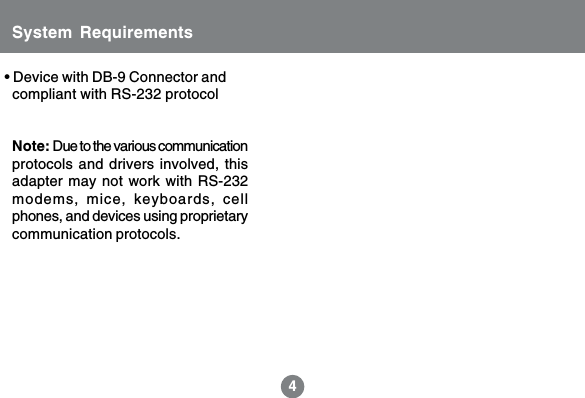
4• Device with DB-9 Connector and  compliant with RS-232 protocolSystem RequirementsNote: Due to the various communicationprotocols and drivers involved, thisadapter may not work with RS-232modems, mice, keyboards, cellphones, and devices using proprietarycommunication protocols.
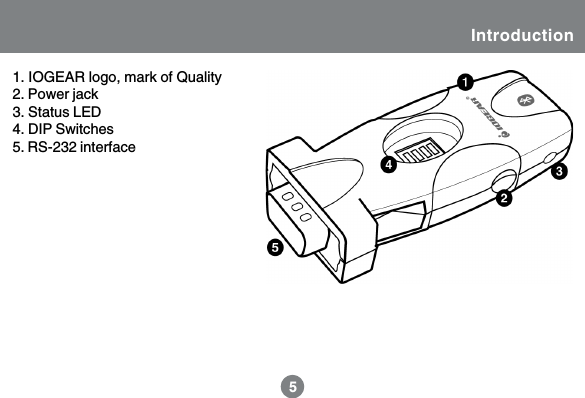
55Introduction1. IOGEAR logo, mark of Quality2. Power jack3. Status LED4. DIP Switches5. RS-232 interface3
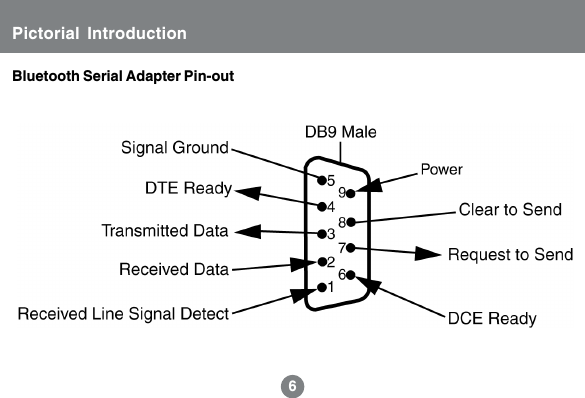
66Bluetooth Serial Adapter Pin-outPictorial Introduction
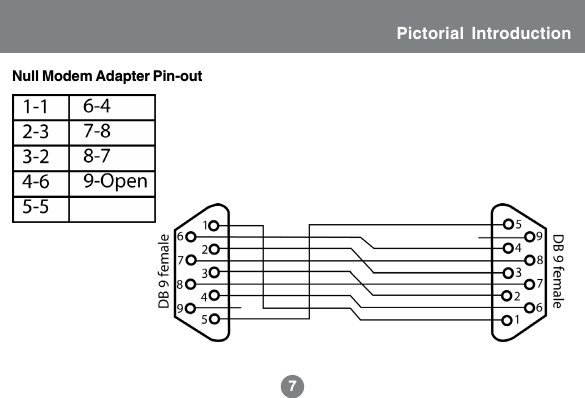
7Pictorial Introduction7Null Modem Adapter Pin-out
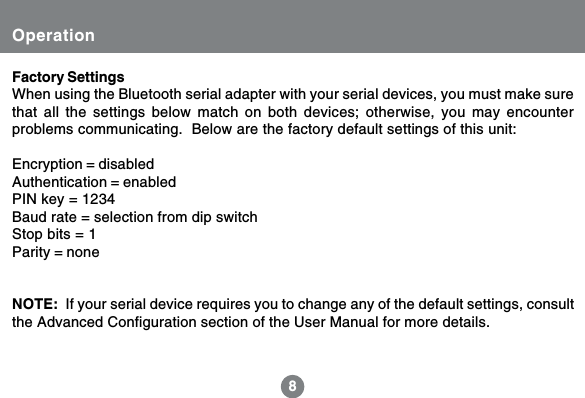
88OperationFactory SettingsWhen using the Bluetooth serial adapter with your serial devices, you must make surethat all the settings below match on both devices; otherwise, you may encounterproblems communicating.  Below are the factory default settings of this unit:Encryption = disabledAuthentication = enabledPIN key = 1234Baud rate = selection from dip switchStop bits = 1Parity = noneNOTE:  If your serial device requires you to change any of the default settings, consultthe Advanced Configuration section of the User Manual for more details.
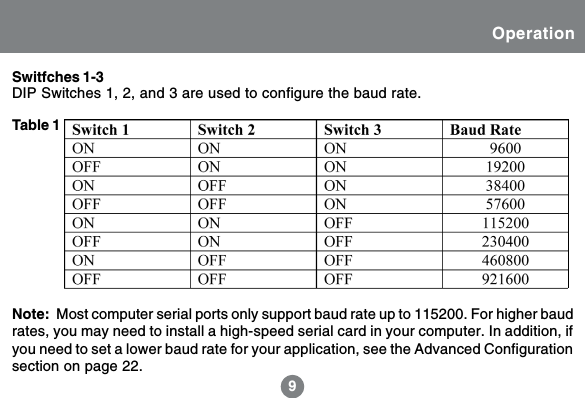
9Switfches 1-39OperationDIP Switches 1, 2, and 3 are used to configure the baud rate.Note:  Most computer serial ports only support baud rate up to 115200. For higher baudrates, you may need to install a high-speed serial card in your computer. In addition, ifyou need to set a lower baud rate for your application, see the Advanced Configurationsection on page 22.Table 1
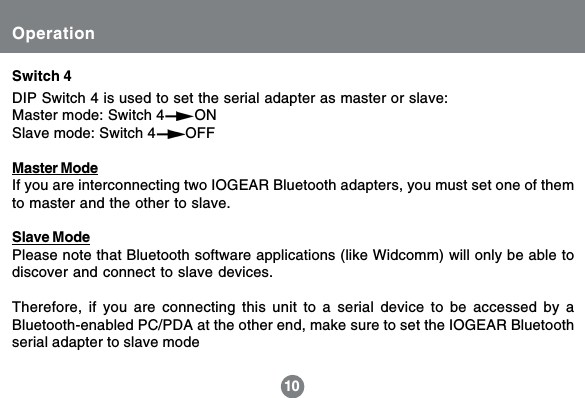
Operation10DIP Switch 4 is used to set the serial adapter as master or slave:Master mode: Switch 4       ONSlave mode: Switch 4       OFFMaster ModeIf you are interconnecting two IOGEAR Bluetooth adapters, you must set one of themto master and the other to slave.Slave ModePlease note that Bluetooth software applications (like Widcomm) will only be able todiscover and connect to slave devices.Therefore, if you are connecting this unit to a serial device to be accessed by aBluetooth-enabled PC/PDA at the other end, make sure to set the IOGEAR Bluetoothserial adapter to slave modeSwitch 4
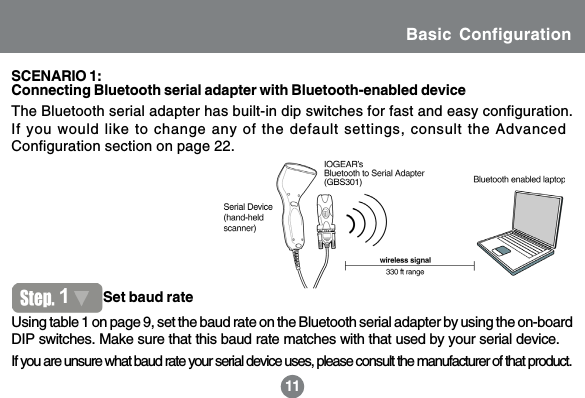
11Basic Configuration11The Bluetooth serial adapter has built-in dip switches for fast and easy configuration.If you would like to change any of the default settings, consult the AdvancedConfiguration section on page 22.Using table 1 on page 9, set the baud rate on the Bluetooth serial adapter by using the on-boardDIP switches. Make sure that this baud rate matches with that used by your serial device.1Set baud rateConnecting Bluetooth serial adapter with Bluetooth-enabled deviceSCENARIO 1:If you are unsure what baud rate your serial device uses, please consult the manufacturer of that product.
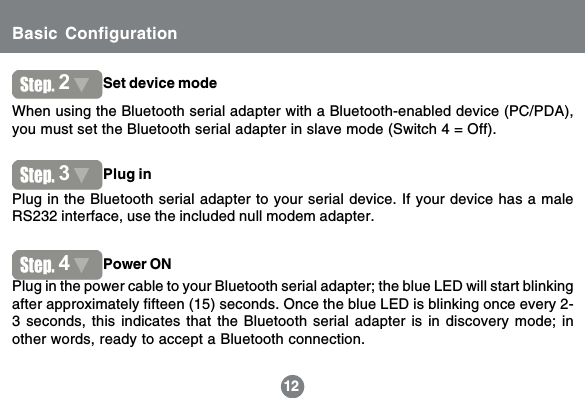
12When using the Bluetooth serial adapter with a Bluetooth-enabled device (PC/PDA),you must set the Bluetooth serial adapter in slave mode (Switch 4 = Off).Plug in the Bluetooth serial adapter to your serial device. If your device has a maleRS232 interface, use the included null modem adapter.Plug in the power cable to your Bluetooth serial adapter; the blue LED will start blinkingafter approximately fifteen (15) seconds. Once the blue LED is blinking once every 2-3 seconds, this indicates that the Bluetooth serial adapter is in discovery mode; inother words, ready to accept a Bluetooth connection.122Set device mode3Plug in4Power ONBasic Configuration
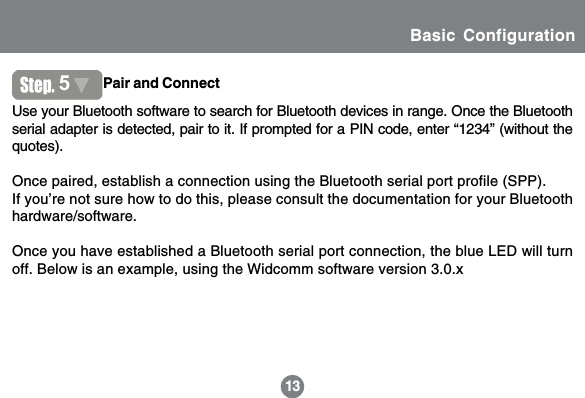
1313Use your Bluetooth software to search for Bluetooth devices in range. Once the Bluetoothserial adapter is detected, pair to it. If prompted for a PIN code, enter “1234” (without thequotes).Once paired, establish a connection using the Bluetooth serial port profile (SPP).If you’re not sure how to do this, please consult the documentation for your Bluetoothhardware/software.Once you have established a Bluetooth serial port connection, the blue LED will turnoff. Below is an example, using the Widcomm software version 3.0.x5Pair and ConnectInstructionsBasic Configuration
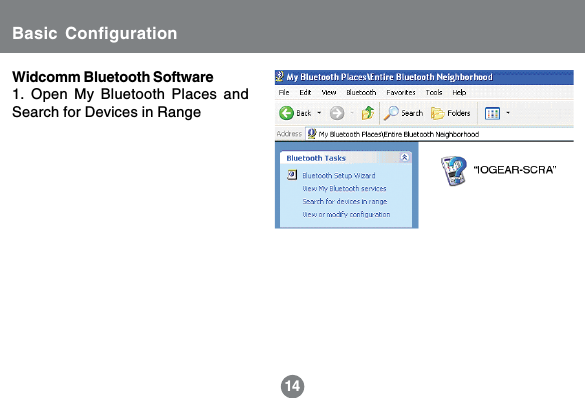
Widcomm Bluetooth Software1. Open My Bluetooth Places andSearch for Devices in Range14Basic Configuration
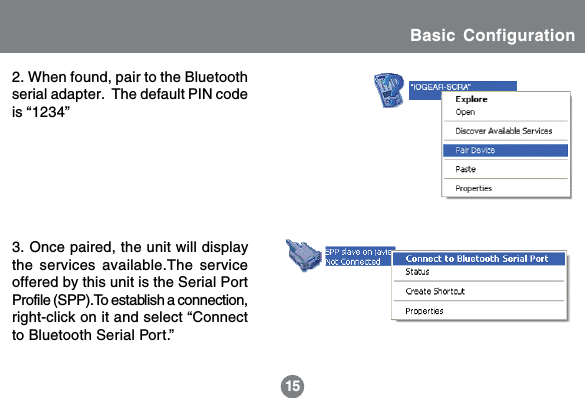
152. When found, pair to the Bluetoothserial adapter.  The default PIN codeis “1234”3. Once paired, the unit will displaythe services available.The serviceoffered by this unit is the Serial PortProfile (SPP).To establish a connection,right-click on it and select “Connectto Bluetooth Serial Port.”Basic Configuration
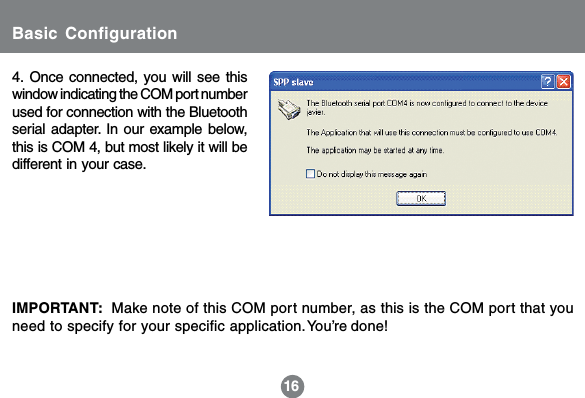
4. Once connected, you will see thiswindow indicating the COM port numberused for connection with the Bluetoothserial adapter. In our example below,this is COM 4, but most likely it will bedifferent in your case.16IMPORTANT:  Make note of this COM port number, as this is the COM port that youneed to specify for your specific application.You’re done!Basic Configuration
171. Auto-pairing2. Back-to-Back3. Configuration ModeInterconnecting two IOGEAR Bluetoothserial adaptersBasic ConfigurationSCENARIO 2:When interconnecting two IOGEAR Bluetoothserial adapters, there are three methods youcan use to pair and connect them:
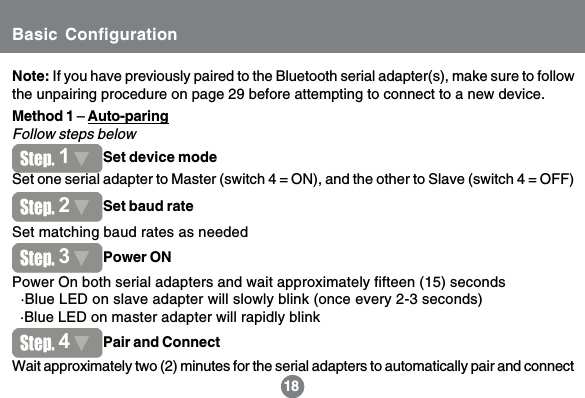
14Note: If you have previously paired to the Bluetooth serial adapter(s), make sure to followthe unpairing procedure on page 29 before attempting to connect to a new device.18Set one serial adapter to Master (switch 4 = ON), and the other to Slave (switch 4 = OFF)Method 1 – Auto-paringFollow steps belowSet matching baud rates as neededPower On both serial adapters and wait approximately fifteen (15) seconds  ·Blue LED on slave adapter will slowly blink (once every 2-3 seconds)  ·Blue LED on master adapter will rapidly blinkWait approximately two (2) minutes for the serial adapters to automatically pair and connect1Set device mode2Set baud rate3Power ON4Pair and ConnectBasic Configuration
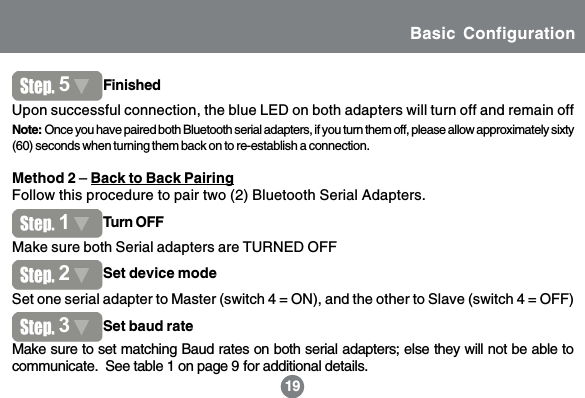
15Method 2 – Back to Back PairingFollow this procedure to pair two (2) Bluetooth Serial Adapters.191Set one serial adapter to Master (switch 4 = ON), and the other to Slave (switch 4 = OFF)Upon successful connection, the blue LED on both adapters will turn off and remain off5FinishedNote: Once you have paired both Bluetooth serial adapters, if you turn them off, please allow approximately sixty(60) seconds when turning them back on to re-establish a connection.1Turn OFF2Set device modeMake sure both Serial adapters are TURNED OFFMake sure to set matching Baud rates on both serial adapters; else they will not be able tocommunicate.  See table 1 on page 9 for additional details.3Set baud rateBasic Configuration
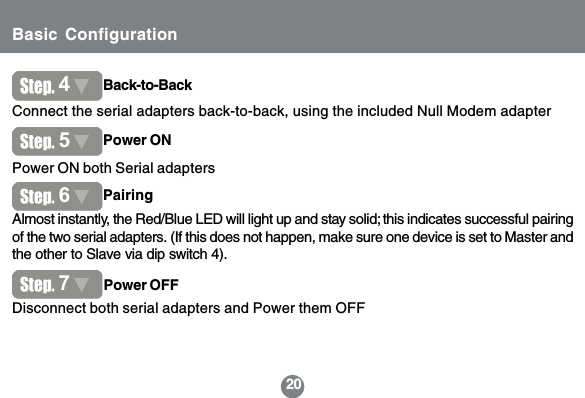
20Disconnect both serial adapters and Power them OFF74Back-to-BackConnect the serial adapters back-to-back, using the included Null Modem adapterPower ON both Serial adapters5Power ONPower OFF7Almost instantly, the Red/Blue LED will light up and stay solid; this indicates successful pairingof the two serial adapters. (If this does not happen, make sure one device is set to Master andthe other to Slave via dip switch 4).6PairingBasic Configuration
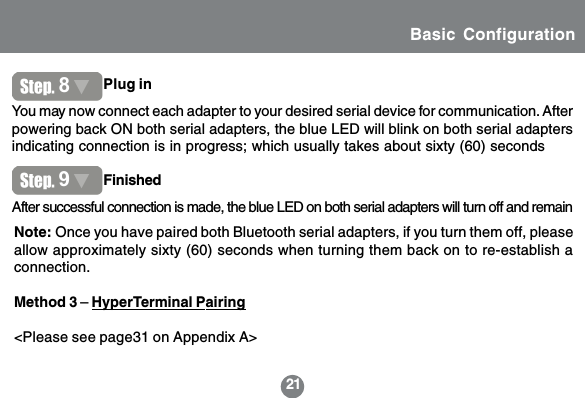
21After successful connection is made, the blue LED on both serial adapters will turn off and remainYou may now connect each adapter to your desired serial device for communication. Afterpowering back ON both serial adapters, the blue LED will blink on both serial adaptersindicating connection is in progress; which usually takes about sixty (60) secondsFinishedPlug in89Note: Once you have paired both Bluetooth serial adapters, if you turn them off, pleaseallow approximately sixty (60) seconds when turning them back on to re-establish aconnection.Method 3 – HyperTerminal Pairing<Please see page31 on Appendix A>Basic Configuration
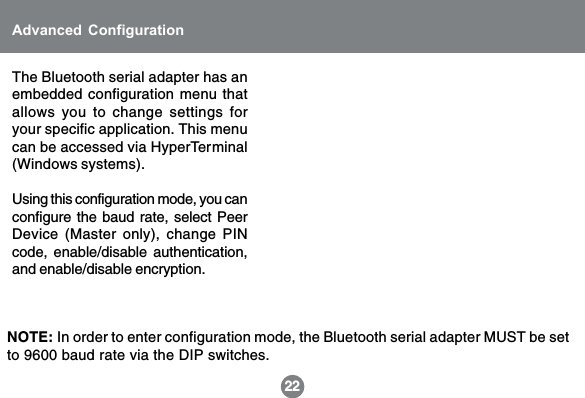
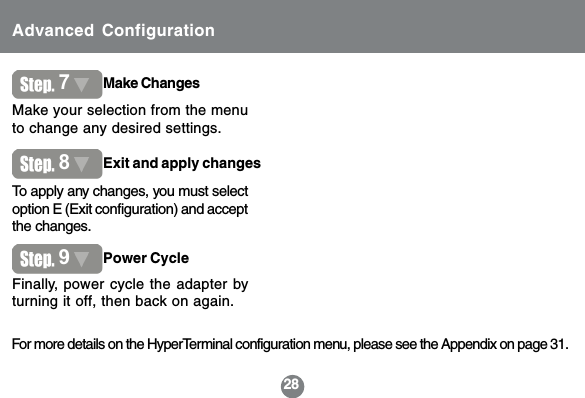
The Bluetooth serial adapter has anembedded configuration menu thatallows you to change settings foryour specific application. This menucan be accessed via HyperTerminal(Windows systems).Using this configuration mode, you canconfigure the baud rate, select PeerDevice (Master only), change PINcode, enable/disable authentication,and enable/disable encryption.22Advanced ConfigurationNOTE: In order to enter configuration mode, the Bluetooth serial adapter MUST be setto 9600 baud rate via the DIP switches.
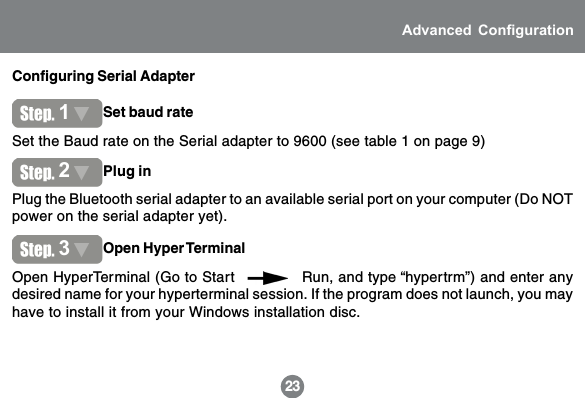
Configuring Serial Adapter23Advanced ConfigurationSet the Baud rate on the Serial adapter to 9600 (see table 1 on page 9)1Set baud ratePlug the Bluetooth serial adapter to an available serial port on your computer (Do NOTpower on the serial adapter yet).2Plug inOpen HyperTerminal (Go to Start              Run, and type “hypertrm”) and enter anydesired name for your hyperterminal session. If the program does not launch, you mayhave to install it from your Windows installation disc.3Open Hyper Terminal
18Note: HyperTerminal may also befound under Start            Programs         Accessories         Communi-cations          HyperTerminal24Advanced Configuration
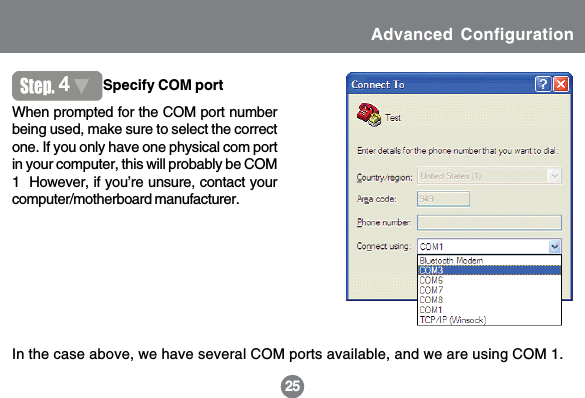
When prompted for the COM port numberbeing used, make sure to select the correctone. If you only have one physical com portin your computer, this will probably be COM1  However, if you’re unsure, contact yourcomputer/motherboard manufacturer.In the case above, we have several COM ports available, and we are using COM 1.1925Advanced Configuration4Specify COM port
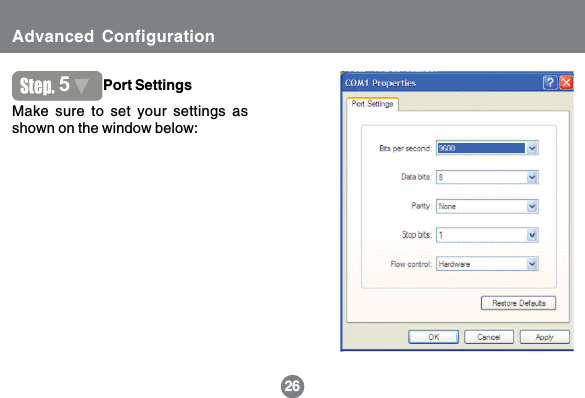
2026Make sure to set your settings asshown on the window below:5Port SettingsAdvanced Configuration
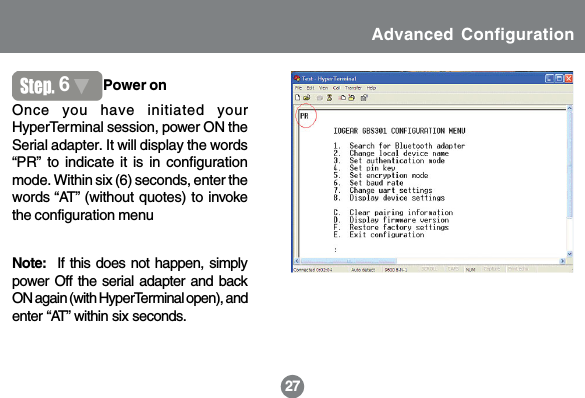
2127Once you have initiated yourHyperTerminal session, power ON theSerial adapter. It will display the words“PR” to indicate it is in configurationmode. Within six (6) seconds, enter thewords “AT” (without quotes) to invokethe configuration menu6Power onNote:  If this does not happen, simplypower Off the serial adapter and backON again (with HyperTerminal open), andenter “AT” within six seconds.Advanced Configuration
28Advanced Configuration7Make ChangesMake your selection from the menuto change any desired settings.For more details on the HyperTerminal configuration menu, please see the Appendix on page 31.8Exit and apply changesTo apply any changes, you must selectoption E (Exit configuration) and acceptthe changes.Finally, power cycle the adapter byturning it off, then back on again.9Power Cycle
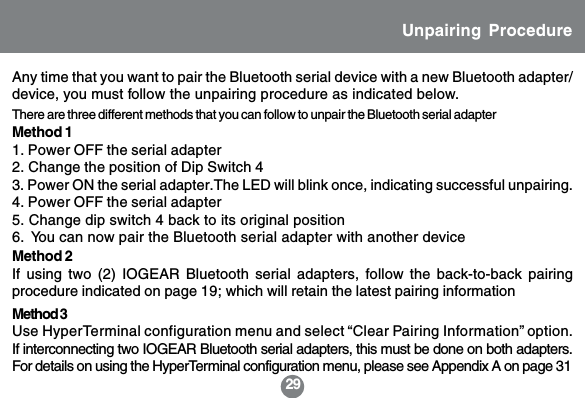
29Unpairing ProcedureMethod 11. Power OFF the serial adapter2. Change the position of Dip Switch 43. Power ON the serial adapter.The LED will blink once, indicating successful unpairing.4. Power OFF the serial adapter5. Change dip switch 4 back to its original position6.  You can now pair the Bluetooth serial adapter with another deviceThere are three different methods that you can follow to unpair the Bluetooth serial adapterAny time that you want to pair the Bluetooth serial device with a new Bluetooth adapter/device, you must follow the unpairing procedure as indicated below.Method 3Use HyperTerminal configuration menu and select “Clear Pairing Information” option.If interconnecting two IOGEAR Bluetooth serial adapters, this must be done on both adapters.For details on using the HyperTerminal configuration menu, please see Appendix A on page 31Method 2If using two (2) IOGEAR Bluetooth serial adapters, follow the back-to-back pairingprocedure indicated on page 19; which will retain the latest pairing information
30Specifications
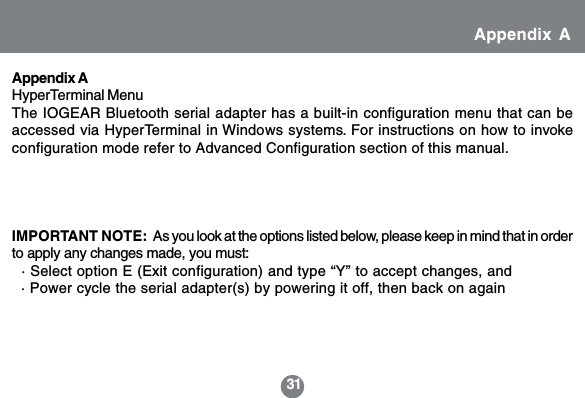
31IMPORTANT NOTE:  As you look at the options listed below, please keep in mind that in orderto apply any changes made, you must:  · Select option E (Exit configuration) and type “Y” to accept changes, and  · Power cycle the serial adapter(s) by powering it off, then back on againAppendix AHyperTerminal MenuThe IOGEAR Bluetooth serial adapter has a built-in configuration menu that can beaccessed via HyperTerminal in Windows systems. For instructions on how to invokeconfiguration mode refer to Advanced Configuration section of this manual.Appendix A
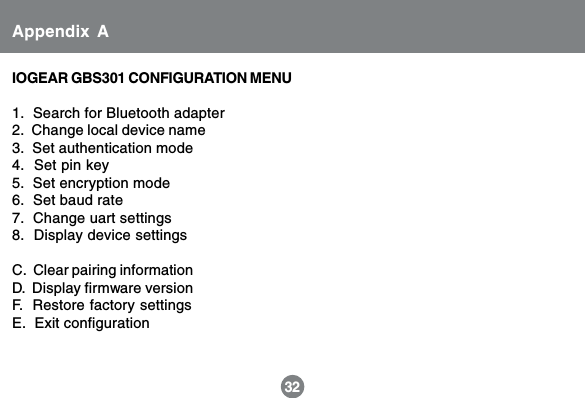
32IOGEAR GBS301 CONFIGURATION MENU1.  Search for Bluetooth adapter2.  Change local device name3.  Set authentication mode4.  Set pin key5.  Set encryption mode6.  Set baud rate7.  Change uart settings8.  Display device settingsC.  Clear pairing informationD.  Display firmware versionF.  Restore factory settingsE.  Exit configurationAppendix A
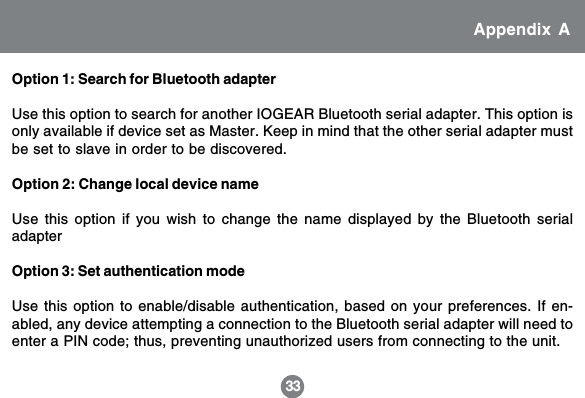
33Option 1: Search for Bluetooth adapterUse this option to search for another IOGEAR Bluetooth serial adapter. This option isonly available if device set as Master. Keep in mind that the other serial adapter mustbe set to slave in order to be discovered.Option 2: Change local device nameUse this option if you wish to change the name displayed by the Bluetooth serialadapterOption 3: Set authentication modeUse this option to enable/disable authentication, based on your preferences. If en-abled, any device attempting a connection to the Bluetooth serial adapter will need toenter a PIN code; thus, preventing unauthorized users from connecting to the unit.Appendix A
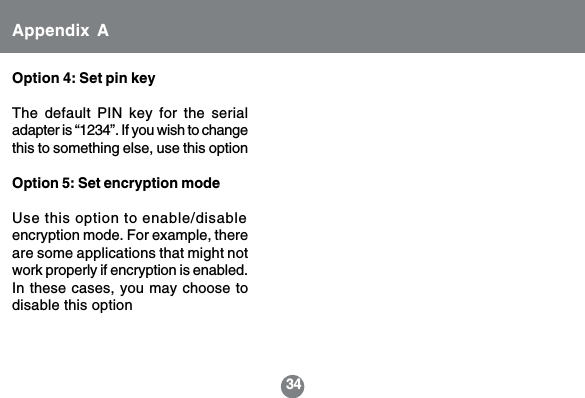
34Option 4: Set pin keyThe default PIN key for the serialadapter is “1234”. If you wish to changethis to something else, use this optionOption 5: Set encryption modeUse this option to enable/disableencryption mode. For example, thereare some applications that might notwork properly if encryption is enabled.In these cases, you may choose todisable this optionAppendix A
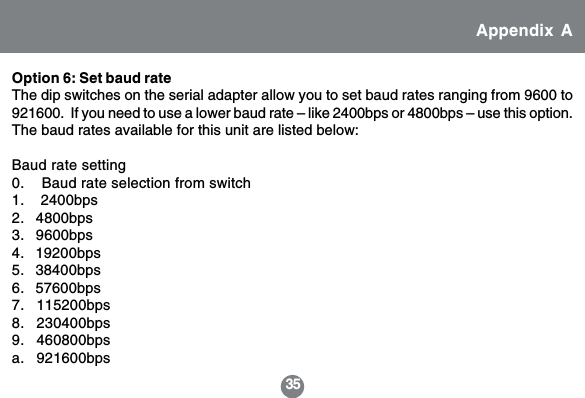
35Option 6: Set baud rateThe dip switches on the serial adapter allow you to set baud rates ranging from 9600 to921600.  If you need to use a lower baud rate – like 2400bps or 4800bps – use this option.The baud rates available for this unit are listed below:Baud rate setting0.    Baud rate selection from switch1.    2400bps2.   4800bps3.   9600bps4.   19200bps5.   38400bps6.   57600bps7.   115200bps8.   230400bps9.   460800bpsa.   921600bpsAppendix A
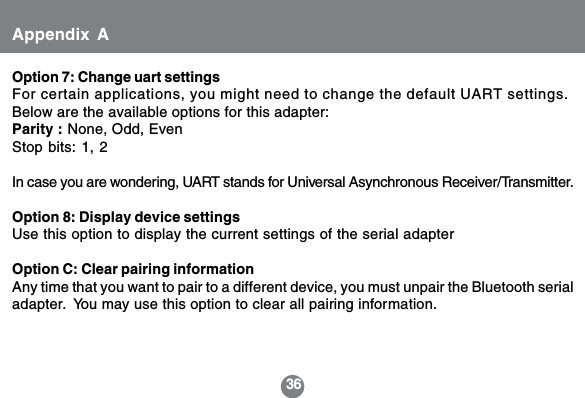
36Option 7: Change uart settingsFor certain applications, you might need to change the default UART settings.Below are the available options for this adapter:Parity : None, Odd, EvenStop bits: 1, 2In case you are wondering, UART stands for Universal Asynchronous Receiver/Transmitter.Option 8: Display device settingsUse this option to display the current settings of the serial adapterOption C: Clear pairing informationAny time that you want to pair to a different device, you must unpair the Bluetooth serialadapter.  You may use this option to clear all pairing information.Appendix A
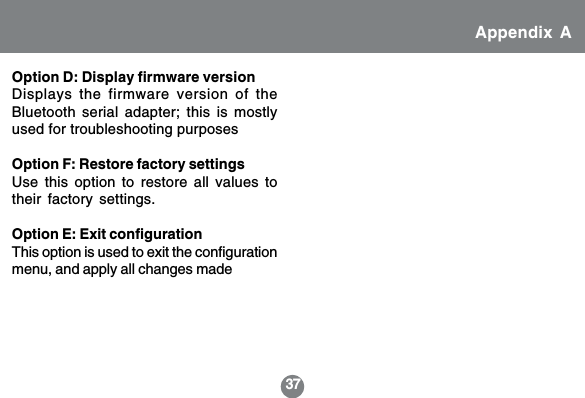
37Option D: Display firmware versionDisplays the firmware version of theBluetooth serial adapter; this is mostlyused for troubleshooting purposesOption F: Restore factory settingsUse this option to restore all values totheir factory settings.Option E: Exit configurationThis option is used to exit the configurationmenu, and apply all changes madeAppendix A
38Technical SupportIf you need technical support, please check out our IOGEAR Tech Info Library (T.I.L.)at www.iogear.com/support for the latest tips, tricks, and troubleshooting. TheIOGEAR T.I.L. was designed to provide you with the latest technical information aboutour products. Most of the answers to your questions can be found here, so please try itout before contacting technical support.Technical support is available Monday through Friday from 7:30 am to 5:30 pm PSTand can be reached at (949) 453-8782 or by email support@iogear.com
39Radio & TV Interference StatementWARNING!!!  This equipment generates, uses and can radiate radiofrequency energy and, if not installed and used in accordance with theinstruction manual, may cause interference to radio communications.This equipment has been tested and found to comply with the limits for aClass B computing device pursuant to Subpart J of Part 15 of FCC Rules,which are designed to provide reasonable protection against suchinterference when operated in a commercial environment. Operation ofthis equipment in a residential area is likely to cause interference, in whichcase the user at his own expense will be required to take whatevermeasures may be required to correct the interference.
40IN NO EVENT SHALL THE DIRECT VENDOR’S LIABILITY FOR DIRECT,INDIRECT, SPECIAL, INCIDENTAL OR CONSEQUENTIAL DAMAGESRESULTING FROM THE USE OF THE PRODUCT, DISK, OR ITSDOCUMENTATION EXCEED THE PRICE PAID FOR THE PRODUCT.The direct vendor makes no warranty or representation, expressed, implied,or statutory with respect to the contents or use of this documentation,and especially disclaims its quality, performance, merchantability, orfitness for any particular purpose.The direct vendor also reserves the right to revise or update the device ordocumentation without obligation to notify any individual or entity of suchrevisions, or updates. For further inquires please contact your directLimited Warranty
41CE Safety StatementThis device has been tested and found to comply with the requirements set up in thecouncil directive on the approximation of the law of member states relating to EMCDirective 89/336/EEC, Low Voltage Directive 73/23/EEC and R&TTE Directive 99/5/EC.The product has been approved for LVD and covered the following countries:Belgium, Denmark, France, Germany, Italy, Portugal, U.K., Spain, Sweden
23 Hubble    •     Irvine, CA 92618     •     (P) 949.453.8782     •     (F) 949.453.8785     •     www.iogear.comContact info.®

Navigation menu