ATEN Technology IOGEAR GBU301 Bluetooth USB Dongle User Manual Product User s Guide
ATEN Technology, Inc., dba IOGEAR Bluetooth USB Dongle Product User s Guide
Contents
- 1. Users Manual 1
- 2. Users Manual 2
- 3. Users Manual Revised 100902
Users Manual Revised 100902


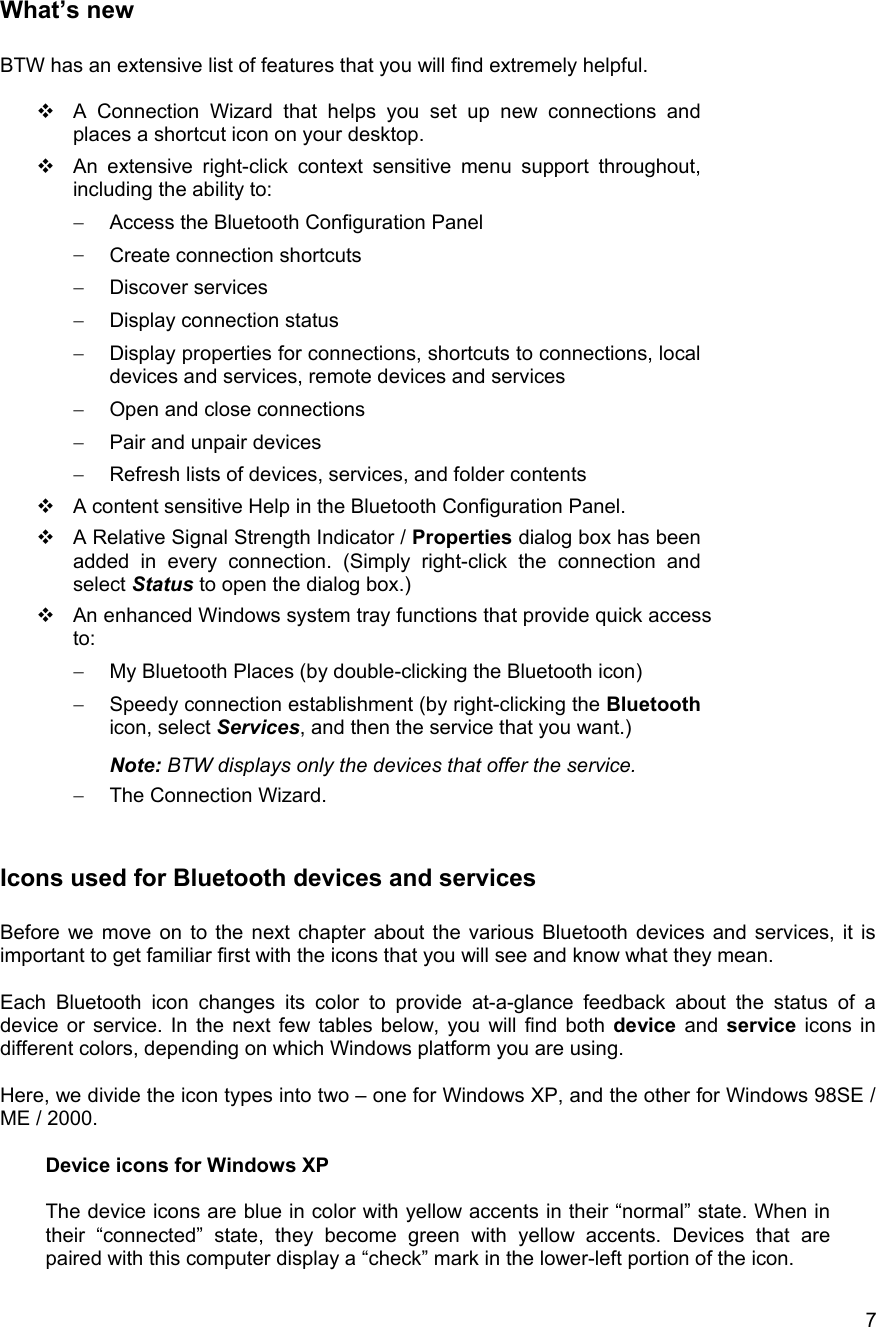
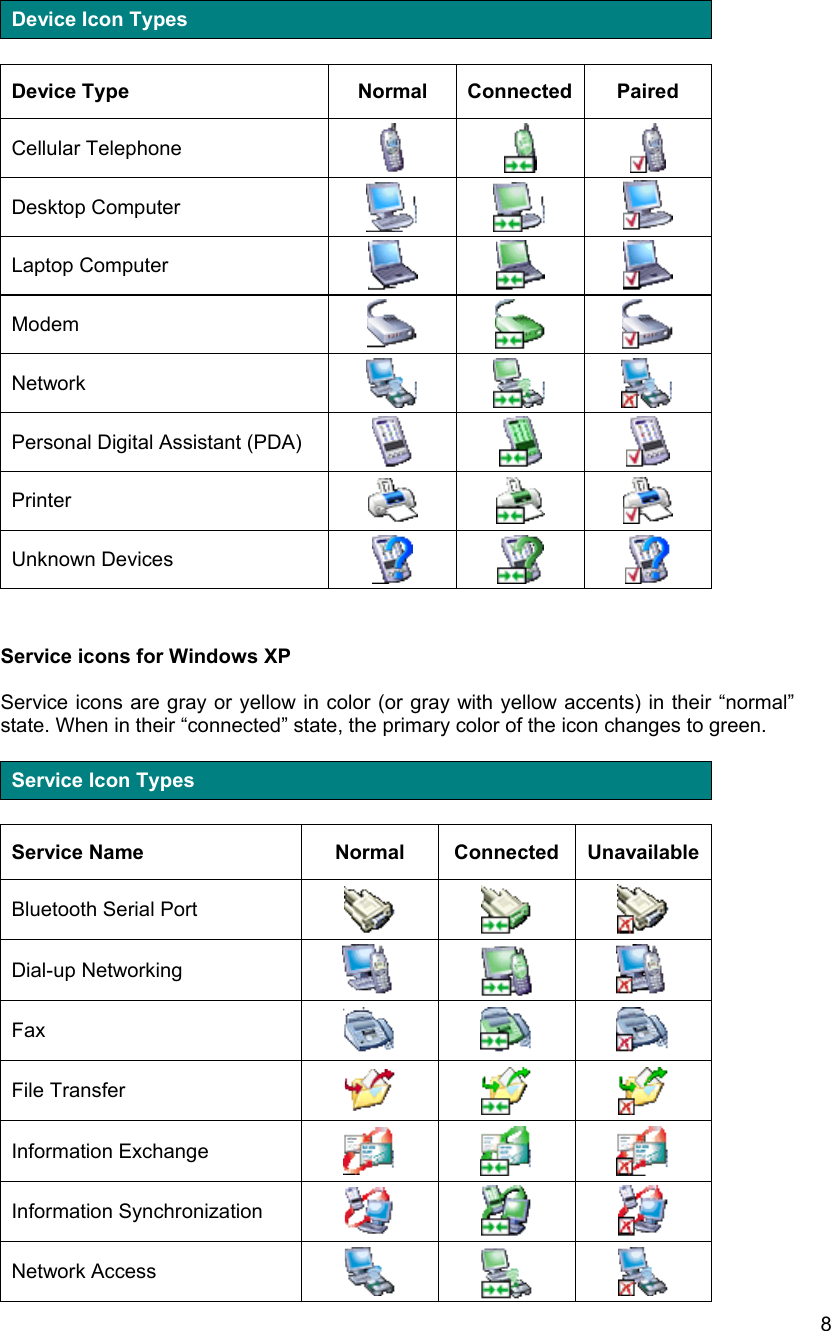
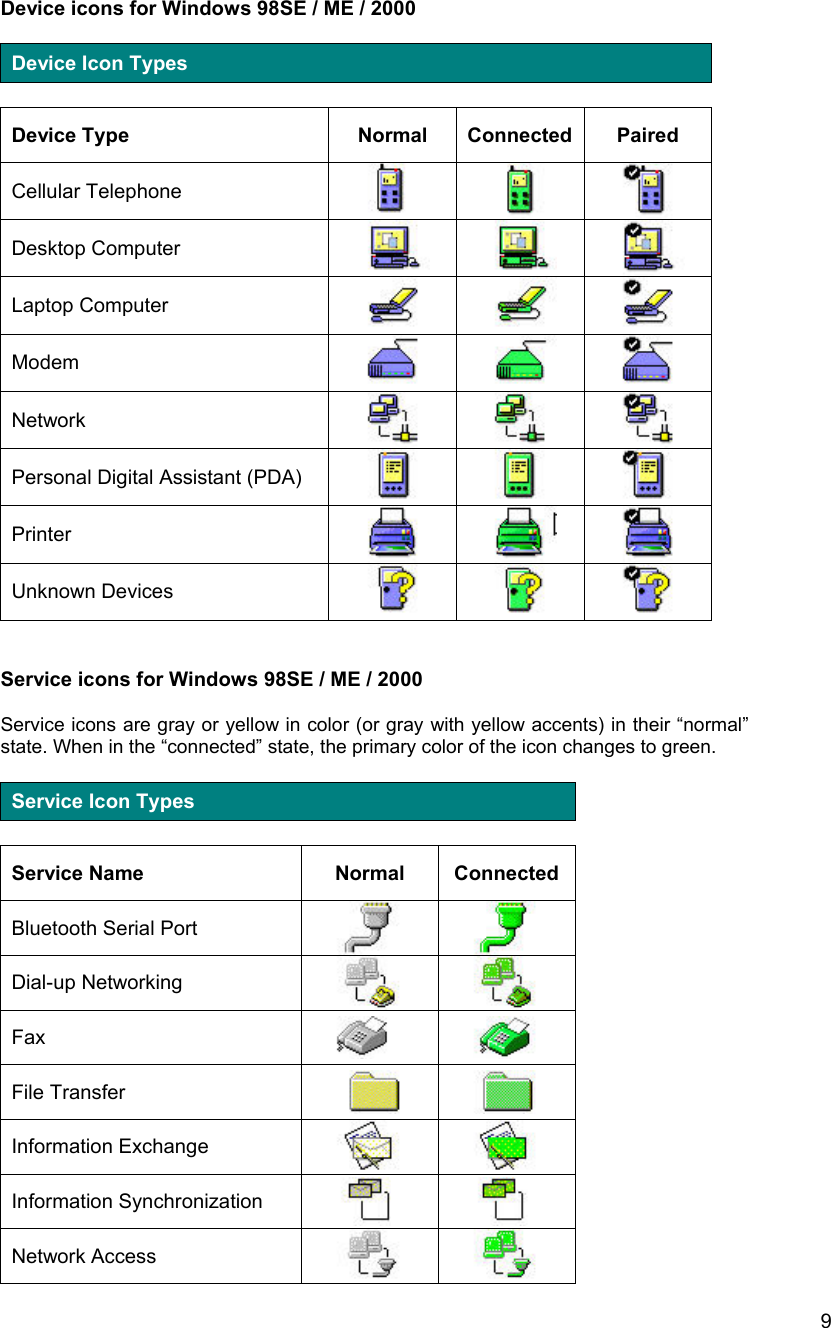
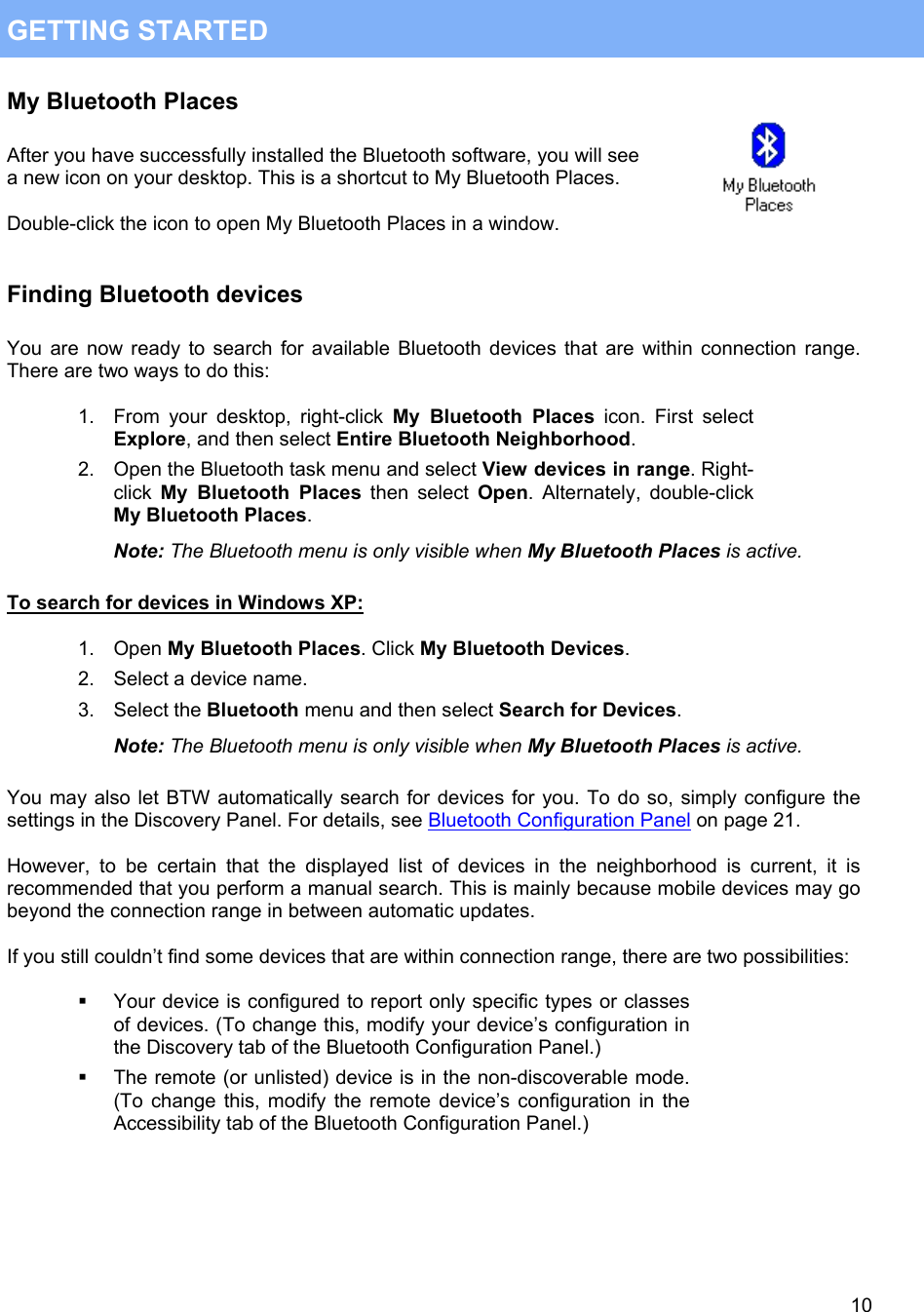
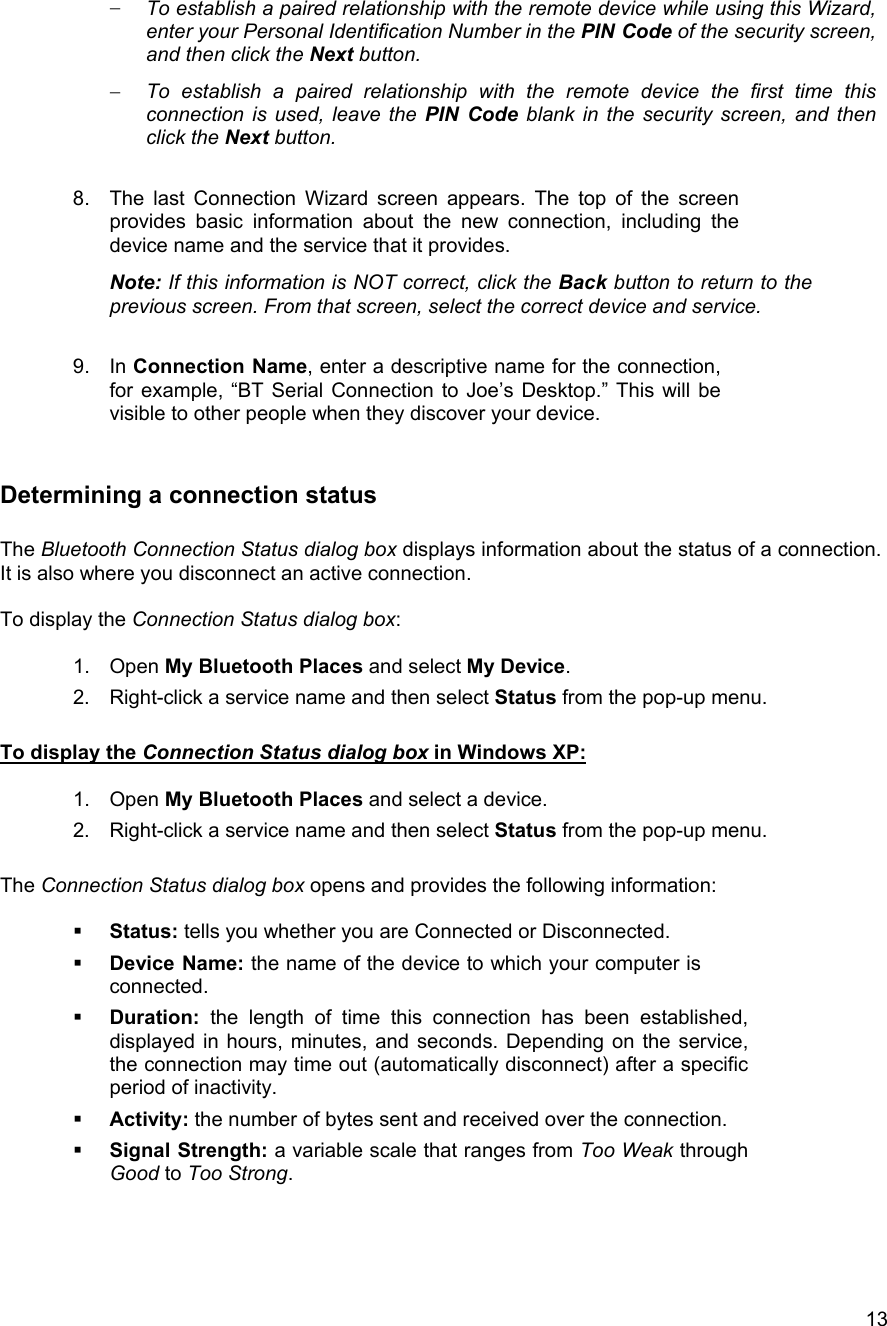
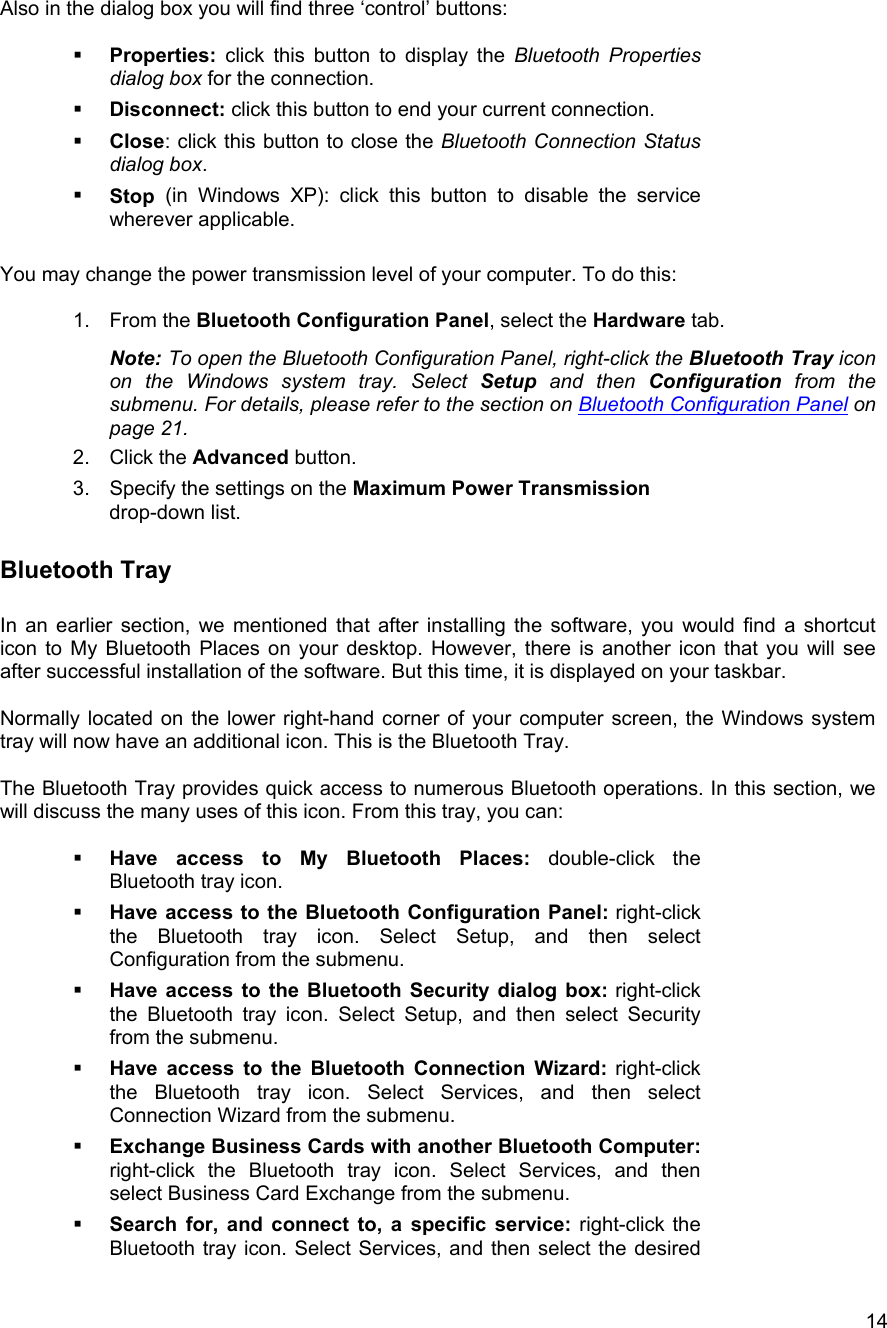
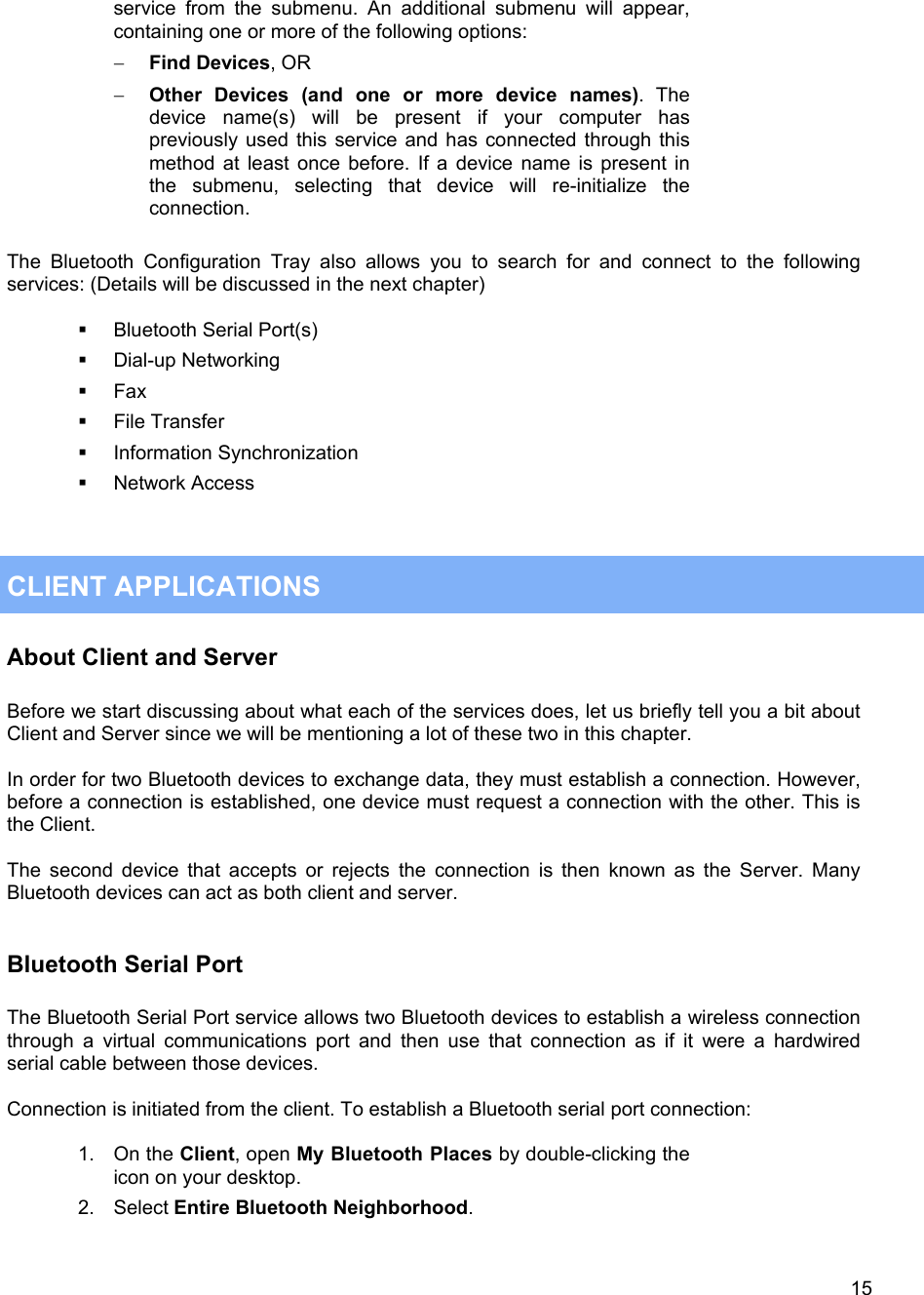
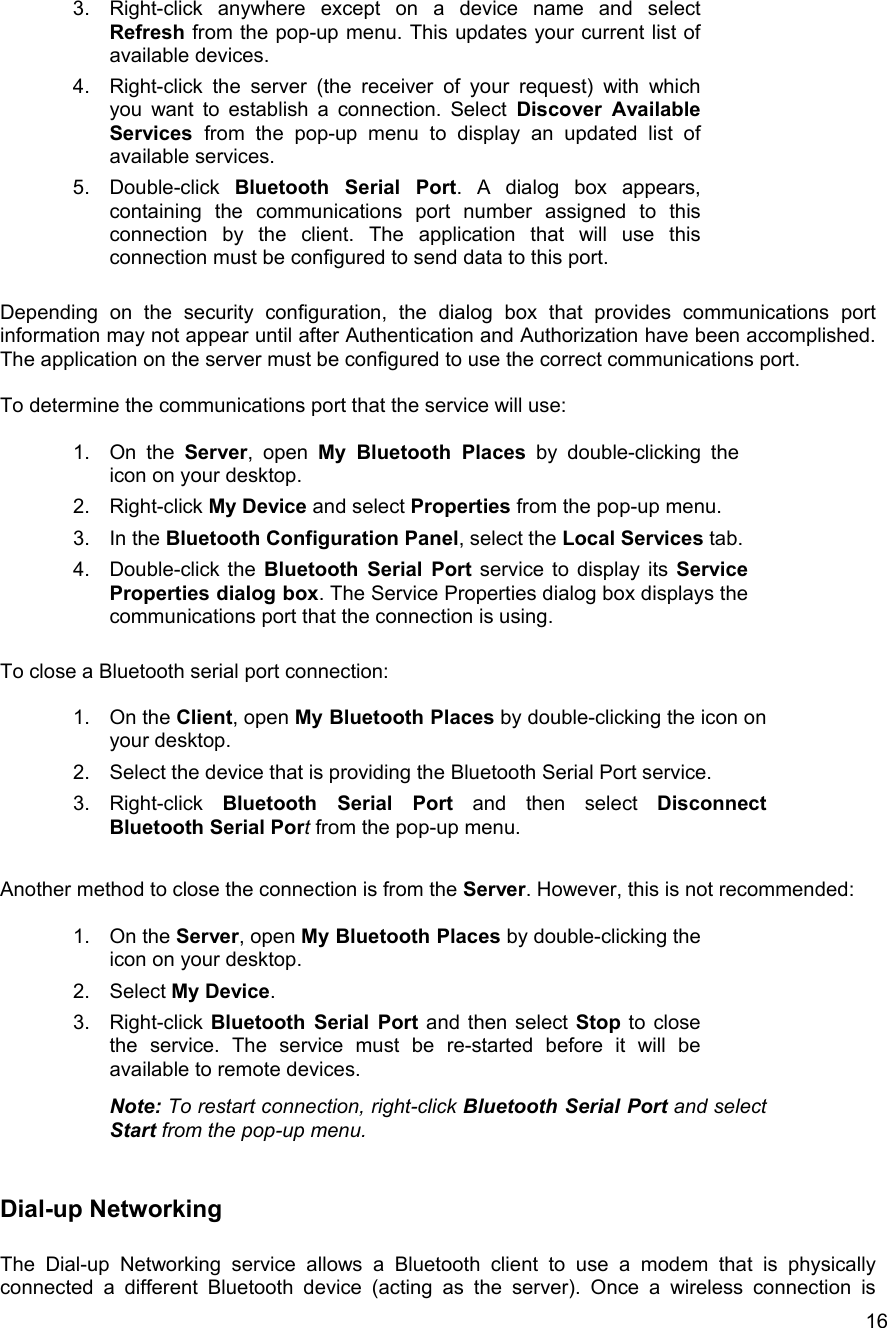
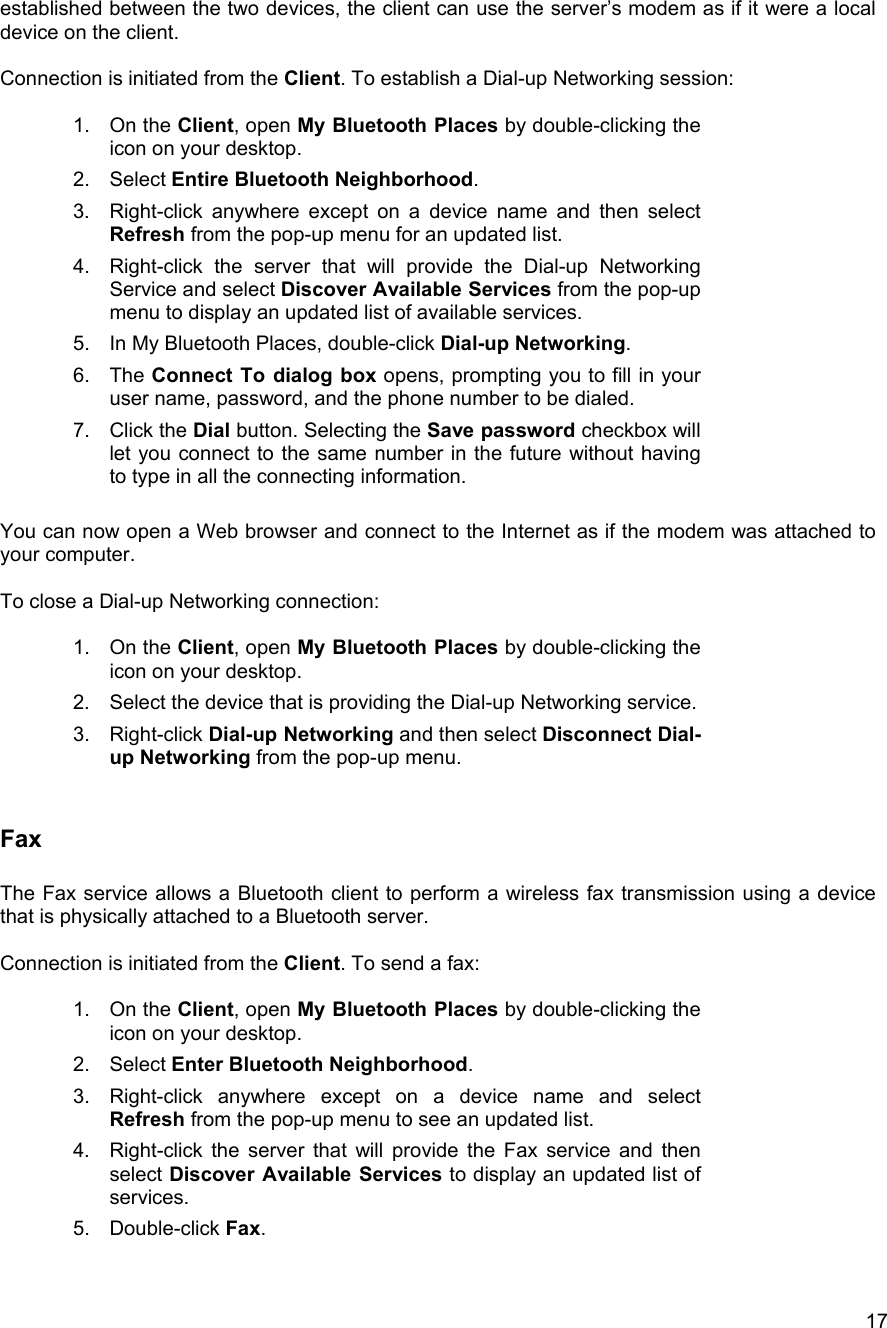
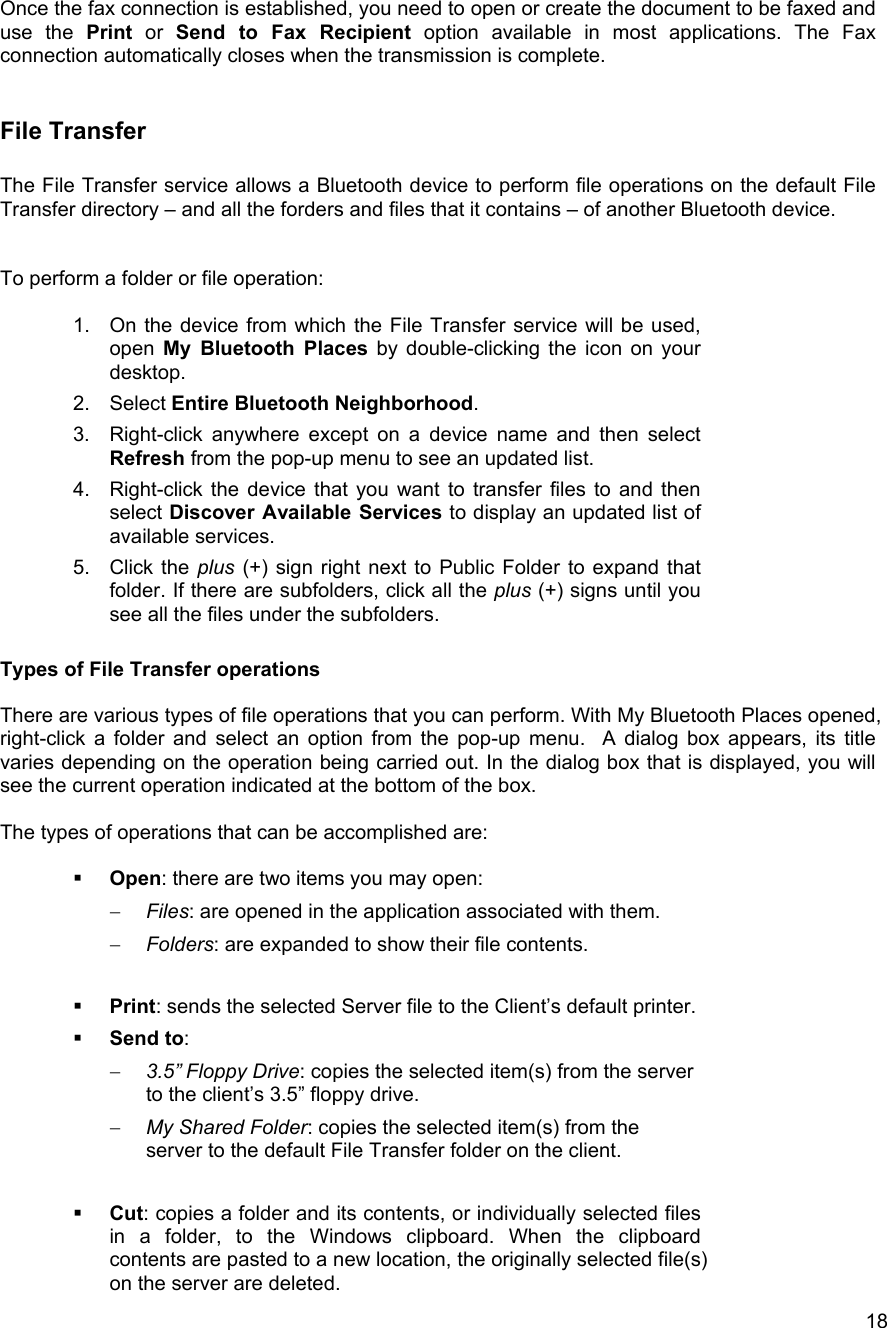
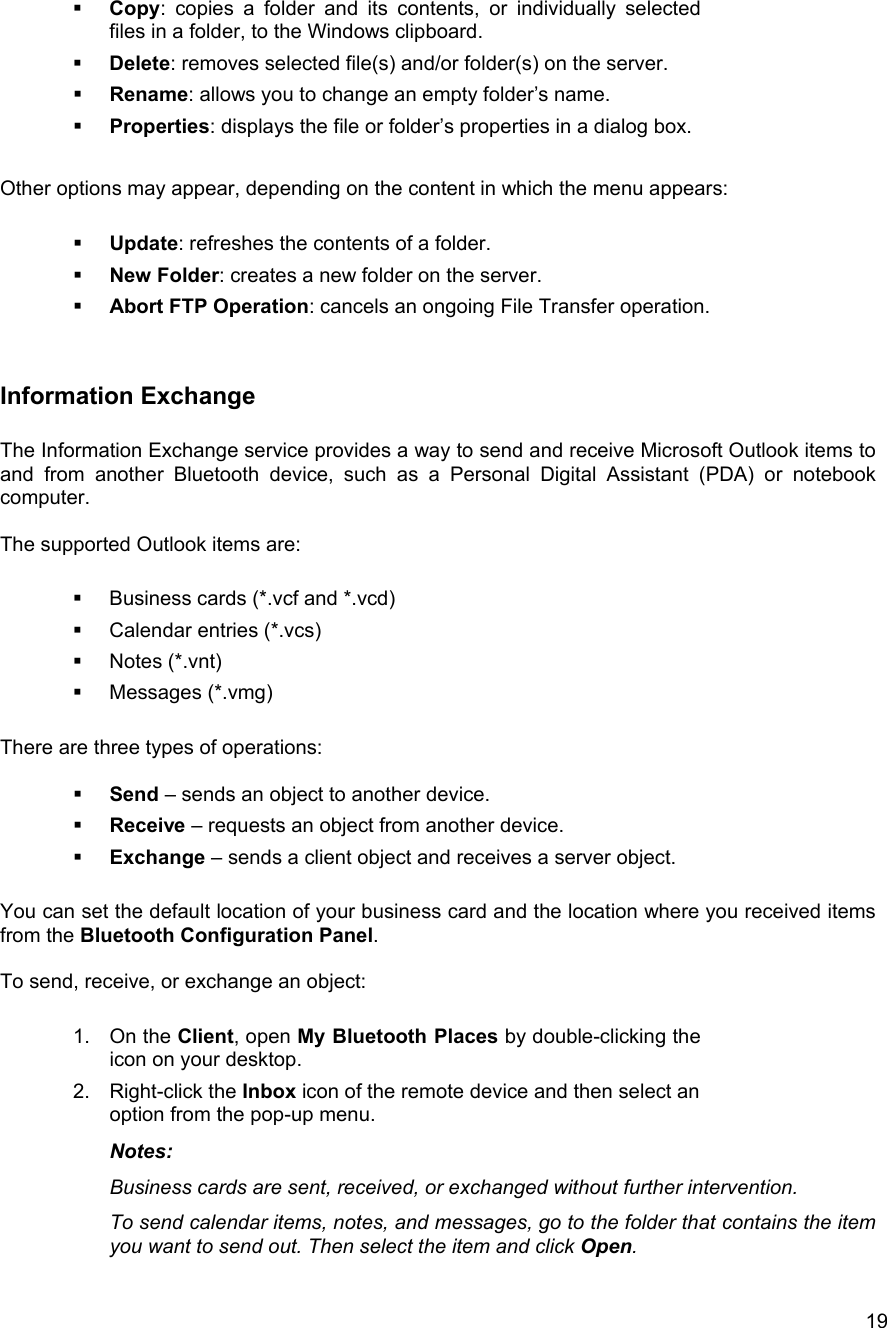
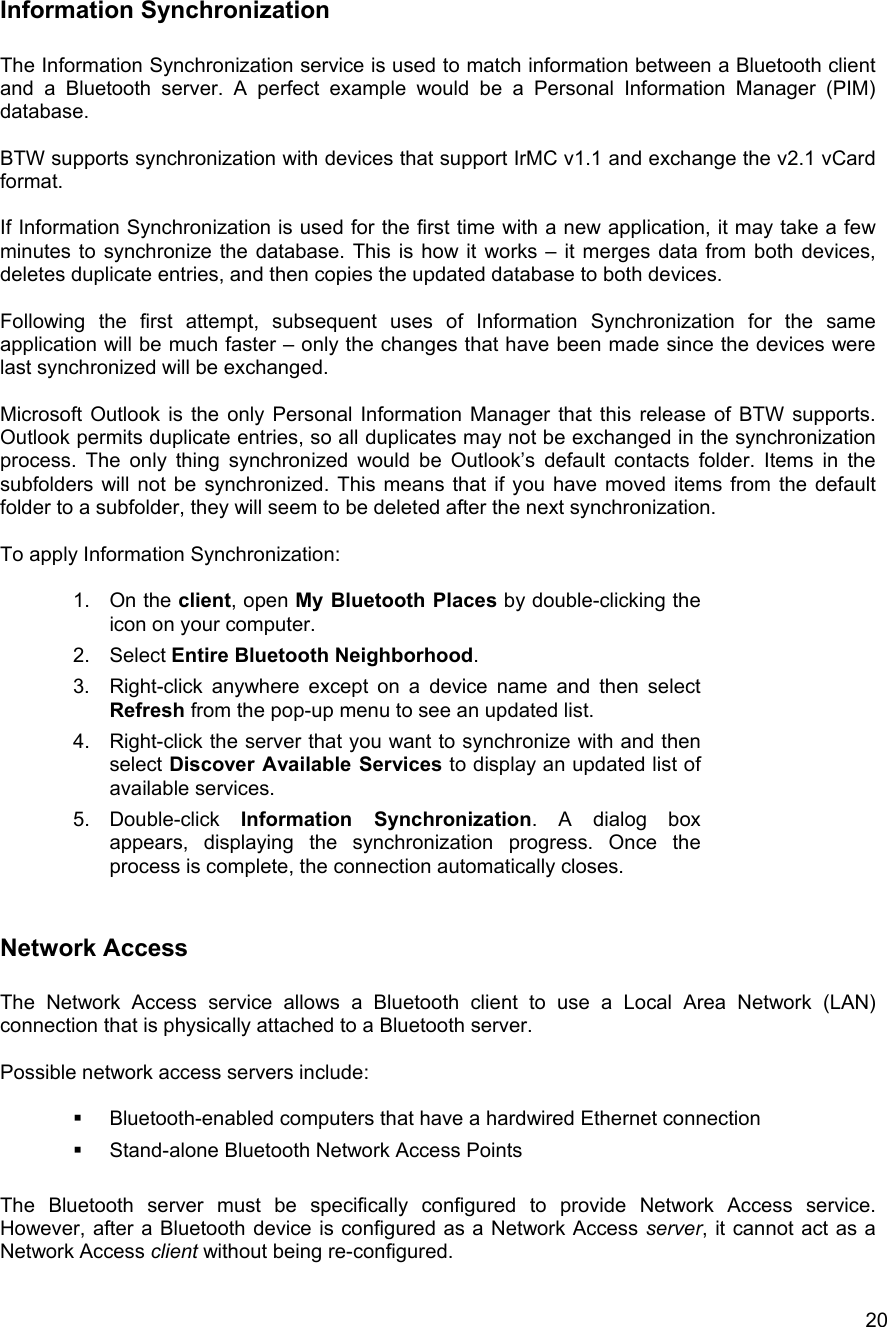
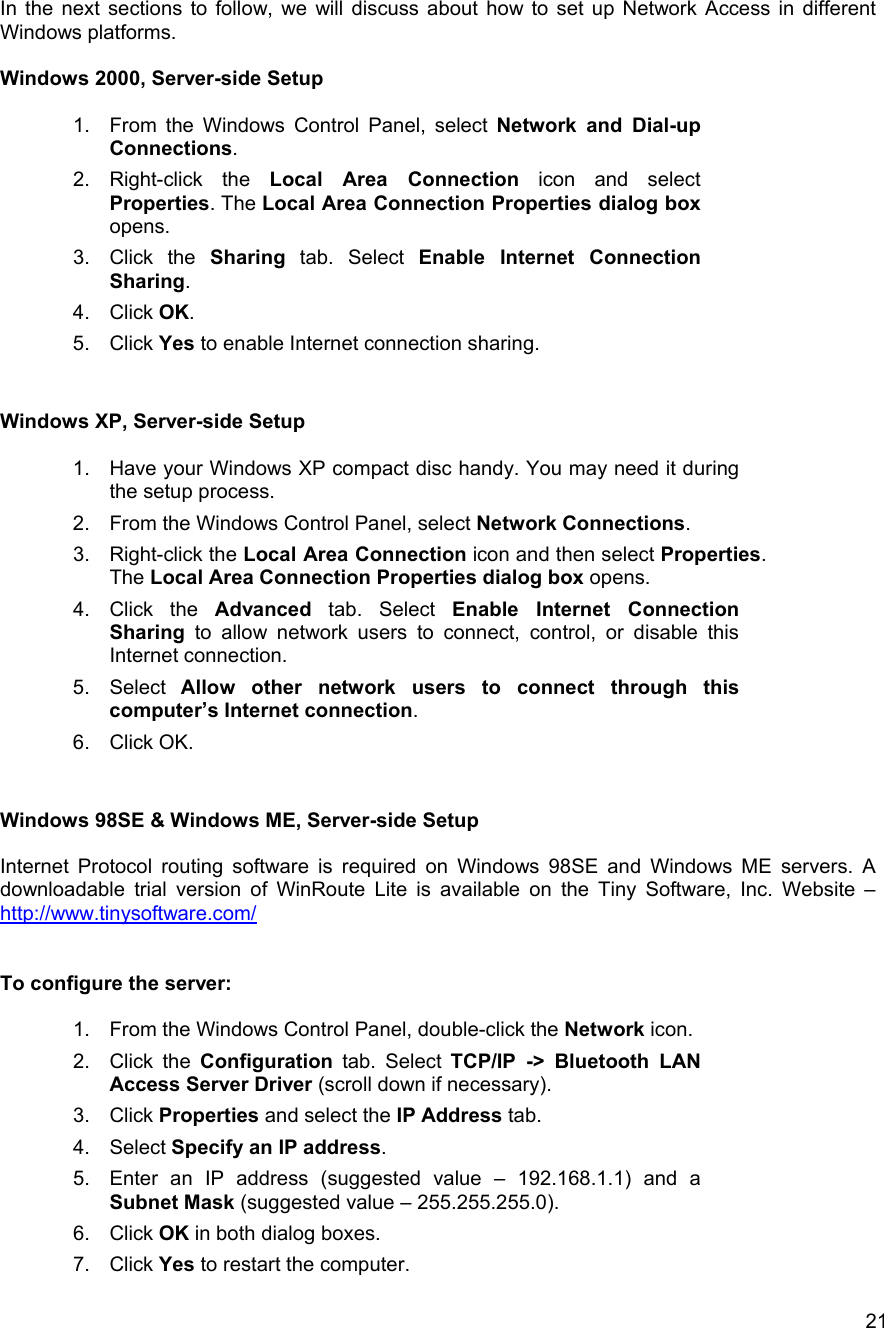
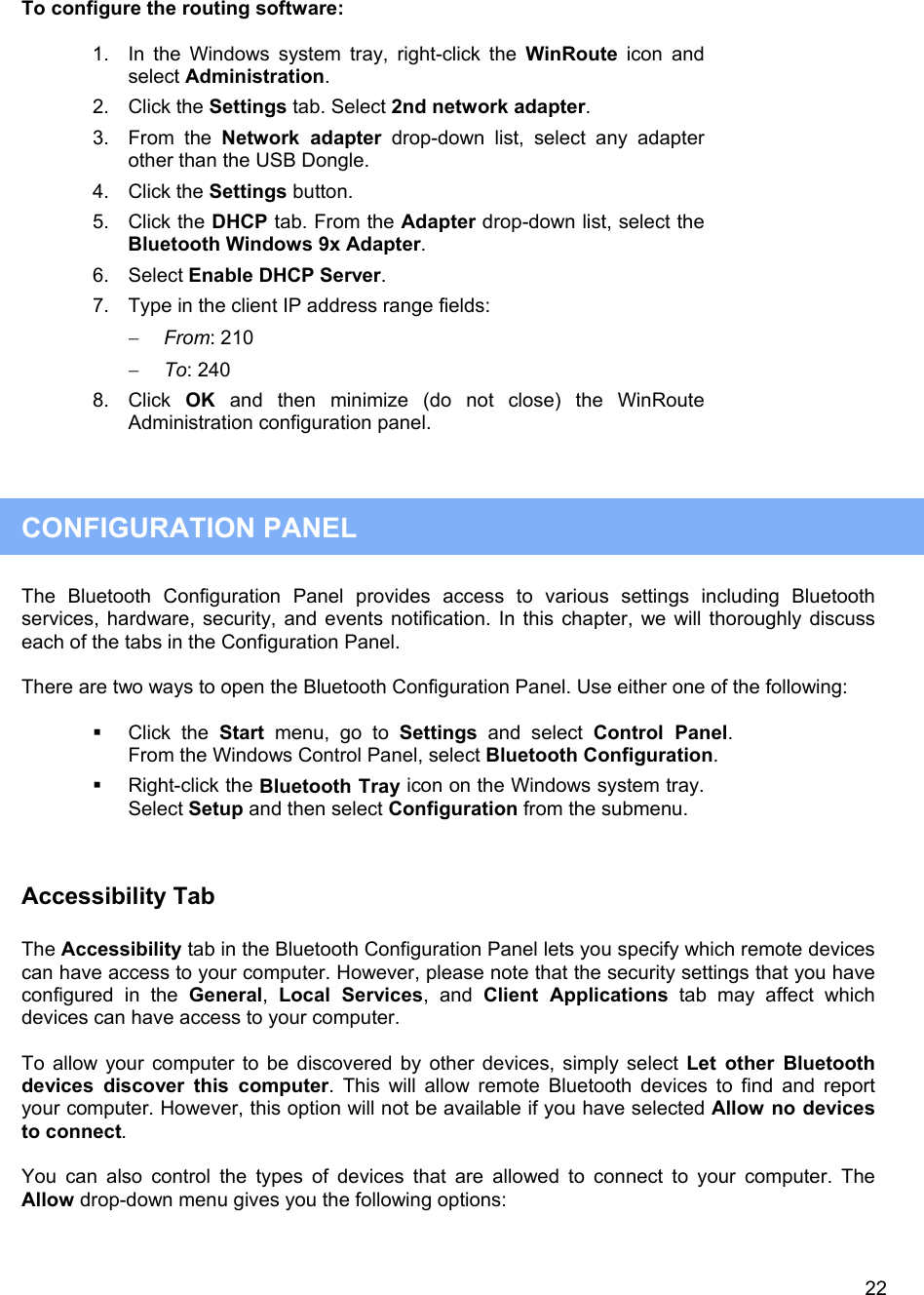
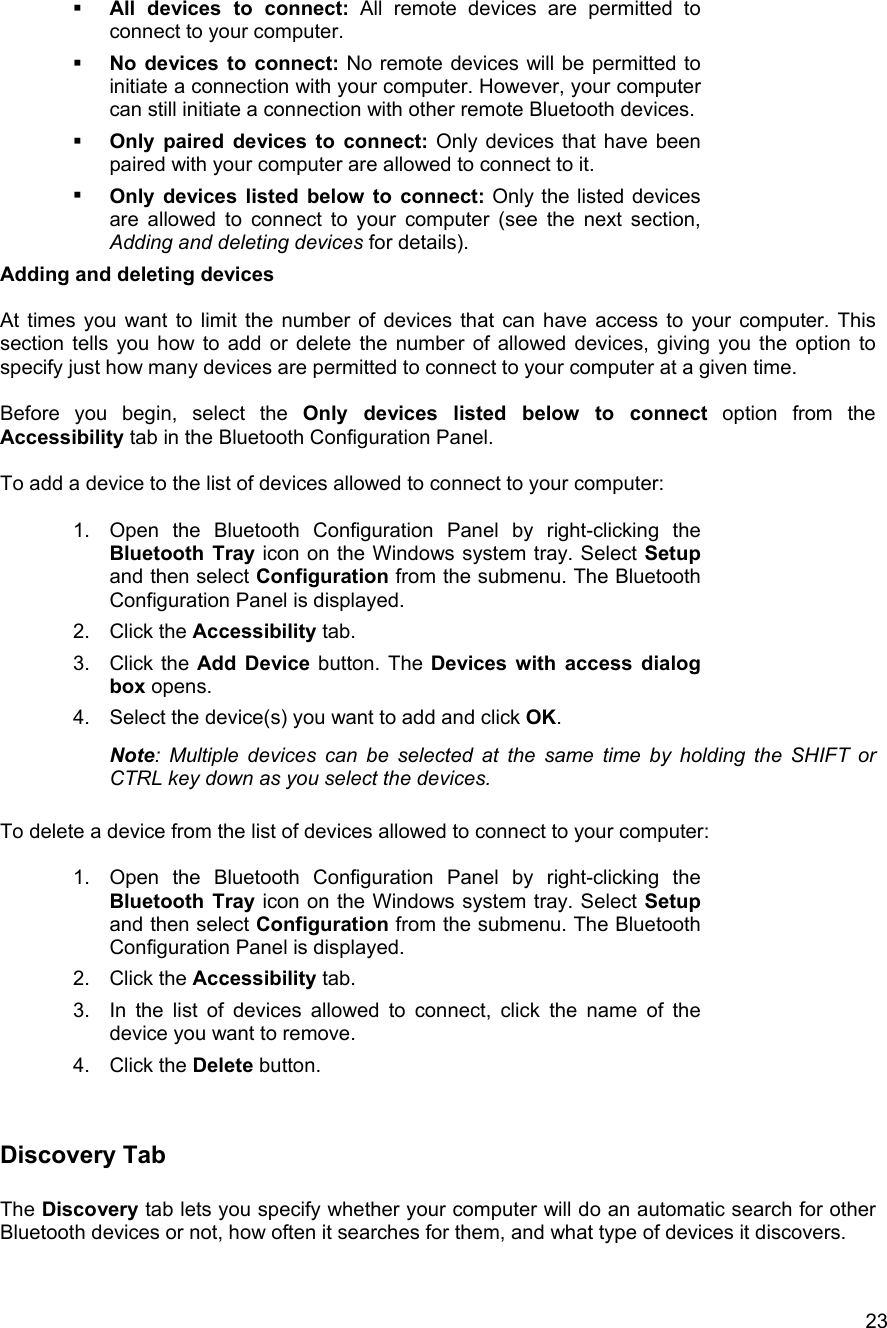
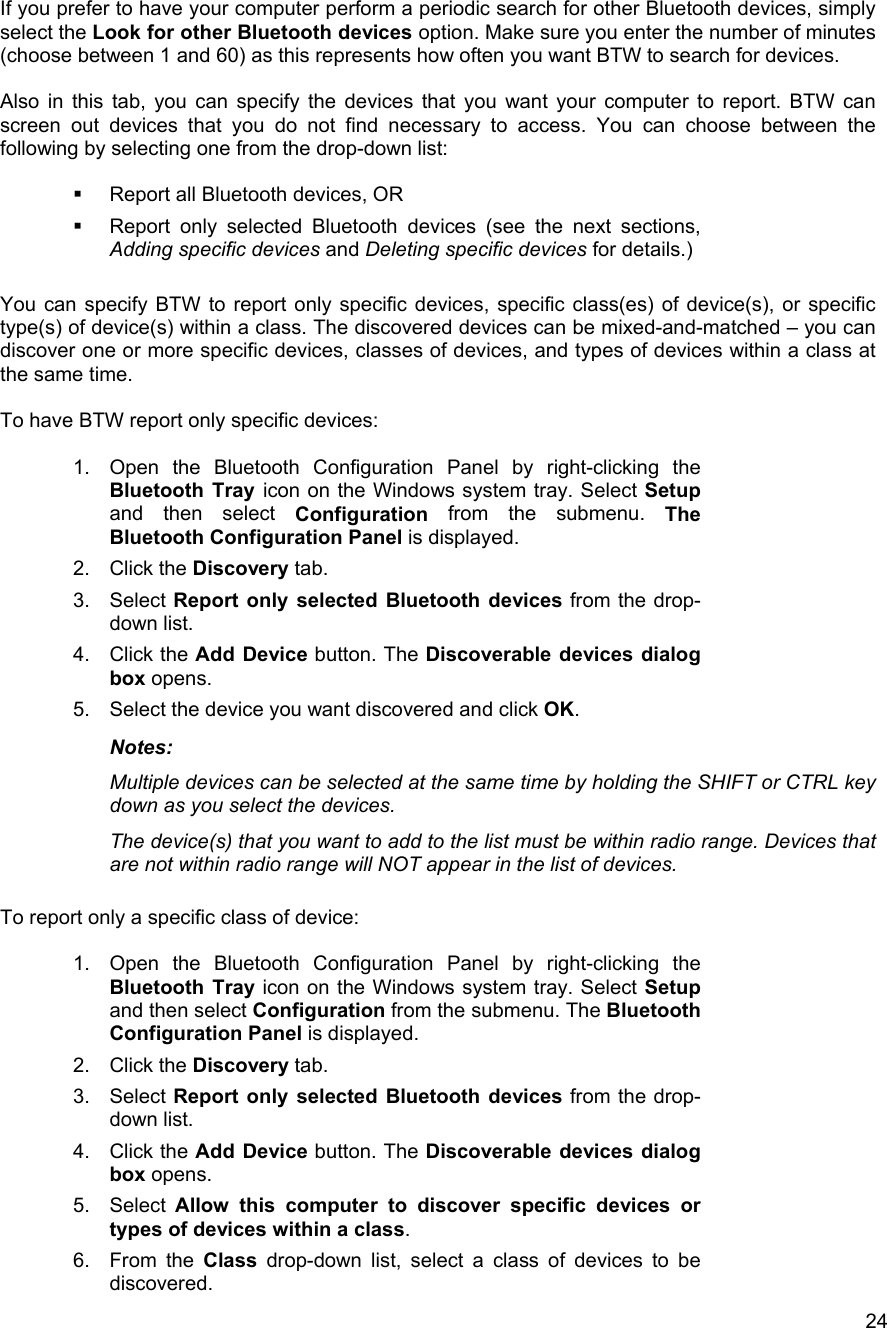
![12Setting up a new connection Now that you know how to discover available devices and their services, you are now ready to make a Bluetooth connection with another device. Setting up a new connection is fast and easy, especially if it’s through the Connection Wizard. Using the Connection Wizard The Connection Wizard walks you through the process of setting up a new Bluetooth connection with another device. Although a connection is not established right away, a shortcut is placed in My Bluetooth Places. To use the connection, double-click the shortcut icon. To set up a new connection: 1. Start the Connection Wizard by right-clicking the Bluetooth icon in the Windows system tray. 2. Select Services from the pop-up menu, and then select Connection Wizard from the submenu. The Connection Wizard screen appears. 3. Click the Select a service drop-down menu, and select the type of connection that you want to establish. Note: The specific service will be selected later, if necessary. 4. Now select the device that will provide the service by clicking the Select a device that provides the service drop-down menu. Note: To update the list of devices displayed, click the Search Devices button. 5. [Optional procedure] – Select the Require secure encrypted connection option to enable Authentication and Encryption for this connection. 6. Click Next. There are two possibilities: If in the previous Select a Service drop-down menu, more than one service appears on the selected device (for example, “multiple Bluetooth Serial Ports”), then the Select Bluetooth Service dialog box appears. In this case, simply select the specific service to be used, and then click OK to close the dialog box. If in the previous Select a Service drop-down menu, there is only one service that appears, the next Connection Wizard screen is displayed. 7. If you have previously selected the Require secure encrypted connection option, a security screen may appear. The security screen WILL NOT appear if the devices have been paired. Notes: − Pairing or ‘bonding’ is the process of associating Bluetooth devices with each other. It is recommended that you pair your device with frequently used ones. This helps establish a permanent security link between the devices and enable quick access to the available services without having to enter passwords.](https://usermanual.wiki/ATEN-Technology-IOGEAR/GBU301.Users-Manual-Revised-100902/User-Guide-275619-Page-12.png)