ATEN Technology IOGEAR GBU321 Bluetooth 2.0 USB Adapter, Class 1 User Manual GBU221 M0345 p65
ATEN Technology, Inc., dba IOGEAR Bluetooth 2.0 USB Adapter, Class 1 GBU221 M0345 p65
Manual


Thank you for purchasing one of the most feature-rich Bluetooth™ to USB adapters available.
IOGEAR’s Bluetooth™ to USB adapters are first-rate wireless connectivity accessories designed to
help reduce the frustration of dealing with cable glut in your home or office. These adapters allow
computers with USB connections to become Bluetooth™ enabled computers. They comply to
Bluetooth 2.0 and USB 1.1 specifications, and provide users with a 2.1Mbps data rate. They also
enable wireless Personal Area Network (PAN) connectivity to Bluetooth™ enabled devices such as
PDA’s, printers, cellular phones, computers, etc.
We hope you enjoy using your IOGEAR Bluetooth™ to USB adapter, another connectivity solution
from IOGEAR.
©2005 IOGEAR®. All Rights Reserved. M0345
IOGEAR, the IOGEAR logo, MiniView, VSE are trademarks or registered trademarks of IOGEAR, Inc. Microsoft and Windows
are registered trademarks of Microsoft Corporation. IBM is a registered trademark of International Business Machines, Inc.
Macintosh, G3/G4 and iMac are registered trademarks of Apple Computer, Inc. IOGEAR makes no warranty of any kind with
regards to the information presented in this document. All information furnished here is for informational purposes only and is
subject to change without notice. IOGEAR, Inc. assumes no responsibility for any inaccuracies or errors that may appear in this
document.
Welcome

Table of Contents
Package Contents ......................................................................................................................................................................... 02
Overview ........................................................................................................................................................................................03
Features .........................................................................................................................................................................................05
Requirements ................................................................................................................................................................................06
Introduction .....................................................................................................................................................................................07
Installation - WINDOWS...............................................................................................................................................................08
Uninstallation Drivers ...................................................................................................................................................................16
Installation - MAC OS X.................................................................................................................................................................17
Operation
- Connect to a Cellular Phone .......................................................................................................................................................21
- Connect to Network Access ......................................................................................................................................................23
- Connect to a Printer ....................................................................................................................................................................26
- Connect to a PDA .......................................................................................................................................................................29
- Pairing .........................................................................................................................................................................................31
Instalation-Windows XP Service Pack 2 .....................................................................................................................................33
Specifications ................................................................................................................................................................................37
Technical Support ..........................................................................................................................................................................38
Radio & TV Interference Statement .............................................................................................................................................39
Limited Warranty ..........................................................................................................................................................................40

Package Contents
This package contains:
GBU221
1 Bluetooth to USB adapter
1 Driver CD
1 Quick Start Guide
1 Warranty/Registration card
GBU321
1 Bluetooth to USB adapter
1 USB extension cable
1 Driver CD
1 User manual
1 Warranty registration card
2
The Bluetooth™ Installation CD contains the following:
• Bluetooth drivers for Windows 2000/XP
• User Manual for IOGEAR Bluetooth Adapter
If any items are damaged or missing please contact your dealer.
1 Driver CD
1 User manual
1 Warranty registration card

Overview
Bluetooth™ is a low-power wireless networking standard which uses short radio waves to allow
electronic devices to communicate with each other without using cables.
The following applications are supported by Bluetooth™ technology:
• Synchronize your Bluetooth™ PDA with your computer.
• Send your business card to anyone who has a Bluetooth™ device.
• Send or receive files to or from anyone who has a Bluetooth™ enabled device.
• Chat with anyone who has a Bluetooth™ enabled computer.
• Play a one-on-one serial game without a cable.
• Send an e-mail without being wired to the network.
• Dial up to the Internet on your computer over your Bluetooth cellular phone.
• Send a fax from your computer over your Bluetooth™ cellular phone.
Most Bluetooth-enabled devices have the capability to act as:
• A Bluetooth server - these devices provide one or more services, such as access to the Internet,
or to other Bluetooth devices.
• A Bluetooth client - these devices use the service(s) provided by Bluetooth servers.
Most Bluetooth devices that can act as both server and client, and can often do both at the same time.
3

Bluetooth™ technology is supported under the following operating systems.
• Windows 2000
• Windows XP
• Mac OS X 10.3.9 or greater
Overview
4
Overview Continued

- Eliminates cables between your computers
- Controlls and communicates with Bluetooth™ enabled devices
- Enables wireless Personal Area Network (PAN) connectivity
- Bluetooth™ specification 2.0 compliant
- USB specification 1.1 compliant
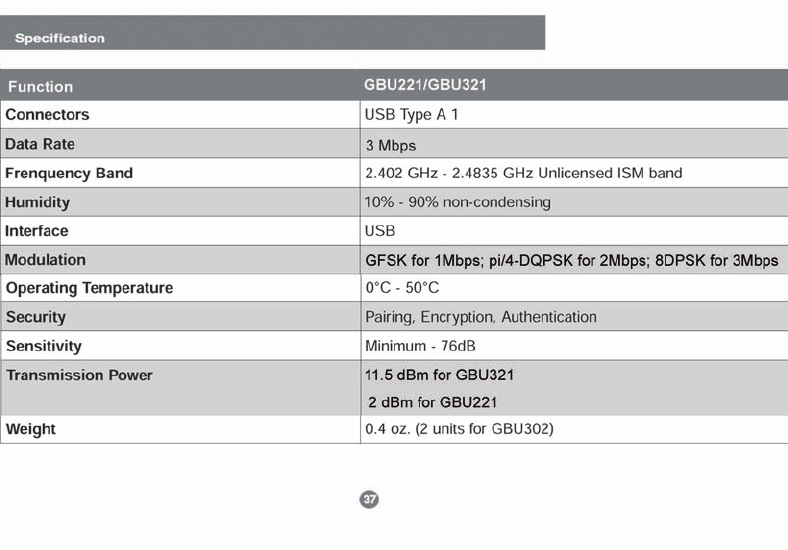
- Up to 20 meter (66 feet) wireless working distance for GBU221, up to 100 meter (330 feet) for GBU321
- Up to 2.1 Mbps data rate
- Small form factor makes it easy to carry and place
- Crisp, easy, and fast installation and setup
- Built-in security to assure the privacy of your communication – Pairing, Encryption, and Authentication
- PC and Mac compatible
Features
5
3

System Requirement:
Hardware Requirement:
· Available USB port
Operating System:
For PCs: Windows 2000/XP
For Macs: OS X v10.3.9 or later
Requirements
6

Introduction
IOGEAR®’s Wireless Bluetooth™ to USB Adapter is a Class 1 (for GBU321) device with a wireless
working distance of 330 feet (100 meters). This device allows any computer with USB connections to
become a Bluetooth™ enabled computer. It complies with Bluetooth 2.0 and USB 1.1 specifications,
and provides users with a 2.1 Mbps data transfer rate at ranges up to 330 feet. It also enables
wireless Personal Area Network (PAN) connectivity to Bluetooth™ enabled devices such as PDA’s,
printers, cellular phones, computers, etc.
The Wireless Bluetooth™ to USB adapter is compatible with both PC and Mac. It is easy to install and
use, and very portable. Another great solution from IOGEAR® for home and mobile networking needs.
GBU221 is a class 2 device with a wireless working distance of 60 feet (20 meters).
7
3
Installation-Windows
8
Windows XP Service Pack 2
The Microsoft Bluetooth stack comes included with
Service Pack 2 for Windows XP. If you already
have Service Pack 2 installed, you may choose not
to install drivers from the installation CD and
instead use the Microsoft Bluetooth drivers. Please
see Page 34 on the manual for more details.
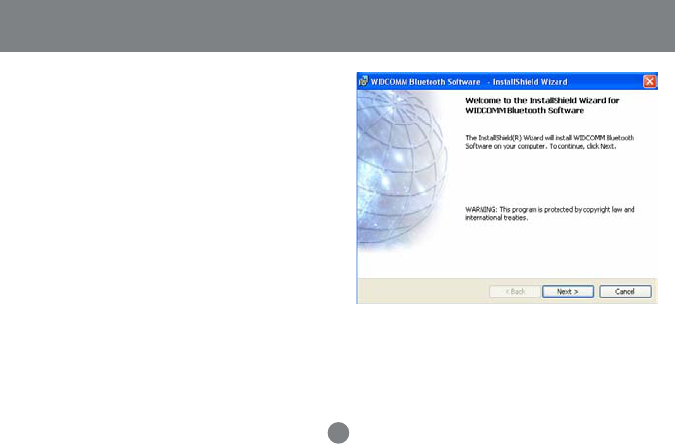
1. Make sure that the IOGEAR Bluetooth adapter
is NOT plugged into the computer before
installing the software. Insert the IOGEAR
installation CD into your CD-ROM drive. The
auto-start feature will bring up the installation
window to begin the driver installation. If the
installation CD does not auto-start, simply
browse to your CD drive and run the setup file.
Please follow the on-screen instructions to
install the drivers.
Installation-Windows
9
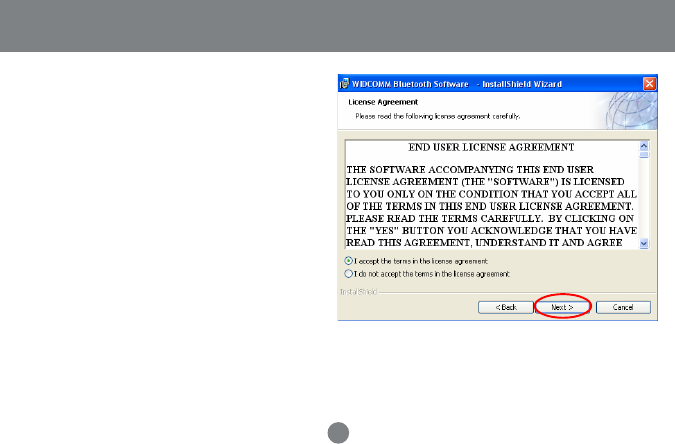
2. If you accept the license agreement,
click Next.
Installation-Windows
10
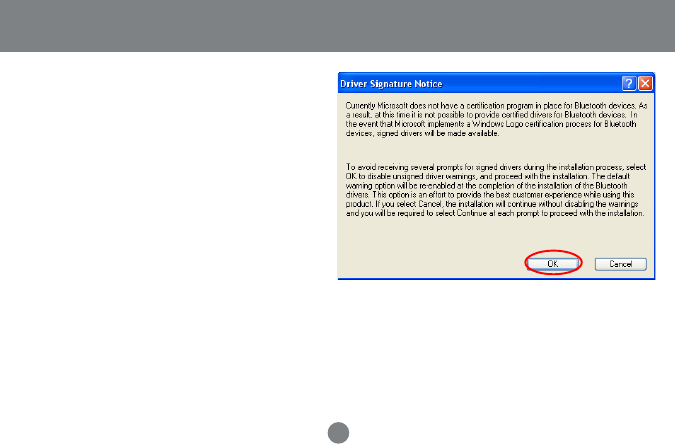
3. When you approach the end of the installation
process, the Driver Signature Notice may
appear. Simply click OK to proceed with the
installation.
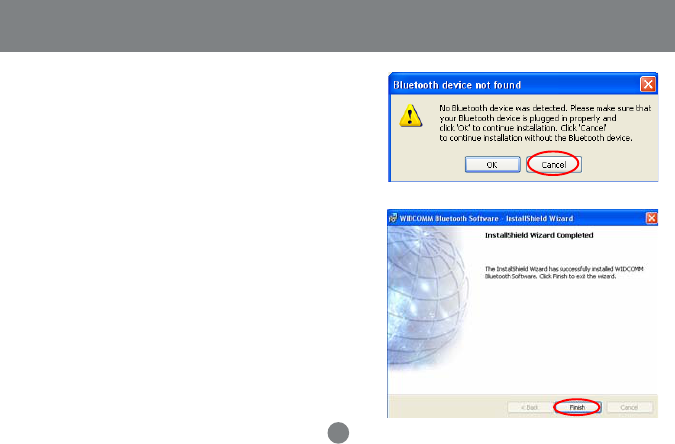
5. Once the driver installation has completed, click
Finish and RESTART your computer
6. After restarting the computer, proceed to plug in
the Bluetooth USB Adapter, and wait a few
seconds while Windows recognizes the device.
11
Installation-Windows
4. During the install, a “Bluetooth Device not
Found” window will appear. DO NOT plug
in the Bluetooth adapter at this time,
simply click Cancel to proceed with the
driver installation without connecting the
Bluetooth device.
12
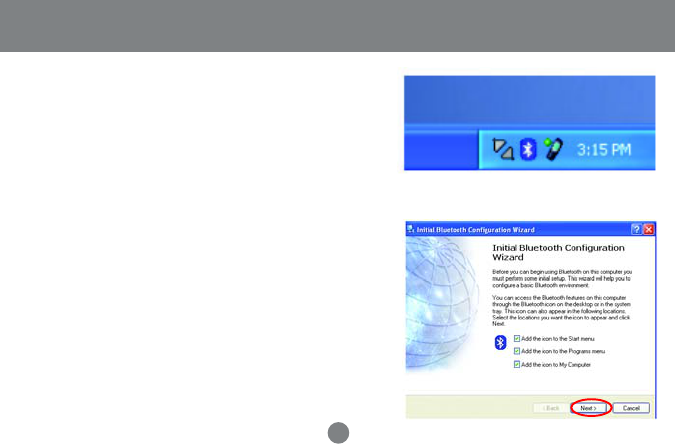
Initial Bluetooth™ Configuration Wizard
1.
Once the Initial Bluetooth™ Configuration Wizard
has started, click Next.
2.
Now double click the Bluetooth™ icon in the
system tray. This will start the “Initial Bluetooth
Configuration Wizard.”
13
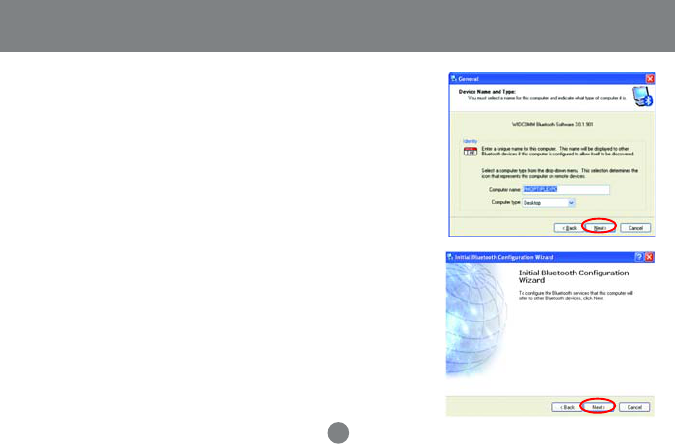
Initial Bluetooth™ Configuration Wizard
Next, enter a unique name for this computer.
This name will be displayed to other Bluetooth™
devices. Select a computer type from the drop-
down menu and click Next.
3.
Click Next to configure the services this
computer will offer to other Bluetooth™
devices.
4.
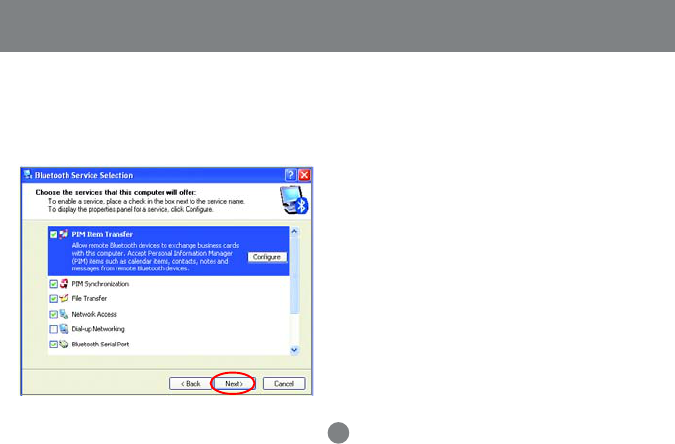
Choose the services that this computer will
offer to other Bluetooth™ devices by placing
a check in the box. To display the properties,
click on the configure button.
Click Next to proceed.
14
5. At this point, Windows will install the software
necessary for the services you selected.
6.
Initial Bluetooth™ Configuration Wizard
15
Initial Bluetooth™ Configuration Wizard
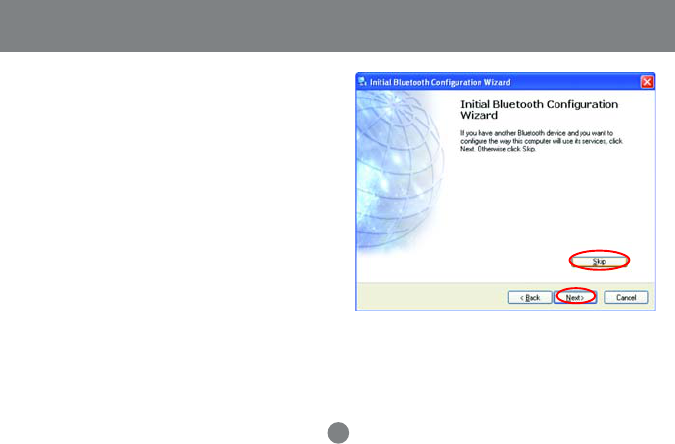
Once Windows is finished installing the software,
the following window will appear. This window will
allow you to configure your computer to use the
service of another Bluetooth Device.
If you do not have any additional devices you
wish to connect to at this time, click Skip, click
Finish on the final screen.
7.

Uninstall Drivers
Windows
1. First, unplug the IOGEAR USB Bluetooth adapter from your computer
2. Go to Control Panel (Start > Settings > Control Panel)
3. Click on
Add or Remove Programs
4. Click on IOGEAR Bluetooth Software and click on [Remove]
5. When the uninstall is complete, restart your computer
16
Installation-Mac OS X
Installation – MAC OS X
1. Use of the IOGEAR Bluetooth adapter requires
MAC OS X v10.3.9 or later. There is no need
to install any additional drivers, as Apple
provides all required Bluetooth drivers under
MAC OS X v10.3.9.
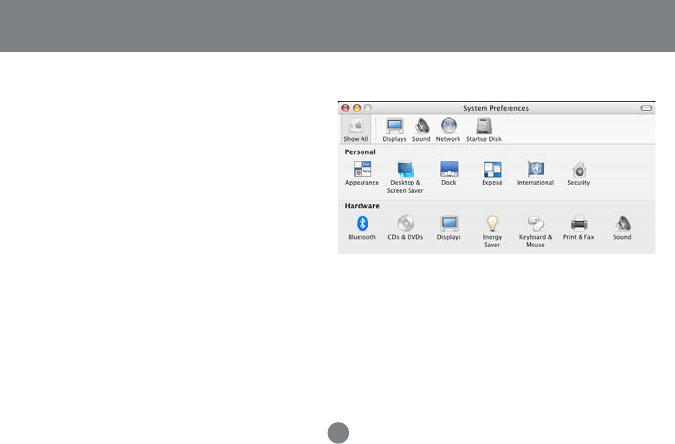
Simply plug in your Bluetooth adapter into an available USB port on your computer, and go to
System Preferences.
17
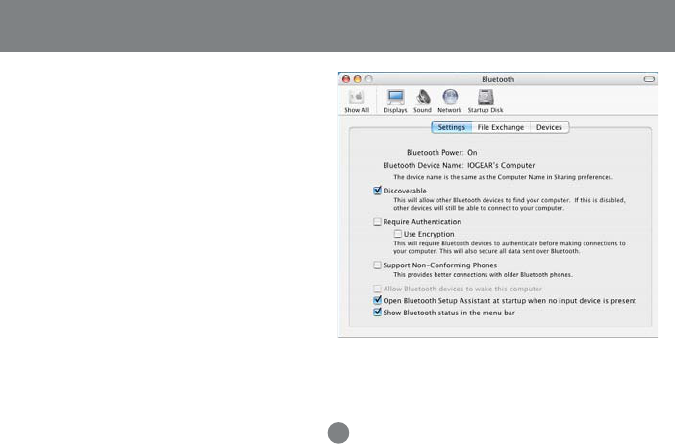
2. Double-click on the Bluetooth icon and under
the Settings tab, make sure Bluetooth
Power is ON and that the box next to
Discoverable
is checked.
Installation-Mac OS X
18
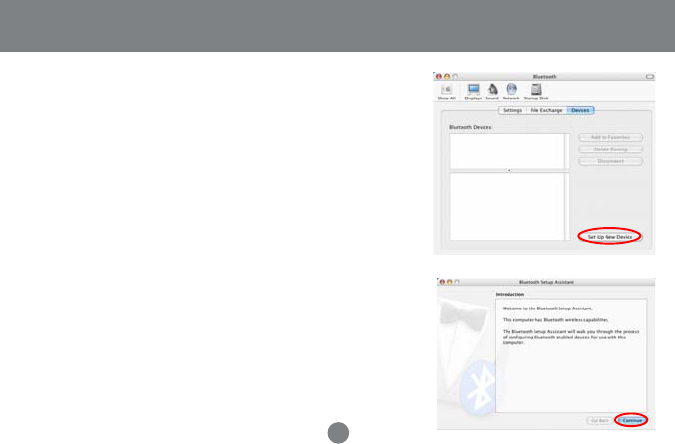
3. To begin setting up your Bluetooth device, select
the
Devices
tab and click on Set Up New Device.
4. This will initiate the Bluetooth Setup Assistant;
click Continue to proceed.
19
Installation-Mac OS X
Installation-Mac OS X
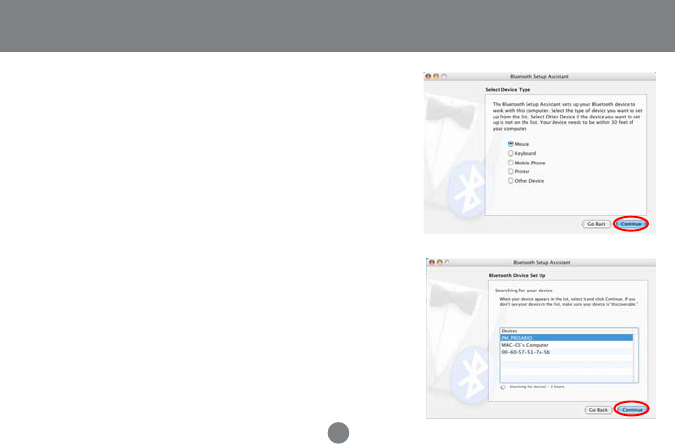
5. On this window, you can select what type of
Bluetooth device you want to setup. Please
make your choice below and then click Continue.
6. Your computer will search Bluetooth devices in
your area and display them under the window
below. Select the device you wish to communicate
with and then click Continue to pair/connect to
your device.
20
7. Please refer to the Apple website for further
information on Apple Bluetooth support at
www.apple.com.
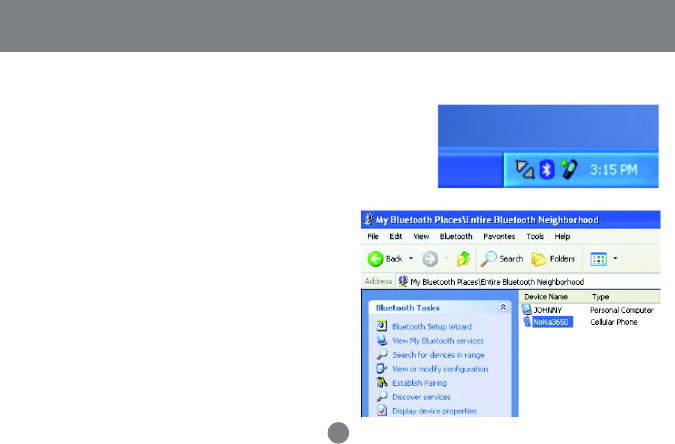
1. Double-click on the IOGEAR® Bluetooth ™ icon
in the system tray.
Operation
How to connect to a Cellular Phone (Bluetooth Enabled)
Next, click on Search for devices in range. As
illustrated below, the Bluetooth-enabled cell
phone is detected.
2.
21
In the case of Nokia phones, you can take full advantage of your Bluetooth phone by using the Nokia PC Suite software. Please
check www.nokia.com to see the version of the software supported by your Nokia phone. Once you have the Nokia PC Suite
software installed on your system, please proceed with the instructions below.
22
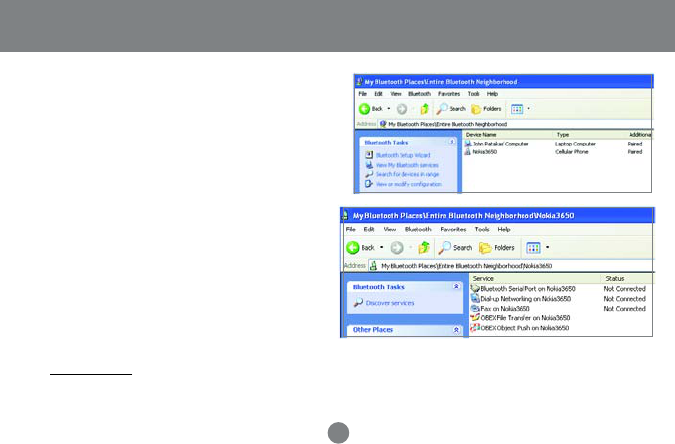
Right-click on the cell phone, and select Pair
Device. When prompted for passkey, simply type
any four digits and click OK. On the phone, you
will also be prompted to enter a passkey. Make
sure you enter the same passkey as on the
computer. Your devices should now be paired.
3.
In our example, we used a Nokia 3650 cell
phone. Double-click on the phone to see the
available services. The services offered by your
cell phone may depend on the features
supported by your specific model and may or
may not require additional software by the phone
manufacturer.
4.
Operation
How to Connect to Network Access (Bluetooth -
Enabled Computer)
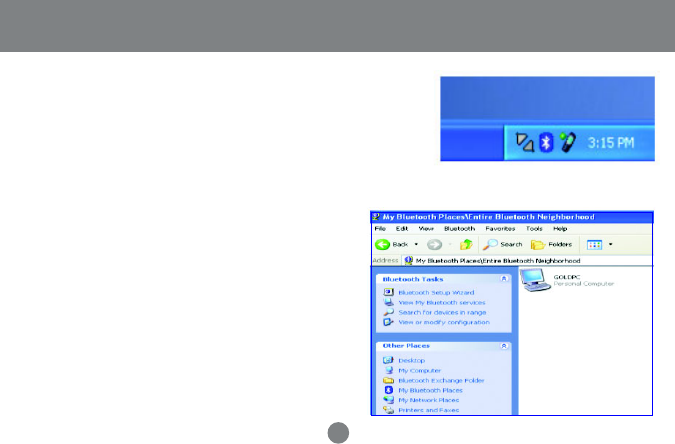
Next, click on Search for devices in range. As
illustrated below, the Bluetooth-enabled computer
is found.
2.
1.
23
Operation
Double-click on the IOGEAR Bluetooth Icon in the
system tray.
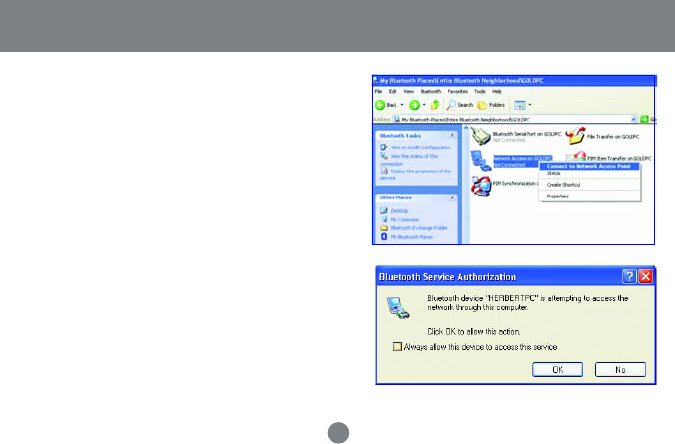
Double click on the device to display a list of its
services. To establish a network connection, right
click on Network Access and select Connect to
Network Access Point.
3.
When the connection is being established, you will
be prompted to accept/deny the connection on your
other computer. To allow access, click OK.
4.
24
Operation
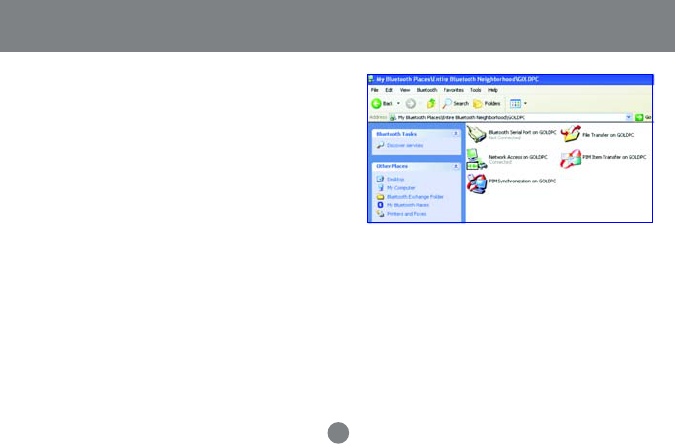
Once you establish the connection, the Network
Access icon will turn green and say “Connected.”
Your device will be able to share its Internet
connection (if the device has Internet access)
and files. If a pass key has been set by either
device, the pass key is required to connect both
Bluetooth™ enabled devices.
5.
25
Operation
At any time, when service requests are made from
or to another Bluetooth™ device (e.g. File Transfer,
Network Access, Serial Port Connection, etc.), a
pass key is required to connect the devices. This
authentication is not required once devices are
paired (see
Chapter: What’s Pairing?
).
6.
How to connect to a Bluetooth™ Enabled Printer
1. Double-click on the IOGEAR® Bluetooth™ icon in
the system tray.
26
Operation
Next double click on “Find Bluetooth™ Devices”.2.
27
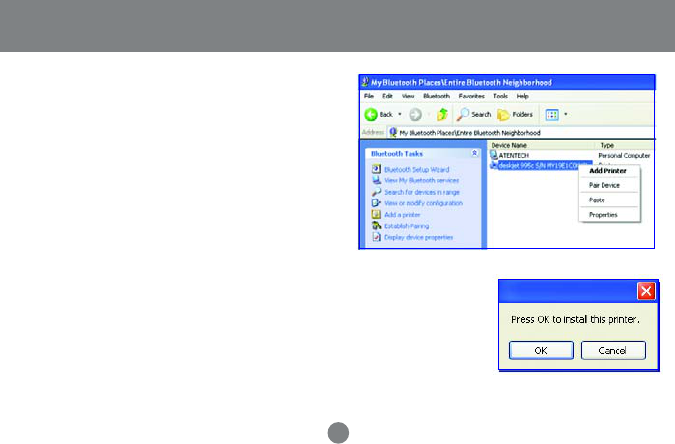
Double click on the printer you wish to connect to.3.
Operation
Click OK to install the printer. If your printer is
already installed, the printer properties window
will appear.
4.
28
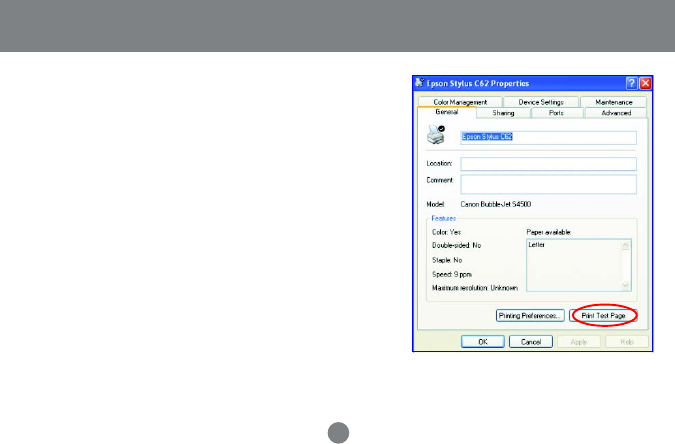
If your printer is already installed, the printer
properties window will appear. Click on Print Test
Page to print a test page.
5.
Operation
29
How to connect to a PDA (Personal Digital Assistant)
Operation
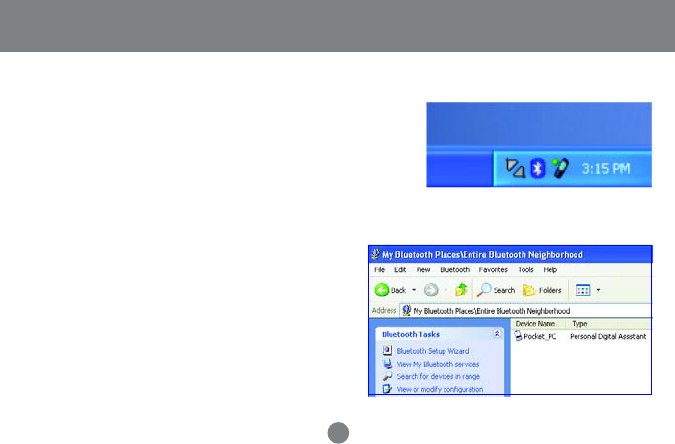
Next double click on “Find Bluetooth™ Devices”.2.
Double-click on the IOGEAR® Bluetooth™ icon in
the system tray.
1.
30
Operation
At any time, when service requests are made
from or to another Bluetooth™ device (e.g. File
Transfer, Network Access, Serial Port
Connection, etc.), a pass key is required to
connect the devices.This authentication is not
required once devices are paired (see
Chapter:
What’s Pairing?
).
4.
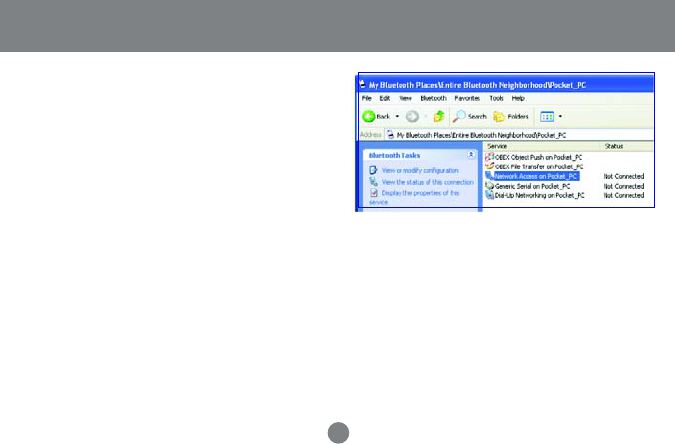
Once the search is finished, double click on the
PDA to view the services it offers.
3.

What is “Pairing ?”
Pairing is a Bluetooth™ function that enables Bluetooth™ devices to remain permanently linked to
another.
What “Pairing” means in terms of security?
As mentioned, Pairing allows devices to permanently link with each other. The pass key authentication
will also be perpetuated in Pairing, meaning that devices will not ask for a pass key once they are
paired. Paired devices will remain linked, even if other paired devices are turned off. Once a paired
device turns back on, it is ready to be used and service requests will not ask for the pass key again.
The built-in 128 bit security encryption of Bluetooth™ assures the privacy of your paired devices.
Note: If devices are unpaired, it is necessary to enter a pass key each time a service request is made
from or to another Bluetooth™ device.
31
Operation

Unpairing Devices
1. Right-click on the Bluetooth™ device and select on “Pair device”.
2. Enter a Pass Key when asked.
Note: The Pass Key on both devices must be the same!
Example: If Device 1 tries to pair with Device 2, Device 1 will prompt for a Pass Key. Enter any Pass Key. Device
2 will then ask for a Pass Key. Enter the Pass Key, which has been set for Device 1. Done!
3. The device is now paired with your computer.
Pairing Devices
1. Right-click on the paired Bluetooth™ device in the list and select on “Unpair Device”.
2. The device is now unpaired
32
Operation
Windows XP Service Pack 2 - Bluetooth Stack
If you are running Windows XP with Service Pack 2, you may use the Bluetooth drivers provided by
Microsoft. Keep in mind, however, that this Bluetooth stack has limited Bluetooth profiles support.
For more information, please visit the Microsoft website at www.microsoft.com.
33
1. To use the Microsoft Bluetooth stack, simply
plug in your IOGEAR Bluetooth adapter into an
available USB port on your computer. Windows
will automatically detect the Bluetooth device
and install all necessary drivers.
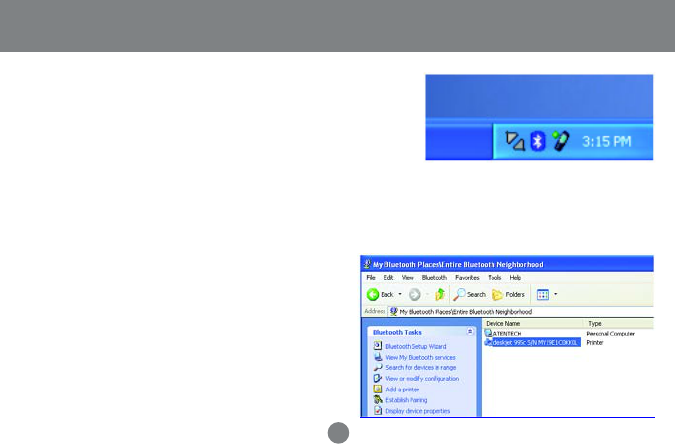
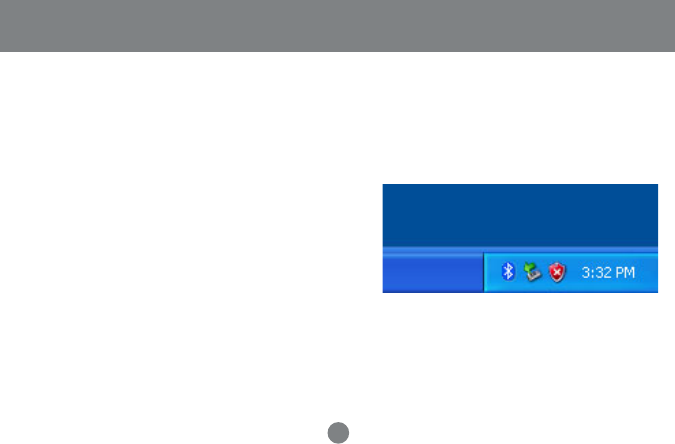
2. You will then see a Bluetooth icon on your
traybar that allows you to perform all Bluetooth
operations, as shown below:
Microsoft Bluetooth Stack
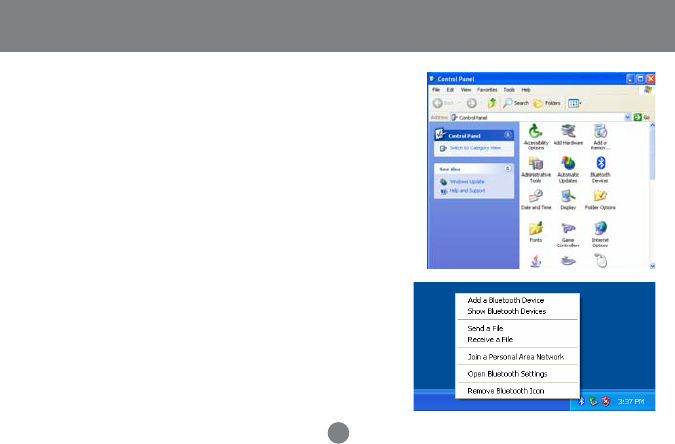
4. To connect with your Bluetooth device, simply
right-click on the Bluetooth icon on the traybar
and select
Add a Bluetooth Device
.
34
3. Optionally, you can find this in
Control Panel >
Bluetooth Devices
.
Microsoft Bluetooth Stack
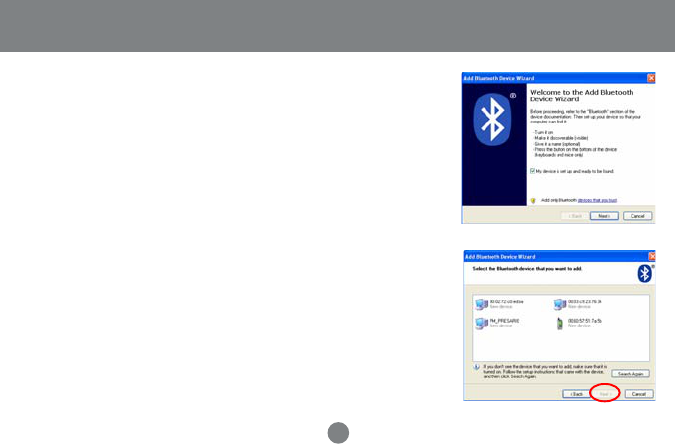
5. Make sure to set your Bluetooth device in
“discoverable” mode and check the box as
shown on the picture.
6. Your computer will search for all the Bluetooth
devices in your area and list them. Select the
desired device, and click Next.
35
Microsoft Bluetooth Stack
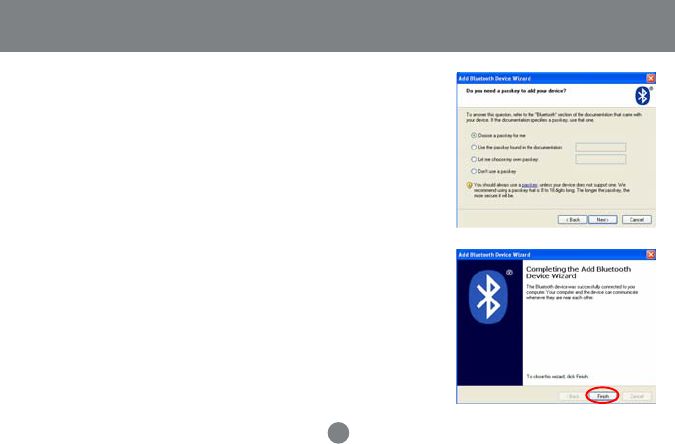
7. Please consult the user manual for your
Bluetooth device to see if you need a Passkey
to pair/establish a connection.
36
8. Your Bluetooth device will then connect to the
IOGEAR Bluetooth adapter. To finish the
process, simply click Finish.
Microsoft Bluetooth Stack
2.400

Technical Support
38
If you need technical support, please check out our IOGEAR® Tech Info Library (T.I.L.)
at www.iogear.com/support for the latest tips, tricks, and troubleshooting. The
IOGEAR® T.I.L. was designed to provide you with the latest technical information about
our products. Most of the answers to your questions can be found here, so please try it
out before contacting technical support.
Technical support is available Monday through Friday from 8:00 am to 5:00 pm PST and
can be reached at (949) 453-8782 and (866) 946-4327 or by email support@iogear.com.

Radio & TV Interference Statement
WARNING!!! This equipment generates, uses and can radiate radio frequency energy
and, if not installed and used in accordance with the instruction manual, may cause
interference to radio communications. This equipment has been tested and found to
comply with the limits for a Class B computing device pursuant to Subpart B of Part 15
of FCC Rules, which are designed to provide reasonable protection against such
interference when operated in a commercial environment. Operation of this equipment
in a residential area is likely to cause interference, in which case the user at his own
expense will be required to take whatever measures may be required to correct the
interference.
39

IN NO EVENT SHALL THE DIRECT VENDOR’S LIABILITY FOR DIRECT, INDIRECT,
SPECIAL, INCIDENTAL OR CONSEQUENTIAL DAMAGES RESULTING FROM THE
USE OF THE PRODUCT, DISK OR ITS DOCUMENTATION EXCEED THE PRICE
PAID FOR THE PRODUCT.
The direct vendor makes no warranty or representation, expressed, implied, or
statutory with respect to the contents or use of this documentation, and especially
disclaims its quality, performance, merchantability, or fitness for any particular purpose.
The direct vendor also reserves the right to revise or update the device or documenta-
tion without obligation to notify any individual or entity of such revisions, or updates. For
further inquires please contact your direct vendor.
Limited Warranty
40
Federal Communication Commission Interference Statement
This equipment has been tested and found to comply with the limits for a
class B digital device, pursuant to part 15 of the FCC Rules. These limits are
designed to provide reasonable protection against harmful interference in a
residential installation.
This equipment generates, uses and can radiate radio frequency energy and,
if not installed and used in accordance with the instructions, may cause
harmful interference to radio communications. However, there is no
guarantee that interference will not occur in a particular installation. If this
equipment does cause harmful interference to radio or television reception,
which can be determined by turning the equipment off and on, the user is
encouraged to try to correct the interference by one or more of the following
measures:

---Reorient or relocate the receiving antenna.
---Increase the separation between the equipment and receiver.
---Connect the equipment into an outlet on a circuit different from that to
which the receiver is connected.
---Consult the dealer or an experienced radio/TV technician for help.
Installation and use of this Bluetooth USB Adapter must be in strict accordance with
the instructions included in the user documentation provided with the product. Any
changes or modifications (including the antennas) made to this device that are not
expressly approved by the manufacturer may void the user’s authority to operate
the equipment. The manufacturer is not responsible for any radio or television
interference caused by unauthorized modification of this device, or the substitution
of the connecting cables and equipment other than manufacturer specified. It is the
responsibility of the user to correct any interference caused by such unauthorized
modification, substitution or attachment. Manufacturer and its authorized resellers
or distributors will assume no liability for any damage or violation of government
regulations arising from failing to comply with these guidelines.
FCC RF Radiation Exposure Statement
This equipment complies with FCC RF radiation exposure limits set forth for
an uncontrolled environment. End users must follow the specific operating
instructions for satisfying RF exposure compliance.
This device and its antenna must not be co-located or operating in
conjunction with any other antenna or transmitter.
Your device contains a low power transmitter. When device is transmitted it sends
out Radio Frequency (RF) signal.
Use only with supplied antenna. Unauthorized antenna, modification, or
attachments could damage the transmitter and may violate FCC regulations.
The users manual or instruction manual for an intentional or unintentional radiator
shall caution the user that changes or modifications not expressly approved by the
party responsible for compliance could void the user’s authority to operate the
equipment.
REGULATORY INFORMATION
Bluetooth USB Adapter must be installed and used in strict accordance with the
manufacturer’s instructions. This device complies with the following radio
frequency and safety standards.

This device complies with Part 15 of the FCC Rules.
Operation is subject to the following two conditions:
(1) This device may not cause harmful interference.
(2) This device must accept any interference received,
including interference that may cause undesired
operation.
特別警示:
根據交通部低功率電波輻射性電機管理辦法第十二條及第十四條規定:
經型式認證合格之低功率射頻電機,非經許可,公司、商號或使用者均不得擅自變更頻率、加大功率或變
更原設計之特性及功能。低功率射頻電機之使用不得影響飛航安全及干擾合法通信;經發現有干擾現象
時,應立即停用,並改善至無干擾時方得繼續使用。前項合法通信,指依電信法規定作業之無線電通信。
低功率射頻電機須忍受合法通信或工業、科學及醫療用電波輻射性電機設備之干擾。

23 Hubble • Irvine, CA 92618 • (P) 949.453.8782 • (F) 949.453.8785 • www.iogear.com
Contact info.
®