ATEN Technology IOGEAR GME225B WIRELESS BLUETOOTH MOUSE User Manual GME255B

ATEN Technology, Inc., dba IOGEAR WIRELESS BLUETOOTH MOUSE GME255B

USERS MANUAL

Wireless Bluetooth MiniMouseUser Manual (GME225B)®
Thank you for purchasing IOGEAR’s® Bluetooth Mouse.  IOGEAR® only manufac-tures high quality bluetooth devices, so we are sure you will be satisfied with yourpurchase. IOGEAR® is dedicated to customer service and satisfaction, and wishesyou the best with your new bluetooth mouse.To better serve you, IOGEAR® offers an array of additional USB 2.0, USB,FireWire, KVM, and other peripheral products. For more information, or to purchaseadditional IOGEAR® products, visit us at www.IOGEAR.com.We hope you enjoy using your new Bluetooth Mouse – another first-rate connectivitysolution from IOGEAR®!© 2004 IOGEAR®. All Rights Reserved. PKG-M0125IOGEAR®, the IOGEAR® logo, ION™, are trademarks or registered trademarks of IOGEAR® Inc.Microsoft® and Windows® are registered trademarks of Microsoft® Corporation. IBM is a registeredtrademark of International Business Machines, Inc. MAC, Macintosh, and Apple are registered trademarksof Apple Computer, Inc. All other brand and product names are trademarks or registered trademarks of theirrespective holders. IOGEAR® makes no warranty of any kind with regards to the information presented inthis document. All information furnished here is for informational purposes only and is subject to changewithout notice. IOGEAR® assumes no responsibility for any inaccuracies or errors that may appear in thisdocument. Reproduction in whole or part without permission is prohibited.
Table of ContentsPackage Contents.................................................................................Overview................................................................................................Features................................................................................................Requirements........................................................................................Additional Bluetooth products................................................................Pictorial Introduction..............................................................................Installation..............................................................................................Operation...............................................................................................Specification...........................................................................................Radio & TV Interference Statement.......................................................Limited Warranty....................................................................................0203040506070818192021
2Package ContentsThis package contains:1 Wireless Bluetooth MiniMouse1 Carrying case1 USB battery charger cable1 User manual2 AAA rechargeable batteries1 Warranty/Registration cardIf any of the items are missing or damaged, please contact your dealerimmediately.
3OverviewIOGEAR's Wireless Bluetooth Mini Mouse delivers the convenience of a wirelessmouse, with the robustness offered by Bluetooth technology.  This class 2 Bluetoothmouse gives you a strong signal ranging up to 66 feet.  The small and portabledesign saves precious space in your mobile work area, and it is one less tangledwire in your laptop carrying case.The ergonomically contoured design and optical sensor offer comfortable use onmost surfaces, without the need for a mouse pad.  This mouse features 800 dpiresolution, meaning it offers twice the accuracy of typical mouse movement, whichis ideal for graphic designing or any other type of computing where precisionmatters.For added convenience, the Wireless Bluetooth Mini Mouse also features a powerOn/Off switch to avoid battery drainage during travel, and a USB charger cable forconvenient charging through the USB port on laptops.  This mouse is the ultimatetool for the road warrior of today.
4Features• Compatible with any Bluetooth-enabled computer that supports HID profile• Works up to 66 feet away from computer• 800 dpi resolution offers twice the accuracy of typical mouse movement• Operates on most surfaces without the need for a mouse pad• Light and very portable, great for mobile professionals• Saves precious space in your mobile work area• Power on/off switch conserves electricity for maximum battery life• Comes with a USB charger to allow you to charge batteries through the laptop• Ergonomically contoured design for comfortable use• 3 Year Limited Warranty
55• Bluetooth enabled computer with HID profile• If the computer is not Bluetooth enabled, a Bluetooth USB dongle will be required.  Please refer to IOGEAR part no. GBU301, GBU311, GBU201, GBU211 for detailsRequirements
6Additional Bluetooth Products Bluetooth to USB Adapter, class 2 (GBU201, GBU211) Bluetooth to USB Adapter, class 1 (GBU301, GBU311) Bluetooth to USB Printer Adapter, class 2 (GBP201) Bluetooth Combo (USB/Parallel) Print Adapter, class 1 (GBP301)6
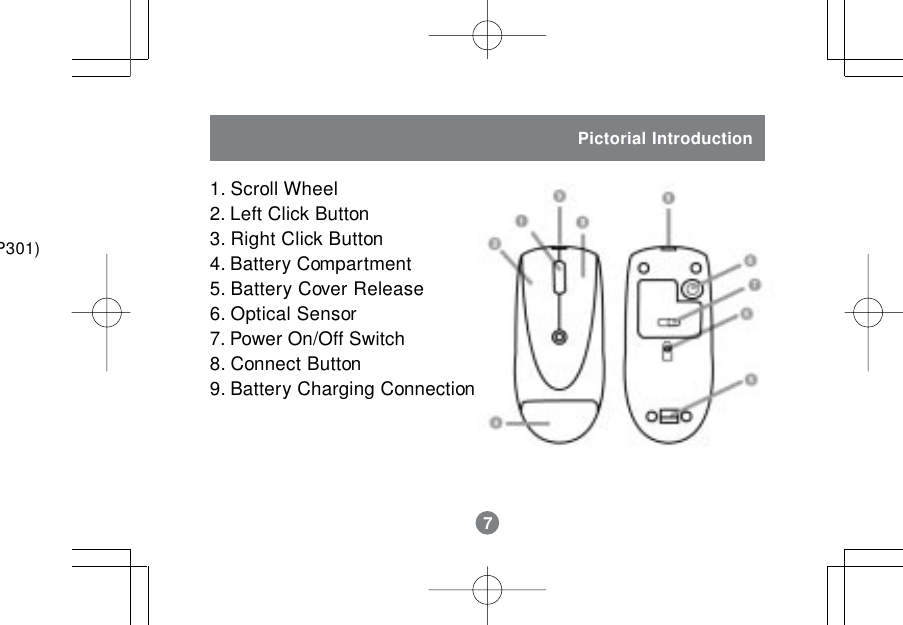
7Pictorial Introduction1. Scroll Wheel2. Left Click Button3. Right Click Button4. Battery Compartment5. Battery Cover Release6. Optical Sensor7. Power On/Off Switch8. Connect Button9. Battery Charging Connection7P301)
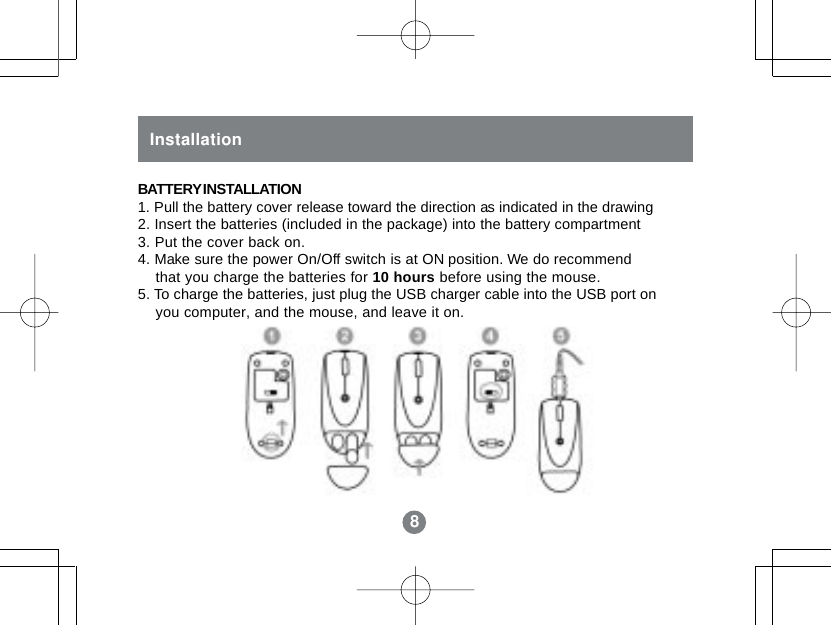
88InstallationBATTERY INSTALLATION1. Pull the battery cover release toward the direction as indicated in the drawing2. Insert the batteries (included in the package) into the battery compartment3. Put the cover back on.4. Make sure the power On/Off switch is at ON position. We do recommend    that you charge the batteries for 10 hours before using the mouse.5. To charge the batteries, just plug the USB charger cable into the USB port on    you computer, and the mouse, and leave it on.
9InstallationINSTALLATION INSTRUCTIONSBefore you can use the IOGEAR Bluetooth mouse with your computer, you will firstneed to establish communication and then connect to it.  The procedures below maybe different, depending on the Bluetooth software you are using.  If you needadditional help, please consult the manual for your Bluetooth software.Keep in mind that for the initial configuration, the Bluetooth mouse will notbe functional and that you will need to use a different mouse.9drawingtmentendport on
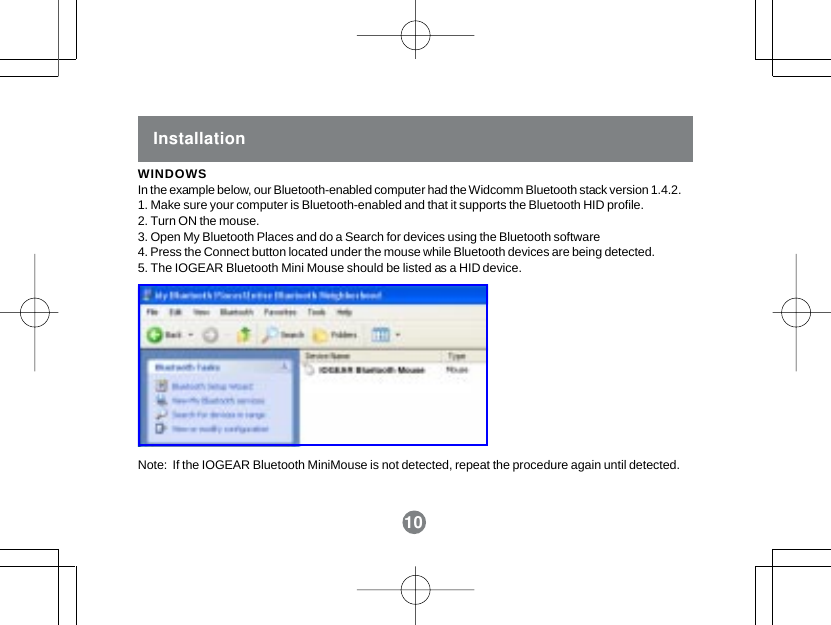
InstallationWINDOWSIn the example below, our Bluetooth-enabled computer had the Widcomm Bluetooth stack version 1.4.2.1. Make sure your computer is Bluetooth-enabled and that it supports the Bluetooth HID profile.2. Turn ON the mouse.3. Open My Bluetooth Places and do a Search for devices using the Bluetooth software4. Press the Connect button located under the mouse while Bluetooth devices are being detected.5. The IOGEAR Bluetooth Mini Mouse should be listed as a HID device.Note:  If the IOGEAR Bluetooth MiniMouse is not detected, repeat the procedure again until detected.10
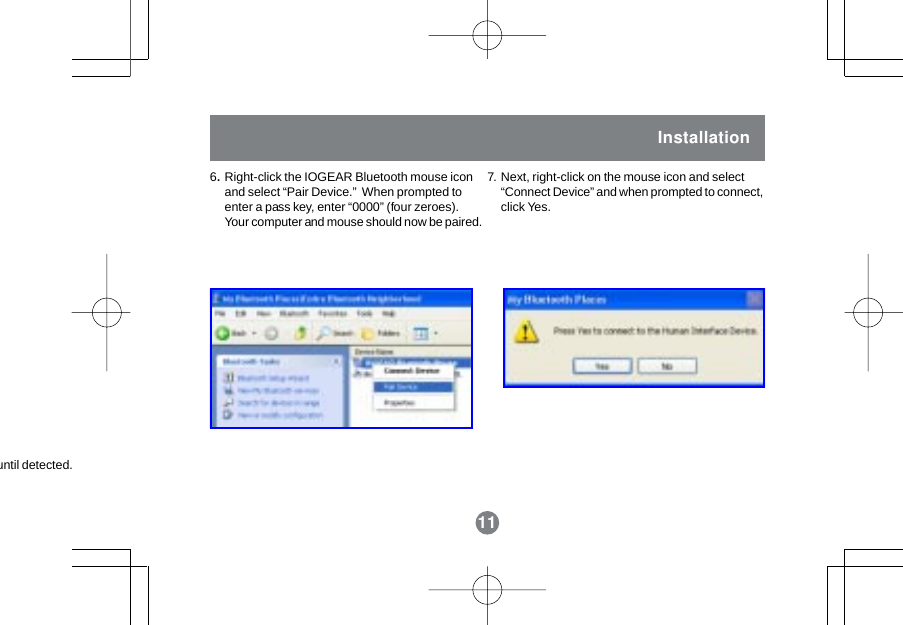
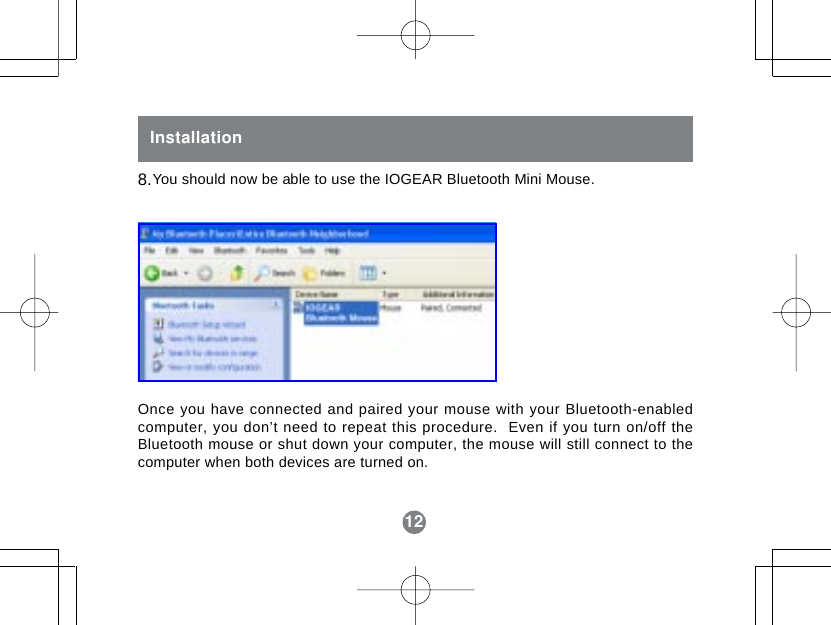
11Installation6.Right-click the IOGEAR Bluetooth mouse iconand select “Pair Device.”  When prompted toenter a pass key, enter “0000” (four zeroes).Your computer and mouse should now be paired.Next, right-click on the mouse icon and select“Connect Device” and when prompted to connect,click Yes.7.11until detected.
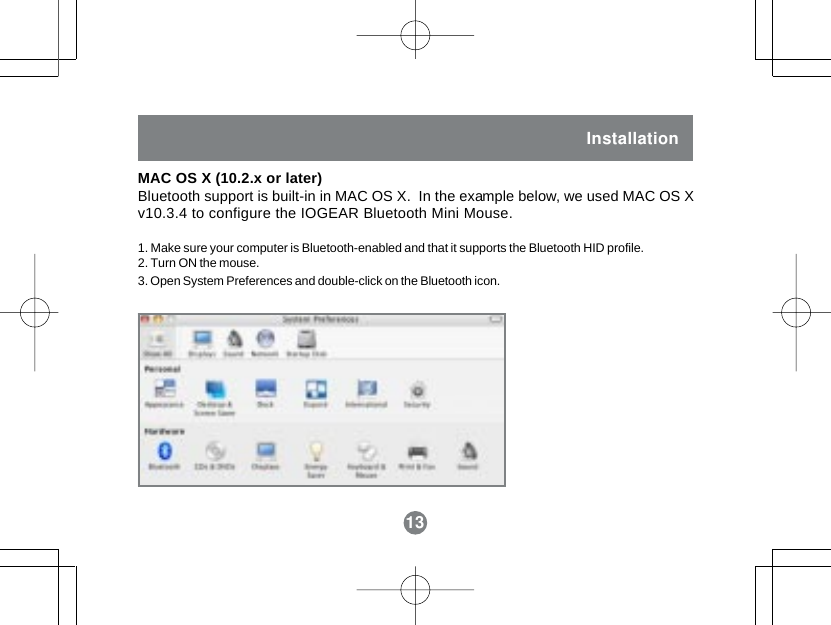
12InstallationYou should now be able to use the IOGEAR Bluetooth Mini Mouse.Once you have connected and paired your mouse with your Bluetooth-enabledcomputer, you don’t need to repeat this procedure.  Even if you turn on/off theBluetooth mouse or shut down your computer, the mouse will still connect to thecomputer when both devices are turned on.8.12
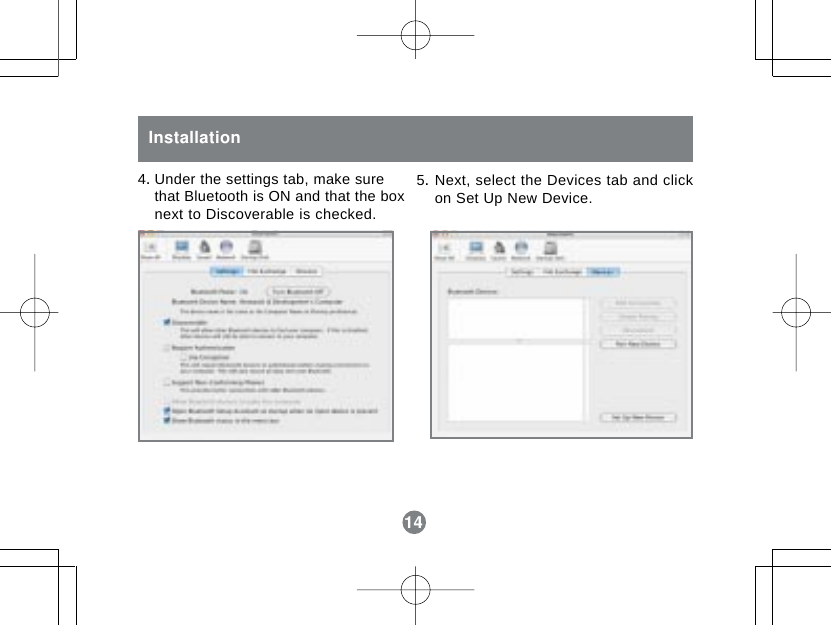
13InstallationMAC OS X (10.2.x or later)Bluetooth support is built-in in MAC OS X.  In the example below, we used MAC OS Xv10.3.4 to configure the IOGEAR Bluetooth Mini Mouse.1. Make sure your computer is Bluetooth-enabled and that it supports the Bluetooth HID profile.2. Turn ON the mouse.3. Open System Preferences and double-click on the Bluetooth icon.13Installation
14InstallationUnder the settings tab, make surethat Bluetooth is ON and that the boxnext to Discoverable is checked.Next, select the Devices tab and clickon Set Up New Device.5.4.14
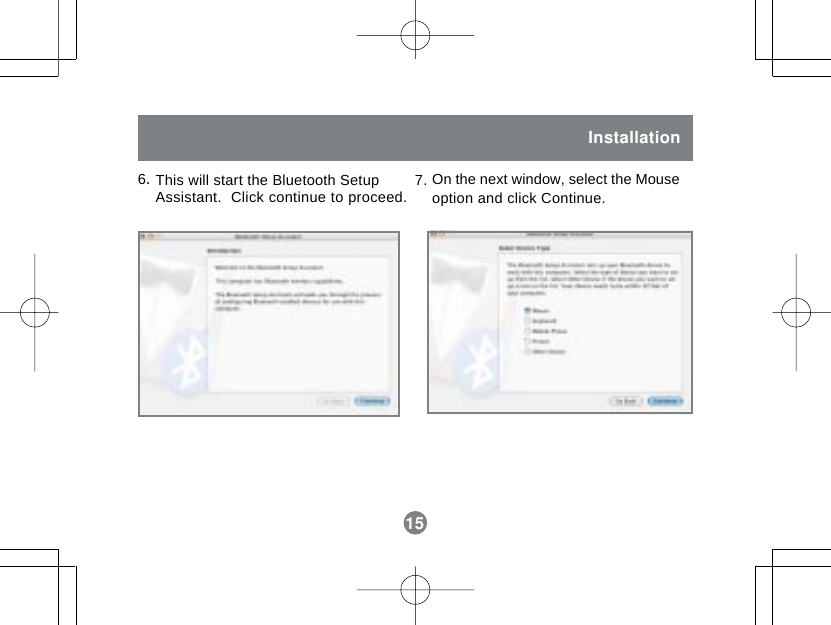
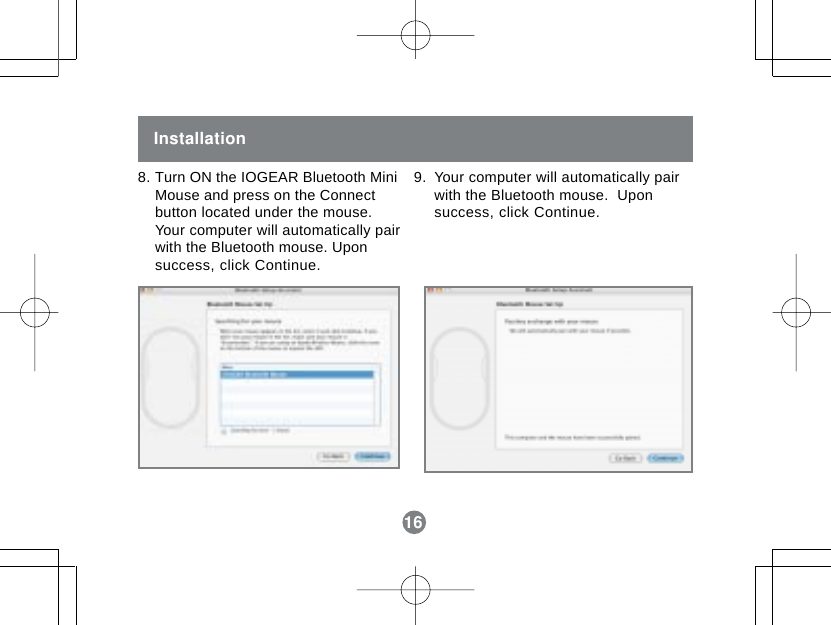
15InstallationThis will start the Bluetooth SetupAssistant.  Click continue to proceed.6.On the next window, select the Mouseoption and click Continue.7.15
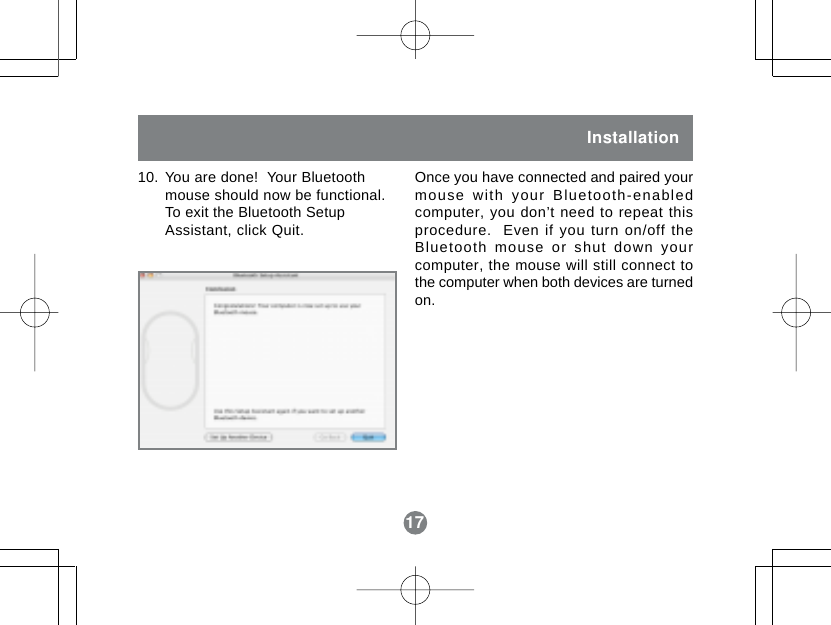
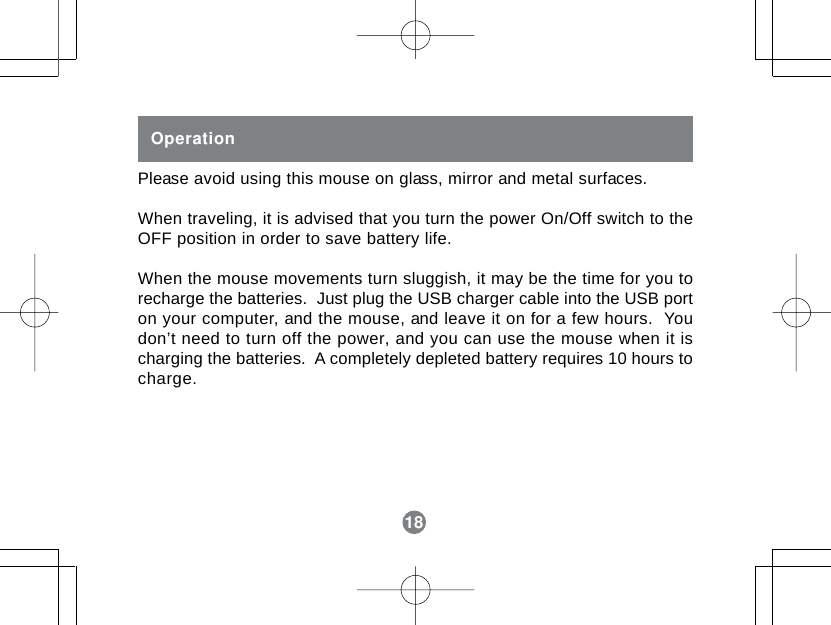
16InstallationTurn ON the IOGEAR Bluetooth MiniMouse and press on the Connectbutton located under the mouse.Your computer will automatically pairwith the Bluetooth mouse. Uponsuccess, click Continue.9. Your computer will automatically pairwith the Bluetooth mouse.  Uponsuccess, click Continue.168.
17Installation10. You are done!  Your Bluetoothmouse should now be functional.To exit the Bluetooth SetupAssistant, click Quit.Once you have connected and paired yourmouse with your Bluetooth-enabledcomputer, you don’t need to repeat thisprocedure.  Even if you turn on/off theBluetooth mouse or shut down yourcomputer, the mouse will still connect tothe computer when both devices are turnedon.17
18OperationPlease avoid using this mouse on glass, mirror and metal surfaces.When traveling, it is advised that you turn the power On/Off switch to theOFF position in order to save battery life.When the mouse movements turn sluggish, it may be the time for you torecharge the batteries.  Just plug the USB charger cable into the USB porton your computer, and the mouse, and leave it on for a few hours.  Youdon’t need to turn off the power, and you can use the mouse when it ischarging the batteries.  A completely depleted battery requires 10 hours tocharge.18
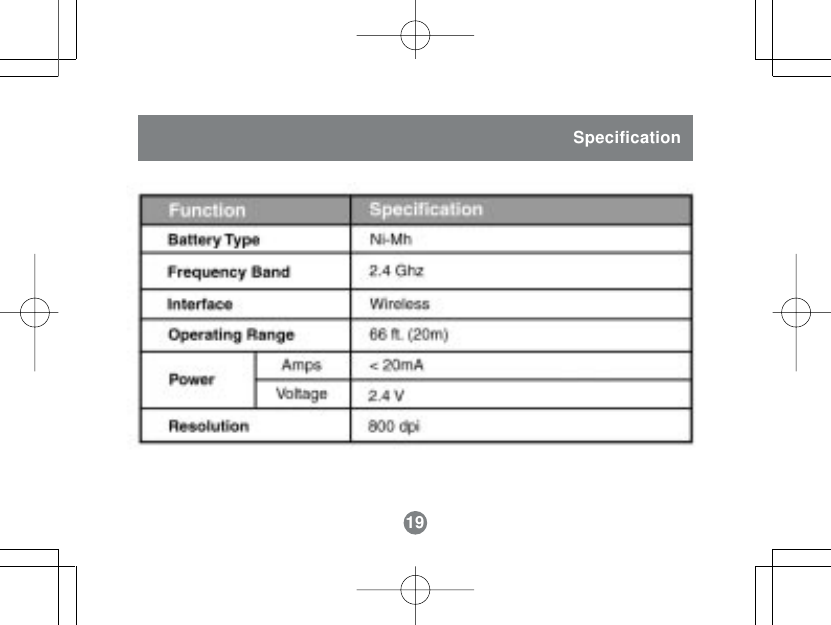
19Specification19
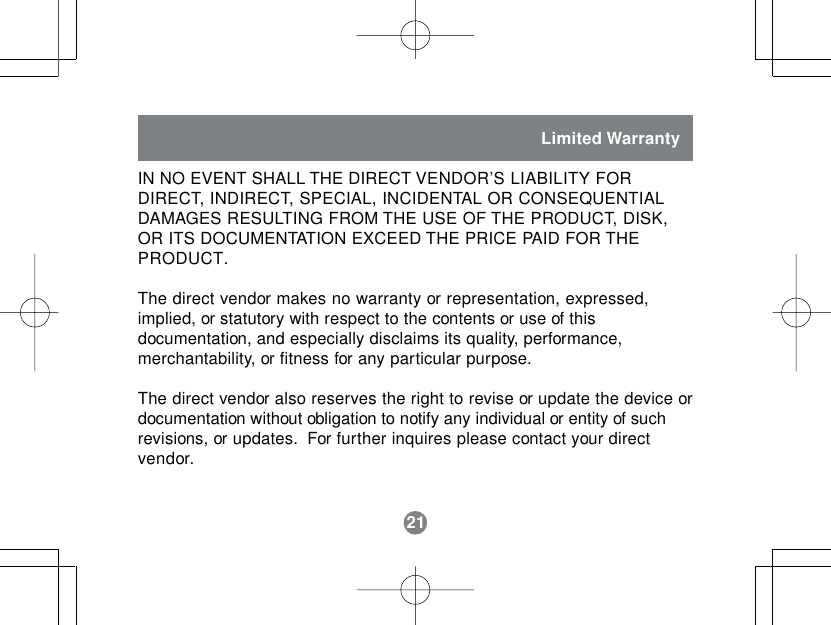
21IN NO EVENT SHALL THE DIRECT VENDOR’S LIABILITY FORDIRECT, INDIRECT, SPECIAL, INCIDENTAL OR CONSEQUENTIALDAMAGES RESULTING FROM THE USE OF THE PRODUCT, DISK,OR ITS DOCUMENTATION EXCEED THE PRICE PAID FOR THEPRODUCT.The direct vendor makes no warranty or representation, expressed,implied, or statutory with respect to the contents or use of thisdocumentation, and especially disclaims its quality, performance,merchantability, or fitness for any particular purpose.The direct vendor also reserves the right to revise or update the device ordocumentation without obligation to notify any individual or entity of suchrevisions, or updates.  For further inquires please contact your directvendor.Limited Warranty21
23 Hubble    •     Irvine, CA 92618     •     (P) 949.453.8782     •     (F) 949.453.8785     •     www.iogear.comContact info.®

Navigation menu