AVision Technology WD50UK4550 LED TV User Manual Part 2 of 2

Avision Technology (changzhou)Co., Ltd. LED TV Part 2 of 2

Contents

User Manual Part 2 of 2

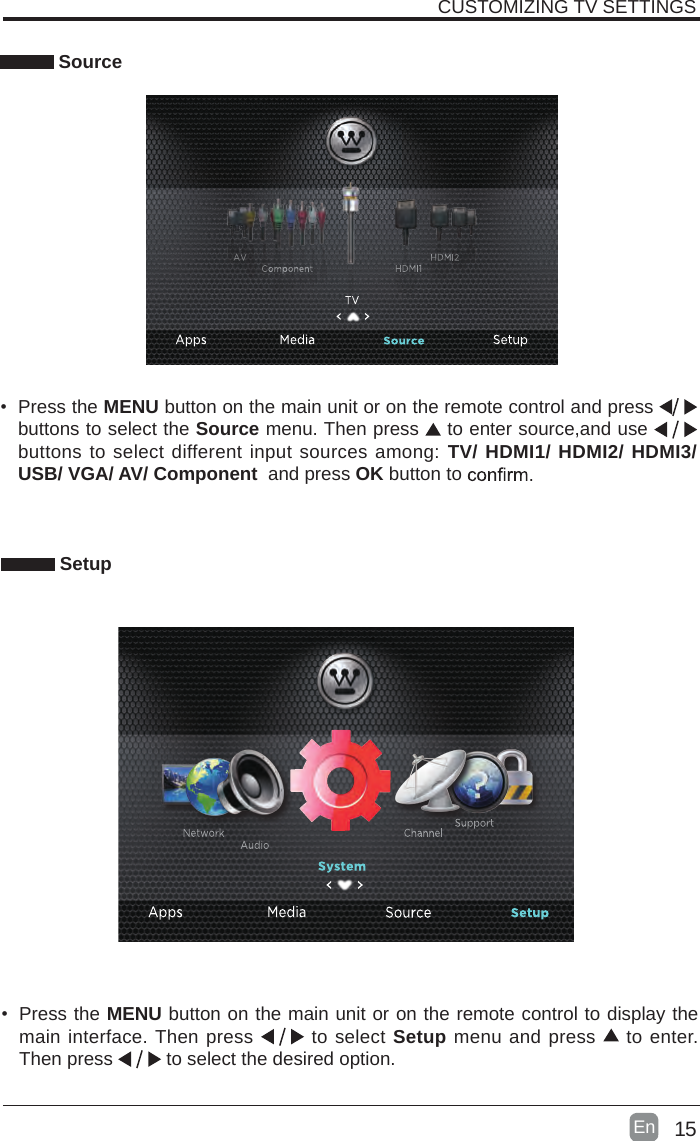
15En  CUSTOMIZING TV SETTINGS Source•  Press the MENU button on the main unit or on the remote control and press   buttons to select the Source menu. Then press   to enter source,and use   buttons to select different input sources among: TV/ HDMI1/ HDMI2/ HDMI3/ USB/ VGA/ AV/ Component  and press OK button to     Setup•  Press the MENU button on the main unit or on the remote control to display the main interface. Then press   to select Setup menu and press   to enter. Then press   to select the desired option.
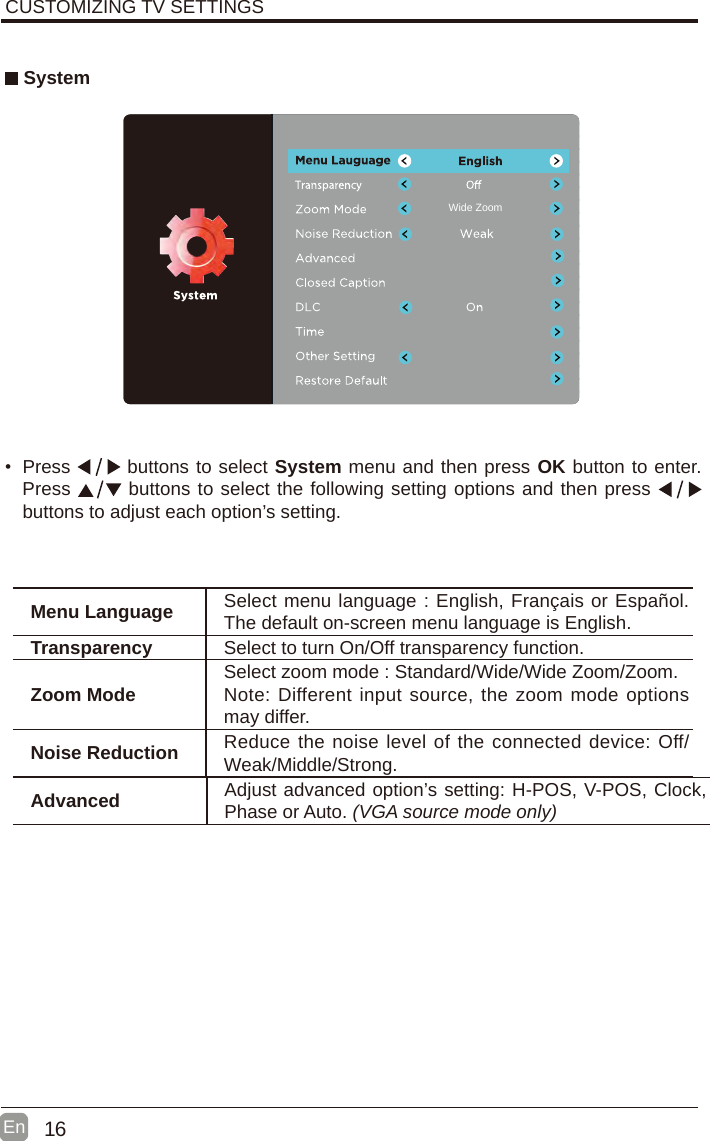
16En   System•  Press   buttons to select System menu and then press OK button to enter. Press  buttons to select the following setting options and then press    buttons to adjust each option’s setting. CUSTOMIZING TV SETTINGSWide ZoomAdvanced Adjust advanced option’s setting: H-POS, V-POS, Clock, Phase or Auto. (VGA source mode only)Menu Language Select menu language : English, Français or Español. The default on-screen menu language is English.Transparency Select to turn On/Off transparency function.Zoom Mode Select zoom mode : Standard/Wide/Wide Zoom/Zoom.Note: Different input source, the zoom mode options may differ.Noise Reduction Reduce the noise level of the connected device: Off/Weak/Middle/Strong.
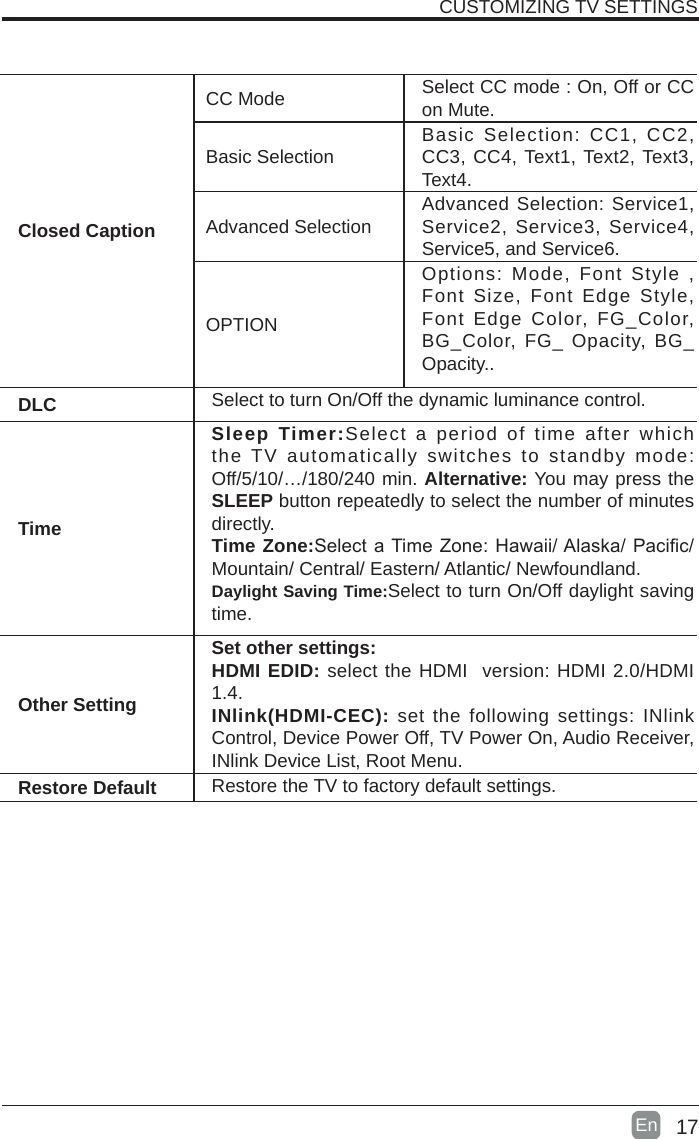
17En  CUSTOMIZING TV SETTINGSClosed CaptionCC Mode Select CC mode : On, Off or CC on Mute.Basic Selection Basic Selection: CC1, CC2, CC3, CC4, Text1, Text2, Text3, Text4.Advanced Selection Advanced Selection: Service1, Service2, Service3, Service4, Service5, and Service6.OPTIONOptions: Mode, Font Style , Font Size, Font Edge Style, Font Edge Color, FG_Color, BG_Color, FG_ Opacity, BG_Opacity..DLC Select to turn On/Off the dynamic luminance control.TimeSleep Timer:Select a period of time after which the TV automatically switches to standby mode: Off/5/10/…/180/240 min. Alternative: You may press the SLEEP button repeatedly to select the number of minutes directly.Time Zone:SelectaTimeZone:Hawaii/Alaska/Pacic/Mountain/ Central/ Eastern/ Atlantic/ Newfoundland.Daylight Saving Time:Select to turn On/Off daylight saving time.Other SettingSet other settings:HDMI EDID: select the HDMI  version: HDMI 2.0/HDMI 1.4.INlink(HDMI-CEC): set the following settings: INlink Control, Device Power Off, TV Power On, Audio Receiver, INlink Device List, Root Menu.Restore Default Restore the TV to factory default settings.
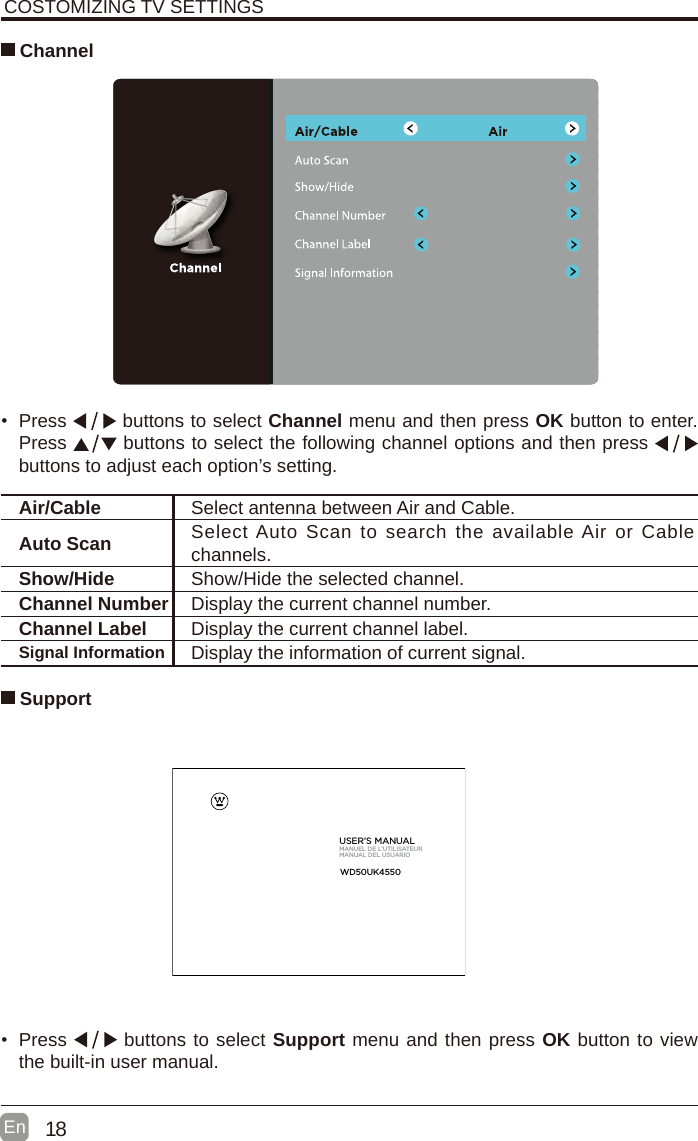
18En  COSTOMIZING TV SETTINGS Channel•  Press   buttons to select Channel menu and then press OK button to enter. Press   buttons to select the following channel options and then press    buttons to adjust each option’s setting. Air/Cable Select antenna between Air and Cable. Auto Scan Select Auto  Scan to search  the available Air or Cable channels. Show/Hide Show/Hide the selected channel.Channel Number Display the current channel number.Channel Label Display the current channel label.Signal Information Display the information of current signal.•  Press   buttons to select Support menu and then press OK button to view the built-in user manual.      SupportUSER’S MANUALMANUEL DE L’UTILISATEURMANUAL DEL USUARIOWD50UK4550
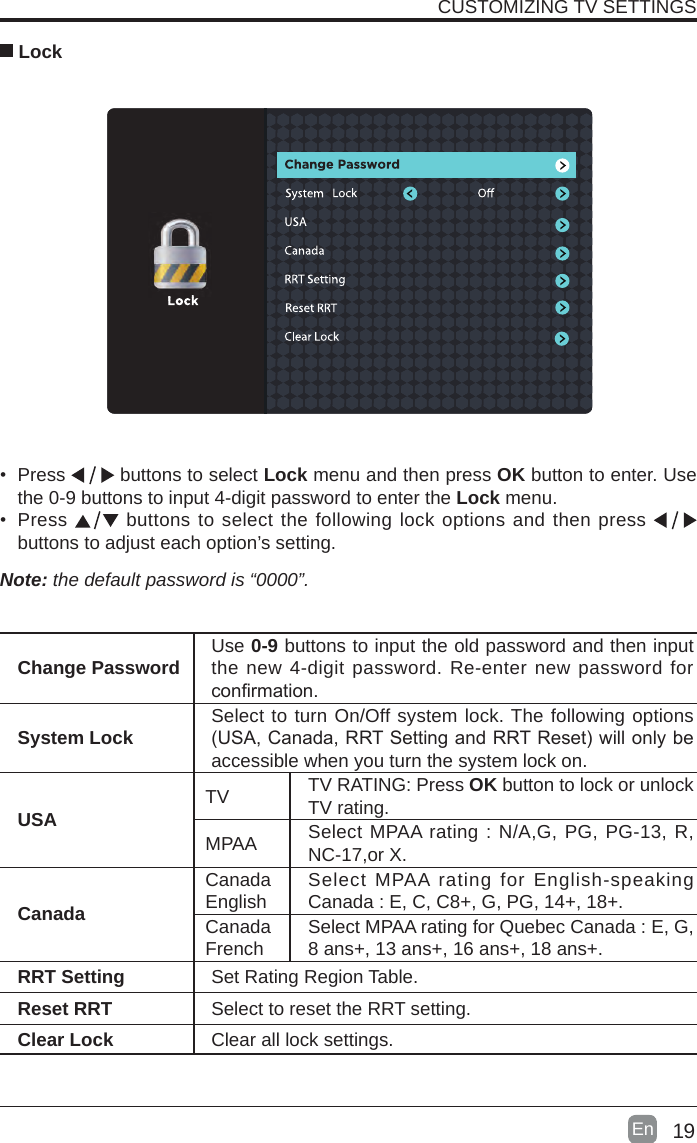
19En  CUSTOMIZING TV SETTINGS Lock• Press   buttons to select Lock menu and then press OK button to enter. Use the 0-9 buttons to input 4-digit password to enter the Lock menu.• Press   buttons to select the following lock options and then press buttons to adjust each option’s setting.Note: the default password is “0000”. Change Password Use 0-9 buttons to input the old password and then input the new 4-digit password. Re-enter new password for conrmation.System Lock Select to turn On/Off system lock. The following options (USA,Canada,RRTSettingandRRTReset)willonlybeaccessible when you turn the system lock on.USA TV TV RATING: Press OK button to lock or unlock TV rating.MPAA Select MPAA rating : N/A,G, PG, PG-13, R, NC-17,or X.CanadaCanada English Select MPAA rating for English-speaking Canada : E, C, C8+, G, PG, 14+, 18+.Canada French Select MPAA rating for Quebec Canada : E, G, 8 ans+, 13 ans+, 16 ans+, 18 ans+.RRT Setting Set Rating Region Table.Reset RRT Select to reset the RRT setting.Clear Lock Clear all lock settings.
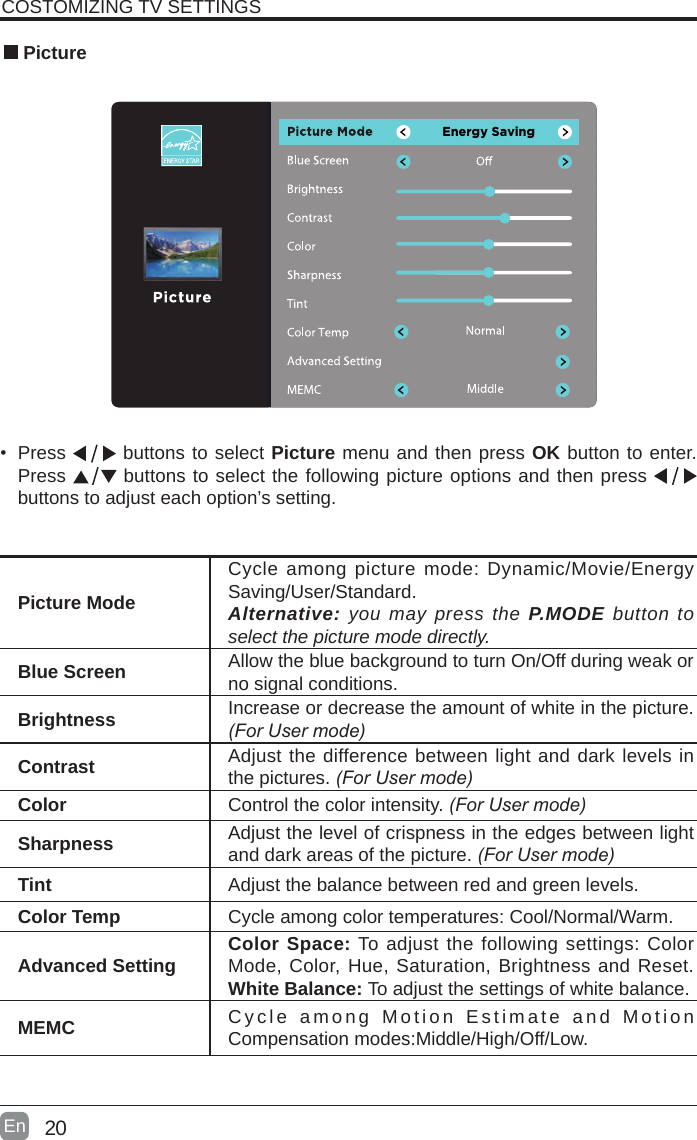
20En  • Press   buttons to select Picture menu and then press OK button to enter. Press   buttons to select the following picture options and then press   buttons to adjust each option’s setting.  PicturePicture ModeCycle among picture mode: Dynamic/Movie/EnergySaving/User/Standard.Alternative: you may press the P.MODE button to select the picture mode directly.Blue Screen Allow the blue background to turn On/Off during weak or no signal conditions.Brightness Increase or decrease the amount of white in the picture. (ForUsermode)Contrast Adjust the difference between light and dark levels in the pictures. (ForUsermode)Color Control the color intensity. (ForUsermode)Sharpness Adjust the level of crispness in the edges between light and dark areas of the picture. (ForUsermode)Tint Adjust the balance between red and green levels.Color Temp Cycle among color temperatures: Cool/Normal/Warm.Advanced Setting Color Space: To adjust the following settings: Color Mode, Color, Hue, Saturation, Brightness and Reset.White Balance: To adjust the settings of white balance.MEMC Cycle among Motion Estimate and Motion Compensation modes:Middle/High/Off/Low.COSTOMIZING TV SETTINGSEnergy Saving
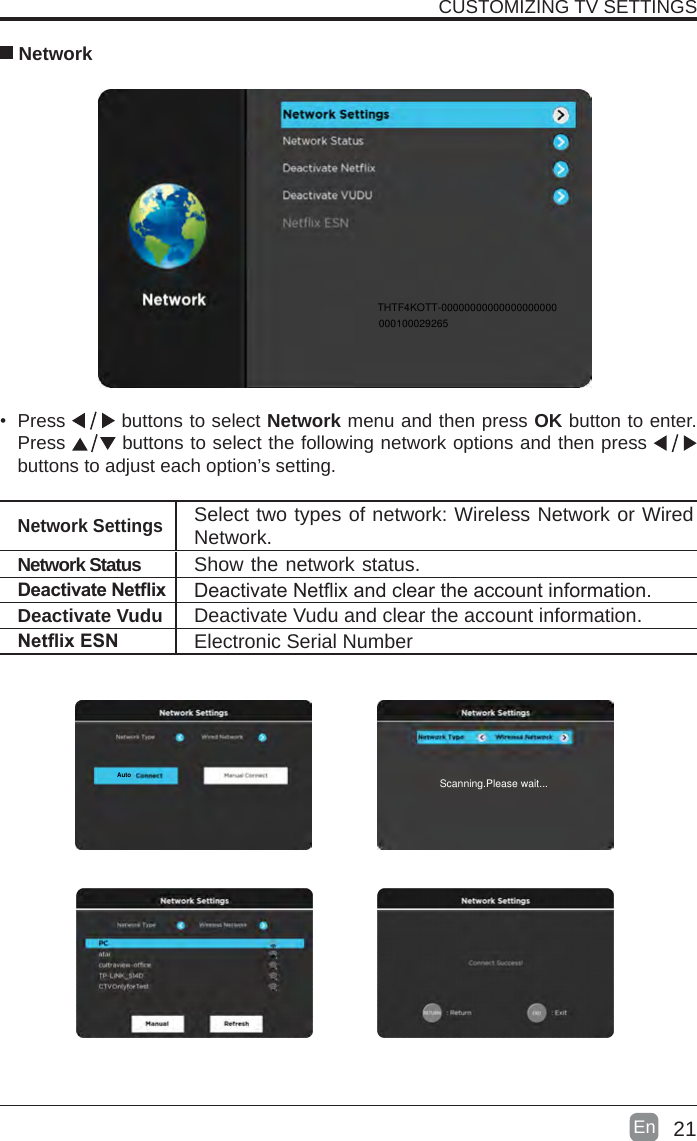
21En  • Press   buttons to select Network menu and then press OK button to enter. Press   buttons to select the following network options and then press   buttons to adjust each option’s setting.   NetworkNetwork SettingsSelect two types of network: Wireless Network or Wired Network.DeactivateNetix DeactivateNetixandcleartheaccountinformation.Deactivate Vudu Deactivate Vudu and clear the account information.NetixESN Electronic Serial NumberCUSTOMIZING TV SETTINGSAutoNetwork Status Show the network status.THTF4KOTT-00000000000000000000000100029265Scanning.Please wait...
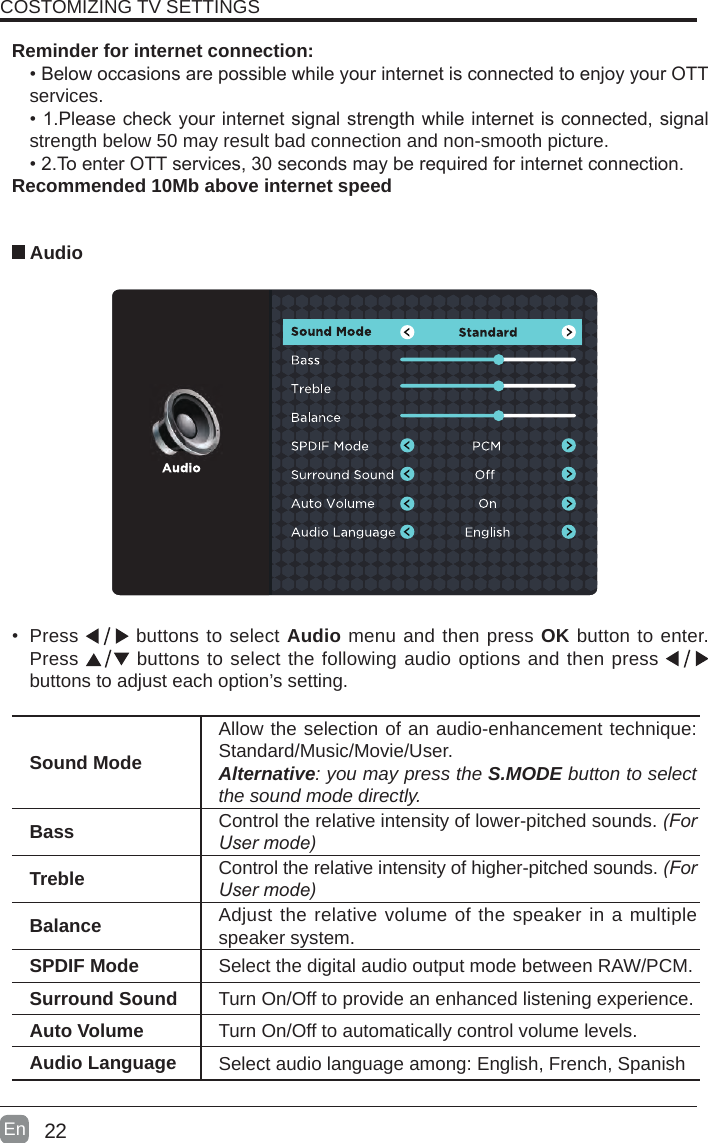
22En  COSTOMIZING TV SETTINGS• Press   buttons to select Audio menu and then press OK button to enter. Press   buttons to select the following audio options and then press   buttons to adjust each option’s setting.  AudioReminder for internet connection:•BelowoccasionsarepossiblewhileyourinternetisconnectedtoenjoyyourOTTservices.•1.Pleasecheckyourinternetsignalstrengthwhileinternetisconnected,signalstrength below 50 may result bad connection and non-smooth picture.•2.ToenterOTTservices,30secondsmayberequiredforinternetconnection.Recommended 10Mb above internet speedSound ModeAllow the selection of an audio-enhancement technique: Standard/Music/Movie/User.Alternative: you may press the S.MODE button to select the sound mode directly.Bass Control the relative intensity of lower-pitched sounds. (ForUsermode)Treble Control the relative intensity of higher-pitched sounds. (ForUsermode)Balance Adjust the relative volume of the speaker in a multiple speaker system.SPDIF Mode Select the digital audio output mode between RAW/PCM.Surround Sound Turn On/Off to provide an enhanced listening experience.Auto Volume Turn On/Off to automatically control volume levels.Audio Language Select audio language among: English, French, Spanish
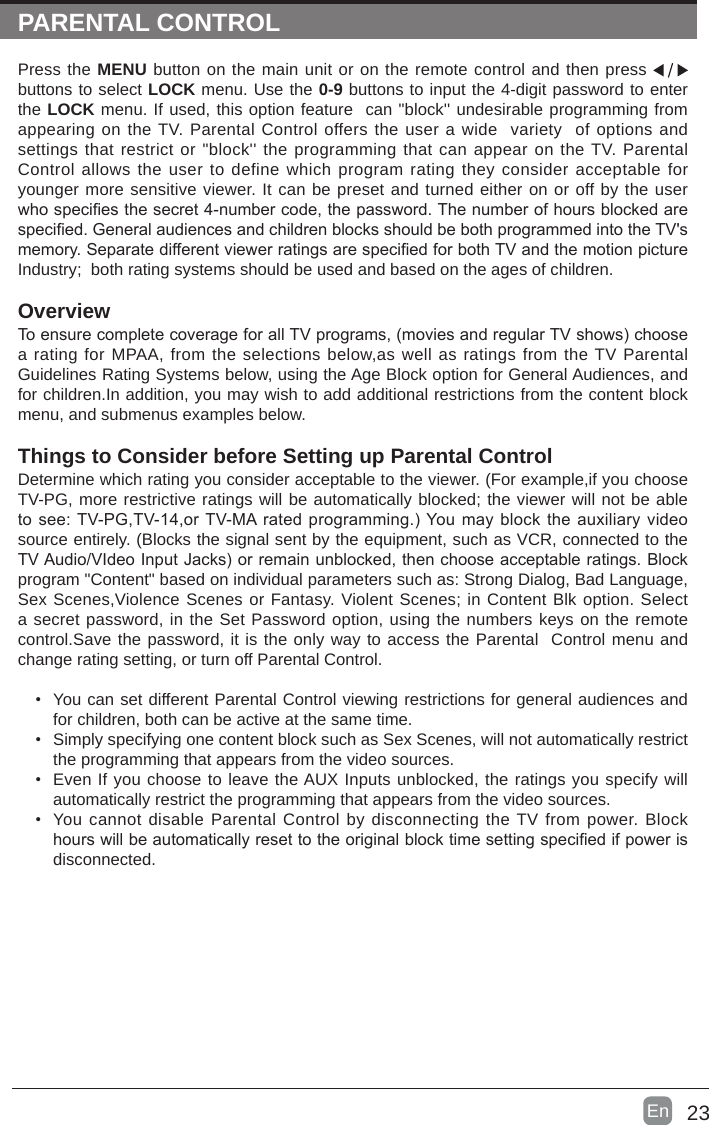
23En  PARENTAL CONTROLPress the MENU button on the main unit or on the remote control and then press   buttons to select LOCK menu. Use the 0-9 buttons to input the 4-digit password to enter the LOCK menu. If used, this option feature  can "block'' undesirable programming from appearing on the TV. Parental Control offers the user a wide  variety  of options and settings that restrict or "block'' the programming that can appear on the TV. Parental Control allows the user to define which program rating they consider acceptable for younger more sensitive viewer. It can be preset and turned either on or off by the user whospeciesthesecret4-numbercode,thepassword.Thenumberofhoursblockedarespecied.GeneralaudiencesandchildrenblocksshouldbebothprogrammedintotheTV'smemory.SeparatedifferentviewerratingsarespeciedforbothTVandthemotionpictureIndustry;  both rating systems should be used and based on the ages of children.OverviewToensurecompletecoverageforallTVprograms,(moviesandregularTVshows)choosea rating for MPAA, from the selections below,as well as ratings from the TV Parental Guidelines Rating Systems below, using the Age Block option for General Audiences, and for children.In addition, you may wish to add additional restrictions from the content block menu, and submenus examples below.Things to Consider before Setting up Parental ControlDetermine which rating you consider acceptable to the viewer. (For example,if you choose TV-PG, more restrictive ratings will be automatically blocked; the viewer will not be able tosee:TV-PG,TV-14,orTV-MAratedprogramming.)Youmayblocktheauxiliaryvideosource entirely. (Blocks the signal sent by the equipment, such as VCR, connected to the TVAudio/VIdeoInputJacks)orremainunblocked,thenchooseacceptableratings.Blockprogram "Content" based on individual parameters such as: Strong Dialog, Bad Language, Sex Scenes,Violence Scenes or Fantasy. Violent Scenes; in Content Blk option. Select a secret password, in the Set Password option, using the numbers keys on the remote control.Save the password, it is the only way to access the Parental  Control menu and change rating setting, or turn off Parental Control.• You can set different Parental Control viewing restrictions for general audiences and for children, both can be active at the same time.• Simply specifying one content block such as Sex Scenes, will not automatically restrict the programming that appears from the video sources.• Even If you choose to leave the AUX Inputs unblocked, the ratings you specify will automatically restrict the programming that appears from the video sources.• You cannot disable Parental Control by disconnecting the TV from power. Block hourswillbeautomaticallyresettotheoriginalblocktimesettingspeciedifpowerisdisconnected.
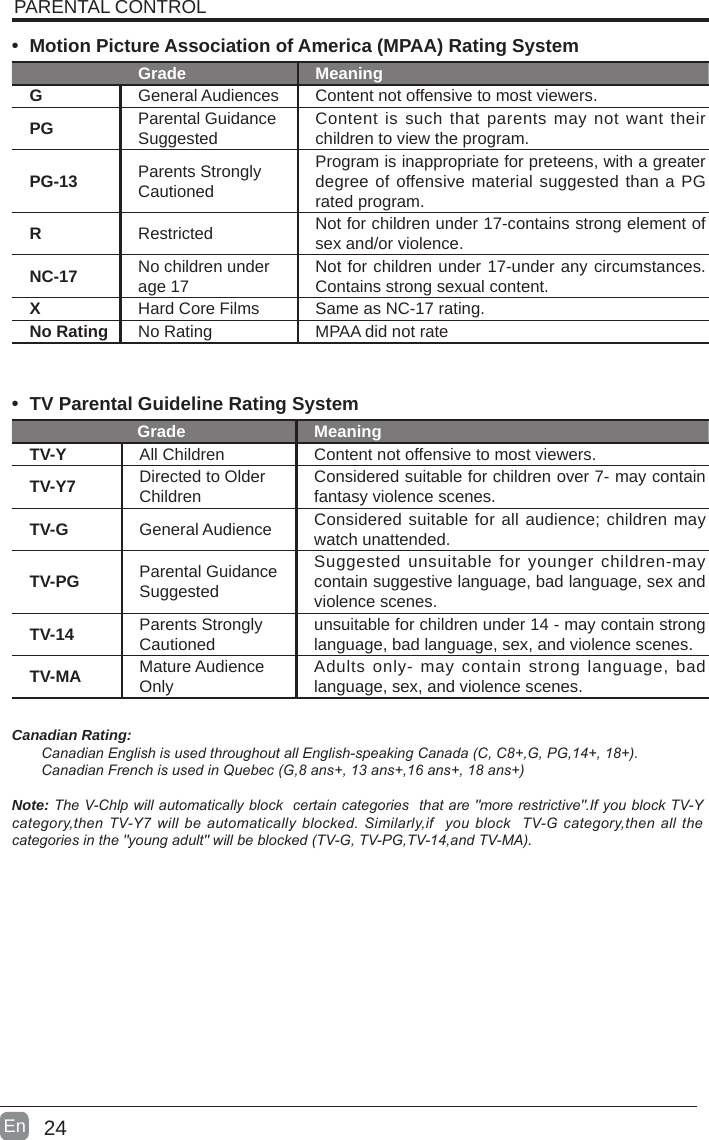
24En  • Motion Picture Association of America (MPAA) Rating SystemGrade MeaningGGeneral Audiences Content not offensive to most viewers.PG Parental Guidance Suggested Content is such that parents may not want their children to view the program.PG-13 Parents Strongly CautionedProgram is inappropriate for preteens, with a greater degree of offensive material suggested than a PG rated program.RRestricted  Not for children under 17-contains strong element of sex and/or violence.NC-17 No children under age 17 Not for children under 17-under any circumstances. Contains strong sexual content.XHard Core Films Same as NC-17 rating.No Rating No Rating MPAA did not rate• TV Parental Guideline Rating System Grade MeaningTV-Y All Children Content not offensive to most viewers.TV-Y7 Directed to Older Children Considered suitable for children over 7- may contain fantasy violence scenes.TV-G General Audience Considered suitable for all audience; children may watch unattended.TV-PG Parental Guidance SuggestedSuggested unsuitable for younger children-may contain suggestive language, bad language, sex and violence scenes.TV-14 Parents Strongly Cautioned unsuitable for children under 14 - may contain strong language, bad language, sex, and violence scenes.TV-MA Mature Audience Only Adults only- may contain strong language, bad language, sex, and violence scenes.Canadian Rating:CanadianEnglishisusedthroughoutallEnglish-speakingCanada(C,C8+,G,PG,14+,18+).CanadianFrenchisusedinQuebec(G,8ans+,13ans+,16ans+,18ans+)Note:TheV-Chlpwillautomaticallyblockcertaincategoriesthatare"morerestrictive".IfyoublockTV-Ycategory,thenTV-Y7willbeautomaticallyblocked.Similarly,ifyoublockTV-Gcategory,thenallthecategoriesinthe"youngadult"willbeblocked(TV-G,TV-PG,TV-14,andTV-MA).PARENTAL CONTROL
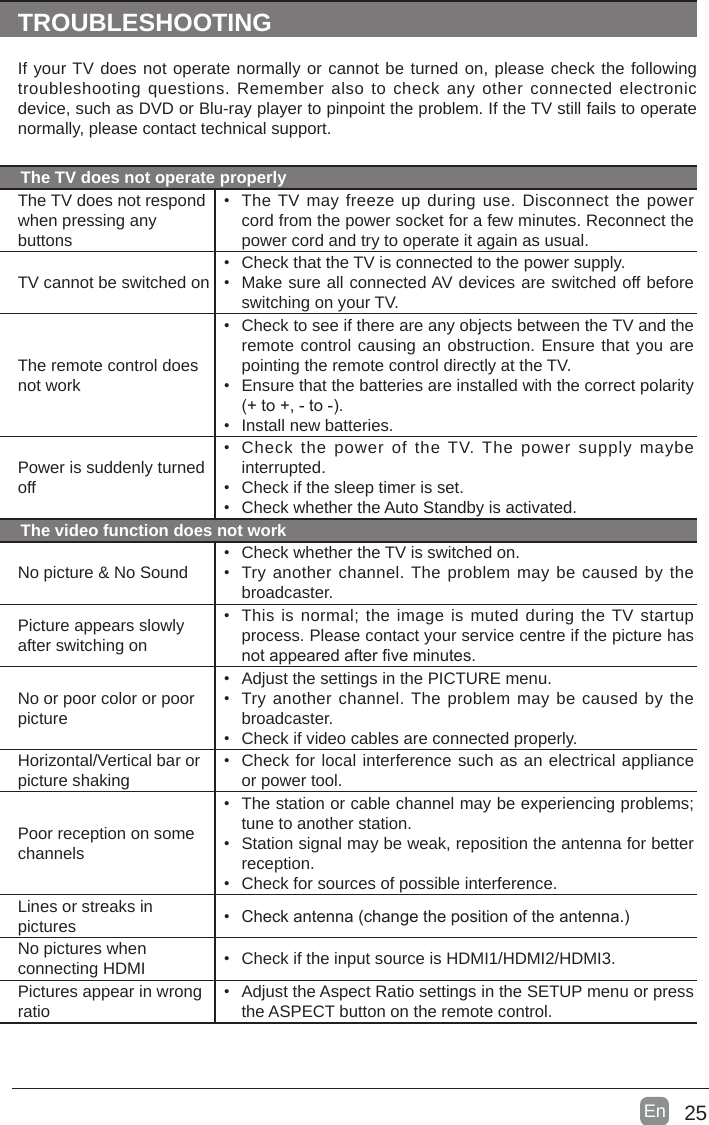
25En  TROUBLESHOOTINGIf your TV does not operate normally or cannot be turned on, please check the following troubleshooting questions. Remember also to check any other connected electronic device, such as DVD or Blu-ray player to pinpoint the problem. If the TV still fails to operate normally, please contact technical support.The TV does not operate properlyThe TV does not respond when pressing any buttons• The TV may freeze up during use. Disconnect the power cord from the power socket for a few minutes. Reconnect the power cord and try to operate it again as usual.TV cannot be switched on• Check that the TV is connected to the power supply.• Make sure all connected AV devices are switched off before switching on your TV.The remote control does not work• Check to see if there are any objects between the TV and the remote control causing an obstruction. Ensure that you are pointing the remote control directly at the TV.• Ensure that the batteries are installed with the correct polarity (+to+,-to-).• Install new batteries. Power is suddenly turned off• Check the power of the TV. The power supply maybe interrupted.• Check if the sleep timer is set.• Check whether the Auto Standby is activated. The video function does not workNo picture & No Sound• Check whether the TV is switched on.• Try another channel. The problem may be caused by the broadcaster.Picture appears slowly after switching on• This is normal; the image is muted during the TV startup process. Please contact your service centre if the picture has notappearedafterveminutes.No or poor color or poor picture• Adjust the settings in the PICTURE menu.• Try another channel. The problem may be caused by the broadcaster.• Check if video cables are connected properly.Horizontal/Vertical bar or picture shaking• Check for local interference such as an electrical appliance or power tool.Poor reception on some channels• The station or cable channel may be experiencing problems; tune to another station.• Station signal may be weak, reposition the antenna for better reception.• Check for sources of possible interference.Lines or streaks in pictures • Checkantenna(changethepositionoftheantenna.)No pictures when connecting HDMI • Check if the input source is HDMI1/HDMI2/HDMI3.Pictures appear in wrong ratio• Adjust the Aspect Ratio settings in the SETUP menu or press the ASPECT button on the remote control.
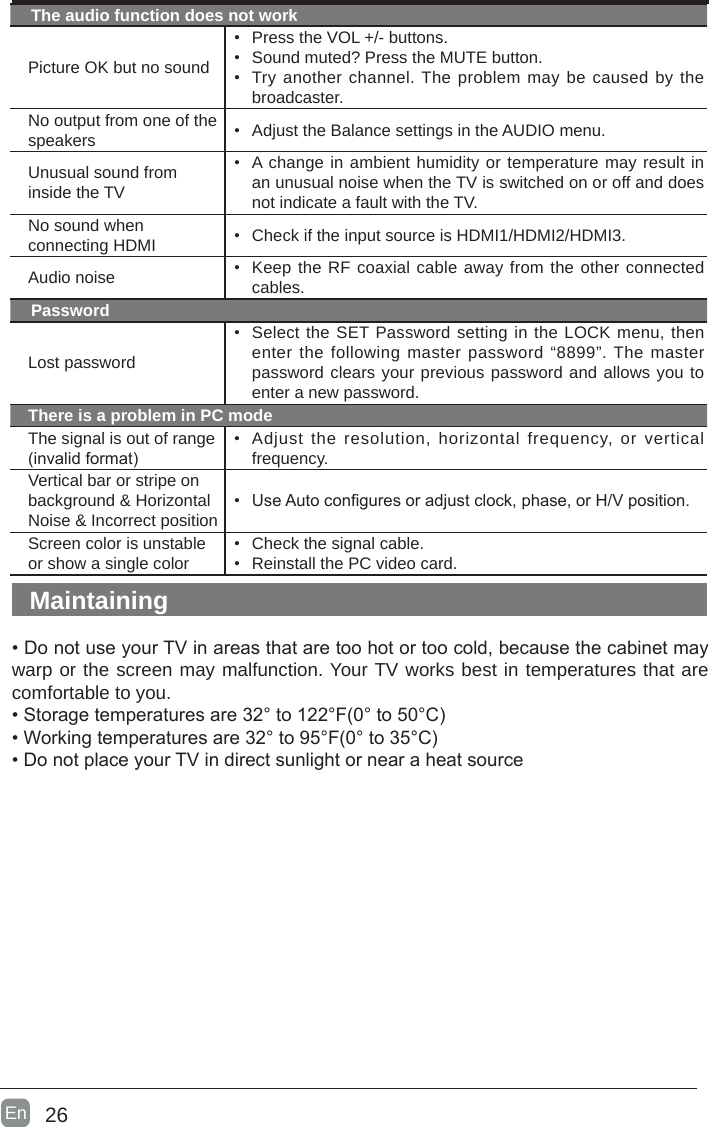
26En  The audio function does not workPicture OK but no sound•Press the VOL +/- buttons.•Sound muted? Press the MUTE button.•Try another channel. The problem may be caused by thebroadcaster.No output from one of the speakers •Adjust the Balance settings in the AUDIO menu.Unusual sound from inside the TV•A change in ambient humidity or temperature may result inan unusual noise when the TV is switched on or off and doesnot indicate a fault with the TV.No sound when connecting HDMI •Check if the input source is HDMI1/HDMI2/HDMI3.Audio noise •Keep the RF coaxial cable away from the other connectedcables.PasswordLost password•Select the SET Password setting in the LOCK menu, thenenter the following master password “8899”. The masterpassword clears your previous password and allows you toenter a new password.There is a problem in PC modeThe signal is out of range (invalidformat)•Adjust the resolution, horizontal frequency, or verticalfrequency.Vertical bar or stripe on background & Horizontal Noise & Incorrect position• UseAutoconguresoradjustclock,phase,orH/Vposition.Screen color is unstable or show a single color•Check the signal cable.•Reinstall the PC video card.Maintaining• DonotuseyourTVinareasthataretoohotortoocold,becausethecabinetmaywarp or the screen may malfunction. Your TV works best in temperatures that are comfortable to you.• Storagetemperaturesare32°to122°F(0°to50°C)• Workingtemperaturesare32°to95°F(0°to35°C)• DonotplaceyourTVindirectsunlightornearaheatsource
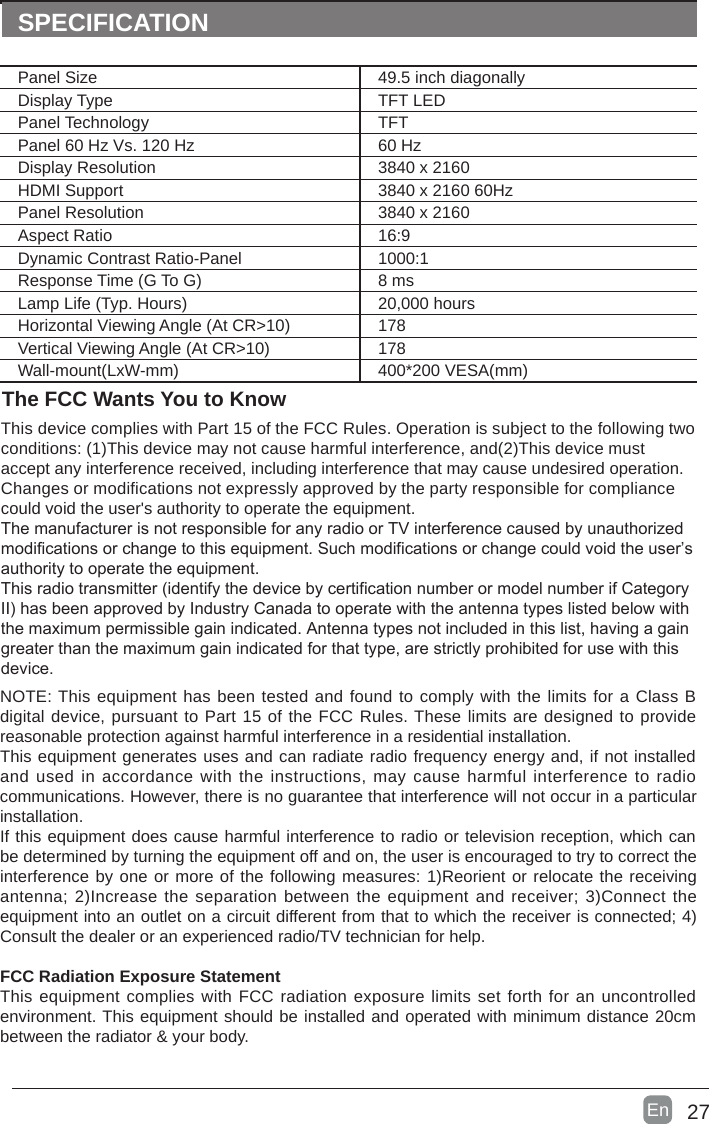
27En  SPECIFICATIONThe FCC Wants You to KnowThis device complies with Part 15 of the FCC Rules. Operation is subject to the following two conditions: (1)This device may not cause harmful interference, and(2)This device must accept any interference received, including interference that may cause undesired operation. Changes or modifications not expressly approved by the party responsible for compliance could void the user's authority to operate the equipment.The manufacturer is not responsible for any radio or TV interference caused by unauthorized modifications or change to this equipment. Such modifications or change could void the user’s authority to operate the equipment.This radio transmitter (identify the device by certification number or model number if Category II) has been approved by Industry Canada to operate with the antenna types listed below with the maximum permissible gain indicated. Antenna types not included in this list, having a gain greater than the maximum gain indicated for that type, are strictly prohibited for use with this device.NOTE: This equipment has been tested and found to comply with the limits for a Class B digital device, pursuant to Part 15 of the FCC Rules. These limits are designed to provide reasonable protection against harmful interference in a residential installation.This equipment generates uses and can radiate radio frequency energy and, if not installed and used in accordance  with the instructions, may cause harmful interference to radio communications. However, there is no guarantee that interference will not occur in a particular installation. If this equipment does cause harmful interference to radio or television reception, which can be determined by turning the equipment off and on, the user is encouraged to try to correct the interference by one or more of the following measures: 1)Reorient or relocate the receiving antenna; 2)Increase the separation between the equipment and receiver; 3)Connect the equipment into an outlet on a circuit different from that to which the receiver is connected; 4)Consult the dealer or an experienced radio/TV technician for help.FCC Radiation Exposure StatementThis equipment complies with FCC radiation exposure limits set forth for an uncontrolled environment. This equipment should be installed and operated with minimum distance 20cm between the radiator & your body.Panel Size 49.5 inch diagonally Display Type TFT LEDPanel Technology  TFTPanel 60 Hz Vs. 120 Hz 60 HzDisplay Resolution  3840 x 2160HDMI Support 3840 x 2160 60HzPanel Resolution  3840 x 2160Aspect Ratio 16:9Dynamic Contrast Ratio-Panel 1000:1Response Time (G To G) 8 msLamp Life (Typ. Hours) 20,000 hoursHorizontal Viewing Angle (At CR>10) 178Vertical Viewing Angle (At CR>10) 178Wall-mount(LxW-mm) 400*200 VESA(mm)
28En  If you want to know about these APP information or get more service. Please refer to following content.• Netix You can call the following telephone for more help: 866-579-7172If your matter is regarding customer service, please refer to https://contactus.netix.com/help  for     alternative contact information.• YouTube          You can browse the following website for more help:         https://productforums.google.com/forum/#!categories/youtube/smart-tvs• VUDU          You can call the following telephone for more help: 888-554-8838• TG          You can call the following telephone for more help: 888-874-5411• Pandora          You can send E-mail to Pandora for more help: pandora-support@pandora.com• AccuWeather          You can send E-mail to AccuWeather for more help: CustomerService@AccuWeather.com  OTT APP SERVICE

Navigation menu