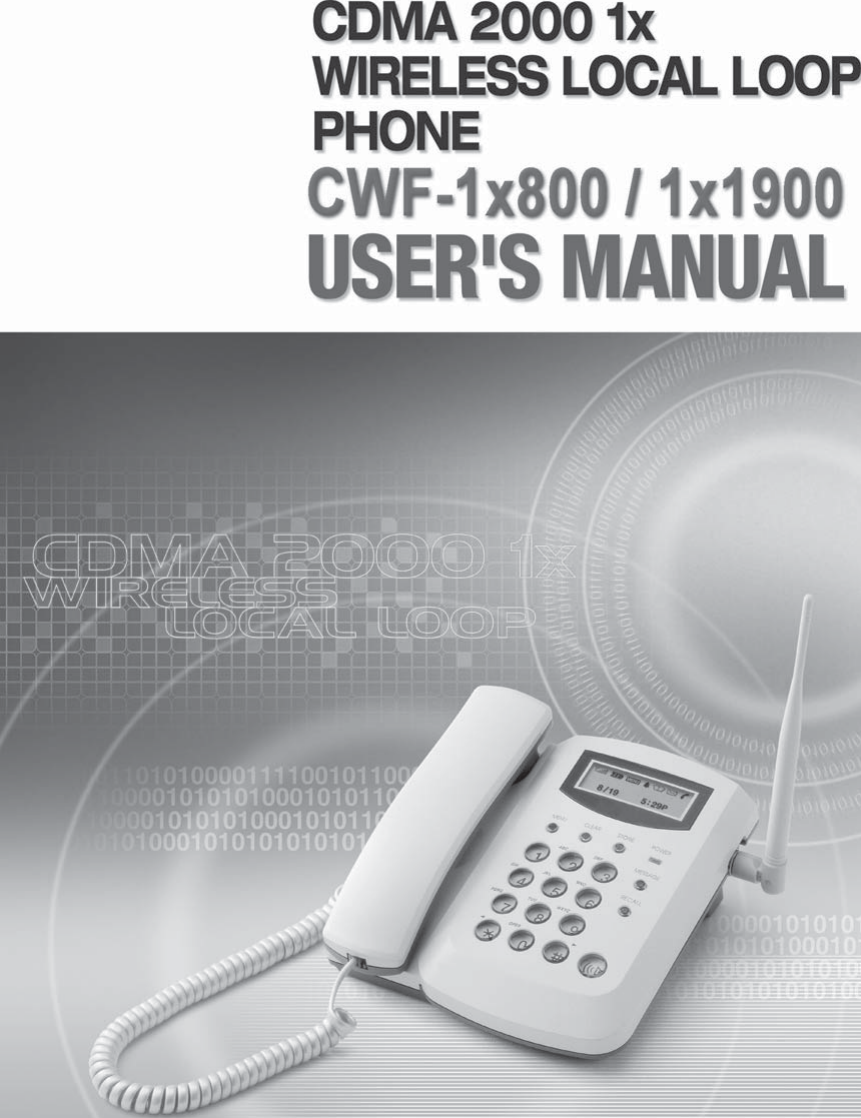
Acbel Polytech CWF-1X800AA CDMA FIXED WIRELESS PHONE User Manual 12 19 EN

Acbel Polytech Inc. CDMA FIXED WIRELESS PHONE 12 19 EN

USERS MANUAL

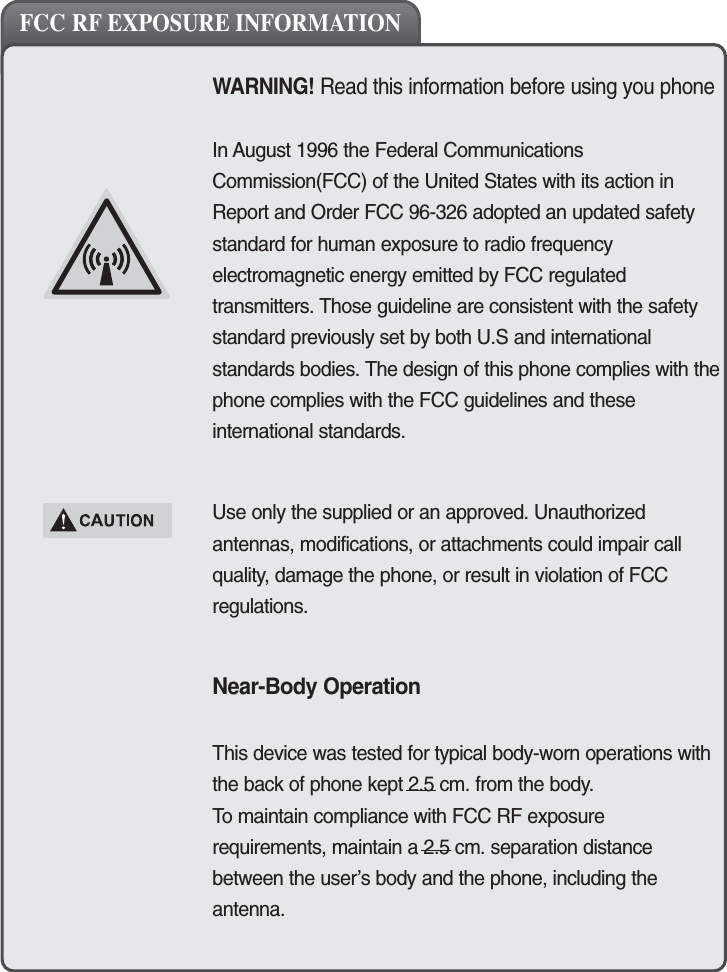
3WARNING! Read this information before using you phoneIn August 1996 the Federal CommunicationsCommission(FCC) of the United States with its action inReport and Order FCC 96-326 adopted an updated safetystandard for human exposure to radio frequencyelectromagnetic energy emitted by FCC regulatedtransmitters. Those guideline are consistent with the safetystandard previously set by both U.S and internationalstandards bodies. The design of this phone complies with thephone complies with the FCC guidelines and theseinternational standards.Use only the supplied or an approved. Unauthorizedantennas, modifications, or attachments could impair callquality, damage the phone, or result in violation of FCCregulations.Near-Body OperationThis device was tested for typical body-worn operations withthe back of phone kept 2.5 cm. from the body. To maintain compliance with FCC RF exposurerequirements, maintain a 2.5 cm. separation distancebetween the user’s body and the phone, including theantenna.FCC RF EXPOSURE INFORMATION
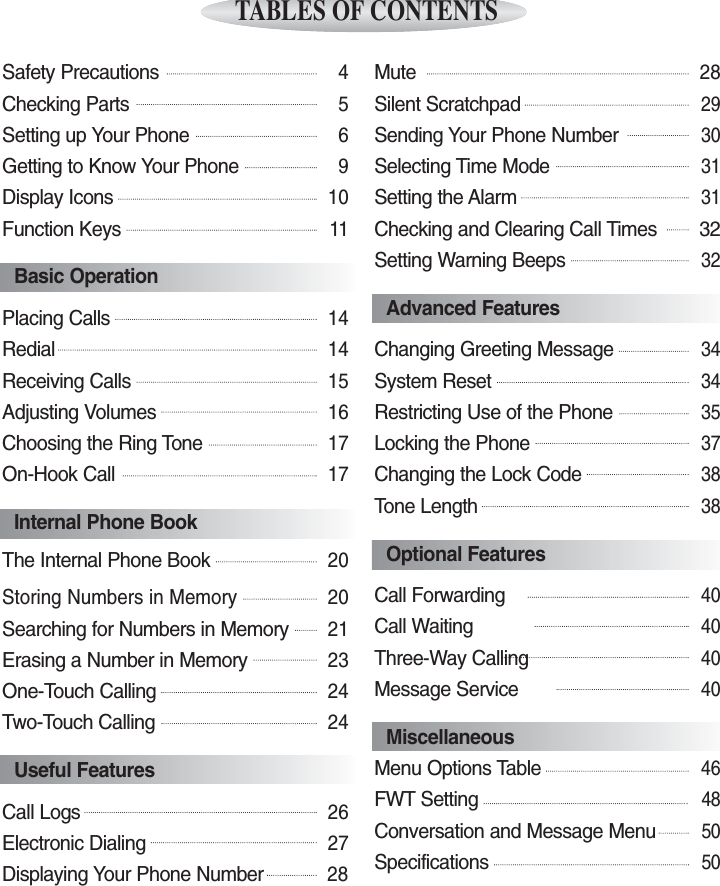
Safety Precautions4 Checking Parts 5Setting up Your Phone6Getting to Know Your Phone9Display Icons10Function Keys11Basic OperationPlacing Calls14 Redial14Receiving Calls15Adjusting Volumes16Choosing the Ring Tone17On-Hook Call17Internal Phone BookThe Internal Phone Book20Storing Numbers in Memory 20Searching for Numbers in Memory21Erasing a Number in Memory23   One-Touch Calling24   Two-Touch Calling24Useful FeaturesCall Logs26Electronic Dialing27Displaying Your Phone Number28Mute28Silent Scratchpad 29Sending Your Phone Number30Selecting Time Mode31Setting the Alarm31Checking and Clearing Call Times 32Setting Warning Beeps32Advanced FeaturesChanging Greeting Message34System Reset34 Restricting Use of the Phone35Locking the Phone37Changing the Lock Code38Tone Length38Optional FeaturesCall Forwarding40Call Waiting40Three-Way Calling40Message Service40MiscellaneousMenu Options Table46FWT Setting48Conversation and Message Menu50Specifications50TABLES OF CONTENTS
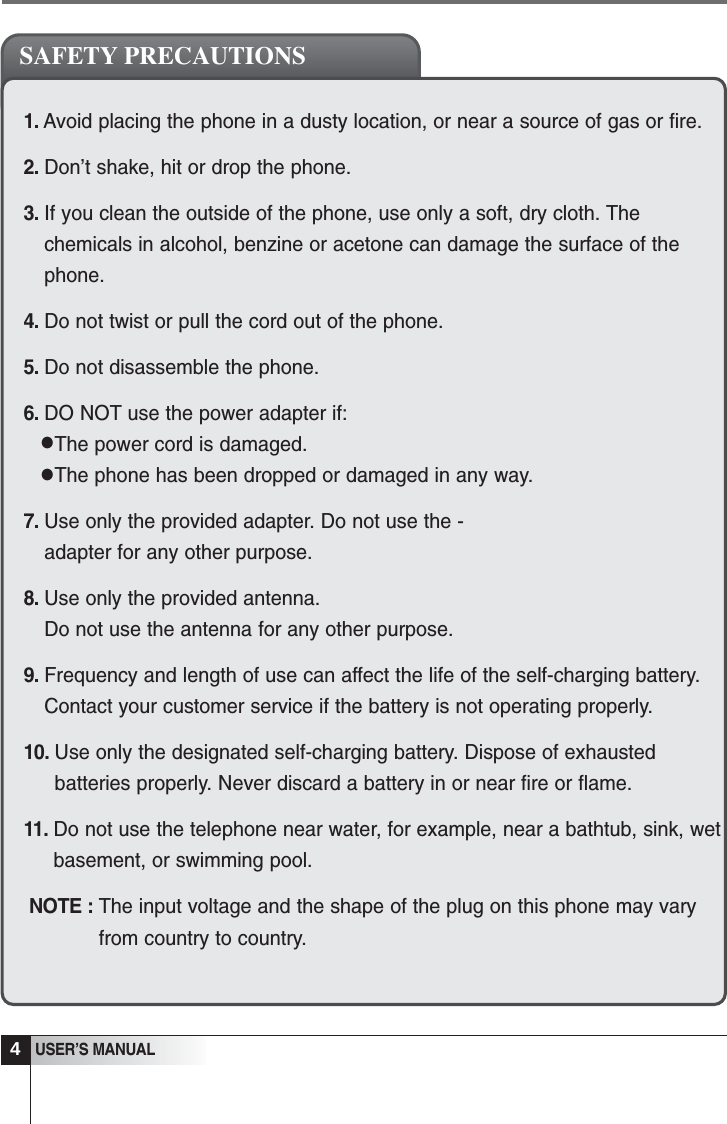
1. Avoid placing the phone in a dusty location, or near a source of gas or fire.2. Don’t shake, hit or drop the phone.3. If you clean the outside of the phone, use only a soft, dry cloth. Thechemicals in alcohol, benzine or acetone can damage the surface of thephone.4. Do not twist or pull the cord out of the phone.5. Do not disassemble the phone.6. DO NOT use the power adapter if:The power cord is damaged.The phone has been dropped or damaged in any way.7. Use only the provided adapter. Do not use the -adapter for any other purpose.8. Use only the provided antenna. Do not use the antenna for any other purpose.9. Frequency and length of use can affect the life of the self-charging battery.Contact your customer service if the battery is not operating properly.10. Use only the designated self-charging battery. Dispose of exhaustedbatteries properly. Never discard a battery in or near fire or flame.11. Do not use the telephone near water, for example, near a bathtub, sink, wetbasement, or swimming pool.NOTE : The input voltage and the shape of the plug on this phone may varyfrom country to country.4USER’S MANUALSAFETY PRECAUTIONS••
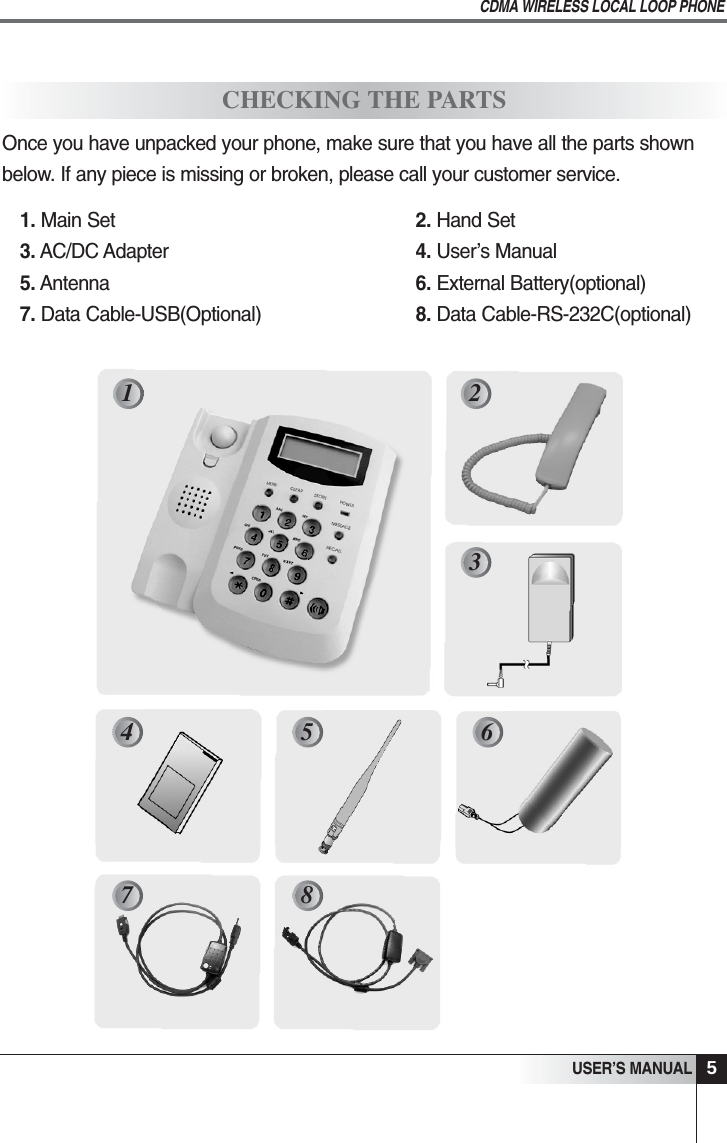
Once you have unpacked your phone, make sure that you have all the parts shownbelow. If any piece is missing or broken, please call your customer service.1. Main Set   2. Hand Set 3. AC/DC Adapter 4. User’s Manual 5. Antenna 6. External Battery(optional)7. Data Cable-USB(Optional) 8. Data Cable-RS-232C(optional)5USER’S MANUALCDMA WIRELESS LOCAL LOOP PHONECHECKING THE PARTS1 2365487
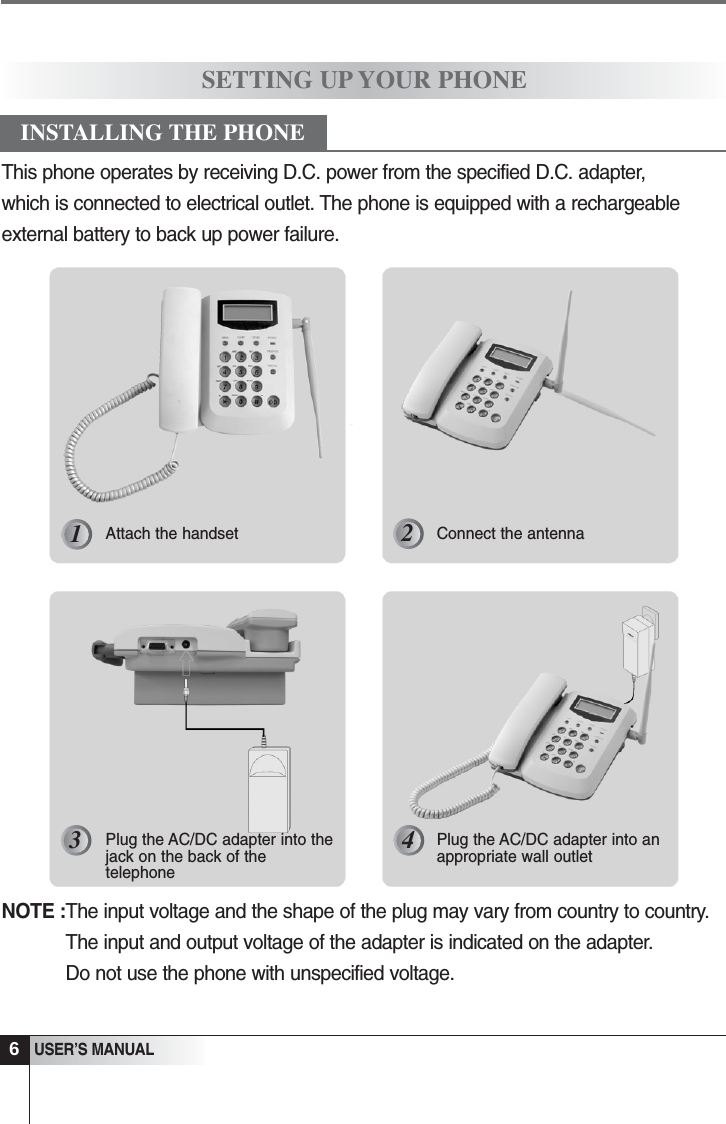
NOTE :The input voltage and the shape of the plug may vary from country to country.The input and output voltage of the adapter is indicated on the adapter.Do not use the phone with unspecified voltage.6USER’S MANUALSETTING UP YOUR PHONEAttach the handset Connect the antennaPlug the AC/DC adapter into thejack on the back of thetelephonePlug the AC/DC adapter into anappropriate wall outletINSTALLING THE PHONE123 4This phone operates by receiving D.C. power from the specified D.C. adapter, which is connected to electrical outlet. The phone is equipped with a rechargeableexternal battery to back up power failure.
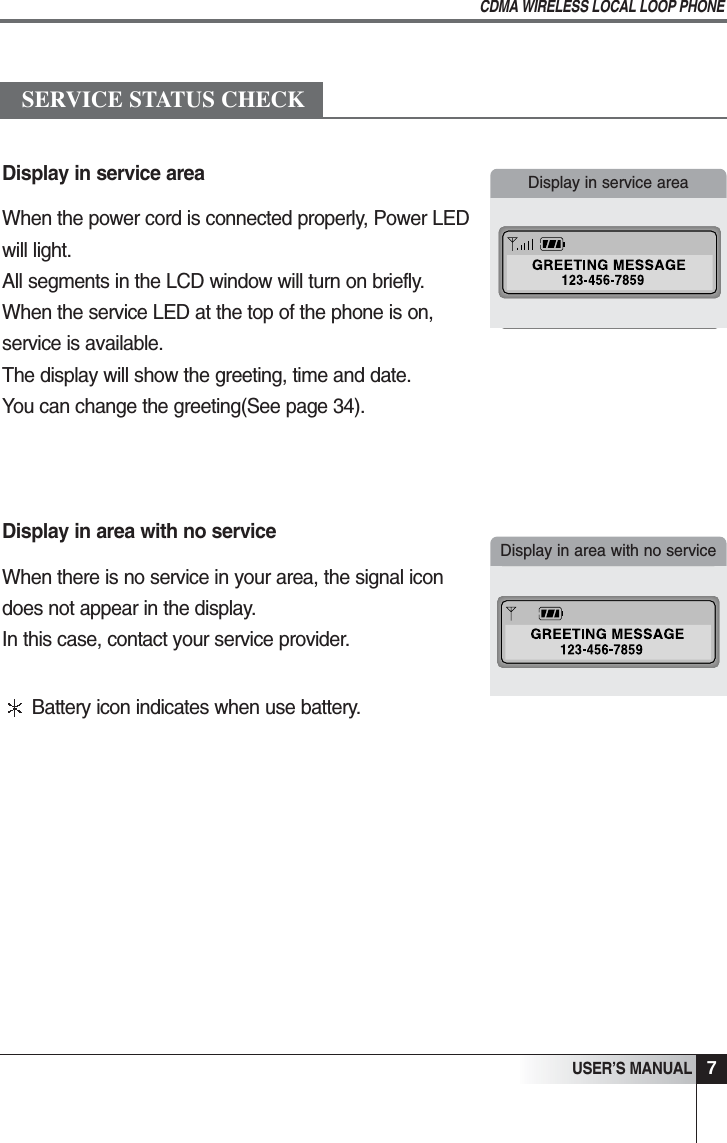
Display in service areaWhen the power cord is connected properly, Power LEDwill light. All segments in the LCD window will turn on briefly.When the service LED at the top of the phone is on, service is available. The display will show the greeting, time and date.You can change the greeting(See page 34). Display in area with no serviceWhen there is no service in your area, the signal icon does not appear in the display. In this case, contact your service provider.7USER’S MANUALCDMA WIRELESS LOCAL LOOP PHONESERVICE STATUS CHECKDisplay in service areaDisplay in area with no serviceBattery icon indicates when use battery.
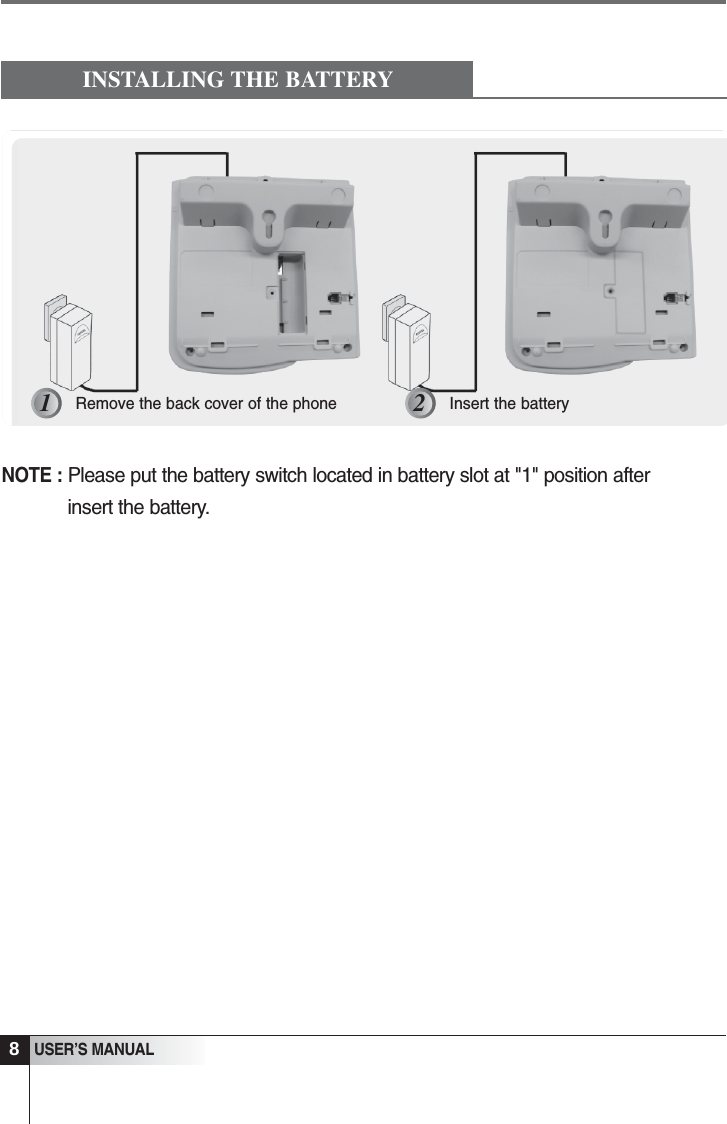
USER’S MANUALINSTALLING THE BATTERYRemove the back cover of the phone Insert the battery1 28NOTE :Please put the battery switch located in battery slot at "1" position afterinsert the battery.
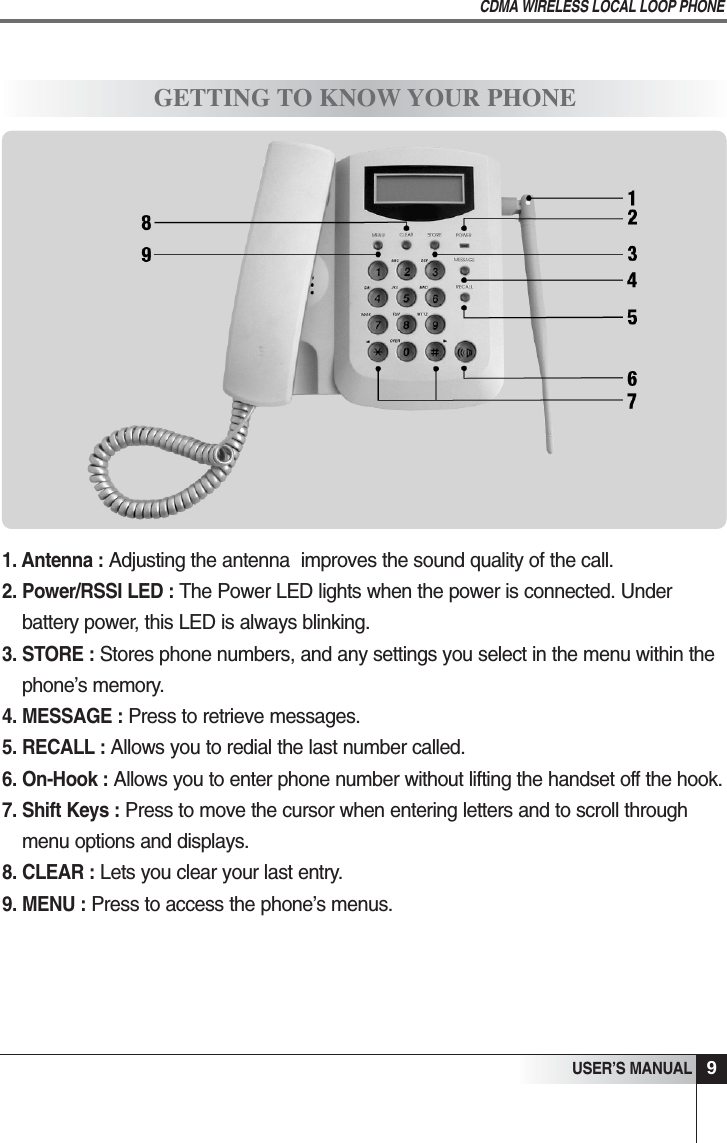
9USER’S MANUALCDMA WIRELESS LOCAL LOOP PHONEGETTING TO KNOW YOUR PHONE1. Antenna :Adjusting the antenna  improves the sound quality of the call.2. Power/RSSI LED : The Power LED lights when the power is connected. Underbattery power, this LED is always blinking.3. STORE : Stores phone numbers, and any settings you select in the menu within thephone’s memory.4. MESSAGE : Press to retrieve messages.5. RECALL : Allows you to redial the last number called.6. On-Hook : Allows you to enter phone number without lifting the handset off the hook.7. Shift Keys : Press to move the cursor when entering letters and to scroll throughmenu options and displays.8. CLEAR :Lets you clear your last entry.9. MENU : Press to access the phone’s menus.
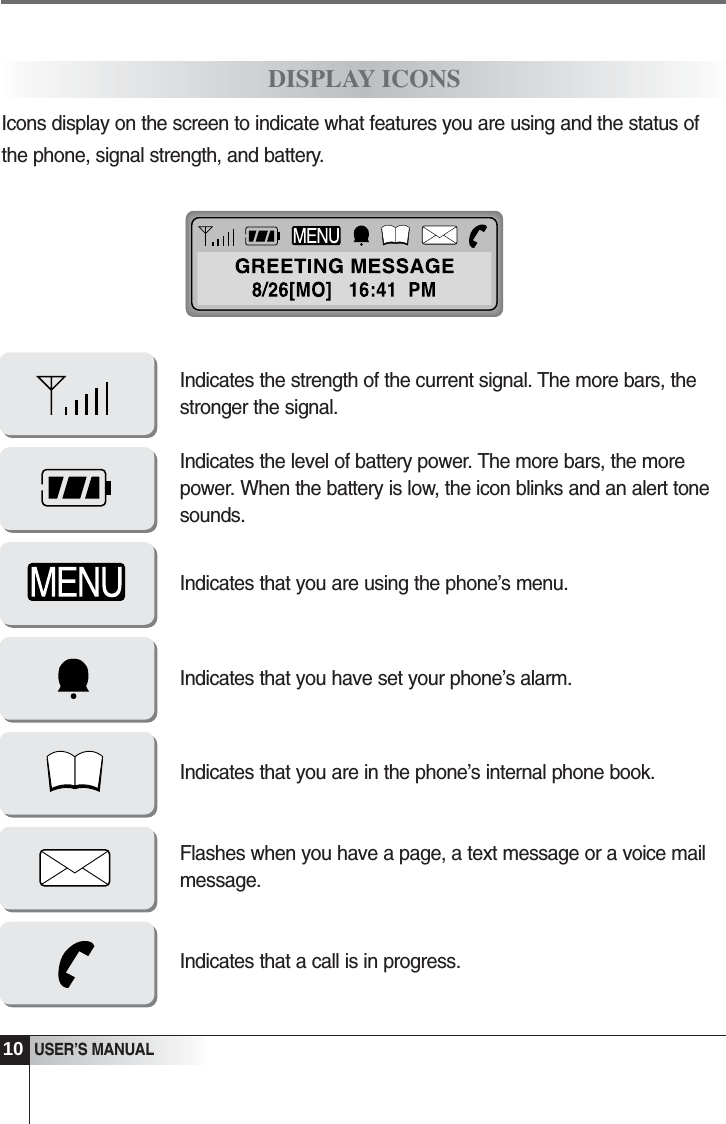
Icons display on the screen to indicate what features you are using and the status ofthe phone, signal strength, and battery.10USER’S MANUALDISPLAY ICONSIndicates the strength of the current signal. The more bars, thestronger the signal.Indicates the level of battery power. The more bars, the morepower. When the battery is low, the icon blinks and an alert tonesounds.Indicates that you are using the phone’s menu.Indicates that you have set your phone’s alarm.Indicates that you are in the phone’s internal phone book.Flashes when you have a page, a text message or a voice mailmessage.Indicates that a call is in progress.
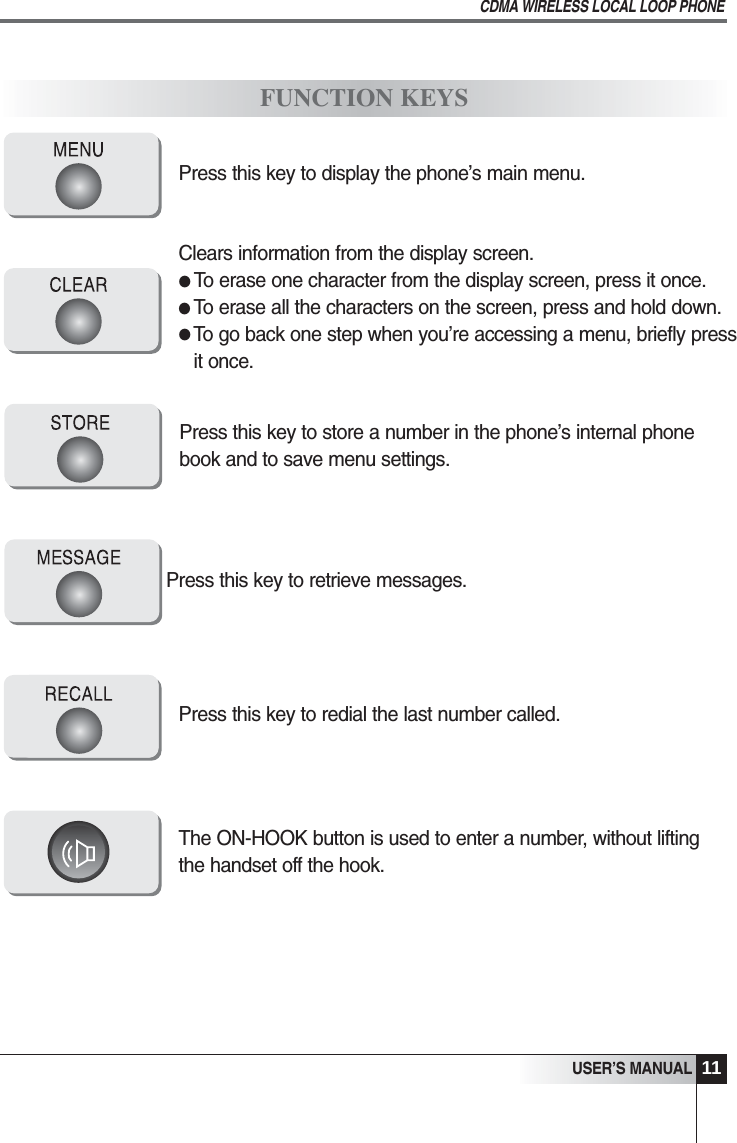
11USER’S MANUALCDMA WIRELESS LOCAL LOOP PHONEPress this key to display the phone’s main menu.Press this key to store a number in the phone’s internal phonebook and to save menu settings.Press this key to retrieve messages.Press this key to redial the last number called.The ON-HOOK button is used to enter a number, without liftingthe handset off the hook.Clears information from the display screen.To erase one character from the display screen, press it once.To erase all the characters on the screen, press and hold down.To go back one step when you’re accessing a menu, briefly pressit once.FUNCTION KEYS•••
Placing CallsRedialReceiving CallsAdjusting VolumesChoosing the Ring ToneOn-Hook CallBasic Operation
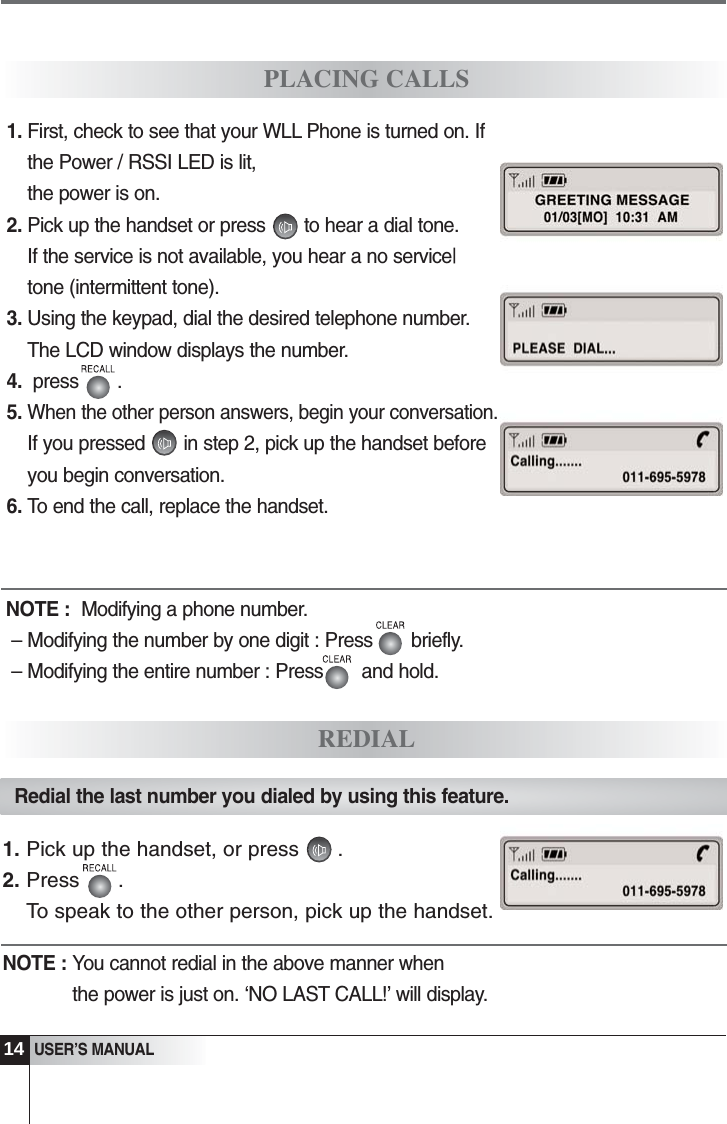
31. First, check to see that your WLL Phone is turned on. Ifthe Power / RSSI LED is lit, the power is on.2. Pick up the handset or press       to hear a dial tone.If the service is not available, you hear a no service|tone (intermittent tone).3. Using the keypad, dial the desired telephone number. The LCD window displays the number.4.  press       .5. When the other person answers, begin your conversation.If you pressed       in step 2, pick up the handset beforeyou begin conversation.6. To end the call, replace the handset.PLACING CALLSREDIALNOTE :  Modifying a phone number.– Modifying the number by one digit : Press       briefly.– Modifying the entire number : Press       and hold.Redial the last number you dialed by using this feature.1. Pick up the handset, or press .2. Press .To speak to the other person, pick up the handset.NOTE : You cannot redial in the above manner whenthe power is just on. ‘NO LAST CALL!’ will display.USER’S MANUAL14
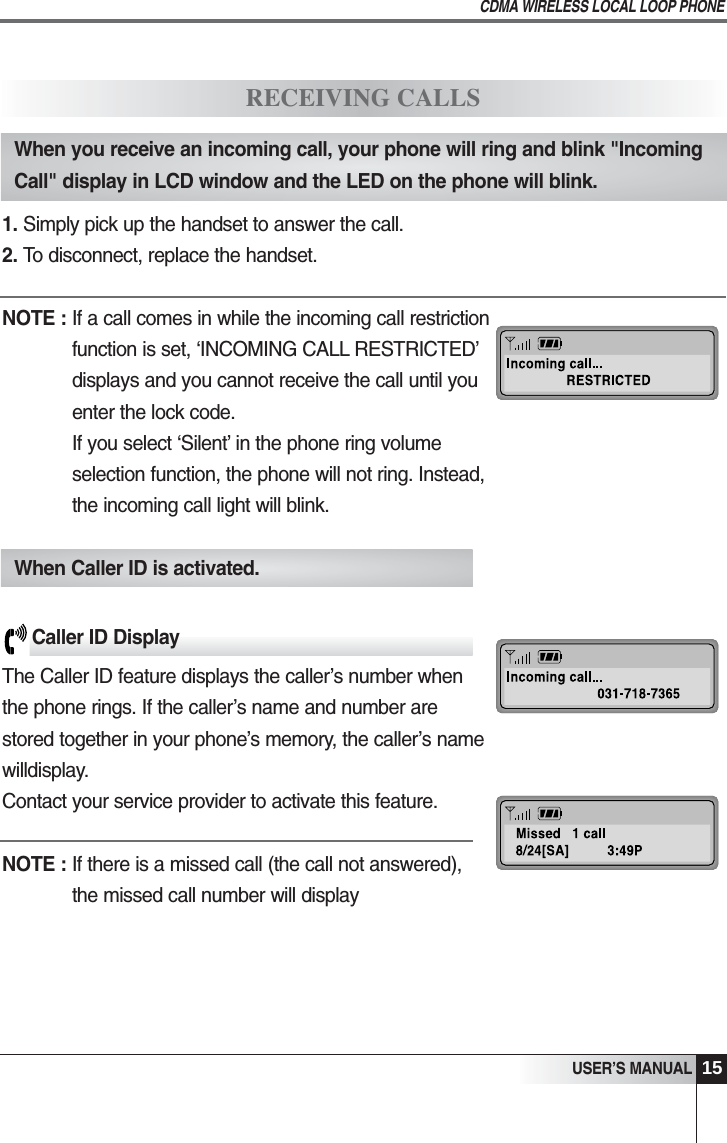
15USER’S MANUALCDMA WIRELESS LOCAL LOOP PHONERECEIVING CALLSWhen you receive an incoming call, your phone will ring and blink "IncomingCall" display in LCD window and the LED on the phone will blink.1. Simply pick up the handset to answer the call.2. To disconnect, replace the handset.NOTE : If a call comes in while the incoming call restrictionfunction is set, ‘INCOMING CALL RESTRICTED’displays and you cannot receive the call until youenter the lock code.If you select ‘Silent’ in the phone ring volumeselection function, the phone will not ring. Instead,the incoming call light will blink.When Caller ID is activated.Caller ID DisplayThe Caller ID feature displays the caller’s number when the phone rings. If the caller’s name and number are stored together in your phone’s memory, the caller’s namewilldisplay. Contact your service provider to activate this feature.   NOTE : If there is a missed call (the call not answered), the missed call number will display
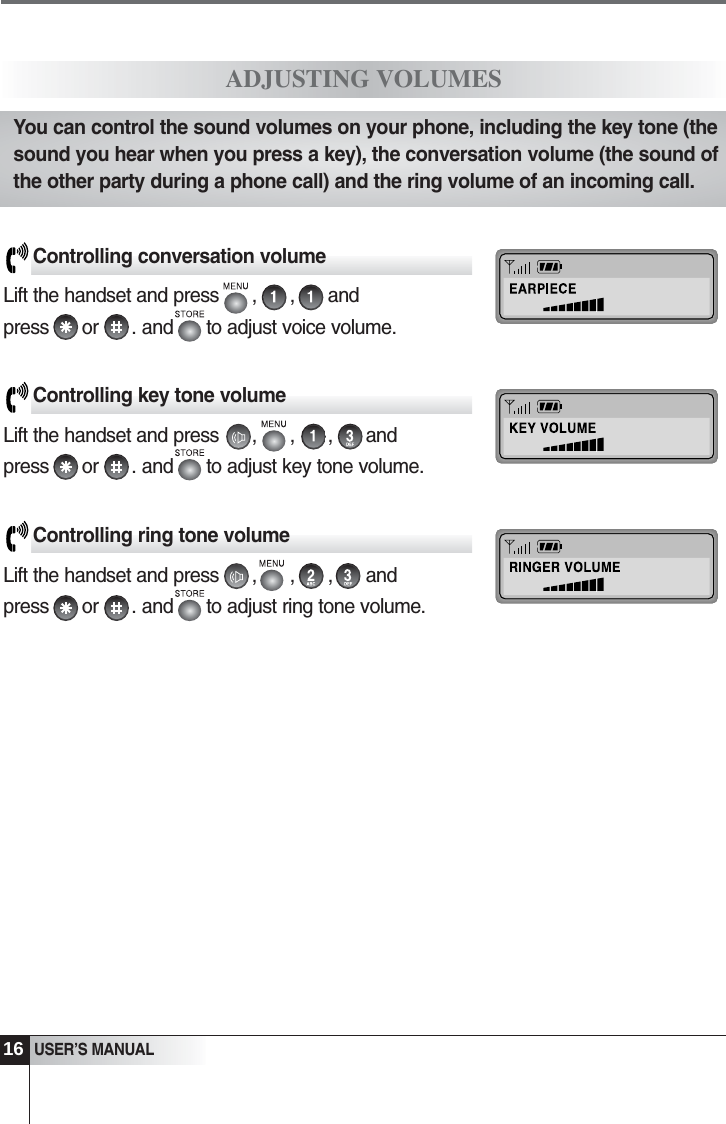
3USER’S MANUALADJUSTING VOLUMESControlling conversation volumeLift the handset and press      ,      ,      and press      or      . and      to adjust voice volume. Controlling key tone volumeLift the handset and press      ,      ,      ,      and press      or      . and      to adjust key tone volume. Controlling ring tone volumeLift the handset and press      ,      ,      ,      and press      or      . and      to adjust ring tone volume.You can control the sound volumes on your phone, including the key tone (thesound you hear when you press a key), the conversation volume (the sound ofthe other party during a phone call) and the ring volume of an incoming call.16
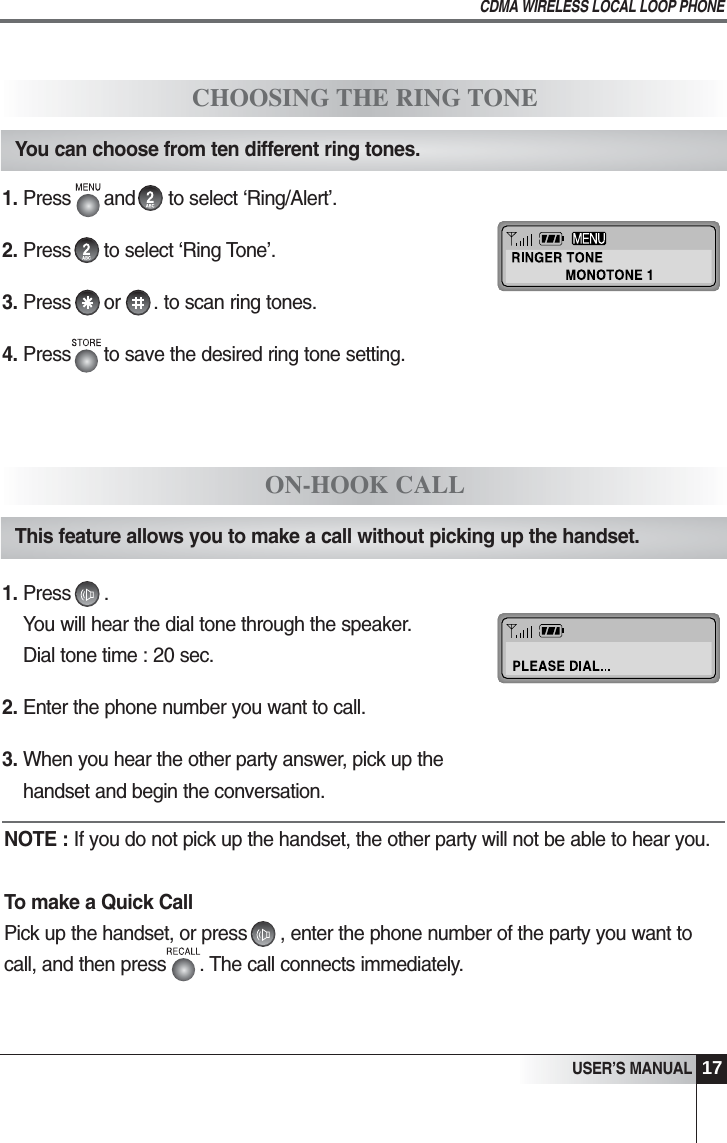
17USER’S MANUALCDMA WIRELESS LOCAL LOOP PHONECHOOSING THE RING TONEYou can choose from ten different ring tones.1. Press      and      to select ‘Ring/Alert’.2. Press      to select ‘Ring Tone’.3. Press      or      . to scan ring tones. 4. Press      to save the desired ring tone setting.ON-HOOK CALLThis feature allows you to make a call without picking up the handset.   1. Press      . You will hear the dial tone through the speaker.Dial tone time : 20 sec.2. Enter the phone number you want to call.3. When you hear the other party answer, pick up thehandset and begin the conversation.NOTE : If you do not pick up the handset, the other party will not be able to hear you.To make a Quick CallPick up the handset, or press      , enter the phone number of the party you want tocall, and then press      . The call connects immediately.
The Internal Phone BookStoring Numbers in MemorySearching for Numbers in MemoryErasing a Number in MemoryOne-Touch CallingTwo-Touch CallingInternal Phone Book
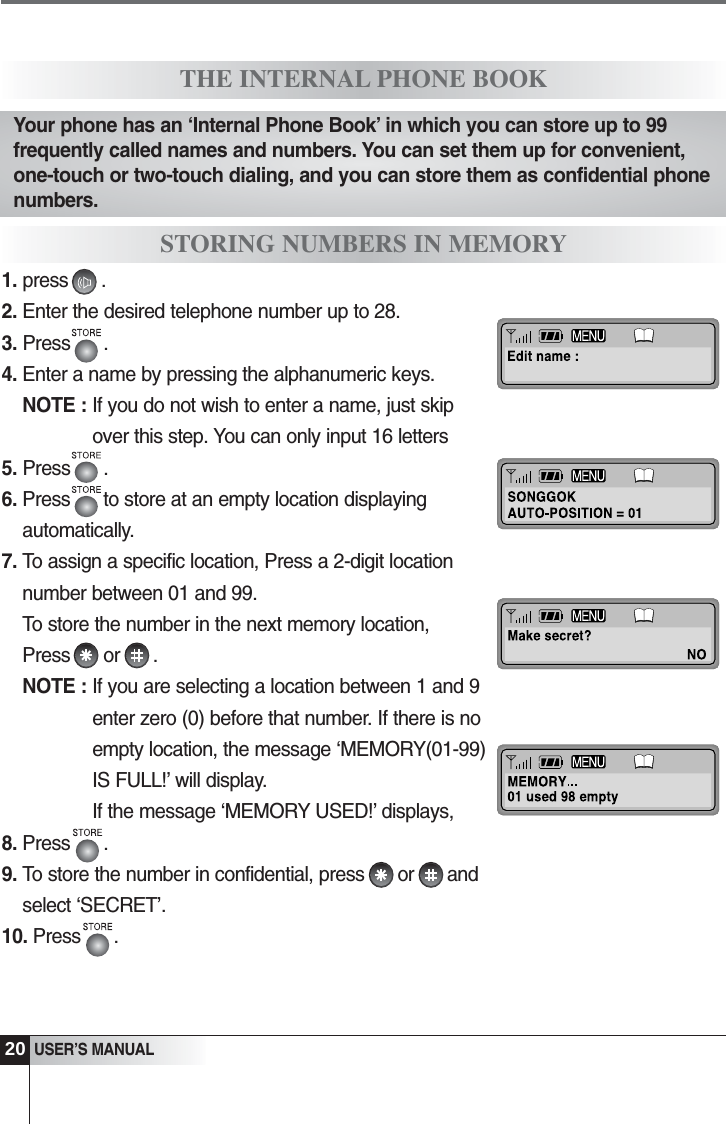
1. press      .2. Enter the desired telephone number up to 28.3. Press      . 4. Enter a name by pressing the alphanumeric keys.NOTE : If you do not wish to enter a name, just skipover this step. You can only input 16 letters5. Press      .6. Press      to store at an empty location displayingautomatically.7. To assign a specific location, Press a 2-digit locationnumber between 01 and 99. To store the number in the next memory location,Press      or      .NOTE : If you are selecting a location between 1 and 9enter zero (0) before that number. If there is noempty location, the message ‘MEMORY(01-99)IS FULL!’ will display. If the message ‘MEMORY USED!’ displays, 8. Press      .9. To store the number in confidential, press      or      andselect ‘SECRET’.10. Press      .20USER’S MANUALTHE INTERNAL PHONE BOOKSTORING NUMBERS IN MEMORYYour phone has an ‘Internal Phone Book’ in which you can store up to 99frequently called names and numbers. You can set them up for convenient,one-touch or two-touch dialing, and you can store them as confidential phonenumbers.
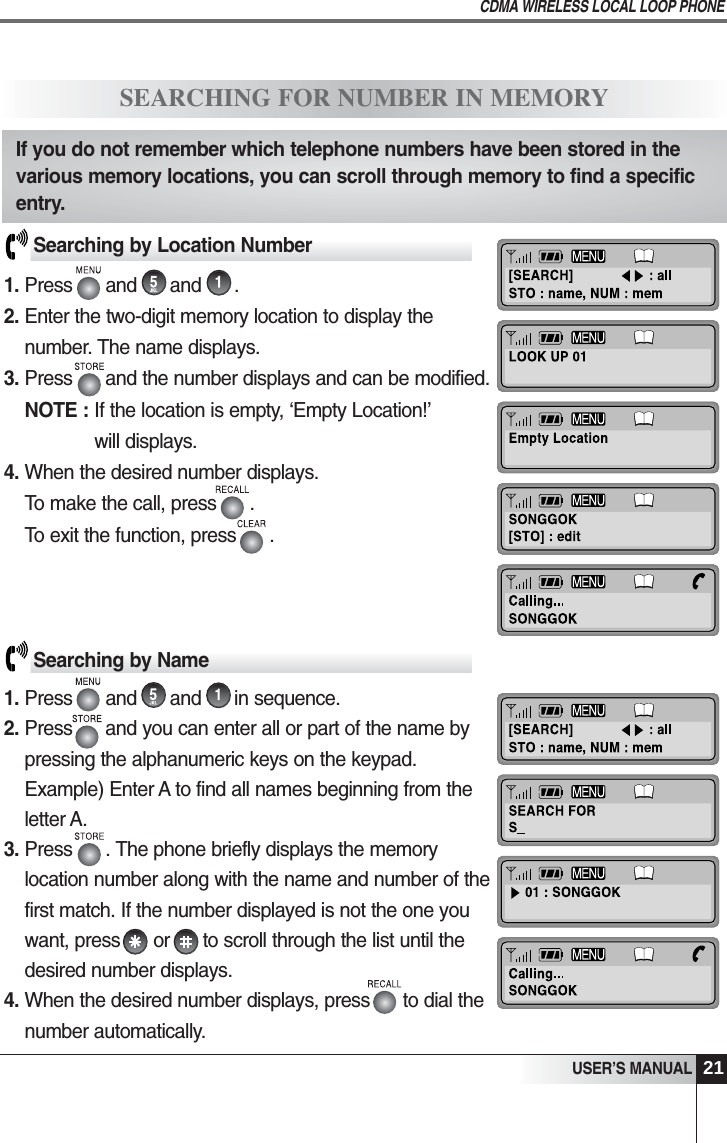
USER’S MANUALCDMA WIRELESS LOCAL LOOP PHONE21SEARCHING FOR NUMBER IN MEMORYSearching by Location Number1. Press      and      and      .2. Enter the two-digit memory location to display thenumber. The name displays.3. Press      and the number displays and can be modified.NOTE : If the location is empty, ‘Empty Location!’will displays.4. When the desired number displays.To make the call, press      .To exit the function, press      .Searching by Name1. Press      and      and      in sequence.2. Press      and you can enter all or part of the name bypressing the alphanumeric keys on the keypad.Example) Enter A to find all names beginning from theletter A. 3. Press      . The phone briefly displays the memorylocation number along with the name and number of thefirst match. If the number displayed is not the one youwant, press      or      to scroll through the list until thedesired number displays.4. When the desired number displays, press      to dial thenumber automatically.If you do not remember which telephone numbers have been stored in thevarious memory locations, you can scroll through memory to find a specificentry.
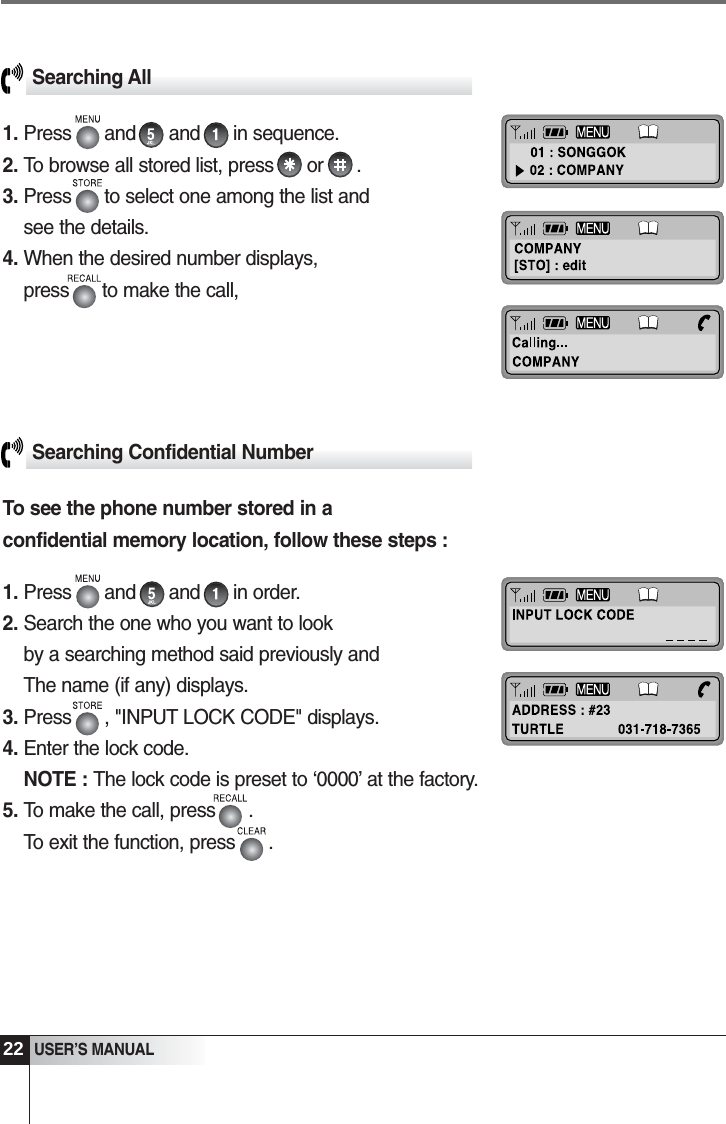
22USER’S MANUALSearching All1. Press      and      and      in sequence. 2. To browse all stored list, press      or      .3. Press      to select one among the list and see the details.4. When the desired number displays, press      to make the call,Searching Confidential NumberTo see the phone number stored in aconfidential memory location, follow these steps :1. Press      and      and      in order.2. Search the one who you want to look by a searching method said previously and The name (if any) displays.3. Press      , "INPUT LOCK CODE" displays. 4. Enter the lock code.NOTE : The lock code is preset to ‘0000’ at the factory.5. To make the call, press      .To exit the function, press      .
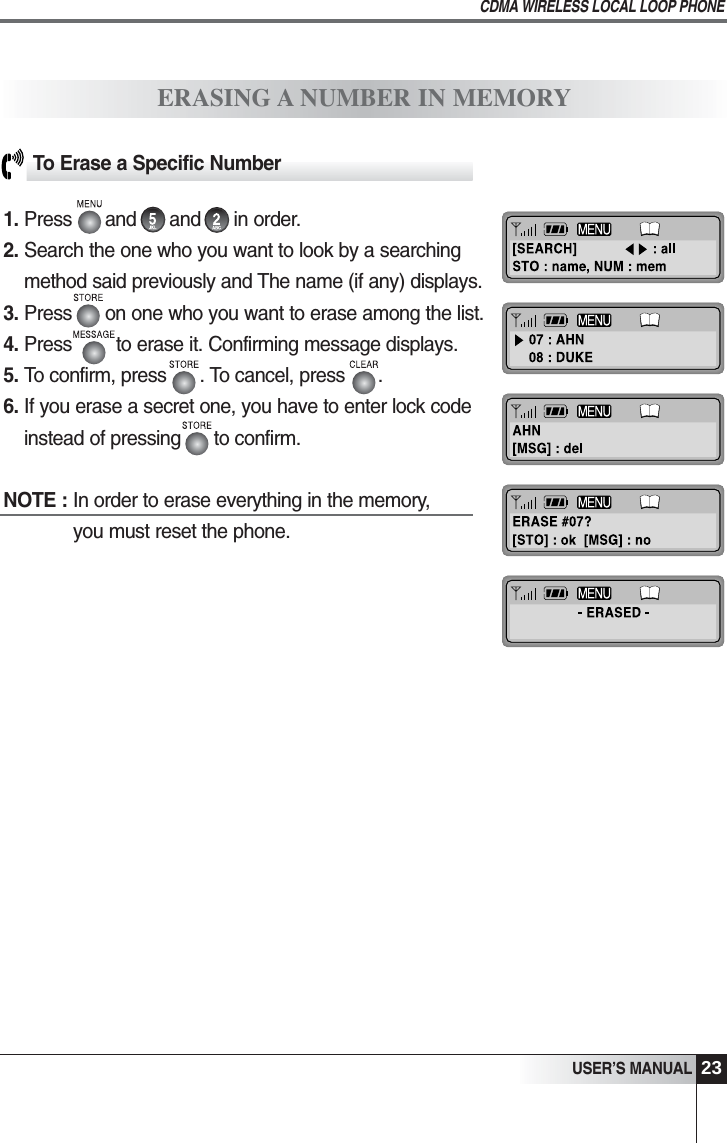
23USER’S MANUALCDMA WIRELESS LOCAL LOOP PHONEERASING A NUMBER IN MEMORYTo Erase a Specific Number1. Press      and      and      in order. 2. Search the one who you want to look by a searchingmethod said previously and The name (if any) displays. 3. Press      on one who you want to erase among the list.4. Press        to erase it. Confirming message displays.5. To confirm, press      . To cancel, press      . 6. If you erase a secret one, you have to enter lock codeinstead of pressing      to confirm.NOTE : In order to erase everything in the memory, you must reset the phone.
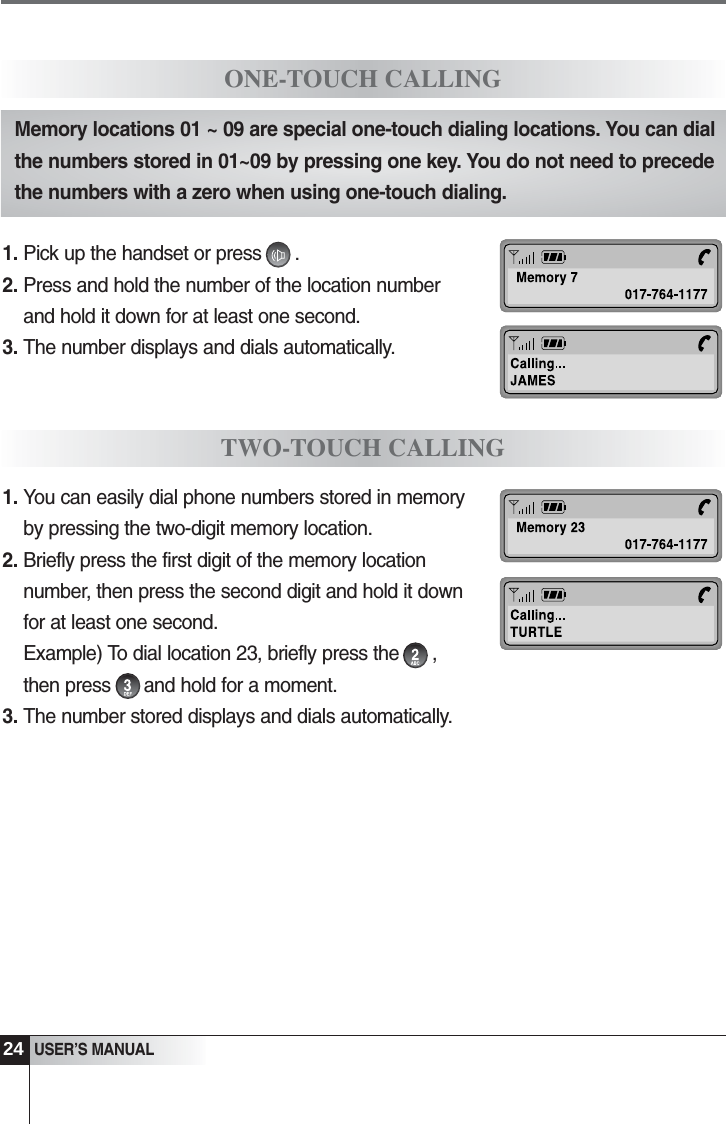
24USER’S MANUALONE-TOUCH CALLINGTWO-TOUCH CALLINGMemory locations 01 ~ 09 are special one-touch dialing locations. You can dialthe numbers stored in 01~09 by pressing one key. You do not need to precedethe numbers with a zero when using one-touch dialing.1. Pick up the handset or press      .2. Press and hold the number of the location numberand hold it down for at least one second. 3. The number displays and dials automatically.1. You can easily dial phone numbers stored in memoryby pressing the two-digit memory location.2. Briefly press the first digit of the memory locationnumber, then press the second digit and hold it downfor at least one second. Example) To dial location 23, briefly press the      ,then press      and hold for a moment.3. The number stored displays and dials automatically.
Call LogsElectric DialingDisplaying Your Phone NumberMuteSilent ScratchpadSending Your Phone NumberSelecting Time ModeSetting the AlarmChecking and Clearing Call TimesSetting Warning BeepsUseful Features
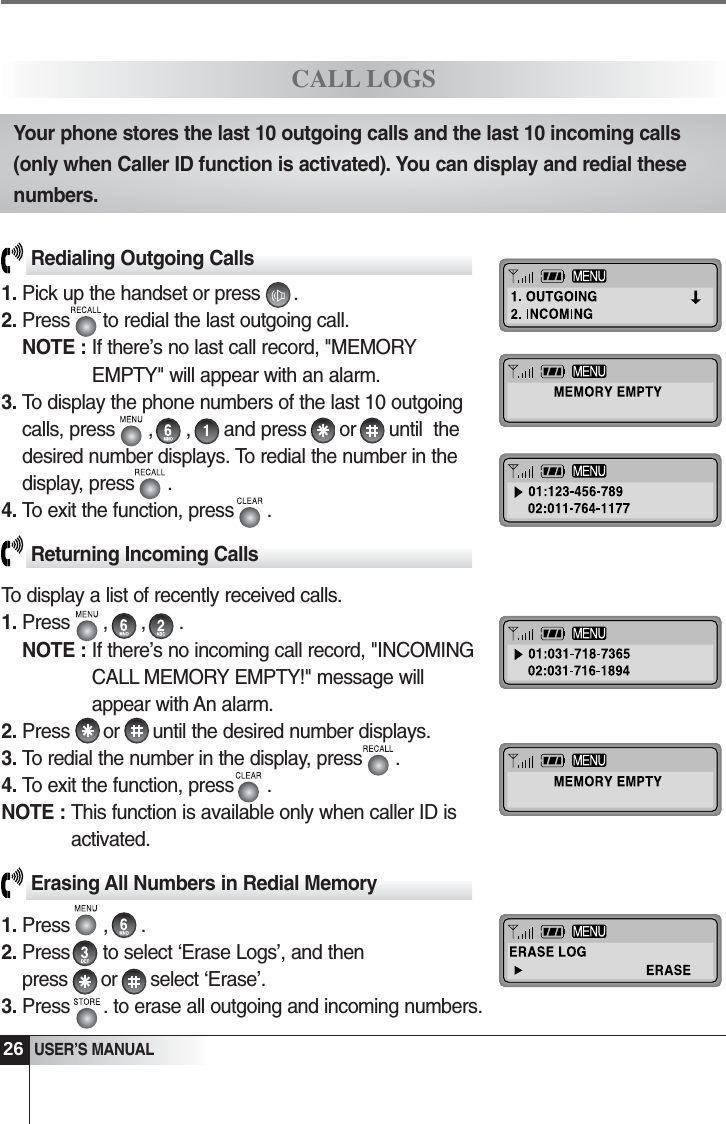
26USER’S MANUALRedialing Outgoing Calls1. Pick up the handset or press      .2. Press      to redial the last outgoing call.NOTE : If there’s no last call record, "MEMORYEMPTY" will appear with an alarm. 3. To display the phone numbers of the last 10 outgoingcalls, press      ,      ,      and press      or      until  thedesired number displays. To redial the number in thedisplay, press      .4. To exit the function, press      .Returning Incoming CallsTo display a list of recently received calls.1. Press      ,      ,      .NOTE : If there’s no incoming call record, "INCOMINGCALL MEMORY EMPTY!" message willappear with An alarm.2. Press      or      until the desired number displays.3. To redial the number in the display, press      . 4. To exit the function, press      .NOTE : This function is available only when caller ID isactivated.Erasing All Numbers in Redial Memory1. Press      ,      .  2. Press      to select ‘Erase Logs’, and then press      or      select ‘Erase’.3. Press      . to erase all outgoing and incoming numbers. CALL LOGSYour phone stores the last 10 outgoing calls and the last 10 incoming calls(only when Caller ID function is activated). You can display and redial thesenumbers.
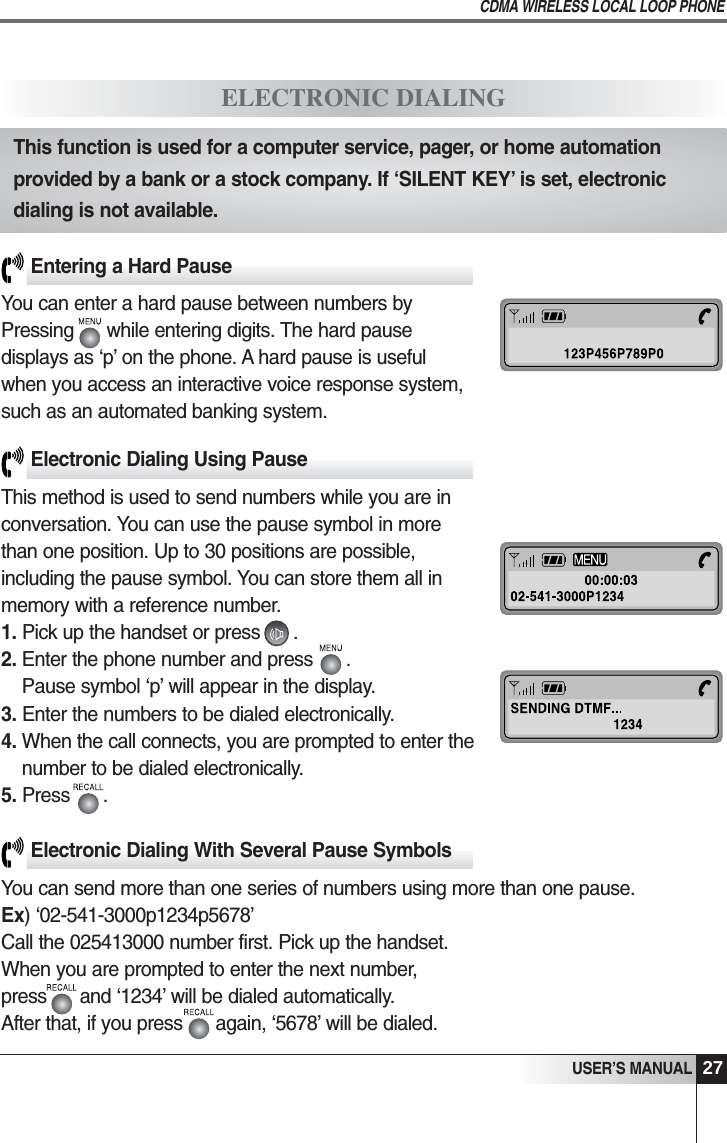
27USER’S MANUALCDMA WIRELESS LOCAL LOOP PHONEElectronic Dialing With Several Pause SymbolsYou can send more than one series of numbers using more than one pause.Ex) ‘02-541-3000p1234p5678’Call the 025413000 number first. Pick up the handset.When you are prompted to enter the next number,press      and ‘1234’ will be dialed automatically.After that, if you press      again, ‘5678’ will be dialed.Entering a Hard PauseYou can enter a hard pause between numbers by Pressing      while entering digits. The hard pause displays as ‘p’ on the phone. A hard pause is useful when you access an interactive voice response system, such as an automated banking system.Electronic Dialing Using PauseThis method is used to send numbers while you are in conversation. You can use the pause symbol in more than one position. Up to 30 positions are possible, including the pause symbol. You can store them all in memory with a reference number.1. Pick up the handset or press      . 2. Enter the phone number and press      . Pause symbol ‘p’ will appear in the display.3. Enter the numbers to be dialed electronically.4. When the call connects, you are prompted to enter thenumber to be dialed electronically.5. Press      .ELECTRONIC DIALINGThis function is used for a computer service, pager, or home automationprovided by a bank or a stock company. If ‘SILENT KEY’ is set, electronicdialing is not available.
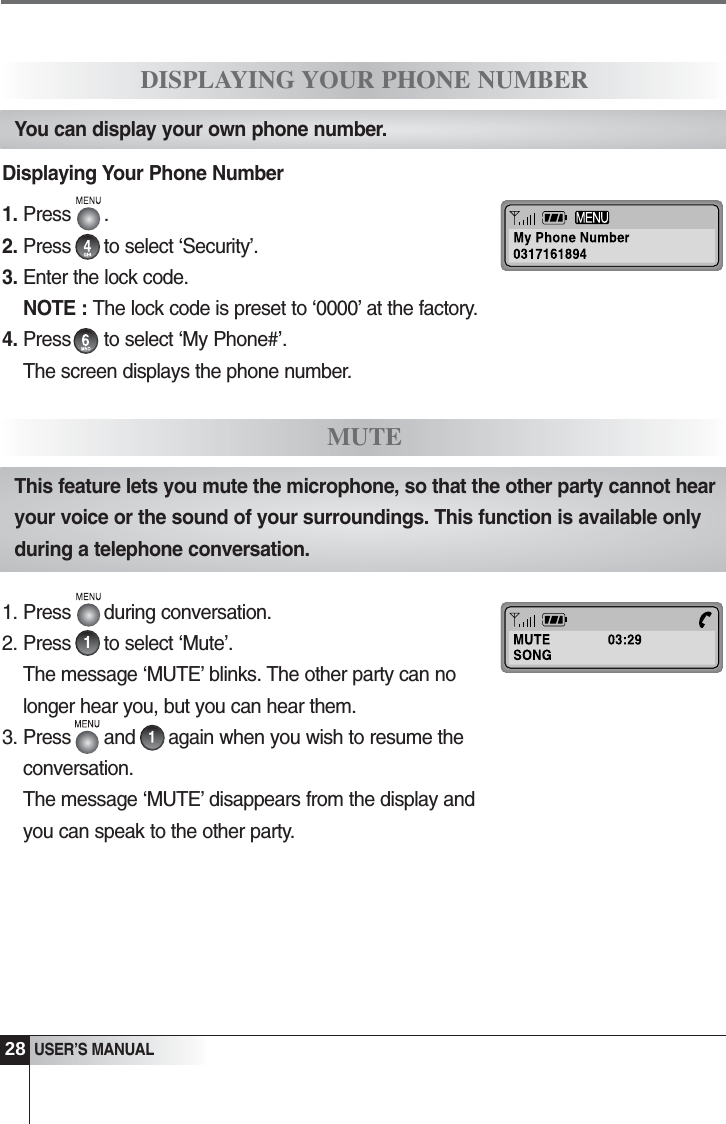
28USER’S MANUALDisplaying Your Phone Number1. Press      .  2. Press      to select ‘Security’. 3. Enter the lock code.NOTE : The lock code is preset to ‘0000’ at the factory.4. Press      to select ‘My Phone#’.The screen displays the phone number.DISPLAYING YOUR PHONE NUMBERYou can display your own phone number.1. Press      during conversation. 2. Press      to select ‘Mute’.The message ‘MUTE’ blinks. The other party can nolonger hear you, but you can hear them.3. Press      and      again when you wish to resume theconversation.The message ‘MUTE’ disappears from the display andyou can speak to the other party.MUTEThis feature lets you mute the microphone, so that the other party cannot hearyour voice or the sound of your surroundings. This function is available onlyduring a telephone conversation.
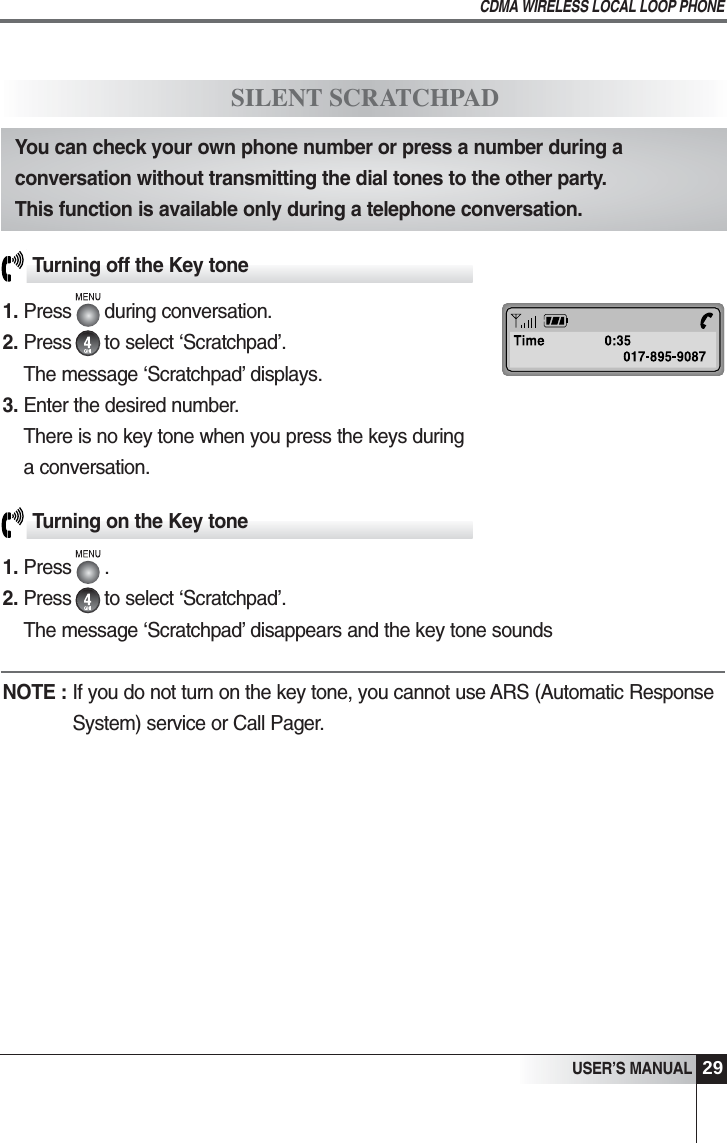
29USER’S MANUALCDMA WIRELESS LOCAL LOOP PHONETurning off the Key tone1. Press      during conversation. 2. Press      to select ‘Scratchpad’.The message ‘Scratchpad’ displays. 3. Enter the desired number.There is no key tone when you press the keys duringa conversation.SILENT SCRATCHPADYou can check your own phone number or press a number during aconversation without transmitting the dial tones to the other party. This function is available only during a telephone conversation.Turning on the Key tone1. Press      .2. Press      to select ‘Scratchpad’.The message ‘Scratchpad’ disappears and the key tone soundsNOTE : If you do not turn on the key tone, you cannot use ARS (Automatic ResponseSystem) service or Call Pager.
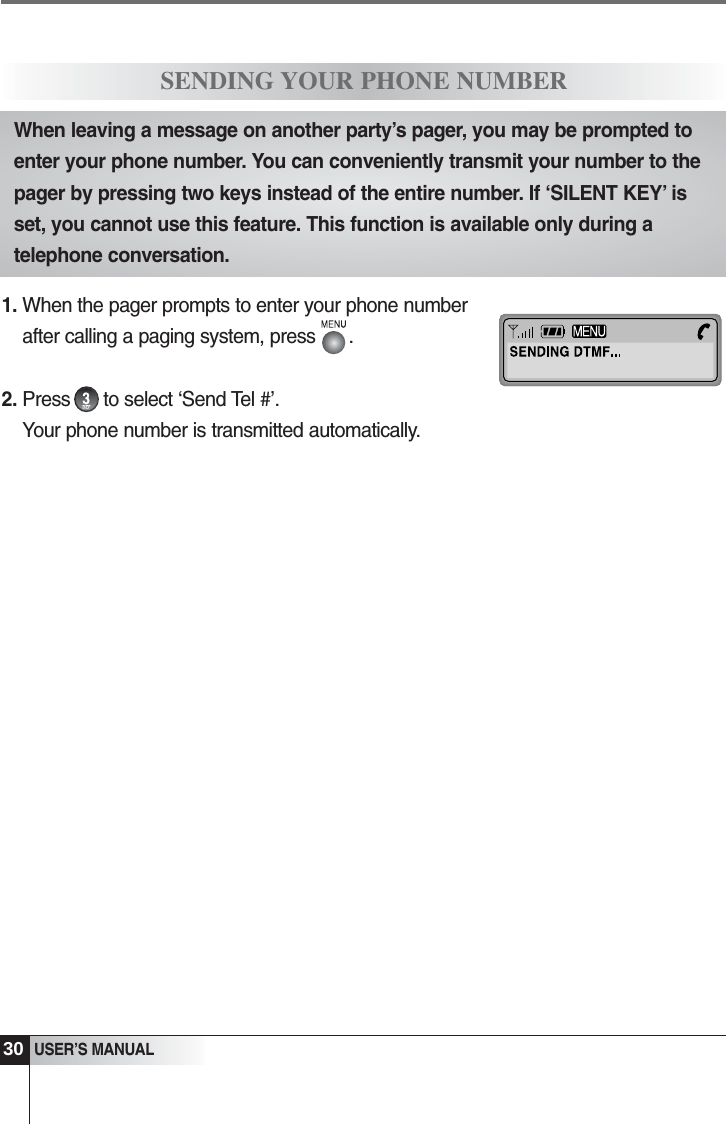
30USER’S MANUAL1. When the pager prompts to enter your phone numberafter calling a paging system, press      .2. Press      to select ‘Send Tel #’.Your phone number is transmitted automatically.SENDING YOUR PHONE NUMBERWhen leaving a message on another party’s pager, you may be prompted toenter your phone number. You can conveniently transmit your number to thepager by pressing two keys instead of the entire number. If ‘SILENT KEY’ isset, you cannot use this feature. This function is available only during atelephone conversation.
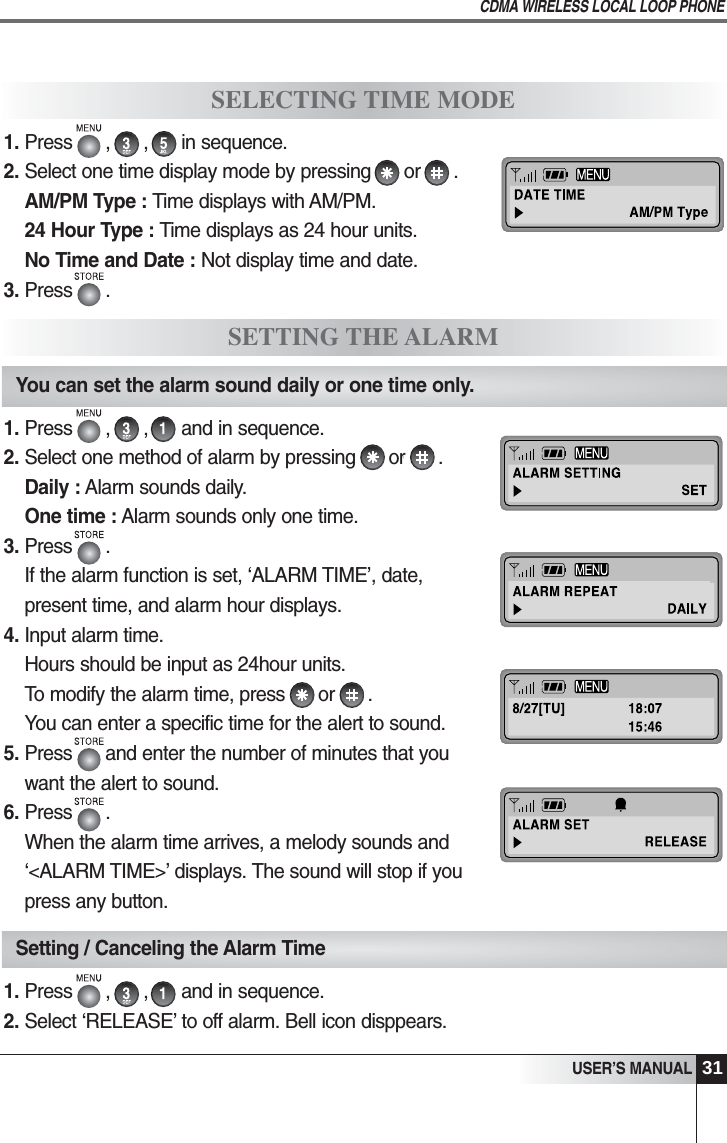
31USER’S MANUALCDMA WIRELESS LOCAL LOOP PHONE1. Press      ,      ,      and in sequence.2. Select ‘RELEASE’ to off alarm. Bell icon disppears.SELECTING TIME MODESETTING THE ALARMYou can set the alarm sound daily or one time only.Setting / Canceling the Alarm Time1. Press      ,      ,      and in sequence. 2. Select one method of alarm by pressing      or      .Daily : Alarm sounds daily.One time : Alarm sounds only one time.3. Press      .If the alarm function is set, ‘ALARM TIME’, date,present time, and alarm hour displays. 4. Input alarm time.Hours should be input as 24hour units.To modify the alarm time, press      or      .You can enter a specific time for the alert to sound. 5. Press      and enter the number of minutes that youwant the alert to sound.6. Press      .When the alarm time arrives, a melody sounds and‘<ALARM TIME>’ displays. The sound will stop if youpress any button.1. Press      ,      ,      in sequence. 2. Select one time display mode by pressing      or      .     AM/PM Type : Time displays with AM/PM.24 Hour Type : Time displays as 24 hour units.No Time and Date : Not display time and date.3. Press      .
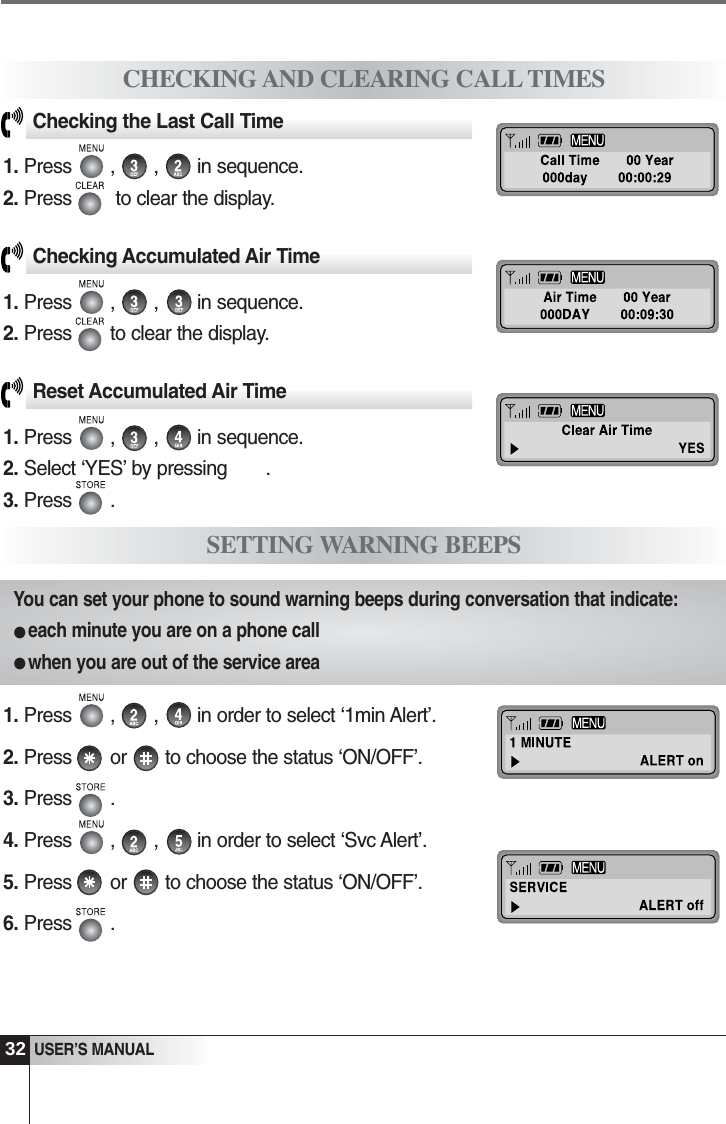
32USER’S MANUALCHECKING AND CLEARING CALL TIMESChecking the Last Call Time1. Press       ,       ,       in sequence. 2. Press        to clear the display.Checking Accumulated Air Time1. Press       ,       ,       in sequence. 2. Press       to clear the display.Reset Accumulated Air Time1. Press       ,       ,       in sequence. 2. Select ‘YES’ by pressing       .3. Press       .SETTING WARNING BEEPSYou can set your phone to sound warning beeps during conversation that indicate: each minute you are on a phone callwhen you are out of the service area1. Press       ,       ,       in order to select ‘1min Alert’. 2. Press       or       to choose the status ‘ON/OFF’.3. Press       .4. Press       ,       ,       in order to select ‘Svc Alert’. 5. Press       or       to choose the status ‘ON/OFF’.6. Press       .••
Changing Greeting MessageSystem ResetRestricting Use of the PhoneLocking the PhoneChanging the Lock CodeTone LengthAdvanced Features
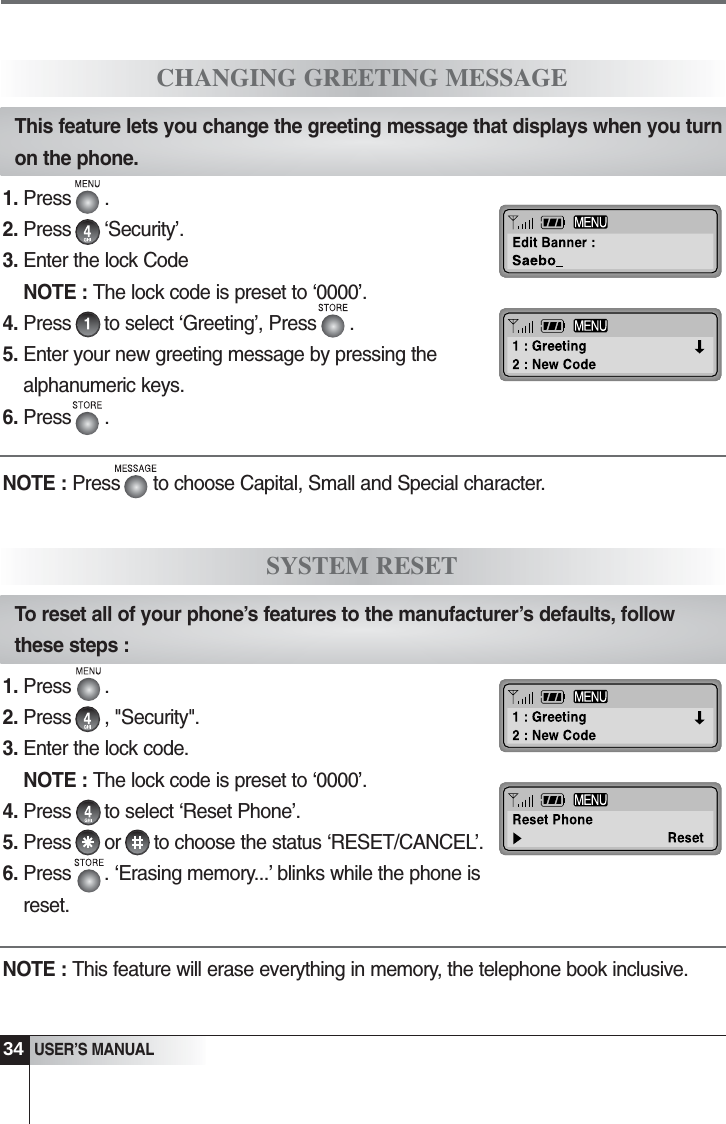
34USER’S MANUAL1. Press      .2. Press      ‘Security’. 3. Enter the lock CodeNOTE : The lock code is preset to ‘0000’.4. Press      to select ‘Greeting’, Press      .5. Enter your new greeting message by pressing thealphanumeric keys.6. Press      .CHANGING GREETING MESSAGEThis feature lets you change the greeting message that displays when you turnon the phone.1. Press      .2. Press      , "Security". 3. Enter the lock code.NOTE : The lock code is preset to ‘0000’.4. Press      to select ‘Reset Phone’.5. Press      or      to choose the status ‘RESET/CANCEL’. 6. Press      . ‘Erasing memory...’ blinks while the phone isreset.NOTE : This feature will erase everything in memory, the telephone book inclusive.SYSTEM RESETTo reset all of your phone’s features to the manufacturer’s defaults, followthese steps : NOTE : Press      to choose Capital, Small and Special character.
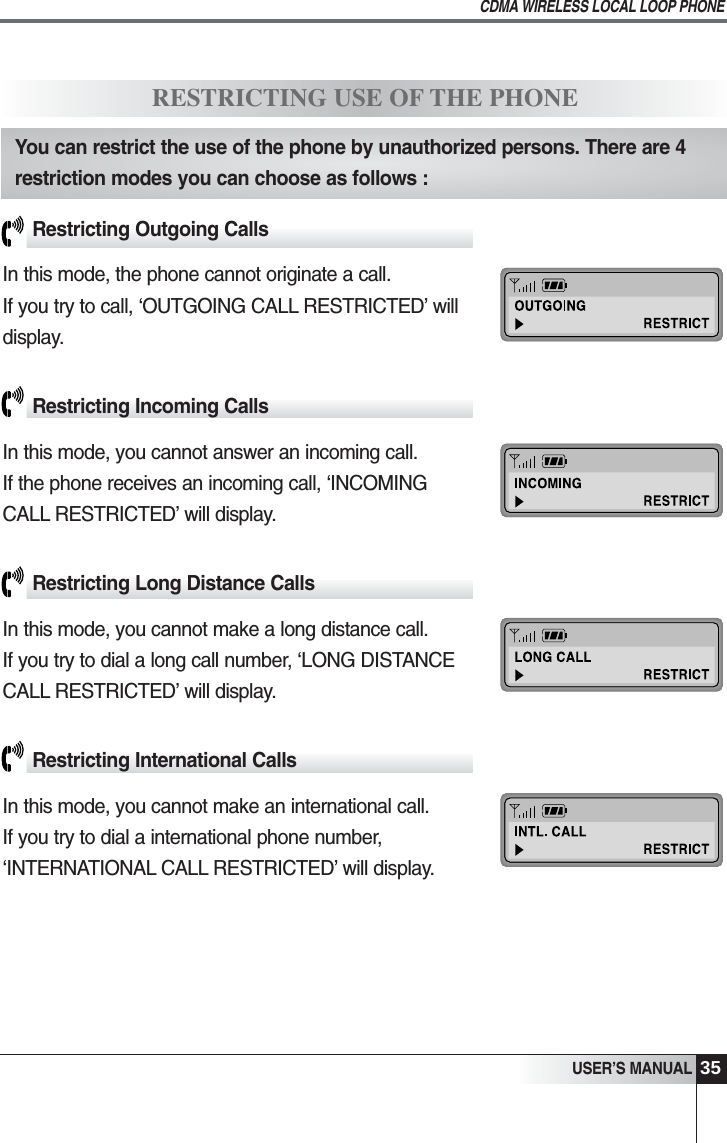
35USER’S MANUALCDMA WIRELESS LOCAL LOOP PHONERestricting Outgoing CallsIn this mode, the phone cannot originate a call.If you try to call, ‘OUTGOING CALL RESTRICTED’ willdisplay.Restricting Incoming Calls In this mode, you cannot answer an incoming call. If the phone receives an incoming call, ‘INCOMING CALL RESTRICTED’ will display.Restricting Long Distance Calls In this mode, you cannot make a long distance call. If you try to dial a long call number, ‘LONG DISTANCECALL RESTRICTED’ will display.Restricting International Calls In this mode, you cannot make an international call.If you try to dial a international phone number,‘INTERNATIONAL CALL RESTRICTED’ will display.RESTRICTING USE OF THE PHONEYou can restrict the use of the phone by unauthorized persons. There are 4restriction modes you can choose as follows :
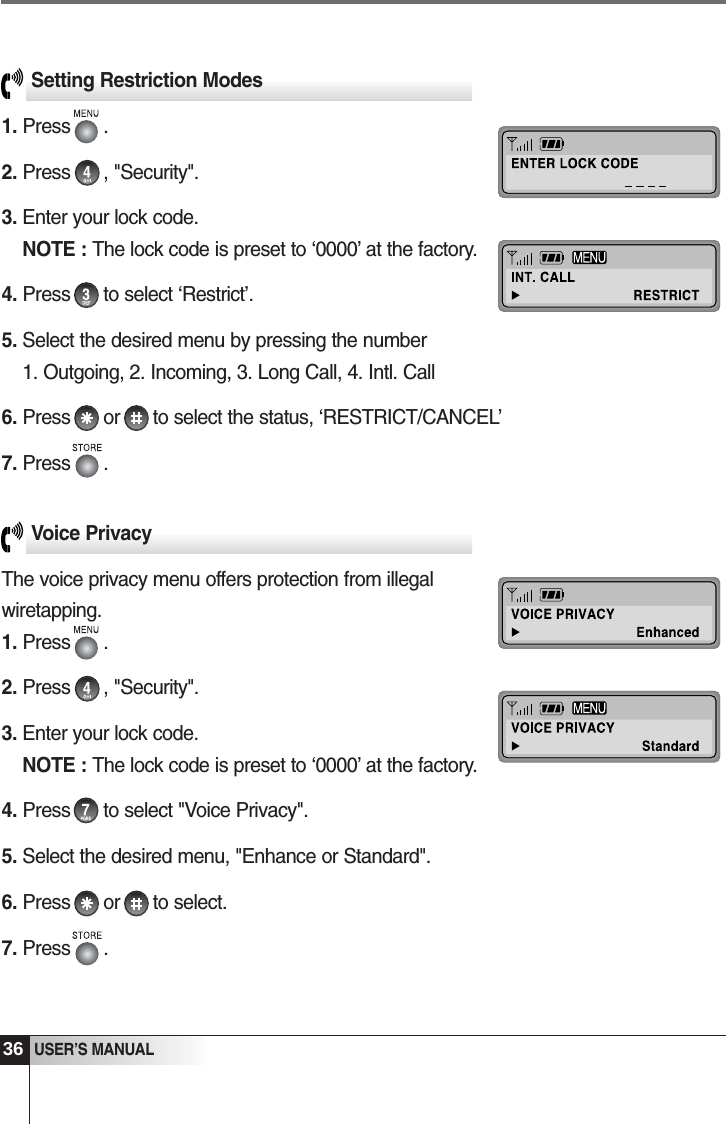
36USER’S MANUALSetting Restriction Modes1. Press      .2. Press      , "Security".3. Enter your lock code.                                             NOTE : The lock code is preset to ‘0000’ at the factory.4. Press      to select ‘Restrict’.5. Select the desired menu by pressing the number          1. Outgoing, 2. Incoming, 3. Long Call, 4. Intl. Call6. Press      or      to select the status, ‘RESTRICT/CANCEL’7. Press      .Voice PrivacyThe voice privacy menu offers protection from illegalwiretapping.1. Press      .2. Press      , "Security".3. Enter your lock code.                                             NOTE : The lock code is preset to ‘0000’ at the factory.4. Press      to select "Voice Privacy".5. Select the desired menu, "Enhance or Standard".6. Press      or      to select.7. Press      .
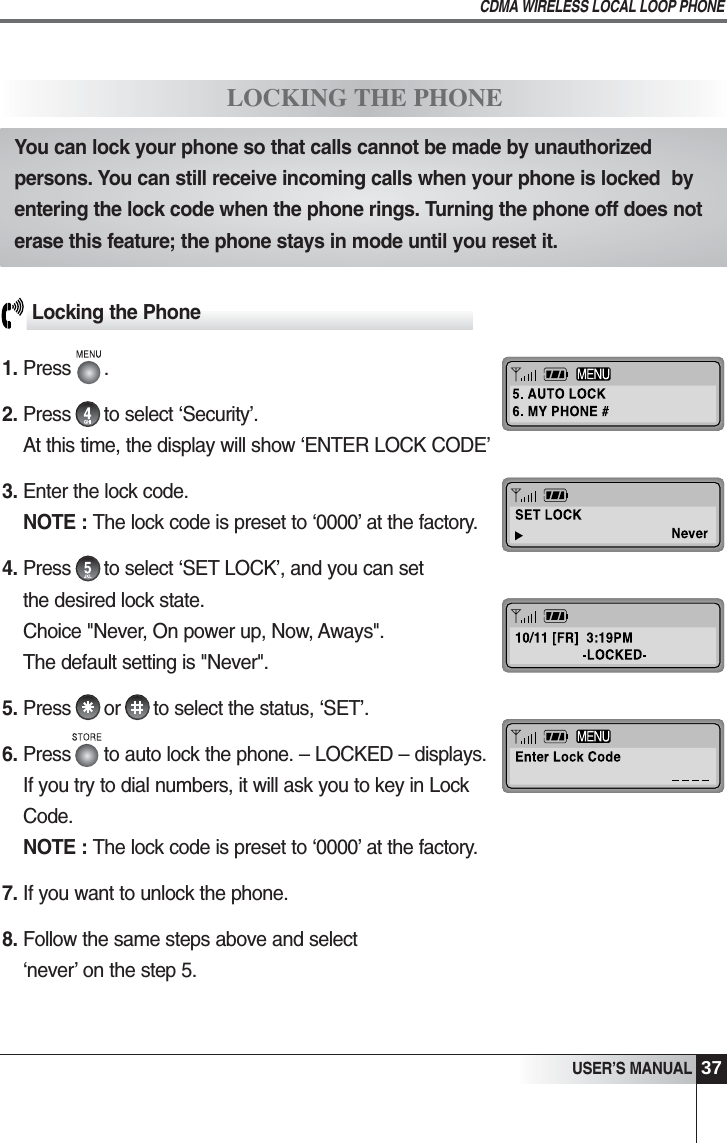
37USER’S MANUALCDMA WIRELESS LOCAL LOOP PHONELocking the Phone1. Press      .2. Press      to select ‘Security’.At this time, the display will show ‘ENTER LOCK CODE’3. Enter the lock code.                                              NOTE : The lock code is preset to ‘0000’ at the factory. 4. Press      to select ‘SET LOCK’, and you can setthe desired lock state.Choice "Never, On power up, Now, Aways".The default setting is "Never".5. Press      or      to select the status, ‘SET’.6. Press      to auto lock the phone. – LOCKED – displays. If you try to dial numbers, it will ask you to key in LockCode.NOTE : The lock code is preset to ‘0000’ at the factory.7. If you want to unlock the phone.8. Follow the same steps above and select‘never’ on the step 5.LOCKING THE PHONEYou can lock your phone so that calls cannot be made by unauthorizedpersons. You can still receive incoming calls when your phone is locked  byentering the lock code when the phone rings. Turning the phone off does noterase this feature; the phone stays in mode until you reset it.
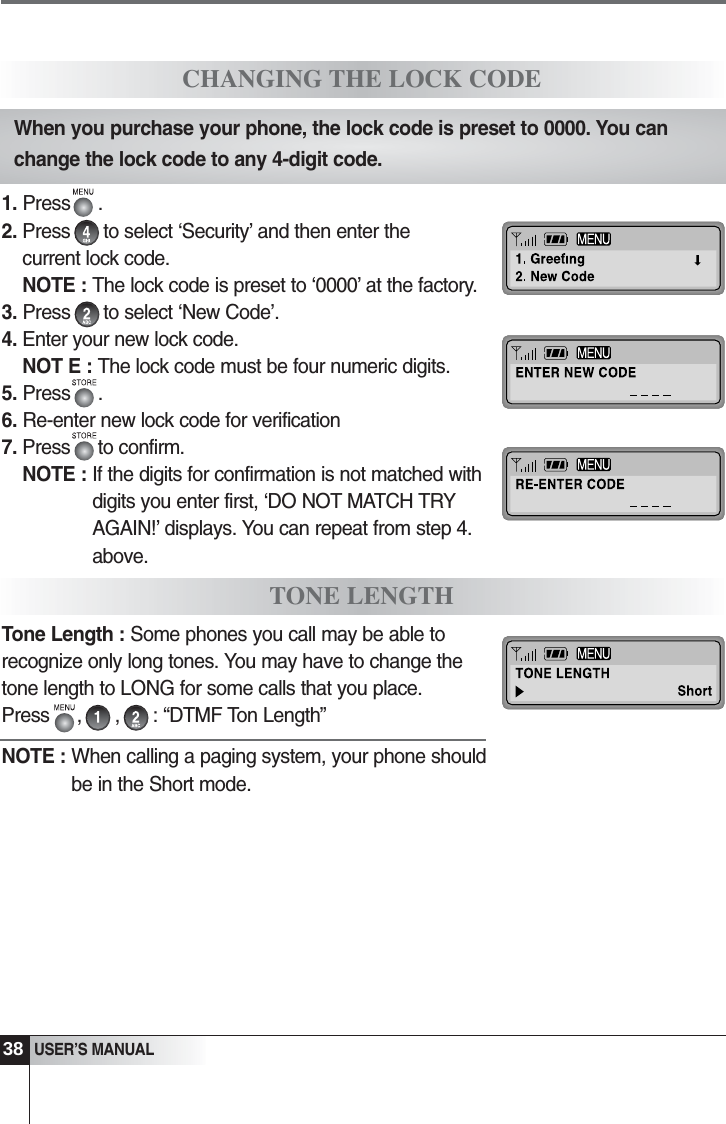
38   USER’S MANUAL1. Press     .2. Press      to select ‘Security’ and then enter thecurrent lock code.NOTE : The lock code is preset to ‘0000’ at the factory.3. Press      to select ‘New Code’.4. Enter your new lock code.NOT E : The lock code must be four numeric digits. 5. Press     .6. Re-enter new lock code for verification7. Press     to confirm.NOTE : If the digits for confirmation is not matched withdigits you enter first, ‘DO NOT MATCH TRYAGAIN!’ displays. You can repeat from step 4.above.Tone Length : Some phones you call may be able torecognize only long tones. You may have to change thetone length to LONG for some calls that you place.Press     ,      ,      : “DTMF Ton Length”NOTE : When calling a paging system, your phone shouldbe in the Short mode.CHANGING THE LOCK CODETONE LENGTHWhen you purchase your phone, the lock code is preset to 0000. You canchange the lock code to any 4-digit code.
Call ForwardingCall WaitingThree-Way CallingMessage ServiceOptional Features
40USER’S MANUALCALL FORWARDINGMESSAGE SERVICECall Forwarding is a feature on your phone that lets you forward your incoming calls toanother phone number, even if your phone is turned off. Also, you can receive callswhile Call Forwarding is activated.Contact your service provider to activate Call Forwarding.CALL WAITINGCall Waiting alerts you to a second incoming call while you are on the phone. To respond to a call waiting, press      or the hook switch.Contact your service provider to activate Call Waiting.THREE-WAY CALLINGThree-Way Calling is a feature on your phone that lets you set up a three-wayconversation with two other persons.      or the Hook switch is used with Three-WayCalling.Contact your service provider to activate Three-Way Calling.Message Service can be used only when provided by your CDMA serviceprovider. Check that the CDMA service provider you use is providing messageservice before using this function. The messages are stored in the order theyare received. If there are messages that the user has not checked, iconwill display.
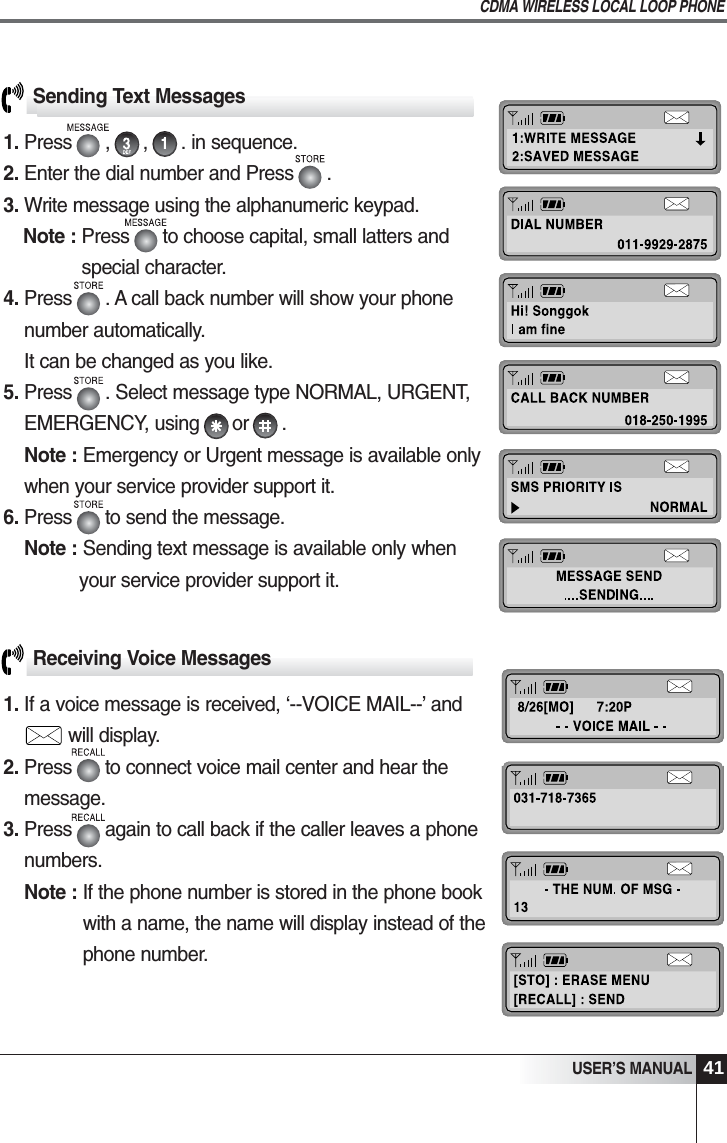
41USER’S MANUALCDMA WIRELESS LOCAL LOOP PHONEReceiving Voice Messages1. If a voice message is received, ‘--VOICE MAIL--’ and       will display.2. Press      to connect voice mail center and hear themessage.3. Press      again to call back if the caller leaves a phonenumbers.Note : If the phone number is stored in the phone bookwith a name, the name will display instead of thephone number.Sending Text Messages1. Press      ,      ,      . in sequence.2. Enter the dial number and Press      .                               3. Write message using the alphanumeric keypad.Note : Press      to choose capital, small latters andspecial character.4. Press      . A call back number will show your phonenumber automatically.It can be changed as you like.5. Press      . Select message type NORMAL, URGENT,EMERGENCY, using      or      .Note : Emergency or Urgent message is available onlywhen your service provider support it.6. Press      to send the message.Note : Sending text message is available only whenyour service provider support it.
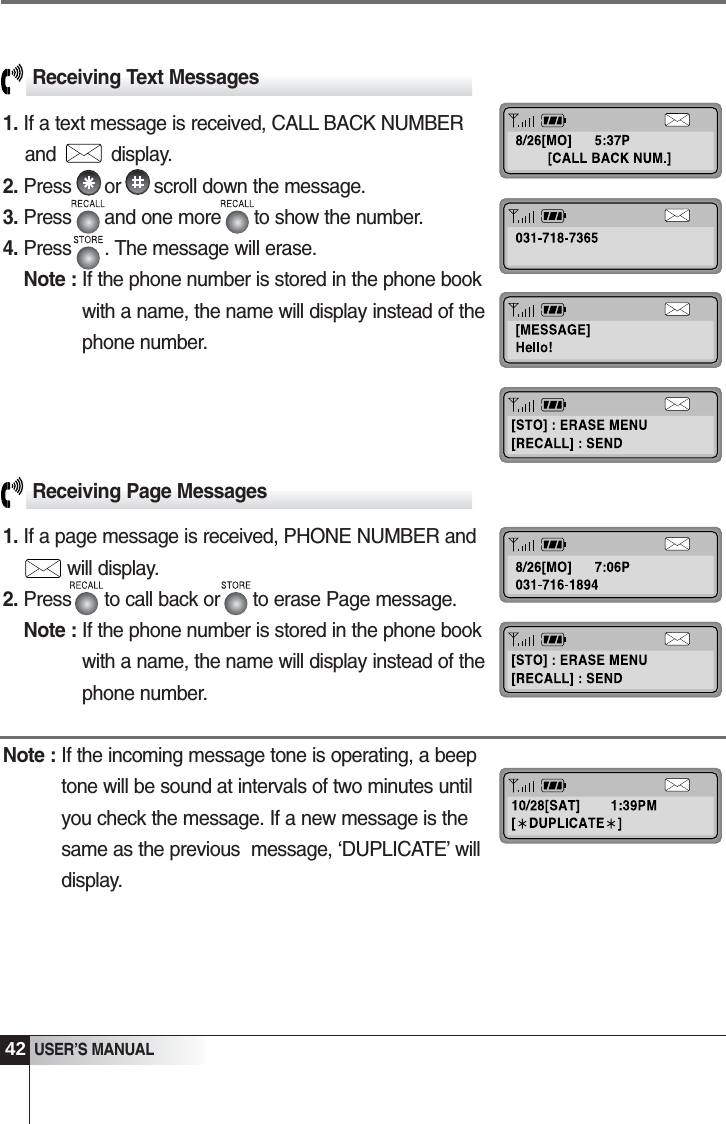
42USER’S MANUALReceiving Page Messages1. If a page message is received, PHONE NUMBER and1will display.2. Press      to call back or      to erase Page message.Note : If the phone number is stored in the phone bookwith a name, the name will display instead of thephone number.Note : If the incoming message tone is operating, a beeptone will be sound at intervals of two minutes untilyou check the message. If a new message is thesame as the previous  message, ‘DUPLICATE’ willdisplay. Receiving Text Messages1. If a text message is received, CALL BACK NUMBERand          display.2. Press      or      scroll down the message.3. Press      and one more      to show the number.4. Press      . The message will erase.Note : If the phone number is stored in the phone bookwith a name, the name will display instead of thephone number.
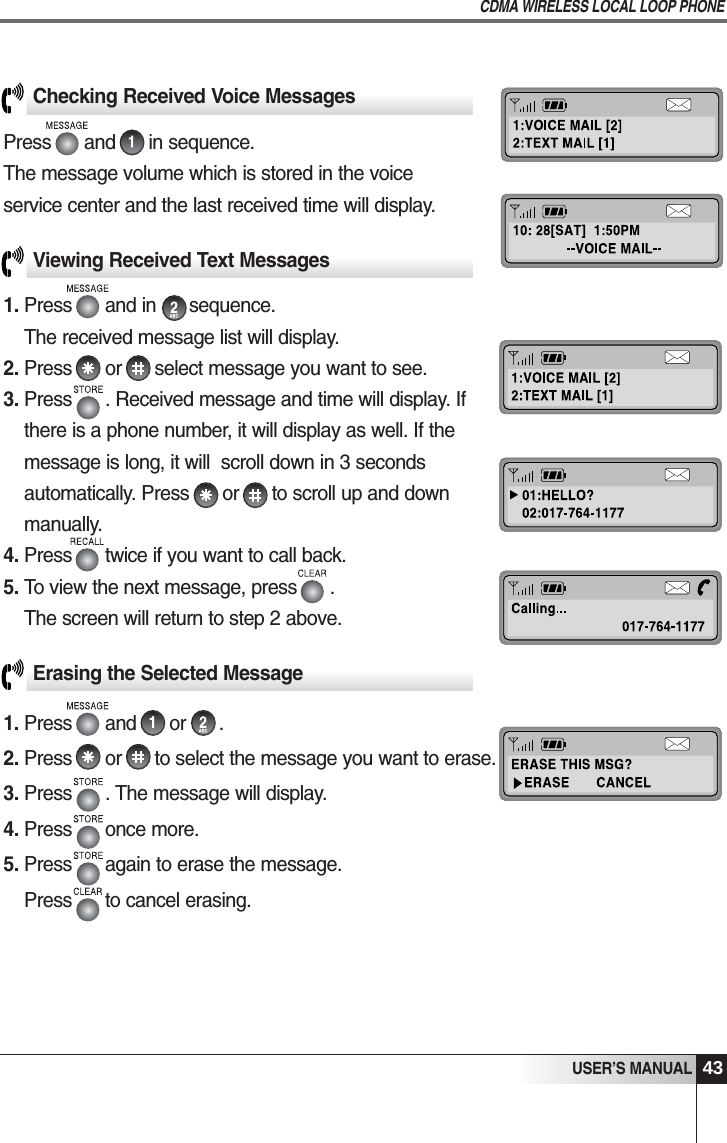
Checking Received Voice MessagesPress      and      in sequence.The message volume which is stored in the voice service center and the last received time will display.USER’S MANUALCDMA WIRELESS LOCAL LOOP PHONE43Viewing Received Text Messages1. Press      and in      sequence. The received message list will display.2. Press      or      select message you want to see.3. Press      . Received message and time will display. Ifthere is a phone number, it will display as well. If themessage is long, it will  scroll down in 3 secondsautomatically. Press      or      to scroll up and downmanually.4. Press      twice if you want to call back.5. To view the next message, press      .                   The screen will return to step 2 above.Erasing the Selected Message1. Press      and      or      .2. Press      or      to select the message you want to erase.3. Press      . The message will display.4. Press      once more. 5. Press      again to erase the message.Press      to cancel erasing.
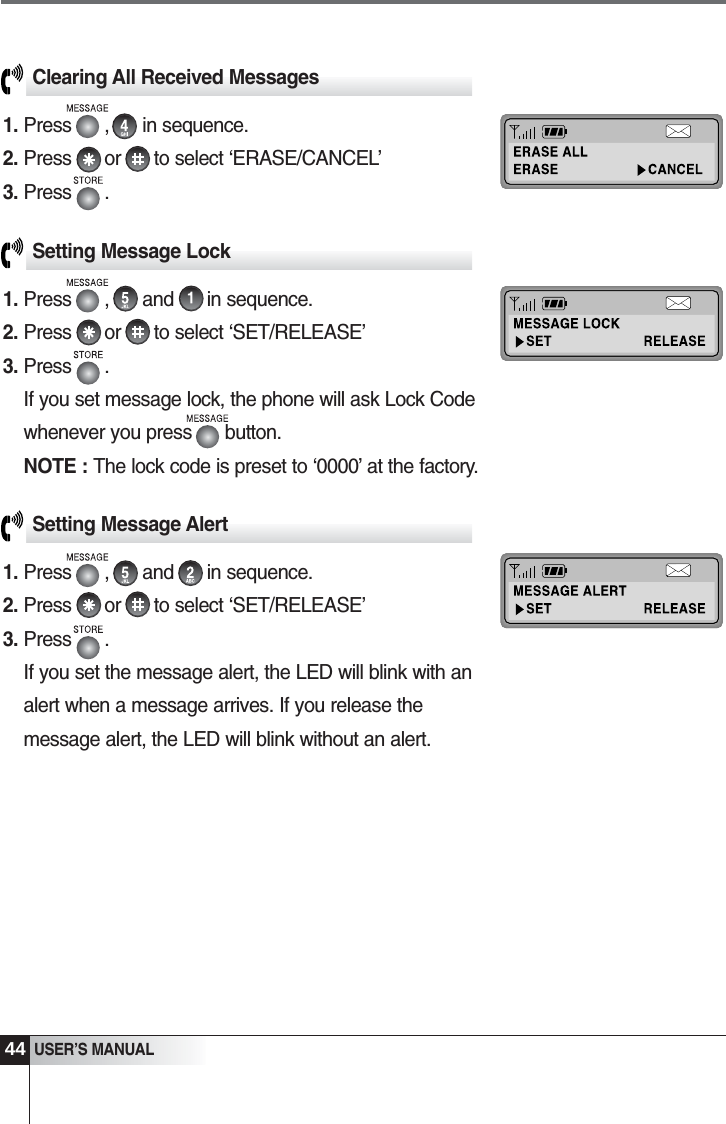
Setting Message Lock1. Press      ,      and      in sequence. 2. Press      or      to select ‘SET/RELEASE’3. Press      .If you set message lock, the phone will ask Lock Codewhenever you press      button.NOTE : The lock code is preset to ‘0000’ at the factory.44USER’S MANUALClearing All Received Messages1. Press      ,      in sequence.2. Press      or      to select ‘ERASE/CANCEL’3. Press      .Setting Message Alert1. Press      ,      and      in sequence. 2. Press      or      to select ‘SET/RELEASE’3. Press      .If you set the message alert, the LED will blink with analert when a message arrives. If you release themessage alert, the LED will blink without an alert.
Menu Option TableConversation and Message MenuFWT SettingSpecificationsMiscellaneous
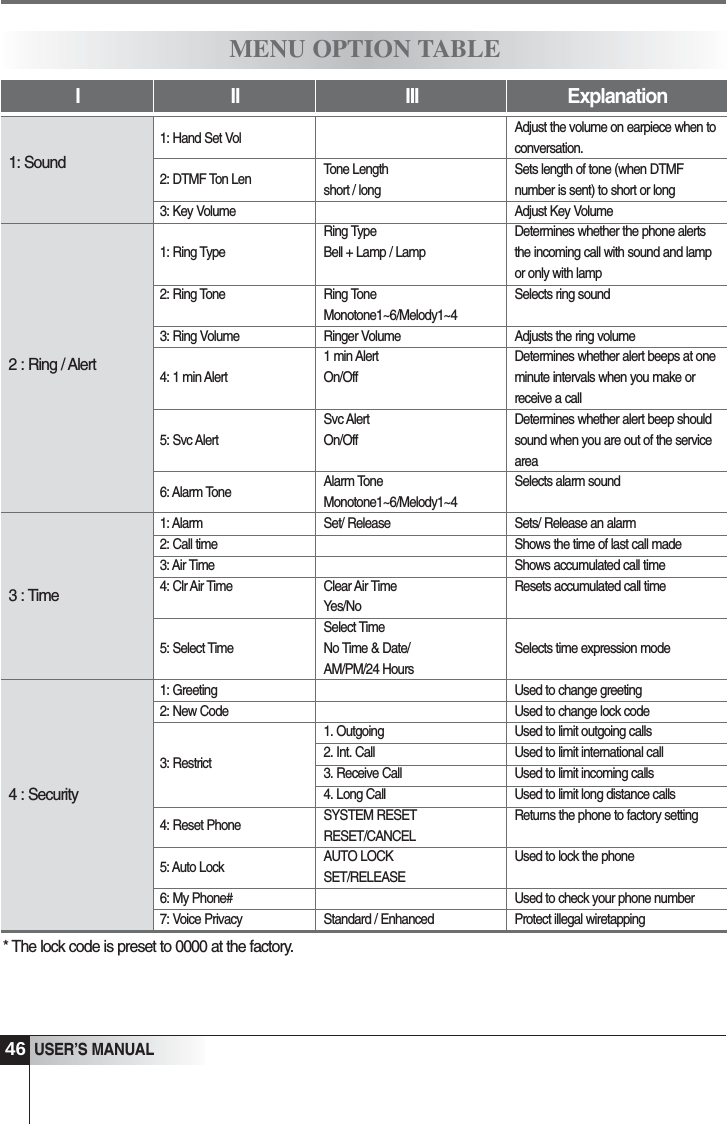
46USER’S MANUALI II III ExplanationMENU OPTION TABLE1: Sound2 : Ring / Alert3 : Time4 : SecurityTone Lengthshort / longRing TypeBell + Lamp / LampRing ToneMonotone1~6/Melody1~4Ringer Volume1 min AlertOn/OffSvc AlertOn/OffAlarm ToneMonotone1~6/Melody1~4Set/ ReleaseClear Air TimeYes/NoSelect TimeNo Time & Date/AM/PM/24 Hours1. Outgoing2. Int. Call3. Receive Call4. Long CallSYSTEM RESETRESET/CANCELAUTO LOCKSET/RELEASEStandard / EnhancedAdjust the volume on earpiece when toconversation.Sets length of tone (when DTMFnumber is sent) to short or longAdjust Key VolumeDetermines whether the phone alertsthe incoming call with sound and lampor only with lampSelects ring soundAdjusts the ring volumeDetermines whether alert beeps at oneminute intervals when you make orreceive a callDetermines whether alert beep shouldsound when you are out of the serviceareaSelects alarm soundSets/ Release an alarmShows the time of last call madeShows accumulated call timeResets accumulated call timeSelects time expression modeUsed to change greetingUsed to change lock codeUsed to limit outgoing callsUsed to limit international callUsed to limit incoming callsUsed to limit long distance callsReturns the phone to factory settingUsed to lock the phoneUsed to check your phone numberProtect illegal wiretapping1: Hand Set Vol2: DTMF Ton Len3: Key Volume1: Ring Type2: Ring Tone3: Ring Volume4: 1 min Alert5: Svc Alert6: Alarm Tone1: Alarm2: Call time3: Air Time4: Clr Air Time5: Select Time1: Greeting2: New Code3: Restrict4: Reset Phone5: Auto Lock6: My Phone#7: Voice Privacy* The lock code is preset to 0000 at the factory.
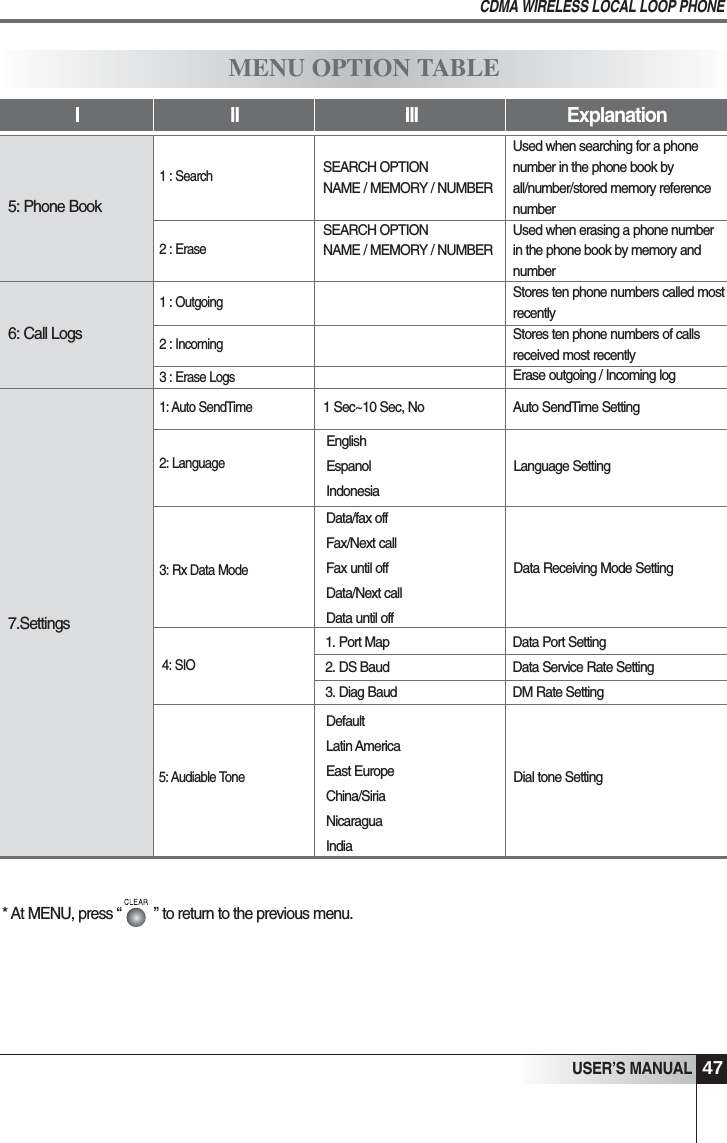
Data Port SettingData Service Rate SettingDM Rate SettingEnglishEspanolIndonesiaData/fax offFax/Next callFax until offData/Next callData until off1. Port Map  2. DS Baud3. Diag BaudDefaultLatin AmericaEast Europe China/SiriaNicaraguaIndiaLanguage Setting47USER’S MANUALCDMA WIRELESS LOCAL LOOP PHONE* At MENU, press “ ” to return to the previous menu.I II III ExplanationMENU OPTION TABLE5: Phone Book6: Call LogsUsed when searching for a phonenumber in the phone book byall/number/stored memory referencenumberUsed when erasing a phone numberin the phone book by memory andnumberStores ten phone numbers called mostrecentlyStores ten phone numbers of callsreceived most recentlyErase outgoing / Incoming logAuto SendTime SettingSEARCH OPTIONNAME / MEMORY / NUMBERSEARCH OPTIONNAME / MEMORY / NUMBER1 Sec~10 Sec, No1 : Search2 : Erase1 : Outgoing2 : Incoming3 : Erase Logs7.Settings1: Auto SendTime2: Language3: Rx Data Mode4: SIO5: Audiable ToneData Receiving Mode SettingDial tone Setting
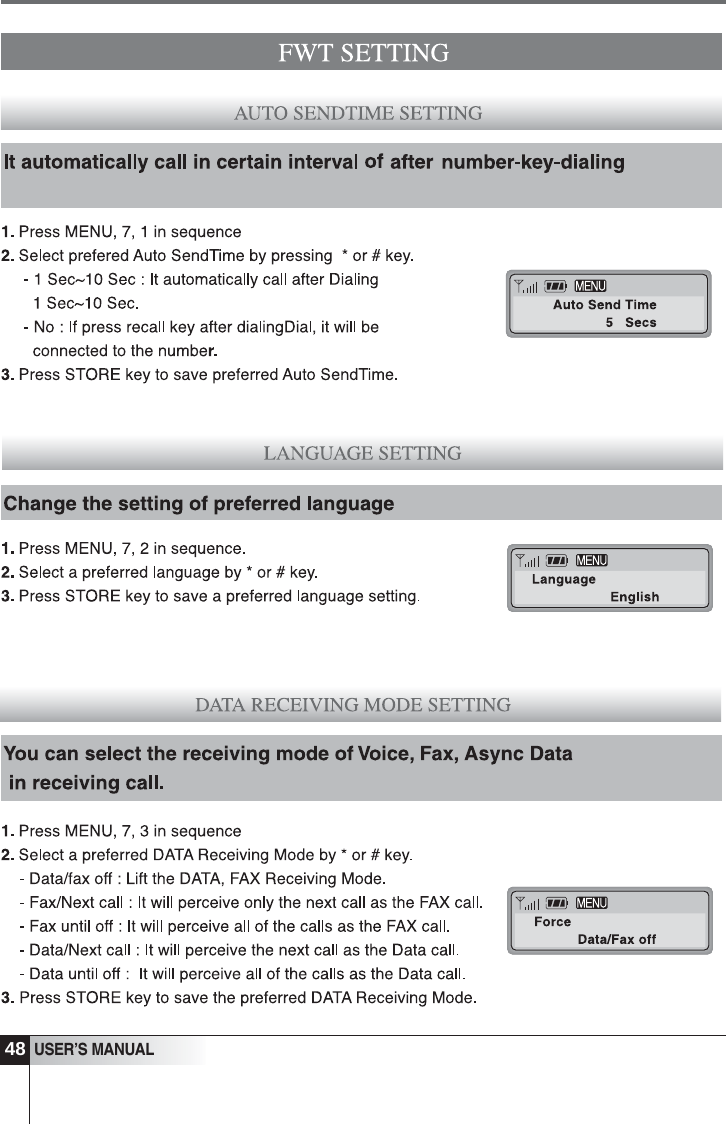
48USER’S MANUAL
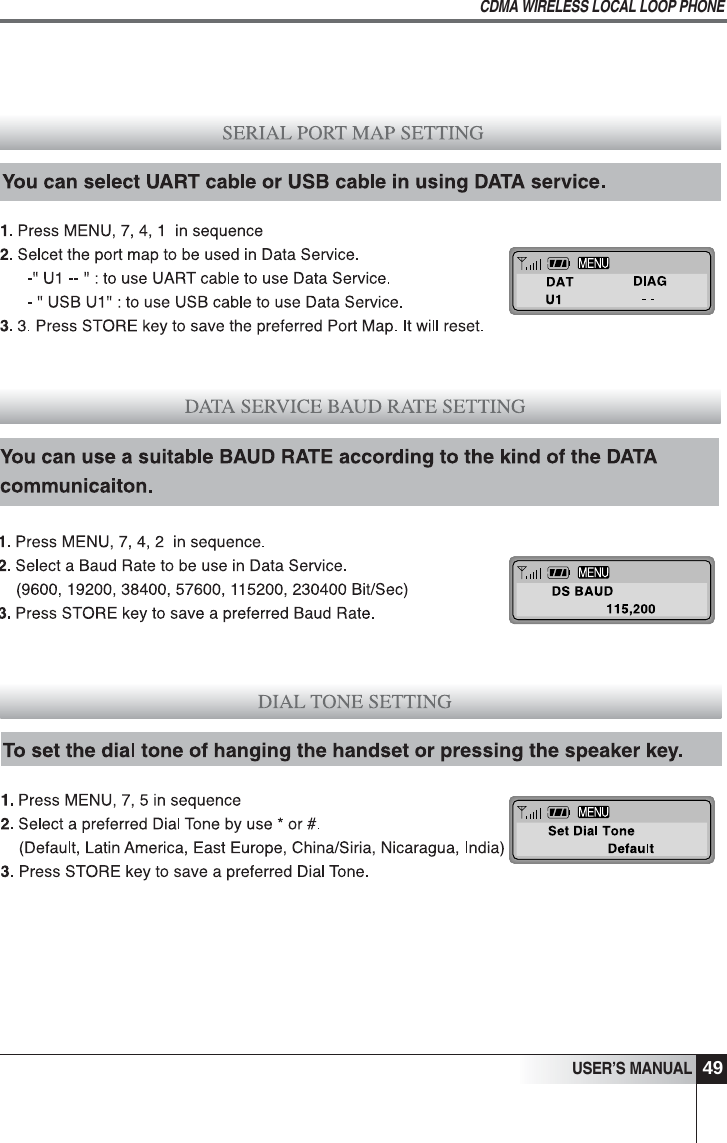
49USER’S MANUALCDMA WIRELESS LOCAL LOOP PHONE
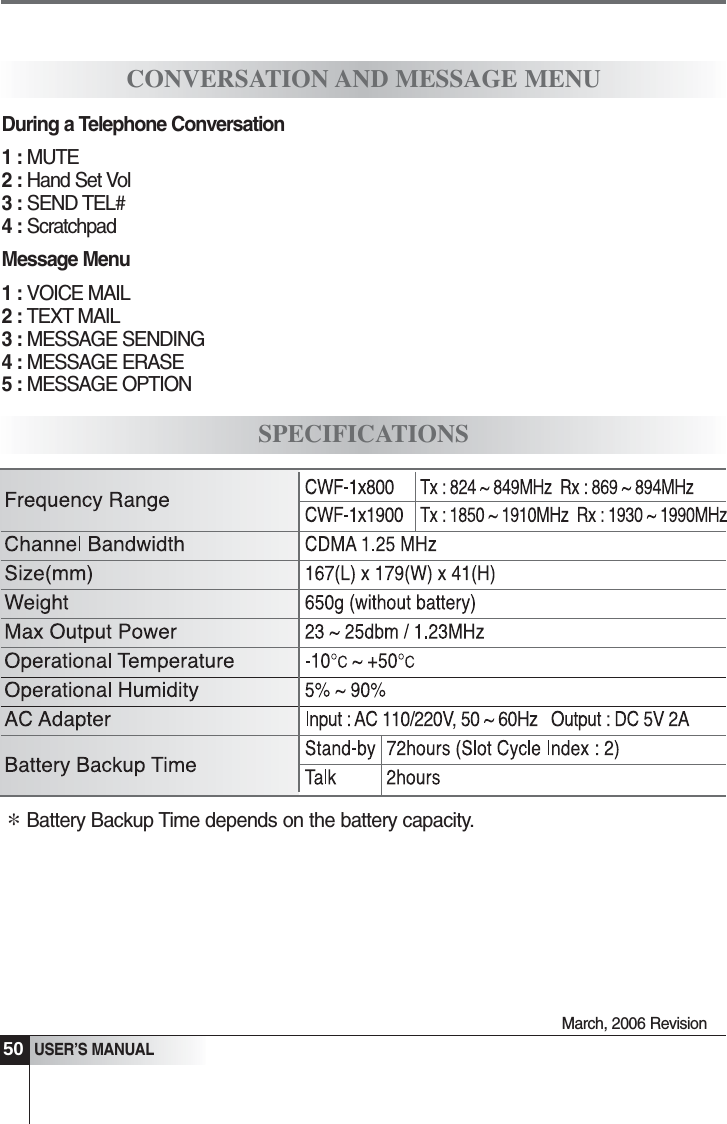
March, 2006 Revision50USER’S MANUALCONVERSATION AND MESSAGE MENUSPECIFICATIONSDuring a Telephone Conversation1 : MUTE2 : Hand Set Vol3 : SEND TEL#4 : ScratchpadMessage Menu1 : VOICE MAIL2 : TEXT MAIL3 : MESSAGE SENDING4 : MESSAGE ERASE5 : MESSAGE OPTIONBattery Backup Time depends on the battery capacity.*
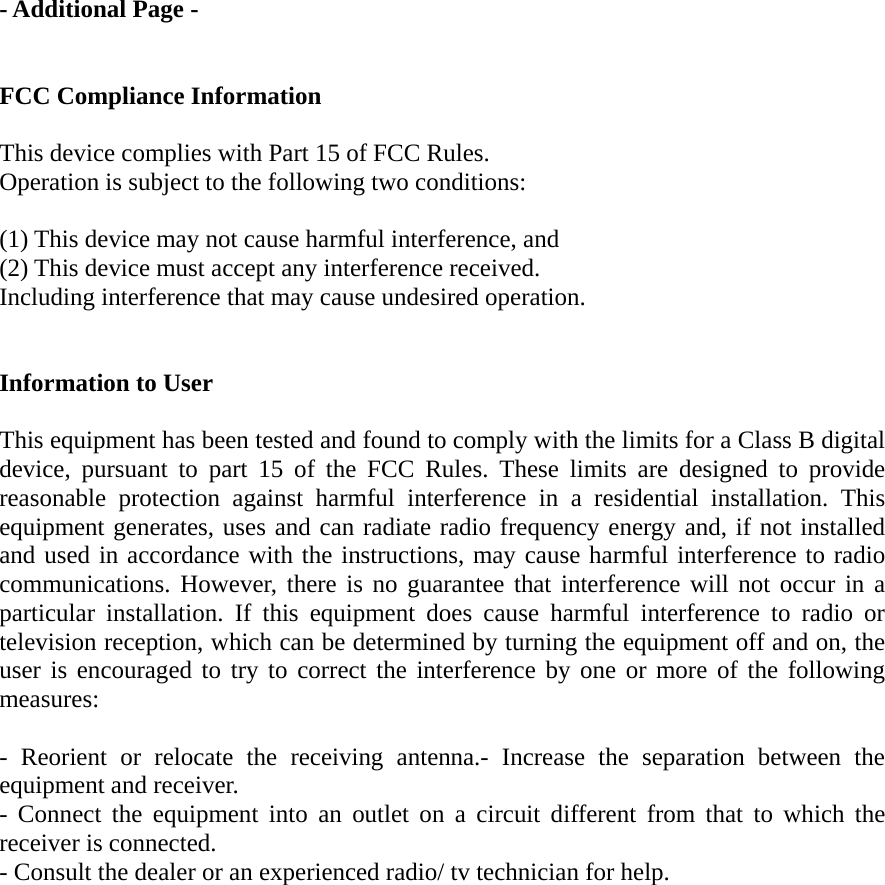
- Additional Page -   FCC Compliance Information  This device complies with Part 15 of FCC Rules. Operation is subject to the following two conditions:  (1) This device may not cause harmful interference, and (2) This device must accept any interference received.   Including interference that may cause undesired operation.   Information to User  This equipment has been tested and found to comply with the limits for a Class B digital device, pursuant to part 15 of the FCC Rules. These limits are designed to provide reasonable protection against harmful interference in a residential installation. This equipment generates, uses and can radiate radio frequency energy and, if not installed and used in accordance with the instructions, may cause harmful interference to radio communications. However, there is no guarantee that interference will not occur in a particular installation. If this equipment does cause harmful interference to radio or television reception, which can be determined by turning the equipment off and on, the user is encouraged to try to correct the interference by one or more of the following measures:   - Reorient or relocate the receiving antenna.- Increase the separation between the equipment and receiver. - Connect the equipment into an outlet on a circuit different from that to which the receiver is connected. - Consult the dealer or an experienced radio/ tv technician for help.

Navigation menu