Acer Aspire 1310 Series Users Manual Cov
VD.A0307.001 to the manual 3aafdc24-2c0b-4715-9608-566b97c27dc2
2015-01-25
: Acer Acer-Aspire-1310-Series-Users-Manual-210859 acer-aspire-1310-series-users-manual-210859 acer pdf
Open the PDF directly: View PDF  .
.
Page Count: 88
- Aspire 1310 Series
- Revision History
- Copyright
- Disclaimer
- Conventions
- Preface
- Table of Contents
- Ch.1 System Specifications
- Ch.2 System Utilities
- Ch.3 Machine Disassembly and Replacement
- Ch.4 Troubleshooting
- Ch.5 Jumper and Connector Locations
- Ch.6 FRU (Field Replaceable Unit) List
- App.A Model Definition and Configuration
- App.B Test Compatible Components
- App.C Online Support Information
- Index
Acer Aspire 1310 Series
Service Guide
SERVICE CD PART NO.: VD.A0307.001
PRINTED IN TAIWAN
Service guide files and updates are available
on the ACER/CSD web; for more information,
please refer to http://csd.acer.com.tw

II
Revision History
Please refer to the table below for the updates made on Aspire 1310 service guide.
Date Chapter Updates

III
Copyright
Copyright © 2003 by Acer Incorporated. All rights reserved. No part of this publication may be reproduced,
transmitted, transcribed, stored in a retrieval system, or translated into any language or computer language, in
any form or by any means, electronic, mechanical, magnetic, optical, chemical, manual or otherwise, without
the prior written permission of Acer Incorporated.
Disclaimer
The information in this guide is subject to change without notice.
Acer Incorporated makes no representations or warranties, either expressed or implied, with respect to the
contents hereof and specifically disclaims any warranties of merchantability or fitness for any particular
purpose. Any Acer Incorporated software described in this manual is sold or licensed "as is". Should the
programs prove defective following their purchase, the buyer (and not Acer Incorporated, its distributor, or its
dealer) assumes the entire cost of all necessary servicing, repair, and any incidental or consequential
damages resulting from any defect in the software.
Acer is a registered trademark of Acer Corporation.
Intel is a registered trademark of Intel Corporation.
Pentium and Pentium II/III are trademarks of Intel Corporation.
Other brand and product names are trademarks and/or registered trademarks of their respective holders.

IV
Conventions
The following conventions are used in this manual:
SCREEN MESSAGES Denotes actual messages that appear
on screen.
NOTE Gives bits and pieces of additional
information related to the current
topic.
WARNING Alerts you to any damage that might
result from doing or not doing specific
actions.
CAUTION Gives precautionary measures to
avoid possible hardware or software
problems.
IMPORTANT Reminds you to do specific actions
relevant to the accomplishment of
procedures.

V
Preface
Before using this information and the product it supports, please read the following general information.
1. This Service Guide provides you with all technical information relating to the BASIC CONFIGURATION
decided for Acer's "global" product offering. To better fit local market requirements and enhance product
competitiveness, your regional office MAY have decided to extend the functionality of a machine (e.g.
add-on card, modem, or extra memory capability). These LOCALIZED FEATURES will NOT be covered
in this generic service guide. In such cases, please contact your regional offices or the responsible
personnel/channel to provide you with further technical details.
2. Please note WHEN ORDERING FRU PARTS, that you should check the most up-to-date information
available on your regional web or channel. If, for whatever reason, a part number change is made, it will
not be noted in the printed Service Guide. For ACER-AUTHORIZED SERVICE PROVIDERS, your Acer
office may have a DIFFERENT part number code to those given in the FRU list of this printed Service
Guide. You MUST use the list provided by your regional Acer office to order FRU parts for repair and
service of customer machines.

VI

VII
Table of Contents
Chapter 1 System Specifications 1
Features . . . . . . . . . . . . . . . . . . . . . . . . . . . . . . . . . . . . . . . . . . . . . . . . . . . . . . . .1
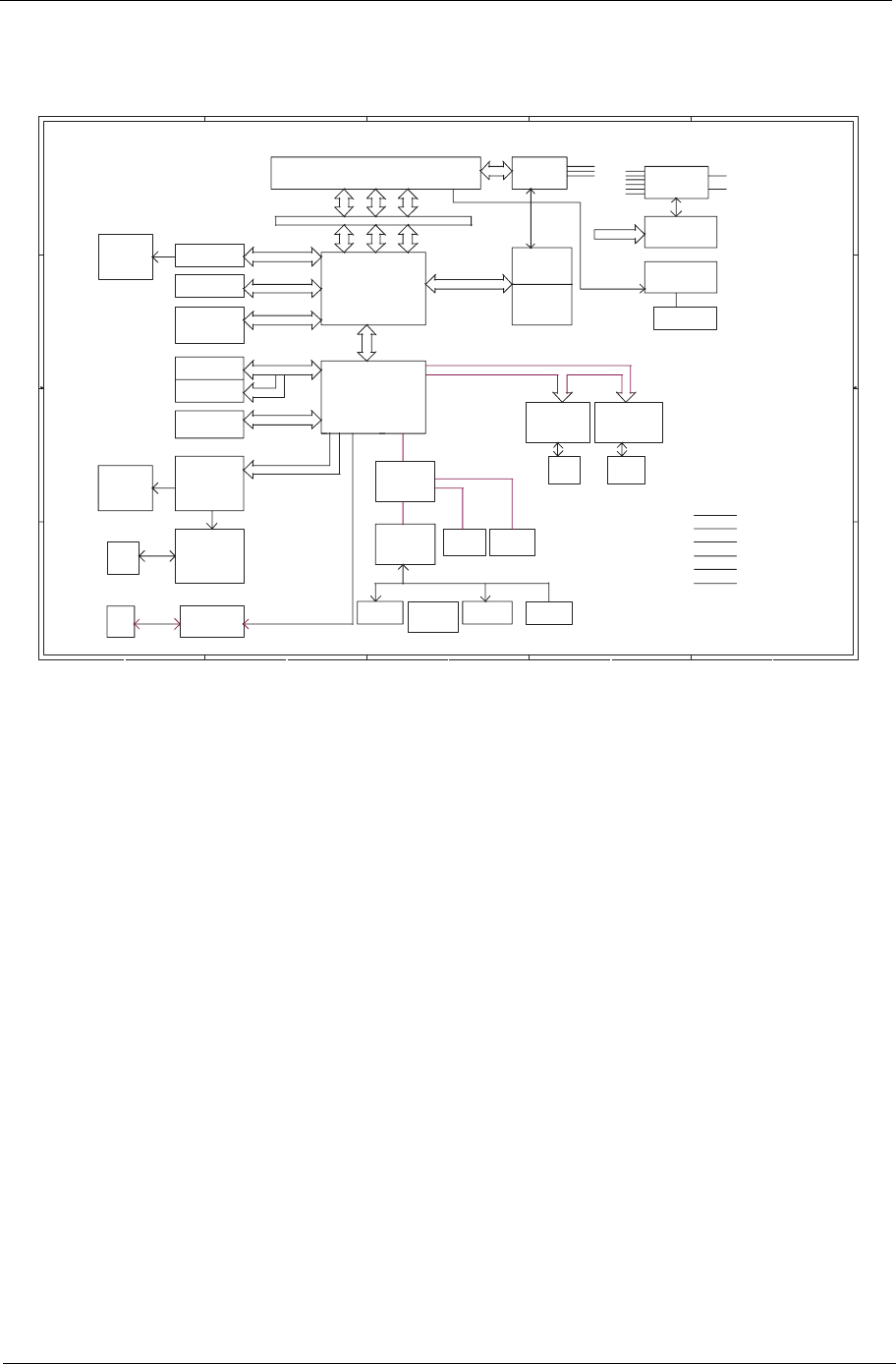
System Block Diagram . . . . . . . . . . . . . . . . . . . . . . . . . . . . . . . . . . . . . . . . . . . . .3
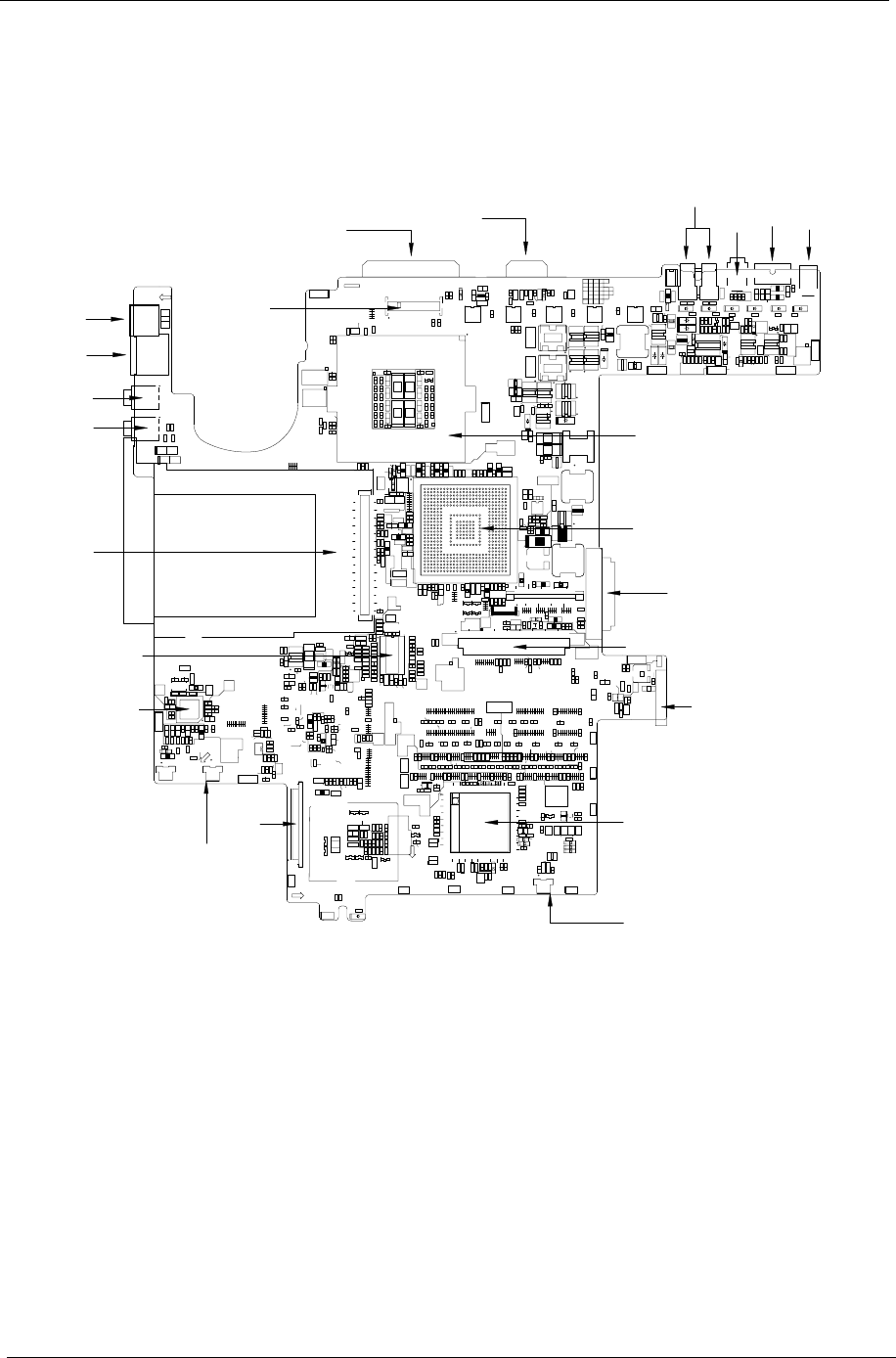
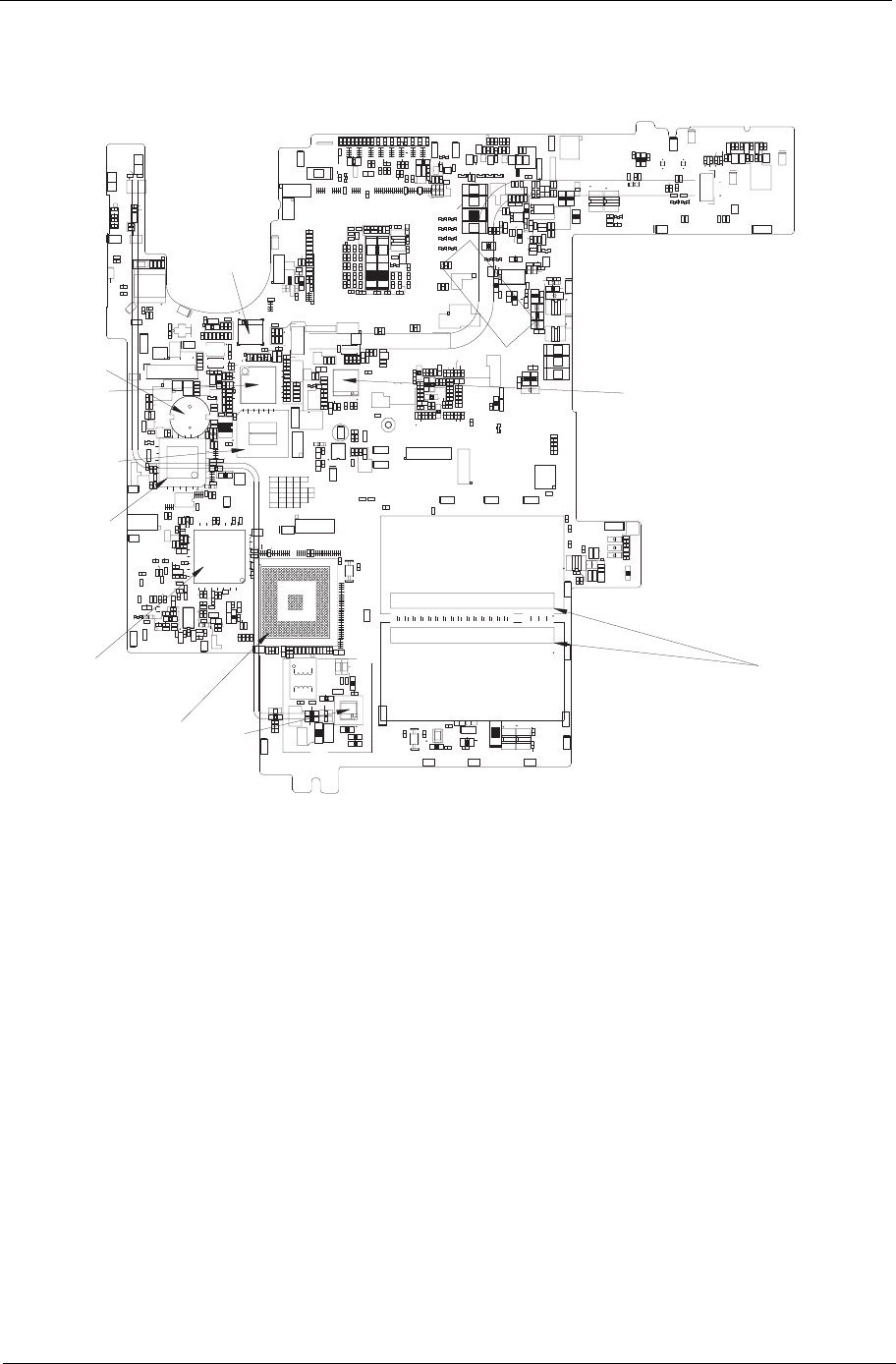
Board Layout . . . . . . . . . . . . . . . . . . . . . . . . . . . . . . . . . . . . . . . . . . . . . . . . . . . .4
Top View . . . . . . . . . . . . . . . . . . . . . . . . . . . . . . . . . . . . . . . . . . . . . . . . . . . .4
Bottom View . . . . . . . . . . . . . . . . . . . . . . . . . . . . . . . . . . . . . . . . . . . . . . . . .5
Outlook View . . . . . . . . . . . . . . . . . . . . . . . . . . . . . . . . . . . . . . . . . . . . . . . . . . . . .6
Front View . . . . . . . . . . . . . . . . . . . . . . . . . . . . . . . . . . . . . . . . . . . . . . . . . . .6
Left Panel . . . . . . . . . . . . . . . . . . . . . . . . . . . . . . . . . . . . . . . . . . . . . . . . . . .7
Right Panel . . . . . . . . . . . . . . . . . . . . . . . . . . . . . . . . . . . . . . . . . . . . . . . . . .8
Rear Panel . . . . . . . . . . . . . . . . . . . . . . . . . . . . . . . . . . . . . . . . . . . . . . . . . .9
Bottom Panel . . . . . . . . . . . . . . . . . . . . . . . . . . . . . . . . . . . . . . . . . . . . . . .10
Indicators . . . . . . . . . . . . . . . . . . . . . . . . . . . . . . . . . . . . . . . . . . . . . . . . . . . . . .11
Keyboard . . . . . . . . . . . . . . . . . . . . . . . . . . . . . . . . . . . . . . . . . . . . . . . . . . . . . .12
Special keys . . . . . . . . . . . . . . . . . . . . . . . . . . . . . . . . . . . . . . . . . . . . . . . .12
Touchpad . . . . . . . . . . . . . . . . . . . . . . . . . . . . . . . . . . . . . . . . . . . . . . . . . . . . . .15
Touchpad Basics . . . . . . . . . . . . . . . . . . . . . . . . . . . . . . . . . . . . . . . . . . . .15
Launch Keys . . . . . . . . . . . . . . . . . . . . . . . . . . . . . . . . . . . . . . . . . . . . . . . . . . . .17
Hardware Specifications and Configurations . . . . . . . . . . . . . . . . . . . . . . . . . . .18
Chapter 2 System Utilities 27
BIOS Setup Utility . . . . . . . . . . . . . . . . . . . . . . . . . . . . . . . . . . . . . . . . . . . . . . . .27
Navigating the BIOS Setup Utility . . . . . . . . . . . . . . . . . . . . . . . . . . . . . . . .27
Startup . . . . . . . . . . . . . . . . . . . . . . . . . . . . . . . . . . . . . . . . . . . . . . . . . . . .28
Exit . . . . . . . . . . . . . . . . . . . . . . . . . . . . . . . . . . . . . . . . . . . . . . . . . . . . . . .29
BIOS Flash Utility . . . . . . . . . . . . . . . . . . . . . . . . . . . . . . . . . . . . . . . . . . . . . . . .30
System Diagnostic Diskette . . . . . . . . . . . . . . . . . . . . . . . . . . . . . . . . . . . . . . . .30
Chapter 3 Machine Disassembly and Replacement 31
General Information . . . . . . . . . . . . . . . . . . . . . . . . . . . . . . . . . . . . . . . . . . . . . .32
Before You Begin . . . . . . . . . . . . . . . . . . . . . . . . . . . . . . . . . . . . . . . . . . . .32
Disassembly Procedure Flowchart . . . . . . . . . . . . . . . . . . . . . . . . . . . . . . . . . . .33
Removing the Memory/HDD Module . . . . . . . . . . . . . . . . . . . . . . . . . . . . . . . . .36
Removing the Keyboard/LCD Module . . . . . . . . . . . . . . . . . . . . . . . . . . . . . . . .37
Disassembling the Main Unit . . . . . . . . . . . . . . . . . . . . . . . . . . . . . . . . . . . . . . .38
Disassembling the LCD Module-14.1 Inch . . . . . . . . . . . . . . . . . . . . . . . . . . . . .41
Disassembling the LCD Module-15.1 Inch . . . . . . . . . . . . . . . . . . . . . . . . . . . . .42
Disassembling the External Modules . . . . . . . . . . . . . . . . . . . . . . . . . . . . . . . . .43
Disassembling the HDD Module . . . . . . . . . . . . . . . . . . . . . . . . . . . . . . . . .43
Disassembling the Floppy Disk Drive Module . . . . . . . . . . . . . . . . . . . . . . .43
Disassembling the Optical Drive Module . . . . . . . . . . . . . . . . . . . . . . . . . .43
Chapter 4 Troubleshooting 45
System Check Procedures . . . . . . . . . . . . . . . . . . . . . . . . . . . . . . . . . . . . . . . . .46
External Diskette Drive Check . . . . . . . . . . . . . . . . . . . . . . . . . . . . . . . . . .46
External CD-ROM Drive Check . . . . . . . . . . . . . . . . . . . . . . . . . . . . . . . . .46
Keyboard or Auxiliary Input Device Check . . . . . . . . . . . . . . . . . . . . . . . . .47
Memory Check . . . . . . . . . . . . . . . . . . . . . . . . . . . . . . . . . . . . . . . . . . . . . .47
Power System Check . . . . . . . . . . . . . . . . . . . . . . . . . . . . . . . . . . . . . . . . .47
Touchpad Check . . . . . . . . . . . . . . . . . . . . . . . . . . . . . . . . . . . . . . . . . . . . .48
Power-On Self-Test (POST) Error Message . . . . . . . . . . . . . . . . . . . . . . . . . . .49
Index of Error Messages . . . . . . . . . . . . . . . . . . . . . . . . . . . . . . . . . . . . . . . . . . .50
Index of Symptom-to-FRU Error Message . . . . . . . . . . . . . . . . . . . . . . . . . . . . .52
Intermittent Problems . . . . . . . . . . . . . . . . . . . . . . . . . . . . . . . . . . . . . . . . . . . . .56

VIII
Table of Contents
Undetermined Problems . . . . . . . . . . . . . . . . . . . . . . . . . . . . . . . . . . . . . . . . . . .57
Chpater 5 Jumper and Connector Locations 59
Top View . . . . . . . . . . . . . . . . . . . . . . . . . . . . . . . . . . . . . . . . . . . . . . . . . . . . . . .59
Bottom View . . . . . . . . . . . . . . . . . . . . . . . . . . . . . . . . . . . . . . . . . . . . . . . . . . . .60
Chapter 6 FRU (Field Replaceable Unit) List 61
Aspire 1310 series . . . . . . . . . . . . . . . . . . . . . . . . . . . . . . . . . . . . . . . . . . . . . . .70
Appendix A Model Definition and Configuration 70
Appendix B Test Compatible Components 71
Microsoft Windows XP (Home) Environment Test . . . . . . . . . . . . . . . . . . . . . . .72
Appendix C Online Support Information 75
Index 77

Chapter 1 9
Features
This computer was designed with the user in mind. Here are just a few of its many features:
Performance
TMoblie AMD Athlon XP1800+/ XP1900+, or higher processor
TVIA KN266+VT8235 chipset
T2 memory slots supporting 266MHz DDR, upgradeable to 2GB
THigh capacity, Enhanced-IDE hard disk
TMicrosoft Windows XP operating system
Display
TThe 14.1” or 15.0” display panel provides a large viewing area for maximum efficiency and ease-
of-use. The thin-film transistor (TFT) Low Voltage Differential Signaling (LVDS) supports extended
graphics array (XGA), enabling 16.7 million colors at 1024X768 resolution.
T3D graphics support.
TSupports simultaneous display between LCD and CRT display.
TS-video for output to a television or display device that supports S-video input.
T“Automatic LCD dim” feature that automatically selects the best setting for the display in order to
conserve power.
T Simultaneous View support (external and internal display)
Multimedia
TBuild-in optical drive (CD-ROM, DVD-ROM, or DVD/CD-RW combo drive)
T14.1” or 15.0” TFT XGA LVDS panel
TBuilt-in stereo speakers
TAudio input and output jacks
Connectivity
TBuilt-in10/100 Mbps Ethernet connection
TBuilt-in 56Kbps fax/data modem
T2 universal serial bus (USB 2.0) ports
TIEEE 1394 port
T802.11b wireless LAN (optional)
System Specifications
Chapter 1

10 Chapter 1
Human-centric design and ergonomics
TAll-in-one design (incorporating hard drive, optical drive and floppy disk drive)
TRugged, yet extremely protable, construction
TStylish appearance
TFull-size keyboard with 4 programmable launch keys
TComfortable palm rest area with well-positioned touchpad
Expansion
TUpgradeable memory modules and hard disk
TPC card slot enables a range of add-on options
Keyboard and Pointing Device
T88/90key Windows keyboard
TErgonomically-centered touchpad pointing device
I/O Ports
TOne type III or type II PC Card slot (PCMCIA and CardBus)
TOne IEEE 1394 port
TOne RJ-11 modem jack (V.90, 56K)
TOne RJ-45 network jack (Ethernet 10/100) mbs
TOne DC-in jack
TOne parallel port (ECP/EPP compliant)
TOne S-video TV-out port
TOne external monitor port
TOne headphone-out jack (3.5mm minijack)
TOne microphone-in jack (3.5mm minijack)
TTwo Universal Serial Bus (USB 2.0) ports
Chapter 1 11
System Block Diagram
5
5
4
4
3
3
2
2
1
1
D D
C C
B B
A A
DATA
ADDR
Super South
CK-GEN
CTRL
ADDR
HDD
CD-ROM
USB 2.0
AMD Processor ( Socket A )
DATA
CTRL
U ltraDMA 100/133
VIA
PCI BUS
IC S950902
19V I N
DC/DC
Battery
Charger
SYSTEM BLOCK
DIAGRAM
5V, 3V,CPUCORE VCC etc.
Keyboard
Touch
Pad
EC/KBC
PC87570
USB
CONN
PCI . .CLOCK
H/W
MO NITO R
THERMA L DIODE I N
P2P3,4
P5,6
P8,9,10
P21
P16
P17
P21
P20
P23
P25,P24
P20
Sm artAMC
(20468-21)
AMC97
AC'97 Link
Audio
Am plifier
TPA0212
P14 P14
P7
RJ45
Pri mary
P16
LSI
80227
P18P18
LCD/INV
CONN
P11
P16
CRT
REQ/GNT4
LVDS
INTA#(VGA)
M a x 1632,Max1717
MO DEM DAA
SMARTDAA
(20463-11)
P22
RJ11
P22
P21
FAN
2'nd FAN
P21
POW ER IN
TOP
GND
IN1
IN2
VCC
BOT
0.5 oz
0.5 oz
1 oz
1 oz
1 oz
1 oz
PCB Stacker:
Tw ister-K
NB VT8372
S3
Savage8
VT8235
INTD#
P13
1394
CONN
REQ/GNT1
AD21
Slot0
INTC,(A)#
P18
1394
TSB43AB21
P18
AD23
P13
REQ/GNT2
PCM CIA
OZ6912
SIO
PC87393
P12
V-LINK
266MB/s
200/266MHZ
DDR
DIMM
DDR
DIMM
P20
BIOS
FDD
LPT
Port
P11
TV ENCODER
TV
P11
P12P16
PCMCIA :-INTD, REQ1, GNT1, AD21
1394 : -IN T C , REQ2, GNT2, AD23
12 Chapter 1
Board Layout
Top Vie w
1 LCD Connector 13 NS87570 Embeded Controller
2 Printer Port 14 Right Speaker Connector
3 CRT Connector 15 FDD Connector
4 USB Connector 16 Left Speaker Connector
5 1394 Connector 17 AC97 Codec smartamc cx20468-21
6 TV-Out 18 Clock generator
7 Power Jack 19 PCMCIA Connector
8 CPU Connector 20 Headphone-out Connector
9 Northbridge KN266 VT8372 21 Microphone-in Connector
10 ODD Connector 22 LAN Connector
11 HDD Connector 23 Modem Connector
12 Battery Connector
EBFU3ENC7F5!SFW;F
EBFU3ENC7F5!SFW;FEBFU3ENC7F5!SFW;FEBFU3ENC7F5!SFW;F
EBFU3ENC7F5!SFW;FEBFU3ENC7F5!SFW;FEBFU3ENC7F5!SFW;F
DDDDDD
DDDDDD
359
34
2
F
K
3
G
L
5
H
M
9
I
NO
N2
E2 2
E3
M
1
E
J
TE
6
2
E
B
C
E
B
C
E
B
C
E
B
C
E
B
C
E
B
C
E
B
C
E
B
C
E
B
C
E
B
C
F
G
F
G
F
G
F
G
F
G
F
G
F
G
F
G
F
G
F
GG
F
E
C
B
8
7
65
4
3
2
,
BG
BF
BE
BD
BC
BB
Z
X
W
V
U
S
Q
O
N
M
L
K
I
H
G
F
E
D
C
B
37
36
35
34
33
32
31
2:
29
28
27
26
25
24
23
22
21
:987
6
5
4
3
2
BG
BF
BE
BD
BC
BB
Z
X
W
V
U
S
Q
O
N
M
L
K
I
H
G
F
E
D
C
B
2345
6789:21
22
23
24
25
26
27
28
29
2:
31
32
33
34
35
36
37
3
4
3
4
2
4
6
8
3
5
7
9
27
26
:21 22 23
2
3
2
3
4
5
9
8
7
6
23
22
21
:
27
25
24
31
2:
29
28
35
34
33
32
39
38
37
36
43
42
41
3:
47
46
45
44
48
B
C
D
E
G
K
I
H
L
N
M
F
R
Q
O
S
V
U
T
W
Z
Y
X
BB
BE
BD
BC
[
BF
BG
BIBK
BH
BL
BN
BO
BM
2
25 24
36
4
5
361
59
5:
58
55
23
22
3
3
3
3
59
48
36
24
C88
B88
C2 B2
31
51
32
37
2
55
56
99 9:
243
244
287
3
5
4
2
3
4
2
3
5
4
2
3
5
4
2
3
5
4
2
2
2
21
2
21
2
21
2
21
H
P
J
H
P
J
H
P
J
H
P
J
H
P
J
H
P
J
H
P
J
H
P
J
H
P
J
H
P
J
H
P
J
H
P
J
H
P
J H
P
JH
P
J H
P
JH
P
J
H
P
J
7
2
7
2
7
2
7
2
36 59
35
25
6
9
,
QM8
QM4
I7
I9
I:
I6
DO3
QE25
QV5
QD55
V7
V5
D3:3 D36:
DO2
QK2
FNJ23 FNJ21 FNJ:
FNJ25 FNJ28
FNJ24
FNJ26 FNJ27
FNJ76
FNJ77
E25
E24
E26
E28
E29
E32
E35
E3
E39
E4
E34
E36
E38
E23 E21
E27
QE21
QE5
QE3
E22
IPMF7
QM5
QM7
QS6
QS44
DPO6
DPO5
FNJ7
FNJ22
FNJ9
FNJ2
FNJ3
FNJ6
FNJ5
FNJ4
FNJ8
V4
DPO3
IPMF23
IPMF21
IPMF9
IPMF25
DPO9
R4
IPMF8
IPMF5
DPO21
DO7
DO5
DO6
QM9
D7:
D79
SW2
QE6
QV4
QS28
QS43
QS47
QS49
QD53
QD34
QD25
QD36
QD35
QD:
QD26
QE9
QE22
QE2
QE4
QE7
QE8
QM21
QM6
QM:
V21
DPO22
KTQLS2
KTQLM2
V:
S31:
DPO8
KQ2
DPO4
DPO23
S517
S518
S24:
S22:
S259
S261
M22
S242
S276
S237
M23
S82
S72
S86
S::
S216
S74
S257
S25:
M46
S274
S222
S38
S229
S233
S275
S224
S29:
S218
S217
S88
S68
QS55
QS56
S81
S76
QS52
QS48
QS51
QS53
QS4:
S92
S96
S211
S98
S99
S93
S94
S:6
S:7
S279
S254
S294
S293
S272
S268
S267
S266
S265
S264
S263
S262
S288
S287
S286
S285
S283
S282
S281
S27:
S284
S255
S292
S6:
S69
S7:
S85
S89
S95
S:1
S:8
S213
S219
S215
S79
S63
S73
S77
S:9
S214
S:4
S:3
S23:
S245
S239
S243
S223
S236
S44
S47
S48
S49
S91
S51
S4:
S28:
S248
S3:
S39
S228
S7
S6
S:
S9
S66
S:2
S71
S75
S87
S9:
S45
S57
S52
S232
S246
S291
S247
S43
S46
S61
S84
S83
S78
QS45
QS62
QS58
S41
QS33
S231
QS5:
QS59
QS46
QS3:
QS26
QS7
QS27
QS29
QS41
QS2:
QS42
QS39
QS38
QS37
QS5
QS24
QS25
QS23
QS34
QS22
QS21
QS9
QS4
QS3
QS:
QS8
QS31
QS36
QS32
QS35
QS2
S58
S27
S258
S253
S252
S251
S249
S227
S226
S225
S234
S235
M4:
S314
S315
S319
S325
S2:6
S318 S2::
S322
S323
S324
S311
S2:7
M:
M21
M38
M39
S3
S212
S278
S329
S244
S55
S53
S54
S56
S313
S312
S2:2
S299
S298
S2:
S241
S333
S332
S328
S327
S42
S21:
S273
S331
S335
S289
S221
S317
S297
S36
S277
S5:
S97 S8:
S28
S334
S336
S24
S26
S25
S22
S21 S23
S64
S238
S256
S271
S26:
S269
S34
S35
S37
S33
S31
S2:9
S2:8
S2:3
S2:1
S295
S296
S2
S29
S32
S65
S59
S32:
S4
S5
S8
D7:8
D81
D276
D275
D3:7
D333
D313
D262
D3:6
D284
D3:9
D266
D3:8
D259
D278
D25:
D3:5
D3:2
D311 D296
D31:
D264
D2::
D319
D254
QD62
QD59
QD56
D29:
D299
D2:2
D2:3 D2:9
D344 D345 D347 D348
D338
D325
D312
D331
D295
D21:
D221
QD4:
QD52
QD51
QD49
QD48
QS54
QD75
QD74
D392
D399
D398
D393
D413
D371
D357
D356
D372
D364
D362
D363
D361
D35:
D359
D367
D2:8
D378
D377
D39:
D376
D375
D339
D346
D374
D373
D342
D33:
D383
D382
D329
D327
D366
D358
D341
D343
D397
D396
D2:5
D2:4
D395
D394
D365
D328 D286
D381
D37:
D379
D38:
D389
D388
D387
D386
D384
D385
D2:7
D2:1
D2:6
D285
D255
D261
D252
D272
D267
D253
D258
D222
D219
D22:
D223
D352
D332
D297
D291
D34: D289
D3:4
D:6
D:2
D224
D97
D353
D351
D354
D369
D368
D293
D28:
D32:
D265
D95
D234
D238
D217
QD68
QD6:
QD61
QD73
QD5:
QD67
QD63
QD66
QD72
D98
D3:1
D337
D85
D349
D34
D33
D32
QD71
QD65
QD38
QD39
QD44
QD43
QD33
QD31
QD23
QD21
QD32
QD7
QD9
QD8
QD22
QD29
QD2:
QD27
QD2
D412
D421
D335
D316
D424
D314
D292
D318
D317
D279
D287
D315
D288
D27:
D269
D268
D282
D423
D431
D429
D434
D428
D435
D422
D427
D426
D42:
D433
D283
D71
D41 D42
D62
D76
D53
D73
D68
D49
D72
D5:
D48
D5
D3
D38
D3:
D35
D39
D61
D67
D56
D55
D66
D36
D75
D54
D37
D59
D432
D41:
D436
D419
D411
D235
D4
D256
D249
D24:
D242
D23:
D416
D442
D438
D437
D417
D9:
D77
D74
D8
D7
D215
D212
D391
D29
D28
D27
D26
D231
D232
D246
D247
D23
D21
D22
D24
D441
D418
D237
D43:
D439
D92
D241
D84
D83
D:9
D:1
D:5
D99
D233
D213
D243
D236
D414
D82
D94
D93
D::
D:7
D2:
D31
D65
D47
D4:
D78
D96
D:
Z3
Z2
QR35
QR34
DPO7
V3
V2
V6
V23
V9
QV6
QR31
QR32
QR9
QR26
QR2:
QR:
QR27
QR23 QR24
QR28
QR25
QV3
QV2
QR8
V8
V26
V22
V24
V25
U44
U45
U46
U47 U48
U49
U4:
U51
U52
U53
U54
U55
U56
U57
U58
U59
U5:
U61
U62
U63
U64
U65
U66
U67
U6:
U2
U21
U8
U9
U22
U6
U7
TX6
TX5
TX4
TX3
QTX2
TX2
SQ211
SQ22
SQ:
SQ9
SQ7
SQ8
SQ51
SQ5:
SQ4:
SQ37
SQ49
SQ64
SQ65
SQ69
SQ57
SQ68
SQ56
SQ67
SQ55
SQ66
SQ54
SQ63
SQ53
SQ62
SQ52
SQ61
SQ38
SQ27
SQ26
SQ23
SQ28
SQ29
SQ2:
SQ31
SQ32
SQ24
SQ3:
SQ39 SQ42
SQ47
SQ25
SQ46
SQ45
SQ44
SQ43
SQ41
SQ36
SQ3
SQ4
SQ5
SQ33
SQ2
SQ21
SQ6
SQ48
SQ58
SQ6:
SQ59
SQ35 SQ34
DQ5
DQ2
DQ4
DQ3
SQ74
SQ71
SQ73
SQ72
R:R9
R8R7
R3
R24
QR5
QR3
R22
QR37
E37
E33
E2: E31
R31R2:
R32
QE:
R21
R2
R6R5
QR36
QR29
QE24
QR7
QR6
QR21
QR4
R26
R28
R27
R29
R25
E2
QR38
QR2
QR22
R23
QR33
D336
D216
D257
D274
D298
D415
D229
D228
D87
D88
D89
D326
D277
D9
D355
D211
D218
D:4
D:8
D8:
D91
D86
D239
QD57
QD54
QD42 QD41
D64
D63
D45 D46
D322
QM22
QD58
D26:
D3::
D263
D273
D334
D225
D227
D226
QD47
QD46
QD45
D251
D248
D271
D:3
QD24
QD37
QD69
QD3:
QD28
QD5
QD4
QD6
QD3
D294
D324
D323
D321
D281
D425
D2
D6
D214
D25
D244
D58
D43
D52
D69
D44
D57
D6:
D51
QM3
QM23
QM2
M3:
M35
IPMF22
IPMF27
IPMF3
IPMF4
IPMF:
IPMF2
IPMF24
IPMF28
IPMF26
IPMF29
IPMF6
E3:
DPO2
DPO:
DO4
QD64
M43
M36
M37
M29
M24
M47
M49
M48
M42
M45
M52
M51
M5
M4
M3
QS57
QS61
S:5
M44
S321
S326
S316
S2:4
S2:5
M34
M9
M7
M8
M6
M41
M2
M32
M27
M28
M25
M2:
M33
M26
M31
QE23
E41
E9
E6
E7
E5
E8 E:
15
MD
67
8
9
10
11
12
13
14
16
17
18
19
20
21
22
23
5
1
3
2
4
Chapter 1 13
Bottom View
1 LAN Controller L80227 6 PCMCIA Cardbus Controller oz6912T
2 S-Video TV-out Controller ch7011a-t 7 SIO Controller PC87393
3 RAM Connector 8 BIOS EEPROM
4 Modem Controller smartdaa 20463-11 9 IEEE 1394 TSR43AB21 Controller
5 Southbridge VT8235 10 RTC Battery
EBFU3ENC7F5!SFW;FEBFU3ENC7F5!SFW;FEBFU3ENC7F5!SFW;F
EBFU3ENC7F5!SFW;FEBFU3ENC7F5!SFW;FEBFU3ENC7F5!SFW;F
EBFU3ENC7F5!SFW;F
ttttt
ttttt
FFFFFF
BND31574.113BND31574.113BND31574.113BND31574.113BND31574.113
ONET
MLKJ
IHGFEM
9 5321E3
432E2
95
32 N
SSSSS
SSSSSS
RRRRR
RRRRRR
QQQQQ
QQQQQQ
LLLLL
LLLLLL
KKKKK
KKKKKK
JJJJJ
JJJJJJ
IIIII
IIIIII
HHHHH
HHHHHH
GGGGG
GGGGGG
BND31574.113
B
C
D
E
B
C
D
E
B
C
D
E
B
C
D
E
B
C
D
E
B
C
D
E
B
C
D
E
B
C
D
E
B
C
D
E
B
C
D
E
GGGGG
G
F
G
F
G
F
G
F
G
F
G
F
E
D
C
B
2
5
3
4
2
5
3
4
25
2
9
65
27
4459
28
43
5:
75
36 37
61
62
86
87
211
BG
BF
BE
BD
BC
BB
Z
X
W
V
U
S
Q
O
N
M
L
K
I
H
G
F
E
D
C
B
37
36
35
34
33
32
31
2:
29
28
27
26
25
24
23
22
21
!:
!9
!8
!7
!6
!5
!4
!3
!2
3
4:
51
52
53
2::
311
51
3
2::
311
53
52
4:
5
43
5
43
58
59
5:
61
4
2
5
3
9
6
52
9
:
27
28
35
36
43
255
21:
219 84
83
48
47
2
52
34
52
34
7
7
239
:8
:7
76
75
44
43
5
2
4
27
43 5:
75
2
21
H
P
JH
P
J
H
P
J
H
P
J
H
P
J
H
P
J
H
P
J
H
P
J
H
PJ
H
P
J
H
P
J
H
P
JH
P
J
H
P
J
H
P
J
H
P
J
7
2
7
2
2
3
23
M57
M56
K3
QE33
CU2
QV22
V32
V37
V38
V42
DO22 DO21
V35
Z5
FNJ43
FNJ39
FNJ44
FNJK2
FNJ35
FNJ29
FNJ46
FNJ38
FNJ41
FNJ53
FNJ58
FNJ71
FNJ2:
FNJ36
FNJ4:
FNJ74
FNJ73
FNJ75
FNJ61
FNJ65
FNJ51
FNJ47
FNJ3:
FNJ42
FNJ66
FNJ59
FNJ52
FNJ48
FNJ78
FNJ79
FNJ64
FNJ31
FNJ33
FNJ32
FNJ34
FNJ72
FNJ63
FNJ6:
FNJ69
FNJ56 FNJ54 FNJ55
FNJ5:
E59
E51
E52
E53
E57
E56
E58
E5:
E62
E61
E55
QE31
QE29
QE26
QE2:
QE28
QE27
DNM2
DNM3
FNJ45
FNJ68
FNJ49
FNJ57
FNJ37
D4:4
D487
QV:
QV8
QD239
QD221
QD222
QD88
QD:3
D482
QD94
QD87
QD215
QD::
QD214
QD216
QE32
V2:
R59 U35
V45
D7:3
SW3
V3:
S67
S527
S526
S525
S524
S523
S522
S521
S51:
S519
S516
S513
S514
S512
S365
S364
QD91
QD8:
QD82
QD96
M72
M67
M66
M71
M74
M65
M68
M73
S426
S427
S44:
S463
S455
S4:3
S4:1
S4:5
S499
S49:
S4:2
S4:4
S459
S45:
S451
S456
S464
S496
S424
S436
S434
S41:
S346
S344
S345
M77
M83
M7:
M78
M79
M75
S62
S447
S48:
S489
S4:6
S498
S497
S419
S462
S461
S458
QS88
S349
S34:
S351
S352
QS91
QS93
QS8:
QS89
QS71
QS97
QS67
QS73
QS99
QS96
QS69
QS76
QS77
QS78
QS79
QS74
QS81
QS72
QS82
QS75
QS6:
QS68
QS92
QS7:
S454
QS94
QS216
S372
S488
S36:
S413
S493
S437
S487
M62
M63
S476
QS217
QS:3
QS:4
QS:5
QS9:
QS:1
QS:2
QS95
QS215
QS212
QS211
QS87
QS84
QS86
QS85
QS66
QS65
QS64
QS63
QS83
S47:
S477
S483
S482
S481
S475 S474
S473
S4:8
S4:7
M92
M64
S338
S339
S33:
S422
S469
QS:8
S361
S356
S357
S382
S353
S35:
S376
S373
S457
S398
S3:8
S3:2
S399
S446
S445
S491
S466
S486
S472
S467
S354
S359
QS:7
S484
S485
S421
S3:3
QS:6
QS:9
S412
S448
S452
S468
S449
S3:1
S3:9
S494
S492
S465
S337
S348
S387
S386
S388
S385
S391
S389
S383
S384 S381
S37:
S371
S379
S378
S377
S374
S358
S363 S362
S367
S368
S375
S393
S479
S3::
S39:
S411
S423
S343
S478
S417
S3:6
S3:7
S3:5
S3:4
S395
S394
S369
S431
S42:
S432
S433
S435
S347
S439
S453
S366
S425
S442
S441
S443
S414
S415
S43:
S416
S438
S444
S418
S396
S428
S471
S429
S46:
S341
S342
S38:
S392
D584
D467
D533
D583
D469
D563
D46:
D779
D783
D755
D641
D627
D731
D732
D72:
D786
D787
D782
D62:
D655
D652
D649
D645
D634
D632
D631
D656
D662
D618
D68:
D622
D616
D613
D615
D696
D63:
D654
D691
D687
D639
D668
D671
D667
D648
D626
D643
D661
D621
D659
D686
D614
D633
D692
D695
D673
D689
D694
D623
QD244
QD238
QD241
D688
D693 D619
D61:
D778
D777
D776
D775
D764
D781
D77:
D5:2
D663
D666
D612
D644
D5:1
D664
D665
D699
D716
D669
D59:
D599
D717
D721
D647
D642
D697
D672
D64:
D471
D479
D468
D477
D466
D478
D71:
D719
QD95
QD97
QD85
QD86
QD:2
QD76
QD227
QD228
QD235
D514
D558
D552
D538
D562
D542
D548
D531
D524
QD79
QD7:
D512
D592
D519 D518
D517
D73:
QD:6
QD234
QD22:
QD236
QD232
QD:9
QD:5
QD233
QD231
QD229
QD237
QD23:
QD77
QD78
D55:
D541
D573
D521
D523
D53: D529
D559
D54:
D569
D522
D52:
D546
D547
D551
D557
D752
D738
D743
D742
D744
D751
D74:
D735 D734
D49:
D791
D793
D449
D44:
D451
D452
D453
D454
D455
D456
D457
D458
D459
D443
D444
D445
D446
D447
D448
D571
D572
D565
D761
D549
D51:
D534
D537
D554
D591
D7:5
D7:4
D45:
D461
D462
D463
D464
D465
D739
D736
D56:
D539
D526
D561
D556
D532
D525
D7:1
D797
D799
D475
D476
D4:3
D491
D575
D245
D6:3
D6:5
D6:2
D6:4
D6::
D4:2
D4:1
D498
D497
D733
D723
D588
D578
D589
D58:
D581
D57:
D585
D579
D577
D586
D576
D678
D754
D69:
D6:6D713
D745
D737
D6:9
D6:7
D6:8
D749
D741
D724
D722
D727
D728
D515
D516
D472
D474
D473
D747
D593
D597
D513
D773
D771
D726
D725
D4::
D4:6
D485
D484
D748
D746
D698
D535
D574
D564
D4:7
D4:8
D4:9
D511
D637
D646
D774
D772
D759
D767
D758
D768
D492
D486
D493
D494
D488
D489
D553
D499
QD225
QD226
D769
D76:
QD224
D75:
D762
D6:1
D625
D611
D5::
D681
D5:3
D596
D624
D5:4
D5:7
D684
D653
D595
D683D67:
D5:6
D5:5
D679
D685
D66:
D657
D587
D48:
D4:5
D543
D566
D567
D568
QTX3
Z8
Z9
Z7
Z6
DO:
DO8
V33
R36
QR57
QR56
R34
R35
D789
D788
D536
Z4
QV7
V29
V41
V44
V43
QR55
V28
QR3:
QV21
QR39
QR49
QR4:
V46
V34
V31
V36
QV9
V39
V27
U38
U39
U3:
U41
U42
U43
U37
U36
U27
U29
U31
U33
U34
U2:
U32
U25
SQ9:
SQ:5
SQ:4
SQ:6
SQ94
SQ:1
SQ:3 SQ:2
SO2
SQ96
SQ95
SQ93
SQ8: SQ87SQ88
SQ81 SQ79
SQ89
SQ75
SQ77
SQ98
SQ97
SQ76
SQ::
SQ:7
SQ:8
SQ99
SQ82
SQ7:
SQ78
SQ:9
SQ86 SQ85 SQ84 SQ83
SQ92
SQ91
R54
R52 R51
R4:
R49 R48
R47 R46
R45
R44 R43
R3: R39 R38
R37
R33
QR44
QR42
QR53
R56
R58
QR46
QR45
R41
R57
QR54
E44
E45
E43
R53
QR58
QR48
QR47
QR41
R55
E54
E48
E4:
E49
E47
E46
E42
QR43
QR51
QR52
R42
D636
D617
D675 D651
D635
QD242
D763
D718
D715
D65: QD:7
QD92
QD:1
QD:8
QD:4
QD212
D78:
D79:
D796
D794
D7:6
D7:7
D792
D629
D481
D47:
D765
D582
D483
D555
D795
QD243
QD219
QD93
QD99
QD89
QD81
QD21:
QD218
D495
D544
D527D528
D545
QM25
QD84
QD83
D756
D785
D784
D628
D658
D5:9
QM26
QD223
D598
D674
D638
D5:8
QD98
QD9:
QD217
QD211
QD213
D757
D729
D594
D496
D766
D753
D714 D711
D712
D7:2
D798
QM24
QM27
S511
S4:: M93
K4
K5
K2
M82 M81
M87
M89
M54
M55
M53
M8:
M91
QS214
QS213
QS219
QS218
QS98
S495
S397
M86
S4:9
M84
M76
QS::
S355
M88
M85
M6:
M5:
M61
M69
QE36
QE35
QE34
2
1
4
3
5
6
7
8
9
10
14 Chapter 1
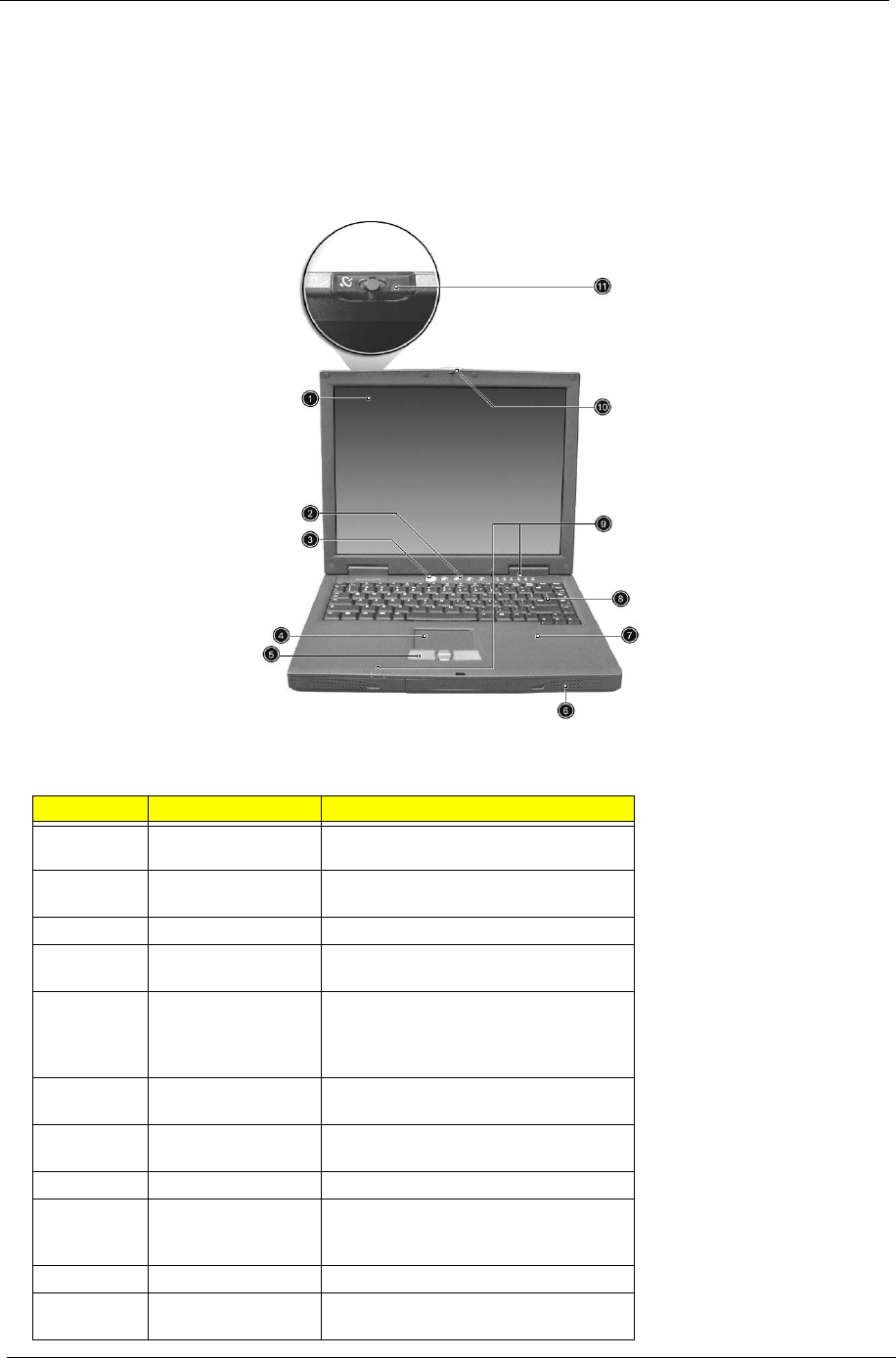
Outlook View
A general introduction of ports allow you to connect peripheral devices, as you would with a desktop PC.
Front View
#Item Description
1 Display Large liquid crystal display (LCD) provides
visual output.
2 Launch keys 4 buttons that can be programmed to start
frequently used applications.
3 Power button Turns the computer on and off.
4 Touchpad Touch sensitive pad that functions like a
computer mouse.
5 Click buttons & scroll
key
Right and left buttons that provide the
same functions as the buttons on a
computer mouse. The scroll key scrolls the
contents of a window up and down.
6 Speakers Left and right speakers deliver stereo audio
output.
7 Palm rest Provides a comfortable platform for your
hands when typing on the keyboard.
8 Keyboard Full-size keyboard for inputting typed data.
9 Status indicators Light emitting diodes (LED) that show the
status of the computer and its
componenets.
10 Latch Locks and releases the lid.
11 Wireless
communication button
Lights when the Wireless LAN capability is
enabled.
Chapter 1 15
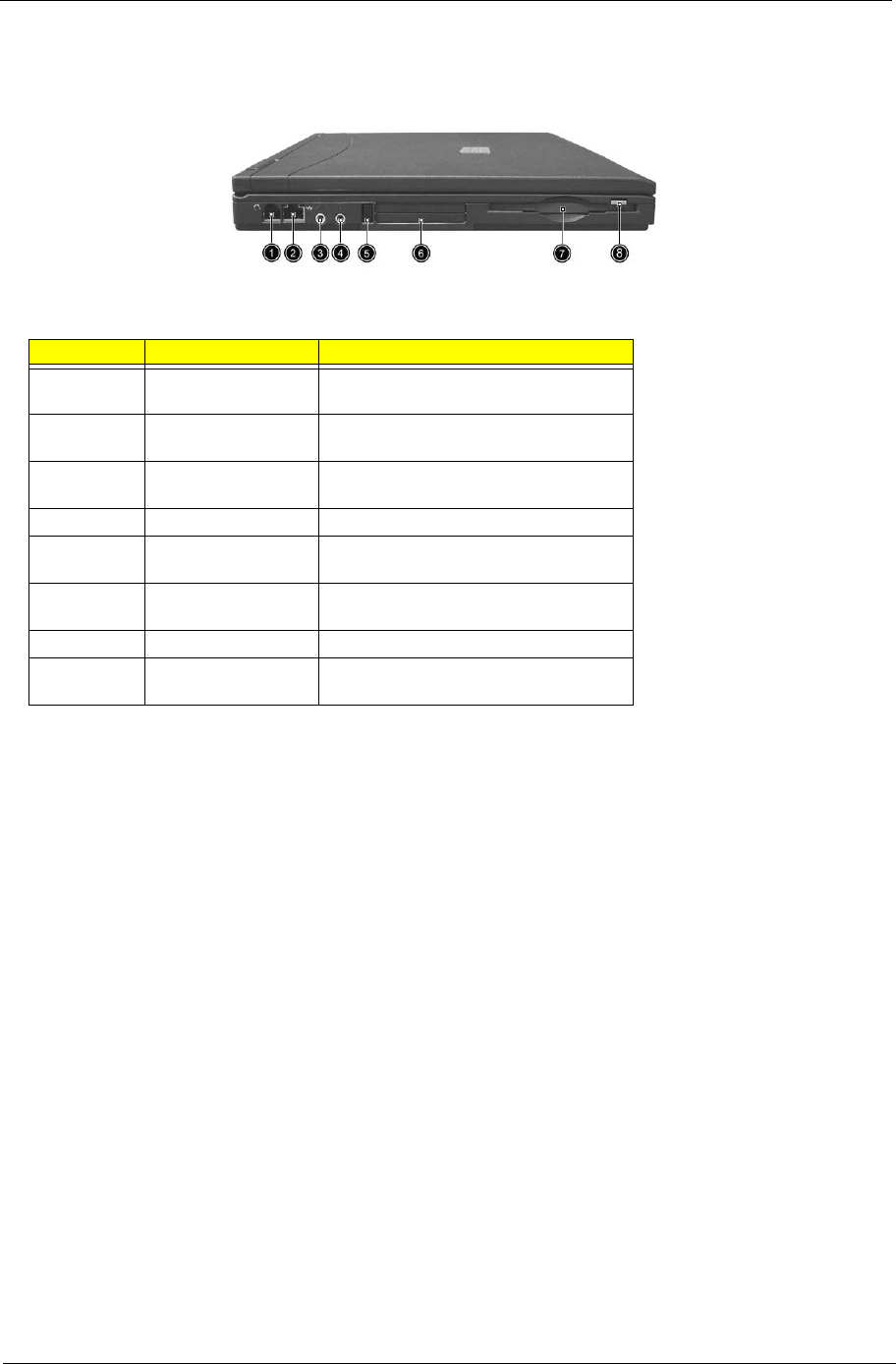
Left Panel
#Item Description
1 Modem jack Connects the built-in fax/data modem to a
phone line.
2 Network jack Connects the computer to an Ethernet 10/
100-based network.
3 Microphone-in jack Connects an external microphone for audio
input.
4 Headphone jack Connects headphones for audio output.
5 PC card eject button Press the eject button to remove a PC card
for the PC card slot.
6 PC card slot The slot supports a standard Type II or
Type III PC card (PCMCIA or CardBus).
7 Floppy disk drive Supports a standard 3.5” diskette.
8 Floppy disk eject
button
Press the eject button to remove a diskette
from the floppy disk drive.
16 Chapter 1
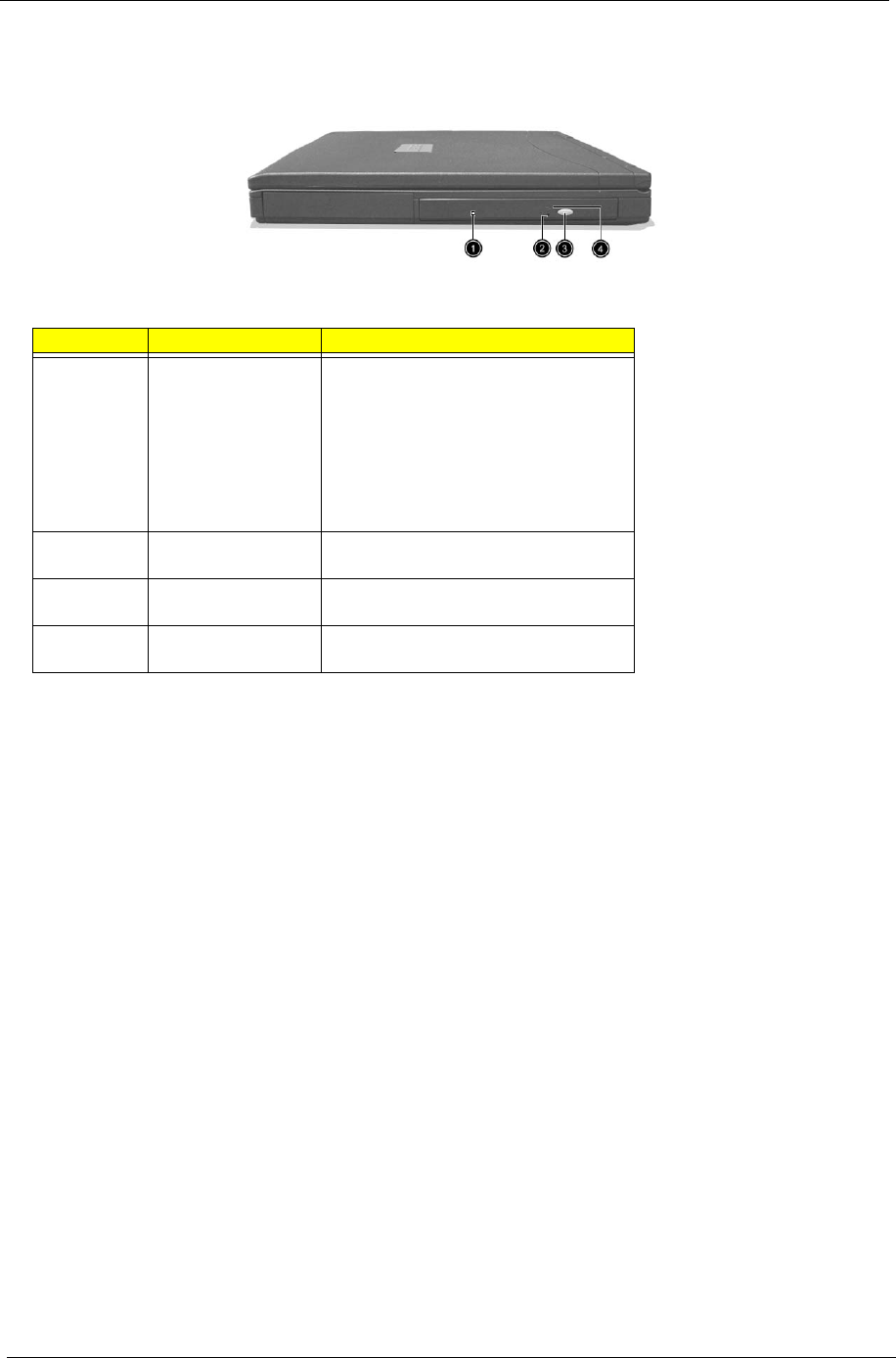
Right Panel
#Item Description
1 Optical drive Depending on your model, the optical drive
is one of the following:
CD-ROM drive for reading CDs.
DVD-ROM drive for reading CDs and
DVDs.
DVD/CD-RW combo drive for reading CDs
and DVDs, and writing to CD-Rs and CD-
RWs.
2 Optical drive
emergency eject hole
Used to eject an optical disc when the
computer is turned off.
3 Optical drive eject
button
Press the eject button to remove a disc
from the optical drive.
4 Optical disc read
indicator
Light emitting diode (LED) that indicates
when an optical disc is being read.
Chapter 1 17
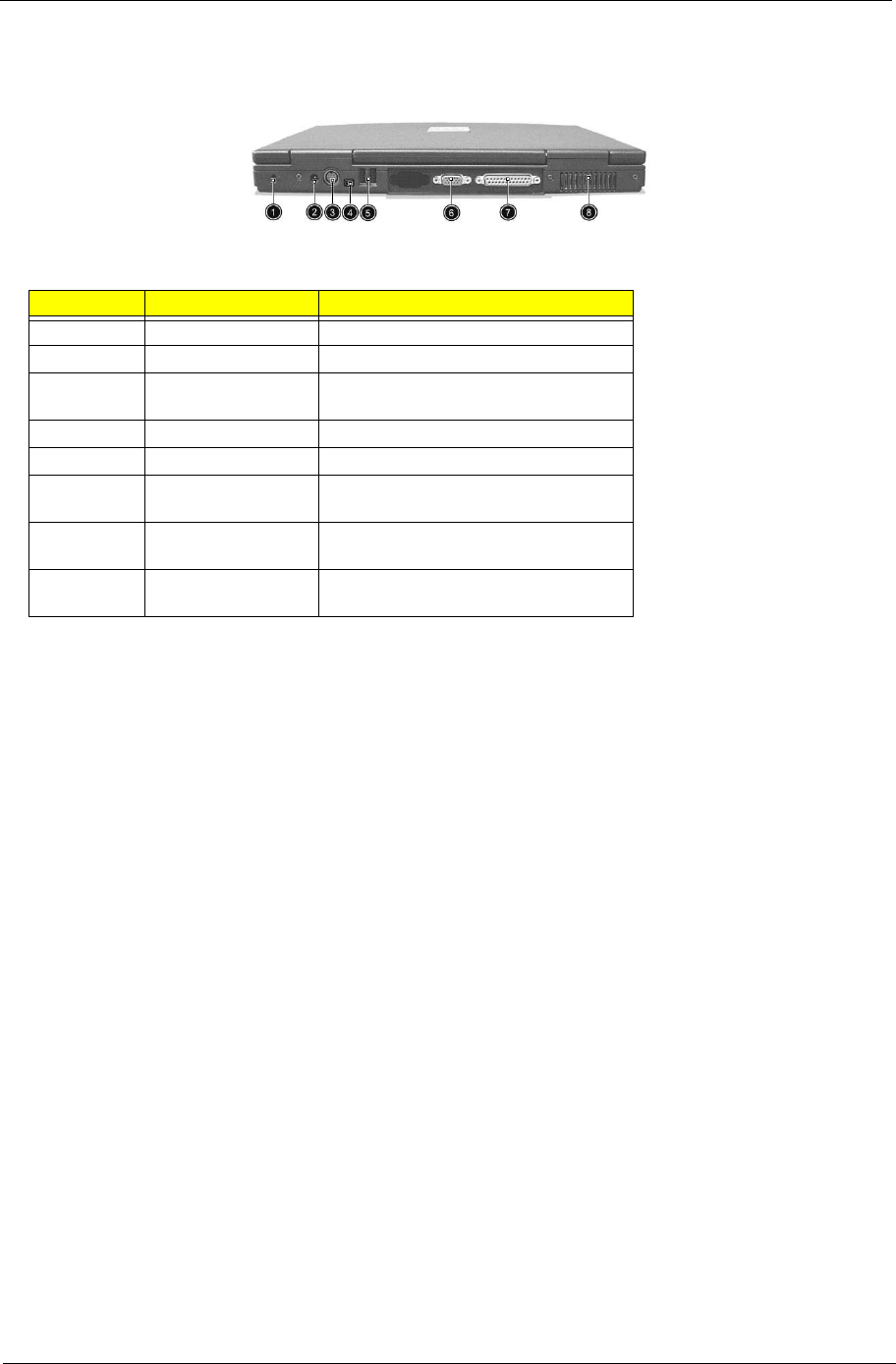
Rear Panel
#Item Description
1 Kensington lock slot For attaching a security connector.
2 DC-in jack Connects the AC adapter.
3 S-video Connects to a television or display device
with S-video input.
4 IEEE 1394 port Connects IEEE 1394 devices.
5 USB ports 2 ports for connecting USB devices.
6 External display port Connects an external (VGA) display
monitor.
7 Parallel port Connects a parallel device, such as a
printer.
8 Ventilation slots Enable the computer to stay cool. even
after prolonged use.
18 Chapter 1
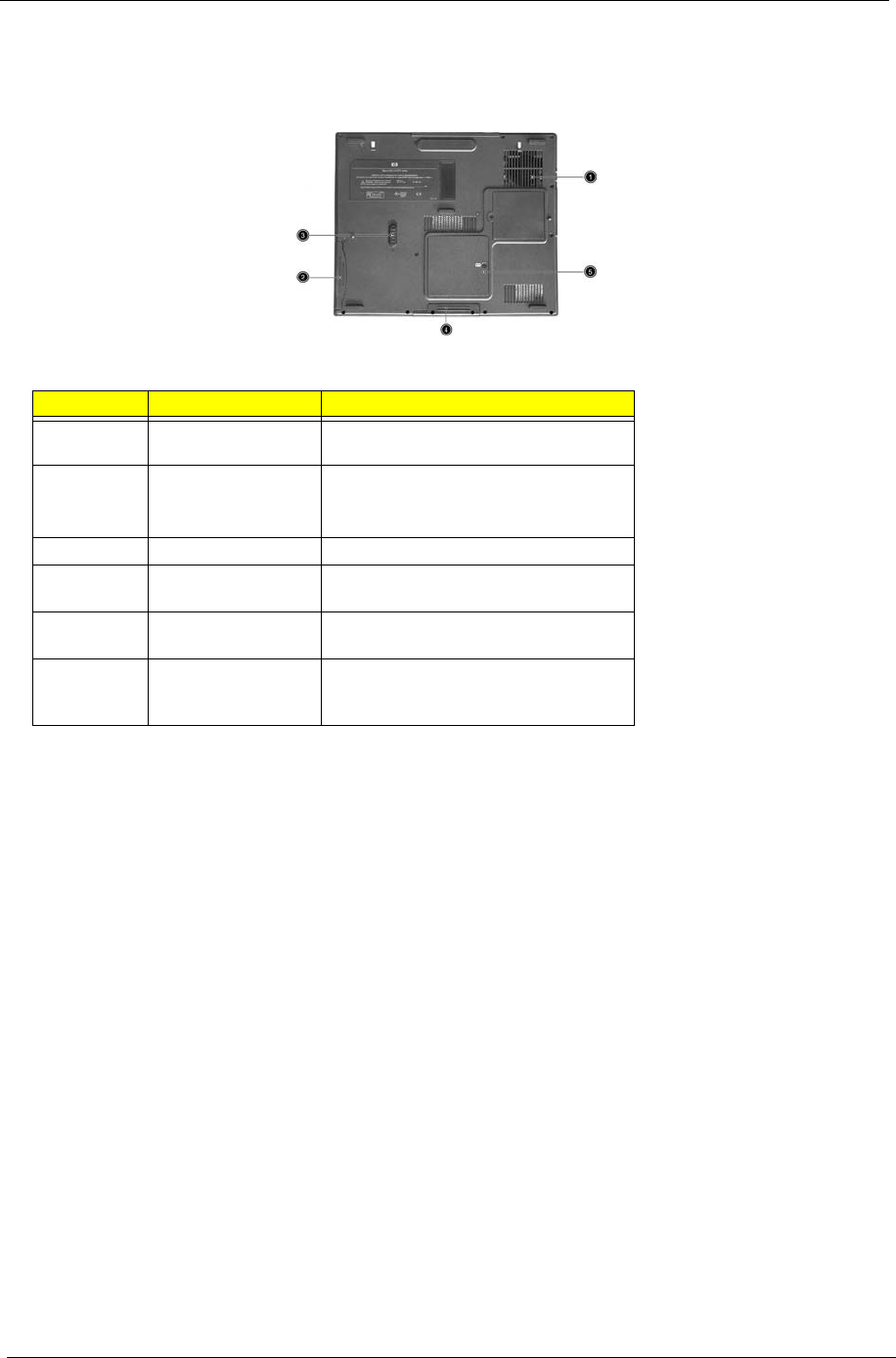
Bottom Panel
#Item Description
1 Ventilation slots Enables the computer to stay cool, even
after prolonged use.
2 Reset Switch Forces the computer to shut down in the
event of system lockup.
Note: Any unsaved data will be lost.
3 Battery The computer’s removable battery.
4 Battery release latch Slide and hold the latch, and then pull the
battery to remove it from the unit.
5 Hard disk bay Removable cover provides access to the
computer’s hard drive.
6 Memory compartment Removable cover provides access to the
memory slots for upgrading the computer’s
memory.
Chapter 1 19
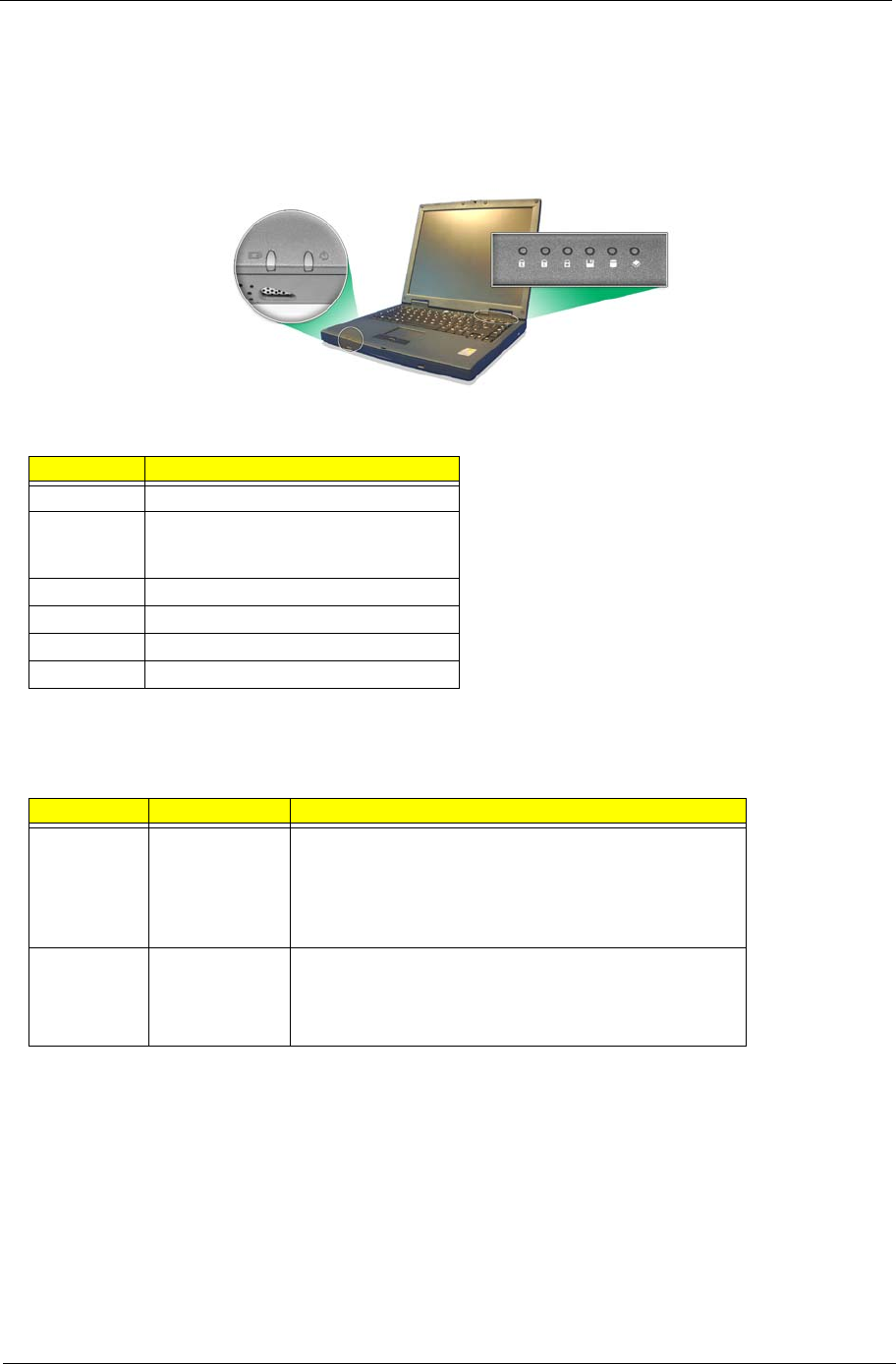
Indicators
Your computer provides an array of six indicators located above the keyboard, in addition to two indicators
positioned at the from of the palm rest area. These indicators show the status of the computer and its
components.
The six indicators located above the keyboard provide the following status information:.
The two indicators located at the front of the unit provide the following status information:
#Description
1 Caps Lock active
2 Num Lock active (Note: the keypad lock
must be turned on to use the embedded
numeric keypad.)
3 Scroll Lock active
4 Floppy disk drive activity
5 Hard disk drive activity
6 Optical drive activity
#
1 Battery charge:
Green
Amber
Red
Off
the AC adapter is connected and the battery is fully charged.
the AC adapter is connected and the battery is charging.
the AC adapter is connected and the battery has a fault.
the AC adapter is not connected, or the battery is not installed.
2 Power mode:
Steady green
Flashing green
Off
the computer is on (even if the display is turned off).
the computer is in standby mode.
the computer is turned off, or in hibernation mode.
20 Chapter 1
Keyboard
Special keys
Lock keys
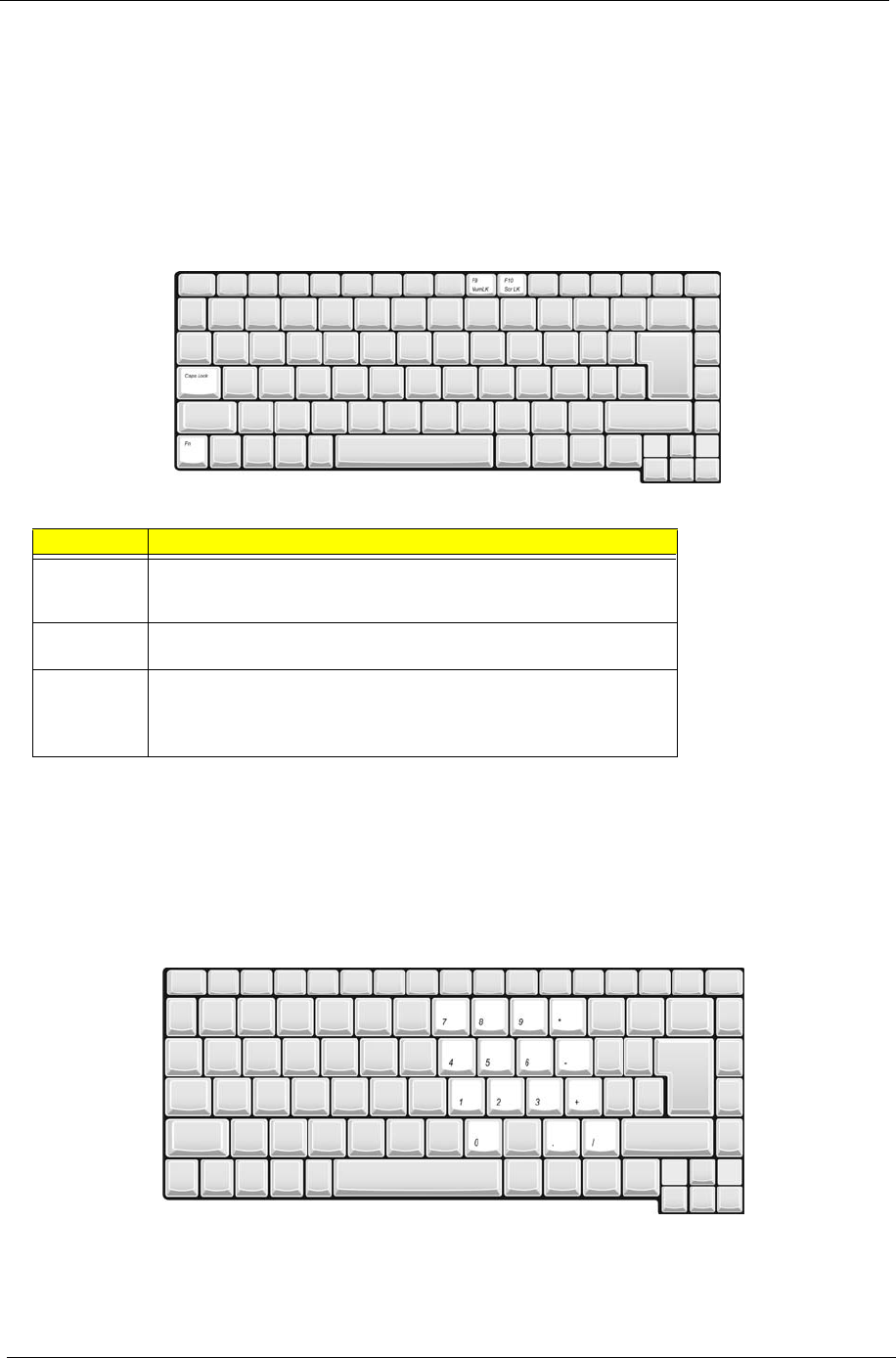
The keyboard features full-size keys with an embedded keypad, separate cursor control keys, two Windows
keys, and twelve function keys (hot keys).
Embedded Keypad
The embedded keypad functions like a desktop numeric keypad. It is indicated by small blue numbers and on
the applicable keys.
To use the the embedded numeric keys, toggle the Num Lock on by pressing the Fn + t keys simultaneously.
With the embedded keypad turned on, the following actions are possible:
Lock Key Description
Caps Lock When Caps Lock is on, all alphabetic characters are typed in uppercase.
Toggle on and off by pressing the Caps Lock key on the left side of the
keyboard.
Num lock When Num Lock is on, the embedded numeric keyboard can be used.
Toggle on and off by pressing the Fn+tkeys simultaneously.
Scroll lock When Scroll Lock is on, the screen toggles up or down one line at a time
when the up and down cursor control keys are pressed. Note: Scroll Lock
doesn’t work in all applications. Toggle on and off by pressing the Fn +u
keys simultaneously.
Chapter 1 21
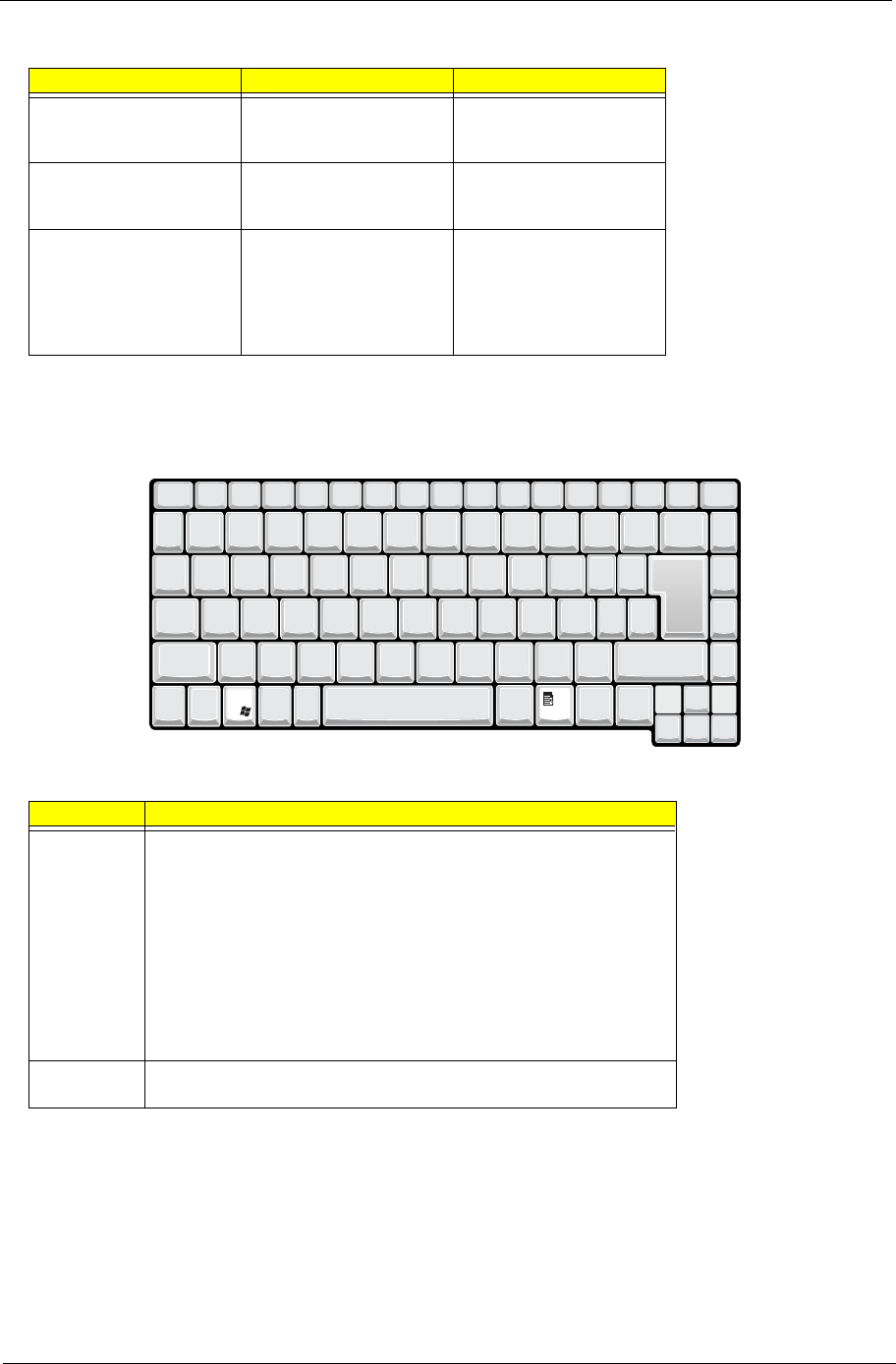
Windows Keys
The keyboard has two keys that perform Windows-specific functions.
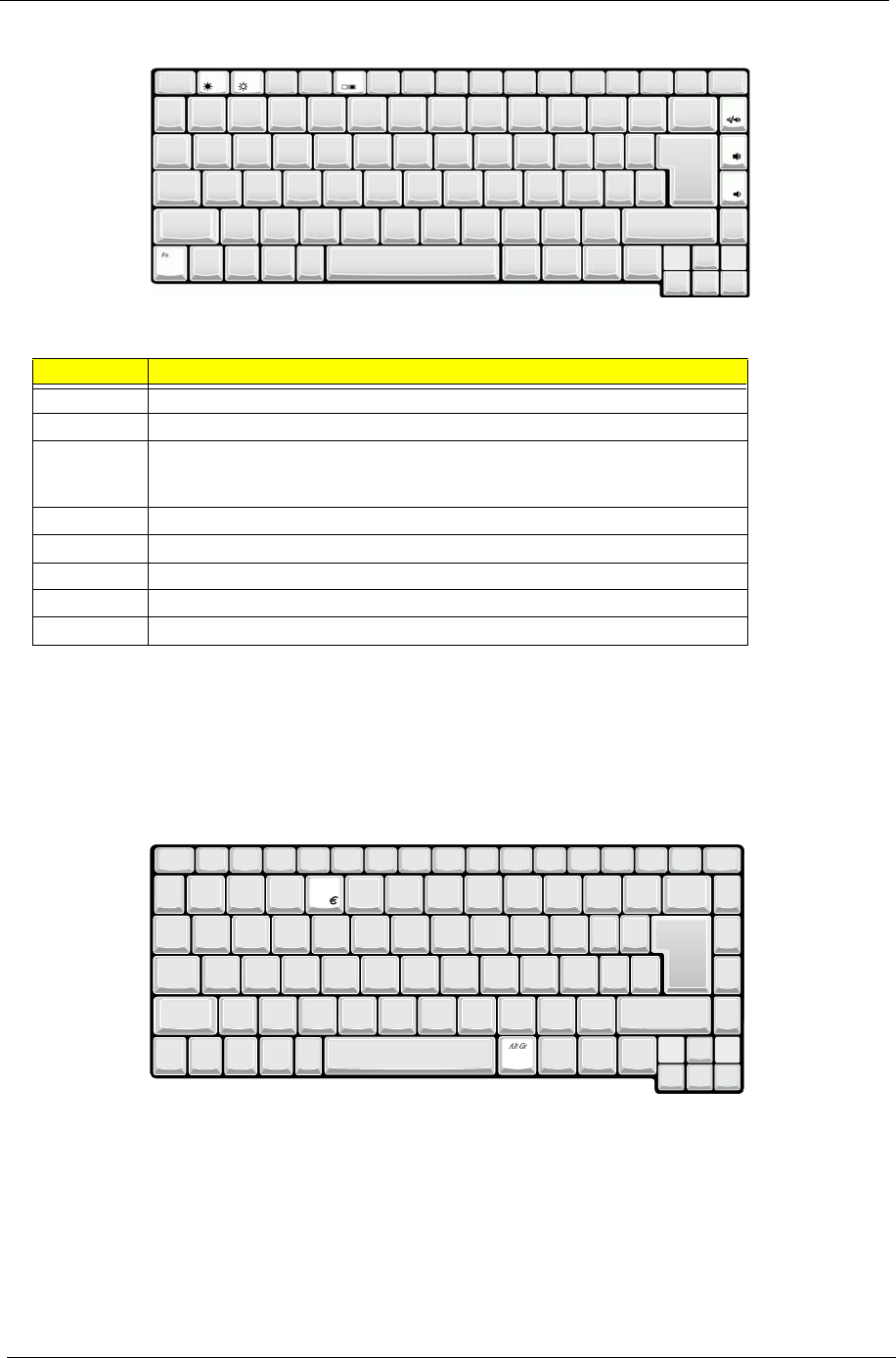
Hotkeys
Using the Fn key with another key creates a hot key, providing a quick and convenient method for controlling
various functions.
To use a hot key, first hold down the Fn key. Next, press the second key in combination. Finally, release both
keys.
Desired Access Num Lock On Num Lock On
Number keys on embedded
keypad
Type numbers using
embedded keypad in the
normal way.
Cursor-control keys on
embedded keypad
Hold down the jkey while
using the cursor keys on the
embedded keypad.
Hold Fn key while using
cursor-control keys.
Main keyboard keys Hold down the Fn key while
typing letters using the
embedded keypad keys.
Simultaneously press the
j key for for capital
letters.
Type letters in the normal
way.
Key Description
Windows logo
key
Pressed alone, this key has the same effect as clicking on the Windows
Start button; it launches the Start menu. It can also be used with other keys
to provide a variety of functions:
+ Tab (Activates the next Taskbar button)
+ E (Opens the My Computer window)
+ F1 (opens Help and Support)
+ F (opens the Find: All Files dialog box)
+ M (minimizes all windows)
j + Windows logo key + M (undoes the minimize all windows action)
+ R (opens the Run dialog box)
Application
key
This key has the same effect as clicking the right mouse button; it opens
the application’s context menu.
22 Chapter 1
NOTE: When activating hotkeys, press and hold the Fn key before pressing the other key in the hotkey
combination.
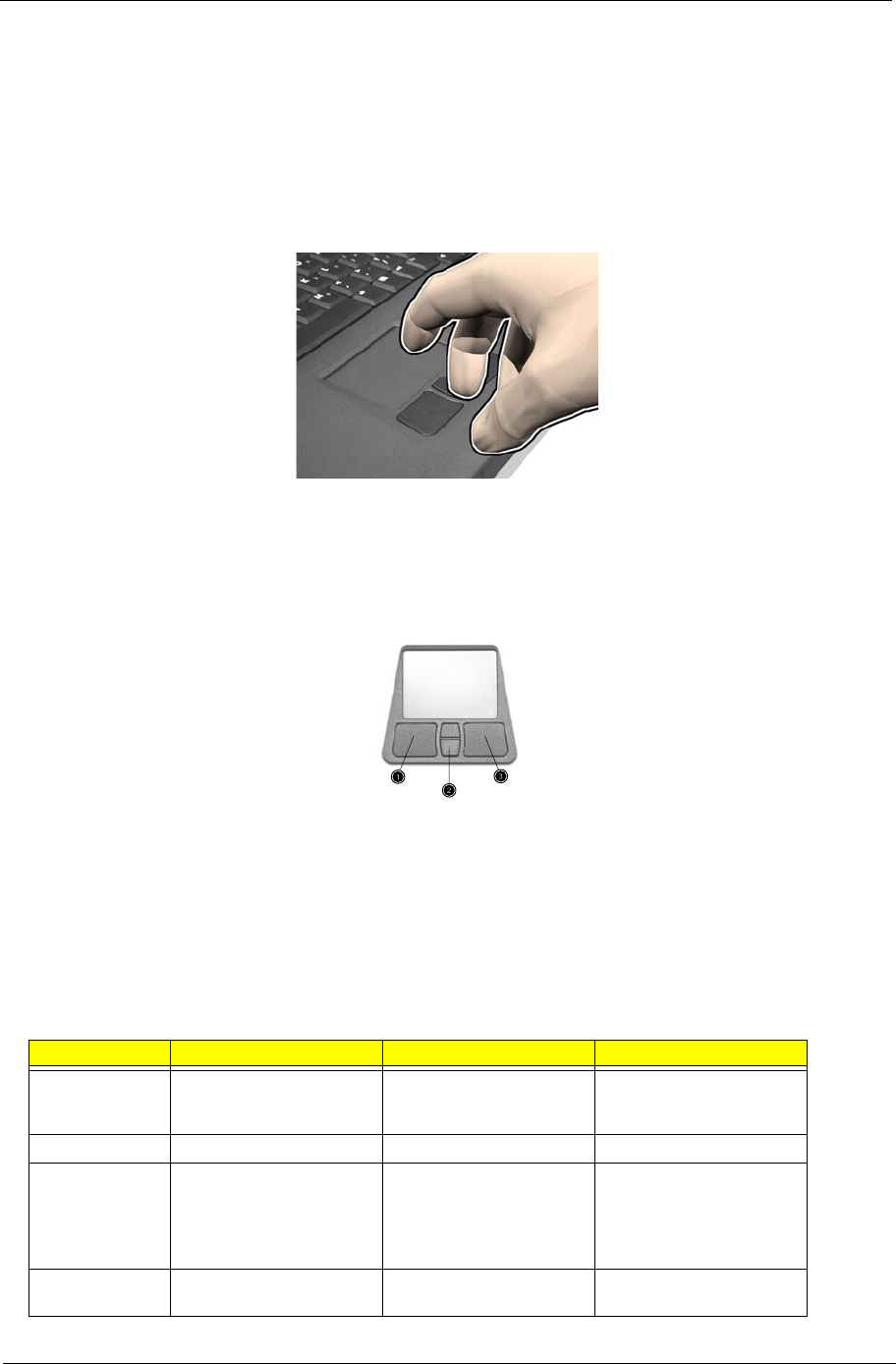
Euro key
Your computer supports the new Euro currency character. First, hold down the Alt Gr key, and then press the
Euro key.
Keyboard Ergonomics
The wide palm rest area provides a comfortable platform for your hands when typing on the keyboard. The
ergonomic design enables you to adopt a relaxed, yet very efficient, typing style.
Hot Key Function
Fn + l Decreases the display panel brightness.
Fn + m Increases the display panel brightness.
Fn + p Toggles the display setting between (1) the computer’s LCD panel, (2) an external
display device connected to the external display port, and (3) simultaneous display
on the computer’s LCD panle and an external display device.
Fn + t Toggles Num Lock on and off. (Please see “Special keys”.)
Fn + u Toggles the keyboard’s Scroll Lock on and off. (Please see “Special keys”.)
Fn +g Toggle the sound on and off. (Mute.)
Fn +{ Increases the sound volume. (Doesn’t work for an external keyboard.)
Fn +} Decreases the sound volume. (Doesn’t work for an external keyboard.)
Chapter 1 23
Tou chp ad
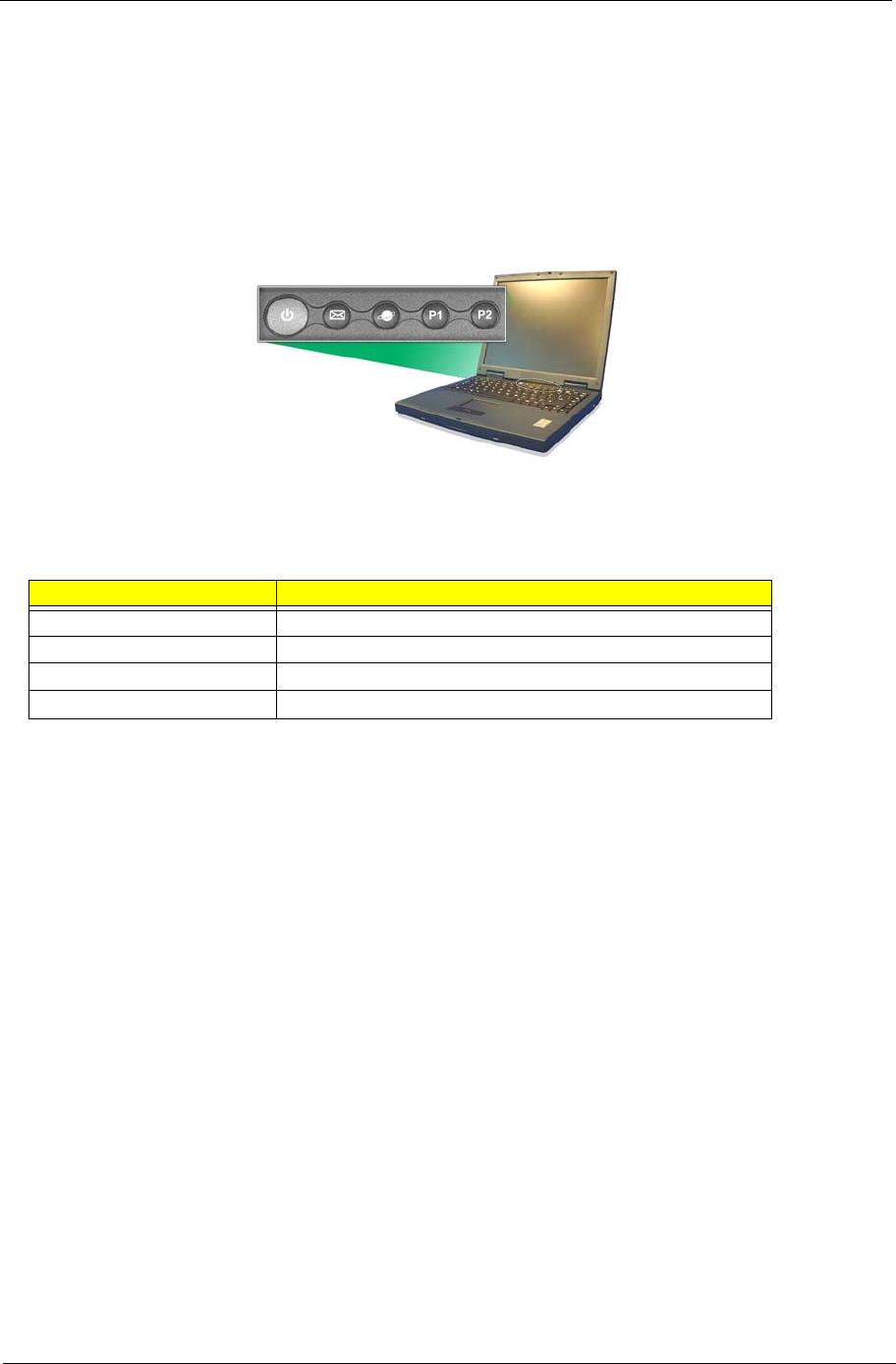
The built-in touchpad is a PS/2-compatible pointing device that senses movement on its surface. This cursor
responds to your finger movements on the touchpad. In addition, the two click buttons provide the same
functionality as a computer mouse, while the scroll key enables easy up and down scrolling in documents and
web pages.
The touchpad is located in the middle of the palm rest area, providing maximum comfort and efficiency.
Touchp ad Basic s
Use the touchpad as follows:
TSlide your finger over the surface of the touchpad to control the movement of the cursor. Tap the
touchpad to perform selection and execution functions.
TPress the left (1) and right (3) buttons to perform selection and execution functions, just as you
would use the buttons on a computer mouse.
TUse the scroll key (2) to scroll through long documents and web pages. Press the top of the key to
scroll up, and the bottom to scroll down.
Function Left Button Righ Button Tap
Execute Click twice quickly Tap twice (at the same
speed as double-clicking
the mouse button)
Select Click once Tap once
Drag Click and hold. Then slide
your finger across the
touchpad to drag the
cursor over the selection.
Tap twice quickly. On the
second tap, slide your
finger across the
touchpad to drag the
cursor over the selection.
Access context
menu
Click once

24 Chapter 1
NOTE: Keep your fingers, as well as the surface of the touchpad dry and clean. The touchpad is sensitive to
your finger movements: the lighter the touch, the better the response. Tapping hard will not increase the
touchpad’s responsiveness.
Chapter 1 25
Launch Keys
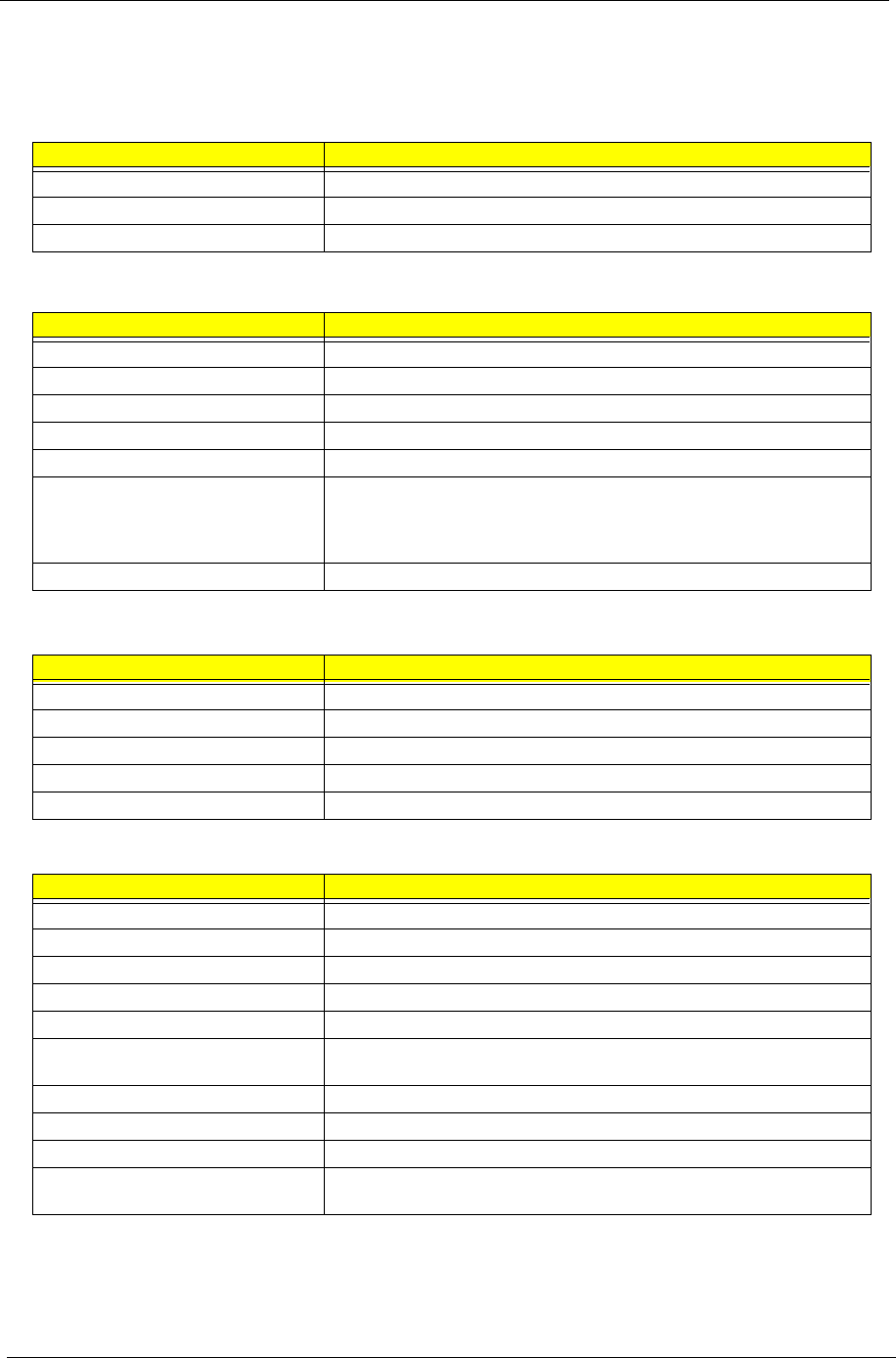
Located at the top of the keyboard are four buttons. These buttons are called launch keys. They are
designated as key 1, key 2, key 3 and key 4. By default, key 1 is used to launch the email application and key
2 is used to launch the Internet browser. Keys 3 and 4 start the Launch Manager application. All four launch
keys can be set by the user.
To see the launch keys, run the Acer Launch Manger.
#Description
Email Launches your email application.
Web browser Launches your Internet browser
P1 User-programmable
P2 User-programmable
26 Chapter 1
Hardware Specifications and Configurations
Processor
Item Specification
CPU type AMD Athlon XP (1.2G-1.8G) FSB200/266M
CPU package OPGA
CPU core voltage 1.75V/1.45V
BIOS
Item Specification
BIOS vendor Phoenix
BIOS Version 1.0
BIOS ROM type Flash ROM
BIOS ROM size 512KB
BIOS package TSOP
Supported protocols ACPI 1.0b,APM 1.2, PC Card 95, SM BIOS 2.3, EPP/IEEE 1284, ECP/
IEEE 1284 1.7 & 1.9, PCI 2.2, PnP 1.0a, DMI 2.0, USB, VESA VGA BIOS,
DDC-2B, CD-ROM bootable, Windows keyboard Microsoft Simple Boot
Flag
BIOS password control Set by setup manual
Second Level Cache
Item Specification
Cache controller Built-in CPU
Cache size 256KB
1st level cache control Always enabled
2st level cache control Always enabled
Cache scheme control Fixed in write-back
System Memory
Item Specification
Memory controller
Onboard memory size 0MB
DIMM socket number 2 sockets (4 banks)
Supports memory size per socket 1024MB
Supports maximum memory size 2GB
Supports DIMM type DDR-SDRM(Double Data Rate-Synchronous Dynamic Random Access
Memory)
Supports DIMM Speed 266 MHz
Supports DIMM voltage 3.3V
Supports DIMM package 200-pin soDIMM
Memory module combinations You can install memory modules in any combinations as long as they
match the above specifications.
Chapter 1 27
Above table lists some system memory configurations. You may combine DIMMs with various capacities to
form other combinations..
Memory Combinations
Slot 1 Slot 2 Total Memory
0MB 64MB 64 MB
64MB 0MB 64 MB
0MB 128MB 128 MB
64MB 64MB 128 MB
128MB 0MB 128 MB
64MB 128MB 192MB
128MB 64MB 192MB
128MB 128MB 256MB
256MB 64MB 320MB
64MB 256MB 320MB
256MB 128MB 384MB
128MB 256MB 384MB
256MB 256MB 512MB
512MB 512MB 1024MB
512MB 0MB 512MB
0MB 512MB 512MB
LAN Interface
Item Specification
Chipset VIA LAN controller
Supports LAN protocol 10/100 Mbps
LAN connector type RJ45
LAN connector location Left side
Modem Interface
Item Specification
Chipset CONEXANT soft modem (on board) 20463-11
Fax modem data baud rate (bps) 14.4K
Data modem data baud rate (bps) 56K
Supports modem protocol V.90 MDC
Modem connector type RJ11
Modem connector location Left side
Floppy Disk Drive Interface
Item Specification
Vendor & model name Panasonic JU-226A 243FC
Floppy Disk Specifications
Media recognition 2DD (720KB) 2HD (1.2MB, 3-mode) 2HD (1.44MB)
Sectors/track 9 15 18
Tracks 80 80 80
Rotational speed (RPM) 300 360 300
Read/write heads 2
Encoding method MFM/FM
28 Chapter 1
Power Requirement
Input Voltage (V) +5V +/- 10%
Hard Disk Drive Interface
Item Specification
Vendor &
Model Name
TOSHIBA
20G(MK20
18GAP),
TITAN
IBM
20G(IC25N
020ATCS0
4-0),
07N8325,
CASCADE
IBM
30G(IC25N
030ATCS0
4-0),
07N8326,
CASCADE
TOSHIBA
30GB(MK3
021GAS)
NEPTUNE
HGST
40GB
(IC25N040
ATCS04-0
07N8327)
CASCADE
TOSHIBA
40GB(MK4
021GAS)
NEPTUNE
TOSHIBA
60GB(MK6
021GAS)
NEPTUNE
Capacity
(MB)
20000 20000 30000 30000 40000 40000 60000
Bytes per
sector
512 512
Data heads 2 3 4 4
Drive Format
Disks 1 2 2 2
Spindle
speed (RPM)
4200 RPM 4200 RPM 4200RPM 4200RPM 4200RPM 4200RPM 4200RPM
Performance Specifications
Buffer size 2048KB 2048KB 2048KB 2048KB 2048KB 2048KB 2048KB
Interface ATA-5 ATA-5 ATA-5 ATA-5 ATA-5 ATA-5 ATA-5
Max. media
transfer rate
(disk-buffer,
Mbytes/s)
216 216
Data transfer
rate
(host~buffer,
Mbytes/s)
100 MB/
Sec.
Ultra DMA
mode-5
100 MB/
Sec.
Ultra DMA
mode-5
100 MB/
Sec.
Ultra DMA
mode-5
100 MB/
Sec.
Ultra DMA
mode-5
100 MB/
Sec.
Ultra DMA
mode-5
100 MB/
Sec.
Ultra DMA
mode-5
100 MB/
Sec.
Ultra DMA
mode-5
DC Power Requirements
Voltage
tolerance
5V(DC) +/-
5%
5V(DC) +/-
5%
5V(DC) +/-
5%
5V(DC) +/-
5%
5V(DC) +/-
5%
5V(DC) +/-
5%
5V(DC) +/-
5%
DVD-ROM Interface
Item Specification
Vendor & model name DVD-ROM 8X QSI SDR-083
Performance Specification With CD Diskette With DVD Diskette
Transfer rate (KB/sec) Sustained:
Max 3.6Mbytes/sec
Sustained:
Max 10.8Mbytes/sec
Data Buffer Capacity 128 KBytes
Interface IDE/ATAPI
Applicable disc format DVD: DVD-5, DVD-9, DVD-10, DVD-R (3.95G)
CD: CD-Audio, CD-ROM (mode1 and mode 2), CD-ROM XA(mode 2 form 1
and form 2), CD-I (mode 2, form 1 and form 2), CD-I Ready, CD-I Bridge CD-
WO, CD-RW, Photo CD, Video CD, Enhanced Music CD, CD-TEXT
Loading mechanism Soft eject (with emergency eject hole)
Power Requirement
Input Voltage +5 V +/- 5 %
Floppy Disk Drive Interface
Item Specification
Chapter 1 29
Audio Interface
Item Specification
Audio Controller Conexant CX 20468-21
Audio onboard or optional Built-in
Mono or Stereo Stereo
Resolution 20 bit stereo Digital to analog converter
18 bit stereo Analog to Ditial converter
Compatibility Microsoft PC98/PC99, AC97 2.1
Mixed sound source Line-in, CD, Video, AUX
Voice channel 8/16-bit, mono/stereo
Sampling rate 44.1 KHz
Internal microphone No
Internal speaker / Quantity Yes
Supports PnP DMA channel DMA channel 0
DMA channel 1
Supports PnP IRQ IRQ3, IRQ5, IRQ7, IRQ9, IRQ10, IRQ11
Video Interface
Item Specification
Chip vendor VIA
Chip name S3 Savage 4 integrated in VT8235
Supports ZV (Zoomed Video) port No
Graph interface 4X AGP (Accelerated Graphics Port) bus
Maximum resolution (LCD) 1024X768
Maximum resolution (CRT) 1024X768
Video Memory
ItemResolution Specification
Fixed or upgradeable Fixed
Video memory size 32MB/
Parallel Port
Item Specification
Parallel port controller VIA VT8235
Number of parallel port 1
Location Rear side
Connector type 25-pin D-type connector, in female type
Parallel port function control Enable/Disable by BIOS Setup
Supports ECP/EPP/Bi-directional (PS/2
compatible)
Yes (set by BIOS setup)
Optional ECP DMA channel (in BIOS Setup) DMA channel 1 and 3
Optional parallel port I/O address (in BIOS
Setup)
3BCh, 278h, 378h
Optional parallel port IRQ (in BIOS Setup) IRQ7, IRQ5
30 Chapter 1
USB Port
Item Specification
USB Compliancy Level 1.1
OHCI USB 2.0
Number of USB port 2
Location Rear panel
Serial port function control Enable/Disable by BIOS Setup
PCMCIA Port
Item Specification
PCMCIA controller OZ 6912
Supports card type Type-III/II
Number of slots One type-III
Access location Left side
Supports ZV (Zoomed Video) port No ZV support
Supports 32 bit CardBus Yes (IRQ11)
System Board Major Chips
Item Controller
System core logic VIA KN266(Twist-K)+VT8235
Super I/O controller NS PC87393
Audio controller CONEXANT CX20468-21
Video controller VIA Twist-K internal S3 Graphics
Hard disk drive controller VT8235
Keyboard controller PC87570
RTC VIA KN266(Twist-K)+VT8235
Keyboard
Item Specification
Keyboard controller PC87570
Keyboard vendor & model name NS
Total number of keypads 88/90-key
Windows keys Yes
Internal & external keyboard work simultaneously Yes
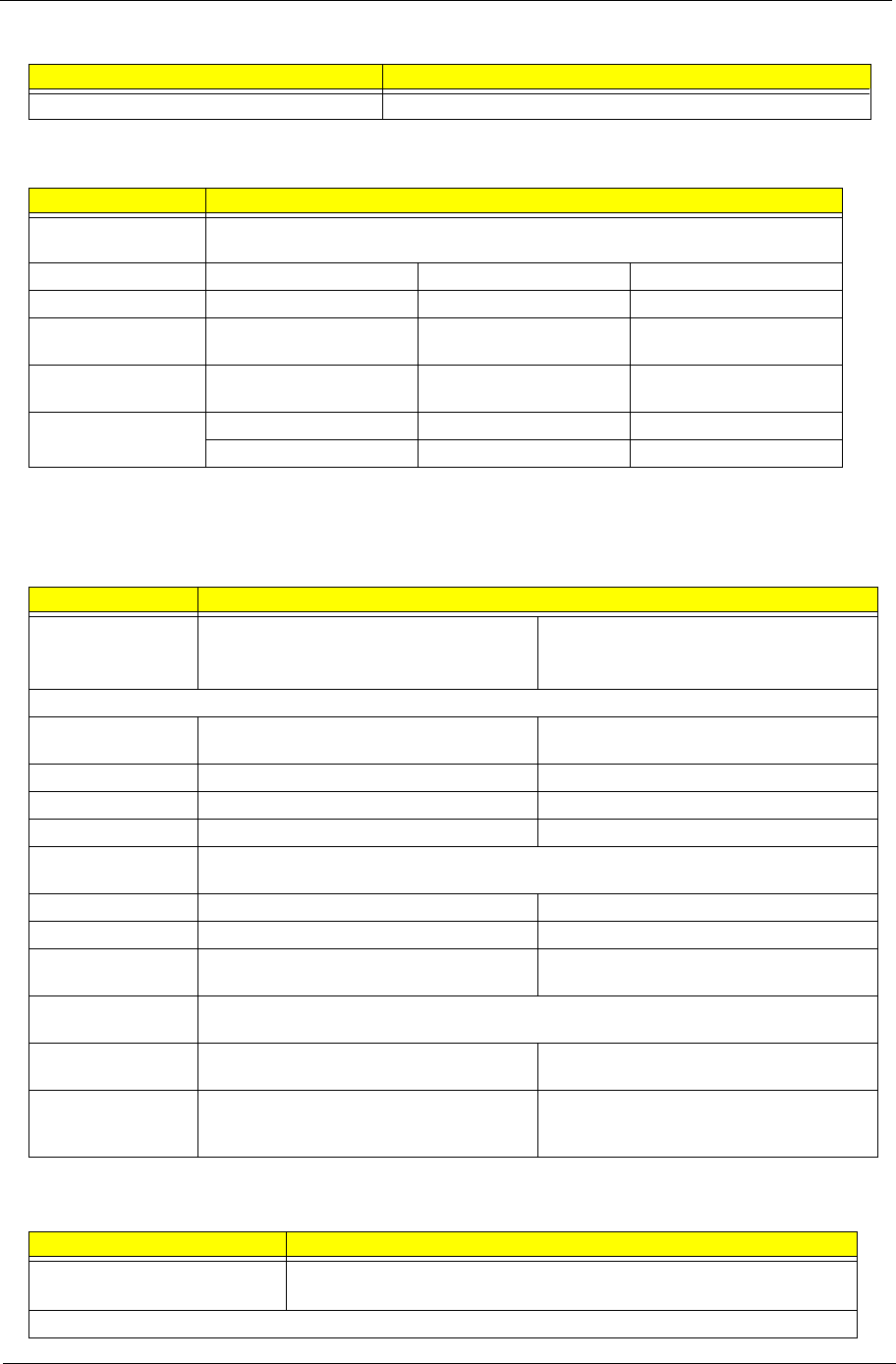
Battery
Item Specification
Vendor & model name Sanyo/Panasonic
Battery Type Li-ion
Pack capacity 4000mAH
Cell voltage V/cell
Number of battery cell 8
Package configuration 2 cells in series, 4 series in parallel
Chapter 1 31
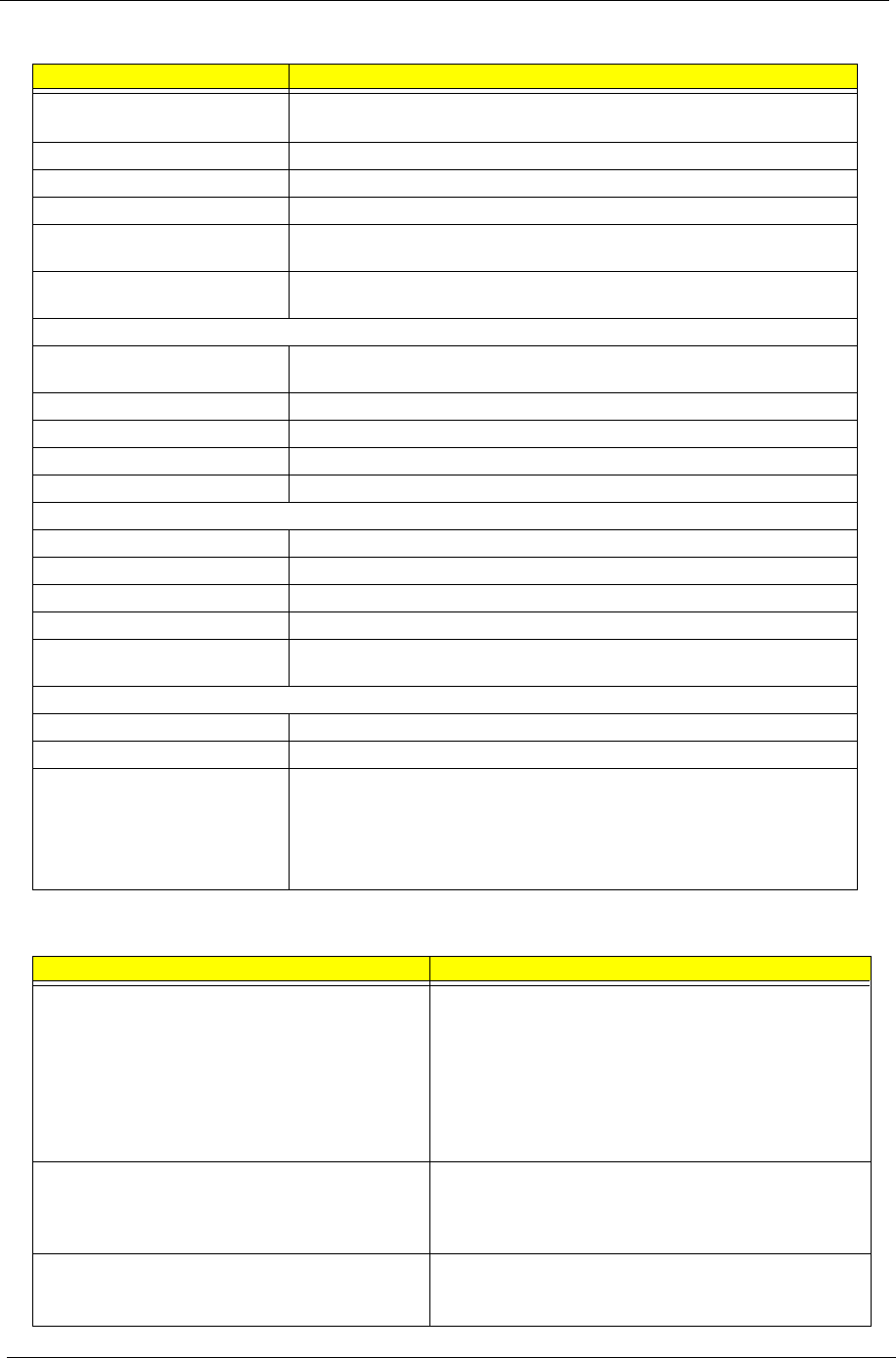
NOTE: DC-AC inverter is used to generate very high AC voltage, the support to LCD CCFT backlight user,
and is also responsible for the control of LCD brightness. Avoid touching the DC-AC inverter area while
the system is turned on.
Package voltage Li-ion 14.8V/ Ni-MH 9.6V
DC-AC LCD inverter
Item Specification
Vendor & model
name
Quanta 3HYA1 IV0008
Input voltage (V) 8(min.) - 20(max.)
Input current (mA) - - 520(max.)
Output voltage
(Vrms, no load)
- 660(typ.) -
Output voltage
frequency (kHz)
52(min.) 58(typ.) 64(max.)
Output Current/Lamp lout(Min.) 2.5mA/2.8mA Vadj=0V
lout(Max.) 6.3mA/6.9mA Vadj=3.2V
LCD
Item Specification
Vendor & model
name
QDI QD141X1LH03
Samsung LTN141X8L04
AU B141XN04
LG LP150X2-A2M1/LP150X2-A296
Sharp LP150X1 LH82
AU B150XN01
Mechanical Specifications
LCD display area
(diagonal, inch)
14.1 15.0
Display technology TFT TFT
Resolution XGA (1024X768) XGA (1024x768)
Supports colors 262K 262K
Optical
Specification
Brightness control keyboard hotkey keyboard hotkey
Contrast control No No
Suspend/Standby
control
Yes Yes
Electrical
Specification
Supply voltage for
LCD display (V)
3.3 3.3
Supply voltage for
LCD backlight
(Vrms)
690 690
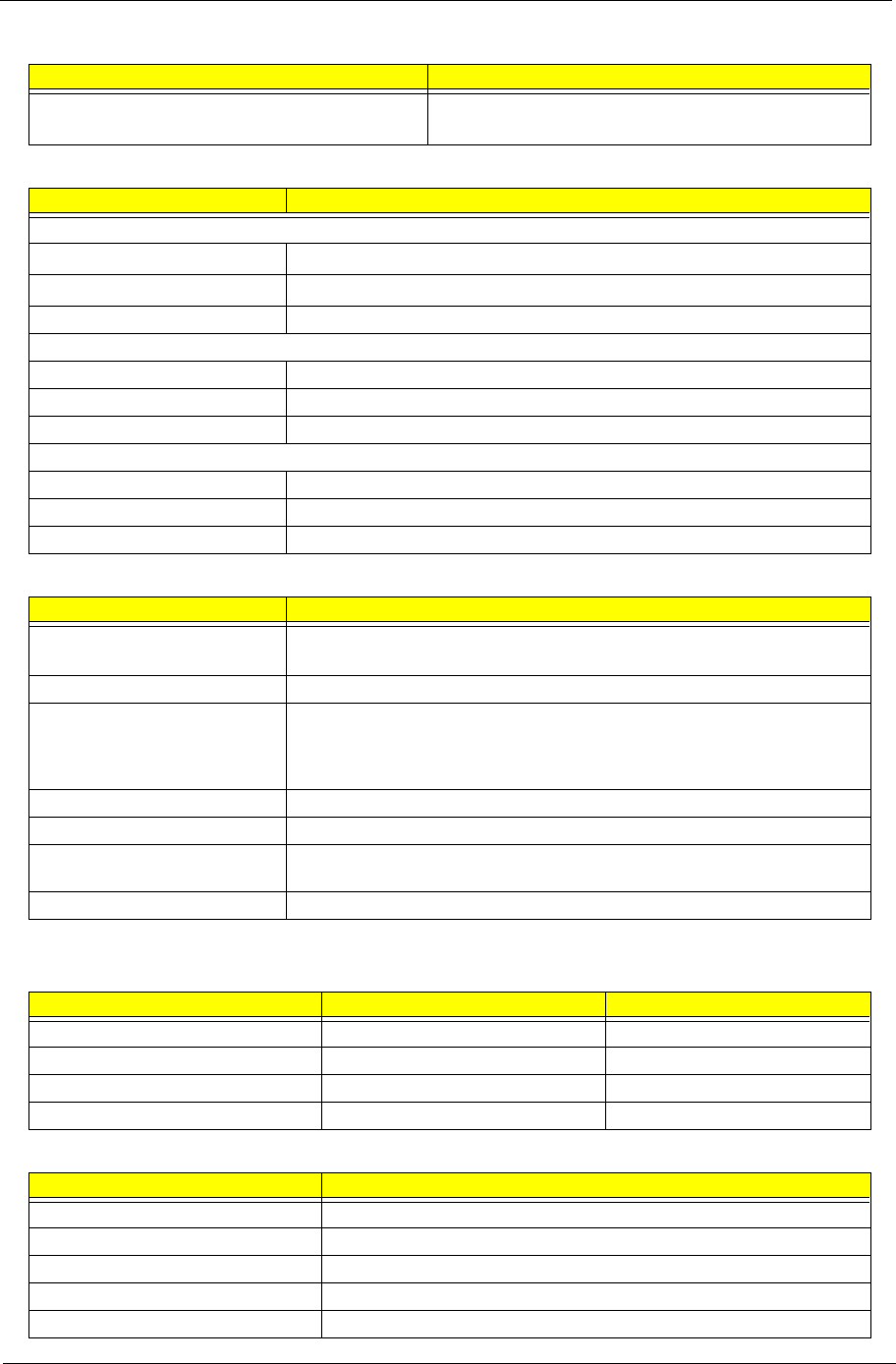
AC Adapter
Item Specification
Vendor & model name Delta 75W ADP-75FB B(WPFC) 3P
Lite-on 75W PA 1750-02Z(WPFC) 3P
Input Requirements
Battery
Item Specification
32 Chapter 1
Maximum input current (A,
@90Vac, full load)
2.25A @ 90Vac
1.125A @ 180Vac
Nominal frequency (Hz) 47 - 63
Frequency variation range (Hz) 47 - 63
Nominal voltages (Vrms) 100- 240
Inrush current The maximum inrush current will be less than 50A and 100A when the adapter
is connected to 115Vac(60Hz) and 230Vac(50Hz) respectively.
Efficiency It should provide an efficiency of 83% minimum, when measured at maximum
load under 115V(60Hz).
Output Ratings
DC output voltage +18.8V~20.0V including the effects of line voltage variation, load current,
ripple and noise
Noise + Ripple 400mvp-p (20MHz bandwidth) for resistor load
Output current 0~4A
Input rated voltage 100/240V
Input current 2.25A@90Vac for Delta/ 1.125@180Vac for Lite-On
Dynamic Output Characteristics
Turn-on delay time 3 sec.
Hold up time 4 ms min. (115 Vac, input full load)
Over Voltage Protection (OVP) 29 V
Short circuit protection Output can be shorted without damage
Electrostatic discharge (ESD) 15kV (at air discharge)
8kV (at contact discharge)
Dielectric Withstand Voltage
Primary to secondary 3000Vac (4242Vdc) 10mA for 1 second
Leakage current 100uA max (240Vac, 60Hz)
Regulatory Requirements Internal filter meets;
1. FCC class B requirements.
2. VDE 243/1991 class B requirements.
3. CISPR 22 Class B requirements.
3. VCCI class II requirements.
Power Management
Power Saving Mode Phenomenon
Standby Mode
Waiting time specified by the System Standby value
or the operating system elapses without any system
activity.
Or
When the computer is about to enter Hibernation
mode (e.g. during a battery-low condition), but the
Hibernation file is invalid or not present.
The Sleep indicator lights up
Hibernation Mode
When customized functions for power management
are set to Hibernation and the corresponding action is
taken.
All power shuts off
Display Standby Mode
Keyboard, built-in touchpad, and an external PS/2
pointing device are idle for a specified period.
The display shuts off
AC Adapter
Item Specification
Chapter 1 33
Hard Disk Standby Mode
Hard disk is idle within a specified period of time
Hard disk drive is in standby mode. (spindle turned-off)
Environmental Requirements
Item Specification
Temperature
Operating 0~+40 °C
Non-operating -20~+60 °C (unpacked)
Non-operating Non (storage package)
Humidity
Operating 0% to 90% RH, non-condensing
Non-operating 20% to 90% RH, non-condensing (unpacked)
Non-operating Non (storage package)
Vibration
Operating (unpacked) 5~500Hz: 1.0Grms (random)
Non-operating (unpacked) 5~500Hz: 2.16Grms (random)
Non-operating (packed) 5~500Hz: 2.16Grms (random)
Mechanical Specification
Item Specification
Dimensions 319mm (W) x 260mm (D) x 33mm (H) for 14.1 inch model
330mm (W) x 267mm (D) x 35mm (H) for 15.0 inch model
Weight 2.9Kg (6.4 lbs) for 14.1 inch model; 3.1KG (6.8 lbs) for 15.0 inch model
I/O Ports 2 USB port, 1VGA (external monitor) port, 1 Microphone in jack, 1 Headphone
out jack, 1 RJ-11 jack for modem, 1 RJ-45 jack for Ethernet, 1 PCMCIA (Type II
or Type III) slot, 1 Parallel port (ECP/EPP compliant), 1DC-in jack for AC
adapter, 1 S-video port, 1 IEEE1394 port
Drive Bays One
Material Plastic
Indicators Power Mode LED, Battery Charge, Caps Lock, Num Lock, Scroll Lock, FDD
activity, HDD activity, ODD activity
Switch Power
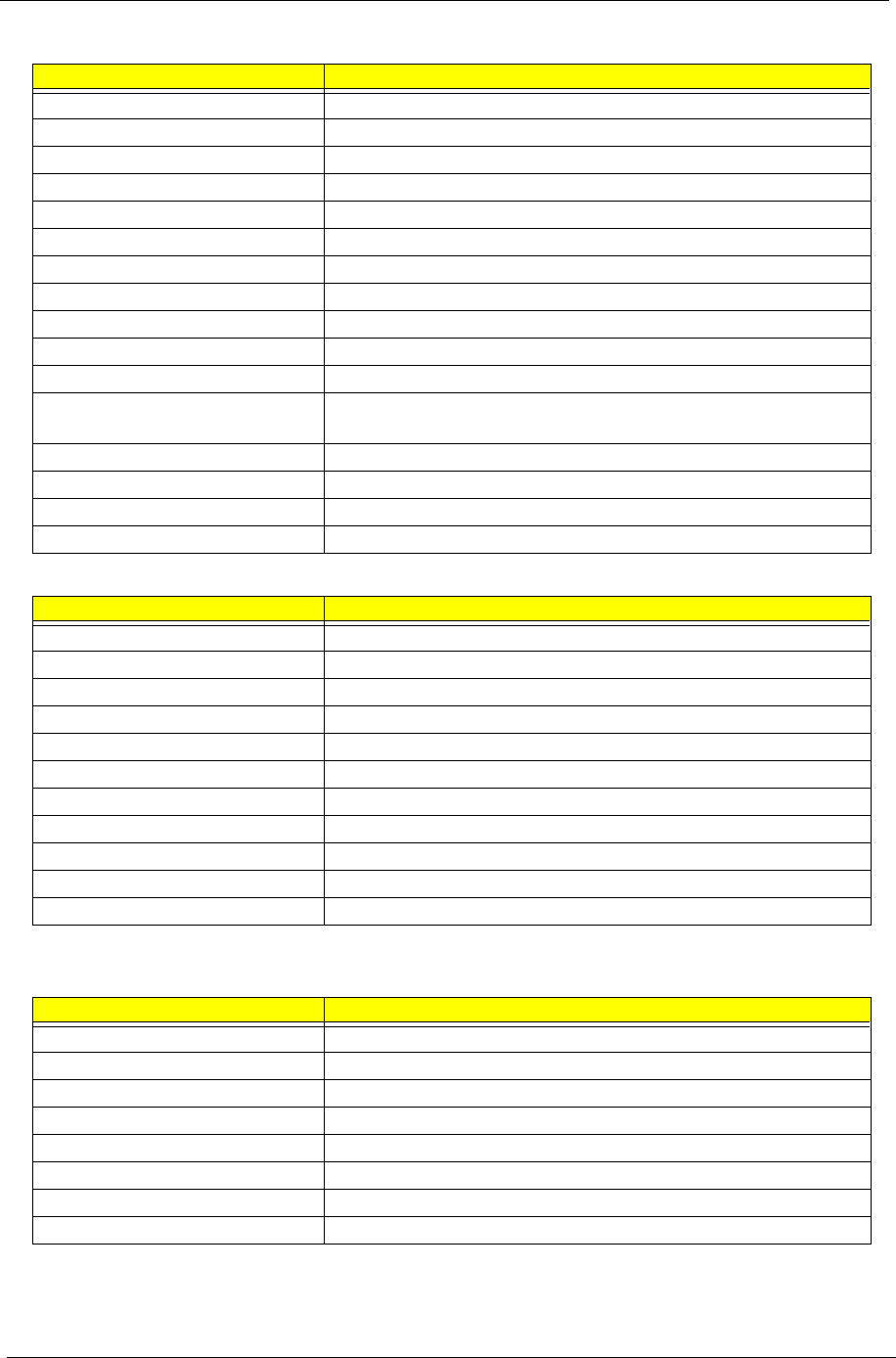
Memory Address Map
Memory Address Size Function
00100000h-000F0000h 512 KB System BIOS
000CD000h-000C0000h VGA BIOS
000C0000h-000A0000h 128 KB Video memory (VRAM)
000A0000h-00000000h 640KB Conventional memory
I/O Address Map
I/O Address Function
000-00F DMA controller-1
020-021 Interrupt controller-1
040-043 Timer 1
060, 064 Keyboard controller 87570 chip select
061 System speaker
Power Management
Power Saving Mode Phenomenon
34 Chapter 1
040B DMA controller-1
061 System speaker
070-073 Real-time clock and NMI mask
080-08F DMA page register
0A0-0A1 Interrupt controller-2
0C0-0DF DMA controller-2
0F0-0FF Numeric data processor
66, 62 Power management controller
170-177 2nd EIDE device (CD-ROM) select
1F0-1F7 1st EIDE device (hard drive) select
378, 37F Parallel port 1
3B0-3BB
3C0-3DF
Video Controller
3F0h-3F7 Standard Floppy Disk Controller
3F0-3F7 Floppy disk controller
480-48F, 4D6 DMA controller-1
CF8-CFF PCI configuration register
IRQ Assignment Map
Interrupt Channel Function(Hardware)
IRQ00 System timer
IRQ01 Keyboard
IRQ06 Floppy
IRQ08 CMOS/RTC
IRQ09 SCI IRQ used by ACPI bus
IRQ10 Audio, Modem,
IRQ11 USB, CardBus controller, LAN
IRQ12 Alps pointing device
IRQ13 Numeric data processor
IRQ14 1st EIDE device (hard disk)
IRQ15 2nd EIDE device (CD-ROM drive)
DMA Channel Assignment
DMA Channel Function(Hardware)
DRQ0 Reserved
DRQ1 Reserved
DRQ2 Floppy
DRQ3 ECP printer port (LPT1)
DRQ4 DMA controller
DRQ5 Reserved
DRQ6 Reserved
DRQ7 Reserved
I/O Address Map
I/O Address Function
Chapter 2 37
BIOS Setup Utility
The BIOS Setup Utility is a hardware configuration program built into your computer’s BIOS (Basic Input/
Output System).
Your computer is already properly configured and optimized, and you do not need to run this utility. However, if
you encounter configuration problems, you may need to run Setup. Please also refer to Chapter 4
Troubleshooting when problem arises.
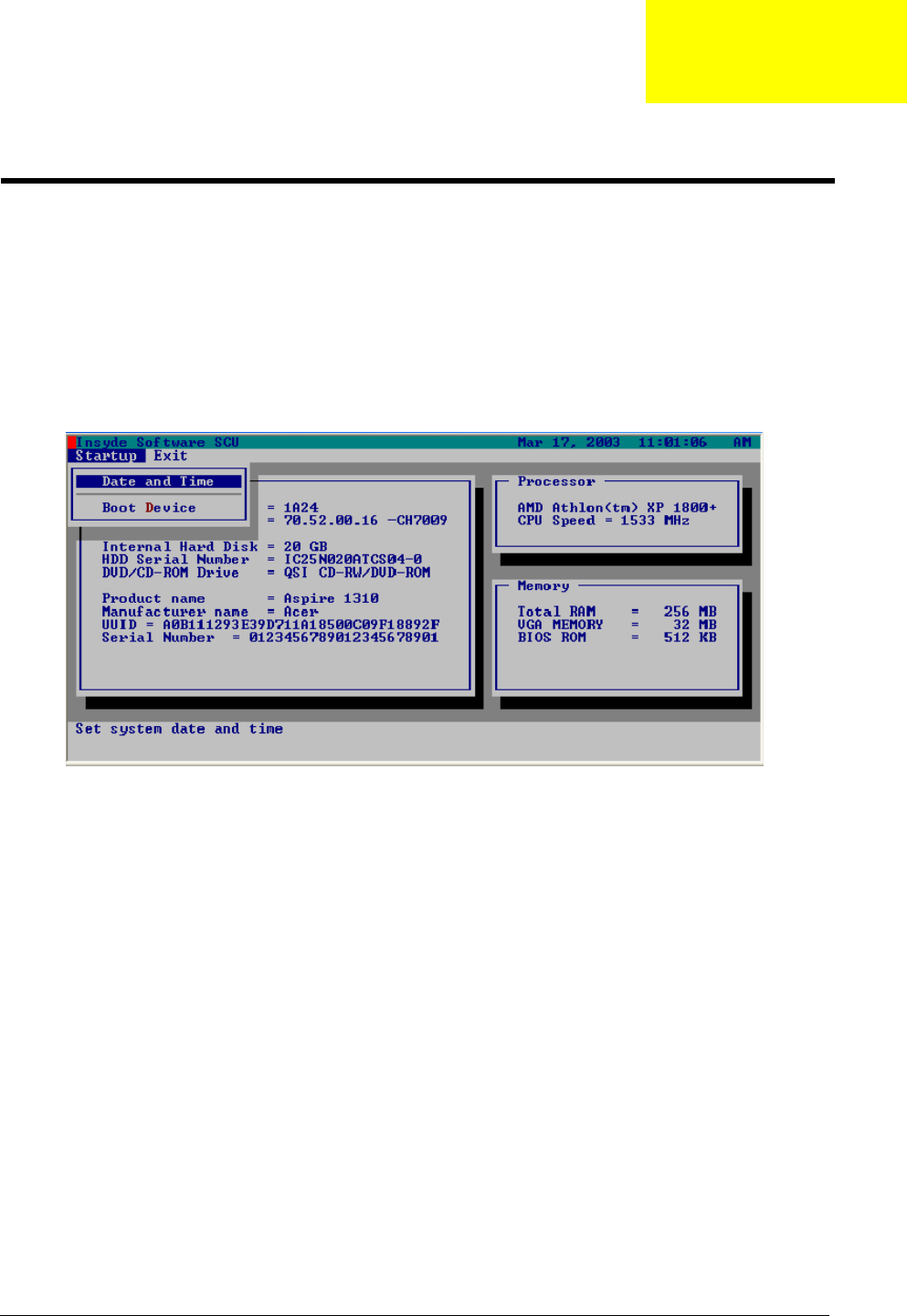
To activate the BIOS Utility, press m during POST.
Navigating the BIOS Setup Utility
There are two menu options: Startup and Exit
Follow these instructions:
TTo choose a menu option, use the cursor left/right keys (zx).
TTo choose a parameter, use the cursor up/down keys ( wy).
TUse <Tab> key to select a control. Then press <OK> button or e key to accept entries.
TTo change the value of a parameter, please follow the directions on each screen. If you like to
assign the boot device, please go to Boot Device then use the cursor up/down keys ( wy) to
select a boot device.
System Utilities
Chapter 2
38 Chapter 2
Startup
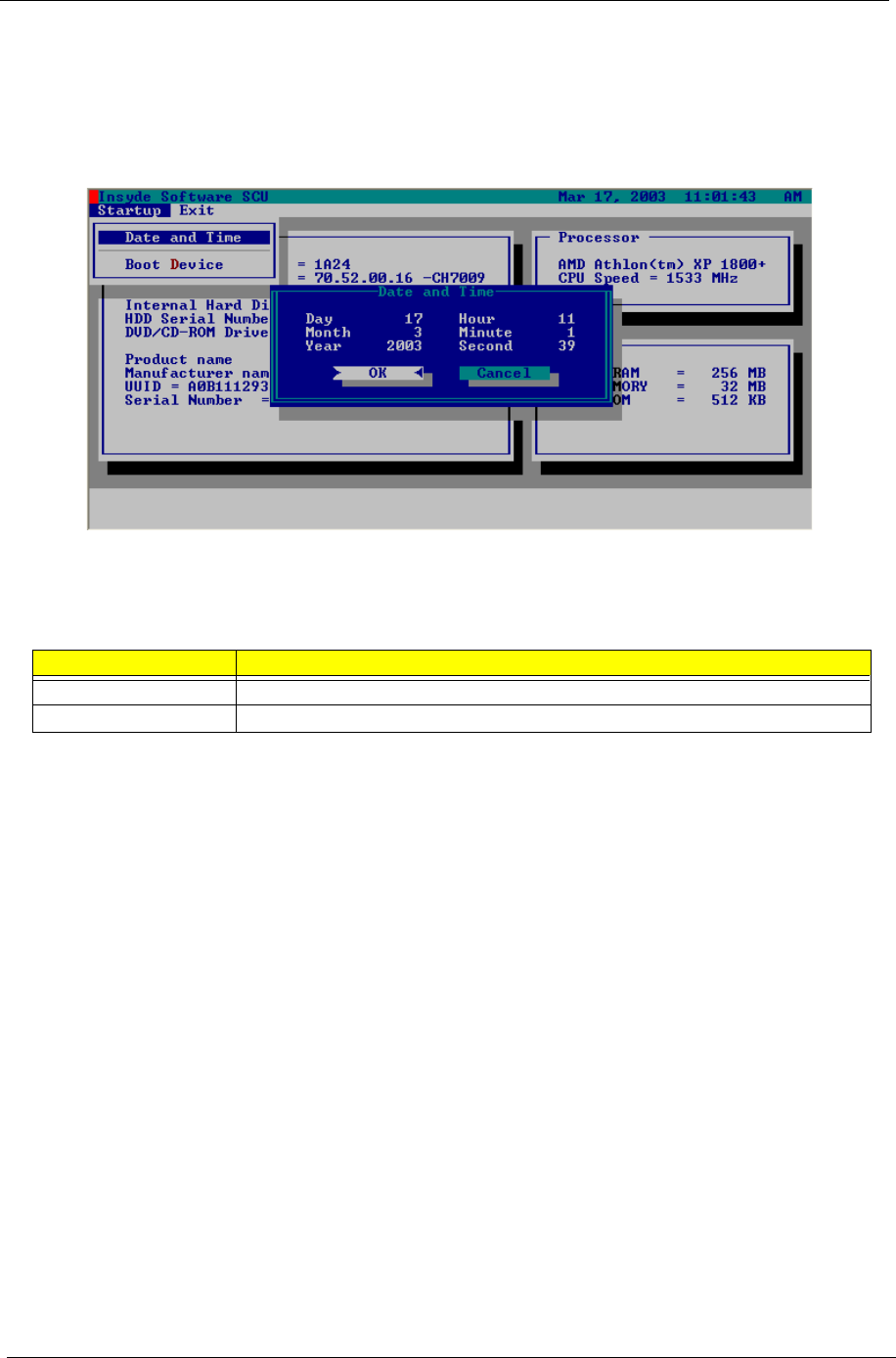
The Startup screen displays a summary of your computer hardware information, and also includes basic setup
parameters. After you enter BIOS, you will first see the system information on the first page, then you can use
the cursor up/down keys ( wy) to select the parameter you like to change.
NOTE: The screen above is for reference only. Actual values may differ.
.
The items in this screen are important and vital information about your computer. If you experience computer
problems and need to contact technical support, this data helps our service personnel know more about your
computer.
Parameter Description
Date and Time Sets the system date and time. Please use <Tab> key going to the item you like to change.
Boot Device Sets the boot device of the system.
Chapter 2 39
Exit
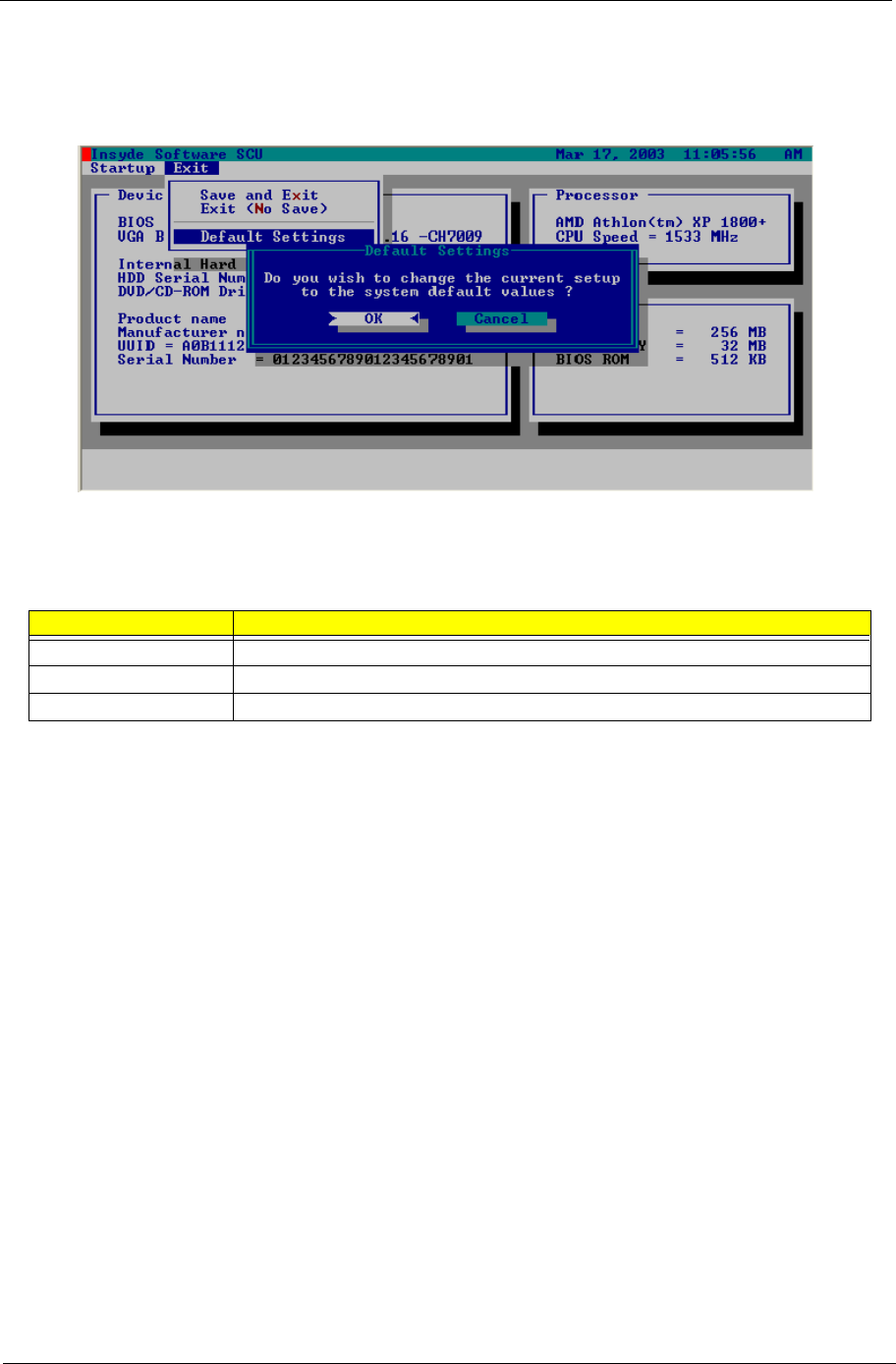
The Exit screen contains parameters that help safeguard and protect your computer from unauthorized use.
The table below describes the parameters in this screen.
Parameter Description
Save and Exit Saves changes made and reboot the system.
Exit (No Save) Discards changes made and exits the BIOS Setup Utility.
Default Settings Loads default settings for all parameters.

40 Chapter 2
BIOS Flash Utility
The BIOS flash memory update is required for the following conditions:
TNew versions of system programs
TNew features or options
TRestore a BIOS when it becomes corrupted.
Use the Flash utility to update the system BIOS flash ROM.
NOTE: If you do not have a crisis recovery diskette at hand, then you should create a Crisis Recovery
Diskette before you use the Flash utility.
NOTE: Do not install memory-related drivers (XMS, EMS, DPMI) when you use the Flash.
NOTE: Please use the AC adaptor power supply when you run the Flash utility. If the battery pack does not
contain enough power to finish BIOS flash, you may not boot the system because the BIOS is not
completely loaded.
Fellow the steps below to run Flash utility.
1. Prepare a bootable diskette.
2. Copy the Flash utilities to the bootable diskette.
3. Then boot the system from the bootable diskette. The Flash utility has auto-execution function.
System Diagnostic Diskette
IMPORTANT: 1The diagnostics program we use for Aspire 1310 is not exactly the same as PQA (Product
Quality Assurance), the diagnostic program we used to employ in other model. The system
diagnostic utilities is provided by Acer Headquarters. You can utilize it as a basic diagnostic tool. To
get this program, find it on CSD website. To better fit local service requirements, your regional office
MAY have other diagnostic program. Please contact your regional offices or the responsible
personnel/channel to provide you with further technical details. The diagnostic program contains a
readme file. Please read the readme file as you run the diagnostic program.
1New added description. Please pay attention to it.

Chapter 3 41
This chapter contains step-by-step procedures on how to disassemble the notebook computer for
maintenance and troubleshooting.
To disassemble the computer, you need the following tools:
TWrist grounding strap and conductive mat for preventing electrostatic discharge
Tsmall Philips screwdriver
Tflat head screwdriver
TPhiliips screwdriver
Tnut screwdriver
Ttweezers
NOTE: The screws for the different components vary in size. During the disassembly process, group the
screws with the corresponding components to avoid mismatch when putting back the components.
When you remove the stripe cover, please be careful not to scrape the cover.
Chapter 3
Machine Disassembly and Replacement

42 Chapter 3
General Information
Before You Begin
Before proceeding with the disassembly procedure, make sure that you do the following:
1. Turn off the power to the system and all peripherals.
2. Unplug the AC adapter and all power and signal cables from the system.
3. Remove the battery pack.
Chapter 3 43
Disassembly Procedure Flowchart
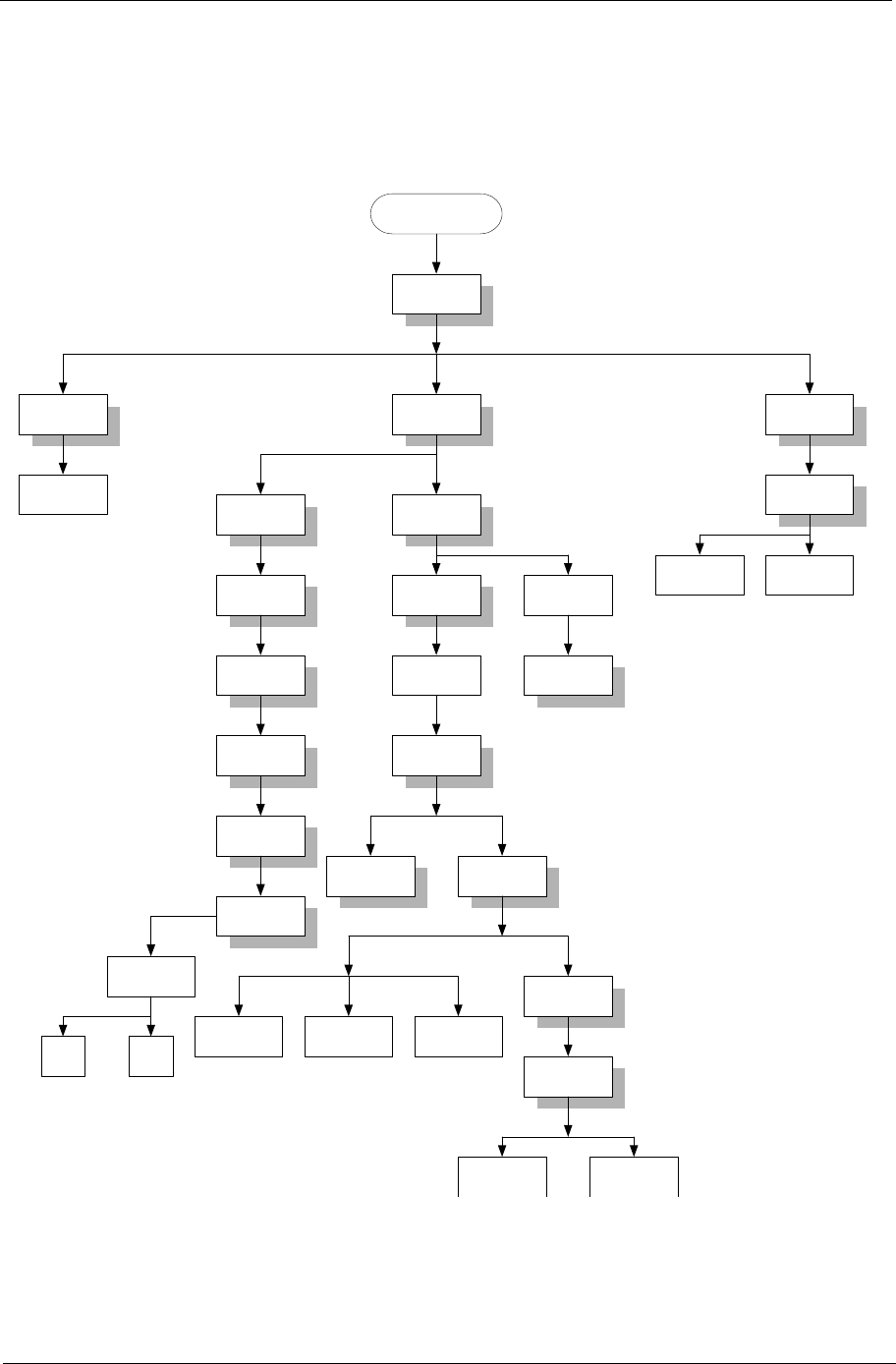
The flowchart on the succeeding page gives you a graphic representation on the entire disassembly sequence
and instructs you on the components that need to be removed during servicing. For example, if you want to
remove the system board, you must first remove the keyboard, then disassemble the inside assembly frame in
that order.
Start
Battery
RAM Door Middle Cover HDD Module
Memory
Fx1
Kx4
Keyboard
Fx3
Cx2
HDD Tray
HDDHDD FPC
Hinge Covers/
L&R
L:Fx2
R:Fx1
Dx4
14.1" LCD
Module Fan
Dx3
Optical Drive
Thermal
Module w/
heatsink
Ex4
Ex1
Fx1
ODD Bracket
Gx2
CPU
FDD FFC FDD
Upper Case
w/ touchpad
Dx1
Cx3
Cx13
Lower Case
Assy
Top Cover
Shielding
FDD Module
Fx4
Lower CaseMain Board
LCD Bezel
Fx6
Inverter Board
LCD Hinges
Cx4
LCD Panel
Fx4
LCD Brackets
LCD
Cable
Lx4
LCD
Ax4
Fx4 Fx3
FDD Holder
Jx3
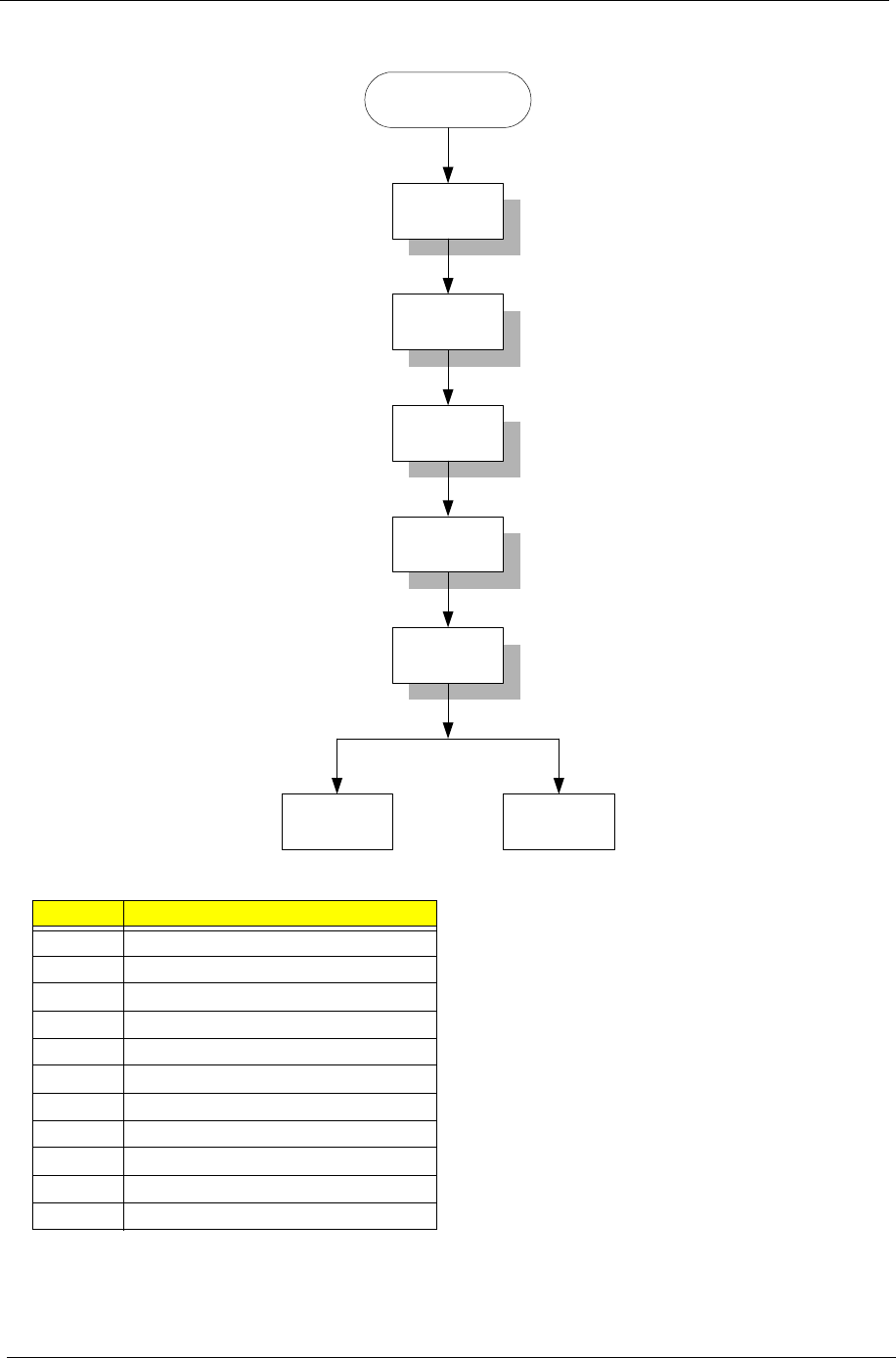
44 Chapter 3
Screw List
Item Description
A Screw MBEA1001012 (Screw Nut-I/O)
C Screw MM25050IL64 (MM2.5X5.0)
D Screw MM25060PCI5 (MM2.5X6.0-P)
E Screw MM20040ICI8 (MM2.0X4.0NYLOK)
F Screw MM25040I243 (MM2.5 X4.0)
G Screw MM20025ICI6 (MM2.0X2.5)
J Screw MM25030ICI7 (MM2.5X3.0)
K Screw MM30035I354 (MM3.0X3.5)
L Screw MM20030ICI3 (MM2.0X3.0)
R Screw MS20040IEJ3 (MS2.0X4.0)
S Screw MM25060IL69 (MM2.5X6.0)
15.0" LCD Module
LCD Bezel
Rx2
Inverter Board
LCD Hinges
LCD Panel
Lx6
LCD
Sx4
LCD Cable
Lx6
LCD Brackets
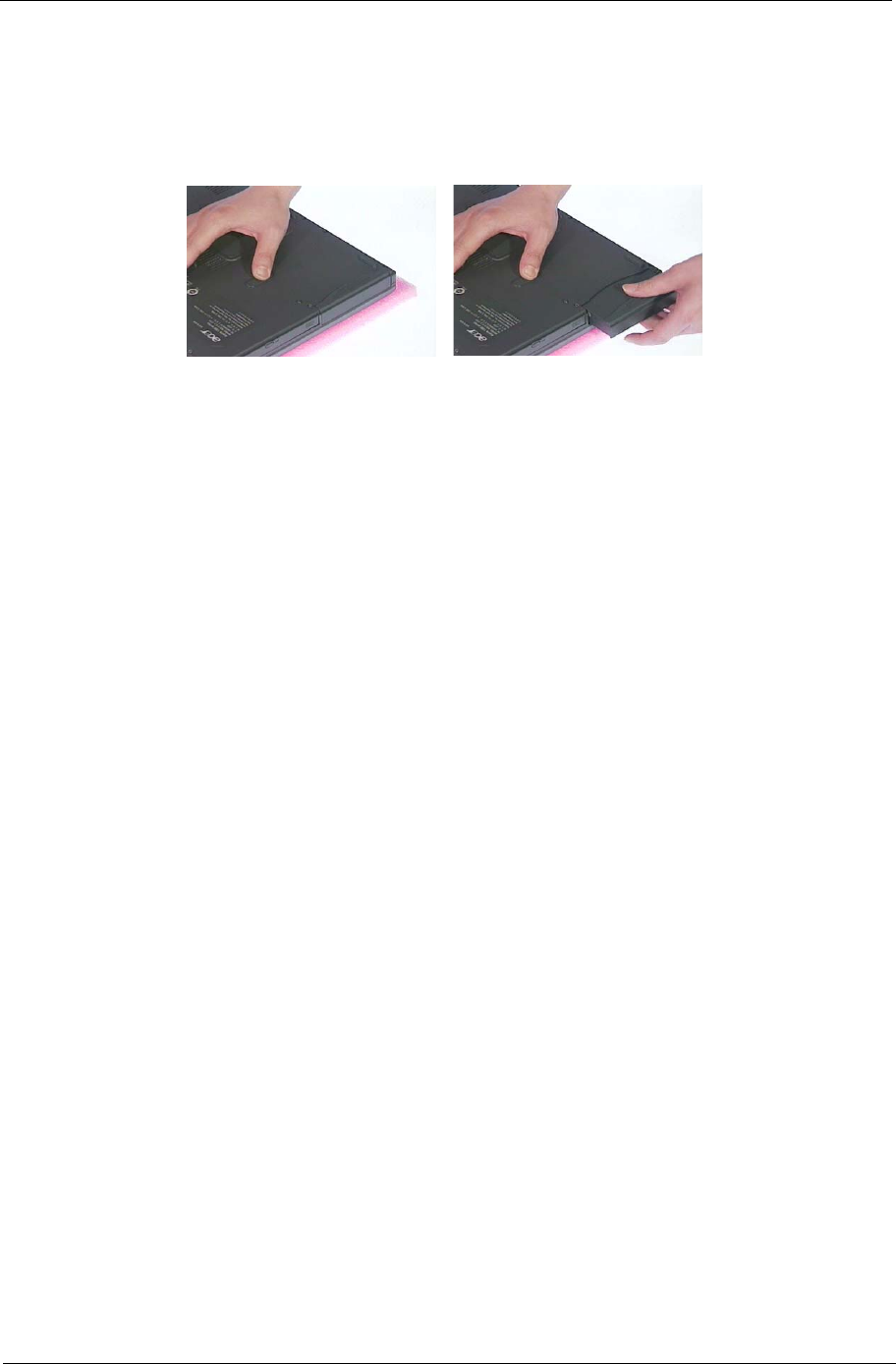
Chapter 3 45
Removing the Battery Pack
1. Slide the battery latch.
2. Then remove the battery pack.
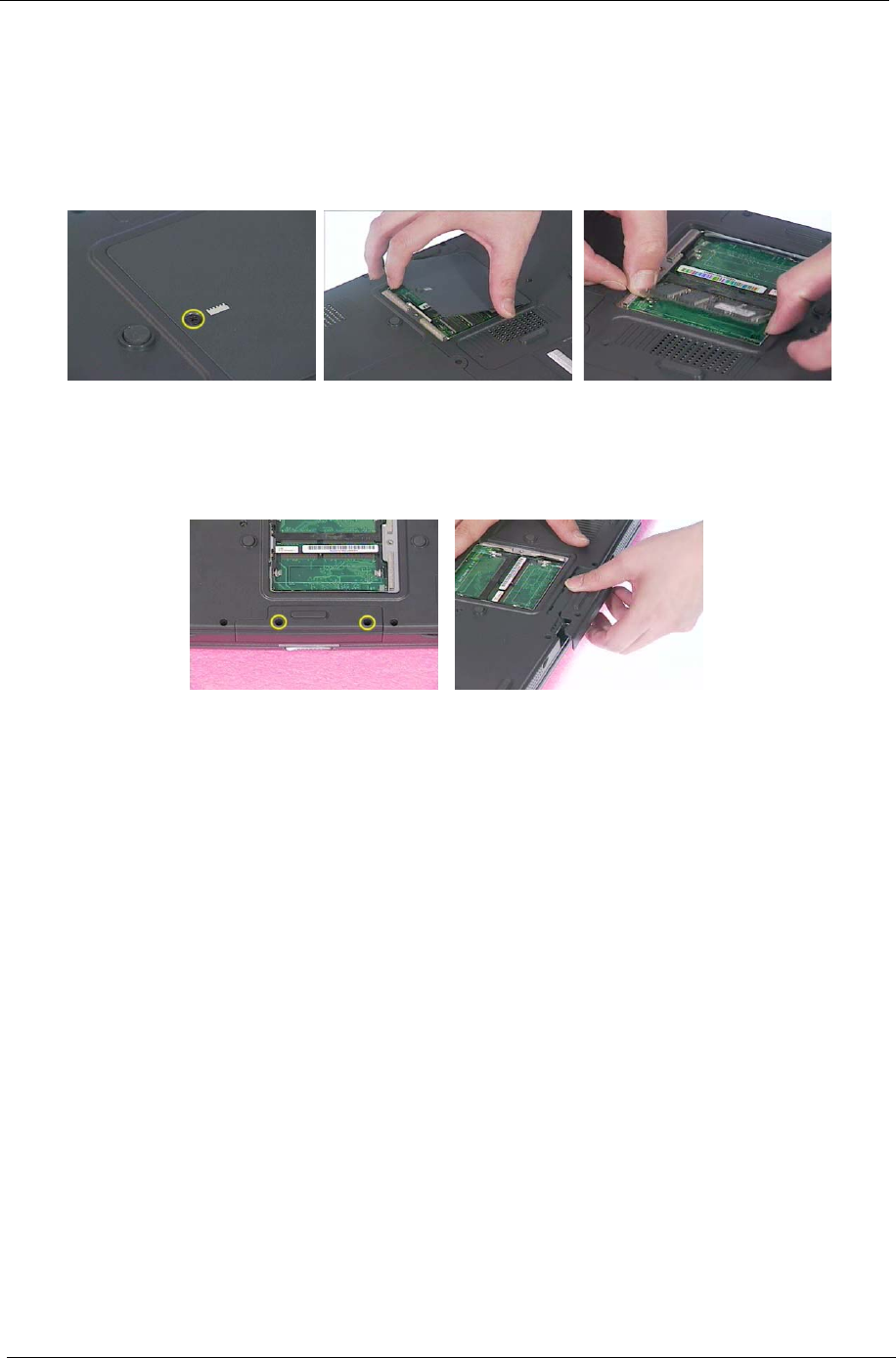
46 Chapter 3
Removing the Memory/HDD Module
1. Remove the screws that secure the ram door.
2. Remove the ram door.
3. Prize the memory lock with fingers then remove the memory.
4. Unscrew the two screws that secure the HDD module.
5. Then remove the HDD module from the notebook computer.
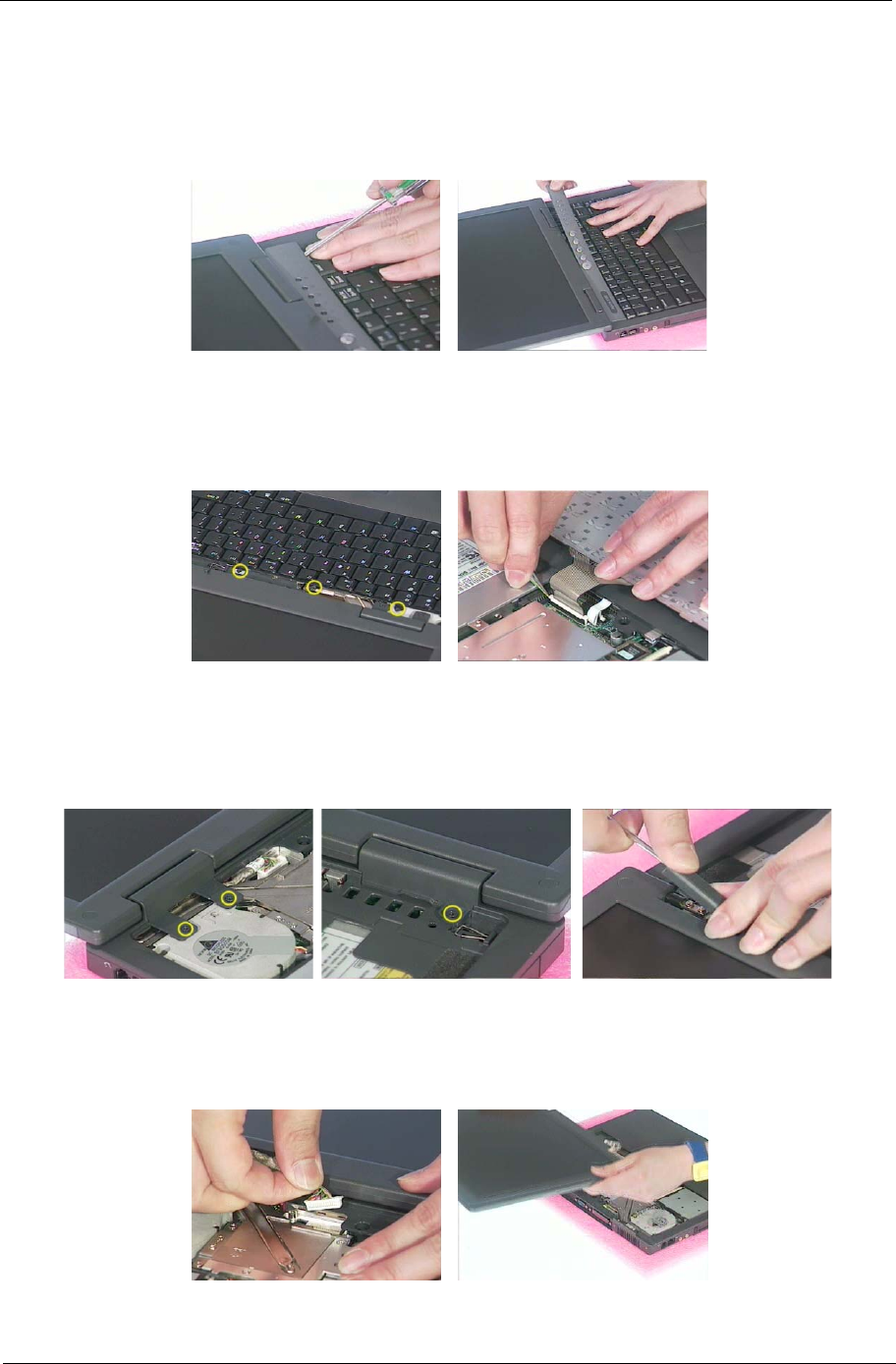
Chapter 3 47
Removing the Keyboard/LCD Module
1. Use a flat head screwdriver to prize the middle cover. Please be careful. Do not scrape the middle cover.
2. Remove the middle cover.
3. Unscrew the three screws that secure the keyboard. Next, turn over the keyboard.
4. Disconnect the keyboard connector then remove the keyboard.
5. Remove the two screws holding the right hinge cover.
6. Unscrew the screw holding the left hinge cover.
7. Remove the two hinge covers.
8. Disconect the LCD cable.
9. Remove the entire LCD module.
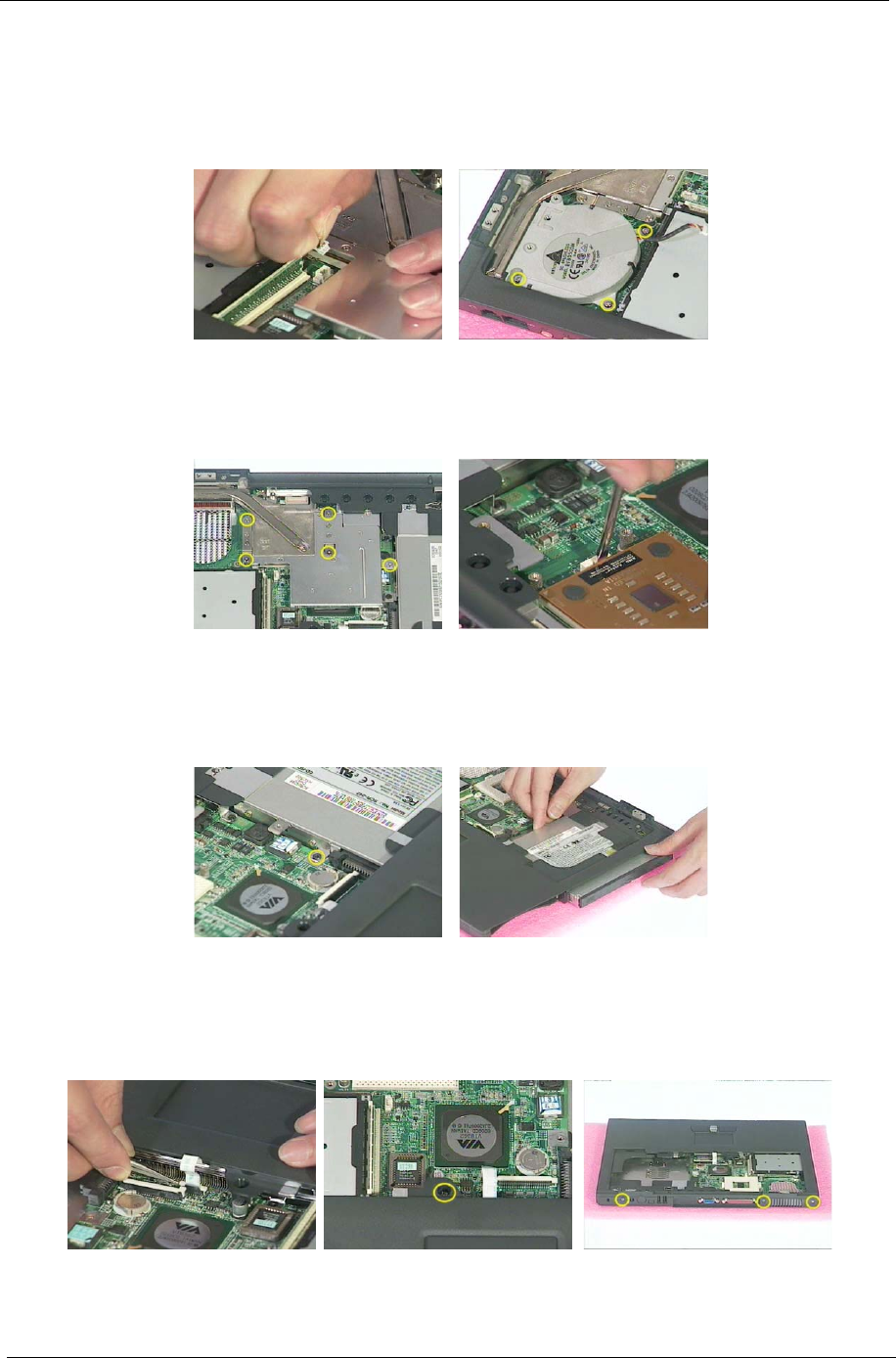
48 Chapter 3
Disassembling the Main Unit
1. Disconnect the fan connector.
2. Remove the three screws holding the fan then remove the fan from the main unit.
.
3. Unscrew the five screws that secure the thermal module then remove the thermal module.
4. Use a tool to take out CPU from CPU socket.
5. Unscrew the screw holding the optical drive.
6. Next remove the optical dirve off the main unit.
7. To detach the upper cover from the main unit, first disconnect Tear the mylar from logic upper assembly.
8. Unscrew the screw that secure the upper case to the main board.
9. Remove the three screws on the rear panel.
.
10. Remove the thirteen screws on the base panel.
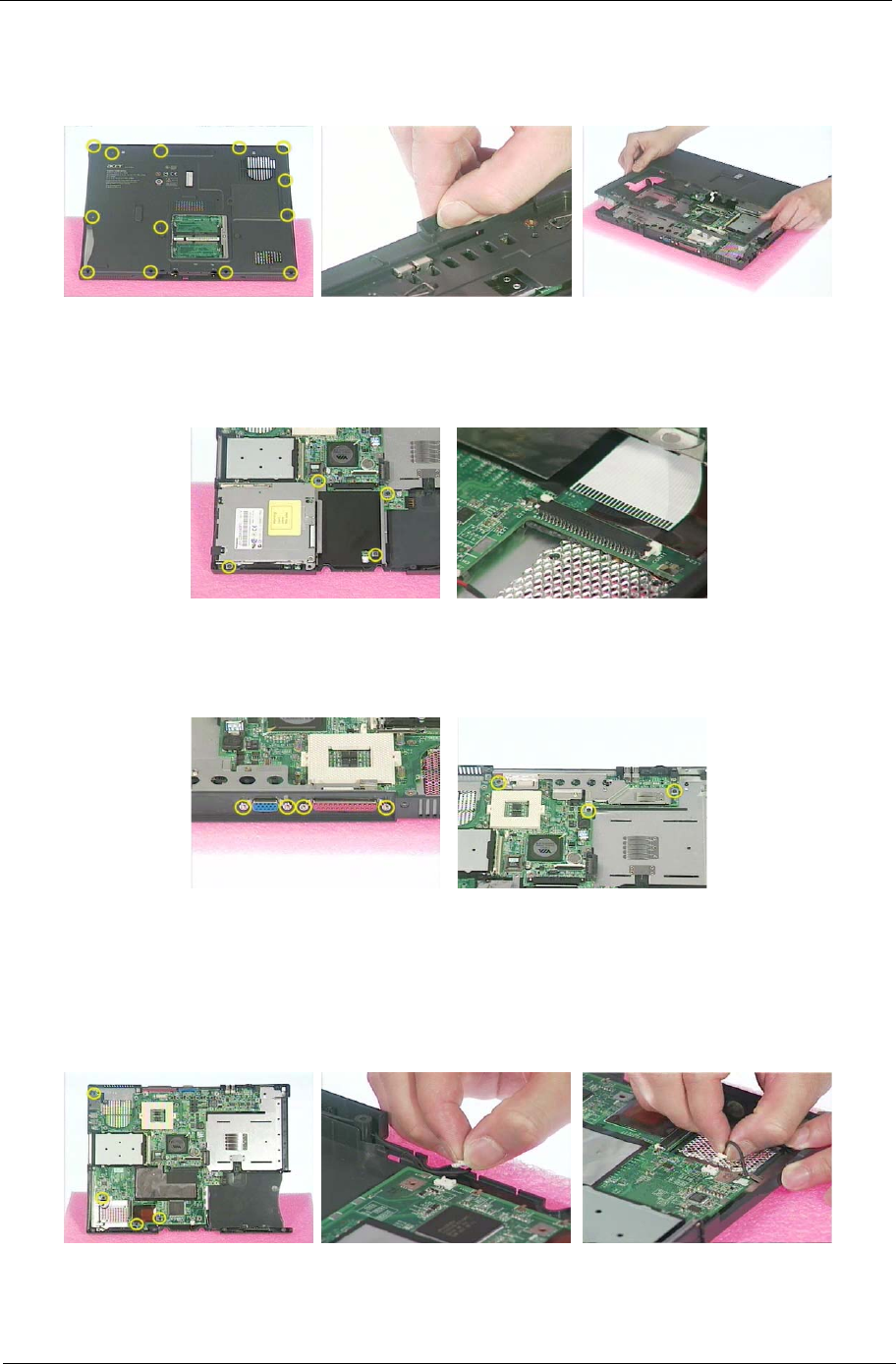
Chapter 3 49
11. Press the cover latch locating on the right upper corner of the upper case.
12. Then detach the upper case from the lower assembly.
13. Unscrew the four screws that secure the FDD module.
14. Disconnect the FDD FFC then remove the FDD module from the main unit.
.
15. Remove the four screw nuts on the rear panel.
16. Unscrew the three screws holding the top cover shielding then remove the top cover shielding.
17. Unscrew the four screws that lock the main board.
18. Disconnect the right speaker cable.
19. Disconnect the left speaker cable.
20. Remove the main board off the lower case.
21. Tear off the EMI tape on the main board.
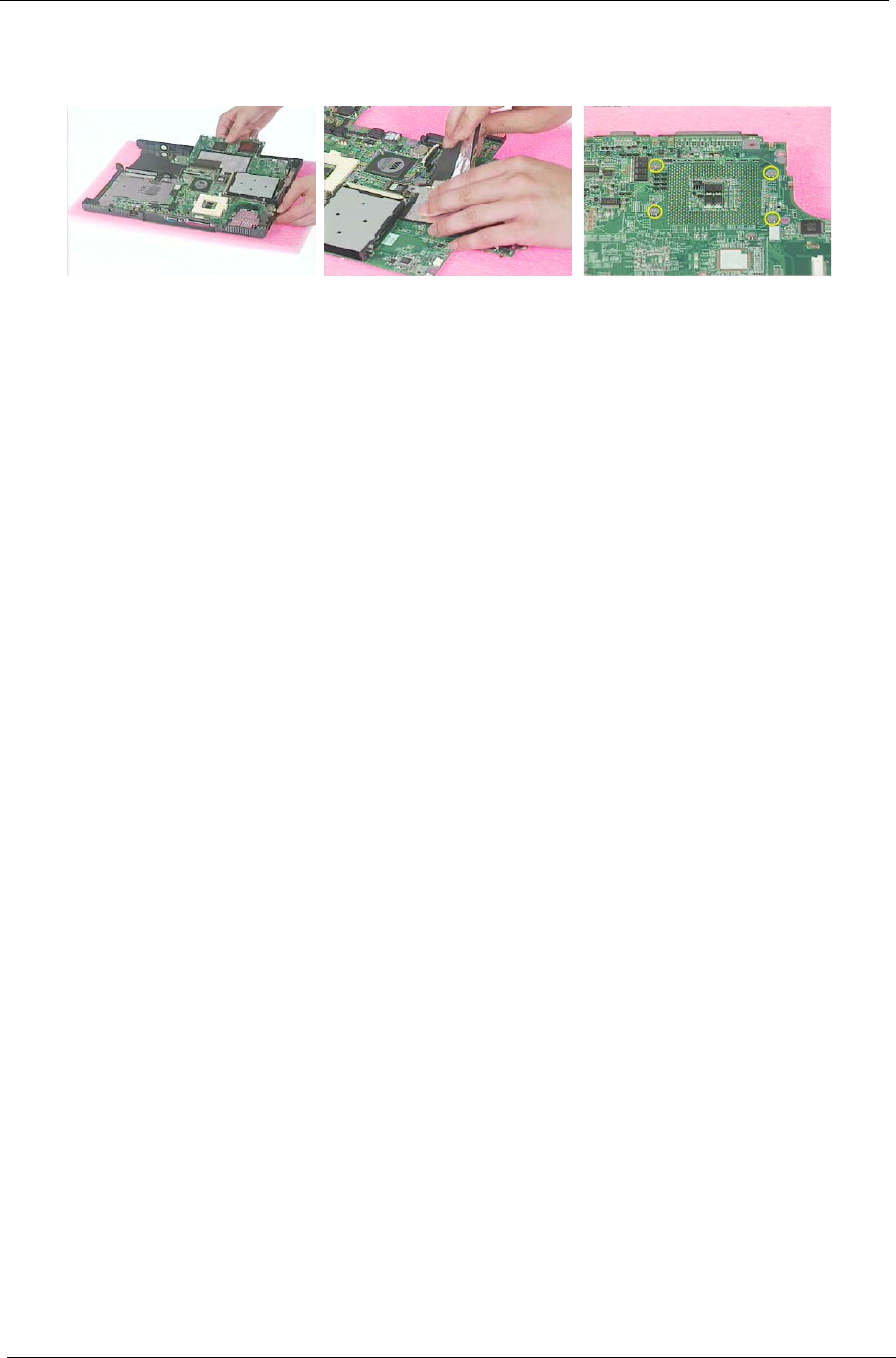
50 Chapter 3
22. Unscrew the four screws that lock the special nuts on the main board.
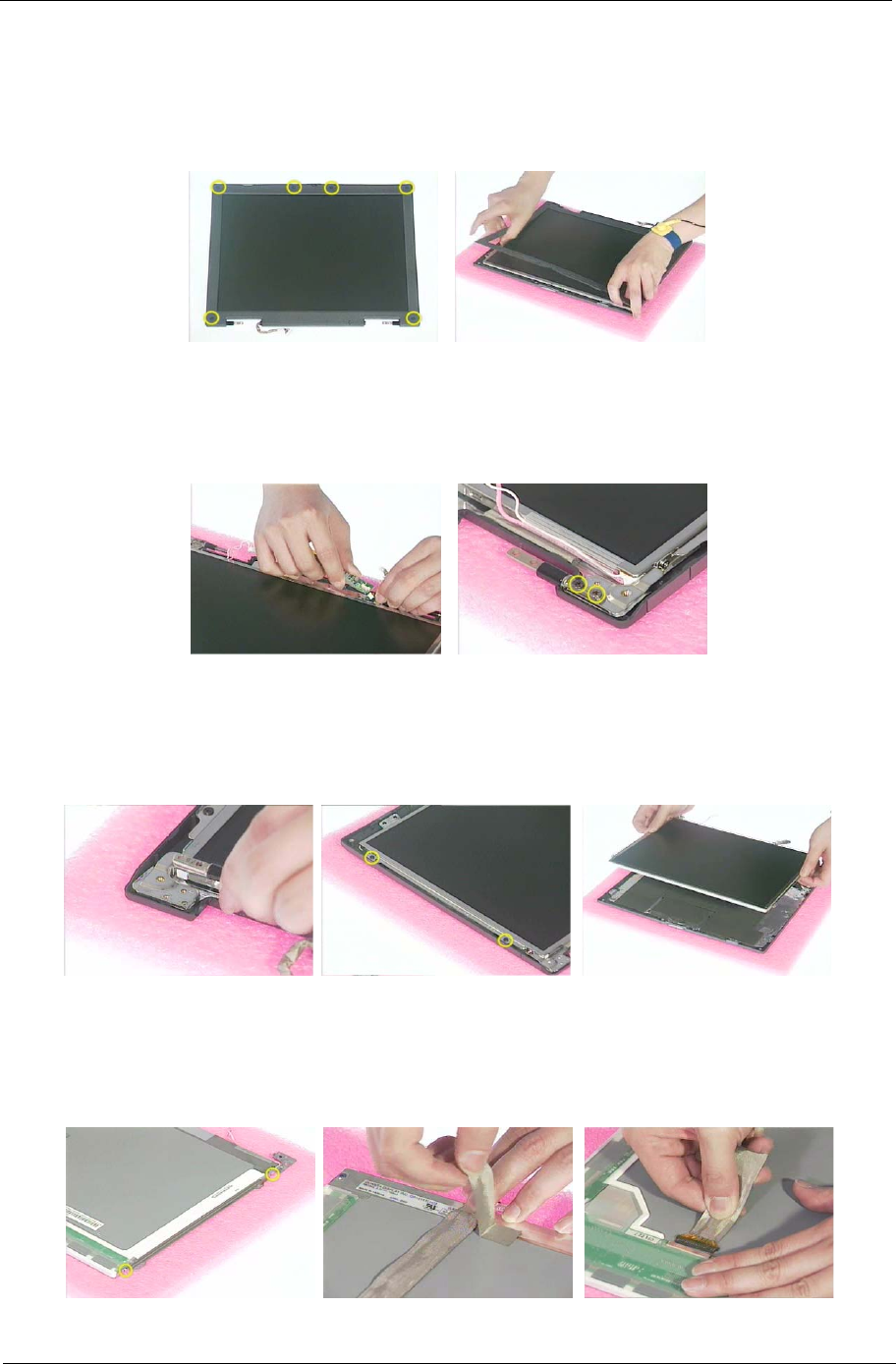
Chapter 3 51
Disassembling the LCD Module-14.1 Inch
1. First, remove the six screw pads then remove the six screws as shown here.
2. Detach the LCD bezel carefully.
.
3. Disconnect the inverter power cable and LCD CCFT cable, then remove the inverter board.
4. Unscrew the four screws that fix the left and right hinges.
5. Remove the right and the left hinges.
6. Unscrew the four screws that fix the LCD to LCD panel. Two on each side.
7. Then take the LCD off the LCD panel.
8. Remove the four screws that lock the right and the left LCD brackets. Two on each side.
9. Tear off the LCD conductive fabric tape.
10. Tear off the tape that fastens the LCD cable then disconnect the LCD cable.
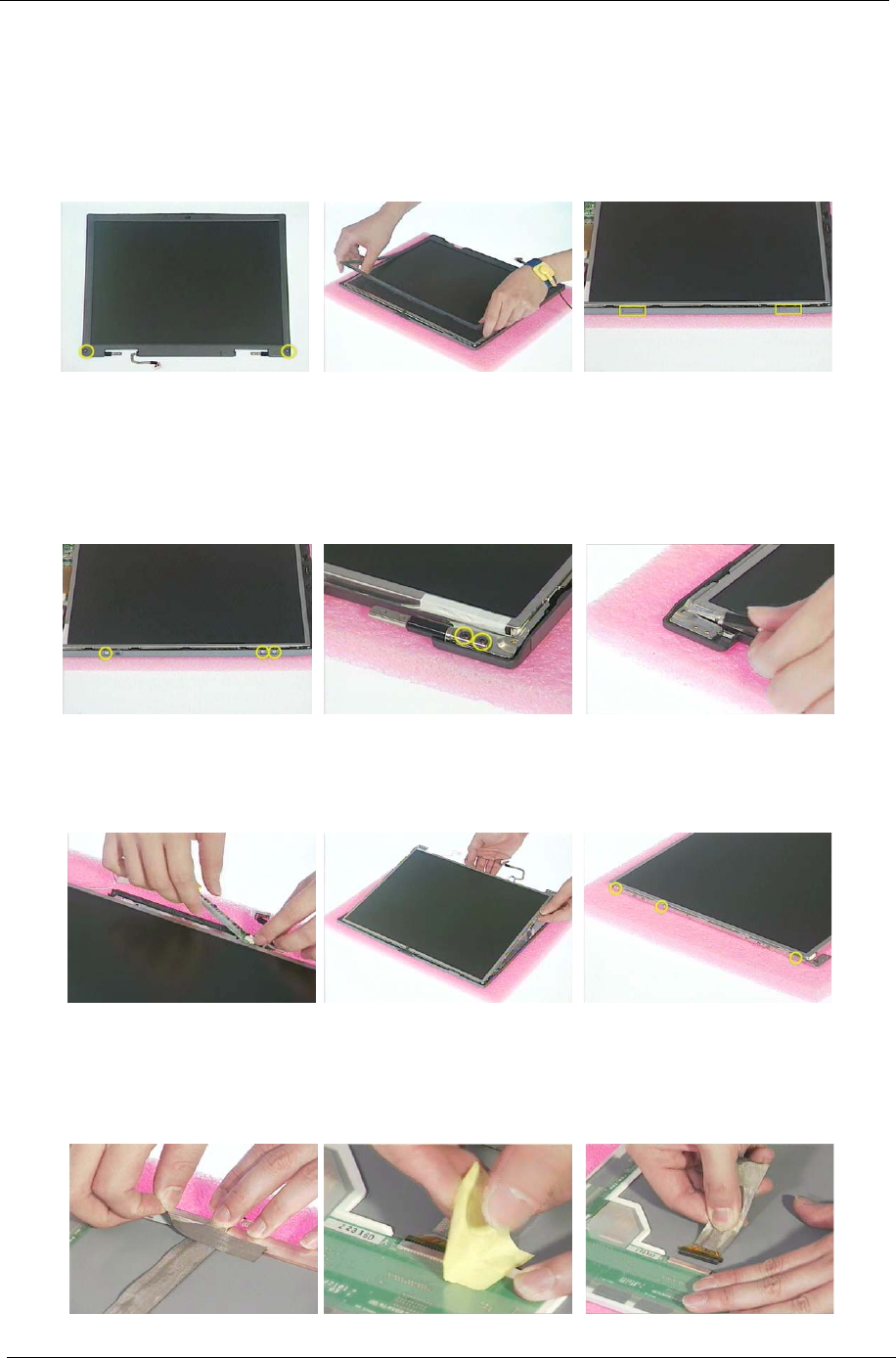
52 Chapter 3
Disassembling the LCD Module-15.1 Inch
1. First, remove the two screw pads then remove the two screws as shown here.
2. Detach the LCD bezel carefully.
3. Detach the four square screw pads. Two on each side.
.
4. Unscrew the six screws that fix LCD to the LCD panel; three on each side.
5. Remove the four screws that fix the left and the right hinges; two on each side.
6. Remove the left and the right hinges.
7. Disconnect the inverter board power cable and LCD CCFT cable then remove the inverter board.
8. Take the LCD off the LCD panel.
9. Unscrew the six screws holding the right and the left brackets then remove the LCD brackets.
10. Tear off the conductive fabric tape.
11. Tear off the tape that fastens the LCD cable.
12. Then disconnect the LCD cable.
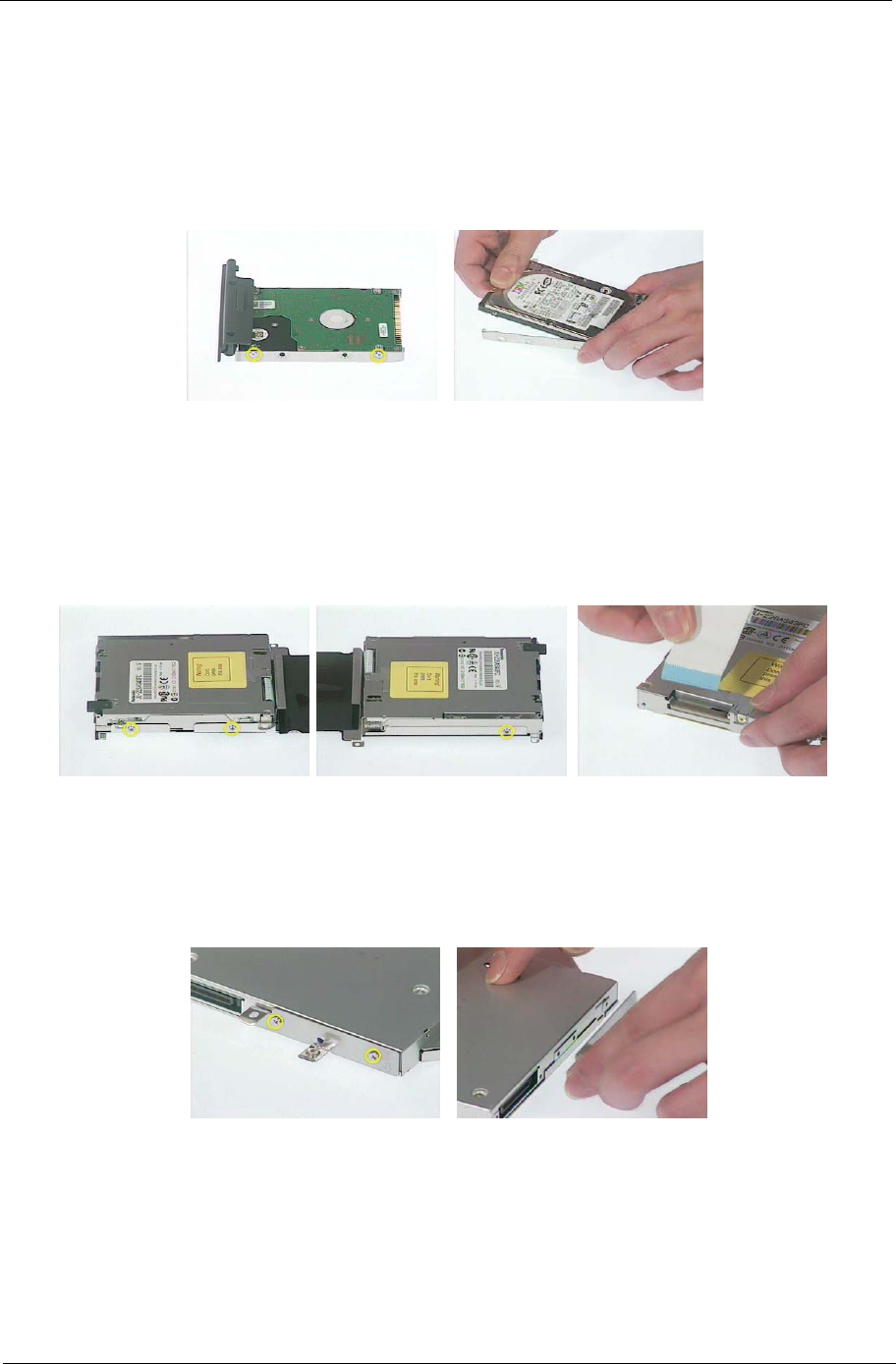
Chapter 3 53
Disassembling the External Modules
Disassembling the HDD Module
1. Remove the four screws on HDD tray, two on each side.
2. Take the HDD off the HDD tray.
Disassembling the Floppy Disk Drive Module
1. Remove the two screws holding the FDD holder.
2. Remove the screw that fixs the FDD holder then remove the FDD from the FDD holder.
3. Disconnect the FDD FPC.
Disassembling the Optical Drive Module
1. Unscrew the two screws holding the optical bracket.
2. Then remove the optical bracket.
3. Remove the two screws that lock the ODD door.
4. Then remove the ODD door.
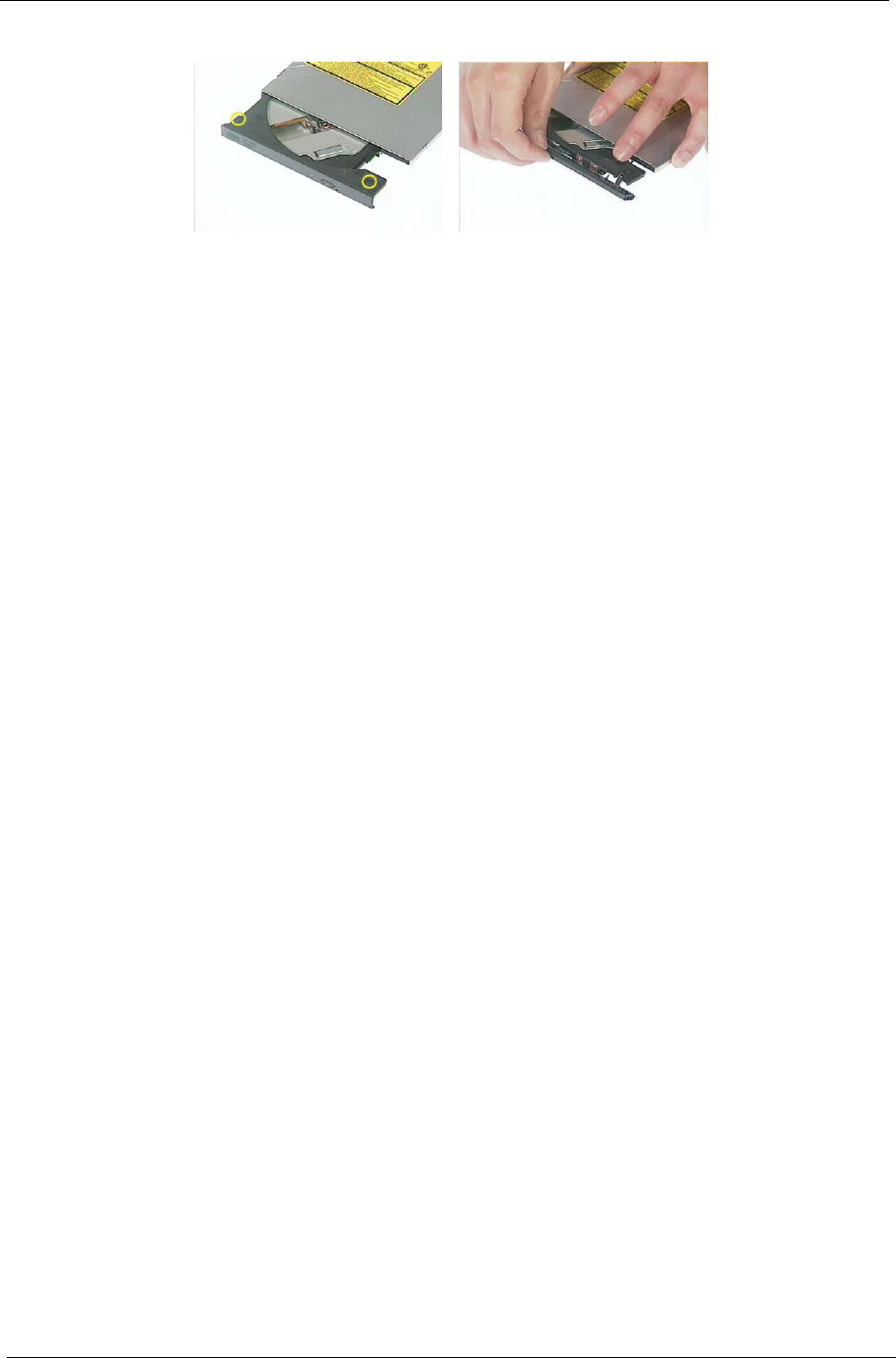
54 Chapter 3
Chapter 4 45
Use the following procedure as a guide for computer problems.
NOTE: The diagnostic tests are intended to test this model. Non-Acer products, prototype cards, or modified
options can give false errors and invalid system responses.
1. Duplicate symptom and obtain the failing symptoms in as much detail as possible.
2. Distinguish symptom. Verify the symptoms by attempting to re-create the failure by running the diagnostic
test or by repeating the same operation.
3. Disassemble and assemble the unit without any power sources.
4. If any problem occurs, you can perform visual inspection before you fellow this chapter’s instructions. You
can check the following:
power cords are properly connected and secured;
there are no obvious shorts or opens;
there are no obviously burned or heated components;
all components appear normal.
5. Use the following table with the verified symptom to determine which page to go to.
Symptoms (Verified) Go To
Power failure. (The power indicator does not go
on or stay on.)
“Power System Check” on page 47.
POST does not complete. No beep or error
codes are indicated.
“Power-On Self-Test (POST) Error Message” on
page 49
“Undetermined Problems” on page 57
POST detects an error and displayed messages
on screen.
“Error Message List” on page 50
The diagnostic test detected an error and
displayed a FRU code.
“System Diagnostic Diskette” on page 30
Other symptoms (i.e. LCD display problems or
others).
“Power-On Self-Test (POST) Error Message” on
page 49
Symptoms cannot be re-created (intermittent
problems).
Use the customer-reported symptoms and go to
“Power-On Self-Test (POST) Error Message” on
page 49
“Intermittent Problems” on page 56
“Undetermined Problems” on page 57
Troubleshooting
Chapter 4

46 Chapter 4
System Check Procedures
External Diskette Drive Check
Do the following to isolate the problem to a controller, driver, or diskette. A write-enabled, diagnostic diskette is
required.
NOTE: Make sure that the diskette does not have more than one label attached to it. Multiple labels can cause
damage to the drive or cause the drive to fail.
Do the following to select the test device. See “System Diagnostic Diskette” on page 30 for details.
1. Boot from the diagnostics diskette and start the diagnostics program (see “System Diagnostic Diskette” on
page 30).
2. See if FDD Test is passed as the program runs to FDD Test.
3. Follow the instructions in the message window.
If an error occurs with the internal diskette drive, reconnect the diskette connector on the system board.
If the error still remains:
1. Reconnect the external diskette drive/DVD-ROM module.
2. Replace the external diskette drive/CD-ROM module.
3. Replace the main board.
External CD-ROM Drive Check
Do the following to isolate the problem to a controller, drive, or CD-ROM. Make sure that the CD-ROM does
not have any label attached to it. The label can cause damage to the drive or can cause the drive to fail.
Do the following to select the test device:
1. Boot from the diagnostics diskette and start the diagnostics program (refer to “System Diagnostic
Diskette” on page 30.
2. See if CD-ROM Test is passed when the program runs to CD-ROM Test.
3. Follow the instructions in the message window.
If an error occurs, reconnect the connector on the System board. If the error still remains:
1. Reconnect the external diskette drive/CD-ROM module.
2. Replace the external diskette drive/CD-ROM module.
3. Replace the main board.

Chapter 4 47
Keyboard or Auxiliary Input Device Check
Remove the external keyboard if the internal keyboard is to be tested.
If the internal keyboard does not work or an unexpected character appears, make sure that the flexible cable
extending from the keyboard is correctly seated in the connector on the system board.
If the keyboard cable connection is correct, run the Keyboard Test. See “System Diagnostic Diskette” on page
30 for details.
If the tests detect a keyboard problem, do the following one at a time to correct the problem. Do not replace a
non-defective FRU:
1. Reconnect the keyboard cables.
2. Replace the keyboard.
3. Replace the main board.
The following auxiliary input devices are supported by this computer:
!Numeric keypad
!External keyboard
If any of these devices do not work, reconnect the cable connector and repeat the failing operation.
Memory Check
Memory errors might stop system operations, show error messages on the screen, or hang the system.
1. Boot from the diagnostics diskette and start the doagmpstotics program (please refer to main board.
2. Go to the diagnostic memory in the test items.
3. Press F2 in the test items.
4. Follow the instructions in the message window.
NOTE: Make sure that the DIMM is fully installed into the connector. A loose connection can cause an error.
Power System Check
To verify the symptom of the problem, power on the computer using each of the following power sources:
1. Remove the battery pack.
2. Connect the power adapter and check that power is supplied.
3. Disconnect the power adapter and install the charged battery pack; then check that power is supplied by
the battery pack.
If you suspect a power problem, see the appropriate power supply check in the following list:
!“Check the Battery Pack” on page 48

48 Chapter 4
Check the Battery Pack
To check the battery pack, do the following:
From Software:
1. Check out the Power Management in control Panel
2. In Power Meter, confirm that if the parameters shown in the screen for Current Power Source and Total
Battery Power Remaining are correct.
3. Repeat the steps 1 and 2, for both battery and adapter.
4. This helps you identify first the problem is on recharging or discharging.
From Hardware:
1. Power off the computer.
2. Remove the battery pack and measure the voltage between battery terminals 1(+) and 6(ground). See the
following figure
3. If the voltage is still less than 7.5 Vdc after recharging, replace the battery.
To check the battery charge operation, use a discharged battery pack or a battery pack that has less than 50%
of the total power remaining when installed in the computer.
If the battery status indicator does not light up, remove the battery pack and let it return to room temperature.
Re-install the battery pack.
If the charge indicator still does not light up, replace the battery pack. If the charge indicator still does not light
up, replace the DC/DC charger board.
Touchpad Check
If the touchpad doesn’t work, do the following actions one at a time to correct the problem. Do not replace a
non-defective FRU:
1. After rebooting, run Tracking Pad PS2 Mode Driver. For example, run Syn touch driver.
2. Run utility with the PS/2 mouse function and check if the mouse is working.
3. If the the PS/2 mouse does not work, then check if the main board to switch board FPC is connected O.K.
4. If the main board to switch board FPC is connected well, then check if the FCC on touch pad PCB
connects properly.
5. If the FFC on touch pad PCB connects properly, then check if LS851 JP1 Pin6=5V are pulese. If yes, then
replace switch board. If no, then go to next step.
6. Replace touch pad PCB.
7. If the touch pad still does not work, then replace FPC on Track Pad PCB.
After you use the touchpad, the pointer drifts on the screen for a short time. This self-acting pointer movement
can occur when a slight, steady pressure is applied to the touchpad pointer. This symptom is not a hardware
problem. No service actions are necessary if the pointer movement stops in a short period of time.

Chapter 4 49
Power-On Self-Test (POST) Error Message
The POST error message index lists the error message and their possible causes. The most likely cause is
listed first.
NOTE: Perform the FRU replacement or actions in the sequence shown in FRU/Action column, if the FRU
replacement does not solve the problem, put the original part back in the computer. Do not replace a
non-defective FRU.
This index can also help you determine the next possible FRU to be replaced when servicing a computer.
If the symptom is not listed, see “Undetermined Problems” on page 57.
The following lists the error messages that the BIOS displays on the screen and the error symptoms classified
by function.
NOTE: Most of the error messages occur during POST. Some of them display information about a hardware
device, e.g., the amount of memory installed. Others may indicate a problem with a device, such as the
way it has been configured.
NOTE: If the system fails after you make changes in the BIOS Setup Utility menus, reset the computer, enter
Setup and install Setup defaults or correct the error.
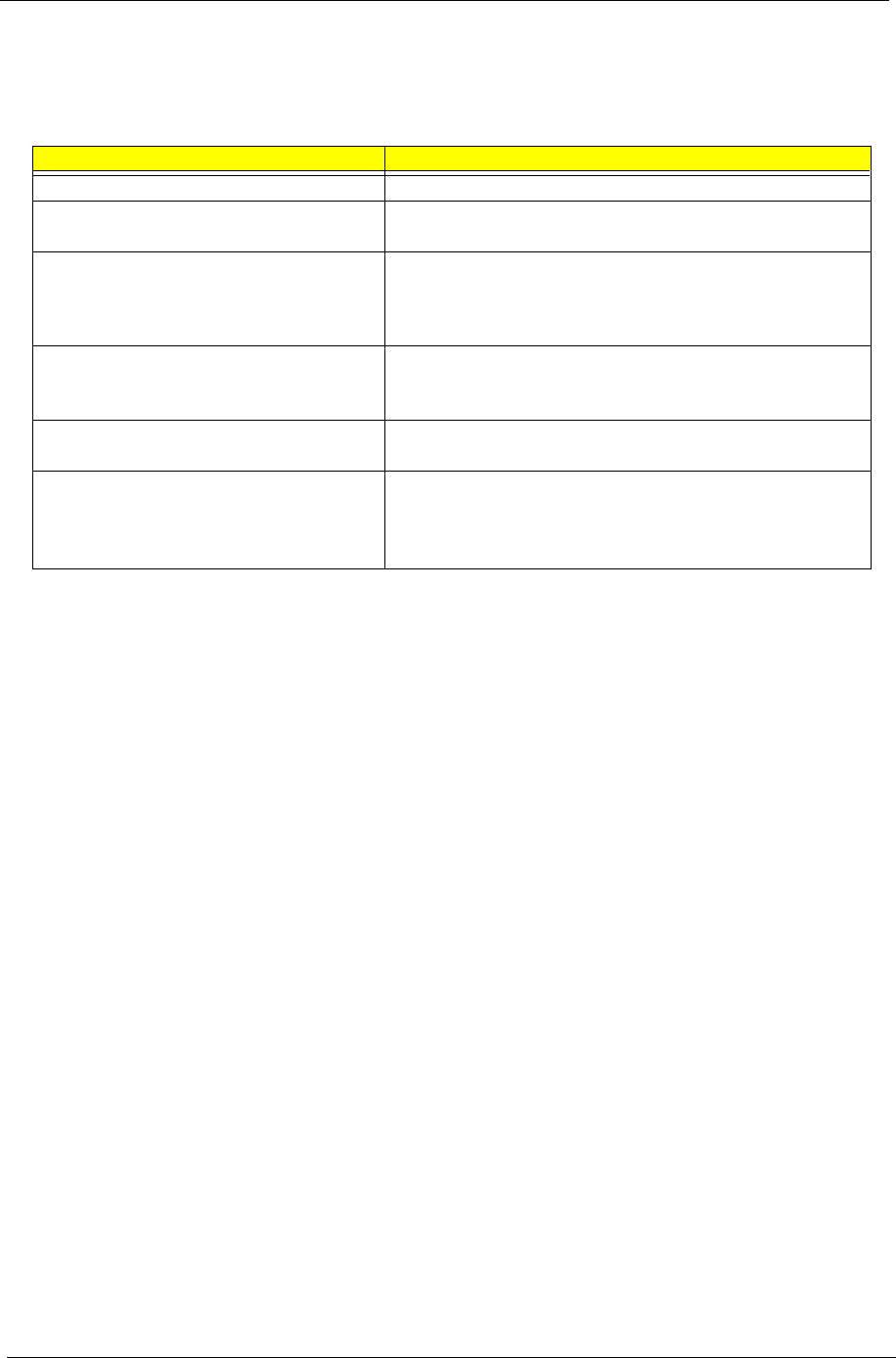
50 Chapter 4
Index of Error Messages
Error Message List
Error Messages FRU/Action in Sequence
Struck Key See ““Keyboard or Auxiliary Input Device Check” on page 47
System CMOS checksum bad - Default
configuration used
RTC battery
Run BIOS Setup Utility to reconfigure system, then reboot system.
Real time clock error RTC battery
Run BIOS Setup Utility to reconfigure system time, then reboot
system.
Main board
Previous boot incomplete - Default configuration
used
“Load Default Settings” in BIOS Setup Utility.
RTC batter
Main baord.
Invalid System Configuration Data “Load Default Settings” in BIOS Setup Utility.
Main board.
Operating system not found Enter Setup and see if fixed disk and drive A are properly identified.
Dikette drive
Hard disk drive
Main board.
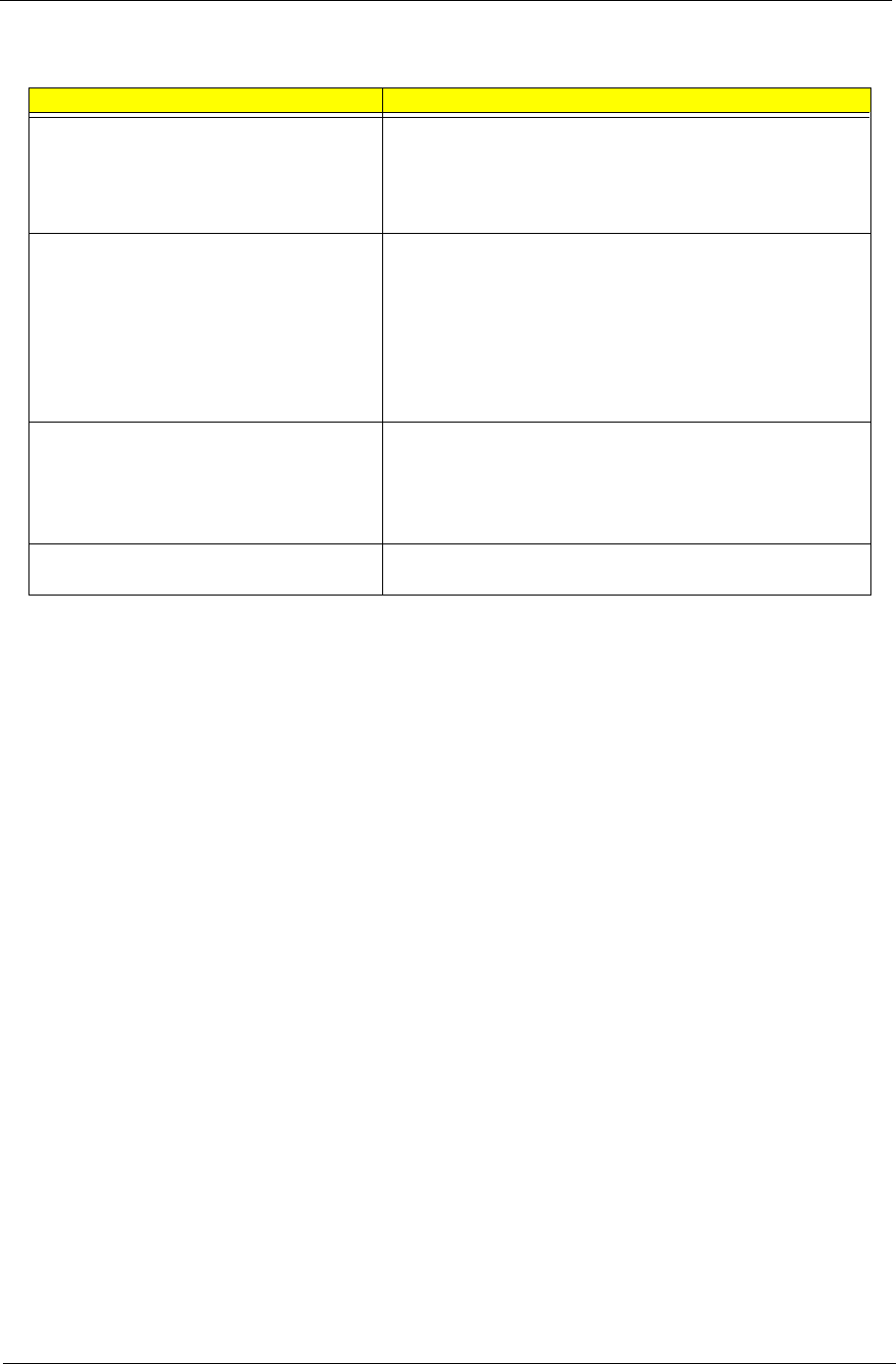
Chapter 4 51
Error Message List
No beep Error Messages FRU/Action in Sequence
Power-on indicator turns off and LCD is blank. Power source (battery pack and power adapter.) See “Power
System Check” on page 47
Ensure every connector is connected tightly and correctly.
Reconnect the DIMM.
Main board.
Power-on indicator turns on and LCD is blank. Power source (battery pack and power adapter.) See “Power
System Check” on page 47
Reconnect the LCD connector
Hard disk drive
LCD cable
LCD inverter
LCD
Main board
Power-on indicator turns on and LCD is blank.
But you can see POST on an external CRT.
Reconnect the LCD connectors.
LCD cable
LCD inverter
LCD
Main board
Power-on indicator turns on and a blinking cursor
shown on LCD during POST.
Ensure every connector is connected tightly and correctly.
Main board
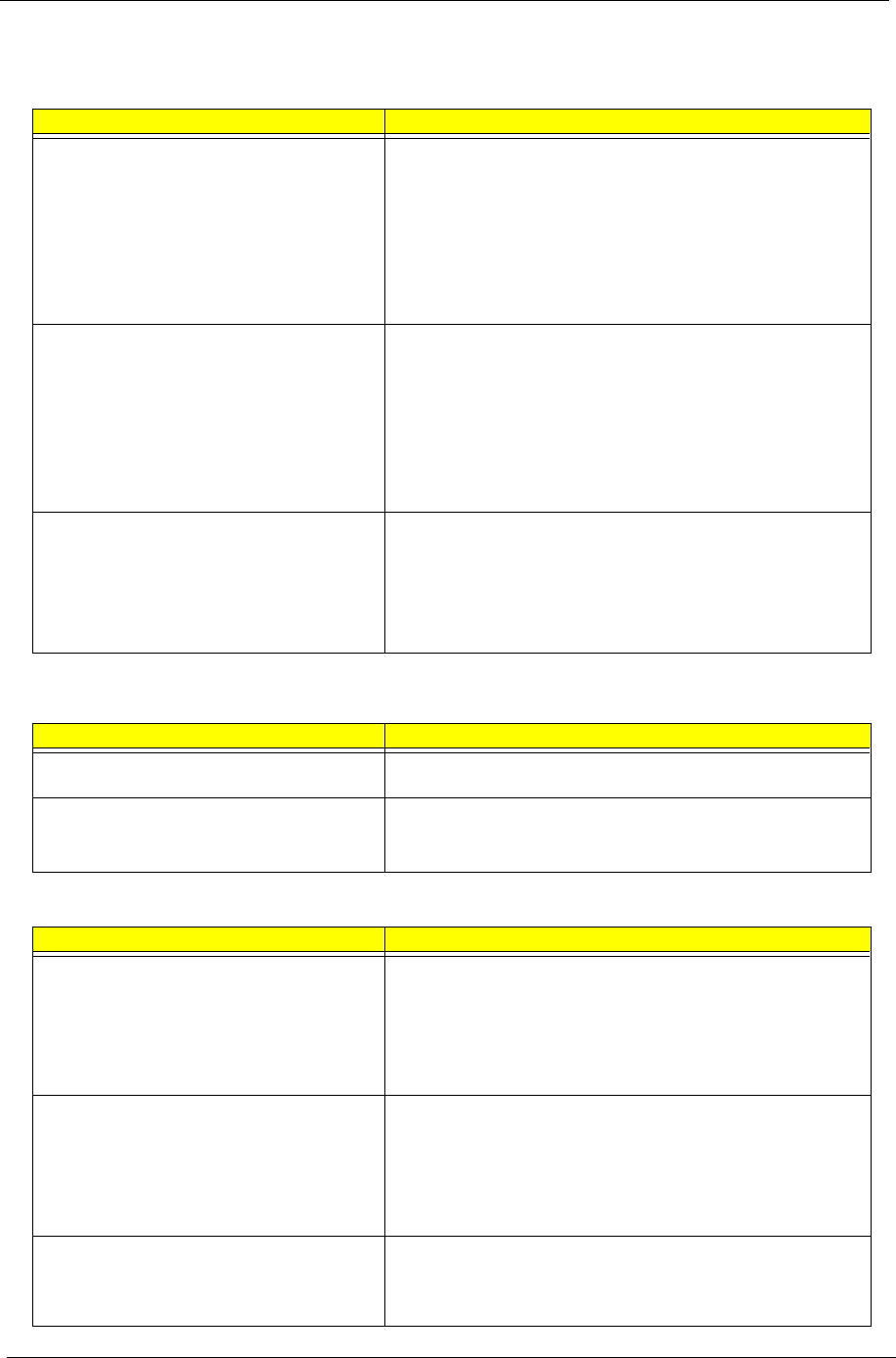
52 Chapter 4
Index of Symptom-to-FRU Error Message
LCD-Related Symptoms
Symptom / Error Action in Sequence
LCD backlight doesn't work First, plug a monitor to CRT port. Next, enter BIOS utility to running
“Load Default Settings” then reboot the system.
Reconnect the LCD connectors.
Keyboard (if the brightness function key doesn't work).
LCD cable
LCD inverter
LCD
Main board
LCD is too dark
LCD brightness cannot be adjusted
Enter BIOS Utility to execute “Load Setup Default Settings”, then
reboot system.
Reconnect the LCD connectors.
Keyboard (if the brightness function key doesn't work).
LCD cable
LCD inverter
LCD
Main board
Unreadable LCD screen
Missing pels in characters
Abnormal screen
Wrong color displayed
LCD has extra horizontal or vertical lines
displayed.
Reconnect the LCD cable
LCD cable
LCD
Main board
Indicator-Related Symptoms
Symptom / Error Action in Sequence
Indicator incorrectly remains off or on, but system
runs correctly
Main board
HDD/CD-ROM active indicators cannot work HDD/CD-ROM drive
Device driver
Main board
Power-Related Symptoms
Symptom / Error Action in Sequence
Power shuts down during operation Power source (battery pack and power adapter). See “Power
System Check” on page 47.
Battery pack
AC adapter
See if the thermal module is overheat (Heat sink or fan).
Main board
The system cannot power-on. Power source (battery pack and power adapter). See “Power
System Check” on page 47.
Battery pack
Power adapter
CPU
Main board
The system cannot power-off. In Windows XP operating system, hold and press the power switch
for more than 4 seconds. If the system can power off, then the main
board is OK. Verify OS in the HDD.
Main board
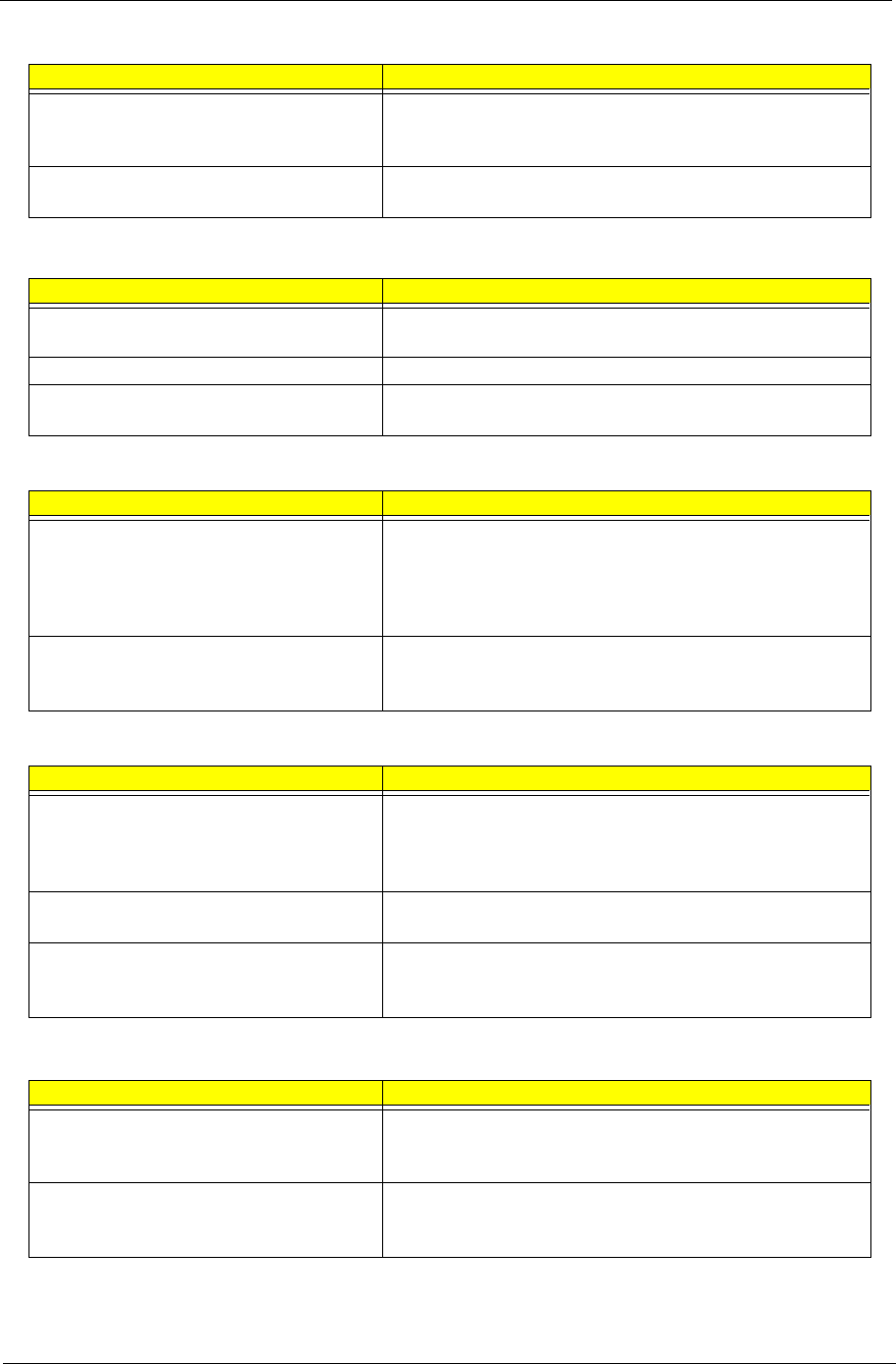
Chapter 4 53
Battery can’t be charged or discharged See “Check the Battery Pack” on page 48.
Battery pack
Main board
System hang during POST ODD/HDD/FDD/RAM module
Main board
PCMCIA-Related Symptoms
Symptom / Error Action in Sequence
System cannot detect the PC Card (PCMCIA) PCMCIA slot assembly
Main board
PCMCIA slot pin is damaged. PCMCIA slot assembly
PC Card cannot be inserted or ejected Check if the PCMCIA slot is blocked
Main board
Memory-Related Symptoms
Symptom / Error Action in Sequence
Memory count (size) appears different from
actual size.
Enter BIOS Setup Utility to execute “Load Default Settings” then
reboot system.
RAM module
Main board
Check BIOS revision
System can power on, but you hear two long
beeps: “B--, B--” and the LCD is blank.
Reinsert DIMM
DIMM
Main board
Speaker-Related Symptoms
Symptom / Error Action in Sequence
In Windows, multimedia programs, no sound
comes from the computer.
OS volume control
Audio driver
Speaker
Main board
Internal speakers make noise or emit no sound. Speaker
Main board
Microphone cannot work Audio driver
Volume control in Windows XP
Main board
Power Management-Related Symptoms
Symptom / Error Action in Sequence
The system will not enter hibernation mode Power option in Windows XP
Hard disk drive
Main board
The system doesn’t enter standby mode after
closing the lid of the portable computer.
Driver of Power Option Properties
Lid close switch in upper case
Main board
Power-Related Symptoms
Symptom / Error Action in Sequence
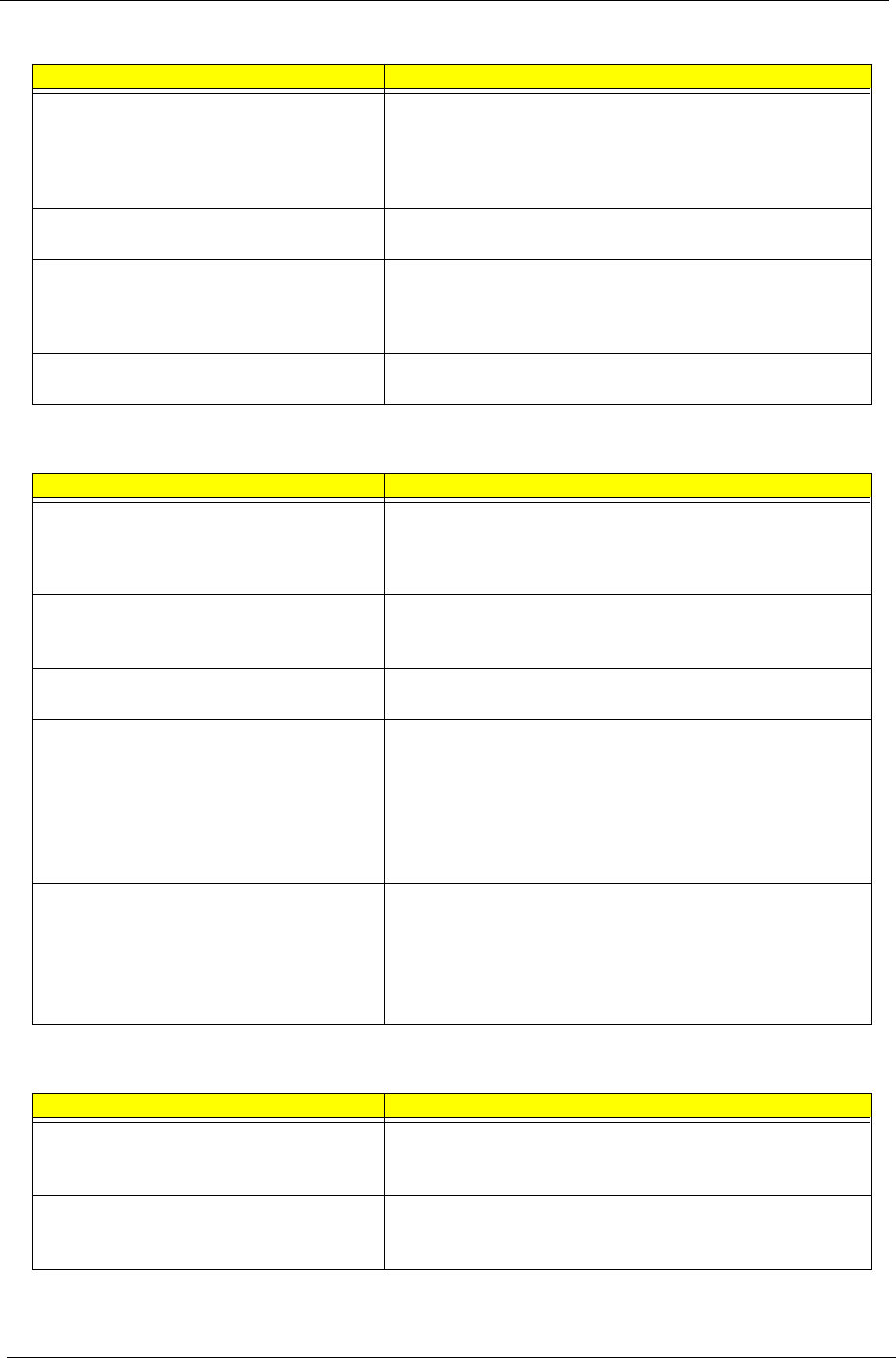
54 Chapter 4
The system doesn't resume from hibernation/
standby mode.
Connect AC adapter then check if the system resumes from
Standby/Hibernation mode.
Check if the battery is low.
Hard disk drive
Main board
The system doesn't resume from standby mode
after opening the lid of the portable computer.
LCD cover switch
Main board
Battery fuel gauge in Windows doesn’t go higher
than 90%.
Refresh battery (continue use battery until power off, then charge
battery).
Battery pack
Main board
System hangs intermittently. Reconnect hard disk/CD-ROM drives.
Main board
Peripheral-Related Symptoms
Symptom / Error Action in Sequence
System configuration does not match the
installed devices.
Enter BIOS Setup Utility to execute “Load Setup defaults”, then
reboot system.
Reconnect hard disk/CD-ROM drives/FDD or other peripherals.
Main board
External display does not work correctly. Press Fn+F5, LCD/CRT/Both display switching
Keyboard
Main board
USB does not work correctly See “System Diagnostic Diskette” on page 30
Main board
Print problems. Enter BIOS Setup Utility to execute “Load Default Settings” then
reboot the system.
Run printer self-test.
Printer driver
Printer cable
Printer
Main board
Parallel port device problems Enter BIOS Setup Utility to execute “Load Default Settings” then
reboot the system.
Device driver
Device cable
Device
Main board
Keyboard/Touchpad-Related Symptoms
Symptom / Error Action in Sequence
Keyboard (one or more keys) does not work. Reconnect the keyboard cable.
Keyboard
Main board
Touchpad does not work. Reconnect touchpad cable.
Touchpad board
Main board
Power Management-Related Symptoms
Symptom / Error Action in Sequence

Chapter 4 55
NOTE: If you cannot find a symptom or an error in this list and the problem remains, see “Undetermined
Problems” on page 57.
Modem/LAN-Related Symptoms
Symptom / Error Action in Sequence
Internal modem does not work correctly. See “System Diagnostic Diskette” on page 30.
Phone cable
Driver
Reconnect the Internal modem cable to the main board tightly.
Main board
Internal LAN does not work correctly Lan cable
Driver
Main board

56 Chapter 4
Intermittent Problems
Intermittent system hang problems can be caused by a variety of reasons that have nothing to do with a
hardware defect, such as: cosmic radiation, electrostatic discharge, or software errors. FRU replacement
should be considered only when a recurring problem exists.
When analyzing an intermittent problem, do the following:
1. Run the diagnostic test for the system board in loop mode at least 10 times.
2. If no error is detected, do not replace any FRU.
3. If any error is detected, replace the FRU. Rerun the test to verify that there are no more errors.

Chapter 4 57
Undetermined Problems
The diagnostic problems does not identify which adapter or device failed, which installed devices are incorrect,
whether a short circuit is suspected, or whether the system is inoperative.
Follow these procedures to isolate the failing FRU (do not isolate non-defective FRU).
NOTE: Verify that all attached devices are supported by the computer.
NOTE: Verify that the power supply being used at the time of the failure is operating correctly. (See “Power
System Check” on page 47):
1. Power-off the computer.
2. Visually check them for damage. If any problems are found, replace the FRU.
3. Remove or disconnect all of the following devices:
!Non-Acer devices
!Printer, mouse, and other external devices
!Battery pack
!Hard disk drive
!DIMM
!PC Cards
4. Power-on the computer.
5. Determine if the problem has changed.
6. If the problem does not recur, reconnect the removed devices one at a time until you find the failing FRU.
7. If the problem remains, replace the following FRU one at a time. Do not replace a non-defective FRU:
!System board
!LCD assembly

58 Chapter 4
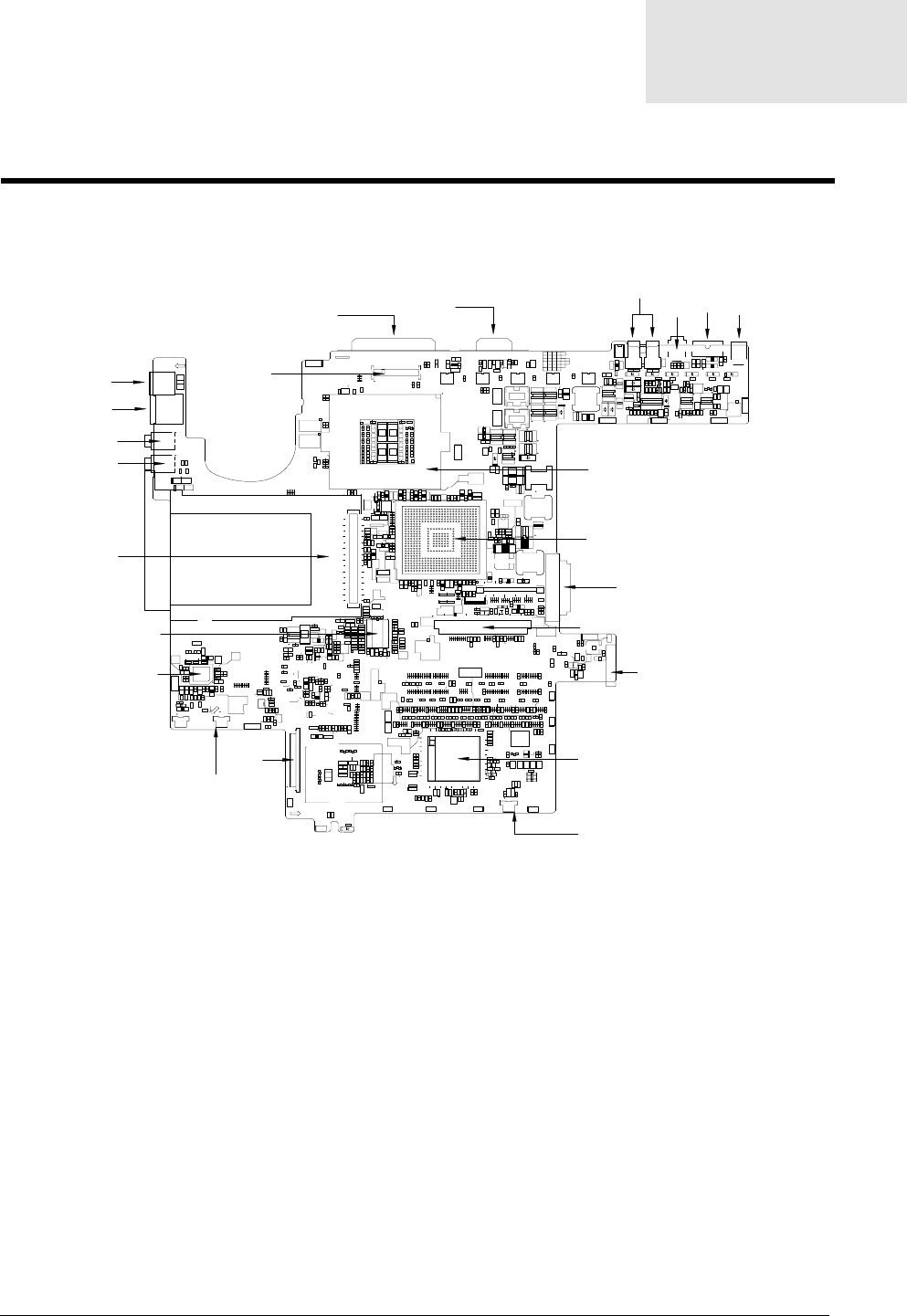
Chapter 5 59
Top Vie w
CON3 LCD Connector U14 KBC Connector
CON2 Parallel Port JAPKR1 Internal Speaker Connector (Right)
CON1 VGA Port CON12 FDD Connector
CN3 USB Port JAPKL1 Internal Speaker Connector (Left)
CN1 1394 Port U9 AC97 Codec
CN2 TV-Out U6 Clock Generator
PJ1 Power Jack CON7 PCMCIA Connector
U3 CPU/CPU Socket CN5 Head Phone Jack
U4 Core Logic (Northbridge) CN4 Microphone Jack
CON8 ODD Connector CON5 LAN Connector
CON10 HDD Connector CON4 Modem Connector
JP1 Battery Connector
EBFU3ENC7F5!SFW;F
EBFU3ENC7F5!SFW;FEBFU3ENC7F5!SFW;FEBFU3ENC7F5!SFW;F
EBFU3ENC7F5!SFW;FEBFU3ENC7F5!SFW;FEBFU3ENC7F5!SFW;F
DDDDDD
DDDDDD
359
34
2
F
K
3
G
L
5
H
M
9
I
NO
N2
E2 2
E3
M
1
E
J
TE
6
2
E
B
C
E
B
C
E
B
C
E
B
C
E
B
C
E
B
C
E
B
C
E
B
C
E
B
C
E
B
C
F
G
F
G
F
G
F
G
F
G
F
G
F
G
F
G
F
G
F
GG
F
E
C
B
8
7
65
4
3
2
,
BG
BF
BE
BD
BC
BB
Z
X
W
V
U
S
Q
O
N
M
L
K
I
H
G
F
E
D
C
B
37
36
35
34
33
32
31
2:
29
28
27
26
25
24
23
22
21
:987
6
5
4
3
2
BG
BF
BE
BD
BC
BB
Z
X
W
V
U
S
Q
O
N
M
L
K
I
H
G
F
E
D
C
B
2345
6789:21
22
23
24
25
26
27
28
29
2:
31
32
33
34
35
36
37
3
4
3
4
2
4
6
8
3
5
7
9
27
26
:21 22 23
2
3
2
3
4
5
9
8
7
6
23
22
21
:
27
25
24
31
2:
29
28
35
34
33
32
39
38
37
36
43
42
41
3:
47
46
45
44
48
B
C
D
E
G
K
I
H
L
N
M
F
R
Q
O
S
V
U
T
W
Z
Y
X
BB
BE
BD
BC
[
BF
BG
BIBK
BH
BL
BN
BO
BM
2
25 24
36
4
5
361
59
5:
58
55
23
22
3
3
3
3
59
48
36
24
C88
B88
C2 B2
31
51
32
37
2
55
56
99 9:
243
244
287
3
5
4
2
3
4
2
3
5
4
2
3
5
4
2
3
5
4
2
2
2
21
2
21
2
21
2
21
H
P
J
H
P
J
H
P
J
H
P
J
H
P
J
H
P
J
H
P
J
H
P
J
H
P
J
H
P
J
H
P
J
H
P
J
H
P
J H
P
JH
P
J H
P
JH
P
J
H
P
J
7
2
7
2
7
2
7
2
36 59
35
25
6
9
,
QM8
QM4
I7
I9
I:
I6
DO3
QE25
QV5
QD55
V7
V5
D3:3 D36:
DO2
QK2
FNJ23 FNJ21 FNJ:
FNJ25 FNJ28
FNJ24
FNJ26 FNJ27
FNJ76
FNJ77
E25
E24
E26
E28
E29
E32
E35
E3
E39
E4
E34
E36
E38
E23 E21
E27
QE21
QE5
QE3
E22
IPMF7
QM5
QM7
QS6
QS44
DPO6
DPO5
FNJ7
FNJ22
FNJ9
FNJ2
FNJ3
FNJ6
FNJ5
FNJ4
FNJ8
V4
DPO3
IPMF23
IPMF21
IPMF9
IPMF25
DPO9
R4
IPMF8
IPMF5
DPO21
DO7
DO5
DO6
QM9
D7:
D79
SW2
QE6
QV4
QS28
QS43
QS47
QS49
QD53
QD34
QD25
QD36
QD35
QD:
QD26
QE9
QE22
QE2
QE4
QE7
QE8
QM21
QM6
QM:
V21
DPO22
KTQLS2
KTQLM2
V:
S31:
DPO8
KQ2
DPO4
DPO23
S517
S518
S24:
S22:
S259
S261
M22
S242
S276
S237
M23
S82
S72
S86
S::
S216
S74
S257
S25:
M46
S274
S222
S38
S229
S233
S275
S224
S29:
S218
S217
S88
S68
QS55
QS56
S81
S76
QS52
QS48
QS51
QS53
QS4:
S92
S96
S211
S98
S99
S93
S94
S:6
S:7
S279
S254
S294
S293
S272
S268
S267
S266
S265
S264
S263
S262
S288
S287
S286
S285
S283
S282
S281
S27:
S284
S255
S292
S6:
S69
S7:
S85
S89
S95
S:1
S:8
S213
S219
S215
S79
S63
S73
S77
S:9
S214
S:4
S:3
S23:
S245
S239
S243
S223
S236
S44
S47
S48
S49
S91
S51
S4:
S28:
S248
S3:
S39
S228
S7
S6
S:
S9
S66
S:2
S71
S75
S87
S9:
S45
S57
S52
S232
S246
S291
S247
S43
S46
S61
S84
S83
S78
QS45
QS62
QS58
S41
QS33
S231
QS5:
QS59
QS46
QS3:
QS26
QS7
QS27
QS29
QS41
QS2:
QS42
QS39
QS38
QS37
QS5
QS24
QS25
QS23
QS34
QS22
QS21
QS9
QS4
QS3
QS:
QS8
QS31
QS36
QS32
QS35
QS2
S58
S27
S258
S253
S252
S251
S249
S227
S226
S225
S234
S235
M4:
S314
S315
S319
S325
S2:6
S318 S2::
S322
S323
S324
S311
S2:7
M:
M21
M38
M39
S3
S212
S278
S329
S244
S55
S53
S54
S56
S313
S312
S2:2
S299
S298
S2:
S241
S333
S332
S328
S327
S42
S21:
S273
S331
S335
S289
S221
S317
S297
S36
S277
S5:
S97 S8:
S28
S334
S336
S24
S26
S25
S22
S21 S23
S64
S238
S256
S271
S26:
S269
S34
S35
S37
S33
S31
S2:9
S2:8
S2:3
S2:1
S295
S296
S2
S29
S32
S65
S59
S32:
S4
S5
S8
D7:8
D81
D276
D275
D3:7
D333
D313
D262
D3:6
D284
D3:9
D266
D3:8
D259
D278
D25:
D3:5
D3:2
D311 D296
D31:
D264
D2::
D319
D254
QD62
QD59
QD56
D29:
D299
D2:2
D2:3 D2:9
D344 D345 D347 D348
D338
D325
D312
D331
D295
D21:
D221
QD4:
QD52
QD51
QD49
QD48
QS54
QD75
QD74
D392
D399
D398
D393
D413
D371
D357
D356
D372
D364
D362
D363
D361
D35:
D359
D367
D2:8
D378
D377
D39:
D376
D375
D339
D346
D374
D373
D342
D33:
D383
D382
D329
D327
D366
D358
D341
D343
D397
D396
D2:5
D2:4
D395
D394
D365
D328 D286
D381
D37:
D379
D38:
D389
D388
D387
D386
D384
D385
D2:7
D2:1
D2:6
D285
D255
D261
D252
D272
D267
D253
D258
D222
D219
D22:
D223
D352
D332
D297
D291
D34: D289
D3:4
D:6
D:2
D224
D97
D353
D351
D354
D369
D368
D293
D28:
D32:
D265
D95
D234
D238
D217
QD68
QD6:
QD61
QD73
QD5:
QD67
QD63
QD66
QD72
D98
D3:1
D337
D85
D349
D34
D33
D32
QD71
QD65
QD38
QD39
QD44
QD43
QD33
QD31
QD23
QD21
QD32
QD7
QD9
QD8
QD22
QD29
QD2:
QD27
QD2
D412
D421
D335
D316
D424
D314
D292
D318
D317
D279
D287
D315
D288
D27:
D269
D268
D282
D423
D431
D429
D434
D428
D435
D422
D427
D426
D42:
D433
D283
D71
D41 D42
D62
D76
D53
D73
D68
D49
D72
D5:
D48
D5
D3
D38
D3:
D35
D39
D61
D67
D56
D55
D66
D36
D75
D54
D37
D59
D432
D41:
D436
D419
D411
D235
D4
D256
D249
D24:
D242
D23:
D416
D442
D438
D437
D417
D9:
D77
D74
D8
D7
D215
D212
D391
D29
D28
D27
D26
D231
D232
D246
D247
D23
D21
D22
D24
D441
D418
D237
D43:
D439
D92
D241
D84
D83
D:9
D:1
D:5
D99
D233
D213
D243
D236
D414
D82
D94
D93
D::
D:7
D2:
D31
D65
D47
D4:
D78
D96
D:
Z3
Z2
QR35
QR34
DPO7
V3
V2
V6
V23
V9
QV6
QR31
QR32
QR9
QR26
QR2:
QR:
QR27
QR23 QR24
QR28
QR25
QV3
QV2
QR8
V8
V26
V22
V24
V25
U44
U45
U46
U47 U48
U49
U4:
U51
U52
U53
U54
U55
U56
U57
U58
U59
U5:
U61
U62
U63
U64
U65
U66
U67
U6:
U2
U21
U8
U9
U22
U6
U7
TX6
TX5
TX4
TX3
QTX2
TX2
SQ211
SQ22
SQ:
SQ9
SQ7
SQ8
SQ51
SQ5:
SQ4:
SQ37
SQ49
SQ64
SQ65
SQ69
SQ57
SQ68
SQ56
SQ67
SQ55
SQ66
SQ54
SQ63
SQ53
SQ62
SQ52
SQ61
SQ38
SQ27
SQ26
SQ23
SQ28
SQ29
SQ2:
SQ31
SQ32
SQ24
SQ3:
SQ39 SQ42
SQ47
SQ25
SQ46
SQ45
SQ44
SQ43
SQ41
SQ36
SQ3
SQ4
SQ5
SQ33
SQ2
SQ21
SQ6
SQ48
SQ58
SQ6:
SQ59
SQ35 SQ34
DQ5
DQ2
DQ4
DQ3
SQ74
SQ71
SQ73
SQ72
R:R9
R8R7
R3
R24
QR5
QR3
R22
QR37
E37
E33
E2: E31
R31R2:
R32
QE:
R21
R2
R6R5
QR36
QR29
QE24
QR7
QR6
QR21
QR4
R26
R28
R27
R29
R25
E2
QR38
QR2
QR22
R23
QR33
D336
D216
D257
D274
D298
D415
D229
D228
D87
D88
D89
D326
D277
D9
D355
D211
D218
D:4
D:8
D8:
D91
D86
D239
QD57
QD54
QD42 QD41
D64
D63
D45 D46
D322
QM22
QD58
D26:
D3::
D263
D273
D334
D225
D227
D226
QD47
QD46
QD45
D251
D248
D271
D:3
QD24
QD37
QD69
QD3:
QD28
QD5
QD4
QD6
QD3
D294
D324
D323
D321
D281
D425
D2
D6
D214
D25
D244
D58
D43
D52
D69
D44
D57
D6:
D51
QM3
QM23
QM2
M3:
M35
IPMF22
IPMF27
IPMF3
IPMF4
IPMF:
IPMF2
IPMF24
IPMF28
IPMF26
IPMF29
IPMF6
E3:
DPO2
DPO:
DO4
QD64
M43
M36
M37
M29
M24
M47
M49
M48
M42
M45
M52
M51
M5
M4
M3
QS57
QS61
S:5
M44
S321
S326
S316
S2:4
S2:5
M34
M9
M7
M8
M6
M41
M2
M32
M27
M28
M25
M2:
M33
M26
M31
QE23
E41
E9
E6
E7
E5
E8 E:
CON12
MD
CN2 PJ1
U3
U4
CON8
CON10
JP1
U14
JAPKR1
JAPKL1
U9
U6
CON7
CN5
CN4
CON5
CON4
CN1
CON3
CON1
CON2
CN3
Jumper and Connector Locations
Chapter 5
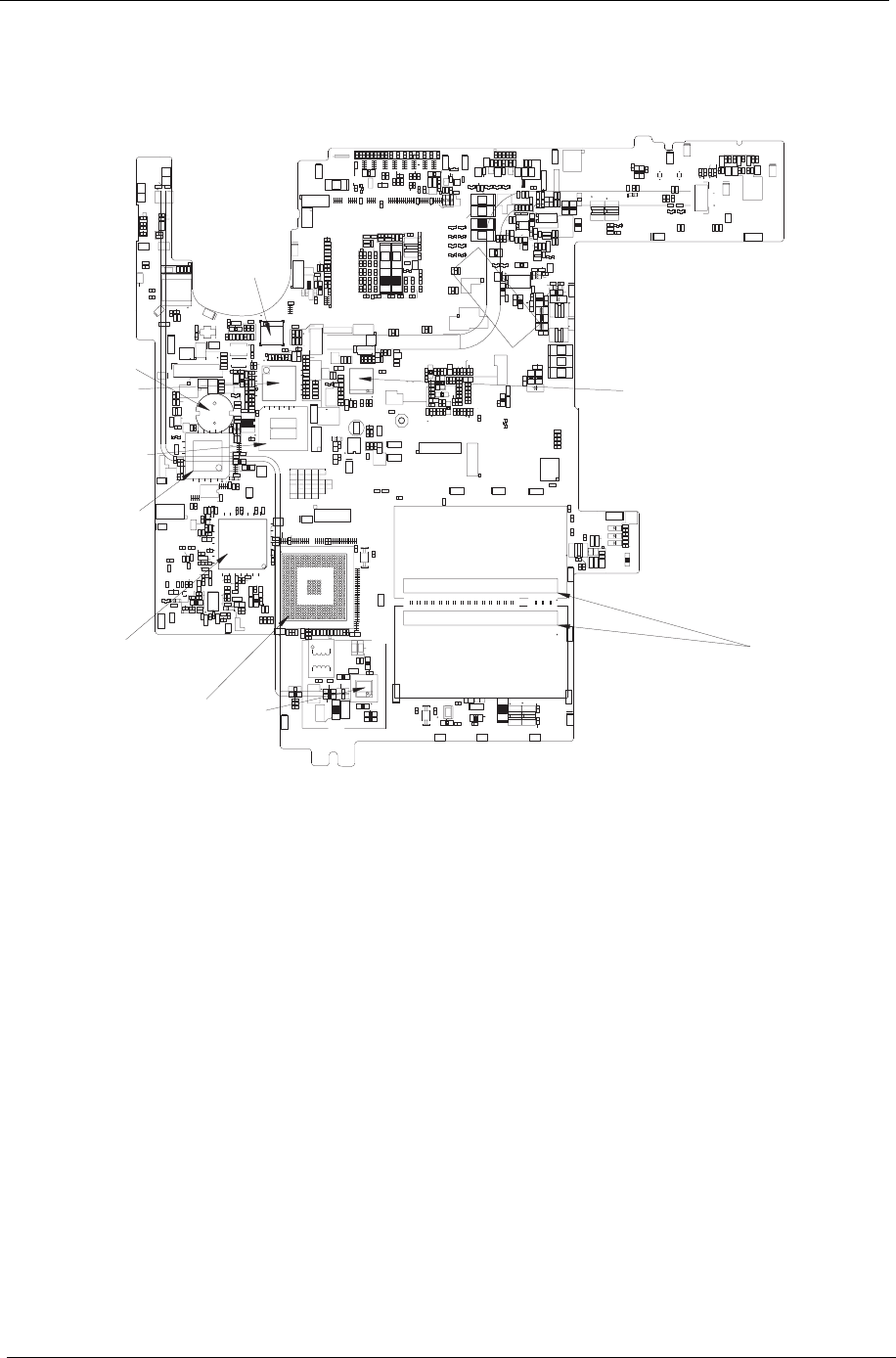
60 Chapter 5
Bottom View
U20 LAN PHY U28 PCMCIA Controller
U21 TV Encoder U26 Super I/O Controller
CN10,
CN11
DDR So-Dimm U24 BIOS
U34 Modem Controller U22 1394 Controller
U31 South Bridge BT1 RTC Battery
EBFU3ENC7F5!SFW;FEBFU3ENC7F5!SFW;FEBFU3ENC7F5!SFW;F
EBFU3ENC7F5!SFW;FEBFU3ENC7F5!SFW;FEBFU3ENC7F5!SFW;F
EBFU3ENC7F5!SFW;F
ttttt
ttttt
FFFFFF
BND31574.113BND31574.113BND31574.113BND31574.113BND31574.113
ONET
MLKJ
IHGFEM
9 5321E3
432E2
95
32N
SSSSS
SSSSSS
RRRRR
RRRRRR
QQQQQ
QQQQQQ
LLLLL
LLLLLL
KKKKK
KKKKKK
JJJJJ
JJJJJJ
IIIII
IIIIII
HHHHH
HHHHHH
GGGGG
GGGGGG
BND31574.113
B
C
D
E
B
C
D
E
B
C
D
E
B
C
D
E
B
C
D
E
B
C
D
E
B
C
D
E
B
C
D
E
B
C
D
E
B
C
D
E
GGGGG
G
F
G
F
G
F
G
F
G
F
G
F
E
D
C
B
2
5
3
4
2
5
3
4
25
2
9
65
27
4459
28
43
5:
75
36 37
61
62
86
87
211
BG
BF
BE
BD
BC
BB
Z
X
W
V
U
S
Q
O
N
M
L
K
I
H
G
F
E
D
C
B
37
36
35
34
33
32
31
2:
29
28
27
26
25
24
23
22
21
!:
!9
!8
!7
!6
!5
!4
!3
!2
3
4:
51
52
53
2::
311
51
3
2::
311
53
52
4:
5
43
5
43
58
59
5:
61
4
2
5
3
9
6
52
9
:
27
28
35
36
43
255
21:
219 84
83
48
47
2
52
34
52
34
7
7
239
:8
:7
76
75
44
43
5
2
4
27
43 5:
75
2
21
H
P
JH
P
J
H
P
J
H
P
J
H
P
J
H
P
J
H
P
J
H
P
J
H
PJ
H
P
J
H
P
J
H
P
JH
P
J
H
P
J
H
P
J
H
P
J
7
2
7
2
2
3
23
M57
M56
K3
QE33
CU2
QV22
V32
V37
V38
V42
DO22 DO21
V35
Z5
FNJ43
FNJ39
FNJ44
FNJK2
FNJ35
FNJ29
FNJ46
FNJ38
FNJ41
FNJ53
FNJ58
FNJ71
FNJ2:
FNJ36
FNJ4:
FNJ74
FNJ73
FNJ75
FNJ61
FNJ65
FNJ51
FNJ47
FNJ3:
FNJ42
FNJ66
FNJ59
FNJ52
FNJ48
FNJ78
FNJ79
FNJ64
FNJ31
FNJ33
FNJ32
FNJ34
FNJ72
FNJ63
FNJ6:
FNJ69
FNJ56 FNJ54 FNJ55
FNJ5:
E59
E51
E52
E53
E57
E56
E58
E5:
E62
E61
E55
QE31
QE29
QE26
QE2:
QE28
QE27
DNM2
DNM3
FNJ45
FNJ68
FNJ49
FNJ57
FNJ37
D4:4
D487
QV:
QV8
QD239
QD221
QD222
QD88
QD:3
D482
QD94
QD87
QD215
QD::
QD214
QD216
QE32
V2:
R59 U35
V45
D7:3
SW3
V3:
S67
S527
S526
S525
S524
S523
S522
S521
S51:
S519
S516
S513
S514
S512
S365
S364
QD91
QD8:
QD82
QD96
M72
M67
M66
M71
M74
M65
M68
M73
S426
S427
S44:
S463
S455
S4:3
S4:1
S4:5
S499
S49:
S4:2
S4:4
S459
S45:
S451
S456
S464
S496
S424
S436
S434
S41:
S346
S344
S345
M77
M83
M7:
M78
M79
M75
S62
S447
S48:
S489
S4:6
S498
S497
S419
S462
S461
S458
QS88
S349
S34:
S351
S352
QS91
QS93
QS8:
QS89
QS71
QS97
QS67
QS73
QS99
QS96
QS69
QS76
QS77
QS78
QS79
QS74
QS81
QS72
QS82
QS75
QS6:
QS68
QS92
QS7:
S454
QS94
QS216
S372
S488
S36:
S413
S493
S437
S487
M62
M63
S476
QS217
QS:3
QS:4
QS:5
QS9:
QS:1
QS:2
QS95
QS215
QS212
QS211
QS87
QS84
QS86
QS85
QS66
QS65
QS64
QS63
QS83
S47:
S477
S483
S482
S481
S475 S474
S473
S4:8
S4:7
M92
M64
S338
S339
S33:
S422
S469
QS:8
S361
S356
S357
S382
S353
S35:
S376
S373
S457
S398
S3:8
S3:2
S399
S446
S445
S491
S466
S486
S472
S467
S354
S359
QS:7
S484
S485
S421
S3:3
QS:6
QS:9
S412
S448
S452
S468
S449
S3:1
S3:9
S494
S492
S465
S337
S348
S387
S386
S388
S385
S391
S389
S383
S384 S381
S37:
S371
S379
S378
S377
S374
S358
S363 S362
S367
S368
S375
S393
S479
S3::
S39:
S411
S423
S343
S478
S417
S3:6
S3:7
S3:5
S3:4
S395
S394
S369
S431
S42:
S432
S433
S435
S347
S439
S453
S366
S425
S442
S441
S443
S414
S415
S43:
S416
S438
S444
S418
S396
S428
S471
S429
S46:
S341
S342
S38:
S392
D584
D467
D533
D583
D469
D563
D46:
D779
D783
D755
D641
D627
D731
D732
D72:
D786
D787
D782
D62:
D655
D652
D649
D645
D634
D632
D631
D656
D662
D618
D68:
D622
D616
D613
D615
D696
D63:
D654
D691
D687
D639
D668
D671
D667
D648
D626
D643
D661
D621
D659
D686
D614
D633
D692
D695
D673
D689
D694
D623
QD244
QD238
QD241
D688
D693 D619
D61:
D778
D777
D776
D775
D764
D781
D77:
D5:2
D663
D666
D612
D644
D5:1
D664
D665
D699
D716
D669
D59:
D599
D717
D721
D647
D642
D697
D672
D64:
D471
D479
D468
D477
D466
D478
D71:
D719
QD95
QD97
QD85
QD86
QD:2
QD76
QD227
QD228
QD235
D514
D558
D552
D538
D562
D542
D548
D531
D524
QD79
QD7:
D512
D592
D519 D518
D517
D73:
QD:6
QD234
QD22:
QD236
QD232
QD:9
QD:5
QD233
QD231
QD229
QD237
QD23:
QD77
QD78
D55:
D541
D573
D521
D523
D53: D529
D559
D54:
D569
D522
D52:
D546
D547
D551
D557
D752
D738
D743
D742
D744
D751
D74:
D735 D734
D49:
D791
D793
D449
D44:
D451
D452
D453
D454
D455
D456
D457
D458
D459
D443
D444
D445
D446
D447
D448
D571
D572
D565
D761
D549
D51:
D534
D537
D554
D591
D7:5
D7:4
D45:
D461
D462
D463
D464
D465
D739
D736
D56:
D539
D526
D561
D556
D532
D525
D7:1
D797
D799
D475
D476
D4:3
D491
D575
D245
D6:3
D6:5
D6:2
D6:4
D6::
D4:2
D4:1
D498
D497
D733
D723
D588
D578
D589
D58:
D581
D57:
D585
D579
D577
D586
D576
D678
D754
D69:
D6:6D713
D745
D737
D6:9
D6:7
D6:8
D749
D741
D724
D722
D727
D728
D515
D516
D472
D474
D473
D747
D593
D597
D513
D773
D771
D726
D725
D4::
D4:6
D485
D484
D748
D746
D698
D535
D574
D564
D4:7
D4:8
D4:9
D511
D637
D646
D774
D772
D759
D767
D758
D768
D492
D486
D493
D494
D488
D489
D553
D499
QD225
QD226
D769
D76:
QD224
D75:
D762
D6:1
D625
D611
D5::
D681
D5:3
D596
D624
D5:4
D5:7
D684
D653
D595
D683D67:
D5:6
D5:5
D679
D685
D66:
D657
D587
D48:
D4:5
D543
D566
D567
D568
QTX3
Z8
Z9
Z7
Z6
DO:
DO8
V33
R36
QR57
QR56
R34
R35
D789
D788
D536
Z4
QV7
V29
V41
V44
V43
QR55
V28
QR3:
QV21
QR39
QR49
QR4:
V46
V34
V31
V36
QV9
V39
V27
U38
U39
U3:
U41
U42
U43
U37
U36
U27
U29
U31
U33
U34
U2:
U32
U25
SQ9:
SQ:5
SQ:4
SQ:6
SQ94
SQ:1
SQ:3 SQ:2
SO2
SQ96
SQ95
SQ93
SQ8: SQ87SQ88
SQ81 SQ79
SQ89
SQ75
SQ77
SQ98
SQ97
SQ76
SQ::
SQ:7
SQ:8
SQ99
SQ82
SQ7:
SQ78
SQ:9
SQ86 SQ85 SQ84 SQ83
SQ92
SQ91
R54
R52 R51
R4:
R49 R48
R47 R46
R45
R44 R43
R3: R39 R38
R37
R33
QR44
QR42
QR53
R56
R58
QR46
QR45
R41
R57
QR54
E44
E45
E43
R53
QR58
QR48
QR47
QR41
R55
E54
E48
E4:
E49
E47
E46
E42
QR43
QR51
QR52
R42
D636
D617
D675 D651
D635
QD242
D763
D718
D715
D65: QD:7
QD92
QD:1
QD:8
QD:4
QD212
D78:
D79:
D796
D794
D7:6
D7:7
D792
D629
D481
D47:
D765
D582
D483
D555
D795
QD243
QD219
QD93
QD99
QD89
QD81
QD21:
QD218
D495
D544
D527D528
D545
QM25
QD84
QD83
D756
D785
D784
D628
D658
D5:9
QM26
QD223
D598
D674
D638
D5:8
QD98
QD9:
QD217
QD211
QD213
D757
D729
D594
D496
D766
D753
D714 D711
D712
D7:2
D798
QM24
QM27
S511
S4:: M93
K4
K5
K2
M82 M81
M87
M89
M54
M55
M53
M8:
M91
QS214
QS213
QS219
QS218
QS98
S495
S397
M86
S4:9
M84
M76
QS::
S355
M88
M85
M6:
M5:
M61
M69
QE36
QE35
QE34
U21
U20
U34
CN10,
CN11
U31
U28
U26
U24
U22
BT1

Chapter 6 61
This chapter gives you the FRU (Field Replaceable Unit) listing in global configurations of Aspire 1310. Refer
to this chapter whenever ordering for parts to repair or for RMA (Return Merchandise Authorization). Please
also note that there are some common parts for Aspire 1310, yet the LCD modules are different in two model.
Please note that WHEN ORDERING FRU PARTS, you should check the most up-to-date information available
on your regional web or channel. For whatever reasons a part number change is made, it will not be noted on
the printed Service Guide. For ACER AUTHORIZED SERVICE PROVIDERS, your Acer office may have a
DIFFERENT part number code from those given in the FRU list of this printed Service Guide. You MUST use
the local FRU list provided by your regional Acer office to order FRU parts for repair and service of customer
machines.
NOTE: To scrap or to return the defective parts, you should follow the local government ordinance or
regulations on how to dispose it properly, or follow the rules set by your regional Acer office on how to
return it.
FRU (Field Replaceable Unit) List
Chapter 6
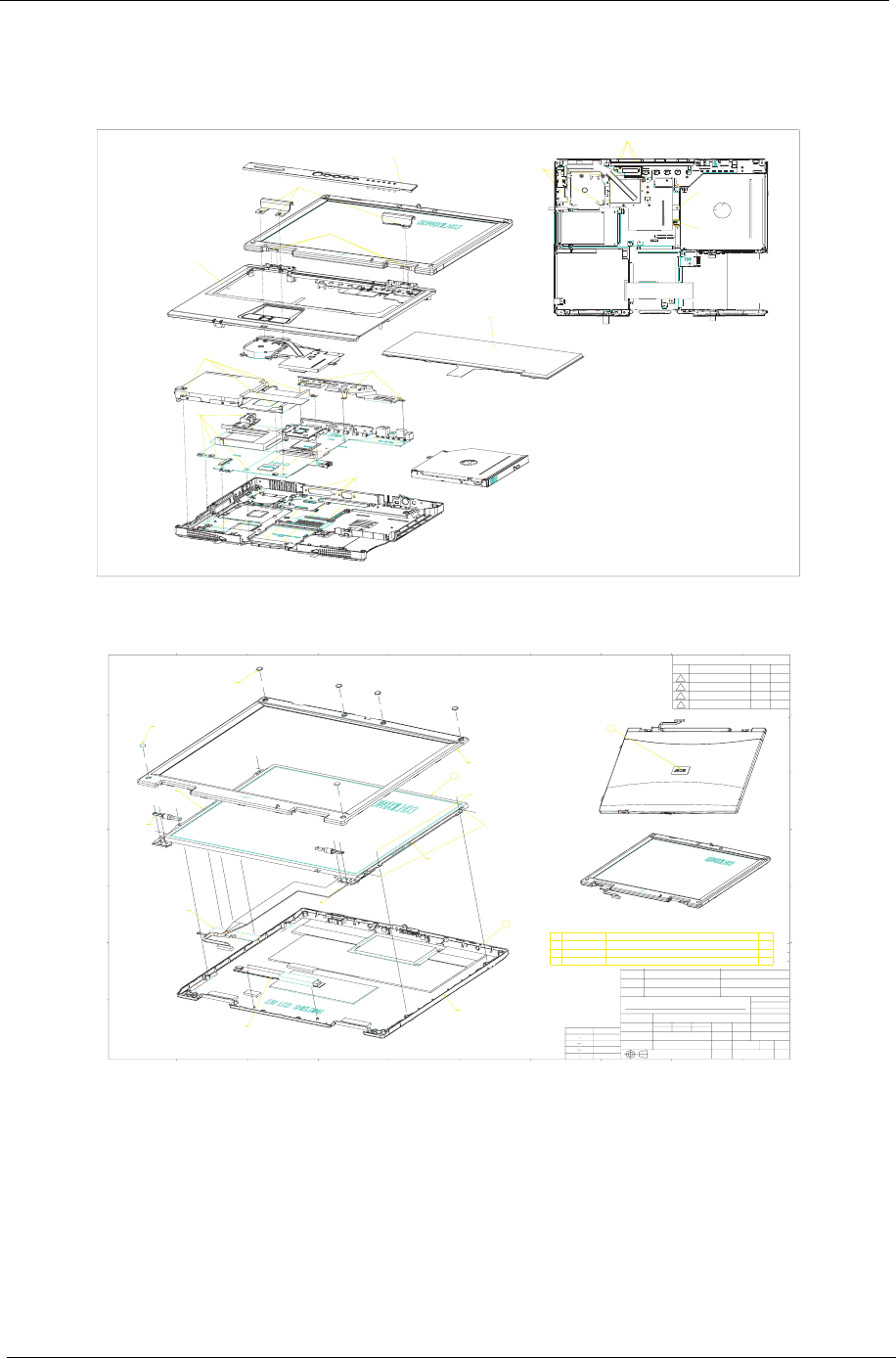
62 Chapter 6
Exploded Diagram
THE SYSTEM
LCD 14.1”
1. M/B to Base Assy
MM25040I243 x4
SCALE
0.800
3. FDD Assy to Base Assy
MM25040I243 x4
4. TopShielding to Base Assy
MM2540I243 x3
2. I/O Nutes
MBEA1001012 x4
8. TopAssy to Base Assy
MM25050IL64 x16
MM25060PCI5 x1
9. K/B to Chassis Assy
MM25040I243 x3
10. LCD Module to Chassis Assy
MM25060PCI5 x4
11. Hinge Covers to ChassisAssy
MM25060PCI51 x3
12. K/B Cover to Chassis Assy
SCALE
0.800
6. Thermal to Base Assy
MM20040ICI8 x4
7. Fan to Base Assy
MM25060PCI51 x3
5.2 ODD to Base Assy
MM20040ICI8 x1
5.1 ODD to Base Assy
MM25040I243 x1
1
2
3
4
5
7
6
5
4
3
2
1
A BCDEF
JIHGFEDCBA
REVISIONS
LTR DESCRIPTION DATE APP
3B
3C
3D
3E
SCALE
0.700
1
LCD BRACKET-R
LCD BRACKET-L
HINGE EA1(x2)
MM25040I243 (x10)
SCREW M2.5x4.0-I(BKAG)(NYLOK)
MM25050IL64 (x4)
SCREW M2.5x5.0-I(BKI)(NYLOK)
MM20030ICI3 (x4)
SCREW M2.0x4.0-I-NI-NYLOK
SCALE
0.400
ET2T LCD ASSY(QDI 14")W/O WL
23ET2LATNS1
ET2T LCD ASSY W/O LCD(QDI)W/O WL
LCD(TFT) 14.1" QDI141X1LH03(XGA)
Acer Inc.
PART NO.
THE 3RD PROJECTION
1 PLC
G
0.25
100
H
0.10
0.15
0.20
TOLERENCE
UNIT:mm
100
50
10
RANGE
0
50
10
NAME
FINISH
MATERIAL
TOL.
-
+
ITEM
2
3
1
LOGO ET2S
DESCRIBTION
37ET2LATNA7
FBET2015019
AA0141X1405
PART NO.
1
2
Aspire 1310
BRAD CHIU
DESCRIPTION
DESIGNED
APPROVED
MODEL
DWG.
NO.
I
23ET2LA1
J
UNIT
SCALE
DATE
2 PLC ANGLE
2003/03/24
N/S
mm
REV
DRAWN
1/1
3A
7
1
1
QTY.
1
6
2
43ET2LCTN57
ET2 LCD COVER ASSY(14")
CABLE ASSY LP141X1LH03
DD0ET1LC102
YA1 INVERTER ASSY
3HYA1IV0008
FBEA1002019
FBEA1001012
FBEA10023016
EAET1004055
LCD BEZEL ET2S
GAEA1004029
LCD RUBBER FOOT ET2T
GAEA1003022
LCD SCREW SHIELD ET2T
JXRT2004011
LCD DOWNSIDE TAPE RT2
SCALE
0.400
3
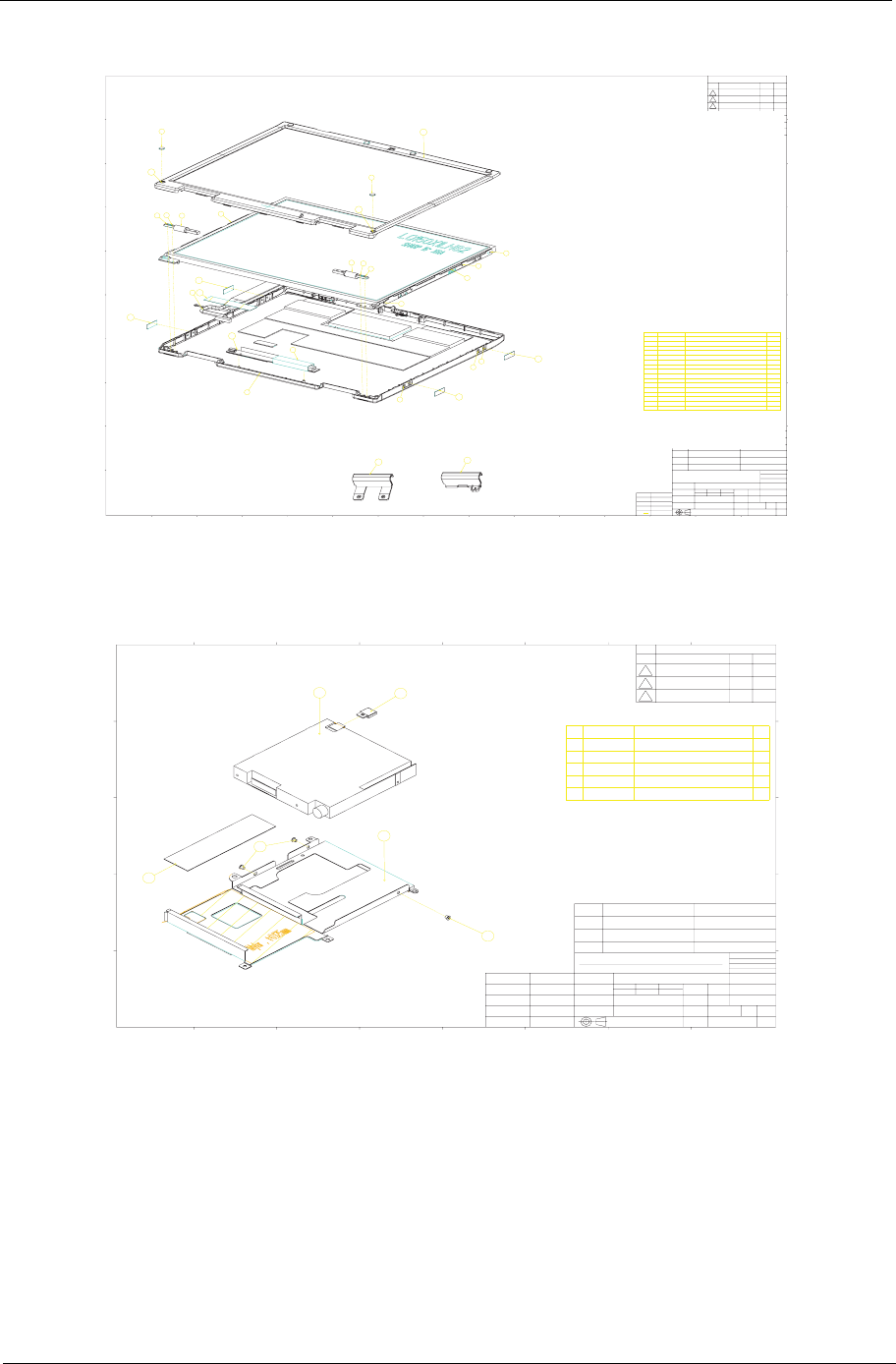
Chapter 6 63
LCD 15.0”
FDD ASSY
NOTE: The part numbers appear on the exploded diagram are vendor’s part number. Please refer to the FRU
list for Acer part number.
MM
N/S
1
O
O
1010
Acer Inc.
1
2
3
4
5
6
7
8
9
ABCDEFGHI J KL MN
9
8
7
6
5
4
3
2
1
NMLKJIHGFEDCBA
THE 3RD PROJECTION
APPDATEDESCRIPTIONLT R
REVISIONS
DESCRIPTIONITEM
ANGLE2PLC1PLC
-
+
TOL.
REV
DRAWN
DESIGNED
APPROVED
NO.
DWG.
UNIT
SCALE
DATE
FINISH
MATERIAL
MODEL
NAME
PART NAME
3B
3C
3D
RANGE TOLERENCE
0-10 0.10
10-50 0.15
50-100 0.20
100
0.25
EBEA3006020
EBEA3007026
47ET2LBTN04
MS20040IEJ3
JXRT2004011
FCET2006037
3HYA1IV0008
FBEF3012015
MM25060IL69
MM20030ICI3
FCEA3002025
FCEA1006015
FBEF3011019
FBEF3010012
DD0ET2LC506
43ET2LCTN49
PART NO.
16
15
14
13
12
11
10
9
8
7
3
6
5
4
ITEM
1
2
14
Q'TY
HINGE COVER-15-L EA3
HINGE COVER-15-R EA3
ET2T 15" LCD BEZEL ASSY
SCREW M2.0*4.0-I(NI)(NYLOK)
LCD DOWNSIDE TAPE RT2
YA1 INVERTER ASSY
SCREW M2.5*6-I(BNI)(NYLOK)
SCREW M2.0*3.0-I-NI-NYLOK
SIDE MYLAR ET2S SILVER
HINGE 15" EF3
1
1
1
2
1
4
1
2
4
LCD SCREW MYLAR15 ET2T
INVERTER MYALR EA1
LCD BRACKET-L 15" EF3
LCD BRACKET-R 15" EF3
CABLE ASSY LQ150X1LH82 ET2A(30/20P,R1A)
ET2T LCD COVER ASSY(15")
DESCRIPTION
1
2
1
1
1
1
3A
1/1
SCALE
1.000
1
2
3
4
5
6
6
7
7
7
7
7
7
8
8
88
9
9
10
11
11
11
11
12
13
13
14
SCALE
1.000
15
SCALE
1.000
16
37ET2LATNI2
Aspire 1310
ET2T LCDASSY W/O LCD(SHA 15")W/O WL
BRAD CHIU
2003/03/24
37ET2LA2
1
2
3
4
55
4
3
2
1
ABCDEFG H
HGFEDCBA
NAME
MODEL
MATERIAL
FINISH
DATE
SCALE
UNIT
DWG.
NO.
APPROVED
DESIGNED
DRAWN
TOL.
+
-
1 PLC
2 PLC ANGLE
188,WEN HWA 2ND RD.,KUEI SHAN HSIANG,TAO YUAN SHIEN,TAIWAN,R.O.C.
ITEM
DESCRIPTION
REVISIONS
LTR
DESCRIPTION
DATE
APP
THE 3RD PROJECTION
PART NO.
Acer Inc.
REV
mm
1.
2.
RANGE
TOLERENCE
0-10
10-50
50-100
100-
0.10
0.15
0.20
0.25
3.
3B
3C
3D
ITEM
PART NO.
DESCRIPTION
Q'TY
1
AC6A243F007
FDD(1.44MB) JU-226A243FC
1
2
EBET1007012
FDD BUTTON
1
3
FBET2002014
FDD HOLDER
1
4
MM25030ICI7
SCREW M2.5X3-I(NI,NYLOK)
3
5
DEFC1009307
CABLE FFC FDD(26P,P1.0,100MM)
1
26ET2FDTP00
ET2 FDD ASSY (MAT/JU-226A243FC)
Aspire 1310
ALBERT
12/6/01 3A
26ET2FD0
1/1
1
2
3
4
4
5
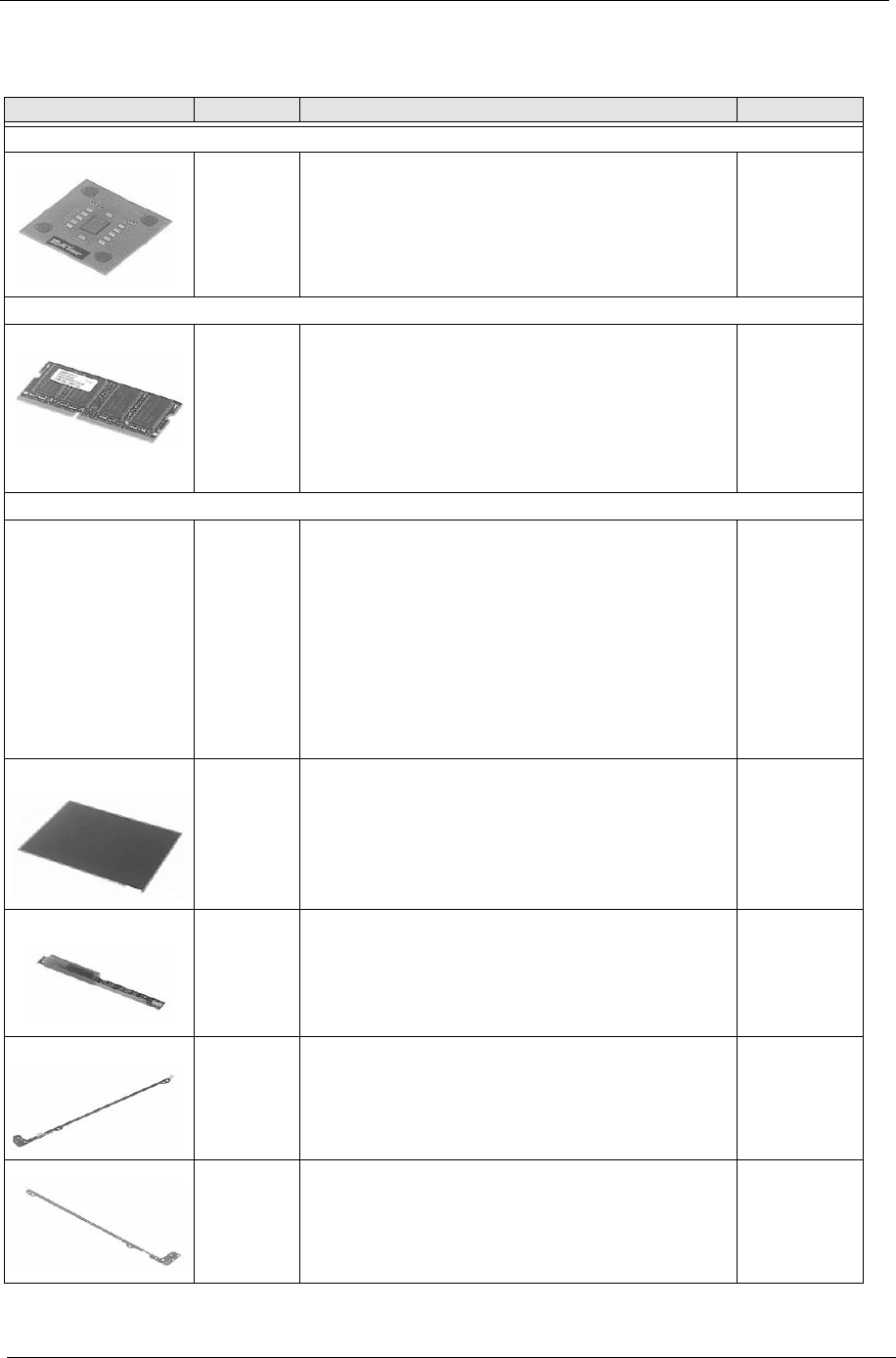
64 Chapter 6
Picture No. Partname And Description Part Number
CPU/Processor
AMD Athlon XP 1800+ 45W Thoroughbred
AMD Athlon XP 2000+ 45W Thoroughbred
AMD Athlon XP 2200+ 45W Thoroughbred
AMD Athlon XP 2400+ 45W Thoroughbred
AMD Athlon XP 2400+ 45W Thoroughbred
AMD Athlon XP 2500+ 45W Thoroughbred
KC.A1802.45W
KC.A2002.45W
KC.A2202.45W
KC.A2402.45W
KC.A2402.45W
KC.A2502.45W
Memory
MEMORY SO-DIMM DDR266/128MB /INFINEON
MEMORY SO-DIMM DDR266/128MB/0.14U /NANYA
MEMORY SO-DIMM DDR266/256MB/0.14U /INFINEON
MEMORY SO-DIMM DDR266/256MB/0.14U /NANYA
MEMORY SO-DIMM DDR266/512MB/0.14U /INFINEON
MEMORY SO-DIMM DDR266/256MB MICRON
MEMORY SO-DIMM DDR266/256MB/ ELPIDA
KN.12802.004
KN.12803.003
KN.25602.001
KN.25603.004
KN.51202.003
KN.25604.004
KN.25609.001
LCD
THE
SYSTEM
ASSY LCD MODULE 14.1" QDI QD141X1LH03
ASSY LCD MODULE 14.1" QDI QD141X1LH03 wireless
ASSY LCD MODULE 14.1" AU B141XN04 DRIVER 5AXXX
ASSY LCD MODULE 14.1" AU B141XN04 FOR wireless
ASSY LCD MODULE 15.0" LG 150X2-A2P6
ASSY LCD MODULE 15.0" LG LP150X2-A2P6 FOR wireless
ASSY LCD MODULE 15.0" SHARP LQ150X1LH82
ASSY LCD MODULE 15.0" SHARP LQ150X1LH82 /wireless
ASSY LCD MODULE 15.0" AU B150XN01
ASSY LCD MODULE 15.0" AU B150XN01 FOR WIRELESS
6M.A09V7.011
6M.A09V7.021
6M.A09V7.012
6M.A09V7.022
6M.A09V7.013
6M.A09V7.023
6M.A09V7.014
6M.A09V7.024
6M.A09V7.015
6M.A09V7.025
1-LCD 14.1”
4--LCD 15.0”
LCD 14.1" TFT XGA QDI QD141X1LH03
LCD 14.1" TFT XGA AU B141XN04 DRIVER 5AXXX
LCD 15.0" XGA TFT LG LP150X2-A2P6
LCD 15.0" XGA TFT SHARP LQ150X1LH82
LCD 15.0" XGA TFT AU B150XN01
LK.A0309.001
LK.14105.005
LK.A0309.006
LK.A0309.005
LK.A0205.002
10-LCD
15.0”
LCD INVERTER W/MAYLAR E 19.A03V7.001
FBEA10010
12-LCD
14.1”
ASSY 14.1” BRACKET R 33.A03V7.004
FBEA10020
19-LCD
14.1”
ASSY 14.1” BRACKET L 33.A03V7.005
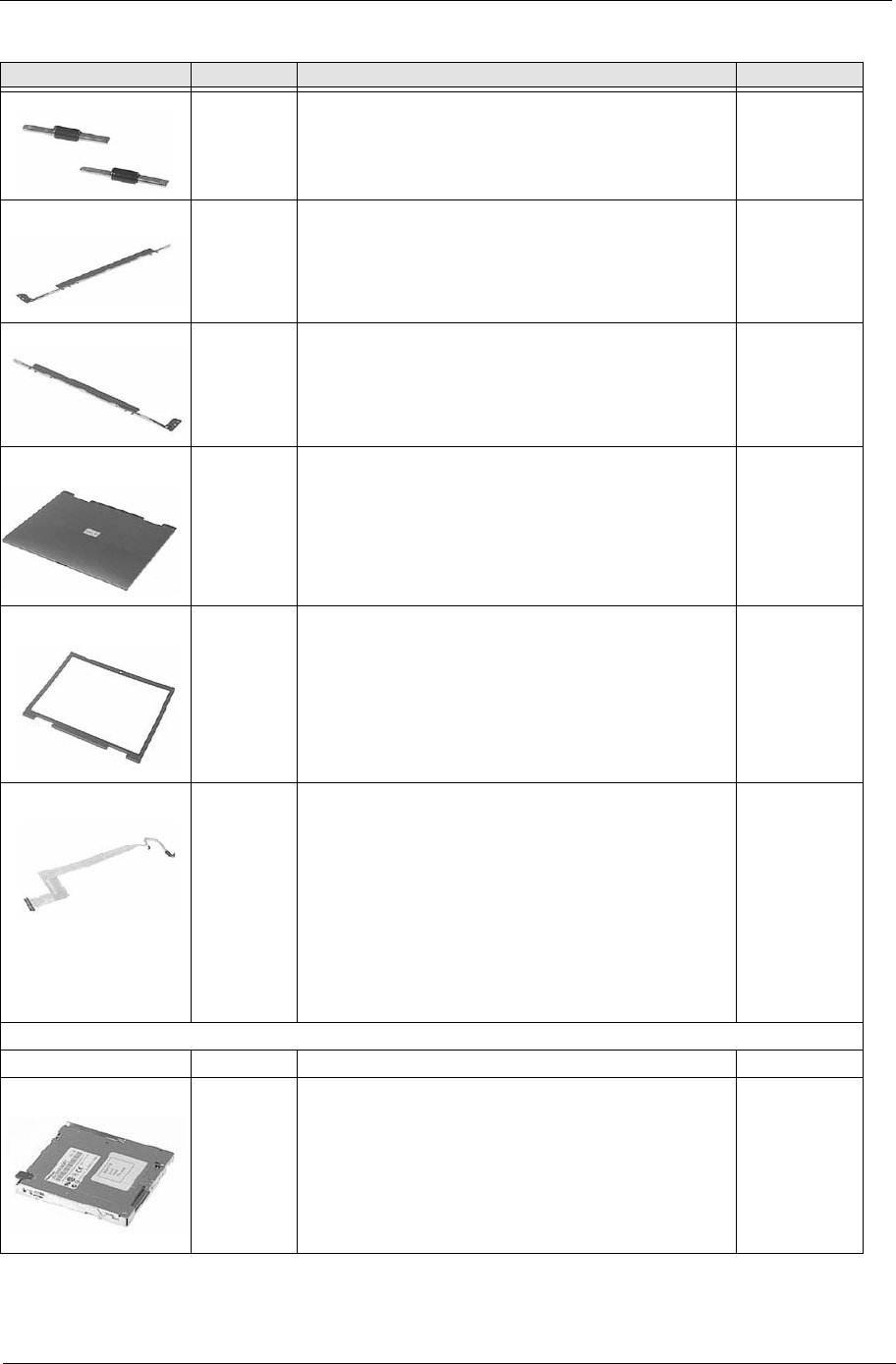
Chapter 6 65
9-LCD 15.0” ASSY 14.1” HINGE R/L 6K.A03V7.004
3-LCD 15.0” ASSY 15.0” BRACKET R 33.A03V7.006
4--LCD 15.0” ASSY 15.0” BRACKET L 33.A03V7.007
1-LCD 15.0” LCD PANEL WITH LOGO 14"
LCD PANEL 14" W/LOGO, ANTENNA FOR WIRELESS
LCD PANEL WITH LOGO 15"
LCD PANEL 15" W/LOGO, ANTENNA FOR WIRELESS
60.A09V7.004
60.A09V7.006
60.A09V7.007
60.A09V7.009
14-LCD
15.0”
LCD BEZEL 14.1”
LCD BEZEL 15.0” (WITH RUBBER FEET)
60.A09V7.005
60.A09V7.008
DDOET2LC
204-LCD
14.1”
LCD WIRE 14.1” QDI
LCD WIRE 14" QDI FOR WIRELESS
LCD WIRE 14" AU
LCD WIRE 14" AU FOR WIRELESS
LCD WIRE 15" LG
LCD WIRE 15" LG FOR WIRELESS
LCD WIRE 15" SHARP
LCD WIRE 15" SHARP FOR WIRELESS
LCD WIRE 15" AU
LCD WIRE 15" AU FOR WIRELESS
50.A03V7.002
50.A03V7.011
50.A03V7.004
50.A03V7.013
50.A03V7.005
50.A03V7.014
50.A03V7.006
50.A03V7.015
50.A03V7.007
50.A03V7.016
FDD/Floppy Disk Drive
NS FDD MODULE, PANASONIC 6M.A03V7.011
1-FDD ASSY FDD 1.44MB PANASONIC JU-226A343FC(V) KF.A0302.001
Picture No. Partname And Description Part Number
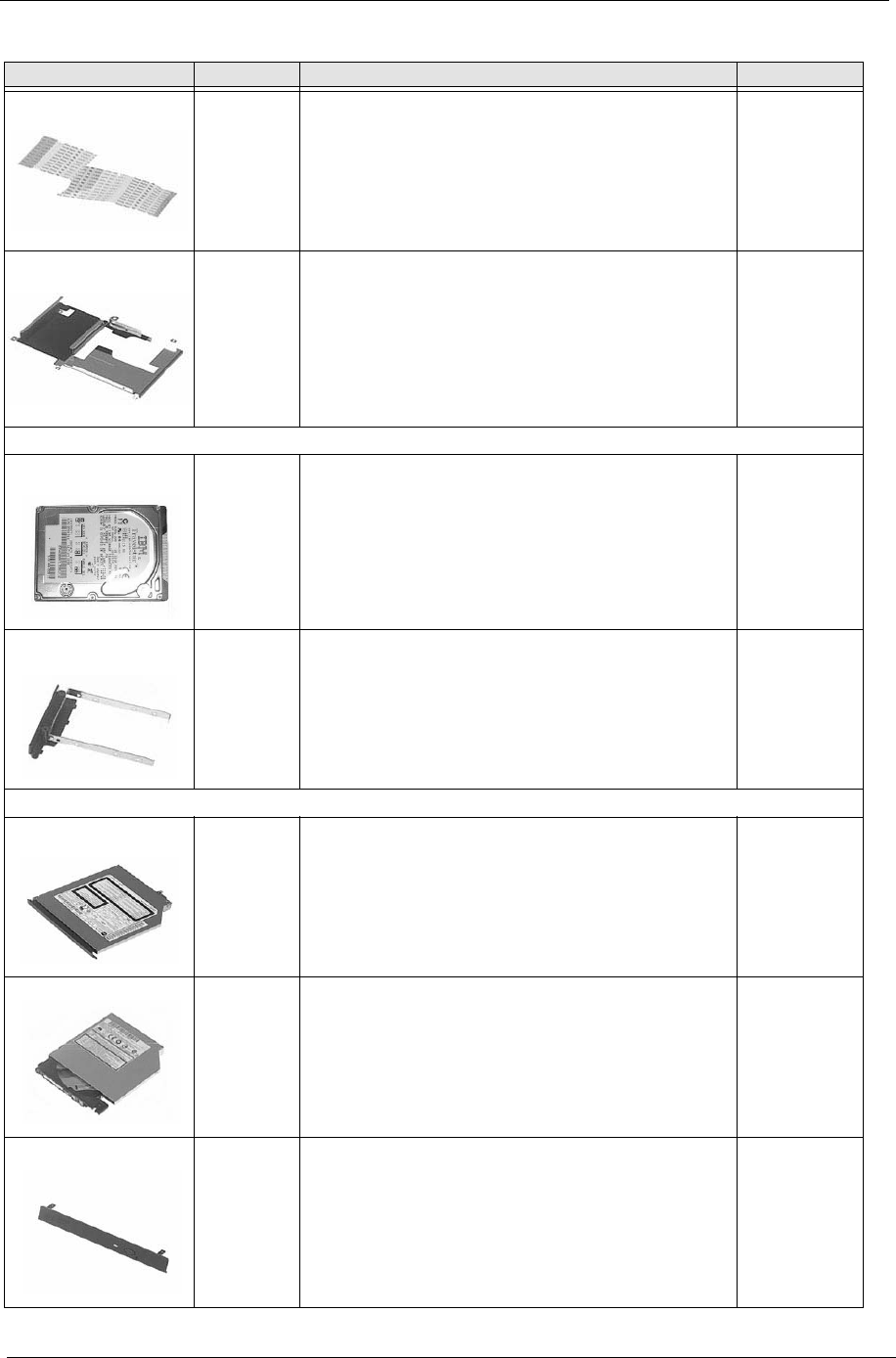
66 Chapter 6
5-FDD ASSY FDD FFC 50.A03V7.001
3-FDD ASSY FDD HOLDER-PANASONIC 33.A03V7.002
HDD/ Hard Disk Drive
NS HDD TOSHIBA 20G(MK2018GAP), TITAN
HDD IBM 20G(IC25N020ATCS04-0), 07N8325, CASCADE
HDD IBM 30G(IC25N030ATCS04-0), 07N8326, CASCADE
HDD HGST 40G (IC25N040ATCS04-0) 07N8327, CASCADE
HDD TOSHIBA 30G (MK3021GAS), NEPTUNE
HDD TOSHIBA 40G (MK4021GAS), NEPTUNE
HDD TOSHIBA 60G (MK6021GAS), NEPTUNE
KH.25204.001
KH.25202.001
KH.25302.001
NS HDD CARRIER 60.A09V7.003
Optical Drive/Combo Drive
THE
SYSTEM
CD-ROM MODULE 24X QSI SCR-242-S
DVD-ROM MODULE 8X QSI SDR-083
DVD-ROM MODULE 8X MKE SR-8177
DVD-RW COMBO MODULE 24X KME/UJDA740
DVD-RW COMBO MODULE 24X QSI/SBW242
6M.A09V7.001
6M.A09V7.002
6M.A09V7.003
6M.A09V7.004
6M.A09V7.005
CD-ROM 24X QSI SCR-242-S
DVD-ROM 8X QSI SDR-083
DVD-ROM 8X MKE SR8177
DVD-RW COMBO 24X KME/UJDA740
DVD-RW COMBO 24X QSI/SBW242
KD.24X03.001
KV.08X03.001
KV.08X07.001
KO.24X03.001
KO.24X07.002
CD-ROM BEZEL FOR QSI
DVD-ROM BEZEL FOR QSI
DVD-ROM BEZEL FOR KME
DVD-RW BEZEL FOR KME
DVD-RW BEZEL FOR QSI
42.A09V7.007
42.A09V7.008
42.A09V7.009
42.A09V7.010
42.A09V7.011
Picture No. Partname And Description Part Number
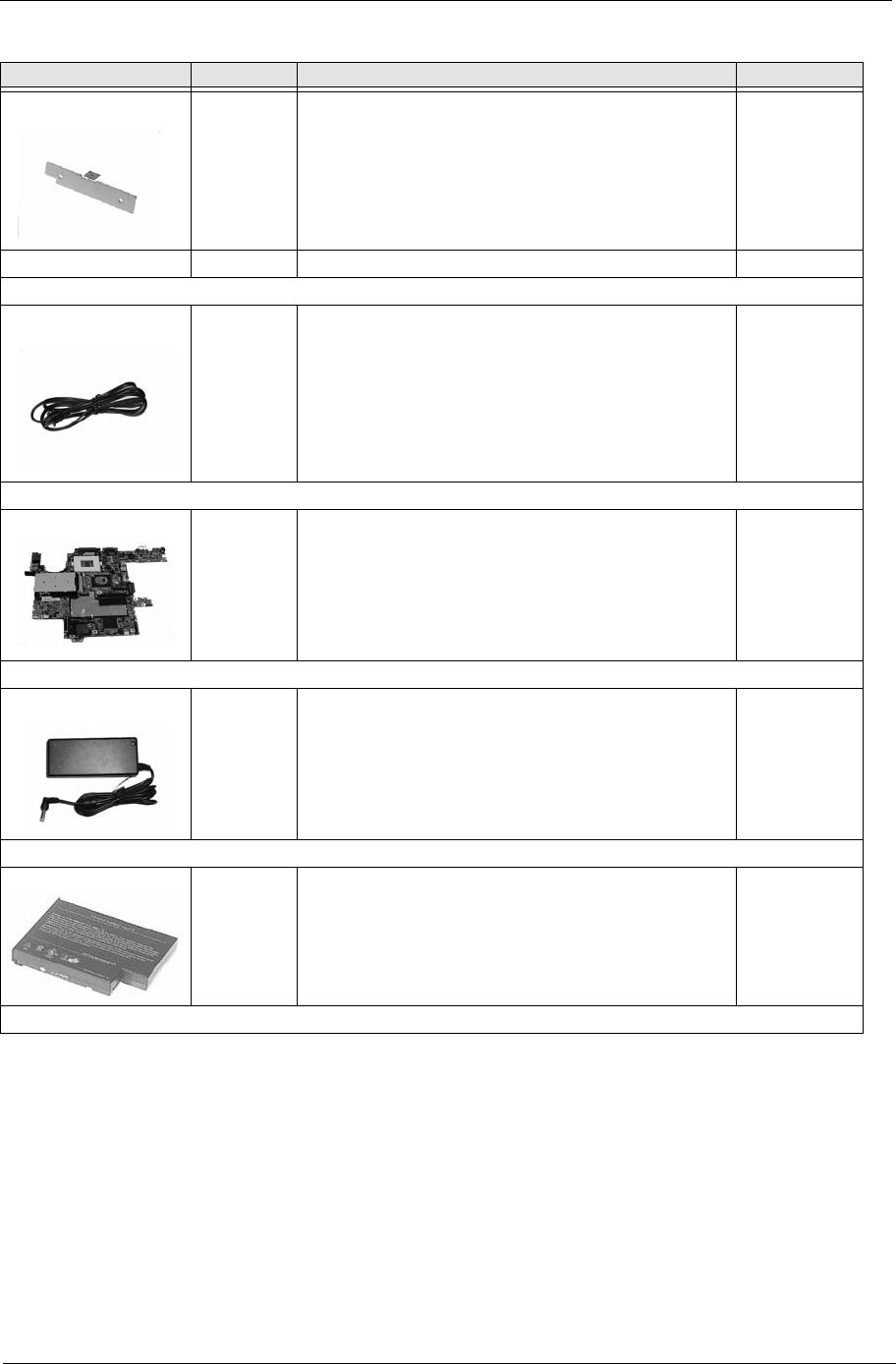
Chapter 6 67
ODD BRACKET 33.A03V7.001
WIRELESS MODULE BOARD (ETSI) 55.A03V7.002
Cables
NS POWER CORD-US
POWER CORD-CONTINENTAL
POWER CORD-PRC
POWER CORD-UK
POWER CORD-ITALIAN
POWER CORD-DANISH
POWER CORD-SWISS
27.A03V7.001
27.A03V7.002
27.A03V7.003
27.A03V7.004
27.A03V7.005
27.A03V7.006
27.A03V7.007
Boards
THE
SYSTEM
MAIN BOARD W/ CARDBUS MB.A0906.001
Adapter
NS ADAPTER DELTA 75W ADP-75FB B (W PFC), 3P
ADAPTER LITE-ON 75W PA-1750-02Q(W PFC), 3P
AP.A0305.001
AP.A0305.002
Battery
NS BATTERY SANYO LI-ION 8 CELL 4000mAH 4UR18650F-2-
QC-ET2T
BATTERY PANASONIC LI-ION
BT.A0902.001
Keyboard
Picture No. Partname And Description Part Number

68 Chapter 6
9-THE
SYSTEM
ASPIRE 1300 KEYBOARD JIMMOLD US INTERNATIONAL
ASPIRE 1300 KEYBOARD JIMMOLD UK
ASPIRE 1300 KEYBOARD JIMMOLD GERMAN
ASPIRE 1300 KEYBOARD JIMMOLD ITALIAN
ASPIRE 1300 KEYBOARD JIMMOLD CHINESE
ASPIRE 1300 KEYBOARD JIMMOLD FRENCH
ASPIRE 1300 KEYBOARD JIMMOLD SWISS/G
ASPIRE 1300 KEYBOARD JIMMOLD SPANISH
ASPIRE 1300 KEYBOARD JIMMOLD PROTUGUESE
ASPIRE 1300 KEYBOARD JIMMOLD ARABIC
ASPIRE 1300 KEYBOARD JIMMOLD THAI
ASPIRE 1300 KEYBOARD JIMMOLD BELGIUM
ASPIRE 1300 KEYBOARD JIMMOLD SWEDEN
ASPIRE 1300 KEYBOARD JIMMOLD CZECH
ASPIRE 1300 KEYBOARD JIMMOLD HUNGAIAN
ASPIRE 1300 KEYBOARD JIMMOLD NORWAY
ASPIRE 1300 KEYBOARD JIMMOLD DANISH
ASPIRE 1300 KEYBOARD JIMMOLD TURKISH
ASPIRE 1300 KEYBOARD JIMMOLD JAPANESE
ASPIRE 1300 KEYBOARD JIMMOLD KOREAN
ASPIRE 1300 KEYBOARD JIMMOLD DUTCH
ASPIRE 1300 KEYBOARD JIMMOLD RUSSIAN
ASPIRE 1300 KEYBOARD JIMMOLD SLOVAK
ASPIRE 1300 KEYBOARD JIMMOLD SLOVENIAL
ASPIRE 1300 KEYBOARD JIMMOLD POLISH
ASPIRE 1300 KEYBOARD JIMMOLD BRAZIL
KB.A0305.001
KB.A0305.002
KB.A0305.003
KB.A0305.004
KB.A0305.005
KB.A0305.006
KB.A0305.007
KB.A0305.008
KB.A0305.009
KB.A0305.010
KB.A0305.011
KB.A0305.012
KB.A0305.013
KB.A0305.014
KB.A0305.015
KB.A0305.016
KB.A0305.017
KB.A0305.018
KB.A0305.019
KB.A0305.020
KB.A0305.021
KB.A0305.022
KB.A0305.023
KB.A0305.024
KB.A0305.025
KB.A0305.027
Case/Cover/Bracket Assembly
12-THE
SYSTEM
MIDDLE COVER W/ NAME PLATE 42.A09V7.001
NS RAM DOOR W/ CAPTURED SCREW 42.A09V7.002
THE
SYSTEM
LOWER CASE ASSY W/ SPEAKER 60.A09V7.001
8-THE
SYSTEM
UPPER CASE ASSY W/ TOUCHPAD 60.A09V7.002
Picture No. Partname And Description Part Number
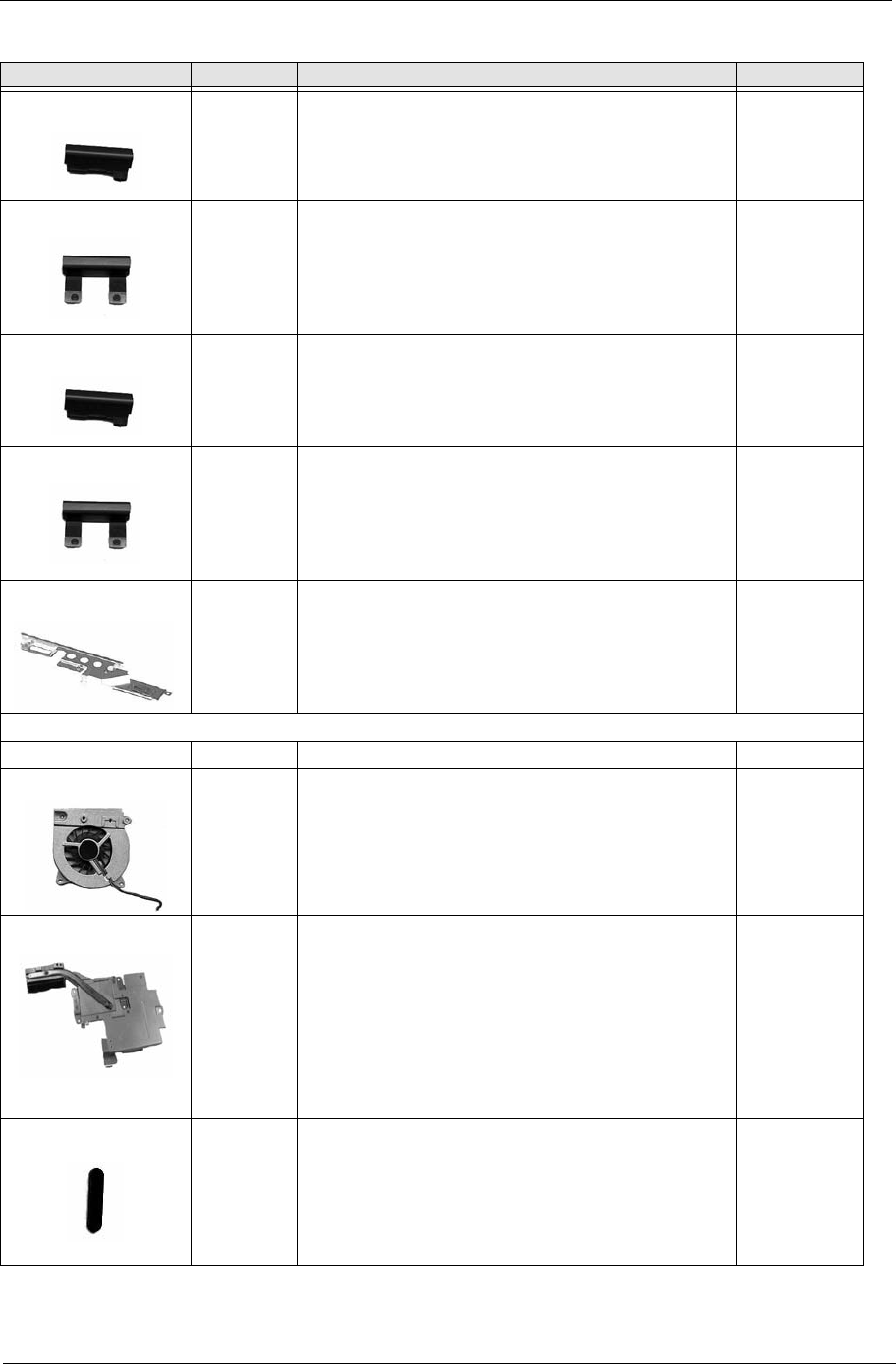
Chapter 6 69
15/16-LCD
15.0”
HINGE COVER 14.1”-R 42.A09V7.003
HINGE COVER 14.1”-L 42.A09V7.004
15/16-LCD
15.0”
HINGE COVER 15.0”-R 42.A09V7.005
HINGE COVER 15.0”-L 42.A09V7.006
THE
SYSTEM
TOP COVER SHIELDING 34.A03V7.011
Others
NS SPEAKER ASSY (L & R) 6K.A03V7.006
FAN (45W) 31.A03V7.002
THE
SYSTEM
THERMAL MODULE W/ HEATSINK 34.A09V7.001
RUBBER FEET OVAL (BASE) 47.A09V7.001
Picture No. Partname And Description Part Number
70 Chapter 6
RUBBER FEET CIRCLE (BASE) 47.A09V7.002
14" LCD SCREW PAD CUSHION 47.A09V7.003
14" LCD SCREW PAD FLAT 47.A09V7.004
15" LCD SCREW PAD OBLONG 47.A09V7.005
15" LCD SCREW PAD FLAT 47.A09V7.006
Screws
SCREW NUT-I/O 86.A03V7.001
SCREW MM2.5X5.0 86.A03V7.003
SCREW MM2.5X6.0-P 86.A03V7.004
SCREW MM2.0X4.0-NYLOK 86.A03V7.005
SCREW MM2.5X4.0 86.A03V7.006
SCREW MM2.0X2.5 86.A03V7.007
SCREW MS1.7X2.5 86.A03V7.008
SCREW MM1.7X3.5 86.A03V7.009
SCREW MM2.5X3.0 86.A03V7.010
SCREW MM3.0X3.5 86.A03V7.011
SCREW MM2.0X3.0 86.A03V7.012
SCREW MM2.0X6.0 86.A03V7.013
SCREW MS2.0X2.5 86.A03V7.014
SCREW MS2.5X4.0 86.A03V7.015
SCREW MM2.0X4.0 86.A03V7.016
SCREW NUT-M/B 86.A03V7.017
SCREW MS2.0X4.0 86.A03V7.018
CREW MM2.5X6.0 86.A03V7.019
Picture No. Partname And Description Part Number

Chapter 6 71
Appendix A 82
Aspire 1310 series
Model
Number CPU LCD ODD Memory HDD (GB)
1310XV AMD Athlon XP
1800+
14.1 XGA 8xDVD 256M 20
1313XC AMD Athlon XP
2200+
14.1 XGA 24x CDRW+DVD 256M 30
1310XC AMD Athlon XP
1800+
14.1 XGA 24x CDRW+DVD 256M 30
1312LC AMD Athlon XP
2000+
15.0 XGA 24x CDRW+DVD 2x256M 30
1313LC AMD Athlon XP
2200+
15.0 XGA 24x CDRW+DVD 256M 30
1314LC AMD Athlon XP
2400+
15.0 XGA 24x CDRW+DVD 2x256M 40
1315LC AMD Athlon XP
2500+
15.0XGA 24x CDRW+ DVD 2x256M 60
Model Definition and Configuration
Appendix A

Appendix B 71
This computer’s compatibility is tested and verified by Acer’s internal testing department. All of its system
functions are tested under Windows XP Home environment.
Refer to the following lists for components, adapter cards, and peripherals which have passed these tests.
Regarding configuration, combination and test procedures, please refer to the Aspire 1310 Compatibility Test
Report released by the Acer Mobile System Testing Department.
Test Compatible Components
Appendix B
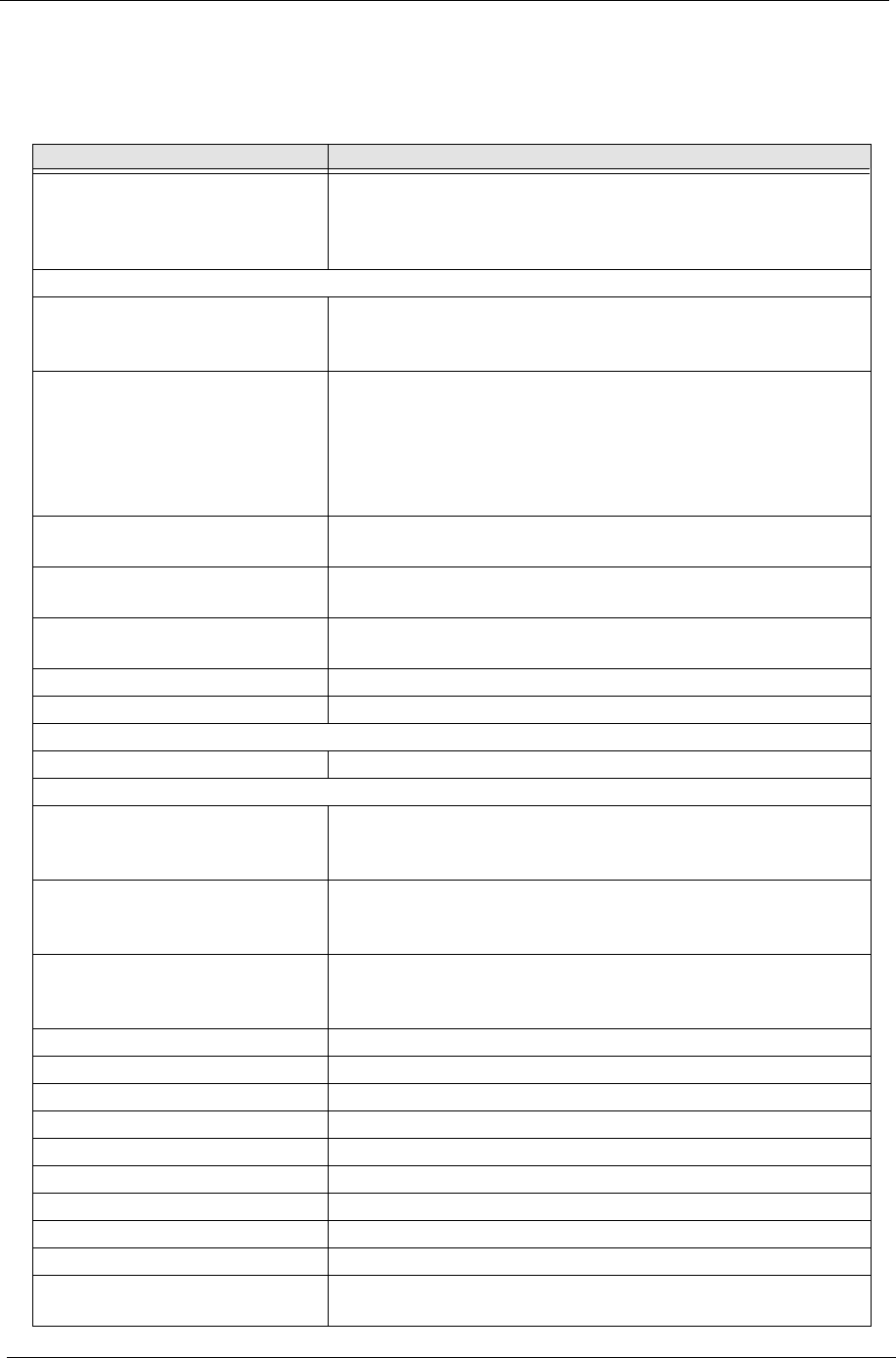
72 Appendix B
Microsoft Windows XP (Home) Environment Test
Item Specifications
Display Philips 4CM8294/17T (DDC, Energy Star)
SNI MCM1703 (DDC, Energy Star)
NEC C&C-15R1
ViewSonic GS771
PC Card
Modem Card Xircom CreditCard Modem 56 (CM-56)
Xircom CreditCard Modem 56 (CM-56G)
3Com 56K Modem (XJ1560)
LAN Card D-Link Fast Etherent DFE-650
D-Link CardBus DFE-660
3COM 10/100 16Bit LAN Card (3CCFE574BT)
3COM 10/100CardBus LAN Card (3CCFE575BT)
Xircom CreditCard Ethernet 10/100 (CE3B-100BTX)
Xircom CardBus Ethernet II 10/100 (CBE2-100BTX)
SCSI Adaptec Slim SCSI APA-1450A Card
Adaptec Slim SCSI 1480 CardBus UltraSCSI Card
LAN+Modem Card 3COM 10/100 LAN+56K Modem Card (3CCFE556B)
Xircom CreditCard Ethernet+Modem 56K (CEM56-100)
ATA Card KingMax 40MB
Compact Flash 96MB
Wireless LAN Card Gemtek Wireless LAN Card
BlueTooth Card 3Com BlueTooth Card
Modem Adapters
Modem Xircom Winglobal Carbus Modem 56K
I/O Peripheral
I/O - Parallel (Printer) HP Laser Jet 5M
HP Desk Jet 890C
IOMega ZIP (LPT Port)
I/O - USB (Keyboard) Microsoft Internet Keyboard Pro
Gateway Keyboard SK-9910U
Gateway Keyboard SK-9926
I/O - USB (Mouse) Microsoft Optical USB Mouse
Lotitech Wheel Mouse
Acer USB Mouse M012B0
I/O-USB (Camera) Microtek EyeStar U2S PC Camera USC-1
I/O-USB (HDD) Argosy HDD
I/O-USB (CD-ROM) IOMega ZIP CD650
I/O-USB (Printer) HD DeskJet 840C
I/O-USB (FDD) MIC USB FDD YD-8U10
I/O-USB (LAN) 3Com USB LAN
I/O-USB (Zip) Iomega USB ZIP
I/O-USB (Scanner) HP ScanJet 5200
I/O-USB (Speaker) Philips USB speaker
I/O - USB (Speaker) Panasonic USB Speaker EAB-MPC57
Phillips DSS350 Speaker

Appendix B 73
Audio Jacks JS-100 Jazz 3D Speaker
SONY Earphone MDR-CD60
Microsoft Microphone
Microphone Conderser MIC.
Dynamic MIC.
Item Specifications

74 Appendix B

Appendix C 75
This section describes online technical support services available to help you repair your Acer Systems.
If you are a distributor, dealer, ASP or TPM, please refer your technical queries to your local Acer branch
office. Acer Branch Offices and Regional Business Units may access our website. However some information
sources will require a user i.d. and password. These can be obtained directly from Acer CSD Taiwan.
Acer's Website offers you convenient and valuable support resources whenever you need them.
In the Technical Information section you can download information on all of Acer's Notebook, Desktop and
Server models including:
❑Service guides for all models
❑User's manuals
❑Training materials
❑Bios updates
❑Software utilities
❑Spare parts lists
❑TABs (Technical Announcement Bulletin)
For these purposes, we have included an Acrobat File to facilitate the problem-free downloading of our
technical material.
Also contained on this website are:
❑Detailed information on Acer's International Traveler's Warranty (ITW)
❑An overview of all the support services we offer, accompanied by a list of telephone, fax and email
contacts for all your technical queries.
We are always looking for ways to optimize and improve our services, so if you have any suggestions or
comments, please do not hesitate to communicate these to us.
Online Support Information
Appendix C
BqqD/gn!!Qbhf!86!!Uvftebz-!Bqsjm!9-!3114!!4;45!QN

76 Appendix C
BqqD/gn!!Qbhf!87!!Uvftebz-!Bqsjm!9-!3114!!4;45!QN

Index 77
A
AC Adapter 23
ACPI 1.0a 18
AFLASH Utility 30
Audio 21, 22
B
Battery 22
Battery Pack 35
BIOS 18
package 18
password control 18
ROM size 18
ROM type 18
vendor 18
Version 18
BIOS Setup Utility 27
BIOS Supports protocol 18
BIOS Utility 27
Navigating 27
System Information 28
System Security 29
Board Layout 4
Bottom View 5
Top View 4
C
Cache
controller 18
size 18
CardBus 22
computer
on indicator 11
Core logic 22
CPU
core voltage 18
package 18
type 18
D
DIMM 18
Combinations 19
external 36
package 18
removing 36
Speed 18
voltage 18
Disassembly
Battery Pack 34
CD-ROM/DVD-ROM Module 38
Floppy Disk Drive 41, 42
Machine 31
Procedure Flowchart 33
Display 3
DVD-ROM Interface 20
E
Error Symptom-to-Spare Part Index 49
External CD-ROM Drive Check 46
External Diskette Drive Check 46
F
Features 1
Flash Utility 30
Floppy Disk
removing the 41, 42
Floppy Disk Drive Interface 19
FRU (Field Replaceable Unit) List 61
H
Hard disk 20, 22
Hardware Specifications and Configurations 17
HDD 20, 22
Hot Keys 11, 12
I
Indicators 11
Intermittent Problems 56
J
Jumper and Connector Locations 59
Top View 59
K
Keyboard 22
Keyboard or Auxiliary Input Device Check 47
L
L2 cache 18
LAN/Modem Combo 19
M
Machine Disassembly 31
Memory Check 47
Index

78 Index
Model Definition 70
Modem 19
Modem Combo Card
external 37
O
Online Support Information 75
Overview 70
P
Panel 6
Bottom 10
left 6
Rear 8
right 8
Parallel Port 21
PC Card 11, 22
PCMCIA 22
Power System Check 47
Battery Pack 48
Processor 18
R
RMA 61
RTC 22
S
Second Level Cache 18
Super I/O 22
System Block Diagram 3
Board Layout 4
System Check Procedures 46
System Diagnostic Diskette 30
System Memory 18
System Specifications 70
System Utilities 27
System Utility Diskette 30
T
Temperature 25
Test Compatible Components 71
Touchpad Check 48
Troubleshooting 45
U
Undetermined Problems 57
USB 22
BIOS 27
V
Video 21
Resolutions 21
Video controller 22
W
Windows 2000 Environment Test 72
