Acer PW730 User Manual To The 1f64d551 807a 406d A581 8d312c9fbd52
User Manual: Acer PW730 to the manual
Open the PDF directly: View PDF  .
.
Page Count: 46
Manual for
Acer Projector PW730 Series

Disposal instructions
Do not throw this electronic device into the trash when discarding. To minimize
pollution and ensure utmost protection of the global environment, please re-
cycle it.
USA
For electronic products containing an LCD/CRT monitor or display, or a super
high pressure mercury lamp:
Lamp(s) inside this product contain mercury and must be recycled or disposed
of according to local, state or federal laws. For more information, contact the
Electronic Industries Alliance at www.eiae.org. For lamp-specic disposal infor-
mation, check www.lamprecycle.org.

1... English
Table of Contents
Table of Contents ......................................................................................... 1
Usage Notice ................................................................................................ 2
Precautions...........................................................................................................2
Introduction................................................................................................... 4
Product Features ..................................................................................................4
Package Overview................................................................................................5
Product Overview ................................................................................................6
Main Unit ........................................................................................................................6
Control Panel .................................................................................................................7
Connection Ports ...........................................................................................................8
Remote Control with Laser Pointer ................................................................................9
Installation .................................................................................................. 10
Connecting the Projector ....................................................................................10
Powering On/Off the Projector ............................................................................11
Powering On the Projector ........................................................................................... 11
Powering Off the projector ...........................................................................................12
Warning Indicator .........................................................................................................12
Adjusting the Projected Image............................................................................13
Adjusting the Projector Image Height ..........................................................................13
Adjusting the Projector Zoom / Focus ..........................................................................14
Adjusting Projected Image Size ...................................................................................14
User Controls ............................................................................................. 15
Control Panel & Remote Control ........................................................................15
On-Screen Display Menus..................................................................................19
How to operate ............................................................................................................29
Color (Computer/Video Mode) ....................................................................................20
Image (Computer/Video Mode) ....................................................................................22
Management (Computer/Video Mode) ........................................................................24
Audio (Computer/Video Mode) ...................................................................................30
Timer (Computer/Video Mode) ....................................................................................30
Language(Computer/Video Mode) ..............................................................................32
Appendices................................................................................................. 33
Troubleshooting ..................................................................................................33
Replacing the lamp .............................................................................................36
Specications .....................................................................................................38
Compatibility Modes ...........................................................................................39
Regulation & safety notices ........................................................................41
2
English ...
Usage Notice
Precautions
Follow all warnings, precautions and maintenance as recommended in this
user’s guide to maximize the life of your unit.
Warning- Do not look into the projector’s lens when the lamp is
on. The bright light may hurt your eyes.
Warning- Toreducetheriskofreorelectricshock,donot
expose this product to rain or moisture.
Warning- Please do not open or disassemble the product as
this may cause electric shock.
Warning- Whenchangingthelamp,pleaseallowunittocool
down,andfollowallchanginginstructions.
Warning- This product will detect the life of the lamp itself.
Please be sure to change the lamp when it shows
warning messages.
Warning- Reset the “Lamp Hour Reset” function from the On
Screen Display “Management” menu after replacing
the lamp module (refer to page 26)
Warning- Whenswitchingtheprojectoroff,pleaseensurethe
projector completes its cooling cycle before
disconnecting power.
Warning- Turnontheprojectorrstandthenthesignal
sources.
Warning- Do not use lens cap when projector is in operation.
Warning- Whenthelampreachestheendofitslife,itwillburn
out and may make a loud popping sound. If this
happens,theprojectorwillnotturnbackonuntilthe
lampmodulehasbeenreplaced.Toreplacethelamp,
follow the procedures listed under “Replacing the
Lamp”.

3... English
Usage Notice
Do:
Turn off the product before cleaning.
Use a soft cloth moistened with mild detergent to clean the dis-
play housing.
Disconnect the power plug from AC outlet if the product is not
being used for a long period of time.
Don’t:
Block the slots and openings on the unit provided for ventila-
tion.
Useabrasivecleaners,waxesorsolventstocleantheunit.
Use under the following conditions:
- Inextremelyhot,coldorhumidenvironments.
- In areas susceptible to excessive dust and dirt.
- Nearanyappliancethatgeneratesastrongmagneticeld.
- Place in direct sunlight.

4
English ...
Introduction
Product Features
This product is an WXGA single chip 0.65” DLP® projector.
Outstanding features include:
u
WXGA,1280x768addressablepixels
u Single chip DLP® technology
u NTSC3.58/NTSC4.43/PAL/SECAMandHDTV
compatible(480i/p,576i/p,720p,1080i)
u High-tech HDMI connection for digital signal supports
480i/p,576i/p,720pand1080iformats
u UserfriendlyandpowerfulAcerEmpoweringkey
including:AcereViewManagement,AcereTimer
Management and Acer eOpening Management.
u Full function remote control with laser pointer
u Advanced digital keystone correction and high quality
full screen image re-scaling
u User friendly control panel
u SXGA,SXGA+compressionandXGA,SVGA,VGA
re-sizing
u SupportsHDMIinputwithHDMI1.0compliant
u Supports High bandwidth Digital Content Protection
–HDCP1.1onHDMIinput
u
Mac compatible
u
Digital zoom in and out
5... English
Introduction
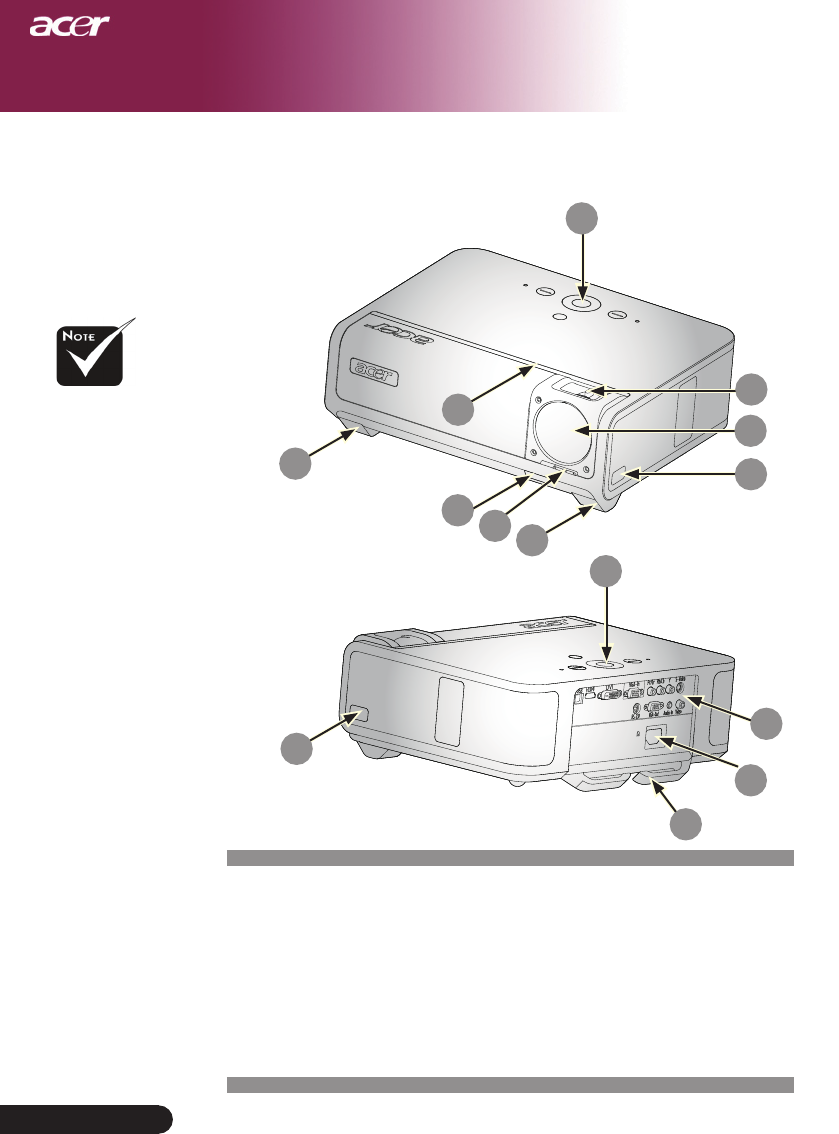
Package Overview
This projector comes with all the items shown below.
Check to make sure your unit is complete. Contact your
dealer immediately if anything is missing.
PowerCord1.8m VGACable1.8m
CompositeVideoCable
1.8m
Projector
USBCable1.8m S-VideoCable1.8m
AudioCableJack/Jack
2.0m
Remote Control with
Laser Pointer
3 RCA Component Cable
1.8m
Carrying Case
User’s GuideQuick Start Card
Detachable cable holder
2 x Battery
DVICable1.8m
6
English ...
Introduction
Two remote control
receivers provided at
front panel and front-top
cover.
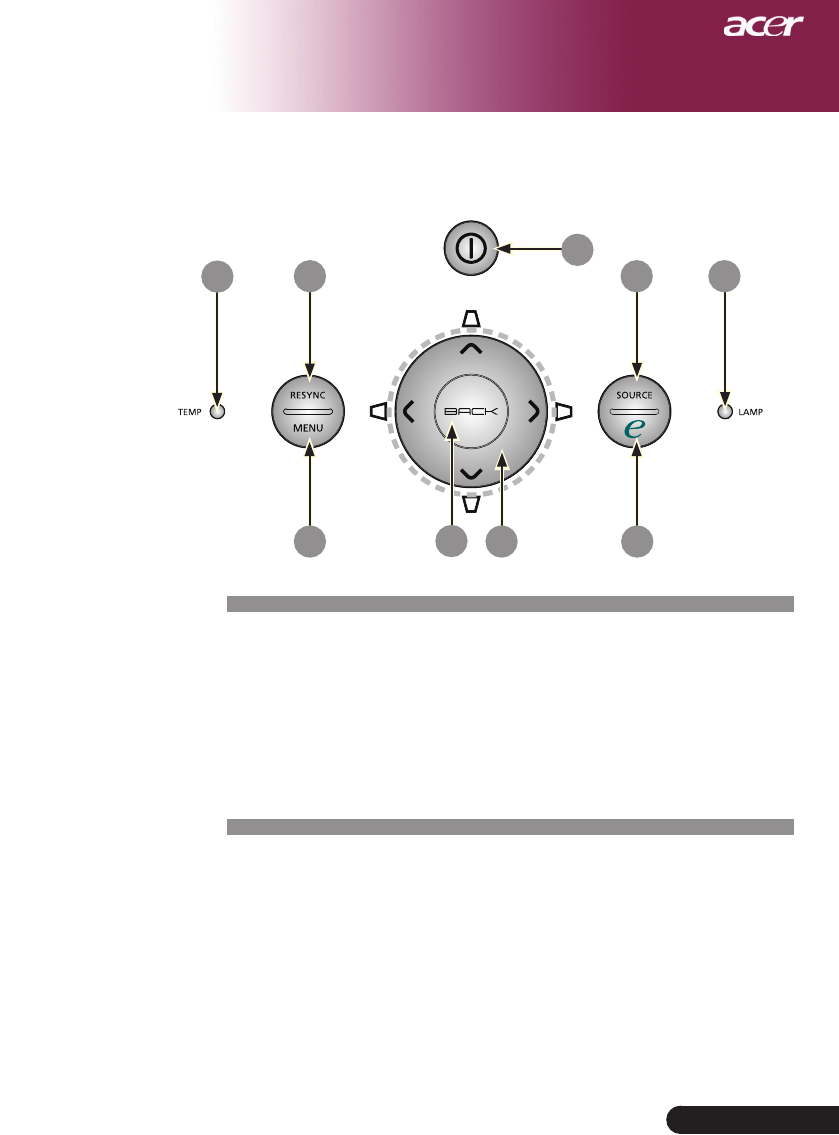
Main Unit
Product Overview
1. FocusRing/ZoomRing
2. ZoomLens
3. ElevatorButton
4. RemoteControlReceiver
5. Lens Cap Switch
6. ElevatorFoot
7. ConnectionPorts
8. PowerSocket
9. Control Panel
10. DetachableCableHolder
8
6
6
45
4
9
1
2
3
10
3
9
7
7... English
Introduction
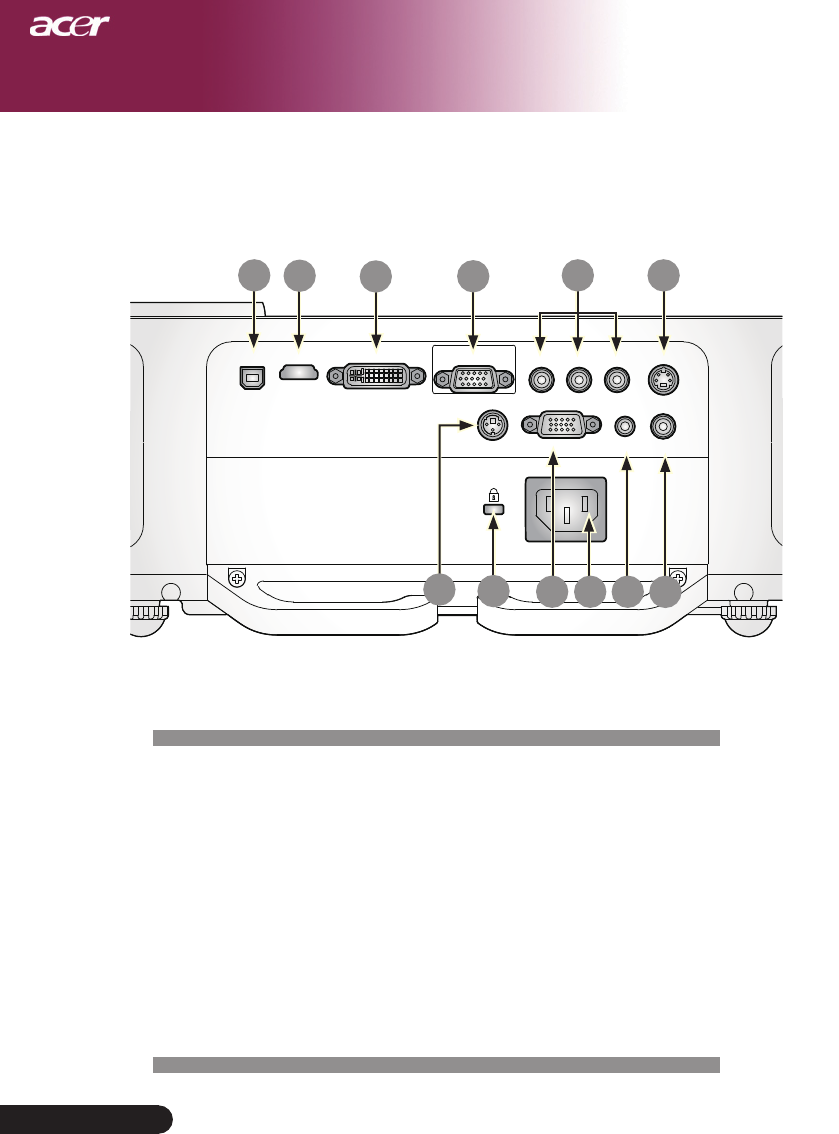
Control Panel
1. TempIndicatorLED
2. LampIndicatorLED
3. PowerandIndicatorLED(PowerLED)
4. Source
5. Resync
6. EmpoweringKey
7. Menu
8. Back
9. FourDirectionalSelectKeys(Keystone)
3
42
5
1
76
89
8
English ...
Introduction
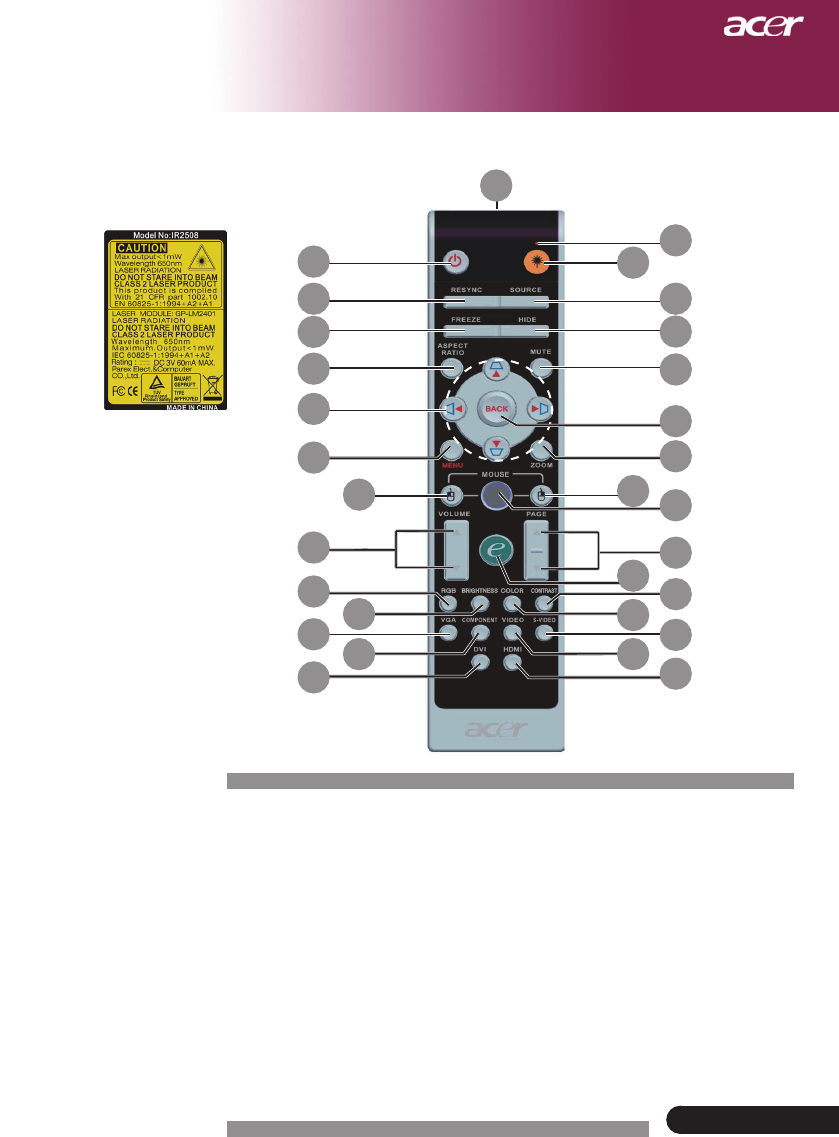
Connection Ports
1. USBConnector
2. HDMI Connector
3. DVIInputConnector
4. VGAInputConnector(PCAnalogSignal)
5. ComponentVideoInputConnector
6. S-VideoInputConnector
7. RS232Connector
8. KensingtonTM Lock Port
9. VGAOutputConnector(MonitorLoop-throughOutputConnec-
tor)
10. PowerSocket
11. AudioInputConnector
12. CompositeVideoInputConnectort
USB HDMI DVI VGA-IN Pr/Cr Pb/Cb Y S-VIDEO
VIDEOAUDIO-INVGA-OUTRS-232
56
4
3
2
1
78 10
9 11 12
9... English
Introduction
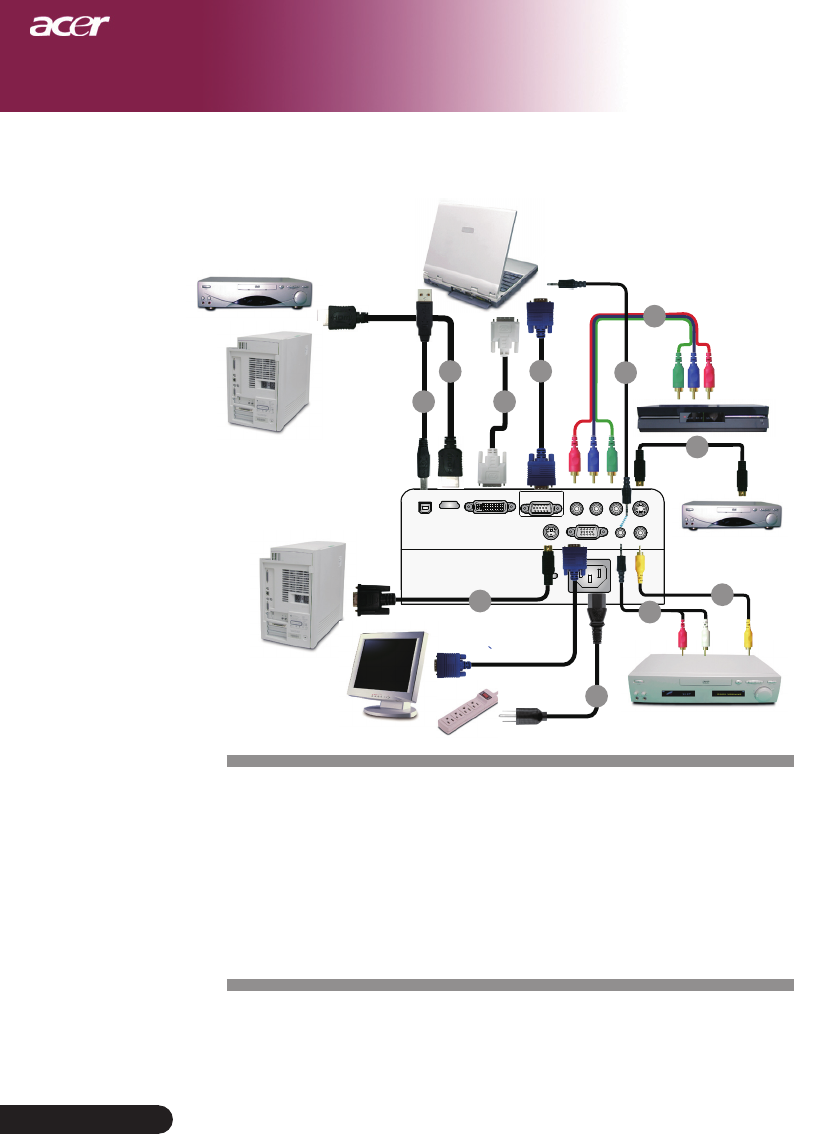
1. LaserIndicatorLight
2. Power
3. Laser Button
4. Source
5. Resync
6. Freeze
7. Hide
8. Mute
9. Aspect Ratio
10. Keystone/FourDirectional
SelectKeys
11. Back
12. DigitalZoom
13. Menu
14. MouseLeftClick
15. MouseRightClick
Remote Control with Laser Pointer
16. Mouse
17. Volume+/-
18. PageUp/PageDown
19. EmpoweringKey
20. RGB
21. Brightness
22. Contrast
23. Color
24. VGA
25. Component
26. S-Video
27. Video
28. HDMI
29. DVI
30. TransmitIndicatorLight
30
2
5
9
13
17
20
24
10
6
29
14
21
25
8
4
12
16
28
11
7
18
26
22
15
23
27
19
3
1
10
English ...
Installation
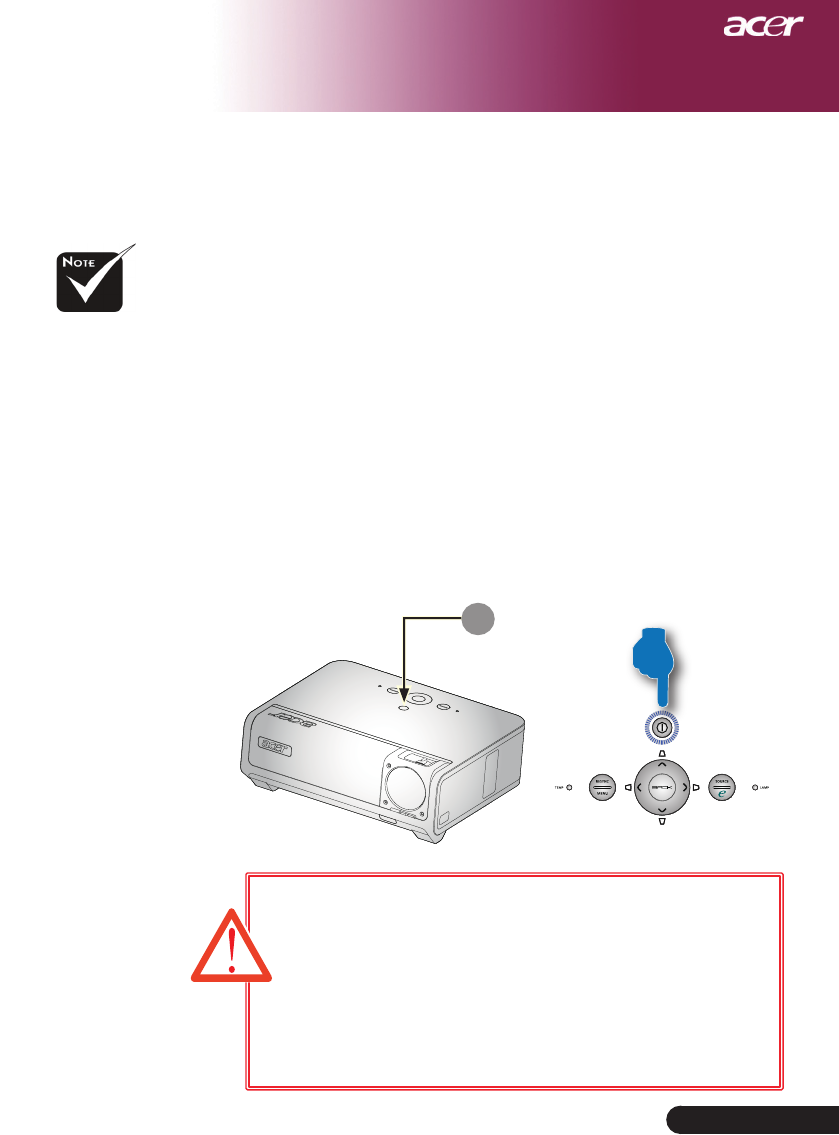
Connecting the Projector
USB HDMI DVI VGA-IN Pr/Cr Pb/Cb Y S-VIDEO
VIDEOAUDIO-INVGA-OUTRS-232
To ensure the projector works well with your computer, please
make sure the timing of the display mode is compatible with the
projector. Refer to the “Compatibility Modes” section on page 39.
VideoOutput
DVDPlayer,
SettopBox,
HDTVreceiver
4
2
3
6
DVI
VGA
USB
10
S-VideoOutput
9
1
RS232
7
5
11
DVDPlayer
8
PC
1.....................................................................................................................Power Cord
2......................................................................................................................VGACable
3................................................................................................ CompositeVideoCable
4....................................................................................................................... USB Cable
5............................................................................................. 3 RCA Component Cable
6.................................................................................................................S-VideoCable
7........................................................... AudioCableJack/RCA(OptionalAccessory)
8..............................................................................RS232 Cable (Optional Accessory)
9........................................................................................................................DVICable
10........................................................................... HDMI Cable (Optional Accessory)
11................................................................................................AudioCableJack/Jack
11 ... English
Installation
Powering On/Off the Projector
Power
Powering On the Projector
1. Openthelenscap.
2. Ensurethatthepowercordandsignalcablearesecurely
connected.ThePowerLEDwillashamber.
3. Turn on the lamp by pressing “Power” button on the control
panel andthePowerLEDwillturnamber.
4. Turnonyoursource(computer,notebook,videoplayer
,etc.).Theprojectorwilldetectyoursourceautomatically.
If the screen displays ”Lock” & ”Source” icons, it means the pro-
jector locks on this source type and there is no such type of input
signal found.
If the screen displays “No Signal”, please make sure the signal
cables are securely connected.
If you connect multiple sources at the same time, using the
“Source” button on the remote control or control panel to switch.
Turn on the
projectorrstand
then the signal
sources.
The lens cap must
be opened then
turn on the projec-
tor.
r
If the projection lens cap is not opened when a projector is powered
on, users will hear a continuous beep sound, and the interval of each
beep warning message is about 3 seconds.
r
The projector will not be turned on and automatically go to stand-by
mode if the lens cap is still closed after beep sound keeps warning for
5 times.
r
If the projection lens cap is accidentally closed while the projector is
running, users will hear the same beep sound and the projector will
automatically go to stand-by mode if the lens cap is still not opened
after 5 times of warning sound.
1

12
English ...
Installation
Warning Indicator
When the “LAMP” indicator lights solid amber, the projector
will automatically shut itself down. Please contact your local
reseller or service center.
When the “TEMP” indicator lights solid amber, it indicates the
projector has been overheated. You will see a message “Projector
Overheated. Lamp will automatically turn off soon.” on the on-
screen display. The projector will automatically shut itself down.
Under normal conditions, the projector can be switched on again
after it has cooled down. If the problem persists, you should con-
tact your local dealer or our service center.
When the “TEMP” indicator ashs amber, you will see a mes-
sage “Fan fail. Lamp will automatically turn off soon.” on the
on-screen display. Please contact your local dealer or our service
center.
Powering Off the Projector
1.Pressthe“Power”buttontoturnofftheprojectorlamp,youwill
see a message “Please press power button again to complete the
shutdown process. Warning: DO NOT unplug while the projector
fan is still running.” displayed on the projector’s screen. Press
the“Power”buttonagaintoconfirm,otherwisethemessagewill
disappear after 5 seconds.
2.Thecoolingfanscontinuetooperateforabout120secondsfor
coolingcycleandthePowerLEDwillbequickamber ash.
WhenthePowerLEDbecomesslowflashing,theprojectorhas
enteredstandbymode.Ifyouwishtoturntheprojectorbackon,
you must wait until the projector has completed the cooling cycle
andhasenteredstandbymode.Onceinstandbymode,simply
press “Power” button to restart the projector. It may not restart
successfullyatthefirsttime,theprojectorwillautomatically
restart till success. Do not need to press “Power” button to turn on
the projector during this period.
3. Disconnect the power cord from the electrical outlet and the
projector.
4.Donotturnontheprojectorimmediatelyfollowingapoweroff
procedure.
5. Close the lens cap to prevent dust if you like.
13 ... English
Installation
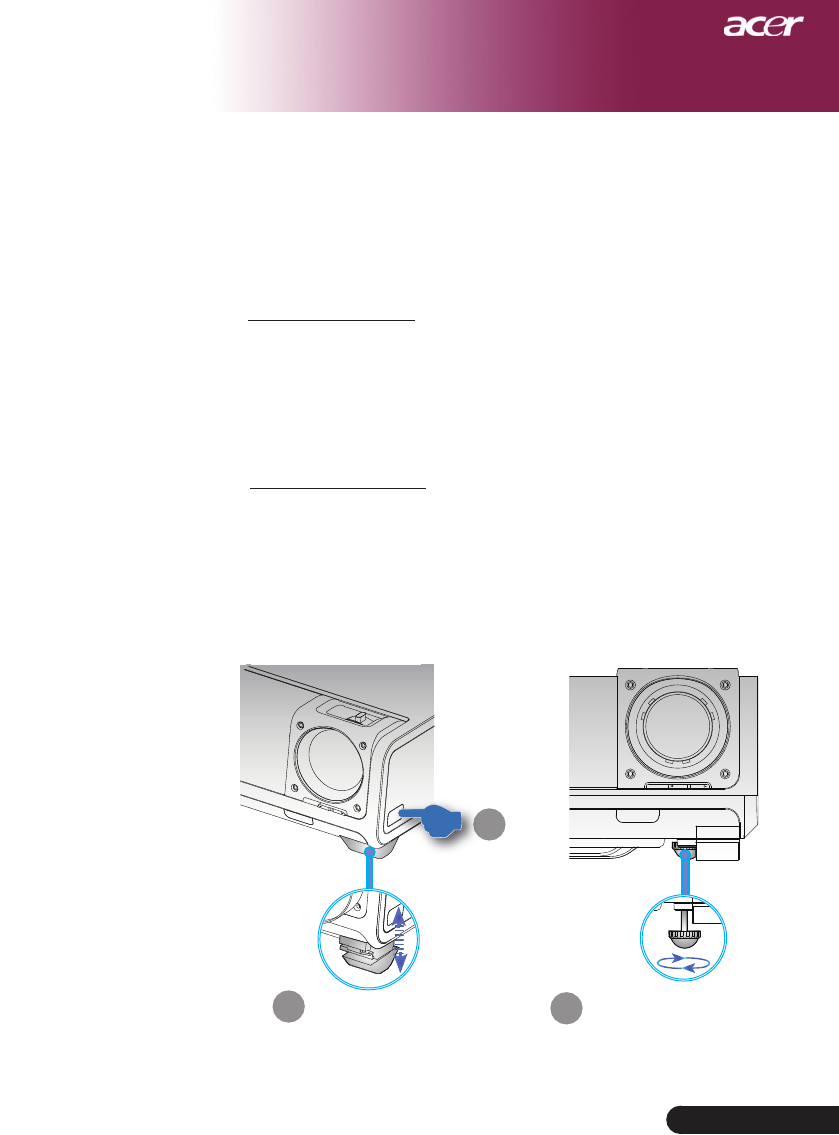
Adjusting the Projector Image Height
The projector is equipped with elevator feet for adjusting
the image height.
To raise the image:
1.Presstheelevatorbutton.
2. Raise the image to the desired height ,thenreleasethe
button to lock the elevator feet into position.
3. Use tone-tunethedisplayangle.
To lower the image:
1.Presstheelevatorbutton.
2.Lowertheimage,thenreleasethebuttontolocktheel-
evator feet into position.
3. Use tone-tunethedisplayangle.
ElevatorFoot
ElevatorButton
2Tilt Adjusting Wheel
3
Adjusting the Projected Image
1
14
English ...
Installation
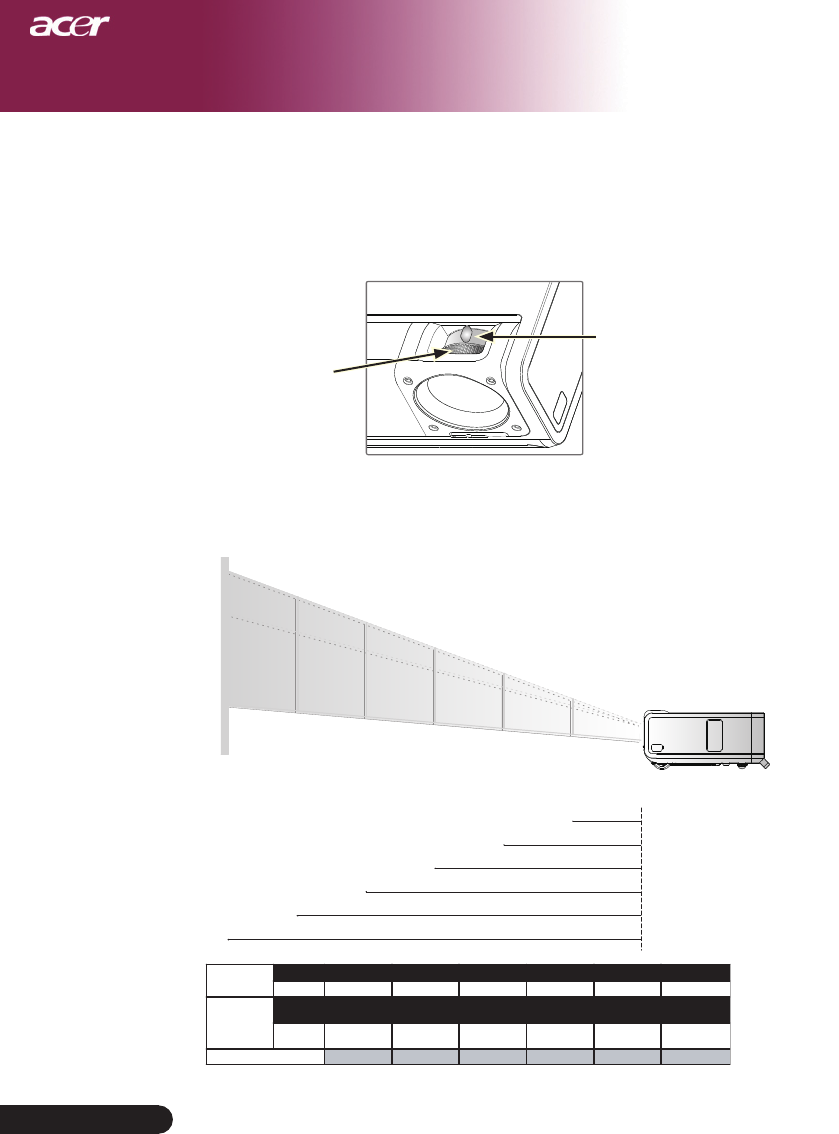
Adjusting the Projector Zoom / Focus
You may turn the zoom ring to zoom in or out. To focus the
image,rotatethefocusringuntiltheimageisclear.Thepro-
jectorwillfocusatdistancesfrom4.92to32.81feet(1.5to10.0
meters).
Adjusting Projection Image Size
Focus Ring
ZoomRing
Screen
(Diagonal)
Screen Size
Distance
This graph is for user’s reference only.
72"
(184cm)
121"
(307cm)
169"
(430cm)
193"
(491cm)
242"
(614cm)
44" (111cm)
87"(221cm)
145"(369cm)
203"(517cm)
232"(590cm)
291"(738cm)
4.92'
32.81'
26.25'
22.97'
16.40'
9.84'
(1.5m)
(10m)
(8.0m)
(7.0m)
(5.0m)
(3.0m)
36"
(92cm)
Max. 44"(111cm) 87"(221cm) 145"(69cm) 203"(517cm) 232"(590.0cm) 291"(738cm)
Min. 36"(92cm) 72"(184cm) 121"(307cm) 169"(430cm) 193"(491cm) 242"(614cm)
Max.(WxH) 37" x 22"
(95 x 57cm)
75" x 45"
(190 x 114cm)
125" x 75"
(316 x 190cm)
174" x 105"
(443 x 266cm)
199" x 120"
(506 x 304cm)
249" x 150"
(633 x 380cm)
Min.(WxH) 31" x 19"
(79 x 47cm)
62" x 37"
(158 x 95cm)
104" x 62"
(263 x 158cm)
145" x 87"
(368 x 221cm)
166" x 99"
(421 x 253cm)
207" x 124"
(526 x 316cm)
4.92'(1.5m) 9.84'(3.0m) 16.40'(5.0m) 22.97'(7.0m) 26.25'(8.0m) 32.81'(10.0m)
15 ... English
User Controls
Control Panel & Remote Control
There are two ways for you to control the functions: Re-
mote Control and Control Panel.
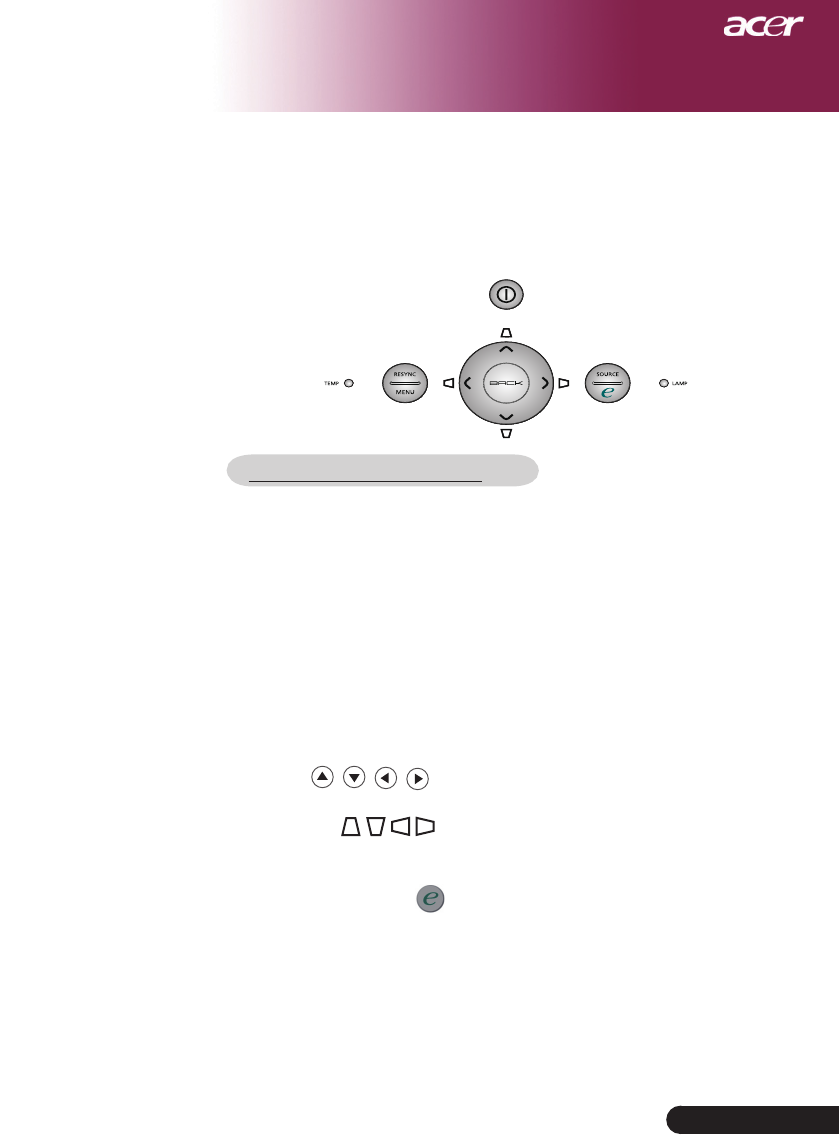
Control Panel
Using the Control Panel
Power
Refertothe“PowerOn/OfftheProjector”sectiononpages12-13.
Resync
Automatically synchronizes the projector to the input source.
Menu
Press “Menu” to launch the on screen display (OSD) menu or exit
the OSD menu.
Source
Press“Source”tochooseRGB,Component-p,Component-i,
S-Video,Compositevideo,DVI-D/A,HDTVandHDMI sources.
Four Directional Select Keys
Use to select items or make adjustments to your
selection.
Keystone
Adjusts image distortion caused bytiltingtheprojector(±16
degrees).
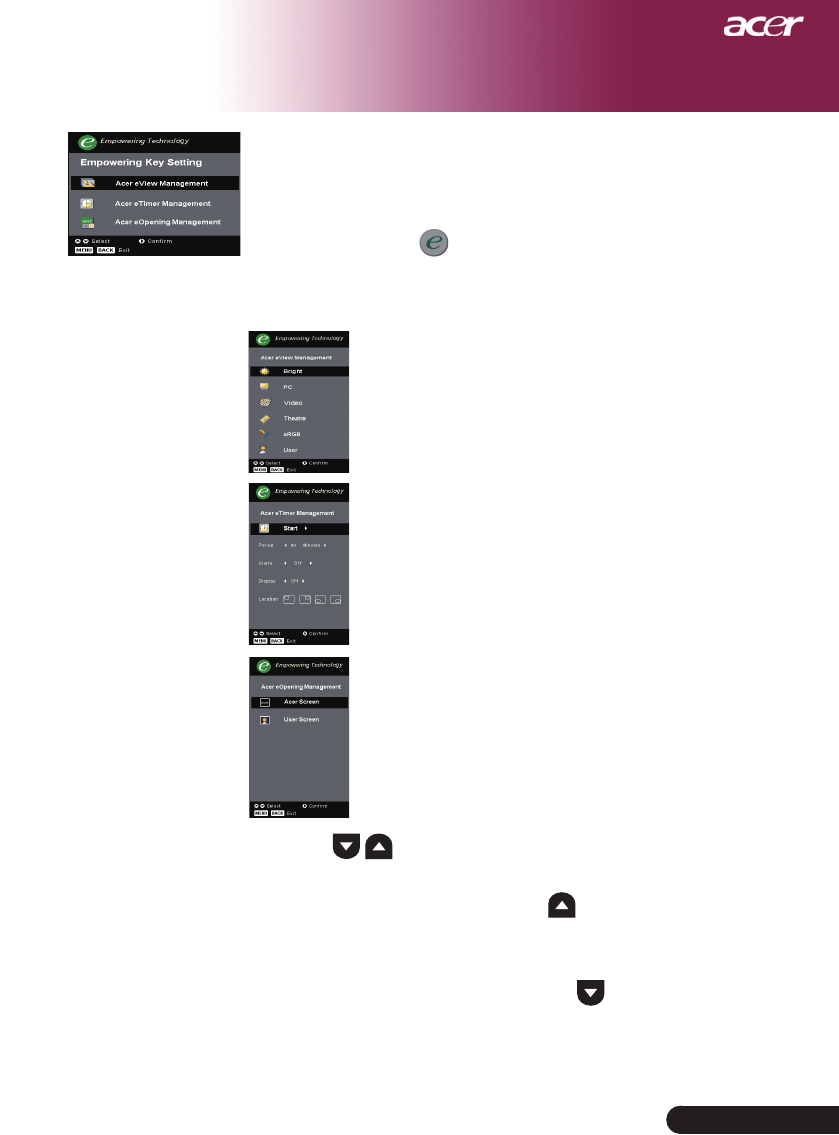
Empowering Key
AcerEmpoweringKeyprovidesthreeAceruniquefunctions,theyare
”AcereViewManagement”,”AcereTimerManagement”and”Acer
eOpening Management” respectively. Press ”e” key for more than
one second to launch the on screen display main menu to modify its
function.
Back
Back to the previous level for the OSD menu operation.
16
English ...
User Controls
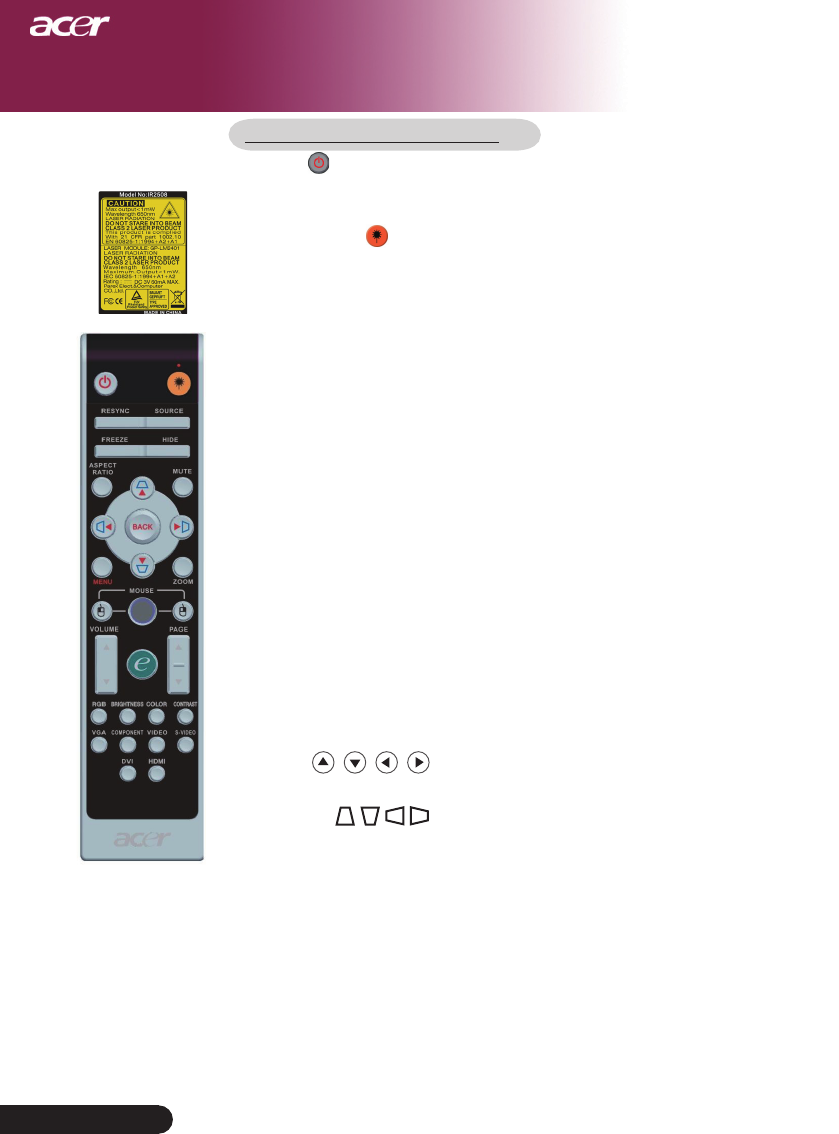
Using the Remote Control
Power
Refertothe“PowerOn/OfftheProjector”sectiononpages
12-13
Laser Button
Aimtheremotecontrolattheviewingscreen,pressandhold
this button to activate the laser pointer.
Resync
Automatically synchronizes the projector to the input source.
Source
Press“Source”tochooseRGB,Component-p,Component-i,
S-Video,CompositeVideo,DVI-D/A,HDTVandHDMI
sources.
Freeze
Press “Freeze” to pause the screen image.
Hide
Momentarilyturnsoffthevideo.Press“Hide”tohideimage,
press again to restore display of the image.
Aspect Ratio
Use this function to choose your desired aspect ratio.
(Auto/4:3/16:9/1:1/L.Box)
Mute
Use this key to turn off the volume.
Four Directional Select Keys
Use to select items or make adjustments to your
selection for the OSD menu operation.
Keystone
Adjustsimagedistortioncausedbytiltingtheprojector(±16
degrees).
Menu
Press “Menu” to launch the on screen display menu. To exit
OSD,press“Menu” again.
Zoom
DigitalZoomin/out.
Back
Back to the previous level for the OSD menu operation.
Remote Control
17 ... English
User Controls
Mouse / Mouse Right Click / Mouse Left Click
These functions are the same as a mouse of PC or Mac.These
functions are available only when the projector is connected to
a computer via an USB cable.
Empowering Key
AcerEmpoweringKeyprovidesthreeAceruniquefunctions,they
are“AcereViewManagement”,”AcereTimerManagement”and”
Acer eOpening Management” respectively.
Acer eView Management
Press ”e” tolaunch“AcereViewManagement”
submenu.
“Acer eViewManagement”isfordisplaymode
selection. Please refer to On Screen Display Menus
section for detail.
Acer eTimer Management
Press ”e” to launch “Acer eTimer Management”
submenu.
“Acer eTimer Management” provides the remind-
ing function for presentation time control. Please
refer to On Screen Display Menus section for detail.
Acer eOpening Management
Press ”e” to launch “Acer eOpening Management”
submenu.
“Acer eOpening Management” allows user to
change the Startup screen to their personalized
image. Please refer to On Screen Display Menus
section for details.
Volume
Increase/decreasethevolume.
Page Up (Computer mode only)
Use this button to page up. This function is only available when
the projector is connected to a computer via an USB cable.
Page Down (Computer mode only)
Use this button to page down. This function is only available
when the projector is connected to a computer via an USB cable.

18
English ...
User Controls
RGB
Press “RGB” for true-color optimization.
Brightness
Press “Brightness” to adjust the brightness of the image.
Color
Press “Color” to adjust the color temperature of image.
Contrast
Press “Contrast” to control the difference between the lightest
and darkest parts of the picture.
VGA
Press“VGA”tochangesourcetoVGA-Inconnector.Thiscon-
nector supports Analog RGB.
Component
Press “Component” to change source to component connec tor.
ThisconnectorsupportsYPbPr(480p/576p/720p/1080i)and
YCbCr(480i/576i)
Video
Press“Video”tochangesourcetoCompositeVideosource.
S-Video
Press“S-Video”tochangesourcetoS-Videosource.
DVI
Press“DVI”tochangesourcetoDVIconnector.This
connector
supportsDigitalRGB,AnalogRGB.
HDMI
Press “HDMI” to change source to HDMI. This connector can
support to carry all standard and high-definition consumer
electronics video formats.
19 ... English
User Controls
On Screen Display Menus
Sub Menu
Settings
The Projector has multilingual On Screen Display menus that
allow you to make image adjustments and change a variety of
settings. The projector will automatically detect the source.
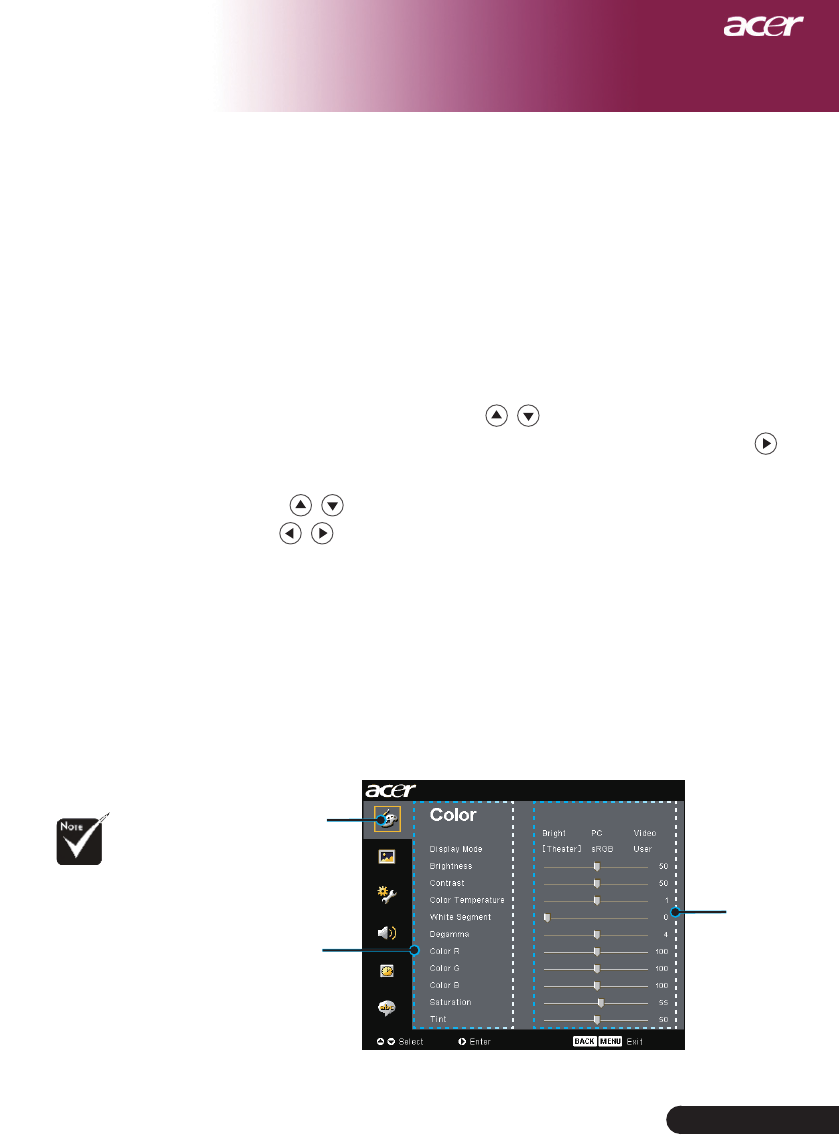
How to operate
1. ToopentheOSDmenu,press“Menu”ontheRemoteControlor
Control Panel.
2. WhenOSDisdisplayed,use keys to select any item in the
mainmenu.Afterselectingthedesiredmainmenuitem,press
to enter sub menu for feature setting.
3. Use keys to select the desired item and adjust the settings
by key.
4. Select the next item to be adjusted in the sub menu and adjust as
described above.
5. Press”Back”ontheRemoteControlorControlPanel,thescreen
will return to the main menu.
6. ToexitOSD,press“Menu”ontheRemoteControlorControl
Panel again. The OSD menu will close and the projector will auto-
matically save the new settings.
“Saturation” and
“Tint” functions are
not supported under
computer mode or
DVImode.
Main Menu
20
English ...
User Controls
Color
(Computer / Video
Mode)
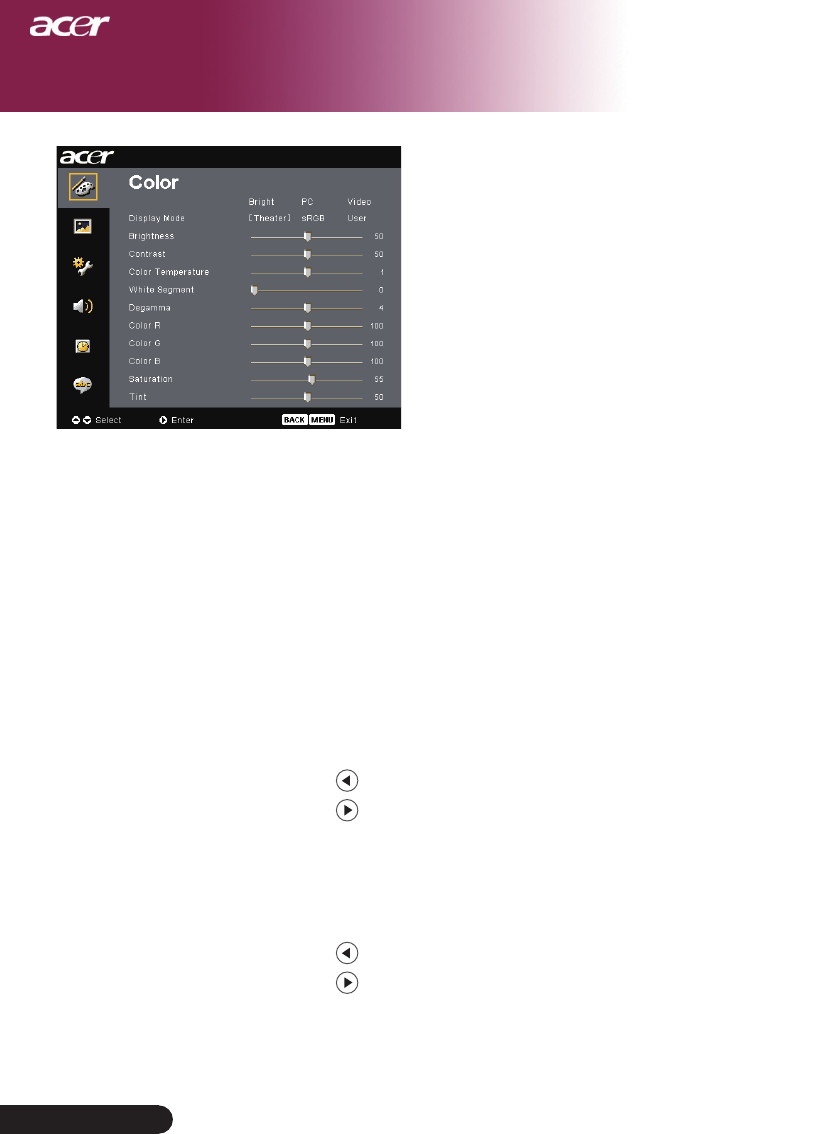
Display Mode
There are many factory presets optimized for various types of im-
ages.
Bright : For brightness optimization.
PC : For computer or notebook.
Video:Forplayingvideoinabrightenvironment.
Theater : For Home Theatre usage in a dark room.
sRGB : For true-color optimization.
User : Memorize user’s settings.
Brightness
Adjust the brightness of the image.
Press the to darken image.
Press the to lighten the image.
Contrast
The contrast controls the degree of difference between the lightest
and darkest parts of the picture. Adjusting the contrast changes
the amount of black and white in the image.
Press the to decrease the contrast.
Press the to increase the contrast.
Color Temperature
Adjustthecolortemperature.Athighertemperature,thescreen
lookscolder;atlowertemperature,thescreenlookswarmer.
21 ... English
User Controls
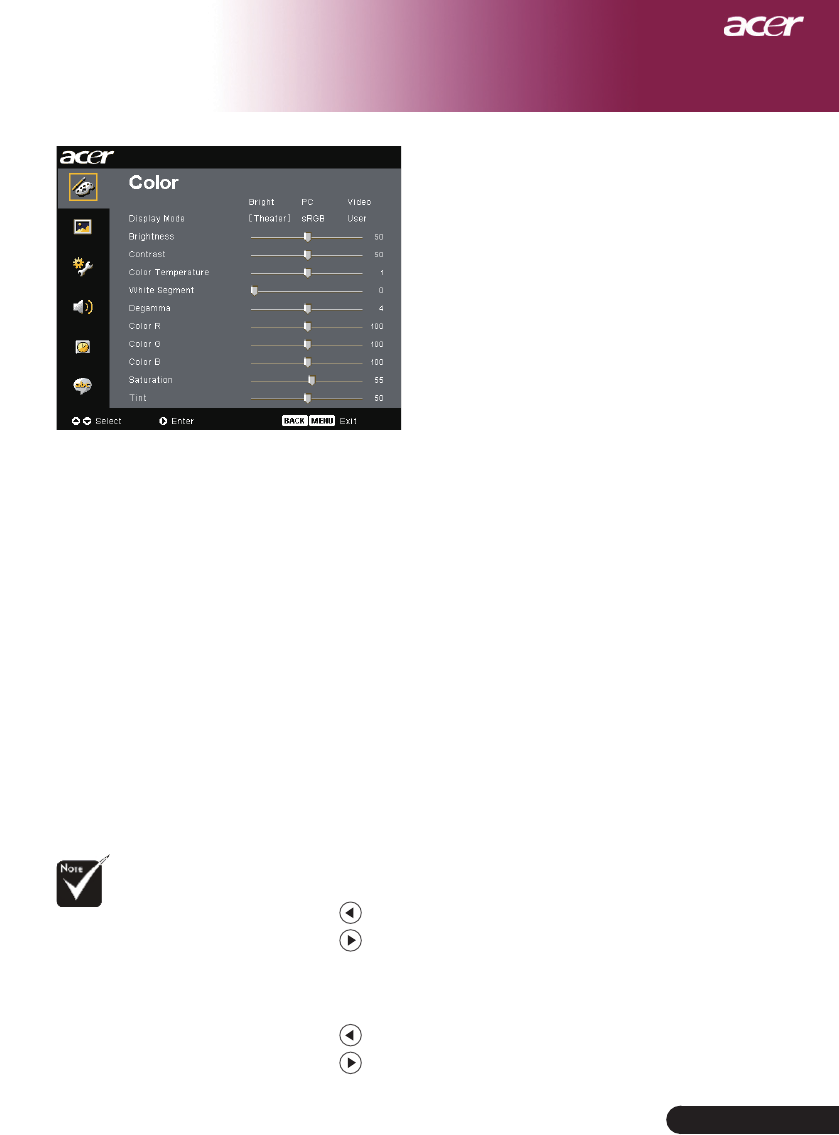
White Segment
Use the white Segment control to set the white peaking level of
DMDchip.0standsforminimalsegment,and10standsformaxi-
mumsegment.Ifyoupreferastrongerimage,adjusttowardsthe
maximumsetting.Forasmoothandmorenaturalimage,adjust
towards the minimum setting.
Degamma
Effectstherepresentofdarkscenery.Withgreatergammavalue,
dark scenery will look brighter.
Color R
Adjusts the red color.
Color G
Adjusts the green color.
Color B
Adjusts the blue color.
Saturation
Adjusts a video image from black and white to fully saturated color.
Press the to decrease the amount of color in the image.
Press the to increase the amount of color in the image.
Tint
Adjusts the color balance of red and green.
Press the to increase the amount of green in the image.
Press the to increase the amount of red in the image.
“Saturation” and
“Tint” functions are
not supported under
computer mode or
DVImode.
Color
(Computer / Video
Mode)
22
English ...
User Controls
Image
(Computer / Video
Mode)
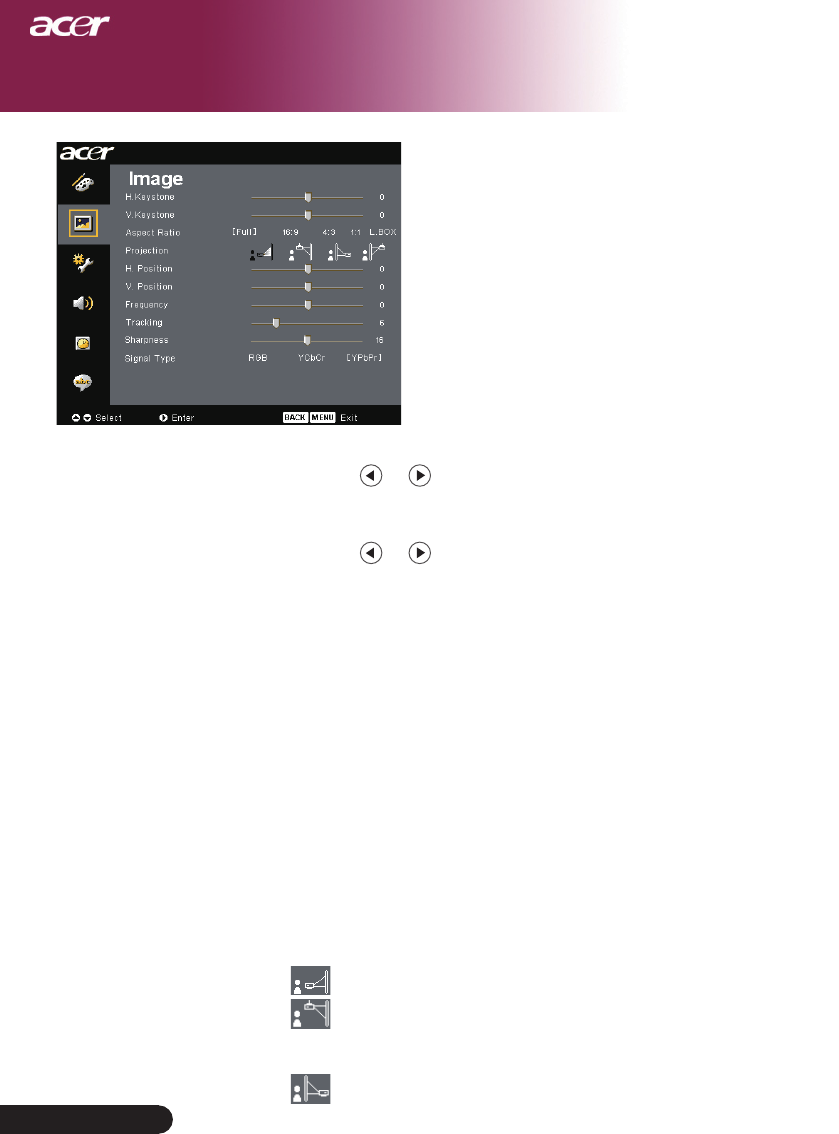
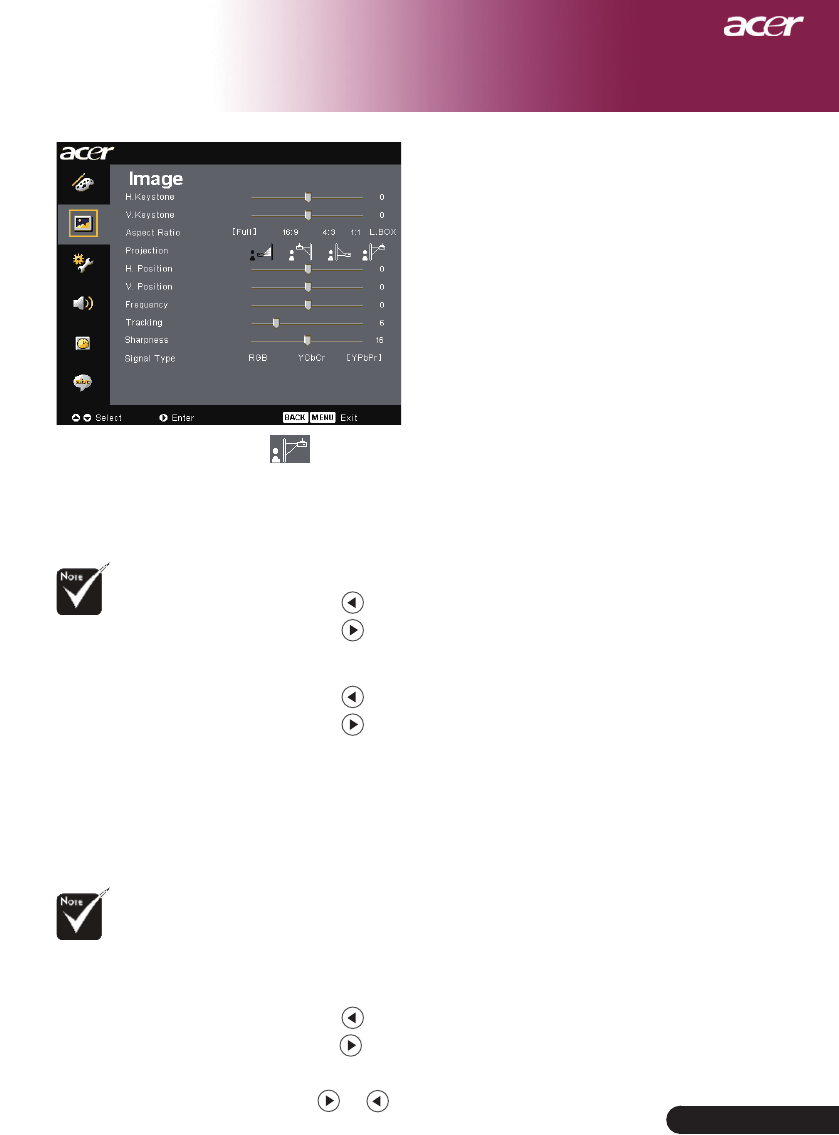
H. Keystone (Horizontal Keystone)
Press the or button to adjust image distortion horizontally
and makes a squarer image.
V. Keystone (Vertical Keystone)
Press the or button to adjust image distortion vertically
and makes a squarer image.
Aspect Ratio
Use this function to choose your desired aspect ratio.
Full : Resize image to fit full screen.
16:9:Theinputsourcewillbescaledtofitthewidthofthescreen
and narrowed the height to make the displayed image
becomes16:9ratio.
4:3:Theinputsourcewillbescaledtofittheprojectionscreen
andbecomes4:3ratio.
L.Box:Resizeimage(keeporiginalsourceratio)tofit1280pixels
width,theneither(1)CUTthetop&bottomportionof
theresizedimageor(2)FILLBLACKBARStothetop&
bottomoftheresizedimage,tofit768pixelsheight.
1:1:Keepimageatthecenterofscreenwithitsoriginalpixel
resolution without scaling.
Projection
Front-Desktop
The factory default setting.
Front-Ceiling
Whenyouselectthisfunction,theprojectorturnsthe
image upside down for ceiling-mounted projection.
Rear-Desktop
Whenyouselectthisfunction,theprojectorreversesthe
image so you can project behind a translucent screen.
23 ... English
User Controls
“H.Position”,“V.
Position”,“Frequen-
cy” and “ Tracking”
functions are not
supportedunderDVI
andVideomode.
“Sharpness” func-
tions is not supported
underDVIandCom-
puter mode.
“Signal Type” is
only available for
Component,Com-
positevideo,S-Video,
HDMI and SCART
signal sources.
Image
(Computer / Video
Mode)
Rear-Ceiling
Whenyouselectthisfunction,theprojectorreverses
and turns the image upside down at same time. You can
project from behind a translucent screen with ceiling
mounted projection.
H. Position (Horizontal Position)
Press the to move the image left.
Press the to move the image right.
V. Position (Vertical Position)
Press the to move the image down.
Press the to move the image up.
Frequency
“Frequency”changes the display data frequency to match the
frequency of your computer’s graphic card. If you experience a
verticalflickeringbar,usethisfunctiontomakeanadjustment.
Tracking
“Tracking” synchronizes the signal timing of the display with the
graphiccard.Ifyouexperienceanunstableorflickeringimage,use
this function to correct it.
Sharpness
Adjusts the sharpness of the image.
Press the to decrease the sharpness.
Press the to increase the sharpness.
Signal Type
Press the or buttontochangesourcetoRGB,
YPbPr or YCbCr.
24
English ...
User Controls
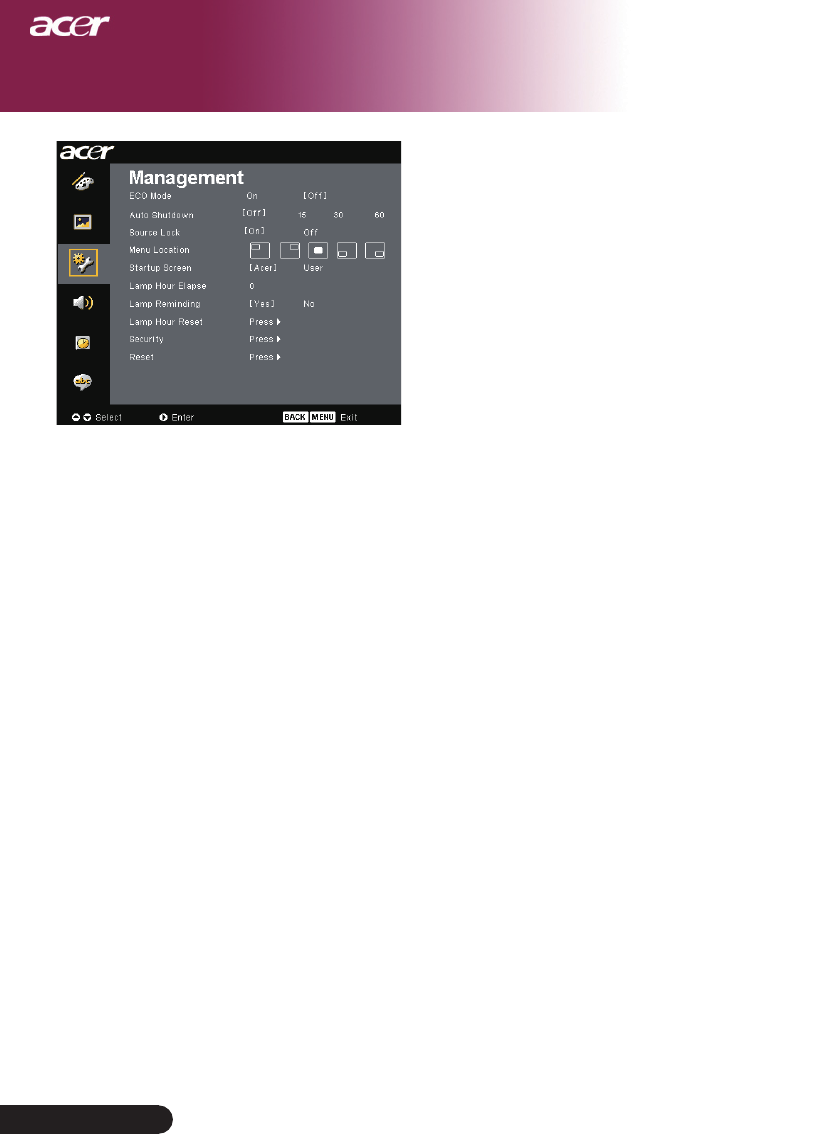
ECO Mode
Choose “On” to dim the projector lamp which will lower power
consumption,extendthelamplifeandreducenoise.Choose”Off”
to return normal mode.
Auto Shutdown (Minutes)
The projector will auto shutdown while there is no signal input after
the setting time.
Source Lock
Whensourcelockisturnedoff,theprojectorwillsearchforother
signals if the current input signal is lost. When source lock is turned
on,itwill“Lock”thecurrentsourcechannelbeforeyoupress
“Source” button on remote control for next channel.
Menu Location
Choose the Menu location on the display screen.
Startup Screen
Use this function to select your desired startup screen. If you change
thesettingfromonetoanother,whenyouexittheOSDmenu,the
new setting will take effect.
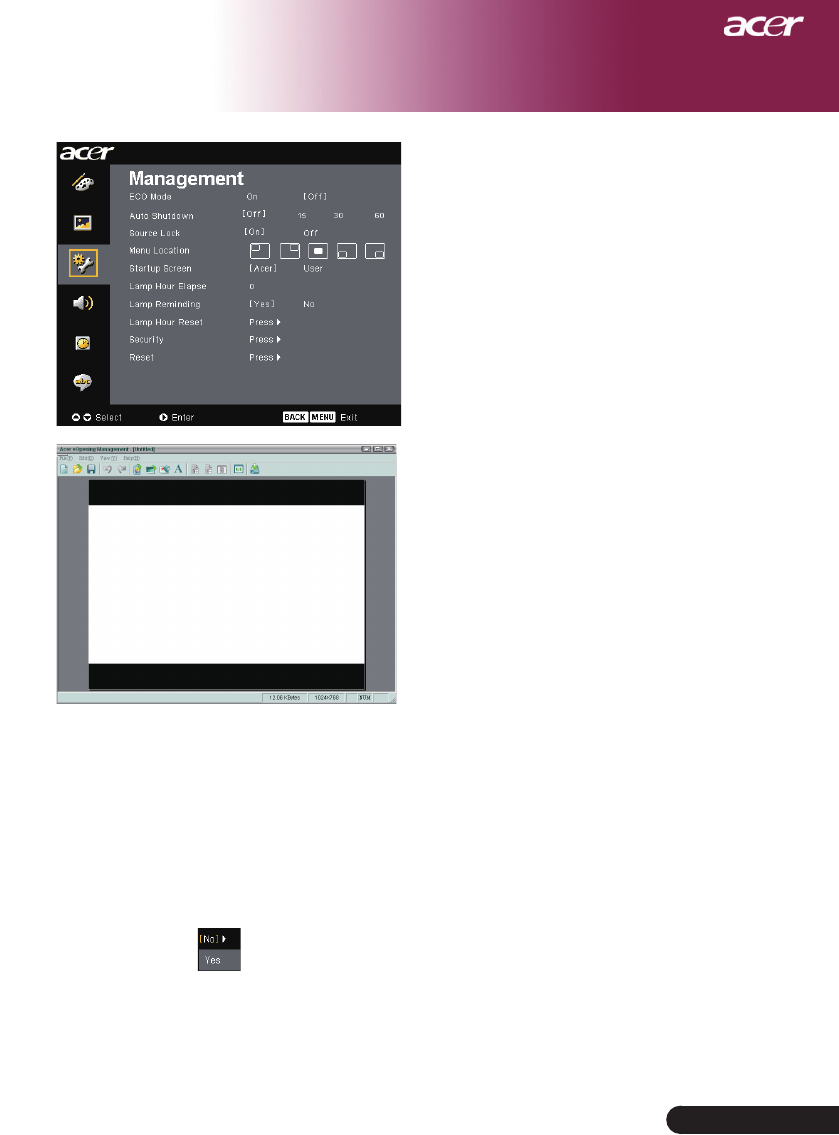
Acer : The default startup screen of Acer projector.
User:Theusercustomizedstartupscreen,whichisdownloaded
from PC to projector via the USB cable and Acer eOpening
Management utility. (Refer to the description of below
section.)
Management
(Computer / Video
Mode)
25 ... English
User Controls
Acer eOpening Management is a PC utility
for user to change the default startup screen of
Acer projector to their desired image. You can
install Acer eOpening Management from the
bundled CD. Connect the projector to your PC
with the bundled USB cable then execute Acer
eOpening Management utility to download
your desired image from your PC to projector.
Beforethedownloadstarts,theprojectormust
enter “Download Mode” first. Please follow
the instruction below to enter “Download
Mode”.
1. IftheACpowercordoftheprojectorwasunplugged,plugthe
AC power.
2. Powering On the Projector
3. Please make sure the USB cable has been plugged and
connected to your projector.
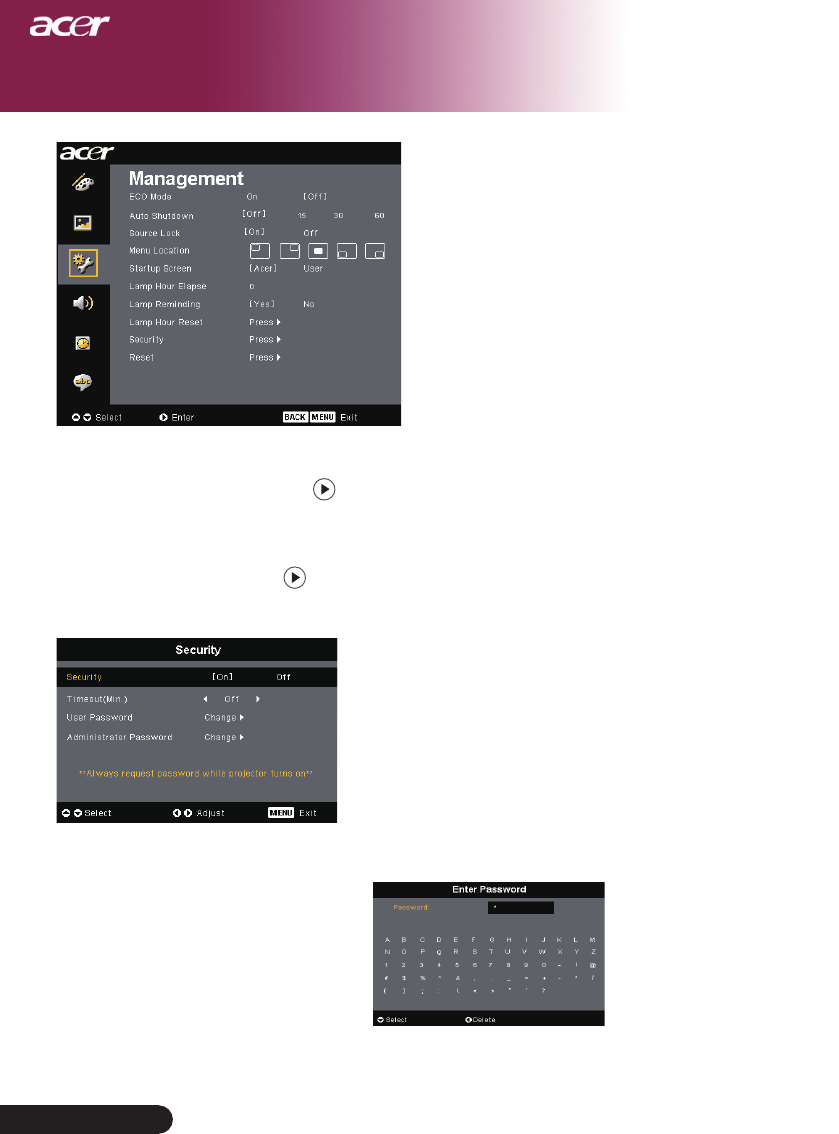
Lamp Hour Elapse
Displays the lamp’s elapsed operating time (in hours).
Lamp Reminding
Choose this function to show or to hide warning message when the
changing lamp message is displayed. The message will show up at
30hoursbeforeendoflife.
Management
(Computer / Video
Mode)
26
English ...
User Controls
Lamp Hour Reset
Press the button after choosing “Yes ”to reset the lamp hour
counterto0.
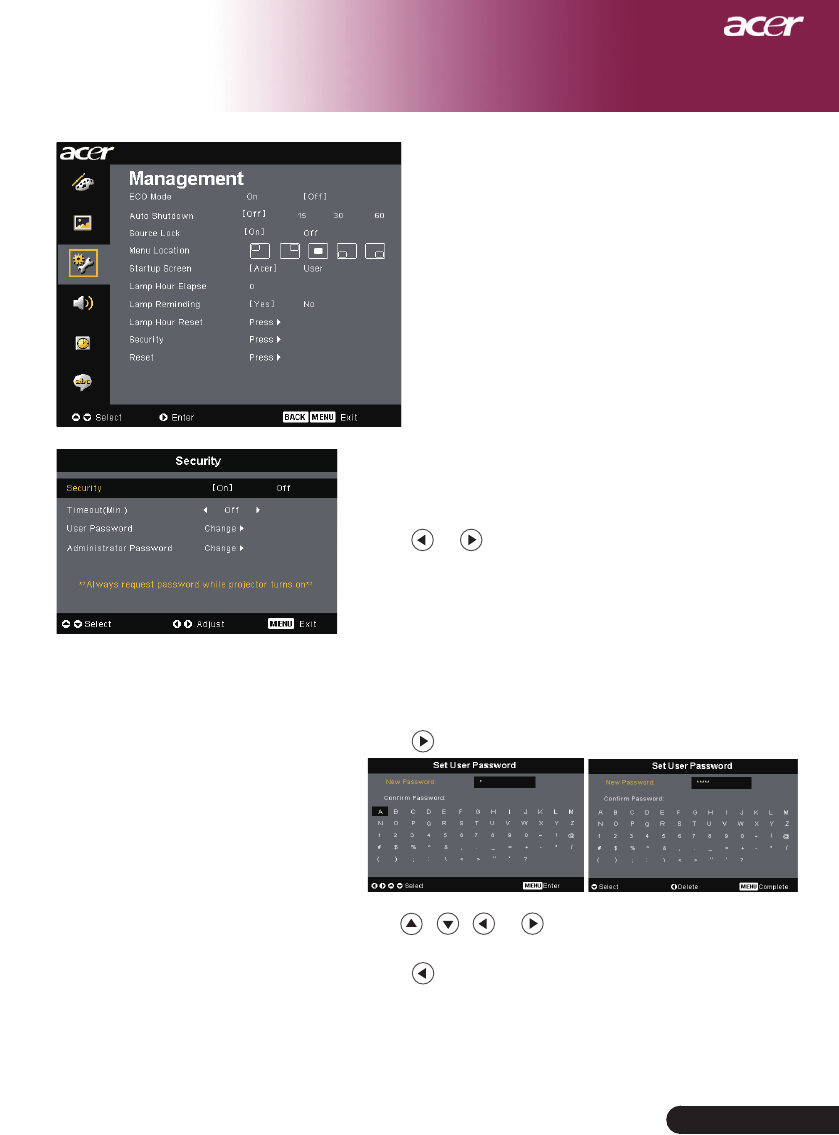
Security
Press to start “Security” setting. If the “Security” function is
enabled,yourmustenter“AdministratorPassword”firstbefore
Security setting.
Security
This projector provides an excellent security function
for the administrator to manage the usage of the
projector .
Select “On” to enable the security function. User
have to enter password depending on the ” Security
Mode” . Please refer to ”User Password” section for
details.
Select “Off” then user can switch on the projector
without password.
Oncethesecurityfunctionisenabled,theprojector
will request user to enter password when switch
on the projector. Both “User Password” and
“Administrator Password” can be accepted for this
dialogue.
Management
(Computer / Video
Mode)
27 ... English
User Controls
Timeout(Min.)
Once“Security”issetto“On”,administratorcanset
timeout function.
Press or to select timeout duration.
Therangeisfrom10minutesto990minutes.
Whentimeisup,theprojectorwillrequestuserto
enter password again.
The factory default setting of “Timeout(Min.)” is
“Off”.
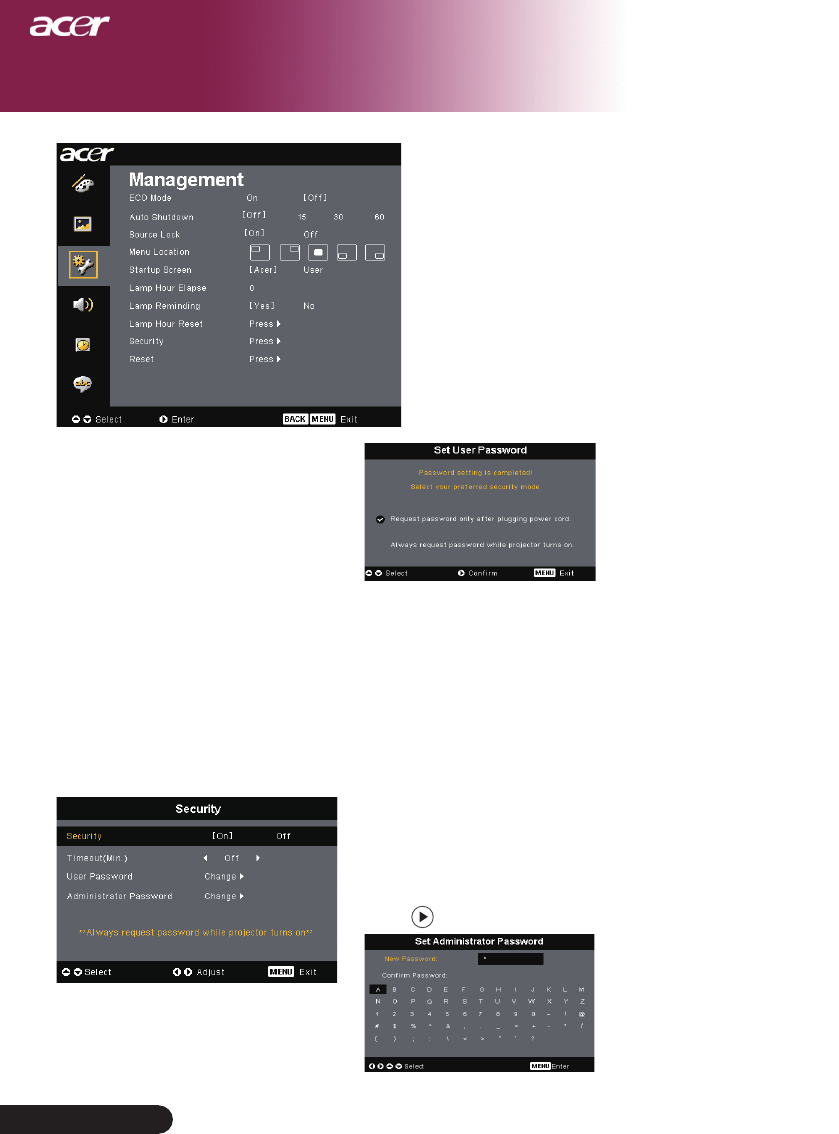
User Password
Press to set up or change “User Password”.
Use , , or to select the character and
press“MENU”toconfirm.
Press to delete character after the selected
character confirmed.
Press“MENU”tocompletethesettingofpassword.
Input password again at “Confirm Password”.
Thepasswordisallowedfor4~8characters.
Management
(Computer / Video
Mode)
28
English ...
User Controls
The projector provides two options of ”Security
Mode”.
Select “Request password only after plugging
powercord”,theprojectwillrequestusertoinput
password only for the first time plugging on power
cord of the projector.
Select “Always request password while projector
turnson”,userhastoinputpasswordeverytime
when switching on the projector.
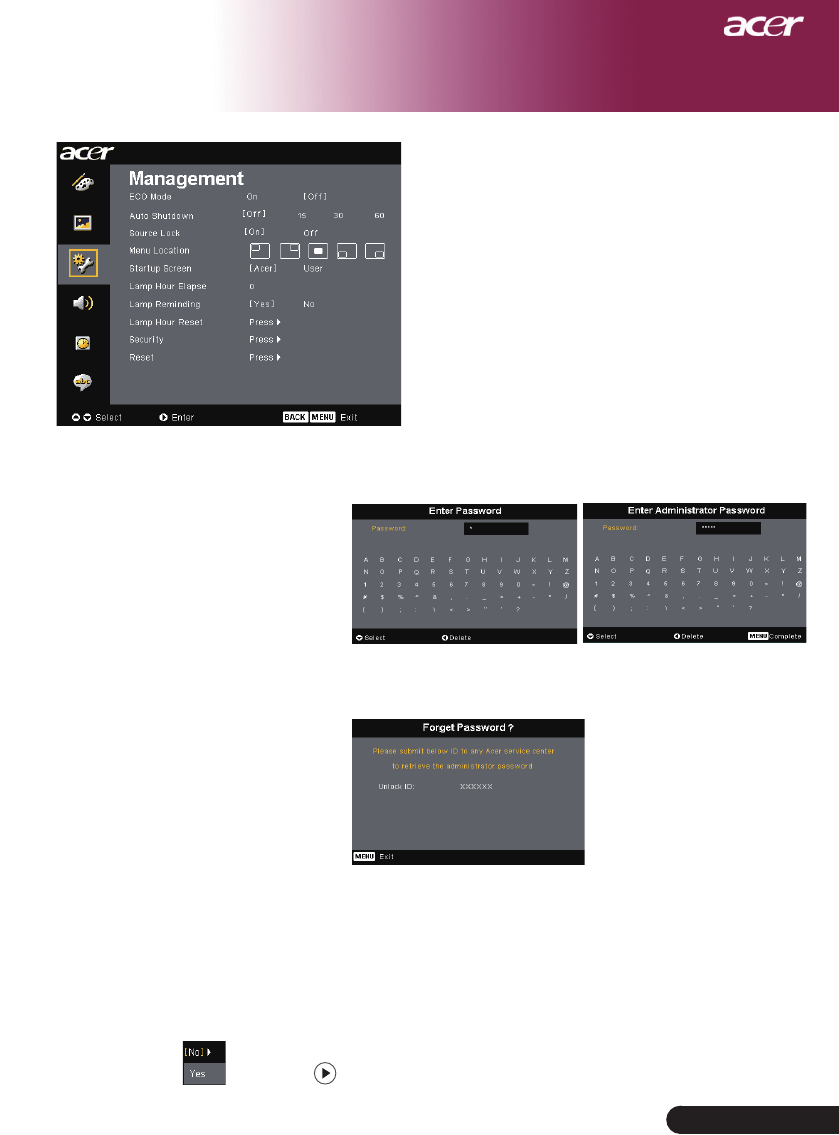
Administrator Password
“Administrator Password” can be accepted by
both“EnterAdministratorPassword”and“Enter
Password” dialogues.
Press to change “Administrator Password”.
The factory default of “Administrator Password” is
“1234”.
Management
(Computer / Video
Mode)
29 ... English
User Controls
If administrator forgot “Administrator Password”,
do the following to retrieve the “Administrator
Password”:
1.Press“MENU”formorethan4secondswhen
anyof“EnterPassword”or“EnterAdministrator
Password” dialogue is currently displayed.
2.Write down the “Unlock ID” and contact with
Acer service center. They will give you new
Administrator Password according to the Unlock
ID.
3.Once the new “Administrator Password” retrieved
fromAcerhasbeenloggedintotheprojector,old
“Administrator Password” will be replaced by the
new password.
Reset
Press the button after choosing “Yes” to return the display
parameters on all menus to the factory default settings.
Management
(Computer / Video
Mode)
30
English ...
User Controls
Audio
(Computer / Video
Mode)
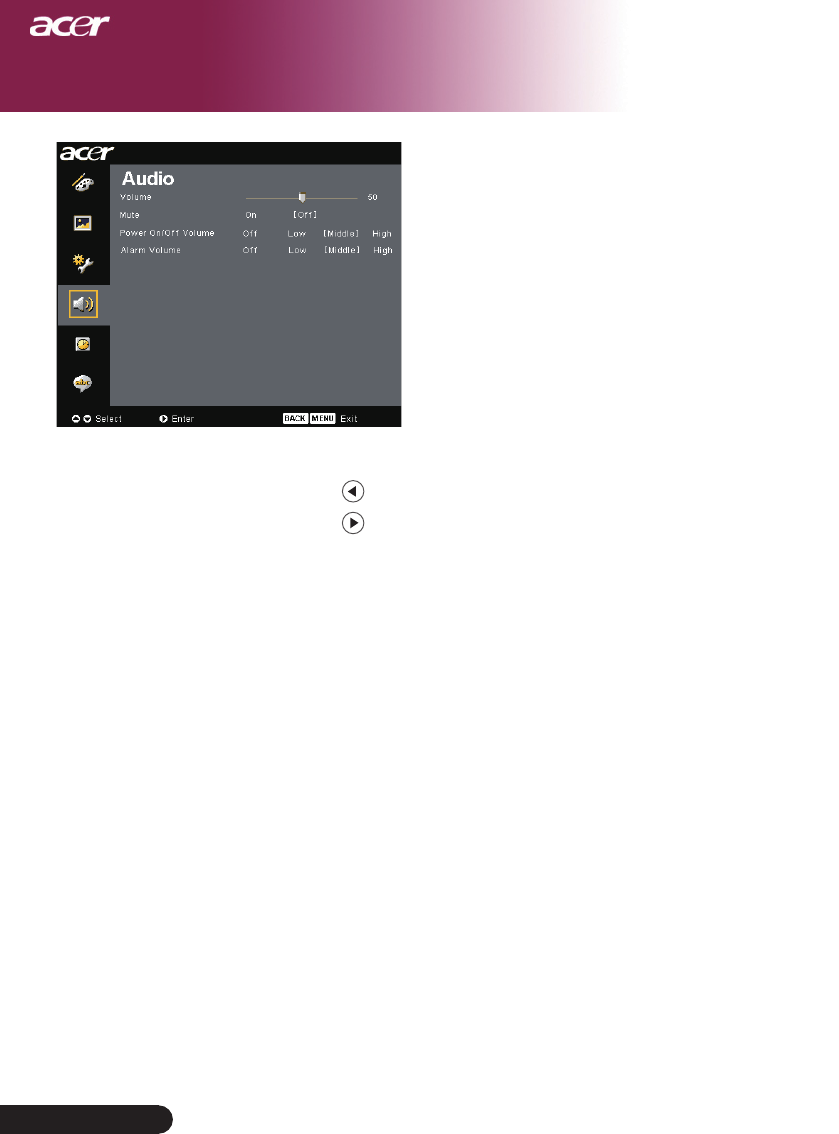
Volume
Press the to decrease the volume.
Press the to increase the volume.
Mute
Choose the “On” to turn mute on.
Choose the “Off” to turn mute off.
Power On/Off Volume
Choosethisfunctiontoadjustvolumewhenpoweron/off.
Alarm Volume
Choose this function to adjust volume when there are errors of
the projector.
31 ... English
User Controls
Timer
(Computer / Video
Mode)
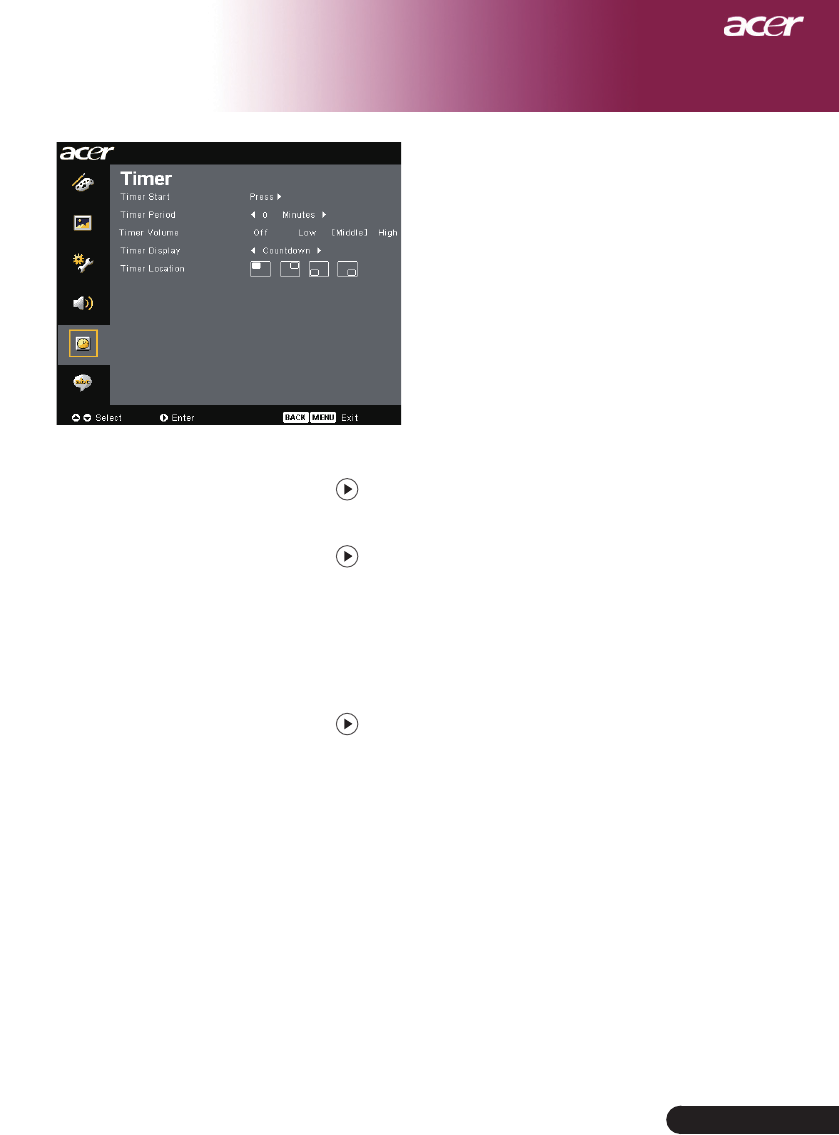
Timer Start
Press the tostart/stoptimer.
Timer Period
Press the to adjust timer period.
Timer Volume
Choose this function to adjust volume when timer function is
enable and time is up.
Timer Display
Press the to choose timer display mode on the screen.
Timer Location
Choose the timer location on the screen.
32
English ...
User Controls
Language
(Computer / Video
Mode)
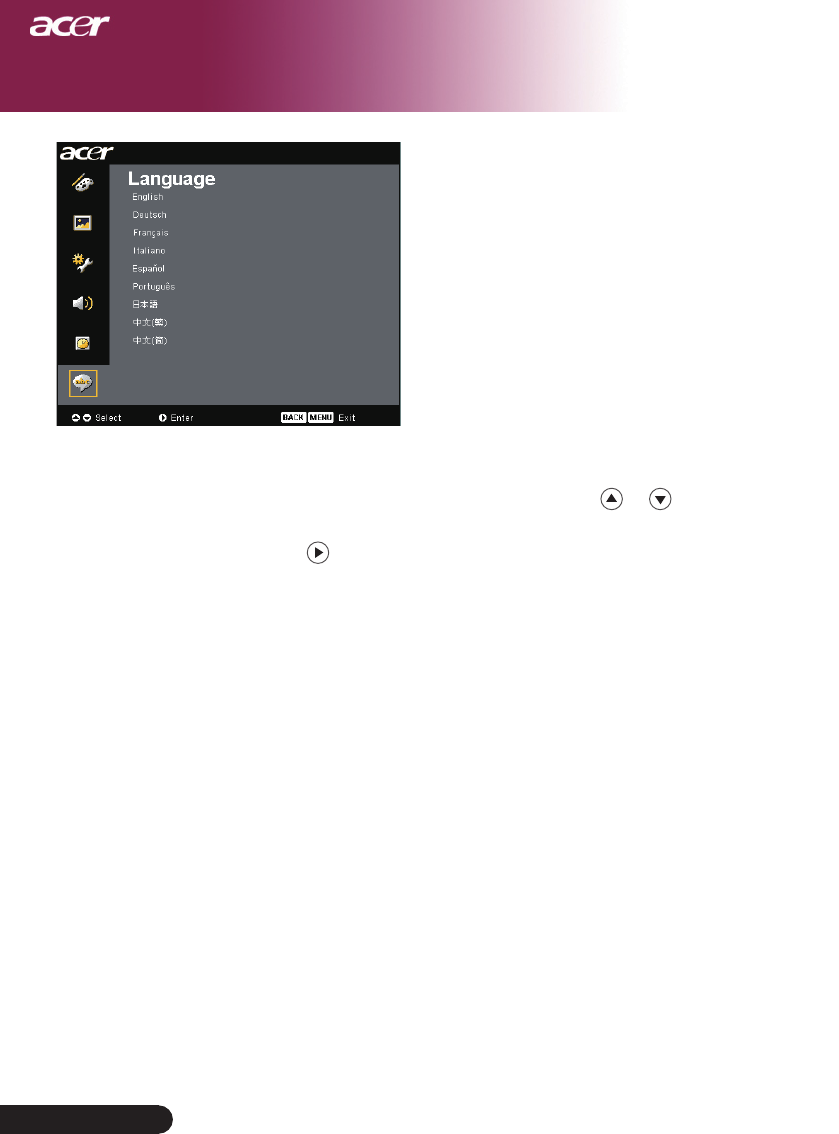
Language
Choose the multilingual OSD menu . Use the or key to select
your preferred language.
Press to confirm the selection

33 ... English
Appendices
Troubleshooting
Ifyouexperiencetroublewiththeprojector,refertothe
followinginformation.Iftheproblempersists,please
contact your local reseller or service center.
Problem: No image appears on screen.
Ensureallthecablesandpowerconnectionsarecorrectlyandse-
curely connected as described in the “Installation” section.
Ensurethepinsofconnectorsarenotcrookedorbroken.
Check if the projection lamp has been securely installed. Please
refer to the “Replacing the lamp” section.
Make sure you have removed the lens cap and the projector is
switched on.
Ensurethatthe“Hide”featureisnotenabled.
Problem: Partial, scrolling or incorrectly displayed image.
Press the “Resync” button on the Remote Control.
If you use a PC:
Iftheresolutionofyourcomputerishigherthan1400x1050.Follow
the steps outlined below to reset the resolution.
For Windows 3.x:
1. IntheWindowsProgramManager,clickthe“WindowsSetup”
icon in the Main group.
2. Verifythatyourdisplayresolutionsettingislessthanorequalto
1400x1050.
ForWindows95,98,2000,XP:
1. Open“MyComputer”icon,the“ControlPanel”folder,andthen
double click on the “Display” icon.
2. Select the “Setting” tab.
3. Inthe“DesktopArea”youwillndtheresolutionsetting.Verify
thattheresolutionsettingislessthanorequalto1400x1050reso-
lution.
If the projector is still not projecting the whole image, you will
also need to change the monitor display you are using. Refer to
the following steps.
4. Followtheabovesteps1-2.Clickonthe“AdvancedProperties”
button.
5. Select the “Change” button under the “Monitor” tab .

34
English ...
Appendices
6. Click on “Show all devices”. Then select “Standard monitor
types” under the “Manufacturers” box; choose the resolution
mode you need under the “Models” box.
7. Verifythattheresolutionsettingofthemonitordisplayisless
thanorequalto1400x1050.
If you are using a Notebook PC:
1. Youarerequiredtoimplementtheabovestepsofresolution
settingofthecomputerrst.
2. Switch the Notebook PC display to the “external display only”
or “CRT only” mode.
Ifyouexperiencedifcultyinchangingresolutionsoryourmonitor
freezes,restartalltheequipmentandtheprojector.
Problem: The screen of the Notebook or PowerBook computer
is not displaying your presentation.
If you are using a Notebook PC:
Some Notebook PCs may deactivate their screens when a second
display device is in use. Refer to your computer’s documentation
for information on how to reactivate the monitor display.
If you are using an Apple PowerBook:
InControlPanels,openthePowerBookDisplaytoselectVideo
Mirroring “On”.
Problem: Image is unstable or ickering
Use “Tracking” to correct it. Refer to page 23.
Change the monitor color setting from your computer.
Problem: Image has vertical ickering bar
Use “Frequency” to make an ad adjustment. Refer to page 23.
Checkandrecongurethedisplaymodeofyourgraphiccardto
make it compatible with the product. Refer to page 25.
Problem: Image is out of focus
AdjuststheFocusRingontheprojectorlens.Refertopage14.
Make sure the projection screen is between the required distance
4.92to32.81feet (1.5 to10.0 meters) from the projector.
35 ... English
Appendices
Problem: Image is reversed.
Select “Image” from the OSD and adjust the projection direction.
Seepage22,23.
Problem: Lamp burns out or makes a popping sound
Whenthelampreachesitsendoflife,itwillburnoutandmay
makealoudpoppingsound.Ifthishappens,theprojectorwill
not turn on until the lamp module has been replaced. To replace
thelamp,followtheproceduresinthe“ReplacingtheLamp”.See
page 36.
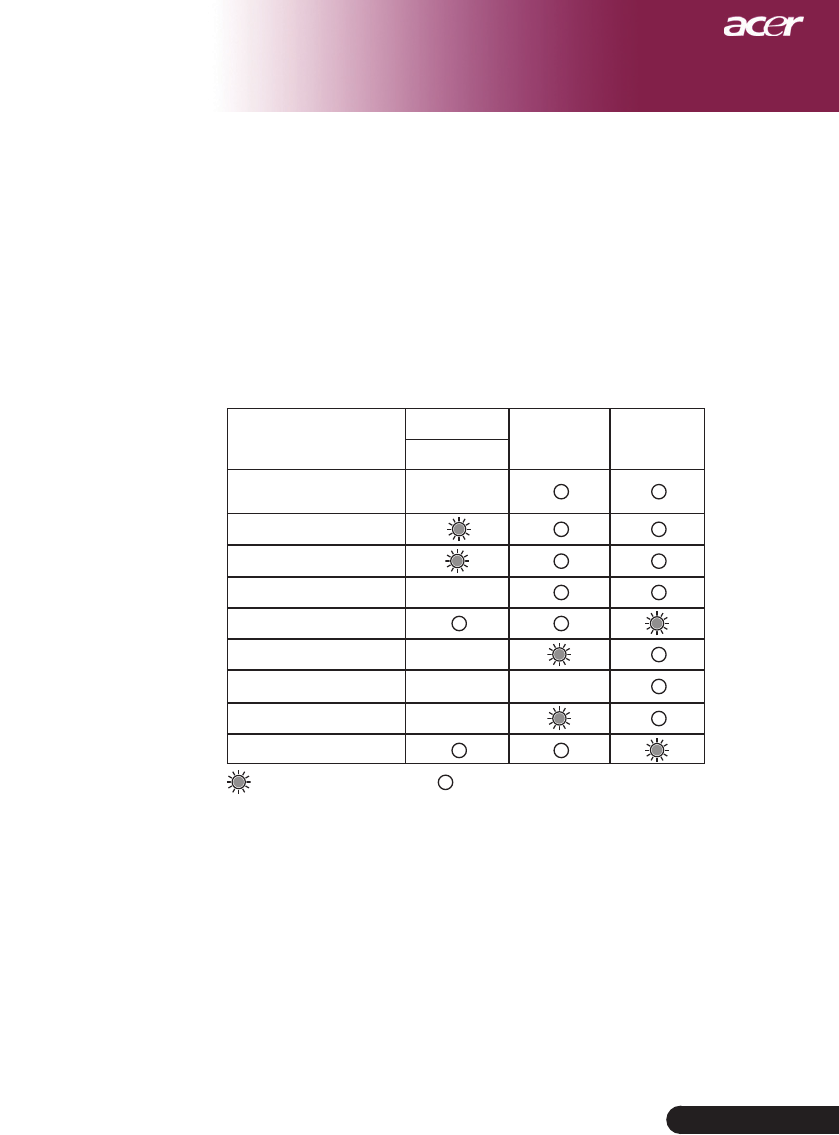
Problem: LED lighting message
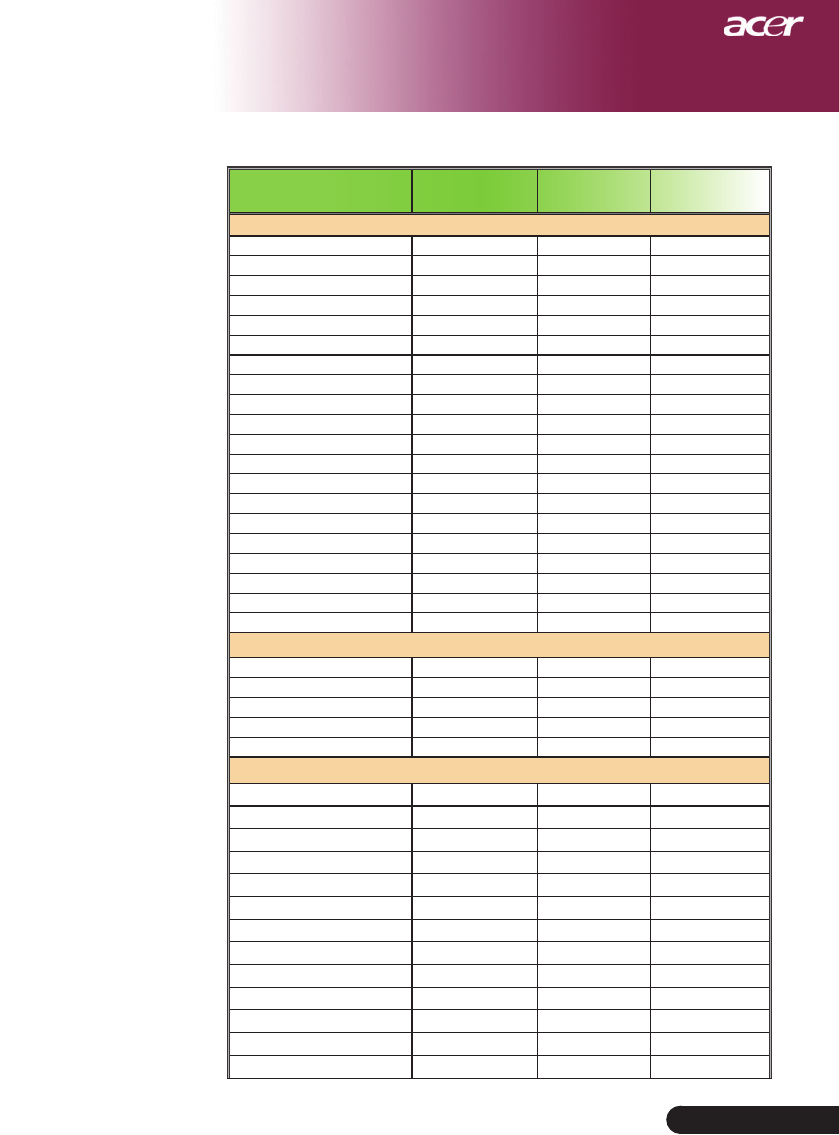
Message Power LED Temp LED Lamp LED
Amber
Standby State
(Input power cord) Slow Flashing
Lamp lighting
Power on
Power off (Cooling) Quick Flashing
Error(Lampfail)
Error(Thermalfail) Flashing
Error(Fanlockfail) Flashing Quick Flashing
Error(OverTemp.) Flashing
Error(LampBreakdown)
=>Light On =>Light Off
36
English ...
Appendices
Replacing the lamp
The projector will detect the lamp life itself. It will show you a
warning message “Lamp is approaching the end of its useful
life in full power operation. Replacement Suggested!” When
youseethismessage,changingthelampassoonaspossible.
Makesuretheprojectorhasbeencooleddownforatleast30
minutes before changing the lamp.
Warning: Lamp
compartment is
hot! Allow it to
cool down before
changing lamp!
Warning: To
reduce the risk of
personalinjury,do
not drop the lamp
module or touch
the lamp bulb. The
bulb may shatter
and cause injury if
it is dropped.
13
4
2
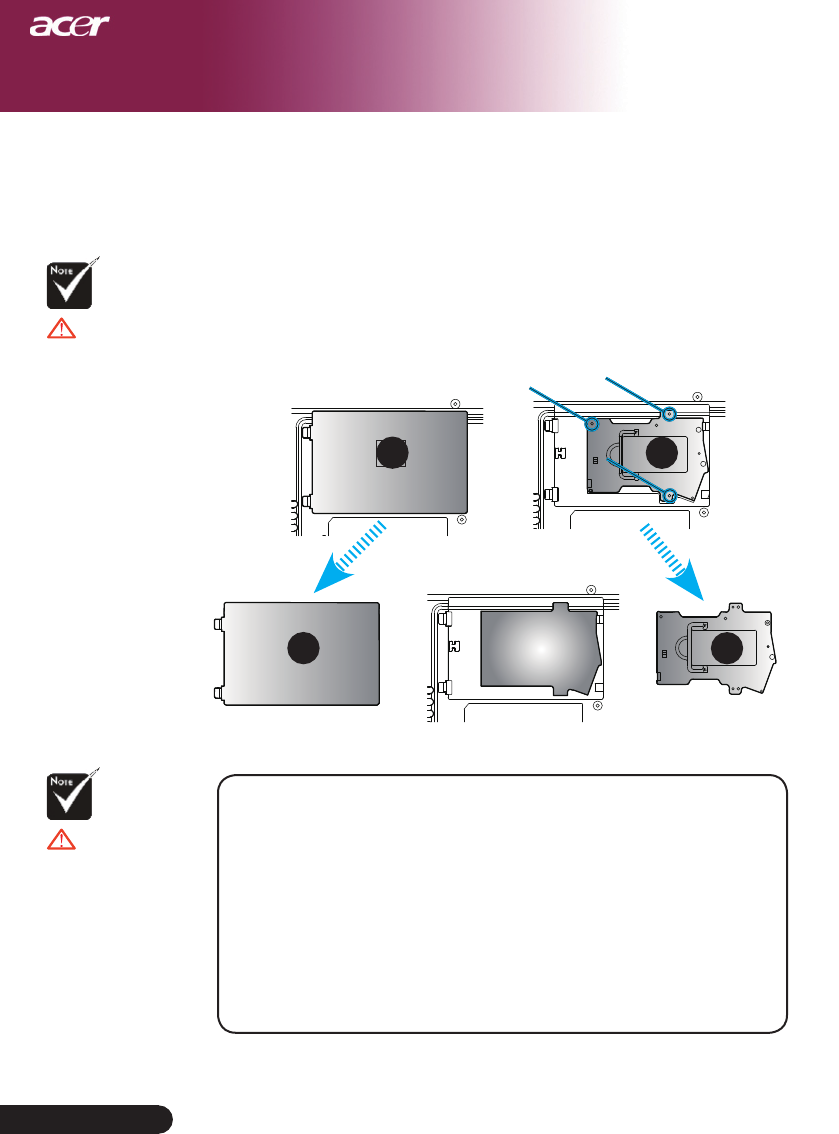
Lamp Changing Procedure:
1. TurnthepowerofftheprojectorbypressingthePowerbutton.
2. Allowtheprojectortocooldownatleast30minutes.
3. Disconnect the power cord.
4. Removethecover.
5. Push up and remove the cover.
6. Remove the 3 screws from the lamp module.
7.Pulloutthelampmodule.
To replace the lamp module, reverse the previous steps to restore.

37 ... English
Appendices
Problem: Message Reminders
“Lamp is approaching the end of its useful life in full power opera-
tion.ReplacementSuggested!”willbeshownabout10seconds
when lamp life is going to deplete.
“Projector Overheated. Lamp will automatically turn off soon.” will
be shown when the system temperature is over heat.
“Fan fail. Lamp will automatically turn off soon.” will be shown
when the fan is out of order.

38
English ...
Appendices
SpecicationsSpecications
Thespecsspeciedbelowaresubjecttochangewithoutnotice.Regardingthenalspecs,
please refer to Acer accounced marketing specs.
LightValve - Single Chip DLP® Technology by Texas Instruments
Lamp -300WUserReplaceableLamp
Number of Pixels - 1280pixels(H)X768lines(V)
Displayable Color - 16.7Mcolors
Contrast Ratio - 2500:1(FullOn/FullOff)
Uniformity - 85%
Noise Level - 30dB(A)(standardmode)/28dB(A)(ECOmode)
Projection Lens - F/2.5~2.8f=22.5~26.69mmwith1.2Xmanualzoomlens
Projection Screen Size (Diag.) - 35to300inchesDiagonal
Projection Distance -3.94to34.07feet(1.2to10.38meters)
VideoCompatibility -NTSC3.58/NTSC4.43/PAL/SECAMandHDTVcompat-
ible
-Compositevideo&S-Videocapability
H. Frequency - 31.5kHz~100kHzhorizontalscan
V.Frequency -56Hz~85Hzverticalrefresh
Power Supply - UniversalACinput100-240V;InputFrequency50/60Hz
I/OConnectors - Power: AC power input socket
-OneDVIconnector
-One15-pinD-subforVGA,componentandHDTVsignal
- One HDMI input for digital video input
- RS232: For projector remote control
-VGAOutput:One15-pinD-sub
-VideoInput:
One composite video RCA input
OneS-Videoinput
One set (3 RCA) of component input
- USB:One USB connector
- Audio Input: One phone jack for audio input
Weight - 7.6lbs(3.5kg)
Dimensions (W x H x D) - 13.9x11.10x4.68inches (350x282x119mm)
Environmental -OperatingTemperature:41~95oF(5~35oC)
Humidity:80%maximum(Non-condensing)
-StorageTemperature:-4~140oF(-20~60oC)
Humidity:80%maximum(Non-condensing)
Safety Regulation - FCCClassB,CEClassB,VCCI-II,ETL,cETL,ETL-GS,
C-tick,PSB,PSE,CBReport,CCC
39 ... English
Appendices
Compatibility Modes
Modes Resolution V.Frequency
[Hz]
H.Frequency
[KHz]
A. VGA Analog
VGA 640x480 60 31.5
640x480 72 37.9
640x480 75 37.5
720x400 70 31.5
SVGA 800x600 56 35.2
800x600 60 37.9
800x600 72 48.1
800x600 75 46.9
XGA 1024x768 60 48.4
1024x768 70 56.5
1024x768 75 60.0
1024x768 85 68.7
SXGA 1152x864 70 63.8
1280x1024 60 63.98
1280x1024 75 79.98
QuadVGA 1280x960 60 59.7
SXGA+ 1400x1050 60 63.98
MAC 1152x870 75.06 68.68
MACG4 640x480 60 31.35
iMacDV 1024x768 75 60.0
B. VGA Analog – Extended Wide Timing
1280x720 60 45.0
1280x768 60 48.36
1280x800 60 49.702
1360x768 60 47.72
1440x900 60 55.935
C. DVI Digital
VGA 640x480 60 31.5
720x400 70 31.5
SVGA 800x600 56 35.2
800x600 60 37.9
800x600 72 48.1
800x600 75 46.9
XGA(Native) 1024x768 60 48.4
1024x768 70 56.5
1024x768 75 60.0
SXGA(Compressed) 1152x864 70 63.8
1280x1024 60 63.98
1280x1024 75 79.98
SXGA+(Compressed) 1400x1050 60 63.98
40
English ...
Appendices
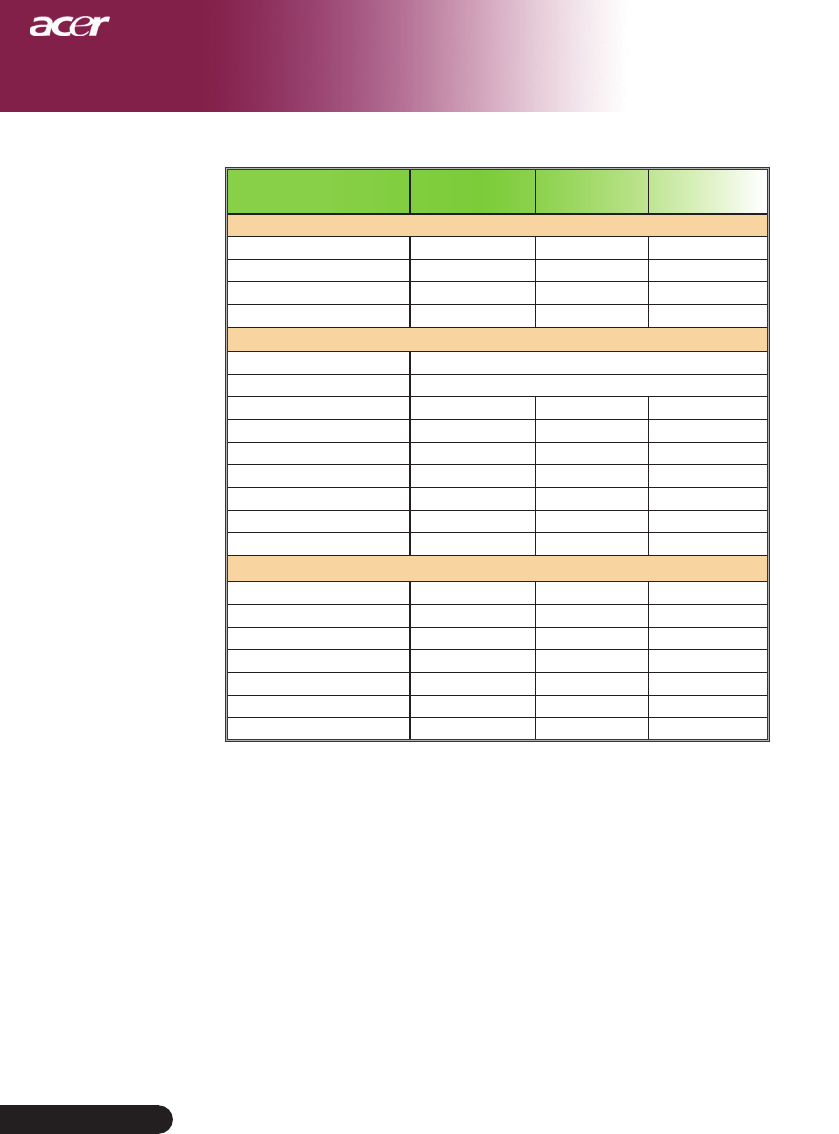
Modes Resolution V.Frequency
[Hz]
H.Frequency
[KHz]
DVI Digital - Extended Wide Timing
1280x768 60 48.36
1280x800 60 49.702
1360x768 60 47.72
1440x900 60 55.935
HDMI Digital
(1) PC Signal. *SupportaboveDVIdigitaltimingformat.
(2) Video Signal.
480i 704x480 59.94(29.97) 15.73
480p 704x480 59.94 31.47
576i 720x576 50(25) 15.63
576p 720x576 50 31.25
720p 1280x720 60 45.00
720p 1280x720 50 37.5
1080i 1920x1080 60(30) 33.75
F. YPbPr Analog
480i 704x480 59.94(29.97) 15.73
480p 704x480 59.94 31.47
576i 720x576 50(25) 15.63
576p 720x576 50 31.25
720p 1280x720 60 45.00
720p 1280x720 50 37.5
1080i 1920x1080 60(30) 33.75

41 ... English
Appendices
Regulation & safety notices
This appendix lists the general notices of your Acer Projector.
FCC notice
This device has been tested and found to comply with the limits for a Class B
digitaldevicepursuanttoPart15oftheFCCrules.Theselimitsaredesigned
to provide reasonable protection against harmful interference in a residential
installation.Thisdevicegenerates,uses,andcanradiateradiofrequencyen-
ergyand,ifnotinstalledandusedinaccordancewiththeinstructions,may
cause harmful interference to radio communications.
However,thereisnoguaranteethatinterferencewillnotoccurinaparticular
installation. If this device does cause harmful interference to radio or televi-
sionreception,whichcanbedeterminedbyturningthedeviceoffandon,the
user is encouraged to try to correct the interference by one or more of the fol-
lowing measures:
• Reorient or relocate the receiving antenna.
• Increase the separation between the device and receiver.
• Connect the device into an outlet on a circuit different from that to
which the receiver is connected.
•Consultthedealeroranexperiencedradio/televisiontechnicianfor
help.
Notice: Shielded cables
All connections to other computing devices must be made using shielded
cables to maintain compliance with FCC regulations.
Caution
Changesormodicationsnotexpresslyapprovedbythemanufacturercould
voidtheuser’sauthority,whichisgrantedbytheFederalCommunications
Commission,tooperatethiscomputer.

42
English ...
Appendices
Operation conditions
ThisdevicecomplieswithPart15oftheFCCRules.Operationissubjecttothe
following two conditions:
1.thisdevicemaynotcauseharmfulinterference,and
2.thisdevicemustacceptanyinterferencereceived,includinginterfer-
ence that may cause undesired operation.
Notice: Canadian users
ThisClassBdigitalapparatuscomplieswithCanadianICES-003.
Remarque à l’intention des utilisateurs canadiens
CetappareilnumeriquedelaclasseBestconformealanormeNMB-003du
Canada.
Declaration of Conformity for EU countries
Hereby,Acer,declaresthatthisAcerprojectorisincompliancewiththeessen-
tialrequirementsandotherrelevantprovisionsofDirective1999/5/EC.(Please
visithttp://global.acer.com.)
Compliant with Russian regulatory certication

43 ... English
Appendices
Important safety instructions
Read these instructions carefully. Save them for future reference.
1. Followallwarningsandinstructionsmarkedontheproduct.
2. Unplug this product from the wall outlet before cleaning. Do not use
liquid cleaners or aerosol cleaners. Use a water-moistened cloth for
cleaning.
3. Do not use this product near water.
4. Donotplacethisproductonanunstablecart,standortable.Ifthe
productfalls,itcouldbeseriouslydamaged.
5. This product should be operated from the type of power indicated on
themarkinglabel.Ifyouarenotsureofthetypeofpoweravailable,
consult your dealer or local power company.
6. Do not allow anything to rest on the power cord. Do not locate this
product where people will walk on the cord.
7. Neverpushobjectsofanykindintothisproductthroughcabinetslots
as they may touch dangerous voltage points or short-out parts that
couldresultinareorelectricshock.Neverspillliquidofanykind
onto or into the product.
8. Donotattempttoservicethisproductyourself,asopeningorremov-
ing covers may expose you to dangerous voltage points or other risks.
Referallservicingtoqualiedservicepersonnel.
9. Unplug this product from the wall outlet and refer servicing to quali-
edservicepersonnelunderthefollowingconditions:
a. When the power cord or plug is damaged or frayed.
b. If liquid has been spilled into the product.
c. If the product has been exposed to rain or water.
d. If the product does not operate normally when the operating in-
structions are followed. Adjust only those controls that are cov-
eredbytheoperatinginstructions,sinceimproperadjustment
of other controls may result in damage and will often require
extensiveworkbyaqualiedtechniciantorestoretheproduct
to normal condition.
e. If the product has been dropped or the case has been damaged. If
theproductexhibitsadistinctchangeinperformance,indicating
a needfor service.
10.Toavoidhazardofunexpectedelectricalshock,usetheACadapter
only when the wall socket is properly grounded.

44
English ...
Appendices
Canada — Low-power license-exempt radio
communication devices (RSS-210)
a. Common information Operation is subject to the following
two conditions:
1.Thisdevicemaynotcauseinterference,and
2.Thisdevicemustacceptanyinterference,includinginterfer-
ence that may cause undesired operation of the device.
b.Operationin2.4GHzbandTopreventradiointerferenceto
thelicensedservice,thisdeviceisintendedtobeoperatedin-
doors and installed outdoors is subject to licensing.
