Addvalue Communications AVBP Bluetooth Pendant Headset User Manual users manual

Addvalue Communications Pte Ltd Bluetooth Pendant Headset users manual

users manual

FCC INFORMATIONFCC ComplianceThis device complies with Part 15 of the FCC Rules. Operation is subject to thefollowing two conditions: (1) This device may not cause harmful interference, and (2)this device must accept any interference received, including interference that maycause undesired operation.NOTE: This equipment has been tested and found to comply with the limits for aClass B digital device, pursuant to Part 15 of the FCC Rules. These limits aredesigned to provide reasonable protection against harmful interference in aresidential installation. This equipment generates, uses and can radiate radiofrequency energy and, if not installed and used in accordance with theinstructions, may cause harmful interference to radio communications. However,there is no guarantee that interference will not occur in a particular installation. Ifthis equipment does cause harmful interference to radio or television reception,which can be determined by turning the equipment off and on, the user isencouraged to try to correct the interference by one or more of the followingmeasures:-- Reorient or relocate the receiving antenna.-- Increase the separation between the equipment and receiver.-- Connect the equipment into an outlet on a circuit different from that to whichthe receiver is connected.-- Consult the dealer or an experience radio/TV technician for help for help.Any changes or modifications not expressly approved by the party responsiblefor compliance could void the user’s authority to operate the equipment.No special accessory is required to enable the equipment to comply with theemission limits.
• Incoming Call• Outgoing Call• Call Waiting• Voice Control• Volume ControlContentsGetting StartedUsing Your BluePendantChargingTroubleshootingUnpacking Contents• Power On/Off• Pairing Process• Pairing to a Mobile Phone• Deleting Pairing Information• Modes• Low Battery23712141Additional Information1777A55017030
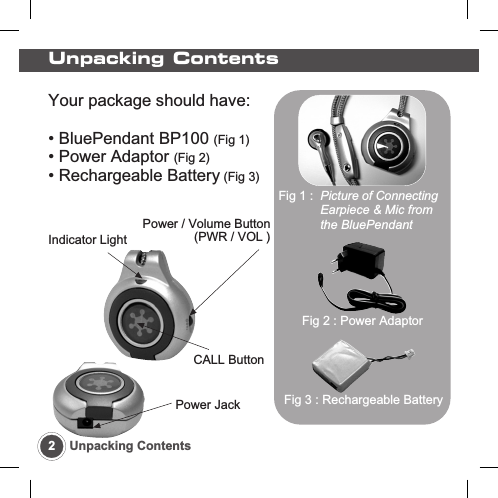
Your package should have:• BluePendant BP100 (Fig 1)• Power Adaptor (Fig 2)• Rechargeable Battery (Fig 3)CALL ButtonIndicator LightPower / Volume Button(PWR / VOL )Power JackUnpacking Contents2Unpacking ContentsFig 1 :  Picture of ConnectingEarpiece & Mic from the BluePendantFig 2 : Power AdaptorFig 3 : Rechargeable Battery
Getting Started3Getting StartedBefore the BluePendant can be used for the first time, theBluePendant battery must be charged with the supplied poweradapter according to steps found in page 12 for Charging.Power ON / OFF• To Power ON, press and hold PWR/VOL button until a BEEPis heard in the BluePendant earpiece. The indicator light turnsBlue for 3 seconds. Thereafter, the indicator light will either flashBlue, once every 2 seconds (when paired) or alternating Blueand Orange (when not paired).• To Power OFF, press and hold the PWR/VOL button until theindicator light turns OFF. A series of beeps will be heard in theBluePendant earpiece and the PWR/VOL button is to be released.• The BluePendant cannot be turned OFF during Charging andwhen there is a call in process.
Pairing ProcessBefore the BluePendant can be used, it must be paired with aBluetooth-enabled mobile phone. There is no need to pair theBluePendant again unless the pairing information has beendeleted from the mobile phone.Pairing to a Mobile Phone• Delete pairing information in the BluePendant first. Refer topage 5 for deleting pairing information.• The BluePendant is ready for pairing when the indicator lightalternates Blue and Orange. Refer to Phone Operations Guideto prepare the mobile phone for pairing to the BluePendant.• During the pairing process, depending on the model, the mobilephone will request for the PASSKEY, or PAIRING CODE, orPASSCODE.  The code or the PIN is labeled at the back of theBluePendant battery door.• Key-in the provided PIN into the mobile phone. The BluePendantindicator light will continue to alternate Blue and Orange untilthe BluePendant is paired to the mobile phone.4Getting Started
Model: BP100PIN:12345BluetoothHeadsetBluePendantPASSKEY orPIN CODE5Getting StartedDeleting Pairing Information• Once pairing information is deleted, the BluePendant resetsto its default settings.• To delete pairing information, press and hold both PWR/VOLand CALL buttons until the indicator light alternates Blue andOrange.• The BluePendant is ready for pairing.• Once pairing is completed,the indicator light will flashBlue once every 2 seconds.• The BluePendant is now inStandby mode and is readyto accept or initiate calls.
6Getting StartedModes• Pairing mode- Indicator light alternating Blue and Orange- BluePendant is ready for pairing to Bluetooth-enabled phone• Standby mode- Indicator light flashes Blue once every 2 seconds- BluePendant ready to accept/initiate calls• Call mode- Indicator light shows a steady Blue- BluePendant has either accepted or initiated a call• Charging mode- Indicator light steady Orange- The BluePendant battery is being charged• Low Battery mode- Indicator light flashes Orange- 3 long beeps can be heard in earpiece- Battery needs recharging and if BluePendant continues tooperate in this mode, the power will be automatically switchedOFF ultimately
Using Your BluePendant7Using Your BluePendantOnce the BluePendant is paired to the mobile phone, it can nowaccept or initiate calls as long as it is within range of approximatelyup to 10m (30ft) outdoor, or up to 5m (15ft) indoor.Incoming callDepending on the mobile phone, calls can be received throughthe BluePendant or through the mobile phone. Switching callsfrom the BluePendant to the mobile phone and vice versa ispossible. Please refer to the mobile phone user documentationand the BluePendant Phone Operations Guide for moreinformation.• When there is an incoming call, the indicator light shows asteady Blue.• When the incoming call ring is heard in the BluePendantearpiece, press the BluePendant CALL button to answer thecall.• To end the call, press the BluePendant CALL button and theindicator light flashes Blue once every 2 seconds.
8Using Your BluePendant• If the BluePendant loses connection during a call, press andhold the BluePendant CALL button for 2 seconds to re-establishconnection. A series of BEEPS can be heard in the BluePendantearpiece when it attempts to re-connect to the mobile phone.Outgoing callDepending on the mobile phone, calls can be received throughthe BluePendant or through the mobile phone. Switching callsfrom the BluePendant to the mobile phone and vice versa ispossible. Please refer to the mobile phone user documentationand the BluePendant Phone Operations Guide for moreinformation.• When making an Outgoing call, dial the number and press themobile phone call button.• The call will be connected to the BluePendant and the indicatorlight turns to steady Blue.• To end the call, press the BluePendant CALL button and theindicator light flashes Blue once every 2 seconds.
9Using Your BluePendant• If the BluePendant loses connection during a call, press andhold the BluePendant CALL button for 2 seconds to re-establishconnection. A series of BEEPS can be heard in the BluePendantearpiece when it attempts to re-connect to the mobile phone.Call WaitingThe Call waiting function is available if the mobile phone supportsit and if call waiting services has been subscribed. Please referto the mobile phone user documentation and BluePendantPhone Operations Guide for more information.• An incoming call can be answered while a call is in progress,provided the call waiting service is available.• Press the CALL button to answer the second call.Voice ControlThe Voice Control function can be used only if the mobile phonesupports it. Please refer to the mobile phone user documentationand the BluePendant Phone Operations Guide for moreinformation.
10 Using Your BluePendant• Press and hold the CALL button for 2 seconds and a seriesof BEEPs can be heard as the BluePendant attempts to connectto the mobile phone.• Once the connection is made, the BEEPs will stop and theVoice Control function can be operated in the usual way.• If the BluePendant is unable to connect to the mobile phone,a long BEEP can be heard. Please try again.Volume Control• The BluePendant volume can be increased by pressing thePWR/VOL button.• A BEEP sound is heard when the volume is increased by onelevel.• This can be repeated until the desired volume level is reached.• Once the maximum volume is reached, 3 short BEEPS wouldbe heard.• Pressing the PWR/VOL button again will re-start the volumelevel to the minimum.
11Using Your BluePendantIf the mobile phone supports remote volume control, theBluePendant will adjust the mobile phone volume only. If themobile phone does not support remote volume control, thevolume has to be adjusted on the BluePendant itself.
Charging12 ChargingConnect the power adapter only to designated power sourcesas marked on the power adapter. The BluePendant is poweredby a rechargeable battery. It is recommended that the batterybe charged with the provided power adapter.• Plug the power adapter into the BluePendant power jack.• When charging for the first time, charge for a minimum of 2hours.• During charging, indicator light will show steady Orange untilthe battery is fully charged.• BluePendant will maintain the battery power if the poweradapter remains plugged.• The BluePendant can be used while charging. The indicatorlight will turn steady Blue whenever there is an incoming oroutgoing call made. It will turn back to steady Orange after thecall has ended.
13ChargingLow Battery• 3 long BEEPs can be heard in the earpiece when the batterypower is low and requires re-charging soon.• The indicator light will flash Orange, once every 2 seconds.• The BluePendant will be automatically switched OFF aftersome time if it is not recharged.
Troubleshooting14 TroubleshootingNo sound contact between BluePendant and phoneThe BluePendant and the phone have to be paired to recognizeeach other.  Please refer to the Pairing Process of theBluePendant User’s Guide on how to pair the mobile phone tothe BluePendant.The BluePendant and the mobile phone also have to be withinrange of each other. The outdoor range is up to 10m (30ft), butsolid objects or the surroundings can affect the range. For bestperformance, it is recommended to keep the range between theBluePendant and the mobile phone to no more than 5m (15 ft)within the same room.The BluePendant indicator light flashes OrangeThis indicates that the BluePendant has limited talk time andstandby time left. Charge the BluePendant battery forapproximately 1.5 to 2 hours.
15TroubleshootingThere are 2 reasons why the BluePendant might be switchedoff automatically:• The battery is too low. The indicator light on the BluePendantwill flash Orange and 3 continuous BEEPs could be heard.• The BluePendant has been exposed to extreme temperatures. Leave the BluePendant in room temperature for a while andturn it on again.Some BluePendant functions do not workSome BluePendant functions are dependent on the mobilephone. If the mobile phone does not support these functions,the BluePendant will also not support these functions. Kindlycheck the BluePendant User’s Guide and the mobile phone userdocumentation if the functions in question can be supported.Voice commands not working properlyIf it is not possible to use the voice commands that have beenrecorded through the mobile phone, try recording the voicecommands using the BluePendant instead.
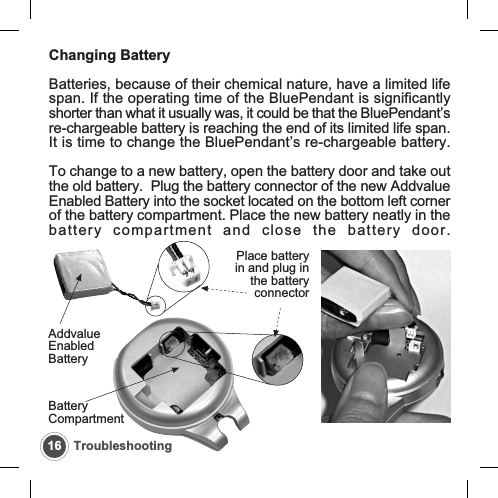
16 TroubleshootingChanging BatteryBatteries, because of their chemical nature, have a limited lifespan. If the operating time of the BluePendant is significantlyshorter than what it usually was, it could be that the BluePendant’sre-chargeable battery is reaching the end of its limited life span.It is time to change the BluePendant’s re-chargeable battery.To change to a new battery, open the battery door and take outthe old battery.  Plug the battery connector of the new AddvalueEnabled Battery into the socket located on the bottom left cornerof the battery compartment. Place the new battery neatly in thebattery compartment and close the battery door.AddvalueEnabledBatteryPlace batteryin and plug inthe batteryconnectorBatteryCompartment
Addvalue Consumer website:www.addvaluetech.com/consumersBefore using the BluePendant, check for any exceptions, dueto national requirements or limitations that may limit or prohibitusage of Bluetooth equipment.Product Usage• Do not attempt to disassemble the BluePendant.  Anyunauthorized alterations, modifications or disassembly of theBluePendant will automatically result in loss of product warranty.• Do not expose the BluePendant to extreme temperatures. TheBluePendant is meant for use within the temperature range of0C (+32F) to +55C (+131F).• Do not expose the BluePendant battery to extreme temperatures.The BluePendant battery is meant for use within the temperaturerange of 0C (+32F) to +55C (+131F).• Do not drop, throw, pull or handle the BluePendant roughly asthis will damage the BluePendant.17Additional InformationAdditional Information
18 Additional Information• Radio Frequency (RF) energy may affect some electronicsystems. Most modern equipment is shielded from RF energy.However, certain electronic equipment is not. Therefore,permission is necessary when intending to use the BluePendantnear or within the vicinity of medical equipment and otherelectronic equipment.• The BluePendant and any other electronic device connectedto it operate using radio signals, hence, connection is notguaranteed under all conditions. Therefore, you should neverrely solely upon the BluePendant for essential communication,such as medical emergencies.
19Additional InformationLimited WarrantyThe warranty period is twelve (12) months from the date ofpurchase. Save the original receipt as it is needed for warrantyrepair claims.  Should the BluePendant need warranty service,please return it to the dealer from whom it was purchased orvisit  www.addvaluetech.com/consumers to get furtherinformation.This limited warranty does not apply to deterioration due tonormal wear and tear. This limited warranty shall further notapply if the defect was caused by subjecting the Product to usein contradiction with the User’s Guide, rough handling, exposureto moisture, dampness or rapid changes in such conditions,corrosion, oxidation, unauthorized modifications or connections,unauthorized opening or repair, repair by use of unauthorizedspare parts, misuse, improper installation, accident, forces ofnature, spillage of food or liquid, influence from chemical productsor other acts beyond the reasonable control of Addvalue (includingbut not limited to deficiencies in consumable parts, such as
20 Additional Informationbatteries which by their nature have a limited lifetime, andbreakage or damage to the connecting earpiece, microphoneor lanyard) unless the defect was caused directly by defects inmaterials, design or workmanship. Or if the Product PIN codeor serial number has been removed, erased, defaced, alteredor is illegible.
BluePendantBluetooth TechnologyUser’s GuideBP100
Languages MenuEnglishDeutschFrançaisItalianoEspañol121416181101
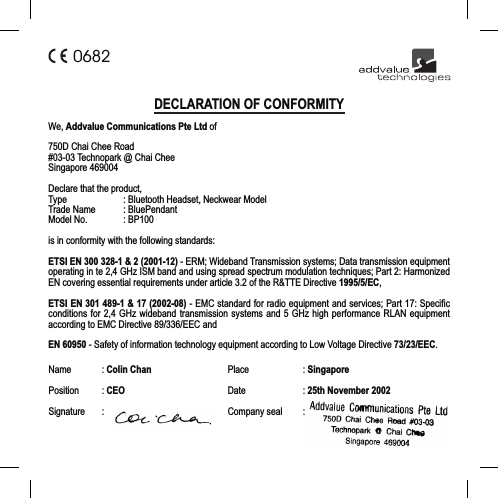
We, Addvalue Communications Pte Ltd of750D Chai Chee Road#03-03 Technopark @ Chai CheeSingapore 469004Declare that the product,Type : Bluetooth Headset, Neckwear ModelTrade Name : BluePendantModel No. : BP100is in conformity with the following standards:ETSI EN 300 328-1 & 2 (2001-12) - ERM; Wideband Transmission systems; Data transmission equipmentoperating in te 2,4 GHz ISM band and using spread spectrum modulation techniques; Part 2: HarmonizedEN covering essential requirements under article 3.2 of the R&TTE Directive 1995/5/EC,ETSI EN 301 489-1 & 17 (2002-08) - EMC standard for radio equipment and services; Part 17: Specificconditions for 2,4 GHz wideband transmission systems and 5 GHz high performance RLAN equipmentaccording to EMC Directive 89/336/EEC andEN 60950 - Safety of information technology equipment according to Low Voltage Directive 73/23/EEC.DECLARATION OF CONFORMITY0682Name : Colin ChanPosition : CEOSignature :Place : SingaporeDate : 25th November 2002Company seal :

Navigation menu