Addvalue Communications SB1BCP1K Bluetooth Handset User Manual UG CTP 0 4
Addvalue Communications Pte Ltd Bluetooth Handset UG CTP 0 4
UserManual.wiki
>
Addvalue Communications
>
SB1BCP1K User Manual
Manual
Navigation menu
Upload a User Manual
Namespaces
Wiki Guide
HTML
PDF
Info
Views
User Manual
Discussion / Help
Navigation
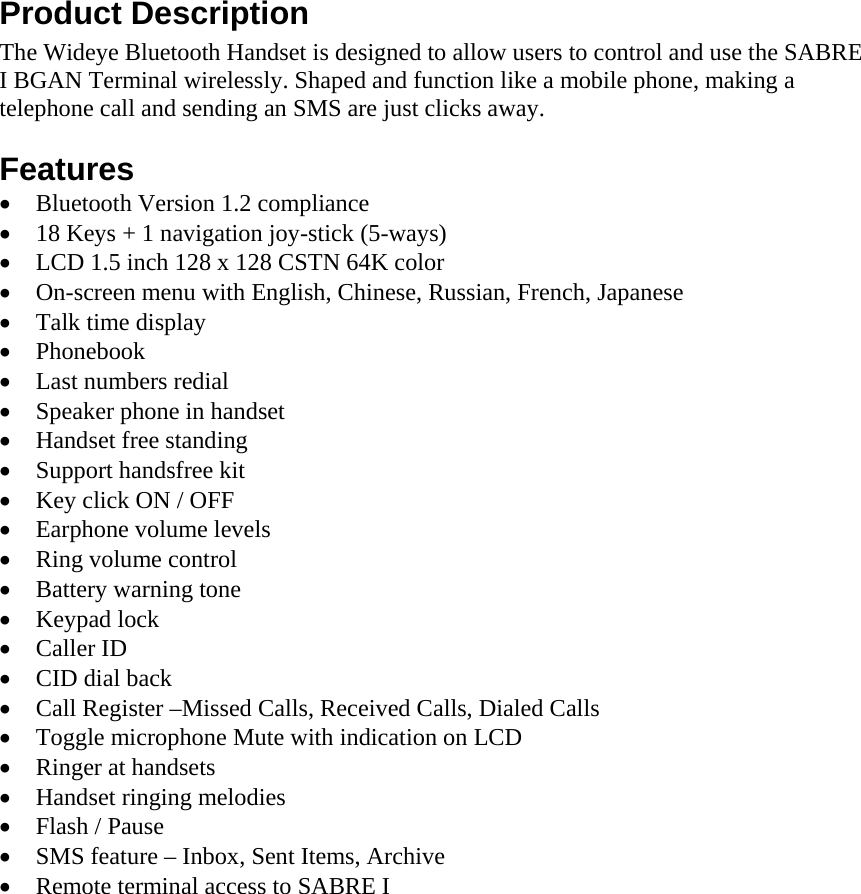
![1 Preparing your Wideye Bluetooth Handset for use Installing the batteries. 1. Remove the back cover. [PIC] 2. Place the batteries into the battery compartment at the back of the Bluetooth Handset. [PIC] Installing the battery cover 1. Place the back cover on to the back of the Bluetooth Handset and slide it forward until the latch catches the cover. [PIC] Charging the Bluetooth Handset 1. Insert the charger connector fully into the charger socket at bottom of the Bluetooth Handset. [PIC] 2. Plug the charger into a power outlet. Note: Do not remove the batteries while the Bluetooth Handset is charging. 3. Once the Bluetooth Handset is fully charged, remove the charger from the power outlet and Bluetooth Handset. 4. Charging time: Turning on the Bluetooth Handset 1. Press and hold the On/Off button. 2. The standby screen will be displayed, as well as the Bluetooth Handset device name. Note: 1) For first time operation, the Bluetooth Handset is not paired and/or connected to the SABRE1 BGAN Terminal. 2) When the Bluetooth Handset is not connected to the SABRE1 BGAN terminal, only the Phone Manager category on the menu is available. All other categories will be available when the Bluetooth Handset is connected to the SABRE1 BGAN Terminal. Switching off the Bluetooth Handset 1. Press and hold the On/Off button. 2. Select Yes to confirm or No to cancel.](https://usermanual.wiki/Addvalue-Communications/SB1BCP1K/User-Guide-850323-Page-7.png)
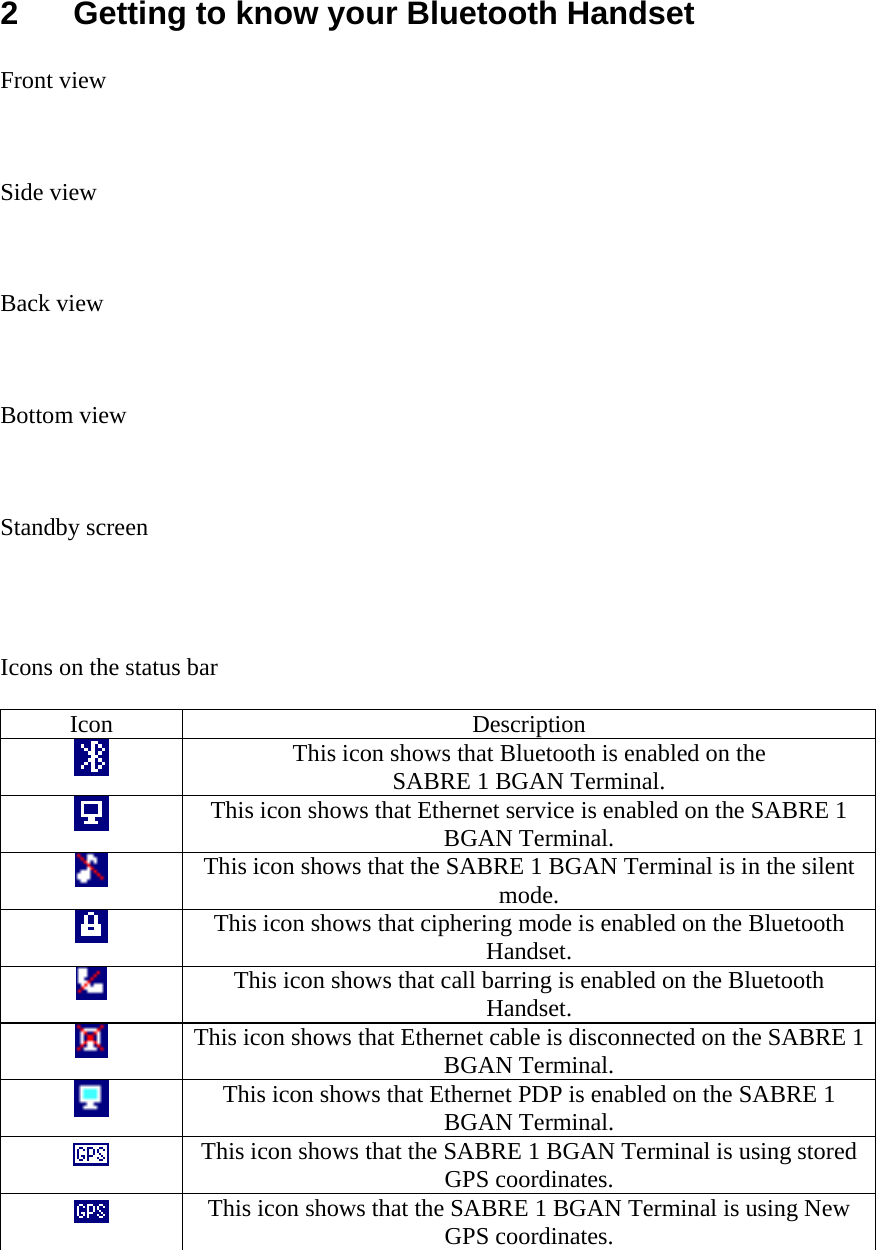
![TBC This icon shows that the Bluetooth Handset loud speaker is enabled. This icon shows that the Bluetooth Handset keypad lock is enabled. This icon shows that the temperature on SABRE 1 BGAN Terminal is too high. This icon shows that the Bluetooth Handset is in the silent mode. This icon shows that the Bluetooth connectivity is active between the Bluetooth Handset and the SABRE 1 BGAN Terminal. This icon shows that the Bluetooth connectivity is inactive between the Bluetooth Handset and the SABRE 1 BGAN Terminal. This icon shows that packet switching is active on the SABRE 1 BGAN Terminal. This icon shows that circuit switching is active on the SABRE 1 BGAN Terminal. This icon shows that there are unread text messages. Using the keys in idle mode Navigation Menu In idle mode, press [pic of navigation joystick] to bring up the Main Menu. Use the navigation joystick to move up, down, left or right through the menu. For example, scroll to Handset Manager and press [pic of navigation joystick] to enter its menu.](https://usermanual.wiki/Addvalue-Communications/SB1BCP1K/User-Guide-850323-Page-9.png)
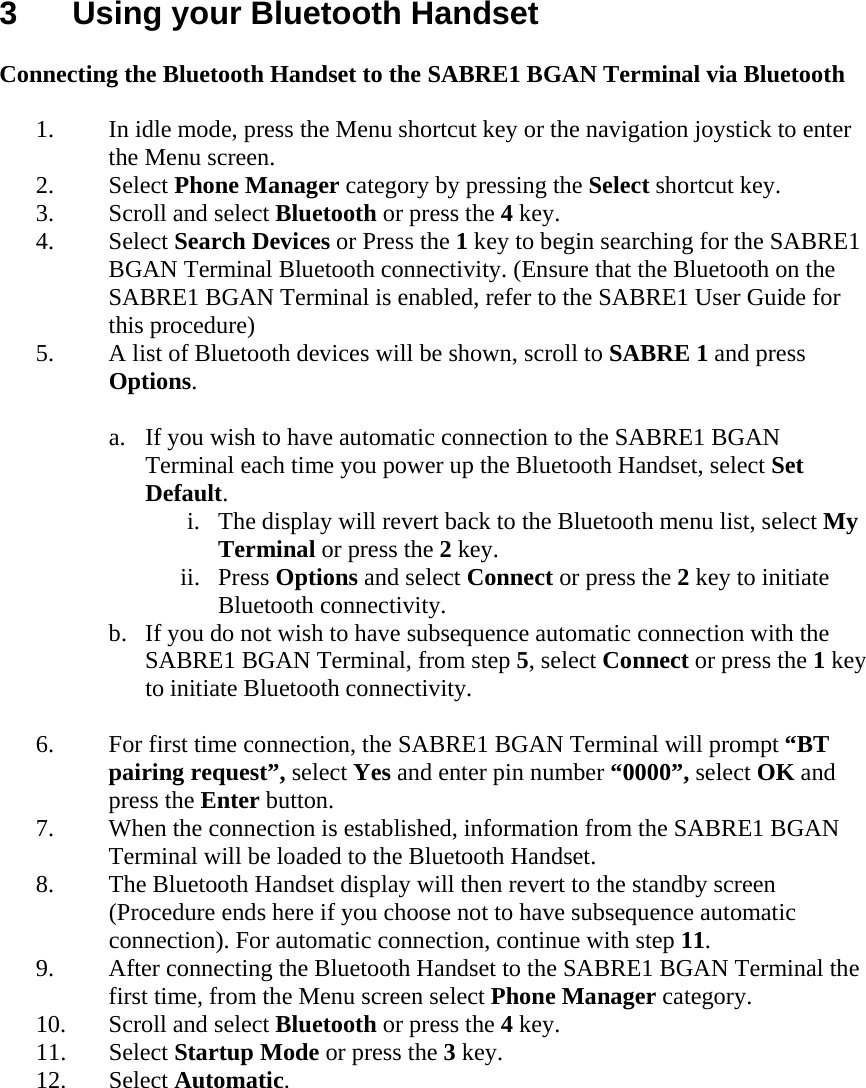
![Call functions Making a phone call Direct dialing - In idle mode, enter the phone number in this format <00><Country Code><Phone Number> and press the off-hook (Pic) key. From Contact list – In idle mode, press Contacts shortcut key and scroll to the contact you wish to call and press the [off-hook] button. Ending a phone call To end a call, press the on-hook (Pic) key. The display will return to the standby screen. Answering a phone call To answer a call, press the off-hook (Pic) key. Contacts Adding new contacts to the contacts list Note: The capacity of the SIM card phonebook depends on the type of SIM card provided by the network service provider. 1. In idle mode, press Contacts shortcut key. 2. Press Options, scroll to New Contact and press Select. 3. Enter the name and press OK. 4. Enter the number and press OK. 5. Select the memory location, SIM Contacts or Terminal Contacts, where the contact is to be stored and press Save. 6. Once saved, press OK key. 7. The Contacts list will be shown. Editing, deleting a contact on the contact list 1. In idle mode, press Contacts shortcut key. 2. Scroll to a contact and press Options key. 3. For Editing, select Edit Contact, press OK and proceed to edit the name and number. Choose Replace to replace the old contact, or SIM Contacts or Terminal Contacts to add and save the edited contact into the chosen memory location. 4. For deleting select Delete and press OK. Press Yes to confirm to delete or No to cancel.](https://usermanual.wiki/Addvalue-Communications/SB1BCP1K/User-Guide-850323-Page-11.png)
![Call Logs You can view the details of the missed calls, received calls and dialed calls on the Bluetooth Handset. 1. In idle mode, press the Menu shortcut key or the navigation joystick to enter the Menu screen. 2. Select Call Logs category. 3. Select Missed calls to view all missed calls numbers. 4. Select Received calls to view all received calls numbers. 5. Select Dialled calls to view all dialed calls numbers. 6. Select Delete Call to delete all Missed, Received or Dialled calls. Making a call from the Missed, Received and Dialled calls list 1. Scroll to the number and press the [off-hook] key. Deleting an entry from the Missed, Received and Dialled calls list 1. Scroll to the number and press Option. 2. Scroll to Delete and press Select. 3. Press Yes to confirm to delete or No to cancel. Deleting all the Missed, Received and Dialled calls 1. From the Call Logs category, scroll to Delete Calls and press Select. 2. Scroll to: i. Missed Call (to delete all missed calls only). ii. Received Call (to delete all received calls only). iii. Dialled Call (to delete all dialled calls only). iv. All Calls (to delete all calls). And press Select. 3. Press Yes to confirm to delete or No to cancel. Saving an entry from the Missed, Received and Dialled calls list 1. Scroll to the number and press Option. 2. Scroll to Save and press Select. 3. Enter the name and press OK. 4. Enter the number and press OK. 5. Select the memory location where the contact is to be stored. Select either from SIM Contacts or UT Contacts and press Save. 6. Once saved, press OK key.](https://usermanual.wiki/Addvalue-Communications/SB1BCP1K/User-Guide-850323-Page-12.png)
![4 Menus The Wideye Bluetooth Handset has various functions that are organized in the menus and sub-menus. The main menu consists of nine categories and each category has related sub-menus. [icon] Contacts Shows you the list of contacts that are available from the SIM card and the SABRE1 BGAN Terminal. For descriptions on the Add, Edit and Delete features in the Contacts menu, see page NN “Contacts”. Send Message Select this to send a text message to the selected contact. The text editor screen will appear and you can key in your message. Description on sending the text message can be found on page NN. Search Select this to search a contact from the list. Enter an initial and press Ok. View Number Shows you the calling number of the contact that you have selected. Forward Select this to forward a text message.??? Memory Status Show you the number of contacts available in the SIM card and the SABRE1 BGAN Terminal memories. [icon] Call Logs For descriptions on the features available in the Call Logs menu, see page NN “Call Logs”. [icon] Interfaces Ethernet Shows you the SABRE1 BGAN Terminal Ethernet status. You can change the status by selecting either Enable or Disable.](https://usermanual.wiki/Addvalue-Communications/SB1BCP1K/User-Guide-850323-Page-15.png)
![Bluetooth Shows you the SABRE1 BGAN Terminal Bluetooth settings. Profile Shows you the Bluetooth profile in used on the SABRE1 BGAN Terminal. Security mode Shows you the Bluetooth security levels available on the SABRE1 BGAN Terminal. You may select security level 1 (lowest), 2 or 3 (highest). Discovery mode Shows you the Bluetooth discovery mode of the SABRE1 BGAN Terminal. You may select Non Discovery, General or Limited. Device pairing Select this to initiate the searching and pairing of Bluetooth devices from the SABRE1 BGAN Terminal. A list of Bluetooth devices will be shown, scroll to the device you wish to pair and press Select > [passkey] > OK. Paired List This shows the list of Bluetooth devices already paired with the SABRE1 BGAN Terminal. You can Unpair, Authorise and Unauthorise the selected paired device. My BT device Shows you the SABRE1 BGAN Terminal Bluetooth device name and its default PIN. You can edit the SABRE1 BGAN Terminal Bluetooth device name. Telephony Shows you the SABRE1 BGAN Terminal Telephony settings. State Shows you the SABRE1 BGAN Terminal telephony status. You can change the status by selecting Enable or Disable. Caller ID Shows you the current Caller ID standard selected. You can select either American or European standard. [icon] Data Check status Shows you the current data connection type selected, its status and IP address on the SABRE1 BGAN Terminal.](https://usermanual.wiki/Addvalue-Communications/SB1BCP1K/User-Guide-850323-Page-16.png)
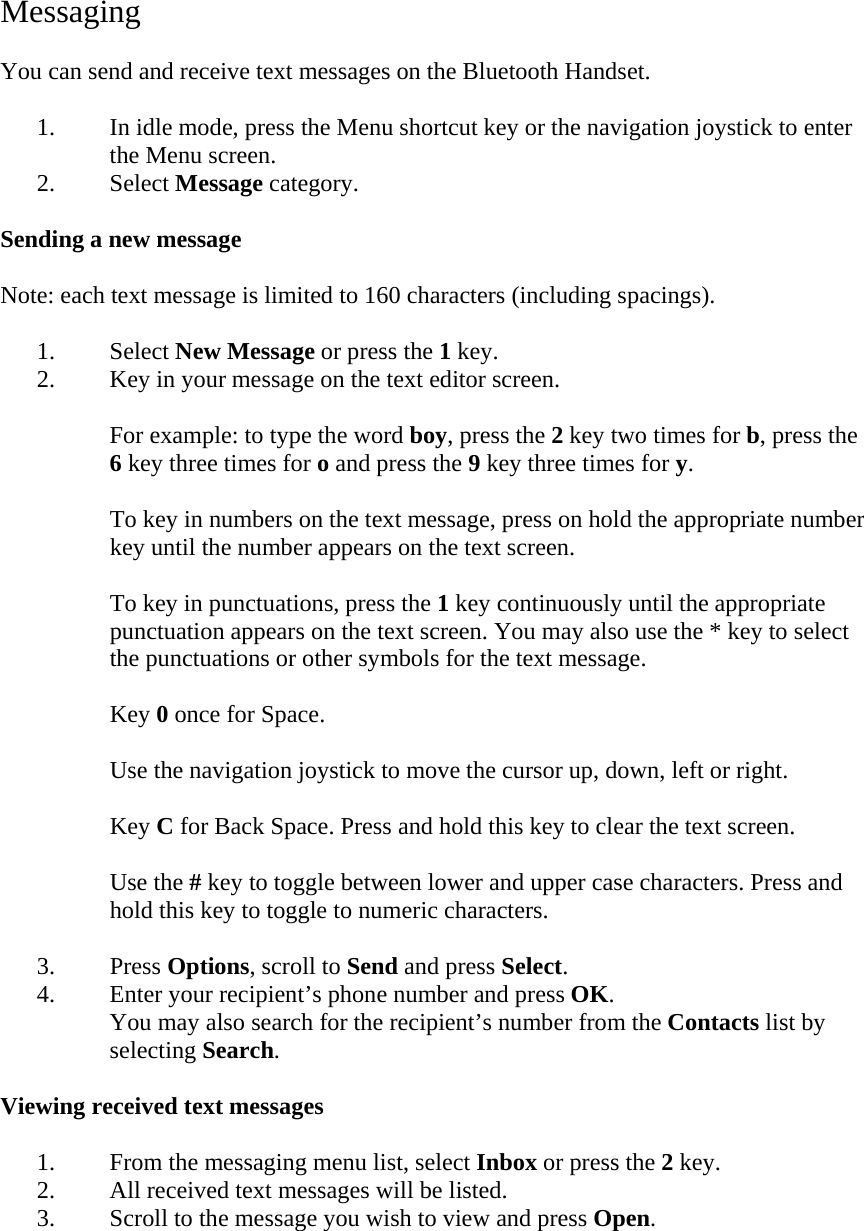
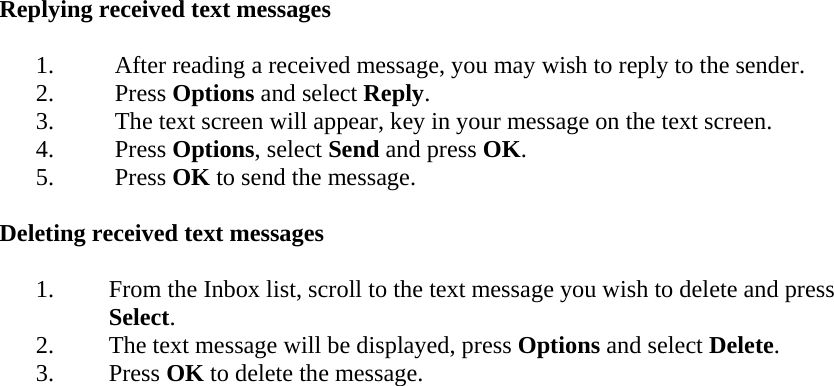
![Standard APN Shows you the current Standard APN in used. To start the Standard data connection, select Options > Connect. To end this connection, select Disconnect. Stream32 Shows you the current Streaming 32k APN in used. To start the Streaming 32k data connection, select Options > Connect. To end this connection, select Disconnect. Stream64 Shows you the current Streaming 64k APN in used. To start the Streaming 64k data connection, select Options > Connect. To end this connection, select Disconnect. [icon] Message For descriptions on New Message and Inbox features in the Message menu, see page NN “Message”. Sent Contains the text messages that you have sent. Select Open to view the selected message. Select Delete to delete the selected message. Select Sent to ? Draft Contains the messages that you chosen to save. Select Open to view and edit the selected message. Select Delete to delete the selected message. Select Send to send the message to a recipient. Options Shows you the text messaging settings and memory status. Settings Shows you the Centre number and Message validity Select Centre number to view and edit the network operator message center number. Select Message validity to set how long the network should try to deliver a message. Memory status Show you the number of messages in the respective areas.](https://usermanual.wiki/Addvalue-Communications/SB1BCP1K/User-Guide-850323-Page-17.png)
![Delete all Select this to delete all text messages in the respective text folders. All Messages Press Select to delete all text messages in all folders. Inbox Press Select to delete all text messages in the Inbox folder only. Sent Items Press Select to delete all text messages in the Sent Items folder only. Draft Press Select to delete all text messages in the Draft folder only. [icon] Settings Systems Shows you the SABRE1 BGAN Terminal settings for Voice, Data and Ciphering mode. Voice Shows you the current voice settings. You can select either Manual or Automatic. (When Manual is selected, Voice will not be activated during the next power on.) Data Shows you the current data settings. You can select either Manual or Automatic. (When Manual is selected, Data will not be activated during the next power on.) Ciphering mode Shows you the current ciphering mode settings. You can select either Enable or Disable. Calls Shows you the SABRE1 BGAN Terminal call forwarding, call waiting and call barring settings. Call Forwarding This feature allows you to divert calls to a designated phone number or voicemail box. CF for all calls Diverts all incoming calls. CF if not answered Diverts incoming calls when you do not answer.](https://usermanual.wiki/Addvalue-Communications/SB1BCP1K/User-Guide-850323-Page-18.png)
![CF if busy Diverts incoming calls when you are in the middle of another call. CF if not available Diverts incoming calls when your SABRE1 BGAN Terminal is turned off or outside network coverage. To enable the any of Call Forwarding above, select the CF type > Enable > [CF telephone number]. To disable the any of Call Forwarding above, select the CF type > Disable. Disable all CF Cancels all divert options. Call Waiting If there is an incoming call when you are in the middle of another call, the display will indicate a call waiting message to alert you. You can enable, disable or view the status of this feature from this menu. Call Barring You can block all incoming or outgoing calls. To enable or disable any of the following features, you must enter the password provided by the service provider. All Outgoing Blocks the dialing of any calls. You can enable or disable this feature from this menu. All Incoming Rejects all incoming calls. You can enable or disable this feature from this menu. You can change the password provided by the service provider, select Change Password > Old Password > New Password. DHCP Configuration Shows the status of the SABRE1 BGAN Terminal DHCP configuration. You can enable or disable this configuration. DHCP Address Range Shows you the DHCP Start and Stop Address Range. Default Start Address: 192.168.1.30 and Stop Address: 192.168.1.50.](https://usermanual.wiki/Addvalue-Communications/SB1BCP1K/User-Guide-850323-Page-19.png)
![DNS Server Shows you the DNS Server address. Default first server: 165.21.83.88 and second server: 192.168.1.3. Lease Time Shows you the lease time. Terminal IP Address Shows you the SABRE1 BGAN Terminal IP Address. The default terminal IP address: 192.168.1.35. You can edit the IP address, select Edit > [key in new address] > Ok. Data Connection Shows you the SABRE1 BGAN Terminal data connection mode in used. Mode Select the SABRE1 BGAN Terminal Data connection mode to be used. Bridge Mode This mode requires the SABRE1 BGAN Terminal Ethernet driver to be installed on your PC. This mode is only applicable for computers using MS Windows XP or 2000 operating systems. If you disable this mode, the SABRE1 BGAN Terminal will automatically switch to the Router Mode. Router Mode This mode is applicable for any operating systems listed in the SABRE1 BGAN Terminal technical specification. The SABRE1 BGAN Terminal Ethernet driver is not required. If you disable this mode, the SABRE1 BGAN Terminal will automatically switch to the Bridge Mode. DNS Setting You may select the DNS setting: Dynamic or Static. For Dynamic, the primary and secondary DNS IP addresses will be automatically assigned. For Static, you may edit the primary and secondary DNS IP addresses. Authentication You may select the authentication type: PAP, CHAP, AUTO or None. Activation Type You can select either Manual or Automatic activation for the Router mode. For Manual activation, you can make the data connection at the time you need it. For Automatic activation, the data connection is activated automatically each time the SABRE1 BGAN Terminal is switched on. APN Configuration](https://usermanual.wiki/Addvalue-Communications/SB1BCP1K/User-Guide-850323-Page-20.png)
![Shows you the default and other APNs that you can use for your data subscription. Defined APN A list of defined APNs will be shown. If the list is empty, you may add a new APN. You may edit any existing APNs and set it as the default APN. Username and password may be required when you are adding or editing an APN. To add or edit an APN: select APN Configuration > Defined APN > Option > Add/Edit > [add or edit APN name] > Username > Password > OK. Default APN The APN shown is the default APN. If it is empty, you can fetch the APN from the SIM card provided by the service provider. [Commonly used APN is bgan.inmarsat.com] To fetch the APN from the SIM card, select APN Configuration > Default APN > Option > Fetch from SIM. Primary Profile Shows you the three primary profiles (Standard, Streaming 32 and Streaming 64) settings on the SABRE1 BGAN Terminal. You can edit the three profile settings from this menu. Select one of the profiles: Standard Streaming 32 Streaming 64 To edit a profile setting: select Options > Edit. The Profile name will be shown. For Standard: Default settings: the APN is set to the default APN. The IP Configuration is set to Dynamic (Network assign). The Header Compression is set to Enabled. For Streaming 32 or 64: Default settings: the APN is set to the default APN. Desire Rate: 32k or 64k. Minimum Rate: 32k or 64k. The IP Configuration is set to Dynamic (Network assign). The Header Compression is set to Enabled. You can add more profiles into the Primary Profile list. To add a profile setting: select Options > Add. i. Enter a profile name. ii. Select the APN to be used with this profile. iii. For Standard, enter the IP Configuration and Header Compression.](https://usermanual.wiki/Addvalue-Communications/SB1BCP1K/User-Guide-850323-Page-21.png)
![iv. For Streaming 32 or 64, enter the Desire Rate, Minimum Rate, IP Configuration and Header Compression. Secondary Profile Shows you the secondary profiles settings on the SABRE1 BGAN Terminal. By default, the secondary profile list is empty. You can add the profile settings from this menu. To add a profile setting: select Options > Add. i. Enter a profile name. ii. Enter the Traffic Flow Template. iii. Enter the Desire Rate. iv. Enter the Minimum Rate v. Enter the Error Correction setting. Profile settings can be edited or deleted, select Options > Edit/Delete. [icon] Terminal GPS Info Shows you the GPS information on the SABRE1 BGAN Terminal. GPS Status Shows you the status of the current GPS coordinates used on the SABRE1 BGAN Terminal. For newly acquired GPS coordinates, the status will show Acquired. If the SABRE1 BGAN Terminal did not acquire any new GPS coordinates during its operation, the status will show Stored. Terminal Info Shows you the information on the SABRE1 BGAN Terminal. IMEI number Shows you the SABRE1 BGAN Terminal IMEI number. IMSI number Shows you the SIM card IMSI number. Firmware version Shows you the SABRE1 BGAN Terminal firmware version. Hardware version Shows you the SABRE1 BGAN Terminal hardware version.](https://usermanual.wiki/Addvalue-Communications/SB1BCP1K/User-Guide-850323-Page-22.png)
![Manufacturer Shows you the manufacturer’s name of the SABRE1 BGAN Terminal. Own number Shows you the current SIM card’s telephone number. Terminal restart You can restart the SABRE1 BGAN Terminal while it is in operation, select Yes to initiate the restart. Reset to factory default You can reset the SABRE1 BGAN Terminal to its factory default settings. Select this option and key in the Security code and the SABRE1 BGAN Terminal will begin the reset. Warning: All customized settings will be erased during the reset. [icon] Security The SABRE1 BGAN Terminal and SIM card security settings can be made from this menu. Terminal PIN SIM PIN SIM PIN2 SIM Lock Service Provider Corporate You can enable, disable or change the PIN numbers of all the above PIN types. To enable or disable the PIN numbers, select the PIN type > Enable / Disable > [PIN number] > OK. To change the PIN number, select the PIN type > Change PIN > [enter old PIN number] > [enter new PIN number] > [re-enter new PIN number] > OK. [icon] Handset Manager My Device Name Shows you the device name, BCP1000, of the Bluetooth Handset. You can edit the device name to another name of your choice. Display Shows you the nine different wallpapers you can choose for use on the standby screen.](https://usermanual.wiki/Addvalue-Communications/SB1BCP1K/User-Guide-850323-Page-23.png)
![Brightness Used to set the brightness level of the Bluetooth Handset display. There are five levels, from 0 (dimmest) to 5 (brightest). Backlight Used to set the duration of the Bluetooth Handset display backlight. Settings ranging from Off (Backlight permanently off), 5 seconds to 1 minute. Tone Used to set the tones for the Keys and Ring tones. Keytone Allow you to decide whether the keypad will sound when the keys are pressed. Ringtone Allows you to set the ring tone when there is an incoming call. You can adjust the ring tone volume from this menu as well. To set the ring tone, select Tone > [your preferred tone] > Ok. To set the volume level, select Volume > [your preferred level] > Ok. Bluetooth Used to set the Bluetooth connectivity with other Bluetooth devices. For description to connect the Bluetooth Handset to the SABRE1 BGAN Terminal, see Chapter 3. About Shows you the software and hardware versions of the Bluetooth Handset.](https://usermanual.wiki/Addvalue-Communications/SB1BCP1K/User-Guide-850323-Page-24.png)