Adj Installing Emulation On Windows 64Bit User Manual
2011-08-29
User Manual: Adj Installing Emulation On Windows 64Bit Installing Emulation on Windows 64bit binaries
Open the PDF directly: View PDF  .
.
Page Count: 4
1
Installing Emulation on Windows 64-bit
1. Make sure the CueCable DMX interface is unplugged
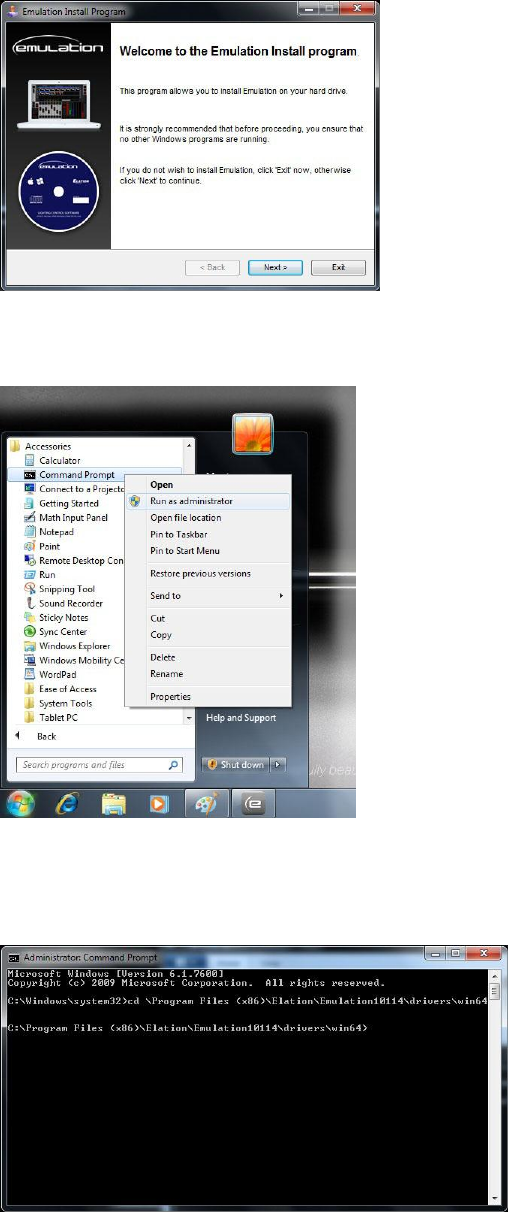
2. Install Emulation version 1.01 build 14 or higher
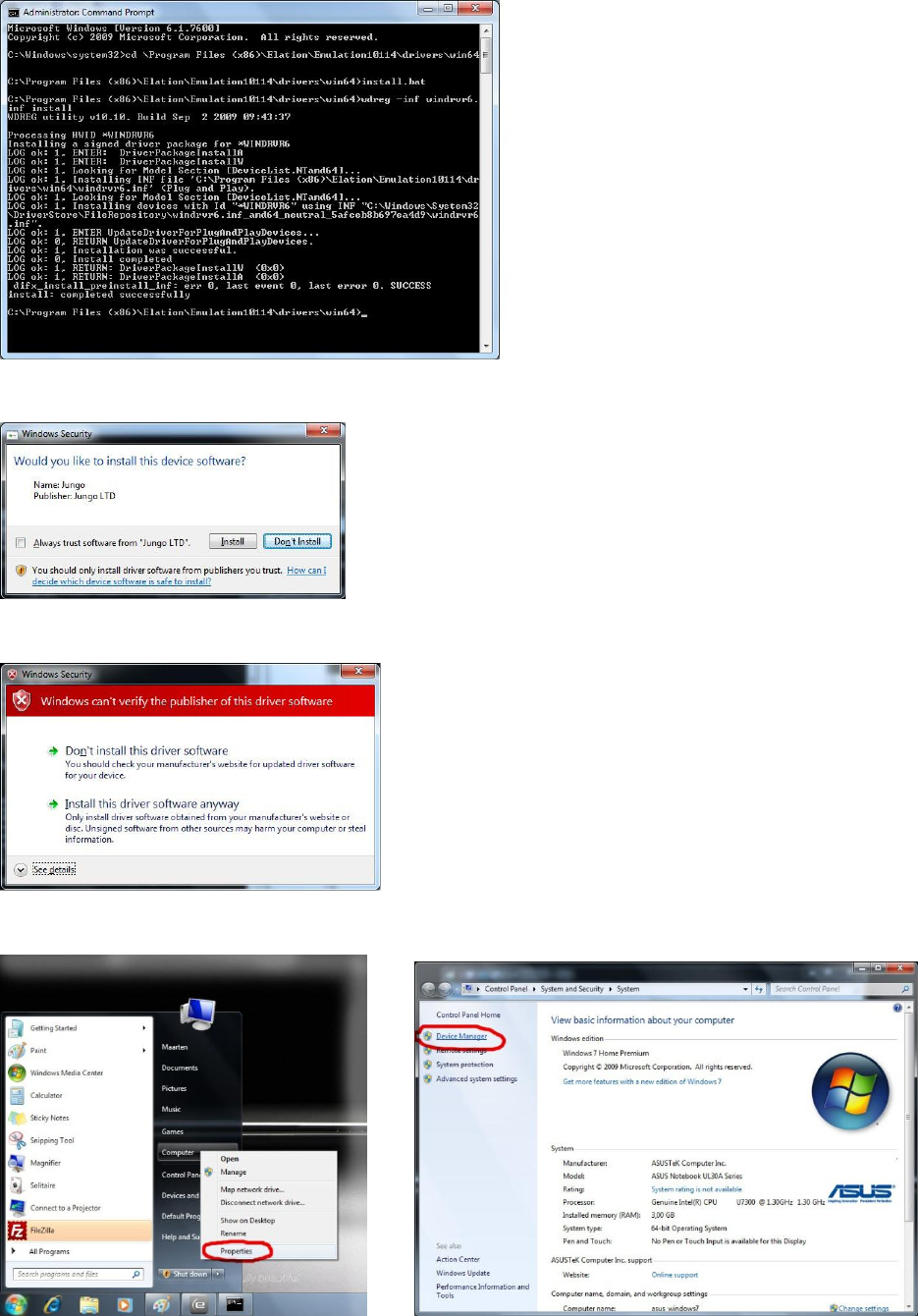
3. Open a Command Prompt, run as administrator
4. Go to the installation folder of Emulation.
If your folder is C:\Program Files (x86)\Elation\Emulation10114\drivers\win64
Then type cd \Program Files (x86)\Elation\Emulation10114\drivers\win64
2
5. Run the install batch file by typing install.bat
You can trust ‘Jungo’; this is the name of the supplier of the driver.
Windows can’t verify the publisher of the CueCable; Click ‘Install this driver software anyway’
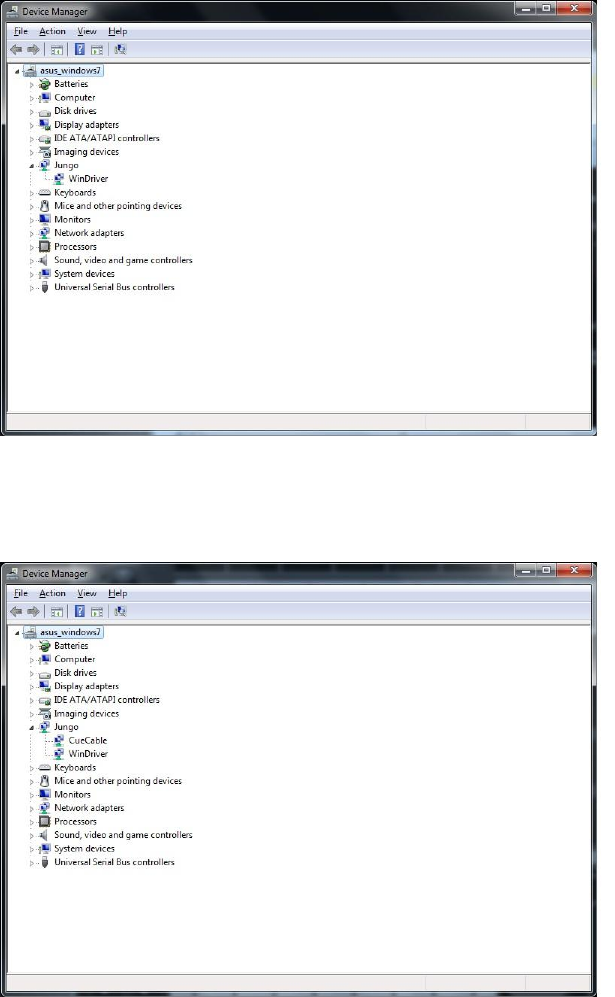
6. Check your Device Manager. You can reach the Device Manager through:
3
It should display class ‘Jungo’ containing item ‘Windriver6’.
7. Plug in the CueCable DMX Interface
8. Check your Device Manager. In the class ‘Jungo’ it should now also show item ‘CueCable’.
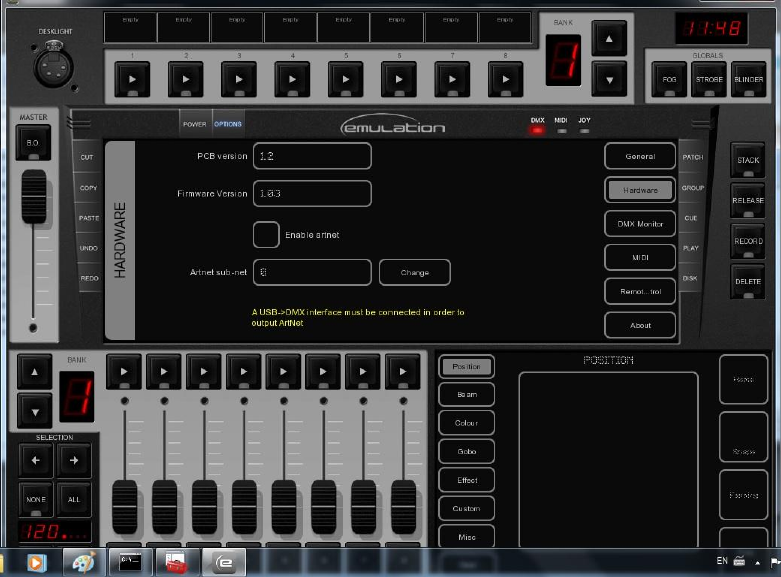
9. Run Emulation and check in the ‘Options’ -> ‘Hardware’ that the CueCable is detected.
4
Finished!
