Aerielle I2I200 I2i Stream Wireless Digital Audio Device User Manual manual 20080128 outside

Aerielle, Inc I2i Stream Wireless Digital Audio Device manual 20080128 outside

User Manual

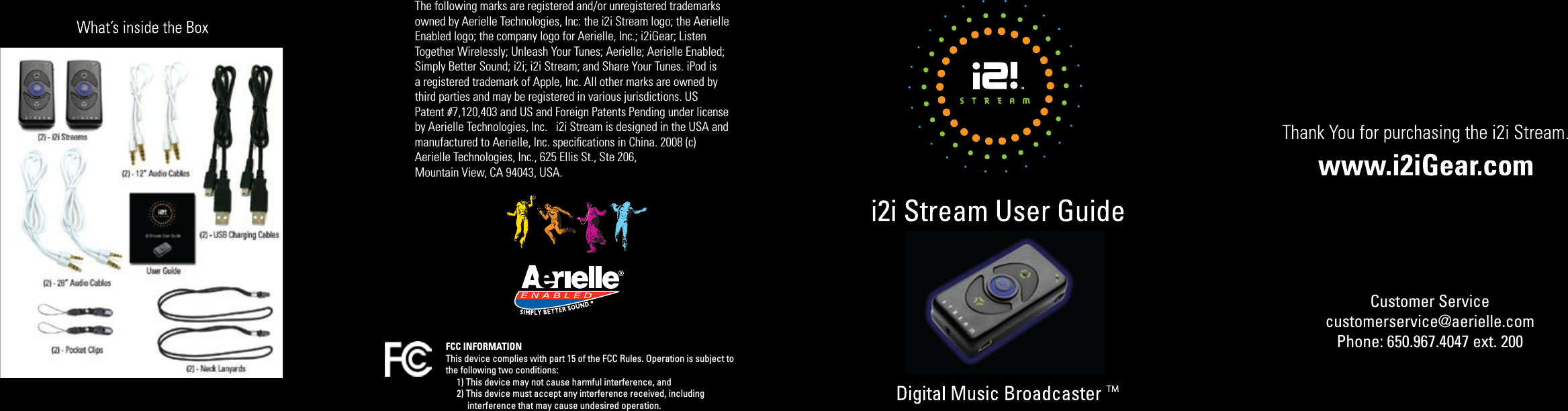
FCC INFORMATIONThis device complies with part 15 of the FCC Rules. Operation is subject to the following two conditions:     1) This device may not cause harmful interference, and     2) This device must accept any interference received, including           interference that may cause undesired operation. Customer Servicecustomerservice@aerielle.comPhone: 650.967.4047 ext. 200The following marks are registered and/or unregistered trademarks owned by Aerielle Technologies, Inc: the i2i Stream logo; the Aerielle Enabled logo; the company logo for Aerielle, Inc.; i2iGear; Listen Together Wirelessly; Unleash Your Tunes; Aerielle; Aerielle Enabled; Simply Better Sound; i2i; i2i Stream; and Share Your Tunes. iPod is a registered trademark of Apple, Inc. All other marks are owned bythird parties and may be registered in various jurisdictions. US Patent #7,120,403 and US and Foreign Patents Pending under licenseby Aerielle Technologies, Inc.   i2i Stream is designed in the USA and manufactured to Aerielle, Inc. specifications in China. 2008 (c) Aerielle Technologies, Inc., 625 Ellis St., Ste 206, Mountain View, CA 94043, USA.
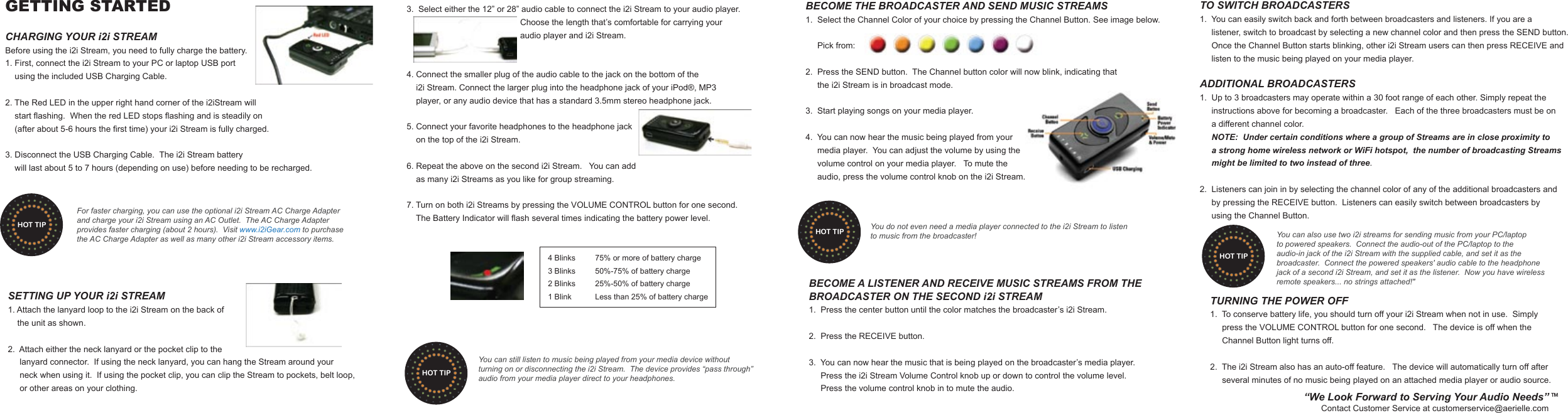
GETTING STARTEDCHARGING YOUR i2i STREAMBefore using the i2i Stream, you need to fully charge the battery.1. First, connect the i2i Stream to your PC or laptop USB port     using the included USB Charging Cable.2. The Red LED in the upper right hand corner of the i2iStream will     start flashing.  When the red LED stops flashing and is steadily on     (after about 5-6 hours the first time) your i2i Stream is fully charged.    3. Disconnect the USB Charging Cable.  The i2i Stream battery    will last about 5 to 7 hours (depending on use) before needing to be recharged.  SETTING UP YOUR i2i STREAM1. Attach the lanyard loop to the i2i Stream on the back of    the unit as shown.2.  Attach either the neck lanyard or the pocket clip to the     lanyard connector.  If using the neck lanyard, you can hang the Stream around your      neck when using it.  If using the pocket clip, you can clip the Stream to pockets, belt loop,      or other areas on your clothing.  3.  Select either the 12” or 28” audio cable to connect the i2i Stream to your audio player.                                                 Choose the length that’s comfortable for carrying your                                                 audio player and i2i Stream.4. Connect the smaller plug of the audio cable to the jack on the bottom of the     i2i Stream. Connect the larger plug into the headphone jack of your iPod®, MP3     player, or any audio device that has a standard 3.5mm stereo headphone jack.5. Connect your favorite headphones to the headphone jack     on the top of the i2i Stream. 6. Repeat the above on the second i2i Stream.   You can add     as many i2i Streams as you like for group streaming.7. Turn on both i2i Streams by pressing the VOLUME CONTROL button for one second.      The Battery Indicator will flash several times indicating the battery power level.       4 Blinks  75% or more of battery charge      3 Blinks  50%-75% of battery charge      2 Blinks  25%-50% of battery charge      1 Blink  Less than 25% of battery chargeBECOME THE BROADCASTER AND SEND MUSIC STREAMS1.  Select the Channel Color of your choice by pressing the Channel Button. See image below.            Pick from: 2.  Press the SEND button.  The Channel button color will now blink, indicating that      the i2i Stream is in broadcast mode.   3.  Start playing songs on your media player.4.  You can now hear the music being played from your      media player.  You can adjust the volume by using the     volume control on your media player.   To mute the      audio, press the volume control knob on the i2i Stream.TO SWITCH BROADCASTERS1.  You can easily switch back and forth between broadcasters and listeners. If you are a      listener, switch to broadcast by selecting a new channel color and then press the SEND button.       Once the Channel Button starts blinking, other i2i Stream users can then press RECEIVE and      listen to the music being played on your media player.ADDITIONAL BROADCASTERS1.  Up to 3 broadcasters may operate within a 30 foot range of each other. Simply repeat the      instructions above for becoming a broadcaster.   Each of the three broadcasters must be on      a different channel color.      NOTE:  Under certain conditions where a group of Streams are in close proximity to      a strong home wireless network or WiFi hotspot,  the number of broadcasting Streams      might be limited to two instead of three.2.  Listeners can join in by selecting the channel color of any of the additional broadcasters and      by pressing the RECEIVE button.  Listeners can easily switch between broadcasters by      using the Channel Button.TURNING THE POWER OFF 1.  To conserve battery life, you should turn off your i2i Stream when not in use.  Simply      press the VOLUME CONTROL button for one second.   The device is off when the      Channel Button light turns off.2.  The i2i Stream also has an auto-off feature.   The device will automatically turn off after      several minutes of no music being played on an attached media player or audio source.BECOME A LISTENER AND RECEIVE MUSIC STREAMS FROM THE BROADCASTER ON THE SECOND i2i STREAM1.  Press the center button until the color matches the broadcaster’s i2i Stream. 2.  Press the RECEIVE button.3.  You can now hear the music that is being played on the broadcaster’s media player.       Press the i2i Stream Volume Control knob up or down to control the volume level.       Press the volume control knob in to mute the audio.For faster charging, you can use the optional i2i Stream AC Charge Adapter and charge your i2i Stream using an AC Outlet.  The AC Charge Adapterprovides faster charging (about 2 hours).  Visit www.i2iGear.com to purchase the AC Charge Adapter as well as many other i2i Stream accessory items.HOT TIPYou can still listen to music being played from your media device without turning on or disconnecting the i2i Stream.  The device provides “pass through” audio from your media player direct to your headphones.HOT TIPYou do not even need a media player connected to the i2i Stream to listen to music from the broadcaster!HOT TIP You can also use two i2i streams for sending music from your PC/laptop to powered speakers.  Connect the audio-out of the PC/laptop to the audio-in jack of the i2i Stream with the supplied cable, and set it as the broadcaster.  Connect the powered speakers' audio cable to the headphone jack of a second i2i Stream, and set it as the listener.  Now you have wireless remote speakers... no strings attached!"HOT TIP“We Look Forward to Serving Your Audio Needs”Contact Customer Service at customerservice@aerielle.comTM

Navigation menu